If you’ve ever wanted to turn a quick screen recording into a GIF without using a third-party tool, Snipping Tool is finally getting the feature you’ve been waiting for. Microsoft has started rolling out GIF export support in the app’s screen recording feature, and it’s live for Windows 11 Insiders in the Dev and Canary channels.
You can now record, then save as a GIF
The new option shows up once you finish a screen recording. Simply click the GIF button in the editor’s top-right corner. Here, you’ll see basic options to choose quality and check the file’s duration, resolution, and frame rate. After that, you can either Export it as a file or Copy it to your clipboard.
Image: X/@phantomofearth
There’s a limit, though. GIFs only work for recordings that are 30 seconds or shorter. If your video goes over, Snipping Tool will automatically trim it down.
Not seeing the feature just yet? You can enable it manually
The feature is included in version 11.2505.21.0, but it’s rolling out gradually. If you’ve updated and still don’t see the GIF button, you can enable it using ViVeTool.
First, download it from GitHub, then open Command Prompt as Administrator, and run the following command (credit for ID goes to @phantomofearth):
vivetool /enable /id:47081492
Snipping Tool is gradually turning into a more complete screen capture tool, and this long-requested GIF export option brings it closer to that goal.
Windows 11 Build 26100.4482 (KB5060829) is now live in the Release Preview Channel for version 24H2, and it’s packed with fresh features. Most of the changes focus on usability, personalization, and accessibility, though some will roll out gradually. Here’s everything included in the update.
Windows 11 Start menu gets admin-friendly tweak with KB5060829 update
The taskbar now automatically shrinks app icons when space runs tight, so everything stays visible. You can change this behavior in Taskbar settings with three options: always small, never small, or only shrink when full.
The indicator below open apps is also more visible, and Quick Settings now describes assistive tools like Narrator and Voice Access. Additionally, admins can configure Start menu pins to apply only once at first sign-in, allowing users to customize their layout after that. This feature rolls out later.
Voice access upgrades, Narrator adds privacy
Voice access now supports Simplified and Traditional Chinese and lets users add custom words. The narrator introduces a “Screen Curtain” feature that blacks out the display for privacy while reading aloud—a handy option in public spaces.
Sharing and migration tools get better
The Windows share window now shows link previews and includes new image compression levels—High, Medium, and Low. File Explorer sees faster performance when extracting large .7z and .rar archives.
There’s also a first look at a new PC migration tool in the Windows Backup app. Once fully live, it’ll let you move files and settings during setup.
Moving on, in the EEA, new browser defaults will now also set PDF file handling and auto-pin the browser to Start and Taskbar—unless you opt out. As per usual, the update fixes a bunch of bugs and issues. You can check them here.
Microsoft has released Build 27881 to Windows 11 Insiders in the Canary Channel. It’s a small update, but it delivers helpful upgrades across voice typing, accessibility, and file sharing. Here’s everything included in the update.
Build 27881 brings a profanity filter toggle for voice typing in Windows 11
You can now choose whether voice typing filters profanity. Just press Win + H, click the Settings icon, and you’ll see a new Filter Profanity toggle. You can turn it off, and Windows will stop censoring your speech input.
Image: Microsoft
Narrator adds “Speech Recap”
The Narrator feature now keeps a transcript of the last 500 things it reads aloud in the Windows 11 Build 27881. Press Narrator Key + Alt + X to open it. If you need to copy the recap, press Narrator Key + Ctrl + X to save it to your clipboard.
Image: Microsoft
Smarter sharing and taskbar feedback
Windows 11 Build 27881 adds a pill-style alert to the taskbar for apps that need your attention. The Share menu has also been improved. You can now right-click a file and choose Share with to send it directly to supported apps. The share interface also includes a basic image editor.
Image: Microsoft
There’s also a reorganized accessibility flyout with feature categories, a refreshed UI for renaming printers, and a new FAQ section in Settings with info about your PC’s hardware and software.
Quickly checking files in File Explorer just got easier, thanks to a PowerToys utility called Peek. Designed for Windows 10 and 11, this tool lets users preview images and other files without fully opening them in separate programs.
Instead of double-clicking and waiting for apps to load, Peek shows a lightweight pop-up window directly from File Explorer. You can trigger it with a simple keyboard shortcut, “Ctrl + Space” by default.
Once open, users can scroll through multiple files using the arrow keys, making it especially useful when comparing or reviewing content.
Peek is part of the PowerToys suite, a free collection of productivity tools built by Microsoft. While PowerToys was originally aimed at advanced users, features like Peek are helpful for anyone who works with lots of files and wants to speed things up.
To try it, users need to install PowerToys, enable the Peek module, and use the shortcut while browsing files. The utility supports various file types, including images, PDFs, and text documents.
For people who manage content regularly—like journalists, editors, or designers—Peek can streamline repetitive tasks and reduce interruptions during work.
Scams are rampant online these days—fake stores, crypto schemes, even popups claiming your PC has 42 viruses. DuckDuckGo wants to shut that noise down.
Scam Blocker already handled malware and phishing threats, but this latest update makes it a much broader defense tool. Here’s how it works: every time you try to visit a site, DuckDuckGo scans the URL locally using a threat list that updates every 20 minutes.
Well, that list is powered by a cybersecurity firm called Netcraft. If the threat looks suspicious but isn’t already known, it’s checked via an anonymous system that keeps your identity private, even from DuckDuckGo itself.
Image: DuckDuckGo
If something sketchy is detected, you’ll see a full-page warning with the option to back out or proceed at your own risk. Scam Blocker has been part of DuckDuckGo’s browser since it launched, and it’s always on by default. You don’t need any account to get it to work.
Privacy Pro users get one extra benefit. With DuckDuckGo’s VPN turned on, Scam Blocker works across all internet apps on their device, not just the DuckDuckGo browser.
There’s a fresh batch of cloud-streamable games rolling out on GeForce NOW this week. Thirteen new titles have joined the service, and as long as you own a copy—or have access through PC Game Pass—you’re good to go.
The entire Borderlands series is now playable through NVIDIA’s cloud. That includes the Game of the Year edition of the original, Borderlands 2, Borderlands: The Pre-Sequel, and Borderlands 3. Perfect timing, considering Borderlands 4 was just announced.
If you’re in the mood for something brand new, Remedy’s FBC: Firebreak is now available, too. It’s a cooperative shooter tied to the Control universe, and it’s already live for PC Game Pass members and Steam or Xbox buyers.
Also out this week is Rematch, which landed today on Xbox Game Pass. It’s a soccer game without rules, and it just launched for standard edition owners. Cloud support via GeForce NOW is live for PC Game Pass folks, too.
Here’s a quick look at the full GeForce NOW additions:
REMATCH (Steam, Xbox, PC Game Pass)
Broken Arrow (Steam, June 19)
Crime Simulator (Steam, June 17)
Date Everything! (Steam, June 17)
FBC: Firebreak (Steam, Xbox, PC Game Pass)
Lost in Random: The Eternal Die (Steam, Xbox, PC Game Pass)
Architect Life (Steam, June 19)
Borderlands series (Steam, Epic)
METAL EDEN Demo (Steam)
Torque Drift 2 (Epic)
Just a reminder—GeForce NOW isn’t a game subscription. You’ll still need to own these titles (or have Game Pass access) to play.
There’s something fun about trying new games over the weekend without paying a dime. If you’re an Xbox Game Pass subscriber, the Free Play Days promo is back with a new batch of titles, and this time, it’s a pretty diverse lineup. From survival horror to sandbox racing and a rhythm royale full of pigeons, there’s a bit of everything.
Free Play Days lineup now live through June 22
First up, Dead by Daylight drops you into a four-versus-one horror survival setup. One player takes on the role of a killer, and the rest try to escape. It’s been a staple in the genre for years, and if you don’t finish everything this weekend, no stress—it’s already part of the Xbox Game Pass library.
Then there’s Headbangers: Rhythm Royale, where you compete as a pigeon in music-themed mini-games. It’s weird, fast, and kind of addictive. Plus, if you like it, it’s currently 80% off, making it an easy pickup.
Sci-fi shooter fans might want to dive into SYNDUALITY Echo of Ada. It’s a third-person futuristic action game with mechs, mystery, and some promising world-building. This one’s 25% off if you decide to stick with it after the weekend.
Lastly, Trailmakers lets you build, race, and crash ridiculous vehicles in a sandbox-style world. Like Dead by Daylight, it’s also included in Xbox Game Pass. All four games are free to try until late Sunday, June 22. Just make sure you’re subscribed to Game Pass Core, Standard, or Ultimate before you dive in.
The game combines frantic movement, competitive action, and unique roles that make each position—from striker to goalkeeper—fun to play. While the gameplay holds up well, early sessions have shown some server issues.
Not to forget, lag can affect the experience, but it hasn’t stopped players from enjoying casual games with friends. For now, it’s a solid pick for Xbox Game Pass members, though some might want to wait for server improvements before diving in deeply.
It’s worth noting that Rematch does not include crossplay at launch. So Xbox players can’t yet squad up with friends on PS5 or PC. That feature is planned for a future update.
Achievement hunters will find a relatively easy completion list, with an estimated 20–30 hours needed. Most achievements can be earned quickly, especially by setting up custom games with friends. Only a few, like the one for reaching level 30, require more of a grind.
If you’re still chasing online achievements in FIFA 23, now’s the time to act. EA has confirmed it will shut down FIFA 23’s online servers on December 12, 2025, across both Xbox Series X|S and Xbox One versions.
Once the shutdown hits, all online modes will stop working, and 23 Xbox achievements tied to Volta, Pro Clubs, and FIFA Ultimate Team will no longer be unlockable.
On Xbox One, 22 achievements will go offline, including On The Way Up and Momentous, which are already discontinued.
Not to forget, FIFA 23 has also been delisted from the Microsoft Store, so you’ll need a physical copy if you plan to jump back in before it’s too late.
Microsoft is rolling out two security changes for newly provisioned and reprovisioned Windows 365 Cloud PCs later this year. Clipboard, drive, USB, and printer redirection will be disabled by default to reduce data exfiltration and malware risks. These defaults apply to newly created host pools in Azure Virtual Desktop as well.
A dismissible banner will appear in Microsoft Intune to notify admins of these new default security settings. Redirection defaults only apply to new or reprovisioned Cloud PCs, not existing ones with active provisioning policies. Admins can override defaults by creating Intune device configuration policies or Group Policy Objects (GPOs).
USB mice, keyboards, and webcams are unaffected, since they use high-level redirection, not the disabled low-level redirection. To apply the new defaults to shared mode Cloud PCs, reprovision from the provisioning policy page, not from the device overview. Scheduling reprovisioning before defaults go live won’t enable the new settings unless timed properly.
Image: Microsoft
Admins can manually re-enable redirections using the Intune Settings Catalog or Group Policy after provisioning completes. Using built-in Intune device groups and filters is the fastest way to manage redirection policies at scale. Microsoft recommends informing users and offering a way to request redirection features if needed.
All Cloud PCs using Windows 11 gallery images will now enable VBS, Credential Guard, and HVCI by default. VBS uses virtualization to secure memory and protect critical processes from advanced threats. Credential Guard uses VBS to isolate and protect login credentials from theft and reuse.
Image: Microsoft
HVCI ensures only verified kernel-level code runs, blocking common malware and rootkit attacks. These defaults require no user action and align with Microsoft’s Secure Future Initiative (SFI).
Microsoft is introducing a new feature for enterprise customers called Windows 365 Cloud Apps. It lets IT admins deliver individual apps—like Word or Outlook—from a Cloud PC without assigning full virtual desktops to every user.
With this update, organizations using Windows 365 Frontline licenses can stream apps in shared mode. That means multiple users can connect to shared Cloud PCs, but only one user at a time per PC. This allows companies to support frontline, seasonal, or remote workers more efficiently.
To get started, admins will set up a provisioning policy in Microsoft Intune using a new “app-only” experience type. This setup controls Cloud PC location, provisioning scale, and who gets access. Apps published this way are streamed securely to users through the Windows App interface.
Image: Microsoft
Image: Microsoft
Image: Microsoft
Image: Microsoft
According to Microsoft, security policies on the Cloud PC will also apply to streamed apps. For now, only apps discovered from the Start menu of gallery or custom images are supported. More app sources will be added over time.
Users won’t see a full desktop. Instead, they’ll see only the specific apps pushed by IT, integrated directly into their local environment. Apps will run from the same Cloud PC and pull from a shared pool of Windows 365 Frontline licenses.
Microsoft says this feature simplifies management, reduces resource usage, and supports migration from on-premises virtual desktop infrastructure to the cloud. Do note that the feature is currently in private preview. Broader rollout is expected as Microsoft expands its Windows 365 platform.
As first reported by Bleeping Computer, this move targets protocols like Relying Party Suite (RPS) and FrontPage Remote Procedure Call (FPRPC), which are still used in some older tools and services to authenticate and open Office files in a browser. Microsoft says both are too easy to phish or brute-force and no longer meet today’s security standards.
Once the rollout begins in July, apps using RPS or FPRPC won’t be able to access files unless they switch to modern authentication methods. Microsoft expects to finish this transition by August. There’s no licensing change required, but organizations will need to ensure their apps or third-party tools comply.
Following the update, Microsoft 365 will also require admin approval before any third-party app can access files or connected sites. IT Admins can set up these workflows using Microsoft’s published guidance.
This update is part of Microsoft’s broader Secure Future Initiative (SFI), a push to harden security defaults across its products. Moreover, Windows 365 received a similar update earlier this week, with new security defaults rolling out in parallel.
Valve has quietly rolled out a big update to Steam’s in-game performance monitor, now available through the Steam Beta Client. The once-minimal overlay that only showed frame rate has been revamped with new detail levels, customization options, and hardware insights.
Players can now choose between multiple views in the updated monitor. The simplest still shows a single FPS number. But users can scale up to versions that display frame graphs, CPU/GPU utilization, and even RAM usage. The most detailed view covers just about everything, including generated frames and real-time performance graphs.
It’s not just the data that’s new. You can now tweak where the monitor sits on screen, change contrast and saturation, and adjust background opacity — all directly from Steam’s overlay settings.
Designed to help spot performance issues
Valve says the new monitor aims to help players “understand your frame rate” better, including both base and frame-generated rates. It can also reveal if your CPU or GPU is the bottleneck, or if you’re low on system or video memory.
For now, the full feature set is limited to Windows. While some reports suggest that it won’t appear on other platforms just yet, Valve says more support is coming. If you want to try the new tools early, you’ll need to opt in to the Steam Beta Client via Settings > Interface. Then head to Settings > In Game to pick your preferred performance monitor level.
Valve has also published a detailed FAQ explaining each setting and how to troubleshoot issues like micro stutter or memory limits using the new overlay. Not to forget, the recent update follows the announcement of a native app for Apple Silicon Macs and accessibility upgrades.
In a new blog post, Microsoft says Copilot is now context-aware in Excel. That means it can figure out what you’re working on—even without you manually selecting cells.
You can now ask things like “Show me insights about the data I was just analyzing” or “Sort the table in the top-right,” and Copilot will understand what you mean. It’s a significant change from the old behavior, which relied entirely on selected cells.
Image: Microsoft
Image: Microsoft
Image: Microsoft
This new intelligence comes from combining what Microsoft calls “cell signals” with your chat history. Basically, Copilot now builds a bigger mind map of your activity and the layout of your workbook.
That’s not all; Excel will now highlight the data Copilot is using to generate answers. So if something feels off, you can adjust the dataset or steer Copilot in a better direction.
These upgrades are already live on the web and on desktop versions for Windows and Mac. Here’s what to look for:
Layoffs have been rampant across tech industries. Every now and then, we come across some other report like this—this time, it’s Microsoft again. According to Bloomberg, Microsoft is planning to lay off thousands of employees, mostly from sales, as it closes out its fiscal year.
The announcement is expected in early July, though the timeline could still shift. While sales teams are expected to take the biggest hit, other departments may also be affected.
Microsoft hasn’t confirmed anything officially at the time of writing. If the report is accurate, the fresh round of layoffs will follow the layoffs in May that cut 6,000 roles. Back then, layoffs affected mostly the engineering and product teams. Sales and marketing were mostly untouched back then.
The company had reportedly hinted at things earlier. In April, it told employees that more sales for small and mid-sized customers would be handled by third-party firms.
Microsoft is spending tens of billions on AI infrastructure—servers, chips, data centers—and has made it clear that it plans to limit spending in other parts of the business.
As of June 2024, Microsoft had 228,000 employees, with 45,000 in sales and marketing. The company usually reshuffles its workforce around the end of its fiscal year, which wraps up this month.
Mark Zuckerberg really wants Meta to win the AI race—so much that his company reportedly offered $100 million signing bonuses to some top OpenAI employees. That’s according to Sam Altman, OpenAI’s CEO, who revealed it during a podcast hosted by his brother Jack.
“They started making giant offers to a lot of people on our team,” Altman said. “You know, like $100 million signing bonuses.” Still, he added, “None of our best people have decided to take them up on that.”
Apparently, Zuckerberg is personally recruiting a team to build AI that’s smarter than humans. He’s even been hosting experts at his homes and reorganizing Meta’s offices to put the AI team closer to his desk.
Just last week, Meta dropped $14.3 billion to buy nearly half of Scale AI—another big name in the space. The company’s CEO and some employees are also joining Meta.
Altman wasn’t shy about calling out the competition either. “I don’t think they’re a company that’s great at innovation,” he said, though he added he respects Meta’s push to keep trying.
The rivalry is heating up, and so is the money behind it. Meta wants to move fast, but for now, OpenAI says its top talent isn’t going anywhere.
If you’ve been holding onto your Xbox library, there’s finally good reason to feel confident about its future. Microsoft has confirmed that backwards compatibility will be a key part of the next generation of Xbox.
While the Xbox team has been dropping quiet hints over the past year, we finally got the big-picture confirmation during yesterday’s announcement.
Sarah Bond, President of Xbox, when announcing partnership with AMD, mentioned that future Xbox hardware will deliver “a deeper level of visual quality and immersive gameplay… all while maintaining compatibility with your existing library of Xbox games.”
That means your current games aren’t getting locked away when the next console shows up. Whether you’re gaming on a traditional console, something portable, or streaming from the cloud, your existing library is coming along for the ride.
Now, before you get too excited, Bond specifically mentioned “existing” titles. So no, it doesn’t sound like new backwards-compatible games are being added to the list just yet. But still, this early commitment shows that Xbox is thinking long-term and making sure players keep what they’ve already paid for.
If you’re someone who thinks your data should be off-limits to AI training bots, Mastodon has some news you’ll probably appreciate. Mastodon has updated its terms of service to ban AI scraping.
“We explicitly prohibit the scraping of user data for unauthorized purposes, e.g. archival or large language model (LLM) training,” the platform noted. “We want to make it clear that training LLMs on the data of Mastodon users on our instances is not permitted.”
The updated terms go into effect July 1 and aim to block any kind of automated data extraction. That includes bots, crawlers, scrapers, offline readers—basically anything that pulls data in bulk without a human behind it. If it’s not for standard search or browser functions, it’s off-limits.
There is one catch, though. These rules only apply to Mastodon.social, which is just one server in the larger fediverse. Since Mastodon is decentralized, other instances can still set their own rules. So technically, AI companies could still scrape from other servers—unless those servers also ban AI scraping.
The move comes not long after X (formerly Twitter) updated its own terms to ban model training, following a growing trend. Reddit, OpenAI, and even The Browser Company have also laid down similar rules to prevent outside companies from turning public content into training fodder.
Mastodon’s update also introduces a new age restriction. The platform is raising its minimum age from 13 to 16, and this one applies globally.
If you pay monthly, that number jumps to $18. For current users, renewing before that date gives you a way to hold onto the old rate for a bit longer. For new users, the higher price is already in effect.
While the Pro plan price stays put, Salesforce has quietly introduced a new Enterprise+ option. That one’s got more bells, more whistles, and, of course, a flexible, custom price tag. This isn’t just about charging more, it’s about baking AI into the platform.
Slack’s upcoming update, arriving July 17, brings a bundle of new AI features to every paid plan. Pro users get summaries of threads and conversations, plus automatic huddle notes. If you’re on Business+, you’ll get all of that, plus some added power: AI search, file and channel summaries, automatic translations, and even tools to generate workflows.
Enterprise+ adds even more control. Think of broader search capabilities, extra layers of security, and new governance tools. It’s basically built for larger organizations that want fine-tuned command over everything.
If you’re after a reliable laptop for everyday tasks, this HP 2025 model is now available on Amazon for just $369 — a steep 69% off its original $1,199 price. The deal includes Windows 11 Pro, a lifetime Microsoft Office license, and even a wired mouse.
It’s powered by an Intel N150 processor, which offers four cores, four threads, and speeds up to 3.6GHz. It outperforms the older N4120 chip and can handle web browsing, document editing, streaming, and light productivity apps with ease. Not a powerhouse, but more than enough for daily use.
The laptop comes with 16GB DDR4 RAM and a combined 384GB storage setup — 128GB UFS onboard and an included 256GB microSD card. That’s plenty of room for apps, files, and media without needing an external drive.
Image: HP
The 14-inch HD screen runs at 1366×768 resolution with anti-glare and BrightView technology. It’s not full HD, but it works for most tasks and offers wide viewing angles with a slim-bezel design. A 720p webcam and dual mics support decent video calls, even in less-than-ideal lighting.
Ports include USB-C, two USB-A, HDMI, and a multi-format SD card reader. Wi-Fi 6 and Bluetooth are included for faster wireless performance and better device pairing.
You also get Windows 11 Pro, which brings more control over system settings, and Microsoft’s Copilot AI assistant for help with tasks and projects. Just make sure not to install Microsoft 365, or it’ll override the included lifetime Office license. If you are looking for school work or light gaming, check this article.
Runtime libraries are essential code files (usually DLLs) that many Windows 11 programs need to run. Most apps rely on Microsoft Visual C++ Redistributables to function. If the right version isn’t installed, the program may fail to launch and show a missing DLL error.
Windows 11 doesn’t always include these libraries by default. On clean installs, apps may not find the runtime files they need. Some developers even advise users to manually install the correct Visual C++ package, like the 2015–2022 redistributable.
In this guide, we’ll explain common causes and symptoms of missing runtime libraries in Windows 11 and give step-by-step fixes (with easy instructions) so even beginners can resolve these errors.
Common causes of missing runtime libraries
Runtime errors often happen because Windows or the applications are missing needed files. Common causes include:
Missing or corrupted files: DLLs like MSVCP140.dll or vcruntime140.dll aren’t installed or have become damaged.
Wrong version installed: The app may require a specific version (or 32-bit vs 64-bit) of the Visual C++ runtime that isn’t present.
Broken installations: Failed installs, registry issues, or Windows updates can leave runtimes incomplete or unusable.
Outdated system: Missing system updates can lead to incompatibility with newer software or runtime requirements.
Conflicts or bugs: In rare cases, the app itself or another program can interfere with runtime detection.
In summary, missing runtime errors usually mean Windows lacks some needed library files (especially Visual C++ libraries). It could be because the app didn’t install them, they got corrupted, or Windows hasn’t been updated to include them.
Step-by-step solutions to fix missing runtime libraries in Windows 11
Below are practical steps to fix missing runtime libraries. You can try them in order until the problem is resolved. Each step includes simple instructions:
1. Install or repair Visual C++ Redistributables
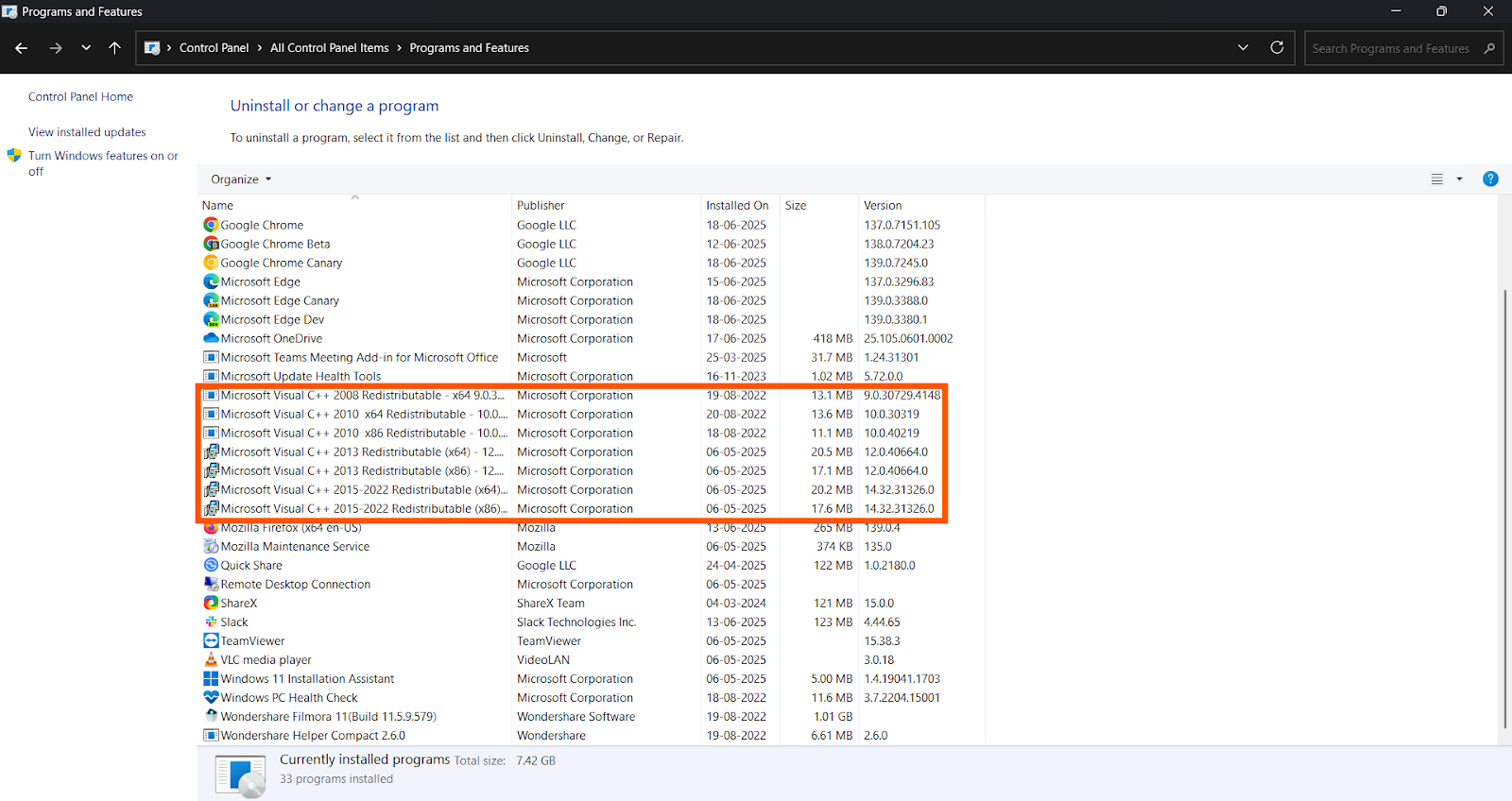
Open Control Panel and go to Programs and Features (or Settings → Apps in Windows 11). Look for any entries named Microsoft Visual C++ Redistributable (different years, like 2012, 2013, 2015–2022, etc.).
For each one, try clicking Modify (or double-click) and choose Repair. This fixes corrupt files in that runtime. If that’s not available or doesn’t work:
Uninstall all versions of the Visual C++ runtimes listed. Then reboot.
Go to the Microsoft Visual C++ Downloads page (as linked by Microsoft). Download the latest Visual C++ redistributable (for example, “Visual C++ 2015-2022”) in both x86 and x64 versions (download links provided there). Run each installer to install fresh copies of the runtime libraries.
If you saw a specific DLL missing (e.g. vcruntime140.dll), make sure you match the Visual Studio version (e.g. Visual C++ 2015 or 2019) to that file. In most cases, installing the latest “Microsoft Visual C++ Redistributable (2015-2022)” will cover it. This process ensures the correct runtime libraries are present.
2. Run System File Checker (SFC)
Windows has a built-in tool to fix corrupted system files. To use it:
Click Start, type cmd, right-click on “Command Prompt,” and choose Run as administrator. In the command window, type: sfc /scannow and press Enter. This scans Windows system files (including some runtime DLLs) and automatically repairs any issues.
It may take a few minutes. When it finishes, reboot and check if the error is gone. This can restore missing or damaged libraries that are part of Windows. It should be noted that running sfc /scannow will automatically repair any corrupted Windows system files, including the missing runtime files.
Run these commands one by one (wait for each to complete): DISM / Online / Cleanup-Image / RestoreHealth.
After it completes (it may take several minutes), reboot. DISM will check the Windows image for corruption and replace bad files from Windows Update. This can fix deeper issues that SFC can’t. The above command will check for system corruption and automatically repair any issues it finds.
4. Run Windows Update
Missing libraries can sometimes be fixed by installing the latest Windows updates, which may include updated runtimes. To update:
Open Settings → Windows Update and click Check for updates.
Install any available updates, then reboot. Keeping Windows current ensures you have the newest system files and libraries. In particular, Microsoft often delivers updated Visual C++ runtime patches via Windows Update.
5. Update graphics and other drivers (for games/apps)
If the error happens with a game or graphics-heavy app, updating your graphics driver can help. Outdated GPU drivers sometimes conflict with C++ runtimes.
First, Open Device Manager (right-click Start), expand Display Adapters, right-click your GPU, and choose Update driver → Search automatically. Install any found updates. Then reboot and try again.
6. Reinstall the affected program
If only one specific program is failing, try uninstalling and then reinstalling it. This ensures it installs any needed components properly. For many games and apps, the installer includes prerequisites (Visual C++, DirectX, etc.). After uninstalling, reboot, then reinstall the program. Also, temporarily disable antivirus during install in case it blocks runtime files. DiskGenius suggests that reinstalling the app can fix missing-file errors.
7. Other checks
If an error names a specific file (e.g. api-ms-win-crt-runtime-l1-1-0.dll), sometimes installing the Universal C Runtime Update or the Visual C++ 2015-2019 Redistributable fixes it. Microsoft’s site has specific updates for older OS versions if needed.
Try launching the program as Administrator (right-click → Run as administrator). Some apps need higher privileges to access certain libraries.
In rare cases, use the System Restore utility to roll Windows back to a point before the errors started (if such a point exists).
By following the above steps – repairing/reinstalling runtimes, scanning for corrupt files, and updating Windows – you should replace the missing libraries and allow programs to run again. Many users find that simply installing the latest Visual C++ Redistributables (step 1) fixes the missing DLL errors immediately.
Identifying missing libraries (symptoms and error messages)
When a runtime library is missing, you’ll typically see an error when opening the program. Common symptoms include:
An error pop-up like “MSVCP.dll is missing” or “VCRUNTIME.dll not found”. The exact filename (e.g. MSVCP140.dll, MSVCR120.dll, etc.) tells you which runtime component is missing. For example:
“The program can’t start because MSVCP120.dll is missing from your computer.”
A message “The application was unable to start correctly (0xc000007b)”. This can also indicate a missing or mismatched runtime library.
Errors about “side-by-side configuration” or a manifest failure. This often happens with .NET or C++ apps when their runtime dependencies aren’t installed.
The program simply refuses to open or crashes immediately with no obvious message. Often, the Event Viewer or error log will mention a missing DLL or Visual C++ runtime.
Sometimes, you might see “Visual C++ Runtime Library” errors in the taskbar when a program crashes (usually saying it needs a specific version of the runtime).
To pinpoint the issue, note the exact error text. If it names a DLL (like MSVCP140.dll), you know which Visual C++ redistributable to install. If it’s the 0xc000007b error, try checking your app’s bitness (32/64-bit) and whether the corresponding runtimes are installed.
Also check in Control Panel → Programs & Features for entries like “Microsoft Visual C++ 2015 Redistributable” – missing ones point to what needs installing.
Prevention tips
To avoid missing runtime errors in the future, keep these practices in mind:
Keep Windows updated: Regularly run Windows Update so that system files and runtimes stay current.
Install needed runtimes during setup: When installing new software or games, ensure you also install any prompts for “redistributables” or prerequisites. Many modern installers will do this automatically, but if not, manually install the Visual C++ packages they require.
Use reputable sources: Download software only from trusted websites. Corrupt downloads can lead to missing or bad runtime files.
Maintain your system: Run occasional scans like sfc /scannow and DISM /RestoreHealth as part of routine maintenance to catch file corruption early.
Avoid deleting DLLs: Don’t delete or move DLLs from the Windows folder. If cleanup is needed, use official uninstallers or tools rather than manual file deletion.
Balance bitness: On a 64-bit Windows 11, install both x64 and x86 redistributables if you run 32-bit applications, to prevent architecture mismatch errors.
By keeping your system clean, updated, and having the correct redistributables installed, you greatly reduce the chance of runtime library errors on Windows 11.
Conclusion
Missing runtime libraries in Windows 11 often cause frustrating “cannot start” errors, but they have straightforward fixes. In most cases, simply installing or repairing the Visual C++ Redistributable packages and running Windows repair tools will resolve the issue.
The key is to identify the missing component (often by its DLL name) and make sure the matching runtime package is present. Following the steps above – repairing runtimes, scanning system files, updating Windows, and reinstalling any problematic apps – will restore the needed libraries and allow your programs to run normally.
Once everything is updated and correct, you should be able to use Windows 11 without those startup errors.
As nostalgia swirls around Windows Vista’s boot sound popping up in a recent Windows 11 preview build, Microsoft’s past is back in the spotlight. Now, longtime engineer Raymond Chen is here with one of the strangest stories yet. Apparently, Windows 95 testing was so intense it crashed a store’s cash register.
There was just one problem. The cash register crashed. Chen explains, “The presumption was that anyone who wanted to buy products exceeding $10,000 would use a purchase order instead.” Unfortunately, that assumption didn’t hold up when one person tried to buy everything. The system couldn’t handle the transaction and froze.
To get around the issue, the developer simply broke the total into smaller purchases to stay under the limit. This very workaround solved thre problem. Well, the story doesn’t stop there.
Back at Microsoft, the team dropped all the software in the cafeteria. Each Windows 95 dev picked two programs, ran them like end users, and filed bugs for anything that didn’t work.
“In exchange for taking responsibility for ensuring that Windows 95 was compatible with your adopted programs, you got to keep them after Windows 95 shipped,” Chen recalled. “If you did a good job with your two, you could come back for more.”
It’s a rare look at the kind of scrappy, all-in work that shaped one of Microsoft’s biggest OS launches. That too, all starting with a truck full of software and a broken cash register.
According to the report, people are checking emails as early as 6 AM. By 8 AM, Teams chats take over. Most meetings happen between 9–11 AM and again from 1–3 PM — when we’re supposedly at peak focus.
Tuesdays are packed. Fridays, not so much. But here’s the kicker: meetings after 8 PM are up 16% compared to last year. Even weekends aren’t safe. Nearly 1 in 5 people check email before noon on Saturdays and Sundays. Some are back at it Sunday night.
Image: Microsoft
On average, workers now get hit with 117 emails and 153 Teams messages per day. That’s a distraction every 2 minutes. Microsoft says this “infinite workday” is being driven by hybrid work, rising demands, and, ironically, the very tools meant to keep us productive.
So how to fix this? Not just more AI — smarter use of it. AI can ease the load, but only if we rethink how work fits into life. The company further warns that “the future of work won’t be defined by how much drudgery we automate, but by what we choose to fundamentally reimagine.”
Broken Arrow is a newly released large-scale modern warfare RTS developed by Steel Balalaika, known for its ambitious real-time battles. Despite its popularity and thousands of players, many Windows users report that Broken Arrow simply does not work correctly on their PC.
In some cases, the game fails to launch or gets stuck on a black loading screen (with only background music playing), while others experience crashes to desktop with no error message. These issues are frustrating early adopters of the release, preventing them from playing even on high-end Windows 10/11 rigs.
Who is affected? Any PC gamer trying to play Broken Arrow on Windows could encounter these problems, especially right after release, when bugs and server stress are common. Players on unsupported operating systems (e.g. Windows 7 or 8) are particularly at risk, since Broken Arrow requires Windows 10 64-bit as a minimum. Even if your PC exceeds the game’s recommended specs, you might still run into launch failures or crashes due to software conflicts or missing components.
Possible causes for Broken Arrow not working
Several factors can trigger launch and gameplay issues in Broken Arrow on Windows PCs. Here are the most common causes:
Outdated drivers or OS: Old GPU drivers or missing Windows updates can cause crashes or black screens.
Missing libraries: If DirectX 12 or Visual C++ redistributables aren’t installed or are corrupted, the game may fail to start.
Software conflicts: Overlays or background apps (Discord, OBS, RivaTuner, vJoy, etc.) can cause black screens or crashes.
Antivirus/firewall interference: Security tools might block the game from launching or connecting to servers.
Server or network problems: Server outages or unstable internet may result in infinite loading or unresponsiveness.
How to fix Broken Arrow not working on Windows PC
If you’re struggling to play Broken Arrow on your PC, work through the fixes below. We’ll start with simple tips and then move on to more complex solutions. Each fix includes a brief explanation and step-by-step instructions. By the end, you should be back on the battlefield!
1. Restart Steam and check Broken Arrow’s server status
Before changing any settings, ensure the issue isn’t just a temporary glitch or server outage. Many launch problems are resolved by simply restarting the game or Steam, especially if the game was updated or stuck. Also, Broken Arrow’s online nature means server issues can prevent it from working. Verifying the server status will tell you if the problem is on your end or the game’s servers.
Steps to follow:
Exit Broken Arrow and Steam completely. If the game is frozen or stuck, close it (you might need to use Task Manager to end the BrokenArrow.exe process). Then right-click the Steam icon in your system tray and choose Exit to shut down the launcher fully. Ensure no Broken Arrow or Steam processes are running in the background.
Check Broken Arrow server status. Visit the official Broken Arrow social channels (such as the Steel Balalaika Twitter/X or the game’s Discord server) for any maintenance announcements and other news.
You can also check community hubs or a site like Downdetector for player reports of server outages. If servers are down, the game won’t work – you’ll have to wait for the developers to fix the server issues before playing.
Relaunch Steam and Broken Arrow. Open Steam again and log in. Click Play on Broken Arrow to start the game fresh. A clean restart can clear minor glitches – for example, some players found that completely restarting Steam allowed their game to launch properly.
Reboot your PC if needed. If the game still doesn’t launch after restarting Steam, try restarting your computer entirely. This clears any lingering processes or locks. After the reboot, open Steam and launch Broken Arrow again.
2. Run the game as an administrator and close background apps
Running Broken Arrow with administrator privileges can bypass permission issues that might be blocking the game. It ensures the game has full access to necessary files and system resources.
Additionally, you should close unnecessary background programs – especially ones with in-game overlays or high CPU/GPU usage (e.g. Discord, GeForce Experience, OBS) – as they can conflict with Broken Arrow or its anti-cheat processes. By closing these apps and running as an admin, you minimize interference from other software.
Steps to follow:
Close unnecessary programs. Save your work and exit any applications you don’t need while gaming. Press Ctrl + Shift + Esc to open Task Manager and look at the Processes or Startup tabs. End tasks for screen recorders, hardware monitoring tools, RGB software, or overlay apps that could be hooking into games.
This frees up resources and prevents conflicts.
Run Broken Arrow as administrator. Locate the Broken Arrow game icon or .exe file. If you’re using Steam, find Broken Arrow in your Library, right-click it, and go to Manage > Browse local files to open the installation folder. Right-click BrokenArrow.exe (or the application file) and select Run as administrator.
Confirm the UAC prompt if it appears. This gives the game elevated rights to avoid any file access restrictions.
(Optional) Run Steam as an admin. If launching the game with admin rights alone didn’t help, try closing Steam and then reopening it with admin rights. Right-click your Steam shortcut and choose Run as administrator, then launch Broken Arrow from Steam. This can sometimes help if Steam lacks permission to initiate certain game services.
Launch the game again. With background apps closed and admin mode enabled, start Broken Arrow and see if it passes the point where it was getting stuck. Many players report that running games as admin and disabling overlays resolved black screen freezes and crashes in new titles.
3. Update your graphics card drivers (and Windows OS)
Broken Arrow is a new, graphics-intensive game, so having the latest GPU drivers is crucial. Developers often optimize games for the newest drivers, and outdated drivers are a common cause of crashes or visual glitches for new games. By updating your Nvidia, AMD, or Intel graphics drivers, you can fix issues like black screens, low FPS, or startup crashes caused by driver bugs. Likewise, make sure your Windows 10/11 is fully updated – system updates can improve compatibility with new games.
Steps to follow:
Identify your GPU. Determine whether you have an NVIDIA GeForce, AMD Radeon, or Intel graphics card. On laptops, you might have both integrated and dedicated GPUs – usually the game will use the dedicated GPU (e.g. NVIDIA). Open Device manager from Search Bar on your Windows PC and check as in the screenshot below:
Download the latest driver. Go to your GPU manufacturer’s website (NVIDIA, AMD, or Intel) and download the newest driver for your graphics card model. For NVIDIA users, you can also use the GeForce Experience app to automatically fetch driver updates; AMD users can use the Adrenalin software.
Ensure you get a driver dated June 2025 or later (since Broken Arrow’s release) for best results. Tip: NVIDIA released new Game Ready drivers around Broken Arrow’s launch to address stability, so installing those is highly recommended.
Install the graphics driver update. Run the downloaded driver installer and follow the prompts. You can choose an “Express” installation for simplicity. If using GeForce Experience or AMD Adrenalin, just hit the Update button and let it install. Wait for the installation to finish – your screen may flicker during the process.
Reboot your PC. After updating the driver, restart your computer. This ensures the new driver is fully applied and any old driver components are cleared from memory.
Run Windows Update. It’s also wise to update Windows. Press Windows + I to open Settings, go to Update & Security (Windows Update on Windows 11), and click Check for updates.
Install any pending updates for Windows and restart if prompted. Having the latest Windows patches can fix compatibility issues with games.
Launch Broken Arrow. Try running the game again with updated drivers and OS. With the newest graphics drivers, Broken Arrow is less likely to crash or show a black screen during startup. Many early crashing issues are resolved simply by driver updates.
4. Install the latest Visual C++ redistributables and DirectX components
One common reason games won’t launch is missing runtime libraries that the game depends on. Broken Arrow, like many PC games, requires Microsoft’s Visual C++ Redistributables and up-to-date DirectX 12 support.
If these components aren’t present on your system (or if they’re corrupted), the game may fail to open without any clear error. Ensuring you have all the necessary Visual C++ packages installed, as well as the proper DirectX files, can resolve instant crash or no-launch scenarios. In fact, players often find that installing these libraries and rebooting fixes the problem where the game doesn’t start at all.
Steps to follow:
Download Visual C++ Redistributables. Go to Microsoft’s official download page for Visual C++ Redistributable packages. Download the latest supported versions (VC++ 2015-2022) for both x64 and x86 – Broken Arrow is a 64-bit game, but some components might need the 32-bit packages too. Microsoft often provides a unified installer or separate files for each architecture.
Run the VC++ installers. Double-click the downloaded .exe files (for example, VC_redist.x64.exe and VC_redist.x86.exe). If you already have these installed, you might see options to Repair or Uninstall – choose Repair to fix any missing elements.
Otherwise, follow the prompts to install the redistributables. Accept the license terms and finish the setup for both 64-bit and 32-bit packages.
Update DirectX (if needed). Broken Arrow uses DirectX 12, which comes with Windows 10/11. Typically, if your Windows is updated, you already have the necessary DirectX components, but you might want to install the Latest DirectX to be sure.
However, it doesn’t hurt to run the DirectX End-User Runtime Web Installer from Microsoft, which can refresh older DirectX 9.0c/June 2010 components that some games still call on. Download the installer from Microsoft’s site and run it to ensure no DirectX libraries are missing.
Reboot your PC. After installing Visual C++ and any DirectX updates, restart your computer. This ensures all new library files are registered with the system.
Launch the game. Try starting Broken Arrow again. If missing runtime libraries were the issue, the game should now launch properly instead of immediately closing. You won’t see a specific “missing .dll” error in many cases – the game just won’t open – so installing these packages preemptively covers that base.
5. Verify the integrity of Broken Arrow’s game files
If Broken Arrow still isn’t working, the installation itself might be faulty – perhaps some game files are missing or got corrupted during download. Steam has a built-in feature to verify the integrity of game files, which will scan your Broken Arrow installation and replace any broken or missing files. Running this scan can fix issues where the game crashes or won’t load because a critical file is damaged.
Steps to follow:
Open Steam Library. Launch the Steam client and go to your Library tab. Find Broken Arrow in the list of games on the left.
Open Properties. Right-click on Broken Arrow and select Properties from the context menu.
Go to Local/Installed Files. In the Properties window, click on the Local Files tab (in newer Steam versions this may be called Installed Files). This section has options for managing the game’s files.
Run “Verify Integrity of Game Files”. Click the button that says Verify Integrity of Game Files. Steam will begin comparing each of Broken Arrow’s files on your PC with the files on the Steam servers.
Wait for validation to complete. This process may take a few minutes. If Steam finds any file that’s missing or different from the official version, it will automatically re-download that file. You’ll see a message when the validation is 100% finished, and it will note if any files were reacquired.
Launch Broken Arrow again. Once the verification finishes (and any replacements are downloaded), click Play to start the game. If corrupted game data was causing the issue, Steam’s repair should allow the game to run properly now without errors or missing content. For example, players stuck on certain missions or loading screens found that verifying files replaced the bad data so the game could proceed.
6. Temporarily disable your antivirus/firewall
Sometimes, new games are blocked by antivirus programs or the Windows Defender Firewall due to false positives or overly strict security settings. Broken Arrow uses online features and possibly anti-cheat, which can appear suspicious to some security tools.
If the game isn’t launching at all, or if it’s stuck while connecting, your security software might be interfering. Temporarily disabling your antivirus and firewall can help determine if that’s the cause. Just remember to turn them back on afterward (and add exceptions for Broken Arrow) to stay protected.
Steps to follow:
Turn off real-time antivirus protection. If you use Windows Security (Windows Defender), click the Start menu and type “Windows Security” to open it.
Go to Virus & threat protection > Manage settings (under Virus & threat protection settings).
Toggle Real-time protection to Off for now (you’ll turn it back on later). For third-party antivirus software, right-click its icon in the system tray and look for an option to pause or disable protection (for example, disable for 10 minutes or until reboot).
Disable the firewall temporarily:
Open Control Panel and navigate to Windows Defender Firewall or search “firewall & network protection” in Settings. Select your active network (e.g. Private Network) and switch the Firewall setting to Off.
If you have a third-party firewall or security suite, disable that firewall similarly. (Note: As an alternative to turning it off entirely, you could go to “Allow an app through firewall” and ensure Broken Arrow is allowed, but disabling briefly is a quick test.)
Launch Broken Arrow with protections off. Try starting the game while your antivirus and firewall are disabled. If Broken Arrow runs normally now (when it didn’t before), then it was indeed being blocked by your security software. This tells us the antivirus/firewall saw the game as a threat or unknown application and prevented it from fully launching or connecting.
Add Broken Arrow to your security exceptions. Now that you’ve identified the issue, go into your antivirus settings and add an exclusion for Broken Arrow’s installation folder or the game’s .exe file. In Windows Security, for example, you’d go to Virus & threat protection > Manage settings > Exclusions (Add or remove exclusions) and add the Broken Arrow folder.
Do the equivalent in your third-party AV if needed. Also, add a firewall exception to allow Broken Arrow’s network traffic (you can allow it when Windows Firewall prompts, or manually add a new rule to allow BrokenArrow.exe).
Re-enable antivirus and firewall. Turn your real-time protection and firewall back On now. With the game whitelisted, your security software should no longer block it.
Run the game again. Open Broken Arrow one more time with your protections active. It should launch and function normally if the security blocks have been removed. If the game still doesn’t start even when antivirus/firewall were off, then security software wasn’t the culprit – be sure to keep your protections enabled and proceed to other fixes.
7. Flush DNS and reset network settings (for online issues)
If Broken Arrow launches but gets stuck on an infinite loading screen or fails to connect to multiplayer matches, the problem might be with your network configuration rather than the game files. Connection glitches can make it seem like the game is “not working.”
Flushing your DNS cache and resetting network settings can resolve weird connectivity issues, especially if you see messages like “not all players are connected” or endless matchmaking queues. This fix is mainly for online connection problems that prevent gameplay. We’ll also set a public DNS to rule out DNS resolution issues.
Steps to follow:
1. Open Command Prompt as admin:
Press Win + R, type cmd, and press Enter to launch the Command Prompt. (For best results, you can run it as administrator: click Start, type “cmd”, right-click Command Prompt and choose Run as administrator).
Flush DNS cache. In the Command Prompt window, type the following command and hit Enter: ipconfig /flushdns
This will clear your DNS resolver cache, removing any incorrect DNS entries.
2. Reset the network Winsock:
Next, type this command and press Enter:
netsh winsock reset
This resets the Windows network socket to default settings, which can fix networking bugs or conflicts.
3. Reboot your PC. Restart your computer to apply the network reset. After rebooting, your network adapters will reinitialize.
(Optional) Change to a public DNS. Using a reliable DNS server can help with connection stability. You can switch to Google DNS: Press Win + R, type ncpa.cpl and Enter to open Network Connections. Right-click your active network (Ethernet or Wi-Fi) and select Properties. Click on Internet Protocol Version 4 (TCP/IPv4) and then Properties. Set the DNS to Use the following DNS server addresses and enter 8.8.8.8 as Preferred and 8.8.4.4 as Alternate. Click OK to save.
4. Power cycle your router (if possible). It’s also a good idea to restart your modem/router. Unplug the power for 30 seconds, then plug it back in. This clears any router-side caches or hiccups.
5. Launch Broken Arrow and test online play. Start the game and try to play an online match or connect to the servers. With your DNS flushed and reset, and using a fast public DNS, you should be able to connect if the issue was on your end. Many players have reported that doing a DNS flush and network reset resolved infinite loading screens and connection errors in new online games.
If none of the above fixes worked:
Consider reinstalling Broken Arrow as a last resort. Uninstall the game via Steam, then navigate to C:\Users\<YourName>\AppData\Local\BrokenArrow (if it exists) and delete any leftover files. Reboot, then download and install Broken Arrow fresh.
A clean install can fix any persistent file corruption or misconfiguration. Also, keep an eye out for official patches – the developers may release post-launch updates to address known bugs and stability issues.
For example, they’ve already acknowledged and are fixing certain mission load bugs and server problems in early updates. With patience and the steps above, you should be able to enjoy Broken Arrow on your Windows PC without further issues.
FAQ
🔧Why is Broken Arrow not launching on my PC? The game may fail to launch due to missing components (DirectX 12, Visual C++), outdated GPU drivers, or blocked access from antivirus/firewall software. Update drivers and install the latest runtime libraries to fix it.
⏳ Why is Broken Arrow stuck on the loading screen?
This usually points to network issues or server downtime. Check server status on Twitter or Discord, flush your DNS, reset network settings, and make sure the firewall isn’t blocking the game.
💥 Why does Broken Arrow keep crashing?
Crashes often come from old graphics or audio drivers, background app conflicts (like overlays), or hardware not meeting system requirements. Update drivers, close unnecessary apps, and lower in-game settings.
🌐 How can I check if Broken Arrow servers are down?
Check the game’s official Twitter/X or Discord for outage notices. You can also visit Downdetector or Steam forums to see if other users report similar problems. If servers are down, you’ll need to wait.
Microsoft just revealed a major piece of its next-gen gaming plan, and it’s all about AMD. In a new video, Xbox president Sarah Bond confirmed a multi-year partnership with AMD to build future Xbox hardware.
Honestly, the news isn’t surprising, since AMD already powers the Xbox Series X|S and the new Xbox Ally handhelds. But this time, the focus isn’t just on more power.
Speaking about the Microsoft and AMD partnership, Bond says:
Together with AMD we’re advancing the state of art in gaming silicon to deliver the next generation of graphics innovation to unlock a deeper level of visual quality and immersive gameplay and player experiences enhanced with the power of AI, all while maintaining compatibility with your existing library of Xbox games.
You can check the partnership announcement video below:
Bond says the goal is “graphics innovation,” better AI, and a smoother way to carry your existing Xbox library into the next generation. So, yes, backward compatibility is sticking around.
What really stood out, though, was the shift in tone when announcing the partnership. Bond said that Xbox is building “a platform that’s always with you,” and made it clear the experience won’t be locked to a single device or store.
That lines up with what we’ve seen lately. Take an example of the Windows-powered Xbox Ally handhelds, which brings lighter, portable setups. Microsoft also says it’s working to make Windows “the number one platform for gaming,” which is more like a hint toward a broader Xbox experience.
Microsoft is quietly working on how we handle everyday tasks with Copilot, its AI assistant in the Edge browser, by introducing a new “Action Mode.” This feature for Copilot is currently being tested in Edge Canary.
Now, Microsoft is taking another step in evolving Copilot from just a chatbot into a true browser assistant. A new mode titled “Action” has quietly appeared in Edge Canary builds on the New Tab Page, listed alongside the existing Explore, Quick Response, and Think Deeper options.
Its purpose is to help users hand off everyday tasks directly to Copilot, using AI to automate tasks such as scheduling, reminders, or online actions that typically require multiple steps.
Here are the current options available in the Copilot chat box on Edge’s New Tab Page:
Explore – Search the web or interact casually with Copilot
Ask Copilot – Get quick answers to everyday questions
Think Deeper – Tackle more complex or detailed topics
Action – Hand off everyday tasks
Microsoft recently announced Copilot Actions, allowing users to prompt Copilot to complete real-world web tasks, such as making reservations, booking travel, or sending gifts. This feature is currently available to Copilot Pro subscribers in the U.S. and works in modern browsers.
It’s also available on Copilot.com under the Labs section as part of Microsoft’s experimental AI initiatives, giving users early access to automation features outside of Edge.
Once a task starts, users can pause, stop, or adjust it at any time. Microsoft also shared some example prompts to try with Copilot Actions. The more specific your prompt, the better the results:
Order me a bouquet of flowers using 1800Flowers.com
The integration of Action Mode into the Copilot compose box on Edge’s New Tab Page means one thing: less time managing tasks, and more time focusing on what matters.
Right now, the feature is not working. But soon, even without Copilot Pro, you may be able to test Copilot Actions directly in the Canary version of Microsoft Edge.
Nintendo Switch 2 users are reporting an odd and inconsistent system notification: “Rumble has been turned off due to prolonged use.” Reddit user Wonderful_Guava1533 was the first one to report it and shared an image of the Switch 2 screen displaying the notification.
The post went viral within hours, and many users complained of experiencing the same problem. What’s worse is that they are getting rumble notifications even during relatively short play sessions.
Image: Reddit/u/Wonderful_Guava1533
As IGN reports, this isn’t just a one-off glitch. Multiple players are seeing the rumble cut out unpredictably, sometimes after 90 minutes, other times after just a few. Worse, it doesn’t seem to follow any obvious pattern, and in some cases, rumble turns itself back on a few minutes later.
Nintendo hasn’t made any official confirmation about the rumble notification in Switch 2. Neither has it said anything about what’s been triggering it. However, some Switch 2 users believe it’s a power-saving feature kicking in when the console thinks you’ve been using rumble too much. Others argue it’s just buggy behavior that needs patching.
While power conservation might sound reasonable, especially with haptic-heavy games like Cyberpunk 2077 and Sonic Generations, players aren’t amused by the lack of control. Some have even resorted to manually disabling rumble in system settings just to avoid the pop-up.
Until Nintendo weighs in, this surprise notification is just one more minor frustration in what’s otherwise been a pretty smooth Switch 2 launch.
Looking for something new to dive into? Microsoft just dropped a fresh wave of Xbox Game Pass titles for the second half of June. There’s a bit of everything this time: co-op shooters, nostalgic remasters, sports titles, and even a roguelike with dice.
Three new games are available starting June 17th. These include FBC: Firebreak, Remedy’s first multiplayer co-op title, and Lost in Random: The Eternal Die, a follow-up to the cult favorite. You’ll also get Crash Bandicoot 4 if you’re into precision platforming.
That’s not all; Rematch, a new soccer title from the Sifu devs, arrives June 19. On June 26, Blizzard’s remastered Warcraft trilogy lands on PC, finally making its way to Game Pass. That includes Warcraft I, II, and III: Reforged. It all wraps with Call of Duty: WWII on June 30 and a pair of July 1 additions: Little Nightmares II and Rise of the Tomb Raider.
All Xbox Game Pass additions for late June:
Now available: FBC: Firebreak, Crash Bandicoot 4, Lost in Random: The Eternal Die
June 18: Star Trucker, Wildfrost
June 19: Rematch
June 24: Volcano Princess
June 26: Against the Storm, Warcraft I–III Remasters
June 30: Call of Duty: WWII
July 1: Little Nightmares II, Rise of the Tomb Raider
Leaving June 30: Arcade Paradise, Journey to the Savage Planet, My Friend Peppa Pig, Robin Hood: Sherwood Builders, SteamWorld Dig, and SteamWorld Dig 2.
Until now, the feature was only available on the ChatGPT web app and mobile app. Now that you are here, we are assuming that you’re looking to create AI images in WhatsApp. Well, without wasting further time, let’s jump into the steps.
Step-by-step method to generate AI images using ChatGPT in WhatsApp
1. First of all, you have to make sure to save +1 (800) 242-8478 on your smartphone.
2. Once saved, users can simply go to WhatsApp and start a conversation with ChatGPT by saying “Hi,” “Hey,” or whatever you’d like to call it.
3. Next, you can simply drop your prompt to trigger ChatGPT to create an image. In my case, I prompted ChatGPT to“generate a picture of an IT professional sitting on a desk working on his laptop. The window on the side should have sun rays coming through it.“
4. Next, ChatGPT will require some time to come up with the image based on your text prompt.
5. Finally, ChatGPT generates a solid image; in my case, it created a highly detailed image.
Here’s the original image created based on the prompt:
AI image generated by ChatGPT inside WhatsApp
Moreover, it’s worth noting that after creating an image, ChatGPT informs the user to wait for about 24 hours to create another image.
Microsoft is joining the Aduna community as a technology partner to help scale its platform on Azure, integrate AI capabilities, and accelerate the adoption of CAMARA-standardized network APIs across industries.
Aduna, the global aggregator of network APIs, confirmed the partnership today, noting that Microsoft will host Aduna’s aggregated APIs on Azure while offering them as native services via the Azure Marketplace.
These APIs—covering features like SIM Swap detection, phone number verification, and real-time device location—will be standardized under the CAMARA open-source framework, co-led by GSMA and the Linux Foundation.
Per the press release, Anthony Bartolo, CEO of Aduna, said:
This engagement marks a pivotal step in enabling programmable networks at scale. Built on Azure and aligned with CAMARA, Aduna will deliver intelligent, real-time network capabilities that are exposed via GitHub and Azure to the developers and enterprises who are shaping the digital economy.
Microsoft also plans to promote network APIs and CAMARA through its go-to-market channels and partnerships with Infobip and Vonage. The collaboration promises to drive visibility, education, and developer adoption across sectors, including finance, logistics, and identity.
A statement by Rick Lievano, CTO at Microsoft, in the press release reads:
Our collaboration will focus on the expansion and optimization of the Aduna cloud platform, using Microsoft AI to drive insights and intelligence for both Microsoft and Aduna customers when using Network APIs. Microsoft will also be actively marketing the benefits of network APIs and GSMA Open Gateway to its customer and developer community via partnership with Aduna CPaaS partners, Azure Marketplace and GitHub.
Aduna’s CPaaS partners have welcomed the move. Viktorija Radman, Global Director of Telecom Business at Infobip, said:
At Infobip, we see Aduna as an important enabler in bringing the CAMARA vision to life, making network APIs more accessible, consistent, and scalable across markets. Our collaboration with Aduna is rooted in shared goals: simplifying integration for enterprises, accelerating developer adoption, and driving innovation through open standards. With Microsoft and the Azure Marketplace, we’re extending that reach even further where Azure Marketplace co-sell ready CAMARA solutions are key for acceleration —ensuring CAMARA-based APIs are available where developers build, and where businesses innovate.
Moving on, Christophe Van de Weyer, President and Head of Business Unit API at Vonage, added:
Through Vonage’s partnership with Aduna, we are getting access to network APIs that enable us to create demand for network-powered digital solutions through our global community of developers, developer events, and a dedicated startup program to leverage high performance programmable networks to their full potential and drive AI-led digital transformation of businesses worldwide.
Aduna’s APIs, built on the CAMARA framework, are openly published with documentation and code samples on GitHub for easy integration by developers around the world.
Update – July 23, 2025: Chrome’s “Save to Google Drive” button for PDFs is now live in Canary. This article has been updated to reflect the current status.
Google is adding the ability to save PDF documents directly to Google Drive from the built-in PDF viewer in Chrome. A new “Save to Drive” button now appears in the top toolbar when viewing PDF files in Canary version, making it easier to store documents in the cloud with a single click.
Currently, Google Chrome allows users to save PDFs to their devices using the Print option. Additionally, the latest iOS version of the browser now supports saving PDFs directly to Google Drive. Now, Chrome is introducing this capability within the PDF Viewer on Windows, Mac, and Linux.
The Chromium Gerrit commit we spotted states that the new option will work the same as the Download button.
“Create a new save to drive button in the PDF viewer. This button is largely the same as the existing download button, which is why it is also extending ViewerSaveControlsMixin. This new button has a component of circular progress indicator that represents the current upload percentage.” the commit message reads.
Google has already added a flag to enable this feature in Chrome Canary. The “Save PDF to Drive” flag “enables the ability to save PDFs to Google Drive” on Mac, Windows, and Linux.
Image Credit: Venkat/WindowsReport.
Currently, the flag is working and displays the “Save to Drive” option for PDFs in Chrome, but the button is not working yet, as Google is still developing the feature.
The new “Save to Giigke Drive” button is visible in Chrome’s PDF viewer. Image Credit: WindowsReport.
In case you don’t know, Google’s “Save to Drive” extension allows users to save files—including PDFs—to Google Drive. However, once this new feature rolls out, users who rely on the extension for PDFs may no longer need it.
Dune: Awakening is a brand-new survival MMO set in the Dune universe, and many PC players are struggling to get it running. The game may crash immediately after the intro screen or fail to launch at all, sometimes without displaying any error message.
This issue is frustrating because it’s affecting even high-end gaming rigs, not just low-end PCs. Players who eagerly awaited this Unreal Engine 5 title are understandably upset when it won’t work after installation.
Other frequent problems are:
game freezes
closes unexpectedly
crashes on startup
refuses to launch.
Fortunately, these launch and crash issues are common with new PC games and can usually be fixed by tweaking some settings or updating software.
How to fix Dune: Awakening not working on PC
You don’t have to reinstall Windows or do anything drastic. Try these solutions in order, from the easiest to the most complicated, until the game runs properly. Each fix below is proven to help players get Dune: Awakening working again.
1. Update your graphics drivers
Outdated graphics card drivers are a leading cause of game crashes. Dune: Awakening is optimized with the latest GPU drivers in mind, and NVIDIA even released a special hotfix driver to improve this game’s stability. Ensure you have the newest drivers for your GPU:
Download the latest driver for your GPU from the official site (NVIDIA GeForce or AMD Radeon). NVIDIA users should install driver version 576.66 or newer, as it fixes hard lock issues seen with 576.52.
Run the driver installer and follow the on-screen prompts to update. If you use GeForce Experience or AMD Adrenalin software, you can update through those apps as well.
Once installation completes, restart your PC to apply the changes.
Launch Dune: Awakening and see if the crashing or not launching issue is resolved.
Updating your GPU driver ensures any known bugs are patched. For example, Funcom (the game’s developer) identified a specific NVIDIA driver as a problem and recommended upgrading it. With the newest driver, your game is less likely to crash on startup.
2. Install the latest Windows updates
Keeping Windows up-to-date is essential for new games. Important patches can fix compatibility issues or performance bugs that cause Dune: Awakening to malfunction. For instance, on Windows 11 version 24H2, a specific update KB5058499 improves stability in CPU-intensive games. Here’s what to do:
Press the Windows key, type “Check for updates”, and open the Windows Update settings.
Click Check for updates and allow Windows to download and install any pending updates.
If you’re on Windows 11 24H2, look under Optional updates for KB5058499 and install it (this patch specifically targets game stability issues).
After updates install, restart your PC.
Try launching Dune: Awakening again.
Installing all recommended Windows updates ensures you have the latest fixes and drivers from Microsoft. This can solve random crashes or freezes, and in some cases, it’s required for Dune: Awakening to run smoothly on the newest Windows builds.
3. Verify the game files on Steam
If Dune: Awakening still won’t launch, it might be due to missing or corrupted game files. Steam can automatically detect and repair any broken files:
Open Steam and go to your Library.
Right-click Dune: Awakening in the game list and choose Properties.
In the Properties window, go to the Installed Files tab.
Click the Verify integrity of game files button.
Wait for Steam to scan the game’s files and download replacements for any it finds corrupted or missing.
After verification, relaunch the game.
This process ensures you’re not dealing with a bad installation. Even one missing file can prevent the game from launching properly. Verifying through Steam is quick and often fixes startup crashes without any further effort.
Windows has an option called Hardware-accelerated GPU scheduling that can sometimes conflict with games like Dune: Awakening. Disabling this feature has helped some players improve stability. Here’s how:
Press Win + I to open Windows Settings and navigate to System > Display.
Scroll down and click on Graphics (or Graphics settings in some versions).
Under Graphics settings, click Change default graphics settings.
Find Hardware-accelerated GPU scheduling and toggle it Off.
Restart your computer to ensure the change takes effect.
Launch Dune: Awakening and check if it runs without freezing.
HAGS is meant to reduce latency, but in Unreal Engine 5 games it can actually cause performance issues or crashes. Turning it off will let your GPU operate in the traditional way, which in this case can make the game more stable.
5. Enable the “Limit CPU Usage” setting in-game
Dune: Awakening includes an experimental setting to reserve one CPU core for system tasks, helping prevent total freezes. Enabling this can stop the game from maxing out your CPU during heavy loads (like shader compilation) and crashing your PC. If you can get into the game’s menu, do the following:
Open Dune: Awakening and go to Settings from the main menu.
Navigate to the Graphics section.
Find and enable the option labeled “Limit process CPU usage (experimental)”.
Apply the settings, then restart the game.
If the game won’t stay open long enough to change this, you can set it via a config file:
Under the section [Settings.Video], add or change the line to:
LimitProcessCpuUsage=1
Save the file and close it, then try launching the game again.
Turning on CPU limit ensures one core is always free for background tasks, which significantly improves system stability during gameplay. This may slightly reduce performance, but it’s worth it to stop crashes and hard freezes. Many players with high-end CPUs found this setting prevents the game from overwhelming their processor.
6. Stop overclocking and close background apps
Pushing your hardware beyond stock speeds can make Dune: Awakening unstable. If you’ve overclocked your GPU or CPU, it’s wise to revert to default settings while troubleshooting. Additionally, close any unnecessary background programs or overlays, as they can interfere with the game. To do this:
Disable overclocking: Open your overclocking software (e.g. MSI Afterburner) and reset your GPU/CPU to default clock speeds. If you overclock via BIOS, restart and enter BIOS (usually by pressing Del or F2 on startup) and load the default settings. Save and reboot.
Close background apps: Press Ctrl + Shift + Esc to open Task Manager. In the Processes tab, look for any high-CPU or high-RAM programs not needed while gaming (web browsers, video recording tools, etc.). Select each and click End Task to close them.
Turn off overlays: Disable overlays from apps like Discord, Steam, or GeForce Experience (they often run in the background). For example, in Discord go to Settings > Game Overlay and turn it off.
Once you’ve normalized your hardware and closed extra apps, launch Dune: Awakening again.
Overclocking can cause system instability and crashes in demanding games, so running your PC at stock speeds removes that variable. Likewise, background applications (or overlay features) might hog resources or conflict with Dune: Awakening. By eliminating these factors, you free up maximum CPU/GPU power for the game and reduce the chances of a crash.
By following these steps, most players have managed to fix Dune: Awakening not working issues and enjoy the game. Remember to apply the fixes one at a time and test the game, so you’ll know which solution worked for you. If none of the above works, you might consider contacting Funcom support or keeping an eye out for official patches – the developers are actively releasing updates to improve stability.
FAQ
Why is Dune: Awakening not launching on my PC? Dune: Awakening might not launch due to outdated drivers, missing updates, or corrupted game files. If your graphics driver is old or your Windows isn’t up to date, the game can fail to start. Ensuring you have the latest GPU drivers and Windows patches, and verifying the game files, usually resolves launch issues.
How do I fix Dune: Awakening crashing on startup? To fix startup crashes, first update your graphics card driver to the newest version (NVIDIA’s 576.66 hotfix or latest, or the latest AMD driver). Next, install all Windows updates available. You should also verify the game’s file integrity on Steam and consider disabling GPU scheduling or turning off any overclocks. These steps address the common causes of crashes and have proven effective for many players.
Does Dune: Awakening work on Windows 10? Yes, Dune: Awakening works on Windows 10 64-bit (as well as Windows 11), provided your system meets the game’s requirements. The game’s minimum specs list Windows 10 or newer as supported. Just make sure your Windows 10 is fully updated so that you have the necessary patches and drivers for the game to run smoothly.
What are the PC requirements for Dune: Awakening? Dune: Awakening requires a 64-bit Windows 10/11 OS, a fairly modern CPU (e.g. Intel Core i5-7400 or AMD Ryzen 3 1200 for minimum), 16 GB of RAM, and a graphics card around the level of a NVIDIA GeForce GTX 1060 (6GB) or better for minimum settings. For higher settings, you’ll want an even stronger GPU and CPU. Ensure your PC meets these specs; otherwise, the game may not run or could crash frequently due to hardware limitations.
Meta recently rolled into Cannes Lions with a fresh batch of generative AI upgrades for advertisers. The company is expanding its Advantage+ Ad Creative suite, offering tools designed to speed up content creation without sacrificing brand consistency. As first reported by Adweek, these features are part of Meta’s ongoing push to blend automation with control.
Smarter branding, faster videos
One standout update is “consistent branding at scale.” This lets agencies lock in logos, color palettes, and fonts across AI-generated ads. The idea is to preserve visual identity while still moving quickly. Meta is also testing new video generation tools.
These allow brands to animate still images with music, text, and transitions—perfect for teams who need to spin up engaging content without a full production crew. Another AI feature, called “video highlights,” pulls out product keywords and visuals to better sell a message.
There’s also new voice support in Business AI, letting brands auto-generate ad prompts and FAQs. New placements are coming too, including Instagram Stories and Facebook Reels.
Some interactive tools are expanding as well. Virtual Try-On, which lets users preview clothes on different body types, is being tested with a wider audience. Meta is also debuting Creative Sticker CTA buttons—custom graphics and slogans with tappable call-to-actions—starting with Facebook.
Meta says these updates already show promise. Advantage+ campaigns using current AI features are averaging 22% higher returns on ad spend. Meanwhile, backend tech like Meta GEM is driving ad conversions up by as much as 5%.
Lossless Scaling just made life easier for gamers running older hardware. The latest 3.1 update brings a new “Performance Mode” that slashes GPU usage, without fully sacrificing image quality.
The notable feature is the reduction in GPU load. Depending on your hardware and settings, the new mode can cut GPU strain by up to 2x. That might mean a bit of image quality loss, but in some cases, it actually improves things by helping games hit higher base frame rates.
That’s a win-win for underpowered GPUs trying to keep up. Also, this is especially useful for systems that can’t use DLSS or FSR. Lossless Scaling, developed by THS, already worked well as a workaround. Now it’s even better.
All this will combine to help you have fewer distracting artifacts and smoother gameplay. For those outside the English-speaking countries, the update adds support for Finnish, Georgian, Greek, Norwegian, Slovak, and even Toki Pona.
AMD has rolled out a new chipset driver update—version 7.06.02.123—for all supported Ryzen CPUs and platforms. You won’t see big flashy features here, but there’s an important tweak under the hood: a security boost to the AMD PPM Provisioning File driver.
CET support lands in AMD’s power management tools
The big change in this update is the addition of CETCOMPAT support. That’s short for Control-flow Enforcement Technology compatibility—a Windows security feature that’s designed to block common malware tricks like memory hijacking and redirection to malicious code.
Intel originally developed CET, and Microsoft began supporting it in Windows 10 20H1 and 20H2 back in 2021. AMD started rolling out CET support across parts of its driver suite in late 2024. Now, it’s being extended to a key component that handles power and core parking.
The PPM Provisioning File driver might not sound critical, but it plays a role in how efficiently your Ryzen chip manages its resources, so adding CET support here is a quiet but meaningful improvement.
Why this matters for Ryzen users
This isn’t a flashy upgrade, but it helps harden systems against low-level attacks. AMD hasn’t shared specific bug fixes included in this update, but the security bump alone makes it worth grabbing, especially if you’re already running a TPM or Pluton-enabled system.
If you’re on a supported Ryzen setup, you can download the driver update by clicking here. The installer will walk you through selecting which components you want to update. For most users, just choosing the default recommended options should be enough.
Microsoft is tightening up cybersecurity triage inside its Defender suite. The company just rolled out a major improvement to Security Copilot’s Guided Response feature—now powered by TITAN, a real-time threat intelligence system built on global telemetry.
TITAN uses machine learning and reputation propagation to flag suspicious infrastructure before it’s used in attacks. In short, it sees bad actors coming.
The system draws on Microsoft’s vast pool of first- and third-party telemetry. Then, it uses guilt-by-association methods to label new entities—IP addresses, emails, files—based on their connections to known threats.
Security Copilot’s Guided Response already walks analysts through response flows. Now with TITAN, those suggestions are far more precise. The tool can suggest when to contain a malicious email sender or block a suspicious IP, based on current global threat behavior.
Here’s what changes:
TITAN gives coverage to incidents that lacked context before.
Analysts now get real-time containment suggestions for malicious entities.
Recommendations are scored, explained, and are easier to act on quickly.
Initial testing shows an 8% jump in triage accuracy, bumping ML performance from 55% to 76%. Analysts also say they trust the insights more, thanks to the clear scoring and threat intelligence backing each recommendation.
Microsoft says this marks a shift from reactive defense to proactive disruption. TITAN-backed recommendations now help teams make faster, more confident decisions in the middle of an attack. As the tool evolves, Microsoft is inviting feedback from analysts already using it.