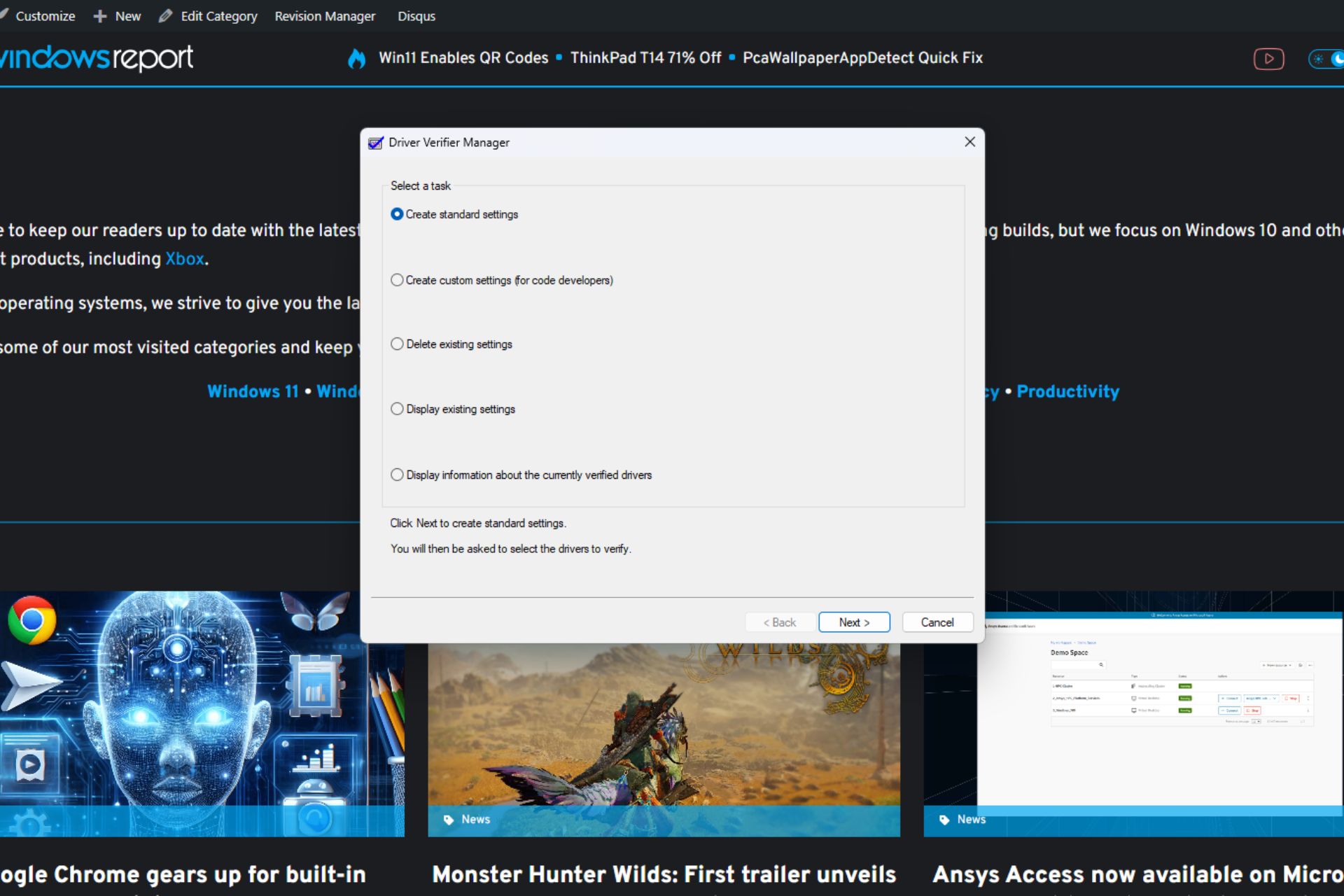
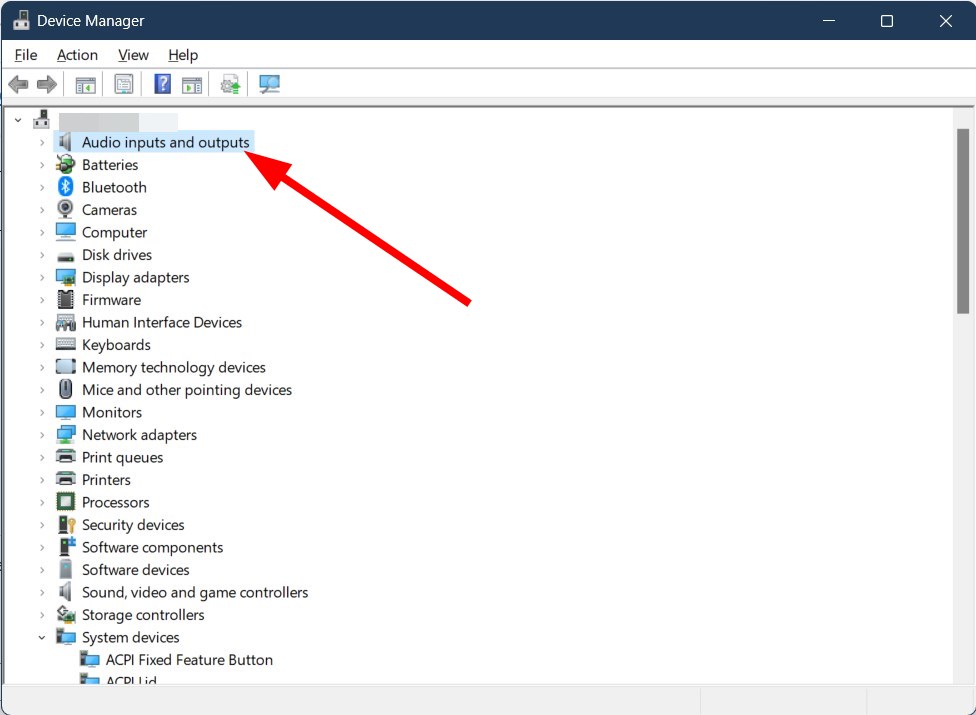
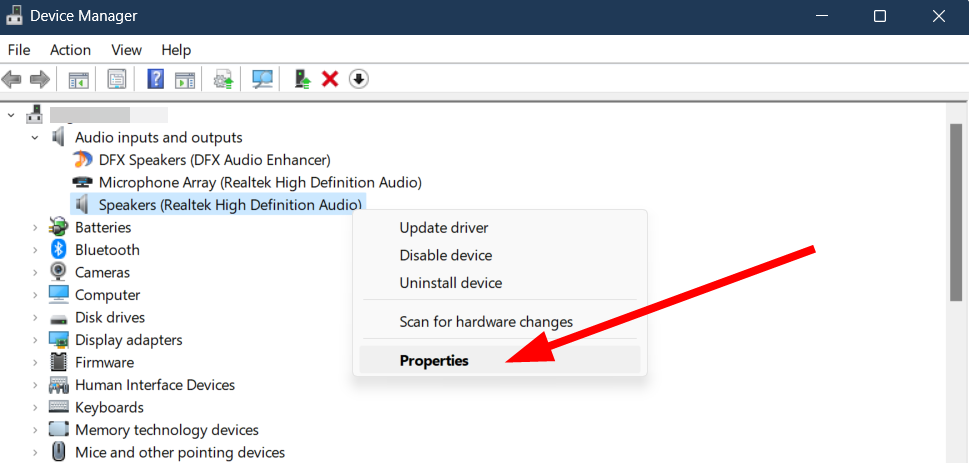
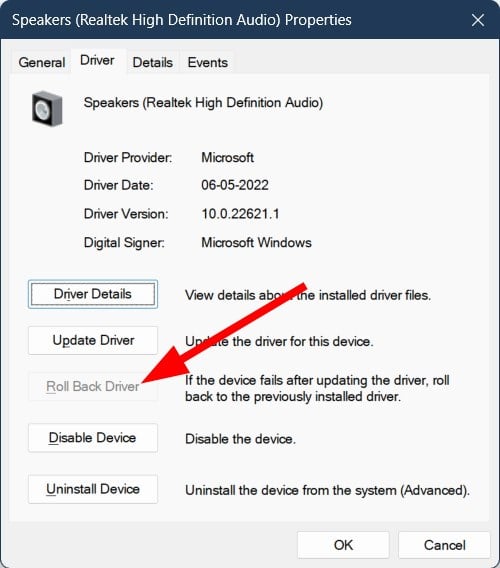
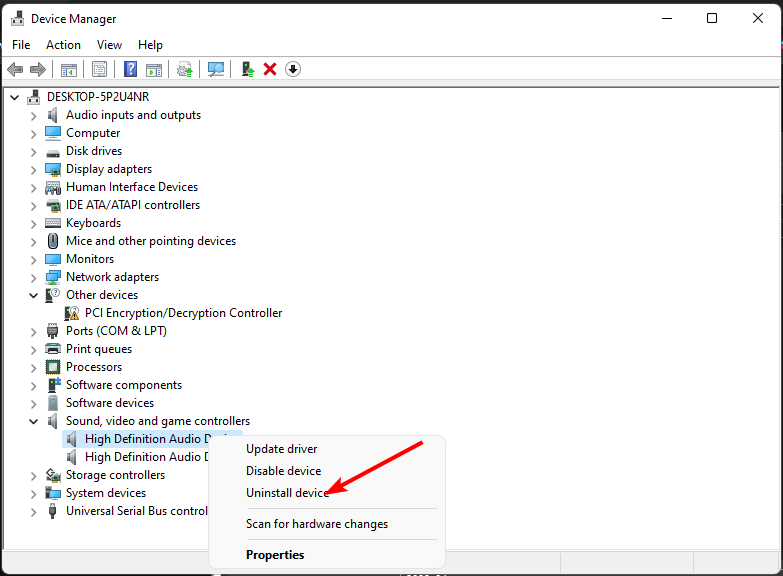
Windows will no longer have the Driver Verifier GUI, as the Redmond-based tech giant is set to deprecate it in the following months.
According to the official blog post, the capability, which can be used to find and fix various driver issues in the operating system, was added to the list of deprecated capabilities in Windows.
However, Microsoft has a solution: while you might no longer be able to use Driver Verifier GUI in Windows 10 and 11, the Redmond-based tech giant says you can use the Verifier Command Line instead.
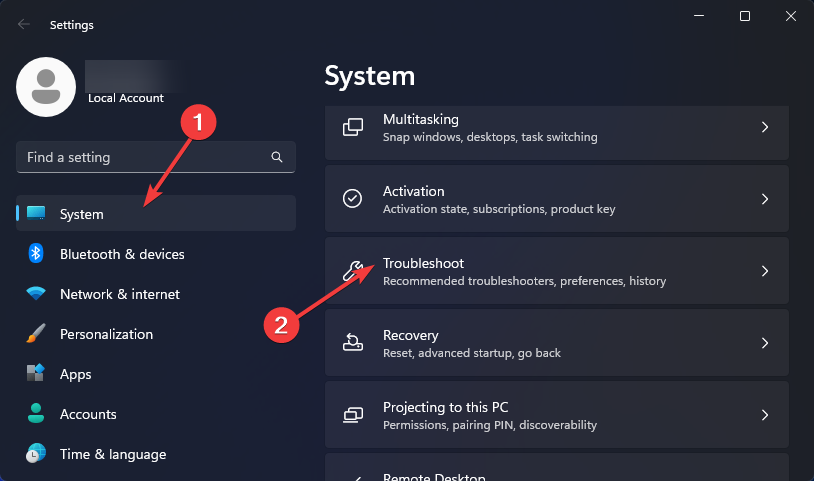
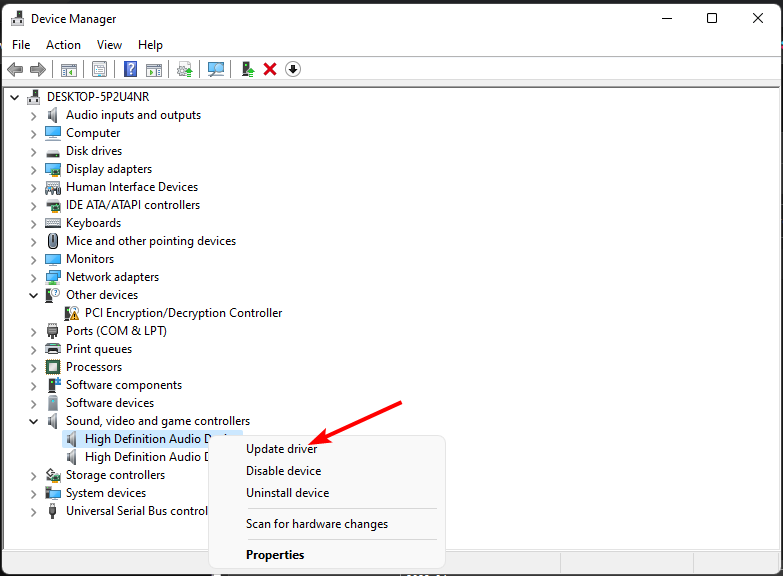
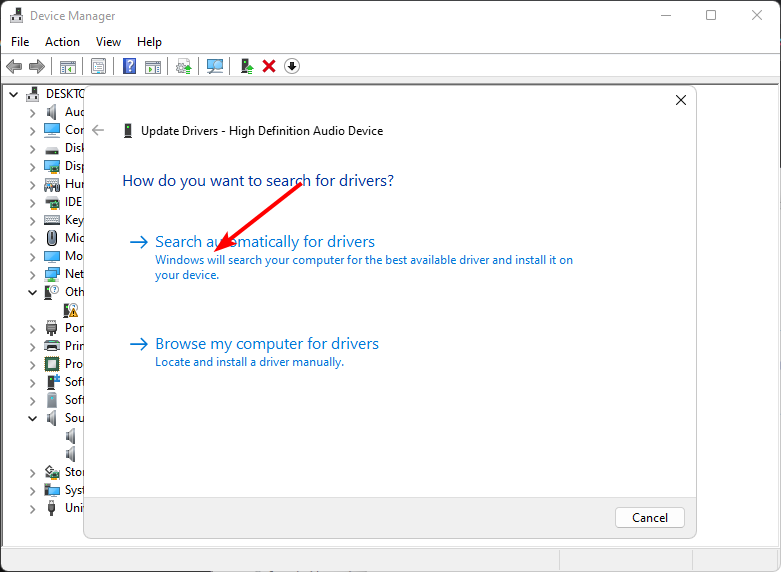
The newer tool can be accessed just the same. Press the Windows Key + R to open the Run application. Once there, type in verifier.exe to open the Verifier Command Line.
On the other hand, you can still use the Driver Verifier GUI in Windows, as Microsoft hasn’t specified an exact date for the deprecation. Instead of the verifier.exe, type in verifiergui.exe, and it will open up just the same.
Driver Verifier GUI, verifiergui.exe, is deprecated and will be removed in a future version of Windows. You can use the Verifier Command Line (verifier.exe) instead of the Driver Verifier GUI.
Microsoft
The Redmond-based tech giant hasn’t specified any reasons for the deprecation, but given that the Verifier Command Line already exists and does the same job, it would have been a waste of resources to keep both up and running.
As driver issues in Windows are pretty common, there are also dozens of ways to deal with them, so the Redmond-based tech giant deprecating this particular tool shouldn’t be a problem. However, for those Windows users already used to how the Driver Verifier GUI works, this is indeed sad news.
For now, though, the best you can do is to take advantage of the tool while it still exists and maybe try the other tool.
At Google I/O 2024, Google announced plans to integrate its lightweight AI model, Gemini Nano, into the Chrome browser for desktops. This integration aims to enable on-device AI functionalities within Chrome, potentially offering several benefits.
Google Starts early testing
Google has already begun work on integrating Gemini Nano. One aspect of this is the “Prompt API for Gemini Nano” being explored in Chrome Canary. This flag is currently intended for developers and focuses on exploring potential use cases, not a finished feature for all users.
As mentioned above, Chrome on desktops and laptops will gain access to Gemini Nano in addition to the existing website functionality. Google has already started testing the Prompt API for Gemini Nano.
Benefits of On-Device AI
Faster Performance: Processing tasks locally with Gemini Nano can potentially lead to faster response times and a smoother user experience, especially for users with limited internet bandwidth.
Offline Functionality: Certain AI-powered features might become accessible even when you’re offline, which is beneficial for situations without internet access.
Privacy Advantages: Data processing happening entirely on your device could offer some privacy benefits compared to cloud-based models.
What to Expect from Gemini Nano in Chrome
While specific details haven’t been released, Chrome developers have mentioned potential use cases for Gemini Nano:
Summarization: Make long web pages shorter and easier to understand
Rephrasing: Help you rewrite sentences or paragraphs to make them clearer.
Classification: Organizing information based on relevant categories.
Limitations of the Prompt API
Google has revealed that the Gemini Nano Prompt API is not suitable for use cases that require factual accuracy, such as answering knowledge questions.
The Prompt API for the Gemini Nano flag provides the following details
Enables the exploratory Prompt API, allowing you to send natural language instructions to a built-in large language model (Gemini Nano in Chrome). Exploratory APIs are designed for local prototyping to help discover potential use cases, and may never launch. These explorations will inform the built-in AI roadmap [1].
This API is primarily intended for natural language processing tasks such as summarizing, classifying, or rephrasing text. It is NOT suitable for use cases that require factual accuracy (e.g. answering knowledge questions). You must comply with our Prohibited Use Policy [2] which provides additional details about appropriate use of Generative AI. – Mac, Windows, Linux, ChromeOS, Android, Lacros
In the future, we can expect to learn more details about how Gemini Nano works in Chrome and how users will interact with it.
Summary: Chrome might be getting a built-in AI assistant! A new flag hints at Google’s plans to integrate Gemini Nano for summarizing webpages, rephrasing text, and more – all within the browser.
The Monster Hunter series has been present for two decades, and over the years we have seen many great sequels.
If you’re a fan of the series, you’ll be pleased to hear that we finally get to have the first look at Monster Hunter Wilds.
Monster Hunter Wilds first trailer revealed
As Windows Central writes, the new Monster Hunter game was showcased during the PlayStation State of Play event.
The trailer for the games was released, and we finally had the chance to look at the game worlds as well as the creatures that inhabit it.
Not much information is available about the game, but we do know that you’ll be able to get bonuses if you still have saved data from Monster World Hunter or the Iceborne expansion.
Owners of Monster Hunter Wilds will get Felyne Leather armor and Felyne Acorn Spade weapon, while Iceborne owners will get Felyne Duffel armor set and Felyne Trekker Pickaxe weapon.
The game is set to release in 2025, and it will be available on Xbox Series X|S, PlayStation 5, and PC. In other news, the Dragon Age: Dreadwolf release window was revealed, and the game will come sooner than expected.
Whenever you log in or attempt to play any game, there’s a chance you may not be able to get in and error code cr901001 in Dragon Ball is one of them.
Error code cr901001 is a communication error that implies a server overload. It has nothing to do with your account so if you’re unable to log in, don’t fret. If you’re able to log in, your gameplay experience will be significantly downgraded as some online features may be unavailable.
How do I fix error code cr901001 in Dragon Ball Legends?
The error code cr901001 is proof that you cannot rely on online games. For instance, Dragon Ball Xenoverse issues range from bugs to screen flickering. While these games are great for online matches and interacting with other gamers, they can be unreliable at times.
Have you experienced this error code before? What troubleshooting steps did you take that you think we should know about? Let us know in the comment section below.
On May 29, 2024, Ansys announced the launch of Ansys Access on Microsoft Azure to facilitate seamless deployment in the Azure infrastructure. Starting May 30, Ansys Access will be available on the Microsoft Azure Marketplace.
With the collaboration in place, you can easily deploy pre-configured Ansys applications, developed for HPC (High Performance Computing) and VMs, on the Azure cloud.
Ansys, in its 50 years of existence, has aided clients by offering the power of simulation. Now, with the launch on Microsoft Azure, enterprises switching to cloud-based solutions can benefit from all the pre-tested applications Ansys Access has in store.
Speaking about launching Ansys Access on the Azure Marketplace, Shane Emswiler, Senior Vice President of Products at Ansys, said,
As computer-aided engineering moves farther into cloud computing, it is crucial that Ansys customers have the right tools to not only keep pace with this transition, but to thrive in this new era. With Ansys Access on Microsoft Azure, IT managers can use existing or new services and licenses in one place, keeping deployment costs low. This reduction in administrative and financial obligations opens the door for increased productivity and ultimately, more innovation.
Highlighting the benefits of the collaboration, Dominik Wee, Corporate Vice PresidentofManufacturing and Mobility at Microsoft, said,
This collaboration not only simplifies implementation for IT departments but also empowers engineers to unlock the advantages of high-performance Microsoft Azure virtual machines, enhancing engineering and IT workflows. As cloud computing gains traction across industries, Ansys Access on Azure makes it easier for organizations to scale simulations and accelerate product innovation.
You can read more about the collaboration in the official press release published by Ansys.
Microsoft released a new Canary build for Windows Insiders, including features like support for Emoji 15.1 and Suggested replies in Phone links for Android.
Most of the features and changes are mentioned in the changelog, however, some things were left to be discovered by enthusiasts. This time, the change was in mouse options in the Settings app.
Remember the mouse pointer precision enhancement and scroll direction settings in the Control Panel? They were lost somewhere between the transition from the Control Panel to Settings, but not anymore.
PhantomOfEarth noticed that if you enable a feature ID, you get these two options in the Settings app:
Enhance Pointer Precision toggle button – Adjusts mouse movement to be more precise
Scroll direction dropdown -Inverts the scrolling behavior of their mouse wheel.
Now, you can dynamically alter cursor speed based on how quickly the mouse is moved using the Enhance Pointer Precision toggle and change the scroll direction when using a touchpad instead of a mouse.
In his X (formerly known as Twitter), PhantomOfEarth wrote:
A toggle for “Enhance pointer precision” (an option currently only in the old mouse properties dialog) and a setting for mouse scrolling direction are being added to the Settings app. (disabled by default, build 26227.) vivetool /enable /id:50012660
As it is not mentioned in the release notes, you can use the ViVeTool app to enable it once you update your computer to build 26227.
First, download ViveTool from GitHub and extract the files. Now press Windows + X and select Terminal (Admin). Once the Terminal window is up, press Ctrl + Shift + 2 to open Command Prompt.
Go to the extracted files folder using the cd command, cd path to enter the directory. Next, type vivetool /enable /id:50012660 and press Enter. Once done, restart your computer.
Now, log in to your computer, press Windows + I to open the Settings app, go to Bluetooth & devices, then select Mouse. On the Mouse settings page, you will see both options.
If you want to get access to all new features before general availability, you can join the Windows Insider Program.
Have you ever used Enhance Pointer Precision and Scroll direction features? If so, share your experiences with our readers in the comments section below.
Microsoft releases Windows 11 Insider Preview Build 26227 to the Canary Channel. With this update, the Copilot app will now be pinned to the Taskbar on Windows. It also adds support for Emoji 15.1 and a new Linked devices page under the Settings app.
As part of this update, we’re also evolving the Copilot* experience on Windows as an app that will be pinned to the taskbar. This enables users to get the benefits of a traditional app experience, including the ability to resize, move, and snap the window – feedback we’ve heard from users throughout the preview of Copilot in Windows. This model also allows Microsoft to more agilely develop and optimize the experience based on user feedback.
As part of the evolution of the Copilot experience on Windows to become an app that is pinned to the taskbar, we are retiring the WIN + C keyboard shortcut. For new devices that ship with a Copilot key, this key will open Copilot. For existing devices without that key, using the WIN + (number position for Copilot pinned to your taskbar) is a great way to open Copilot.
[Emoji]
We’re adding support for Emoji 15.1 which introduces a small number of brand-new emoji such as head shaking horizontally and vertically, phoenix, lime, brown mushroom and broken chain. Other changes for Emoji 15.1 include Unicode’s decision to revert family combinations to symbol-like shapes. Windows has chosen to stay with our existing style that use people in family combinations. We are also supporting the new directionality updates for person/man/woman walking, kneeling, with cane, running, manual wheelchair and motorized wheelchair. You can now select right facing or the original left facing orientation for these emoji.
[Settings]
We are beginning to roll out a new Linked devices page under Settings > Accounts that allows you to manage PCs and Xbox consoles that you are signed in to with your Microsoft account. This settings page will only show on the Home and Pro editions of Windows 11 and if you’re signed into Windows with your Microsoft account.
Along with these changes, the Redmond tech giant also announced the addition of a new feature, Suggested Replies to the Phone Link for Android users
It is powered by a cloud-based intelligent suggestion model, which can make your messaging experience better and more efficient.
Now, whenever you receive a message, you will get 3 contextually relevant reply bubbles to choose from, and you can click on any of them to send it as a reply.
The feature is enabled by default and will begin to roll out for Windows Insiders of all channels. However, to use it, you need Phone Link version 1.24051.98 and higher.
Microsoft also introduced fixes for the known issues, here is the list:
[General]
Fixed an issue believed to be the underlying cause of some Insiders noticing stutters in some animations recently (dropping frames), particularly with Task View.
Fixed an underlying issue which could lead to some apps not starting on startup even though they were enabled as startup apps in Settings. It would show as Suspended in Task Manager, but not appear in the taskbar.
Fixed an underlying issue which could lead to the pop up asking for permission to use location not appearing, which could lead to app issues without location access.
[Windowing]
Fixed an issue related to showing tabs in Alt + Tab, which could lead to frequent explorer.exe crashes if you had a very large number of tabs.
[Widgets]
Fixed the issue causing the WIN + W keyboard shortcut to not work correctly and open the Widgets board.
[Other]
Fixed explorer.exe crashes impacting live captions and voice access.
So far, there are no known issues with Windows 11 Insider Canary Build 26227. However, there are reports that many Windows Insiders are stuck with Build 26040 or Build 23620 in the Canary and Dev channels and Microsoft is working on them.
However, if you are affected by the issue, you can download the latest ISO, perform a clean installation, and set your device to flighting in the Canary or Dev channel.
Also, if you encounter any other issues related to the new build, you can send feedback via Feedback Hub (WIN + F).
Have you installed the Windows 11 Insider Preview Build 26227? If so, share your experience with our readers in the comments section below.
Microsoft released new build of the next Windows Server Long-Term Servicing Channel (LTSC) Preview build 26227 for Windows Insiders.
The new build 26227 comes with Desktop experience and server code installaiton options for Datacenter and Annual Channel for Container Host and Azure Edition (for VM evaluation only).
A new account type known as delegated Managed Service Account (dMSA) is now available that allows migration from a traditional service account to a machine account with managed and fully randomized keys, while disabling original service account passwords. Authentication for dMSA is linked to the device identity, which means that only specified machine identities mapped in AD can access the account. Using dMSA helps to prevent harvesting credentials using a compromised account (kerberoasting), which is a common issue with traditional service accounts.
More Server Message Block (SMB) protocol changes.
Starting with Build 26097 and higher, we are introducing the following Server Message Block (SMB) protocol changes for QUIC, signing, and encryption:
SMB over QUIC client and server disable: Administrators can now disable the SMB over QUIC client and SMB over QUIC server options with Group Policy and PowerShell.
SMB over QUIC client and server connection auditing: Successful SMB over QUIC client and SMB over QUIC server connection events are now written to the event log to include the QUIC transport.
SMB signing and encryption auditing: Administrators can now enable auditing of the SMB server and client for support of SMB signing and encryption. This shows if a third-party client or server doesn’t support SMB encryption or signing. You can configure these settings with PowerShell and Group Policy.
Windows Server Flighting is here!!
If you signed up for Server Flighting, you should receive this new build automatically later today. For more information, see Welcome to Windows Insider flighting on Windows Server – Microsoft Community Hub The new Feedback Hub app is now available for Server Desktop users!
The app should automatically update with the latest version, but if it does not, simply Check for updates in the app’s settings tab.
The Redmond tech giant also mentioned the update’s known issues and assured these will be fixed in future release:
Secure-boot Gen2 VMs created using ISO media may not boot – Some users may face boot issues while creating secure-boot Gen2 VMs. You can disable secure boot to let the Gen2 VM to boot successfully.
Upgrade does not complete – You may encounter issues while upgrading wherein the download process doesn’t go beyond 0%. To overcome, you can use ISO media download option to upgrade.
Access denied error when using Diskpart –> Clean Image on Winpe.vhdx VMs created using WinPE – Microsoft is working on this issue and will fix it in next preview release.
Flighting – Just like previous version, the label for this flight may also be incorrectly referenced as Windows 11, however, when selected, Windows Server update is installed. So, just ignore the label and proceed with installation.
Setup – Some of you might encounter overlapping rectangle voids following mouse clicks during OOBE setup, it is a graphics rendering issue. It will not prevent setup completing.
WinPE – Powershell Scripts – Using the WinPE-Powershell optional component does not properly install Powershell in WinPE, resulting in Powershell cmdlets failure. So, if you use Powershell in WinPE often, don’t install this build.
Intermittent upgrade failures– If validating upgrades from Windows Server 2019 or 2022, Microsoft asked not to use this build as it could result in intermittent upgrade failures.
Wevetutil al command causes the Windows Event Log service to crash – Archiving eventlogs with Wevetutil al command makes the Windows Event Log service to crash and the archive operation to fail. You need to restart the service by running Start-Service EventLog command from Command Prompt with admin rights.
Also, if you Secure Launch/DRTM code path enabled, Microsoft recommended not to install this build. Here is the other information on the build:
Build
VHDX format
ISO format
Keys
Windows Server Long-Term Servicing Channel Preview
English
18 languages
MFY9F-XBN2F-TYFMP-CCV49-RMYVH
Windows Server Datacenter
English
English
2KNJJ-33Y9H-2GXGX-KMQWH-G6H67
Windows Server DatacenterAzure Edition Preview
English
English
No key
The official blog also mentioned that this Windows Server Preview will expire on September 15, 2024.
OpenAI signed a deal with Vox Media and The Atlantic to train ChatGPT using their articles. This decision could prevent further lawsuits caused by AI copyright infringement. Also, the chatbot will have better access to reliable sources of information.
According to Axios, ChatGPT will provide citations and links to the original articles from Vox Media and The Atlantic. This method will promote some publishers. However, it might also lower the traffic on their site. After all, fewer people will directly interact with their articles. So, OpenAI will need to find a way to compensate them.
AI-based searches might negatively affect small publishers
The future of search could be AI, but it is difficult to imagine how it will look for small publishers who don’t sign deals. For instance, ChatGPT could focus on sharing articles from one of OpenAI’s collaborators regardless of their rank in SERP. Besides, big publishers like Vox Media and The Atlantic could seize this opportunity to secure their spot in the future.
AI searches are already here and they focus on specific sites. For example, Bing’s AI-powered search focuses on giving answers from a few sources, but it also has a Learn More section that features the source, and additional articles.
Vox Media and The Atlantic have access to OpenAI’s technology
Vox Media and The Atlantic will get access to OpenAI’s technology. The two publishers already have some plans.
The Atlantic is developing a microsite Atlantic Labs to experiment with AI-driven products and features. Besides, the product team will give feedback to OpenAI based on their experiments and use cases.
On the other hand, Vox Media will use OpenAI’s technology to enhance Forte, its first-party data platform. The AI will improve its targeting capabilities. Also, the publisher wants to use AI to improve the content discovery on its pages.
Ultimately, more companies could strike deals with OpenAI in the future, like Vox Media and The Atlantic did. After all, there are benefits for both sites. However, others might follow the decision made by The New York Times and sue OpenAI for copyright infringement.
Do you think that more publishers will sign deals with OpenAI soon? Let us know in the comments.
Along with World of Warcraft, GeForce Now planned to add 17 games to the cloud service this month, out of which 7 will be available to stream this week.
With the games’ announcement, NVIDIA has also mentioned a chance to get a free in-game mount in Elder Scrolls Online by opting into GeForce NOW’s Rewards program.
Here is the list of new games added to GeForce Now in the last week of May 2024:
Games
Platform
Release date
The Rogue Prince of Persia
New release on Steam
May 27
Capes
New release on Steam
May 29
Lords of the Fallen
New release on Xbox, available on PC Game Pass
May 30
Soulmask
New release on Steam
May 31
World of Warcraft: Dragonflight
Battle.net
Released
World of Warcraft Classic
Battle.net
Released
World of Warcraft Cataclysm Classic
Battle.net
Released
Senua’s Saga: Hellblade II
New release on Steam and Xbox, available on PC Game Pass
Released
Serum
New release on Steam
Released
Tomb Raider: Definitive Edition
Xbox, available on PC Game Pass
Released
Palworld
Steam, and Xbox, available on PC Game Pass
Released
Some games, including Gestalt, Norland, and Sunnyside, were not released on the launch date and are expected to be released later this year.
And, this is the list of games you can expect coming in June 2024
Games
Platform
Release date
Autopsy Simulator
New release on Steam
June 6
Chornobyl Liquidators
New release on Steam
June 6
SunnySide
New release on Steam
June 14
Still Wakes the Deep
(New release on Steam and Xbox, available on PC Game Pass
June 18
Disney Speedstorm
Steam and Xbox, available on PC Game Pass
Date not mentioned
Farm Together 2
Steam
Date not mentioned
Resident Evil Village
Steam
Date not mentioned
Star Traders: Frontiers
Steam
Date not mentioned
Street Fighter 6
Steam
Date not mentioned
Torque Drift 2
Epic Games Store
Date not mentioned
Which is your favorite game from the list? Share your thoughts with our readers in the comments section below.
Microsoft’s Minecraft will join the echelon of adaptive game properties from the company following a joint announcement from Netflix earlier today.
While Microsoft sent out an email offering scant details on the Mojang Studios inspired project, Netflix released a 20-second trailer ala Pixar’s opening credits, that also teased the animated art style the series would follow.
In Microsoft’s email, the company explained that the series would follow an “original story with new characters,” as it attempts to portray “the world of Minecraft in a new light.”
While all of that sounds risky on Microsoft’s part, the company is still reaping the benefits of a critically successful launch and release of the adaptive Fallout series on Amazon as well as notching two seasons of a live-action adaption of its franchise shooter gamer Halo.
Minecraft fans can also seek a bit of solace that Netflix is using its in-house animation team which has worked on projects that include its Carmen San Diego show, Sonic Prime, Ninjago: Dragons Rising to helm the series.
WildBrain, the Vancouver based art studio is known for both its 2D and 3D animation projects with the latter earning them an Annie Award for Hubert’s Brain.
In addition, Microsoft and Netflix have successfully worked in the past to produce another animated project based on a first-party game from the company with the animated series Cuphead.
While there are no confirmed dates for the Netflix show, both companies have mentioned that the project is coming soon, and speculatively speaking, could be a precursor to the Warner Bros produced movie based on the same property.
Microsoft and Warner Bros also have mixed live action and CGI Minecraft movie slated for release in April 2025, whereby this Microsoft and Netflix announcement could serve as weather ballon for that movie and how it’s released next year.
Microsoft is also in talks to license out Gears of War for an adult themed animated series, perhaps in the same vein as Netflix’s Cyberpunk Edgerunners or Castlevania.
In the quest for higher resolutions and smoother frame rates, Microsoft has unveiled a groundbreaking solution, DirectSR that can revolutionize the gaming experience by seamlessly integrating super-resolution (SR) technologies across different GPU hardware vendors.
Developed in collaboration with DirectSR AMD, Intel, and NVIDIA, DirectSR focuses on setting a new standard for SR support in D3D12. This API seamlessly leverages the capabilities of their in-market upscaling technologies
Microsoft said:
DirectSR enables multi-vendor SR through a common set of inputs and outputs, allowing a single code path to exercise DLSS Super Resolution, FidelityFX™ Super Resolution, and XeSS. By exposing these technologies under one interface, SR integration becomes straightforward and scalable – developers can implement once and ship SR across the broad landscape of Windows devices!
DirectSR eliminates the need for developers to juggle multiple vendor-specific SDKs or libraries by simplifying the integration process.
Furthermore, the API provides inbuilt support for AMD FidelityFX™ Super Resolution (FSR) 2.2 and driver-level support for Intel XeSS and NVIDIA DLSS Super Resolution. This ensures that the DirectSR can adapt to various hardware configurations while maintaining gamers’ performance and quality demands.
Andrej Zdravkovic, Senior Vice President of GPU Technologies and Engineering Software, and Chief Software Officer at AMD said:
“It was a pleasure to collaborate with Microsoft on the design and development of DirectSR as a way to unify developer access to super resolution technologies across all platforms. We are excited to have AMD FSR 2.2 delivered as a built-in implementation in DirectSR as part of this preview release.
Jason Paul, Vice President, GeForce Platform Marketing at NVIDIA said:
NVIDIA DLSS Super Resolution is available in over 400 titles and has become a standard feature for gamers. We are excited to give developers even more ways to bring DLSS to the next generation of games
Alexander Kharlamov, Senior Director, Intel GPU Rendering said:
Intel strongly endorses Microsoft’s DirectSR specification, and the collaborative efforts involved in its creation – it simplifies the lives of game developers and ensures more gamers will experience Intel’s XeSS up-scaling technology on Intel GPUs.
The introduction of DirectSR looks promising, as it can seamlessly integrate SR technologies from different vendors and potentially elevate the gaming experience for all.
Moreover, the developer can use this API to deliver smooth performance with stunning visuals on various hardware configurations.
In a couple of weeks, it is expected that Apple CEO Tim Cook and other executives will make mention of their newly solidified partnership with OpenAI to help usher in a new artificial intelligence age for the company, and this prospect has Microsoft very concerned.
On the surface, Microsoft’s concerns over Apple leveraging OpenAI’s large language model ChatGPT to power its products and services can be taken as catty industry infighting, but the Redmond based software company is also apprehensive of the logistical issues this collaboration could cause.
According to The Information, Apple and OpenAI are nearing the end-of-the-road on a year-long negotiation talk that would result in former utilizing the popular ChatGPT LLM to spruce up several aspects of iOS, MacOS and iPadOS that include Apple Photos, Siri, iMessage, email, Settings, and more.
Apple is also rumored to be in talks with Google to leverage its Gemini LLM as well, but there have only been signs ChatGPT being tested in Siri thus far. Possible roadmaps for Apple’s new AI push could include OpenAI appearing at this year’s Worldwide Developer Convention (WWDC), with deeper Google integration showing up in iOS18 in late 2024 or 2025, and the eventual platform shift to a homegrown LLM that the company has been rumored to be working on since 2022.
Nevertheless, Microsoft is concerned about OpenAI’s partnership with Apple not because it has the potential to split its Copilot audience as it would directly battle possible AI enhancements in Copilot + PCs versus Macs or Office 365 versus iWorks, but both Apple and Microsoft server massive audiences to which capacity becomes an immediate issue.
OpenAI CEO Sam Altman is a rather busy man these past couple of years, but he recently spoke with Microsoft CEO Satya Nadella to assuage his concerns over support capacity and data centers as well as revenue splits to recoup the multi-billion-dollar investment from Microsoft.
In a way, OpenAI’s partnership with Apple has the potential to be a lucrative deal that puts even more money back into Microsoft’s wallet after its placed upwards of $12 billion into its partnership with the ChatGPT provider.
Altman and Nadella will need to come to consensus soon as Apple is rumored to showcase the benefits of its new agreement with OpenAI, in less than two weeks.
Visual Studio 17.10 was released publicly a week ago and brings an updated Extension Manager for all users. Last year, the updated Extension Manager was available as an optional preview feature for users to try and give feedback.
Based on that feedback, Microsoft will now offer the Extension Manager as the default preview feature with Visual Studio 17.10.
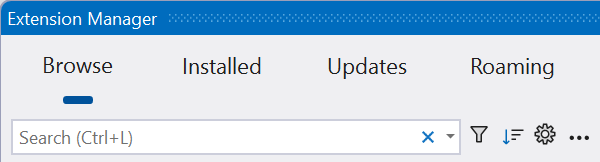
The new Extension Manager has all the necessary functions but also comes with a new, improved user interface, which makes discovering new extensions and managing the existing ones simpler.
This is what Microsoft mentioned in the official blog post,
We created the new Extension Manager to spotlight the most important content when searching for extensions, including a large pane for viewing detailed descriptions.
The left sidebar has lets you choose between primary views:
Browse the Visual Studio Marketplace for new extensions
View and manage your Installed extensions
Discover and install any available Updates for your extensions
Install any extensions for which you have Roaming enabled
In addition, to refine your search, you can click the filter icon next to the search box and access category and subcategory menus.
The new Extension Manager is available for all Visual Studio 17.10 users and is on by default. However, if you don’t like it and want to return to the previous one, go to Tools>Manage Preview Features, then uncheck the box next to Extension Manager UI Refresh. If you ever want to enable it, reverse engineer these steps and restart Visual Studio.
Have you tried using the new Extension Manager in Visual Studio? If so, share your experiences with our readers in the comments section below.
Are you looking for the best password manager with a VPN? You’re at the right place, then.
Password managers are useful on their own because they securely store and organize your passwords. However, using one with a VPN provides a double layer of security. It ensures your credentials are strong and safe, while the VPN protects your online data from prying eyes.
I tested over 25 tools and picked five that stood above the rest.
NordPass is a password manager developed by the team behind NordVPN. It ensures a high level of security with its strong encryption. I was able to add a master password before proceeding to protect all my passwords, notes, credit card information, and more.
It also has a Data Breach Scanner feature that scans the web to discover if your data has leaked. If there are leaks, it’ll notify you and experts will help you set a secure password. However, the feature is available for premium users.
It also has other tools like:
Password Generator (free to use) to help you come up with strong passwords
Email Masking (premium) to ensure it’s not exposed online
Password Health (premium) to check if you’re using weak or reused passwords.
Pros:
Easy to navigate and use for managing passwords.
Ability to set a master password for added security.
Scans the web for data leaks and notifies users of breaches.
Helps create strong passcodes
It evaluates the strength of your passwords and checks for reuse.
Cons:
Some features like Data Breach Scanner, Email Masking, and Password Health require a premium subscription.
Losing the master password could potentially lock users out of their accounts.
Dashlane stands out as one of the best password managers with a VPN for enhanced security. It offers strong authentication options, including two-factor authentication, Touch ID, and Face ID. Though it comes with a higher price tag compared to some competitors, it provides a free version for those looking to save money.
It also has a password generator that allows you to pick a length of up to 40 characters. You can include letters, digits, symbols, and similar characters.
Apart from generating passwords, I also tried the username generator which allowed me to select up to 40 characters. You can tick boxes for random characters, keywords at the end, and leetspeak to personalize it.
Passwarden is a password manager compatible with all major operating systems including Windows, macOS, Android, and iOS. It also offers browser extensions for Edge, Firefox, Chrome, and Safari. As part of the MonoDefense suite, it integrates with VPN Unlimited.
I found Passwarden’s interface easy to use, which is great for beginners and experts.
It has a Security Dashboard feature to check if your passwords are strong enough. Also, there’s a Dark Web Monitoring mode to send alerts when your log-ins leak online.
Moreover, it has a Duress mode that shows only selected vaults and hides the rest when you log in.
Pros:
Highly compatible with major operating systems and popular browsers
Easy-to-use interface suitable for beginners and experts
Has a Security Dashboard for monitoring password strength
Dark Web Monitoring alerts for leaked log-ins
Duress mode provides additional security by selectively hiding vaults
Sticky Password is ideal for users prioritizing security, though it isn’t the cheapest option. Fortunately, it offers a free version. This password manager tool partners with Ivacy VPN to ensure all credentials are safe from spying eyes.
What sets Sticky Password apart is its portable password feature. It allows you to select a device where the portable version will be saved.
I could also access the Security Dashboard with the password health feature to check their status. Moreover, it has Dark Web Monitoring to help send alerts if a password leaks online.
I also noticed its password-generating feature supports more characters than most competitors. You can generate a password with up to 99 characters. Additionally, it has an option to avoid similar characters.
Pros:
Portable password feature for flexibility
Security Dashboard for monitoring password health
Dark Web Monitoring for alerts on leaked passwords
Advanced password generator supporting up to 99 characters
Proton Pass is a reliable password manager with a VPN that supports major operating systems and browsers. I accessed its Pass Monitor which ensures safety by monitoring accounts for security threats. It includes Proton Sentinel, Password Health, Inactive 2FA, and Dark Web Monitoring alerts.
This app also allows you to import and export passwords from one manager to another.
Pros:
It Integrates with a VPN to offer an extra layer of online privacy and security.
Compatible with major operating systems and browsers.
Includes email aliases for enhanced privacy and a built-in 2FA authenticator.
Simplifies the process of transferring passwords from other managers.
Security features: Focused on strong encryption, 2FA, and dark web monitoring.
Integration with VPN: VPN support for additional online privacy.
User interface and usability: Prioritized user-friendly and intuitive interfaces.
Cross-platform compatibility: Support for multiple operating systems and browsers.
Additional features: Password generators, secure notes, and data breach scanners.
Cost and value: Evaluated the balance of premium features and subscription prices.
Overall, I’m confident this guide has provided you with the best options for choosing the right password manager with a VPN. These apps offer various features to help secure your passwords, so pick the one that suits you best.
Google Meet is one of the most used communications services, and to make it stand out from the competition, Google is constantly improving it with new functionalities.
Speaking of which, it seems that you’ll soon be able to use 3D avatars on Google Meet. Here’s what we know so far.
3D avatars are coming to Google Meet in an attempt to challenge Microsoft Teams
While this sounds like an interesting idea, Microsoft Mesh didn’t meet expectations, and this is why Google thinks this is the perfect moment to launch a similar service.
As MSPowerUsers reports, Google is bringing a new feature to Teams called ChatDirector. Using this tool, you can have 3D avatars during video conferences, 3D environments, and automatic layer transitions.
Spatial awareness is also present, which helps this feature feel like an actual meeting. Unlike Microsoft Mesh which uses 3D cartoon avatars, ChatDirector scans your face and places your model in the meeting.
The avatars can also mimic real-life visual cues such as eye contact, and backgrounds can be set to change depending on who’s speaking at the moment.
While this is just a prototype, it was showcased during the CHI 2024 conference. It still has a long way to go, especially when it comes to user privacy and transforming their likeness into a 3D avatar.
Overall, it’s a fresh take on 3D avatars, and we hope we’ll see it available to the public someday.
Microsoft has released a new update for Surface Pro 9 with 5G (SQ3 Processor). The new version addresses video glitches, screen flashing/flickering issues, and unexpected crashes.
Qualcomm(R) Audio RPC Daemon Device – System devices
1.0.3933.9300
Qualcomm Secure Processor Device – System devices
The update is available for Surface Pro 9 with 5G (SQ3 Processor) devices with Windows 11 Update, version 22H2 update or higher.
To install the update on your device, go to Settings>Windows Update. You can also manually install the update from this website. All you need to do is choose the version compatible with your device’s OS. Once done, double-click the file to initiate the installation The file size is 382.6 MB, so ensure you have enough space.
Have you installed this firmware update for Surface Pro 9 5G? If so, share your experience with us in the comments below.
In a post on X(formerly Twitter), Leopeva64, a tech enthusiast, first reported how the different menus have lost the acrylic effect and now appear rather opaque.
Microsoft has made some of the Edge menus faster thanks to a WebUI 2.0 architecture migration, but something I've noticed is that in these menus the Acrylic effect no longer works:https://t.co/2lsEh1zdXgpic.twitter.com/QmoUweS7iy
In the images and video shared by Leopeva64, it’s clear that the acrylic effect is no longer visible in the Favorites and Browser essentials menu. However, it’s there if you were to open the History or Downloads menu.
For the unversed, Microsoft, in an official blog post, confirmed that Browser essentials was the first component to be converted for testing WebUI 2.0, and the results were positive. It also said that more features would soon be upgraded to WebUI 2.0.
When we tried to find out if Microsoft Edge users were on board with the change, it seemed like most weren’t. They preferred the previous UI over the new one. At least, that’s the general consensus!
On the bright side, WebUI 2.0 is resulting in significantly improved performance on Microsoft Edge. While highlighting the improvements in Browser essentials after the change, the Microsoft Edge team said,
Starting with Edge 122, the Browser Essentials UI is now much more responsive. The UI is now 42% faster for Edge users and a whopping 76% faster for those of you on a device without an SSD or with less than 8GB RAM!
If the browser is slow for you, discover our quick and simple tricks to speed up Microsoft Edge.
Now that you know how the acrylic effect no longer works after the transition to WebUI 2.0, what do you think of the new markup-first architecture? Share with our readers in the comments section.
For those who don’t know, Framework is a laptop manufacturer that offers a totally different, modular approach to building laptops. In 2 to 5 minutes you can build it from scratch by just attaching some modules into a chassis.
Now, the company has updated the offer for their most popular, Laptop 13 laptop with Intel’s Core Ultra Series 1 CPUs and AMD Ryzen 7040 series GPUs. To be more specific, you can go as high as the Intel Core Ultra 7 165H with 22 threads and opt for an AMD Ryzen 7 7840U for graphics. Both transform this laptop into a tiny 13-inch beast and bring it up to the new Copilot+ PC standards.
In the clip above, Framework explains exactly how they upgraded their Laptop 13.
Moreover, the prices of the new Laptop 13 configurations are amazingly low, starting at $899. If you already own a Framework Laptop 13, you can upgrade it now with a new Core Ultra motherboard for $449. That’s the beauty of this whole modular system, to upgrade your laptop just like you can do with desktop PCs. Actually, it’s even more straightforward because all the modules are snap on, without the need of any engineering or hardware knowledge.
Laptop 13 is really versatile on its configuration. You can opt for a SSD with up to 2TB of storage and 64GB of DDR5-5600, and even get the right battery for your needs.
That’s not all. Framework also offers a new, 2.8K resolution display and a new webcam for Laptop 13. And yes, you can buy them individually and replace them like the bricks on a Lego set.
You can currently pre-order Laptop 13 in 14 countries, including the U.S., so you should check their website for more information.
What do you think about the new Framework Laptop 13? Let’s talk about it in the comments below.
The 16th local legend of Microsoft Flight Simulator is Short SC.7 Skyvan. iniBuilds developed it for Microsoft, but the Short Brothers aerospace company manufactured the real-life version. Its production started in 1963 and ended in 1986.
What was the Short SC.7 Skyvan used for?
Initially, companies used the Short SC.7 Skyvan aircraft for cargo transport and skydiving. Also, it was the go-to for difficult air transport missions, and many companies such as Olympic Air, Macair Airlines, and Ryan Air Services used it.
Some people called it the Flying Shoebox.
Aircraft specifications
The Short SC.7 Skyvan has two engines, a long and narrow wing on top of its fuselage with supports for additional strength, and it is all-metal. Compared to regular passage aircraft, Skyvan doesn’t have a pressurized fuselage. Also, its design allows the maximization of the cargo space. On top of that, it has twin fins and rudders that improve its control and stability.
In addition, the aircraft has a rugged tricycle landing gear that lets it take off from various airfields. For example, it can take off from grass and gravel. Also, the model is efficient at loading and unloading goods because it has a large cargo door and an integrated ramp.
Despite lacking a pressurized fuselage, the Short SC.7 Skyvan aircraft operated from high-altitude airstrips from Nepal, carried the antenna for the Apollo mission, and the military used it for logistical support. The Skyvan can carry 19 passengers, 5157 pounds (2338 kg) of cargo, or a mix of both. Additionally, it can reach 715 horsepower thanks to its two Garrett AiResearch TPE-331-2-201A turboprop engines. That’s why it cruises at 173 mph, stalls at 69 mph, and reaches a top speed of 201 mph.
You can try the Skyvan in different biomes
The game lets you experience the Short SC.7 Skyvan aircraft in various environments. For example, you can land on a beach, take off from a side mountain, or explore the desert.
Microsoft Flight Simulator has sixteen liveries for the Short SC.7 Skyvan, and you can find a few of them below:
Airliner – White
Surveyor – White
Military – Green
Skydive – Clownfish
Military – Grey
Skydive – White
Military – Green Camouflage
Skydive – Pink
Surveyor – Red
Ultimately, flying the Short SC.7 Skyvan aircraft in Microsoft Flight Simulator can be a relaxing experience. However, you will need at least 7.88 GB available for the add-on and $14.99 to buy it from the in-sim Marketplace. If you don’t have the game, you can play it using the Xbox Game Pass, or buy it from Steam and other sources.
Are you going to try the Skyvan aircraft out? Let us know in the comments.
Windows Recall is a newly announced feature that has sparked a lot of controversy since it allows artificial intelligence to track everything you do on the PC.
Some users wanted to avoid it altogether, but it seems to be available on all editions of Windows 11.
Windows Recall is everywhere, even on LTSC and Server editions
Despite being available on Windows 11 LTSC, it won’t run if the device doesn’t meet the hardware requirements.
To make matters worse, even Windows Server 2025 has Windows Recall since it’s available as part of the Windows Feature Experience Pack as Bob Pony confirms.
Surprisingly, Windows Server 2025 has Windows Recall (It's part of the Windows Feature Experience Pack) but of course it won't run due to the device not meeting the requirements for it. Windows Copilot is no where to be found in Windows Server 2025, except for Microsoft Edge! https://t.co/Sykzmae9f3pic.twitter.com/I2HBPrTBHM
The controversy has resulted in a probe by the UK data watchdog agency, and hopefully, they will confirm that Windows Recall isn’t violating user privacy in any way, so stay tuned for an update.
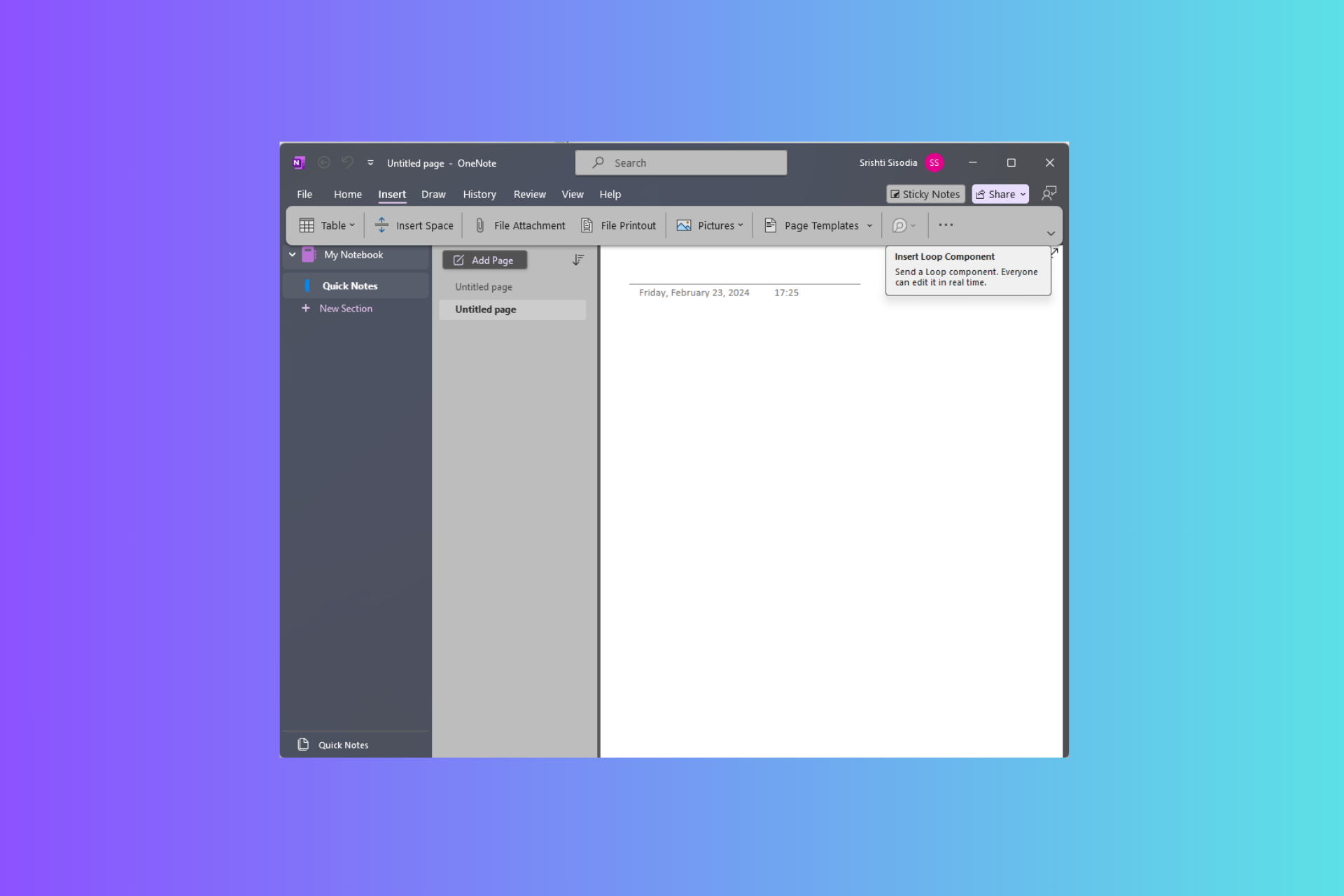
Microsoft just announced that Loop components can now be used in OneNote apps on the web, Windows, and Teams. You can choose from multiple Loop component types to create on OneNote, making collaborative notetaking easier than ever. Let’s know more about them.
What are Loop Components?
Loop Components are the pieces of content, including tasks, lists, and tables that remain consistent across all shared locations (among Microsoft 365 apps). They facilitate collaboration seamlessly across various platforms including Microsoft Teams, Outlook, Word, Whiteboard, and the Loop app, ensuring you are working with the latest information.
It is the most portable piece of a Loop workspace; you can use it in notebooks. With it, you can focus on your content while collaborating with others in real time without switching between apps.
How can I use Loop components for collaborative notetaking?
To use Loop components in OneNote, go to the ribbon menu Insert group, then select Loop Components. From the drop-down menu, select the type of Loop component you want to use. Now, type in or enter content in the component.
Once done, go to the top-right corner of the Loop component, click the Copy link icon, and paste it into other apps like Word, Teams, Whiteboard, or Outlook. To notify someone via email, you can use @followed by the person’s ID within the Loop component.
What makes Loop components so useful?
Versatile component types – This type offers a range of options, including task lists, Kanban boards, and progress trackers, which can be directly accessed from the Insert tab on the ribbon in OneNote.
Real-time collaboration—These components stay synced across Microsoft 365 apps, enabling seamless collaboration across various platforms, such as emails, chats, meetings, and documents. You can paste them into OneNote from any eligible M365 app.
Improved collaboration features – Additional collaboration features, including @mentions, comments, and reactions, allow you to communicate directly within the components.
Live Updates – These components are always live, so the information is always up to date. This provides real-time visibility into who is viewing or editing them on the OneNote page, fostering teamwork and transparency among team members.
Here are some scenarios mentioned by Microsoft in the official blog that you can try:
Create or paste a task list Loop component to keep track of your work items, while staying in sync with Planner and To Do.
Create a progress tracker Loop component within a page in the OneNote-powered Notes tab of your Teams channel to collaborate with your team members on a project. Tag owners to specific work areas to track and accelerate progress.
Collaborate in real time on shared agendas and notes with your team members for your upcoming meetings right from your notebook. Enhance your workflow by having your shared notes next to your personal notes on the same notebook page.
Improve organization and reduce context switching by consolidating Loop components on OneNote pages.
Loop Components in OneNote is now available to everyone on the web and Teams apps, and starting in June 2024, it will be available to users on the Windows app.
If you have a commercial Microsoft 365 subscription and still can’t use Loop components in OneNote, you must read this note by Microsoft to rule out this possibility:
Loop components are being gradually rolled out and are made available through your work account. Within OneNote, Loop components are available only if your organization allows creation of links that can be edited or viewed by anyone in the organization. Loop components are being rolled out to Windows, Web, and Teams but are not yet available in OneNote for mobile or Mac/iOS. Loop components in OneNote app for the Web and Teams may be available only to targeted release users in your organization and available via Insiders Beta for the OneNote Windows desktop app.
Will Loop components in OneNote be helpful to you? Share your thoughts with our readers in the comments section below.
It’s hard and awkward to see some people for the first time in virtual meetings, as sometimes, no matter how much research you’ve done on them, you can’t just break the ice. Several tech giants, including Google with its Gmail, have been trying to address the issue by presenting users with icebreakers.
However, these icebreakers are often repetitive and general, and they don’t help, aside from adding to the awkwardness of the interaction (no one finds the ‘how are you?’ intriguing enough; instead, it can be considered quite frustrating).
But rest assured, if you’re shy or introverted or you didn’t have enough time to do your due diligence and learn about the people you’re meeting with, Microsoft has a solution that could revolutionize this very specific field.
The Redmond-based tech giant has recently published a patent describing a technology that helps people find good conversation starters (icebreakers) for a specific person in a group in virtual meetings.
The tech uses many capabilities, including databases, ranking systems, search engines, and possibly machine learning models, to develop ultra-personalized icebreakers for every situation. Here’s how this system would work.
Firstly, it identifies the target group and a related reference group, then finds common features (like interests or characteristics) in the target group and the reference group.
The system will then develop a frequency analysis that checks how often these features appear in the reference group. Based on the frequency, it selects relevant icebreakers for the person in the target group and displays them on user devices for use in virtual meetings.
But the tech is also quite versatile: it uses a ranking system to rank icebreakers in virtual meetings, and if the situation sees fit, the system might let you use a specific icebreaker again. Otherwise, it will not, creating a new icebreaker instead.
For example, if in the last meeting with this target group, the icebreaker “you all speak Russian” was presented, then the same icebreaker would be less valuable to users, and a different icebreaker would be ranked higher.
The versatility also includes using no icebreakers at all in virtual meetings where people are somewhat familiar.
For example, a degree of familiarity may be determined between users in the target group such that if they have sufficient familiarity with each other, then no icebreaker information item is presented.
You might ask yourself: but how does it know if you’re familiar with a certain group of people? Well, this is the thing and probably the main drawback of this technology. It scans the Internet (and all the public information out there) to find information about all those participating in virtual meetings, and then creates icebreakers based on it.
This means the system will use information from their social media accounts (including Facebook and LinkedIn), emails, subscriptions (such as Xbox Game Pass or Xbox Live), and even Netflix to find out where they studied, what their favorite video games are, what they recently purchased, or what films or shows they recently watched. All this information might be stored in a database component, which will be used to create ultra-personalized icebreakers for you to use in virtual meetings.
User account(s) and device(s) data generally includes about user devices accessed, used, or otherwise associated with a user, and/or information related to user accounts associated with the user; for example, online or cloud-based accounts (e.g., LinkedIn, email, social media) such as a Microsoft Net passport, other accounts such as entertaiment or gaming-related accounts (e.g. Xbox Live, Netflix, online game subscription accounts, or similar account information), people data relating to such accounts such as user email, texts, instant messages, calls, other communication, and other content; social network accounts and data, such as news feeds; online activity; calendars, appointments, application data, other user accounts, or the like. Some embodiments of user accounts and devices may store information across one or more databases, knowledge graphs, or data stuctures. As described previously, the information stored in user accounts adn devices may be determined from people-data collection component.
One advantage of using this database is that the system also learns what kind of icebreakers are inappropriate for virtual meetings.
This is not the first time Microsoft has dabbled in icebreaker technology. A few years ago, the Redmond-based tech giant also introduced an Icebreaker app in Teams; although it was not meant for virtual meetings, the app’s main goal was to promote and encourage colleague bonding.
However, this new system is an entirely new level, and it sounds like something out of a Black Mirror episode. Sure, I would like an appropriate icebreaker to start a great virtual meeting, but what if the system tells me to ask about a specific situation shared by another participant on Instagram, for instance?
Microsoft recently introduced Windows 11 24H2 in the Release Preview channel, allowing a wider insider base to test out the latest version of the OS. But as it turns out, most of them can’t install Windows 11 24H2 because it doesn’t appear under Windows Update!
Microsoft quickly acknowledged the problem and issued a clarification. In an update to its blog post announcing Windows 11 24H2, the Redmond-based tech giant said,
We’re aware that some Windows Insiders in Release Preview are not seeing Windows 11, version 24H2 offered yet. We’ve just begun the rollout and will gradually increase the rollout over time so that everyone will see it right away. If you are not seeing it yet and want to update to Windows 11, version 24H2 right away, you can do so by using the ISO which are available for download here. The ISO is Build 26100.560 but once you update using the ISO and join Release Preview, you’ll get Build 26100.712.
After this clarification, you know what to do if you can’t install Windows 11 24H2 in the Release Preview channel. But before you do any of that, check if Windows 11 24H2 appears under Optional updates because, for some, it reportedly did!
If it’s not there, simply go to Microsoft’s Windows Insider Preview Downloads > find, download, and install Build26100.560 for Windows 11 > join the Release Preview channel > finally, the Windows 11 24H2Build 26100.712 should appear.
Downloading Windows 11 24H2 ISO from Microsoft’s official website
If you find the process a bit too time-consuming, maybe wait for Microsoft to fix things and streamline the process. Upon going through dedicated forums, I found out that the Windows 11 24H2 update is already available to many. Here’s what one user said,
Tried another machine here in R.P. channel on 5/23/2024 10:28PM Pacific time. It showed 24H2 available to download.
Remember, since this is a gradual roll-out, it’s taking a little longer for you!
In my opinion, wait for a few days. Microsoft has confirmed that it is gradually increasing the roll-out rate and the latest update should soon be pushed to more devices.
This Norton Driver Updater review will help you answer all your burning questions concerning this service. In short, it’s an app that promises to enhance your Windows PC experience with faster browsing, fewer crashes and freezes, and improved audio and graphics quality.
I’ll cover its main features, customer service, pricing, and more to help you decide if it’s worth your time.
However, most of these features run in the background during scanning and updating. I’ll focus on the ones that you can directly control.
Scan and Update Drivers
This app allows you to scan and update your drivers in a few clicks.
After tapping on the Scan Drivers button, the entire process took less than 10 minutes. It has a button to stop the scan if you’d prefer to do it later. Also, you can see the number of drivers being scanned during the procedure.
After it’s done, you’ll see the number of outdated drivers in your system.
Moreover, you can update everything simultaneously or tick the box of a specific driver.
Before you do so, you can check its status by tapping on the “>” symbol.
It’ll open a new tab showing the newest version of the driver and your current version. You can also tap the three dots and choose to either skip the update or ignore the driver.
I decided to update it and was notified that some devices might not work while their drivers were updating. You can still cancel or continue with the process.
During the update process, it began downloading the new driver. I could follow its progress in the description.
Once the download process was complete, it began backing up the drivers.
After backing up the driver, it unpacks and updates it.
Finally, tap on the “>” to check if the driver changed to the new version.
Alternatively, you can use the filter button if you already know where the issue is.
However, after updating all the drivers, I still couldn’t notice a change in device speed. Still, the audio was a bit clearer.
Vulnerable Driver Identification
This feature allows you to receive updates in case any of your drivers have issues.
After updating them, I got a notification the following day that an issue was detected.
I tapped on the driver and the only action I could access was to ignore it. The tool had no more fixes and the customer support confirmed that one can only ignore it or revert the update.
Revert Assistance
Norton Driver Updater allows you to revert the changes if you have trouble after updating the drivers. You can go to the home page and tap “Solve now.”
I was asked to pick the problematic driver(s). For this example, I selected the camera.
The tool displayed three camera drivers together with information about when I updated them. You can revert all the changes or pick the one causing problems.
It took a few seconds to revert it to the older version.
User Interface
Norton Driver Updater has a clean and beginner-friendly interface. Its home page has one main feature (Scan Drivers) so you can check if your drivers are up to date. You can also access the menu button on the top right corner of the screen.
This button has settings to check your subscription status, change language, contact support, and more.
Customer Service
This service has different support channels including Ask the Community, Social Media, Live Chat, and phone support. I tested its live chat and was impressed by the fast responses taking less than one minute. Also, the Chat support is open 24/7.
You can get further assistance on social media platforms like Facebook and Twitter (X). Additionally, you can reach the support through phone calls (available 24/7) if you prefer consulting through calls.
Pricing
Norton Driver Updater offers yearly subscriptions only. However, you can customize it depending on the number of devices you want to use per account. Here’s the breakdown:
1 device – $29.99
5 devices – $39.99
10 devices – $49.99
All the subscription plans have a 60-day money-back guarantee policy so you can ask for a refund if the service doesn’t fit your needs. Also, you can enjoy a 7-day free trial before subscribing but you must fill in your billing information.
Summary
When it comes to effectiveness, Norton Driver Updater is kind of in between. It claimed to improve graphic and browsing speed which I couldn’t notice after updating the drivers. Moreover, the tool could detect some issues with the driver but the only solution was to revert.
However, there was some improvement in the audio quality. I also liked how the customer support was responsive and overall usage was simple.
Hopefully, this Norton Driver Updater review has covered all you wanted to know.
Xbox Game Pass often has some great games, and as June is coming by, the roster will get updated.
There are only a handful of titles coming, so here’s what you can expect in June, so far.
The following titles are confirmed to land on Xbox Game Pass in June
As Game Rant writes, only three games have been confirmed for June on Xbox Game Pass, and of those three, one will be a PC exclusive.
First on the list is Firework, and it’s a puzzle horror game that will be exclusive to PC. Rolling Hills on the other hand is a lighthearted and adorable life sim about a robot who works in a sushi restaurant. Both games are coming on June 4th.
Not long ago, Microsoft announced that they will bring more and more games to other platforms, including PlayStation and Nintendo, and the numbers are starting to add up. Apparently, the Redmond giant had their eyes on the potential success of Sea of Thieves on PS5 to see if their strategy is paying off.
Now, we’ve got the sales numbers for April top 20 best selling games from the Circana research firm, Mat Piscatella, who posted the results on his X account.
April 2024 Top 20 Best-Selling Premium Games – U.S. (Dollar Sales, Physical and Digital from digital data sharing publishers, excludes add-on content) pic.twitter.com/fTWBm2ACXT
What can the numbers tell us about multi-platform game strategies?
The results are ranked by sales numbers from April 7 to May 4 in the U.S., and we can see that Sea of Thieves in fourth place, closely followed by Fallout 4. Grounded, which was also ported to PlayStation and Nintendo Switch on April 16 gained a lot of ground quickly, getting the 12th place on this list.
We expected big numbers for the Fallout series due to the recent Amazon Prime show launch. However, if we look at the top places, we find Sony’s Stellar Blade and Helldivers II. While Helldivers II was launched on PC and even had a nice promotional price on Steam, there’s no word about launching Stellar Blade on PC.
Sony’s recent announcement of a new strategy to port more top titles to PC is a significant shift in the gaming market. While this move is expected to boost game sales, Sony’s plan to release exclusive sequels for these titles on PS5 later on is a clear indication of their broader market strategy.
We’re not sure what the outcome will be, but this doesn’t seem to be a console war, at least not for Microsoft. Console sales are going down, so Microsoft’s strategy of bringing its games to all platforms makes a lot more sense.
As we’ve said before, the gamers are ultimately the ones who will decide how this will play out, and we’ll be here to report further developments. If you want to talk about this, hit the comments section below.
Microsoft recently announced the unification of data and technologies in Bing Maps for Enterprise with Azure Maps, a move aimed at providing customers with an enhanced and AI-driven feature set of Microsoft Azure.
In an official blog post highlighting the upsides of the move, Nick Lee, Corporate Vice President at Microsoft Maps and Local, said,
Azure Maps introduces several features not found in Bing Maps for Enterprise, including advanced service authentication methods, data residency compliance, geolocation, weather information, and custom indoor maps. Unifying our enterprise maps offerings under Azure Maps will greatly simplify our enterprise mapping offerings making it easier for customers to buy and use our services in a way that is consistent with other services at Microsoft.
Microsoft confirmed that Bing Maps for Enterprise will work for now and is set to be retired on June 30, 2028. Although the Redmond-based tech giant won’t allow new subscriptions.
Existing customers with an enterprise license will have until June 30, 2028, to make the transition to Azure Maps, while the free and basic license holders will be forced to switch by June 30, 2025.
NVIDIA cuOpt, a world-record holding graphics processing unit (GPU)-accelerated optimization AI microservice, assists teams in solving complex routing problems with multiple constraints. By combining cuOpt with Azure Maps, customers can achieve dynamic routing and real-time re-optimization at scale, driving efficiencies and revenue growth. Azure Maps, alongside the Azure Marketplace, opens up new avenues for innovation, enabling businesses to tackle diverse challenges.
With the transition from Bing Maps for Enterprise to Azure Map, the next-gen geospatial cloud service, customers stand to benefit from additional and valuable data insights along with the AI-powered feature set, helping them reduce operating costs and boost revenue, according to Microsoft.
When it comes to gaming, Lenovo is well-known for its devices, and if you’re looking for a new gaming desktop, we’re pleased to inform you that Lenovo has a new deal.
Legion Tower 5i Gen 8 is at a discount, so without further ado, let’s see what this PC can do.
You can save $620 on Legion Tower 5i Gen 8
You might remember that we recently wrote about the Lenovo Tower 5 Gen 8 discount, and today’s model offers similar specs, with the CPU being the only difference. Here’s a quick overview:
CPU:
13th Generation Intel Core i7-13700F
GPU:
NVIDIA GeForce RTX 4070 12GB GDDR6X
RAM:
2 x 8 GB DDR5 5600MHz
Storage:
1 TB SSD M.2 2280 PCIe Gen4
Power:
500W
Connectivity:
4 x USB-A 3.2 Gen 1, 4 x USB-A 2.0, USB-C 3.2 Gen 2, 3x DisplayPort 1.4a, HDMI 2.1, Wi-Fi 6E 2×2 AX, Bluetooth 5.1, RJ45
Cooling:
150W 120mm air cooling, 1 rear + 2 front fans with ARGB
This is a great device, and the only limitation might be 1TB storage, especially if you’re a heavy gamer. 16GB is enough for most titles, but some newer titles might require more. Luckily, this is easily upgradable.
After releasing the KB5037849 in the Release Preview channel, Microsoft launched the non-security Windows 10 22H2 patch to fix several issues on the OS, but it also brings some improvements.
You will be happy to know that the new KB5037849 now fixes the problem with the hidden window that appeared when you share your screen using certain apps. Microsoft also patched an issue affecting the Share button on USB controllers but they mention that it might still not work with the Game Bar.
What are the other KB5037849 fixes for Windows 10?
As we’ve mentioned above, KB5037849 also brings a couple of other significant fixes for Windows 10 users:
This update addresses an issue that affects a Microsoft Entra ID account. Devices cannot authenticate a second one. This occurs after you install the Windows update, dated November 13, 2023.
This update addresses an issue that affects a server after you remove it from a domain. The Get-LocalGroupMember cmdlet returns an exception. This occurs if the local groups contain domain members.
This update addresses an issue that affects a Windows Presentation Foundation (WPF) app. It stops responding.
This update addresses an issue that affects an IPP-over-USB printer. After you delete it, it still appears as not available in Control Panel.
This update addresses an issue that affects TWAIN drivers. They might stop responding when you use them in a virtual environment.
This update brings Country and Operator Settings Asset (COSA) profiles up to date for certain mobile operators.
This update addresses an issue that affects Unified Write Filter (UWF) Windows Management Instrumentation (WMI) API calls. Calls to shut down or restart the system throw an access denied exception.
However, Microsoft also acknowledges some of the problems you may face after applying this update. For instance, if you’re using multiple monitors, you might see some desktop icons moving from one monitor to another and experience icon alignment issues when you’re using Copilot.
To prevent this problem, Microsoft restricted the use of Copilot in Windows (in preview) on devices that are using multiple monitor configurations.
Also, you should know that Copilot won’t show up if your taskbar is located vertically on the right or left of your screen. The fix for this problem would be to place the taskbar horizontally.
To install the new KB patch, Microsoft recommends installing the KB5015684 to make sure that you are up to date with Windows 10 22H2.
Did you install the latest KB5037849 on Windows 10? If you experienced any problems, leave your notes in the comments section below.
By default, Windows 11 minimum PIN length is four digits but you can easily change this if you want to make it more secure.
In Windows Hello, passwords rather than PINs are recommended because they’re technically longer. A four-digit PIN may not be as secure because the shorter it is, the more susceptible it is to vulnerability.
How do I change the minimum PIN length for Windows 11?
1. By using the Group Policy Editor
Hit the Windows + R key to open the Run command.
Type in gpedit.msc and hit Enter to open the Group Policy Editor.
Navigate to the following path: Computer Configuration > Administrative Templates > System.
Select PIN Complexity and double-click on the Minimum PIN Length option.
Check the Enabled option and in the input value under Minimum PIN Length, enter a larger number than four.
Note that the policy setting for the maximum PIN will also apply if you’ve configured it and should be less than its largest. Once you fulfil these requirements, click on Apply then OK to effect the changes.
Type regedit in the dialog box and hit Enter to open Registry Editor.
Navigate to the following path: HKEY_LOCAL_MACHINE\SOFTWARE\Policies\Microsoft\
Next, click on PassportForWork sub key. If it is unavailable, you’ll have to create one by right-clicking, select New>Key and name it as PassportForWork.
Right-click on the newly created PassportForWork key, select New>Key and name it as PINComplexity.
On the newly created PINComplexity key, right-click on it and select New >DWORD (32-bit) Value and name it as MinimumPINLength.
Double-click on it and enter a number greater than four in the Value data box then hit OK.
Best practices for setting a Minimum PIN Length in Windows 11
A four-digit PIN makes it easier for attackers to guess and access your device. A longer PIN reduces your risk profile because it would take years to guess a multiple-digit PIN accurately. However, as you seek to enhance security, you must also consider practicality and convenience.
A good balance would be between six and eight digits. Too many digits open up the possibility of wrong attempts and with time, it can become cumbersome to log in.
If your main concern is security, consider another layer such as Windows MFA where one must sign in with the PIN and another sign-in option such as a password. Sometimes, your PIN may be unavailable so you must have an alternative.
That’s all we had when it comes to changing the minimum PIN length for your Windows 11 device. Have you adjusted your Windows Hello PIN length? What are some of the benefits that come with a longer PIN? Let us know in the comment section below.
This summer, No Man’s Sky will celebrate its 8th anniversary. It’s been a big year for the game. After all, the Orbital update happened not so long ago. If you didn’t know, it introduced a space station overhaul, ship customizations, and intervention events. With the anniversary occasion, developers announced the 13th community expedition, Adrift.
It will be available for Xbox players later this week and will last seven weeks.
What is No Man’s Sky Adrift expedition about?
The Adrift expedition takes place in another universe where the galaxy is barren. So, you won’t meet any aliens, space stations, shops, helpers, and so on. This new update brings a new perspective on the game. In addition, the buildings are damaged, and you can find the graves of lost travelers as landmarks.
According to the update announcement, you will wake up on the worm-infested planet Lapezuk. Besides, you won’t meet other travelers, and your communications won’t work. Also, you will encounter fiend eggs across the planets.
In addition, the Space Anomaly is silent and lacks merchants or traders. Adrift will force you to survive on your own. So, the expedition will most likely make you feel a bit isolated, and at the same time, it will give you a sense of danger.
Get ready for new rewards
To survive the Adrift expedition, you will have to gather materials from different planets. Also, there are many repair, combat, and exploration challenges. After finishing them, you will get various rewards, such as a gnawing scuttler companion, ship parts, stealth paint, and more.
The stealth paint will give you the low radar customization look for your ship. On top of that, the update brings a new starship known as Iron Vulture, and there is a new ghostly frigate named Ship of the Damned.
To start the Adrift expedition, you can go to the Expedition terminus or use a fresh save, which might convert later into a Normal save. Additionally, you can claim all the rewards on other saves due to the Quicksilver Synthesis Companion.
Ultimately, this expedition will most likely be an interesting one. We can’t wait to try it and see how difficult it is, especially since it should give us a sense of danger while playing. On top of that, it could be a tough survival mode. However, keep in mind that it only lasts for seven weeks. So, hurry up and gather your friends.
Are you going to play the Adrift expedition? Let us know in the comments.
Microsoft recently rolled out the KB5037853 update for all editions of Windows 11 22H2 and Windows 11 23H2. The latest version introduces a wide array of exciting features to streamline your experience and patches known bugs in the operating system.
Amongst the notable improvements, Microsoft has patched the 0x80070520 account picture error, an issue plaguing Windows 11 since the release of KB5036980. Also, you can now generate and share QR codes for websites in Microsoft Edge using Windows Share.
Here are some of the new features in the KB5037853 update for Windows 11:
1. This update adds a feature that stops you from accidentally closing the Windows share window. Clicking outside of the window will no longer close it. To close it, select the close button at the upper-right corner. 2. You can now use your mouse to drag files between breadcrumbs in the File Explorer address bar. A breadcrumb shows the path to your current file location in the address bar. For example, there are three breadcrumbs in the path This PC > Windows (C:) > Program Files. 3. This update adds a page to Settings > Accounts called Linked devices. On it, you can manage your PCs and Xbox consoles. This page only shows on Home and Pro editions when you sign in to Windows using your Microsoft account (MSA). 4. This update starts the rollout of the new account manager on the Start menu. When you use a Microsoft account to sign in to Windows, you will get a glance at your account benefits. This feature also makes it easy to manage your account settings. 5. You can now create quick response (QR) codes for webpage URLs and cloud files from the Windows share window. Select the share button in the Microsoft Edge toolbar and choose “Windows share options.” Then, you can share the URLs and files across your devices.
For the complete list of new features and bug patches in KB5037853, visit Microsoft’s official blog.
Downloading and installing KB5037853 on Windows 11
Since it’s an optional update, the KB5037853 won’t install automatically.
To get the update, press Windows + I to open Settings > go to Windows Update > click on Check for updates > then click on Download & install next to the Windows 11 KB5037853 update.
You can also manually download and install the KB5037853 update from the Microsoft Update Catalog.
Downloading KB5037853 from the Microsoft Update Catalog
Remember, the new features are being gradually rolled out. So, these won’t be available to everyone at the same time, as confirmed by Microsoft. You may have to wait for a while!
Besides, as of now, Microsoft is not aware of issues with the update. If you face any, don’t forget to report them.
What do you think about the new features in KB5037853? Share with our readers in the comments section.
If you’re an audiophile, you can understand the significance of the Realtek Audio Console connector retasking feature so when it’s not working or fails to switch to your preferred audio input, you need to troubleshoot it immediately.
The retasking menu is built to ensure you get the most out of your audio input and output devices. Whether you’re looking to listen to music or attend a meeting, this switching allows you to tailor the input/output according to your preferences and needs.
This option may be unavailable or greyed out if your audio drivers have malfunctioned or are outdated. Further, your audio ports may be damaged making them undetectable or third-party software may be causing conflicts.
What can I do if the Realtek Audio Console connector retasking menu has disappeared?
1. Make sure that your audio device is enabled
Right-click the Volume icon in the bottom right corner of the Taskbar and choose Playback devices from the menu.
When the Sound window opens, right-click the space and choose Show Disabled Devices.
Finally, check if your Playback device appears on the list. If your audio device is grayed out, it’s disabled. To enable the device, right-click it and choose Enable from the menu.
Next, check if the audio device is enabled in the Device Manager. Press Windows Key + X and choose Device Manager from the list.
When Device Manager opens, locate your audio device and ensure it’s enabled. If not, right-click the device and choose Enable device from the menu.
2. Configure the Realtek HD Audio Manager Settings
Select the Display icon notification area option, and press theOK button.
Next, click the yellow folder icon almost at the top right corner, select Disable front panel jack detection, and if it’s selected, deselect the Enable auto popup dialog option; and press the OK button.
Click the Device Advanced Settings window link at the top right of the audio manager.
Select theMake front and rear output devices playback two different audio streams simultaneously playback option.
Also, select the Tie up same type of input jacks, i.e., line-in or microphone, as an input device recording device option and press the OK button on the Device advanced settings window.
Click the green active back panel speaker icon on the right of the Speakers tab.
Select Set Default Device from the drop-down menu on the right of the tab.
Next, click the Microphone tab, and select the red back panel to activate the microphone icon.
Click Set Default Device on the Microphone tab’s drop-down menu.
Finally, press OK to apply the new settings.
3. Run the audio troubleshooter
Press the Start Menu key and select Settings.
Click on System on the left pane, then Troubleshoot on the right pane.
Select Other troubleshooters.
Locate the Playing Audio troubleshooter, and click on the Run button next to it.
If the troubleshooter reveals everything is working fine, try testing out your audio devices. If possible, try them on other PCs too if available and play audio from different applications. This can help you narrow down the issue to either hardware or software issues.
4. Rollback previous audio driver
Hit the Windows key, type Device Manager, and click Open.
Expand the Audio inputs and outputs section.
Right-click on your audio driver and select Properties.
Hit the Roll Back Driver button.
5. Reinstall audio drivers
Hit the Windows key, type Device Manager in the search bar, and click Open.
Navigate to Sound, video, and game controllers to expand, right-click on your audio device, and select Uninstall device.
Confirm on Uninstall.
Restart your device, and the drivers will automatically reinstall themselves.
Hit the Windows key, type Device Manager in the search bar, and click Open.
Navigate to Sound, video, and game controllers to expand, right-click on your audio device, and select Update driver.
Select Search automatically for drivers.
Restart your PC and try reconnecting.
7. Enable audio for the line-in connection
Click the Cortana button on the taskbar, and then enter audio devices in the search box.
Select Manage audio devices to open the window below.
Click the Playback tab, select Speakers (or another external audio device), and press the Properties button.
Next, select the Levels tab, and then you can check the Line in option to enable line-in connection sound.
You can then connect your audio input and see if it works.
Enabling the Line In input option brings in another audio input source. This can be useful if you want to test whether the issue of the Realtek Audio Console connecter not retasking is present on all audio devices.
Also, note that enabling the line-in option may not be available on every device. If this option is missing, no need for alarm. It just means your sound card does not support it.
Finally, if you’ve tried all the above troubleshooting steps but still no luck, reach out to Realtek for additional support.
That’s all we had for your Realtek Audio Console connector failing at retasking. For any additional thoughts or comments, do leave a comment down below.
Copilot in PowerPoint will be updated to turn PDF documents into presentations in seconds. According to the latest entry in the Microsoft 365 Roadmap, the new capability will be added to the AI model next month, so users won’t have to wait too long.
Alongside its editing and summarization capabilities, Copilot in PowerPoint is already capable of turning Word documents into presentations, so it was just a matter of time until it would support PDF documents.
Copilot in PowerPoint will now be able to support automatically generating a presentation based on a PDF file. This is in addition to the existing support for automatically generating a presentation based on a Word document.
Microsoft
The capability will be generally available to all Web and Desktop-based PowerPoint users and is probably one of the most useful. Sure, Copilot in PowerPoint is already useful, as we mentioned earlier, but this one will make it easier to sketch a presentation in seconds without having to spend time copying and pasting information from the PDF to the slide manually.
Microsoft will also update Copilot everywhere with the new GPT-4o, the newer and better AI model, which means converting your PDF into a PowerPoint presentation will be more accurate, correct, and intuitive. So, in the end, you might not need to modify the presentation, as you can read it once, and you’re good to go.
Speaking of PDFs, Microsoft might soon update Copilot to convert non-editable PDFs into editable Word documents, or any documents for that matter, while keeping their original layout and design. Though dozens of converters are on the market, no one manages to convert a document entirely while keeping its original layout.
The technology is still at the level of being patented, but the Redmond-based tech giant is thinking about it. Interestingly enough, it does mention converting a non-editable PDF into a PowerPoint presentation, as well, so Copilot’s ability to do that partially leads to thinking Microsoft might release that capability sooner than expected.
Lenovo has amazing devices, and if you’re looking to get a new laptop for everyday use you might be interested in ThinkPad T14 Gen 3.
This might not be the latest model, but it’s available at a massive discount, so it might be perfect for your needs.
ThinkPad T14 Gen 3 laptop is available with $1,901.28 off!
In case you’re not familiar with this model, here’s a quick rundown:
Display:
14-inch, 2240 x 1400, IPS display
CPU:
12th Gen Intel Core i5-1240P up to 4.40GHz
GPU:
NVIDIA GeForce MX550 2GB GDDR6
RAM:
8 GB SODIMM + 8 GB soldered, 3200MHz
Storage:
512 GB SSD M.2
Battery:
4 Cell Li-Polymer 52.5 Wh
Connectivity:
2x USB-A 3.2 Gen 1 ports, 2x Intel Thunderbolt 4, RJ45, HDMI 2.1, SIM card slot, Smart card reader, headphone/mic combo, Intel Wi-Fi 6E AX211 2×2 AX, Bluetooth 5.1
This is a solid laptop, and the only drawback is its GPU. While it can handle some light gaming, it’s significantly weaker than its RTX counterparts.
However, for everyday tasks, school, or office work, this is an incredible device, and with a $747.72 price tag, it’s a steal. If you’re interested, you can get this model from Lenovo’s website.