If you are a Windows user who works regularly with ChatGPT, we have got some bad news. It seems like OpenAI picked macOS over Windows for the release of the ChatGPT desktop app, at least initially. Because a Windows app is on the cards, as confirmed by OpenAI, along with the latest GPT-4o model!
The new ChatGPT app for macOS looks promising to me. Given the seamless integration, it can help with any active apps on the computer. You can ask direct questions, upload files and photos, or instruct the AI-based chatbot to perform tasks based on a screenshot, according to OpenAI’s official blog.
To use the ChatGPT app, simply press Option + Space to launch the overlay, and then either directly feed the instructions or upload a file, photo, or captured screenshot. When you go with screenshots, it will list the active windows and let you select one.
Adding screenshots to the ChatGPT app for macOS (Image source: OpenAI)
And the best part is that the app is available to both free and paid users!
But the question remains, why did OpenAI release a ChatGPT app for macOS before a Windows version, especially since Microsoft has billions worth of investment in the company?
Microsoft might have been on board
Even if we were to assume that OpenAI independently took the decision, recent revelations about Bill Gates still commanding a leading position at Microsoft and sharing good terms with OpenAI’s CEO, Sam Altman, tells us that the Redmond-based tech giant would have been on board with the decision.
And Microsoft had several reasons to do so!
First, much of the functionality offered by the ChatGPT app on macOS will already be made available on the Windows ecosystem with the AI Explorer in the upcoming Windows 11 24H2 update. So, a separate ChatGPT app would have dampened the excitement around the new feature.
Also, financially, it makes more sense to first capture the macOS ecosystem. Windows, on the other hand, will be a comparatively easier ride for Microsoft and OpenAI. And given the pre-existence of Copilot and increasing reliance amongst users, Microsoft wouldn’t be too concerned about Windows.
Copilot in Windows 11
OpenAI, however, had another surprising explanation for the move. A report from Axios, quoting OpenAI, tells us that they went with macOS as that’s where most of its users were.
It’s unlikely that MacBook users constitute a significant part of ChatGPT’s user base because Windows has a much higher market share. If we were to compare the market share, Windows commands over 72% while macOS is much behind at roughly 15%.
We will have to wait for an official confirmation from Microsoft or OpenAI about the reason for picking macOS over Windows for the ChatGPT app. Because only that can clear things up!
Yeah, I know! We were all expecting GPT-5, but OpenAI has launched GPT-4o instead. Actually, we’re not bothered at all because the new addition is extremely exciting to say the least. It is a model that promises to make our interactions with AI more conversational and intuitive than ever before.
Imagine having a chat with an AI that not only understands the nuances of human language but can also interpret visual cues and respond with a level of empathy and intelligence that feels almost human. This is what GPT-4o brings to the table, and it’s not just for the tech-savvy. Whether you’re using the free version of ChatGPT or the premium one, there’s something in store for everyone.
What is new about GPT-4o?
First, the o (it’s not a zero, it’s the letter O) suffix stands for omni, which in turn is short for ominous, to describe the more complex human interaction.
If you’re using the free version of ChatGPT, you’re in for a treat. The new GPT-4o has an enhanced user interface, making conversations flow more naturally. No more feeling like you’re talking to a robot. Instead, you’ll find the chatbot more engaging, capable of handling a broader range of data, and providing responses that feel tailored to you.
Basically, you can now interact with ChatGPT through voice commands, and it’s smart enough to understand and respond to a range of emotions and speeds. But that’s not all. With its vision capabilities, GPT-4o can see through your phone’s camera, helping you solve visual problems in real-time. Think of it as Google Lens, but supercharged.
However, the most intriguing application of GPT-4o is that it can talk to another AI. In OpenAI’s demonstration video, two models are installed on two different phones, gossiping about the real world. So, prepare for a slew of YouTube and TikTok clips with random chats about anything and everything.
The cherry on top? GPT-4o can sing. We’re not in for real music albums here, but the option sounds fun at least.
OpenAI made GPT-4o available in 50 languages and introduced a desktop app, making it easier for more people to use AI tools without hassle. Whether you’re at home or on the go, AI is now at your fingertips.
For the developers among us, the integration of GPT-4o into the API opens up a world of possibilities. Imagine building applications that can understand and generate large chunks of text, analyze data, or even interact with users in a conversational manner. The future of app development just got a lot more exciting.
And let’s not forget the impact on education and problem-solving. With the ability to share videos, screenshots, and documents, students and professionals alike can get help with complex problems, whether it’s a tricky math equation or a coding challenge. GPT-4o is not just a chatbot; it’s a learning and problem-solving companion, the assistant we were really looking for, if you ask me.
On the OpenAI GPT-4o announcement page, you will also see some clips of the new model in action and that will give you a more detailed picture on what the new version can really do.
How do I get GPT-4o?
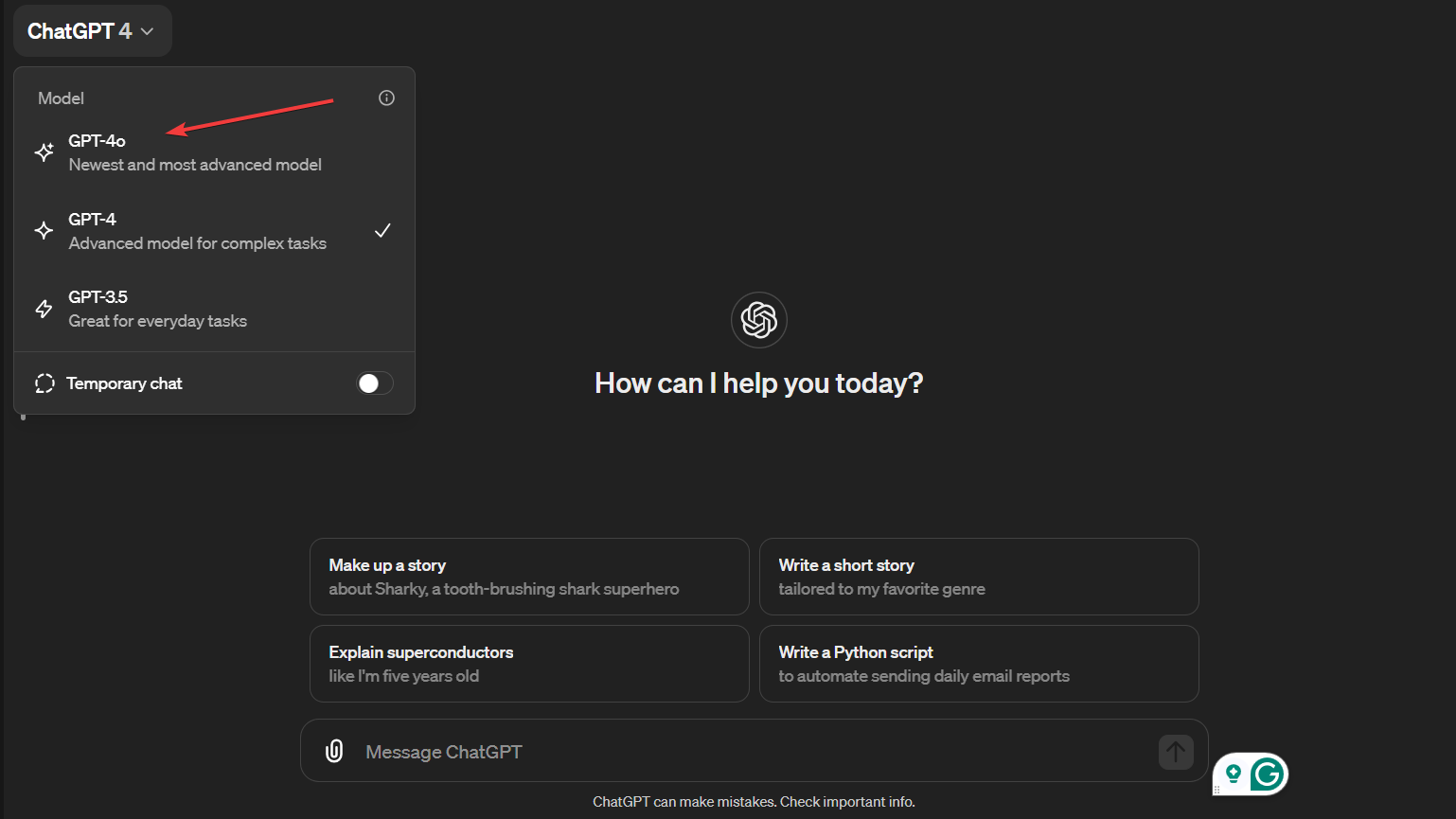
OpenAI says that GPT-4o will be available for free and we have been able to select it from the models in the desktop browser version. For text prompts, the new model will exceed the GPT-4 Turbo capabilities. We’ve played with GPT-4o a bit and from what we can tell, it’s faster and smarter within interactions. However, we couldn’t use the voice interaction option yet.
As for availability, GPT-4o has started rolling out:
GPT-4o’s text and image capabilities are starting to roll out today in ChatGPT. We are making GPT-4o available in the free tier, and to Plus users with up to 5x higher message limits. We’ll roll out a new version of Voice Mode with GPT-4o in alpha within ChatGPT Plus in the coming weeks.
OpenAI announcement
So, if you have the ChatGPT app installed on your mobile device, stay put for the update.
Also, according to OpenAI, if you’re a developer you can access GPT-4o in the API as a text and vision model. However, they will launch the support for GPT-4o’s new audio and video capabilities to a small group of trusted partners in the API in the coming weeks.
What about a Windows 11 ChatGPT desktop app? Well, there’s a bit of a pickle here because they did launch the app for macOS. Will we need to wait for GPT-4o to be integrated into Copilot?
What do you think about OpenAI’s new GPT-4o model? If you got to use it, tell us about your experience in the comments below.
The Redmond-based tech giant is placing so many bets on Artificial Intelligence that one of the company’s upcoming AI projects includes an AI-based cooler pad that can be integrated into a variety of devices, from computers to laptops, and gaming consoles.
The cool (pun intended) thing about it? It promises device longevity by keeping these devices within the right heating parameters, thus extending their life, and creating a more sustainable tech environment.
Microsoft explored the AI-based cooler pad technology in a patent made public recently, and the company describes it as a computer system that uses machine learning (aka AI) to control a fan or multiple fans.
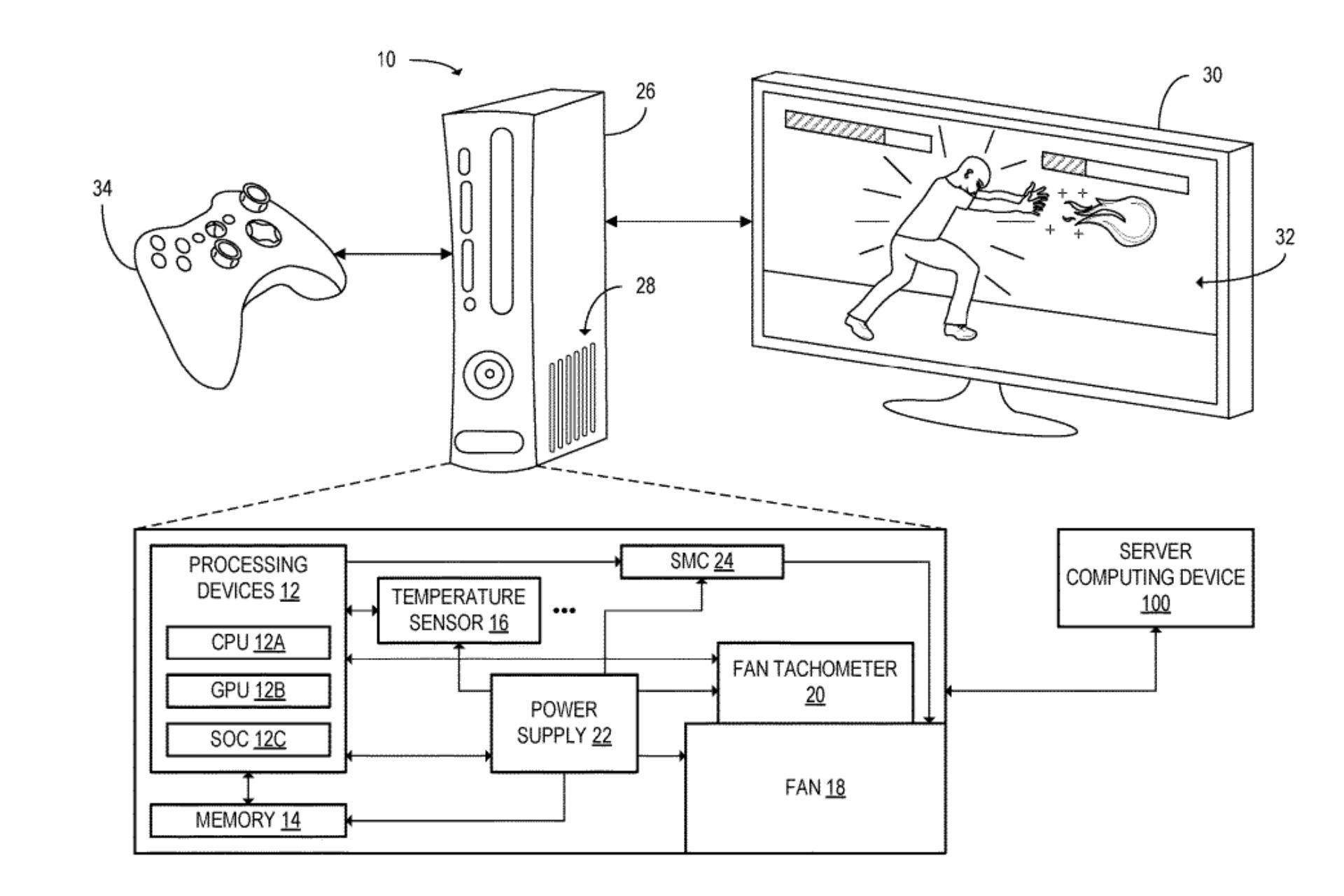
How? Well, this computer system is made up of a few parts: it has processing devices (similar to CPU), temperature sensors, a fan, and a fan tachometer (which measures the speed of the fan).
The processing devices run an application program. While the program is running, the processing devices collect performance data. This includes temperature data from the sensors and fan speed data from the tachometer.
The processing devices use an AI model to analyze this data and create a fan control signal. This signal is then used to control the fan’s speed. If the computer gets too hot, the system can speed up the fan to cool it down, automatically.
Basically, this is how the AI-based cooler pad works, but the Redmond-based tech giant has envisioned it to be quite self-sustaining. For instance, one of the AI models within the cooler pad can detect when there is something wrong with one of the fans and will notify the user about a possible hardware issue with it.
The machine learning model may be configured to output a vent blockage condition detection when the machine learning model determines that the vent blockage condition has occurred.In response to detecting the vent blockage condition, one or more processing devices may be further configured to output a vent blockage notification for display at the GUI.
And yes, if you missed that, we’re saying it again: the system would be built with not just a single AI model, but a multitude of them, which can be stored in a library, and used for a wide variety of applications. Below, the paper exemplifies the usage of such a model in a video game.
The plurality of machine learning models may be stored in a client-side machine learning model library. The plurality of machine learning models may be respectively associated with a plurality of application programs including the application program. Thus, the memory may store different machine-learningmodels for different application programs that have different patterns of hardware utilization and energy consumption. For example, a machine learning model associated with a highly-compute-intensive video game may be configured to output a high fan speed setpoint when the video game is launched. In constrast, a machine learning model associated with a less compute-intensive video game may be configured to output a lower fan speed setpoint when the less compute-intensive video game is launched.
The AI-based cooler pad would be a game changer: first, as the paper says, the AI would be able to precisely control its activity, reducing the noise fans make when they try to cool down devices. By adapting to different contexts, this cooler pad is able to keep the device in the right heating parameters while making sure the noise doesn’t become a distraction in the said environment. This means the system can be safely used in all sorts of environments, from personal to professional spaces.
Second, such a system would greatly expand devices’ life all around. Most modern processors are designed to handle temperatures up to 80°C (176 °F), and they will perform their best under those situations, but their life will be reduced if the exposure to such temperatures is constant. Keeping these processors below that temperature not only provides optimal performance, but it’s also good for longevity.
Longevity is something the tech industry has not yet understood, but regular users have: not only the right to repair has gained immense popularity over the last years (and Microsoft fully supports it), but sustainability is becoming a new emergent concern. Computer chip shortages have become a real issue in the last years, and the tech giants might soon face it more often.
However, with the exciting new advancements in AI technology, and a cooler pad system that adapts so precisely to each specific application and situation, devices, including PCs, laptops, and gaming consoles, might last way longer than ever before.
Microsoft provides a clear description of this device in its extended name: Surface Hub 3 for Business. However, that business moniker is pretty broad to begin with. That’s why, here I will try to explain the potential applications of Microsoft Surface Hub 3 to clear out the target audience of the device.
What is Microsoft Surface Hub 3?
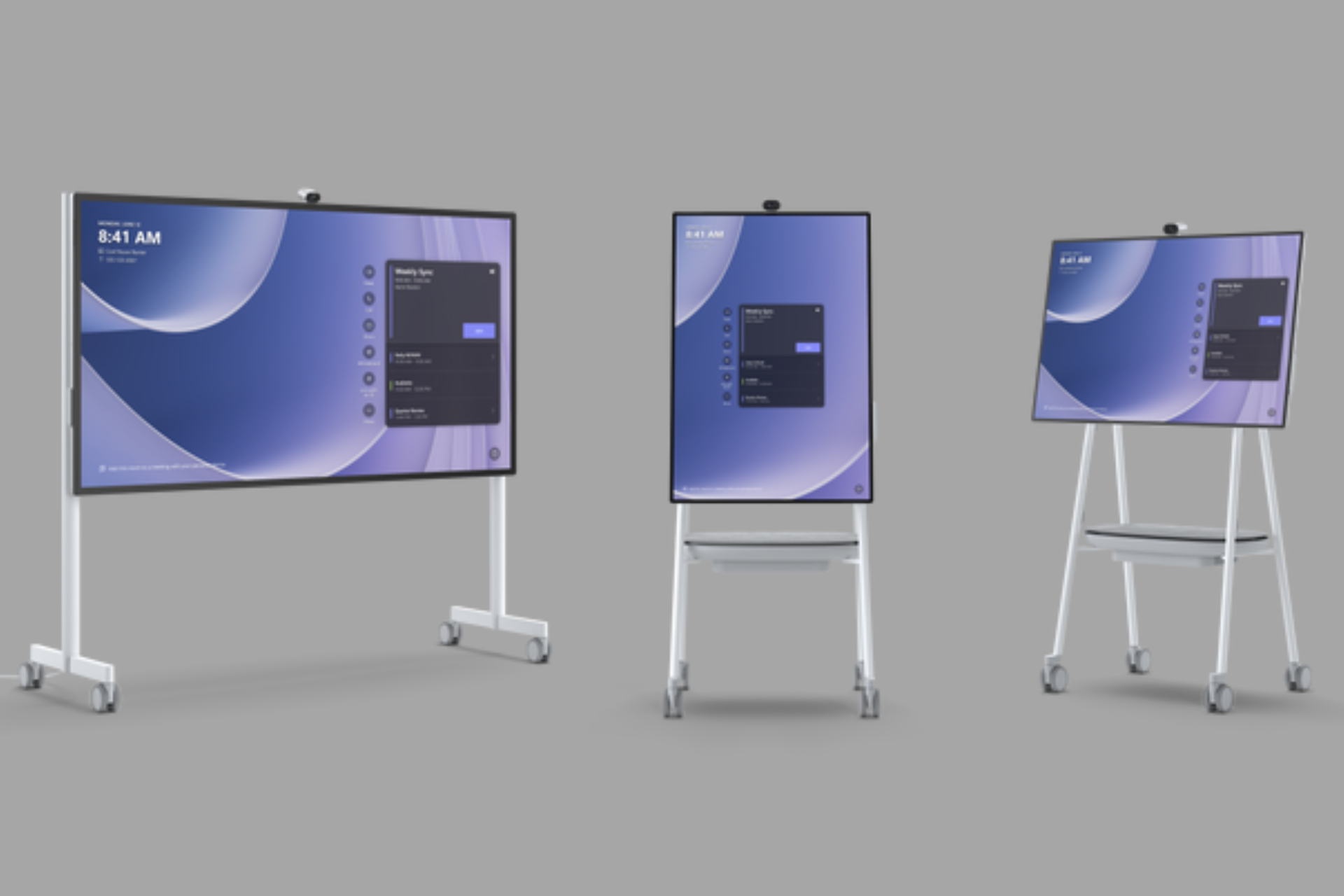
Microsoft taunts Surface Hub 3 as a digital whiteboard but if you want to go to the point, it’s a PC with a giant 50-inch or 85-inch touchscreen, packed with all the latest collaboration software designed for productivity.
Let’s start with an overview of the main technical specifications provided by Microsoft to better understand its purpose.
Component
Surface Hub 3 50″
Surface Hub 3 85″
Processor
Intel i5
Intel i5
Graphics
iGPU
iGPU
Memory and storage
Memory: 32 GB Storage: 512 GB
Memory: 32 GB Storage: 512 GB
Resolution
3840 x 2560
3840 x 2160
Display
– PixelSense™ Display – 3:2 aspect ratio – 8-bit color – 15.5mm border – Anti-glare, IPS LCD – In-cell Touch with 10 simultaneous touch points and two pens
– PixelSense™ Display – 16:9 aspect ratio – 8-bit color – 30.5mm border – Anti-glare, IPS LCD – In-cell Touch with 20 simultaneous touch points and two pens
Security
Trusted Platform Module 2.0
Trusted Platform Module 2.0
Cameras
Microsoft Surface Hub Smart Camera , 4K, custom USB-C connection, 136-degree HFOV
Microsoft Surface Hub Smart Camera , 4K, custom USB-C connection, 136-degree HFOV
Audio
– 100 Hz-12 kHz range front-facing 3-way stereo speakers, including (6) front-facing mid-range, (3) front-facing tweeter and (1) rear bass drivers – 2x full band 8-element MEMS microphone arrays – Smart AV optimizes audio to Portrait or Landscape
– 100 Hz-12 kHz range 3-way stereo speakers, including (4) front-facing mid-range, (2) front-facing tweeter and (1) rear bass drivers – Full band 8-element MEMS microphone array
Ports
– (4) USB-C including two camera ports (on display) – (1) USB-A on cartridge – RJ45 Gigabit Ethernet – Mini-DisplayPort™ Video Output* – HDMI Video Input** – USB-C with Alt-Mode DisplayPort Input
– (3) USB-C (on display) – (2) USB-A (1 on display; 1 on cartridge) – RJ45 Gigabit Ethernet – Mini-DisplayPort™ Video Output* – HDMI Video Input** – USB-C with Alt-Mode DisplayPort Input
Network and connectivity
– Wi-Fi 5: IEEE 802.11ac (a/b/g/n/ac compatible) – Bluetooth® Wireless 5.1 technology – Gigabit Ethernet – Microsoft Teams Cast
– Wi-Fi 5: IEEE 802.11ac (a/b/g/n/ac compatible) – Bluetooth® Wireless 5.1 technology – Gigabit Ethernet – Microsoft Teams Cast
Pen & accessories compatibility
– Active, dual-pen inking support – Microsoft Surface Hub Pen4 (active) – Microsoft Surface Slim Pen, Microsoft Surface Slim Pen 2 – Compatible with Microsoft Teams Rooms certified peripherals
– Active, dual-pen inking support – Microsoft Surface Hub Pen4 (active) – Microsoft Surface Slim Pen, Microsoft Surface Slim Pen 2 – Compatible with Microsoft Teams Rooms certified peripherals
Software
– Windows 11 IoT Enterprise with the Microsoft Teams Rooms on Windows experience – Configurable to Windows 11 Pro/Enterprise
– Windows 11 IoT Enterprise with the Microsoft Teams Rooms on Windows experience – Configurable to Windows 11 Pro/Enterprise
So, as I highlighted above, Microsoft Surface Hub 3 is a PC with a big touchscreen that can sense simultaneous inputs from the dedicated active pens. So, it can be used as a whiteboard, but it can also use dedicated apps like Microsoft Team Rooms for instant presentations, videocalls and collaboration.
Therefore, apart from its main business meeting application, it’s also a great tool for educational institutions where it can replace those old blackboards (if you even remember those), pesky flipboards or even the standard classic whiteboards.
And because it has network connections (both wired and wireless), you can hold a meeting or a class with participants from all over the world. Everyone can see the local participants through the built-in 4K cameras of the device, so people that are off site will feel like they are really part of that group.
Being designed for business purposes, Microsoft Surface Hub 3 also has pretty strong security features. It comes with BitLocker and remote device management via Microsoft Endpoint Manager, which ensure complete privacy for sensitive information.
Although it features all the Microsoft collaboration tools, Surface Hub 3 also supports third-party meeting platforms and wireless content sharing through Microsoft Teams Cast. So you will be able to use various collaboration platforms.
Which are the Surface Hub 3 competitors?
The main contenders for Microsoft’s Surface Hub 3 are Google Jamboard and Cisco Webex Board and both can deliver pretty much the same features.
As expected, Google’s Jamboard is designed to work with the G Suite ecosystem. However, it only comes with a 55-inch 4K UHD display, but it only costs $4,999 + $600 annual support and management fee. It also comes loaded with essential collaboration tools such as a high-definition camera, clear audio speakers, and seamless Wi-Fi connectivity. The device is powered by a specially tweaked Android version so it’s pretty limited in terms of applications.
On the other hand, the Cisco Webex Board has been engineered to sync with the Cisco Webex platform, an all-in-one collaboration solution aimed at meeting business needs. The whiteboard is available in three sizes—55-inch, 70-inch, and 85-inch. All models come equipped with striking 4K UHD displays. However, the audio and video experience is boosted by a high-fidelity assembly of twelve microphones along with a top-quality 4K camera.
The Cisco Webex Board also boasts an intelligent proximity sensor, which can detect when a user steps into the room and offers prompts for actions such as initiating calls or sharing content. The collaboration part is ensured by the Cisco Webex Teams app that also comes with extensive security features. Cisco was a more business-like approach for their whiteboard so you have lots of options for sizes and services, but the Cisco Board Pro G2’s price starts from $13,995.
How much do I pay for Microsoft Surface Hub 3? Is it worth it?
Surface Hub 3 50” is $9,499.99 and that includes a Surface Hub Pen and a Surface Hub Smart Camera, while the much bigger Surface Hub 3 85” is $22,999.99 with 2 pens and the same smart camera.
If you have a smaller meeting room or class, the 50-inch version would be perfect, but if you plan to install it into a 50 seats classroom, you should definitely go for the 85-inch version. If you’re asking whether it’s worth the money, the answer is a straight yes, especially if you have a working environment with collaborators and partners across the world.
And the main advantage of the Microsoft whiteboard is that it seamlessly works within the much popular Windows environment. We have a more comprehensive Surface Hub 3 review so check it out if you’re still on the fence.
In conclusion, my brief answer is that Surface Hub 3 is perfect for all enterprise environments, but also great for educational purposes. Its collaboration and presentation features are top notch and they will elevate any meeting room or classroom to present-day digital communication requirements.
What do you think about Microsoft Surface Hub 3? Let’s talk about it in the comments below.
While the world is still fascinated by NVIDIA Blackwell, the company is reportedly working on the next-gen AI GPU architecture, codenamed Rubin. Designed to deliver superior performance at lower power consumption, NVIDIA Rubin gives us a sneak peek into the company’s future AI-focussed GPU plans.
The developments have been shared by Mich-Chi Kuo from TF International Securities, according to TechPowerUp.
Mich-Chi Kuo tells us that the first AI GPU based on the Rubin architecture, named R100, will enter mass production by Q4 2025 and should be available for evaluations as early as Q1 2026. However, we may have to wait up to a year before the R100 is available on a mass scale.
As per the report, the R100 will use the TSMC-N3 node as opposed to Blackwell’sTSMC-N4P. The AI GPU will feature a 4x reticle design with TSMC’s CoWoS-L (Chip-On-Wafer-On-Substrate-L) packaging.
Efficient AI-focussed GPUs are the need of the hour, and NVIDIA’s latest Rubin architecture used in R100 is certainly a step in the right direction. We can’t comment on the performance until the GPU is available for initial evaluation. And that’s roughly two years from now!
What are your first thoughts about NVIDIA Rubin? Share with our readers in the comments section.
Snapdragon is dominating the market and many are impatiently waiting to see devices running on the latest Snapdragon processor.
It seems that MediaTek and NVIDIA are working on a new chip that will challenge the Snapdragon X Elite series.
MediaTek and NVIDIA to bring Snapdragon X Elite competitor
We already wrote about MediaTek and NVIDIA collaboration a while ago, so it’s no surprise to see that they are working on a chip that will rival new series from Snapdragon.
Speaking of which, Snapdragon X Elite benchmark results were pretty impressive, so MediaTek will have to bring out the big guns if it wants to compete with it.
As Wccftech writes, the upcoming chip will support advanced technologies and it will be produced on TSMC’s 3nm process.
It’s worth mentioning that Apple’s M4 chips are based on TSMC’s second-generation 3nm technology, so the upcoming chip from MediaTek might even rival the M4.
TSMC will also utilize its CoWoS (Chip-on-wafer-on-substrate) packaging for the upcoming chips.
As for availability, we’ll still have to wait for a while as design verification is expected to occur in the fourth quarter and production will start in the first half of 2025. As for pricing, the expected price is set at $300 per chip.
A leaked internal document suggests Dell is moving to Qualcomm’s Snapdragon X as the processor choice for its XPS 13 Plus laptop. The company used Intel Alder Lake-P in the older model.
With this change, the Dell XPS 13 Plus will deliver almost double the battery life during local video playback, according to VideoCardz.
The leaked document compares the battery life during video playback of a local file and Netflix streaming both with the new Snapdragon X processor and the Intel Alder Lake-P. I must say, the results look promising!
For local video playback, the battery life increases from 15.45 hours to 29.6 hours (up by 91%) with an FHD+ panel. Then, with a QHD+ panel, it increases from 11.02 to 21.9 hours (up by 98%). Similarly, with the OLED panel, you will see an increase from 9.95 hours to 16.8 hours (up by 68%).
Extended battery life and low cost are two of the primary selling points of the ARM-based Qualcomm Snapdragon X. For the unversed, ARM processors are popular power and cost-efficient alternatives to Intel and AMD chips.
Qualcomm, on its part, is claiming up to 25 hours of continuous use on a single charge with Snapdragon X. The company’s internal test results suggest 40% longer battery life with Office 365 apps, 58% for web browsing, 89% for YouTube streaming, and 100% for Teams video calls, when comparing Snapdragon X Elite with Intel Core Ultra 7.
As for the cost, the leaked document reveals that the processor cost is about to go down by $148, from the earlier $293 to just $145. A part of these savings, if transferred to the buyer, will save you a few bucks.
Dell is expected to launch the XPS 13 Plus laptop for $1199, pitching it directly against Apple’s MacBook Air.
Not to forget, the Snapdragon X series features an integrated Qualcomm Hexagon NPU chip. So, with the on-device AI, your PC is future ready!
If the results are accurate and the Dell XPS 13 Plus benefits from performance upgrades and reduced costs, the Snapdragon X series might find increased integration in more Dell laptops.
What do you think about the Dell XPS 13 Plus featuring Snapdragon X? Share with our readers in the comments section.
The Microsoft System Center 2025 is the next release of its Long-Term Servicing Channel (LTSC). The company will release it during the fall of 2024. Also, it will be available for general access. In addition, later this year, Microsoft will launch the 2025 versions of the Center Operations Manager (SCOM), Virtual Machine Manager (VMM), Service Manager (SM), System Center Orchestrator (SCO), and Data Protection Manager (DPM).
What is the System Center?
Microsoft’s System Center (SC) is a suite of management tools. The company released it in 2008 to make it easier for IT professionals to manage data centers and cloud services more effectively. So, if you want to know more about the System Center 2025 tools, check the list below:
Center Operations Manager (SCOM): This tool is a cross-platform data center monitoring system for Operating Systems and hypervisors.
Virtual Machine Manager (VMM): This tool allows you to configure and manage your data center components.
Service Manager (SM): It provides an integrated platform to help you automate and adapt the best IT service management practices.
System Center Orchestrator (SCO): It lets you automate the monitoring and deployment of data center resources.
Data Protection Manager (DPM): This tool provides continuous data protection. In addition, it lets you recover lost data.
What comes with the SC 2025?
Microsoft will bring the System Center 2025 with its Windows Server 2025. So, you will have all of the support needed from day 0. In addition, the new version of the System Center will support the management and monitoring of Azure Stack HCI 23H2 clusters using the VMM and SCOM tools.
In addition, Microsoft will add support for the latest versions of Linux distros when the System Center Virtual Machine Manager (SCVMM) 2025 becomes generally available. Also, the Data Protection Manager will let IT professionals exclude specific disks from backups in Hyper-V environments. On top of that, the SC 2025 integrates well with the SharePoint Subscription Edition. In addition, it provides virtual TPM (vTPM) support for VMware.
The System Center 2025 will also bring some improvements. For example, it doesn’t rely as much on CredSSP (Credential Security Support Provider) and NTLM (NT LAN Manager) as authentication mechanisms. The Virtual machines made with VMM will default to Generation 2. So, they will have faster startups and secure booting.
The Transport Layer Security (TLS) version 1.3 supports the System Center 2025 products. Thus, they can benefit from the latest encryption standards. Also, Microsoft introduced support for OLEDB 19, the API that allows you to access data from various sources. Additionally, DPM 2025 lets you store passphrases in the Azure Key Vault.
Ultimately, Microsoft will discontinue the Azure Profiles feature in VMM and the System Center Service Provider Foundation (SPF). However, they will be present in the Arc-enabled VMM. On top of that, the new System Center 2025 will support the Latest Arc-enabled capabilities of Windows Server 2025 from Day 0.
Will you join the private preview of System Center 2025? Let us know in the comments.
Push notifications may not be a necessity for ordinary Twitter folk but if you’re depending on real-time updates, them not working can cause serious delays and have far-reaching consequences on productivity.
If you’re not getting push notifications on your Windows 11, it is possible that you’ve changed some notification settings, there is a server issue or the app is bugged. Some devices may also present such problems because of compatibility issues.
How do I fix Twitter push notifications not working on Windows 11?
1. Re-enable notification settings
1.1 Windows notifications
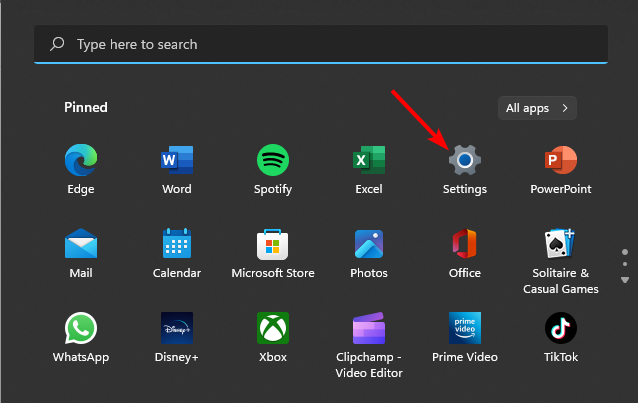
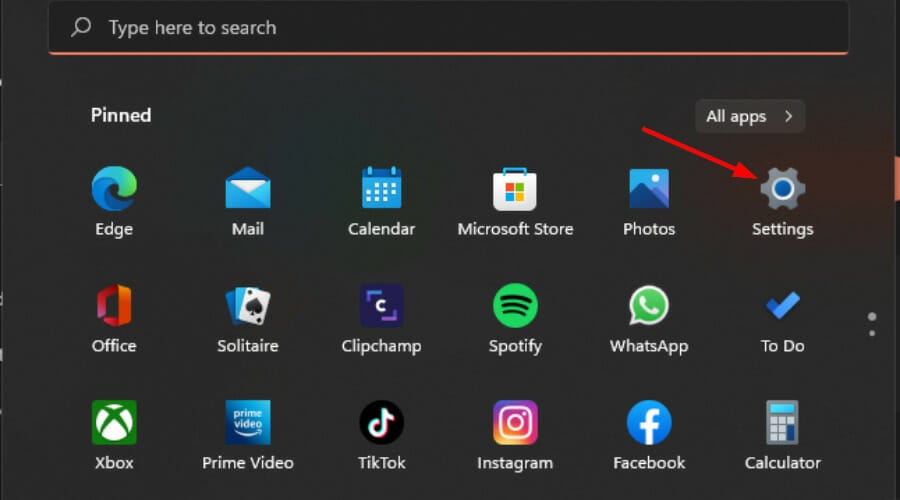
Hit the Windows key and click on Settings.
Go to System, then again to Notifications.
Look at the Notifications section, then set the toggle button on On.
Once you turn On the Notifications option, click on the arrow listed next to the toggle button and customize additional notifications settings.
Next, scroll to the Notifications from apps and other senders section and search for the Twitter app. Toggle Off and On the notification button and restart your PC.
1.2 Browser notifications
Launch your Chrome browser, click on the three-dot menu at the top-right of your screen and select Settings.
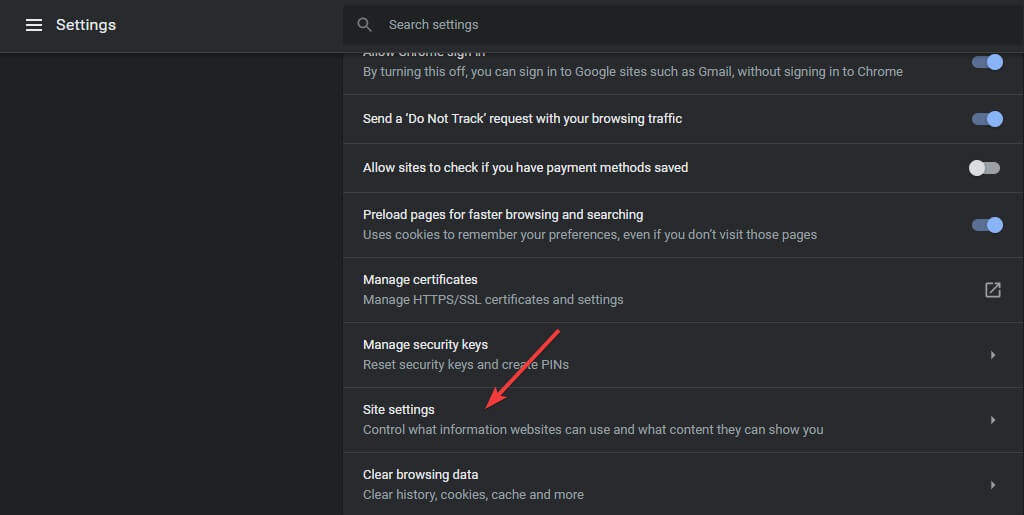
Click on Advanced and in the Privacy and Security tab, select Site settings.
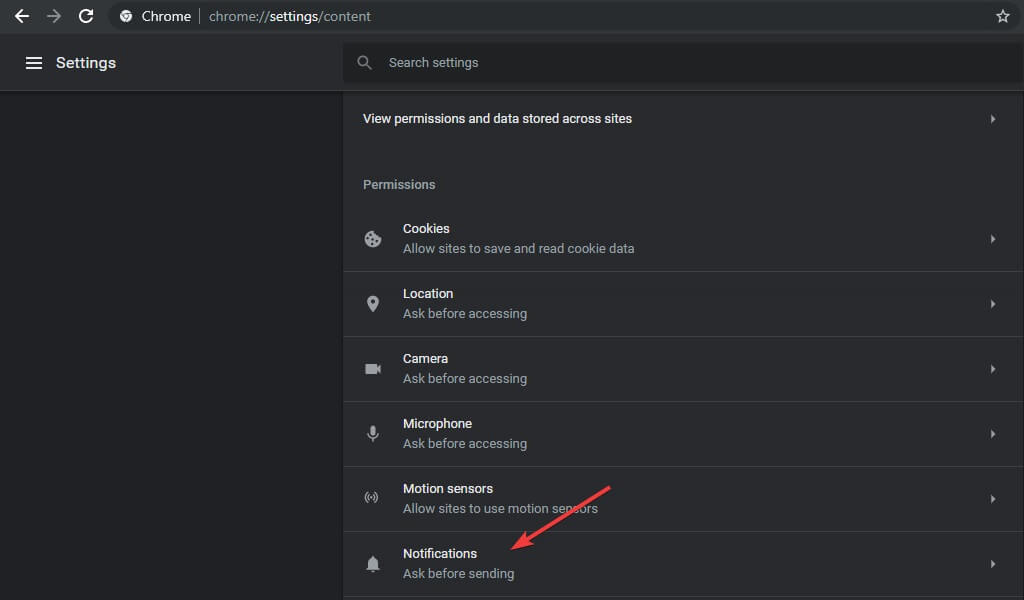
Click on Notifications.
Check the Sites can ask to send notifications.
2. Whitelist Twitter on your browser notifications
Launch your browser (Chrome in this case), click on the three-dot menu at the top-right of your screen and select Settings.
Click on Advanced and in the Privacy and Security tab and select Site settings.
Click on Notifications.
Scroll down and under Customized behaviors, click on Add.
Enter Twitter (X’s) site address and click on Add.
Refresh the site and see if you’re now receiving push notifications.
While still on whitelisting, ensure that your firewall or antivirus is also not blocking notifications. For good measure, ensure Twitter is one of the whitelisted apps.
3. Run the app troubleshooter
Hit the Windows key and click on Settings.
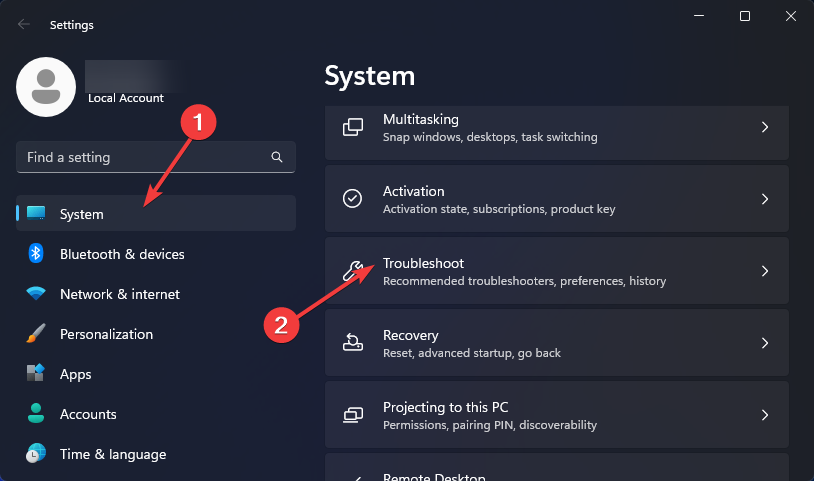
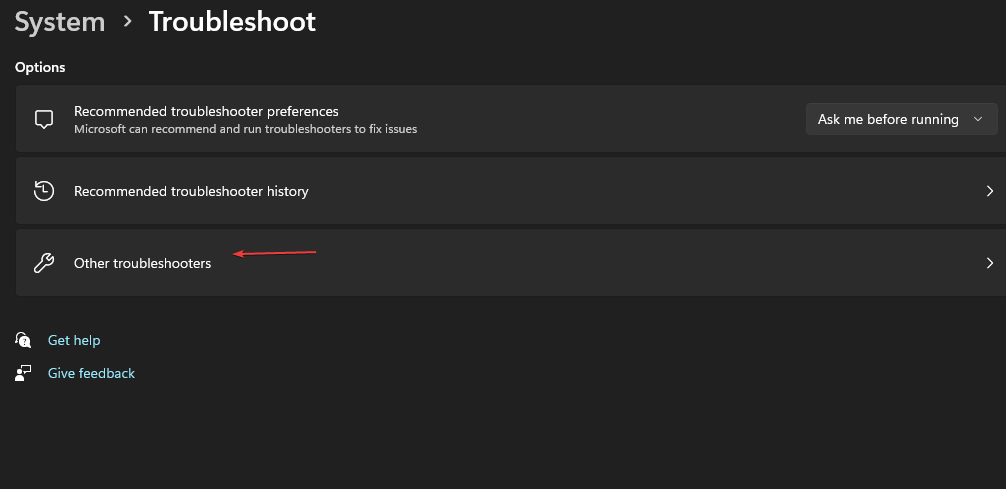
Click on System and select Troubleshoot.
Navigate to Other troubleshooters.
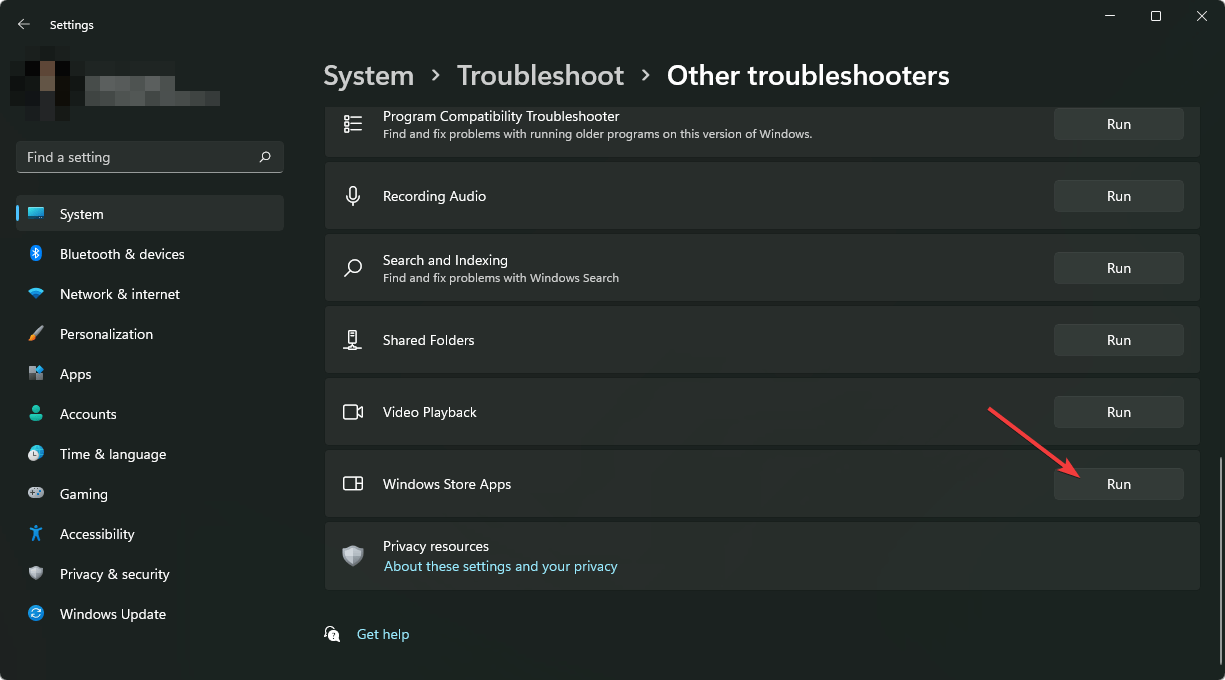
Click the Run option for the Windows Store Apps troubleshooter.
4. Repair/reset the Twitter app
Hit the Windows key and click on Settings.
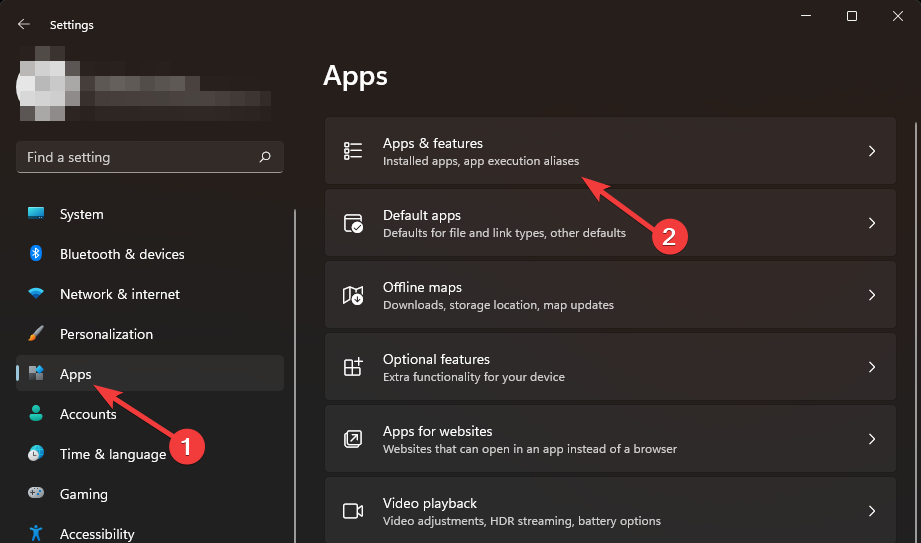
Click on Apps on the left pane then Apps & features on the right pane.
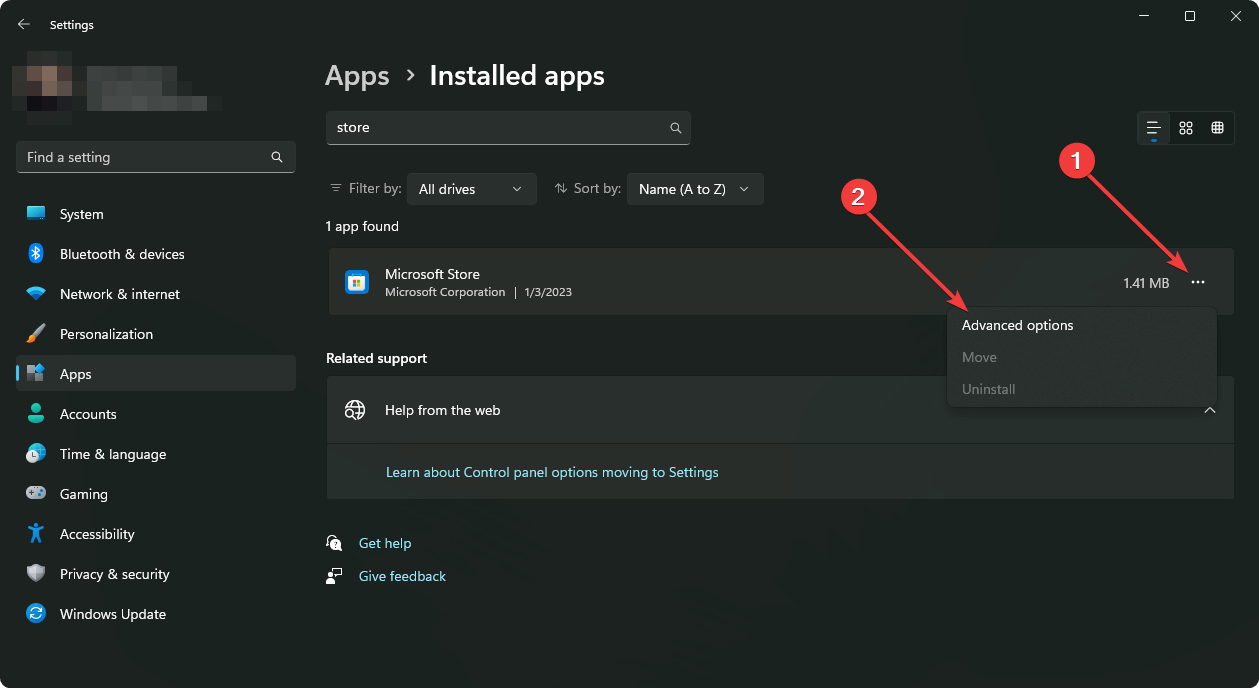
Locate the Twitter app, click on the three vertical ellipses, and select Advanced options.
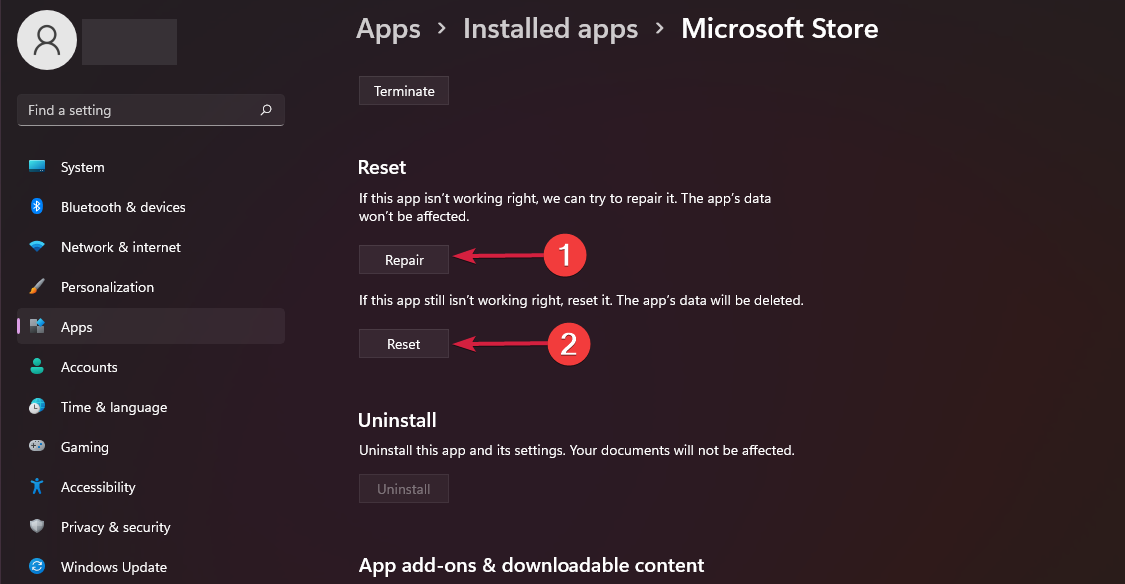
Click on Repair.
Go back and click on Reset if the repair option failed.
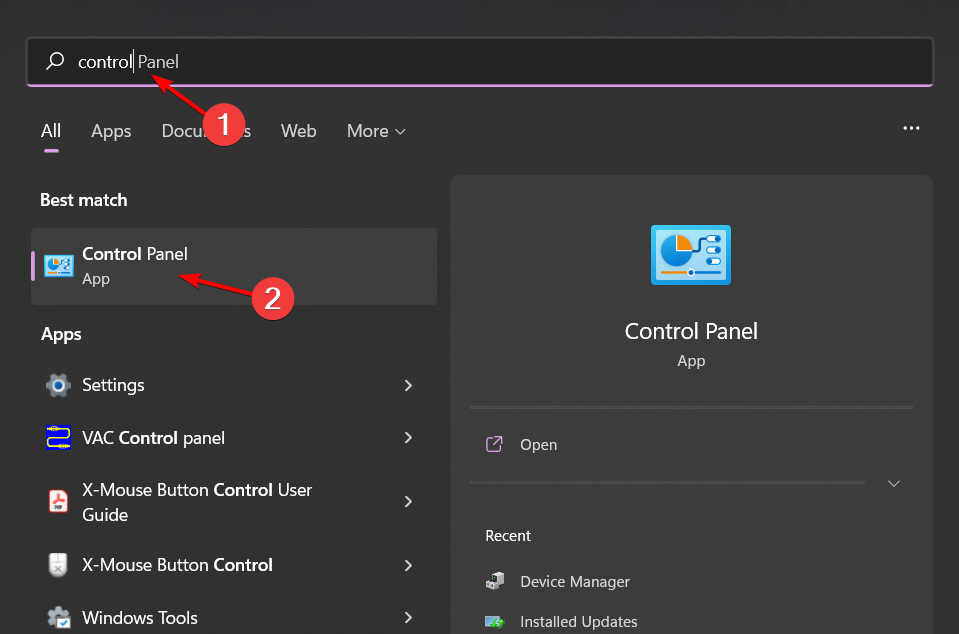
Click on the Start Menu icon, type Control Panel on the search bar, and click Open.
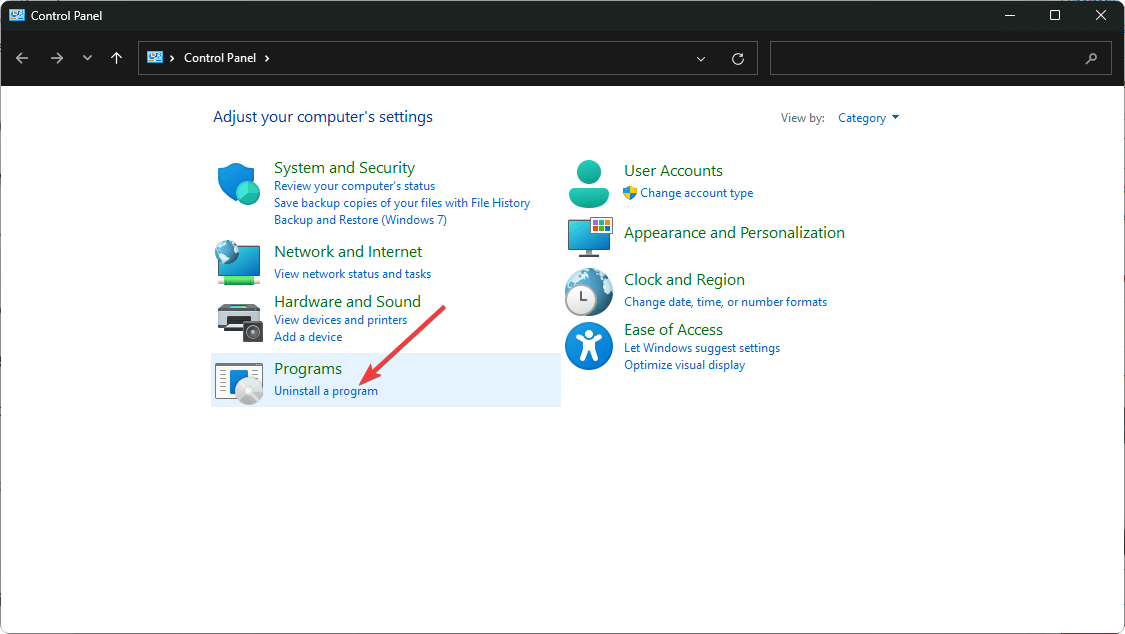
Select Uninstall a Program under Programs.
Find the Twitter app, click on it, and select Uninstall.
Confirm uninstallation in the next pop-up.
Go to The Microsoft Store or the official Twitter website and download it again.
6. Rollback to a previous version
6.1 Windows version
6. Uninstall recent Windows update
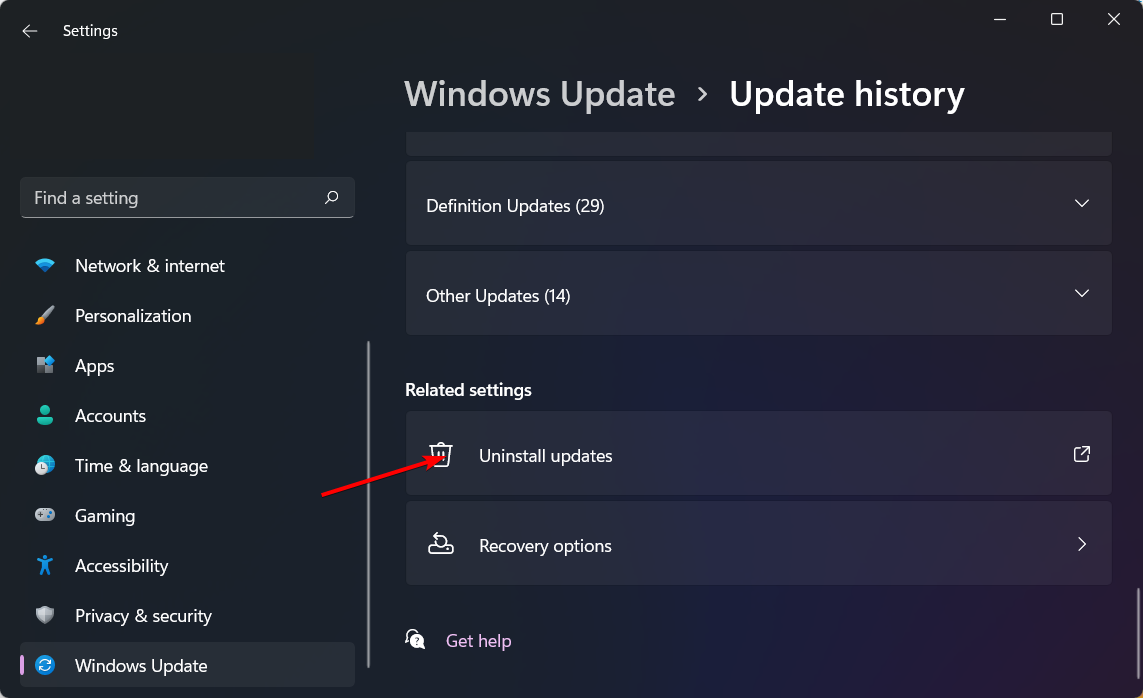
Press the Windows + I keys simultaneously to open Settings.
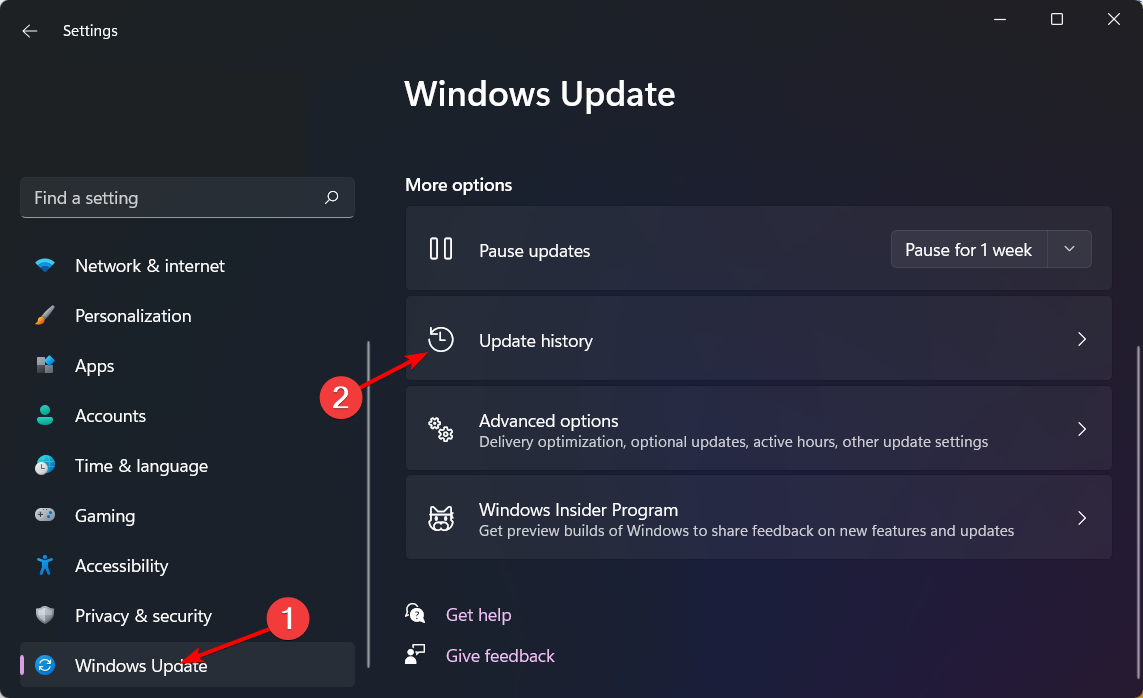
Navigate to Windows Update, then go to Update history.
Click on Uninstall updates.
Select the most recent update, then click Uninstall.
6.2 App version
Click on the Start Menu icon, type Control Panel on the search bar, and click Open.
Select Uninstall a Program under Programs.
Find the Twitter app, click on it, and select Uninstall.
Navigate to your browser and go to the APKPURE site. To avoid more compatibility issues, select the version immediately after the top. Any lower my not work on your Windows 11.
Launch the EXE file once it has finished downloading then follow the prompts to install it.
NOTE
WindowsReport is not affiliated with APKPURE.com so do your due dilligence before downloading any app from the site.
When newer app versions are released, it is possible that the push notifications not working issue may have started after an OS or app update. This can be due to compatibility issues where the app does not meet the current system requirements to run it.
Explains why the feature may be working on some devices and not on others. Rolling back to a previous update may resolve the issue but keep in mind that using this older version has its own consequences and could expose your system to vulnerabilities.
Additional tips to ensure I receive notifications
Ensure push notifications are enabled on your X (Twitter) account by going to More > Settings and privacy > Notifications > Preferences and toggle on Push notifications.
Check whether you have enabled Do not disturb on Windows and adjust accordingly.
Adjust your power saving settings to accommodate notifications where possible.
Avoid battery savers or battery optimization tools. Although battery-saving tips can extend your device’s battery life, they may come at a cost. If you must, consider exempting Twitter from the list of apps that should be optimized.
Use browsers optimized for Twitter for the best experience whenever you’re using Twitter for web and clear app cache and browser cache regularly for the best performance.
Finally, notifications are great for real-time updates but if they’re too many, they can be overwhelming. Luckily, you can disable sound notifications and concentrate on your work without frequent chimes.
That’s a wrap for this article but if you have any other additional solutions that have worked for you but missing from our list, we’d love to hear about them. Drop us a comment down below.
Microsoft has released an update for Surface Laptop Studio 2, which includes various fixes and improvements related to audio playback, recording, device connectivity to the Wi-Fi, screen flickering/flashing issues, and camera issues while using Teams.
Here is what the changelog says on the Microsoft support website:
Ensures seamless audio playback and recording, improves stability preventing audio failures and drop out.
Addresses a potential issue that could unintentionally mute the device when using a Jabra Headset.
Improves device connectivity to the Wi-Fi and addresses concerns regarding Bluetooth pairing when device is on standby.
Fixes a flickering or screen flashing issue when the device is connected to Surface Dock 2.
Addresses a problem with the camera showing a black box instead of an image while using Teams.
To install this update, your Surface Laptop Studio 2 must have Windows 10 September 2022 update, version 22H2 or higher, or Windows 11 version 22H2 and newer.
The update also contains the following components. Here is the list:
Intel Smart Sound Technology for USB Audio – Sound, video and game controllers
Intel Smart Sound Technology BUS – System devices
Intel Corporation – System – 10.29.0.9677
Intel Corporation – System – 10.29.0.9677
Intel Smart Sound Technology OED – System devices
Intel(R) Wireless Bluetooth(R) – Bluetooth
Intel Corporation – Bluetooth – 23.30.0.3
Intel – net – 23.30.0.6
Intel(R) Wi-Fi 6 AX200 160MHz – Network adapters
Surface – Extension – 6.16.8.0
Surface Dock 2 Firmware Update – Extensions
You can install the latest update by navigating to Settings > Windows Update and clicking Check for Update. You can also go to the official Surface Support website and install it manually. The update is 1.6 GB; you don’t need any extra steps before or after installation.
However, once you install the update, you must restart your Surface using the above mentioned means. To restart, click Start, then choose Power>Restart.
Have you installed the update so far, and can you see the changes? If so, share your experience with our readers in the comments section below.
Azure Cosmos DB from Microsoft is a cloud database service and a fully managed NoSQL. Through it, you can access data quickly from anywhere. Also, you won’t have to worry about the server or storage systems. Microsoft Azure will manage the database while you focus on your work. Additionally, you can join the AI Learning Hackathon to experiment with the service and enhance your portfolio.
In addition, if you enter the AI Learning Hackathon, Microsoft Azure DB could help you win a part of the $10,000 prize.
Why should you use Microsoft Azure Cosmos DB?
Microsoft Azure Cosmos DB has plenty of benefits for its users besides the fully managed cloud database. For example, you only pay for what you use. So, you can build applications at low costs. Yet, the price of their management will grow with them. Also, there is a free version for small projects.
With the Azure database, you can use the power of AI to enhance your applications. Additionally, it can sort and organize different data, such as your preferences, product information, and vectors. Moreover, it will be easier for you to find what you need. Besides, it uses a serverless vector database to make your work more efficient.
The cloud service supports Copilot apps with NoSQL data and can generate queries. On top of that, Azure Cosmos DB works with various programming languages such as Python, Node.js, and Java. Also, it ensures that your AI applications are up to date, protects your data, and restores your data if needed.
Why should you participate in the AI Learning Hackathon?
The AI Learning Hackathon allows you to try free challenges and elevate your skills. Additionally, you can learn the basics of Azure Cosmos DB and Azure OpenAI service. On top of that, by the end of it, you will know how to use the tools to create an AI copilot for MongoDB. Also, you can join workshops and mentorship sessions.
The contest consists of 2 parts. The first part has four modules. During this phase, you will learn the basics of Azure Cosmos DB, Azure OpenAI service, and how to build copilots. The second part teaches you how to use Azure Cosmos DB to develop an AI copilot for MongoDB.
The challenges are available until June 18, 2024. After completing them, you will gain a badge for the hackathon.
In a nutshell, all you need to do is participate in the Azure Cosmos DB Developer Cloud Skills Challenge to learn more about the service and how to use it. Additionally, you can learn more from Azure specialists. Also, you can add more entries to your portfolio afterward. So, join the AI Learning Hackathon.
Are you going to join the Developer Cloud Skills Challenge? Let us know in the comments.
Microsoft is rolling out a new plugin, Phone, which is aimed to enhance Copilot’s Android integration, and it is rolling out to more people this week.
What is the new Phone plugin work?
The Phone plugin on Copilot allows you to access contact information and read and send text messages via your Android phone. As of now, the feature is available for Android, but it could be available for iPhone in the future, but we are not sure yet.
If you remember, the Phone Link app, which is available for Windows, lets you connect your mobile phone to your computer. With it, you can check and reply to messages, check notifications, and make calls from your PC.
The new plugin is similar, but the only difference is that it targets Copilot and Android integration within Windows.
How can I use the Phone plugin?
To turn on the plugin, launch Copilot and click the Open in Microsoft Edge option at the top-right corner. Now, locate and click Plugins at the top-right corner and locate Phone. Toggle the switch next to it to activate.
To make this plugin work, you must use the Phone Link app on your Windows computer, and your mobile phone should be connected to your PC using the same app.
The new Phone plugin aims to use information synced between your computer and Android phone in Copilot.
Once everything is set, you can launch Copilot and ask the AI assistant, then type contact; it will give you a list of contacts present on your mobile. You can also ask for a particular contact information but can’t call the person using Copilot as of now.
Also, if you ask for information related to messages on your Android phone from the Copilot window, it should extract the information from the message and show it to you in the Copilot chat window, as mentioned in Microsoft’s keynote in September 2023
However, when I tried this feature, it was not working, so I think the feature is in development, and we will have to wait for it to be fully functional.
As for iPhone users, the Phone Link is available, but the plugin support is not, which could be frustrating for some who use the Phone Link app and Copilot regularly on their devices.
What do you think about the Phone plugin, and do you use the Phone Link app? Share your opinions and experiences with our readers in the comments section below.
In the past few days, Xbox has silently adjusted the price for several games on Steam across regions, and the hike is up to 300% in some cases. The new prices now reflect if you head to the game’s Steam page.
Regions affected by the price hike include India, Mexico, the Philippines, South Africa, and Saudi Arabia, amongst others. The information was first shared by a user on Reddit.
The games that witnessed massive hikes in price are Sea of Thieves, Gears 5, Gears Tactics, Halo: The Master Chief Collection, Halo Infinite, Grounded, and Ori Blind Forest.
For Sea of Thieves, the price in India increased from ₹ 1399 to ₹ 3499, in the Philippines, from ₱949.00 to ₱1990.00, and in South Africa, from R 319.00 to R 519.00.
Similarly, for Gears 5, the increase in India was from ₹ 899 to ₹ 2699, in the Philippines, from ₱829.95 to ₱1490.00, and in South Africa, from R 219.00 to R 499.00.
With the latest surprise price hike across Xbox games on Steam, the entire idea of regional pricing seems to have gone for a toss!
Players share their take on the Xbox hiking the game prices
While Xbox has yet to comment on the price hike, that didn’t stop players from sharing their thoughts and reasoning for the decision. And honestly, some of the comments make sense!
Regional pricing for games exists so that publishers can maximise profits. They’ll keep adjusting them until they figure out what makes them the most money.
There are many factors that could contribute to this. One popular case is Steam users abusing cheaper regional pricing to buy games that cost more in their native region (which has happened a lot, and indie devs have called this behavior out multiple times). Another possibility is that these games just aren’t selling as much in these regions, despite the price adjustment; therefore, the publisher sees no need to adjust the pricing.
This only encourages pirating even more. Why would you make the game more expensive in regions where basic income is low as it is. For me 60$ games are expensive. I would gladly buy it at 20$ if I had regional pricing like that. Unfrotunately I don’t, and 60$ for me is quite a hefty chunk of the average monthly income.
They are pushing people more and more towards Game Pass, which also is reportedly getting a price increase. Why even buy a game at such exorbitant prices when you can get it much cheaper with a subscription?
Hellblade 2 costs 4400 ($53) in India compared to $50 in the US. Forget about regional pricing, atleast give us equal pricing.
If it indeed is Microsoft’s way of pushing users towards a paid subscription and you are excited about it, don’t be. Reports suggest that the Xbox Game Pass subscription charges are due for another increase.
At a time when Xbox sales are at a record low in years, adjusting the pricing isn’t the best of the move, in my opinion. But it could just as well have been a decision to recover the losses accrued in the recent past. We will have to wait for a few months to see how this plays out for Xbox!
Why do you think Xbox hiked the game prices? Share with our readers in the comments section.
Legend of Zelda: Majora’s Mask is probably the most popular entry in the Zelda series due to its unique mechanics and great story.
If you’re a fan of the series, you’ll be pleased to hear that the game has received an unofficial, fan-made, PC port.
Legend of Zelda: Majora’s Mask got ported to PC by fans
Playing Nintendo 64 games on PC is possible thanks to emulation, but as Niche Gamer writes, you won’t need to rely on that for Legend of Zelda: Majora’s Mask.
This is an unofficial port made by Mr Wiseguy, and you can find Zelda64Recomp on his GitHub page. It’s important to mention that the game is not emulated, instead it runs natively on PC.
Microsoft has been working on improving Microsoft Edge to provide a better browsing experience. For the same reason, earlier, the Redmond tech giant added Collections features to the browser and then an ability to follow content creators worldwide.
However, it was not welcomed by many users, and they expressed privacy concerns. One of the Edge browser users on Reddit, zxch2412, said:
Am I the only one who feels this is bloat cuz I get the same information from YouTube notifications.
Another one says:
Microsoft should just add an “Official Extensions” page on the Edge Store, I don’t want every bloatware they come up with;
For every person that finds this useful, there are at least ten who will never use it
After so many comments and feedback about this feature, it looks like Microsoft has finally understood that users don’t need it. Even Verge said that the feature was not properly implemented and was sending every website you surf to Bing.
After that, Microsoft said that they would address the issue, following which the Redmond tech giant removed the follow creator feature from the location bar; however, if you are following someone, you could see them in the Following tab in the Collections pane.
According to a Windows leaker, @Leopeva64, the option is now missing from the latest Edge Canary and Dev builds.
This means that Microsoft is working on completely eliminating the feature that allows users to follow content creators in the Collections pane.
(1/3) It seems that the feature that allowed you to follow creators in Edge is dead, Microsoft has removed the "Following" tab from the Collections pane, the first screenshot is from the Canary version and the second is from the Dev version ?https://t.co/D3V2w9qpj8pic.twitter.com/Cf1jJqJGLC
If you use Microsoft Edge, you can go to Settings> Privacy, search, and services page, and you will see the Show Collections and follow content creators in Microsoft Edge, but turning it on will not bring the following tab back,
Also, when you turn it on, you get the Collections and Follow pop-up. Upon clicking Learn more, you will get to the Microsoft support page, which explains how the Collections feature works, but there is no mention of the follow creators option.
All this points to the notion that Microsoft has considered feedback from hundreds of users and decided to remove the function. However, it is not clear whether Microsoft is removing it temporarily or permanently.
If you like the feature and want to continue catching up on the latest content from content creators, you can still use it on Google Chrome on the mobile app
What do you think of this move by Microsoft? Share your opinions with our readers in the comments section below.
If you’ve ever experienced a red screen while playing games on Windows PCs, try the troubleshooting ideas mentioned here.
I’ve reproduced various scenarios of the red screen of death (RSOD) when playing PC games to figure out the best DIY fixes. Read on for tried and tested resolutions below!
Red Screen While Playing Games – What Is It?
RSOD is a rare critical error that could crash your Windows PC abruptly. It usually happens during demanding processing tasks like playing high-end video games.
You might experience a few freezing screens during game playback, as well as static noise. Then, a solid red screen will appear with text on it. You can often find the error-causing hardware or software in the error message. Sometimes, the red screen will be empty.
However, in 90% of cases, the static noise won’t go away until you reboot.
Furthermore, two common causes of RSOD are hardware and software issues. Overheating of GPU, CPU, mainboard, failing graphics cards, or an unstable PSU can trigger it. On the software side, incompatible game streaming apps, incompatible game apps, outdated graphics drivers, and more, are the usual culprits.
How To Fix Red Screen While Playing Games
Different triggers of RSOD require custom troubleshooting. Otherwise, you’ll waste time fixing the issue and buy new hardware which might not be necessary.
Find below a curated list of troubleshooting ideas matching the root cause of this problem.
Steam App-Specific Troubleshooting
If you primarily use Steam to get game apps or Steam Overlay for online gaming, try these troubleshooting ideas first. They should help when you see RSOD for many titles, including:
No Rest for the Wicked
Dying Light
Cold Waters
XCOM 2.
Update Steam
If you haven’t restarted the Steam app for a few days, you might lack the necessary updates. So, close the app and run it again. Steam will automatically perform an update check with the server. If there are any, it’ll ask your permission to download and install them.
Update Game App
If you’re getting the red screen while playing games from Steam, reboot the PC.
Then, open the Steam app and go to the Library tab. You should see all the games there. Click on a title and if there are any pending updates, you’ll see an Updatebutton instead of the Install button.
Some game titles might start updating automatically when you go to the Library tab. You’ll see a small progress bar underneath its thumbnail or display image.
Launch the Game from Steam
When you install a game through Steam, you can launch it either using the desktop icon or from the Steam Library > game app thumbnail.
If you repeatedly face the RSOD issue with Steam games, don’t use the desktop EXE file to launch it. Instead, run the app from theSteam Library.
Disable Steam Overlay
You might use the Steam Overlay interface when playing games for features like a web browser, chat, the friends list, in-game DLC purchasing, and more.
However, new titles often need some time to become fully compatible with this in-game user interface. Some might even show an RSOD when there’s too much activity in the Steam Overlay.
Don’t start the game immediately after the RSOD. Instead, do the following:
Run the Steam app.
Click on the Steam icon in the top-left corner of the app.
You should see the Account menu on the Steam Settings screen.
Click on the In Game option in the left-side navigation.
Switch off the toggle button for the Enable the Steam Overlay while in-game option.
Restart Steam and launch the game app from it.
Run the PC Game in Windowed Mode
Some titles might not be compatible with running in the full-screen mode in your current PC setup. If that’s the case, you should:
Run the Game app.
Go to the Game Settings, Options, or Game Options window.
Find the Graphics Settings or Display properties.
There, switch the display mode to Windowed from Full Screen.
Save the changes.
Restart the game and see if the RSOD comes back or not.
Switch to Compatibility Mode
Did you recently upgrade from Windows 7 to Windows 10 or Windows 10 to Windows 11 and see the RSOD error?
Often, dated game apps become incompatible as Microsoft publishes a new operating system. If you try to run them, you might get an RSOD.
Here’s how you can try and find out if the game app is compatible:
Right-click on the game app’s icon (shortcut or executable file) on the PC Desktop (Home Screen).
Select Properties from the menu.
Click on the Compatibility tab.
Check the box next to the Run this program in compatibility mode for: option.
Select the desired version of Windows from the drop-down menu (e.g., Windows 7, Windows 8).
Click Apply and then choose OK to save the changes.
Run the game app from the Desktop again.
Once you set a compatibility mode for the game, Windows will always use the same configuration to launch and run it.
Reduce the In-game Graphics Settings
You’re probably using the default game graphics settings. This is usually the maximum quality setting which requires more CPU, GPU, and Memory resources. You could try to use a lower configuration to reduce the load on your hardware.
Launch the game app and go to its Options or Settings section.
Find the Graphics Configuration or Settings option.
Now, adjust the following graphics elements:
Display mode to windowed
Resolution to minimal supported
Reduce SSAA percentage or disable it
Disable VSYNC
Set the Frame Rate to the native FPS (60)
Particle Quality should be low
Disable Tracer Effects
Turn off Dynamic Lighting
Disable Clouds, Bloom Effect, Anti-Aliasing, etc.
Reduce the quality of visuals for Foliage, Shaders, Water, Shadows, Textures, and more.
Click the Apply button.
Restart the game title.
Disable CrossFire for GPUs
Were you using AMD CrossFire or NVIDIA SLI to link multiple GPUs in the same PC during the RSOD error?
It’s highly likely that the game app doesn’t support CrossFire or SLI yet. For example, Plants vs. Zombies didn’t support this until the developer released a patch.
Disabling AMD CrossFire
Open the AMD Radeon Software. This application may also be called AMD Adrenalin Edition or AMD Catalyst Control Center, depending on your version.
Navigate to the Settings section. It’s either the cogwheel icon or the GlobalSettings tab.
Go to the Graphics or Display section.
Look for the Advanced settings. You might need to click an Additional settings button to reveal them.
Find the AMD CrossFire section.
Select Disable AMD CrossFire.
Apply and Save the changes.
Disabling NVIDIA SLI
Right-click on an empty space on your Desktop (Home Screen).
From the context menu, select NVIDIA Control Panel.
In the NVIDIA Control Panel window, navigate to the Configure SLI, Surround, PhysX settings. This option might be under the 3D Settings menu.
Locate the SLI configuration option. It might be labeled as Set SLI configuration or similar.
Choose Disable SLI.
Click on Apply to save the changes.
Disable Stereoscopic 3D in NVIDIA GPUs
Open the NIVIDA Control Panel.
Click on the Stereoscopic 3D option in the left-side navigation panel.
You should now see the Set Up Stereoscopic 3D menu on the right side.
Uncheck the Enable stereoscopic 3D checkbox and click Apply.
Close the NVIDIA Control Panel, relaunch the game, and check if the RSOD issue persists.
Set GPU to Balanced Performance Mode
If you use an NVIDIA GPU and keep facing a red screen while playing games, try these steps:
Launch the NIVIDA Control Panel user interface.
Go to the 3D Settings section on the left.
Click on the Adjust image settings… option.
On the right side, you should see a preview screen where the NVIDIA logo is spinning.
Click on the Use my preference emphasizing option.
The slider below it will become active.
Click on the arrow and move it to the middle of the slider.
You should see the Balanced status.
Click Apply at the bottom to save the changes.
Switch the Display Output Ports
Check the display output cable technology you’re using. You’ll find it at the back of the CPU case.
Find out if you’re using a VGA, DVI, Display Port, or HDMI port.
If you’re using a Display Port, change that to HDMI and try playing the game again.
Switch to DirectX 9.0
The reason behind the RSOD might be forced DirectX 12.0-based rendering instead of DirectX 9.0. Either the game app or the hardware doesn’t support forced DirectX 12.0. So, you need to change the game rendering technology to DirectX 9.0 by following any of these methods:
Using In-Game Options
Launch the game and navigate to the Settings or Options menu.
Look for the graphics or display settings.
If the game app allows you to change the DirectX version, you should find customizable options for Graphics API, DirectX Version, 3D Shadder Version, etc.
Once you’ve located the DirectX version setting, switch it from 12.0 to 9.0.
Apply and Save the graphics settings.
Restart the game.
Using the Game INI File
If the game doesn’t offer a visual interface to switch to DirectX 9.0, you can try editing its INI file. Here’s how:
Go to the directory where you’ve installed the game.
Click on the Windows Search field, type .ini, and hit Enter.
The results should yield files, like gameappname.ini, Graphics.ini, Display.ini, Settings.ini, etc.
If you don’t find any INI files there, go to the following Windows directory: C:\Users\CtOS\AppData\Local.
This is essentially the path for third-party application data saved in the Windows installation folder > Users > your username > AppData > Local.
Find a directory named after the game app in question.
Enter the folder and look for the INI file.
Copy the INI file you’re about to edit and save it in another directory as a backup.
Right-click on the INI file and hover the mouse over the Open with… option.
Choose Notepad in the overflow menu.
Find any code line that matches these codes: D3D9Drv.D3D9RenderDevice, dx12, mssds3d12, D3DVersion=12, etc.
To go to DirectX 9.0, change the codes to any of these: D3DDrv.D3DRenderDevice, dx9, mssds3d, D3DVersion=9, etc.
Press Ctrl + S to save the code file.
Close the INI file.
Restart the game app.
Update the GPU Drivers
Ensure you’re using the latest GPU drivers by following any of these methods:
You can pick your graphics card model, operating system, and desired driver type (Game Ready or Studio) from the menus.
Click Search to find compatible drivers matching your inputs.
There might be an option to Automatically find drivers for your NVIDIA GPU. If you see it, use that instead and follow the on-screen instructions.
Once you’ve found the right driver, click Download.
Choose a convenient spot on your computer to save the downloaded file.
Run the file to begin the driver installation.
Lastly, reboot the PC so that the driver changes take effect globally.
Alternatively, you can update any drivers, regardless of the GPU manufacturer, with the help of professional tools like for example Fortect Driver Updater.
Ensure Enough Ventilation in the PC Case
Windows often shows a BSOD or RSOD for highly critical issues, like system overheating.
So, you should check that the CPU, RAM, GPU, SSD, and the Mainboard aren’t heating extensively. You can use the HWiNFO app to monitor the idle and in-game temperature of these crucial hardware components.
Find below the average optimal temperatures for various hardware:
Hardware Component
Ideal Temperature
CPU
Below 75 ℃ (167 ℉) under load.
GPU
Below 85 ℃ (185 ℉) when in use.
Motherboard
Under 80 ℃ (176 ℉) under load.
SATA and NVMe SSDs
Below 70 ℃ (158 ℉) when in use.
Memory or RAM
Below 45 ℃ (113 ℉) under load and in standard operation. Under 40 ℃ (104 ℉) when in use and in overclocking operation.
You might want to open the PC case cover and clean the heat sink fans using a soft paintbrush or compressed air can. Also, check if any heat sink fan isn’t working on your PC. If you find any, replace those to increase airflow in the system.
Disable GPU Overclocking
Your GPU might be approaching its replacement threshold. If you’re overclocking it, stop doing that now by following these steps:
Is your PC not booting up to the Desktop or Home Screen after a sudden RSOD event? Give the following steps a try:
Shut down the PC and disconnect all cables, like the display cable, USB cords, Wi-Fi, speaker connector, etc.
Wear an antistatic wrist strap to discharge all static electricity from your body.
Unscrew the lock of the PC case on the left and remove it.
Use a compressed gas can to blow off dust inside the case.
Alternatively, use a clean and soft paintbrush to clean the interior.
Now, unscrew the lock of the GPU back panel.
Pull the PCIe slot lock outwards to unlock the GPU.
Delicately take the GPU card out from its slot after removing any cables.
Locate theRAM chips near the CPU heat sink.
Unlock the RAM slot lock caps and remove the memory modules safely.
Now, insert only one RAM chip.
Attempt to start the PC.
If it boots up and goes to the Desktop, shut it down.
Connect the rest of the RAM chips.
Again, boot up the PC.
If it works this time, shut down the PC and connect the GPU.
Now, try to start the PC again.
If you can power on the PC with a GPU, apply the other troubleshooting methods mentioned earlier to reduce the graphics card’s resource load. Then, try to play the game again.
Though the error might worry you if you see it for the first time, it’s easily fixable. So far, you’ve learned all the proven methods to resolve the red screen while playing games. If you encounter a blue screen, I’ve got you covered as well.
Google Chrome comes with the ability to generate strong and secure passwords. However, if the automatic password generation fails, Google is working on a fallback option that allows users to get password suggestions manually through the context menu. This feature is currently being tested in the Canary channel.
Chrome’s Google Password Manager allows users to sync their passwords across multiple devices. It also automatically fills in saved passwords when users visit websites. Additionally, Chrome has a built-in password generator that can create strong, unique passwords when users create new accounts.
But, how often have you found automatic password generation working in the Chrome browser? There are instances where it doesn’t work, even detecting the password field but doing nothing. In these cases, Chrome doesn’t currently allow users to force password generation in another way.
Google is now trying to address this situation with new Password Fallback suggestions. Chrome is testing a feature called “Password manual fallback,” which allows users to trigger password suggestions through the context menu.
How Password Fallback Suggestions Might Work:
When you right-click on a password field, you’ll see an option to suggest a password. Clicking it would prompt a popup with a strong, randomly generated password suggestion. The context menu would come into play when automatic password generation doesn’t work or isn’t available on a particular website where you’re trying to create an account.
How to enable Password manual fallback suggestions in Chrome
Open Chrome.
Visit chrome://flags.
Find and enable “Password manual fallback.”
Restart the browser.
It’s worth noting that the feature is still in development, and we don’t know when it will start working and offer password suggestions from the context menu.
In the meantime, Google is also working to fix automatic password generation to ensure it can produce strong passwords in password fields and function based on different factors. The company’s goal is to make sure that either automatic password generation or manual password suggestions work reliably in Chrome.
Even though Microsoft has released dozens of updates to the Microsoft Store, effectively making it faster, smarter, and more intuitive to users, many of them still question the platform’s popularity and practicability.
In one of the latest rants on Reddit, Microsoft Store is analyzed from the perspective of its Essential Apps panel, and many users agree the platform is a mess.
Many say that the essential apps, which are supposed to enhance the experience of using Windows, are nothing but a bunch of useless social media platforms, and apps Windows users won’t probably even open.
This is the reason no one takes the Microsoft Store seriously. The “Essential apps” they choose to advertise on the homepage are 3 social media apps and the useless Adobe Acrobat Reader.
The Reddit user then posted a screenshot of their Microsoft Store homepage, and the Essential Apps panel featured TikTok, Adobe Acrobat Reader, LinkedIn, and Threads, as the first 4 apps.
With that in mind, we wanted to take a closer look and find out if Microsoft Store’s Essential Apps are essential enough, and the answer is… no, not really. So, this rant is justified.
Let us explain: Microsoft says the essential apps are there to enhance the Windows experience, so, these apps must be those we use on a daily basis, on our laptops. For example, Facebook Messenger can be an essential app, as we all spend a lot of time on Facebook, and communicate with friends, and family.
WhatsApp is another essential app, for the same reasons, and the ability to connect your phone to your desktop device to easily catch up on friends while doing other tasks is quite useful.
Spotify, Wikipedia, Skype, Netflix, or Disney+ can also be essential apps, especially when you want to listen to some music, or watch something.
The thing is that Microsoft Store includes these apps in the panel, but users have to slide over and over to find them. For instance, we had to slide 6 times until we found WhatsApp, and 7 times until we found Skype, which are two of the most popular apps for desktop devices, and communication.
On the other hand, when we first opened the Microsoft Store, the Essential Apps panel displayed the following apps: TikTok, Adobe Acrobat Reader, LinkedIn, Threads, BreeZip, and Adobe Photoshop Elements.
I’ll give you that, Adobe Acrobat Reader is useful, but why is Microsoft choosing to display it when the company tells you Edge is the recommended PDF reader on Windows, we don’t know.
The same goes with BreeZip. Windows already has the native ZIP reader, which is extraordinary in its own right.
As for the other ones, Threads, TikTok, or LinkedIn. The first two are much more intuitive on mobile phones, while LinkedIn can be easily accessed from the browser.
Adobe Photoshop Elements? Sure, but Windows Photos App, or even Paint should be more than enough to do the job. And we all know Photoshop is not entirely user-friendly.
Microsoft might want to reevaluate the concept of essential apps in regard to user preferences, and if Microsoft Store can already handle AI capabilities, the Redmond-based tech giant can enhance it to take into account users’ activity and showcase relevant suggestions.
Otherwise, an essential app is too strong of a word for an app such as TikTok, which is the first suggestion of the panel.
As Wccftech reports, a well-known leaker, Jeff Grubb, said that the Perfect Dark reboot is in a rough spot after the shutdown of these studios.
However, this information was contradicted by another insider called Nate the Hate stating the following:
If we go the entire year without seeing Perfect Dark in any form, then I think that conversation of concern has to come up, but at this point, I fully expect that we will see Perfect Dark next month and that some of the more recent rumors may have been outdated information perhaps. I have been hearing things this week that Perfect Dark is not in that bad of a state.
Grubb later clarified that the information he had represented the opinion of a single developer and not the entire development team.
However, Grubb wasn’t the only person who shared this information, other insiders also spoke negatively about the state of the reboot.
None of this information is confirmed, so maybe we shouldn’t rush to conclusions just yet. As for the Xbox Games Showcase, it will be held on June 9th, so stay tuned for more information.
With the advent of new AI laptops on the horizon, the stores are seriously slashing the prices on old rigs. It’s the same with the MSI Cyborg gaming laptop, with its RTX 4060 graphics card, now available at Best Buy for a whopping $300 off its original price. That’s right, you can snag this beauty for just $799.99, down from $1,099.99. Now, isn’t that a deal to get excited about?
Why would I buy the MSI Cyborg gaming laptop?
This MSI Cyborg isn’t just any gaming laptop. It’s a mid-range powerhouse perfect for 1080p gaming. With its 12th-generation Intel Core i7-12650H processor and Nvidia GeForce RTX 4060 graphics card, it promises smooth and immersive gaming experiences. And let’s not forget the 15.6-inch full HD screen with a 144Hz refresh rate and 3 ms response time, ensuring that you won’t miss a beat during those intense gaming sessions.
But, it’s not all about the specs, right? The MSI Cyborg also sports a stylish look with RGB lighting on its keyboard, striking the perfect balance between performance and aesthetics. Here’s the catch: MCI Cyborg comes with only 8GB RAM, a bit low for any of the latest games. However, you have the option to upgrade the RAM later, so with a few extra bucks you can bring it to today’s standards.
Now, we know what you’re thinking. Amazon’s Prime Day is approaching, so you could also keep your budget for a better opportunity. However, deals like this one are not so easy to ignore. And who knows? This might just be the sign you’ve been waiting for to finally make that purchase.
Can’t get past the Retrieving information from Microsoft Store message when installing an app? Quite a few users report having the same problem, no matter the app they’re trying to get.
Luckily, with a few simple steps, you should get rid of this problem within minutes. Here’s what to do:
How to fix Retrieving information from the Microsoft Store
Let’s start with the basics:
Run a speed test on your internet to make sure it’s working properly
Make sure you’re logged into an account with admin permissions, otherwise you may not be able to install any app
Sign out and log back into your Microsoft account
Ruled everything out and still having issues? Keep reading.
1. Reset the Microsoft Store App
Type Windows key + i to open the Settings app.
Select the Apps submenu.
Select Installed Apps.
TypeMicrosoft Store in the Search bar or scroll down in the list of apps until you find it.
Click on the three dots next to it and selectAdvanced Options.
Scroll down and click the Reset button.
Confirm your choice and check if the issue persists.
? Note: if you can’t find Microsoft Store in the Apps list, you probably have a Windows version that separates default Microsoft Apps from third-party apps in Settings. If that’s the case, try this:
Go to Settings> System> System Components> Microsoft Store>Click the 3 dots> Advanced Options> Reset.
2. Reset the Microsoft Store cache
Press the Windows key + R to open the Run dialog box.
Type wsreset.exe and press Enter.
It will open the Microsoft Store Window. It might appear blank for a while until all apps load. Just wait it out and try installing or running downloaded apps again.
3. Re-register the Microsoft Store app
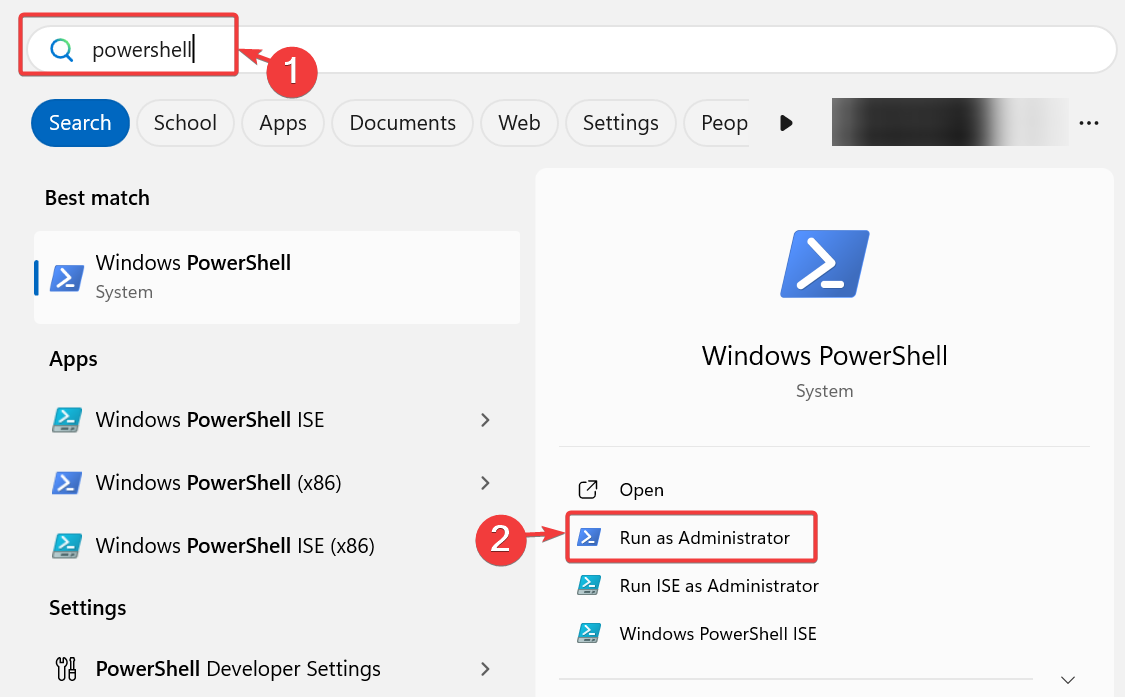
TypePowershell in the Windows search bar.
Select Run as administrator.
Enter the command below and press Enter: Get-AppxPackage -AllUsers *WindowsStore* | Foreach {Add-AppxPackage -DisableDevelopmentMode -Register "$($_.InstallLocation)\AppXManifest.xml"}
After the process is complete, reboot your PC and try using the Microsoft Store again.
4. Run the Windows Store app troubleshooter
Press Windows key + i to open Settings.
Go to System and selectTroubleshoot.
Under Find and fix other problems, click on Windows Store Apps.
Click Next to run the troubleshooter.
Wait for the scan to complete and follow the on-screen instructions to complete the process.
Restart your PC and check if Microsoft Store is still stuck on Retrieving information.
The new version of Microsoft Store supports more apps and has an easier-to-navigate design.
However, it’s also throwing some users off track with the app not opening, not downloading games, and most recently with the Retrieving information from Microsoft Store messages.
We didn’t single out one clear cause for the issue, but following the guidelines above should get rid of it.
If you are looking for a budget gaming laptop but don’t want to compromise on performance or design, this is the perfect deal for you. The Lenovo Legion Slim 5 is now available for just $1154.99 (excluding tax) on Newegg.
Simply use the ZIP payment option during checkout and apply the ZIPLENOVO coupon code to get 13% off up to $100 on the Lenovo Legion Slim 5‘s current price of 1254.99!
The gaming laptop is powered by the AMD Ryzen 7 7735HS processor and features the NVIDIA GeForce RTX 4070 graphics for seamless gaming. With such power-packed performance, multitasking or running resource-intensive editing/rendering apps on the laptop won’t be a problem either.
As for the display, it comes with a 16″ screen supporting up to a 165 Hz refresh rate. Even the latest graphics-oriented games will run smoothly on the Lenovo Legion Slim 5. And due to its compact size, you won’t have trouble packing the laptop for vacations and playing even when on the go!
The gaming laptop also features AI Engine+ and LA1 AI chips for AI-fueled gaming. You are about to witness a massive upgrade in terms of gaming performance on this laptop.
Upon checking the product’s review, we found that the Lenovo Legion Slim 5 can easily run games like Helldivers 2, Cyberpunk, and Titanfall 2. The battery backup turned out to be another attraction, with the laptop easily delivering up to 6 hours under regular use.
Lenovo Legion Slim 5’s specifications
Processor
AMD Ryzen 7 7735HS Processor (3.20 GHz, up to 4.75 GHz Max Boost, 8 Cores, 16 Threads, 16 MB Cache)
If you are interested, get the Lenovo Legion Slim 5 from Newegg for just $1154.99 today, as the coupon code is valid for a limited period!
Amongst the downsides, a few reported that the laptop froze for a few seconds when performing resource-intensive tasks. The lack of customizations for the colours and patterns is another common concern.
Microsoft has been quite hefty in its advertisements promoting Windows and Microsoft Office products.
First, Copilot, Word, and Excel were on the lock screen, followed by a QR code to encourage users to download Copilot.
Then, the Redmond tech giant targeted the Start menu by adding a Recommended section within it. Users have not welcomed all these and have called them invasive and annoying. They are also known to disrupt workflow.
However, this has not stopped Microsoft from trying; a new advertisement was spotted in Windows 11. This time, it is on the Settings app’s Home page. It is for the GamePass subscription service, which the company is calling the new Game Pass recommendation card. The ad was found in Windows 11 Insider Preview Build 26120.470 (KB5037864) in the Dev channel.
In an official blog, Microsoft stated:
We are introducing a new Game Pass recommendation card on the Settings homepage. The Game Pass recommendation card on Settings Homepage will be shown to you if you actively play games on your PC. As a reminder – the Settings homepage will be shown only on the Home and Pro editions of Windows 11 and if you’re signed into Windows with your Microsoft account.
According to Microsoft’s previous statements and plans about the growth of GamePass among PC users, this move is supposedly an effort to expose more Windows 11 users to gaming.
The ad will only appear on Windows 11 Pro and Home versions and sign in to Windows using a Microsoft account or if you have already been using the subscription service. Microsoft will show you new or recommended games in the section.
Unfortunately, since these are more targeted ads, you won’t be able to remove them from the Settings app. What do you think about this new advertisement? Share your opinions with our readers in the comments section below.
Windows 10 is a great operating system, however, Microsoft is determined to retire it in favor of Windows 11.
Speaking of retirement, Windows 10 21H2 Enterprise and Education versions have almost reached the end of support, so here’s what that means.
Windows 10 21H2 end of support is coming early next month
Next month, the Windows 10 21H2 version is scheduled to reach the end of servicing as BetaNews reports. This includes the following editions: Enterprise, Education, and IoT.
As for extended support, only Windows 10 Enterprise LTSC 2021 and Windows 10 IoT Enterprise LTSC will get it, and it will last until January 12, 2027.
According to Microsoft, the end of support is coming on June 11, so here’s what will happen:
On June 11, 2024, Enterprise, Education, and IoT Enterprise editions of Windows 10, version 21H2 will reach end of servicing. The upcoming June 2024 security update, to be released on June 11, 2024, will be the last update available for this version. After this date, devices running this version will no longer receive monthly security and preview updates containing protections from the latest security threats.
While version 21H2 won’t receive updates, non-managed systems will be automatically updated to Windows 10 version 22H2.
As for the managed systems, they will have to manually update or switch to Windows 11. Unfortunately, even after installing the 22H2 update, the end of Windows 10 support is coming in October 2025.
Microsoft Store is the one-stop solution for most of us when downloading apps. I prefer it due to the pre-installation compatibility checks and seamless installation. But lately, I have been getting a weird issue. Whenever I try to install an app, it reads Retrieving information from the Microsoft Store.
The frustrating part is that it stays the same for hours, i.e., the information never gets retrieved!
This happens when I first download the app’s installer from the Microsoft Store website and then try installing the app using the setup.
At first, I thought it was a PC or account-related issue. But signing out and then signing back in or clearing the Microsoft Store cache didn’t work. Then I realized that it’s not just me!
Several reports emerge of the Retrieving information error in Microsoft Store
Upon checking the dedicated Microsoft forum, I found countless reports of users facing the same error. And it wasn’t just one app. Be it Xbox, Prime Video, Bluemail, or Windows File Recovery, none moved past the Retrieving information screen in Microsoft Store.
Im trying to use windows file recovery because I have lost some important files through my carelessness. When I have tried downloading the program it has been stuck on “Retrieving Information from the Microsoft Store”
When I attempt to install the Apple Devices app on Win10, it never gets past the initial splash screen with message, “Retrieving Information from the Microsoft Store…”.
I cannot install any apps from the Microsoft Store. I can only download installers but they all open up and will not get past the following message: Retrieving information from the Microsoft Store. This happens to ALL apps. I have also opened the appropriate ports on my router to allow communication with the store.
I am facing this issue for Prime Videos for Windows. This app has stuckforever on this page.
Download the app from within Microsoft Store
I did manage to find an easy workaround to get rid of the Retrieving information error in Microsoft Store. All you have to do is launch the PC version of Microsoft Store and install the app directly from there instead of downloading the setup from the web version.
The error, most likely, arises due to an issue with Microsoft Store, given the high number of reports on both Windows 10 and Windows 11. We will have more information as soon as Microsoft acknowledges the bug and starts working on a fix.
Until then, you will have to keep installing apps directly from the PC version of Microsoft Store or use the offline installer!
Microsoft added new options to its PC Manager app. If you didn’t know, the tool has various features and some Windows functions. For example, you can use it to free up space, boost your performance, do health checks, block popups, and more. The newest feature, Files Cleanup, makes PC Manager similar to CCleaner.
A small group of Microsoft engineers from Asia developed the PC Manager app because they saw an opportunity to create a better tool than the ones available on the market. After all, most of us used, at least once, a PC health checker, a cleaning app, or a boosting tool. So, there was a need for an app that holds all of these features together.
What does the File Cleanup feature of the PC Manager do?
The File Cleanup feature added to the Microsoft PC Manager helps free up your memory and boost your RAM. Also, you can use it to clean your device for more storage space. Additionally, you can use this feature to manage download files, look for the large ones, and delete duplicates.
Microsoft’s PC Manager can search through all your storage partitions. Thus, if you have forgotten any large files, the tool can find them. Besides, it can categorize most files. On top of that, the app opens a new window for most of its features.
The new version of the app has additional quality-of-life improvements. For example, it has a dark mode option and a better UI. Also, the tool has a feature to enable an updated Desktop toolbar with an incorporated Bing search bar.
You can download the PC Manager directly from the Microsoft Store. Moreover, it has plenty of positive reviews. By the way, the app has plenty of features. So, if you are curious, check them out.
Ultimately, the PC Manager app from Microsoft is a potential competitor for CCleaner due to its new Files Cleanup function. In addition, it brings various features in one place. Also, its UI is clear and very accessible. On top of that, the app can function as a performance booster. Besides, PC Manager could be safer than the other cleaning apps.
Are you going to use the tool? Let us know in the comments.
Recently, I installed Palia, a free and cozy MMO with nice graphics. I wanted to unwind, listen to some great music, and not feel the pressure of fast-game pacing that is dominating the space nowadays. However, I just realized that my 512 GB SSD is full with only a handful of apps and games. However, when I looked at all the data usage, I found that the games were the most space-consuming.
So, have you ever wondered why the games we love are demanding more and more space on our hard drives? This question has been bugging me for a while, and after diving into the topic, I’ve discovered some fascinating insights. However, the immediate answer is pretty simple. Game devs have to keep up with game fidelity and performance, and it’s mostly all about improving graphics. Let’s break down the reasons behind these ballooning file sizes and what it means for gamers like us.
4K resolution and fancy audio are mostly to blame
As games aim for more lifelike visuals, the resolution of textures has skyrocketed. We’re talking about 4K textures that are so detailed they require four times the space of their 1080p counterparts. For instance, Call Of Duty: Black Ops Cold War, which was supposed to take up 125 GB of hard drive space, reached 250 GB after some optimization patches. That is a ridiculous amount of space even for a game of its genre.
Another great example is Far Cry 6, which is 171 GB, but only the HD Texture Pack is 62 GB of the game. But if you want to see the great detail on your brand new 4K monitor, you do have to think about hard drive space.
However, graphics are not the only culprit. Audio plays a huge role in game file sizes too. High-quality voice acting and immersive sound effects are key to the gaming experience, yet they demand significant storage. And it’s not even fancy music and effects, it’s also about the game language. If you translate the game in more languages than English, boom, your hard drive is full. For example, 17 GBs from Baldur’s Gate 3 is covered by audio files.
Then, there’s also about optimizing the performance by adding redundant files. Let’s say that in a game, you have 10 levels and a few files are common for all of them. If the developer duplicates the same files for each level, they will load faster and you get a smoother experience. But yeah, as you would correctly assume, they will take up more space.
We are finally getting to optimization of the saves. What data does the game stores when you’re creating a save? That also depends on how fast you need them to load. Some games may have saves ranging from a few hundreds of KB to tens of MB. And they all add up in your profile. In the meantime, as you’re playing, the developer is adding new content through patches: characters, weapons, textures, objects and even whole missions through DLCs. You end up with a game that can suck all the free space on your drive in a matter of weeks.
So, what does this mean for us gamers? Well, it seems we’re in a bit of a pickle. As game file sizes grow, so do our storage solutions. The days of fitting dozens of games on a 1 TB drive are slipping away, pushing us towards larger and, unfortunately, more expensive storage options. It’s a trend that doesn’t show signs of slowing down, especially as developers continue to prioritize visual fidelity and performance.
Is there a way to make everything better?
However, I will close up with a nice example of how a developer can also be merciful to your resources. Although I wrote in the beginning that Palia filled up my drive, it turned out that it only took up 22 GB on my drive. It can run at 4K resolution, has breathtaking graphics and audio, and has awesome mechanics. I remind you that Palia is an MMO running on Unreal Engine that can now even run in a browser.
Well, it seems that Palia’s developers found a way to restructure everything by using a data first vs. schema first strategy:
To increase the ease with which game engineers and technical designers could work, we decided on a different model in which the structure of the data would be decided in C++ structs directly within Unreal and then marshaled and persisted in the database as a binary blob (using the Flexbuffer format). The schema is the struct declaration itself and we use Unreal’s runtime type reflection system to export the schema to our database.
So, yeah, we can blame graphics, audio, loading times and whatnot, but eventually it’s all about coding all these together. That doesn’t mean I blame the developers. Microsoft closing up gaming studios is further adding pression on the already stressed out coders in the industry. They have tight deadlines and saving you some space on your hard drive is probably not their no.1 priority in a schema of delivering a game.
For us, the gamers, it’s a balancing act between enjoying the latest games and managing our digital real estate. Perhaps it’s time to consider that next hard drive upgrade or, for some, to start being selective about which games to keep installed. Or, finally, the age of running all the games from the cloud is near, and soon we won’t have to go through all that again.
What do you think about this matter? Let us know in the comments below.
Ever since KB5036980 was released, users have been in distress. First, it was the Account picture error with error code 0x80070520. Microsoft acknowledged the issue and issued a workaround as well.
Many users have reported that they cannot install Windows 11 Update Version 23H2 KB5036980. Here is what one of the users on Microsoft Community posted:
I’ve been repeatedly trying to install this update, but each time I try to launch the update, it will suddenly stop at 96% and tell me there was something wrong with the install and my PC files would return to the previous “un-updated” state.
I’ve tried every method I could easily find online (Removing all non-essential hardware, did clean boot into Windows, et cetera.), but none of them fixed the isue and I’m suspecting it’s a deeper, less common issue.
How can I fix KB5036980 install issues?
First, check your internet connection or try switching to a stronger connection. Next, ensure you have enough storage space on the system drive, then run the SFC scan to rule out system corruption issues.
If these don’t help, try the following things:
Run Windows Update Troubleshooter – Press Windows + I to open Settings. Go to System>Troubleshoot> Other troubleshooters>Windows Update>Run. Now, follow the on-screen instructions to complete the process.
Reset Windows Components – Press Windows + X to open the context menu, then select Terminal (Admin); in Terminal, press Ctrl + Shift + 2 to open Command Prompt. Now type these commands one by one and press Enter:
Net Stop bits
Net Stop wuauserv
Net Stop appidsvc
Net Stop cryptsvc
Ren %systemroot%SoftwareDistribution SoftwareDistribution.bak
Ren %systemroot%system32catroot2 catroot2.bak
Net Start bits
Net Start wuauserv
Net Start appidsvc
Net Start cryptsvc
You can also try to install this update manually via Microsoft’s Update Catalog website. All you need to do is head to the website, type in the update name, and search for it. Once located, click Download. Now, double-click the downloaded file and install the update.
All these bugs and the inability to download Windows updates started with KB5036893, which was released on April 9 and continued even after KB5036980.
Other issues, like black screens and BSoD, were reported after KB5036980 (the optional update) was released. If you are one of them, you might want to try these BSoD fixes to eliminate the problem.
Are you also facing the same issue in the Windows 11 KB5036980 optional update? If yes, did you try the above workaround? Let us know in the comments below.
Microsoft might start to show up an annoying land page when you open Edge without being signed in the browser.
According to a screenshot taken by Windows enthusiast, @TheBobPony, the Redmond-based tech giant will start asking Edge users to sign in to the browser to access the AI-powered experiences with Copilot.
"Sign in to access AI-powered experiences with Copilot in Microsoft Edge". … why pic.twitter.com/ij8xgkvPAR
The company then goes on to give potential users a few examples of how they can use Copilot: for instance, you can use the AI tools to find the best deals on a lot of things, such as TVs, or gaming consoles, which is quite useful if you ask us.
But you can also use it to plan your trips, or even write short stories for your kids (but be aware, OpenAI did it first with ChatGPT). You’ll only have to log in and sync your data, which is also useful if you’re coming from Google Chrome.
However, fortunately, signing in on Edge to use Copilot is optional, and Microsoft will allow users to choose a Not now button – but that doesn’t mean the Redmond-based tech giant won’t try to persuade you any further.
It’s still good to know that currently you can use Copilot on Edge without having to sign in to the browser. You have the sidebar extension, but you can also access Copilot via https://copilot.microsoft.com/, and you’ll pretty much have the same capabilities.
The web version of the AI model even supports plugins, as the company updated it recently, and you’ll be able to Designer, the image editor, as well. Plus, the web version also has three modes of interaction and Copilots for each activity: fitness instructor, vacation planner, and cooking assistant.
So, if you don’t want to sign in to Edge, you won’t lose anything important. But being signed in means that Copilot can answer you more specifically with outputs tailored to your search history, which can also be a great thing.
Plus, when using Copilot while not logged in with your Microsoft account, you’ll be limited to 5 prompts.
Ultimately, this is your choice, but Microsoft will remind you of it every now and then.
A reliable RAM stress test software can consistently identify issues with your computer’s memory. I tested over 20 software and picked the best five for your convenience.
AIDA64 Extreme is a premium software that will help you test your CPU and RAM effectively. You can also take advantage of the trial version to test RAM stress. Moreover, it can work with your FPU, cache, local disks, and GPU(s).
You can decide to check all the boxes if you want to test RAM stress plus other hardware.
Every test is recorded with date/time and status. You can test the temperature, cooling fans, voltages, powers, clocks, and more. Additionally, it allows users to save all the results for future use.
Pros:
Detailed reporting with timestamps and status for each test.
A trial version is available.
Allows customization of tests to suit specific requirements.
Offers extensive monitoring of system parameters like temperature, fan speeds, voltages, etc.
Cons:
It’s paid software and it may not be affordable for all users.
Limited trial functionality compared to the full version.
Karhu’s is a RAM stress test app that will help you detect hardware faults within your RAM and evaluate its performance after overclocking. Its user-friendly graphical interface simplifies the testing process, making it accessible for users of all levels.
Moreover, it can efficiently handle memory configurations with up to 8 TB of RAM and 64 threads. You can also allow it to beep, stop, or both when it detects an error.
Additionally, its portability lets you run tests directly from a USB flash drive.
Pros:
User-friendly interface suitable for users of all levels.
Supports large memory configurations and multiple threads.
It can be run directly from a USB flash drive.
Cons:
Paid software, though it offers a trial version.
Lacks extensive reporting features as other tools.
3. MemTest64 – Great Windows and Processor Compatibility
MemTest64 is a free RAM stress test software with a beginner-friendly interface. You don’t need to deal with bootable setups to use it. The program tests your RAM using different patterns to find any problems.
It’s compatible with Windows XP to 11 (64-bit only) and supports modern processors like AMD Ryzen and Intel Core. Furthermore, you can decide how much memory to test, which helps lessen its impact on your computer’s performance. It also allows you to schedule the test to stop after a certain number of loops.
Pros:
Free to use.
Beginner-friendly interface.
Compatible with a wide range of Windows operating systems and modern processors.
Allows scheduling tests to stop after a certain number of loops or hours.
Cons:
It doesn’t have advanced features compared to some paid alternatives.
It may not provide as detailed reporting as other tools.
Prime95 is a software mainly designed to stress test and benchmark computer hardware, including RAM. This tool has several settings with “Blend (all of the above)” set by default. It’s the recommended setting if you’re new to it since it’ll fully test the RAM.
However, you can customize it to fit your preferences by selecting “Custom” and modifying the torture test settings.
Pros:
Free to use.
Customizable settings for different testing scenarios.
Recommended for beginners with its default “Blend” setting.
Cons:
The user interface is plain and unappealing.
Some users report high power consumption and heat generation during testing.
BurnInTest is a software designed to stress test computer hardware components, including your CPU, RAM, storage devices, graphics cards, and more. It thoroughly evaluates system stability by subjecting the hardware to intense workloads over an extended period.
During the test, you’ll get information about the total, free, and tested RAM.
Additionally, the tool records the exact time you started and ended the test and then gives you the total duration. After completing the process, you can save, copy, or print the report.
Pros:
Detailed reporting with information on total tested RAM, duration, etc.
Flexible testing options and customization features.
Supports a wide range of Windows operating systems.
Allows saving, copying, or printing test reports for further analysis.
Cons:
Requires a bit of a learning curve due to several features and options.
I considered several factors to determine the best tools for the job:
Intuitive interfaces and user-friendly features make it accessible to beginners and experienced users.
Highly compatible software to ensure you can use it on different Windows versions.
Customization options and reporting capabilities so users can modify different settings and get detailed reports.
Reliability and accuracy for thorough RAM module tests for potential faults or errors.
Cost-effectiveness to accommodate different budgets.
With the right RAM stress test software, you’ll be able to monitor and solve several errors on your computer. And with the right RAM management software, you can keep a close eye on further developments!
Out of the five options above, which one have you worked with? Feel free to share your experiences in the comment section below.
Nintendo 64 was one of the most popular consoles in the late 90’s with many memorable games, and many gamers can experience those titles on PC thanks to the emulation.
It seems that emulation won’t be necessary anymore as enthusiasts have found a way to recompile the games and run them natively on the PC.
The latest project allows you to run Nintendo 64 games natively on a PC
As Tom’s Hardware writes, Mr-Wiseguy on GitHub has developed a tool called N64Recomp that allows you to port almost any Nintendo 64 game to a PC, and run it natively.
The same user also released the Zelda64Recomp project, which brings The Legend of Zelda: Majora’s Mask to the PC.
So why is this important? By recompiling the games, you can run them natively on your PC, without having to use an emulator.
This allows games to maximize performance and effect accuracy of the original consoles while experiencing the same benefits that come with PC emulation.
My friend Wiseguy's been working in secret for a year on a tool to make PC ports of N64 games without complete decompilations. The result doesn't include assets and only requires a ROM to play.
He's managed to run games like Banjo-Kazooie, Rocket Robot and even Superman 64. pic.twitter.com/sKGuViEsJZ
N64 Recompiled uses RT64 as a renderer, allowing you to experience enhancements such as higher resolution, widescreen support, and 60+ FPS.
This tool is perfect because manually decompiling games is a long and tedious process, and this tool manages to fully automate it, Mr-Wiseguy has tested it with multiple titles.
Microsoft has quietly updated the Snipping Tool with several features over the last few Insider Builds. Some of these features were released last week and included automatic QR code detection, a new keyboard shortcut for the ruler tool, as well as the ability to modify the opacity of outline colors with a new slider.
However, the version 11.2404.37.0 brought up some unlisted enhancements, as well. According to tech enthusiast, @PhantomOfEarth, the Snipping tool will soon have a Visual Search with Bing capability.
Another feature coming soon to Snipping Tool (yes, more!): visual search with Bing. pic.twitter.com/h6HOblr0Rq
The feature is not rolling out yet, according to the enthusiast, but it should be available to all insiders within the next weeks.
If that is so, it could be a total game-changer for Bing, as a search engine. Let us explain. Snipping Tool is a very intuitive tool used to screenshot and record your current screen on Windows. With a simple shortcut, the tool can be used to take these screenshots in seconds, and they’re also automatically copied to the clipboard.
With the new capability, users can essentially visual search with Bing for everything they screenshot. For example, you can screenshot a mobile phone in a YouTube video, right-click on the screenshot image, and within seconds, you can use Visual Search with Bing to look up that mobile phone.
The capability is very similar to Google Images, or Google Lens. If Lens lets you take a picture of anything, or use existing screenshots on your mobile phone to look for essentially anything, Visual Search with Bing will do a similar job in the Snipping Tool on Windows.
It’s basically Google Lens for Windows users. It could also help Bing become more dominant in the search engine market, which Google currently dominates.
As we mentioned earlier, this new enhancement should be out in a couple of weeks, and generally available to Windows users, later this year.
CISA, in collaboration with the FBI (Federal Bureau of Investigation), HHS (Department of Health and Human Services), and MS-ISAC (Multi-State Information Sharing and Analysis Center), recently released an advisory on the Black Basta ransomware highlighting the attack details and mitigations.
According to the CISA’s advisory, threat actors used Black Basta to encrypt and steal data from 12 of the 16 critical industries. This includes the Healthcare and Public Health (HPH) sector.
— Cybersecurity and Infrastructure Security Agency (@CISAgov) May 10, 2024
Describing Black Basta, the advisory reads,
Black Basta is considered a ransomware-as-a-service (RaaS) variant and was first identified in April 2022. Black Basta affiliates have impacted a wide range of businesses and critical infrastructure in North America, Europe, and Australia. As of May 2024, Black Basta affiliates have impacted over 500 organizations globally.
The advisory also delves into the modus operandi of the Black Basta affiliates. It suggests that threat actors first breach the systems through known vulnerabilities, then both extract and encrypt the data, forcing organizations to cede to their demands.
The ransom amount is not shared right away, but affected organizations are instructed to contact the Black Basta affiliates through a .onion link, which is only accessible via the Tor browser. Then, affected parties have 10-12 days to pay the ransom or risk having the data posted on the Black Basta TOR website.
Amongst all the industries, healthcare remains the primary target for threat actors linked to the Black Basta ransomware due to the critical information involved and the scale of disruption it causes, the Ascension attack being a recent example. It led to the non-profit diverting ambulances from hospitals following the attack, according to CNN.
Ascension didn’t share any more information about the attack but confirmed working alongside the FBI and CISA to ascertain the extent of the attack and identify if any personal information was compromised.
Although the CISA advisory didn’t directly connect Black Basta affiliates with the Ascension attack, reports suggest that threat actors linked to the ransomware were responsible.
Previously, the UnitedHealth Group faced a similar attack and had paid $22 million to threat actors in a bid to protect the user’s data. It was one of the biggest attacks in recent times, affecting a third of Americans, according to CNN.
Mitigations against Black Basta ransomware shared by CISA
The joint advisory by CISA and FBI lists a series of mitigations that will help protect the systems against the Black Basta ransomware.
Make sure you are running the latest version of the operating system, firmware, and software.
Enable Multi-factor authentication for all critical services.
If using a remote access software, make sure it’s completely secure.
Create regular backups of critical data so you don’t lose it in case of a ransomware attack.
Hold training programs to apprise users about the source of ransomware attacks, steps to limit the extent of the attacks early on, and who to report them to.
You won’t miss pretty much anything if you decide to access Skype on the web from your mobile phone, instead of downloading the app, as Microsoft released Build 8119 to the platform that offers a uniform experience to all Skype users, regardless of the method of login.
According to the official changelog, the refreshed call panel design for mobile web now matches the one of the mobile app, enabling a polished call experience where your mobile web calls are just as smooth as on the app, says Microsoft.
As you can read below, the Redmond-based tech giant introduces a plethora of new design changes to make that happen, including:
Unified Experience: Enjoy a seamless transition between the mobile app and mobile web with consistent, unified designs. ?
End Call Button Redesign: The End Call button now sits perfectly in the header, making it more intuitive and accessible. ?
Focused Flex Layout: Effortlessly switch to focus mode, centering on what’s important in your call. ?
Footer Controls Update: The call controls in the footer are updated for a more user-friendly experience, mirroring the mobile app layout. ?
Light/Dark Theme Support: Your call panel now adapts to your theme preference, delivering a consistent and eye-friendly look. ?☀️
Skype 8119 also enhances the experience of using the platform on mobile devices, whether we’re talking about Android or iOS phones. For instance, the latter will get a picture-in-picture call monitor, allowing for seamless calling experiences even when switching between apps.
The former, on the other hand, will display some useful notifications when messaging invalid numbers, letting users know that no credit was wasted.
For Windows users, Skype now offers a clearer and simplified audio device selection, allowing them to choose the exact device for microphones and speakers.
It’s been just a couple of weeks since Skype 8118 was released, but it’s nice to see Microsoft working hard to bring a unified experience for all users.
Not only will you not miss the Skype app when accessing the platform from your phone, but it will consume fewer resources, meaning your phone will have more space to perform better without relying on independent apps to keep in touch with your Skype colleagues or friends.
Bungie is well-known for its popular franchises such as Halo or Destiny, but the company has released other games before them.
If you’re feeling nostalgic, you’ll be pleased to hear that Bungie’s first game is now available on Steam, for free.
Marathon is now available on Steam, and it’s completely free
In case you’re not familiar with earlier works of Bungie, their first game was a first-person shooter called Marathon. The game was released for Apple Macintosh in 1994 and it was Mac’s answer to Doom.
As TweakTown writes, Bungie is developing a new entry in the Marathon series, and it should be a PvP extraction shooter.
If you want to know about the series, or you are just a fan of retro shooters, you’ll be pleased to hear that Marathon has been remastered by Aleph One Developers and brought to Steam, for free.
The game uses an open-source Aleph One engine, original game data with new 3D filtering, and positional audio. The game also brings support for 60+ FPS, modern hardware, and widescreen resolution.
The developers also plan to remaster other entries from the series, so be sure to keep an eye out. In other news, Witcher 3 REDkit is coming soon, so you’ll be able to craft your adventures from scratch.
Good news for all Microsoft 365 Universal Print users: the Redmond-based tech giant will update the capability to allow Android users to print documents directly from their phones, as long as the printers are installed on their devices.
The announcement was made in the latest entry to the Microsoft 365 Roadmap, last week, and users will be able to integrate their Android devices with the Universal Print platform through the Microsoft 365 apps, allowing them to easily add work/school printers.
Integration of Universal Print with the Microsoft 365 mobile app will enable users to add work/school printers to their Android phones. Once the printers are installed on the phone, the user can print to them from any phone app that has a print action.
Microsoft
According to the entry, Android users will have to wait, though, as the Redmond-based tech giant will only preview it at the end of the year, in December 2024, followed by a general release sometime in 2025.
However, to prepare users for it, Microsoft will release another capability for IT managers in Universal Print, called Pull Print queues. Basically, this upcoming policy will allow IT admins to customize and offer a simple view of all print solutions, based on their locations or regions, so that other users can use them.
This new policy will be previewed in June 2024, followed by a general release in August 2024, and it might affect the date of the other capability.
Pull Print enables IT Pros to offer their end users a simplified view of the print solution. Specifically, IT Pros can set up virtualized printer(s) per location or region so that end users only need to know the name of one printer. Those users can securely release their own print jobs at any printer at that location or region, depending on the setup.
Microsoft
This is quite useful considering that employees won’t have to depend on other people to print documents at work. They can easily do so by accessing the Microsoft 365 App and searching for and connecting to the nearest available printer, and that’s it.
The new Pull Print policy will also be available on Mac, following the general preview of the Universal Print capability on these devices earlier this year.