Balatro is getting a bit easier with its first major update

Balatro is getting a new update that will make it much easier to win games. No doubt, it is one of the popular poker-themed roguelike deck-building video games and is pretty awesome. However, it has received a fair amount of criticism in the past for its tad-boring higher difficulty modes.

Addressing the same, the developer of the game, LocalThunk, has confirmed that the new tweaks are added with the upcoming update. The 1.0.1c beta patch is available for public testing as we write. A Reddit user (@Unclematttt) shared the details of the patch.

The user also added the message shared by the game developer LocalThunk in the Balatro Discord channel that reads:

Hello everyone, I have the first version of 1.0.1 ready to test. There are a lot of changes included in here so I wanted to have an extended public test to ensure everything is working smoothly before pushing it live for real, probably in about a week!

This experimental version of the game is English only and will be available on Mac, PC, and Steam Deck. Please let me know if Steam Deck/Windows performance is improved from the previous version.

To access, click on the gear icon on the Balatro Steam library entry, then Properties > Betas > Beta Participation and select public_experimental.

Please test this version and let me know if there are any issues, feedback, or regression from earlier versions. Please try and keep the discussion within the thread below if possible so I can follow along easier!

Thanks Balapals 1.0.1c (experimental)

Here’s what is changing in Balatro with the new 1.0.1c update

The change list in Balatro’s 1.0.1c Experimental Branch shared by the Reddit user is quite extensive. However, there are attention-grabbing changes that need mentioning.

The new Balatro update also tweaks balances and improves Joker-related Tags. The update also aims to improve overall game performance on Windows and Steam Deck by eliminating poor and stuttery gameplay.

Removal and replacement of a few stakes and scaling reductions in White, Green, and Purple stakes

First and foremost, the new Balatro update nerfs and replaces a few stakes entirely as they were troubling the players way too much. Besides, the White, Green, and Purple stakes see scaling reductions in between antes.

The 1.0.1c Balatro update also scraps a few caveats in the Orange and Gold stakes and adds Perishable Jokers and Rental Jokers in the said stakes, respectively. Not only does this update make changes to the higher-difficulty modes, but also tweaks a few things even in the lowest-difficulty modes.

Uncommon, Rare, Negative, Polychrome, Holo, and Foil tags will have their respective Jokers for free

Some notable changes in the new update include tweaked Uncommon and Rare tags. The patch notes mentioned in the Reddit post mentioned that Uncommon and Rare tags will make their Joker free in the next update.

It surely is a welcome change for players who couldn’t afford visible Joker with these tags. The same goes for Joker with Negative, Polychrome, Holo, and Foil tags. That’s not all, a normal Buffon Pack will be readily available in the first shop on every run. Whereas, a few Planet Cards will have their bonuses increased.

If everything seems fine with the experimental branch, the new update of Balatro might go live in about a week. If you are eager to read all the details mentioned in the patch notes for the Balatro 1.0.1c Experimental Branch, please click here.
Microsoft tests showing Copilot prompts in Edge settings

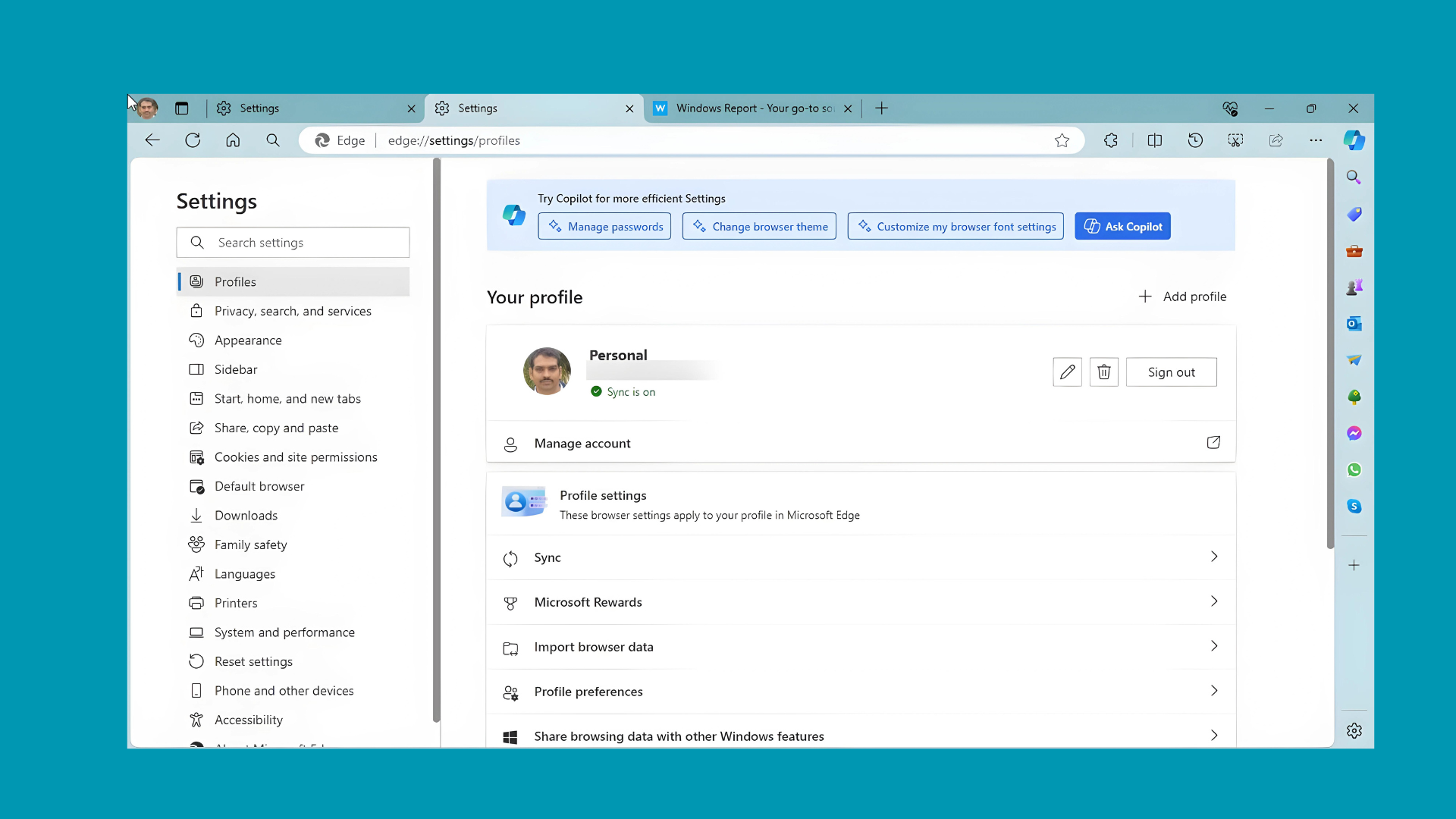
Microsoft is again doing a round of testing showing more copilot Prompts throughout Edge browser Settings (whichever you select) page to encourage users to Try Copilot for more efficient Settings. The feature is being tested in Edge Canary.

Microsoft Copilot AI is available in Edge browser on Windows 11 (as Preview) and present on Android and iOS platforms too as apps. Copilot can answer questions, create summaries, and help in planning trips and more.

Recently, we reported Microsoft is showing Copilot prompts directly in the Edge address bar (dev version). We found it irrelevant to surface along with recent searches and trending news. Now, we noticed Microsoft is testing random Copilot prompts on the Edge browser settings page.

Microsoft Edge browser may show useful Copilot Prompts to open browser Settings

The aim of showing up a variety of AI prompts with the ASK Copilot button may be to help Edge users realize the potential of Copilot when comes to opening different Edge Settings. For instance, on Windows 11 too, Copilot for Windows is used to change settings, similarly here, Microsoft has shown different AI prompts that open Copilot in Sidebar when the user clicks.

While Edge doesn’t open Copilot in the sidebar when you click one of the Prompts in Settings with Ask Copilot button available, it performs the requested action when you select Prompt and choose “Ask Copilot” in the mini menu. It would have been more helpful if Prompts were available as Actions for Copilot to react. Nevertheless, this may be an experiment.


Taking this occasion, We are giving some of the Copilot Prompts related to use in the Edge browser. open Copilot in Edge type these prompts and see Copilot doing actions on your behalf.

Manage Passwords, change my default home page, change default browser theme, Turn on Vertical Tabs,
Clear browsing data, Manage my Payment Settings, and organize my tabs automatically

  • Manage Passwords, change my default home page, change default browser theme, Turn on Vertical Tabs,
  • Clear browsing data, Manage my Payment Settings, and organize my tabs automatically
  • Change browser theme, Show my browsing history, Group similar tabs together
  • Customize edge sidebar, organize my tabs automatically

Showing Copilot Prompts on top of Edge browser Settings Page may not be a good idea. Let us know which of Copilot Prompts you found useful to open Edge Settings in the comments below.

Microsoft halts build release for the Windows 11 Insider Canary and Dev Channels this week

Microsoft has confirmed that there will be no new Windows 11 Insider Build release on the Canary and Dev channels this week. In a recent post, Microsoft’s Brandon LeBlanc confirmed the news on X (formerly Twitter). Also, there was no mention of why the Canary and Dev channels will not see any build release this week.

He further added that the Windows 11 Insider Preview Build 22635.3495, under KB5037000, is now available to the Beta channel members. We recently covered some new features brought in by this update.

This includes the addition of two new Spotlight experiences in Windows 11. The new Spotlight experiences will allow users to engage with the Spotlight button to display different results.

There’s a new option that allows users to use Copilot as a normal application. Earlier users could only engage with Copilot to the side of their desktop. Now, users can also use it as an undocked app by resizing and moving it along the screen.

Apart from that, the company added the new Linked Devices panel. However, you can only view this panel if you are using Windows 11’s Home and Pro edition.

All that said, the recent KB5037000 update has its downside too. Now, you’ll see even more app recommendations in Windows 11. In short, you’ll be suggested to install apps that you will only use once in a blue moon.

Microsoft is working on a technology that finds files you’ve seen before based on topics you’re interested in

A while ago, we reported that Microsoft wants to release an AI Explorer on Windows 11 and it’s similar to the existing File Explorer, but it has advanced AI capabilities with a built-in history or timeline feature capable of searching everything Windows 11 users tell it to, using natural language.

The AI File Explorer will have access to everything on Windows 11 and help users find documents, chats, or any other files on the operating system. Assuming you tell it a word, for instance, summer, the AI File Explorer will display all the documents that include or reference the word summer, and it doesn’t have to be explicit, as this feature is also capable of context.

Microsoft might showcase the new AI Explorer at the BUILD conference, in May, however, the Redmond-based tech giant recently published a paper containing a patented technology that functions and looks strikingly similar.

The paper talks about a technology called Document Re-finding System, that helps users find documents they’ve seen before.ai explorer windows

The user provides ‘concept clips’, which are ideas or topics they’re interested in, and then, the system turns these concept clips into ‘embeddings’, which are a kind of digital fingerprint for the ideas, using machine learning models, but other technologies, such as AI, can be integrated.

The re-finder system may generate (using a machine learning model, such as a transformer model though on of skill in the art will appreciate that otger types of models may be used) semantic embeddings for he concepts defined by the user and for the clips of documents previously seen by the user.

The system then looks at all the documents the user has seen before and finds ones that are related to the concept clips. It shows these relationships in a visual way on the user’s screen.

Finally, the user can follow this visual guide to find the document they’re interested in.

Similar to the Windows AI Explorer, the patent says the technology can be used for a variety of files, from emails, to chat messages, photos, webpages, and things users looked at on the Internet. Natural language-based prompts can be used to tell the system to find specific files.

The re-finder system may be configured to assist users in re-finding emails, chat messages, documents stored in a file repository, previously encountered by the users. The re-finder system may allow the user to define concepts that may include clips, such as parts of documents, images, text paragraphs, etc.

In many ways, the system acts similar to how Windows AI Explorer is described to be: it even automatically adapts to users’ input, and it can differentiate between semantics. For instance, search results for ‘food and drinks’ will be different from those found with ‘nutrition’.

Microsoft has yet to confirm the new Windows AI Explorer, but when it does, it will have many of this system’s capabilities.

The paper can be read here.

You can now access your Xbox from Windows 11 with the new Linked Devices panel

Microsoft released the Windows 11 Insider Preview Build 22635.3495 (KB5037000) to the Beta Channel, and it brought some important changes to Windows 11.

First off, the Redmond-based tech giant introduced 2 new Windows Spotlight experiences that will make the operating system even more interactive. However, as a downside to it, Microsoft also added a new app recommendation system that will take some space out of the Start panel. Fortunately, it can be turned off.

One of the most interesting additions to the KB5037000 patch is the new Linked Devices, which allows Windows 11 users to access their Xbox consoles and other PCs, directly from the operating system.

However, it has a downside: you must be logged in with your Microsoft account, and the new Linked Devices page is only available in the Home and Pro editions of Windows 11.

We are introducing a new Linked devices page under Settings > Accounts that allows you to manage PCs and Xbox consoles that you are signed in to with your Microsoft account. This settings page will only show on the Home and Pro editions of Windows 11 and if you’re signed into Windows with your Microsoft account.

Microsoft

The KB5037000 patch also introduced the ability to undock Copilot in Windows 11. The feature was first introduced in the Dev and Canary channels a while ago, and it allows for greater control over the AI tool.

You can read the full changelog here.

KB5037000 introduces new app recommendations for Windows 11

Microsoft released Windows 11 Insider Preview Build 22635.3495 (KB5037000) to the Beta Channel, and with it, the Redmond-based tech giant introduced 2 new Windows Spotlight experiences that will make the operating system even more interactive.

However, as a downside, Microsoft introduced even more app recommendations on Windows 11, suggesting you install apps you’ll probably never use.

In the Recommended area of the Windows 11 Start section, Microsoft will display app recommendations from Microsoft Store, based on the recent apps that you’ve used. Fortunately, the option can turned off, and it will not impact commercial devices (meaning you’ll be safe at work, ironically, the place where you could use better apps).

Another great thing is that this feature might not make it to Windows 11 after all. It’s currently available to Insiders and based on their feedback, the Redmond-based tech giant will decide if it gets a general release or not.

Building on top of recent improvements like grouping recently installed apps and showing your frequently used apps, we are now trying out recommendations to help you discover great apps from the Microsoft Store under Recommended on the Start menu. This will appear only for Windows Insiders in the Beta Channel in the U.S. and will not apply to commercial devices (devices managed by organizations). This can be turned off by going to Settings > Personalization > Start and turning off the toggle for “Show recommendations for tips, app promotions, and more”. As a reminder, we regularly try out new experiences and concepts that may never get released with Windows Insiders to get feedback. Should you see this experience on the Start menu, let us know what you think. We are beginning to roll this out to a small set of Insiders in the Beta Channel at first.

Microsoft

The full changelog of the KB5037000 patch can be read here.

Microsoft adds 2 new Spotlight experiences in Windows 11

Windows 11 now has 2 new Windows Spotlight experiences that allow users to customize the way their operating system looks like. Introduced with the new Windows 11 Insider Preview Build 22635.3495 (KB5037000) to the Beta Channel, these experiences will focus on interaction with various Windows elements, according to the official changelog.

The new Spotlight experiences will let users engage with the Spotlight button to bear different results, as you can see above:

  • With Treatment 1, if a user right-clicks on the Windows Spotlight icon it will launch the Spotlight experience in full-screen mode, while double-clicking will open the landing page for the image on the desktop.
  • With Treatment 2, if a user right-clicks on the Windows Spotlight icon it will launch the Spotlight experience without any change to the desktop setup, while double-clicking launches the Spotlight experience in full-screen mode.

We are beginning to try out some adjustments for Windows Spotlight experience on the desktop to make it easier for Spotlight users to engage with this feature to change images, like or not like an image etc. In addition, these changes will make the Spotlight icon behave like other desktop icons. There will be several different treatments these adjustments that Insiders will notice.

Microsoft

Windows Spotlight was first introduced in Windows 10, and then the Redmond-based tech giant decided to release it to Windows 11, as well, last year.

The Windows spotlight feature on the desktop allows the system to constantly change your wallpaper to some of the freshest looks from around the world. 

The feature brings out a constant change to your screen. It may not seem too much, but if you’re working on your desktop for hours, it can be pleasing to the eyes.

The 2 new experiences are currently available only to Windows insiders, but the stable channel of Windows 11 will get them in the following weeks.

You can read the full changelog here.

Do you have any insightful feedback on how to make Windows better? Reply with it on this tweet

Even though Windows already has a Feedback Hub (and if it’s not working, you can use this guide to fix it) where you can leave your opinions and talk about your experience with certain Windows features, if you want to be genuinely listened to by one of Microsoft’s leads, then you might want to tweet your feedback now.

On X (formerly known as Twitter), Clint Rutkas, Lead for developer experiences on Windows, including Windows Terminal, Sudo, and Microsoft PowerToys, would like to hear from Windows users, especially, what capabilities and features would make the operating system a good experience.

How would you like to learn about what capabilities surfaces have? Both new and existing. This is a tricky issue since we understand this can be bothersome yet we find ourselves constantly learning about new stuff. Our team has some ideas but would love to hear from you

Clint Rutkas

Don’t be fooled by the ‘surfaces’ word. Why am I saying this? Well, the lead’s choice of words led many to believe he was maybe talking about the Surface laptops.

Rutkas specified later in the thread that the word is used to encompass Windows as a whole.

So, if you do have useful feedback that might get implemented one day, now is your chance to tweet it.

The Redmond-based tech giant has been relying on people’s feedback for years now, and some insights make it to their products and services, while some don’t make it.

Recently, many Xbox users, for instance, have been complaining that the company doesn’t want to listen to them. Many Xbox users would love to be able to customize the console’s home screen since Microsoft changed it last year, and many of them are constantly leaving their feedback to no avail.

Users claim Microsoft doesn’t really care about genuine feedback which leaves many angered with the Redmond-based tech giant.

However, Windows is different, and leads might actually get their teams to implement your feedback, so it’s definitely worth a try.

Microsoft limits extending the Xbox Game Pass subscriptions to 13 months in these countries

The Xbox Game Pass, Microsoft’s hit gaming subscription model that allows users from all over the world to access hundreds to thousands of video games on their Xbox consoles, and Windows PCs, can now only be extended to 13 months in certain countries.

While some Xbox subscriptions can be extended by using gift cards, or Microsoft Rewards points, Xbox users from Argentina, Brazil, Chile, Colombia, Mexico, Singapore, Taiwan, and Türkiye might want to be careful as the Redmond-based tech giant will only allow them to extend their current subscription to a maximum of 13 months.

In a blog post, Microsoft says that users from all the other countries where the Xbox Game Pass subscription is available, can extend it to a maximum of 36 months (3 years), but the countries mentioned above can only extend it for a year and a month.

Game Pass Core, Game Pass for Console, and PC Game Pass can be extended to a maximum of 36 months in all countries where they’re available except for the following, where the limit is 13 months: Argentina, Brazil, Chile, Colombia, Mexico, Singapore, Taiwan, and Türkiye.

Microsoft

Users from Argentina and Türkiye are even more unlucky: extending the EA Play is limited to 13 months as well, in these regions, while the rest of countries are allowed to extend it up to a maximum of 3 years.

EA Play can be extended to a maximum of 36 months in all countries where it’s available, except for the following where the limit is 13 months: Argentina and Türkiye.

Microsoft

Those who try to extend their Xbox Game Pass subscriptions well beyond the 13-month limit will receive an error from Microsoft saying: Hold off extending this right now.

If you’re attempting to redeem a code or gift card that will extend a subscription beyond its limit, you’ll receive a “Hold off extending this right now” error message and will need to wait until the limit won’t be exceeded.

Microsoft

Meanwhile, if you think it’s not worth extending the Game Pass subscription that much, you might want to take a look at the upcoming titles coming to it. You might have a change of heart.

Microsoft introduces the new and mandatory Nested App Authentication for Office Add-ins

The new Nested App Authentication for Office Add-ins is now in public preview, and Microsoft plans to make it the mandatory authentication method for Outlook add-ins by the end of the year, more specifically in October 2024.

In a blog post, the Redmond-based tech giant says the NAA (short for Nested App Authentication) allows users to authenticate faster and safer, ultimately becoming the standard and the only way to do so.

NAA provides simpler authentication and top tier identity protection through APIs designed specifically for add-ins in Office hosts. NAA is the best authentication option for affected add-ins; we recommend beginning work on proof of concepts using the NAA preview and adopting NAA soon after general availability.

Microsoft

The company will be turned off by default all legacy Exchange user identity and callback tokens for all Exchange Online tenants in October 2024 and advises organizations to take immediate action to prepare their add-ins for it.

We’re also announcing that legacy Exchange user identity tokens and callback tokens will be turned off by default for all Exchange Online tenants in October 2024. This is part of Microsoft’s Secure Future Initiative to give organizations the tools they need in the current threat landscape. Add-in developers who access Exchange data through EWS or Outlook REST must take immediate action to ensure their add-ins are ready before legacy Exchange tokens are off by default in October 2024.

Microsoft

The Redmond-based tech giant is making all these changes due to the constant threat from bad actors globally. Ever since Microsoft and OpenAI discovered that threat actors are using AI to target their victims, the two companies have been working relentlessly to come up with solutions: one of those solutions is Copilot for Security.

Another one is the new Nested App Authentication method:

NAA simplifies Office add-in specific authentication with APIs that work for add-ins nested within Office hosts, making it simple to get consent, accept the latest and safest authentication factors, and allow customer admins to secure their environment with Entra ID policies.

Microsoft

The company wants organizations to adopt NAA as soon as possible, but those organizations who won’t, can continue to use the legacy tokens, however, they will need to opt for the continued legacy token issuance.

Otherwise, adoption is mandatory.

Exchange Online blocks legacy Exchange user identity tokens and callback tokens in all tenants by default. Add-ins that haven’t adopted NAA and rely on legacy Exchange tokens will be unable to call EWS and Outlook REST unless admins opt into continued legacy token issuance.

Microsoft

To initiate the adoption process, the Redmond-based tech giant has laid out a plan organizations and developers can follow, which can be found here.

The Microsoft 365 admin center will be updated to support organizational messages

Last year, Microsoft announced the addition of organizational messages in Microsoft Intune, allowing managers to edit and schedule organizational messages on Windows 11. They were also able to deliver messages in 15 languages and even configure fully customizable URL links.

Now, according to the latest entry in the Microsoft 365 Roadmap, the Redmond-based tech giant is planning to release the organizational messages in the Microsoft 365 admin as well.

Microsoft is adding them in the Reports section of the 365 admin center, and managers and admins will have a variety of capabilities and features that will allow them to create new messages, review delivery reports, and so on.

Organizational messages allows enterprises to connect with their organization through customized messages, enabling them to engage directly within the Microsoft product experiences they use every day, like Windows Spotlight. Starting Spring 2024, Organizational messages will be found under the “Reports” section within the Microsoft 365 admin center and will include features for admins to centrally manage their tenant’s messages, create new messages, and review delivery reports.

Microsoft

The new organizational messages are life savers for IT managers and admins: they’re very easy to set up and use, enhance productivity, and reduce time spent on deploying and noticing employees about changes made in the organization.

According to the entry, they will be available globally to everyone, but Microsoft is conducting a preview first, which will take place in May 2024 (similar to the Microsoft Intune preview, last year), and a month later, in June 2024, they will be made available to all organizations.

Managers will also see a new Copilot reports section within the 365 admin center, starting next month, as Microsoft wants companies who know if the AI adoption is going as intended or not. Fortunately, regular employees will be protected by the newly updated report, as the new policies will show their usage in an anonymized mode.

Lenovo YOGA 7 (27, AMD) enters the Chinese market, starting at just $1105

The market for AiO (All in One) PCs is rapidly expanding, with more and more users opting for these compact power-packed devices. And with Lenovo YOGA 7 (27, AMD) 2024 debuting in China, buyers couldn’t be more happy.

The AiO PC is presently in pre-sale according to GizmoChina!

Powered by AMD Ryzen 7 8845HS, Lenovo YOGA 7 delivers exceptional performance in the price range. It comes with GeForce RTX 4050 for a lag-free photo/video editing and seamless gaming experience.

However, it’s primarily the 27″ flexible display that attracts users to the AiO PC. You can set the screen to horizontal and vertical, and the content rotates accordingly. Also, you can adjust the display’s height by up to 73 mm, in addition to changing its viewing range by 5°-10°.

For those concerned about temperature control on the compact PC, the Yoga 7 comes with high-efficiency composite heat pipes and efficient low-noise cooling fans. So, even under extensive multi-tasking, your PC doesn’t make any loud sounds!

As for the performance, it comes with three dedicated self-explanatory modes: Quiet, Balance, and Beast. To switch between the three, use the Fn + Q keyboard shortcut.

There are two models of the Lenovo Yoga 7 AiO PC, the one with 1 TB storage priced at $1105 (7,999 Yuan) while the other with 2 TB storage priced at $1,658 (11,999 Yuan).

Lenovo YOGA 7’s specifications

ProcessorRyzen 7 8845HS
GraphicsRTX 4050
Operating SystemWindows 11 Home
Storage2TB
RAM32GB
Display size27″
Display resolution2560 x 1440
Specification for the higher-end Yoga 7 27 AiO PC model

If you have been planning to get an All-in-One PC, the Lenovo Yoga 7 27 would be a good choice.

And there are several benefits to getting an AiO PC. It doesn’t occupy as much space, is easy to set up, consumes less power, and can be quickly moved from one place to another as opposed to a conventional desktop.

At 7,999 Yuan ($1105) and 11,999 Yuan ($1,658), the two models of Lenovo Yoga 7 AiO PC are reasonably priced for the market.

If you want to explore other options, check our top picks for Windows 11 AiO PCs!

What’s your first impression of Lenovo Yoga 7 (27, AMD)? Share with our readers in the comments section.

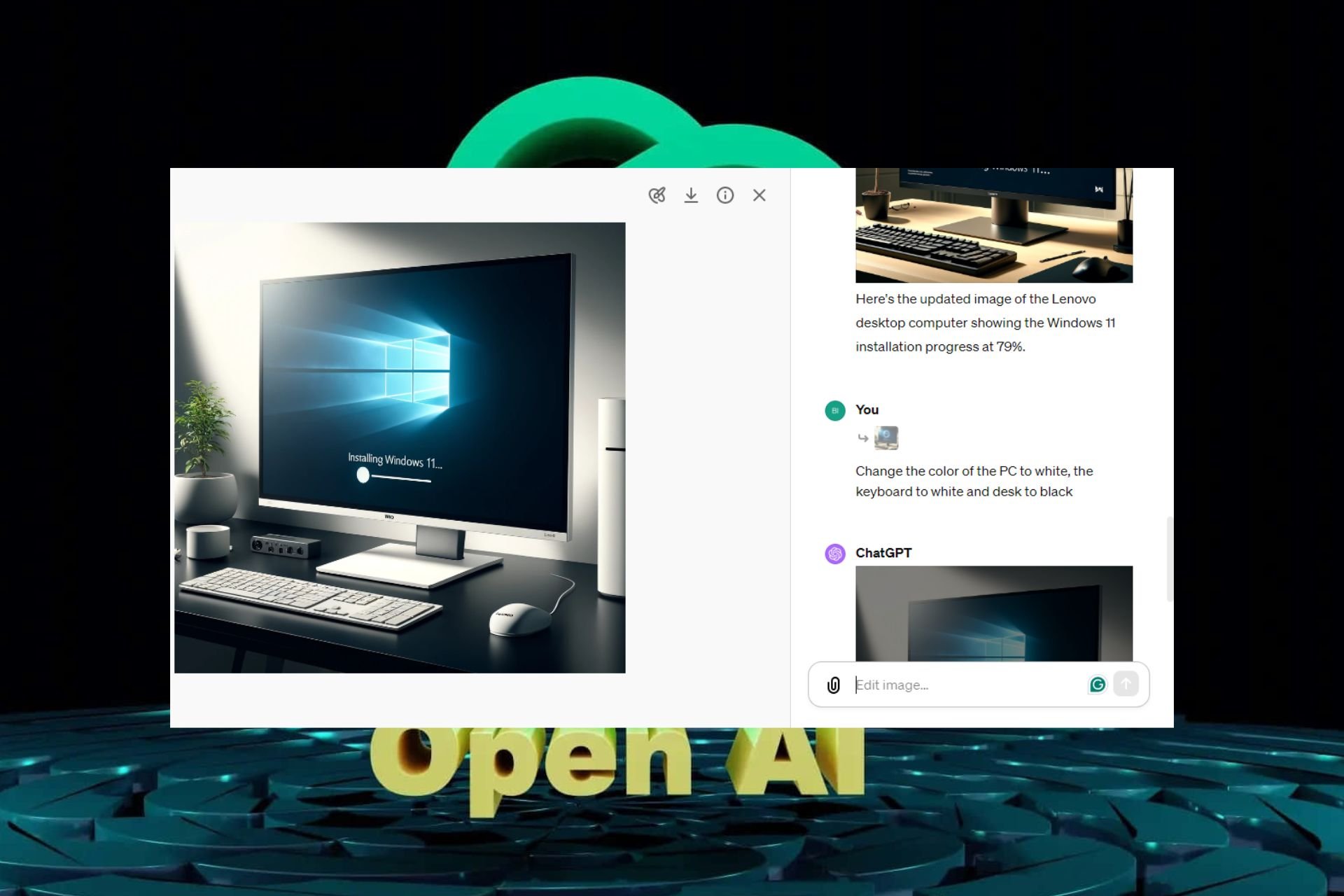
How to Edit an Image With DALL-E in ChatGPT

ChatGPT can generate images based on text prompts but the end result may not always be what you envisioned hence the need to edit with DALL-E.

With ChatGPT, the more descriptive your prompt is, the higher the chances of getting an accurate depiction of what you’re looking for.

Of course, you can use image editing tools but editing within ChatGPT gives you an opportunity to manipulate an image and get the exact match without the extra labor required by traditional image editors.

How do I edit an image with DALL-E in ChatGPT?

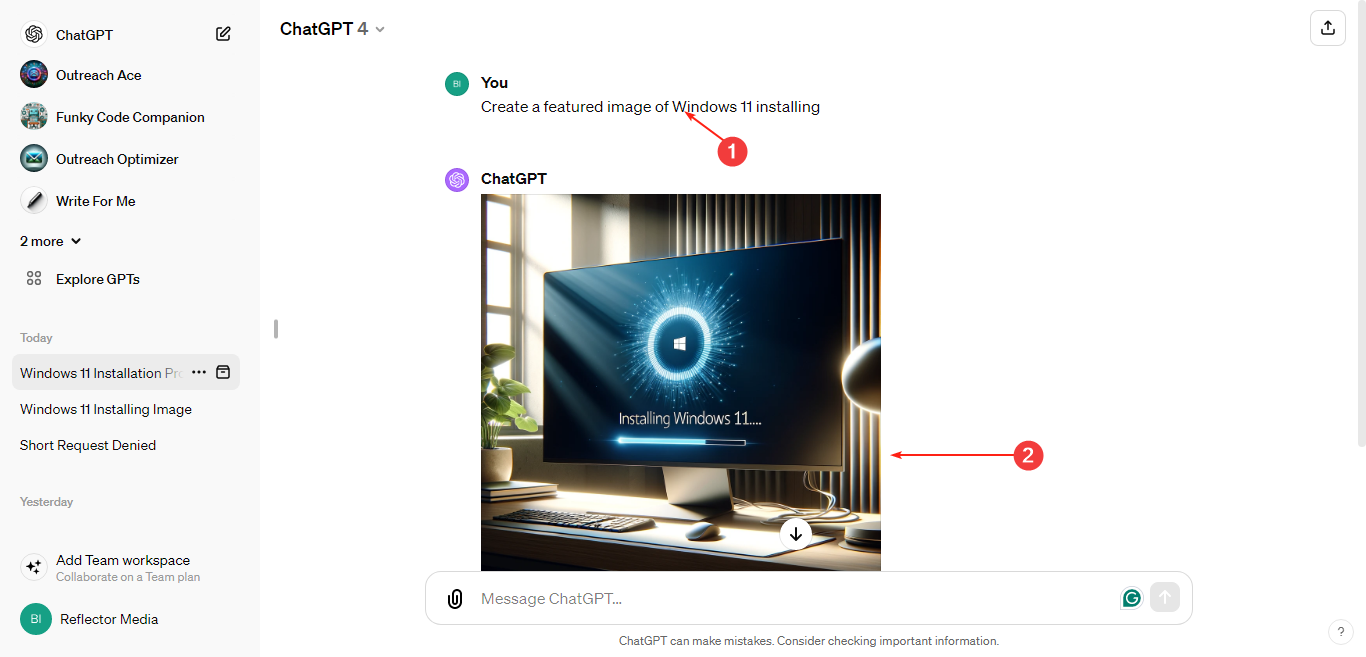
  1. Navigate to your browser and log in to ChatGPT. (You’ll need to be on the Plus plan to access DALL-E on ChatGPT4).
  2. In the text prompt, provide a description of an image you’d like to generate and wait for ChatGPT to create it.
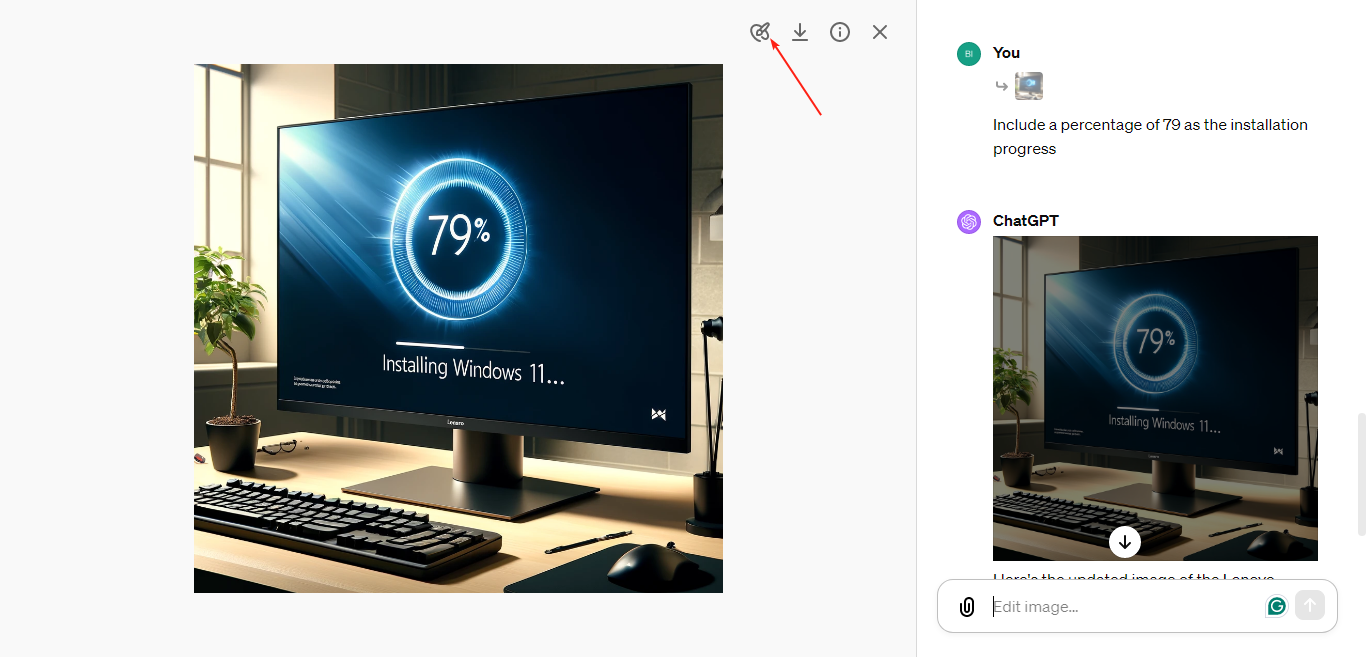
  3. Next, click on the image and select the edit button.
  4. You can select the specific area you’d like to edit and on your right in the text prompt, describe the edits. For instance, in this particular image, we want to include a PC brand and ensure it is displayed on the PC.
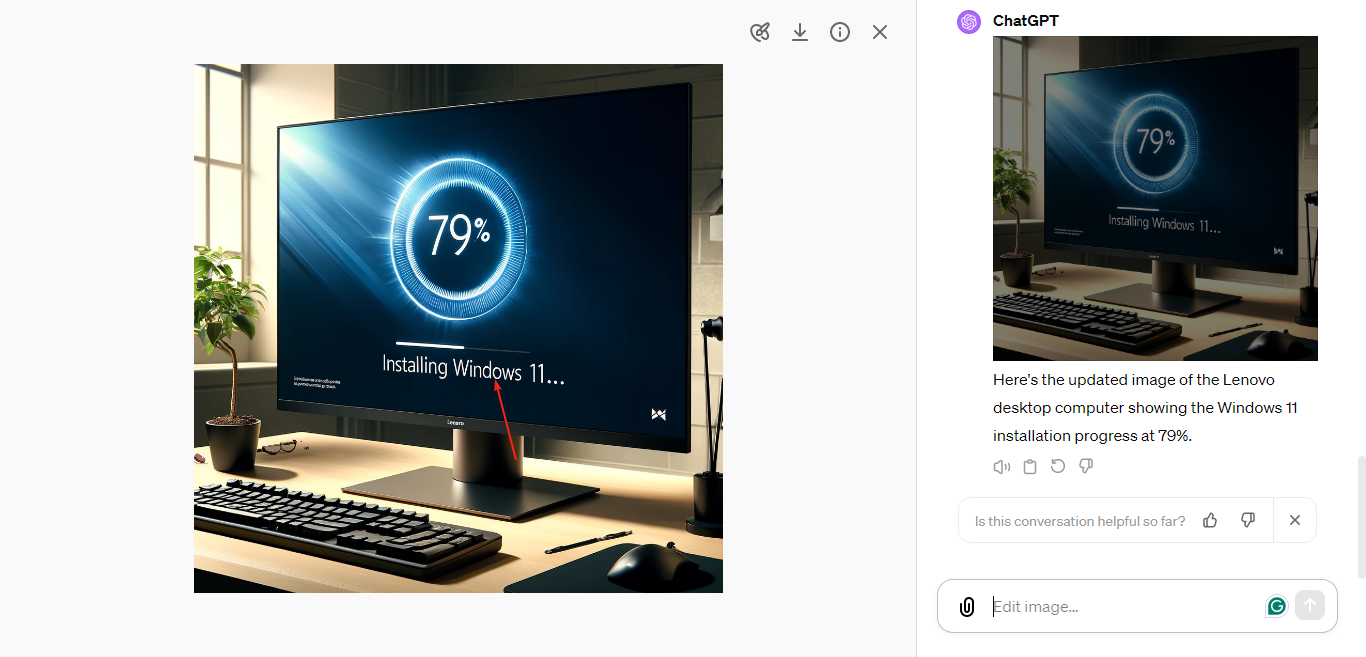
  5. Wait for the edits and view the updated image. Next, we want to remove the name Lenovo from the screen and include a progress percentage. Enter the prompt in the textbox and wait for the updated image.
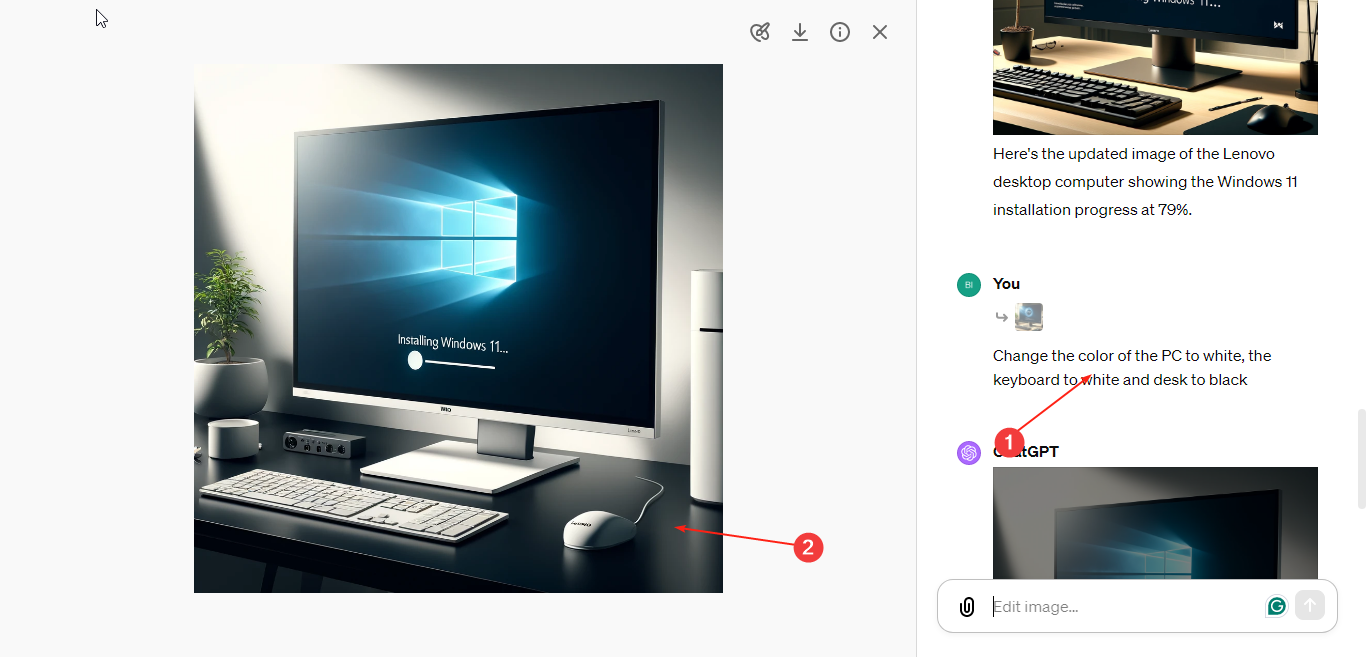
  6. Further, we want to change the color of the PC to be more vibrant so we task DALL-E to change it to white.
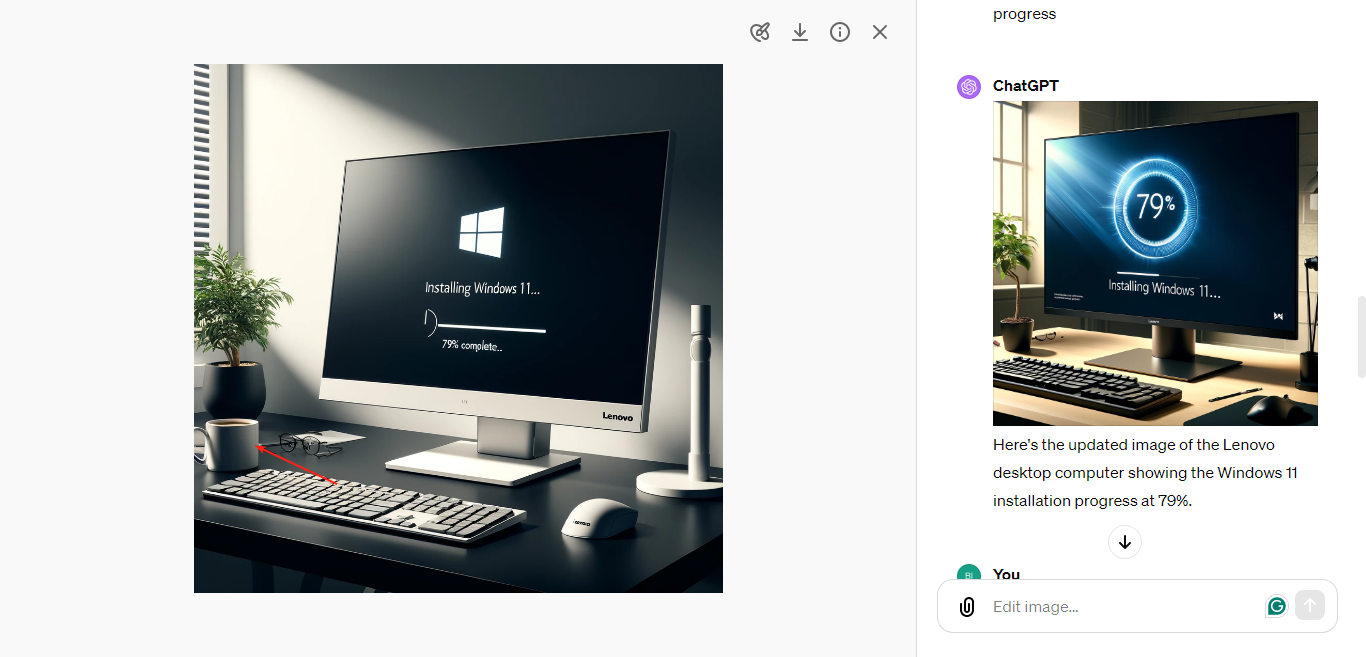
  7. Next, you can include more items in the picture. For instance, we add a cup of coffee.

Remember that with DALL-E, you can continue fine-tuning the details with descriptive prompts until you get your desired image. The clearer the instructions, the better the outcome.

All this is also available on both Android and MacOS so try it out on different platforms and see how you like it.

Limitations of editing images using DALL-E

  • Limited data – While ChatGPT may be able to generate and edit images, it may not capture all details that a natural image has or the exact scenario as you may envision because the model is trained with limited data.
  • Image distortion – Although the AI images generated are of high quality, they almost always lack realism. Editing may help cover some of these loopholes but in general, the images deviate from actual images with some inconsistencies even though insignificant in some cases.
  • Limited capabilities – Image editing on DALL-E 3 can only accommodate basic tasks. Complex editing that requires a high level of intricacy may be impossible to achieve and you may need the reinforcement of advanced image editing tools.

All in all, ChatGPT is continuously evolving and within no time, these limitations may no longer be there with a few more updates. However, for now, you can leverage its image editing capabilities to create those stunning Christmas cards or any other occasion you deem fit.

For those who are more business-oriented, you can already integrate ChatGPT in Microsoft Teams. If you’re more about living life on the edge, you can also try to generate Windows activation codes using ChatGPT.

It’s a gamble but the good thing about it is that it might be your lucky day to get a free upgrade.

That’s a wrap from us but we’re curious. Have you tried editing your images with DALL-E in ChatGPT?What was the experience like? Do you feel there are some features that could be added to improve the image editing process? Let us know in the comment section below.

Latest Palworld update, v0.2.1.0, on Xbox patches the bug preventing saved data from loading

The last few days have been filled with anxiety for Palworld fans after a recent update broke multiplayer game save data on Xbox. The issue was quickly acknowledged by developers, and they confirmed working on a patch. Now, the latest update, Palworld version v0.2.1.0, addresses the specific bug and more!

The release notes for Palworld v0.2.1.0 read,

・Fixed a bug that prevented save data from loading correctly in multiplayer
・Fixed a bug that caused the egg incubator to not work properly
・Fixed a bug that prevented raid boss achievements from being unlocked
・Bug reports and credits can now be accessed in-game
・Improved loading times on Xbox Series

But there is a catch!

The bug that broke multiplayer data from loading on Xbox was linked to the Chat feature. As a result, Chat has been disabled in Palworld, at least until the problem gets completely fixed.

Latest update still crashes Palworld, players report issues

There are still several issues in Palworld v0.2.1.0, from frequent crashes to the Pal Condensing Menu to the Dungeon bug.

I really wish they would make an update fixing the dungeon bug because on the Xbox series s every time I log in the simple game closes and it’s difficult to do Raid things like that.

I just crashed from a dungeon to this update.

I am still finding this problem in V. 0.2.1.0. It seems the 2.0.6 update has broken the Pal Condensing Menu making it unusable. If you try and update a pal that has NO STARS, when adding the fourth pal essence it goes from (3/4) to (0/16) and won’t allow the upgrade to one star.

Frequent crash on this new update and also my friends’ character data reset to level 1.

As for the dungeon issue, few users have been able to discover workarounds. One shared by MsBelleMae on Reddit reads,

The only way I have found around this is by going up to the dungeon, saving and quitting. When I reload back in I am able to clear the dungeon. Obviously not a permanent fix but maybe this can help in the meantime.

We expect a few more updates to stabilize the game and minimize the damage caused by Palworld v0.2.0.6 on Xbox. including restoring the Chat functionality.

For now, you should install the latest Palworld update, v0.2.1.0, on Xbox to get rid of the multiplayer game data bug and for faster loading time!

Palworld has been Xbox’s focus right since the start, from adding additional dedicated servers to fixing FPS issues. And we expect more patches and performance enhancements to be added soon!

Are you still unable to load multiplayer game data after Palworld’s latest update? Let us know in the comments section.

Get ready vault dwellers as Fallout 4 next-gen version is almost ready to drop

Good news Fallout fans! Bethesda is working on a next-gen version of Fallout 4, and we expect to see it soon.

So will this game be just a next-gen remaster or will it bring some new content to the game? Keep on reading to find out!

Fallout 4 next-gen upgrade is almost here, and it’s free!

The next-gen version of the game is scheduled to get a next-gen release as Glitched writes.

The good news is that the upgrade will be free for all existing Fallout 4 owners, so you won’t have to purchase the game again.

As for improvements, the game will offer Performance and Quality modes on both platforms, as well as increased resolution and texture quality. According to Bethesda, both modes are playable up to 60FPS on PS5 and Xbox Series X/S.

There is some good news for last-gen owners since they will get a free update with stability improvements and quest fixes.

Last but not least, PC gamers will get a patch with various new settings such as widescreen and ultra-widescreen support. The patch will also feature Creation Kit and quest bug fixes.

As for new content, the following Creation Club packs will be included:

  • Enclave Remnants – A new quest line that brings Enclave to the game, along with Enclave armor and weapons.
  • Makeshift Weapon Pack – This content pack converts all sorts of unusual items into weapons.
  • Halloween Workshop – Even though the Halloween season has passed, with this pack you can add Halloween decorations to your settlements.

Regarding the availability, the next-gen update is expected to drop on April 25 on next-gen consoles as well as Epic Games Store.

In other news, the new GTA+ price for Xbox users has caused a lot of controversy. If you’re an Xbox fan, you should know that the Xbox dashboard and party are coming to the web.

Chrome on Windows: New security feature to detect symbolic links

Microsoft is working with Google to implement a helper function called IsLink(…) for handling symbolic links in Windows for Chrome browser. This change addresses a specific security concern related to file handling during directory traversal.

When obtaining a file handle through functions like GetFile() or GetEntries() from a directory handle, there’s a risk that the file handle represents a symbolic link, also known as a symlink. Symlinks can point to paths that are potentially blocklisted or restricted. The security risk arises if the symlink file is created after permissions have already been granted to access the parent directory.

The IsLink function Implementation details for Chrome on Windows

The IsLink(…) helper function will likely check whether a given file handle corresponds to a symbolic link. By identifying symlinks, developers can take appropriate actions to prevent unintended security breaches.

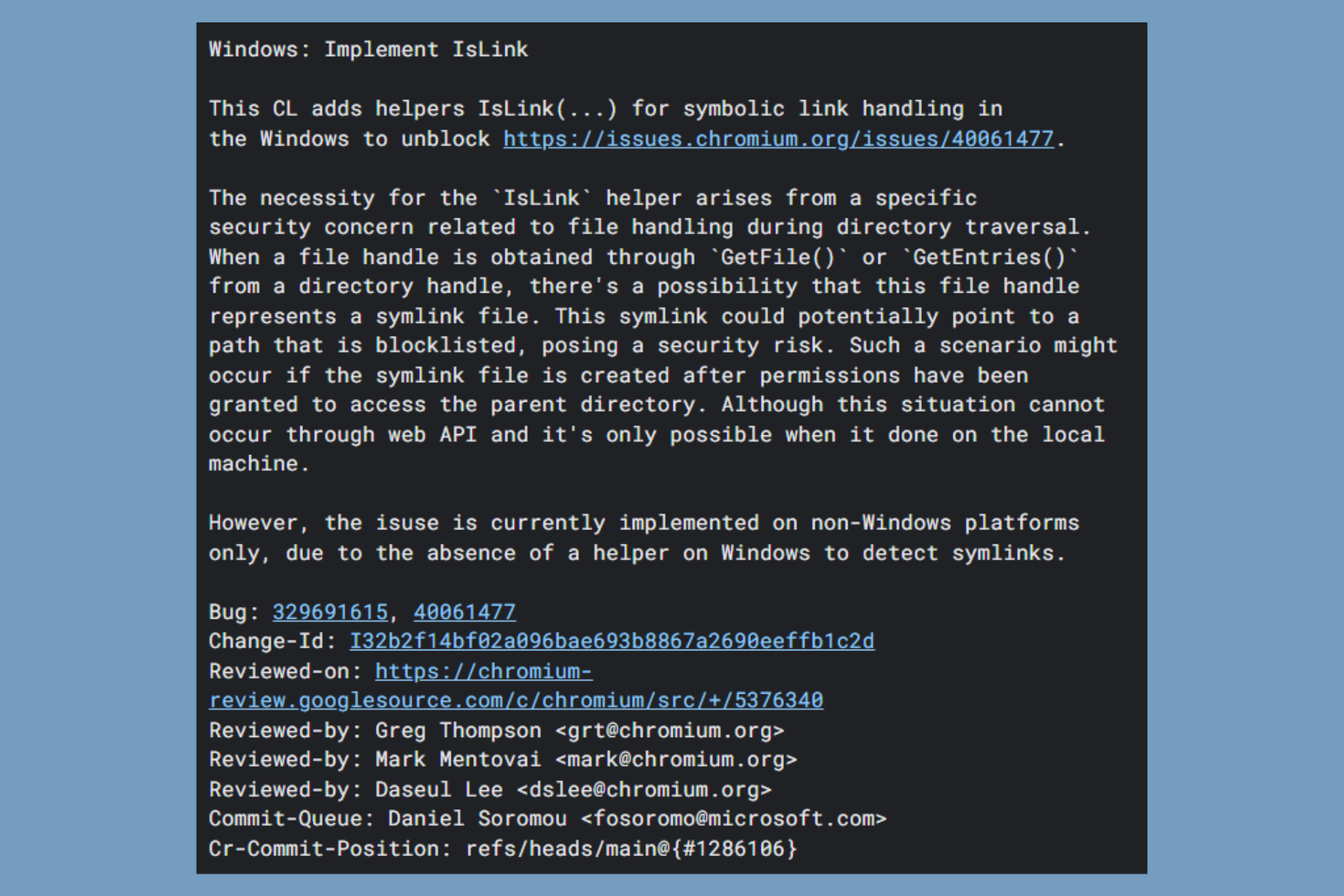
This CL adds helpers IsLink(…) for symbolic link handling in the Windows to unblock https://issues.chromium.org/issues/40061477.

The necessity for the `IsLink` helper arises from a specific security concern related to file handling during directory traversal. When a file handle is obtained through `GetFile()` or `GetEntries()` from a directory handle, there’s a possibility that this file handle represents a symlink file. This symlink could potentially point to a path that is blocklisted, posing a security risk. Such a scenario might occur if the symlink file is created after permissions have been granted to access the parent directory. Although this situation cannot occur through web API and it’s only possible when it done on the local machine. However, the isuse is currently implemented on non-Windows platforms only, due to the absence of a helper on Windows to detect symlinks.

Chromium development page

So, the issue only appears in the desktop version of Chrome for Windows because on other platforms, there is a helper for symlinks.

Hopefully, the IsLink helper will be implemented soon enough for all Chromium browsers.

Do you have any security concerns about Chrome? Let’s discuss this matter in the comments section below.

How to Broadcast Live on TikTok From a PC Using Streamlabs Desktop

TikTok is one of those apps that have stood the test of time and from people racking big bucks from the platform by going live, it only makes sense to optimize this feature so that you can broadcast from a PC and Streamlabs Desktop makes this possible.

Although you can download the TikTok app on your PC, its features don’t come close to those available on the mobile platform. Since it’s largely a mobile app, this explains why features like native livestream are not supported on desktop PCs.

However, for enhanced user experience broadcasting TikTok live from a PC could offer more functionality and improve user experience.

Streamlabs is an app that helps creators who use the live feature on social media sites like TikTok to enhance the experience. It has tons of customizable features, tools, templates, and plugins that ensure your live streams are of high quality.

How do I broadcast live on TikTok from a PC using Streamlabs Desktop?

1. Download Streamlabs Desktop

  1. Navigate to your browser and download Streamlabs Desktop.
  2. Once the download is complete, locate the exe file in your downloads folder, double-click on it to launch it then follow the on-screen prompts.
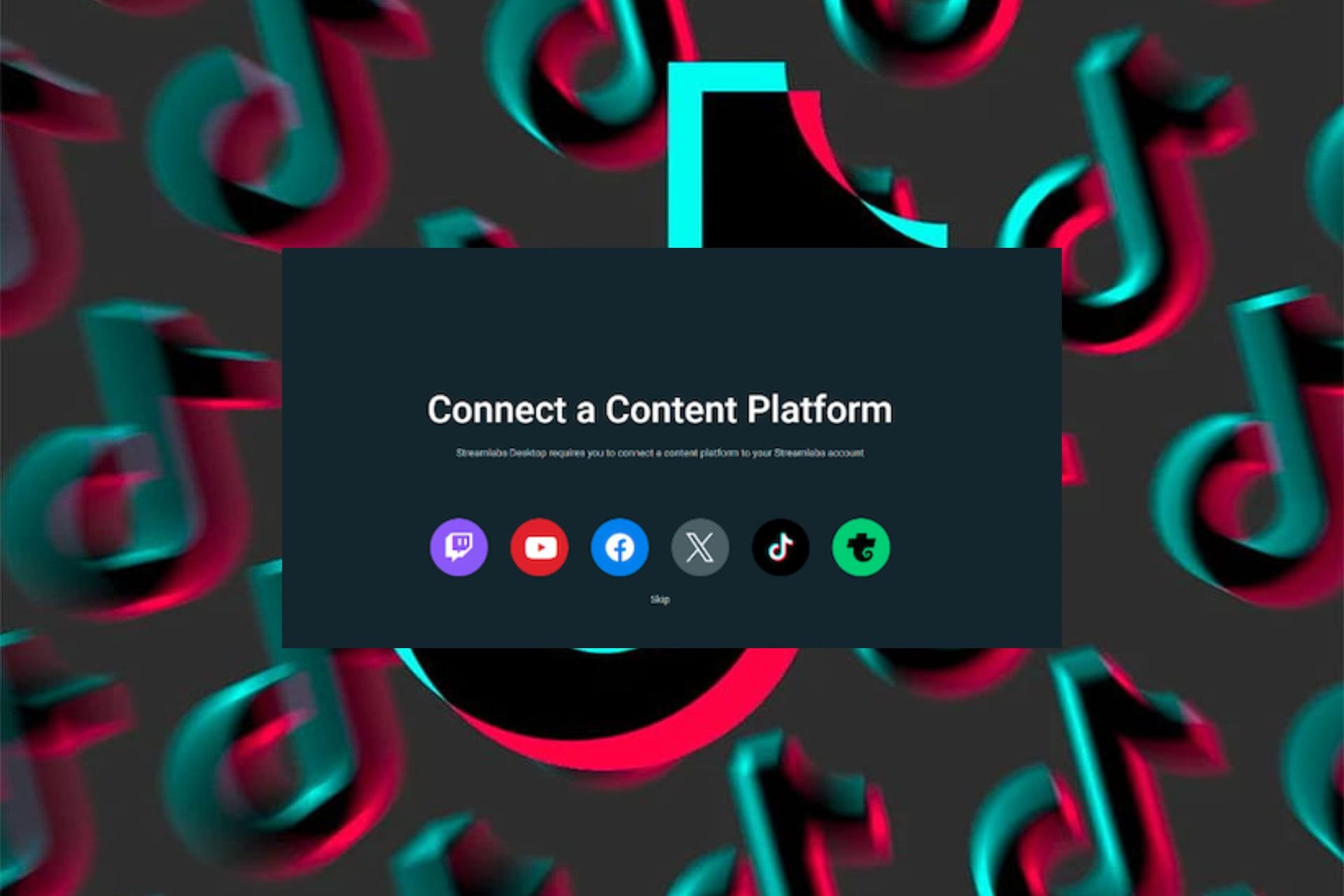
  3. In the next interface, you’ll be prompted to log in with either your Streamlabs ID or one of the social media platforms listed so select Login with TikTok.
  4. You’ll then be prompted to enter your TikTok credentials.

2. Integrate with TikTok

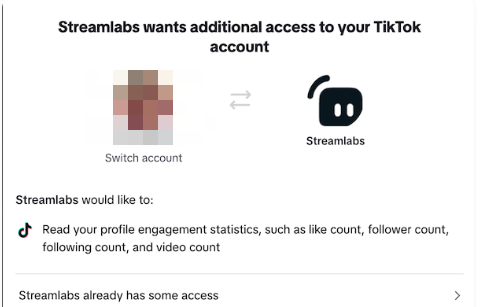
  1. Next, Streamlabs will ask for authorization to get additional access to your TikTok account. Read carefully the information this app will have access to and ensure you’re comfortable with it before proceeding.
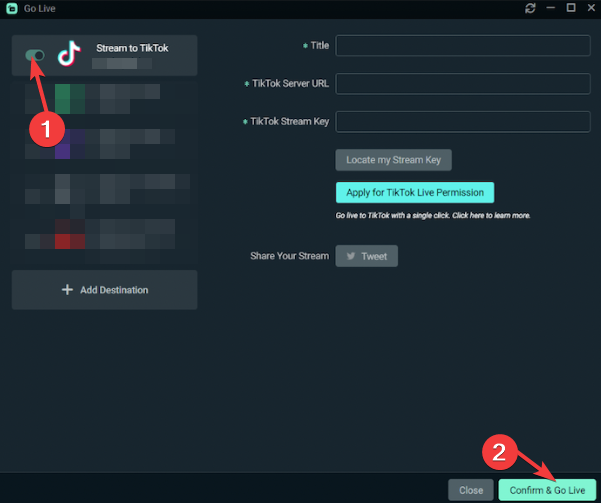
  2. You’ll now see a Stream with TikTok option. Slide the cursor to turn green and then click on Confirm & Go Live.
  3. Note that not everyone will automatically have the permission to go live so if the option in 6 above is missing, click on Apply for TikTok Live Permission.
  4. Once everything is good to go, your browser will open a window where you’ll be live on TikTok and a Chat and live analytics on the right-hand pane.

How do I troubleshoot common issues with Streamlabs

  • Performance issues – TikTok is created for phones so any performance issues while broadcasting live streams on a PC are expected. However, with minimal processes and a strong network connection, there should be little to no performance issues.
  • Video/audio lag – Your video or audio may lag or out of sync during the live stream. Updated audio and video drivers should fix this issue. Streamlabs also has its own built-in settings that you can play with to achieve a balance.
  • Video quality issues – The main point of using Streamlabs is to optimize your video quality but you must also have supporting hardware. Try out with different resolutions and see which one augurs well with your hardware specifics.

For any other advanced troubleshooting, do not hesitate to reach out to Streamlabs support. While broadcasting live streams on TikTok using Streamlabs is pushing the limits, it’s definitely an experience worth trying.

The good thing is you have all these tools, features, templates, and plugins to experiment with until you achieve that sweet spot that allows you to achieve optimal results.

And while still on the topic of optimizing TikTok for the best user experience, you can bulk download TikTok videos and keep them for future use or in case the user deletes them.

We also have a few tips to help you resolve TikTok connection errors in case the comments are not loading.

For users who love live streaming on social networks, we also have a couple of YouTube live streaming software that we think would do a good job just as Streamlabs or even better.

Have you tried broadcasting a live stream of TikTok on your PC using Streamlabs or any other software? What was your experience? What are the good and bad? We’d love to get your opinion so drop us a comment down below.

Copilot in Excel will get the ability to generate multiple formula columns from a single prompt

Microsoft recently updated its roadmap for Microsoft 365, adding a new feature for Excel Copilot, which will allow the generation of multiple formula columns from a single prompt.

The feature is listed as Feature ID 391638 and was added to the Roadmap on April 11, 2024. It will be available on Windows, Mac, and the web within the Microsoft 365 suite.

This feature is accessible worldwide on standard multi-tenant cloud deployments, and the rollout is expected to begin in April 2024.

With this update, you can get tasks like separating full names into first and last names or separating days, months, and years from date with a single prompt.

There is no further mention of this upcoming multi-formula generation feature, but we can anticipate that it will offer a range of pre-defined formula options or allow Copilot to learn from user preferences over time.

This feature could be very useful for those who often use formulas and deal with complex data structures. Another important feature pending rollout this month is Copilot in Excel support for complex formula columns from multiple tables.

Microsoft also added a new Copy/Paste experience to the Excel web app. Now, you can use drag-and-drop auto-fill to copy and paste content. Moreover, you will get a list of paste options.

To conclude, Microsoft’s advancement in Copilot features for Microsoft 365 shows its commitment to providing users with a seamless experience. Furthermore, this newest feature is great for both experienced and newbie Excel users.

 However, if you haven’t tried Copilot in Excel yet, maybe this is the sign to do it. We have a detailed guide on everything you need to know to use it. If you have already used it, share your experience with our readers in the comments section below.

Microsoft pitched ChatGPT and DALL-E to the US Department of Defense

Microsoft proposed to the US Department of Defense (DoD) to use OpenAI and Azure AI tools, such as ChatGPT and Dall-E. With them, the DoD can build software and execute military operations. Additionally, the Pentagon could benefit from using AI tools for various tasks such as document analysis and machine maintenance.

According to The Intercept, the Microsoft proposal for the US Department of Defense (DoD) to use AI tools happened in 2023. Yet, in 2024, OpenAI removed its ban on military use. However, Liz Bourgeous, a spokesperson from the company, came forth and said that OpenAI’s policies don’t allow the usage of its tools to harm others.

However, there is a catch. The company’s tools are available through Microsoft Azure. Thus, even if OpenAI doesn’t sell them due to its policies, Microsoft can use its Azure OpenAI version for warfare.

How is AI used in the military?

On the other hand, the presentation from Microsoft to DoD has some examples of how to use AI tools for warfare. For instance, Dall-E can create images to improve battlefield management systems training.

In addition, the Azure OpenAI tools can help identify patterns and make predictions and strategic decisions. On top of that, the US Department of Defense (DoD) can use the AOAI for surveillance, scientific research, and other security purposes.

According to Anna Makanju, after OpenAI removed the ban on military use, the company started working with the Pentagon. However, the company still prohibits the usage of their AI tools for warfare. Yet, the Pentagon can use them for tasks like analyzing surveillance footage.

Could AI be a threat to humans?

There is a bit of controversy going on. According to Brianna Rosen, who focuses on technology ethics, a battle system will undoubtedly cause us harm, especially if it uses AI. Thus, OpenAI’s tools will most likely breach the company’s policies.

Heidy Khlaaf, a machine learning safety engineer, indirectly said that AI tools used by the Pentagon and DoD could become a threat. After all, AI doesn’t always generate accurate results. On top of that, its answers deteriorate when researchers train it on AI-generated content. Also, the AI image generators don’t even show an accurate number of limbs or fingers. Thus, they can’t generate a realistic field presence.

Another concern is AI hallucinations. After all, most of us know what happened to Google’s image generator. Also, AI could try to use predictions in its answers. Thus, the battle management system might become faulty.

Ultimately, Microsoft and OpenAI are getting billions from their AI tools contracts with the US Department of Defense (DoD) and the Pentagon. Also, their AI will inevitably lead to harm, especially when used for warfare training and surveillance. However, they should work to reduce the amount of AI errors. Otherwise, their mistakes could lead to disasters. On top of that, the US Government should be careful with Microsoft’s services, especially after the Azure data breaches.

What are your thoughts? Should governments use AI to enhance their military power? Let us know in the comments.

No more switching screens! Chrome lets you scroll and zoom shared tabs in video calls

Google is doing its best to improve the quality of its browser, and the company is testing a new feature in the Canary version.

According to our findings, there’s a new setting available that will allow video conferencing apps to interact more easily with shared tabs.

Chrome Canary is testing new video conferencing settings

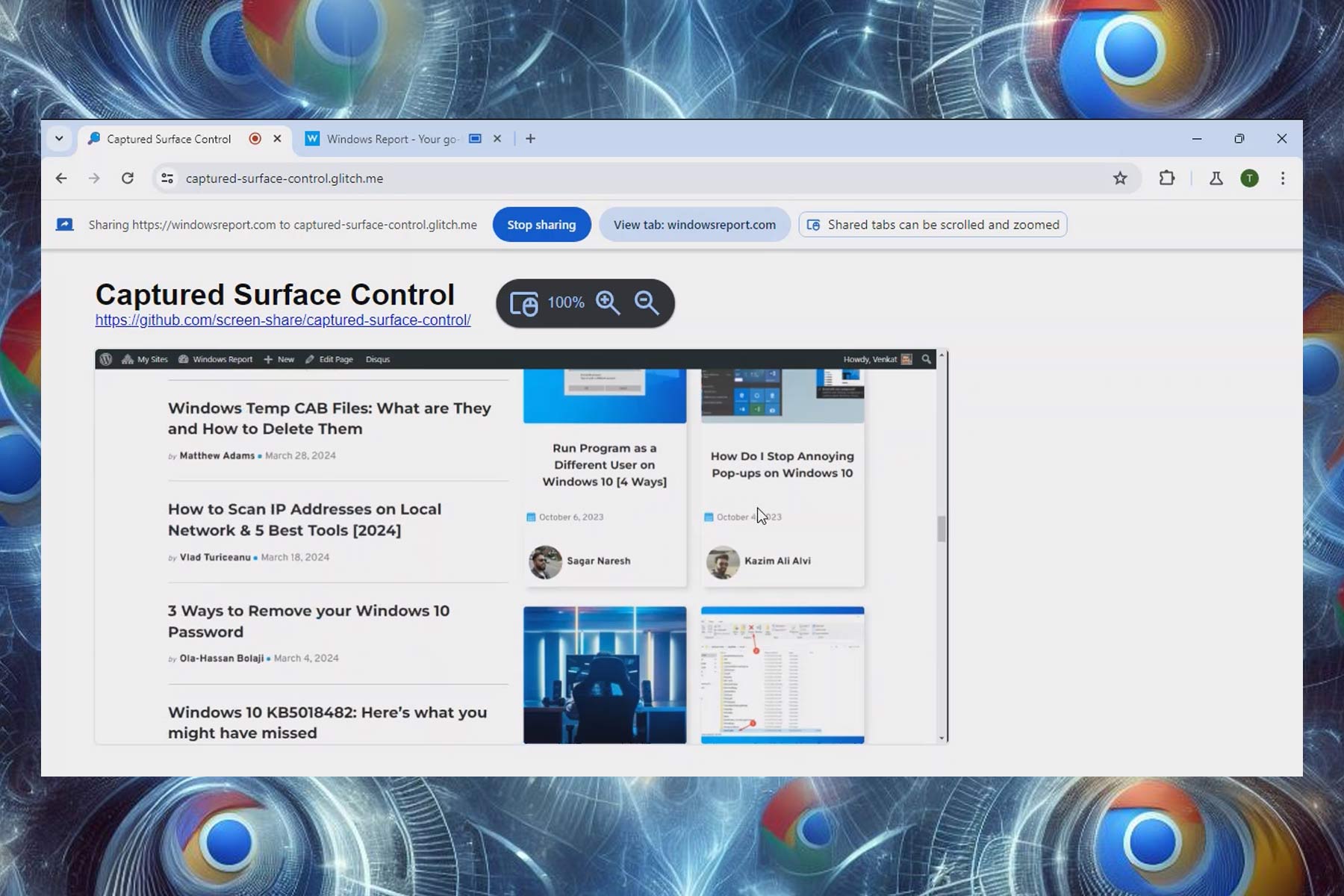
By default, Chrome Canary will allow video conferencing web apps to ask users to allow them to scroll and zoom on shared tabs.

This is possible due to the new Captured Surface Control API that allows web apps to scroll or zoom during screen-sharing sessions.

By using this feature, users won’t have to switch away from the video conferencing apps to interact with the shared tabs or windows thus offering a seamless experience.

This allows presents to scroll and zoom on the shared tabs without impacting the meeting, which is perfect for users who are multitasking or presenting content during calls.

This feature is enabled to default in Chrome Canary, but if you don’t want to use it, you can disable it by doing the following:

  1. Open Chrome, click on Menu, and choose Settings.
  2. Select Privacy and Security.
  3. Navigate to Site settings.
  4. Expand the Additional Permissions and select Scrolling & Zooming.
  5. Select Don’t allow sites to scroll and zoom shared tabs and save changes.

To test this feature in action, do the following:

  1. Visit https://captured-surface-control.glitch.me/.
  2. Select Click to share a tab.
  3. Now the desired Chrome tab and click Share.
  4. Next, click the shared content to grant permission.
  5. You should now see Shared tabs can be scrolled and zoomed message meaning that you can interact with that tab.

Here’s how this feature works in action:

This is a great feature and it will be helpful to all users that frequently share content during video conferences.

As for other features, Chrome is testing a new feature that will stop websites from spying on your keyboard, and we can’t wait to see it in action.

CyberPowerPC i7 RTX 4080 is the best gaming PC you can get at a decent price

If you didn’t find the Costco deal for the CyberPowerPC rig, we’ve got another one for you. CyberPowerPC i7 RTX 4080 is now only $2,269 at Amazon and it offers the ultimate PC gaming performance for every buck you pay.

It’s the best price we’ve seen lately for a gaming rig that features the 14th gen Intel Core i7 CPU and the GeForce RTX 4080 SUPER GPU combo.

Why should I buy the CyberPowerPC i7 RTX 4080 desktop PC?

First, we need to mention that the 14th gen Intel Core i7-14700KF has 20 cores, 28 threads, and a 33MB cache, with a turbo clock of 5.6GHz. Cooled by a 240mm AiO liquid cooling system, it’s the best CPU you can get now for gaming.

Then, the GeForce RTX 4080 SUPER is slightly better than RTX 4080 because it features a higher base clock speed, granting him a 5% – 10% speed boost. It also has a better ray tracing performance than its Radeon RX 7900 XTX competitor. The bottom line here is that you will be able to enjoy 4K gaming on high FPS and max graphics settings.

Well, apart from the latest in CPU and GPU power, this gaming behemoth comes with 32GB of DDR5 RAM and 2TB PCIe NVME SSD. You can do more on both, but you can upgrade the PC easily later.

The rig comes with Windows 11 Home, keyboard, mouse, and all the connectivity you may think of, including Wi-Fi. You also get a 1-year CyberPowerPC warranty.

Are you planning on buying a gaming PC? Let’s talk about that in the comments below.

Microsoft Edge’s built-in Screenshot tool gains the ability to capture windows and save screenshots

Microsoft Edge Web Capture, now called the Screenshot feature, allows you to take full web page screenshots and has two new features: the ability to capture the window and the ability to save the screenshot capture.

To invoke the Screenshot tool, you click on the three dots icon and choose Screenshot or press Ctrl + Shift + S.

When you launched the tool earlier, you used to have two options: Capture area and Capture full page.

However, the new update shows that you will also get a Capture window option along with the other two options.

In the past, when you selected any of the options present and took a screenshot, you were presented with three options: copy, Markup capture, and Visual search.

Now, the options after you take a screenshot have also got a new addition: Save. This means you can now take a screenshot and save it for future use. The image will be saved in JPEG format.

These features are being tested in Edge Canary. If you want to join the Edge Insider program to enjoy the benefits of using new features before general availability, check this guide.

What are your thoughts on the matter? Share your opinions with our readers in the comments section below.

Alienware m16 & m18 are hugely discounted today, now’s the perfect time to buy them

If gaming laptops always seemed like an out-of-budget purchase, especially premium ones from the Dell Alienware series, this is your chance to get them! Alienware m16 & m18 are available for $1,799.99 and $3,299.99, respectively.

Alienware m16, with a regular price of $2,799.99, receives a $1,000 discount, while Alienware m18, priced at $3,999.99, gets a $700 price cut during the deal!

If you were looking for a power-packed, high-performance gaming laptop within the $1,500-$2,000 range, the Dell Alienware m16 is one of the top contenders right now. As for Alienware m18, it is one of the top-rated gaming laptops with unbeatable specifications in the price range.

Specifications for Alienware m16 & m18

Alienware m16Alienware m18
ProcessorAMD Ryzen 9 7845HX14th Gen Intel Core i9 14900HX
GraphicsNVIDIA® GeForce RTX 4080, 12 GB GDDR6NVIDIA® GeForce RTX 4090, 16 GB GDDR6
Operating SystemWindows 11 HomeWindows 11 Home
Storage1 TB, M.2, PCIe NVMe, SSD4 TB, M.2, PCIe NVMe, SSD
RAM32 GB: 2 x 16 GB, DDR5, 4800 MT/s64 GB: 2 x 32 GB, DDR5, 5200 MT/s, non-ECC, dual-channel
Display16″ QHD+ (2560 x 1600) 240Hz, 3ms, FHD IR Camera18″ QHD+ (2560 x 1600) 165Hz, 3ms, FHD, IR Camera
Battery LifeUp to 2 hours, 58 minutesNo official information (2.5 – 4 hours as per reviews)
Price during limited-period deal$1,799.99$3,299.99
Source: Dell’s official website

You can directly head to the official website and buy any of the two gaming laptops:

Dell is also offering a Price Match Guarantee, meaning if you find either of the Alienware laptops at a lower price online, Dell will match it, making this effectively the cheapest deal right now!

If you are looking for budget-friendly options, take a look at our top picks for gaming laptops under $800.

Do you think Dell Alienware m16 and m18 are a value-for-money purchase during the deal? Let us know in the comments section.

Microsoft is advertising a Windows 11 upgrade even if your PC is not eligible

I’ve started one of my older Windows 10 laptops to find a big warning/advertisement from Microsoft:

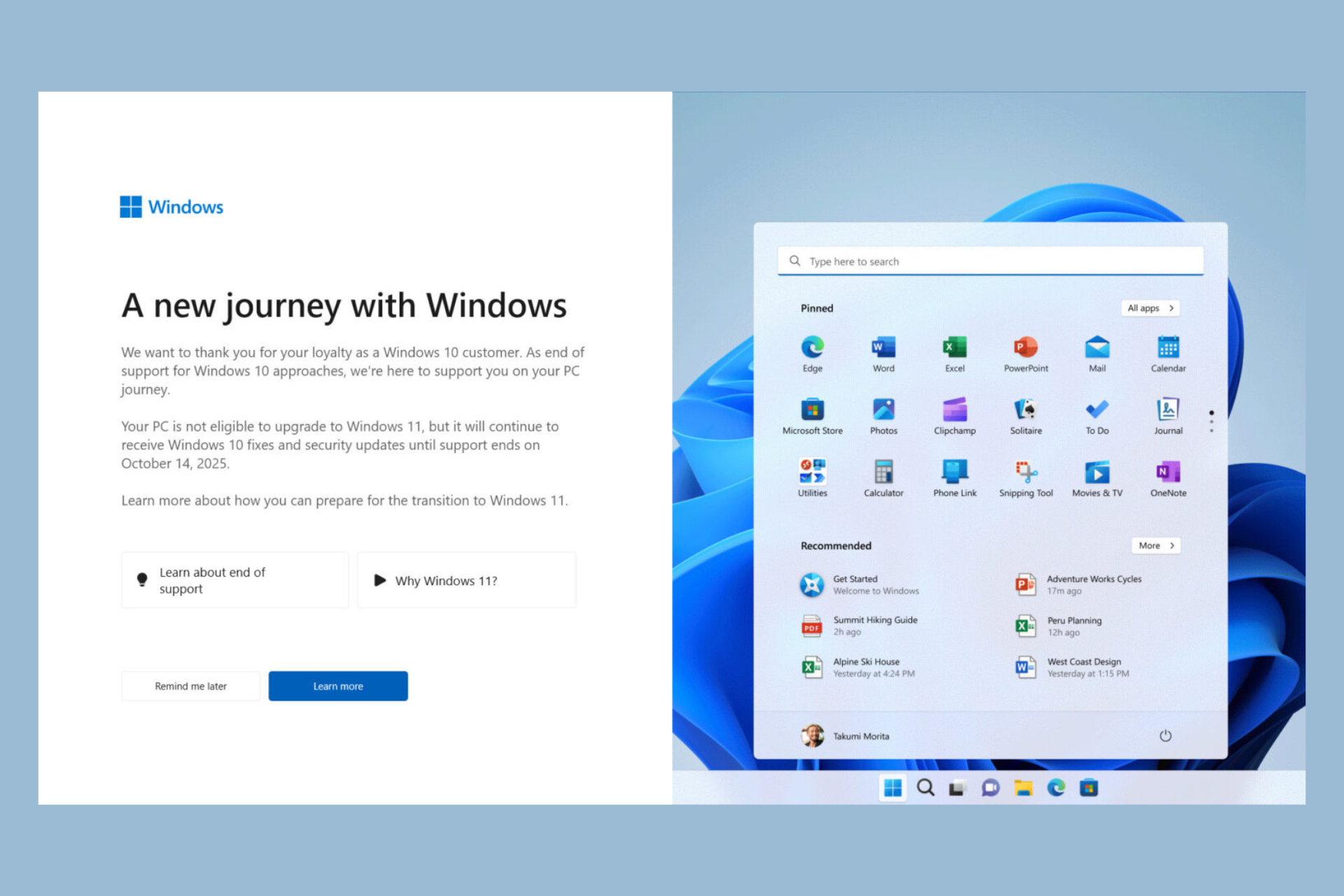
A new journey with Windows.

We want to thank you for your loyalty as a Windows 10 customer. As end of support for Windows 10 approaches, we’re here to support you on your PC journey.

Your PC is not eligible to upgrade to Windows 11, but it will continue to receive Windows 10 fixes and security updates until support ends on October 14, 2025.

And, of course, I wasn’t the only one to get it. People posted the screenshot on Reddit and Bob Pony pinned the needle on the donkey with his post on X.

We were already bombarded by Windows 10 end of support announcements but at least those were pushed towards users who could actually upgrade to Windows 11 because they had an eligible configuration.

Instead, the latest advertisement is also meant for less fortunate of us who can’t actually perform the upgrade. So the deadline for upgrade is October 14, 2025, but you can get a three year support extension. However, the ESU extension is not free.

Apart from the useful, but pretty mean warning, you can’t just close this window. You only have the options to Remind me later and Learn more. Of course, the first one means that you will be continuously nagged about this while the second actually directs you to the Windows 10 end of support announcement.

The latest Microsoft X post emphasizes the Redmond giant’s push for Windows 11 upgrade. Isn’t burning the Windows 10 flag a bit too extreme, though?

The bottom line is that Microsoft wants you to buy a new Windows 11 compatible PC or upgrade yours to continue the Windows journey. While the advertisement is somehow useful, I think I can speak for many users when I say that there should also be a Never show this again button somewhere on that page.

Have you received this message? Tell us your thought in the comments section below.

KB5036893 is full of bugs! Folks are reporting lag, random reboots, and full on unresponsiveness

Microsoft does its best to keep Windows up to date and working properly by releasing frequent updates.

Unfortunately, sometimes updates can cause other unexpected problems, and this is exactly what happened with KB5036893.

KB5036893 update is plagued with various issues

KB5036893 is a long-awaited Moment 5 update, and while it brings some new features, it brings a lot of trouble to users.

Users on Microsoft Answers reported various issues, most noticeably slowdowns that prevent folders from opening.

Files and folders on the desktop stopped opening after clicking. They open eventually but after a long delay of 5 minutes!

This is a major problem since it makes the PC almost unusable. This isn’t the only problem, many reported other issues with responsiveness:

The computer started becoming unresponsive and the drives started lagging behind so much the CPU went idle and the computer had to be powered off manually.

As soon as it was restarted it tried to auto install this update again and the same thing happened 4 more times.

It’s not just unresponsiveness, a few users reported that WSL is not working after the KB5036893 update:

Confirm this update impact wls , after windows 11 installed the update and reboot, wls v2 can’t start. Tried

Some users experienced UI issues, most notably problems with the Taskbar:

It made it so my taskbar stopped working (It was gone with a loading symbol when you hover the mouse over where the taskbar should be) and I could not access my settings app to access any recovery options or anything. I also could not load firefox to browse the internet.

Users on Reddit also voiced their issues such as failed installations:

First time this has happened to me; it went to reboot and go to its second phase, and poof, it just died, black screen, power was on, but no signal to mouse or keyboard either. Had to power off, and power it back on to get it to continue. Very creepy!!!!

Error 0x800705b9 was also reported while trying to install the update:

I keep getting “Install error – 0x800705b9” no matter how many times I retry. I tried manually installing the update through the Microsoft catalog and I tried doing a repair install using a Windows 11 .iso file and both give me “Windows installation failed” error messages. Spent the past 8 hours trying to solve this with no luck.

Even the dreaded blue screen can appear after the failed setup:

Tried to install this, it went through the install normally, back to desktop and then blue screen. Couldn’t get it to work after a couple reboot cycles. Tried to uninstall quality updates which said successful and then blue screened again when trying to load windows. Back to desktop then blue screen again.

Instead of the blue screen, many users reported a white screen of death:

White screen of death https://answers.microsoft.com/en-us/windows/forum/all/white-screen-after-update/d598ded4-babb-407e-af48-d4b29553aca6 at least 20 people are having same issue today on reddit/microsoft forum, so probably in the thousands.

Mouse and monitor problems are also present in this update:

Monitors don’t come back on after resuming from sleep and my mouse is very jittery after installing KB5036893

Lastly, there are also issues reported with HP Dragonfly G1 and Diagnostic Data Viewer.

Overall, this update seems like a mess, so save yourself the trouble and don’t download it until Microsoft fixes these issues.

KB5036892 is not installing for many, showing 0x8007000d error. Here’s what to do

Microsoft recently released the KB5036892 that fixed more than 20 fixes and brought two new features but for some, the April 2024 cumulative update is impossible to install.

The users keep getting the error code 0x8007000d with the following message: Some update files are missing or have problems. We’ll try to download the update again later. Error code: (0x8007000d).

We’ve recently encountered the exact same problems with the KB5034848 patch for Windows 11.

The issue surfaced on the Microsoft Answers forum while the user kept getting the error even if he applied all the basic steps in this situation. He scanned the system for errors, ran the Windows Update troubleshooter and even performed a manual installation of the KB5036892 downloaded from the Microsoft Update Catalog page.

Error 0x8007000d is usually triggered by system file corruption or missing or incomplete update. So, first of all, perform a SFC scan, use the CHKDSK tool to verify the integrity of your drive and use the Windows update troubleshooter. If these don’t work, follow the solutions below.

What can I do if the KB5036892 is not installing?

An independent advisor suggested the user to remove the Microsoft Windows Printing Package using PowerShell. To do that on Windows 10, right-click the Start button and select Windows PowerShell (Admin) and run the following command:

Remove-WindowsPackage -Online -PackageName "Microsoft-Windows-Printing-PMCPPC-FoD-Package~31bf3856ad364e35~amd64~en-US~10.0.19041.1"

We also recommend uninstalling the latest Windows update and try again. For that, go to Settings > Windows Update > View update history > Uninstall updates and remove the most recent update. Then, restart your PC and check for updates.

If these methods don’t work, you will need to perform a Windows 10 repair upgrade. The highlighted guide will help you with this procedure.

Now, it’s not a secret that Microsoft is pushing Windows 10 users for an upgrade to Windows 11. There are also some rumors that the software giant is deliberately sabotaging the old OS to speed up the Windows 11 adoption. However, judging by the history of failed Windows updates, this is nothing out of the ordinary. You should definitely check our Windows 11 vs Windows 10 extensive comparison to see if it’s time for the upgrade.

Did you manage to install the KB5036892 update? Tell us in the comments if you’ve found any other working solutions.

Intel unveils 9 Meteor Lake-PS processors that are designed for edge computing

Intel recently announced new LGA 1851-ready Core Ultra Meteor Lake-PS processors at the Vision 2024 event. These processors come with Arc graphics and a Neural Processing Unit (NPU) for AI workloads tailored for edge computing.

The Meteor Lake-PS processors are designed for consumers in education, retail, kiosk, industrial, and smart point-of-sale systems for brick-and-mortar stores.

With over 90,000 deployments globally, edge computing is a colossal market for Intel, and with these new processors, the company is trying to solidify its position further.

These edge-focused Meteor Lake CPUs use the new LGA 1851 socket, which feels like it is setting the stage for a revolution in desktop computing. This socket will also be used in the upcoming Core Ultra 200 Arrow Lake-S processors, scheduled for release later this year.

Intel has unveiled nine new Meteor Lake-PS processors so far, comprising five 15W chips and four 45W processors.

The lineup in the 15W TDP category includes Core Ultra 3, Core Ultra 5, and Core Ultra 7 variants, which will have core counts ranging from 8 to 12.

All the processors feature two P-cores alongside E-cores and LPE-cores. Based on the SKU, CPU boost clocks reach up to 4.9GHz.

The Meteor Lake-PS 45W processor lineup offers enhanced capabilities and core counts ranging from 14 to 16 cores, suitable for people who need higher performance.

The Core Ultra 5 models in this category come with 4 P-Cores, 8 E-Cores, and 2 LPE-Cores. However, the Core Ultra 7 models feature 6 P-Cores, 8 E-Cores, and 2 LPE-Cores.

In addition, the CPU boost clock is between 4.5GHz and 5.0GHz, depending on different SKUs to fulfill workload requirements.

With the integration of Arc graphics and a dedicated NPU for AI workloads, Meteor Lake-PS processors are definitely a step forward in computational versatility.

This will empower users across various industries to leverage edge computing power to make decisions faster and gain operational efficiency.

What are your thoughts on the matter? Share your opinions with our readers in the comments section below.

Chrome’s new features for Tab Groups will let you pin & organize your workflows

Google is bringing in pinning, everything menu, and changes to the bookmarks bar for saved tab groups in the Chrome browser on Windows, Mac, ChromeOS, Linux, Fuchsia, and Lacros. The feature is currently being tested in the Canary version.

With the aim to simplify tab grouping and management, Chrome is set to introduce an option to enable saved tab group pinning, presently available as a Flag (experimental feature in Chrome).

Google Chrome’s Save Tab groups UI to get improvements

Whenever you save a tab group, it is pinned to the bookmarks bar, in a separate menu.

The menu appears on the bookmarks bar and shows all tab groups saved so far while allowing you to create new tab groups just as easily.


For each tab group that it displays, it offers an option to unpin/pin from the bookmarks bar, or delete the group.

While some features of the Tab Groups Save UI Update flag have not yet been completely implemented, they are slowly being rolled out. The pinning option for the saved tab groups, everything menu and changes to the bookmarks bar, will be visible soon.

Chome’s Tab Groups menu

Update: Now, Chrome’s main menu also features a menu for Tab Groups that shows created groups and allows to create a new one. This menu only appears when you’ve saved tab groups.

To enable the flag, launch Google Chrome > paste chrome://flags/ in the address bar and hit Enter > select Enable from the dropdown menu for Tab Groups Save UI Update > relaunch the browser.

Enabling the Tab Groups Save UI Update flag

For existing grouped tabs, simply right-click on one and choose Save. For a tab group in the bookmarks bar, you will find an Unpin option in the context menu.

Unpinning tab groups

Google Chrome has Tab groups available on different operating systems to organize tabs into distinct groups to eliminate clutter and enjoy a seamless experience. Also, you can collapse and re-expand tab groups as you please. Collapse them when you need more space, and re-expand for quicker accessibility!

Besides, you can save tab groups and sync them across devices so they are not lost on subsequent restarts and reflect across devices respectively.

Earlier this year, Chrome’s tab groups on Android got a desktop-like UI to make the feature more coherent across different devices.

Should the features from the Tab Groups Save UI Update flag be introduced for all? Share your thoughts with us in the comments section.

Latest leaks reveal that Marvel Rivals might be coming to consoles after all

If you’re a fan of hero shooter games, then you might be familiar with the upcoming Marvel Rivals game.

We finally have some leaked information about the game, so let’s see what’s in store for gamers.

Marvel Rivals leak brings good news for PlayStation 5 and Xbox users

As reported by Game Rant, NetEase and Marvel Games are working on a free-to-play hero shooter. The game will be similar to Overwatch and it will feature characters from Marvel Universe.

Many speculated that the game will be available on multiple platforms, especially after NetEase officials stated that they are actively exploring potential releases on other platforms.

In a deleted tweet, Twitter user Dreamz Gaming found a hidden code on the game’s website, and when enabled this code reveals all the platforms that the game will be released for.

According to him, the list includes PS5, Series X/S, Steam, and Epic Games Store. However, this is just a leak, and nothing has been confirmed by the developers.

However, we do know that there will be a closed alpha test in May, so if you want to try the game, consider joining it.

In other gaming news, the new GTA+ price leaves many Xbox users extremely disappointed. That’s not all, many are also unhappy because Microsoft is ignoring user feedback on Xbox home screen issues.

Vision 2026: Intel launches Gaudi 3 accelerator and next-gen Lunar Lake, CEO shares future strategy

Microsoft is focused on integrating artificial intelligence into PCs, and Intel is at the forefront of this campaign. During the recent Vision 2024 event, Intel unveiled Gaudi 3, its second AI chip, set to take on NVIDIA. Besides, Intel confirmed the next-gen Lunar Lake with 100+ TOPS (Tera Operations Per Second) performance.

At the Vision 2024 event, Intel’s CEO Pat Gelsinger, said,

Innovation is advancing at an unprecedented pace, all enabled by silicon – and every company is quickly becoming an AI company. Intel is bringing AI everywhere across the enterprise, from the PC to the data center to the edge. Our latest Gaudi, Xeon and Core Ultra platforms are delivering a cohesive set of flexible solutions tailored to meet the changing needs of our customers and partners and capitalize on the immense opportunities ahead.

About Gaudi 3, the latest AI chip from Intel

The Gaudi 3 AI accelerator will be the best choice for powering AI systems, boasting 4x higher AI compute for BF16 and a 1.5x rise in memory bandwidth over the previous models.

Tests conducted by Intel reveal that Gaudi 3 will be able to train Llama2 models with 7B and 13B parameters 50% faster than the current market leader, NVIDIA H100.

Intel plans to make Gaudi 3 available to OEMs (Official Equipment Manufacturers), Dell Technologies, HPE (Hewlett Packard Enterprise), Lenovo and Supermicro, by the second quarter of 2024.

Intel also shared a list of enterprises that utilized its products to train AI models or perform AI-powered tasks. It includes NAVER, Bosch, IBM, Seekr, IFF, Landing AI, Roboflow, and Infosys, amongst others.

Intel Xeon and Intel Core Ultra (Lunar Lake) receive improvements

Intel launched two new processors in the Xeon series, the Intel Xeon 6 processor with E-cores (Sierra Forest) and the Intel Xeon 6 processor with P-cores (Granite Rapids). The former offers improved efficiency, while the latter aids the AI performance. Besides, Sierra Forest will launch in the second quarter of 2024, followed by Granite Rapids.

The next-gen Intel Core Ultra (Lunar Lake) series of processors will deliver better results, hitting 100 TOPS (Tera Operations Per Second).

Intel also plans to ship more than 40 million AI PCs worldwide in 2024 across a range of designs, be it handheld consoles or ultra-thin laptops.

Read more about the Vision 24 event in Intel’s official press release.

In the last few years, Intel has made significant developments in the field of AI, but it has yet to beat NVIDIA, which commands roughly 70% of the AI chip market share. Also, NVIDIA plans to release two new AI processors.

The battle is about to get intense, with AI PCs gaining relevance. According to Microsoft, an ideal AI PC should have the Neural Processing Unit, the most recent CPU and GPU, support for Microsoft Copilot, and a dedicated Copilot key.

Most modern-day laptops with AI capabilities ship with a dedicated Neural Processing Unit. Quickly check if your PC has an NPU.

What do you think about Intel making strides in AI and Gaudi 3? Share with our readers in the comments section.

EA Play subscription becomes costlier, check the new prices

Subscription costs across the entertainment industry are rising, and EA (Electronic Arts) is the latest to hike prices for its subscription-based gaming service, EA Play.

As per a report from GamesIndustry.biz, EA is expected to increase subscription prices by up to 80%. This affects both the Standard and the Pro subscriptions. The latter is a premium service, offering more in-game rewards and early access to games!

Subscription TypeOld PricesNew Prices
Standard (monthly)$4.99 / £3.99$5.99 / £5.99
Standard (annual)$29.99 / £19.99$39.99 / £35.99
Pro (monthly)$14.99 / £14.99$16.99 / £16.99
Pro (annual)$99.99 / £89.99$119.99 / £109.99
Old and new prices for EA Play

The report suggests that the increased prices will come into effect for existing subscribers from May 10, 2024. As for the new users, EA Play is already displaying the updated prices.

Updated prices reflect for new subscribers

The price hike is aimed at accommodating the change in the value of the currency and aligning with the market value. EA has also sent out emails to existing customers, apprising them about the price hike for EA Play.

Ever since the news broke, many EA Play subscribers have expressed concerns. They believe that a price hike should be accompanied by new features or added value.

Last year, both Microsoft and Sony increased the subscription prices for Xbox Game Pass and PlayStation Plus, respectively. For the former, you can always earn 275 reward points with the Xbox Weekly Console Bonus!

What do you think of the price hike for EA Play? Share with our readers in the comments section.

Can’t escape Copilot as Microsoft is testing starting the AI bot with Windows

Copilot is a major component of Windows, and Microsoft does its best to remind us of that, by integrating its AI assistant in all major Microsoft services.

It seems that Microsoft is now testing a new feature that will show you Copilot as soon as Windows starts.

The latest Windows build has Copilot launching at startup

This was first reported by MSPowerUser, but many users or X also complained that Copilot automatically launches on startup in Build 26100 for Insiders in Canary and Dev Channel.

This is nothing new, and this feature has been tested in Build 26052, but it has been temporarily disabled.

Microsoft’s Brandon LeBlanc confirmed that they have enabled this feature again on his X profile:

However, not all users will get to experience this change, and according to Microsoft, Copilot only starts automatically for users that have at least 27-inch displays with full HD resolution or larger.

In case you don’t want to see Copilot at startup, you can change Copilot settings from the Personalization section to disable it.

Microsoft is well-known for promoting its services, and the company is currently testing Copilot prompts in Edge’s address bar.

Many believe that Copilot is more useful to companies, and if that’s true, the question arises as to why Microsoft keeps pushing it so relentlessly to everyday users.

After Wi-Fi drivers, Intel updates its Bluetooth drivers as well

Intel recently released Wi-Fi drivers; this time, an update is available for Bluetooth drivers. The update will bring the package version to 23.40.0.2 and is compatible with Windows 10 and Windows 11.

The update for the Bluetooth driver focuses on improving Bluetooth LE in several scenarios. The improvements that come along with the update are mentioned in the release notes:

  • Improvements for specific scenarios when using both BR/EDR and LE connections observed in 23.10.0.
  • Advertisement Data Info in Periodic Advertising feature improves platform power saving when host/OS changes are available and is a pre-requisite for LE Audio Aura cast.
  • Intel® Wireless Bluetooth® 23.40.0 driver has been updated to include functional and security updates. Users are encouraged to update to the latest version for best performance.

Here is the list of supported products and driver versions mentioned in the Intel release notes for Wireless Bluetooth 23.40.0

Intel Wireless AdapterBluetooth Driver Version
Intel Wi-Fi 7 BE202Windows 10 64-bit only
Windows 11 664-bit only23.40.0.2
Intel Wi-Fi 7 BE200
Intel Wi-Fi 6E AX411 (Gig+)
Intel Wi-Fi 6E AX211 (Gig+)
Intel Wi-Fi 6E AX210 (Gig+)
Intel Wi-Fi 6 AX203
Intel Wi-Fi 6 AX201
Intel Wi-Fi 6 AX200
Intel Wi-Fi 6 AX101
Intel Wireless-AC 9560
Intel Wireless-AC 9461/ 9462
Intel Wireless-AC 9260
Intel Dual Band Wireless-AC 3168Windows 10 64-bit
Windows 11 64-bit20.100.10.11Windows 10 32-bit20.100.9.8
Intel Dual Band Wireless-AC 3165
Intel Wireless 7265 Family

You can download and install the Intel Wireless Bluetooth driver version 23.40.0 from the official website. To do so, download the .exe file, double-click it to initiate the installation, and then follow the on-screen instructions to complete the process.

This software package includes drivers for the Intel Wi-Fi 7 products, including Intel Wi-Fi 7 BE202 and Intel Wi-Fi 7 BE200. 

The update works on 64-bit Windows 10 and Windows 11 devices with supported Intel network cards, as mentioned in the list above.

If you can’t find the network card installed on your PC, you can get help from Intel’s help page. Have you installed the latest version yet? If so, share your experiences with our readers in the comments section below.

Swiping right opens Copilot on Windows 11 instead of the Notification Center, here’s why

If you have a touchscreen Windows 11 PC or tablet, we have some bad news. Swiping right on the display doesn’t open the Notification Center anymore, and you are greeted by Microsoft’s native chatbot, Copilot, on Windows 11!

This doesn’t come as a surprise, given Microsoft’s push for Copilot and AI integration into its products, starting from File Explorer in Windows 11 to Microsoft Advertising.

The change was first spotted by Zac Bowden, Senior Editor at Windows Central, and shared in a post on X.

Apparently, Microsoft quietly announced its plans to test this feature on Windows 11 Insider Preview Build 23601 in Dec’23 in the official blog post.

We are trying out a change where when swiping from the right edge of the desktop on a touch display will open Copilot instead of notifications.

Now, it seems like the change has finally made it to Windows 11 tablets and PCs. As expected, users are not happy about it!

Many want the old Notification Center back

As soon as the change was implemented, users were quick to voice their disapproval, including me. Having used a touchscreen Dell Inspiron 14 5410 2-in-1 laptop for over 2 years, the inability to access the Notification Center with a quick swipe will certainly affect the workflow.

Though notifications are not as integral to the Windows ecosystem as they are to iOS and Android, they still remain vital to many. I often check the notifications at least once a day to make sure there are no unread messages on Slack or any critical device-related alerts.

As for Windows 11 users, some questioned the whole AI push, while others were happy as long the change could be reverted via the Local Group Policy Editor.

Seriously, this AI initiative from Microsoft reminds me of when they chased, tried and failed for an entire decade the phablet/tablet and mobile app craze and completely botched it, not understanding what users actually want or desire.

As long as we can always shut it off via Group Policy I am happy.

Remember, Microsoft hasn’t altogether deprecated the Notifications Center in Windows 11. You can still access it by clicking/tapping the Notifications icon at the extreme right of the taskbar.

We do hope Microsoft either adds a quick setting to reverse the change or at least introduces a group policy for it because, in the absence of the two, the new default right-swipe Copilot gesture can’t be changed!

If you are not a big fan, perhaps consider disabling notifications on Windows 11.

What do you think about Windows 11 opening Copilot instead of the Notifications Center on swiping right? Share with our readers in the comments section.

Google brings Gemini Code Assist and CodeGemma to ease your work

Google brings two new AI tools for coding, Gemini Code Assist and CodeGemma, based on Gemini and GemaAI models. The first one can help you code in many programming languages. The second one has fewer programming languages, but it can run locally. So, it is better for office work.

Gemini Code Assist can write code in 22 programming languages like C, C++, MatLab, Ruby, Rust, Javascript, Python, and SQL. Additionally, it can answer your questions about the Google Cloud. In addition, it can debug existing code. Also, it can explain code so you can learn it faster. Unfortunately, this AI tool for coding is part of the Gemini for Google Cloud offering. Thus, it is not currently available as a standalone tool.

CodeGemma has fewer programming languages compared to Gemini Code Assist. In addition, it can generate code in Python, Javascript, and Java and complete existing code lines. Google made three variants of this AI tool for coding.

The first CodeGemma model is the 7B pretrained variant, made for code generation from prefixes and suffixes and code completion. The second model is the 7B instruction-tuned variant designed for following instructions and natural language-to-code chat. The last model is the 2B pretrained variant that helps you complete code x2 faster. On top of that, you can run it on your device while being offline.

According to Google, the CodeGemma AI coding tool should help you reduce the repetitive code you have to create. Also, the company trained the models on 500 billion tokens of data. Yet, you can only access the 7B CodeGemma models using Nvidia’s Chat with RTX or Opera One’s browser developer version.

Previously, Google tried to offer us an AI tool for coding and various other tasks known as Duet AI. However, it rebranded into Google Business and Enterprise. So, the two new additions should replace it. Yet, it will take some time until Gemini Code Assist will compete with Copilot for GitHub. After all, Microsoft offers it as a standalone AI assistant. By the way, if you are looking for another engineering software, check Devin.

Ultimately, the new AI tools for coding from Google could help developers work faster. Also, the CodeGemma 2B will be a great tool since it works offline. So, it might be safer than its online counterparts. Hopefully, the new AI tools won’t hallucinate like the image generator, especially since this issue concerns some users.

What’s on your mind? Are you going to get the CodeGemma or Gemini Code Assist? Let us know in the comments.

Xbox dashboard and party chat now coming to the web

Microsoft is updating Xbox Cloud Gaming’s browser user interface, making it look more like the one on your Xbox PC app or console.

With the revamped interface, you get upgraded social features and Xbox party chat in the web version, which will allow you to join a call with friends right from your browser. So, you don’t need the dedicated Xbox app for that anymore.

You will also be able to find & manage Xbox friends, view user profiles and achievements, send messages, and check notification inboxes and toasts. In addition to this, you can also start parties outside of playing games and continue party chats between game sessions.

Microsoft is testing this with Alpha Skip-Ahead Xbox Insiders, and they can preview these updated features on supported browsers, the Meta Quest Headsets, & the Xbox app for Smart TVs.

To ease connecting the controller when playing on a browser, the insiders playing cloud games through xbox.com/play will notice a controller icon in the guide when connecting.

Here are the System Update Details mentioned in the Xbox Wire post,

  • OS Version: XB_FLT_2408GE\26100.1508.240404-2000
  • Available: 2 p.m. PT – April 8, 2024
  • Mandatory: 3 a.m. PT – April 9, 2024

With this version, Microsoft has introduced updates that will help properly reflect local languages across the console. Microsoft also acknowledged the issues related to audio & networking and assured that the team is working to find a fix for them.

To stay connected and informed about the release notes on the upcoming Xbox Insider features, follow Xbox Insider on X (formerly known as Twitter).

The Alpha Skip-Ahead ring on Xbox is an exclusive testing group; you have to enroll to get the pre-release versions. Given the potential for errors in these builds, Microsoft only restricts access to them by invitation.

However, if you want to join the group, navigate to the Xbox Insider Hub> Activities > Available > Joining new rings from your console, then complete the survey.

Have you opted in Xbox Insider Program? If so, share your experience using new features in the preview with our readers in the comments section below.