Sora AI is coming later this year, OpenAI CTO confirms

Many were blown away when they first saw Sora AI in action, but unfortunately, the service isn’t available to the public yet.

That’s about to change, and we might get a chance to try Sora AI in the near future.

Sora AI will launch sometime in 2024, according to Open AI’s CTO

New Sora AI showcase videos look amazing, we can all agree on that, but the question that has been on everyone’s mind for months is when can we finally use Sora?

As reported by Neowin, that shouldn’t take too long, and it’s expected to see this service available someday in 2024.

The service is currently being tested by a handful of users, but according to OpenAI’s CTO, Mira Murati, we should see Sora AI available to the public later in 2024.

While no exact date was given, she said that it could be a few months before the official release. Murati also stated that the company is working on adding audio to Sora’s clips as well as editing tools.

Regarding the pricing, Murati said that OpenAI would like to price Sora similarly to its DALL-E 3 AI art creator while noting that Sora is much more expensive in terms of power and maintenance.

Lastly, Microsoft’s Mikhail Parakhin confirmed that Sora AI will make its way to Copilot, but it will take some time for the two services to be fully integrated.

Are you excited about Sora AI as much as we are? Let us know in the comments!

Copilot Pro users get GPT-5 Turbo, or is it a mistake?

Microsoft just announced that they included GPT-4 Turbo in the free version of Copilot, so we could only assume that Copilot Pro users will get something better, right?

That’s when a user on X posted a screenshot of the Copilot subscription page showing that Copilot Pro is featuring the GPT-5 Turbo LLM. And that seems off right from the start.

That is because GPT-5 is still far off in development, let alone its alleged Turbo version.

But then, Microsoft’s Mikhail Parakhin commented on this post saying that it’s a typo and they meant GPT-V, and the V is for vision. This, at first, makes sense because GPT-V is the image analyzing component.

However, the mystery is so much easy to solve if you simply click on the subscription button.

On this page, you will see that indeed, there was a typo, but they meant to write GPT-4 Turbo, not GPT-5 Turbo.

With this, we can all return to our regular activities because there’s nothing to see here. However, Microsoft didn’t bother to fix the mistype even hours after it was spotted. This might wrongfully convince people to make a subscription based on the GPT-5 Turbo offering, and it’s really not okay.

By the way, did you make a Copilot Pro subscription because of this? Let us know in the comments section below.

Linux gained a significant market share, and Microsoft might have something to do with it

Linux managed to gain a significant 1.10% market share in only 5 months, bringing it to 4.03% in February 2024, according to the latest Statcounter statistics.

While this might not seem much, it is still significant especially when we tie it to the whole market: Windows still rules at 72.17%, while MacOS comes in second with 15.42%, and the third place is reserved for unknown operating systems, so even if Linux is currently the fourth most popular OS around, it might be the third.

However, the growth is the biggest Linux has ever experienced, and if it keeps it this way, the operating system might become a serious competitor to the likes of Windows or MacOS. The biggest plot twist?

Microsoft might actually have something to do with this growth, and we’re talking about Windows Subsystem for Linux.

In a similar way to the Windows Subsystem for Android, which is going to be deprecated soon, Windows Subsystem for Linux, which can be easily downloaded from Microsoft Store, or installed independently by running a simple command, allows Windows 10, and Windows 11 users to access Linux from the comfort of their Windows devices.

Sure, WSL only gives Windows users a taste of the mysterious operating system, but even so, it’s enough to make them install the whole thing on their devices.

The operating system has been in friendly partnerships with Windows and Microsoft, and recently Windows users (as well, as Linux users) have found out that with some workarounds, Linux can support Windows games.

So, if you think you want a more secure, more stripped experience of an operating system, you might want to try Linux. But for your own sake, try it in the Windows Subsystem for Linux, first, and see how you like it.

However, Linux is not as complex as Windows is, so don’t expect a lot of features, and definitely don’t expect AI tools to complete tasks for you.

While Microsoft surely doesn’t mind the friendly partnership, the fact that one of its Linux-oriented platforms, which the tech giant regularly updates, by the way, is an important factor in the growth of the Linux market share, might make the company reconsider its stance.

Well, let’s hope Microsoft doesn’t deprecate Windows Subsystem for Linux.

Threads app is now available on Windows and you get it from Microsoft Store

Threads was imagined as a Twitter competitor from Meta, and it has achieved decent success.

The company plans to expand its audience, and it has just announced that Threads got its Windows desktop app.

Meta has just released a Threads app for Windows

Threads is slowly but surely gaining more users, and to bring even more users to the service, Meta has released a Windows app, as Neowin reports.

With the Windows app, you can join and use Threads with your current Instagram profile, but you can also browse the service without an account, just like on the web.

Regarding the requirements, the Threads app needs Windows 10 version 19041.0 or newer and at least 2GB RAM. As for available languages, Threads is currently available only in English.

You can go ahead and download the app right now from the Microsoft Store app. This isn’t the only news regarding Meta, there are reports that you’ll soon be able to send files via DM on Instagram.

Meta also has big plans for Llama 3, so stay tuned to keep up with the latest news.

NBA 2K24 was added to Game Pass, and Microsoft might be up to something with it

NBA 2K24 was also recently added to Game Pass, earlier this week, on March 11, and Xbox users can access this game on consoles, but unfortunately, it is only going to be available on the platform until August 2024, as per the official X post (formerly known as Twitter).

The Redmond-based tech giant might be trying something with it, and let us explain.

Microsoft, through Xbox, has been releasing dozens of sports video games lately, with the most recent one being MLB The Show 24, which is going to be released to Xbox Series S, and X, next week, on March 19.

Game Pass also has FIFA, UFC, and Madden that can be accessed with the Ultimate version of the subscription: all of these games are sports games.

It seems Microsoft might be trying to benefit from the interest shown in sports, to boost up its Game Pass numbers. People indeed watch sports: according to Variety, the top 50 MOST-WATCHED PRIMETIME TELECASTS OF 2023, only 3 of them are non-sports related, while the rest of the 47 were all sports events.

But are they playing sports games to the same degree? According to one of its recent blog posts, Microsoft currently racks up an impressive, yet modest 34 million Game Pass subscribers. Why modest? Well, the company only managed to add 9 million subscribers in the last 2 years, compared to, let’s say, 2020 when in just a matter of months, it added more than 5 million subscribers.

So the company might add sports games to the Xbox Game Pass to attract those casual gamers who are not really into games of any sort, except sports video games: what is a better option than letting them have access to an entire collection at once?

We’ll have to see if this really works, and we’ll have to check out the numbers of new Game Pass subscribers in a few months, or maybe a year, to see if indeed this is the point, but Microsoft will nonetheless amass more subscribers in the meantime.

However, with NBA 2K24 leaving Game Pass at the end of August 2024, Microsoft might need to look up for other sports games to add to the platform.

Age of Empires 4 receives crossplay support for Xbox and PC, new features added

Starting with Age of Empires 4, Build 10.0.576, developers have introduced cross-play support, made improvements to each of the civilizations, and fixed a wide array of major and minor bugs. Friends on PC and Xbox can finally play the classic real-time strategy game together!

The latest build, 10.0.576, is available via all three official sources on the PC: Xbox app, Microsoft Store, and Steam. Head to the one from where you initially downloaded the game, check for updates, and the latest build will appear.

Also, Age of Empires 4 will have Spring Tournaments Event rewards from 21 May, 10:00 AM PT, to 18 June, 10:00 AM PT. This includes both challenges and login rewards!

Age of Empires 4 Build 10.0.576 improves gameplay

Fixes for known bugs introduced in Age of Empires 4 include:

  • Shore Fish can no longer be permanently removed when placing structures on them and will automatically return when the building is deleted or destroyed.
  • Fixed an issue where Villagers seeking shelter would sometimes fail to choose the nearest available Outpost for shelter.
  • When unloading units from a garrison, they now exit on the side closest to their destination.
  • It’s now easier to target a live animal with a Villager when the animal overlaps a construction plan. 
  • Fixed an exploit where Monks could duplicate Relics when removing them from Monasteries. 
  • Fixed a bug where Deer would get stuck together after colliding. 
  • Now, if a Siege Tower or Ram containing units passes over a stamped building, it will not cancel the building. 
  • Fixed a crash that could occur when switching control groups quickly while mousing over the command card.
  • When a player is defeated, their units will now fully cease their current actions when they turn neutral. 
  • Fixed a crash that could occur when exiting the Acre mission. 
  • Fixed a crash that could happen when playing on Canal with two teams of unequal player count.

For the complete list of patches and improvements to each civilization, visit the official website.

Before Age of Empires 4, crossplay support was recently added to several popular titles. Playing games between Xbox, PlayStation, and PC is becoming more common and straightforward than ever!

What’s your review of crossplay on Age of Empires 4? Share with our readers in the comments section.

The Vcrums malware targets browsers and popular apps

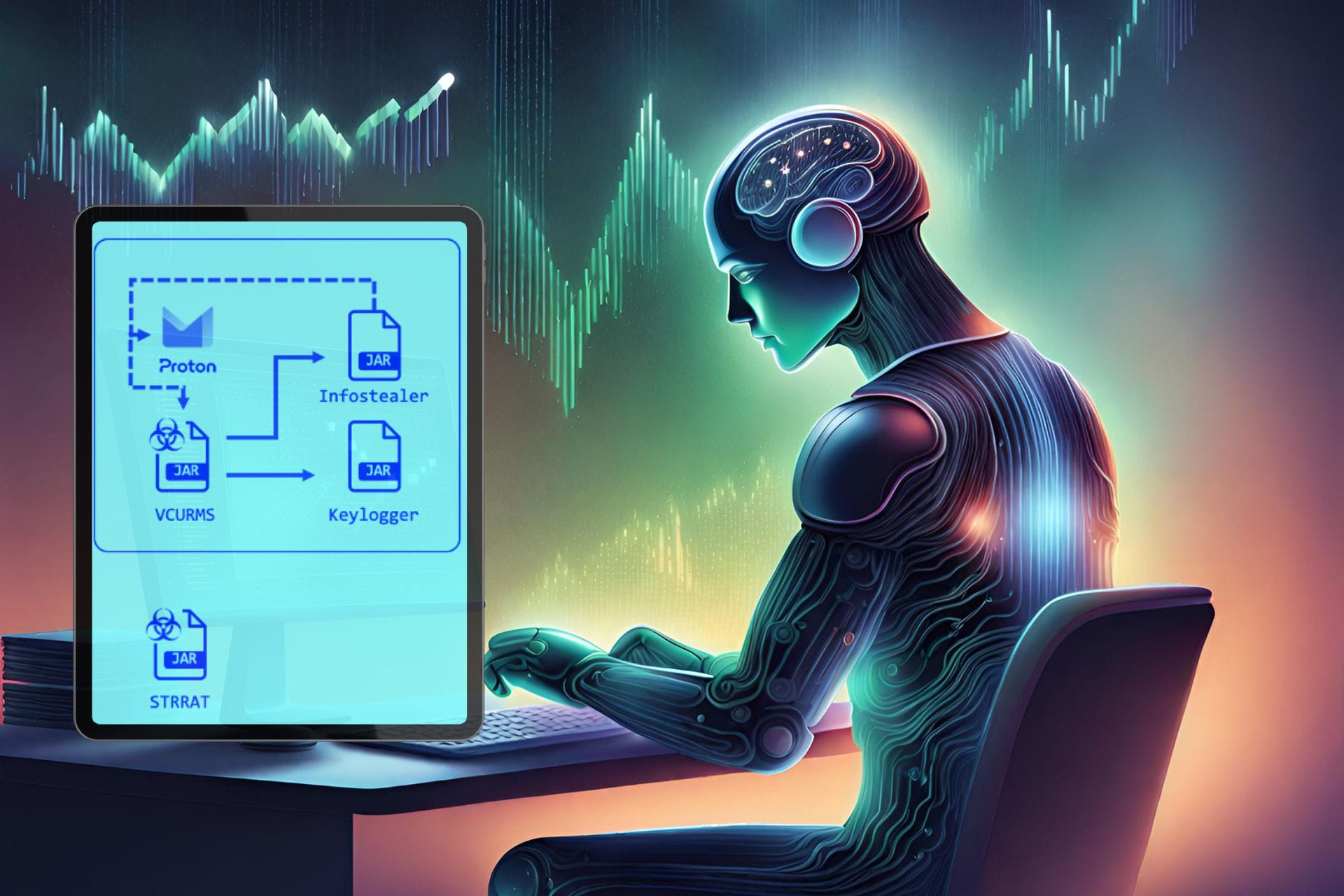
Fortinet’s FortiGuard Labs discovered the Vcrums malware. The cybercriminals behind the malware used email as their command and control center. Furthermore, they uploaded their malicious files on Amazon Web Services (AWS) and GitHub. In addition, to avoid detection, they used a commercial protector. Moreover, the cybercriminals are using a phishing campaign to lure us into installing the malware.

How does the Vcrums malware work? 

The Vcrums malware users target devices with Java installed. In addition, a successful infiltration into the system grants them full control over it. Furthermore, to spread the Vcrums and StrRAT malware, threat actors trick users into downloading a malicious Java client by sending what seems to be a legitimate email. Also, they disguise the email as an urgent recipient. On top of that, StrRAT acts as a ransomware attack. However, instead of encrypting and locking data, it steals it.

Once you download the Java content of the email, the Vrcums malware starts installing and executing additional malicious JAR files. By doing this, cybercriminals expand their control over your device. Furthermore, the Vcrum malware can monitor you and use password recovery tools and keyloggers to steal your login information. Additionally, the malware steals information from popular browsers such as Chrome, Brave, Edge, Vivaldi, Opera, OperaGX, and Firefox and applications like Discord and Steam.

Ultimately, Vcrums comes with StrRAT and several other malware in a pack. Moreover, it disguises itself as a common file format, such as .jpg. Also, it uses obfuscation services to avoid detection. On top of that, the malware can send data through emails and install more files. Thus, to defend against the Vcrums malware, always verify the source of your emails. Furthermore, according to Fortinet, you should consider deploying updated security solutions. In addition, the company recommends you perform network segmentation.

What are your thoughts? Do you have the latest security solutions to protect you from Vcrums? Let us know in the comments.

A ransomware stole the data of 27,000 people from Stanford last year

Last year, a ransomware attack affected Stanford University’s Department of Public Safety (SUDPS) network. Furthermore, after Stanford investigated the incident, the conclusion was that the ransomware stole the data of 27,000 people. However, the attack didn’t affect any other departments. In addition, according to Stanford, an unauthorized individual gained access to the data.

How does a ransomware attack work?

Threat actors use ransomware attacks to lock and encrypt data, devices, and systems. Afterward, the cybercriminal makes them inaccessible and unusable. Then, the hacker asks for a ransom to unlock them. In Stanford’s case, the main goal of the ransomware attack was to steal and leak the data. Furthermore, according to Dominic Alvieri, the Akira group is responsible for posting 430 GB of Stanford data on the dark web.

Most of the Stanford data stolen by the ransomware attack consists of phone numbers, emails, names, locations, digital signatures, security questions, usernames, passwords, credit cards, and security codes. On top of that, a smaller number of victims had their medical information and driver’s license number stolen.

Unfortunately, it took a long time for Stanford to release an update about the situation. Furthermore, the University announced that the people affected will receive an email. In it, they will find identity protection services free of charge.

Ultimately, this is not the only cybersecurity incident that happened to the University. Stanford dealt with similar ransomware attacks in the past. In addition, it takes a long time for the University to act, especially since they send emails only to the potentially impacted individuals. Fortunately, the investigations started shortly after the attack, and they managed to end it fast. Furthermore, the network is now more secure.

What are your thoughts? Have you ever encountered a ransomware attack? Let us know in the comments.

March 2026 Patch Tuesday: 60 flaws & 18 RCE bugs fixed

The second Tuesday of March 2024 was the Patch Tuesday for the month, which brought security updates for 60 vulnerabilities, including 18 remote code execution issues.

Two critical vulnerabilities, named Hyper-V remote code execution and denial of service flaws, are also addressed.

There were 24 elevation of privilege vulnerabilities, 18 remote code execution vulnerabilities, 3 security feature bypass vulnerabilities, 6 denial of service vulnerabilities, 6 information disclosure vulnerabilities, and 2 spoofing vulnerabilities.

This list doesn’t include 4 Microsoft Edge flaws that were fixed on March 7, 2024. Also, these updates mentioned by Microsoft do not include zero-day fixes.

Here are some important flaws addressed:

CVE-2024-21400 – Microsoft Azure Kubernetes Service Confidential Container Elevation of Privilege Vulnerability

This flaw could enable attackers to get admin rights and steal credentials in Azure Kubernetes Service. It was first reported by Yuval Avrahami, and Microsoft has now fixed it. Microsoft security updates page mentions:

An attacker who successfully exploited this vulnerability could steal credentials and affect resources beyond the security scope managed by Azure Kubernetes Service Confidential Containers (AKSCC)

CVE-2024-20671 – Microsoft Defender Security Feature Bypass Vulnerability

This flaw was discovered by Manuel Feifel with Infoguard (Vurex) and was fixed by Windows Defender Antimalware Platform updates. Version 4.18.24010.12 of the Antimalware platform addressed this flaw.

Microsoft explained how this Defender vulnerability could harm:

An authenticated attacker who successfully exploited this vulnerability could prevent Microsoft Defender from starting.

CVE-2024-26199 – Microsoft Office Elevation of Privilege Vulnerability

An Office vulnerability allows any verified user to get system privileges, but it was fixed this Patch Tuesday. The flaw was first pointed out by Ivan Almuina from Hacking Corporation Sarl. According to Microsoft, this flaw means:

Any authenticated user could trigger this vulnerability. It does not require admin or other elevated privileges.

CVE-2024-21411 – Skype for Consumer Remote Code Execution Vulnerability

This remote code execution vulnerability can be triggered by a malicious image or link. It was first pointed out by Nicole Armua and Hector Peralta, who are working with the Trend Micro Zero Day Initiative. Microsoft explains:

An attacker could exploit the vulnerability by sending the user a malicious link or a malicious image via Instant Message and then convincing the user to click the link or image.

CVE-2024-26201 – Microsoft Intune Linux Agent Elevation of Privilege Vulnerability 

Microsoft explains how this vulnerability works:

This vulnerability could allow an attacker to view potentially restricted information inside of a custom compliance script and tamper with the results of the scripts, but does not allow the attacker to make any other parts of the Intune service unavailable.

You can check out Microsoft’s release notes to learn about other security updates. March Patch Tuesday also brought some changes to Windows 11 and 10, which you can read in this detailed guide.

Have you installed the latest Windows updates? Share your thoughts on the improvements and changes introduced.

Can you run Windows 11 on a mobile phone? Yes, and you can even play AAA games on it

Have you ever wondered if you can install Windows 11 on a mobile phone? And no, we’re not talking about a Windows 11 phone, but the literal operating system running on a mobile phone.

This Reddit user, for instance, tried to install Windows 11 on a new mobile phone, and they managed to do so. Even more, the phone is perfectly capable of running AAA video games on medium to low settings.

How did they manage? By installing an ARM64 build of Windows 11. The user didn’t succeed at first, but then they managed to rewrite the firmware of the phone (hint: it’s a OnePlus phone), and Windows 11 was successfully installed. The best thing: it’s been running since November 2023, so it’s definitely a success.

Lemme explain myself. So a while ago I got a specific phone model, not too expensive and I tried installing the ARM64 build of windows 11 on it. First attempt was a failure and resulted in a bricked device. So after completely rewriting the stock firmware (thanks oneplus for making it so easy) i did the installation again. Its been working since last year’s november.

Reddit user

Windows ARM has been getting increasingly popular lately, and we even questioned if they indeed could be the future: seeing this example, now, they can indeed be the future.

This Windows version is all stripped and optimized for mobile and ultraportable devices, and there are signs Microsoft is thinking about investing more resources into it.

The Reddit user managed to set Windows 11 up with everything: Microsoft Office, Discord, and even some AAA games.

It does everything I need. Microsoft office, a server for my discord bot (I had issues with my hosting provider at the time) and occasional gaming. Windows runs absolutely fine and it can surprisingly play older AAA titles on low-medium settings. Although the gaming experience isnt as pleasant as on a bigger screen.

Reddit user

Some features naturally aren’t going to work, but the limitations are understandable. However, with the right knowledge, a mobile phone can be set up to run Windows 11 just fine.

Some of the drivers are missing for example: Fingerprint, cameras, speakers. Playing audio through a bluetooth speaker works fine. I also have gotten the 4G and mobile hotspot to work after fiddling around with the system registry.

Reddit user

The user concludes by saying that the experience has been challenging, but exciting. And the future seems promising: ARM is indeed the future of computing.

Overall the experience has been a bumpy ride. The phone is dualbooting between android and Windows 11. The x86_64 emulation is great though. ARM may just be the future of computing.

Reddit user

What do you think about this? Can you see yourself playing computer games on a mobile phone? Or transforming your phone into a computer?

Microsoft says Copilot in Intune will mark a new era of endpoint management

Having just announced the availability of Copilor for Security, starting April 1, Microsoft says the date will also mark the beginning of a new era of endpoint management with the release of Copilot in Intune in a public preview.

Microsoft Intune is at the cusp of transforming endpoint management and security with Microsoft Copilot, introducing new ways for organizations to help protect and drive productivity for your workers and simplify IT and security operations. April 1, 2024 will mark the beginning of a new era of endpoint management with the public preview of Copilot in Intune.

Microsoft

Intune, which is an organization-oriented platform, allows for the management of a company’s devices from one single point. Admins might be familiar with the platform, as they use it to set up devices and update them with patches when necessary.

Now, they will be able to set up devices faster and streamline the update process with Copilot, Microsoft says in their blog post:

Copilot in Intune provides AI powered insights that are tailored for organizational needs, such as quickly resolving end user issues and ensuring policies and settings are configured to optimize business outcomes safely.

Microsoft

The Redmond-based tech giant developed Copilot in Intune to be capable of helping admins and Intune users understand not only the context of the organization but also create new policies, and offer guidance when facing a more serious issue in the platform.

Plus, Copilot in Intune will work together with Copilot for Security to provide an encompassing strategy and plan of action in case the organization is targeted by threat actors. These include the detection and management of compromised devices.

Intune is an essential part of the April 1, 2024 general availability of Copilot for Security. Together, Copilot provides a way to swiftly respond to threats, incidents, and vulnerabilities with complete device context in concert with Microsoft Security solutions. This comprehensive approach reduces the complexity of interacting with multiple systems and admin centers to bring together a centralized, generative AI experience and vast information quickly. IT and security teams can all use Copilot for Security to fetch device and user properties and security data when investigating a suspicious or compromised device.

Microsoft

Organizations that have subscribed to Copilot for Security will be able to experience the public preview of Copilot in Intune, starting April 1.

You can read the full blog post here.

Microsoft slightly updates the Windows Server Preview by fixing its Feedback Hub

Microsoft released the Build 26080 to Windows Server Preview, and the build is nearly identical to the previous one, aside from one small update: its Feedback Hub now seems to be working.

Other than that, the build doesn’t include anything new. You can still check the full changelog below:

What’s New

Windows Server Flighting is here!!

If you signed up for Server Flighting, you should receive this new build automatically later today. For more information, see Welcome to Windows Insider flighting on Windows Server – Microsoft Community Hub

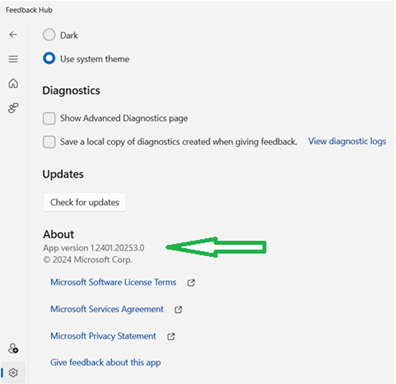
The new Feedback Hub app is now available for Server Desktop users!

The app should automatically update with the latest version, but if it does not, simply Check for updates in the app’s settings tab.

thumbnail image 1 of blog post titled 


							Announcing Windows Server Preview Build 26080

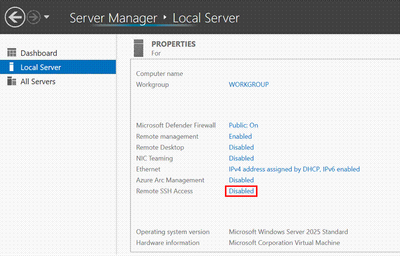
Win32-OpenSSH server component is now installed by default.

Starting in Windows Server 2025 the Win32-OpenSSH server side component (SSHD) will ship installed by default. Previously, the Win32-OpenSSH server component shipped as an optional feature that needed to be installed.  Additionally, there is a new option in the Server Manager UI to enabled/disable SSHD, as well as a new group, “OpenSSH Users”. To use SSHD, the feature only has to be enabled, not installed. When enabled, SSHD is allowed only on private networks on default port 22.

thumbnail image 2 of blog post titled 


							Announcing Windows Server Preview Build 26080

The following new features are specific to Windows Server with Desktop Experience only.  Some of these will require running the OS on physical systems AND having the right drivers on hand.

  • Try the “WinGet” command line utility on Windows Server! The WinGet command line utility enables installing applications and other packages from the command line. Simply type winget on the command line for a list of available commands to get started. For example, you can install the latest version of Powershell using the winget command: 
winget.exe install 'Microsoft.PowerShell'
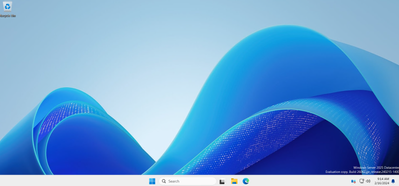
  • Desktop Wallpaper: Our newly modernized desktop experience now includes an updated desktop wallpaper.
thumbnail image 3 of blog post titled 


							Announcing Windows Server Preview Build 26080
  • Additions to <Settings>Accounts:  Email & Accounts is now consistent with Windows 11.  Please note, domain join will still be necessary for most scenarios.
    • Call to action:  Please try adding Microsoft accounts and/or work accounts along with relevant apps that take advantage of this.

Known Issues

Upgrade does not complete: Some users may experience an issue when upgrading where the download process does not progress beyond 0%.  If you encounter this issue, please upgrade to this newer build using the ISO media download option. Download Windows Server Insider Preview (microsoft.com)

VMs created using ISO media may not boot: Some users may encounter boot issues when creating Gen 2 VMs using this build (26063) and attempting to set the DVD ISO as boot preference. The new VM is unable to boot through the ISO and skips to subsequent boot options. This will be addressed in a future release.

Access denied error when using Diskpart –> Clean Image on Winpe.vhdx VMs created using WinPE: Create bootable media | Microsoft Learn. We are working to resolve this issue and expect to have it fixed in the next preview release.

Download Windows Server Insider Preview (microsoft.com)

Flighting: The label for this flight may incorrectly reference Windows 11. However, when selected, the package installed is the Windows Server update. Please ignore the label and proceed with installing your flight. This issue will be addressed in a future release.

thumbnail image 4 of blog post titled 


							Announcing Windows Server Preview Build 26080

Setup: Some users may experience overlapping rectangle voids following mouse clicks during “OOBE” setup. This is a graphics rendering issue and will not prevent setup from completing. This issue will be addressed in a future release.

WinPE – Powershell Scripts: Applying the WinPE-Powershell optional component does not properly install Powershell in WinPE. As a result, Powershell cmdlets will fail. Customers who are dependent on Powershell in WinPE should not use this build.

If you are validating upgrades from Windows Server 2019 or 2022, we do not recommend that you use this build as intermittent upgrade failures have been identified for this build.

This build has an issue where archiving eventlogs with “wevetutil al” command causes the Windows Event Log service to crash, and the archive operation to fail. The service must be restarted by executing “Start-Service EventLog” from an administrative command line prompt.

If you have Secure Launch/DRTM code path enabled, we do not recommend that you install this build. 

Available Downloads

Downloads to certain countries may not be available. See Microsoft suspends new sales in Russia – Microsoft On the Issues

  • Windows Server Long-Term Servicing Channel Preview in ISO format in 18 languages, and in VHDX format in English only. 
  • Windows Server Datacenter Azure Edition Preview in ISO and VHDX format, English only.
  • Microsoft Server Languages and Optional Features Preview

Keys: Keys are valid for preview builds only 

  • Server Standard: MFY9F-XBN2F-TYFMP-CCV49-RMYVH
  • Datacenter: 2KNJJ-33Y9H-2GXGX-KMQWH-G6H67
  • Azure Edition does not accept a key

Symbols:  available on the public symbol server – see Using the Microsoft Symbol Server. 

Expiration: This Windows Server Preview will expire September 15, 2024.

The March update introduces new features for the Snipping Tool, along with other fixes

The KB5035853 update was released on March’s Patch Tuesday for Windows 11 23H2 and Windows 11 22H2, and KB5035854 was released for Windows 11 21H2. This is Microsoft’s monthly ritual for all supported versions of Windows.

With KB5035853, changes to the Snipping Tool & Phone link were introduced, including bug fixes and other improvements. At the same time, the Redmond tech giant released KB5035845 to fix some issues.

KB5035853 – Windows 11 23H2 with build number 22621.3296 and Windows 11 22H2 build 22621.3155

The update also brings some changes to the Settings app and some minor tweaks related to games. Furthermore, you get support for a faster USB4 standard.

Here are the details:

  • The Phone Link settings page has a new name: Mobile Devices. Go to Settings > Bluetooth & devices > Mobile devices.
  • This update affects games you install on a secondary drive. Now, they remain installed on the drive.
  • You can now use the Snipping Tool to edit photos and screenshots from your Android device. Go to Settings > Bluetooth & devices > Mobile. Choose Manage Devices and allow your PC to access your Android device.
  • This update adds support for the USB 80Gbps standard. The next generation of USB4 has twice the bandwidth of USB 40Gbps. To use USB 80Gbps, you must have a compatible PC and USB4 or Thunderbolt peripheral.
  • This update affects games you install on a secondary drive. Now, they remain installed on the drive.
  • This update addresses an issue that affects long-edge fed printers. The alignment of stapling or hole punch locations is wrong.
  • This update addresses an issue that affects the Windows Settings Home page. It randomly stops responding when you go to the page.
  • This update addresses an issue that affects networking. A device fails to make the automatic switch from cellular to Wi-Fi when it can use Wi-Fi.
  • This update addresses an issue that stops a system from going to sleep. This occurs when you connect an external device to the system.
  • This update affects the Windows Backup app. It will no longer show on the user interface in regions where the app is not supported.

If you are running Windows 11 22H2, you get an extra fix. With this update, Microsoft has fixed the issue wherein you get an error while installing the latest updates. The error used to occur when trying to install the update, and your device stopped responding at 96% with an error code 0x800F0922.

KB5035854 – Windows 11 21H2

The update doesn’t bring many changes to Windows 11 21H2, but it has security improvements, changes to the Get Help app and fixes for issues related to Remote Desktop Authentication. Here are the changes mentioned by Microsoft:

  • This update addresses an issue that makes the troubleshooting process fail. This occurs when you use the Get Help app.
  • This update addresses an issue that affects Remote Desktop Web Authentication. You might not be able to connect to sovereign cloud endpoints.

So far, no known issues have been reported for either KB5035854 or KB5035853. If you encounter any issues while installing or updating, go to Feedback Hub to report them.

KB5035845 – Windows 10

This Windows update does not introduce major changes; this March update is for bug fixes and security improvements. Here are the changes mentioned in the changelog.

  • Using Windows share, you can now directly share URLs to apps like WhatsApp, Gmail, Facebook, and LinkedIn. Sharing to X (formerly Twitter) is coming soon.
  • This update affects games you install on a secondary drive. Now, they remain installed on the drive.
  • This update affects the Windows Backup app. It will no longer show on the user interface in regions where the app is not supported.
  • This update addresses an issue that affects Windows Hello for Business. You cannot use it to authenticate to Microsoft Entra ID on certain apps. This occurs when you use Web Access Management (WAM)

You might face some issues like Copilot not working on devices with multiple monitors or Copilot in Windows not supported when your taskbar is docked vertically on the right or left.

To install these updates, you can go to Settings> Windows Update> Check for Updates>Download & Install. Wait for the system to download and install the update, then restart your computer when prompted.

If you don’t wish to download the update via Settings, you can download the update manually from the Microsoft Update Catalog website.

What are your thoughts on the changes introduced on your Windows version? Share your opinions with our readers in the comments section below.

Microsoft Paint’s new slider allows users to customize canvas sizes precisely

Windows Insiders in the Canary and Dev Channels on Windows 11 have a new Microsoft Paint experience, alongside the newly-announced Teams single desktop app experience, and the new Copilot experience.

The new Microsoft Paint experience includes a new slider that allows users to customize canvas sizes precisely, according to the official blog post. The slider can also be used to customize the size of the brusher, pencils, and eraser tools.

With this update to Paint, we are improving the brush size selection experience with a new size slider for pencil, brushes, and eraser tools. With the new size slider, you can choose from a wider range of size options and preview the selected size on the canvas as you drag the slider.

Microsoft

Users will only have to click on any of the pencil, brushes, or eraser tools, and a size slider will appear on the left side of the canvas. Clicking on the slider will allow them to customize the size to the preferred one.

Microsoft says this new slider is gradually rolling out in Paint to insiders, so if you’re currently enlisted in one of these channels, you might not get it right away.

With this occasion, the Redmond-based tech giant is also updating the existing layers feature with new capabilities. These include new background options and new ways to copy visible content on layers.

We are also improving layers by adding a new background option to the Layers panel. With this option, you can set the Background color for the canvas. Open the Layers panel and click the “Background” tile at the bottom or use Ctrl + Shift + B to try this out yourself. This will open the color picker dialog where you can set any color as the background. You can also use the “Hide background” option to make the background completely transparent or use the keyboard shortcut Ctrl + Shift + H to quickly show/hide the background.

Microsoft

We are also adding a new way to copy with “Copy visible layers”. This enables you to copy all visible content across layers. To use this option, select an area using the selection tool and invoke the context menu or use the Ctrl + Shift + C keyboard shortcut. “Copy” (Ctrl + C) will copy the visible content from the current layer only.

Microsoft

You can read the full blog post here.

Microsoft finally fixes this annoying File Explorer issue in the Beta Channel

Microsoft released the KB5035955 patch to the Beta Channel within the Windows Insider Channel and keeping in tradition with the previous build, the Redmond-based tech giant kept it short.

The build only deals with 3 issues, including a very annoying File Explorer issue that would cause Beta insiders to have a tooltip appear, that would never disappear, effectively impacting the experience of navigating Windows 11.

While a restart usually solves the issue, it can become quite frustrating to repeatedly reboot the system only because of a minor inconvenience.

However, Microsoft has now fixed it entirely, and those downloading and installing the new KB5035955 should have this annoying issue resolved.

Fixed an issue in File Explorer where hovering over the first picture in Gallery would make a tooltip appear that would never dismiss.

Microsoft

The other two changes coming with this build are:

[Taskbar]

  • Fixed an issue where uncombined taskbar icons were cutting off the title instead of adjusting 0with the title length.

[Start menu]

  • We are beginning to try out a change where we will show your most frequently used app under the Recommended section in the Start menu. This will apply to most frequently used apps that are not already pinned to the Start menu (or taskbar).

You can read KB5035955’s blog post here.

Microsoft also released the KB5037133 patch to the Dev and Canary Insider channels, and it’s quite big.

The patch brings two new experiences to Windows 11: a single, unified Teams experience that allows users to easily switch between personal and professional accounts and a new Copilot experience that allows users to move the AI tool around.

Microsoft finally updates Windows 11’s progress bar and adds this incredible file management capability

The Redmond-based tech giant has been busy working on Insider builds, because this week, Microsoft blessed us with the KB5037133 patch to the Dev, and Canary Insider channels, and it’s quite big.

The patch brings two new experiences to Windows 11: a single, unified Teams experience that allows users to easily switch between personal and professional accounts and a new Copilot experience that allows users to move the AI tool around.

But the patch also updates Windows 11’s progress bar and adds an incredible file-management capability, that honestly, should have been there already.

Updated the design of the progress bar under app icons to help make it easier to see. This will appear on the taskbar as well as the Start menu.

Microsoft

Below, you can see what the updated progress bar looks like:

When extracting files, if there is a file name conflict you can now choose to apply your selected action (skip, replace) for all conflicts.

Microsoft

You can enable this very useful feature by checking its box in the panel, as you can see below:

Both Dev and Canary insiders are getting these features, as for now, Microsoft will release the same build for both channels. However, this is only temporary, as the Redmond-based tech giant will update one of these channels to a different build sometime in the future.

You can read the KB5037133‘s blog post here.

KB5037133 adds a new Copilot experience to Windows 11, allowing users to move it around

Great news for Copilot users in Windows 11: Microsoft has added the ability to move it around in a new update coming with the KB5037133 to the Dev and Canary channels.

The build, which also makes the Copilot Power Automate capabilities widely available to all insiders, will allow users to switch between the regular docked Copilot and the new Copilot window that can be moved around and resized at will.

In the official blog post, Microsoft says:

We are beginning to roll-out an updated Copilot in Windows experience that adds the ability to switch between the existing “docked” behavior that attaches Copilot to the side of your desktop, and a new mode where it acts like a normal application window which you can resize and move around your screen. As part of this change, we’re also introducing some under-the-hood improvements as well. This experience is beginning to roll out to Windows Insiders in the Canary Channel As always, please report any issues you experience to us via Feedback Hub.

Microsoft

And the new Copilot experience looks something like this:

KB5037133 also adds a new Teams experience and users can switch between personal and professional accounts in a single desktop application. The patch also comes with several changes, and improvements, which you can read all about below:

[General]

  • IMPORTANT NOTE FOR DEV DRIVE USERS: Insiders on Build 26068 and higher who have Dev Drives should no longer see their Dev Drives breaking when rolling back as long as you roll back to Build 26063 and higher. Rolling back to earlier builds may still result in issues with Dev Drives.
  • IMPORTANT NOTE: Fixed an issue causing Windows Update in Settings to not load or crash in Build 26063. If you are still on Build 26063 and encounter this, rebooting may resolve the issue. If it doesn’t, the update should still eventually download on its own – appreciate your patience.
  • Fixed an issue for Narrator not working when setting up a device or in Advanced Startup.

[Copilot in Windows*]

  • Fixed an issue where if you turned the Copilot icon off and back on in Settings never showed it on your taskbar again.

[Taskbar & System Tray]

  • Fixed a memory leak related to showing the tooltip for the date and time in the taskbar when you had enabled additional clocks.

[File Explorer]

  • Fixed an underlying issue believed to be the cause of some Insiders finding File Explorer had started freezing and using unexpectedly high CPU in the last couple builds. Please file feedback in the Feedback Hub if you continue experiencing this after upgrading.
  • Fixed an issue where your preference for “Show extracted files when complete” when extracting files in File Explorer wasn’t persisting across upgrades.
  • Fixed a timing issue where when you start a search from Home in File Explorer, it might unexpectedly show no results the first time you tried.
  • Fixed an issue causing the Details view in File Explorer to be unexpectedly cramped in recent builds when using compact mode.
  • Made a change to help address an issue where after a DWM crash, when you opened File Explorer it could just show a blank area on top instead of rendering the area correctly.
  • Fixed an issue where the 7zip and ZIP compression options weren’t displaying correctly for Insiders with the English (United Kingdom) display language.

[Task Manager]

  • Fixed an issue which could lead to your GPU showing as -1 in Task Manager.
  • Fixed an issue where Task Manager may unexpectedly show no GPU % used (when that was not the case).
  • Fixed an issue impacting Task Manager reliability.

[Audio]

  • Fixed an issue causing HDMI connected devices to not have audio in the last few builds.

[Input]

  • Fixed an issue causing the input switcher (WIN + Space) design to revert to an older style and draw in the wrong location.
  • Fixed an issue where DWM could hang when writing with pen in Snipping Tool.
  • Fixed a high hitting ctfmon.exe crash, which could impact the ability to input text.
  • Fixed an issue where magnifier wasn’t following the mouse cursor when centered on screen in recent builds.
  • Fixed an issue where mouse cursor shadows (if enabled) were not rendered correctly with large cursors.
  • Fixed an issue where the mouse cursor was unexpectedly leaving a trail of mice on the screen.
  • Fixed an issue which could lead to some mice and keyboards not working in safe mode.
  • Fixed an issue where when waking your PC from sleep in Build 26063 the touchpad might be banged out in Device Manager, resulting in the mouse cursor not showing when you tried to use it.

[Settings]

  • Fixed an issue where a Display Connection section was incorrectly showing up under Settings > System > Display > Graphics that when clicked, would crash Settings.
  • Fixed an issue where a brightness slider might not show in Settings > System > Display in recent builds even though a brightness slider was available for you to use in Quick Settings.

[Other]

  • Fixed an underlying issue which could lead to Snipping Tool hanging.
  • Fixed an underlying dxgi.dll issue which led to some app and game crashes in Build 26058+.
  • Fixed an underlying issue with winmmbase.dll which could lead to app crashes in Build 26058+.
  • Fixed an issue related to tcpip.sys which was causing some Insiders to see bugchecks with UNEXPECTED_KERNEL_MODE_TRAP in the last few builds.
  • Fixed an issue which was causing some Insiders to see bugchecks with SYSTEM_SERVICE_EXCEPTION in the last few builds.
  • Fixed an issue which was causing some Insiders to see bugchecks with DPC_WATCHDOG_VIOLATION in the last few builds.
  • Fixed an issue where if you attempted to use the Windows Update troubleshooter, it would show error 0x803C010A.

Known issues

[General]

  • [IMPORTANT NOTE FOR GAMERS – UPDATED!] Most popular games should work correctly again in the most recent Insider Preview builds in the Canary and Dev Channels. Please be sure to submit feedback in Feedback Hub on any issues you see with playing games on the latest builds.
  • [UPDATED] We’ve made some more changes to help reduce the number of rollbacks (with error code 0xC1900101) when installing the latest builds and are continuing to investigate reports. If your PC rolls back trying to install this build, please file feedback in Feedback Hub.
  • In some cases, the File Explorer context menu no longer has the acrylic effect. This will be fixed in a future flight.
  • We’re investigating reports of mouse cursor issues after installing Build 26058+, including that the cursor is disappearing in some apps. If you’re experiencing issues, please file feedback describing exactly what you’re seeing under Input and Language > Mouse in the Feedback Hub. This build includes a number of fixes to help with recent reports.
  • When opening the context menu in File Explorer, the icons may appear out of place and overlapping text.
  • [NEW] Running the command “sudo pwsh” won’t work properly in this build.

[Copilot in Windows*]

  • [NEW] Voice access does not work reliably with the updated Copilot in Windows experience that introduces the ability for Copilot to act like a normal application window noted in the above blog post.
  • [NEW] Using Windows Ink to write in Copilot will not work with the updated Copilot in Windows experience that introduces the ability for Copilot to act like a normal application window noted in the above blog post.
  • [NEW] When Copilot in Windows is docked and resized to a large width, Copilot does not always fill the width of the panel. Resizing Copilot to less than half of the width of your screen usually fixes this issue.

You can read KB5037133’s full blog post here.

Teams on Windows 11 will support every type of account in a single desktop app

Microsoft released the KB5037133 build to the Dev and Canary insiders channels, and the patch comes with dozens of new features, changes, and improvements, including the introduction of a new, unified Teams experience that will allow users to access any kind of account in a single desktop app.

Users will not be able to switch between multiple cloud environments, tenants, and account types across personal and work in the new Microsoft Teams, and it employs a similar switching method to Facebook’s personal and business account switch.

In the official blog post, Microsoft says:

Starting with Windows 11, version 24H2, Teams users will get access to a preview experience of the new, unified Microsoft Teams experience on Windows. In this preview, Microsoft Teams will be available as a single application, enabling users to seamlessly switch between multiple cloud environments, tenants, and account types across personal and work. This new, unified application will soon be rolled out to commercial customers as well, through the normal update process. To add or access additional accounts, select your profile picture at the upper right corner of Teams when you sign into Teams.

Microsoft

The Redmond-based tech giant says it kept users’ feedback close, and the new single desktop Teams application should cater to those who want to switch between profiles on the same device, and app.

You can join any Teams meeting with ease. In upcoming builds, when you are joining a meeting, you can select the account you want to use. You will also be able to join a meeting without signing in.

Microsoft

Alongside new notification details when receiving a call, users should also know that the single Teams desktop application will prompt many changes to the existing Teams app in Windows 11, including the removal of the current version. Here’s what Microsoft says about it:

  • This unified preview app experience is labeled “Microsoft Teams (work or school)”. The app name will be automatically updated to “Microsoft Teams” in future releases.
  • This is a preview release, and you will notice some changes from your current experience using Microsoft Teams (free) and Microsoft Teams (work or school). These changes and more updates will continue until we reach general availability. Notably in this release, Teams will launch into a separate icon for single accounts.
  • We will remove the standalone consumer app, “Microsoft Teams (free)”, in future releases.
  • If you lose access to either Teams applications through use of the Windows Insiders Program, you can access your preferred Teams application from this download page.
  • For Enterprise Admins, the ability to sign in with Microsoft accounts will be part of a normal monthly update, there is no new app to install if you have new Teams. The functionality is targeted for preview in April and general availability in May. The ability for users to sign in with Microsoft accounts will follow all sign in restriction polices as it has for all versions of Teams. Admins can learn more in Message Center (MC719659).

You can read the full blog post here.

Microsoft Copilot for Security, which is recommended by 97% of security experts, to be available on April 1

Microsoft Copilot for Security, the AI tool teased by the Redmond-based tech giant as the one tool that can tackle the increasing AI-powered cyber threats, will be generally available on April 1, and the company claimed that 97% of experienced security analysts said they wanted to use Copilot again next time, in the official blog post.

The company also said that it conducted research about Copilot for Security and it turned out to be of great help to security experts, allowing them to detect threats easier and faster.

In a recent research study conducted by Microsoft’s Office of the Chief Economist, experienced security analysts using Copilot were 22% faster at the common security tasks we gave them, and they achieved these time savings while also increasing accuracy by 7%. 

Microsoft

The product’s capabilities are quite impressive, and they were built to keep every organization secure against all kinds of cyber threats. According to Microsoft, some of the most important feature of Copilot for Security include:

  • Incident Summarization: Gain context for incidents and improve communication across your organization by leveraging generative AI to swiftly distill complex security alerts into concise, actionable summaries, which then enables quicker response times and streamlined decision-making.
  • Impact Analysis: Utilize AI-driven analytics to assess the potential impact of security incidents, offering insights into affected systems and data to prioritize response efforts effectively. 
  • Reverse Engineering of Scripts: Eliminate the need to manually reverse engineer malware and enable every analyst to understand the actions executed by attackers. Analyze complex command line scripts and translate them into natural language with clear explanations of actions. Efficiently extract and link indicators found in the script to their respective entities in your environment. 
  • Guided Response: Receive actionable step-by-step guidance for incident response, including directions for triage, investigation, containment, and remediation. Relevant deep links to recommended actions allow for quicker response. 

Microsoft will release Copilot for Security in two versions: as a standalone experience, and as an embedded experience, and each can fit specific needs, as you can see below.Microsoft Copilot for Security

Plus, organizations and commercial customers will have immediate access to the following features:

  • Custom promptbooks
  • Knowledge base integrations
  • Usage reporting
  • Expanded language localization

The product will also be supported in multiple languages, as it follows:

LanguagesAvailability
English (US, GB, AU, CA, IN)Prompting and product interface
Spanish (Spain, Mexico)Prompting and product interface
JapanesePrompting and product interface
French (France, Canada)Prompting and product interface
GermanPrompting and product interface
Portuguese (Brazil)Prompting and product interface
ItalianPrompting and product interface
Chinese SimplifiedPrompting and product interface
KoreanProduct interface
DutchProduct interface
SwedishProduct interface
PolishProduct interface
Portuguese (Portugal)Product interface
NorwegianProduct interface
TurkishProduct interface
DanishProduct interface
FinnishProduct interface
Chinese TraditionalProduct interface
ArabicProduct interface
ThaiProduct interface
HebrewProduct interface
CzechProduct interface
HungarianProduct interface
UkrainianProduct interface
RussianProduct interface 

Both versions of Copilot for Security, the standalone, and the embedded experiences, will follow the same pricing model, they will be billed monthly via a new Security Compute Unit (SCU) at the rate of $4/hr.

You can read the full blog post here.

New AI software engineer could soon challenge Microsoft’s GitHub Copilot

As quickly as OpenAI came onto the scene with its ChatGPT LLMs used to help power Microsoft’s open-source developer community, it may be usurped by a new AI firm providing a full-fledge synthetic software engineer.

The artificial intelligent start up Cognition, which is partially funded by Silicon Bay titans Peter Thiel, Elad Gil, and Tony Xu, took the wraps off its new model dubbed Devin. Devin is designed to be a fully autonomous AI-powered software engineer versus OpenAI’s Copilot partnership in GitHub which merely suggests pre-generative snippets of code to assist developers.

Furthermore, Devin can be deployed to manage developer projects from start to finish while spot checking and addressing bugs along the process as well as issue updates to code based on established roadmaps.

While OpenAI’s ChatGPT model leverages deep learning and large language models to generate human-like text based on prompts from users, Devin operates by ingesting user prompts to formulate actionable developer plans with specificity.

Devin’s operational parameters enable it to not only write code but troubleshoot project-oriented coding issues, update project progress while also updating developers on project progress in real-time.

When pitted against other established AI models such as GPT-4 and SWE-Llama-13b, Devin outperformed in resolution-oriented coding tasks.

Devin also can seek out additional online learning material as it arrives to assist with current and future developing issues due to autonomous nature, which has the potential to save developers even more time than GitHub’s current suggestive AI platform.

Devin’s appearance has buttressed the belief that artificial general intelligence can be optimized and aimed specifically at commercial audiences, a business strategy that Microsoft has been quick to champion since its pivot away from Bing Chat to Copilot and Copilot Pro.

However, Microsoft will need to craft a plan to work alongside or outperform Devin and Cognition’s potential trajectory with commercialized engineering software that could cause a fundamental industry shift sooner than the company had envisioned.

Even though the new Microsoft Planner is now in public preview, a lot of users don’t have access to it yet

Earlier this week, Microsoft unveiled that its new Planner platform inside Teams is now available in a public preview to users everywhere. The Redmond-based tech giant announced a new Planner within Teams, last year, in November, at the Microsoft Ignite event.

The tech giant promised new capabilities, Copilot, the creation of personal plans, and many more features that would make Planner users excited.

Now, the new Planner is in a public preview and Microsoft says those interested can use it for:

– Ideate with the team – Create an inspiration board to track the team ideas for the next hackathon.
– Managing your career goals – Create a plan to track your career goals, core priorities and specific learning and training tasks you want to make progress on.
– Planning the team sprint – Track progress in your daily scrum with a sprint planning board using the built-in agile tools, and load balance the work as a team using the People view.
– Managing a product release – Coordinate a product release with dependencies and assess and manage the delivery timeline.

Microsoft

And, in the upcoming weeks, the Redmond-based tech giant will add several new capabilities to it, including:

  • Ability to upgrade a basic plan to a premium plan
  • Ability to move tasks from My Day and My Tasks to a plan
  • Ability to see premium plan tasks in My Tasks (limited availability in preview at this moment)
  • Even better performance and general bug fixes

Even so, more than 2 days after its public preview availability, Microsoft Planner cannot be accessed by users.

Almost a full day later and Teams is still only showing “Tasks by Planner and To Do”, not the new one. Worth nothing my Teams version seems to have lowered to 24046.2807.2738.2540 – no longer shows (Preview) but right underneath that it shows “Early Access through Office Current Channel (preview)”. And, the checkbox to enable/disable previews has vanished.

KSatC5

New Planner has yet to show up for me. Is there something else I need to do to trigger it’s availability?

McKodiak

However, Microsoft specifies the conditions to enter the public preview, in their official blog post. But, to give you a heads up, in case you don’t have access to the new Planner yet, here are the conditions:

For standard customers:

Preview allows you to get early access and explore upcoming features in the new Planner. If your admin has enabled public preview in Microsoft Teams and your Microsoft 365 subscription includes Planner, you’re ready to check out the new Planner.


For those interested in trying out premium features in the new Planner app, including Copilot in Planner preview, you can begin your free trial or request a premium license by clicking the diamond icon within the Planner app itself. For existing Project for the web users with a Project license, you’re already equipped with access to the new Planner’s premium capabilities corresponding to the license you have.

Microsoft

For admins:

To try the new Planner, your organization must have a Microsoft 365 subscription that includes Planner and have activated public preview capabilities in Teams. For detailed instructions on how to enable public preview, please refer to: Public preview in Microsoft Teams – Microsoft Teams | Microsoft Learn


If your organization does not have Project licenses, you can start a free trial for your users here. Once you’ve acquired and assigned licenses, be sure to direct your end users to the new Planner app in Teams.

Microsoft

Let us know if you were able to access it.

Visual Studio 17.10 second preview is here, and it has GitHub Copilot features

Microsoft has announced the second preview of Visual Studio 17.10. The release will bring additional tools to help you improve your code reviews with Copilot. Along with this, it will also bring diagnostics improvements, additional extensibility and WinForms enhancements.

Here is the list of changes and enhancements mentioned on the developer blog page of Microsoft:

AreaFeatures
Productivity Improve Your Code Reviews with Generated Pull Request Descriptions
Unravel Your Commit History with GitHub Copilot
View and Address Pull Request Comments in Visual Studio Editor
Improve readability of Visual Studio with additional formatting options for text
WinForms DesignerPerformance Improvements in out-of-process designer
SQL Server Developer Tools SSDT support for VS in Arm64
ExtensibilityAbility to export Marketplace extensions into the config file
Debugging and Diagnostics.NET Counter profiler visualization with new UpDown and ObservableCounter instruments
GC Insights in Managed Memory Window

One of them allows you to get pull request descriptions through GitHub Copilot. The blog post also mentioned:

You can now generate a first draft for your pull request description driven by Copilot analysis of all the changes included in the pull request. You can also view it using the markdown preview. You’ll get assistance in providing important context to your colleagues for their reviews and get the added benefit of ensuring you’re including the right changes in your pull request.

The new GitHub Copilot has been added to Visual Studio 17.10 Preview 2, which involves the Commit Details window. Microsoft says:

Double click on any commit to open the Commit Details pane in the Git Repository window. Then, click on the “Explain Commit” icon to get a summary of the changes side by side with the code.

You should have a GitHub Copilot subscription and install the GitHub Copilot Chat extension for Visual Studio to use the new features.

Preview 2 also offers text formatting choices for all developers. You can add italics to code text and strikethrough and underline text options.

To learn more about Preview 1 and 2 of Visual Studio 17.10, you can check the Developer blog on Microsoft. Also, share your thoughts in the comments section below.

Microsoft Reading Coach is now a standalone app and you can get it for free

Microsoft Reading Coach is a free app that was released a while ago in Microsoft Teams; the app, which was built on Reading Progress, is a tool that makes learning more fun and engaging, employing a gamification system that would allow students (and other users, as well) get all kinds of achievements.

Now, in a blog post, the Redmond-based tech giant announced it will make Microsoft Reading Coach a standalone app, and it will still be free to download, without having to access it through Microsoft Teams.

It can accessed online, on any device, including Chromebooks, and it can be downloaded as a Windows application, but it will require a Microsoft account, as the Redmond-based tech giant states:

Today, we are announcing Reading Coach as a standalone app for use in classrooms everywhere. Reading Coach is a FREE reading fluency application that provides personalized, engaging practice with safeguarded one-of-a-kind AI generated stories that keeps even the most reluctant readers coming back. It is now available for use in the classroom with a Microsoft account as a Windows application or on the web that can be accessed from any web connected device, including Chromebooks. 

Microsoft

Users can get started by accessing https://coach.microsoft.com, and following the steps there.

The app is quite popular among users for its learning games, and its fun gamification system, but the tool is still struggling to amass users, overall, despite being free.

However, this might change, as the app is standalone, and Microsoft, as usual, is adding even more exciting features to it. Plus, Microsoft Reading Coach also integrates AI capabilities, to help teachers, especially, create new stories for students that follow strict and secure guidelines.

Create a story puts the story in reader’s hands by giving them the choice of a character, setting and reading level to create a unique AI generated story each time. The AI generated story is moderated for content quality, safety and age appropriateness following Microsoft’s Responsible AI guidelines. Learners read the story in Immersive Reader accessible reading surface that has been shown to especially support struggling readers.

Microsoft

AI will also be able to analyze reading fluency, and detect which words are difficult for students to spell; based on this, the Reading Coach will come up with targeted practice lessons for each student. Microsoft says these capabilities were developed in collaboration with reading experts and are based on oral reading fluency research.

Plus, later in the Spring of 2024, teachers will be able to assign Reading Coach practice from popular Learning management systems.

You can read the whole blog post here.

Arm Advisory Service is now available to developers all around the world

Back in October 2023, Microsoft released the new Advisory Arm Service to Windows in a quest to help developers build more Arm-optimized apps for Windows for Arm, right from the start.

Now, as part of its latest announcements, the Redmond-based tech giant says it’s making Arm Advisory Service available to developers all around the world. Plus, the platform will also support additional languages, and availability hours for customer care.

With all the momentum around the growing ecosystem, I’m very excited to announce that we are officially expanding the service to developers around the world. We now offer:

  • More languages: Support is now provided in English, Chinese (simplified, traditional), and Japanese.
  • More availability: We’re open during business hours in your local time zone, wherever you are.
  • More regions: Our expansion covers all regions worldwide.
Microsoft

Those wishing to hop in on the new platform can do so by accessing this link, and filling out the form. Microsoft will then process all the information and provide you with access to the new Advisory Arm Service.

In October 2023, we highlighted the top 5 benefits of developing apps on such a platform, and it seems Microsoft added more features to it, since then, which are now available to all members, worldwide. These include:

  • Technical workshop for development best practices, guidance, and implementation questions.
  • Suggestions regarding platform features to enhance the Arm application experience.
  • Code samples and reviews to enable Arm development.
  • Break-fix assistance with issues that arise when porting or building Arm apps.
  • Escalation path to Microsoft engineers to assist with software development and provide product feedback.

And, if this is not yet an incentive for developers to hop into it, Microsoft also revealed that several tech companies have been working on the platform including Lenovo, Dell, NordVPN, Netwrix, Forcepoint, and many more.

The Redmond-based tech giant will also collaborate with first and third-party software vendors for security, additional features, and so on.

Working with developers focused on Windows apps on Arm is just one of the ways the App Assure Arm Advisory Service supports the Windows app community. We regularly collaborate with first- and third-party software vendors to help ensure smoother run time, greater stability, expanded app abilities, and greater protection from security threats.

Microsoft

The platform comes just at the right time: in the summer, Qualcomm will reveal its X Elite, with many upcoming Windows AI PCs being equipped with it. The processor is also aimed at ARM devices, which many believe are the future.

For those interested in Arm Advisory Service, they just need to complete the form, and Microsoft will get back to them in the following days.

You can read the whole blog post here.

New update makes Microsoft Teams more mobile friendly

A new update from Microsoft will soon make using Microsoft Teams on a smartphone much more easy.

The video conferencing service has announced that the Redmond tech giant is working on a feature that will simplify taking and carrying out calls on mobile devices.

After this update, you will be able to transfer the ongoing Teams calls to the phone’s native dialer without losing context or experiencing any other disruptions.

The change means that you will be able to handle and take part in more calls, so you don’t have to putter around dialers and apps, preventing call drops and other possible interruptions.

This will benefit those who want to take or participate in Microsoft Team calls much more easily while travelling or on the move.

The update is under development, as listed on the Microsoft 365 roadmap website and is said to be rolled out in April 2024. The description on the page says:

When using Teams on mobile phones, users can now transfer their ongoing Teams calls to the phone’s native dialer, without any disruption or loss of context.

The update will be available to Android and iOS devices and to all users worldwide upon release.

Apparently, this is not the only change expected with the update; you will also get a new mobile layout, a live status of a meeting with Teams calendar on your phone with details on what exactly is happening before you join a call, including the avatars who already joined the call, and a simplified way to join a meeting on your smartphone.

Are you excited about this new update? Share your opinions with our readers in the comments section below.

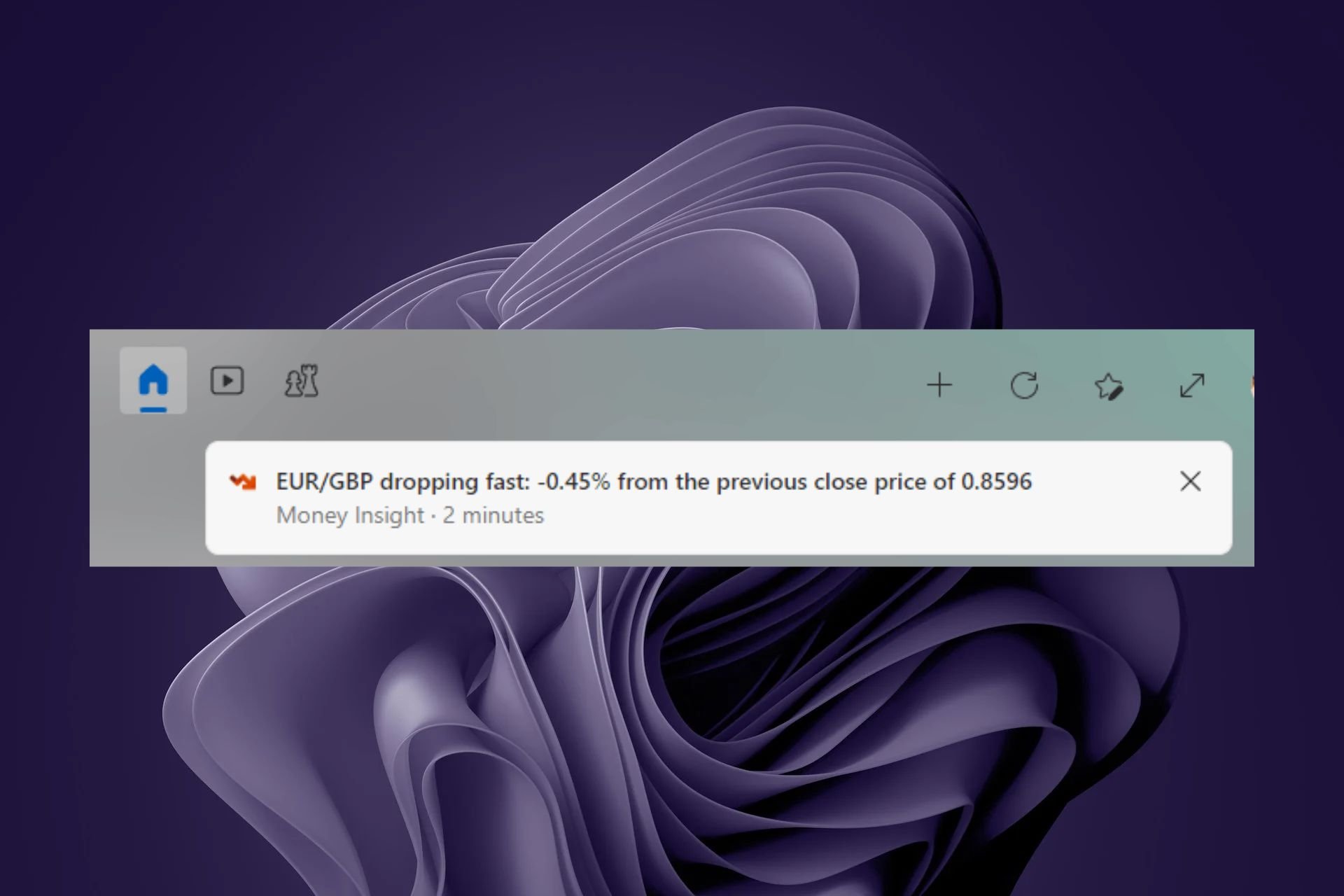
How to Turn Off Windows 11 Money Insights

If the Windows 11 money insight feature and its notifications are becoming a bother, you can easily turn them off from your Settings app.

Although money insights may be a useful feature, its usage is highly dependent on personal preferences. You may find it distracting if it’s constantly throwing notifications on your desktop. Worse still is if you have limited resources since it takes up some CPU mileage.

How do I turn off Windows 11 money insights?

  1. Hit the Windows + W keys to open up the widgets.
  2. Click on your profile picture at the top right corner and select Manage Interests.
  3. You’ll be directed to the Microsoft Start page. Sign in if you haven’t already and under My Interests, select Money then uncheck all options.
  4. Next, find Experience Settings and go to Information card > Finance then hit turn off under Show finance card in my feed.
  5. In the new window that opens, click on Notifications and toggle on Get all notifications.
  6. Locate Finance under the Notification section then hit Turn off for Get all finance notifications and Stock options.
  7. Finally, restart your widgets bar or PC and see if the notifications persist.

What are the benefits of disabling money insights in Windows 11?

  • System performance improvement: If you’re using older hardware or one with limited resources, you don’t need all the extra features that you can easily browse when needed. Disabling this ensures your device’s performance remains optimal.
  • Enables focus: Notifications can easily distract you so by disabling Windows 11 money insights, you’re able to focus on your tasks and get them done in a timely manner.
  • Avoids inaccurate data: Money insights may not present an accurate picture because they are automated analyses. You can use other financial software tools if you’re looking for reliable and verifiable information.

In case you’re looking to disable other Windows 11 notifications, we have an expert article on how to do it.

You can also disable lock screen widgets or do away with widgets permanently if they all fall under the distractions and resource-hogger categories.

That’s all we had for this article but we’re curious. Do you find money insights helpful in Windows 11? Share your thoughts with us in the comment section below.

The Bannerlord 1.030.0 patch for Xbox doesn’t do anything

The players waited pretty long for Mount & Blade II: Bannerlord and the 1.2.9 patch fixed a lot of issues for many. However, few users on a Reddit thread say that they recently received a patch numbered 1.030.0.

Back in December, last year, STAN Games & Tutorials were talking about a secret 1.3.0 patch for Bannerlord, but that proved to be just a developer glitch.

Now, the players who claim to have installed the 1.030.0 patch didn’t see any changes to the game.

If you look on the Steam Bannerlord patch notes, the latest update was on March 8th, when the developer enabled the map downloader for official event servers.

So, no one knows what the Bannerlord 1.030.0 patch on Xbox is all about or how the players got it, but most likely, it’s a glitch from the developer side.

We will look forward into this situation and let you know when we have more information. If you have some information regarding this mysterious patch, do let us know in the comments section below.

Microsoft will make Copilot in OneDrive accessible right from the file viewer

Microsoft is adding Copilot support to many of its services, and according to the latest information, it seems that OneDrive might get even better.

Microsoft plans to enhance Copilot and OneDrive integration, so let’s see what Microsoft has in store for its users.

Microsoft is bringing Copilot in OneDrive to your file viewer

OneDrive is currently going through some changes, and features such as upload by URL in OneDrive are getting removed.

However, new features are on the horizon according to the MSPowerUser, and they should make Copilot in OneDrive available at your fingertips.

As stated in the Microsoft 365 roadmap, Copilot in OneDrive will be accessible from a file viewer in Microsoft 365.

This feature can be accessed with a click on the Copilot icon, and it will give users the ability to summarize or obtain various information from files in OneDrive or SharePoint.

However, it’s important to mention that this feature will be available only to customers with Copilot for Microsoft 365 license.

Regarding the availability, we expect the feature to start rolling out in April 2024. While this is great news for OneDrive users, if you’re not a fan of this service, Microsoft has added an easy way to remove OneDrive from your PC.

Brave records 37.5% more downloads in the EU as Apple complies with DMA

As the deadline for DMA (Digital Markets Act) compliance ended on March 6, 2024, Apple rolled out a series of last-minute changes in the EU, including the ability to switch the default browser from Safari. As it turns out, many have taken the route, and Brave reported a massive increase in installs.

In a post on X (formerly Twitter), the Brave browser’s official handle shared a graph depicting the increase in the number of downloads on iPhones (iOS) in the EU.

Between March 6 and March 9, the number of downloads increased by around 3,000 or approximately 37.5%. If we compare the numbers from January, the increase is as high as 57%.

It was after Apple, following the release of iOS 17.4, gave users in the EU the option to choose a default browser. This was presented when they launched Safari for the first time, and the list included the popular and most downloaded options from the App Store, including Edge, Opera, and Onion Browser.

This gives us a fair idea of how companies like Apple and Google prevent users from switching to third-party apps, creating a monopoly-like situation, a problem that the DMA was meant to address. It also highlights that, when given an option, users tend to break free of the imposed ecosystem!

In subsequent posts on X, Brave directly addressed Google and requested that similar changes be enforced on Android.

It’s time to give users an easy choice of browsers, Google.
If you really care about users, you’ll allow free and open competition so they can find the browser that suits their individual needs.

A few days ago, Microsoft made similar changes to Windows in a bid to comply with DMA. This included allowing easy Edge removal, seamless setup experience, and user-oriented data handling.

What is your take on the provisions of the DMA? Share with our readers in the comments section.

Skype Channels ads a plethora of AI-curated feeds to your app

Microsoft has a bombastic announcement on Skype Blogs about a new feature that will rock your media world in Skype. The new feature, called Skype Channels will bring you the relevant titles powered by Microsoft News.

Skype has partnered up with a whopping 3,500 news providers to deliver a smorgasbord of information. If that doesn’t get your heart racing, let us name-drop a few to get you excited: NBC News, CNN, The Washington Post, and the list goes on. It may soon touch 5,000 providers a month and now that’s like having a newsstand at your virtual doorstep and yes, all for FREE!​

Skype Blogs

Besides the traditional channels, Skype will also feature so-called AI-powered Channels. There, you will find curated results based on your preferences, picked up from from the internet.

Skype already has a section called My feed, but Skype Channels has a different format. After tapping Explore Channels, you can pick a publisher or search for a topic. You can add more topics of interest, such as artificial intelligence, art, and politics, and you will get curated articles that match them.

The rather useful feature about Skype Channels is the fact that you can share the stories with your friends inside and outside Skype.

Although Microsoft describes Skype Channels as incredibly cool, you can do that with any browser with AI.

Would you use Skype Channels? Tell us about your experience in the comments section below.

US government report shows tech companies collaborated with law enforcement in the fight against domestic extremism

According to a recently published US Government Accountability (GAO) Report, Discord, Reddit, Roblox, and other communication platforms helped law enforcement agencies, specifically the Federal Bureau of Investigation (FBI) and the Department of Homeland Security (DHS), in policing domestic violent extremism online.

This report was first mentioned by the Intercept. The GAO report examined several online communication platforms, focusing on how law enforcement agencies and the US government interact with them to address extreme content.

They interviewed five companies, including Roblox, Reddit and Discord, to learn more about their collaboration with the FBI and DHS. This coordination involved regular meetings wherein the DHS shared information related to online activities that promote domestic violent extremism.

How do these extremists work?

The report mentioned that these extremists use gaming and social media platforms for different purposes, such as reaching wider audiences, promoting their ideas into the mainstream, and radicalizing, recruiting, and mobilizing others. Here is an example to help you understand more about it.

Experts also mentioned that violent extremists use different platforms for various purposes based on audiences, available features and content moderation rules.

According to the information provided by social media and gaming companies interviewed by GAO, they use content moderation tools to detect and delete content which violates their platform’s policies concerning domestic violent extremism on their platforms.

However, since no two companies have the same policies, the content banned on one platform could be allowed on another; that’s what extremists check and exploit.

How does the FBI & DHS collab with the tech companies work?

The Federal Bureau of Investigation (FBI) and Department of Homeland Security (DHS) use different mechanisms to share & receive domestic violent extremism threat-related information with gaming and social media companies.

The collaboration involves meetings between companies and law enforcement agencies. Companies can share information related to online activities promoting domestic violent extremism with I&A (DHS’s intelligence office). They can also report activities that violate the company’s terms of service. The FBI then follows up on the reports.

However, law agencies need a strategy that defines how to identify and choose companies to engage with. They are also unaware of the aim and results of these engagements. Without a plan, there is no way to determine how effective their communication with companies could be and how the information-sharing mechanisms help with the agencies’ mission.

The report suggested that both agencies involved should have a strategy in place, and the DHS has agreed and given an estimated completion date of June 28, 2024.

A popular Twitch streamer, Hasan Piker said:

All I can think of is the awful track record of the FBI when it comes to identifying extremism. They’re much better at finding vulnerable teenagers with mental disabilities to take advantage of.

The report also included:

Researchers have identified user-generated re-creations of mass shootings on the gaming platform Roblox, such as the 2019 shooting in Christchurch, New Zealand, and the 2022 shooting in Buffalo, New York. Roblox officials told us their moderation team reviewed their content moderation tools and adjusted them to block these games and prevent content glorifying violent incidents from appearing on the platform.

Towards the end, the report also expressed that the government’s definition of domestic violent extremism includes anti-government, racially motivated, anti-authority, environmental, abortion-related, and animal rights extremism.

The categories defined are so broad that people may find it difficult to distinguish between responsible intervention and potential overreach. Therefore, there must be a balance to ensure Americans’ free speech rights are not violated.

What are your thoughts on the matter? Share your opinions in the comments section below.

Solved: Microsoft Office Has Identified a Potential Security Concern

If you’re using one of the apps from the Microsoft Office suite and spot a Microsoft Office has identified a potential security concern message, it’s possible that your system has been exposed to vulberabilities.

The Microsoft Office has identified a potential security concern message may appear on any Microsoft Office app but is commonly experienced on Outlook mail.

This is because cyber attackers use phishing links to target their victims so a suspicious link may be flagged off if it’s from an unknown sender or unverified email address.

How can I fix the Microsoft Office has identified a potential security concern error?

1. Start Outlook in Safe Mode

  1. Hit the Windows Search icon, type outlook.exe /safe in the search bar, and click Open.
  2. Try opening the problematic email and check whether the problem persists.

By starting your chosen Microsoft Office app in Safe Mode, you’re limiting the number of features such as add-ins and bypassing some customized settings. This can help isolate the issue as you narrow down the main pain points.

Keep in mind that Microsoft could be having potential server issues so ensure the server status is active too.

2. Disable Protected View

  1. Launch your Word or Outlook app.
  2. Click File>Options.
  3. Go to Trust Center on the left pane.
  4. Click on Trust Center Settings.
  5. On the left pane, click Protected View.
  6. Uncheck all three boxes under Protected View.
  7. Click OK.

While disabling Protected View further increases the potential to risk factors, it can be used as a troubleshooting method to see if it is blocking legitimate links and files.

3. Scan for viruses

  1. Press the Start Menu, search Windows Security, and click Open.
  2. Select Virus & threat protection.
  3. Next, press Quick scan under Current threats.
  4. If you don’t find any threats, proceed to perform a full scan by clicking on Scan options just below Quick scan.Scan options
  5. Click on Full scan to perform a deep scan of your PC.Full scanFull Scan Scan Now
  6. Wait for the process to finish and restart your system.

When Microsoft Office identifies a potential security risk, some features may be disabled. A malicious file may have found its way to your system from a link in an email or even an add-in that is manipulating your settings.

The loophole may have opened up if your antivirus is not up-to-date so ensure you keep up with the latest security patches for your security software to work efficiently. Alternatively, you can install a Microsoft-dedicated antivirus like TotalAV to run an in-depth scan and remove all malicious threats from your device.

4. Add/change trusted location

  1. Launch your Microsoft Office application.
  2. Click on File> Options.
  3. Go to Trust Center from the left pane and hit the Trust Center Settings button on the right.
  4. Select Trusted Locations from the left.
  5. Here you will see your trusted locations. You can remove any suspicious-looking ones and add new ones.

Trusted locations usually contain your add-ins settings, customizations and macros for your Office apps. If you modify these trusted locations, you’re re-creating a safe storage space for these files and once downloaded to your system, Microsoft Office will consider them safe.

5. Create a new Outlook profile 

  1. Hit the Windows key, type Control Panel in the search bar, and click Open.control-panel-search fallout new vegas runtime error
  2. Type Mail in the search bar and click to open.
  3. Next, click on Show Profiles under Profiles in the Mail setup window that pops up.
  4. A list of Outlook profiles registered on your PC will appear. Find the one that was having problems, click on it, then select Remove.
  5. A confirmation dialog box will appear, so click Yes to confirm.

A new profile allows you to start on a clean slate without your downloaded add-ins and customized settings. If the new profile does not bring up the Microsoft Office has identified a potential security concern error, it’s possible your previous one was corrupted.

6. Repair Microsoft Office

  1. Hit the Windows + R keys to open the Run command.
  2. Type appwiz.cpl in the dialog box and press Enter.
  3. Select your Microsoft Office suite software. Then, click the Change button to open a repair utility for MS Office.
  4. Select the Quick Repair option and click the Repair button.

If there are corrupt or missing files on your Microsoft Office, you might encounter problems accessing Office document cache. Repairing the app can help rebuild these files that may be exposing your system to potential security risks.

Best practices to avoid potential security concerns in Microsoft Office

  • Keep apps updated: Whether it’s your Microsoft Office apps, operating system or even antivirus software, ensure you have the latest security patches and fixes to avoid exposure.
  • Be cautious of phishing emails: When it comes to opening email attachments or clicking on links, avoid any you’re unsure of especially if unwarranted.
  • Take advantage of built-in security features: Microsoft Office has the Protected View and macros security settings for an extra layer of protection. Double-key encryption also comes in handy. Make sure you turn these features on to enhance your security coverage.

A similar this content presents a potential security issue in Excel message or a potential security risk may also appear on your Firefox browser so check out our articles on how to navigate this problem.

As always, we appreciate your feedback so if you have any other solution that worked for you but we’ve not mentioned it, do leave us a comment down below.

Surface Duo isn’t dead yet, can still run Windows 11 and Android 14

When Microsoft first released Surface Duo, it had high hopes for the unconventional yet user-friendly dual-screen screen phone. The phone never really made it to the top, and the Redmond-based tech giant had to discontinue the series after Surface Duo 2.

Even though Surface Duo wasn’t a successful venture, it managed to attract many to the idea of a dual-screen phone with a hinge in the middle. The conventional foldable phones still feature a single screen that folds along the centre.

A few days ago, Microsoft filed a patent for a foldable phone with a spine cover plate that automatically adjusts when folding/unfolding the device. This got many thrilled about the release of Surface Duo 3.

Whether or not that turns out to be the case, the discontinued Surface Duo series still has a lot to offer.

Developers run Windows 11 and Android 14 on Surface Duo

In a report published by Windows Central, two developers managed to run Windows 11 and Android 14 on a Surface Duo phone.

As for Windows 11, it was Gustave Monce who made a few tweaks to develop a Duo-compatible OS and posted it on GitHub for others to try. Monce works extensively with Surface Duo and Lumia phones.

In the exclusive interview, Monce shared how running Windows 11 on Surface Duo proved challenging, contrary to the popular opinion that it should be easy, given that the device was initially meant as a Windows phone.

Pretty much all the technical challenges were a fun learning experience for me. During the first day we quickly realised that OK, the screens are not going to work … I tried to fight against it, trying to figure out why, and when you lack all the documentation for the device, it’s complicated to figure out … It uses a Snapdragon 855, and that chip is not supported at all by Windows. So, I had to deal with many problems … we started two years ago, and we are not fully done yet. There’s still a few things to figure out. It’s not easy, but … I think in the end it’s a fun experience and something new too.

The results were exemplary, be it performance or adaptiveness to the display size. Besides, working on different apps on the two screens boosted multitasking capabilities.

Coming to the custom Android 14 for Surface Duo that aims to keep the phone up-to-date with the latest version and relevant, given the device has been out of support for a while. The credit goes to Thai Nguyen, an ex-Microsoft developer, who shared the Android 14 ROM on GitHub for others to try.

Nguyen, in the interview, highlights how difficult it is to adapt Android to Surface Duo’s dual-screen setup and the additional work that went into it, which delayed updates to the device.

I think that’s also one of the reasons Microsoft decided to make it a big virtual screen that spans the two physical displays. The approach that Microsoft took here is great because it allows for smooth animations and certain UX/UI. But the problem with this approach is that it’s a lot of effort to do window management.

A few weeks ago, the idea of a foldable Windows phone spread like wildfire and got the community excited!

But isn’t Windows 11 on Surface Duo even better? Although the processor on Surface Duo, Snapdragon 855, doesn’t meet the minimum system requirements for Windows 11, a few tweaks, and you should be able to run the OS just fine. Everyone has had positive feedback about integrating the two, including Gustave Monce.

The same goes for custom Android 14. People like Thai Nguyen won’t let the device become obsolete in terms of app support. Also, he plans on releasing a custom Android 15 for Surface Duo this year.

Do you believe Surface Duo didn’t get its share of success? Share with our readers in the comments section.

Nvidia is facing a class lawsuit because of the NeMo AI framework

Tech giants like Microsoft, OpenAI, and now Nvidia are facing lawsuits for various reasons, such as unapproved data harvesting and copyright infringement. Furthermore, three authors accuse the company of using their data to train large language models (LLMs) in the Megatron library.

However, there is a high possibility that the library used for the NeMo generative AI framework has unlicensed copyrighted works. On top of that, the lawsuit encompasses only the models of NeMo Megatron released in September 2022.

Why is Nvidia facing an AI lawsuit?

Nvidia is facing an AI lawsuit for knowingly using copyrighted books belonging to Brian Keene, Abdi Nazemian, and Stewart O’Nan. Additionally, the authors believe that the company indirectly admitted to their claims by taking down the AI models. However, Nvidia used a training dataset that was no longer available due to copyright infringement, containing 196,640 books.

Another issue from the lawsuit is that Nvidia made copies of the plaintiffs’ works for AI training. Furthermore, according to The Register, the company distributed NeMO Megatron models under an open license on Hugging Face. On top of that, Nvidia advertised the models as a base for the further ones. Thus, the company engaged in multiple copyright violations.

The novelists hope that the Nvidia lawsuit will urge the company to delete the copies of their work. In addition, they want remunerations for the damages. Moreover, according to the case document, the plaintiffs demand judgment in their favor. On top of that, they want a pre and post-judgment interest at the highest legal rate.

Ultimately, the Nvidia lawsuit might change how the company gathers and uses its data. Furthermore, they will need to delete their datasets containing copyrighted licenses. However, Nvidia considers that the NeMo Megatron AI model does not infringe copyright laws. Moreover, a spokesperson claimed that the company respects the rights of content creators.

What are your thoughts? Should Nvidia compensate the novelists for everything? Let us know in the comments.

Making animations in PowerPoint just became a lot easier

Let’s face it, it’s not been easy to make animations in PowerPoint. Even Microsoft described is as quite daunting in the blog post about the new animation features in PowerPoint.

Microsoft taunts the new animations up as easier and intuitive to use.

What’s new about PowerPoint’s animations?

For starters, it’s a lot easier to add an animation to an object. You just select it, then click on the Animation Pane and hit the Add Animation button, as shown in the image from Microsoft above.

Then, you simply select the animation card for the object and set up its properties.

Animation card

The beauty of all is that you can save these animations as separate cards and reorder them with the six-dots icon from the top-left of the card.

But Microsoft made things even easier because you may also add an animation to an object from the right-click menu on an object.

They also structured the animations into three categories: Entrance, Exit, and Emphasis. You may even add a default animation to multiple objects at once. For that, just select them and click the Add button.

Apart from these animation features, Microsoft will soon add a Preview button to get a sneak-peek at the animations you applied.

The new animations features are available to all PowerPoint for the web users right now.

What do you think about the new PowerPoint improvements? Let’s talk about them in the comments section below.

You could soon be able to send files via DM on Instagram

As per reports, Instagram is testing a new feature that allows you to send files to others via DM.

First reported by Alessandro Paluzzi on X (formerly Twitter), the new Files feature will be listed in a menu that will replace the existing Stickers option at the extreme right of the chat’s text bar. The latter will now be included within the same menu alongside the Add yours, Saved replies, and Avatars options.

Initial reports suggest that the file sharing via DM feature may be limited to Business accounts on Instagram, but there has been no official confirmation so far. Also, there’s little information on the supported file size and formats, though PDF and audio clips should be available

A few have also raised concerns about the security implications of the feature. With cyberattacks on the rise, the concern is valid. Sharing of PDFs or other files embedded with malware may result in losing access to the account, corrupting data on the phone, or even financial loss.

So, Instagram should come up with a protection mechanism that’s up-to-date with the latest attack techniques and malware types in order to keep the user base safe.

No matter the case, file sharing on Instagram will improve the communication standards of the app, which has so far been limited to sharing posts and reels. And soon, you won’t have to switch from Instagram to WhatsApp or Gmail to share files with someone.

What do you think about it? Share with our readers in the comments section.