Microsoft recently rolled out Build 19045.4233 in the Release Preview Channel for Windows 10. The update both introduces new features and functionality to the OS as well fix existing issues.
Window Spotlight and more information on the lock screen were the key highlights of the latest build. But what caught our attention was this note in Microsoft’s official blog:
When you sign in, you might see a message that invites you to upgrade to Windows 11. This message only appears if your device is eligible for an upgrade. Note this feature might not be available to all users because it will roll out gradually.
It’s evident that Microsoft is leaving no stone unturned to increase Windows 11 adoption. In recent months, countless AI-powered features have been introduced on the latest iteration of the OS. But the Windows 11 market share isn’t picking up as quickly as it should!
As per Statcounter, Windows 11’s market share currently stands at 28.18%, while that of Windows 10 is 67.23%. Surprisingly, last month, Windows 10 onboarded more users than the latest iteration. The rise was 0.79% for the former compared to a feeble 0.33% for Windows 11.
Many aren’t too happy with the limited customization features in Windows 11, and this is why they are flocking to third-party solutions that let them customize their OS.
The best options for a while have been tools from the Stardock, and if you’re looking to give them a try, you can do that during the spring sale.
If you’re a fan of Stardock software, you should know that the company is having a 25% off sale for the spring, as Windows Central writes.
Currently, there are five tools on sale including WindowBlinds 11, Groupy 2, Multiplicity, CursorFX, and SoundPackager. Here’s a quick overview of all of these apps:
WindowBlinds 11 allows you to apply various skins and change how your Taskbar and window frames look.
Groupy 2 is a great choice for multitasking that allows you to combine multiple applications in a single window, similar to the abandoned Windows Sets feature.
Multiplicity works as a virtual KVM that allows you to easily control multiple PCs with a single mouse and keyboard.
CursorFX and SoundPackager allow you to quickly install new sound or mouse packs and use them to customize your PC.
Keen-eyed users will notice that Start11 is not on sale, and while that’s true, you can still get Start11 as part of the Object Desktop bundle that includes all of Stardock’s tools.
Overall, these are great applications, and if you’re looking to customize your PC, be sure to get them during the spring sale.
January was the biggest month in the history of Xbox, when it comes to total play time, Xbox Wire announced, but it didn’t reveal any actual numbers.
Instead, the Microsoft gaming department revealed that Palworld played a big role in achieving this record: the game already has over 10.000.000 players on Xbox, just less than two months after its January release.
It’s also worth mentioning that Palworld was released on January 19, so the game didn’t even have a full month at its disposal to turn January into the most-played month in Xbox’s history.
2024 got off to a fast start with players this year — Xbox had its biggest month ever on console this past January, measured by play time (including ID@Xbox program member Pocket Pair, whose Xbox Game Preview title, Palworld, has more than 10,000,000 players on Xbox so far!).
Xbox Wire
The game has quickly become a sensation, and it took the gaming industry by storm, while players were delighted by the fun and engaging nature of it. Touted as Pokemons with guns (yes, it sounds hilarious, but it bears a bit of truth), Palworld is a Microsoft-exclusive game, meaning it can only be played on Xbox consoles and Windows devices.
However, PocketPair, the company behind the game is thinking about bringing the game to more consoles in the upcoming months; the company also has no intention of working on AAA games or expanding itself as a studio, explaining that it will be better if they keep making smaller games.
Microsoft has turned Palworld into an important point in their gaming business strategy, and the tech giant even hosted an internal conference with Palworld being displayed everywhere.
To capitalize on its success, Xbox also released several Palworld-themed controllers that can be designed and customized in the Xbox Design Lab.
Xbox Wire also mentions that there are currently over 3500 video games in development all around the world, and it’s also working with independent developers to reach more players worldwide.
With more than 3500 titles from independent developers in more than 100 countries in active development for Xbox and Windows via the ID@Xbox program, we’re always working to help independent developers reach more players, and for players to find the best new games.
Xbox
With so many potential hit games at their hands, it’s safe to say that the record could again be surpassed in the future.
Meta Quest 2, the all-in-one virtual reality headset, has been a hit among the masses. Its fair pricing, safety features, data protection, and optimal head and body tracking are just a few highlights. Besides, you can connect the Meta Quest 2 to an Xbox controller.
Although Meta Quest 2 can be used as a standalone VR headset, plugging it into another device enhances the experience. For example, with an Xbox controller, you could switch between menus, perform navigational functions, or even play games on Quest 2.
Before we proceed, it’s important to clarify that Oculus Quest 2 and Meta Quest 2 are the same products. Oculus was acquired by Facebook in 2014, and when the company changed its name to Meta, Oculus Quest 2 became Meta Quest 2. Specifications-wise, they are the same!
How can I connect an Xbox controller to Quest 2?
1. Wired connection
In our opinion, the easiest option is to use a wired connection. Connect one end of the USB-C cable to the controller and the other to Meta Quest 2, and it should start working immediately.
Depending on the ports, you will most likely need a USB-C to USB-C cable. If you don’t have the exact same cable, get the relevant USB-C adapter to establish a connection.
Once done, open Settings on your Quest 2 > go to Devices > head to the Gamepad tab > disable the toggle for Use the gaze cursor while gamepad is paired.
Gamepad settings
2. Wireless (Bluetooth) connection via Quest’s mobile app
Press the dedicated button on the Xbox controller to put it in pairing mode. Once in pairing mode, you will see white linking blinking on the controller.
Now, open the Quest app on your phone and go to Settings.
Scroll down and select the Controllers option.
Choose Pair New Controller.
Select Pair Gamepad from the available options.
Let it scan for available controllers, then choose yours from the list, and follow the on-screen instructions from the list.
If the Xbox controller is not found on the first attempt, tap on Scan again.
Once connected, the blinking white light will turn solid.
The Meta Quest app is available on the Apple App Store and the Google Play Store. Download it on your phone and connect the Xbox controller to Quest 2 easily.
3. Wireless (Bluetooth) connection via Quest’s home environment
Press and hold the dedicated button on your Xbox controller for 3 seconds to turn on the pairing mode.
Now, get into the Quest’s home environment and open Quick Settings from the bottom left.
Choose Bluetooth and then select Pair new device.
When your Xbox controller appears, select it and follow the on-screen instructions to complete the process.
Instead, you can also go to Devices settings and add the controller. It just takes a few more steps.
For some readers, scanning for the Xbox controller took more than one attempt, or a particular method didn’t work. We recommend trying all three.
Once you’ve done this, you can start playing games on your Meta Quest 2 with the Xbox controller, whether it’s wired or wireless. We prefer a wired connection, which is much more stable and reliable but lacks the mobility of wireless connections!
Also, with Xbox Cloud Gaming coming to Quest 2, there couldn’t be a better time to pair your controller with the all-in-one VR headset. The Apple Vision Pro connected to your Xbox controller is also a good option.
This is a small quality-of-life improvement that most users won’t even notice, but if you’re a web developer and you tend to use DevTools, you’ll see that it’s more colorful.
Overall, it’s a small but welcome improvement, and it should be already available in your browser, so feel free to try it out.
If you’re looking to upgrade one of your devices with Windows 11, then you should opt to purchase this Windows 11 Pro lifetime license for just $30, now, from StackSocial. The platform is offering a discount of 84%, lowering the initial price of $199 to just $29.97.
However, the deal has an expiration date, and it will expire soon, and hurry up and purchase it now. You will also have several options to choose from, in case you don’t want the Windows 11 Pro version. StackSocial also has the following deals:
The Windows 11 Pro lifetime license means you’ll have access to the operating system for as long as Microsoft supports it. And it will be supported for at least 5 years from now on.
You’ll also have access to powerful capabilities, such as Auto Super Resolution – which is an AI-based feature that greatly enhances gaming experiences. Speaking of AI, Windows also comes with Copilot, and although the AI model already exists on Windows 10, it performs better on Windows 11.
What else can you expect? Well, an upgraded File Explorer, native RAR support, and many more, but for a complete breakdown, you should read our article on the best settings for Windows 11.
And, if you’re curious just how Windows 11 performs against Windows 10, for instance, we also checked that out, and you’d be surprised about the difference.
Either way, upgrading to Windows 11 should be every Windows 10 user’s mind, as the latter is slowly but surely approaching its EOS deadline, in October 2025. Sure, Microsoft will extend it for 3 more years, but you’ll have to pay for it, so switching to Windows 11 is the best solution.
You can purchase the Windows 11 Pro lifetime license here.
Retina, a platform that allows devs to visualize, observe, debug, and analyze Kubernetes’ workload traffic, offering them a way to monitor applications, as well as the network’s overall health and security, is now being open-sourced by Microsoft, according to the latest announcements.
With it, the Redmond-based tech giant will allow devs to innovate the platform in a way that would suit their needs and their workflows.
We are excited to release Retina as an open-source repository that helps with DevOps and SecOps related networking cases for your Kubernetes clusters and we invite the open-source community to innovate along with us.
Microsoft
Microsoft also hopes veteran software developers will actively seek to add their contributions to the platform, and the company will even provide them with tools such as troubleshooting to scan their applications on Retina without worrying about the underlying network infrastructure and transformations.
For this, the Redmond-based tech giant will extend the capability of the Berkley Packet Filter (eBPF) to offer additional actionable network insights, including the ways containerized micro-services interact, and the methods to do so in non-intrusive ways.
Microsoft believes that turning Retina into an open-source platform will only expand its capabilities further:
We believe that by opening Retina to the community, we can benefit from informed feedback, innovative ideas, and collaborative efforts that will help enhance and expand Retina’s capabilities.
Microsoft
The company also says that the future of the platform will be focused on extensibility, and devs will be able to use Retina to perform complex processes of data collection, by allowing users to add new metrics and insights.
The extensibility will also make sure Retina will stay flexible and it will be able to adapt to any situation, organization, or workflow, even if they all use different sets of metrics.
The upcoming version will block HTTP downloads entirely. Currently, Firefox blocks HTTP downloads on pages that use HTTPS, as well as downloads in sandboxed frames.
In the current version, you’ll get a warning asking if you want to download the file or remove it, but that won’t be the case anymore.
HTTPS protocol is more secure since it offers connection encryption and the ability to verify the identity of the download source, therefore Firefox will block all HTTP downloads starting from version 125.
This change was found on the Bugzilla website with one of the developers stating the following:
We are expanding our download protection. Previously we blocked mixed content downloads. More precisely we blocked http downloads in https pages. Now we are expanding our download protection to block all downloads that do not rely on a potentially trustworthy URI. In practice and in most cases this translates to http downloads. FWIW, we initially block the load though offer the end user an option to overrule the decision of Firefox and allow the download to proceed.
This is great news since it will boost the security of your device by preventing you from downloading files from unverified sources. This feature is scheduled to be released on April 16th.
In a world of handheld gaming consoles, the operating system is somehow of scarcity: there is the Steam OS, for the Steam Deck console, there is the Nintendo Switch, there is the Android OS for mobile phones, and then there is Windows for handhelds such as Rog Ally, or Legion Go.
However, this particular world is soon to witness the rise of Playtron, a new gaming OS that is based on Linux, tied to no particular store, company, or platform, while offering users a stripped, straight-to-the-point UI experience.
According to an interview with Kirt McMaster, CEO of Playtron for The Verge, the company already managed to amass $10 million in funding, it has 18 employees, and a big plan to compete with giants such as Microsoft, Valve, or Apple, and establish itself as the next big thing in the gaming industry.
The company also plans to take over the handheld console industry, by releasing its native Playtron-based device in 2025, with the ambition to capture 1 billion ‘core gamers’, as McMaster describes those who aren’t hardcore gamers but will game on any device whenever they have the opportunity.
McMaster also told The Verge that Playtron will be a cheaper and more effective option for all the tech companies designing the future gaming console, stating that while the current prices OEMs spend for operating systems such as Windows are around $80, Playtron will only cost around $10.
The OS is also capable of powerful anti-cheat solutions, as per McMaster, who says that Playtron’s Fedora Silverblue has an immutable file system. The entrepreneur envisions Playtron as an operating system capable of running on every device: from mobile phones to tablets, laptops, and desktop devices, but also TVs, and even cars. Gaming while driving? That’s not a very wise idea.
The OS is designed with many plans in mind, as McMaster unveils that it won’t have its own store, as the operating system will function more as a distribution platform, allowing gamers to access only the top games. Currently, it doesn’t even allow users to purchase games directly on it, as stores need to be integrated first.
However, given McMaster’s entrepreneurial history, it seems that Playtron is doomed to fail before it even starts: he was the former head of Cyanogen Inc. a project launched in 2013, which also has a great $7 million start that sought up to turn CyanogenMod, a free and open-source Android ROM community into a for-profit operating system, and app vendor and distribution platform.
Despite Google trying to buy the project a year later, Cyanogen Inc. was closed by 2016, with many saying that McMaster’s ambitions were fueled by his desire to compete and possibly even surpass Google. CyanogenMod was, of course, running on Android code, which is Google’s open-source project.
We can’t help but notice the similarities between Playtron and Cyanogen Inc.: the funding, the ambitions to compete with operating systems that are already established on the market, and the illusion of being able to capture 1 billion ‘core casual’ gamers.
While Playtron might not end the same way Cyanogen Inc., it will have stiff competition: Microsoft, for instance, might be looking up to releasing handheld gaming PCs that would run on Windows, and Nintendo Switch 2, which is slated for a 2025 release will take on full-fledged consoles, such as PlayStation 5, and Xbox Series X, despite being a handheld.
Is a new player joining the console wars? We love to see it. We can only hope it can deliver.
At the NVIDIA GTC 2024 event which took place earlier this week, NVIDIA CEO Jensen Huang had a lot to say about the future of AI.
His keynote presentation might have revealed (although by accident) that the largest AI model has a size of a staggering 1.8T (trillion) parameters. It is a GPT-MoE, which many believe might actually be GPT-4.
The MoE (Mixture of Experts) models are known for their capacity to solve intricate, yet varied tasks because they employ a mixture of experts in the form of specific neural networks specialized in solving a certain kind of task (think of mathematics or linguistics).
Such an AI model would be formed of all of these different expert neural networks capable of solving a different array of tasks with formidable expertise. Think of it as an amalgam of different AI models into one. Obviously, the MoE models are quite large. For instance, the recent Mixtral 8x7B leverages up to 45 billion parameters.
However, it pales compared to the GPT-MoE model which is arguably the biggest in the world with a staggering number of 1.8T parameters, or about 1800 billion parameters, to put into perspective.
Huang talked about AI models and mentioned the 1.8 T GPT-MoE in his presentation, placing it at the top of the scale, as you can see in the feature image above. Of course, following the presentation, many started to guess which model is the 1.8 T GPT-MoE, and many believe that it might actually be GPT-4.
Back in 2023, a report from Semyanalysis leaked information about GPT-4 saying that the model is capable of leveraging around 1.8T parameters, across 120 layers, with 16 experts within the model, each leveraging with ~111B parameters. However, OpenAI never confirmed it, but it didn’t deny it either.
But someone else might have confirmed that the 1.8T parameters GPT-MoE is indeed GPT-4, and it is none other than OpenAI’s first intern, Jim Fan, Research Manager, and Lead of Embodied AI. In an X post (formerly known as Twitter) Fan said:
Blackwell, the new beast in town.
> DGX Grace-Blackwell GB200: exceeding 1 Exaflop compute in a single rack.
> Put numbers in perspective: the first DGX that Jensen delivered to OpenAI was 0.17 Petaflops.
> GPT-4-1.8T parameters can finish training in 90 days on 2000 Blackwells.
> New Moore’s law is born.
Jim Fan
Blackwell, the new beast in town. > DGX Grace-Blackwell GB200: exceeding 1 Exaflop compute in a single rack. > Put numbers in perspective: the first DGX that Jensen delivered to OpenAI was 0.17 Petaflops. > GPT-4-1.8T parameters can finish training in 90 days on 2000 Blackwells.… pic.twitter.com/3sccGRsVmM
However, it might also be the next GPT. Maybe GPT-5? GPT-4 is already 1 year old, so for some users, the model is already old news, even though GPT-4 Turbo has only recently been made available to Copilot.
What do you think?
The 2 hours keynote presentation can be watched in its entirety below:
In a weird turn of events, it seems that installing Microsoft Edge Beta on a Windows device, regardless if the user is on Windows 10, or Windows 11, will automatically install Microsoft Copilot on that device.
Susan Bradly discovered this apparent issue and posted it on X (formerly known as Twitter), but we decided to try it on our own, and we confirm it’s happening.
Even more, we tried it on a Windows 11 device, located in Europe (where Microsoft Copilot is not available), and it works: by installing Edge Beta on your device, Microsoft Copilot will also be installed, as you can see in the image below. (For clarification, I installed Edge Beta on March 7, but I repeated the installation today, and Copilot was already there.)
However, the app appears to be non-functional, and if a Windows device already has Copilot enabled, installing Edge Beta won’t install it once again (at least, this is what I’ve managed to notice, so far, although it might not be the general case).
The AI tool won’t appear in the Windows taskbar either. I tried it on a Windows 10 device, and it didn’t show up. It is also very small in size: Windows 11’s Apps measures it at a mere 16KB.
However, uninstalling Microsoft Edge Beta won’t uninstall Microsoft Copilot, and although it can be uninstalled, you’ll have to do it manually. Ultimately, the app doesn’t do anything, and Copilot will not appear in the Windows taskbar; but it appears as an installed app in Windows’ Settings, even on devices where Copilot is not yet available (such as the EEA region).
It’s worth mentioning that you don’t have to be an Insider, and your device doesn’t need to be enlisted in the Windows Insider Program for this to happen – it’s known that devices enlisted in the program can access special features not yet available in the stable channel.
Regular Windows users can have Microsoft Copilot installed on their devices by simply installing Edge Beta. The app doesn’t seem to affect performance, and in our case, it didn’t even show in Task Manager.
We don’t know yet if the installation is general, or not, but we tried it on two devices, one with Windows 11, and one with Windows 10, and when we installed Microsoft Edge Beta, Copilot appeared, as well.
As the X user said: What is this and what does it do? We don’t know just yet. Have you experienced it?
A popular third-party file explorer, Files, received an update recently, and the new version, 3.3, is available for download. With this update, Files has now refreshed layout picker, reliable thumbnails, additional spacing options for the layouts, and more.
Revamped layout picker
With the new intuitive layout picker design, it has become more functional. Here are the changes:
The layout options are available in a single row with a large button.
Once you select the layout, it is highlighted using the system accent color.
A slider is added to control the size of items in the various views, including Columns, Tiles, Grids, Lists, and Details.
Thumbnail related changes
More reliable experience when handling thumbnails.
If a thumbnail takes time to load, you will get a shimmer animation indicating the content is loading
Added DPI support for icons on the tabs, home page, and left-hand sidebar.
Layout preferences:
A new settings page has been added to help you manage layout preferences easily.
The Folder sub-menu name has changed to Files & Folders.
The Continue where you left off when restarting Windows feature also works even if you haven’t closed Files before rebooting your device.
Here are the changes and improvements introduced to Files with the new version, as mentioned in the official changelog:
Updated the project to WinAppSdk 1.5
Renamed the “Favorites” section on the sidebar to “Pinned”
Added a header to the home page
Replaced the string ‘Layout mode’ with the simplified term ‘Layout’
Added a link to our Discord server on the about page
A prompt for credentials will now be displayed when access is denied to a network share
Added support for opening and extracting mrpack files
Removed the icon placeholder for web shortcuts in favor of the new shimmer animation
Removed the transition when loading items in the Grid View and List View layouts
Fixed issue where item selection wasn’t working properly the List View layout
Fixed issue where the “Open with” and “Send to” submenus didn’t appear properly in Widgets
Fixed issue where copying an item from an archive didn’t work
Fixed issue where hashes weren’t able to calculate
Fixed issue where some files failed to load properties
Fixed icon overlay alignment in the Details View layout
Fixed issue where items couldn’t be dropped from 7-zip
Fixed issue where drag and drop from Edge didn’t work
Fixed issue where video bitrate was displayed in plain text
Fixed issue where the window wasn’t always brought to the foreground
Fixed issue where focus would incorrectly switch to new tab
Fixed issue with drag and dropping items onto .ahk files
Fixed SocketException in GitHelpers.RequireGitAuthenticationAsync
Fixed NullReferenceException in Item_Opening
Fixed NullReferenceException in CloseTab
Fixed NullReferenceException in ShareItemsAsync
Fixed NullReferenceException in DuplicateSelectedTabAction.ExecuteAsync
If you are already using Files, you will receive a notification on the toolbar to install the update. However, in case, you don’t have Files installed, you can get it from the Files’ official page or the Microsoft Store.
With third-party apps getting better, File Explorer, the native app, has to be the best. Soon, it will have Copilot integrated into it, making it more useful than ever.
Are you using Files on your computer? If yes, share your thoughts about the app and why it is better than File Explorer in the comments section below.
Recently, a phishing campaign targeted United States organizations with the intention of deploying NetSupport RAT, a remote access trojan.
Perception Point, an Israeli cybersecurity company, has been tracking the activity under the name Operation PhantomBlu.
A security researcher, Ariel Davidpur, said:
The PhantomBlu operation introduces a nuanced exploitation method, diverging from NetSupport RAT’s typical delivery mechanism by leveraging OLE (Object Linking and Embedding) template manipulation, exploiting Microsoft Office document templates to execute malicious code while evading detection.
What is NetSupport RAT & how does it work?
NetSupport RAT is a malicious variant derived from the legit remote desktop tool NetSupport Manager. It allows cybercriminals to execute a wide range of data-gathering activities on a compromised endpoint.
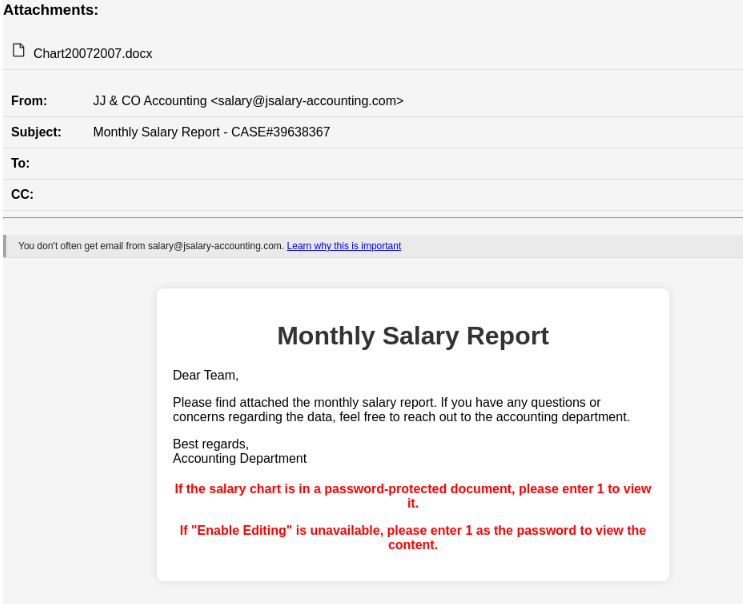
The starting point is a salary-themed phishing email that looks like it has been sent by the accounting team. It asks the recipients to open the attached Microsoft Word document to view the monthly salary report.
Upon inspecting the email message headers, mainly the Return-Path and Message-ID fields, it was revealed that the hackers used a valid email marketing platform called Brevo (previously called Sendinblue) to send the emails.
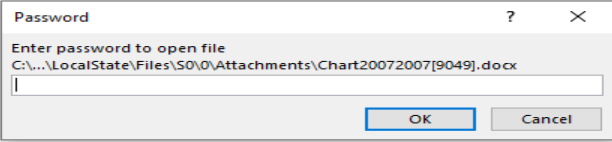
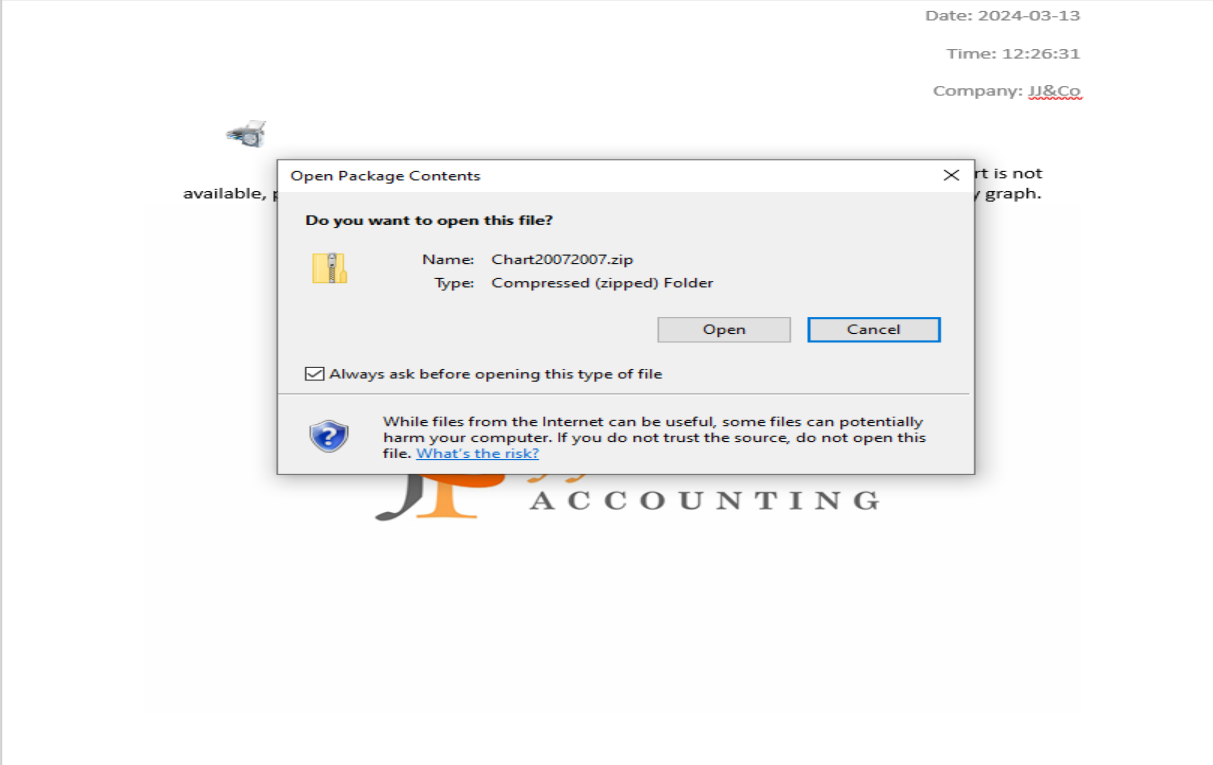
When the victim opens the Word document, it asks them to enter a password mentioned in the email body and enable editing. Then, they double-click the printer icon embedded in the document to view the salary graph.
It will then open a ZIP archive file named Chart20072007.zip, which contains a Windows shortcut file that works as a PowerShell dropper that retrieves and executes a NetSupport RAT binary from a remote server.
Davidpur also mentioned:
By using encrypted .docs to deliver the NetSupport RAT via OLE template and template injection, PhantomBlu marks a departure from the conventional TTPs commonly associated with NetSupport RAT deployments, adding the updated technique showcases PhantomBlu’s innovation in blending sophisticated evasion tactics with social engineering.
This is another instance where threat actors abuse cloud services, such as IBM Cloud, Dropbox, Oracle Cloud Storage, GitHub, and Web 3.0 data-hosting platforms built on the InterPlanetary File System protocol, to generate FUD (fully undetectable) URLs using phishing kits.
These FUD links are easily available on Telegram by vendors like FUDLINKSHOP, XPLOITRVERIFIER, BulletProofLink, and more for a price of around $200 per month for a subscription.
The links are secured behind antibot barriers to filter incoming traffic and make them undetectable. There are tools like HeartSender that make it possible to spread these FUD links on a larger scale.
The phishing campaigns built by hackers could look legit, so it is important to scale through an unknown email before opening attachments to ensure your security.
What are your thoughts on the matter? Share your opinions with readers in the comments section below.
Satya Nadella introduces Microsoft AI, a new department that will bring together Bing, Edge, and Copilot, with Mustafa Suleyman, DeepMind, and Inflection founder leading it.
I’m very excited to announce that Mustafa Suleyman and Karén Simonyan are joining Microsoft to form a new organization called Microsoft AI, focused on advancing Copilot and our other consumer AI products and research.
Satya Nadella
According to the message he left, Nadella will appoint Mustafa Suleyman as the new department’s EVP and CEO, while Karén Simonyan is joining this group as Chief Scientist, reporting to Mustafa, directly.
Mustafa will be EVP and CEO, Microsoft AI, and joins the senior leadership team (SLT), reporting to me. Karén is joining this group as Chief Scientist, reporting to Mustafa. I’ve known Mustafa for several years and have greatly admired him as a founder of both DeepMind and Inflection, and as a visionary, product maker, and builder of pioneering teams that go after bold missions. Karén, a Co-founder and Chief Scientist of Inflection, is a renowned AI researcher and thought leader, who has led the development of some of the biggest AI breakthroughs over the past decade including AlphaZero.
Satya Nadella
Mikhail Parakhin, the current leader of the Windows and Web Experiences Team, and the one leading the development of Copilot, Edge, and Bing, will also report to Mustafa Suleyman, and Nadella says the move will help Microsoft double down on innovation when it comes to these products.
As part of this transition, Mikhail Parakhin and his entire team, including Copilot, Bing, and Edge; and Misha Bilenko and the GenAI team will move to report to Mustafa. These teams are at the vanguard of innovation at Microsoft, bringing a new entrant energy and ethos, to a changing consumer product landscape driven by the AI platform shift. These organizational changes will help us double down on this innovation.
Satya Nadella
The new Microsoft AI department will focus on innovating Copilot, Bing, and Edge with advanced AI capabilities that will suit both commercial customers and standard Windows users.
It’s worth noting that Microsoft will release the Windows 11 2024 Update later this year, and the version will have many AI capabilities. The Redmond-based tech giant also announced the release of the Copilot Key, its first new keyboard key in decades, which will allow users to access the AI model with just a tap.
The company is placing a lot of its bets on AI, from Windows to its productivity platform, Microsoft 365, its browser, Microsoft Edge, and its software and security platforms, as well. The company’s partnership with OpenAI will also be one of the main focus of the new Microsoft AI department, as Satya Nadella states:
At our core, we have always been a platform and partner-led company, and we’ll continue to bring that sensibility to all we do. Our AI innovation continues to build on our most strategic and important partnership with OpenAI. We will continue to build AI infrastructure inclusive of custom systems and silicon work in support of OpenAI’s foundation model roadmap, and also innovate and build products on top of their foundation models. And today’s announcement further reinforces our partnership construct and principles.
Chromebooks are widely used in schools and workplaces, so installing Microsoft Teams on these devices is a no-brainer since it’s one of the most commonly used collaboration tools.
How can I download Microsoft Teams on my Chromebook?
1. By using the Google Play Store
Launch the Google Play Store app on your Chromebook.
Search for Microsoft Teams and click the app.
Now, click the Install button and wait for the process to complete.
2. By using a web browser
Open your preferred web browser on your Chromebook. (We’ll be using Chrome for this step).
Go to the Teams website by typing teams.microsoft.com in the address bar and pressing Enter.
If prompted, sign in to your Teams account. You’ll need to create an account if you don’t have one.
Click on the download icon and hit Install when prompted. You should now have access to Teams through the web version.
To make accessing Teams more convenient, a shortcut will be automatically created on your PC’s desktop or taskbar.
If it doesn’t, with the Teams website open in your web browser, click on the three-dot menu icon located in the upper-right corner of the browser window.
From the dropdown menu, hover over More tools>Create shortcut (the wording may vary depending on the browser you’re using).
A dialog box will appear, asking you to confirm the creation of the shortcut. Check the box to Open as a window and click Create.
The Teams shortcut should now appear on your desktop or taskbar. You can simply click on it to access it quickly.
Scroll down the page and click the Linux (.deb) link.
Now, click the Accept and download button and wait for the download process to complete.
Next, double-click the downloaded file to launch it.
Finally, click the Install button, followed by OK to complete the process.
Some Chromebook models may support Linux apps. If your device supports such configurations, this may be an alternative way to install Teams on your Chromebook.
However, if Teams is not working on your Chromebook, there may be a server outage or compatibility issues. You can clear your browser cache and cookies, check for browser updates or switch to another browser.
What are the pros and cons of using Microsoft Teams on a Chromebook?
Pros
Chromebooks offer an inexpensive communication method without the strict hardware requirements for other OSes and devices.
Microsoft Teams can be downloaded as a Progressive Web App (PWA) with a native app experience, eliminating the need for additional standalone apps that consume storage space.
Chromebooks have the Google Play Store as a native app, hence no need to sideload Android apps.
Cons
Whereas the PWA app has some beneficial functionalities, some features are only available in the native app.
Chromebooks are typically lower-end models, so their performance is not that great. Running resource-intensive apps with limited bandwidth can downgrade the quality of your communication on Teams.
Older Chromebooks may have limited functionality as they may not support newer versions of Microsoft Teams. You can always upgrade your Chromebook if need be.
Still, to ensure you’re getting the most out of your Teams app on your Chromebook, use a strong and stable internet connection, keep browser tabs to a minimum, and use the extensions sparingly. Also, regularly clear your browser cache to free up memory and storage.
Hopefully, you’ve managed to install Teams with our instructions. If you did, why not check our guide on how to put apps on a desktop on Chromebook for quick and easy access?
That’s a wrap from us, but we’d love your feedback. Which method do you find easier to install Teams on your Chromebook? Let us know in the comment section below.
Ever since Microsoft released the native RAR support app for Windows, the Redmond-based tech giant has been updating it regularly, and now the app is performant enough for Windows users not to choose third-party apps anymore.
For instance, Microsoft added support for 7z, and TAR to its native RAR app, back in November 2023, and earlier this year, the Redmond-based tech giant added even more options to the app, allowing users several new ways to compress files.
The continued support for the native Windows RAR application means users won’t have to resort to third-party apps anymore, which is making some of them struggle to keep up. 7-Zip is one of them.
The app recently got some updates that made it support ZSTD archives, 7-Zip is performing slower than Windows RAR application, and it requires more time to complete some tasks. The app is also just now supporting formats that the native Windows app already has been supporting for months.
We’re talking about the Zst, and Tzst formats, as well as the entire Zstandard library, something 7-Zip has only implemented with the latest 24.01 version.
So, is it worth keeping third-party RAR support apps installed on your Windows 11? Well, if you’re dealing with a lot of compressing and archived files, it would be better to have a third-party app installed on your device, for now.
Microsoft’s native RAR support app has been around for less than a year, and while it’s quickly catching up and even surpassing some of the other apps around, it might not be able to support all formats. For that, it’s always better to have another app that can do the job.
However, with how the updating goes for now, in a year, you most likely won’t need to keep any third-party apps around when it comes to file compression and file archiving, as the native Windows app will be more than enough for it.
Microsoft Ireland has announced the initiative to teach individuals from rural Irish areas all about AI with the help of in-person Skill-Up-A-Thons workshops.
In the following weeks, enthusiasts from Irish counties such as Cavan, Galway, Kilkenny, Mayo, and Tipperary will have the opportunity to educate themselves in AI skills, in a series of offline and online masterclasses aimed at teaching people, and potential local business owners all about the benefits of this technology.
AI has the potential to empower people and organisations across the country but it’s critical that everyone, everywhere has the skills to harness its benefits. One of our key ambitions as part of the programme is to bring AI skilling directly to people, communities and businesses in rural Ireland and ensure they are given equal opportunity to engage in AI. That’s why today we’re rolling out the first-ever AI Skill-Up-A-Thons across rural Ireland. Through these new AI learning pathways, we want to empower people of all ages, backgrounds and experience with the skills and knowledge to succeed in an AI-enabled economy.
Microsoft
The AI masterclasses will start this month and will last until September, and each masterclass will last for about 4 hours. Upon completion, participants will be rewarded a Career Essentials Certificate in Generative AI that will be recognized by the industry and could allow for further opportunities. Those who participate will also gain access to LinkedIn Premium, which could emphasize their chances and opportunities even further.
Aside from the Skill-Up-A-Thons masterclasses, Microsoft will also offer AI courses to local business owners, so they can learn to foster and use AI to boost their businesses. These courses will focus on different aspects of AI-powered business, from business management to the understanding of AI tools, and so on.
This is not the first time Microsoft Ireland launched such initiatives. Not long ago, the company also held online masterclasses focused on AI, which proved to be a success, and now the Skill-Up-A-Thons courses are a continuation of those.
Microsoft is taking it almost by itself to make European countries more aware and AI inclusive: for instance, the Redmond-based tech giant announced an AI partnership with several European countries, such as Germany, France, and Spain that will see the company integrate AI technologies in government infrastructures.
While this might have to deal with the European Union limiting Microsoft’s power over the region (Windows Copilot is not yet available in the EU, for instance), the deals are worth billions of dollars.
Microsoft Teams has been available as a desktop app for Linux but Microsoft sunset it in favor of the progressive web app. Since you can no longer get it from the official Teams site, here are a few ways to still use it.
Before you download the Teams app, you need to ensure your device meets the system requirements. Linux is available on different distributions so if there are compatibility issues, it is probably because that version is unsupported.
How do I use Microsoft Teams on Linux?
1. Using a web browser
Launch your select web browser and go to the Teams website.
Sign in with your credentials.
On the address bar, click on the download icon and hit the install button.
Once you install it, a shortcut will automatically be created and you can launch Microsoft Teams as a PWA directly from your desktop. Most developers are pushing PWAs instead of native apps because of their cross-platform compatibility and seamless integration.
It also makes much more sense when using Teams on Chromebook because it doesn’t take up too much space for a low-end device.
Although not a native app, it mimics its functionalities and comes with additional benefits such as automatic updates without taking up storage space on your device.
2. Using Ubuntu software store
Open the Ubuntu Software Store.
Search for Microsoft Teams then click on teams-for-Linux and hit the Install button.
Troubleshoot common issues that may arise when using Teams on Linux
If your video is lagging or has issues, ensure your graphic and sound card drivers are up-to-date.
Ensure you have enough system resources such as sufficient storage and memory. This will ensure you’re able to save and even record videos.
Verify that you’re using the latest available version of Teams as well as your Ubuntu distribution. This will address any compatibility issues.
Ensure you’re running Teams on a stable connection and allow the app through your firewall in case there are restrictions.
Having successfully installed Teams on Linux, we’re sure you’ll also find that recordings of meetings come in handy when you want to go back and clarify something. As such, we show you how to record your Teams meetings.
However, just before you start recording, we recommend that you test your Teams call. the last thing you want is to record a meeting only to discover later that no audio was recorded.
And if you’re managing a large team, the Network Assessment Tool will ensure your connectivity is always stable with no downtime.
That’s all we had for this article but we’re curious. Have you used Microsoft Teams on Linux and other OSes say Windows 11? Is there a difference? Let us know in the comment section below.
Windows users are now given the option to transition from the old Mail app to the new Outlook, but before even choosing the option to say no, for now, Windows closes the Mail app and automatically upgrades it to the new Outlook, according to Windows Latest.
The Redmond-based tech giant started to warn Windows users of the change earlier this year, when it added a pesky prompt to Mail & Calendar, pushing users to switch to Outlook. Microsoft announced that it would delist the UWP mail & calendar apps, last year, and many Windows users were not happy about it.
I tried Outlook a few times because they allow easy switching, but I did not like it for two reasons. It was very glitchy/laggy and I did not get notified about new emails. Also, I noticed that I often received emails very late, so I switched back to “Mail”.
Windows user
However, none of the complaints mattered, as the Redmond-based tech giant is now automatically switching to the new Outlook. Fortunately, users will be given an option to go back to the old Mail app, but not for long, though. The pop-up reads:
The next time you launch Mail or Calendar, you will be redirected to Outlook. You can switch back to Mail and Calendar by clicking the toggle on the top right of your screen.
Microsoft
That’s good to know, and it is good users have the option to go back, but unfortunately, the Mail and Calendar apps will come to their end later this year. They will still be available to use and download in the Microsoft Store, up until the end of 2024.
The Redmond-based tech giant is trying this option to somehow force users to get their hands on Outlook, so that users will know what to expect when the transition will ultimately happen, for the last time, later this year.
So, no. You won’t be able to escape transitioning to Outlook, but now would be the perfect time to give it a try, and test the waters. Indeed, Windows users are somehow forced to like Outlook, but ultimately the platform comes with its own set of benefits, including access to Copilot.
However, it seems that this has been a rash decision, and according to the latest news, it seems that the two companies will continue their collaboration after all.
Microsoft will use Nvidia Grace Blackwell superchips on Azure
The company has announced a with 208 billion transistors and 192GB of HBM3E memory.
This GPU will use a TSMC 4NP process that will allow real-time generative AI on trillion-parameter large language models. The new GPU will also have 25 times lower cost and energy consumption than its predecessor.
Lastly, there’s also a 1.8TB/s bidirectional throughput per GPU, that will ensure outstanding performance.
Blackwell is certainly an amazing chip, so it’s no surprise that Microsoft decided to use these superchips on Microsoft Azure.
NVIDIA Grace Blackwell superchips will be used by Microsoft 365, while NVIDIA Triton Inference Server will power Copilot for Microsoft 365.
Microsoft’s Satya Nadella said the following:
From bringing the GB200 Grace Blackwell processor to Azure to new integrations between DGX Cloud and Microsoft Fabric, the announcements we are making today will ensure customers have the most comprehensive platforms and tools across every layer of the Copilot stack, from silicon to software, to build their breakthrough AI capability.
Microsoft is one of the first companies to bring NVIDIA Grace Blackwell GB200 and NVIDIA Quantum-X800 InfiniBand to its cloud-based platform, and we’re certain that others will follow suit.
This is amazing news, and we’re positive that this collaboration will make Azure and other Microsoft services better than ever before.
Yes, we know how it sounds, but Microsoft might actually come up with a handheld gaming PC in the future. Even though there are Rog Ally, and Legion Pro allowing users to install Windows 11 to play their favorite video games, the Redmond-based tech giant could release a handheld of its own to address the limitations of these consoles.
In an interview for The Verge, Phil Spencer said that while he’s a big fan of the Legion Go and Rog Ally consoles, he admitted that the way these consoles are running Windows 11 is somehow not desirable:
We do have real work. One of the weak points in the experience on a ROG or the Lenovo [Legion Go] is Windows. How Windows works on controller input only on that kind of DPI, on a smaller eight- or seven-inch screen. That’s a real design point that our platform team is working with Windows to make sure that the experience is even better.
Phil Spencer
In the same interview, he also said that there is nothing to announce when it comes to Xbox handhelds, even though he is a big fan of these types of consoles. However, Xbox currently has the Game Pass subscription model which recently passed 34 million users, and the future of an Xbox handheld might revolve around it.
Game Pass is structured in such a way subscribers have access to a wide catalog of video games for both Xbox consoles and Windows PCs. The model allows for cross-play, cloud-play, and cross-progression, and it has widely become known as the Netflix for games.
Well, as we mentioned earlier, a handheld from Microsoft will definitely revolve around this model, while also being capable of handling the limitations that the current Windows-based handhelds have. With this being said, the idea of a handheld gaming PC could be plausible.
Even though Game Pass already has a cloud-based service, allowing users to play games from literally any supported device, running video games natively is a much better option, especially for those gamers who like a lag-free, no-stress gaming experience.
A Microsoft handheld gaming PC could address many of the limitations by coming with a larger screen, and keypads and controllers specifically made to suit the device. It would be bigger, yes, and it wouldn’t fit in a pocket.
But it would have a bigger battery, which means gamers could spend exponentially more time on it. It would be entirely possible? Why? Because we have the tablets going on for more than a decade now, and people are used to carrying bigger handheld devices with them.
Plus, Microsoft is currently developing the Surface Pro devices, which are portable devices, capable of very powerful performances.
There have been many requests over the years for an Xbox handheld, and users have come up with mockups of them. On the other hand, a lot of other users have tried and managed to install Windows 11 on portable devices, such as mobile phones, so there is a desire for a Microsoft handheld gaming PC.
Crunchyroll is one of the most-used anime websites in the world, but it seems that the service is down for many.
The users have been having issues with the service in the last few days, but it seems that it’s down for many, so let’s see what’s going on.
Crunchyroll is down for many, and the cause remains unknown
Over the past week, many users had issues with Crunchyroll according to its Downdetector page. It seems all platforms, including PC, Android, Roku, Fire TV, and more, have been affected according to Times Now News.
However, there’s more trouble for Crunchyroll, and looking at the info from Downdetector, the number of reported outages spiked today with over 439 reports at the time of writing.
The cause of the outage remains unknown, and there hasn’t been any announcement from Crunchyroll regarding this issue.
Gamers couldn’t hide their excitement when the news broke that Final Fantasy XIV was coming to Xbox. Soon, we had an open beta for the game. And now, on March 21, 2024, Final Fantasy XIV Online will finally be available to all players with a new currency, the FFXIV Coins!
These coins will be used for purchases and payments and can be bought from the Microsoft Store. The developer’s official website describes FFXIV Coins as,
Payment for service fees and optional item purchases will require FFXIV Coins, which can be purchased from the Microsoft Store. Please purchase FFXIV Coins before using the Mog Station or FINAL FANTASY XIV Online Store.
With the Xbox Series X/S Version of Final Fantasy XIV, you can only use the FFXIV Coins for payments. For other platforms, regular payment options will be available.
The process of redeeming is more complicated than anything we have ever seen. For instance, after purchasing coins from the Microsoft Store, you have to log into the game and then have the FFXIV Coins credited to your Square Enix account.
As you would expect, users are unhappy and voicing disapproval
A few took to X (formerly Twitter) to voice their disapproval.
It's so funny that we've been begging SE to make account management and billing more simplified for 10 years and instead of doing that they made it even more complicated for no reason https://t.co/BKTCJjjVdOpic.twitter.com/WpRIWZyPA5
Others voiced their frustration on forums like Reddit, where several threads were created to discuss the change. Also, a large bunch of users are confused about how this would affect them.
Frankly, id suggest any xbox player just buy the starter edition for pc regardless just for that to avoid the hassle of these “coins”
Why anyone would want to play this on Xbox is beyond me lol
Having to pay for Gamepass and this FFXIV Coins stuff really makes Xbox the worst version to play
Xbox was already the worst way to play this game, but I feel like the coins are just a meme at this point.
The new FFXIV Coins payment method is to help Microsoft earn its share, but honestly, it’s too complicated.
They must come up with a simpler way, or else the Final Fantasy XIV’s release on Xbox won’t create as much hype. It’s been available on other platforms, and players will prioritize those over Xbox for peace of mind.
What do you think about the introduction of FFXIV Coins? Share with our readers in the comments section.
On 18 March 2024, Dell released a new firmware update, M2B104, for the Alienware AW3225QF gaming monitor.
The update, listed on Dell’s website, is marked as Critical because it introduces patches for critical issues. As per the official page, fixes and enhancements included in the Alienware AW3225QF Monitor Firmware Update package version M2B104 are:
Fix over-sensitivity of abnormal temperature detection potential mis-trigger Abnormal Thermal detection message pop-up.
Fix potential image clipping at the edge of the left or right side of the panel.
The 10.96 MB firmware update, compatible with Windows 10 (both 32-bit and 64-bit) and Windows 11, takes roughly 10 minutes to install.
To install, download the Alienware_AW3225QF_FWUpdate_M2B104_Windows.exe file from Dell’s official website > run the setup > follow the on-screen instructions to complete the process.
Before you start, plug the gaming monitor into the PC and ensure the connection between the two is not lost during installation. If that happens, your Alienware AW3225QF monitor may stop working.
Based on the initial feedback, most users are satisfied with Dell’s prompt response to their queries and, with it, quickly rolling out the firmware update to address the existing issues.
Have you installed the firmware update? Share any bugs or issues, if present, with our readers in the comments section.
However, another leak confirms that an unannounced Xbox console, identified as model number 2089, has been certified in South Korea. It is also said to be labeled as an Xbox dev kit.
Rumors have been circulating since 2023 that Microsoft is planning a mid-gen hardware refresh for the Xbox Series consoles. These reports also suggest that the new version could only be a digital-only version of Series X.
Furthermore, during Microsoft’s legal dispute with FTC due to the acquisition of Activision Blizzard, some court documents even revealed the design of this disc-less Xbox Series X. The documents also revealed that the device is cylindrical in shape instead of the conventional rectangular one.
However, the news of South Korea’s National Radio Research Agency (NRRA) certifying an unannounced piece of Microsoft hardware has confused us.
The March 18 regulatory listing was first spotted by X (formerly Twitter) user KoreaXboxNews labels the device as an XDK console, which means it is an Xbox dev kit, which is a modified version of a system with inbuilt debugging tools & other features used for game development.
This is not the first time Microsoft has gotten an XDK certificate from the Eastern company; the same thing happened at the time of the Xbox Series X and Series S dev kits on June 11, 2020, and after three months, the consoles were officially announced.
Microsoft's new Xbox Dev Kit (XDK) console was certified by the National Radio Research Agency in Korea today. This means that you can use the device in Korea. It is… pic.twitter.com/jZAuYlynV4
— Xbox News for Koreans ?? – 네이버 Xbox 정보 카페 (@KoreaXboxnews) March 18, 2024
The new device is denoted as model number 2089, wherein the Series X and S dev kits are mentioned as 1882 and 1881/1883. Like Xbox Series X and Series S, NRRA NRRA identified China and Vietnam as the countries of origin of the console.
If we look at past records and Microsoft patterns, we can hear about the new Xbox console after three months, which means it will be in June this year. Also, the existence of a regulatory listing means this console could soon be shipped to developers.
Microsoft has already confirmed that the company is working on the Xbox Games Showcase for June 2024; we may also hear about the new console.
As the disc-less Xbox Series X rumors hit the market, there was speculation about the console’s price, color, design, and more. Some think the console would be white, while others claim the price could be between the Series X and Series X.
However, these seem to be just the rumors as of now; Microsoft has not confirmed any news related to the latest console, and it looks like we will have to wait at least till June for any confirmation.
What do you think about the new Xbox console? Share your opinions with our readers in the comments section below.
Windows Hello allows users to protect their PC and important data by using their PIN, fingerprint, or face.
This is a very popular feature, and due to its popularity, it might become a default authentication method for users in Google Chrome.
Windows Hello might become the default authentication method in Chrome
As you know, Chrome already offers Windows Hello authentication, and you can use it to verify your identity when auto-filling passwords or when using autofill for payments.
Currently, this feature allows you to choose a different verification option, such as your password, but that won’t be the case anymore.
The new dialog doesn’t offer any other verification options, so you’re forced to use Windows Hello. This is a welcome addition since it requires unauthorized users to know your PIN as well or to use biometric authentication.
Currently, Chrome uses the Wincred OS Authentication mechanism, but moving forward it will switch to UserConsentverifier API. The reason behind this change is the latency that occurs when using Wincred.
The service won’t be fully retired, and if Windows Hello is configured, the OS authentication will use the UserConsentverifier API. If not, Wincred will be used instead.
This is an exciting feature that should improve the security of your passwords and payment information, and we can’t wait to see it available, but it’s not the only feature coming to Chrome.
Microsoft’s push for AI in Windows and across all its native software has been evident in the last few months. Now, the Redmond-based tech giant is holding an exclusive event to share the company’s plans for AI, both development and deployment.
According to reports in The Verge, Microsoft has emailed invites to journarlists to attend the May 20 AI event, scheduled for morning, a day before the Microsoft Build 2024 event starts.
The May 20 event won’t be live-streamed and will only be open to media persons who received an invite.
What can you expect from the May 20 event?
Microsoft is set to showcase the ARM-based Surface Pro 10 and Surface Laptop 6 for the first time during the event. This dispels previous rumours of the two arriving as early as March.
Also, during the May 20 event, we will find out more about Microsoft’s plan for AI integration in Windows. The new AI-based File Explorer could be a highlight!
Lastly, Microsoft Copilot may take the central stage. The tech giant has extensively worked on the AI-based chatbot and integrated it into practically everything for users to leverage the power of AI, Microsoft Security Copilot being a prime example!
We will be keeping a close eye on it and will bring more updates to you. For now, do share what you think is Microsoft’s vision of AI in the comments section.
Ever since Apple started letting users choose the default browser on iOS devices in compliance with the Digital Markets Act (DMA), third-party browsers have witnessed a significant increase in downloads.
As expected, the Opera browser is the next in line to show a similar trend. In an official press release, Opera claims to have secured a 164% increase in user base between March 5 and March 7, as Apple showed the Choose Your Default Browser prompt.
Reacting to the developments, EVP Mobile at Opera, Jorgen Arnesen, said,
The day the ballot screen started to appear, we saw a spike in the growth of our daily active users, especially for Opera for iOS. We see this as indicative of two things: for one, the importance of regulation to provide a more level playing field, and for another, that users are hungry for new and innovative products that can deliver a superior online experience
In almost all regions across the EU, Opera witnessed a massive surge in downloads. It was 402% in France, 143% in Spain, 56% in Germany, and 68% in Poland.
The increase was significantly higher for iOS than for Android because the latter always allowed changing the default browser.
What surprised many was Apple recommending Microsoft Edge as the default browser, especially at a time when the fight over EU rules was becoming murkier. It appears that Apple’s recommendations were based on App Store reviews.
Earlier, Microsoft, too, complied with DMA. Subsequently, it allowed users in the EU to uninstall Edge and Bing web search through the native Windows settings.
Remember, an increase in installs doesn’t necessarily indicate that users will permanently switch to other browsers from Safari. Many may have just installed other browsers out of curiosity and might soon uninstall them. We will have to wait another few weeks to get a clear picture!
Which browser do you think would be the best choice for iOS after the enforcement of DMA? Share with our readers in the comments section.
Viber is a popular messaging app, and it’s available on multiple platforms, including PC.
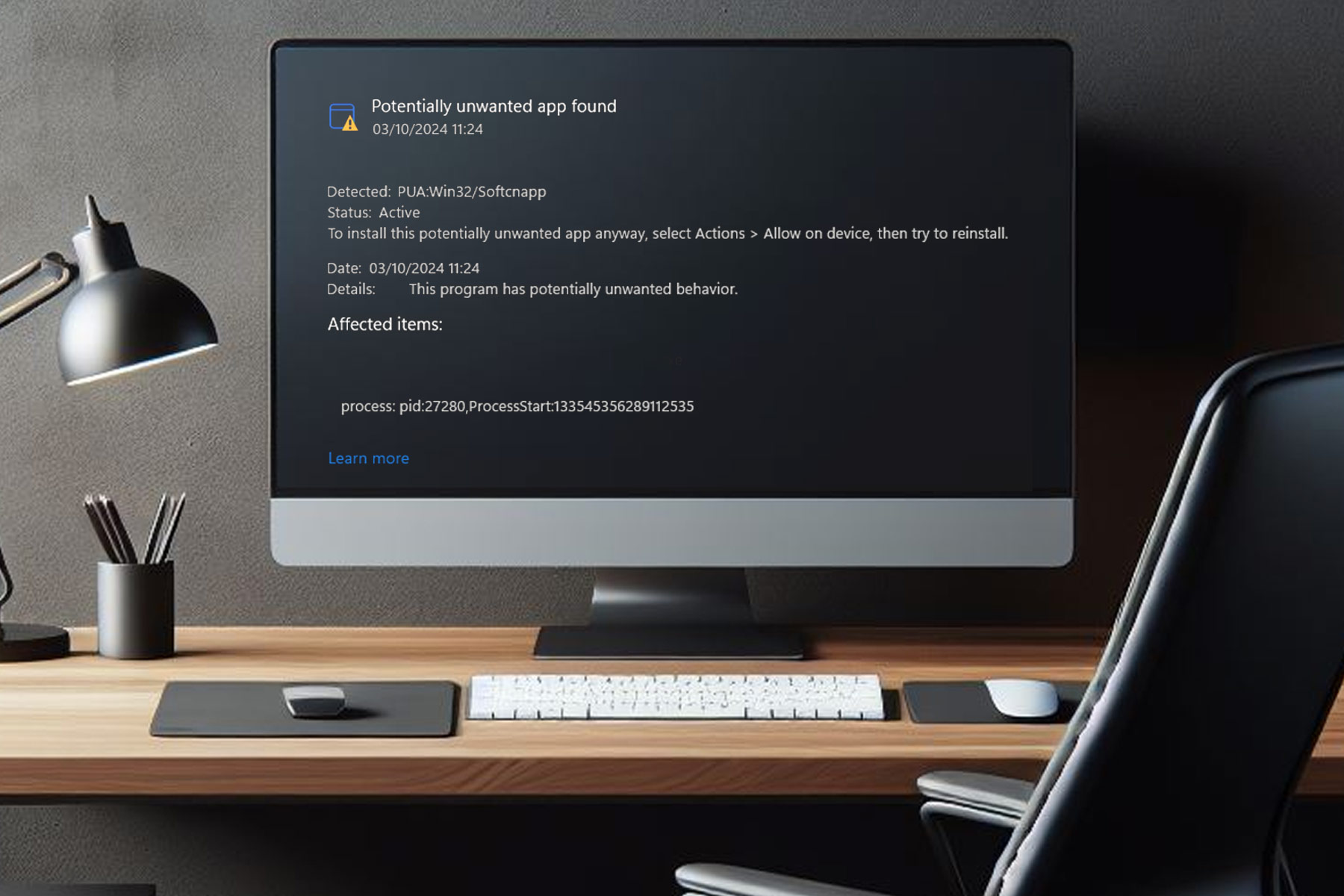
However, there are reports by users saying that Windows Defender labels Viber as a potentially unwanted app, so we decided to investigate these claims further.
Windows Defender marks Viber as an unwanted application, here’s what you should know
This is a recent issue, and it was been reported on the Viber subreddit a few days ago. Naturally, users were concerned, but the good news is that developers are already working on this issue.
I got the same and i deleted viber as of now and created a support ticket. Let’s see what happens…
Edit: Support team told that they are trying to fix the issue ASAP.
Many are speculating that the problem was caused by a recent Viber update:
i think its something having to with an update bc i remember some days ago viber wanted to an update also my windows defender found whatever this is in everything that has to do with viber, vuber updates etc
Users speculate that this is likely due to data-collecting features in Viber:
I think that it probably has to do with them adding more and more ads in viber. As I understand this “PUA:Win32/Softcnapp” collects data in order to provide personalized ads. But this is just my thought on the matter.
More proactive users scan the file with additional scanners, and it seems that only Microsoft is listing it as malicious, thus making it most likely a false positive:
I just downloaded the install from viber.com and scanned it on virustotal.com but it says only Microsoft listed it as malicious. (PUA:Win32/Softcnapp to be exact)
One user claims Rakuten Viber personnel recommended updating antivirus definitions by following these steps. This worked for several users:
Please update the security signature files in your Windows Security settings as a workaround.
Select Start > Settings > Update & Security > Windows Security > Virus & threat protection > Select Check for updates (or Virus & threat protection updates in previous versions of Windows) > Under Security Intelligence, select Check for updates
If nothing else works, you can always get a previous version from a reliable third-party source and use it instead:
I just uninstall it and roll back to the latest safe version which is the Viber 21.9.
While this seems concerning, it’s most likely a false positive, and updating the security definitions should fix the problem.
Microsoft has been actively upgrading its native video conferencing app, Teams. A few days ago, we saw improvements to the Microsoft Teams app for Android and iOS. This time around, Microsoft shared a series of upgrades meant to enhance the app experience for end users and IT administrators.
Third-party developers who have their apps listed on the Teams App Store stand to gain a lot. Microsoft prioritized their feedback and, based on it, rolled out a wide array of features, including AI-capabilties.
So, in the latest series of changes listed on the official blog, Microsoft has something for everyone!
List of latest improvements to Microsoft Teams
Aimed at end users
Microsoft Teams now allows users to rate and review apps, thus helping developers refine them and aiding users in making an informed choice.
With the introduction of ratings, Teams App Store search will also transform. Apps rated higher will be shown first, usage being another vital parameter. Besides, support for more keywords is being added.
Microsoft is simplifying the app installation experience, ensuring consistency and minimizing the number of steps.
Image source: Microsoft
Aimed at administrators
New User Requests tab on the App Details page for administrators to identify which apps users want. They will also have information about who the request is coming from.
The Teams Admin Center dashboard will display the most requested apps, helping admins prioritize their deployment. A Browse by app requests filter is also added.
Users will automatically receive a notification with the app installation link once their request is approved by the administrators.
Improvements to the app management and deployment. Admins now have better control and can also specify individual groups, in addition to users, while configuring app access.
Changes made by the admins to reflect in real-time, eliminating any confusion that previously occurred due to the 24-48 hour delay.
Aimed at app developers
Microsoft’s Instant App Tabs will simplify the app onboarding experience, increasing the user base.
Developers can configure apps to send activity notifications without explicit admin approval. Also, Team members, like owners, can now install apps with RSC.
Improvements to the Adaptive Card, set to enhance attention.
Better deep linking to ensure users can easily navigate, and if required, be shown prompts to request an app.
Most of the features discussed earlier are either already available or will be rolled out in a phased manner over the next few months. Check for any updates, and if the feature is still not there, wait for a few weeks.
Amongst the many changes, the Microsoft Teams AI Note Taker has captivated thousands and is extensively employed in meetings. Try it once!
The new update brings caret browsing to PDFs, which will make navigation easier. Firefox View has been improved, and now you can sort tabs based on their activity or tab order.
This version also populates Windows Taskbar lists more efficiently, thus making your browser experience smoother.
Qwant has expanded to all languages in the France region, as well as Belgium, Italy, Netherlands, Spain, and Switzerland. Similarly,
Ecosia is now available to all languages in the German region along with previously mentioned regions, including also Sweden and Austria.
As for macOS changes, this version of Firefox uses macOS fullscreen API for all types of fullscreen windows thus improving macOS user experience.
The update brings various security fixes, and developers will be pleased to hear that there’s now support for AbortSignal.any and HTTP(S) and relative URLs when creating WebSockets.
Overall, it’s a decent update, and we expect to see it later today, so be sure to get it.
We all know Microsoft has been swiftly moving Control Panel features to Settings for quite some time so that users can accommodate the changes. It looks like with Windows 11 24H2, we might see more of these changes, as spotted by WindowsLatest.
Power & Battery
The preview builds showed many changes, including advanced options in the Power & Battery category. Starting from 24H2, if you use a laptop to run Windows 11, you will get the Lid, power, and sleep button controls option under the Settings app.
However, if you are a desktop user, you will get the Power button controls option in the Settings app, but you won’t find the hibernate option in the dropdown menu.
After the Moment 5 update, in Settings on a desktop, we got the options to change the Power mode and Screen & Sleep time. There is an additional option, Hibernate, in the Screen and Sleep timeouts dropdown menu for laptops.
Display Color Management
With Windows 11 24H2, you can use the legacy tool from the Color profile section under Display settings. The feature helps you improve the display output and map the color profile to multiple displays.
Launch the Settings app and go to Display>Color profile>Add profile button. Then, choose a color profile file, load it, and apply the new color profile. Windows had an automatic color management option to adjust colors on the supported screens earlier.
Storage Pool’s advanced toggle
Now, you can delete a Storage Pool right from the Settings app with the Delete this Storage Pool option. Earlier, you needed to go to the Control Panel and navigate to System and Security>Storage Spaces to manage them.
Another change in this feature is that in the Control Panel, you need admin privileges to make changes, but under Settings, you don’t have elevated rights to perform any action.
Drive Encryption for Windows 11 Pro
With Windows 11 24H2, like Windows 11 Home users, Windows 11 Pro users will also get the Device Encryption option in the Settings app.
To access it, go to Privacy & Security>Device Encryption. You can use it to encrypt data in the installed drives, but for USBs, you need to use the BitLocker page in the Control Panel.
Microsoft is far from done moving features and settings from Control Panel to Settings, and in the future, you may find yourself surrounded by more changes and feature migrations.
Windows 11 24H2 is in preview and is expected to become generally available in Q3 or Q4 of this year. If you want to know if your CPU can handle this update, we have a detailed guide for you.
What are your thoughts on the matter? Share your opinions with our readers in the comments section below.
The release dates of PS5 Pro and GTA 6 are, coincidentally, closely aligned. The former will be shipped in late 2024, while the latter will be out by early 2025 for consoles, Xbox and PlayStation. If reports are to be believed, PS5 Pro and GTA 6 will be the perfect duo and the first choice for many.
Leaked specifications, shared by Insider Gaming, suggest that PS5 Pro will be the most powerful gaming console to date. It offers 8k resolution support, 45% faster rendering, 4x Ray Tracing, and 3x faster performance than PS5 and Xbox Series X.
Had there been any other console releases lined up, PS5 Pro would have faced some competition, but this time around, it doesn’t have to put in too much effort, at least when GTA 6 hits markets!
Phil Spencer confirms Xbox is not planning any hardware overhaul
Microsoft is not expected to release any improved consoles in the next year. Its gaming division CEO, Phil Spencer, has, on multiple occasions, denied plans to release an upgraded Xbox. In an interview with Bloomberg, Spencer said,
That’s not the feedback we’re getting right now. Right now, we’re pretty set on the hardware we have.
All reports so far suggest a 2027-28 release date for the next-gen Xbox console with significantly upgraded and improved hardware. Until then, PS5 Pro is expected to retain the top console spot and will outperform Xbox!
Gamers excited about playing GTA 6 on PS5 Pro
Based on what we see across forums like Reddit, it’s evident that a large part of the gaming community, especially fans of the GTA franchise, are excited about playing GTA 6 on PS5 Pro.
Stable 60fps and 1440p is all I want. Anything more is a bonus.
I hate that I’m gonna buy this lmao. I wouldn’t even consider getting the Pro if it wasn’t for GTA 6. I NEED to experience the game at launch the best way I can.
I am buying a good TV and a ps5 pro purely for Gta 6.
As expected, a few initially planned to wait for the PC release of GTA 6, but since it’s scheduled for early 2026, almost a year after the console release, the PS5 Pro automatically emerges as the best available option. Seems like everything is just falling into place for Sony!
The release of GTA 6 will further widen the gap between Xbox and PlayStation sales figures, and the former will have a lot of catching up to do.
Of course, a lot of the things we discussed are speculative and based on leaks, but this is the most possible scenario at the moment.
Would you get a PS5 Pro to play GTA 6 or wait for the PC release? Share with our readers in the comments section.
Monitors for work and gaming are going through a renaissance as customers become a bit more sophisticated in their requirements following a work-from-home scramble for panels at the height of the pandemic, and Lenovo is offer one of the best bangs for bucks with the Lenovo Legion Y32p-30.
Odd naming convention aside, the Lenovo Legion Y32p-30 is a gaming monitor that packs a punch with its impressive features and performance for around $599. Yes, $600 USD is still expensive for a gaming monitor, however, customers walk away with a panel that offers support for KVM switching, 1.07 billion colors, PiP/PBP, 4K resolution, 144Hz refresh rates, a headphone arm, and more.
However, for a dedicated gaming monitor boasting similar features and specs, some monitors come in at $800 or more, so Lenovo’s Legion Y32p-30 remains competitively priced against options such as the Gigabyte M32U, albeit still expensive if gaming isn’t the majority reasoning for purchasing.
Design and Ergonomics
Primarily, the Legion Y32 is an understated looking monitor that can pass for a gaming and work-space monitor. Unlike some more dedicated gaming monitors that embezzle themselves in LEDs, angular designs, and garish branding, the Legion Y32 gets praise for its minimalist elegance. The monitor’s design is understated yet sophisticated. The slim bezels create an immersive viewing experience, allowing you to focus on the screen content without distractions.
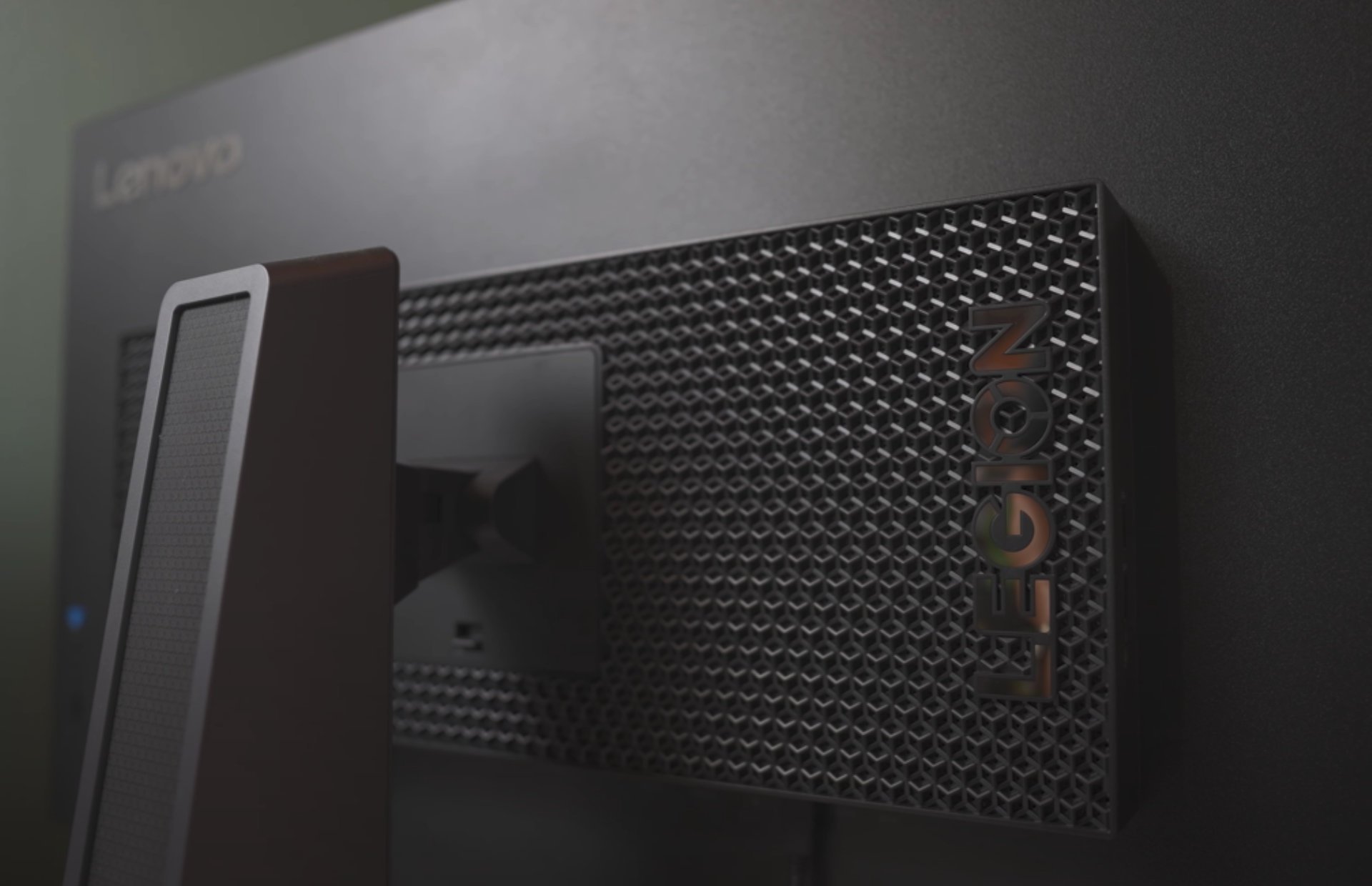
Yet, there are still shimmers of gaming-focused design that echo in its appearance with a subtle RGB-strip LED light box that help indicate power and rest modes for the monitor, as well as a honeycomb pattern around the boxed incasing for the components centered on the back of the display.
As for the build, the monitor feels solid and well-built with a hefty 22lbs weight to the display and 30lbs when the base is attached. The base provides stability, and the stand allows for height adjustment, swivel, and tilt, all at the cost of space. The Y-designed stand takes up a generous portion of desk space if chosen as the presentation mode over connecting the panel via Vesa mount.
The matte black finish of the Legion Y32p-30 exudes a professional vibe that I prefer over the glossy or shiny plastic looking solid black choices other OEMs use for their monitors.
The Y32p-30 is thin, and its “near edgeless” bezels create an immersive viewing experience.
I chose not to utilize the VESA mount support for this monitor, largely due to its weight but I was able to enjoy the flexibility of the base stand with its ability to swivel, tilt, and leverage height adjustments. The 30-degree swivel, 5-degree downward tilt, and 22-degree upward tilt cater to your comfort.
Lastly, I must mention the attached headphone arm that can be accessed from a pivot point on the side of the panel. The integrated headphone arm attachment is a thoughtful addition, and it keeps your headphones within arm’s reach, minimizing clutter on your desk or the necessity for your own hack-built solutions in the future.
For the gaming focused customer, the attachment ensures that your headphones are easily accessible without taking up additional space and it’s especially useful during intense gaming sessions or work calls.
Display
The Legion Y32p-30 boasts a sharp 4K resolution that delivers stunning visuals. Whether you’re gaming, streaming, or working, the high pixel density ensures crisp images and text. But that’s not all—the monitor also supports a refresh rate of 144Hz, providing smooth motion and reducing motion blur during fast-paced gaming sessions. The combination of 4K and 144Hz is a treat for both gamers and content creators.
Lenovo’s Legion Y32 offers a large 32-inch IPS LCD screen with ample real estate for gaming, productivity, and multimedia tasks as well as support for 144Hz max refresh rate and several adaptive sync technologies. The 4K resolution ensures sharp visuals, making it ideal for content creators and gamers alike.
However, while the box and specs say support for HDR 400, the monitor doesn’t really pack the hardware to do that feature justice.
I believe most gamers will appreciate the buttery-smooth motion thanks to the high refresh rate. Whether playing fast-paced shooters or exploring open-world games, the Legion Y32p-30 kept up in my limited gaming capacity.
As for the nitty gritty of display features, Lenovo’s response time includes up to five overdrive modes for gamers to tweak to their desired gaming experience.
The Legion Y32 can utilize backlight strobing but not when actively engaged in ActiveSync, not settings for the length of strobing or timing, and can only be initiated when refresh rate hits around 90Hz and above.
In addition to above average specs and features for response times in the Legion Y32, there is also the 95 percent DCI-P30 color gamut.
Lenovo claims that the monitor comes factory-calibrated with Delta E<2 color accuracy. This makes it suitable for creative tasks like photo editing, graphic design, and video production.
Connectivity
One of the standout features for the Legion Y32 is its built-in KVM switch which allows seamless switching between two different computers using the same monitor, keyboard, and mouse. It’s a productivity boon for multitaskers.
Anyone who may have a dedicated gaming tower as well as laptop designated for productivity at the same workstation will appreciate the convenience of the KVM as the Legion Y32 makes for a really nice productivity experience with its sharp contrast and brightness levels for graphics or video editing.
In addition to the ability to switch devices on the fly the Legion Y32 also hosts a bevy of connectivity options that include a USB-C with 75W of power deliver port, HDMI 2.1 support for 4K 120Hz performance on consoles like PS5 and Xbox Series X|S. Gamers can enjoy next-gen gaming with little compromise.
The inclusion of a powered USB-C port allows for easy connectivity to compatible devices. You can charge your laptop, transfer data, and even use the monitor as an external display—all through a single cable.
Other mainstays of connectivity for the Legion Y32 include a 3.5mm Audio Out, a USB3.2 Gen 1 Type B port and two USB3.2 Gen Type-A connectors.
Audio Considerations
There isn’t much to write home about in regard to the audio on for the Y32p. While the Legion Y32p-30 ticks many boxes, its built-in speakers are underwhelming. If you’re an audiophile or need high-quality sound, consider investing in external speakers or a good headset.
Price and Competition
Beyond the neat bezel-less display, the next connectivity arrangement, The Legion Y32p-30’s main drawback is its price. It’s undeniably expensive, especially when compared to other 4K monitors. However, the combination of 4K resolution, 144Hz refresh rate, and additional features often justified the cost for me.
The ability to switch from gaming to content creation and on to more productivity tasks is a flexibility not offered by competitors in the same sector as the Legion Y32p-30.
Similar monitors, like the Corsair Xenon 32UHD144, share comparable specs but also come with a hefty price tag.
Summary
The Lenovo Legion Y32p-30 combines gaming prowess with productivity features. Its sleek design, 4K display, KVM switch, and USB-C hub make it a versatile choice. While the contrast could be better, the overall package is compelling. As for the headphone arm attachment, it’s a small detail that enhances convenience and organization.
The Lenovo Legion Y43p-30’s 4K resolution, 144Hz refresh rate, USB-C port, KVM switching, headphone arm, wide color gamut, and PiP/PBP features make it a well-rounded choice, but be prepared to invest a bit more, and consider supplementing the audio experience with external speakers. If you’re willing to splurge, the Legion Y32p-30 delivers thirty-two inches of visual glory.
When managing a large team, a single Windows license might be too expensive hence why a Windows Server would suffice. However, these licenses vary in costs so we’re here to unpack some of the cheapest options that still do the job.
Factors to consider when choosing a Windows server
Licensing model – For each Windows server, its pricing model will be based on several factors. The most common is per core or processor so you need to evaluate the metrics used and decide whether it’s a good match for your organization.
Edition/version – For each server, the edition or version simply means the features offered. The higher or newer the version, the more costly it is. A good way to select one is to check off all the critical features that are a must-have then select your version.
Hardware/software requirements – While costs play a part in selecting a Windows server, your hardware will also determine whether it will be able to run it. The more storage you require, the more expensive it is.
Security – The security of your server is paramount as it protects your devices against potential vulnerabilities. Before you integrate any third-party security solutions, the built-in security features must be secure enough.
Compatibility and scalability – A growing business is bound to expand so ensure your select server has the capacity to accommodate increased workloads without compromising performance.
What are some of the cheapest Windows servers?
Windows Server Essentials
This is a Microsoft Product that easily integrates with most devices. It’s easy to use and perfect for small organizations with devices from 25 upwards to 50. Since it’s a Microsoft product, its built-in features such as backup and restore help secure critical data.
You also get remote access to files owing to its cloud-based integration with Azure services. The simplified management interface is also a winner especially if you don’t have resources for training new admins.
Pros
Cost-effective
Cross-platform compatibility
Supports creation of cloud-native apps
Cons
High dependency on the Microsoft ecosystem
Limited scalability options
Basic features with limited functionality
Microsoft has sunset support for Windows Server older versions
The winning feature for RHEL has to be that it’s open-source. Aside from being inexpensive, it also has a robust security system that makes it one of the most stable and reliable servers. It also supports physical, virtual and cloud systems making it extremely versatile and flexible.
Although it is subscription-based, once you purchase your select version/edition, you gain access to all others. This is a perk that allows you to select the most suitable version for your organization without having to worry about associated risks.
When it comes to scalability, you’re at liberty to grow at your own pace and as the need arises. This is because RHEL offers the option to access new technologies and build your infrastructure on the go.
Pros
Highly scalable
Long-term support
Supports multiple file storage systems
Benefits from a community of users, developers, and partners for improvements
For those looking for custom Windows servers, Contabo is a strong contender. Some organizations may have extensive requirements or specific hardware needs that cannot be tailored in other servers but with Contabo, you get a dedicated server hosting.
Another winning feature is the option to downgrade and upgrade. Most servers only offer upgrading but with Contabo, you can downgrade too. Licensing is offered based on per core and processor so if you’re looking for a steal, getting similar hardware could cut down costs.
Pros
No additional setup fees
Full control of administrative controls
Secure infrastructure with DDoS mitigation
Cons
Limited supported Windows server versions
May require training given the complex configuration settings
Kamatera is a cloud-based server which makes it highly flexible. Since it is cloud-managed, the security is advanced with a cloud firewall and a private network. You don’t have to worry about connectivity as it has data centers spread out globally to avoid high-latency connectivity.
The on-demand scalability is also great for businesses whose growth curve is unpredictable. Depending on your business’s needs, you can scale upwards or downwards.
If you can’t afford any of the above options, a refurb server is always an option. This is a previously owned server but the original owner or reseller has restored it to its near-original state and sells it at a cheaper price.
Aside from the cost savings, you also stand to benefit from some configurations as they still support some older hardware. This is especially helpful for businesses with some specific hardware requirements.
You however need to do proper vetting and ensure you’re purchasing from a reliable reseller. Most of these servers have been previously used and if the usage patterns are not efficient, its longevity may be limited.
Pros
Environmentally friendly
Warranty and support for possible defects
Highly customizable
Cons
Refurbished servers are not readily available
Incompatibility with newer hardware
Unreliable if the previous owner did not maintain it
Additional tips to get the most out of your Windows server license
Stay updated: The only way to mitigate security risks is to update the latest security patches as and when they’re available. Windows server may not get updates as regularly as Windows but ensure you’re on top of things.
Backup data: Having a comprehensive backup solution is one way of preventing a significant loss such as data corruption because it affects the entire system.
Leverage built-in features: Windows server has features such as virtualization, Active Directory, hyper-v and other security features that can optimize its performance and improve productivity.
Another tip we recommend is to extend your trial period. Using a command line, you can squeeze out more trial days for your license as you source for funds or at least until you’re ready to upgrade.
You can also bypass Windows 11 system requirements to use older servers but the downside is that performance may be degraded and compatibility issues may be the order of the day.
Clearly, there are vast differences between a Windows license and Windows server license. And while the cost of the server plays a critical role in selection, you should also consider other noteworthy factors such as workload and hardware requirements to ensure your choice aligns with your organization’s needs.
Hopefully, our article has summarized all this and with our select options, you can now choose a Windows server that minimizes costs and maximizes value. We also have an awesome collection of hybrid home servers so check out our article for more options.
Are you using a Windows server you consider to be among the cheapest options and checks out all other essential boxes? We’d love to hear about it. Drop us a line below.