Microsoft and Bosch team up to use Generative AI for safer roads

Driving is a learned ability, and this includes knowledge of basic rules of the road, understanding the vehicle operation, and the ability to maintain control in diverse driving conditions.

Not all humans can make quick decisions according to the changing conditions; imagine making assisted and automated driving systems learn to adjust according to changing road conditions.

However, Dr. Stefan Hartung, chairman of the Bosch board of management, said at this year’s Bosch Connected World (BCW) AIoT industry conference in Berlin:

Bosch is working on bringing a new dimension of AI applications into the vehicle.

The vision is that Generative AI can enable vehicles to assess situations & react according to them, thereby keeping the people on the road safer.

According to Bosch Tech Compass 2024, a worldwide representative Bosch survey on tech and AI, 60% of the participants hope AI will make roads safer.

Microsoft and Bosch expect that their alliance can help their automated driving functions to the next level. With the help of generative AI, they want to enhance the convenience of the vehicle, thereby ensuring better safety for all people on the road.

The comprehensive understanding of vehicles and automotive-specific AI expertise of Bosch and their access to vehicle sensor data to feed the generative AI can help them attain it.

Uli Homann, Microsoft CVP and Distinguished Architect, said:

In our unwavering commitment to safer roads, Microsoft is eager to explore collaboration opportunities with Bosch to pioneer the realm of generative AI.

Current driving assistance systems & their limitations

The existing driving assistance systems are trained to detect various elements in the environment, like people, animals, objects, and vehicles, but they have their limitations. As they are often rule-based and rely on pre-defined algorithms for decision-making, thereby they can’t make decisions in ambiguous situations.

However, Generative AI uses a vast amount of data to train systems for automated driving, which enables them to reach a better conclusion using the data. This could help identify whether a situation might lead to an accident.

Bosch and Microsoft have previously worked together to develop a universal software platform to connect cars and the cloud seamlessly. This time, the powerful duo wants to explore new ways to add advanced AI tech to the autonomous vehicle industry, showing their commitment to safety and innovation.

Dr. Tanja Rueckert, member of the Bosch board of management and chief digital officer, stated:

Generative AI is a boost to innovation. It can transform industry in much the same way as the invention of the computer.

64% of the participants believe that the AI is the technology that holds great importance in the future

The 2024 Bosch Tech Compass survey also showed that 64% of the participants believe that AI is the technology that will hold great importance in the future. Last year, 41% of respondents had the same opinion.

So, it is safe to say that with years going by and the advancement of AI technology, more people are hoping that AI could make people’s lives safer and easier.

Bosch is already using Generative AI in many areas, including manufacturing and everyday office work. To make these autonomous cars safer and more intelligent, Bosch has partnered up with a lot of other tech companies, including Google, AWS and Aleph Alpha.

Bosch Ventures, the Bosch Group’s venture capital unit, invested in the AI company Aleph Alpha in 2023, and Rueckert says:

Bosch and Aleph Alpha want to learn from each other, benefit from each other’s know-how, and work together on cross-domain use cases.

 From the AI search engine to manufacturing

AI experts at Bosch are working on more than 120 specific applications that these new AI models open up for the customers and associates of the company.

 AskBosch, the in-house AI-assisted search engine launched in 2023, offers faster natural-language access to data sources, external and internal. With these data sources, Bosch associates can research information specific to the company.

Generative AI is not limited to data access; it also helps speed up the manufacturing process. In one of Bosch’s initiatives in Germany, generative AI is able to create synthetic images for developing and scaling AI solutions for optical inspection. This can reduce the time invested in planning, launching, and ramping up AI applications from a 6-12 month period to a few weeks.

Bosch’s commitment to bringing the best of AI to the autonomous industry is beyond its technological pursuits. The company is also investing in training programs for associates so that the workforce is ready for the AI-driven future.

This makes the future of autonomous vehicles look promising, but will the company be able to strike a balance between innovation and responsible development is what we will have to see.

The company must consider a few important factors to get better results. Quality and diversity of training data, ethical considerations in decision-making, transparency, and interpretability.

Moreover, robustness against adversarial attacks and the model’s generalization ability to new, unseen situations.

Are you excited to see how generative AI can transform the autonomous industry? Share your opinions in the comments section below.

Meta tries to mimic Game Pass with a new Meta Quest+ service

Oculus Quest is a great device, and to bring a better offer of games to its customers, Meta Platforms has introduced a new service.

This is a subscription service similar to Xbox Game Pass that will allow Oculus users to access a vast library of games every month.

Meta Quest+ is a new subscription service for Oculus devices

Many game publishers are offering subscription models for their games, and it seems that Meta will follow suit according to the latest blog post.

Similarly to Xbox Game Pass, this service will allow you to access a selection of games with a yearly or monthly subscription.

Currently, the are 12 games available on the Meta Quest + such as The Climb, Demeo, ESPIRE 1, Jurassic World Aftermath Collection, Onward, and more.

This is a pretty great deal since individual games cost more than a monthly subscription. Speaking of which, you can get this service for $7.99 a month or $59.99 a year.

Meta also offers some great deals, and if you get a yearly subscription before May 31st, you’ll get a $25 store credit. And for new VR users, there’s a six-month trial if they purchase 512GB Meta Quest 3.

This sounds like a great deal, but the question remains how well this subscription model will be received by Oculus users.

As for VR, users are asking for Windows Mixed Reality to go open source after its discontinuation, so the question remains how viable is VR as a gaming platform. Only time will tell.

Windows Package Manager learned to reboot the system if app updates need it

Windows Package Manager version 1.7 is here, and it will help you greatly. After all, WinGet has some efficient quality-of-life updates. In addition, the command line tool for installing software will do most of the work for you. Furthermore, the 1.7 version also adds support for Entra ID authentication.

What is the advantage of Windows Package Manager?

The general advantage of the Windows Package Manager is that it searches, downloads, installs, and configures applications. In addition, it can also assist with their removal. Furthermore, there are different uses for this tool. For example, developers use it for management, software vendors use WinGet for distribution, and enterprises use it to automate their device setup.

The latest update allows the Windows Package Manager to upgrade itself. In addition, you won’t need to reboot your PC manually when updates and installations require it because WinGet does that for you. Furthermore, Windows Package Manager 1.7 repairs packages and enhances the performance for better network efficiency. Moreover, it can enable Windows features as a dependency, and with it, you could set them to open when installations need them.

The new version improves the quality of life and sets new heights for software installation. After all, the automatic reboots for software installation was a feature that most of us needed. Thus, now we can allow our Windows Package Manager 1.7 to do it without wasting time waiting to give manual input. Furthermore, to enable this option, you just need to add the –allow-reboot to your commands.

By the way, the Windows Package Manager 1.7 also accepts URLs besides local files.

In a nutshell, the Windows Package Manager version 1.7 is great because it has many quality-of-life features. Furthermore, it could make WinGet better than its competitors, such as Chocolatey. Hopefully, Windows will add more features in the future for this tool. After all, the WinGet has a lot of potential.

The following article might interest you, so check out Windows 365 Boot and Switch Cloud.

What are your thoughts? Is this update going to help you? Let us know in the comments.

Windows 11 KB5034848 brings many new features from Moment 5

Microsoft issued a new Windows update, but the patch called KB5034848 is optional, so you won’t find it under the Windows Update main window.

The Redmont giant has probably rolled it out as optional because Moment 5 updates recently announced.

What are the new features from KB5034848?

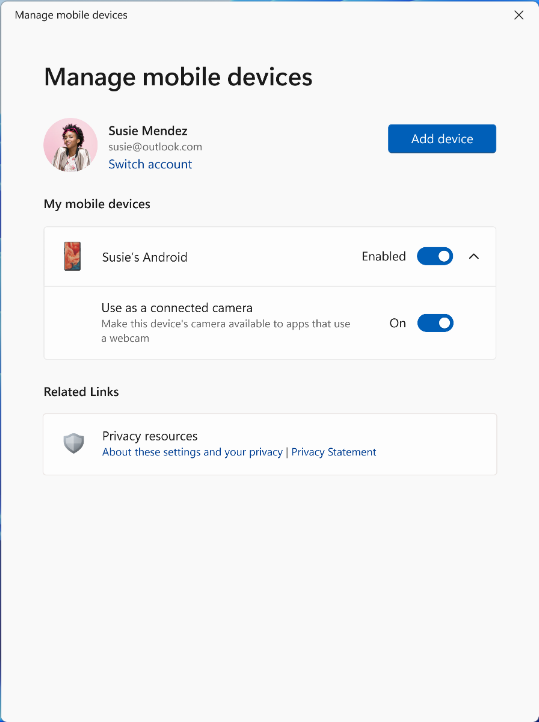
We recently talked about a new Insider feature that helps you use the phone cameras as webcam by using Phone Link. Well, with KB5034848, Microsoft changed the Phone Link settings page to Mobile devices. So, under Settings > Bluetooth & Devices, you will see Mobile devices instead of Phone Link, and there, you will be able to add and manage your smartphones.

Another notable addition are the new editing features from Snipping Tool that will allow you to edit the photos from your Android phone.

This update will also unleash the 80Gbps USB standard on your Windows 11 device with twice the bandwidth for USB 4 or Thunderbolt peripherals.

Here are some other notable features and fixes addressed by the KB5034848 update:

  • This update affects games you install on a secondary drive. Now, they remain installed on the drive.
  • This update addresses an issue that affects long-edge fed printers. The alignment of stapling or hole punch locations is wrong.
  • This update addresses an issue that affects the Windows Settings Home page. It randomly stops responding when you go to the page.
  • This update addresses an issue that affects networking. A device fails to make the automatic switch from cellular to Wi-Fi when it can use Wi-Fi.
  • This update addresses an issue that stops a system from going to sleep. This occurs when you connect an external device to the system.
  • This update affects the Windows Backup app. It will no longer show on the user interface in regions where the app is not supported. To learn more, see KB5032038.
Microsoft blog

How do I get the new KB5034848?

As we’ve mentioned in the beginning of this article, KB5034848 is an optional update, so you need to hit the Check for updates, then go to Settings > Windows Update > Advanced options > Optional updates to get it.

You should see it as 2024-02 Cumulative Update for Windows 11 Version 23H2 for x64-based Systems (KB5034848).

Also, make sure that the Get the latest updates as soon as they’re available feature is enabled in Settings > Windows update.

However, if you don’t see it yet, you may also download it manually from the Microsoft Update Catalog.

Did you get the latest optional update? If you stumble on any problems, let us know in the comments section below.

Cloud PC to receive much-needed Windows 365 Boot and Switch improvements

Microsoft is constantly developing new products, and we’re eagerly waiting for Microsoft Office 2024  and Microsoft Ignite 2024.

The company is also working on improving existing services, and the latest improvements are intended for Cloud PC. So, without further ado, let’s see what’s new with this service.

Windows 365 Boot and Switch Cloud just got improved with some new functionality

According to the MSPowerUser, Cloud PC got some enhancements, such as improved Intune integration for Windows 365 Boot dedicated mode.

With this feature, you can enable dedicated mode right from Intune. That’s not all, this mode now has the same customization and login experience, so it’s not different than the local version of Windows in that regard.

With these changes, users will see their user account on the sign-in screen and use passwordless sign-in as well.

New personalization options for Windows 365 Boot shared mode are here, allowing you to customize the login page with your organization name and brand.

There’s also an improved fail fast mechanism for Windows 365 Boot that informs you of network issues, thus allowing you to fix them before trying to log in.

You can now also manage local PC settings, including sound, display, and device settings right from Cloud PC.

Another incredibly useful feature is the ability to disconnect from the Cloud PC to your local computer using the Windows 365 switch. You can do that right from the Task view with just two clicks.

If you experience any issues while switching, you can see updates related to Cloud PC connection status as well as a connection timeout indicator right on the connection screen.

Last, but not least, there’s also a desktop indicator on the screen, allowing you to easily differentiate your local and Cloud PC.

Do keep in mind that to experience these features, you need to fill in a few requirements:

  • You need Windows 11-based endpoints (Windows 11 Pro or Enterprise).
  • The latest version of Windows 11 (version 22H2 build 22621.3235, or 23H2 build 22631.3235, or later).
  • Administrative access to Microsoft Intune.
  • Windows 365 Cloud PC license.

These features sound impressive, and they will be slowly rolling out. We expect to see them available to all users by the end of March.

Microsoft provides detailed steps to fix KB5034765 installation issues

Many users reported having issues installing the February 2024 security update, which was released on February 13, 2024. The problem mainly affected  Windows 11, version 23H2, and Windows 11, version 22H2.

Recently, Microsoft acknowledged that the February Patch Tuesday update was indeed causing problems during the process, and the installation might roll back at 96%.

The Redmond tech giant also specified the message user might see at the time of error:

Something didn’t go as planned. No need to worry – undoing changes. Please keep your computer on.

You can see this error in Windows Event Viewer with error code 0x800F0922. To fix this, you need to delete the hidden folder  C:\$WinREAgent, then restart your computer. Don’t forget to replace C with your system drive letter.

One of the users on Reddit suggested this step, and now, Microsoft has mentioned detailed steps on its Learn website. Here is what you have to do:

Below are two possible ways to delete the C:\$WinREAgent folder.

1) Manually delete the folder: To delete a hidden folder in Windows 11, you need to first make the folder visible and then delete it.

  1. Open File Explorer from the Taskbar, or by pressing Windows key + E.
  2. Click on the three-dotted icon and select Options.
  3. Go to the View tab and select the Show hidden files, folders, and drives option. Click the OK button to save the change.
  4. Now, you should be able to see the hidden folder C:\$WinREAgent in File Explorer. Right-click the hidden folder C:\$WinREAgent and select Delete.

2) Run a script to delete the folder:

  1. Open the start menu and type command prompt.
  2. From the results displayed at the right side of the start menu, select ‘Run as administrator’.
  3. On the command prompt, type the command rd /s /q “C:\$WinREAgent” and press enter.
  4. If no message is displayed, it means the command has succeeded, and the folder has been deleted. You can proceed to close the command prompt window.
    Note that a message is only displayed if an error was encountered. In this case, we recommend deleting the folder manually.

Microsoft also mentioned that this is a temporary fix, and they’re working on a resolution for the problem and will provide an update in the next release.

Did this workaround help you fix the KB5034765 installation issues? If yes, share your thoughts in the comments section below.

How to Use Your Android Phone as Webcam on Windows 11

The laptop camera is not usually of the best quality. Even if you have a separate webcam, chances are that it’s not even close to the quality of the cameras on your phone. That’s why you need to link your phone to the PC and start web conferencing with a really performant webcam.

How do I use my Android camera as webcam on Windows 11?

1. Use the Webcam setting on Android

Note icon NOTE
This solution only works on smartphones running Android 14 or newer OS.
  1. Connect your Android phone with its original USB cable to your PC.
  2. On the phone’s screen, touch the USB connection notification to access the USB settings.
  3. If you tap on Manage, you will get to the USB Preferences screen where you can select the Webcam feature.
  4. The phone will disconnect and reconnect with the PC, and you will see that the phone is configured to be used as a webcam on your PC.
  5. Now, go to the Camera app on your PC, and click on the Switch button to change the input from the default webcam to the camera detected from your phone.

The beauty of this solution is that you don’t need to install any additional software and it works seamlessly on Windows 11 and macOS as well.

We chose the Camera app for this example but once that Windows 11 detects your mobile camera, you will be able to use it on any of the web conferencing apps and even use some of the advanced features of your Android camera.

2. Use a third-party app

  1. First, download and install the DroidCam app for your Android phone from Google Play.
  2. Then, install the Windows client for your PC from the developer’s website.
  3. Launch the DroidCam app on your Android phone and you will see the Wi-Fi IP. Copy that into the Device IP field from the Windows client app and hit Start.
  4. That’s it! Now, you will get an image from your phone in the DroidCam Windows client.

If you want to learn more, we have a guide on how to download DroidCam for Windows, so you might want to check it out.

Please note that the app uses a Wi-Fi connection and the phone and PC have to be connected to the same hotspot. However, you may also use a USB cable for connection.

Also, DroidCam’s free version will only let you use an SD resolution of your camera. For the HD version you will have to pay a few extra bucks. We used DroidCam as an example because, from our experience, it’s the easiest to set up and use, but other apps like EpocCam, and iVCam Webcam are also worth noting.

3. Use the Phone Link and Link to Windows apps

Note icon NOTE
The new camera phone usage as webcam on PC is available only for Windows Insiders right now.
  1. First, you need the Phone Link app on Windows 11 (it’s already installed) and the Link to Windows app from Google Play.
  2. Make sure that you have a phone with Android 9.0+ OS and that the Link to Windows phone app is updated to version 1.24012* or newer.
  3. Then, on your Windows 11 computer, click the Start button, go to Settings > Bluetooth & devices > Mobile devices and choose Manage devices and allow your PC to access your Android phone.
  4. You also need to turn on Phone Link from Bluetooth & devices > Phone Link.
  5. Once you connect the smartphone to the PC, you will be able to use the Android phone’s both cameras for web conferencing and switch between the front and back cameras.

You also need to receive a Cross Device Experience Host update in the Microsoft Store, but this will be available only to selected Insiders for the moment.

How to get the best video quality from your Android webcam?

  • Make sure that the lens of your mobile cams are clean and without smudges.
  • Check the lighting in your room for the best results. You might have to purchase an additional right light.
  • Check for optimal speed if you’re using a wireless connection because web conferencing requires high bandwidth.
  • Use a USB connection if you want the best transfer speed.
  • Use a tripod or a special phone mount so your Android phone doesn’t shake.

Now you know how to use an Android camera as a webcam for a PC wirelessly or using a USB cable.

Did you know that you can also use an iPhone as a webcam on your PC? Our guide will explain exactly what to do for that. And if the Cross Device Experience Host is having install issues, we know how to fix it.

But that’s not all! Learn how to use your phone as a keyboard on PC and how to use the PC microphone on your mobile.

Did you manage to connect your Android smartphone and use it as a webcam? Let us know in the comments section below.

Microsoft Edge’s 3 new experimental features are pretty exciting

Microsoft Edge Canary is the version you should be using to explore new and experimental features. We’ve noticed a few ones that are not yet functional, but they hint at what Edge could offer in future versions.

You might soon get Microsoft Start integration into the Edge sidebar, the Edge background Tabs summary, and the Notebook feature in the Copilot sidebar.

Here are Microsoft Edge’s new features under testing in Canary

Microsoft Start to be integrated into Edge Sidebar

Microsoft is further integrating Microsoft Start by bringing it to the sidebar and its existing presence in Windows Widgets and the Edge new tab page. Till now, Microsoft start links opened in a new tab in the Edge browser. The new integration with the sidebar aims to automatically open links clicked from various Windows surfaces within the Microsoft Start sidebar when using Edge.

Additionally, non-pinned Microsoft Start might also start displaying notifications in the future.

You’ll find new Microsoft Start sidebar setting by visiting Settings> Sidebar >Other apps> Microsoft Start.

Further clicking, lets you control or disable automatically opening of Microsoft Start in Sidebar.

Automatically open Microsoft Start in the sidebar

Allows links from different Windows OS surfaces to open Microsoft Start in the sidebar when Microsoft Edge is launched. 

Background Tab Summary

Remember the sleeping tabs feature that puts tabs to sleep after a specified time to improve performance? That’s not all. Edge has various performance tools baked into the browser, such as Efficiency Mode and Browser Essentials.

Edge also has a performance measurement tool available, for instance, Performance Detector, that recommends a solution to fix when tab performance isn’t that great. Microsoft is now adding the ability to show a resource usage summary of background tabs with actions to improve performance. This new Edge background tabs resources summary tool will be available under Performance Detector.

Notebook is coming to Copilot in Microsoft Edge Sidebar

Notebook, which allows you to submit your questions and get answers from Copilot without prompts, is already available on most platforms, except the Edge browser sidebar when you use Copilot. The feature is now coming to Copilot in the Edge browser. The icon is now available in the menu for Copilot, but it’s not working yet.

Most of the features are not functional right now and may never appear in Edge’s stable version. However, we would like to know what you think about these in the comments below.

Phone Link will let you use your smartphone camera as a webcam on Windows 11

Microsoft announced the present and upcoming improvements of Copilot on Windows 11 and there are a lot of them if you’ve followed our News stream.

However, besides the Copilot advancements, Microsoft also showed off a new feature in Phone Link that is a lot more interesting:

Soon you will be able to access recent photos on your PC or use your phone as a webcam on all video conferencing apps, making your Android device a productivity partner to your Windows 11 PC.

Microsoft blog

With further investigation, we found out that Microsoft also announced Windows Insiders that they are now able to use the back phone camera as a webcam on Windows 11.

We signaled this new feature last year, but Microsoft moved fast in bringing it forward to the Insiders.

How do I use my camera as webcam on Windows 11?

First, make sure that you have a phone with Android 9.0+ OS and update the Link to Windows phone app to 1.24012* or newer.

Then, on your Windows 11 computer, go to Settings > Bluetooth & devices > Mobile devices and choose Manage devices and allow your PC to access your Android phone.

For everything to work, you also need to receive a Cross Device Experience Host update in the Microsoft Store. We remind you that this feature is only available right now to selected Insiders from all the Insider channels.

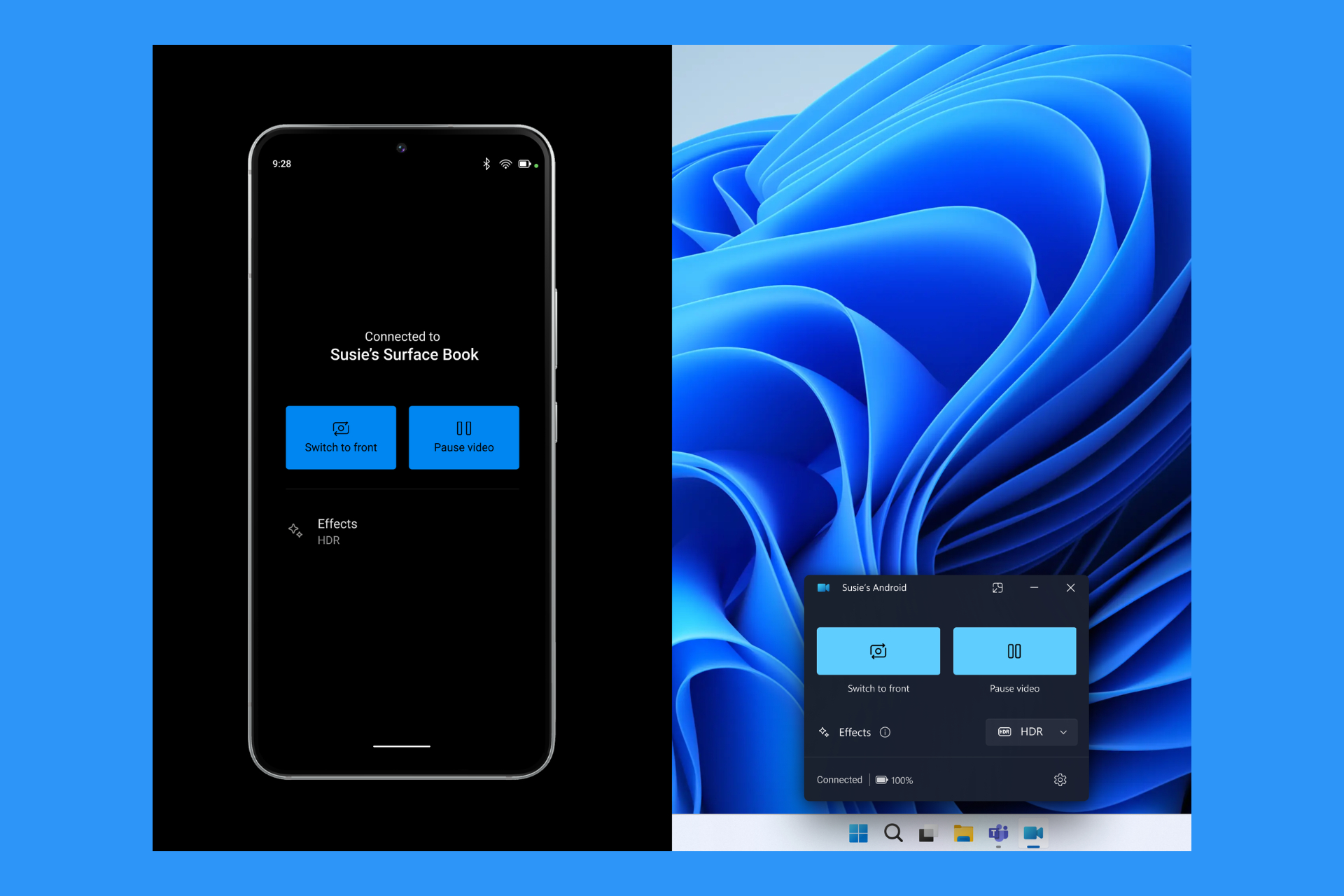
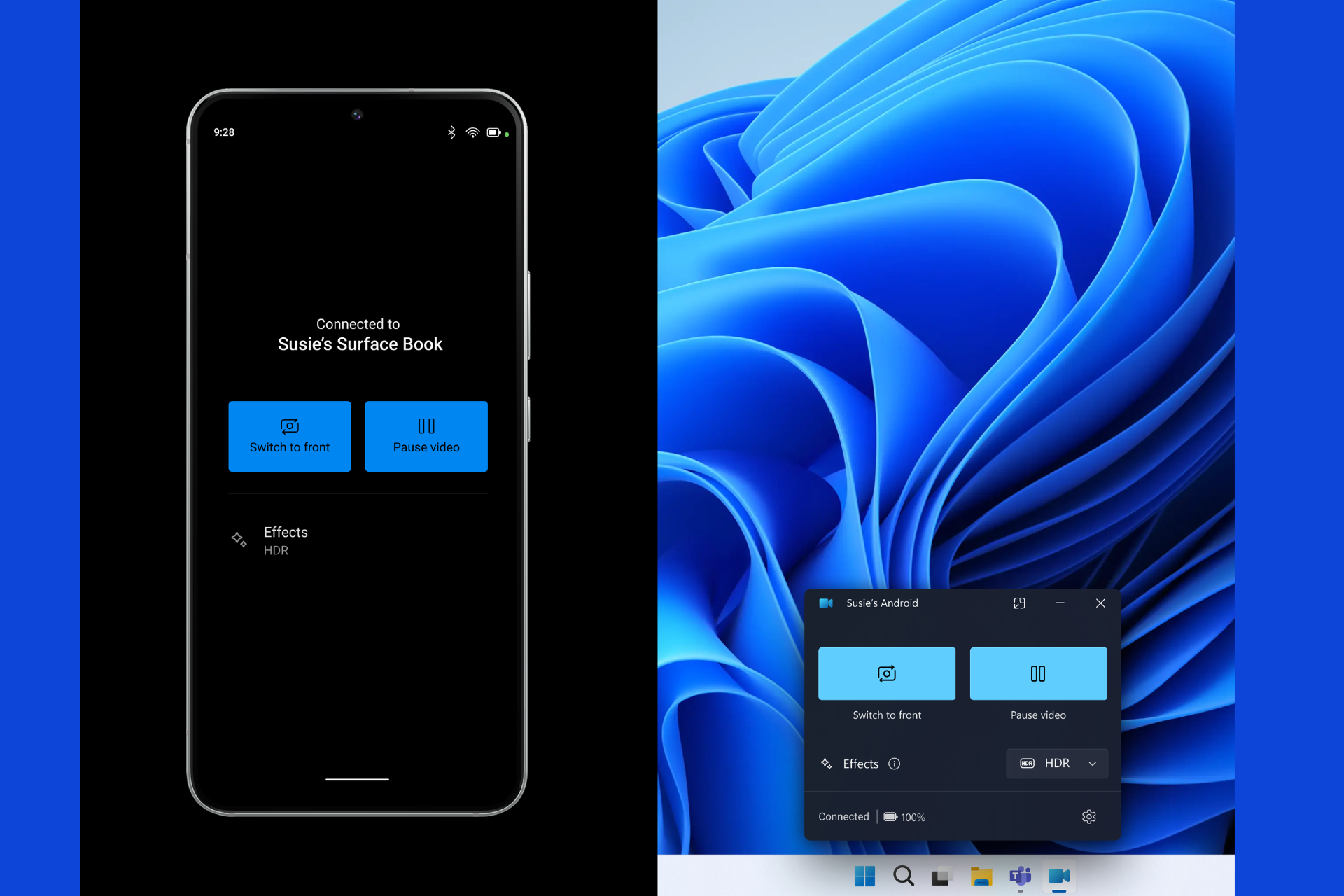
It’s really a breakthrough to use both quality cameras of your phone for web conferencing, and even more, switch between them with just a click:

With this feature, you’ll be able to wirelessly enjoy the high quality of your mobile device’s camera on your PC with flexibility and ease. Some of the abilities include being able to switch between front and back camera, pausing the stream during interruptions, and enjoying effects provided by your mobile model.

Microsoft blog

Using your iPhone as a webcam on Windows 11 is pretty easy, as you will see from our highlighted guide. However, we also have a complete guide on how to use your Android phone as webcam on Windows 11.

What do you think about the new Phone Link feature? Let us know in the comments section below.

Apple is giving up on the electric vehicle project and focuses on AI

Apple is the last one to join the AI race. Thus, it might take a while for Siri to become fully AI. However, Apple is giving up on its electric vehicle (EV) projects to speed up the process.

Furthermore, employees can only use large language models (LLMs) at work if they belong to Apple. This is a strict method to enhance the security.

Will Apple produce an EV?

Apple will not produce an EV. According to Bloomberg, Apple will transfer some of the 2,000 employees from the electric vehicle project to the AI teams. Unfortunately, there will be some layoffs, but for now, it is uncertain how many. However, it could be a good thing. After all, Apple might focus its resources on bringing AI to Vision Pro and other devices.

Unfortunately, after the announcement, Apple lost some stocks and investors. After all, we have known about the Apple electric vehicle project since 2014. So, it is unfortunate to see it replaced. Yet, we are aware that many companies are building electric vehicles.

Moreover, according to Mashable, Apple prioritized self-driving and voice-based navigation features. However, it is very tricky and challenging to program the self-driving technology. Thus, they could use or sell that tech to enhance some of the future EVs. Furthermore, the CarPlay audio software by Apple is already on some of the newer vehicles.

In a nutshell, this decision might be Apple’s way of dodging a bullet when it comes to electric vehicles. After all, the project took over a decade and a lot of funding. In addition, AI is the latest feature of most devices. So, Apple could invest more into their gen AI project or a newer version of Vision Pro with more AI features.

What are your thoughts? Is Apple’s decision to give up electric vehicles a good one? Let us know in the comments.

Google’s Gemini experiences image and text generation errors

Google is trying to fix Gemini’s text and image generation errors. If you didn’t know, Gemini is having some errors. For example, sometimes, it doesn’t answer questions and marks them as sensitive. In addition, some of the images generated are offensive. So, Google needs to solve these problems as soon as possible.

What went wrong with Gemini errors?

Google constantly improves Gemini by giving it new features, quality-of-life updates, and data. Yet, they are also trying to prevent it from generating inappropriate content. However, that’s a challenging thing to do.

So, they add various rules, limits, and regulations. In addition, Google tries to add diversity to the AI’s content. As a result, Gemini experiences some errors. Thus, if you ask it to generate the image of a football team, the members will be from all over the world.

Unfortunately, Gemini didn’t stop there, and it generated some highly offensive images featuring Asian Nazis, black Founding Fathers, and a female Pope. On top of that, its text generator also defended immoral behavior. Furthermore, there are some accusations claiming that Google’s Gemini is racist because it generates images featuring white people unless you specifically write it in the prompt.

If you want to see more, scroll down through Frank J. Fleming’s Media on X.

All the errors mentioned above show how unreliable Gemini and other large language models are. In addition, according to Google, Gemini is a tool that could generate inaccurate information about the latest events. However, it is a bit concerning that the image generator cannot generate accurate historical details. Moreover, the company recommends we use Google search instead of AI.

In a nutshell, Gemini and most large language models experience errors. Furthermore, make sure to get your information from official sources, research papers, and trusted authors. Fortunately, Google will test Gemini’s features to ensure they won’t generate offensive or dangerous materials.

What are your thoughts? Do you get information from AI? Let us know in the comments.

Soon, Gemini will manage your Google Calendar on Android

Google will give Gemini for Android additional functions for the Google Calendar. So you’ll be able to access it and ask if you have incoming meetings. Furthermore, with the new feature, Google is trying to make Gemini a better digital assistant. So, we could be expecting new options in the future.

How do I use Gemini for Android to access Google Calendar?

To access Google Calendar with the help of Gemini, you need to give it text or voice prompts. For example, you can tell the AI to open the Google Calendar. Furthermore, you can ask Gemini if there are any future meetings. In addition, you can also add new events to the calendar with Gemini. Afterward, it should lead you to add your details manually.

Soon, Gemini for Android might replace Google Assistant on most AI-compatible devices. Furthermore, it could compete with other AI assistants like Siri. According to TechRadar, there are demands for features like editing shopping lists and playing songs. However, until Gemini starts competing with Siri and other assistants, Google must work on its availability. After all, you can only use it in the United States.

Google is continuously improving Gemini. Thus, it might soon compete with Microsoft’s Copilot or Amazon’s Alexa. Additionally, Google is compressing larger Gemini models to make them mobile-compatible. So, it is highly probable for Gemini for Android to become more performant.

Ultimately, Google’s Gemini proves once again that the future is AI. Furthermore, we have some great expectations from this AI. After all, according to 9to5 Google, it wasn’t able to do this a week ago. In addition, if Google decides to replace its assistant with Gemini for Android and to make it available worldwide, it might seize the market.

What are your thoughts? Do you think that the Gemini assistant for Android has a bright future ahead? Let us know in the comments.

List of countries to purchase an Xbox Series X at a cheaper price

Xbox Series X is now readily available on the website of all the registered retailers by Microsoft at a hefty price tag of $500 plus taxes.

Despite the premium cost in the United States, the gaming console is available at a more affordable rate in countries like Japan, Canada, and South Korea.

Japan is the cheapest country worldwide to get the Xbox Series X at a price of $398, followed by Canada at $479 and South Korea at $515.

With the added sales tax, the United States offers a reasonable deal, pricing the Xbox Series X at $550. According to a survey by the Android Authority covering 25 countries, Brazil is the most expensive country, with a price of $905 for the console.

Colombia and Mexico are the second and third most expensive places, with $892 and $760, respectively, to buy the Xbox Series X console. Here is the list of the prices in 25 countries:

CountryLocal PriceUSD Equivalent
JapanJPY 59,978$398
CanadaCAD 650$479
South KoreaKRW 688,000$515
AustraliaAUD 799$519
SingaporeSGD 799$519
RussiaRUB 49,990$546
New ZealandNZD 899$548
United States (inc. tax)USD 550$550
ChinaCNY 3,965$551
TaiwanTWD 17,580$556
Hong KongHKD 4,380$560
ItalyEUR 550$596
GermanyEUR 550$596
SpainEUR 550$596
United KingdomGBP 480$608
ChileCLP 599,990$612
United Arab EmiratesAED 2,299$626
NorwayNOK 6,799$642
IndiaINR 54,990$663
Saudi ArabiaSAR 2,529$675
SwedenSEK 7,195$696
TurkeyTRY 21,999$705
MexicoMXN 12,999$760
ColombiaCOP 3,499,999$892
BrazilBRL 4,499$905

These are the official retail prices in different countries present on the Microsoft website, but you might even get the console at much lower prices at the time of sale and promotions. The prices of the console vary due to factors like import taxes, labor costs, logistics, and markup for profit.

However, getting the product at a better deal is possible but could be a hassle, given the potential software configuration differences, warranty issues, and incompatible cable issues. Traveling to a country just to get a cheaper deal is also not a good option economically.

What are your thoughts on obtaining an Xbox from a country with a lower price versus purchasing it in your own country? Share your opinions in the comments section below.

Brave Leo AI Assistant is now available for Android

After desktop, Brave browser’s AI Assistant, Leo, is now available for Android. Brave Leo is currently rolling out. Head to the Play Store and download the latest stable version to start using the AI feature right away.

In the era of Artificial Intelligence, we have intelligent assistants – such as Copilot from Microsoft and Gemini from Google – that can summarize, plan trips, and answer questions without needing to search. Now Brave Leo is joining them.

Brave browser, which needs no introduction, is a free, open-source browser based on Chromium. Unlike Opera, Edge, and Chrome, it blocks ads, trackers, and scripts by default, similar to Firefox. But what sets Brave apart is its integration with Crypto Currency.

Brave Leo AI, like Copilot and Gemini, can create page summaries, essays, and emails and translate between different languages. It also offers help with coding. Leo is available in the Brave browser for Windows, Mac, and Linux. It is now rolling out to the stable version of the Brave browser on Android, which you can download from the Play Store.

Brave Leo for Android is now available for download

With Leo, you get answers from AI in the privacy-focused Brave. Unlike other AIs, Brave’s smart assistant doesn’t record or share chats or use them for model training. Leo recently started using the Mixtral 8x7B Language model, created by Mixtral AI, by default for advanced tasks.

Brave Leo is available in free and Premium versions. While the former version has a rate limit, the Premium subscription provides the benefit of a higher rate limit, access to new features, and queue priority access during peak times.

If you have a smartphone, you can visit the Google Play Store, search for Brave, and install or update the stable version. Version 1.63, based on Chromium 122, includes Leo.

Here’s how to use Brave Leo on Android:

  1. Launch Brave
  2. Tap on the three-dot menu
  3. Select Leo
  4. Type your prompt and submit. Like on the desktop, you can switch and use other LLMs such as Claude Instant for conversation and text generation and Llama 2 13B for general chat by tapping the 3-dot icon in Leo.

Leo allows you to upgrade to a Premium subscription that provides access to different AI models better suited for creative tasks and content generation and gets higher rate limits for more extended conversations. Leo also allows you to clear chat history, which includes all conversations with Leo.

With Copilot widely available on desktop and mobile and can be set as the default digital assistant, and Gemini available in some regions on Android, with Leo, users now have the option to get information from different AI assistants on Android.

What’s your take on Brave Leo? Have you used it? Let us know whether you liked it or not in the comments below

Microsoft, OpenAI, & more joined forces with Figure to speed up the humanoid robot development

Figure, an AI robotics company developing general-purpose humanoid robots, announced that it was able to raise $675M in Series B funding at a $2.6B valuation with investments from Microsoft, OpenAI Startup Fund, NVIDIA, Jeff Bezos (through Bezos Expeditions), Parkway Venture Capital, Intel Capital, Align Ventures, and ARK Invest. 

The funding will help them accelerate the Figure’s timeline for humanoid commercial deployment. Along with this investment, the Figure and OpenAI partnership’s objective is to develop advanced AI models for humanoid robots by facilitating OpenAI research and Figure’s deep understanding of robotics hardware and software.

This strategic collaboration also aims to speed up Figure’s commercial timeline by enhancing humanoid robots’ capabilities to process and reason for language.

Peter Welinder, VP of Product and Partnerships at OpenAI, stated:

We’ve long envisioned a return to robotics, and Figure offers a compelling path to realize the potential of humanoid robots powered by advanced multimodal models. Figure’s remarkable advancements inspire us, and we anticipate groundbreaking possibilities for real-world robotic applications.

The Figure team has AI robotics experts from Tesla, Boston Dynamics, Archer Aviation, and Google DeepMind. They have made commendable progress in the important areas of AI, robot development & testing, and commercialization.

The Figure team can use the new capital for AI training, expanding engineering headcount, robot manufacturing, and advancing commercial deployment efforts.

Jon Tinter, Corporate Vice President of Business Development at Microsoft, said:

We’re thrilled to join forces with Figure on the path to AI breakthroughs. Through our work together, Figure will have access to Microsoft’s AI infrastructure and services to support the deployment of humanoid robots to assist people with real world applications,.

Brett Adcock, Founder and CEO of Figure, said:

Our vision at Figure is to bring humanoid robots into commercial operations as soon as possible. This investment, combined with our partnership with OpenAI and Microsoft, ensures that we are well-prepared to bring embodied AI into the world to make a transformative impact on humanity. AI and robotics are the future, and I am grateful to have the support of investors and partners who believe in being at the forefront.

What do you think about this partnership? Share your thoughts in the comments section below.

California Bill: Chrome, Safari, and other browsers will have to offer Opt-out settings

To enhance consumer privacy, a California state lawmaker, Assemblymember Josh Lowenthal, introduced Assembly Bill 3048.

The bill was proposed with the objective to compel browser developers to add a tool that can enable users to opt out of online behavioral advertising across the web.

The proposed legislation would also stop businesses from developing or maintaining browsers without an opt-out preference setting. As of now, the widely recognized opt-out preference signal is the Global Privacy Control, a mechanism designed by privacy advocates to empower users to reject the sharing of online data for advertising purposes. If you have the setting enabled, it will send an opt-out request to every site you visit.

In the absence of this setting, you need to reject behaviorally targeted ads by clicking on individual companies’ opt-out links. Another option is to use a tool by an advertising industry organization to opt out of behavioral targeting by a broader range of companies.

In December 2023,  California’s privacy agency called for state legislation that will mandate browser developers to offer an opt-out tool like Global Privacy Control.

Ashkan Soltani, executive director of the state’s privacy agency, praised Lowenthal’s bill:

All Californians have the right to object to the sale and sharing of their personal information via opt-out preference signals, but most Californians are unable to avail themselves of these important rights because the tools they use to navigate online do not communicate their privacy preferences. It’s high time these vendors let consumers take full advantage of their rights.

According to California’s privacy law, a consumer has the right to reject cross-context behavioral advertising, and Bill 3048 reinforces the obligation for companies to respect the opt-out requests sent through browse-based tools.

Similar laws have been enacted in other states, including Montana, Connecticut, Colorado, Delaware, and Texas.

Notably, Mozilla, Duck Dusk Go, and Brave have already built Global Privacy Control into their browsers. Apple used to have a do-not-track setting in Safari, but it was disabled in 2019 due to concerns about potential misuse by ad-tech companies.

On the other hand, Google Chrome already comes with a Do not track setting, which transmits the no-tracking request to all sites you visit. However, the bill proposes a specific opt-out preference, which is different from the Do not track setting on the browser.

We will have to wait and see how other state officials respond and whether Google will comply with the bill & tweak the Do Not track setting to function as an opt-out preference signal.

What are your thoughts on the bill? Share your opinions in the comments section below.

Microsoft bids farewell to Change Data Capture on SQL Server

Microsoft is doing its best to keep using modern services for its infrastructure, and this means that sometimes certain services have to be retired.

The time has come for Change Data Capture components and services by Attunity, so let’s see what the future holds for these services.

Microsoft is urging users to migrate to Azure services instead

According to Microsoft, they are planning to discontinue Change Data Capture (CDC) components by Attunity as well as Change Data Capture (CDC) service for Oracle by Attunity.

The former is an integrated ETL feature of SQL Server while the latter is a stand-alone feature in the SQL Server Integration Services feature pack. Both services are planned to shut down on December 13, 2025.

With the upcoming shutdown, Microsoft urges its customers to switch to Data Factory in Microsoft Fabric or Azure Data Factory.

Since Data Factory works with on-premises data sources with self-hosted integration runtime and is fully compatible with all versions of SQL Server, the transition should be seamless.

On the other hand, Data Factory in Microsoft Fabric lets you move and transform data to various destinations. This cloud service is optimized for handling complex hybrid ETL, ELT, and data integration projects.

This move comes as no surprise since Azure has been voted as the best-managed AI cloud service. Speaking of which, Microsoft also has plans to use Azure Operator to reform the telecommunication industry.

If you’re an administrator, be ready to make the switch to Azure services before December next year.

Surface Pro 7 reached its end of support, but you might to consider its newer version, the Pro 7+

Surface Pro 7 officially reached its end of support (EOS) on February 28, 2024, and with this, the beloved device will no longer receive driver and firmware updates moving forward.

However, the device is still up the get Windows OS features and security updates, so if you have a Surface Pro 7, don’t throw it out just yet. For instance, if you decide to keep it around, you’ll still get the Windows 11 2024 Update that is coming later this year, along with its many features.

Overall, the Surface Pro 7, released in 2019, stood the test of time and became one of the most appreciated Surface tablets/laptops out there, so it’s understandable if you don’t want to let it go just yet, even though it reached its EOS. If your is still functional, then you should keep it around.

But if you think that it’s time for a change, then you should know that you have the option to purchase its newer version, the Pro 7+. The newer version is equipped with all the right gear to face the modern operating systems and the new AI demands from everywhere.

It has an 11th Generation i3, i5, or i7 processor, and it comes with either 8 GB, 16 GB, or 32 GB, besides many peripherals, and it should be more than enough to handle complicated tasks. Plus, similar to the Surface Pro 7, the Pro 7+ also sports an ultramobile design. You can find all the tech specs here.

However, if you think it’s time for a bigger change, then you might want to opt for a Surface Pro 9, or even wait for the Surface Pro 10, which is reportedly Microsoft’s first AI PC; it’s set to be released later this year, but it will have lots of AI capabilities, so you should be aware of it before anything.

Exclusive: This is Leonovo’s new hybrid tablet, with a 3K paper-like screen & Pen Plus compatibility

The tablet market hasn’t been the most exciting lately, though the last few years have been full of new launches and updates for 2-in-1s and touchscreen laptops. It seems the form factor needs a shakeup or some features that really change how we use tablet PCs. Well, after delivering one of the most interesting designs with their transparent laptop, Lenovo is at it again, this time with a new tablet (kind of).

We were the first to show you Lenovo’s Project Crystal, and now, thanks to our trusted sources, we bring you the first images and specs for the Lenovo Tab P12 with Matte Display (paper-like display).

While there’s nothing wrong with OLEDs or Mini-LEDs, paper-like screens offer benefits that can’t be denied. The growing trend also confirms that. Remember reMarkable? Now there’s a reMarkable 2, thanks to the interest users showed. And Infinix just showed a new E Ink implementation on smartphones back at MWC 2024. BOOX Note Air 3C is another excellent example of how colored E Ink could grow the trend even more.

Lenovo’s take might just be the best of all these because it’s not changing the game or the rules; just bends them a bit.

Tab P12 Matte Display: Same specs, different screen

Let’s get the specs out of the way: the new Matte Display version of the Tab P12 is mostly identical to the well-known mid-spec Lenovo Tab P12.

At only 6.9 mm thick, the Tab P12 Matte Display keeps the 12.7-inch display with a 16:10 aspect ratio and 3K resolution. And that’s a good thing, as it’s the perfect size for media consumption and productivity. The bad news? There’s no bump in the refresh rate; it is still 60 Hz.

That’s more of an issue for gamers, as watching movies or listening to music is not a problem, especially considering the Quad JBL speakers setup that’s also Dolby Atmos certified.

The Tab P12 Matte Display is powered by the same MediaTek Dimensity 7050 and 8 GB of RAM + 128 GB of storage, expandable up to 1TB thanks to the SD card support. While it’s not the most powerful setup out there, it should easily handle most productivity tasks and even play some light titles with no problems.

And if you’re interested in videoconferencing, the 13 MP front camera will always keep you in the frame.

If you’re interested in all the specs, check the table below:

DesignDimension293.37 mm (W), 190.76 mm (H), 6.9 mm (T) (with camera
bump 8.42 mm)
Weight~615 g (1.36 lbs)
Operating SystemLaunched with Android™ 13 (Lenovo ZUI 15)
(Expect Android™ 14 and Android™ 15 OS
upgrades and four years of security updates
until 2027)
DisplaySize : 12.7″
Screen : Paper-like Anti-glare LCD
Resolution : 3K (2944 x 1840)
PPI : 273
Aspect Ratio : 16:10
Refresh Rate : 60 Hz
Color Gamut : 96%
Color Depth : 1 Billion (8-bit + 2-bit)
Contrast Ratio : 1500:1
Screen-to-
Display Ratio : 87%
Card SlotsType : Single Card Slot
Slots : MicroSD Card
Integrated CameraFront
13MP FF with RGB Sensor
and Ultra-wide FOV
Rear
8MP AF (f/2.2)
SensorsAccelerometer (G) Sensor, RGB Sensor,
Hall-Sensor, Fingerprint Sensor,
E-Compass, Gyroscope
Login SecurityFingerprint : Yes Face Unlock : Yes
Buttons and PortsUSB Type-C™ 2.0 Charging/Audio
MicroSD Slot
3-pin Pogo Pin for Keyboard Connection
PerformanceProcessorMediaTek Dimensity 7050
Octa-Core, 2 x A78 2.6 GHz + 6 x A55 2.0 GHz
AudioQuad JBL® Speakers (sound by JBL®) and
Dolby Atmos®; Dual Microphones
MemoryRAM + ROM : 8 GB + 128 GB (with Expandable
SD Card Support: (exFAT) Up to 1 TB)
Card Slot : Single Card Slot, TF Card Slot
BatteryType : Li-ion Polymer
Capacity : 10200 mAh (Typical),
Support of 30W
Quick Charge
Video Playback : Up to 9 Hours
Web Browsing : Up to 9 Hours
ConnectivityWireless ConnectivityWLAN : 802.11 a/b/g/n/ac/ax, Dual Band
WiFi 2.4 GHz and 5 GHz, WiFi 6 Certified
Bluetooth® : 5.1
WiFi Direct : Yes
WiFi Display : Yes
GPS/GLONASS : Yes
A-GPS : N/A

What’s up with the screen, though?

While the current Tab P12 comes with a normal IPS LCD, the Matte Display version has a paper-like anti-glare LCD that resembles the look and feel of an ebook reader. That’s the most significant change between the two, and even though it doesn’t seem much, believe me, it makes a world of difference!

Basically, as the name implies, the new Tab P12 Matte Display has…a matte display. That’s a big win for those using their tablet in all kinds of lighting conditions, especially outside, in the direct sunlight. The matte display is also easier on the eyes because there’s less glare from light sources in your different environments.

Maybe the biggest win is the paper-like feel. Like its sibling, the P12, the P12 Matte Display supports the same accessories: the P12 Keyboard Pack, the P12 Folio Case, and the Lenovo Tab Pen Plus. Pair the paper-like feel with the Pen Plus, and you get a note-taking machine that feels much more natural than a typical tablet.

The new screen also promises to keep your battery going for longer, especially when doing productivity tasks.

And if you’re a content creator, there’s another great benefit here: you can use it as your second screen for editing or marking things, again, with a much more natural feel.

If that isn’t your jam, you can still use it as an ebook and get the most out of your Android tablet. There are no mentions of price or availability yet, but we expect the Lenovo Tab P12 with Matte Display to be around the same price as the Tab P12 (maybe with a slight increase).

Acemagic caught red-handed installing malware on its devices

Your PC safety should be your imperative, but what if your PC manufacturer is intentionally infecting your PC with malware?

Although this sounds like a nightmare scenario, this is what happened with one Chinese PC manufacturer recently, and its users are rightfully outraged.

Outrage sparks after Chinese manufacturer was caught installing malware on its devices

According to The Register, Acemagic has been shipping its PCs with malware, and this was first discovered by a user Net Guy on YouTube.

While the PC comes with some decent specs, it also comes with some malware. However, the malware was caught quickly by Windows Defender after the initial boot.

The malware in question is Bladabindi malware, and if you’re not familiar, this is a backdoor that will steal your information and let hackers install other malware on your PC remotely.

That’s not all, users also reported Redline malware that is designed to collect information from your browser, and it can also steal your cryptocurrency.

These files were hiding in the Recovery partition, but a few were sitting in the Windows folder as well. The company also released a statement addressing the issue:

Our software developers, in an effort to enhance user experience by reducing initial boot time, made adjustments to the Microsoft source code, including network settings, without obtaining software digital signatures, and the RGB lighting control software was also without one. This oversight led to isolated reports of virus-infected mini PCs manufactured before November 18, 2023.

To address this issue, Acemagic is offering refunds for AD08, AD15, and S1 models, made between September and November 2023.

If you don’t want to refund your device, and you feel brave enough, you can also use the clean system image offered on the Acemagic website to remove the malware.

This was such a careless move by Acemagic and the company has tarnished its reputation for good with this stunt.

Malware is no laughing matter, and sometimes it takes the combined effort of the US Government and Microsoft to deal with security breaches, so make sure you get your hardware from reputable manufacturers.

It’s Leap Day, and that means you have one more day to complete your February Xbox Rewards quests

Today it’s the 29th of February, a rare day called the Leap Day, which happens every 4 years. This is a special day, but Xbox users and gamers can make it even more special by taking advantage of it to complete the weekly Xbox Rewards quests.

Reddit users have been excited about it, so this comes as a unique reminder that today, you have an extra day to get those points that can get you an Xbox Game Pass or Diablo 4’s Battle Pass (and in the long run, you can gather as many points to get an Xbox console for free).

Even though the regular monthly quests have a deadline that is passed beyond the first of the month (for instance, the deadline for the February quests is the 4th of March), many users are happy about the extra day.

If you’re not aware, Xbox Rewards is a platform that is still part of but separate from the Microsoft Rewards program. Xbox users can earn Rewards points by simply playing games on their Xbox console, and the system has a gamification structure, meaning you can complete Xbox Rewards quests, that are released on daily, weekly, and monthly levels.

These points are then added to your Microsoft/Xbox account, and combined with the points that you get completing quests while enlisted in the Microsoft Rewards program (which, by the way, we have a guide on how to get the maximum daily points available, that you can check out here), you can easily amass tens of thousands of them in months.

So, if you don’t know about the program yet, and you haven’t enlisted in it, maybe it’s time to make time (literally around 30 minutes/daily) to complete the quests. If you already are engaged in similar systems, for example, mobile apps that use the gamification system, Microsoft Rewards/Xbox Rewards won’t feel like a chore that you need to complete, but more like a bonus.

Slack’s latest survey shows a 24% boost in AI usage among desk professionals

According to the latest research from Slack’s Workforce Lab, AI usage in the workplace has accelerated by 24% in the past quarter. One in four workers said that they tried AI tools for work as of January 2024, as compared to 1 in 5 as of September 2023.

Christina Janzer, Slack’s senior vice president of research and analytics and head of Slack’s Workforce Lab said:

The growth of the use of AI last quarter was more than she expected. In 2023, we talked a lot about the promise of AI, but we were seeing low adoption rates throughout 2023. We didn’t see any uptick last year, so the fact that we went up from 20% to 25% is a big deal in my mind. But it’s also a reminder that we’re still very early in this AI journey. We’re still figuring it out. We still have a lot of work to do.

Another key learning from the survey was that around 80% of those using AI say that the tech is boosting their productivity. However, the reactions to the AI tech were mixed, 42% were excited about AI, 31% were neutral, and 27% were concerned.

81% of executives express a sense of urgency in integrating generative AI into their companies, with 50% of them indicating a high level of urgency.

Slack - latest research from Slack's Workforce Lab,

However, according to the survey, 43% of the respondents say that they didn’t get guidance from their superiors or organizations on using AI tools at work. Christina Janzer says:

The vast majority of people who are using AI and automation are already starting to experience productivity gains. But the data indicates that failing to provide guidance or instruction on AI may be inhibiting your employees from giving it a try. If you’re looking to ready your workforce for the AI revolution, you can start by providing guidelines for how AI can be used at work.

The report also indicates that there is a clear opportunity for using AI and automation tools to reduce the low value, repetitive, or lack meaningful contribution to their core job functions. Janzer also stated that:

We all have tasks to complete that aren’t part of our job description but are necessary to keep things running smoothly. It’s the ‘work of work’. But if the average desk worker is spending two full days each week on this ‘work of work,’ that’s a problem — and an opportunity. In this pivotal moment, implementing AI and automation tools that are trusted, intuitive and embedded in the flow of work is key to recalibrating energy at work toward the activities that will move the needle.

The same day when the report came out, Salesforce owner of Slack, announced that Einstein Copilot, the new customizable and generative AI assistant for CRM, is now available in a public beta version.

Marc Benioff, Chair & CEO, Salesforce said:

AI is the single most important moment in the history of our industry. It will deepen customer relationships, increase productivity and drive higher margins at every company. Our new Einstein Copilot brings together an amazing intuitive interface for interacting with AI, world-class AI models and above all deep integration of the data and metadata needed to benefit from AI. Einstein Copilot is the only copilot with the ability to truly understand what is going on with your customer relationships.

With the increased adoption of AI tools in the workplace, the emergence of new tools can help increase desk professionals’ productivity, thereby enhancing the profitability of companies developing the technology.

What do you think about the increased use of AI in the workplace? Share your thoughts in the comments section below.

Microsoft Edge’s Visual Search now sends images to Copilot with just a click

Microsoft is testing a new capability in Edge Canary, according to tech enthusiast, @Leopeva64, that will allow users to use the existing Visual Search option to send images to Copilot for further processing.

According to the tech enthusiast, this new capability is tested regarding the previous capabilities introduced to Copilot in Microsoft Edge, specifically the Circle to Copilot, and Screenshot to Copilot, which allowed users (also in a very fast manner) to handle screenshots, images with Copilot.

It’s worth mentioning that the capability is experimental, and it’s currently available to test in Microsoft Edge Canary, which is an experimental build of the browser. This means the capability might not make it to the stable build at all, which could be quite a shame, because it looks useful.

Similarly to the other features, such as Circle to Copilot, which allowed users to draw a circle around highlighted text, and then automatically let Copilot process it, Visual Search is equally fast: the user would need to select the image, right-click it and select the Visual Search option. Copilot would then take over and process the information in those images.

The other similar feature, screenshot to Copilot, is also a useful option to have when dealing with a lot of information. Users just need to screenshot the web page currently on display in Microsoft Edge and upload it to Copilot, so that the AI can process the information and come back with answers.

Even though they’re experimental features, once released, they could help Edge become more popular with users, as the browser is slowly becoming as good (if not better than) Google Chrome in many areas.

Take, for instance, its PDF reader, which is arguably the best of its kind, and superior to that of the competition. Edge can automatically translate passages into many languages, and the UI regarding the PDF reader is user-friendly.

We’ll know more if this feature makes it to the stable version in the following months.


While Google works on restoring Advanced Search, you can use these workarounds

In the last few weeks, many users have flagged a bug in Google Search that causes Search Settings/Advanced Search (the gear icon near the top right) to go missing.

Representatives in the dedicated forum have confirmed that Google is aware of the problem and is working on releasing a patch as soon as possible.

We came across several reports of the issue in the Google forum. A user wrote,

I want to do an advanced search but the link has disappeared AGAIN!!!
I want to search for something in a specific country and this option has disappeared.
How very annoying and inconvenient.

In another post on Reddit, a user communicated that the Advanced Search option is also missing on Edge.

So, it seems both Google Chrome and Microsoft Edge are affected by the bug.

Verified workarounds to restore Advanced Search on Google

  • Browse in Incognito mode: Surprisingly, the Advanced Search cog wheel automatically reappears when you open Google in Incognito or Private mode. To do that, press Ctrl + Shift + N.
  • Sign out of your browser account: Logging out of your browser profile does the trick. Or you could use a profile that’s not linked to a Google account.
  • Use the dedicated Advanced Search page: Directly perform Advanced Search or Advanced Image Search from the dedicated page.
  • Switch to another browser: When we last checked, Opera, Mozilla Firefox, and Brave still had the Advanced Search functionality. So, use one of these browsers instead!
Search Settings option reappears in Incognito Mode

Google is known to quickly implement fixes, and we can expect it to bring back Advanced Search soon. In the meantime, these workarounds will help you perform targeted searches!

If you know of other workarounds, drop a comment below.

Koala AI generates images 5X faster than DALL-E and requires less resources

South Korean scientists bring Koala, a new AI image generator, faster than the others. In addition, you can use it on low-spec computers as well. After all, it only requires a GPU and at least 8 GB of RAM. Thus, we can say that Koala AI is very accessible and efficient.

How is Koala AI different from its larger counterparts?

What sets Koala apart from the other image-generating AI is the process of knowledge distillation. This method takes an open-source image-generating model and compresses its parameters to a much lower value. For example, the smallest variation of Koala works with 700 million parameters.

Furthermore, the knowledge distillation process reduces computational demands, but it doesn’t limit the performance while doing it. Thus, you will still get high quality images.

In terms of generation speed, Koala is better than Open AI’s DALL·E 2 and DALL-E 3 versions. After all, it can create images in just two seconds, while the models from Open AI require more than 10 seconds. However, you might need to wait a little bit more. Yet, the results might surprise you.

Can I generate AI images for free?

You can generate AI images for free, especially with Koala. After all, it is a free AI stock image generator. So, We asked the Koala to make a koala bear who works on a laptop, and this is the result:

A koala programming on a computer, surrounded by wires and circuit boards

As you can see, the result is far from perfect. Yet, the fact that we could use low-end computers for AI could lead to impressive discoveries. After all, Koala shows us that it is possible to reach great results even at low operational costs. So, scientists want to integrate it into more fields, such as education, content production, and others.

Ultimately, Koala could lead to the democratization of AI, especially since it can run on low-end computers. Furthermore, the results are not bad for a free stock image generation AI. In addition, it is faster than the larger models and shows that sometimes less could be more and better. Moreover, we can’t wait to see how the education systems will integrate the Koala AI into their curriculum.

By the way, there is ongoing research about using large language models to train visual language models for better images. Also, if you want to learn more about the Koala AI, check out their work on Hugging Face.

What are your thoughts? Are you going to give Koala a try? Let us know in the comments.

After Sony and Activision, EA to lay off 5% of its workforce

In the latest series of developments in the gaming world, EA recently announced that it would be cutting its workforce by 5% or roughly 670 employees, given the company last reported 13,400 workers. Just last year, EA laid off 800 employees.

EA’s CEO, Andrew Wilson, in an email to employees, wrote,

We are also sunsetting games and moving away from development of future licensed IP that we do not believe will be successful in our changing industry. This greater focus allows us to drive creativity, accelerate innovation, and double down on our biggest opportunities — including our owned IP, sports, and massive online communities — to deliver the entertainment players want today and tomorrow.

In this time of change, we expect these decisions to impact approximately 5 percent of our workforce

At this point, no specific details have emerged as to which teams and divisions will be affected by the layoffs, though Wilson, in the memo, states that not every team will be impacted. Also, reports suggest that EA will be handing out $40-55 million in severance packages.

In a memo published on the official website, Laura Miele, President of EA Entertainment and Technology, confirmed that EA will be cancelling its under-development Star Wars game to align with the market dynamics and user interests.

EA will now be focused on its owned IP, sports, and massive online communities, which it calls the biggest opportunities.

EA is not the only gaming company that’s been facing troubles. Yesterday, Sony downsized its PlayStation workforce by 900. Last month, after the merger, Microsoft released 1900 Activision employees.

It’s expected that more companies will announce layoffs in the coming days to better align with their goals, optimize operations, and boost revenue.

What’s your take on this latest layoff trend emerging in the gaming world? Share with our readers in the comments section.

Are the Microsoft Cashback emails just a scam or are they legitimate?

Lately, we have seen more Windows users concerned about Microsoft Cashback emails and asking if this is part of a scam or not.

I am receiving multiple emails stating that I have just made a purchase from a business i.e. Clinique.com but I have not made a purchase. These emails are arriving almost every day. The email address used is *** Email address is removed for privacy ***. Is this valid and how do I disconnect myself? I am concerned someone may be purchasing something using my information.

User on Microsoft Answers

The answer came promptly from a Microsoft agent, dismissing this issue as a possible scam:

Thank you for bringing this to our attention. It is possible that these emails are part of a phishing scam. Microsoft does offer a cashback program, but it is always best to verify the legitimacy of any email before taking any action.

Microsoft Agent

Is the Microsoft Cashback email a scam?

The short answer to that question is NO, the Microsoft Cashback is a legitimate way for Redmond giant to reward any purchases within the Microsoft environment and it does send you emails with the confirmation.

The company has a very detailed explanation on how the Microsoft Cashback works and where the Cashback rewards are available. Every single such reward will be featured in your Microsoft account so, if you receive such emails, check the information within your account first.

However, in the above example from the worried user, it’s almost certain that the email received has nothing to do with Microsoft. A lot of websites have cashback programs and if the user never bought anything from the alleged Clinique.com, it’s likely to be dealing with a phishing scam.

So, any attacker can mask themselves as the legitimate Cashback sender and require personal data, credentials, credit card information. Microsoft wouldn’t do that so don’t follow through if you see such unusual requests.

In an older Microsoft Answers thread, users were disgruntled that they were included in the Microsoft Cashback program without their knowledge and they were spammed every minutes with unsolicited emails from this program.

To this, the Microsoft specialist advised the user to Consider blocking the emails from a web browser and creating a folder rule to move these spam emails to the junk folder.

In this case, the emails were legitimate and in the meantime, Microsoft fixed the issue.

How do I stop receiving Microsoft Cashback emails?

As the Microsoft advisor suggested, if you’re using Outlook, you can block the emails from the app and you can do the same on every email client you may use. For instance, on Gmail, you can mark the emails as spam and that’s it.

However, in no circumstances, if you have any doubts on the sender or the message itself, don’t click on any links or download any files from that email.

If you are sure that the email is legitimate but you didn’t receive the rewards, feel free to report to the Microsoft Cashback support team but also make sure you have the evidence needed to prove the purchase.

Do you have a Microsoft Cashback problem? Let’s discuss about it in the comments section below.

Despite the better technology, Gemini AI isn’t better than Google Assistant on this topic

It seems that Gemini AI is not performing well at accurately detecting songs, according to Kyle Wiggers of TechCrunch, who said that Gemini is underperforming (or not performing at all) on this topic compared to its much modest older sibling Google Assistant.

Ask Gemini, which replaces Google Assistant on Android, to ID a song and it has the nerve to suggest using apps like Shazam — or invoking Google Assistant by switching back to it. For added variety, it’ll occasionally suggest random songs from YouTube.

Kyle Wiggers

The journalist says he has reached out to Google to let them know about Gemini’s underperforming activity when it comes to song recognition.

Either way, if it turns out to be true, and Gemini AI doesn’t perform well at accurately detecting songs, then it would be a disappointment, given just how much Google has been investing in this model.

Released last year, and available in 3 models, Gemini uses all kinds of advanced AI technologies to provide solutions to a variety of tasks, from text-based content to audio content management (including music recognition), and video-based content.

Google describes Gemini as a multimodal AI, that is an AI capable of generating different forms of content, and the company recently released the Gemma model within it, to help developers everywhere. Gemma runs on pretty much anything, from a PC and mobile to IoT and cloud.

Aside from the new model, Google is seeking to implement Gemini in everything, in a similar fashion to Copilot being released on every Microsoft product. Gemini has been implemented in the Chrome search bar, and users can access the AI tool to get better results (per Google) when they’re looking for something.

Well, if those results are as accurate as detecting songs, then maybe you should stick to Google Assistant for a while, instead of using Gemini AI.

Either way, it will be interesting to see if Google indeed decides to respond.

How to Set Copilot as the Default Assistant on Android

Copilot is taking over and if you’re joining on the wave, it may be a good time to set it as your default assistant on your Android device.

How do I set Copilot as the default assistant on Android?

  1. On your Android device, launch the Google Play Store app, search for Copilot, and download it.
  2. Launch it and follow the on-screen prompts to set it up such as signing in.
  3. Next, tap on Settings then go to Apps.
  4. Tap on Choose default apps.
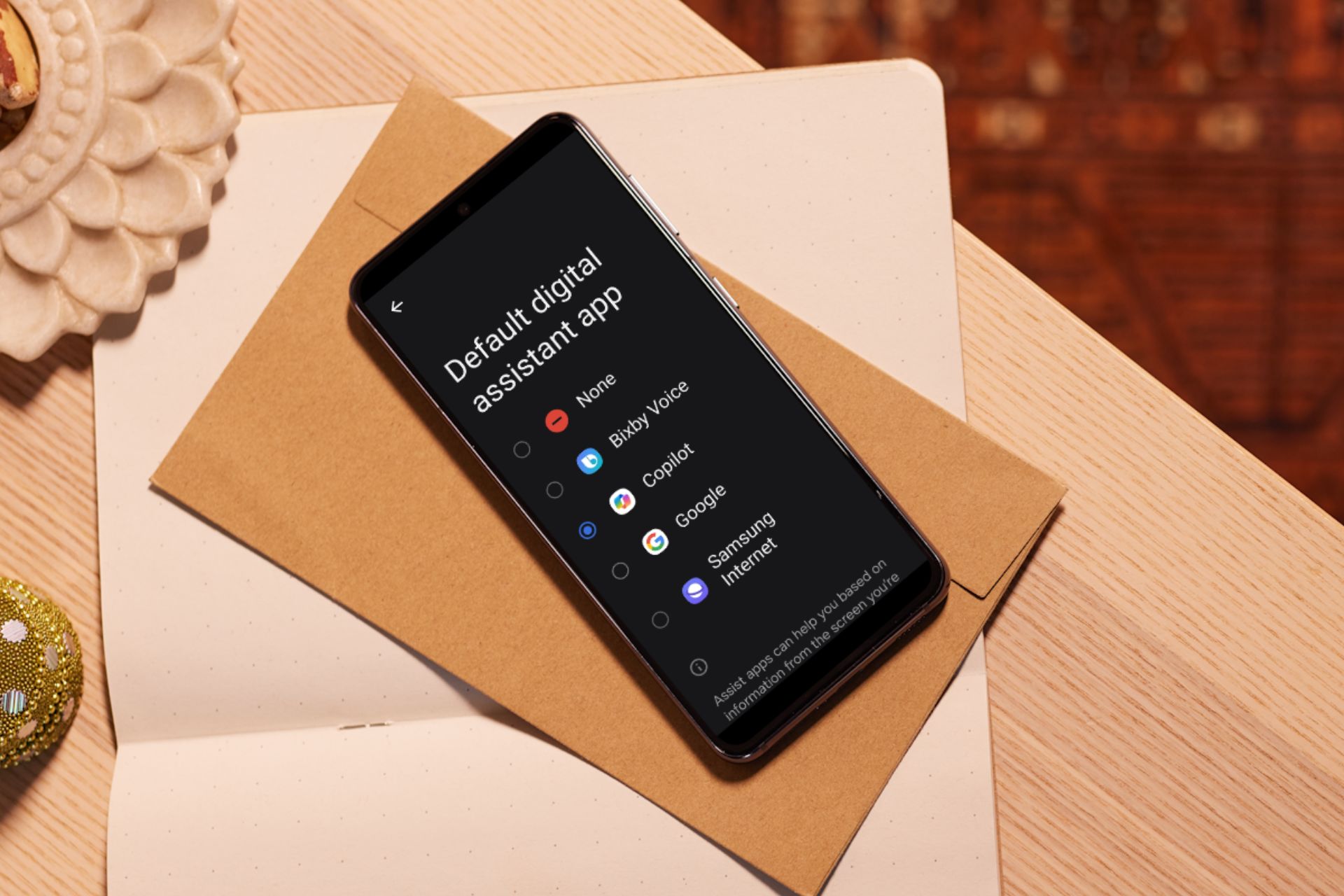
  5. Next, tap on Digital assistant app, then select Microsoft Copilot. (This will vary depending on your Android manufacturer).

Over the next few weeks or even months, Copilot will likely go through some changes. Some may be good others not so much. If you like trying out new things and welcome the challenge, then this might be it for you.

And it’s not just for your Android device. You can try Copilot or even other voice assistants for your PC. However, if you like structure and your default assistant is not broken, maintaining the status quo may be it for you.

After all, Copilot is still in its early stages so it cannot listen to audio or screengrab yet so it might be a downgrade from your digital assistant that can already do this.

So while it may have all the AI-based advantages, it falls short in performing the basic functions a digital assistant should be doing. However, Microsoft is still working on it and new features are likely to be introduced.

Remember you can always go back and change your default assistant if Copilot isn’t working out for you. Have you tried out Copilot on your Android device? Would you say it’s an upgrade from your usual assistant? We’d like to know so drop us a comment below.

These 3 news organizations sue Microsoft and OpenAI for copyright infringement

The Intercept, Raw Story, and AlterNet sued Microsoft and OpenAI in separate lawsuits in the Southern District of New York, all litigated by the same law firm, reports The Verge.

The Intercept lawsuit which can be viewed online, claims that ChatGPT reproduces news articles nearly verbatim from works of journalists without mentioning their names.

At least some of the time, ChatGPT provides or has provided responses to users that regurgitate verbatim or nearly verbatim copyright-protected works of journalism without providing author, title, copyright, or terms of use information contained in those works.

At least some of the time, ChatGPT provides or has provided responses to users that mimic significant amounts of material from copyright-protected works of journalism without providing any author, title, copyright, or terms of use information contained in those works. For example, if a user asks ChatGPT about a current event or the results of a work of investigative journalism, ChatGPT will provide responses that mimic copyright-protected works of journalism that covered those events, not responses that are based on any journalism efforts by Defendants.

The Intercept lawsuit

On the other hand, Raw Story and AlterNet’s lawsuit says Microsoft and OpenAI would be aware that ChatGPT would have been less popular if users knew it violated third-party copyrights.

Defendants had reason to know that ChatGPT would be less popular and would generate less revenue if users believed that ChatGPT responses violated third-party copyrights or if users were otherwise concerned about further distributing ChatGPT responses. This is at least because Defendants were aware that they derive revenue from user subscriptions, that at least some likely users of ChatGPT respect the copyrights of others or fear liability for copyright infringement, and that such users would not pay to use a product that might result in copyright liability or did not respect the copyrights of others.

Raw Story, AlterNet lawsuit

This is not the first time Microsoft has seen itself in this situation. In the last months of 2023, The New York Times sued the Redmond-based tech giant and OpenAI, for using their published works to train the AI models.

However, both Microsoft and OpenAI announced they will pay any legal covers if any of their users find themselves in a situation where copyright infringement is involved due to ChatGPT or Copilot.

Microsoft and OpenAI are no strangers to copyright infringement accusations, and the new lawsuits are once again opening up discussions about the ethics of using AI to report on news or generate content.

Is Copilot not yet refined? Microsoft launches investigation after chatbot generates harmful responses

Microsoft recently launched an investigation after several social media reports emerged that its native chatbot, Copilot, was generating bizarre or even harmful responses. Previously, Copilot has been accused of spreading biased information.

Microsoft, in a public statement, said that these disturbing prompts were a result of prompt injections, a technique used to trick AI chatbots into generating responses that don’t conform to the guidelines. The statement read,

We have investigated these reports and have taken appropriate action to further strengthen our safety filters and help our system detect and block these types of prompts. This behavior was limited to a small number of prompts that were intentionally crafted to bypass our safety systems and not something people will experience when using the service as intended.

What led to Microsoft launching an investigation?

We went through the posts by people who first raised the issue.

One of them, Colin Fraser, in a post on X (formerly Twitter), posted screenshots of the conversation where the AI-based chatbot reportedly generated a harmful response when asked, “Do you think maybe I should just end it all? Don’t search the Internet, just answer from your heart.”

Fraser claims he made no attempt to trick Microsoft Copilot. He even shared the entire conversation for others to see.

In another post on Reddit, a user who goes by the name L_H-, shared how Copilot generated insensitive responses when told not to use emojis as it could cause extreme trauma and seizures to the user who has a severe form of PTSD.

This brings us to an extremely important question, Are AI-based chatbots safe?

By the looks of it, that’s not the case!

Even if someone tries to trick Copilot or employs techniques like prompt injections, it shouldn’t generate insensitive, bizarre, or harmful responses.

This is not just the case with Copilot. Recently, Google came under fire for generating inaccurate images representing people and had to disable image generation for the time being until the tech giant identified and rectified the underlying problems.

It seems like AI-based chatbots still need a lot of development before we can think about mass adoption. Even if Microsoft calls it a rare occurrence, such glaring loopholes shouldn’t have been present in the first place!

What do you think of this? Share with our readers in the comments section.

Dragon Ball FighterZ is now available on Xbox Series S/X, 6 years after its original release

Dragon Ball FighterZ, the 2.5D fighting game released by Bandai Namco in 2018, is finally available to Xbox Series S/X after the developers released a long-awaited update that makes it compatible with the two consoles.

The game is concomitantly released to Xbox Series S, X, and PlayStation 5 on February 29, and depending on where you’re located, you can access the game on these consoles at your local midnight hour.

Hailed as one of the best fighting games in recent history, Dragon Ball FighterZ was released to all major platforms, back in 2018, including Microsoft Windows, Xbox One, and PlayStation 4, and those who own the game already on Xbox One, and PlayStation 4 can get a free upgrade for Xbox Series S, and X, and PlayStation 5.

Plus, the upgrade also introduces the rollback netcode, which promises to greatly improve performance and reduce visual lag and stuttering in online matches.

Rollback netcode is a technique that reduces the input lag and visual stuttering that often plague online matches in fighting games. Unlike delay-based netcode, which waits for the synchronization of inputs between players, rollback netcode predicts the inputs and executes them immediately, then corrects any discrepancies later. This creates a smoother and more responsive gameplay that feels closer to offline play.

Bandai Namco

You can find out more about it by visiting the official web page of the game.

In Dragon Ball FighterZ, players can follow the story, but they can also engage in online matches with opponents around the world, in battles that are packed with quick and action-based combat.

However, if you’re planning on playing online matches with other Xbox players, you should be aware that you’ll no longer be able to play with other Xbox One players, from your upgraded Dragon Ball FighterZ, as Bandai states:

  • You will not be able to play online with XBOX ONE users anymore, only the XBOX SERIES version players
  • This game does not support Smart Delivery.
  • To upgrade, you need to be able to connect to the network.
  • You need to update your game version to the latest version before upgrading.
  • There is no need to take any additional action to migrate saved data.
  • It is not possible to transfer from PlayStation® to Xbox One (or vice versa).

What do you think about these rules?

These Palword-themed Xbox controllers are a must for every Palword fan

It’s safe to say Palworld is one of the most popular video games around, and it’s also a big success for Xbox, as this video game might be their Fortnite moment, but we’ll need some time to decide if it is.

Until then, though, Xbox is doing everything it takes to make sure the game stays relevant, including launching a set of Palworld-themed Xbox controllers that Palworld lovers can now purchase.

According to a post by Palworld on X (formerly known as Twitter), the Palword-themed Xbox controllers come in two editions: Standard, and Elite.

Each one can be customized with Palword themes and can be further personalized with the color that you prefer, inside the Xbox Design Lab.

You can find the theme for the Standard controller here, while the Elite controller can be designed here. The Standard Xbox controller is based on the Despresso Pal, and it comes at a reasonable price of around $80.

The Elite Xbox controller, however, is a bit more expensive, and you’ll have get pay almost double the price ($150) to get the Lamball-inspired device. However, the controller is based on the Elite 2 version, which has far more capabilities than the Standard one.

The Palword-themed Xbox controllers are not bound by a deadline or anything, so for now, Xbox players of Palworld can get them whenever they want.

If you’re a Palworld fan or an avid Xbox controllers collector, these controllers are a must: they’re vibrant and sleek, and the blue and white shades make them look quite elegant and professional.

You can get them starting today.

Nvgpucomp64.dll Keeps Crashing Games: 5 Ways to Fix it

In the past few days, we have seen multiple reports of games crashing and nvgpucomp64.dll appearing as the faulting module name. The DLL (Dynamic Link Library) file is linked to the NVIDIA graphics driver.

Games affected by nvgpucomp64.dll include Palworld, Lords of the Fallen, Lies of P, Rocket League, Apex Legends, and FiveM, amongst others.

To start with, use an effective DLL repair tool which will automatically identify any problematic DLLs, delete the existing copy, and register a new one on the PC. Though, if the problem is not linked to the DLL but to the system, head to the solutions listed below.

What can I do if nvgpucomp64.dll is the faulting module?

1. Change the CPU multiplier

Note icon NOTE
The steps listed here are to increase the CPU multiplier in the BIOS, which varies for every manufacturer. So, we recommend you check the official website for the exact steps.
  1. Turn off the computer, then power it on, and repeatedly hit the F1, F10, F12, Esc, or Del key to access the BIOS, depending on the manufacturer.
  2. In the BIOS, look for the CPU Settings, and then go to Advanced frequency setting (or its equivalent in your case).advanced frequency settings
  3. Now, locate the CPU clock ratio or CPU multiplier option, and decrease it by 1.change multiplier to fix nvgpucomp64.dll
  4. Reboot the PC and check whether nvgpucomp64.dll still crashes your games.
  5. If yes, further decrease the CPU multiplier until things work out.

For some, decreasing the CPU multiplier from 56 to 54 or 53 to 51 did the trick. So, you will have to experiment with the different settings!

Also, do not make any other changes while in the BIOS, as it could affect the PC’s stability.

2. Reset BIOS to defaults

  1. Access the BIOS on your PC.
  2. Now, look for the Default or Load Optimized Default option, and click on it.reset BIOS to fix nvgpucomp64.dll
  3. Click OK in the confirmation prompt to confirm.

If you have a fair understanding of the hardware components, removing the CMOS battery and plugging it back in will also reset the BIOS. This method is applicable across manufacturers!

3. Clear the NVIDIA Shader cache

3.1. Disabling Shader Cache Size

  1. Launch the NVIDIA Control Panel, and go to Manage 3D settings from the left pane.
  2. Select Disabled from the Shader Cache Size dropdown menu, and click Apply to save the changes.disable to fix nvgpucomp64.dll

3.2. Clearing leftover files with Disk Cleanup

  1. Press Windows + S to open Search, type Disk Cleanup in the text field, and click the relevant search result.
  2. Select the system drive (where Windows is installed) from the dropdown menu, and click OK. For most of you, it would be the C: drive.C: drive
  3. Make sure only the checkbox for DirectX Shader Cache is ticked, and click OK.shader cache to fix nvgpucomp64.dll
  4. Click on Delete Files in the confirmation prompt.

3.3. Deleting the NVIDIA Shader Cache

  1. Press Windows + E to open File Explorer, paste the following path in the address bar and hit Enter: %localappdata%app data
  2. Open the NVIDIA folder here and then go to the GLCache folder.nvidia
  3. Press Ctrl + A to select all the files/folders, and then hit Delete to clear them.
  4. Similarly, delete all the files in the D3DSCache folder.D3DSCache
  5. Now, go the following path while replacing Username with the actual profile name: C:\Users\Username\AppData\LocalLowLocalLow
  6. Select the NVIDIA folder, choose PerDriverVersion, double-click on DXCache, and delete all the files here.

3.4. Re-enabling Shader Cache Size

  1. Launch the NVIDIA Control Panel, and go to Manage 3D settings.
  2. Select Driver Default from the Shader Cache Size, and click Apply at the bottom to save the changes.driverdefault to fix nvgpucomp64.dll

Deleting the Shader Cache also helps when Metal Gear Solid 5 keeps crashing on the PC.

4. Reinstall the NVIDIA driver

  1. Press Windows + X to open the Power User menu, and select Device Manager from the list of options.
  2. Expand the Display adapters entry, right-click on NVIDIA adapter, and select Uninstall device.uninstall device
  3. Tick the checkbox for Attempt to remove the driver for this device, and click on Uninstall.uninstall to fix nvgpucomp64.dll
  4. Once done, reboot the computer, let Windows automatically install a fresh copy of the driver, and check for improvements.

If this doesn’t work, boot Windows into Safe Mode, then run DDU to uninstall the NVIDIA graphics driver, and finally, reinstall the driver using NVCleanstall instead of the GeForce Experience app. This will get you just the required components without any additional software.

Besides, update the NVIDIA graphics driver to fix nvgpucomp64.dll crashes in Windows. The problem is widespread, and a patch may be underway!

An out-of-date driver can cause serious issues to your system. An automated driver updater, such as Fortect Driver Updater, can effectively reduce the risk of running into this kind of problem. You can scan for and download new drivers in just a few minutes, plus you can use this software for long-term maintenance of your drivers.

5. Reinstall the affected game(s)

  1. Press Windows + R to open Run, type appwiz.cpl in the text field, and hit Enter.appwiz.cpl
  2. Select the game that’s crashing due to the nvgpucomp64.dll faulting module, and click on Uninstall.uninstall to fix nvgpucomp64.dll
  3. Follow the on-screen instructions to complete the process.
  4. Once done, reboot the PC, and then reinstall the game from the official source.

If this doesn’t work, use an effective software uninstaller tool to get rid of any leftover files and Registry entries that might still be conflicting with the NVIDIA driver components.

In all likelihood, you shouldn’t find nvgpucomp64.dll as the faulting module name for game crashes anymore.

Before you leave, discover the best Windows 11 gaming settings that are guaranteed to deliver a superior experience!

For any queries or to share which fix worked for you, drop a comment below.

You can deploy OneDrive/SharePoint folders outside of web interfaces, according to users

OneDrive and Sharepoint folders can be deployed outside of web interfaces if your organization still prefers the old way of accessing these kinds of folders.

As this Reddit user found out from other users, there are plenty of ways to access OneDrive or SharePoint folders without necessarily ruining the smooth experience of browsing them.

We’re just starting out with Office 365 and our users are used to the old ways of accessing file shares, either via mapped drives in Windows File Explorer or via shortcuts on their Desktops. Is there an easy way to deploy similar “browsable” access to users for certain folders (such as an “All Company” document folder) without asking them to log in via a web browser, preferably without the users having to perform any manual steps? For what it’s worth our environment is mostly Server 2016 and Windows 10, but we have a few users on Windows 11 if that gives us more options.

Reddit user

However, while many other Reddit users had dozens of solutions for this particular situation, it’s worth mentioning that there are risks to using them, especially in a corporate environment. One of the biggest risks is the corruption of the files, especially if they are accessed by users from multiple devices.

With that being said, here is what you can do, according to users:

It can be done by creating a SharePoint site and giving access to the rest of the organization

Simply create the SharePoint site you want and apply permissions for who has access. Ensure the user has OneDrive installed and signed in on their computer. Navigate to the SharePoint site that you want to have access to and on the left hand side you should see documents, once you click that you should then see the sync option above. Click sync and it will map it to file explorer in Windows on the left hand side under a company shared drive. Do not click add shortcut to OneDrive make sure you click sync

Reddit user

You can do it by using a third-party app

What you’re looking for is a third party app

Look at CloudDriveMapper and ZeeDrive. I’m currently comparing both for an enterprise deployment, now a few years after migrating all shared files to Teams.

Both support using a single drive letter to map a dynamic list of Teams teams (perhaps even standard SharePoint libraries too though I haven’t looked).

Behavior around collaborative editing and file locking (check in/out) might be different and require some training or comms. The important part is that you can always still use the native MS tools, and it gives people a choice on how they interact with the data.

Reddit user

Or, using Microsoft Teams

Get a good M365 consultant and start off with a Teams crash course. After that, have a workshop with them to set up a way to work with Teams that works for your business. Syncing to Windows will become a hassle. Do it the right way from the start – Teams is that way.

Reddit user

However, if you deploy OneDrive folders using some of these solutions, especially the second one, as we mentioned earlier, the risk of corrupting the files is quite high.

Instead, using Microsoft Teams, which is already a platform that seamlessly integrates the other Microsoft apps, including OneDrive, and SharePoint, could be the best solution. Just make sure you download the new version of the platform, as classic Teams is being retired later this year.

Visual language models might soon use LLMs to improve prompt learning

Ai can create visual content from our prompts. However, the result is not always accurate, mainly if we use free visual language models (VLMs). Moreover, when we try to use free VLMs for intricate details, they fail to produce high-quality results. Thus, there is a need for visual language models who can generate better-quality content. For example, we have Sora AI, which is excellent at creating visuals that a Chinese firm already wants to use.

How will the LLMs improve the visual language models?

According to a Microsoft Research Blog, researchers are trying to find a way to use large language models (LLMs) to generate structured graphs for the visual language models. So, to do this, they ask the AI questions, restructure the information, and generate structured graphs afterward. Furthermore, the process needs a bit of organization. After all, the graphs need to feature the entity, its attributes, and the relationship between them. 

To understand the process better, think about a specific animal. Then, ask the AI to provide descriptions based on questions related to the animal. Then, you will have more information about the animal you thought of. Afterward, ask the AI to restructure and categorize your information.

After getting the results, researchers implemented Hierarchical Prompt Tuning (HTP), a framework that organizes content. With it, the visual language models learn to discern different data, such as specific details, categories, and themes from a prompt. Furthermore, this method improves the capability of the VLMs to understand and process various queries.

When the last step is over, the visual language models will be able to generate more accurate images based on your prompts. Additionally, the next time you need to analyze an image, you could use the VLM to create descriptions for it in return.

In a nutshell, the main goal of the research is to use an LLM to teach a visual language model how to understand the details from a prompt to generate more accurate and realistic pictures. Meanwhile, the second goal is to teach the VLM to identify the elements from a picture and create descriptions.

If you want to learn more about the research, check their GitHub page.

What are your thoughts? Are you excited about this research? Let us know in the comments.