Panos Panay isn’t done teasing the fresh Windows 11 content just yet. The Microsoft executive just sent out another cool Tweet, this time showcasing what is he calling a “beautifully redesigned” Paint app.
Overall, the short 18-second teaser is pretty much like his previous two for the Snipping Tool and the new Focus Sessions experience. It doesn’t get into too many actual details on what Windows Insiders can expect, but it does offer a look at the visual shakeup of the app itself. See it for yourself and have a preview of how Paint now blends in with the rest of Windows 11 in Panos’ Tweet below.
We can spot a couple of big changes in this app from the one in Windows 10. There are now rounded corners throughout the app, and it also respects the Windows 11 dark mode settings. Even commonly used items in the ribbon are rounded, from color pickers, buttons for brushes, and shapes or tools. Then, up top, Microsoft has moved the title bar into its own space, so that the undo, save, view, and file buttons are now separate. Smaller changes include more clearly marked brush stroke previews and text icons.
It’s great to see that Microsoft is now working to clean up some of the core Windows apps so that it fits better with their new take on Fluent Design. This adds a lot more consistency to the operating system and helps it feel a lot more modern. We hope that there are even more redesigned Windows apps ahead.
For now, though, sound off and let us know what you think in the comments. We’re still not sure when Windows Insiders will get this new paint app, but given that the new Snipping Tool experience showed up two weeks after Panos’ tease, we hope that it’s sooner rather than later.
When I was browsing news posts in our podcast Discord, someone dropped a YouTube trailer for a new upcoming game that immediately drew my attention. Is this really a game?, I thought, there is just no way it can look this good!?.
To get to the bottom of this and find out how good the game really is, I decided to dig a little deeper and talk to the developers in an exclusive interview.
In this interview, I spoke to Adam Bernath, the solo-dev who made this work of art in only two months’ time. But let’s first show you the game in action so you understand what all the fuss is about.
Having seen this, chances are big your inner kid wanted to come out to play. As that’s undeniably the effect it has had on pretty much everyone that has seen the VROOM! reveal trailer and the reason where’s asking the developer behind it some questions today.
A little more about Adam, the developer
Is this your first game? From the look of your site, you normally focus more on design and other services.
I’ve made a few interactive apps in Unreal Engine before, but this is the first game I made. I’m a designer by profession and picked up other creative and not so creative skills online in the past 10-15 years including video animation, 3D illustration, and front-end development.
From what I’ve heard, you’ve made this in only 2 months. How many hours on average did you spend per day?
Yes, I’ve started to plan the game after I’ve seen that the Unreal Engine 5 early access was released. I think I’ve spent an average of 10-12 hours a day on making the game for those 2 months, pretty much every day.
Are you looking to expand the team or are you more of a solo-dev by nature?
I can do a lot, but finishing the game is not something I wish to do alone. I’ve been working solo for the past 3-4 years and I honestly had enough of that. I’d like to build a team that can help me finish the game. But I’m also just an average guy with a crazy work ethic, I don’t really plan to change much.
Unreal Engine 5 is making the impossible, possible
The realistic graphics almost made it impossible to believe I was looking at a game in action. Has it always been a focus to make the game as realistic as possible?
Yes, my primary goal was to make the game as realistic as the current technology allows it to be. After seeing the Unreal Engine 5 presentation* running on the Playstation 5, I felt that this is the right time for me to jump into game development. A lot of previously existing technological barriers disappeared with the new consoles’ computational power and especially with the tech that UE5 will bring to the industry.
*Here is that presentation again for those that may not have seen it yet:
Do you think this would have been possible without the Unreal Engine 5 technology?
I don’t really have too much experience with other engines, so I can’t really judge them, but what the Unreal Engine team delivers is really impressive!
Everything in your trailer is actual gameplay? Nothing pre-rendered? What kind of black magic is this?
The video is actual gameplay. From the technical side it’s very much possible now – only in UE5 though. The amount of geometry that a game in UE5 can have with Nanite enabled is pretty much close to infinity – it’s probably dark magic that they built in the new engine.
This also works with unique geometry meaning those models can be anything and each different, it doesn’t matter if it’s 1million of the same or 1 million different 3D models – without much performance impact!
You say claim that it will be a multiplayer game with 60+ online players. How difficult is it to achieve this with real-time physics shared across all players?
The physics engine in the game is the new Chaos physics that the Unreal guys developed for Fortnite. It is pretty much built for online play, but I do still have to test it in a real-world scenario and check just how hundreds of flying toys will affect the network performance. Luckily it is not something that the game mechanic relies on too much, it is an added extra that can be limited as much as is needed to have smooth network communication.
Only on next-gen platforms
You’re planning to release the game by the end of 2022 on PC, PS5 & Xbox Series X|S. Would the game be too demanding to run on previous generation platforms?
Vroom! is going to be a truly next-gen game and it very much requires the hardware of the new consoles. The underlying technology that allows to have thousands of different very high polygon assets in a single level is also only supported on the new console generation. I would love to have the option to release it for PS4, Xbox One and Nintendo Switch, but it is just not realistic.
I haven’t had a chance to try out Vroom! on the new consoles yet, but there was a demo Epic gave away with the UE5 and that was said to be optimised for PS5 and new Xbox Series X to run at 4k 60fps – that project was producing around 20-30fps on my pc, Vroom runs at 60 so that means its gonna be insanely smooth on the new consoles.
I’ve seen people (myself included) call this Fall Guys + Toy Cars. Has the success of Fall Guys been an inspiration to make this an obstacle course type game versus a more traditional racer?
I love Fall Guys and I can’t deny it was an inspiration. On the other hand, I wanted to create a game that has its own identity, caters for the latest gaming trends, is streamer friendly and what I would want to play with friends. I like racing games, but I was more interested in creating something that adds extra challenge to it.
What about the marketing plans?
A huge element of Fall Guy’s success has been its brilliant marketing strategy, focussing on Discord and Twitter first and foremost. When I tweeted about the trailer, it accumulated a huge number of views in a short time so it left me wondering about the developer’s marketing plans.
Are you currently looking for a Publisher? What kind of support would you mainly like to receive from them, beyond funding or marketing?
I am currently looking for grants and funding to secure the game’s future, but I am also open to speak with publishers who can offer help with both funding and publishing. The most important thing now is that the development of the game can continue as soon as possible. We’ll also make a Twitter account for the game soon*.
Are you looking to make this a premium game? Or is the focus going to be on unlocking cosmetics or purchasing seasonal content?
The pricing is yet to be decided. I plan to expand the game after the release with new game modes and seasonal progression and rewards.
We’re very grateful that Adam took time out of his busy work schedule to talk to us about Vroom! Obstacle Racing and will be keeping a close eye on the project going forward.
Should the game explode in popularity, we hope he remembers us as one of the first to interview him and that he graces us with a review copy. We can’t wait to talk more about the game here!
A chess GUI is the algorithm part of the chess analysis software, program, or machine, but its user interface is a separate part, which the chess engine plugs into as a replaceable module.
Most commercial chess programs run on PC-type hardware, but there are also those running on other hardware like phones, which are still stronger than any human players.
The best chess GUI will analyze the chess variant positions, and make decisions based on the best moves, by deciding which is the next one, without interacting with the user directly.
What is the best software to analyze chess games on PC?
Decode Chess – Best software to analyze chess games
DecodeChess is the go-to solution for ambitious chess players all around the world who are interested in mastering the art of chess.
The rise of chess AI engines is in its full days of glory and if you use them intelligently, you will greatly benefit from what this type of software has to offer.
DecodeChess is the only chess software that auto-explains chess moves in rich, intuitive language, unlike regular chess engines.
You basically get all the cool features of a strong chess engine (Stockfish), enhanced with chess explanations of an AI chess master.
Some of the most fascinating features include game maps and stats, human-like opponents for a natural chess-playing experience, and personalized feedback on games.
How to find the best move
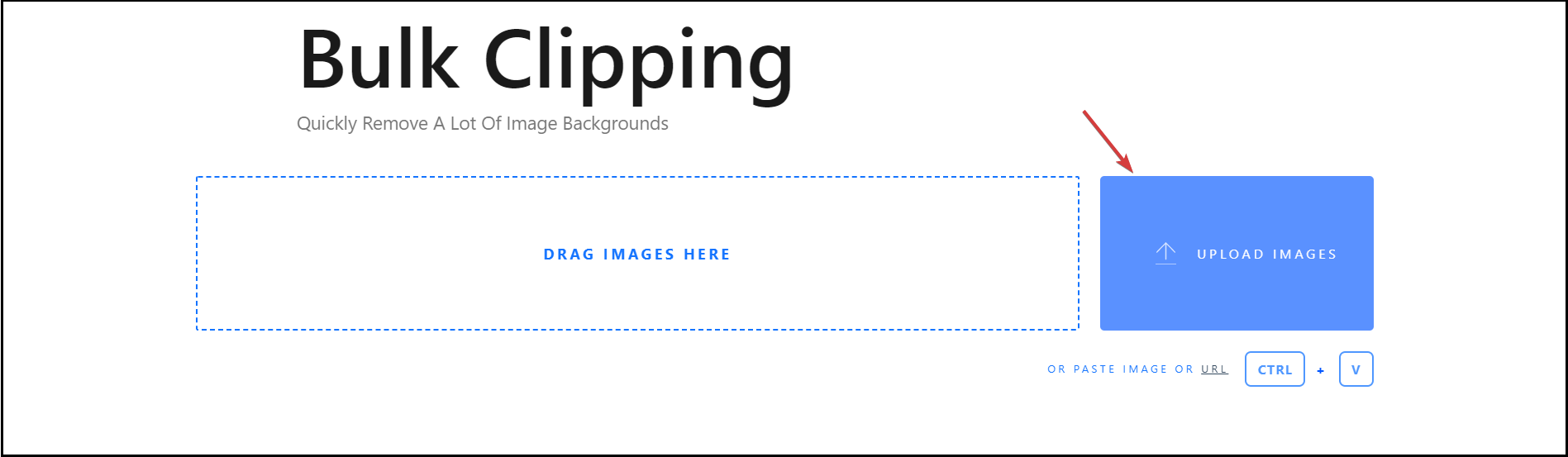
In the screenshot above you can see that the app not only gives you valuable suggestions but also analyzes the problem and the outcome for the solution at hand.
Understanding the reasoning behind chess moves can contribute to your better understanding of chess, especially when it’s combined with a post-game chess review.
You can further invest your chess study time into a detailed analysis of the current situation in the game. DecodeChess provides a rich tab system that covers all major areas of interest in chess.
Piece roles on the board
For example, you will be able to see at all times a detailed review of each of the pieces on the board and their roles. You will be able to see exactly how they affect the outcome of a move.
These leading-edge features turn DecodeChess into an innovative training software that players easily end up relying on.
The only requirement is the will of sharpening strategic thinking and polishing chess skills as soon as possible.
DecodeChess
Get your skills to the next level with the most sophisticated online chess analysis tool.
Shredder Classic is not simply a chess game, it is an entire learning hub. This software is created by Stefan Meyer-Kahlen, 18 times World Computer Chess Champion.
Thus, you will have a tremendous advantage over your opponents – you’ll play and analyze your games with a pro.
If you are a beginner, you can adjust the program’s level to yours. Shredder will adapt to your playing skills and will let you advance.
Its personal assistant will help you during the matches, offering suggestions on how to improve your chess skills.
When you click on the magnifying glass icon on the tools bar, the system will start analyzing the board and provide you with the best move based on the position of all the pieces.
Position preview
On the bottom, you will see the possible development of the game and the level of depth that the system has reached. If you hover over any of the movements from the list, you will see a preview of the position.
The app features more than 1000 chess puzzles, including openings and endgames that will build on your already existing knowledge.
The software interface is a bit outdated, and the information is very synthetic so you will need a little bit of adjustment to get to use it efficiently.
Edit your position easily
You also have a convenient method of editing a position to study other games that you come across on the Internet or from another chess document, perhaps, one of your previous games.
Just select the piece from the right and set it on the board in the desired position with your mouse. There are also Clear Board and Start position buttons available that will save you some work.
You can discover more of these features by downloading and trying the Shredder Classic chess game for free from the link below.
Shredder Classic
Get the Shredder Classic learning hub and develop your game strategy skills further.
Arena is a free graphical user interface for chess that helps you analyze and play games, plus test chess engines.
It can run on Windows or Linux and is compatible with Winboard protocol I, II, and UCI protocol I and II, as well as Chess960, the DGTelectronic chessboard, and DGT clocks, plus so much more.
It features an easy-to-use interface that you can adjust according to personal preferences, 250 chess engines whose strengths vary from very strong or easy to beat (but some are adjustable).
The app offers support for free and publicly available protocols, detailed analysis of the thought process of the chess engines, and unique tournament features like how the engines compete against each other.
11,586 available plays to study
By far the most interesting learning feature is the huge database of famous gameplays that includes no less than 11,586 plays.
All you need to do is select the one you’re interested in and hit the Load Button from the lower-left corner of the window.
Once you have opened the game, you will see all the moves as they originally were made and if you click on any of the moves you will be brought to the exact position in the gameplay.
Click the move to get to the desired position
With Arena, you can play online games against people globally, and analyze games automatically. Moreover, if you want to take a look at the game offline, you can print it out on paper.
It comes with EPD support for easy analysis of position databases, and PGN support for the game, so you can see the databases clearly.
Other features are multilingual support (19 languages) for the GUI in Windows, and you also get to see opening games, use opening books, an analysis board, and much more.
This is a German chess program published by ChessBase, which comes with a multiprocessor engine, an improved program interface, and a database with over 2 million games.
Fritz opens the door to the world of new chess-based web tools, so there are plenty of features that you can enjoy.
For instance, you will have unlimited access to a comprehensive database with on-demand training videos about every aspect of the game, recorded shows, and interviews among others.
The is a live database with 8 million games, plus you can access your server games collection at the click of a mouse. However, the famous game’s analysis feature is not free and you will have to set up a Premium account.
A chess master explains the play in a video
There are a few training options to test and improve your tactical skills at any time with more than 34,000 training tasks to use.
For instance, you can play a game with a virtual average player and use hints and solutions in the process.
So, you can play normally and get stuck, you will get a suggestion on what would be the best piece to play or the complete move.
The Hint and Solution buttons are at hand
You also have access to an analysis database with more than 200 million positions plus much more.
If you’re looking for a training partner, check out the Friend mode that will help you assess your playing strength, the time you use and point out mistakes you can improve on.
And, of course, as you develop your game and get better, you can play chess with thousands of players all over the world and raise your level in the process.
This is a strong open-source chess engine that is offered for free and is available for both desktop and mobile platforms.
Stockfish has consistently ranked number one or near the top of most chess engine rating lists and is one of the strongest open-source engines worldwide.
The program comes from the Glaurung, an open-source chess engine released first in 2004, and four years later, Costalba took over and renamed it Stockfish.
This name came because it was produced in Norway and cooked in Italy – Costalba is Italian, and Romstad (creator of Glaurung) is Norwegian.
You can load the Stockfish engine in a UCI compatible GUI like Arena, which is present in our list, above. To include it, click the Engines option from the top and select Install New Engine from the list.
Installing the Stockfish engine
Then select the executable file you downloaded from the engine and you’re good to go. It’s worth installing it because Stockfish is powerful and much stronger than the best human chess grandmasters.
It uses up to 512 CPU cores in multiprocessor systems, with a maximal transposition table size of 1 terabyte.
The main features include an alpha-beta search, bitboards, great search depth because of more aggressive pruning and late move reductions, and support for Chess960, plus much more.
Fast action crunching for possible moves
After you load the Stockfish 14 engine, you will notice an important improvement in the speed of the analysis and processing of the possible moves.
Unlike most chess engines, it is open source (GPL License), so you can read the code, modify it, contribute back, and use it in your own projects.
You can also run it anywhere, including the Windows operating system and on your smart devices, so you can get world-class chess analysis wherever you are.
This is a UCI chess engine influenced by open-source engines. The Houdini 6 version is the second top-rated chess engine on major chess engine ratings, coming only one spot behind Stockfish.
Its playing style has been compared to that of the Romantic Era of chess which had an attacking and sacrificial style.
Houdini has no graphical UI, so you need a chess GUI to run the engine, but its version 6 uses calibrated evaluations in which engine scores correlate directly with the win expectancy of the specific position.
To install the engine, just start a chess GUI and the developers recommend Arena, like we also used on Stockfish.
Installing the Houdini engine
Installing the engine in Arena is simple: click on the Engines option from the toolbar on top and select Install New Engine, then use the executable file you got from Houdini (select the 32-bit or the 64-bit version according to your system).
This tool’s advantage against other top chess engines lies in its handling of piece mobility, which makes it the reason why it favors aggressive play to win the game.
The state-of-the-art chess engine for Windows combines outstanding positional evaluation with the most sophisticated search algorithm.
And once you have loaded the engine, you will see a difference in the attitude and the aggressiveness of the virtual player you are confronting with.
Houdini analyzing almost 1.5 billion moves
Houdini, the name, was given because of the positional style of the engine, its tenacity in hard positions, and the ability to defend and escape, sometimes by the narrowest margins.
It’s a chess engine recommended for the advanced chess players and its effectiveness also depends on the computer power you’re supplying.
We’re mostly referring to the computing power of your processor because that’s the one that is busy working on calculating the possible moves.
SCID stands for Shane’s Chess Information Database and is an open-source app useful in Windows for viewing and maintaining a huge database of chess games.
This powerful chess analysis software provides features comparable to popular commercial chess software.
Its outstanding functions include interfacing with XBoard engines like Crafty and GNU chess, and UCI engines like Fruit, Rybka, and Stockfish.
You can play against human opponents or PC opponents, plus its database features include a Move Tree with statistics, general searches for endings, positions or players, and player info and photos.
Comprehensive training mode
As you can see from our screenshot above, the tool has a dedicated training mode within the Play tab that will help you improve your skills in all aspects of the game.
The interface is not so friendly and you will first have a few problems adjusting if you’re used to a more commercial and straightforward approach.
After you complete the lessons and training, you can also go through a Serious game from the play option, starting with a known opening.
Game start
You can select the engine and configure it, choose the opening, the book with indications, and the time mode.
SCID has a database of 1.4 million games, and it is fast because it stores chess games in its own compact database format but also supports portable game notation.
This tool is an open app to view, edit and manage collections of chess games, and is a multi-platform software that can run on Windows and other operating systems.
It’s a more advanced tool dedicated to seasoned players who don’t mind spending some time understanding the treats of this software.
To help you make an easier choice, we’ve gathered chess tools based on the level of difficulty. It doesn’t matter if you’re a beginner or an expert, we’ve found the right tool for the perfect chess match.
If you’re also set on a budget, there are some free chess analyzing tools on our list.
➡ Check the features of the software
The purpose of software that analyzes PC chess games is to explain the chess moves clearly, so you can understand why a specific move is the best in a certain situation.
Game explanation is the key to understanding chess
Make sure it has a friendly interface because that will make it easier to focus on the study and play and not on its configuration.
However, if you’re accustomed to chess engines, they could offer some advantages and are usually free. We’ll also explain how to load them in a GUI so that shouldn’t be a problem.
You would also want to look for a tool with a rich analysis database and a reliable sparring partner and trainer.
Of course, after training, you can check the best cross-platform chess apps to play chess on any device and exercise what you have learned.
➡ Useful tip for beginners
If you are a beginner in the mysteries of chess, go for software that comes with training videos or comprehensive explanations.
Game commentary from a chess champion
A tool that lets you play and analyze your games with a pro or that offers natural language commentaries could make the difference when it comes to the game’s result.
With that being said, let’s check out our top picks for the best software to analyze chess games and make an informed choice.
Interesting facts about chess
Chess can be traced back to more than 1500 years ago so it has an amazing history behind it. No one knows where exactly it originated but the earliest findings trace it back to India.
However, the first tournaments started in the second half of the 19th Century. And we have prepared a couple of other interesting facts about chess:
Best tips on how improve your chess play
If you want to play on your own, without human guidance, then computer chess games help you get better by practicing continuously.
However, there are some basic understanding facts that you should consider if you want to obtain impressive results, regardless of the practice methods.
➡ Analyze the position
Half of the battle is to correctly assess the situation. Count the pieces, look at the overall action and protected squares on the board.
You might have taken a knight for a pawn and you’re clearly in advantage but if the position of your opponent is better, you could lose your gain quickly in the following moves.
How well is your king protected? Also, check if there any of your pieces are in danger to be taken at this move or after the next move. These and many other answers to those questions give you the full picture of the board situation.
Of course, practice assessing board situations and play with as many players as possible. We have a list including the best websites to play online chess and gain experience.
➡ Make a plan
A lot of players don’t have a strategy from the start and the planning is only short-term. It’s OK to concentrate on reacting to the other player’s moves but you also need to have a plan.
If you analyze the board correctly, you should be able to understand if you need to attack or defend.
For instance, if you have an advantage of more than a medium piece, you could be more open to trading and getting closer to the end-game to take advantage of your extra pieces.
IM Larry Evans further explains the basics of planning your chess game:
➡ Look for weaknesses
And we’re not talking only about your weaknesses but also your opponent’s. Once you identify a weakness, make a plan to concentrate your attack.
If the other player notices your intention, you can lose the element of surprise. Try to draw his or her attention from your focal point by using a decoy or a sacrifice.
Chess is a war strategy game and you should never forget that aspect. That’s why most war strategies will apply on the board, on the scale at hand, of course.
You should also follow an old saying in chess: A bad plan is better than no plan at all. And if it was truly a bad plan, you can use any of the software from our list to review the game and see where it went wrong.
If you’re still looking for dedicated software you should also check out our selection of the best free chess apps for Windows 10 and make a pick.
For other suggestions or questions on this topic, let us know by leaving a comment in the section below.
Windows 11 is here and for the first time, users are able to run Android apps without any emulators. But what does that mean for the future of Android emulators on Windows 11?
Today we’re going to answer that and compare Android emulators with Windows 11 and see how can they handle running Android apps.
Android emulators have been a go-to choice when trying to run Android software on Windows, but they aren’t a perfect solution.
Emulators require hardware power to run smoothly and native support for Android in Windows 11 should hopefully help with that.
Can you say goodbye to Android emulators once you switch to this operating system? Keep on reading to find that out.
Windows 11 vs Android emulators: compatibility & performance
Androidemulators are applications that allow you to run Android apps in a virtual environment on your PC. They work similarly to virtual machines, but they are easier to set up.
Emulators use the QEMU (Quick EMUlator) library that mimics the hardware of an Android device and translates the Application Binary Interface, so it can be understood by the host device.
Newer models are based on hypervisors that don’t require the translation of the ARM architecture. Instead, the emulation will occur without binary translation if the host device and the emulator have the same instruction architecture.
This means that the emulator will run directly on your PC thus improving your performance. However, not all processors support hypervisors, so be sure to check if your CPU supports this feature.
Windows 11 Android support
Windows currently has a feature called Windows Subsystem for Linux (WSL) that allows you to use the Hyper-V functionality to run applications with real Linux kernel on Windows.
Since Android devices are based on the Linux kernel, Microsoft decided to build a special framework on top of the WSL called Windows Subsystem for Android.
Since WSL was using Hyper-V functionality, Windows Subset for Android will do the same and allow Android apps to utilize your hardware fully. The goal is to rely on emulation as little as possible and to deliver the best performance to the users.
If that’s not possible, Intel Bridge Technology should be able to address that. The Intel Bridge technology is a runtime post-compiler that will translate Android app code and make it compatible with x86-based devices, such as your PC.
As a result, app developers won’t have to do anything in terms of app optimization, and the Android apps should be able to work out of the box with Windows 11.
Even though this is Intel’s technology, AMD processors can handle Android apps as well, so there’s no reason to worry about compatibility.
Will Windows 11 support app sideloading?
Windows 11 will support app sideloading, so you should be able to install apps from third-party sources. This could lead to some compatibility issues though, especially with apps that depend on Google Play services since Windows 11 won’t work with Google Play.
You’ll just need to download the APK file from any source, and you should be able to install it on Windows 11 without any difficulty.
There’s a catch though, with the introduction of the Android App Bundle that is planned to replace the APK format. Will this be an issue for Windows 11 and sideloading? Only time will tell.
Windows 11 vs BlueStacks
BlueStacks installing on Windows 11 ( Source: Reddit)
Hardware requirements
Windows 11 is still in the testing phase, so certain features, especially major ones such as Androidemulation aren’t yet available.
However, we do know that running Android apps on Windows 11 will utilize Intel Bridge Technology. Despite being Intel’s technology, the Androidemulation should work with AMD processors as well.
Unfortunately, there’s still no official information about hardware requirements when it comes to running Android apps.
However, you should be able to run Android apps as long as your PC meets Windows 11’s hardware requirements, and your CPU is on the list of compatible devices.
As for BlueStacks requirements, here’s a quick overview:
Windows 7 or newer
Multi-core AMD or Intel processor
Discrete graphics card
Enabled virtualization (optional)
8GB or more RAM
5GB of storage space, optional SSD
As you can see, the requirements are relatively basic, and BlueStacks will work even if your PC doesn’t meet these requirements, however, you’ll encounter performance issues.
Since BlueStacks relies on virtualization, more hardware power is usually better and it will result in improved performance.
App availability
Microsoft is collaborating with Amazon to bring Android apps to Windows 11, and it seems that Amazon App Store is the main way of distributing apps on the platform.
The main problem is the number of available apps, and Amazon App Store currently has almost 500,000 apps to choose from. This is impressive, but it can’t be compared to Play Store that has more than 3.5 million available apps.
On the other hand, BlueStacks and Androidemulators offer full support for Google Play Store, allowing you to download almost any app.
Although Amazon App Store has less app variety, it still has a great choice of apps, and you’ll most likely find what you’re looking for without too much trouble.
However, Google Play Store has a better variety of available apps, and maybe we’ll see support for Google Play Store someday on Windows 11.
Even if you can’t find a specific app on Amazon App Store, you should be able to sideload apps from third-party sources, so you’ll be able to run almost any app that doesn’t rely on Google’s services.
When we compare Windows 11 vs BlueStacks in terms of app availability, BlueStacks is the obvious winner because it works with Google Play Store, but that may change if Windows 11 gets support for Play Store someday.
Ease of use and multitasking
With Windows 11, support for Android apps will be completely native, meaning that you should be able to use Android apps just like any other Windows app.
You’ll be able to move them, create shortcuts, pin them to the Taskbar, and copy text from them seamlessly. You shouldn’t notice any difference between Windows and Android apps on Windows 11.
On the other hand, when using BlueStacks or any other Androidemulator, you first need to start the emulator and then the desired app from the virtual environment.
With emulators, you can’t create shortcuts for a specific app to launch it quickly, and instead, you have to do that from the virtual environment.
Multitasking can also be a problem, and with Windows 11 you can have multiple Android apps open and switch between them with a single click.
With Androidemulators, you’re restricted to multitasking in the virtual environment, meaning that you can’t have multiple applications open. Instead, you need to manually switch to the desired app like you would on an Android phone.
BlueStacks tackles this issue and it has a Multi-Instance feature that lets you run several applications side by side. However, not all Androidemulators have this feature.
If you’re comparing Windows 11 vs Androidemulators in terms of multitasking and ease of use, Windows 11 is a better choice.
With native support for Android apps, you can use them just like any Windows app which makes multitasking superior and more intuitive on Windows 11.
Gaming
When it comes to gaming, it’s hard to compare Windows 11 and BlueStacks or any other Androidemulator because Android apps aren’t yet available to the public, and we can’t test how well Windows 11 supports Android games.
However, we assume that as long as you have capable hardware that can work with Windows 11, you should be able to handle Android games without too many issues.
Since Android support on Windows 11 is a brand-new feature, we expect to see some minor issues, so you might not be able to run your favorite games out of the box, but we’re positive that Microsoft will optimize everything for the final release.
BlueStacks on the other hand is heavily optimized for gaming, and it comes with mouse and keyboard support, plus it allows you to customize your controls.
It also has a Shooting Mode that allows you to aim with your mouse in first-person shooter games like you would on any FPS game on a PC.
In addition to FPS games, BlueStacks is optimized for MOBA games allowing you to play them with your keyboard and mouse exactly like on PC.
We already mentioned that the software supports Multi-Instance mode, allowing you to have open several games side by side. This is achieved with the support of an Eco mode that drastically reduces CPU and GPU usage.
The software also has multi-instance sync allowing you to replicate your actions in all open games.
Lastly, with the macro and script support, you can execute multiple commands or automate tedious tasks with a single click on a press of a button.
Comparing Windows 11 vs BlueStacks in terms of gaming doesn’t seem fair because BlueStacks has been developed and optimized specifically for gaming.
BlueStacks has advanced gaming features and it runs Android games with almost no issues, so it’s a perfect choice in that regard.
On the other hand, Windows 11 does look promising, but support for Android apps isn’t even released to Windows Insiders yet, so we still don’t know how well it works in action.
We’re positive that the OS will be able to handle Android games eventually, but for now, the better choice is BlueStacks.
Performance
Since BlueStacks runs in a virtual environment, it does require a lot of hardware power if you want to experience the maximum performance or run multiple games simultaneously.
Your performance can vary significantly, depending on the amount of RAM, CPU, and the GPU that you’re using.
In addition, your settings can also somewhat affect your performance, so you might have to adjust them accordingly to get the best performance.
According to the developers, BlueStacks now uses up to 50% less RAM and it’s optimized for high FPS. However, this feature needs to be manually enabled.
BlueStacks also has an Eco Mode feature that is used to have multiple instances of BlueStacks, and while using it, the software uses up to 87% less CPU and up to 97% less GPU according to BlueStacks internal tests.
Windows 11 has native support for Android apps, so we assume that it will offer better performance since it doesn’t require you to run a virtual environment. That’s what the spokesperson from BlueStackssaid:
Running apps natively on Windows 11, while an ambitious goal, implies that developers might need to adapt their code and optimize for this platform, leading to additional development costs and time for launching apps, which is something that most developers will want to avoid unless absolutely necessary. To keep costs within budget, some teams choose to optimize and launch on a single platform, which comes at the cost of not appealing to the entirety of the mobile gaming community.
How will Microsoft and app developers handle optimization for Windows 11 remains to be seen, but we’re confident that they will overcome most obstacles.
Should I be using Android emulators on Windows 11?
Windows 11 vs Androidemulators – this isn’t an easy comparison to make since not much is known about native Android support at the moment.
What we do know from Microsoft is that you will be able to run apps natively, and you can multitask and use them just like regular Windows applications.
Sadly, Windows 11 won’t support Google Play Store, so you might not be able to run every single app. However, you should be able to circumvent this limitation somewhat by sideloading apps.
On the other hand, Androidemulators are readily available, and they support Google Play Store, so you can download and run almost any app that you want.
Emulators such as BlueStacks are optimized for gaming, so they might be a better solution if you want to play Android games on your PC.
If your PC can handle Windows 11, it most likely can handle Androidemulators as well, so try them both and see which one works the best for your needs.
Do you also intend to stop using Androidemulators? Let us know in the comments section below.
We all know that lately there has been a rise in online breach attempts and big enterprises are doing all they can to ensure they stay protected in these treacherous times.
The Redmond-based tech company now plans to use the Ethereum blockchain in its continuous fight against digital piracy.
Argus is the new defense against online piracy
Hybrid work has really changed the work landscape beyond a point that experts predicted initially, and malicious third parties are always on the lookout for a quick way into our systems.
In a recent paper released by Microsoft, the company describes an evergrowing need to bolster anti-piracy campaigns based on Ethereum, called Argus.
The above-mentioned document mentions a tool that leverages the blockchain in order to provide a trustless system that allows piracy reporters to remain anonymous while still operating in a transparent system.
Such a system was developed with the contribution of researchers from Alibaba and Carnegie Mellon University, and supposedly overcomes a set of unavoidable obstacles to ensure security despite full transparency
How does this work?
First of all, you should know that Ethereum is an open software platform that allows users to build a range of decentralized applications.
Like Bitcoin, Ethereum works via a public blockchain network, focusing on running the programming code of any decentralized application.
So, basically, Argus would enable the backtracing of pirated content to the source, based on a corresponding watermark algorithm.
Each individual report filed to Argus involves an information-hiding procedure that allows only the informer to report the same watermarked copy without owning it.
What developers actually hope to achieve with this tool is for real-world antipiracy campaigns to truly be effective by shifting to a fully transparent incentive mechanism.
Also worth mentioning is that Ethereum’s notoriously high transaction fees are not much of a problem to Argus.
Cryptographic operations making it so that the cost for piracy reporting is reduced to an equivalent cost of sending about 14 ETH-transfer transactions to run on the public Ethereum network. which would otherwise correspond to thousands of transactions.
What is your opinion on this new move from Microsoft? Let us know in the comments section below.
Microsoft Edge is getting a new Tab Search feature that will let users search through their open tabs to find a specific page. As pointed out by Reddit user Leopeva64-2, Microsoft has added a new hidden “Search tabs” option to the Tab actions menu in the latest Edge Canary builds.
Microsoft first started testing the ability to search for browser tabs earlier this year, and it’s already available in Google Chrome. It has been designed for users who regularly use numerous browser tabs to help them speed up their productivity. Currently, this feature can only be accessed via the Tab actions menu, and it doesn’t support any keyboard shortcut.
As of this writing, the Search tabs option is a hidden feature, as the feature isn’t officially available yet. However, it’s possible to enable it manually by using a launch parameter. To do this, follow the steps mentioned below:
Right-click on the Microsoft Edge icon available on the desktop and then select “Properties” from the context menu.
Navigate to the end of the target line and add the “–enable-features=msTabSearch” command line flag.
Finally, click the Apply button and restart the browser.
Once done, users will need to click on the Tabs action menu and choose the Search Tabs option. A flyout menu will instantly appear on the screen, and users will be able to type in the search box to find a particular page among all the open tabs.
Considering that the Tab Search experience is still in the early stages of development, it might be a while before it makes its way to the stable releases. Microsoft Edge Canary also recently rolled out a Super Duper Secure Mode to make browsing more secure by addressing Javascript vulnerabilities within the browser.
Are you by any chance using the iCloud app on Windows 10 or Windows 11? If so, it’s time for an update, and version 12.5 of the app is bringing a new password manager feature.
You will have the ability to access and manage passwords stored in your iCloud keychain, and sync it up with Edge and Google Chrome on Windows from a single experience.
As good as that sounds, It appears that in order to enjoy the password manager app in this new version of iCloud on Windows, you’ll need to have a PC that supports Windows Hello.
iCloud update brings new features to Windows app
This new experience is locked behind a Windows Hello screen, which, once you authenticate with your face or fingerprint, will reveal all your saved passwords.
What you will also have to do is install either the iCloud Passwords app extension for Microsoft Edge or the one for Google Chrome.
If you weren’t exact;y sure how all this works, both are linked in the main iCloud app via an Install Extension button.
Users that installed the iCloud app and managed to get the Password Manager on Windows 11, are getting an error about needing to sign in to iCloud for Windows, even though they are signed in.
Rene Ritchie, from Mobile Nations, has a nice view of what the app would look like. Its simply just a list of your passwords, with a search box and an edit, copy or delete button.
This new password manager app should be useful for people that have iPads and iPhones and would rather use iCloud keychain over Microsoft’s own Authenticator app.
You can also see stored passwords, and add in new ones from Google Chrome or Microsoft Edge, and then have it stay synced across all your devices.
The iCloud app will automatically save and sync any website usernames and passwords but won’t do the same for applications and other sensitive personal data like your credit card number.
One more thing to know before this is all said and done is the fact that the app uses an encrypted database, and then the extension uses encrypted channels.
What is your opinion on the changes for this popular app? Let us know in the comments section below.
Button City is a cute and colorful narrative adventure about a group of friends trying to save their local arcade. You play as a young fox named Fennel and make new friends, explore a stacked diorama world, and play arcade games in a nostalgic ’90s setting.
Two things immediately draw the attention; the striking, almost fluorescent visual style with low-poly assets and the cute anthropomorphic animal characters. The art direction is probably one of the biggest draws to Button City, often feeling like submerging your face in a bowl of rainbow skittles.
The cherry on top is the late ’90s setting when arcades were still booming, and kids worldwide were discovering the joys of gaming and bonding over their favorite titles. It’s a time I remember myself fondly and playing into that nostalgia is certainly a bulls-eye.
Play games with your friends
YAY!
The story starts when Fennel, a shy young fox, moves into town. He ventures into the local arcade, the titular Button City, and quickly makes new friends that invite him to play games together. They’re competing in a tournament that needs a four-player team, and he’s the one to fill that slot, whether he wants to or not.
The story is an innocent one that starts with simple motivations but doesn’t fear stretching into more adult themes like not feeling accepted, health issues, and corporate takeovers. The rivalry to become the best at games evolves into one where two opposing teams are trying to save Button City from being sold to a money-grubbing cat who wants to replace it with a mega mall.
It’s not the longest adventure, but the pretty linear thread you follow, combined with the slow pace and some technical issues, did make it feel like a longer experience than it was. Luckily there are plenty of side activities to break up the pace if you want to.
Mini-games break up the pace
*Me, on my way to the store when I heard PS5 consoles were back in stock
While multiple minigames come into play once like making lemonade or spying on a conversation from behind a newspaper, there are three games that play a slightly bigger role in the game, allowing you to challenge other NPC characters.
The first is a downhill racing game where you drift around corners. Drifting charges your boost and using that correctly will be key to your victory. It looks fun but sadly gets old really quickly because there is only one level.
Sure, you can mirror it or add modifiers like dropping items that additional boost the track or adding extra opponents or cosmetics like a giant mustache.
But the base experience remains largely the same and isn’t all that deep, gameplay-wise. You press A to throttle and B to boost. The fact that these two buttons are next to each other doesn’t make it comfortable to play a few times in quick succession.
Foxy moves!
The second, and my least favorite, is the rhythm game. Normally I’m a huge fan of these, and this very image on their store page even sold me on trying the game, but it was a huge letdown.
You see, each of the symbols above corresponds with a directional input, either the D-Pad or the A, B, X, or Y buttons on your controller. But those are laid out in a + shape, whereas the on-screen inputs are in a straight line. This simple design choice is enough to mess with my brain and ensure I am always confused about which button to press.
I also don’t get why they went with symbols, instead of the actual button inputs, which only adds to the confusion.* Players on PC, who use a keyboard, will have a much easier time as you can use four keys on the same row.
*EDIT: they made an update for controller users and it now shows the buttons to use at the bottom, which helps somewhat but isn’t enough for me to be able to play a full song without making mistakes.
? Watermelon Sugar High ?
The last minigame is the one that plays the most important role in the story. It’s a 4-v-4 team brawler where you collect fruits, toss them in the central blender, and try to stop your opponents from doing the same.
You can unlock various Gobabots to play as, each with their strengths like ranged attacks or being able to take more hits before having to reset from the starting point.
It doesn’t take long, however, for this game to also grow stale because it only has a single-level layout with all important elements always in the same location. I haven’t lost a single game, and it was really easy to devise a strategy that the AI couldn’t counter, making the entire mini-game rather boring.
Moving up in the world
The earth is square
What I did like about Button City, is how you move from location to location. Each place you can visit is a small square diorama that you can rotate. And as long as you’re standing outside, you can press B at any time to teleport to another destination.
This isn’t just a style choice; the characters living here are fully aware of this setup, and they warp away mid-conversation like it’s the most normal thing in the world.
In most locations, you can use the Right Analog stick to rotate the world, which will often be important to spot items and characters you can’t see otherwise. It adds a lot of dynamic to the game and ended up being one of the aspects I liked the most.
Stop. Wait a minute.
This banana peel almost slipped my mind
On the flip side of things, the button to interact with objects only seemed to become active when screeching to an absolute halt. It feels very alien compared to other games and slows the pace down even further. For example, when you want to go up to Chive’s room, you need to:
Enter the Mal-Mart
Go through the back door
Enter the elevator
Go inside the appartment
Enter her room
Those five simple actions feel like they take forever because you have to position yourself and the camera in such a way that you see where the door is located and make sure you aren’t moving at all to open them. It’s a slog and a terrible design choice. Especially with all the backtracking.
The game should take 4-5 hours to beat, depending on how many sidequests you tackle. Completionists will need to spend a few extra hours grinding certain Achievements, like repeatedly playing the lemonade mini-game 10 times or finding every single item in the game.
Sorrel-y you are mistaken!?
Final thoughts on Button City
Pros
Very pleasing visual style
Cute yet interesting cast of characters
Teleporting between levels is fun
Cons
Minigames lack any depth
Slow pace
Weird design choices
Final Score: 3.5/5
Button City scores big with its eye-popping colorful visual style and a cute cast of characters, but the slow pace of the story and weird design choices dampens the excitement somewhat. I still walk away feeling positive about my time with the game, it’s just hard to ignore what could have been.
Fans of light-hearted adventure games will surely find something to enjoy here, from the interesting diorama level designs to the punny interactions that make you feel like you’re hanging out with your friends in the ’90s again.
Button City is available for around $19.99 on Xbox Series X|S, Playstation 5, Nintendo Switch, and PC (Steam). I played the Xbox Series X version and was surprised to see it’s not available on the previous generation consoles. The game doesn’t appear to be very demanding after all.
*Disclaimer: Reviewed on Xbox Series X. Review code provided by the developer.
It seems that Microsoft can’t catch a break when it comes to dealing with vulnerabilities and the continuous exploitation of some of them.
And besides the neverending PrintNightmare story, now a serious vulnerability affecting Windows 365, the company’s new cloud PC service.
Thi unexpected issue would allow a malicious third party to gain the Azure credentials of individuals logged into Windows 365.
This Windows 365 vulnerability can lead to information leaks
A security researcher found a way to dump people’s unencrypted plaintext Microsoft Azure credentials from Microsoft’s new Windows 365 Cloud PC service using Mimikatz.
If you’re not familiar with the term, Mimikatz is an open-source cybersecurity project created by Benjamin Delpy, that gives researchers the ability to test various credential stealing and impersonation vulnerabilities.
Part of the message that can be found on this project’s GitHub page hints at the easiness with which such tools can be used to extract private information.
It’s well known to extract plaintexts passwords, hash, PIN code and kerberos tickets from memory. mimikatz can also perform pass-the-hash, pass-the-ticket, build Golden tickets, play with certificates or private keys, vault, … maybe make coffee?
Initially created for researchers, because of the power of its many modules, it is also used by hackers in order to dump plaintext passwords from the memory of the LSASS process or perform pass-the-hash attacks using NTLM hashes.
By utilizing this efficient tool, malicious individuals can spread laterally throughout a network until they control a Windows domain controller, thus allowing them to take over it.
Would you like to try to dump your #Windows365 Azure passwords in the Web Interface too?
A new #mimikatz ?release is here to test! (Remote Desktop client still work, of course!)
Let’s just say that for most people, there won’t be a major risk, assuming that they’re not sharing PC admin privileges with anyone they don’t trust.
But seeing how many people fall victim to phishing schemes, which then results in handing over control of your PC to an unknown assailant, it’s not uncommon.
Once inside, they can remotely run applications and programs on your machine, they can easily utilize the program to sweep up your Azure credentials through Windows 365.
Windows 365 is a business-and-enterprise-orientated feature so you might imagine how dangerous credential theft would be.
These credential dumps are being done through a vulnerability he discovered in May 2021, one that allows him to dump the plaintext credentials for users logged into a Terminal Server.
Tools such as Windows Defender Remote Credential Guard would usually prevent this issue from existing and threatening users but such tools don’t exist in Windows 365 yet, leaving it vulnerable.
Remember to do everything in your power to protect your credentials and other sensitive data, by not sharing it and making sure you only download from accredited websites.
Have you ever been the victim of information leaks? Share your experience with us in the comments section below.
Rubrik, a data backup company based in Palo Alto, California has announced a new strategic agreement with Microsoft to address the rising threats of ransomware attacks affecting enterprise customers. As part of the partnership, Microsoft has made an equity investment in Rubrik, with Bloomberg reporting that “the funding totaled in the low tens of millions and valued Rubrik at about $4 billion.”
Rubrik currently helps enterprise customers recover from ransomware attacks, automate data operations, and transition data to the cloud, and the company has already been working with Microsoft to support over 2,000 mutual customers using Azure across six continents. In the press release announcing the strategic agreement, a Microsoft exec said that the two companies will be providing Zero Trust data protection for hybrid cloud environments, including Microsoft 365.
“End-to-end application and data management is critical to business success, and we believe that integrating Rubrik’s Zero Trust Data Management solutions with Microsoft Azure and Microsoft 365 will make it easy for customers to advance their Zero Trust journey and increase their digital resilience,” said Nick Parker, CVP of Global Partner Solutions at Microsoft.
Microsoft announced today that they have hired a new Corporate Vice President to lead its Teams for consumer experiences. Manik Gupta will be responsible for overseeing Microsoft Teams for consumer, GroupMe, and Skype, and he will work under the direct supervision of Microsoft 365 CVP Jeff Teper.
The newly hired Corporate Vice President had previously served as the Chief Product Officer at Uber and also has seven years of experience in managing Google Maps products. Now, Gupta is taking on a new role, this time leading Teams Consumer experiences for Microsoft internally. According to an internal memo spotted by The Verge, he will play a key role in building consumer-focused apps to help people easily connect with their friends, families, and colleagues. “Manik’s experience… will be invaluable to us building world-class consumer experiences across all of Microsoft,” Jeff Tepper explained in the memo.
Excited to share @manikgupta is joining us to lead our efforts for #MicrosoftTeams for consumers. I am thrilled to work with Manik as part of the Microsoft Teams LT on our next wave of experiences connecting people at home, school, and work. https://t.co/gxvVr66Y9U
Microsoft Teams is continuing to grow, and the app now has up to 250 million monthly active users. Microsoft is seeing increased demand for collaboration tools, and it’s trying to grow Teams, GroupMe, and Skype by adding consumer features to the products. “I’ve defined my career by building foundational consumer products from the ground up and am excited to dive in,” Manik Gupta explained in a blog on LinkedIn.
Scuf, a maker of high-end gaming controllers for competitive players has revealed today the Designed for Xbox SCUF Instinct and Instinct Pro wireless controllers. The new controllers have been designed for Microsoft’s Xbox Series X|S consoles, though they’ll also work on Xbox One and Windows 10 PCs as well.
The Scuf Instinct and Instinct Pro controllers offer many features found on Microsoft’s Xbox Elite Controllers, including four embedded back control paddles and interchangeable thumbsticks. The Pro model also features a Performance grip and adjustable Instant Triggers, letting gamers eliminate the trigger pull to get an advantage in fast-paced shooters.
Scuf has also included a Share button on the two controllers, as well as a button for muting any headset connected to the controllers. Gamers can also expect support for the same dynamic latency input technology found on Microsoft’s Xbox Series X|S controllers, but a 2m USB Type-C included is also included for lower latency play.
“With SCUF Instinct, gamers have a new advantage when playing on Xbox Series X|S. We’ve refined the way we deliver SCUF performance controllers, with a new form-factor that will appeal to an even wider range of gamers and hand sizes. Four Embedded Back Paddles, Instant Triggers, and a new thumbstick design combine to make our most reactive controller to date,” said Diego Nunez, SCUF Gaming Chief Marketing Officer.
The Scuf Instinct is now available at $169.99 on Scuf’s website, while the Instinct Pro controller starts at $199.99. Both controllers are not exactly cheap, but it’s good to see other manufacturers offer serious alternatives to Microsoft’s high-end Xbox Elite Controllers.
Microsoft announced its plans to launch a new lightweight version of its Visio diagramming tool for Microsoft 365 back in June this year. The new Visio web app was originally planned to be released in July, but the company apparently delayed the rollout of this tool.
In a recent update to the Microsoft 365 Admin center, the Redmond giant indicated that it’s moving forward with this release and expects the new lightweight Visio web app to be available in public preview by the end of this month. The company has also updated the Microsoft 365 roadmap to reflect this change (Message MC274189). Until now, Visio was only available for purchase as a standalone app, but the new web version of the app will be available at no additional cost for all Microsoft 365 commercial license subscribers.
“In this feature update (preview), we are adding Visio in Microsoft 365 commercial plans to your tenant users at no additional cost. Visio in Microsoft 365 comes with a web app that offers core functionalities of Visio and allows users to create, edit, and share professional diagrams and integrates with a variety of Microsoft solutions, including Microsoft Teams for a collaborative diagramming experience,” Microsoft explained in the message on the Microsoft 365 Admin center.
The lightweight Visio app will be available as a title in the “All Apps” section on Office Online, and users will also be able to access it via Visio for the web. The web app will offer several design templates, and the tool will also enjoy seamless integration with other Microsoft 365 products such as Teams. If you’re interested, you can check out this blog post for more details.
Microsoft has detailed the second wave of games coming to Xbox Game Pass in August, and there are no less than five titles joining the service on day one before the end of the month. The first one is the historical strategy game Humankind, which is available on Xbox Game Pass for PC starting today. The Xbox Game Pass Cloud Gaming catalog is also welcoming three new EA Play games today with Need for Speed Heat, Star Wars Battlefront II, and Star Wars Jedi: Fallen Order.
Three more Xbox Game Pass games will become available on all platforms on Thursday, August 19: The Metroidvania-inspired Recompile and the interactive Thriller 12 Minutes will launch on Game Pass on day one, and they will be joined on the same day by the train simulation game Train Sim World 2.
Next week, two additional games will launch day one on Xbox Game Pass with Psychonauts 2 on August 25 and Myst on August 26. The former is being published by Xbox Game Studios and is a sequel to the cult-classic Psychonauts game from Double Fine Productions, which was recently acquired by Microsoft.
Microsoft also announced today that 10 cloud-enabled games now support touch controls on Windows, iOS, and Android devices. The list of games includes Hades, Bloodroots, Farming Simulator 19, Going Under, Need for Speed Heat, Peggle 2, Psychonauts, Wasteland 2, Wasteland 3, and Wasteland Remastered.
Last but not least, the Xbox team also announced that Blair Witch, Double Kick Heroes, NBA 2K21, and Stranger Things 3: The Game will leave the Xbox Game Pass catalog on August 31. That’s it for this month’s Game Pass news, though Microsoft may well keep a few surprise announcements for its gamescom 2021 stream on August 24.
Death’s Door is an almost perfect action adventure in which you play as a soul-reaping crow. You explore beautiful worlds, face swarms of enemies and giant bosses, and unlock new abilities that open new hidden secrets.
While the game starts in the same way as many of our working days do, taking the public transport to the office building, it doesn’t take long for Death’s Door to break the black-and-white barriers of bureaucracy and set you off on a hunt for souls.
You play as a small crow tasked with finding stray souls who refuse to pass on to the afterlife. In return for your efforts, your expiration date gets extended for each successful contract. As soon as a new one starts, however, the sands in the hourglass start trickling down again.
Reap souls to extend your life
What do you get if you dig three holes and fill them with water?
Sadly for our black-feathered hero, the first soul you’re tasked with capturing gets snatched by an elder crow, and by tossing it into the titular Death’s Door, he sets you on an adventure through colorful worlds to find and defeat three giant souls.
These giant souls are beings who’ve been using different means to escape death and stay alive as long as possible, and they won’t go down without a fight.
What I could appreciate is how some of these pop their head in while you make your way to the inevitable boss fight. Some will tease you or attempt to scare you off, others try to bargain or explain their motivations. It helps make the world feel like it’s been lived in, and they’re not just there to give you a challenge.
Boss-fights feel like a reward
In-game, this introduction added 500 subtitles for the Frog King – I won’t spoil them here
The boss fights are easily the highlights of the game for me. Not because the rest is disappointing, far from it, but because they change up the gameplay from a standard hack & slash to a more methodical approach where you learn their patterns, dodge out of the way, and strike only when you see an opening.
The King Frog boss fight especially stood out to me, with him destroying or tilting the platform you stand on and hitting his mace to restore it and give back some breathing room.
? I’ll even throw in a free hint here for achievement hunters and tell you to chuck a bomb in his mouth when he does his inhaling attack. It’s a missable achievement, so forget about doing this and you’ll need to start a second playthrough. The same goes for the Witch fight and hitting her with a fire spell!– You’re welcome!
An audio-visual treat!
Lasers are like ultra-violent light
The Death’s Door boss encounters are also visual masterpieces with fantastic animations and effects. You can immediately tell a lot of attention to detail went into the game, even after only a short while of playing it.
Clouds cast shadows on the floor when passing overhead, defeated enemies leave broken shards or bloody prints on the floor when defeated, and there are even tiny details like dropping a few feathers during a dodge-roll… And that’s just the visual side of things!
A bloody mess
It’s downright stunning how masterful the audio has been implemented and I’m not just talking about David Fenn’s killer soundtrack, which more than deserves any praise it has been getting.
Where it gets really impressive is when you start to notice things like the witch’s basement level moving in sync with the audio. The platforms pump along to the rhythm of the background music, making it a truly wonderful experience.
When you’ve had too much chili for lunch…
The regular enemies you face in Death’s Door are no pushovers either. You start with 4 health crystals which means you can only afford to get hit three times, and when you do, it will reset you back to the last door or the start of the level.
There are no health potions here, but you find 50 seeds and plant pots scattered throughout the world and when you plant a seed, you can use it to restore all your health.
? Another Achievement tip: don’t hoard them but plant the seeds right away. There is an achievement for finding all 50 of them and it will even come into play for the secret True Ending, but more on that later.
But be wary; regardless of how careful you try to play, you’ll still die a lot in Death’s Door.
Prepare to see this screen a few times
Luckily it’s not as cruel as a Dark Souls game, and you’ll keep all souls you collected ready to be spent on upgrading your abilities like increased physical strength, better dodge rolls, or more powerful spell attacks.
To further draw the comparison, the labyrinthine levels also get easier to navigate as you progress, with ladders extending and gates opening permanently as soon as you find the proper lever.
It’s always been magical how creating a shortcut can almost feel just as much as an achievement, like unlocking new abilities.
Speaking of which…
Powerful abilities have to be earned
Much of the game’s progression relies heavily on receiving new abilities and using them well. They can all be used in combat, but first and foremost, their usefulness lies in how they open new paths or help you solve puzzles.
Anyone who’s played a Zelda game will recognize some of the designs, like using your arrows and shooting through a fire to light a distant torch or blowing a hole in the cracked wall to reveal a hidden secret. Heck, the last one you’ll unlock is the famous Hookshot.
These aren’t just given to you however, you’ll have to earn them. Chest mimics will swallow you whole, and inside, you’ll face challenging waves of enemies. Want to upgrade them later on? Be prepared to face even harder mid-bosses.
— BloodyGoodReviews™ | Pirate PR ?☠️ (@BloodyGoodRev) August 8, 2021
You also can’t rely entirely on these ranged abilities in combat. You only get a few uses out of them, and to recharge your ability crystals, you need to get up close and personal with enemies and get a few physical hits in with your sword. It creates a nice risk-versus-reward kind of gameplay.
Getting lost isn’t very fun
While dying in combat is frustrating, you usually only have yourself to blame. My major frustration with the game ties in with one of its strong suits, exploration.
It’s a well-known dopamine release when you backtrack to older regions in games with new abilities and can now reach places you couldn’t before. But with the isometric perspective hiding some paths and teasing inaccessible other ones just outside of the camera’s reach, it can become daunting to remember all of them.
I kept a notebook beside me while playing, mostly because there isn’t any map that marks collectibles you may have missed, but luckily a friendly squid (disguising himself as a human restaurant owner) will provide you with useful hints later on.
That’s ink-credibly helpful!
Death’s door never shies away from getting silly, and I love that about it. From a character with a pot for a head to the squid above pretending to be a human, the mood set by serious topics like death and the afterlife never gets too broody because the lighthearted content is equally spread throughout the game.
Hunting for upgrades
You’ll do well to hunt down all these secrets too. While the Shiny Things are only useful for achievement, they also give you little bits of rewarding lore.
More importantly, you can find 16 hidden shrines, each rewarding you with a crystal shard, and four of those either increase your health or the number of times you can use a spell.
There are even a handful of weapons you can equip, like a thunder-casting hammer, nimble and quick daggers, and my favorite being the slow but powerful Greatsword.
? Completionists however, will need to stick to the Umbrella you find at the start, as there is an achievement for only using this goofy weapon that only deals half the damage as your default sword.
Here’s my sword. Isn’t it great?
But just when you think you’ve found most of the secrets and you’ve even seen the credits roll… You’re only at the halfway mark
Time for round 2
That’s right. When you finally beat the end boss of Death’s Door, you’ll notice he drops a key. The key opens a door to a bell tower you couldn’t previously climb, and when you strike the bell…
The world turns dark, and you’re now playing at night. On some levels, this will drain the water level in others, revealing hidden platforms you can now walk across.
If you want to find all seven tablets that open the door to the True Ending, you’ll need to retrace your steps and complete the game. Remember those 50 seed pots I mentioned earlier? One of the tablets is behind a door that unlocks after finding all of them.
I can see some people rolling their eyes at this, but for someone like me, the completionist path Death’s Door sets you on is one filled with rewards, and I can honestly say it’s been one of the most satisfying games to try and 100%*
*As you can see in the screenshot below, this took me around 15 hours. But keep in mind a lot of that time was spentgetting lost.
COMPLETED!
Final thoughts on Death’s Door
Pros
Challenging but fun
Incredible soundtrack
Lots of secrets to discover
Cons
No map or quest list
Missable achievements
Final Score: 4.5/5
Death’s Door is an incredible showcase of what an indie studio can accomplish given the right tools. It combines elements from well-known series like The Legend of Zelda or Dark Souls but throws this into a mix that truly stands on its own as a unique experience. It will push you to your limits, but so rewarding that you’ll always want to keep trying to succeed.
The moment-to-moment gameplay feels fantastic, the quirky characters keep the tone from getting too grim, and the perfect marriage of visual attention to detail and the stellar soundtrack make this an easy game to recommend.
Death’s Door costs €19.99 and is available on PC and Xbox consoles. While it’s not exactly pushing the Xbox Series X console to its limits, it looks, plays, and sounds fantastic and should be considered a must-play for every console owner.
*Disclaimer: Reviewed on Xbox Series X. Review copy provided by the publisher.
With a revamped Start menu, support for Android apps through the Amazon Store, and an impressive design, Windows 11 captures everyone’s attention with its major changes in terms of user interface and functionality.
However, the OS also brings some new hardware requirements. Windows 11 doesn’t support older devices, and many users have no other chance but to upgrade.
Does the operating system work with Lakefield CPUs? These are the first Intel Core processors shipping with attached package-on-package memory (PoP) and using 10nm technology.
We’re going to answer this and many other questions that you have about Lakefield processors, so let’s get started.
Windows 11 and Lakefield: Compatibility and performance
Lakefield processors were released by Intel in the second quartal of 2020, and they are Intel’s first hybrid laptop processors.
Unlike regular models, the Lakefield series combines the design of Core processors and a cluster of four smaller Atom processor designs into a single processor.
The idea is to give you the power of Core processors and the energy efficiency of the Atom CPUs into a unique chip.
Now that you know more about Lakefield processors, let’s take a look at their features.
Main hardware specs of Lakefield processors
Lakefield series has only two models, Intel Core i5-L16G7 and Intel Core i3-L13G4, and both models are using 10nm technology while having 5 cores and threads.
They have 4MB cache and 4GT/s bus speed as well as 7W scenario design power. Regarding memory, both models can support up to 8GB, and they are fully compatible with LPDDR4X 4267 POP memory.
This is not where the similarities end since they use Intel UHD Graphics and support 4K at 60Hz, up to four displays, DX12, and OpenGL 4.5.
Regarding the differences, Intel Core i5-L16G7 has a base frequency of 1.40GHz, and with Turbo boost it can reach 3.00GHz. This model also has 64 execution units in its graphics processor.
On the other hand, Core i3-L13G4 has a base frequency of 800MHz, and with Turbo Boost it can reach 2.80GHz. As for the graphics processor, this model has 48 execution units.
As you can see, both models offer similar features, but Intel Core i5-L16G7 offers higher frequency and more execution units, thus ensuring better performance.
Here’s a quick overview of the two CPUs:
Intel Core i3-L13G4
i5-L16G7
Base frequency/max Turbo frequency:
800MHz/2.80GHz
1.40GHz/3.00GHz
Number of cores/threads:
5/5
5/5
Cache:
4MB
4MB
Max memory:
8GB
8GB
Memory type:
LPDDR4X 4267 POP Memory
LPDDR4X 4267 POP Memory
Max memory speed:
4267 MHz
4267 MHz
Graphics:
Intel UHD Graphics
Intel UHD Graphics
Execution units:
48
64
Can Lakefield processors work with Windows 11?
Lakefield processors were released not that long ago, and they are fully compatible with Windows 11.
They support Secure Boot, which is a requirement for this OS, and to learn more about this subject, just check out our Windows 11 and TPM article.
If you have a device with a Lakefield processor, you should be able to upgrade and run Windows 11 without any problems.
Lakefield and Windows 11 performance
The operating system runs pretty well on Lakefield processors. Windows 11 brings performance improvements for low-end devices, so this was expected.
Microsoft may have optimized the new version of Windows specifically for hybrid CPUs such as Lakefield, thus resulting in performance improvement.
To be more precise, using Core i5-L16G7 on Windows 11 brought a 5.8% performance increase in multithread mode and a 2% increase in single-thread mode.
Other tests show up to an 8.2% performance increase for single-core operations, meaning that Windows 11 works better with Lakefield processors compared to Windows 10.
How do Lakefield processors compare to other processors?
Although Lakefield processors can handle Windows 11 relatively well, they don’t compare too well to other laptop processors.
On benchmark tests, the i5-L16G7 performed somewhat poorly, just behind the Microsoft ARM SQ1 processor.
To learn more about Microsoft SQ1 and other Qualcomm processors, be sure to check our Windows 11 and Qualcomm article for detailed benchmark results and more information.
Intel Core i5-L16G7 benchmark results: CPU Benchmark
Lakefield processors can’t compete with other laptop processors in terms of performance, and if you want to enjoyhigh-intensive tasks on your laptop, they might not be for you.
However, when comparing Lakefield Core i5-L16G7 with Intel Atom processors, it’s obvious that Lakefield has better performance than its Atom counterparts.
Bottom line is, Core i5-L16G7 isn’t the best CPUperformance-wise, but if you own an Atom device, then Core i5-L16G7 will be a great improvement, and it should be able to handle most everyday tasks on your PC.
Lakefield processors: Pros & Cons
Lakefield processors are hybrid processors designed to give you better battery life compared to other desktop CPUs while delivering better performance than the Intel Atom CPU line.
Lakefield laptops can last up to 9 and a half hours with moderate use, such as web browsing, which should be enough for most users.
However, if you’re looking for performance, then Lakefield processors might not be for you since they aren’t ideal for resource-intensive tasks.
While they are power efficient, they can handle some light gaming and everyday tasks such as browsing the web, office work, and multimedia but don’t expect too much from them.
If you’re looking for performance and you’re planning to use your laptop for some resource-intensive tasks, then Lakefield CPUs might not be for you.
How do Lakefield processors compare to Snapdragon processors?
Snapdragon CPUs are ARM processors, which means that they are optimized for mobile devices and ARM instructions. This can be a problem when trying to run x86 or x64 Windows apps.
While Snapdragon processors can handle these types of applications, they rely on emulation to run them, which results in lower performance.
On the other hand, Lakefield processors are x86 processors and they can handle 64-bit software, thus resulting in better performance when running these types of apps.
When running Windows software, Core i5-L16G7 did better than Snapdragon 8cx with x86 software, but Snapdragon 8cx offered better battery life, especially when using software that is optimized for ARM.
Regarding benchmarks, Snapdragon 8cx and most Windows 11 compatible Snapdragons processors outperformed Core i5-L16G7.
Intel Core i5-L16G7 and Snapdragon CPU performance benchmark: CPU Benchmark
However, it’s worth noting that Core i5-L16G7 did better on benchmarks than Snapdragon 7c and Snapdragon 850, while performing worse compared to other models.
Overall, Snapdragon processors offer superior battery life and better benchmark performance. However, when using Windows apps, Core i5-L16G7 will give users better results thanks to its native support for x86 and x64 instructions.
What happened to Lakefield processors?
Just a year after the official release, Intel decided to discontinue this processor line because they couldn’t compete with other laptop CPUs in terms of performance.
Lakefield processors didn’t perform too well, and they were featured only on Lenovo Thinkpad X1 Fold and Samsung Galaxy Book S laptops, therefore Intel decided to discontinue them.
However, the technology used in Lakefield will be used in for future IntelCPU line called Alder Lake. Not much is known about these processors, except that they’ll have 8 traditional cores and 8 smaller cores.
Even though these processors didn’t perform too well on the market, they paved the way for Alder Lake processors, and we’re expecting to see them before the end of the year.
Windows 11 and Lakefield processors should work without any problems, and if you’re on a Lakefield device, get ready for a performance boost when you upgrade to Windows 11.
When planning to buy a Lakefield device just for Windows 11, keep in mind that Lakefield processors don’t offer the same performance as other laptop processors, but they do use less power.
Are you using a Lakefield device and are you pleased with it? Let us know your thoughts on Lakefield processors in the comments below.
While coming in with a slightly dated hardware design for its fourth iteration, the Surface Laptop 4 provides a great all-around laptop experience, albeit a tad on the expensive side.
There has been a relatively unspoken understanding that if and when Microsoft is determined to propel a product, it can take up to three tries before the company’s efforts see commercial success. Take for instance the company’s Surface Pro tablet computer, where it wasn’t until the Surface Pro 3 that Microsoft finally nailed the overall hardware dimensions, power to fan cooling ratio and attached keyboard design. Another, triple effort example of Microsoft’s iterative progress is its Halo franchise with Halo 3 taking high marks as the culmination of years of developer evolution on hardware that, arguably, also took three tries to nail.
Unfortunately, extraordinarily little of that applies to the Surface Laptop lineup, specifically the difference between the Surface Laptop 2 through 4.
Microsoft’s efforts for the Surface Laptop 3 were a muddled experimental shift in the way the laptop was designed, presented, and commercialized. Between dancing back and forth with new AMD models and its tried-and-true Intel partnership, to the inclusion of new metal keyboard chassis and bump in screen size offerings, a lot was thrown at customers.
Instead consolidating around a cental upgrade theme like the Surface Pro 3 going with thinner and larger, customers were left wading through the various individual improvements spanned across a multitude of models and screen sizes, and many only incrementally better than the Surface Laptop 2.
Fortunately, Microsoft seemed to get the messaging with the Surface Laptop 4, where the main theme this upgrade cycle was performance.
Sure, there are actually more model numbers to choose from, and the AMD experiment continues, but, what each Surface Laptop 4 model leans on this generation is an improvement in performance, particularly the Intel models.
Surface Laptop 4
Processor
Surface Laptop 4 13.5”:
Quad Core 11th Gen Intel® Core™ i5-1135G7 processor
Quad Core 11th Intel® Core™ i7-1185G7 processor
AMD Ryzen™ 5 4680U Mobile Processor with Radeon™ Graphics Microsoft Surface® Edition (6 cores)
Surface Laptop 4 15”:
Quad Core 11th Intel® Core™ i7-1185G7 processor
AMD Ryzen™ 7 4980U Mobile Processor with Radeon™ Graphics Microsoft Surface® Edition (8 cores)
Graphics
Surface Laptop 4 powered by Quad Core 11th Gen Intel® Core™: Intel® Iris® Xe Graphics
Surface Laptop 4 powered by AMD Ryzen™ Microsoft Surface® Edition: AMD Radeon™ Graphics
Operating System
Windows 10 Home
Windows 10 Pro – Lenovo recommends Win 10 Pro for business
720p HD with webcam privacy cover
Optional: Hybrid HD with infrared (IR) with webcam privacy cover
Memory
Surface Laptop 4 13.5” and 15”:
8GB, 16GB or 32GB LPDDR4x RAMNote: AMD Ryzen™ Microsoft Surface® Edition processor only available in select configurations.
Dimensions
Surface Laptop 4 13.5”: 12.1” x 8.8” x 0.57” (308 mm x 223 mm x 14.5 mm)
Surface Laptop 4 15”: 13.4” x 9.6” x 0.58” (339.5 mm x 244 mm x 14.7 mm)
Weight
Surface Laptop 4 13.5” in Platinum and Ice Blue Alcantara: 2.79 lbs (1,265 g)
Surface Laptop 4 13.5” in Matte Black and Sandstone metal: 2.84 lbs (1,288 g)
Surface Laptop 4 15” in Platinum and Matte Black metal: 3.40 lbs (1,542 g)
Keyboard & Touchpad
Activation: Moving keys
Layout: QWERTY, full row of function keys (F1 – F12)
Windows key and dedicated buttons for media controls, screen brightness
Backlight
Battery
Battery Capacity Nominal (WH) 47.4
Battery Capacity Min (WH) 45.8
Surface Laptop 4 13.5” with AMD Ryzen™ Microsoft Surface® Edition processor: Up to 19 hours of battery life (for typical device usage)1
Surface Laptop 4 15” with AMD Ryzen™ Microsoft Surface® Edition processor: Up to 17.5 hours of battery life (for typical device usage)1
Surface Laptop 4 13.5” with Intel® Core™ processor: Up to 17 hours of battery life (for typical device usage)1
Surface Laptop 4 15” with Intel® Core™ processor: Up to 16.5 hours of battery life (for typical device usage)1
Color
Black
Ports/Slots
1 x USB-C
1 x USB-A
3.5 mm headphone jack
1 x Surface Connect port
Camera
Windows Hello face authentication camera (front-facing)
720p HD f2.0 camera (front-facing)
Dual far-field Studio Mics
Omnisonic Speakers with Dolby Atmos®7
What’s in the box
Surface Laptop 4 13.5” and 15”:
Power Supply
Quick Start Guide
Safety and warranty documents
Look and Feel
I’ve been testing the Ice Blue, 13-inch Surface Laptop 4 with 11th Gen Intel Core i7 @ 3.00GHz and 16GB of RAM for the past few months. The outside of the Surface Laptop 4 has remained relatively untouched from the first few iterations of the lineup.
Still easily accessible with a single fingertip, the weight distribution on the Surface Laptop 4 feels very much in line with its claims of being only 2.8lbs. The Surface Laptop 4 is as sleek and minimalistic as the previous year, which plays into a growing narrative that Microsoft is sitting on a stale design.
Personally, I enjoy the consistency, but I can see where competitive improvements could happen, such as reducing the screen bezel from its 2017 origins as well as the inclusion of additional port options.
The new Ice Blue color is deceivingly titled as it often looks more metallic silver with a tint of blue in most lighting situations. It isn’t until the lid of the Surface Laptop 4 is flipped open that the darker blue-ish Alcantara keyboard solidifies its claim to blue.
Aside from the new color option, there isn’t much else in the way of look and feel for the Surface Laptop 4 that differs from the Surface Laptop 3. The Surface Laptop 3 introduced the USB-C charging in addition to its single USB-A port, the Laptop 4 continues that tradition, as well as optional metal keyboard framing on mostly 15-inch models.
The Alcantara keyboard feels much the same as previous generations. While Microsoft may have refined the tooling process for the keyboard fabric, it feels every bit as soft and warm to the touch as it did on previous models.
Both consciously and unconsciously I found myself being more reserved with my work/eating routines as I had been with other laptops, since crumbs and liquids posed a seemingly more immediate threat to the clean look and feel of the fabric keyboard. While the Alcantara is not a deterrent in my experience, it did make me consider, on several occasions, where and how I used my laptop.
The right side of the Laptop 4 remains the most cluttered of spaces on the device as it houses the USB-A, USB-C (without Thunderbolt 4 support) and headphone/mic combo. The left side is relatively bare, only sporting the single proprietary Microsoft quick charging port.
Maybe in newer versions, Microsoft may toy with the idea of adding an additional USB-C port to the left side of the device to quadruple its productivity output both figuratively and literally.
The 3:2 aspect ratio on the Surface Laptop remains untouched and perhaps, one of the best-selling points of the Surface Laptop 4. With a 2256 x 1504-Pixel Sense display, 2K content comes in very nice and mostly color accurate. There are some additional tweaks to adjust the screens output when diving into the Intel Graphics Command Center, to boost HDR and brightness settings.
By now, I’ve gotten used to the black bars surrounding video content, but it can be a bit of an adjustment for some transitioning from more abundant 16:9 screens, however, the increased web real estate more than makes up for it, when working and not consuming media.
For typists, the keyboard experience is still one of the best in the industry, with great responsiveness and 1.3mm travel.
Performance
Enough about the impressive yet “stale” look of the laptop, the Surface Laptop 4’s central theme in 2021 is that it’s gotten a significant performance boost. While I can only speak for the Intel model I was given for review, there are other reviews for the AMD model that tout similar gains (respective to the 2019) model, albeit with notable throttling considerations.
As for the 11th Gen Intel chipsets, the performance gains for both the Surface Laptop 4 and Surface Pro 8 Plus have left me rather pleased with both devices.
Comparatively speaking, the Surface Laptop 4 has managed to keep pace with its productivity class which included the MacBook Pro M1, Dell XPS 13, and Lenovo Yoga Slim 7i Carbon 13.
There is a notable jump in performance between the i5 and i7 variants of Intel’s chip which allows the Surface Laptop 4 to punch a little higher than on most i5 reviews that have been published.
Most notable is the jump in graphics performance for the Surface Laptop 4 that’s achieved in large part due to Intel’s 11 Gen chip. The Core i7-1185G7 gets the most powerful version of Intel’s Xe Graphics G7 performance which is clocked at 1,350 MHz and represents close to a 60% boost in graphics performance over the Laptop 3.
Tasks such as high-resolution video playback are handled more efficiently on the Surface Laptop 4 than on the 3, resulting in fewer instances of the fan kicking on and heating from the bottom of the laptop.
I’ve been using the Laptop 4 as my daily driver and video editing rig for the past few months and while rendering can take a noticeable amount of time, encoding and actual interface edits have been significantly improved and borderline pleasant.
The PCIe SSD in the Laptop 4 is mostly unchanged from that in the Laptop 3 with read/write speeds mostly the same, but still edge out the likes the of its predecessor and even the Dell XPS 13.
I’ve found it’s come down to the actual software used when video editing that either hinders or boosts the Surface Laptop 4’s output and using the relatively lightweight Filmora 9 or X software kept things running more smoothly than DaVinci Resolve or Adobe Premiere, on my end.
When it comes to more normal tasks such as writing, editing, data entry, data processing, reporting and communications, the Surface Laptop 4 breezed through all of it. On an i7, macros-laden Excel docs open, closed and saved with fluidity, my PowerPoints didn’t chug after 70 plus slides and using the front facing webcam in a pinch was just as high fidelity as some of my off-the-shelf Amazon cams.
If the Surface Laptop is an all-in-one college consideration, gaming isn’t in the cards for most users. However, I was able to play State of Decay 2 on medium settings with no stutters, other more intensive FPS games performed only decently.
However, during my testing, Microsoft took the wraps off xCloud for PC and I’ve been using Stadia as well, and both have breathed gaming life back into my Surface Laptop 4. I’ve been able to play Marvel’s Avengers, Hades, and other games close to zero latency and at high resolutions for hours.
Speaking of hours, the Surface Laptop 4 does improve upon its 10-hour battery claims from the Surface Laptop 3. I was able to consistently reach 10 hours most days with moderate to heavy use, and 5 hours with heavy video editing.
While it’s a far cry from the 17-hour claims for the Surface Laptop 4, on light use, I could push the device to 15 hours and that’s not nothing to sneeze at.
Summary
While Microsoft tends to use its third strike to knock out some homerun products, it feels like the Laptop 3 from 2019 was more of a bunt setting up an infield homerun for the Surface Laptop 4. The Laptop 4’s success may not come with the same sort of fanfare and fireworks as a fancy out of the park homerun, it does help advance all runners and counts just as much.
The Surface Laptop 4’s biggest upgrade in 2021 is its processor and for most, that is more than enough. While most laptops in 2021 come with Intel’s 11 Gen and similar or better graphics performance, for the Surface Laptop fan, it’s become a significant reason to upgrade from an original Laptop, Laptop 2 or even a Laptop 3 in some instances.
Yes, the price per power/performance equation for the Surface Laptop is a bit skewed to the higher end, and there are devices out now that undercut that proposal, but for fans of a bloat free, minimalistic software and hardware experience, the Surface Laptop 4 is hard to beat this year.
Microsoft has started testing a new 4K dashboard for Xbox Series X consoles that should help make Home, Guide, and other areas of the Xbox OS look better than ever on 4K displays. The sharper dashboard is currently being tested with Xbox Insiders on the Alpha Skip-Ahead and Alpha rings, and it should become generally available later this fall.
Strarting later today, we are testing a higher resolution UI on Xbox Series X when connected to a 4K display. Looking forward to feedback from the community. https://t.co/iyYnIcxG7g
Despite having much more power than the Xbox One X, Microsoft’s Xbox Series X shipped with the same 1080p dashboard as its predecessor, and the blurriness of the UI on 4K displays has remained quite distracting for some gamers. With Microsoft putting so much emphasis on having the most powerful console on the market, the lack of a proper 4K update for the Xbox OS also surprised many, especially since Sony’s less powerful PlayStation 5 console did ship with a 4K dashboard.
Well, it’s good to see that the Xbox Series X dashboard will finally look much better on 4K displays, but Microsoft also has other updates in the pipeline for the Xbox OS. Earlier this month, the Xbox team also started testing a new Night Mode that lets Xbox Insiders dim and filter their screen, as well as dim their console & controller LED brightness.
The majority of modern laptops are equipped with built-in cameras. Laptop owners usually use these cameras for video calls, face recognition, or taking pictures.
Most users don’t know that their computer cameras can also be used for surveillance purposes.
If you want to turn your webcam into your best security agent, all you need to do is download video surveillance software and enable it when you leave the house.
The tool will broadcast live images from your house, and record everything that happens in your absence.
What are the best video surveillance software for Windows 10 and 11?
Eyeline Video Surveillance is a security camera management software provided by NCH Software. It is suitable for home use as well as businesses with its larger-scale monitoring that can provide live footage of up to 100 cameras at the same time.
The software is fairly easy to use. To manage cameras, you just have to access the UI, go to Options, then Cameras. There you have all your installed devices. You can add or remove them with just a few clicks. It is compatible both with USB and IP network cameras.
Eyeline Video Surveillance allows you to access real-time footage both on the PC where you have it installed, or remotely, on different devices.
The software has a motion-detection feature that initiates the recording of the footage for later viewing. This saves you disk space and also time since you don’t have to spend hours browsing through footage to find what you need.
When any suspicious activity is detected, you will automatically be alerted via email or SMS alerts. On top of that, if you set up a security alarm, the Eyeline will record all the footage captured when the alarm sets off.
Other key features of Eyeline include:
Support to burn video recordings to DVDs
Support for multiple monitors and TV sets
Compatible with Windows PCs starting with Windows Vista
Eyeline is a licensed product. There are multiple packages available, depending on how many cameras you want to connect.
Eyeline Video Surveillance Software
Check all your cameras remotely and ensure full video monitoring with Eyeline’s advanced recording and alerting features.
Its friendly system requirements allow you to run it even on the most modest systems. ContaCam is available in six languages: English, Bulgarian, German, Italian, Russian, and Vietnamese.
This software supports a live webcam with the possibility of history tracking, manual records and snapshots, and an integrated webserver with password protection (internet or intranet).
Remote watching is also supported by enabling port forwarding or using Dropbox.
The latest version of the tool brings a series of improvements that include: better support for 4K monitors, MP4 files are now smaller but have the same quality, the software can now send a daily email notification to make sure the device works properly, and more.
The user interface is intuitive and packed with useful tips and tricks on how to connect your camera and how to adjust your settings.
The tool sends live notifications whenever suspicious activity is detected.
Other key features of Contacam include:
Email alerts for camera failures
Can connect multiple cameras
Compatible with Windows and Windows Server
ContaCam is compatible with the following camera types: webcams, WDM and DV devices, and IP cameras.
WebCam Looker literally transforms your computer into a powerful video security system, allowing you to watch what’s going on in your home or business remotely.
All you need to do is install the software, and position the camera on the object of your surveillance: cars, valuables, pets, and so on.
You can capture images from analog and digital cameras, files, TV tuners, and other video capture devices and view simultaneous images from all cameras in the main app window.
The highly optimized motion detection feature allows you to monitor specific areas and receive alerts as soon as motion is detected in the monitored area.
There are 12 alert actions available: sending an email with attached images, SMS, Skype message, archiving video and snapshots, sound alarm, uploading captured images to the Internet, and others.
Other key features of Webcam Looker include:
Scheduled TV recording
Supports various compression formats
Password-protection
You can schedule the camera to start and stop at specific times and save still images and video recordings into the archive.
iSpy is one of the most complex video surveillance software in the world. This feature-rich surveillance tool supports all types of cameras, including IP and USB cameras.
Microphone support is also available, allowing you to hear and see what is going on in the monitored area.
You can use iSpy for a wide variety of purposes, such as home security, office surveillance, work monitoring, nanny cams, and even ghost hunting and UFO spotting among other things.
It’s worth mentioning that Ispy software doesn’t require port forwarding to run remotely on your devices. Hence, you don’t need complicated router setups or network security compromises to run this tool.
Moreover, this solution comes with strong and wide-range motion detectors that can track basic motion, object tracking, and recognition.
Therefore, this method will offer maximized home security with system integrations with Home Assitant, Alexa, and IFTTT. It is also perfectly suited for theft prevention or even wildlife recording.
Other key features include:
Listen to and monitor remote microphones live over the network
Upload to YouTube, Dropbox, and Google Drive
Remote Commands (execute over the web or via mobile devices)
Customise movement detection areas on your cameras
Capture Snapshots and Timelapse
Email, SMS, and Twitter alert.
This video surveillance platform is compatible with all major operating systems, including Windows, macOS, Android, Raspberry Pi, iOS, and Linux.
If you’ve used the WebcamXP surveillance tool, you’ll quickly detect some common elements between these two video surveillance software. Netcam Studio is the successor to WebcamXP.
You can install Netcam Studio for free on as many Windows devices as you wish. You can easily monitor your surveillance target remotely from another computer, or mobile device. The free version supports connections from 2 video sources.
This software is highly useful for home surveillance, business protection, or family security. You are able to have up to 64 connected cameras in your area to capture anything at any time.
It’s possible to set up personalized rules for internal and external actions. That means you can use the scheduler and manage what actions are needed in a specific timeframe.
Furthermore, the Netcam Studio tool will communicate with all the common apps so you can access the cameras from Google Drive or Slack without issues.
Other features include:
The user interface is very intuitive
Motion and speed detection: the motion and speed detection activates only when needed
Audio detection: you can reinforce detection and rely not only on video but also on sound
Email and SMS notifications allow you to take appropriate measures if something unusual happens.
The paid versions include additional benefits, such as more daily notifications, multiple video sources, and no watermarks.
Security Monitor Pro turns your PC into full video security and surveillance system. This tool is very powerful, offers an impressive number of features, and is very easy to use.
When motion is detected, Security Monitor Pro can create a video recording of the event, take photos, sound an alarm, or send you an email notification.
Multi-camera surveillance is supported and each camera has its own settings for motion detection, recording, and actions.
This tool can also be stealthy, as the hidden mode keeps Security Monitor Pro running in the background. This means that no icons are visible in the Windows taskbar and no one can suspect that video surveillance software is running on your PC.
It’s worth mentioning that with this solution, you can use more than 2200 different IP camera models or all virtual webcams.
Security Monitor is a professional surveillance software that retails in the form of a one-time purchase license. You can also try it out for free and see how it works for you.
We hope this list helped you decide which video surveillance tool to download. If you need user-friendly video surveillance software, then Netcam Studio is the right choice for you.
If you need a feature-rich tool, you should install iSpy or Security Monitor Pro. Install the tool that best suits your needs.
You can as well read more security guides on our website. In addition, you should consider our dedicated webcam section for more practical content.
If you’re into filming action videos when skating, swimming, surfing, or even biking, then you’re probably familiar with a GoPro. The relatively new brand SJPRO, however, recently made its entry into that same market with the SJCAM C200.
This little action camera promises 4K image quality and some of the other features from a GoPro, and with the bonus ability to be used as a webcam. But does that make it the perfect product to buy?
We were provided one with a review, and are happy to explain a little bit more on why this little action camera almost has what it takes to be part webcam, part GoPro.
Well, the most important part is the sensors. This cam is powered by a Sony IMX335 sensor and a Novatek 96660 processor. There’s full support for 4K video, 2K video, 1080p video, and 720p video. Do note, however, that the 4K support is a little bit of a marketing thing.
Unlike a GoPro, You don’t get a true 4K 3840×2160 resolution 60 FPS recording here. The max resolution on this action camera only gets up to 2880 x 2160, and the image is then stretched in the software to fill 4K resolution. You even can film at VGA resolution, if you want to for some strange reason. Photos can be taken in either 16, 12, 10, 8, 5, or 3-megapixels.
Other features onboard include the 1.28-inch screen (to preview images and videos,) 6-axis gyro stabilization, and Wi-Fi connectivity. Wired connections happen via USB-C, and the battery capacity comes in at 1200 mAH. Oh, and of course, you’ll find a microSD card slot on board, for storing your footage.
SJCAM includes some bundles in the box for the same price. You get waterproof housing, a support base, a frame case, a clip case, adhesive strips, and a rotating base mount. This helps you get started with the webcam with ease.
SJCAM also provided us with the SJ Remote, which can be worn on your hand and used with the SJCAM app to control the camera remotely. They even included an optional microphone, which plugs in via USB-C to help you boost your audio. We liked these extras as it makes using the action cam a bit more fun.
Design
As an Action Camera, the SJCAM 200 is pretty basic. It is not as square as a GoPro and has a taller shape. Since this cam is designed for bi-directional shooting, the entire camera measures 2.6 x 1.3 x 1 inches. It’s very compact, and can easily fit in your pocket and rotate around for various shooting conditions.
For the premium price of $129, there’s a lot to like. This cam is made of metal and not plastic, which means it can survive tough conditions. That’s also why it comes along with IP68 certification for being put in 5 meters of water. SJCAM says this action camera is 25% lighter and 23% smaller compared to a regular action cam.
The image preview and playback screen is also nice for the price. Similarly sized to what you get on a GoPro, the screen is pretty crisp for its size. You can quickly and easily glance at what you’re recording while holding the SJCAM in your hand. I did wish it supported touch so navigation would be a bit easier.
Note that there are some flaws in the design, however. The action camera doesn’t have a tripod mount. So, to use it as a webcam, you’ll have to “clip” it to the mount or at the top of the screen. You also can use one of the included support bases to do so, but a tripod mount would have been a lot more useful and universal.
To navigate the software of the SJCAM 200, you’ll also have to depend a lot on the front and rear buttons. I wish the menu system was easier to navigate. Clicking and holding down on the small side buttons to switch between various modes really confused me, and sometimes the buttons were not responsive and I missed recordings.
Video quality
When it comes to video quality, the SJCAM 200 ends up coming out fairly well. I used it as a webcam for OnPodcast, and you can check that episode out here to learn more. The webcam mode results were quite surprising, as the action cam didn’t overexpose my face and outputted some really accurate colors and good levels of contrast. It is just a bit awkward to use SJCAM C200 as a webcam since it doesn’t have a mount. I needed to hold it with my hand for the photo below and depend on the clip mount when filming the podcast.
Other than that, I also used the SJCAM as an action camera while riding my bike, and walking around. This sample footage can be seen above. Note that in my tests, I filmed at 1080p and at 60 frames per second. While SJCAM C200 can film at higher resolutions, there are frame rate limits. When filming at the cam’s highest resolution, frames are capped at 24FPS, which isn’t exactly the smoothest.
At 1080p, the frames are 60 frames per second, which is much smoother for action captures and post-editing. This falls short of making the SJCAM a true GoPro replacement, as GoPros can film at higher FPS and resolutions. But this sacrifice is expected for the budget-friendly price, and if you’re filming in 1080p, no one will notice the difference.
Overall, though, the SJCAM does a good job and keeps footage very smooth with the 6 axis stabilizer. It’s not as smooth as a GoPro, or even if using a dedicated gimbal, but it does even out small motions like footsteps and vibrations from activities like biking. You can see this in the footage above.
The in-built microphones aren’t bad either. It picked up my voice in a noisy city environment. I wish it would do a better job at canceling background noises, however. It’s a little too sensitive to loud noises like trains, busses, or cars.
SJCAM also includes some software features which can let you switch between landscape and portrait mode, useful if you want to post videos to social media outlets like TikTok or Instagram.
As far as battery life goes, the SJCAM can run on like a pro. Advertised at 150 minutes, I got around 3 hours of life in a single day of testing, which isn’t as bad. SJCAM noted to me that the C200 has face recognition as well as light-sensitive components. I’m assuming this is why it outputted some good videos when I used it as a webcam.
The sister product, the C100+
SJCAM sent along the $62 C100+ as a bonus for us to review. This action camera is a bit like the C200, but sans a display. Though the C200 has the same function, one of the differentiating factors is that it works with Wi-Fi connections to your phone so it record and save footage. However, you also can film manually by long-pressing the button to turn it on, and then click the button again. The cam is intelligent enough to auto-rotate the video as you move it.
Note that footage on the C100+ caps out at 2K resolution, and 1080p and 720p are also supported. We tried the C100+ wirelessly with our iPhone, and the camera feed loaded up but kept freezing. On Android, it eventually worked but froze up after a few minutes.
I would not recommend this product for streaming, since the SJCAM app seems to be very buggy. Other than that, for hands-free recording, the product has some good potential. It is compact, could be worn around the neck or on a helmet for recording, and is waterproof. The C100+ is even magnetic so it can attach to metal objects. Overall, it is a lot smaller than the C200, too. For $62, you can’t go wrong.
Almost a GoPro alternative
The SJCAM C200 is a nice GoPro alternative. The design is durable, although it’s missing a tripod mount, and it isn’t too bad for the price. Video quality is also good, and the stabilization and sensors onboard mean that your action footage will come out looking amazing.
Microsoft Teams is introducing built-in Spam Call protection capabilities that will alert users when they receive a call from a suspicious number. According to a message sent out through the Microsoft 365 Admin center, the new feature will begin rolling out by the end of this month.
The Spam identification feature was initially announced back in December last year. With this update, the app will automatically identify potential spam calls and display a spam alert label in the call toast. Furthermore, Microsoft Teams will also attest all outgoing calls so they don’t get rejected as spam by external recipients.
Microsoft plans to roll out the new feature to both desktop and web users. “The spam call notification feature automatically evaluates incoming calls and identifies probable spam calls as “spam likely” in the call toast. Users still have the option to answer or reject the call, and all “spam likely” calls (regardless of whether they were answered or rejected) will also be reflected in the call history list,” the company explained on the Microsoft 365 roadmap.
This Spam Call protection capability should help users save time by declining calls that might disturb their workflow. Microsoft says the feature will be enabled by default for everyone, but Office 365 Admins will be able to disable it via PowerShell (if needed). In related news, Microsoft Teams has also added the ability to transfer calls between desktop and mobile devices.
Welcome back to our Windows news recap, where we go over the top stories of the past week in the world of Microsoft’s flagship operating system.
Twitter’s new font and buttons are now live in the Windows 11 and 10 app
Twitter took people by surprise this week when it launched a new font across its properties. This new font, alongside other design tweaks, is now live across the Windows 11 and 10 app.
Development was no easy task as it had to cover a lot of ground for us. For everyday use it must be sharp and legible (with good density), but with personality and distinctiveness.
Revamped Fluent Design is part of the Windows 11 plan, says Microsoft
With Windows 11, Microsoft has said that it is “rethinking” its Fluent Design language, with the aim of it being able to be better implemented across more of its apps.
PrintNightmare lives on for Microsoft with yet another vulnerability
It seems like not a week goes by that PrintNightmare doesn’t hit the news again, and this week is, unfortunately, no different. Another security advisory has been published by Microsoft in relation to the Windows Print Spooler service. Whilst the advisory warns of it being a remote code execution flaw, it is actually a physical flaw, with someone needing local access to a machine to take advantage of the issue outlined in the advisory.
Windows will require Admin privileges to install Printer drivers because of PrintNightmare, and other Patch Tuesday news (updated)
Haven Park is a cute and wholesome indie game about exploring and restoring a nature park to its former glory. You explore a tiny and peaceful open world.
Meet and talk to the campers, find the resources to build cozy little campings, and keep the campers happy. You will also have plenty of side quests on your journey.
It’s not often that my prejudice about a game leads me astray, but that’s exactly what happened with Haven Park. When Mooneye Studios (of Lost Ember fame) contacted me with a review copy, I wasn’t sure if this would be the game for me.
I notoriously dislike any sim or management game, and I wrongfully thought this would be a mix of both.
Haven Park is a game about exploration, not a sim
This is a camping pun to reduce the tent-ion
If you share the same concerns, or if you’re the opposite and a park management sim is exactly what you were looking for in this title, let me set the record straight: Haven Park, is, first and foremost, a game about exploration: You walk around the map, always discovering new locations and people to talk to while you pick up items along the way.
It has a satisfying gameplay loop where you constantly see something new to interact with at the edge of the screen, you walk towards it, and then something new appears on your path, begging to be inspected.
I’m sure it’s fine to make everything mine
But above all, Haven Park is a relaxing experience. There is no time pressure to keep the park visitors happy, no bars to keep them full like how much they have to eat or drink.
The only requirements are building certain constructions on each campsite, like tents to sleep in, a barbeque to order food from, or a nice swimming pool to plunge into when they feel like it. But you do all of this at your leisure. Want to save up metal and build a Ferris wheel? Go right ahead. No one will complain.
Flint, small but capable
You may have also noticed the cute protagonist. We play as Flint, a young bird who has recently inherited the responsibility of keeping the park clean and tidy from his grandmother.
None of us ever do, Flint…
You fix broken fences and street lights, build campsites and talk to the visitors to see if there is anything you can help them with.
They’ll send you on quests that are needed to progress the game, but it never really felt like a chore and I really did want to help out the cutesy animal characters. I first thought most of these were sidequests, but it turns out that they all contribute to a grand finale.
This Robin preferred a crown over a hood
Example: You need Robin’s help to open the drawbridge behind him. But first, you’ll need to get a crown back from a snowman not far from him. The snowman has a quest of his own, where you need to bring him a shiny gem to serve as a new nose.
But that gem can only be earned by following another series of quests spread across the map. Each needing some singular item to progress. You see where I’m going with this.
The shovel. A ground-breaking invention.
I was lucky to have already said gem, but I can see how some frustration could set in if you have to backtrack to find it, especially because it’s not a straightforward questline.
That being said, everything you do in the game does reward you with experience, even picking up small branches or pieces of cloth. Whenever you gain a level, you can assign points to a simple skill system that will allow you to carry more items, jump higher or build new constructions on your campsite.
Recycling wasn’t Flint’s number one priority
Again, don’t let any of this stress you: there is more than enough experience to be earned, and you’ll easily get up to the maximum level. Some people may feel like this is needless padding, but I’ve always appreciated RPG systems in games, no matter how small.
It’s these small feelings of accomplishment that make it such a wholesome game: there is always something to be gained and a new satisfying box to be ticked.
What isn’t great about Haven Park?
This brings me to probably one of the only complaints or frustrations I have with Haven Park: the map.
The Map. I’d be lost without it.
When you discover a new campsite/region, it will appear on the map. So far, so good. The only problem is the map is never used to indicate where to go next and, even worse, doesn’t show Flint’s location on it.
Haven Park is by no means a long game, I only took around 4 hours to beat it and most of the optionable stuff, but a larger-than-needed amount of that time was spent trying to find my bearings and where I had to go next.
Friends of mine who were also playing the game would send me private messages, asking me how to find the cable car again or where the cannon that shoots them to the last part of the game, but I couldn’t give them clear instructions as the way this bit of linear adventuring was shaped wasn’t all that straightforward.
Being able to teleport to a certain campsite would already go a long way, but without it, you’ll mostly need to rely on the good old-fashioned signposts you find at every intersection.
He decided to become a naval captain instead.
That is the only complaint I can find about the game, though, so it won’t come as a surprise that I wholly recommend that you check this out if you’re into small adventures like this.
It’s guaranteed to be a relaxing experience, and since it doesn’t overstay its welcome, it can be beaten in just a few sittings and becomes a nice memory to think back on now and then.
Final thoughts on Haven Park
Pros
Cute visual Style
Great gameplay loop
Everything about it seems to be designed to make it a relaxing experience
Cons
Easy to get lost
Not very long or replayable
Final Score: 4.5/5
Haven Park is a short but memorable indie game focused on exploring, wholesome interactions with park visitors, and a satisfying gameplay loop. It was such a fun experience that I couldn’t put down the controller and ended up beating it in a single sitting. Recommended and fun for all ages!
Haven Park costs €8,49 and is available on both Nintendo Switch and PC, with a Steam build ready to run on all operating systems. I reviewed it on Windows 10 and used an Xbox controller, but you can easily use a mouse and keyboard as well.
If you’re looking for a good price, G2A and also Kinguin is a good place to look.
The controls are very easy to grasp, with mainly a jump button and an action button used to interact with objects and park visitors.
The minimum system requirements are not demanding, and you should be able to run Haven Park on lower-end setups with little to no effort.
Overall, a short little game with lots of mini-quest that will most certainly keep you entertained, especially with some cute, well-rounded characters. Don’t forget to leave your thoughts about Haven Park in the comments section below, and we’ll continue the talk.
*Disclaimer: Reviewed on PC. Review copy provided by the publisher.
Microsoft is working hard on Windows 11, and we’re getting new builds and new features frequently. Today we have a new build that we’re testing, Windows 11 build 22000.132.
This build is available to both Dev and Beta channels, and it comes with a wide array of fixes as well as some new features.
What are the new features that Windows 11 build 22000.132 brings? Join us while we take a closer look at everything new with this build.
Windows 11 build 22000.132: What’s new and should I install it?
Updated Snipping Tool
Microsoft was planning to merge Snipping Tool and Snip & Sketch apps into a single application, and in this build, we finally got a new Snipping Tool.
The new Snipping Tool is similar to the old one, but it comes with an interface that adheres to the overall design of Windows 11.
The tool supports Win + Shift + S shortcut, allowing you to easily create screenshots on your PC. As for screenshot options, you can choose between rectangular, windows, fullscreen, and freeform snip.
Once you take a screenshot, you can, annotate, highlight or crop it with a specialized editing tool. Overall, the new Snipping Tool is a step forward and a great way to take screenshots on Windows 11.
Improved Calculator
The Calculator has been improved in Windows 11 build 22000.132 and it now comes with rounded corners, thus matching the new design of Windows 11.
Just like before, you can use it for both basic and complex scientific calculations, but it also has the Programmer Mode and the Graphing tool allowing you to create graphs and equations easily.
Lastly, there’s the ability to convert between 100 different units and currencies from the Calculator. It’s also worth mentioning that the application was completely rewritten in C#, making it easier for developers to customize it.
Mail & Calendar improvements
Mail & Calendar app also got a small improvement and now it has rounded corners so it matches the new look of Windows 11.
Sadly, the application doesn’t offer any new features, and the change is just visual, but at least the change makes the design more consistent with other elements of Windows 11.
Microsoft Teams is now available in the Beta channel
As you know, Microsoft has introduced a more stable channel for Windows Insiders, called the Beta channel, and you can use it to download Windows 11 Beta version.
Microsoft Teams is also getting some improvements, and Microsoft is slowly rolling out one-to-one and group audio and video calling, along with some other features.
Now you can toggle your microphone and camera on or off, configure device settings and choose your preferred microphone, camera, or speakers.
Moreover, you can create and join meetings, share your screen with others, see the list of participants, allow participants from the lobby to join, and see videos from the participants in the gallery view.
All of these are great improvements that will help you stay in touch with your friends, family, and coworkers.
The new version of Microsoft Store is rolling out to the Beta channel
With this feature, you can easily discover new apps, games and other content. The game product detail page was redesigned as well as the rating and reviews dialog.
We’re happy to inform you that this version of Microsoft Store has made its way to the Beta channel and it’s slowly being rolled out to the Beta channel members, so expect to get it soon.
In terms of features, Windows 11 build 22000.132 doesn’t offer much, and the biggest change is the addition are of crucial features to Microsoft Teams.
The new Snipping Tool looks and works great, however, it doesn’t offer anything new or extraordinary, but it delivers what Microsoft promised.
If you’re experiencing this issue, try waiting for a few hours, and then go back to the Windows Store and select the Get updates option, and the updates should be downloaded.
Snipping Tool is missing
Similar to the previous issue, many users reported that the Snipping Tool is missing from their PC. To fix this issue, you can try running the wsreset command in the Run window.
After the process is finished, start Windows Store and select the Get Updates option. This solution reportedly worked for some users, so be sure to try it out.
Do keep in mind that Snipping Tool, Calculator, and new Mail & Calendar apps are only available in the Dev channel, so if you’re not using the Dev channel, you won’t be able to access these apps at all.
Snipping Tool freezes
A couple of users reported that the new Snipping Tool freezes on the latest build. This issue appears when using the pen tools in Snipping Tool, and so far, there are no workarounds for this issue.
It’s rather likely that Microsoft will fix this in the next build, so be sure to keep an eye out for any future updates.
Icons become black in Snipping Toll after clicking them
According to users, buttons turn black in the Snipping Tool after using them. This is just a visual glitch and it doesn’t affect the way the application works.
Microsoft is aware of this bug, and they are working on the fix, so expect to see it soon.
Title bar inconsistencies
This is just a minor visual issue, but few users pointed out that applications such as Calculator, Microsoft Store, File Explorer, and Snipping Tool have different padding and icon size in the toolbar.
This makes the user interface feel a bit inconsistent, and while this won’t affect your system or user experience, it’s a small visual imperfection that some users might notice.
Hopefully, this will be fixed in future updates.
Visual glitches in Calculator
Users reported some glitches when using the new Calculator app. According to users, the entered numbers aren’t displayed properly and they are hard to see.
This is most likely because the new Calculator is using a new font, but we’re certain that Microsoft will address this issue in the new build.
Bluetooth reliability issues
Users reported Bluetooth issues in this build and Bluetooth devices are failing to connect. The available workaround is to remove the affected Bluetooth device and then pair it again.
This can get tedious after a while, but Microsoft has already acknowledged this issue, so we’re positive that the fix will be released soon.
In the left pane, navigate to the Windows Update section.
Check for available updates.
If updates are available, Windows will start downloading them.
Once the updates are downloaded, Windows will install the necessary components in the background.
Once everything is ready, you’ll get a notification asking you to restart. Click the Restart now button.
Wait while Windows completes the installation and don’t turn off your PC.
Once the process is finished, you’ll have Windows 11 build 22000.132 running on your PC.
Should I upgrade to Windows 11 build 22000.132?
In terms of features, the new build doesn’t offer much. New Snipping Tool looks great, but it doesn’t bring any new and exciting features.
Calculator and Mail app got a new look, so they match the new interface of Windows 11, but besides that, there are no major changes.
Probably the biggest change in this build is the slow rollout of features such as one-on-one voice/video calls, screen sharing, etc. for Microsoft Teams.
The build brings various bug fixes, which is always welcome, but other than that, there’s not too much to get excited about in this build.
If you’re looking for new features, then you might want to skip this build, but if you’re looking to get the latest fixes, you might want to download and install it.
Did you try Windows 11 build 22000.132? What did you think of it? Let us know your thoughts in the comment section below.
If you are a Windows Insider and are currently testing Microsoft’s upcoming operating system, you surely know by now that the Redmond company has released a new build.
KB5005190, also known as build 22000.132, brought with it some fixes and improvements, but also some bugs that users are now struggling with.
So, we will keep track of everything that doesn’t quite work as it should and keep you informed.
Bugs and issues for Windows 11 Build 22000.132
Context menu texture overlap
Do you know how absolutely everyone says that beauty is in the little details? Well, they are right.
Even though for some, these details are too small to be taken into consideration, others find it as a lack of professionalism and absolutely no attention to details.
That’s how Insiders feel after updating to build 22000.132 and checking out the context menus, which apparently overlap now.
Indeed, not a system-threatening glitch, but one that doesn’t trick the trained eye of Windows users, and one that definitely requires Microsoft’s attention.
After his system finished downloading in installing KB5005190, the Snipping Tool and Calculator apps also downloaded an update.
However, the Calendar and Mail applications failed to do so, even though Microsoft announced that they would also receive them.
It’s still too early to tell what exactly is causing all this, but we’re pretty sure it’s a minor glitch.
System is slow to respond, taskbar is empty and there is no Start menu
Here is one that surely is annoying and must be dealt with as soon as possible. Some users are reporting that, after installing the latest update, their systems are almost unusable.
The OS takes ages to properly start, and the taskbar shows up as empty, with absolutely nothing on it but the Teams Chat icon, which is also unresponsive.
The Start menu is nowhere to be seen, as well.
When My Windows 11 (22000.132) starts up: The task bar is shown empty for about 10 minutes Teams Chat icon is shown, but the icon simply switches between a Video and Chat image when I click it. Nothing else happens. If I click on Start > Settings > System – There is another 10 minute delay before the form is actually active. When I resize the Settings form, it fills the screen, but the components on the form don’t move nor resize (until the components become active) If I stop all services and reboot, everything seems fast except I don’t have internet, sound etc, so I suspect a service is failing and retrying to start.
Remember that, even though we are still dealing with gruesome issues, Windows 11 is still actively being tested, so all these problems are somewhat normal.
Search function broken after update
Insiders are reporting that the Search tool isn’t working as before after upgrading to Windows 11 build 22000.132.
This is not a very common problem, as it hasn’t been reported before, on previous builds. Even after turning indexing back on, the problem isn’t resolved.
Teams videos lagging durring meetigs
There seems to be a problem with internet bandwidth after the recent Windows 11 update, that some Insiders noticed recently.
From what we know this issue only affects Windows 11 devices, so it’s clearly not a general problem. Build 22000.132 broke a bit more than users were expecting.
WinRE won’t work on the new build
If you were trying to access the Windows Recovery Environment, you might want to think again. Trying to use this service on the new preview build will result in a BSoD error.
What is interesting is that users were expecting to get fewer and fewer problems as Microsoft moves from build to build with their future OS.
In reality, though, we’re getting more of them, and more diverse by the day. But, as we can all agree, we have to go through this so that we can have a stable final product.
Teams Chat window is empty
Many Insiders were glad to hear that, with this update, the Chat from Teams feature was going to become available to them too.
However, much to their surprise, the feature they were so eagerly waiting for turned out to be not working as it should.
Everyone hopes that the Redmond tech company will fix this as soon as possible, because most of them require Teams to work properly, in order to conduct their work.
Widgets panel is too big
Nobody is saying that this is necessarily a bug because the feature works and we are not reporting a crash.
However, some Windows 11 users seem to think that the Widget panel for the new OS is disproportionately big, in comparison with the other elements.
Such reports have been spotted on various forums and social media platforms, as people think that a more scaled-down, simplistic approach would have sufficed.
Windows Security windows is not working or empty
Missing or incomplete text is now quite a common site on Microsoft’s upcoming operating system. We’ve learned to make peace with this glitch over the past weeks, and the situation still hasn’t changed yet.
Insiders now state that accessing the Windows Security panel yields no results at this moment, being completely empty.
So today I installed a 3rd party AV solution, long story short, I didn’t like it and uninstalled and made sure any traces of it were gone from my PC. Anyways, I opened up Windows Security and was greeted with the “Security at a glace” screen, but it had no options. At first I thought it was Windows being its buggy self, so I rebooted, but nothing. So, I tried opening it through control panel and got this, screenshot below. I have also noticed that when I attempt to open a file I will get an error stating “Windows cannot find ‘C:\Users\my username\Desktop\File name with any extension’. Make sure you typed the name correctly, and then try again.” I have no idea what these two messages mean, any help is gladly appreciated! My current OS specs are as follows: Windows 11 Pro Network build 22000.21.
This could prove to be quite a nuisance for us all, as time is of the essence when completing our tasks.
To be fair, Windows 11’s release date is getting closer, which means that Microsoft hasn’t that much time left. We should, in theory, be free of these glitches in the near future.
This doesn’t generally apply to all involved parties. Some can’t even use this tool altogether. Obviously, this is an area that Microsoft can spend more time on.
I recently installed Windows 11 on a Lenovo IdeaPad 330, and for some reason, my Windows Security app is not working properly and I am not even sure it is installed.
I have a notification icon from Windows Security that says it needs attention but when I try to open from the notification panel, it asks me for an app to open “this windowsdefender link” like when you do not have an app to open certain extensions and tries to go to the store.
I also tried going from the Windows menu into Windows Security Settings but it does the same. Then I tried to look for the app to restore it or restart it or reinstall it but the app is not even there. Windows is completely up to date as I installed it just today, but even rechecked for updates in case something was missing.
We know that some of you are worried and are already thinking that an OS having these problems so late in its testing phase means that the finished product won’t be up to standards.
Rest assured that Microsoft will take this into consideration and rectify all the problems before launch.
New operating system keeps restarting the PC
Some Windows Insiders are simply dealing with some light issues such as missing text, flickering icons, or weirdly acting context menus.
Others weren’t so lucky though, as the way that Windows 11 affects their experience is much worse and discouraging.
People report that the device on which they installed Microsoft’s future operating system keeps constantly restarting.
This wasn’t happening before they installed build 22000.132 so the only logical explanation is that the new OS is causing all this situation
Can’t install new build
Before you can actively test Windows 11 and providing the mother company with feedback, you need to first register as a Windows Insider and install the new OS.
For some, though, this step is proving to be harder to perform than first imagined. Users can’t install the upcoming operating system and reports related to this matter keep pouring online.
On the off chance you are running into problems while dealing with Windows 11 for the first time, you should definitely check out our extensive category dedicated to the future operating system.
Furthermore, there isn’t just one reason for which this error keeps happening. Different users get different error codes upon system update failure.
Deleted paths don’t disapear
Here’s another weird side of your favorite operating system. Apparently, on the 22000.132 build for Windows 11, after you uninstall and delete apps you don’t use, the system will show those to you as usable options.
In this particular case, the user tried to open a Jpeg file and noticed that the system was also listing his previously uninstalled software choice as a currently viable one.
However, that’s not the case and it just a visual bug, because once you erased the app from your system, using it again without reinstalling it is not possible.
We know that certain features might not be working at the moment, and the bugs sometimes overwhelm us and ruin our new OS experience.
But, as we kept saying over these months, we need to get used to the fact that Windows 11 is still getting groomed and tweaked.
We will keep an eye out and report all our findings via this article. Stay tuned and find out exactly what challenges the Windows 11 preview
Microsoft Teams is getting a new feature that will allow users to swap between shared content and Gallery view during meetings. The feature is now rolling out to public preview users in the Windows 10 and macOS desktop clients.
The new swap experience in Teams meetings brings support for clicking on the video feeds to swap the content with the participants’ gallery. “When you have a meeting and someone shares content, you can now click on participant videos in gallery view to swap the content with gallery,” the company explained. “By clicking on participant videos, you are able to swap. So you can bring videos to the center and content like shared desktop/window, PowerPoint Live presentation or Whiteboard to the side/top.”
Microsoft noted that participants will need to click on the shared content again to put it back to the center of the meeting window. Moreover, the swap feature is also supported in the Large Gallery view and Together mode. Previously, the app used to disable the 49-person Large Gallery view in screen sharing mode, but this release lets users enable Large Gallery while sharing content or screen.
The software giant has also outlined some limitations that will apply to the swap experience in Teams. Currently, Whiteboard content and PowerPoint Live presentations cannot be viewed in the swap state. The feature is still in preview, and Microsoft will likely address this issue before making it generally available for everyone.
Twitter began rolling out a new design for the social network on all of its supported platforms this week and this fresh look is now live within the official Twitter app on Windows 11 and Windows 10 devices.
The biggest change with the Twitter revamp is the addition of Chirp, a new font designed exclusively for Twitter. Twitter’s Derrit DeRouen claimed in a thread on his personal account that it was important for Chirp to be “sharp and legible” though the font has been met with a lot of criticism from users with many claiming that Twitter is now ironically harder to read with words now feeling like one big wall of text that’s hard to skim.
Development was no easy task as it had to cover a lot of ground for us. For everyday use it must be sharp and legible (with good density), but with personality and distinctiveness.
In addition to the new font, Twitter has also adjusted spacing between various elements to make the experience less crowded while the Follow and Following buttons have been turned a solid black or white instead of the previous blue (or custom colors chosen by the user.)
Unfortunately, this button change has also been met with a lot of criticism as some have found the choice to be counterintuitive with the opposite color being chosen for the buttons than what many find more natural.
the font's fine but
what is this ???? are u trying to make me accidentally follow or unfollow someone smh pic.twitter.com/stu66Hf90U
When the new style rolled out, there were several users who claimed that they had accidentally unfollowed accounts when intending to follow them because the button color made it look like they weren’t already following an account that they thought they were.
— Nick DeJesus ???????? – Unpaid CTO @BTPipeline (@Dayhaysoos) August 12, 2021
This may seem like a hard mistake to make with the words Follow and Following shown on the buttons themselves but I actually made this same mistake this morning. It seems to be a legit issue.
We’ve now reached the sixth cumulative update for Windows 11 RTM Build 22000, and this one comes with few important changes, or any new features or significant improvements.
If you check for updates today, a new patch called Cumulative Update for Windows 11 (10.0.22000.132) (KB5005190) will appear available for download.
Chat from Teams is coming to Beta channel
This new Windows 11 build, even though not as big as the others, still brings somewhat important changes and features to the table.
For example, Chat from Microsoft Teams is now available for Windows Insiders in the Beta Channel. Also rolling out will be the one-to-one and group audio and video calling, with many of the features that you’ve come to expect.
You will be able to toggle your microphone and camera on or off and choose your preferred speakers, mic, and camera with device settings. You can also manage meeting information and options.
Furthermore, you can share your screen, see the roster of participants, admit meeting participants from the lobby, chat, and see people’s videos in a gallery view.
Besides the new Teams addition, through this build, we are also getting the new Snipping Tool for Windows 11, updated Calculator app, and updated Mail and Calendar apps.
All of the above-mentioned apps will be rolling out to Windows Insiders in the Dev Channel.
The Microsoft Store also got updated to version 22108.1401.0
Microsoft is also beginning to roll out the Store update (version 22108.1401.0) with auto-scrolling on Spotlight.
Besides that, the Store app gets a new gaming PDP (product detail page) design and the new Ratings and Reviews dialog to Windows Insiders in the Beta Channel.
Pretty neat right? It was interesting to see how the Windows 11 Store transitioned from being one of the most unstable apps, to receiving so many improvements and offering a pleasant experience.
Build 22000.132 fixes and improvements
As we said above, compared to previous Windows 11 builds this one doesn’t come with a large chunk of fixes and improvements, but just enough to slightly tweak some irritating issues.
Microsoft announced that via KB5005190, they will be fixing:
Search:
Did some work to address a scenario where the recent searches list displayed when hovering over the Search icon in the Taskbar was unexpectedly blank.
Widgets:
Fixed the issue where launching links from the widgets board wasn’t always invoking apps to the foreground.
Clicking the widgets icon in the Taskbar should open it on the correct monitor now.
Windows Sandbox:
The Taskbar (Explorer.exe) should no longer repeatedly crash inside of Windows Sandbox.
Other:
Addressed an issue leading to some Insiders experiencing a bug check when attempting to roll back in the previous flight.
Mitigated an issue that was making certain games go unresponsive after pressing the Enter key.
Fixed an issue where the “location in use” indicator icon wasn’t showing up in the Taskbar when it should have been.
Known issues
Don’t go thinking that this Insider build is perfect and that there is absolutely nothing wrong with it. Windows 11 is still in its testing phase so we are bound to run into more issues.
However, Microsoft is bringing to our attention some of the problems that the new build has, as follows:
[REMINDER] When upgrading to Windows 11 from Windows 10 or when installing an update to Windows 11, some features may be deprecated or removed.
Investigating an issue where on some devices, when going to Settings > Windows Update > Windows Insider Program, only the “Stop getting preview builds” option is visible. This prevents Insiders from selecting a channel.
[BETA CHANNEL] Investigating reports from Insiders in the Beta Channel where after upgrading to Windows 11, they are not seeing the new Taskbar and the Start menu doesn’t work. To workaround this if you are impacted, please try going to Windows Update > Update history, uninstalling the latest cumulative update for Windows, and the reinstall it by checking for updates.
Start:
In some cases, you might be unable to enter text when using Search from Start or the Taskbar. If you experience the issue, press WIN + R on the keyboard to launch the Run dialog box, then close it.
System and Windows Terminal is missing when right-clicking on the Start button (WIN + X).
Taskbar:
The Taskbar will sometimes flicker when switching input methods.
Search:
After clicking the Search icon on the Taskbar, the Search panel may not open. If this occurs, restart the “Windows Explorer” process, and open the search panel again.
Search panel might appear as black and not display any content below the search box.
On pen enabled devices, apps may not launch from the Search panel. If you experience this issue, please log out and back in to resolve the issue.
Settings:
Certain searches using the search box in Settings may crash Settings.
Widgets:
The Widgets board may appear empty. To work around the issue, you can sign out and then sign back in again.
Widgets may be displayed in the wrong size on external monitors. If you encounter this, you can launch the widgets via touch or WIN + W shortcut on your actual PC display first and then launch on your secondary monitors.
[Family widget] Some users may see a ‘connect a device to see screen time activity’ message even with screen time settings enable.
[Family widget] Location information may not be available for some users on iOS.
Store:
We are working to improve search relevance in the Store including resolving an issue where in some cases the ordering of search results is inaccurate.
The install button might not be functional yet in some limited scenarios.
Rating and reviews are not available for some apps.
Windows Sandbox
Within Windows Sandbox, the language input switcher does not launch after clicking the switcher icon on the Taskbar. As a workaround, users can switch their input language via any of the following hardware keyboard shortcuts: Alt + Shift, Ctrl + Shift, or Win + Space (the third option is available only if Sandbox is full-screened).
Within Windows Sandbox, the IME context menu does not launch after clicking the IME icon in the Taskbar. As workarounds, users can access the functionalities of the IME context menu with either of following methods:
Accessing the IME settings via Settings > Time & language > Language & region > (e.g. Japanese) three dots > Language options > (e.g. Microsoft IME) three dots > Keyboard options.
Optionally, you may also enable the IME toolbar, an alternative UI to quickly invoke specific IME functions. Continuing from above, navigate to Keyboard options > Appearance > Use IME toolbar.
There is an issue where some Insiders may be some missing translations from their user experience for a small subset of languages running the latest Insider Preview builds. To confirm if you have been impacted, please visit this Answers forum post and follow the steps for remediation.
Chat from Microsoft Teams
Experience is localized for English (US) only. Additional languages and locales forthcoming.
When you make an outgoing call, while you do not hear a ring tone, the user interface shows that the call is getting connected.
In a video call, sometimes people videos freeze or display a black image. There is a workaround to this issue, which is to pin the video that freezes and unpin it to fix the problem.
When switching between calls, the previous call is not automatically put on hold, so audio and video streams continue on both calls. Be sure to complete a call before taking another.
How do I install KB5005188?
Access theSettingsmenu and go theWindows Updatetab.
You should see the update as pending download so go ahead and click the Download button.
The patch will start downloading automatically.
Click on “Restart now” to finish the installation.
Have you already installed the new Windows 11 Insider build? Tell us all about your experience in the comments section below.
Windows 11 Classic Start Menu Start11 is the solution many users are turning to because the new OS Start menu doesn’t satisfy everyone’s expectations. While Windows 11 looks sleek, not all design choices hit the mark, especially when it comes to the Start menu experience.
How to Get the Classic Start Menu Back on Windows 11 with Start11
Grab the free trial or buy a license if you want full access.
Step 2: Install Start11
Run the installer and follow the prompts.
Once installed, Start11 will open automatically.
Step 3: Pick Your Start Menu Style
In the Start11 control panel, click Start Menu from the sidebar.
Choose your favorite look:
Windows 7 Style (classic and familiar)
Windows 10 Style (modern, clean feel)
Modern Style (a fresh take with minimal design)
Hit Apply and watch the magic happen.
Step 4: Customize It Your Way (Optional)
Start11 lets you tweak:
Transparency of the menu
Icon size and spacing
Search bar behavior
Plus, under Taskbar settings, you can:
Move the taskbar top or bottom
Restore the classic right-click menu
Ungroup taskbar icons like Windows 10
Windows 11 does offer some built-in options to adjust the Start menu and taskbar, like pinning apps or moving the taskbar icons to the left. However, these built-in tweaks don’t let you fully restore the classic Start menu layout or customize many aspects like Start11 does. You can read more about what Windows 11’s native options offer and where they fall short in this guide on changing Windows 11 to classic view.
Why Start11 Is Still Worth It in 2025
Start11 started as a way to bring back the Windows 7 Start menu look on Windows 10, but now it has evolved to fully support Windows 11 customization, even in its beta phase. For $4.99, you get more than just style; you get powerful tweaks that Microsoft has not included by default.
Stardock CEO Brad Wardell said the beta focuses on restoring functionality lost in the new Start menu, with plans to add features like pages, tabs, and better enterprise support.
Alongside today’s Windows 11 build, Microsoft is also rolling out the first inbox app updates in Windows 11 for Windows Insiders in the Dev Channel. Covering the Snipping Tool, Calendar, Calculator & Mail+ Calendar app, here’s a look at what you need to know.
We start first with the Snipping Tool. This app was teased by Panos Panay a few days ago. With it, both the classic Snipping Tool and Snip & Sketch apps are now replaced by a new Snipping Tool app. The messaging about trying Snip & Sketch has also been removed as a result. Microsoft says that the app represents the best experiences of both apps in the next evolution of screen capture for Windows. Some changes in it include rounded corners and visual refreshes, and new iconography in the app itself. There’s even a dark mode! Check these out in the gallery below.
As for the Calculator app, there’s not anything much that has changed here. It now has an app theme setting so you can set the app in a different theme from Windows. Under the hood, the app has also been rewritten in C# code, so that more people can help make the app better on GitHub. You’ll still find some of the same features as the past, like a graphing calculator, and more.
Finally, for Mail & Calendar, Microsoft has updated the app with rounded corners. These apps now fit better in Windows 11. Both app still reflects the dark or light WIndows theme but both look to largely be the same as in the past with the exception of the lack of squared-off corners.
Again, these changes are only rolling out for Windows Insiders in the Dev Channel. Everyone else will see it at a later time. Let us know what you think of the new look for these apps by dropping us a comment below.
It comes as no surprise that some bugs have managed to shimmy their way in some new software, especially if we’re talking about Microsoft’s Patch Tuesday patch release since we’ve always had to deal with such situations.
And although some thought that this might even be one of the rare occasions where the Redmond company delivers issue-free fixes, unfortunately, it’s not the case.
If you are running Windows 10 versions 21H1, 20H2, or 2004, it’s highly possible that you’ve dealt with some of the issues we are about to list, since you’ve installed KB5005033.
These are the bugs that came with KB5005033
KB5005033 creates issues with deskptop icons
It wasn’t long since the big patch package was released by Microsoft and already users are reporting on some serious problems that they’ve had to deal with it since installing said software.
We’ve now learned that, after installing KB5005033, some people are having trouble with their desktop icons. They either get deleted or turn blank and unresponsive.
There is no apparent reason for why this is happening, but we’re sure that the engineers at Microsoft will be looking into it.
Can’t install KB5005033
While some users are struggling with the issues that came with the cumulative update, others haven’t quite gotten around to installing it yet, and not for lack of trying.
Reports are coming in that many people are still having trouble with applying this software, after downloading it.
To be honest the only real reason I want to update is I have a Windows Mixed Reality VR headset and it likely needs the update. I have even tried manually downloading the update from Microsofts catalog but it fails during manual installation about 20% in. The source media I used for the installation of Windows was the Windows Media Creation Tool from a few months ago.
The user that reported this issue is trying to install KB5005033 on his Windows 10 Pro, version 20H2, device.
Error 0x80070003 while trying to install KB5005033
It seems that being unable to install this cumulative update is a much wider spread problem than we initially thought. Many people are struggling with installing the fix patch and are unsure why this is happening.
But this case doesn’t just relate to the new cumulative update, as the user explains that he has trouble trying to install other updates as well.
After only going through with half a quarter of the installation, the system stops the process, restarts, and then reverts the changes.
Trouble installing August SSU and CU if you lack May SSU
Apparently, if you skipped one of the SSU packages that came in the previous months, installing the current ones won’t be such a walk in the park after all.
As this Reddit user soon found out, he had to perform a few more tasks than initially planned, just in order to successfully apply KB5005033 to his OS.
I was excited to hear yesterday that MS had released a separate August SSU to resolve the issue with the superseded and required May SSU. However, with my initial testing on the machines in my org that fall into this category (still on April CU because of missing may patches), the August SSU installed and the CU KB5005033 show installed. However the OS build Version doesn’t change. Found it odd as well that when ConfigMgr finished installing CU, no restart required.
This is a matter worth looking into with more details so we will keep an open eye for reports concerning problems that users encounter after installing any of the August Patch Tuesday cumulative updates.
Once we hear of such issues, you will as well, so we can keep track and know exactly what to expect from Microsoft’s latest patch batch.
What issues have you run into since installing KB5005033? Let us know in the comments section below.
Back when Microsoft released Windows 10, the update schedule changed along with the brand new operating system.
Instead of releasing a version once every 3 or 4 years, the company stated that it would constantly improve the OS.
Besides the security updates that roll out weekly, the system receives full-fledged content and overhauls twice a year.
After those builds were released, users started receiving the message Windows 10 is nearing the end of support.
Although it was confusing at first, it quickly became clear that the error was intended to inform those who didn’t update their system’s that their current builds would no longer be supported by Microsoft.
Usually, your version of Windows 10 is nearing the end of service would be displayed in the Windows Update tab, and could easily be resolved by simply updating your operating system. However, quite a few people encountered an issue with the Windows Update.
The service displays the usual message informing them about their OS nearing the end of support, yet there’s no option to upgrade to a newer version of Windows 10.
Instead, Windows says that the user’s operating system is up to date. Some users posted their issue on Reddit:
What is going on here? – Windows tells me that it’s nearing end-of-life, yet I see no option to upgrade or update.
Windows 10 is nearing the end of support with no option to upgrade
Fortunately, we now know the reason behind the problem, as one user stated in the same Reddit thread:
I used the Update Assistant to learn that my version of Windows would not update because the device driver for Microsoft Print to PDF was not compatible with the upgrade. Yes, Microsoft’s own print driver blocks the Microsoft update. Great jerb!
Apparently, if one of your device’s drivers is not compatible with the upgrade, you won’t be able to do it.
Basically, Microsoft is blocking the update. The quickest solution is to remove the driver. But that’s not all, as the OP noticed:
I had to disable or remove it manually. A couple actually; some FAX driver too. (FAX, lol). The real problem is there was no way to know what was blocking the upgrade without going through the manual upgrader.
So, there is no way to know what caused the issue without using the Microsoft Update Assistant to show all the problematic drivers or apply some quick troubleshooting tips.
What can I do when getting the end of life message in Windows 10?
Make sure your have Keep personal apps and files turned on and click Install.
Wait for the process to finish (your device will restart a couple of times during it).
You don’t need to create a bootable DVD or USB to run the tool. Simply download it and you’re good to go. The Creation Tool will update the system to the latest available version, without removing any of the files.
4. Use the Windows Update troubleshooter
Press the Windows Key + S and type in Settings.
Open Settings and select Update & Security.
Go to Troubleshoot, then Additional Troubleshooters.
Next, under Get up and running, click on Windows Update, then Run troubleshooter.
After the troubleshooting is done, restart your device.
If there is a problem with the updating system on your device, running the Windows Troubleshooter will scan and solve any issue that is found.
Well, there is a chance that Microsoft has yet to release the update, so that’s why your PC cannot find any new versions.
You might be in another batch of rollouts. For example, an old Windows version that is about to expire pertaining to a rollout batch that hasn’t been properly tuned yet won’t go live until after everything is finished.
Join the Insiders Program for preview builds
Users who wish to test out new OS builds and offer feedback to help Microsoft flesh out bugs can enroll in the Windows Insider Program.
To join the Insider Program, follow these steps:
Press the Windows Key + S and type in Settings.
Then, go to Update & Security.
Next, go to Windows Insider Program and select Get Started.
Click on Link Account to choose one and get started.
Choose either the Dev Channel, Beta Channel, or the Release Preview, depending on prefference and select Confirm.
Select Confirm once more.
Now, choose Restart Now.
What happens after Windows 10’s end of life?
After a Windows 10 version enters its end of service, it is practically dead. Microsoft will no longer support it with weekly updates.
This means that the version will not receive updates of any kind, including security patches and updates.
In the long run, it is really dangerous to stick with a dead Windows version, because as time goes on, the system will become more insecure, even if the computer will continue to work just fine.
Additionally, popular software will slowly stop supporting these legacy versions of Windows, ultimately leaving you with outdated apps.
That’s how you can join the Insiders Program and either preview features or test out the upcoming Windows 11 on the Dev or Beta channels.
Hopefully, one of the solutions above helped with the problem. It is important to get rid of this error since older Windows 10 versions no longer get security updates. This will leave you open to cyberattacks.
Go ahead and try out all of our methods, then enjoy the newest features and improvements to your favorite operating system.
If you have any questions or something to say regarding the subject, don’t hesitate to do so in the comments section below.
Microsoft has announced some improvements coming to the Track Changes feature in Word for Windows and Mac. The company has started rolling out an update to Office Insiders that lets them track their own changes only in Word documents.
If you’re unfamiliar, Track Changes is a built-in feature in Microsoft Word that keeps a record of all edits to the document, lets users leave comments, and more. Currently, users can see all the changes made by all users collaborating on the Word document, and it doesn’t provide an option just to review their own edits.
The latest Office Insider update addresses this issue by bringing a new “Just Mine” option. “By default, all changes are tracked when the Track Changes button is selected on the Review tab, whether the changes are made by the author or other collaborators. With this new functionality, you can now tell Word to track only your changes (“Just Mine”). This allows you to track your own changes without forcing others to track theirs,” the Office Insider team explained.
To get started, users will need to select the Review tab in any Microsoft Word document. From there, click the “Track Changes” button and then choose the “Just Mine” option from the dropdown menu. Finally, edit the document to add comments as needed.
This new feature is available for testers in the Beta Channel builds on both Windows and Mac. It should help users save some time and effort while collaborating on Word files with multiple authors. However, there is no word on when these improvements will be available for web users.
The ongoing problem that is PrintNightmare just won’t end for Microsoft. The company has once again posted yet another security advisory in relation to the Windows Print Spooler service (via BleepingComputer.)
Assigned as CVE-2021-36958, this latest advisory sounds a bit familiar if you’re following this saga closely. That’s because, despite a recent security patch that requires administrator privileges for running Point and Print driver installations and updates, there’s still one glaring problem.
Someone with physical access to a PC can still gain system privileges if a set of rogue printer drivers (discovered last month by security researcher Benjamin Delp) for a network printer are already installed. Basically, you don’t need administrative privileges in cases where you need to connect to a printer or a print server when drivers are already installed. This will then allow the remote code to still be excuted as described by Microsoft:
A remote code execution vulnerability exists when the Windows Print Spooler service improperly performs privileged file operations. An attacker who successfully exploited this vulnerability could run arbitrary code with SYSTEM privileges. An attacker could then install programs; view, change, or delete data; or create new accounts with full user rights.
Microsoft is calling this a “remote code execution,” but this is actually a local one, with physical access being required. Microsoft credited FusionX, Accenture Security’s Victo Mata for this bug, and it’s likely that the advisory could be updated in a few days to “escalation of privilege,” according to Bleeping Computer.
Once again, there’s not yet a patch for this latest bug and Microsoft is working on a new fix. If you’re worried, you’ll have to disable the Print Spooler and prevent your device from printing. However, you can also change your settings so that your PC will only install printers from authorized servers. This can be done through the Group Policy Editor, as described by the security researcher Benjamin Delpy.
A background remover can really come in handy when you want to make your subject stand out or aren’t really fond of what’s going on behind it.
Many apps let you do this, but today we’ll focus on the easy & simple ones: online background removers. We’ll explain how they work and how to use them so you’ll know exactly what to pick.
Best online background remover
First, let’s take a quick look at our top picks so you can quickly scroll down to the one you figure has the best capabilities for your needs:
Click on the ADD Photo button or simply drag and drop your image in the designated area.
In the next window you will see the image you uploaded and now you only need to click the Remove background button.
As you can see from our screenshot, the app identified all the objects in the foreground and removed the background.
If you don’t like the result, you can always use the Undo and Redo buttons from the top.
You can also add a different background if you click on the Background genius button from the left and select one of the tens of choices available.
If you still can’t find one that fits your creation, you may also click the Generate backdrop genius button to generate a background using AI.
You can use a prompt or an existing image, but this is a paid feature so you will need a paid account to use it.
When you’re done, you can click the Download button from the top-right corner, select one of the options and click the bottom Download button.
You will notice that the free option will download the image with an inPixio logo at a lower resolution (400×400 pixels in our case). For high resolution and no logo, you will need a paid inPixio Pro account.
As you have seen above, inPixio Remove Background comes with an artificial intelligence feature that automatically recognizes objects within an image so it’s a lot easier to achieve your goal.
It works best with images where foreground objects are clearly outlined, though it handles some out-of-focus details too.
It’s free and allows unlimited image processing, but saves files only in JPG format, limiting background changes.
Some of inPixio’s Remove Background key features include:
You can now either drag and drop your image in the designated area, click the Browse your device or pick a sample photo.
As soon as you indicate the file, it will be uploaded, processed and you will see the final result.
You now need to click the Download button but you will need to sign-in in your account.
In the next window, you can either choose to Sign up or Sign in if you already have an account.
If you choose the first option, you need to fill some data in a dedicated form and click on the Create account button at the bottom.
Once you create the account or sign-in, you will automatically be prompted to select the desired location of the file and rename it as you wish.
After you download the file, you will see a dialogue inviting you to use the resulting image in a dedicated editor.
If you choose to go with the editor, you will find countless options to insert the background from your collection or select one from the library, to resize the object, to replace the brand and colors with your own and much more.
Separating your subject from the background is incredibly easy when using the Adobe Express background remover online tool.
The tool removes even complex backgrounds with precision. After downloading your image as a transparent PNG, you can easily integrate it into other visuals using a photo editor.
Adobe Express also offers extensive personalization options, including rebranding, adding effects, and adjusting dimensions.
Go to the Remove BG website and click on the Login / Sign up button from the top-right.
Now you can either log in with a Kaleido account or create a new one or go with the easier way of logging in with your Facebook or Google account.
Click on the Upload image button.
Once you pick the photo from your hard drive, the image will be analized and the background will disappear like magic.
Now you only need to download the result in a preview resolution or the original resolution, up to 25 megapixels.
You can also toggle to see the original image and see the transformation.
There is also the option to edit the image by clicking the Edit button and selecting Preview.
In the next window you will be able to apply a blur effect or change the background with a color or an image from the ones available in the library.
If you click on the Erase / Restore tab, you will be able to erase the object or restore the background in a certain region by using a brush.
Remove BG is a quick and reliable tool for fast background removal. With a subscription, you can process up to 500 images per minute.
Each file removal costs one credit, with a free plan offering just one credit. Choose a monthly subscription or a pay-as-you-go credit pack based on your needs.
The app is user-friendly but offers basic editing tools.
You will be asked to provide an e-mail address and a password. Click on Create account after you complete.
Press the Pick Image to Upload button to select a picture to edit or just drag-and-drop it into the designated area on the left.
After processing the image, you will get the original photo on the left and the one with the background removed on the right. You only need to click the Dowload button to get your file.
Before downloading the result, you can also use a couple of editing tools in the top left corner of the screen. The plus and minus icons are for keeping and removing portions of the image by using a brush. There is also an eraser that can clear the markings and a cutting tool that is also dividing the markings like a knife.
To their right, you also have the Undo or Redo buttons and the zoom buttons that will help you handle the image properly.
After you click the Download button, you will be taken to the download page but you will also learn that you can only get a preview version and you need a subscription to download the high resolution version.
Clipping Magic is another web app for removing image backgrounds. However, you can’t save edited images to your hard drive without a monthly subscription.
Its interface is a little bit more rudimentary than the one from Remove BG but it does have a side-by-side viewing option.
However, Clipping Magic doesn’t have the option of adding another background right from the web app, a thing that we consider to be a downside.
Go to Canva’s website and click on the Try Canva Pro Free for 30 days button.
You will be taken to the payment form where you need to complete your data and click on the Get your free trial button at the bottom. No money will be withdrawn from your account.
Click on the Create a design button from the top-right.
From the drop-down menu, select Edit photo.
Select the photo from your drive and click the Open button.
Select the Edit photo button.
Now you only need to click on the Effects tab on the top left and select the Background Remover tool from the left pane.
As you can see from our screenshot, the backgroung magically disappeared. You now have the options to erase and restore tools from the top left and once you make the final adjustments, you can click the Apply button from bottom-left.
Click the Download button from the top right corner of the screen, select the output format (PNG, JPG, PDF, SVG) and check below if you want to keep the transparent background, if you want to compress the file or save this download settings to use in the future.
Finally, hit the Download button below and select a target folder on your drive.
Canva is a popular online design tool favored by social media and marketing professionals for its ease of use and intuitive drag-and-drop functionality.
You can start from scratch or use a wide range of templates for everything from infographics to social media posts.
While Canva doesn’t support .indd files directly, you can convert them to PDF for editing. Both a free and a premium version are available, with background removal included only in the paid plan, though a 30-day trial is offered.
Go to the Clipping Magic dedicated bulk removal website and click on sign up for a Bulk Clipping plan. You will need a paid subscription in order to perform a bulk action in removing backgrounds from photos.
Once you’ve signed up for a paid plan that allows you to perform bulk actions, return to the app and you can either click on the Upload images button to select them from your drive or just drag and drop them in the designated area.
Once they are uploaded, you will be brought to the editor app which we already described how to use in step number 4 from our guide.
Not many online tools offer this bulk action function for removing the background from photos and this is usually a premium feature even for desktop applications.
As you’ve seen from this brief guide, you can do it with Clipping Magic, but you will need to sign up for a paid plan in that regard.
Select the clip from your drive and wait for the app to process it. The bigger the video, the longer the processing time.
The result will be a preview with a transparent background, just like you’ve seen for the image processing.
However, you can add all sorts of backgrounds like images, plain colors, and even your own video by using the menu at the bottom of the preview screen.
Now you can select the download output option (GIF, animated PNG or single frames) and you can hit the Download button to get the file on your drive.
Unscreen is a great online tool to remove the background from a video but you should note that with the free version you will only get a few seconds of your video.
If you want to get the full-length video, HD resolution, and no watermark, you will need to process the video with the Unscreen Pro version.
Also, you can read our article including the best green-screen software. They also have background removing features that you might use.
How do background removal tools work?
They are either manual tools, like the one from Photoshop, or special features that automatically detect objects in an image and create the cutout in an instant.
As you will see in our guide, there are modern tools (available online) that use artificial intelligence to detect the limits of objects with pinpoint accuracy.
However, when it comes to more difficult background removal tasks, you can always try a tool from our list including the best photo editing software that will provide more accurate tools.
And if you happen to work with photos but you
Quick tips for background removal
➡ Pay attention to photo quality
If you’re going to use an automatic tool like the ones from our list above, make sure you use high-quality images.
Artificial Intelligence is a great feature but if the photo is blurry or unclear, even the best software will not be able to get the outlines of the objects you want to isolate.
➡ Enhance brightness and contrast
If you still need to work with a less inspired photo, try to adjust its brightness and contrast before attempting to remove the background.
As you can see in the screenshot above, even the Photo app from Windows 10 has an editing feature that comes with a clarity adjusting tool.
➡ Always check twice
After removing the background in an image, always check the original to see if the objects that you want to keep are complete.
Sometimes, the background removal tools can mistake some of the elements of your object with the background and remove them.
Before getting anything started, you need to know exactly what the volume of work and quality standards are.
If you work, for example, for a fashion catalog and you need to remove the background from 500 images per day, you will probably prefer an automatic tool and get a subscription for that volume of work.
Instead, if you have more complicated tasks but a lower volume, manual background removal will be the best choice for you.
Summary
We’ve had a pretty good experience with the automatic tools listed above. They are quick but the results are not always perfect for more complicated images so you should test them before engaging.
You can also utilize more general image-editing web apps to remove backdrops but their capabilities will be very limited.
Have you tried one of these online photo background changers? Let us know in the comments section below.
Microsoft and SAP India have launched a joint skilling program, TechSaksham, for empowering young women students from underserved communities to build careers in technology. With an aim to build digital equity, the collaborative, pan-India initiative will look at skilling 62,000 women students in artificial intelligence, cloud computing, web design, and digital marketing.
The program will partner with the AICTE Training and Learning Academy and State Collegiate Education departments to support the professional development of faculty at participating institutes. AICTE is the statutory body and a national-level regulatory council for technical education of the Ministry of Education, Government of India.
In the first year of implementation, the initiative will train 1,500 teachers and each faculty trained will be equipped to support over 50 students in one year, impacting 60,000 – 75,000 students. After the first year of the program, select teachers and institutes will be identified to establish a nodal center in each target geography. In the subsequent years, these nodal centers will drive outreach to regional institutions and create local community and industry linkages to create career pathways for all participating students.
The program will focus on building skills of the future and scalable ecosystems for sustenance. It will also look at establishing college to industry linkages helping students with opportunities for internships, jobs, and micro-entrepreneurship. The hope will also be to engage in a cultural relook and drive students towards innovation, collaboration, and entrepreneurial mindset.
India has one of the youngest workforce in the world but with a large skill-gap with regards to the jobs of the future, and an even higher gender disparity when it comes to STEM careers. The Tech Saksham program will essentially equip women with skills of the future and encourage them towards tech careers.






![7 Best Chess GUI Software for Analysis [2026 Guide]](https://windowsreport.com/wp-content/uploads/2021/08/best-chess-analysis-software.jpg)
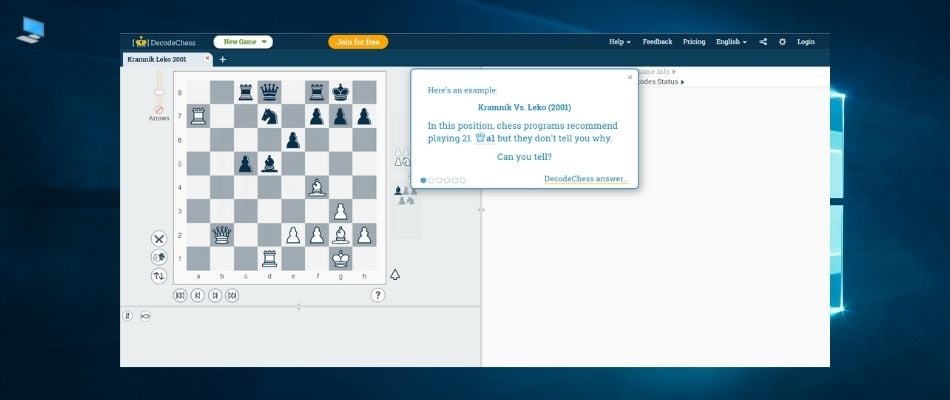


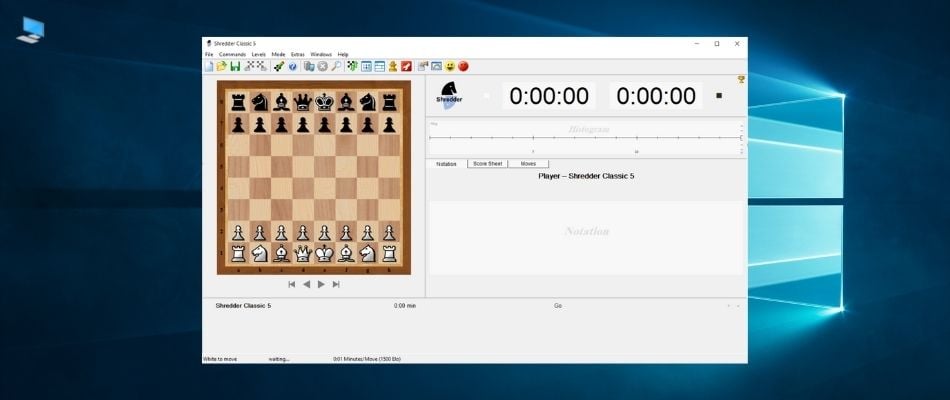
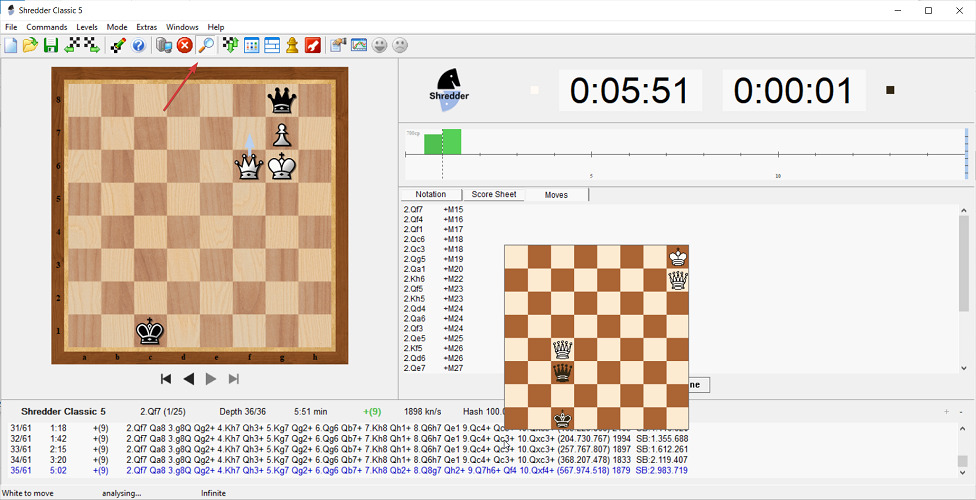
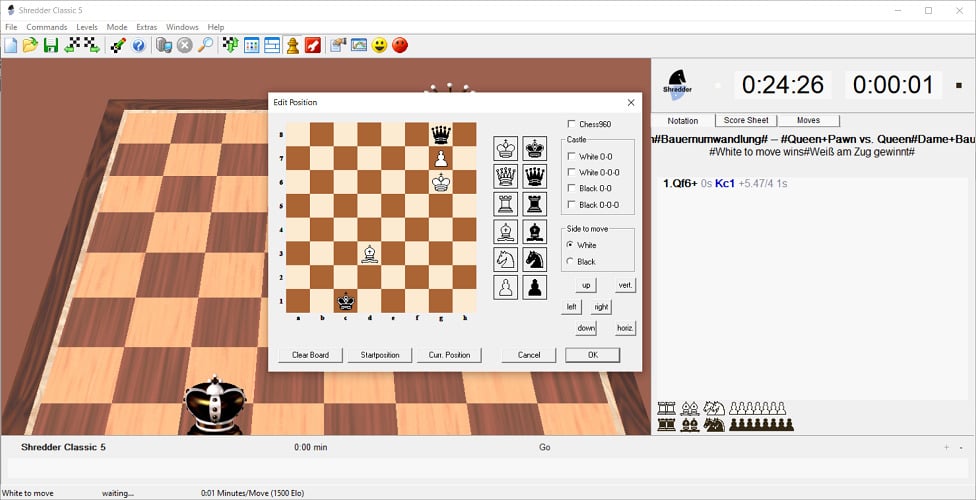

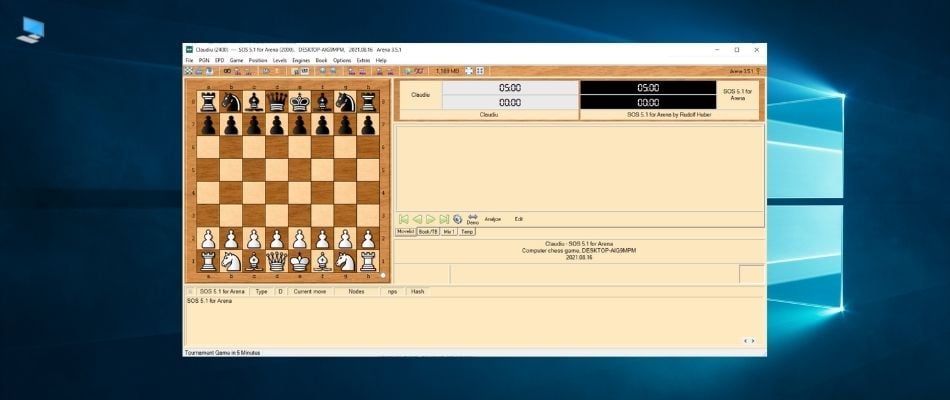
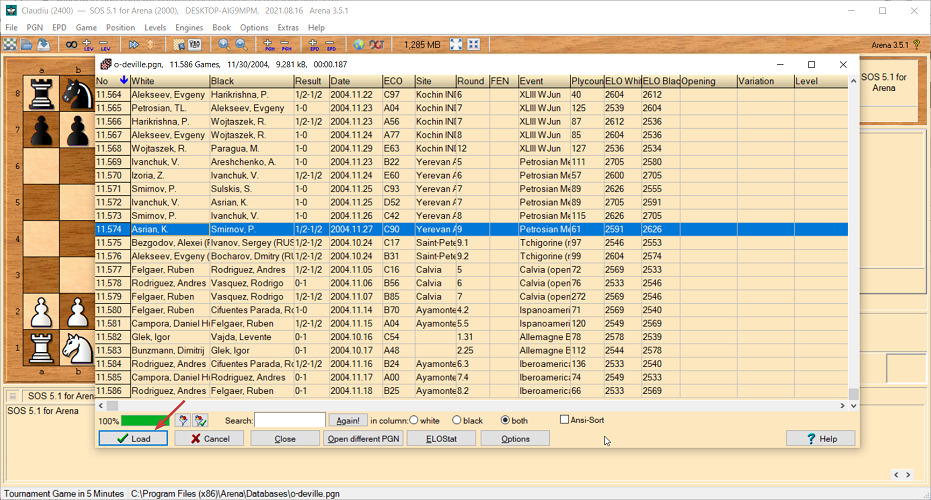
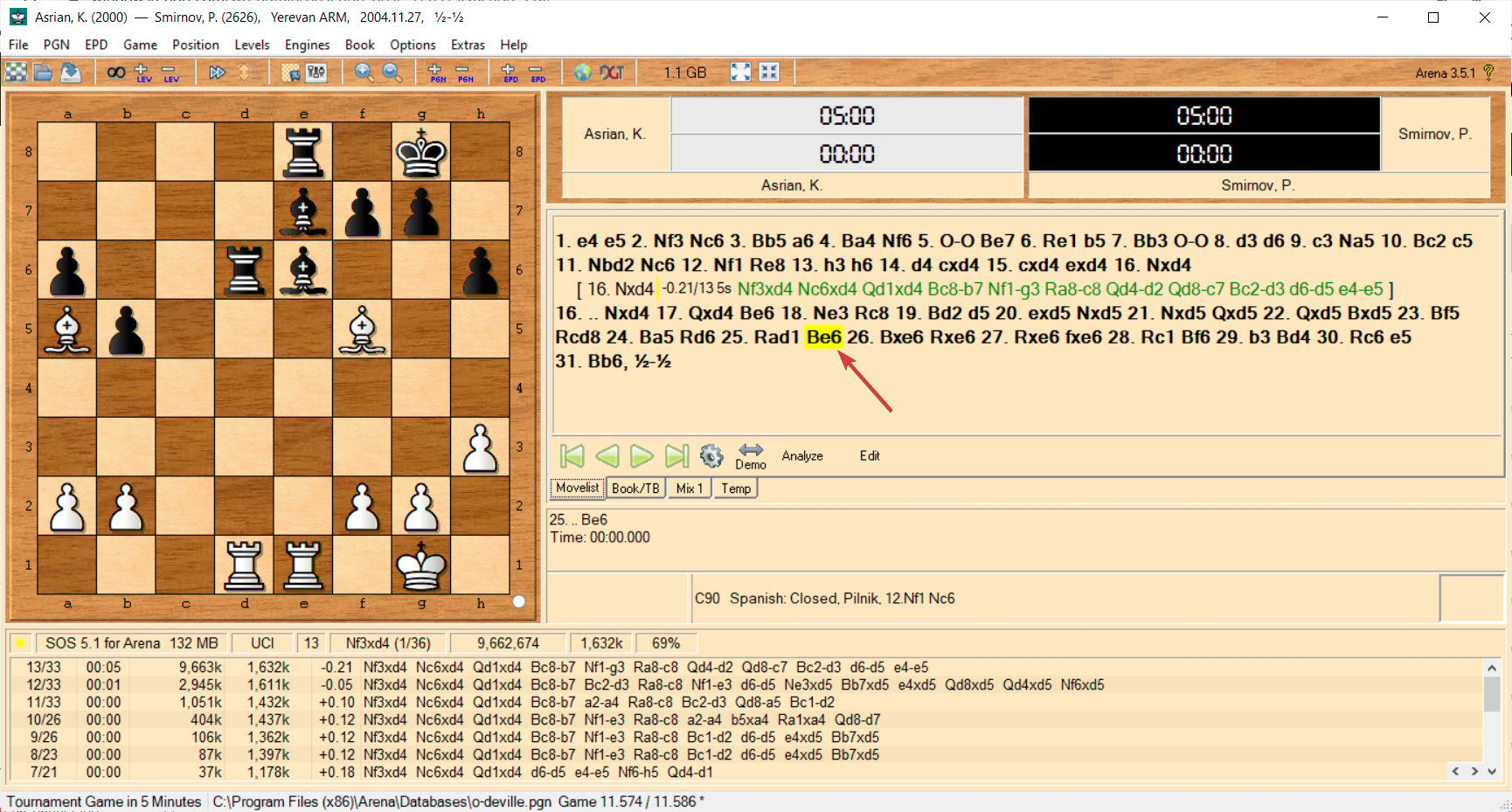
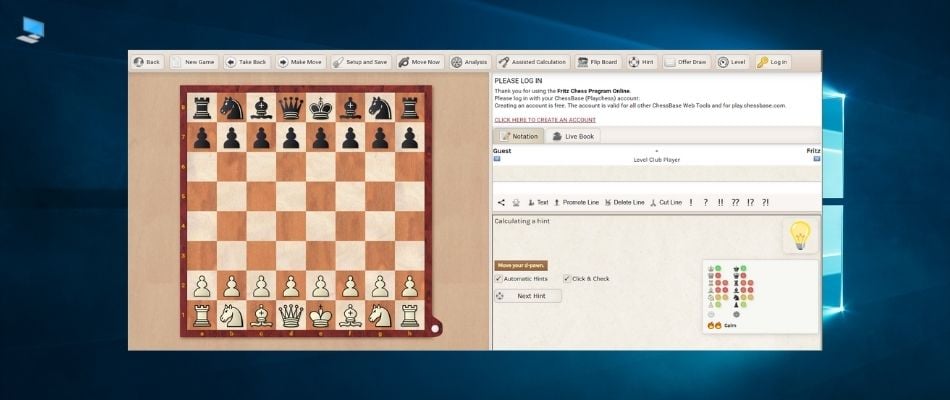


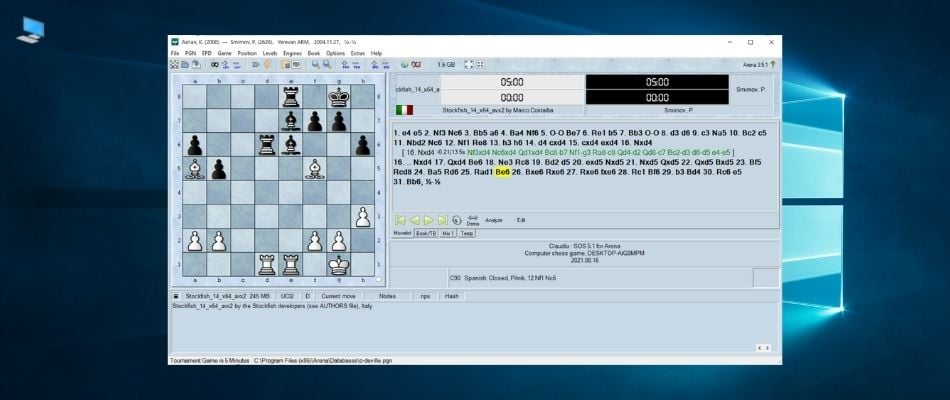
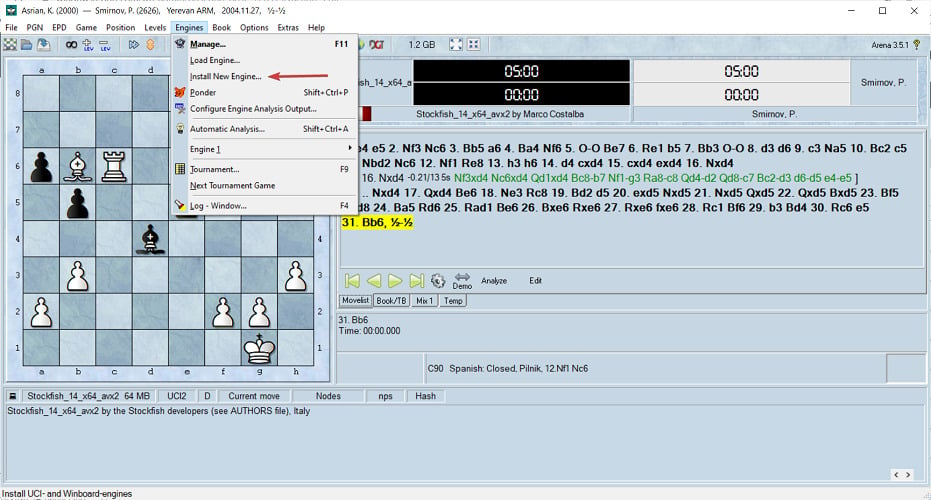
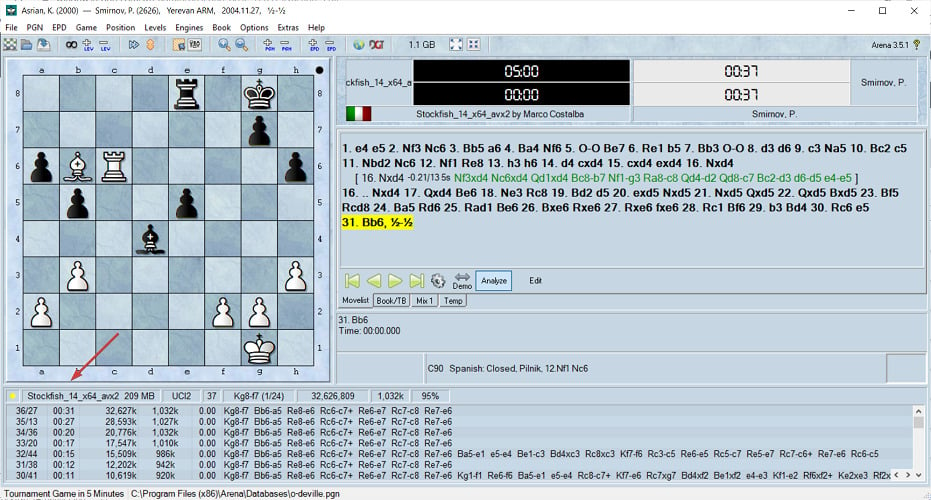
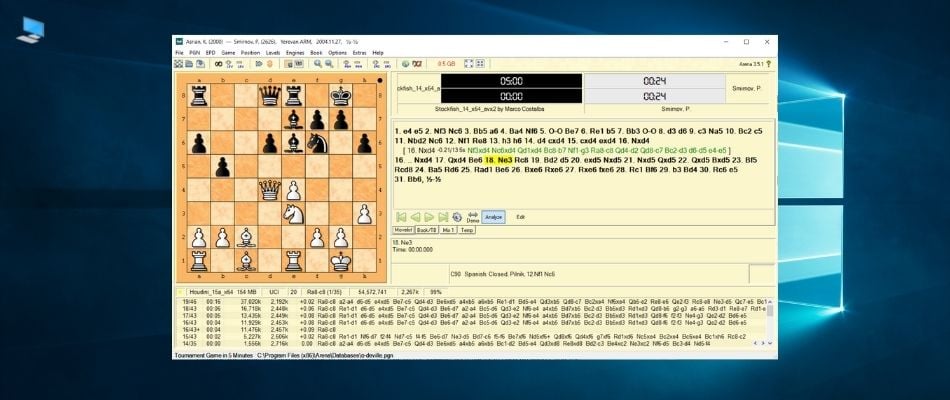
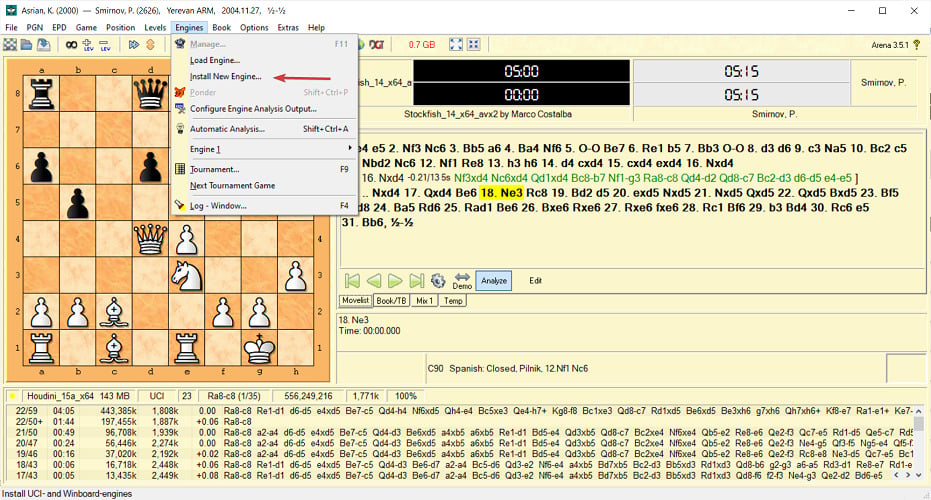
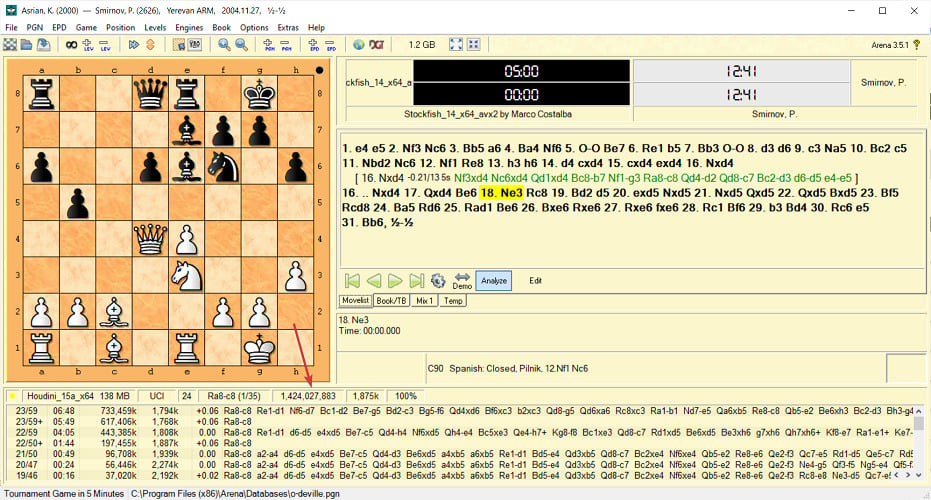
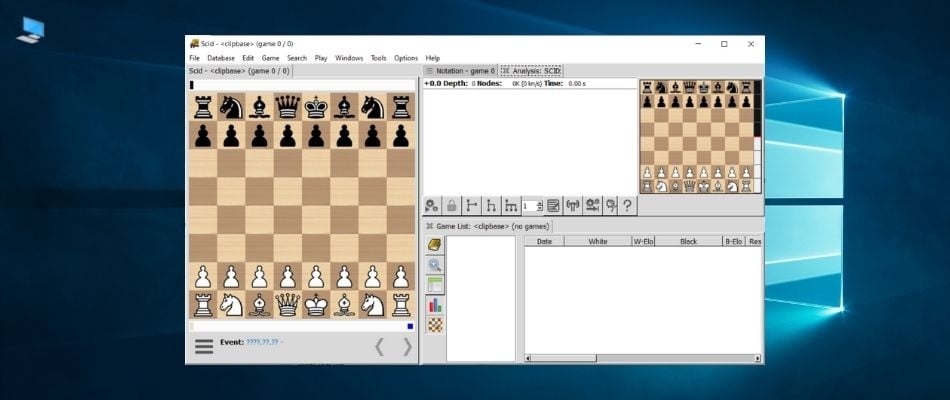
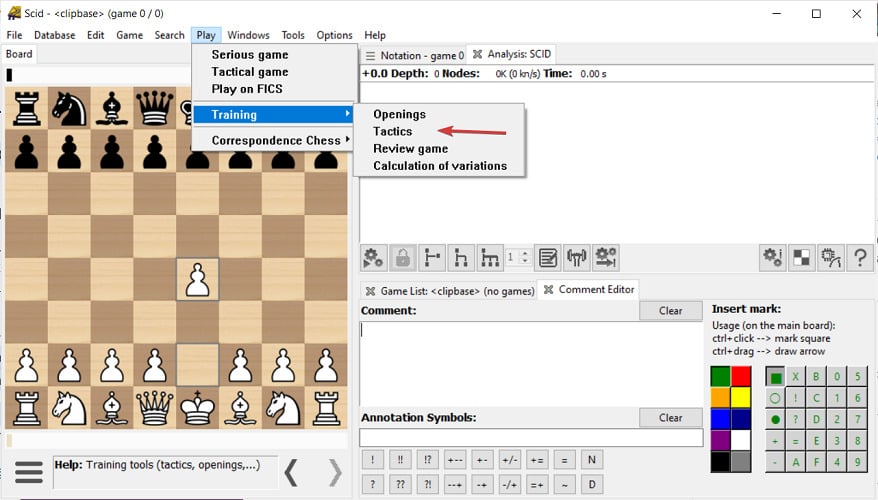
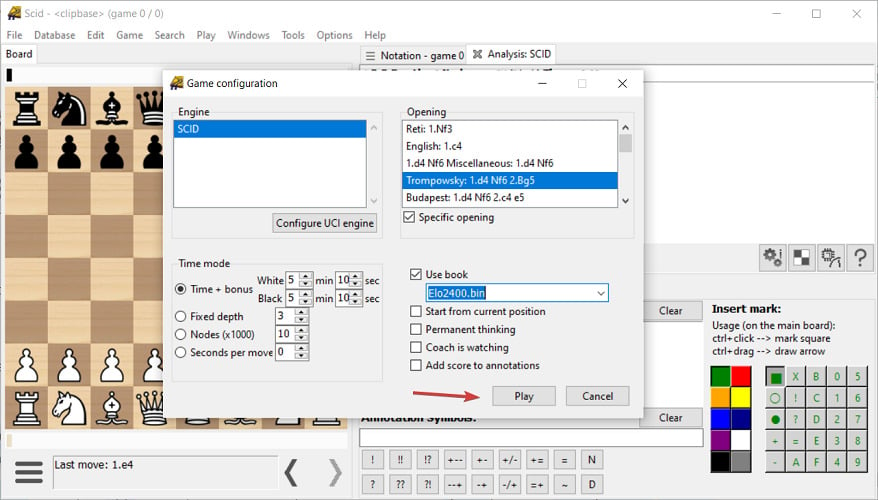
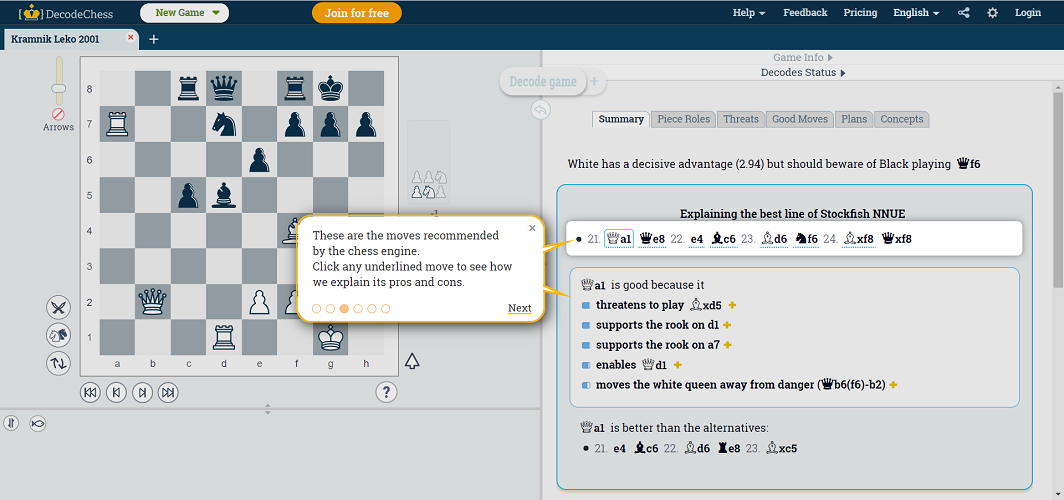


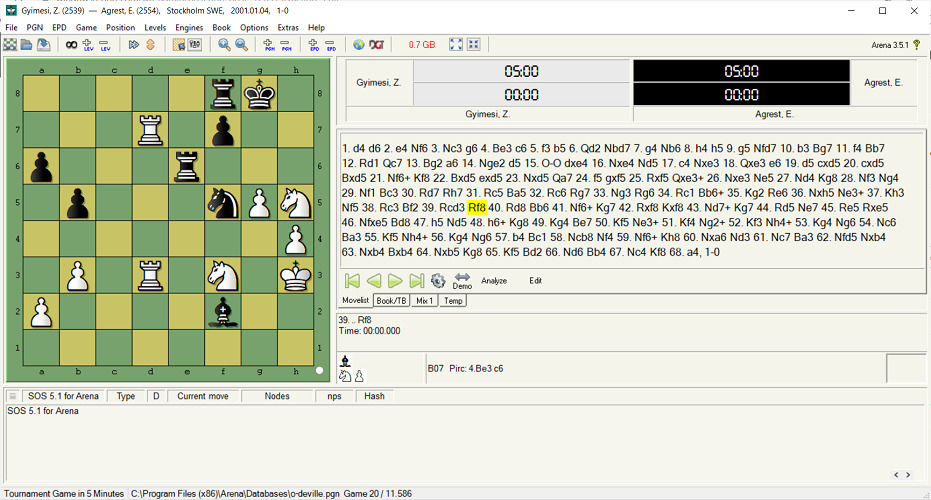

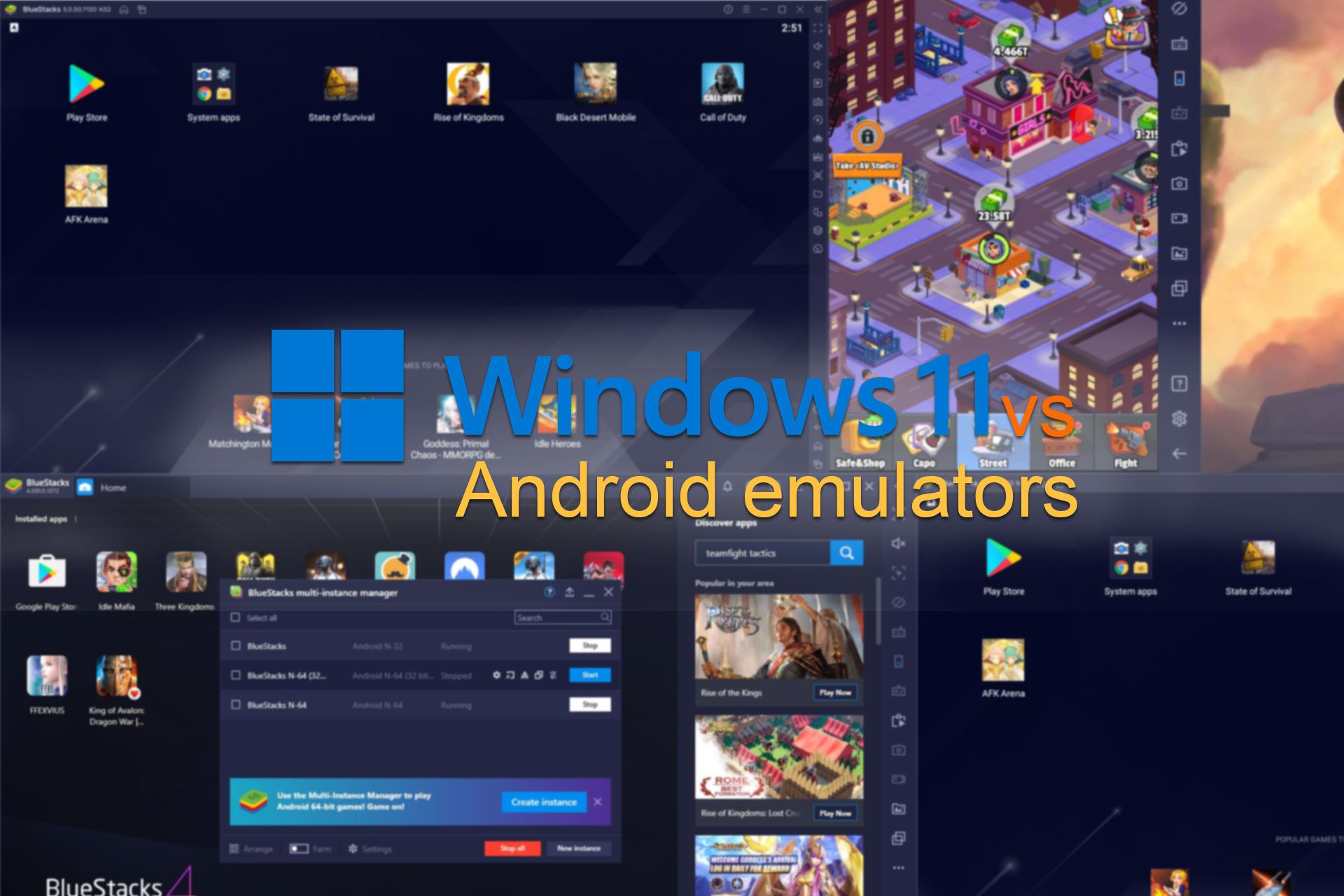
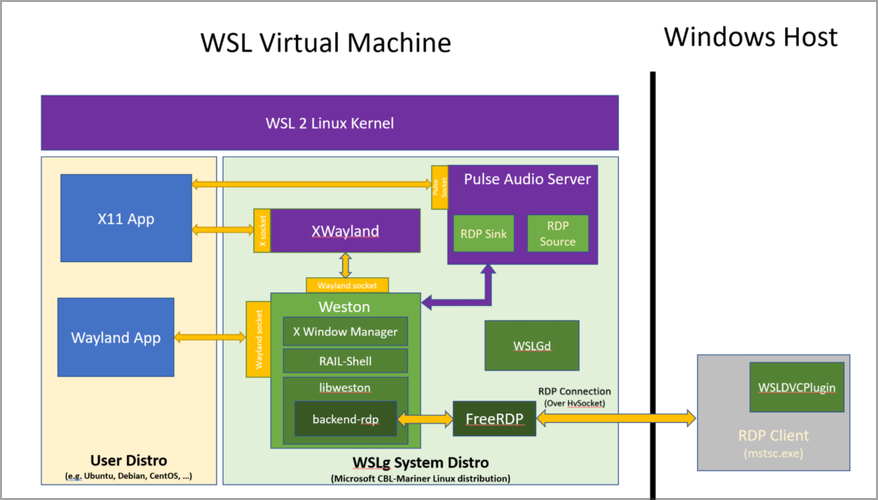
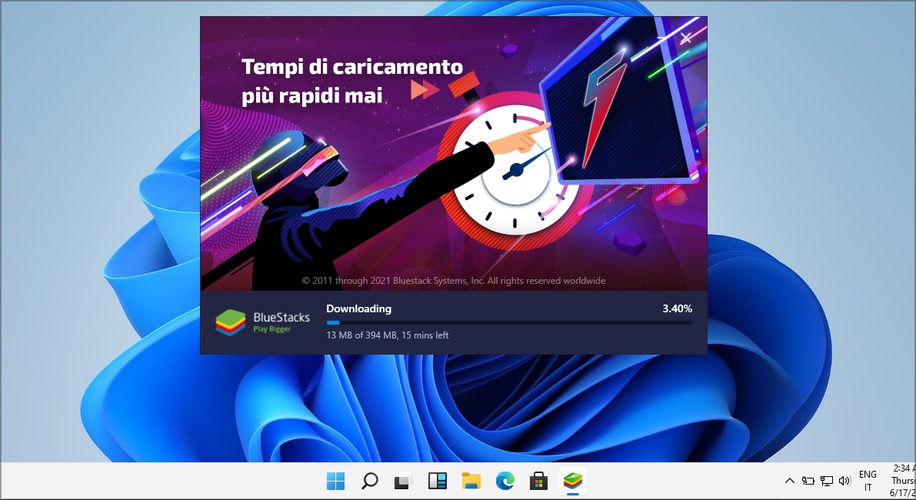
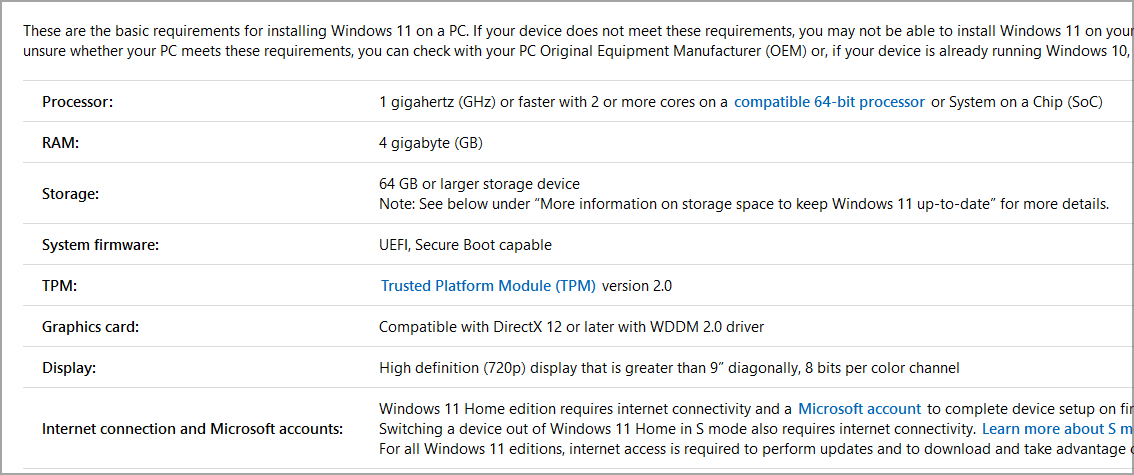

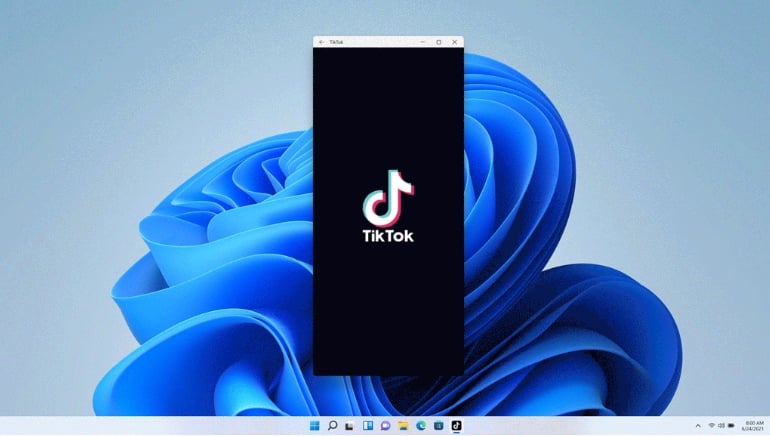
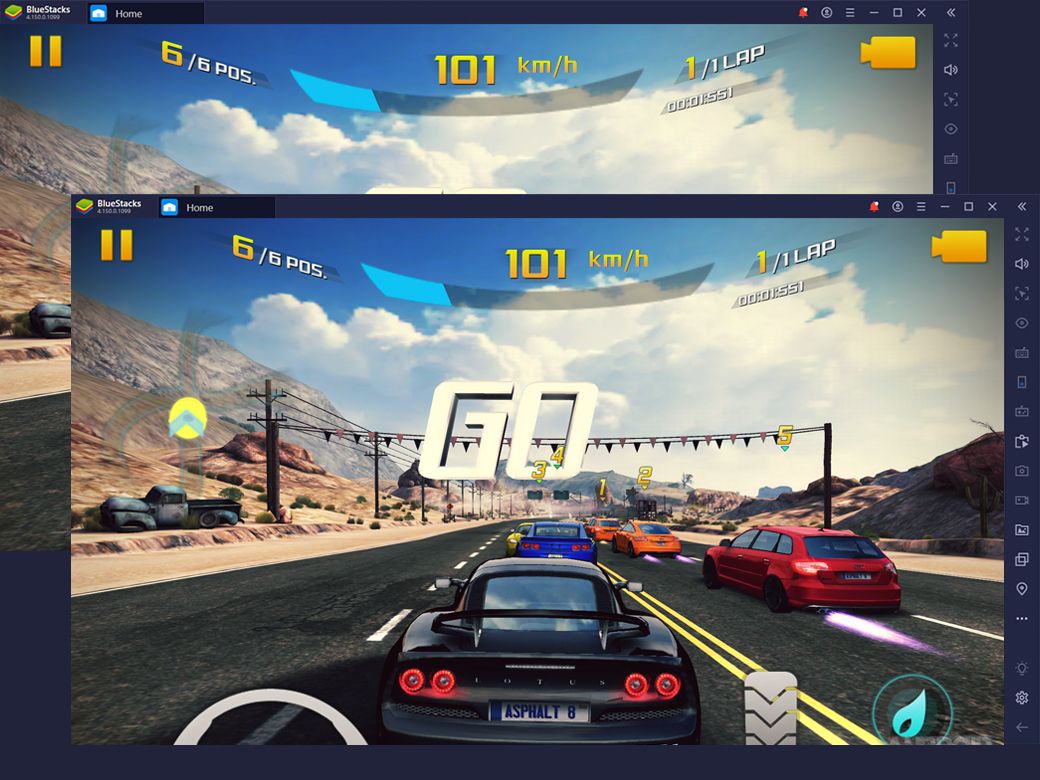
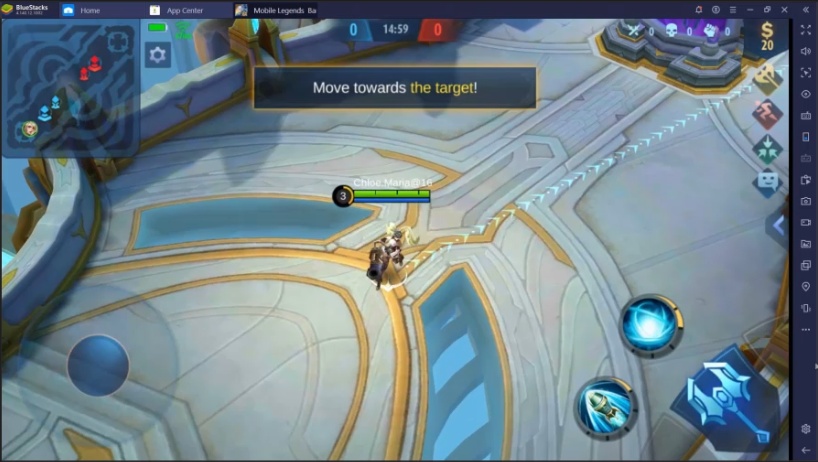


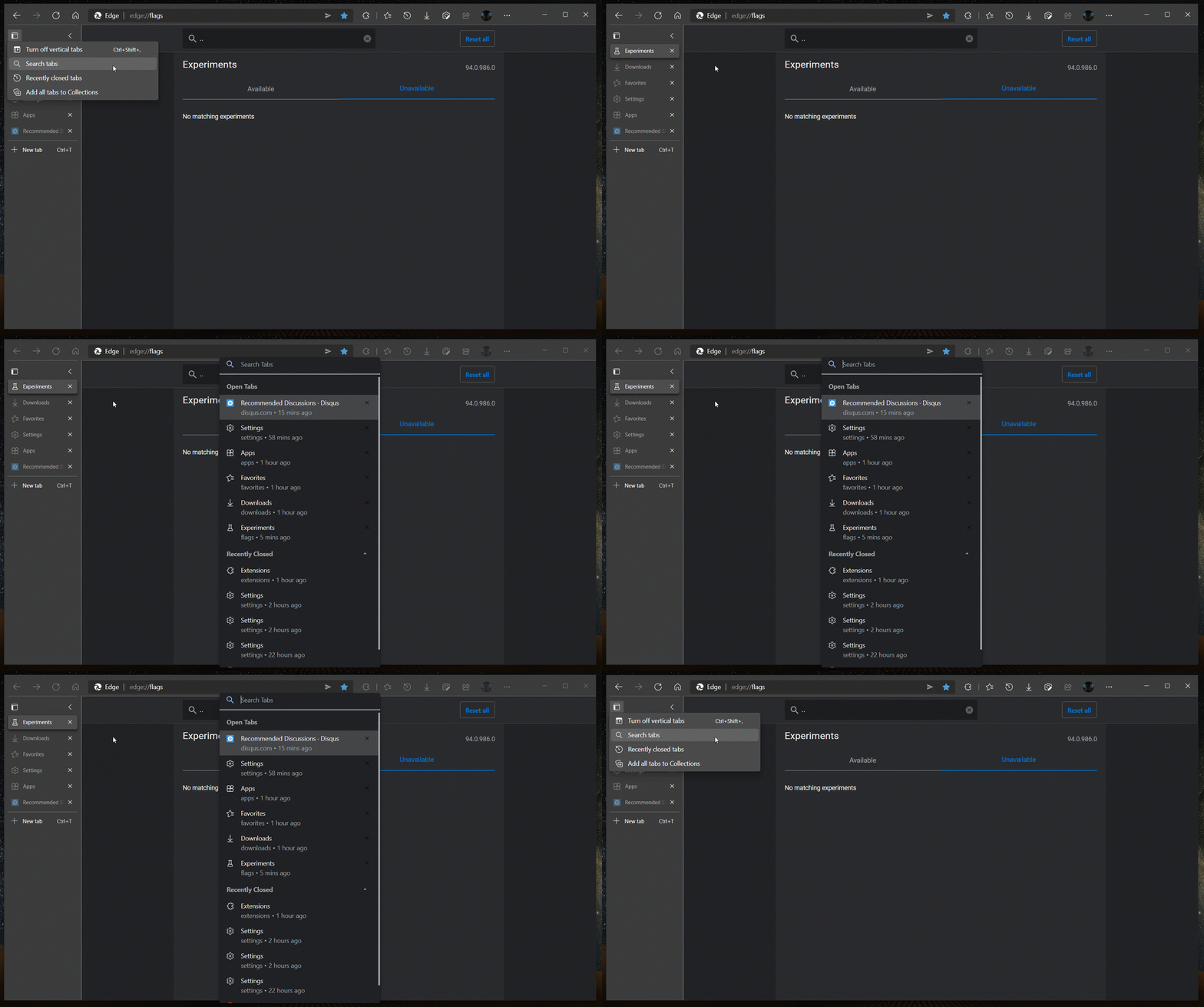
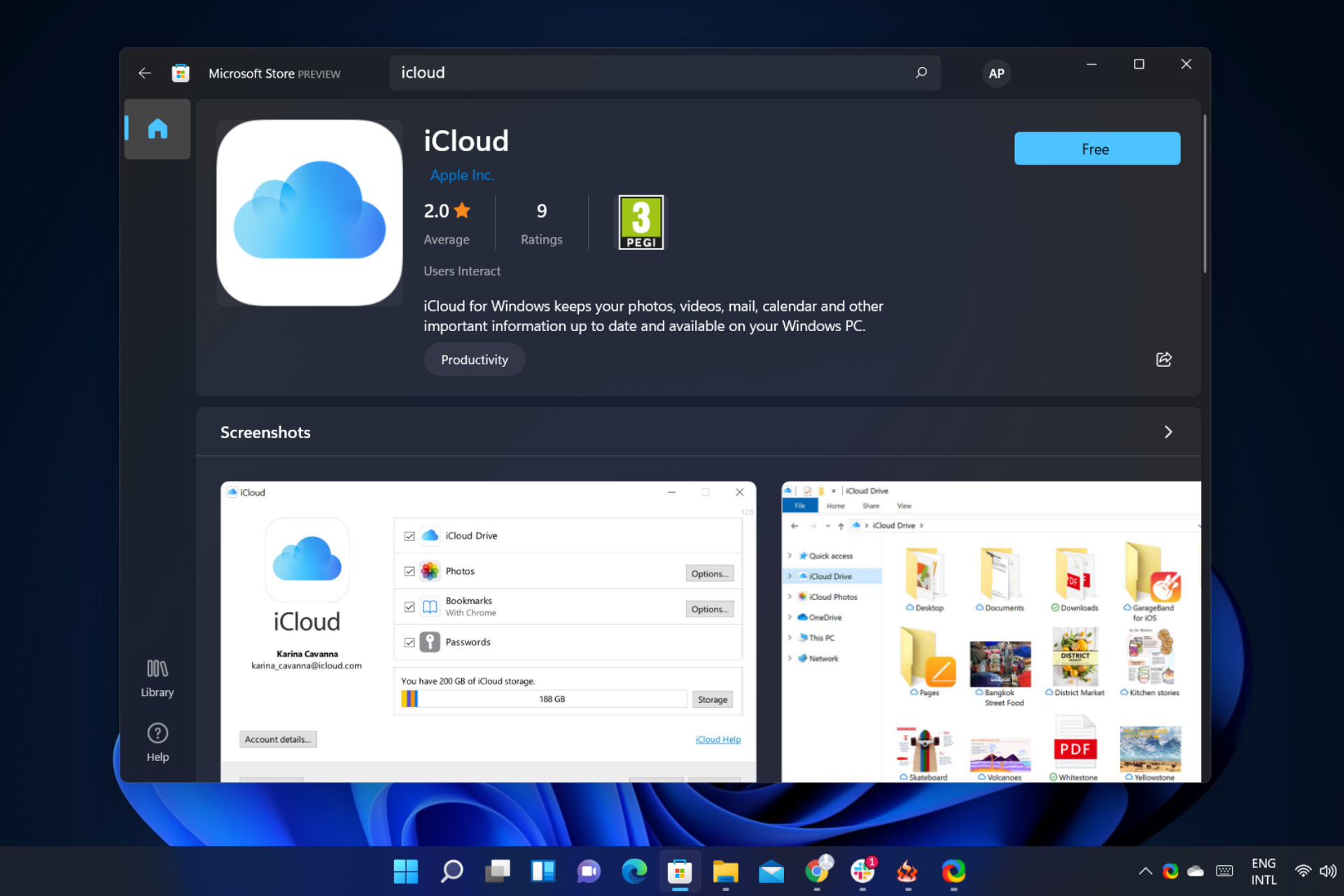









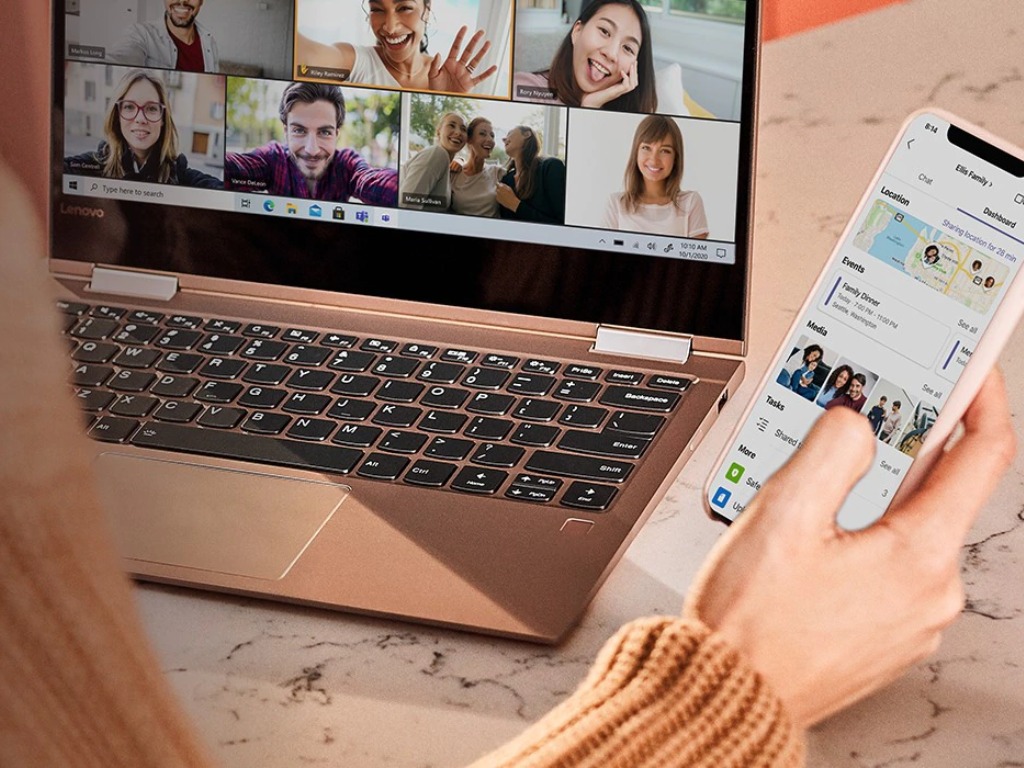
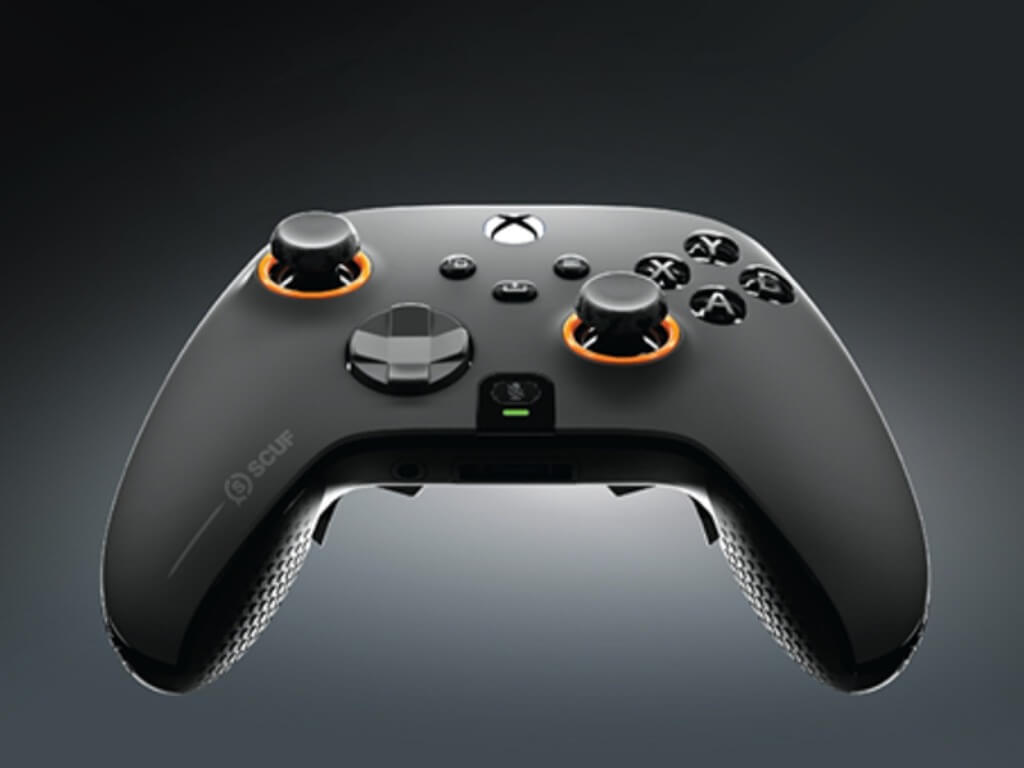


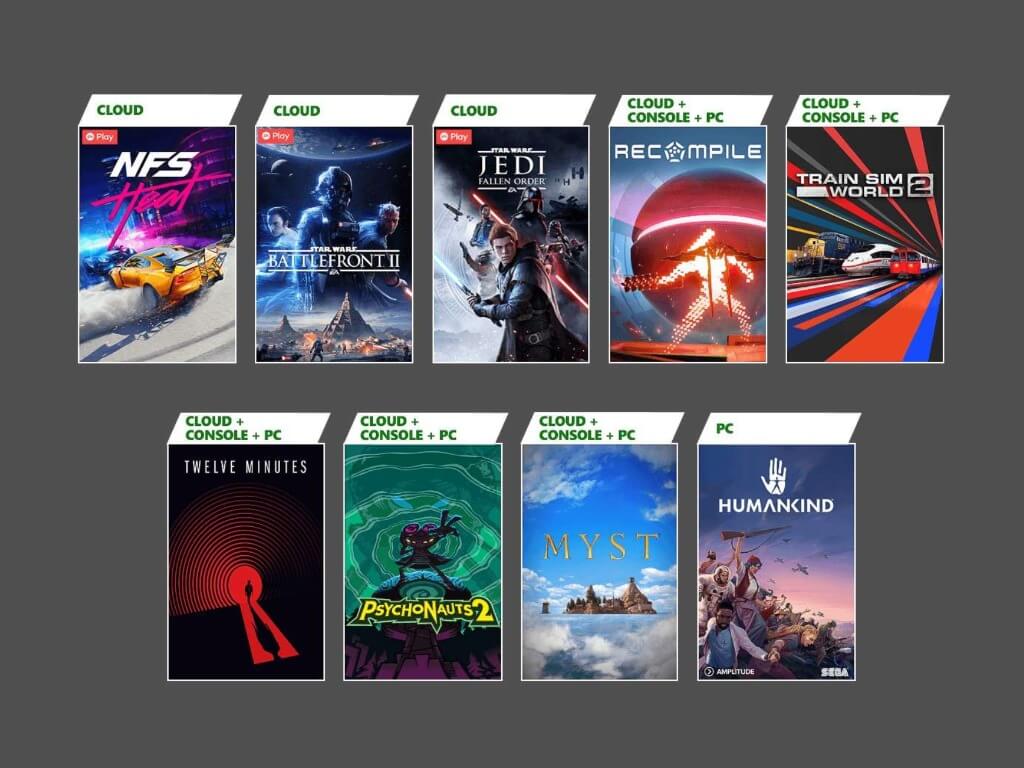
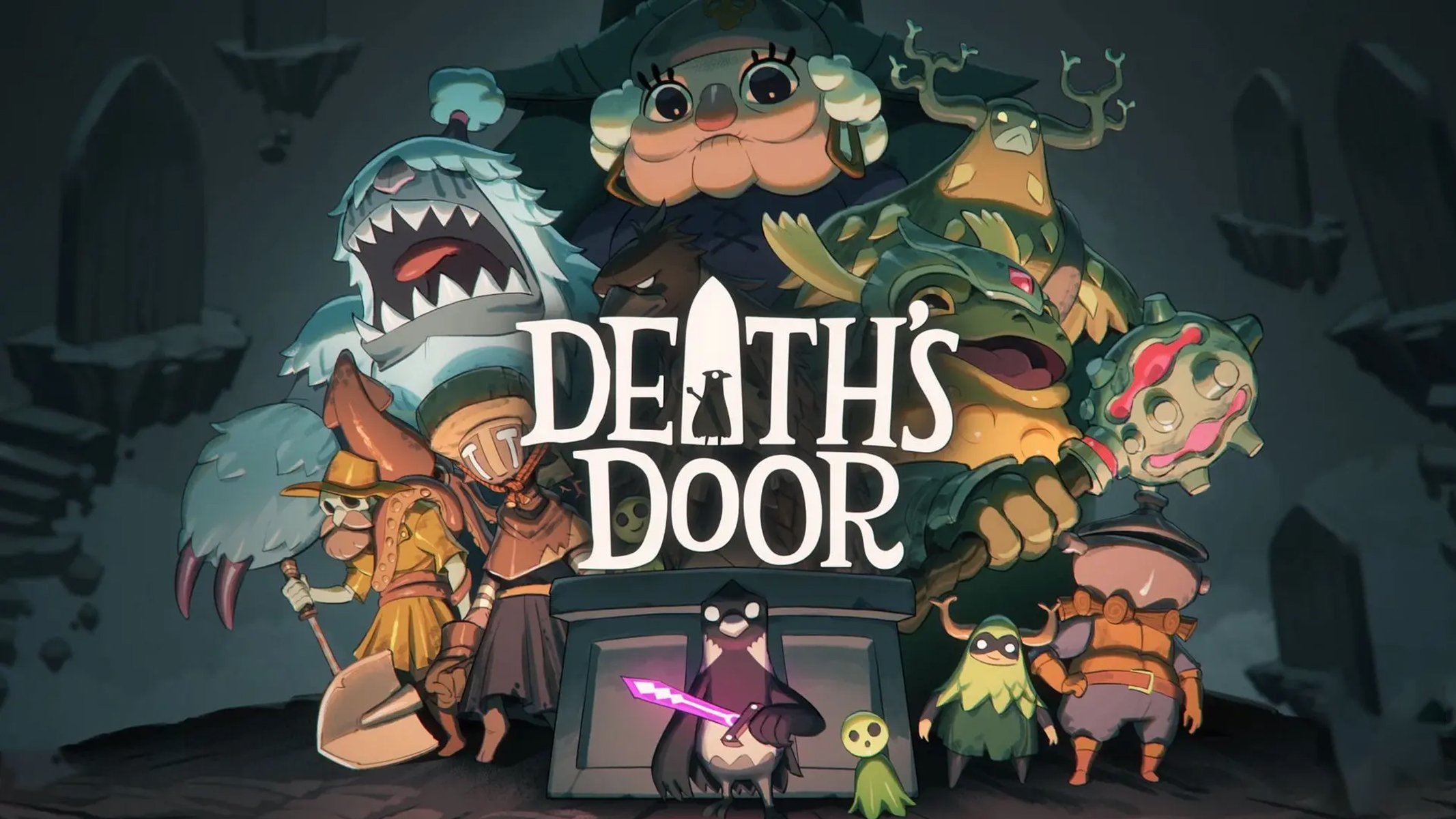

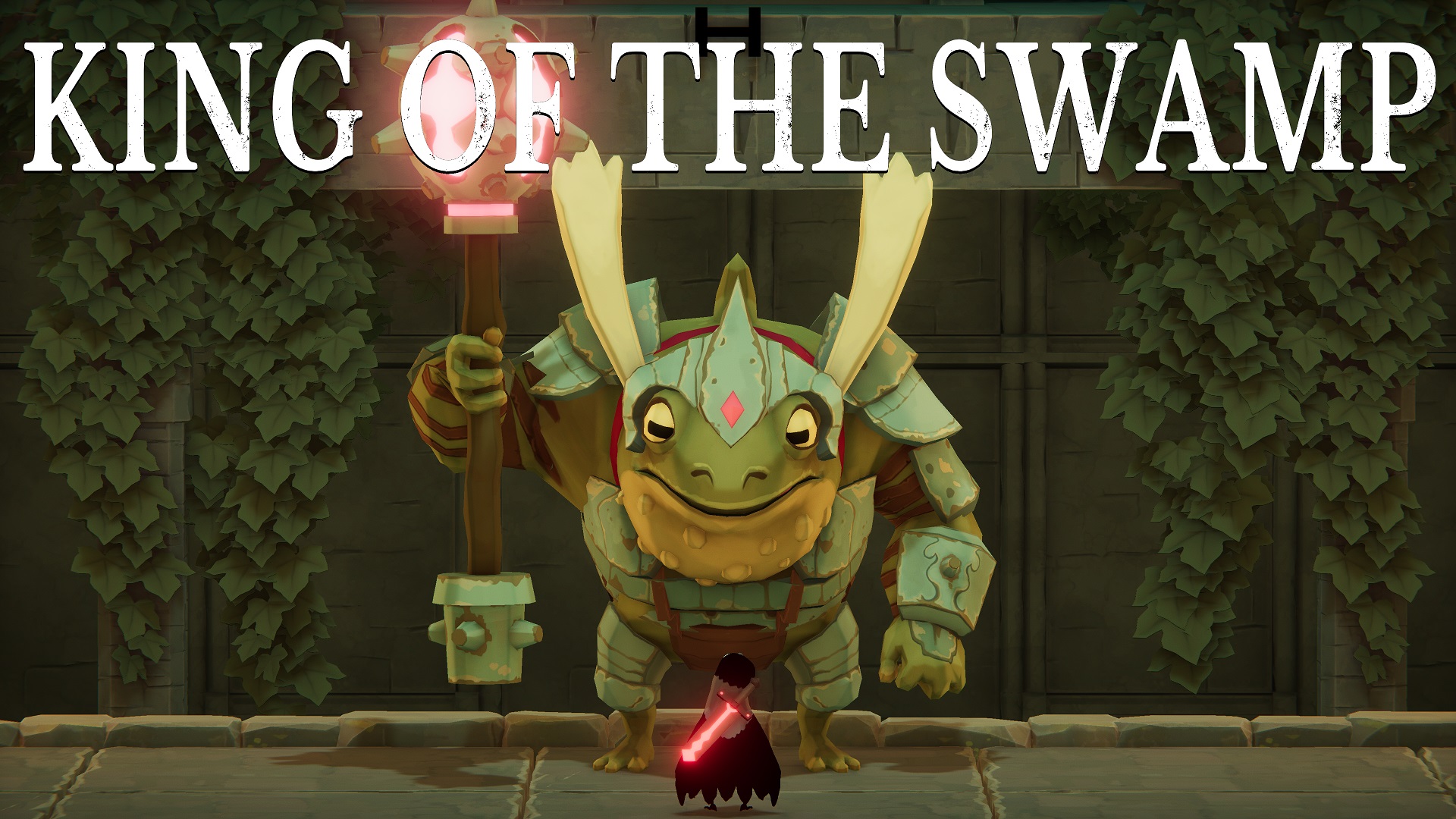
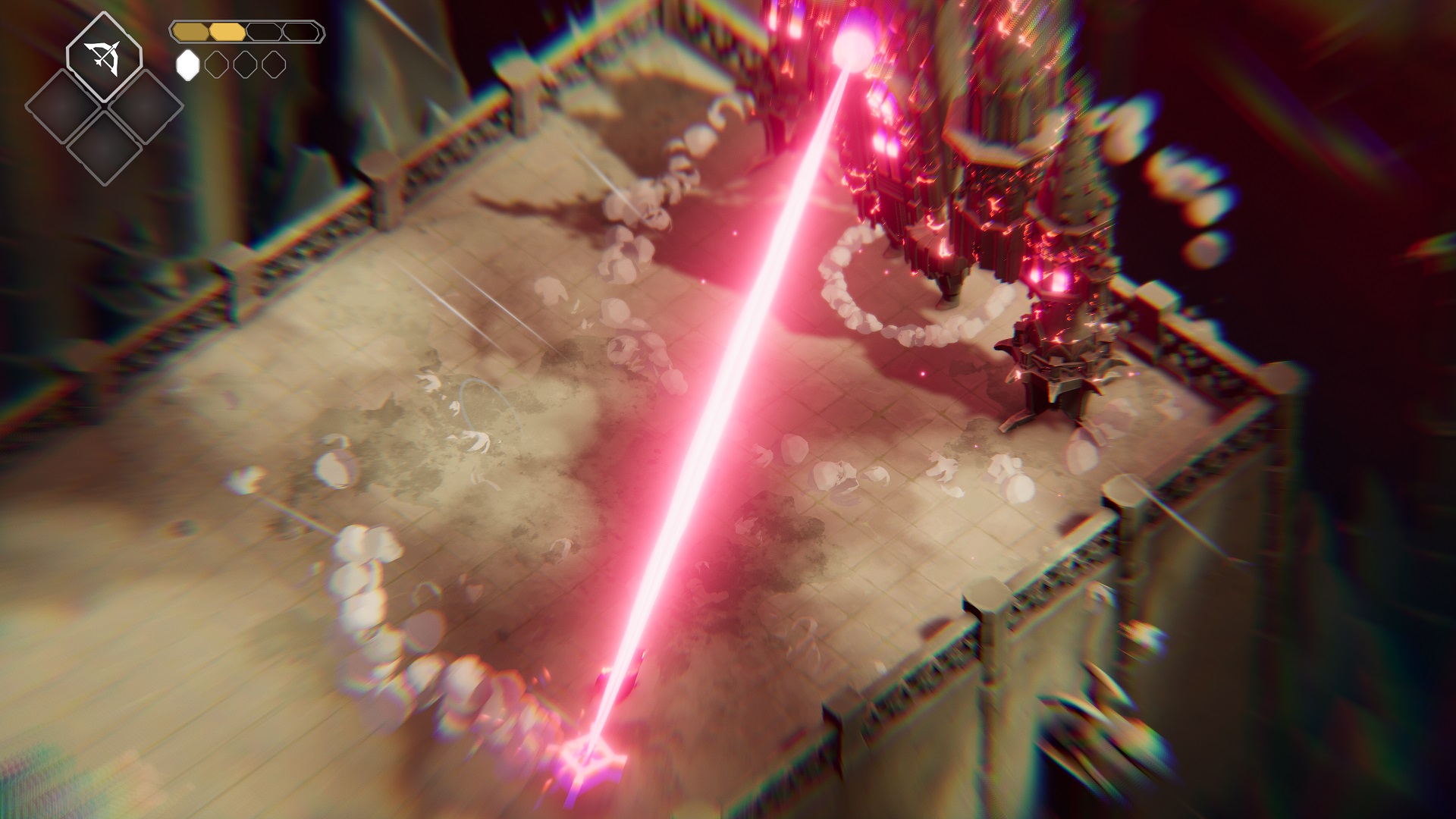
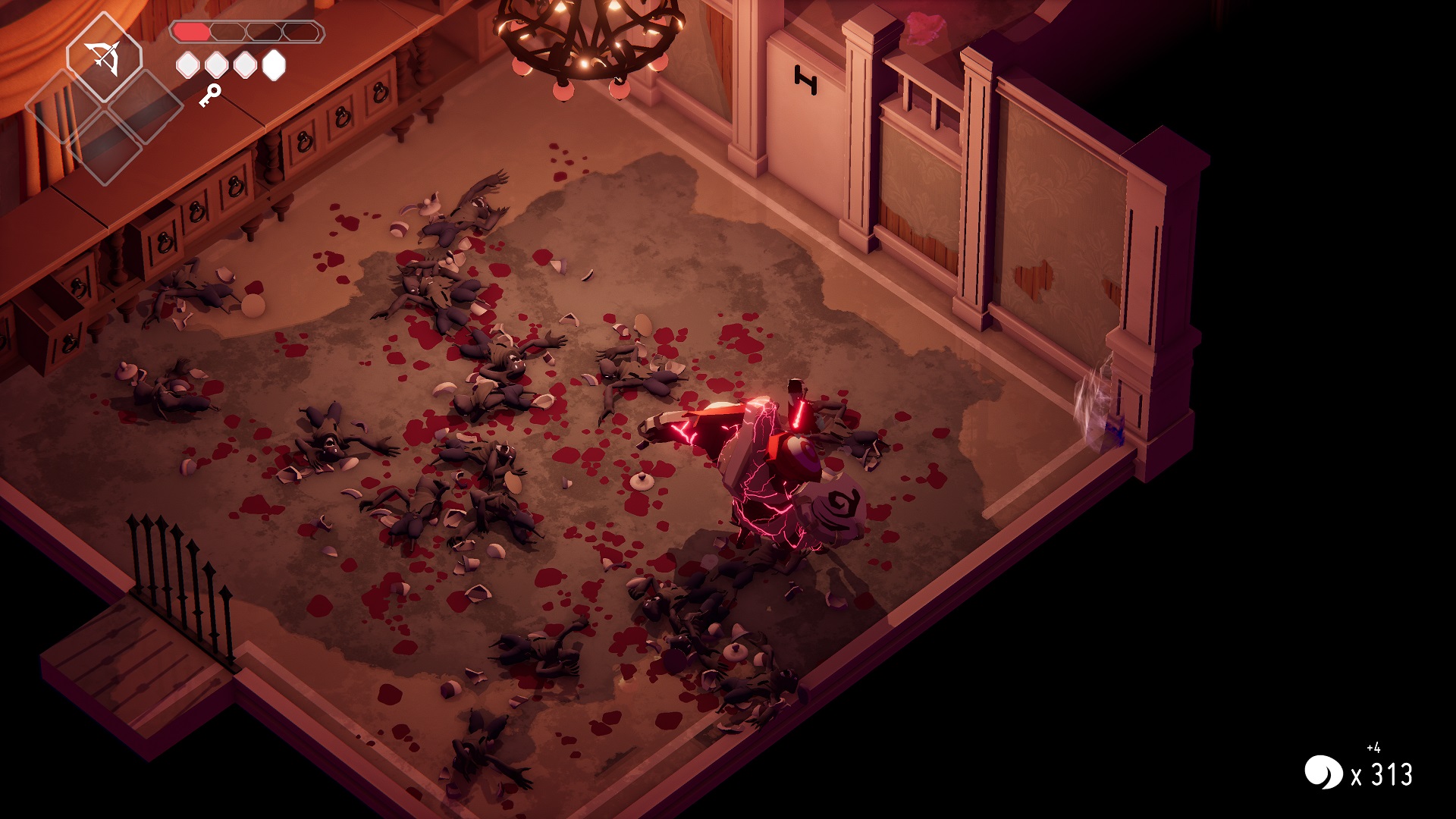
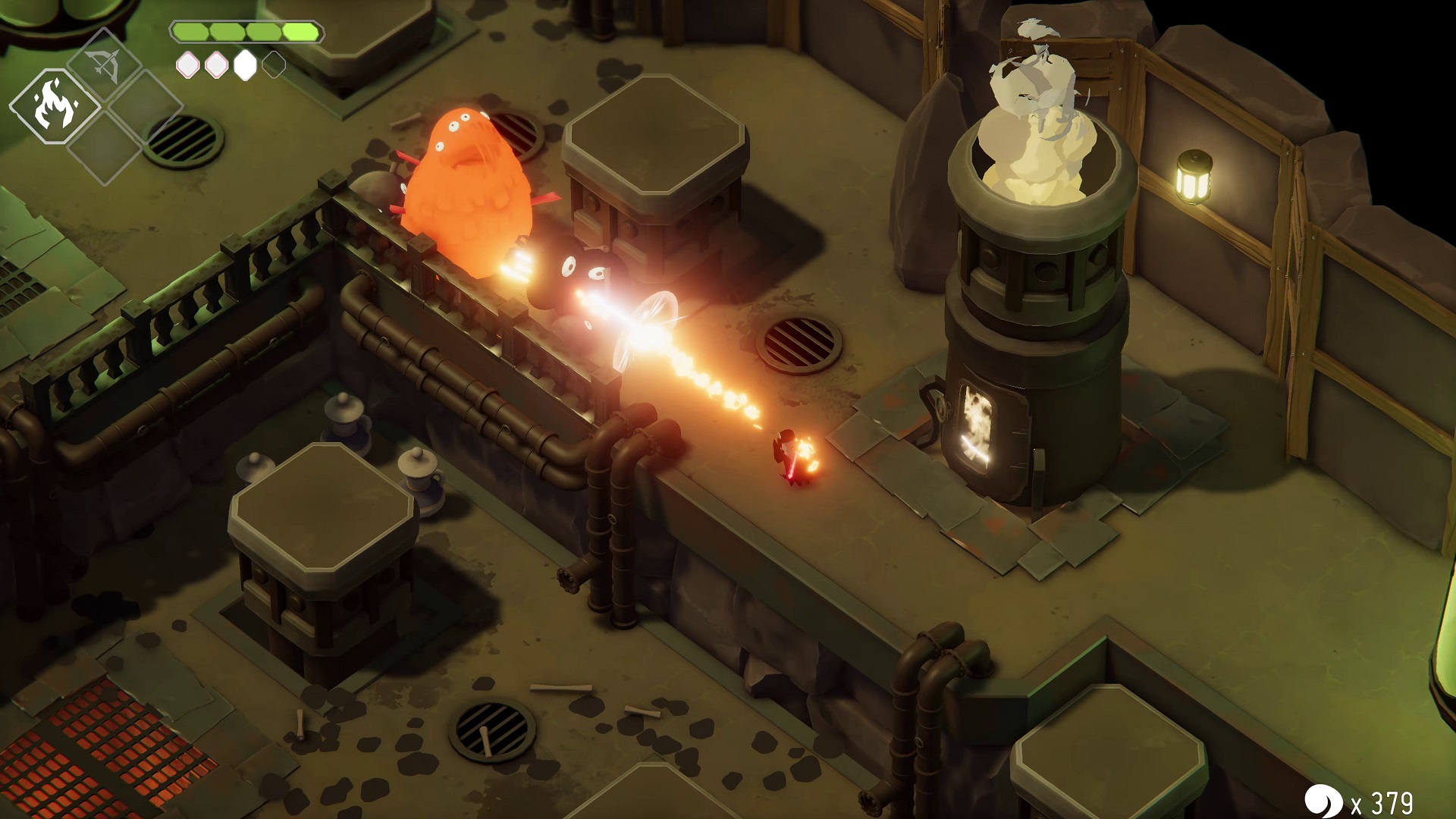

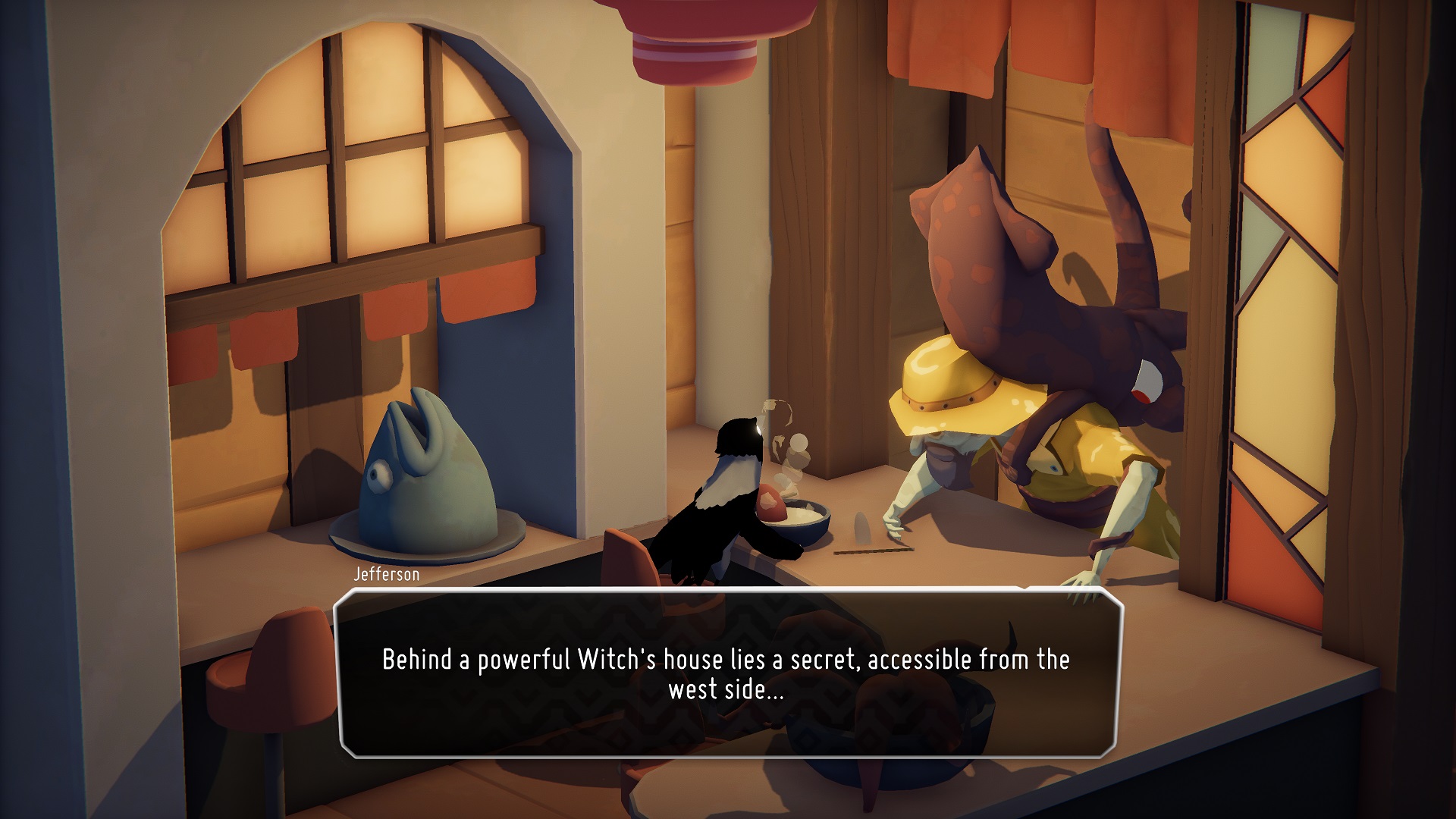
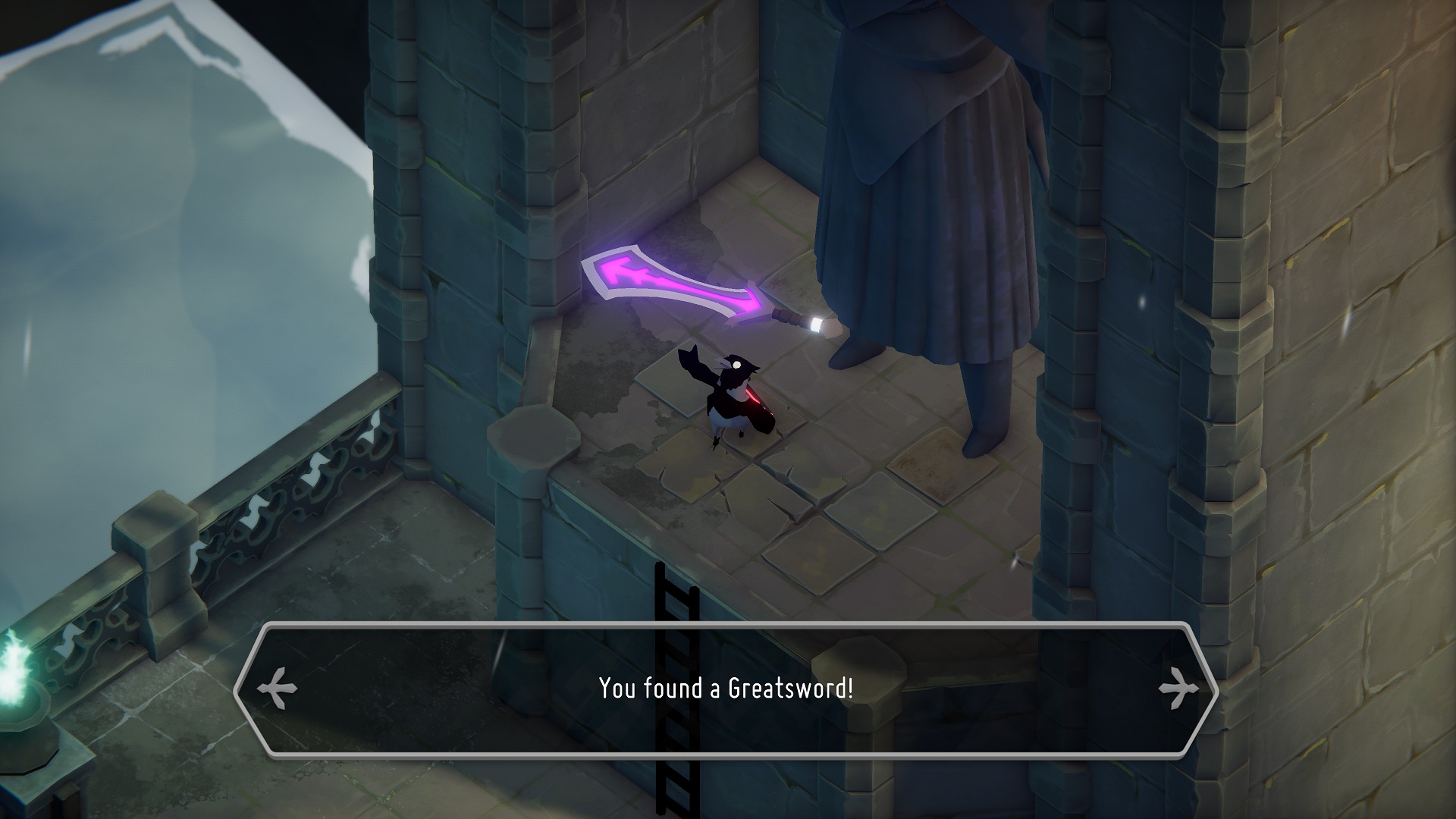
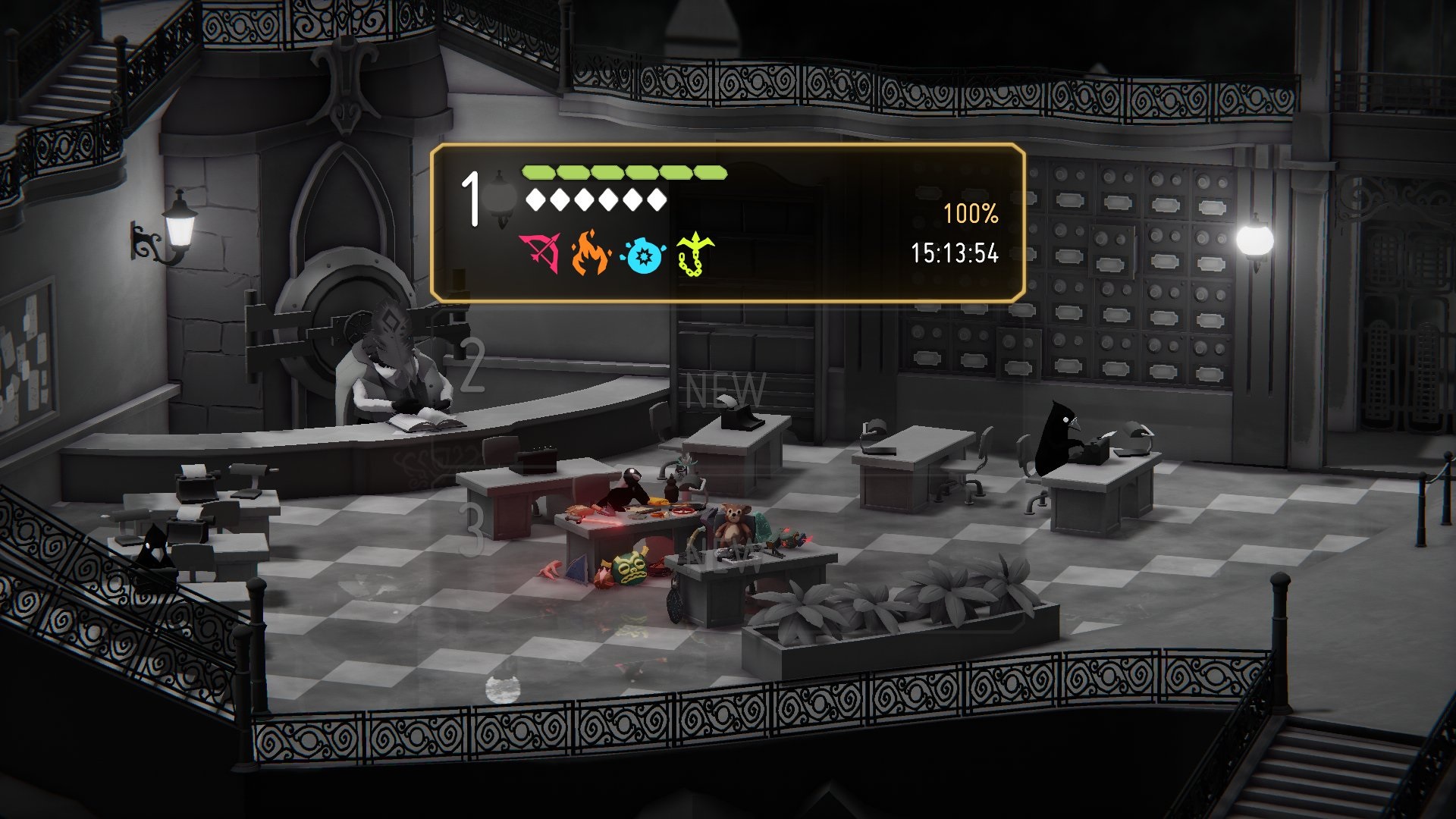
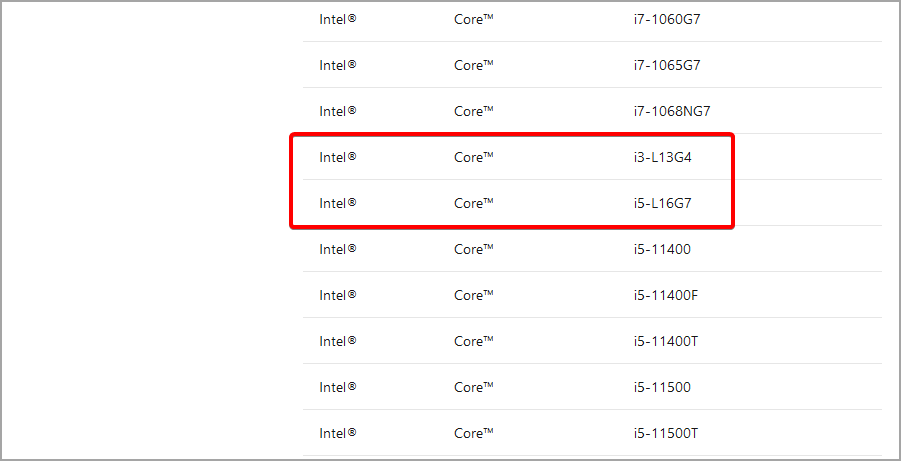
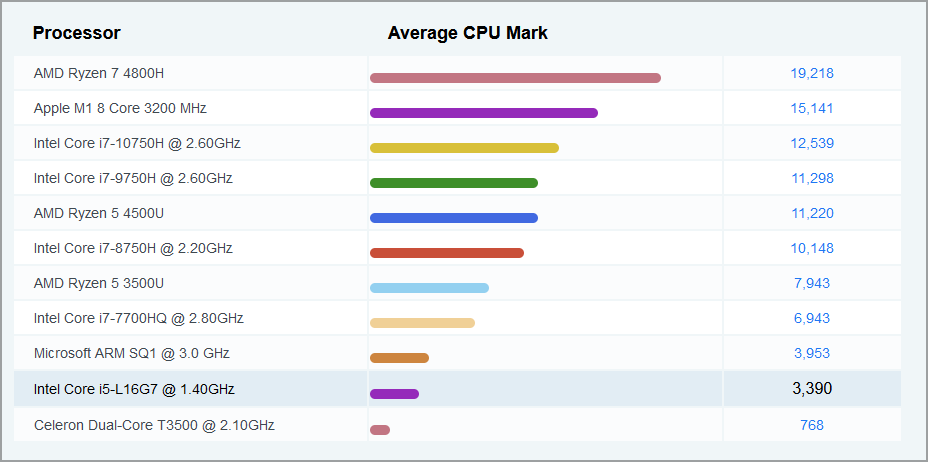
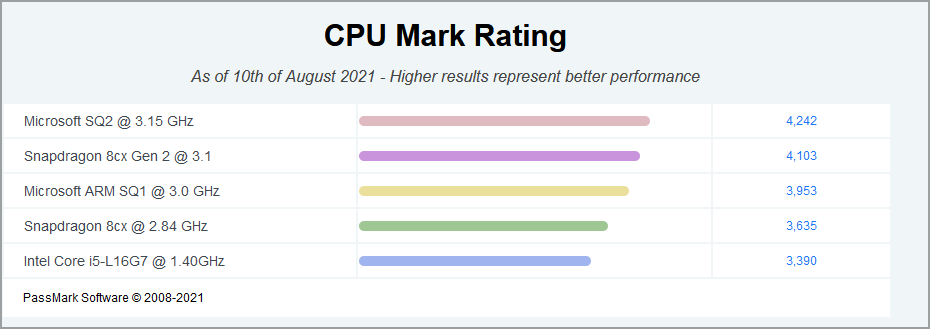
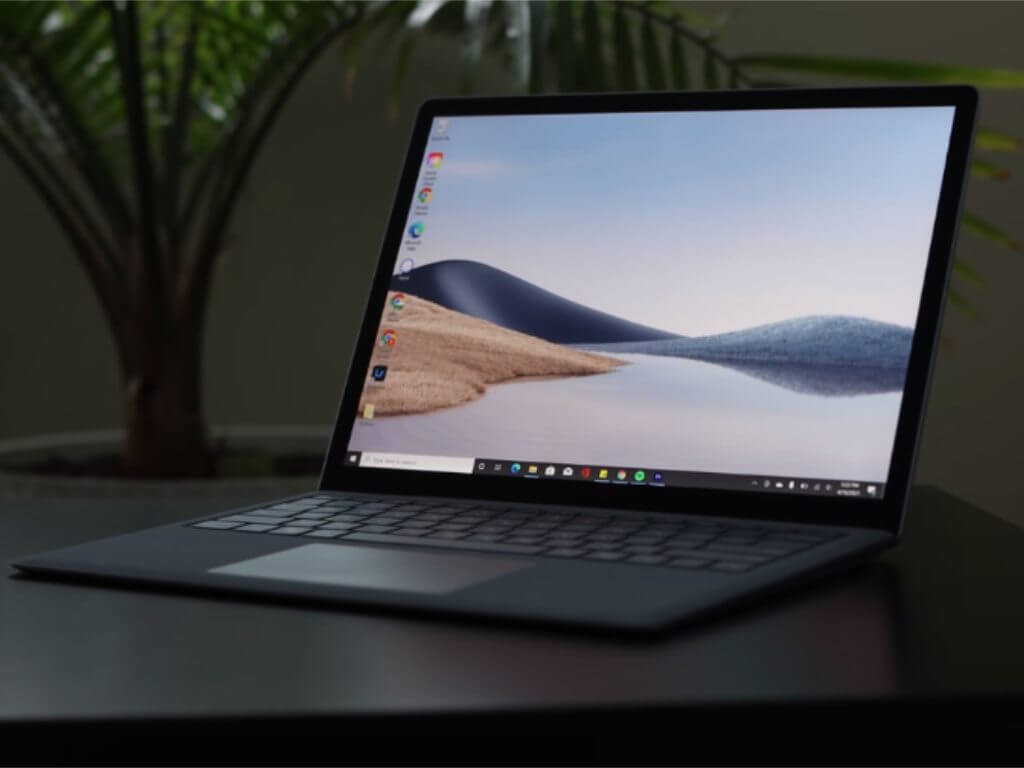

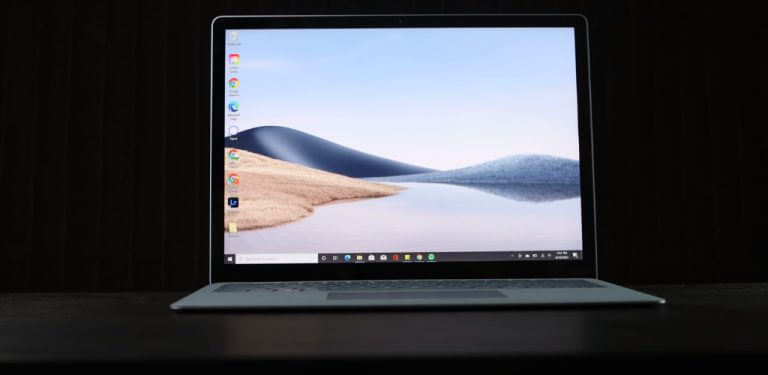

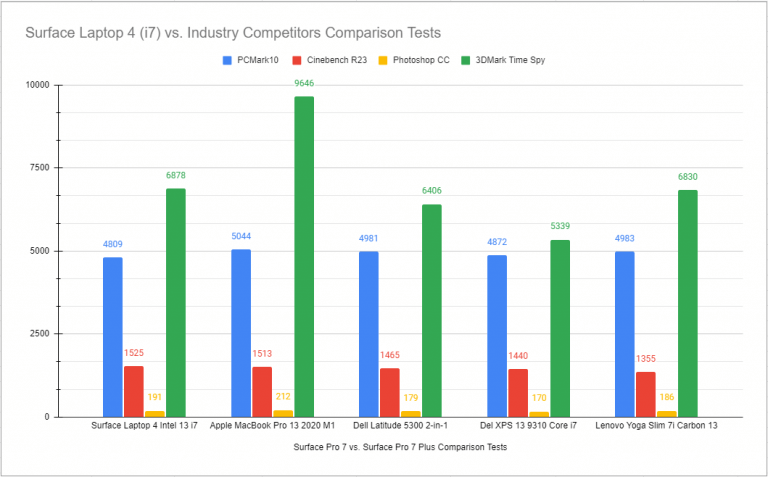



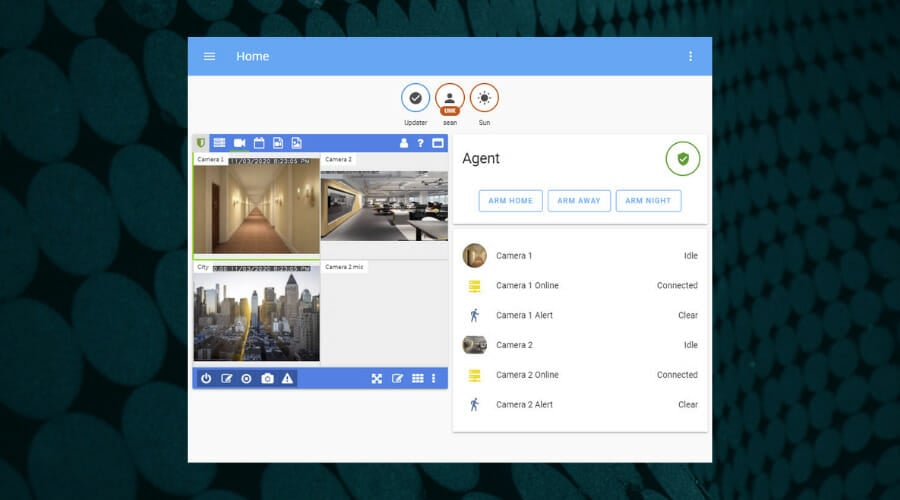
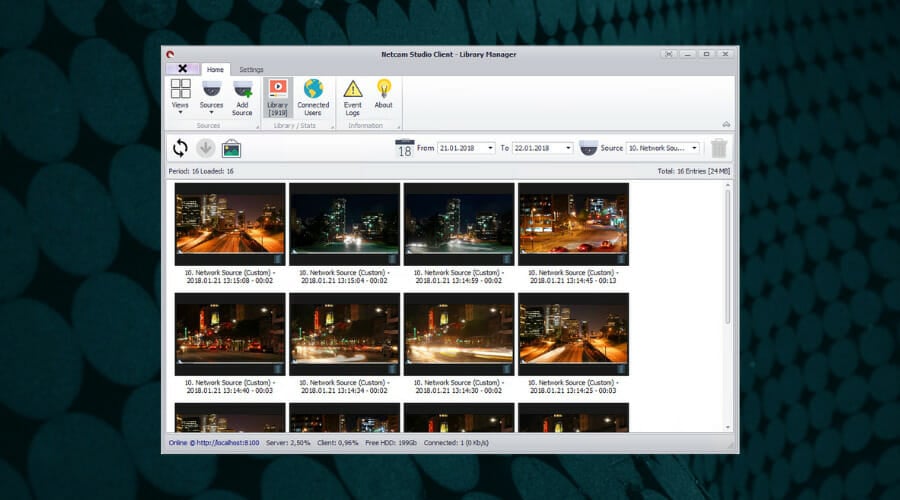
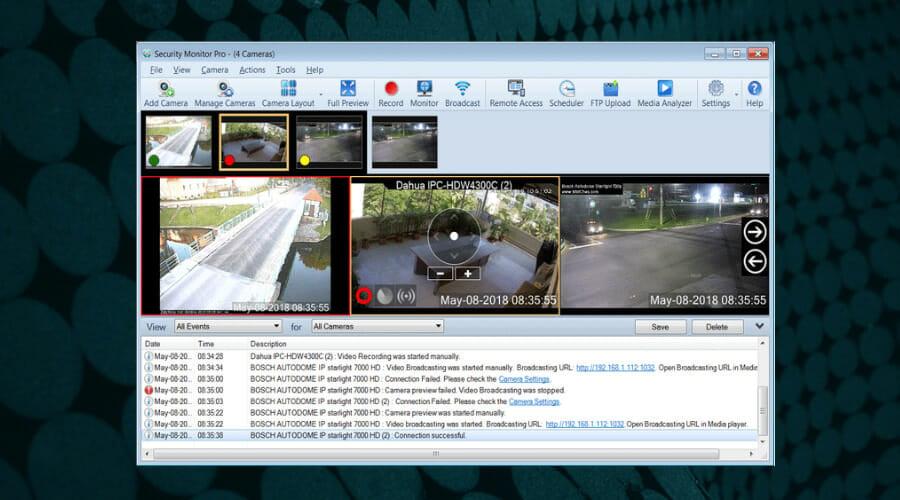
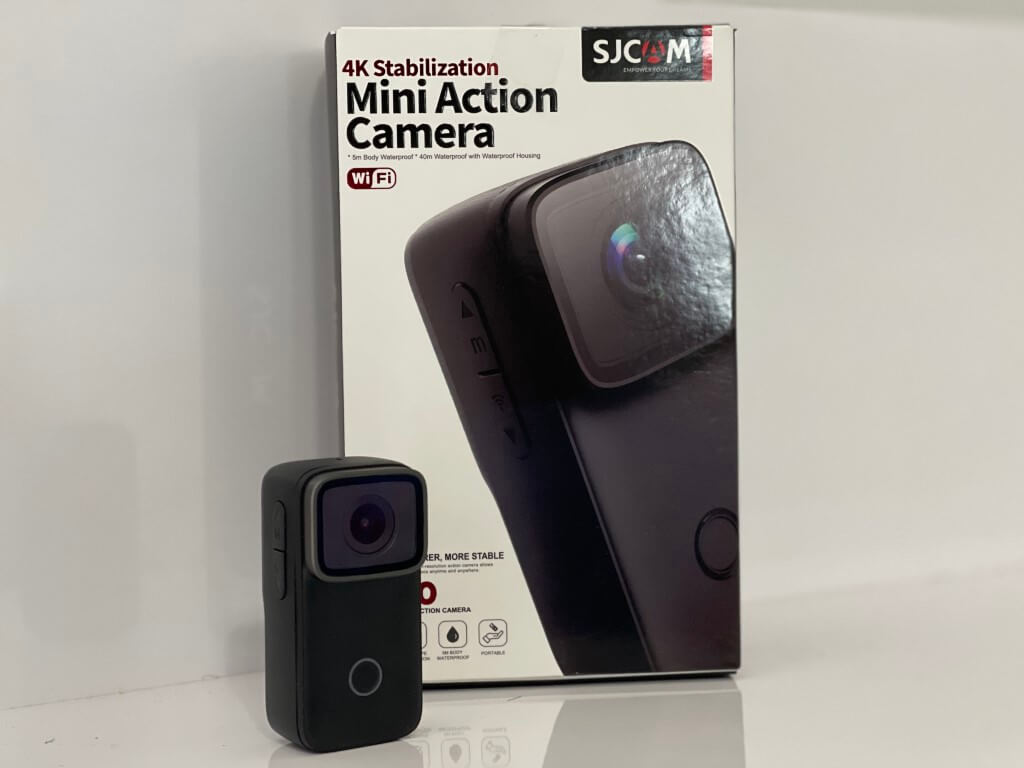
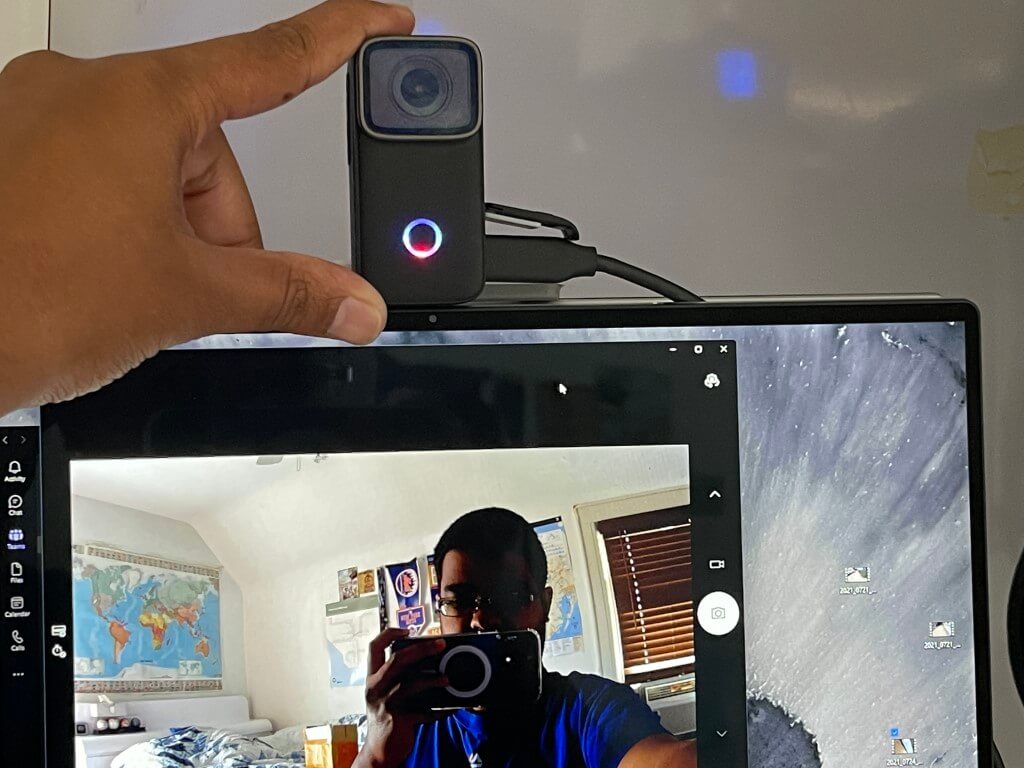
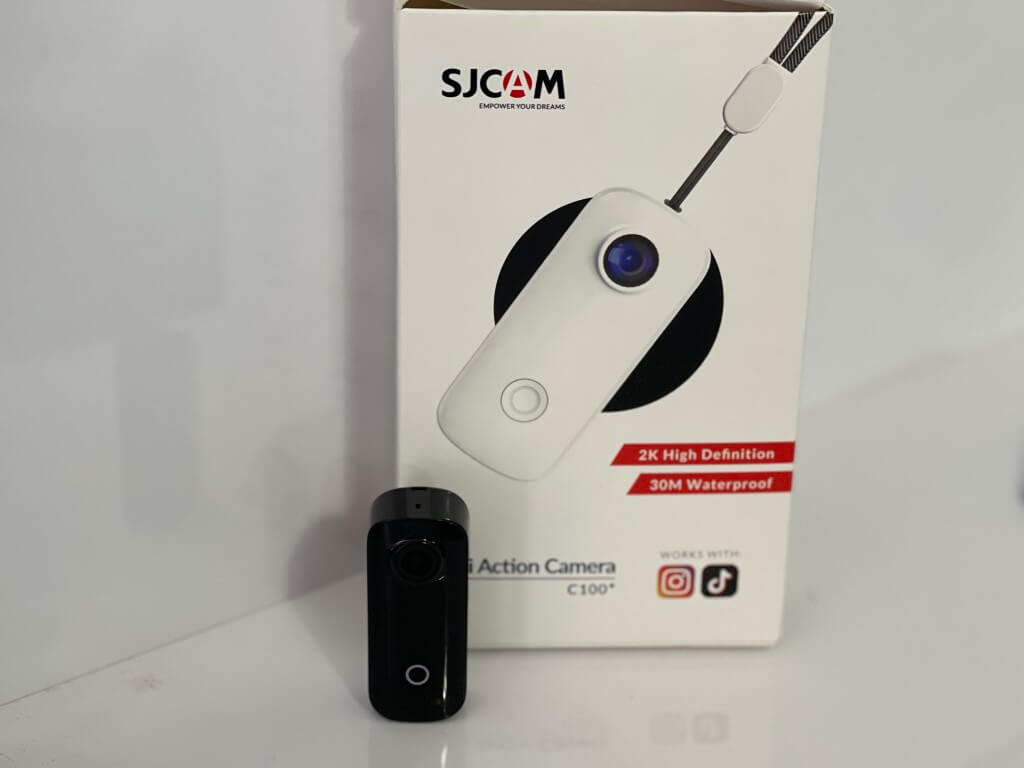



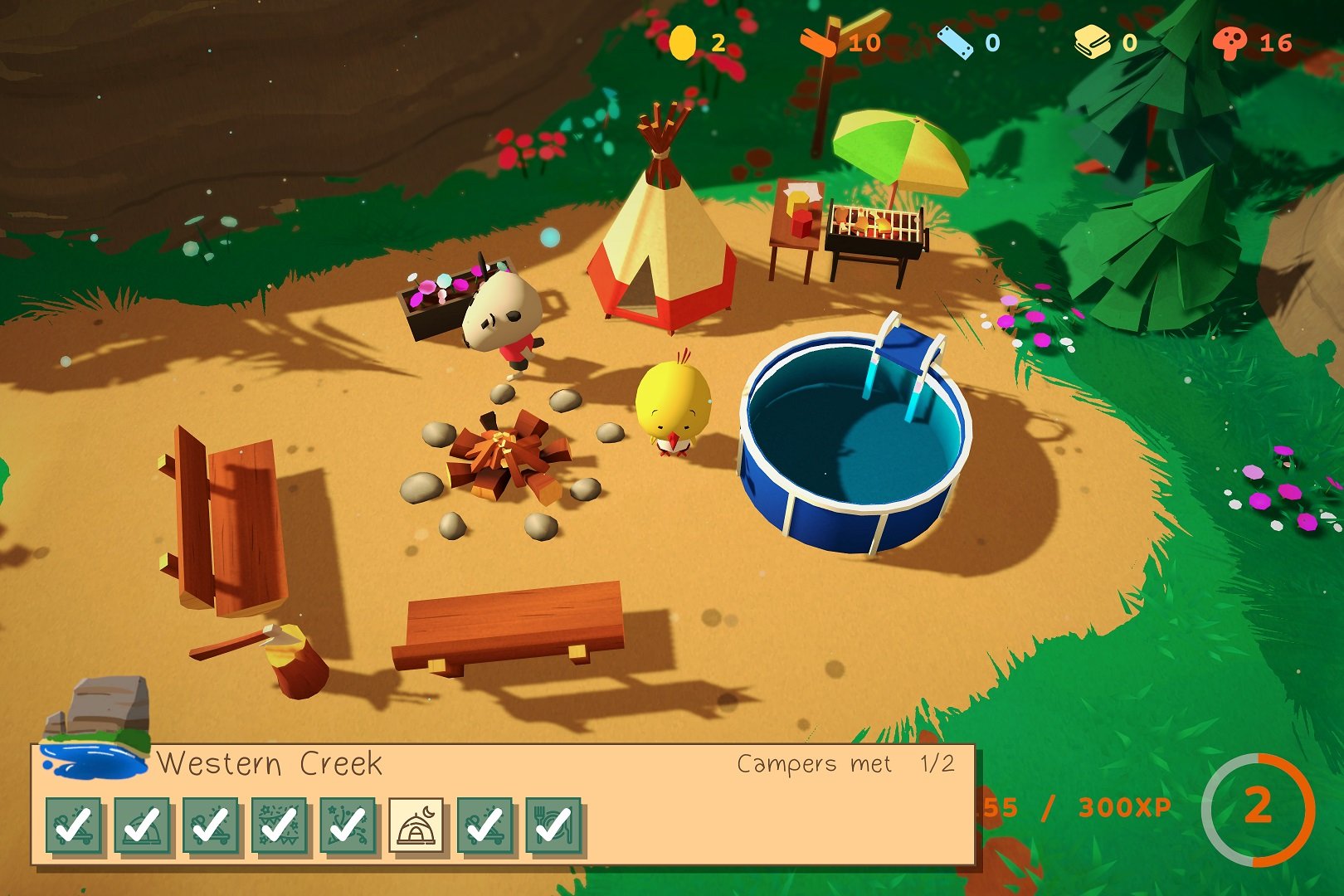


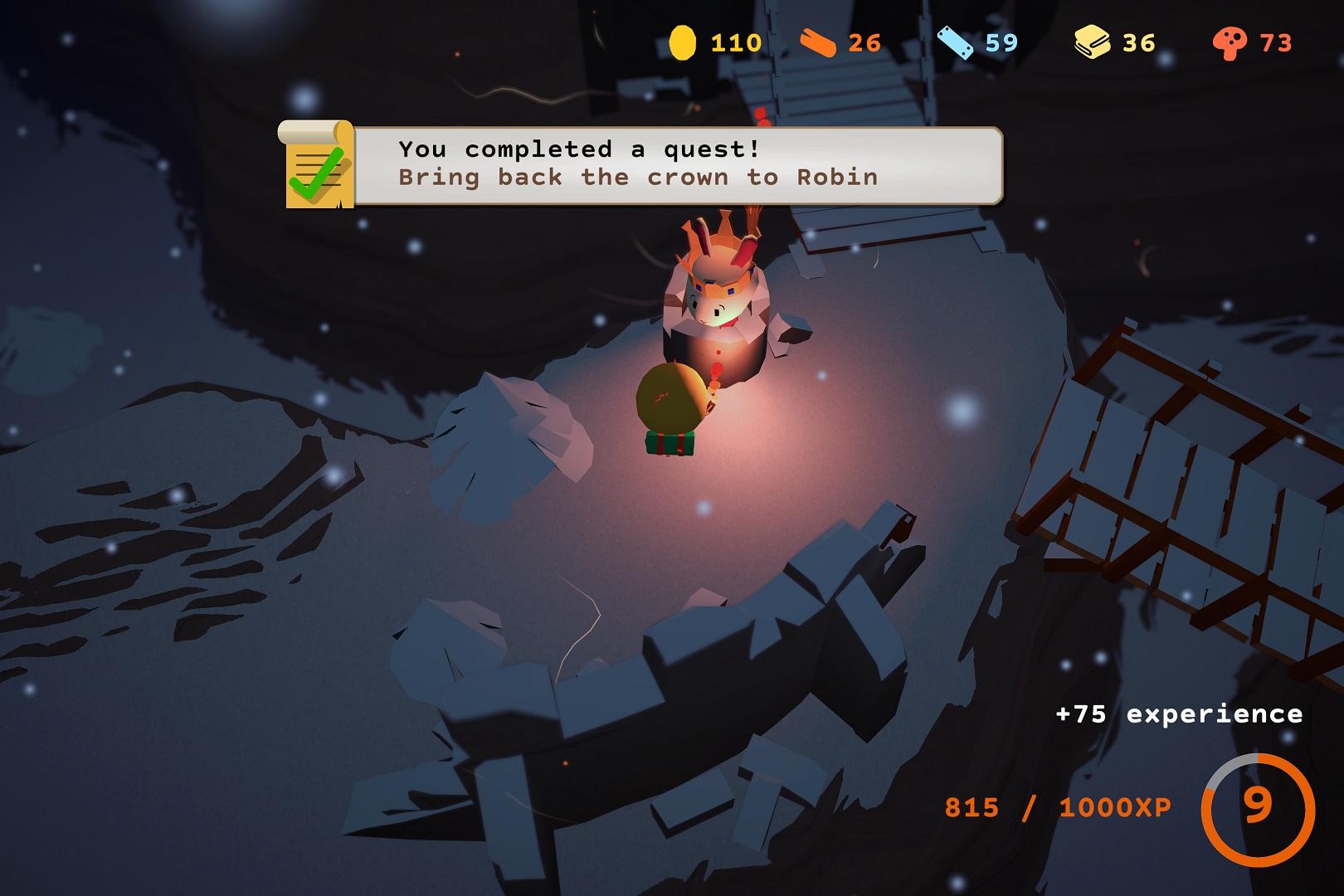

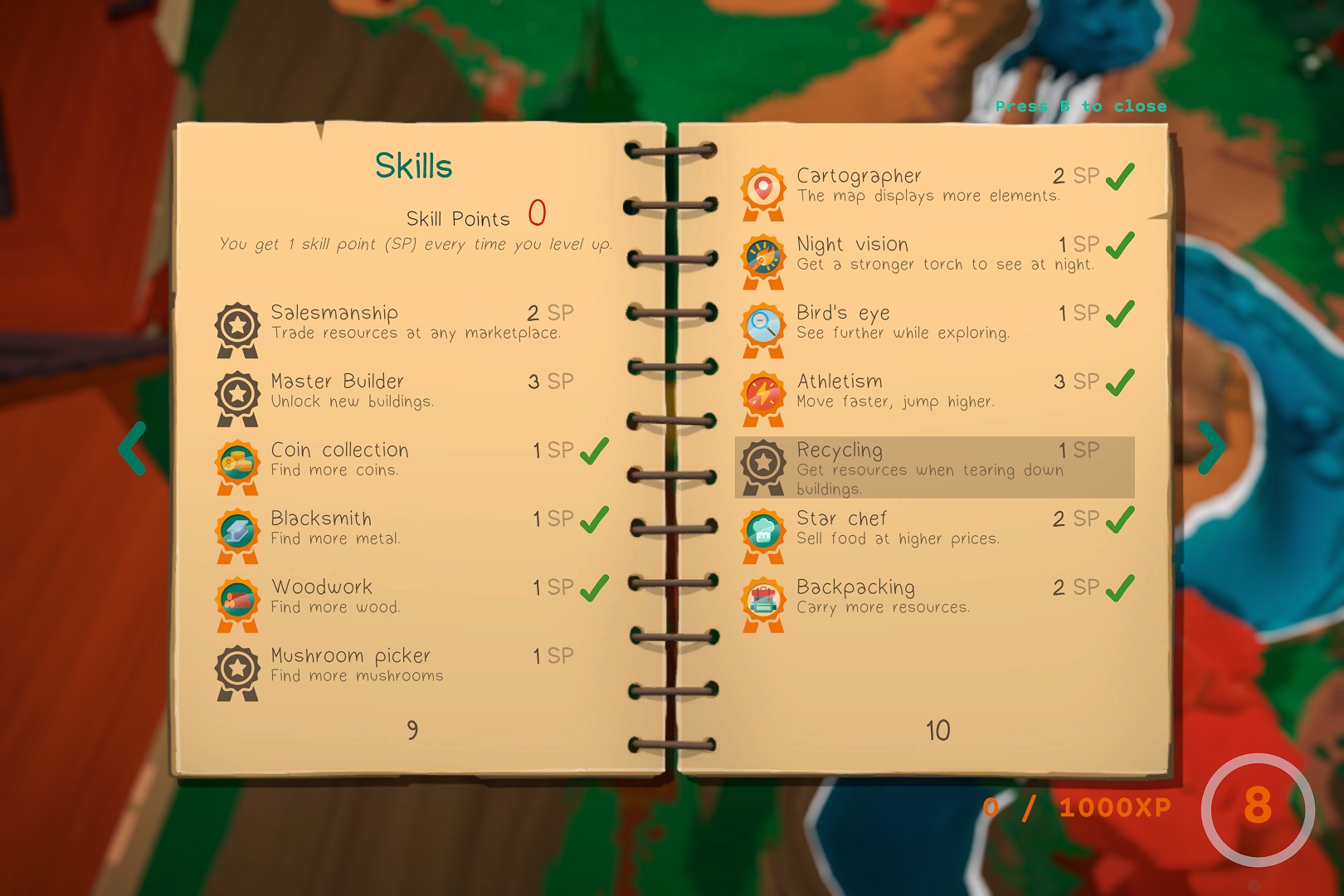
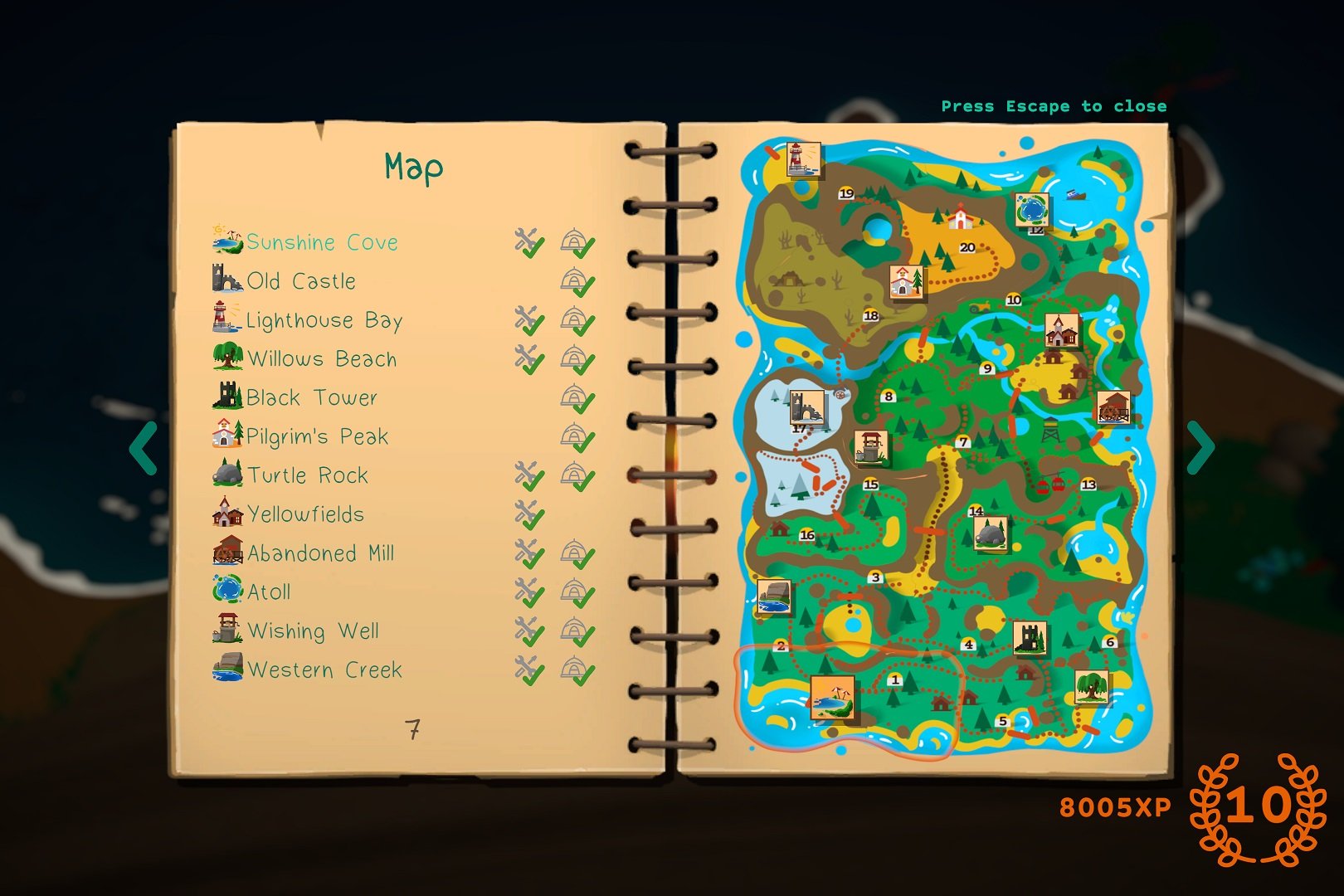

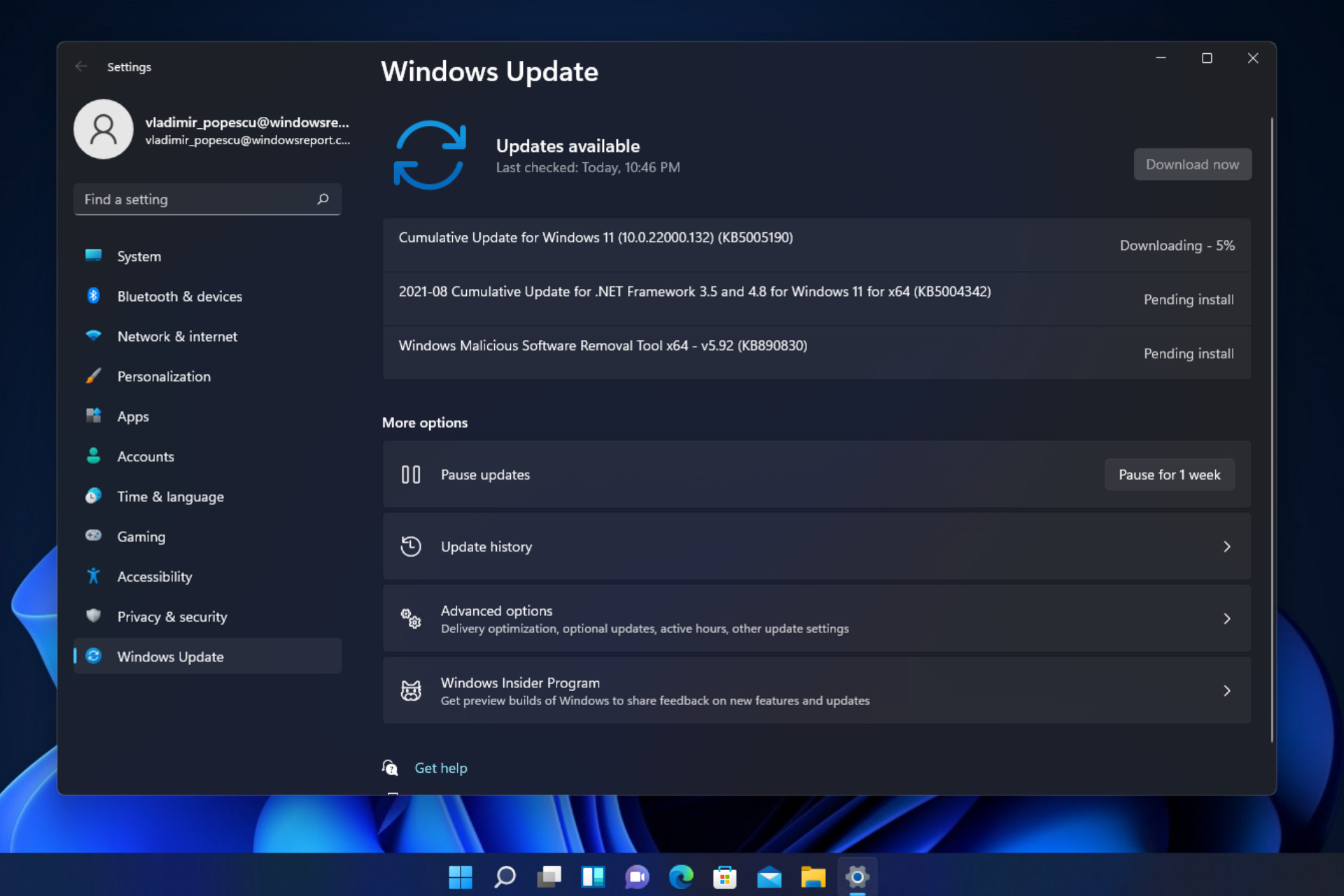





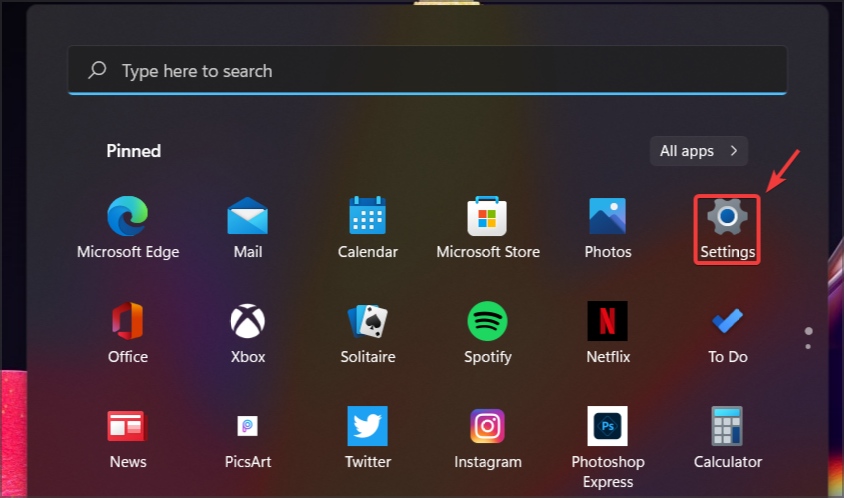
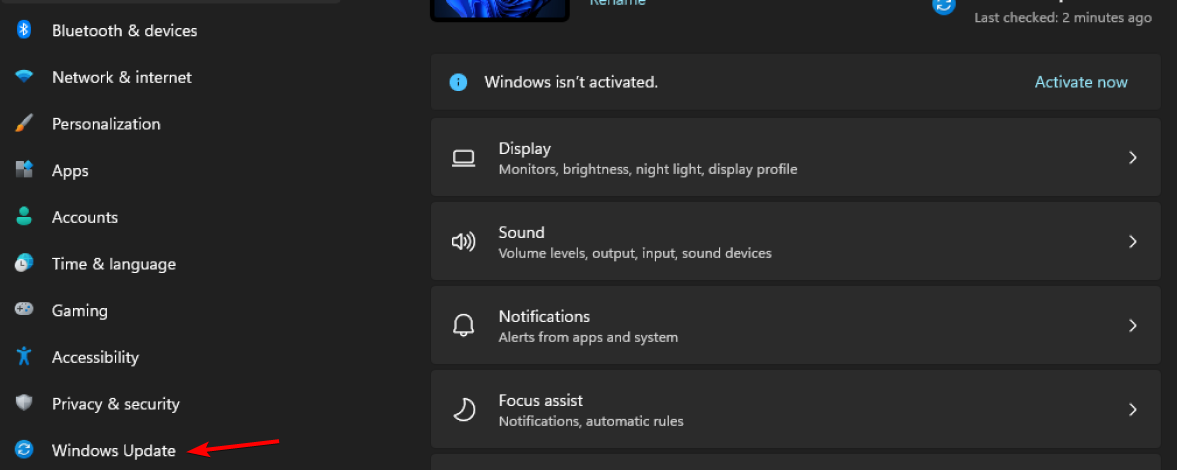
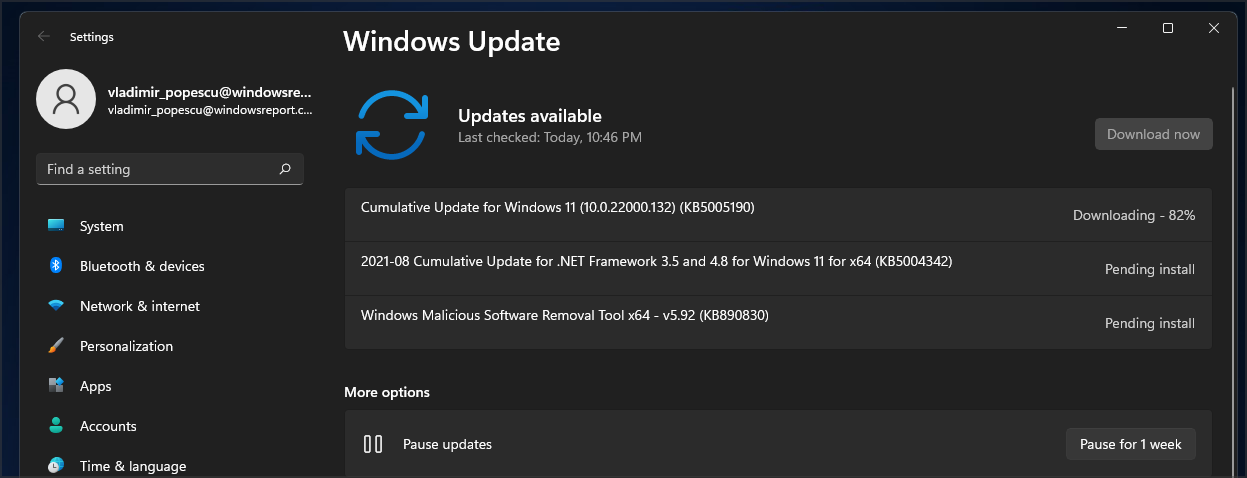
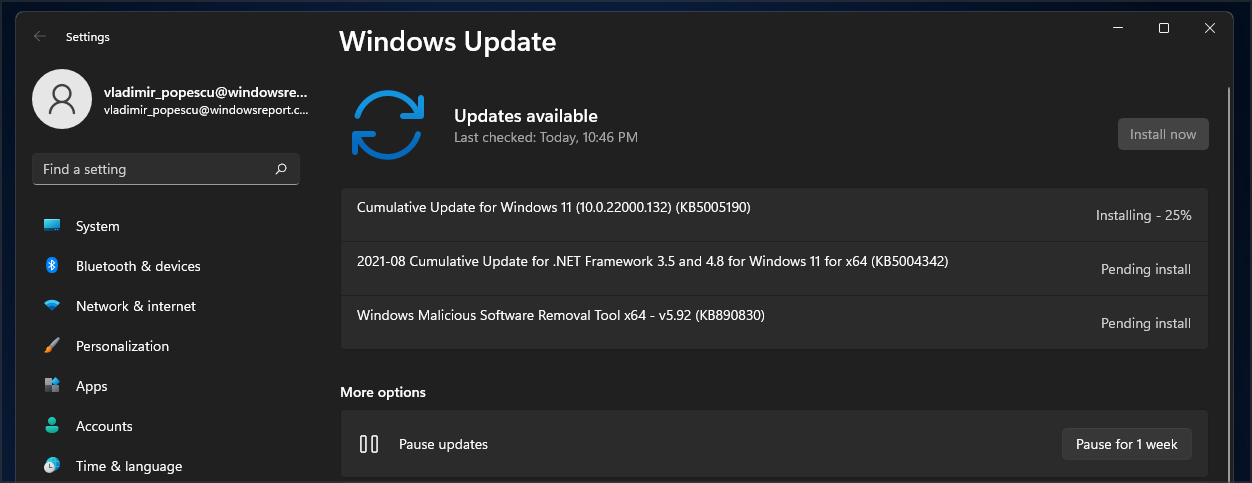
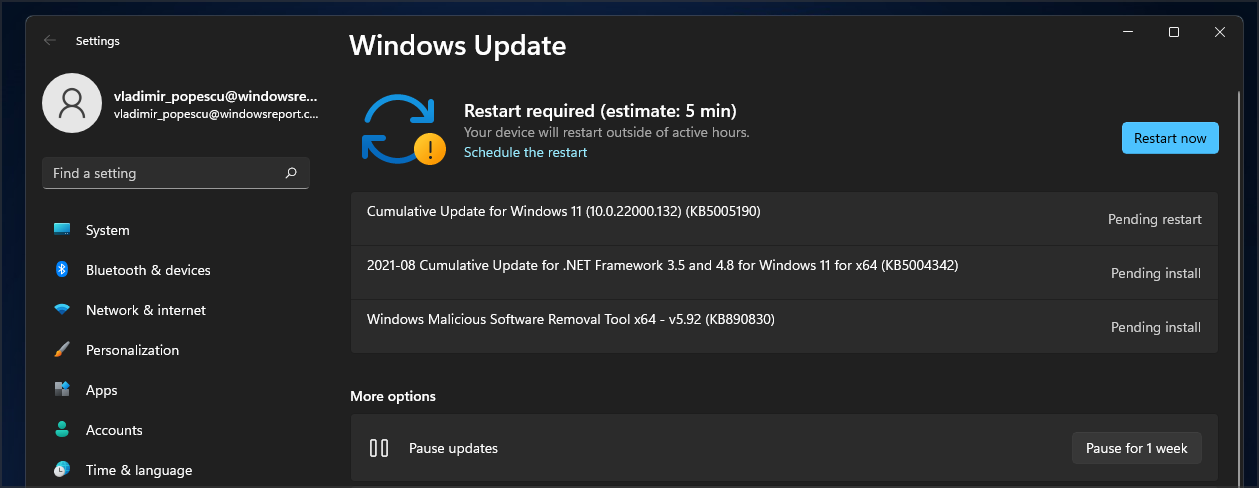


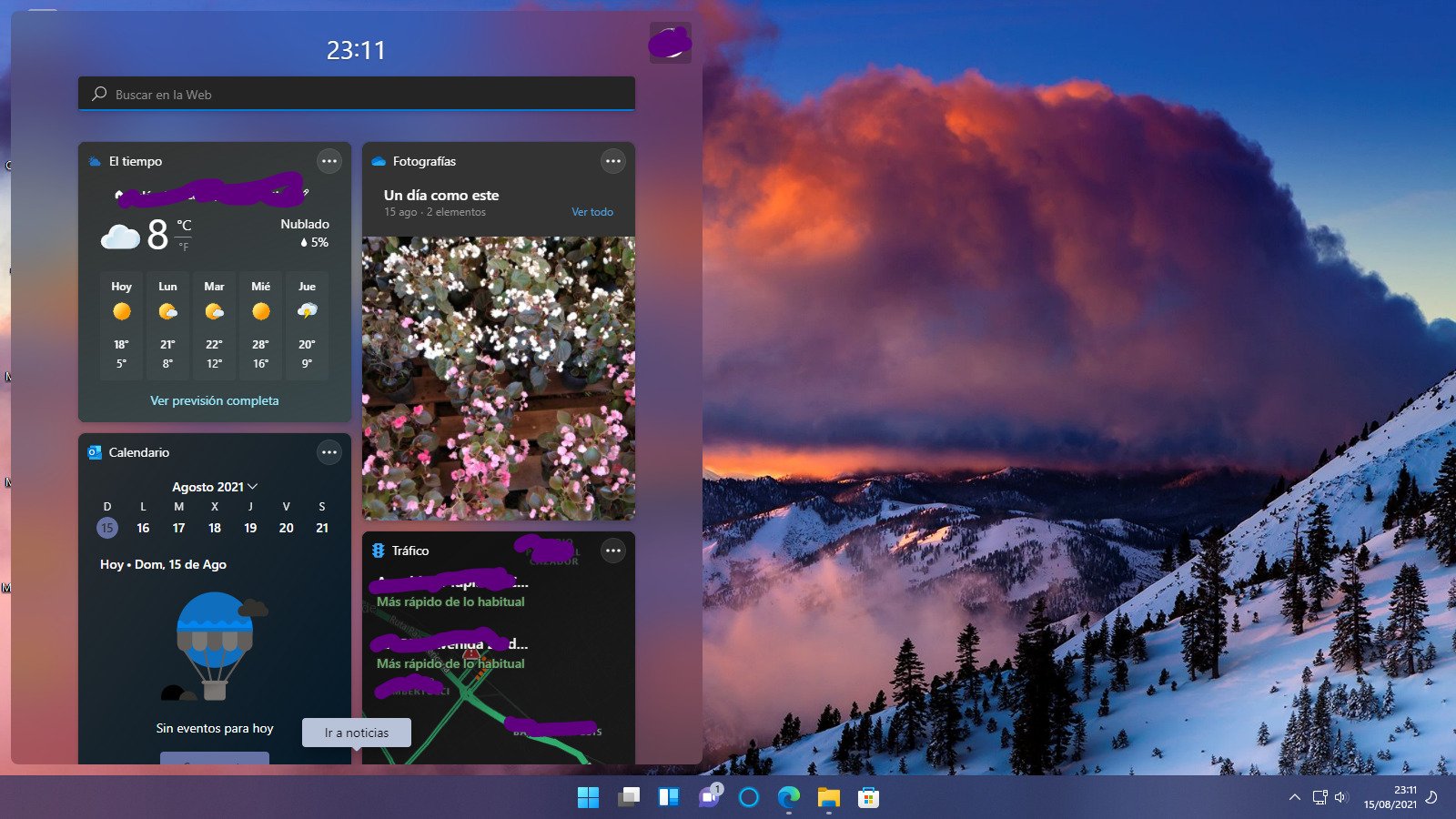
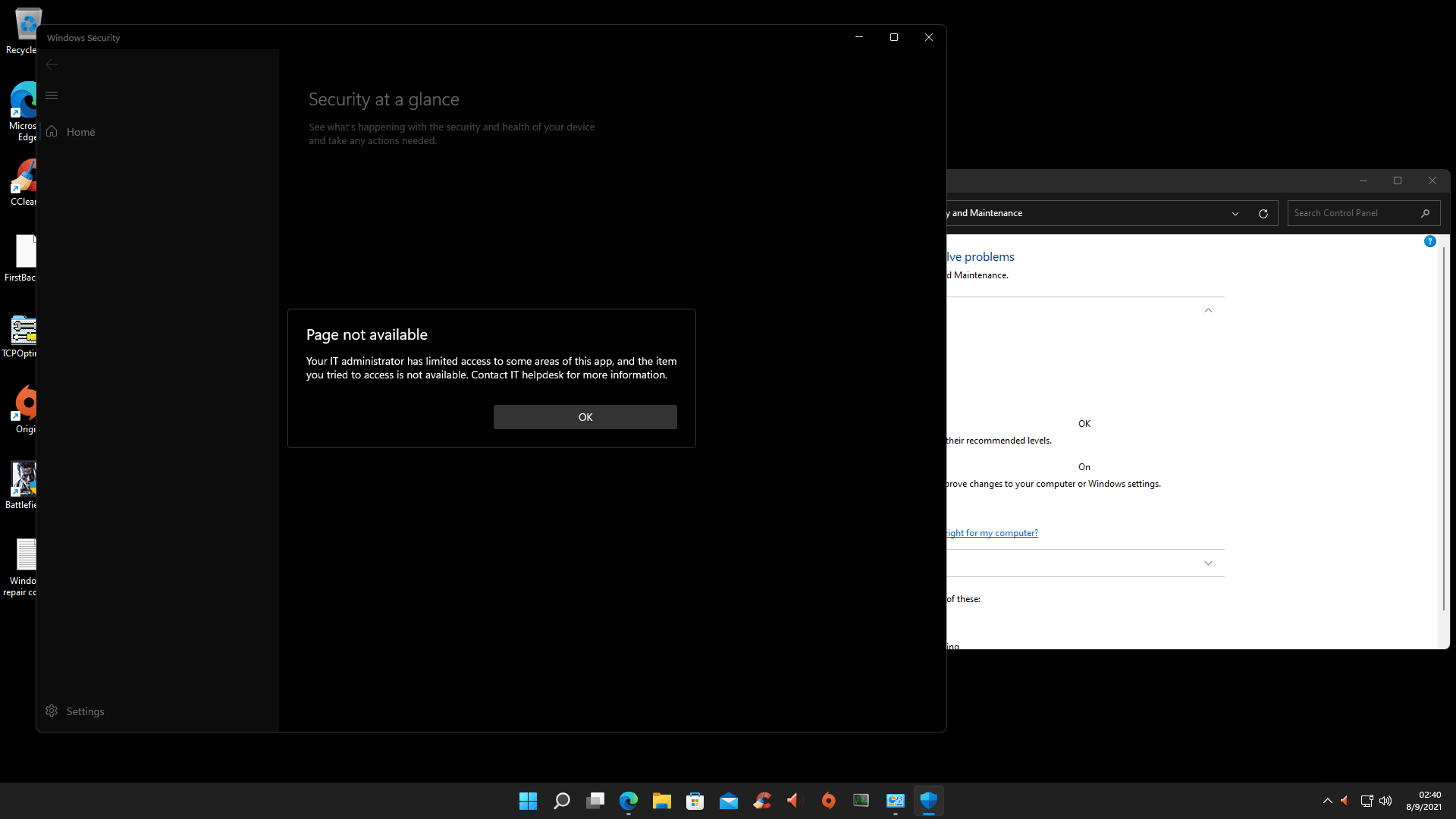
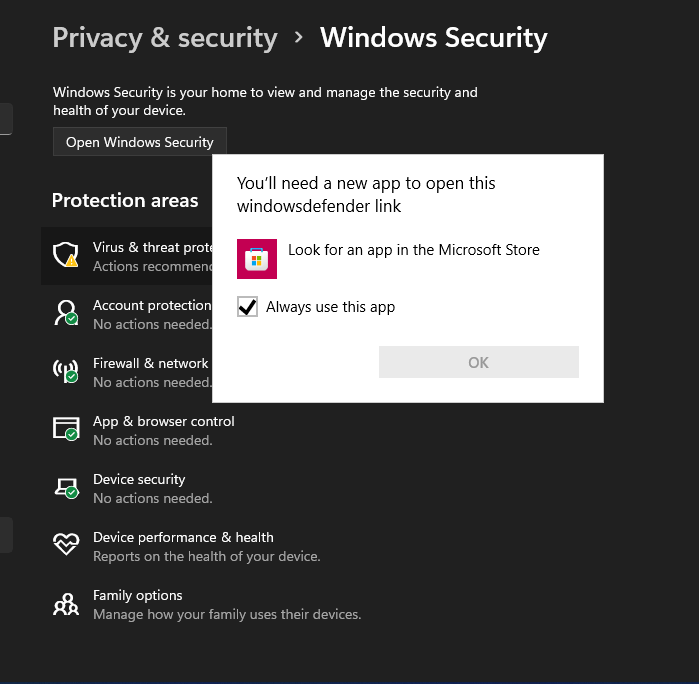
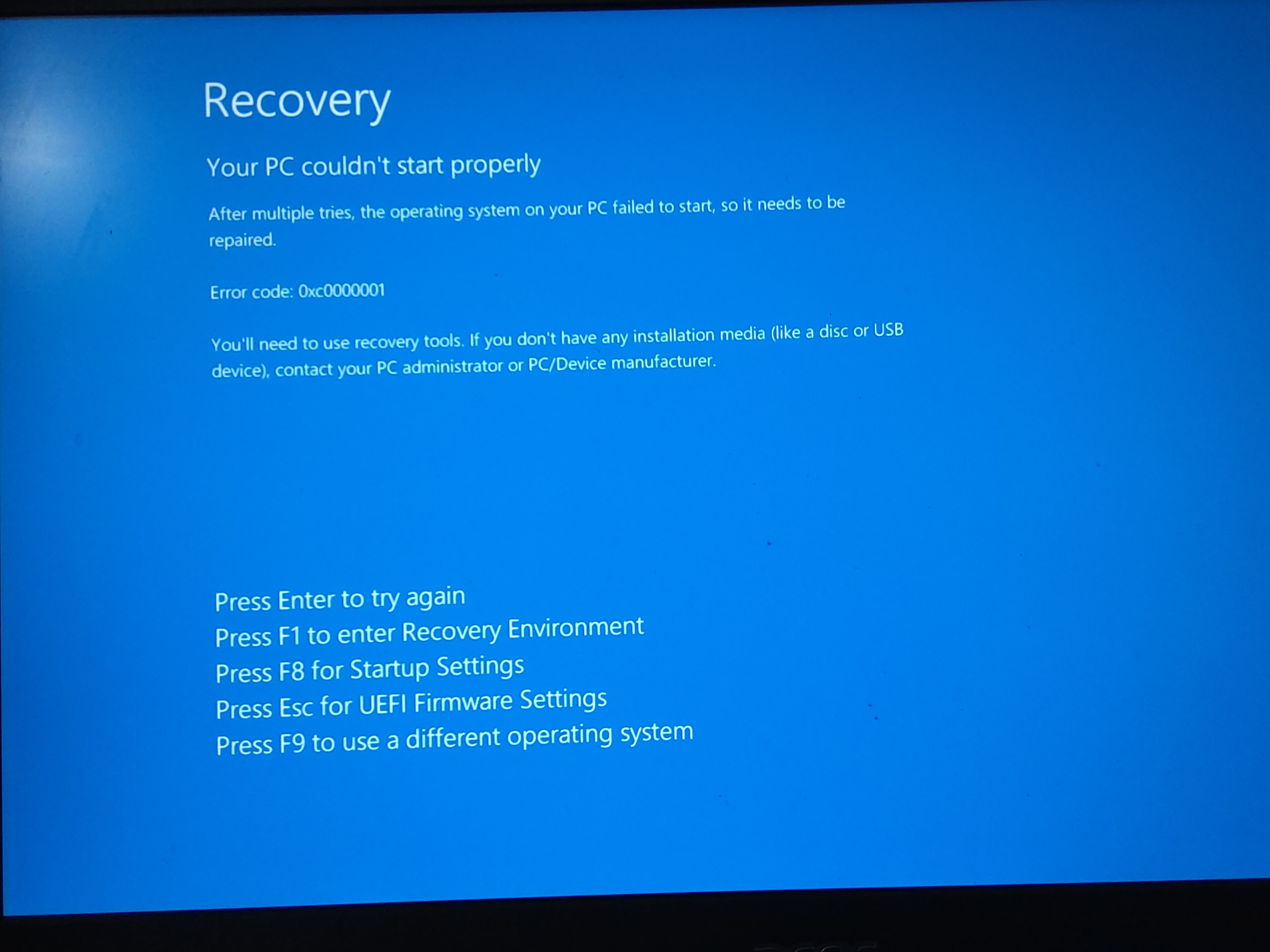
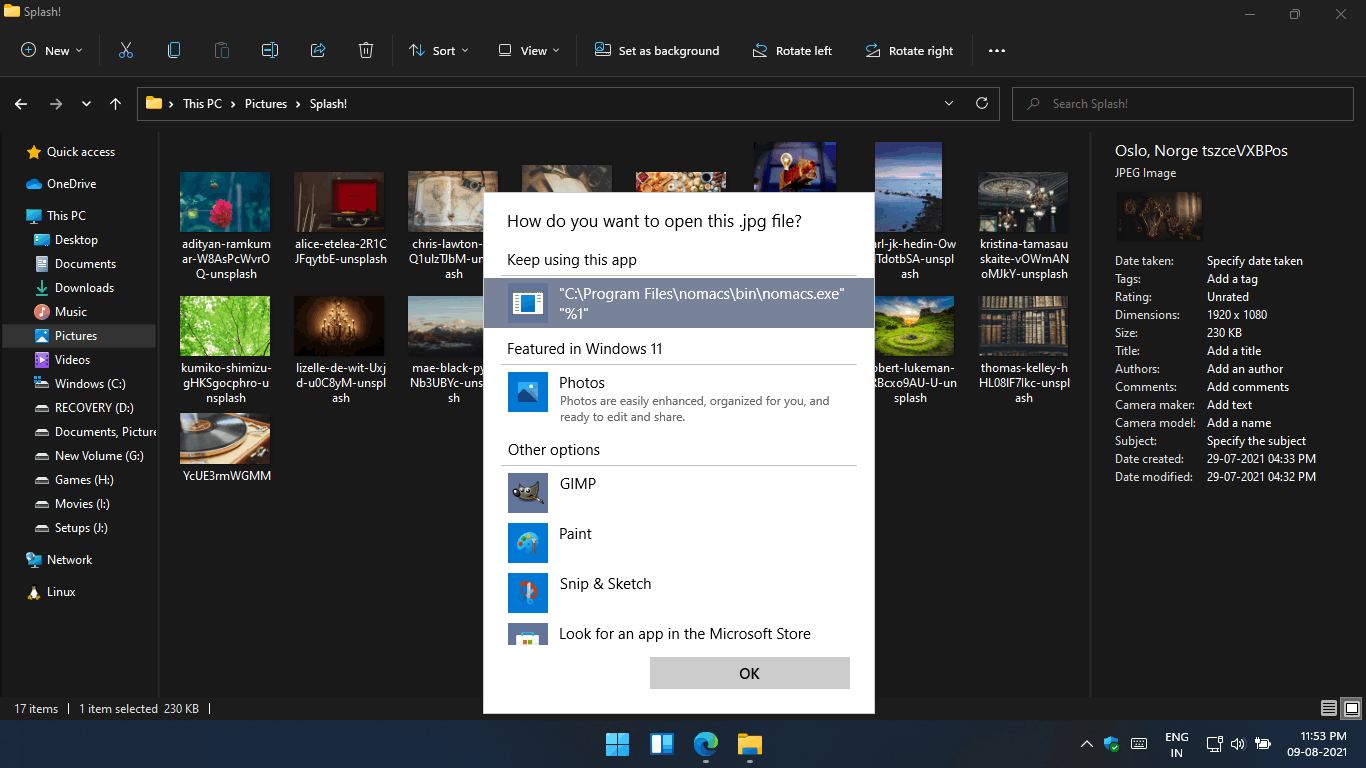

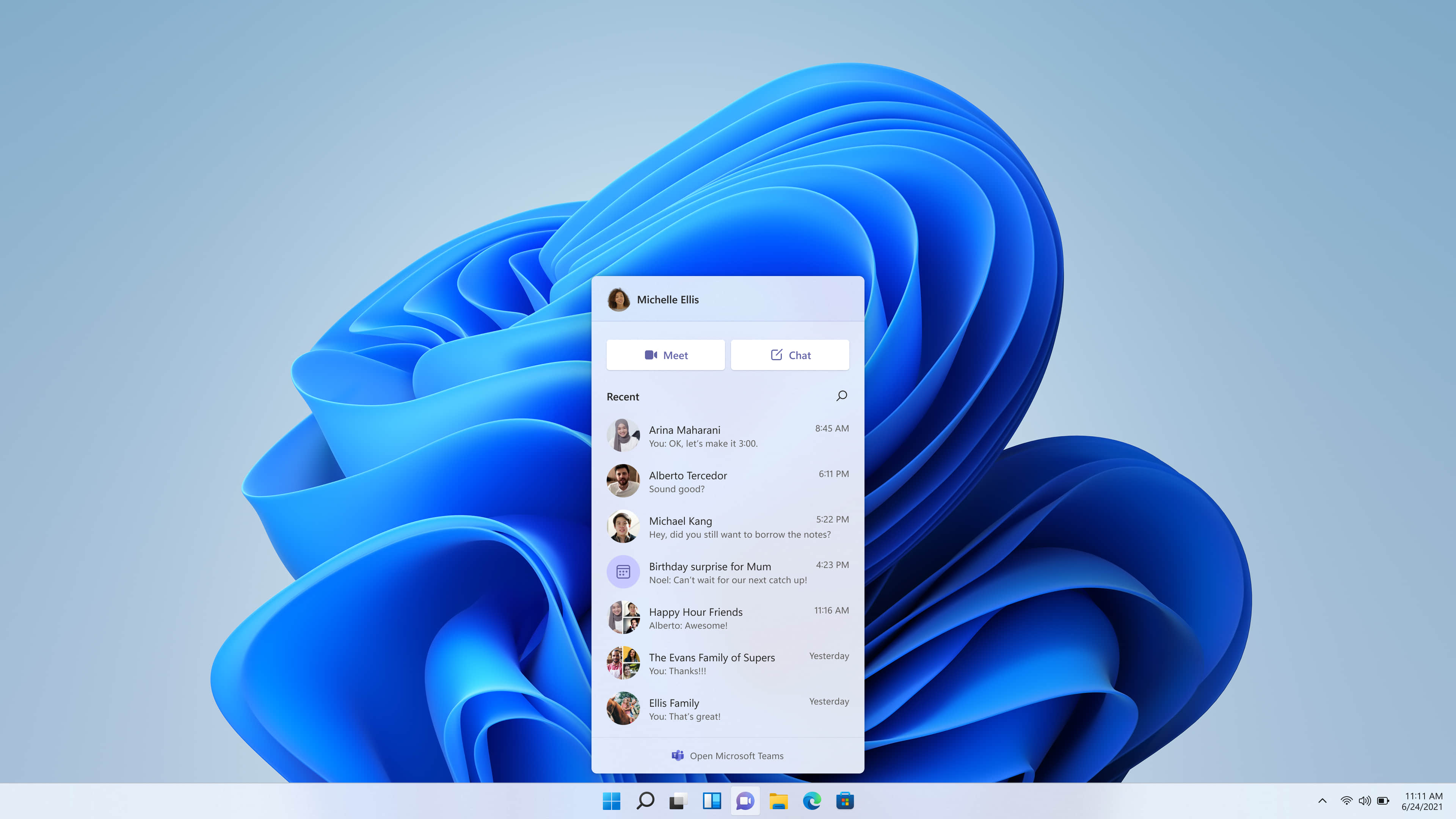

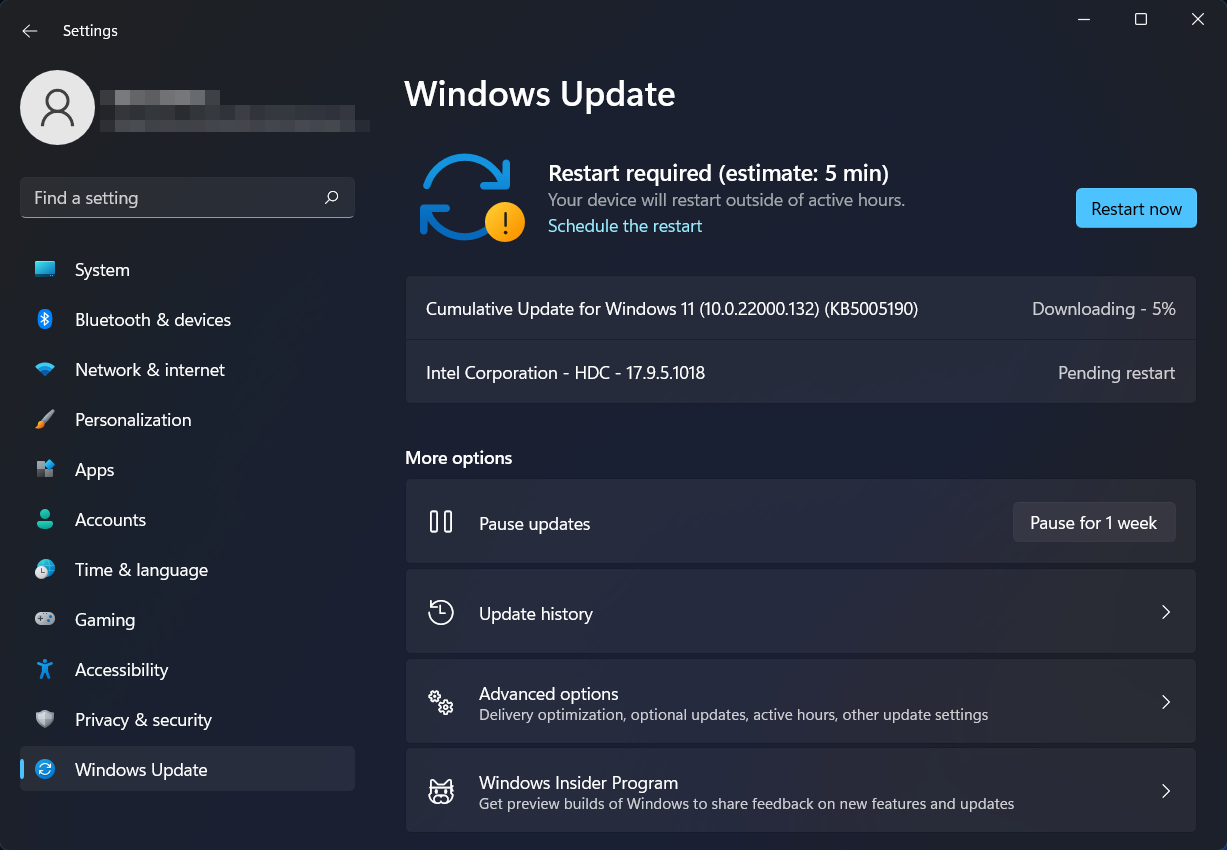


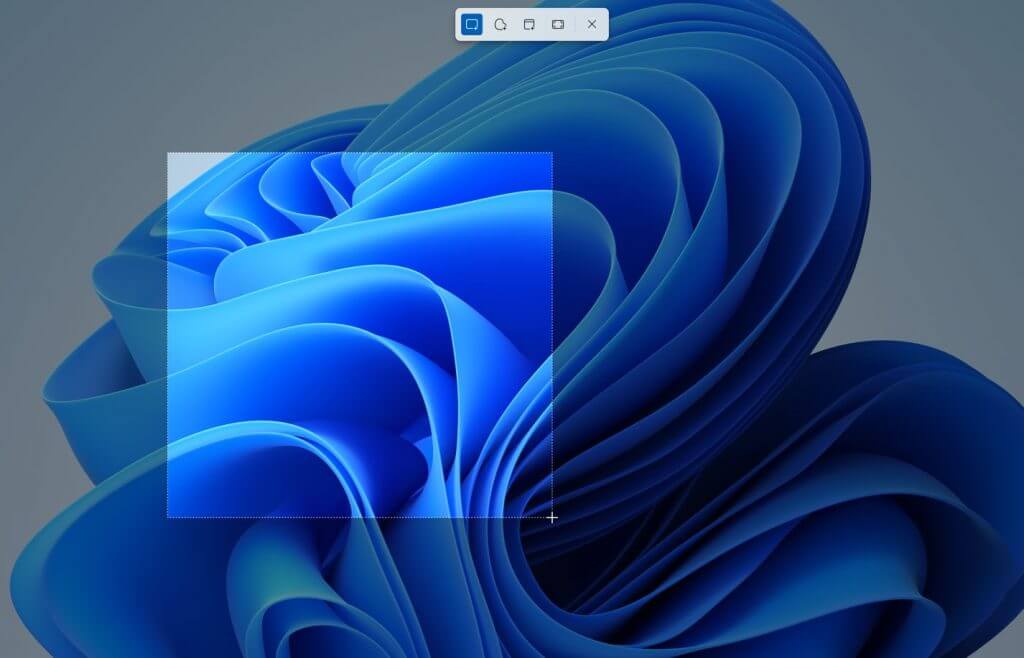
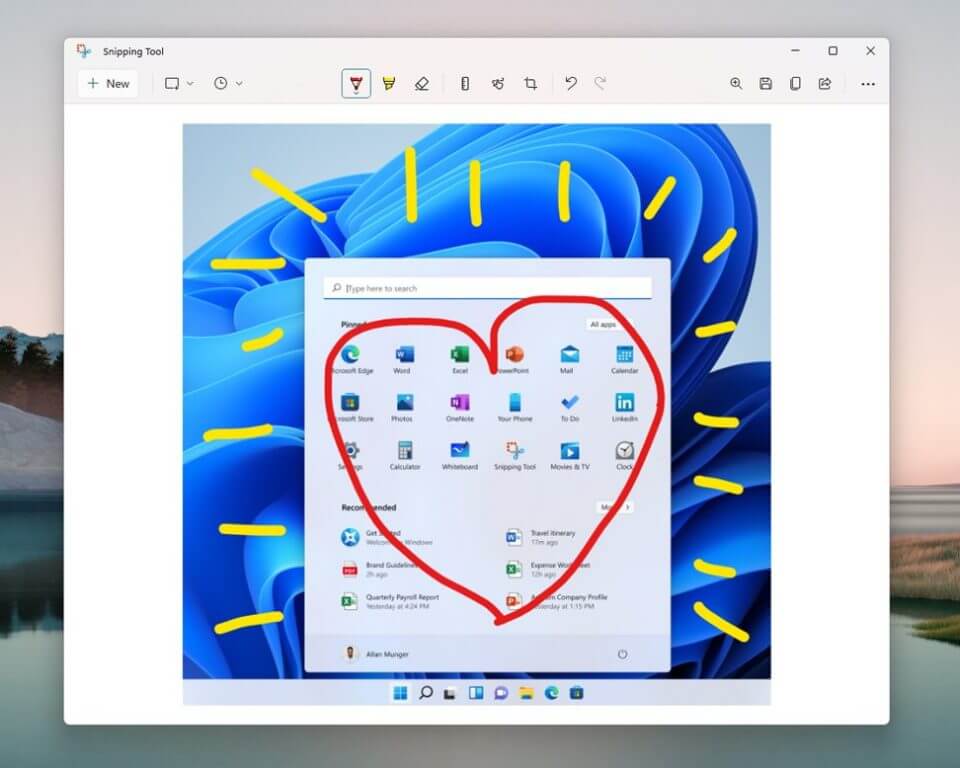
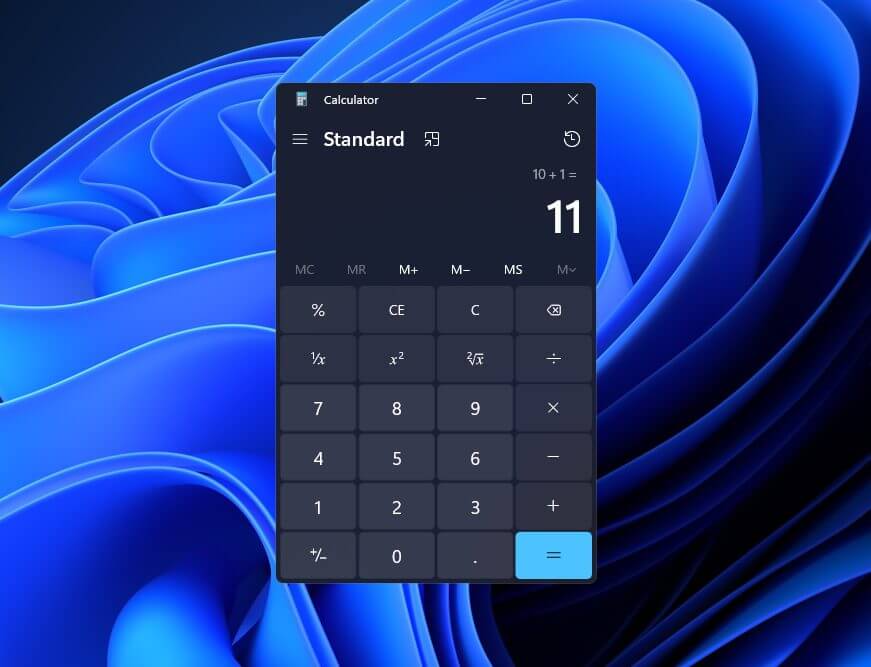
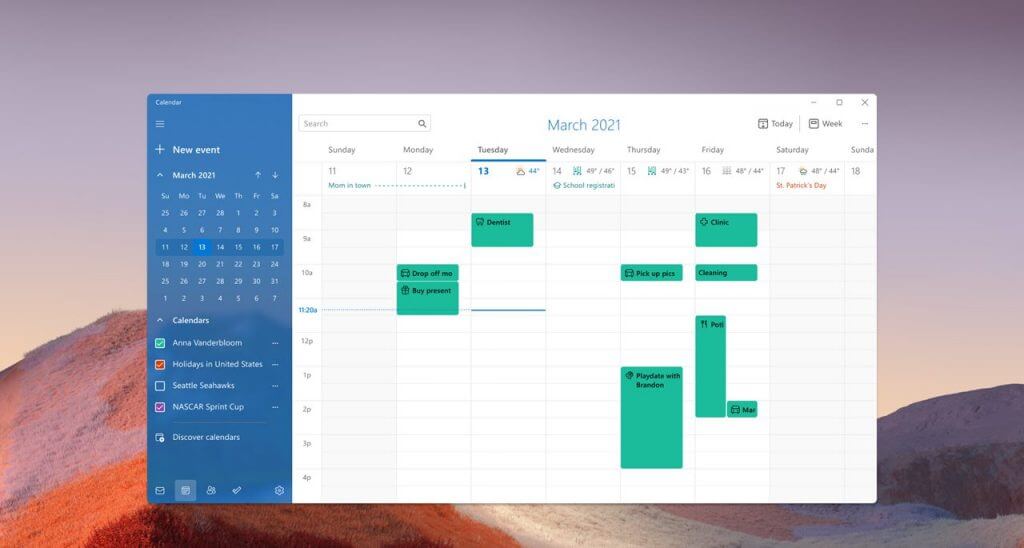
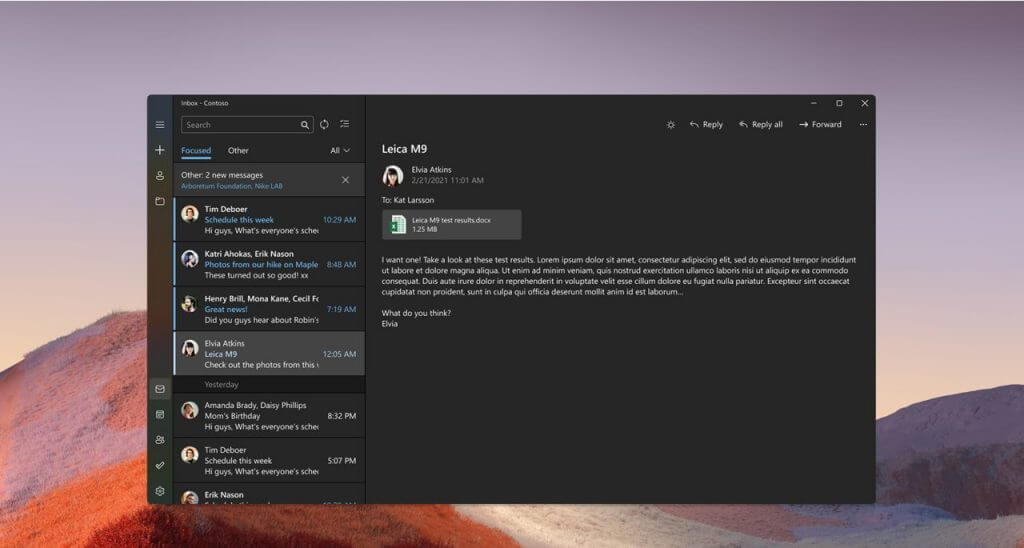


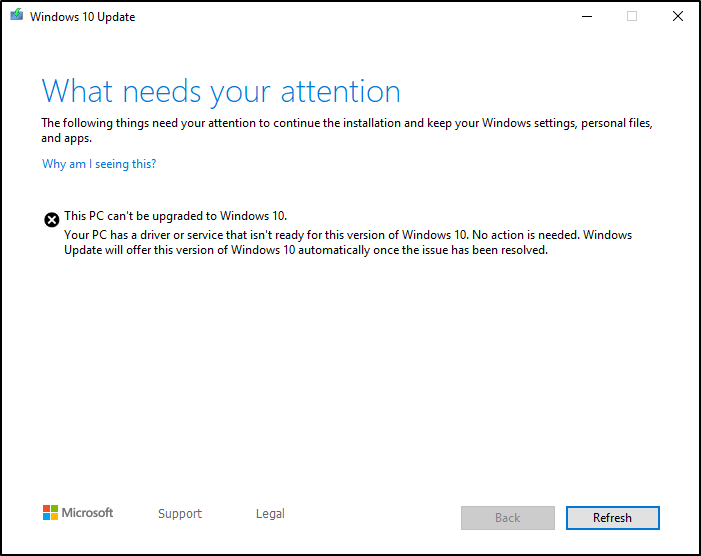
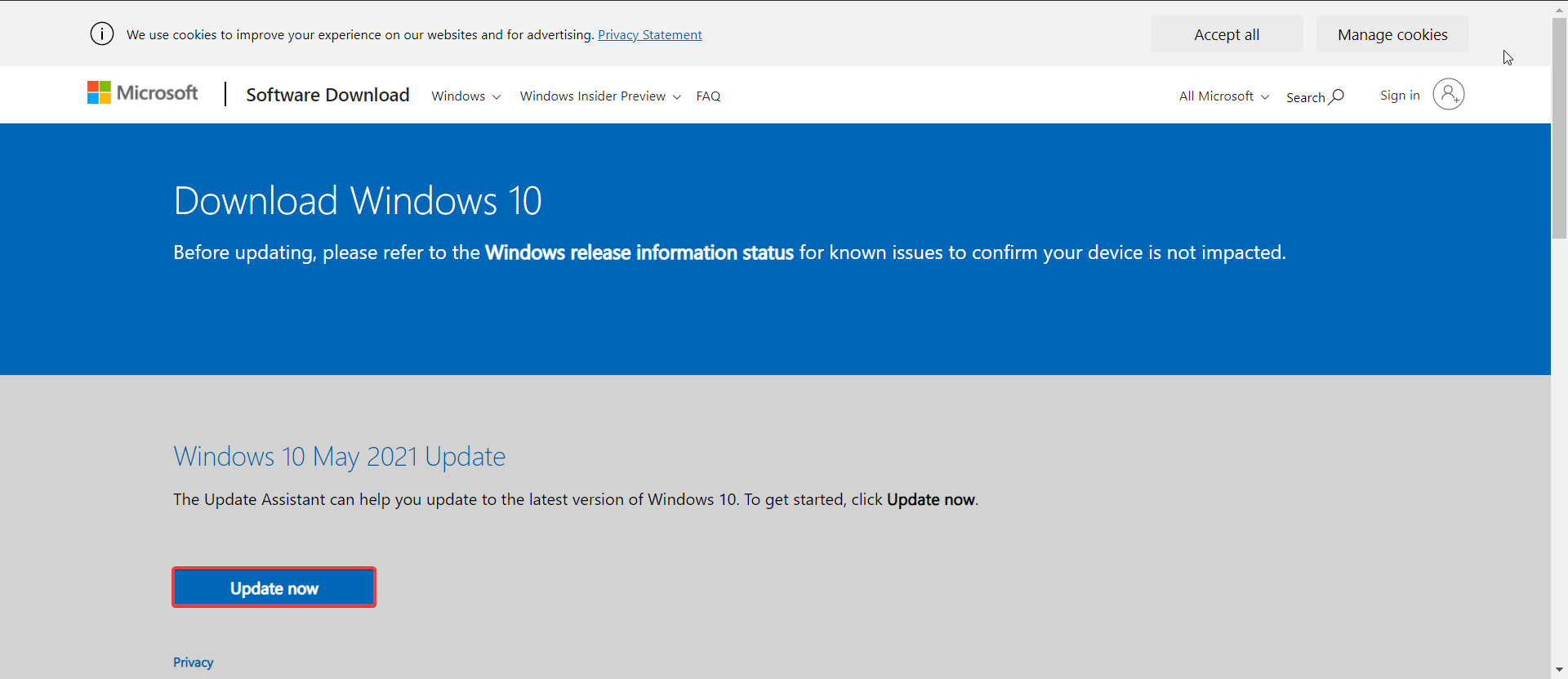
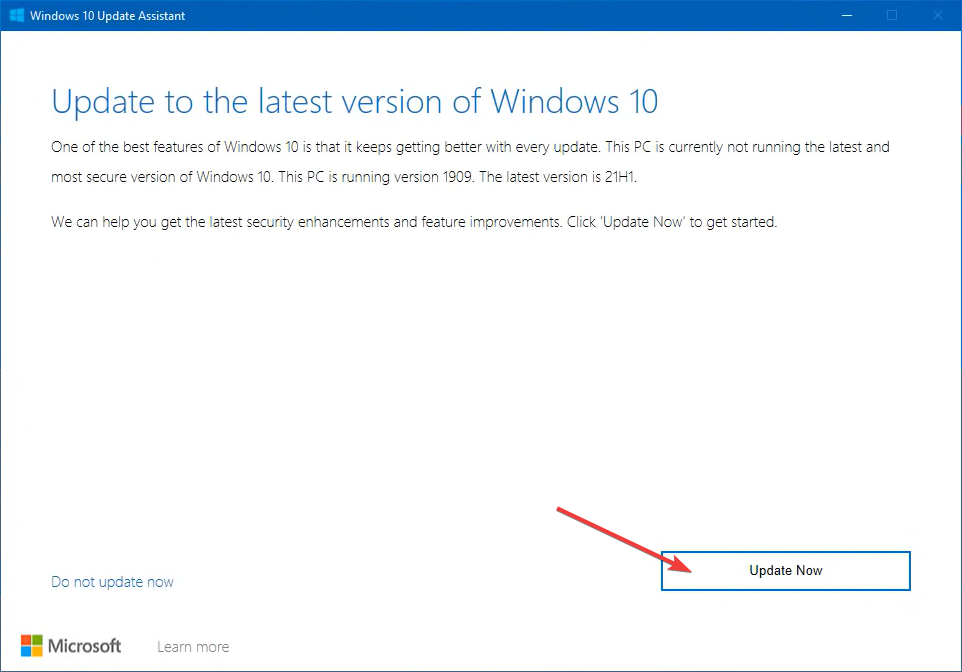
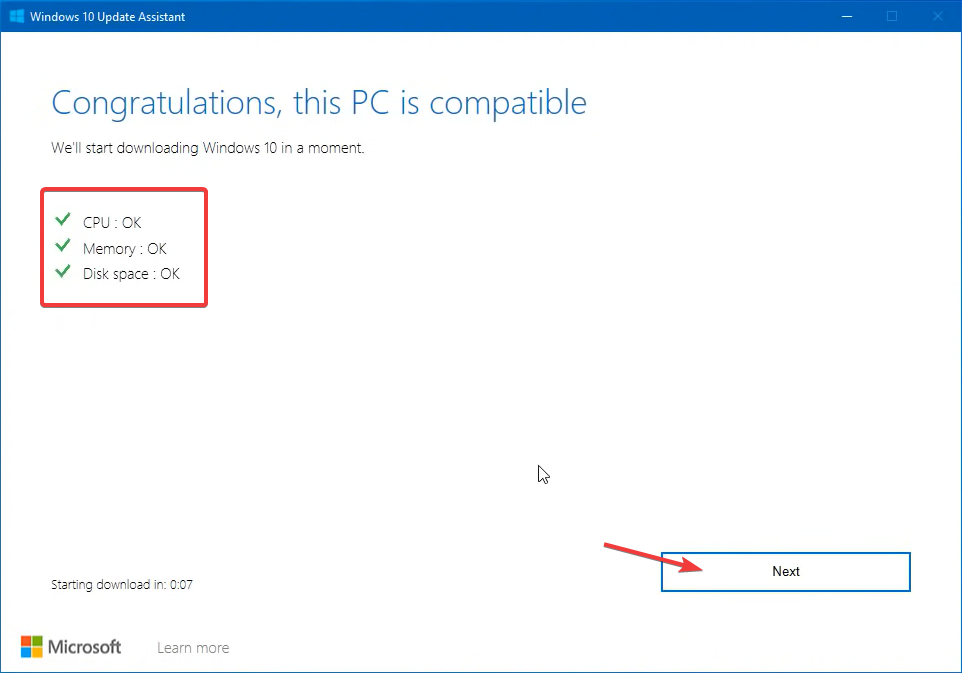
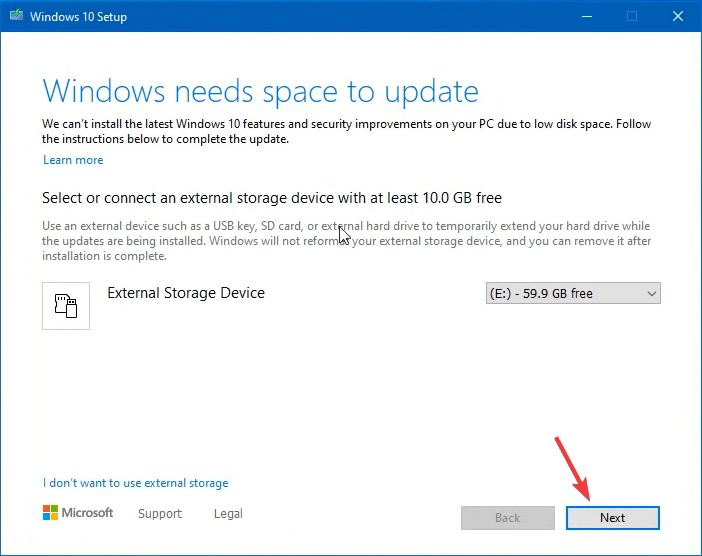
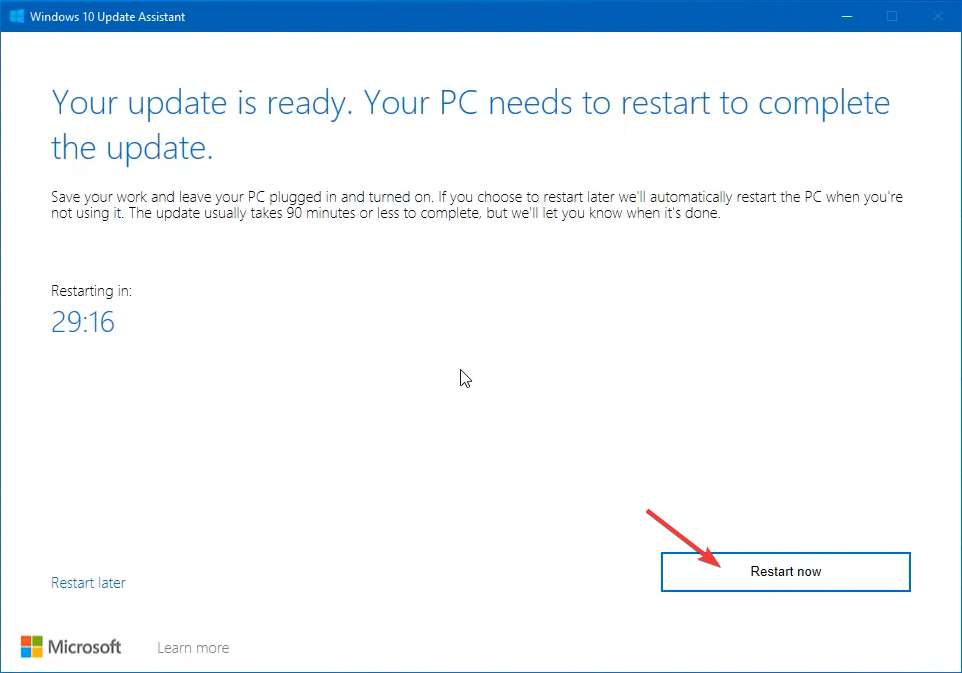
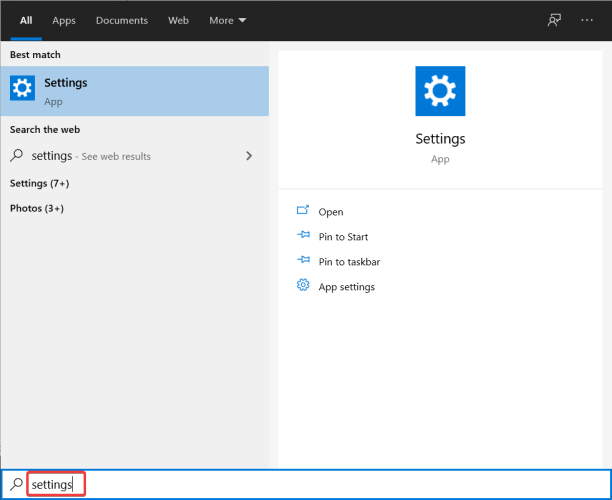
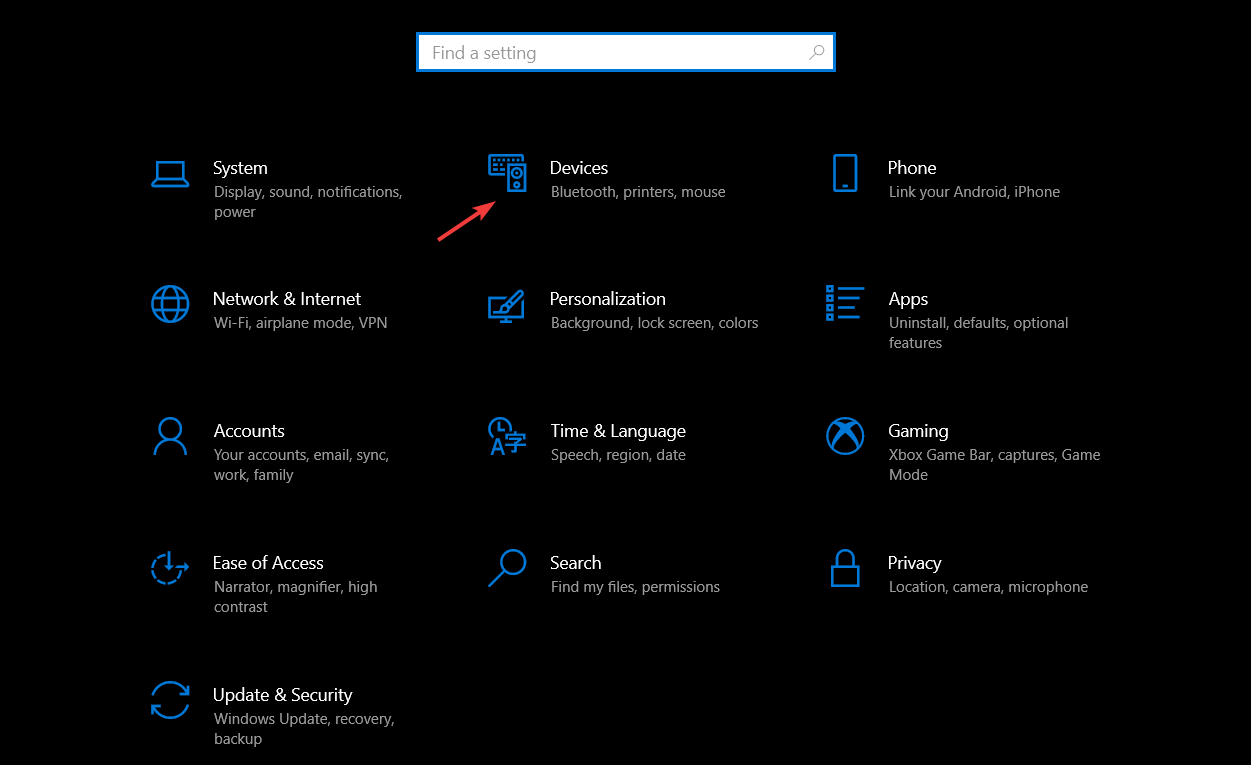
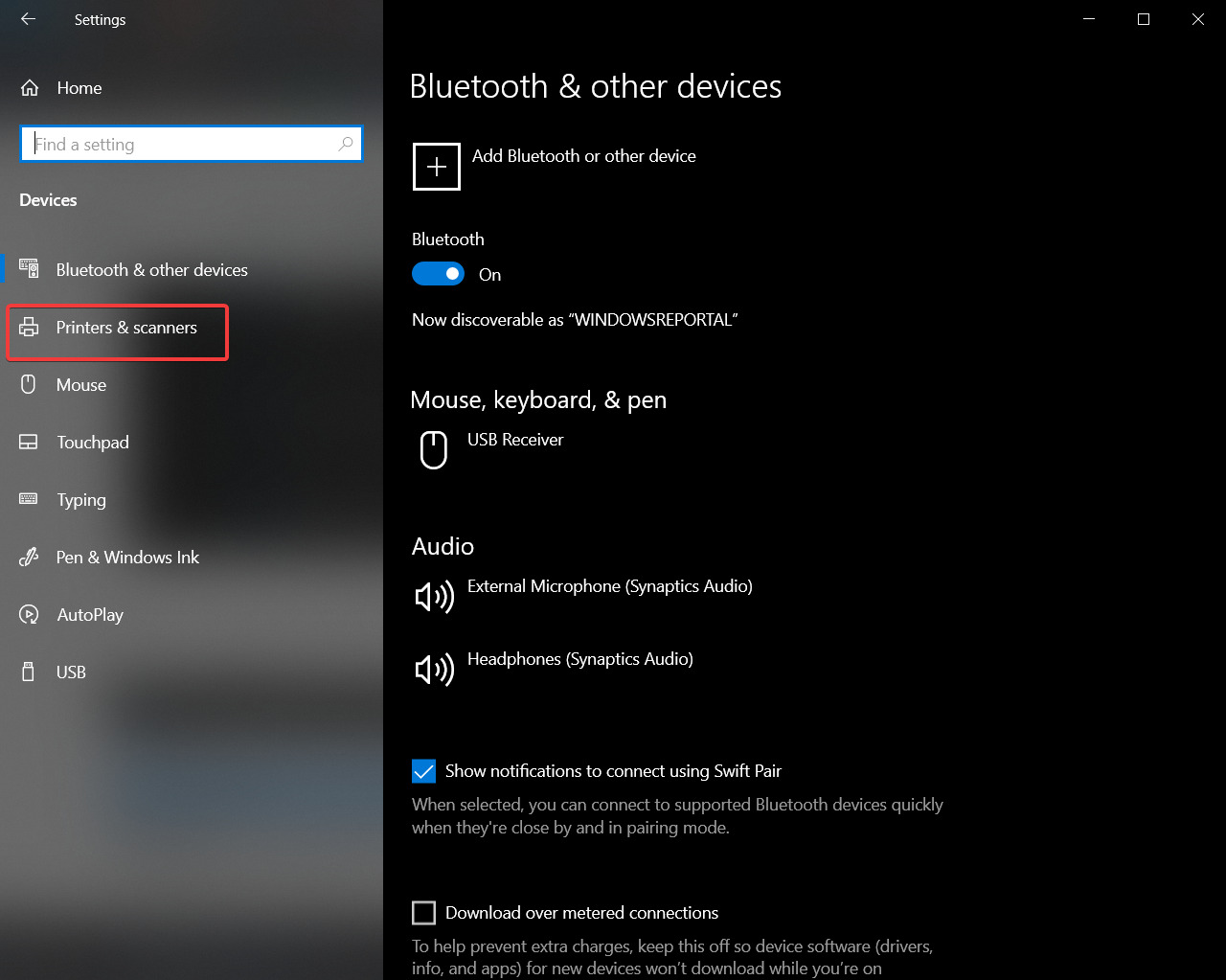
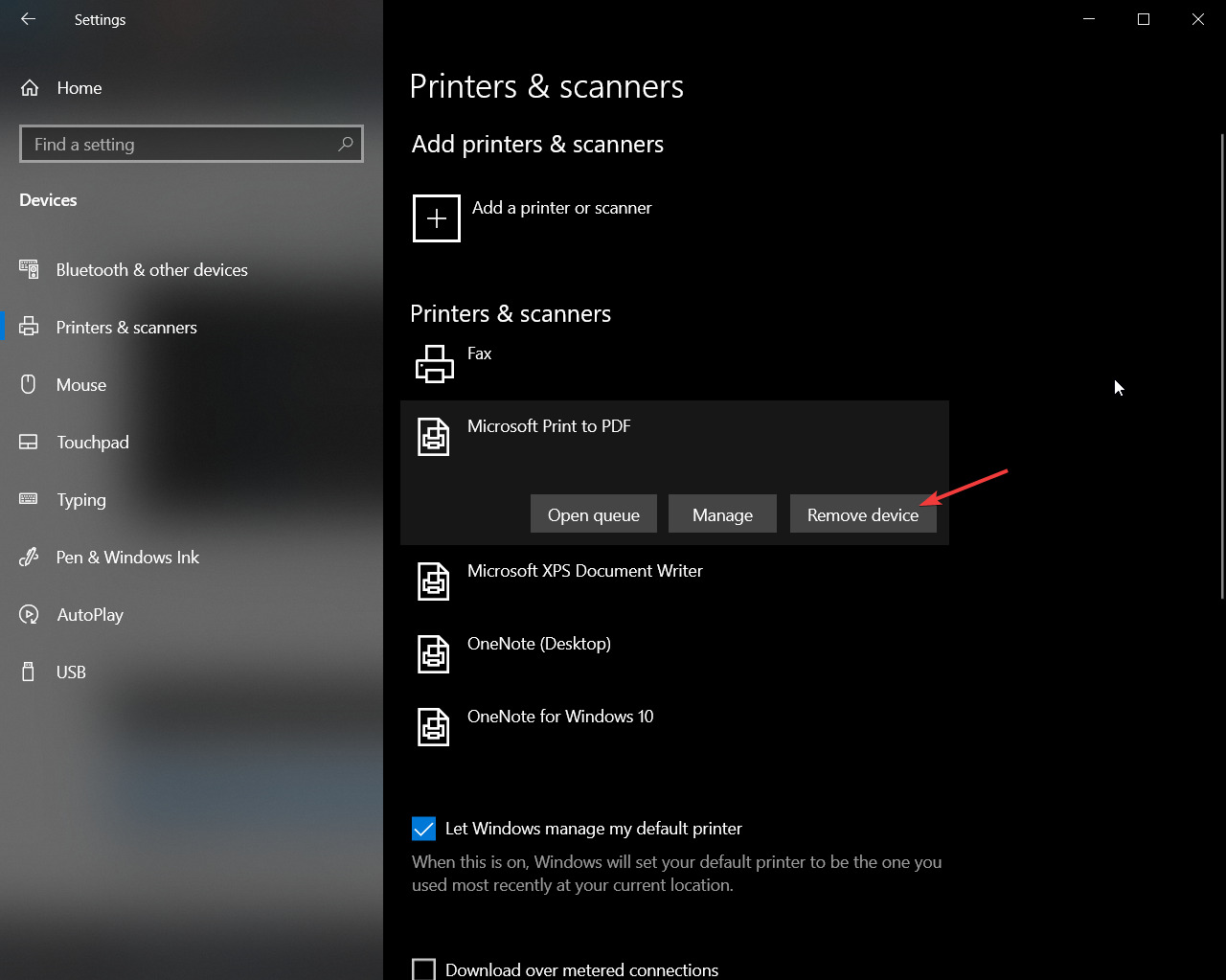
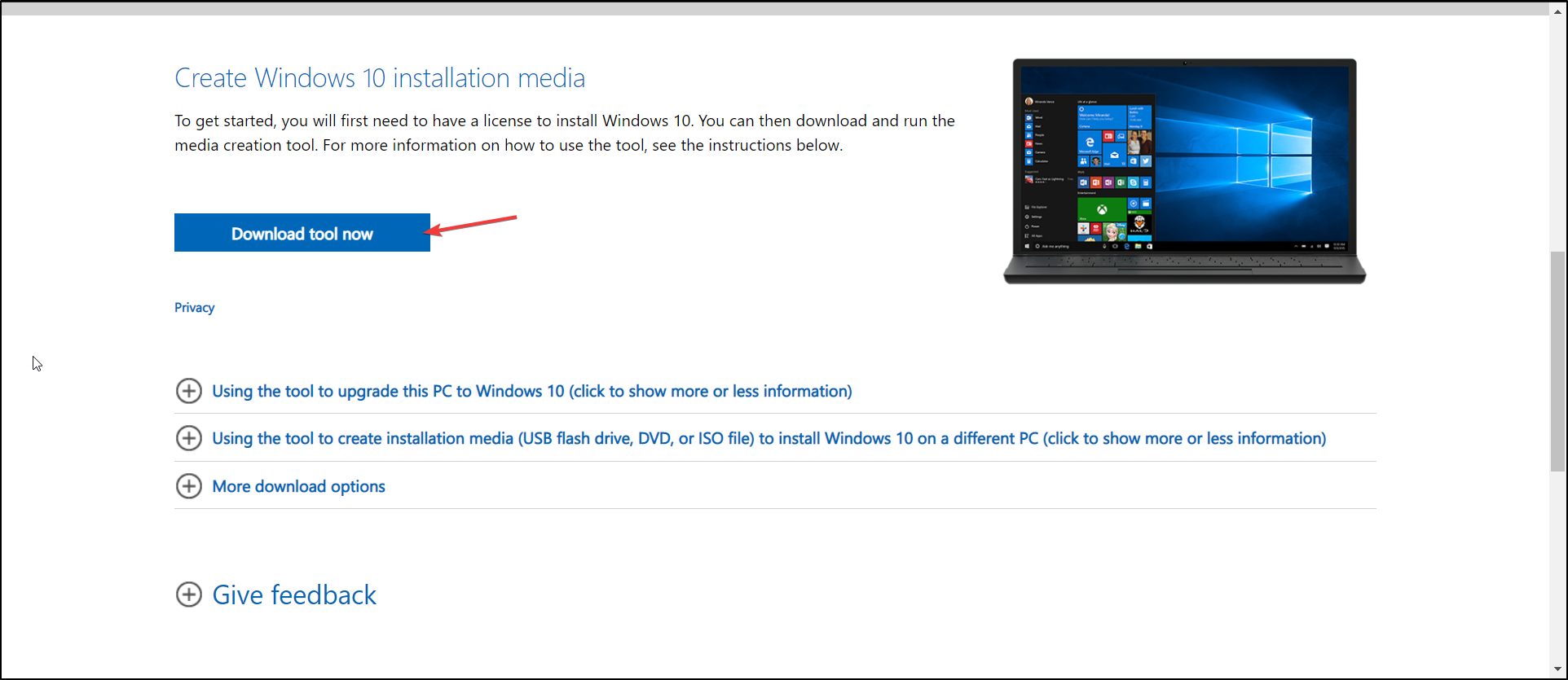
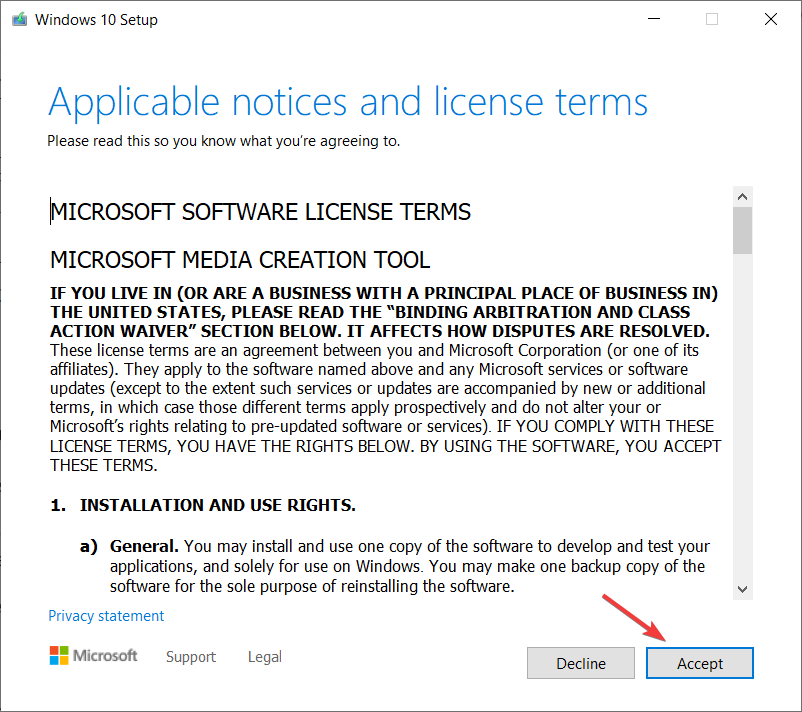
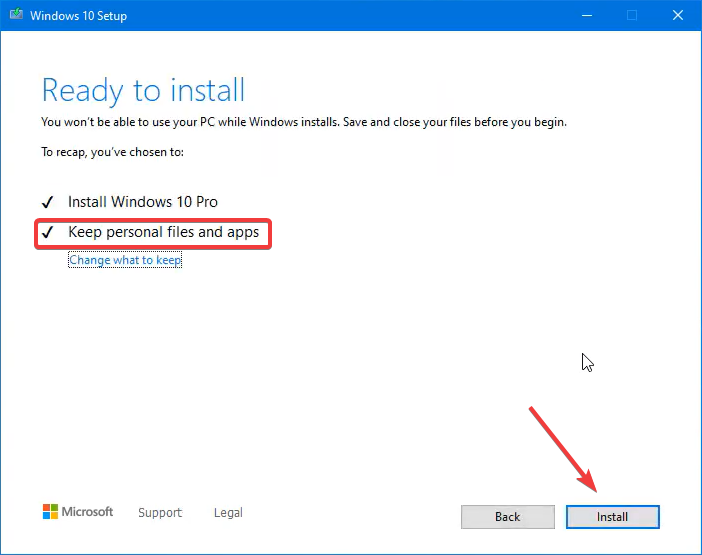
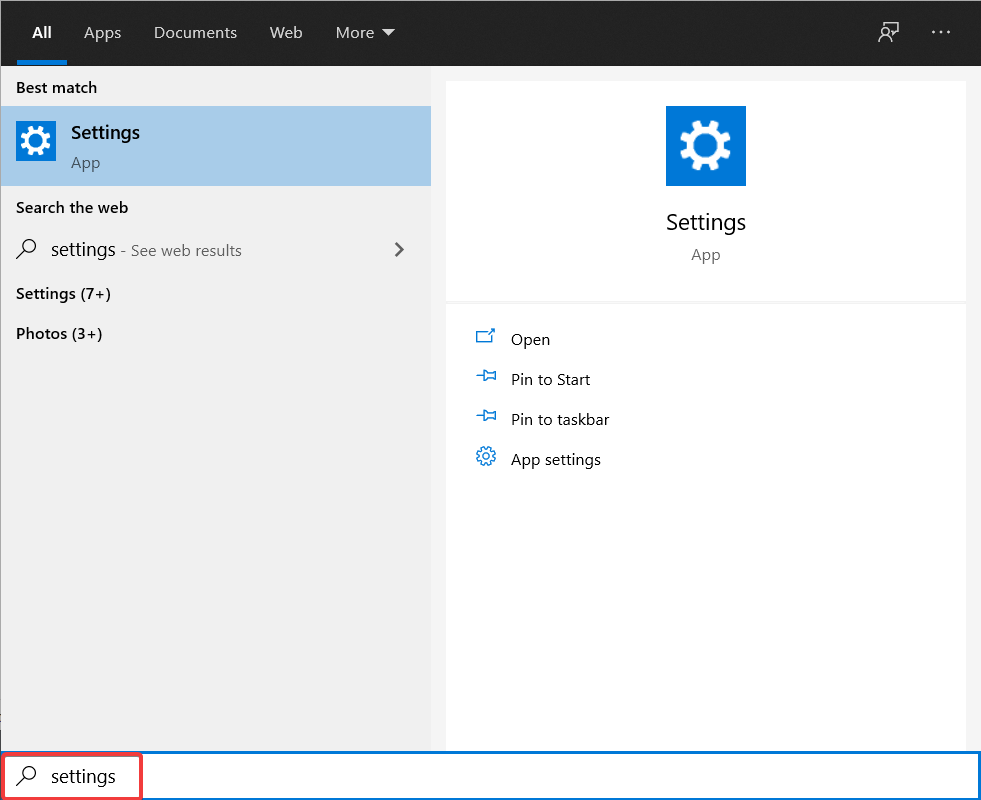
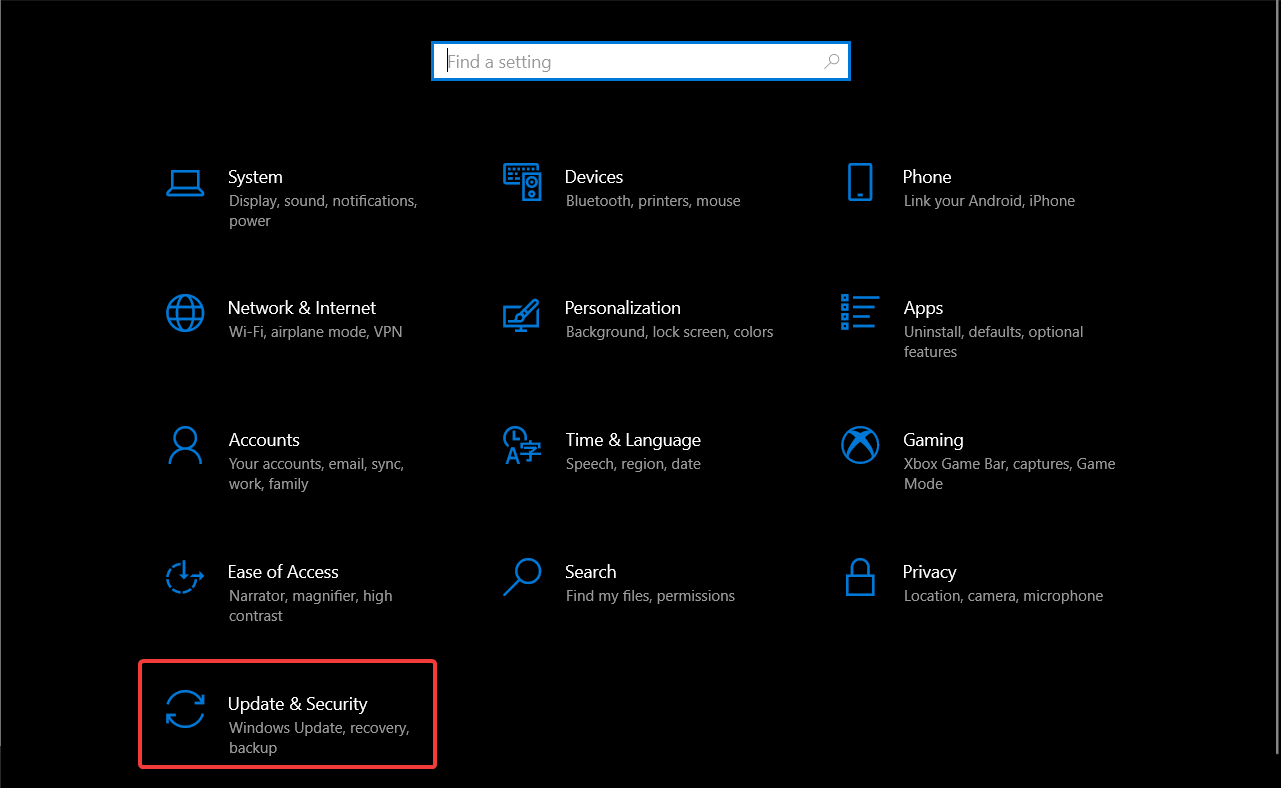
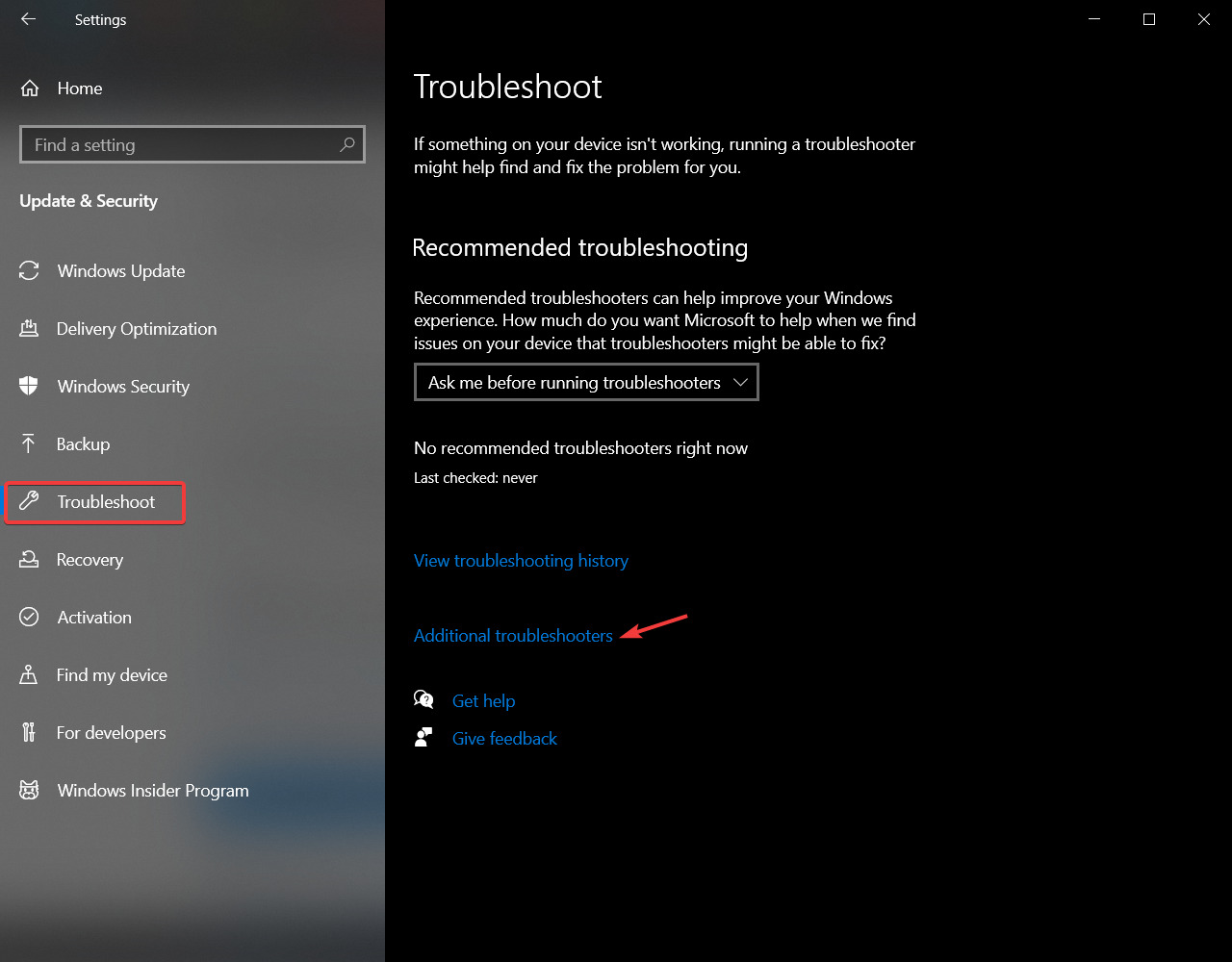
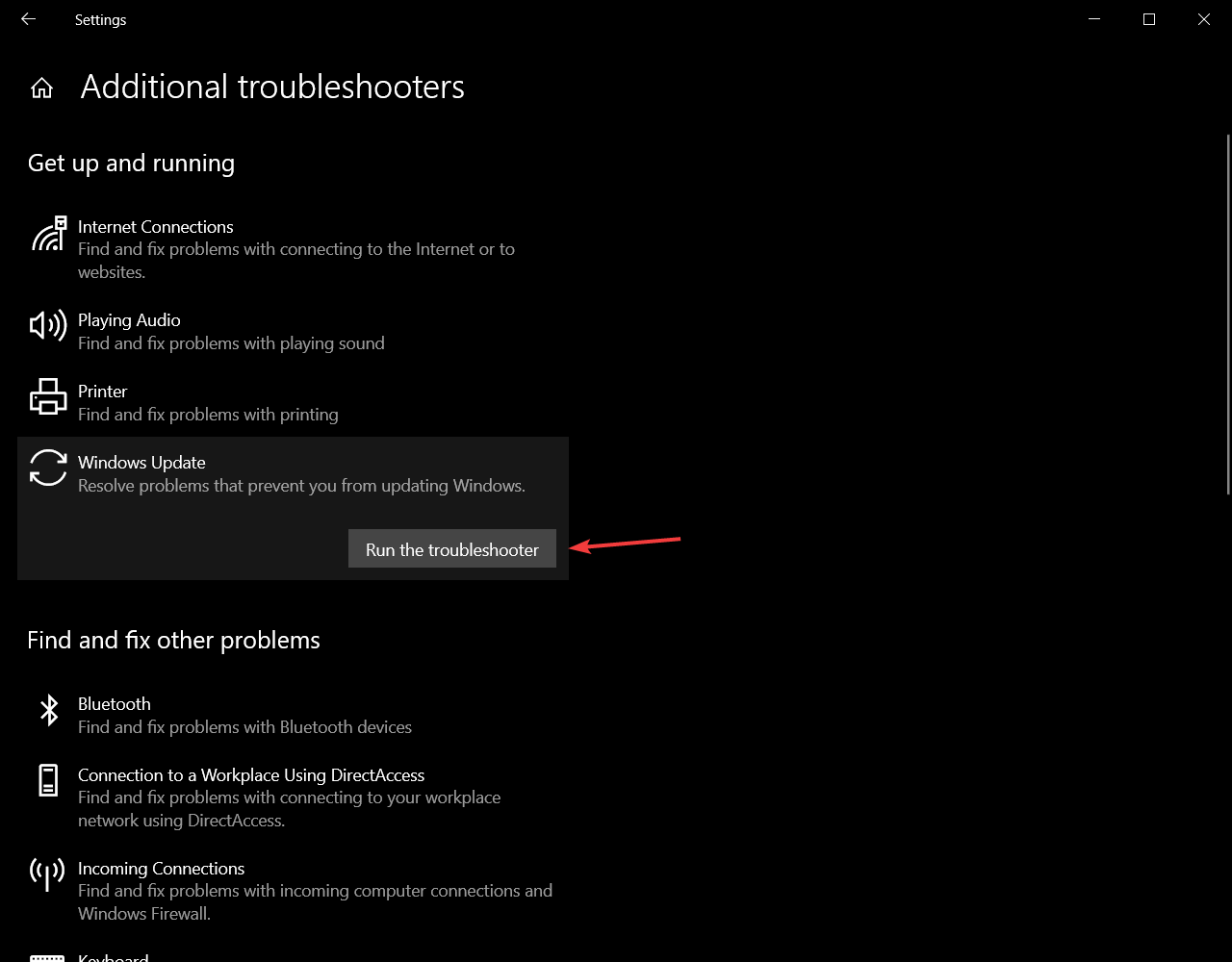
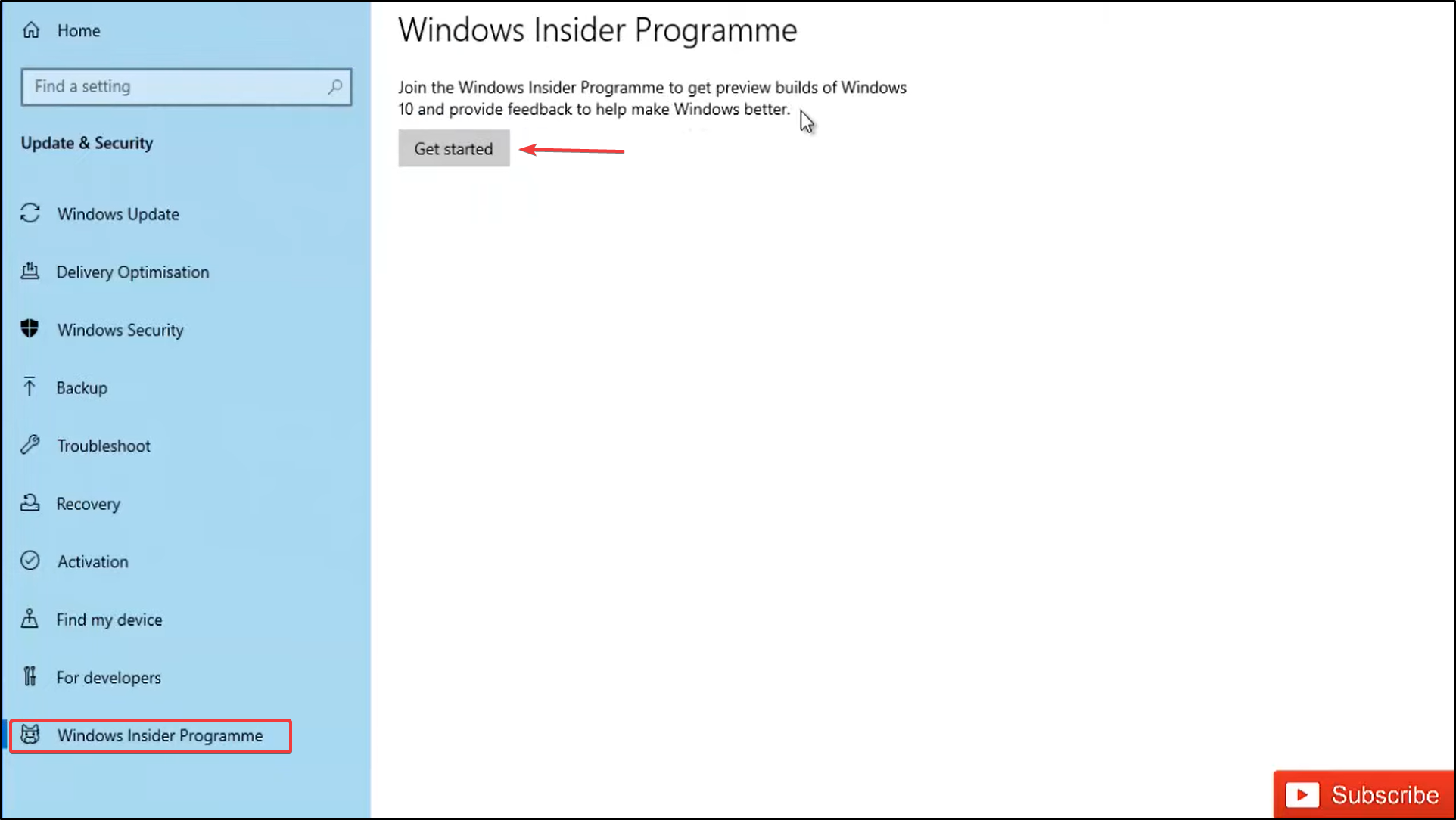

![Best Online Background Removers & How to Use Them [Photo, Video, PDF]](https://windowsreport.com/wp-content/uploads/2021/08/remove-background-ss-featured.jpg)