KB4480977 comes with a total of 14 fixes for Windows 10 v1607

LTSC branch devices just got the KB4480977 update for Windows 10 Anniversary Update (version 1607) that upgraded the OS build number to 17134.556. 

Windows 10 cumulative update KB4480977 has released a handful of bug fixes that existed in the previous OS releases. A reliability issue in the File Explorer has been fixed.

The issue that caused the RemoteApp Windows to intermittently appear and disappear on Windows Server 2016 has also been fixed. Microsoft also addressed the issue for third-party applications that were no longer able to authenticate hotspots. 

You can read more about the complete list of bug fixes and improvements on KB4480977’s official support page.

Known issues in KB4480977

Microsoft has also reported several known issues in the recent cumulative update. Some of them have been mentioned below:

  • Those applications may fail to open that are using Microsoft Jet database along with the Microsoft Access 97 file format. The error may only occur in the case if the column names in the database exceed 32 characters.
  • The installation of this update on Windows Server 2016 results in the error “Outlook cannot perform the search” , while performing an instant search in Microsoft Outlook Client.
  • Some icons appear incorrectly in the taskbar as soon as the file association defaults are changed.
  • Lenovo systems having less than 8 GB of RAM, may fail to startup after the installation of KB4480977.
  • Soon after VMM refresh, Infrastructure management issues are reported for System Center Virtual Machine Manager (SCVMM) managed workloads. The issue arises because Windows Management Instrumentation (WMI) class around network port is not being registered on Hyper-V hosts.

It is worth mentioning that Microsoft has already ended its support for Windows 10 version 1607 in April last year. The update is no longer available for Windows 10 Home and Windows Pro. However, the support for the LTSC versions has been extended until October 2016. The Intel Clovertrail chipset systems will continue receiving updates until January 2023. 

Microsoft is continuously improving the general performance of old operating system versions by resolving issues reported in the previous releases. The tech giant recommended its users to upgrade their devices to a supported OS version to enjoy the full features offered by Windows 10.

RELATED ARTICLES:

Microsoft quietly adds new “Rules” and “Scenes” smart home features for Cortana

Even though Microsoft’s CEO Satya Nadella finally admitted that Cortana won’t compete head-to-head with Alexa and Google Assistant, the company’s digital assistant is apparently still getting new features. As reported by Windows Central, the “Connected Home” section of the Cortana notebook quietly gained two new sections, “Rules” and “Scenes.”

It’s not clear yet if these two sections are live for all Cortana users, but we’ve seen them on a Windows 10 PC running the latest Insider build (18317), as well as the latest version of the Cortana app on iOS. Cortana already lets you add and control several appliances from Ecobee, Philips Hue or Nest, and the new Rules and Scenes features are intended to help you do more with your connected Home.

With Rules, you can create commands with conditions of your choice such as time of day, duration, temperature, and more. Scenes are a slightly more complex feature, letting you create specific commands combining different smart appliances. As an example, you could create a “Good Morning” Scene that turns on your lights, raise the temperature on your smart thermostat, and more. While we haven’t been to experiment with Scenes, the possibilities seem to be quite extensive.

Microsoft has yet to communicate about these new Connected Home features in Cortana, but it’s great to see the company throw a bone to owners of smart appliances. Now that Microsoft wants Cortana to become a “skill” for Alexa and Google Assistant, we didn’t really expect the company to add more “consumer” features to its digital assistant, so that’s definitely a pleasant surprise. Let us know in the comments if you’ve been able to put these new Rules and Scenes Cortana feature into action.

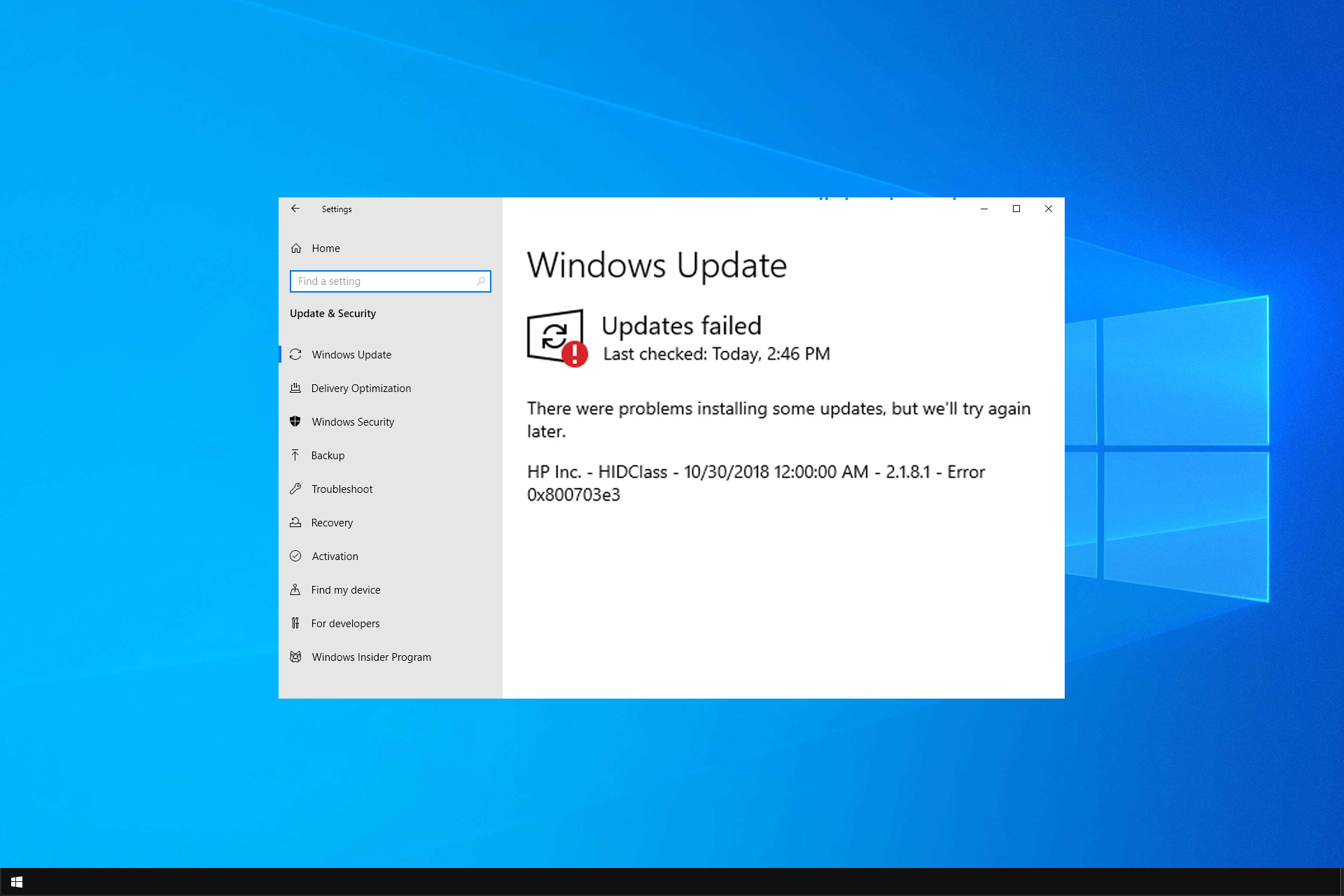
HP HIDClass Error 0x800703e3: How to Fix it

If you’re trying to install the latest HP updates on your Windows 10 computer, but error code 0x800703e3 keeps on popping up, you’ve come to the right place.

If you encounter this error, it means that Windows Update is not working, but there’s a way to fix it.

Before we start, let’s take a closer look and see what causes this issue.

What is error code 0x800703e3?

This is a Windows Update error, and it occurs due to the following:

  • Missing drivers on HP devices will prevent Windows Update.

How can I fix error 0x800703e3?

Use Microsoft Update Catalog

  1. First off, you need to download the HP wireless button. The quickest and safest method is to simply download it from the Microsoft Update Catalog.
  2. Next, you need to locate the driver suitable for your Windows 10 version. Press Ctrl + F and look for the appropriate version.HP wireless button
  3. Hit the Download button and wait until the driver has been downloaded on your machine.
  4. Now, click on the cab file to open it.
  5. You’ll see that the folder contains three files. These are archived files and you need to extract them first.HP hidclass folders
  6. Now, you need to right-click on the WirelessButtonDriver inf.file. That’s the Setup Information file. A small pop-up window should appear on the screen prompting you to install the wireless button driver.install wireless button driver
  7. Do that, hit Install. If there’s a security window popping on the screen, simply confirm your choice in order to complete the installation process.
  8. Once you’ve done that, go to Windows Update. Check for updates again; you should be able to install the latest HP driver updates normally now.

This method does require some technical knowledge, but it can be performed as long as you follow our instructions carefully.

This quick workaround should do the job. In case you’re not familiar, we also have a great guide on how to access Windows Update Catalog, so you might want to check it out.

If you found other solutions to fix error 0x800703e3, feel free to list the steps to follow in the comments below.

How to fix error 0x80070643 after installing KB4023057

If you go to Windows Update and check for updates, you’ll see there’s an interesting update waiting to be installed. Update KB4023057 is an old acquaintance for many Windows 10 v1809 users, actually.

This is an old update that’s now causing install errors for many users. The most frequently encountered error is 0x80070643. This error occurs because Windows 10 is trying to install an older version of KB4023057, not the latest release.

If you’re experiencing the same error code, follow the instructions listed in this guide to fix it.

Solution to fix error 0x80070643

Uninstall KB4023057

  1. Go to Start > type ‘control panel’ > open Control Panel
  2. Now, navigate to Programs. Update KB4023057 is available as program. That’s a bit strange but that’s how Windows 10 decided to categorize this patch.
  3. Select KB4023057 and simply uninstall it. Wait until the process is finished.
  4. Now, return to Windows Update and check for updates again.
  5. This time, the OS should install the correct version of the update. To make sure this is the case, go to Windows Update and check for updates again. This time, your computer should confirm that Windows 10 is up to date.

There you go, this quick workaround should be enough to fix this issue.

If you encountered other KB4023057, tell us more about your experience in the comments below.

Microsoft’s launches XAML Studio, a free app for making UWP XAML UIs

Despite all the recent talk about Progressive Web Apps (PWAs), Microsoft and its own in-house development teams appear to maintain a healthy interest in continuing their support of the UWP XAML communities.

A new app from the Microsoft Garage Project studios emerged in the Store recently called XAML Studio which was released to help “rapidly prototype UWP XAML” projects and copied for further development using Visual Studio.

XAML Studio lets you preview your XAML code in real-time and interact with the result just like it was running in your own app!

This instant response lets you quickly iterate on ideas visually, copy in examples from docs to explore, and test the final behavior all at the same time in one app easily downloaded from the store. You can even download it and get started prototyping while installing Visual Studio!

  • Rapidly Prototype UWP XAML UIs with Live Edit and Interaction
  • Binding Debugger
  • Data Context Editor
  • Auto-save and restore Documents
  • IntelliSense
  • Documentation Toolbox
  • Alignment Guides
  • Namespace Helpers

In addition to the streamlined Copy/Paste nature of XAML Studio, developers will also find tools in the app that should help with Data Context for UI decision based on either static test date or live date from JSON REST API. XAML Studio will also allow developers to use a new binding debugging tool that will give insight into the back-end and front end UI usage as well as real-time error-spotting.

Visit the Microsoft Store to give this Microsoft Garage Project a shot, if you’re a UWP XAML developer or tester.

XAML Studio
XAML Studio
Price:
Free

KB4480976 brings tons of fixes for Windows 10 v1803

Windows 10 version 1803 (April 2018 Update) just got a new cumulative update: KB4480976. This patch is available for this OS version only.

The recent update patched many problems related to BitLocker, networking, Thunderbolt storage, Microsoft Edge and drivers. All the improvements, fixes, and security updates have been mentioned in the changelog for the Build 17134.556.

The update also fixes the black screen issue that appears as soon as users connect  Thunderbolt storage devices. The tech giant has also addressed a bug that caused  the Windows Driver Frameworks service to trigger high CPU usage issues.

KB4480976 key features

The recent update fixes a major issue related to the focusin event. Previously, the system lacked the timeline and sharing features along with the roaming settings in Korean, Japanese and Chinese languages.

Another annoying issue that has been fixed with this update is the bug that prevented apps from correctly using the built-in Help window.

KB4480976 known issues

The cumulative update has also inherited various known issues from the previous releases.

  • Some users are not able to pin a web link on the taskbar or the Start menu.
  • Those users who were using a local IP address are not able to load a webpage in Microsoft Edge.
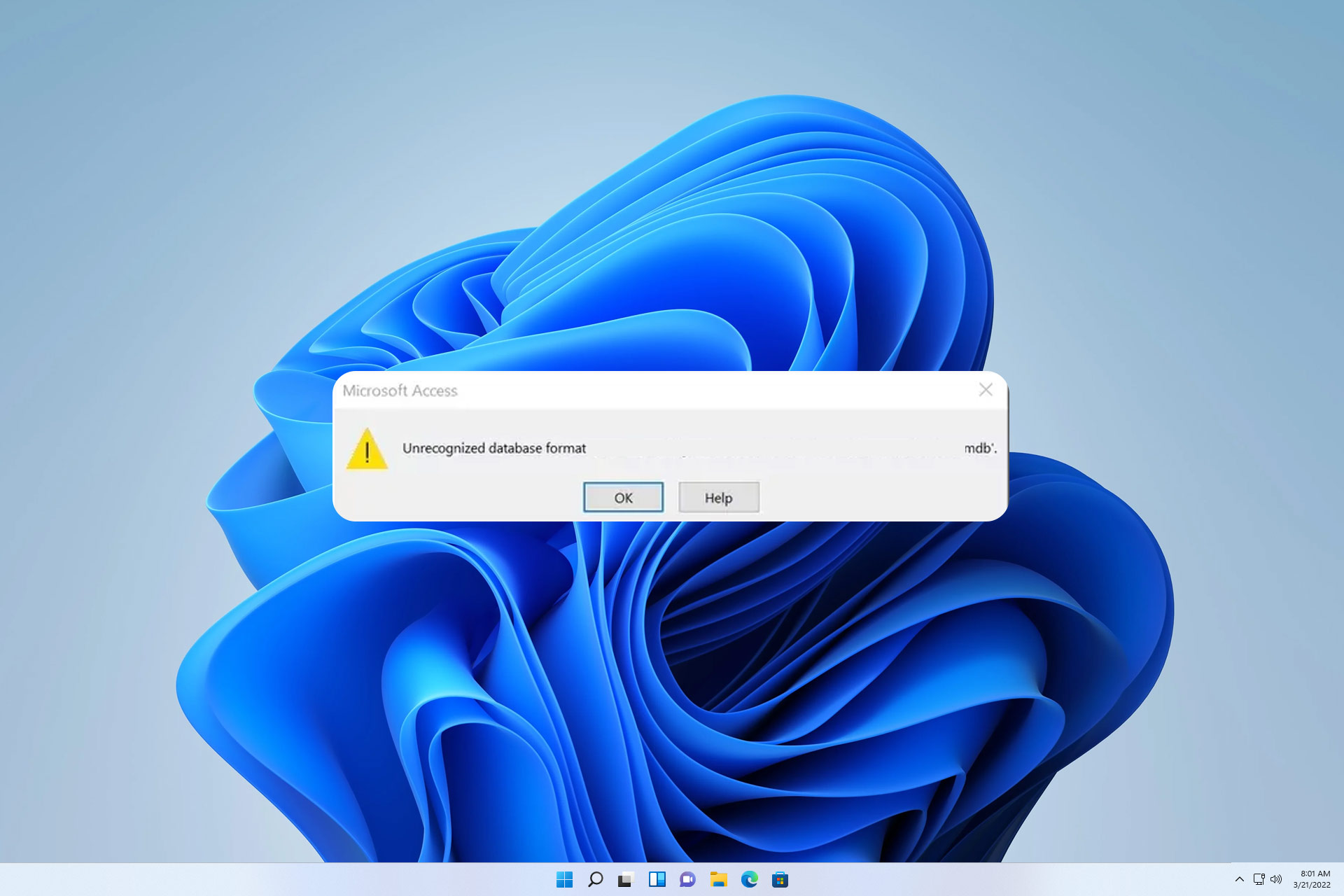
  • Some apps (Using Microsoft Jet database with Microsoft Access 97 file format) fail to open with the “Unrecognizable Database Format” error.

How to install KB4480976?

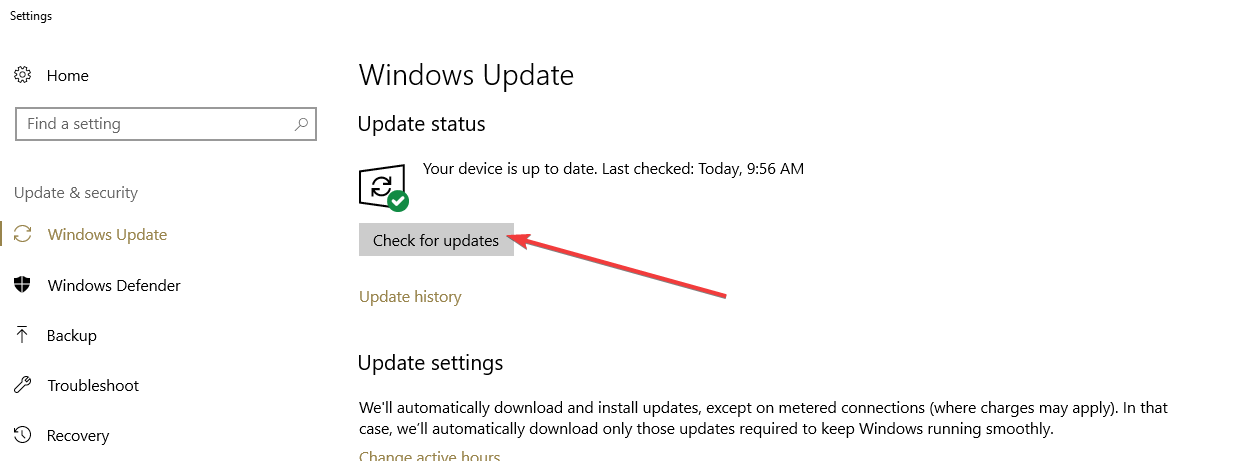
You can simply navigate to Settings > Windows Update section and hit the Check for updates button to make sure that you are using an updated version of Windows 10.check for updates

The Patch Tuesday updates that were rolled out earlier this month addressed the security vulnerabilities that were reported in Windows 10. On the other hand, the latest updates focus on general OS improvements. This time a lot of refinements and general fixes have been added by the company.

Microsoft might release new updates for the Windows 10 October 2018 Update devices as well. The second January cumulative update for Windows 10 v1809 is reportedly in the testing phase and should land later this month.

Related Stories:

Repair Windows 10 From Another Computer [How to]

Windows 10 is a great operating system but it has issues, and many are wondering if is it possible to repair Windows 10 from another computer.

This is pretty simple to do, and you just need to create a bootable Windows 10 installation media on your PC.

This is simpler than it sounds, and in today’s guide we’re going to show you how to do it.

Can I use a system repair disk from another computer?

Yes, the repair disk is quite similar to the installation disk, meaning that you can use it on a different computer. There are a few benefits of doing this:

  • It allows you to repair a computer that can’t boot or access the Internet.
  • Helps you repair a PC that doesn’t have a repair disk created.
  • Can be used on an unlimited number of computers.

How do I repair Windows 10 from another computer?

Create a bootable Media on another PC

  1. Go to the Microsoft download center and type Windows 10.
  2. Select the version you want and click on the Download tool.

  3. Click on Accept and Accept again.
  4. Choose to create an installation disk for another computer and click Next.
  5. Choose the language, version and architecture of the processor (Choose the recommended options) and click Next.
  6. Now you choose between two ways to download Windows 10: Creating the USB stick or opting for the direct link of the ISO file to burn then on a DVD, using tools like Rufus.
  7. If you have chosen the ISO you will see a window that will let you save the file and to watch the download.
  8. Click Finish to end up the procedure.
Note icon NOTE
If the drive doesn’t boot, you need to change your BIOS boot order and select a flash drive as a boot device.

To keep in mind that it might not be possible to restore Windows 10 from another computer, you can create an installation media that will help you solve most issues.

In order to be prepared in case Windows 10 errors and problems occur it’s advised to create a backup of Windows 10, of files and programs on a disk partition, on an unallocated space of at least 30 GB.

We hope that this guide helped you repair Windows 10 from another computer. As you can see, you just need to create an installation media and start the installation and that’s it.

Did you find this guide helpful? If so, let us know in the comments section below.

Mysterious update KB4023057 got released again: What it is for?

Here is an interesting situation. Microsoft releases update KB4023057 (again), still doesn’t explain what it is for, and expects everyone to be happy.

Result? Well, you can guess the results. Lots of objections and negative posts appearing left, right, and center.

What is security update KB4023057 all about?

In fairness to Microsoft, since re-releasing update KB4023057 for Windows 10 v1809, they have updated the support page and spelt out what this update does in more detail.

Notes about this update

“This update may request your device to stay awake longer to enable installation of updates.
Note: The installation will respect any user-configured sleep configurations and also your “active hours” when you use your device the most.
This update may try to reset network settings if problems are detected, and it will clean up registry keys that may be preventing updates from being installed successfully.
This update may repair disabled or corrupted Windows operating system components that determine the applicability of updates to your version of Windows 10.
This update may compress files in your user profile directory to help free up enough disk space to install important updates.
This update may reset the Windows Update database to repair the problems that could prevent updates from installing successfully. Therefore, you may see that your Windows Update history was cleared.”

But does this make for good reading? I’m not so sure.


Did you know that Windows updates trigger bugs for 50% of users? Find out more in this article.


Let’s take a look in more detail.

preventing updates from being installed successfully

How does Microsoft know that the updates that ‘aren’t being installed successfully’, aren’t being installed successfully because I don’t want them to be installed?

may repair disabled or corrupted Windows operating system components that determine the applicability of updates to your version of Windows 10

Same thing here. If I disabled the operating system components for a reason, will update KB4023057 enable them?

 compress files in your user profile directory

This ones is interesting. On the support page, it explains in more detail about compressing files, and then adds this line:

At any point during the update process, you should (my italics) be able to access your files.

That ‘should’ doesn’t sound very definite to me. What if I can’t access my files during the update? What if I can’t access my files after the update?

may reset the Windows Update database to repair the problems that could prevent updates from installing successfully

And again, ‘reset the Windows Updates database’. What if I set up the database and don’t want it to be changed?

And…

you may see that your Windows Update history was cleared

My entire update history?

Finally…

How to get this update
Only certain builds of Windows 10, versions 1507, 1511, 1607, 1703, 1709, and 1803 require this update. Devices that are running those builds automatically get the update downloaded and installed through Windows Update.

Really? Does this mean I have no choice but to install it?

Should you be concerned?

Does all the above make update KB4023057 more troubling than it really is? Probably not. I am not suggesting that there is anything untoward happening here.

However, if Microsoft issues an update, knowing exactly what it will do, and giving us the choice of whether we want to install it or not, seems like the bare minimum.

What do you think? Are you happy to let Microsoft download and update your machine as it wishes? Or are you the type of person that wants to know what’s happening?

Let us know in the comments below.

UPDATE: Microsoft pushed KB4023057 to Windows 10 users in January 2019 as well. This update brings reliability improvements to Windows Update Service components in Windows 10 versions 1507, 1511, 1607, 1703, 1709, and 1803. If necessary, KB4023057 will also free up some disk space on your computer if there is not enough space to install new Windows updates.

The big M is now offering the Windows 10 version 1809 (October 2018 Update) automatically to all the computers that are fully supported.

We are now starting our phased rollout to users via Windows Update, initially offering the update to devices we believe will have the best update experience based on our next generation machine learning model.
Fully available for advanced users who manually select “Check for updates” via Windows Update.

UPDATE AUGUST 2019: Microsoft rolled out KB4023057 to Windows 10 users in August as well. This time around, the update aims at preparing Windows 10 v1803 devices for the upgrade to Windows 10 v1903. Once again, Microsoft didn’t say a word about what’s changed in this update.

Maybe KB4023057 can help you deal with update problems, as more and more 1803 and 1809 users are having trouble with the forced Windows 10 v1903 update.

So, this is why the company decided to release KB4023057 again. If you’re planning to upgrade to a new Windows 10 version, don’t forget to install KB4023057 first so as to enjoy a smooth update process.

RELATED STORIES YOU NEED TO CHECK OUT:

Editor’s Note: This post was recently updated for freshness, and accuracy.

KB4480967 and KB4480959 fix hotspot and file access issues

Microsoft started 2019 in style. The company recently rolled out new Windows 10 updates, just a few days after the January 2019 Patch Tuesday wave of patches. Ladies and gents, please welcome KB4480967 and KB4480959.

As a quick reminder, update KB4480959 for Windows 10 v1703 takes the OS Build version to 15063.1596. Update KB4480967 for Windows 10 v1709 takes the OS Build to version 16299.936.

Let’s see what these updates bring in terms of fixes and improvements.

Windows 10 KB4480967 changelog

  • The issues where Microsoft Edge fails to trigger the focusin event has been fixed.
  • Applications should now display the Help (F1) window correctly.
  • Microsoft addressed the issue that may cause apps to stop working when converting long Kana to Kanji.
  • The update fixed the issue in a multi-monitor configuration that causes a window to unexpectedly move to a different monitor when reconnecting to an existing user session.
  • Addressed an issue in which the desktop wallpaper image set by a group policy will not update if it has the same name as the previous image.
  • Fixed the issue that causes BitLocker Network Unlock to fail on generation 2 virtual machines when it’s used in a network that only supports IPv4.
  • Scheduled Tasks created in a disabled state should now run properly.
  • The Redmond giant fixed the bugs preventing users from overwriting files in a shared folder due to ‘Access Denied’ errors when a filter driver is loaded.
  • The issue where third-party apps fail to authenticate hotspots has been fixed.
  • Blue screen errors should now longer to appear when a Thunderbolt storage device is attached.

You can check out the complete changelog on Microsoft’s support page.

Windows 10 KB4480959 changelog

This patch doesn’t bring as many changes as KB4480967. However, these two updates do share some common fixes for Microsoft Edge focusin event issues, Help pages errors, BitLocker Network Unlock bugs, hotspot authentication problems and ‘Access Denied’ errors.

Apart from these improvements, KB4480959 also added the following fixes:

  • Downloads should no longer fail because Mark of the Web (MOTW) was not supported at the download location.
  • The Windows Defender Application Control (WDAC) failure audit events should no longer occur without a reason.
  • The update fixed the issue that may cause a 30-second delay when deleting or renaming a link in a Distributed File System (DFS) Namespace.
  • Renaming a folder no longer takes 30 seconds when shared by multiple users work in a group.

As always, you can read more about this update on Microsoft official support page.

Have you encountered any bugs after installing KB4480967 or KB4480959? Let us know in the comments below.

RELATED POSTS TO CHECK OUT:

How to become an Xbox Ambassador: Updated for 2019

Here’s a quick update to those wondering about how to join the Xbox Ambassadors Program. The Xbox Ambassadors Program is made up of a group of diehard Xbox gamers who want to share their expertise with the Xbox community. Their goal is to make Xbox the most inclusive and the best place to play. The collective goal of the Xbox Ambassadors is “Making Gaming Fun for Everyone.”

Microsoft, Xbox, Xbox Ambassadors

By becoming an Xbox Ambassador, you can unlock XP for completing program-related activities. The more XP you unlock, the quicker you level up through different program tiers, making you eligible to receive exclusive Xbox Ambassador-brand physical and digital rewards. The Xbox Ambassadors team reached out to us, and here’s what’s new, with more to come.

In order to become an Xbox Ambassador, you must meet these three requirements:

  1. Be at least 17 years old.
  2. Have an Xbox Gamerscore of 1500 or higher.
  3. Have no previous enforcement actions on your Xbox Live account.

The big change is you no longer need to have an Xbox Live Gold account. Anyone with an Xbox Live account (Gold or Silver) can be Xbox Ambassadors. Once you meet the requirements and sign up, you will be greeted with a welcome video (see below) that quickly explains the highlights of the program and sets you on your way to the very first welcome mission.

You can talk about being an Xbox Ambassador on any social media platform you choose; Twitter, Instagram, or YouTube. Be sure to include #XboxAmbassadors so that fellow Ambassadors can reach out to you to connect. The goal of being an Xbox Ambassador is to get the word out an recruit more gamers to become Xbox Ambassadors too.

Please note: if you are sharing content on YouTube on behalf of Xbox Ambassadors, the program would prefer you use the following statement:

“I’m a member of the Xbox Ambassador Program and can unlock different rewards and recognition for my community involvement. Want to unlock the ultimate achievement? Become an Xbox Ambassador today at ambassadors.microsoft.com/xbox.”

If you have more questions about how to become an Xbox Ambassador, you can reach out to the Xbox Ambassador Team on Twitter, Instagram, or YouTube. You can also ask me, I am an Xbox Ambassador. My Xbox Live Gamertag is DavidVanDamage. If I don’t know the answer, we can always find an Xbox Ambassador who does! Visit the Xbox Ambassadors website to become an Xbox Ambassador today!

Windows 10 Mail apps quietly gains darker preview pane in latest update

With Windows apps being updated through the Microsoft Store almost independently from the major operating system updates, it’s sometimes hard to pinpoint when and what new features have been implemented versus usual developer maintenance. Being a Windows Insider infinitely complicates feature tracking as some app updates become release triggered.

Now that I’ve applied a qualifying excuse to my overlooked reporting, I can say with moderate embarrassment, “hey guys, have you tried the new darker reading mode in the Windows 10 Mail app?”

I was tipped to its appearance via the Italian website Aggiornamenti Lumia where a gif was posted of the new toggle feature.

Sure enough, the new toggle is available on my version of the Windows 10 Mail app running on the latest Fast Ring build 18317, despite there being little to no fanfare about it in the developer release notes. I’m not sure when it first appeared but users have been vocal about its implementation for over two years.

The dark preview pane may seem like a trivial addition, but its small details such as these that help bring cohesion to the platform and may help some users pivot from using Chrome or the big box version of Outlook, to the default mail experience in Windows 10. I know, I’m a fan of the app!

If you happen to know when exactly this toggled showed up, please feel free to drop that knowledge in the comment section for inquriing readers.

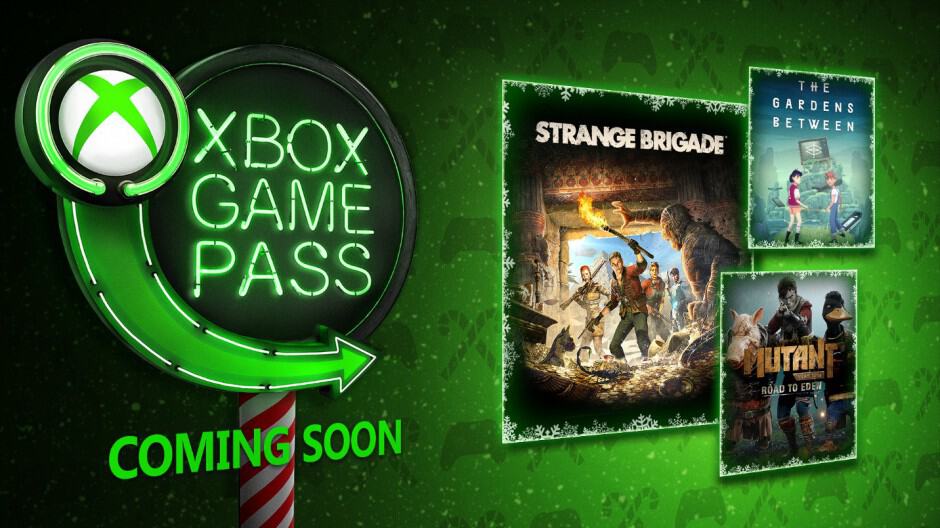
We Happy Few and LEGO Movie are now available in Xbox Game Pass

After being hinted at yesterday, We Happy Few and The LEGO Movie Videogame are now both available to play for free as part of Microsoft’s Xbox Game Pass subscription service.

The LEGO Movie Videogame will look familiar to anyone who’s played any of the other LEGO video games on Xbox One. This one is based on the LEGO Movie storyline and features a diverse selection of over 90 characters to unlock.

Join Emmet and an unlikely group of resistance fighters in their heroic quest to thwart Lord Business’ evil plans—a mission that Emmet is hopelessly and hilariously unprepared for.  It’s a wild ride with a surprising mix of over 90 playable characters including Batman, Superman, Wonder Woman, the Green Ninja, Gandalf, Shakespeare, Cleopatra and more.

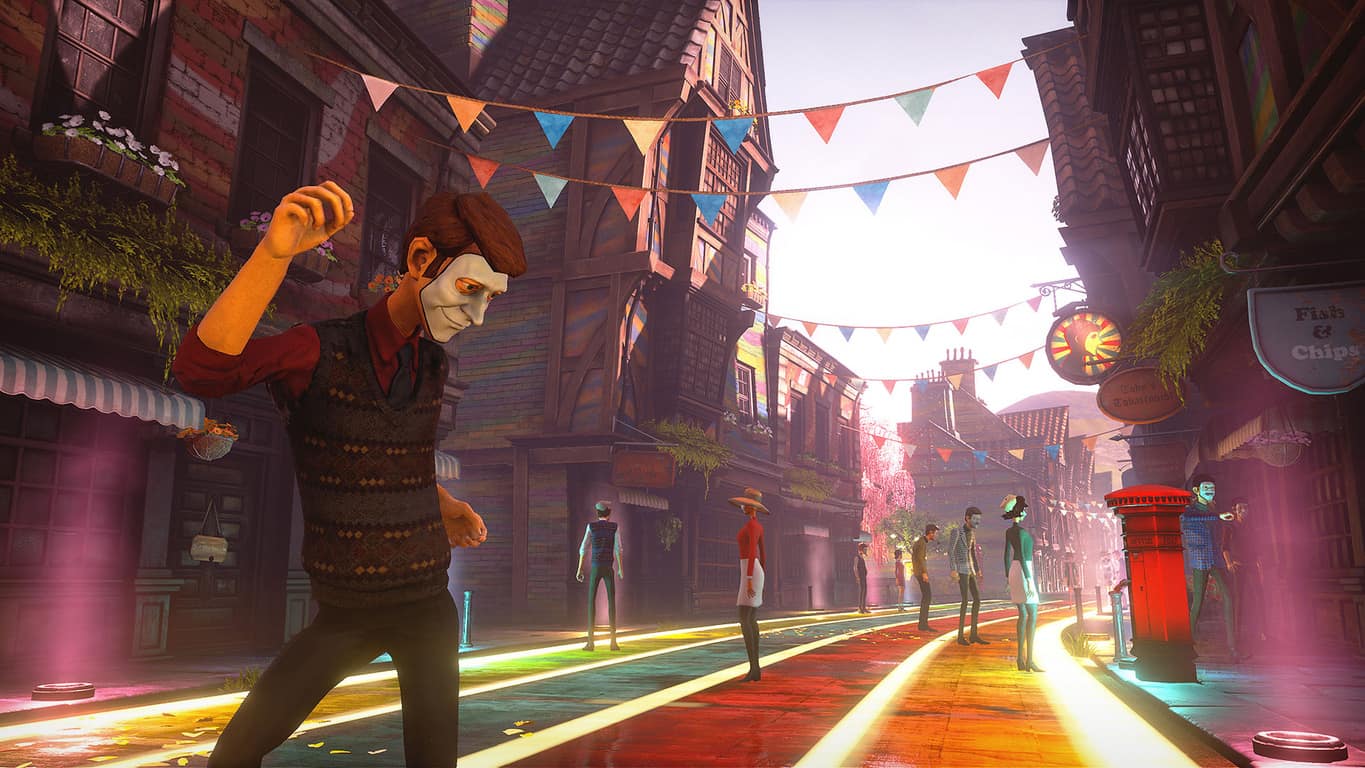
We Happy Few is a more mature video game with a strong emphasis on story. The game has been rather well-received by critics and gamers though may be too intense for young players.

We Happy Few is the tale of a plucky bunch of moderately terrible people trying to escape from a lifetime of cheerful denial in the city of Wellington Wells. In this alternative 1960s England, conformity is key. You’ll have to fight or blend in with the drug-addled inhabitants, most of whom don’t take kindly to people who won’t abide by their not-so-normal rules.

Discover the retrofuturistic city’s dark history as you play through the intertwined narratives of three quietly rebellious citizens of Wellington Wells. Each has their own strengths and weaknesses as they face their pasts, prepare for the future, and engage in activities that aren’t exactly status quo in the artificially enthused society.

In addition to confirming We Happy Few and The LEGO Movie Videogame’s addition to Xbox Game Pass today, Microsoft also officially announced that Middle-earth: Shadow of Mordor and Saints Row: The Third would be coming to the service on January 24th.

Are you an Xbox Game Pass subscriber and are you hyped to play these games? Share your thoughts with the community in the comments below and then follow us on Pinterest for more Xbox gaming content.

The LEGO Movie Videogame
Developer:
Warner Bros. Games
Price:
$19.99


We Happy Few
We Happy Few
Developer:
Gearbox Publishing
Price:
Free

Xbox 360’s Ace Combat 6 gains Xbox One backwards compatibility today

The Xbox 360 video game, Ace Combat 6, is set to get Xbox One backwards compatibility sometime today. Ace Combat 6’s new Xbox One product page is currently live in the Microsoft Store, however, the game itself doesn’t appear to be available just yet at the time of this writing.

Ace Combat 6 is a military action-strategy game that originally launched back in 2007. It features a strong focus on flying military aircraft but also contains other aspects of such as naval combat as well.

Here’s the official game description and trailer:

Witness high definition graphics rendering the world around you into super realistic war zones, made possible only by next generation processing power. Lead not only aerial combat units but also naval and ground combat units to victory. Massive conflicts unfold on a “living battlefield” integrated by the “Dynamic Operation System” where up to six independent aerial, ground, and naval battles can break out at once as allies and enemies clash in real-time.

Ace Combat 6’s sequel, Ace Combat 7: Skies Unknown, is set to launch on the Xbox One family of consoles tomorrow and will be available in both a Deluxe and regular version. Digital pre-orders for both are now live.

Are you a fan of the Ace Combat video games? Let us know why or why not in the comments below and then follow us on Pinterest for more Xbox gaming content.


What is Windows 10 Cost and Can You Get it For Free

Switching to the new operating system comes with a price, and many are wondering how much Windows 10 costs.

In today’s guide, we going to take a closer look at different editions of Windows and let you know the price of each one.

How much does a Windows 10 cost?

The cost of Windows 10 depends on the edition that you’re planning to install:

Windows 10 HomeWindows 10 Pro
Download$129.99$199.00
USB$99.99$119.00
OEM Disc$89.00$99.00
Upgrade$99.00

What is the cheapest version of Windows 10?

The most affordable version of Windows 10 is the OEM edition of Windows.

Although it’s most affordable, it comes with limitations that all OEM versions have.

Can you get Windows 10 for free?

Yes, it’s possible to get Windows 10 for free, right from Microsoft’s website. However, even though you can use this version, it won’t be licensed and you’ll often get a message asking you to activate it.

If you want to use the full version, you can try upgrading Windows 7 to Windows 10 for free as a workaround.

How can I get Windows 10 forever for free?

You can’t get a licensed copy for free, but you can use an unactivated version almost without restrictions as long as you like.

If you already own a previous edition of Windows, you might be able to activate Windows 10 with Windows 7 or 8 key.

What is the difference between free Windows 10 and paid?

  1. The unactivated version has a watermark in the bottom right corner asking you to activate it.
  2. You will often get a nagging screen asking you to activate.
  3. Customization options aren’t available unless the system is activated.
  4. Unactivated Windows can only be used by personal users.

We hope that you now understand better how much different Windows 10 versions cost. Do keep in mind that Microsoft isn’t selling Windows 10 anymore, so you can only get it from retailers.

This is no surprise with the release of Windows 11, and if you’re thinking about upgrading, you might want to learn more about Windows 11 costs.

Are you still looking to buy Windows 10 or are you switching to Windows 11? Let us know in the comments below!

Windows 7 end support scheduled for January 2020

It’s official: the countdown to Windows 7‘s demise has begun. Microsoft will end official Windows 7 support on January 2020. You may want to upgrade to the latest version of Windows 10 in order to avoid continued support fees.

There are many potential security threats and costs incurred in continuing to use Windows 7 just after the tech giant officially ends support for the OS.

Are you planning to upgrade?

There are many Windows 7 users and even IT departments unaware of the approaching end of support deadline. Some are aware of the deadline but have not yet planned to migrate to other platforms.

Some IT professionals will even have to be pay Microsoft for extended support beyond January 14, 2020. Not to mention that large companies might end up losing million of  dollars per year because their systems will be vulnerable to potential cyber attacks.

Notably, Microsoft ended support for Windows Vista and Windows XP around more than three years ago but 16% of the IT professionals have admitted using these outdated OS even today.

Challenges restricting large organizations

One of the major challenges that are faced by large enterprises is updating thousands of machines that are being used by their employees all over the world. In some cases, the complete transition from Windows XP might take months. It is highly recommended that IT managers regularly update their operating systems.

Another challenge faced by large enterprises is the resistance to change to the latest version of Windows 10. Most of the employees have been using Windows 7 for years. They are familiar with working on the OS to an extent that they don’t want to give up on it.

Others might simply want to avoid the whole migration process as it takes a lot of time. IT managers need to create awareness regarding the implications of migration to ensure an easier migration process. Since the process has been streamlined, users will now be facing fewer disruptions and the apps will not fail to migrate during the migration process.

Keep in mind the one-year deadline announced by the Microsoft for ending support for Windows 7. You can still upgrade to Windows 10 for free.

RELATED STORIES YOU NEED TO CHECK OUT

New Xbox One 1904 preview build introduces floating mini keyboard

It’s been quite some time since we last saw something interesting in Xbox Insider builds, but the latest 1904 flight for Preview Alpha Skip Ahead & Alpha Ring members is a welcome change. Indeed, this new build introduces a floating keyboard that should automatically position itself around text boxes.

While the Xbox team didn’t provide an image of the mini keyboard in the release notes, you can see how it looks in the tweet below:

This latest 1904 build also addresses some issues causing blank tabs in the dashboard, as well as Home crashes when system sounds played. Going forward, all new 1904 preview builds will ship to both Skip Ahead and Preview Alpha Insiders, but Microsoft is also testing the Xbox 1902 update with Preview Beta and Delta Insiders.

To be clear, the Xbox 1902 update is expected to ship in February, and the 1904 update will likely follow in April. So far, 1902 preview builds only brought under the hood changes, including framework changes to the mouse feature set for future work, but no new features. It’s pretty much the same story so far with 1904 builds, except for this new virtual mini keyboard. We hope the team will start testing new features with Insiders in the coming weeks.

Satya Nadella opens up about Project xCloud, the upcoming Xbox “Netflix for games”

Perhaps, priming the pump of journalism around the Microsoft 2019 news cycle, CEO Satya Nadella spoke with journalists at in invitational editors meeting about the company’s ambitious gaming endeavors.

While various company executives throughout the past couple of years have waxed poetic about how much gaming means to Microsoft; it’s only in rare instances and normally in front of a developer crowd, that Nadella has addressed the degree to which developments in gaming will play out in the company’s grander scheme.

Business Insider is reporting on the company’s CEO speaking with journalists the other day, Nadella offered some candid information about Microsoft’s secret game streaming project, Project xCloud.

“We describe it as, shorthand, ‘Netflix for games.”

As has been reported, the premise is that Microsoft’s push into cloud computing will aid in propelling a high fidelity, low latency gaming experience run mostly, if not entirely from the cloud, thus shifting the gaming landscape from a dependency on peridocial console releases. An additional benefit of unclasping the gaming experience from the traditional big box console is that it would free developers to market their experiences on newer, non-traditional gaming devices such as phones, Smart TV’s or ‘streaming sticks’.

The idea of game streaming isn’t new nor is it exclusive to Microsoft’s brand. Microsoft is in good company with both gaming studios and major tech companies such as Sony, Electronic Arts, Google, Apple, Amazon, Activision, and others when it comes to creating a streaming alternative.

However, the devil is in the details, like most attempts at a high-quality game streaming service all run into logistical quagmires attempting to solve the low latency issue combined with reliable enough internet access for gaming.

To that, Nadella believes that, while not fully resolved at this moment, Microsoft is in a better position than others to tackle the aforementioned issues with game streaming.

“We have as much a shot to build a subscription service as anybody else.”We have as much a shot to build a subscription service as anybody else,”

He also made reference to Microsoft’s dual pillar enterprise and gaming businesses that allows the company to leverage several advantages that singularly focused companies are not afforded.

For instance, “We have a huge back catalog, which is we have our own games,” which is something Apple, Google and Amazon lack at the moment when attempting to court the more affluent hardcore gaming crowd, and they also possess a massive cloud infrastructure to push beyond console limits that its major competitor in Sony, does not yet have established.

“We have a structural position in that we have both a console business as well as a PC business, which happens to be bigger than the console business when it comes to gaming.”

Linking Microsoft’s current despot efforts is its Xbox Live and its related services such as Play Anywhere library and Game Pass which will undoubtedly play larger roles in the company’s streaming future.

Nadella’s discussion with journalists earlier this week is yet another formalization of the concept laid forth by company VP of gaming Phil Spencer, wherein, console-quality gaming should be accessible by all and Microsoft is going to be among, if not, the company to deliver those experiences.

Windows Insider preview 18317 highlight changes to Display Settings and S Mode among other fixes and ‘Known Issues’

Another Windows 10 Insider preview build is up for release to Fast Ring testers. The new Windows 10 preview release today is 18317 and comes with the standard list of General changes, improvements, and fixes for PC as with most releases.

Here is a list of what’s been fixed and what testers need to be on the look out when using this build.

  • We fixed an issue resulting in File Explorer unexpectedly having a lock on USBs when trying to safely eject them.
  • We fixed an issue resulting in frequent bugchecks (GSODs) in the last two flights, citing an error with bindflt.sys.
  • We fixed an issue resulting in frequent bugchecks (GSODs) in the last flight, citing error KERNEL_LOCK_ENTRY_LEAKED_ON_THREAD_TERMINATION.
  • We fixed an issue resulting in not being able to connect to VMs using Hyper-V console after upgrading to recent flights. This issue also impeded the ability to connect to VMs with Enhanced Sessions enabled.
  • We fixed an issue resulting in some full screen games showing a black screen in recent flights even though they worked in windowed mode.
  • We fixed an issue resulting in CDP User Service periodically unexpectedly using a high amount of CPU in recent flights.
  • We fixed an issue causing text in the Windows Security app to be incorrect or potentially missing altogether.
  • We fixed an issue from recent flights where clicking the network button on the sign-in screen didn’t work.
  • We fixed an issue resulting in certain devices not being able to wake from hibernation recently. There were two possible symptoms on wake if you were impacted – one was a black screen, one was a screen that continued to say “hibernating…”.
  • We fixed an issue resulting in Display Settings crashing in recent builds. If you were impacted, this would have also had the symptom that clicking System or Ease of Access from the main Settings page may crash Settings.
  • We fixed an issue with certain touch keyboard languages where pressing AltGr + [any key] on the full layout would dismiss the touch keyboard.
    We fixed an issue where Windows Sandbox wouldn’t launch on PCs with multiple GPUs.
  • When Scan Mode is on and Narrator is on a slider, the left and right arrows will decrease and increase the slider. Up and down arrows will continue to navigate to the previous or next paragraph or item. Home and End will move the slider to the beginning or the end.
  • The Narrator list of headings command now works as expected in Chrome.
  • We improved Narrator support for Microsoft Teams.
    For cursor and pointer, fixed returning to the right mouse pointers when changing back to the original size and colors.
  • We fixed an issue where some devices would fail to install an update with error code If you are updating from 18309 or newer this issue will be fixed for this update, if you are updating from a build prior to 18309 it will be fixed for the next update.

And here are the Known Issues that the Windows team are highlighting in this build.

  • The Windows Security app may show an unknown status for the Virus & threat protection area, or not refresh properly. This may occur after upgrade, restart, or settings changes.
  • Launching games that use anti-cheat software may trigger a bugcheck (GSOD).
  • Clicking your account in Cortana Permissions doesn’t bringing up the UI to sign out from Cortana (if you were already signed in) for some users in this build.
  • Creative X-Fi sound cards are not functioning properly. We are partnering with Creative to resolve this issue.
  • When attempting to update this build some S Mode devices will download and restart but fail the update.
  • Night light functionality is impacted by a bug in this build. We’re working on a fix, and it will be included in an upcoming build.
  • When you open Action Center the quick actions section may be missing.
  • Windows feature update may fail but show up as a successful update in Windows Update history page. If this happens you will see more than one successful install for the same update in the history page.
  • When performing Reset this PC and selecting Keep my files on a device that has Reserved Storage enabled the user will need to initiate an extra reboot to ensure Reserved Storage is working again properly.
  • There is an issue impacting a small number of users enrolled in Microsoft Intune where they may not receive policies. Those policies are not applied and left in a “pending“ state on the server. The workaround is to go to Settings/Accounts/Access work or school and “Disconnect” your Azure AD account and then re-enroll.
  • Some Realtek SD card readers are not functioning properly. We are investigating the issue.
  • Update Orchestrator Service stops working periodically. A fix will be included in an upcoming build. As a result of this issue, you may see an error on Windows Update Settings saying that the update failed to restart. If you see this, restarting using the power menu in Start (“Update and restart”) should work, although there’s a chance that it won’t.
  • Closing the lid to a laptop and re-opening can cause icons in the task bar to appear blank. To fix this open task manager and restart explorer.exe or reboot.
  • If you download a theme from Microsoft Store, it won’t appear in Themes Settings.

Known issues for Developers

  • If you install any of the recent builds from the Fast ring and switch to the Slow ring – optional content such as enabling developer mode will fail. You will have to remain in the Fast ring to add/install/enable optional content. This is because optional content will only install on builds approved for specific rings.

n addition to growing list of known issues and fixes, there are other new items for Insiders to be on the lookout for such as Bing Insider stuff, Bug Bash reminders, Windows Console Updates, and more.

If you’re an Insider, build 18317 is definitely a release worth checking out this week.

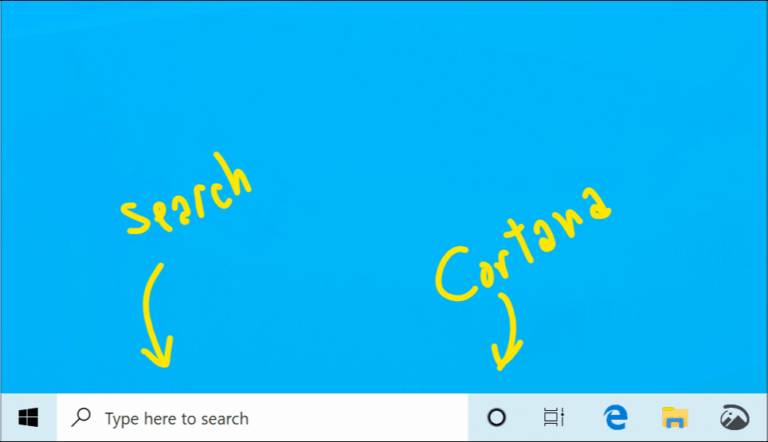
Windows 10 19H1 build 18317 is out, splits up Windows Search and Cortana, adds better Start reliability

Microsoft is rolling out today the Windows 10 19H1 build 18317 to Windows Insiders in the Fast Ring. After some testing with select Insiders in recent weeks, this new build finally separates Cortana from Windows Search in the task bar. “This will enable each experience to innovate independently to best serve their target audiences and use cases,” the Windows Insider team explained today.

This new build brings other significant updates, including some background changes to make the Start Menu more reliable than before. The Windows 10 Settings app has also been updated with A Better Font management experience and a revamped Windows Insider Settings page. You can find more details about all these changes below:

Separating Search and Cortana

Going forward, we’ll be decoupling Search and Cortana in the taskbar. This will enable each experience to innovate independently to best serve their target audiences and use cases. Some Insiders have had this update for a few weeks now, and we appreciate all the feedback we’ve received about it so far! For those new to this update, when it rolls out to you, you’ll find clicking the search box in the taskbar now launches our experience focused on giving you the best in house search experience and clicking the Cortana icon will launch you straight into our voice-first digital assistant experience.

Other available Search and Cortana settings have also now been split between the two, along with the familiar group policies.

This change is one of several we’ve made throughout this release to improve your experience in this space, including updating the search landing page design, enhancing your search results, and integrating Microsoft To-Do with Cortana. If you have any further feedback, please don’t hesitate to share it with us here.

Note: Cortana is currently only available in supported markets.

The next step in improving Start reliability

As some of you may already know, up until now Start in Windows 10 has been hosted by something called ShellExperienceHost.exe. In order to provide you the best possible Start experience, we’re separating it into its own process, called StartMenuExperienceHost.exe. This has a number of benefits, including simplifying debugging and insulating Start from potential issues impacting other surfaces. This has been running as an experiment for a few weeks now and we’ve seen measurable improvements in the reliability amongst those that have the change, so we’re rolling it out to everyone.

We’re also making a change so that Start no longer suspends, which improves launch time.

A Better Font management experience in Settings

Insiders today can now drag and drop font files from File Explorer into the modern Settings > Fonts page to install them. After installation, click on the font in the Font page, to view the different font faces associated with the font and all the details of the font. You can also uninstall the font from this font details page. Drag and drop font installation by default is installed as a per-user font which does not require elevation, hence it will not be available for other users. To install the font for all users in the device, use the “Install for all Users” option by right clicking the font on file explorer.

A simpler Windows Insider Program Settings page

We are introducing a simplified Windows Insider Program Settings page via Settings > Update & Security > Windows Insider Program with Build 18317. The goal is to make the end-to-end experience of signing up for the Windows Insider Program and setting up your PC to take new builds much easier by simplifying the experience and removing some of the clutter. You’ll find that all the same functionality is still there.

New simplified Windows Insider Program Settings page via Settings > Update & Security > Windows Insider Program.

Under “Pick your Insider settings” is where you can change your Insider ring on your PC.

Windows Console Updates

We’ve made several fixes & improvements in Windows Console in and leading up to build 18317, including:

  • Fixed spurious text artifacts being displayed when running cscope in a Linux VM via ssh
  • Fixed GitHub issue 296 where the incorrect mouse button ID was being reported when a mouse button was released, resulting in an “unexpected mouse-drag behavior” regression
  • Fixed GitHub Issue 313, enabling colors above index #15 to be set via VT OSC 4
    • Colors <= 99 fixed in this build
    • Colors > 99 fixed in up-coming build
  • Corrected sizing issues for Linux alt-buffer apps (e.g. vim, emacs, etc.) resulting in more reliable resizing
  • Fixed some issues with Consoles growing in height if scroll-forward is disabled
  • Fixed ConPTY, enabling underline VT sequences to now pass correctly, allowing ConPTY-enabled apps (e.g. VSCode’s integrated terminal) to correctly receive and display underlined text
  • Made ConPTY flush its output buffer before terminating ensuring apps receive all input and display correct output
  • When running Tmux, correctly restore state after Win + D, resulting in Tmux’s last line of text rendering correctly
  • Fixed Console to preserve a Console window’s currently colored text when executing Cmd.exe
  • If using raster fonts, Console now correctly preserves the user’s font after running .NET Core code (which defaults to UTF-8 codepage 65001)
  • Correct how Console scrolls text region, fixing how text is rendered in Linux’ `screen`
  • Significantly improved performance of ConPTY – perf now very close to “raw pipe”

Overall, Cortana being separated from Windows Search is pretty big news, and this should give more room to other digital assistants like Alexa (now available as a Microsoft Store app). Cortana has been a part of Windows Search since the launch of Windows 10, but the company seems to have come to the conclusion that this wasn’t such a good idea. In the preview build 18309 released earlier this month, Microsoft also removed the Cortana voice-over when you clean install Pro, Enterprise, or Education editions of Windows. Cortana will still have its place in the Windows 10 task bar going forward, but it no longer seems to be a core functionality of Windows 10.

As usual, the preview build 18317 also fixes a long list of bugs, and it also includes the three issues that were fixed in the cumulative update build 18312.1007 released yesterday. You can learn more about the general fixes and known issues in the build 18317 in our separate post.

Shadow of the Tomb Raider’s The Nightmare DLC launches on Xbox One next week

Square Enix is releasing The Nightmare DLC for Xbox One next week. The expansion will deliver seven new missions, which the developers are calling “Paths” for Lara Croft to explore. Each path will offer its own set of missions, and Lara can earn new outfits, weapons, and skills with each one. Here’s a list of what’s new in the DLC:

Survive and Thrive: Master the jungle to survive. Explore underwater environments filled with crevasses and deep tunnel systems.

Become One With the Jungle: Lara must use the jungle to her advantage to strike suddenly and disappear like a jaguar, instilling fear in her enemies.

Discover Brutal Tombs: Terrifying tombs, filled with deadly puzzles, require advanced traversal techniques to be accessed.

Uncover Living History: Discover a hidden city and explore the biggest Tomb Raider hub ever.

Shadow of the Tomb Raider is the latest installment of the Tomb Raider series, taking off from the Rise of the Tomb Raider hit that saw its way to the Xbox One. The Nightmare is the third DLC to become available for the game.

The content will be available for those who whish to purchase this Tuesday, January 22. If you’ve never played before, the developers are offering a free seven-day trial for anyone on Xbox One, Windows 10, and PS4. So now might be a good time to jump on the bandwagon and try the game out.

Microsoft expands M12 investment fund to include India, announces first startup investment

Microsoft will be investing in yet another Indian company. The company’s venture fund, M12, will invest in various startups, with Innovaccer being among the first of recent companies to receive funding from the tech giant. According to Microsoft, Innovaccer is a startup that aims to solve problems with data interoperability in health care, and improve outcomes for health systems. In the words of the company’s global head of M12, Nagraj Kashyap:

“We are thrilled to broaden M12’s reach to include India. India is a market rich with entrepreneurs creating world-class startups that are poised for success on a global scale. In working with these innovative startups, we believe together we will help disrupt enterprises and industries ripe for digital transformation.“

The company’s M12 startup has already made investments to other prior startups, as well. Microsoft explains that these range from “cybersecurity and artificial intelligence to business SaaS and industrial drones.” For those unfamiliar, M12, formerly known as Microsoft Ventures, is a cooperate venture fund which invests in startups, which Microsoft serving as a strategic partner as the companies grow.

Investments to an Indian startup like this is not surprising. The company cites the country’s business-to-business increased equity funding up to $3.08 billion in 2018, a 28% increase from the previous year. Microsoft’s own CEO Satya Nadella is a fellow Indian American himself, so it seems only logical for his company to have familiarity with those businesses.

How to get dark theme title bars in Windows 10, without changing your accent colour

Windows 10’s dark theme has been undergoing further development in recent Insider builds, integrating it more deeply into the interface. More shell components and apps now support dark theme, including the console scrollbars and title bar. However, it is already possible to get dark title bars for every window – provided you’re comfortable using a registry hack.

Even with dark theme enabled, Windows 10 uses white title bars for desktop apps by default. You can change this by using a dark accent colour and choosing to show the accent colour on title bars in Settings. This method is limited though – Windows prevents you from using extremely dark shades, and in any case you may want to retain your current accent colour. If you want black title bars with a blue accent colour, you’re out of luck.

Prerequisites

To achieve this effect, you’ll first need to head to the “Settings” app. Open the “Personalisation” category and click to the “Colours” page. Make sure the “Title bars” checkbox is ticked under “Show the accent colour on the following surfaces” section. You should also make sure you’ve selected your desired accent colour – if you change it later, you will need to repeat this procedure to reinstate your black title bars.

Finding the registry node

Next, search for “regedit” in the Start menu and hit enter to launch it. At this point, it’s time for our routine reminder – registry edits can have unforeseen consequences for your system and are not supported by Microsoft. This trick may break or stop working in the future and you use it at your own risk.

Navigate to the following key:

HKEY_CURRENT_USER\SOFTWARE\Microsoft\Windows\DWM

If you have a recent build of Windows 10, you can copy and paste the key directly into the registry editor’s address bar. Otherwise, you’ll need to drill down through the registry nodes yourself using the tree view in the Registry Editor’s left pane.

Before we get editing, one word of warning: it’s possible some of the keys mentioned in the next section don’t yet exist on your system. If you can’t see a mentioned key, create it by right-clicking the Registry Editor window and selecting “New”, then “DWORD (32-bit value)”. Name the key according to the instructions given below.

Black title bars with an accent colour

In the right pane, displaying the values in the registry node, double click the “ColorPrevalence” key to edit its value. Set it to “1” (without the quotes) and click OK.

Next, double click the “AccentColor” key and change its value to “0d0d0d” – this is the hexadecimal colour code to use for the title bars. Unfortunately, extremely dark values appear to be rejected by Windows, so a simple “000000” for a full black doesn’t work. You can try different colour codes to fine tune your results.

Finally, edit the “AccentColorInactive” key and set its value to your chosen colour code. This defines the title bar colour of apps which are inactive and in the background on your desktop. You’re free to use a different shade here if you’d prefer to make inactive apps more visually distinct from the foreground app.

That’s all there is to it! The changes should apply immediately once you select or open windows on your desktop. You’ll now have black title bars while preserving your regular accent colour used in the Start menu, Action Centre and other areas of the interface.

You can finetune the title bar effect to suit your taste using the AccentColor and AccentColorInactive registry keys. Just remember that if you change your system accent colour in settings, you may need to run through these steps again to restore your black title bars.

Attribution: Reddit user BatDogOnBatMobile was the first to publish these steps.

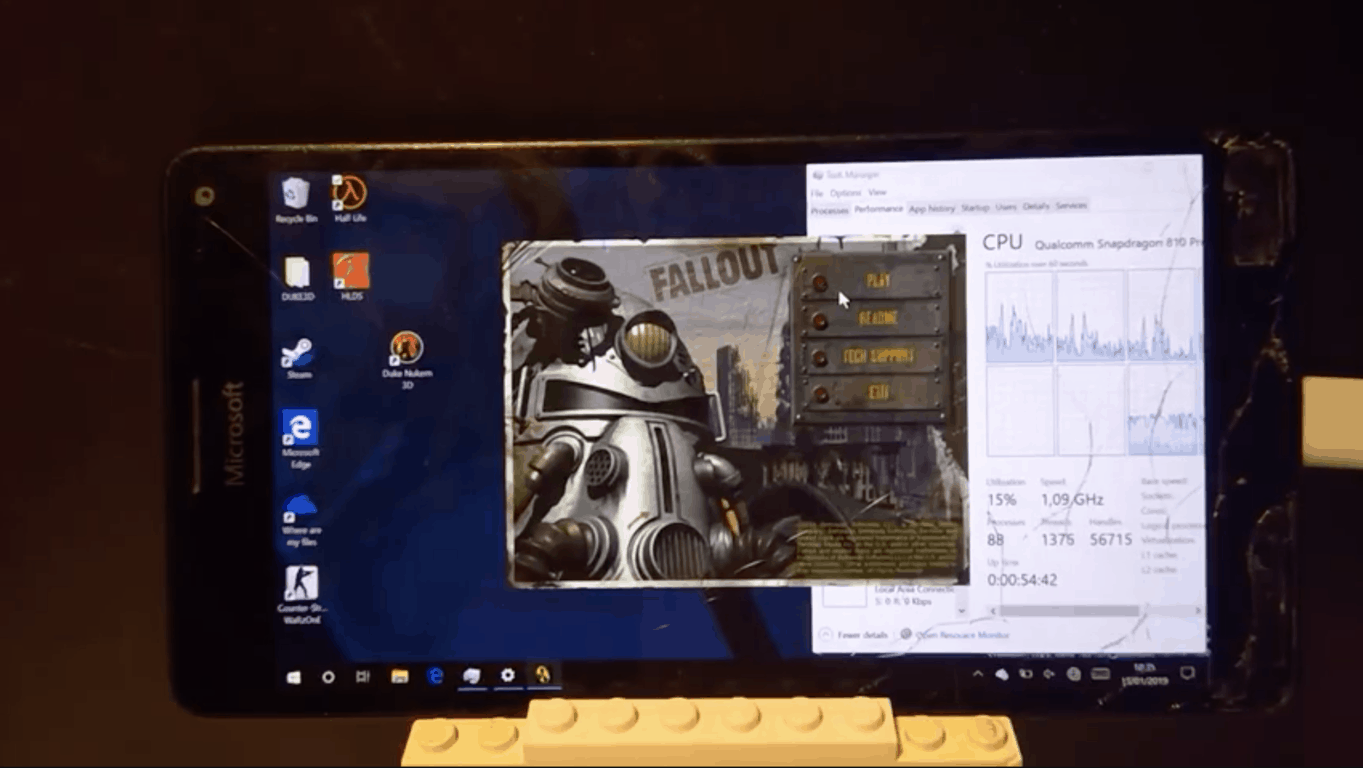
Hacker plays original Fallout PC game on Lumia 950XL running Windows 10 on ARM

Since Microsoft announced that Windows 10 Mobile will no longer be supported after December 2019, some adventurous hackers have been trying to breathe new life into Windows phones. The most interesting experiments revolve around installing Windows 10 on ARM on these devices to replace Windows 10 Mobile, and get access to the huge library of legacy Windows apps.

Of course, running full Windows 10 on such small-screened devices isn’t really a great experience, and in addition to various driver issues, you’ll also lose phone capabilities as Windows 10 doesn’t have a phone stack. Still, that hasn’t stop hackers from continuing to experiment with Windows 10 on ARM on old Windows phones. Yesterday, Reddit user Wall_SoGB posted a video of a Lumia 950XL with Windows 10 on ARM running the original Fallout PC game from 1997. While this is a very old game, it actually runs through emulation on Windows 10 on ARM which causes quite a bit of lag, even on a device with an octa-core Snapdragon 810 SoC.

In the Reddit thread, Wall_SoGB shared that he tried running other PC games like Duke Nukem 3D which ran at 15 FPS, while the more recent Fallout 3 ran at a sad 1 FPS. “Weirdly cpu usage is low, often below 50%, maybe because of the way emulation works,” the hacker noted.

This is still an impressive demo, and it’s hard not to think about all the possibilities Windows 10 on ARM could offer on pocketable devices like Microsoft’s rumored Andromeda project. However, the company’s new game streaming technology codenamed Project xCloud could well be a much better alternative to Win32 app emulation on mobile processors. If you can stream modern games on your iOS or Android phone (in addition to millions of mobile apps and games), maybe having full Windows on a pocketable device won’t seem so exciting for the majority of consumers.

Microsoft’s Desktop App Assure initiative is now available globally

With 2019 being the last full year of support for the Windows 7 operating system, many companies are running out of time to upgrade to Microsoft’s latest Windows 10 operating system. However, one of the main reasons many people and businesses continue to use the older versions is because of the fear of an application no longer being able to run on the upgraded computer.

Microsoft is confident that the vast, vast majority of software should run fine, however they do acknowledge the fact that sometimes API changes can break things. While the company works hard to best insure these issues don’t arise, sometimes that isn’t quite enough for businesses to bite. To help combat this, the company is rolling out their new Desktop App Assure service, which will help in the unlikely event the application does fail to run after the upgrade.

According to ZDNet’s Mary Jo Foley, users will be able to file a support ticket with Microsoft’s FastTrack program, after which an engineer will work with them until all compatibility issues are resolved. The service is free for anyone deploying Windows 10 and Office ProPlus with an eligible Microsoft 365 Enterprise or Education subscription. The company is able to offer the service without charge because, according to their statistics, engineers evaluated 7,000 out of 41,000 applications, with only 49 of which required work to fix. The company is providing the following assistance to make sure the following Windows 7 apps will work for Windows 10:

  • Customer-developed apps targeting a supported version of Windows 10.
  • Third-party independent software vendor (ISV) apps targeting a supported version of Windows 10.
  • Office 365 ProPlus targeting a supported version of Windows 10, including macros and add-ins.
  • Microsoft products and services targeting a supported version of Windows 10.
  • Windows 10 desktop and web apps.

However, the company will now offer assistance to test compatibility for those apps to insure they work. Other services not offered by the program include:

  • App inventory and testing to determine what does and doesn’t work on Windows 10. For more information, see Customer Request for Modern Desktop Assessment.
  • Researching third-party ISV apps for Windows 10 compatibility and support statements. For more information, see Ready for Windows.
  • App packaging-only services. However, the Desktop App Assure team packages apps that we have remediated for Windows 10 to ensure they can be deployed in the customer’s environment.

As it stands, Microsoft is readying its discontinuration of Windows 10 which, which will occur on January 14, 2020. With Windows 10 being pegged as the last version of Windows, developers only need to upgrade once and will never have to worry about upgrading again in the future.


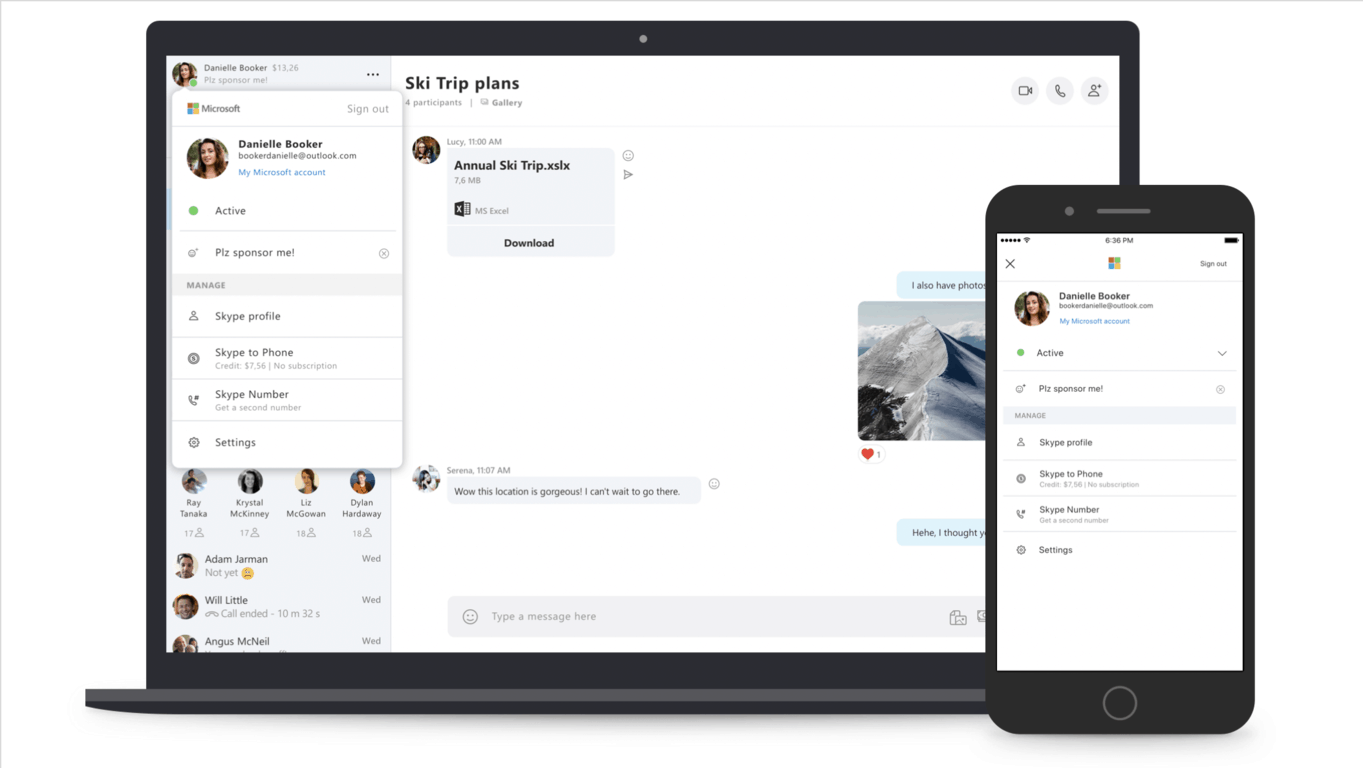
Skype’s latest Insider build introduces new Quick Access Menu

Microsoft has started testing a new Quick Access Menu in its Skype Insider app. In the preview version 8.37.76.92 that is now available on all platforms, you can access this Quick Access Menu by clicking on your Avatar in the top left corner of the app.

The Quick Access menu replaces the much bigger pop up window that previously showed up when you clicked on your Avatar, though the core functionality isn’t that different. “With the Quick access menu, your profile, associated Microsoft Account, Skype number and Settings are just a click away. From the Quick access menu you can review your Skype credits & subscriptions as well as update your profile picture and mood message,” the Skype team explained.

After announcing that the “Away” status would be coming back to this new cross-platform Skype app, the team is apparently not done polishing the UI of the new client. This apparently doesn’t go very well with some users, as the first comments on the post announcing the new Quick Access Menu are pretty negative. “No new features should be worked on for Skype until you bring the laundry list of old features back or let us use Skype Classic again,” said one user.

If you want to check out this new Quick Access Menu, the easiest way to access this latest preview build is the new web app available on preview.web.skype.com. Otherwise, you can download the standalone desktop app on this page.

Windows 10 Slack app updates and squashes several frustrating bugs

The Windows 10 Slack app updated to Version 3.3.4 earlier this week with a host of bug fixes for a variety of problems.

According to the patch notes, the bugs fixed include one that was showing users the same message twice when logging in (amusingly mentioned twice in the notes), another that made it hard to highlight text, and another that listed the incorrect keyboard shortcut for going full screen.

Here’s the full release notes:

  • Users signing in with Single Sign-On would see the same message twice when logging in.
  • Users signing in with Single Sign-On would see the same message twice when logging in. This will not happen any more.
  • When trying to select a portion of a code-formatted block of text (text formatted with ` or “` at either end), some characters were proving slippery and hard to select. You can now copy and paste to your heart’s content.
  • Several random, rare crashes — on launch and at other times — have been eliminated. More random and rare crashes inevitably exist, of course, and as soon as we know what they are, we’ll eliminate those too.
  • The full screen shortcut was mistakenly listed as ‘Ctrl+F’ instead of ‘Ctrl+Shift+F’ in the “View” menu. We both apologize for this and hope that, because of it, someone out there discovered ‘Ctrl+F’ as a useful shortcut for searching the channel that you’re in. Always look on the bright side of bugs.

Slack is a popular team messaging app that allows users to communicate with each other and send files to team members. It used to be king of this particular app niche, however, it’s recently encountered stiff competition from Microsoft Teams.

Do you still use Slack or have you made the switch to Teams? Let us know in the comments below and then follow us on Pinterest for more app content.

Slack
Slack
Price:
Free

We Happy Few, LEGO Movie, and more coming to Xbox Game Pass this month

The official Xbox Game Pass Twitter account shared a preview of several new video games that are set to join the subscription service before the end of the month.

While pixelated, it seems as if the upcoming games are We Happy Few, The LEGO Movie: The Video Game, Middle Earth: Shadow of Mordor, and Saint’s Row: The Third. Some contact information was also censored in the tweet but it’s probably best not to try and work out what that is.

We Happy Few isn’t too much of a surprise given that Microsoft purchased the studio behind it, Compulsion Games, last year. The LEGO Movie: The Video Game’s addition is probably a smart marketing move to get people hooked on this game before its sequel comes out later next month while Shadow of Mordor should please people who were disappointed by the recent removal of several Lord of the Rings games from the Microsoft Store. Saint’s Row: The Third was incredibly popular when it launched so it’s generally just a positive thing to see major titles such as this come to the Xbox Game Pass program.

Are you an Xbox Game Pass subscriber and are you happy to see these games be added to the library? Share your thoughts with the community in the comments below and then follow us on Pinterest for more Xbox gaming content.

Update: it’s official, We Happy Few and The Lego Movie Videogame will join the Xbox Game Pass catalog on January 17, while Middle-earth: Shadow of Mordor and Saints Row: The Third will be added on January 24.

How to fix corrupted Excel cells in 4 quick steps


4 solutions to fix corrupted Excel cells

  1. Automatic procedure
  2. Manual procedure
  3. Recover your data
  4. Copy the file in Wordpad

Microsoft Excel is one of the best and commonly used tools to analyse data. This office program is crucial for the day to day work of millions of people around the world. Nevertheless, several errors can sometimes slow down processes and decrease the efficiency of users.

One of the possible annoying situations, while working in Microsoft Excel, is when one or more cells of the workbook are corrupted. If you face this trouble, do not worry: — this article provides you with a solution for this problem.

QUICK FIX: Move the File

Before starting any procedure to recover your workbook, it can be better carrying out two attempts to check if the file is really corrupted.

  • Move the file: to do so, you can move the file to another folder, server or drive and check if you can open the Excel file.
  • Open the file with another software: the cause of the file problem could be the software. You can try Calc, the Excel twin software in the OpenOffice Suite. If you do not have the OpenOffice Suite, you can download it online for free.

How can I fix corrupted Excel cells?

Solution 1 – Automatic procedure

If the file or workbook is really corrupted, you can start trusting first Microsoft Excel’s automatic procedure. Sometimes Microsoft Excel can detect a corrupted cell or workbook, when the file is open.

In this case, the software activates automatically a File Recovery Mode. The latter will make an attempt to solve a potential problem, without any user intervention.

Solution 2 – Manual procedure

In other cases, Excel is not able to detect the problem, especially if this regards just few cells or if the software version is not the most advanced. If so, you can act to solve the problem. Here, in few steps how you can fix the problem manually.

STEP 1 – Select the File, click on it and, then, Open

STEP 2 – Select the location and folder that contains the workbook that is corrupted

STEP 3 – In the Open box, pick the corrupted workbook

STEP 4 – Select the little downward-facing arrow next to the Open button and a menu will appear.open and repair excel windows 10STEP 5 – Click on the Open and Repair option. If this option seems to be impossible to open, do not worry, just check that you have selected the Excel file.

STEP 6 – Click on Repair if you wish to recover most of the workbook data.

Pay attention that you could not have the Repair option. If this is the case, click on Extract Data and pick Convert to Values or Recover Formulas to extract values and formulas from the workbook. In this way, no matter what, you will keep your data.

— RELATED: Excel Online won’t calculate/ open [Best Solutions]

Solution 3 – Recover your data

You may need to recover your data while the corrupted workbook is open. Besides extracting the data, you could go with another procedure in order to recover as much data as you can. Doing that, the corrupted cells will not damage the entire work.

The software should have saved automatically from time to time your work in Excel. Normally, you should have saved as well from time to time your work (Never forget to do so). So, you can take advantage of it, switching back to the last saved version.

STEP 1 – Click on File and Open

STEP 2 – Click two times the workbook you keep open in Excel

STEP 3 – Select Yes to open again the workbook.

The workbook should open without any changes that could have caused the corruption of your cells or of the entire workbook.

Solution 4 – Copy the file in WordPad

If none of the previous solutions worked, there is another option to try to save the data: open the workbook in WordPad. The latter will transform the Excel into text, so no formulas will be recovered.

Nevertheless, WordPad will keep the macros. Wordpad is preferable to Microsoft Word. In fact, if you convert the file in Word, you could find limitation to your data recovering process.

Conclusion

The cell or workbook corruption problem can ruin your day. We hoped this article have solved your problem. Let us know if this was useful by leaving a comment in the space below.

RELATED GUIDES YOU NEED TO CHECK OUT:

Unrecognized Database Format MDB: How to Repair it

If you’re getting the error Unrecognized database format MDB when trying to access your Microsoft Access databases, we got your back.

This is just one of many Microsoft Office issues you can encounter, but we assure you that this problem can be easily solved.

So join us while we take a closer look at this problem and see what are the best fixes for it.

Why am I getting Unrecognized database format mdb error?

  • Corrupted Microsoft Access database is one of the most common causes of this issue.
  • Using columns that have more than 32 characters.
  • You’re using unsupported format.
  • Recently installed Windows updates.

What app opens MDB file?

MDB file format is a database file associated with Microsoft Access. It’s safe to say that Microsoft Access is the best option to open this file type.

There are other similar applications that can open this file, such as LibreOffice Base for example. This software is a part of LibreOffice suite, and if you want to try it, we have a great guide on how to download LibreOffice, so be sure to visit it.

How can I fix Unrecognized database format mdb error?

Before we start, there are few checks that you might want to try the following:

  • Edit columns and make sure they have no more than 30 characters.
  • Convert the file to .accdb format using Access 2010.

1. Use the auto-repair option

  1. Launch Access and go to Database Tools.
  2. Select the Compact and Repair Database option.Repair Database access
  3. A new window will open. Select the database file that you want to repair (the file triggering this error code).
  4. Hit the Compact button to launch the repair process.

Additionally, you may also want to check out our guide on how to fix Microsoft Access file corruption issues. Hopefully, some of the fixes listed in that guide will work for you.

2. Uninstall recent updates

  1. Press Windows key + I to open the Settings app.
  2. Go to Windows Update and select Update history.
  3. Select Uninstall updates.
  4. Now double-click the update you want to remove.

Once you remove the recent update, the problem should be gone.

Now that you’ve fixed this error, you might be interested in our guide on how to add tables to Microsoft Access.

If you come across other solutions to fix Unrecognized database format mdb, let us know in the comments below.

Download KB4487345 to fix the bugs caused by KB4480970

Many Windows 7 users wish they hadn’t installed KB4480970. This update brought more issues than fixes. If you want to learn more about the bugs and errors triggered by KB4480970, you can read our in-depth report.

Following user complaints, Microsoft rolled out a new update (KB4487345) aimed at fixing some of the issues triggered by KB4480970. More specifically, KB4487345 fixes the bug that’s preventing users from accessing shares on Windows 7 and Windows Server 2018 remotely.

Here’s the official changelog:

This update resolves the issue where local users who are part of the local “Administrators“ group may not be able to remotely access shares on Windows 7 SP1 and Windows Server 2008 R2 machines after installing the January 8th, 2019 security updates. This does not affect domain accounts in the local “Administrators” group.

Download KB4487345

If you go to Windows Update and hit the ‘Check for updates‘ button, you won’t find this update. You can only download it manually from the Microsoft Update Catalog website.

If you’re wondering whether or not you should download KB4487345, the answer is ‘Yes’. This hotfix is safe to download. There have been no issue reports after users installed it. This means that the download and install processes should go smoothly and you should not encounter any bugs afterwards.

Microsoft will release new hotfixes for KB4480970

Regarding the ‘Unrecognized Database Format’ errors on Microsoft Access triggered by the same problematic update, the company promised to deliver a hotfix early February. So, if you’re affected by this problem, you can use the workarounds provided by Microsoft on this support page.

Of course, the quickest way to solve all the problems caused by KB4480970 is to simply uninstall the update.

How has your KB4480970 experience been so far? Let us know in the comments below.

RELATED GUIDES YOU NEED TO CHECK OUT:

Xbox One, PS4, & Nintendo Switch cross-play goes live for Rocket League

Rocket League is now available for cross-platform play on Xbox One, Nintendo Switch, and PS4. Psyonix made the announcement yesterday in a post on the Rocket League blog. Sony allowed Rocket League to play with other platforms via the Playstation Cross-Play Beta program. Here are the instructions as noted in the blog post:

“Players on PlayStation 4, Nintendo Switch, Xbox One, and Steam can now randomly matchmake with or against each other in all Online match types (i.e. Casual, Competitive, and Extra Modes). To make sure that Cross-Platform play is enabled (it is by default), head to the “Main Menu,” select “Options” and then make sure the “Cross-Platform Play” box is checked in the “Gameplay” tab. And that’s all there is to it. You are now ready to play against gamers on other platforms across the world!”

Coming soon, Psyonix will release an update to Rocket League, introducing their cross-play platform party system to allow players to team up with their friends on any supported platform. For now, you can still play with your friends by creating or joining a private match in Rocket League. Psyonix hopes to give Rocket League players full cross-platform support by adding more platforms in the future.

Microsoft seeks to deliver “Intellegent Retail,” introducing new Teams features at NRF Big Show this week

Microsoft continues to bolster its retail partnerships as the company headed to the National Retail Federation (NRF) Big Show to showcase its intelligent cloud services at the largest retail conference anywhere.

With an arsenal of technologies such as Artificial Intelligence, Machine Learning, IoT support, and hybrid server solutions, Microsoft CVP of Retail and Consumer Goods Industries Shelly Bransten have never been better equipped to deliver the company’s promise of ‘Intelligent Retail,” to businesses and customers.

“From using AI to create transformative customer and employee experiences, to embracing IoT to leverage their supply chains for maximum customer impact, to using cloud-based business applications to manage everything from the customer journey to operations. In an industry experiencing accelerating change, Microsoft and its partners are creating the solutions to help our customers keep up.”

Announced just ahead of the conference were some new capabilities of Microsoft’s holistic intelligent retail package that included a newly customizable mobile Teams experience, Teams API connects supporting workforce management systems, and a new Praise Tool to help encourage a positive work culture and teamwork. Microsoft held a significant presence with its 20 solution demos, as well as Bransten’s Big Ideas session and company colleagues Alysa Taylor, CVP for Business Applications and Industry Marketing and CMO Chris Capossela leading other sessions.

The new Teams additions along with the Praise Tool should be rolling out to the general public over the next few weeks with big-name retail partners such as Kroger, Starbucks, craft store chain Michaels, Goodwill of Central and Northern Arizona (GCNA), Stefano Ricci, BevMo!, and Polarn O Pyret undoubtedly testing some if not all of the features now.

Walgreens teams with Microsoft on “digital health corners,” move 380K workers to Microsoft 365

The Walgreens Boots Alliance (WBA), Walgreen’s global “pharmacy led health and well-being enterprise,” has partnered with Microsoft to provide the pharmaceutical company access to the tech giant’s Azure cloud computing software, which will help them “develop new health care delivery models, technology and retail innovations to advance and improve the future of health care,” according to Microsoft. Additionally, the deal will give the pharmacy company’s 380,000 employees access to Microsoft 365’s suite which includes Windows 10, Office 365, and the Enterprise Mobility + Security software.

The companies will also commit to a multiyear investment to research and build health care solutions and help reduce costs for the services. The investment includes funding, tools, and healthcare experts, although no financial details have been shared. Additionally, Walgreens will open its “digital health corners” in 12 stores, which will focus on selling merchandise and health care related equipment and devices. In a statement, WBA’s CEO and executive vice chairman, Stefano Pessina, stated that:

“Our strategic partnership with Microsoft demonstrates our strong commitment to creating integrated, next-generation, digitally enabled health care delivery solutions for our customers, transforming our stores into modern neighborhood health destinations and expanding customer offerings. WBA will work with Microsoft to harness the information that exists between payors and health care providers to leverage, in the interest of patients and with their consent, our extraordinary network of accessible and convenient locations to deliver new innovations, greater value and better health outcomes in health care systems across the world.”

The deal marks the second major deal Microsoft had made with a retailer in the first month of the new year. The company also made a deal with Kroger, giving the supermarket access to Azure services and build tools to improve customer experience.

This Xbox 2 console concept didn’t get the best reaction from gamers. Do you like it?

A fan concept for Microsoft’s upcoming follow-up to the Xbox One console was uploaded to Reddit earlier today (see above image) and it didn’t exactly get the positive response the poster was likely expecting.

Designed by Darpan Bajaj, this design for the new console, named here the Xbox 2, features a base that’s dramatically slimmer than all previous Xbox consoles and a controller that abandons physical buttons for, what looks like, a programmable touchscreen.

Reddit commenters were quick to mention that casual and pro gamers both prefer physical buttons when playing games and that very few people enjoy using virtual touchscreen controls which are frequently used on smartphone and tablet games.

The console itself also has its faults as most early Xbox loyalists would likely prefer a smaller size for the next Xbox console that takes up less real estate around the TV while this one looks as wide as the original Xbox One despite its thinness. Other issues raised were its breakability, the number of lights, and complete lack of USB slots.

“None of it is practical,” Reddit user, Congragumumlations, wrote, summing up his thoughts on the design. “The creator should have taken into consideration making it practical first and foremost. There is no good ideas coming out of this thing to be honest. I’m sorry but this is a no-go.”

What do you think about this concept for the next Xbox console? Would you buy it? Share your thoughts with the community in the comments below and then follow us on Pinterest for more Xbox content.

Digital pre-orders open for DiRT Rally 2.0 on Xbox One ahead of release

DiRT Rally 2.0 is now available to digitally pre-order on Xbox One ahead of its February 26th release date.

DiRT Rally 2.0 is the sequel to the original DiRT Rally racing video game and supports online matches with up to eight players and features HDR10 and 4K Ultra HD when played on Microsoft’s Xbox One X console.

The game is available in two version; a regular version and a Digital Deluxe Edition that comes with the base game, early access (from February 22nd), and a variety of in-game downloadable content such as cars, upgrades, and tracks.

Here’s the official game description and trailer:

DiRT Rally 2.0 dares you to carve your way through a selection of iconic rally locations from Argentina to new Zealand, in some of the most iconic off-road vehicles ever made, knowing that the smallest mistake could end your stage. You will need to rely on your instincts with the most immersive and truly focused off-road experience yet, including a new authentic handling model, tyre choice and surface degragation. Power your rally car through real-life off-road environments in New Zealand, Argentina, Spain, Poland, Australia and the USA, with only your co-driver and instincts to guide you.

Race on eight official circuits from the FIA World Rallycross championship, complete with licensed Supercars and support series. Develop your team and cars around race strategies, and progress through a varied selection of Events and Championships in both a single player Career Campaign and a competitive online environment. The Porsche 911 RGT Rally Spec can be used at all rally locations.

Are you a fan of DiRT Rally or do you prefer other Xbox One racing games such as WRC 6? Share your thoughts with the community in the comments below and then follow us on Pinterest for more Xbox gaming content.


Far Cry 2 and WRC 6 video games now free to download and play on Xbox One

The video games, Far Cry 2 and WRC 6 FIA World Rally Championship, are now both free to download and play on Microsoft’s Xbox One consoles as part of January’s Games With Gold promotion for Xbox Live Gold subscribers.

Far Cry 2 originally came out on the Xbox 360 back in 2010 and is now playable on both the Xbox 360 and Xbox One due to its new backwards compatibility. The game takes, what has since become, the popular video game franchise to Africa and boasts the large open-world play area that fans have come to expect.

WRC 6 FIA World Rally launched on the Xbox One in 2017 and is a racing game that supports local and online matches for up to eight players.

New games are made available to Xbox Live Gold subscribers to claim at the beginning and around the middle of each month. The 2D platformer, Celeste, is also currently available to grab until January 31st. Both Far Cry 2 and WRC 6 FIA World Rally Championship will remain listed until mid-February.

Are you excited to play Far Cry 2 and WRC 6 FIA World Rally Championship? Let us know which one you’ll be playing this month in the comments below and then follow us on Pinterest for more Xbox gaming content.

Far Cry® 2
Far Cry® 2
Developer:
UbiSoft
Price:
$19.99