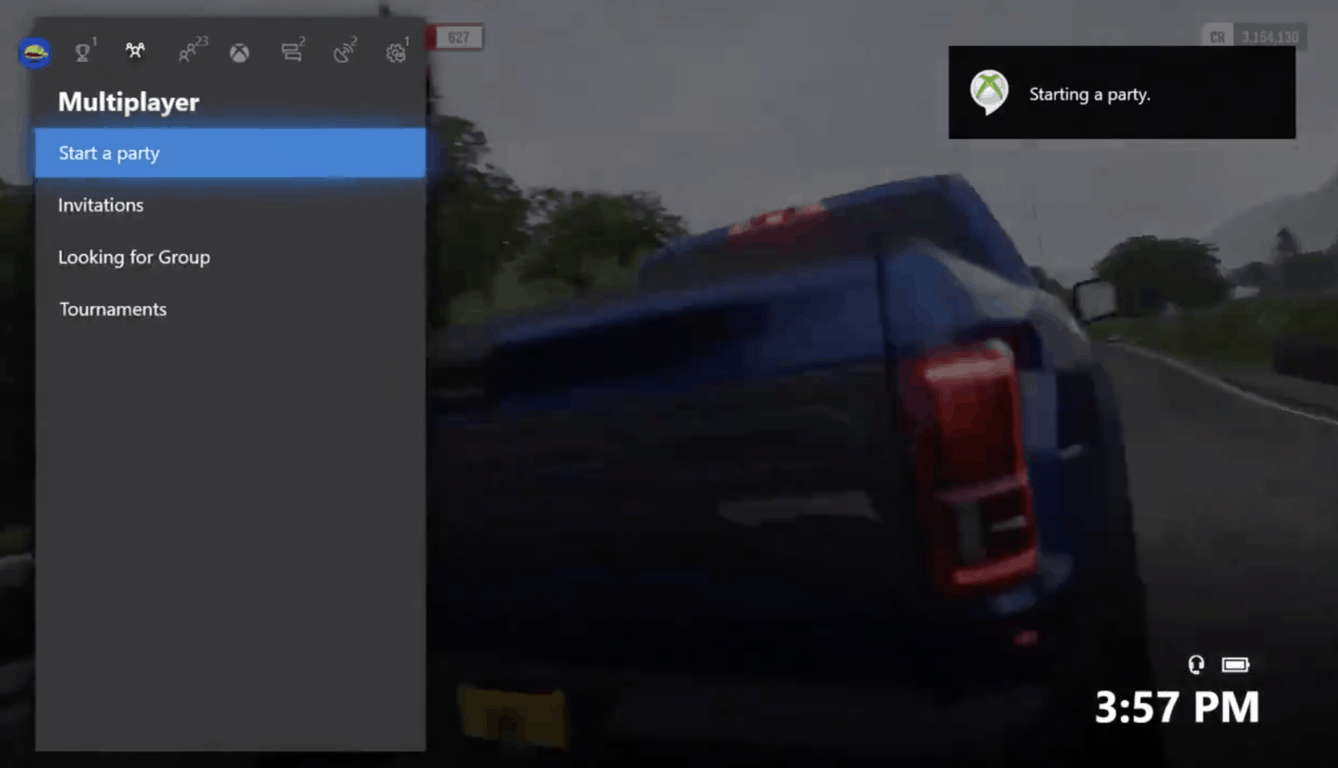
Red Dead Redemption 2 released its own version of battle royale yesterday on Xbox One. As noted in a post on the Rockstar Games’ blog, a new Red Dead Redemption 2 Online Beta update introduced “Gun Rush,” its own version of battle royale, along with a few other bug fixes and performance updates.
Gun Rush puts “your survival instincts to the test, gathering weapons and ammunition while the play area shrinks in this new mode for up to 32 players. Available to play now in Free-for-all and Team variations, where the last one standing wins.”
Rockstar promises more updates are on the way, including new Races and Showdown Modes, as well as new weapons, clothing, emotes, and new missions available to build on your character’s story. Rockstar used player feedback to come up with other Red Dead Redemption 2 Online Beta gameplay refinements:
Daily Challenges: Tackle new challenges each day covering every aspect of the game, from sharpshooting to evading the law.
Law and Bounty Upgrades: Some changes are coming to the way the Law and Bounty systems work in Red Dead Online to reduce the enticements for griefing. Soon, players will get a bounty for committing crimes and will be incentivized to pay them off within an allotted time. Wait too long and bounty hunters from each of the states will track the player forcing them to either pay up or escape.
Parley Changes: We’re making the Parley system easier to trigger so that you can avoid aggressive players more quickly. In addition, it will be easier to trigger Feuds, Posse Feuds and Leader Feuds to take on attacking players in structured competition.
Proximity-Based Player Blips: Player location blips will soon appear only over short distances, reducing the range at which you are visible to others, decreasing the likelihood of being targeted by another player across large areas.
Right now, Xbox One players can use the Red Chestnut Arabian Horse, Alligator Skin Ranch Cutter Saddle, and the High Roller Double-Action Revolver in the Red Dead Online Beta. Give Rockstar feedback on any in-game bugs, issues or features you would like to see in a future Red Dead Redemption 2 Online Beta content update.
Ever since Microsoft discontinued its efforts on its Windows 10 Mobile platform, many former users have moved to other platforms, namely iPhone and Android. Because of this, Microsoft has refocused its efforts to these systems, building new apps to bring their ecosystem to those platforms.
Over time, Microsoft pushed out what used to be Windows 10 Mobile exclusives, including Edge and Cortana, over to the iOS and Android platforms. While the company isn’t leaving the many proud iPhone users out of the equation given its releases of Edge and Cortana for that platform, it’s clear Android users will be able to make themselves feel even more at home to Microsoft’s services. This is because the company can virtually bake its services into those phones by installing a simple app: Microsoft Launcher.
Originally known as Arrow Launcher, the home screen app started as a Microsoft Garage project and has since been rebranded to become the central hub for users to use Bing, Cortana, and Microsoft News. Microsoft has taken features in Windows 10, such as Cortana, Timeline, more recently Sticky Notes, and brought them to Android thanks to this one app. Below are some of likely the most useful features you get with Microsoft Launcher over the stock version that likely comes with your phone.
Timeline—syncing activities between devices
Timeline first came to Windows 10 in the April 2018 Update as a way for users to easily jump from one PC to the next by syncing recently viewed activities. These include webpages in Edge as well as documents in Word, PowerPoint, and Excel, which are synced between devices in a single view. However, the feature became available to those on Android devices thanks to Microsoft Launcher’s 5.0 update, giving users a chronological list of activities browsed on Edge for Android as well as Office documents.
In Microsoft Launcher, activities are listed in a chronological list order, with the most recent being on top. Assuming your privacy settings allow this, the activities include Edge history from both your phone as well as what where you’ve been to on your PC.
Timeline can be accessed by swiping to the right in Microsoft Launcher.
I find this to be very useful, because often, I close tabs unintentionally, and Timeline is a very easy way to re-access the webpages I was on before. As a writer, I also find it handy that I can access a source article on my phone as well, and then quickly access the same link on my PC when I begin writing.
While certainly an interesting feature, many users are likely skeptical about it given its nature on user privacy. For this to work, Microsoft must sync all of the user’s activity of those supported apps and store them in the cloud, then redistribute the data onto other devices. It’s not a big issue for me as I am not big on privacy myself, but I can understand where the concerned people come from.
Cortana—your virtual assistant from Microsoft
Cortana is the assistant that comes on Windows 10 PCs and Xbox One consoles, although it was first released for the Windows Phone 8.1 platform to compete with the likes of Siri on iPhones. Microsoft Launcher includes integration with that same assistant, which can be accessed from the microphone icon either on the search bar or the Cortana card.
The Cortana card can display quick info, which she gathers from the system, including unread text messages, upcoming reminders, tracking info. She is especially useful because of her integration with Microsoft’s services, including Outlook, To-Dos, Bing, and Translator. She’s very basic if you use her though the Microsoft Launcher, however there is a dedicated app on the Google Play Store, which can additionally play music, and manage devices such as the Xbox or the Surface Headphones we recently reviewed.
Adding a reminder from Cortana also adds it to the Tasks list in Microsoft Launcher.
While I don’t use Cortana very often, I do find it to be useful when I ask her to add an entry to my to-do list, so that I can access the list later from the Tasks card. And speaking of cards…
Glance screen—a customizable list of pinned cards and widgets
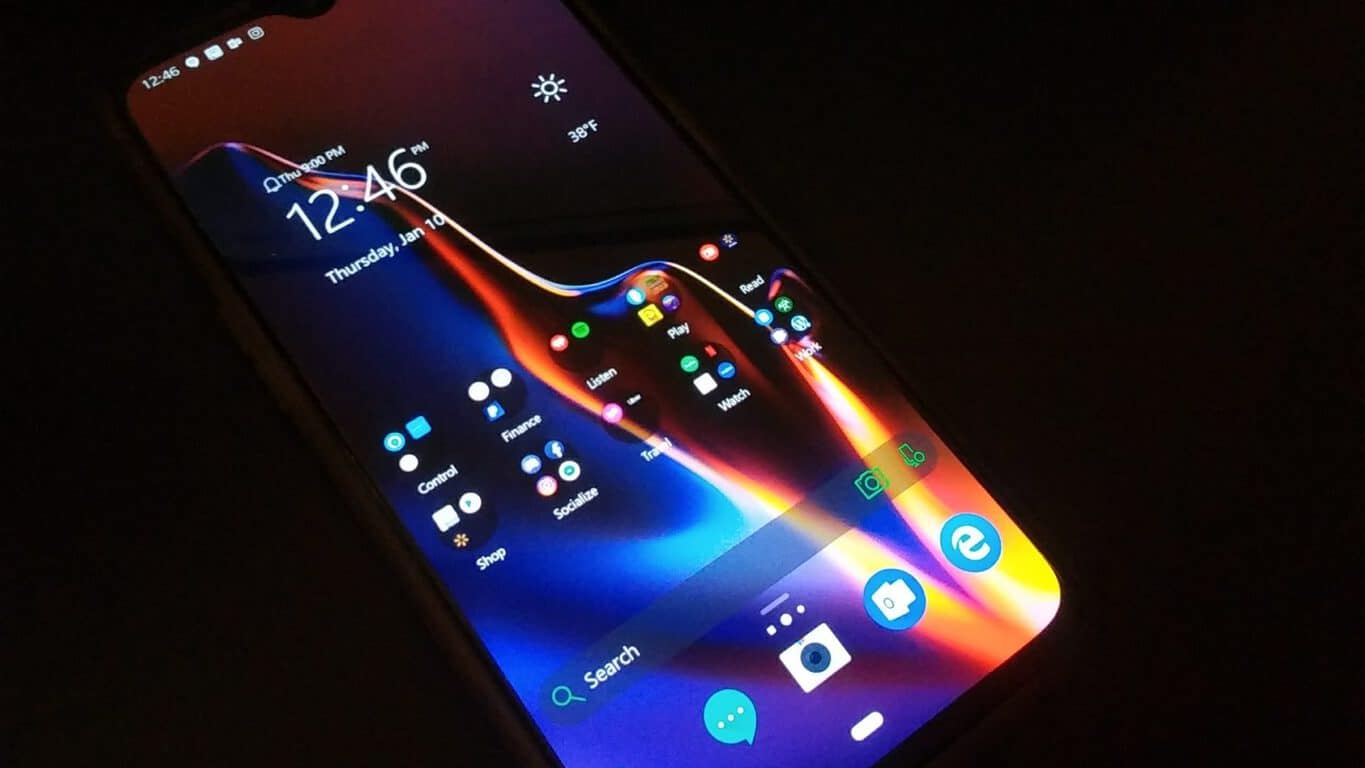
Most Android phones come with a left home screen with Google search and news. Apple devices show a customizable list of widgets, and even the OnePlus 6T lets you choose between a Google Search screen or a widgets list. Microsoft takes all this a step further by putting it all on a single glance screen, complete with info cards, widgets, news, and the Timeline history.
Cards are Launcher’s built-in information widgets, useful for displaying many different things, such as sticky notes, recent messages and emails, calendar, tasks, screen time, contacts, and recently opened documents and apps, just to name a few. And of course, if the cards aren’t enough, you can also add any Android widget to the list, which are fully customizable in height to suit the user’s preference.
Glance Screen as seen on the left, which is fully customizable as seen on the right.
I am a big fan of the vertical list of widgets. It’s how information should be sorted. Windows Phone and iOS got this right, with both platforms sorting tiles and widgets (respectively) in this order. On an Android phone, someone with a lot of widgets would have to use multiple home pages to sort all of this info, and resorting can also take extra time. Putting all of it in a vertical list makes it easier to access the info on one scrollable screen and saves me a lot of time rearranging the widgets if I want to remove one or add another.
Microsoft Launcher still has its fair share of issues
I really do enjoy using Microsoft Launcher. But there are a few issues that cause me to scratch the back of my head. For one, the expandable dock at the bottom is buggy. Rearranging icons can cause icons to mistakenly duplicate and track over each other, adding to frustration when the intention is to swap one app for another.
I would also like to see Microsoft expand the gesture settings a little bit. Right now, I’m using my phone’s home button to access the app drawer, reserving the upwards swipe for accessing the expanded dock. But I think it might be slightly more intuitive if I could set a slight swipe up to expand the dock, with a longer swipe opening the app drawer. Something similar is already incorporated into the Google Pixel’s new navigation introduced in Android Pie, where a slight swipe up brings up the recent apps and the dock, while moving the finger all the way up opens the app drawer.
Other than that, Microsoft has done an excellent job at bringing its ecosystem to Android devices, giving users quick access to Cortana and the company’s other services with just the one app. Adding the additional apps like the Edge browser, Outlook, OneNote, To-Do and the countless others makes for a terrific Windows Phone alternative. Why not try it for yourself?
Since Microsoft’s has discontinued its Kinect 2.0 for the Xbox One, the company has been trying to replace the intuitive Kinect voice commands by launching Xbox skills for Cortana and Alexa. Unfortunately, voice commands through these digital assistants has never been as good and intuitive as the original Kinect voice commands, but Microsoft is apparently working on a fix.
As reported by Windows Central today, it seems that Microsoft has quietly upgraded the Xbox voice commands on the Cortana-powered Harman Kardon Invoke speaker, as well as Amazon’s Echo speakers with Alexa. If you own one of these devices, you can now use more natural voice commands like “Hey Cortana, launch Netflix” or “Hey Cortana, go Home” to interact wit your Xbox One. Previously, you need to formulate your voice commands like “Hey Cortana, tell Xbox to…” for the console to respond, which was a bit cumbersome.
Invoke + Xbox integration got an update today. It's so much faster now, and doesn't require you to say "on Xbox" for it to function. Now works like if you were using Kinect natively for voice commands. It's AWESOME pic.twitter.com/i31dpeUR8F
For now, these more intuitive voice commands seem to be restricted to connect speakers, and they’re not working yet on the Cortana and Alexa mobile apps. Microsoft is still selling the Harman Kardon Invoke on its online store for $49.95, though the device is still exclusive to the US. Amazon Echo products are available in many more markets, though be aware that the Xbox skill for Alexa is currently only available in the US and in beta in the UK.
Halo 5: Guardians is now free to play on Xbox One consoles for gamers with an active Xbox Live Gold membership. The full game can be downloaded and played from the Microsoft Store and all progress and Achievements will save to the cloud and carry over to a purchased version of the game should players choose to buy it at a later date.
This free period for Halo 5: Guardians will remain active until the end of this weekend, on Sunday night. It should be noted that Halo 5: Guardians is also currently free to play for Xbox Game Pass subscribers and that those who use Microsoft’s game subscription service will continue to be able to play it for free after this weekend is finished.
Halo 5: Guardians is the most-recent entry in the main Halo video game series. Its sequel, Halo Infinite is currently in development. Not much is known about Halo Infinite beyond the new visual style glimpsed in its initial teaser video, the fact that it will include microtransactions, and that it will be made with esports in mind. It’s officially been announced to launch on Windows 10 and Xbox One though a release on Microsoft’s next Xbox console could be a possibility depending on how long development takes.
Microsoft has released the first Windows 10 build preview of 2019. The Windows 10 Insider Preview Build 18312 shows us a few more new things that the 19H1 update will add to the platform. The latest 19H1 update preview introduces new reserved storage and modified UI design for the Reset this PC window among other refinements.
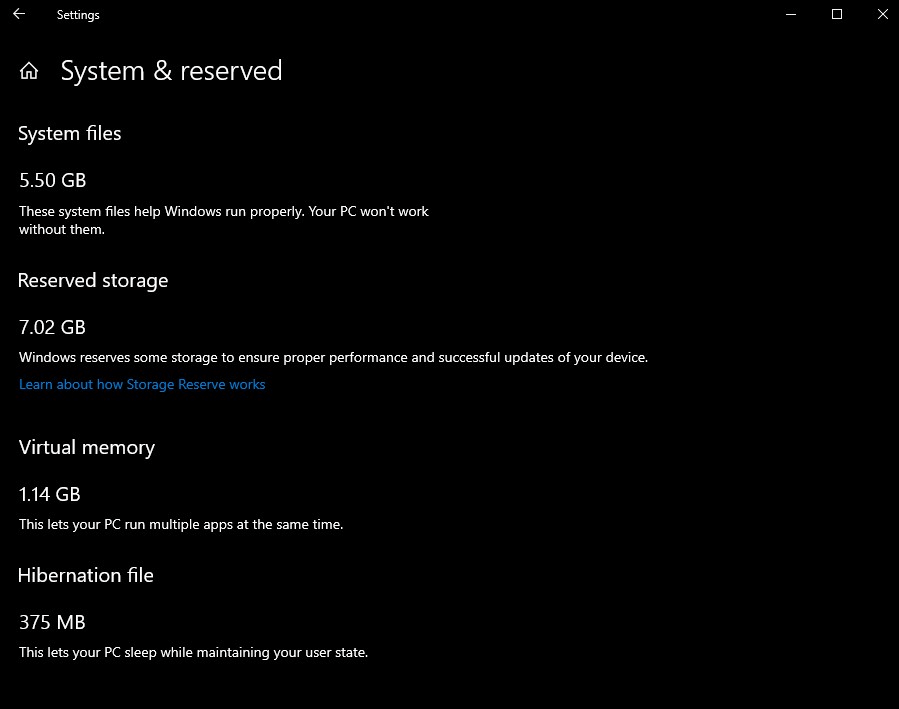
The reserved storage is the most notable new feature the 18312 preview build includes. It reserves, or allocates, storage for updates, apps, caches, and temporary files.
That will ensure users don’t need to manually free up hard drive storage space for new updates as temporary OS files in reserved storage get automatically erased. The default value for reserved storage will probably be about seven GB.
Note, however, that Microsoft is only including reserved storage on devices that come with Windows 10 version 1903 pre-installed. At the moment, Windows Insider Program users also need to modify the registry with the Registry Editor to enable reserved storage. Microsoft’s Windows Insider Feedback Hub provides more details on how users can enable reserved storage.
The Reset this PC window, with which users can reset Win 10, has a modified UI design in the latest preview build. Microsoft has not drastically redesigned the Reset this PC window.
However, Microsoft’s 18312 blog post states that, “The new UI provides a more consistent experience across devices with different configurations and requires fewer clicks to complete.”
Windows Subsystem for Linux is a Windows 10 utility that enables users to quickly install and run Linux distros. Microsoft has also confirmed that the WSL includes new consolidated command-line options in the latest 18312 build preview. Now WSL users can utilize the ‘– import’ and ‘– export’ options to import tar file and export distributions to tar files.
Previous Windows 10 preview builds for the 19H1 update have also shown that version 1903 will include a new Game bar gallery, revamped system light theme, sandbox mode, search index settings, and more besides.
Windows Sandbox is one of the more notable new additions to version 1903 that enables users to run programs within an “isolated, temporary desktop environment.” The new Game bar gallery enables users to look through captured snapshots and videos within games and share the content on Twitter.
Microsoft has not yet confirmed any release date for the 19H1 update. However, the company usually rolls out the spring updates in April. Version 1903 will be the seventh build version of Windows 10 when it rolls out.
Do you own a Lenovo computer? Are you experiencing Bitlocker recovery issues? Maybe a better way to formulate the second question is this: ‘How long have you been experiencing Bitlocker issues on Lenovo Ideapad laptops for?’
Although there hasn’t been much media coverage of this topic, thousands of users are still affected by this problem.
What’s up with these Lenovo Bitlocker issues?
First of all, judging by user reports, it seems that this problem often affect Lenovo IdeaPad 100S laptops. Long story short, after installing new updates, users are constantly getting Bitlocker blue screen of death errors asking them to enter the recovery key. This happens even if users haven’t set up a recovery key.
Who to blame?
Technical issues do occur sometimes due to hardware and software incompatibility problems, incorrect settings or other specific causes. Identifying the exact root-cause of the problem and developing a permanent solution or a hotfix is of paramount importance.
Unfortunately, in this Lenovo-Bitlocker case, things are a bit complicated. Both companies blame each other for this problem. Microsoft says this is an issue for Lenovo to sort out and the other way around. This only adds up to user frustration.
My Lenovo 100s got a Microsoft update on 2/11/18. Since restarting I get the bitlocker blue screen asking me to enter the recovery. I never set one up, was never asked to set one up, so don’t have one. Been backwards and forwards with Lenovo, who say they are working on the problem and have now said it is a problem for Microsoft to sort out. Contacted Microsoft who have said it is a hardware problem for Lenovo to sort.
What causes this problem?
As users already pointed out, Lenovo Ideapad 100S does not have a TPM chip installed. Moreover, the hard drive is not partitioned and there is no separate boot option. As such, the device does not meet the criteria for Bitlocker to be enabled.
What does Lenovo customer support say about the Bitlocker issue? Lenovo support agents already advised users to wait on a Microsoft hotfix for this problem.
How do I fix Lenovo IdeaPad 100S Bitlocker issues?
A potential solution to fix this problem is to complete deplete your battery and then run recovery media. Here are the steps to follow as sent to one user who requested technical support:
A resolution for your Bitlocker issue may be to run recovery media after your devices battery has been drained.
Please spend the next few days draining this battery as you see fit.
In the meantime please create yourself a Recovery Media using the below steps (on a separate device);
Here is the link of the Microsoft page. And the direct link for the tool.
(Follow the steps on the first link to create an installation media on a USB drive) When this is created and the battery is completely empty please follow these steps to run this.
Please do ensure that your device is fully drained of power and that you start this process as soon as you place the device on charge to provide power.
We’ll keep an eye on this Microsoft-Lenovo ping-pong dialogue and update this post as soon as new information is available.
The newest Patch Tuesdayupdate for Windows 10 v1803 bears the code name KB4480966. This is a security-focused patch that adds a series of improvements and fixes to various Windows OS components such as PowerShell, the Edge browser, Microsoft Virtualization and more.
For more information about the complete changelog, you can check out Microsoft’s official update page.
Unfortunately, this patch also brings quite a few issues of its own. There are already four known issues listed on the support page. Unfortunately, the list of potential bugs does not end here.
In this quick report, we’ll list all the known issues affecting KB4480966, as well as some of the most common bugs reported by users. In this way, you’ll know what to expect. Let’s dive right in.
KB4480966 known issues
After you install the August Preview of Quality Rollup or September 11, 2018 .NET Framework update, instantiation of SqlConnection can throw an exception. Microsoft is working on a fix. If we’re lucky, we might get it with the upcoming Patch Tuesday edition.
Some users cannot pin a web link on the Start menu or the taskbar. Again, the big M is working on a fix.
The cluster service may fail to start with the error “2245 (NERR_PasswordTooShort)” if the Group Policy “Minimum Password Length” is configured with greater than 14 characters. As a workaround, you can set the domain default “Minimum Password Length” policy to less than or equal to 14 characters.
Third-party applications may have difficulty authenticating hotspots. The good news is that a hotfix is scheduled for release in mid-January.
And now, let’s see what issues users have reported so far.
KB4480966 reported bugs
Windows DLL file flagged as malware
Some anti-malware tools may flag d2d1.dll as being a Trojan agent.
If you’re getting similar alerts –irrespective of the anti-malware solution that you’re using — rest assured, there is nothing to worry about. This is a false positive. D2d1.dll is a legit Windows system file. Most likely, the DLL has been modified in the update. As a result, the new version does not appear in some security software databases trigerring this Trojan alert.
Error 0x80070057
Some system may fail to recognize this update if installed manually. Consequently, the respective PCs may throw error 0x80070057, as this user reports.
Cumulative Update for Windows 10 Version 1803 for x64-based Systems (KB4480966) – Error 0x80070057
I have manually updated but the updater doesn’t recognize the manual update. I really do not want to manually update my pc for every subsequent update. Why is this not recognizing the manual update or actually updating?
Database format unrecognized
This is an issue that’s affecting all the January 2019 Patch Tuesday updates, irrespective of the OS version that you’re running.
I have many sites using my VB6 app that uses MDBs. Since Windows update KB 4480966 was rolled out yesterday they are all getting an “unrecognizable database format” error at various parts of my program. It can load the database for some parts of the program but not others presumably based on the different tables being accessed.
As a workaround, you can simply uninstall the update and reinstall it after Microsoft has deployed a permanent fix for this issue.
Update error 0x800f080d
Quite a few users could not install KB4480966 due to error code 0x800f080d.
So i’ve been trying to troubleshoot this using the troubleshooting section of my settings and I can’t seem to figure it out. My error code is 0x800f080d, and the update I’m trying to download is (KB4480966).
While we don’t have a specific solution for this problem, you may try to use the troubleshooting methods available in the guides below. Maybe some of them will work for you.
These are some of the most common KB4480966 bugs. If you encountered other errors or problems after installing this update, let us know in the comments below.
The winter holiday season is over and Microsoft is back in business. The IT giant has recently rolled the January 2019 Patch Tuesday updates, adding two important security improvements to all Windows 10 versions.
If you go to Windows Update and hit the ‘Check for updates’ button, you’ll find the following patches:
KB4480116 for Windows 10 version 1809 and Windows Server 2019
KB4480966 for Windows 10 version 1803
KB4480978 for Windows 10 version 1709
KB4480973 for Windows 10 version 1703
KB4480961 for Windows 10 version 1607 and Windows Server 2016
Basically, these five updates pack the same fixes and improvements. Namely, they:
Address a security vulnerability in session isolation that affects PowerShell remote endpoints. By default, PowerShell remoting only works with administrator accounts, but can be configured to work with non-administrator accounts. Starting with this release, you cannot configure PowerShell remote endpoints to work with non-administrator accounts. When attempting to use a non-administrator account, the following error will appear: “New-PSSession: [computerName] Connecting to remote server localhost failed with the following error message: The WSMan service could not launch a host process to process the given request. Make sure the WSMan provider host server and proxy are properly registered. For more information, see the about_Remote_Troubleshooting Help topic.”
Add security updates to Microsoft Edge, Internet Explorer, Windows App Platform and Frameworks, Windows MSXML, Windows Kernel, Windows Storage and Filesystems, Windows Wireless Networking, Microsoft JET Database Engine, Windows Linux, Windows Virtualization, and the Microsoft Scripting Engine.
Apart from these two improvements, Windows 10 v1809 KB4480116 also fixes the issue where using esentutl /p to repair a corrupt Extensible Storage Engine (ESE) database results in a mostly empty database. As a result, the ESE database get corrupted and cannot be mounted.
It is worth mentioning that Windows 10 v1607 KB4480961 also addresses an issue that may sometimes prevent the cluster service from starting if the Group Policy “Minimum Password Length” is configured with greater than 14 characters. When this issue occurs, your computer will display error 2245 (NERR_PasswordTooShort)”.
You can automatically download and install the Windows 10 Patch Tuesday updates via Windows Update. If you want to download the stand-alone update package, you can go to Microsoft Update Catalog. Enter the KB number that you want to install and then hit the download button.
Yesterday, we reported about the Invalid Handle errors that Windows 7 users got after installing the January 2019 Patch Tuesday updates. As a quick reminder, apart from the invalid handle problem, some users encountered additional issues, including: SMBv2 sharing issues and database errors.
Microsoft confirms bugs in KB4480970
Well, following the wave of user complaints, the Redmond giant has officially acknowledged that KB4480970 is indeed causing three really annoying issues.
1. Network interface controller won’t work
Microsoft explains that after you apply this update, the network interface controller may stop working on some client software configurations. This occurs because of an issue related to a missing file, oem<number>.inf. The exact problematic configurations are currently unknown.
2. Error 0xc004f200
In some cases, this update may trigger KMS Activation error,“Not Genuine” 0xc004f200.
3. Windows Server 2008 remote access issues
And the third problem officially acknowledged by Microsoft concerns access shares on Windows Server 2008. Mores specifically, local users who are part of the local “Administrators“ group may not be able to remotely access shares on Windows Server 2008 R2 and Windows 7 machines after installing the January 8th, 2019 security updates. This does not affect domain accounts in the local “Administrators” group.
How to fix KB4480970 issues
Microsoft was kind enough to also post some workarounds for two of the bugs listed above. Unfortunately, there is no workaround available for error 0xc004f200 but Microsoft said its engineers are investigating the issue.
Fix network interface controller issues
Launch devmgmt.msc to locate the network device.
Go to the Action menu > click Scan for Hardware Changes to rediscover the NIC and install drivers.
You can also install the drivers for the network device by right-clicking the device and choosing Update. Select Search automatically for updated driver software or Browse my computer for driver software.
This quick workaround should solve the problem.
How to fix Windows Server 2008 issues
Microsoft recommends to use either a local account that is not part of the local “Administrators” group or any domain user (including domain administrators).
Of course, if nothing worked, you can simply uninstall the update.
Mojang, the studio that develops Minecraft and is owned by Microsoft, wants to celebrate 2019 by seeing what builders create in 2019. This also celebrates the recent release of version 1.9, the second of the Village and Pillage updates, the latest of which adds bamboo, scaffolding, pandas, and new cats.
To make things even sweeter (not that they could be when you have pandas), the company is going to put its favorite creations to be featured on its website at Minecraft.net. The site has been needing a makeover now that the year is new, especially seeing as how the screenshots used are, well, from last year. So now’s your chance as a Minecraft fan to show the world what you really know how to build something great!
To help you and others get familiar with the new items, the developers are also giving players a few tips to get started.
Bamboo, the panda’s favorite food and hiding place, can be a great plant for your garden. That is, if you can handle its incredibly fast growth rate. In addition to its usefulness in foodmaking, it can also look really nice as decoration if you combine them with flowers here and there.
The new scaffolding blocks are, in a sense, like elevators, except more natural and better for the environment. That’s because it allows the user to move up and down tall structures without the risk of fall damage. And what’s more, if you don’t need them anymore, just break the block at the bottom and all of the ones at the top will come falling down.
The developers are also encouraging use of blocks from previous version as well, such as the coral blocks and dried kelp from the Update Aquatic version. What do you plan on building? Feel free to share below.
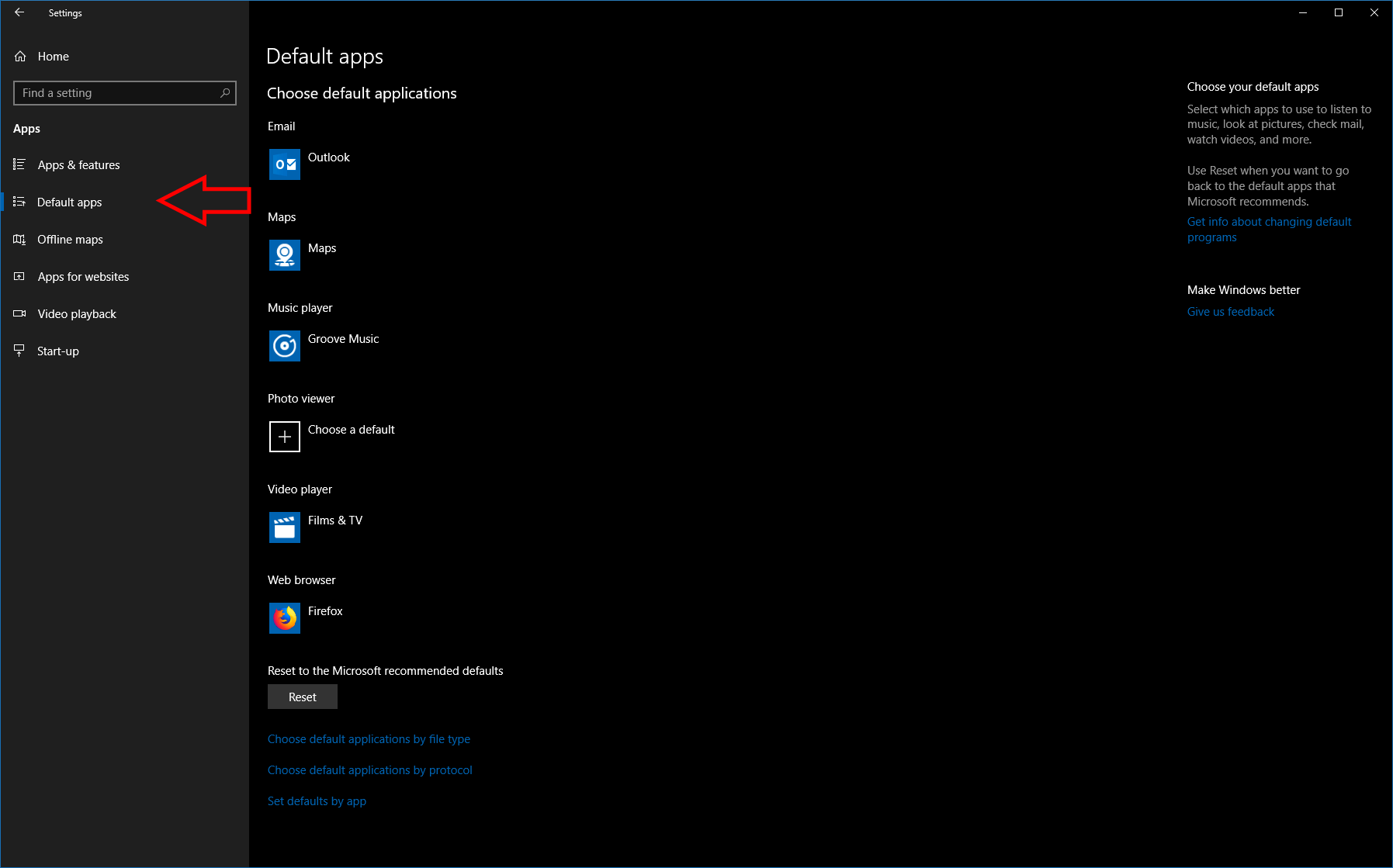
Windows’ default app settings decide which apps launch automatically when you open a file or perform certain tasks. Out of the box, Windows will use its built-in apps, so you’ll get Microsoft Edge for web browsing, the Mail app for email and Photos for image viewing. These options can be changed though, letting you ensure tasks are always completed using your favourite apps.
Once you’ve installed your desired apps, head to the Settings app to start changing your default applications. Click the “Apps” category from the homepage and then navigate to the “Default apps” page within the section that opens.
At the top of the page, you can select your default app for each of six common tasks – email, maps, music, photos, videos and web browsing. The currently configured app is shown by default. To make a change, click the app’s name.
A menu will appear showing all the installed apps associated with the task category – media players will be offered for the “music player” category, while email clients will be shown for “Email.” Click the app you want to use as your default to configure it.
The impact of the change will vary depending on the app category. In general, default apps will be used when an app needs to be opened by the system or another program. For example, the default web browser will open links you click in your email app, while the default email client is the one that will draft new messages when you click an email address on a webpage.
You can get more fine-grained control over your default apps using the three links at the bottom of the page. The first two, “Choose default applications by file type” and “Choose default applications by protocol,” give you granular control over the circumstances in which an app should be considered the default.
If you want Microsoft Photos to be your default photos app, but need JPEG files to always open in Adobe Photoshop, you can configure this with a file type association. Find the “.jpeg” file extension in the “Choose default applications by file type” list and click the displayed app name to change the default.
Finally, the bottom-most link, “Set defaults by app,” displays a list of all your installed apps. Clicking an app and then pressing the “Manage” button will reveal a list of all the file types and protocols that it can act as the default for. This gives you a simple way to make an app the default for all the file types it supports.
It’s worth noting that you’ll generally only need the main “Default apps” page in settings, unless you’re an advanced user looking for more precise control. Many program installers let you register new apps as defaults for their category or file types during setup, so look carefully for these options when you add new software. If you want to change these defaults later, or reverse an unintended change made by a program installer, just head back to the “Default apps” page in Settings.
The developer of the popular third-party YouTube app, yTube, has released a statement which has been shared on Reddit. In it, he goes over what has been improved in the latest app update, which went live today, and also shares his plans for yTube going into 2019 on Xbox One, Windows 10, and Windows 10 Mobile.
Of particular note is mention of Version 4.0 which is currently expect to launch in at least beta by March this year. Here’s the complete statement:
All Platforms
Seeking forward in long videos is now significantly faster! When you jump to the 30 minute mark in a video, playback will resume in less than 10 seconds on the average connection. This has been a problem in myTube for a very long time, and the solution was fairly complicated to implement, but I’m happy I’ve finally been able to work this out for you guys!
There have been lots of tiny design changes throughout the app. For instance, the notification you clicked on to bring this message up has been completely changed. Comments have been redesigned as well, and there are many other subtle changes to make things look a little cleaner.
This update fixes a bug where videos weren’t being added to your watch history, as well a bug where videos couldn’t be removed from watch later. This update also fixes a bug where the video player UI would sometimes go into a false “buffering” state even though the video was playing.
PC & Mobile
It’s now possible to create offline playlists for your saved videos! Just click “Add to” on any of your saved playlists and click “New” to make a new playlist; you’ll have the option to make it an offline playlist. Then you can add any of your saved videos to that playlist ?
A new acceleration curve has been added when seeking using touch. This should make it easier to seek to precise timestamps in long videos using touch.
The system media controls that appear when you press the volume button now linger after a video/audio has ended. So if the song you were listening to in the background ended, you can just bring up the controls and hit play to repeat the song, no need to re-open the app anymore.
On PC specifically, you can now press up and down to select search suggestions while typing into the search box. You can now also seek to specific points in a video by pressing the numbers on your keyboard.
Xbox
The default playback controls have been changed slightly. Seeking has been moved from the right stick to the triggers. Changing playback speed has been asigned to up/down on the right stick.
Don’t like these changes to the playback controls? Now you have the ability to change them to whatever you want! Playback controls can now be mapped to your liking to the two bumpers, two triggers and all 4 directions on right stick! You can assign play/pause toggle, manual seeking, seek by 10 seconds, playback speed, and frame-by-frame to these controls. You can map the controls from the playback section of the app’s settings, or by pressing the Menu button on the controller while playing a video.
That’s it!
That’s the most important stuff from this update, but there were a lot of other small changes that you can see in the changelog using the link below (thank you Arlo, the creator of “myTube! Companion,” for building me a new changelog page).
Enjoy the update!
Cheers, Chris
Hi everyone,
I’ve had a small tradition with myTube’s development process since 2014. When myTube reached version 1.5 nearly 5 years ago, I started working on myTube 2.0. Then when version 2.5 came, I started work on myTube 3.0. Today we hit version 3.5, and the tradition will continue with myTube 4.0 in 2019!
While 2.0 and 3.0 were completely rebuilt from scratch, that won’t be the case for 4.0. Instead, I’ll be taking the current app and overhauling it from the inside out. Hopefully that means development won’t take a whole year this time, but no promises haha. At the very least, you can expect 4.0 to be available in beta by early March!
There’s a lot of stuff I have planned that I want to tell you guys about, but I won’t spoil the surprises until later. As with 3.0, I’ll be keeping you up to date on 4.0’s development progress with occasional messages ?
Windows 10 includes plenty of Microsoft services. Those are basically small programs that provide a specific OS service. Some of those services are essential to Windows 10, but there are less essential services that users can turn off if they don’t need them.
Windows 10 services consume system resources just like third-party software. Users can see services’ system resource consumption on Task Manager’s Processes tab (shown directly below). They don’t usually hog as much RAM as third-party software. However, there are still numerous superfluous Windows 10 services that waste system resources.
Players often close third-party software before running games, but might sometimes overlook Windows 10 services. Yet, turning Win 10 services off can also free up more RAM for gaming. So it’s worth turning off some services before launching a game. These are some of the superfluous Windows 10 services players can disable for gaming.
What Windows 10 services can I disable for gaming?
Print Spooler
The Printer Spooler stores multiple print jobs within a queue. Thus, this service is essential for printing. However, users who don’t have printers can certainly turn this service off. Users with printers can at least temporarily disable the Printer Spooler before playing a game, and then turn it back on later.
Windows Insider Service
The Windows Insider Service provides essential infrastructure support for Microsoft’s Windows Insider Program, which gives registered users a preview of future Windows 10 build updates.
However, users who aren’t registered with the Windows Insider Program can certainly turn off this one. At any rate, it’s certainly OK to turn this service off temporarily and switch it back on when it’s needed.
Bluetooth Support Service
Bluetooth enables users to wirelessly connect devices, such as speakers, with their desktops or laptops. The Bluetooth Support Service is essential for Bluetooth connectivity, but it’s not essential for the Windows 10. So anybody who doesn’t have any Bluetooth devices to connect can certainly turn off the BSS.
Fax
Faxing is on its way to becoming obsolete. So does Windows 10 really need the Fax service that enables users to send and receive faxes? No, of course not, and users who have long since chucked out their fax machines can disable this service.
Remote Desktop Configuration and Remote Desktop Services
Win 10 includes a Remote Desktop utility with which users can connect to another PC. The Remote Desktop Configuration and Remote Desktop Services are both essential to have enabled to remove desktop connectivity. Users who don’t need remote connectivity can disable both of those services.
Downloaded Maps Manager
Download Maps Manager enables map apps to access downloaded maps. Windows 10 includes a Maps app that certainly needs this service enabled. However, users who don’t utilize any map apps can turn off the DMM service.
Windows Mobile Hotspot Service
The Windows Hotspot Service enables users to share a mobile device’s internet connection with a laptop or desktop. Those who often utilize mobile hotspots will need to keep this on. However, users who have no need for a mobile hotspot can disable this service.
Windows Defender Firewall
It’s not usually recommended that users turn off Windows Defender Firewall, which can block software connections. However, that’s not really an essential system service; and the firewall can also block multiplayer games. Thus, it might be a good idea to temporarily turn off the WDF before playing a game. Note that some third-party antivirus software also incorporates firewalls, so you might not need the Windows Defender Firewall service on at all.
Touch Keyboard and Handwriting Panel Service
The Touch Keyboard and Handwriting Panel Service enables the touch keyboard in Windows 10. However, few users ever need Windows’ on-screen touch keyboard. As such, most users can turn off the Touch Keyboard and Handwriting Panel Service.
How to Turn Off the Above Windows 10 Services
Users can disable all off the above services via the Services window. To do that, press the Windows key + R hotkey.
Enter ‘services.msc’ in Run’s Open text box, and press the OK button.
Then double-click one of the above services to open its properties window as in the snapshot below.
Select Disabled on the Startup type drop-down menu.
Press the Apply button.
Click the OK button to close the properties window.
Users can turn service back on if ever required by selecting the Automatic option on its Startup type drop-down menu.
Turn Off Third-Party Services
Many third-party software packages have their own services. Those services typically provide automatic updates for programs. For example, the Adobe Acrobat Update Service updates Adobe applications. Those third-party software services consume system resources, but none are essential to Windows 10.
Users can turn off third-party services via the Services window. However, the System Configuration utility (otherwise MSConfig) includes a handy Disable all option with which users can quickly turn off all third-party services to free up more RAM. This is how users can quickly turn off all third-party software services.
Open the Run by pressing the Windows key + R keyboard shortcut.
Enter ‘msconfig’ in Run’s text box and click OK to open the window shown directly below.
Click the Services tab shown in the snapshot below.
Select the Hide all Microsoft services setting to exclude them from the listed services.
Then select the Disable all option.
Click the Apply button.
Click OK to close the window.
Press the Restart button on the dialog box window that pops up.
Turn Off Windows 10 Services With Wise Game Booster
Wise Game Booster is game booster software with which users can optimize their desktops or laptops for gaming. The software includes a Service Optimizer tab that lists superfluous services that can slow down games. Users can then select to disable the service with the software.
Click the Free Download button on the Wise Game Booster page to download and install this software. Then users can open the Service Optimizer tab shown directly below after they’ve launched Wise Game Booster. Press the Stop Service buttons to turn off the listed services.
Wise Game Booster also includes a handy Optimize Now button that will optimize listed items to enhance gaming. Users can select that option by clicking the System Optimizer tab. Then press the Optimize Now button.
Turning off the non-essential Windows 10 services listed above, along with third-party software services, can potentially free up quite a bit of RAM. Players need as much system resources as they can get for the latest Windows games, so don’t forget to disable some of those superfluous services.
Ultimate Marvel vs Capcom 3 and Just Cause 3 are both now available to play on Xbox One for Xbox Game Pass subscribers. While these video games came out back in 2017 and 2015 respectively, they’re both rather major releases so their addition to Microsoft’s Netflix-like subscription service is a boon for current members.
Ultimate Marvel vs Capcom 3 isn’t the latest entry in the Marvel vs Capcom fighting series but it is one of the more-popular ones. This particular Ultimate version is a re-release of the 360 game with improved graphics and all of the downloadable content characters included straight out of the box.
It features local multiplayer for two players, online multiplayer for up to eight, and a large number of popular Capcom and Marvel characters to play as such as Wolverine, Iron Fist, Ryu, Phoenix, Thor, and Deadpool.
Just Cause 3 is the third entry in the Just Cause action series which is garnering a lot of buzz right now due to the release of Just Cause 4 on Xbox One last month. The game features a large open world to explore, loads of action and explosions, and numerous vehicles to drive like speedboats, jets, helicopters, and sports cars.
Many Windows users are getting ‘The Handle is Invalid’errors when they try to connect to Windows servers. It seems that this error code is affecting mainly Windows 7 users.
Today after installation of KB4480970 (automatically by Windows Update as Important) to our Windows 2008 R2 Standard Server the server stopped serve Clients by shared storage (haven’t tried anything else). The Client has issued an error Invalid handle and couldn’t connect (tried on Windows 7 Pro SP1 clients with installed KB4480970 only). After uninstallation it started work again, so the problem is positively in the KB4480970. Pls stop distribute the KB4480970 to the Windows 2008 R2 Server and correct the behavior.
However, some Windows 10 users have complained about this problem as well.
It seems that uninstalling the updates can help you to solve this issue.
For the time being, there is not much information about this error code. We’ll update this news articles as soon as new details are available.
UPDATE: We found another report on Reddit about the same invalid handle error:
Is anybody else having issues with shared drives on 2k8 after last night’s security updates?
Everything was just fine – until this morning. All workstations throwing an error trying to access shared drives on a 2008 server – The handle is invalid. Pings out via IP and hostname. Can’t browse to it.
At this point, all the reports seem to indicate that the problem affects Windows 2008 servers.
Let us know if you’re experiencing the same issue in the comments below.
UPDATE: Microsoft has officially acknowledged that these issues are triggered by Windows 7 KB4480970. The company also provided users with a few workarounds to help them fix this issue. Meanwhile, its engineers are working on a permanent fix.
Read more about these Patch Tuesday update issues in the articles below:
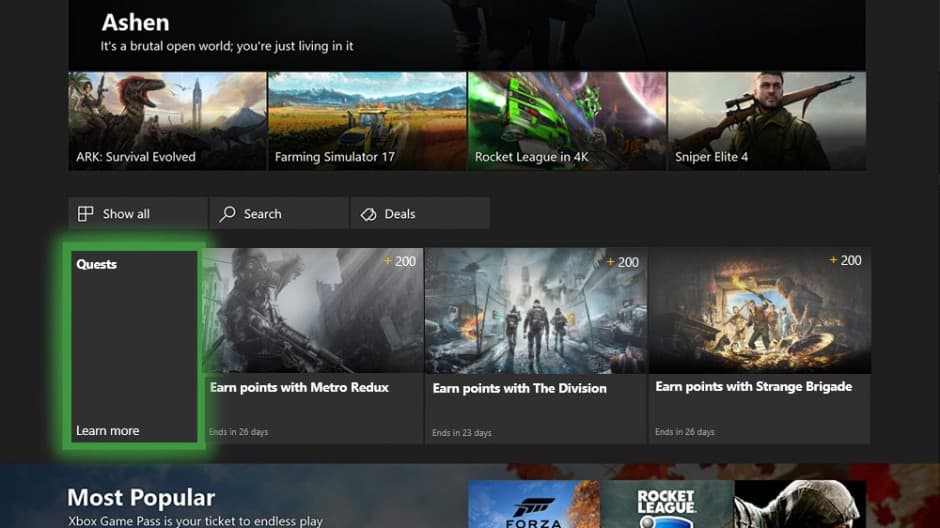
Xbox Game Pass, Microsoft’s Netflix-like video games subscription service is already a great way to try new games on Xbox One, but Microsoft is now leveraging its Microsoft Rewards program to encourage even more discovery. The company has just announced seven Xbox Game Pass quests for January, which will allow gamers to earn Microsoft Rewards points by playing any game in the catalog.
“Members can earn up to 2100 Microsoft Rewards points by playing any game from the Xbox Game Pass catalog. It’s easy to rack up points that you can spend towards your membership or DLC for your favorite games — just play the games you love and watch your rewards grow,” the blog post on Xbox Wire reads.
Three of the seven Xbox Game Pass quests for January will require you to play Tom Clancy’s The Division, Strange Brigade and the two Metro Redux games, but the four other quests can make you earn Microsoft Rewards points by playing any game in the catalog. You can find the full details about the different quests below:
Extraction Expert: Complete two specific extraction achievements in Tom Clancy’s The Division to get up to 200 points. You earn points with each achievement. Complete this before January 31.
Metro Redux: Play Metro 2033 Redux and Metro: Last Light Redux to complete four specific achievements and get up to 200 points. You earn points with each achievement.
Adventurer: Bring out your inner adventurer and get up to 200 points when you complete two specific achievements in Strange Brigade. You earn points with each achievement.
Achievement Hunter: Get points with your first achievement and continue to complete up to 21 achievements in any combination of Xbox Game Pass games to get a maximum of 600 points.
Genre Explorer: Get 300 points when you complete an achievement in three games from different genres.
Play something new: Complete an achievement in a Xbox Game Pass title that was added in December to get 100 points.
Quest Master: Complete all Xbox Game Pass quests to get an additional 500 points.
This kind of synergy is a pretty great way to encourage Xbox gamers to subscribe to Xbox Game Pass and spend more time playing and discovering new games. Since Xbox Game Pass launched back in June 2017, Microsoft has observed that “members increase their total time gaming on Xbox by almost 20% more than before and are also increasing their total number of games played by almost 40%, including titles outside the Xbox Game Pass catalog.”
Unfortunately, Xbox Game Pass quests are restricted to the US for now, but it’s apparently not a limited-time experiment. “We’ll have new quests lined up every month and will unlock the next set of quests on February 4,” the company said today. If you live in the US, you can head to the Xbox Game Pass membership area on your Xbox One console to check out your quests and start earning those Microsoft Rewards points.
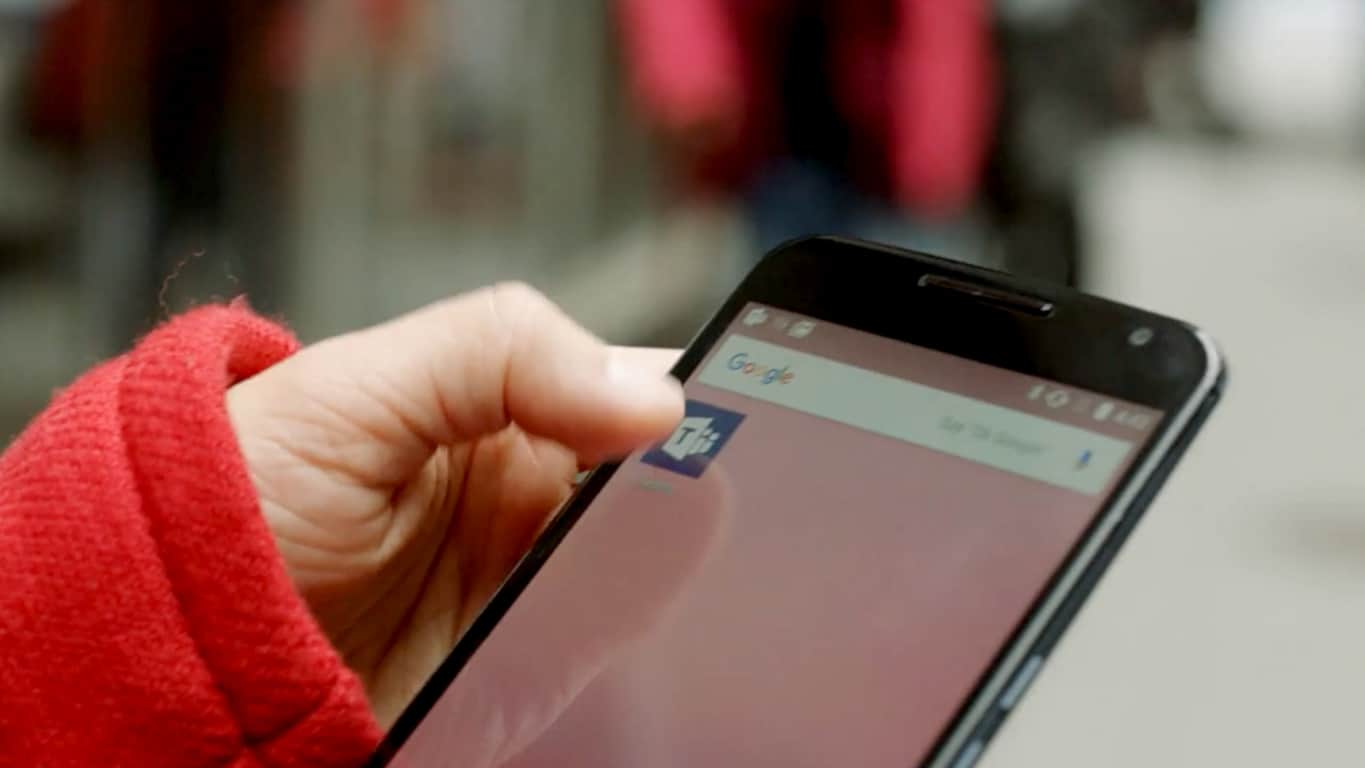
Microsoft Teams, the hub for teamwork in Office 365, is getting three new capabilities to help Firstline Workers be more productive, the company announced today. The first new feature is a customizable Teams mobile experience, which will allow IT administrators to enable specific features like location sharing, the ability to record and share audio messages, as well as a “smart camera.”
This customizable Teams mobile experience is available starting today, and this is all about giving Firstline Workers easier access to the tools they really need. “This capability can be used for employees in any role, with the option for IT to create a custom policy or use the newly available Firstline Worker configuration policy template. Employees can further customize their experience by pinning the modules they need most from their module tray to their navigation bar,” explained Emma Williams, Corporate Vice President of Modern Workplace Verticals.
The second new feature that Microsoft announced today is Shifts, a schedule management tool that is now available for all customers. With Shifts, managers will be able to plan shift schedules that team members can access right within the app, with the ability for Firstline Workers to make schedule change requests. The Graph API for Shifts, which will enter public preview this quarter will also allow integrations between Shifts and enterprise scheduling systems.
Lastly, Microsoft Teams is getting a new Praise feature that looks like a mix of LinkedIn recommendations and modern gamifications systems. With this new Praise tool, managers will be able to send praise to employees by using different badges such as “Problem Solver,” “Team Player,” and more, and all badges will be viewable by team members
“Firstline Workers such as retail associates play a key role in representing a company’s brand, but this segment of the workforce experiences some of the highest turnover rates. Taking steps to engage and recognize employees can go a long way to improving their satisfaction and reducing turnover,” explained Williams. This new Praise tool will roll out later this quarter.
This week’s Deals With Gold and Spotlight sales are now online on Microsoft’s Xbox One and Xbox 360 consoles with a massive list of video games being given discounts from just 10% all the way to 85%.
The full list of discounted games can be viewed within the Store section on the Xbox 360 and Xbox One console. Note that the Deals With Gold games require an active Xbox Live Gold description to receive the discount. The individual product pages for each game will mention what sort of discount is available.
An image of a newly discovered Chinese tomb, which bears a remarkable resemblance to Microsoft’s Xbox logo, was posted on Twitter by user, Xbao, earlier this week. The image quickly garnered a lot of attention from gamers and even received a response from the official Xbox account which jokingly replied, “Ah yes, that’s the Xbox 220 BC.”
While such an image could easily be faked, it appears to be authentic and is taken from a CCTV10 video on the Chinese social network, Weibo.
The official description for the video describes it as the unearthing of a mysterious pre-Qin dynasty tomb and the Chinese viewers in the comments also appear to have caught the similarities between it and the Xbox logo with some joking about it being a paid sponsorship.
Amusingly, the official Xbox China Weibo commented with just “…..” which is currently the most-upvoted comment on the video.
Like other PC manufacturers, Dell unveiled a handful of new laptops for consumers and businesses during CES 2019 that included an update to its Latitude line up with a new frost white casing as well as a new XPS 13 housing a quad-core 8th generation Intel processor and two Inspiron 7000’s with Active Pens included and 13-inch and 15-inch display options.
However, Dell may be the only company producing a relatively modular laptop in its Alienware line up in 2019.
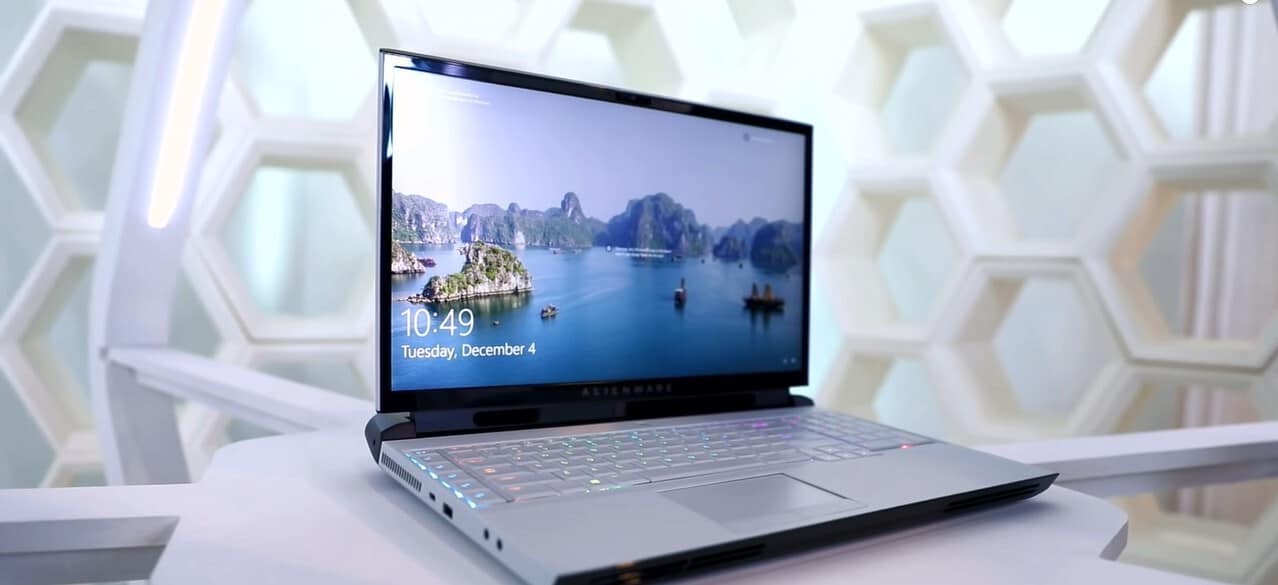
Alongside its Alienware Legend PC for 2019, Dell is introducing the Alienware Area-51m. Described as “the world’s most powerful 17-inch gaming laptop”, when fully tricked out, the 51m is Dell’s flagship gaming laptop with upgradable graphics and processors and holds the title as being the only laptop housing a 9th Generation 8-core desktop processor.
Other 51m features include stock 64GB of memory, 2.5 Gbps Ethernet technology, narrow bezel display, and a significant 50 percent increase in performance due in part to it’s cutting-edge thermal and cooling technology.
The Alienware Area-51m starts at $2,549 and should be going on sale around January 29, 2019.
Dell also announced its Alienware m15 and m17 this year that sport lightweight 17-inch gaming chassis for relative portability. The m15 weighs about 4.76lbs for the m15 and 5.79 for the m17 variants while both house the latest NVIDIA GeForce RTX 20 series GPU, Cryo-Tech Cooling technology and 8th generation Core i5 and i7 option.
The m15 and m17 will be available January 29, 2019, starting at $1,379.99 and $1,649.99 respectively.
Many iPod, iPhone, and iPad users need to transfer files between their Apple devices and Windows. However, iPod users can’t transfer files when the “iPod has been detected but it could not be identified properly” error message pops up.
The full error message states: An iPod has been detected, but could not be identified properly. Please disconnect then reconnect and try again. If problem persists uninstall iTunes then install iTunes again.
The above error message can also pop up for iPhone and iPad users. It is an error message that pops up when iTunes doesn’t detect a connected Apple device. These are some of the various resolutions that can fix iTunes when it doesn’t detect connected devices.
What to do if your iPod has been detected but it could not be identified
1. Connect the iPod With an Alternative USB Cable
Some iPod users might need to replace their iPod USB cables when the “iPod has been detected but it could not be identified properly” error message pops up. So try connecting the iPod to PC with an alternative USB cable if one is available. In addition, connect the iPod to an alternative USB slot.
2. Check That Apple Services are Started
There are a few Apple services that need to be started in Windows for iPod users to transfer files with iTunes. Those services are iPod Service, Bonjour Service, and the Apple Mobile Device Service. This is how users can start those services in Windows 10.
Open Run with the Windows key + X keyboard shortcut.
Input ‘services.msc’ in Run’s Open box, and select the OK option.
Then double-click Apple Mobile Device Service to open the window in the snapshot below.
Select Automatic on the Startup type drop-down menu.
Then click the Start button so that the service’s status is running.
Press the Apply and OK buttons.
Repeat the above steps for the Bonjour and iPod Service.
3. Check for iTunes Updates
The “iPod has been detected but it could not be identified properly” might pop up for users utilizing antiquated iTunes versions. So checking for iTunes updates might fix the issue for some users. To check for updates, click Help > Check for updates within iTunes. Then users can update the iTunes software to the latest version if there is a more updated version.
4. Reinstall iTunes
Reinstalling iTunes is a resolution that numerous users confirm fixes the “iPod has been detected” error message. That will ensure your iTunes software is updated and that you’re not missing any of the other additional components it needs. This is how iTunes users can reinstall that software.
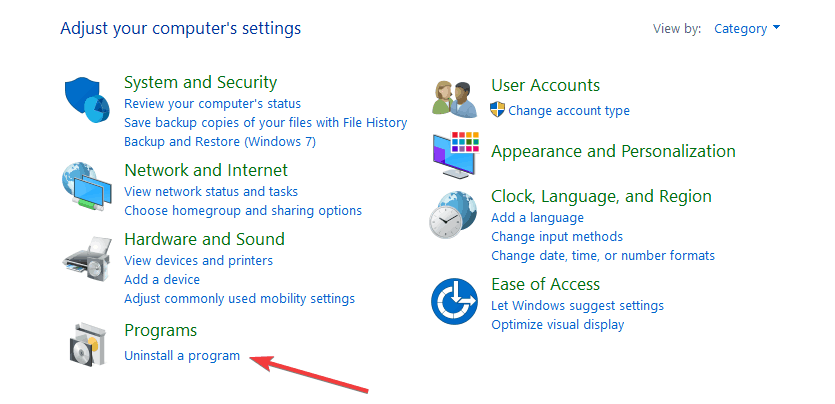
Open the Programs and Features Control Panel applet by entering ‘appwiz.cpl’ in Run and clicking OK.
Then select iTunes and click Uninstall.
Click the Yes button to confirm.
Users should also uninstall Apple Software Update, Bonjour, Apple Application Support, and Apple Mobile Device Support (assuming they’re all installed). The Programs and Features Control Panel applet lists all those components.
Restart Windows after removing iTunes and the other Apple software.
Then open the iTunes page on MS Store, and press the Get button.
Open the downloaded installer for iTunes to add the software to Windows. That will also reinstall Apple Software Update, Bonjour, Apple Application Support, and Apple Mobile Device Support.
Restart your desktop and laptop again after reinstalling iTunes.
5. Fix iTunes With iMyFone TunesFix
The iMyFone TunesFix software for Windows 10, 8, and 7 can fix all manner of iTunes error messages. So this is certainly software worth noting for fixing the “iPod has been detected but it could not be identified properly”error. TunesFix is currently retailing at a discounted price, and iTunes users can click Try it Free on the software’s webpage to try out a demo. This is how iPod users can fix iTunes with iMyFone TunesFix.
Add iMyFone TunesFix to Windows, and then open the software’s window.
The software automatically scans the iTunes installation when users launch it.
The iMyFone TunesFix software might detect some issues after the first scan. If it does, click the Repair button to fix software.
If the initial scan doesn’t detect any errors, click Repair iTunes Connect Issues on the iMyFone TunesFix window.
Then press the Repair button to fix iTunes connect issues.
6. Check the Apple Mobile Device USB Driver is Enabled
The USB driver for Apple Mobile Device USB Driver might not be enabled. To check that, plug the iPod into a laptop’s or desktop’s USB port.
Right-click the Start menu’s button and select Device Manager on the menu that opens.
Then double-click Universal Serial Bus controllers to expand that category.
A down arrow highlights if Apple Mobile Device USB Driver is disabled. Right-click Apple Mobile Device and select Enable if required.
7. Reinstall Apple Mobile Device USB Driver
Reinstalling Apple Mobile Device USB Driver is another potential resolution that some users have confirmed fixes the iPod not recognized error. To do that, connect the iPod with a PC.
Open Device Manager from the Win + X menu.
Double-click Universal Serial Bus controllers to expand its device list.
Then right-click Apple Mobile Device USB Driver and select Uninstalldevice.
Click the Uninstall button to further confirm.
Press the Scan for hardware changes button shown directly below. That option will reinstall the driver for Apple Mobile Device USB Driver.
There’s a good chance that at least one of the above resolutions will fix iTunes when it doesn’t recognize iPod devices. Note that the above resolutions might also fix the same issue for iPhones and iPads.
While not traditionally known as a purveyor of clocks and smart screens, Lenovo is joining the parade of manufacturers who are building out connect experiences through platform flexible digital assistants.
New at CES 2019 are three digital assistants powered Lenovo devices called the Lenovo Smart Clock, Lenovo Smart Tab M10 and P10. The Smart Clock makes use of Google Assistant while the Smart Tab M10 and P10 use Amazon’s Alexa assistant.
Lenovo Smart Clock with the Google Assistant
Price: $79.99 Available: Spring 2019
Similar to Google’s Home Hub, the Lenovo Smart Clock comes with particularly soft fabric-covered exterior and four inch-IPS screen. Lenovo designed the Smart Clock with nightstands in mind as the clock “delivers visual experiences when you wake up, and when you’re ready for sleep.”
In addition to looking a lot like the Google Home Hub, the Smart Clock also operates in a similar fashion with support for Google’s Assistant’s gentle wake-up routine, “Hey Google” voice commands for alarms, music play, and calendar management.
Powering the audio on this tiny bedside device are a full-range 6W speaker and two passive radiators tuned with Dolby’s background noise reduction.
While intended for the nightstand, the Smart Clock can also function as a home hub with hands-free voice support for playing audio across multiple devices in separate rooms with Chromecast.
Lenovo Smart Tab M19 and P10 with Amazon Alexa
Price: M10 $199, P10 $249 Available: January
The Lenovo Smart Tab is as described, an Android tablet that converts from a handheld experience to a Smart Screen via Lenovo’s Smart Dock technology.
Both the M10 and the P10 come with FHD multitouch displays, a Snapdragon 450 processor, up to 4GB of RAM and 32 GB storage capacity.
Additional features include Dolby Atmos support on the tablets as well as Lenovo’s Smart Dock that also houses dual 3-watt full range speakers for music streaming and video watching as well as 3 far-field microphones for better voice recognition.
For $199 US, the M10 offers a max of 3GB of memory, 32GB of storage, a smaller battery at 4850 mAh, and fewer sensors and lower resolution camera options.
However, shelling out an additional $100 for the P10 gets buyers 4GB of memory, 64GB of storage, larger 7000 mAh battery, 4 front facing speakers (instead of 2), higher resolution cameras as well as a fingerprint reader for security.
Lenovo’s accessories development has shown some tremendous growth in 2019 and it’ll be interesting to see how its new products trickle into the home and workspaces of its customers in 2019.
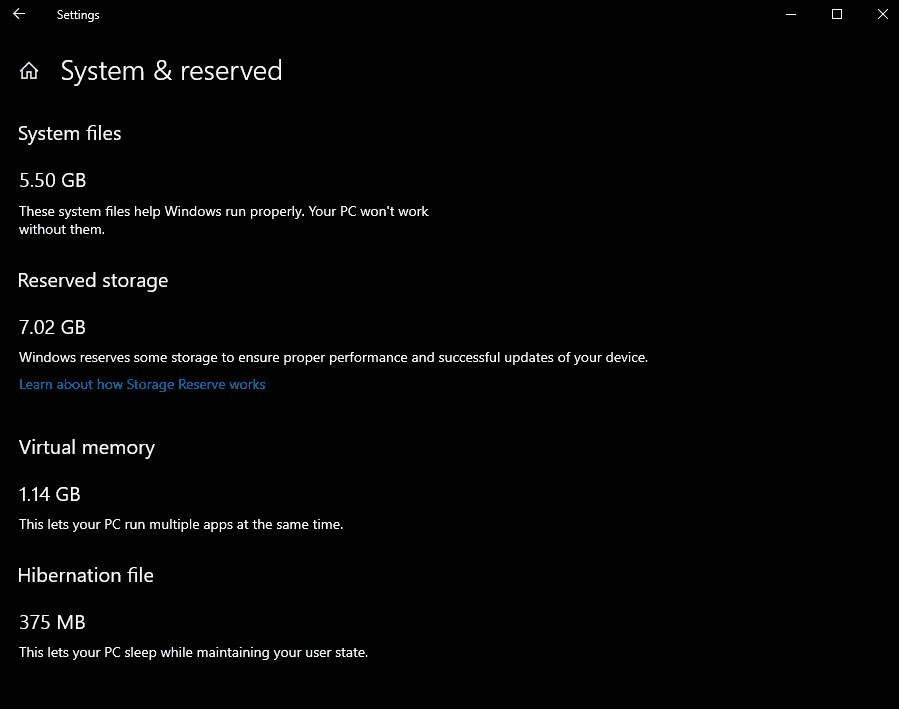
Microsoft has announced an important change regarding Windows 10 and reserved storage yesterday. Starting with the next Windows 10 update, which Microsoft explicitly named “1903” in the blog post (this is a first, to our knowledge), the desktop OS will now reserve disk space for OS updates, apps, temporary files, and caches. For the most part, this is about helping users to install system updates without having first to free up space on their PCs.
“Reserved storage will be introduced automatically on devices that come with version 1903 pre-installed or those where 1903 was clean installed,” wrote Jesse Rajwan, Program Manager at Microsoft. When reserved storage is enabled, it should take around 7GB of disk space, though Microsoft noted that the amount of storage will vary over time depending on optional features and installed languages that users choose..
Here is how the feature will work on Windows 10 version 1903:
Every update temporarily requires some free disk space to download and install. On devices with reserved storage, update will use the reserved space first. When it’s time for an update, the temporary unneeded OS files in the reserved storage will be deleted and update will use the full reserve area. This will enable most PCs to download and install an update without having to free up any of your disk space, even when you have minimal free disk space. If for some reason Windows update needs more space than is reserved, it will automatically use other available free space. If that’s not enough, Windows will guide you through steps to temporarily extend your hard disk with external storage, such as with a USB stick, or how to free up disk space.
If you want to enable Reserved storage on your PC, you’ll need to be running Windows 10 Insider build 18298 or higher. The feature is actually hidden for now, but you can enable it in the Registry Editor and it will light up after you upgrade your PC to the next available build. You can get more details about how to turn on reserved storage by following this quest on the Windows 10 Feedback Hub.
Reserved storage should be a useful feature for most consumers, but it may be somewhat problematic on PCs with just 64GB of storage or less. “Over the last several releases we’ve reduced the size of Windows for most customers,” explained Rajwan. “We may adjust the size of reserved storage in the future based on diagnostic data or feedback,” he added.
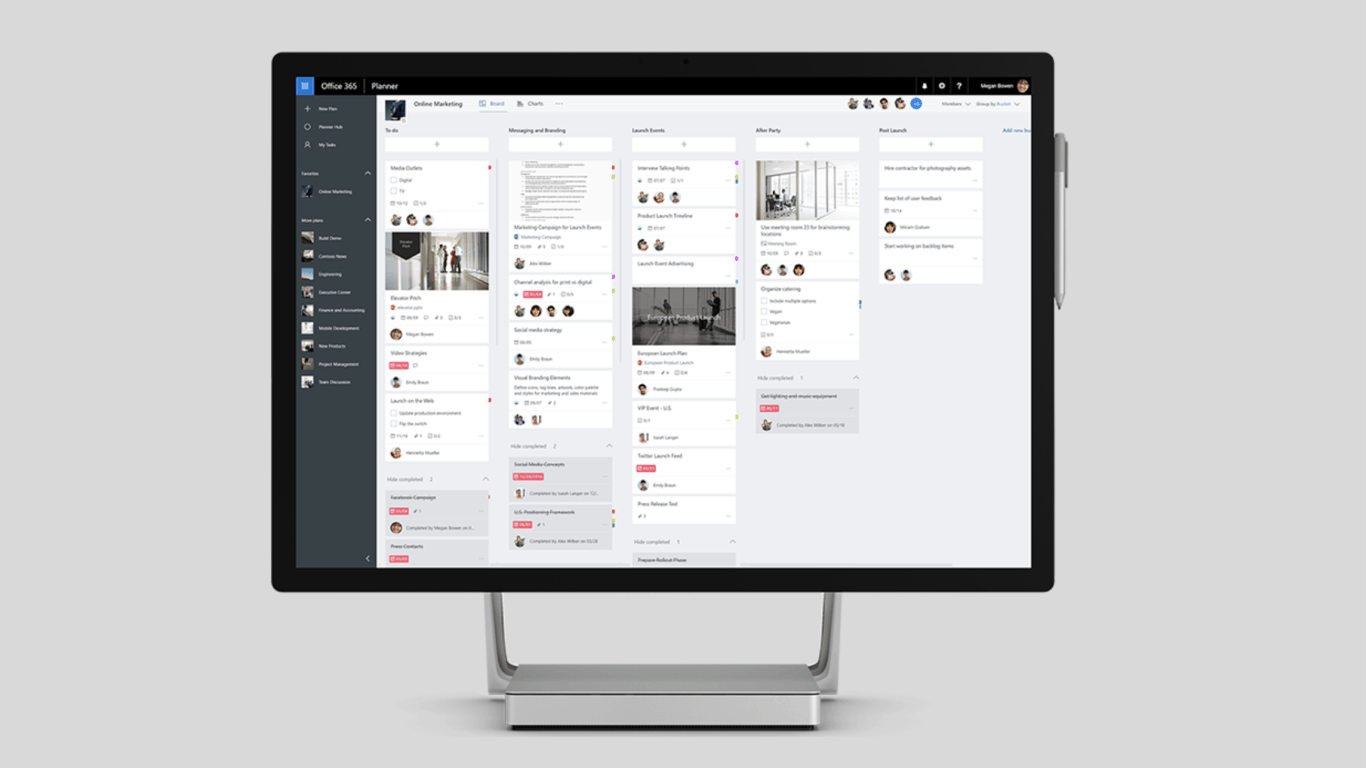
Microsoft Planner, the company’s visual tool for organizing team work is now available for US Government cloud customers. The Trello competitor is now included with Microsoft 365 Government GCC and Microsoft 365 Government GCC High, with Microsoft 365 Government DoD coming soon.
“Since Planner first launched, we’ve heard a ton of interest and excitement from US government customers for a tool like Planner. End users in government agencies, from state and local to federal organizations, wanted a simple, intuitive, and collaborative task management tool to help them visually organize their team’s work. IT admins wanted to provide their users with a simple work management solution while still meeting the strict security and compliance requirements of the US government. We’ve been hard at work to make sure Planner would do both,” wrote Eray Chou, PM on the Planner and Project team.
For now, a couple of Planner features including Microsoft Teams integration, SharePoint integration and email notifications aren’t available for US Government customers, but Microsoft plans to add them later this year. “New Planner features will arrive in Microsoft 365 commercial cloud first and in US government cloud offerings shortly thereafter due to increased audit and certification requirements,” explained Chou.
Samsung has arguably gone back to the drawing board for its 2019 lineup of laptops, incorporating diamond cut re-designs and unique textile-patterned chassis.
During CES 2019, Samsung unveiled two new notebooks; a business-oriented Samsung Notebooks 9 Pro and a Gigabit-Wifi enabled Samsung Notebook Flash..
Samsung Notebook 9 Pro
Available: Early 2019
As the title would imply, this is the iteration of the Notebook Pro but brings a new redesign to the product line. With a cool metal exterior making use of diamond-cut edges that leave ridges along the length of the device, the Samsung Notebook 9 is now easier to handle and open in day to day use.
Aside from the aesthetic changes, that include reduced bezels on the screen, customized LED Indicator Bar and a more MacBook like keyboard re-design, the Notebook Pro 9 brings the industry standard 8th Gen Intel Core i7 processor, 8GB of LPDDR3 RAM, 250GB of PCIe NVMe storage, active pen, fingerprint reader all in a 2.84lb package.
Samsung is claiming that the Notebook 9 Pro will get up to 14 hours of battery life running Windows 10 Home, presumably using synthetic benchmarking.
As a 3-in-1 device, Samsung including its Active Pen and additional S-Pen like technology in the Notebook 9 Pro is definitely noteworthy as Samsung’s Active Pen supports up to 4,000 levels of pressure sensitivity, making this device every bit as competent as a Surface Pro or iPad for creative tasks.
Samsung Notebook Flash
Available: Early 2019
Alongside its Pro offering, Samsung is testing the waters of Always Connected PC’s with its Gigabit-Wifi enabled Samsung Notebook Flash.
The new laptop, offered in charcoal grey, is making use of a unique textile-patterned chassis, similar to the Surface Pro Laptops, for its 13.3-inch screen and Samsung ‘typewriter keyboard’.
Unlike other recent PC offerings, the Flash falls short on the grandiose battery claims only sporting 10-hour battery capacity.
The Flash represents Samsungs lower tier offering but still packs plenty of useful everyday necessities such as two USB-C ports, Fingerprint reader, and 1920 x 1080 anti-glare 13.3 FHD LED display.
Samsung has already unveiled a slew of monitors, TV displays and connected speakers at this years CES, but we’re expecting to see a few more items presented by the company in the coming days.
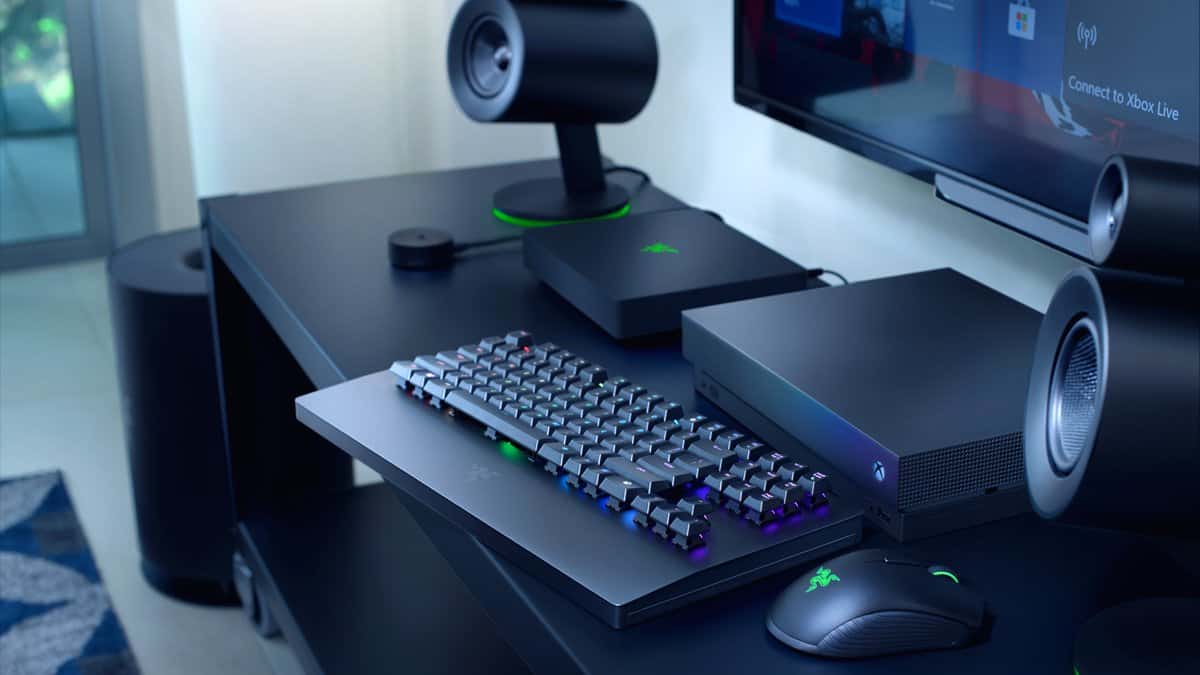
It seems Razer is ready to ship its keyboard and mouse combo for couch gamers later today, as the company announced availability at CES 2019 earlier today according to a report from Windows Central. The Razer Turret also saw its way to the Microsoft Store in the form of a pre-order last month, and is expected to begin shipping at the end of March. However, it might be possible Razer wants to give a few units to gamers early by opening orders on its website.
The Razer Turret has been specifically designed for Xbox One gamers in mind, now that the console now supports fifteen games that have can take advantage of the new(ish) available input method for the latest consoles. Xbox One enhanced experiences include a dedicated Xbox key, which allows users to open the Xbox menu to access games, settings, and to turn off the console, and “Xbox Dynamic Lighting,” which changes the colors of the keys depending on the action happening in the supported game. Moreover, it should also work on just about any device that supports keyboard and mice, including Windows 10.
As we have already mentioned, as many as fifteen games on the Xbox One gained support for keyboards and mice on the Xbox One, The list includes games such as Fortnite, PUBG, Warframe, and The Sims. However Windows Central also pointed out the presence of a few new titles were gaining support for it, including Gears of War, The Sims 4, Roblox, Sea of Thieves, and Surviving Mars. Minecraft has had support since 2017 due to the high volume of requests for the feature.
Absolver is finally available to play on the Xbox One beginning today. The game is an online multiplayer action title with a heavy focus on fighting style variety and flow in battle. Absolver is also an Xbox One X Enhanced video game and will play in 4K resolution when played on Microsoft’s Xbox One X console.
Here’s the official game description and trailer:
Absolver is an online multiplayer combat experience where players are placed behind the mask of a Prospect by the ever-present Guides, the new rulers of the fallen Adal Empire that will determine your worth in joining their elite corps of enforcers. Prospects will wander forsaken lands, encountering others to learn new combat skills, acquire weapons and armor, and engage in solo duels and intense three-on-three battles.
Players will define their Prospect’s approach by picking a combat style, a weapon of choice, and arranging attacks in their Combat Deck to design their unique and personal attack flow. Through battle with opponents, sparing with friends, and even taking on a mentor players will expand their knowledge and mastery of combat with new moves, weapons, and armor on their journey to Absolution. Gameplay modes include solo play, online cooperative modes, and online versus modes.
In addition to launching on Xbox One consoles for general sale today, Absolver is also available to play for free for Xbox Game Pass subscribers. Xbox Game Pass is Microsoft’s Netflix-like monthly video game subscription service.
Despite Lenovo’s chief association being the enterprise solutions and utility company, the PC manufacturer continues to exert itself in the PC gaming community with industry-competitive software, laptops, desktops, and accessories.
Alongside its Yoga and ThinkPad lines, Lenovo is also unveiling its 2019 edition of Legion gaming hardware that includes a new 17-inch, 144hz laptop with NVIDIA G-SYNC support and Super-wide 43.4-inch borderless gaming monitor, among other offerings.
Lenovo Legion Y740
Starting at 15″ $1749.99 – 17″ $1979.99 Available: February 2019
In 2019, the Lenovo Legion Y7 series is getting updated with 8th generation Intel Core CPUs, a yet unannounced NVIDIA GeForce GPU, brighter 500 nits custom Dolby Vision HDR panels, improved 144hz refresh rate displays, and narrower 6.7mm bezels among other improvements.
Lenovo Legion Y540
Starting at $929.99 Available: May 2019
For the gamer on a slightly reduced budget, Lenovo is updating its Y5 series with similar NVIDIA GeForce GPU support, Intel Core processors, narrower 6.7mm bezels but also including Harman Speakers with Dolby Atmos Audio, improved Legion Coldfront Cooling System and an improved aluminum display hinge for more panel stability.
Lenovo Legion Y44w Monitor
Price: $1199.99 Available: April 2019
Lenovo is also rolling out a bundle of new gaming-focused display monitors and chief among them is the new Legion Y44w monitor.
The Y44w is a Super-wide 43.4 borderless display with a similar 144Hz refresh rate as the laptop offerings but also has a minimal 4ms response time for reduced streaking and ghosting.
Other features include support for AMD FreeSync technology, USB Type-C supported port option, Picture-by-picture management, and an optional detachable Harmon Kardon speaker.
Lenovo Legion Y27gq Monitor
Starting at $999.99 Available: April 2019
Offers similar gaming features as Lenovo’s 2019 flagship display but at a reduced price tag. For $999.99, gamers can grab the Legion Y27gq Monitor with detachable Harmon Kardon speaker, borderless 27″ QHD display with anti-glare finish and latest NVIDIA G-Sync and R3 technology.
While gamers might lose out on the 144Hz refresh rate that the Y44 monitor offers, the Y27gq does provide a 90% DCI-P3 color gamut and audio combo jack for those necessary isolationist gaming moments.
Legion H500 7.1 Pro Gaming Headset
Price: $99.99 Available April 2019
With gaming headsets inching toward the $200.00 marker, it’s nice to see Lenovo offering a lightweight pair of over-the-ear headphones with 20 Hz – 20 kHz earphone frequency range and 100Hz – 10kHz microphone frequencies as well as driverless 7.1 surround sound and passive noise canceling retractable microphone.
The H500 7.1 also offers both USB and 3.5mm connections and rotatable ear cups with cushioned PU leather for comfort.
Lenovo Legion H30 Gaming Headset
Price $59.99 Available: April 2019
The Legion H30’s offer passive noise canceling retractable microphones, in-line analog audio controls, rotatable ear cups and Lenovo’s soft cushioned PU leather casing all for under $60.00.
Lenovo Legion K500 RGB Mechanical Keyboard
Price: $99.99 Available: April 2019
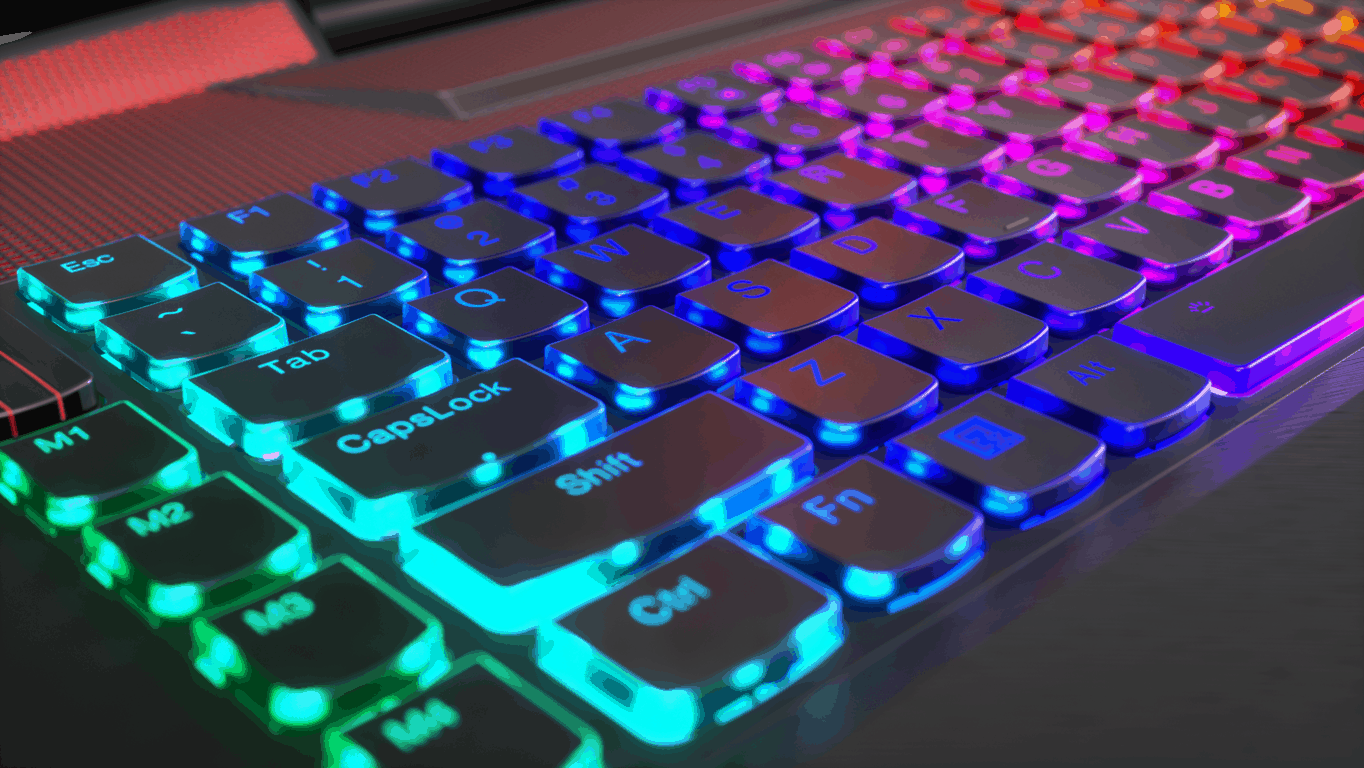
Just as vital as the PC, Lenovo is paying customer service to its keyboard offerings with a new minimalist RGB mechanical keyboard. The K500 includes dedicated media keys, detachable textured palm rest and 104 keys anti-ghosting keyboard with the support of 16.8M colors on a 3 zone customizable RGB board.
The keyboard does weigh a hefty 2.45lbs despite its slimmer footprint.
Lenovo Legion M500 RGB Gaming Mouse
Price: $59.99 Available: April 2019
Alongside the keyboard, Lenovo is providing a customizable gaming mouse with advance Pixart 16,000 DPI resolution sensor, Omron mechanical switches and colorful 3 zone RGB lighting.
Other features include an adjustable weight cartridge, easy on-the-fly DPI switch and 7 customizable programmable buttons, all for $59.99.
While not as high profile as the PlayStation or Xbox brands, Lenovo’s Legion hardware is very well known quantity in the gaming community and 2019’s lineup looks to only expand the manufactures cache in th industry.
Outlook is one of the best email client programs, especially for businesses, and has been one of the most important utilities of Microsoft’s popular Office suite. However, Outlook Meeting with some users reporting that it is not sending meeting updates.
Its meetings feature helps you organize and manage important meetings easily by automating tasks like sending invitations and issuing reminders.
As a result, Outlook’s Meeting component is immensely popular and closely rivals its emailing feature. But it is not without its faults, some of which can frustrate your efforts to get the best from the application.
How can I fix the Outlook meeting issues?
1. Outlook meeting not sending invites
According to Microsoft, this issue of Outlook meetings not sending invites has already been solved in the most recent versions of Outlook.
Those still using older Outlook programs are also in luck since several fixes work. Here they are (For Outlook 2007 and other legacy Outlook versions):
1.1. Create Meetings Directly
Creating a meeting directly from the program will send invitations to your intended contacts promptly.
Similarly, the easiest way to invite new guests is by adding them (their addresses) as recipients of the meeting notifications rather than by clicking invite/forward.
1.2. Update the Meetings Tool
Updating your Microsoft Outlook program can also help to permanently get rid of this problem.
Steps (office 2010):
Open Outlook.
Click File.
Select Help.
Click Check for updates/Install updates
Confirm the installation to complete the process.
For Outlook 2013 (and above):
Open Outlook.
Click File then Office Account.
Log in (if you have logged out) and look for the Update Options button under the prominent Product Information area.
Click Apply updates under the Update Options button. Wait for the system to complete updating.
Enabling Microsoft’s automatic updates to include Microsoft Outlook makes your work easier as the program will be continuously updating without your intervention.
Here is how:
Open Settings.
Select Update & Security.
Click Change Settings.
Select the option Give me the updates for other Microsoft’s products when updating Windows.
1.3. Recreate The Meeting
If you are yet to succeed, you can attempt to recreate the meeting using the normal steps on the calendar.
You will need to modify the way Outlook displays the meeting features if outlook meetings feature fail to show on the calendar after creating a meeting. Here is how:
2.1.Select the Calendars Category (Outlook 2010 Going up)
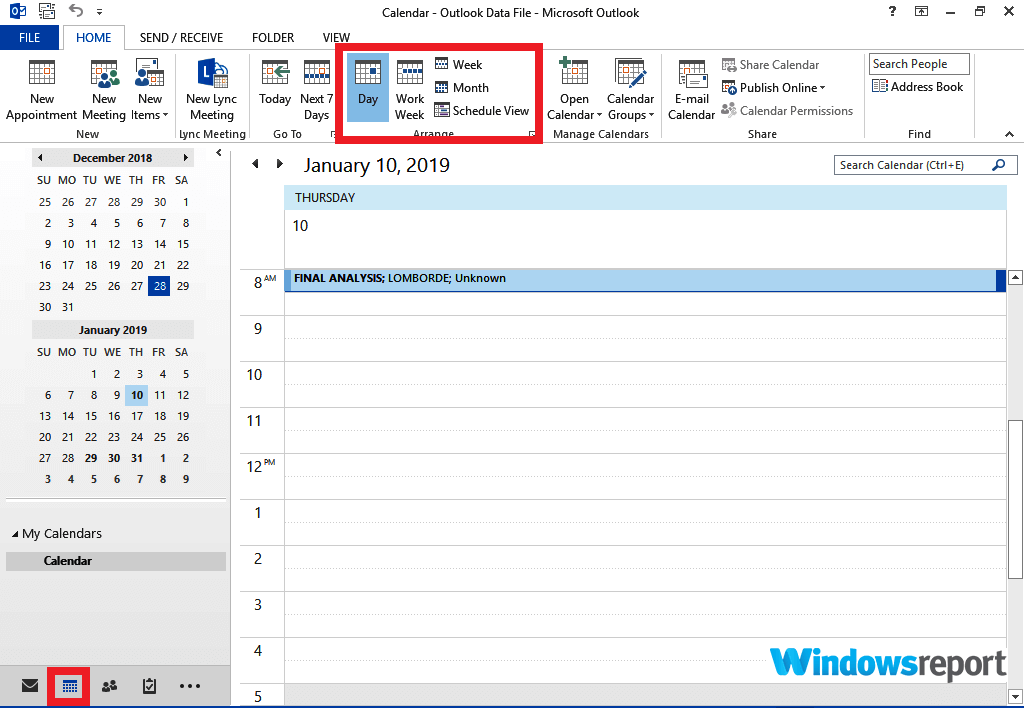
First, the scheduled meetings only show if the calendar’s category has been selected on the program’s left side.
Then, you may have to choose the correct view (Day/work week/month) depending on the schedule of meetings that you want to view.
2.2. Reset The Calendar View (Outlook 2010 Going up)
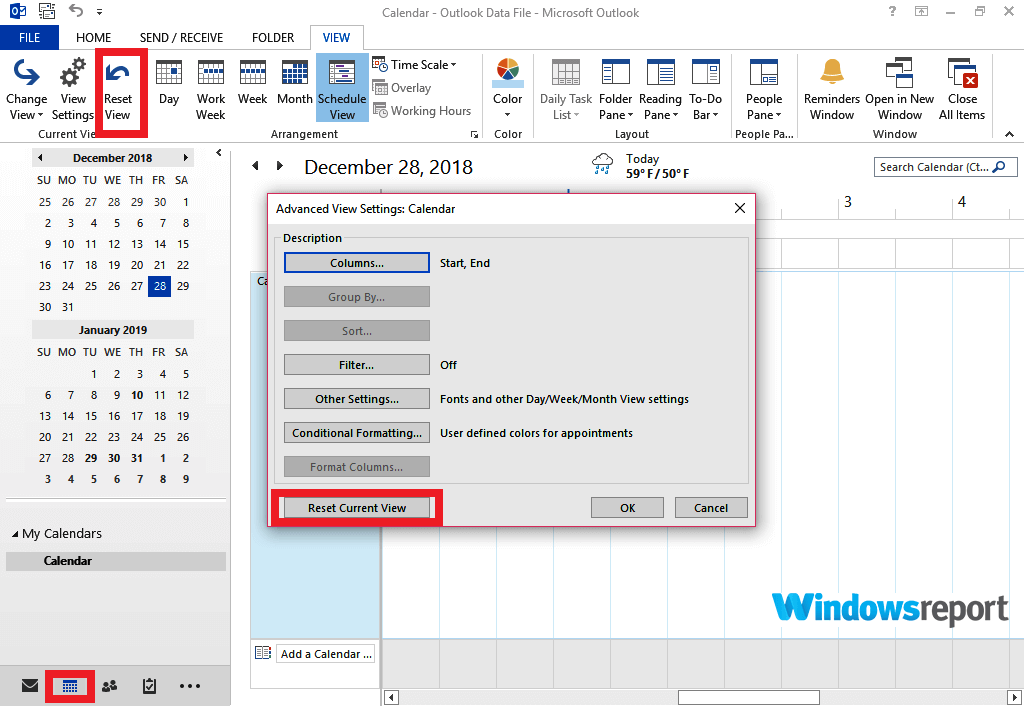
A custom view can also hide your meetings after setup so you should try to restore the factory view for the calendars folder:
Open Outlook.
Click the Calendar tab (on the left bottom side).
Open the View tab.
Click the view settings option.
Now click Reset Current View.
Press ok and check to see if the previously missing Outlook meetings now show.
3. Outlook Meeting won’t open/cancel/delete invites
3.1. Log Into Your Account Using OWA (Outlook Web Access)/Office 365 portal
For some reason, the option to cancel a meeting works when you are logged into your account using your Outlook Web Access/Office 365 portal details.
Log in there by going to the link you usually use.
Go to the calendar.
Locate the meeting event from the screen.
Right-click and press cancel.
Users are only able to cancel meetings in which they are registered as organizers so ensure you’re the meeting organizer.
3.2. Log Out Of Outlook Then Login
Sometimes the error is because of lingering Outlook performance/Sync issues. In this case, you should log out of your current Microsoft Outlook session then login again.
This refreshes your Outlook session and could allow you to cancel a meeting.
3.3. Disable All Adds-in
The issue of This meeting may be a result of a conflict with any of the installed Outlook add-ins. Try to disable all add-ins as explained below to see if you will succeed.
Launch outlook.
Go to the File.
Click Options.
Then click Adds-in.
Under COM Add-Ins click go.
Uncheck the box against the add-in you are no longer using.
Click OK.
Restart Outlook.
4. Outlook Meeting attachment won’t open
In certain instances, your Outlook account may refuse to open attachments from a phone (Android and Apple) or PCs despite being correctly set up.
Now, this problem could have several root causes and has even sucked in Microsoft in an attempt to get a permanent resolution. We suggest you try these ideas.
Follow the instructions to automatically download and update your Outlook version. For instance, for Windows 7, Click install office updates as highlighted.
Then, those using older Outlook releases such as MS Outlook 2013 will need to further modify the registry for attachments made in the latest Outlook versions such as Outlook 2016 to open. Here is how:
Back up the registry first
Close all Microsoft Office programs.
Press the Windows key + R, type regedit, and click OK.
Navigate to the other below in the left pane: HKEY_CURRENT_USER\Software\Microsoft\Office\15.0\Outlook\Options\Calendar
Point to New On the registry Edit menu and then choose DWORD Value.
Type AllowHTMLCalendarContent then press Enter.
Now right-click the AllowHTMLCalendarContent key and select Modify.
In the provided Value data box, enter 1 then select OK.
Close the Registry Editor and try to open the meeting attachment.
5. Updating the Outlook app on Android/iOS
5.1. Update the app
Head over to the Google Play store from the phone.
Download the latest Microsoft Outlook or click update.
5.2. Log Out Of Outlook
An easier fix is to log out of the current Outlook session and then come back in.
On the same note, sometimes restarting Outlook helps so attempt this if you are not yet successful.
5.3. Change Microsoft Trust Center Settings
For some Outlook editions including Outlook 2016, the fault is with the wrong trust center settings.
You thus need to edit the Trust center settings for all Microsoft products you typically use to open your Outlook meeting attachments including Microsoft Word and Excel:
Open Outlook.
Go to File.
Click Options.
Select Trust Center.
Now click the Trust Center Settings tab.
Locate the Protected View option and do the following:
Uncheck the option Enabled Protected View for files originating from the internet
Check the option Enabled Protected View for files located in potentially unsafe locations
Uncheck the option Enabled Protected View for Outlook attachments
5.4. Ensure the relevant opening programs have been installed
The applicable attachment opening application needs to be available on your computer to access any attached files. For example, a PDF attachment won’t open if a relevant PDF reader is not installed.
Users thus need to confirm that the required file opening programs exist on their PCs.
We have reached the end of this guide on Outlook not sending meeting updates issues and other meeting-related problems. If Outlook Scheduling Assistant is not showing on your PC, check our detailed guide to fix it.
Over the past 48 hours, companies such as HP, Asus, Acer, LG, Samsung, and Dell have unloaded their laundry list of wares on to the Consumer Electronics Showcase floor that includes everything from portable Surface Pro-like gaming rigs to 75-inch bezel-less wall-mounted displays.
Not to be outdone by the competition, Lenovo is now set to unveil its slew of products to help improve the average and niche workspaces.
ThinkPad X1 Carbon
Starting at: $1709.00 Available: June 2019
Once again, Lenovo is rolling out its ThinkPad X1 Carbon device but with specs for the 2019 customer. This year, customers are being treated to a ThinkPad X1 Carbon (7th Gen) starting at around $1709.00 in the US. For the relatively hefty price tag, buyers have gifted a laptop with a new woven carbon fiber finish option in addition to the slate black, thinner (14.95mm) hardware footprint with Intel’s latest 8th Gen processors and new RGB & IR camera with the increasingly popular ThinkShutter switch.
ThinkPad X1 Yoga
Price: $1929.00 Available: June 2019
A new 4th generation ThinkPad Yoga is also making a debut and bringing a device with a 17% smaller footprint than last year, new CNC aluminum chassis covered in Iron Grey, 11% slimmer bezels around the screen and up to 500 nits of brightness across a 4K panel.
The X1 Yoga also comes with industry standard 8th Gen Intel processor, Dolby Atmos support, RBG color calibration and backlit keyboard.
Lenovo ThinkPad X1 Yoga (6th Gen)
Starting at $1929.00 Available: June 2018
Technically introduced last June, Lenovo is reannouncing its ThinkPad X1 Yoga 6th, Gen, on the 2019 CES floor. Not much has changed from its initial unveiling that included a 14″ FHD IPS Touch panel, up to 16GB LP DDR3 RAM, up 2 TB PCIe SSD, Dolby Atmos Sound System, and Fingerprint and IR Camera biometric authentication options.
ThinkVision P44W
Price $1299.00 Available: April
Connecting to Lenovo’s new breed of laptops and tower PCs is the dual screen ThinkVision P44W that offers an immersive 32:10 aspect ratio with HDR400 certification, smooth 144Hz refresh rate and 4ms response time as well as support for the latest AMD FreeSync technology.
Other P44W features include USB Type-C connectivity, dual video input management, detachable Harmon Kardon certified speakers and a hidden USB Hub called ‘Push n Push.’ The P44W will also offer up to 99% sRGB, BT.709, and DCI-P3 color accuracies.
Lenovo VoIP 360 Camera Speaker
Price: $249.99 Available: March 2019
Shift just a bit away from more traditional desktop offerings, Lenovo is rolling out a new portable 360-degree camera and speaker device for cleaner on-the-go video conferencing.
The new VoIP 360 Camera Speaker looks like a desktop speaker but packs noise cancellation (AEC) and noise suppression (ENS) technologies as well Plug and Play connectivity with support for USB-C. In addition to the obvious Skype support, Lenovo’s little conference speaker and camera also support Jabber, Webex, Google Hangouts and QQ out of the box. Standing only 3.5 inches tall, the new speaker packs a lot of convenience into this speaker-looking accessories.
Lenovo 700 Ultra-portable Bluetooth Speaker
Price: $249.99 Available: April 2019
Lenovo is offering an actual Bluetooth speaker to accompany the faux-speaker looking VoIP camera. The Lenovo 700 comes with a rechargeable battery that Lenovo claims up 8hrs of continuous playback.
Perhaps, more important than the length of the playback is support for the new Bluetooth 5.0 technology as well as USB-C. The Lenovo 700 also houses quick charge technology and can fully charge the speaker in as little as 2 hours and comes with IPX2 splash-proof water resistance.
Lenovo Powered USB-C Travel Hub
Price: $79.99 Available: January 2019
As the tech industry continues to move towards a USB Type C powered future, Lenovo is aiming to help its customers with the transition by providing a new USB-C travel hub (dongle).
The new dongle comes with six port connections that include: HDMI, VGA, RJ45 Network, Two USB-A, and an additional USB-C connector. At only 1/4 of a pound and ‘hideaway’ wrap cable, the Travel Hub becomes the perfect travel accessory for anyone who needs the functionality of their docking station but doesn’t have the room in their bag.
Lenovo is set to unveil even more on the CES show floor but for businesses, these new laptops and accessories are big news and should be gracing desktops, travel bags and conference rooms in the near future.
Our friend Michael Gillett, who created WallpaperHub.app, a repository for Microsoft-centric wallpapers in a variety of themes and sizes, has just introduced a fun new addition, one he calls Bliss at Night. As you can see in the Featured Image above, the wallpaper is a riff on the classic “Bliss” wallpaper from back in the glory days of Windows XP.
We had a quick chat on Twitter with Michael (who as you may know created our Office 365-inspired social media icons), and he had this to say:
(N)ow that there’s going to be a light and dark theme throughout Windows I think there should be versions of the default wallpapers to match (maybe like the new macOS feature)
If you’re a classic Windows enthusiast as well as a dark theme type, head over to Wallpaperhub.app and download your favorite size, and while you’re at it, check out Michael’s great collection of Windows wallpapers, including favorites from Bing, some great Surface wallpapers, and some original images sure to capture your imagination.
The partnership between Microsoft and Walmart is designed to help move Walmart’s digital communications and operations onto Microsoft’s Azure platform and services while offering Microsoft the opportunity to test the scalability of its cloud platform.
The Walmart and Microsoft partnership arguably also signifies the need of Microsoft’s modernization tools for two to keep pace with the rapidly evolving retail changes put forth by Amazon and Google.
As of January 7, 2019, Microsoft will once again be testing the elasticity of its Azure cloud as it partners with Kroger, America’s largest grocery retailer and global technology company on two new pilot connected experiences.
Transformative customer experiences
By using Microsoft Azure to store and process the data generated in stores, near the smart shelves and on Kroger’s app, the digital stores will introduce never-before-seen shopping experiences, including the latest generation of EDGE™ Shelf (Enhanced Display for Grocery Environment), a shelving system that uses digital displays, instead of traditional paper tags, to indicate everything from prices and promotions to nutritional and dietary information. Using Microsoft Azure AI, EDGE Shelf will connect with Kroger’s Scan, Bag, Go®, creating a unique guided shopping experience for customers.
Greater employee insight and productivity
For store associates, a pick-to-light productivity solution can reduce the time it takes to fulfill curbside pickup orders by using visual cues to help them quickly find items. Additionally, solutions like Microsoft Azure-powered video analytics will help store associates identify and address out-of-stocks to ensure customers can locate products on their shopping list.
Similar to its Walmart partnership, Microsoft is aiming to help Kroger redefine the shopping experience by providing the company with transformative big data analysis as well as marketable product for other retail businesses called Retail as a Service.
RaaS is a commercial product that was created through this partnership with Kroger and powered by Microsoft Azure, which intends to provide a suite of capabilities that focus and support specific business KPIs, collection of customer insights, hyper-personalization, employee productivity and improve out of stocks, all with the intention to provide a better customer experience.
Microsoft and Kroger are pitching the new RaaS as “enablement software built by a retailer for retailers,” and the two have plans to expand the current offering to someday include: Scan, Bag, Go, Virtual Store Manager, sensor network, point of Sale, and inventory management systems.
The first RaaS service on the market today is Edge Shelf which allowed Kroger to generate additional revenue through digital advertising to consumers on packaged goods (CPG) brands. Specifically, with the use of video analytics Kroger was able to produce personalized offers and ads to specific customer demographics.
Edge Shelf is being offered as a pilot program to select retail business with expansion plans throughout “2019 and beyond.”
Similar to a Chromebook, Microsoft’s Windows on ARM platform consist mostly of a browser-based workflow.
While Microsoft, its chipset manufacturers, and its PC partners are promising similar 3rd party application workflows to current Intel-based devices, the reality is that development on the ARM64 architecture has been anemic at best, leaving the experience 2nd rate to Google’s offering, and a distant third option to regular Intel-powered Windows 10 devices.
With that being said, it’s becoming more vital that Microsoft expedites its Chromium-based internet browser replacement development, but in the meantime, Mozilla is stepping up to the plate with its new made for ARM64 Firefox browser.
Please note that these builds are even nightlier than our normal nightlies on other platforms: they have *not* gone through our usual automated testing process, bugs are almost certain to crop up, etc. That being said, I have been using builds off automation (manually updating them) for several weeks now and have had a pleasant experience.
There are still a few areas that we know need work: the Gecko profiler is not functional but should be by the end of the week. The crashreporter does not work. Our top-tier JS JIT (IonMonkey) is not turned on. WebRTC is not turned on. EME (Netflix, etc.) does not work yet. And so forth…Did I mention that these are nightlies?
The ARM64 version of Firefox’s Nightly release is finally up for download and install on their website now despite the company offering ARM64 support in previous public builds for the past month.
For anyone with a Window 10 S Mode device looking to try another ARM64 browser to keep battery consumption low, remember that this Firefox Nightly release is still a .exe and will require a switch out of S Mode.
Microsoft news recap is a weekly feature highlighting the top Microsoft news stories of the past week. Sit back, grab some coffee, and enjoy the read!
Xbox One controllers could be getting new features according to new patents
New patents filed by Microsoft for Xbox One controllers show that the company has been looking into enhancing the vibration feedback. Currently, Xbox One controllers use precision vibration, allowing users to accurately feel the vibration of weapons in a game, but it appears Microsoft wants to take this further by allowing games to independently control the vibration of the triggers, and more.
Minecraft: The Movie finds its visual effects supervisor after significant delays
Following significant delays in finding a visual effects supervisor, progress looks to have been made on Minecraft: The Movie, as Jim Berney joins the team as visual effects supervisor, having previously worked on films such as Aquaman, The Polar Express, amongst others.
Visual Effects Supervisor Jim Berney (‘Aquaman’, ‘The Lord of the Rings: The Two Towers’) has joined the crew for ‘MINECRAFT: THE MOVIE’. (EXCLUSIVE) pic.twitter.com/UcxWNas6vx
Microsoft Visual Studio is an essential suite for developers. Both for professionals and home users, as Microsoft is trying to encourage the development for their platform. However, some users have had a strange problem with product activation. Namely, some of them who purchased Visual Studio hasn’t been able to activate it with a functioning product key.
They were met with the “This product key cannot be used to extend the use of this product” error. If you’re in the group of affected users, check the steps below.
Visual Studio can’t be activated with your product key? Here’s what to do
Solution 1 – Change Visual Studio serial number with the Master Product key
Firstly, we suggest signing in with your official account you used to purchase the software. This seemingly fixed it for some. If that doesn’t help, check additional steps.
Now, this isn’t exactly legal to do, but it will work for some iterations of Visual Studio. Microsoft provides users with the 90-days-long free trial. In addition, there seems to be a master product key which should allow you to activate the product.
Of course, you’ll still need your purchased product key later on, but this will at least allow you to go over the product key error.
Follow these steps to try it out:
In the Windows Search bar, type Control and open Control Panel.
Choose Uninstall a program.
Right-click on Visual Studio and choose Uninstall/Change.
Try with your own product key. If the error appears, use the master key (YCFHQ-9DWCY-*****-*****-*****) which can be found online.
Click Activate and you’re good to go.
Even though this isn’t legal, as you already have the right key and have issues with it, this is a somewhat reasonable step to follow in order to activate the license.
Solution 2 – Integrate the product key into the setup.sdp file
Alternatively, instead of going for a product activation through the user interface, you can tweak the setup.sdp file and insert the master product key there. This should allow you to enter your personal product key later on and fix the issue in a seamless manner.
Here’s how to insert the master product key in the installation setup file:
Use an archiver to extract the Visual Studio ISO file.
Open the Setup.sdp file with any supported text editor.
Under the Product key heading, enter the aforementioned master product key (they differ depending on what version of the software you use).
Save changes, navigate to Control Panel > Uninstall a program, and choose to repair the application.
Solution 3 – Reinstall Visual Studio
Finally, if the master key workaround doesn’t work for you, we can only advise backing up everything and reinstalling Visual Studio. In addition, make sure to remove all previous versions of Visual Studio from the system, as their presence might cause activation issues.
With that said, we can conclude this article. In case you have any alternative solutions or questions, feel free to tell us in the comments section below. Furthermore, contacting Microsoft support is a good idea, as they usually should be able to deal with the product activation issues on their respective software suits.
Edge is one browser that includes a dark theme. That transforms Edge’s UI into a dark alternative. More and more publishers are adding similar dark modes to their software. A Chrome engineer has now effectively confirmed that Google plans to add dark mode support to its flagship browser for Windows 10.
The Chrome engineer Mr. Kasting confirmed on Reddit that Google plans to add a dark mode to Chrome. In a Reddit post, Mr. Kasting states, “For desktop, native dark mode support is in progress; in the meantime, we generally suggest people use a dark theme.”
That is not an official announcement, but Mr. Kasting has nevertheless confirmed that dark mode support for Chrome is in the pipeline.
Canary, an experimental version of Chrome, already includes a command flag that enables users to activate a dark theme for the browser. Users can activate the dark theme by entering a ‘–force-dark-mode’ command flag in the Target text box on the Canary Properties window. However, Chrome stable does not include any kind of dark mode flag.
Nevertheless, Chrome users can still add a dark mode to the browser with new themes. Morpheon Dark is one dark theme for the browser. Click the Add to Chrome button on the theme’s page to add Morpheon Dark to the browser.
That applies a dark style to Chrome’s tabs, URL toolbar and New Tab page as shown in the snapshot directly below.
To extend the dark theme, users can also add Dark Reader to Google Chrome. That extension adds a dark background to webpages open in the browser. Press the Add to Chrome button on the extension’s page to install Dark Reader.
When exactly Google will update Chrome to include a dark theme is somewhat unclear. Dark mode for macOS Chrome is expected to arrive in early 2019. However, it will probably take a little longer for Google to add dark mode to Windows Chrome.