Assassin’s Creed IV: Black Flag and Divinity II The Dragon Knight Saga join Xbox One backward compatibility

Assassin’s Creed IV: Black Flag and Divinity II: The Dragon Knight Saga are the latest Xbox 360 games to be added the Xbox One Backward Compatibility list today. The first one was the last game from the main series to be released on the Xbox 360 back in 2013 (it was also released on next gen consoles the same year), and it’s set set in the 18th century Caribbean.

If you enjoy Sea of Thieves on the Xbox One, the world of Assassin’s Creed IV: Black Flag is much more vibrant and mixes open-world exploration on both the seas and the ground. Of course, there is also a healthy dose of ship customization and naval combat.

As for Divinity II: The Dragon Night Saga, it’s the first episode in the Divinity action-RPG franchise to be released on the Xbox 360. This version actually includes the original game as well as its expansion called Flames of Vengeance.

These are two very cool additions to kick off the month of April. Yesterday, the Xbox team teased some exciting OG Xbox backward compatibility news for next week, so hopefully this means we’ll see more cool old games being added to the list later this month.

Microsoft Teams to allow retention policies, rolling out now

In a pickle, choosing between which chat communication solutions best fit your work environment?

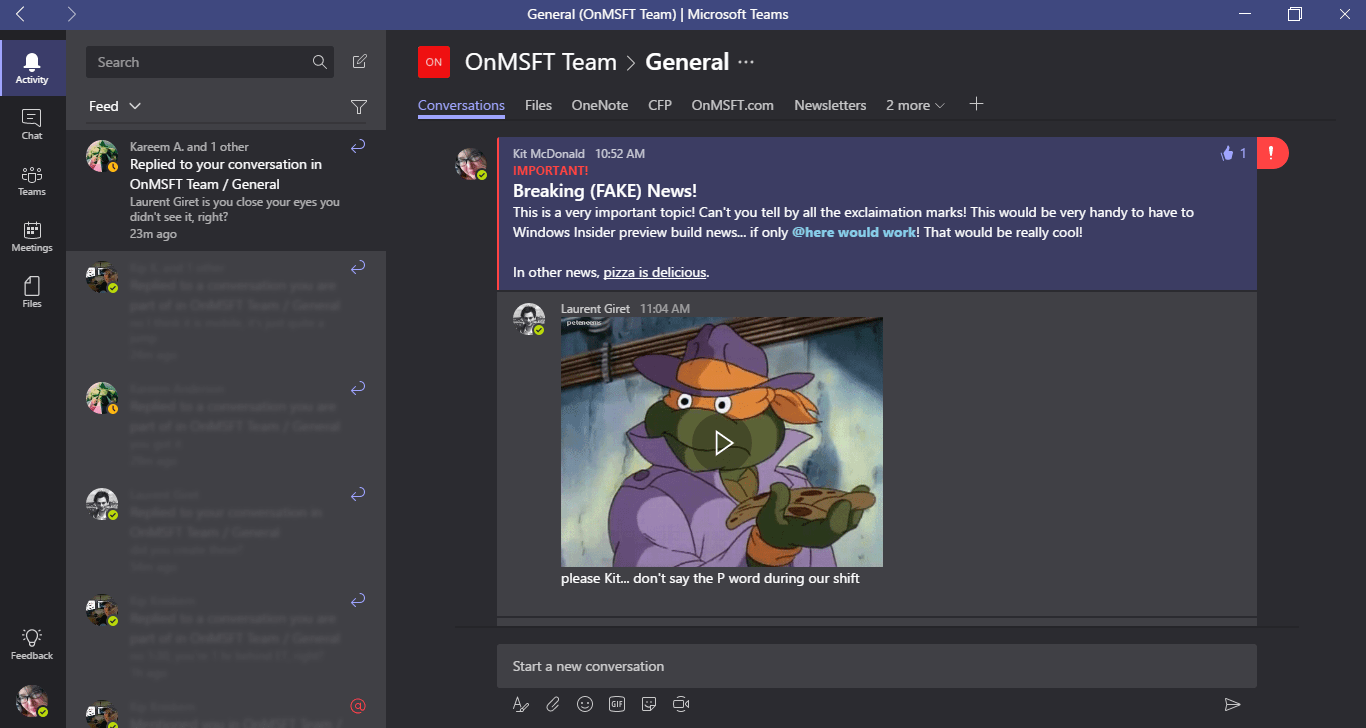
Perhaps Microsoft could tempt you with the inclusion of Teams retention policies being included in Office 365 security and compliance center.

Yesterday, the Office team began rolling out the retention policies to Office 365’s security compliance center and estimate the full breadth of the release should be concluded within the next few weeks.

What does this mean for your average admin in charge of maintaining the office’s communication platforms?

  • What are retention policies for Teams?
    For most organizations, the volume and complexity of their data is increasing daily – email, documents, Teams messages, and more. To manage or govern this information is important for admins need to:Comply proactively with industry regulations and internal policies that require organizations to retain content for a minimum period – for example, the Sarbanes-Oxley Act might require you to retain certain types of content for seven years.
  • Reduce their risk in the event of litigation or a security breach by permanently deleting old content that organizations are no longer required to keep.
  • Help organizations share knowledge effectively and be more agile by ensuring that their users work only with content that’s current and relevant to them.

With a Teams retention policy, you can:

  • Decide proactively whether to retain content, delete content or both – retain and then delete the content based on time.
  • Use the SCC Policy creation user experience or Teams Retention PowerShell cmdlets
  • Set different retention durations for Teams Chats v/s Teams Channel Messages.
  • Target the entire organization with these location rows and target specific users (for Teams chat retention) and specific
  • Teams (For Teams channel message retention)
  • Use retention policies with the SharePoint & OneDrive location rows to address the Files in Teams.

In addition, IT Admins can choose what to do with content in chats, whether it be retaining or deleting, use the eye-friendly SCC policy creation center to create rules and guidelines, schedule different retention durations, target entire departments using location rows and location rows to establish retention policies for Sharepoint and One drive folders.

Once again, the update is currently rolling out, but for those interested, there are some FAQ sheets to mull over, here. Microsoft seems to be pouring a lot of resources into Teams to help it catch up in the market while also being competitive with current offerings. The company has eDiscovery of calls and meetings planned for Teams, as wells as implementing Data Prevention of conversations and files found in Teams as well addressing the current round of feedback and audit logs for the month.

Microsoft plans to beef up Power BI with Forerunner Software technology acquisition

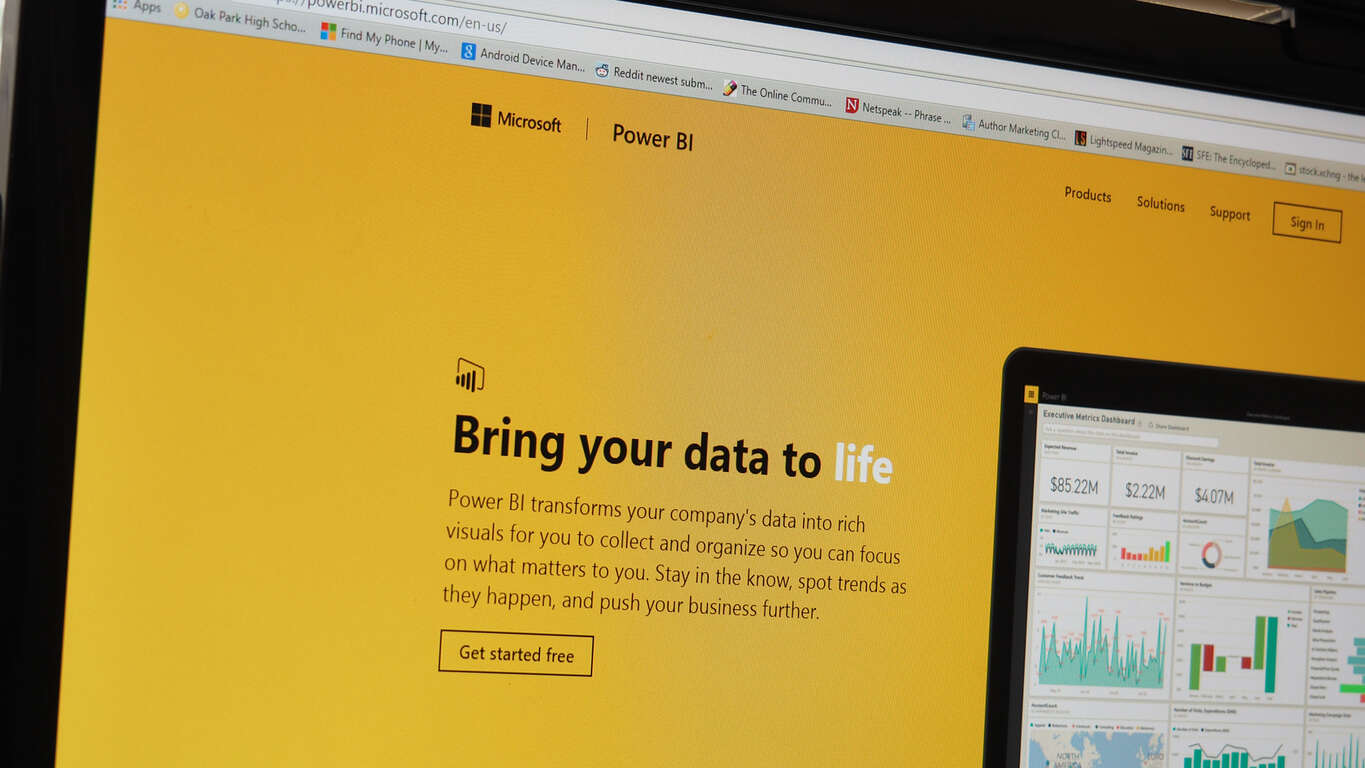
Microsoft announced in a blog post yesterday that they’ve acquired technology from Forerunner Software that “includes, among other things, client-side rendering of Reporting Services (*.rdl) reports, responsive UI widgets for viewing reports, and a JavaScript SDK for integrating reports into other apps.” According to the SQL Server Reporting Services Team Blog post, SRSS users are looking for more out of those reporting services, and this new technology should help bolster SRSS and provide more and better reporting information.

In addition, the Forerunner technology will move the Report Viewer from a purely ASP.NET Web Forms control to a “client-side/JavaScript-based Report Viewer you can integrate into any modern app.”

The blog post cautions that “these are large undertakings,” and there’s no timeline to share as of yet, but this is one more signal that Microsoft is serious about both extending its position with PowerBI, and furthering its goals with acquisitions.

Dell announces new XPS 15, and it’s a beast

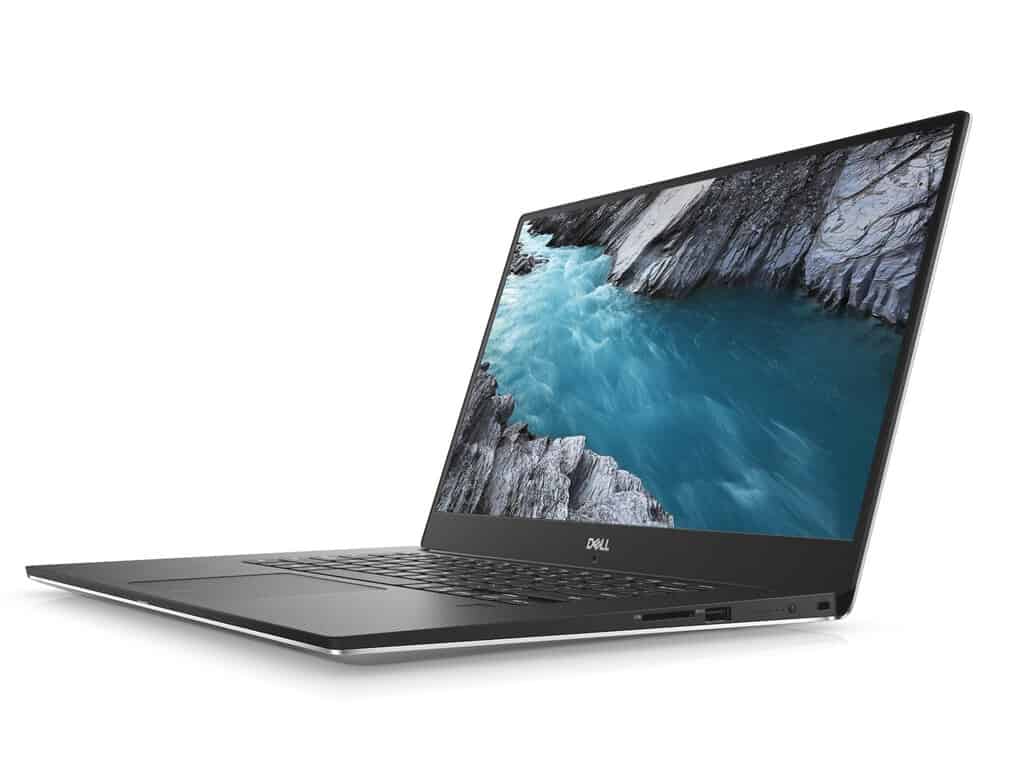
Dell today announced the 2018 refresh of their XPS 15 lineup, and the device is a true beast. The 2018 Dell XPS 15 9570 packs a familiar design and build, but with improved insides, including options for the NVIDIA GeForce GTX 1050Ti, and Intel’s freshly announced Core i9 processor (via Windows Central.)

The base model of the unit starts at $999 and comes with integrated graphics and Intel’s Core i5-8300H CPU. Also included onboard low-end models is a 56WHr battery, and a 97WHr battery on the higher end models, with a total promise of 21.5 hours of battery life. Both models boast Dell’s slim InfinityEdge display, though there’s a 4K display option available. Finally, Dell also improved the Thunderbolt 3 port to support four PCIe lanes instead of two, which is always important.

Preorders for the XPS 15 9570 open up on April 16th. Do you think this is a device that you might purchase? Let us know your thoughts in the comments below.

New Microsoft 365 security and compliance center to help expand on unified administration experience

Yesterday, Microsoft announced the rollout of the Microsoft 365 security and compliance center. This new center offers the same experiences as Office 365 security and compliance center and is designed to help expand on the unified administration experience that is part of the Microsoft 365 vision.

According to Microsoft, the Microsoft 365 security and compliance center enables data administrators, compliance officers, security administrators, and security operations to “discover security and compliance controls across Office 365, Enterprise Mobility + Security, and Windows in a single place.”  As an example, a data administrator can use the center to easily access Azure Information Protection and Microsoft Cloud App Security to help report on their data.

Administrators can log into the experience like they normally do by visiting this link, or by visiting the Microsoft 365 admin center. Microsoft will also continue to integrate and streamline administration experiences across Microsoft 365 over the next few weeks, so best to keep tuned for more.

Microsoft enables peer-to-peer digital payments on Microsoft Kaizala

Microsoft has enabled digital payments services on Microsoft Kaizala in India by integrating the mobile payment services of Yes Bank and MobiKwik. The feature will allow users to quickly send or receive money without having to leave the Kaizala app.

Users will be able to make peer-to-peer payments in one-to-one and group chat conversations via the MobiKwik wallet and via Yes Bank’s Unified Payment Interface (UPI) integration. The UPI payment integration works with all participating 86 banks.

Microsoft Kaizala, a mobile-only product designed for large group communications and work management, enables organizations to take business workflows to its Firstline workforce. This feature will now enable organizations to disburse micro-payments, enable bill expense reimbursements, and pay travel allowances on the go to its mobile workforce.

When we launched Microsoft Kaizala for India in July 2017, we provided consumers as well as businesses with a secure chat platform to collaborate and be productive, on the go. Microsoft Kaizala is used by thousands of organizations across different industry verticals for their day-to-day workflows today and is growing. Payment transactions within the app was a key demand from our users for getting work done and we are happy to offer it today in collaboration with YES Bank and MobiKwik.

– Rajiv Kumar, Corporate Vice President, Office Product Group, Microsoft.

Launched in July 2017 in India, Microsoft Kaizala is being used by over 900 organizations as well as few government departments already.

Surface Pro 3 Can’t Connect to This Network [Fix]

Many reported that Surface Pro 3 can’t connect to this network and this can be an issue since you won’t be able to access Internet at all.

This can occur if Microsoft Surface network adapter not working, but there’s a way to fix this issue, and in today’s guide we’re going to show you the best ways to do it.

So without further ado, let’s get started, shall we?

Why does it keep saying can’t connect to this network?

  • Issues with your network connection or router can cause this issue to appear.
  • Temporary glitches with your Surface or router can cause issues such as this.
  • Incorrect date and time can sometimes lead to this and many other problems.
  • Power saving features on your Wi-Fi adapter can prevent network from working.

What can I do if Surface Pro 3 can’t connect to this network?

1. Preliminary checks

Check the WiFi settings:

  1. Click Start and select SettingsSurface Pro won't connect to WiFi Windows 10
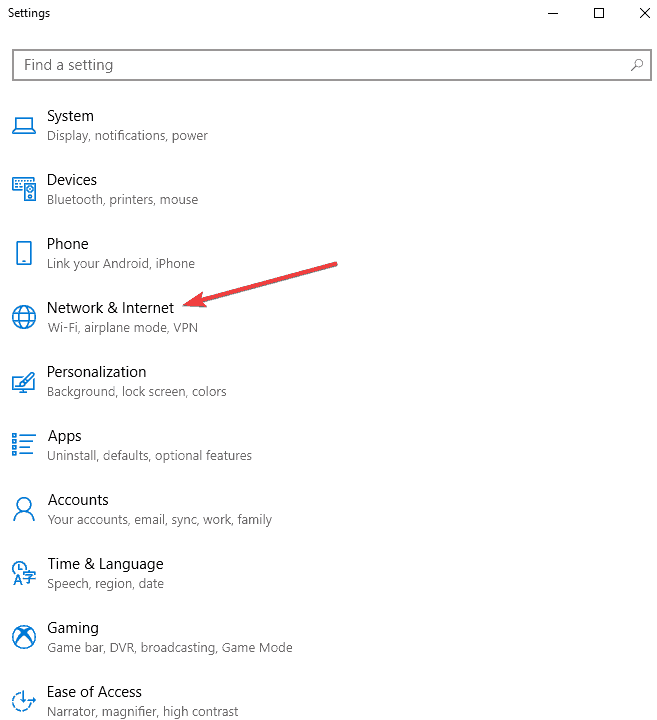
  2. Select Network & Internet.Surface Pro won't connect to WiFi Windows 10
  3. Select WiFi.
    Surface Pro won't connect to WiFi Windows 10
  4. Make sure WiFi is On and that Airplane mode is Off.

Check the password for your router

  1. Click Start button and select Settings
  2. Select Network & Internet
  3. Select Status
  4. Select Network and Sharing Center.
  5. In Network and Sharing Center, next to Connections, select your Wi-Fi network name.
    Surface Pro won't connect to WiFi Windows 10
  6. In Wi-Fi Status, select Wireless Properties.Surface Pro won't connect to WiFi Windows 10
  7. In Wireless Network Properties, select the Security tabSurface Pro won't connect to WiFi Windows 10
  8. Select the Show characters check box. Your Wi-Fi network password is displayed in the Network security key box
Surface Pro won't connect to WiFi Windows 10

These are just a couple of simple checks to perform if Surface Pro 3 can’t connect to this network.

2. Check your network on a different device

  1. Use your phone or any other Wi-Fi device.
  2. Try connecting to the network on that device.
  3. If you can’t connect on other devices, the issue may be with the network or your hardware.

3. Restart your network hardware and reconnect

  1. Remove the power cord from your router or modem.
  2. After all lights are out, wait thirty seconds and plug back the modem again.
  3. Wait for the modem to boot.
  4. Restart your Surface and try to connect again.

4. Restart your Surface Pro and reconnect

  1. Restart (don’t shut down) your Surface Pro.
  2. Select Start   
  3. Select Power

  4. Select Restart to restart your Surface and re-connect to Wi-Fi.
     

Sometimes a quick restart is all you need if Surface Pro 3 can’t connect to this network.

5. Check Date and Time settings

  1. Go to Start, and select Settings and choose Time & language.
  2. Make sure the info is correct or make changes as necessary.
  3. Try to connect to your Wi-Fi network

6. Forget the old network

  1. Swipe from the right to display Charms menu
  2. Select Settings
  3. Select the Wireless network list
  4. Right click or press and hold the network you want to forget
  5. Select Forget this network

  6. Restart the Surface Pro device

In case Surface Pro 3 can’t connect to this network, try removing all the networks and check if that solves your problems.

7. Check if MAC address filtering is enabled

  1. Log in to your router.
  2. Turn off MAC filtering temporarily to see if it is causing the Surface Pro not to connect.
  3. Add the MAC address of your Surface to your router’s authorized list.

If you want to find the MAC address, do the following:

  1. Select the search box in the taskbar, enter cmd, and in the search results select Command Prompt.
  2. Run the following command: ipconfig /all

  3. Find the Physical Address. This is the MAC address for your Surface.

Now make sure to add your device’s MAC address to the list of allowed addresses and that should help with Surface Pro 3 can’t connect to this network error.

8. Run Windows network troubleshooter

  1. Right click Start
  2. Select Control Panel
  3. Select Network and Internet
    Surface Pro won't connect to WiFi Windows 10
  4. Select Network and SharingSurface Pro won't connect to WiFi Windows 10
  5. Go to the search box and type Identify and repair network problems
  6. Select Identify and repair network problems to run it following the instructions carefully

9. Install updates

  1. Install updates by either using a wired connection, using another connection.
  2. Install the missing updates on your devices.
  3. After installing updates, restart your surface and reconnect to Wi-Fi to see if it helps.

10. Reconfigure Wi-Fi adapter

  1. Right click Start and select Device Manager

  2. Right click your Wireless adapter and select Properties
  3. Click Power Management tab
  4. Uncheck Allow the computer to turn off this device to save power
  5. Click OK
  6. Change the default power plan and switch from high energy savings to low

11. Check TCP/IP settings

  1. In the search box, type CMD
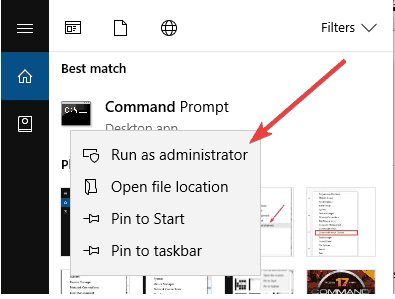
  2. From the search results, right click Command Prompt and tap Run as administrator.
    Surface Pro won't connect to WiFi Windows 10
  3. Type the following command and press Enter after each command.
    netsh int tcp set heuristics disabled
    netsh int tcp set global autotuninglevel=disabled
    netsh int tcp set global rss=enabled
    netsh int tcp show global
  4. Type Exit and press Enter.

We hope that these steps helped you fix Surface Pro 3 can’t connect to this network error message.

This isn’t the only issue, and many reported that Surface Pro won’t connect to iPhone’s hotspot, so you might want to check that guide for more solutions.

Did any of these solutions help? Let us know in the comments section below.

Download KB4096309 to fix connectivity issues in Windows 10

Many Windows 10 users still run the Anniversary Update, and Microsoft takes good care of this user segment. As a result, the company just rolled out a brand new update for their systems, KB4096309 which takes the OS version to Windows 10 version 14393.2156.

This update comes with a few quality improvements, but there are no operating system features packed in it.

KB4096309 improvements and fixes

According to Microsoft’s changelog for the update, the patch fixed an issue that caused “operational degradation or a loss of environment” due to all kinds of problems related to connectivity.

These issues are mainly revolving around environment configurations that were triggered by the installation of the previous build, KB4088889 released back on March 22, 2018, or by KB4088787 which was released on March 13, 2018. This is the only fix that is packed in the update.

If you installed earlier updates, it’s important to note that only the new fixes contained in this package will be downloaded and installed on your system.

There are no known issues included in this latest update at the moment. In order to get the standalone package for the update, you should head to Microsoft Update Catalog’s website.

Improvements for Windows Update client

As a quick reminder, any Windows 10 device that’s configured to receive the updates automatically from Windows Update (including Enterprise and Pro editions) will get the latest Windows 10 Feature Update.

This will be based on device compatibility and also Windows Update for Business deferral policy and it will not be applied to long-term servicing editions.

RELATED STORIES TO CHECK OUT:

Next Inside Xbox live show to air April 10, Microsoft teases some OG Xbox backward compatibility news

Inside Xbox, the new monthly live broadcast featuring Major Nelson and other notorious Xbox team members, will be back next week with some exciting news. Tina Summerford, Director of Programming at Xbox announced today that the team will kick off the show with an update about OG Xbox backward compatibility:

One of our most common requests is for Original Xbox Backward Compatibility news, and we’ll be starting off the show with a big update on just that. Stay tuned next Monday for a full breakdown of the news and content you can expect on Inside Xbox. Mostly full that is, as we reserve the right to keep a moment or two fully under wraps for a proper surprise.

Original Xbox Backward Compatibility was one of the highlights of Microsoft’s E3 2017 press conference, and a first selection of 13 OG Xbox titles became available to play back in October. The Xbox team previously explained that making these old games playable on the Xbox One is quite difficult, especially when game publishers no longer exist, or when games use music that is now unlicensed, etc. “Fans hold the key here,” senior director of Xbox console marketing Albert Penello told IGN last year. “We’re doing the work. In some cases there are legitimate business reasons it can’t happen. But the more that fans can drive that message back to the publishers, the more we can do.”

The next episode of Inside Xbox will air Tuesday, April 10 at 3:30 p.m. PDT / 6:30 p.m EDT, and you’ll be able to watch it on Mixer, Twitch, YouTube and Facebook. Let us know what are the new OG Xbox games you would like to see being added to the Xbox One Backward Compatibility list.

Microsoft opens Azure regions in Australia and New Zealand

Microsoft announced today they have opened up new Azure regions in Australia and New Zealand. This now means Microsoft is the only global cloud provider that is delivering cloud services designed to address the requirements of the Australian and New Zealand governments.

The cloud infrastructures in the two regions are being delivered through a partnership with Canberra Data Centres. According to Microsoft, the key element in the new Australia Center regions is the ability for Microsoft customers to “deploy their own applications and infrastructure within Canberra Data Centres directly connected via Azure ExpressRoute to Microsoft’s global network.”

This new Australia Central region is restricted to the community of Australian and New Zealand governments and critical national infrastructure sectors. Microsoft already offers Azure from Azure from three cities in Australia including Sydney, Melbourne, and Canberra with connectivity to Perth, Brisbane and Auckland in New Zealand.

Microsoft hopes that the new Azure regions can fit the needs of both Australian and New Zealand banks, utilities, transport, and telecommunications. You can learn more about today’s announcement by checking here.

First Twitter PWA update on Windows 10 brings several usability improvements

A couple of days ago, Twitter became the first developer to update their app to a PWA format on Windows 10 Redstone 4 and Redstone 5 devices. Though it was an excellent proof of Microsoft’s new concept for Windows 10 apps, the PWA shipped with several bugs in the initial release. Lo and behold, the app has received its first round of updates, bringing several usability improvements (via Windows Central.)

With the latest improvements, you’ll no longer see a request to review the app every time it is launched. You’ll also notice that the end user cookie dialogue will no longer pop up once you dismiss it. Finally, also new is the ability to paste images directly from your clipboard and into a tweet.

All of these improvements are automatically rolling out, so you won’t need to go to the Windows Store for any updates. This is one of the many benefits of the PWA, and you can expect for Twitter to add more features in the coming weeks, such as live tile support and the ability to upload video.

Please keep in mind you only will be seeing the Twitter PWA if you’re a Windows Insider on the Spring Creators Update (Redstone 4) or the Skip Ahead Ring (Redstone 5.) Everyone else should be getting this PWA once Redstone 4 ships later this month.

Twitter
Twitter
Developer:
Twitter Inc.
Price:
Free

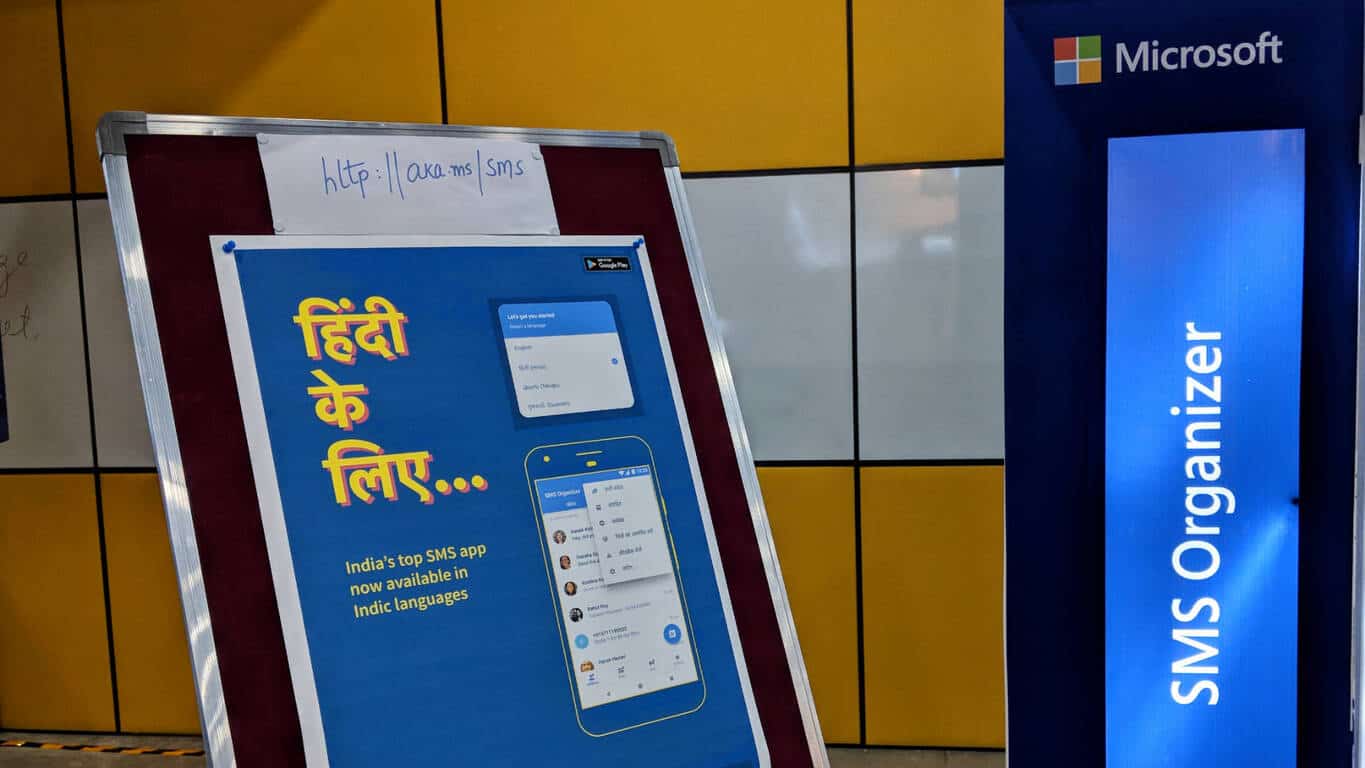
One of our favorite Microsoft apps, SMS Organizer, gets a UI refresh and support for Indian languages

A Microsoft Garage product, SMS Organizer is a light-weight app for Android smartphones that uses advanced machine learning algorithms to pick out messages and classify them based on priority. In India, every transaction with a business or a government entity triggers an SMS and there are several promotional messages every day too that clutter up an already busy SMS Inbox.

The app helps users manage their SMS by sifting through the contents of each message and categorizing them based on utility and importance. Interestingly, all the classification and interpretation happens locally on the device and does not require any server-side interaction.

The highlight of SMS Organizer is the Smart cards feature. The machine learning algorithm built into the app reads through the messages you receive and highlights key information via cleaner and at-a-glance information cards. The SMS Organizer also sets reminders for actions mentioned in the messages – like bill payments or travel tickets. It blocks spam messages from sending notifications and alerts so that you aren’t interrupted by non-essential messages.

The latest update to SMS Organizer brings a more ‘darker’ UI (see the sample screenshots – leftmost screenshot is before the update) which I’m a big fan of. The new cleaner UI simplifies the app and makes it more intuitive.

The update also adds support for Indian languages – Hindi and Telugu. The developers will be adding support for more languages going forward.

SMS Organizer is a simple solution to a common problem that saves users from the torrent of unnecessary spam and makes sure you don’t miss out on important messages. Give it a whirl if you’re in India, and let us know how you like it.

SMS Organizer
SMS Organizer
Price:
Free

Windows 10 news recap: Microsoft Planner to get a UWP app, Microsoft to drop internal “Redstone” name for future Windows 10 updates, and more

Welcome back to our Windows 10 news recap, where we go over the top stories of the past week in the world of Microsoft’s flagship operating system.

Microsoft Planner is getting Guest Access support, UWP app also in the works

Microsoft’s visual teamwork planning tool, Microsoft Planner, is to receive its own UWP app for Windows 10 in the future, according to Planner’s UserVoice. This news comes after the fact that iOS and Android already have an app for Planner.

Microsoft will reportedly stop using “Redstone” internal codename for future Windows 10 updates

It is reported that, from 2019, Microsoft is planning to simplify its internal codenames for major Windows 10 updates, dropping the “Redstone” name that we’ve come to expect for every major update to the operating system.

Windows 10 Build 2017

Windows Org’s Terry Myerson shuffled out at Microsoft in shakeup

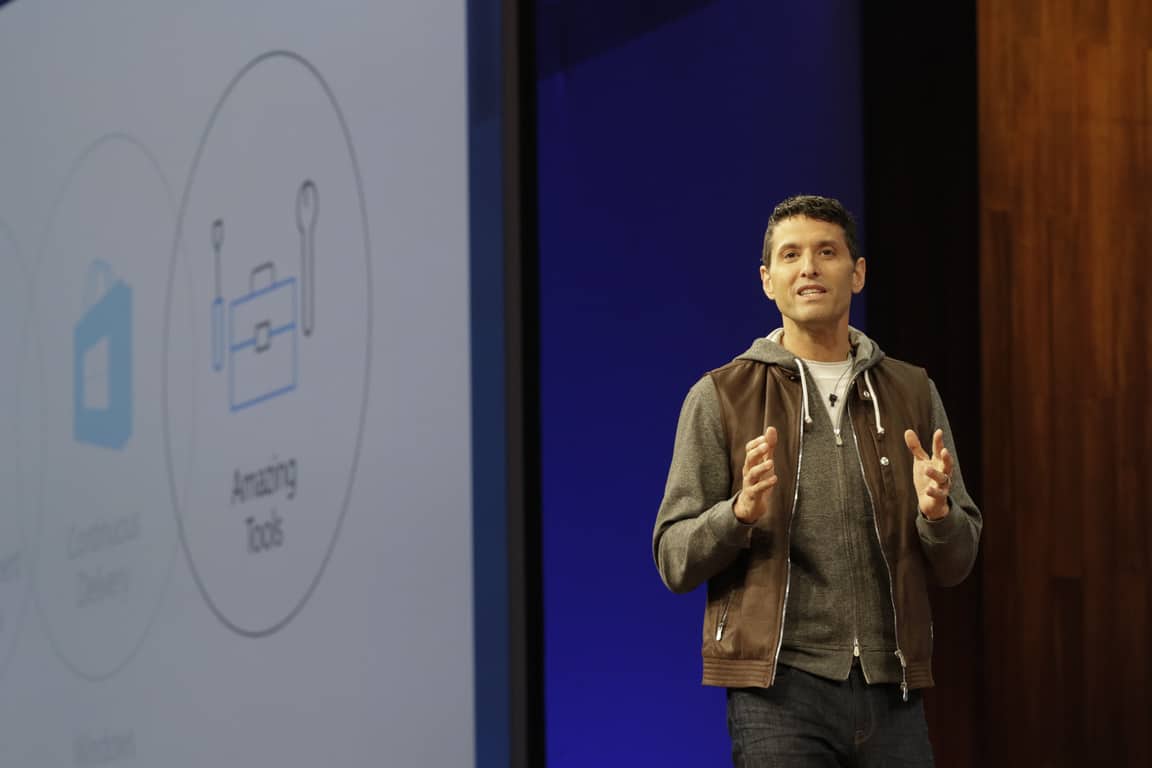
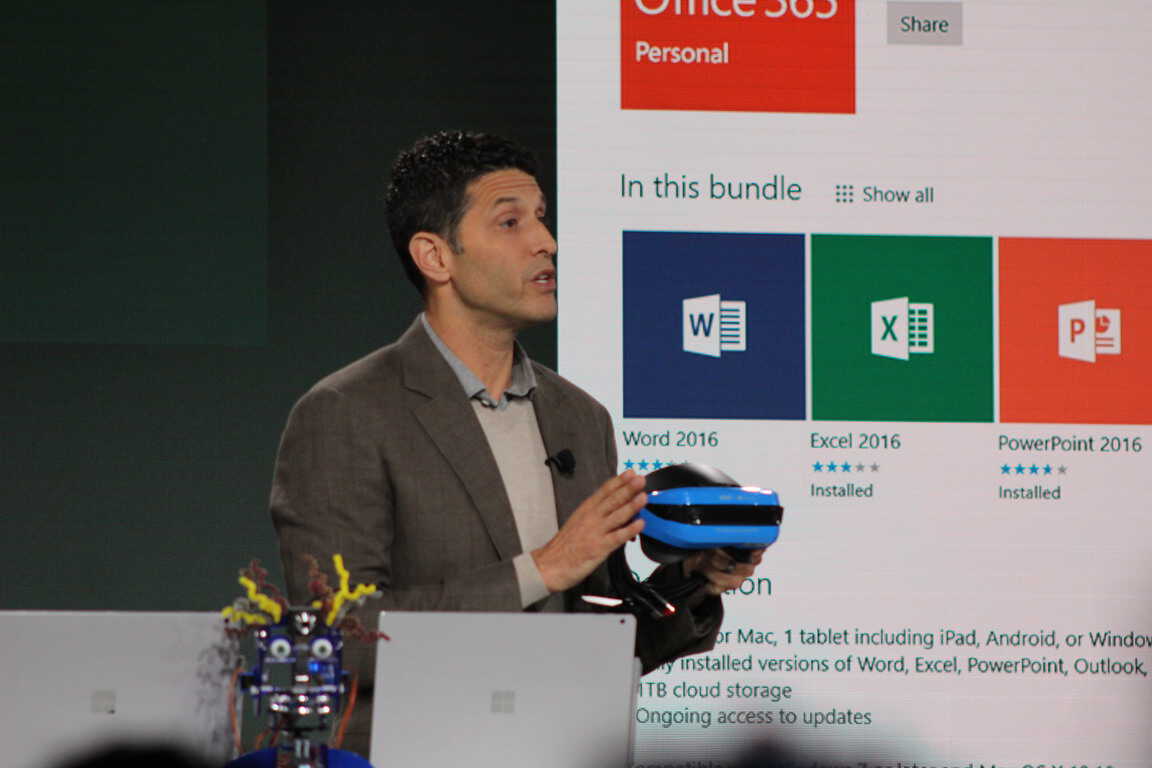
In the latest company-wide reshuffle by CEO Satya Nadella, Terry Myerson is stepping down from heading up Microsoft’s Windows & Devices Group, leaving 21 years of being at Microsoft behind him.

Terry Myerson Windows 10 S

An exiting Terry Myerson reveals interesting Windows usage stats

Following the announcement of Terry Myerson’s exit from the company, Myerson has revealed some interesting usage statistics from Windows, particularly the Windows Insider Program, on LinkedIn:

One of my favorite things about leading Windows has been the Windows fans. Through good times and bad, I’ve loved your feedback. I’ve loved your passion for our work. I’ve loved your applause when we’ve done great work and I’ve loved the push to do better. One of my deeply held lessons from my Exchange days was the importance of that feedback loop with customers and fans, and that’s why we created the Windows Insider Program so we could build Windows 10 led by your feedback. Now with 15 million members, you continue to make our product and our team better each and every day. Thank you.

Today, we are now approaching 700 million active Windows 10 users, commercial usage is growing 84% year over year, Xbox One is running a Windows 10 core, Surface is leading PC innovation, HoloLens is bringing breakthroughs to computer vision, our universal Microsoft store enables Xbox GamePass, Azure reserved instances, and Office distribution and the OEM ecosystem is revitalized with profitable growth. Last year, we finished the year with over $8B in operating income from our segment.

That’s it for this week. We’ll be back next week with more Windows 10 news!

Microsoft news recap: Satya Nadella reshuffles the company, Terry Myerson leaving Microsoft after 21 years, and more

Microsoft news recap is a weekly feature highlighting the top Microsoft news stories of the past week. Sit back, grab some coffee, and enjoy the read!

Satya Nadella reshuffles Microsoft

In an letter to employees, Microsoft CEO Satya Nadella announced a reshuffle of the company, which means that the Windows division is no longer an overarching entity covering various areas of the business, but instead sits on in its own area under the Experiences & Devices group. Below is how the new structure will look:

  • Experiences and Devices, led by Rajesh Jha
    • Devices – Panos Panay, Chief Product Officer
    • Windows, led by Joe Belfiore
    • New Experiences and Technology, led by Kudo Tsunoda
    • Enterprise Mobility and Management, led by Brad Anderson
  • Cloud + AI Platform, led by Scott Guthrie
    • Azure, led by Jason Zander
    • Business Applications Group, led by James Phillips
    • Universal Store and Commerce Platform, led by Eric Lockard
    • AI Perception & Mixed Reality, a new team led by Alex Kipman
    • AI Cognitive Services and Platform, led by Eric Boyd
  • AI + Research, led by Harry Shum

Terry Myerson says thank you for 21 years at Microsoft

As part of Satya Nadella’s reshuffle of the company, Terry Myerson will be stepping down as Executive Vice President of the Windows and Devices Group, marking 21 years at Microsoft.

LinkedIn will soon include auto-playing video ads in your Newsfeed

In a move that will bring LinkedIn ever-closer to its rivals, such as Facebook and Twitter, the professional-oriented social network will be rolling out auto-playing video ads. These ads have been tested with over 700 advertisers since last October, and now LinkedIn is ready to begin rolling them out to all advertisers. Sound will be turned off by default on auto-playing video ads.

LinkedIn

Microsoft announces April 3 registration date for Ignite conference

Registration for Microsoft’s annual Ignite conference opens on 3rd April. The conference will take place in Orlando, Florida between 24th September to 28th September.

That’s it for this week. We’ll be back next week with more Microsoft news!

Xbox Insider update: Another Alpha build, Beta & Delta receive previous Alpha build

Hot on the heels of the earlier Alpha build for Xbox Preview Program members, the Xbox team are releasing another build for those on the Alpha ring, while moving the previous Alpha build, that contained 2 audio fixes, to the Beta and Delta rings.

The new Alpha build comes in at build number 1804.180329-1920 and fixes an issue with Achievements, whereby notifications and tracking would fail. The same Known Issues from the previous Alpha build (see here) remain in this build.

It’s not just those on Alpha that are getting all the fun this Easter weekend however, as Beta and Delta are receiving Alpha’s previous build, this build comes in at build number 1804.180328-1922 and delivers 2 fixes for audio issues:

Audio

  1. Fixed an issue in which some users may experience a black screen or a console crash when the default audio is set to Dolby Atmos.
  2. Fixed low audio volumes some users have been encountering in various apps and games.

This build comes with the following known issues to watch out for:

Pi-hole

  • Pi-hole users may encounter issues signing in, creating, or recovering accounts upon downloading the 1804 update. This is due to a new configuration file which is downloaded from a URL Pi-hole blocks by default.
  • Workaround: Add clientconfig.passport.net to the Pi-hole allowed IP address list.

Netflix

  • Netflix on Monitor only works at 1080p and does not support 1440p – Netflix is aware of the issue.  Workaround : If watching Netflix on a Monitor/LCD please set the display output to 1080p.

HDR Issues

  • Some users are discovering that some games are not showing in HDR – Please file feedback when you encounter this to help in the investigation.

Controller sharing/ Co-pilot vibration issues

  • Some users may experience a problem with a controller vibrating non-stop when using the share controller or the co-pilot feature.

Profile Color

  • Sometimes users may encounter the incorrect Profile color when powering on the console.

Home

  • Some users are reporting when quitting a game or app via the guide Home is not loading and you see a black screen.

Audio

  • Hulu app volume is lower and being investigated.

If you’re on either Alpha, Beta, or the Delta ring, then your console will prompt to update the next time it is turned on.

Discrete GPU is still causing frequent micro-freezes on Windows 10 [FIX]

Many Windows 10 users who own laptops which have Intel CPU + GTX 1050/1050Ti/1060/1070 have long been complaining about micro-freezes. More specifically, whenever you try to do some action on the OS, discrete GPU triggers and causes 0.5 second micro-freezes.

Users report that these micro-freezes that lock up their computers can be triggered by various actions, including:

  • Right clicking on desktop
  • Selecting the battery-icon
  • Launching a browser
  • Opening Control Panel
  • Loading a new tab, and so on.

This problem has been bugging users ever since the Creators Update was launched. The Fall Creators Update is affected as well and users are wondering if the Spring Creators Update will feature the same issue.

Powerful laptops freeze with basic operations

The most annoying and frustrating part for users is that this problem occurs on medium and high-spec machines.

I have this issue with the Dell 7577 with 1060 max-Q. I’ve been saving for 4 years since my previous laptop to buy a new and powerfull gaming laptop. First thing I noticed when testing where these microstutters, the laptop even performs worse than my 4 year old laptop in terms of basic functionality. The micro-stutters really ruin the experience.

Intel recently released an update for their HD graphics driver and the release notes confirm it reduces stuttering in laptops equipped with discrete graphics. Most users who installed driver version.4982 reported they didn’t notice any improvements as far as micro-freezes are concerned.

However, some users have been luckier. Stuttering is no longer there when opening problematic programs.

Mine got fixed with the latest update for some reason. HP OMEN 15 user with the i7-7700HQ + 1050 TI.

The Redditor who posted the information quoted above also confirmed that he runs Windows 10 version 1709. So, if you’re still experiencing micro-stutters, try updating your computers to the latest Windows version and then install the latest Intel driver updates. Hopefully, this solution will work for you.

More issues for NVIDIA 10-series GPUS

This is not the only issue affecting computers powered by Intel CPUs and NVIDIA 10-series GPUs. If you put a strain on your GPU and temperatures increases, your computer fans may not react at all. To enable GPU cooling you need to use the Sleep feature.

[…] my notebook fans (dual fan system, HP pavilion 15) does not react to GPU temperatures(only CPU) until PC is entered to Sleep and wake up again.

How to fix micro-freezes in Windows 10

So, if you’re still experiencing short freezes that last for less than a second, maybe the solution listed below will help you fix the problem. Although this workaround is specific for gaming, users confirmed it helped them fix stuttering/freezes and lags on the desktop as well, so do give it a try.

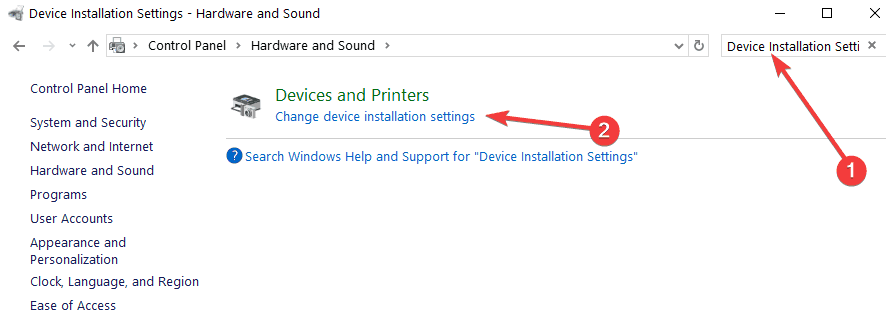
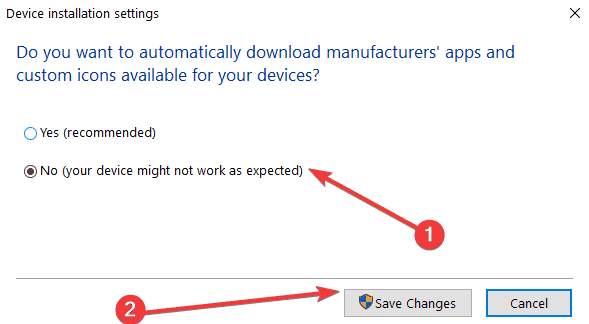
  1. Go to Start > type ‘control panel’ > double-click on the first result to launch Control Panel
  2. In the search box, enter ‘Device Installation Settings’Device Installation Settings
  3. Select the first result > select ‘No’ to turn off Windows driver auto-updating disable driver auto-update
  4. Download and launch CRU (Custome Resolution Utility)
  5. Select the monitor you’re using
  6. Go to ‘Detailed resolutions’ > Deleted everything on ‘Standard resolutions’
  7. Navigate to ‘Extension blocks’ > select the resolution that’s available > select ‘Edit’
  8. If there are any lists of refresh rates under the ‘Extension Blocks’ window, simply delete them all except for 164.999 Hz/ 144 Hz depending on which one you want to use
  9. Restart your PC > enable G-SYNC for full screen only
  10. You can also enable it for full screen  and windowed mode if you want.

There you go, we hope that these suggestions helped you fix the annoying micro-freezing affecting your computer.

If you came across other solutions to fix this problem, feel free to list the steps to follow in the comments below.

RELATED FIXES:

Homegroup cannot be set up in Windows 10/11 [BEST SOLUTIONS]

Networking is a crucial part of every computer, especially if you need to share files and collaborate with other users. This is extremely important if you’re working in a company or if you want to share files between two computers.

To do this, you first need to set up a Homegroup, but Windows 10 users are reporting an error that says “Homegroup cannot be set up on this computer”.

How can I fix issues with the homegroup in Windows 10?

Homegroup is a useful feature that allows you to easily share files across the PCs in the same network, but many users reported that they are unable to create a Homegroup on Windows 10.

Speaking of Homegroup issues, these are some of the most common problems that users experienced with Homegroups:

  • Cannot connect to Homegroup Windows 10 – Sometimes you might not be able to connect to a Homegroup on your PC. This can be a big problem, but you might be able to fix it by turning off all PCs and setting up a new Homegroup.
  • Can’t create Homegroup only join – If you’re having this problem, be sure to delete the content of PeerNetworking directory and try to create your Homegroup again.
  • I can’t create, join, or use a Homegroup – This is another problem with Homegroup that you might encounter. If this happens, make sure that the necessary Homegroup services are enabled.
  • Homegroup cannot be created on this computer, detected, removed – There are various issues with Homegroups that can occur on your PC, but if you have any of these problems, you should be able to fix them using one of our solutions.
  • Homegroup cannot access other computers, see other computers – If you can’t see other computers in your Homegroup, you might have to change security permissions for MachineKeys and PeerNetworking directories.
  • Homegroup Windows 10 not working – This is a general problem that can occur with Homegroups and in order to fix it, be sure that IPv6 is enabled.

Solution 1 – Delete files from PeerNetworking folder

  1. Go to C:WindowsServiceProfilesLocalServiceAppDataRoamingPeerNetworking.
  2. Delete idstore.sst and move on to Step 3. If deleting idstore.sst doesn’t work, go back to C:WindowsServiceProfilesLocalServiceAppDataRoamingPeerNetworking and delete all files and folders in it and go back to Step 3.
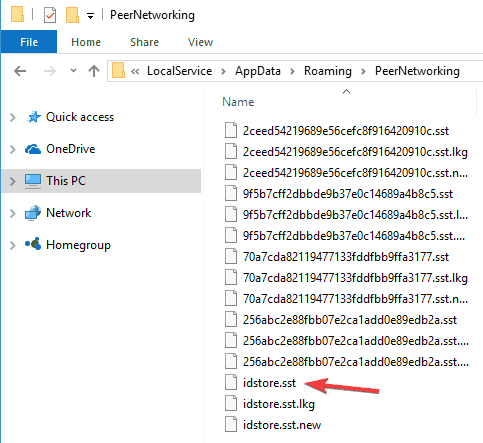
    Homegroup cannot be removed
  3. Go to the Network Settings and Leave the Homegroup.
  4. Repeat this for all the computers in your network.
  5. Turn off your computers.
  6. Turn on just one, and create a new Homegroup on it.
  7. This Homegroup should be recognized on all of your computers now.

Can’t delete certain files and folder in Windows 10? Check out this guide and fix the issue in just a couple of steps.


Solution 2 – Enable Peer network grouping services

Sometimes it can happen that services needed for Homegroup to work are disabled for some reason, but there’s a way to enable them.

  1. In the Search bar type services.msc and press Enter or click OK.
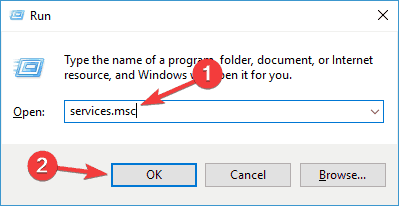
    Can't create Homegroup only join
  2. Search the list for Peer Network Grouping, Peer Network Identity Manager, Homegroup Listener and Homegroup Provider.
  3. If those services are disabled or set to manual set them to Automatic and leave your Homegroup.
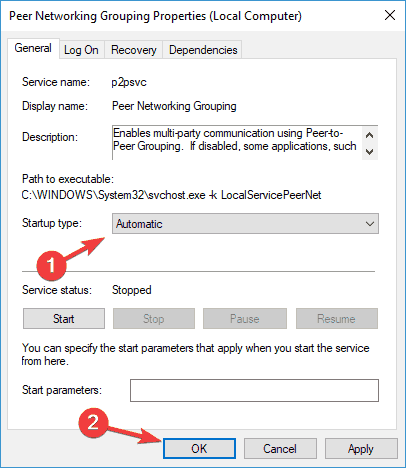
    Cannot connect to Homegroup Windows 10
  4. Create new Homegroup and see if it works.

We have to mention that you might have to do this for all the computers in your network.

If you encounter peer networking error 1068 on Windows 10, you can solve it by following this handy guide.


Solution 3 – Allow Full Control to MachineKeys and PeerNetworking folders

  1. Find:
    • C:ProgramDataMicrosoftCryptoRSAMachineKeys
  2. And then find:
    • C:WindowsServiceProfilesLocalServiceAppDataRoamingPeerNetworking
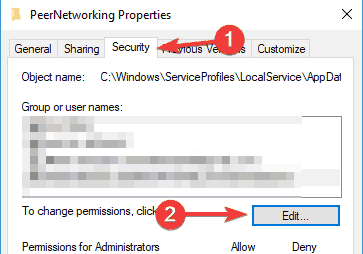
  3. Right click each folder and choose Properties.
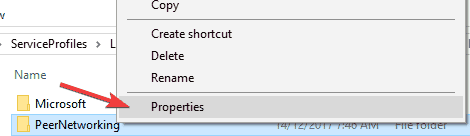
    Homegroup cannot see other computers
  4. Go to Security tab. You’ll see a group of users, click on a group, and press Edit.
    Homegroup cannot be detected on this computer
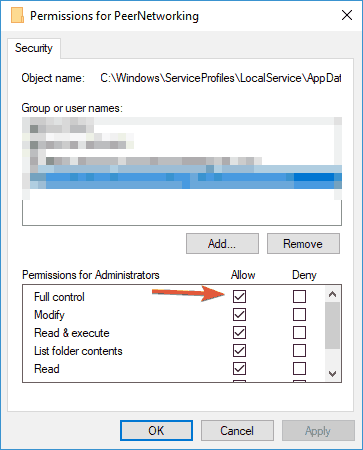
  5. From the list of options, click Full Control.
    I can't create, join, or use a Homegroup
  6. Repeat the process for all that you wish to have access to your Homegroup.

We have to mention that you might have to do this for all of your computers in a network.

Homegroup cannot be set up on this computer is an annoying Windows 10 error, and if none of these solutions were helpful, maybe you should perform a clean install as a last resort.


If you need to take ownership of a file or a folder in Windows 10, this guide will help you do just that.


Solution 4 – Rename MachineKeys directory

If you can’t set up a Homegroup on Windows 10, the issue might be related to MachineKeys folder. However, you can fix the issue simply by renaming the MachineKeys directory. To do that, just follow these steps:

  1. Navigate to C:ProgramDataMicrosoftCryptoRSA directory.
  2. Now locate MachineKeys, right click it and choose Rename from the menu.
  3. Change the name from MachineKeys to MachineKeys-old.
  4. Now create a new folder called MachineKeys and give full control permissions to Everyone and all users on your PC. To see how to do that, be sure to check the previous solution for more information.

After recreating the MachineKeys directory, the issue should be completely resolved and you’ll be able to set up a Homegroup once again. Many users reported that this solution worked for them, so be sure to try it out.


Rename your files and folders automatically. Here are the best file renaming tools available right now.


Solution 5 – Turn off all PCs and create a new Homegroup

If you’re unable to set up a Homegroup in Windows 10, the issue might be other PCs. Other PCs in your network can sometimes interfere and cause issues with Homegroup to appear. However, you can fix the problem simply by doing the following.

  1. First, stop all services beginning with Home and Peer on all computers.
  2. Now go to C:WindowsServiceProfilesLocalServiceAppDataRoamingPeerNetworking directory and delete all contents of that folder. Do this for all PCs in your network.
  3. Now shut down all computers in your network except one. Make sure that the PCs are completely turned off. If needed, unplug them from the wall outlet just to be sure.
  4. Now you should have only one PC running. Restart the HomeGroup Provider service on this PC.
  5. Now create a new homegroup on this PC.
  6. Restart all PCs in your network and join the newly created homegroup.

This solution might be a bit complicated, but several users reported that it works, so be sure to try it out.


Solution 6 – Make sure that your clock is correct

If you can’t set up a Homegroup on your PC, the problem might be your clock. Several users reported that their clock was incorrect and that caused the problem with Homegroup to occur.

If you can’t set up a Homegroup on your computer, be sure to check if the time is correct. To adjust the time on your PC, do the following:

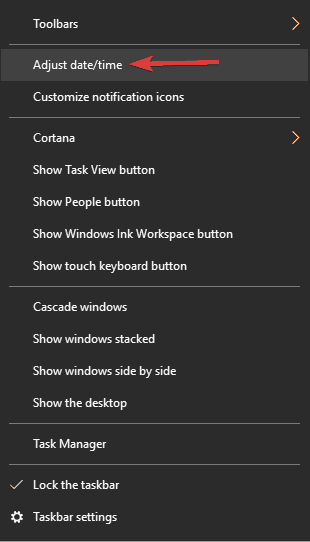
  1. Right click the clock in the right corner of your Taskbar. Choose Adjust date/time from the menu.
    Homegroup Windows 10 not working
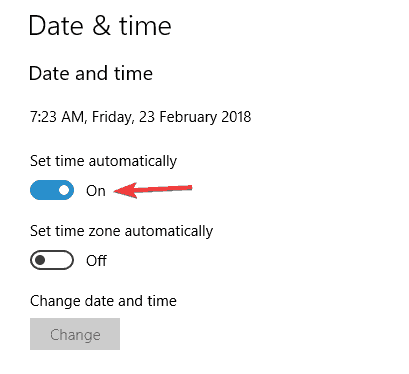
  2. Uncheck Set time automatically and turn in back on after a few seconds. This should automatically set your time. You can also turn off this feature and click the Change button to set the time manually if you want.
    Homegroup cannot access other computers

This is an unusual solution, but several users reported that adjusting their clock fixed the problem for them, so be sure to try it.


See if your Windows Time service is working properly by following this step-by-step guide.


Solution 7 – Check the Homegroup password

Many Windows 10 users reported that they can’t join a Homegroup because they don’t have the necessary password. This can be an annoying problem, but there’s a way to fix it. To fix this issue, simply do the following:

  1. Open the Settings app. You can do that quickly by pressing Windows Key + I.
  2. When Settings app opens, navigate to Network & Internet section.
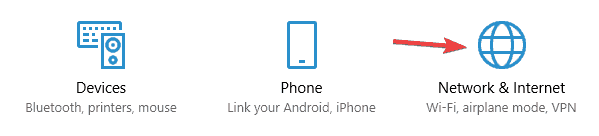
    Homegroup Windows 10 not working
  3. Select Ethernet from the menu on the left and choose HomeGroup from the right pane.

After doing that, you should be able to see the password for your Homegroup and use that password to connect other PCs. Keep in mind that this solution works only if you already have a Homegroup set up on your PC.


If you’re having trouble opening the Setting app, take a look at this article to solve the issue.


Solution 8 – Make sure that IPv6 is enabled on all PCs

If you’re unable to set up a Homegroup, the issue might be the IPv6 feature. According to users, this feature might be disabled on some computers and that can cause this issue to appear.

However, you can easily fix the problem by enabling IPv6. To do that, just follow these steps:

  1. Click the network icon in the bottom right corner and select your network from the menu.
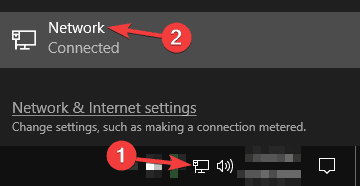
    Homegroup cannot be created on this computer
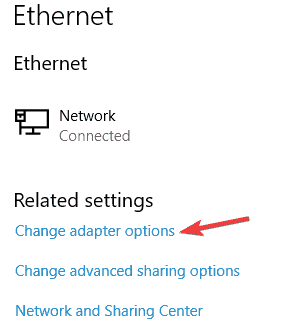
  2. Now select Change adapter options.I can't create, join, or use a Homegroup
  3. Right click your network connection and choose Properties from the menu.
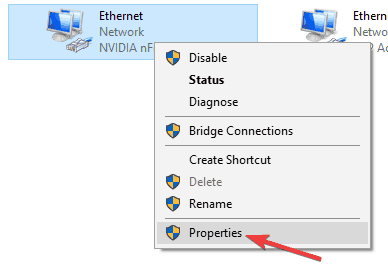
    Can't create Homegroup only join
  4. Locate Internet Protocol Version 6 (TCP/IPv6) and make sure that it’s enabled. Now click OK to save changes.
    Cannot connect to Homegroup Windows 10
  5. Repeat these steps for all PC on your network.

After enabling IPv6 for all PCs, you should be able to set up Homegroup without any problems.


Solution 9 – Change the computer name

If you’re having Homegroup problems on your PC, you might be able to solve them simply by changing the name of the affected PCs.

By changing the computer name, any configuration problems that you have with Homegroup should be resolved. To change the name of your computer, do the following:

  1. Press Windows Key + S and enter name. Select View your PC name from the list of results.
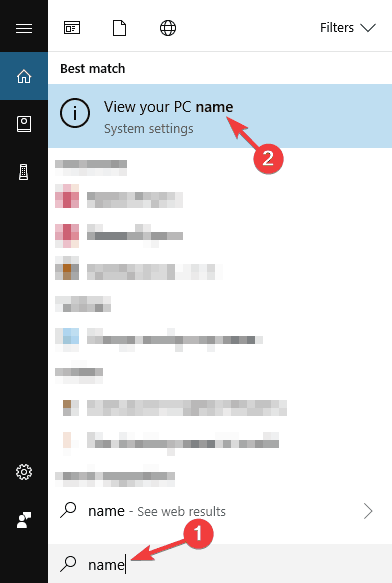
    I can't create, join, or use a Homegroup
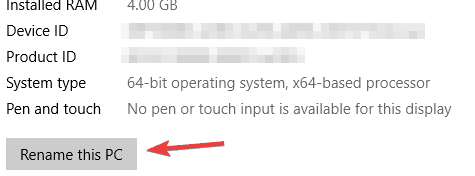
  2. Now click the Rename this PC button.
    Can't create Homegroup only join
  3. Enter the new computer name and click Next.
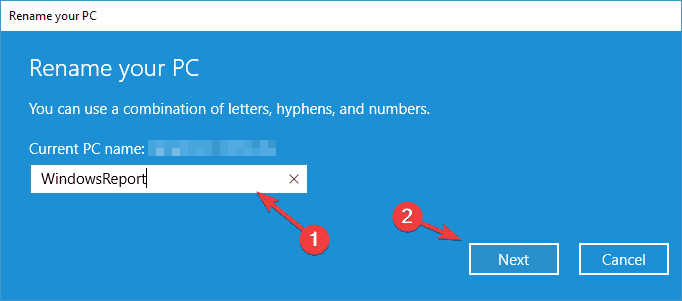
    Cannot connect to Homegroup Windows 10
  4. After changing the name, restart your PC to apply changes.

Keep in mind that you need to repeat this step for all computers in the network that are affected by this issue. After doing that, you should be able to connect to Homegroup without any problems.


Want to rename your PC faster? Check out this dedicated guide on how to quickly change your PC’s name.


If you have any other Windows 10-related issues you can check for the solution in our Windows 10 Fix section.

READ ALSO:

Microsoft in big reshuffle as Windows chief, Terry Myerson leaves

Seattle tech giant, Microsoft, announced Thursday that a major reorganization which will establish two main engineering teams was afoot.

This comes in the wake of Windows chief Terry Myerson, leaving the company after 21 solid years of service, where he oversaw the Windows and devices group as the executive Vice President.

In a detailed memo, Microsoft Chief Executive Satya Nadella, outlined the new changes which will see the current executive VP of the product group, Rajesh Jha, head the experiences and devices team, while Scott Guthrie, who is currently executive VP of the cloud and enterprise group, will now head the cloud and AI team.

Myerson and Microsoft depart on good terms

In a post on his LinkedIn profile, Myerson, who oversaw the company’s Exchange and Windows 10 products said his leaving the firm fills him with many emotions.

I’m mostly filled with gratitude and optimism – gratitude for the experiences I have had and optimism for the future ahead – both for Microsoft and myself.

On his part, CEO Nadella said that the company had been planning for Myerson’s transition to pursue his next chapter outside Microsoft, but lauded him for his role in shaping the reorganization.

Terry has been instrumental in helping me arrive at this new organizational structure, and I deeply appreciate his leadership and insight as we’ve worked through the opportunity that lies ahead. Over the past several years, Terry and the WDG team transformed Windows to create a secure, always up-to-date, modern OS. His strong contributions to Microsoft over 21 years from leading Exchange to leading Windows 10 leave a real legacy.

The reshuffle comes at a time when the tech leviathan is refreshing its strategy to align with the next phase of the tech world as it evolves, having missed the bus in mobile to leading giants, Google and Apple, so this is a significant moment for the company.

Currently, the big frontiers are AI and cloud services, which will be at the core of computing development, so the company is fighting to stay ahead of the pack, with strong contenders like Amazon and Google, among others pushing hard.

Other changes include the role of executive VP of Microsoft Azure, which will be filled by Jason Zander, and AI and research which will be headed by Harry Shum.

Former Microsoft employee parses Nadella’s re-org words, and it’s not looking pretty for Windows

Many of us are still calibrating the words from Microsoft CEO Satya Nadella regarding the company’s most recent re-org that saw the departure of the highest seated Windows executive and a shuffling of the deck chairs which ultimately sets a path for cloud growth that will eventually overshadow the company’s licensing of its operating system.

However, 17-year veteran of Microsoft and former employee Tim Sneath sees yesterday’s public re-org announcement as a dog whistle to the end of Windows as a core business for the company, and that its relevancy could be ceded much sooner than Nadella and company may be leading on.

In a Medium post, (via MSPU) Sneath explains what many of yesterday’s new title announcements may mean for the future of Microsoft as viewed by someone who worked at the company for 17 years, and many of his observations seem more substantial than the surface corporate speak Nadella used to introduce the promotions, reassignments, and figurative demotions:

Satya’s mail unsurprisingly underplays how far Windows is being scattered to the four winds. It seems that Joe Belfiore will continue to lead the Windows experience team (essentially, the user space), with the old core OS division (the kernel team) moving under Azure. (Again, hard to overstate the significance of that — the Windows kernel is now an implementation detail under a team that famously “loves Linux”). The HoloLens team also seems to move under Azure, which may be its death knell after a stuttering start — I can’t imagine that this is seen as core to the cloud business.

Sneath also examines the holes in Nadella memo that put into question, more recent tangential Windows developments such as Cortana, UWPs, Surface and the not too distant marketing re-org that was supposed to improve customer and partner relationships for the company.

Cortana is unmentioned in the email, although one assumes that it is divided across product units with the underlying platform under the AI Cognitive Services team and the Windows experience team being responsible for how it is exposed. This is strikingly different to how Amazon are treating Alexa, with thousands of people having been hired to that group over the last couple of years, including a good chunk of Microsoft’s old evangelism team if my LinkedIn network is anything to go by.

Partner relationships are now no longer under Windows either — another major shift — although it’s interesting that Satya’s mail here focuses in on the hardware community without any mention of the ISVs on which Windows’ success has been built.

For client developers, the relevance of UWP must be even more questionable. With the Windows store increasingly focused on non-app products (books, videos, music) and now being moved under Azure, further shake-ups there can be expected. And XAML Standard, touted in the keynotes of last year’s Build as the strategy through which Microsoft would unify various incompatible dialects and UI technologies such as Xamarin, WPF and UWP, has clearly fallen victim to politics, with the repo seeming to be dead and its goals having been drastically watered down.

Sneath’s post underscores the uncertainty that follows a massive re-org within a company, as well as the corporate double-speak Nadella, has become so adept at using when discussing the current and future prospects of Microsoft. The stock market has reacted exceptionally well to Nadella’s leadership of Microsoft but it should be noted that Microsoft isn’t a cloud leader yet, and yesterday’s re-org announcement puts into question the viability of a partnership with the company regarding Windows and services tied to the operating system such as Office, HoloLens, and Azure. 

Windows Insider team will sit in Cloud + AI Platform / Azure with new reorg

Yesterday Microsoft CEO Satya Nadella announced a major reorg to the engineering teams within the company, splitting up Windows and giving it a smaller footprint as it looks toward a cloud and AI focused future. Joe Belfiore will be heading up the Windows team with the Experiences and Devices group, which will also encompass Devices, led by Panos Panay, New Experiences, led by Kudo Tsunoda, and Enterprise and Mobility Management, still headed up by Brad Anderson.

However, and as much as many Windows Insiders and OnMSFT.com readers identify with the consumer facing aspects of Windows, the Windows Insider operation will now be led by Jason Zander and the Azure team under Scott Guthrie’s Cloud + AI Platform group, as noted in a tweet this morning by Dona Sarkar:

Nadella noted the change in his letter to employees on the reorg yesterday, explaining:

The Windows platform team led by Harv Bhela, Henry Sanders and Michael Fortin will join Jason’s team. Windows platform is already a core part of Azure across both the cloud and edge, and this shift will enable us to accelerate our efforts to build a unified distributed computing infrastructure and application model.

We’re still trying to wrap our heads around this latest reorg, which seems to be something more than just a rearranging of deck chairs. While it makes sense for the Insider Program to follow the Platform team, having consumer experiences and platform separated like this is going to take some getting used to, both inside and outside the company.

In any event, we wish Dona, Jason, Brandon, and the whole Windows Insider team all the best under their new corporate overlords!


New tweets suggests Windows 10 Redstone 5 screen clipping feature update could be coming soon

A little while ago, the notorious Microsoft leaker WalkingCat suggested that a new screen clipping experience was hidden in Windows 10 Redstone 5 build 17627. Microsoft watchers quickly followed up to suggest the leak was right, also saying that a new UWP clipping experience was also in the works. Well, WalkingCat is back on the topic again and says that the Screen Clipping experience should now be “mostly complete” (via MSPoweruser.)

https://twitter.com/h0x0d/status/979409032971616256

WalkingCat apparently found the resources in a Redstone 5 build, and says that the new screen clipping experience also lets users capture “Left Screen, Right Screen, or Both Screens.” This is rather peculiar since there is no current Microsoft device on the market which has these types of screens. It perhaps suggests that the rumored folding Surface Phone Andromeda is real, and Redstone 5 may have custom experiences just for the device.

https://twitter.com/h0x0d/status/979417094079918080

WalkingCat also says that the screen clipping experience allows users to draw a shape on the screen to create a screen snip. This is again rather interesting, as it can prove to be useful for clipping out images and putting it in a digital journal with dual screens.

https://twitter.com/h0x0d/status/979412939420549120

It is rather strange to see another screen clipping experience make its way into Windows, especially since there are already so many ways to do such a simple thing. However, given the rash of Microsoft patents relating to a folding device and these latest tweets, this latest experience might be designed with a new device in mind. With the development of Redstone 4 winding down, more on this Redstone 5 screen clipping feature might surface soon to Windows Insiders soon, so it is best to keep tuned for more.

Sea of Thieves could soon reach 3 million players

Sea of Thieves is a game that definitely made Microsoft smile like a Cheshire cat. This title has an active player base of over 2 million players and it’s only going up.

This represents an incredible achievement taking into account that the game was launched on March 20. Indeed, millions of players want to become absolute Pirate Legends and are willing to put in the time and effort to reach their goal.

Sea of Thieves is Microsoft’s fastest-selling first-party new IP

Sea of Thieves had more than a million players on launch day which made it the best-selling Microsoft first-party game on Windows 10.

This title is extremely popular on game streaming platforms as well. Tens of thousands of players streamed their Sea of Thieves adventure and hundred of users watched as new Pirate Legends we being built under their eyes.

Statistics suggest that SOT was the number one slot on Twitch and Mixer in the week following its launch.

More than 100,000 players have streamed Sea of Thieves since launch, resulting in more than 10 million hours watched in the last week.

Sea of Thieves brings players closer together

sea of thieves playerbase

Microsoft also revealed that over 400,000 players joined an Xbox Club to find pirates and share common adventures.

We’ve also been blown away by how the game has bought players together. More than half of a million new Xbox Live friendships have been forged to date and over 400,000 players have joined an Xbox Club to find pirates to share stories with.

At the same time, the Redmond giant acknowledged that the game is affected by a series of issues and promised to fix them as soon as possible.

Speaking of bugs, you can check out this troubleshooting guide to learn how you can fix common Sea of Thieves issues.

Gamers also listed a few suggestions of their own on how the game could be improved in order to attract even more players. So, do check out that list as some of these suggestions and improvements may actually make it to a future game update.

Over to you now: Do you think Sea of Thieves could reach 3 million players by May? Let us know in the comments below.

RELATED STORIES TO CHECK OUT:

Call of Duty 4: Modern Warfare is now backward compatible on the Xbox One

One of the best Call of Duty games is joining the Xbox One Backward Compatibility list today. That’s right, you can now play the critically-acclaimed Call of Duty 4: Modern Warfare on your Xbox One, and you can also save up to 25% off the Xbox 360 game during the Xbox Spring Sale.

Call of Duty 4: Modern Warfare launched back in November 2007 on the Xbox 360, and it was the first Call of Duty game set in modern times. In addition to a great solo campaign, the game also introduced experience points for multiplayer, which gamers could use to unlock new weapons and more. This had a big influence on the FPS genre, with Microsoft introducing a similar progression system in Halo: Reach and then Halo 4 a couple of years later.

Activision released a remastered version of the game on Xbox One back in November 2016, but it’s really cool that the original Xbox 360 version can live on on Xbox One consoles. Overall, there are now eight Call of Duty games on the Xbox One Backward Compatibility list, but Modern Warfare definitely remains one of the best titles in the series.

Terry Myerson says thank you for 21 years at Microsoft

After 21 years at Microsoft, Terry Myerson, Executive Vice President of the Windows and Devices Group will leave the company after a just-annouced major internal reorganisation. In an email to employees, Microsoft CEO Satya Nadella took the time to thank Myerson for his leadership during all these years, adding that he will work with him on the transition over the coming months.

Myerson also published a blog post on LinkedIn today to reflect on his “incredibly intense experience” at Microsoft. The lengthy post is well worth a read, especially since Myerson looks back on the time when he was asked to lead Windows Mobile. This was back in 2008, right when the iPhone and the first Android handsets had already completely changed touch-screen smartphones. And Myerson says it bluntly, despite some great innovations, Windows Phone was just to little to late:

We had a differentiated experience, but it’s so clear in hindsight that the disruption in business model which Android represented was enormous, and that building our early versions of Windows Phone on an incomplete Windows CE platform, designed for small embedded systems, left us too hobbled to ever catch up.

The Microsoft veteran also had a thought for Windows fans today. While some big tech companies like Apple are very secretive, Microsoft is quite the opposite and leverages user feedback to improve its products:

One of my favorite things about leading Windows has been the Windows fans. Through good times and bad, I’ve loved your feedback. I’ve loved your passion for our work. I’ve loved your applause when we’ve done great work and I’ve loved the push to do better. One of my deeply held lessons from my Exchange days was the importance of that feedback loop with customers and fans, and that’s why we created the Windows Insider Program so we could build Windows 10 led by your feedback. Now with 15 million members, you continue to make our product and our team better each and every day. Thank you.

Myerson didn’t share details about his next career move and said that he’s looking forward to having some quality time with his family. The long-time tech veteran shouldn’t have much trouble finding a job anyway. “Leaving fills me with many emotions. But I’m mostly filled with gratitude and optimism – gratitude for the experiences I have had and optimism for the future ahead – both for Microsoft and myself,” he concluded.

Windows Org’s Terry Myerson shuffled out at Microsoft in shakeup

Microsoft is announcing a major shakeup of the Windows organization, with longtime EVP Terry Myerson stepping down to be replaced by four new leaders in a new restructuring. In a letter to employees by CEO Satya Nadella, he announces that Myerson will “pursue his next chapter outside Microsoft.” Myerson will stick around for the next few months to assist in the transition.

(note: edited to clarify the org structure) The restructuring will involve creation of two new engineering teams, breaking the previous Windows organization down into three major groups under Experiences and Devices, led by Rajesh Jha. These will include Panos Panay’s Devices team, Windows Experiences led by Joe Belfiore, Kudo Tsunoda leading New Experiences and Technology, and Brad Anderson continuing to lead Enterprise Mobility and Management.

Scott Guthrie will expand his role to lead a new team, Cloud and Platform, and Jason Zander is being promoted to Executive Vice President to lead Azure. Finally, Harry Shum will continue to lead AI and Research. This leaves Microsoft with three major engineering teams, Experiences and Devices, Cloud + Platform, and AI + Research.

This is a huge shakeup at Microsoft, pushing them closer to a company focused on AI and Machine learning and other new technologies while attempting to reduce some of the bloat that has long inflicted Windows.

We’ll have lots more on Microsoft’s transition as it happens, stay tuned to OnMSFT.com!

Doom is getting a 4K update today for Xbox One X consoles

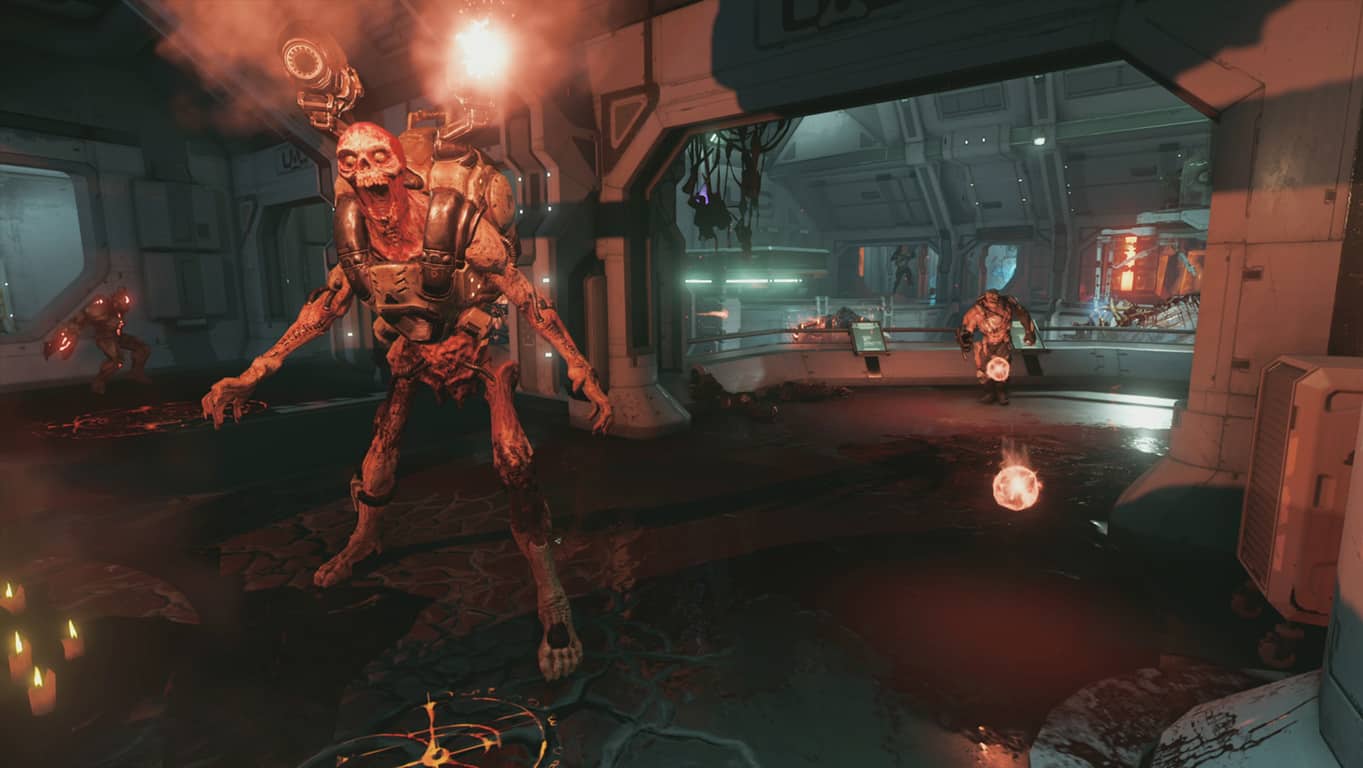
Starting today, Xbox One X owners can play Doom updated to play in 4K. In 2016 when Doom launched, id Software developed the game to be fast-paced, and filled with unrelenting demonic enemies whose sole mission is to kill you. With the new Xbox One X Enhanced update, gamers can experience Doom and see Hell in a whole new light.

Here’s a look at Doom in 4K on Xbox One X.

As noted in a post on the Bethesda blog, the new update will make everytime you shoot, bash, and slice in Doom turn into a bloody, eviscerating masterpiece. All the enemies of Hell will still come at you non-stop, but now they are more detailed and horrific with the Xbox One X Enhanced update.

Microsoft continues to update more and more game titles with Xbox One X Enhanced updates, bringing more clarity and detail to provide the most immersive gaming experience possible. Here’s the full list of current and upcoming Xbox One X Enhanced game titles

Doom is available now for just $22.49 for a limited time.

DOOM
DOOM
Developer:
Bethesda Softworks
Price:
Free

Microsoft will reportedly stop using “Redstone” internal codename for future Windows 10 updates

If you find it difficult to remember all the different codenames that Microsoft uses for major Windows 10 updates, it seems that the company plans to simplify things a little bit next year. More precisely, the Redmond giant will reportedly stop using the “Redstone” internal codename for future Windows 10 updates and shift to simpler codenames with the first major release in 2019.

“According to our sources, Microsoft will be moving to a new codename format starting in 2019 with what would be Redstone 6, now known internally as 19H1,” Windows Central reported yesterday. Presumably, “19H1” should make it easier to understand that this is about the Windows 10 update released in the first half of 2019. “19H1” will likely be followed by “19H2” in Fall 2019, then by “20H1” in Spring 2020, etc.

These new internal codenames are similar to the version numbers that currently appear in the Windows 10 Settings app. As an example, the upcoming Spring Creators Update is also called Windows 10 version 1803. The fact that version numbers for Windows 10 and Xbox One updates sometimes differ (the upcoming Spring update for the Xbox One will be version 1804) probably explains why Microsoft prefers to use “H1” internally, though this is just an assumption from our part.

You can see your Windows 10 version in the Settings app.

Anyway, after using the Redstone codename for five times in a row, this naming convention was probably getting old. Microsoft first used the “Redstone” codename for the Windows 10 Anniversary Update, which was released during Summer 2016. Before that, the first version of Windows 10 (aka version 1507) was codenamed “Threshold,” and it was followed by “Threshold 2” in November 2015. If you find “version 1511” easier to remember, you’re probably not alone.

For consumers, Microsoft should continue to use less technical names such as “Spring Creators Update.” You could argue that this isn’t exactly great naming either, and we hope that Microsoft will finally move away from the “Creators” branding starting with Redstone 6.

Windows 10 will support remote desktop access for multiple users

Microsoft will most likely add a new Multi Session option to Windows 10 this fall. Such an opportunity would allow IT to offer multiple users remote access to desktops and apps without having to rely on the Windows Server. The company offered us some hints that such ways to help deliver virtual app/desktop capabilities in Windows 10 would be made available later on.

Microsoft improves Remote Desktop Services

Remote Desktop Services currently allows users to interact with apps that are hosted on servers and not on their systems. This approach is used by lots of businesses to offer access to apps for remote-working.

The Remote Desktop Modern infrastructure is planned for public availability in late 2018, according to Microsoft. The changes targeting RDS should make it more efficient for hosting the service in Azure, and it would offer security enhancements and more.

Windows 10 Redstone 5 brings multi-session support this fall

There’s a new multi-session feature rumored to come packed in Windows 10 Redstone 5/1809 this fall. Word is that IT developers have been asking more time to finish working on the feature. Microsoft just released a preview of Windows Server 2019, and this triggered speculation about how the company plans to deliver RDS.

Brian Madden stated on his blog that the Remote Desktop Session Host aka RDSH is not able to be installed on Windows Server 2019. He is the one who sparked rumors about Microsoft adding a multi-user option in Windows 10.

The companion rumor to Microsoft removing RDSH from Server is that they will be *adding* a multi-user, multiwin-based option to Windows 10. In other words, Microsoft is taking Terminal Server out of Windows Server and moving into Windows 10. If true, this is fantastic.

The multi-session feature should work with Win32, UWP apps, and Microsoft Edge

The new Windows 10 multi-session feature should work with UWP apps, Win32 and the Edge browser and it is expected to be included in the company’s solution for supporting Office apps via Office 365 Pro Plus. There are no more available details on this functionality or regarding its pricing/licensing.

RELATED STORIES TO CHECK OUT:

Grab Krypton’s premiere episode for free on Xbox One & Windows 10

The first episode of the new Superman TV series, Krypton, is now available to grab for free in the Microsoft Store for playing within the Movies & TV app on Windows 10 devices, Xbox consoles, and Windows phones.

In addition to being a free HD download, this offer appears to be working in several regions outside of the U.S.A. too which is a refreshing change from the usual America-only promotional campaigns. To claim the episodes, simply go to the episode’s page in the Microsoft Store here and buy it.

The purchase button should say “Free”. If it doesn’t, then the offer is likely unavailable in your country.

Krypton is a sort of prequel series to the main Superman saga but incorporates time travel and pulls in future elements from the source material at the same time. It’s set within a separate cinematic universe than the CW DC comic book series such as Supergirl and The Flash.

Have you had a chance to watch Krypton yet? Share your thoughts with the community in the comments below.

Sure Fix: XAMPP Port 80, 443 are in use on Skype

XAMPP is a cross-platform virtual web server used in web development. However, when trying to start XAMPP Control Panel, Apache is blocked from running while the following error messages comes up:

“Port 80 in use by “c:\program files (x86)\skype\phone\skype.exe”!

“Port 443 in use by “c:\program files (x86)\skype\phone\skype.exe”!

Meanwhile, this error is caused by other program using the ports allocated for XAMPP. Hence, Windows Report has come up with applicable solutions to fix this error problem.

Fix: XAMPP Port 80, 443 in use by Skype

  1. Stop conflicting programs
  2. Change XAMPP default ports

Solution 1: Stop conflicting programs

Windows users reported that stopping conflicting program prevented the Port 80, 443 in use by Skype problem. In addition, other conflicting programs include Skype, VMware Workstation, Microsoft Internet Server, TeamViewer, etc. Here’s how to stop Skype:

  1. Go to Start > Type “Task Manager”, and then hit the Enter button.xampp port 80 443 in use by skype
  2. Now, locate Skype (or the conflicting program) and click on it.
  3. Then, click on “End Process” option.
  4. Restart XAMPP Control Panel afterwards.

Note: This solution should fix the XAMPP Port 80, 443 in use by Skype problem. Alternatively, you may consider uninstalling the conflicting program if the problem persists. However, if not you may proceed to the next solution.

Solution 2: Change XAMPP default ports

Furthermore, you can reconfigure the XAMPP Apache server to listen and use different port numbers in order to fix XAMPP Port 80, 443 in use by Skype. Here’s how to do it:

  • xampp port 80 443 in use by skypeLaunch the XAMPP Control Panel, click the “Config” button next to Apache “Start” and “Admin” buttons, and then follow the prompt to open “httpd.conf” file.xampp port 80 443 in use by skype
  • Press “Ctrl” and “F” keys to use the search function. Search for “listen”. You’ll find two rows such as:

#Listen 12.34.56.78:80

Listen 80xampp port 80 443 in use by skype

  • Hence, change the port number to another number e.g. port 8080

#Listen 12.34.56.78:8080

Listen 8080

  • Now, in the same httpd.conf file look for “ServerName localhost:” Set it to the new port number:

ServerName localhost:8080xampp port 80 443 in use by skype

  • Save and close the httpd.conf file.
  • Afterwards, click the Apache config button again next to Apache “Start” and “Admin” buttons and open the “httpd-ssl.conf” file.xampp port 80 443 in use by skype
  • In the httpd-ssl.conf file, search for “listen” again. You may find: “Listen 443”. Hence, change it to listen on a new port number of your choice. For instance:

Listen 1000xampp port 80 443 in use by skype

  • In the same httpd-ssl.conf file find another line that says, “<VirtualHost _default_:443>”. Change this to your new port number e.g. 1000
  • Also in the same httpd-ssl.conf you can find another line defining the port number. Search for “ServerName”, for instance:

ServerName www.example.com:443 or  ServerName localhost:433

Change this ServerName to your new port number.xampp port 80 443 in use by skype

  • Now, save and close the httpd-ssl.conf file.
  • Finally, click and open the “Config” button of your XAMPP Control Panel (this is above netshat button)xampp port 80 443 in use by skype
  • Now, click on the “Service and Port Settings” button. xampp port 80 443 in use by skype
  • Within it, click the “Apache” tab and enter and save the new port numbers in the “main port” and “SSL port” boxes. Afterwards, click save and close the config boxes.xampp port 80 443 in use by skype

Note: After following the steps above, you should restart XAMPP afterwards. Also, you may use any port numbers which you like as your new port numbers. Alternatively, you can also disable Skype from using the Ports 80 and 443 in the Settings option.

In conclusion, the solutions mentioned above are applicable in solving the XAMPP Port 80, 443 in use by Skype error problem. Feel free to comment below about your experiences in solving this error problem.

RELATED STORIES TO CHECK OUT:

DuckDuckGo is now Vivaldi’s default search engine in Private mode

If you care about your online privacy, then you should really take all the precaution measures currently available to prevent third-parties from collecting your personal information.

The Vivaldi browser is one of the best choices when it comes to safe browsing and it recently integrated DuckDuckGo as its default search engine.

In other words, when you launch a Private Mode window, DuckDuckGo will be your default search engine. In this manner, there will be no browsing history information stored on your PC and the websites you visited won’t be able to track and monitor your behavior.

Private Mode doesn’t not block tracking

Many Internet users believe that opening a private window is enough to browse anonymously. Unfortunately, private windows can’t block tracking, so you need an additional tool to actually make private browsing private.

Vivaldi changed that by integrating DuckDuckGo into their Private Mode feature.

Now in Vivaldi, the moment you start using private browsing mode, your search is private as you’d expect — no need to change anything. Your searches and personal information will not be collected or shared while using Private Windows, in addition to the privacy protection features that Vivaldi gives you by default.

To use this feature, you need to download the latest Vivaldi version on your computer.

Speaking of protecting your privacy while online, we’ve got additional tips and suggestions on how to keep your private data private. For example, apart from using Vivaldi and DuckDuckGo, you can also install a reliable VPN software such as CyberGhost.


In case you want to be secure while surfing the internet, you will need to get a full-dedicated tool to secure your network.  Install now Cyberghost VPN and secure yourself. It protects your PC from attacks while browsing, masks your IP address and blocks all unwanted access.


For more information on privacy, you can check out the guides listed below:

Skype Interviews adds a Shared Whiteboard for better collaboration

Last year, Microsoft unveiled Skype Interviews, a browser-based tool for recruiters that comes with a real-time code editor for coding interviews. After listening to user feedback, the company is expanding the set of interactive tools with the addition of a digital whiteboard shared between the interviewer and candidate.

“The real-time digital whiteboard makes interviews overall a more collaborative experience—one where the participants will able to visualize their thoughts and ideas, and read back key takeaways after the fact,” the Skype team explained. When using Skype Interviews, the new digital whiteboard will be accessible from the sidebar. It comes with a Pencil and various Shape tools, and recruiters can also save a copy of the whiteboard at the end of the interview.

“Our goal to make Skype Interviews the universally accepted tool for all video call interviews—regardless of distance, technical, or non-technical—pushed us to innovate further,” the Skype team said today. Skype Interviews remains in preview for now, and calling capabilities are still only supported on Microsoft Edge and Google Chrome.

Microsoft posts first round of Build 2018 sessions

Just last month, Microsoft opened up registrations for Build 2018 ahead of the May 7th-May 9th annual developer conference. The company did not initially share many details on what attendees can expect, but Microsoft recently updated their Build website, revealing some of the details on featured sessions.

As expected, Build 2018 sessions range from Azure, Visual Studio, Microsoft 365, and more. Microsoft promises there are over 350 technical sessions and interactive workshops to choose from, but interestingly, none of the featured sessions currently mention Windows 10. We’re assuming Microsoft may be avoiding spoilers, but you can have a look at some of the sessions below and check here for the full list.

  • Visual Studio and Xamarin enable developers to craft native experiences across every platform, including Android, iOS, and wearables. Developers need rich APIs and a powerful cloud to deliver these apps for every scenario, and that’s where Azure can help. In this session, we’ll show you how to connect powerful Azure services to your C# apps, including Azure AD B2C, Azure Functions, Cognitive Services, and Cosmos DB.
  • Feed your imagination with a tour of the datacenter architecture and implementation that runs Microsoft Azure. Azure covers more than 150 datacenters in 40 announced regions, and it’s growing fast. It delivers the promise of cloud computing—including high availability, extreme performance, and security—by custom designing software and hardware to work best together. You’ll come away with insight on reliable clean-energy datacenter designs, using FPGAs to accelerate networking and machine learning, designing storage servers to deliver ultralow latency and high throughput, and more.
  • See what’s new in Visual Studio and Xamarin, which let C# developers become Android, iOS, and Windows app developers overnight. In this session, we’ll cover how to use your existing C# and .NET skills to create fully native apps on every platform. From start to finish, Visual Studio and Xamarin give developers powerful tools to craft these apps.

Build 2018 runs the same week as Google’s I/O conference, so it will be interesting to see if attendance is impacted. You can visit this website to register for Build 2018. Full conference passes will cost $2,495, providing access to all sessions, content, and the Expo hall plus all conference meals.

Far Cry 5 is now available on Xbox One consoles

The much-anticipated video game, Far Cry 5, is now available to play on Microsoft’s family of Xbox One consoles.

This latest entry in the long-running Far Cry video game series is set in America and boasts one of the largest playable locations in the franchise to date. Here’s the official description, trailer, and Microsoft Store link.

Far Cry comes to America in the latest installment of the award-winning franchise. Welcome to Hope County, Montana, land of the free and the brave but also home to a fanatical doomsday cult known as Eden’s Gate. Stand up to cult leader Joseph Seed, and his siblings, the Heralds, to spark the fires of resistance and liberate the besieged community.

FIGHT AGAINST A DEADLY CULT: Free Hope County in solo or two-player co-op. Recruit Guns and Fangs for hire to help defeat the cult.

A WORLD THAT HITS BACK: Wreak havoc on the cult and its members but beware of the wrath of Joseph Seed and his followers.

CARVE YOUR OWN PATH: Build your character and choose your adventure in the largest customizable Far Cry game ever!

DYNAMIC TOYS: Take control of iconic muscle cars, ATV’s, planes and a lot more to engage the cult forces in epic fights.

Are you excited to play Far Cry 5 on your Xbox One? Let us know why or why not in the comments below.

Far Cry® 5
Far Cry® 5
Developer:
Ubisoft
Price:
Free

Windows Defender is the most popular enterprise antivirus solution

Microsoft has been working for quite a while to make its antivirus functionalities more efficient, and it seems that the company’s efforts finally paid off. The Windows Defender antivirus managed to gain a lot of market share among businesses.

Windows 10 now flaunts more than 50% market share in the enterprise area. According to Webroot, 32% of Windows systems are running Windows 10, and the numbers are continually increasing.

Windows Defender in statistics

Currently, 18% of systems running Windows 7 and Windows 8 are running Windows Defender and more than 50% of Windows 10 devices. Microsoft improved the performance and efficiency of Windows Defender, and its antivirus solution became almost perfect from 2015 until today when it comes to blocking malware.

According to Brad Anderson, Corporate Vice President at Microsoft Enterprise Mobility and Security, two of the most critical tests, AV-Comparatives and AV-TEST, have been showing significantly improved results. In other words, Windows Defender is close to perfection these days.

More reasons why Windows Defender is the best security tool on Windows 10

Besides enhanced efficiency, Brad lists the following elements that triggered such success in the antivirus solutions area:

  • Microsoft’s antivirus features are an amazing solution, and the tests that we mentioned above are proof. Microsoft managed to defeat its competitors, and the company assures users that it has what it takes to protect them even from the most advanced vulnerabilities and potential threats.
  • The company’s antivirus solution involves lower maintenance costs, and it’s much easier to use compared to others. Most businesses use Config Manager for PC management of Windows 10 and 7. Windows 10 comes with antivirus features built straight into the OS, and even if Windows 7 doesn’t, the antivirus capabilities can be deployed and then configured via Config Manager.
  • Microsoft’s antivirus solution enhanced IT’s agility, and whenever new updates get released, users don’t have to sit around and wait for third parties’ certifications and support because they get these from the first day. In other words, newest releases and latest security technologies can be deployed easier and faster.
  • Microsoft’s antivirus solutions provide an enhanced user experience, and Windows Defender is designed in such a way to work in the background, minimizing power consumption and extending battery life.

Get more in-depth details on Microsoft’s antivirus solutions from Brad’s blog post here.

RELATED STORIES TO CHECK OUT:

Microsoft could be the next trillion dollar company, says Morgan Stanley

Despite Gartner and IDC continually pounding the drum of defeat for the PC market each month, and Windows 10 consumer adoption plateauing, Microsoft is enjoying record gains in the stock market as it inches closer to becoming a trillion dollar company. After shares rose more than 5.5% following a favorable note to investors from investment firm Morgan Stanley, Microsoft investors can now see a clearer path to the coveted trillion dollar market cap.

Earlier this week, Morgan Stanley analyst Keith Weiss penned a note to investors where he raised his twelve-month projections for Microsoft by almost 50%, which boosted the company’s trading share up from $87 to $150 within a week.

Thanks to an interview with Trading Nation, we get to hear Weiss’ assessment straight from his mouth. Weiss’ favorable nod to Microsoft comes from his bullish belief (assuming a lot of financial metrics were involved as well) that the company’s Azure service’s democratization of cloud computing will bode well against its competitors in the future.

With Public Cloud adoption expected to grow from 21% of workloads today to 44% in the next three years, Microsoft looks poised to maintain a dominant position in a public cloud market we expect to more than double in size to (more than) $250 billion dollars.

To further clarify his position, Weiss also makes note that Microsoft’s Office install base is where the company’s leverage comes from, in that, there already are established channels of inertia in the enterprise space.

Strong positioning for ramping public cloud adoption, large distribution channels and installed customer base, and improving margins support a path to $50 billion in EBIT and a $1 trillion market cap for MSFT.

The race to a one trillion dollar market cap has been hotly contested as of late with Amazon soaring past more established tech companies, and Apple skipping on the backs of iPhone sales towards the mark. However, Microsoft’s spot at number four could be changing soon, as Weiss’ prediction would put the company on a course to achieving the trillion dollar target in just under a year.