Windows 10 free upgrade is still available two years after the offer ‘expired’

If you’re running Windows 7 or Windows 8.1 and you recently decided to upgrade to Windows 10, we have a good piece of news for you: the free upgrade offer is still valid.

Yes, you read that right, you can still download Windows 10 on your computer for free.

As a quick reminder, Microsoft initially said that Windows 7 and Windows 8.1 users would be able to install the latest OS version on their devices for free within the first 12 months following Windows 10’s release.

Fortunately, you don’t have to shell out $119 to get Windows 10 because the free upgrade offer is still valid.

Download Windows 10 for free in 2017

windows 10 laptop

All you need to do in order to install Windows 10 at no extra cost is go to Microsoft’s accessibility site and hit the download button. It’s that simple. Follow the on-screen instructions that the upgrade assistant displays and you’ll be able to use the latest OS version in less than one hour.

However, the only catch is that your computer needs to run the genuine Windows 7 or 8.1 package in order to download the update.

Microsoft won’t verify if or you are using assistive technologies or not, and will let you download Windows 10 without spending one single penny.

The Fall Creators Update hasn’t ended the free upgrade offer

Many users expected Microsoft to close the free upgrade loophole as soon as Windows 10 version 1709 arrived. That didn’t happen and the offer is still available today.

It appears that Microsoft isn’t planning to block this loophole anytime soon. Obviously, the company is aware that users who don’t rely on assistive technologies do use this loophole to upgrade for free. This is actually beneficial for Microsoft, allowing the company to increase the Windows 10 user base.

The Redmond giant has indeed confirmed that it would close this loophole sometime in the future, but has yet to confirm the exact date.

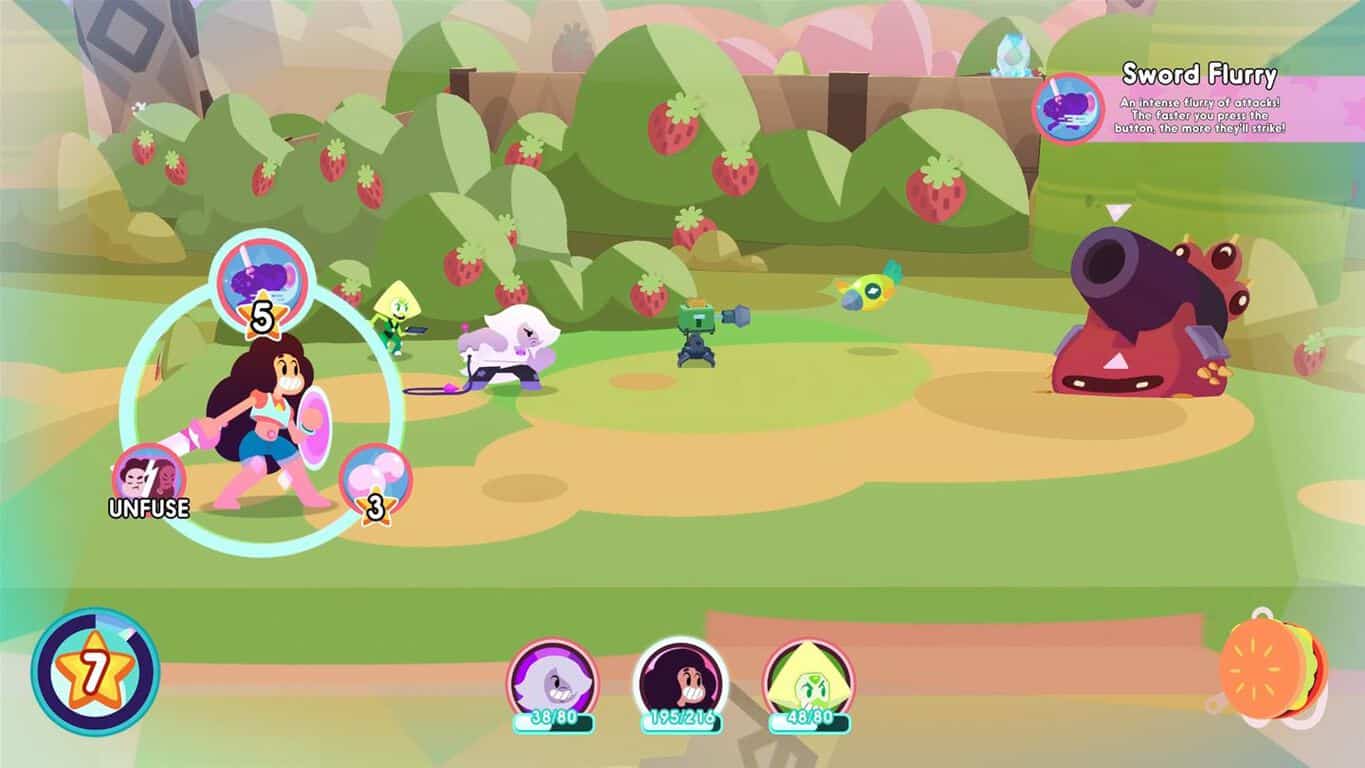
Digital pre-orders for Steven Universe: Save the Light open on Xbox One

Fans of Steven Universe can now pre-order the upcoming game “Steven Universe: Save the Light” for their Xbox One console. Taking some inspiration from the Steven Universe mobile game that released last year, Save the Light promises to be a turn based hybrid RPG, featuring a very endearing art style that stays true to the theme of the series.

The game costs $24.99, if you’re interested in picking it up. If it’s anything like the mobile game that came before it, Save the Light should be an enjoyable, light-hearted experience through and through. Like the show that it’s based off of, Save the Light seems like it’s promising plenty of creative art direction, and some enjoyable writing, as well as the throwback Paper Mario RPG mechanics.

Mammoth Roundup of Destiny 2 bugs, glitches and possible fixes

Destiny 2 has been released for PC players, first with a pre-load and now globally to everyone. Whenever a new game gets released, especially one already popular on other platforms, there’s huge hype. So, naturally, more and more start downloading it, which results in a heavy load on servers, one among thousands of issues for Bungie’s flagship title.

In this article, we’ve decided to make a huge round-up with most, if not all, the Destiny 2 bugs on PC, with fixes where available.

Destiny 2 bugs, issues, glitches

This article will be continuously updated as we discover more and more. Before proceeding, it’s important you update to the latest NVIDIA and AMD drivers in order to avoid some of these problems.

If the play button is greyed out, it simply means the game hasn’t been released yet, so just have a little more patience.

1. Blizzard app getting stuck on initializing

If you’re getting the “Blizzard app getting stuck on initializing” error, you should know first of all that this isn’t something limited to Destiny 2, but it’s common. Usually, a restart and/or redownload of the app should fix this.

In case it doesn’t work as easily as that, Blizzard suggests third-party programs running in the background can interfere with their games. If this is the case, here’s what you need to do:

Selective Startup

  1. Press Windows Key+R.
  2. Type msconfig and press Enter.
  3. Select Selective startup and uncheck Load startup items.
  4. Select the Services tab.
  5. Check Hide all Microsoft services Note: Skipping this step may prevent your computer from rebooting correctly.
  6. Click Disable all.
  7. Click Apply then click OK.
  8. Click Restart.

Note that Selective Startup may disable firewall and security software, so make sure you re-enable your security software after trying these. Also, if your issue still persists, have a look at Blizzard’s official guide.


2. Corrupted or missing game files

If some of your Destiny game files are corrupted, the easiest fix is to delete the game completely and re-download it. The second most immediate option is to make use of your Windows’ built-in troubleshoot functionality.

For that, you just need to select the game, right click on it and choose “Troubleshoot compatibility“.


3. Game crashes or closes unexpectedly

Many gamers reported that Destiny crashes with a black screen error at launch or a few minutes into the gameplay.

After character Creation, and first cutscene the game turns to a black loading screen but then crashes for my PC. beta played just fine but now this game wont load for me. please help. just crashes to desktop.

If your Destiny 2 crashes or closes unexpectedly, Microsoft has provided a complete guide on how to fix this, but it should serve as a general guide. We will make sure to add specific fixes for Destiny 2 once we have them.

Meanwhile, you can also try the following general troubleshooting steps:

  • Install the latest Windows 10 updates on your PC
  • Run a full system scan to remove malware
  • Clean your registry with one of these dedicated tools to fix file corruption issues

4. PC players get randomly banned

If you got banned from Destiny 2, but you still don’t know what you did wrong, you’re not the only one. Actually, many gamers consider they were wrongfully banned.

Other people on Reddit are saying they got banned without even playing the game. It seems the auto-banning software is banning first and asking questions never.
The URL given with the ban message also says there is no means to overturn a ban because they only ban after “rigorous checking,” which is obviously a load of crap as I have literally done nothing on this game but play through the first mission.

This is a widespread problem and there are several possible explanations for it:

  • Certain overlays are incompatible with the game. However, there is no exact information available about the respective overlays, so can’t compile them to a list at the moment.
  • Battlenet won’t allow players to run game capture software in the background. The problem is that game capture tools are standard now and many players aren’t even aware that they’re using such a tool.
  • Discord is not supported on Destiny 2 and results in players getting banned. The only solution is to remove this voice and text chat software if you want to be able to play Destiny 2.
  • MSI Afterburner is on the black list as well and using it will result in players getting banned.

5. FPS drops and stuttering

destiny 2 aim assist turn off

Many gamers also experienced FPS drops and stuttering while playing Destiny 2. Usually, installing the latest Windows 10 and graphics driver updates solved the problem.

Here’s how one gamer describes this issue on Reddit:

Am I the only one getting very noticeable FPS drops? I go from 144 to 110 and sometimes even 90, every 2-3 minutes or so. (game freezes for a split second)
I play on a 144Hz 1080p monitor. That’s why it just feels terrible.

Users also confirmed that if the two solutions mentioned above didn’t work, restarting your PC will.  You can also try changing some of your settings in Task Manager. Changing the priority on destiny2.exe to “High” should help reduce stuttering, especially if the option is set to “Lower than normal” by default.

For more information on how to fix low FPS issues on Windows 10, check out these two related articles:


6.  Destiny 2 freezes

For many players, stuttering turned into freezes. More specifically, the game often freezes completely for 10-15 seconds on average and then resumes.

This is quite a severe issues, preventing gamers from playing the game.

Game is unplayable. No matter what settings I choose (fullscreen, windowed, maximum spec/minimum spec) it randomly freezes for a few seconds (up to 10 seconds) and then comes back. It is happening so often that it is unplayable. This hasn’t happened in any other game.
I also already installed the newest drivers from intel.

To fix that, try closing background apps so that all your PC may use all the resources available to run the game.


7. Game server disconnects

Many players reported that the game randomly disconnects from server and returns to the Character Selection section.

Disconnect and get booted to Character Selection with the error code Cabbage.
And yes, I’m aware that the destiny 2 website claims this to be a router issue. But that is not the case. Its enabled on my windows firewall, its enabled on my router firewall, and the two other people who share the same router/modem have no issues whatsoever. Wonder what they spent those 7 weeks on, clearly it wasn’t networking.

These are the most common Destiny 2 issues reported by gamers so far. As we stated in the beginning of this article, we will continue to scour the forums and add more bugs to the list as soon as we discover more problems.

If you encountered other issues while playing the game, tell us more about your experience in the comment section below.

Avoid Destiny 2 crashes and bugs by downloading latest NVIDIA and AMD drivers

In a few hours, Destiny 2 is scheduled to be globally released for PC gamers. Released in the beginning of September 2017 for PS4 and Xbox One players, the game is already among the best-selling games of 2017.

Avoid Destiny 2 glitches and issues

The game is set to become even more popular after millions of Windows PC owners start playing it from today. So, if you’re one of them, you may want to make sure that you’re not going to be hit by the expected crashes, glitches a, d bugs.

In many situations, so many errors occur for a new game because of outdated video drivers. Knowing that Destiny 2 is a popular game, NVIDIA and AMD made sure to update their drivers prior to the release.

Download NVIDIA drivers for Destiny 2

NVIDIA just released new drivers specifically for Destiny 2: NVIDIA Graphics Driver 388.00 WHQL, which can be downloaded through the Geforce Experience. Or, you can download it directly from the official site by following the link from below:

NVIDIA says it has tuned the 388.00 WHQL drivers to provide performance optimizations and an SLI profile “for enthusiasts seeking the fastest framerates and highest levels of detail”. Take into account the link above is for Windows 10 64-bit in English and comes with a file fize of 440.63 MB.

Download AMD drivers for Destiny 2

AMD also updated its Radeon Software Crimson drivers to make sure Destiny 2 players won’t have any issues with it. Along with complete support for Windows 10 Fall Creators Update, the drivers come with impressive enhancements on certain graphic cards:

  • Up to 43% faster performance on Radeon™ RX Vega56 (8GB) graphics than with Radeon Software Crimson ReLive Edition 17.10.1 at 2560×1440.(RS-184)
  • Up to 50% faster performance on Radeon RX 580 (8GB) graphics than with Radeon Software Crimson ReLive Edition 17.10.1 at 2560×1440.(RS-185)

In order to download AMD Radeon Software Crimson drivers for Destiny 2 on Windows 7 and 10, pick the version you’re running from AMD’s official site.

Let’s hope that by installing the latest video drivers needed for running Destiny 2, you will avoid at least some of the annoying issues which plagued those on the Xbox One.

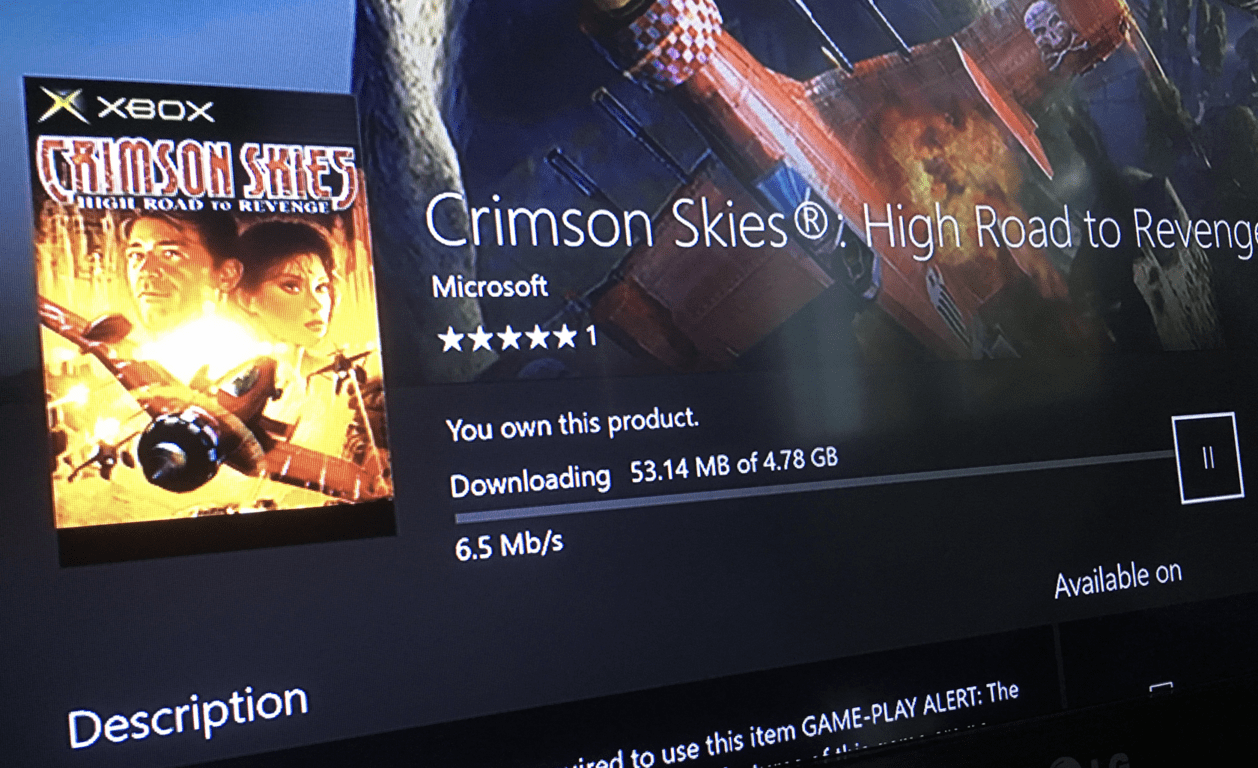
Original Xbox games now available on Xbox One, play them now!

Following the exciting announcement yesterday, you can now play the first selection of original Xbox games on your Xbox One (via Windows Central). If you still have the original discs, you can insert them in your console and you’ll have to install a free update before being able to play. The updates are likely necessary to make the original Xbox games run at 1080p resolution with improved graphics and framerates on the new console.

The following 13 titles are now available to purchase on the Microsoft Store, though at the time of this writing it seems that you can’t purchase these digital games from the Xbox Store on your console. It works fine on the web though, so we invite you to use these links below:

While this first selection is a modest start, Xbox’s Lead Program Manager Bill Stillwell shared that the company plans to “release another curated list of Original Xbox classics in spring 2018.” Did you already try to play original Xbox games on your Xbox One? If so, do you enjoy this throwback to the early 2000’s? Let us know below.

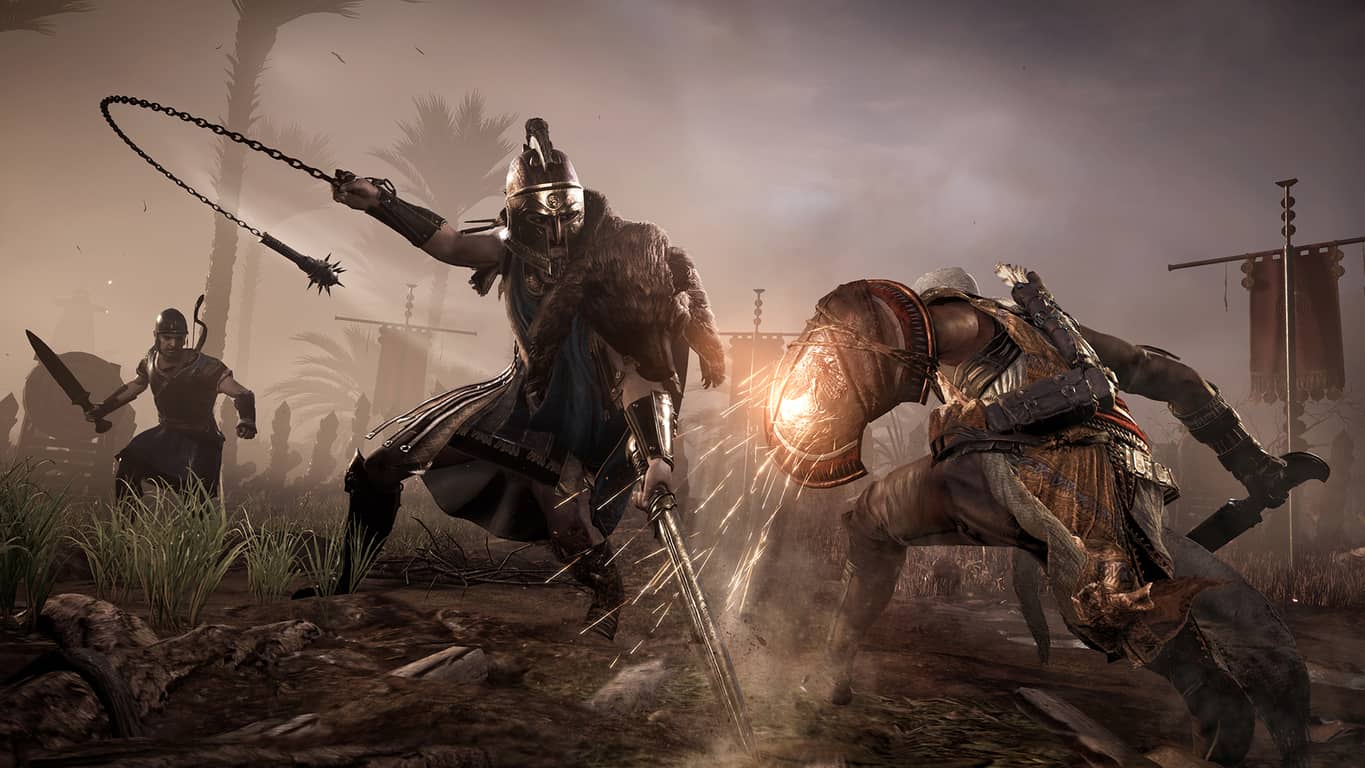
Assassin’s Creed: Origins, launching Oct 27th, will get Xbox One X enhancements in November

This Friday, October 27, marks the release of the latest installment of one of the most successful video game series ever; Assassin’s Creed: Origins. AC: Origins join a number of other Xbox games, including Gears of War 4, that will receive an “Xbox One X enhancement,”  receiving its game update sometime in early November 2017, likely just in time for the release of the Xbox One X on November 7, 2017. As noted in a Ubisoft blog post on the matter:

“There will be another Title Update available in early November, which will most notably include 4K and Dolby Atmos support for Xbox One X and support of HDR displays for all platforms.”

In other Assassin’s Creed news, Ubisoft France is holding Assassin’s Creed: Origins Xbox One S prize giveaway on Twitter.

According to the Bing translation, in order to be eligible, all you need to do is respond to Ubisoft France’s tweet, with the #ACOrigins and #XBOXACO hashtag to be considered. There are two AC Origins Xbox One S consoles available to be given away, so get to it.

Assassin’s Creed Origins will be available in Standard, Gold, and Deluxe Editions, pre-order yours today for Xbox One!

Assassin's Creed® Origins
Developer:
Ubisoft
Price:
Free

Microsoft’s year long court battle results in new boundaries for US government data collection

Being the large company that it is, Microsoft finds itself in a courtroom from time to time and recently its confrontations have been with the US government in one shape or another.

In a shift away from patent battles and anti-trust allegations, some of Microsoft’s more recent high profile court cases have centered around how it engages with the US government over the search and release of data collected by the software company. Today, Microsoft and the US government are calling an end to a year-long standoff over the company’s objecting to the rampant use of secrecy orders, aka gag orders, by the government.

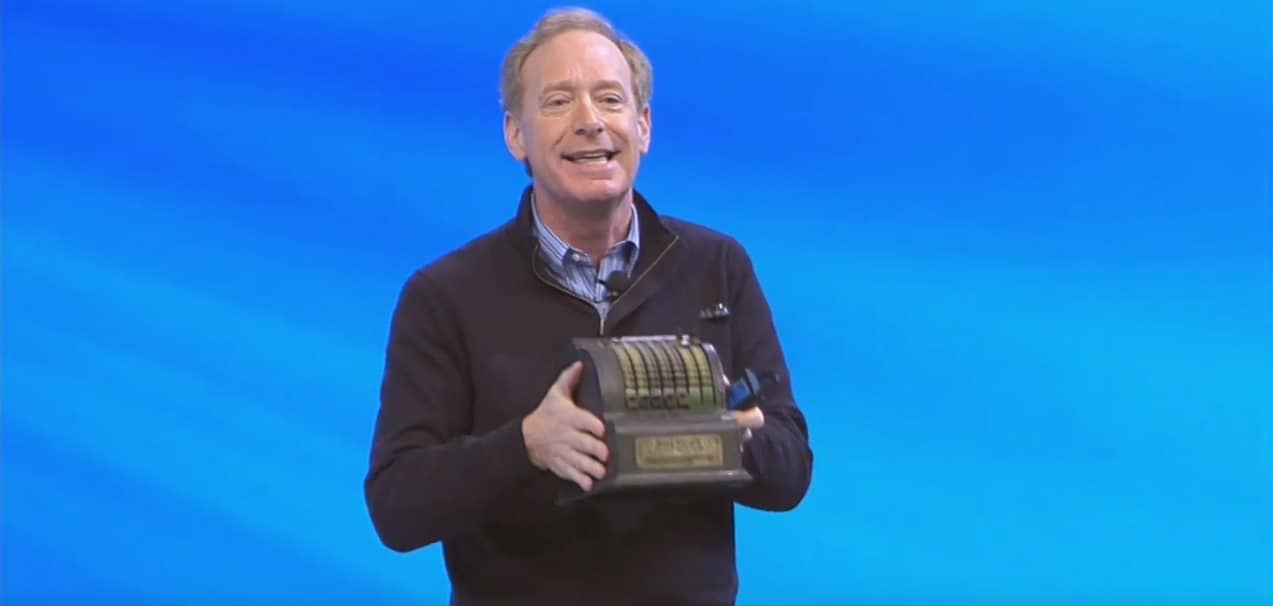
Microsoft’s Chief Legal Officer Brad Smith further elaborates on the company’s blog,

But our lawsuit was based on a growing and disturbing trend. We highlighted the fact that the government appeared to be overusing secrecy orders in a routine fashion — even where the specific facts didn’t support them — and were seeking indefinite secrecy orders in a large number of cases. When we filed our case we explained that in an 18-month period, 2,576 of the legal demands we received from the U.S. government included an obligation of secrecy, and 68 percent of these appeared to be indefinite demands for secrecy. In short, we were prevented from ever telling a large number of customers that the government had sought to access their data.

The US Justice Department has agreed its increasing catch-all methods of data collecting needs new boundaries. The Justice Department will now be issuing a policy that looks to limit both the number of gag orders issued by specifically tailoring search procedures for the facts of the case, while also setting time limits on the orders, thus allowing Microsoft to inform its customers that an order had been issued after a defined time.

Thanks to these two DOJ recent concessions, Microsoft has decided to drop its lawsuit and look towards Congress and the Electronic Communications Privacy Act (ECPA) to hammer in the final nails to electronic privacy reform.

We will continue to turn to the courts if needed. And we are committed to working with Congress. Today’s policy doesn’t address all of the problems with the Electronic Communications Privacy Act (ECPA) — the law at the heart of this issue — and we renew our call on Congress to amend it.
Specifically, the U.S. Senate should advance the ECPA Modernization Act of 2017, introduced in July by Sens. Mike Lee, R-Utah, and Patrick Leahy, D-Vermont.

As the computing landscape continues to evolve and customers increasingly store more of their personal data in the cloud, Microsoft along with many others seem as though they are preparing to dance the razor’s edge of providing lawful assistance (when absolutely necessary) and protecting users privacy.

We should all wish them luck.

Latest Microsoft “Explanimator” goes out of this world, tackles Blockchain technology

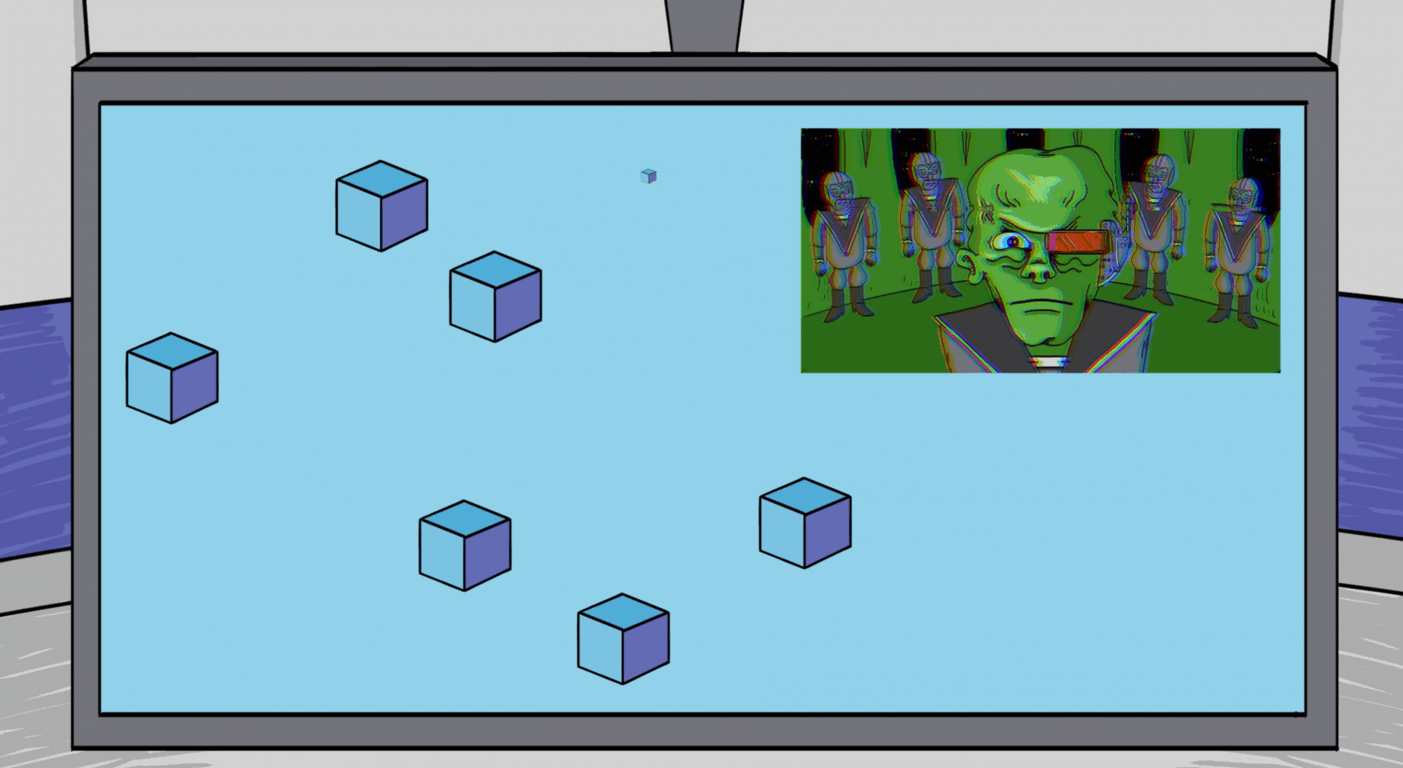
Microsoft Storylabs “Explanimators” is back, and this time it is going out of this world. The fifth episode in the animated series takes viewers to a fictional planet for an interstellar explanation of how Blockchain technology works.

In the episode, Captain Billings faces a battle with fierce alien Zorg for Mining World XT3-12. Instead of pulling out weapons, though, Captain Billings confers with her Chief of Staff and scares Zorg with some pains of planetary management: The outerworld power grid, robot miner contracting, invoices from vendors, tracking the provenance of ingredients in the artificial atmospheric system, and more. There’s also talk of how a transaction for the planet will be tracked.

Since Zorg has trouble trusting Captain Billings, that’s where the blockchain comes into the picture. It is explained that blockchain solutions are a digital ledger that provides a transparent and permanent record or activity between multiple parties. Blockchain also takes the instability out of working with unknown people, and are resistant to modification since recorded data cannot be altered. Microsoft’s Coco Framework, the Azure cloud, and the fact that blockchain is the public ledger for cryptocurrencies are also mentioned.

Definitely an interesting episode, helping explain why blockchain is the next frontier for digital transformation. Feel free to watch the episode for yourself above, and let us know your thoughts in the comments below!

Delta ditched Microsoft for Apple products because of bag sizes

This past weekend, Delta revealed it would be giving up on Microsoft’s Surface and Windows Phone products in favor of Apple’s iOS devices for in-flight crews. Well, turns out that one reason for the switch is because of bag sizes (via Neowin.)

Noted by The Inquirer, Microsoft says that Delta’s switch had to do with a change in smaller electronic flight bags. Essentially, Surface devices could not fit in the smaller bags, hence the switch to iPads and other Apple devices. Microsoft’s full statement can be seen below.

“We have a great partnership with Delta. The company decided, as part of its hardware refresh cycle, to standardize on a 10.5″ form factor for its electronic flight bag. Delta continues to invest in and is using Microsoft productivity and business applications, including Dynamics and Office 365 across their operations and will continue to do so.”

This dismisses many rumors and claims that Delta may have ditched Microsoft because of a lack of focus on Windows 10 Mobile hardware. Still upsetting to see Surface and Windows Phone bite the dust at Delta, but great to hear that Delta and Microsoft still have an ongoing relationship, especially with the cloud and Office 365 which are both netting the company big money.

Microsoft prepares to celebrate launch of Xbox One X with events around the world

The launch of the Xbox One X is about two weeks away, and Microsoft is getting ready for the big moment. In preparation for launch, the company has announced ways for gamers to participate in the launch day with events all across the world.

First and foremost, all fans can tune into “Xbox One X Launch: Live” right from their own homes via Mixer, Twitch, YouTube or Facebook Live. The one hour broadcast from the Microsoft Store in NYC gives “an inside look at launch activities happening around the globe.” It will begin starting November 6 at 8:00 p.m. PT/11:00 p.m. ET and will run until 9:00 p.m. PT/midnight ET when Xbox One X is launched in the U.S.

Next up, Xbox fans who live in the New York area can come down to the flagship Microsoft Store at Fifth Avenue on November 6th to pick up their pre-order or experience the Xbox One X. Microsoft will be handing out Xbox swag, and will even be giving fans the chance to win a Samsung 4K TV. If not in New York, Microsoft Store locations across Canada, Puerto Rico and Sydney will also celebrate the launch with similar giveaways, gameplay and more.

Microsoft, Xbox One X, Xbox
Xbox One X

Xbox fans in Germany, France, and the UK can also enjoy events themed for the Xbox One X launch. In Germany, Xbox is looking to set a world record, in France, there is a seven-hour nonstop live stream, and in the United Kingdom, there is a special broadcast from the Loft in London. Check out the details below.

  • Germany: On November 3, fans will have the opportunity to witness Xbox’s attempt at setting the Guinness World Record for “Biggest Unboxing in the World” as Felix von der Laden films an unboxing video in the Munich Airport. On November 6, fans in Germany will be able to attend a gaming event hosted by PietSmiet, LefLoid, Gronkh and Ninotaku on Berlin’s largest 4K theater screen for 700 fans. The event will be also streamed on Mixer.
  • France: On November 6, fans are invited to tune into a seven-hour non-stop livestream on Mixer hosted by one of France’s top YouTubers in central Paris. More than 200 French fans and celebrities will gather to play new titles and celebrate the launch of Xbox One X, culminating in a midnight launch event at France’s flagship store at the Champs Elysees.
  • United Kingdom: Broadcasting live from the Xbox One X Loft in London, Chelsea on November 6, join us on Mixer from your PC, console or Mixer app on iOS and Android for our extended livestream featuring some of the hottest upcoming games.

As a reminder, if you pre-ordered Xbox One X at your local Microsoft Store in North America, you can pick up the console right at 9:00 p.m. PT/midnight ET on November 6. Participating BestBuy locations will also be open at 9:00 p.m. PT/midnight ET and will support the launch with giveaways, launch offers, and savings. Similarly, GameStop stores will also be open at midnight ET to support the Xbox One X launch. Outside the U.S, EB Games stores will be open at midnight local time at select destinations in both Australia and New Zealand.

Check out this week’s Deals with Gold and Xbox Shocktober Sale

As we’re getting closer to Halloween, the Xbox team has just announced the Xbox Shocktober Sale in addition to this week’s Deals with Gold. This massive sale offers great discounts on popular horror franchises such as Resident Evil, Dead Rising, The Walking Dead, Dead Space and more. On the Xbox One, you may want to check out Prey (25% off), Resident Evil 7 or The Walking Dead: A New Frontier (both are 50% off), but there are also interesting discounts on older games such as Diablo 3 Eternal Edition (40% off), DOOM (33% off) or The Evil Within Digital Deluxe Edition (50%).

For Xbox Live Gold subscribers, this week’s Deals with Gold also offer up to 75% discounts on GTA V, Cities: Skylines, Sniper Ghost Warrior 3 and XCOM 2. You can find more details about our favorite Xbox One and Xbox 360 deals below:

Xbox One Deals

Prey ($29.99)

In Prey, you awaken aboard Talos I, a space station orbiting the moon in the year 2032. You are the key subject of an experiment meant to alter humanity forever – but things have gone terribly wrong. The space station has been overrun by hostile aliens and you are now being hunted. As you dig into the dark secrets of Talos I and your own past, you must survive using the tools found on the station, your wits, weapons, and mind-bending abilities.

Resident Evil 7 ($30)

Fear and isolation seep through the walls of an abandoned southern farmhouse. “7” marks a new beginning for survival horror with the “Isolated View” of the visceral new first-person perspective. Powered by the RE Engine, horror reaches incredible heights of immersion as players enter a terrifyingly new world of fear as they fight to survive.

The Walking Dead: A New Frontier – The Complete Season ($12.50)

When family is all you have left…how far will you go to protect it? After society was ripped apart by undead hands, pockets of civilization emerge from the chaos. But at what cost? Can the living be trusted on this new frontier? As Javier, a young man determined to find the family taken from him, you meet a young girl who has experienced her own unimaginable loss. Her name is Clementine, and your fates are bound together in a story where every choice you make could be your last.

Xbox 360 Deals

Dead Space 2 ($4.99)

Engineer Isaac Clarke returns for another blood-curdling adventure in the sequel to the critically acclaimed Dead Space™. After waking from a coma on a massive space city known as “The Sprawl”, the lone survivor of a horrific alien infection finds himself confronting a catastrophic new nightmare. Battling dementia, hunted by the government, and haunted by visions of his dead girlfriend, Isaac will do whatever it takes to save himself and dominate the gruesome onslaught. With an arsenal of tools to dismember Necromorphs and new determination, an engineer will bring the terror to space.

Dead Rising 2 ($5.99)

In the long-awaited sequel to Dead Rising, players step into the shoes of Chuck Greene, professional motorcycle racer. Surrounded by a horde of hungry zombies in the spectacular casino town of Fortune City, Chuck finds himself in a race against time to find Zombrex, the one thing that can keep Katey, his young daughter, alive. Can he protect her and make it out of Fortune City alive? Chuck’s desperate struggle for survival unfolds in this, the long awaited sequel to Dead Rising!

State of Decay ($4.99)

The end is here. Life as you knew it has gone to hell after the mother of all zombie outbreaks. Now you and the few scattered survivors must band together to survive and rebuild in a 3rd-person action game set in a dynamic open world. You choose where to make your stand, designing and fortifying your home base, performing daring raids for food and ammunition, and rescuing other playable survivors with unique talents.

The Xbox Shocktober Sale will expire at 12:00 AM CET on Wednesday November 1st 2017, while this week’s Deals with Gold will be available through 30 October 2017.

OG Xbox’s Fuzion Frenzy looks amazing on the Xbox One

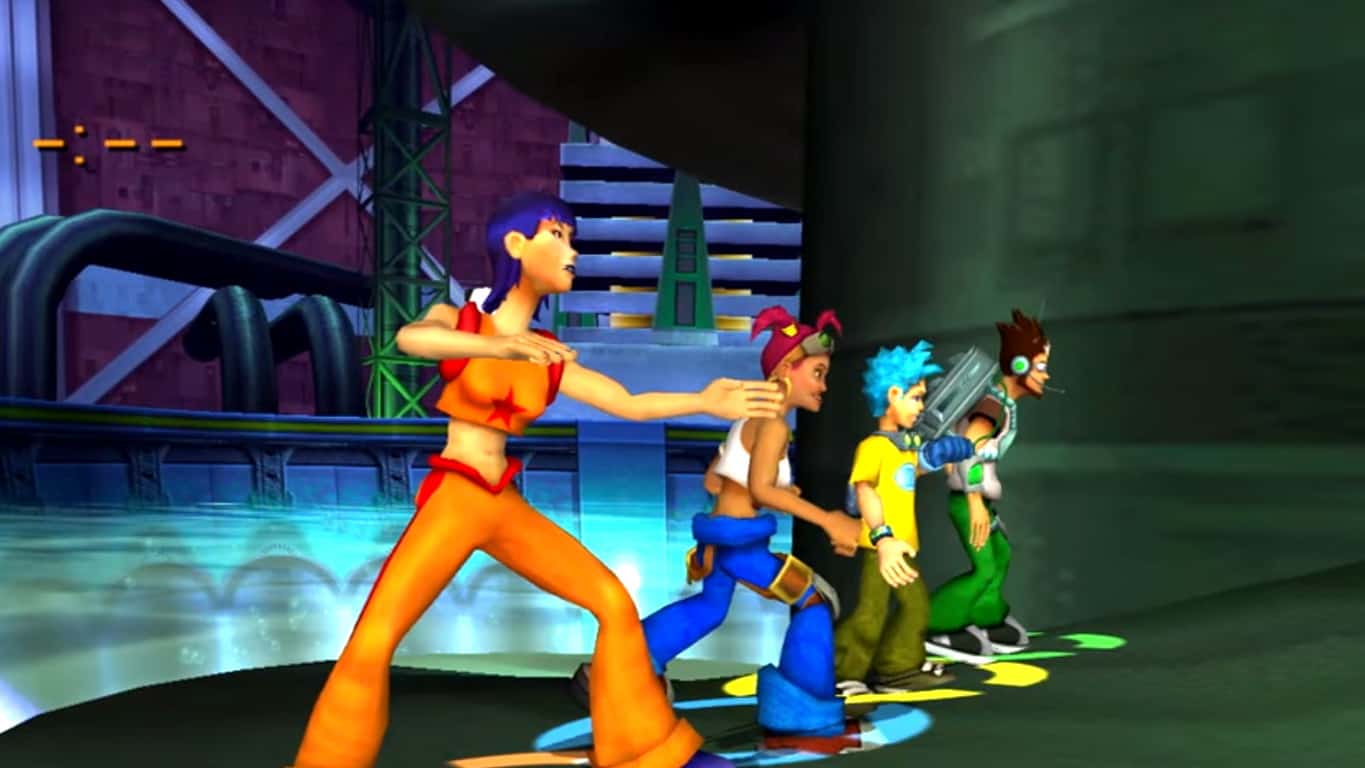
Original Xbox video game, Fuzion Frenzy, will launch on the Xbox One console any second now and it can already be purchased in the online store.

Fuzion Frenzy is one of 13 retro titles (alongside Star Wars Knights of the Old Republic) that came out on Microsoft’s first Xbox console and are now being made playable on the Xbox One due to its new OG Xbox backwards compatibility feature. While these old school Xbox games aren’t getting any new features or graphical upgrades, they will look significantly better when played on the Xbox One mostly due to how superior the new hardware is. Fuzion Frenzy will have four times the pixels on the Xbox One and Xbox One S and 16 times the pixels when played on the upcoming Xbox One X console. Here’s the official comparison video.

Fuzion Frenzy combines the continuous, frenetic action of a futuristic street sport with the action-packed fun of mini-games set in a dynamic 3-D urban environment. Six arenas and more than 45 mini-games provide plenty of competitive fun for up to four players.

Buy Fuzion Frenzy on Xbox One

Are you buying any of these OG Xbox games on Xbox One? Let us know which ones in the comments below.

Buy OG Xbox’s Star Wars Knights of the Old Republic for Xbox One right now

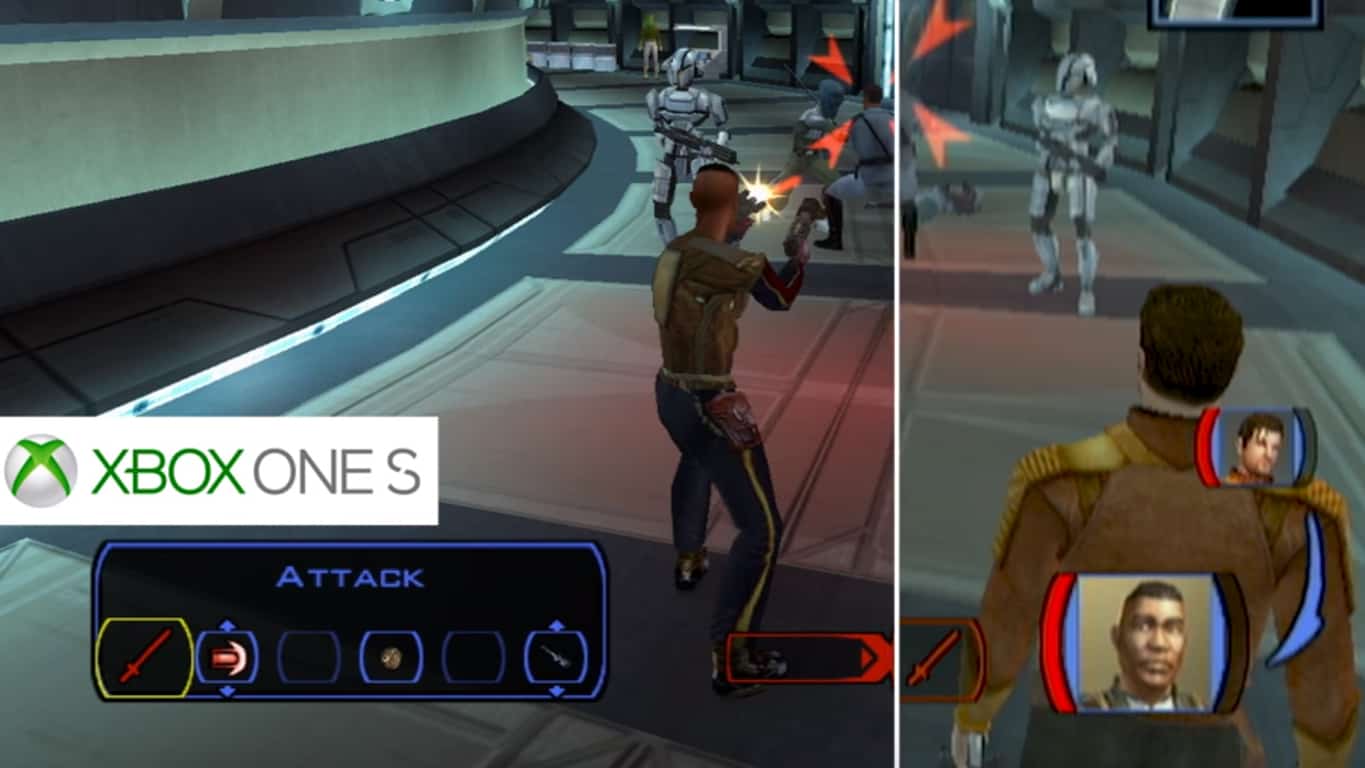
Original Xbox video game, Star Wars Knights of the Old Republic, can be purchased digitally ahead of its arrival on the Xbox One just a few hours from now. The listing for the OG Xbox game is live in the online store for the Xbox 360 however, once the game launches on the Xbox One via backwards compatibility later today, it will unlock on that console as well.

Because this isn’t a re-release of Star Wars Knights of the Old Republic, simply added support for it on a newer console, the game isn’t being given any new online functionality or Xbox Achievements and hasn’t been remastered in any way. Despite this however, the game will look remarkably better on the Xbox One consoles than it did on the OG Xbox and will boast four times the pixel count when played on the Xbox One and Xbox One S and 16 times the pixel count on the Xbox One X. Here’s a video showcasing just how much better the game will look as well as the game’s official description and shopping link.

It is four thousand years before the Galactic Empire, hundreds of Jedi Knights have fallen in battle against the ruthless Sith. You are the last hope of the Jedi Order. Can you master the legendary power of the Force™ on your quest to save the Republic? Or will you fall to the lure of the dark side?

Buy Star Wars Knights of the Old Republic on Xbox One

Are you going to buy Star Wars Knights of the Old Republic and are you happy with its arrival on Xbox One? Let us know in the comments below.

How to fix Elgato driver issues on Windows 10 version 1709

Many Windows 10 users reported that the Fall Creators Update breaks Elgato drivers. More specifically, Elgato will often report a ‘No Signal’ error, asking you to reboot your computer in order to complete a driver update.

No matter how many times you restart your PC, the driver update error message keeps on popping up. This problem affects mainly Elgato HD60 Pro machines and basically makes them unsuable.

Here’s how one user describes this issue on Reddit:

The Windows 10 Fall Creators Update started rolling out yesterday. Lots of Elgato users are reporting crippled functionality following the update. Elgato will always report No Signal and you’ll be repeatedly prompted to reboot your computer to complete a driver update no matter how many times you reboot.
I can confirm this. We have a PC in the house with an Elgato HD60 Pro that has been unusable after installing the update. EDIT: It’s confirmed that is only affecting those with the HD60 Pro (the one that slots into your motherboard).

Fix Elgato driver problems on Windows 10 v1709

The good news is that Elgato has already pumped out a hotfix to solve this issue. To prevent endless reboot loops, install the latest card firmware and driver updates before installing the Fall Creators Update.

You can download Game Capture Software 3.60.108 from Elgato’s official website.

Now, if you already installed the Fall Creators Update on your machine, you should first roll back and then install the new driver updates. For more information on how to do that, check out this step-by-step guide.

Unfortunately, not all users have been able to roll back. Moreover, some of those who rolled back and installed the latest Elgato drivers reported that the issue is still present.

If you’ve encountered other solutions to fix this problem, you can help the Windows community by listing the troubleshooting steps in the comments below.

Here’s how Windows 10 v1709 works on AMD Ryzen CPUs

It’s been almost a week since Microsoft rolled out Windows 10 version 1709 to the general public, having brought a long list of new features and improvements that users love. It’s a marvel how  Windows 10 works so well considering how diverse the hardware ecosystem is, but sometimes this diversity may cause issues.

Now, if you own an AMD Ryzen CPU and you’re wondering whether you should install the Fall Creators Update or not, you’re in the right place. We scoured forums for you and can tell you what others have said about running this version of Windows 10 on AMD Ryzen CPUs.

The Fall Creators Update on AMD’s Ryzen

If you overclocked your PC, expect CPU speed to drop a bit. It’s still unclear whether the Task Manager is reporting speed incorrectly or if the update actually slows down your CPU.

I have a Ryzen 1700, which is overclocked to 3.85ghz.
Prior to the fall creators update, the CPU speed in Task Manager was always sitting at 3.85ghz.
Now after the update, it fluctuates between 3.5ghz and 3.7ghz in the task manager only. The base speed still shows as 3.85ghz however, and I also checked CPUZ/Aida where the CPU speed is showing as 3.85ghz.

The good news is that FPS drops are now less severe and are rare than before installing the update.

Tried Rainbow 6 Siege and there indeed is improvement. Used to drop down to 45 fps in the benchmark scenario when you go into the first room where there are a bunch of people. Right now I do not drop below 70 fps

Actually, some of the games that were literally unplayable after the Creators Update became playable once users upgraded to the Fall Creators Update.

While there might not be much max FPS gains, at least two games became playable after the Fall update on Ryzen CPUs. These are Shadows of War and Artika.1, both unplayable messes with the Spring Creator Update ;p. Shadows of War would only benchmark at 40 fps no matter the settings and when playing the actual game, any complex scene in a city would drop to 40 FPS, again no matter what settings were used – this has all been fixed with the Fall update. For Artika.1, the game stuttered like crazy on Ryzen processors before the Fall update.

It is worth mentioning that you may not notice these improvements on all games.

If you own an AMD Ryzen-powered computer and installed Windows 10 v1709, use the comment section below to tell us more about your experience.

ALSO READ: Here’s why you shouldn’t install Windows 10 Fall Creators Update on PC!

Download Media Feature Pack for Windows 10 Fall Creators Update N version 1709

The Windows 10 Fall Creators Update is  now live, yet there’s one thing still missing.The latest Media Feature Pack for Windows 10 N and KN editions is still not available for download.

As a quick reminder, the Windows 10 N editions offer the same functionality and features as the regular Windows 10 versions with one exception: media-related technologies.

More specifically, there is a series of programs that are not available in the N editions of Windows 10 version 1709, including the Windows Media Player, Skype, Video, Voice Recorder, and more.

In order to be able to use these tools, Windows 10 Fall Creators Update users need to download them separately.

Install Media Feature Pack on Windows 10 version 1709

Although Microsoft has yet to release the Media Feature Pack for the latest Windows 10 version, you can check this page periodically and download it as soon as it’s been published.

Usually, the pack includes the following items:

  • Windows Media Player user experience: Enables Windows Media Player features.
  • Windows Media Player ActiveX control: Allows you to manipulate multimedia playback from a webpage or an app.
  • Windows Media Format: Provides support for the Advanced Systems Format (ASF) file container, and adds Windows Media audio and video codecs.
  • Windows Media DRM: Enables the secure delivery of protected content for playback.
  • Media sharing and Play To: Enables music, pictures, and videos on a networked computer to be shared with other computers and devices.
  • Media Foundation: Provides support for content protection, audio and video quality, and interoperability for DRM.
  • MPEG, WMA, AAC, FLAC, ALAC, AMR, and Dolby Digital audio codecs
  • VC-1, MPEG-4, H.264, H.265, and H.263 codecs
  • Groove Music
  • Voice Recorder
  • Skype

It’s been a week since Microsoft rolled out the Fall Creators Update OS, and many Windows 10 N and KN editions users are very disappointed with Microsoft. They say that the software giant should have released the Media Feature Pack shortly after having rolled out the OS update.

This is RIDICULOUS !

Microsoft is a multi-billion dollar organisation and they cannot coordinate the release of their OS with the release of a pack that MILLIONS of users need to continue using many features of that OS ?

All in all, if you run Windows 10 N or KN editions on your PC, be patient and check Microsoft’s Update page regularly until the pack is eventually published there within the coming days.

Surface Studio picks up firmware updates for “early preview” of Windows Mixed Reality

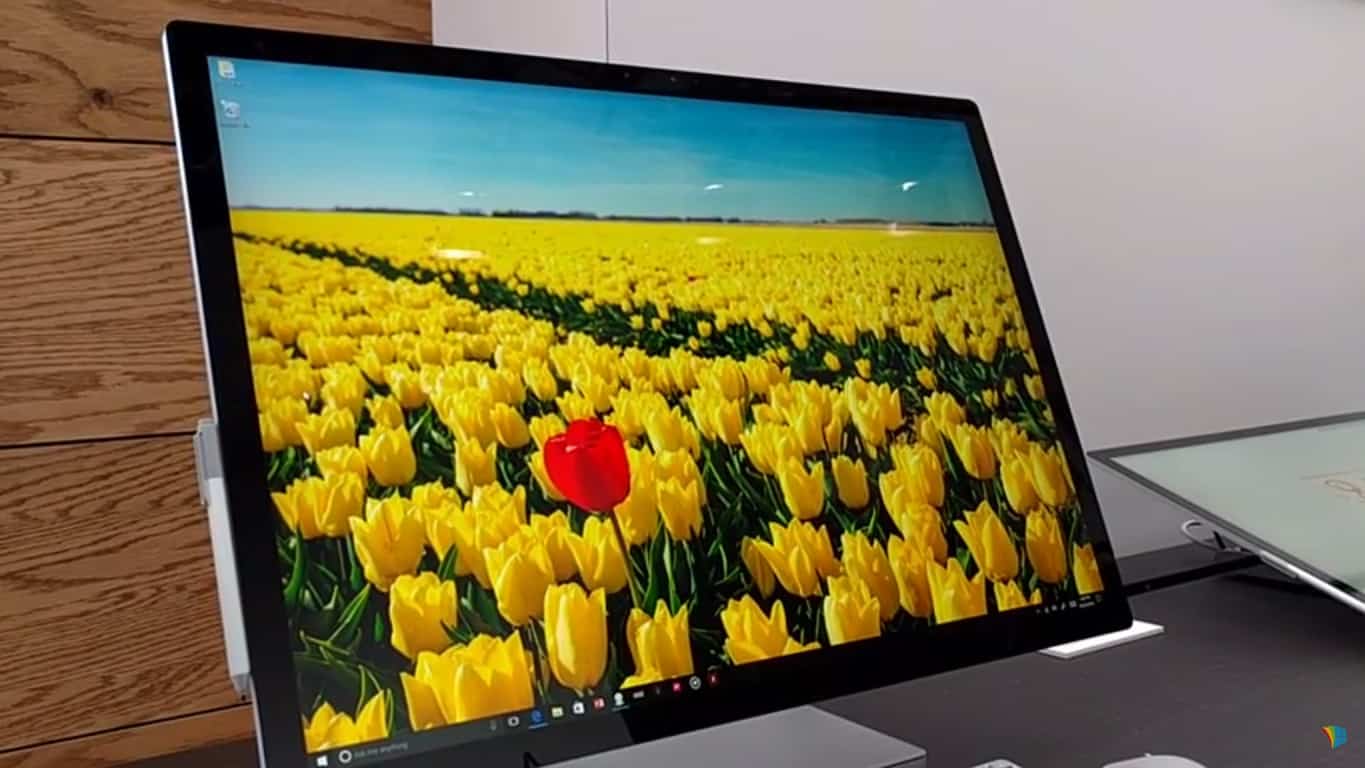
Microsoft recently released a new batch of firmware updates for the Surface Studio in order to get the all-in-one PC compatible with Windows Mixed Reality. This comes just a few short days after similar updates were pushed out for the Surface Laptop, Surface Pro, and the Surface Book.

As noted on Microsoft’s Surface Studio Update page, this is the first time in six months that a firmware update has been pushed out to the all-in-one PC. It brings no security, reliability, connectivity, or battery life changes, and only enhanced performance and compatibility. Here is what you need to know about the NVIDIA GTX driver update and Marvell Bluetooth driver pre-release update for Windows Mixed Reality support.

  • NVIDIA GeForce GTX driver In Display adapters: 22.21.13.8290 required to support Windows Mixed Reality features.
  • Marvell AVASTAR Bluetooth Radio Adapter in Bluetooth:15.68.9120.47 required to support Windows Mixed Reality features.
  • Marvell AVASTAR Wireless-AC Network Controller in Network adapters: 15.68.9112.23 required to support Windows Mixed Reality features.

Interestingly, Microsoft notes that it is providing these drivers as an “early preview” of the Windows Mixed Reality drivers on Surface Studio for the “early adopter community.” A finalized launch is planned soon and will be provided later via Windows Update.

As a side note, Microsoft has also put up some refurbished versions of the Surface Studio on sale. You can get an Intel Core i5 Certified Refurbished Microsoft Surface Studio for $2,549.00, which is a good $600 off the $2,999.00 price of a new unit. Other models are also available, so feel free to check it out by clicking here.

Microsoft to air 6 second ads during AMC’s The Walking Dead

Microsoft recently kicked off the marketing campaign for the Xbox One X with a “Feel True Power” TV commercial this past Sunday but turns out there is still more room for advertising. The company is planning to run new 6-second ads during the October 29th and November 6th episodes of AMC’s The Walking Dead (via Adage.)

The 6-second spots reportedly are similar to the costs of a 15 second ad. A 30-second ad on the program is normally around $500,000. Microsoft already sponsored a live stream of “The Walking Dead” red carpet premiere event, so this is just the latest place where the company is putting its money.

As The Walking Dead season continues to roll on, fans can also expect to see more Microsoft presence and sponsorship in the preview trailers which play at the conclusion of episodes. Great to see that Microsoft is publicising its products, as the new style short burst ads likely will give the company an upper hand in the minds of consumers this holiday season.

Microsoft partners with Cray to bring supercomputers to Azure

Microsoft has announced today a new strategic alliance with Cray Inc, a global company that develops supercomputers, big data storage and analytics solutions for scientists and engineers. The new partnership is meant to bring the power of Cray’s supercomputers to Azure, making it even more interesting for Azure customers to run their most important workloads in the cloud.

“This announcement is yet another step to help our customers harness the power of HPC and AI in an agile and cost-effective way,” explained Jason Zander, corporate vice president, Microsoft Azure team in a blog post today. “At Microsoft, we believe access to Big Computing capabilities in the cloud has the power to transform many businesses and will be at the forefront of breakthrough experimentation and innovation in the decades to come.” In a separate press release, the global supercomputer leader shared more details about the new offering:

As part of the partnership agreement, the Cray® XC™  and Cray CS™ supercomputers with attached Cray ClusterStor storage systems will be available for customer-specific provisioning in select Microsoft Azure datacenters, directly connected to the Microsoft Azure network. The Cray systems easily integrate with Azure Virtual Machines, Azure Data Lake storage, the Microsoft AI platform, and Azure Machine Learning services. Customers can also leverage the Cray Urika®-XC analytics software suite and CycleCloud for hybrid HPC management.

Peter Ungaro, president and CEO of Cray added that this new new partnership with Microsoft “gives customers the cloud-based supercomputing capabilities they need to increase their competitive advantage.” You can learn more about Cray in Azure on the company’s website.

The Harman Kardon Invoke is the first “ambient device” to include Skype calling

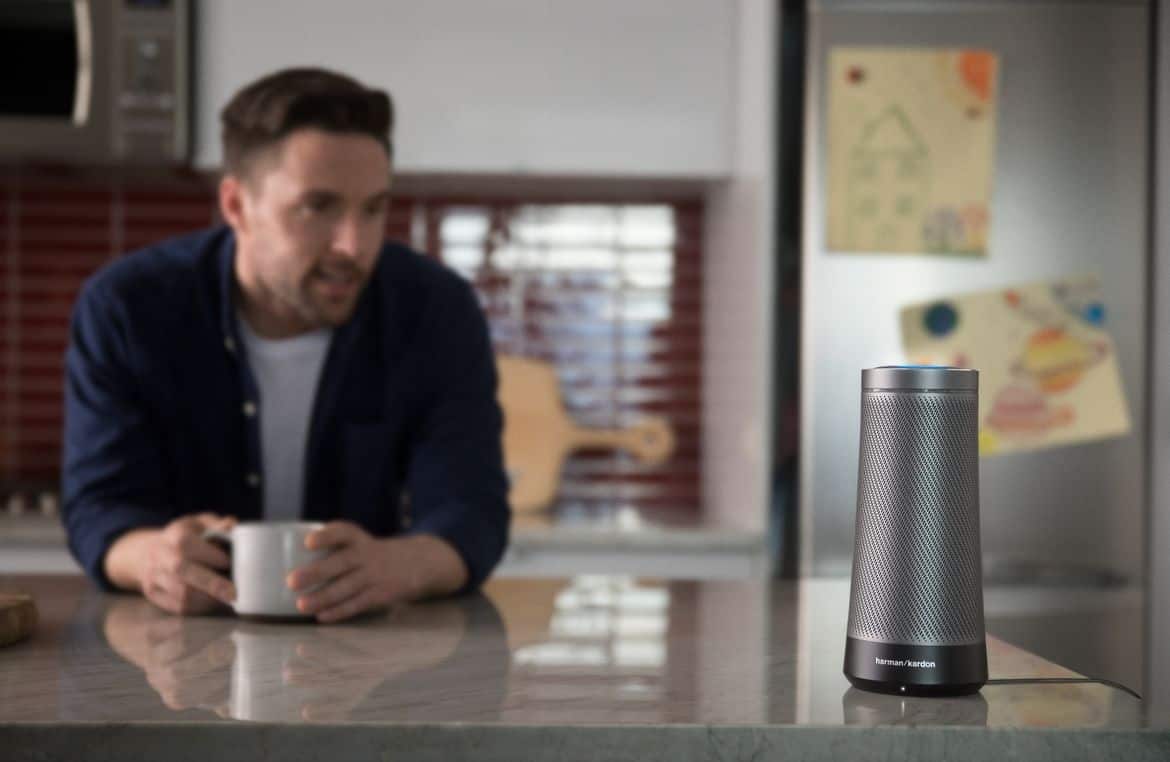
Skype may not be the most popular messaging app out there, but it’s definitely one of the most ubiquitous ones. In addition to the web, mobile platforms, Android Wear smarwatches and Xbox One consoles, Skype is now also available on the Harman Kardon Invoke, the first ambient speaker powered by Cortana.

“The Harman Kardon Invoke speaker, with Cortana by Microsoft, is the first of these devices embedded with easy, voice-activated Skype calling to your Skype contacts, phone contacts, and local businesses,” the Skype team explained in a blog post. The Invoke includes seven far-field microphones, which can recognize voice commands in noisy environments and deliver clear, reliable voice communication with Skype.

You can use Cortana on the Invoke to place hand-free Skype-to-Skype calls, or ask the digital assistant to call any mobile or landline phone number. For a limited time, you can actually enjoy Free Skype calling from the US to mobile phones and landlines in the US, Canada and Mexico. You can see how it works in the video below:

Skype calling may not be the killer feature on the Harman Kardon Invoke, but it’s definitely nice to have. In our hands-on time with the Invoke, we were impressed by its excellent sound quality, which seems to be superior to competing products from Amazon or Google (Harman Kardon is an audio equipment manufacturer, so that’s not completely surprising). The Invoke can also connect to popular music services including Spotify, and you can also use the ambient speaker to control various smart home appliances.

The Invoke is available to purchase in the US for now, and it can be yours for $199.95. You can find it today at the US Microsoft Store, Harman Kardon’s website as well as Best Buy retail and online stores.

Office Mix to be retired next May, PowerPoint in Office 365 to gain many of its features

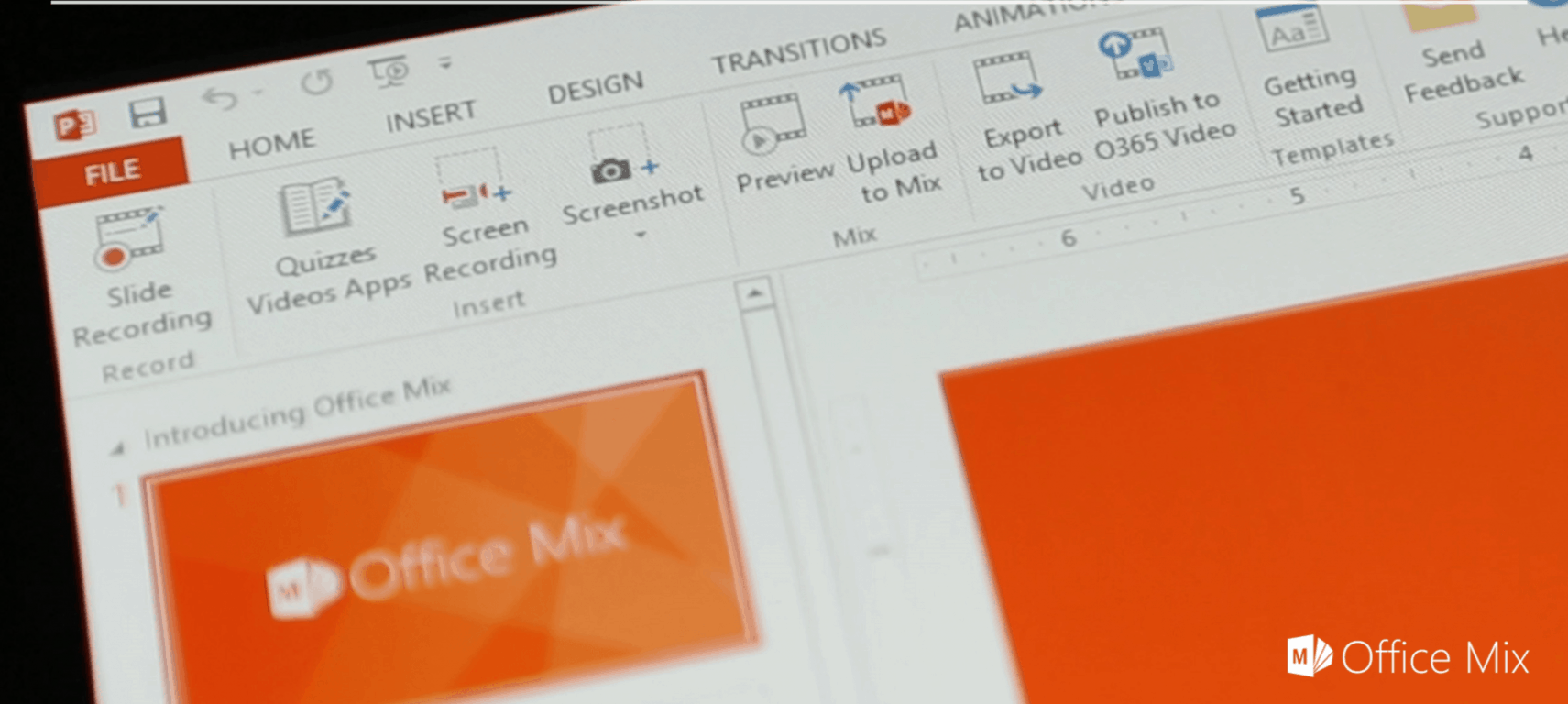
Over the weekend, Microsoft announced via email that Office Mix will be retired next May with PowerPoint in Office 365 instead gaining many of its features in place. Retirement will happen on May 1, 2018, and Microsoft is calling on users of the free PowerPoint extension to take action and save files now.

For those unfamiliar, Office Mix is a free extension to PowerPoint that makes it easy for everyone to turn your PowerPoint presentations into interactive online recordings. With the new integration with Office 365, there will no longer need to download the extension, as Microsoft will be putting the features into the Recording Tab in PowerPoint.

The company also has plans to allow users with qualifying accounts to migrate and publish recordings to Microsoft Stream, allowing for the uploading and sharing of videos across an organization. Microsoft is providing the following timeline for the retirement of Office Mix:

  • October 20, 2017: If you have an existing Office Mix account, you’ll still be able to view, edit, publish, download, and delete your existing content. If you have a qualifying* Office 365 work or school account, you can sign in to migrate your mixes as videos to Microsoft Stream. If you don’t have access to an Office 365 work or school account, you can download your Mixes as PowerPoint files (.pptx), and you analytics data as Excel files (.xlsx) to save to a storage location of your choosing.
  • January 1, 2018: You’ll no longer be able to sign up as a new user or download the Office Mix add-in from the website. Existing users who already have the Mix add-in installed will still be able to use it to upload, edit, view, and download their existing content.
  • May 1, 2018: The Office Mix site and all its content will be officially discontinued. The site will no longer be accessible after that date. Any links to your Office Mix content that you previously shared with others will stop working after this date.

Please be aware that the Recording tab is only available for Office 365 subscribers on Windows PCs, so users with Macs may be missing out on Office Mix once it is retired. Microsoft is saying that the feature may be rolled out to other platforms “over time” so it’s best to keep tuned for more in the months ahead. For now, though, Office Mix users can check out this website for the complete details on what needs to be known ahead of retirement.

Microsoft To-Do begins General Availability rollout to all Office 365 users

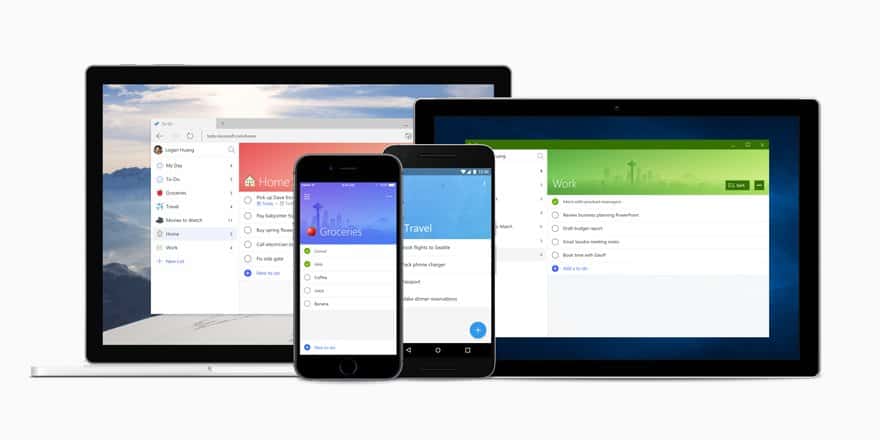
Microsoft To-Do, the company’s new task manager app has started to roll out to all Office 365 users, a couple of weeks after being opened to Office 365 Education accounts. Office 365 admins should now receive an email explaining how to assign licenses for Microsoft To-Do to users in their organization.

The email also says that the Microsoft To-Do Preview is “almost over,” and that the task-manager app should be on-by-default for all Office 365 users in “no less than 30 days.” From that point, To-Do will appear in the Office 365 App launcher on the web, which makes sense as the To-Do web app, accessible on to-do.microsoft.com now supports both personal Microsoft accounts and Office 365 accounts.

Microsoft To-Do is set to replace Wunderlist in the near future, and it can already import all data from this other task manager app. To-Do also integrates with Outlook Tasks (assuming you use both apps with the same account, though it’s worth noting that the app doesn’t yet support all the varied features of Outlook Tasks such as the start and end dates, task status, task completion percentage and more. “We are currently working to deepen our Outlook integration,” Microsoft explains on the support website.

Xbox One X “Feel True Power” TV commercial is out, watch it here

Microsoft kicked off yesterday its “Feel True Power” marketing campaign for the Xbox One X, with a TV trailer that aired on The Walking Dead season premiere as well as during the kick off of the Atlanta Falcons vs. New England Patriots NFL game. Assassin’s Creed Origins, Forza Motorsport 7, Middle-Earth: Shadow of War and PUBG all make an appearance during the one minute clip, in addition to many more games including Minecraft, Halo Wars 2 and Madden NFL 18. The commercial uses the anthemic Kanye West “Power” and you can watch it below

The Xbox One X will be released worldwide on November 7, which is just two weeks away. The $500 console will need a big marketing push to gain momentum ahead of the holiday season, but record-breaking pre-orders shows that Microsoft could well have a hit on its hands.

What are your thoughts about this new TV commercial? Do you think it does a good job at showcasing the power of the Xbox One X, or do you think Microsoft could have done better for what will be the most powerful console in the market? Let us know below.

The Surface Pro and Surface Laptop are ready for Windows Mixed Reality

Windows Mixed Reality is a new type of VR experience that recreates the real world in virtual reality with six WMR headsets in the pipeline. The Windows 10 Fall Creators Update already enhanced Edge’s WebVR 1.1 API so that users can utilize WMR motion controllers for VR content with that browser. To follow that up, Microsoft also released new firmware updates to extend WMR support to both the Surface Laptop and Surface Pro.

The new firmware updates have been rolling out since October 18, 2017, consisting of a series of new drivers for the Surface Laptop and Surface Pro. The drivers include the new Marvell AVASTAR Bluetooth Radio Adapter, Intel(R) HD Graphics 620, Marvell AVASTAR Wireless network adapter and Intel(R) Display Audio, all of which are required for WMR functionality.

The new updates don’t just extend WMR support: they also extend the battery life for the Surface Pro, Pro 3 and Surface Book. The Intel(R) Precise Touch Device driver update enables Surface Pro users to enhance laptop battery life by disabling touch, while Surface Book users get a new Power Slider to improve battery life.

Aside from that, the new update will enhance the Surface Laptop’s two-finger scrolling and Surface Dock stability. However, the emphasis remains extending Windows Mixed Reality support to the device. With the expanded VR framework support for Edge, Surface Laptop users can now browse websites and open VR content with WMR headsets.

Surface Pro Driver update windows 10 SWindows Update should automatically provide the latest updates for Surface Laptop and Surface Pro users. However, you can also manually download the MSI updates from the Microsoft Download Center. Add the required update to Windows 10 by pressing the Download button on one of the pages below:

This latest update further highlights that Windows Mixed Reality is around the corner alongside the first WMR headsets that began to roll out this October.

How to use the Trusted Devices functionality in Windows 10

Keeping your data, credentials and other files secured is essential especially when you use different devices for completing daily tasks. Well, in Windows 10 you can smartly manage your Microsoft account for using your credentials without any problems an without worrying about security breaches even when you are connecting with more than your personal computer.

The only condition is to use your personal Microsoft account on all these devices.

Here’s how ‘Trusted devices’ works in Windows 10

Trusted devices is a feature introduced when Windows 8 was first released. However, the Trusted devices functionality was modified in Windows 10 and got better.

Now, you can add any other device (your phone, tablet, another PC or any other gadget regardless of the OS that is running) to your trusted devices list and use your credentials through your Microsoft account.

As you know, the normal steps for connecting to your Microsoft account from different devices are: you need to complete the two-step verification process and afterwards you need to enter the code provided by Microsoft via an app, text message or e-mail.

If a secondary authentication solution can’t be used you won’t be able to use your account at all. But, once you are signed in all your credentials will be synchronized.

However, even after performing this complex authentication process you might still have to complete additional verification queries – this will happen when you will try to use data marked as extra sensitive such as your credit card number.

And this is when the Trusted devices feature will come in handy. After filling out the security verification form you will receive a message saying ‘I sign in frequently on this device. Don’t ask me for a code’.

Once this checkbox is enabled and you successfully sign-in to your account, Microsoft will make this particular handset as a trusted device. Shortly, a trusted device will no longer ask for the Microsoft verification code next time you will try to access or use your sensitive / private information.

Set up your PC as Microsoft’s trusted device

Here is how you can set up your current Windows 10 handset as a trusted device for your personal Microsoft account:

  1. Press Win+I keyboard hotkeys.
  2. From System Settings go to Accounts.trusted devices windows 10
  3. From the left panel click on Your email and accounts.
  4. Under ‘You need to verify your identity on this PC’ click on Verify.
  5. Fill up the forms in order to receive the security code.
  6. Click Next and enter the security code you received.
  7. Perfect; your PC is now a trusted device associated with your Microsoft account.
  8. Now, if you go to System Settings – > Accounts – > Your account you should notice that the Verify link isn’t displayed anymore.

How to let apps use Trusted Devices in Windows 10

You can choose which apps can be used on the devices that were added in the Trusted devices list. Here is how you can perform this process:

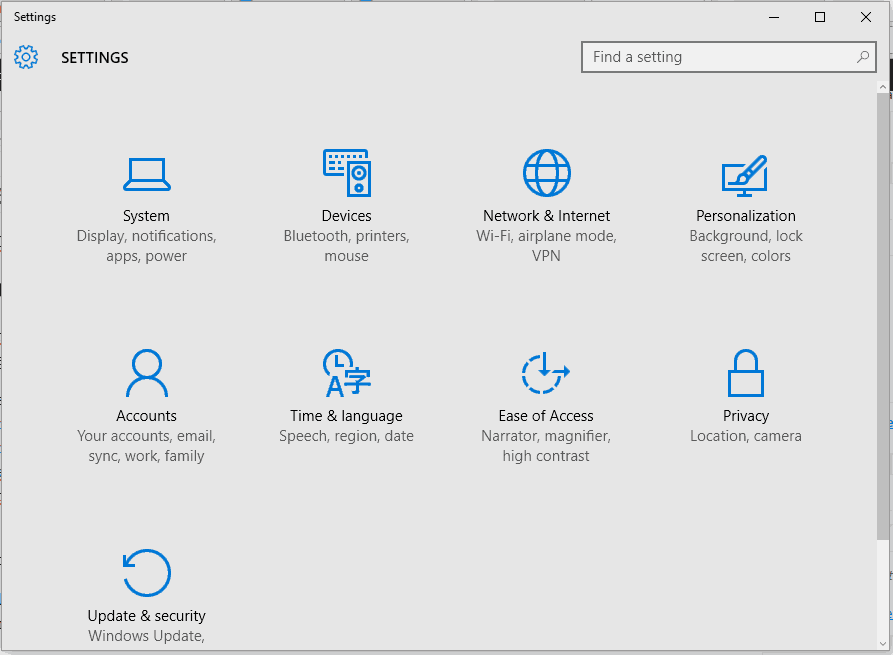
  1. On your computer press the Win+I hotkeys.
  2. Go to Privacy.
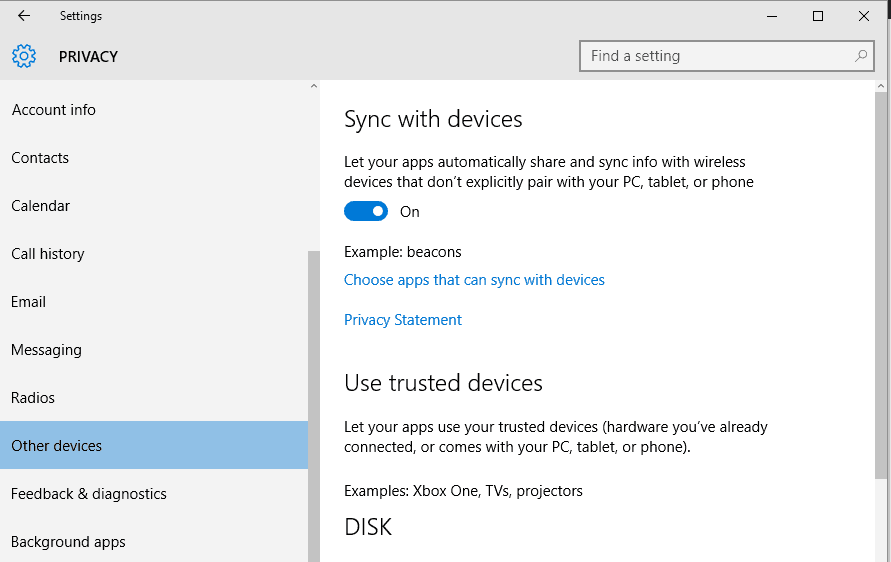
  3. From the left panel access Other devices.use trusted devices windows 10
  4. Now, on the main window you can find the Use trusted devices section.
  5. There will be added your trusted devices.
  6. If you want to let apps installed on your computer to use your trusted devices enable the ‘Let apps use my device’ feature.
  7. Next, choose the apps that you want to use these devices by enabling each entry from the displayed list.

ALSO READ: New security report pegs Microsoft Edge as the safest browser against phishing attacks

How to remove a device previously added under Trusted devices

  1. On your computer open your browser.
  2. Access the Microsoft online website.
  3. Sign-in to your account.
  4. Go to the Security & privacy tab.
  5. Then, select More security settings.
  6. Scroll down and look for the Trusted devices field.
  7. Click on the Remove all the trusted devices associated with my account link.
  8. Follow on-screen prompts and wait while this operation is being automatically completed.

So, that’s how you can use Trusted devices in Windows 10.

If you have questions or if you need our further assistance don’t think twice and contact us. You can do it through the comments field from below.

Of course, based on your request we will try to assist you as soon as possible. Enjoy and let us know everything about your Windows 10 experience.

RELATED STORIES TO CHECK OUT:

Windows 10 news recap: Razer laptops struggle with the Fall Creators Update, built-in feature to catch game cheaters and more

Welcome back to our Windows 10 news recap. We are continuing the trend of our weekly “Windows 10 news recap” series where we go over the top stories of the past week in the world of Microsoft’s flagship operating system.

The Windows 10 Fall Creators Update is not playing nice with some Razer laptops

For those sporting a Razer laptop, you’re likely to experience issues running the Windows 10 Fall Creators Update. According to reports, users who wake from sleep mode while on battery are reporting that peripheral devices, including the trackpad and USB devices, fail to work at all, and that updating drivers does not resolve the issue. It appears to stem from Razer not updating its drivers to support the Fall Creators Update as yet.

Windows 10 Fall Creators Update adds code to help catch game cheaters

To aid in the fight against those who cheat in games on PC, the Windows 10 Fall Creators Update brings a new feature that helps to catch game cheaters. Developers can use this feature, known as TruePlay, to know if a player has cheated, and take appropriate action. All processing is done in a protected process and only developers have access to it. Here’s a description of the feature:

A game enrolled in TruePlay will run in a protected process, which mitigates a class of common attacks. Additionally, a Windows service will monitor gaming sessions for behaviors and manipulations that are common in cheating scenarios. These data will be collected, and alerts will be generated only when cheating behavior appears to be occurring. To ensure and protect customer privacy while preventing false positives, these data are only shared with developers after processing has determined cheating is likely to have occurred.

Windows 10’s Edge browser FINALLY gets a fullscreen mode

While Microsoft Edge has supported fullscreen for YouTube and other video providers since its launch, it’s not had a fullscreen feature similar to Internet Explorer until now. Unlike Internet Explorer’s fullscreen mode however, users will need to exit fullscreen to perform a search or enter a new web address. Below is how to use the fullscreen functionality:

  • To turn on the new fullscreen mode in Edge, simply expand the … menu in the top-right corner and click on the arrow icon next to Zoom.
  • To exit fullscreen mode in Edge, users can swipe down from the top of the screen, if on a touch-enabled Windows 10 device, and press the arrow icon or move the mouse cursor to the top-right corner of the screen to reveal it.
  • Fullscreen can also be turned on and off by pressing the F11 key when the Fn key is activated.

Windows 10 3D printing support brings Minecraft creations to real life

Windows 10 has supported 3D printing support for a while, but due to the cost of 3D printing, few have made use of it. Now, as 3D printing is becoming somewhat more affordable, Microsoft is touting how the 3D printing functionality in Windows 10 can now be used to print Minecraft objects.

That’s it for this week. We’ll be back next week with more Windows 10 news!

Microsoft news recap: Delta and General Electric shy away from Microsoft, Microsoft Teams member limit increases to 2,500 and more

Microsoft (MSFT) news recap is a weekly feature highlighting the top Microsoft news stories of the past week. Sit back, grab some coffee, and enjoy the read!

Delta to move flight crew to Apple devices, while General Electric moves employees to mobile Apple devices and recommends Mac for desktop

As Microsoft has officially put its mobile platform, Windows 10 Mobile and Windows phone, into maintenance mode, it appears that this decision is affecting some of its enterprise customers, as both Delta and General Electric are moving devices away from Windows, instead to Apple’s iOS. Delta is to provide its flight crew with iOS devices, while General Electric will promote Mac as its preferred system, as well as provide iOS and iPad devices to its employees for mobility.

Photo of Windows phones lined up in a Microsoft store

Microsoft Teams bumps the team membership limit from 999 to 2,500

The maximum team membership of a Team in Microsoft’s work communication tool has been increased from 999 to 2,500, allowing larger businesses to make better use of Microsoft Teams by having more of their employees in the same team.

Microsoft pokes Google for its handling of exploits

Microsoft recently discovered a security exploit in Google’s Chrome browser, but rather than taking Google’s stance of publishing details of the exploit before the company has fixed it, Microsoft allowed Google to patch the exploit beforehand, then took a dig at Google in the differences in strategy for handling exploits.

Our strategies may differ, but we believe in collaborating across the security industry in order to help protect customers. This includes disclosing vulnerabilities to vendors through Coordinated Vulnerability Disclosure (CVD), and partnering throughout the process of delivering security fixes.

Microsoft received 25,367 legal requests from law enforcement for customer information in the first half of 2017

In the first half of 2017, Microsoft received 25,367 legal requests from law enforcement asking for customer information from around the world, with the United States and United Kingdom remaining the top 2 countries to make the most requests. This marks a slight decrease from the previous 6-month period.

Microsoft

That’s it for this week. We’ll be back next week with more Microsoft news.

Xbox news recap: Fall Creators Update rolls out to all Xbox One consoles, Original Xbox game listings show up on Xbox One and more

Welcome to our weekly Xbox news recap series, where we go over the top stories of the past week in the world of Xbox. Let’s get started.

The Fall Creators Update rolls out to everyone

We’ve been waiting for a while, but it’s here. Accompanying the arrival of the update on all Windows 10 PC’s, the Fall Creators Update has launched on Xbox One. With the update comes the new dashboard, as well as a ton of features to help tune up the Xbox One experience. Additionally, this update brings with it the rebrand of the Xbox Store into the “Microsoft Store,” bringing it in line with other Microsoft devices.

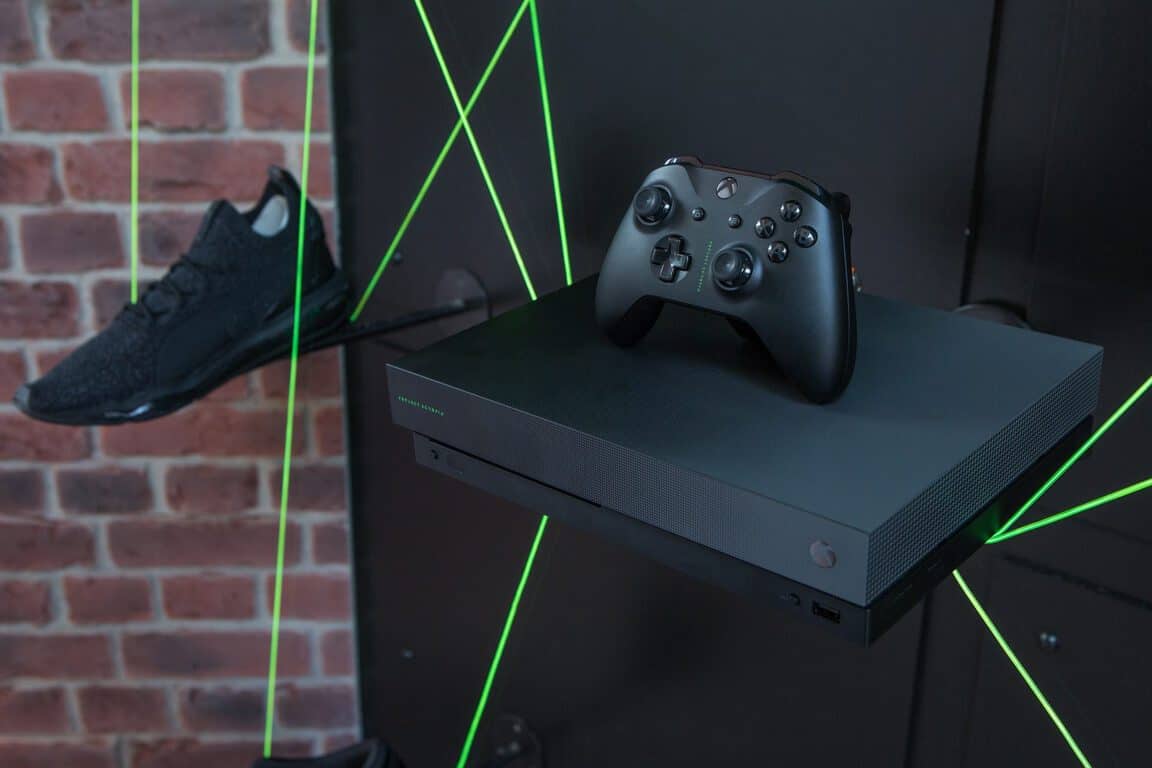
Microsoft, Xbox, Xbox One X, Foot Locker

Original Xbox games listing on the Xbox One

We’ve known for a while that original Xbox games are going to be coming to the Xbox One for Backward Compatibility, but it’s so far been up in the air when that’s going to happen. While we still don’t have a solid date for when that compatibility is going to arrive, we can now see listings for a ton of original Xbox games alongside everything else in the Microsoft Store. Chances are, this means that Original Xbox Backward Compatibility is imminent.

OG Xbox game Fusion Frenzy on Xbox One

Microsoft launches new advertising campaign for Xbox One X

This Sunday, Microsoft will unveil the first of a new line of trailers going by the name “Feel True Power.” The general layout of the teaser should remind a lot of fans of the Project Scorpio teasers released a while back, as it’s pretty much exactly the same. It shows someone in a dark room with an Xbox One X controller, and then goes on to flash a bunch of clips from upcoming 4k-enabled games.

Fans design new UI’s after mixed reviews on the new user experience

The Fall Creators Update came with a totally redesigned user experience. As with any big change in UI, the reception so far has been mixed, to say the least. A lot of fans have been so far unimpressed with the new Xbox One experience, so one Reddit user decided to create their own mock-up of what the home screen should look like. Honestly, this one looks really well-made, and I wouldn’t mind having it implemented if that were possible.

Xbox One mock-up

Brazilians can get a free month of Xbox Game Pass if they donate blood

In one of the weirdest promotions I think I’ve ever seen Xbox do, Brazilians who decide to donate blood are being given a free month of Xbox Game Pass. The unlikely partnership has Xbox users go out and give blood, upload their blood donation certificate online, and get a code for their free month online. As weird as it is, this promotion should really help some people. So… We’ll take it?

Xbox Game Pass

Thanks for joining us. To keep up to date with all the latest Xbox news, keep a close eye on our Xbox One tag.

General Electric migrating 330,000 employees away from Windows to Apple, following in the footsteps of Delta

Following quickly in the footsteps of yesterday’s news when airline Delta announced it is moving its flight crew to iPhone’s and iPad’s, away from Microsoft Surface and Windows phone, now General Electric, the 13th largest company in the US, is moving 330,000 employees away from Windows (via Apple’s Newsroom).

General Electric will allow employees to use Mac’s if they wish to do so, but will standardise its mobility on iPhone’s and iPad’s, showing that Microsoft’s retreat in the mobile field is hurting it elsewhere. Apple and General Electric, under a new partnership, will build a number of standardised internal apps, as well as apps for GE’s customers. It is hoped that with Apple’s connected ecosystem that spans desktop and mobile, employees will find it far easier to make use of the offerings available to them, as well as reduce the burden on their IT help desk.

In a further blow to Microsoft, that shows consumer-side also affects enterprise and vice versa, General Electric will actively promote Mac as a preferred option to all of its 330,000 employees.

How to fix screen flickering after upgrading to Fall Creators Update

The long-awaited Windows 10 Fall Creators Update is finally here and we’ll see is it going to meet the expectations. Just like it’s predecessor, the Redstone 3 update brings out arguably mediocre improvements and a lot of issues.

One of the most sensitive problems we bump into is an unusual screen flicker. It emerged immediately after the upgrade so it’s safe to say that Fall Creators Update is the one to blame.

In order to address this, we compiled a list of possible solutions and curated them for you. If your screen flickers or behaves unusually in any other manner, consider following the steps below.

How to fix screen flickering in Windows 10 Fall Creators Update

  1. Check GPU drivers
  2. Uninstall the third-party antivirus
  3. Change display refresh rate
  4. Update BIOS
  5. Reset this PC

1. Check GPU drivers

When it comes to screen-related issues, you should first point your finger at GPU drivers. Most of the time, the main culprit for flickering, stutters, resolution drops, sudden black screens, and other not-so-welcomed distresses are faulty or unsuitable drivers. And, it seems that it’s a trend for every new Windows version to cause some kind of incompatibility-provoked issue in regards to drivers.

So, your further actions are simple: check drivers > uninstall the generic driver > install the official driver > tap yourself on the shoulder and enjoy in Fall Creators Update without the screen flickering. If this looks like something too much to handle on your own, make sure to follow the instructions below:

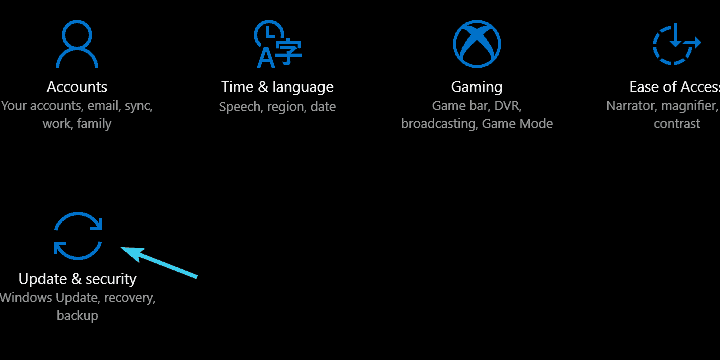
  1. Press Windows key + I to bring out the Settings app.
  2. Click on the Update & security section.Screen flicker after updgrading to Fall Creators Update
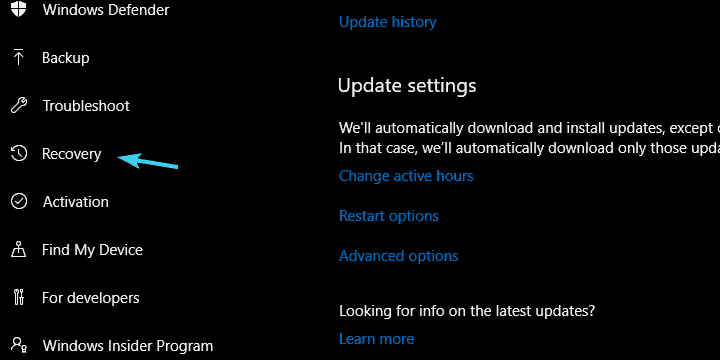
  3. Choose Recovery from the left pane.Screen flicker after updgrading to Fall Creators Update
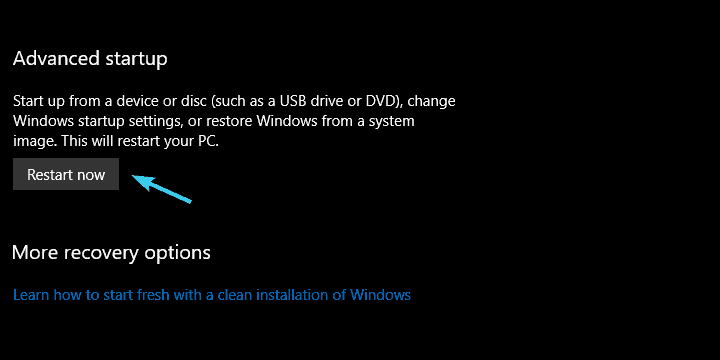
  4. Click on the ”Restart Now” button.Screen flicker after updgrading to Fall Creators Update
  5. Choose Troubleshoot from the Windows Recovery Environment.
  6. Click Advanced options.
  7. Select Startup settings and then Restart.
  8. Press 5 to let your PC boot in Safe Mode with Networking.
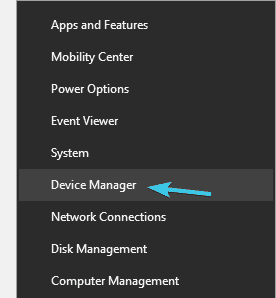
  9. Now, right-click on the Start button and open Device Manager.Screen flicker after updgrading to Fall Creators Update
  10. Navigate to Display adapters.
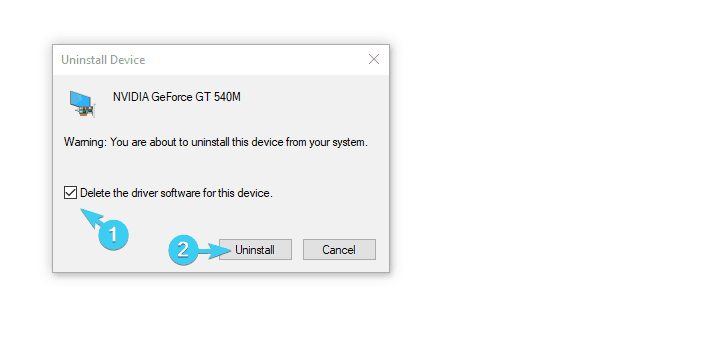
  11. Right-click on your GPU device and uninstall it.Screen flicker after updgrading to Fall Creators Update
  12. Restart your PC.

If that wasn’t enough and you’re still experiencing issues, make sure to navigate to one of these websites, depending on your GPU model, and download official driver provided by the manufacturer.

Keep in mind that all drivers must be updated for your PC to work properly. In order to prevent PC damage by installing the wrong driver versions, we suggest updating drivers automatically by using a specialized driver updater tool.

This type of tool will automate the entire process on your behalf and will search, update and download the appropriate driver version for your device avoiding permanent damage on PC.

2. Uninstall the third-party antivirus

This is a long shot solution but even the stranger things have happened in Windows 10 so it’s worth giving it a try. The feud between Windows 10 and third-party antivirus solutions is well-known.

It can cause a lot of issues, especially with the introduction of usable, non-marginalized Windows Defender. The possible conflict might affect the overall performance and cause various issues.

Because of that, we advise you to uninstall antivirus and look for changes. If you’re still stuck with the irritating screen flickering, you can always install antivirus of choice again. Follow the instructions below to get rid of the antivirus temporarily:

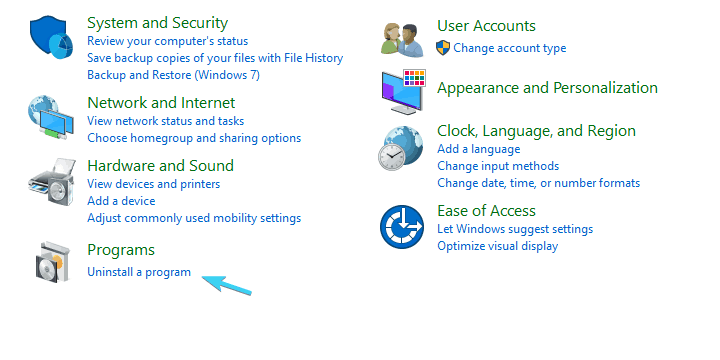
  1. In the Windows Search bar, type Control and open Control Panel.Screen flicker after updgrading to Fall Creators Update
  2. Choose Category view.
  3. Select Uninstall a program.
  4. Locate your antivirus on the list, right-click on it and select Uninstall.
  5. After the antivirus is gone, restart your PC and look for changes.

Additionally, some antivirus solutions are more resistant to uninstalling, so you might need to boot into Safe Mode and remove them that way.

3. Double-check display’s refresh rate

Now, we’re still roaming in ”not likely” grounds, but the refresh rate, as same as other system settings, can get disrupted by the latest Windows update.

With issues like this everything is possible, so it’s welcomed to confirm that the refresh rate is set at 60Hz. It won’t take too much of your time and it even might help.

Here’s a step-by-step explanation:

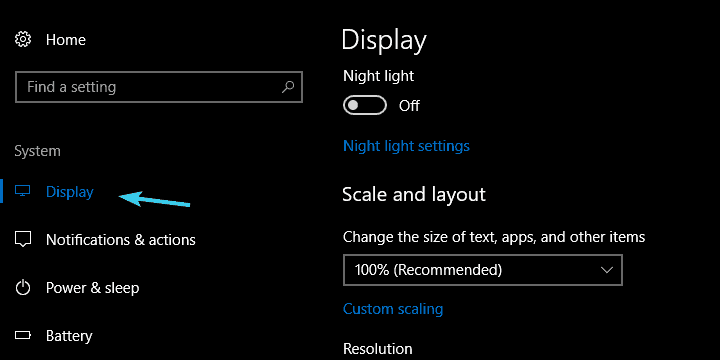
  1. Right-click on the desktop and open Display Settings from the contextual menu.Screen flicker after updgrading to Fall Creators Update
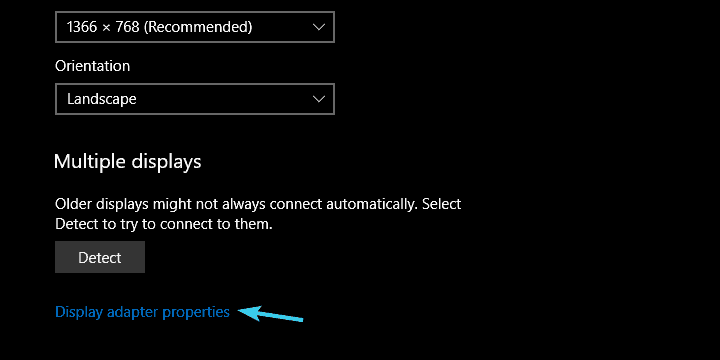
  2. Navigate to the bottom and open Display adapter properties.Screen flicker after updgrading to Fall Creators Update
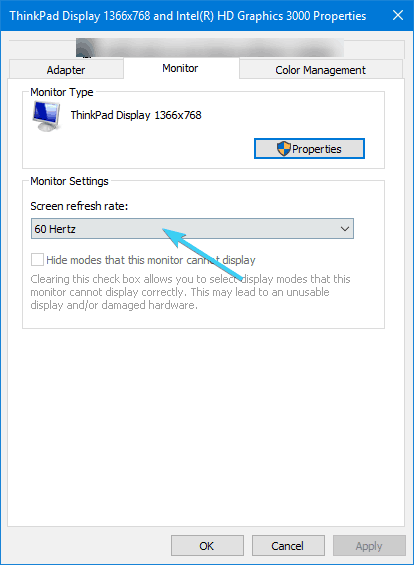
  3. Under the Monitor tab, confirm that the Screen refresh rate is set at 60Hz.Screen flicker after updgrading to Fall Creators Update
  4. Confirm changes.

4. Update BIOS

Switching back and forth from Windows 10 to its predecessors is usually a simple and clean operation. However, occasionally BIOS can pose as the stumbling block and create a lot of issues.

In this case, if you upgraded from Windows 7 or 8 to Windows 10 and you’re running an older motherboard, the old UEFI/BIOS firmware might not suffice.

Consequently, the not fully functional firmware that’s incompatible with Windows 10 can further affect GPU and that creates a line of problems that are hard to cope with.

So, what you’ll need to do is to update your BIOS and, hopefully, resolve all screen issues that way. However, updating BIOS isn’t exactly simple or rather, it can have fatal consequences.

Therefore, we advise you to look up for your motherboard and inform in detail about available BIOS versions and the update procedure. We have a great article about BIOS updating (flashing), so make sure to check it out here.

5. Reset this PC

Finally, if none of the previously enlisted solutions worked for you, don’t worry, we won’t yield yet. There’s turning to restore options as the last resort. Or the ”Reset this PC” option that’s the most thorough when it comes to problem resolving. It’s somewhat analog to the clean reinstall procedure, but the main difference lies in the fact that it lets you keep your apps and files.

If you’re not certain about the recovery options, make sure to follow these instructions closely:

  1. Use Windows key + I to open Settings.
  2. Choose Update & security.Screen flicker after updgrading to Fall Creators Update
  3. Select Recovery from the left-side pane.Screen flicker after updgrading to Fall Creators Update
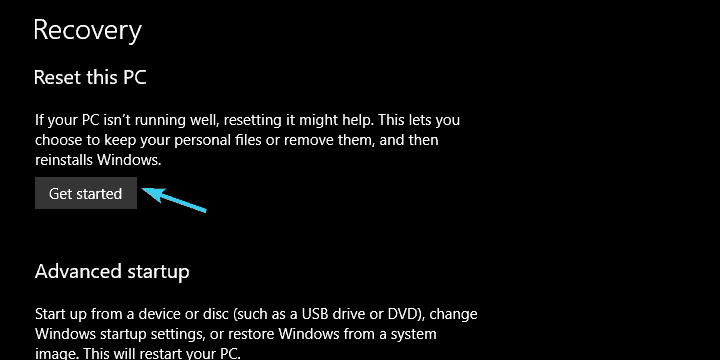
  4. Under the ‘Reset this PC‘ option, click Get started.Screen flicker after updgrading to Fall Creators Update
  5. Choose whether you want to keep your files or delete everything.
  6. Click Next and then Reset.
  7. The procedure is a bit long but it will eventually restore your PC to factory values.

This is probably the best-suited solution for users that upgraded to Windows 10 rather than performing a clean reinstall. Just in case you can’t launch the reset process, check out this troubleshooting guide to fix the issue.

That should do it. If you have questions, suggestions or possibly an alternative solution or two, please do share them with us in the comments section below.

RELATED ARTICLES YOU SHOULD CHECK OUT:

Microsoft starts rolling out the rebranded Windows Store in Windows 10

The Windows Store was revamped by Microsoft and is now called Microsoft Store. While it features a new logo, this rebranding is not only about new looks but also an opportunity to provides users more incentive purchase hardware and more products available in Microsoft Store.

The new Store was tested with Windows Insiders and Xbox Insiders and now, Microsoft is ready to roll out the updated version of Windows Store to the public.

You’ll be able to buy hardware & more products from the Microsoft Store

Before the rebranding, users were only able to download apps, books, games, TV shows and movies from the Windows Store.

But after the update, you will be able to purchase hardware and more including Microsoft’s Surface hardware, Windows Phone devices, Xbox One consoles, Windows 10 laptops, tablets and third-party devices and accessories.

The newly revamped Windows Store comes with an updated Cortana

Windows Insiders in the Release Preview Ring are now receiving the new update alongside an upgraded Cortana in Windows 10. Cortana used to refer to the Windows Store apps as the Trusted Windows Store apps and, obviously, following the rebranding, the AI now refers to them as the Trusted Microsoft Store apps.

The new Microsoft Store is not available yet to all the regular users who have systems running the Windows 10 Creators Update. But, on the other hand, most users will still have the Windows Store instead of the rebranded version despite Cortana referring to it as the Microsoft Store.

All this will change after you update your system to the Fall Creators Update that started its rollout on October 17.

RELATED STORIES TO CHECK OUT:

How to prevent the Raspberry Pi 3 from overheating

The Raspberry Pi 3 is a great device that can manage a large variety of tasks. However, when it comes to more complex processes, the hardware suffers from the very same issues all computing devices encounter.

A custom solution to an overheating Raspberry Pi 3

The Raspberry Pi 3 can overheat and due to its lack of a fan, it automatically shuts down or disables overclocking to prevent severe hardware damage. Whenever the temperature goes higher than 85°F, one of these two things will happen.

A team from Microsoft Research had a problem with this issue while working with image recognition and AI models. As a result, they created a custom solution for preventing overheating.

There was already a 5-volt fan from Adafruit available, but it does not directly cool down the processor, which is why a custom solution was required.

A cooling fan mounted at an angle as the custom solution

fix Raspberry Pi 3 overheating

The team from Microsoft Research designed an active cooling device that makes use of the Adafruit Aluminum Heat Sick for the Raspberry Pi 3, the Adafruit Miniature 5V cooling fan, a 3D printed Pi 3 fan mount, and two M2.5 x 12 pan head machine screws and nuts.

The 3D printed fan allows the cooling fan to be positioned at an angle and cool the processor directly. This custom cooling solution keeps the Raspberry Pi 3 at just a bit over 45°F when all the CPU’s four cores are being used. In normal conditions, the device would shut down to avoid any damage.

There was also the solution that involved using only a heatsink without a fan, but this was insufficient because it barely keeps the CPU at the 75°F, according to Microsoft.

RELATED STORIES TO CHECK OUT:

Windows Fall Creators Update upgrade issues on Windows 7

Windows 10 Fall Creators Update, the third major Windows 10 update, is finally here. With initial reactions divided, we can expect that trend to hold until some major issues are patched. This includes Windows 7 users who, after trying to upgrade, have experienced problems getting the latest version on their device. Some of these users reported various upgrade problems with both Windows Media Creation Tool and Update Assistant, respectively.

Namely, they weren’t able to upgrade from Windows 7 to Windows 10 after multiple tries. These are some reports users made on Windows support forum’s dedicated thread:

”Rebooting did nothing. Windows 7 started as usual. When I clicked on the Windows 10 Installing… icon it started over from the beginning with preparing to download. I let it run overnight and it again stopped at 99%.”

”Same issue, several retries, several hours each attempt. I am aware the media creation tool exists, but Microsoft’s webpage once mentioned that you needed to use your Windows’ UPGRADE option to avoid being left with an unactivated copy. Has this changed?
I do NOT want to end up with a semi-pirated copy AT ALL.”

Now, there are multiple reasons for this error to occur, starting from hardware incompatibility to update server issues or even license problems. There are some things users can do in regard to this, but, the best advice we can offer is to simply wait for a couple of days until everything settles down.

In case you’ve experienced difficulties with the Windows 10 Fall Creators Update upgrade, try using the steps listed below:

  • Check the system requirements.
  • Restart your PC a few times before the upgrade.
  • Disable peripheral devices, like USB webcam, card reader or printer temporarily.
  • Update BIOS if updates are available.
  • Try to upgrade with the ISO DVD media or bootable USB drive.

Upgrade issues aren’t a novelty for Microsoft, but they’ll eventually address the problems at hand as they did after the previous release. Of course, we’ll make sure to provide you with any new information as soon as possible.

If you came across some solutions for the upgrade issue, feel free to share your experience in the comments section below. 

Check Out These Quick Fixes for An Undetected Xbox Controller

Any gamer knows without the Xbox controller, the gaming experience would never have been the same.

So, if your Xbox controller cannot connect or maintain a steady connection to your Xbox console, the message Please reconnect controller appears to ruin your day. It can mean one of a few things:

  • The Xbox controller‘s batteries are weak
  • The Xbox 360 Rechargeable Battery pack needs to be recharged
  • Another wireless device or router is causing interference
  • Metallic objects between the Xbox console and the wireless controllers are causing interference

If you’re having challenges with the Xbox controller not connecting or whether it’s detected at all, try out some of the known solutions below.

What can I do if Xbox One controller is detected but not working?

1. Restart your Xbox console

Turn off your Xbox and wait about two minutes before turning it on again. If the problem persists, try the next solution.

2. Make sure your system meets the requirements for Xbox Controllers for Windows

Check the following:

  • Confirm the version of Windows you are using This is important because the controller is designed to work with Windows XP (Service Pack 2) and later versions of Windows
  • That controller software is installed The controller requires a driver to work on a Windows PC. You can also download the driver from Microsoft website. For computers running Windows 7, the driver is downloaded and installed automatically when you connect your Xbox controller. In Windows 8.1, the driver is part of the operating system.

3. Update Xbox controller device drivers

Go to the Xbox controller for Windows and download its latest drivers, including critical and/or important updates to Windows, by running a Windows Update.

How to run a Windows Update:

  1. Go to Start
  2. In the search field, type Windows Updates
  3. Click on Windows Updates Settings from the search results
  4. Click Check for updates
  5. Install the latest Windows Updates

In terms of device drivers, you are able to manage them correctly and update each driver with the latest version to fully optimize your PC and its devices with the help of Fortect Driver Updater.

4. Use a powered USB port

If your controller is not working correctly, change it to a different, powered USB port. Unpowered ports may not provide enough power needed for the controller.

Do the following:

  • Plug the controller into a USB port on the back of your computer
  • Right-click Start
  • Select Control Panel
  • Select View Devices and Printers
  • Check your controller under Devices
  • Right-click the controller
  • Select Game controller settings
  • Check the controller status
  • Select Properties
  • Under Test tab, test the controller. In case of any issues, select Calibrate under Settings tab
  • For further issues, right-click the controller under Devices, then select Troubleshoot

For Windows 7 or earlier versions of Windows, use Device Manager to troubleshoot the problems. A conflict is marked with a yellow exclamation point.

Do the following:

  • Right-click Start
  • Select Run
  • Type cpl
  • Select Ok
  • Under Hardware tab, select Device Manager
  • When the controller is installed, you will see three entries in Device Manager: HID-compliant game controller, USB Human Interface Device, and a third entry under Microsoft Common Controller for Windows Class called Xbox 360 Controller for Windows
  • If there’s a yellow exclamation point next to any of the three, there’s a problem with the installation. If the exclamation point is with any of the three, unplug the controller. Hardware conflicts with the controller may cause the problem, but the yellow point will no longer appear after unplugging the controller in this case.

To resolve controller issues under Device Manager, do the following:

  1. Use troubleshooter
  • Go to Device Manager
  • Double click Xbox 360 controller for Windows
  • Select Troubleshoot and follow the instructions
  1. Remove then redetect your controller
  • Right-click Xbox 360 controller for Windows
  • Select Uninstall
  • Under Action menu, choose Scan for hardware changes
  1. Try updating the driver
  • Double-click click Xbox 360 controller for Windows
  • Click Driver tab
  • Select Update Driver

5. Use a wireless gaming receiver

If you’re experiencing trouble with your Xbox controller, the issue could be a wireless connection because the controller connects over wireless.

The Play and Charge kit only connects to the actual battery, so you’ll need an Xbox 360 Wireless Gaming Receiver to connect your existing wireless controller.

Ensure the battery pack is correctly connected to your controller and plugged into one of the USB ports on your Xbox console.

6. Replace batteries or recharge the battery pack

If you don’t have a rechargeable battery pack, get fresh AA batteries and insert them like so:

  • Press the tab on the AA battery pack
  • Pull down to detach the pack from the Xbox controller
  • Insert two fresh AA (LR6) batteries
  • Slide the AA battery pack into the Xbox controller, then push to close

If you have a Rechargeable Battery Pack, do the following:

  • Remove the battery pack, then reattach it your Xbox controller, making sure you attach it correctly
  • Press and hold the Guide button on the controller
  • The battery meter will indicate your current battery strength level in the upper left corner. If it is low, recharge the battery pack.

7. Check the USB ports on your Xbox console

  • Plug in your charge cable to each USB port on your Xbox console, one after another
  • If the Xbox controller works in one port but doesn’t work in another, try a different accessory in the port that didn’t work with the controller
  • If the USB port doesn’t work with any of the accessories, then your Xbox console needs repair, so you can contact Xbox Support.

If the ports work, but you still experience connection problems with your Xbox controller, try the next solution.

8. Turn off vibration feedback on the Xbox controller

The Xbox controller takes longer to charge, draining the battery pack faster.

If you get vibration feedback while charging, here’s how to turn it off:

  • Press Guide button on the Xbox controller
  • Choose Settings
  • Select Preferences
  • Select Vibration
  • Select Enable Vibration and uncheck the box

9. Test with a different Xbox controller

If you can get another controller, try to see if it works. If it does, then your other Xbox controller – the one that cannot connect – is faulty. If not, there’s probably an issue with your Xbox console.

Using a different Xbox controller will help you know whether the issue is with your own controller or your Xbox console.

10. Reorganize your play space or move the Xbox console to a different place

If you’re using multiple Xbox controllers and this issue comes up, try to rearrange your play space or move your Xbox console to a different location. Since the controller works within 10 meters of your Xbox console, it’s essential to be aware of any objects placed between the two devices.

As such, it’s essential to may reduce this range by being aware of all objects, but especially those that use wireless technology that can cause interference.

Remove or relocate objects or devices like microwave ovens, cordless phones, wireless routers, metal dividers, shelves, doors, entertainment center cabinets, or chrome faceplates.

11. Resync the Xbox controller with the Xbox console

Your controller may have lost connection to the console. You can reconnect either with the console’s connect button or by using a USB-to-micro USB cable.

How to connect your controller using the console’s connect button:

  • Turn on your console
  • Insert batteries
  • Press and hold the Xbox button to turn on the controller
  • Press and release the Connect button
  • In 20 seconds, press and hold the black connect button at the back of your controller till the Xbox button quickly flashes a few times. This indicates it is searching for your console and gives a solid light when connected.

How to connect your controller using a USB-to-micro USB-cable?

If you have a micro-USB cable or the Play and Charge kit, connect your controller to your console by connecting the cable between the two devices. The controller also acts as a wired controller without inserting batteries.

12. Disconnect controllers and headsets

If all the lights around the power button are green and the controller has four green flashing lights, then the controllers are connected to the console.

Do the following:

  • Press and hold the Guide button for three seconds, then turn the controller off to disconnect wireless controllers
  • Turn off the headset to disconnect wireless headsets
  • Unplug the wired controller/headset cable from the console to disconnect it

13. Test the controller on an Xbox 360 console

To eliminate hardware issues, try the controller on an Xbox 360 console. If the problem persists, contact Xbox Support.

14. Replace your Xbox controller

If you cannot completely resolve the issue, you can get a replacement from the Device Center. Select your Xbox console, select Accessories from the list, and then register your console (if you’ve not done so already).

Besides, if the controller only works in Steam and not other games, disable Steam input to get things running!

Let us know in the comments section if you have any further queries.

Microsoft funds another TechSpark iniaitive with help from the Green Bay Packers

Microsoft is expanding its reach into the vibrant city of Green Bay in Wisconsin. While it’s not looking to open up any branded offices in the area, the Redmond giant is looking to partner with the National Football Leagues hometown Green Bay Packers to partially fund a new “innovation hub.”

According to VentureBeat, the Packers and Microsoft will be investing upwards of $10 million into a project called Titletown Tech, with the latter scheduled to fund five million over the next five years.

Titletown, as envisioned, will be a 45-acre combination of recreational development and business offices that rest just west of the Packers Lambeau Field stadium.

A mockkup of the hub

Titletown joins Microsoft’s portfolio of TechSpark communities that span across various states in the US and company president Brad Smith spoke with VentureBeat about what the program is planned to achieve.

“By combining the Green Bay Packers’ deep community engagement with Microsoft’s technology expertise, TitletownTech represents a one-of-a kind partnership.”

As the state of Wisconsin paces behind other startup rich locations in the US, Microsoft’s TechSpark community initiative and participation seemingly arrives at just the right time for companies looking to expand east of Seattle and San Francisco.

In a company blog post, Microsoft further outlines its TechSpark expansion goals which include funding initiatives in six states that include North Dakota, Washington, Texas, Wyoming, Virgina and of course Wisconsin.

Sometime next Fall Titletown is scheduled to be completed and with it brings an opportunity for both the community and Microsoft to engage in the five areas of the company’s TechSpark goals which include fostering transformative digital initiatives, bolstering digital skills and interests in computer sciences, worthwhile internships/apprenticeships and easing the financial cost of technology-based pursuits.

There will be several more rounds of VC funding opportunities for other companies who want a foot in the door to Wisconsin’s next big venture, as $10 million is only a drop in the bucket compared to the well-oiled machine of Silicon Valley.

Chandler Riggs from AMC’s The Walking Dead to join the next Xbox Live Sessions

Chandler Riggs is next to appear on the latest installment of Xbox Live Sessions. Hosted on the Xbox’s channel on Mixer, Xbox Live Sessions livestreams feature a new celebrity in each episode. Last time, Xbox Live Sessions featured professional drivers Tanner Foust and Josef Newgarden playing Forza Motorsport 7. This time around, Riggs, who plays Carl Grimes on AMC’s The Walking Dead, will play The Evil Within 2 on Xbox One.

Riggs will appear on Xbox Live Sessions on Saturday, October 21, at 6:00 PM PDT. Then on Sunday, October 22, Riggs will continue his role as Carl Grimes in The Walking Dead Season 8 premiere on October 22 on AMC. Riggs is excited to play The Evil Within 2 on Xbox One as he is no stranger to survival horror.

“It’s super fitting to join Xbox Live Sessions to play this awesome, but scary and mysterious game, given my role on “The Walking Dead” and with Season 8 premiering Sunday night. I can’t wait to play The Evil Within 2 and interact with my fans, and hope everyone has a great time!”

As always, Xbox fans who watch the livestream will be able to win special Xbox prizes. Riggs will be joined by Microsoft Studios Community Manager, Rukari Austin, as the host of this Xbox Live Session. Microsoft and Xbox hope to see you on tomorrow at 6:00 PM on Mixer for a very special Halloween-themed Xbox Live Sessions live stream.