Telltale Games’ The Walking Dead titles for Xbox 360 are now backward compatible on Xbox One

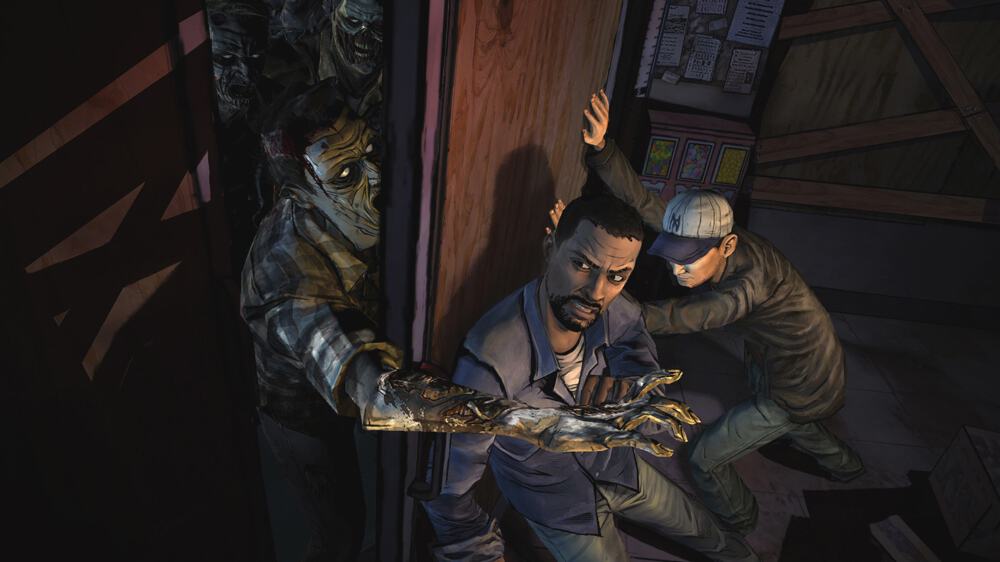
Good news for fans of The Walking Dead series of episodic games, all three Xbox 360 titles are now backward compatible onwith the Xbox One. To be clear, this is just The Walking Dead Season one and two plus The Walking Dead: Michonne, as the season three was only released on next gen consoles.

All three games were already available on the Xbox One, but it’s pretty great to be able to keep playing the Xbox 360 versions on the new console. If you have yet to play these critically-acclaimed titles, be aware that the first episodes of the seasons one and two are free (others episodes are $5 each, but you can save a bit by purchasing the Season Passes). You can find download links, official descriptions and video trailers below.

The Walking Dead (first episode free)

Episode one of a five-part game series set in the same universe as Robert Kirkman’s award-winning series. Play as Lee Everett, a convicted criminal, who has been given a second chance at life in a world devastated by the undead. Experience events, meet people and visit locations that foreshadow the story of Deputy Sheriff Rick Grimes. A tailored game experience – actions, choices and decisions you make will affect how your story plays out across the entire series.

The Walking Dead: Season Two (first episode free)

The Walking Dead: Season Two, a five-part game series that continues the story of Clementine, a young girl orphaned by the undead apocalypse. Left to fend for herself, she has been forced to learn how to survive in a world gone mad. Many months have passed since the events seen in Season One of The Walking Dead, and Clementine is searching for safety. But what can an ordinary child do to stay alive when the living can be just as bad – and sometimes worse – than the dead? As Clementine, you will be tested by situations and dilemmas that will test your morals and your instinct for survival. Your decisions and actions will change the story around you, in this sequel to 2012’s Game of the Year.

The Walking Dead: Michonne (Episode 1 is $4.99)

The Walking Dead: Michonne – A Telltale Miniseries stars the iconic, blade-wielding character from Robert Kirkman’s best-selling comic books. Haunted by her past, and coping with unimaginable loss and regret, the story explores Michonne’s absence between issues #126 and #139 of the comic book. Over the three episodes of the miniseries, players will discover what took Michonne away from Rick, Ezekiel, and the rest of her trusted group… and what brought her back.

Developer Telltale Games has released many other games on the Xbox 360 including The Wolf Among Us, Games of Thrones and Tales from the Borderlands, and we hope all of them will soon be added to the Xbox One Backward Compatibility list.


End your summer by saving 65% on Movies & TV shows with the Windows Store Labor Day sale

Summer is coming to an end, and Microsoft is putting up a sale on some Movies and TV shows to mark the occasion. You can now save 65% on certain Movies, TV shows, and other titles by checking out the Windows Store Labor Day Sale.

As part of the sale, you can find new releases for as low as $6.99, including titles such as XXX: Return of Xander Cage. There are also some great movie bundles for up to 67% off, including titles like Resident Evil Complete Collection. You can also enjoy certain Movies for as low as $4.99, and TV Season Passes for up to 65% off.

This sale is only valid until September 4th, so feel free to head to the Windows Store now to check out the full collection. And, be sure to drop us a comment and let us know which titles you have downloaded as part of the sale!

New Windows Insider webcast to feature Engineering Systems deep dive (today 8/29 10am PDT)

Microsoft is hosting another Windows Insider webcast later today. Over the past few months, the webcast has become the newest way for employees working on the Insider Team to connect with Windows 10 enthusiasts and Microsoft fans. This month, the webcast will feature an Engineering Systems deep-dive, giving Windows fans insights into the way the Microsoft’s engineering system works, and more.

The webcast is set to kickoff on Mixer today at 10:00 AM PDT, 5:00 AM UTC, 1:00PM EDT. If you’re unsure of the date and time conversion, feel free to visit this webpage to convert it to your time zone. Microsoft is switching up the times to make sure that everyone across the world can watch, so be sure to tune in live if you can! And, just in case you can’t watch live, the webcast will be available on demand.

Resident Evil Revelations launches today on Microsoft’s Xbox One console

Resident Evil Revelations is finally available to play on Microsoft’s Xbox One family of consoles. The game is a remaster of a title that originally launched on the Nintendo 3DS and spawned a sequel (which is now also available on the Xbox One). This version features 1080p graphics and a variety of downloadable content that had been launched after the debut of the original version. Here’s the official description, shopping link, and trailer:

Experience the survival horror sensation on Xbox One in full HD 1080p with all previous DLC included and new features. The story is set at a time before the Kijuju and Lanshiang bioterror incidents when the BSAA was still a young organization. Join Jill Valentine aboard a ghost ship in the Mediterranean Sea searching for her old partner, Chris Redfield. Learn the hidden truth behind the destruction of a floating city. Or play in Raid Mode for a co-op killing-spree with friends over the Internet.

Buy Resident Evil Revelations on the Xbox One

Are you a fan of the Revelations series? Let is know in the comments below.

ReCore: Definitive Edition is now available on Xbox One & Windows 10

The recently announced ReCore: Definitive Edition is now available to buy, download, and play on Xbox One and Windows 10. The game is part of Microsoft’s Xbox Play Anywhere initiative which means that buying it on one platform will unlock it for free on the other. Here’s the official game description and trailer.

From legendary creator Keiji Inafune and the makers of Metroid Prime comes the “ReCore Definitive Edition”, an action-adventure masterfully crafted for a new generation. You are “Joule Adams”, one of the last remaining humans on the planet “Far Eden”, a mysterious and dangerous world controlled by robotic foes bent on your destruction. To survive you must forge friendships with a courageous group of “Corebot” companions, each with unique abilities and powers. The ReCore Definitive Edition includes the new “Eye of Obsidian” adventure. Join the plucky Corebot “Violet” and journey into the permanent midnight of the “Starving Sea”, a previously unexplored region of Far Eden where ancient enemies plot their revenge—on Joule and all humankind!

Buy ReCore: Definitive Edition on Xbox One and Windows 10

ReCore: Definitive Edition features revamped graphics which have been upgraded to HDR, loading time and gameplay improvements, new areas and characters, the long-awaited Tank bot, dynamic sandstorms, new Xbox Achievements, and an increased level cap.

Have you played ReCore: Definitive Edition yet? Are you playing it on Xbox One or Windows 10? Let us know in the comments below.

ReCore
ReCore
Developer:
Xbox Game Studios
Price:
Free

Confirmed: Microsoft and Sony are talking about PS4 and Xbox One crossplay

A few days ago, Studio Wildcard, the developer of ARK: Survival Evolved confirmed that crossplay between the PlayStation 4 and Xbox One worked internally. The company also stated that Sony was the one blocking the feature  from becoming a reality.  Now, recent news confirmed that Microsoft’s Xbox division is trying its best to make it happen.

Microsoft to enable cross-platform play while Sony refuses to do so

During E3 2017, Microsoft revealed something without precedent in the gaming world. The company announced that later this summer the Better Together update for Minecraft will enable cross-platform play between Windows 10, Xbox One, Nintendo Switch, VR devices, and iOS. Sony was the only one blocking the idea on the PlayStation 4 version of the game due to “safety concerns.” This was not by far the first time that Sony does something like this. The company previously showed disinterest for cross-platform play also with Rocket League as well.

Naturally, this disappointed game developers. But who knows what will happen in the future considering that Microsoft is currently trying to convince Sony to change its mind.

During the Gamescom conference, Aaron Greenberg, the Xbox Marketing Chief, stated that Microsoft had its hopes high regarding the final decision that Sony would take. He confirmed that Microsoft was indeed talking to Sony about crossplay and is trying to convince the gaming giant that the gamers’ community should be more united.

Sony’s potential explanation

Sony is an early leader in the latest console gen, and the company may think that there’s no reason for which it should end a partnership with its competitors. It looks like there are also plenty of users who share this opinion that Sony has no commercial benefit from enabling crossplay because it will lead to nowhere. We’ll just have to wait and see what the company decides in the end.

RELATED STORIES TO CHECK OUT:

Focused Inbox is coming to some Windows Insiders on the Release Preview ring

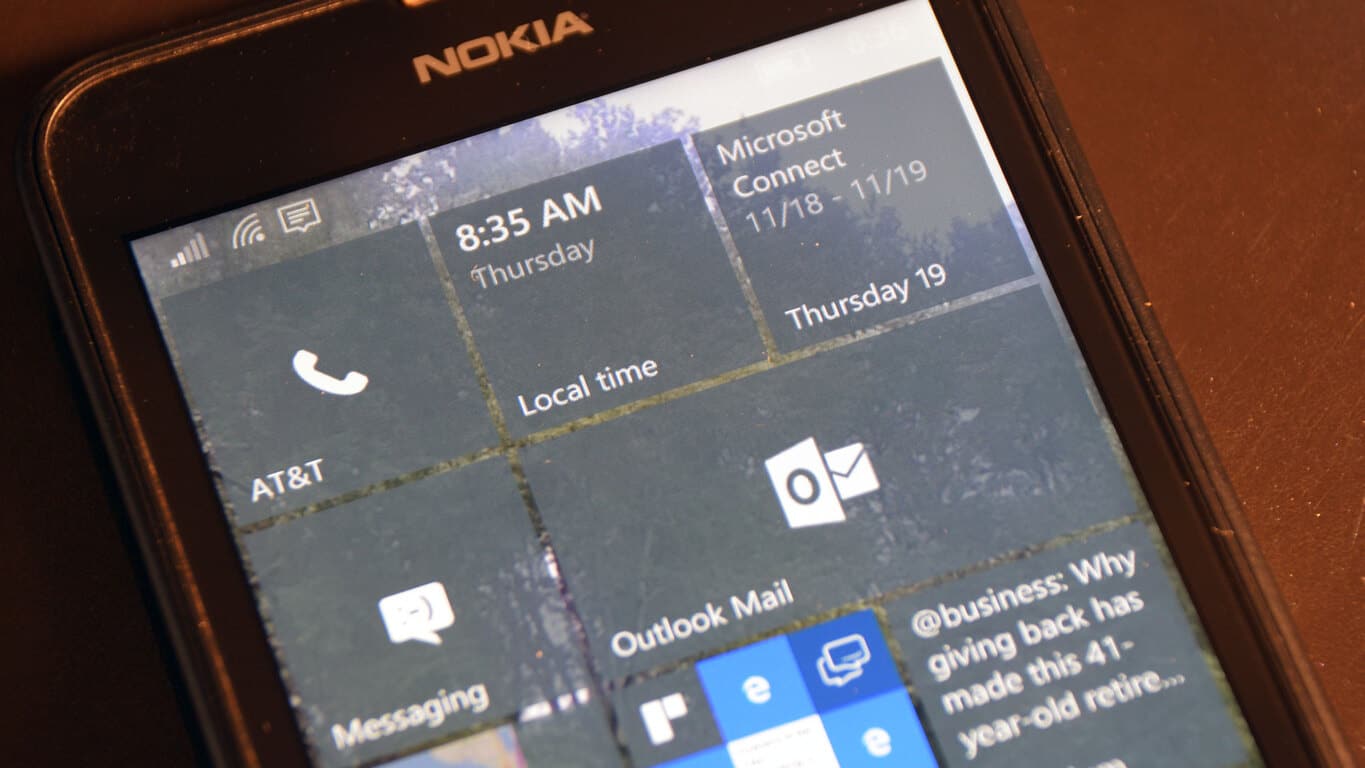
Focused Inbox, the AI-powered feature that can surface your most important emails appears to be rolling out to some Windows 10 Mobile users in the Release Preview Ring. The news comes from a report from German website WindowsUnited.de, which showed it working in the following screenshot (via Windows Central).

The “Focused Inbox” feature can surface the most relevant emails in your inbox.

The Focused Inbox is already live on the desktop version of the Windows 10 app, and you can turn it on by going into Settings > Reading. We’re not seeing it on our Release Preview Windows phones as of yet, so Microsoft could well be doing some A/B testing (as it did with the Photos app recently). Focused Inbox can be really useful if you receive a lot of emails, and it will be a great addition to the already solid Outlook Mobile app on Windows 10 Mobile handsets.

iBall launches CompBook Aer3, a premium Windows 10 laptop for business executives in India

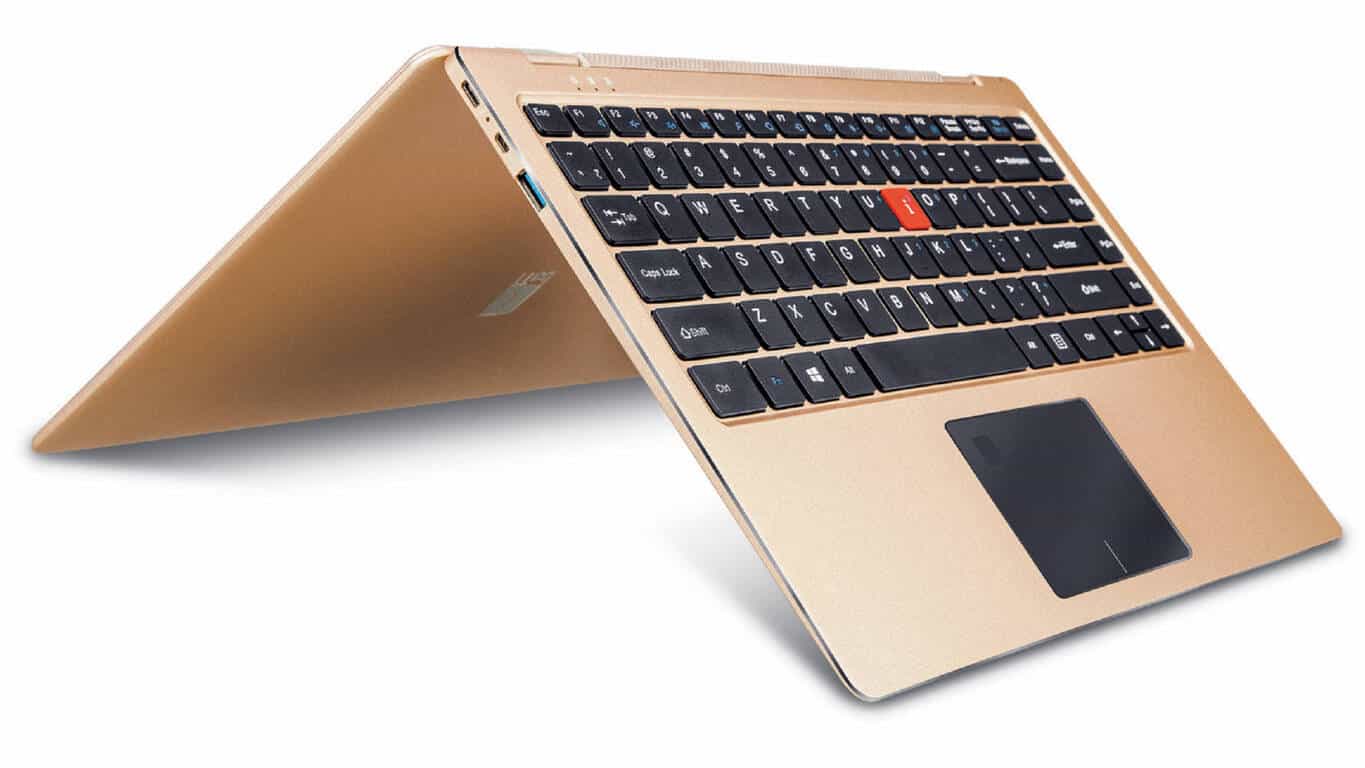
After a few budget laptops, Indian OEM iBall has added a new 2-in-1 device to its CompBook series, the iBall CompBook Aer3. The device is aimed at business users, although at its price point, it could be a great pick for students as well.

The iBall CompBook Aer3 sports a full metallic body and weighs only 1.48 kgs. With a touch screen display, it boasts of a 360-degree hinge that allows one to use the convertible in four different modes – from Notebook to Stand to Tent to Tablet mode – according to the need.

iBall CompBook Aer3 Specifications

  • Display: Full HD (1920 x 1080) IPS | 10-point multi-touch
  • Processor: Intel Pentium Quad Core 2.5GHz processor
  • RAM: 4GB
  • Internal Storage: 64GB; expandable up to 128 GB with micro SD card or M.2 SSD expansion
  • Ports: Mini HDMI + SuperSpeed USB 3.0

The CompBook Aer3 also supports Windows Hello with a handy fingerprint scanner, allowing a secure way to unlock and access the device.

We saw immense success in the budgeted laptops market in a very short span of time, and taking this to the next level is iBall CompBook Aer3. Aer3 is an excellent laptop which any executive would love to have and is undoubtedly the best executive laptop under Rs 30,000 with 15 amazing features.

– Sandeep Parasrampuria, CEO & Director, iBall

The iBall CompBook Aer3 will be available at leading retail stores across India at a best buy price of ₹29,999 ($470) with an MRP of ₹34,999.

With Windows Mixed Reality Holiday Update, Microsoft looks to “democratize virtual reality”

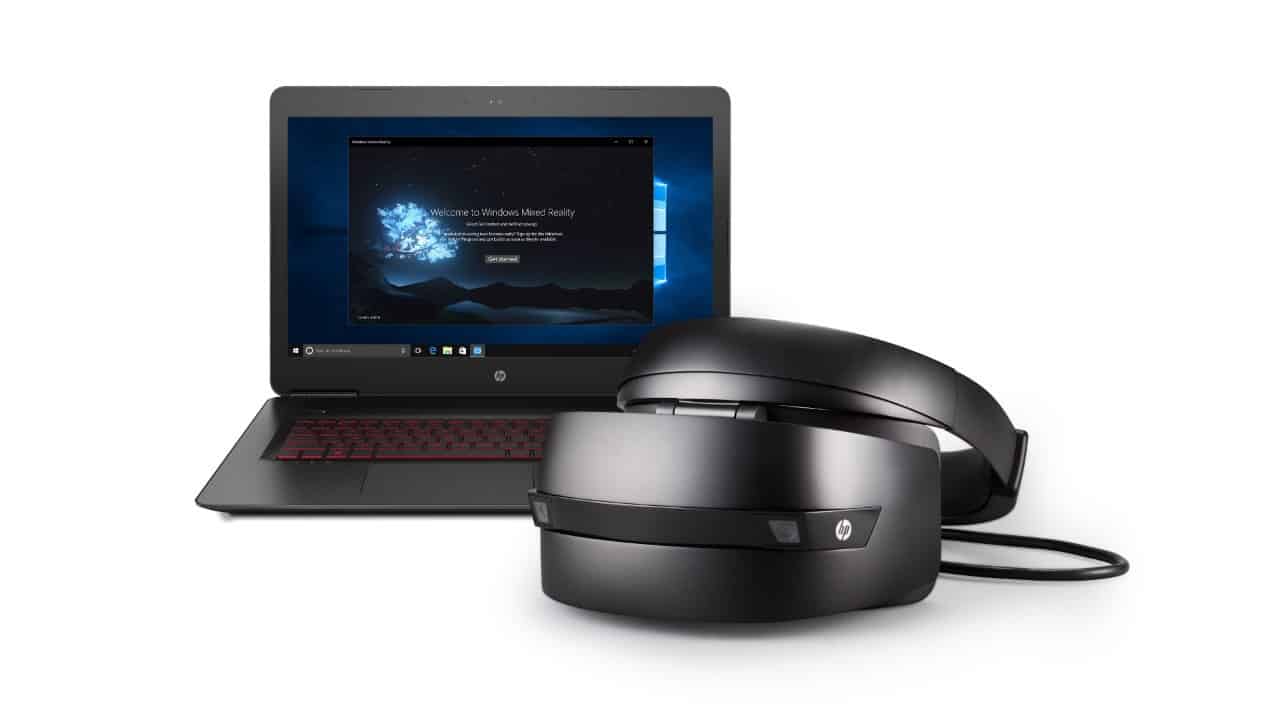
Stepping into the rather expensive VR competition, Microsoft announced last year that they and their partners HP, Lenovo, Dell, and Acer were building their own Mixed Reality hardware. The Windows Mixed Reality headsets have since gained the public’s eye with a promised lower price of $399 with higher quality to come down the line at $499.

In preparation for the IFA conference in Berlin this week Microsoft shared their next update for the Windows Mixed Reality headsets. Mainly, Microsoft will be showing off the devices with built-in sensors that plug and play. This way, setting up is a breeze for anyone that wants to jump into mixed reality and the device is portable to use. There are two settings depending on the PC that you hook your device into:

  • Windows Mixed Reality PCs: will consist of desktops and laptops with integrated graphics. When plugged into these devices, our immersive headsets will run at 60 frames per second.
  • Windows Mixed Reality Ultra PCs: will consist of desktops and laptops with discrete graphics. When plugged into these devices, our immersive headsets will run at 90 frames per second.

While the main highlight will be the headset and motion controllers themselves, there is also some fun software announcements thrown in the mix. Such as 343 Industries bringing exclusive Halo content to the Windows Mixed Reality platform. Of course, there aren’t any details yet, but it’s enough to tantalize the taste buds.

Gamers will also be excited to know that Steam VR content will also run on Windows Mixed Reality headsets, making it the cheapest option to enjoy the most popular digital marketplace.

First look at Rise of the Tomb Raider on Xbox One X vs PS4 Pro

Since announcing the Xbox One X, Microsoft has managed to create a list of over 100 gaming titles that will receive an update to make them enhanced for the Xbox One X, delivering 4K graphics on its next gaming console.

One of those titles is Rise of the Tomb Raider, and Digital Foundry has been looking at the graphics difference for the game between the Xbox One X and Sony’s PS4 Pro.

Digital Foundry notes that, while both run in 4K, with the PS4 Pro version using checker boarding as opposed to native 4K, the game has “increased image quality and refinement” on the Xbox One X. While the differences can sometimes be difficult to notice during motion, there’s quite an amount of more detail in the Xbox One X version, too.

What do you think to the differences? Let us know in the comments below!

How to customize Microsoft Edge’s new tab page to your preference

By default, opening a new tab on Microsoft’s web browser Edge, will display a list of your top websites plus news, weather, sports, finances, and even some advertisements. While some users enjoy the wealth of information provide by Edge’s new tab, others prefer a minimalist new tab. If you are the type of person who likes clean pages, then you will find the information below on how to customize Edge new tab page to be insightful.

While the two other most popular web browsers, Firefox and Chrome, have a wide variety of different customization options, Edge’s options are fairly limited. For instance, for Chrome and Firefox, users have the option to customize the background picture of a new tab. However, Microsoft Edge only allows user to change the type of content that is displayed on your new tab. However, Edge is still fairly new and will most likely see changes in the near future.

Customize Edge’s new tab page

Lets get started

In order to open the options for Edge’s new tab, follow the steps below:

Step 1: Access Microsoft Edge from the Start menu.

Step 2: Open a new tab on Edge by either clicking on the plus icon on the top of your browser window or by pressing Ctrl + T together on your keyboard.

Step 3: The first thing you see after creating a new tab is the option to choose the country and language you wish your news feed to be in.

Step 4: After you have selected the desired language you will need to click on the small gear icon on the far right, top side of the browser. This gear icon will allow you to customize Edge new tab page.

Step 5: Now you can customize the information cards, language, and other display settings for Microsoft’s Edge new tab. Below, you will find more information about each of these options.

Page Display Settings

You have three options in this section: Top sites and my feed, Top sites, and A blank page. The ‘Top sites and my feed’ option is the default option, which is quite cluttered with tiles and links. On the other hand, choosing the ‘Top sites’ option will take away both the Information Cards and the news on the new tab page.

Commonly visited and top websites will be the only thing you see on your new tab page if you select this option. The final option ‘A blank page’, as the name suggests, gives you a completely blank page. You will of course still have the option to return to the default configurations.

Information Cards

In short, the large tiles located on the right side of your new tab page are Information Cards. Currently, you only have the option of turning on or off three of these tiles: Sports, Money, and Weather. Turn all of these options off if your desire a cleaner page. However, if you decide to leave them on, they can be quite useful and convenient.

Select language and content

This option not only allows you to select the language of your browser, but it also changes the news you get. In other words, you can get local news from any country around the world simply by changing the country. Individuals interested in local news from different countries will find this feature to be neat.

Furthermore, once you select a country, you will have the option to choose your favorite topics. Doing this will affect what you see on your feed.

All in all, while Microsoft Edge is not as flexible as other browser titans such as Firefox and Chrome, it certainly earns its place as one of the top browsers on the market. Hopefully the information on how to customize Edge new tab page will make your browsing experience more pleasurable.

What do you think should be added to the option page of Microsoft Edge?

RELATED STORIES YOU NEED TO CHECK OUT:

Skype.com gains a code editor built for technical and coding interviews

Microsoft is testing a new business-oriented feature on the web interface of Skype at Skype.com. Now in preview, users are able to start interview calls, whereby those in the call can have make use of a real-time code editor with syntax highlighting for multiple languages.

To start an interview call, one simply heads to the Interviews on Skype page and click “Start interview”, then invite someone to the call and begin the interview – all with a real-time code editor.

As it’s a feature in Skype.com, there’s no need to sign up or download an app or additional software. It currently supports Microsoft Edge and Chrome version 32 or higher.

In a post on the Skype blog announcing the new feature, the Skype team said:

This new preview feature allows you to have a video call on top of a code editor that runs in your Microsoft Edge or Chrome browser (version 32 or above). It only works for browsers set to English. You just need Skype.com—no other apps to download. The built-in code editor supports 7 popular programming languages: C, C++, C#, Java, JavaScript, Python, and Ruby. We have also included built-in syntax highlighting to help prevent syntactic mistakes during an interview.

What do you think to this new feature that’s in preview?

Xbox Insiders can now purchase peripherals from the Store on the Xbox One console

Those of us who are part of the Xbox Preview Program can now purchase additional Xbox One peripherals from the comfort of their console, adding to the convenience of not having to open up a webpage or go to an alternative store to purchase accessories.

Those in the Alpha and Beta rings now have access to this new functionality via the Xbox Insider Hub, as tweeted by Brad Rossetti:

This new functionality for the Xbox Store is working towards bringing all Xbox-related content into the console, so that when purchasing accessories, it can be done via the console, much like with how digital games work, and renewing Xbox Live memberships.

Do You Want to Save Changes to The Document Template [Fix]

Lots of MS Word users set up documents with templates. However, many reported Do you also want to save changes to the document template while using this feature.

Speaking of issues, many reported that Word document won’t edit, so you might want to check that one as well.

Today we will focus on fixing the template issues, so let’s get started.

Why does Do you also want to save changes to the document template appear?

  • Prompt before saving Normal template is enabled in settings.
  • Add-in or macro is changing the global template on your PC.
  • In some rare cases, your PC might be infected with a micro virus.

How do I stop Word from asking to save changes to template?

1. Switch off MS Word’s Add-ins

  1. To disable add-ins, open MS Word, click the File tab, and select Options to open the software’s settings window.
  2. Click Add-ins on the left of the Word Options window. That will open a list of your active and inactive application add-ins.
  3. Each add-in has a type category, such as COM, Template and Action. Click the Manage drop-down menu and select a type from there.
  4. Press the Go button to open a window displaying all the add-ins that fit within the type selected from the drop-down menu.
  5. Now you can deselect the checkboxes for the active add-ins to disable them.
  6. Press the OK button to close the window.

2. Switch the Send to Bluetooth Add-in off

  1. In Word, go to Options and select Add-ins.
  2. Select COM Add-ins from the Manage drop-down menu.
  3. Then deselect the Send to Bluetooth check box. Press the OK button to close the COM window.

As you can see, Do you also want to save changes to the document template can be easily fixed by disabling certain add-ins.

If you have further problems, check our guide on how to repair Word documents, since it might come in handy.

What method did you use to fix this issue? Let us know in the comments below.

The new Xbox One X is coming, but it’s hurting current sales, says GameStop in new earnings report

Gamestop, one of the largest video games retailers worldwide, shared some interesting details about Xbox sales in its latest earnings reports. As Microsoft now longer reports Xbox One sales, preferring to highlight Xbox Live engagement in its quarterly earnings reports, it’s now really difficult to estimate the console’s performance. But as GameStop recently suggested, the upcoming release of the Xbox One X may well be hurting current Xbox sales.

Gamestop didn’t really go into details in its second quarter results, but this bit spotted by Ars Technica sums it all up: “New software sales and pre-owned sales declined 3.4% and 7.5%, respectively, impacted by lagging Xbox One sales.” In an earning calls yesterday, GameStop CFO Robert Lloyd was a bit more specific. “In both new and preowned, we’re seeing underperformance in Xbox One versus PS4, which we believe is due to the coming Xbox One X launch,” he explained.

Of course, this is just data from a single retailer (though a very big one), and it doesn’t necessarily reflects the state of Xbox One sales worldwide. Still, we wouldn’t be surprised if Xbox One S sales took a hit a couple of months ahead of the release of the much more powerful Xbox One X. As it turns out, the much-anticipated new console apparently beat Microsoft’s expectations by a wide margin: Microsoft confirmed earlier today that Xbox One X was the fastest selling Xbox pre-order ever, though Microsoft didn’t say how many units have been pre-ordered so far (and pre-orders are not actual sales, to be fair).

We don’t expect Microsoft to share any hard data anytime soon, but the company seems confident to have an hit on its hands with the Xbox One X. “All the signs are that it’s gonna be the number one hit product of this Holiday, so we’re gonna keep up with demand the best that we can,” shared Xbox Marketing Chief Aaron Greenberg earlier this week.

Microsoft promotes 2017-18 Showcase Schools, Innovative Educators

It’s the beginning of a new school year and Microsoft has announced the 2017-2018 Microsoft Innovative Educators Experts as well as the year’s Microsoft Showcase Schools.

The Microsoft Innovative Educator (MIE) program is a collective of educators across the globe. This year they are welcoming over 6,000 new additions. On top of that, Microsoft added 550 new Showcase Schools to extend their reach into education.

This makes a whopping total of 2,200 Microsoft Schools that explore the digital transformation of Microsoft technology into the classroom. Whether it’s by adding the availability of devices or deeper internal structure of OneDrive Class Notebooks, Microsoft’s goals in the development of interactive education continue to thrive exponentially.

Read more about what becoming a Microsoft Innovative Educator or Microsoft School means in the recent Education blog.


Turtle Beach’s Stealth 600 wireless headphones for Xbox One and Windows 10 is now available

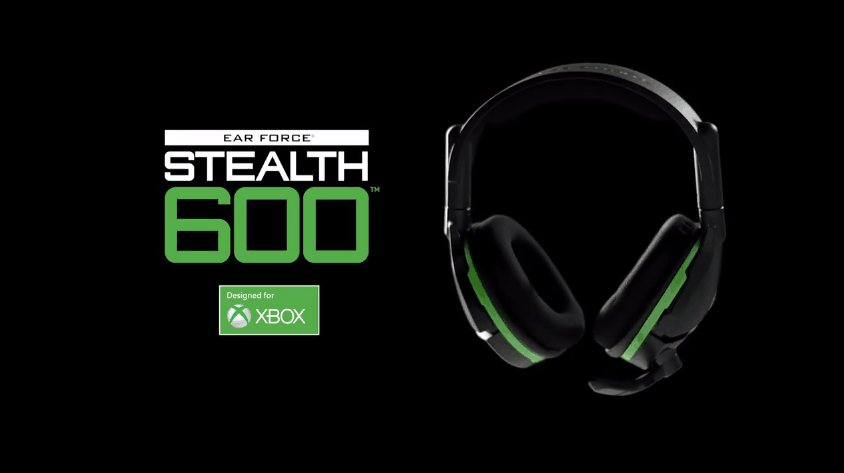
If you’re not a big fan of playing games with a wired headset, Turtle Beach’s new Stealth 600 wireless headset seems like a good companion for your Xbox One console or Windows 10 PC. The new $99.95 headset supports Microsoft’s proprietary Xbox Wireless protocol, which means that it works without any adapter on your console (you’ll need Microsoft’s Xbox Wireless Adapter on a Windows 10 PC). Best of all, it comes with a 15-hour rechargeable battery, which is perfect for long gaming sessions.

The new wireless headset will be available worldwide on September 4, but Gamespot noted that it has already started shipping to everyone who  pre-ordered it. Here are some other cool features you can expect from the Stealth 600 Wireless Headset:

  • 50mm over-ear speakers
  • High-sensivity flip-up Mic
  • Support for Windows Sonic surround sound,
  • Audio Presets, including Bass Boost
  • ProSpecs Glasses Relief System

Turtle Beach is also selling the more expensive Stealth 700 wireless headset ($149.95), which adds support for DTS virtual 7.1 surround sound and active noise-cancellation. You can learn more about the company’s latest wireless headsets on its website.

Watch all of the Xbox consoles’ start screens in one video

Video game consoles have a habit of growing on you. For Xbox fans, the splash screen when starting up the console is one of the most recognizable sounds. Starting from Xbox all the way to Xbox One S, we’ve grown accustomed to our favorite green (most of the time) X.

Native Gamer on YouTube has shared a video with all of the Xbox Startup Screens for the last 16 years.

This leaves to the imagination what the upcoming Xbox One X startup might look like when it releases later this year. Will it be the same as Xbox One S or will it be unique? Would you prefer for it to be something a little different? Let us know your thoughts in the comments below.

Microsoft To-Do can now be used with Office 365 Education accounts

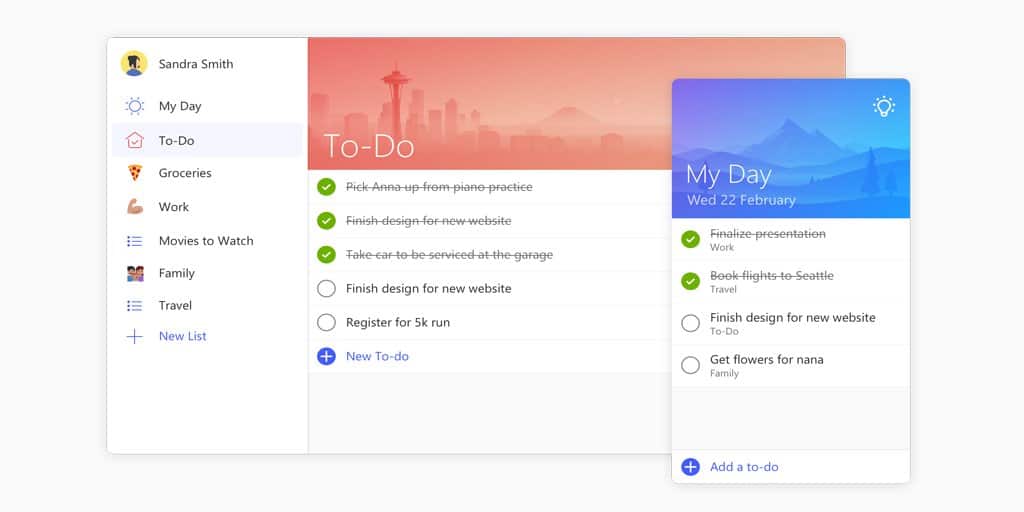
Microsoft To-Do, the company’s new task manager app, set to replace Wunderlist, now supports Office 365 Education accounts. The app is still in preview, so admins must still enable To-Do in the”Services & Add-ins” page of the Office 365 admin settings. The app also works with personal and work Microsoft accounts, though it’s still not possible to log in the app with different types of accounts.

On Windows 10 PCs and phones, To-Do can be a nice complement to Cortana reminders. As spotted by All About Windows Phone, the Outlook calendar app now displays a shortcut to Microsoft To-Do when you click the “…” menu, which redirects you to the task manager app or the Windows Store listing if it’s not already installed. To-Dos are not yet fully integrated into Outlook Calendar (unlike Cortana reminders), but they do appear in your Outlook Tasks in the Outlook desktop app or the Outlook web app.

Microsoft To-Do is not yet fully integrated with the Windows 10 Outlook Calendar app.

Microsoft is regularly updating To-Do with new features, but the app doesn’t seem completely ready to replace Wunderlist yet. If you have yet to check it out, you can download Microsoft To-Do from the download link below.

Rent Ghost in the Shell and other movies for just $0.99 in the Windows Store tonight

Microsoft is throwing a special TGIF campaign in the (newly updated) Windows Store tonight with a variety of new and classic movies getting their rental fee taken all the way down to $0.99.

Among the discounted rental movies are the newly released Ghost in the Shell, The LEGO Batman Movie, Assassin’s Creed, La La Land, and the classic IT, The Shining, and Superman The Movie. You can see the full listing here.

It’s unclear how long these discounts will remain online though given that they’re being promoted under the TGIF phrase, they’ll likely expire within the next 24 to 48 hours. Like all movies in the Windows Store though, these are viewable on all Windows 10 PCs, Windows 10 Mobile phones, and Xbox One consoles.

Are you going to rent any of these discounted films? What would you recommend to others? Sign-off in the comments below.

Paint Cannot Save this File: How to Fix this Error for Good

Paint is an accessory included in almost every Windows platform, but it doesn’t always save files.

For some Paint users saving changes to images, the desktop app has returned an error message stating: Paint cannot save this file. Save was interrupted, so your file has not been saved.

Then you can’t edit or save the picture open in the image editor when that error message pops up. These are a few ways you can fix the Save was interrupted error.

How can I fix the Paint cannot save this file error?

1. Use Windows Picture and Fax Viewer (Photos)

  1. First, back up the picture with an image editor that you can save it in. Then you can save a second copy.
  2. Right-click the picture in Explorer, select Open with from the context menu, and then Windows Picture and Fax Viewer (or Photos).
    open with
  3. Now, rotate the image by selecting either the Rotate Clockwise or Rotate Counterclockwise options.
  4. Press Yes if there are any prompts to continue.
  5. Rotate the image 360 degrees with either the Rotate Clockwise or Counterclockwise option.
  6. Save changes to your picture by selecting Copy To.

This issue is more frequent for pictures with the Exchangeable Image File Format (EXIF) that have file sizes between 63 KB and 66 KB.

Microsoft has an official Picture and Fax Viewer fix, or workaround, that’s more specifically for fixing the issue for EXIF images in Windows XP.

Note that Picture and Fax Viewer in XP  is essentially Photos in more recent platforms.

2. Unblock the Image File

  1. First, open File Explorer.
  2. Next, right-click the image you can’t save in Paint. Select Properties from the context menu to open the window below.
    unblock
  3. When data streams block the image, you’ll find an Unblock button on the General tab that isn’t usually there. A notice beside that button states the file might be blocked.
  4. Press the Unblock button in the General tab. That will unblock the file, and now you can edit and save the image in Paint again.

The official fix is primarily for Paint in Windows XP, but it might still work with Photo Viewer. However, the Save was interrupted error is certainly not limited to XP. Paint users have also had the same issue in more recent Windows platforms with various image file formats.

Unblocking the image is an alternative potential fix. That’s especially the case if you’ve imported or downloaded the file.

Then the file-saving error could be due to Alternative Data Streams blocking the picture file if you have an NTFS (New Technology File System) hard drive. This is how you can fix blocked image files.

Those are two fixes for Paint cannot save this file error. It’s worth noting that Microsoft is replaced Paint with Paint 3D in Windows 10, but the app is back in Windows 11.

Similarly, if Paint 3D is not saving pictures because something went wrong, check our detailed guide to fix it.

Feel free to let us know the solution that helped you fix this issue in the comments below.

The Surface phone could feature a 3D camera, patent suggests

The anticipated launch of Microsoft’s Surface phone has left many guessing exactly what the device may look like or how it will function. One new patent may give clues to how the new camera included in the smart device will function.

Microsoft has filed a patent for a 3D Camera function for  smartphone or tablet. This has lead many to speculate that the new phone, and possibly the company’s upcoming 2-in-1 device will include 3D capable camera features.

Specifically the patent relates to 3D depth and the ability to interpret in-air hand gestures for operating the device or using the onscreen menu options. In addition there will be the ability to use one’s finger or other object to draw on a surface laid out in front of the camera.

Microsoft has been filing patents as it prepares its new mystery phone and the industry is watching. This recent filing for 3D camera capabilities is a smart move in the race to innovate. Competition will be stiff as Apple works on its newer iPhone 8 which is rumored to also include some 3D technology of its own, so staying ahead of the curve is going to be vital for Microsoft’s survival.

A recent concept mock-up from Amir Estefad and Mohammad Reza Alidoost UI/ UX designers, predicts the Surface phone will have many of the features that the Microsoft community of users have been requesting from a larger wrap-around screen to more efficient use of space on the home screen.

Only time will tell how innovative the Surface phone will be. If any of the predictions are true, it’s sure to bring a much needed new thrill to the market once it’s released. Will you be buying? What features are you hoping get included? Tell us in the comments below.

Read Also:

Windows Server version 1709 will launch during Microsoft Ignite in September

There’s a treat on the way for developers who make use of Windows Server, and it’ll be happening during the Microsoft Ignite event early in this coming September. The new update will bring a suite of new changes to Windows Server, and comes in the wake of a new Insider build that launched just a short while ago.

In a new blog post on the Windows Server blog, Microsoft confirmed that the next release of the server operating system will be labeled Windows Server version 1709, and it will officially launch at Ignite 2017. The major release “builds on the innovation in Windows Server 2016,” with a better focus on application innovation and security. Additionally, Windows Server will adopt the same release cycle as Windows 10 with the same two channels:

  • Long-Term Servicing Channel (LTSC) – this is business as usual with 5 years of mainstream support and 5 years of extended support. You’ll have the option to upgrade to the next LTSC release every 2-3 years the same way folks have for the last 20 years
  • For those of you who want to innovate faster and take advantage of new features sooner, we are adding the Semi-annual Channel. The Semi-Annual Channel is a Software Assurance benefit and is fully supported in production. The difference is that it is supported for 18 months and there will be a new version every six months.

Microsoft is planning a series of blog posts to prepare developers for these changes ahead of the release of Windows Server version 1709 in September. We invite you to add the Windows Server blog to your bookmarks if you want to learn more details about security, Software-defined datacenter and management.

Xbox app updated on iOS and Android with Mixer integration and more

Microsoft has released an update for its Xbox app on iOS and Android that delivers a small changelog, but with 2 new features.

In today’s update, users of the Xbox app can now take a look at popular Mixer streams in the Trending area of the app, as well as see Club members who are currently broadcasting their game. Here is the full changelog:

  • View popular Mixer streams in Trending
  • Support for discovering Club members who are broadcasting

This update is available now in the App Store for iOS and Google Play Store for Android.

‎Xbox
‎Xbox
Price:
Free


Xbox
Xbox
Price:
Free

New video offers peek at several Xbox One X enhanced games

DigitalFoundry is one of best websites out there for gamers who are snobs about graphics, and they have a video out talking about each of the games that are enhanced by Xbox One X. It’s a great watch for people who are looking to be sold on the new console, or people who just want to hear some jargon about nice looking games.

Rich and John from DigitalFoundry both had some interesting things to say about the Xbox One X, and several of the games that are getting improved by it. They talk a bit about native 4K games like Gears of War 4 and Killer Instinct, as well as Quantum Break, which is the only game not being moved up to native 4K. If you don’t think much about the details behind a good looking game but would like to learn more, hearing these two go on can really be enlightening.

The big thing to take away here is that the Xbox One X is actually living up to its marketing – namely about its ability to play these games at native 4K. We knew that these games would be running on 4K, but this video tells us a bit more about pure performance while that resolution is held. It seems like there are seriously stable framerates to look forward to as well as some nice eye candy.

Following “overwhelming” response from fans, Microsoft expects Xbox One X to be this Holiday’s number one hit product

With Microsoft’s Xbox One X Project Scorpio Edition quickly selling out at most retailers this week, it seems that the limited edition console exceeded the company’s expectation for the new console. Of course, Microsoft didn’t share how many Project Scorpio Edition consoles were available for pre-orders, but Xbox Marketing Chief Aaron Greenberg recently told DualShockers that response to the new console has been “overwhelming.”

Microsoft still expects the cheaper Xbox One S to remain the most popular option in the long run, but Greenberg forecasts Xbox One X to be this holiday’s hit product. “We’re gonna make as many Xbox One Xs as we can make,” he explained. “All the signs are that it’s gonna be the number one hit product of this Holiday, so we’re gonna keep up with demand the best that we can.”

Last year, the freshly released Xbox One S was the best-selling console in the US for a couple of months before being overtaken by Sony’s Playstation 4 in the crucial holiday season. It will be interesting to see if Microsoft can beat Sony this year with the most powerful console on the market, with the help of over 100 Xbox One X enhanced games at launch.

Change your old Synaptic laptop mouse into a Surface-like Precision trackpad

For those of us who are still stuck in 2014 or using a manufacturer PC which refuses to use Microsoft’s Precision Trackpad spec, there is still a way to change your cursor experience for the better.

With just a handful of steps and roughly 10 minutes of time, you can turn your aging Synaptic mouse into a full gesture complimented Precision Trackpad.

Thanks to some footwork by the Redditor 961955197 in a Windows 10 forum, we now have the simple 9 step process laid out for us.

  1. Precision drivers for Synaptics https://download.lenovo.com/pccbbs/mobiles/n1mgx14w.zip Precision drivers for Elan https://drivers.softpedia.com/get/Other-DRIVERS-TOOLS/Others/ELAN-Input-Device-for-WDF-Driver-161132-for-Windows-10-64-bit.shtml
  2. Go to devices manager, right click on the touchpad devices
  3. Click “Browse my computer for driver software
  4. Let me pick from a list of available drivers on my computer
  5. Click “Have Disk”
  6. Then browse the autorun.inf in your driver folder
  7. Choose the Synaptics Pointing Device and click Next
  8. Finished the driver installation
  9. Reboot and enjoy the Precision touchpad.


You may be asking yourself, why would you want to go through this process?

Well, to be honest, it’s not for everyone and it also carries its own set of risks. The converting process is by no means a faulty free endeavor (especially for Insiders who upgrade constantly), but if and when you come out on the other side, you’ll have a trackpad that makes better use of Microsoft’s vision for Windows 10.

How to Check Your System Uptime on Windows 10, 7

Sometimes, you want to know how long your computer has been running and to do that, you need to find your PC’s uptime. Checking the uptime of your PC is relatively simple, and today, we will show you how to do it on Windows 10.

How to check system uptime in Windows 10?

1. Use Task Manager

Task Manager is a useful tool that lets you see all currently running and startup applications. Even though Task Manager is perfect for monitoring active processes, it allows you to monitor system performance. This feature lets you monitor your CPU, memory, and disk usage in real time.

In addition, you can also see other relevant information, including your system uptime. To check your uptime with Task Manager, do the following:

  1. Press Ctrl + Shift + Esc to start Task Manager.
  2. Once Task Manager starts, go to the Performance section. In the Performance tab, you’ll find all sorts of useful information about your CPU, but you’ll also find system uptime.

Using the Task Manager is one of the simplest and fastest ways to check your uptime, so be sure to try it out. Keep in mind that sometimes uptime in Task Manager isn’t always correct. This issue appears due to Fast Startup feature, so if you want to be certain that your uptime is correct, you might want to disable it.

2. Use Command Prompt or PowerShell

If you’re a more advanced user and prefer using the command line, you’ll be pleased to hear that you can check your PC’s uptime from your command line tool. To check the uptime in Command Prompt, do the following:

  1. Press Windows Key + X to open the Win + X menu and choose Command Prompt from it.
  2. When Command Prompt starts, enter the following command:
    • powershell (get-date) – (gcim Win32_OperatingSystem).LastBootUpTime

  3. After a few moments the results will appear in a list and you’ll be able to see your uptime.
  4. Optional: If you want to see less detailed information about your uptime, you need to use the following command:
    • powershell ((get-date) – (gcim Win32_OperatingSystem).LastBootUptime).ToString(‘g’)

If you’re not a fan of Command Prompt, you can run the same commands in PowerShell. To do that, follow these steps:

  1. Press Windows Key + X and choose PowerShell from the menu. If PowerShell isn’t available on the list, press Windows Key + S and enter powershell. Choose Windows PowerShell from the list of results.
  2. Once the PowerShell opens, enter (get-date) – (gcim Win32_OperatingSystem).LastBootUpTime or ((get-date) – (gcim Win32_OperatingSystem).LastBootUptime).ToString(‘g’) commands to see system uptime.

Both Command Prompt and PowerShell will give you the same results, and you can use any of these tools to see your system uptime.

3. Use systeminfo command

If you want to find information about your system uptime, use the systeminfo command in Command Prompt. To do that, follow these simple steps:

  1. Open Command Prompt.
  2. Once the Command Prompt opens, enter systeminfo and press Enter. Wait for a few moments for your PC to gather the required information.
  3. A list of information will appear. Look for System Boot Time value.

In addition to boot time, this command will provide you with a wide array of information regarding your system. If you’re overwhelmed with information and you want to see your system uptime, you can use systeminfo | find /i “Boot Time” command instead.

3. Use net statistic command

Another way to view your system uptime is to use a net statistic command. This command will show you information about your network as well as your PC’s uptime. To use this command, follow these steps:

  1. Open Command Prompt.
  2. When Command Prompt opens, enter net statistics workstation and press Enter.
  3. List of information will now appear. Now you have to find Statistics since value and see your system’s start time from there.

We have to mention that this command isn’t designed for checking system uptime, but it can be used for that purpose as well.

4. Use wmic os command

If you want to check your system’s startup time, you can do it with wmic os command. To use this command you have to follow these steps:

  1. Open Command Prompt.
  2. Once Command Prompt opens, enter wmic os get lastbootuptime and press Enter.
  3. Now you’ll see an array of numbers that represents your startup time.

The information isn’t most readable, but after a closer look you’ll notice that the array represents the exact date and time your system was started. As you can see, this is an easy way to check your system’s start time. The only downside is that the information isn’t represented in most user-friendly format, so you might have a bit of trouble reading it.

If you’re on Windows 11, we have a great guide on how to check Windows 11 uptime, so don’t miss it.

As you can see, checking your system uptime isn’t as hard as you think, and you can do it easily from Task Manager. If you’re an advanced user, you can check your system uptime using any of our other methods.

You Just Unplugged a Device From Audio Jack: 3 Ways to Fix

Did you receive the notification you just unplugged a device from the audio jack? This notification issue pertains primarily to laptops or desktops with Realtek HD sound devices, and it pops up sporadically.

it may continue even when you haven’t plugged or unplugged a device. In this guide, we go through possible causes and some important fixes.

Why do You just unplugged a device from the audio jack message keeps popping up?

There are specific elements that users have observed to trigger this audio jack error. The following are at the top of the list.

  • Connection issues – A primary cause could be accidental disconnection of your audio device. So you must ensure this is ruled out before starting any other kind of troubleshooting. You may also have loose connections that need to be fixed.
  • Driver issues – For some users, it is a problem of outdated or corrupted audio drivers. This is an easy trigger for the audio jack problem.
  • Issues with configurations – In rare cases, you get the problem because of audio notifications enabled in Windows settings.
  • Software issue – Additionally, malfunctioning software will trigger the problem. Often these are third-party apps that may be corrupt or outdated.
  • Malfunctioning hardware – Also, you may simply be dealing with a few bad hardware parts. they could be your primary device or peripherals.

You should be able to use the solutions mentioned above to restore your device to proper working order.

How can I fix You just unplugged a device from the audio jack repeatedly on Windows 10?

1. Configure the Realtek HD Audio Manager Settings

  1. Open the Realtek HD Audio Manager.
  2. Click the I button at the bottom right.
    you just unplugged a device from the audio jack
  3. Select the Display icon notification area option, and press the OK button.
    you just unplugged a device from the audio jack
  4. Next, click the yellow folder icon almost at the top right corner, select Disable front panel jack detection, and if it’s selected, deselect the Enable auto popup dialog option; and press the OK button.
    you just unplugged a device from the audio jack
  5. Click the Device Advanced Settings window link at the top right of the audio manager.
  6. Select the Make front and rear output devices playback two different audio streams simultaneously playback option.
  7. Also, select the Tie up same type of input jacks, i.e., line-in or microphone, as an input device recording device option and press the OK button on the Device advanced settings window.
    you just unplugged a device from the audio jack
  8. Click the green active back panel speaker icon on the right of the Speakers tab.
  9. Select Set Default Device from the drop-down menu on the right of the tab.
  10. Next, click the Microphone tab, and select the red back panel to activate the microphone icon.
  11. Click Set Default Device on the Microphone tab’s drop-down menu.
  12. Finally, press OK to apply the new settings.

Your Windows search box is missing? Get it back in just a couple of simple steps.

You can fix the unplugged pop-up notification issue by adjusting some Realtek HD Audio Manager options. You must adjust the display icon, front panel jack detection, playback device, and audio device options.

2. Run the Playing Audio Troubleshooter

  1. Type audio troubleshooter in the search box and select Find and fix audio playback problems.
    you just unplugged a device from the audio jack
  2. Click Advanced and select the Apply repairs automatically option.
  3. Then press Next to launch the troubleshooter’s scan.
  4. The troubleshooter might request to turn off sound effects and enhancements. You can press Next to skip that.
  5. The troubleshooter lists anything it fixes. If it does fix something, restart your laptop or desktop.

3. Update the Audio Drivers

  1. Press Windows + X, and select Device Manager.
  2. Double left-click Sound, video and game controllers to expand its list of devices, right-click Realtek High Definition Audio, and select Update driver from the context menu.
  3. Windows might find a new driver for your sound card when you select Search automatically for drivers. 

Windows can’t automatically find and download new drivers? Don’t worry; we’ve got the right solution for you.

Namely, we advise you to employ a specialized driver manager that can entirely scan your PC for outdated drivers or various issues and fix them in a few clicks.

That’s how you can fix the constant notifications of you just unplugging a device from the audio jack on Windows. For the which device did you plug in error message, see our fix guide.

If you have any more suggestions or questions, leave them in the comments section below, and we’ll check them out.

Protect your PC: Ransomware attack increases by two fold in 2017

Ransomware is undoubtedly getting a lot of attention these days especially after wide spread WannaCry episode. For the uninitiated, the ransomware is a piece of code that encrypts the files on your computer and demands a ransom to give away the decryption code. Yes, we have seen a variety of Ransomware plaguing the machines and invariably organisations and enterprises figure out on the top of the list.

ransomware attacks

As per a mid-year cyber attack, trends report from security analyst company CheckPoint the percentage of ransomware has doubled in the first half of this year as opposed to 2016. Furthermore, the report finds that 23.5 percent of the organisations were affected by the RoughTed malvertising campaign while 19.7 percent of the organisations were affected by the Fireball malware during the same time frame.

The report further sheds light on how the attackers are devising new methods to exploit Microsoft Office, in fact, we recently reported on how attackers were using PowerPoint files to gain access to the machine. The attackers are also introducing new methods to offload the malware and this will not require the user to open a backdoor for the attackers. The ransomware is also being disguised such that the anti virus/malware protection suite find it difficult to detect.

The report also mentions the cascading effects of “nation-state level malware” which is usually aimed for the masses and it can virtually hunt anyone instead of specified targets. Such attacks can be prevented by using the available solutions like network micro-segmentation, threat emulation and endpoint security. In fact, it is for this very reason that security solutions from company’s like BitDefender include ransomware protection.

The worst part, however, is that the Mobile malware developers are also actively developing malware. They usually use these malicious codes to control any activity on the device and also create a one-stop attack in order to fraud, steal information and also disrupt apps. The graph above represents the percentage of enterprises/organisations that were affected by the malware.

RELATED STORIES YOU NEED TO CHECK OUT:

Select Xbox Insiders can now join the Dragon Ball FighterZ closed beta on Xbox One

For fighting game fans with a love for Dragon Ball, there’s another game on the way. Dragon Ball FighterZ is coming to the Xbox One, and there’s even a closed beta available starting today. The beta is available to select Xbox Insiders, who will be notified through the Announcement feed in the Xbox Insider Hub app.

The game seems to fill a different niche from Dragon Ball Xenoverse, a recent series of fighting games from the same franchise. It’s more similar to a 2D fighting game, although it uses 3D models – very similar to the most recent Street Fighters.

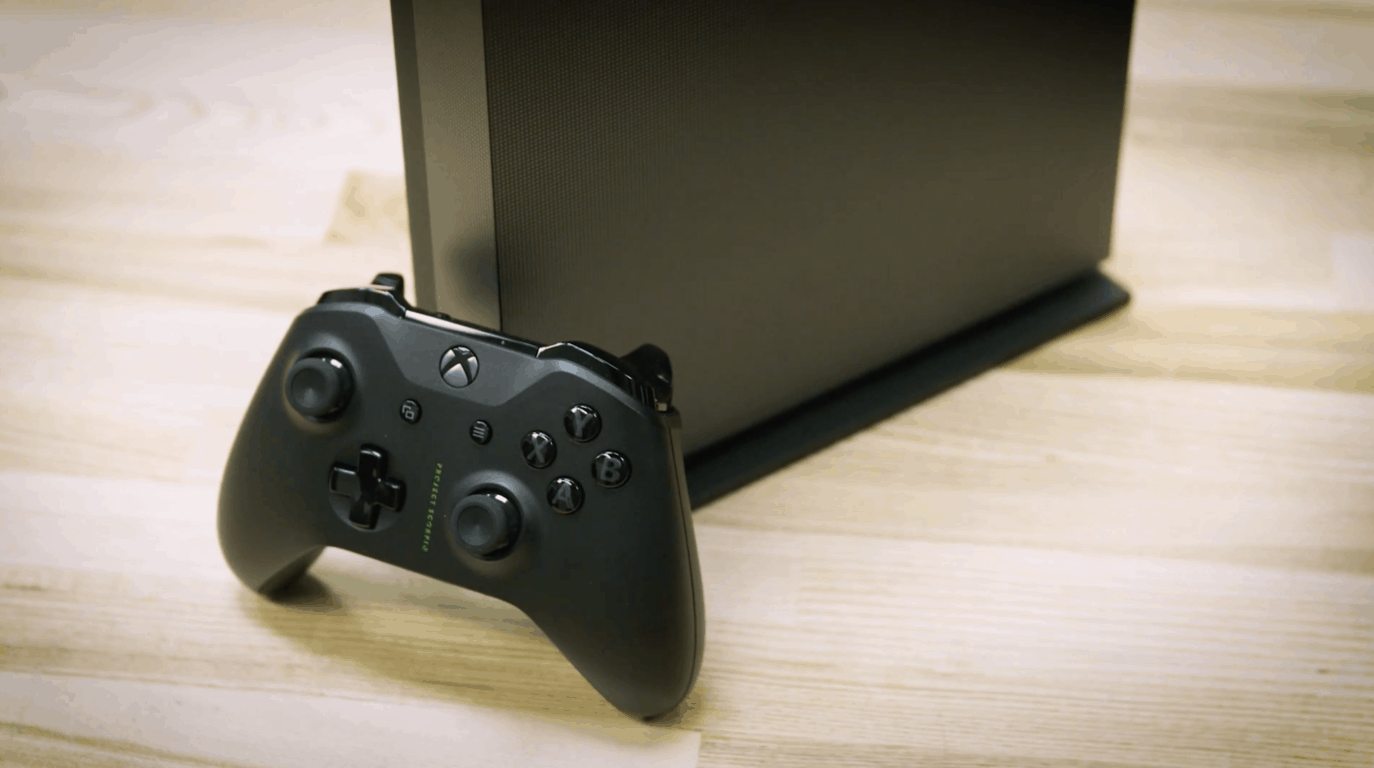
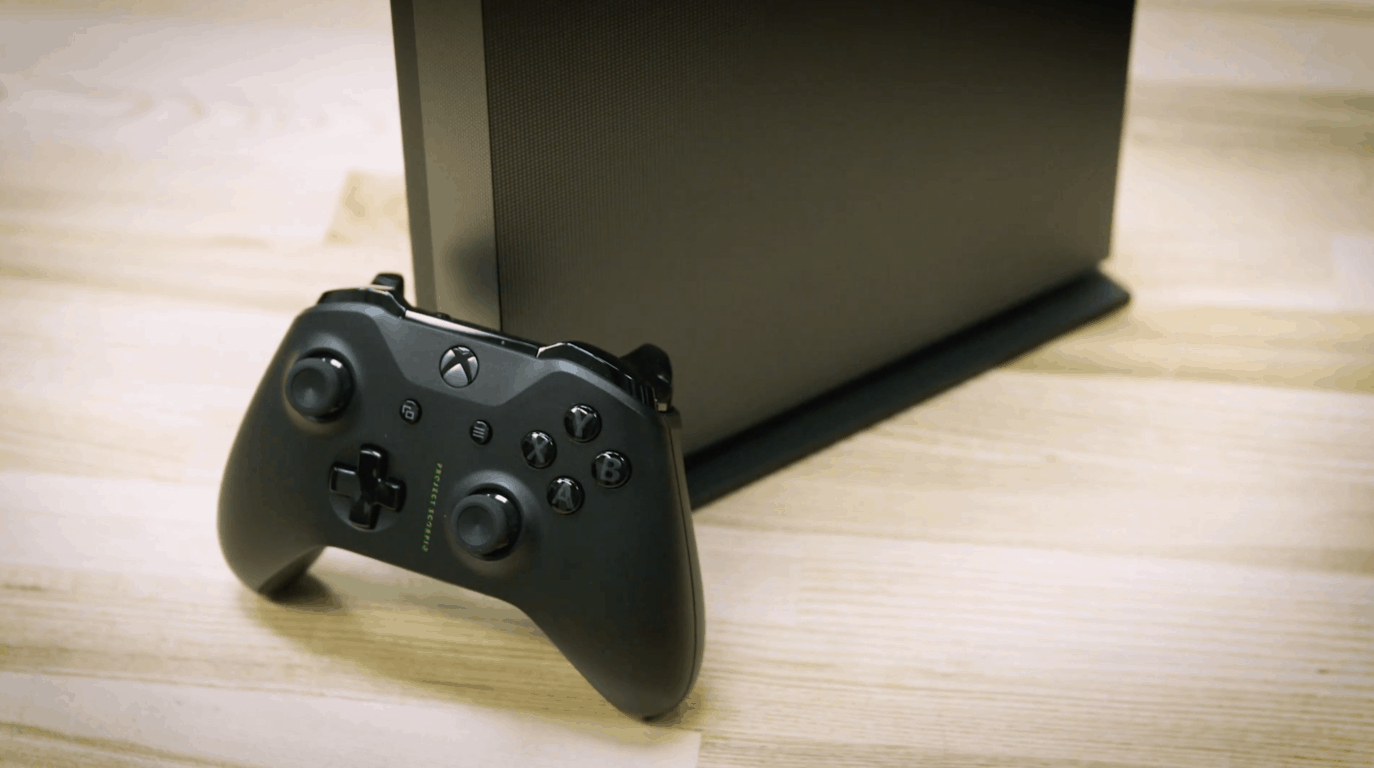
The Xbox One X vertical stand will indeed be sold separately

Unsurprisingly, the Xbox One X vertical stand will be available for purchase on its own for those who don’t get the Project Scorpio edition. Many Xbox fans were concerned by the mention of the stand coming free with the special edition of the console and assumed that it was going to be exclusive to that version. In an interview with Mike Ybarra, Eurogamer cleared up that this wasn’t the case.

No price point was announced during the interview, but it shouldn’t be too expensive. A similar peripheral is currently sold for the Xbox One S and retails for $19.99. You can probably expect the Xbox One X vertical stand to run for a similar price tag.

Microsoft has acknowledged that Windows 10 S is Insider-ready

In the blog post today for Windows 10 Insider Preview build 16273, Microsoft acknowledged that Windows 10 S is Insider-Ready. While it’s a bit exciting for those who are just installing Windows 10 S, this is not exactly a new feature. Ever since Windows 10 S was made available for download on August 1st, the Insider Program feature was always been accessible in the same menu in Windows 10 S as it is in other versions of Windows 10.

Anyway, Microsoft is now highlighting how Windows Insiders to install Windows 10 S on their PCs. In today’s Insider blog post, the company offered up the following advice to prospective Windows 10 S users:

Windows 10 S brings the experiences Windows users know and love, streamlined for security and performance…. Windows Insiders can try Windows 10 S on their PCs and join the Windows Insider Program via Settings > Update & security > Windows Insider Program to receive Insider Preview builds for Windows 10 S just as they would on other editions of Windows 10.

To try Windows 10 S on your PC, you must first be running Windows 10 Pro or Windows 10 Enterprise. If you meet these requirements, you can download the Windows 10 S installer to proceed. We previously compiled a guide on how you can install Windows 10 S, so feel free to check it out.

Keep in mind that Windows 10 S will only work with Windows Store apps, and it only is supported on certain devices.

Microsoft agrees to cease forcing downloads in German “Get Windows 10” case

According to a report from Computer World, Microsoft has agreed to cease forcing Windows 10 downloads in Germany as the result of a German “Get Windows 10” court case. This comes many months after Windows 7 and 8.1 users across the world complained about (the unwanted) Windows 10 Update automatically being downloaded to their hard drives during the free update period.

The court battle over this issue in Munich, Germany was initially filed by the Baden-Würtenberg consumer rights center and lasted roughly 18 months. A roughly translated version of a German press release puts the decision into perspective for consumers.

“With the declaration of discontinuance, the Group [Microsoft] is obliged not to install additional installation files for new operating systems without approval on the hard disk of Windows users… “

Cornelia Tausch, CEO of the Consumer Center in Baden-Württember, also issues strong words in the same press release. The statement suggests that this is a win for consumer rights.

“We would have wished for an earlier introduction, but the levy is a success for more consumer rights in the digital world.”

Now that Microsoft is obliged not to install new operating systems without the consent from Windows users in Germany, it remains questionable how this will impact the automatic download of featured Windows 10 updates. It also remains questionable as to how the decision in Germany will impact similar “Get Windows 10” court cases in the United States. Safe to say, there will be much more to come in this saga.

Microsoft may use “intelligent delivery” to keep parts of your Xbox One X games in the cloud

Microsoft’s upcoming Xbox One X console will ship with a 1TB hard drive, which may seem a little low to download 4K assets for all Xbox One X enhanced games. Considering that old games like Halo 5: Guardians and Gears of War 4 are already close to 100GB without their 4K upgrades, it sounds like having an external hard drive may be mandatory for an hassle-free experience (unless Microsoft decides to release a 2TB Xbox One X console at some point).

But as it turns out, Microsoft may have a good reason to think 1TB of storage is enough for the Xbox One X. Speaking with GamesRadar at Gamescom, Head of Platform Engineering for Xbox Mike Ybarra hinted that Microsoft is currently thinking about a solution to reduce the footprint of Xbox One games on your console. “On the platform side [we’re] looking at things like what we call internally ‘Intelligent Delivery’,” explained Ybarra.

Without giving many details, the exec suggested that the intelligent feature would be able move to the cloud the bits of a game you no longer need to continue your playthrough. “People are more comfortable saying ‘I’ve done playing that, let me push that back to the cloud so I’ve got more room there.’ So we’re looking at technology like that,” added the exec.

Actually, the Xbox One already works a bit like that: when you download or install a game on your console, you can usually launch it and start playing without having to wait for the full installation to be completed. What Ybarra teased is very interesting, but maybe the Xbox team should go even further than that. Do you really need to fully download games that have a multiplayer modes if you’re only interested in the solo campaign, and vice versa? Instead of an “intelligent delivery” system, maybe it could it be possible to let gamers decide what parts of a game they want to download, but this may be just wishful thinking on our part.

Ybarra did not say if Microsoft has already started to work on this intelligent delivery solution, so it could be years before we see it materialize. Anyway, it’s great to see that the Xbox team has a forward-thinking approach for managing precious storage space on our consoles.

Microsoft Surface Studio and Xbox One S win gold, bronze IDSA awards for design

Two of Microsoft’s consumer products have won awards from the Industrial Designers Society of America (otherwise known as the IDSA) for design. The Surface Studio picks up a gold award, and the Xbox One S picks up a bronze award from the membership-based not-for-profit organization.

In their decision, the IDSA cites the way in which the Surface Studio transforms the way people create. The organization also mentions how the Surface Studio redesigns the vision of an all-in-one computer.

Surface Studio is an all-in-one computer that transforms the way people create and produce. Built with creatives in mind, it redefines the ideology of an all-in-one computer that adjusts to the tasks at hand. Surface Studio is equipped with the thinnest in-class display mounted on a zero-gravity hinge, making it seem like a floating sheet of pixels. This simple gesture allows continuous workflow, switching from work mode to drafting to upright orientations with just one finger.

Next up, with the Xbox One S, the IDSA cites the smaller size of the home console in their reasoning for a bronze award. Also mentioned is support for 4K HD Blu-ray video and streaming and high-dynamic-range imaging.

The Xbox One S is the latest version of the Xbox game console. It’s capable of 4K HD Blu-ray video and streaming and high-dynamic-range imaging. It’s 40 percent smaller than its predecessor, the Xbox One. Additional features include an integrated IR blaster, an internal power supply and up to 2 terabytes of internal storage.

Microsoft also won a gold award in the Consumer Technology category for HoloLens, “This mixed reality is enabling new ways to create, communicate, work and play,” wrote the IDSA. Lastly, in the Digital Interaction category, the company received another gold award for the Surface Dial, with the IDSA remarking, “it offers a new way to interact with technology and create in a natural, immersive way.”