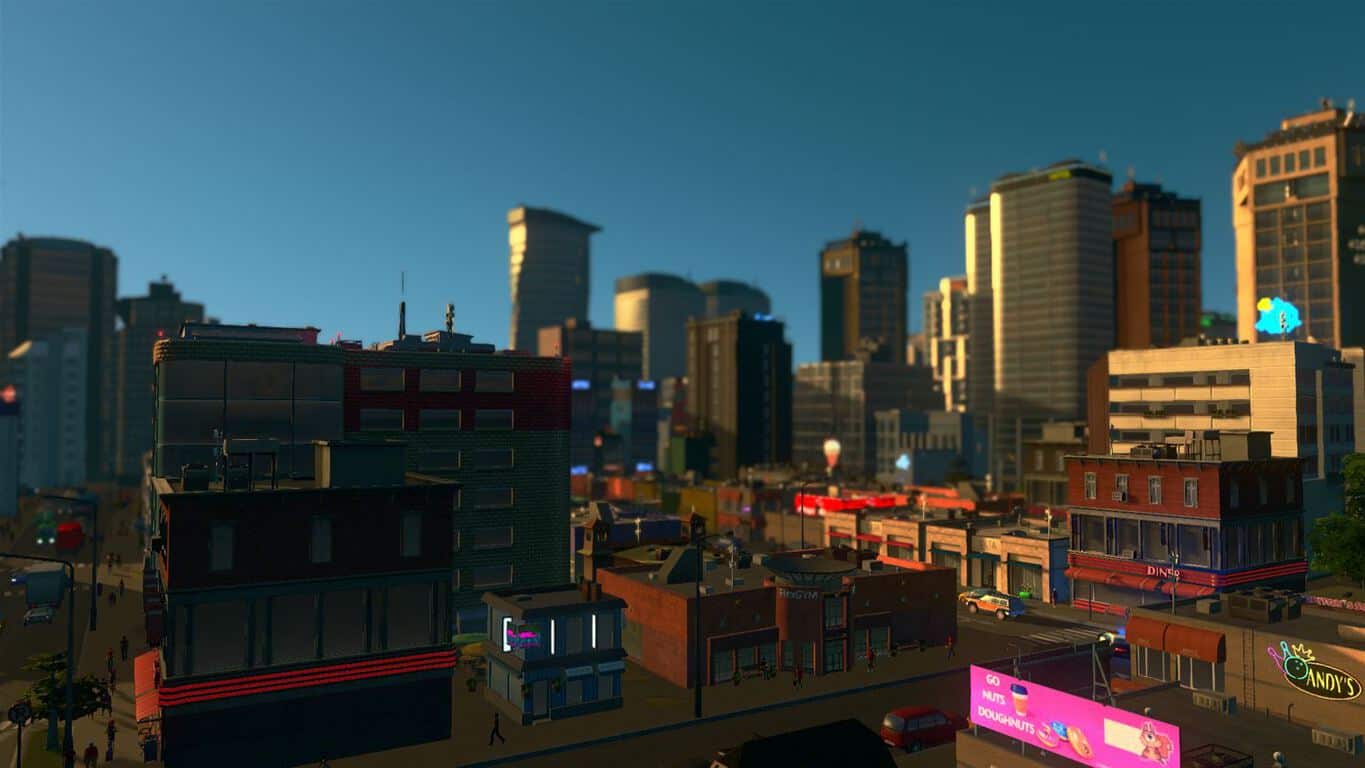
Cities: Skyline, the popular city building game from developer Colossal Order, is now available on the Xbox One. The game has been redesigned to work with the Xbox One controller, and it’s the first game of its kind to launch on the gaming console.
The game is a $39.99 purchase on the Xbox Store, and it includes the After Dark expansion which improves the gameplay with the addition of a day-night lifecycle. Here is the game’s official description:
Cities: Skylines – Xbox One Edition puts you in charge of a growing city – from the ground-breaking of its first streets to the ever-changing needs of thousands of citizens. Design, build, and manage the city of your dreams, from public services to civic policies, and challenge yourself to grow from a simple town to a bustling metropolitan hub. Cities: Skylines is an award-winning, best-selling management game, now available for the Xbox One with all of its robust city-simulation gameplay and unique charm along for the ride. The Xbox One Edition includes the base game and the popular After Dark expansion, allowing players to plan and design for their cities’ nightlife and tourist attractions.
Publisher Paradox Interactive has just kicked off a Twitch live stream to celebrate the game’s release, and you can watch it here. Let us know in the comments if you plan to buy the game on your Xbox One.
Since the beginning of this latest console generation, Microsoft’s Xbox One has been trailing behind Sony’s Playstation 4, which is why the company has stopped reporting Xbox One sales a few years ago. The company now prefers to focus on Xbox Live engagement, and it seems that this is a much more satisfying metric for Redmond.
Yesterday, Xbox exec Mike Ybarra asked its Twitter followers to guess how much Gamerscore Xbox Live users earned over the last seven days, and here was his answer:
700 million Gamerscore points in just a week is quite a massive number, if you ask us. Xbox fans were also impressed by the passion of Xbox fans, and some them think that the Xbox team should share more hard data about Xbox Live engagement going forward:
wow thats so much , i really think xbox team need to work on the gamerscore info more.????
Back in January, Microsoft revealed during its FY2017 Q2 results that Xbox Live now has 55 million active users, compared to 48 million during the same time last year. And if you’re wondering, “Stallion83,” the first player to reach a one million Gamerscore three years ago has managed to kept his crown to this day: at the time of our writing, the incredibly dedicated gamer currently has a 1,528,810 Gamerscore according to TrueAchievements’ leaderboard. Truly inspiring.
Microsoft has just released the new Windows 10 Preview build 16179 for both Windows 10 PC and Windows 10 Mobile Insider Preview. The new build is, for now, only available to Insiders in the Fast ring of Windows 10 Insider program.
Since this is one of the earliest Redstone 3 builds for Windows 10, it’s not so feature-rich. However, it does bring a few new additions to the system.
Perhaps the biggest novelty is the new Power Throttling feature, that debuts in Windows 10 with this Preview build. This feature is part of Microsoft’s efforts to provide better battery saving options for Windows 10 users. According to the company, when enabled, Power Throttling can save up to 11% of CPU power consumption.
Windows 10 Preview build 16179 known issues and bug fixes
Just like it’s the case with every Windows 10 Preview build, Microsoft revealed the list of the known issues and improvements in build 16179.
Here’s what has been improved in Windows 10 Preview build 16179:
“Changes, improvements, and fixes for PC:
We fixed the issue causing apps that use the Desktop Bridge (“Centennial”) from the Store such as Slack and Evernote will cause your PC to bugcheck (GSOD) when launched with a “kmode exception not handled” in ntfs.sys error.
We fixed an issue where adding Hindi to your language list and downloading the on-demand language resources would result in Microsoft Edge crashing on launch and file search returning no results via Cortana or Windows Explorer.
We fixed an issue where desktop icons would sometimes move around unexpectedly when “Auto arrange icons” was set to On and “Align icons to grid” was set to Off.
The existing Group Policy to disable the lock screen is now available for those on the Pro edition of Windows 10. Appreciate all who shared feedback on the subject. Note, the Group Policy text has not yet been updated to incorporate this change, that will happen with a later flight.
We fixed a rendering issue from previous flights where specific multi-monitor and projection configurations could fail depending on the hardware used. This could have impacted all Surface (Surface Book, Surface Pro, etc.) devices as well as other devices using similar chipsets. Another symptom may have been to see screen flickering and potentially being logged out when any screen mode change occurred.
We fixed an issue resulting in the location icon being continually on in the taskbar after the first time the Action Center was opened if the night light quick action was visible.
Changes, improvements, and fixes for Mobile:
We fixed the targeting issue that caused some variants of the Alcatel IDOL 4S to not receive Build 15204 last week. All variants of the Alcatel IDOL 4S should receive Build 15205.
FYI: We fixed the issue where supported Windows 10 Mobile devices were showing the update to the Windows 10 Anniversary Update as “not yet available” in the Upgrade Advisor app.
We fixed an issue where Continuum would stop working when HP Elite X3 case is closed.
We fixed an issue where Continuum would hang or render incorrectly after disconnecting on devices like the Lumia 950.
We fixed an issue with Microsoft Edge where you might get into a bad state after opening a new Microsoft Edge windows and screen off with the JIT process suspended.
We fixed an issue with where the device screen might stay black when disconnecting from a Continuum dock after screen has timed out normally.
We fixed an issue with backup and restore which impacts users with slower network connection.
We fixed an issue around Microsoft Edge reliability.”
Here’s the list of known issues in Windows 10 Preview build 16179:
“Known issues for PC:
Some Insiders have reported seeing this error “Some updates were cancelled. We’ll keep trying in case new updates become available” in Windows Update. See this forum post for more details.
Double-clicking on the Windows Defender icon in the notification area does not open Windows Defender. Right-clicking on the icon and choosing open will open Windows Defender.
Surface 3 devices fail to update to new builds if a SD memory card is inserted. The updated drivers for the Surface 3 that fix this issue have not yet been published to Windows Update.
Pressing F12 to open the Developer Tools in Microsoft Edge while F12 is open and focused may not return focus to the tab F12 is opened against, and vice-versa.
exe will crash and restart if you tap any of the apps listed in the Windows Ink Workspace’s Recent Apps section.
Insiders who use Simplified Chinese IMEs or the Traditional Chinese Changjie or Quick IME to input text will find that the candidate window doesn’t appear when typing into certain apps. If you press space, the first candidate will be finalized. Using the number keys will not finalize any other candidate. If the candidate you need is not the first one, for now you will have to enter your text into an app where the candidate window appears, such as Notepad, and copy it into the desired text field.
Navigating to Settings > Update & security > Windows Update may crash Settings app. You can simply re-open the Settings app again and it should work again.
The “Save” dialog appears to be broken in several desktop (Win32) apps. The team is investigating.
Known issues for Mobile:
A small percentage of devices may experience text message backup loss related to backup and recovery of the messaging database.
For Insiders who have upgraded from a prior 150xx build to this build, the “Add Bluetooth or other devices” Settings page and the Connect UX page may fail to open.
The copyright date is incorrect under Settings > System > About. It shows as 2016 when it should be 2017. Thanks to the Windows Insiders that reported this!
Insiders may experience random shutdowns on some devices.”
To obtain the new build, just go to the Settings app > Updates & security, and check for updates. Of course, you have to be in the Fast ring.
In case you’ve already installed the new build, and encountered some issues afterward, make sure to let us know in the comments below.
The first episode of Marvel’s Guardians of the Galaxy: The Telltale Series is now available for download. The Telltale Series challenges players to get their hands on an artifact of unspeakable power. However, this is not an easy task as a ruthless enemy who is the last of her kind also wants to get her hands on that mysterious and powerful object.
This five-part episodic series puts players in the rocket-powered boots of Star-Lord. Think twice before your act as your decisions and actions will drive the path of the story you experience.
Unfortunately, the gaming experience hasn’t been that smooth for some players due to a series of issues.
Marvel’s Guardians of the Galaxy: The Telltale Series bugs
White screen
The whole computer screen sometimes goes white, preventing gamers from actually playing the game. The game music still plays in the background.
I changed the graphics settings so my pc could handle it better and now whenever I start up the game The whole screen goes completely white and I cant play now.
Controller won’t work
Many gamers can’t use their controllers to play The Telltale Series. Nothing happens, no matter which buttons they press. It appears that the Xbox One and Steam controllers are the ones mostly affected by this issue.
I’m using Xbox One controller with the wireless dongle (on W10) and menu and gameplay worked up until the actual start of Episode 1, when you’re supposed to look around. Then no matter what I try, nothing happens (except bringing up pause menu, that and navigating inside it works no problem).
Anyone else getting some ♥♥♥♥ poor performance from this game? My fps is at a constant 20-23 fps in the menu and in game. I’m running this on a 6700k + 980ti so this should not be happening
Game screenshots are unavailable
Players also report that game screenshots don’t appear in the activity field.
Posted sreencs and they didnt apeer in feed. Frined have the same proble. Anyone noticed this?)) any thoughts what it can be?))
Of course, these are not the only issues affecting Marvel’s Guardians of the Galaxy: The Telltale Series. If you’ve encountered other bugs, you can use this Steam page to provide the game’s devs with more details about the issues that you’re experienced.
If you were around in the 90’s, then you’ve likely encountered this sound. Microsoft Windows 95 was released on August 24, 1995, and support for it ran until the turn of the century. But in its time, Windows 95 was the game-changing operating system that, unlike its predecessor Windows 3.1, became the foundation we’ve come to love today.
As you can see in the launch trailer for Windows 95, Microsoft had quite the ambition for a consumer-oriented desktop. Then brand new, the OS redesigned the essential desktop with shortcuts and taskbar. It also replaced the 3.1 File Manager with the smoother Windows Explorer. Under the hood, the transition to 32-bit architecture and ‘plug-and-play’ capabilities set Windows 95 as a flagship for its future iterations.
Even as ground-breaking as Microsoft Windows 95 was for PCs, one commenter called out the ridiculous scenes in its ‘Start Me Up’ launch commercial. “Sitting in a coffee shop with a desktop computer. #winning,” they teased. Yet in this case, it was just another example of the vision for technology just a little (or a lot) before its time.
While we may not be clamoring to bring our bulky CRT monitors out of the garage, it’s always nice to look back. What is your fondest memory of using Windows 95? We’d love to hear your stories in the comments below or tweet us @OnMSFT.
It’s been a little more than three years since Satya Nadella became the new CEO of Microsoft, and you can tell that the former EVP of Microsoft’s Cloud and Enterprise group has already left his mark on the company. Under Nadella’s reign, we’ve seen the Redmond giant successfully introduce Windows 10 and “Windows as a Service,” double down on Office 365 and Azure, and turn the young Surface division into a billion dollar business.
Microsoft stocks were also recently trading at all-time highs, something that Nadella is probably very happy about. Overall, the new CEO has good reasons to be proud of what Microsoft has achieved over the past three years, even though the poor state of Windows Phone is still an obvious black mark. But if this can reassure you, Nadella is already looking at what is coming after the smartphone revolution.
Today, the folks at Business Insider published a lengthy interview of Nadella where the CEO discussed the past, present, and future of Microsoft. The full piece is well worth a read, especially the forward-looking bits. But before getting to that part, Nadella explained his vision of leadership, which he sees as the art of articulating new ideas, capabilities, and culture:
One of the key things in the tech business in particular is that you need to be able to push boundaries. In other words, for example, when you’re a successful company, you have this amazing lock between the idea, concept, your capability and culture. If you are successful, that means you’ve gotten the idea right, you’ve built right capability to go after that idea and your culture reinforces it.
Now, the challenge is that at some point, the concept needs to be replaced by a new idea. Otherwise, how do you renew yourself? And in order to build a new concept, you need to build a new capability and that’s where your culture can get in the way. So one of the key challenges of leadership is to be able to recognize: When is the time to push for new ideas, and how do you build new capability long before you even have a new idea?
To illustrate this, Nadella gave the example of Microsoft hiring silicon engineers years ago, who later went to work on breakthrough innovations such as HoloLens or the FPGA (Field Programmable Gate Array) chips that Microsoft now uses in its data centers. “It’s one of the fundamental challenges of leadership and you got to get it right: you can’t be too far ahead, you can’t be too far behind. To be able to yet see those corners is all it is about,” added Nadella.
HoloLens is definitely one of Microsoft’s best recent innovations.
The CEO also had some interesting words about future computing devices, explaining that Microsoft definitely participates in this conversation. And more importantly, Nadella thinks that the future of computing is having different devices that work in synergy:
We were excited to create the 2-in-1 category, which is the fastest-growing amongst PCs. We are very excited about Surface Studio and what it means to reimagine what the desktop computer is. We are also very excited about Surface Hub as a computer for meeting rooms, of course also about HoloLens and the whole mixed-reality world. So for me the new forms of computing is what we want to build for consumers. But it is important that, instead of thinking that each one of these works as an independent computer, we think they have to form a fabric of devices for you.
What does this mean for the future of Windows 10? “When we talk about Windows 10, it’s not about a device operating system anymore, it’s an operating system for all of your devices,” explained Nadella. “That’s how we’re trying to not only tackle the innovative challenge of bringing new things to life, but also deal with the social complexity of a lot of devices in your life,” he added.
Microsoft’s original vision for Windows 10.
There are 400 million devices running Windows 10 as of today, but it’s safe to assume that most of them are PCs. The phone user base is still very fragmented (the majority of users are still running Windows Phone 8.1), and you could even consider Xbox One consoles as part of a niche market. Nadella initially forecasted 1 billion devices running Windows 10 in 2018 before eventually backtracking, and it’s still hard to see how the ecosystem can continue to grow by just counting on PC sales.
There is still Windows 10 for IoT and Windows Mixed Reality, but we’re probably years away from mass market adoption. Microsoft is also developing its Connected Vehicle Platform for car manufacturers, but the company is completely absent in other markets such as wearables or smart TVs. So, could Nadella be thinking about new product categories? The CEO gave this optimistic statement:
Every time you think all the technology that had been created already, all you have to do is look around and then there’s someone new who’s born with a new idea. I can say one thing for sure: that there’s going to be more innovation in our lives than what has happened in the past.
In the coming weeks, the company is expected to unveil Windows 10 Cloud as well as a first Cortana-powered speaker from Harman Kardon. Build 2017 is also very close, and we should more learn about the company’s plans to push Windows 10 forward this year. We would very much like to share Nadella’s optimism for the future of technology, and we hope to hear some blockbuster announcements during this year’s Build developer conference.
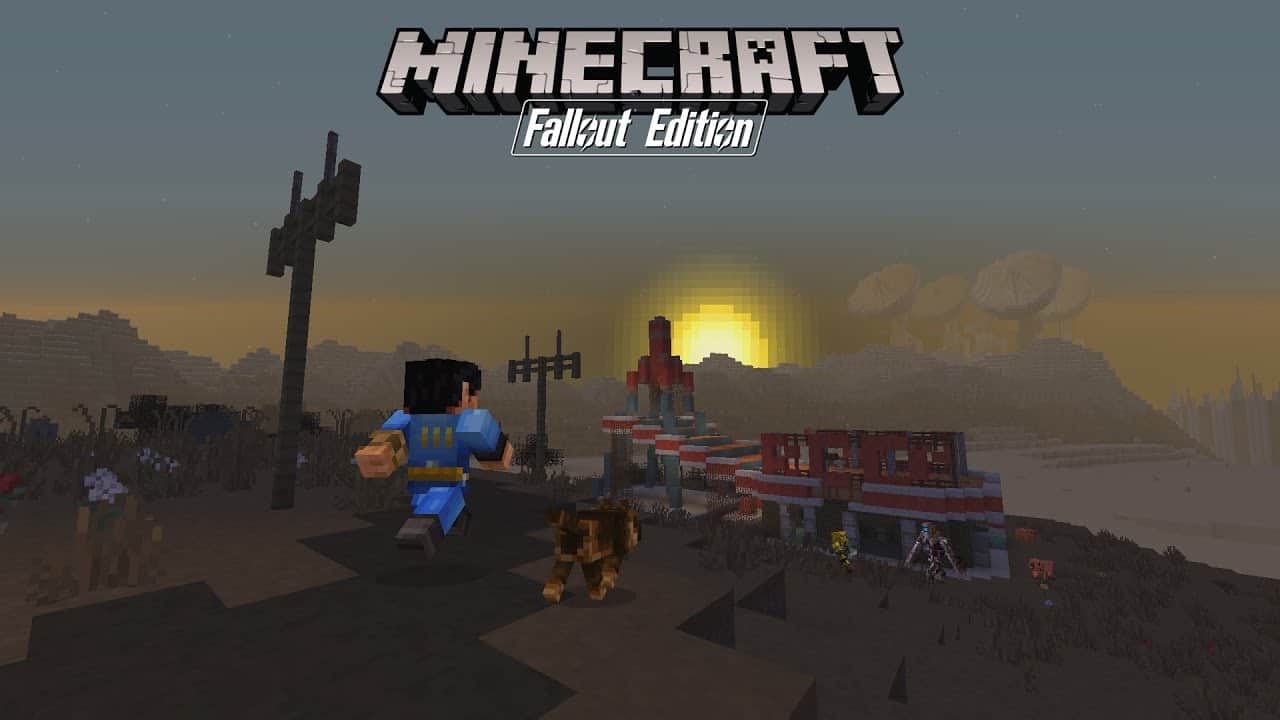
Last December, the Minecraft teams announced that it would be adding a Fallout Mash-Up Pack to consoles leaving fans of the franchise on PC feeling a little left out. Today, Mojang announced that the same blocky Fallout pack is now available to Pocket and Windows 10 editions.
Similar like stepping out of the vault, Minecraft is a completely different world. It’s pre-made in fact, even donning its own soundtrack with music from the series. You’ll encounter mobs and textures that you’ll find familiar such as the two-headed cows, gruesome ghouls, outsized scorpions. “Wait until you see what’s happened to the poor llamas!” the team teased.
Fallout fan favorites combine in this DLC with over 44 skins to choose from including Nick Valentine, John Hancock, Jangles the Moon Monkey, and more characters from the wastelands.
The Fallout Mash-Up Pack is available to purchase with the in-game store for the usual $5.99 USD price.
Ever since Microsoft unveiled Xbox Game Pass back in February, those in the various rings of the Xbox Insider program have had chances to test out the new subscription service. Now, according to a new report from gamezone.com, the service is “close to launch” and Microsoft will end insider testing next week on April 28th.
According to the report, some Insiders have a received a message about the latest status of the service. Microsoft has also reportedly confirmed that the service will leave the Xbox Insider program on April 28th. This would make sense, given that Xbox Game Pass was recently opened up to those in Preview Ring 3 of the Xbox Insider program (which other than Ring 4 is the second slowest ring with somewhat more stable builds.) The message reads:
“Thank you for participating in the Xbox Game Pass Alpha Preview… You feedback has been invaluable and will make the service better for all gamers….We’re getting close to launch and Xbox Game Pass will be available for all gamers later this Spring.”
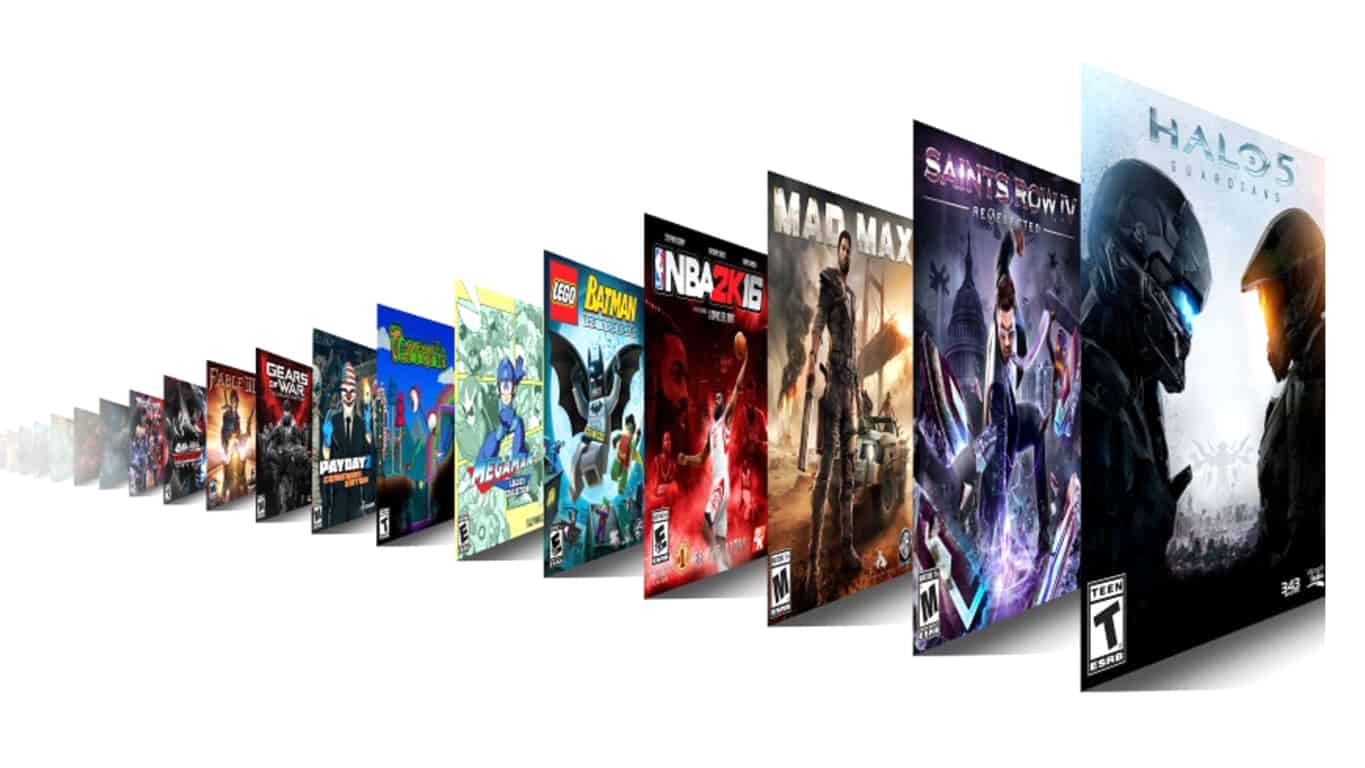
Xbox Game Pass is a gaming subscription service, which will give Xbox fans access to 100 Xbox One and Xbox 360 games for $9.99 a month. Games from industry leading publishers such as 2K, 505 Games, BANDAI NAMCO Entertainment, Capcom, Codemasters, Deep Silver, Focus Home Interactive, SEGA, Warner Bros. Interactive Entertainment and Microsoft Studios, will all be included in the service. You will be able to you discover and download the full titles directly on your Xbox One, without the need to stream the games.
The next big update for Minecraft on PC is closing in and 1.12 wouldn’t be complete without a few final touches. Announced last month, the World of Color Update is planned to add new colored blocks, parrots, brighter banners, dying options for beds, and more.
This week, Mojang released snapshot 17W16A to fit the last few features in. Here’s what they’ve added:
An Illusioner! What are you hiding?!
Added tutorial hints, they only show in survival mode & only once
Fixed the output log for the server. Sorry about that!
Hide all toasts during F1 (hidden UI)
Added a message whenever the Narrator isn’t available
Added keybinding options for creative toolbar saving
Added anti-stick coating to Glazed Terracotta
Renamed Hardened Clay to Terracotta
Optimized chain command blocks
Technical: Improved NBT parsing in commands – please let us know if there’s issues!
Technical: Added ‘group’ to recipe json format, to clump similar recipes together
Technical: Added new ‘keybind’ text component, to refer to the player’s keybindings
Fixed bug MC-9565 – Fences and Cobblestone Walls connect to Fence Gates, which are facing the other direction
Fixed bug MC-114889 – Parrots on shoulders disappear when flying up in creative or spectator mode
Fixed bug MC-115336 – Closing crafting menu drops or deletes items in some cases
Fixed bug MC-115528 – Local client crashes when using the new shift click recipe book in a server
Fixed bug MC-115603 – Shift clicking recipe deletes other applicable items with different meta data
Fixed bug MC-115797 – Server output shows errors and nothing else
Fixed bug MC-115802 – Crash when going to Statistics/items-blocks or trying to customize Superflat settings
Fixed bug MC-115805 – Fences/panes/walls/bars/torches connect to a number of non-solid blocks
Fixed bug MC-115806 – Clicking on coloring white bed recipe selects creating bed recipe (placing planks in armor slots of player)
Fixed bug MC-115807 – Game crash if right clicked on the underside of block with torch in hand
Fixed bug MC-115809 – Advancements/recipes notifications don’t show correctly in F1 mode.
Fixed bug MC-116004 – “Parrot” isn’t translatable in the “imitates” subtitle
Fixed bug MC-116136 – Parrots are invisible when on shoulder
Fixed bug MC-116213 – Parrots on your shoulder change color when the player is wearing an enchanted elytra
Fixed bug MC-116314 – Bows destroy other bows while crafting using recipe book
Added some new bugs!
Now the team will begin focusing on bug bashing, polishing the new features, and getting update 1.12 ready for full release. Unfortunately, we still don’t know when that will be, but it can’t be too far away now. If you want to try these out ahead of time, go to your Minecraft launcher and enable snapshot builds. Be careful to backup any saves since the beta snapshots can have unwanted effects.
Microsoft today announced that the company would be providing The Nature Conservancy with an Azure services grant. This grant is part of Microsoft’s focus on its nonprofit partners and a commitment to bringing cloud computing resources to nonprofit organizations around the world.
With the Azure services grant, Microsoft hopes that The Nature Conservancy Organization can “do even more to conserve the lands and waters on which all life depends.” The grant will be distributed over the next three years and will allow The Nature Conservancy to expand its Natural Solutions Toolkit to inform real-time, science-based decision-making at the local level. Microsoft details what the grant means for The Nature Conservancy.
This will make it easier for communities everywhere to build coastal resilience strategies, fight pollution and provide clean water for people around the world. The Toolkit is the Conservancy’s largest suite of geospatial tools and web apps for climate adaptation and resilience planning across land and sea environments.
The Nature Conservancy describes Costal Resilience as a program which “examines nature’s role in reducing coastal flood risk.” The program also “consists of an approach, a web mapping tool, and a network of practitioners around the world supporting hazard mitigation and climate adaptation planning.” Here is how Azure will be used in Costal Resilience projects.
As part of the new Microsoft grant, these tools and this learning will be expanded and applied to new types of projects, including a pilot project already underway right here in Washington state. The Nature Conservancy will migrate specific programs and projects within the Natural Solutions Toolkit, including Coastal Resilience in Washington, to Microsoft’s Azure cloud platform and expand it to include:
Historic, real-time, and climate projection analysis and data processing across social-ecological system
Decision support tool and app design, usability testing, and effective use analytics
Business opportunities that address local and global environmental challenges and nature-based solutions
The grant builds on the long-standing collaboration between Microsoft and The Nature Conservancy and comes after the company detailed its plans for Earth Week. You can learn more about The Nature Conservancy projects and the latest grants by visiting the Microsoft Green Blog.
A few weeks ago Surface Pro 3 users were treated to a firmware update in preparation for Windows 10 Creators Update. Microsoft has now followed up to release a newer firmware update, which is aimed at improving stability and performance between power states (via Neowin.)`
Released on April 18th, the latest firmware version number is 38.12.70.0, and it should appear in Windows Update as “Surface – Firmware – 38.12.70.0.” As noted by Microsoft, the firmware update “improves system stability and performance when you change between power states.” The Device Manager name for this firmware, meanwhile, is “Surface Pro Embedded Controller Firmware,” so be sure to head to Windows Update now to check to see if it is available for your device!
With an AdDuplex report showing a 26.7% popularity of the Surface Pro 3, it’s great to see that Microsoft is still supporting the older generation Surface device, even though it no longer lists the device in the online store. How is the battery life on your Surface Pro 3? Let us know in the comments below!`
HomeGroup feature, since introduced back in the days, is probably the best way to create a homogenous private network and share your sensitive data between the multiple PCs. A lot of users were enjoying all the benefits of Windows HomeGroup until the Creators Update completely crashed it.
Namely, numerous users reported various issues related to HomeGroup. Some users lost all of the settings, while others are unable to connect to an already created homegroup. To make the things even worse, they were unable to create a new group with a new password or, if they managed to do so, they were incapable of joining.
Luckily, we gave our best to acquire some of the possible workarounds for this issue. So, in case, you have any of the above-mentioned problems, make sure to check out the list below.
How to resolve Homegroup issues after installing Creators Update
Run the Windows Homegroup Troubleshooter
With the Creators Update, Windows 10 received a unified page for troubleshooting. Besides the standard features that may give you a hard time, this list covers some less frequent Windows features. One of those is Homegroup. So, your first step in order to resolve any issues is to use a built-in troubleshooter and hope for the best.
Have in mind that this procedure must be repeated on all of the available PCs that are the part of the network. And this is how to do it:
Open Windows Settings under Start Menu or press Windows key + I for an instant access.
Under Settings, open Update & Security.
Open Troubleshoot from the left pane.
Scroll down until you reach the HomeGroup.
Click on HomeGroup and then click on the Run the troubleshooter.
Now, wait until the troubleshooter scans and hopefully resolve issues.
On some occasions, it may give you insight into further steps.
If the problem is still persistent, move on to the next steps.
Delete files from the Networking folder
In some cases, a less subtle and more to the point approach is needed. And that brings out the Networking folder and its content. Namely, you may need to delete the shared files that were stored in this folder prior to Creators Update. On some occasions, those can cause an interference and prevent you from establishing the HomeGroup.
Follow these steps in order to delete the files from PeerNetworking folder:
Navigate to C:\windows\serviceProfiles\LocalService\AppData\Roaming\PeerNetworking.
Under PeerNetworking folder, delete all files. You can try deleting only the idstore.sst file, but the total wipeout is the better choice.
Now, go to the Network Settings and leave the pre-created homegroup with all PCs.
Restart your PCs (all within the group) and disable the connection for all but one.
Use that one PC to create a new group and save the generated password.
Connect the remaining PCs, insert the password and you should be good to go.
Allow Full Control to MachineKeys and PeerNetworking folders
Another worthy workaround is related to security and control of certain HomeGroup features. Namely, the latest update may have changed your permissions without your knowledge. Since the service is quite security-sensitive, without the proper permissions, you won’t be able to use it.
But, luckily, there’s a way to take a full control of the HomeGroup features. Follow these instructions to do so:
Navigate to C:\Program Data\Microsoft\Crypto\RSA\MachineKeys.
Right-click the MachineKeys folder and open Properties.
Under the Security tab, open the preferred group and click Edit below.
In the list, select Full Control and confirm changes.
Now, go to C:\Windows\ServiceProfiles\LocalService\AppData\Roaming\PeerNetworking.
Repeat the procedure that you already used on MachineKeys.
Do this for all available PCs that are the part of the network.
Roll back to the previous version
At the end, if you’re still unable to resolve homegroup related issues, you have two choices. Either you’ll wait for the official fix for your issue or you can perform a rollback to the previous version. If you’re impatient you can roll back to a previous version and that should hopefully resolve any homegroup related issues.
This is the way to restore your Windows 10 to a previous version:
Open Windows Settings under Start Menu or press Windows key + I for an instant access.
Open Updates & security.
Choose Recovery.
Click on Get Started under Reset this PC.
Once you’ve provided mandatory feedback to Microsoft, the roll-back process will start.
After it’s finished, try connecting to your Homegroup like before the Creators Update.
You may as well try to reinstall the Windows 10 Creators Update, but we are not sure it will serve you right.
Hopefully, Microsoft will address this issue in the upcoming patches. It’s hard to round-up all of the strengths of the Creators Update with the problems like this. Either way, the presented workaround should help you resolve your issues. At least temporarily.
In case you have any suggestions or questions, please share them with our readers in the comments section below.
Microsoft’s E3 FanFest competition which had begun earlier this week has been cancelled due to a system error that began awarding prizes to too many entrants at once. The competition will restart as soon as the error has been fixed and all those who entered the first time will have to do so again.
“Fan enthusiasm overwhelmed our Xbox FanFest: E3 2017 registration website today, and unfortunately resulted in an error – causing the system to accept more registrants than we had tickets for the event in total,” Microsoft’s Larry Hyrb explained. “We determined voiding this morning’s registrations and starting over would help make things as fair as possible for all fans. So, if you were one of the fans who successfully registered this morning, you’ll need to re-register, and Xbox is emailing something special to you for the inconvenience.”
Up to 500 tickets for the E3 Xbox FanFest are up for grabs in this competition in addition to a variety of Xbox-related prizes. Are you going to enter? Let us know in the comments below.
AMD has announced the new series of graphic cards – Radeon RX 500 – based on Polaris architecture.
Radeon RX 500 series graphic cards feature various last-gen technologies, including DirectX 12, Radeon Chill, Vulkan gaming, Radeon FreeSync 2 and much more.
Optimized DirectX 12 and Vulkan gaming
The Radeon RX 500 series is going to perform amazing with low-level, next-gen APIs like DirectX 12 and Vulkan, and it will provide outstanding VR and gaming experiences. The GPUs also feature higher clock speeds, multi-monitor efficiency and improved idle. Gamers will enjoy some new fine-grained controls for tuning their hardware.
Radeon Chill – Increased efficiency, improved response time and cooler operation
Radeon Chill is an advanced framerate controller that is going to automatically work in the background to regulate framerates in the most dynamic way.
Radeon FreeSync – smoother, stutter-free gaming
Radeon FreeSync 2 features high-brightness pixels, and an excellent color gamut for displaying HDR content and for featuring LFC. This will offer gamers a plug-and-play stutter-free experience.
Radeon ReLive – awesome streaming and gameplay capture
This software suite allows gamers to enjoy both smooth gaming and recording at the same time, supporting recordings at 4K resolution at 30 and 60 FPS using HVEC and H.264 codecs.
Radeon RX 500 series graphics gards:
Radeon RX 580 – smooth 1440p gaming
It delivers 57% better performance compared to the Radeon R9 380X in the following areas: testing, smooth gaming in AAA games, and VR experience. The Radeon RX 580 8GB GDDR5 is about $229, and the Radeon RX 580 4GB GDDR5 is $199.
Radeon RX 570 – 1080p gaming
The Radeon RX 570 with 4GB GDDR5 boasts an average of 2.3X better overall performance than the Radeon R7 370, and it’s $169.
Radeon RX 560 – 1080p gaming
The Radeon RX 560 delivers 57% more performance that the Radeon R7 360. With 2GB of GDDR5 memory, you’ll find it at $99.
Radeon RX 550 – a doorway to PC gaming
The Radeon 550 features 2GB of GDDR5 memory, and it’s ideal for home theater PCs supporting HDMI 4K60, 4K playback and HEVC content. It also supports Radeon FreeSync tech for an amazing gaming experience.
Radeon RX 580 and 570 are already available on sale, the RX 550 will be available these days, and the RX 560 will be available starting from this May.
The creators behind the Xbox One and Windows 10 fighting game, Killer Instinct, have been having some fun on Twitter today and have begun sharing some concept artwork that feature’s Microsoft’s Clippy within the game.
One of our artists made a fun mock up of what Clippy would look like in KI. Keep in mind, this is just for a cheeky laugh, and not real. pic.twitter.com/TlUaQiIVvp
The artwork reintroduces the annoying/loveable digital assistant to users as a guardian character who assists players in fighting through Killer Instinct’s Shadow Lords story mode. The game’s creative team even decided to create complete dossiers (character profiles) for Clippy.
We've had so much fun joking about Clippy today that we even took it a step further. Again, totally for fun, but here is Clippy's Dossier. pic.twitter.com/T5nS0MDyKS
Unfortunately it seems as if there are no plans to include Clippy in the game for real and that these images were made just for fun. The idea has garnered a bit of interest on Twitter though and the official Killer Instinct Twitter account has encouraged followers to tweet with the hashtag #ClippyForKI.
Unlike other characters on fans’ crossover wish lists, Clippy could actually make an appearance in Killer Instinct as the game is published by Microsoft Studios and it’s likely that Microsoft still has the rights to Clippy (unless they sold the character to a movie studio as part of a multi-picture film deal that is. They probably didn’t though). Clippy could also add some much-needed humor to Killer Instinct which is often criticized as being too dark and serious.
Would you like to see Clippy as a guardian or playable character in a future Killer Instinct update? Let us know in the comments below.
This latest Instagram update adds the ability to save posts into specific Collections (folders). The save ability was added a while ago but now Instagrammers can organize their favorite photos taken by other users in a sub-menu located on their own profile screens.
“Since we introduced the ability to save posts last December, 46 percent of Instagrammers have saved at least one post,” the official feature announcement reads. “Whether you want to plan your next day trip, revisit your favorite artists’ illustrations or always have some animal videos on hand, collections can help you keep track of the posts you want to remember.”
Have you tried saving images to an Instagram Collection yet? Let us know in the comments below.
The Windows 10 Creators Update brings a new feature called Spatial Sound, perfect for listening to audio through your headphones.
When you enable the feature, you’re going to feel the audio like it’s playing all around you and not only through your headphones. It offers a 3D sound experience or a surround sound.
The feature is disabled by default and here’s what you have to do to enable it:
Right-click the sound icon in the notification area.
In the context menu, go to “Playback devices”.
Select the playback device from the list and click on Properties.
Go to the Spatial Sound tab and select the spatial sound format (it includes Windows Sonic for Headphones and Dolby Atmos for Headphones).
Windows Sonic
This is Microsoft’s audio platform for surround sound. It includes integrated spatial sound for Windows and Xbox, supporting both surround and elevation audio cues. The user is able to select the output format: speakers, headphones, and home theater receivers.
Dolby Atmos
This is a surround sound technology from 2012 that can create a highly dynamic sound environment. During the playback process, every audio system renders the audio objects in real-time. This way, each sound will come from its dedicated spot.
Compared to this, the traditional multichannel technology essentially burns all the source audio tracks into a fixed number of channels during the post-production.
The addition of audio objects offers more creativity to the mixer.
In order to use Dolby Atmos, you’ll need a special app from the Windows Store. Choosing this option will lead to the installation of the Dolby Access software which is based on the Universal Windows Platform. The app supports better sound for your headphones and also the sound enhancement for the Home Theater device.
As you can see, Windows 10 makes spatial sound possible by combining a driver with special apps and headphones or other sound devices. This cool technology will especially enhance the sound quality of your headphones.
The Creators Update for Windows 10 is here, and it brings with it a bevy of bug and security fixes on top of new tools that help enhance your Windows experience. However, installing the update also fills up your drive additional gigabytes because it retains data from the old Windows version.
New versions of Windows store information from their predecessor to help users downgrade should problems arise with the updates. But if you are satisfied with what the Creators Update serves up, you might want to free up a few extra gigabytes on your drive.
Disk Cleanup
Windows 10 has an option that allows you to clean stored files from the previous version of Windows. By doing that, you’ll be able to free up a significant amount of space from your drive. To free Up to 20GB of space after installing the Windows 10 Creators Update, follow these steps:
Open This PC/My Computer.
Right click on your drive where Windows is installed.
Select Properties.
Click the Disk Cleanup button.
Select Clean up system files in the Disk Cleanup window.
Check the Previous Windows Installations box and all other items you want to delete.
Click Ok to complete the cleanup.
The disk cleanup process frees up as much as 20 GB of space on your hard drive. And some extra space will definitely come in handy.
Do you know of other methods to clean up space on your drive after the Creators Update? Let us know in the comments section below!
Have you ever felt you waited too long at a traffic light? Well, it seems your wait may have been part of a heavily calculated and intricately craft risk assessment profile run by your city and low profile data crunching firms.
DataKind just happens to be one of those low profile data crunching firms using next level data science to help cities plan out the complexities of reduced driving visibility in certain areas, speed zones and much more.
However, DataKind doesn’t always work alone, the non-profit company recently partnered with Microsoft to tackle three of America’s highly traffic congested cities such as New York, Seattle, and New Orleans.
In Seattle, the city focused on bicycle and pedestrian safety issues. The team’s models identified collision patterns and factors that contributed to higher levels of injury severity, including whether a motor vehicle is making a right turn or left turn, the variation in time of the year and the effectiveness of crosswalks in reducing crash severity. They also identified key variables affecting the likelihood of accidents taking place on particular stretches of road, including traffic volume, land use, number of traffic lanes, street width and pedestrian concentration. Seattle recently passed a levy to fund multi-modal transportation improvements citywide. The results from this project, along with additional safety studies, will help guide more than $300 million in Vision Zero investments over the next nine years.
In New York and New Orleans, DataKind was able to create and offer a new exposure model capability that should help the city of New York avoid injuries and fatalities as well as a new Impact Assessment tool for New Orleans that compare locations for advanced street treatment.
While Microsoft is no stranger to combining data science and civic programs, the partnership with DataKind demonstrates a concerted effort to give machine learning real and life-saving applications.
As Microsoft typically does, it has made the case study available for anyone interested in learning about the various safety models used by the company and DataKind.
In an effort to get as many users to upgrade to Windows 10, Microsoft uses ads all over the operating system – taskbar, Start menu, and apps. Now with the Creators Update’s recent release to the public, you might want to disable ads in Windows 10 again.
Start Menu Ads
The Start menu is often your first stop when opening an app, depending on how you use Windows 10. You can disable ads from the Start Menu by typing Start Settings in search or go to Windows Settings > Personalization > Start. Switch off the “Occasionally show suggestions in Start” option five toggles below.
File Explorer Ads
Even in the File Explorer, ads are not off-limits. To disable ads from showing up in File Explorer, launch it from the taskbar and select View > Options > Change folder and search options. Then select the View tab, uncheck the “Show sync provider notifications” checkbox, and click Apply/OK.
Action Center Ads
Another place you’ll find ads in Windows 10 is in the Action Center, where you can disable them by searching for Notifications & actions settings from Start and turning off the top toggle labeled “Get notifications from apps and other senders.”
Lock Screen Ads
Ads can show up on the Lock Screen as well. This display is the first that you’ll see before logging in to your PC, so you’ll definitely not like to see ads there. For that, type Lock Screen Settings in the Start menu or open up Windows Settings and go to Personalization > Lock Screen. Click on either Picture or Slideshow in the dropdown menu under Background. Turn off a toggle labeled “Get fun facts, tips, and more from Windows and Cortana on your lock screen.”
Windows Ink Ads
The Windows Ink workspace has its own suggested apps., which means it can display more ads. To disable the ads in Windows Ink, select Windows Settings > Devices > Pen & Windows Ink and switch off a toggle labeled “Show recommended app suggestions.”
Share Dialog Ads
Microsoft introduced a new Share pane to File Explorer in the Creators Update. To prevent ads there, launch the File Explorer and click on the Share tab. Highlight a file and locate the Share button in the upper left corner. Click on the Share button and right-click one of the apps and uncheck “Show apps suggestions.”
Office and Other App Ads
Microsoft may tell you every now and then to subscribe to Office 365. But you can stop the company from doing so by visiting Windows Settings > System > Notifications & Actions and turning off the option labeled “Get notifications from these senders.”
While others have to manually download and install the Creators Update for Windows 10, some users are taken aback when all at once they found their PCs upgraded to the latest version of Windows. One user took to Reddit to shed light on what really occurred:
“So this morning I get to work and my boss comes talk to me, “Hey we got creators update!” and I got surprised because we have a WSUS and the “Feature Update to Windows 10 <Insert version here>” is in the state of “not approved”.
Maybe I messed up with the Windows Update Policy? [I checked] the policy settings, nothing changed, GP Update and RSOP.MSC says the policy is updated and applied.
Checked the registry to my machine under “HKEY_LOCAL_MACHINE\SOFTWARE\Policies\Microsoft\Windows\WindowsUpdate” and “HKEY_LOCAL_MACHINE\SOFTWARE\Policies\Microsoft\Windows\WindowsUpdate\AU” and everything is alright.
As a bonus, our VPN Client from Check Point is not compatible.”
The further explains that the issue could be due to Dual Scanning which takes place when the Configure Automatic Updates option is enabled and the Defer Upgrades and Updates option is disabled. When the Defer Upgrades and Updates configuration is turned off, Windows tends to skip Windows Server Update Services and scans for updates in Windows Updates sites, in the process bypassing WSUS approvals. That is because using the client side options to schedule upgrades and feature updates switches the client to Windows Update for Business.
Solution
To solve the issue, the user offered the following solution (under Computer Configuration > Administrative Templates > Windows Components > Windows Update):
Enable “Configure Automatic Updates” option
Enable “Do not connect to any Windows Update Internet locations”
Leave the “Defer Upgrades and Updates” as “Not Configured”
Note, however, that enabling the “Do not connect to any Windows Update Internet locations” policy affects the Windows Store and other modern apps.
The configuration blocks Windows from contacting the Windows Update public servers and hides the option “Check Microsoft for Updates” from the Windows Update Client in Windows 10. So, keep this in mind while performing the workaround.
If you own a Samsung computer and you’re planning to upgrade to the Creators Update, don’t forget to check if your device is compatible with the OS. If your computer doesn’t support the latest Windows 10 version, you may encounter severe technical issues.
In this article, we’re going to list all the Samsung computers that have been tested for the Windows 10 Creators Update and can be used with the update. Bear in mind that the computer models not included in the list below may not support the Windows 10 Creators Update.
Samsung computers supporting the Creators Update
Samsung laptops
940Z5L, 930Z5L,
940X3K, 940X3L,
900X3K, 900X3L, 901X3L, 900X3M, 901X3M,
900X5L, 901X5L, 900X5M, 901X5M,
930X2K,
910S5K, 911S5K,
910S3K, 911S3K, 9310SK, 905S3K, 910S3L, 911S3L,
9310SL,
500R5H, 501R5H, 5500RH, 500R5K, 501R5K,
500R5L, 501R5L,
500R4K, 501R4K, 500R4L, 501R4L,
380E5J, 370E5J, 371B5J, 370E5L, 371B5L,
370E4K, 370E4J,
300E5K, 301E3K, 3500EK,
270E5K, 271E5K, 2570EK,
110S1K
Samsung convertibles
940X3L,
740U3L, 740U5L
Samsung 2-in-1 devices
W700, W703, W707, W708
Samsung All in One PCs
700A7K, 700A7L,
700A4K, 701A4K,
500A2J, 501A2J, 500A2L, 501A2L
Samsung Desktop
700C6A
Once you’ve upgraded your Samsung computer to the Creators Update, don’t forget to download and install the latest software, hardware, driver and firmware for the update. As a quick reminder, both NVIDIA and AMD have released dedicated driver updates that support the Windows 10 Creators Update.
Speaking of Samsung, the company recently confirmed that it is considering installing Windows 10 on many more tablets over the coming years. As a matter of fact, the tech giant recently unveiled 3 new tablets, two of which are running Windows 10: the 10- and 12-inch models of the Samsung Galaxy Book.
Just a while ago, Microsoft made the sad announcement that it’s would only support an even fewer number of Windows 10 Mobile devices with its latest Creators Update. The tech-giant also took the necessary steps to temporarily terminate one of the official upgrade paths from Windows Phone 8.1 to Windows 10 Mobile.
Users can easily upgrade from an older version of Windows Phone using the Upgrade Advisor app. Unfortunately, the app was unavailable for a couple of days.
It was still possible to download the application from the Store, but you would only find out that it did not actually allow your device to be upgraded. It is only going to show you the following message: “The Windows 10 upgrade isn’t available for your phone right now. We’re trying to determine if your phone can support Windows 10”. The good news is that users confirm that the Upgrade Advisor app works again.
However, it’s still unclear what Microsoft is going to do with the app. After all, there are only 13 devices still eligible for the Windows 10 Creators Update, including Lumia 640 and Lumia 640XL.
If you want to upgrade your phone to Windows 10 Creators Update, you can also use the Windows Insider Program and you can set it to the Production Ring. But unfortunately, it seems that this option is not going to be around much longer, either: Microsoft keeps cutting the number of devices it’s willing to offer support to for the mobile OS.
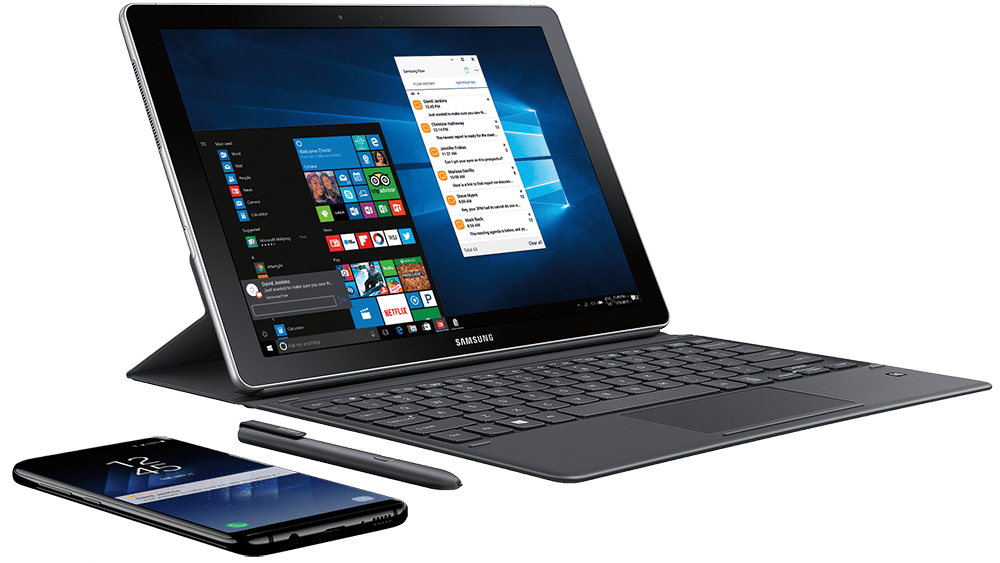
Two months ago at Mobile World Congress (MWC), Samsung revealed the Samsung Galaxy Book running Windows 10. The Surface-like device was exhibiting Windows 10 as a 2-in-1 with support for S Pen. Yet, we still knew little about the device in full. Today, Samsung’s press release has brought much of the details to light.
As Neowin reports, the Samsung Galaxy Book with Windows 10 will be available in two sizes: 12-inch and 10.6-inch. Here are the specifications:
The smaller of the two will be starting at $629.99. What really sets the 12-inch model apart is the availability as an LTE device. The added capability to connect to wireless networks places it slightly more expensive at $1,299.99 whereas the Wi-Fi model will be sold for $1,129.99.
Galaxy Book LTE will officially be available at Verizon Wireless locations starting April 21. Similarly, the Wi-Fi version will begin pre-orders the same day with a global release on May 21.
Looking to start working on your own mixed reality project? While they aren’t about to give you a full crash course on the details for creating holograms, the Windows Apps Team has put together a blog post that explains just how you can get started. It’s chock full of the important fundamental concepts, lots of code, and all of that good stuff that you need to get started with your adventure in the world of mixed reality.
While the post doesn’t go terribly in-depth into the technical details necessary to get cracking, it reveals a few good resources that aspiring HoloLens developers can look to. Even if you don’t think you’ll be tinkering with mixed reality in the near future, it’s a pretty nice read. Invoking the holographic inspiration that Star Wars gave to kids back in 1977, the piece gets to the heart of why we’re all so excited to go on this journey in the new frontier of technology.
Readers will mostly be taught about “Telepresence” apps – the sort of things that you’d use a Kinect for, which interface with movements being made in front of a camera. It goes over how to integrate Kinect with Unity, getting used to things like the HoloLens-Kinect project, and quaternions – something that is, apparently, extremely important to 3d programming. (They’re likened to Midichlorians in Star Wars. “They are essential, they are poorly understood, and when someone tries to explain what they are, it just makes everyone else unhappy.”)
If you’re interested in being a part of the future of mixed reality apps, give it a read. It’s never been a better time to get into this tech.
As an Xbox Insider, gamers have access to loads of features that other Xbox fans don’t. The idea is to test these features and provide feedback so that the Xbox team can tweak them. But when it comes to custom avatars, the long outcry has transcended the opt-in requisite.
Today, Larry Hyrub a.k.a. Major Nelson pointed out that Xbox fans could upload their own custom avatars without being an Insider. With just the Xbox beta app from the Windows 10 Store, users are capable of submitting pictures that they want to be attached to their Gamertag.
To do so, open up the Xbox beta app and navigate to your profile. Click on Customize, then hover over your current avatar to edit it, as you would normally. At the top left, there will be a button to ‘Choose a Custom Picture’ that lets you upload from your own files.
The only restriction so far seems to be that the image must be over 1080 x 1080 pixels large. Both PNG and JPG work, even so much as allowing you a transparent image. After submitting, a brief message will pop up reminding the player that they’ll see the image once it has been verified. Currently, the process seems to go pretty fast as the image almost immediately appeared on the profile.
It’s worth noting that this feature is also available through the app on mobile too. So if you aren’t an Xbox Insider but want to add custom profile pics and prompt all your less informed gaming friends to ask how you did it, now you can.
Geared towards teaching developers how data can impact their apps and services, the Microsoft Data Amp event hosted today tossed in a bit of news of its own. The free online webinar showcased the future of machine learning, including announcing SQL Server 2017, releasing the Cognitive Services: Face API to developers, and the general availability of Azure Analysis Services as of today.
The SQL Server 2017 is the next step for developers to get their hands on machine learning functions. It includes Python support (including Python/R) and has the ability to take on data intensive computing. The SQL Server 2017 Community Technology Preview (CTP) 2.0 release can be downloaded as of today for Windows, Linux, and Docker.
But that wasn’t the only big announcement for developers. Another included the release of Azure Analysis Services into general availability today, making complex data into actionable insights. Furthermore, the Cognitive Services Team released the Face API, Computer Vision API, and Content Moderator tools to developers as well.
Face API detects human faces and compares similar ones, organizes people into groups according to visual similarity, and identifies previously tagged people and their emotions in images.
Computer Vision API gives you the tools to understand the contents of any image. It creates tags that identify objects, beings like celebrities, or actions in an image, and crafts coherent sentences to describe it. You can now detect landmarks and handwriting in images. Handwriting detection remains in preview.
Content Moderator provides machine assisted moderation of text and images, augmented with human review tools. Video moderation is available in preview as part of Azure Media Services.
This is the same API that online adult services have already adopted. The porn industry was quick to pick up on using the same face tracker, offering to search for ‘lookalike’ matches for their customers. But that isn’t the only use for the Face API. Now it is able to collect the emotion of the facial image ranging in decimal probabilities from anger, contempt, disgust, fear, happiness, neutral, sadness, and surprise. This is on top of collecting an estimated age, gender (mostly assumed by facial hair attributes), facial points, and head pose.
A new release of the Microsoft R Server 9.1 was also highlighted during the Data Amp event. The pre-trained neural network models support Sparkly R, SparkETL, and Sparks SQL as well as CPU support for neutral networks. Web management was also made more secure with better permissions for admins to distribute.
All in all, today was a victory for developers that no doubt are excited to get their hands on these tools from Microsoft. If you’re a developer, we’d love to hear about which announcement excited you more. The full video replay is available on MSDN.
Microsoft is well known for its consumer products, including Surface and Xbox, but the company also is into big data and cloud computing thanks to its Azure web services. In fact, the cloud division of Microsoft has seen some heavy growth with current CEO Satya Nadella, bringing the company $6.9 billion in revenue in the second quarter of this year. Even with this so, former Microsoft CEO Steve Ballmer believes that Azure has “a lot of work to do,” but is still in good position to take on Amazon’s cloud computing services (via CNBC.com)
In an interview with CNBC on Tuesday, the former Microsoft CEO discussed Microsoft’s Azure services, saying that “with Office 365 and Azure, the company’s got a real shot but not a birthright.” His other comments in regards to Azure can be seen in the excerpt below.
“I think the company is well-positioned, on the other hand (there is) a lot of work to do…I think that on the cloud side with Office 365 and Azure, the company’s got a real shot but not a birthright. They are going to have to push very hard with Azure versus Amazon Web Services… With Amazon Web Services, Azure is the challenger, it has only one way to go, which is up. With Office 365 there is more upside than downside, and that’s a Google risk. “
Interestingly, the former Microsoft CEO also remarked that he is “most pleased” with Surface, saying that the Microsoft Surface hardware division “progressed nicely.”
He even revealed to CNBC that he keeps in touch with Current CEO Satya Nadella and “fires off essentially product feedback” in Skype or “one of the other products.” And, since Ballmer still holds major shares in Microsoft he also revealed that he is “delighted” with the place of Microsoft stock, though he did make “some adjustments” to help with this philanthropic efforts.
It’s already been more than a week since the Windows 10 Creators Update rolled out of the Microsoft’s factory. It seems that opinions are divided. Feature-wise, this may be the best update yet. However, when it comes to all-around stability, there are some arguments against the latest update.
Now, software-related issues are problematic but solvable. However, what if some of the components of the Creators Update heat up your CPU for no apparent reason? Well, then you can be in all kinds of trouble. Over time, the overheating can cause critical PC damage and, eventually, lead to a CPU malfunction. Even though the CPU is a quite resistible component, it’s not fireproof.
Since we can’t be sure what causes the hardware load, there are some generic workarounds you may use to relieve the CPU of the pressure. So, in case you’ve run into overheating issues after the Creators Update, check the solutions below.
How to resolve high CPU temperatures in Windows 10 Creators Update
Check the fan
First things first. In order to exclude the hardware, you’ll need to check your cooling fan and the thermal paste. The dust or the small bits of fleece can heavily affect the cooling fan performance. That way it’ll have a hard time cooling down your CPU. Make sure to clean it properly and then check for temperature changes.
Another thing you should do is checking the thermal paste. The thermal paste is placed on the CPU and it protects it from overheating. In case you haven’t applied the fresh thermal paste in a while, your CPU may show gradually higher temperatures.
Update BIOS
If everything is on point within the hardware department, we can move on to software tweaks. The next on the list is BIOS update. Updating your BIOS is not exactly hard but it can also lead to a lot of issues if the procedure is unexpectedly interrupted. After you found out that there’s a new version available, you can move on to flashing. There are two ways to upgrade your BIOS:
Within the BIOS. The option should be available for modern motherboards.
With third-party tools for older motherboards.
Either way, don’t turn the power while the procedure is running. Since the procedure depends on your motherboard, you should search for the additional information before the update.
Turn off integrated GPU in BIOS
For those with dual-GPU, the problem is often caused by the integrated GPU. Namely, since the integrated GPUs temperature is measured by the motherboard, on some occasions the readings can get mixed up. So, if you’re not in need of using the integrated graphics card, you may as well disable it.
Some users tried to do so within the system, but that will only relieve you of software support, and not completely shut down the GPU usage. So, you’ll need to do it within the BIOS settings. Since the procedure differentiates from PC to PC, you can look up for the steps online for your respective configuration.
Check for memory leaks
There’s a chance that some app or program causes memory leaks in your system. Memory leaks usually affect your computer’s performance, by slowing it down. However, it can play a big role in CPU overheating, as well. We have a huge article about memory leaks and how to deal with them, so make sure to check it out, to eliminate them from the list of possible issue-triggers.
Perform a clean reinstallation of Windows 10
At the end, if the problem is persistent, you should wipe out everything and perform a clean reinstallation. There’s a chance that something went wrong with the previous installation or some background process isn’t working as intended. Anyway, you can easily perform reinstallation with the Windows Media Creation tool that can be obtained here. Still, if you’re not sure how to do so, you can find the detailed explanation in this article.
That should do it. In case you have an alternative way to sort this out, or a question related to the subject, make sure to tell us in the comments section below.
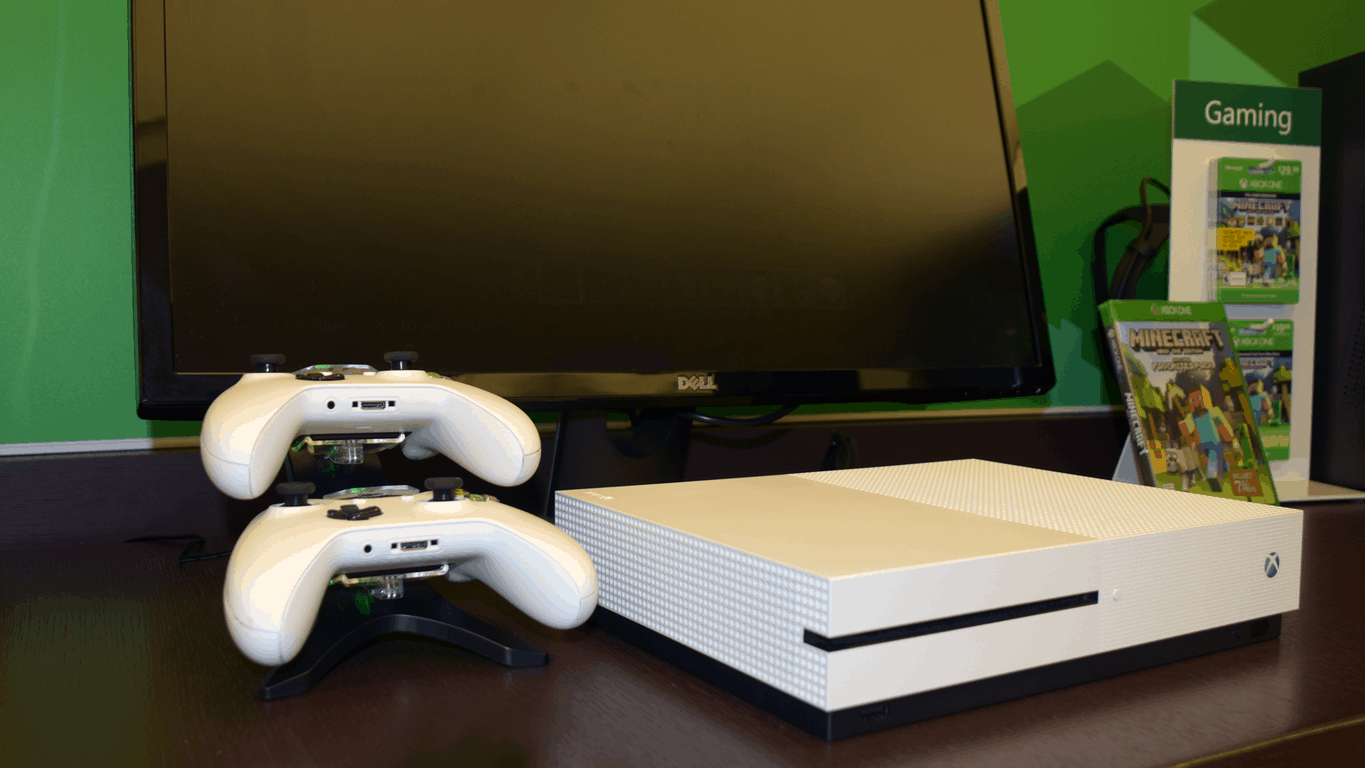
Want an Xbox One? Not sure? Well, you’d better make a decision quickly – because possibly the biggest deal on the console to come out so far this year is going away very quickly. The deal on offer from Dell is an Xbox One S 500GB, bundled with Minecraft. The price? Just $220. That shaves off well over $100 from the average price you’d be paying for this bundle.
As of the writing of this article, the deal is 84% claimed, so it’s going fast. If you’ve been dying to get your hands on an Xbox One, you ought to see if you can take advantage of this sale. You probably won’t get a better opportunity for quite a while.
Microsoft today announced a “Power Throttling” feature for Windows 10 Insiders running build 16176. The feature leverages “modern silicon capabilities” and helps Windows “run background work in a power-efficient manner,” enhancing battery life significantly while still giving access to the much-beloved multitasking capabilities of the OS.
According to Microsoft, “Power Throttling” is currently available only for processors with Intel’s Speed Shift technology, such as Intel’s 6th-gen (and beyond) Core processors. The company is working on expanding support to other processors as well in the coming months. Here is a look at how the feature works.
To give great performance to the apps you’re using, while at the same time power throttling background work, we built a sophisticated detection system into Windows. The OS identifies work that is important to you (apps in the foreground, apps playing music, as well as other categories of important work we infer from the demands of running apps and the apps the user interacts with). While this detection works well for most apps, if you happen to notice an app that is negatively impacted by Power Throttling, we really want to know!!
As noted in the flight notes for build 15014, the feature works by using a Power Slider. Microsoft notes that “Windows will keep the processor in its efficient ranges when you’ve selected “Battery Saver” or “Recommended” and turns off completely when you’ve selected “Best Performance.” You also can opt individual apps out from “Power Throttling” by doing the following.
Go to Battery Settings (Settings > System > Battery).
Click on “Battery Usage by App”.
Select your app.
Toggle “Managed by Windows” to “Off”.
Uncheck the “Reduce work app does when in background” checkbox.
This news comes after the company announced experimental battery life improvements in Windows 10 build 15002 back in January of this year. According to Microsoft, “Power Throttling” was part of the experiment in build 15002, and showed “up to 11% savings in CPU power consumption for some of the most strenuous use cases.” The Redmond giant is also “hard at work” making improvements on the feature, and invites you to provide feedback by running the Feedback Hub and file feedback under the Power and Battery > Throttled Applications category.
Streaming any game via Beam on Windows PC has never been easier courtesy of the Windows 10 Creators Update. In order to start streaming, you simply have to log into a few apps, launch a game, and click the broadcast option.
Prior to starting a game broadcast, check if the app works in the game bar. It is compatible with any game that runs in windowed mode, UWP titles, and a few Win32 games. To check a game’s compatibility, press Win+G and open the game bar. Everything should work fine if it shows up. To start streaming, follow these steps:
Visit your Xbox privacy settings and enable broadcasting. To do that, sign in to your Xbox account, go to the Xbox One/Windows 10 tab, and search for the “broadcast gameplay” option.
Open a game and click the Windows key and G together to launch the game bar. You can also push the Xbox guide button on your controller.
Click the broadcasting icon and agree to the terms and conditions for Beam.
Make your own configurations, if you so choose, and click “Start stream.”
Beam is of value mostly to gamers, allowing other people to watch them as they’re playing. Perhaps Microsoft will extend the functionality of this feature to other areas in the future.
Are you using Beam in the Creators Update now? What is your experience so far? Let us know!
Not so long ago, you may remember that Microsoft promised Office 365 customers that they would get unlimited cloud storage on its OneDrive service. Unfortunately, the company later backtracked on this promise, explaining that it needed to guarantee its customer that it could “sustainably operate OneDrive in the future.”
Yes, data storage is expensive, and Microsoft is actively trying to find ways to do this more effenciently. And as it turns out, the next technological breakthrough in this field could well be using DNA for digital data storage, which is something that Microsoft is very interested in. Indeed, the company partenered last year with the University of Washington and Twist Bioscience, a company that produces “synthetic DNA” that can store digital data very efficiently.
The Redmond giant seems to be excited by the results so far, as Twist Bioscience announced yesterday that Microsoft had just purchased another 10 million DNA strands to pursue its research (via ZDNet). “After working together for over a year, the organizations have improved storage density, thereby reducing the cost of DNA digital data storage by encoding more data per strand and increasing the throughput of DNA production,” explained Twist Bioscience in the press release. Storing data on synthetic DNA may well sound very abstract to you, but Luis Ceze, Professor of computer science and engineering at the University of Washington’s explained that its much more efficient than current storage technologies:
Importantly, not only does DNA provide a high density, very long-term solution to digital data storage, it requires very little energy at rest compared to today’s storage technologies. In addition, DNA will never become obsolete as an information storage medium, since we will always care about reading DNA. No more migration from disk to tape to denser tape.
Last year, the research led to a first breakthrough after Microsoft announced in July that it had succeeded to store 200 megabytes of data on synthetic DNA strand “much smaller than the tip of a pencil.” However, the company is well aware that the research is still at early stages. “There are still many challenges in making DNA storage mainstream, though we are encouraged by the work we have completed to date,” said Karin Strauss, Ph.D. and Senior Researcher at Microsoft. “Demand for data storage has been growing at break-neck pace. Organizations and consumers who need to store a lot of data – for example, medical data or personal video footage – will benefit from a new long term storage solution. We believe DNA may provide that answer,” she added.
Verizon today announced that they will be extending their partnership with Microsoft to provide Azure-based CDN. Under the partnership, Azure Storage will be available to all Verizon Digital Media Services Edgecast Content Delivery Network (CDN) users, providing “resilient, infinitely scalable object storage that is ideal for media and metadata” (via marketwired.)
According to the press release, Edgecast CDN customers can “take advantage of Azure Storage as part of one single solution from only one vendor.” With this one easy-to-manage contract and support system, content providers will be able to, “maximize the impact of their technology and spend with confidence in the quality and performance of both their storage and content delivery network.” In a statement, Kyle Okamoto, chief network officer for Verizon Digital Media Services remarked on the extended partnership.
“We are pleased to work with Microsoft to now give our Edgecast CDN customers streamlined access to a trusted and exceptionally robust cloud storage service… We value Microsoft’s continued investment and innovation in cloud technology, which complements our commitment to providing our customers with optimized solutions that meet the increasing demands of today’s media landscape.”
Verizon Digital Media Services and Microsoft have customized application programming interfaces within each other’s platforms, as well as some highly integrated network interconnections. A number of Microsoft services including Xbox and Skype, utilize the Edgecast CDN. In the words of Tad Brockway, general manager, Azure Storage at Microsoft Corp:
We have enjoyed a mutually beneficial relationship with Verizon Digital Media Services throughout the years and are delighted to expand upon our effort… Offering access to Azure Storage on the Edgecast CDN brings fast, dependable and easy-to-manage solutions to even more content owners and providers
Interested parties can learn more about the extended partnership by visiting this website. Once you’ve checked it out, let us know your thoughts in the comments below!
Not too far back in Microsoft’s past, a man named Charles Simonyi was the head of Microsoft’s application software group. One of his jobs was to oversee the development of Office suite favorites such as Excel and Word. Fifteen years after splintering off to his own company Intentional Software in 2002, Microsoft has signed an agreement to acquire it, and bring Simonyi back to the company.
Simonyi originally led a Microsoft Research project exploring how to develop with ‘intentional programming’. The software, in theory, would use source code that detected the intentions of the user, making it easier to create and maintain computer programs with a modular code.
However, Microsoft took a different route with their developments. The paradigm was so important to Simonyi that he eventually left the Redmond giant to respectfully pursue it alone. Now, Microsoft is welcoming back the former lead employee along with the purchase of his company.
According to the announcement, Microsoft intends to use the acquired productivity software to develop on their own further.
This acquisition will build on the work we’re already doing to deliver the tools necessary to be productive in an information-rich world. Intentional Software’s technology and talent will enhance our existing capabilities and strengthen our ability to add new tools and services to Microsoft’s robust productivity offering.
Charles Simonyi himself described himself as “excited, stoked, amped, and elated to join forces again with Microsoft” in his press statement. He also noted that the deal had already been a collaboration two years in the making and that much of his team at Intentional Software will be joining him in the transition.
Microsoft’s renewed interest in intentional programming will have applications that we can’t possibly foresee yet. However, one example is the development of pen computing in which Simonyi described as interacting with the documents instead of the apps with implied ontology. “It will amount to reinviting productivity itself,” he explained, citing new capabilities such as machine learning and knowledge representation that weren’t available over a decade ago.
Microsoft Edge, the new web browser that ships with all Windows 10 PCs, is clearly much better than its predecessor, the often criticized Internet Explorer. However, after nearly two years in the market Edge still remains a young browser which has yet to be massively embraced by Windows 10 users: last week, Microsoft exec Joe Belfiore acknowledged that “in the browser scheme of things, we have room to grow.”
If improving Edge is certainly a big focus for Microsoft right now, the company also wants you to know that its new browser is already a great platform to build web-based tools. Indeed, the Redmond giant announced today that it has partnered with CHOICE Humanitarian to create Accent, a browser-based solution to learn to read and write Spanish. The non-profit organization is currently testing Accent with the Q’eqchi’ women of Guatemala, who can’t read and write in their own native language but want to learn Spanish to improve their economic opportunities.
The app leverages some of Microsoft Edge’s unique features that allow Q’eqchi’ women to draw on web pages and drag and drop letters objects very easily. More importantly, CHOICE Humanitarian’s Francesca Perkins describes Accent as an “open-source, scalable solution to literacy” that works both online and offline. Divya Kumar, Microsoft Edge Product Marketing shared some additional details:
Working with CHOICE, we utilized the native support for touch and inking in Microsoft Edge to build an interactive curriculum for their literacy program and helped them deploy the platform for the first time to the women in underprivileged regions in Guatemala. We worked very closely with CHOICE to create a solution that empowers their mentors to continue to expand and scale Accent with new courses, new languages and new skills without needing programming expertise. We are extremely excited to contribute to the CHOICE work to eradicate poverty through literacy worldwide.
In the future, CHOICE Humanitarian plans to use Accent in all seven countries where it operates. “We are also thrilled that other NGOs can use this tool to support their own literacy goals,” added Leah Barker, CHOICE Humanitarian CEO. Microsoft Edge may not be the most popular web browser out there, but it’s still nice to see that it can help Microsoft succeed in its goal to empower everyone to achieve more.