While PC scanners cannot fix issues once they detect the problems on your machine, they offer a way to help you address the trouble. One such tool is the Kaspersky System Checker 1.1.0.228.
Kaspersky System Checker is portable freeware that scans your computer for potential issues, including things like malware and out-of-date programs to more mundane issues like not having enough hard drive space and having wrong Windows configuration or application settings.
After downloading the software, run the program to scan your machine by clicking the Run Diagnostics button. The tool lets you monitor everything happening with your PC through a logging pane.
After a less than five minute scan, the program lists major issues in the Detected Items pane. It may also include a list of passed tests where no malware was detected or no PC issue was found. Critical items are marked in red and mild issues are represented by blue.
It’s worth noting that the scanning process requires an internet connection to work. For your privacy, the program does not send dump files or traces to Kaspersky without your consent.
Kaspersky System Checker, however, can produce vague results after the scan. For example, the first result says the display of known file type extensions is disabled.
Malicious software often masks its executable file by giving it the appearance of popular file formats (documents, images, music, movies, etc.), replacing the icons for these categories. When display of a known type of file extensions is disabled, the file “image.jpg____.exe” appears to the user as “image…”. Thus, the user can run a malicious program that allows an intruder to gain control over the system and user data.
The other results are ambiguous as well, as shown in the screenshot above. Fortunately, other results indicate clear details about the problems on some of the programs on your PC. For instance, Kaspersky System Checker found vulnerabilities in Photoshop CS5 and 7-Zip during our test. Still, the program does not give actionable information on the problems it finds.
Those keeping up with Microsoft’s updates for Windows 10 are certainly familiar with Patch Tuesday, and today we got the latest installment for both the PC and Mobile versions of Windows 10.
Both platforms are now updated to Windows 10 14393.693, also referred to as KB3213986. Before you get too excited, we aren’t looking at anything major here, just a regular “bug fixing, feature tweaking” patch. That doesn’t mean that it’s not worth your while or useful, though. Media playback has been strongly improved in this update, as well as the playback for Groove Music while in the background.
Here are some of the more important changes that users can expect from the update:
Groove Music background playback stability increased;
Multiple input devices of the same type will now be detected simultaneously;
Enhanced Protected Mode no longer hinders the functionality of opening URL files;
Server Core problems while switching from evaluation to retail version were looked into;
Remote Assistance should now work with Request Control while using Windows Server 2008 R2 (Windows Server 2012 as well).
Remember, we are talking about a Live patch, not a Windows Insider program build, meaning that these fixes were investigated and addressed so that users shouldn’t have to experience any additional issues regarding these same problems. As long as you are using Windows 10 on either a PC or Mobile device, you are free to download this update. The Anniversary Edition of Windows 10 is also included on the list of eligible platforms.
When it comes to Windows 10, enhanced security features such as Device Guard are one key reason that many business and organizations from across the globe are putting their trust in Microsoft’s operating system. A new report out by enterprise software company 1E, however, finds that half of Windows 10 business migrations could be leaving machines at risk (via Business Wire.)
While 1E is known for selling solutions for automating clean installs of Windows, their report still points out that in-place upgrades to Windows 10 may be leading many organizations to miss out on enabling advanced security features. For instance, the report highlights that an in-place upgrade fails to provide the full suite of Windows 10 security features including Secure Boot, Device Guard, and biometric authentication.
Funny enough, the survey in the study also found that of the more than 500 U.S. IT decision makers, 47 percent believe that security is the single biggest driver behind an enterprise moving to Windows 10. Other interesting points in the study include the following:
A clean install delivers those benefits but with traditional approaches, it needs a lot of manual intervention. That puts a load on busy IT teams, it interrupts end-user’s work and can’t be scaled to handle thousands of machines in hundreds of locations.
Even though the majority of respondents are taking the in-place update route which, in theory, should eliminate the need for manual intervention, that doesn’t seem to be the case. 94% say they still expect to perform some manual steps. That could be arranging for an IT expert to visit every desktop or having those systems handed over to IT to perform the update. Either of these options are expensive in terms of staff time and interruption to business.
Human intervention is the key limiting factor to how fast you can roll out Windows 10. It’s easy to work out: How many systems
can each person update per day and scale that up to your total number of systems. Automation and zero-touch processes are critical to success.
The longer the project takes, the more risk your systems are exposed to as well as increasing numbers of dis-satisfied end users.
Do you agree with the findings in this report? Or do you think that your organization is more secure with Windows 10? Let us know your thoughts!
The Live stream will run on February 8th, and is focused on what’s new for developers in the Windows 10 Creators Update. By watching the stream, developers can see what the Creators Update has in store for their apps, games, and more. The stream will be hosted by Kevin Gallo, and will feature other members of the Windows engineering team. Other topics covered in the stream include:
What’s new with Windows developer tooling: UWP tooling, BASH, Developer mode, and more.
Learn about the latest XAML advancements and how UWP helps you build Windows apps that are more personal and productive
Hear the developer story behind the recent announcements of Cortana skills and the new Windows mixed-reality headsets.
According to Microsoft, the stream will then end with a live Q&A panel which will answer other remaining questions. If you’re a developer and would like to tune into the live stream, you can RSVP by visiting this website now! Once you’ve RSVP’ed please do let us know which part of the program you look forward to the most.
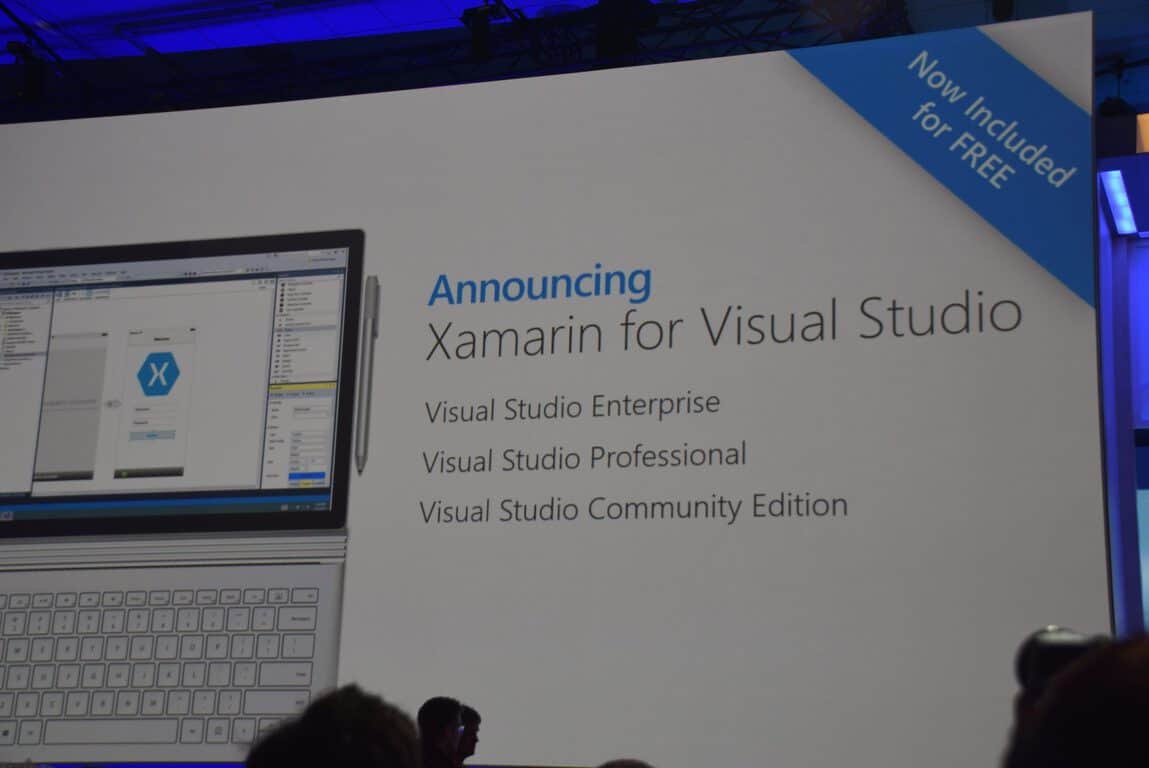
Xamarin has announced a new release candidate for cross-platform development and you can try it now. The new release brings features to all platforms, including Android, iOS, Mac, Visual Studio, and Xamarin Studio.
The new additions to this release candidate include a Forms Previewer, multiprocess debugging in Visual and Xamarin Studio, Connected Services and .NET Standard support, and NuGetizer3000. Please have a look at the official descriptions of the features below.
Forms Previewer:
The Xamarin.Forms Previewer renders a live preview of a page side-by-side with the XAML markup, allowing you to see your user interface come to life as you type. With this release, we’re promoting the Xamarin.Forms Previewer feature to stable and bringing many enhancements to it to increase the range of supported controls and XAML constructs.
Multiprocess Debugging:
Visual Studio and Xamarin Studio now allow you to launch and debug multiple projects at once, giving you the ability to debug, for example, a phone and a companion watch app at the same time. Multiprocess debugging works just like single-project debugging—you can set breakpoints, add watches, view locals, and inspect variables—and will seamlessly jump back and forth between each process.
Connected Services and .NET Standard support:
This RC introduces the ability to log in to Xamarin Studio with your Microsoft account. This enables Xamarin Studio to provide you with several benefits, including the ability to provision new Azure App Services with our Connected Services feature and automatic subscription management—no more need to have both a Xamarin account and a Microsoft account!
Xamarin Studio’s new Connected Services feature brings cloud capabilities, such as data storage and authentication with Azure Mobile Apps, to your mobile app with the click of a button. Adding a service to your project will add all required dependencies and any required initialization code to your mobile targets.
Xamarin Studio can now load projects that target the .NET Standard framework (or .NETPortable,Version=5.0). The Project Options panel for Portable Class Library (PCL) projects allows you to switch back-and-forth between PCL and netstandard code sharing projects.
Other notable features in this release candidate include the NuGetizer3000, which aims to help you create your own, with integrated IDE support and build tooling for creating NuGet packages. To get this Release Candidate now, nonetheless, you can click this link for Mac, and this link for Windows. Once you’ve checked it out, let us know what you think by dropping us a line below.
The Motor City is welcoming a new tenant, according to businessman Dan Gilbert, and that very well could be Microsoft (via Detroit Free Press.)
During a fireside chat with Gilbert, the billionaire founder of Quicken Loans, he hinted to the press about a new tenant that was worth uprooting even some of his own employees in downtown Detroit.
“We have a 50,000 square-foot tenant we’re announcing in a week or so, and we have to displace Quicken Loans employees and we have to put them somewhere else,” Gilbert, Quicken Loans founder and chairman, said from a Cobo Center stage.
Detroit Free Press reports that their anonymous real estate source is pointing the finger towards Microsoft. The speculated move from Southfield Town Center into the heart of Detroit could be related to the development of connected cars we saw at CES 2017 just last week. Supposedly, it’s been something the office had been considering “for months”.
For now, it is only speculation and rumor that the Microsoft office is moving at all. Even the exact location is a bit obscure since Gilbert owns multiple downtown Detroit buildings. Neither Gilbert or Microsoft have made an official statement to prove or disprove the source.
We’ll keep you up to date on more information as it becomes available so watch OnMSFT follow us on Twitter.
In 2015, the Swiss Federal Data Protection and Information Commission started an investigation of Microsoft’s Windows 10 operating system and found data protection gaps under Swiss law. Today it was announced that Switzerland’s data protection czar will not take Microsoft to court after the company agreed to adopt recommendations for improving data processing transparency for its Windows 10 operating system (via Reuters.)
The issue at heart in the situation is Windows 10’s “get going fast” option during installation, which automatically activated nearly all data transfer and access processes and sent location details, browser and search history, keyboard entries and nearby WiFi networks automatically to Microsoft. According to Reuters, the Switzerland government investigations found that “this data processing in connection with Windows 10 did not conform in every respect with the data protection legislation.”
Since then, however, Microsoft has announced a new privacy dashboard and a new privacy setup experience in Windows 10. And, as a result of these recent developments, and proposals which were made by Microsoft to the commission and agreed to after adjustments, the Switzerland government agency has decided that “there is no need for court proceedings.” They went on to say in a statement:
“The technical implementation of the modifications requested by the FDPIC will be carried out worldwide as part of the two Windows 10 software releases planned for 2017.”
A Microsoft spokesman, meanwhile, appreciated the opportunity to discuss Windows 10 with the Swiss Data Protection Authority. A statement from the spokesman reads:
“As a global business, Microsoft is committed to complying with all applicable laws in the countries in which we offer our services and products.”
Do you think this latest news is good for Microsoft? Let us know what you think by dropping us a comment below!
Microsoft Teams was first unveiled by Microsoft at an event in New York City back in November of 2016, and the group collaboration service has yet to get to the general public, but it would appear that it is becoming more popular and is catching up to the competition. A new study out by IT network Spiceworks which was noted by GeekWire has found that Microsoft Teams is expected to pass Google Hangouts and Slack for enterprise chat.
Usage of Collaborative Chat Apps
According to the study, which surveyed IT pros, Microsoft’s Skype for Business application is the most commonly used apps for collaboration inside businesses, with a total of 36% deployment. Google Hangouts and Slack followed next with deployment rates of 16% and 13 %, respectively. The study, however, also found that 17% of surveyed businesses have plans to deploy Microsoft Teams in the next two years and that only 3% of surveyed businesses currently use Microsoft Teams. The study reads:
If these plans hold true, Microsoft Teams will be the second most commonly used messaging platform in the workplace by the end of 2018, surpassing Slack and Google Hangouts, and coming in behind only Skype for Business…This bodes well for Microsoft, who owns Skype, and could speak to the fact that Microsoft Teams is free to use for companies that subscribe to Office 365.
Deployment Plans for Collaborative Chat Apps
Microsoft Teams is currently available in a preview to eligible Office 365 commercial customers in 180 different countries, and is expected to become generally available in the first quarter of the calendar year 2017. It will be interesting to see if these predictions hold up as the service rolls out to a more wider audience of businesses. As always, please do let us know what you think of this latest news by dropping us a comment below!
The Windows 10 Weibo app has updated with added support for Microsoft’s Xbox One video game console. Weibo is a hugely popular social network in China and kind of works like a combination of Twitter and Facebook. Microsoft even runs an official Xbox Weibo account and it’s worth checking out for those that can read Traditional Chinese or have an interest in the brand’s activity in China.
Here’s the official description for the Windows 10 Weibo app:
Weibo is the official client of Weibo for Windows Phone. Weibo, an informal mini-blog product, is a latest Internet service that publishes information instantly. It is also recognized as the user-active communication media. Weibo, innovated by Sina Corporation (NASDAQ: SINA), is the new inter-active application that will be widely used, fast spread and it surely will be distinguished to the world.
For users who have already downloaded the app on another device, Weibo should show up in the “Ready to install” list in “My games & apps” on the Xbox One console. For new Weibo users, the app can be found by doing a search for “Weibo” in English in the Store tab. Be warned that the app’s name is written in Traditional Chinese so look for the logo (above) in the search results.
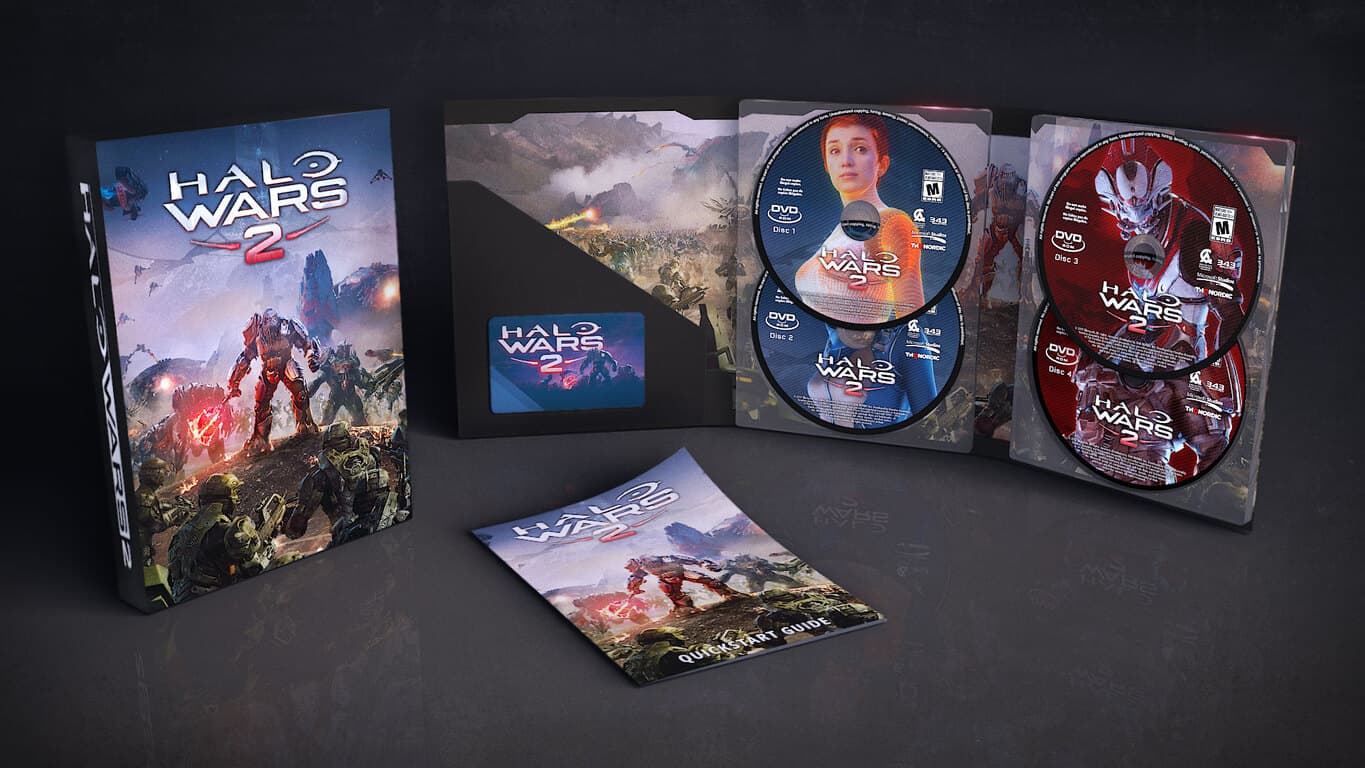
Through a collaboration with THQ Nordic, Microsoft Studios and 343 Industries’ upcoming video game, Halo Wars 2, will be getting a physical disk release in stores alongside its digital launch in the Windows Store on Windows 10 devices.
There will be physical releases of both the Standard and Ultimate versions of Halo Wars 2 and each will provide free access and cross-save capability for the Xbox One version via a digital access code and Microsoft’s new Xbox Play Anywhere initiative.
Founder & Group CEO of THQ Nordic, Lars Wingefors, said of the partnership, “After working on so many titles together with Microsoft in 2016, we are stoked to start the year with another partnership. Being able to deliver such a big franchise to RTS and Halo fans alike, the opportunity to buy and own this game in a beautiful physical shape is something we appreciate a lot.”
The Standard Edition of Halo Wars 2 is planned for a February 21st release while the Deluxe Edition launches on February 17th. Are you planning to buy Halo Wars 2? Let us know if you’re getting the physical or digital version in the comments below.
Microsoft recently rolled out the biggest Windows 10 Creators Update build yet, packing a plethora of new features under the hood. Windows 10 build 15002 massively upgrades Microsoft Edge, making it a fiercer competitor for Google Chrome, letting users group their Start tiles into folders, and adding more capability to Cortana.
Windows 10 builds are rough versions, which means that Insiders should expect to encounter various issues after installing them. Windows 10 build 15002 is no exception and also brings issues of its own.
In this article, we’re going to list the most frequently encountered Windows 10 build 15002 bugs as reported by Insiders. In this manner, you’ll know what to expect and you won’t be taken by surprise should you experience any of them.
I just tried to download this Build and I am receiving the following error: Windows 10 Insider Preview 15002 (rs_prerelease) – Error 0x80070057
We suggest you follow the troubleshooting steps listed in our article on how to fix error 0x80070057 and then try to install the latest Windows 10 build again.
Build 15002 install fails, followed by GSOD
Insiders now have the chance to experience the new Windows 10 Green Screen of Death, although we’re sure this is not something you’d particularly want to see in the new build.
After the first reboot into the upgrade to 15002, computers remain stuck at the Windows logo screen for a few minutes. Then, the GSOD appears with an error message related to driver issues. Try updating your drivers before installing the latest Windows 10 build and see if this fixes the problem.
After the first reboot into the upgrade from 14986 to 15002 My computer sits at the windows logo for about 5 mins then BSODs with an error on the storport.sys driver with stop code DRIVER IRQL NOT LESS OR EQUAL. The event viewer log contains little information […]
Taskbar programs are unresponsive
Insiders report that build 15002 removes the programs previously installed on the taskbar on two-monitor systems. Moreover, the programs that do remain there (Start button, Cortana, Task View, and Date and Time) are unresponsive. The only manner to quickly access your programs is to create desktop shortcuts.
Disconnecting the second monitor and rebooting your system usually fixes this problem. Still, this bug can be quite annoying especially if you really need to use your two monitors at the same time.
Lenovo T420 with 2nd Monitor and Keyboard added for Desktop Work. I installed the new preview version 15002. After completing boot, none of my taskbar programs were on the taskbar. On the taskbar were the Start button, Cortana, Task View, Date and Time only. However, clicking on any of them was useless. They did not respond. So I had no access to any of my programs unless they were on the desktop. […]
I disconnected the 2nd monitor and did a hard reboot. This time everything came up fine. […]
I booted again with 2nd monitor attached. Same problem. I rebooted with 2nd monitor not attached. Everything seemed to work fine except Windows Repair again Blue Screened.
Build 15002 breaks certain programs
Insiders also report that build 15002 breaks a series of programs, such as Quicken 2017, Windows Explorer and the Start menu. More specifically, Quicken 2017 won’t start on build 15002 and displays an error message informing users that Net framework 4.6.1 is not installed. Reinstalling Quicken 2017 and .Net 4.6.1 framework doesn’t fix the problem, either.
The same is valid for Windows Explorer and the Start menu, except for the error message. Users confirm that any attempts to access Windows Explorer, the Start menu or Settings through alternative means is unsuccessful.
Long time user of Windows insider builds, long time user of Quicken. Both have been working well for a long time…After upgrading to Win 10, build 15002, Quicken 2017 won’t start. Error indicates that .Net framework 4.6.1 is not installed.
Websites won’t load in Edge
Windows 10 build 15002 brings a long list of new features and improvements to Microsoft Edge. As a quick reminder, Edge now blocks untrusted Flash content by default, offering users the option to explicitly choose to play it. However, this new feature may also cause various issues on particular websites.
One of the side effects are evident: Insiders report that Facebook won’t run under Edge. The page opens, starts to load and then displays an error page. This issue could indeed be related to the new Flash-blocking feature, but the good news is that Facebook runs fine on other browsers, such as Chrome and Internet Explorer.
Just upgraded to 15002 and Facebook will not run under Edge. It starts to load and reloads, then shows an error page (reload etc…). […]However this is a show stopper for me. a lot of my work is done in Facebooks Website not the crappy App or mobile. […] With Edge out of action (for now hopefully) I’ll need to find another browser to work with and to be honest that was the only reason I used IE or Edge to begin with.
Other users also confirm that Edge loads, but shows only the toolbar and won’t populate any websites. Pages are completely blank where the web page should show.
There are the most common build 15002 issues reported by Insiders so far. If you’ve come across other bugs that we didn’t mention in this article, use the comment section below to tell us more about your experience. Also, don’t forget to use the Feedback Hub to report the bugs to Microsoft.
Scalebound was a game that was anticipated by a whole lot of people and produced by one of the most prestigious names in game development – Platinum Games. Since the game’s announcement years ago its development was rarely talked about, and it only ever got a couple of brief looks at E3 conferences. Just recently, the game was officially canceled altogether.
The cancellation came with something of a nuclear option on Microsoft’s part, which removed mentions of the game from blogs and set all trailers and gameplay demonstrations to “private” on YouTube. Microsoft hasn’t commented yet on why they’ve removed all of these trailers, or why the cancellation happened.
Chances are that Scalebound will remain a memory for Microsoft. Cancellations like this can happen for any number of reasons, but they’re almost always final. Scalebound was looking like it was on the verge of entering “development hell” – that purgatory of eternal revision and financial disaster that did in games like Duke Nukem Forever. If that’s the case, it might be better in the long run that Scalebound didn’t see the light of day.
If you frequently do team collaboration in your work, there’s a good chance you use – or have at least heard of – Slack. The collaboration software has been around for a while now, creating an effective hub for teams that want to collaborate in the most efficient way possible. Now, you can use Slack directly through its own Windows Store app – foregoing the Win32 version.
There really isn’t that much difference apart from the Slack app’s newfound place in the Windows Store. The app was a direct conversion of the Win32 app, meaning it didn’t have to be rebuilt. If you’ve been using the normal Slack app up to this point, you’re going to feel very at home with the new version.
If you’re trying to keep together all of your apps inside the Windows Store, the new Slack app is going to be a good option for you. Otherwise, this doesn’t have much of an impact. The two versions of Slack should stay identical as far as features are concerned.
For some people, shopping is a hobby. For others, it’s a curse. When we do our shopping, we often waste precious minutes searching for all the items we’ve got on our shopping list or standing in line to check out, not to mention that sometimes the sale assistant may not be the nicest person on earth.
Thankfully, there is an alternative to all that which is actually cheaper that the traditional retail shopping. Online shopping saves you the hustle and bustle of holiday shopping, online stores are open 24/7, and reviews help you decide whether a particular product is worth your money or not.
If you’re an online shopping fan or you just discovered this shopping method, you should also check out Google Chrome’s Honey extension. This tool automatically finds and applies coupon codes when you shop online, helping you get the best possible price for the items you want to buy.
Chrome’s Honey extension finds the best shopping coupons
With Honey, you no longer need to desperately search for coupon codes and sales or get frustrated when codes like Novafam 2023 fail to work. This tool does it for you. All you need to do is click on the Honey button on checkout and the extension will automatically apply coupon codes to your shopping cart.
Honey currently supports shopping sites in the United States, Canada, Australia, United Kingdom and India. You can also use it on sites that serve global customers.
Thanks to Honey, you can save hundreds of dollars every year. For more information about the full list of websites Honey supports, you can check out the tool’s official webpage.
Honey is also compatible with Mozilla Firefox and Opera, two other popular browsers among Windows 10 users. It is worth mentioning that Honey uses Google Analytics to collect extension usage statistics.
You can download Honey for free from the Chrome Web Store.
Microsoft has announced two new Xbox Wireless Controller color options, which means you now have more ways to game how you want. The new controllers feature all the benefits of the latest Xbox Wireless Controller, including textured grip, improved wireless range, and Bluetooth technology for gaming on Windows 10 devices, and more.
Xbox One Controller in Red
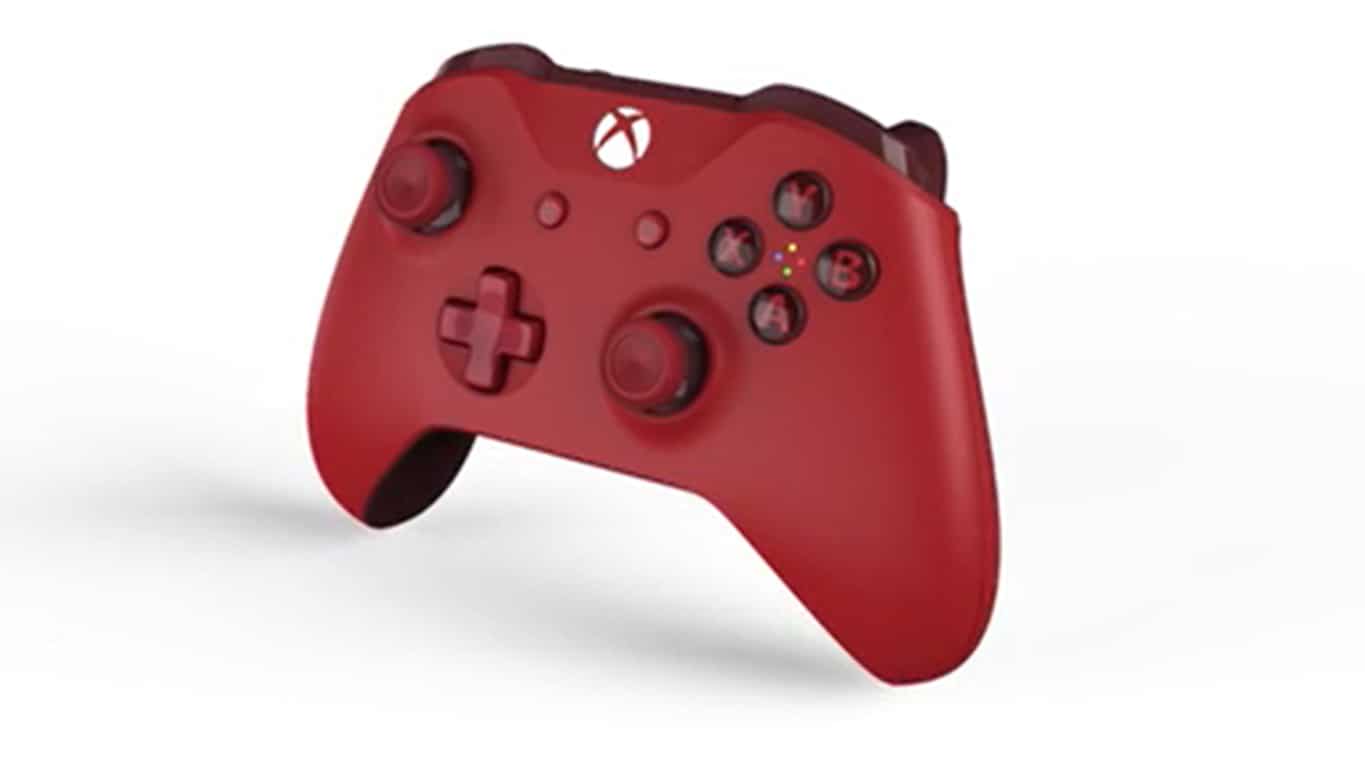
The first is the Red Xbox Wireless Controller that was announced last month is available now in the U.S., exclusively at Microsoft Store, microsoftstore.com, and GameStop, for $64.99 USD. This crimson controller has a two-tone matte red finish, and also features gloss highlights on the triggers, bumpers, and D-pad, as well as behind the thumbsticks.
Xbox Wireless Controller – Green/Orange
Seen above, and available starting January 24th for $64.99 exclusively at Microsoft Store, microsoftstore.com, and Walmart in the U.S. is the Green/Orange Xbox One controller. This controller sports a green matte finish and gloss highlights on the triggers, bumpers, and D-pad, as well as orange accents behind the thumbsticks and will be available at select retailers worldwide starting January 31.
Do you like the new colors on the Xbox One controller? Let us know what you think by dropping us a comment below!
Yesterday, Microsoft rolled out the Windows Insider PC build 15002 which brought a lot of new options in the Settings app. One of the highlights was a new setting to automatically lower the amount of blue light emitted from your PC at night, much like third-party apps like f.lux can do.
This built-in setting is intended to make your computer’s display adapt to the time of day, with warmers colours at night that will definitely be easier to your eyes. But this isn’t just about comfort, as exposure to blue light at night can also be harmful to both your sleep and overall health.
You should probably not stare at so many screens at night.
In an article originally published in May 2012, the Harvard Medical School explained in detail the effects of nighttime light on your health. “At night, light throws the body’s biological clock—the circadian rhythm—out of whack. Sleep suffers. Worse, research shows that it may contribute to the causation of cancer, diabetes, heart disease, and obesity.” More importantly, it seems that blue wavelengths which stimulate our attention and mood during daylights hours can really interfere with a person’s circadian rhythm and melatonin secretion (a hormone that influences circadian rhythms) during nighttime:
While light of any kind can suppress the secretion of melatonin, blue light at night does so more powerfully. Harvard researchers and their colleagues conducted an experiment comparing the effects of 6.5 hours of exposure to blue light to exposure to green light of comparable brightness. The blue light suppressed melatonin for about twice as long as the green light and shifted circadian rhythms by twice as much (3 hours vs. 1.5 hours).
To avoid disturbing your circadian rhythm, the Harvard Medical school recommended to avoid looking at bright screens at night and to use dim red lights for night lights. “Red light has the least power to shift circadian rhythm and suppress melatonin,” explained the article. Fortunately, the Blue light settings in the Windows 10 Preview build 15002 allow you to adjust the color temperature at night, letting you choose warmer colors if you want to.
You can adjust color temperature in the Windows 10 Preview Build 15002.
For now, it’s not clear if Microsoft will also bring this new blue light settings to Windows 10 Mobile, though it would really make sense. For a lot of people, checking our smartphones is the last thing we do before going to bed, and it would be really nice to be able to do so without disturbing our circadian rhythm.
The Wunderlist app on Windows 10 has always been known as a great way for people around the world to capture ideas, things to do and places to see. Unfortunately, ever since 2015 there has been a known issue with the app where the Live Tile would not function properly. Thanks to a tip from our reader Marc we would like to report that the issue has finally been resolved in the latest app update.
While the update has hit Windows 10 PCs, according to Marc the update has yet to arrive in Windows 10 Mobile. Safe to say, nonetheless, that this latest update resolves the issue that has persisted (and annoyed many users on desktop) ever since Windows 10 has been released.
So, if you’re currently using Wunderlist, head over to the Windows Store now and press that update button! Even if not, you can still check out the app via the link below. Once you’ve updated or checked it out, drop us a comment to let us know how the experience is going for you!
Microsoft is consolidating Data Loss Prevention management across Office 365. The announcement is part of a way to protect the sensitive data of organizations and enhance the data loss protection solution in Office 365 to meet the needs of organizations regardless of their size and industry.
In a post on the Office Blog, Microsoft points out three specific areas where Data Loss Prevention management has been unified in Office 365: Unified policy creation, unified reporting, and DLP events in the Activity Management API.
Unified policy creation:
-Now admins can create a single DLP policy in the Office 365 Security and Compliance Center that covers Exchange Online, SharePoint Online and OneDrive for Business. The unified DLP platform allows organizations to manage multiple workloads from a single management experience, reducing the time required to set up and maintain security and compliance within your organization.
Unified reporting:
-Along with unified policy creation, we also now provide a single location to view reports for your DLP policies across Exchange Online, SharePoint Online and OneDrive for Business. This makes it easier to understand the business impact of your DLP polices and uncover actions that violate policies across multiple workloads.
DLP events in the Activity Management API
– Now event details provided via the Activity Management API will contain the same data as the alerts generated in Office 365 to notify IT admins when a DLP event occurs. This data requires separate permissions in Azure AD called, “Read DLP policy events including detected sensitive data,” which an admin can grant
Microsoft also mentions that more Data Loss Prevention measures are coming soon, such as creating custom sensitive types for unified DLP policies and a simplified DLP administrative experience. So, be sure to stay tuned to OnMSFT, as we will be here to cover all your Office 365 news and information.
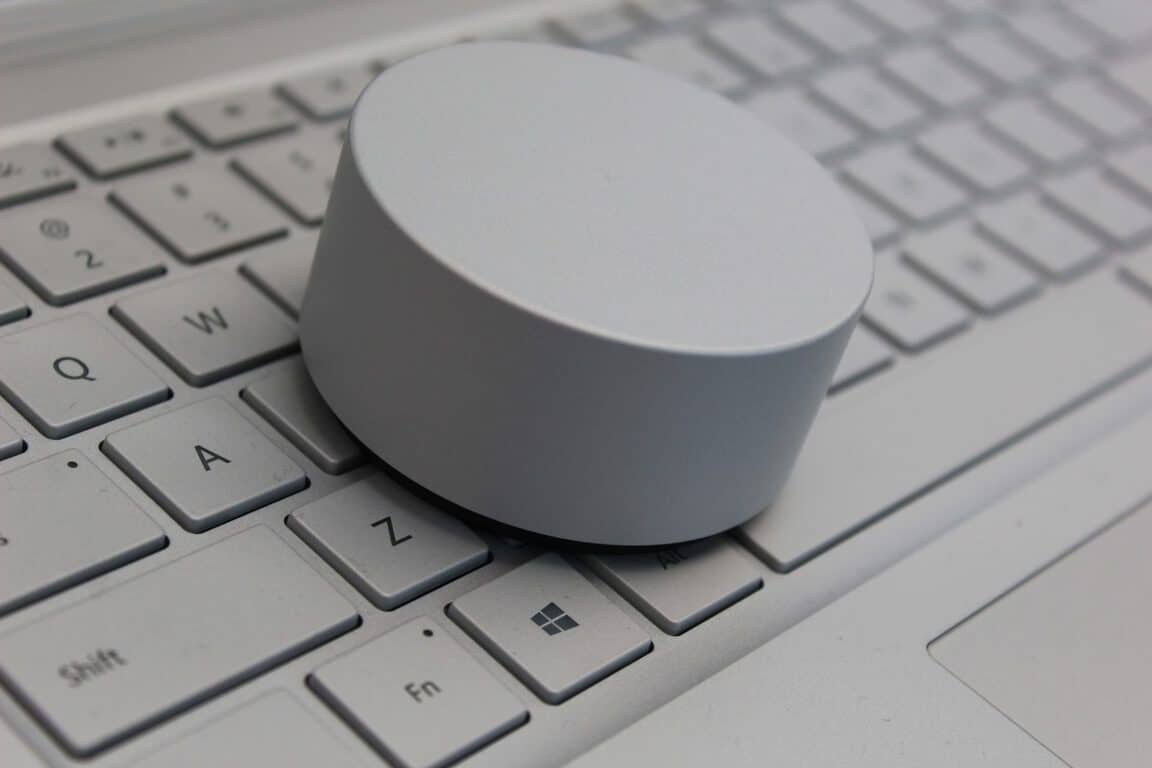
Yesterday was a busy day in the way of Windows 10 news, as Dona Sakar and the Windows Insider team pushed out build 15002 to the computers of Fast Ring users across the world. While the build had many new features on the Start Menu, in Windows Defender, Windows Ink, and inside the Settings menu, we would also like you to know that the latest build introduced new settings options which let you customize the Surface Dial.
According to the Windows Experience blog post, a new screen in the settings menu now appears for those Insiders on build 15002 who would like to customize the default tool set for individual apps. The head of the Windows Insider team explains:
App developers have the option of providing custom tools for the Surface Dial when using it within their app. In addition to this, Windows Insiders with Surface Dials will now be able to customize the default tool set for individual apps starting with this build. Setup the keyboard shortcuts most meaningful for specific apps – like Ctrl + Delete in Word 2016, or CTRL + Tab in Sticky Notes. Head to Settings > Devices > Wheel today to try it out and share your thoughts! We’ve also updated the custom tool creator to now enable you to set keyboard shortcuts that include a number of common symbols.
It is definitely interesting to see more customization options come to Microsoft’s $99 Surface Dial accessory. Let us know what you think of this by dropping us a comment below!
MiTeC updated Task Manager DeLuxe and now it comes with extra CPU statistics, a memory map, disk and I/O charts. We have to agree that any new addition to an application is good, but is it able to keep us away from hacking processes?
When you open the application, you will see information such asname, PID, session, CPU usage, creation time, type, description and many more, which are quite similar with the Task Manager application that any Windows OS version comes with.
However, you will also notice some separate tabs for Windows services, Windows Startup programs, disk I/O, performance, network activity and other basic system details. You can also look for more information about a specific process by double-clicking it. Once you do this, you will notice other details such as loaded modules, environment variables, process handles, security tokens, memory usage and I/O stats.
By using Task Manager DeLuxe, you will be able to view a list of threads and stats on process memory. Unfortunately, you will not be able to view individual thread stacks, particular blocks or the strings they contain. You will not be able to search for open handles or manually close a handle that you find by using any other ways either. The same goes for the Network tab, as you will be able to view open connection, view the details about the owning process, but you will not be able to close a connection manually.
However, Task Manager DeLuxe comes with some strange tools that some of you might like. First of all, you will notice a desktop explorer that is able to display details on processes as you move your mouse cursor over them, like window classes, dimensions, handles, colors and more. At the same time, the application comes with a separate “Windows” tool that will allow you to view any process along with its “child” windows and it can be used to control classes, styles, dimensions and more.
The Session viewer is awesome if you want to see when someone connects and disconnects their desktop from a network or terminal server. At the same time, the new performance graphics are awesome, but not all features that come with it are very useful.
We have to agree that Task Manager DeLuxe is a solid choice for monitoring the processes that run on your computer or for finding out more about what is happening on your computer. The application is free and is available for Windows XP OS and later.
There’s no truth to previous reports that claimed Microsoft would be killing off the Command Prompt in favor of PowerShell once the Creators Update rolls out in April. Rich Turner, senior program manager at Microsoft, busted that myth in a lengthy blog post.
Turner recognizes the Cmd shell’s vital part in Windows. He notes that millions of businesses, developers, and IT professionals across the world use it on a daily basis. More to the point, he states:
Much of the automated system that builds and tests Windows itself is a collection of many Cmd scripts that have been created over many years, without which we couldn’t build Windows itself!
Cmd is one of the most frequently run executables on Windows with a similar number of daily launches as File Explorer, Edge and Internet Explorer!
Many of our customers and partners are totally dependent on Cmd, and all it’s quirks, for their companies’ existence!
The message is clear: Microsoft isn’t getting rid of the Command Prompt “in the near or distant future.” Reports saying otherwise surfaced after Microsoft replaced the Command Prompt with PowerShell in the WIN + X menu, in File Explorer’s File menu, and in the context menu that appears when you click Shift-Right-Click white space in File Explorer. However, some major tech news sites misinterpreted the change that’s coming to the Windows 10 Creators Update.
Turner clarifies that PowerShell is replacing the Command Prompt only as the default command shell from File Explorer. That means the WIN + X menu or File Explorer’s File menu will, by default, present PowerShell instead of Cmd. Nevertheless, users still have the option to add the Command Prompt back to the context menu and Win+X menu in the upcoming Creators Update.
Why the shift to PowerShell
While Cmd will remain part of Windows for a long time, Microsoft sees PowerShell as a more powerful shell – thus its apt name. According to Turner, Cmd has reached a dead end, meaning that Microsoft can no longer improve or modify the shell.
Meanwhile, PowerShell is a new, future-proof shell with more modern features and capabilities. The Windows shell can support the most demanding scripting environments. In fact, PowerShell now extends to the Linux platform and serves as the backbone of the cross-platform Desired State Configuration initiative.
Just in case you haven’t heard about the huge update released into the Fast Ring yet, where have you been? Today, Dona Sarker pushed the big red button and rolled out Windows 10 Preview Build 15002 for PCs. It includes new features for Cortana, lots of new settings options, and more functionality for Microsoft Edge.
However, under the hood, Microsoft has been taking in feedback to improve the update experience overall. One of the most significant of which includes the ability to pause downloads.
Here’s the full list:
We’ve added an option that will enable you to pause updates on your computer for up to 35 days. To pause your machine, go to the Advanced options page of Windows Update Settings. This capability will be available on Professional, Education, and Enterprise editions of Windows.
We’ve added an option that will now allow you to decide whether or not to include driver updates when you update Windows. This capability will be available on Professional, Education, and Enterprise editions of Windows.
We’ve added a new icon to the Windows Update Settings page to make easier to see your update status at a glance. This update status and experience is consistent with the experience you’ll find in the new Windows Defender dashboard.
We’ve made some improvements to our logic to better detect if the PC’s display is actively being used for something, such as projecting, and avoid attempting to restart.
Windows Insiders with the Home edition of Windows will now also be able to leverage the increased 18 hour max window for Active Hours.
The under the hood additions will make updating a bit more smooth for users, especially when being interrupted mid-update. Be sure to take a look more closely next time you check for updates on your Windows Insider machine.
In the next few years, Microsoft will add three new locations for its Microsoft Garage program. Launched in 2013, The Garage in Redmond, Washington is the flagship location. Since that time, two other locations have opened; Vancouver, BC in June 2016 and Herzliya, Israel in July 2016. The fourth location, The Silicon Valley Garage is currently open and plans to host an official grand opening celebration in the next few months.
Currently under construction, the other three new Garage locations will be open in the next few years. In the next few months, The Garage in Beijing, China will be open. Later this year, The Garage in Hyderabad, India will open, and The Garage in Cambridge, Massachusetts will open in early 2018.
Each Microsoft Garage location will be outfitted with the latest Microsoft technology and resources to help the local community build, create, and, perhaps most importantly, code. Microsoft chooses Garage locations based on the highest number of Microsoft employees that have interest in participating in innovation. Microsoft also hopes to build strong connections to local tech and higher education communities.
Jeff Ramos, Microsoft’s leader of The Garage, acknowledges that Microsoft uses The Garage program as a recruiting tool to attract students to help Microsoft grow and innovate its products and services.
“That’s a key advantage of Garage locations that we don’t always talk about. Through Garages, we mutually share knowledge and insights with business, government, and educational institutions that are of strategic interest for us. We’re getting access to the best and brightest engineering talent from local universities and the surrounding communities. That’s invaluable to us.”
Once you switch to a touchscreen laptop, it’s pretty hard to go back, right? That’s exactly what a recent Swedish commercial for Microsoft’s latest operating system has been emphasizing, and this is really one of the best Windows 10 ads we’ve ever seen (via Ads of the World)
The 37 seconds video titled “Windows 10 with touch – addictive” pokes fun at how the continued use of touch screens can create muscle memory for users, to a point where they try to tap, pinch and swipe on a mirror, a windows, a TV or even a book.
While the hyperbole is pretty fun, muscle memory is a definitely a real thing: if you use touch a lot on your PC, we bet that you already had the awkward experience of trying to touch the screen of computer that lacks a touchscreen, and be totally confused by it. Don’t worry, you’re not alone!
In many cases, using touch interactions can really be faster and more intuitive than using a mouse and keyboard, and we’re glad that Microsoft made a big bet on touchscreen computers back in 2012. The controversial Windows 8 certainly received its fair share of criticism back in the day, but you can’t deny that Windows 10 is now a much better hybrid operating system, with a better designed tablet mode and useful inking features for pen users. And if you still don’t believe that touchscreen computers are the future after seeing Microsoft’s gorgeous Surface Studio all-in-one PC, the 3D-focused Windows 10 Creators Update may well help you change your mind.
Back in August of 2016, Bing Rewards was replaced by Microsoft Rewards. As part of the switchover, a new points system took into effect where users could earn points for browsing on Microsft Edge, buying items from the Microsoft and Windows Store, or by doing the usual Bing searches and taking daily quizzes and quests. Since these points can be accumulated for rewards such as Amazon or Microsoft Store gift cards, I have been carefully amassing my Microsoft Rewards points over the last few months, and would like to share my tips on how you can do the same.
Bing Searches!
As you know, each search done on Bing can earn you a certain amount of points, with the amount sometimes being higher on select weekends when points are doubled. While Microsoft suggests you to begin these Bing searches by searching for “US News,” I have since learned that a great way to earn points on other searches is to click on Bing’s trending searches as seen on the home page.
Clicking on the search box on Bing.com will open up a list of trending searches, and will keep you informed on what’s popular in our culture, and will also give your Microsoft Rewards a much-needed boost.
For even more points, I suggest for you to click on the “Related Searches” section of Bing. After running a main search, this section can be seen alongside the right side of the screen, and clicking on these related searches will expand on what you already had searched for, while also adding in even more points to your Microsoft Rewards account.
Bing Trending Searches 1/9/17
Bonus quizzes, quests, and offers!
Alongside standard Bing searches, another great way to earn points is to use the Microsoft Edge browser to take Bing’s daily quizzes and quests. These Edge bonus quizzes are worth 30 points each, are sometimes fun, and the themes can vary along with the season. For instance, earlier in 2016 there was a Microsoft Rewards Quiz on all things Microsoft, and all things Star Trek.
Another great way to stay on top of these quizzes, and the other points you can earn, is to visit the Microsoft Rewards Dashboard. The main page of the dashboard will list all current points offers and show you how you can stock up on more points.
Quizzes in Bing
Using Microsoft Edge for points
If you’re not a fan of using Bing for points, a third way to amass Microsoft Rewards points is to simply use the Microsoft Edge Browser. While actively using Edge, you can earn up to 1,500 points, and 25 points per hour of browsing. A great way to keep track of the amount of time and points you’re earning from Microsoft Edge is to download the Microsoft Rewards Extention and sign into Windows 10 using your Microsoft account.
The extension will have a green checkmark to show you when you’re actively browsing, and a yellow notification mark when you’re not. Clicking on the extension will also bring up a drop down menu which will give you a quick glance on how you’re earning points, and will offer a link to the main Rewards Dashboard page. As described by Microsoft, in case you were wondering, you can get started with earning points and Browsing on Edge by doing the following:
Sign into your Windows 10 device with the same Microsoft account used for your Microsoft Rewards membership. Click here to learn how to sign into your device using your Microsoft account.
Check that your Diagnostic and usage data setting is set to either ‘Enhanced’ or ‘Full’. This setting ensures that you earn points for browsing with Microsoft Edge
Launch the Microsoft Edge browser and earn when you’re actively browsing. Check your Rewards homepage for offer details. Note: Bing must be set as your default search engine on Microsoft Edge to earn points for browsing.*
If you don’t have the Microsoft Rewards Extention installed, you can check to see if you’re browsing qualifies as active by following these guidelines:
Microsoft Edge browser is in view on your desktop and the icon is highlighted on the taskbar
You’re actively engaging with the browser – whether that’s checking your email, searching with Bing, or even watching a full-screen video.
According to Microsoft, Points earned today will be updated on your rewards dashboard the next day. The monthly earning cap is reset the last day of the calendar month at 11:59 PM your local time. The company also notes that the browse & earn program collects the total time spent actively browsing on Microsoft Edge in order to credit your account, and does not collect info on which websites you visit or sell your information to third parties.
Microsoft Rewards Extension
Buying stuff from the Windows and Microsoft Retail Stores
As part of the Microsoft Rewards Program, one can earn 1 point for every 1 dollar spent at the Windows and Microsoft Store. Since I am a gamer, I have found that buying digital games from the Windows Store is a great way to score points. I recently purchased a digital copy of Watch Dogs 2 from the Xbox Store, and was rewarded 50 points for doing so. While going this route may not give me the same satisfaction of owning a physical copy of the game, I eventually feel happy knowing that I will get back my rewards by way of points.
In a related fashion, you can also earn points for buying items from the Microsoft Retail store. I recently purchased the new Bluetooth Surface Keyboard and Surface Mouse, and I earned back about 150 points for both of these purchases. As a stunner, I even earned a whopping 1,000 points for my Surface Pro 4 purchase, and have since quickly put back those points for future Microsoft Store gift cards.
Microsoft mentions that in order to earn points in the physical retail store, you must give your primary email address associated with your Microsoft account to the store associate. After you do so, when you check out at the store, and your points will automatically be added to your account, typically within 2 weeks. Similarly, you must also be signed into the same account on the Windows Store as your Microsoft Account in order to earn points.
Many chances to earn points on the Windows Store
At the end of the day, by going this route, I have managed to amass over 20,000 points and easily stay a Level 2 member to enjoy a 10% discount on redemption prizes. These points can be redeemed for many rewards such as a Microsoft Store gift card, Amazon Giftcard, Xbox Live Subscription, or a Groove Music Pass. Have you been saving up your points? Let us know what you think by dropping us a comment below!
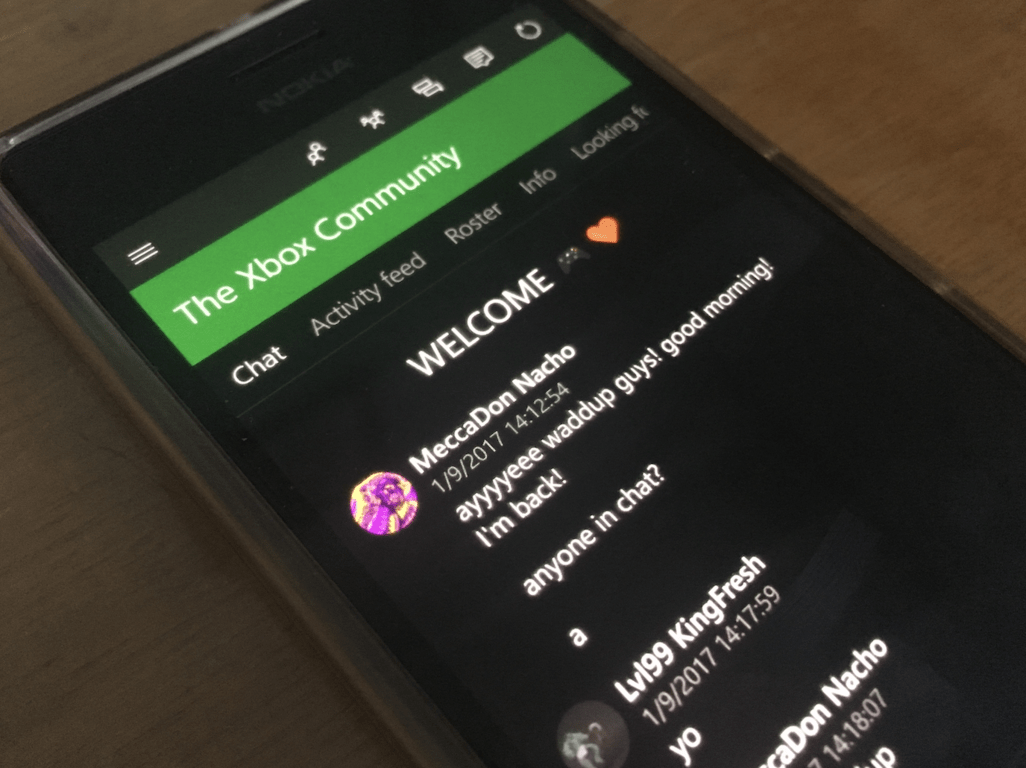
Two months ago, the Xbox Holiday Update for Xbox One consoles and the cross-platform Xbox app brought several new social features on Xbox Live including group messaging, Looking for Groups and Clubs. The last of these features was one of the most interesting additions: with Clubs, users can easily create or join gamer communities to share gaming tips and more, which could really help the Xbox app to become a true gaming hub on all devices.
However, the Club chat experience on the Xbox app is not so great as of today as the feature is not easily accessible by users: to use Club chat, users have to go to the Clubs section on the Xbox app, choose one of their Clubs and then select the “chat” section, which is a lot of steps to follow for a quick community chat. Fortunately, it seems that Microsoft is aware of it as Xbox exec Mike Ybarra shared on Twitter that the Xbox team is “working to make Club chat very easy on Windows and Mobile.”
We're working to make Club chat very easy on Windows and Mobile. Saw some awesome stuff recently. #Xbox
Microsoft seems really committed to make its Xbox app a great way for socializing within the Xbox community, and we can’t wait to see what the Xbox team has in the pipeline. Do you often use Club chat, and do you also think that the feature could be improved on the Xbox app? Let us know your thoughts in the comments below.
If you’re been using Windows 10, you’re more than likely familiar with the “ads” appearing on your Start Menu, lock screen, or even your taskbar. It would appear now that Microsoft may be taking this to the next level, as reports are indicating that the Windows 10 Creators Update may bring “ads” to the Share Pane as well (via WinAero.)
According to the reports, the “ads” will show up when you summon the Share menu from the Explorer, from the photos app, or an app which has shareable content in the Windows 10 Creators Update. The “ad” is really just an app suggestion, which Microsoft believes may be useful to the user, although from the image seen above there is no mention of “suggested” anywhere in the Share Pane UI. In this case, there is rather an icon for the suggested app in the UI of the share box, which promotes the app with “install.”
As with the “ads” for the lock screen or Start Menu, Microsoft may give users the option of disabling these suggestions in the system settings. Let us know what you think of this latest revelation by dropping us a comment below!
Microsoft has announced last week that it will publish its fiscal year 2017 Q2 financial results on Thursday, January 26, 2017. The company’s last earnings report highlighted cloud strengths with Azure revenue up 116%, but this time Surface revenue may well be an area of focus for Microsoft watchers following the holiday season.
Indeed, the Redmond giant announced last month that Surface family had its best sales month ever in November, emphasizing the success of its trade-in program for MacBooks. Additionally, Microsoft saw high demand for its Surface Hub digital whiteboard and its new Surface Studio all-in-one PC over the last few months, so we’ll see if this momentum will be reflected in Surface revenue. However, we don’t expect the company’s FY2017 Q2 earnings report to bring some good news about Windows Phone revenue, but that probably shouldn’t surprise anyone.
As usual, the company will hold a live webcast of the earnings conference call on January 26 and you can count on us for reporting the most interesting bits.
NIIT Technologies Limited, the leading global IT solutions provider, has announced the deployment of BankingEasy, its Core Banking Solution, on Microsoft’s Azure platform.
The collaboration will empower small and medium banks across India to operate with more flexibility and become Reserve Bank of India (RBI) compliant. 16 banks across the states of Delhi, Uttar Pradesh, Rajasthan, MP, Uttarakhand, Chhattisgarh, West Bengal, and Maharashtra in India are already using BankingEasy solution deployed on Microsoft Azure.
The cloud-based solution allows flexibility, improved connectivity, better security, and compliance and with the availability of cloud services through datacentres locally in India, banks will be able to leverage Azure, Office 365, CRM Online, and Disaster Recovery Services based on their needs.
“Microsoft is the first hyper-scale and only global cloud provider to offer a complete portfolio of cloud services from local datacenters in India. Our Trusted cloud principles address customers concerns of security, privacy & control, transparency, and compliance. Mid and Small banks are playing a crucial role in getting the unbanked population come under the Indian Banking ecosystem. We are committed to empower them with modern tools and solutions that offer mobility while ensuring security.”
– Harish Vaidyanathan, Director – ISV Business, Microsoft India
According to the company, BankingEasy on Azure enables banks to adapt with the changing market dynamics. Arvind Mehrotra, President and Global Head, Infrastructure Management Services at NIIT Technologies stated in the press release that despite the surge in transactions and data during the current demonetization phase, BankingEasy on Azure has enabled the banks to deliver consistent customer experience. Also, BankingEasy on Azure aims to address the challenges plaguing the cooperative banks – including lack of standardized business model and risk management systems among others – and help them perform much better than earlier.
Dell’s CES 2017 exhibit has already featured a great number of PCs, the majority of which are gaming focused. The PC maker has unveiled four new PCs within its Inspiron and Alienware lines of products.
First off, Dell unveiled the new Inspiron 14 7000 and Inspiron 15 7000 gaming laptops running Windows 10. With a 1-inch thickness, the Inspiron laptops pack a punch under the hood. Both PCs are powered by either a 7th generation Intel Core i5 processor or an i7 processor, coupled with 4GB of RAM and NVIDIA’s GRX 1050 and 1050Ti graphics cards.
Intel’s latest H-series quad-core mobile CPUs are particularly power intensive, so Dell improved the heating systems in both machines. The Inspiron 14 7000 and Inspiron 15 7000 laptops have heat exchangers connected to dual cooling fans with a high-efficiency blade pitch by a large piping system.
Both PCs also include up to 1TB of HDDs and a dual-drive M.2 128GB option configured to a 1TB HDD. The Inspiron 15 boasts a 4K Ultra HD display out of the box while the Inspiron 14 has fewer pixels at just 1080p.
Dell also introduced new Alienware 13, 15, and 17 models. The 13.3-inch Alienware 13 is the first virtual reality-ready notebook that packs beefy hardware such as the Nvidia GeForce GTX 1060. Both the Alienware 15 and Alienware 17 run on Nvidia’s 10 series GeForce graphics chips and are powered by Intel’s Core i7 processors. The Alienware models also have thicker chassis than the Dell Inspiron 15 7000.
As usual with Dell’s products, you can customize the memory, storage, and power features for the new Alienware computers. The Alienware 13 will be available to buy for $999, Alienware 15 for $1,199, and Alienware 17 for $1,299. The Inspiron 7000 PCs can be had for $799. The computers will ship with Windows 10 out of the box to U.S. consumers.
The Xbox One S is a 4K-capable console, but sometimes users receive an annoying error message when they try to enable 4K UHD functionality. More specifically, users are informed that their TV set indeed supports 4K, but not at 60Hz.
Here’s the exact error message that appears on the screen:
4K is supported by your TV, but not at 60Hz. You won’t be able to upscale to 4K, but, depending on your TV, you may still be able to play some 4K and HDR content. To see what your TV supports, choose 4K TV details.
This error message appears when your TV supports 4K but not at a 60 Hz refresh rate, meaning that you can play 4K content at other refresh rates. Unfortunately, your TV set won’t allow you to upscale games, movies and apps to 4K.
How to improve 4K quality on your Xbox One S
If your TV set doesn’t support 4K 60Hz, follow the steps listed below to make sure you enable the best possible 4K experience given your TV’s capabilities.
Plug your HDMI cable into the correct port on your TV. It is good to know that some 4K TVs support full 4K features only on specific HDMI ports.
Check your TV’s settings menu. It’s possible that your TV has a dedicated mode that controls the refresh rate.
Use the HDMI cable that came with the Xbox One S. Third-party HDMI cables may not be fully compatible with the console.
Try a different HDMI High Speed or HDMI Premium certified cable.
Plug your TV straight into your console with the original HDMI cable that came with the Xbox One S console. Some video equipment may not correctly transfer the signal to your TV or console.
Forza Horizon 3 fans can finally download the January Car Pack after Microsoft rolled out the correct update version and removed the developer build that was initially released.
In the Rockstar Energy Car Pack, there are seven new car models, from the classic Japanese 1987 Nissan Skyline GTS-R to the reliable Ford Trophy truck. As expected, the 2015 BMW i8 makes its debut in Forza Horizon 3 as well.
Forza Horizon 3 Rockstar Energy Car Pack
2015 BMW i8
2015 Volvo V60 Polestar
2015 Radical RXC Turbo
1972 Ford Falcon XA GT-HO
1987 Nissan Skyline GTS-R (R31)
2014 Ford F-150 Trophy Truck
2016 Bentley Bentayga
But there’s more to this complicated Forza Horizon 3 January Update story. Although the initial update broke FH3 by downloading the entire game all over again, it also revealed some interesting information. This update was actually a developer build and players got to see what the upcoming car models ware.
Leaked Forza Horizon 3 cars
There are many interesting cars coming to Forza Horizon 3 in the upcoming updates. It also appears that Microsoft is planning to launch a special Porsche Expansion, although there’s no official word about it yet. Without further ado, let’s see what the upcoming Forza Horizon 3 cars are:
MUI (Multilingual User Interface) packages arelanguage packs for Windows. These packs enable you to add new display languages to the Windows OS for alternative users.
Then multiple users can select alternative display languages if required, and any Windows version can host software in any other language. This is how you can download and install MUI packs for Windows 10.
How can I install MUI packs on Windows 10?
1. Using the Settings app
Enter region into the Cortana search box and press Enter to open the Region and language settings.
Now you can add new MUI language packs to Windows by clicking the Add a language button.
Now choose an MUI pack to install from there.
The MUI pack will now be listed in the Region & language settings. Click the pack and then press its Options button.
Press the Download button under the Download language pack to download and install the pack.
When it’s installed, you can select the MUI pack listed on Region & language settings and click the Set as default button.
Restart Windows 10 to apply the new setting to the user account.
2. Using the install or uninstall Display Languages Wizard
Another option will be to download and install the language pack of your choice from third-party websites. This can sometimes provide you with rare language options that might not be available when you use the option above.
So those are two ways to download and install an MUI pack in Windows 10. Note that Windows Store apps might not change to the new language settings until updated.
Feel free to let us know in the comments below if you encounter any issues installing the MUI pack.
Welcome back to our Windows 10 news recap. We are continuing the trend of our weekly “Windows 10 news recap” series where we go over the top stories of the past week in the world of Microsoft’s flagship operating system.
Dell: Windows 10 Creators Update to arrive in April
The Consumer Electronics Show (CES) was this week and from it we’ve received a little bit of information on what to expect Microsoft to release the Windows 10 Creators Update. According to Dell, the Creators Update for Windows 10 will be released in April.
Windows 10 Creators Update to add WiFi 802.11ad WiGig support
Not only did we get information on when the Windows 10 Creators Update will release, we now know of some additional functionality coming with the update. Microsoft revealed at WinHEC in China that Windows 10 will receive support for WiGig, which allows 802.11ad WiFi connections. This improvement could allow speeds of up to 8Gbps on wireless.
Leaked concepts surface for Windows 10’s Project Neon design refresh
A new report has revealed concepts of Microsoft’s design refresh for Windows 10, named Project Neon. The refresh will bring design improvements to Windows 10’s interface and update the design language that developers are asked to follow. According to the report, it will bring a more “Aero” feel to Windows 10, with their being blurred elements when out-of-focus. Additionally, animations from the era of Windows Phone 7 and 8 are expected to make a return.
Image editing made easier with the Windows 10 Creators Update Photos App for PC
Several improvements are arriving to the Photos app in Windows 10’s Creators Update. The improvements aim to making editing photos and images a breeze, with more tools. Refinements also include making it more touch-friendly but also more friendly for keyboard and mouse.
That’s it for this week – we’ll be back with more Windows 10 news next week!
Microsoft (MSFT) news recap is a weekly feature highlighting the top Microsoft news stories of the past week. Sit back, grab some coffee, and enjoy the read!
The story of how Valve’s move to Linux “lit a fire” under Microsoft Xbox execs
Steam is a well-known gaming distribution platform for Windows gamers. It provides a wide-ranging collection of games, from AAA to Indie titles. If you ask any Windows PC gamer which store they use, they’ll probably say Steam. Valve, the owning company of Steam, however, pushed early to support Linux, despite Windows being the platform where it gains the most revenue.
Valve developed SteamOS on Linux and pushed for more Linux devices in the form of Steam Boxes. All this “lit a fire” for Microsoft execs, as Windows was the choice platform for gaming, but suddenly a big PC gaming company was trying to change that into Linux.
This pushed the execs to take DirectX and Direct 3D seriously, resulting in continued updates.
Microsoft India gets a new boss, and he talks about his vision for transformation
Microsoft continues to push ‘One Microsoft’ with another reorg affecting sales, partner and services teams
Microsoft is beginning to reorganise its business into its ‘One Microsoft’ vision. It’s already been working on this transformation with its products, namely Windows 10, which shares code with Windows 10 Mobile, Xbox One and other platforms. Now, the company is turning to its workforce.
The reorganisation takes place on February 1st and it’s going to result in the combination of Microsoft’s Enterprise & Partner Group (EPG) and Public Sector, Small and Mid-Market Solutions and Partners (SMS&P) businesses. Chris Weber will take charge of the combined businesses.
Astroneer is an interesting space exploration game that challenges you to travel throughout the Universe in order to exploit rare resources. As you already know, the game is still work in progress. In this article, we’re going to list a series of quick tweaks that you can use to improve Astroneer’s graphics quality.
Fix and enhance Astroneer’s graphics using these tweaks
To start with, you’ll operate all the changes in this folder: C:\Users\[Computer Name]\AppData\Local\Astro\Saved\Config\WindowsNoEditor.
How to fix FPS rate issues
Open the Astro folder mentioned above > open the Engine.ini file in Notepad
Locate the following command line: [/script/engine.engine]
After this line, enter the following command: bSmoothFrameRate=False
Save the Engine.ini file
Open the GameUserSettings.ini file > search for these two values: bUseVSync and FrameRateLimit=144
Change them to:
bUseVSync=False
FrameRateLimit= change the default 144 value to your Monitor Refresh Rate or above.
Improve post-processing quality
This tweak removes the washed out effect on images. Astroneer’s graphics will be sharper, with fewer jagged lines around objects. Here’s how to improve the game’s post-processing quality:
Open the Engine.ini file with Notepad
Add the [/script/engine.renderersettings] command line after the FrameRateLimit line
As always, if you’ve come across other tweaks and quick workarounds to improve Astroneer’s graphics quality, list the steps to follow in the comment section below.