Meta will add a Made with AI label to AI-generated content starting May

Starting in May this year, Meta will add a Made with AI label to more AI-generated content. It will broadly label AI-generated media including videos, images, and audio on all its platforms including Facebook, Instagram, and Threads.

Let’s not forget that in February, Meta hinted to expand the labeling of AI content shared on its platforms. However, the announcement and detailed plans were shared by the VP of the company’s Content Policy on Friday, April 5.

Meta’s decision to label AI content comes after the Oversight Board’s feedback

Monika Bickert, VP of Content Policy at Meta recently informed about the company’s plans for AI content labeling. Bickert mentioned that the company will start labeling manipulated content when the industry standard AI image indicators hint at it. This implies further to the AI-generated content uploaded by any user disclosing its nature.

According to the blog post, Meta plans to label and contextualize the manipulated media rather than remove it from its platform, risking people’s freedom of speech. Meta agrees with the Oversight Board’s feedback about the company’s narrow labeling approach, which only covered manipulated videos. 

Adding more on the Meta’s manipulated media policy, Bickert wrote: 

Our manipulated media policy was written in 2020 when realistic AI-generated content was rare and the overarching concern was about videos. 

The decision to expand AI-content labeling comes after feedback from the Oversight Board in the wake of a controversial manipulated video of President Biden inappropriately touching her granddaughter.

Worth noting that the Oversight Board earlier agreed to Meta’s decision to not remove the controversial video from Facebook. The company then insisted that the video didn’t violate their manipulated media policy. However, the board asked to reconsider this policy quickly, given the number of elections in 2024.  

The company plans to widen its labeling approach starting May 2024. But, it will stop removing content that violates the manipulated video policy from July. Meta says that this will allow people to understand more about the self-disclosure process before it stops removing manipulated media in batches.

All in all, it won’t be wrong to say that Meta’s plan to label AI content is a measure to mitigate misinformation given the upcoming US elections. Time will tell how well it implements the said changes.

Beta Channel Build 22635.3430 adds Copilot’s ability to change its icon

On April 5, 2024, Microsoft released Windows 11 Insider Preview Build 22635.3430 (KB5036992) for users in the Beta Channel. The KB5036992 patch brings minor improvements to Copilot and Windows Share. The company also addressed a few known issues in the release notes.

First, let’s talk about new improvements introduced in Beta Channel Build Number 22635.3430, under KB5036992.

Beta Channel Build 22635.3430 lets Copilot change its icons in the taskbar

Copilot can now change its icons in the taskbar when you copy text or images. Depending on what you copy, you’ll see Copilot change its icon. And, a new related menu now opens when you hover the mouse over the icon.

Talking of the new action menu for copied images, there are new options – Create similar image and Analyze this image. When you select the Analyze this image option from the menu, Copilot will describe the image you copy using GPT-4 Vision.

Whereas, the AI bot quickly utilizes DALL-E 3 to create similar images when you select the Create similar image option. Let’s not forget that with the previous update, Copilot can automatically show up when a user copies text or images. 

Windows Share updated for seamless media and file sharing to group chats and Microsoft Team Channels

The tech giant also updated the capability of Windows Share with the latest Beta Channel Build 22635.3430. Users can share documents or media files to Microsoft Teams Channels and group chats right from the Windows Share window.

Microsoft also noted that users signed in with a Microsoft Entra ID can only use this feature for now. The company rolled out the feature earlier with Beta Channel Build 22635.2776, under KB5032292. However, the feature was earlier disabled to fix some related issues. Also, there’s no mention of when the feature will be available to personal or work accounts.

The Beta Channel Build 22635.3430 release notes also talk about issues with the new position of Widgets in Windows 11 for left-aligned taskbars. That’s not all, there’s mention of general issues in the release notes which read:

We are investigating an issue where Internet Information Services (IIS) and Windows Communication Foundation (WCF) may not work after installing this update.

Are you facing any issues after installing this update? If yes, comment down below to share with our readers.

KB5034203 and newer updates are causing caching issues in Windows 10 21H2 and 22H2

Microsoft recently updated the Windows 10 issue details page and talked about the newly spotted caching issues in the Windows 10 KB5034203 update released in January. It says that some Windows 10 devices within enterprise networks might face issues using Microsoft Connected Cache (MCC) nodes causing increased download traffic from the public internet. 

Systems with DHCP Option 235 are likely to run into caching issues in Windows 10

The newly discovered bug reportedly affects devices with Windows 10 version 21H2 and 22H2 with KB5034203 or newer updates. Microsoft further confirmed that the systems with DHCP Option 235 are most likely to run into caching issues in Windows 10. As a result, enterprise users have no choice but to use networks outside of their companies to download updates and apps.

For those unaware, Microsoft Connected Cache is a feature currently available in preview that offers software-based caching. It allows delivering “Microsoft Content” across education and enterprise networks.

The tech giant says that Connected Cache for Enterprise and Education caters to customers looking to modernize the management away from Configuration Manager distribution points. 

Microsoft also mentioned that the caching issue in Windows 10 KB5034203 and newer updates doesn’t affect home users. That’s because the affected feature only caters to the needs of ISPs, enterprises, and education networks. 

Microsoft says workarounds are available to mitigate the problem

But, the company said it is working towards resolving the caching issue in Windows 10. And, mentioned that the fix could feature in the next updates. In the official documentation, Microsoft added two options that IT admins can try to resolve the problem at their end:

  • Option 1: Configure Microsoft Connected Cache endpoint in DOCacheHost policy as indicated in Cache hostname. Additionally, DOCacheHostSource has to be set to 1 or removed as indicated in Cache hostname source. Note that by default, the DOCacheHost and DOCacheHostSource policies have no value.
  • Option 2: This issue can also be mitigated using Group Policies available through our support channel. Organizations can request help through Support for business.

Are you also facing caching issues with Windows 10 KB5034203 or newer updates? Let us know if the solutions suggested by the company helped resolving it.

Finally, Firefox now supports Chrome’s Text Fragments in Firefox 126

Mozilla has finally added support for Text Fragments (formerly known as Scroll to Text Fragment) to Firefox 126. The feature is being tested in Nightly; here is how you can enable and use it.

Firefox gets Text Fragments support in Version 126

Chrome introduced the Scroll to Text Fragments feature in 2020. This feature allows users to link directly to a specific part of a web page using a text snippet embedded within the URL. When the link is opened in a supported browser (like Chrome), it automatically highlights and scrolls to the part that part of the page.

This feature allows a user or author to link to a specific portion of a page, using a text snippet provided in the URL. When the page is loaded, the browser highlights the text and scrolls it into view.

Text Fragments has been supported by Safari, and Chromium browsers like Microsoft Edge, Opera, Brave, Vivaldi, and Android browsers. The feature is being actively used by Google in search results. There is a demand from users for Firefox to support it also. Finally, Firefox supports text fragments, currently in Nightly.

How to enable and use Text Fragments in Firefox

  1. Launch Firefox In the address bar, type about:config and press Enter.
  2. Click Accept the Risk and Continue to proceed.
  3. In the search bar, type dom.text_fragments.enabled.
  4. Right-click on the preference and select New boolean preference.
  5. Name the preference dom.text_fragments.enabled and set its value to true.

Creating Text Fragment Links in Firefox

  1. Copy the URL of the webpage you want to link to.
  2. Add #:~:text= to the URL, followed by the specific text snippet you want to highlight.

Example URLs:

Original URL: https://blog.google/products/chrome/google-chrome-safe-browsing-real-time/

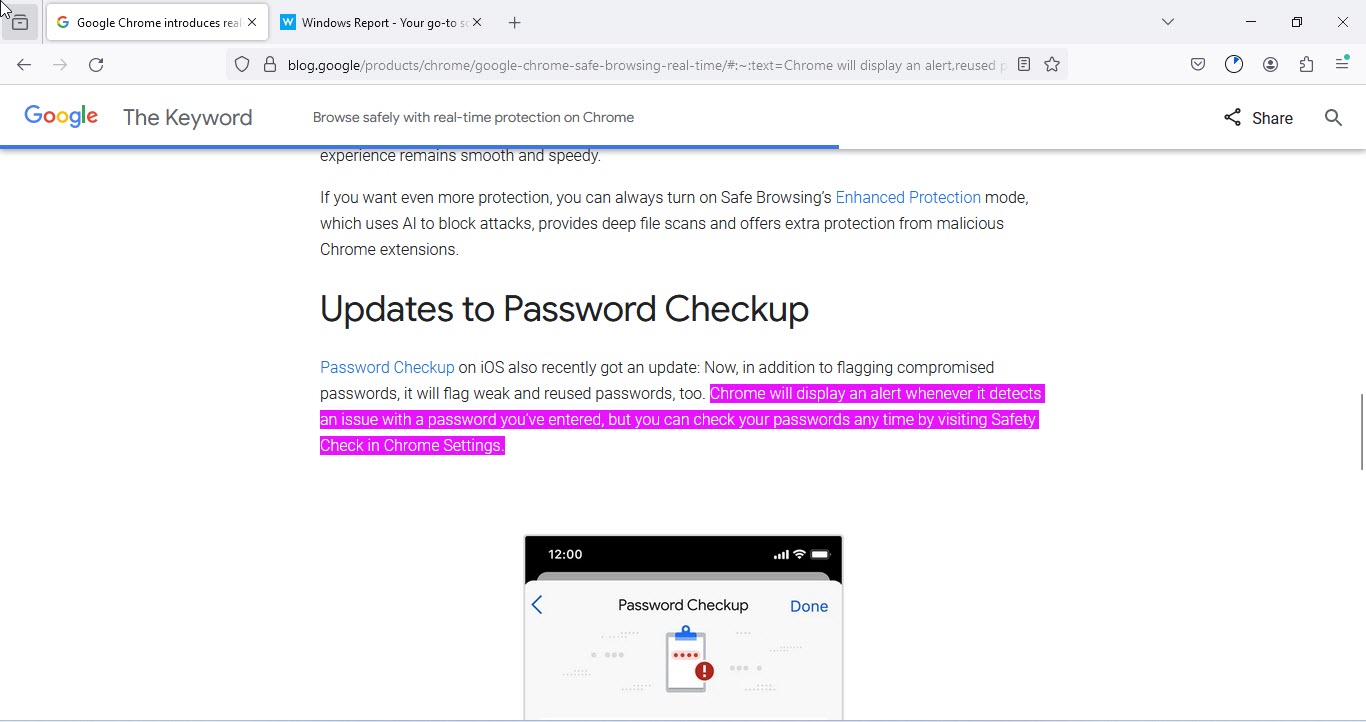
Text Fragment URL (highlights “Chrome will display an alert”): https://blog.google/products/chrome/google-chrome-safe-browsing-real-time/#:~:text=Chrome%20will%20display%20an%20alert

Original URL: https://windowsreport.com/v8-sandbox-available-chrome-123/

Text Fragment URL (highlights “beta release”): https://windowsreport.com/v8-sandbox-available-chrome-123/#:~:text=beta%20release

When you copy and navigate to the above text fragments, Chrome and Firefox both highlight them. However, Firefox uses a different highlight color. This is the only noticeable difference. Both browsers offer similar functionality for creating links, highlighting text, and scrolling to specific sections.

The Text Fragments feature is currently being tested by Mozilla in Firefox 126 Nightly. However, only an initial version of the feature has been implemented, and the company still has a lot of work to do to bring it on par with Chrome in terms of functionality and bug fixes.

In other news related to Firefox, Mozilla has partnered with Qwant and allows to use it as a Search engine from the URL bar in the browser. And, Firefox may get Vertical Tabs like in Edge.

New Microsoft Xbox leadership reorg says goodbye to 26-year veteran Kareem Choudhry

As Microsoft continues to wrap its corporate arms around its $68B Activision acquisition, its Xbox division is wrangling with yet another shuffling of executive chairs and business priorities that’s resulted in veteran Kareem Choudhry leaving as the division purses growth in new avenues.

Choudhry, a 26-year veteran of the Xbox business is exiting stage left as of today due to ‘circumstantial’ reasons, according to reports from Windows Central. Choudry’s contributions include the development and marketing of the Xbox Series, the Xbox backward compatibility layer, Xbox Cloud Gaming and the formation of a new gaming AI division within Microsoft.

Choudhry’s AI gaming division is an internal project referred to as Xbox’s Emerging Tech team or XEmTech for short.

XEmTech will endure as Choudhry departs and be led by Roanne Sones, an OEM expert formerly from within Microsoft’s Windows business. XEmTech will shift into the fold of the Xbox hardware division proper with a rumored interest in developing some sort of handheld console for the business. Jason Ronald could accompany Sones and XEmTech alongside a pursuit of a handheld Xbox experience from his current position as Tech Advisor within the Xbox hardware division.

The folks over at Windows Centra managed to get insider information from an internal memo circulating in the Xbox division that positioning the new AI team under the general Xbox gaming hardware division should allow the overall business to “accelerate innovation”.

Additional re-org musical chairs consist of Ashely McKissick and Kevin Gammill promoted to heads of the newly established Xbox Experiences and Platforms division tasked with improving the overall Xbox experience between Windows and Xbox. The Xbox Experiences and Platforms team could be the link that many of the most recently Windows-powered handhelds have been looking for to make those experiences feel more native and less convoluted than they currently are.

After successfully navigating the Xbox and Activision regulatory process, Catherine Gluckstein will be promoted to lead of the Xbox Strategy and Regulatory team as Microsoft Advertising executive Jennifer Creegan moves to of Microsoft’s Gaming analytics and business planning division.

Microsoft’s Xbox division now has a much brighter spotlight on it following its $68B investment and will need to quickly justify its price tag plus its public fights with international regulatory bodies, hence the evolving reorg of the business. It’ll be interesting to see what the business brings forth in the second half of 2024 and into 2025 as a result of all this shuffling.

Latest NVIDIA Game Ready Driver 552.12 still doesn’t support multi-monitor RTX HDR, causes black screen for a few

When NVIDIA released the latest Game Ready Driver 552.12, we were excited about new features, but more importantly, support for RTX HDR on a multi-monitor setup. Seems like the wait is going to be a little longer!

The latest driver is aimed at improving the gaming experience for new titles supporting DLSS (Deep Learning Super Sampling) 3. The driver description on the official download page reads,

This new Game Ready Driver provides the best gaming experience for the latest new games supporting DLSS 3 technology including Season 3 of Call of Duty: Modern Warfare III and Call of Duty: Warzone and Diablo IV’s latest update which introduces ray tracing support.

While we could wait another few months for multi-monitor RTX HDR, black screen and performance issues seem like a bigger problem right now.

In our experience, it’s normal for a new driver to cause a black screen, but the problem shouldn’t be so widespread.

We recommend readers not install any new drivers right away but wait for a few days and analyze how it performs for others. If no are minimal or no issues, proceed with the installation. Else, wait for a patch!

NVIDIA’s Game Ready Driver 552.12 triggers a black screen

The latest NVIDIA Game Ready Driver caused a black screen. In some cases, the GPU made a loud noise, and the setup had to be manually turned off.

Just installed this driver and while doing so my screen went black and noise started blaring like something was way wrong.. I had to manually shut my pc off. Turned it back on to the driver installed, but now my background pic is gone.. screen is just black now.

The latest Game Ready Driver 552.12 also causes stutter on a few systems.

Im getting stutters for the first time on my 3090 with this driver, just downgraded yesterday and stutters gone, mostly on nfs unbound, never had 1 stutter.. Also cpu is really working harder for no reason..

Surprisingly, the latest driver also fixed stutters for some, but it could have to do with the latest game updates.

I had stutter in the cutscenes of HFW , using the 551.86 Nvidia driver, uninstalled it via DDU in safe mode and then installed v552.12 while every monitoring tool was closed. Now the stutters are gone , I don’t know what solved it maybe it was the latest hfw update that was released today or this driver or maybe both.

As for installation problems, these were, in our experience, limited to 7800X3D and 5800X3D with a 4090. You may also get a black screen post driver installation in such cases.

My PC black screened while installing the driver. (4090/7800x3d)

If you get a black screen after installing Game Ready Driver 552.12, an easy option is to roll back the NVIDIA driver. Or if the problems are minimal, perhaps wait for a newer version with the patch. Until then, don’t forget to report the issue to NVIDIA!

What has been your experience with the latest NVIDIA Game Ready Driver? Share with us in the comments section.

Coincidence at its peak: The individual squares in Windows 11’s Start menu icon are 11×11 px

We don’t often come across coincidences in the Windows ecosystem. Everything is part of an elaborate and well-thought-of system, with a dedicated set of professionals working on it around the clock. But we came across something fascinating about Windows 11!

Recently, a user on Reddit pointed out that the individual squares in the Windows 11 Start Menu icon are 11px wide and 11px tall.

While there’s no clear mention, this is probably under 100% scaling. Another user pointed out that the size of the individual boxes changes to 13x13px at 125% scaling and 16x16px at 150% scaling.

While the OP (Original Poster) on Reddit used Screen Ruler in Microsoft PowerToys, you can also discover the pixels using a screenshot-capturing app. Just capture the relevant part and identify its dimensions.

Is this just a coincidence? It is difficult to say. The only way to find out is to wait for the next iteration of the OS and see if the same pattern continues.

Irrespective of that, the coincidence fascinated everyone, and many came forward to share their take on the matter.

Windows 11 – 11px x 11px!
Windows 12 – 12px x 12px?

At least something is pixel-perfect.
You can’t say that about other taskbar icons.

How bored were you to find this satisfying information?

To discover similar fascinating things on your PC, perhaps download Microsoft PowerToys. But make sure to learn about it before you start making the changes.

Do you know any interesting facts about Windows? Share with us in the comments section.

Edge 123.0.2420.81 is here, boosting security and squashing vulnerabilities

Web browsers are a common target for cyberattacks, and to keep users safe, Microsoft is frequently releasing new updates.

Speaking of which, the latest update for Microsoft Edge is here, so let’s take a closer look at it and see what’s new.

The latest Edge update is here and it addresses various security issues

Recently, a new security update for Edge was released, and according to Microsoft’s post, the update remedies several security issues.

The update brings the latest Security Updates of the Chromium project to Edge. For details, you can check the Security Update Guide.

Besides Chromium security updates, this version also addresses the Microsoft Edge spoofing issue. The vulnerability is labeled as CVE-2024-29981 and it’s considered a non-severe issue.

CVE-2024-29049 was also patched, and this is a Webview2 spoofing vulnerability. Unlike the previous one, this one is classified as a moderate threat.

While this update brings nothing new, it fixes various security issues, so it’s advised to download the latest version and keep your browser safe.

In other news, Microsoft Edge 124 Beta updates the First Run Experience. If you use Edge on multiple platforms, you’ll be pleased to hear that Edge can now show you cross-device search query history suggestions.

Adobe addresses concerns over AI scanning speculations in its Windows apps

With AI setting its precedent in every sector of our lives, we often are concerned about our privacy and the infringement of personal data when using AI-powered apps.

Recently, Adobe started testing the new AI features in its apps for Windows 11, 10, and other platforms and found itself at the center of apprehension when rumors circulated about its Windows apps automatically scanning documents with the help of AI.

It all started when security reporter Brian Krebs revealed wrote in the post:

Sure. Let Adobe AI scan all of your documents. What could go wrong?

In response, many users expressed concerns about privacy and didn’t want to use any of the Adobe apps for sensitive documents.

The discussion quickly started on other forums, like Reddit, where users swear not to use Adobe for their documents and suggest that others not share their documents with people who use Adobe.

What does Adobe have to say?

In response to these concerns and questions, Adobe has stepped forward and given a statement to Windows Latest to address the situation.

The confusion started from Adobe’s documentation, and Adobe explained that users had misinterpreted the documentation.

The documentation says:

The generative AI features in Acrobat and Acrobat Reader are turned on by default. However, you can choose to turn them off, if necessary.

The documentation suggests that the generative AI features were enabled by default. However, Adobe says this simply means that these AI features are available to everyone.

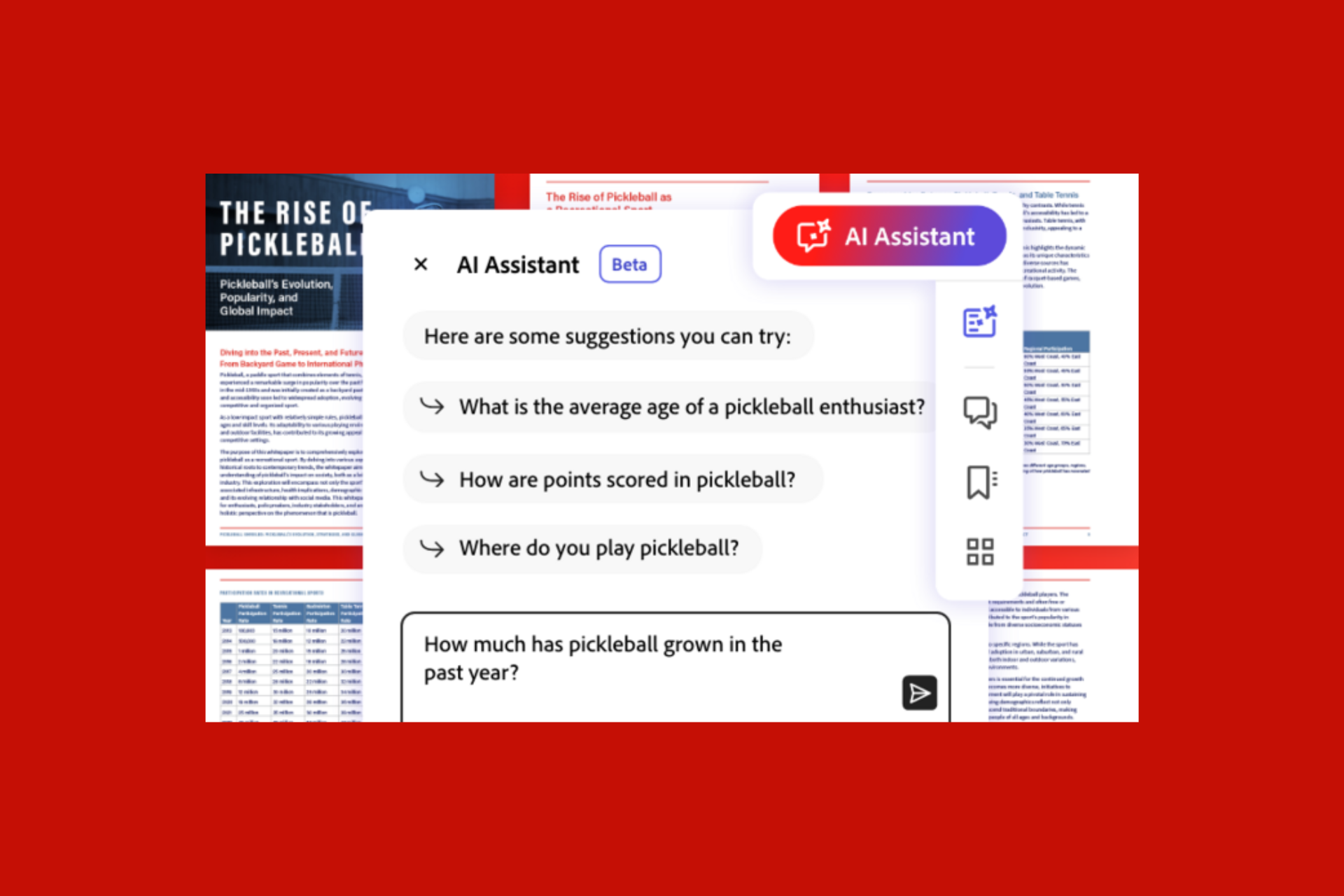
The company further clarifies that its software doesn’t scan or analyze any document unless a user uses the AI features by agreeing to the terms, opening the document, and choosing the AI Assistant or generative summary buttons to enable the features on the document.

Deepak Bharadwaj, the Vice President of Product Management for Document Cloud at Adobe, also responded to the email by WindowsLatest and said:

Adobe Acrobat AI Assistant (now in beta) is a new generative AI-powered conversational engine deeply integrated into document workflows. Like other Adobe AI features, Adobe Acrobat AI Assistant was developed and deployed in alignment with Adobe’s AI principles of accountability, responsibility and transparency. In addition, the features are governed by data security, privacy and AI ethics protocols and no customer content is used to train LLMs without customers’ consent.

Moreover, Bharadwaj highlighted how AI assistants can help users generate summaries and insights from lengthy documents and format information for several purposes, such as emails, presentations, and reports.

He also said:

Millions of users are already using Acrobat AI Assistant in beta to answer questions, instantly generate summaries and insights from long documents and format information for sharing in emails, reports and presentations. Acrobat AI Assistant is bringing generative AI to the masses, unlocking new value from the information inside PDFs.

How can I deactivate the feature?

If you still have concerns, you can use a preventive measure mentioned by a Reddit user, giving you complete control over the feature.

On your Windows 11 or 10 computer, open Registry Editor and navigate to this path: Computer\HKEY_LOCAL_MACHINE\SOFTWARE\Policies\Adobe\Adobe Acrobat\DC\FeatureLockDown

Right-click  FeatureLockDown, select New, then DWORD, and name it bEnableGentech. Once created, double-click it and change its Value data to 0 to disable AI assistant from the preference menu, then click OK to confirm. Restart your PC to save the changes.

If you want to enable the feature, follow the same steps and change the Value data to 1.

Alternatively, you can run this command on PowerShell to control the feature:

New-ItemProperty -Path ‘HKLM:\SOFTWARE\Policies\Adobe\Adobe Acrobat\DC\FeatureLockDown’ -Name “bEnableGentech” -PropertyType DWord -Value 0

According to the company’s statement and options provided to give complete control over the feature, WindowsLatest research further found that rumors are baseless.

However, some users remain skeptical of the company’s response and clarification, as this wouldn’t be the first time a tech company claimed one thing but did the complete opposite.

Where do you stand in this? Share your opinions with our readers in the comments section below.

Microsoft’s security operations platform offers end-to-end protection

Microsoft announced it will release a public preview of its unified security operations platform. It has three functionalities: Cloud-Native security information and event Management (SEIM), extended detection and response (XDR), and generative AI for security. Together, they offer a single platform featuring most of your security needs.

In addition, the unified security operations platform lets you prevent attacks, detect threats, and respond to incidents. Also, security analysts can perform threat hunting and investigations with the AI for security features. On top of that, the unified exposure management feature provides end-to-end visibility of assets and cyberattack paths.

What are the requirements to join the public preview?

The company decided to extend access to the public preview of the security operations platform. Thus, more organizations and customers could benefit from it. However, to be eligible to try it, you need a single Microsoft Sentinel workspace and one Defender XDR workload deployed.

By joining the public preview, you will benefit from real-world security features. Also, you can use an existing Microsoft Sentinel workspace with Azure. On top of that, you can use the Microsoft Copilot for Security directly within the Defender portal.

The unified security operations platform enhances Security Operations Centers

The existing Security Operations Centers (SOC) are overwhelmed by alerts, signals, and initiatives. Additionally, cybersecurity experts spend a lot of time switching applications, dealing with low-level threats, and manually handling data, so they have less time for advanced tasks. Also, the talent shortage makes it harder for SOC teams to handle their workload.

Most problems emerge because SOC systems lack the proper tools for analyzing threats, understanding attacker tactics, responding to incidents, and centralizing data. That’s why the unified security operations platform represents a possible solution to the SOC problems. With it, you won’t have to switch between security applications anymore, can centralize your data, and use tools to identify advanced threats faster.

SIEM and XDR user benefits

By using the unified security operations platform, both SIEM and XDR users will have some benefits. For example, XDR users have tools to enhance reporting and automation, gather data insights, reduce repetitive tasks, openness to SIEM, and unified threat hunting. Also, the SIEM users can get more value from the platform, enhance threat protection, and increase their work efficiency.

Users can discover, prioritize, and remediate vulnerabilities with the help of the unified security operations platform and Microsoft Security Exposure Management (SEM). In addition, SEM brings benefits, such as comprehensive visibility of potential exposures, a single source of truth, proactive risk management, and attack path modeling.

The unified security operations platform can automate modern cybersecurity. So, it can decrease the response time to defend against cyber attackers. Furthermore, it uses the XDR and AI to stop ongoing attacks. Also, this feature is available just for Microsoft Security. The company claims the security system will stop incoming attacks in three minutes. On top of that, if it senses an attack, the platform can restrict access to a system.

Ultimately, the unified security operations platform from Microsoft can prevent threat attacks, gather all of your data in a place, offer multiple security tools, and enhance and efficientize the workload of cybersecurity experts.

What are your thoughts? Are you going to apply for the preview? Let us know in the comments.

The new Microsoft Copilot usage report will provide a detailed analysis of AI adoption

A while ago, Microsoft announced the introduction of a new Copilot report section within the Microsoft 365 admin center that would contain important info about AI adoption inside an organization, and the necessary steps and actions to take to improve that rate, in case it’s failing.

Now, according to the latest entry in the Microsoft 365 Roadmap, the Redmond-based tech giant is adding new policies and updates to the Copilot usage report that will offer a detailed analysis of AI adoption within organizations.

The new updates will provide insights into active usage of Copilot, while also respecting commercial data protection. The new report will focus on several aspects, such as total active Copilot users, average daily active Copilot users, and even active users per platform – and here, we’re talking about Copilot in Edge, Copilot in Microsoft 365, Copilot in Windows, or Copilot mobile app.

The new updates will also focus on providing these insights at a regular date selected by the IT managers. Microsoft says several options are available: insights for the past 7, 30, 90, and 180-day periods.

It’s also worth mentioning that regular employees will be protected by the new updated report, as the new policies will show their usage in an anonymized mode.

A new product usage report will be added in the Microsoft 365 admin center providing insights into active usage of Microsoft Copilot with commercial data protection. The report will include total active users, average daily active users, and active users per platform (i.e. Bing, Edge, Windows, copilot.microsoft.com, and Copilot mobile app). Usage insights can be viewed as totals and trends for the past 7, 30, 90 or 180-day periods. The report will also show the last activity date per user, anonymized by default.

Microsoft

The Redmond-based tech giant has been emphasizing the importance of AI for small and medium businesses (SMBs). Last year alone, the company released two comprehensive studies showcasing how the new technology could help organizations thrive. Back then, 47% of small business owners saw AI as a game changer, and $1 invested in AI, generated a return of $3.5X.

However, Copilot is still struggling with adoption, and according to our survey, 72% of Windows users don’t know what Copilot is or does. There is also a great chance that this number translates well into corporate environments, as well.

Yes, sure, you’re getting all the Copilots for your employees, but are they actually using AI to ease their work and be more productive?

This is where the new Copilot usage report comes in: it will offer valuable information about the state of Copilot in any organization, and based on it, the CEOs, alongside managers, can decide if it’s worth the budget.

If it’s not, and companies are spending money on AI anyway, it could potentially create disastrous results that could end up in filing for bankruptcy.

Solved: YouTube Not Enough Space to Download

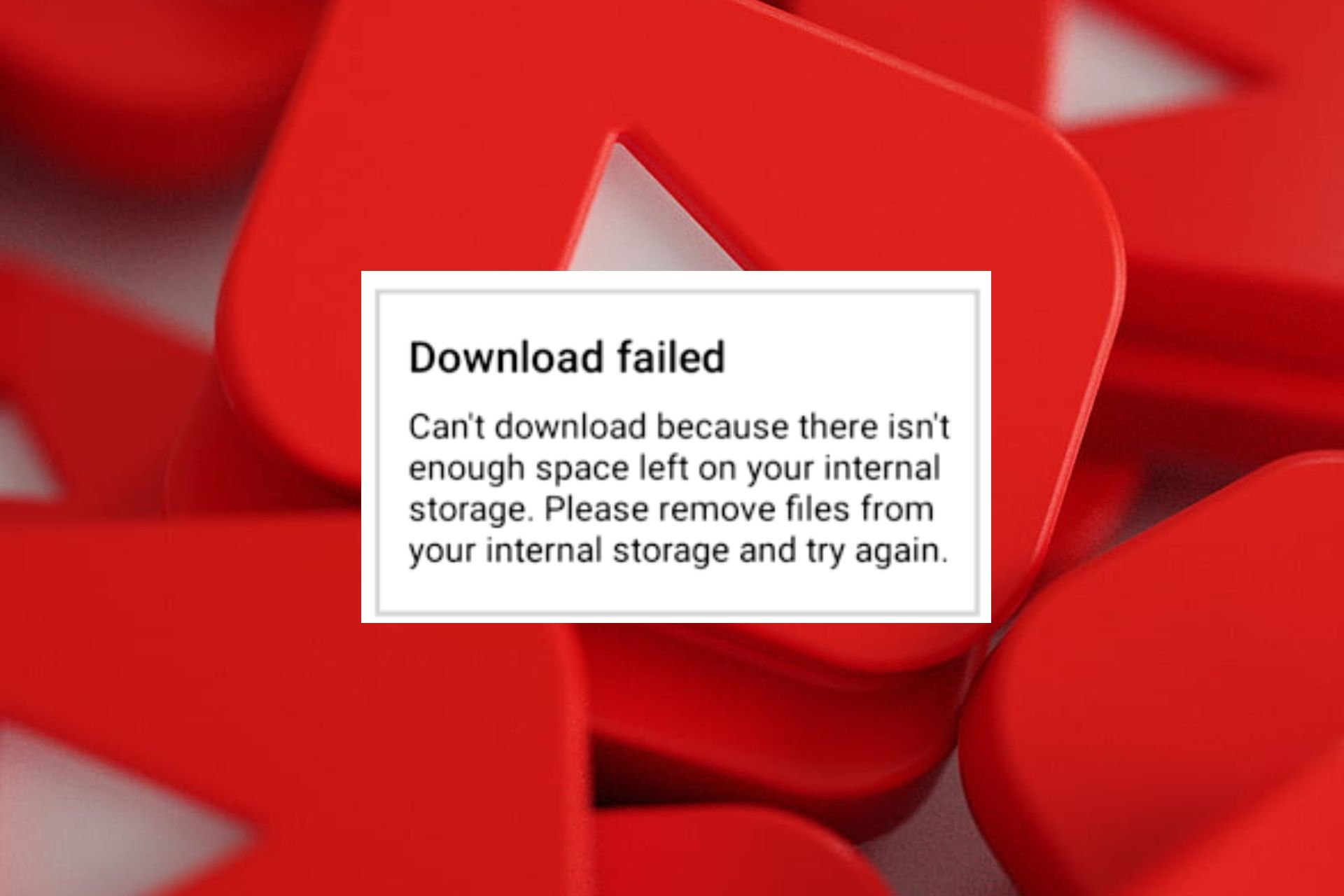
When you attempt to save YouTube videos offline to watch later, you may encounter not enough space to download error.

Offline videos come in handy especially if you want to save on data or you’re in an area with unstable or poor internet connection. However, if your device comes with limited internal storage, or you allow built-up cache to linger too long, you may be hit with the not enough storage issue.

The number and quality of your downloaded offline videos also matter. If they are too many and of high quality, your storage space will be depleted much quicker.

How do I free up space on YouTube downloads?

1. Delete superfluous downloads

1.1 YouTube for Web

  1. Navigate to your browser and go to the YouTube site.
  2. Click on your profile picture and select Settings.
  3. Select Downloads and click on Delete all downloads.

1.2 YouTube Android

  1. Launch your YouTube app on your phone.
  2. Tap on the Settings icon at the top right corner.
  3. Select Downloads and tap on Delete all downloads.

Note that YouTube TV does not have the offline videos feature.

2. Adjust download settings

2.1 YouTube for Web

  1. Navigate to your browser and go to the YouTube site.
  2. Click on your profile picture and select Settings.
  3. Select Downloads and check medium or low.

2.2 YouTube Android

  1. Launch your YouTube app on your phone.
  2. Tap on the Settings icon at the top right corner.
  3. Select Downloads.
  4. Tap on Download quality and select the low or medium.

Low-quality videos have a small storage footprint and allow you to download more videos without depleting your storage as quickly when compared to high-quality videos. the only downside is that the visual clarity will be downgraded.

3. Clear YouTube cache

3.1 YouTube for Web

  1. For this step, we shall be using the Chrome browser.
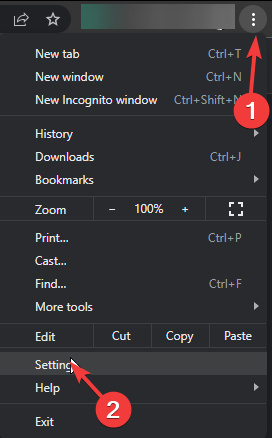
  2. Launch your Chrome browser and click the three vertical ellipses in the top right corner.
  3. Select Settings.Settings CHrome
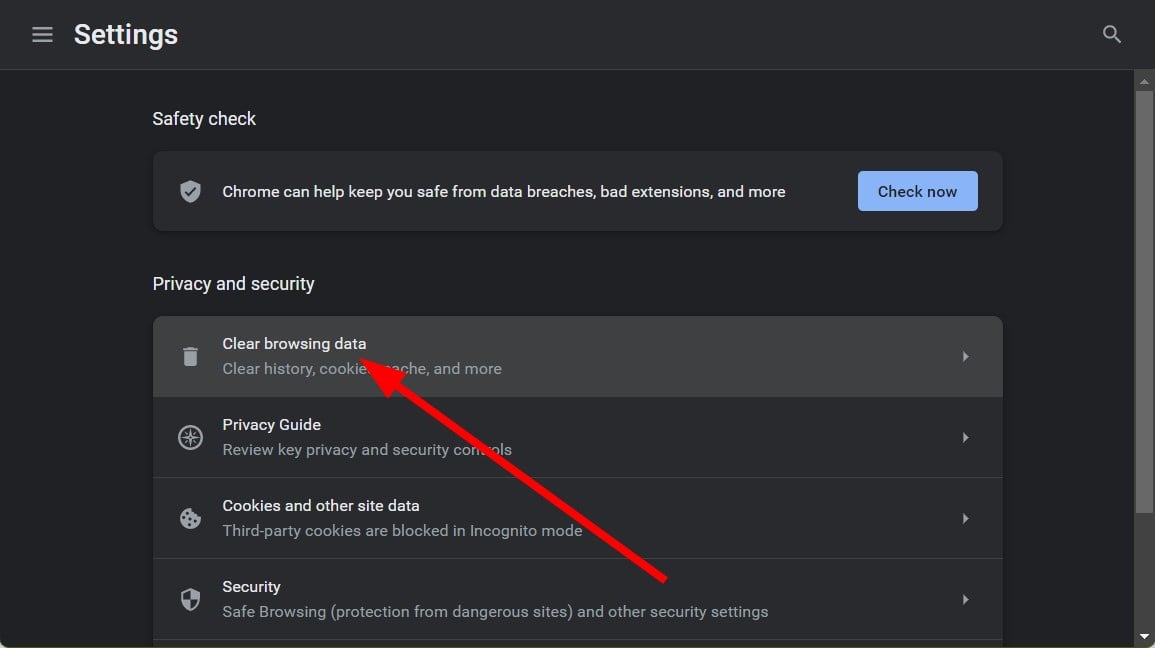
  4. Click on Privacy and security, then select Clear browsing data.
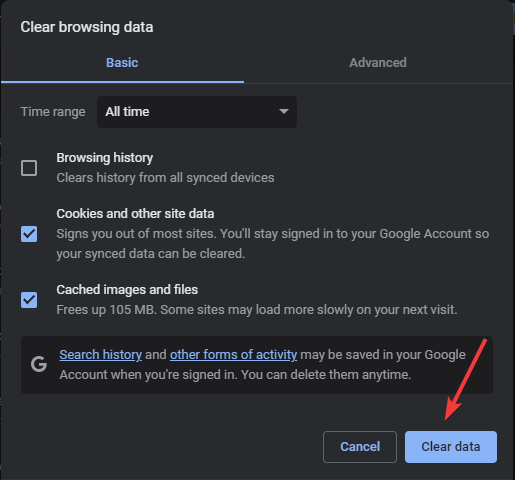
  5. Check Cookies and other site data and Cached images and files, then hit Clear data.Clear data

3.2 YouTube for Android

  1. Tap on settings on your phone.
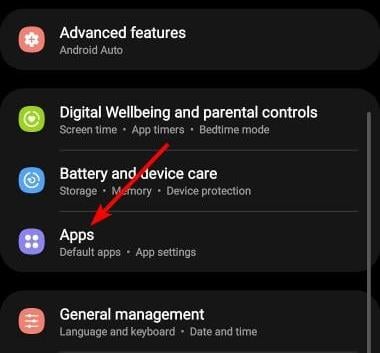
  2. Next, tap on Apps.
  3. Find the YouTube app and tap on it.
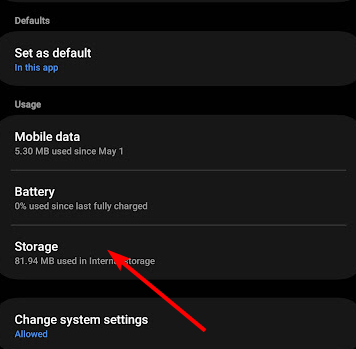
  4. Scroll down and select Storage.
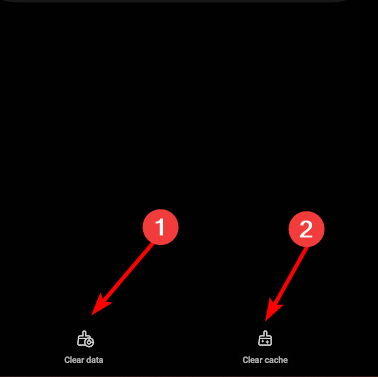
  5. Tap on Clear data and Clear cache, then try again.

4. Free up internal storage

4.1 PC

  1. Click the Windows button and select Settings.windows 11 settings
  2. Access the System option from the right and select Storage.storage settings windows 11
  3. Now toggle the Storage Sense button to On.windows 11 sense
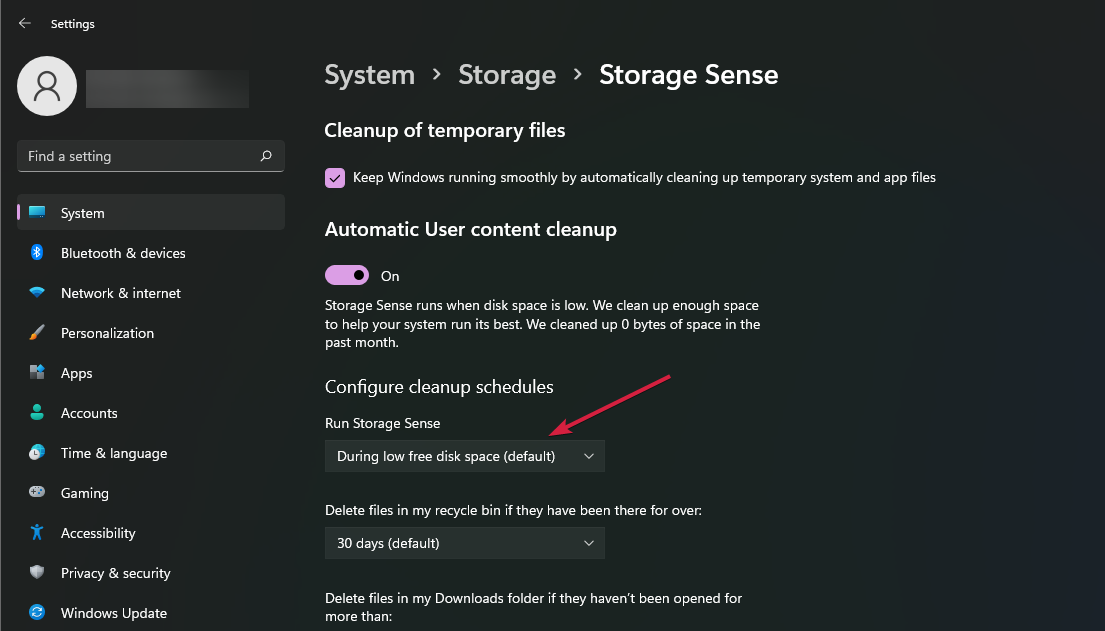
  4. If you click on the Storage Sense option further, you can configure it. By default, the feature will start to clean up unnecessary files in a low disk space situation. You can change that by clicking on the Run Storage Sense menu.windows 11 sense settings
  5. Select the right option for you to act automatically. You can choose from three settings: daily, weekly or monthly.windows 11 sense menu

Aside from enabling Storage Sense, there are other ways to conduct a Disk Cleanup on your Windows device to free up even more space.

4.2 Android

On your Android device, you can free up your internal storage space by clearing app cache, deleting unnecessary files or moving some of these files to your SD card or cloud storage.

5. Explore external storage options

  1. Launch the YouTube app and find the video you wish to download.
  2. Tap the download button below the video player and select the quality.
  3. Select SD card as the download location.

The good thing is you can download videos to an SD card but unfortunately, this option is only available to YouTube premium subscribers. With YouTube premium, you’ll also get access to blocked videos.

Additional tips to optimize YouTube storage

  • Perform regular storage checks to get rid of unwanted files. This will ensure you always have enough space for your downloads.
  • Whenever possible, opt for streaming directly instead of downloading. And if you must download, ensure you delete the video immediately after you’re done watching.
  • Consider using the lite version of YouTube. These versions are usually lenient on your data so you might not even need to download offline videos.
  • Clear cache regularly to prevent storage depletion and lags and update the YouTube app whenever a new update is available for performance improvements.

After you solve your storage woes, you can go ahead and switch to YouTube dark version. This will not only offer you an aesthetical view but also be easy on your eyes especially if you’re on the screen for hours on end.

You may also want to try out with other YouTube apps for your PC. These alternatives come with advanced features and allow you to customize to your preferences.

Hopefully, one of these solutions has enabled you to reclaim your storage space and download more offline YouTube videos.

We’re open to hearing any other suggestions you may have on this topic so leave us a comment below with your thoughts.

Introducing Razer Blade 18: The ultimate powerhouse with Thunderbolt 5, and 18-inch 200Hz 4K display

Recently, Razer introduced a desktop replacement laptop, Razer Blade 18, and called it the biggest, baddest, and most robust.

Razer Blade 18 is the first laptop ever with a huge, ultra-clear 18-inch 4K 200 Hz display, powerful Intel Core i9 HX series process, and NVIDIA GeForce RTX 40 series GPU.

It is the first one to support Thunderbolt 5, which can carry data at a rate of up to 120 Gbps. You can connect high-speed drives and up to three 4K displays.

This is the first Windows 11 laptop with the biggest screen and sleek anodized aluminum unibody. It features Nvidia RTX 4070 to RTX 4090 and a total of 175W Total Graphics Power (TGP).

It also features a 5 MP webcam, a six-speaker array with THX Spatial Audio support, Wi-Fi 7 connectivity, and a GaN charger, a 60% smaller charger capable of charging your laptop up to 330W.

The laptop also comes in an alternate display option, which gives you a super-fast display, 18 inches QHD+ 300Hz Mini-LED, providing you with the smoothest visuals for immersive gaming and creative work,

In the press release, April 04, 2024, at 4 pm BST / 5 pm CEST, Travis Furst, Head of the Notebook & Accessories Division at Razer, said:

The Blade 18 embodies Razer’s relentless drive to push the boundaries of what a gaming laptop can be, with a host of world’s first innovations. We are excited to deliver the Blade 18 as it ushers in a new era of Razer products equipped with Thunderbolt 5, including upcoming cutting-edge Thunderbolt accessories. With these innovations, the Blade 18 blurs the line between desktop performance and mobile convenience, ensuring our users are equipped with nothing but the absolute best to dominate in gaming and creativity.

Jason Ziller, VP and GM of the Client Connectivity Division at Intel, said:

Thunderbolt 5 enables a game-changing level of performance, and it is exciting to see leading brands like Razer bring innovative solutions that incorporate it to market. Thunderbolt 5 enables total performance for video and data of up to 120Gbps via Bandwidth Boost – three times more than prior gen Thunderbolt – and twice the bandwidth for data transfer to deliver an outstanding solution for creators and gamers.

Here are more details:

CategoryDetails
Display 18” 4K 200Hz display with up to UHD+ (3840×2400) resolution, 3.0ms response time, and DCI-P3 100% color gamut
 Thunderbolt 5Consists of the thinnest exhaust fins in its class, which maximizes the graphics power and gives you the power and performance equivalent to a desktop in a sleek design
 Intel Core i9 HX processor 14th Gen i9-14900HX with 24 Cores and  the ability to unlock overclocking through Razer Synapse
 NVIDIA GeForce RTX 4090Unlocks up to 175 W Full TGP and uses  NVIDIA’s AI-powered DLSS 3 to deliver faster framerates & real-time ray tracing
Advanced Cooling SystemConsists of  thinnest exhaust fins in its class, which maximizes the graphics power and gives you the power and performance equivalent to a desktop in a sleek design
Other features THX spatial audio 6-speaker array, 5MP webcam, latest Wi-Fi 7 connectivity, comprehensive port selection,  GaN charger (Up to 330W)

Now that you know the features and power of the biggest Razer laptop, let’s talk about prices. The starting price of the device is USD 3099.99. However, if you choose a different color, better graphics card, powerful display, bigger storage, and memory, it could cost you approximately USD 4499.99.

The laptop is available now to pre-order and will soon be available on RazerStores and authorized resellers.

Will you be choosing this Razer laptop over your desktop? Share your thoughts with our readers in the comments section below.

Chrome beefs up security with V8 Sandbox, already available in Chrome 123

Security of your browser is paramount, and Google is doing its best to keep its users safe while browsing the web.

After extensive testing, V8 Sandbox is here, and it’s available in Chrome for everyone to use.

Chrome 123 gets V8 Sandbox, boosting user security even further

According to Google, V8 Sandbox is no longer an experimental feature, and it’s already available in Chrome 123 as a beta release.

If you’re not familiar, this is a lightweight and in-process sandbox for V8, and it’s designed to fix common vulnerabilities with the V8 engine.

Speaking of vulnerabilities, Chrome even allowed users to disable V8 optimization to boost their security not that long ago.

Currently, V8 Sandbox prevents memory corruption within the host processes, thus keeping your memory safe. This comes after the memory corruption vulnerability in a Chrome renderer process was used to run remote code.

In case you don’t know, the V8 engine is an open-source JavaScript and WebAssembly engine made by Google, and it’s used in all Chromium browsers, including Chrome, Opera, Brave, Edge, Vivaldi, and others.

The V8 engine is crucial for executing JavaScript efficiently and the V8 JavaScript engine is even used outside of browsers.

To ensure the maximum security of its users, Google has included V8 Sandbox in Chrome’s Vulnerability Reward Program and it offers up to $5000 to anyone that can bypass it.

Moving forward, Chrome will be more secure, and Google will be able to address and fix issues more quickly.

In other news, Chrome has Tracking Protection settings ready for rollout, and we should see this feature available soon.

You can now preview more than 6 top free apps on the Microsoft Store without leaving the homepage

Earlier this week, the Microsoft Store was updated to support a much faster performance. The Redmond-based tech giant allows users to skip the platform’s splash screen resulting in a lightning-fast experience when opening it up.

The Microsoft Store has no splash screen, and no loading indicator and the startup feels almost instantaneous, product pages are loading about 40% faster than before, and the new store also manages entitlement and licensing better which results in the Buy button appearing 1.5 times faster than before.

However, according to Windows enthusiast @PhantomOfEarth, Microsoft Store also allows more than 6 top free apps to be displayed on its homepage, without ever leaving it. Microsoft added previous/next buttons, that can be accessed to see more than the original 6 top free apps.

This is quite useful given that Microsoft Store might be interested in the top free apps of the week, and now they can choose from a greater pool of options.

Before this week’s update, only 6 top free apps were displayed at the same time on the homepage, and when trying to see more than 6 apps, the Microsoft Store would open the dedicated page, prompting the user to leave the homepage.

However, now you can click on the new buttons to go through Microsoft Store’s top free apps, and when we tried it, we could access more than 50 apps; clicking on the buttons also refreshed the next batch of apps, so there it will take some time until you cycle back to where you started.

This is quite useful: you can now install your preferred apps without ever leaving the store’s homepage, all while having a seamless experience on the platform. Coupled with Microsoft Store’s newfound faster performance, this could be a winner for many users out there.

What do you think of the improved Microsoft Store?

Google might add History Embeddings in Chrome to help you search you browsing history quicker

Lately, Google added some important security features in Chrome. However, it doesn’t fall short when it comes to convenience either and the new History Embeddings option proves that.

This experimental feature could significantly change how you interact with your browsing history. The feature is being tested in Chrome Canary.

What is History Embeddings and what does it do?

Currently, your history when you press Ctrl + H or visit chrome://history, you browsing history  is displayed by date, with the option to filter by groups. History Embeddings seems poised to offer a more intuitive way to navigate your past visits. The new interface offers access history By group, and timeframe options such as yesterday, last week, last month with time by default.

Here’s how the history page looks before enabling History Embeddings

In the initial phase of testing, the feature shows a Promo with a message to search through history with Search and chat icons with place holder text conveying on how to search history and what data is available. The promo offers more control in Settings.

How do I enable History embeddings in Chrome?

If you have Chrome Canary installed, visit chrome://flags, then find and enable History Embeddings.
After that visit the chrome://history page to see how Chrome presents your past visits to webpages in a new way.

While some Chromium code mentions a page content annotation service, the details about this feature are scarce at the moment. We have been able to find related flags including that of History Embeddings to know what you are seeing with screenshots attached.

One thing is clear, Chrome history is poised to get a big redesign with History Embeddings. We will let you know once we have more details to share.

In the meantime, share your thoughts in the comments section below.

Xbox sales show no signs of recovery, game developers reassess the console’s viability

Xbox sales have been consistently low over the past few years, with PlayStation, Nintendo, and PC emerging as the preferred gaming platforms. If we look at the Xbox vs PlayStation sales, the former has sold just 180 million units, while the latter has sold over 506 million units.

Even though Microsoft doesn’t officially share Xbox sales figures, it comes to public knowledge sooner or later.

Xbox sales have fallen by over 50% in Europe, a region where PlayStation commands more than 80% of the market. Europe has never been a favourable territory for Xbox. In the US, PlayStation has a 57.5% share compared to Xbox’s 42.5%. Worldwide, PlayStation stands at 70% while Xbox is at 30%!

Owing to the increasing losses, game developers have started reassessing their investments in a console that ranks fourth in terms of the user base, after PlayStation, PC and Nintendo. Why pump millions into a game for Xbox when the user base is dwindling, right!

Why are Xbox sales declining?

Xbox isn’t what it used to be. Microsoft’s plans to release Xbox-exclusive titles on other consoles affected the sales. More so, Xbox hasn’t had any significant developments in the console segment.

Besides, in the past few years, PCs emerged as a preferred gaming platform, which led to a decline in Xbox sales. Compact gaming laptops became the go-to device for gamers!

When Chris Dring, Head of GamesIndustry.biz, talked about the recent GDC (Game Developers Conference) in a podcast available on YouTube, he discussed the apprehensions game developers have towards Xbox.

The phrase one major company who released a big game last year said [was], ‘I don’t know why we bothered supporting it.’ […] Now you’ve got third-party publishers going, ‘we’re putting in a lot of effort trying to create a Series S version and an X version of a game when, to be honest with you, for us the market is PC and PS5′.

When asked about the recent decisions at Xbox and the console’s future, Chris said,

I thought it would be fine, but then I didn’t really factor in that some developers and publishers might just go, ‘yeah I don’t, you know, is there any point?’ And that is when you can lose it.

Experts across the industry believe that if Xbox couldn’t turn the tables in the next few years, it would be too late to recover. Sony and Nintendo are already beating Xbox, and at this rate, Xbox may be out of the picture in a decade or two!

What’s next for Xbox?

As was expected, Microsoft plans to bring AI to Xbox after successful integration across its native products. Recent reports also suggest that Microsoft is working on an AI chatbot for Xbox that is capable of customer support and dealing with refunds.

This may help Xbox recover after a prolonged period of declining sales, but a lot more needs to be done!

For instance, Xbox should plan a well-timed release of a new console, just as the PS5 Pro launch coincides with that of GTA 5. Besides, AI should be employed in the content moderation system. The recent banning of Xbox accounts through Minecraft makes it amply clear!

As for the future, leaked images hint that the next Xbox console will be all digital and won’t feature a disc drive. This, too, was expected, given that 90% of game sales last year were digital.

Xbox’s future does look uncertain but the possibility of it going obsolete is bleak. In the last few months, Microsoft may have been more devoted to game development and publishing after acquiring Activision Blizzard. While this signals a shift in approach, Microsoft wouldn’t concede this early in the console war!

What do you think about the decline in Xbox sales? Share with our readers in the comments section.

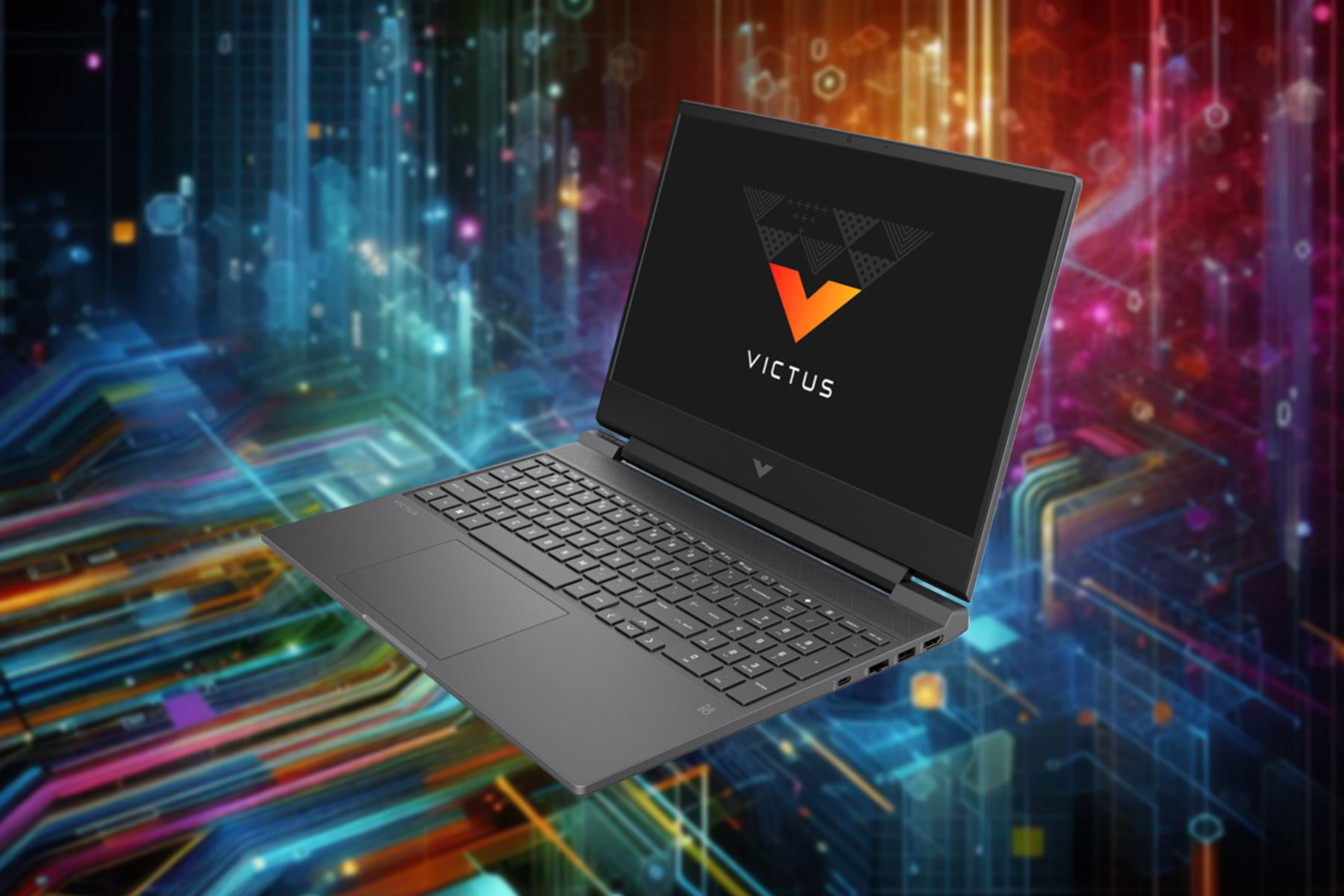
HP Victus 15 laptop is available at a 35% discount

HP is well-known for its outstanding devices, with the Victus series being one of the most popular.

If you’re looking to get a new laptop, you’ll be pleased to hear that the HP Victus 15 is available at a hefty discount.

HP Victus 15 is at a discount, here’s what you can get

According to Digital Trends HP Victus 15 is currently available at $350 off. If you’re not familiar with this model, it comes with the following:

Display:15.6-inch, 1080p display, IPS panel
CPU:13th-gen Core i5 CPU
GPU:Nvidia RTX 3050
RAM:8GB of DDR4 RAM
Storage:512GB SSD
Battery:70 watt-hour battery
Connectivity:2x USB-A ports, a USB-C port, an SD card slot,HDMI port
  • 15.6-inch, 1080p display, IPS panel
  • Nvidia RTX 3050
  • 13th-gen Core i5 CPU
  • 8GB of DDR4 RAM
  • 512GB SSD
  • 70 watt-hour battery

HP Victus 15 has decent specs, but 8GB of RAM might not be enough for modern titles. Luckily, there’s an option to upgrade your RAM if needed.

512GB SSD also might not be enough, so you might want to consider expanding it. However, the laptop is currently selling for $649.99 on HP’s website, so despite these flaws, it’s a bang for the buck.

If you need something with more power, the Razer Blade 15 is also available at a discount, so check it out. In other news, HP OmniBook series is making a comeback, so stay tuned for more information.

Microsoft blames the StartAllBack app for performance issues and blocks upgrades to newer Windows 11 builds for many

Like every OS, with a new update, Microsoft also adds and removes functionality to make it more intuitive for its users and fixes issues. One of the issues pointed out several times was the change of the Start menu and the issues around it.

Though Microsoft has released a fix targeting the Start menu issues on Windows 11, many Windows users are not satisfied with the operating system offering the Start menu in its stock form.

Some users took matters into their own hands and started using apps like StartAllBack, but allegedly, Microsoft was not happy with this. Allegedly, in retaliation, the Redmond tech giant started blocking the program and even prevented users from upgrading Windows 11 builds if they had installed the StartAllBack app.

The issue was reported first by @endermanch on X (formerly Twitter):

He shared two screenshots showing how Windows 11 is flagging StartAllBack as the one causing performance or security issues and not letting you run the app anymore. With this, the company is also preventing upgrades to newer Windows 11 builds, which is quite far-fetched. When you try to install the recent Windows 11 preview build, here’s what the message says:

This app can’t run because it causes security or performance issues on Windows. A new version may be available. Check with your software provider for an updated version that runs on this version of Windows.

This was followed by some other users complaining about the same on X and other forums, including Microsoft Community.

One of the users on Microsoft Community, Zach Dilton, mentioned:

Yesterday last night I updated Windows 11 to version 22H2 (OS Build: 22621.3007) and shut down the computer after it finished updating. This morning, I decided to turn on my computer and found out that StartAllBack is not working properly.

The Windows button on the taskbar looked like this. It was clearly the StartAllBack taskbar configuration and the Windows 11 taskbar overlapping one another. I tried many things such as uninstalling StartAllBack and even downloading a more up-to-date version of the setup executable, yet it didn’t work. Messing with the configurations in Windows 11 taskbar settings or the StartAllBack settings did not help either. I tried restarting the computer three separate times and, as you might guess, it didn’t achieve much. I’m not sure exactly what the problem is but I will give more information that is asked of me if needed.

In response to this, a lot of other users in the community showed their frustration with how Microsoft has deprived them of customizing the taskbar and criticized the steps the company has taken to prevent you from using a third-party app to get the job done.

Some users, like Matt The Retro Geek, mentioned that they resolved this problem by uninstalling the StartAllBack app, upgrading Windows, downloading the 3.7.8 version of the app, and renaming the .exe file to something other than startallback.

In response to this, StartAllBack developers acknowledged the problem and posted on X:

No idea why MS has done this without any kind of warning. Renaming setup exe works

So, for now, if you want to use StartAllBack on your Windows 11 device and get upgrades, you must rename the app’s executable file; this should allow you to bypass the block.

However, if we think about it more deeply, it is often simpler to attribute blame to the operating system when our favorite apps stop working.

However, have we contemplated why app developers do not bother to update their software to meet evolving OS requirements?

Additionally, applications that the operating systems highlight as risky could indeed pose security issues and cause instabilities.

So, if you want to use the app despite the warning, you should back up your important data. What are your thoughts on the matter? Share your opinions with our readers in the comments section below.

Hackers use the Latrodectus malware to gain control of your device

Cyber security specialists from Proofpoint and Team Cymru discovered a new malware named Latrodectus. They categorized the virus as a downloader. Its functionalities allow it to bypass detection within security sandboxes. In addition, it is similar to the IcedID family malware, and its creators might be the same. After all, the unique patterns in campaign IDs used by the Latrodectus malware resemble the ones used in previous IcedID attacks.

Proofpoint specialists found the Latrodectus malware for the first time in malicious email campaigns in November 2023. However, its usage lowered between December 2023 and January 2024. Yet, it resurfaced during February and March 2024. Additionally, there is a possibility that multiple groups of threat actors use the virus.

How do hackers use the Latrodectus malware?

According to Proofpoint researchers, the hacker group TA577 was the first to use the Latrodectus malware in one of its campaigns. Their method was to use a variety of emails with different subjects and URLs in thebody.

Afterward, the URLs would lead us to a JavaScript file. However, when opened, it runs several BAT files that use a command-line tool called curl. This method allows the malicious files to execute a specific DLL of the Latrodectus Malware. Their second attack used zipped JavaScript and zipped ISO files with an LNK file to execute the embedded DLL.

Another group of threat actors, TA578, executed a different tactic. They used contact forms on target websites and sent threatening emails with fake copyright infringement notices to which they attached carefully crafted URLs. Additionally, they used the link to send users to a Google Firebase URL containing the infected JavaScript file. After executing it, the file would install the Latrodectus malware.

How does the virus work?

The Latrodectus Malware bypasses detection using hashes to resolve the Windows OS functions. After all, this makes it harder for antiviruses to detect it. Afterward, it checks for the presence of debuggers and tries to avoid their detection.

Once the virus is in your system, it gathers information about your OS and running processes. Then, it creates a scheduled task to run periodically and an auto-run key that allows it to start with the system. Additionally, it can send your data to its command and control server, request the installation of other malware, and receive additional commands from wrongdoers.

Ultimately, more threat actors, especially those familiar with IcedID, could soon use the Latrodectus malware. The virus can send information about your system and install others. To avoid it, do not open any suspicious URLs in your email. Contact your superiors or cyber security specialists. Flag the emails and report them. Also, run an antivirus scan every week.

What are your thoughts? Did you ever receive such emails? Let us know in the comments.

Microsoft is working on sound recognition AI technologies capable of detecting natural disasters

Microsoft has always been at the forefront of AI development, and together with OpenAI, the company has been working on and enhancing AI products, such as Copilot (back then, Bing Chat) with image recognition capabilities.

However, the Redmond-based tech giant is working on performant sound recognition AI technologies that would see Copilot (and any other AI model, such as ChatGPT) capable of detecting upcoming natural disasters, such as earthquakes, and storms.

According to a patent published recently, Microsoft’s new technology can recognize different types of sounds, from doorbells to babies crying, or dogs barking, but not limited to them. It can also recognize sounds of coughing or breathing difficulties, or unusual noises, such as glass breaking.

Most intriguing, it can recognize and monitor environmental sounds, and they can be further processed to let users know if a natural disaster is about to happen.

The system takes a sound signal and breaks it into smaller parts, or segments. Each segment is processed to create a normalized representation of the sound in the time domain. This is like a map of the sound over time.

This map is then fed into a trained neural network, which is a type of artificial intelligence. The neural network generates scores and probabilities for each type of sound event in each segment. This is like guessing what type of sound each segment is and how sure it is about the guess.

After that, the system does some post-processing to smooth out the scores and probabilities and generate confidence values for each type of sound for different window sizes.

Ultimately, this technology can be used in various applications. In a smart home device, it can detect when someone breaks into the house, by recognizing the sound of glass shattering, or if a newborn is hungry, or distressed, by recognizing the sounds of baby crying.

It can also be used in healthcare, to accurately detect lung or heart diseases, by recognizing heartbeat sounds, coughing, or breathing difficulties.

But one of its most important applications would be to prevent casual users of upcoming natural disasters by recognizing and detecting sounds associated with them.

The raw audio signal may contain environmental or day-to-day sounds that form audio events to be detected by the computer system, such as a siren, alarm, dorg barking, baby crying, gunshots, explosions, applause, and/or laughter, etc.

Since the technology uses neural networks, it can be easily integrated into AI models, such as Copilot on Windows, ChatGPT, or any other models on the market.

On Windows, however, it would be most useful, as casual users could Copilot being able to detect natural disasters and warn them when they’re in danger. It could also act as a security system, alerting users when someone breaks into their house.

You can read the full paper here.

New Facebook video player is rolling out, bringing immersive fullscreen experience

Facebook went through various changes over the years, and with the exploding popularity of short-format videos, Meta has decided to implement some changes.

The company has released a new video player, so without further ado, let’s see what’s new.

Facebook’s video player just got a lot better

According to a recent blog post from Meta, Facebook will now show videos, Reels, and Live content in a full screen by default.

The new player will also have improved recommendations for all videos allowing you to find the right content for you.

All videos will play automatically in portrait mode, but you’ll have the option to quickly switch to landscape view.

There will also be a slider that allows you to easily navigate to the desired part of the video.

The ability to skip forward or backward 10 seconds is also there, and to use it, you just need to tap the video first.

This is a great change, and it’s currently rolling out to mobile users in the US and Canada, but we should see it available worldwide in the future.

Speaking of videos, LinkedIn is testing a video feed feature, and YouTube just got a pesky Get started pop-up.

Firefox partners up with Qwant: Can we expect more privacy while browsing?

Firefox announced its partnership with Qwant on April 4, 2014, a search engine that is renowned for user privacy and tracker blocking.

The Qwant search engine prioritizes privacy and blocks trackers and ads to ensure you get unbiased and thorough search results. This collaboration between Firefox and Qwant aims to provide a more open and inclusive web so that you can make tech choices that align with your values.

In the blog post, Mozilla explains that you can choose the search engine from the Settings panel or right from the Firefox URL bar based on privacy, climate protection, or personal preferences.

With the release of Firefox 124, you can avail Qwant search engine in all languages in the France region along with Belgium, Italy, Netherlands, Spain, and Switzerland

What are your thoughts on Qwant? Share your opinions with our readers in the comments section below.

Microsoft’s screen shielding tech might cripple the privacy screen protector market

Privacy screen protectors have been around for a while, as a separate piece of material that can be added on top of the screen, and protect it from unintended viewers, or those viewers who can easily glance at your devices’ screens when in public.

There are dozens of privacy screen protectors for mobile phones, tablets, and even Surface devices made by third-party companies, independent of Microsoft.

However, it seems that the days when you would need to purchase independent privacy screen protectors might finally come to an end, as the Redmond-based tech giant is developing a technology that does the same, according to a patent published recently.

While Microsoft recognizes the utility of privacy screen protectors, the company admits that they are indeed complex, thick, and bulky to easily transport and utilize in a public space. So, instead, it’s developing a technology that uses face recognition technology to identify who should and shouldn’t see a liquid crystal display (LCD).

Microsoft’s screen protector system identifies the intended viewer (the person who should see the screen) and the unintended viewer (the person who shouldn’t see the screen). It figures out where the unintended viewer’s face is, and then it changes the voltage applied to a certain part of the LCD. This automatically changes the contrast of the screen when seen from an angle.

Examples described herein introduce systems and methods to asjust the off-axis constrast of an LCD utilizing a combination of face recognition technology to direct the modualtion of drive voltage applied a third electrode on the color filter layer of the LCD. The third electrode pulls the liquid cruystal moelcules out of plane to decrease the off-axis contrast.

The technology makes it harder for the unintended viewer to see the screen but doesn’t affect the intended viewer’s view. This gives the intended viewer more privacy. The system is also lightweight, inexpensive, and easy to move around.

The design has no external components and no additional LCD layer required to create image contrast or image off-axis luminance reduction as in other solutions.

The technology was patented, which means the Redmond-based tech giant will ultimately develop and release the screen protector system either as part of Windows, or a stand-alone service, but it might take some years.

Until then, though, if you’re looking for screen protectors for your device, you might want to check out our recommendations.

But in a few years, you won’t need to purchase screen protectors anymore.

Microsoft updates its free Virtual Machines to version 2403; here is all you need to know

Microsoft recently updated its free virtual machine, also called Windows Development Environment (WDE), to version 2403. It was expected to be released in March but was delayed by the Redmond tech giant due to unknown reasons.

If you are interested in trying out the new version, you can head to the official website and download the latest Windows 11 virtual machines.

The virtual machines are available for four virtualization software programs: VMWare, VirtualBox, Hyper-V (Gen2), and Parallels.

Windows Development Environment version 2403 is based on Windows 11 build 22621.3296, the March 2024 Patch Tuesday update. However, it doesn’t include the Moment 5 features as the update is an optional release (soon to be compulsory); you can always update it using KB5035942.

Microsoft also mentioned that these VMs have an evaluation version of Windows that will expire on June 19, 2024. This means you can use it for free until then.

Also, as these VM images use Windows Enterprise Evaluation Edition, they don’t support activation with a product key, so you will have to update them to a newer version whenever they expire.

Furthermore, when the evaluation period is over, the desktop background will turn black, you will get persistent desktop notifications that your system is not genuine, and the PC will shut down every hour.

The evaluation virtual machine includes:

  • Windows 11 Enterprise (Evaluation)
  • Visual Studio 2022 Community Edition with UWP, .NET Desktop, Azure, and Windows App SDK for C# workloads enabled
  • Windows Subsystem for Linux 2 enabled with Ubuntu installed
  • Windows Terminal installed
  • Developer mode enabled

To install and run VM smoothly on your computer, you need 8 GB RAM and at least 70GB of free disk space.

It is important to note that Microsoft’s official Windows 11 virtual machines are not available in ARM variants.

Another important thing to remember is that the user account in the VM does not have a password set up; however, some software may prompt for a password when trying to connect remotely to the VM. For these cases, you can set up a password for the user account before using the software.

In addition to this, if you plan to use the VM on VirtualBox, you might see strange rendering quirks; here is what Microsoft has to say about it:

Yes, we have noticed that there are some rendering quirks when using VirtualBox to run these developer images. The Start menu may also look different than expected. We are currently investigating this behavior. In the meantime, we appreciate your patience and understanding.

If you face installation and activation issues while installing the VM, you must run the Windows Activation Troubleshooter.

Have you tried the new VM? If so, share your experiences with our readers in the comments section below.

Settings app will be better than ever in Windows 11 24H2 with these new features

Microsoft is determined to slowly but surely retire Control Panel, in favor of the Settings app.

This has been going on for years, and speaking of which, in the upcoming Windows 11 update we’ll get some new features in the Settings app.

Windows 11 24H2 to bring several new features to the Settings app

Microsoft is already moving Control Panel features to Settings app but it seems that Settings app will get a few more features, as Windows Latest writes.

In addition to the previously mentioned features, we’ll also see improved accessibility settings. Users will be able to access color filter sliders and adjust the intensity of any color.

Additional features will include hearing aid support and a power indicator.

Display settings, more specifically the Graphics section will get the Automatic Super resolution feature that uses AI for image upscaling of apps.

There’s also a new feature that performs optimizations for windowed games, and under the Advanced section, you can find hardware-accelerated GPU scheduling and Variable refresh rate settings.

Lastly, there’s a Sudo feature available, and as you may remember Sudo was introduced in Windows 11 Build 26052.

These are all the features that are coming to the Settings app with the Windows 11 24H2. For more news, be sure to stay tuned.

PowerToys’ latest version, v0.80.0, supports Desired State Configuration, audio files in Peek, fixes bugs

Microsoft PowerToys is a set of free tools that help you customize the Windows experience, enhance the feature set, and streamline things. The latest version of PowerToys, v0.80.0, aims to deliver stability and bring new features.

PowerToys’ v0.80.0 also improves the existing functionalities for each of the utilities. There are add-ons for File Explorer, line wrapping in File Locksmith, updated measure icons for improved clarity, and a new setting in the Windows Search plugin to exclude files and patterns in the search results.

Here are the key highlights of the release notes for the latest version of Microsoft PowerToys:

1. Added support for Desired State Configuration in PowerToys, allowing the use of winget configure to configure many settings.
2. The Windows App SDK dependency was updated to 1.5.1, fixing many underlying UI issues.
3. WebP/WebM files support was added to Peek.
4. Audio files support was added to Peek.
5. Automated UI testing for FancyZones Editor was added to CI.
6. Added a Quick Access entry to access the flyout from PowerToys’ tray icon right click menu.
7. Fix an issue causing the “Keep screen on” option to disable after Awake deactivated itself.
8. Fixed a UI issue causing the color picker modal to hide part of the color bar.
9. Fixed an issue in Keyboard Manager that would clear out KBM mappings when certain numpad keys were used as the second key of a chord.
10. Fixed an issue in Registry Preview causing many pick file windows to be opened simultaneously.

For the complete list of changes, check the release note.

Microsoft PowerToys is an open-source project with contributions from the PowerToys community. It’s available on GitHub and the Microsoft Store. The latter is a more suitable option to install PowerToys for people not familiar with GitHub.

Also, Microsoft PowerToys gets updated regularly, almost every month. The next version of PowerToys is scheduled for release in late May during Microsoft Build 2024.

Before you leave, discover the best PowerToys utilities for Windows 11 and use them effectively!

What’s your take on the changes in the latest version of Microsoft PowerToys? Share with our readers in the comments section.

Squash all external card issues with Outlook 2016 KB5002574 update

Outlook is a great email client, but just like any application, it has its share of issues, but Microsoft is usually quick to address them.

Speaking of which, a new update for Outlook has been released, so without further ado, let’s dive into it and see what’s new.

KB5002574 for Outlook 2016 brings several improvements and fixes

The latest update has been released and according to the KB5002574 documentation, this update will block the external card loop failure.

To achieve that, there is a new policy available with the following settings:

  • Always show automatically
  • Only show automatically within tenant
  • Don’t show automatically

The update also fixes an issue that causes the Group Policy Editor not to load correctly after creating a new policy for the blocked external card loop.

To get this update, you just need to use Windows Update to get it automatically. If you’re using a msi-based version of Office 2016, you can use the msi setup file to update it:

If you’re having issues with external card loop failure, be sure to get this update. Outlook also has a privacy bug that reveals attendees, and so far, it hasn’t been addressed.

As for other issues, Gmail is blocking Outlook, and Microsoft has a workaround, however, an official solution would be appreciated.

Kaspersky discovered that most cybercriminals use data-stealing malware

Cybercriminals target businesses and customers with data-stealing malware. In addition, according to a study from Kaspersky Digital Footprint Intelligence, 53% of the infected devices are corporate. Most of the infections affected Windows 10 systems. Also, in 2023, data-stealing viruses rose by 643% compared to the previous three years. This means that the malware infection affected over 10 million devices.

Kaspersky tracks and monitors the activity of the data-stealing malware on the black market. This way, they protect their customers and employees. On top of that, they can help companies understand the threat. Afterward, they can implement protective measures.

How do hackers use the data-stealing malware?

Threat actors steal around 50 credentials with the data-stealing malware per infected device. Afterward, wrongdoers either sell it, share it freely, or use it for identity theft, unauthorized access, and impersonation. However, they might not use the stolen credentials right away. So, consider changing your passwords and other login details.

Kaspersky mentions that 443,000 websites worldwide had their credentials compromised in the past five years by data-stealing malware. The stolen data contains social media accounts, online banking services, crypto-wallets, business emails, and more. Unfortunately, hackers can use a single infected device to access most of your accounts and sensitive information.

21% of the employees who suffered from the data-stealing virus ran it repeatedly. This incident shows that companies lack detection and response measures. Also, Kaspersky’s research reveals that employees lack the necessary knowledge to recognize viruses. In addition, companies don’t train them to use antivirus software regularly.

The value of your data on the dark web depends on the selling method. According to Sergey Shcherbel, an expert at Kaspersky Digital Footprint Intelligence, some cybercriminals sell specific data based on customers’ requests, while others use subscriptions and give their buyers regular updates. Basic data log files usually go for $10 each.

In a nutshell, cybercriminals perform more cyberattacks than they used to. Most of their methods include data-stealing malware. On top of that, your login details are valuable on the black market, even if they are personal or belong to an enterprise. So, to protect your sensitive information, perform regular malware scans and change your login credentials. By the way, the .com domain is the leader of compromised accounts, followed by domains associated with Brazil (.br), India (.in), Colombia (.co), and Vietnam (.vn).

What are your thoughts? Are you using Kaspersky? Let us know in the comments.

Google might make users pay for premium AI features in search results

Rumors say that Google might soon change its search monetization strategy and make us pay for premium AI features in search results. If this is true, it would be the first time the company charges for one of its core features. However, Google could incorporate the new features into its premium subscription services.

Premium AI features might threaten Google’s core revenue

Google believes that AI threatens its core revenue from advertising. After all, most of us are using AI to perform searches. Thus, we don’t interact with multiple websites like we used to. Instead, the AI summarizes the information for us and answers our queries.

On top of that, we interact with ads less because we use chatbots more. In addition, it is difficult for Google to keep delivering ads based on our preferences when we don’t provide our browsing habits and don’t have a search history. In addition, online publishers that rely on traffic fear that the new premium AI features could threaten their businesses, especially since AI does copyright infringements.

However, by charging people extra for new premium AI features on its search results, Google could lose some of its user base. Thus, its competitors might take this opportunity to improve their search engines and gain more users.

Even if Google’s traditional search engine stays the same, users might still be displeased by the paywall. After all, even if we pay for a service that uses premium AI features to generate better search results, most of us wouldn’t like seeing ads. So, we might keep using the traditional engine.

Google’s experimental service provides ads

To challenge the threat of ChatGPT, Google introduced in May 2023 a new experimental service called Search Generative Experience (SGE). Yet, even if it gives better search results, it also provides ads. However, Google didn’t implement the premium AI features from their experiment, most likely to protect its ads revenue.

On the other hand, it is costly for Google to implement premium AI features in their search results. After all, they use more power to generate answers. On top of that, the company offered access to the SGE service to some limited groups and Google One subscribers.

This year, Google added a new paid tier to its Google One subscription service for users who want a better version of AI. For example, customers could use Gemini to Workspace, and have premium AI features in Docs and Gmail.

According to the Financial Times, Google could add some of its premium AI features to the traditional search engine to enhance it. Also, the company is not going to bring ad-free services. Yet, it will bring better features for its premium customers.

Ultimately, Google is trying to add more enhanced premium AI features for its subscribers. However, they won’t introduce ad-free searches. On top of that, the company could introduce some of the premium AI features to the traditional search engine. Furthermore, they will continue to develop the Search Generative Experience to see its potential.

What are your thoughts? Are you eager to try using AI in your search results? Let us know in the comments.

Microsoft would love your perspective, as the company releases a new survey focused on improving Windows 11

On April 3, 2024, Microsoft released Windows 11 Insider Preview Build 26100 to users in both the Canary and Dev channels. The build fixes a range of existing issues in Windows 11, from Copilot to several app installation errors in the Microsoft Store and shutdown/hibernate problems.

It’s also considered the base for the RTM 24H2, but for now, it seems that the build is quite unstable, with many errors and issues popping up, from instant crashes to conflicts with third-party apps, or the 64-bit .NET framework.

However, it seems that the Preview Build 26100 also introduced a new survey focused on improving Windows 11, according to Windows enthusiast, @XenoPanther, who spotted it.

Suggestively titled Microsoft would love your perspective, the Redmond-based tech giant goes on to ask Insiders various questions on Windows 11’s overall performance, speed, and stability.

For instance, one question focuses on the Copilot experience, while the other focuses on gaming on Windows 11. Privacy, app compatibility, and reliability are also issues that Microsoft is interested in, along with personalization and customization settings.

Microsoft is currently undergoing the Windows 11 survey within the Windows Insider Channel, and more specifically in the Dev, and Canary channels. We don’t know if the survey is going to be released on the Beta, or the Preview channels, but most likely yes, as it concerns Insider builds.

However, Microsoft might also bring the Windows 11 survey to the stable channel, especially since it includes questions about the Copilot experience.

As we all know, Copilot was released to Windows 11 last fall, but according to our survey, the AI tool has been experiencing adoption issues. In other words, many Windows 10, and Windows 11 users find it useless.

Microsoft is placing all of its bets on Copilot, and the AI tool needs to be used by Windows users as much as possible, otherwise, the whole AI-powered Windows, including version 24H2, which is reportedly carrying many AI capabilities, will backfire.

Windows 11 Build 26100, the alleged RTM 24H2 base, is currently unstable, and it crashes everything

Microsoft released Windows 11 Insider Preview Build 26100 to the Canary and Dev channels earlier this week, and many believe this is also the base for the RTM 24H2 update. The RTM is widely considered the base for a new Windows version, and a version of the operating system that can support newer features.

In this case, build 26100 is seen as the base for Windows 11 24H2, or the 2024 Update, which will reportedly be full of AI capabilities. However, as of now, it seems that 26100 is quite unstable, and the build not only crashes by itself, after booting, but it also causes multiple issues with other applications.

The 24H2 RTM base has apparently broken the 64-bit .NET framework app debugging, according to Windows enthusiast, λlbacore.

Not only this, but it seems that build 26100 also crashes when running certain applications, such as VMware 3D, or third-party apps, such as StartAllBack.

Windows enthusiast, @PhantomOfEarth, experienced similar issues with the build: it apparently crashed right after accessing the Settings page.

If Windows 11 RTM 24H2 is based on the build, then Microsoft has a lot of work to do to stabilize it, but nonetheless, it’s good that the build encounters so many issues with so many applications. After all, that’s why it’s an Insider build.

Down the road, the Redmond-based tech giant will release weekly builds that will ultimately improve it, until it is ready to be released to the general public, by the end of this year.

We predicted the 2024 Update could come out in September/October and it will have many AI capabilities, some of which have already been released to insider builds, such as the Auto Super Resolution.

However, with the introduction of the new Qualcomm chipsets this summer, Microsoft is surely moving towards AI PCs, and Windows 11 will follow the AI path, undoubtedly.

With this exciting update, you can now trim videos in PowerPoint for the Web

Microsoft has just updated PowerPoint for the Web with the capability of trimming videos, allowing users to do so very easily, in just a few steps.

The Redmond-based tech giant added a new Trim Video button that can be seen when opening PowerPoint, and clicking it will start to process of editing a video right there.trim videos PowerPoint Web

In the official blog post, Microsoft says the new feature will allow users to edit videos precisely, and even preview them to make sure they’re all good to be used in presentations.

Using the new Trim Video command, you can edit the videos you inserted in your presentation to show only the most important and engaging parts, and keep your audience focused on what is relevant. You can trim videos using frame or timestamp level accuracy, and preview them and fine-tune them until you achieve the perfect and precise outcome.

Microsoft

How to trim videos on PowerPoint for the Web

  1. Open/create a presentation, and insert a video.
  2. Select Video > Trim Video on the new Video tab or right-click the video and select Trim Video, as you can see below.
Entry points to the Trim Video command

      3. Trim the video by dragging and sliding the markers to your preferred positions.

Animation showing how to trim a video by dragging and dropping

      4. If you want to preview the edited video, click the Play button.

Preview video

      5. To finish, click the Trim button, and you’re done.

Microsoft says all users should have access to the new feature, but for now, you’ll only be able to trim local and stock videos in PowerPoint for the Web.

Last month, the Redmond-based tech giant also introduced new ways to animate presentations in PowerPoint for the Web, and just like the new trimming option, the animations can also be previewed before enabling them in presentations.

What do you think about this new feature? Will you use it or not? Let us know in the comments section below.

Gemini will bring the Reply Suggestion feature on the Gmail app for Android

If your work involves replying to emails often on Gmail, there is good news! To make email writing efficient and enhance productivity, Google is allegedly working on a new feature powered by the Gemini Ultra artificial intelligence (AI) model.

A tip exclusively given to PiunikaWeb suggests, that the reply suggestion feature was discovered integrated within the Gmail app on Android. This means the AI-driven functionality will offer intuitive reply suggestions directly within the Gmail app, thereby revolutionizeing the entire mailing experience.

The Reply Suggestion feature is supposed to be integrated into the Gmail app on your Android devices, which will be made available for Google’s Gemini Advanced subscribers.

It aims to simplify email correspondence and eliminates the need of crafting replies manually, instead the AI tool will analyze the content of received email and create a customized suggestions, saving your time.

Gemini will also ask for your feedback to understand whether suggestions made were bad to improve the future ones.

On opening an email, and choosing the reply option, you will get a new panel named Reply suggestions from Gemini, which will showcase tailored responses based on email’s content.

You can first review them to know which one suits best, then tap on the preferred response. The text selected will appear in the compose field, which you can modify or send as it is.

This news came out after Google’s announcement regarding the Gemini Ultra’s integration across the Google Workspace suite, thereby extending AI capabilities to Docs, Gmail, Slides, Sheets and Meet for Gemini Advanced subscribers. And, it looks like the search giant is working on the same.

The Gemini Advanced subscription is available via Google One AI Premium plan, which provides users with advanced feature for a monthly fee of USD 19.99. As of now, for promotion, Google is offering a trial period of two months without any cost.

Gemini Advanced subscription also includes  Google AI and our latest features, added with the benefits of the existing Google One Premium plan, such as 2TB of storage

We expect the reply suggestion feature to be rolled out in upcoming weeks. As Google is moving towards making its productivity suite AI-powered, it brings hope for those who want to streamline communication and boost their productivity in the workspace even with their mobile devices.

It is important to note that there is no officially confirmation on the rollout schedule of the impending feature.

Do you think the reply suggestions feature if made available on Gmail will help you? If so, share your opinions with our readers in the comments section below.

A year after its announcement, Windows 11 24H2 LTSC leaked, and users can download it (but they shouldn’t)

After getting the first images of the Windows 11 LTSC, back in February, it seems that the operating system has leaked ahead of its release, and it’s based on the upcoming 24H2 build 26100.1.

Windows 11 Enterprise LTSC was announced by Microsoft in 2023, it currently has no specific release date (although, it’s slated for release in the second half of 2024), but despite these, the operating system has leaked on Chinese forums.

However, enthusiasts should avoid installing it on proper machines, as it’s not safe to do so. If they want to install it, though, they should proceed with caution.

Back in February, we speculated that the operating system might come with 3 features:

  1. There is a subscription-based version of the Windows 11 IoT Enterprise LTSC mentioned in the installation setup. We don’t have any details related to the price, or date of payment, but it could be other monthly or yearly.
  2. According to the leaked screenshots, the Windows 11 IoT Enterprise LTSC will feature the new Outlook for Windows which replaces the native Mail&Calendar (which are to be deprecated, by the way).
  3. The Windows 11 IoT Enterprise LTSC will most likely be based on the upcoming Windows 11 24H2, which was officially mentioned by Microsoft in one of their documents, so it might also bring AI capabilities such as Copilot to the operating system.

Now, that we have the first images of the Windows 11 LTSC, it’s confirmed that the OS is based on the 24H2 version, with the build 26100.1 being its base, as you can see in the featured image.

Microsoft confirmed in 2023 that Windows 11 LTSC is coming out later in 2024, probably slated for September/October 2024, which makes sense as the 24H2, also known as the 2024 Update is also slated for release around that date.

You can download the leaked version by accessing this link, however, we don’t advise you to.

Microsoft adds SMS notifications to its Bookings platform as a way to remind users about their meetings

Premium Microsoft Teams users will soon be getting a new option that will allow them to set up SMS notifications in Microsoft Bookings to remind users who booked an appointment about upcoming meetings, according to the latest entry in the Microsoft 365 Roadmap.

Microsoft Booking currently supports SMS notifications only when the appointment is scheduled, but with this new feature, the platform will notify users via SMS to confirm the meetings and it will remind them constantly as the date of the meeting approaches,

If you have a Microsoft Teams Premium license you can now set up SMS text notifications in Microsoft Bookings to be sent to the person booking an appointment. Currently, SMS notifications will be sent only when appointments are scheduled by an attendee via a published booking page. With this update, the capability is extended to include sending SMS confirmations and reminders to the attendee when appointments are booked through the calendar scheduling experience in Bookings by a scheduler or a staff member.

Microsoft

The Redmond-based tech giant recently unveiled two exciting new options for Teams Premium users: the new Programmatic Desktop Sharing which allows them to share only parts of their screen in a presentation, and it could be useful in situations where the presentation focuses on one specific product or service.

The other feature is the new Queues app, which could potentially change the way those working in customer support engage with customers: the new app will provide a relatively stress-free experience when dealing with difficult customers as more customer support agents can join the call to solve the issues as quickly as possible.

Both these features, along with the new SMS notifications will be coming to Teams Premium users in May and June, and overall, they will improve the experience of using the platform when working.

Are you excited for them? Let us know in the comments section below.