Microsoft comes with a workaround for Gmail, blocking Outlook email as spam

Many Outlook.com users complained they could not send emails to Gmail accounts because they were blocked and marked as spam. Microsoft also confirmed the issue.

The tech giant mentioned that the issue only affects people with Outlook.com country domains. All the impacted users received an email from Gmail servers stating that the emails they sent were suspicious and, therefore, had not been delivered to the recipient.

This is the replies from Gmail’s mail server (mx.google.com):

Remote server returned message detected as spam [..]. Gmail has detected that this message is likely suspicious due to the very low reputation of the sending domain. To best protect our users from spam, the message has been blocked

Here is the explanation presented on the Gmail help page:

It’s likely that only a subset of the messages which have a strong likelihood of being spam are being blocked and not all of your messages.

Microsoft has acknowledged the issue and is working on a solution. Meanwhile, the Redmond tech giant has offered a workaround.

To avoid getting your emails blocked, add an Outlook.com alias to your accounts and use that alias to send emails to Gmail.

Aliases are additional email addresses that can be associated with your Outlook.com account. They can use the same inbox, account settings, and contact lists as the primary email address.

You can use the alias to sign in to the Outlook.com accounts, as all the aliases have the same credentials as the primary one.

To add an alias, click the Add an alias link here. Then, sign into your Microsoft account. Once you have done so, you will be taken to the Add an Alias page. Enter the email address of your choice to add it as an alias, then click Add alias.

Add alias.

Now that you have an alias, the next step is to draft an email in Outlook. Go to the Options tab, click the three dots, select Show Fields, then From from the drop-down menu.

Show Fields, then From

Once you see the primary email, click the downward arrow and select the alias instead of the primary email address. If you can’t see an alias, start typing it, and it will appear.

select the alias instead

Though Microsoft is aware of the issue and has even suggested a workaround, it has not disclosed the real reason behind it.

However, Google has suggested the tech giant review its bulk sender guidelines to smoothen the process of sending emails from Outlook to Gmail.

Google is employing stringent measures to combat spam and phishing attacks. Therefore, the search giant has been blocking emails from bulk senders who don’t adhere to new guidelines that require message authentication.

In the latest support document, Google mentioned:

Starting in April 2024, we’ll begin rejecting non-compliant traffic. Rejection will be gradual and will impact non-compliant traffic only. We strongly recommend senders use the temporary failure enforcement period to make any changes required to become compliant.

Are you affected by this issue, and have you tried Microsoft’s workaround? If so, please let us know if the problem has been resolved using the alias method in the comments section below.

Sora AI would need over 750k Nvidia H100 GPUs to rival TikTok & YouTube

Image Source: Open AI

Sora AI blew everyone’s minds with its demo videos and we can’t wait for Open AI to launch it later this year. However, it would be a struggle for Sora AI to work with all the demands from all the excited users.

Right now, even the GPT-6 training is demanding a lot of resources and computing power. There is a huge need for raw GPU power and right now, NVIDIA is running the show in AI. However, Microsoft and Open AI already drew the plans for a $100 billion supercomputer to cope with the huge demand.

But that’s not all, for ChatGPT’s over 10 million daily queries, Microsoft is consuming an outrageous quantity of water just for AI generation.

AI needs a lot more GPUs for text to video generation

I’m telling you all this because the demands for text to video generation, the demands grow exponentially. According to Factorial Funds, Sora AI needs an estimated 4,200-10,500 Nvidia H100 GPUs for 1 month just to train the model.

They calculated that a single NVIDIA H100 GPU can generate approximately five minutes of video per hour. Based on this estimation, and the fact that on TikTok there are uploaded 17 million minutes of video and on YouTube 43 million minutes of video, Sora AI would need to generate between 15.3 million and 38.1 million minutes of video to be on par with the two platforms.

Going further with this estimation, Sora AI would need approximately 750k NVIDIA H100 GPUs to generate the same amount of video footage as TikTok and YouTube.

Of course, Open AI never expressed a desire to rival the above-mentioned platforms, but it’s fun to put things into perspective.

I’ve already reported about the possible implications of Sora AI for the video industry but we’re still a long way to go before that.

What do you think about Sora AI text to video generation? Let us know in the comments section below.

Microsoft Store’s Remote Desktop app hasn’t been updated in almost a year and now it’s causing problems for some

The Remote Desktop app allows you to connect and access PCs remotely. The feature is built into Windows 11 and is disabled by default due to security risks.

However, recently Microsoft has started to allow users to uninstall (and reinstall) Remote Desktop connection from Windows 11 23H2, and it can be done quite easily. The Redmond-based tech giant allows users to uninstall it on Windows 10, as well.

Despite this, the Remote Desktop App is still available in the Microsoft Store. Its last and latest version was 10.2.3012.0., which was released back in June 2023. Microsoft Remote Desktop app

With the update, Microsoft also stated Azure Virtual Desktop support has ended in App and also fixed a vulnerability.

It’s been more than half a year since Microsoft last updated the Remote Desktop app, and users on X (formerly known as Twitter) are calling out the Redmond-based tech giant to make up its mind: either update or remove the app completely from Microsoft Store.

Why? Because it’s causing a lot of issues.

hey @Microsoft maybe it’s time to update or ban the Remote Desktop App from the Windows store https://apps.microsoft.com/detail/9wzdncrfj3ps?hl=en-US&gl=US… as it’s very legacy and there are users trying to use it with AVD / Win365 and having problems …

Sacha Thomet

The Microsoft Store version of the app is being used by some users together with AVD/Win365 and they are currently facing all sorts of issues by doing so, potentially risking their devices.

It’s good to know that until Microsoft decides what do to with the app, users have alternatives: there is Windows App, which will be coming soon, but it’s currently in preview. According to Microsoft, the app is available on Windows, macOS, iOS and iPadOS, and web browsers, and can securely connect users to Windows devices from:

  • Azure Virtual Desktop
  • Windows 365
  • Microsoft Dev Box
  • Remote Desktop Services
  • Remote PC

Hopefully Microsoft will let us know about its intentions with the Remote Desktop app.

Alienware Aurora R15 gaming desktop’s price dropped another $100. Now at just $2799!

When it comes to a gaming desktop, nothing beats the Dell Alienware Aurora R15 in the price range. Be it the design, performance, or cooling, it’s a value-for-money product. The Dell Alienware Aurora R15 gaming desktop is currently available for just $2799.99, a massive $1100 off on its regular price of $3899.99!

Dell also has an ongoing Price Match Guarantee, where in if you could find the same product at a lower price from another retailer, Dell will match it. So, it’s also the lowest price guarantee by Dell!

When we looked for verified reviews, every user had positive feedback for the Dell Alienware Aurora R15. One wrote on Reddit,

I was bracing myself for it to be louder but it is VERY quiet even while gaming at the default settings.

Programs install instantly, there’s not a hint of delay or hitching anywhere in Windows or in games. Warhammer 40k Darktide runs like glass at absolutely max settings with Raytracing on high at 1440p on my G-sync 165hz display. It was touching 200FPS until I turned on the in-game frame limiter to 120(there was no 165 hz option in game) and the game runs pretty much glued to 120.

80-100% CPU utilization and 95% GPU utilization had the CPU at a pretty locked 70C and the GPU at a pretty locked 65C while being whisper quiet.

If you are willing to spend an extra few hundred dollars during the limited-period deal, the Alienware Aurora R15 will be your best-ever purchase!

Dell Alienware Aurora R15’s specifications

Operating SystemWindows 11 Home (Pro edition at an extra $95)
ProcessorAMD Ryzen 9 7900X (76 MB total cache, 12 cores, 24 threads, up to 5.60 GHz Max Boost Clock)
GPUNVIDIA GeForce RTX 4090, 24 GB GDDR6X
Storage2 TB SSD (Solid State Drive)
Memory32 GB (2 x 16 GB)
Ports and slots18 (total count)

Get the Alienware Aurora R15 from Dell’s official website for just $2899.99 during the deal!

Or, if you don’t mind getting a mid-range gaming laptop, the Acer Predator Helios 16 is available at a discount.

What do you think of the Dell Alienware Aurora R15? Share with us in the comments section.

Is Microsoft Teams HIPAA Compliant?

Is Microsoft Teams HIPAA Compliant? When using a collaboration and communication app in healthcare settings, it’s crucial to make sure it offers all it takes to protect the patient’s data.

It is a legal requirement for healthcare organizations using Microsoft Teams to be HIPAA compliant. This is because it acts as an insurance cover for mitigating any potential data breaches and privacy violations.

Today, we take a closer look at the HIPAA requirements and the extent to which Microsoft Teams adheres to them. By the end of this piece, you’ll have all the answers you’re looking for.

What are the HIPAA requirements?

HIPAA comprises three rules when it comes to compliance:

1. Privacy rule

The privacy rule safeguards patients’ information. Protected Health Information (PHI) ensures any past, present, and future patient information whether oral or written is confidential.

When organizations comply with this requirement, a patient’s information cannot be accessed, disclosed or edited without their express permission.

In MS Teams’ case, it will come into play when you use it for communication purpose: i.e. if you use it to exchange health information.

2. Security rule

The main purpose of the security rule is to ensure while using Microsoft Teams, the confidentiality, integrity, and availability of electronic protected health information (ePHI) are in place.

Any organization that uses Microsoft Teams as its collaboration or communication tool undertakes to safeguard this information from any unauthorized parties.

This means there should be clear cybersecurity measures that prevent data breaches or leaks.

3. Breach notification rule

In the event of impermissible or disclosure of the patient’s information, communication must be provided immediately. Usually, it should be within 60 days from the discovery of the breach.

In the event that the breach affects more than 500 patients, the communication must be extended to media outlets within the same time frame.

In other words, in the event of a breach, all people affected should be notified as soon as possible.

What Microsoft Teams features make it HIPAA compliant?

1. Encryption

1.1 TLS encryption

Microsoft Teams has been built on a multiple security layer Microsoft Trustworthy Computing Security Development Lifecycle (SDL).

All network communications are encrypted by default and all servers must use security certificates like OAUTH, Transport Layer Security (TLS), and Secure Real-Time Transport Protocol (SRTP).

The Transport Layer Security (TLS) encryption is the most common one which secures data shared between devices and Microsoft’s servers because it offers end-to-end security.

Any data that travels between these two channels is encrypted such that even if it was intercepted during a transmission, it would be useless to unauthorized parties.

In addition, TLS protects the network from IP spoofing because an attacker would require authentication and without the necessary security certificates, this attack would be unsuccessful.

1.2 DDOS attacks

A distributed denial-of-service (DDOS) attack is an attempt to hijack the network targetting a server.

Such attacks can be hidden from the network administrator and go unnoticed but with Teams’ Azure DDOS network protection, this risk is mitigated.

Its real-time monitoring and analysis feature can catch wind of malicious traffic before it reaches Teams infrastructure. This helps cement Teams’ reliability in safeguarding data.

2. Access controls

2.1 MFA and SSO

For users, Microsoft Teams supports multi-factor authentication (MFA), and single sign-on (SSO) integration as an extra layer of security. Unauthorized users seeking to access patient data would have to bypass these security checks and without additional verification, access is limited.

Other incremental measures you can put in place include creating strong passwords and enforcing the domain password protection policy that also keeps other user accounts safe.

2.2 Audit logs

Microsoft continuously mitigates potential threats with advanced monitoring and threat detection features. For instance, the audit logs allow you to monitor any strange activities with specific activity logs and accurate time frames.

If any suspicious login attempts are discovered, it is easier to detect where they came from and address them early on.

3. Communication compliance

3.1 Communication compliance

Microsoft Teams already comes with the Communication Compliance built-in. This protects and minimizes communication risks. It also has the ability to detect the sharing of sensitive information with advanced features like keyword detection.

Since it detects policy violations, it works great with HIPAA standards to detect any policy violations.

Other industry compliance certifications include the ISO 27001 Information Security Management Standards (ISMS), ISO 27701 Privacy Information Management System (PIMS) and ISO 27017 Code of Practice for Information Security Controls which further protect patients’ data.

3.2 Data Loss Protection

Microsoft Purview Data Loss Prevention (DLP) in Microsoft Teams protects sensitive information. Further, administrators are at liberty to create custom DLP rules that apply to their organizations.

With DLP policies in place, any security or privacy violation will have consequences such as immediate encryption or blocked access. Healthcare organizations using Teams can leverage DLP features and capabilities to uphold data integrity.

4. Threat detection

Teams integrates with Microsoft’s advanced threat intelligence security solutions, such as Microsoft Defender Vulnerability Management and Microsoft Sentinel.

This integration further amplifies Teams’ ability to detect and respond to emerging threats. Microsoft Defender Vulnerability Management for instance acts as a bridge between security and IT teams and helps them get ahead of potential threats.

Microsoft Sentinel on the other hand cater to the cloud environment. With its interactive dashboard, administrators get a peek into the threat landscape and hasten the decision-making process and risk management.

Best practices for healthcare organizations using Microsoft Teams

  • Training – To ensure total compliance with HIPAA, organizations need to offer continuous training to users. Compliance is not enough. Users need to be able to identify a breach or a threat and how to mitigate such risks.
  • Regular review – With access controls, it is important to regularly review permissions for audit success. Audit reports should also be reviewed for a comprehensive report on the use of these permissions.
  • Enhance security – Microsoft Teams has a robust security feature library that should be utilized. Enabling the MFA further protects patients and users from cyber attacks.
  • Security updates – The security of a program is as good as its up-to-date features. Any security patches released should be installed immediately to cover any loopholes that may have been identified.

In conclusion, Microsoft Teams is not only a great communication and collaboration tool but also lays down the perfect foundation for maintaining compliance with HIPAA regulations.

It just goes to show that while you can install all the security software needed, different industries require different approaches for comprehensive coverage.

What communication tool do you use in your organization and is it HIPAA compliant? Share with us in the comment section below.

Microsoft Teams will require explicit consent from users if they want to speak, show themselves, or share content in meetings

Microsoft Teams users will soon be requested to give explicit consent to transcription on the platform, if they want to speak, turn their camera on, or share content in meetings.

According to a recent entry to the Microsoft 365 Roadmap, this new policy and option will be added to the platform later this April and is scheduled to be fully integrated by July 2024.

However, it’s good to know that the policy is optional and can be enabled/disabled at will. When enabled, a pop-up will appear, asking all participants to consent to be transcribed and recorded, and the consent must be given when joining the meeting.

Users won’t be able to speak, show themselves (turning their camera on), or share content until they agree to the policy. microsoft teams explicit consent

The meeting policy that requires explicit consent to be recorded is expanding to include transcription. When the policy is applied, a notification will pop-up when the recording or transcription is initiated requesting consent of all participants to be transcribed and recorded. Before a user gives consent, the user cannot unmute, turn on camera or share content in the meeting.

Microsoft

The option is more than welcomed and it can be a useful tool for organizations to keep track of their meetings and security; it can also be useful in legal situations, on both parts, the employer, and employees.

Speaking of legal matters, Microsoft is currently going through a controversy with Teams, as the platform will be unbundled from the Microsoft 365 suite in regions such as Europe to prevent the EU antitrust fine. Microsoft Teams will be sold there separately at $5.25, and companies can integrate it with the rest of the Microsoft 365 apps, after purchasing it.

The roadmap says the new explicit consent policy is coming to Microsoft Teams users everywhere, and that includes Europe, as well, so despite the controversy, nothing about the platform should change.

Big savings alert: Get $650 off on the incredible Acer Predator Helios 16 gaming laptop

If you are looking for a mid-budget gaming laptop, the best-in-the-segment choices from Acer may seem expensive. But not right now. The Acer Predator Helios 16 gaming laptop is available for one of the lowest-ever prices of $1799 during the ongoing deal.

You get more than 25% off on the laptop’s regular price of $2,449!

With a value-for-money performance, exceptional cooling solution, a crisp display, sufficient storage and a long-lasting battery, you couldn’t ask for more! The battery performance, though, depends a lot on the laptop’s settings.

The Acer Predator Helios 16 has a unique design with a more bulky feel. This is reflected in the device’s weight. But it’s primarily due to an effective cooling setup and top-of-the-class components.

Acer Predator Helios 16’s specifications

Tip icon Tip
Acer Predator Helios 16 has two models, an i7 and an i9. Since the latter is available at a discounted price, we are listing its specifications.
ProcessorIntel Core i9-13900HX (13th Gen)
Graphics NVIDIA GeForce RTX 4080 (12 GB GDDR6 VRAM)
Operating SystemWindows 11 Home
Storage1 TB SSD (Solid State Drive)
RAM 32 GB (2×16 GB)
Display16″ size, 2560 x 1600 resolution, 500 nits brightness
Refresh rate240 Hz
Battery4-cell, 90 Wh, 5-hour life

You can buy Acer Predator Helios 16 from B&H at just $1799 right away!

The only downside we came across with Acer Predator Helios 16 is the bulky design and weight. It’s perfect for home use, but travelling with the gaming laptop could be challenging for some. However, the performance, graphics, display, and cooling are unmatchable for the price range!

If you are looking for other options, explore our top picks for Razer gaming laptops.

What’s your review of Acer Predator Helios 16? Share with our readers in the comments section.

Act fast and get 35% discount on Xbox Gold Shadow controller

There are all sorts of Xbox Series X controllers available, but if you’re looking for something that will stand out, then you might be interested in the Gold Shadow model.

The good news is that this model is available at a discount, so you can get it cheaper than ever before!

You can get a Gold Shadow Xbox controller with a discount on Amazon

According to IGN, the Gold Shadow controller is available at Amazon for just $43.97.  This controller is the same as the original Xbox Series X controller, and the only difference is its unique color scheme.

The controller has blacked-out buttons, a gold metallic D-pad, rubberized diamond-pattern side grips, and textured grips on the triggers, bumpers, and back-case.

To get the discount you need to use a coupon code SEASON5. This will get you 35% off the original price.

We don’t know how long this coupon will last, so be quick to use it! If you’re looking for something less flashy, then Xbox’s Nocturnal Vapor Special Edition might be more up your alley.

Microsoft 365 users can finally breathe, as Copilot for Security promises to deal with all cyber threats

It’s well known that the Microsoft 365 productivity platform is one of the most popular targets for bad actors: in 2022, alone, over 80% were hacked, and the attacks don’t seem to stop. For instance, back in January, phishing attacks on the platform were peaking, and users were advised to pay close attention to any kind of email.

It’s safe to say that it’s quite stressful to be a Microsoft 365 user: with threats looming everywhere, nothing on the platform seems to be trustworthy, and even clicking on a seemingly innocent email can wreak havoc in companies.

However, Microsoft says that is about to change to Copilot for Security will deal with all the cyber threats coming to the 365 productivity platform.

Copilot for Security was recently released to Microsoft 365 users, and the Redmond-based tech giant is already updating it to face the most common cyber threats, such as IP theft, data leakage, and security violations. but also potential malicious risks.

According to the latest entries in the Microsoft 365 Roadmap, Copilot for Security will be updated to support Purview capabilities in April 2024, and it will also allow users to gain a comprehensive summary of Insider Risk Management alerts, starting May 2024.

The Purview capabilities coming to Copilot for Security will ensure that each cyber attack on Microsoft 365 accounts will be heavily documented, and investigated, while also coming up with comprehensive plans of action for further attacks.

With Microsoft Purview capabilities in Copilot for Security, your security teams gain unprecedented visibility across the security data. Microsoft Purview brings user risk and data risk insights to help the SOC with comprehensive and enriched signals to understand the full attack story and impact of a security incident. Microsoft Purview Insider Risk Management correlates various signals to identify potential malicious or inadvertent insider risks, such as IP theft, data leakage, and security violations. Insider Risk Management enables customers to create policies based on their own internal policies, governance, and organizational requirements. Built with privacy by design, users are pseudonymized by default, and role-based access controls and audit logs are in place to help ensure user-level privacy.

Microsoft

The insights summary of Insider Risk Management alerts will provide security experts with useful information on the nature of the cyber attacks and will allow them to create certain policies to manage these attacks.

Copilot for Security is embedded in Insider Risk Management to summarize alerts to help accelerate data security investigations. Microsoft Purview Insider Risk Management correlates various signals to identify potential malicious or inadvertent insider risks, such as IP theft, data leakage, and security violations. Insider Risk Management enables customers to create policies to manage security and compliance. Built with privacy by design, users are pseudonymized by default, and role-based access controls and audit logs are in place to help ensure user-level privacy.

Microsoft

Threat actors are indeed starting to use AI to develop more complex cyber attacks, and the Microsoft 365 platform won’t be out of the woods just yet. But it doesn’t have to be, as long as it has the means to intercept these attacks before they cause any damage.

And Microsoft might just do that.

CSRB accuses Microsoft of neglecting its security systems

The US government’s Cybersecurity and Infrastructure Security Agency’s (CISA’s) Cyber Safety Review Board (CSRB) reviewed the June 2023 attack on Microsoft’s Exchange Online hosted email service. The board decided that the attack conducted by the China-related Storm-0558 was preventable. Thus, the CSRB blames Microsoft for having a weak information-spreading security culture. In addition, they claim that the company uses inadequate cloud security measures.

During the June 2023 attack on Microsoft, hackers compromised the accounts of several senior US officials. As a result, according to The Register, the CSRB wants the tech giant to review their security systems and the cause of the breach.

CSRB recommendations to Microsoft

The first recommendation from the CSRB is that the CEO and the board of directors directly focus on the security vulnerabilities of their system. On top of that, they should develop and share publicly a plan for security-focused reforms. Also, they mention that the CEO of Microsoft should hold the senior management accountable for its delivery.

Another suggestion from the CSRB to Microsoft is to move security to the top of their priorities. Additionally, they want the company to put new features on hold until they fix the vulnerabilities. Moreover, the Cyber Safety Review Board wants Microsoft to analyze security risks before deploying new features.

What happened during the June 2023 attack on Microsoft services?

According to the CRSB, the attacks from June 2023 targeted the Microsoft Services Account (MSA). The MSA manages accounts in the cloud services for users. However, the feature lacked a proper key rotation system that should change digital keys regularly to prevent unauthorized access to cloud accounts.

Microsoft used to manage this feature manually, but they stopped in 2021. Also, between 2021 and 2023, when the attack happened, the company didn’t take any additional measures regarding the outdated digital keys. As a result, the keys became a security gap that allowed hackers to break in. That’s one of the reasons why CSRB believes that Microsoft could’ve prevented the attack.

The China-related Storm-0558 group used this opportunity to access the system with an outdated key from 2016. With it, they managed to steal data from consumer accounts and tokens to access enterprise accounts. By doing this, they stole 60,000 emails and a list of employee email addresses from the US State Department. On top of that, some of the emails contained diplomatic discussions.

Microsoft’s response

Microsoft didn’t handle the situation with transparency. Thus, they didn’t share how threat actors stole the key. In addition, they blamed the whole incident on a crash dump file stored by mistake in an unsecured environment. However, in 2024, the company admitted that they couldn’t find any evidence to their claims.

Ultimately, CSRB holds Microsoft accountable for not prioritizing security systems. Also, its competitors are handling security vulnerabilities better and with more responsibility. On top of that, the board considers Microsoft’s security infrastructure outdated. CSRB blames the company’s focus on flashy features like AI. Additionally, the board says the company forgot its core values from its founding CEO, Bill Gates.

What are your thoughts? Is Microsoft bringing way too many features without proper security measures? Let us know in the comments.

Device Bound Session Credentials, a new Chrome feature to protect your cookies and reduce data theft

Recently, Google Chrome brought in Device Bound Session Credentials (DBSC), a feature aimed at reducing cookie theft, a common attack type that employs specialized malware. The malware, once on the PC, gains access to the cookies and sends them to remote servers.

For the unversed, cookies are small pieces of data saved by websites to store your browsing information and preferences. This way, you get a familiar experience when visiting the website the next time.

These cookies can also be used by threat attackers to gain unauthorized access to our accounts. Besides, your antivirus software is usually ineffective against such malware, given the latter has the same set of permissions as the former. This is where DBSC comes into the picture!

About Device Bound Session Credentials (DBSC) in Google Chrome

DBSC, an open-source project by Google Chrome, is available on GitHub. Google wants it to become the new web standard.

The official blog post describes Device Bound Session Credentials as a feature that will generate a new key for each browsing session and link it locally to the device. For this, DBSC will utilize the built-in TPM (Trusted Platform Module) functionality. The blog post reads,

By binding authentication sessions to the device, DBSC aims to disrupt the cookie theft industry since exfiltrating these cookies will no longer have any value. We think this will substantially reduce the success rate of cookie theft malware. Attackers would be forced to act locally on the device, which makes on-device detection and cleanup more effective, both for anti-virus software as well as for enterprise managed devices.

In a bid to preserve user privacy and reduce instances of cookie theft, DBSC prevents websites from correlating or tracking data. It also allows users to delete created keys from within the browser.

Since it’s currently in the testing stage, you will find Device Bound Session Credentials listed under flags on the following URL in Google Chrome: chrome://flags/

Enabling Device Bound Session Credentials

To enable it on Chrome, search for Device Bound Session Credentials in flags and then select Enabled from the dropdown menu.

Such features are often introduced as experimental and then based on feedback and, after subsequent refining, released for all!

Of late, Chrome has been extensively working on improving its security infrastructure, from home network protection in Chrome to upgrades like Windows Hello as an authentication method.

Such measures may help put a stop to the exponential rise in cyberattacks!

What do you think about DBSC in Chrome? Share with us in the comments section.

Following the latest AI blunders, Microsoft is paying extra attention to Copilot settings

Copilot is a great tool that we and many others use daily, and speaking of which, it seems that Microsoft is making some changes to Copilot settings in Edge.

These settings control how Copilot accesses your data on the web, so let’s dive in and see what has been changed.

Microsoft renames Copilot settings in Edge Canary

Many claim that Copilot doesn’t work as well as ChatGPT, and Microsoft is determined to improve its service. To achieve that, the company has already reassigned employees from Teams to Copilot development.

As for other changes, Microsoft is rephrasing Copilot settings in Edge Canary to avoid any potential issues. In the past, Copilot had this option:

Allow Microsoft to access page content

Send my browsing data to Microsoft to make AI-generated answers and suggestions more relevant on Copilot

That has been changed to the following:

Allow Copilot to read context clues on the web

Copilot may give better answers based on the current webpage, browser history, or your preferences in Microsoft Edge.

Despite this change, the dialog that appears and asks you to enable access to the browser data remains the same.

This is currently in the Canary version, and hopefully, Microsoft will fix all inconsistencies before we see these changes in the stable version of Edge.

In other news, Copilot for Microsoft 365 users have unlimited access to GPT-4 Turbo, so if you use Copilot frequently, perhaps consider getting a subscription.

Microsoft Loop’s Task list gets revamped and comes with new exciting features

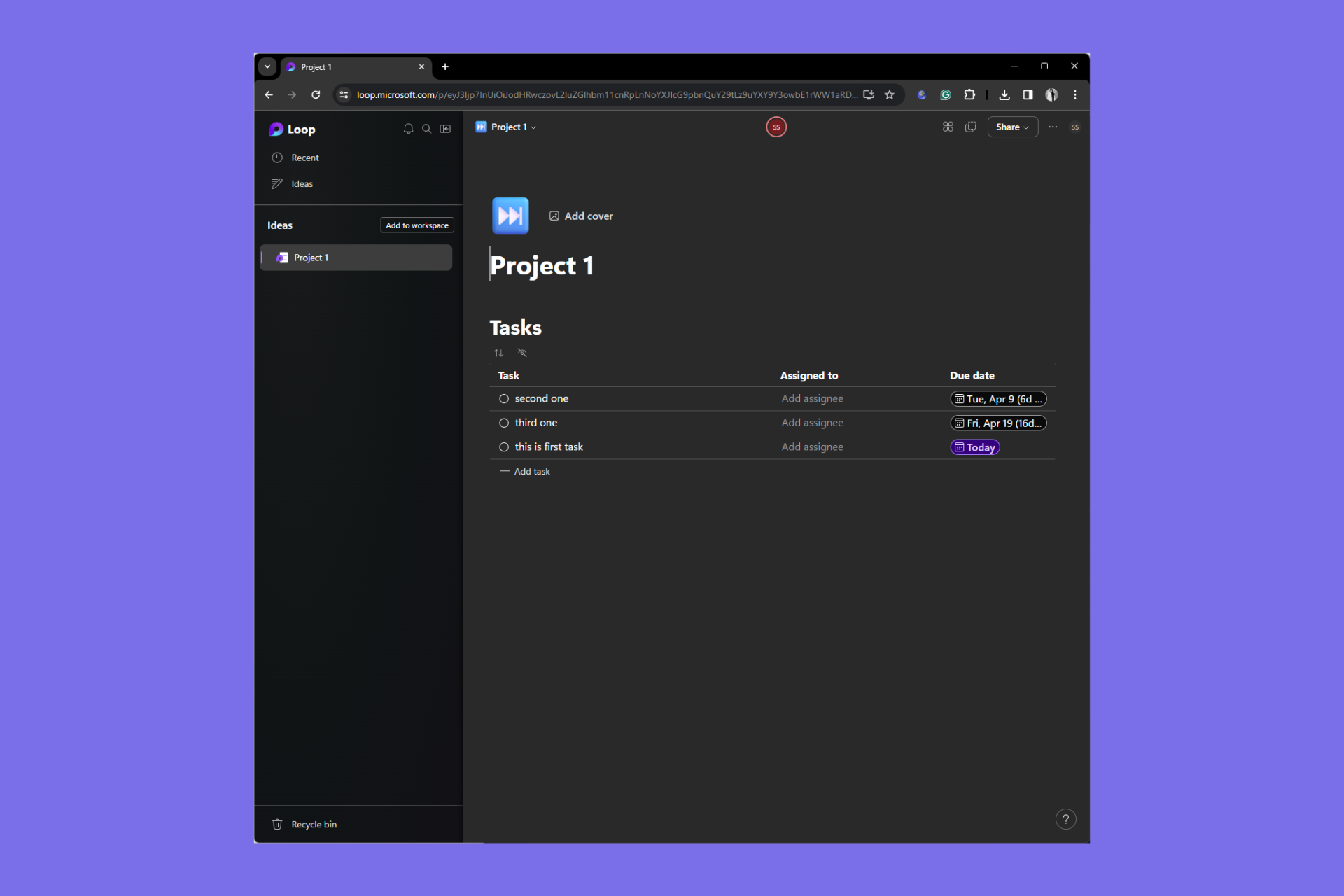
Good news for Microsoft 365 Insiders, Microsoft Loop’s Task list is redesigned and comes with new features based on users’ feedback.

In a blog post, Srishti Talwar,Product Manager on the Microsoft Loop team said:

We heard from many of you that you rely on task list components to organize your work and manage your projects but would appreciate more flexibility and functionality. So, we went to work and are ready to walk through an overview of the improvements we’ve made – such as filters, sort, expand/ collapse, row height, and more, right in your task list component.

What’s new in the task list components?

1. New look

New look
Source: Microsoft

Task list components have a new look that matches the look of tables on Loop pages, giving you an intuitive interface overall. In addition to this, the company has also added borders, a summary roll and more to make it look more consistent.

2. Filters

It now supports new filtering options that can help you narrow down your tasks by task name, assignee, due date, etc. You can also apply multiple filters simultaneously, giving a filtered view to everyone with access to the Loop page.

Filters
Source: Microsoft

This isn’t it, in a few months, you will be able to filter the tasks by task status and segregate between complete and incomplete tasks by checking the circle status, which will make sorting tasks better than ever.

Source: Microsoft

3. Row Height

Now you will be able adjust and even customize the height of your rows according to your content with just a click of a button. Here is how it looks:

Source: Microsoft

4. Expand/Collapse & Multi-select

The Task list now comes with expand/ collapse feature, which is another great thing that you can use to focus more on what’s important. Moreover, it will help you manage your task list components easier than before.

Source: Microsoft

In case you want to perform same action to more than one rows, then you don’t have to approach them one by one. You can use multi-select feature to select and choose the action for all the rows at the same time, be it copying or deleting them, thereby saving you time.

Source: Microsoft

To avail this feature, the Microsoft 365 Insiders, must have an active Microsoft 365 subscription with a Microsoft 365 E3 or E5 commercial license and a reliable internet connection for smooth operation.

Are you not a part of Microsoft 365 Insider program yet? If not, check out this guide to learn the steps to join it and enjoy all the new features before general availability.

What do you think about these changes made in Microsoft Loop Task list components? Share your thoughts in the comments section below.

Snapdragon X Elite laptops might get Windows 24H2 first, but not all the AI features

Microsoft taunted 2024 as the year of the AI PC but there are still a lot of Windows 7 users out there. Moreover, Windows 11’s market share dropped right in the middle of Microsoft’s AI push.

However, Windows Central points to undisclosed industry sources saying that Windows 11 version 24H2 will ship on the new Arm PCs boosting the new Snapdragon X Elite SoCs who just got an impressive boost in the latest benchmarks.

Their sources also disclosed that the finalized Windows 11 24H2 (RTM) build will be sent to manufacturers in early April for OEM installation on their devices.

The new ARM laptops will not have all the AI features

But that doesn’t mean that Windows 11 will have all the advertised features. Microsoft also promised to reveal additional Windows AI features during a May 20 dedicated event. For instance, probably the RTM build installed on the ARM laptops won’t have the much awaited AI Explorer.

However, there will still be some time left until the 24H2 stable release because Microsoft plans to launch it in two waves. The first wave starts in June, and the second wave is expected in September.

Basically, if the rumors are true, the ARM laptops would have limited AI features who will be updated within the September second wave.

Major manufacturers like Dell, HP, Lenovo and others also plan to launch Arm hardware this summer, together with Windows 11 24H2. However, not all of them will feature Qualcomm’s X Elite SoC which is considered the most powerful Arm chip right now.

The Microsoft 365 Admin Center tab appears in Croatian, according to multiple users

There is a strange bug going on with the Microsoft 365 Admin Center Tab, as multiple users reported that it appears to be in Croatian when accessed.

The issue is widespread, and it has affected multiple browsers, including Chrome, Edge, Safari, and Firefox, as well. Dozens of users reported that the Microsoft 365 Admin Center tab appears as “Početak – Microsoft 365 Admin Center”, Početak means Beginning, in English.

However, many other users reported that not only the tab seems to be affected, but other platforms as well, such as Outlook on the Web, and even email attachments:

I noticed it as well. They’re doing something with the web portals, I have multiple clients having issues with OWA and attachments since yesterday, no clue how to fix atm.

Reddit user

The issue persists even if users try to log in with different credentials:

Same. Tested multiple tenants with different credentials and they all show it.

Reddit user

I’m seeing it across all my tenants (I manage 8 different companies), on all browsers.

Reddit user

Other users have got the same issue, except that it’s Russian instead of Croatian.

Same here in o365 admin tab, but I also noticed when in Edge writing an email all the words were being highlighted as incorrect. I checked Edge settings and the language swapped to Russian for the grammar correction

Reddit user

Several concerned users have posted the issue on official Microsoft forums, but the Redmond-based tech giant has yet to respond.

I’ve never noticed before, but I do now. My admin tab label in any browser I choose, across several networks, displays as “Početak – Microsoft 365 admin center” via login through https://portal.microsoft.com . 

I am not Serbian, my company has no affiliations with Serbia, and our regional settings are not Serbian. Yet, that “Početak” is the word for “beginning” in Serbian. I’m thinking maybe Serbian contractors or Microsoft devs maybe made a mistake? I cannot find anything relevant to this via searches, so maybe someone has an answer on here. Maybe I’m overthinking, but just curious. I’m also not a developer, so the answer might be something very innocent. 

Microsoft 365 Admin Center user

On the forum, several users mentioned that refreshing the page within the browser seems to fix the issue temporarily, while other users claimed Microsoft customer support agents reached out to them suggesting they clean their browser’s cookies and cache.

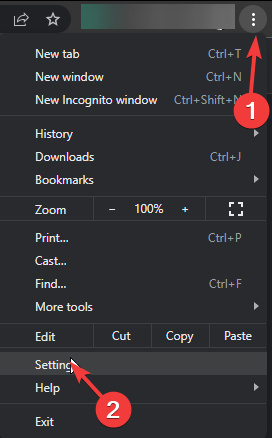
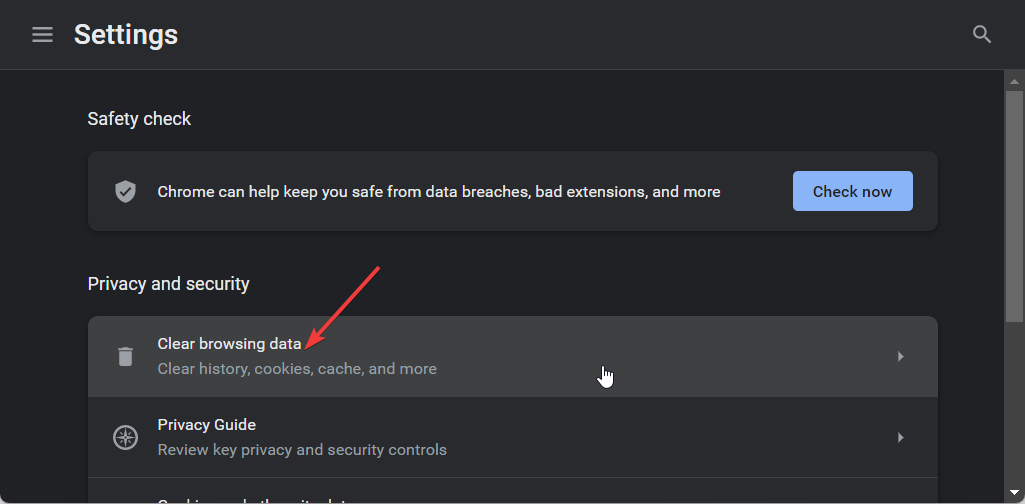
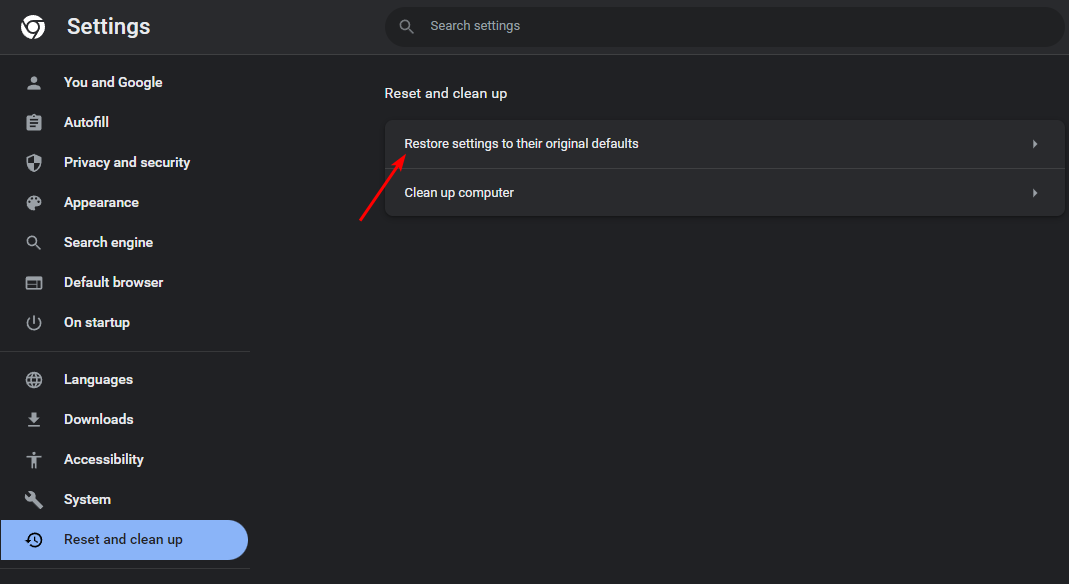
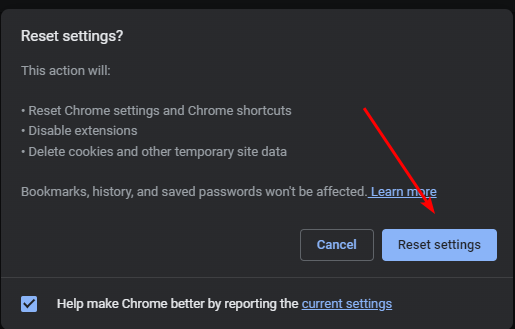
If you’re accessing the Microsoft 365 Admin Center tab on Edge, you can easily clean its cookies and cache, by following this guide. Alternatively, you can also try to clean your Windows 11’s cache.

Some users think the Microsoft 365 Admin Center tab web portal appearing in Croatian is due to being hacked. It’s also worth mentioning that, as of today, the issue has been fixed for some users, while for others it persists.

Are you dealing with this issue currently?

KB5035942 is still causing install errors and crashes for many. Here’s what to do

Of late, it seems that Windows update errors are on the rise. Every month, a new version throws one install error or another. This time, install issues with KB5035942, released on 26 March’24, are troubling Windows 11 users!

There are also numerous reports concerning KB5035942 update errors. A user highlighted it in the Microsoft forum,

I have Windows11 23H2 and kb5035942 will not install it keeps saying something went wrong and no worries we are undoing the install? I have tried to install manually and it says it is already installed but the update notification still remains and say a restart is required.

The ones who managed to install KB5035942 reported sudden crashes, BSOD errors, audio issues, and the persistent Automatic Repair screen. One user wrote in the Microsoft forum,

With the latest release of KB5035942, we have observed that most of the machines are getting prompted for ‘Automatic Repair”, or “Blue Screen Error”. The count of crashed machines is increasing with each installing the update.

If you, too, are in a similar situation, things aren’t that difficult to resolve, as confirmed by our readers.

How do I fix issues with Windows 11 KB5035942?

Fixing installation issues

  • Check if the update is already installed: Press Windows + R to open Run > type winver and hit Enter > if the OS build reads, 22631.3374, KB5035942 has been installed successfully.
  • Identify the error code and act accordingly: Check if there’s a Windows update error code listed alongside, and then search the web for its dedicated fixes instead of general troubleshooting.
  • Manually install the update: Open the Microsoft Update Catalog in a web browser > download the version corresponding to your system’s architecture > run the .msu file > follow the on-screen instructions to complete the process > restart the PC.
Manually installing KB5035942

Fixing crashes and sound issues caused by KB5035942

  • Uninstall the update: Press Windows + I to open Settings > go to Windows Update from the left > select Update history > choose Uninstall updates from the bottom > click Uninstall next to Update for Microsoft Windows (KB5035942) > confirm the change.
  • Disable the automatic installation of latest updates: Press Windows + I to open Settings > go to Windows Update > disable the toggle for Get the latest updates as soon as they’re available.
Uninstalling KB5035942

The KB5035942 update introduced a wide array of improvements and patches for previously known bugs, but initial feedback from the community suggests that it still needs polishing. However, the issues are not affecting every single PC. For instance, ours didn’t throw any installation error or has crashed ever since.

If you face either, you now know what to do. In case it’s not downloading, manually install the update, and for issues after installation, remove KB5035942!

Did you also face installation or other issues with KB5035942 on Windows 11? Share with us in the comments section.

Microsoft releases build 125.0.2492.1 for the Edge Insiders in the Dev channel to improve reliability and introduce changes

Microsoft released build 125.0.2492.1 to the Dev channel for Edge insiders. The update introduced one new feature, Site Pinning campaigns, and numerous other fixes for previously reported issues.

This update is already available to the Canary channel and is expected to be released to the beta channel at the end of April 2024. Furthermore, the general availability of the version is expected in mid-May.

Here are the details about the update in the blog post:

Added Features:

  • Introduced the feature of pinning to the taskbar within Site Pinning campaigns.

Improved Reliability:

  • Resolved a problem that was causing the browser to crash when using the favorites feature.
  • Fixed a browser crash on android.

Changed Behavior:

  • Fixed an issue that prevented the focus from being set to the tab search input field when the menu is opened.
  • Resolved a problem that caused the “Show Shopping toolbar” option to appear on the shopping page after signing in with an AAD account.
  • Resolved an issue to prevent retrieval of hashtags from hidden videos on YouTube.
  • Resolved an issue that allowed a website to be repeatedly added to the block list and displayed multiple times.
  • Resolved a problem where the speaker icon indicates sound on the site icon, even though there is no audio output following the closure of the media tab.
  • Resolved an issue where the speaker icon remained in the unmuted state even after opening the side panel and muting the application via right-click.
  • This resolved an issue that clicking ‘Share’ to print resulted in a brief blank screen for one second.
  • iOS: Fixed an issue where browser would crash after the share button was clicked in the downloaded PDF file on iOS.
  • Android:
    • Resolved an issue when activating the ‘Find on Page’ feature in landscape mode caused two toolbars to appear on android.
    • Resolved a problem that prevented file uploads on the Android version of browser Mobile.

Microsoft has encouraged you to report issues through the Feedback Hub app; you can open it by pressing Windows + F.

If you want to try the new features before they are released to the general public, you will have to join the Edge Insider Program.

Have you installed the latest version yet? If so, share your experiences with us in the comments section below.

Microsoft’s new adaptive battery management system would notify users to charge their devices based on their usage habits

Microsoft has been releasing updates on Windows devices to improve their battery life, with the latest addition being the new Energy Saver enhancements in Windows 11.

While the next version of Windows, which is reportedly AI-powered, will feature more enhancements that could potentially extend battery life by 50% on certain devices, it seems that the Redmond-based tech giant is developing new technologies to deal with the issue.

According to a patent published recently, Microsoft is working on a new adaptive battery management system that notifies users in advance to charge their devices based on how they’re using these devices.

The patent, which can be read here in its entirety, describes a technology that smartly tells you when to charge your battery-powered device. It does so by looking at the current battery level and how you’ve used the device in the past.

Using this information, it predicts when you’ll use the device next and estimates if the battery will last through that session.

If it thinks the battery might not last, it will notify you to charge the device before your next usage session. This way, you’re less likely to run out of battery when you need it.

Microsoft plans to implement the battery management system as software that can be integrated into an array of diverse operating systems, and devices, such as mobile phones, gaming consoles (Xbox), audio headsets, and Xbox controllers, as you can see in the image below, but not limited to these. The battery management system can be virtually used for any device that relies on a battery, including electric cars.Microsoft battery management system

It would particularly be useful in video game usage scenarios, as the technology is also taking into consideration gaming habits regarding new releases.

In one instance, the technology seems to adapt to irregulate usage habits, recommending users to charge their devices accordingly, to not have such an impact on the battery life:

Application data may convey information about upcoming releases. Because certain users may tend to play specific types of games whenever they become released, this information can be employed by the usage session prediction model to predict the future usage session. Thus, the predicted future usage sessions could involve the use of whatever games will be available at the time of the future usage sessions.

In other instances, the battery management system is described as being highly adaptive to specific usage habits, such as delaying the charging notification until a certain checkpoint in a video game is reached, or notifying users to charge their devices if they are in a specific place – as the technology would use GPS to find out if the user is home or not.

According to Microsoft, this battery management system has further applications: drones, electric cars, AR/VR headsets, mobile phones, laptops, and so on. In the case of an electric car, for instance, the system would learn the user’s driving habits, and notify them accordingly:

If a user typically takes a road trip on the first Sunday of every month to visit family, the disclosed techniques could learn this habit and schedule a charging notification on the first Saturday of every month.

For now, this is patented technology, and Microsoft might choose not to pursue it, but given the company’s fascination with AI, it will most likely release it in the next years, one way or the other.

The full paper can be read here.

Xbox’s Nocturnal Vapor Special Edition controller, inspired by nature at night, is available for pre-order

Xbox has unveiled the Nocturnal Vapor controller, a perfect blend of style, usability, and performance. It’s the third in the Vapor series after Stormcloud Vapor and Dream Vapor!

With dark and light shades of green donning the exterior, the design gets a perfect score. So does the gaming experience, given the green diamond pattern grips on the back side.

Powered by AA batteries, the new Nocturnal Vapor controller can run for up to 40 hours on a single charge. It comes with Xbox Wireless and Bluetooth technology, letting you connect the controller to Xbox Series X|S and Xbox One consoles, as well as PC, iOS, and Android devices.

Image source: Xbox

The controller features a 3.5mm audio jack to facilitate seamless connectivity with your headset, allowing you to both listen in and chat. Besides, there’s a dedicated share button on the front side to quickly send images and videos to friends.

The Nocturnal Vapor controller is fully compatible with the Xbox Accessories app, letting you create different profiles, remap keys, and much more!

You can pre-order the Nocturnal Vapor Special Edition controller for $69.99 from Xbox’s official website right away. Regular orders can be placed from April 9, 2024!

Will you get the new Nocturnal Vapor Special Edition controller? Share with our readers in the comments section.

Dev and Canary Insiders get a new version of the Photos app created using Windows App SDK

On April 2, 2024, Microsoft announced in a blog post that a preview version of the Photos app built with the Windows App SDK (WASDK) will be released to Canary and Dev Channels on Windows 11.

If you are a Windows Insider Program member and have opted to receive the latest update for the Dev or Canary channel, you can check out the new Windows Photos app.

Microsoft stated in the blog post:

This change moves Photos to the latest Windows app development platform, with modern UI and other quality and performance improvements.

All the current Photos app features and functionality is still present in this version. However, given the extensive changes, this version may be a little rough around the edges as we continue to polish the experience. To get this experience, Windows Insiders on Windows 11 in the Canary and Dev channels can update the Photos app to version number 2024.11040.1002.0.

Microsoft has also encouraged users to share their comments and suggestions and mentioned that they can use Windows + F to open Feedback Hub under Apps>Photos.

If you also want to try the new features before they are released for general public, join Windows Insider Program, for more details, check this guide.

Have you tried the new Photos app yet? If so, share your experience with our readers in the comments section below.

Have you seen Opera’s new #AriaScavengerHunt campaign? Might convince you to use Aria AI

In case you didn’t know, Opera has its AI assistant and it’s integrated into their browsers, called Aria AI.

Opera has a plan to get more users to use its AI assistant, and it plans to do that by organizing an AI scavenger hunt.

Opera is having a scavenger hunt, and all that you need to participate is Aria AI

Recently  Opera GX icon was replaced with a cat as an April Fools joke, but unlike that event, this one is entirely real as Opera plans to bring more users to Aria AI.

In case you’re not familiar, both desktop and Android versions have Aria AI, and speaking of which,  Opera for Android 81 recently got an Ask Aria feature.

With this AI assistant, you can generate instant answers, summaries, and content right from your browser. However, to use this feature, you need an Opera account.

If you don’t know what an Opera account does, it’s used to synchronize your data across all devices with Opera.

This harms Aria AI usage since only regular Opera users have an account, but hopefully, that will change with the Aria Scavenger hunt campaign.

According to Opera’s Twitter page, there’s $20,000 in prizes, 10 clues, and 20 days to solve it. The scavenger hunt starts today, and you can get more information on the Opera’s website.

Will the scavenger hunt be enough for you to switch to Aria AI? Let us know in the comments!

Community Bot in MS Teams simplifies welcoming members and sharing details, latest update brings more features

Microsoft’s extensive efforts on its native video conferencing app, Teams, are well known. Both paid and free versions regularly receive new features, though it’s more frequent for the former. This time around, Microsoft Teams (free) gets three new exciting features!

First on the list is Community Bot, which Microsoft, in the official blog post, describes as,

With Community Bot, community owners can automatically send a welcome message to new members who join their community. Community Bot can be used to share important details, prompt new members to introduce themselves, acquaint new members to the community or whatever you would like to say!

The Community Bot feature in Microsoft Teams for personal use simplifies and streamlines the job of community admins. It’s exclusive to Windows 11 for now!

Community Bot (Image Source: Microsoft)

To access the feature, you need to head to the Community tab > click the ellipsis next to the concerned community > select Community Bot from the dropdown menu.

The other two, Noise Suppression in meetings and Website link in community description, are available for Android and iOS versions of the app.

With the former, you can suppress background noise in meetings for a clear audio experience. Microsoft offers three settings for Noise suppression: Auto, Low, and High.

Noise suppression settings (Image source: Microsoft)

When on Auto, Teams automatically adjust the suppression level. For Low, the suppression is minimal, while for High, it’s the maximum, and all background noise will be suppressed. Only your voice will pass through!

Lastly, Microsoft Teams (free) now allows you to add a website or blog link to the community. Once done, it will be visible to all existing members and anyone who visits via the invite link.

All three new features in Microsoft Teams for personal use, Community Bot, Noise Suppression and adding links, were rolled out in March 2024 and should be available on your device. If not, install any pending updates. In case these are still missing, wait for a few weeks!

Recently, Microsoft Teams (free) brought a new user interface, simplifying the experience. Also, as per Microsoft Roadmap, Teams will get five exciting features in April!

What’s your review of the new features in Microsoft Teams (free)? Share with our readers in the comments section.

Microsoft is working on a contextual note-taking app that automatically generates notes just by highlighting parts of the screen

Even though Microsoft has recently updated Sticky Notes to support screenshot captures and linking to sources, it seems that the Redmond-based tech giant has bigger plans for note-takers.

According to a patent published recently, Microsoft is working on a contextual note-taking application that automatically generates notes when users highlight data. Suggestively called Universal Highlighter for Contextual Notetaking, the app would be quite revolutionary in its own right.

The Universal Highlighter for Contextual Notetaking is capable of 4 main tasks:

  • Interactive Highlighting
  • Contextual Notetaking
  • Notes Generation
  • Easy Recall

Basically, this technology allows you to highlight a part of your screen. It could be a part of a window or an application. The system then automatically figures out the context of the highlighted content. It gathers relevant data from the content, the window, the application, and the user.

All this information is combined to create notes for you. These notes are stored in a database and can be accessed later using a notetaking application.

As we mentioned before, the contextual note-taking app could exist on its own, but also be part of another platform. These include Web Browser Apps, such as Microsoft Edge, for example, or native Windows apps, such as the Calendar App, but also Microsoft 365 apps, such as Word, Excel, or Outlook.

On this note, Microsoft Edge already has a performant PDF reader that translates text in real-time by just highlighting it, so the note-taking app described in the patent already has a basis.microsoft contextual note taking

This Microsoft contextual sort-of Sticky Notes app would make note-taking easier and more efficient. Firstly, it’s all automatic, and the only thing users would need to do is highlight the information, thus it would reduce manual work, and enhance productivity all around.

Secondly, the intriguing part is its contextual way of taking notes: it takes into account everything you have been looking for online when highlighting certain parts of your screen, and it provides notes that are enriched with relevant data.

Interestingly enough, Microsoft is developing this contextual note-taking app to take into consideration not only text content, but image, video, or audio-based content, as well. The app processes these forms of content and generates text-based notes about them.

When the highlighted content includes a dara type that is non-text (e.g., image data, video data, audio data, and the like), the present disclosure processes the highlighted content and generates textualized data. For example, when the highlighted content includes and image of a car, the textual data is “the car” based on an image recognizition. The image recognition may identify a feature of the image data in text. For example, the textual data may firther include “the car as a pictograph” or “the car model X manufactured by Y in year 2022.”

Thirdly, it automatically stores these notes for later use, so you won’t have to worry about losing them. According to the patent, the notes would be compatible with multiple note-taking apps, allowing you to open them with your preferred option.

We could potentially see this kind of update for Sticky Notes, on even Copilot. The latter would make sense, as this contextual note-taking would use AI capabilities to generate notes, and Copilot is already being integrated into many Microsoft products and services.

The full paper can be read here.

Delay your SSD purchase as 10-15% price increase is expected

Fast and reliable storage is a must-have and many are using SSDs for this purpose. Speaking of which, it’s predicted that the SSD prices will continue to rise.

How much of a price change can we expect to see? Keep reading to find out.

SSDs are predicted to become more expensive in the future

According to TechRadar and the information from TrendForce, it’s expected for the client SSD prices to increase by 10-15% in Q2.

As for enterprise SSDs, their prices are expected to jump 20%-25%. On the bright side, it seems that the rise in prices is finally slowing down.

In the previous quarter, the prices went up 23-28% for both client and enterprise SSDs. Keep in mind that this information is just an estimate from Q1 and a forecast for Q2, so maybe take it with a grain of salt.

This change comes after the increase in production by Kioxia and WDC, but unfortunately, other manufacturers won’t follow suit.

So maybe this isn’t the right time to get a new SSD, and we’ll have to wait and see whether this trend continues in Q3. With such prices, it’s no wonder that many are wondering if it’s safe to use second-hand SSDs.

Have you seen YouTube’s recurring Get started pop up? It’s a nuisance, but you can stop it

If you’re seeing YouTube’s message, Try searching to get started. Start watching videos to help us build a feed of videos you love, more often, you’re not alone. This happens quite often on various browsers on Android as well when visiting YouTube to watch videos.

This is not a new thing but it’s getting quite annoying that Google now requires you to sign into your account and have watch history enabled.

Hi guys, seems like today is getting a big problem. The try searching to get started thing started to roam around my YouTube account and can always COME BACK even if I have my videos already watched without clearing it. It’s so annoying. It only happens to my main account sadly, my alts never had the same issue right now… But please I want this annoying thing to end!

YouTube user on Reddit

Luckily, you can make this message disappear for that time being, while you’re on the page even in incognito or private browsing mode. First, watch a video available from one of the sections under Explore for a minute. Then, reload the YouTube two or three times to see YouTube showing recommendations and the feed is back up. However, note that this workaround is only for the current session.

To avoid this happening repeatedly, you may have to sign into your YouTube account and ensure your watch history is on. It may take some time for YouTube to generate a feed if you have removed your watch history.

To enable watch history in YouTube, go to Feed > History and click on Manage all history. Then, on the YouTube History page click Turn on and confirm the option.

If the problem persists, try installing the YouTube app on your PC to avoid this problem.

This message usually appears in Incognito mode when you are not signed into your account. If you would be on a regular tab on Google Chrome, you would most likely be logged into YouTube account automatically and would not see the message at all.

Did you manage to fix the problem? Let us know in the comments section below.

Microsoft pulls out employees from the Teams app development to join the Copilot AI project

Microsoft decided to focus on the development of Copilot AI. So, the company started to reorganize its employees from different departments. As a result, some of the people working on the Teams app will switch projects. Unfortunately, the structural changes of Microsoft also led to layoffs.

What will happen to the employees after the structural changes of Microsoft?

According to Business Insider, Microsoft reorganized the teams managed by Jared Spataro, the head of AI at Work. Some employees will form new groups focused on Copilot’s features and products, while others will merge into a single one working on Teams. Also, the company will relocate some employees to a new Copilot and “future of work” team. Additionally, Colette Stallbaumer will be the general manager of the new group.

Jared Spataro said the company is going through a significant change, as it did in 2022 for the Teams app. However, Microsoft will continue to focus on and improve the software even after the structural changes. Yet, it is uncertain how their decision will impact the app’s development.

Frank Shaw, Microsoft spokesman confirmed that the company will continue focusing on the Teams app. In addition, Copilot in Teams is one of the features most customers use. On top of that, the app had 300 million monthly active users in 2023. After all, it offers many features for hybrid and remote work.

Microsoft could use the opportunity that comes with its structural changes to bring more AI features to the Teams app. However, If you haven’t tried Copilot in Teams yet, know that it can help you catch up with chats, add references and citations, search for information, and more.

In a nutshell, Microsoft goes through structural changes to improve the development of Copilot AI. For this, the company is reducing the number of employees working on the Teams app. However, Microsoft will continue to work on the software because it has millions of active users. Thus, we might soon receive new AI features inTeams and in general.

What are your thoughts? Do you think that the structural changes of Microsoft will affect Teams? Let us know in the comments.

Here are the new Microsoft Entra recommendations for a healthy and secure system

Microsoft added new recommendations to its Entra platform, and the Redmond-based tech giant agrees that these will be keeping systems healthy and secure for thousands of customers.

Alongside the new recommendations, Microsoft also made changes to its Identity Secure Score, which functions as an indicator for how aligned you are with Microsoft’s recommendations for security, according to the official blog post.

Today, we’re thrilled to announce the upcoming general availability of four recommendations, and another three recommendations in public preview. We’re also excited to share new updates on Identity secure score. These recommendations cover a wide spectrum, including credentials, application health, and broader security settings—equipping you to safeguard your digital estate effectively.  

Microsoft

There are the new Microsoft Entra recommendations:

  • Remove unused credentials from applications
  • Renew expiring service principal credentials
  • Renew expiring application credentials
  • Remove unused applications
  • Migrate applications from the retiring Azure AD Graph APIs to Microsoft Graph
  • Migrate Service Principals from the retiring Azure AD Graph APIs to Microsoft GraphMicrosoft Entra recommendations

Regarding the Identity Secure Score, Microsoft updated it with a new recommendation, now in public preview:

  • Protect your tenant with Insider Risk policy: Implementing a Conditional Access policy that blocks access to resources for high-risk internal users is of high priority due to its critical role in proactively enhancing security, mitigating insider threats, and safeguarding sensitive data in real-time.

However, the Identity Secure Score also has the following recommendations that users should take into account to ensure their organization’s infrastructure remains safe and secure.

  • Enable password hash sync if hybrid
  • Protect all users with a user risk policy
  • Protect all users with a sign-in risk policy
  • Use least privileged administrative roles
  • Require multifactor authentication for administrative roles
  • Ensure all users can complete MFA
  • Enable policy to block legacy authentication
  • Designate more than one Global Admin
  • Do not expire passwords
  • Enable self-service password reset
  • Do not allow users to grant consent to unreliable applications

These new recommendations came days after Microsoft Entra caused a bit of controversy in Europe, due to unfair business practices.

Microsoft’s Excel web app gains new Copy/Paste experience

Just last month Microsoft updated its Excel web interface with CVS file export support, and this month the team is bringing copying and pasting improvements.

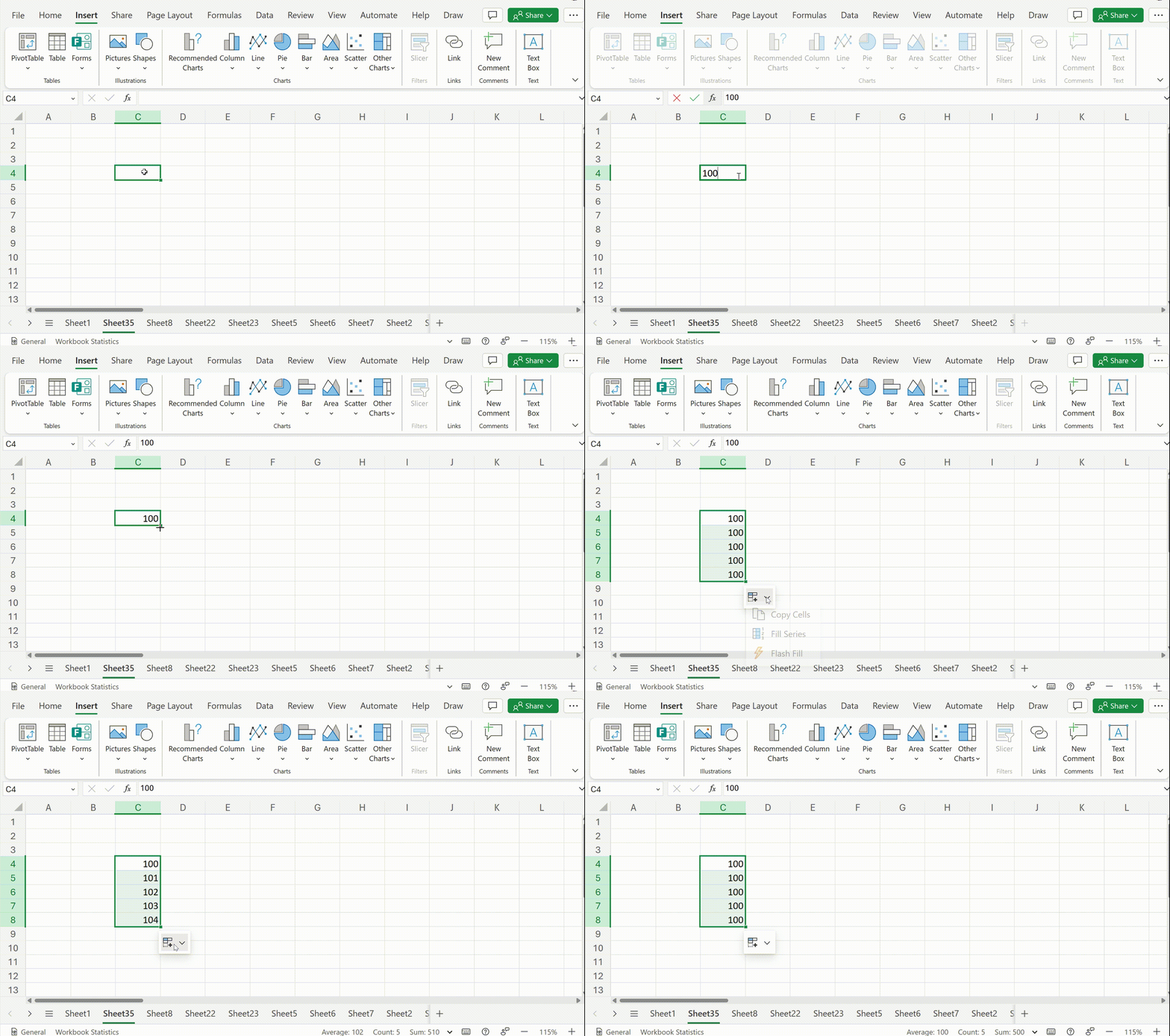
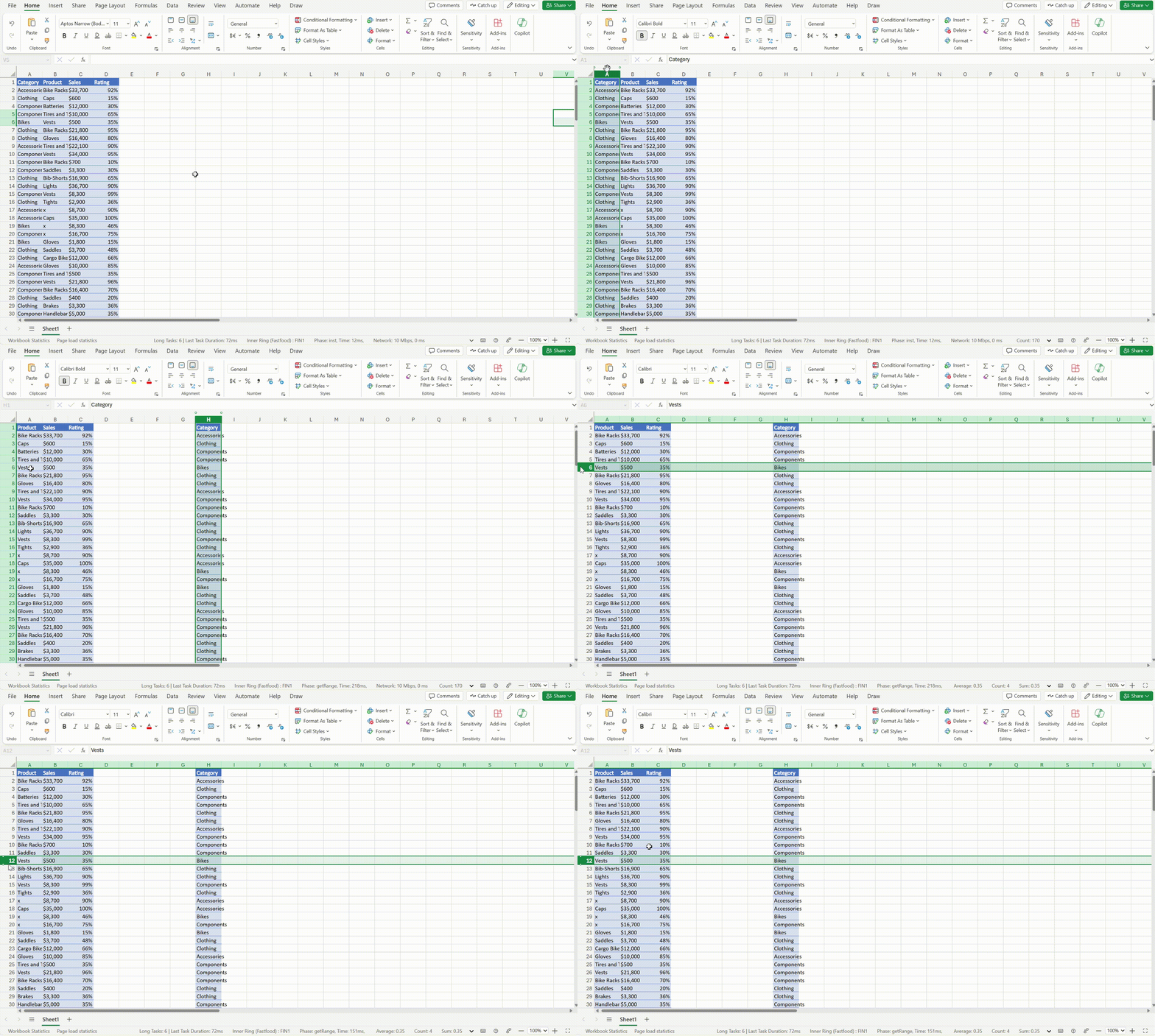
On the Microsoft 365 Insider blog, product manager on the Excel for the web team Cherishma R, explains that the platform supports drag and drop enhancements, additional paste options, and Autofill, finally.

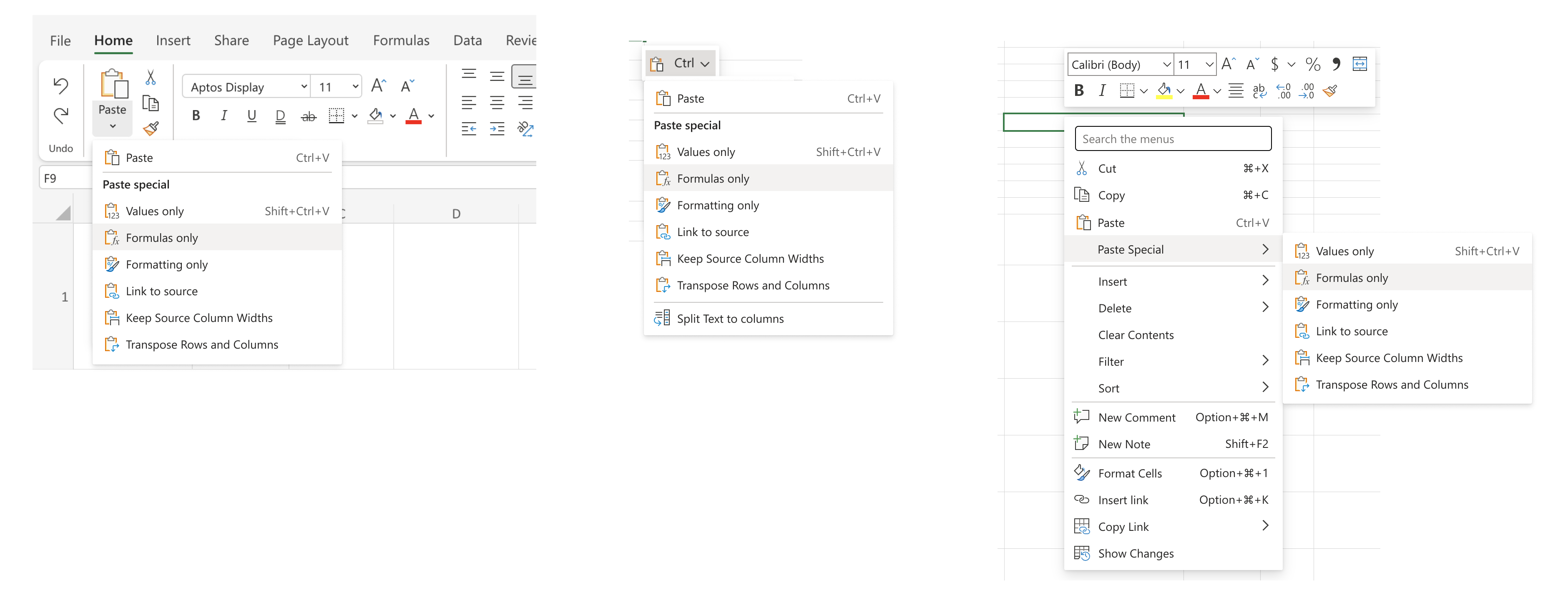
According to the Excel for the web team, Users can look forward to dragging and dropping enhancements which should provide a more seamless and intuitive way to manipulate data. The new autofill enables you to drag data to fill series, copy cells, and split data like people have gotten familiar with decades of Excel use. Lastly, paste options improvements allow users to choose the right paste option for their needs by using the right-click option in Windows or accessing the auto-recovery paste options.

Drag and Drop

To try the drag and drop feature, click any row or column, hold and drag when the cursor shows the hand icon, and then drop in any other row or column.Animation showing how to autofill

Auto Fill

Look into the autofill feature, add data in a cell, select the cell, and then drag using the plus sign in the bottom right corner of the selected cell.Animation showing how to drag and drop

Paste Options

Check out the paste option improvements, copy some data, and either explore the paste options available in the ribbon, or right-click in the location where you want to paste the copied information and select the paste option you want.

    Paste options in Excel for the web

    Microsoft has already published the update and the new improvements and features should be available to all users as of now.

    Office 365 user: Renaming “Office” to “Microsoft 365” is perhaps the worst renaming mistake in Microsoft history

    Even though there have been almost 7 years since Microsoft introduced its Microsoft 365 productivity suite, and almost 4 years, since the Redmond-based tech giant renamed Office 365 to Microsoft 365, a lot of users agree that Microsoft made one of the worst mistakes ever by deciding to rename it.

    If you wanted to write a document, or work on a spreadsheet, or most common day to day things you do in an OFFICE (home or corpo), what would be an ideal trademark for such Office Software? IDK, “Office?” But there’s no way you could trademark such a ubiquitous term..

    Oh wait.. it already is.

    Microsoft 365 is a cloud service for personal use. No, it’s also a business office package. It’s also … They are going to rename everything that isn’t Azure “Microsoft 365” so they can make it subscription-only.

    Office was just a few years ago the main thing keeping me from switching to Linux… but now I open Word and it’s a friggin clown-show of poor UX, wasted space while hiding useful functions behind more and more clicks… because having just one button always makes an interface easier to use, right???

    They have been removing much of the native interoperability as well as the ability to customize the UI… and replacing it with a half-assed javascript API.

    Probably what pisses me off the most is that I’ve been paying $500/yr for the stupid action pack, and the latest version of office available is 2016. Even on MSDN!

    Microsoft is, like most big tech companies, making record profits… yet they continue to try to squeeze more and more out of regular people. The pandemic taught businesses that they can treat customers like shit and they will still pay.

    This might be worse that the renaming dumpster-fire of confusion that is USB-3…

    Reddit user

    As you can see, one of the main frustrations is the fact that nobody knows what Microsoft 365 stands for, as it creates confusion among users: it is a cloud service for personal use, but also professional use, with Office still being around.

    Truth is, the Redmond-based tech giant is somehow uninspired when it comes to renaming or evaluating its products on the market.

    For instance, after the company introduced Microsoft 365 in 2017, it sought to use the new name to replace the existing Office 365 and even wanted to rebrand the Office Suite to Microsoft 365, in January 2023.

    However, after numerous complaints from users, the Redmond-based tech giant backtracked its decision, and announced to the world, last year, that Microsoft Office 2024 is coming.

    There is still confusion, so here is a breakdown: the Microsoft 365 suite is a monthly subscription-based cloud service for personal and professional use that gives users access to Office apps, such as Word, PowerPoint, and so on, plus access to an array of other services, such as Copilot. Since it’s a cloud service, it also comes with cloud storage, which subscribers can use to store their data in the cloud.

    The upcoming Microsoft Office 2024, for instance, will be a one-time purchase, and it will give users access to the Office suite, which includes Word, PowerPoint, Excel, and so on. Users won’t have to pay monthly subscriptions, apps are not going to be updated so often, and cloud-based services such as Copilot, are not available.

    Either way, with so many titles around, it’s important to note that: Office 365 is Microsoft 365, but it’s not the same as the Microsoft Office suite.

    The Redmond-based tech giant has a history: despite mentioning its Bing Chat AI tool everywhere last year, the company decided to rebrand it to Copilot, confusing everyone once again. Windows Store was renamed to Microsoft Store, and while this makes sense, it was still confusing for users back then.

    And then there is Entra:

    Oh boy. Guys, should we tell him about EntraID?

    Reddit user

    Microsoft decided to rename Azure Active Directories (Azure AD) to Entra ID, and obviously and for good reasons, users weren’t happy.

    One user stated back then that the Redmond-based tech giant was actually hurting the Azure brand:

    In MS’ defense, it is hard to name products when you have a stack as large as theirs. But sometimes, I just don’t get it. Azure AD as an extension of AD–a name that’s been around for 20+ years and a brand that is deeply respected–is just good marketing. I don’t understand this Entra BS. You’re sacrificing lineage with one of the most respected brands in this whole space. EVERYONE knows what AD stands for on this subreddit. Why give that up?

    Nonetheless, the Redmond-based tech giant took the decision, renamed multiple Azure services, and never looked back. But it seems, the users still do. They look back. And they’re not happy.

    What do you think about it?

    Copilot for Microsoft 365 users now have access to GPT-4 Turbo and unlimited conversations with the AI model

    Good news for Copilot for Microsoft 365 users, everywhere: starting today, the Redmond-based tech giant updated the AI tool to support GPT-4 Turbo, meaning users will have access to the latest AI capabilities.

    And this is not all. Microsoft also removed limits on the number and length of conversations while increasing file uploads, and that means users can now have unlimited conversations with Copilot on Microsoft 365.

    Later this month, the Redmond-based tech giant will also update Copilot for Microsoft 365 to support the latest capabilities of Microsoft Designer, its AI image editor. And, if this isn’t enough, users will be able to access the editor at peak times, as well.

    Today we are announcing two important updates for users of Copilot for Microsoft 365. First, we are bringing priority access to the GPT-4 Turbo model to work with both web and work data. We will also be removing limits on the number and length of conversations while increasing file uploads. Second, later this month we are bringing expanded image generation capabilities in Microsoft Designer to users of Copilot for Microsoft 365, including priority access during peak times.

    Microsoft

    Last month, Microsoft made GPT-4 Turbo available to Copilot for free, to everyone, but the enhancement came with a limit of 4000 characters. On Microsoft 365, however, this Copilot is capable of unlimited responses, and faster and more comprehensive answers.

    In a blog post, the Redmond-based tech giant detailed how the GPT-4 Turbo-powered Copilot can be used in web situations, and work situations, alike, to enhance productivity, and get work done faster.

    The work context lets you go even further by grounding in your work data––that’s your calendar, emails, chats, documents, meetings, contacts, and more––so you get contextually accurate responses. Copilot can help you quickly scan your email for important messages to prioritize, help you get ready for key meetings by pulling information from across your work, and help you ideate on the best path forward.

    Microsoft

    Starting in May, more Microsoft Designer enhancements will be coming to Copilot for Microsoft 365, including boosting the current 15 image generation limit/per day to 100 image generation limit/per day.

    Ultimately, in the following months, these capabilities will be added to Copilot on Edge, Windows, and mobile app, as well.

    You can read the full blog post here.

    Microsoft updates SharePoint to support AI-powered data analysis tools

    Over this month, SharePoint will be updated to support AI-powered data analysis tools, which managers can use to gain insights and plan further actions based on them. According to the latest entry in the Microsoft 365 Roadmap, AI insights will be generally available to every SharePoint user, everywhere.

    We are planning to provide an LLM-powered data analysis tools that admins can use to gain insights and actions.

    Microsoft

    This is not the first time the Redmond-based tech giant integrated AI to offer insight to companies: earlier this year, the company introduced Microsoft Copilot Dashboard, which is a platform where companies can find out if their employees use Copilot or not.

    Even more, Microsoft Copilot for Security also uses AI to come up with complex insights about cyber threats, malware, and cyber-attacks.

    It’s safe to say Microsoft will be integrating AI into its platforms, products, and services more and more, from now on, and SharePoint is no exception.

    While we don’t know how it looks, or if it looks similar to Copilot on Microsoft Intune. If you remember, the AI tool will also be used in Intune to provide managers with useful information on endpoint management.

    Copilot in Intune provides AI powered insights that are tailored for organizational needs, such as quickly resolving end user issues and ensuring policies and settings are configured to optimize business outcomes safely.

    Microsoft

    Copilot in Intune is also scheduled to be previewed this month, same time as SharePoint’s new AI data analysis tools.

    Copilot in Outlook will soon help users prepare for meetings with a new game-changer feature

    Starting July 2024, new Outlook for Windows and Web users will be able to prepare for meetings with Copilot. According to the latest entry in the Microsoft 365 Roadmap, the AI model will help users prepare by not only summarizing documents related to the meeting but also coming up with key points, making it easier for users to follow the thread of the presentation.

    To do this, the Redmond-based tech giant will add a new Prepare button to the platform, and users will only need to click it to get Copilot to help them prepare for the meeting.

    The new game-changer feature will only be available for the new Outlook for Windows and Web, and according to Microsoft, it will greatly enhance productivity, reduce time spent preparing for a meeting, and make life easier for those users who are always nervous or anxious when presenting in front of others.

    With so many of us in back-to-back meetings, it can be a real struggle to stay on top of pre-reads, action items, and even what each meeting is about. Copilot can identify and summarize the key points so you can show up prepared in just a few minutes. When you have an upcoming meeting, Copilot proactively shows you a “Prepare” button in your inbox which helps you quickly get context for the meeting providing a summary of the meeting and showing and summarizing relevant files leveraging the power of the Microsoft Graph. Now you have all the most important details you need and can arrive prepared and ready to engage in a productive conversation. This feature will be available in the new Outlook for Windows and web. #newoutlookforwindows

    Microsoft

    The Redmond-based tech giant recently announced that it will allow users to create Copilot prompts grounded in their work content in Word, Excel, Outlook, and PowerPoint.

    The work can include chats, documents, meetings, emails, and so on, and the prompts will force Copilot to come up with answers related to the work users have done. It’s set to be rolled out this month.

    It makes sense that Microsoft would improve on this feature to allow Copilot to come up with specific summarization when helping users prepare for meetings.

    Will you use Copilot in Outlook to prepare for meetings?

    Edge is now capable of Cross-device Search Query History suggestions, giving users relevant search results across all devices

    Microsoft is constantly updating its browser, Edge, with new cutting-edge (pun intended) technology, and its Beta users can now benefit from the latest Cross-device Search Query History suggestions feature, which was added with Version 124.0.2478.19 to the Beta Channel.

    According to the new feature, the Edge browser now has an improved search suggestion feature.

    If you’re using Edge on multiple devices and have enabled Edge Sync, it will remember your search history across all these devices. So, no matter where you search for something, Edge will suggest it if it’s relevant. This makes it easier for you to find information you’ve accessed before.

    Cross-device Search Query History suggestions. The existing Search Query suggestions are enhanced with cross-device query history in both Recent Searches and browser searches for enterprise users who have enabled Edge Sync across devices/browsers. From now on Edge will give you the relevant query history suggestions that you used for previous searches, regardless of where you did it. You can always trust Edge to help you quickly re-find the information that you accessed before.

    Microsoft

    The version also introduced a new dedicated space for admins to manage all AI-related policies in the Edge browser.

    Enterprise secure AI controls in the Microsoft Edge management service. The Microsoft Edge management service now provides a new dedicated space for admins to manage all AI-related policies in the Edge browser. This helps enhance security and productivity for managed users and devices.

    Microsoft

    These changes are now tested for a stable release in the next weeks, so users will soon be able to cross-browse the Internet on all devices on Edge and get relevant search results when doing so.

    Speaking of which, if you use Edge on mobile phones, Microsoft will add extension support on Edge for Android, meaning you will be able to add many useful tools to the browser to make every browsing session productive.

    You can read the full blog post on Edge version 124.0.2478.19 here.

    Microsoft is working on an Xbox AI chatbot capable of dealing with customer support and game refunds

    It seems that the Redmond-based tech giant is bent on bringing AI to the gaming industry, as it confirmed to The Verge that it’s currently working on an AI model, called Xbox AI chatbot, that is capable of dealing with customer support and game refunds.

    The Xbox AI chatbox would be a sort of character that will interact with Xbox users on a variety of issues, and will automatically support them in solving the issues they might have. Reportedly, this chatbox would also be the first of a larger process to implement AI models into Xbox’s services and platforms.

    Microsoft says the Xbox AI chatbox is connected to support documents and it can interact with Xbox users via text or voice messages. The issues it can solve range from broken Xbox consoles to issues with the Game Pass subscriptions.

    Given how much focus the Redmond-based tech giant has put into AI over the last couple of years, it is no wonder that the Xbox platforms would eventually get an AI assistant. However, Microsoft is not calling it Copilot for Xbox, but apparently, the company will build several Copilots for the Xbox services and platforms with the plan of releasing them in the next months to years.

    We’re talking about Copilots for security and privacy settings, other Copilots for content moderation, and even assistance when gaming: so if you’re lost in a game, and don’t know what to do, Copilot will be there to help you figure it out.

    Ultimately, the Xbox AI chatbot could be renamed Copilot for customer support, as Microsoft has been renaming its old AI tools to Copilot, before, as in the case of Bing AI.

    While in some cases, AI would be useful, as long as it gets the job done, we cannot stop but thinking about the possibility of it being hacked, and the damage such actions would impact Xbox, and Xbox users. Then, we also have to put into perspective the possibility of gaming assistance from AI: where would the thrill of gaming be?

    I hope Microsoft is taking into consideration these points and will integrate Copilot on Xbox as an option, at least when it comes to gaming assistance, so players can have a possibility to solve the game on their own first.

    But what do you think?

    5 Simple Ways to Fix the Notion Error 502

    When working with productivity apps, getting a server-related error like Notion 502 can be detrimental to your progress. If you’re lucky, it can be a simple issue that a browser refresh can solve. But if not, here are some simple fixes.

    How do I fix the Notion 502 error?

    1. Wait it out

    After refreshing your browser page, give it a few minutes and try again. Most server-related errors are usually temporary and caused by an overload. Within a few minutes, they should be back up. However, make sure you’re keeping an eye on official communication.

    Sometimes, Notion sends regular updates on what to do. Refreshing the page may be prohibited while they work on the issue to prevent you from losing your progress. You can also verify the server status to ensure there is no downtime or scheduled maintenance.

    2. Clear browser cache and cookies

    1. Launch your browser, and for this step, we shall be using Google Chrome.
    2. Click the three horizontal dots and select Settings.Settings CHrome
    3. Go to Privacy and security and click Clear browsing data.
    4. Select Browsing history, Cookies and other site data, & Cached images and files, then click Clear data.

    3. Reset/reinstall your browser

    1. Open your Chrome browser and click on the three vertical ellipses at the top right corner.
    2. Select Settings.
    3. Next, click on Reset and cleanup, then select Restore settings to their original defaults.
    4. Confirm Reset settings in the next dialog box.
    5. If resetting doesn’t do the job, try a reinstallation.
    6. Click the Start button, type the Control Panel, then press Enter.
    7. Select Programs and go to the Programs and Features tab.
    8. Locate Google Chrome in the list of installed programs, and click Uninstall at the top of the tab.
    9. Now, download the latest version of Google Chrome from the official website or MS Store.
    10. Install Chrome and follow the prompts provided during the installation process.

    4. Use another browser

    Some errors are browser-specific so you can try out with another browser or on another device to check whether it’s just you. If it works on a different browser, it means that there are some settings that are throwing the Notion error 502.

    Some browsers are optimized to perform better with different sites such as Opera One browser. As for your favorite browser that’s having issues, you can wait it out or uninstall the browser, clear out any leftover software files then reinstall it afresh.

    5. Contact support

    If none of the above solutions work then it is more on the server side than anything to do with your device. You can reach out to Notion support for further assistance. Sometimes they’re already aware of the issue and already working on a fix.

    Granted, you may not fix the Notion 502 error at least not immediately so you may want to consider other available options. The error 502 can occur on any app or site including Epic games so universally, it’s not a new phenomenon.

    As you try to figure out the best way to get back to your work, we have a comprehensive side-by-side Loop vs Notion comparison in case you’re looking for a new productivity app.

    And for a more versatile note-taking app list, check out our article. That’s all we had for this article but if you have any other tricks up your sleeve that would be helpful to other readers, do not hesitate to let us know in the comment section below.

    Snapdragon X Elite got a 49 percent bump in a new benchmark testing; could it be released soon?

    According to the latest Geekbench 6 benchmark testing on Lenovo 4810UV0100, which has Microsoft Windows 11 Pro Insider Preview (64-bit) and Snapdragon X Elite—X1E78100—Qualcomm Oryon CPU, the Qualcomm processor has shown a significant performance improvement, to be precise, 49%.

    The tested device is said to be operating under the Balanced power plan. During testing, it achieved amazing single-core and multi-core scores of 2,427 and 14,254, respectively. This is quite an improvement from the previous scores of 1,628 and 11,392.

    SKU

    We are unsure about the exact reasons for the significant improvement, but various factors could be in play. One could be Geekbench being more optimized for the Snapdragon X Elite platform, and the other could be the improved cooling system in Lenovo laptops.

    It could also be a sign that Qualcomm’s newest processors will soon be available in the market. However, until anything official is announced, these are all guesses.

    Furthermore, the benchmarking process can only provide a snapshot of performance and might not yield the same results for different types of workloads.

    Also, the other factors involved in testing the device are unknown, making it further challenging to draw definitive conclusions about the upcoming processors.

    So, the real power, performance, and capabilities will be measured when the processors hit the retail market; till then, it is all speculation.

    What are your thoughts on the matter? Share your opinions with our readers in the comments section below.