These are the new generation of education-first devices powered by Windows 11 SE, now rolling out globally

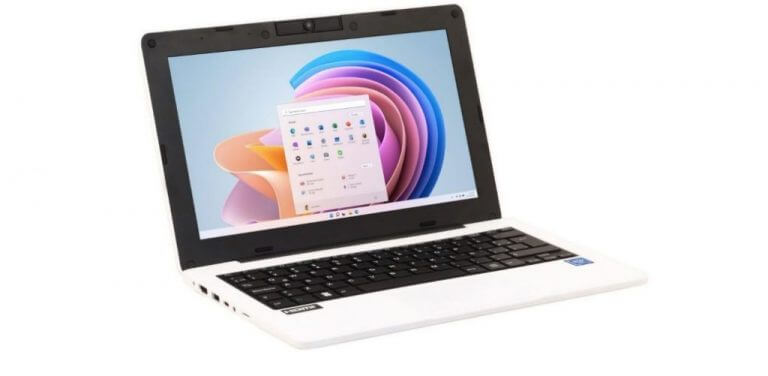
Following the initial announcement back in November of 2021, Microsoft has now detailed that several new education-first devices powered by Windows 11 SE are rolling out globally. The devices join Microsoft’s own education-focused Surface Laptop SE and are from brands like Acer, Asus, and Dell. The devices are being dubbed as reliable, secure, and powerful for learning, so from convertibles to laptops to tablets, we have all the details for you below.

Windows 11 SE convertibles

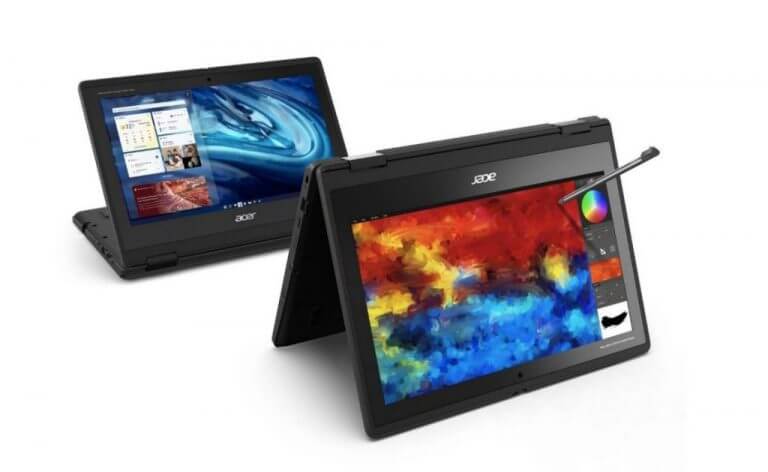
We start first by going over the new wave of convertibles that are powered by Windows 11 SE. The first of those is the Acer TravelMate Spin B3. It’s an 11.6-inch device with military-grade durability thanks to shock-absorbent bumpers, well-secure keys, and draining to protect internal components. It’s powered by the latest Intel Pentium Silver and Celeron processors and comes with 10 hours of battery life. There’s even support for a stylus.

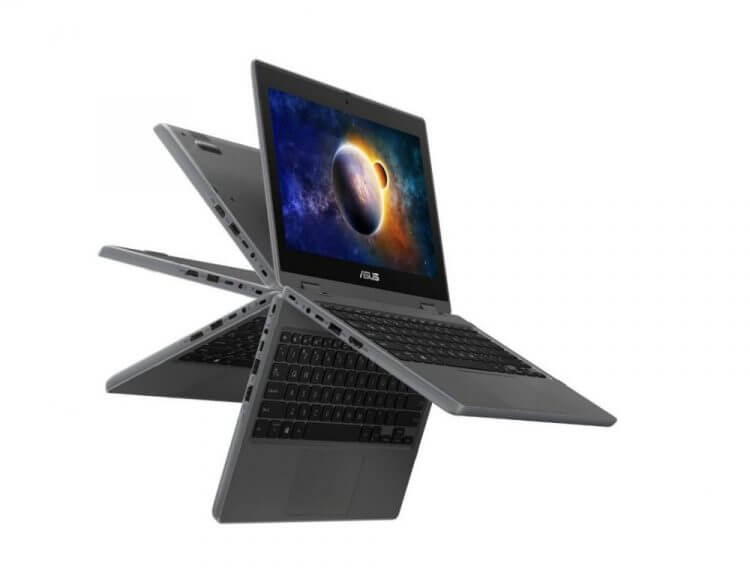
Another convertible is the ASUS BR1100F. This device is similarly designed to Acer’s with a tough design that can withstand bumps, drops, and spills and can flip around 360 degrees thanks to an ultra-tough hinge. There’s support for a stylus and a world-facing camera. Interestingly enough, the device even has AI-powered noise-canceling technology for higher quality remote learning and conferencing. A modular design also means that the device is easy to service, plus antibacterial treatments on the cover, keyboard, and touchpad keep the device clean.

Last up is the Dell Latitude 3120 2-in-1. This 11-inch device is powered by Intel Celeron Quad-Core, and Pentium Quad-Core Processors. The device also sports Dragontrail Pro glass to provide scratch resistance, as well as protection if the system is dropped on the corners. Similar to the Asus offering, there’s even a world-facing camera, which provides flipped viewing and recording angles. Dell’s Active Pen is also supported. Note that Dell also has the Latitude 3120, which is the standard notebook version of this device, though it is non-touch.

Windows 11 SE laptops

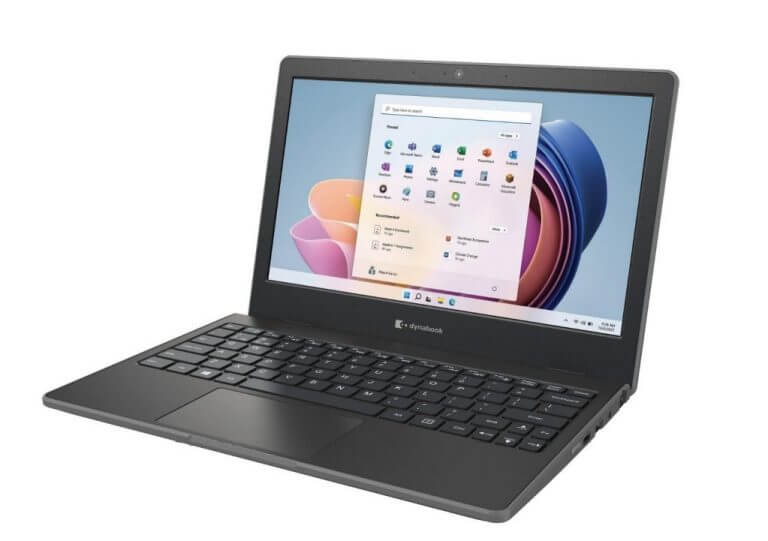
Next up are the standard laptops. We start with the Dynabook E10-S. This 11.6 laptop has a reinforced chassis with bumpers, 180-degree hinges, and a spill-resistant keyboard with mechanically anchored keys. If you’re aren’t familiar with the brand, Dynabook is formerly Toshiba PC Company, so the laptop is backed by 35 years of experience in helping students.

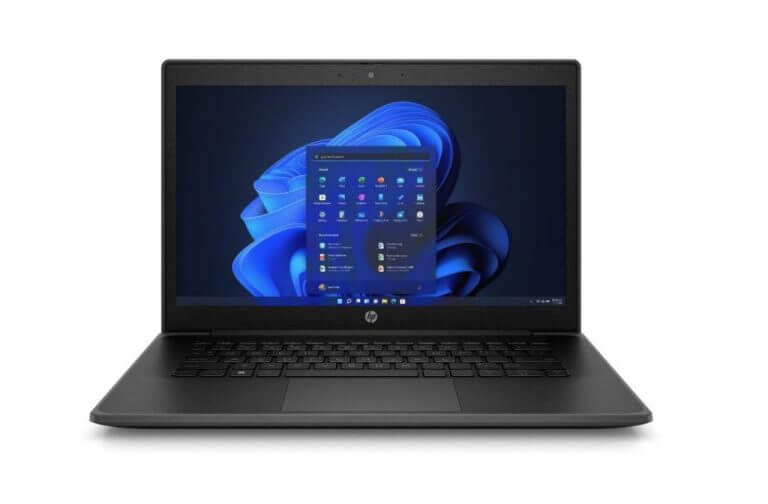
Now, for HP with the HP ProBook Fortis 14-inch G9 Notebook. This device is different from the others in the last as it has a 14-inch diagonal anti-glare bright display. The device sports Wi-Fi 6 and weighs in at 3.7 pounds. It also has a textured surface so it’s easy to grip and handle, and USB-C ports are reinforced so there’s no damage when cables are pulled. Even the battery has a metal shield, so it can’t be punctured or swell.

HP also has the HP Pro x360 Fortis 11-inch G9 Notebook, the HP Pro x360 Fortis 11-inch G10 Notebook, HP ProBook Fortis 14-inch G9 Notebook, and HP ProBook Fortis 14-inch G10 Notebook for education users.

Capping out the list will be JP .IK’s Leap T304. Starting at $219, this device has an anti-glare display and a rotating 2-megapixel camera. Microsoft also notes that the device has “super-fast Wi-Fi, all-day battery life.” The other devices coming from JP .IK include the Turn T303, which starts at $270.

Windows 11 tablets for education

Last up is a section for tablets. Lenovo recently announced new additions to its education lineup and includes the Lenovo 10w tablet. This is powered by Windows 11, and the Snapdragon 7c Compute platform. This means it’s always-on and always connected, but the device is also durable, too, thanks to ruggedized rubber bumper and Corning Gorilla Glass.

You’ll even find that the detachable keyboard converts the tablet into a 10.1-inch laptop allowing students to type documents, and more. Note the display is set in the 16:10 aspect ratio, and there’s support for an optional garages pen.

Lenovo is also announcing the 13w Yoga, which is powered by Windows 11. Other devices include the 100w and 300w, 500w, and 14w. More information on these devices is available on Lenovo’s website.

Other devices

These are not the only devices powered by Windows 11 SE. You’ll find others from Fujitsu and Positivo. Microsoft hopes that these devices can help meet the ever-changing needs of students, navigate change and improve the learning experience. “It’s great seeing Windows 11 at the center of it all, with new tools designed to improve the learning experience and enable better richer learning experiences,” said Nicole Dezen, CVP, Device Partner Sales

Microsoft Launcher gets some feed and widget changes in new app update

The Microsoft Launcher for Android devices updated to Version 6.211203.0.1025841 today. This Android app update included the usual bug fixes and improvements though also added a promo banner advertising Microsoft’s new Start app and added support for Italy and Spain in the Microsoft Rewards widget.

Here’s the full release notes for the Version 6.211203.0.1025841 Microsoft Launcher update:

  • Promotional banner was added on News feed page for users who don’t have Start app installed.
  • Microsoft Rewards widgets now support Italy and Spain.
  • Other known bugs were fixed, and UX improvements were made on feed.

Quite a few Microsoft apps have begun to receive updates after the New Years break including Microsoft Whiteboard, Microsoft SwiftKey Keyboard, Microsoft Edge, and the Xbox mobile apps. Many more will likely get an update or two before the end of the month.

Microsoft Launcher
Microsoft Launcher
Price:
Free

Windows 10: Microsoft Defender’s exclusion list is readable by attackers

Security researchers have discovered a vulnerability in Microsoft’s antivirus software that could allow attackers to bypass the anti-malware protections on Windows machines.

A report from Bleeping Computer about a problem with the latest versions of Microsoft’s Windows 10 operating system states that the issue specifically impacts devices running versions 21H1 and 21H2.

Microsoft Defender

Microsoft Defender is a free anti-malware program that scans files and processes for threats and can protect Windows PCs from viruses, malware, ransomware, and other security threats.

The Windows Defender Security Center add-in also lets you prevent specific files, file types, folders, processes, locations, or executable files from being scanned by using the exclusions feature.

This feature can be useful in certain situations in which malicious software is incorrectly classified as a legitimate application.

The exclusion lists that protect various Windows 10 components vary among users and allow threat actors to track locations and store malicious files on devices.

Antonio Cocomazzi, a Threat Intelligence Researcher at SentinelOne, said Microsoft Defender allows any local user to read the sensitive data stored in exclusion lists via registry queries; this is factually accurate and makes no use of informal speech.

The Windows Defender AV tool allows users to read the file system and registry exclusions on the system.

Microsoft Defender’s security flaw 

Additionally, cyber security architect Nathan McNulty pointed out that attackers might exploit the registry tree to gain access to exclusion lists for multiple systems.

“For those configuring Defender AV on servers, be aware that there are automatic exclusions that get enabled when specific roles or features are installed,” McNulty indicated on Twitter. 

However, you can create a custom installation location for an application that isn’t on the list.

Security updates

Microsoft announced today the release of a security update that eliminates the vulnerability that can be exploited by malware. The vulnerability was first reported by security researchers eight years ago.

Microsoft has not yet addressed this issue, and there is no information about when a solution might be available for users of its Windows operating system.

Administrators are advised to set up Microsoft Defender exclusions using the group policies on both Windows 10 and Windows Server machines.

Have you been affected by Microsoft Defender’s security flaw before? Share your thoughts with us in the comment section below.

Posted in Fix

You now can’t delete default search engines in Chromium-Based browsers

Have you ever wanted to stop using Google as your default search provider in Chromium-based browsers, such as Opera or Vivaldi?

Nowadays, when you install a new browser, it typically offers a list of default search engines to choose from. However, you can no longer delete any and all of these included engines.

Well, it turns out that some Chromium-based browsers — those using the open-source version of the Google Chrome browser as a base — will no longer allow users to remove search engines from the default list.

In October 2021, a proposal was made to remove the ability to remove certain search engines, or at least make it more difficult. 

It seems developers wanted to do away with it completely as it is no longer available.

No more deleting default search engines

The Chromium team has decided against allowing you to delete default search engines. Although the idea of making it harder or impossible to delete Google as a search engine was discussed, the Chromium team decided to do neither and keep the feature.

For users, the list of search engines that comes pre-installed with a new browser can only get longer. However, it’s unlikely you’ll ever visit the list again after setting up your browser.

Firefox users exempted

Of course, Firefox users needn’t worry—Mozilla’s browser isn’t based on Chromium and so isn’t impacted by this change. 

Mozilla Firefox offers two choices for deleting search engines from its list of default options. The first is to remove them completely from view, the second to keep the search engine but hide it from the list.

Will you be switching to Firefox or does the new update not affect your browsing? Share your comments down below.

Microsoft issues out-of-band Windows update to address issues with VPN connections, Windows Server

Microsoft has released a rare out-of-band update for Windows 11, Windows 10, and some versions of Windows Server. The update addresses issues with using specific VPN connections, and on Windows Server, fixes the errors that could have impacted the performance of the servers. Here’s what you need to know.

For Windows 11, there’s KB5010795, which addresses issues with VPN connections. On Windows 10 21H2, there’s KB5010793 which addresses issues with VPN connections and unexpected restarts on Windows Server domain controllers. For folks on Windows 10 version 21H1, meanwhile, there’s KB5010793 which brings the same patches.

On Windows Server 2022, there’s KB5010796. This one addresses the issues we’ve previously raised about Windows Server, covering VPNs, servers restarting, Azure Active Directory, and the Resilient File System format. We included links to the other KB versions for other shipping versions of Windows Server for you below. Changelogs are the same, however.

  • Windows 10, version 20H2, Windows Server, version 20H2: KB5010793
  • Windows 10, version 20H1, Windows Server, version 20H1: KB5010793
  • Windows 10, version 1909, Windows Server, version 1909: KB5010792
  • Windows 10, version 1607, Windows Server 2016: KB5010790
  • Windows 10, version 1507: KB5010789
  • Windows 7 SP1: KB5010798
  • Windows Server 2008 SP2: KB5010799

Note that these updates we mentioned above should be showing up in Windows Update. However, if you’re on Windows 8.1, Windows Server 2012 R2, or Windows Server 2012, the updates will only be available for you on the Microsoft Update Catalog. See the pages for KB5010794 and KB5010797 for more information.

Bitwarden Failed to Fetch: How to Fix This Error

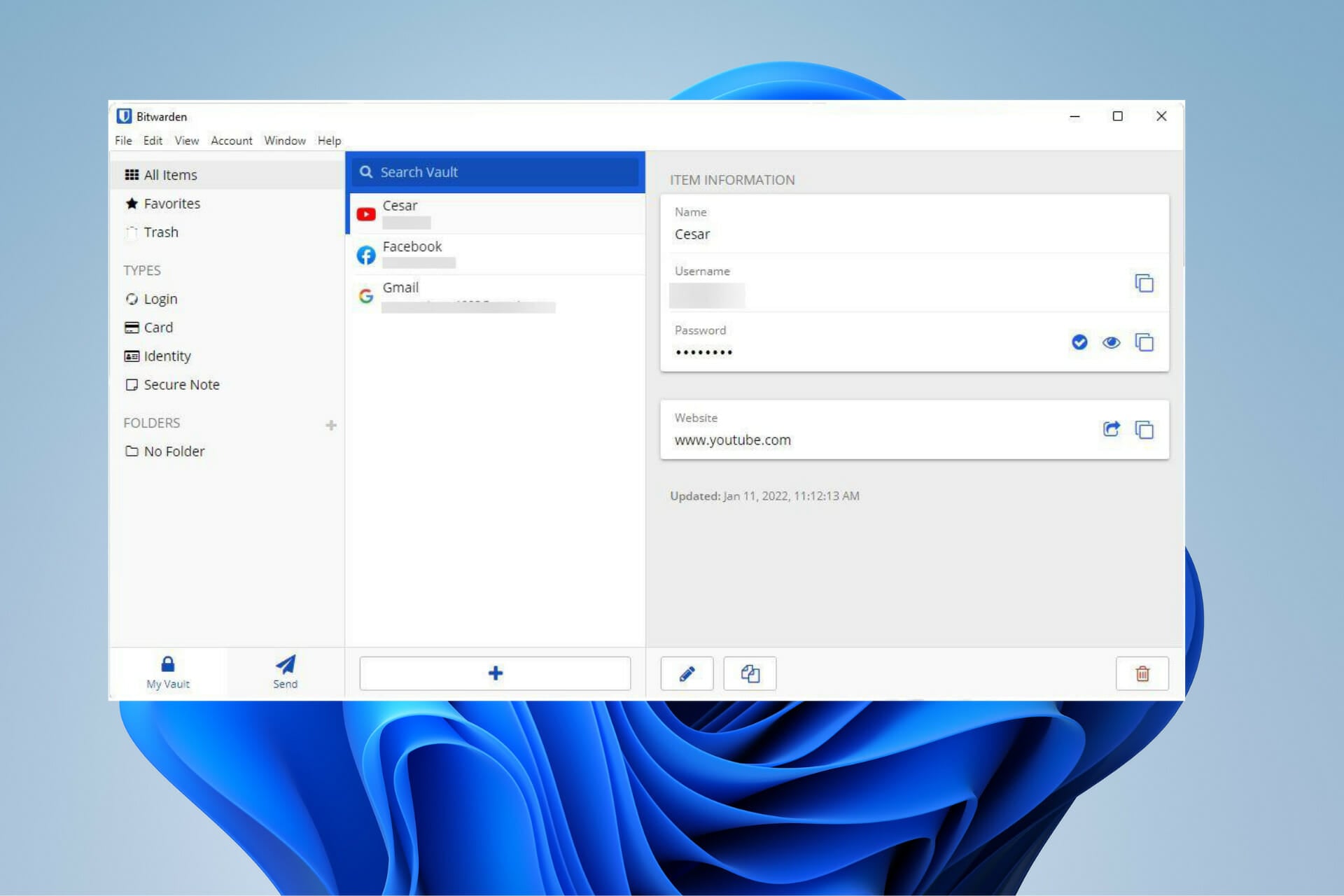
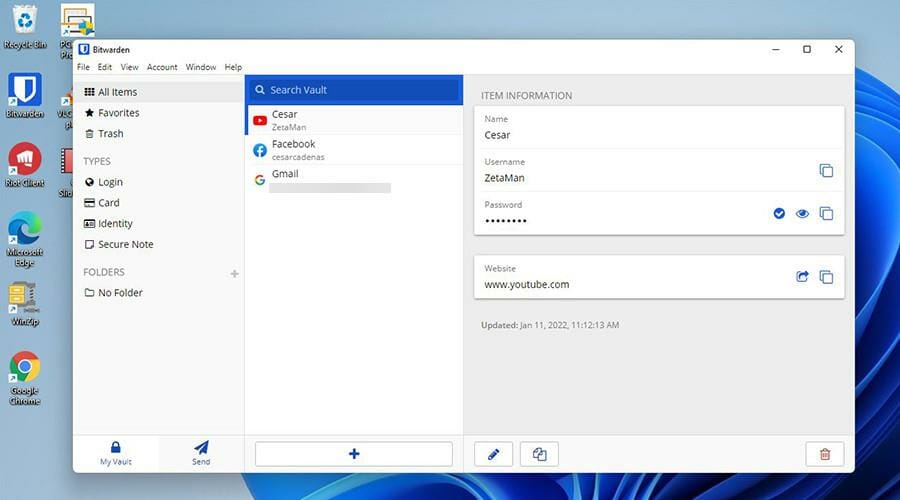
Released in 2016, Bitwarden is a free and open-source password management app that stores sensitive data like website credentials in an encrypted vault. The platform overall offers a lot of other useful applications like browser extensions, a mobile app, and a web-host interface.

Bitwarden even offers a cloud service if you have limited space on your computer or an on-premises version. When it was released, critics immediately fell in love with the service. Some reviewers went as far as to call it the best password manager out there.

Now, as good as this software may be, there occasionally are times when you will run into some issues with Bitwarden. It’s been reported that sometimes the Android client may log itself out with everything in the synced vault erased.

What are some other issues that may arise in Bitwarden?

One of the more prevalent issues is the Failed to Fetch error, which will be the focus of this guide. This issue occurs whenever you try to log into the desktop app and may sometimes affect the browser versions.

Essentially, it prevents you from using Bitwarden on your device. This guide will show you how to fix this Failed to Fetch error on both the Desktop app and browser extension, namely the versions of Microsoft Edge, Mozilla Firefox, and Google Chrome. However, the extension is available on other apps like Opera and Brave.

Right off the bat, one of the recommended fixes is to reinstall Bitwarden, but do so from the official website instead of the version found on the Microsoft Store.

Also, if you’re using the browser extensions, ensure that Bitwarden is the only password manager working, as having others installed can mess with it.

How can I fix the Failed to Fetch error on Windows 11?

1. Update the app

➡ Use Command Prompt

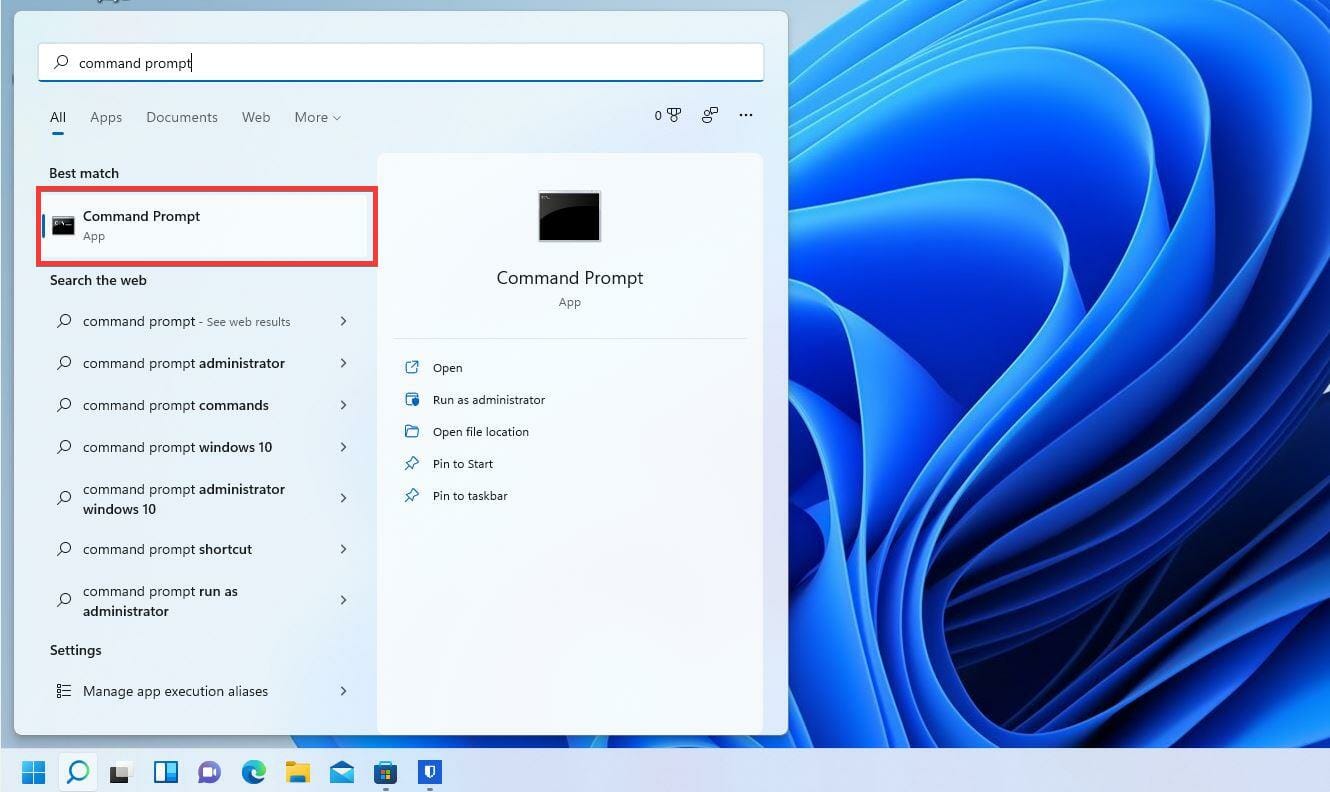
  1. Click on the magnifying glass icon to bring up the search bar.
  2. Search for the Command Prompt.
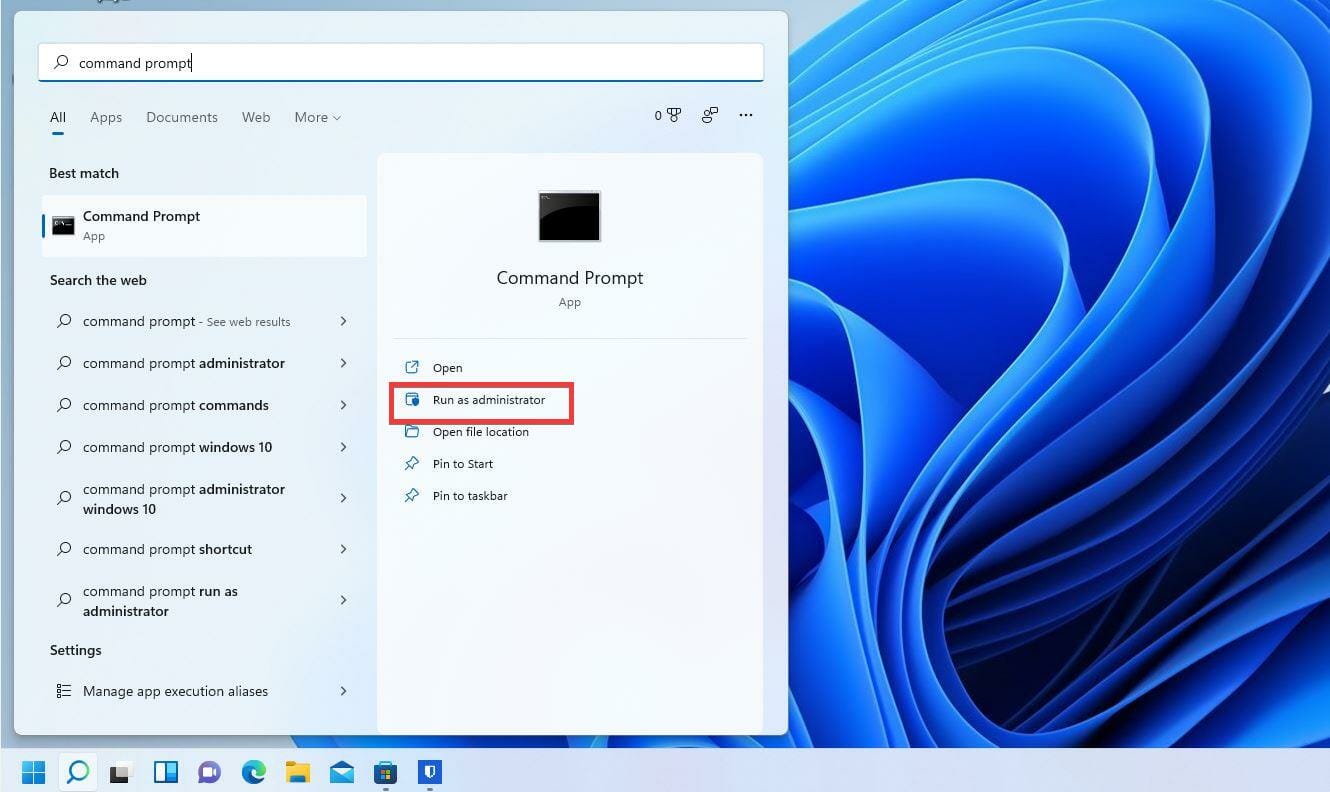
  3. Click Run as administrator.
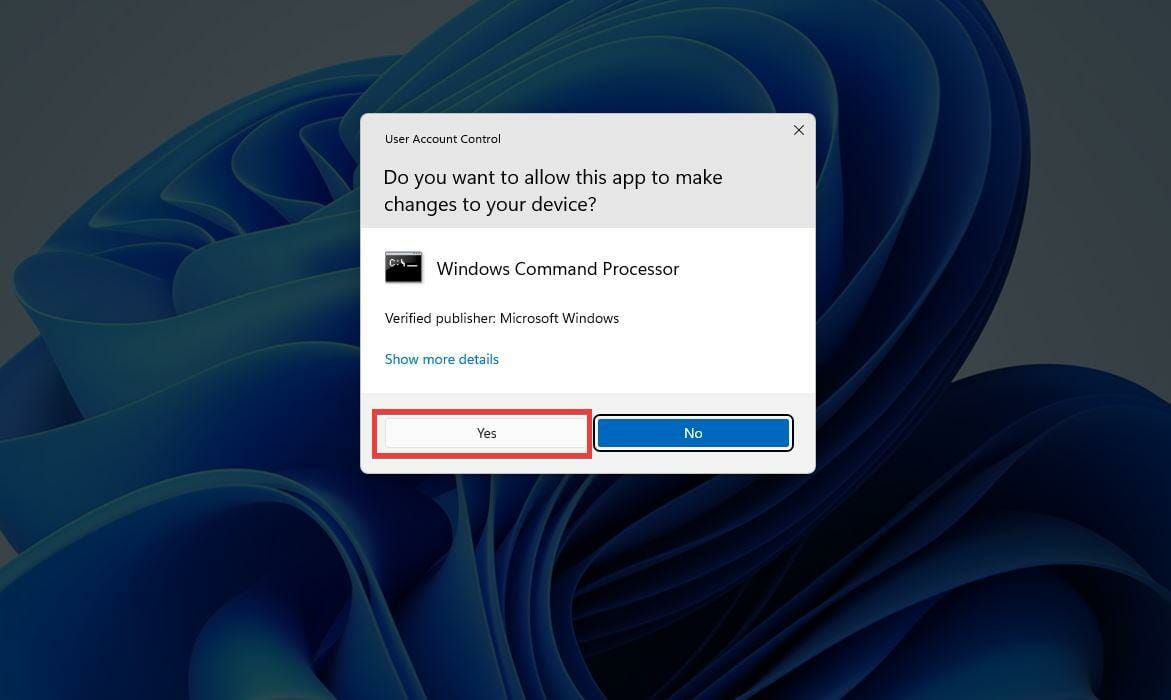
  4. A small window may appear asking you if you want to make changes. Select Yes.
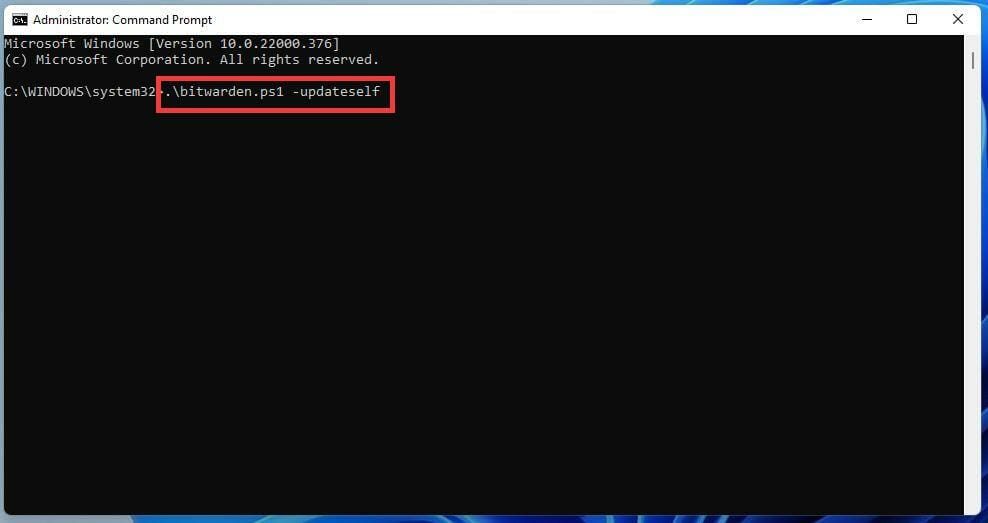
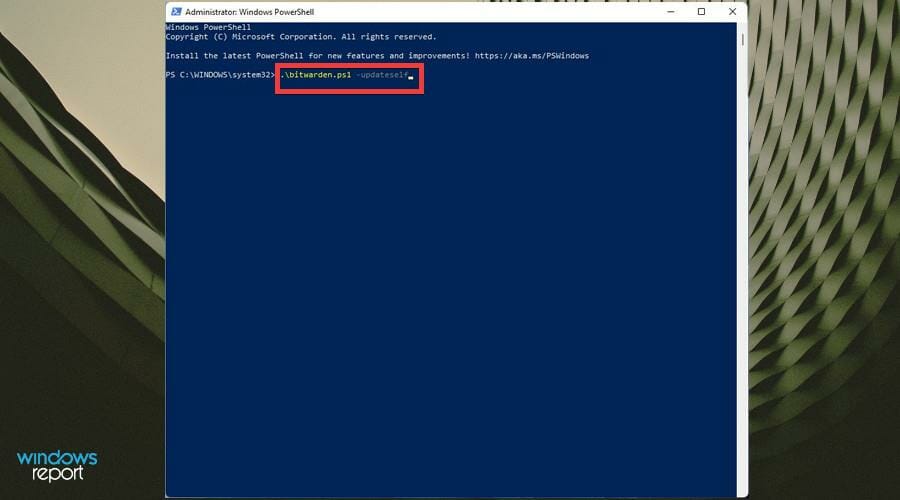
  5. In the Command Prompt, type in .\bitwarden.ps1 -updateself
  6. Hit the Enter key.
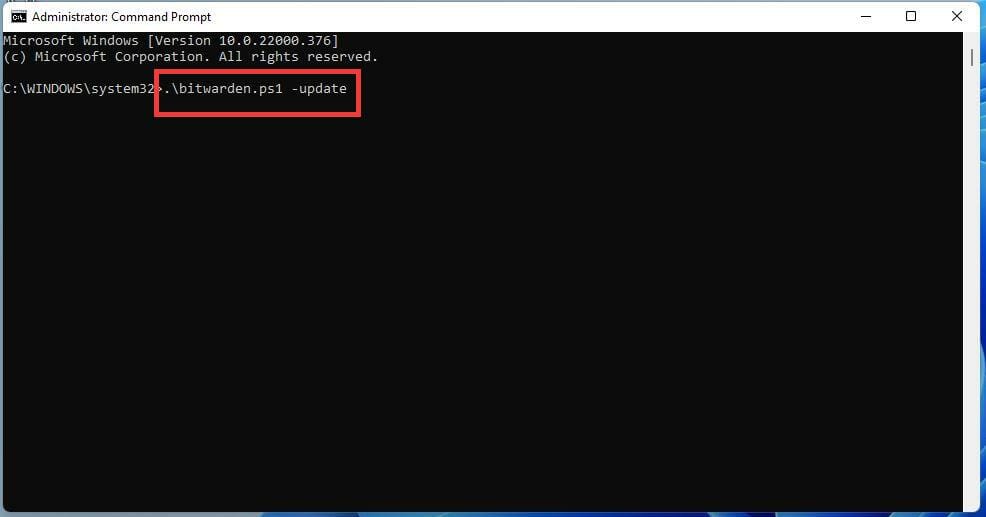
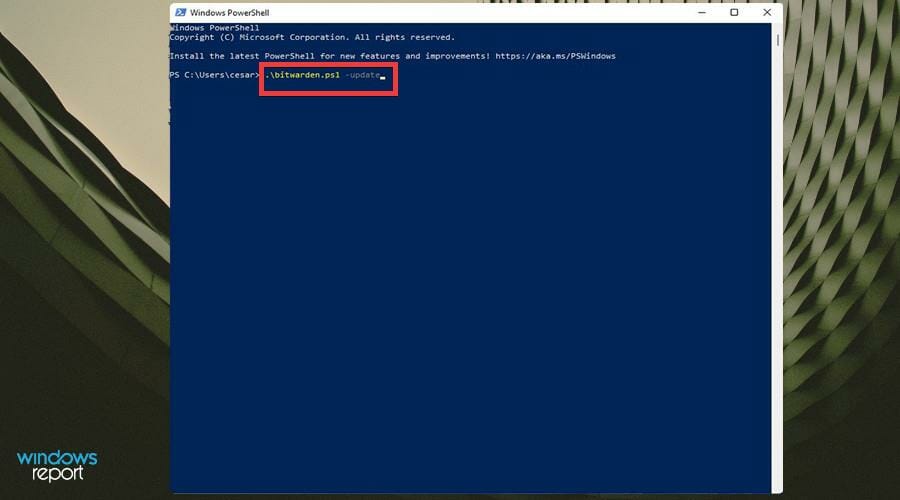
  7. If that initial command didn’t work, enter instead .\bitwarden.ps1 -update
  8. Hit Enter to update Bitwarden.

➡ Use PowerShell

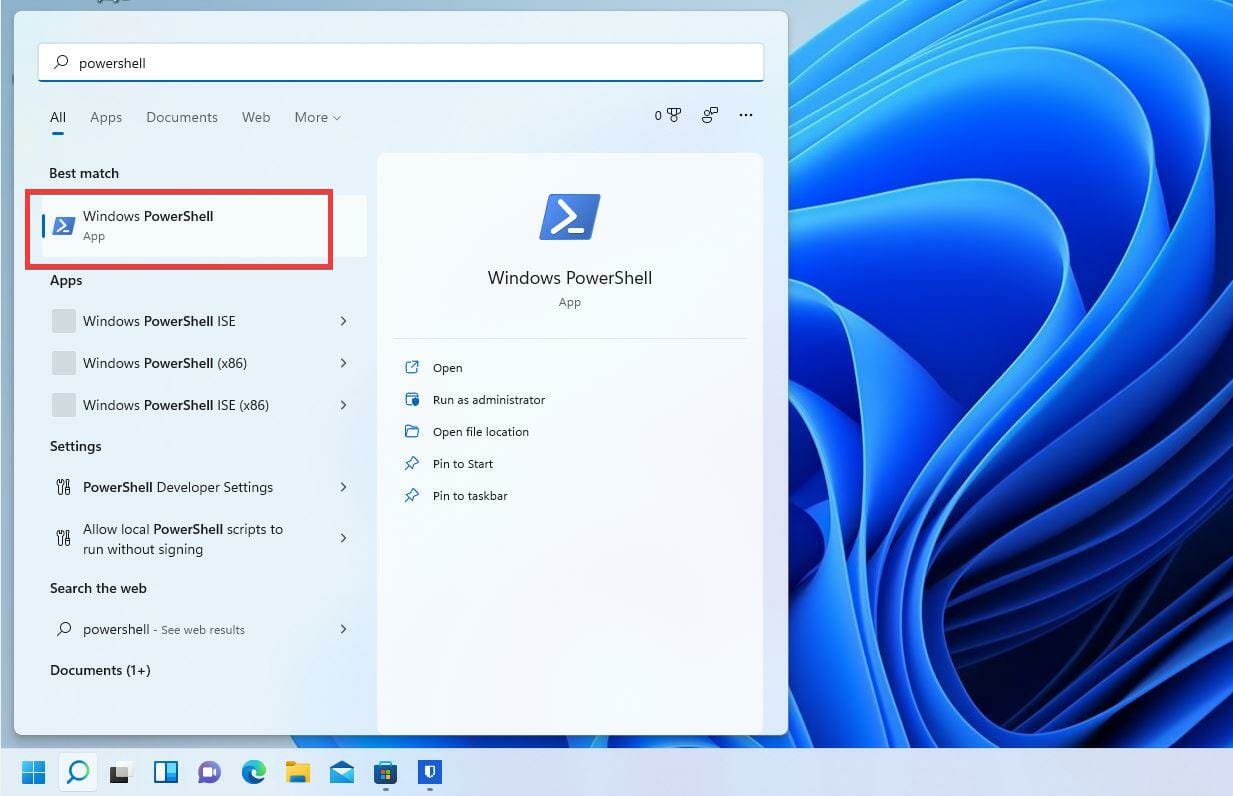
  1. Open the search bar and type in PowerShell.
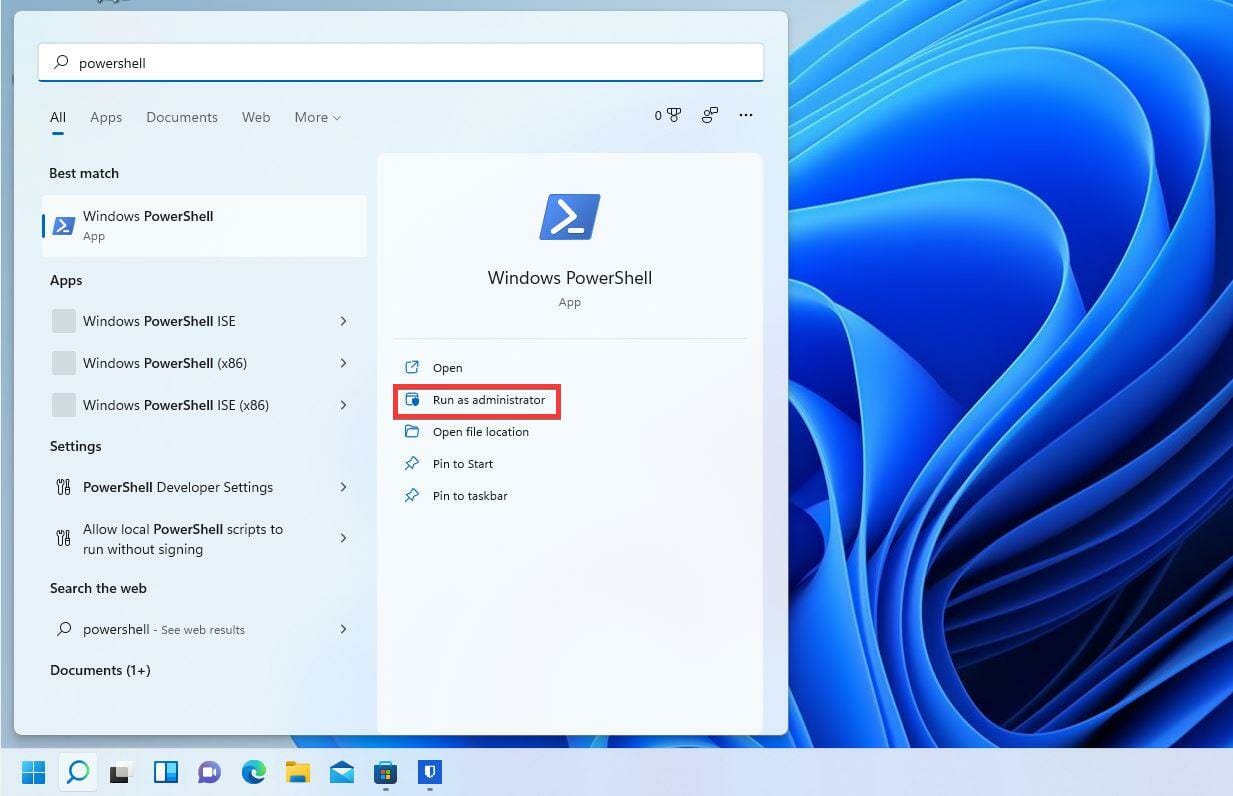
  2. Click Run as administrator when PowerShell appears.
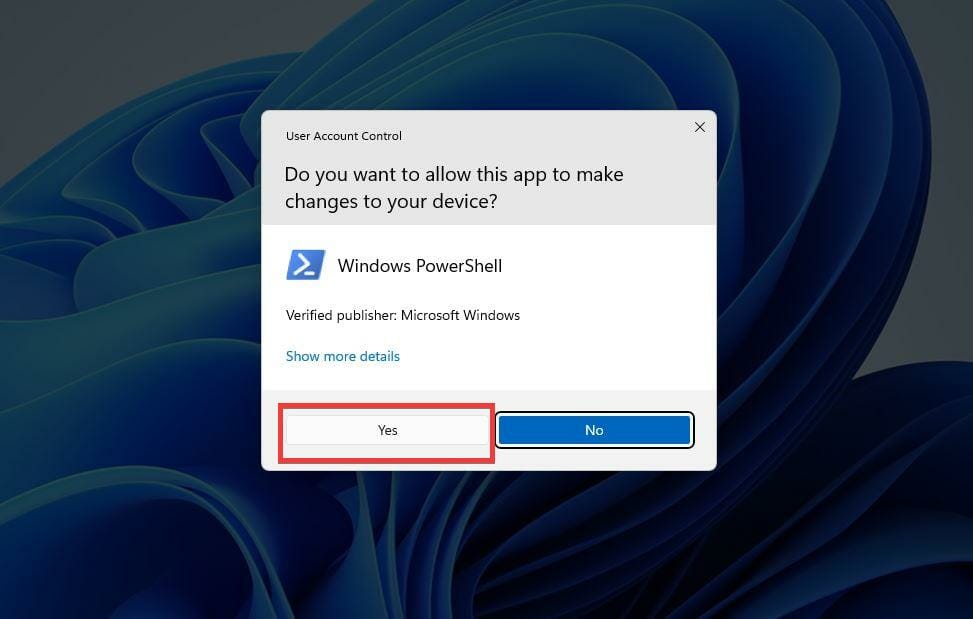
  3. A small window may appear asking if you want to make changes. Select Yes.
  4. In PowerShell, input the same commands for the Command Prompt. Enter .\bitwarden.ps1 -updateself
  5. If that doesn’t work, enter .\bitwarden.ps1 -update

3. White list in Windows Defender Firewall

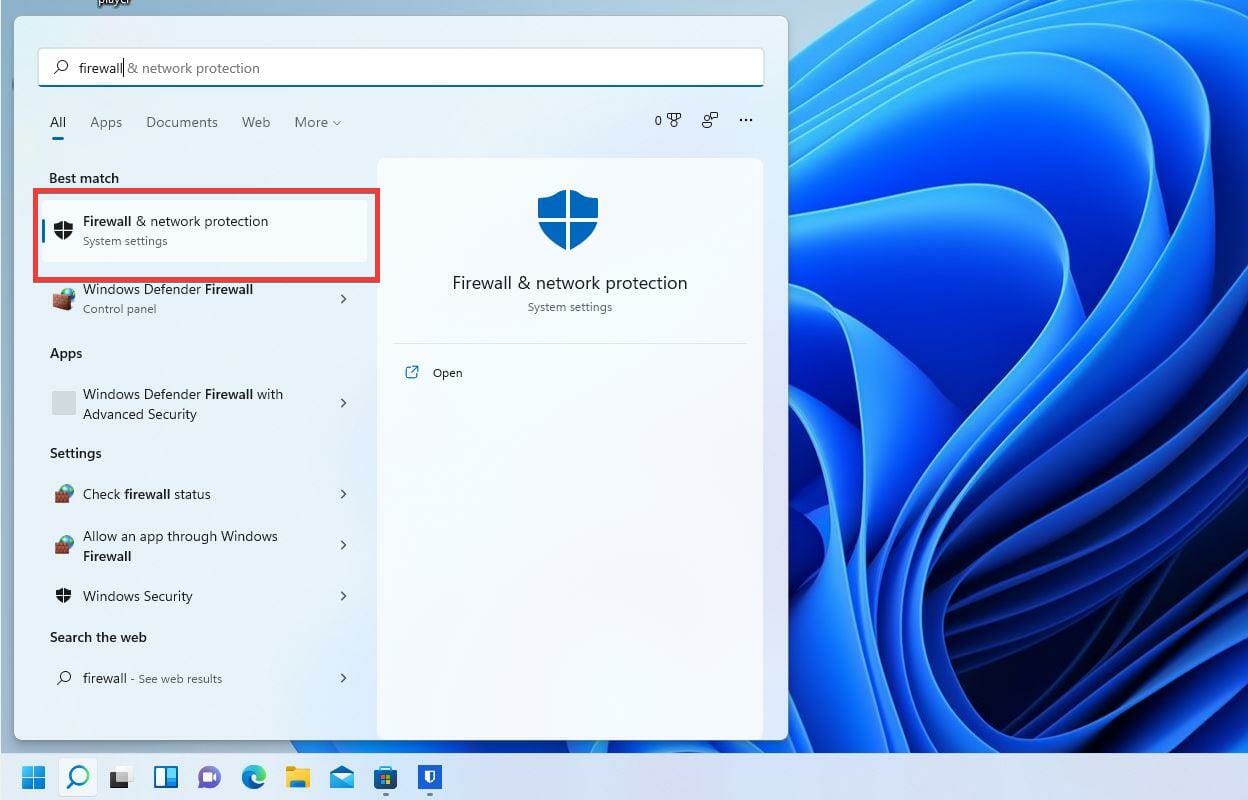
  1. In the search bar, type in Firewall.
  2. Click Windows Defender Firewall.
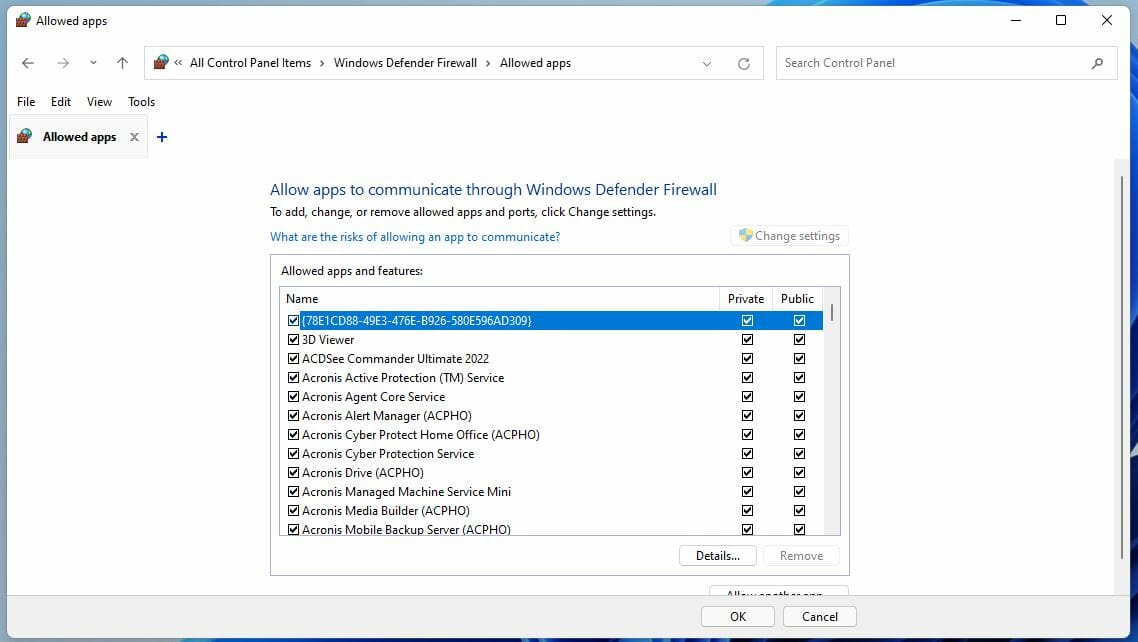
  3. Choose Allow an app or feature through Windows Defender Firewall on the left hand side.
  4. In this new window scroll down and locate Bitwarden.
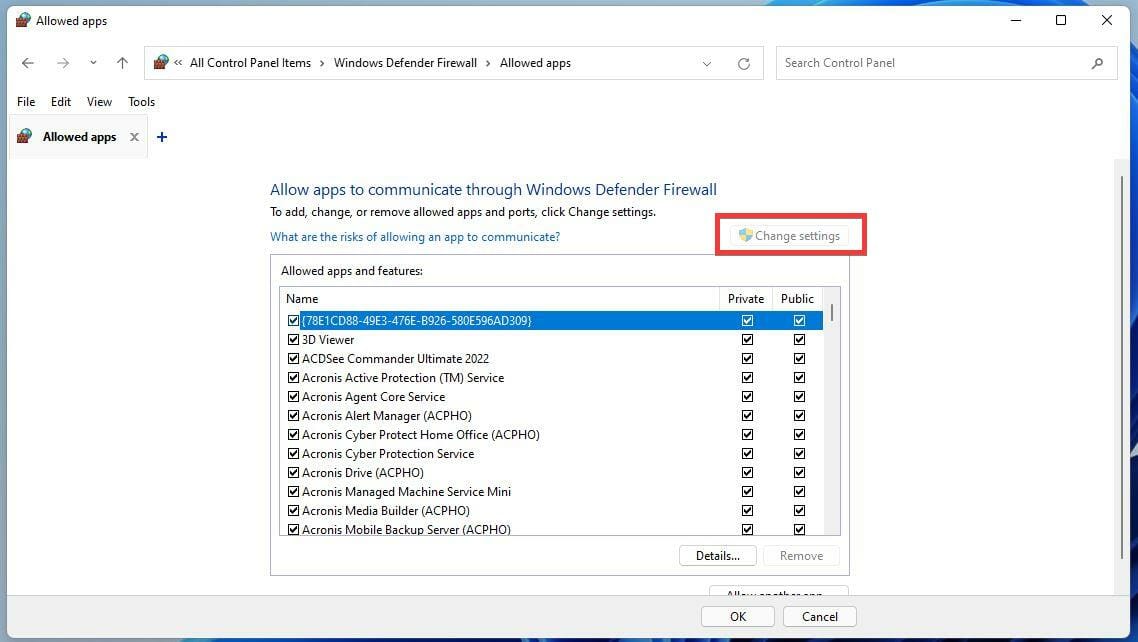
  5. If Bitwarden is not there, click on the Change settings button.
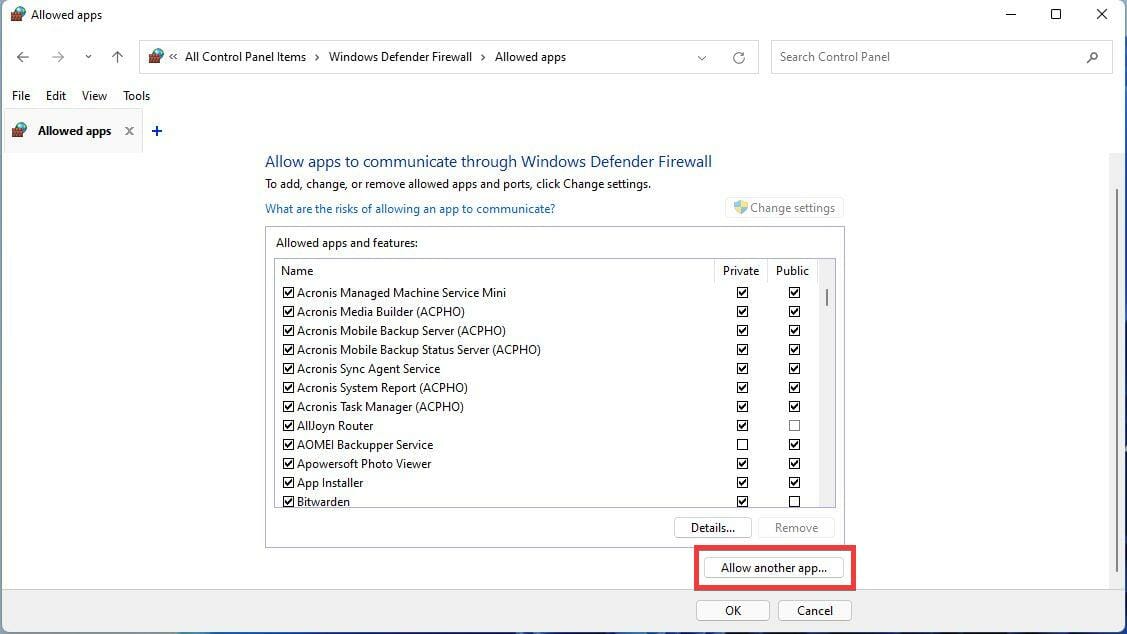
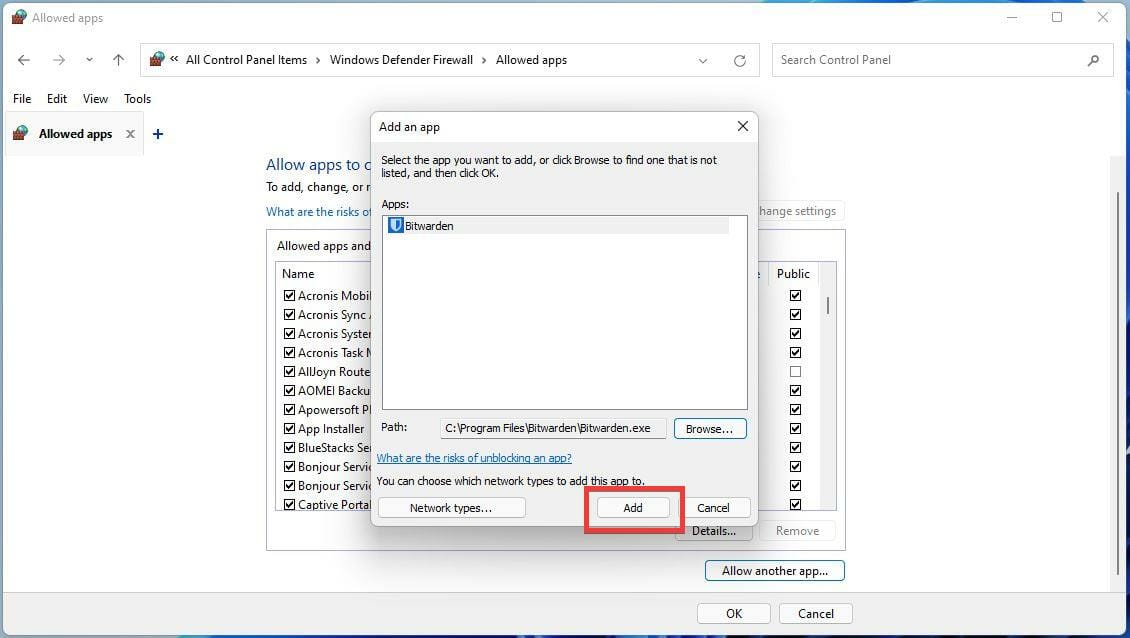
  6. Then click Allow another app…
  7. In this new window, select Browse.
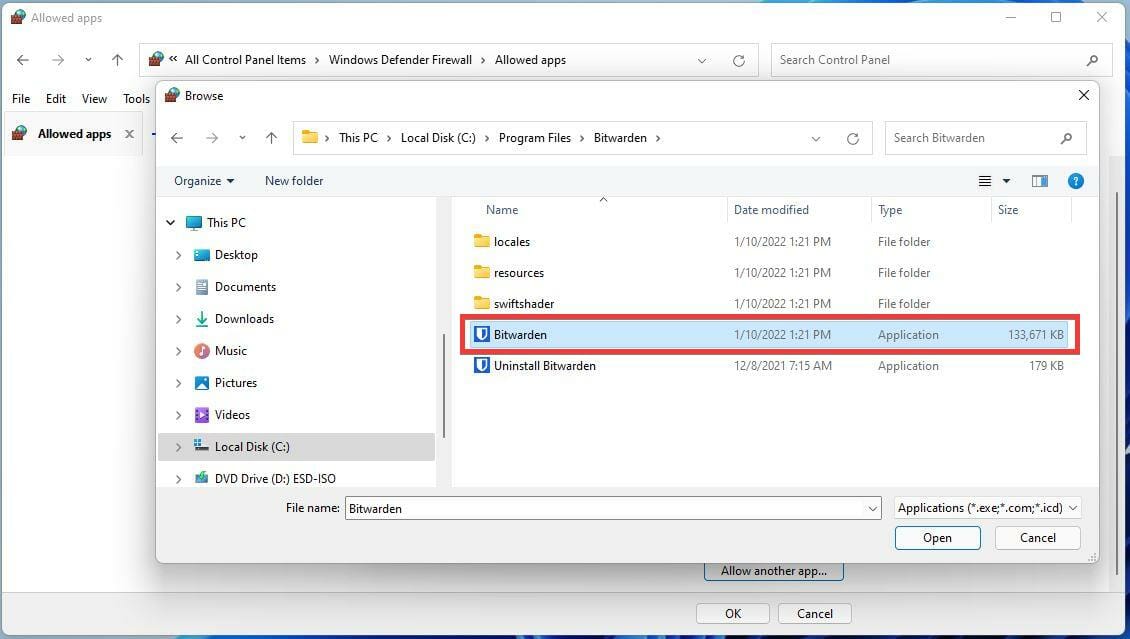
  8. Locate the Bitwarden app in the computer’s Program Files.
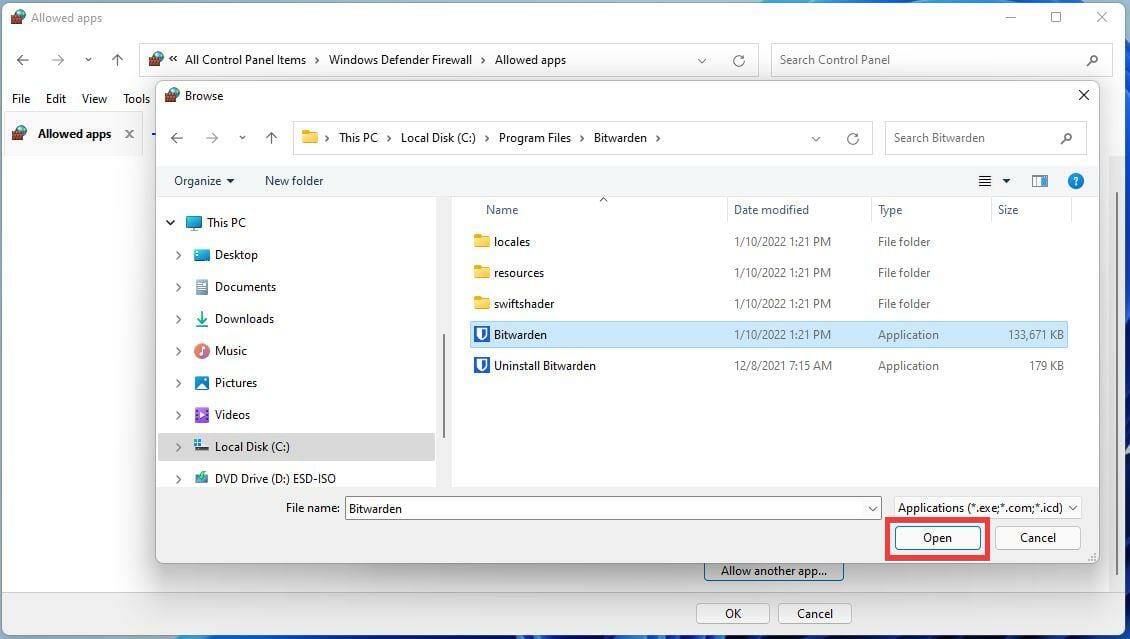
  9. Once located, select it and click the Open button.
  10. Then click the Add button.
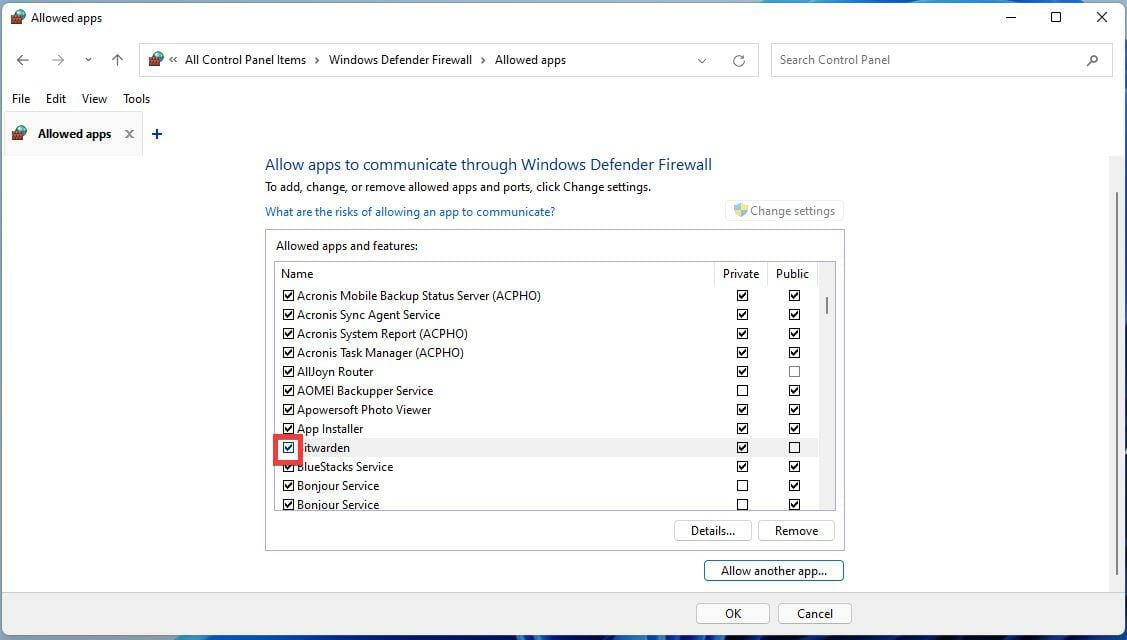
  11. Make sure the left hand box next to Bitwarden is checked. This will allow Bitwarden to have access to network resources and bypass Windows Defender Firewall.
  12. Checking the right-hand boxes will either allow or disallow the app to be used in either a public or private network.

In case the issue still persists, we recommend trying an antivirus that is browser friendly, make sure to check our list with the best ones.

4. Clear the browser cache

➡ Firefox

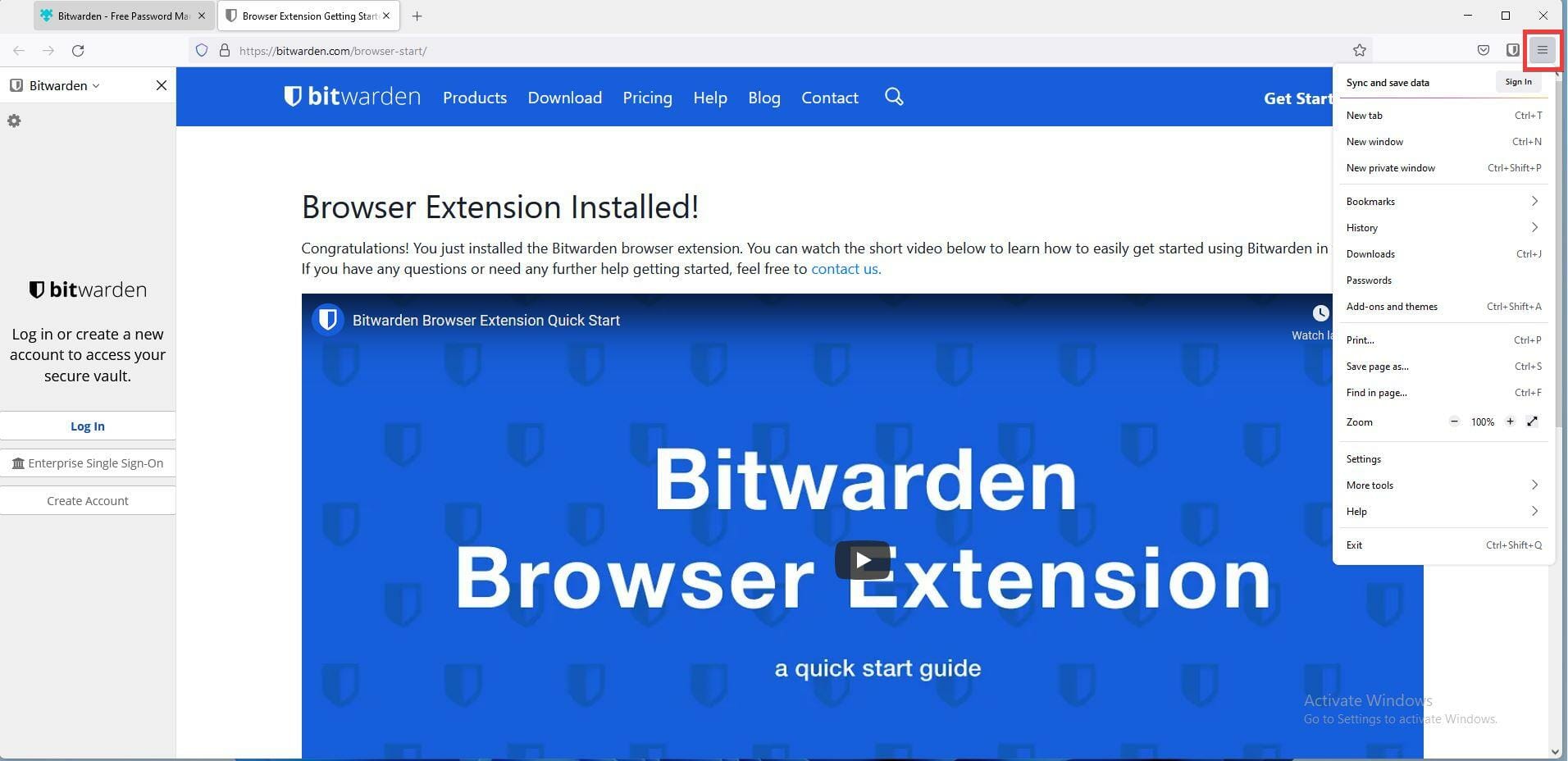
  1. In Firefox, click the menu button.
  2. Then select Settings.
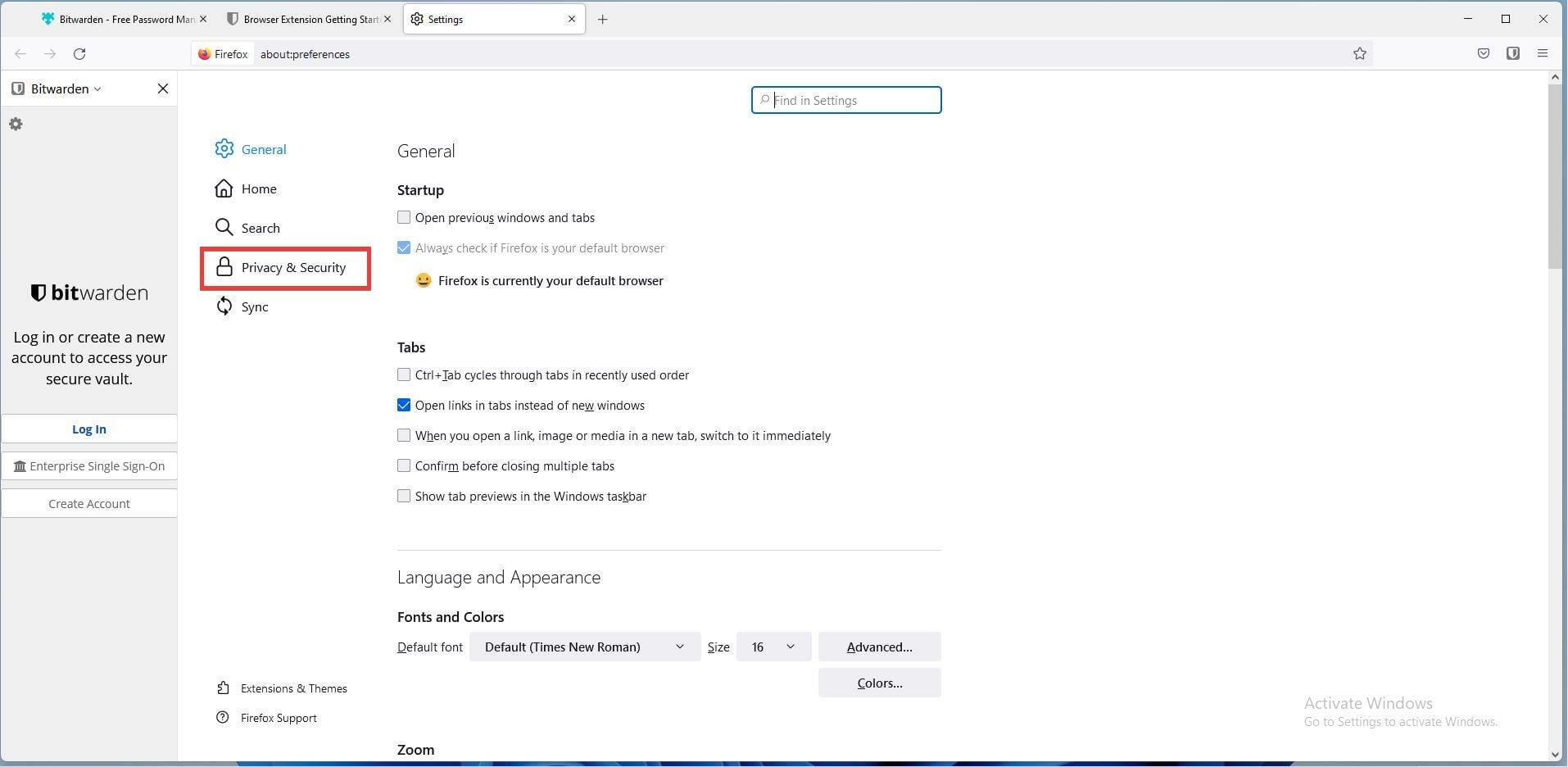
  3. In this new window, select the Privacy & Security tab.
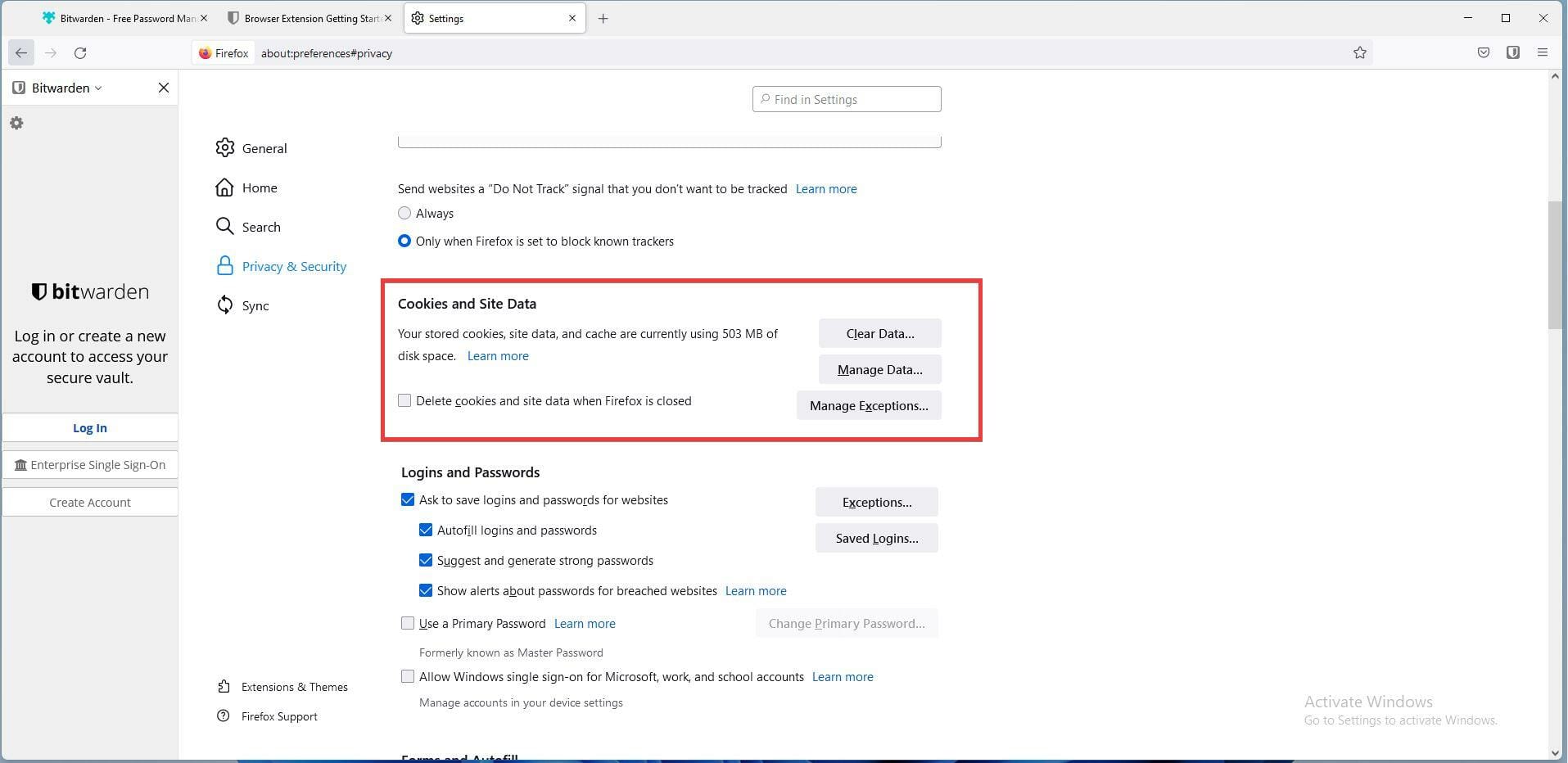
  4. Scroll down to the Cookie and Site Data section of Privacy & Security tab.
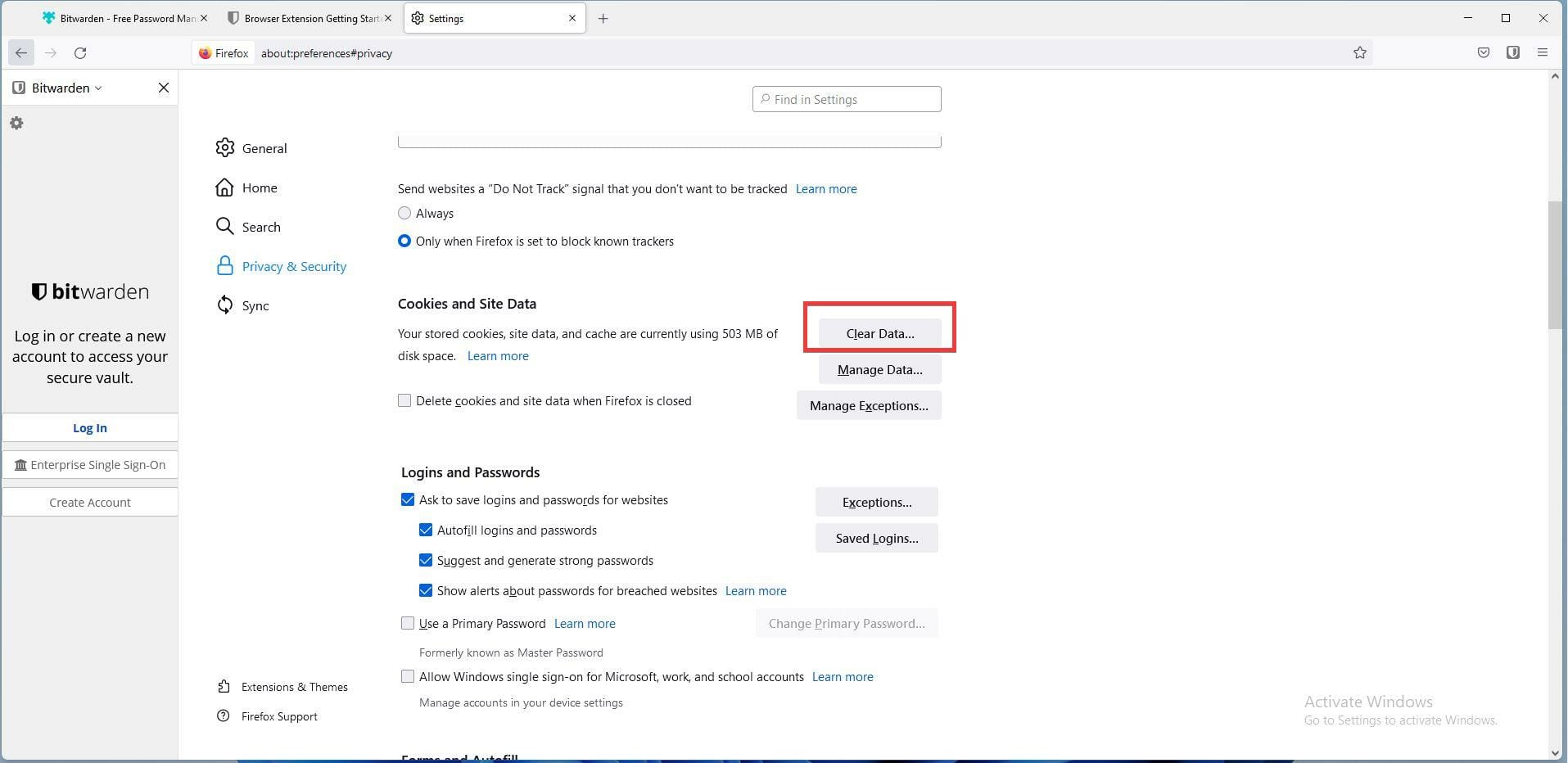
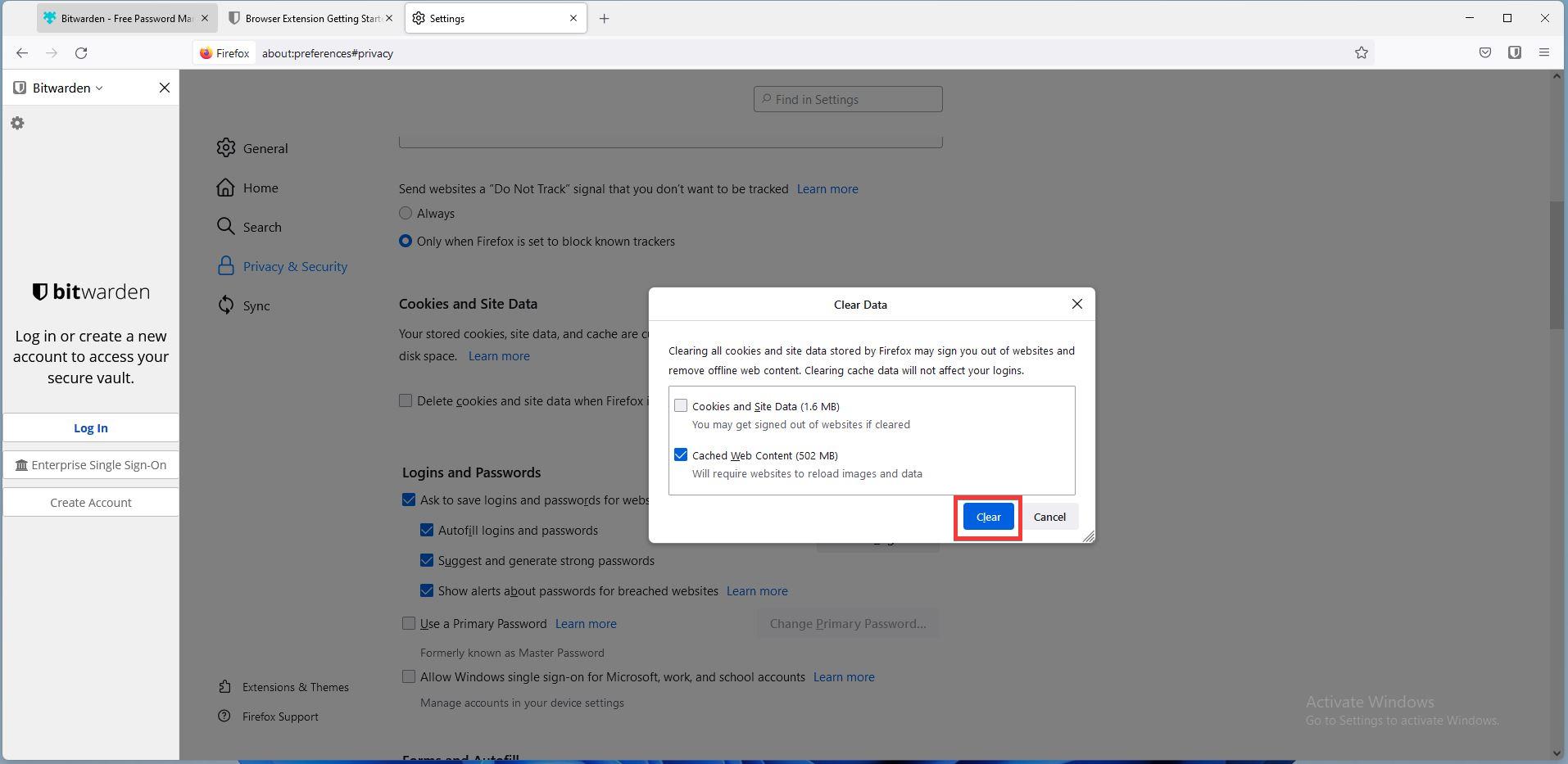
  5. Click on the Clear Data button.
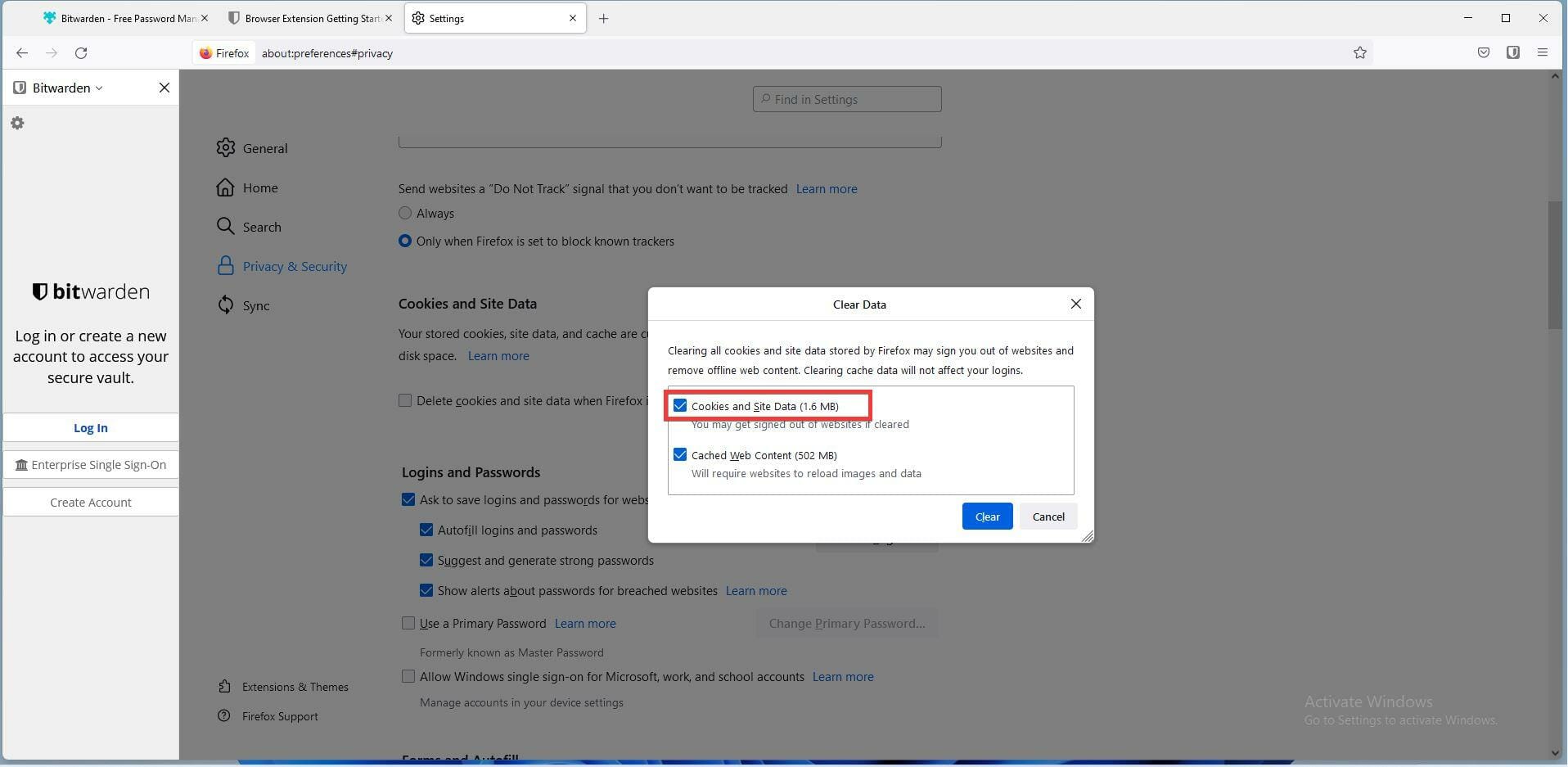
  6. Remove the check mark next to Cookies and Site Data.
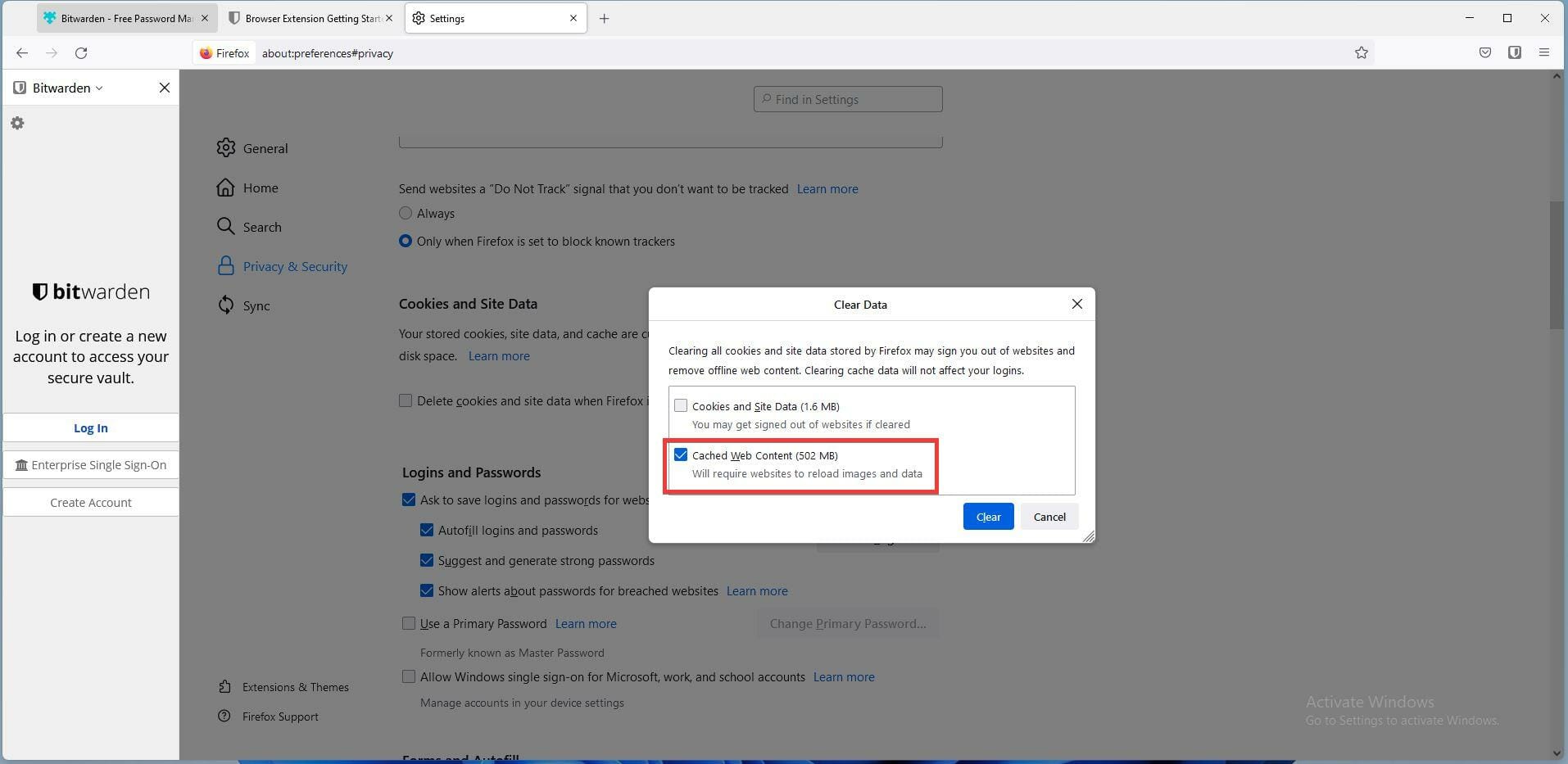
  7. Make sure the box next to Cached Web Content.
  8. Once done, click the Clear button. Any changes made will be automatically saved.

➡ Microsoft Edge

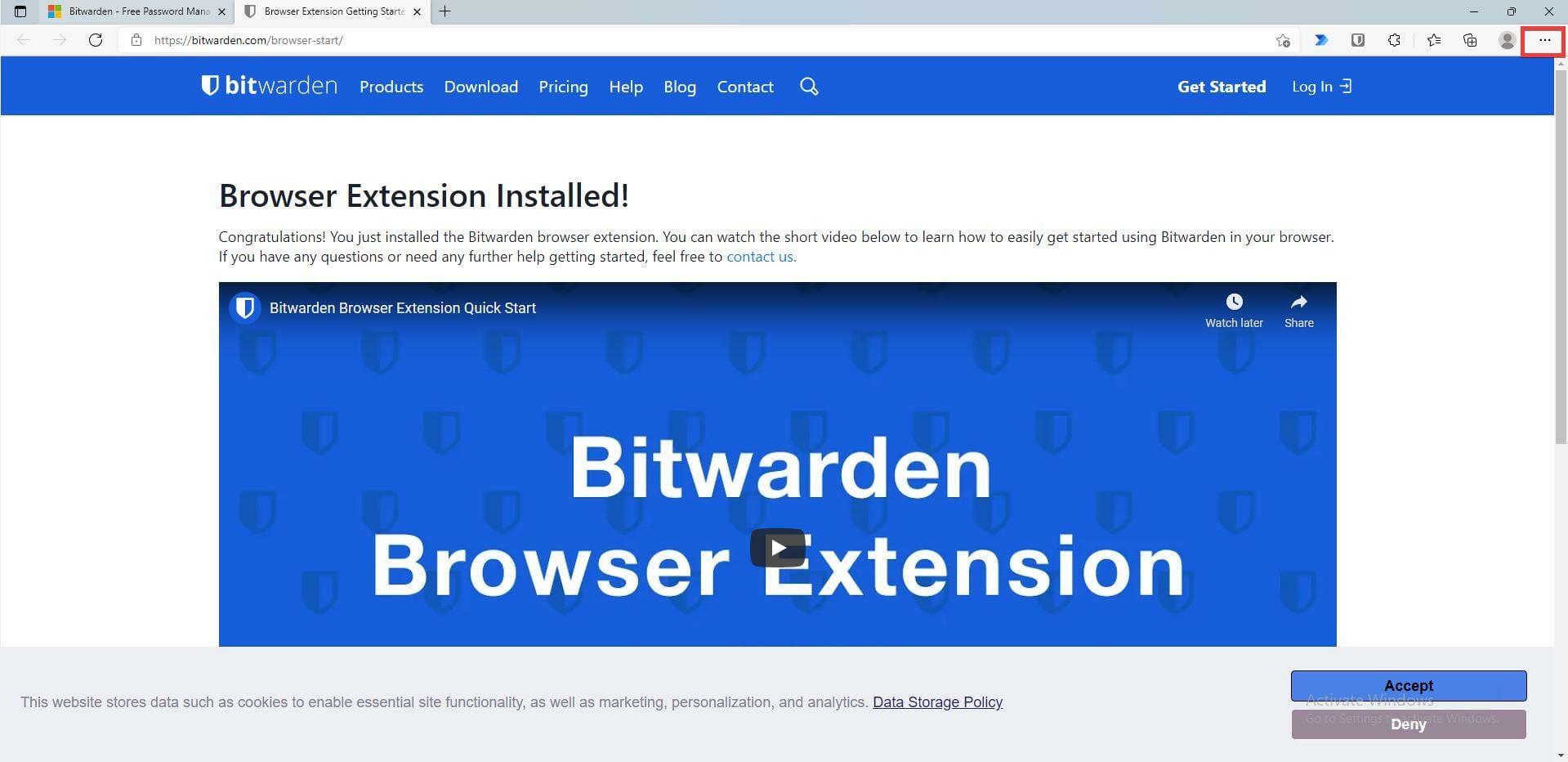
  1. In Windows Edge, click on the Menu button which are the three dots in the upper corner.
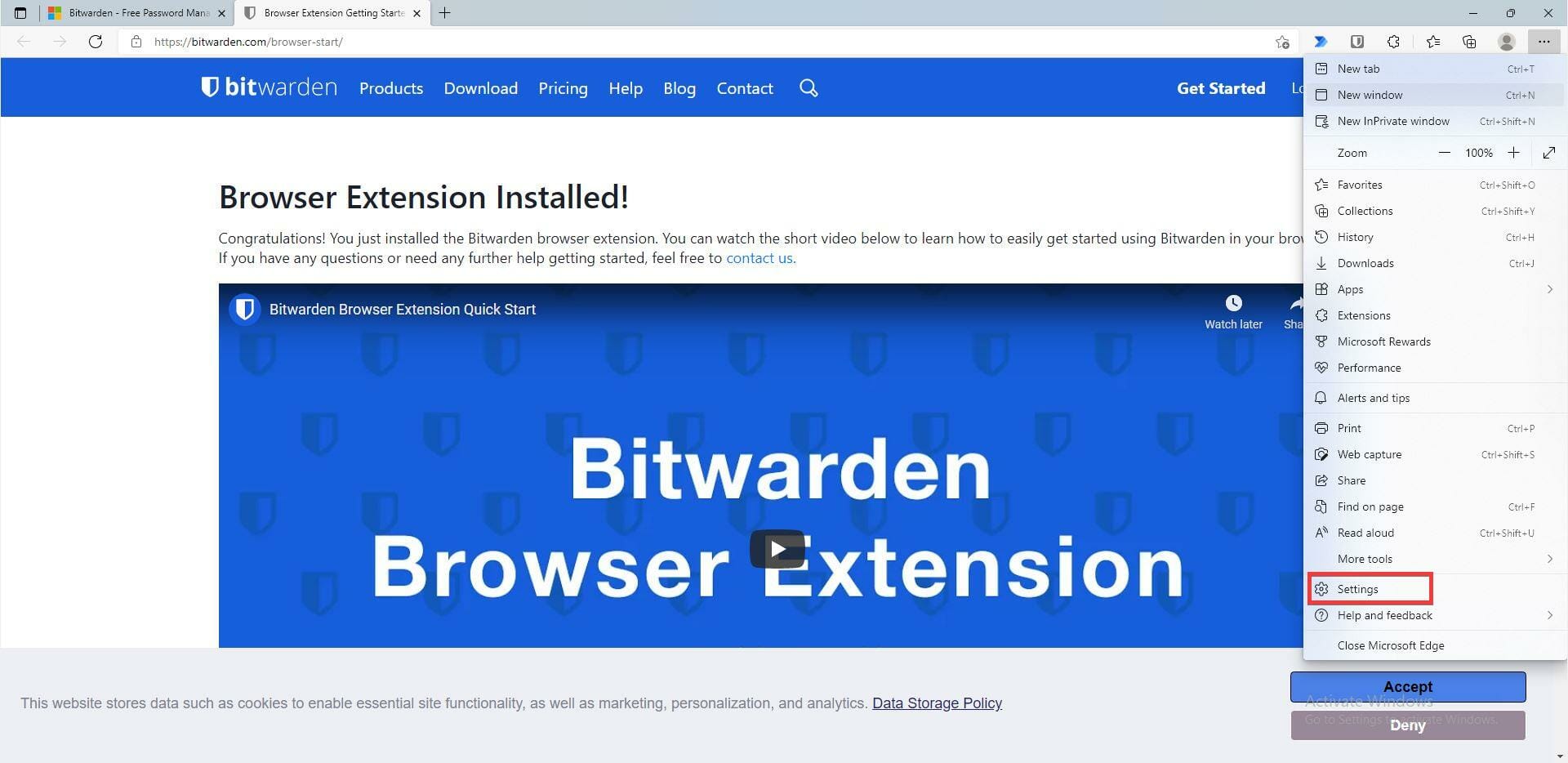
  2. Scroll down and click Settings.
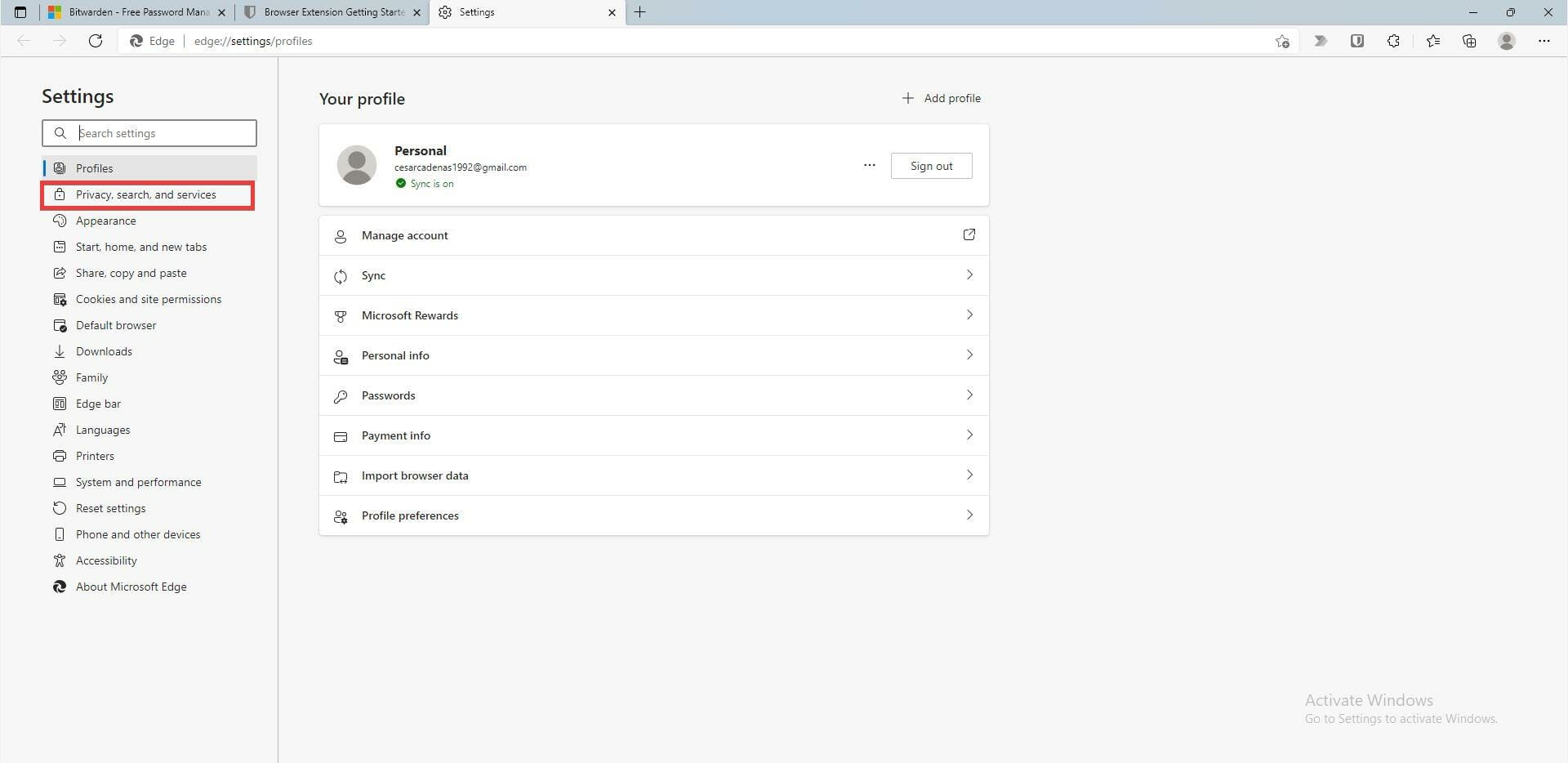
  3. In this new window, click Privacy, search, and services.
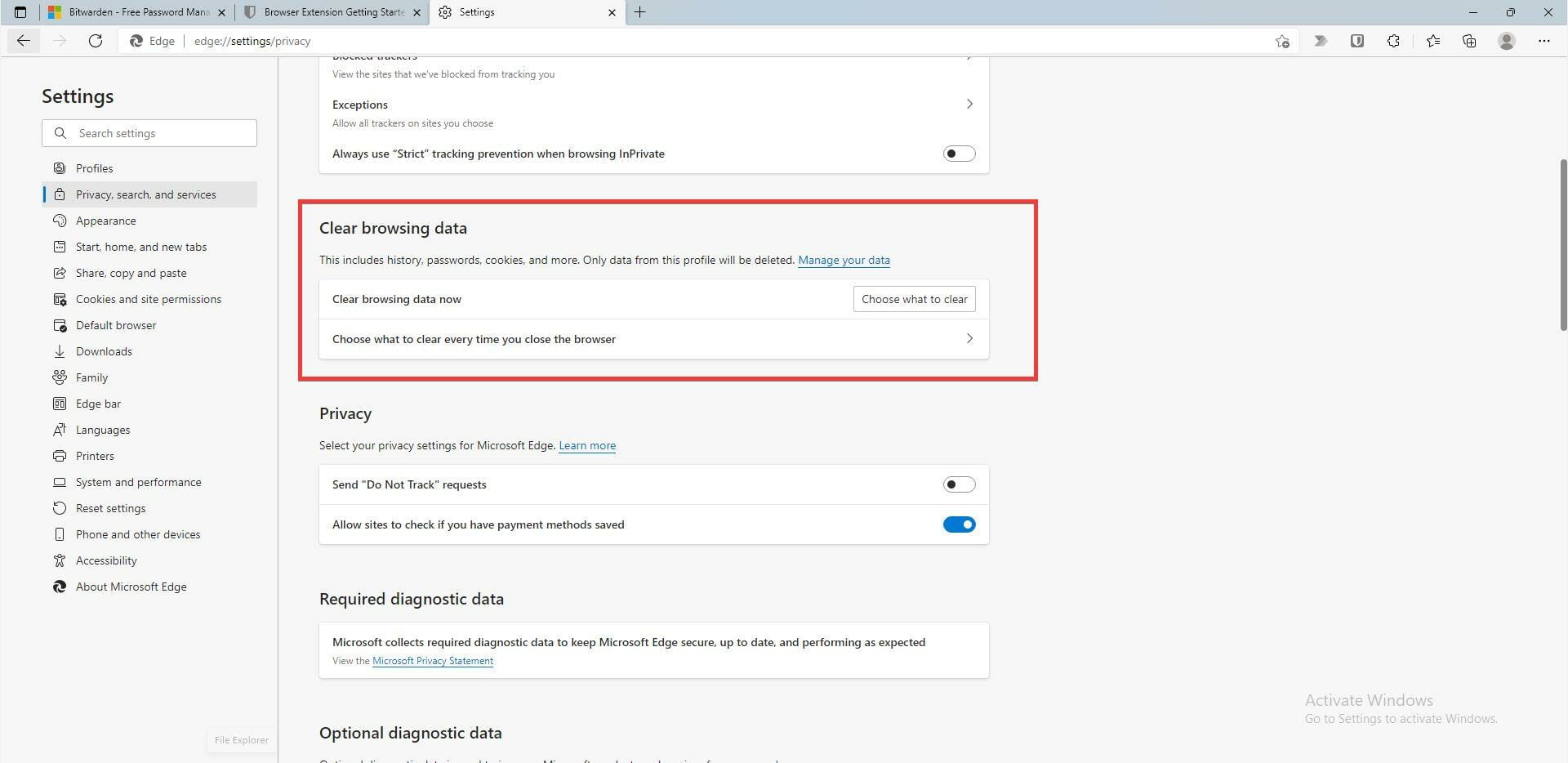
  4. Scroll down to the Clear browsing data section.
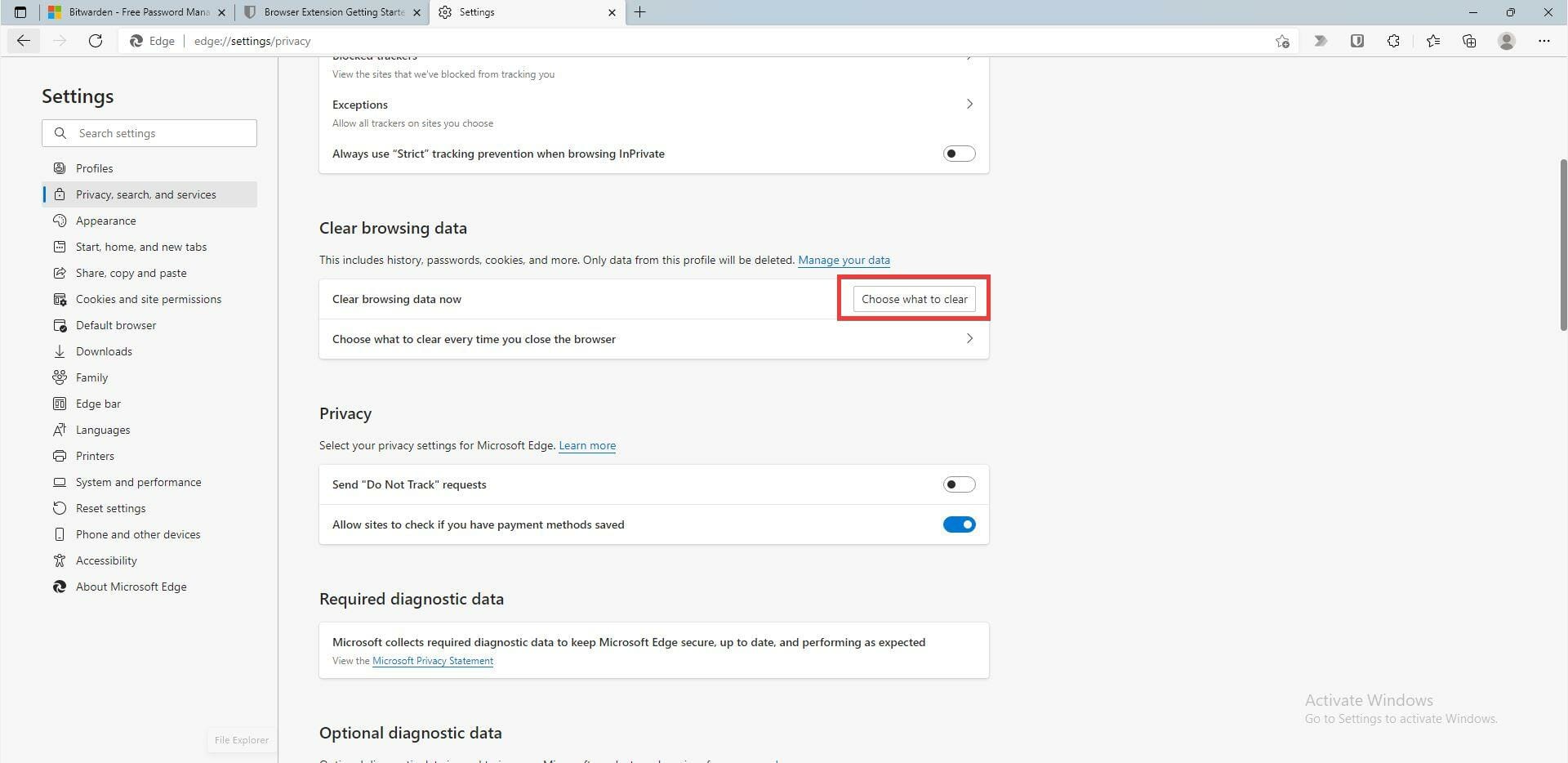
  5. Under Clear browsing data, click the Choose what to clear button.
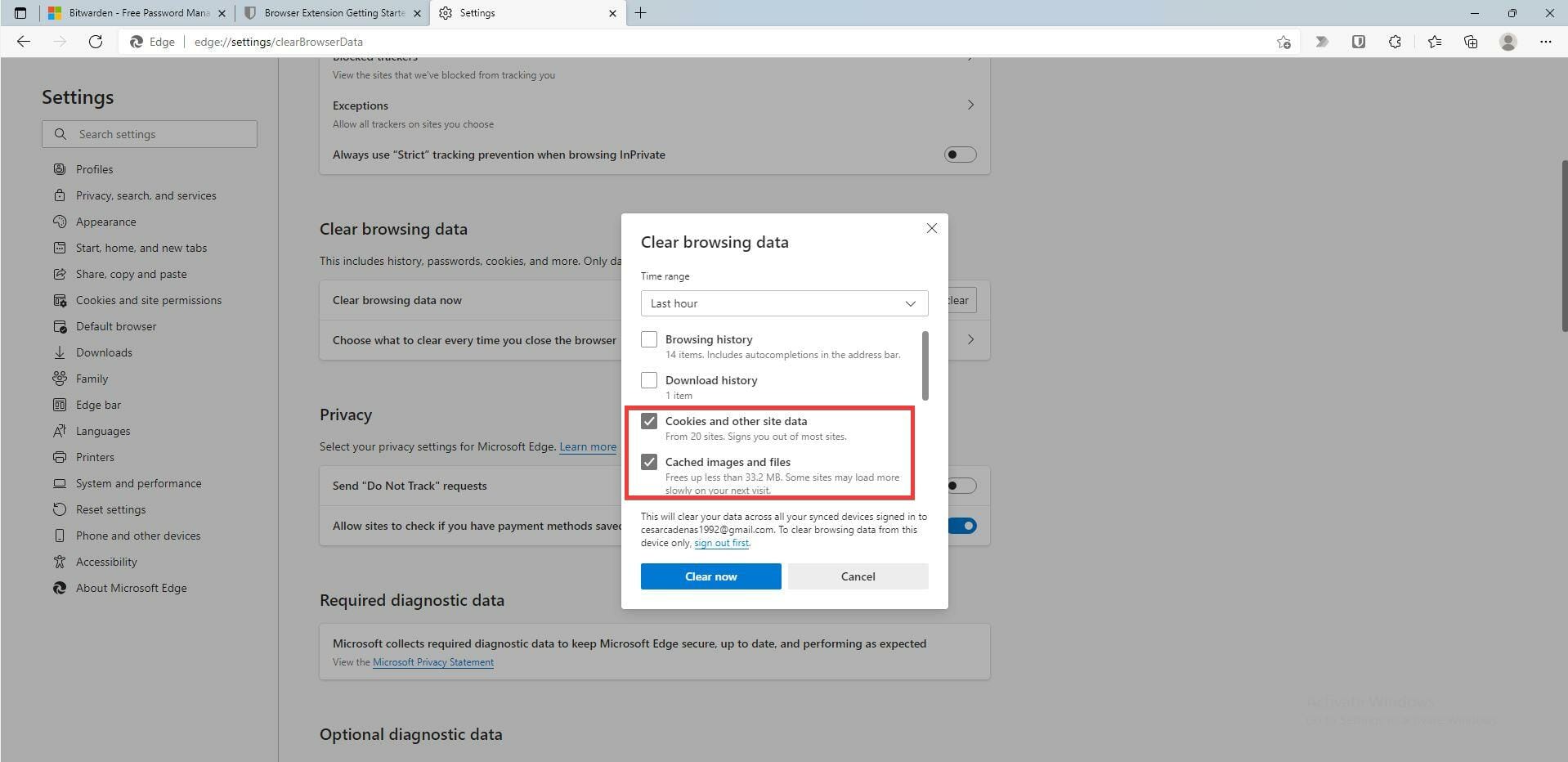
  6. Select the boxes next to Cached images and files and Cookies and other site data. Browsing history and Download history should be unchecked.
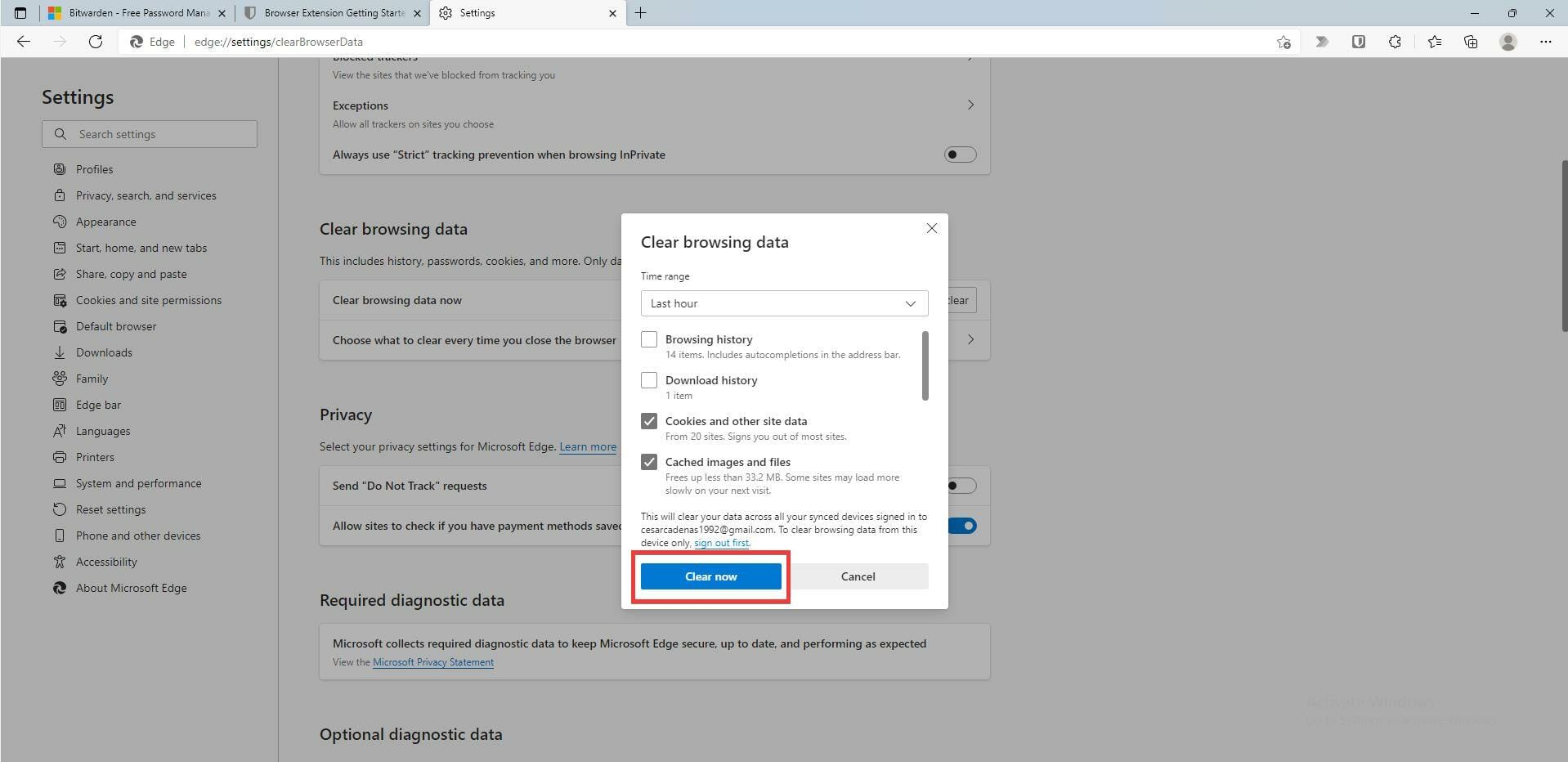
  7. Once selected, click the Clear now button.

➡ Google Chrome

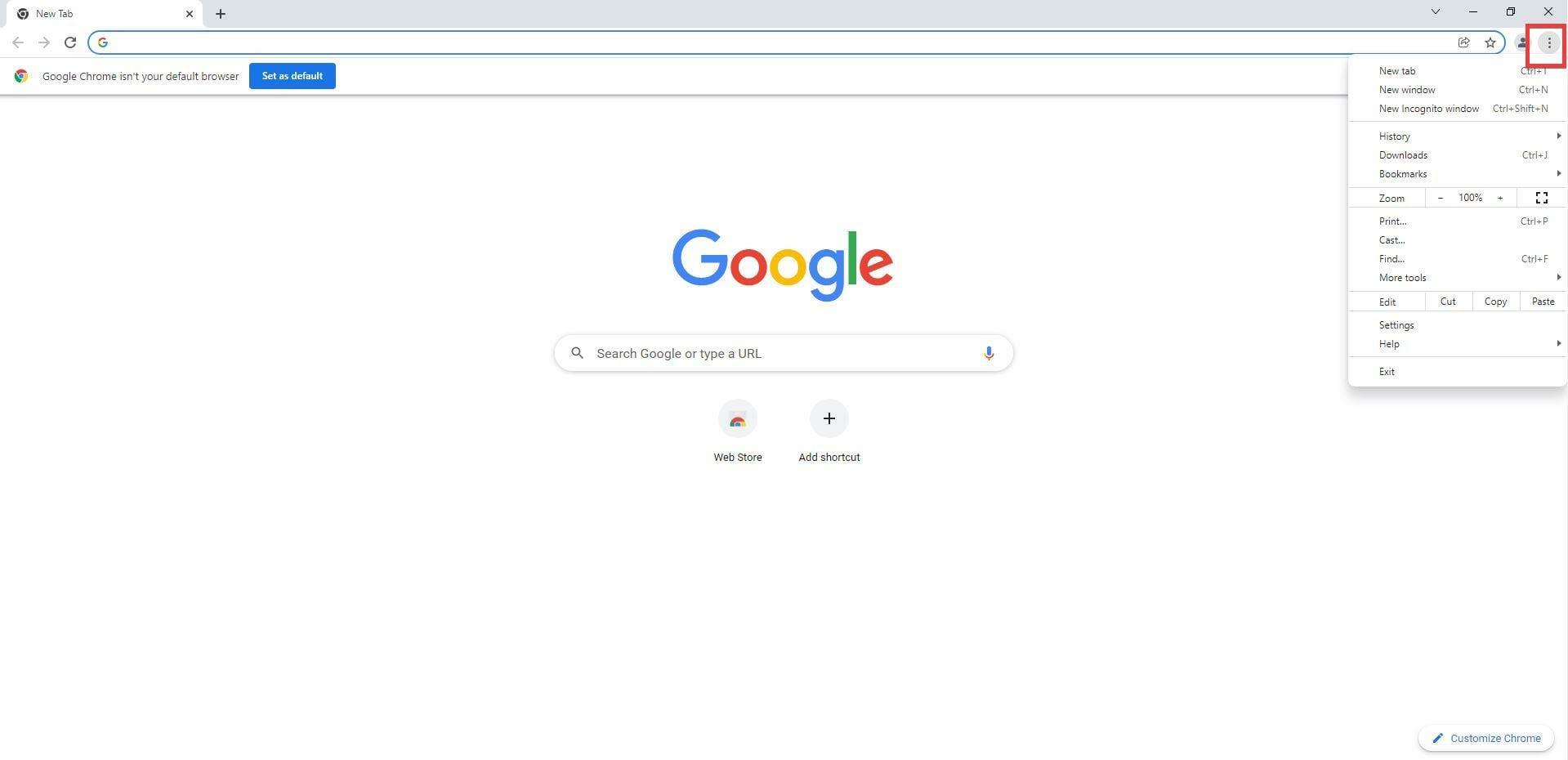
  1. Click the Menu button in the upper right hand corner.
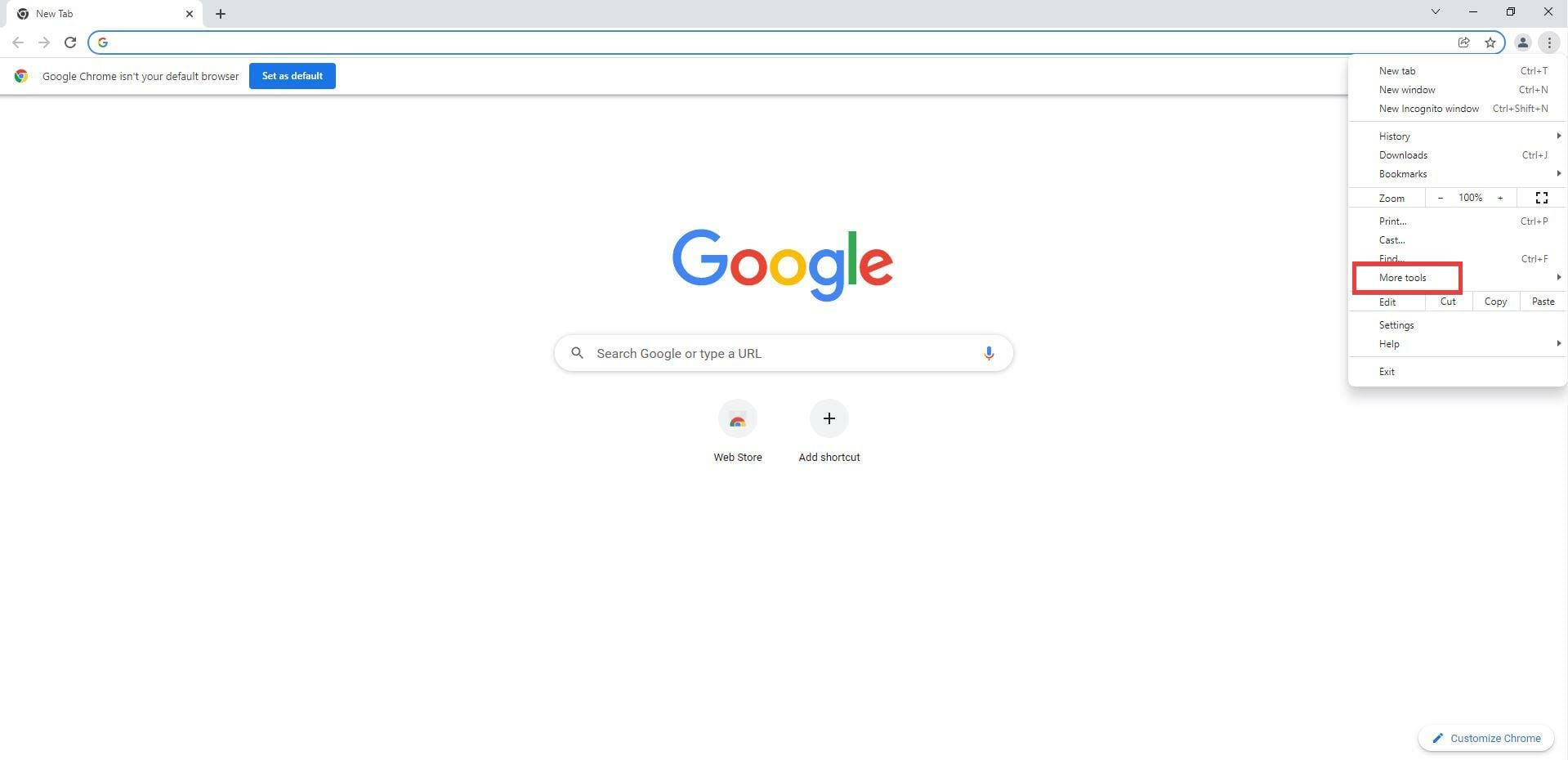
  2. Click on More tools.
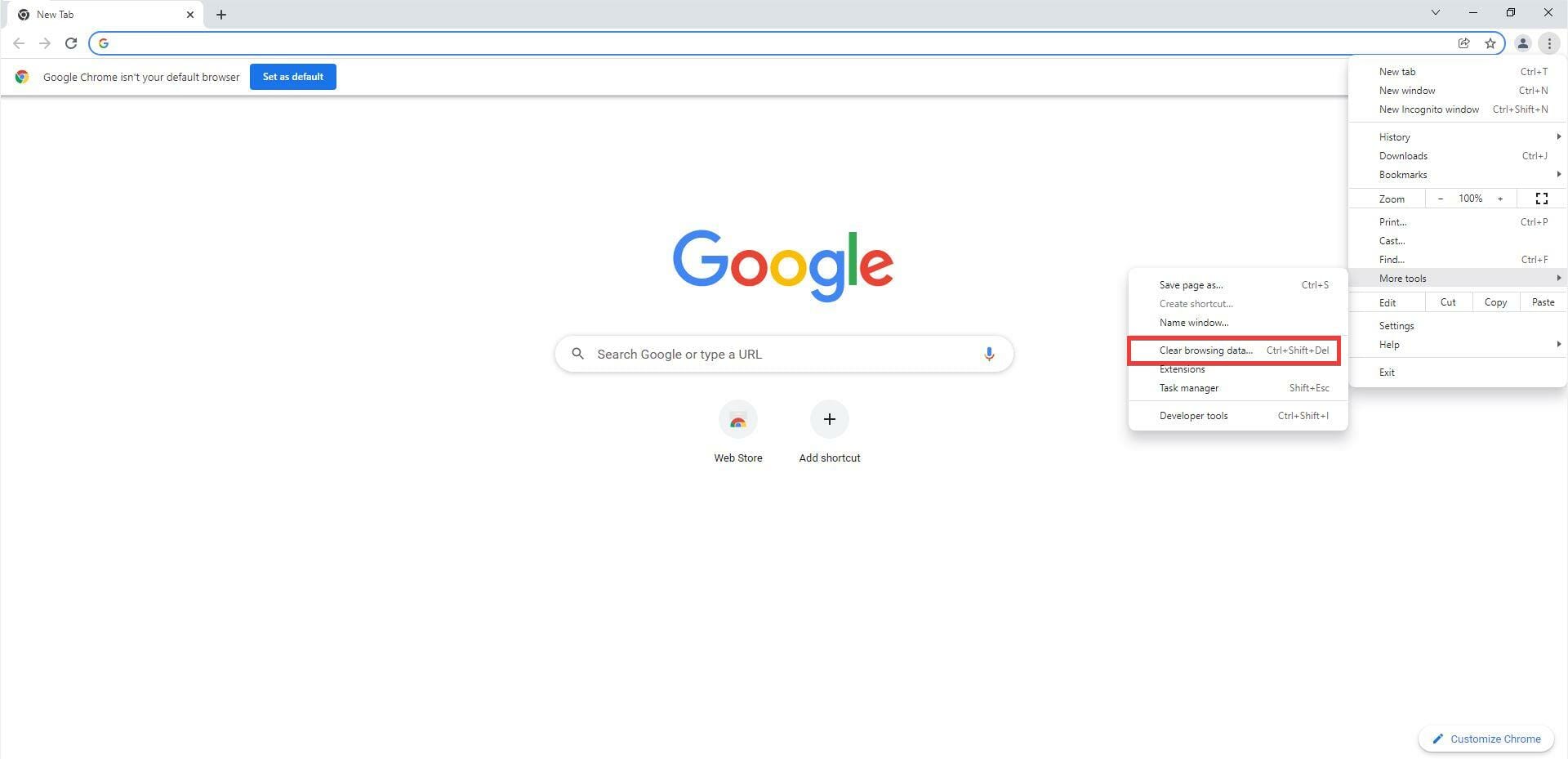
  3. In this new pop up window, select Clear browsing data…
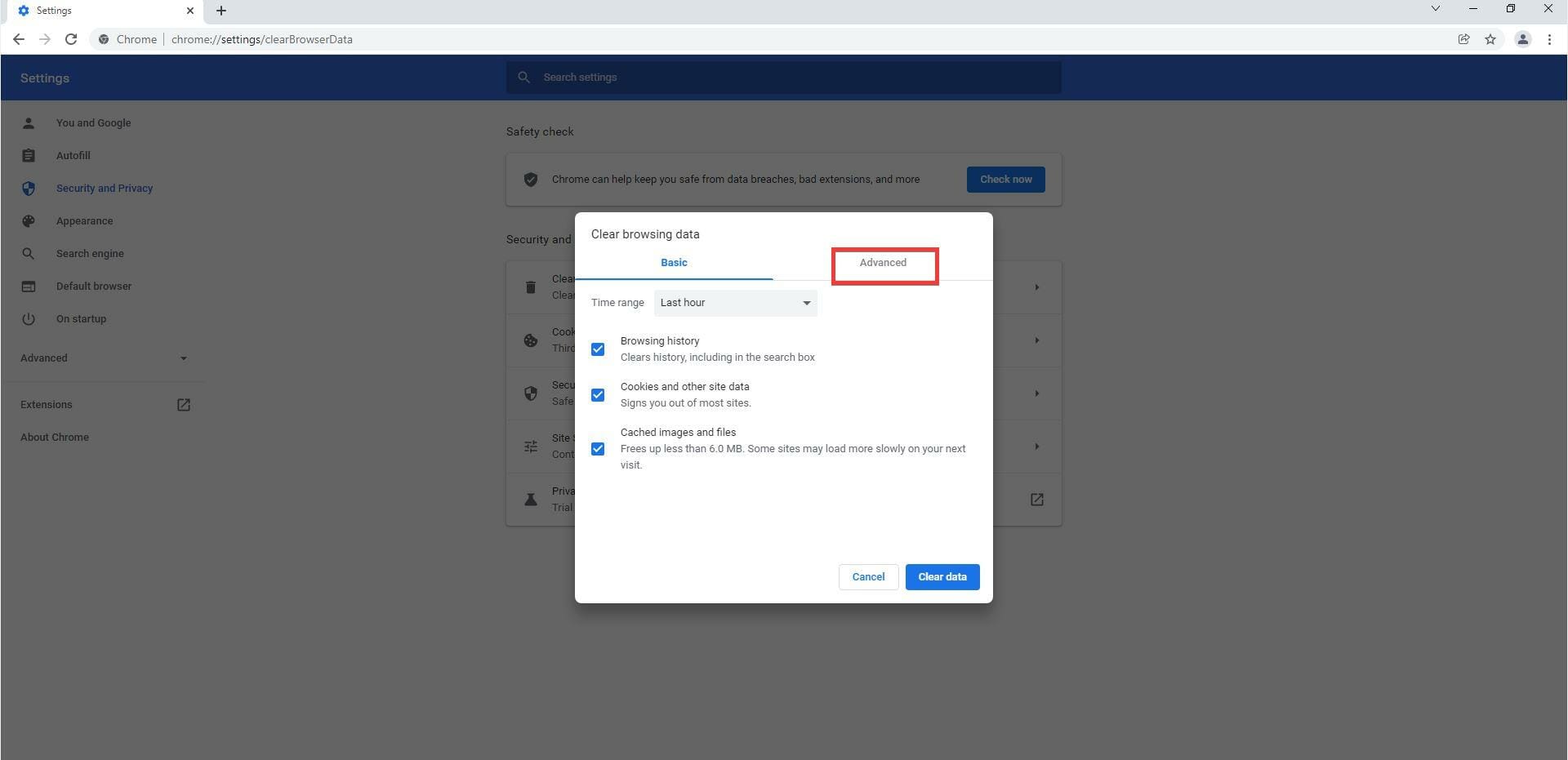
  4. In this new window, click on the Advanced tab.
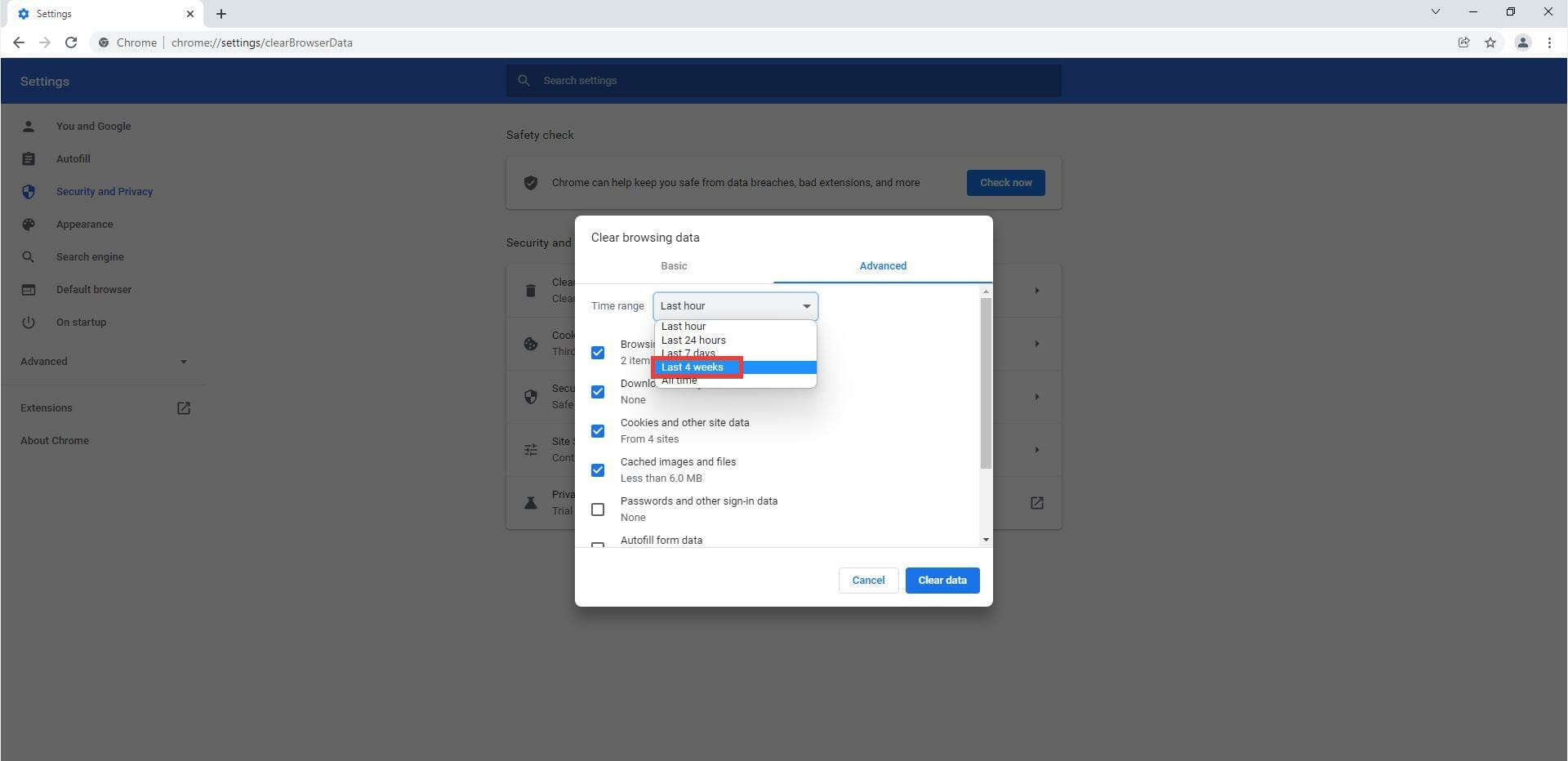
  5. In the Advanced, click on the drop-down menu next to Time range.
  6. Select how far back you want to delete the browsing data. Should be up to the point where the “Failed to Fetch” error start to occur.
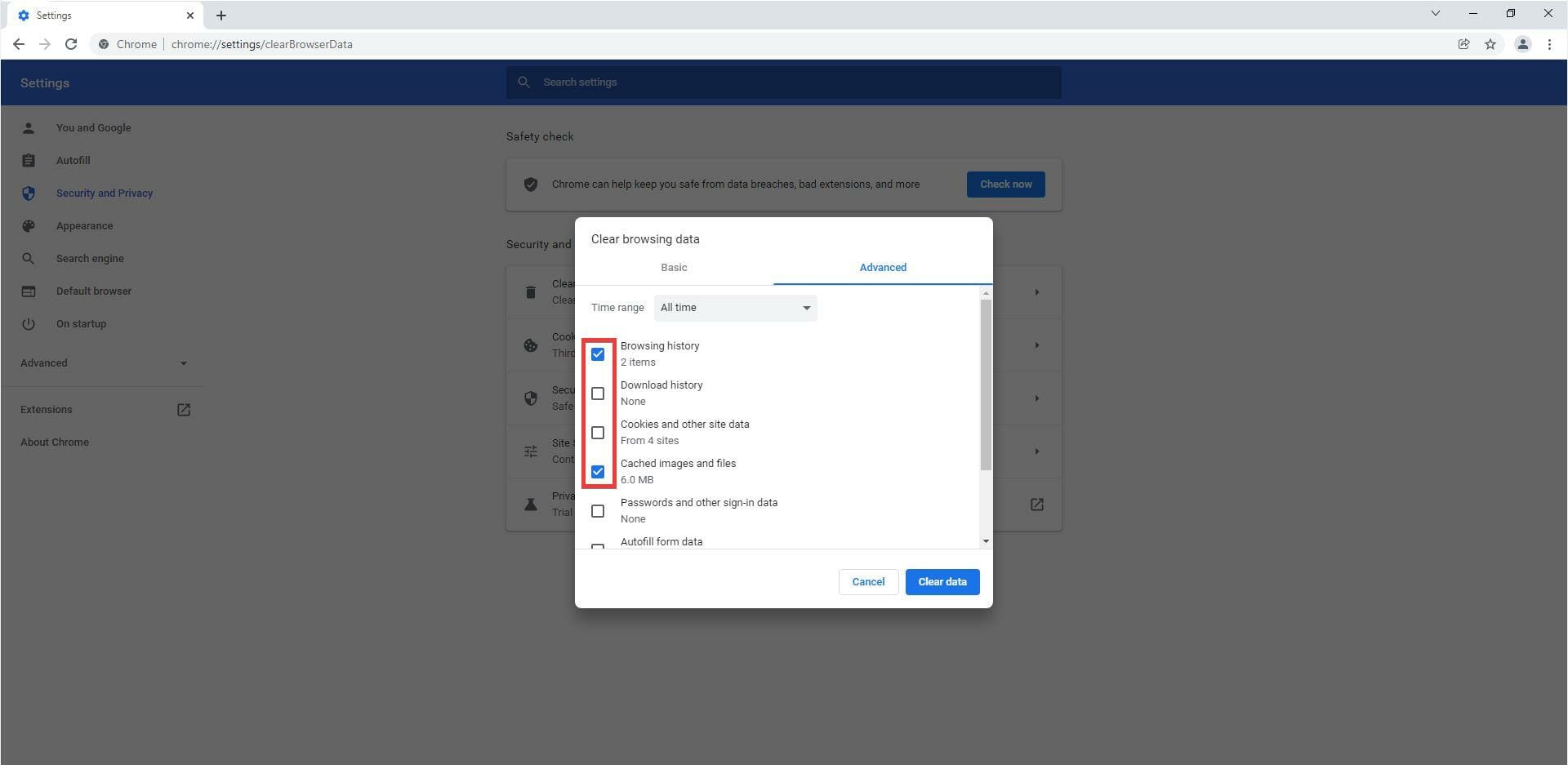
  7. Check the boxes next to Browsing history and Cached images and files.
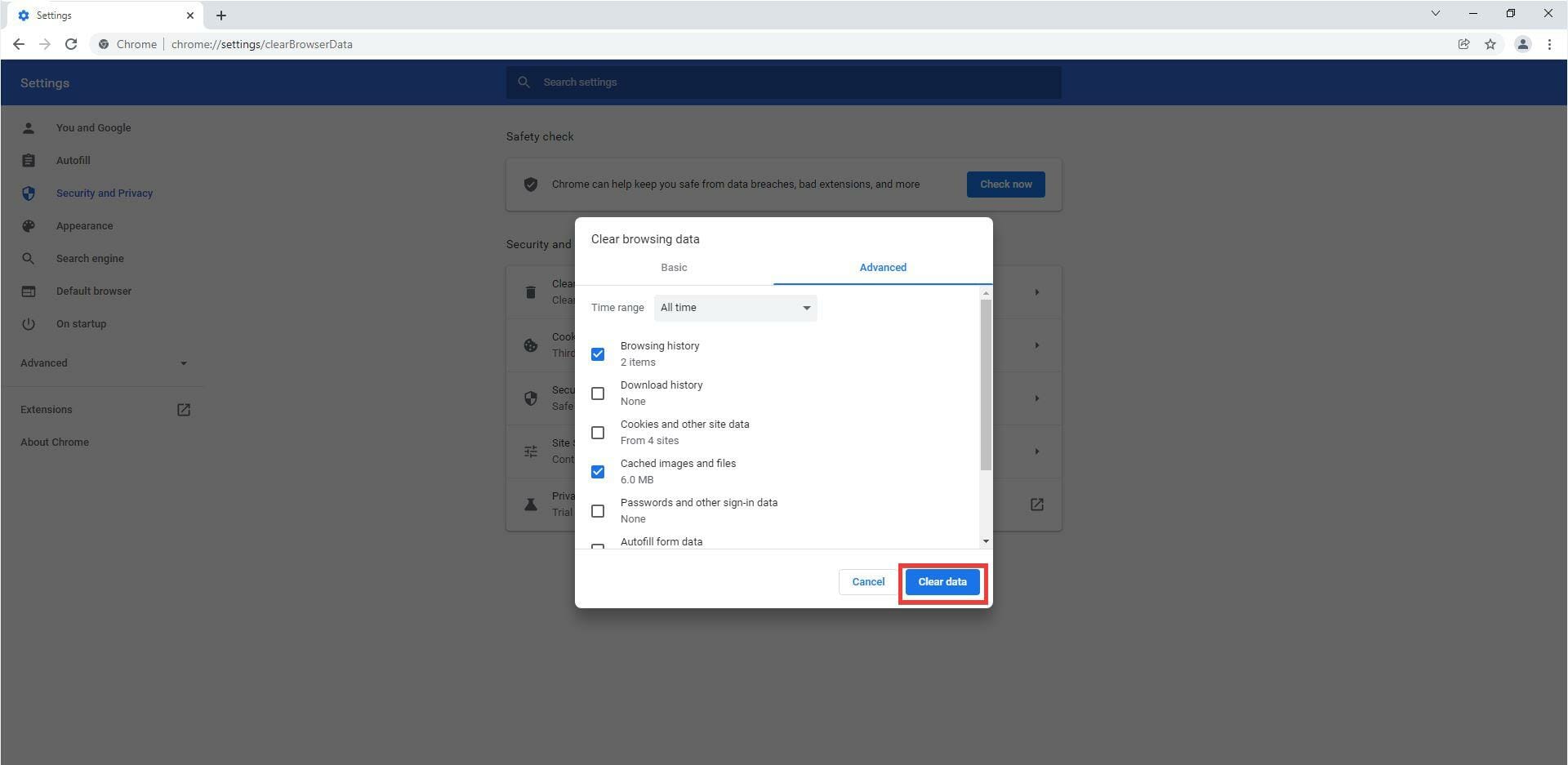
  8. Then select Clear data.

7. Disable extensions

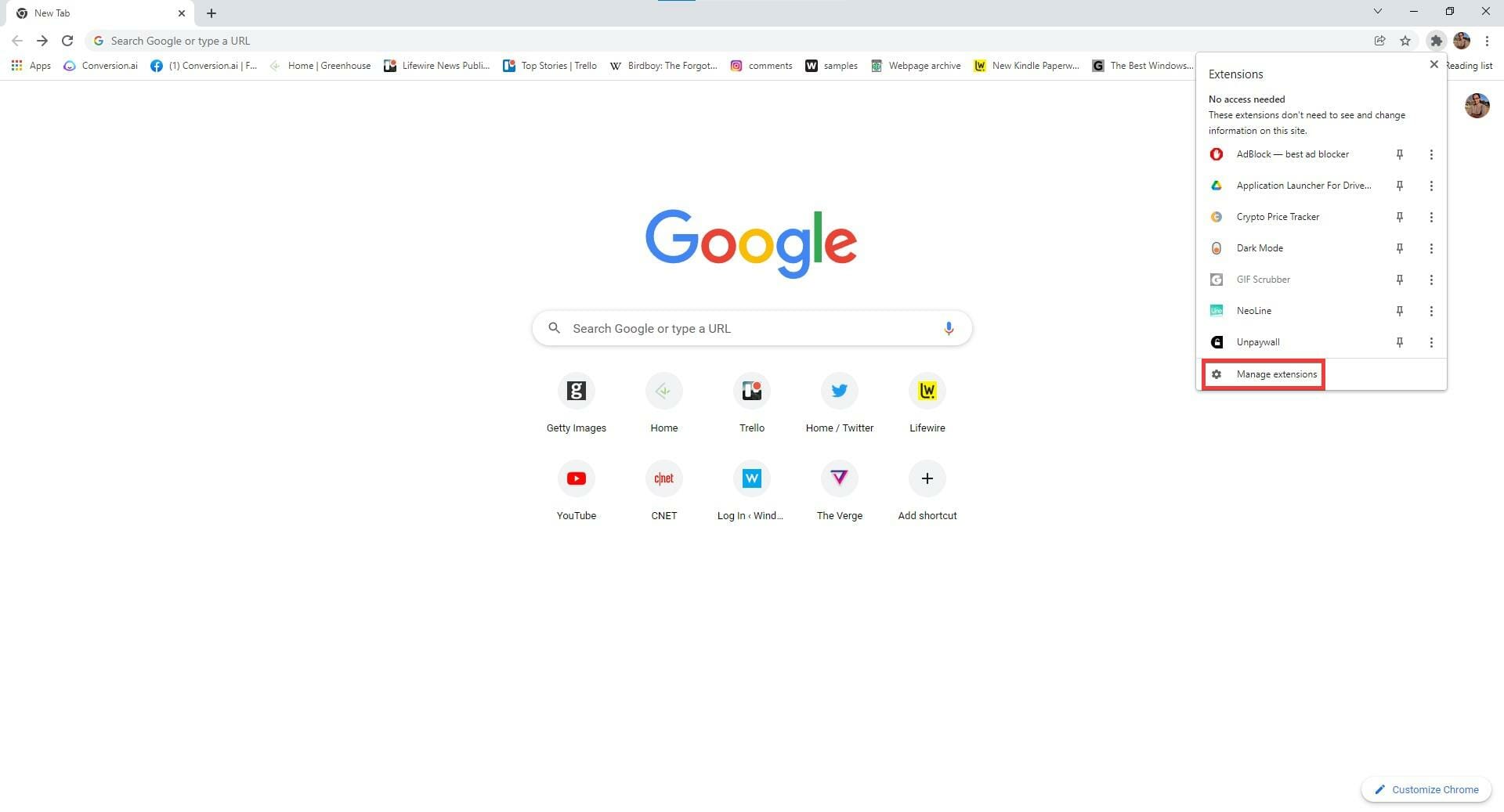
  1. Disabling the Bitwarden extension and restarting the browser is also recommended.
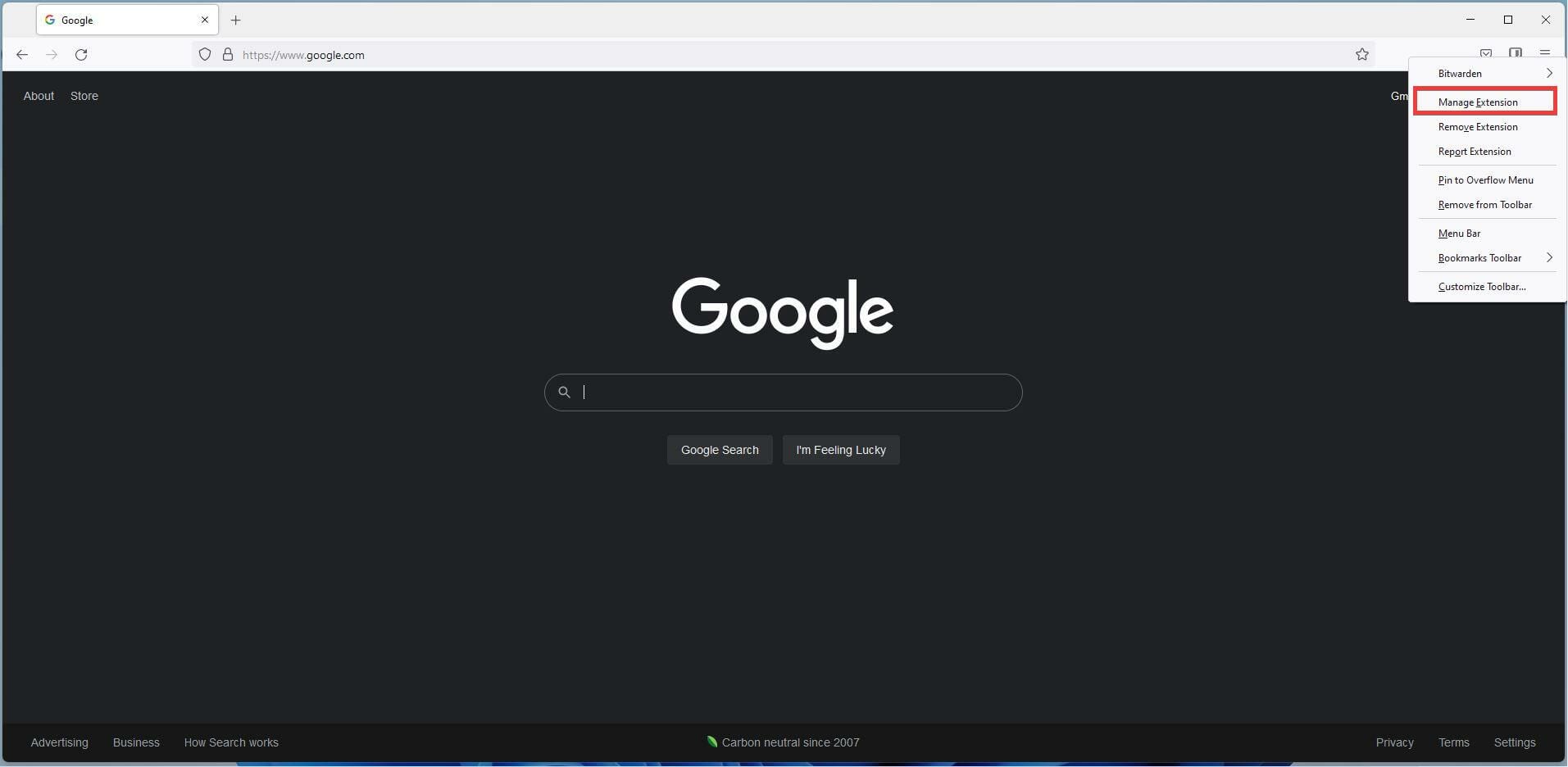
  2. On Firefox, you can disable extension by hovering over the extension icon in the corner and right clicking.
  3. In this new menu, click Manage Extension.
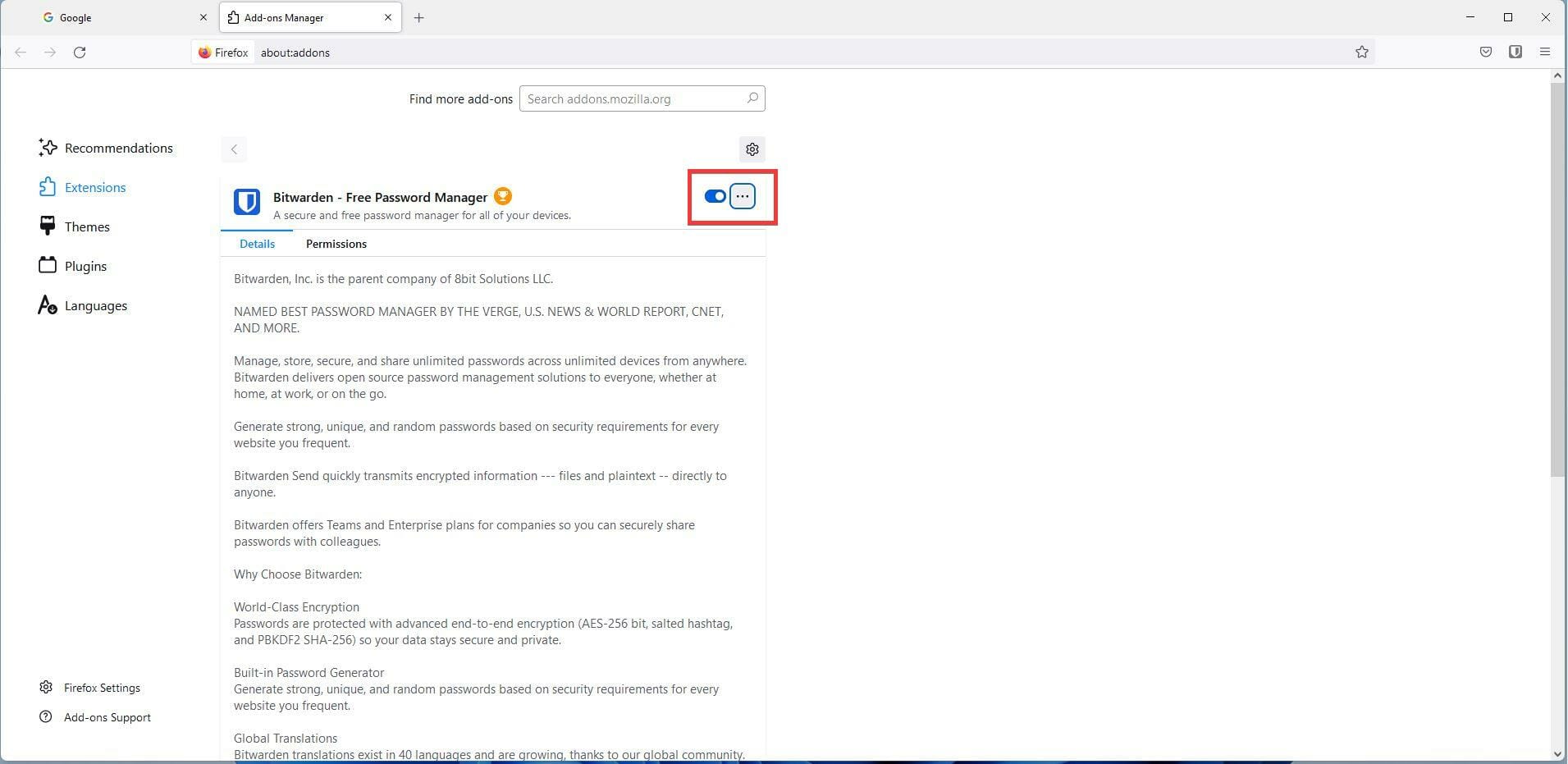
  4. In this new window, click on the blue switch to turn off the Bitwarden extension.
  5. Close Firefox and open it again.
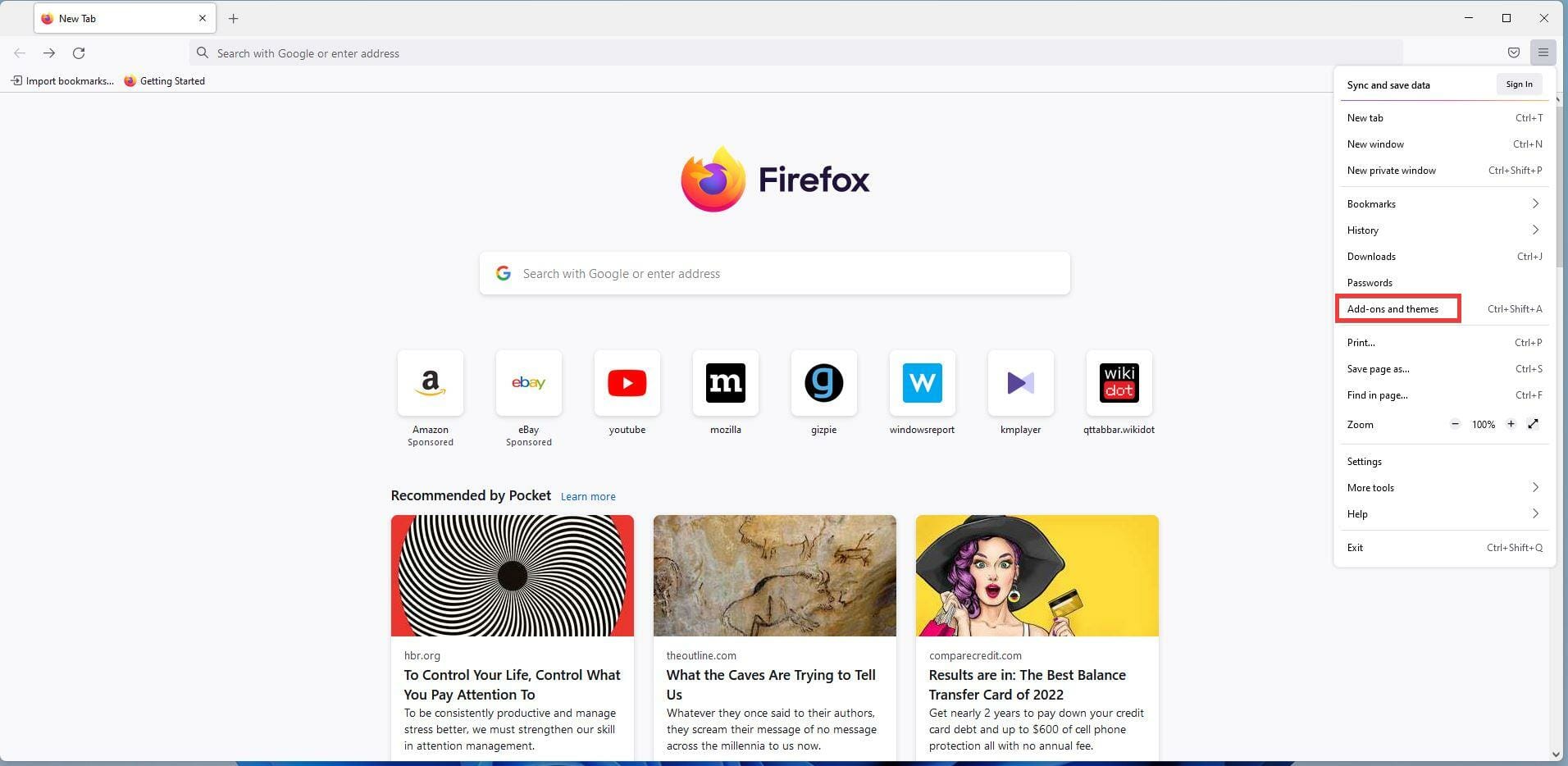
  6. Click on the menu button in the upper right hand corner and click Add-ons and themes.
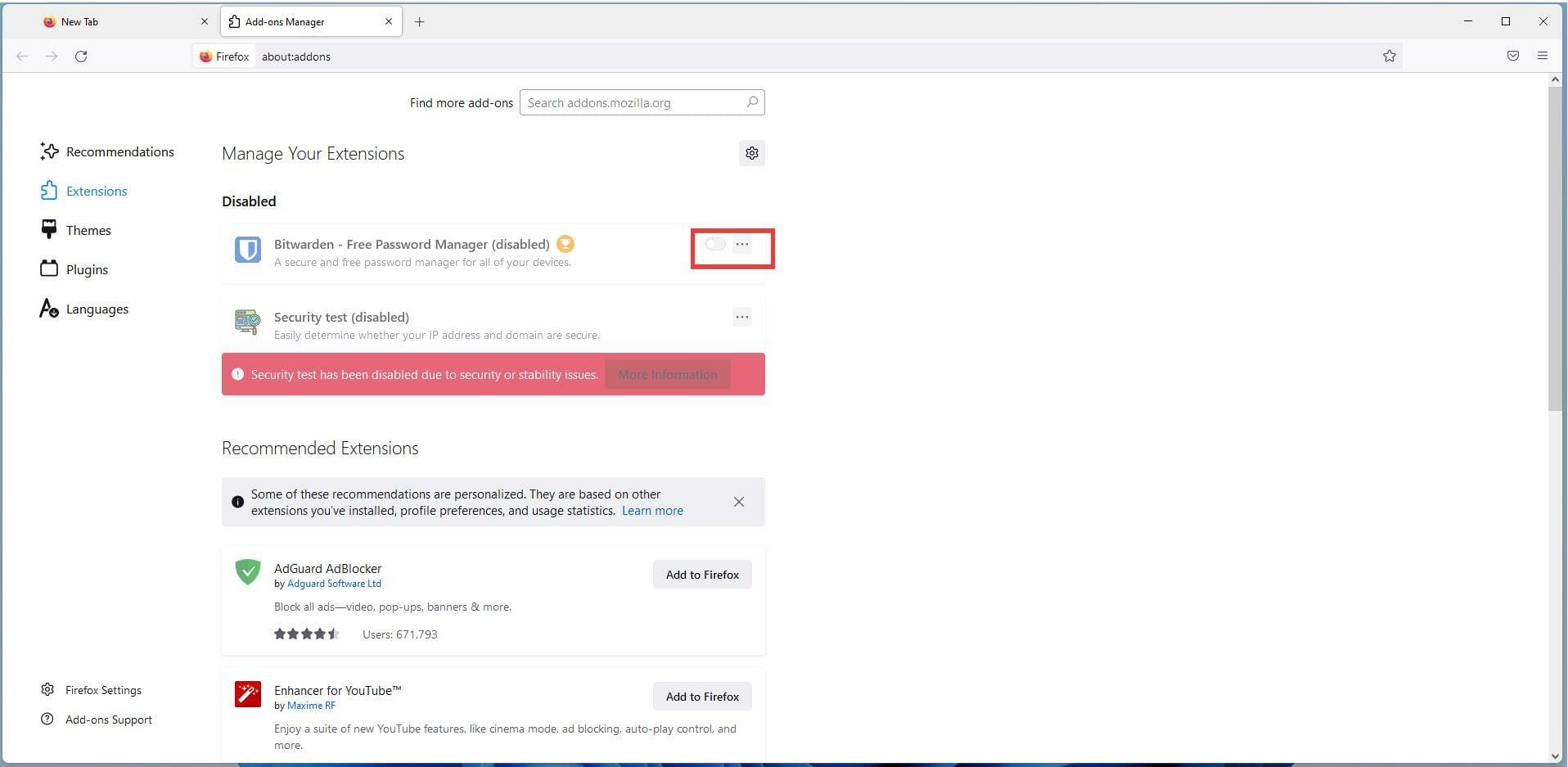
  7. Under Add-ons Manager, click on the switch to turn Bitwarden on again.
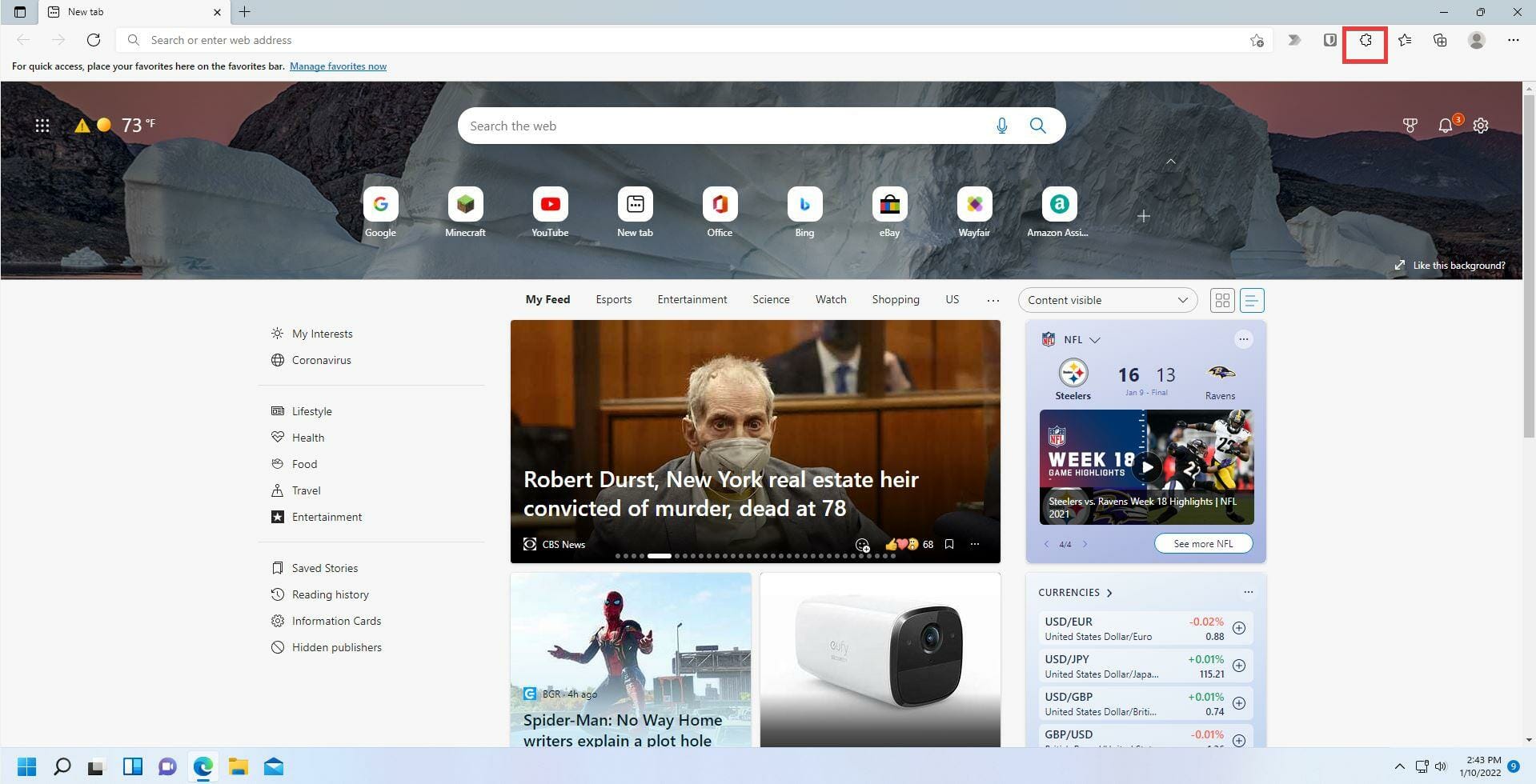
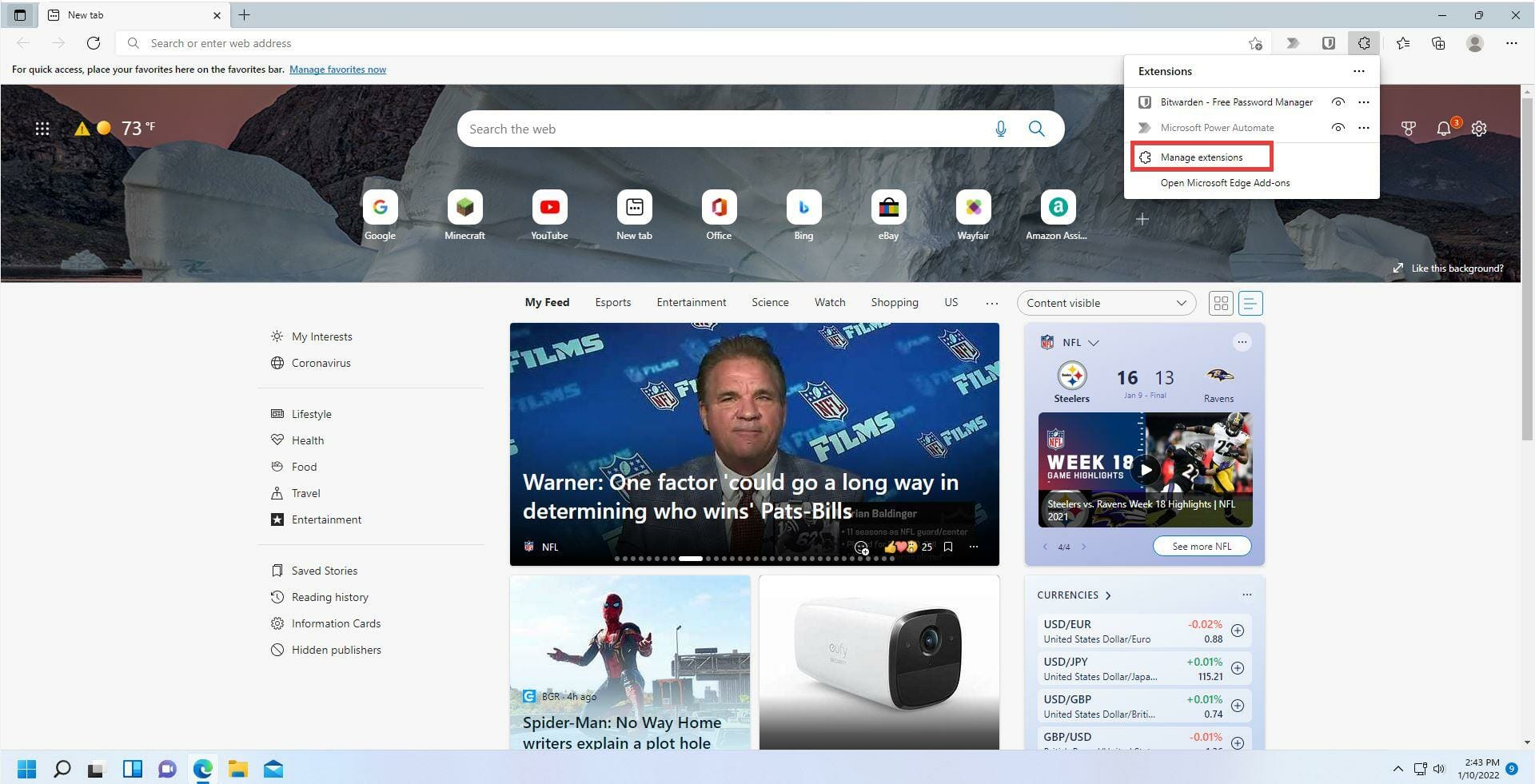
  8. On Windows Edge, you can disable extensions by right-clicking on the puzzle piece icon.
  9. Click on Manage extensions.
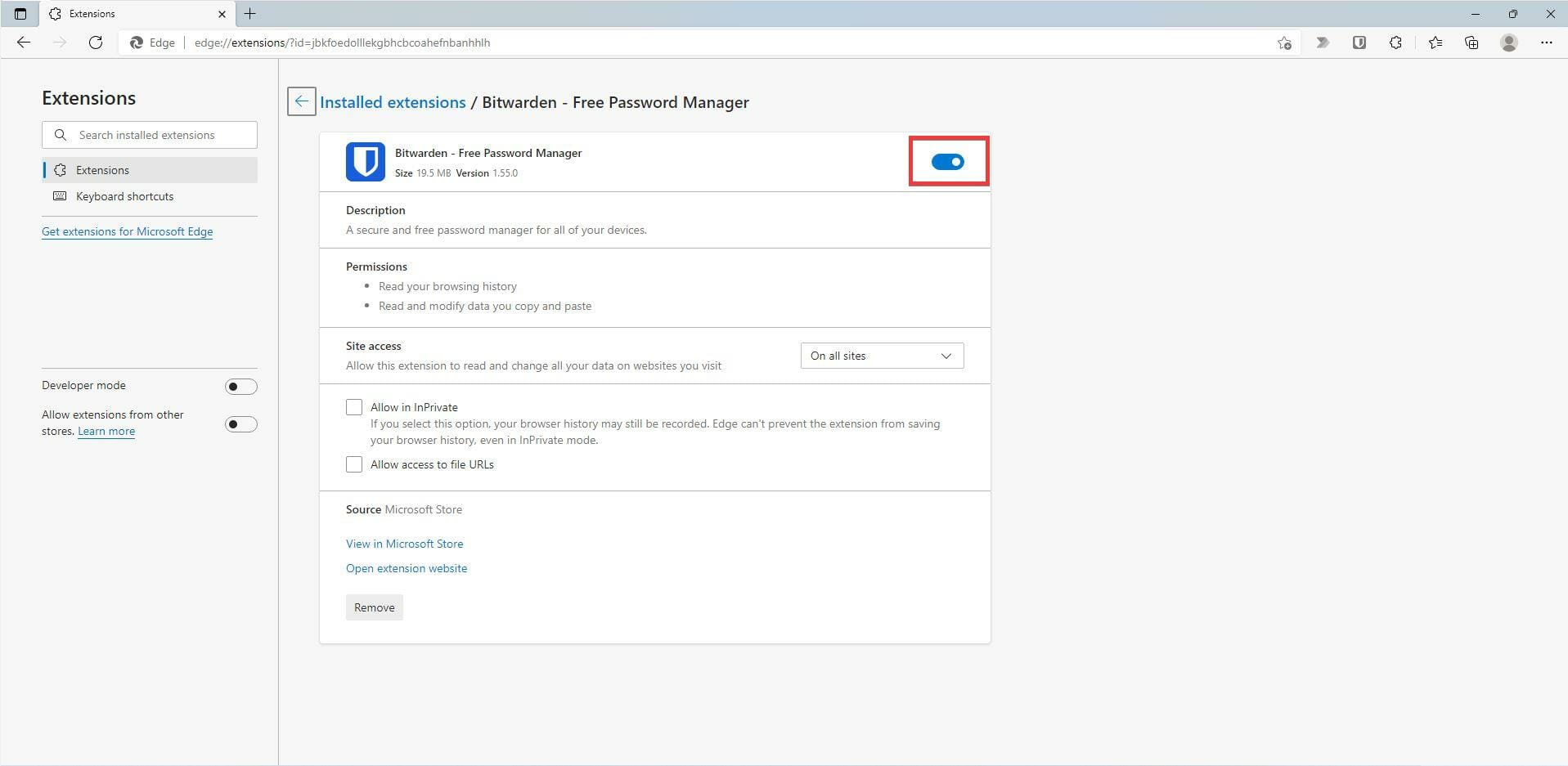
  10. In this new window, click on the blue switch to turn off the extension.
  11. Close Edge and then open it again.
  12. Return to the extension menu.
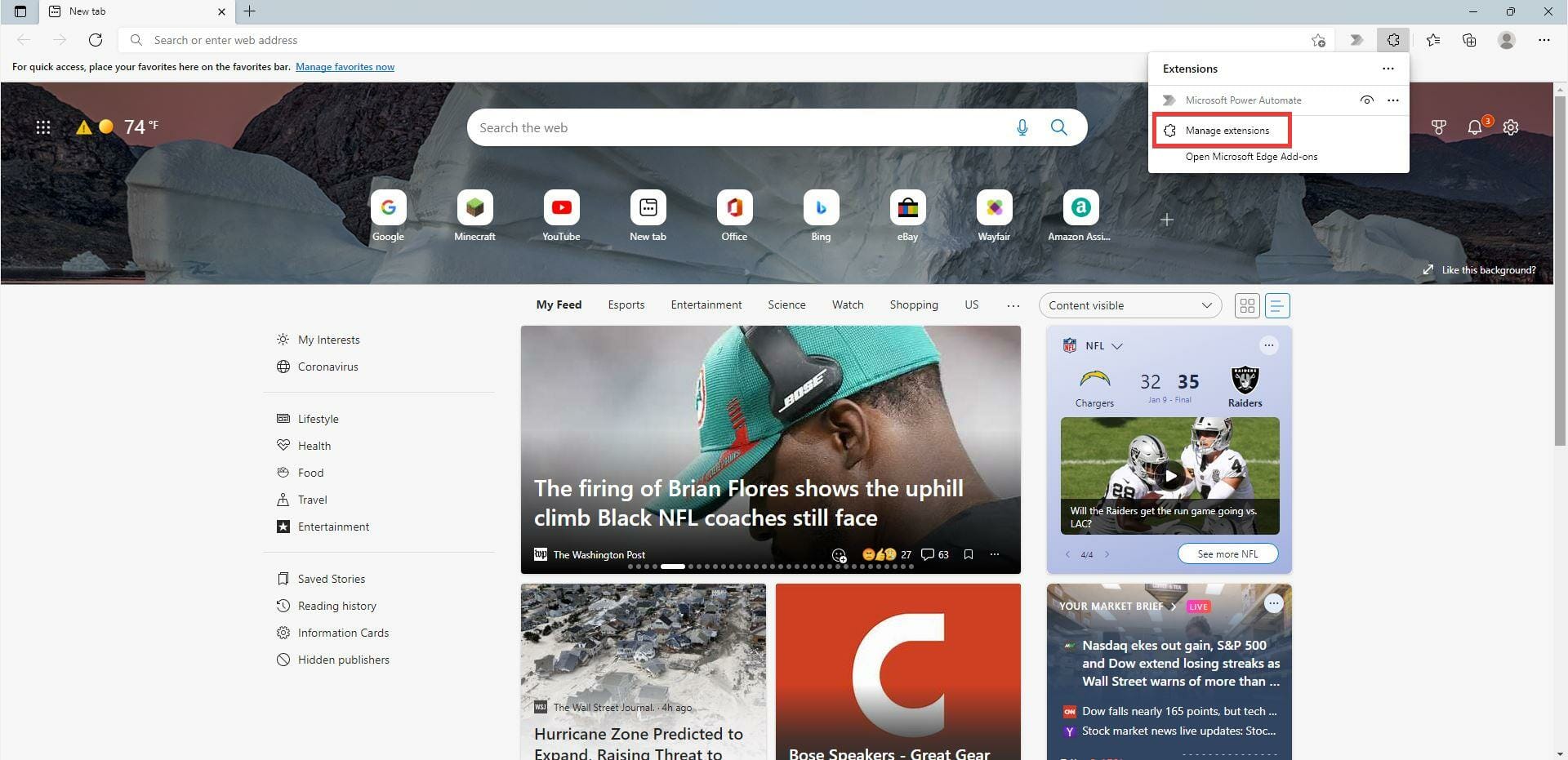
  13. Click on Manage extensions.
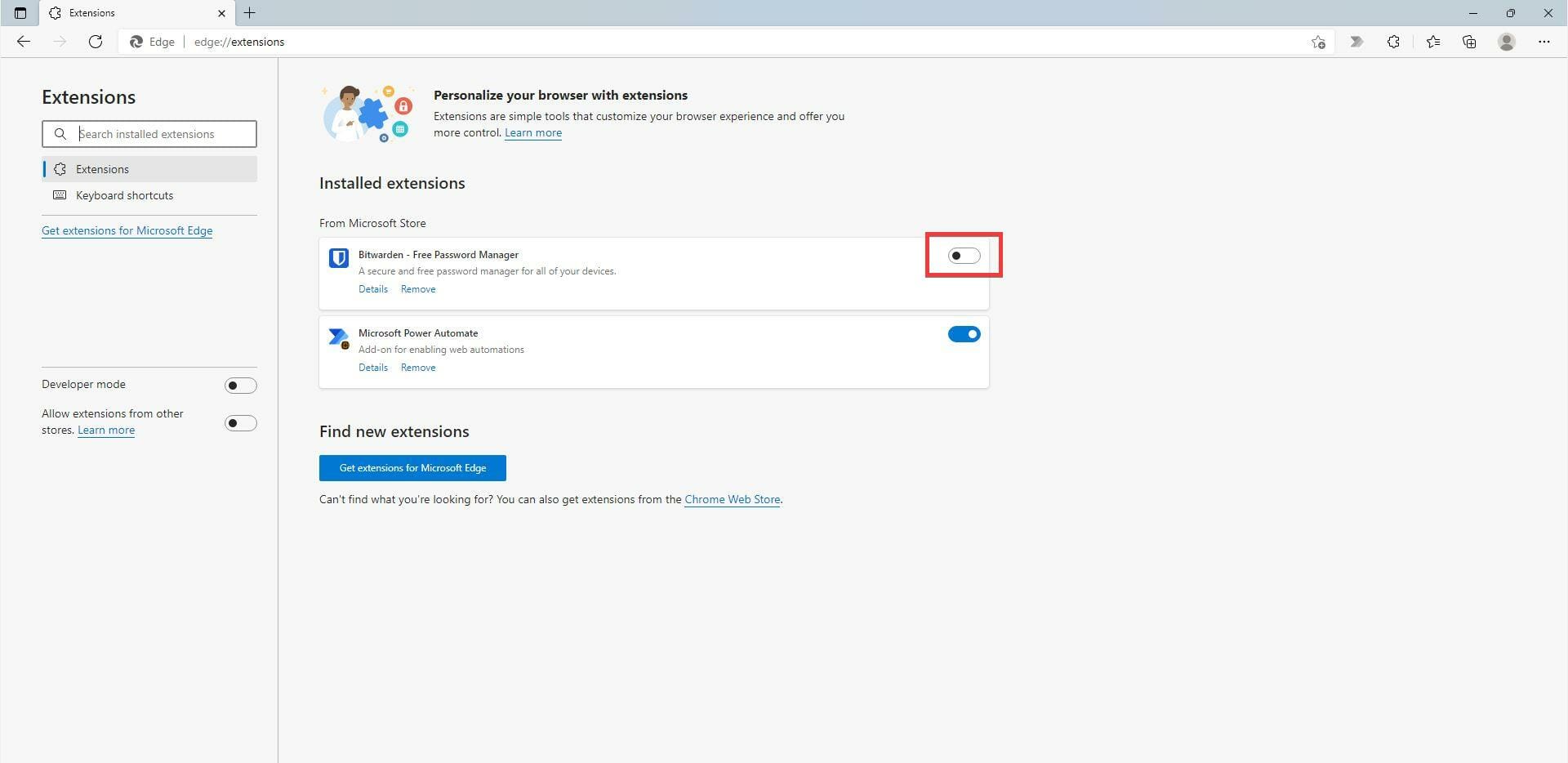
  14. Turn on Bitwarden by clicking on the tab switch.
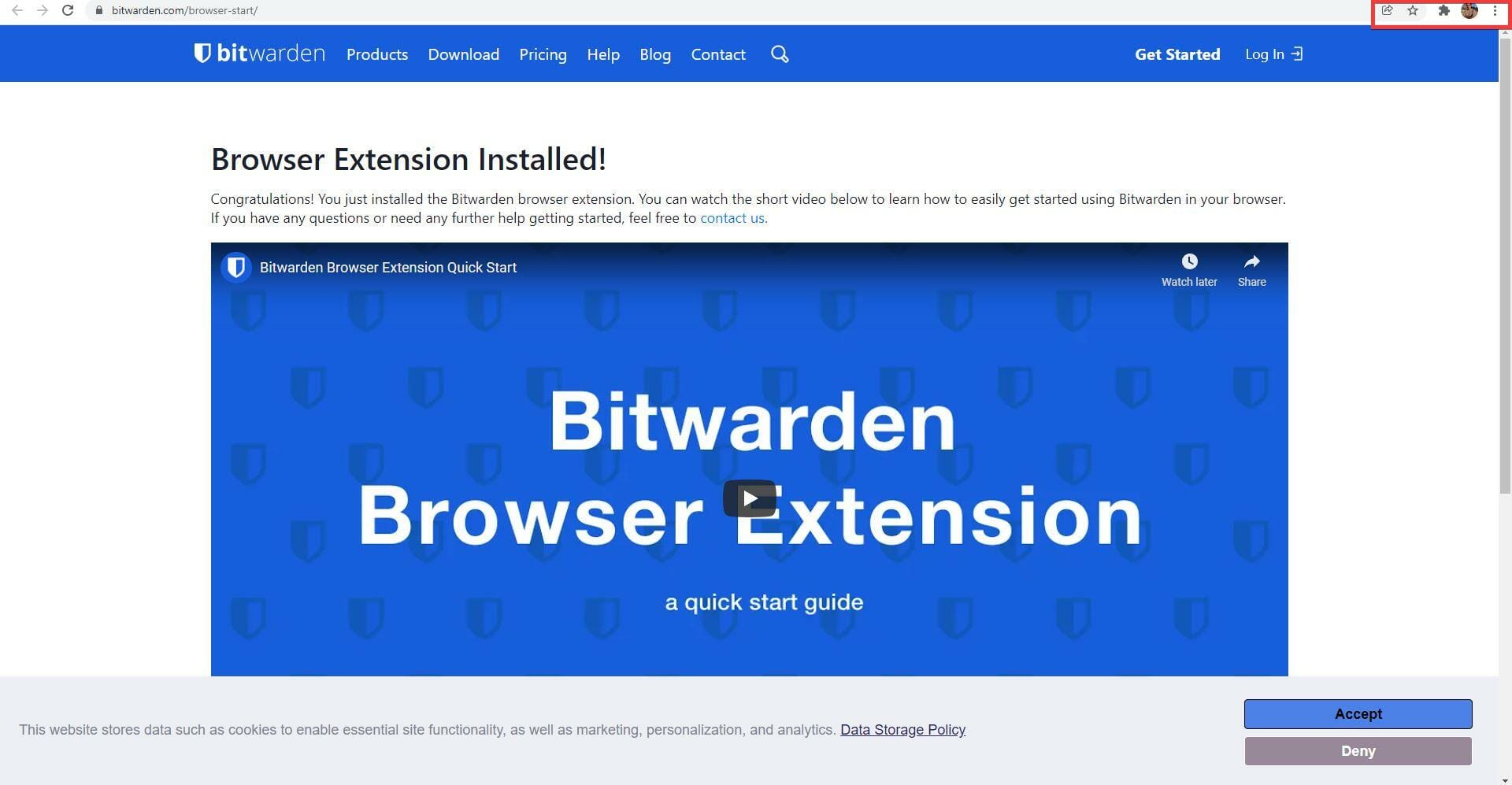
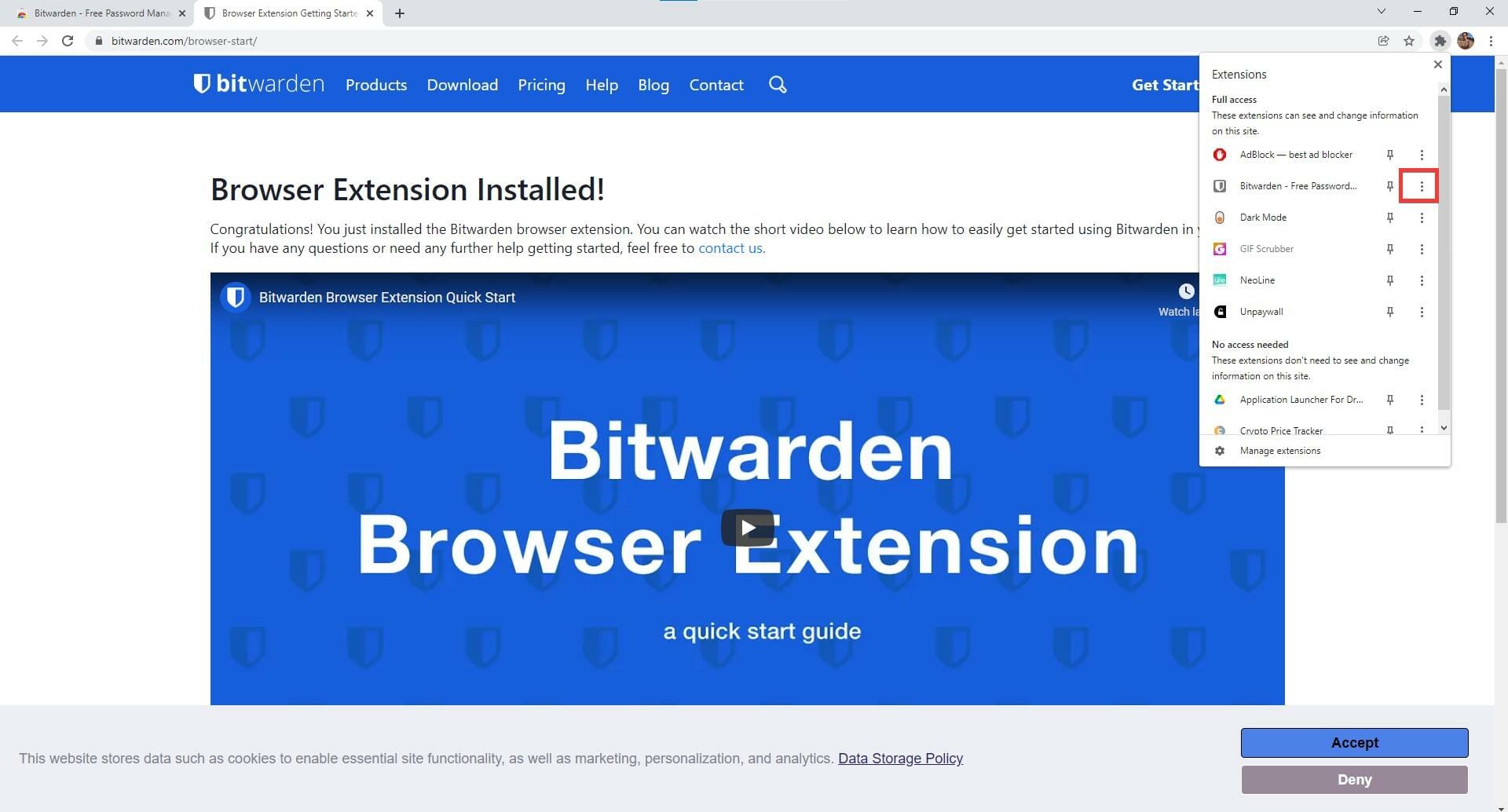
  15. On Chrome, you can disable extensions by clicking on the puzzle piece icon in the upper right hand corner to bring up the drop down menu.
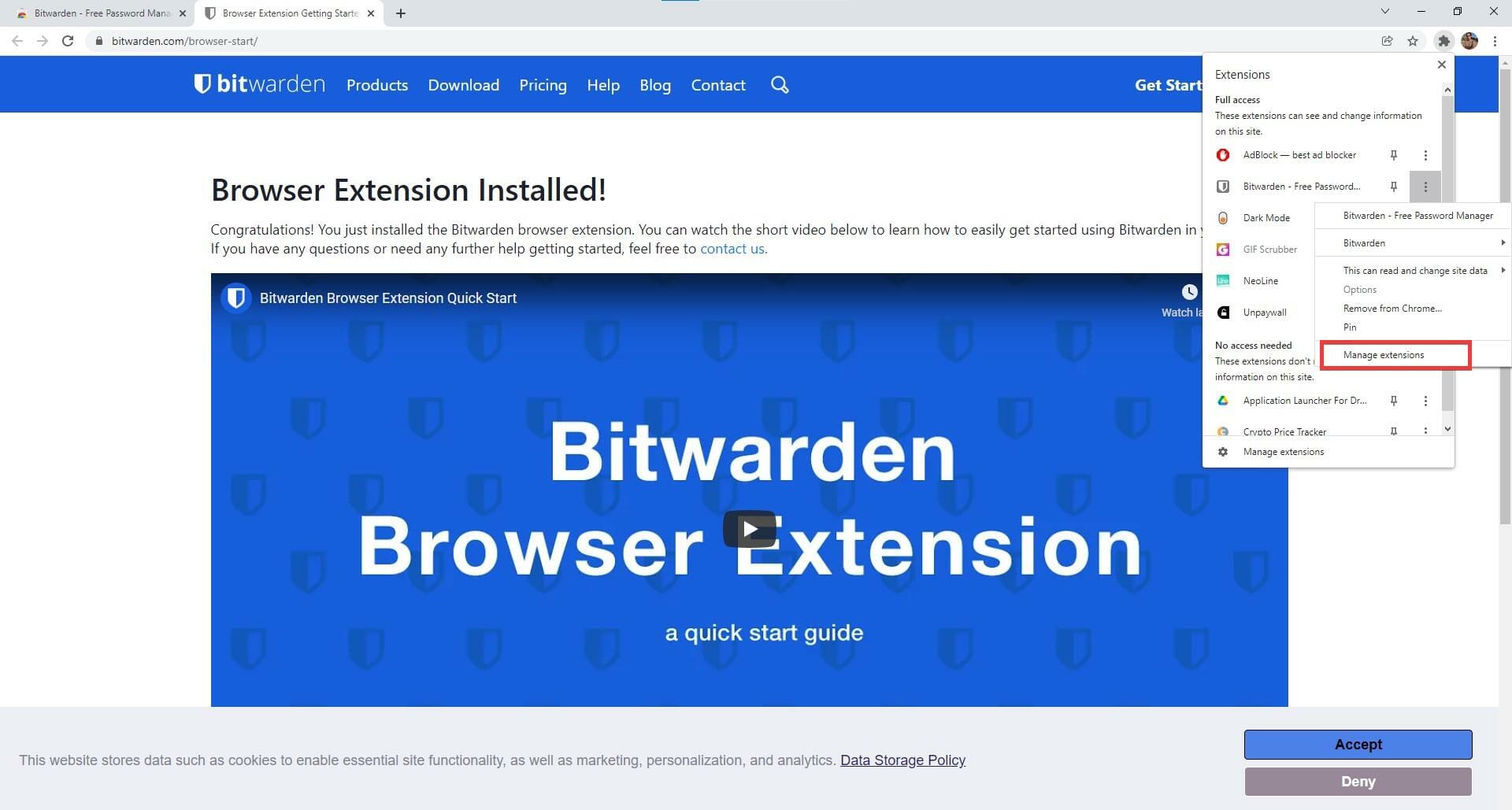
  16. In the drop-down menu, click on the three dots next to Bitwarden.
  17. In this new menu, click Manage Extensions.
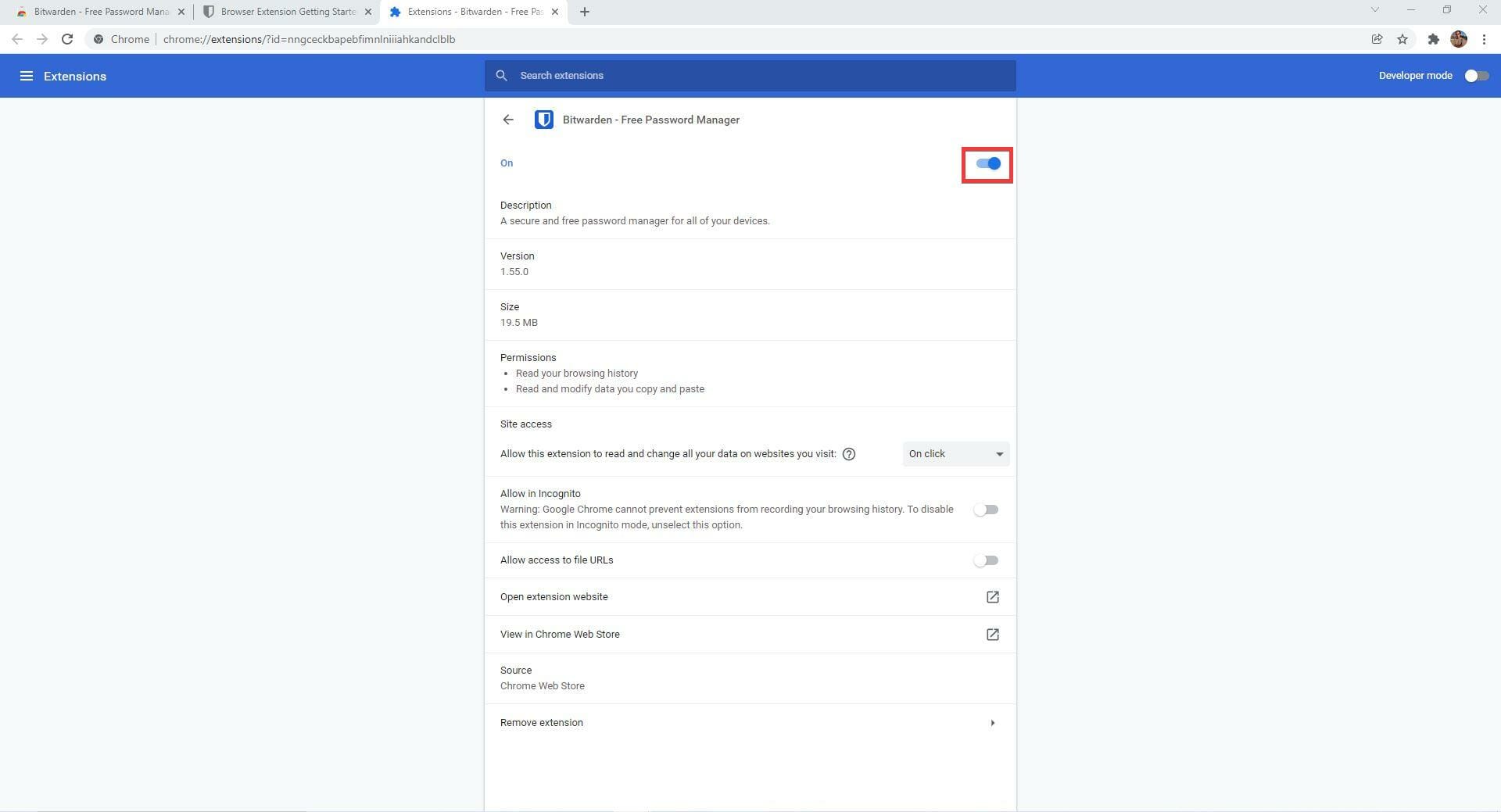
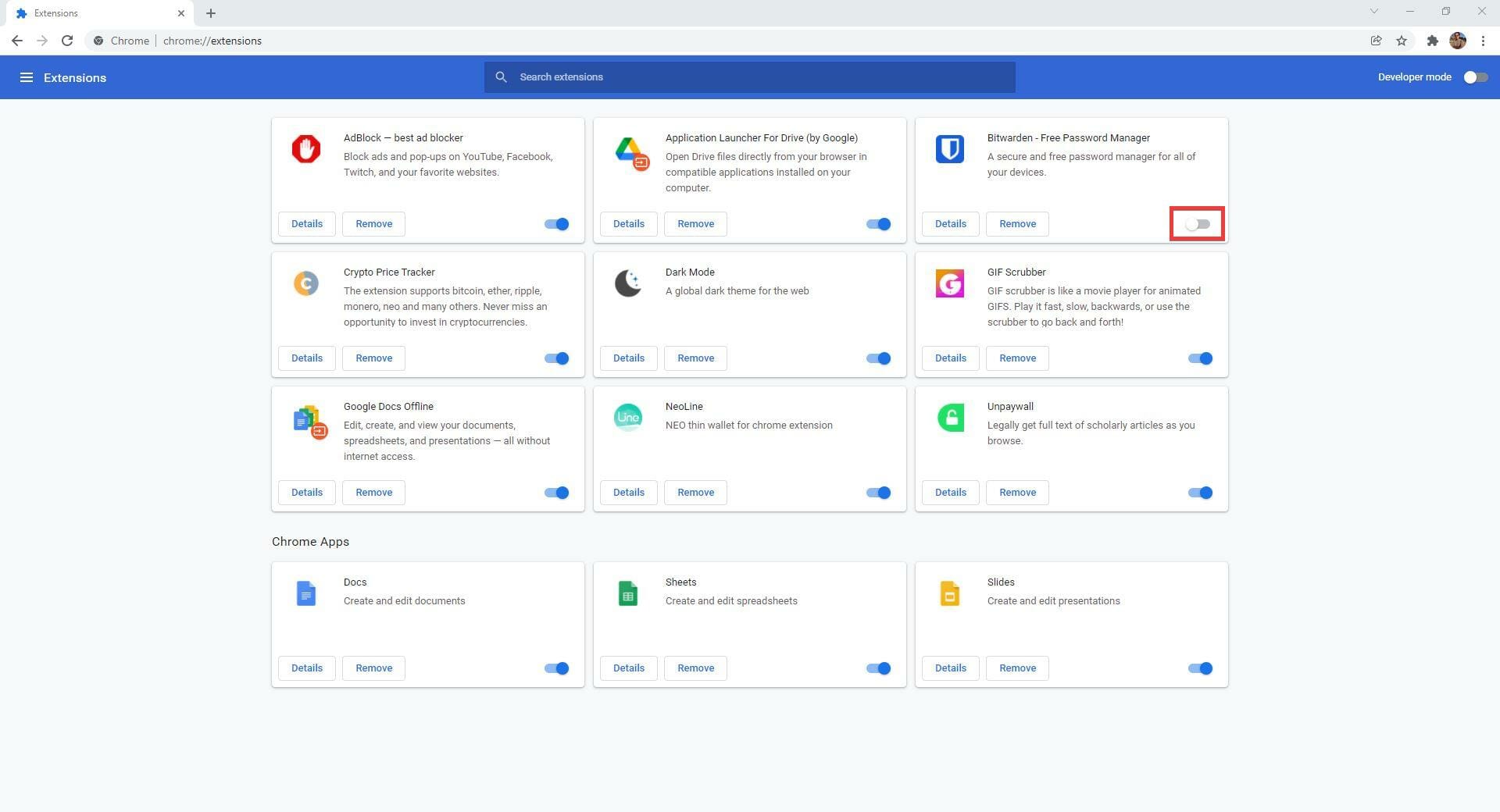
  18. In this new window, click on the blue switch to turn off the extension.
  19. Close the browser and then open it up again.
  20. Click on the same puzzle piece icon as before.
  21. Click on the Manage extensions at the bottom of the drop-down menu.
  22. In the assortment of extensions, locate Bitwarden and click on the gray swtich to turn it on.

Are there any other useful security apps for Windows 11?

There are several useful security for the operating system. In addition to Bitwarden, other great password managers include RoboForm Password Manager, which automates the password-making process, and Dashlane, which shares passwords with up to five users.

There’s also a helpful app by way of NordPass. It’s also a password manager that is free of charge and can help people organize their complex passwords. It also keeps the password in a singular place so you won’t go crazy looking for them.

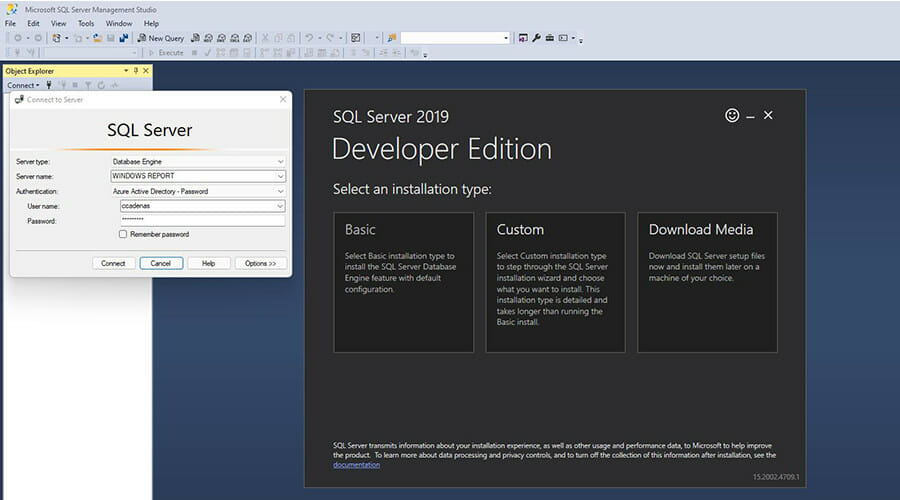
And if you’re a developer working with Windows 11, it may interest you to know about SQL Server 2019. It’s a database management system whose main purpose is to manage data other apps request.

It has limited uses outside of a developmental situation but sees a lot of use within that situation.

As you can see from the list, there are plenty of ways to deal with this dreaded Bitwarden error, but following the steps presented in this guide will prove helpful. Sadly, this isn’t the only issue you can encounter, and many reported Cannot decrypt error in Bitwarden, but we fixed it in a separate guide.

Make sure to follow the steps precisely to ensure that no other issues are produced. We also have a new guide on the An error has occurred message in Bitwarden, so don’t miss it for more information.

Feel free to share your experience with us by using the comment section found below this guide.

Microsoft Edge Canary tests new “Follow Creator” feature on YouTube

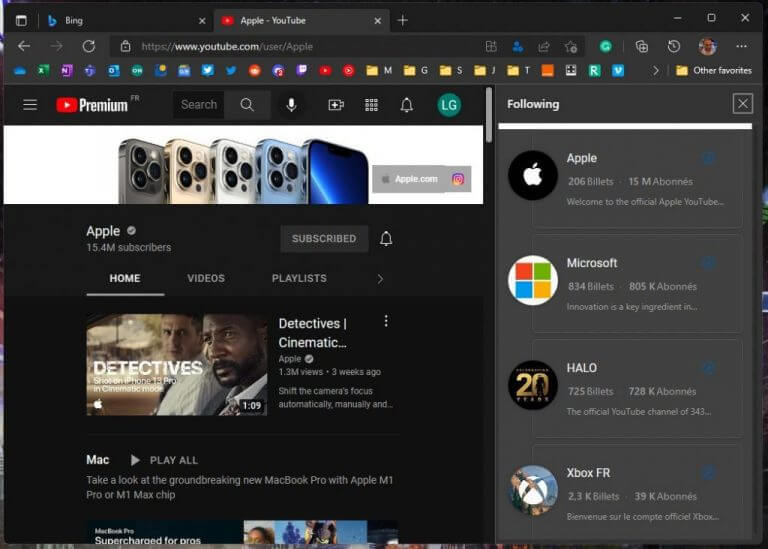
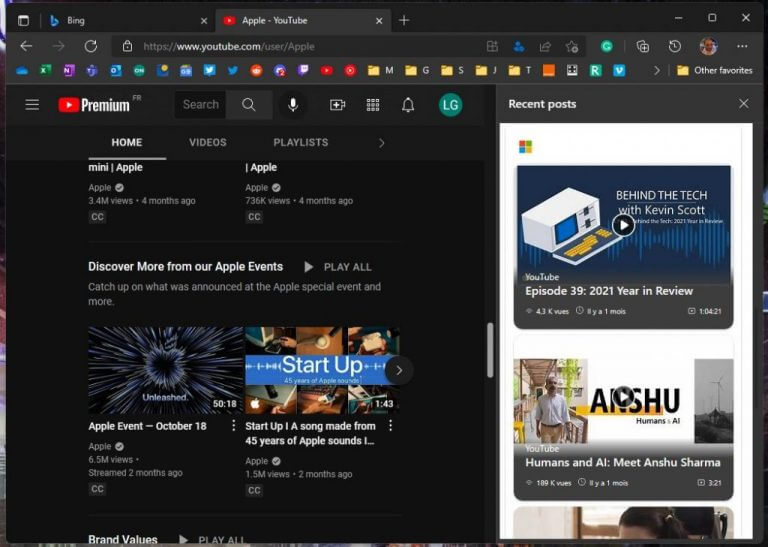
Microsoft is currently experimenting with a new way to follow YouTube channels on its Edge browser. Select Edge Canary Insiders including Reddit user Leopeva64 (via The Verge) noticed the new feature earlier this month when browsing YouTube channels, and we’re now seeing it as well on one of our devices.

As of this writing, this new “Follow Creator” button only seems to appear on select YouTube channels. When it’s available, the Follow option appears as a button in the Edge Address bar and clicking it will follow the YouTube channel in Microsoft Edge, no YouTube account required.

This new “Follow Creator” feature appears to be an extension of Edge Collections, even though this isn’t currently very obvious: The YouTube channels you follow aren’t immediately visible in Edge collections, and users need to click on the ellipsis (…) button to either see a list of followed channels or recent videos from these channels.

The “Recent Posts” view isn’t similar to the detailed chronological feed you can get on YouTube today. Instead, Microsoft Edge currently displays the last video for all followed channels, and users need to click on “more videos” to see the rest. Overall, this feature isn’t really convenient to use right now because the video thumbnails are really big and it’s not possible to resize the right panel where the feed appears. However, keep in mind that this “Follow Creator” feature remains at the experimental stage and the Edge team may tweak it further in the coming weeks.

It remains to be seen if this new “Follow Creator” feature in Edge Canary will eventually add support for other social media websites, but YouTube is an interesting start. The Edge team hasn’t officially discussed this new feature so far, but let us know in the comments if you think this could be a useful addition to Microsoft’s web browser.

Ukraine malware attack focused on destruction of data, not ransomware, says Microsoft

Over the weekend, the Microsoft Security blog shared information on a new destructive malware operation that has been targeting multiple government, non-profit, and information technology organizations in Ukraine, as tensions between that country and Russia continue to escalate.

The malware is presented as though it were a ransomware attack, offering a ransom note, a single Bitcoin wallet for payment, and a single Tox ID. However once an infected machine is powered down, instead of encrypting the Master Boot Record (MBR) for later recovery after a ransom is paid, as is typical, the malware instead simply destroys the MBR. The malware also targets a number of file types, overwriting files within a list of extensions.

Microsoft explains that these activities are unlike any “normal” ransomware attack, which are used to demand payments, and instead is intent on destructive activity.

Microsoft is and has been working with customers in Ukraine to assess their systems, and provides methods to identify systems that are compromised and help protect their data.

Microsoft has been pushing for more secure computer systems, releasing Windows 11 with a new set of security requirements as it continues to respond to ever increasing threats from ever more sophisticated attacks.

Surface Dock 2 Monitors Not Working: Fix

The Surface Dock 2 is an interesting device that allows you to connect a range of devices to the Surface device through the various ports on it. But for many users, Surface Dock was not detecting monitors.

Sometimes, the device malfunctions, forcing users to unplug peripherals and then plug them back in. It’s easy to fix and shouldn’t take much time. So, let’s head straight to it.

What can I do if monitors are not working with Surface Dock 2?

Before we head to the solutions, here are a few quick things you can try:

  • Make sure the connections are in order. Disconnect the cable and reconnect them properly, just to be sure.
  • Disconnect all the cables from the dock, including the power supply, let it sit idle for a couple of minutes, and then try connecting the monitor.
  • Verify whether the issue lies with the monitor itself by connecting it directly to the Surface device.
  • Replace the cable with one from a reputed and reliable brand.
  • Update the OS.

If none of these work, the solutions listed next surely would.

1. Update your Surface Dock

  1. Visit Microsoft’s official website, and click on the Download button.download tool
  2. Now, select the files with FwUpdate mentioned in the name, and click on Next to proceed.update file to fix surface dock not detecting monitors
  3. Once downloaded, run the MSI file to complete the installation process.install

That’s it! This is one of the quickest ways to fix things when Surface Dock 2 is not detecting monitors. And it has worked for many. So, we recommend you give it a try, and in case things don’t work out, head to the next solution.

2. Change the refresh rate

  1. Press Windows + I to open Settings, and click on Display on the right in the System tab.display
  2. Scroll down to the bottom and click on Advanced settings.advanced display
  3. Now, choose another refresh rate from the dropdown menu.change to fix surface dock not detecting monitors

If Surface Dock 2 is still not detecting monitors, head to the next solution.

3. Update the drivers

  1. Press Windows + R to open Run, type devmgmt.msc in the text field, and hit Enter.device manager
  2. Double-click on the Display adapters entry, right-click on the graphics adapter, and then choose Update driver.update driver to fix surface dock not detecting monitors
  3. Now, select Search automatically for drivers and wait for Windows to install the best one.search automatically for drivers

In some cases, issues with the graphics drivers are often responsible for Surface Dock 2 not detecting monitors. Usually, it’s running an outdated version that triggers the problem. And updating the driver should fix things.

If Windows can’t find a better version, you can always manually update the driver. Another rather easy option is to use a reliable driver updater tool, which will automatically install the best available drivers.

In case nothing so far has worked, we recommend you purchase a new USB-C to HDMI adapter and use it to connect the monitor to Surface Dock 2.

Remember, issues with Surface Dock 2 are well known, and a lot of users have been experiencing it for quite some time now. The solutions we listed have worked for many such users and might also do for you.

Also, before you go, find out what to do if your Surface device is overheating.

Tell us which fix worked for you in the comments section below.

Windows news recap: Windows Server update pulled due to critical bug, Twitter receives new features, and more

Welcome back to our Windows news recap, where we go over the top stories of the past week in the world of Microsoft’s flagship operating system.

Microsoft reportedly pulls Windows Server update after it caused critical issues

The January 2022 Patch Tuesday updates for Windows Server have been pulled due to them causing a critical bug. Reported issues range from domain controllers failing, servers to reboot every few minutes, Hyper-V not to start, and ReFS file systems to become inaccessible.

Microsoft reportedly pulls windows server update after it caused critical issues - onmsft. Com - january 14, 2022

Twitter Windows and web app add new Communities, Super Follows, and Spaces functionality

The Twitter web app has received a new update, thus bringing new features to the Twitter app on Windows. The update includes additional tools for Communities and Spaces, an improved DM experience, support for the newly launched Super Follows paid content, and the addition of a location option when composing a tweet.

Onmsft twitter profile

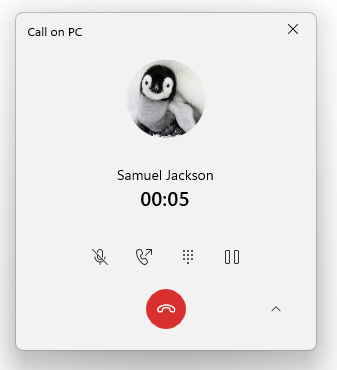
Microsoft announces New Calls experience for Your Phone app, available to all Windows Insiders in the Dev Channel

Windows Insiders in the Dev Channel have received a new calling experience. The update brings an updated design of the calling experience for Windows 11 PCs using the Your Phone app.

New in-progress call window with updated visuals in the your phone app.

That’s it for this week. We’ll be back next week with more Windows news.

Microsoft has withdrawn an update that caused problems with Windows servers

The patches released on Patch Tuesday have been causing some problems, including creating spontaneous boot loops on servers running Windows Domain Controllers, breaking the Hyper-V server role, and making volumes using ReFS storage unavailable. 

Microsoft pulled the Windows Server updates it issued on Patch Tuesday after users reported that the patches had bugs that broke three features: 

  • They can cause Windows servers that act as domain controllers to crash and reboot in a loop.
  • Make Hyper-V unusable. 
  • Prevent ReFS volume systems from being used.

Windows users were hit by two pieces of unfortunate news on the same day in January 2022, as Microsoft released 97 security updates in its monthly Patch Tuesday update, which also resulted in broken Windows installations for some users.

Updates

This month’s batch includes the Windows Server 2012 R2 KB5009624 update, the Windows Server 2019 KB5009557 update, and the Windows Server 2022 KB5009555 update. All of these updates have been identified as faulty.

“Administrators of Windows Domain Controllers should be careful about installing the January 2022 security updates,” BornCity stated. 

“I have now received numerous reports that Windows servers acting as domain controllers will not boot afterwards,” Born wrote. “Lsass.exe (or wininit.exe) triggers a blue screen with the stop error 0xc0000005. It can hit all Windows Server versions that act as domain controllers, according to my estimation.”

Domain controllers act as servers to process security log-in requests for Windows domain computers. Microsoft’s Hyper-V, a hypervisor built into the latest updates of Windows Server, can natively manage virtual machines running on x86-64 Windows operating systems.

The third thing that is getting a makeover due to the updates, Resilient File System (ReFS), is a file system that is designed in such a way that it safeguards your data and helps it remain safe even when faced with adversities.

Windows server issues

Microsoft’s Support team has reported that the issue occurs in all versions of Windows Server supported by the company.

Several Reddit users have reported this problem. One commenter said, “Looks like KB5009557 (2019) and KB5009555 (2022) are causing something to fail on domain controllers, which then keep rebooting every few minutes.”

Another Reddit contributor said on Tuesday that, after updating to the recently released Windows updates KB5009543 and KB5008876, he had found that they broke L2TP VPN connections on new machines.

“Now their L2TP VPNs to different sites (All SonicWall’s) are not working,” the user stated, highlighting an error message that read: “The L2TP connection attempt failed because the security layer encountered a processing error during initial negotiations with the remote computer.”

On Thursday, in response to reports of problems with the January Windows Server cumulative updates, BleepingComputer reported that Microsoft has removed these updates from Windows Update.

As of Thursday afternoon, however, and despite complaints from users who’d experienced problems with the Windows 10 and Windows 11 cumulative updates, Microsoft reportedly hadn’t removed the updates.

Earlier reports of problems with the latest version of Windows are, for the most part, overblown. In fact, users who aren’t having issues can likely ignore the calls to be patient as Microsoft works things through.

Defective patches

How do you convince organizations to patch systems promptly when some patches can cause unexpected downtime on critical infrastructure components such as directory services controllers?

Experts agree that it presents a security hazard. “The log4j difficulties of the past few weeks demonstrate that … we need organizations to apply security patches when they are available,” indicated John Bambenek, NetEnrich’s Threat Hunting Principal. 

Whenever patches do not serve their intended purpose, or when they alter the normal functioning of things, it “provides the counter incentive to patching where organizations take a risk-averse approach to applying updates,” he told Threatpost on Thursday. “Downtime is easily measurable…the incremental risk of a security breach is not, which means cautious (instead of proactive) actions to patching will tend to win out.”

Bud Broomhead, chief executive officer at Viakoo, said the company’s products allow users to make a choice between keeping their business operations going and making their systems more secure by using products with known vulnerabilities.

“Organizations make these tradeoffs every day with IoT devices that fail to get patched quickly (or ever); however, it’s uncommon to see this with Windows Server, because there are such effective mechanisms through Windows Update to deliver and install patches quickly.”

Run tests prior to release

Broomhead warned that despite Microsoft’s rigorous testing practices, one of the best ways to prevent problems is to test new updates on a single machine before applying them on a larger scale.

“This can help Windows Server administrators to assess their specific issues, and their tolerance for running under those conditions until a more stable patch is available,” he told Threatpost.

Horev said that is closer to reality, but added that “all media and platforms will be impacted by the shift.”

“First, very rarely are patches ever directly applied straight from Microsoft, or any vendor, on Tuesday, or any other day, without first going through a series of tests to make sure they aren’t breaking things,” he indicated.

Given how complicated it can be to support Windows, even when security updates come straight from Redmond, it’s no surprise that many companies struggle.

“The eternal compromise between secure and/or stable production environments doesn’t rest just because the updates are coming from Microsoft,” Horev commented.

Have experienced any issues with the recently released updates? Share your thoughts with us in the comment section below.

Microsoft Windows Defender has a bug that lets malware slip through undetected

An attacker can take advantage of a weakness in the Microsoft Defender antivirus feature to plant malware in locations that Windows Defender excludes from scanning.

The issue has existed for at least eight years though only recently was it identified and affects Windows 10 21H1 and Windows 10 21H2.

Add locations

Microsoft Defender can exclude specific locations on your computer from scanning, to make sure that areas containing important information are not inadvertently damaged by an antivirus scan.

There are many legitimate software applications that, for various reasons, antivirus programs mistakenly identify as malware and thus quarantine or block from accessing a computer.

If a user includes a username in their list of exceptions, it might give an attacker useful information on the system. It allows them to store malicious files in areas of the computer that are not searched during a routine scan. 

Security researchers found that Microsoft’s Defender security software excludes a list of dangerous locations from scanning, but that any local user can access it.

Compromised coverage

Even though Windows Defender is allowed to check for malware and dangerous files in the registry, local users can query the registry to determine which paths Defender is not allowed to check.

Antonio Cocomazzi, the threat researcher credited with the discovery of the RemotePotato0 vulnerability, notes there is no security for this information.

Although Microsoft Defender doesn’t scan everything, its “reg query” command reveals what the program is instructed not to scan, including files, folders, extensions, and processes.

Another Windows security expert, Nathan McNulty, says the issue is only present on Windows 10 versions 21H1 and 21H2 but it won’t affect Windows 11.

Group policy settings

Another way to get Group Policy settings is to grab the list of exclusions from the registry. This information provides details about what is being excluded and is more sensitive than simply listing which settings are active on a particular computer.

Microsoft recommends that you disable automatic exclusions in Microsoft Defender when the server platform is not dedicated to the Microsoft stack, McNulty says. If a server is running non-Microsoft software, you should allow Defender to scan arbitrary locations.

Even though the Microsoft Defender exclusions list can be obtained by an attacker with local access, this is a small challenge to overcome.

When a corporate network is already compromised, attackers are often on the lookout for ways to move around using less noticeable tools.

Full scan

Microsoft Defender allows the exclusion of certain folders to keep the antivirus from scanning files in those locations. The malware author can then store and execute infected files from those folders without being spotted.

A senior security consultant says that he first noticed the issue about eight years ago, and immediately understood its potential for malicious use.

“Always told myself that if I was some kind of malware dev I would just look up the WD exclusions and make sure to drop my payload in an excluded folder and/or name it the same as an excluded filename or extension,” explained Aura.

If you are a network administrator for a Microsoft environment, consult your Microsoft documentation for information on how to exclude the Defender program from scanning and running on all of your servers and local machines.

What are your major concerns about the loophole that presents hackers with the opportunity to bypass Microsoft Defender? Share your thoughts with us in the comment section below.

Bluetooth Xinput Code 10: 5 Ways to Fix Your Xbox Controller

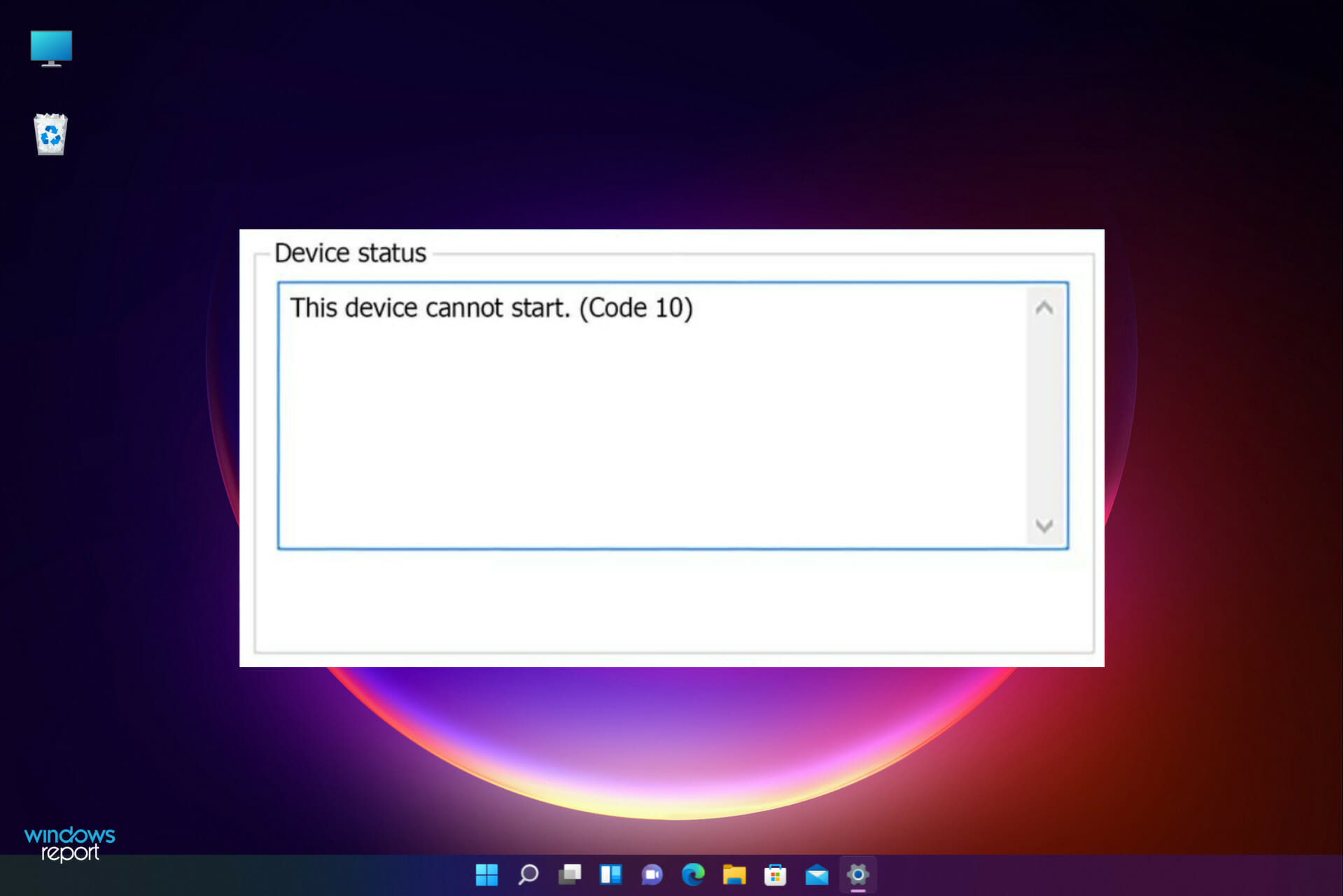
Users often prefer Xbox controllers in Windows, and they may appear as Xinput devices, which is an issue in itself. But beyond that, many reported getting the Bluetooth Xinput Code 10 error and were unable to use the controller.

The problem has been present in all recent iterations of the OS and is usually easily fixable unless the controller is at fault. So, let’s find out how you can get things running in the case of Bluetooth Xinput compatible input device Code 10.

What causes Bluetooth Xinput Code 10?

Here are a few reasons you might be getting the Xbox wireless adapter Code 10-

  • Issues with the driver – In most cases, users reported that it was the outdated driver or an incompatible one that triggered the error.
  • Missing or corrupt DLL files – Missing DLL files can also lead to issues, including the Bluetooth Xinput Code 10 error in Windows.
  • Problems with the controller itself – Hardware issues cannot be ignored when dealing with the error since these, too, have been found responsible in many cases.

How can I fix Bluetooth Xinput Code 10?

Before we head to the slightly complex solutions, here are a few quick ones you can try first:

  • Power off the computer, remove the cable from the power source for a while and then turn it back on. In the case of a laptop, remove the battery after turning it off and unplug the charging cable.
  • Reconnect the controller to a different port on the computer. Also, try the ones on the back of the CPU in the case of a desktop.
  • Check for updates and install the latest available version of Windows.

If these don’t work, head to the solutions listed next.

1. Reinstall the driver

  1. Press Windows + R to open the Run command, type devmgmt.msc, and hit Enter.device manager
  2. Locate the Xbox controller, right-click on it, and then select Uninstall device.uninstall device to fix bluetooth xinput code 10
  3. Click Uninstall in the confirmation prompt.uninstall
  4. Once done, press Windows + S to open Search, type Control Panel in the text field, and click on the relevant search result.control panel
  5. Click on System and Security.system and security
  6. Now, click on Change what the power buttons do under Power Options.power options
  7. Select Change settings that are currently unavailable.change settings that are currently unavailable
  8. Next, untick the checkbox for Turn on fast startup (recommended), and click on Save changes.disable fast startup to fix bluetooth xinput code 10
  9. Finally, restart the computer and verify whether the problem is resolved.

This is the simplest and most effective solution to Bluetooth le Xinput compatible input device Code 10 error and should get things up and running in no time.

Disabling Fast Startup helps the computer do a proper reboot and allows the effective installation of drivers, so make sure to do that as well.

2. Re-register DLL files

  1. Press Windows + S to open Search, type cmd in the text field, and click on Run as administrator.cmd
  2. Click Yes in the UAC prompt.
  3. Now, paste the following two commands one at a time and hit Enter after each:regsvr32 /u btmshellex.dll regsvr32 btmshellex.dllcommand to fix bluetooth xinput code 10

Once done, restart the computer for the changes to come into effect, and verify whether the error is fixed. If not, head to the next solution.

3. Update the driver

  1. Press Windows + X to open the Power User menu, and choose Device Manager from the list.device manager
  2. Locate the Xbox controller, right-click on it, and choose Update driver.update driver to fix bluetooth xinput code 10
  3. Now, select Search automatically for drivers and wait for the best available version to be installed.search automatically for drivers

Running older versions can often lead to issues with the related device, and updating the driver should fix things in this case. Also, you may have to manually update the driver if Windows can’t a better version.

Please note that downloading and installing the wrong driver versions can cause permanent damage to your PC, therefore, practice extra caution.

Furthermore, proceed confidently with a specialized driver manager that will provide fast installation or update for old version drivers. You will benefit from reliable support from this popular software to update your Xbox Controller driver in no time.

Then, we strongly recommend Outbyte Driver Updater automatically download all the outdated drivers on your PC.

4. Update the app and controller firmware

  1. Press Windows + S to open Search, type Microsoft Store, and click on the relevant search result.microsoft store
  2. Choose Library from the bottom-left corner.library
  3. Click on Get updates.get updates to fix bluetooth xinput code 10
  4. Wait for any available updates for the Xbox Accessories app to download.
  5. Next, connect the controller to the PC via a cable, open the Xbox Accessories app, and click on the ellipsis. If you see an option to update here only, click on it instead.ellipsis
  6. Now, click on the No update available button.update firmware to fix bluetooth xinput code 10
  7. Click Continue to proceed.continue
  8. Now, wait for the update process to go through, and then reconnect the controller via Bluetooth.install updates to fix bluetooth xinput code 10

That’s it! Updating the Xbox controller, in all likelihood, will fix the Bluetooth Xinput Code 10 error and gets the controller up and running like before. In case this doesn’t work, it’s likely a hardware issue.

5. Buy a new controller

Though unlikely, if the problem remains unresolved, the last option is to purchase a new Xbox controller. This is the case when the current controller is damaged or faulty, and replacing it is the only viable solution.

Once you get a new one, the Bluetooth Xinput Code 10 error should be fixed, and the error message will not appear in the Device Manager anymore.

Before you leave, find the best settings to optimize gaming performance in Windows and enjoy a better experience.

If you have any questions, comments, or suggestions, let us know in the comments section below.

6 Best Network Simulators for Windows 10 and 11

System administrators can’t always know how things will work in real life especially when there is a large number of computers involved.

The risks that something may go wrong are very high, and the costs are too big.

This is where simulations come in handy. They allow developers to replicate the models that they expect to see in the real world.

Developers can then analyze these results and use them throughout the developing process.

Network simulators create models where the operations of a system will act as a sequence of events, and as time changes, the state of the system will modify as well.

Other simulators can also act as emulators. This means that you can connect them to a live network.

After a simulator has been connected to a live network, it will receive information from the incoming network traffic and will allow a specialist to analyze it in detail.

What is the best network emulator for Windows 10 and 11?

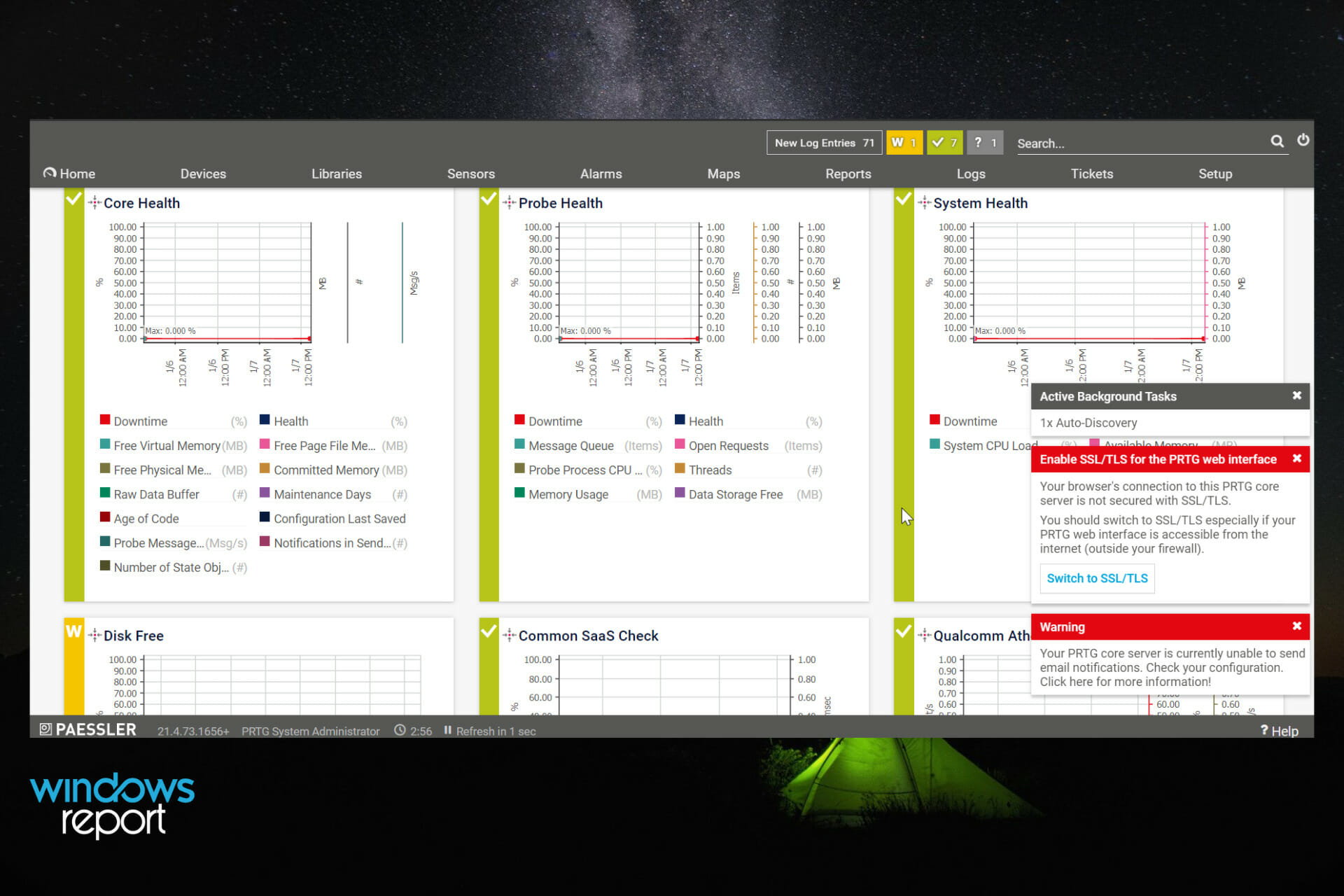
Paessler Multi Server Simulator

network simulation software

Paessler Multi Server Simulator is a free network simulator for Windows PC designed to offer valuable networking services to emulate your servers.

In a matter of minutes, you can create a large virtual network with 100 servers and several switches with 1000 ports.

You can deploy a number of servers: HTTP, FTP, SMTP, and DNS servers are supported. Each server can be turned on/off with one single click and a detailed log is available.

All of these can be done from a single Windows system. It is a great tool useful for evaluating network management tools.

Moreover, the software interface is really intuitive so you can efficiently create large-scale networks and provide useful insights about any network connection.

Please take note that this software is in the beta version, so it might contain some bugs.

Paessler Multi Server Simulator

A performant tool to simulate a large network of servers using a Windows computer.

Cisco Packet Tracer

Packet Tracer is a cross-platform visual simulation tool developed by Cisco Systems. It provides you the opportunity to create network topologies and imitates modern computer networks.

You can benefit from this software because it allows you to simulate the configuration of Cisco routers and switches with the help of a simulated line interface.

You can use its drag and drop UI which lets you add and remove simulated devices as you see fit.

This software is primarily targeted towards Certified Cisco Network Associate Academy students, and they can use it as an educational tool for learning the initial CCNA concepts.

It’s great that students who are enrolled in a CCNA Academy program have the advantage of downloading the tool for free for educational use.

Packet Tracer provides simulation, visualization, authoring, assessment, and collaboration capabilities and facilitates the teaching and learning of complex technology concepts.

Here are the most important features of Packet Tracer:

  • You can run it on Microsoft Windows, Mac, and Linux.
  • It allows basic routing with RIP< OSPF, EIGRP, BDP to the extents required by the CCNA.
  • Starting with version 5.3, Packet Tracer supports the Border Gateway Protocol.
  • Packet Tracer can also be used for collaboration.
  • Starting with version 5.0., it supports a multi-user system that enables multiple users to connect multiple topologies over a network.
  • The tool allows instructors to create activities for students to complete.

Packet Tracer comes as part of a learning course so to get the app, you need to enroll. It’s not necessary to complete the course.

⇒ Get Packet Tracer

NetSim Standard

network simulation tools

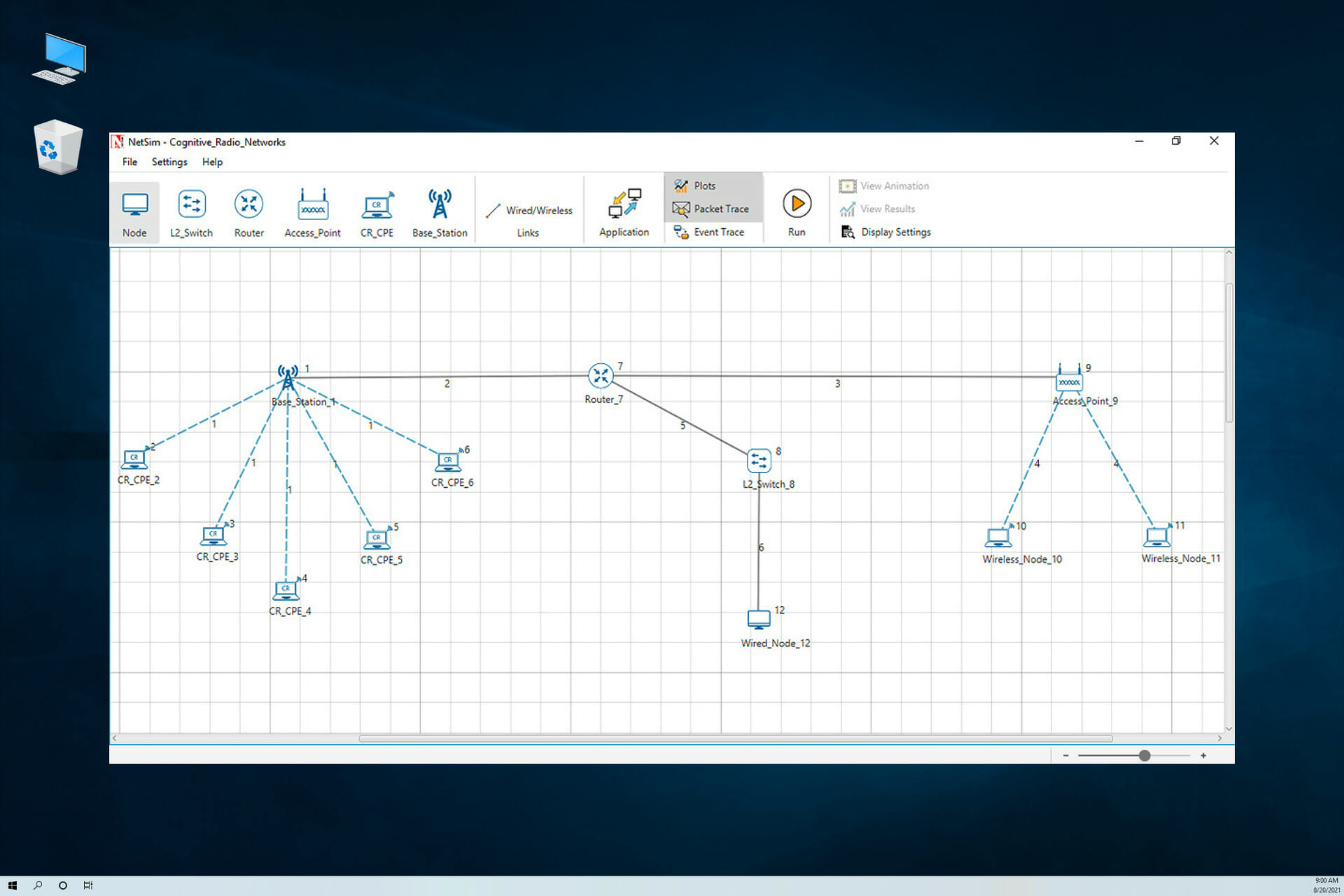
NetSim is a great network simulation software for protocol modeling and simulation, network R&D, and defense applications.

It allows you to analyze computer systems with unmatched depth, power, and flexibility.

NetSim Standard is a version of the NetSim tool that offers almost all the features that are provided by the NetSim pro. You can get the tool discounted at educational prices to universities for Network R&D.

The NetSim standard version accelerates network R&D, and it reduces your time-to-publish. The tool includes the source C code, and it provides you the ability to perform the following actions:

  • You can design new technologies and protocols, and you can also evaluate changes to the existing ones.
  • You can test and demonstrate models in realities scenarios.
  • You can optimize the protocol and app performance.
  • You can study the effect of real devices and transmit live traffic using the NetSim Emulator. The emulator combines the real and virtual world to develop scenarios that cannot be achieved in a laboratory environment.

Here are the main reasons for which you should try out the NetSim Standard version:

  • Thanks to easy-to-use GUI, you can just drag and drop devices, apps, and links, compared to open source simulators which make you write hundreds of lines of code to create network scenarios.
  • The results dashboard provides appealing simulation performance reports with tables and graphs, compared to open sources in which you have to analyze and write code to extract performance results.
  • The inbuilt graphing have extensive formatting, unlike the open sources in which you have to write programs on external tools for graphs.
  • The tool provides a broad range of technologies such as the latest in IOT, WSN, MANET, Cognitive Radio, 802.11 n / ac, TCP – BIC / CUBIC, Rate adaptation with packet and event tracing, compared to the open sources which usually feature more limited technologies.
  • The tool features online debug capability and the ability to ‘watch’ all variables. You can also run animation in parallel for immediate visual feedback. Open source simulators will require you to code tens of statements to debug your code.
  • The tool provides external interfaces to external software like MATLAB®, SUMO, and Wireshark.

Besides the NetSim Standard, there are three more versions of the tool. Here they are:

  • The NetSim Pro version – perfect for commercial customers.
  • The NetSim Academic version – ideal for education customers.
  • The NetSim Emulator – which allows users to connect the NetSim simulator to real hardware and interact with live apps. You can test the performance of actual apps over a virtual network.

Boson NetSim CCNA

network simulation tools

The Boson NetSim 11 Network Simulator for CCNA promises to be the most powerful and versatile Cisco network simulation software that is available for IT professionals seeking CCNA certification.

The tool actually simulates the network traffic of a real network in a simulated network that users can design themselves.

Here are the key features of NetSim 10 for CCNA:

  • The tool is a Network Designer that supports 42 routers and seven switches.
  • You can have up to 200 devices per network.
  • The tool offers Virtual Packet Technology: software-created packets that are routed and switched through the simulated network.
  • You have the ability to populate the WAN slots with a broad range of Network Modules.
  • The tool provides a Telnet mode that allows you to configure devices in the simulated topology using the Windows Telnet program.
  • It has the functionality of a full rack of equipment on your laptop.
  • The tool features automatic lab-grading capability.
  • It provides the ability to load and save your network configurations and the capacity to paste real router settings into the devices.
  • You also get the potential to configure your own ISDN and Frame Relay switch mappings.
  • The tool provides users the benefit of connecting their devices over simulated WANs without expensive ISP gear.
  • It features support for IPv6 addressing.

⇒ Get Boston NetSim

Cisco Virtual Internet Routing Lab Personal Edition (VIRL PE)

Cisco Virtual Internet Routing Lab Personal Edition (VIRL PE) 20 Nodes is a robust network virtualization and orchestration platform that allows the development of some highly accurate models of already existing or previously planned systems.

With this tool, IT teams and individuals as well will be able to design, build, visualize, troubleshoot and launch simulations of Cisco and third-party devices in a virtual environment.

They will then also be able to create models and what-if scenarios of real-world and future networks.

The virtual images included within VIRL PE will use the same Cisco IOS software code that is used in routers and switches that are compiled to run on the hypervisor.

This provides IT pros and students a tool to help them learn about networking and studying for Cisco certifications in a virtual safe environment.

The tool provides you the opportunity to perform the following actions:

  • You can create models and what-if scenarios of real-world and future networks.
  • The tool will automatically generate configurations
  • You will be able to visualize protocols.
  • You can use Cisco IOS network operating systems, with routers and switches.
  • You can connect virtual and physical environments.
  • You can study for Cisco certification.

VIRL PE supports the following Cisco virtual images:

  • IOS and IOSvL2
  • NX-OSv and NX-OS 9000v
  • IOS XRv and IOS XRv 9000
  • IOS XE (CSR1000v)
  • ASAv

VIRL PE is available as a PC OVA, ESXi OVA, and ISO for bare metal install.

VIRL PE is a community-supported product that is supported by more than 5000 community members, including Cisco community managers.

The VIRL PE FAQ provides an enormous amount of valuable data on product features, requirements, technical, and ordering information.

⇒ Get Cisco Virtual Internet Routing Lab PE

CCIE Lab Builder

A major challenge for CCIE R/S Lab candidates is getting their hands on a massive topology, similar to what they’ll face in the actual lab. One option is to use the CCIE Lab Builder, and we’ll discuss the reasons below.

The Cisco CCIE Lab Builder allows you to run your R&S topologies in the actual CCIE Routing and Switching virtual environment.

Here are the key advantages for which you should really consider giving this tool a try:

  • The topology runs on the actual virtual environment that the CCIE Lab runs on.
  • You will not need to book lab time, and this is great compared to other vendors in which case you have to schedule lab time. Sometimes during busy periods, you won’t even get access to the lab, but with this tool, you can have access anytime you want to.
  • It features the ability to configure up to 20 nodes.

The pricing is very competitive, and the major advantage is that you can build your topology before you start the clock.

There are cheaper options to running your CCIE Lab, by using GNS3 or building your own lab using CSR1000V routers.

You have to decide on the best choice for you, but the CCIE Lab Builder is going to be hard to beat for access to the perfect training environment for your CCIE studies.

These were our top network simulators. After you’ve analyzed them all, we recommend that you pick the one that suits your needs and goals best.

In the network research area, it is costly to deploy a complete testbed with multiple networked computers, routers, and data links to validate and verify a certain network protocol or a particular network algorithm.

The network simulators will save you a lot of money and time in accomplishing these tasks. Fortunately, you can find a free network simulator for Windows PC as well in this article.

If you have any other suggestions or questions, don’t hesitate to leave them in the comments section below.

Sledgehammer announces major Call Of Duty fixes are underway

The Call of Duty social media account on Twitter published a statement Thursday and acknowledged that developers are working to update Call of Duty: Vanguard, as well as the Call of Duty: Warzone battle royale mode.

Some players have encountered various glitches and bugs in the new Warzone mode. These include Operator skins that make players invisible. 

Other issues have included poor game performance on consoles and freezes while attempting to access the in-game buy stations.

Call of Duty has a name in the game world

Call of Duty is one of the best-selling video games franchises of all time, and with good reason. Each new installment brings something new to the table, whether it’s the ability to fight in space or the chance to battle zombies in World War II.

The gameplay is always top-notch and the graphics are fantastic, so you know that you’re getting a quality product every time you buy a Call of Duty title. 

Not only that, but Call of Duty has also spawned an entire sub-genre of gaming, in which players compete against each other online in team matches. 

These games are called first-person shooters (FPS) because they are played from the perspective of the player’s character.

New fixes on Call of Duty

Things have not been rosy for a while now as, Call of Duty fans are experiencing various multiplayer connection difficulties, including disconnects from matches and unexpected party disbandments. 

Call of Duty fans who play Zombies mode have also been outraged at the lack of a pause option while playing solo or private matches. 

https://twitter.com/CallofDuty/status/1481689396885790726

The option, which had been available in the previous Call of Duty titles, allows Zombies players to adjust their tactics and figure out how to deal with the hordes of enemies rampaging towards them.

These are not the only issues you can encounter when playing the game so feel free to visit our guide on packet data loss on Call of Duty if you encounter such problems.

Cries not on deaf ears

In a post, the team of Call of Duty developers behind the current game shared information about updates that are being deployed in response to player feedback. 

https://twitter.com/CallofDuty/status/1481689404397731843

Fixes released with recent patches include collision issues and weapon balancing for Warzone, as well as stability improvements, weapon balancing, and improved spawn logic for Vanguard. 

Fans on the other hand were quite outraged but understandably so.

https://twitter.com/LEEK2LIT__/status/1481796323674411008

The studio is listening to feedback and making changes based on players’ suggestions. They have already made many changes, including fixes for Warzone and Vanguard.

Should you encounter any other related problems with other Call of Duty versions, feel free to check out our guide on Call of Duty unable to play on Windows 11.

Have you encountered problems with Call of Duty lately and have you tried any of the fixes released? Share your experience in the comments section down below.

Posted in Fix

Microsoft Edge 99 is available in Dev channel with new features

It seems that the Microsoft Edge team is coming back in full force in 2022 with a new Edge build that is available now in the Dev channel.

In the build that was released as version 99.0.1131.3, Edge is featuring some important changes and Microsoft also announced that Edge 98 will be soon moved into the Beta channel.

Not long ago, the browser received a new important feature to organize and track your favorite web pages but the developments really got on the fast track with the new version.

Long story short, let’s go through with all the added features, improvements, and bug fixes for the latest build.

What are the new features of Microsoft Edge 99?

By far, the most important addition is the possibility to manually set which profile certain websites open. To access the new feature, you just need to paste the following line in the address bar: edge://settings/profiles/multiProfileSettings

Another important addition is the ability to edit saved passwords from the initial dialog to save them.

Microsoft also added an option to the right-click menu in order to open links in the Application Guard windows, of course, only where the Application Guard is present.

We’re listing the other added features as presented by Microsoft in the release manifest:

  • Added info to the Edge Bar settings page informing users which extensions they have installed that are preventing the use of the Edge Bar. 
  • Management policies (note that updates to documentation and administrative templates may not have happened yet): 
    • Added a management policy to control if Address Bar Editing is Enabled. 
    • Added support on mobile for disabling autofill via management policy. 
  • Developer: 
    • Added support for custom formats on the clipboard (Chromium Issue 106449). 
    • Added support for the WebView2 API BasicAuthenticationRequested, which was previously in the experimental state (Issue 120). 
    • Added support for the dual screen web developer APIs CSS Foldables and Viewport Segments that were previously in the Experimental stage.

What are the bug fixes in Microsoft Edge 99?

The new build version 99.0.1131.3 also addresses a lot of bugs that were certainly frustrating for a lot of insiders.

It seems that the dev team fixed a lot of crashes when navigating to certain websites, when interacting with the address bar and its dropdown, and when you choose where you want to save a downloaded file.

They also covered a bug that appeared when you were sending feedback from InPrivate or Guest windows and when showing autofill popups.

Here’s the list of other reliability improvements as they were presented in the release note:

  • Fixed a crash when interacting with misspelled words that have been identified by the spellchecker. 
  • Fixed a crash when using Web Select (formerly Smart Copy). 
  • Fixed a crash when installing a website as an app. 
  • Fixed a crash when importing data from another browser.
  • Fixed an issue where certain webpages crash after a few seconds. 
  • Fixed an issue where tabs sometimes crash when certain accessibility features are enabled. 
  • Mobile: 
    • Fixed a crash when interacting with downloads. 
    • Fixed a crash when viewing the new tab page. 
    • Fixed a crash when viewing weather from the new tab page. 
    • Fixed a crash when using Shopping. 
    • Fixed a crash when using Read Aloud on a different tab than the currently visible one.  
    • Fixed a hang on iOS. 
  • Fixed a crash in WebView2 apps (Issue 1882). 

Other improvements in Microsoft Edge 99

In the new version, the development team managed to reduce the amount of blank unloaded pages when scrolling through PDFs.

Microsoft also claims that they improved the malicious URL blocking feature and the performance of the startup page by pre-rendering it when possible.

For more information, you can see the whole list in the Microsoft Edge 99 release note from Microsoft.

And while we’re all excited by the new developments, you can also check out how the new Game panel in Edge will help you spend some quality relaxing time in the browser.

What do you think about Microsoft Edge 99? Share your thoughts in the comments section below.

Microsoft fixes accessibility issues in the latest OneDrive update

Microsoft has been working hard lately to improve its support for users with disabilities, including providing better accessibility features across its products. 

A number of OneDrive users have reported problems with VoiceOver, but it looks like the latest update fixes them.

Users who rely on VoiceOver to interact with OneDrive in Windows will be happy to know that the cloud storage service has addressed accessibility issues in its latest update.

OneDrive is Microsoft’s cloud storage service. You can use it to store photos, documents, and other files you need to access from multiple devices. The app syncs your files between your devices, and you can access them at any time.

OneDrive updates

  • A new update fixes the bugs and VoiceOver now comprehensively reads out dates for folders in the Libraries view.
  • The role assignment for filter buttons that appear when searching for a folder/file has been updated so that VoiceOver correctly announces the control. Previously, VoiceOver only announced the label for the button but did not announce the underlying icon. This was especially problematic if there was no text to describe the icon because then VoiceOver would not announce anything at all.
  • The accessibility tool now seems to work properly and announces the appropriate roles for buttons on a users’ Plan page and on the Libraries page.
  • The latest update improves the VoiceOver feature by making adjustments to icons on the “Sign in” and “Enter password” pages. The update also makes adjustments to the luminosity of the icons on these pages. This adjustment makes it easier for users who are visually impaired to see these icons without any problems.
  • One of the most notable accessibility updates is that content present on the “Sign in” page now appropriately adapts to large text settings.

Microsoft’s OneDrive cloud storage app has received its second update of the year. The latest version, which is now available on the App Store, offers a fix for a bug that prevented some users from being able to access their files using VoiceOver.

Have you experienced any issues with OneDrive since the latest update? Let us know in the comment section below.

Microsoft agrees to third-party review of its harassment and discrimination policies

In a move that feels like a no-brainer, Microsoft’s board has agreed upon a third-party audit of its sexual harassment and gender discrimination practices and policies.

With 78 percent approval from its board back in November 2021, Microsoft is now announcing a plan to move forward with an outside firm’s audit of its own sexual harassment and gender discrimination policies.

In the press release from Microsoft, the company is looking to have the audit “benchmark Microsoft’s current practices against ‘best practices’ adopted by other companies, with the goal of identifying additional opportunities for improvement.”

While the board was under pressure from mounting pre-existing violations as well as the recent investigations into former co-founder and CEO Bill Gates, will address only part of the proposal initially submitted by Arjuna Captial.

Arjuna Capital’s managing partner, Natasha Lamb asked Microsoft to release the results of an independent investigation into the sexual harassment allegations levied at Gates.

The newly released plan will not reinvestigate Gates or the claims publicly, but will assess the overall investigation into the allegations into Gates.

Instead, the law firm Arent Fox will focus on the following, according to Microsoft’s released plan:

  • It will lead to the public release of a transparency report assessing the effectiveness of the company’s workplace sexual harassment and gender discrimination policies, training, and related policies. This will include a review of concerns raised by employees in 2019 in the “In Need of Assistance” email thread, steps the company has taken to respond to these concerns, and additional steps that could further strengthen these safeguards. The review will also include an analysis of policies, practices, and commitments to create a safe, inclusive work environment.
  • The report will summarize the results of any sexual harassment investigations during this same timeframe against members of the Board of Directors and the company’s Senior Leadership Team, including the allegations that a Board committee investigated beginning in 2019 involving Bill Gates.
  • It will assess the steps that have been taken to hold employees, including executives, accountable for sexual harassment or gender discrimination.
  • The report will include data on the number of sexual harassment cases investigated and their resolution.

According to a report from GeekWire,, Lamb believes Microsoft is not only acting in “Good Faith” but that invoking a level of transparency and accountability will help Microsoft become “a better company.”

However, it should be noted that not only did Microsoft’s board initially reject the proposal when it was first brought to a vote calling it “unnecessary” as the company had recently planned to do public reporting of its harassment and discrimination policy implementation yearly, but that there is still a layer between the public and the results of Fox’s audit.

In Thursday’s press release, Microsoft ends its third-party audit announcement with the following:

Following this review, the Arent Fox firm will first provide a report to the Board and management detailing its findings and recommendations. The company’s management team will then prepare an implementation plan to act on the recommendations and will report to the Board on this plan. The Board will then publish a public report documenting the review and its findings as well as management’s plans for enhancements to current policies and practices.

Theoretically, if Microsoft’s doesn’t like or agree with Fox’s initial assessment or plans, it could negotiate a more favorable report in the end where in Microsoft’s board presents that to the public.

I’m not saying the theory holds water, but it is something to consider with Microsoft board members getting first crack at the audit report rather than the public as the company inches more towards transparency and accountability.

Xbox mobile apps now support sharing game captures with everyone with a link

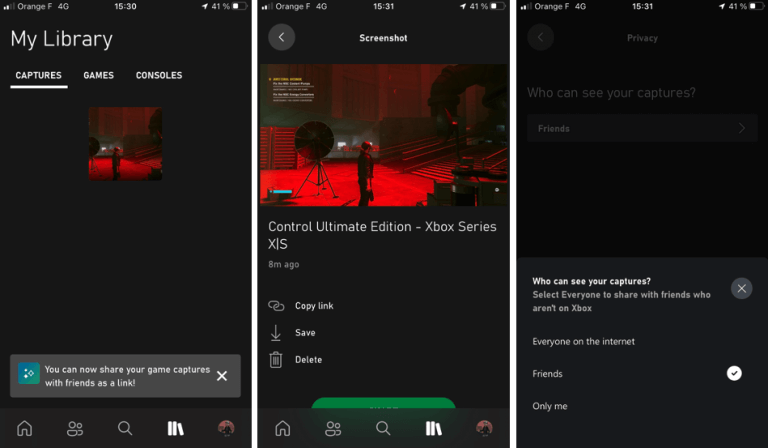
Microsoft is finally making it easy to share Xbox game captures outside of Xbox Live. As we noticed today, a new Link Sharing feature has started rolling out on the Xbox apps for iOS and Android, which will let users share any game capture uploaded to Xbox live with a simple link.

When browsing your game captures on the mobile, you’ll see a new “Copy Link” option that will create a link in your clipboard. In the app, you can change your privacy controls in the app to allow everyone on the Internet to see your captures, and if you make them only visible to friends, they’ll need to sign in to Xbox Live on the web to see your content.

By default, Xbox consoles automatically upload game captures to Xbox Live, and this content is easily accessible from the Xbox mobile apps. Users could already share game captures with their friends on Xbox Live or outside by downloading their content on their phones, but Link Sharing makes this process much more seamless.

Overall, this is an important step in making Xbox Live less of a walled garden, though there’s still more work to be done to make the platform a bit more social. Game captures and Link Sharing also need to make their way to the Xbox app for PC, and xbox.com could also really use a fresh coat of social paint.

How to add the Grammarly extension to Microsoft Word

Updated: Dec 8, 2022

How you express yourself through your writing shows a lot, whether it is an assignment you are preparing for school or a cover letter you are sending to a potential employer. It is important to ensure that what you write is grammatically correct and mistake-free.

While reading over your texts usually does the trick and helps you identify some of these errors, it is possible that you may overlook some and end up sending a document that is rife with mistakes. Here’s where the Grammarly tool comes in.

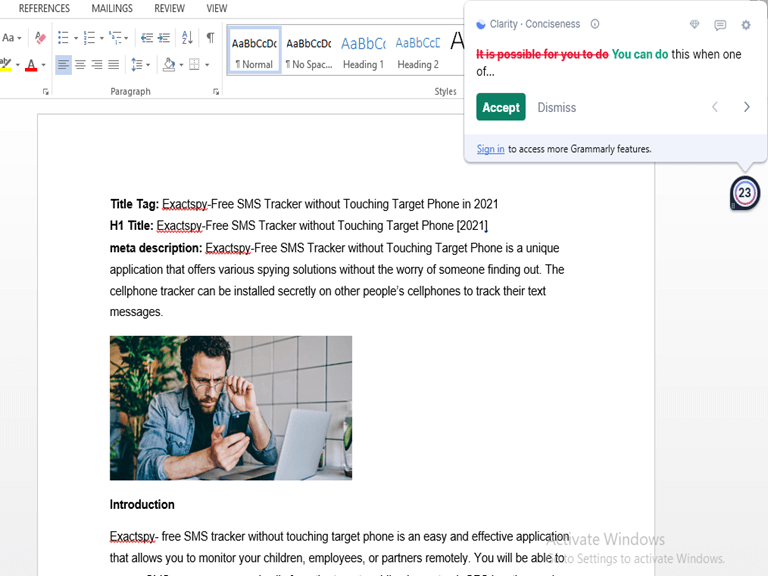
Grammarly is a free application that helps you keep track of your spelling and grammar. Interestingly enough, you don’t have to keep transferring your work from Word to Grammarly to check for these errors. The tool provides users with a free add-in that lets them use its services directly within Microsoft Word or Microsoft Outlook.

How to get the Grammarly add-in in Microsoft Word

To add the Grammarly extension to Microsoft Office, follow the steps below:

  1. Launch your browser and go to Grammarly’s official website to download the add-in.
  2. Click on the option to Get It for Windows It’s Free.
  3. Once the download is complete at the bottom next to the file name, click on the Options button, then select Open.
  4. When you open the file select the Run option.
  5. The installer will then open, click on Get started.
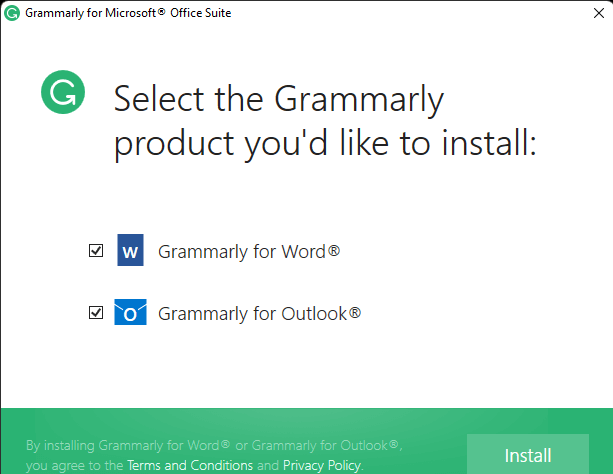
  6. A prompt will then appear requesting you to select the Microsoft Application you would like the Grammarly add-in installed to.
  7. Check the boxes of the Applications you would like to have the add-in, then click on Install. Check the Microsoft Outlook and Word boxes.
  8. Wait for the application to complete installation, then close the window.

The Grammarly extension will now be available on all the Microsoft Office applications that you selected during the installation process. You can also switch to dark mode on Microsoft Word to enhance visibility, especially at night, thus making it easier to spot errors.

Once you install the add-in, it will help you detect errors as you type and also provide you with helpful suggestions that will help improve your writing. It is also available as a browser extension for Chrome, Firefox, Safari, Internet Explorer and more.

How to reinstall Grammarly to Microsoft Word

Here’s how you can reinstall the Grammarly add-in to Microsoft Word in case you already had it but it isn’t functioning properly. Follow the steps below:

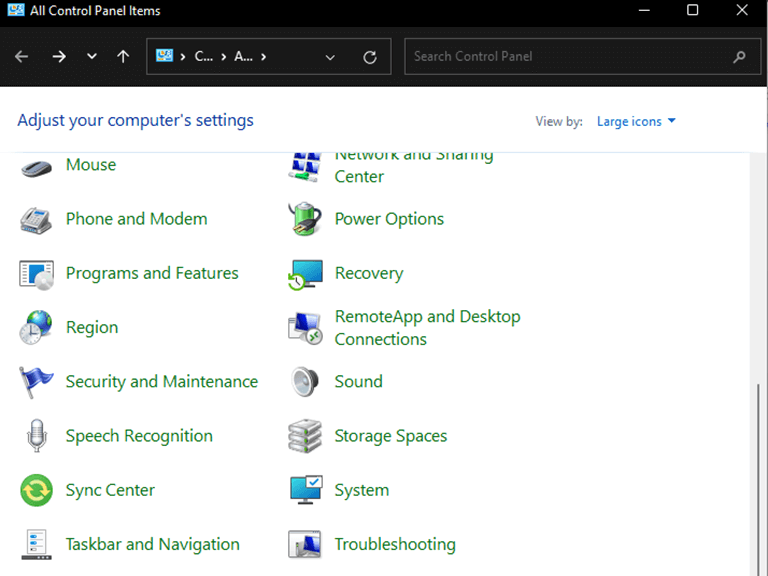
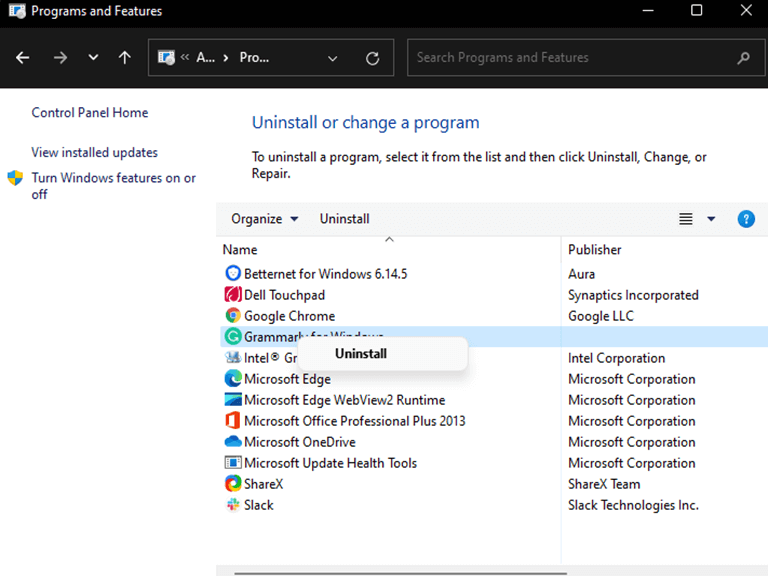
  1. Uninstall your current version of the Grammarly add-in. Navigate through the following path: Control Panel > Programs and Features.Select Programs
  2. Then, right-click on Grammarly for Microsoft Office Suite and select Uninstall.
  3. UninstallLaunch your browser and head to Grammarly’s official website to download the latest version of the extension, then follow the instructions on that page to install it.Download
  4. Open any document in Microsoft Word, locate the Grammarly tab in the toolbar, then click Open Grammarly.
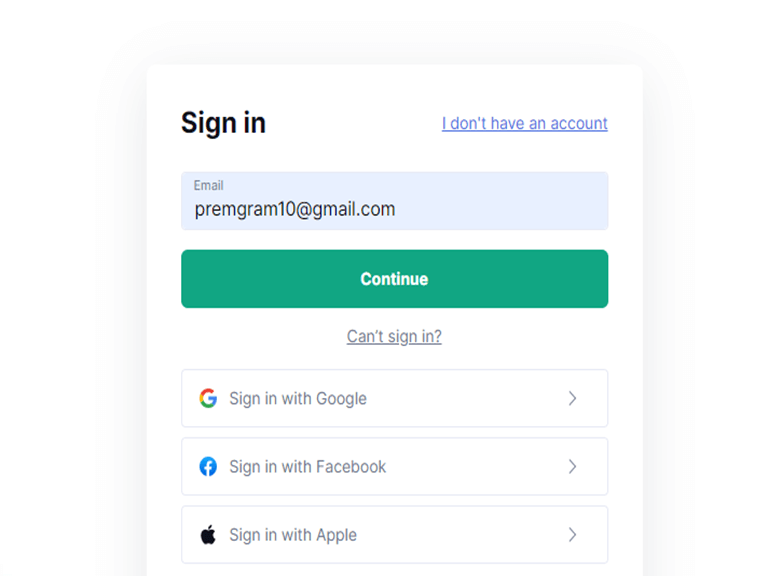
  5. Enter your Grammarly login information when requested.login credentials
  6. Finally, the Grammarly sidebar will appear on the right. At this point, you should be able to make use of the app’s offerings.

Elevate your writing in Word with the Grammarly add-in

The tool offers a wide variety of features that make it easier to detect errors and consciously edit your writing on Microsoft Word. Moreover, you can also use the Google Docs add-in, the desktop app, the browser extension, or the keyboard app for editing your document on your mobile phone.

Also, be sure to check out our separate post that details how you can use Grammarly on a Windows PC. Hopefully, the above methods helped you get the Grammarly add-in on Microsoft Office. Share your experience with us in the comment section below.

Microsoft reportedly pulls Windows Server update after it caused critical issues

Software patches for servers are usually intended to fix critical issues, but the recent round is instead causing them. So much so that Microsoft has decided to pull the January 2022 Patch Tuesday updates for Windows Server (via Bleeping Computer.)

There are three specific updates that Microsoft pulled depending on which version of Windows Server you’re running. KB5009624 is for Windows Server 2012, KB5009557 is for Windows Server 2019, and KB5009555 is for Windows Server 2022. According to various social media reports, on all these versions the updates in question can cause domain controllers to fail, servers to reboot every few minutes, Hyper-V not to start, and ReFS file systems to become inaccessible.

Microsoft appears to be aware of these issues, and in the changelogs for most of these Windows Server updates, indicate that “we are working on a resolution and will provide an update in an upcoming release.” Even with that so, Bleeping Computer notes that not every system administrator can verify that these problematic updates are no longer available for download. As a workaround, admins can pause updates to avoid having it automatically downloaded.

Microsoft confirms the discontinuation of Xbox One consoles

Microsoft’s decision to cease production on the Xbox One X and the all-digital Xbox One S is likely to be viewed as a surprise move, especially considering that both consoles are still widely available at retail and online. 

According to sources familiar with the company, Microsoft is planning to cease production of Xbox One consoles across the board but has yet to make an official statement or announcement.

Microsoft has no plans to launch new Xbox One consoles, and will instead focus on improving its current line-up. 

End of an era

Perhaps the decision to discontinue came after Sony decided to go ahead with manufacturing the PlayStation 4 following a shortage of PS5s.

PS4s were to stop production in 2021 but they had no choice but to meet the demand from a lot of gamers who could not get their hands on the PS5.

We can expect PS4 to take a big chunk of the sales left over from Xbox One. Not that Sony will mind, since it’ll be happy to take any extra sales it can get its hands on. Microsoft’s latest console is still outselling Sony’s, but the latter company is still well and truly in the black.

The more interesting question is what happens to the Xbox One X and S now that they’re no longer being made? Will they both be relegated to second-hand stores and auction sites or will there still be a demand for them? 

It’s possible that Microsoft could see enough of a market to produce another run of them sometime in the future. Or maybe it’ll just focus on getting people to buy the new, more powerful Xbox One X. We’ll have to wait and see how things pan out – but what a time we live in!

Don’t hesitate to keep reading about Microsoft’s changes in Xbox leadership amid farewell to Activision CEO.

Do you think the Xbox One consoles will be missed once they are phased out? Let us know in the comment section below.

Microsoft Edge gets a Thumbnail View for PDF documents

Microsoft is actively developing the Edge browser for Windows 11 and has been adding support for new features. A recent change that has come to light is the addition of thumbnails to PDF files.

The latest Canary build of Microsoft Edge now lets you see thumbnails of each page right in the browser window. It makes it easier to navigate through a document, especially if you have a lot of pages and want to quickly jump to a specific one.

In the latest Microsoft Edge build, the browser got new features such as the sidebar search and web capture among others. 

Is Microsoft Edge PDF viewer better than Adobe?

Microsoft Edge PDF Viewer is still not as full-featured as Adobe Reader, but it is definitely a step in the right direction for Microsoft. Hopefully, this will only be one of many updates coming in the future.

With Edge’s sleeping tabs that improve your RAM usage, you will definitely experience faster load times when viewing PDF files. You can also try clearing cache and trash files for the OS to run effectively.

New Thumbnail feature

The best feature you will see in the new PDF Viewer is the new thumbnail view, which allows you to scroll through a document using just thumbnails instead of a list. 

Microsoft is taking another step towards challenging Google Chrome by adding a thumbnail view for PDF files that will enable users to access and scroll through a file faster. 

In addition to all of these new features, Microsoft Edge also offers a full Acrylic and Mica effect. We’ve already seen Acrylic and Mica Effects before, but now they’re bolstered by a new Thumbnail View option which is similar to Google Chrome’s PDF viewer interface.

Gradual rollout

In the official Microsoft roadmap for the Edge browser, the company introduced a free-form editing PDF using web capture.

These features will be available soon and are currently on a rollout basis. Additionally, Microsoft is also working on bringing along Acrylic and Mica effects to Microsoft Edge in Windows 11. The former will impact menus that appear inside Microsoft Edge while the latter will affect title bars.

If your Edge browser is slow, you can simply learn how to fix high CPU usage and get a performance boost.

Do you think the new thumbnail feature will give Chrome a run for its money? Share your thoughts in the comments section below.

How to Check Motherboard Serial Number and Model

Knowing your computer’s serial number, or the number of the motherboard’s model could be useful for various purposes.

In Windows 10, it’s very easy to find this information, simply by entering a few commands in the Command Prompt.

How to check the motherboard model physically?

The best way to check for your motherboard model is by using the motherboard information software, but that’s not always an option.

If your PC uses less RAM than installed, it’s possible that there’s a hardware issue, so you need to open your computer case and look for the model number that is printer on the board.

Hardware problems might cause your computer to keep freezing and restarting, so checking the motherboard model physically might be the only option sometimes.

How to find what motherboard serial number & model I have?

1. How to find computer Serial Number in Windows 10

Computer Serial Number
  1. Go to Search, type cmd, and open Command Prompt.
  2. In the Command Prompt, enter the following command and press Enter: wmic bios get serialnumber.

To find your computer’s serial key, apply the above steps. That’s it, the Command Prompt should show you your computer’s serial number now.

In some cases, you may only see a blank space, or a To be filled by OEM alert. Usually, this means that you’re trying to install your OEM software on a different machine than the one you initially purchased.

The same alert may indicate that your computer couldn’t recognize the motherboard model number.

In rare cases, this message may appear on the screen because your computer manufacturer didn’t fill in all the necessary hardware information.

As a result, Windows 10 cannot identify all the hardware information required when you run the serial number command in Command Prompt.

If you’re using a Windows 10 Insider build, you also should keep in mind that it is still a technical preview of the operating system, and a lot of features still have to be added.

So if you were unable to find your Serial Number, you can skip out of the Insider Program or wait until Microsoft rolls out a new version of the OS.

You’ll be able to find your serial number then, for sure.

2. How to find the motherboard Model Number in Windows 10

find Motherboard Model Number
  1. Go to Search, type cmd, and open Command Prompt.
  2. In the Command Prompt, enter the following command and press Enter: wmic baseboard get product,Manufacturer,version,serialnumber.

To find your motherboard model number, manufacturer, version, and serial number you also have to enter one command line in the Command Prompt.

The above command should show you the manufacturer, product version, serial number, and version of your motherboard.

But if the Serial Number and Version Number sections are blank, the problem is the same as with finding the computer’s serial number.

3. Use software to find motherboard details

There is also third-party software that can help you find the motherboard information, one of the best being Speccy.

After downloading it, just run the software and you’ll be able to see all sorts of information regarding your hardware.

Besides the motherboard model, you can also check the temperature of all your components, ensuring that there aren’t any overheating issues.

⇒ Get Speccy

Refer to the above procedure for the actual command and detailed steps. We also have a great guide on how to find your serial number on Windows 11, so don’t miss it.

  • How do I find my motherboard in Device Manager?

To find your motherboard in Device Manager, click Start, and type devmgmt. msc, then expand Display Adapters.

The driver for the video chips on your motherboard can be found in the Integrated video section.

  • Is the motherboard serial number unique?

Yes, motherboard serial numbers are known for their uniqueness.

Lenovo ThinkReality A3 Smart Glasses Review: Enterprise AR is outperforming consumer AR

Starting at $1,349.99

Lenovo rolled out its ThinkReality A3 augmented reality headsets in mid 2021 and while it’s still a decidedly tethered experience, it may be one of the best implementations of AR to-date.

Microsoft, Google, Magic Leap and now Facebook, may have some lofty ambitions about the future of wireless augmented reality experiences, Lenovo’s more grounded enterprise approach combines practicality with comfort in way businesses may find themselves more likely to adopt.

Here at OnMSFT we were given a pair of ThinkReality A3 Smart Glasses to test with both PC and mobile use, pairing them with Lenovo’s P15 workstation laptop and the Moto G100 and the experience felt more polished and comfortable than compared to something like Microsoft’s HoloLens 2.

ThinkReality A3 Smart Glasses
Processor Resolution
Resolution 1080p per eye
Brightness 200 nits
Weight 130g / 0.3 lbs
Camera 8MP RGB
Audio 3 noise-suppressing microphones
Connectivity USB-C Gen 1DisplayPort 1.4
Compatible Smartphone moto g100
What’s in the box
Software Features Voice recognitionObject recognition

Image recognition

Head / gaze tracking

Barcode reader

High-bandwidth digital content protection (HDCP) for digital rights management (DRM)

Lenovo recommended ThinkPad systems for the Lenovo VDM ThinkPad P17 Gen 1 (20SQ, 20SN)ThinkPad P17 Gen 2 (20YU, 20YV)

ThinkPad P53 (20QN, 20QQ)

ThinkPad P15 Gen 1 (20ST, 20SU)

ThinkPad P1 Gen 2 (20QT, 20QU)

ThinkPad P1 Gen 3 (20TH, 20TJ)

ThinkPad P1 Gen4

ThinkPad X1 Extreme Gen 4 (20Y5, 20Y6)

ThinkPad T15g Gen 1 (20UR, 20US)

ThinkPad T15g Gen 2 (20YS, 20YT)

Notes: The ThinkReality A3 glasses are not supported, or compatible with Lenovo and ThinkPad Docks.

System Requirements Minimum system requirements:Minimum system requirements:*CPU: Intel Core i5 or better
Memory: 8GB, dual channel
GPU:

NVIDIA Quadro T1000 or better

NVIDIA GeForce RTX 3000 or better

USB-C Ports: USB 3.1 Type-C Gen 1 with DisplayPort 1.2

Drivers: For ThinkPad systems, update to the latest ThinkPad drivers which includes the latest NVIDIA drivers. For more information, click: Popular Topics: Drivers

Look and Feel

While infinitely sleeker than a HoloLens headset and rounding the corner on Google’s initial Goggles design, the A3’s still look like a pair of bulky sunglasses. Fortunately, the A3’s only look bulky, while the actual sits at around 130 grams. The A3’s benefit from the traditional hefty of AR headsets because they’re not attempting to be anything but wired work tools. Keeping a cord connection is vital for both functionality and performance for the A3s. A side benefit of the wired connection is also placing much of the computing guts into a separate device free up the A3s to simply house two 1080 displays, dual wide-angle cameras, XR1 Qualcomm processor three noise-suppressing mics, stereo speakers and dedicated GPUs.

ThinkReality A3 P15

As with most traditional ThinkPad branded devices, the A3s come in matte black with red accents on various areas of the glasses and their carrying case.

The frames on the A3s are rigid enough to stay in place despite a user moving rapidly or chewing.

The dual screen color shift on the A3s lenses themselves takes some getting used to because up top are shaded lenses while the bottom is bit clearer to help foster the AR aspects of the UI.

For a time, I was hesitant to the idea of a wired headset experience, thinking the cords would get in the way of head movement, but the cord placement on the A3’s is just fine. A connection port sits at the top back of the left earpiece and drapes down behind the shoulder. Now if full body movement is necessary when sitting at something like the Lenovo P15, then users will run into some issues and that may be were connecting to the Moto G100 comes into play.

Performance

The feel of the A3’s is only a portion of their entire story. The more compelling offering from the A3’s is the actual user experience where Lenovo has taken notes from its A6-series lineup and incorporated intuitive features into the A3 platform.

On a laptop or desktop as powerful as the P15, the A3’s fly When using the A3s connected to the P15 I experienced negligible latency, very few frame rate drops or hiccups when navigating the custom Lenovo software. The colors, virtual objects and icons were as vivid as any 720p or 1080p monitor around. Unfortunately, it’s been a headache trying to get a screen record on Windows 11, up from the A3s as enterprise apps have to be approved for use on the A3s and right now, not many viable screen recorders are available.

On the mobile side, the story is a bit different. Perhaps, it’s the modems in the Moto G100 or my home network, drop outs from the OS were evident when using the Moto G100. Lenovo pre-installs its suit of companion apps on the Moto G100 out of the box which include the official A3 Companion app, the A3 Model Viewer and last but not least is the AR Cast app.

The UI on the A3s is similar to the XMB layout of the PlayStation with a row of single icons and a submenu that drops from the horizontal axis or opens up in a half circle is a neat and intuitive presentation, especially if the users decide to go handsfree and uses headtracking instead.

Conclusion

The obvious comparisons to Microsoft’s HoloLens are there and warranted but there is a distinction between what Microsoft seems to be aiming for and what Lenovo accomplished with the A3s. The A3s built upon the work with Windows Mixed Reality and extended functionality to mobile settings. While the HoloLens does offer greater mobility in its cordless approach, the access to mobile specific apps from your phone is something HoloLens hasn’t tackled yet.

The simple ability to connect to a phone (a singular one chosen by Lenovo) does offer a level of familiarity and flexibility not often found in AR or VR experiences.

Would I recommend these to most people? No.

The A3s are a tech enthusiasts dream but realistically, their wired connection to operate a quasi-desktop setup through virtual imagery still is not very practical. The same goes for using the ultra-specific Moto G100 with the A3s to walk around looking at Twitter and YouTube while getting the morning coffee still requires the use of one hand and a phone, not too dissimilar from our current use case scenarios.

I like where the A3s are headed and I think its development has surpassed that of Microsoft’s HoloLens but there still some practical kinks enterprise augmented reality need to hash out before they can eventually hand the tech off to the rest of us.

Latest Windows Insider Dev Channel build breaks Start11, but fix is on the way

If you’re a Windows Insider and you’re using Start11, then we have a warning for you. The latest Windows Insider Dev Channel build has broken parts of Start11, but a fix could be coming soon.

According to Brad Sams, who is the VP & General Manager of Stardock, an internal build is already addressing these issues and could hit beta tomorrow. As a workaround, you can left- align the Start button and use the app to replace the icon.

Start11 recently came out with a version 1.1 update, which includes folders and Windows 10 layout imports. The folks at Stardock usually push out updates very quickly, so it won’t be too long before a fix hits your PC.

It appears you cannot uninstall OneDrive on Windows 11

If you are looking to start fresh or try another cloud backup option, you may be surprised to discover that OneDrive cannot be uninstalled. 

Trying to remove OneDrive on a Windows 11 computer has actually been impossible for some time now. 

This means that those who are using OneDrive will have an extra application running on their computer even after they have decided they do not wish to use it anymore.

Does OneDrive come pre-installed in Windows 11?

OneDrive is a cloud storage service from Microsoft that comes pre-installed on every Windows operating system. 

This means that the OneDrive folder is created automatically on your hard drive and the Windows operating system will synchronize files you put there with its servers.

OneDrive will not uninstall on Windows 11

Some users prefer other third-party storage services and prefer to uninstall OneDrive. Although you can remove or disable OneDrive on Windows 11, users have recently taken to forums to express their frustration over the inability to get rid of the application.

According to the users, they are ht with a security notification whenever they try to uninstall the app, and later on, the app is reinstalled.

Judging from the comments on a Reddit thread, a lot of users are experiencing the same problem and it is quite annoying:

If you’re using OneDrive for file storage and backup, you most likely have it installed on your Windows 11 computer. 

It is advisable to always have a dedicated app for regular backups but OneDrive is not everyone’s cup of tea. There’s a chance that you might consider removing this application because you don’t use it anymore. 

If you are on the lookout for reliable antivirus and backup options for your data, rest assured that we have some really great suggestions.

Have you tried uninstalling OneDrive lately or come across a similar problem? Let us know what tips and tricks you employed in the comments section below.

CCleaner comes to Microsoft Store after a long fight

CCleaner’s move to the Microsoft Store is part of a larger trend that we’re seeing with big-name software coming to the Store. 

It is interesting to see that CCleaner has now joined the Microsoft Store. The two companies have had a bit of a history where each took shots at one another in the past.

Microsoft and Piriform have since moved on from the past and are now aligning themselves to provide a better future for all. 

What does CCleaner bring to the table?

The app itself is very popular and does what it says on the tin. On top of the usual cleaning up of your hard drive of temporary files, cookies, and other assorted junk, CCleaner also lets you monitor system resources and change how your computer works at a low level.

One of the major reasons for the popularity of CCleaner is its ability to clean Windows Registry for things that can slow down your computer or even cause problems with various applications and software installed on your Windows PC. It’s actually quite a handy all-in-one tool to keep your PC running smoothly.

You can download the latest CCleaner version to protect yourself from malware.

CCleaner joins Microsoft Store

It seems that Microsoft and Piriform have apparently buried the hatchet, as CCleaner will have a new home within the Microsoft Store.

Microsoft’s Windows Defender anti-malware software had a few years back flagged the popular third-party maintenance tool as a potentially unwanted application. 

The Redmond giant seems to have had a change of heart and is no longer classifying it as a PUA.

Also worth noting is that while CCleaner may have joined Microsoft Store, there is another app masquerading as CCleaner but goes by PCCleaner and even uses their logo.

Ensure you download the correct CCleaner app to avoid downloading malware. 

Do you think CCleaner will bring competition to other cleaning software on the Microsoft Store? Let us know in the comments section below.

Microsoft reportedly hires semiconductor engineer away from Apple

Microsoft has reportedly hired veteran computer chip engineer Mike Filippo away from Apple, to work on specialized computer processors for Azure, according to a report from Bloomberg. Filippo worked for five years at Apple, and before that at Intel and Arm. He will apparently work on system on a chip, or SoC hardware for Azure, at a time when a number of other companies, including Alphabet (Google), Meta (Facebook), and Amazon are working on specialized custom chips of their own to power their data centers.

Filippo worked on increasing capabilities of Arm chips used in phones and other devices while at Apple. While the move is being confirmed by Microsoft to Bloomberg, it hasn’t been officially announced.

We’ll have to see what a move to more aggressively create custom chips in house means at Microsoft, and whether the Azure projects will move more widely into creating custom chips for Windows on Arm devices and Surface computers.


5 Best Fedora Antivirus Software [2026 Reviewed]

From IoT to servers and workstations, Fedora is the go-to OS with a taste for innovation. Linux-based, Fedora is considered highly reliable and more secure than most of its counterparts.

With security being such a complex and often versatile concept, one is likely to believe that deploying a Linux distribution is sufficient in order to repel malware and prevent virus outbursts.

In fact, many users privilege Linux over rival operating systems, Windows included because it’s advertised as more secure and less prone to infections. But is Fedora really immune to viruses? Is it safer than Windows, Mac, or even other Linux iterations?

Is Linux safer than Windows?

Linux distros rely on a root-based infrastructure that joggles with user-level privileges in order to separate root processes from user-specific operations.

This security policy contains potential infections and prevents dangerous executables from contaminating the entire system.

Regular and fine-centered Linux security patches further contribute to its reputation as an inherently secure OS. Fedora adheres to the default security-enhanced Linux policies and it performs hardening for all its packages.

While Fedora is somewhat more stable than Windows, it is not exempt from ill intentions and the malicious coding that comes with them.

In fact, Linux and consequently, Fedora can be affected by a wide range of threats such as viruses, Trojans, ransomware, spear-phishing attacks, malware, and network exploits.

Do Windows viruses work on Linux? Indeed, there are more than just Linux-specific viruses to dread. Contrary to popular belief, Windows-written viruses can still affect Linux machines since they share common code.

What’s more, you can still contract a virus hidden in compromised files or executables from other operating systems.

Do I need antivirus with Linux Fedora?

With Linux attracting more and more newcomers, the balance is steadily shifting and major distributions such as Fedora become an increasingly attractive target for profit-prowling hackers.

Moreover, Fedora allows for additional software to be installed outside of its official repositories. This can be as much a blessing for Linux rookies looking for familiar layouts and applications as it can be a curse.

Since mayhem is no further than a repository away, your best bet to seal your machine against vicious attacks and privacy violations is to deploy an antivirus for Fedora.

Tip icon Tip
Here’s how we chose the best antivirus for Linux Fedora:

➡ Streamlined installation, easy deployment, and straightforward configuration (GUI-based antivirus vs command line-based interface)
➡ Regular and automatic virus database updates to repel emergent threats
➡ Customizable scans (on-demand scanning as well as continuous real-time protection)
➡ Multi-layered protection and cross-platform compatibility to block out a wide spectrum of threats, both Linux-specific and Windows or Mac-written bugs)
➡ Effective malware detection and removal capabilities
➡ Infection prevention modules and adequate remediation tools
➡ Network exploit prevention system, built-in firewalls, and web filtering
➡ Small system footprint, low CPU consumption rates, and performance optimization tools

Which antivirus is best for Linux Fedora?

Bitdefender GravityZone Business Security

  • Suitable for Linux servers and desktop clients
  • In-depth security with built-in risk management for endpoints
  • Combines heuristics with advanced machine learning
  • Modular architecture with flexible deployment
  • Perfect for hybrid IT environments
  • There is no firewall available for Linux-based machines.

Bitdefender is a security solutions provider that has managed to maintain an impeccable reputation throughout the years and its enormous popularity can be entirely attributed to its equally impeccable defense.

It makes little difference for this software if your organization relies on an exclusive Linux infrastructure or if you thrive in a hybrid IT environment housing Linux, Mac, and Windows-based machines simultaneously.

You will enjoy the same unrivaled protection for your assets, network, virtual and physical servers, and data either way thanks to a powerful combination of machine learning, malware detection, and instant reaction modules.

Its comprehensive coverage allows you to deploy airtight protection on up 100 hybrid workstations running on the most popular Linux distributions such as Debian, Ubuntu, and of course, Fedora.

Needless to say that this impressive antivirus for Fedora also qualifies as one of the best antiviruses capable of protecting Debian systems.

Bitdefender GravityZone Business Security delivers effective malware detection, instantaneous neutralization as well as risk mitigation and roll-back mechanisms while hardening your endpoints against both internal and external exploits.

In other words, it not only secures your network against outside intruders but also tackles conflictual settings and internal software misconfigurations by keeping a close eye on running processes and native security options.

Its modular architecture translates into highly customizable scanning options and intuitive, user-friendly commands that share Windows functionalities to simplify security to the max.

What we appreciated the most is the fact that it does not focus its protection on Linux-specific viruses only. It also covers Windows-written malicious code in order to completely sanitize your environment.

It’s the unique and perfectly-balanced technology blend that allows it to be as effective against infected files coming from external software repositories as it is against common digital threats such as browser-targeted attacks.


Avast Business Antivirus for Linux

  • Dedicated distribution packages and repositories
  • Automatic updates (script + Cloud-based)
  • Easy-to-digest scan results
  • Samba and NFS-compatible file server protection
  • Comprehensive technical documentation available for various operations
  • It does not include a free trial (money-back guarantee only).

Avast is not a newcomer to the security industry and its solutions successfully passed the test of time, gathering more and more subscribers across various operating systems.

With the Linux server antivirus addition, Avast has comfortably secured its position among global cybersecurity leaders.

As one would expect, it is fully compatible with all major Linux distributions and it incorporates numerous technologies and algorithms that make it the best antivirus for Fedora that money can buy.

Now, we must clarify that it’s not just a manner of saying. You will have to buy the product in order to see if it’s a good match for your needs as there is no free trial available.

But don’t let this stand in your way! You still get a convenient 30-day money-back guarantee that entitles you to a full refund if, for whatever reason, you are not satisfied with this antivirus for Fedora.

However, we’re pretty sure you won’t be claiming it as the product is worth every single dime.

And here’s why! From installation to daily operations, everything is carefully laid out for you, from comprehensive documentation to built-in tools that will simplify administration, setup, and more.

From the beginning, you will experience a streamlined installation process thanks to its dedicated software packages and repositories that are directly available via the terminal.

Simply add the Avast repository to your Fedora system, extract the RPM packages, and install the Avast public key. It really is as easy as a breeze.

We were delighted to observe that straightforwardness is a constant, from deployment to scan options and results.

Avast will present virus scan results in individual lines in order to increase visibility and make output formats as comprehensible as possible.

Updates are also conceived to be as innovative as possible and rely on scripts or directly on the Cloud to get the latest installations pumped straight into your Fedora machine.


F-Secure

  • Smart firewall included
  • Intrusion detection system
  • Advanced malware-blocking capabilities
  • Offers both CLI and GUI editions
  • Provides protection for Linux desktop and servers
  • Command line-based edition does not support real-time protection.

Linux may not be spoiled for choice when it comes to antiviruses but the few available ones strive to impress.

Such is the case with F-Secure Linux Security, a top-rated antivirus for Fedora that caters to most major Linux distributions.

From the most complex to the newer, more user-friendly iterations such as Zorin, this versatile security tool support them all.

Speaking about compatibility, you will also find it useful as an antivirus for Zorin OS, not just for Fedora.

Now, Linux’s reputation as an operating system that mostly addresses tech-savvy, seasoned users with an above-average understanding of informatics has created a niche for security solutions.

Thus, they tend to privilege more seasoned users that are comfortable with command line-based manipulation via a terminal.

F-Secure puts an end to this elitist approach by catering to all types of Linux users, from the most experienced to newcomers.

And it does so through a versatile architecture, by providing both a GUI and CLI-based interface.

We must confess that we simply cannot get enough of this inclusive approach that does not imply being detrimental towards a particular type of user.

Nevertheless, there are some differences between the two of them. For instance, real-time protection is impossible to enable if you go for the command line-based version.

If you prefer a more visually-centered approach, then the GUI edition is probably best for you.

Within the interface, there are numerous security tools available no further than a click (or a string of commands) away for you to tweak until you get the boosted protection you always wanted for your Fedora-running machine.

You can rely on a full-scale intrusion detection system and a smart firewall that will keep your network safe. Robust malware protection and simplified controls are implicit.

If you’re anything like us, you will definitely enjoy the comprehensive dashboard that allows for unified management across all terminals protected by F-Secure’s security agent.


Sophos Home

  • Highly customizable scanning options
  • Sandbox feature to safely execute suspicious apps
  • Advanced heuristics and cross-platform malware detection
  • Low impact on CPU and lightweight infrastructure
  • It lacks a Graphical User Interface and runs exclusively on command lines.

Sophos Home is another strong contender that we simply cannot ignore. All the security solutions included in this selection provide solid protection against Linux-specific threats as well as cross-platform viruses.

But here’s the twist! While most focus on enterprise environments and corporate security, Sophos is the one that does not forsake home users.

In fact, its dedication to individual Linux users goes to such an extent that it is available completely free for one device. Nevertheless, its protection remains impeccable.

By cleverly combining advanced heuristics with extensive defensive algorithms, this best antivirus for Fedora can detect and neutralize all kinds of digital threats from Trojans, to malware, viruses, and more.

One particularly appealing feature is the sandbox module that allows for secure testing of potentially dangerous or harmful programs, websites, links, and scripts.

The isolated environment enables you to execute suspicious apps without risking a widespread infection.

Scanning options are just as versatile and you get to enjoy a plethora of configurations that you can tweak and bend according to your needs.

While the real-time protection makes sure you will only be able to access a repository as long as it is safe, on-demand scans take it one step further.

Thus, you can enroll specific file types for scanning, set up exemption rules, select archives, boot sectors, and even remote computers.

If you’re wondering about resource consumption rates, you will be pleased to know that the best antivirus for Linux Fedora boasts a lightweight infrastructure with smooth updates that claim no more than a few KB, and discreet scans.


Kaspersky Endpoint Security for Business

  • Centralized cybersecurity management (via console)
  • Sandbox and endpoint hardening
  • Advanced remediation engine
  • Impeccable ransomware protection
  • Versatile architecture that can be deployed on numerous assets
  • Suitable for large-scale, enterprise or corporate usage only.

With our last, but certainly not least recommendation, the focus shifts once again from personal use to corporate security.

And Kaspersky’s Endpoint Security for Business easily outshines its rivals when it comes to securing heterogeneous digital fleets.

In fact, this antivirus for Fedora is built to support large-scale organizations and it thrives in hybrid IT environments with extensive support for mixed infrastructures made of workstations running on Linux, Windows, iOS, and macOS, servers, Cloud infrastructures, endpoints, terminals, network and so on.

Its adaptability is only matched by its ease of use and Kaspersky excels in this area thanks to a centralized console that allows for flexible management and easy deployment.

And wait until you hear about its defensive mechanisms! This best antivirus for Linux Fedora is propelled by a unique combination of heuristics-based exploit prevention, vulnerability assessment, and effective ransomware protection that covers cybersecurity at a large scale.

You can also rely on a remediation engine that blends with multiple layers of protection to seal all your assets against attacks.

Needless to say that all these security-focused enhancements would not be as impressive if it weren’t for the countless performance optimization tools included in this digital protection suite.


How do I install antivirus on Linux?

The leading Red Hat Linux distribution, Fedora relies on an RPM package management system, and an external dependency resolver-based package manager called DNF.

If you choose to deploy an antivirus for Fedora, here’s what you can expect as far as the installation process goes. Like other official Linux distros, Fedora integrates scanning packages that allow you to set up gateways with antivirus properties. Such is the case with ClamAV.

With the help of the DNF package manager, you can install additional AV software that is already available in the software repositories.

But that does not mean you cannot install proprietary antivirus software in the Fedora system. If the antivirus for Fedora of your choice is not preinstalled via the terminal, you can always add extra repositories.

All you need to do is make sure that the third-party repositories use RPM packages. Some antiviruses such as Avast for Linux distribute standard RPM software packages along with dedicated repositories in order to facilitate your task.

Once you added the desired repository to the Fedora system repositories, all that is left for you to do is to extract the packages.

Did you manage to find the best antivirus for Linux Fedora? We encourage you to put those free trials to good use and test each software recommended here in order to pick out the program that best suits your needs.

7+ Best Wi-Fi Analyzers to Use on Windows 10/11

Troubleshooting a wireless network can be risky, but with the help of some nifty tools, you can do it without any worries.

Thanks to Wi-Fi analyzers for Windows 10, you can detect rogue access points and perform site surveys, among others.

If you have managed a wireless network, then you know that it is as crucial as the other assets of an organization. For that reason at least, it is important to keep an arsenal of tools at your disposal to troubleshoot Wi-Fi networks.

What does a Wi-Fi analyzer do?

Wi-Fi monitors for Windows 10 and Windows 11 help you improve your network experience by checking your configuration and giving you easy-to-understand reports.

This allows you to know right away what the weakpoints are and what you need to do about it.

These tools vary in terms of features, but there are some standard points that each of them follows.

Network analyzers are great troubleshooters that detect the root of any network problem.

This is due to the fact that they use WiFi channels scanners and also allow you to see signal distribution.

Most Wi-Fi analyzers offer heatmaps. These are easy to understand visual displays of signal distribution and strength.  This can help you locate your router and get the best connection possible.

What is the best network analyzer for Windows 10?

PRTG Network Monitor

PRTG Network Monitor is a fully-featured diagnostic tool for small, medium, and large networks.

The tool easily identifies weak spots, bandwidth limitations, demanding programs, unauthorized devices that have connected to your network.

All details are shown in real-time, in a single, all-comprising console, for a convenient overview.

The dashboards are easy to read and personalize. For certain events, PRTG uses a customizable notification system.

Consequently, you can take the appropriate measures on the spot. For instance, PRTG allows using a sensor to monitor connections and applications that use the most bandwidth.

Although this is a professional tool, the user interface is very easy to control and master with a very high learning curve.

PRTG Network Monitor comes with a free version or a paid version with a lot more features.

You can start testing it for free for 30 days and then decide if you want to buy the full version or continue with just the basic features for free.

PRTG Network Monitor

A complete solution to monitor and analyze weak spots in your network and take immediate action.
Free trial Visit website

Site24x7 Wireless Monitoring

Site24x7 by ManageEngine offers a powerful wireless monitoring solution that helps you keep track of your Wi-Fi network’s health and performance.

The tool continuously scans your wireless environment to detect rogue access points, monitor signal strength, and track bandwidth usage in real-time.

With Site24x7, you can identify dead zones, unauthorized devices, and bandwidth hogs quickly, allowing you to take immediate action.

The cloud-based platform provides intuitive dashboards and customizable alerts, making it easy to manage your wireless network from anywhere.

Key features include:

  • Real-time wireless network monitoring
  • Detection of rogue and unauthorized access points
  • Signal strength and coverage analysis
  • Bandwidth usage tracking and reporting
  • Customizable alerts and notifications

Site24x7 supports networks of all sizes and offers flexible pricing plans, including a free trial to get you started.

Site24x7

Site24x7

Site24x7 Wireless Monitoring ensures seamless, secure Wi-Fi performance for your business.
Check Price Visit Website

ManageEngine OPManager

manage engine opmanager user interface

ManageEngine OPManager offers robust wireless network monitoring designed to give you complete visibility into your Wi-Fi environment.

The software monitors wireless access points, client devices, and overall network health in real-time. It helps identify connectivity issues, signal strength fluctuations, and unauthorized access, keeping your wireless network secure and reliable.

OPManager’s intuitive dashboard provides detailed performance metrics and alerts, so you can quickly pinpoint weak spots and take corrective action.

Key features include:

  • Real-time wireless device monitoring
  • Signal strength and bandwidth usage tracking
  • Rogue access point detection
  • Network health reports and customizable alerts
  • Integration with wired network monitoring for a full network overview

Whether you’re managing a small office or a large enterprise, OPManager’s wireless monitoring tools help maintain optimal network performance and security.

ManageEngine OPManager

ManageEngine OPManager

Start optimizing your wireless network today with ManageEngine OPManager
Check Price Visit Website

SolarWinds Wi-Fi Network Analyzer

SolarWinds provides a powerful network analyzer that is able to assess business-level connections.

The software is able to detect all wireless devices that are connected to your network. It lets you monitor both wireless and wired devices from one place.  It provides comprehensive reports on performance and infrastructure.

The user interface is easy to navigate and you have access to a lot of useful information that helps you manage your network.

You can easily identify dead zones and make any necessary adjustments to improve coverage. 

It also creates comprehensive heat maps using access points information, clients information, and signal strength assessment. 

These are real-time reports that help you see with high accuracy the coverage level in your network.

Other key features include:

  • Measures mismanaged network capacity
  • Detects security weaknesses
  • Comprehensive network troubleshooter

The software is subscription-based. There are various plans available depending on the features you want to integrate.

⇒ Get SolarWinds Network Performance Monitor

NetStumbler

NetStumbler is a classic utility for detecting 802.11 a/b/g WLANs. The program aids in the configuration verification and identifying poor signals.

The software checks your network configurations and provides suggestions and reports on how you can improve it based on your specific needs.

It can also save you a lot of time and hassle by automatically detecting the locations with ppor coverage in your WLAN. This lets you go directly to the issue and solve it right away.

Another useful troubleshooting feature ofered by NetStumbler is that it is able to detect if there are any other networks that interfere with yours.

NetStumbler is relatively easy to use and has a simple and intuitive UI. This makes it a user favorite. However, a downside would be that in comparison to other tools on this list, it is a little bit outdated, but it still offers reliable network assesments.

NetStumbler lets you:

  • Detect unauthorized “rogue” access points in your workplace.
  • Help aim directional antennas for long-haul WLAN links.
  • Use it recreationally for WarDriving.

NetStumbler is available for free and you can download it from the link below.

⇒ Download NetStumbler

Wireshark

Another free Wi-Fi analyzer tool is Wireshark, which boasts of its huge community of users as well as rapid updates.

While it is best known for its Ethernet analysis, Wireshark also supports 802.11 and helps troubleshoot wireless problems and lock down security configurations.

Wireshark is very easy to use and it is compatible with Windows operating system as well as with macOS and Linux.

One of the main assets of this soft is that it is a good troubleshooter that is able to find the root of network issues.

Wireshark provides numerous online guides on how to use the soft in order to get accurate and useful network reports.

Other key features include:

  • Detects all devices on your network
  • Application response time report
  • Analyzes traffic flow

Wireshark is completely free and can be downloaded from the link below.

⇒ Download Wireshark

Acrylic

best wi-fi analyzer software

Acrylic by Tarlogic Security comes in both free and premium versions. The Wi-Fi signal strenght app supports a monitor and promiscuous mode to help you monitor network traffic.

It also includes a brute-force password-cracking function to test the strength of a password. It displays a list of SSIDs and their corresponding details at the top of the application window.

It also displays Wi-Fi access points and shows details of the security mechanisms and obtains generic Wi-Fi passwords using a plugin system. The tool collects information from 802.11/a/b/g/n/ac networks.

Features

  • Access points: WiFi network information (SSID/BSSID) and connected users.
  • Signal level: Signal quality charts for WiFi channels and detected devices.
  • Inventory: Naming known Wi-Fi devices.
  • Passwords: WiFi passwords and default WPS Keys (password testing).
  • Channels: WiFi channel scanner and WiFi networks through channels in 2.4Ghz and 5Ghz.
  • Security: Network authentication and security details for WEP, WPA, WPA2, and Enterprise (802.1X) WiFi networks.
  • Hardware: No special hardware is required for its operation.

Acrylic Wi-Fi Home is suited for personal use and you can download it for free from the link below.

⇒ Download Acrylic Wi-Fi Home

Wi-Fi Analyzer

Wi-Fi Analyzer includes three tabs, namely Connected, Analyze, and Networks. The Connected provides information about the current Wi-Fi connection.

It displays a graphic of the connection quality based on link speed and signal level in negative dBm at the top of the window.

Also, there are icons that show bad link speeds, weak channels, poor connection, absence of internet connection, and unsecured connections.

The Analyze page lets you make changes to boost connection strength. It provides access to graphics and the channel ratings, lets you switch between channels, and allows you to toggle between the frequency bands.

It also provides full access to customize the colors of the graphics and the SSID/MAC.

Plus, there is an option to filter the SSIDs shown in the graphics according to signal bars, frequency band, overlapping, WiFi method, and network type.

The Network tab offers a list of all available SSIDs. It lets you filter the available connections according to their name and signal.

Wi-Fi Analyzer is available from the Microsoft Store for free.

⇒ Download Wi-Fi Analyzer

NetSpot

NetSpot WiFi is among the popular Wi-Fi scanners for network management and troubleshooting.

Originally available on Mac, the tool has recently come to the Windows platform, with support for WiFi 802.11 a/b/g/n/ac.

The tool lets you track all SSIDs linked to your network and manage them with ease.

It displays all operating channels that connect with SSIDs, as well as all the SSIDs interacting with each other. It also works to monitor the signal strength.

NetSpot also locates and eliminates rogue access points, detects unauthorized workstations, avoids cross-channel interference, and gets rid of false-positive intrusion alerts.

You can also check the security settings (Open, WEP, WPA/WPA2 Personal/Enterprise), non-broadcasting SSIDs, and WiFi signal strength with the tool.

Features

  • Enterprise-level customizable report builder
  • Optionally export only the surveyed part of the map
  • Import and export BSSID aliases
  • Cross-project survey data sharing
  • All survey data can be exported to various formats
  • Customizable detection proximity for Access Points
  • Customizable Access Point indicators with a certain level of detail
  • Multi-dimensional and custom SSID/BSSID grouping
  • Guess range customization based on the area type
  • Easily see which area is actually covered by your survey, and where you need to take additional measurements
  • Basic graphic editor for quick area maps
  • Report 2.4 and 5GHz separately, AP by AP coverage
  • non-broadcasting SSIDs supported
  • Project auto-saving
  • Shareable Preferences for easier management of multiple copies of NetSpot

The tool is available in multiple premium versions, but it also has a free edition. Check out all the versions and choose the one that suits you best in the link below.

⇒ Get NetSpot

Why use a Wi-Fi analyzer?

There are many benefits in using a specialized Wi-Fi monitoring tool. Even though some network issues are easy to trace and intuitive, a dedicated tool will save you plenty of time and give you very accurate reports, either in terms of Wi-Fi signal strength or network vulnerabilitiy.

They collect data from multiple acces points and channels within your network, leaving nothing unchecked. 

Automated tools that help troubleshoot bad WiFi connections are also user oriented and generally present the data they identify in a very easy to follow manner.

Many of them give straightforward suggestions on what you can do to improve your connection. Having a good bandwidth monitor is especially helpful if you connect multiple devices to your network.

This wraps up our list with the best Wi-Fi analyzers that you can use on Windows 10.

If you have any other suggestions or questions, don’t hesitate to leave them in the comments section below and we’ll be sure to check them out.

Windows 11 has a new KB5009566 patch to fix vulnerability issues

Microsoft has issued the new KB5009566 patch for Windows 11 including mostly security updates but also improvements and fixes.

It’s important to know that this is a mandatory update that addresses the CVE-2022-21889 Windows IKE Extension Denial of Service vulnerability.

According to the Microsoft report, the KB5009566 features the following highlights:

  • Addresses a known issue with the Japanese Input Method Editors (IME)
  • Updates security for your Windows operating system

We remind you that security updates are extremely important to protect your system integrity and data.

What are the improvements and fixes of KB5009566 for Windows 11?

The KB5009566 SSU mainly addresses security issues but it also fixes a problem with the Japanese Input Method Editors (IME).

It seems that when you use a Japanese IME to enter text, the cursor moves in an unexpected manner and the text might appear out of order.

However, this may appear in apps that use the multibyte character set (MBCS). That includes Microsoft Japanese IME and third-party Japanese IMEs.

What are the known issues for KB5009566?

Unfortunately, this patch can also bring some bugs along. For instance, you may notice color rendering issues in image editing programs or on high dynamic range (HDR) displays.

Apparently, the problem affects the white colors that could be displayed as bright yellow or other colors.

According to Microsoft, the issue occurs when some color-rendering Win32 APIs return unexpected information or errors under certain conditions.

However, this won’t affect all the color profile management programs from Windows 11. The Microsoft Color Control Panel should work correctly.

The software giant doesn’t have a solution right now but it promises to provide a fix by the end of the month.

If you can’t find the new patch in the Windows Update section from Settings, you may download it manually from the Microsoft Update Catalog.

For additional information, you should consult our article on how does Patch Tuesday work and secure your system and data.

Should you have installed the update already and encountered any other issues, tell us all about them in the comments section and we will try to help.

Windows 7 & 8.1 get brand new KB5009610 and KB5009624 fixes

The latest Microsoft Patch Tuesday brings new security updates for Windows 7 and Windows 8.1 to address several problems within the system

It’s really necessary to realize the importance of security updates because they usually fix serious issues that can affect the OS integrity.

Moreover, it’s crucial to get these patches if you still have Windows 7 which is out of support, and Windows 8.1 which is in its extended support period.

The new KB5009610 and KB5009624 fix a Windows Server issue

Microsoft had issued the KB5009610 patch for Windows 7 and KB5009624 for Windows 8.1 that include improvements and fixes.

According to the Microsoft release, the patch addresses a Windows Server issue in which Active Directory attributes are not written correctly during a Lightweight Directory Access Protocol (LDAP) modify operation with multiple specific attribute changes.

What are the known issues of KB5009610 and KB5009624?

Unfortunately, the new KB also comes with a possible issue. After restarting your device, you may receive the error Failure to configure Windows updates. Reverting Changes. Do not turn off your computer.

Also, the update might show as Failed in Update History that will probably cause a bit of frustration.

However, this will happen only if you are installing this update on a device that is running an edition that is not supported for ESU, or if you don’t have an ESU MAK add-on key installed and activated.

If you encounter the issue, verify you have applied all prerequisites and that your key is activated.

Another problem you may encounter is that certain operations, such as renaming files or folders that are on a Cluster Shared Volume (CSV) may fail with the error, STATUS_BAD_IMPERSONATION_LEVEL (0xC00000A5).

According to Microsoft, this happens when you perform the operation on a CSV owner node from a process without administrator privilege.

To fix this, perform the operation from a process using admin privilege, or from a node that doesn’t have CSV ownership.

The Redmond giant recommends installing the latest servicing stack update (SSU) before getting the latest KB patches.

Don’t worry because the latest SSU (KB5001403) will be in the Windows Updates section waiting to be installed.

However, if you can’t find it, you can also download it manually from the Microsoft Update Catalog.

If you need more information, you should consult our article on how does Patch Tuesday work and make your system secure.

Did you install the patch allready? If you’ve encountered any other problems, tell us all about them in the comments section and we will try to help.

Windows 11 Insider build 22533 brings redesigned flyout menus for volume and brigthness

Microsoft has just released the Windows 11 Insider build 22533 for Dev channel testers, and there are some interesting design changes to look at today. Indeed, this build introduces redesigned flyout menus for volume and brightness, which now use the same design language as the rest of Windows 11.

Yes, the volume indicator from the Windows 8 era is finally going away, but Microsoft has also updated the flyout design for camera privacy, camera on/off and airplane mode in this build. The new flyouts will also respect your light/dark theme choice, and you can see the white version of the redesigned volume indicator below.

The redesigned hardware indicator for volume.

The other notable changes in this build include the ability to uninstall the clock app, and Microsoft has also started rolling out an update for the Your Phone app that brings a new in-progress call window with updated icons, fonts, and other UI changes.

You can find the full list of changes, bug fixes, and known issues in the Windows 11 build 22533 below:

Changes and Improvements

  • We have updated the flyout design for the hardware indicators for brightness, volume, camera privacy, camera on/off and airplane mode, to align with Windows 11 design principles. These new flyouts will appear when you press the volume or brightness keys on your laptop and will honor light/dark mode to give you a more coherent Windows experience. Brightness and volume indicators continue to be interactive with the update.
  • You can now search for voice access from the taskbar and pin voice access to your taskbar or Start like other apps as well as turn it on/ off.
  • We’re expanding the rollout of extending the 13 touch keyboard themes to IMEs, the emoji panel, and voice typing (first introduced with Build 22504) to all Windows Insiders in the Dev Channel.
  • When you press WIN + X or right click the Start icon it will now say “Installed apps” in the menu instead of “Apps & Features”.
  • It is now possible to uninstall the Clock app if you want.

Fixes

[General]

  • Fixed an issue where Insiders may have seen error 0x8007012a during a driver or firmware update.
  • Addressed an issue causing Insiders to be unable to sign-in to certain apps sometimes, such as Feedback Hub.
  • Fixed the text in the exploit protection description in the Windows Security app so it just refers to Windows and not Windows 10.
  • Fixed an issue resulting in not being able to import photos from certain cameras and mobile phones into the Photos app (it would just loop forever saying 0 items found so far).
  • Launching Windows Sandbox, closing it, and then launch it again, should no longer lead to having two Windows Sandbox icons in the Taskbar (one of which is non-functional).

[Taskbar]

  • The Wi-Fi icon should appear more reliably in the Taskbar now.
  • If you have multiple monitors connected to your PC and right-click on the date and time on the taskbar on your primary monitor, explorer.exe will no longer crash.
  • Holding CTRL and hovering your mouse over the Task View icon in the taskbar should no longer make explorer.exe crash.

[Settings]

  • Mitigated an underlying issue related to the use of mica in Settings which was impacting overall reliability of the Settings app in recent flights.
  • Fixed an issue impacting some Insiders which was resulting in Settings crashing when trying to access the Installed Apps, Startup Apps, and Default Apps pages.
  • Mitigated an issue that was making the Wheel page in Settings crash when adding an action for an app.
  • You should no longer hear a crackle if playing audio and repeatedly clicking the volume slider in Quick Settings to change the volume.

[Windowing]

  • If you hover your mouse over a truncated window title in ALT + Tab or Task View a tooltip showing the full window name will now appear.

[Input]

  • Improved how the text color and buttons look with theming applied on candidate window, emoji panel and clipboard (before this, some buttons/text was hard to see with certain custom background colors).
  • The voice typing launcher should no longer unexpectedly reappear after clicking the microphone icon to invoke voice typing.
  • For Insiders with the updated input switcher experience, accessibility tools like Magnifier and Narrator should work better with it now.

NOTE: Some fixes noted here in Insider Preview builds from the active development branch may make their way into the servicing updates for the released version of Windows 11 that became generally available on October 5th, 2021.

Known issues

[Start]

  • In some cases, you might be unable to enter text when using Search from Start or the taskbar. If you experience the issue, press WIN + R on the keyboard to launch the Run dialog box, then close it.

[Taskbar]

  • The taskbar will sometimes flicker when switching input methods.

[Search]

  • After clicking the Search icon on the Taskbar, the Search panel may not open. If this occurs, restart the “Windows Explorer” process, and open the search panel again.

[Settings]

  • When viewing the list of available Wi-Fi networks, the signal strength indicators do not reflect the correct signal strength.
  • Settings may crash when going to System > Display > HDR. If you need to enable or disable HDR on an HDR-capable PC, you can do so using the WIN + ALT + B keyboard shortcut.
  • There is a blank entry under Bluetooth & Devices.

[Widgets]

  • Changing the taskbar alignment can cause the Widgets button to disappear from taskbar.
  • When having multiple monitors, Widgets content on taskbar may get out of sync between monitors.
  • With the taskbar left-aligned, information such as temperature is not shown. This will be fixed in a future update.

If you want to clean install today’s Windows 11 build 22533, Microsoft released ISOs today which can be downloaded on this page. If you install this build via Windows Update, though, you may no longer see the new entry point for Widgets with weather on the taskbar that was introduced in the Build 22518. That’s because the Windows Insider team has resetted the rollout of this feature with today’s build 22533, but it should become available for the majority of Insiders in the Dev Channel really soon.

Microsoft has reportedly sold over 12 million Xbox Series X|S consoles since launch

Despite the ongoing chip shortages, Microsoft’s Xbox Series X and Series S consoles are the fastest-selling consoles in the history of Xbox. The Redmond giant still isn’t sharing official sales figures, but Niko Partners analyst Daniel Ahmad recently estimated Xbox Series X|S consoles sales at 12 million, a number based on Xbox One and Xbox 360 sales at the same point in their lifetime.

In a recent interview with Kara Swisher for The New York Times, Xbox head Phil Spencer said that demand for current-gen consoles remains extremely high. “When you think about trying to go get an Xbox or a new PlayStation right now in the market, they’re really hard to find. And it’s not because supply is smaller than it’s ever been. Supply is actually as big as it’s ever been. It’s that demand is exceeding the supply for all of us,” Spencer said.

For this console generation, Microsoft opted for a two-pronged approach with a premium Series X console priced at $499, completed by a less powerful and digital-only Series S console priced at $299. This strategy seems to be working as Microsoft announced back in November that the Series S had outsold the Series X in several key markets. Xbox head Phil Spencer also previously forecasted that the Series S could sell more units than the Series X during this console generation.

Even though Microsoft’s Xbox Series X|S consoles are selling really well, Sony’s PlayStation 5 still sold more units so far. The last official figure was 13.4 million PS5 consoles sold back in October, and the PS5 likely kept its lead during the holiday season. Still, Sony can’t really keep up with the demand, and Bloomberg reported earlier today that the Japanese company should manufacture a million more PS4 consoles this year to compensate for the PS5 supply issues.

Barcode Generator Software for Windows 10 [2026 Updated List]

Nowadays, it is essential to have a tool that allows you to create and read barcodes and QR codes. In the past, barcodes were used to track car components or manage the warehouse stocks of different industries.

Today, they are used almost everywhere and certainly on every product you get your hands on.

This article describes what are the best apps or software to scan, create, and decode barcodes from your electronic devices. You can find those tools online or download them via the Microsoft Store.

How can a barcode software help you?

As you probably already know, the barcodes are mostly used by manufacturers to keep track of their products and help the stores in the same way.

However, the name of the products and price is not the only data element you can store on a barcode.

While the basic old barcodes on your average candybar have only a 20-character capacity (although you don’t need more than that), a modern, 2D barcode (including WR codes) can store up to 8,089 characters.

That means that you may fill it with lots of data, including shipping details, a vCard, links, and everything you might think of, actually.

So it’s not actually only a must for product identification but also an item that can be used in a lot of other ways.

In this article, we selected the best barcode software, and we’ll explain to you how to use them either online or by downloading them on your Windows 10 PC.

What is the best barcode software for Windows 10?

Adobe InDesign

Fueled by high-end imagery from Adobe Stock, InDesign is the industry-leading layout and page design software for print and digital media.

Its professional typesetting tools, stylish typography, and rich graphics and tables allow you to create beautiful designs for pretty much anything from eBooks and posters to barcodes.

You can copy-paste the code graphic as a vector graphic object into a standard graphics editor like Adobe Illustrator to further refine it.

But the barcode creation is only a small fraction of what InDesign can do. This tool can be used to create the whole product design and packaging, labeling, and even more.

However, it’s a professional-grade graphics tool that is not so easy to master so if you only want to generate some barcodes, your budget may be placed on a dedicated, more simple app.

Let’s quickly go through its key features:

  • Faster launch times and performance improvements
  • Adobe Experience Manager integration
  • Import SVG files to create interactive graphics and animations
  • Variable fonts (customizable typefaces that compact multiple fonts into a single file)
  • Step-by-step, interactive tutorials

Label LIVE

Label LIVE provides you with the tools to create barcodes for your products and services, from basic samples to intricate layouts and graphics.

Print standard barcodes to keep your work consistent and stay one step ahead of the competition with a customized label template at your fingertips.

You can batch print barcodes using data from Excel, CSV, or Apple Numbers spreadsheet files, and customize them with powerful variables from a single, centralized source.

Label LIVE’s barcode generator is incredibly simple to use and supports an extensive list of barcode symbols and advanced options. 

Label LIVE is perfect for businesses that use GS1, GTIN, UPC, EAN, or QR Codes:

  1. Open the Design tab.
  2. Click Barcode and select the type.
  3. Set your value and watch the barcode update instantly.

Then, the label design magically updates each time you save your spreadsheet.

Overwhelmed by barcodes and not sure which barcode to use? Simply compile a spreadsheet with your data and send it over to the Label LIVE team. They will help you design a customized barcode label that will be ready to print.

Let’s review the best features of Label LIVE:

  • Customize and print barcodes from Excel, CSV, or Apple Numbers spreadsheet files
  • Supports batch data and can save barcodes as PNG images or PDFs
  • Easy to use, thanks to the friendly interface
  • Perfect for all types of businesses
  • Real-time design updates with minimal clicks
  • Works seamlessly with Windows and Mac

SmartVizor

Using this leading barcoding software called SmartVizor, you can easily create high-resolution and printable barcode labels within a couple of mouse clicks.

The special barcode label software can generate a variety of colorful barcode labels in any desired size with specified text and caption.

With the help of this barcoding solution, you may further enjoy functions such as print-time search and replacing or saving the generated images in standard file formats on your computer.

The tool is more than one of the most feature-rich software applications for generating barcodes available in the market.

It supports ASCII files and ODBC databases and is also built on Microsoft’s SQL which is one of the fastest databases in today’s market.

Let’s see some of the most attractive features of SmartVizor:

  • Practical wizards
  • Templates
  • Multi-document interface
  • Thumbnail and label preview modes

⇒ Get SmartVizor Variable Barcode Label Printing

Barcode Maker

Barcode Maker is one of the most popular software for generating barcodes. This is a tool able to respond to every need with a lot of features, not easily reachable in the other barcode generators.

The Barcode maker, in its latest version, supports virtually all barcode types. Among them, there is the most used retail barcode in the US, the UPC-A, and the other worldwide spread code EAN-13.

Other barcodes included are ISBN for books, ITF-14, Code 2 of 5 Interleaved, QR Code, Code 39, UPC-A (GTIN-12, UCC-12), UPC-E. The list is not complete, but it can give you an idea of the software’s capacities.

It is worth mentioning that Barcode Maker has more than 390 predefined label sheets included for printing.

Moreover, the file formats supported include PDF, JPEG, Bitmap, TIFF, and Portable Network Graphics. Visualizing the file in MS Excel is possible, but users need to add the barcodes to the Barcode list to do that.

Take a look at its most important features:

  • Over 390 predefined label sheets
  • PDF, JPEG, Bitmap, TIFF, and PNG supported
  • Can produce ISBN, ITF-14, QR, UPC-A, UPC-E codes, and more
  • Integrated toolbar for creating barcodes in Office
  • 13 different linear (1D) barcode symbologies

⇒ Get Barcode Maker Pro

Aeromium Barcode Maker

One of the most popular Windows barcode applications is Aeromium Barcode Maker. The first version of the software was released on February 08, 2011. The app creates professional quality barcode images ever since.

It can generate over 24 types of linear barcodes (without counting the variations) e.g. Code39, EAN13, UPCA, and UCCEAN128.

Thanks to its high resolution, the barcode images are suitable for different industry requirements.

Aeromium Barcode Maker provides several image formats, including Bitmap, Metafile, and Portable Network Graphics.

This software is very easy to use. The single dialog user interface ensures the creation of barcodes dedicated to the most diverse industry needs.

Users are very satisfied with this software. It can successfully meet their needs for creating in-house barcodes to barcodes for the supply chains.

You will benefit from these core features:

  • 24 types of linear barcodes, excluding variations
  • Extensive experience in barcode creation
  • Simple interface, very easy to use
  • Used by many businesses in all industries
  • High resolution image exporting

⇒ Get Aeromium Barcode Maker

Online Barcode Generator

If you need to generate a barcode for semi-professional and/or testing purposes, visit the Online Barcode Generator’s website.

This is an online service very easy to use that allows you to create barcodes using various encoding and apply numerous customization options to them, at no cost.

To create a barcode with Online Barcode Generator, first, you select the standard you need (such as EAN-13 for instance) from the drop-down menu.

Then, you have to fill in the contents and check the elements needed from the Options and Additional parameters menus.

In the end, click the Make Barcode button to generate it. Once you visualize the barcode (at the bottom of the page), you will be able to save it on your drive in various possible formats.

EPS and PNG are available as vectorial formats, along with the old JPG file type. As you see, everything is very easy and fast.

Let’s go through some of its best features below:

  • Large selection of available standards
  • Quick barcode creation
  • Simple interface, easy to use
  • Scale and rotation options
  • Download the barcode in EPS, PNG, and JPG file formats

⇒ Get Online Barcode Generator

Online Barcode Generator by Tec-it

An alternative resource that allows you to generate a barcode directly from the web browser is the barcode generator promoted by Tec-it.

It’s free, intuitive, and offers some options for customizing barcodes. Using it is a real breeze.

Like you would have guessed, first, you need to select the type of barcode you need, then enter the data and you will immediately see the preview of the barcode on the right.

By clicking on the gear icon you can also apply any customizations to the barcode (for example you may select the format in which to save the image, resolution, etc.).

You may select Colours and Advanced Options to make further changes by clicking the Settings menu, at the top right.

After all that, you are free to download the barcode to your computer or share it on the network by clicking on the icon with the two pages located in the upper left corner of the preview.

You will get a link that you will be able to copy and paste it on a website, an email, or wherever it’s necessary.

⇒ Get Online Barcode Generator by Tec-it

Barcode Generator by BarCodesInc

If you are a beginner or amateur in creating barcodes, and you only want to create one with your name to have fun on social media, you can choose BarCodesInc.

Do you wonder how to use it? Nothing could be simpler. Start by entering the text you want to be contained in the barcode.

Then, click on the Generate Barcode button to get your barcode. You may share it immediately online with anyone through the links and codes that appear by clicking on the item Link or Embed this barcode.

If you want to download on your PC the barcode obtained as an image, click on the preview of the barcode.

Right-click on the image of the balcony in the new web page that opens, and select the option to save the image on your PC. It will be saved as an image in PNG format.

You can also customize the barcode to be generated in more detail by clicking on the Advanced Options item, and adjusting settings such as the standard, size, font, or image format as you want.

Let’s take a look at this app’s best features:

  • Include inline PNG or JPEG images directly into your documents
  • Interleaved 2 of 5, Code 39, Code 128 A, B, or C symbologies
  • Extremely easy to use
  • Print your own barcodes
  • Quick, online download in PNG format

⇒ Get BarCodesInc’s Barcode Generator

Free Online Barcode Generator

Free Online Barcode Generator is a free tool, and the interface is very well taken care of. It is quite simple to use and allows you to download the barcode obtained in various formats.

Creating the barcode is super easy. Start by accessing the first drop-down menu to select the standard.

Then, go through the next menu to select the type of content to be added in the barcode and fill it in right below.

Depending on the type of content, you will also be able to click on a More options item to view further customization options for the barcode.

Finally, press the Create button, and wait a few moments for the code to be generated.

Click on the icon of one of the formats available under the option Your barcode is ready! Download now, placed at the bottom of the page.

You can download the barcode in different formats such as EPS, PNG, PDF, or SVG. Once this is done, the download will start immediately.

Keep in mind that if you need to make other changes to the barcode before downloading, all you have to do is press the Cut down button.

Take a look at some of this app’s most important features:

  • Simple, modern interface
  • Step-by-step guidance
  • Support for EPS, PNG, PDF and SVG formats
  • Free and easy to use
  • Plenty of standards covered

⇒ Get Free Online Barcode Generator

If you want to create a barcode professionally or just have a little fun with friends, these barcode generators are the best in business.

We encourage you to check them out, weigh each one’s features, and even additional options, and choose the one that seems to be a perfect fit for your needs.
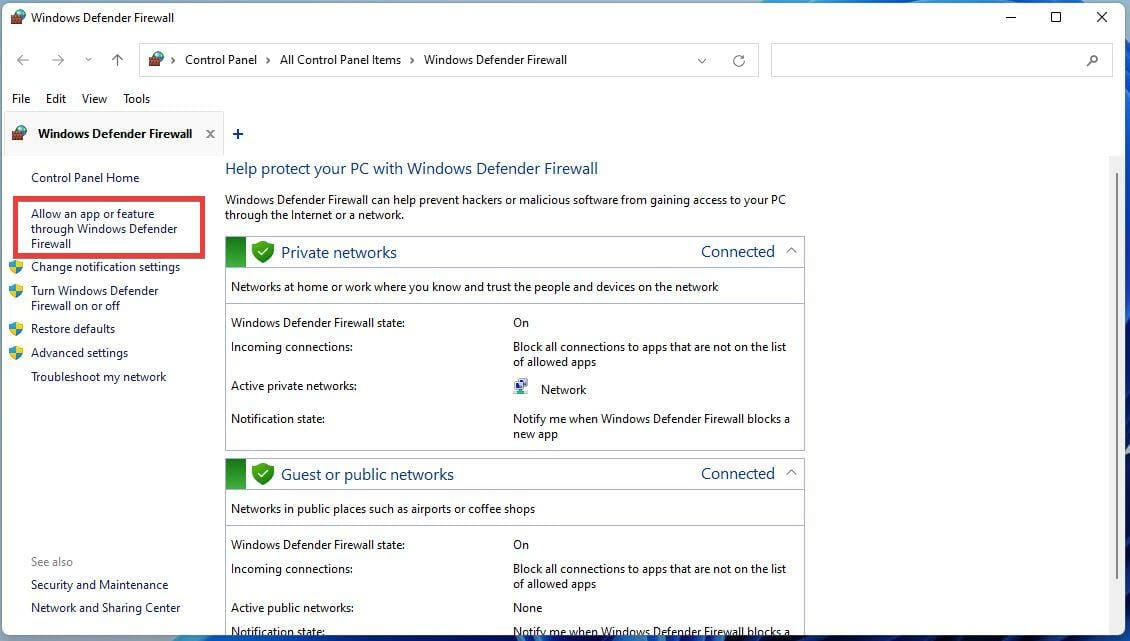
While you’re interested in generating codes, you should also check our best software to create QR codes on your PC and keep up with the trends.
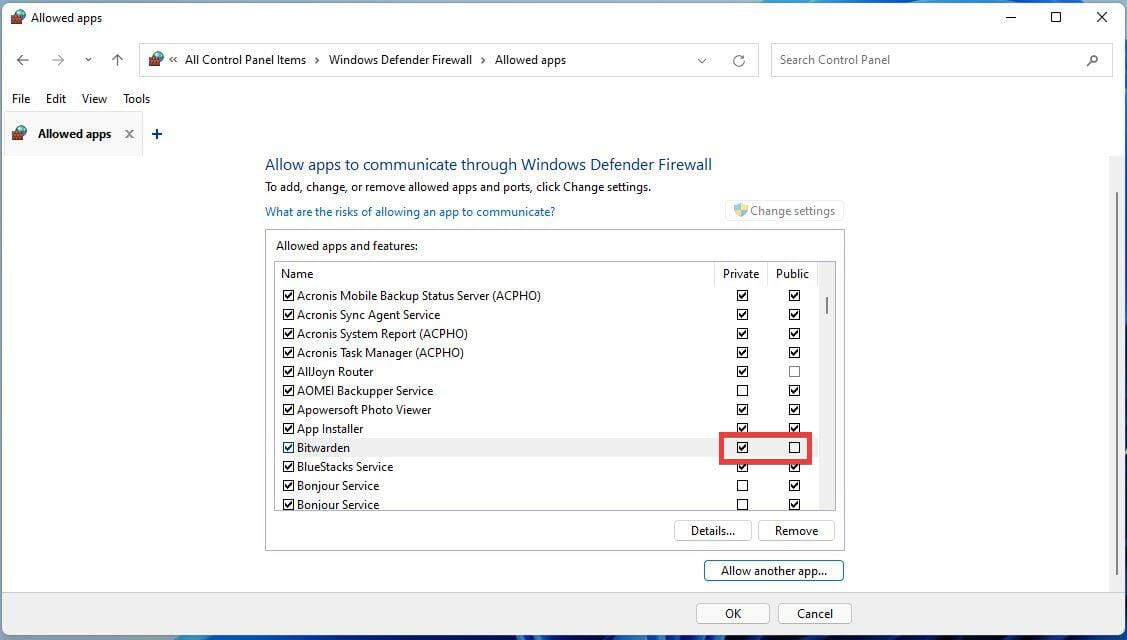
If you don’t want to use specialized software, check out our latest guide to see how to use a barcode generator in Excel.
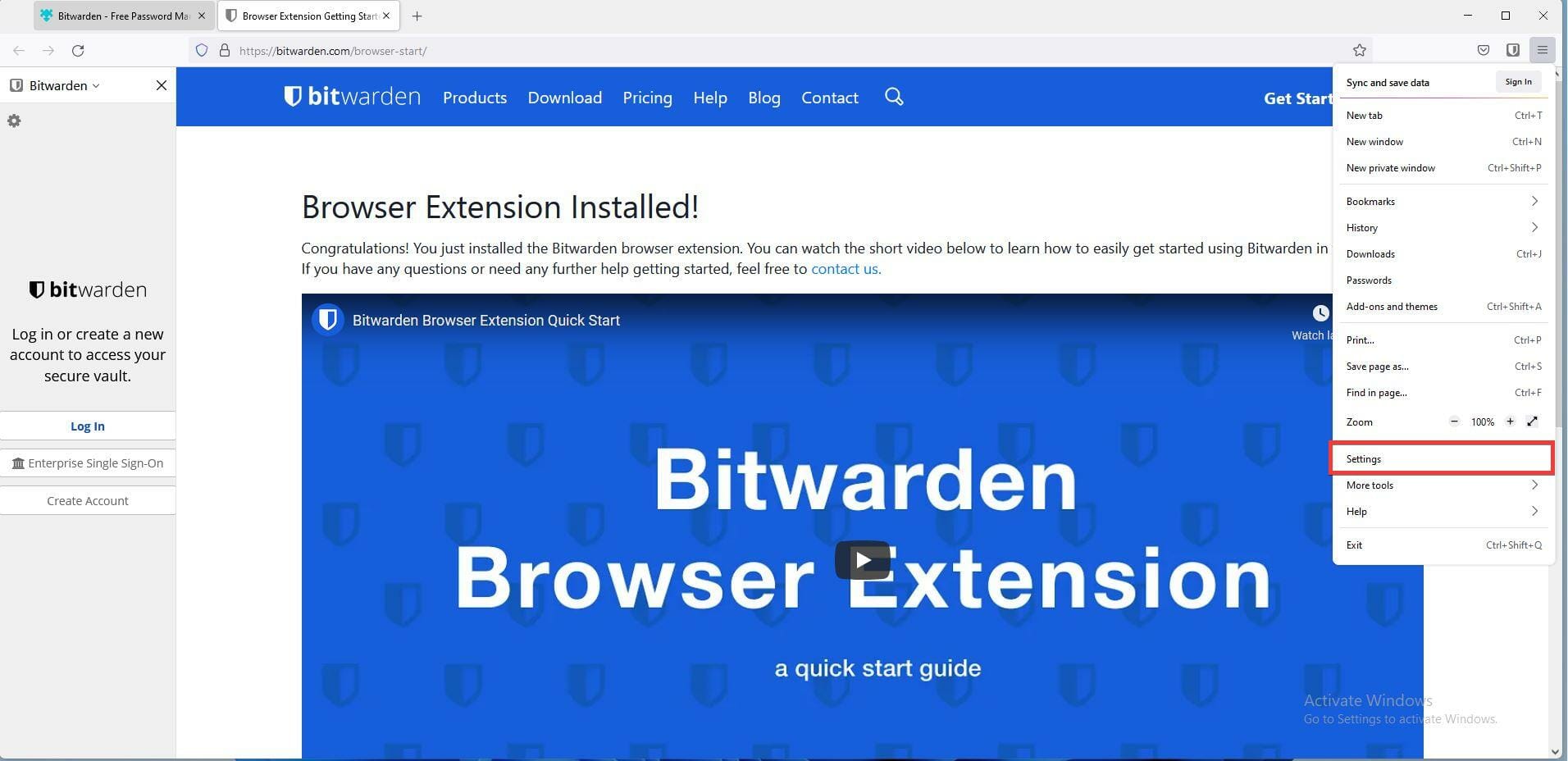
Once you’ve created your barcodes, you’ll need a reliable way to read them. Learn more about the top barcode scanners for Windows 10 that can easily decode various formats and integrate seamlessly with your business or inventory management software.

Have you decided on a product from our list? Do share your choice with us in the comments section below.