5 best laptops under 3lbs [Updated List]

Laptops have become increasingly smaller and more lightweight over the years. Very lightweight laptops are known as Ultrabooks.

Those are laptops that are under an inch thick and typically have 13 or 14-inch displays. Most laptops that weigh in at under three pounds are Ultrabooks.

However, there are also some lightweight 2-in-1 convertible laptops that are lighter than three pounds. Check out these super lightweight laptops.

Deals are subject to change. Sometimes, some of the deals listed in our guides may no longer be available by the time you hit the buy button. So, hurry up and grab them while they’re hot.

What are the best light laptops on the market?

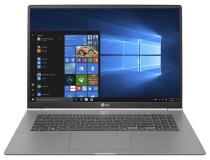
LG Gram 17

  • Plenty of storage space
  • Excellent battery life
  • Expansive QHD 17-inch display
  • Lots of ports
  • Graphical performance isnu2019t great

LG gram 17 is the most lightweight 17-inch laptop in the world. Furthermore, its expansive display also boasts a very decent 2,560 x 1,600 QHD resolution.

The IPS panel covers 95.1 percent of the sRGB color gamut. It’s a quality VDU with excellent colors few Ultrabooks can match.

Aside from its great 17-inch display, the LG gram 17 packs in a 10th generation Intel Core i7 processor, 16 GB RAM, and one TB storage.

Those are pretty solid specs, but its Intel UHD Graphics 620 GPU’s graphical performance doesn’t compare that favorably to the best NVIDIA GPUs.

The portability of the LG gram is enhanced with its terrific battery. The LG gram’s battery can last up to 17 hours. So, this is an ideal choice for users who take their laptops out and about.

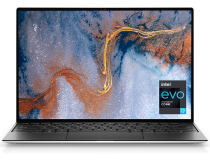
Dell XPS 13 9310

  • Top-notch performance
  • Minimal monitor bezels
  • Quality 4K or Full HD displays
  • An alternative 2-in-1 convertible XPS 13 model is available
  • Long-lasting battery that lasts up to 15 hours
  • Small number of ports

The Dell XPS 13 is among the most high-rated ultraportable laptops, which incorporates a cutting-edge 11th generation Intel Tiger Lake processor that delivers serious performance.

Its best model has 16 GB RAM, expansive one TB SSD storage, and a 13.4-inch display with a great 4K resolution.

As a Dell laptop, the XPS 13 comes with the Dell Mobile Content software. That’s a handy addition for users who need to transfer files from smartphones to laptops with regularity.

Its power button’s integrated fingerprint scanner is also a handy login feature.

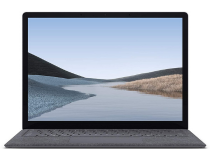
Surface Laptop 3

  • Plenty of storage space
  • Good battery with fast recharging
  • Classy design
  • Sharp QHD (2,496 x 1,664) display
  • AMD Ryzen model delivers superior graphics performance
  • Lacks a Thunderbolt 3 port

Surface Laptop 3 is a good value Ultrabook with an elegant design that’s available with 13 and 15-inch monitors and various color options.

With a 10th gen Intel i7-1065G7 processor, 16 GB RAM, one TB SSD, and an integrated Intel Iris GPU, and QHD display this is a strong productivity laptop.

There’s also an AMD Surface Laptop 3 model that’s better for gaming. That packs in an AMD Ryzen 7 3780U processor and Radeon RX Vega 11 GPU and supports DirectX12 and FreeSync.

Since we’re talking about it, have a look at our comprehensive list of the best FreeSync monitors that you can buy right now.

However, that AMD model weighs a bit more than three Ibs (about a 0.7 Ibs difference with the lighter one).

Another good thing about this laptop is its all-day battery that lasts up to 11 hours. That battery also recharges very quickly. So, you don’t have to wait around much longer than an hour for this laptop to get fully charged.

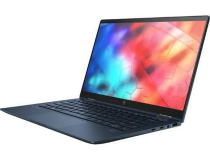
HP Elite Dragonfly

  • Top-notch 4K resolution VDU
  • Decent battery that can last about 12-13 hours without a recharge
  • Fast multitasking performance
  • Good variety of ports
  • Itu2019s quite pricey

The HP Elite Dragonfly is a productivity laptop that’s had rave reviews. Its best configuration has a sharp 4K resolution display with an IPS panel for better viewing angles and colors.

With a 4.6 GHz Intel Core i7-8565U CPU and 16 GB RAM, this laptop can handle heavy multitasking with aplomb.

If you’d like to upgrade your RAM, take a look at our nice list of the best 16 GB RAM you can buy in 2021.

The HP Elite Dragonfly is also a flexible 2-in-1 convertible laptop you can utilize as a tablet. With its 360-degree hinge, users can lie this laptop flat or in its stand or tent mode.

A stylus pen comes included with Dragonfly, which will come in handy for design software.

Razer Blade Stealth 13

  • Includes a dedicated NVIDIA GPU for superior graphics
  • Includes a Thunderbolt 3 port
  • A 4K resolution model is available
  • Can run the best Windows games
  • Minimal bezels
  • Battery life doesnu2019t compare favorably with other Ultrabooks
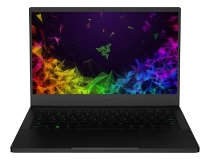
This is the world’s first Ultrabook gaming laptop. The Blade Stealth has a Full HD 13-inch VDU with a fast 120 Hz refresh rate.

It also packs in an 11th generation Intel i7 processor and a GTX 1650 Ti GPU, which gives it better graphical performance than Ultrabooks with integrated GPUs.

This laptop is also compatible with the Razer Core X external graphics thanks to its Thunderbolt 3 port.

Core X is an external graphics card unit you can connect with the Stealth to supercharge it with desktop graphics cards. So, the Stealth is akin to a desktop gaming rig when hooked up with a Razer Core X.

These are some of the best laptops available that are lighter than three Ibs. If you want to check out some beefy laptops, check out this great list of the best gaming laptops on the market.

These options are extremely portable laptops with solid system specs that have great lightweight designs and long-lasting batteries.
Windows 10 2004 drawing app bug has an easy workaround

Despite the many useful features Windows 10 2004 brings, the OS is associated with dozens of update bugs. Some of the issues are so serious that Microsoft put affected PCs on a compatibility hold, effectively preventing them from upgrading to the latest OS version from the company.

A significant chunk of these bugs have something to do with Windows 10 drivers incompatibility.

Still, Microsoft has acknowledged yet another glitch affecting Windows 10 May Update users. While the bug doesn’t block updates, it causes external display issues in laptops and tablets.

Workaround for the Windows 10 2004 drawing app problem

The bug affects Windows 10 2004 devices that have a built-in display, for example a laptop.

So, if you connect your laptop or tablet to an external monitor that’s set to mirror the built-in display, both monitors will have a flickering problem.

More so, the external display goes dark if you try drawing in any Office app. The bug affects MS Word, Whiteboard, and other applications that support drawing.

Additionally, a quick review in Device Manager shows a warning sign next to your graphics controller.

There’s good news for affected users: You can fix the issue by simply restarting your Windows 10 machine.

The external monitor should recover if you restart your device. Microsoft has confirmed that this is a problem in Windows 10 version 2004. We are working to fix the issue in a future version of the operating system.

Plus, Microsoft  said that it’s working to fix the issue. The only not-so-optimistic news coming out of that announcement is that only a future version of Windows 10 can address the bug.

While the external display problem doesn’t prevent users from using their Windows 10 PCs, it seems too severe to fix with a minor update.

What Windows 10 2004 bugs have you encountered so far while using your PC? Feel free to let us know (or ask any questions) via the comments section below.

Windows 10 search for Chrome yields Microsoft Edge promo

There was a time when a browser from Microsoft, Internet Explorer, dominated usage. IE required no aggressive pushing because it faced no serious competition then. Well, things changed, and that isn’t the case with the new Microsoft Edge.

Another browser, Chrome, is the most popular now. So, Microsoft is employing all manner of tricks to bring Edge to the attention of Windows 10 users looking for rival browsers.

Microsoft Edge Windows search promo

According to Bleeping Computer, Windows 10 users are encountering Microsoft Edge ads whenever they try searching for a rival browser. So, when you launch Chrome or another browser by searching it first in Windows 10, you’ll likely get an ad recommending Edge.

This is neither the first nor the last time the Redmond-based tech giant is pushing ads for its new Chromium-based browser to Chrome or Firefox users.

For example, some OneDrive users have been getting a similar promo when they access their accounts via a competing browser. However, at least you can get rid of the banner ad in OneDrive by clicking the close button.

However, there’s no way to remove or close the Windows 10 search Edge ads that Bleeping Computer reported recently. Users have in the past complained about potentially intrusive promos that Microsoft likes to push across its platforms from time to time.

The latest Edge campaign is likely to attract the same negative sentiments, especially if it’s impossible for users to disable or close the ads. Nonetheless, the new Microsoft Edge is much improved, compared to legacy Edge that Windows 10 isn’t supporting.

Microsoft isn’t the only tech company promoting its browser through in-app ads, though. In fact, Google is delivering a similar promo for Chrome to Edge users with Gmail accounts.

As always, feel free to share your thoughts or ask any questions via the comments section below.

Firefox 78 offers a quicker way to reopen closed tabs

Everyone has accidentally closed a web browser tab at some point in their life. It’s easy to make that mistake and close the wrong tab, especially when you’ve got many open tabs. While the ability to reopen closed tabs is not something new, Firefox 78 will change how you can use it.

Firefox 78 offers a quicker way to reopen closed tabs

Firefox 78 will let you open multiple closed tabs by going to the Tab content menu and choosing Undo Close Tabs (via Techdows). You’ll be able to download the browser by June 30, 2020.

It appears that this feature only works after you’ve closed more than one tab using the Close Multiple Tabs submenu. For example, you can close multiple tabs by right-clicking on a tab and selecting Close other Tabs.

If you did it accidentally, you can quickly fix the mistake in Firefox 78 by first right-clicking on the active tab. The context menu that comes up will show the Undo Closed Tabs option. Selecting it reverses the inadvertent closure of multiple tabs.

Any browser feature that fast tracks your access to the web is certainly welcome all the time.

But users have to be moderate with the use of the Undo Closed Tabs update coming with the next version of Mozilla Firefox. It appears that using that capability on too many closed tabs at once can cause the browser to crash.

The latest Firefox browser, version 77, allows you to reopen closed tabs too. But the process is a bit longer.

The version has a host of impressive new features, though, such as the availability of WebRender to more Windows 10 users. Hopefully, the upcoming Firefox 78 improves these native capabilities further.

The ability to reopen closed tabs is not unique to Firefox. Chrome, Chromium-based Edge, Opera and others have it too. So, we created a guide to show you how to do it in these browsers. You can check it out anytime!

In case you have any questions or thoughts about the upcoming Firefox 78 or any other browser, you can always reach for the comments section below!

[wl_navigator]

Intel working to fix Windows 10 2004 Optane memory bug

Windows 10 2004 finally came out on May 27 with plenty of new features. It introduced a much-revamped Cortana app with enterprise-oriented capabilities, reserved storage improvements, and even the ability to troubleshoot your PC in safe mode by signing in via Windows Hello.

But Windows 10 2004 installation didn’t go smoothly for some users. Multiple issues caused (and still are causing) update failure, with Microsoft putting many of the affected devices on a compatibility hold.

An Intel Optane memory is the latest to affect users of the Windows 10 May 2020 Update.

According to Windows Latest, the microchip maker acknowledged the existence of the compatibility issue.

Intel to fix the Windows 10 2004 Optane memory issue

An Intel spokesperson who spoke with Windows Latest confirmed that the company, in partnership with Microsoft, is developing a solution.

On May 31, 2020, Microsoft acknowledged the problem after a user had tweeted about it.

The company confirmed the likelihood that the Intel Optane may be incompatible with the May 2020 update. It also suggested to the user that installing the latest Intel driver for the hardware might help.

According to Intel, it appears the Optane memory compatibility issue hasn’t affected a lot of users, though.

The company’s spokesperson added that users of Optane SSDs or server products didn’t experience the issue.

As a rule of thumb, you can always uninstall any application that causes compatibility problems with otherwise healthy hardware or hardware drivers. That can be an option as you wait for Intel and Microsoft to roll out a permanent solution.

Alternatively, users that have noticed an Optane M10 or H10 issue after updating to Windows 10 2004 can try to repair the system.

To do that, go to Programs and Features and choose Intel Optane Pinning Explorer Extensions. Next, click Repair.

Have you encountered any driver compatibility issue while updating to Windows 10 2004? You can always share your experience in the comments section below.

[wl_navigator]

Microsoft offers free Samsung Galaxy Watch Active 2 when you purchase a discounted Galaxy Note10

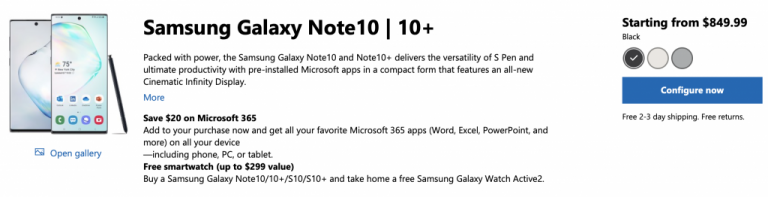
The US Microsoft Store is currently offering a free Samsung Galaxy Watch Active 2 with every purchase of a Galaxy Note 10 smartphone (via SamMobile). The offer is available with both the 6.3″ Note10 and 6.8″ Note10+ devices, and you will get a $279 Galaxy Watch Active 2 absolutely free of charge.

In addition to the pretty hefty freebie, the Samsung Galaxy Note10 is now available starting at $849 with 256GB of storage, while the Galaxy Note10+ starts at $999 for the 256GB version. These smartphones are currently available in Aura Glow, Aura White, Aura Black colors, and we invite you to check the Microsoft Store listing to make your choice.


Samsung Galaxy Note10 series deal

Smartphones aren’t exactly front and center on the Microsoft Store, and Microsoft is actually only selling Samsung phones as of this writing. The Korean company has a special partnership with Microsoft, with the premium Galaxy smartphones enjoying an exclusive “Link to Windows” feature that makes interacting with a Windows 10 PC really seamless.

Do you think this deal a good opportunity to make the jump to a Galaxy Note10, or is a free smartwatch not enough to tempt you? Sound off in the comments below.

Green Browser: Here’s everything you need to know

The history of web browsers is quite rich, and while today’s market is dominated by a couple of browsers, in the past there were more viable solutions.

One such browser is the Green Browser, and in today’s article, we’re going to show you some of its features and let you know if the browser is still viable.

What is Green Browser and should I use it?

1. What is Green Browser?

greenbrowser main window

Green Browser was made by a Chinese company, quicker and it’s based on Internet Explorer’s Trident rendering engine.

One highlight of this browser is its low memory requirement, so it should work on any older PC. The browser is similar to Maxthon and some of Maxthon addons will work with Green Browser.

The browser supports mouse gestures and it has its own adblocker. Thanks to the collector feature, you can easily save snippets of text from pages for later use.

Additional features include a page manager, a quick menu for elements, and a floating video player that stays on top of other applications.

Green Browser is discontinued and the latest version was released in December 2016.

⇒ Get Green Browser

2. What are Green Browser alternatives?

Green Browser uses Trident’s rendering engine which is outdated by today’s standards, and since the application is discontinued, it’s vulnerable to attacks.

This is why a browser such as Opera would be a better choice. Opera is humble in terms of requirements, so it should be able to handle any website.

The browser also has a built-in ad blocker, as well as tracking protection that will block tracking scripts and cookies, and make web pages load faster.

For an extra layer of protection, there’s a built-in VPN that you can use. The VPN is completely free and it offers unlimited bandwidth.

Additional features include a pop-out video player, the ability to take screenshots, integrated messenger and Instagram, the ability to organize tabs into workspaces, and much more.

Opera

An excellent web browser that offers many useful tools, including the ability to save and print your web pages.

Green Browser had its place in the early 2000s, but nowadays, it has been completely outperformed by Opera and all other modern web browsers.

Xbox One bundles make use of new “Digital Direct” feature to redeem free content

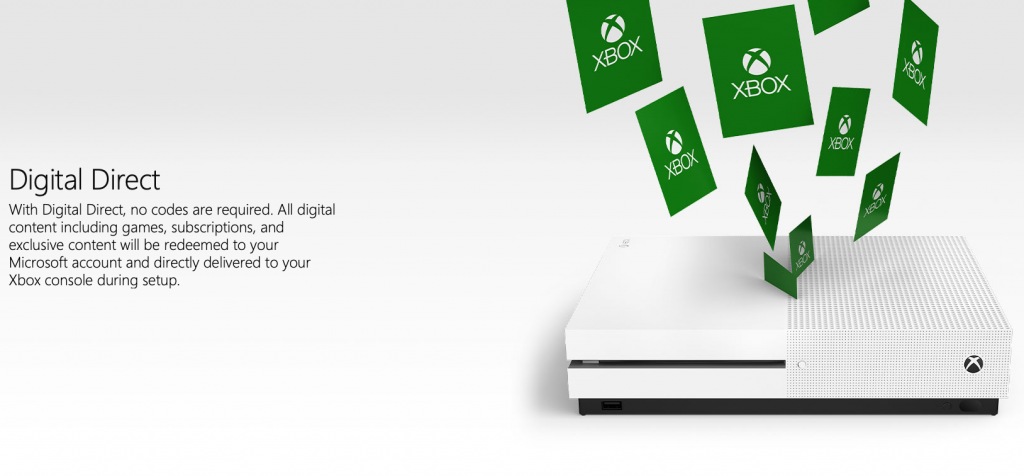
It seems that Microsoft may soon stop including digital codes to redeem free content in Xbox One bundles. Instead, the company has debuted a new “Digital Direct” feature that allows consumers to redeem all digital content included with an Xbox One bundle during the setup process.

This new Digital Direct feature recently spotted by consumers who purchased the Limited Edition Xbox One X Cyberpunk 2077 bundle (via Thurrott.com). As the game won’t be released until September, consumers can already use Digital Direct to redeem the game by signing in with their Microsoft account after booting up the console.

No More Digital Codes With Console Bundles, First Account Linked To New Xbox Gets License from xboxone

Microsoft explains this new Digital Direct feature on this page, though Brad Sams from Thurrott.com reported on it first back in December 2018 when it was codenamed “Roma.” While this new feature is more convenient for consumers, it’s also less flexible than digital codes that used to be included in Xbox One bundles: With Digital Direct, all digital content (Games, Xbox Game Pass and Xbox Live Gold subscriptions) included in an Xbox One bundle will be attached to the first Microsoft Account that redeems it. In other words, you can no longer gift this content to friends, as you could do with digital codes.

It’s not clear if all Xbox One bundles now use Digital Direct to redeem free content instead of digital codes. Anyway, all Xbox One bundles are currently sold out on the Microsoft Store, and the  45,000 units of the aforementioned Limited Edition Cyberpunk 2077 bundle sold out really quickly.

Lunascape browser for Windows 10: What you need to know

The browser market is dominated by major web browsers, but there are many lesser-known web browsers that offer some amazing features.

One of these browsers is Lunascape, and in today’s article, we’ll take a closer look at its browser and see how it compares to modern browsers.

What is Lunascape browser and should I use it?

1. What is Lunascape?

Lunascape was first released in 2001, and unlike other browsers, it used not one but three rendering engines. This was an amazing feature since it allowed you to switch the rendering engine on the fly.

Of course, an option for auto-switching was available as well, so the browser would always choose the most suitable rendering engine for a specific website.

The browser has the ability to display tabs in multiple rows, as well as support for mouse gestures. It’s also worth mentioning that the browser has a wide array of tab management features.

Overall, Lunascape offers some interesting features, but the browser hasn’t been updated since 2018.

⇒ GetLunascape

2. Should I use Lunascape?

lunascape browser for windows 10

Lunascape gained popularity with its ability to switch the rendering engine on the fly. In the past, not all browsers followed the same standards, so the ability to switch rendering engines was more than useful.

Nowadays, browsers follow web standards more closely, so there’s no need to focus on rendering engines. The largest problem of the modern Internet is security, and this is where Opera One shines.

Opera One has its own tracking protection, so it will block tracking cookies and scripts and make your web pages load faster. In addition, Opera One has a built-in ad blocker and an AI.

For more security, there’s a free VPN with unlimited bandwidth available. Other features include the ability to organize tabs into workspaces, a pop-out video player, and instant messenger integration.

Opera One is built on the Chromium engine, so it supports Chrome extensions, and with availability on all mobile and desktop platforms, there’s no reason not to try it.

Opera One

Go for a web browser that is fast, secure, stable, and built using the best engine available: the Chromium engine
Free Download Visit website

Lunascape was a great browser in the early 2000s, but after browsers started following web standards more closely, Lunascape was replaced and forgotten.

Have you ever used Lunascape before? Let us know in the comments section below.

FIX: Visit google.com/device and enter this code

Certain devices can give you a message saying Go to google.com/device on any browser and enter this code.

This message isn’t anything to worry about, and today we’ll show you what to do if you encounter it.

How do I fix google.com/device code message?

1. Follow instructions in the message

  1. Go to google.com/device page.
  2. Now enter the code that is displayed on your device and click Next.
    connect a device connect to device google.com/device on any browser and enter this code
  3. After doing that, your account should be verified and ready to use.

Go to google.com/device on any browser and enter this code message is just a security feature that will protect certain devices and services. It works as a two-factor authentication of sorts.

By entering this code on Google’s device page, you’ll confirm the authenticity of your account and you’ll be allowed to log in.


Although you can do this in any web browser, we’d recommend using Opera One. The browser has its own ad blocker that will block ads and tracking scripts and make websites load faster.

The browser also has a VPN that can be used for circumventing geo-restrictions or as an extra security layer. Of course, the VPN is completely free and it offers unlimited bandwidth.

Opera One is also light on your resources, so it should be able to handle any task with ease. The browser also has the ability to organize tabs into workspaces, and there’s even a built-in messenger and AI.

Opera One is built on Chromium engine, and it works with Chrome apps, so if you’re using any Google device, Opera One will be the perfect choice for it, so feel free to try it.

Opera One

Enter your codes safely knowing that your data is protected by several layers of protection.
Free Download Visit website

Go to google.com/device on any browser and enter this code is just a security measure, and we hope that you understand better why this message appears and how to handle it after reading this article.

Windows 10 news recap: Xbox app could add mod support for PC games, Xbox Game Bar adds support for third-party widgets, and more

Welcome back to our Windows 10 news recap, where we go over the top stories of the past week in the world of Microsoft’s flagship operating system.

Microsoft’s GroupMe app updates on Windows 10 devices with support for Dark Mode

The GroupMe app on Windows 10 has received a new update that adds support for dark mode, allowing it synchronise with your system-wide setting for the theme.

Microsoft GroupMe app icon.

Xbox app on Windows 10 shows traces of incoming mod support for PC games

The new Xbox app on Windows 10 has been found to show traces of mod support for PC games arriving in the future, such as enabling easy access to a game’s mods folder.

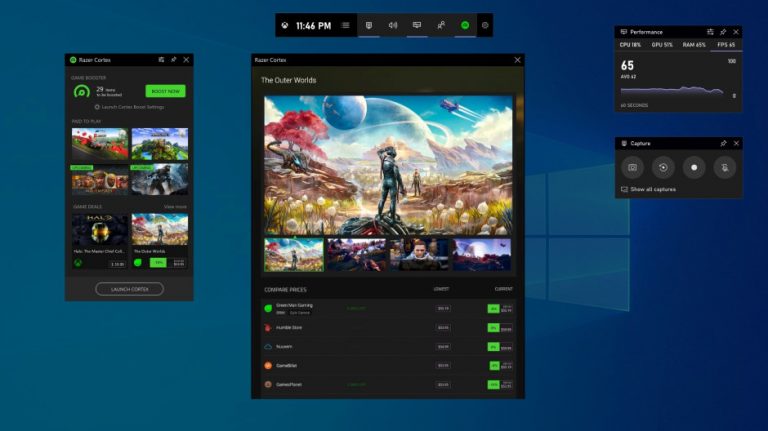
Xbox Game Bar on Windows 10 now supports third-party widgets

Those looking to customise their Xbox Game Bar experience on Windows 10 can now do so, thanks to the support of third-party widgets. A new Widgets Store provides access to the available widgets, including some from Razer and XSplit.

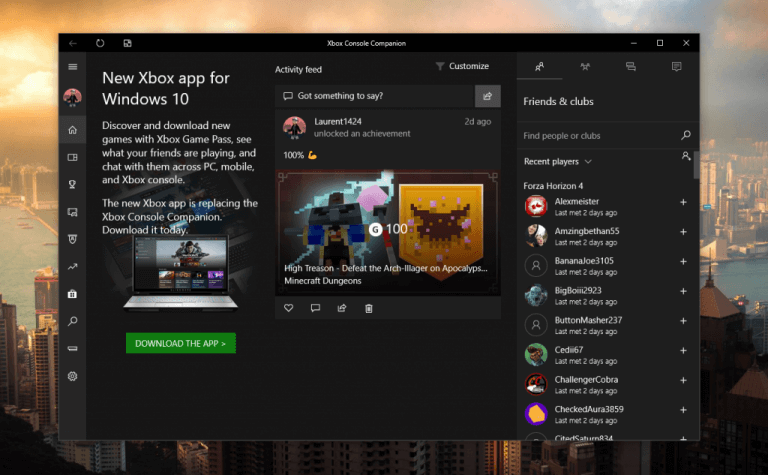
Xbox Console Companion UWP app to be replaced with the new Game Pass-focused Xbox app

The Xbox Console Companion app on Windows 10 is set to be replaced shortly by the newer Xbox app, which focuses more on Xbox Game Pass.

That’s it for this week. We will be back next week with more Windows 10 news.

Microsoft Teams free lifts meeting length and size limit

Between now and when COVID19 became a global menace, Microsoft Teams has undergone a significant transformation.

As over 44 million people sign into the Office 365-powered tool daily, Microsoft has been improving it to empower millions of remote workers that can no longer report to their former physical offices.

For example, the platform’s Meetings feature has expanded in capacity to support up to 250 participants per session. At the same time, Microsoft is working to extend that limit to 300.

However, only paying customers have been leveraging the best of Microsoft Teams features, including Meetings. That’s set to change with the Redmond giant rolling out extra features to Teams free users.

Microsoft Teams lifts meetings length restrictions

For now, Microsoft Teams free users can have meetings of any length and size on the platform. Microsoft said it made that change in response to the corona virus pandemic.

Significant benefits that started rolling out to Teams free users on June 2, 2020 include the ability to create Meetings.

As such, any number of non-paying users can now set up and hold video or audio conferencing sessions in Teams.

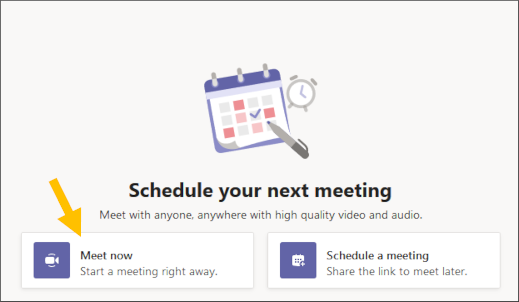
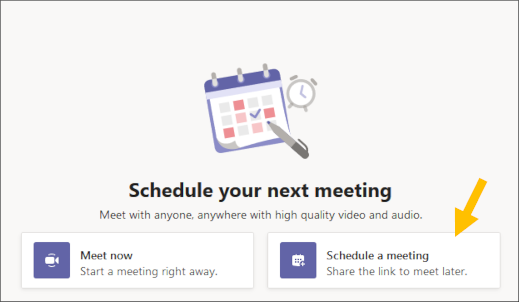
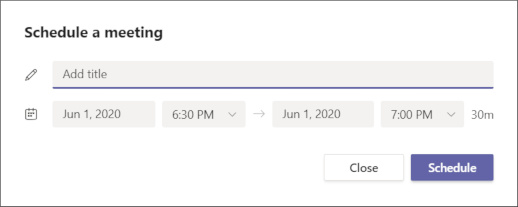
Not only can these users create instant meetings, but they can also schedule future conferencing events.

Similarly, you can share the content on your screen with others for free. That may include a specific app window, the entire desktop, or a PowerPoint file.

However, it appears that Microsoft hasn’t removed storage restrictions in place for Teams free users.

The non-premium version allows up to 2GB per user and 10GB in the event of shared storage. This limitation can impact the ability to store recorded Meetings sessions.

Nonetheless, this move by Microsoft may pay back when more users upgrade to the commercial version of Teams after sampling some of its premium features.

What do you think of the extra Microsoft Teams free features now available to users? You can always reach for the comments section below to share your thoughts or ask any question.

[wl_navigator]

Microsoft Edge supports controversial deep-linking feature

Back in February, Google announced it was implementing a feature called scroll to text fragment in Chrome. The capability debuted with version 80, before several other Chromium-based browsers followed suit, including Microsoft Edge.

Scroll to text fragment allows developers or website owners to deep link a text snippet in the URL to any part of a web page.

When the user clicks this type of link, it leads them to a specific block of text or phrase on the target web page. This way, deep-linking lets web visitors navigate to what they’re after much faster.

Scroll to text fragment works in Microsoft Edge

Recently, the folks at Techdows experimented on the deep-linking feature in Microsoft Edge. They found that the capability is supported in the new Chromium-based browser.

However, it appears that the implementation of scroll to text fragment in Edge isn’t perfect yet.

It is surprising to learn that Scroll to Text Fragment works in the New Microsoft Edge browser, but Google search isn’t creating Scroll to text links for featured snippets in the Edge browser and that’s why Edge is also not highlighting text on websites when a user comes from by clicking a featured snippet.

The main issue is that Google search isn’t generating deep links for featured snippets in Microsoft Edge.

So, when you click a featured snippet, Edge will not highlight the intended block of text or phrase on the target web page.

Why scroll to text fragment is controversial

Right now, Chrome, new Microsoft Edge, and Opera are some of the browsers that support scroll to text fragment. But Firefox isn’t joining them anytime soon.

Those opposed to deep-linking argue that the capability is open to abuse. For example, a bad actor may send such links to a web page looking to retrieve potentially confidential data or information.

What’s your take on the user privacy issues stemming from deep-linking browser capabilities? You can always ask any question or share your thoughts in the comments section below.

[wl_navigator]

Microsoft Edge popup banners appear in OneDrive

Most stats put the market share for Microsoft Edge somewhere between 4% and 6%. Chrome continues to lead by more than 60%.

It’s, therefore, easy to understand why Microsoft is aggressively pushing Edge on people that use rival browsers.

Already, some Windows 10 Search users have reported seeing a message that encourages them to try the new Microsoft Edge.

Microsoft isn’t stopping there. The company is now promoting the browser to OneDrive users, according to a report by Windows Latest.

OneDrive users now targeted with Microsoft Edge messaging

Microsoft is doing a great job with the features it keeps adding to Edge. For instance, automatic profile switching is ideal for users with multiple profiles (such as work and personal).

Also, along with other Chromium-based browsers, Edge recently received a built-in spellchecker. The browser should naturally appeal to more users with all these feature enhancements it’s getting.

But Microsoft also wants to use free advertisement to grow the popularity of Edge.

So, next time you sign into OneDrive, you might encounter a banner message talking up several Microsoft Edge qualities. It appears that Microsoft is delivering the messaging to users of Chrome and other browsers.

The banner has a link you can click to download the Chromium-based browser.

According to Windows Latest, you can quickly get rid of the massage by clicking on the X button.

The Chromium-based browser started rolling out in January 2020, and it still has a long way to go before catching up with industry leader Chrome. For starters, it has to wrestle some market control from the hands of its closest rival, Firefox.

Chrome may be at the top, but Google isn’t sitting pretty either. You can tell that from the Chrome promotions the company is pushing on Gmail users accessing their accounts via Microsoft Edge.

Are the many browser options available today too confusing? Have you chosen your favoriteyet? As always, you can let us know in the comments section below.

[wl_navigator]

Microsoft Edge users encounter Chrome ads in Gmail

The entry of the new Microsoft Edge browser is neither the beginning nor the end of browser wars. But it’s certainly an escalation of long-standing tech rivalries.

Such competition comes in different shapes and forms, with each browser company unleashing its most effective weapon to expand its market share.

A perfect case in point is the ongoing Google Chrome ad campaign targeted at Gmail account owners using Microsoft Edge.

Gmail alerts recommend Chrome to Microsoft Edge users

Google has been pushing Chrome ads to Gmail accounts accessed via Edge for a while now.

Probably, after signing into your Gmail account in Microsoft Edge for the first time, you’ve encountered this notification from Google:

Google recommends using Chrome. Try a fast, secure browser with updates built in.

This particular recommendation gives you the option to not switch to Chrome. But if you click Yes, you’re redirected to a page where you can download the browser.

You might be in for a shock if you thought Google was going to end these Chrome promotions targeted at Edge users any time soon.

The company is now delivering similar recommendations via its email security alarm system. When you sign into Gmail on Windows (in Edge) from a new PC, you may receive this promotional message:

Make the most out of Windows 10 with the Chrome browser. Chrome is a fast, simple browser built for the modern web.

While it’s difficult to work out the exact number of users of each desktop browser, most stats point toChrome as the market leader. Mozilla Firefox and Microsoft Edge come at a distant second and third respectively.

As such, Edge doesn’t begin to threaten Chrome’s dominance. But the aggressive nature of Chrome promotions indicate that Google is not taking its browser’s supremacy for granted.

Likewise, Microsoft Edge has a similar campaign via Windows 10 Search. The company has also targeted Firefox users with Edge ads.

What’s your take on the ongoing Microsoft Edge, Chrome, and Firefox market rivalry? Feel free to share your thoughts in the comments section below.

[wl_navigator]

WiFi packet loss: What is it and how to fix it?

Using wireless Internet connections is becoming increasingly popular. The main reason is obviously, a wire-free environment. Although more efficient, wires can quickly clutter a place, or at least make it seem that way.

More so, routers are able to accommodate many wireless devices. More than the Ethernet ports on its interface, anyway. And the fact that you can use it on a wider variety of devices makes it even more convenient.

However, using wireless certainly has its downsides, which we’ll discuss briefly in the following sections.

Pros and Cons of WiFi

Pros:

  • It can accommodate a large number of devices
  • You can use it on multiple device types (phones, consoles, tablets)
  • Reduces cable cluttering

Cons:

  • Slower connection speeds
  • Interference
  • Prone to being hacked (wireless passwords can be cracked)
  • Packet loss

What causes WiFi packet loss?

The most common cause of packet loss is network congestion. Therefore, if there are more than just a few devices connected to your wireless network, you might need to do a bit of network management.

However, there can be other causes, as well. For instance, your router might broadcast a weak signal or your ISP might throttle your bandwidth to minimize its costs.

Packet loss WiFi fix

1. Use a VPN

  1. Download Private Internet Access on your PCprotect your data with Private Internet Access
  2. Install it
  3. Launch it
  4. Log into your account
  5. Connect to the server of your choice
  6. Check if the problem still persists

Private Internet Access is an excellent VPN service brought to you by Kape Technologies. It’s a great privacy service that passed all of our tests with flying colors. It has a broad range of servers you can connect to and 24/7 live chat support.

Private Internet Access

Private Internet Access

Experiencing WiFi packet loss? PIA may be of help.
$2.85/mo. Buy it now

Using a VPN can do a huge difference if your ISP is ill-intentioned and limits your bandwidth. However, there’s not much a VPN can do if you have hardware issues, your network is overloaded, or the destination server is faulty.

2. Troubleshoot your connection

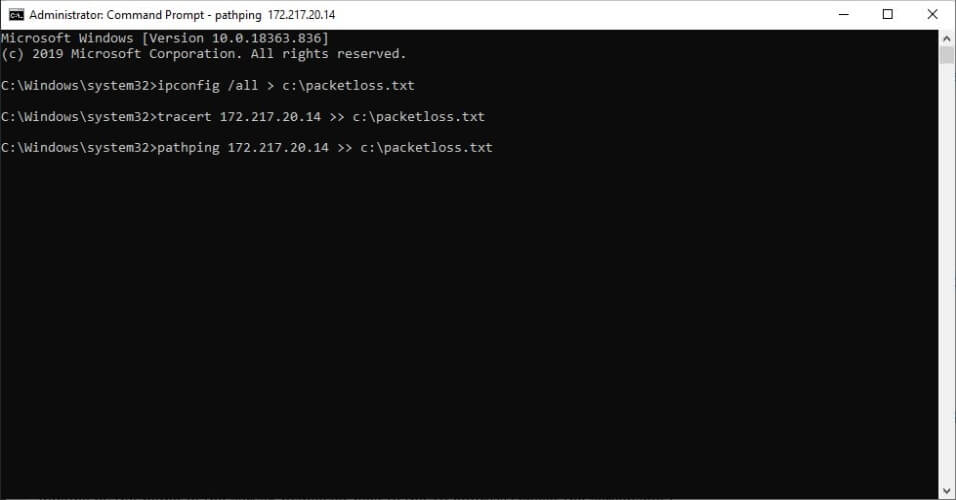
  • Use our guide to help you run a packet loss testPacket loss analysis Windows with tracert and pathping
  • Identify the troublesome hops on your network
  • Take the corresponding measures depending on the test results

As we’ve said above, more often than not, WiFi packet loss occurs due to network congestion. Thus, there’s nothing much you can do about it, especially if you’re not the network admin.

However, after you run the packet loss test, you can try one of the following suggestions:

  • Fix/upgrade/update/repair/replace any faulty component on your network (PC, router, cables)
  • Call your ISP and ask them to fix the issue if the problem’s on their side
  • Ask your ISP to contact the network distribution company
  • Contact the destination server’s owner (e.g. game server owner, customer support)

When everything else fails, switch to wired

Although this article is supposed to help you bypass WiFi packet loss, the truth is that switching to wired (if and when possible) is the greatest way to avoid this unwanted phenomenon.

Alternatively, you can try using a VPN if you suspect your ISP of foul play, try our suggestions above, or even perform a bit of network management if you have administrative rights over your network.

TF2 packet loss: What is it and how to fix it?

TF2 (Team Fortress 2) is the sequel of one of the most popular Valve games: Team Fortress Classic. You know how they say sequels are usually awful? Team Fortress 2 is one of the exceptions that shattered the standards quite remarkably.

If you’re not familiar with TF2, the principle is quite simple. You get two teams, a red one and a blue one. Each team holds up to 16 players. You can choose from 9 classes, and each comes with its own awesome set of skills.

Then, depending on the game mode, you compete with the opposing force (pun intended). In some games, you’ll need to push a little cart to its destination, while in others you’ll just engage in mindless fragging ’til you drop.

It’s sheer fun, combined with a lot of tongue-in-cheek humor. If dying in games gets you all worked up, it’s better if you steer away from TF2.

Now for some less pleasant stuff. Since it’s an online game, TF2 faces the same challenges as any other similar game/service. That means high latency, packet loss, jitter, or even connection timeouts.

What is packet loss in TF2?

Packet loss is, generally speaking, one of the worst things you could experience while playing a game. Or using VoIP. Or streaming multimedia content. Essentially, it happens whenever data packets you send/receive never make it to their destination.

This can affect your game experience dramatically since packet loss can cause further issues such as lagging, rubberbanding, crashes, or connection timeouts. And in a beautifully-chaotic game such as TF2, every frame counts if you aim to win.reduce ping in Team Fortress 2 with VPN
The good news is that more often than not, packet loss in TF2 comes and goes. Meaning that it usually fixes itself with no additional assistance from you. And that’s also the bad news, as it means there’s no magic fix.

The most common cause of packet loss in TF2 is network congestion. There are way too many players that the servers can’t easily accommodate. Thus, at times, you might experience packet loss because of that.

However, in some cases, the packet loss might have a more specific cause. And the reasons here vary wildly, from bad Ethernet cables to ISP throttling and TF2 server-side problems.

How to fix packet loss in TF2?

1. Use a VPN

  1. Download Private Internet Access and install it on your PCPIA VPN
  2. Launch it and log into your account
  3. Connect to the server of your choice
  4. Run TF2 and check if the issue still persists

Private Internet Access is a great all-round VPN service from Kape Technologies. It can help you tackle a lot of challenges such as enhancing your privacy, securing your connection, removing geo-restrictions, and sometimes even bypassing packet loss.
Private Internet Access

Private Internet Access

Losing packets in TF2? PIA could help you out.
$2.85/mo. Buy it now

However, note that there’s no guarantee that using a VPN will work for you. VPNs can only bypass packet loss if the issue is on your ISP’s side. Thus, if you leak packets on your home connection or if the TF2 servers have some issues, using a VPN won’t work.

2. Troubleshoot the connection manually

  1. Use our guide to run a packet loss test on your connectionPacket loss analysis Windows with tracert and pathping
  2. Determine which hop leaks packets
  3. Take the necessary actions, depending on your findings

Therefore, you can experience packet loss in four different locations. Preferably not at the same time. Namely:

  • Your home network (PC, router, cables, home line)
  • ISP’s network
  • The servers of the network distribution company
  • TF2 game servers

Depending on the location of the leak, you might need to perform some of the following actions:

  • Check/repair/upgrade/update any faulty components on your side
  • Give your ISP a call if you notice anything wrong with their servers
  • Ask your ISP to contact the network distribution company
  • Contact Valve if you notice that the TF2 server is troublesome

Packet loss in TF2 can be fixed most of the time

Long story short, if you’re experiencing packet loss in TF2, you can usually fix it. Most of the time network congestion is the culprit, and all you have to do is wait.

However, in certain situations, the causes can be quite specific and might require you to step in. Last, but not least, even though using a VPN to bypass packet loss might not work all the time, it’s still good practice to invest in a trustworthy VPN such as PIA.

[wl_navigator]

AWS and Slack integrate as rivalry with Teams intensifies

AWS and Slack recently announced an expansion of partnership on cloud technologies and workforce collaboration tools. Microsoft’s Azure is Amazon Web Services’ chief rival, while Slack takes on Teams.

Their rivalry just soared a notch higher with the latest announcement.

AWS and Slack join hands to thwart Teams

Amazon and Slack hope to expand their enterprise customer base with collaboration on technologies like AWS.

Slack will be leveraging Amazon Chime, an AWS-based business communications service.

It’s not difficult to see what Slack is going for here—the global reach, availability, and low-latency benefits of the AWS infrastructure.

“Slack and AWS will strategically partner to help distributed development teams communicate and become more efficient and agile in managing their AWS resources from inside Slack. Slack will migrate its Slack Calls capability for all voice and video calling to Amazon Chime.”

They key integrations the two companies announced are:

  1. Amazon Chime to integrate with Slack Calls
  2. AWS Key Management Service integrates with Slack Enterprise Key Management (EKM)
  3. Slack taps leverages AWS Chatbot
  4. Slack integrates with Amazon AppFlow

Competing with Teams is no walk in the park for Slacks

Competing with Microsoft is always a daunting task, especially if the competitor is a smaller company like Slack.

Slack’s strategy involves cranking up third-party app integrations to cater to all the needs of its enterprise customers. On the other hand, Microsoft’s Office 365, which powers Teams, is a one-stop shop with unrivalled breadth and depth.

In other words, for pretty much any single thing Slack brings in from outside, Teams can get it internally.

For example, as Slack integrates with AWS Chatbot, Teams has the Azure bot service at its disposal.

That’s not to say the Slack’s strategy is not working. Instead, it means that Slack has to worry about things like extra costs that come with all these third-party app integrations.

Nonetheless, Slack should be fine if any new partnerships don’t result in extra costs for its customers.

So, what do you think about AWS /Slack integration? Feel free to let us know in the comments section below.

[wl_navigator]

How to set the dark theme in the new GroupMe for Windows 10

GroupMe is a simple chatting app for Microsoft’s platform. You to create chat groups, by adding your friends via their email or mobile phone number.

It’s still favored by college folk all over the US for being that straight forward and simple.

Although the mobile versions of GroupMe got a dark theme years ago, the Windows 10 version somehow was left out. Until now!

How can I change GroupMe to a dark theme?

Well, the good news is that you don’t need to get any programming or hacking done because it’s a clickable option available in the new version, 2.44.7.0.

It’s pretty easy to do if you follow these exact steps:

  1. Open GroupMe and click on the Settings button, the cogwheel from the bottom left corner of the window.GroupMe settings
  2. Click on the box under the App Theme option at the top of the Settings list. Right now, the theme is set to System Default.Groupme app theme
  3. You have two other options, the Light and the Dark. You select the latter, of course.Groupme select dark
  4. After you select the Dark theme, you will see a message under it that prompts you to restart the app if you want for the changes to take effect. Do so.Groupme restart app message
  5. After the restart…Darkness! Enjoy!Dark theme in Groupme

How can I change the system theme to dark?

Without any changes, the GroupMe theme is set to System Default. That means that if your system is set to Dark, the new GroupMe will also start with a dark theme.

If you want to change the systemwide theme to dark, follow the next steps.

  1. Type dark mode systemwide in Windows search and click on the setting from the results.Change to Dark mode systemwide
  2. Click on the box under Choose your color and select Dark. In just a few seconds, you will have your Windows 10 with a dark theme.Change the setting to Dark

Are you a dark mode fan? Do you use GroupMe? Leave us your thoughts in the comments section below.

[wl_navigator]

PowerToys for Windows 10 gets several bug fixes with latest update

Microsoft has released a new version of PowerToys for Windows 10 with a couple of improvements and bug fixes. The version 0.18.12 of the app specifically addresses a few glitches that affected PowerToys Run, the new search tool similar to macOS’ Spotlight feature that was introduced in the version 0.18 last month,

Microsoft stated that you need to reset PowerToys Run’s app data to apply some of the bug fixes. To do this, head over to the PowerToys Run folder on your PC “%localappdata%/Microsoft/PowerToys/PowerToys Run”, and then delete all the content of this folder.


Here’s the full list of improvements and fixes in PowerToys version 0.18.2:

  • #3223 – [Launcher, Tracker] doesn’t find some apps (file explorer, windows terminal,…)
  • #3180 – PowerToys run shows Notepad en Notepad++ twice
    • This is partially fixed, will be fully fixed in 0.19
  • #3599 – Does not find Evernote
  • #3532 – No camera in run
  • #3215 – When PowerToys is running as administrator, everything Run launches is also ran as administrator
  • #3646 – PowerToys Run shows no files or folders when running in admin mode

Microsoft brought back PowerToys last year to give power users new tools to be more productive on a Windows 10 PC, and team working on it has been iterating pretty fast so far.  For anyone interested in learning more about the latest version, we invite you to check out the official GitHub page.

Windows Update cannot currently check for updates [Full Fix]

Serious issues with Windows Update can sometimes occur, even if you’re expecting the best when a new version becomes available.

Many users reported Windows Update cannot currently check for updates because you must first restart the computer so that a previous installation can be completed message on their PC.

This message can be quite problematic, and in today’s article, we’ll show you how to fix it.

How can I fix Windows Update cannot check for updates?

  1. Edit your registry
  2. Make sure that your date and time are correct
  3. Make sure that the necessary services are running
  4. Delete the corrupted Windows log file
  5. Reset Windows Update components
  6. Run Windows Update troubleshooter
  7. Install the update manually
  8. Perform an in-place upgrade

1. Edit your registry

  1. Press Windows Key + R and enter regedit. Press Enter or click OK.
    Windows Update cannot currently check for updates because the service is not running
  2. When Registry Editor opens, navigate to ComputerHKEY_LOCAL_MACHINESOFTWAREMicrosoftWindowsCurrentVersionWindowsUpdateAuto Update in the left pane. Now right-click Auto Update key and choose Export from the menu.
    Windows Update cannot currently check for updates because updates on this computer are controlled by
  3. Enter the desired file name, choose a save location, and click the Save button. In case anything goes wrong after modifying the registry, you can always run this file in order to restore it.
    Windows Update cannot currently check for updates because the service is not running
  4. Expand the Auto Update key in the left pane and search for the RebootRequired key. If this key is available, right-click it and choose Delete from the menu. When the confirmation dialog appears, click Yes.

According to users, sometimes the Windows Update cannot currently check for updates message can appear due to problems with your registry.

Windows creates RebootRequired key when Windows Update starts, and once the update process is finished, this key is removed.

Unfortunately, sometimes issues with Windows Update can occur, and the key won’t get deleted by Windows. However, you can fix the problem simply by removing that key manually.

After making these changes, restart your PC and the problem should be resolved.

2. Make sure that your date and time are correct

  1. Right-click the clock icon on your Taskbar. Choose Adjust date/time option from the menu.
    Windows Update cannot currently check for updates because updates on this computer are controlled by
  2. Now locate Set time automatically option and turn it off. Wait for a few moments and enable this feature back on again.
    Windows Update cannot currently check for updates because the service is not running

If you’re getting Windows Update cannot currently check for updates message, the problem might be your date and time.

If your date or time isn’t correct, you might not be able to check for updates. However, you can easily fix this problem by readjusting your date and time. To do that, just follow the above steps.

After doing that, check if the problem is still there. If you want, you can also use the Change button to manually adjust your date and time.

3. Make sure that the necessary services are running

  1. Press Windows Key + R and enter services.msc. Now press Enter or click OK.
    Windows Update cannot currently check for updates because updates on this computer are controlled by
  2. When the Services window opens, locate Background Intelligent Transfer Service and double-click it to open its properties.
    Windows Update cannot currently check for updates because the service is not running
  3. Set Startup type to Automatic (Delayed Start) and click Apply and OK to save changes.
    Windows Update cannot currently check for updates because updates on this computer are controlled by
  4. Now double-click Windows Update service and change its Startup type to Automatic (Delayed Start).
    Windows Update cannot currently check for updates because the service is not running
  5. After doing that, try to start both the Background Intelligent Transfer Service and Windows Update service.

According to users, you can experience Windows Update cannot currently check for updates message because the necessary services aren’t running.

To fix this problem, it’s advised to start BITS and Windows Update services manually. After doing that, the problem should be completely resolved and everything should start working again.

4. Delete the corrupted Windows log file

  1. Open File Explorer and go to the C:WindowsSoftwareDistributionDataStoreLogs directory.
  2. Locate edb.log file, and rename it or delete it.
    Windows Update cannot currently check for updates because updates on this computer are controlled by

If you’re unable to update your system due to Windows Update cannot currently check for updates message, the problem might be a corrupted log file.

To fix this issue, it’s recommended to find that log file and remove it or rename it. After doing that, the problem should be completely resolved and you’ll be able to install updates again.

Several users reported The action can’t be completed because the file is open in Application Experience message while trying to edit this file.

If this happens, it’s advised to start your PC in Safe Mode and try to rename or remove the file again.

To do that, just follow these steps:

  1. Open the Settings app. You can do that by using Windows Key + I shortcut.
  2. When the Settings app opens, navigate to the Update & Security section.
  3. Select Recovery from the left pane. Now click the Restart now button.
  4. You’ll see a list of options. Select Troubleshoot > Advanced options > Startup Settings. Click the Restart button.
  5. You’ll be presented with a list of options. Select the version of Safe Mode you want to use by pressing the appropriate key.

After you boot to Safe Mode, locate the log file and rename it or delete it.

5. Reset Windows Update components

  1. Open Command Prompt as administrator. To do that, just press Windows Key + X to open the Win + X menu and choose Command Prompt (Admin). If you want, you can also use PowerShell (Admin).
  2. When Command Prompt opens, run these commands one by one:
  • net stop wuauserv
  • net stop cryptSvc
  • net stop bits
  • net stop msiserver
  • Ren C:WindowsSoftwareDistribution SoftwareDistribution.old
  • Ren C:WindowsSystem32catroot2 Catroot2.old
  • net start wuauserv
  • net start cryptSvc
  • net start bits
  • net start msiserver

Sometimes Windows Update cannot currently check for updates message can appear because Windows Update components aren’t working properly.

This can occur for various reasons, and the best way to fix this problem is to reset Windows Update components. This is relatively simple to do, and you can do it by following the above steps.

After these commands are executed, check if the problem is still there.

If you find this solution a bit tedious due to all these commands that you have to run, you can always create Windows Update Reset script. Use it to run them automatically.

6. Run Windows Update troubleshooter

  1. Open the Settings app and go to the Update & Security section.
  2. Select the Troubleshoot from the menu on the left. Pick Windows Update from the list and click the Run the troubleshooter button.
    Windows Update cannot currently check for updates because the service is not running
  3. Follow the instructions on the screen to complete the troubleshooter.

According to users, the Windows update cannot currently check for updates message can sometimes appear if there’s an issue with Windows Update.

However, Windows 10 comes with various troubleshooters, and you can use them to fix common problems.

If you’re having issues with Windows Update, you might be able to solve the problem simply by running Windows Update troubleshooter.

Once the troubleshooter is finished, check if the problem is still there.

7. Install the update manually

  1. Visit the Microsoft Update Catalog website.
  2. In the search bar enter the update code.
  3. A list of matching updates will now appear. Locate the update that uses the same system architecture as your operating system and download it.
    Windows Update cannot currently check for updates because updates on this computer are controlled by
  4. Once you download the update, double-click it to install it and follow the instructions on the screen.

If you’re getting Windows update cannot currently check for updates, you might be able to circumvent the issue simply by manually installing the updates.

In case you don’t know, you can download the Windows Updates manually and install them on your own.

Before you can do that, you need to get the update code. The code has a KB prefix and it’s followed by an array of numbers, and you can easily find it in the Windows Update section.

After completing the procedure, you should have the latest updates installed and the issue should be resolved.

8. Perform an in-place upgrade

  1. Download and run the Media Creation Tool.
  2. Choose Upgrade this PC now option and click Next.
  3. Select Download and install updates (recommended) and click the Next button.
  4. Follow the instructions on the screen. Once you reach Ready to install screen you need to click Change what to keep.
  5. Select Keep personal files and apps and click the Next button.
  6. Follow the instructions on the screen to complete the setup.

Windows update cannot currently check for updates can appear if there’s an issue with Windows Update, but you can fix this problem by performing an in-place upgrade.

In case you don’t know, an in-place upgrade will force your system to update and reinstall it while keeping all your files intact.

Once the setup is finished, check if the problem with Windows Update is still there.

Windows Update cannot currently check for updates can be a problematic error, and prevent you from downloading updates, but we hope that you managed to fix it using one of our solutions.

The above solutions may be applied to all these common problems reported by users:

  • Windows update cannot currently check for updates because you must first restart – Even if you’re told to restart the computer, running the Windows Update Troubleshooter is ideal if you want to diagnose the issue automatically.
  • Windows Update cannot currently check for updates because the service is not running – In order to avoid this message, you need to go to the Services window and make sure that the required services are running properly.
  • Windows Update cannot currently check for updates because updates on this computer are controlled by – This issue can appear if you don’t have the necessary privileges, but you can easily solve it by using one of our solutions.

How to Use Online Proxy Browser

Protecting your privacy online is relatively simple, and the simplest way to do that is to use a proxy.

There are many online proxies that you can use in your web browser, and in today’s article, we’ll show you how to use them properly.

How do I use online proxy in my web browser?

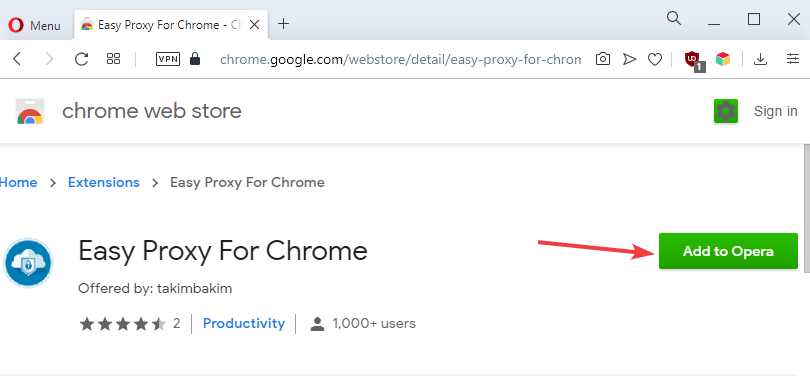
1. Use proxy extensions

  1. Open your browser’s extension store.
  2. Find the suitable proxy extension and install it.
    proxy extension download online proxy browser
  3. Configure the extension and you’ll be ready to use your proxy.

You’ll notice that many proxy websites offer their browser extensions as well. Using a browser extension has its advantages, and once you enable it, you’ll have a proxy running for all your tabs.

Extensions suffer from the same issues as the websites that provide the same services, and they will offer limited features or ads in the free version.

To avoid these limitations, it’s advised to use a browser that has its own VPN, such as Opera One. Its VPN is completely free, and it comes with no ads or bandwidth limitations as many proxies do.

In addition to VPN, the browser has a built-in ad blocker and the ability to block tracking cookies and scripts in order to speed up your browsing experience.

Even more, it is based on the Chromium engine, and all Chrome extensions should work on Opera One without any issues.

It’s worth mentioning that the browser is light, so it should handle any website with ease.

Opera One

Looking for an online proxy browser? This might be the ideal moment to try out Opera One!

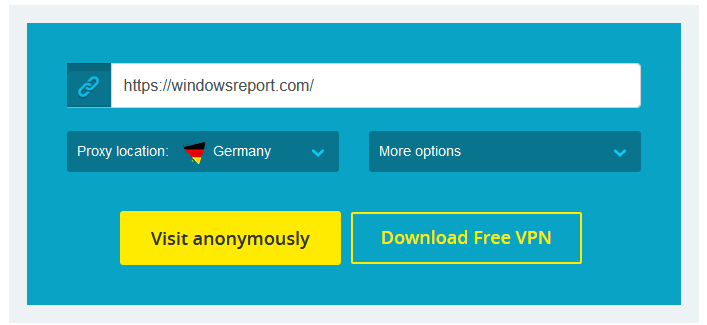
2. Visit proxy websites

  1. Visit any proxy website.
  2. Enter the URL that you want to visit.
  3. Optional: Select the desired location of the proxy server.
  4. Now click Go or any other button to visit the website.
    proxy website online proxy browser

This is the simplest method, but it has its flaws. By using this method, you’ll have proxy enabled only on a single website or on a single tab which can be a problem for some users.

In addition, some of these services offer limited features or ads in the free version.

Using an online proxy is usually rather simple, and you can do it easily by following instructions from this article. If you want better and unlimited protection, then Opera with its VPN might be a better choice.

Let us know your choice by using the comments area below.

Microsoft’s GroupMe app updates on Windows 10 devices with support for Dark Mode

Microsoft’s Windows 10 GroupMe app (via WC) received a small update today that brought it up to Version 2.44.7.0 and added support for Dark Mode.

No other changes appear to have been made with this update but it’s still significant as Dark Mode remains a popular feature request for users for pretty much every app that doesn’t have it yet.

GroupMe is a free communication tool that aims to streamline the process of creating groups of contacts and communicating with them in an organized fashion. The app may not be that well-known but it’s actually been around for a while having launched way back in 2010.

Do you use GroupMe? Let us know why or why not in the comments below and then follow us on Pinterest and Twitter for more Microsoft app news.

GroupMe
GroupMe
Developer:
Skype
Price:
Free

The Cyberpunk 2077 Xbox One X bundle is now available and it doesn’t cost $2,000

The Xbox One X Cyberpunk 2077 Limited Edition Bundle is now available to buy at Microsoft, GameStop, and other video game retailers. Despite it recently, and incorrectly, being listed as costing $2,000 on the Microsoft Store website last month, it only costs $299.

The bundle contains a special 1TB Xbox One X console that boasts a very cool design with textures, glowing elements, bright panels, LEDs, and even a color shift effect. A limited edition Cyberpunk 2077 Xbox Controller is also included, as are a digital pre-order for the full Cyberpunk 2077 video game (due out in September) and its first DLC (due out post-launch), and a one-month trial of Xbox Game Pass Ultimate.

Check out the full showcase trailer for the console below:

Cyberpunk 2077 is one of the most-hyped video games coming to Xbox One and video game platforms in general. The title has had a strong connection to the Xbox brand since it was first revealed at E3. Make sure to read about this and more in our exclusive interview with CD PROJEKT Red’s John Mamais here.

Cyberpunk 2077
Cyberpunk 2077
Developer:
CD PROJEKT RED
Price:
$29.99

How to use MSN in browser

MSN web portal was well-known in the past, but over the years it has lost some of its popularity. However, the MSN website is still available and fully functional.

In today’s article, we’re going to show you what MSN is and how to use it in your web browser.

How do I use MSN in my browser?

1. What is MSN?msn browser

MSN is a web portal created by Microsoft way back in 1995. The website is still available, and it still works as a news portal.

In addition, MSN offers links to Microsoft’s services such as Office, Outlook, and OneDrive. It’s worth mentioning that links to other services such as Facebook, Skype, and Twitter are also available for quick access.

MSN can also provide you with the current weather report for your area, and if you need to search for something, there’s a Bing search available at the top.

2. How to use MSN?

Using MSN is incredibly simple – you just have to visit its website and that’s it. Once the website loads, you can read the news or perform other tasks.

Although MSN works in every browser, we recommend using it in Opera One.

Alternatively, Opera One has a news feed on its home page, and you can easily customize it with your own RSS feeds.

use msn in browser

Namely, to use the RSS functionality in Opera One, right click the side bar, and add the Personal news tab to the sidebar.

Then, add the news sources you want by typing the website URL into the blank field. For MSN, you’ll see several options, depending on the subject you want to read about.

opera rss feed

Opera One

Reading the latest MSN news has never been easier with Opera One’s Personal news feed.
Free Download Visit website

Have you ever used MSN? Let us know in the comments below.

Download Audible App for Windows 10/11 & Mac

Although the joy of reading can never be taken away, sometimes it is more convenient to just put your headphones on and listen to a book.

This is a viable solution when you are on public transportation or in any area with a lot of noise pollution and you wouldn’t be able to concentrate on your book.

Luckily, there are some audiobook players out there that can be of assistance in such scenarios.

Take, for instance, Audible, a well-known service that anyone can use. Apart from being a very simple and easy-to-use audiobook player, it also allows users to buy and download any audiobooks they like.

The service offers users a huge collection of books, which is growing daily. Audible for Windows 10 is also available in the form of an app that users can download, and today we’ll be taking a look at it.

How can I get the Audible app for Windows 10 & Mac?

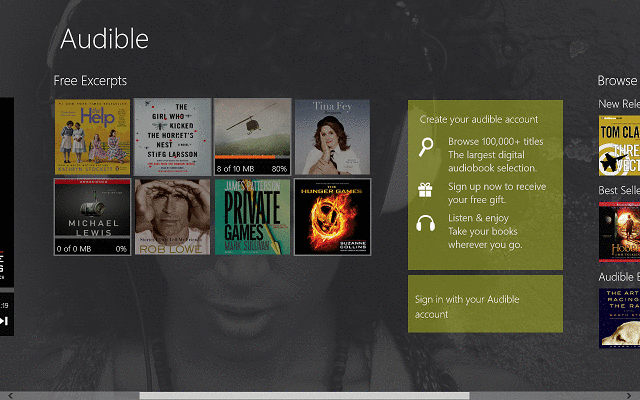
audible-windows-8-app-audio-book-player-market (1)

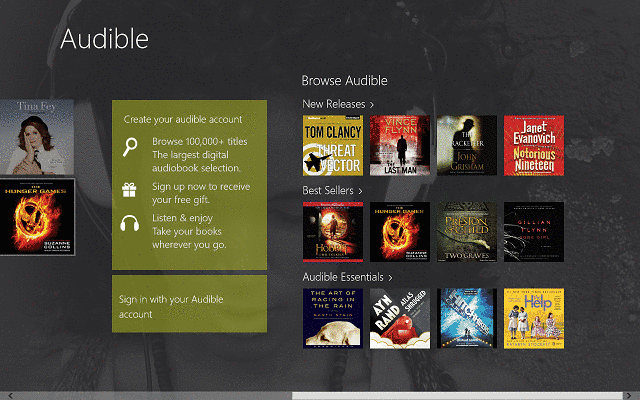
Audible for Windows 10 & Mac is a free app that can be downloaded on any Windows 10 and even Windows 8/RT device & Mac and it will act as the gateway to your collection of audiobooks and thousands other from their virtual library.

When you start the app, you will be greeted with a welcome screen where you can see some free samples of audiobooks and browse the virtual store for other titles.

Users who want to buy audiobooks from the app must create an account with Audible, which can be done directly from the app.

Also, you will need an Amazon account for this process to work. After you create your account, you can buy any books you like and pay by inputting your credit card information.

audible-windows-8-app-audio-book-player-market (6)

For past members of Audible, there is the option of simply logging in to their account and on the main window of the app, they will see all the titles that they have purchased.

The app’s user interface is very easy to use and it works very fast, with almost no loading time when switching menus.

audible-windows-8-app-audio-book-player-market (2)

The overall design of the app is pretty good, but there are some areas where some improvement would not harm.

Such is the case with the book search feature, which can be done via the Search Charm.

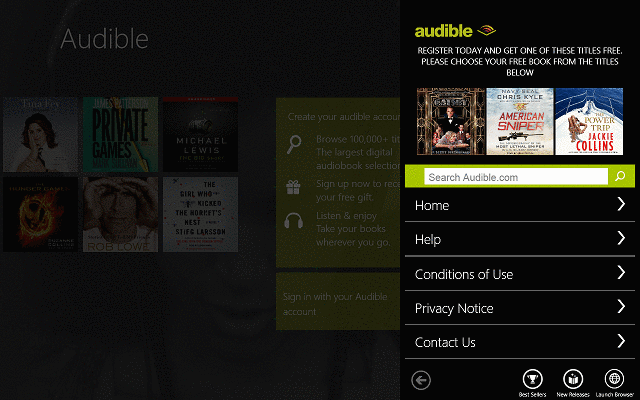
On most occasions, it renders no results even if the books that you search for exist and another one is the in-app web interface which allows users to use the website search feature.

However, the window is only half-screen, the information is crammed and the design is not as good.

Nevertheless, even with this lower quality design for the in-app web interface, Audible for Windows 10 and Mac is a great app for listening to audiobooks.

It works very well, the media buttons are available from the main window, and the huge collection of titles that it offers give it the edge over its competitors.

audible-windows-8-app-audio-book-player-market (5)

Many liked the app, and although they are fans of reading books, and not listening to them, they admit that Audible for Windows 10 has a lot of potentials and intend to keep using it.

Audible recently received a series of new features and improvements that include:

  • Associated PDFs are now available directly from the player
  • Users can now control playback on hover from the taskbar – this feature is available for desktop users only
  • The app received a complete redesign for Windows 10
  • Improved library management
  • The ribbon player offers easy-to-access controls
  • Integrated store and search allow users to browse over 180,000 available titles easily

⇒ Download Audible for Windows 10

If the Audible app sounds like something you have been looking for as well, keep in mind that the audiobooks can be listened to on several devices:

  • Audible for Windows 10 desktop app – Since it is designed especially for Windows 10, you can only expect to get the best. For customers using Windows 10, we encourage them to use the link above.
  • Audible Mac app – You may also enjoy Audible on Mac via iTunes. Go to your Library on the Audible desktop site and click Download next to the audiobook you want.
  • Audible app Android – You can clearly enjoy the free Android app too. Grab it from the Play Store and take advantage of the latest audiobooks while on the go.
  • Audible desktop app – With the desktop app already installed, you just need to click Launch, sign in to Audiobooks from Audible, and click the Library icon. If there are no books in your library, you’ll have to purchase one before you can download an audiobook.
  • Free audible app for Windows 10 – If you’re on a tight budget, do note that new customers can sign up right away for a free 30-day trial of Audible.
  • Audible player for PC – Keep in mind that you may listen to titles directly from the Audible website or download them to your PC. Then, import all Audible titles into Windows Media Player.
  • Audible Windows download – To download your audiobook to your Windows PC, you may also download Audible Download Manager and configure it to import audiobooks to Windows Media Player or iTunes.
  • Audible iPhone app price plan – Amazon Prime members can enjoy Audible for free.

Attacker uses an Office 365 site to steal user credentials

Email phishing may be one of the oldest tricks up the sleeves of any hacker, but it hasn’t run out of fashion yet. For example, a malicious player recently set up an Office 365 phishing base to fraudulently obtain usercredentials.

Pretty much any platform that requires user authentication to allow access can be a target for phishing.

Also, anyone can be a victim, from SaaS customers to OneDrive users.

Malicious actors created an Office 365 email phishing site

Hackers sent remote workers malicious email links to fraudulently capture their user credentials, according to an Abnormal Security report.

For starters, they took advantage of the fact that many organizations are currently setting up VPNs to secure internet connections for their work-at-home employees.

The target receives an email disguised as official communication from their employer’s IT department in this phishing attempt.

Next, the target clicks the link in the email, which leads to a VPN configuration that the attacker set up. In the end, the employee lands on a login page hosted on the Office 365 platform.

Since the site looks almost 100% the same as the genuine one, the remote worker, sadly, falls for it.

Therefore, the victim supplies their login details oblivious of the fact that they’re not signing into their employer’s official portal.  So, just like that, the bad actor makes away with the target’s Microsoft credentials.

The attack impersonates a notification email from the IT support at the recipients’ company. The sender email address is spoofed to impersonate the domain of the targets’ respective organizations. The link provided in the email allegedly directs to a new VPN configuration for home access. Though the link appears to be related to the target’s company, the hyperlink actually directs to an Office 365 credential phishing website.

Here are tips for optimizing your email security:

  • User discretion: Always check the URL of any web form that requires your user credentials.
  • Email security: Use email scanning anti-malware.
  • Windows updates: Always install Windows security updates.
  • Microsoft’s security tools: This can elevate your threat detection capabilities.

Have you ever been a victim of email phishing? Feel free to share your experience in the comments section below.

[wl_navigator]

Slack and Amazon enter multi-year deal to compete with Microsoft Teams

Despite a relatively spotless earnings report where the company, by all accounts, beat its own expected guidance, Slack saw a post-market trading slide in its stock of almost 16%.

However, a new multi-year deal with Amazon may do wonders to help regain investor confidence while also better positioning the company to take on its emerging rival in Microsoft Teams.

According to a report from The Verge, Slack has chosen to partner with Amazon to roll out its communications platform to an undisclosed percentage of the company’s 840,000 employees. On the backend of the Amazon and Slack deal is that the latter will adopt the former’s Chime platform for its video conferencing feature set, along with the internal adoption of more AWS services for the company.

Slack has been a long time customer of AWS for various cloud services related to chat and the move seems only logical given the nature of industries the Amazon and Slack preoccupy. In addition to adopting Chime, Slack will also leverage its Amazon partnership for analytics, machine learning, compute, storage, AI, security, and scale for the foreseeable future.

Underscoring the entire deal is Slack’s newfound ability to address the elephant in the room, Microsoft, more directly. While Slack CEO Stewart Butterfield took a more tribalistic stance in proselytizing that Microsoft is “unhealthily preoccupied with killing” the company, vice president of Slack, Brad Armstrong took a more business-minded approach to discuss why adopting Chime allows Slack to ratify its mobile video conferencing features the platform arguably lacked in comparison to Microsoft Teams.

For now, we’re just focused on shoring up the back end. As Chime has additional features, we’re looking at bringing the mobile experience to include video, which it doesn’t today. We’re also looking at transcription.

Earlier today, Slack reported that of the 750,000 organizations making use of the chat service and that 122,000 users are paid customers signaling a 28% year over year increase. Meanwhile, a little over a month ago Microsoft reported 75 million daily active users pulling from a pool of 258 million paid Office 365 seats that have access to Teams.

The new deal allows both Amazon and Slack to bolster areas of their services that have proven to be weak spots individually when competing with Microsoft. Amazon gets to offer its customer a flexible and interoperable leading chat service while Slack gets to scale expeditiously while also getting access to Amazon clients they may not have otherwise been exposed to.

Arguably, the deal is a win for Microsoft as well which will allow the company to aim its competitive efforts at a growing, but increasingly singular target in the enterprise cloud services and communications sector.

Firefox 77.0.1 released to patch a potential DDoS flaw

When Firefox 77.0 went live on June 2, 2020, it came with a bunch of goodies. One of its most notable new features, WebRender, got pushed to more Windows 10 laptops.

In addition, the new version introduced the about:certificate page, on which users can conveniently manage web certificates.

However, it turns out that this major update had a mission-critical flaw that called for quick remedial action. The folks at Mozilla responded by issuing Firefox 77.0.1 to address the bug.

Mozilla releases Firefox 77.0.1

Version 77.0.1 contains only a single fix. According to the update’s release notes, the patch turns off the automatic selection of DNS over HTTPS (DoH) providers when performing tests.

Disabled automatic selection of DNS over HTTPS providers during a test to enable wider deployment in a more controlled way.

DoH is a user privacy protocol that more and more tech companies are incorporating into their app solutions.

So, when testing DoH on Firefox, a bug was causing something of a Distributed Denial of Service (DDoS) situation. The problem affected NextDNS, one of the companies that Mozilla brought on board to provide DoH services.

The bug would cause the provider’s network to overload, preventing the wider-scale deployment of the protocol in any test run.

A contributor to Mozilla’s Bugzilla forum added this about the DoH flaw:

We need to be able to roll this out gradually so that we don’t overload any providers. Even the dry-run involves up to 10 requests per client which can be very significant when the entire release population updates.

Firefox 78 is the next major browser update from Mozilla. When it hits the release channel, it should offer improvements like the ability to check out blocked web resources.

Have you updated to Firefox 77 yet? If you have, are there any notable browser performance issues? You can always let us know in the comments section below.

[wl_navigator]

Microsoft Teams Meetings to support up to 300 participants

Microsoft Teams has been on an incredible growth trajectory the past couple of months. The demand for people to work and collaborate remotely amid the COVID-19 pandemic has buoyed the platform’s expansion in big way.

In March 19, 2019, Microsoft declared that 91% of Fortune 100 corporations used Teams. One year later, the company announced that 93% of Fortune 100 companies used the platform.

In addition, the Office 365 tool had over 44 million active users per day by March 19, 2020. So how’s Microsoft coping with the growing demand for collaboration software?

There are many appropriate responses, and one of them is increasing the number of people that can take part in a Teams meeting.

Microsoft Teams to allow up to 300 Meetings participants

According to a Microsoft 365 Roadmap notification, Teams will soon allow up to 300 chats and Meetings participants. The platform’s current capacity is 250 people per meeting.

This feature should have started rolling out already to Teams users. However, the rollout ends by June 30. So you shouldn’t worry if you haven’t received the update yet.

Teams’ integration with other Office 365 solutions gives it a competitive advantage over its closest rivals. For example, Teams is a natural option to many enterprise customers already using apps like Power BI, Outlook, etc.

Nonetheless, Microsoft has to pull up its socks in other key areas where Teams doesn’t have an automatic advantage. So, expanding the maximum number of users per meeting to 300 or more is certainly a step in the right direction.

The maximum number of video conferencing participants that can appear in a single screen simultaneously is another area in which Teams is playing catch up.

While Zoom supports up to 49, Microsoft recently increased Teams’ capacity to 9. However, reports suggest that Teams will soon match its rival’s capacity.

Any thoughts about the current Microsoft Teams-Zoom rivalry? Or are you a Teams user yourself? Feel free to let us know in the comments section below.

[wl_navigator]

Thunderbird 68.9.0 fixes 5 high impact security issues

The Thunderbird development team has released the stable version of Thunderbird 68.9.0 to the general public.

Thunderbird has the same release schedule of Firefox ESR (Extended Support Release). Mozilla increased the frequency of the Firefox releases so that’s why we see more Thunderbird releases than usual.

If you already have Thunderbird installed, you should be prompted for an update.

But if you didn’t receive the update yet, you can select click on Help, then go to About Thunderbird and run a manual check for updates.

Of course, there is also the option to download the new release from the official project website and install it manually.

What is new in Thunderbird 68.9.0?

Actually, there no new feature coming with the new Thunderbird 68.9.0. However, the release notes point to three bug fixes and some security fixes.

For starters, a bug fix corrected an issue that prevented users from removing custom headers used for searching for filtering emails.

Another solved problem is that now, the Today Pane from the Calendar is updated after all data is loaded.

The third release note points to fixing unspecified stability issues.

Thunderbird 68.9.0 security issues fixed

The most important part of the update was actually the Various security issues.

In the detail page, the Mozilla Foundation Security Advisory 2020-22 lists 5 high impact security issues fixed in the new Thunderbird 68.9.0 version:

  • NSS has shown timing differences when performing DSA signatures, which was exploitable and could eventually leak private keys.
  • When browsing a malicious page, a race condition in our SharedWorkerService could occur and lead to a potentially exploitable crash.
  • Mozilla developer Iain Ireland discovered a missing type check during unboxed objects removal, resulting in a crash. We presume that with enough effort that it could be exploited to run arbitrary code.
  • Mozilla developers Tom Tung and Karl Tomlinson reported memory safety bugs present in Firefox 68.8. Some of these bugs showed evidence of memory corruption and we presume that with enough effort some of these could have been exploited to run arbitrary code.
  • If Thunderbird is configured to use STARTTLS for an IMAP server, and the server sends a PREAUTH response, then Thunderbird will continue with an unencrypted connection, causing email data to be sent without protection.

Do you use Thunderbird as an e-mail client? Leave your thoughts about it in the comments sections below.

[wl_navigator]

Focus Inbox cloud syncing coming to Outlook for Windows

Microsoft Outlook (not to be confused with Outlook Express) has come a long way. It’s gotten a lot of useful features since its debut in 1997.

But its growing integration with other Microsoft applications, such as Teams, makes it even more powerful day by day.

Today, you don’t even have to go Outlook.com to use the email service. That’s because you can download and install Outlook for Windows to accomplish the same and much more.

According to Microsoft 365 Roadmap, another development is coming to Outlook for Windows—the option to store settings in the cloud.

Outlook for Windows getting cloud syncing option

You know how the Outlook Focus Inbox makes life a lot easier when you’re starting your day in the office.

Especially if you’re an enterprise user, your emails will be overflowing each day. So you turn to your Focus Inbox to store only the most important messages.

Well, the ability to sync your Outlook account settings to the cloud comes to fruition this month.

When the feature arrives, you’ll be able to enjoy a consistent Focus Inbox experience, regardless of the desktop computer you’re using to access your Outlook account.

The same is true for any customizations you apply to privacy settings.

 A new option found under General Cloud storage options that allow users to choose if they would like to store their Outlook settings in the cloud. This will enable a number of capabilities such as Privacy Settings and Focus Inbox to be consistent if they use Outlook on multiple computers and eventually Outlook on the web and mobile.

Microsoft says that it will eventually add this feature to Outlook.com and Outlook for Android and iOS. This means you’ll be able to sync your settings across more devices and platforms.

In addition, the company is currently developing the ability to sync Outlook email signatures to the cloud.

Feel free to leave any comments or questions about Outlook for Windows in the comments section below.

[wl_navigator]

Microsoft Teams adds camera and GPS support for developers

Microsoft Teams got a lot of improvements at the Microsoft Build 2020 event. From those, we can mention pop-up apps, Power Automate RPA templates, and simplified Teams Chatbots with Power Virtual Agents.

And these are just a few of the new Teams features announced on the Build 2020 website.

Microsoft Teams adds support for camera and GPS to developers

Now, Microsoft added a new task on the Microsoft 365 Roadmap website specifying that it is preparing a Microsoft Teams update in  July 2020 that will include new tools for developers:

Microsoft Teams: Support for native device camera and location capabilities for Personal apps and tabs

App developers will be able to use mobile native capabilities like capturing an image through the camera and providing location coordinates through GPS.

Microsoft Teams new tools for developers

Microsoft is clearly referring to mobile apps. The developers will be able to use the camera and GPS capabilities of the smartphone to pack into their new apps.

Microsoft Teams increases the number of simultaneous videos in meetings

Another improvement that is going to roll out in July 2020 is the increased number of simultaneous videos in Teams meetings for GCC High and DoD customers.

We are increasing the number of participants who can be viewed simultaneously on the Teams meeting stage from 4 to 9.

This new experience optimizes for attendees who have enabled video and places the remaining audio-only participants below the meeting stage.

To provide a high audio and video quality experience, the layout logic will consider user bandwidth and alter the number of videos shown to provide the best meeting experience.

We have to specify that Microsoft already increased the number of simultaneous videos in meetings for GCC customers.

What do you think about the future development of Microsoft Teams? Write us your thoughts in the comments section below.

This article appeared first on Windowsreport.com

[wl_navigator]

New Chromium Edge offers superior extension compatibility

Microsoft has released a new version of Chromium Edge that boasts better support for extensions and websites.

The company doesn’t intend to keep legacy Edge for longer than necessary. It has already withdrawn development support for the old browser on Windows 10 2004.

The latest Microsoft Edge update, though, is available for multiple versions of Windows 10, namely 2004, 1803, 1809, 1903, and 1909.

The new Chromium Edge browser for Windows 10

Microsoft says that the new browser comes with the best extension and website compatibility you can get today.

Apart from that, the Chromium-based browsing tool offers superior support for modern web applications.

Already, the Edge browser supports Progressive Web Apps (PWAs), which offer the best of mobile and traditional applications experiences and features. The World Wide Web is moving in that direction too.

 This new version provides best in class compatibility with extensions and websites. Additionally, this new version provides great support for the latest rendering capabilities, modern web applications, and powerful developer tools across all supported OS platforms.

The latest Edge upgrade is available via Windows Update, so you don’t have to install it manually.

Once you’ve received the update, it will replace the existing version of Edge on your PC. Also, it’ll inherit data, including passwords and favorites, from the older Edge.

In addition, the update pins the new Chromium-based Edge to the task bar.

The browser isn’t anywhere near as popular as its main rivals, Chrome and Firefox, nonetheless.

That hasn’t stopped Microsoft from pushing Edge ads targeted at Firefox users as a way to expand the browser’s market share. Windows 10 2004 search users are also encountering recommendations to install Edge.

With new features and capabilities regularly coming to Edge, the browser should continue growing in popularity.

Would you like to share your thoughts or ask any questions about the new Chromium Edge? Kindly reach for the comments section below and leave us a message.

[wl_navigator]

How to install PWA and get Jump Lists in Chrome and Edge

PWAs are Progressive Web Apps, that are, essentially, a way for a developer to offer a desktop shortcut for a website or service.

With the latest canary versions of Chrome and Edge, it is now possible to even have selection options for PWAs directly from the Jump List.

The Jump List is the menu that you get when you right-click an application icon on the taskbar.

Recently, Google and Microsoft added support for PWA in the Jump Lists from Chrome and Edge.

How can I install PWA and enable Jump Lists in Chrome?

First, you need to enable installed PWAs to include a menu of shortcuts associated with the app icon from Chrome. To do that, follow the next steps:

  1. Open Google Chrome Canary and type chrome://flags/ in the address bar.
  2. In the next window, type #enable-desktop-pwas-app-icon-shortcuts-menu in the search bar or just scroll down until you find the feature.how to enable desktop PWAs
  3. Lastly, click on the button to its right and set it to enable, then restart the browser.

How can I install a PWA in Chrome and see its Jump List?

Now you need to go to a PWA and install it. Google has prepared a test site, sadchonks.com, so we will play with it. So here is how to do it.

  1. Once you open the website, on the right edge of the address bar you will see a plus sign. Click on it.how to install a pwa
  2. You will see a dialogue asking you if you want to install the app. Click on install.
    installing sad chonks
  3. You’re good to go. Now, you will see the App icon on your taskbar and if you right-click on it, you will see all possible options.You can see all the new pics, your saved choices and you can pin it on the taskbar.jump list for PWA

The chunky cat app is just a silly example but for instance, we did the same for Twitter.

After we installed the Twitter app from the website we got a more useful Jump List.

As you can see in the picture below, you can easily go for a new tweet, explore, see the notifications or send a direct message just with a right-click on the icon from the taskbar.jump list for twitter

How can I install PWA and enable Jump Lists in Edge?

In the same way as with Chrome, first, you will need to enable desktop PWAs in the Edge Canary build.

  1. Open Edge Canary and type edge://flags/ in the address bar.
  2. In the next window, type #enable-desktop-pwas-app-icon-shortcuts-menu in the search bar or just scroll down until you find the feature.how to enable desktop PWAs in Edge
  3. Finally, click on the button to its right and set it to enable, then restart the browser.

How can I install a PWA in Edge and see its Jump List?

For the sake of this experiment, we will use the same PWA provided by Google, sadchonks.com.

  1. After you open the site, click on the plus sign ad the edge of the address bar and select to install the app.how to install sad chonks in Edge
  2. That’s it. The App icon on your taskbar and if you right-click on it, you will see the options just like if you install it with the Chrome browser.

If you either install the PWA with Chrome or Edge, you will also see the app in the start menu.the PWA shows up in start menu

Did you install any PWAs? Do you like the Jump List option for PWAs? What do you think about them? Drop us a line with your thoughts in the comments section below.

[wl_navigator]

Microsoft Teams free users can now create video meetings

The free version of Microsoft Teams, which Microsoft launched back in July 2018 to compete with Slack, is getting the ability to create video meetings. Until now, anyone could be invited to a Teams meeting without the need for a Microsoft or Office 365 account, but creating a meeting was restricted to Microsoft Teams commercial customers.

That’s finally changing this month, with Microsoft finally allowing Teams users logged in with free Microsoft account to create meetings. According to a support article, Microsoft has started rolling out this free Meetings feature on June 2, 2020.

Meetings are one of the key features that will allow you to collaborate easily and efficiently while working from home. Now thousands of freelancers and small businesses can now use the free version of Microsoft Teams to create and attend free online meetings with high-quality audio and video. Microsoft said that in response to the coronavirus crisis, there are currently no limits on meeting size or length.

As a quick summary, Microsoft has listed a couple of ways you can use meetings in Teams with a free Microsoft Account:

Create an instant meeting with Meet now

You need to navigate to the left side of Teams, select Meetings, and then click Meet now. Microsoft Teams will prompt you to complete a number of steps before you start your meeting. Next, write a title for your meeting, choose if you want to use video, and select your preferred audio source. Finally, hit Join now, and you are good to go. Once you’re in, you can now send invites to other people to join your meeting.

Schedule a meeting

To schedule a meeting, head over to Meetings on the left side of Teams, then select Schedule a meeting.

Now you will have to choose a title and select a range of time in the calendar on the next screen. Once you fill out these details, click Schedule. Now you will see a couple of options to share the invite with other people. You can either use Outlook or Google Calendar or simply copy the meeting invitation and share it with others by using any of your preferred messaging apps.

Share your content during a meeting

In order to share your screen in a Teams meeting, you need to select the Share screen button in your meeting controls, and then you can choose between the entire desktop, a window, a PowerPoint file, or a whiteboard to present. Once you’re done, go to your meeting controls and select Stop sharing to end the presentation mode. It is important to note that you should be using Google Chrome or the latest version of Microsoft Edge to share your screen while using Teams on the web.

Chat with meeting participants

To chat with meeting participants during a meeting, go to Show conversation in your meeting controls. Once you click the button, the meeting chat window will appear on your screen, and you can type a new message or respond to other messages as usual.

Use live captions

Microsoft Teams provides real-time captions to make your meeting more inclusive to participants who are deaf or hard-of-hearing. To turn on live captions in a meeting, head over to your meeting controls and select the More options button > Turn on live captions (preview).

Once you are done, you can stop live captions by selecting the Turn off live captions (preview). It should be kept in mind that Live captions are a preview feature in Microsoft Teams, and they are currently available in English (US) language.

If it’s great that Microsoft Teams is improving its free tier by making video meetings available for everyone, the company is also working on new consumer features for Microsoft Teams. Soon, Teams users will be able to add their personal Microsoft account to the app to chat with and collaborate with close friends and family.