First 1706 build for Xbox One is coming to Preview Beta Insiders, along with Mixer Twist for other rings

Xbox One Insiders in the Beta ring are finally about to get their hands on the build we told them about a couple days ago. Users in the Alpha ring of Xbox Insiders already received this build earlier in the week, but the first build of 1706 will be coming out very soon – and in full – to Beta ring users who want to get their hands on it.

You can check out our post earlier this week for the full patch note rundown, but the highlights are definitely the addition of Mixer co-streaming and controller sign-in – two things that fans have been wanting for a while now.

It’s also worth mentioning that Xbox’s Brad Rossetti tweeted that they’ll be enabling Mixer Twist for Preview Ring 3 & 4 members along with the Beta ring update, so get ready for that.

The Alcatel Idol 4S is with Windows 10 is coming to Germany

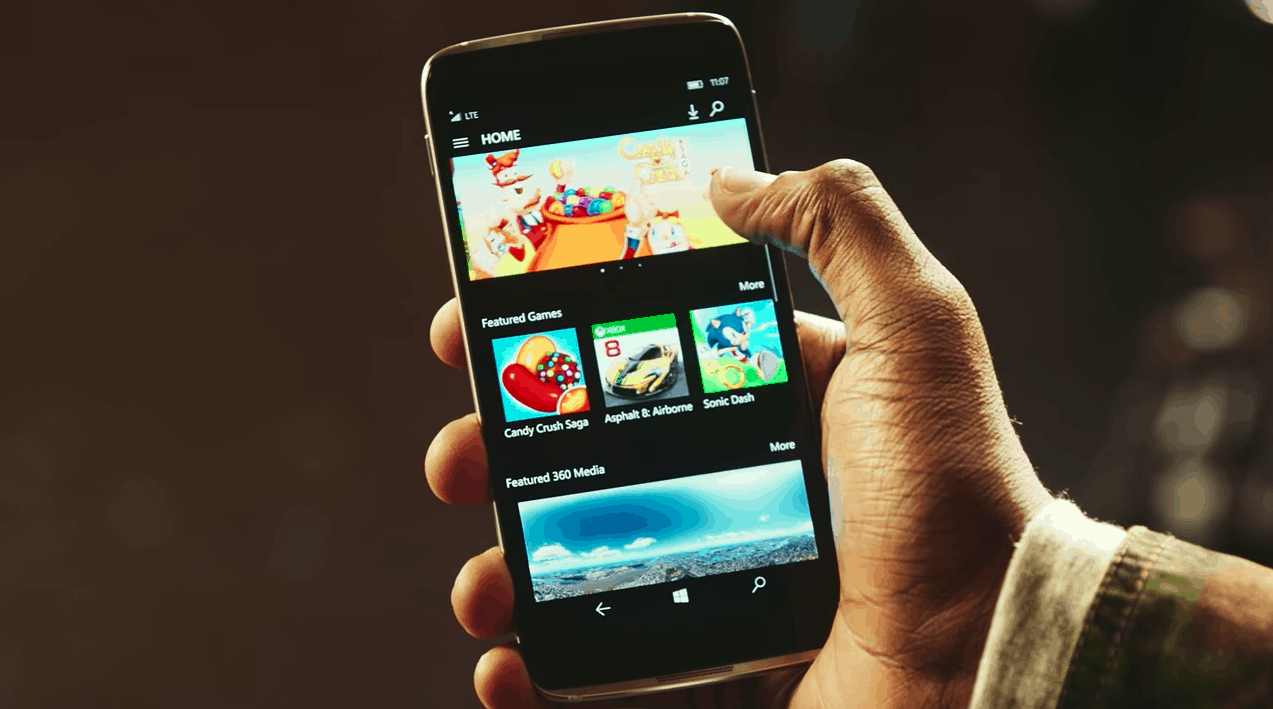
The Alcatel Idol 4s came out almost a year ago and provided a relatively well-received Windows 10 Mobile experience for the people who still wanted to jump on Microsoft’s mobile train. Strangely enough, it seems like the device is about to be released in Germany, under the name “Idol 4 Pro.”

The news was discovered by German website Windows United, which also tapped into some rumors about pricing. If Windows United is right, the Alcatel Idol 4 Pro will be launching in Germany on July 1st and will run for €599 – which seems strange, considering the phone has dropped below $300 in most places.

We don’t know anything about whether or not the Idol 4 Pro will be releasing with a VR kit like it did elsewhere, but it would be surprising if it didn’t, considering the hefty price point that’s rumored. You can keep an eye out for more solid news soon since the phone’s release date is well on its way.

Microsoft introduces Bing Visual Search – find objects in images

Bing is improving their images search with a new feature that sets it apart, for now. The Bing Visual Search makes it possible for users to not only search for related images or products but to crop out a selection of image results to better fine tune what they are looking for.

As of today, images on Bing’s search engine have a small magnifying glass to the top left. This is called the ‘visual search’ button. Clicking on it results in a box that you can adjust (or redraw) on the image to select an area of the image. The Bing team expects that the tool will be most useful when shopping. By default, the visual image search will result in related products but will also have a related images based on the selection.

Visual search

So how effective is it? Taking one of the first images from searching ‘Overwatch’ I decided to pick out Blizzard’s favorite character: Tracer. Because who doesn’t love Tracer? This is the hero that is the poster child of Overwatch. She’s on all of the box art and promotional images, as well as considered a community favorite. Immediately I noticed the magnifying glass that lets me use the visual search for related images. Sure enough, there were Tracer images, but not immediately. First I had to finagle the size and shape, which can have different results depending on the smallest of changes. For the most part, Tracer was recognizable half of the time only after tweaking.

Blizzard’s favorite character: Tracer.

It’s worth noting that the image quality does play a major part in the Visual Search experience. Also, any crowded images will affect the results, so it’s better to find objects that are separate in images rather than close to others. But as the Bing development team explained, the feature is in its infancy.

How to view your data usage in Windows 10

The increased speeds of Internet connections and the higher quality streaming content of the modern web makes it easier than ever to consume large amounts of data without even noticing. You can stay in control of your data consumption by using Windows 10’s Data Usage screen to check out much you’ve been using.

While basic, this feature could save you expense if it alerts you that you’re close to your data cap before you blow through it. It’s available on Windows 10 PCs and phones and is accessed via the same procedure on both.

Screenshot of Windows 10 datS usage screenTo start off, open the Settings app and head to the Network & Internet category. On mobile devices, it’s called Network & Wireless. Tap “Data usage” to head to the relevant page.

Screenshot of the Windows 10 data usage details screenYou’ll see a graph that illustrates your total data usage for the past 30 days across your different network connections. If you click or tap the “View usage details” link, you can get a breakdown of data consumption by app. This lets you identify apps that might be stealthily consuming data in the background. While the data usage screen won’t let you throttle offenders, you can remove the app or adjust its settings based on the knowledge you’ve acquired.

Screenshot of the Windows 10 Mobile Data plan screenIf you’re using a phone or tablet with mobile data, you’ll also see an option to set a data usage cap. This lets you define a one-time or recurring limit so you’ll be alerted when you’ve nearly used up your allowance. As you approach the limit, Windows will automatically reduce background app activity to eke your remaining megabytes out for a little longer.

Windows’ data usage screen is a simple way to keep tabs on your Internet usage across your device’s connectivity options. Microsoft warns it may not align exactly with your provider’s records but it should be a close enough match to keep you aware of the impact of streaming Netflix while on the train to work. As an added option, you can pin a Data usage live tile to your Start screen by long-pressing from the Settings menu, giving you an at-a-glance overview of your consumption from the past 30 days.

Custom Gamerpics are now rolling out to Preview Ring 3 and 4 Xbox Insiders

A couple of weeks after Custom Gamerpics started to roll out to Xbox Insiders on the Preview Alpha Ring, Preview Ring 3 & 4 participants can now upload their own profile image on Xbox Live. According to Xbox’s Brad Rossetti, the new feature should automatically appear in the profile section of the Xbox One dashboard, but Xbox Insiders who don’t see the option yet can reboot their console to enable it.

According to the Xbox team, Custom Gamerpics were a top fan-requested feature on Xbox Live, and the new customization option previously rolled out to the Windows 10 Xbox app as well as the Xbox beta app on Android. As a reminder, you’ll need to choose a .png or .jpg image which is at least 1080×1080 pixels, and the easiest way to import it is to save it first on an a USB flash drive that you’ll plug into the gaming console.

What are the dangers of using scammy TV streaming sites?

Streaming TV on your PC is a great leisure. The setup procedure is rather simple, fees are rather affordable and service is spot on. But, without additional fuss, that’s just a simple, ages old trick that can be utilized on any computer since the 90s.

But, then we get into a gray area of the internet. Namely, a simple google search for ”streaming TV online” will give you millions of results with thousands of available sites that offer streaming services. Most of the time for free or with some minor requirements, like registering, providing your email, or installing some browser extensions or even programs.

Now, don’t get us wrong, some of them are really doing exactly that: streaming TV online in exchange for one-time payments or monthly/yearly subscription. But that’s the main catch: there’s no such thing as free streaming without some hidden drawbacks.

As Andrew Lewis once told, ”If you are not paying for it, you’re not the customer; you’re the product being sold”. We wouldn’t completely agree with this statement, but its the matter of fact that, if you want safe and reliable service, you need to pay most of the time.

What are the dangers of scam streaming services, you may ask? Well, firstly, the streaming quality is blatantly subpar comparing to regular streaming procedures. No one wants to wait through numerous ads for the stream to crash unexpectedly or to experience a clunky lag that renders your favorite program unwatchable. And that’s something that you’ll experience most certainly with those pesky pseudo-services.

Another thing that’s even worse, in the long run, is malware. This is one friendly advice you should take into consideration: never install extensions or applications of any kind if you don’t trust them. Some of them will ask for special players, other for simple browser extensions. Either way, it’s certain that they will infect your PC/browser with bloatware or, in worst case scenario, with a whole plethora of viruses.

Now, there are some ways you can indeed stream TV on your PC with peer-to-peer services, but they are not exactly legal in most states, so we won’t talk about them in details. We are sure that you’ll find your own way around the world wide web.

That should do it. We hope this was informative and helped you protect yourself from scams. Thank you for reading and don’t forget to post questions or suggestions in the comments section below.

RELATED STORIES YOU NEED TO CHECK OUT:

How to Watch TV on Windows 10 Computer

Even though the new age media is taking over from classical media, that doesn’t mean TV is out of the picture. Some exclusive programs and shows can only be seen in an old-fashioned way, like live news or public-favorite, talk shows. Now, since digital television can be watched on PC streams, a lot of users nowadays search for a way to watch television on Windows 10.

Watching TV on your computer has several benefits, especially when your TV is not working properly and keeps switching inputs by itself.

Utilizing your PC as a TV may be a great experience, but it heavily depends on the software/media you use and the size and quality of your screen. So, unifying these two platforms is a bit limited. Nevertheless, we’ll try to provide you with the easiest, safest, and fastest way to watch TV on your computer. Illegal streaming sites are not exactly advised since the risk is grave and quality is often lackluster.

Below you should find more than enough to experience TV in a seamless and enjoyable manner, like back in the old days when everything was at least slightly simpler.

How to watch TV on Windows 10?

Tuner or a TV card is a hardware part that you’ll need to install in order to watch TV. This isn’t exactly the most expensive hardware component, as it can be found for quite an affordable price. The placement is rather simple. It’s placed in the casing compartment as same as a graphic card or a sound card. After you set it up, you’ll need to get the appropriate software in order to run this nifty device.

With the introduction of Windows 10, Microsoft gave up on a widely popular Media Center that worked like a charm for so many users. A bit unreasonable act, but that’s not a strange occurrence for the Redmond giant. Luckily, after the dismissal of the Windows-native application, other software solutions emerged. The leader in the field at the moment is Kodi.

Once established for Xbox as an open-source media player, KODI is nowadays a valid successor of Media Center. It’s free, it’s reliable and easy to use. Furthermore, we’ll show you how to utilize KODI to watch television and use standard features simultaneously.

  1. Download and install KODI for Windows. You can find the download link on this page.
  2. Connect the cable cord to your PC by plugging it in the TV tuner card.
  3. Open KODI.
  4. Under the Sidebar, click on Add-ons.
  5. Select My Add-ons.
  6. Open PVR clients.
  7. Find the appropriate Add-on that matches your hardware.
  8. Download and install it.
  9. Now, get back to the Home screen and click TV.

With that, you should be able to watch a large variety of televisions on your PC, especially if you are facing issues like can’t scan channels on Insignia TV. You can use an overlay window that lets you watch TV while doing everyday tasks on your PC.

Enjoy your time with the television, and don’t forget to share your experience in the comments below.

Rising Storm 2: Vietnam bugs include launch issues, freezes, and more

Rising Storm 2: Vietnam is a brutal war game that will hook you for hours on end. For that, the game received very positive reviews, despite the numerous bugs reported by players.

In this article, we’re going to list the most frequent Rising Storm 2: Vietnam issues reported by gamers as well as their corresponding workarounds whenever available.

Rising Storm 2: Vietnam reported bugs

Bullets hit invisible walls

I encountered it several times; trying to shoot out of a window just over the lower frame, you hit the window instead of shooting outside. Same for shooting slighty over a hill.

Rising Storm 2: Vietnam freezes

After a few seconds I join a server everything just freeze. People run in one place or keep running the same direction they were running to before the freeze happened, they even run towards objects. And if someone shoots with their gun right before the freeze happens, the sound just never stops. And I don’t get stuck, I can keep moving but I can’t reload or interact with anything.

Memory leaks

Sometimes I can play 30 min and get a message from windows 7 that my memory is full. I saw that on task manager too.
And sometimes 2 hours without issues.

Many players report that Rising Storm 2: Vietnam is wasting computer memory even on systems that boast 8GB or 16GB of RAM. Memory is leaking until the game crashes.

Mouse sensitivity issues

i got 100+ fps and when im looking down the sight and i squeeze the trigger it would stop sometimes after a few bullets and then after a second it will continue. another issue i got is that sometime looking down on sight would get stuck and i have to click my right mouse button a few times to get back to hip fire or opposite.

Rising Storm 2: Vietnam freezes and a black screen appears on launch

If I play the game after I turned on my PC everything is fine. However, once I close the game and start it again, it either gives me a blackscreen after the intro FMVs played or it freezes in the main menu.

If you use RivaTuner Statistics Server, disable the “On-Screen Display Support” option and this should fix the problem.

Game freezes when full screen

The game starts windowed. When I go to options / video and choose Full screen the game freezes, music keeps playing. Then I close the game via task mananger and cant restart it without crash.

Rising Storm 2: Vietnam won’t launch

When I click on “play” well … nothing happened, does someone have the same problem here ? 🙁

Server issues

There are several server bugs affecting Rising Storm 2: Vietnam players. Here are some of the most common of them:

  • Gamers get stuck on the “Connecting to server” screen
  • The server browser remains completely blank
  • Players get kicked out of servers with error “Invalid Packet”

FPS drops

However, about 15-20 minutes into a given session, my game will begin running at unplayable framerates (about 5-20 fps) whenever I move my mouse. This occurs ONLY when I move my mouse. And that’s not even the strangest part: When I exit Rising Storm 2 and enter a new game, for example Overwatch, I recieve the same kind of lag when I move my mouse. It will only go away when I reboot my computer.

If you’ve encountered other issues while playing Rising Storm 2: Vietnam, report them on the game’s official Steam page.

RELATED STORIES YOU NEED TO CHECK OUT:

How to fix common bugs in the The Long Journey Home

The Long Journey Home is a game that challenges players to explore an endlessly shifting universe in which alliances are forged with alien races while players manage their crew’s skills and engage in space combat. The ultimate goal? Make it home.

Players report that The Long Journey Home is affected by a series of bugs, ranging from audio to mouse and keyboard issues. The good news is that Daedalic Entertainment already published a list of FAQs that may help you to fix some of the bugs that you encountered.

How to fix Long Journey Home issues

  • I can’t find my savegames

Savegames and logs are stored at this address:
C:\Users\YOUR USERNAME\AppData\Local\tljh\Saved

  • Some UI elements don’t display correctly

If you’re using an aspect ratio other than 16:9, you may experience some overlaps or cutoffs of UI elements. This issue will be fixed in a future update.

  • The minimap icons are too small

This is a known issue when playing on a resolution higher than 1920×1080. This limitation will be fixed in a future update.

  • There is no game sound

To properly play audio, simply restart the game.

  • The game takes too long to load

When you first launch The Long Journey Home, loading the game may take longer than expected. The game may appear frozen during this time. Wait for a few minutes for the game to load.

If the game still won’t finish loading after about 10 minutes, disable background processes, restart your computer and launch the game again.

  • The pixel limit is set to 1000k

When you mute any of the volume settings, the pixel limit is automatically set to 1000k. The game’s developers will patch this bug in a future game update.

  • Some achievements won’t trigger

There are two known achievements that won’t trigger: Ports of Call and Open Hailing Frequencies. This bug will be fixed in future update.

RELATED STORIES YOU NEED TO CHECK OUT:

Posted in Fix

The Sims 4 Parenthood DLC bugs: Erratic character values, empty cribs, and more

Like every other game ever made for PC, The Sims 4: Parenthood DLC is affected by a series of technical issues. In this article, we’ll list the most common Parenthood DLC bugs reported by players as well as their corresponding workarounds, if available.

The Sims 4: Parenthood DLC issues

Players can’t purchase the game pack

I’m having issues when I try to purchase the new GP through Origin, an error message pops up. I’m not sure what to do, I’ve tried restarting my PC and checked the internet but that didn’t help.

If you can’t buy the Parenthood DLC throughOrigin, try using the Origin website instead. If this too doesn’t work, you need to contact EA Help.

Empty cribs randomly appear in children’s bedrooms

This started happening with the family I am playing with the new Parenthood pack – empty cribs keep randomly appearing in the children’s bedroom. There are no babies (there are twin toddlers), and the mom Sim is not pregnant. Once there were even two cribs stacked on top of each other.

The player who first reported this problem also confirmed that the empty cribs disappeared once the toddler became a child.

Toddler have max qualities

One of the twins somehow has max good manners and max bad conflict resolution (again, this is a toddler) even though the parents haven’t worked with him near enough for this. This same Sim also keeps resetting like he’s fresh out of the crib and the aging up box appears every time that happens.

While this is not a game-breaking bug, toddlers should not possess these characteristics until they have become children and only after players have worked to develop such skills.

Babies remain completely still

Since installing Parenthood, my sim’s baby (born before the upgrade) doesn’t seem to sleep, dirty a diaper or eat. For a time, I actually thought it was dead (unchanging dark background in the thumbnail) but now, it seems to be stuck on green.

Character values level up erratically 

So I’ve been having an issue with my character values. For some reason, they are acting weird because either I can’t see them properly (missing Icons) or they are either leveling up negatively or positively but it’s a little erratic. […] I just wanted to see if anyone else was having this issue

These are the most common The Sims 4 issues reported by players after they installed the Parenthood DLC. Unfortunately, we couldn’t find any workarounds to fix these bugs. If, by any chance, you’ve come across various solutions to fix The Sims 4: Parenthood DLC bugs, feel free to list the troubleshooting steps in the comment section below.

RELATED STORIES YOU NEED TO CHECK OUT:

Tom Clancy Games see big discounts on Xbox One and Xbox 360

Looking for some new shooters to pad your library out? Or do you just want some add-ons for the ones you already have? Either way, from now until June 5, you’ve got a huge array of deals to choose from when it comes to Tom Clancy games. From Ghost Recon to The Division, just about everything with “Tom Clancy” in the name is going on sale in the Xbox Store.

The list of content on sale is absolutely massive, so it’s unlikely that there’s a Tom Clancy title or add-on that you can’t get a hefty deal on. If you’re interested, you can check out the blog post for the full library of games going on sale, along with links to the Xbox Store where you can pick them up.

It is worth noting that, if you want to buy The Division (the base game, that is) you’ll have to get it bundled with Rainbow Six Siege. If this list is to be believed, The Division isn’t on sale this week, individually. If you want to pick up the bundle, it’s going to run you about $46 – netting you a $100 value, if you take each product at the full retail price. Not too shabby.

Windows 10 Creators Update begins rolling out for Surface Hub

When the Windows 10 Creators Update began rolling out earlier this Spring, Microsoft warned that the update would reach some devices later than others. The Surface Hub, the popular team collaboration device for Fortune 500 companies, was low on the totem pole having just started receiving the spring update as of today.

But that might be for good reason. The Surface Hub is a different beast altogether with an intense focus on meetings and sharing information rather than a personal device. In its own right, the Surface Hub has received its own brand of features with the Windows 10 Creators Update.

Collaboration with the Surface Hub has gotten easier through the update. It’s been enhanced with better sign-on capabilities to maneuver easily between Office 365 accounts and navigate quickly to meeting essentials. Furthermore, audio and performance tweaks have been improved overall, particularly for conference calls. Skype itself was updated with easier controls and a meeting carousel, making interactive work on the Surface Hub easier in or out of a location.

Of course, with the new update came plenty of security features for the Surface Hub including:

  • The ability to set Surface Hub to wipe all data at the end of each session by default;
  • The option to require BitLocker encryption for USB ports to prevent malware and other security threats;
  • Support for additional Mobile Device Management (MDM) features, so IT administrators can change settings remotely; and
  • Support for two-factor authentication, to enable users to approve an authentication request easily on their companion device.

To top it all off, Microsoft Whiteboard is officially on Surface Hub devices as a private preview. This lets multiple users ink across other devices to seamlessly share their thoughts, ideas, and notes without the need for rendering. Microsoft Whiteboard is planned for a big app update release for Surface Hub in mid-June. Features include digital inking, geometry recognition, table conversion, and more to come, all to other Surface devices later in the year.


Todoist for Windows 10 reviews new features, plans for picture-in-picture mode

Todoist on Windows 10 is a quick and easy way to organize projects for you or your team. In an effort to simplify the process, the developers at Doist over the last year have released updates to improve the app’s user experience overall with easier navigation.

Since its initial release last April, Todoist has added a number of ways to get projects started and moving faster. Minute details such as adding easier project creation, importing/exporting projects with others, and archiving projects all attribute to the ease that ToDoist wants to embrace. Further UI design implementations included vamping the quick add that recognizes details and making the task scheduler simpler to use also attributed.

However, it’s what’s coming up for Todoist that the developers seem most excited for. Their recent blog post reviewing the features added in the last year also came with a glimpse into the future: including taking advantage of Windows 10 picture-in-picture mode.

This feature probably one of the most underused additions to applications from the Windows 10 Creators Update so far. The capability makes it so apps can pop out and sit on top of others without being too intrusive. Which seems to be a perfect idea, according to the Todoist announcement, to bring out your list of tasks while you work.

Other additions include the seamless offline syncing and ability to hide the left panel of the app. But needless to say, it’s the picture-in-picture mode that’s caught the most attention. Still, there isn’t an estimated time for the upcoming updates as of yet.


Steve Ballmer regrets not transforming Microsoft into “a world-class hardware company”

“People who are really serious about software should make their own hardware,” said American computer scientist Alan Kay in the eighties, and this quote still sounds very much relevant as of today. When you look at Microsoft, which remains one of the biggest software companies in the world today, it’s clear that the launch of the first Surface devices in 2012 had a significant impact on both the PC market as whole and the way that the company was perceived.

No, Microsoft didn’t immediately became “cool” following the launch of the Surface Pro and Surface RT hybrid PCs, but the company showed everyone that it had real design chops and a clear vision for the future of computing devices. More importantly, creating its own hardware certainly helped Microsoft to develop Windows 10, which is a much more versatile and “touch-friendly” OS than Windows 8 was.

The Surface line was created when Steve Ballmer was still CEO of Microsoft, and the former exec was also the man behind the acquisition of Nokia’s phone business (something that the board disagreed with at first). At the time, Ballmer wanted to transform Microsoft into a “devices and services” company, but the Nokia deal happened too late and clearly didn’t pay off for the company.

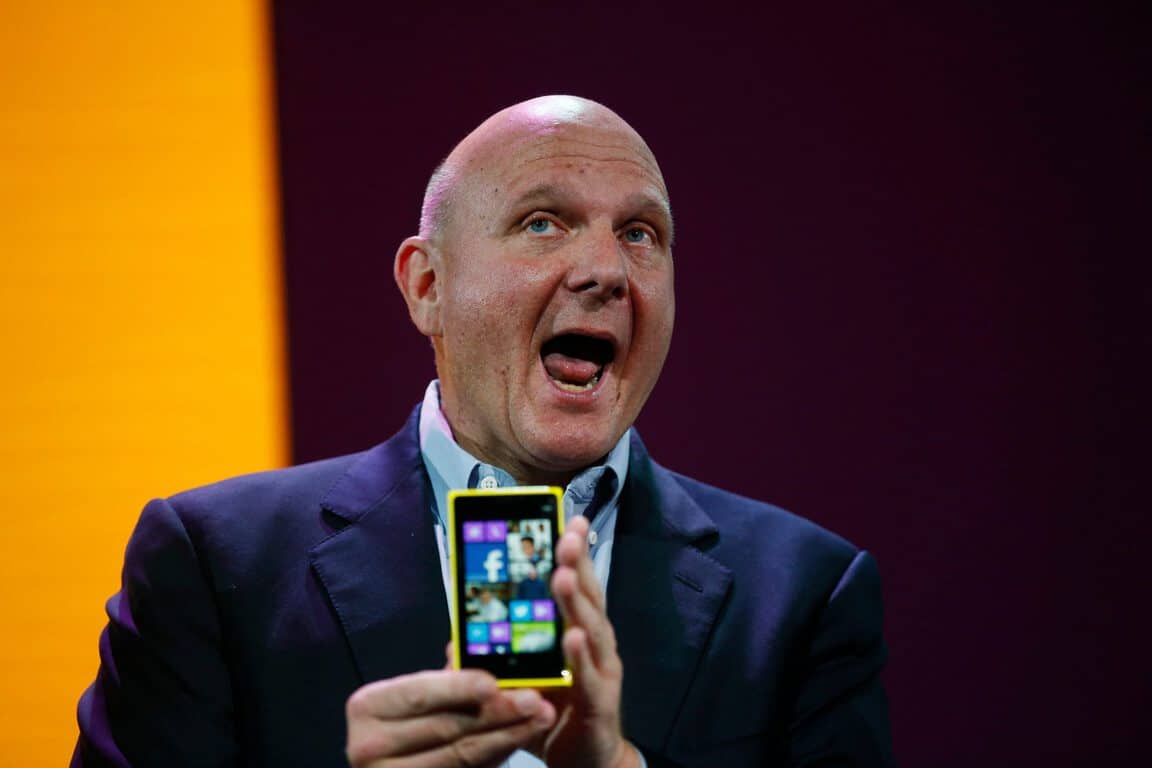
In a recent interview during Recode’s CodeConference, Ballmer shared some of his regrets as the former CEO of Microsoft, and as you can guess hardware is a big part of it. “I think I was too slow in cases to recognize the need for new capability, particularly in hardware,” explained Ballmer, without specifically mentioning Surface or Lumia devices. “I wish we’d built the capability to be a world-class hardware company, because one of the new expressions of software is essentially the hardware,” he added. “The company under my leadership should have built that capability earlier than we did.”

It’s not the first time that the former CEO looks back at his past decisions, as he previously discussed with Bloomberg how he would have done Windows Phone differently. Speaking about the acquisition of Nokia’s phone business, he explained that “if executed in the certain way, I think it made a lot of sense. The company chose to go in another direction and that’s the decision the company made.”

With Satya Nadella as its new CEO, Microsoft inaugurated a “mobile-first, cloud-first” strategy, with increased support for the most popular mobile platforms out there. In the same time, Microsoft clearly doubled down on its Surface hardware while neglecting Lumia phones and other devices categories.

The Surface line shows that Microsoft has become a great PC maker, but the company may have not learned all lessons from the past. Indeed, the Redmond giant is already late on some exciting new markets such as connected speakers or wearables, allowing Amazon, Google and Apple to become early leaders (Cortana-powered speakers are coming though). Microsoft seems to bet on mixed reality becoming the next big platform, but it’s still not clear if many consumers are excited about Windows Mixed Reality devices.

We’re not forgetting about the ultimate mobile device that Microsoft is reportedly working on, but the company will probably need more than great design and a more versatile OS to attract Android and iOS users. Yes, being a world-class hardware company is important to succeed in highly competitive markets, but timing may be even more important than that.

Microsoft Data Insights Summit next month will help you transform your business with data

Microsoft will host another technology conference in Seattle next month. The Microsoft Data Insights Summit 2017 will be held on June 12-13 and will be aimed to help you create a data culture at your organization, and change the way you work.

The event will feature keynotes from James Phillips, special guest Alberto Cairo, and authors of the bestselling Freakonomics series – Stephen Dubner and Steven Levitt. James is the Corporate Vice President at Microsoft for the Business Intelligence Products Group and known for his award-winning achievements in infographics and multimedia, Alberto serves as the Knight Chair in Visual Journalism at the University of Miami (UM).

The summit will aim to help organizations learn trends, tips and BI best practices, and how to transform data to insights and actions. Attendees will be able to take a deep-dive into the latest innovations, covering a range of topics across Microsoft Power BI, SQL Server BI, Excel, PowerApps, and Flow.

While the three keynotes and nine of the most popular sessions will be streamed live, I’ll be there at the summit to bring you more information from the ground. So, stay tuned!

Microsoft partners with Intel, OEMs and operators to deliver “Always Connected PCs” using eSIM technology

Earlier today, Microsoft and Qualcomm announced at Computex that ASUS, HP and Lenovo will be the first manufacturers to bring Windows 10 on ARM devices to the market. By leveraging Qualcomm’s top-of-the-line Snapdragon 835 SoC which already powers some premium Android smartphones, these OEMs will be able to create thin and light PCs with always-on LTE connectivity and great battery life.

However, Microsoft doesn’t want all “connected PCs” to be Windows 10 on ARM devices: that’s why the company is also partnering with Intel (which also has mobile modem solutions) as well as various PC OEMs and operators to make PCs more connected. As Microsoft explained in a blog post today, all these devices will use embedded SIM cards (eSIM):

We are collaborating with our ecosystem on a shared vision. This starts with a close partnership at the silicon layer, with Intel and Qualcomm and with our mobile operator partners to provide seamless eSIM connectivity. Microsoft device partners ASUS, HP, Huawei, Lenovo, VAIO, and Xiaomi, are committed to this new category of Always Connected PCs using eSIM technology.

The first mobie operators that are committed to support these upcoming always connected PCs with eSIM technology are AT&T, DTAG/T Mobile, BT/EE, Vodafone, Orange, Tele2, Swisscom, 3, China Mobile, KDDI, Gemalto, Oberthur, Gigsky and Transatel (via ZDNet). As LTE networks are probably faster than most WiFi networks you can find these days, bringing integrated LTE connectivity to mobile PCs is probably going to change how we use our devices in the future. Microsoft didn’t reveal today when these first connected PCs will come to the market, but it’s good to see that Microsoft and its partners have a forward-looking approach towards mobile connectivity.

Microsoft and Qualcomm share more details about the first Windows 10 on ARM PCs at Computex

Last year at WinHEC 2016 in China, Microsoft announced that it was working on a new version of Windows 10 running on ARM processors, more specifically Qualcomm’s Snapdragon 835 SoC which already powers some high-end phones such as the Galaxy S8. The purpose of Windows 10 ARM is to allow manufacturers to build “connected PCs” with always-on capabilities, and the more power-efficient ARM chip from Qualcomm also makes it possible for OEMs to build thinner and lighter devices with better battery life.

Unlike the now deprecated Windows RT, Windows 10 on ARM will also support all legacy Win32 apps through emulation: for consumers, this means that this new Windows 10 SKU will behave just like any Windows 10 PC, with full support for both Windows Store apps and Win32 apps such as Adobe Photoshop or other popular productivity apps.

Nearly six months after this initial announcement, Microsoft and Qualcomm announced today at Computex that ASUS, HP and Lenovo will be the first manufacturers to create Windows 10 on ARM PCs. “Each company is set to produce sleek, thin and fanless PCs running a Windows 10 experience with unparalleled LTE connectivity for an always connected, on the go experience,” said Qualcomm in a press release. “Coupled with the incredible 10nm leading node efficiency of the Snapdragon 835 Mobile PC Platform, these devices will feature beyond all-day battery life.” .

Matt Barlow, Microsoft’s corporate vice president, Windows marketing added that “this collaboration offers consumers something new and that they have been craving – the best of a mobile computing experience with the best of Windows 10, all in one thin, light, connected device.” Back in December at WinHEC, Microsoft said that the first Windows 10 on ARM PCs would come to market “as early as next year,” but today both companies shared no additional details expect that they’re coming “soon.” Windows 10 on ARM could very well change the PC market as we know it, and we’re looking forward to learn more about it in the coming months.

Xbox One pre-orders for the latest Sonic video game are now open

Sonic Mania is now available to pre-order on Xbox One ahead of its August 16th 2017 release date. The game is a return to the old school graphics of the original Sonic video games and features a variety of playable characters and game modes. Here’s the official description:

Experience the ultimate celebration of past and future in Sonic Mania, an all-new 2D Sonic adventure running at a crisp 60FPS with stunning HD retro-style graphics. Multiple playable characters give you the ability to go explosively fast as Sonic, soar as Tails, or power through tough obstacles with Knuckles’ brute strength. You can re-live the Sonic of the past with an exciting new twist on classic zones while fighting against new bosses and Dr. Eggman’s evil robot army. Go head to-head with players in Competition Mode or play in Co-Op Mode with a friend. Sonic Mania was developed by Christian Whitehead, Headcannon, and PagodaWest Games in collaboration with Sonic Team. Welcome to Sonic Mania!

Pre-order Sonic Mania on Xbox One

Are you a Sonic fan and will you be buying this game? Let us know in the comments below.

Red Screen on Windows phone [FIX]

Getting a Red Screen of Death on your Windows phone is a scary experience. First of all, the RSoD error occurs quite rarely, taking users by surprise. Second, the OS doesn’t offer much information on the cause of this issue.


How to fix Red Screen issues on Windows 10 Mobile

1. Perform a soft reset by pressing and holding the volume down and power buttons until your phone vibrates and restarts. As a quick reminder, don’t touch device screen during the process, not even when the ‘Slide down to power off’ instruction appears on the screen.

You can also remove the phone’s battery, if your device has a detachable battery.

2. Connect your phone to your PC and run the Recovery Tool again. Select “My phone was not detected” and wait for the device  to reboot itself, then follow the on-screen prompts. If you encounter any issues at this stage, try restarting the phone while it’s connected.

3. This is a variation of the second workaround. Remove the SD card and SIM card from your phone and open the Recovery Tool. Select “My mobile not detected”, and go to model selection. At this stage, it’s extremely important not to turn the phone on or connect it to PC.

When you’re prompted to connect your phone, first turn it on by pressing the power and volume down buttons at the same time. When the logo appears on the screen, connect the phone to your computer via the USB port and follow the on-screen instructions.

If you’ve come across other solutions to fix RSoD errors on your Windows phone, you can list the troubleshooting steps in the comment section below.

RELATED STORIES YOU NEED TO CHECK OUT:

6 of the best Notepad alternatives to use

Notepad is a text editor included in all Windows platforms. Although a seemingly basic piece of software, the text editor comes in handy for various things. For instance, Windows users can set up handy batch files or AutoHotkey scripts with it. However, Notepad has very few formatting or editing options so if you need a text editor with more extensive options and tools, look no further than these third-party Notepad alternatives for Windows.

Notepad++


Notepad++ is a highly rated text editor for Windows specifically designed for scripting with its support for numerous programming languages, such as C, Pas, al and C++. The program is freely available and compatible with all Windows platforms. Press the Download button on this page to save the software’s installer.

The great thing about Notepad++ is how it highlights syntax when programming code. With it, users can select numerous formatting options from the software’s Style Configurator to customize their own global styles with foreground and background colors and italic or bold fonts, or choose from preset themes. The program includes tabs so that users can edit multiple text files at once, a spell checker, macro-recording options, a Document Map tool and a Function List panel that displays function items in text documents. Furthermore, Notepad++ has additional plug-ins that enhance the software a little more.

EditPad Pro (or Lite)


EditPad is notepad software with a freeware and proprietary version. The Pro version retails for €39.95 and supports a wide variety of file types such as C, C++, HTML, C#, CSS, Visual Basic, VBScript and XML. You can add EditPad Lite 7 to Windows platforms from XP up by clicking Download EditPad Lite on this page.

EditPad is an all-purpose text editor that doesn’t just cater to software developers as it supports word wrapping and proportional fonts. The software itself has a tabbed UI design and includes extensive customization options on its Preferences window. For example, users can configure the editing options, the mouse cursor, keyboard navigation, tab colors, status bar indicators and more. The Pro version also includes syntax coloring, a spell checker, a hexadecimal mode for binary editing and a file navigator. Although the Lite version lacks those tools, it does still include the handy Clip Collections with which you can save text snippets and source code templates.

PSPad


PSPad is another great text editor for programmers, but it also includes advanced text-editing options. This is freeware that’s compatible with the more recent Windows platforms and also has a portable version for USB sticks. You can click Installer on this page to add PSPad to your software library.

PSPad is chock-a-block with programming and scripting tools for developers. You can select to open ASCII Table window, Color Selector window, Color Translator, Code Explorer and Macro tools from its Tools menu. The software’s View menu includes Spell Check, Line Numbers and Hex Edit MODE options. This is a good text editor for website design as it includes an expansive HTML menu from which you can select HTML Page Preview, Check HTML code, Reformat HTML code and Text to HTML options. PSPad also has numerous code templates and highlights syntax for specific file types. PSPad is certainly packed with more tools than most third-party text editors.

Notepad2

Notepad2 is a lightweight third-party text editor that has a similar UI to the original Notepad, albeit with a customizable toolbar. What sets this program apart from the other alternatives is that it installs over and replaces the original Notepad. This software is compatible with Windows platforms from XP to 7 and you can download its setup wizard from this web page.

Notepad2 retains Notepad’s speed and ease of use, but has lots more options, the most notable of which is perhaps syntax highlighting for various coding languages, including C/C++, VBScript, Pascal, Visual Basic, Python and CSS. Users can select Line Numbers, Indentation Guides, Visual Brace Matching and Highlight Current Line options from the View menu. Notepad2’s Settings menu also includes a Transparent Mode that adds transparency to the window and an Always On Top options that keeps the text editor on top of other windows. Notepad2 doesn’t have as many tools as some of the other third-party alternatives, but it’s still a solid text editor.

Ted Notepad

Ted Note is another lightweight text editor that weighs less than one megabyte. Unlike PSPad, this is not a text editor designed for scripting but it has plenty of handy text-processing options. You can add this freeware to Windows platforms from XP to 10 by pressing the Ted Notepad button on this home page.


Ted Notepad might not seem much different from the Windows Notepad accessory at first blush, but once you start digging through the menus, you’ll find plenty of handy options. For instance, users can select from eight alternative types of text case conversions. The software includes Remove Empty Lines, Sorting, XML/HTML Tag and Enclose Selection tools. Furthermore, TN has nine clipboards that you can save text to and it also enables you to copy and paste text with the mouse instead of the usual hotkeys. Auto-save, which automatically saves timed backups, is another good addition to the program.

Atom

Atom is a relatively new text editor with rave reviews. This flexible, open-source software sports modular design which enables users to configure the program without opening config files. This is also multiplatform software that you can run in Windows, macOS and Linux platforms. Press the Download Windows 64-bit installer button on Atom’s home page to save its setup wizard.

Atom is a good choice for scripting as it supports a range of default programming languages, which include C/C++, PHP, JavaScript, CSS, Clojure, Java, HTML, SQL and Perl. The software highlights syntax for several programming codes. Tree view is a great addition to Atom that provides drag-and-drop file and folder support. What really sets Atom apart from other third-party text editors, though, is its customization options that enable users to configure the UI and syntax themes, hotkeys and further enhance the software with packages. Atom even has a developer mode for users to edit the program with.


Those are six of the best Notepad alternatives for Windows ideal for editing scripts and text processing, all with more options and tools than Notepad in Windows.

This Windows Report article also tells you about some of the best HTML5 editors with which you can edit script code.

Microsoft reveals the Mixer Create live streaming app

Microsoft announced a rebranding of its streaming service Beam. It will be called Mixer and will be launched in beta on iOS and Android.

Mixer Create app features

The new Mixer Create app will include self-broadcasting features that will allow streamers to keep in contact with their audience while they are on the go.

According to Microsoft:

Mixer Create Beta Launches on Mobile Devices (iOS and Android) — Mixer Create is a new mobile app that enables self-broadcasting, and we’re kicking off the beta today. Soon thereafter, we’ll add the ability to stream live gameplay from your mobile device as well. The ability to broadcast gameplay on-the-go opens up entirely new social gaming possibilities.

In the near future, the company also plans to update the Mixer Create to let creators stream live gameplay of iOS games straight from their iPhones and iPads. This is similar to how Mixer can stream games on PC and Xbox One.

Mobile broadcasts will be viewable by users on any platform that Mixer is running on. This also includes the basic Mixer app for iOS, Android, Xbox One and the web. The application is designed as a partner application to the main Mixer app and currently allows users to use it in a way similar to how live broadcasts work on Instagram and Facebook. The apps will be soon updated to enable live streaming of mobile phone games.

Four streamers combine into a single experience

The company hasn’t yet explained how exactly the feature will work but it gave examples of streamers sharing gameplay from their iPhone such as streaming their hunt for Pokemon Go.

Users who will stream on Mixer will also be able to co-stream with up to three other people. This means that up to four creators will be able to combine their streams together into a single experience for the viewers.

Mixer Create is available for the public on Android in beta and on iOS via Apple’s TestFlight service — but only by invite.

RELATED STORIES TO CHECK OUT:

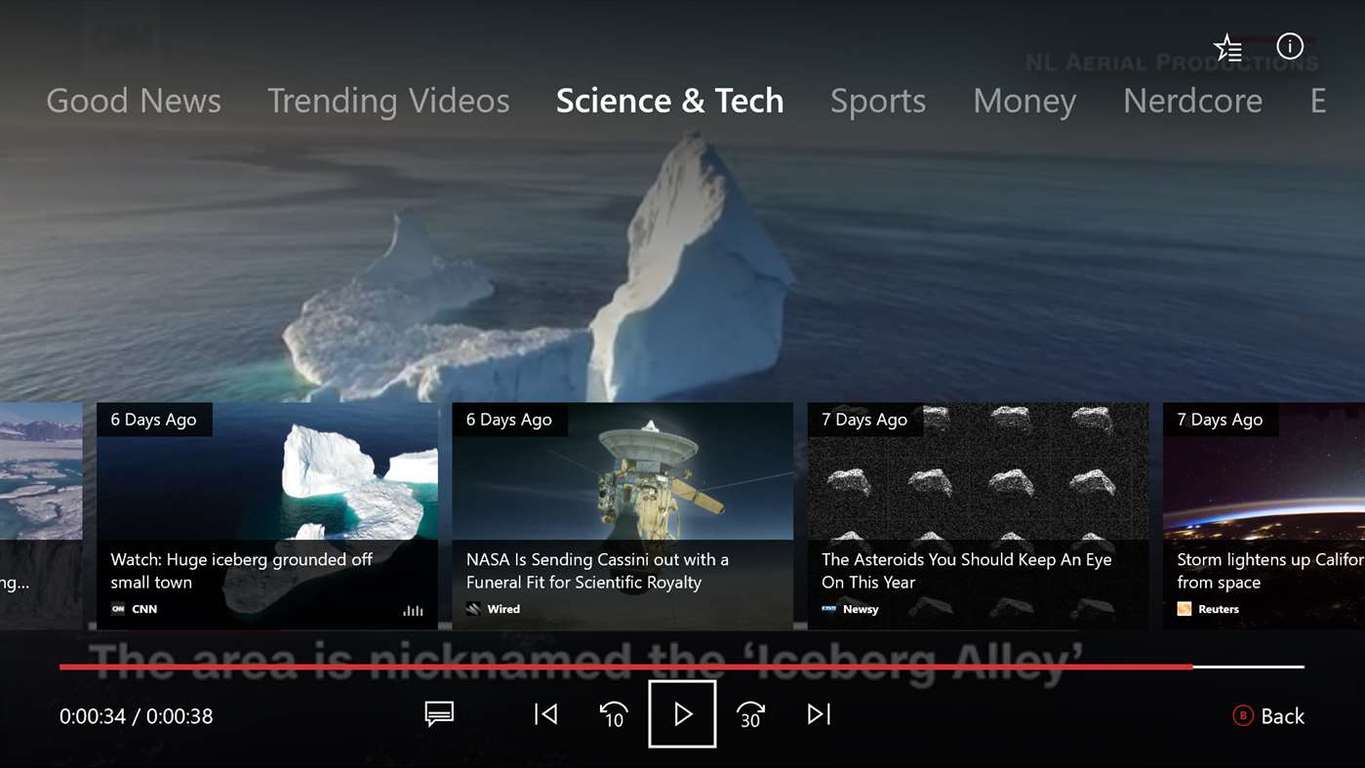
Microsoft Garage releases Your News for Xbox One, delivers personalized news

Microsoft Garage is has released a new app for the company’s Xbox One games console. Called Your News, it is aimed to deliver a curated feed of news, allowing the passive viewing of news headlines, as well as to watch the news right from their console (via Windows Central).

The app is powered by Microsoft’s MSN platform, which allows the app to deliver video content by MSN. The idea of the app is to allow users to discover news that matches their tastes and preferences while doing other activities, not necessarily sat infront of the console.

The team behind the Your News app gave the following description:

We helped to serve this by ensuring our users had the choice of which news they wanted to watch. They are provided with a list of news topics and sources personalized to their tastes, each of which provides a variety of news stories. If they’d like to watch passively, they can put the controller down and watch a continuous stream of stories. This is Your News, where users can watch news they are interested in, whenever they want.

First 1706 build for Xbox One is on the way for Preview Alpha Insiders, brings Mixer co-streaming, controller sign-in and more

Microsoft is beginning to release the first build of version 1706 for Xbox One. Intiially releasing to those on the Preview Alpha ring, this build brings a few new features, as well as a number of fixes.

To begin with, here is what’s new in the first build of 1706:

  • Profile
    When a signed in user is selected in the Guide, the e-mail address associated with their account will now display under their profile, as well as on Home. This feature is enabled by default for adult accounts, and disabled for child accounts (child accounts will never see the e-mail address associated with their account displayed).

Adult accounts can disable this feature by navigating to Settings > Account > Sign-in, security & passkey.

  • Mixer Co-streaming
    You can now invite a friend to combine their game broadcast with yours! Sign in with an account that has an Xbox Live Gold subscription and invite a friend to your party. Once you’ve begun broadcasting your game from the Guide, you’ll be able to select “Invite party to co-stream” from the Party tab. Co-streaming is currently available only to Alpha Insiders, so we’d suggest using the Insider forums to sync up with other Alpha Insiders to test out this feature.
  • Controller Linking
    Signing into your Xbox account can now be done with a click of the Xbox button thanks to the new controller linking feature! You can now link an account to a specific controller by opening the Guide, navigating to Settings > Account > Sign-in, security & passkey and selecting the “This controller signs in…” option followed by “Link controller.” From there, test the feature out for yourself by signing out of your account and then turning your controller off and then back on.Find more detailed steps and provide your thoughts on this feature by accepting the “Link Your Controller” Quest in the Xbox Insiders Hub!

For fixes, there’s a few, but one that a fair few will enjoy – distorted audio with Windows Sonic should now be fixed:

  • Windows Sonic
    Fixed an issue which could cause distorted sounds and audio glitches when Windows Sonic is enabled.
  • Skype UWP
    Fixed issues which could sometimes cause the Skype UWP to crash during use.
  • Mixer
    Fixed an issue which sometimes caused the virtual keyboard to lose focus (preventing text from being entered).

The only known issues are with the Mixer integration:

Mixer

  • After dismissing the virtual keyboard, attempting to relaunch the virtual keyboard may fail.
  • When switching games while broadcasting with Mixer, the stream freezes and doesn’t allow the user to close or restart the broadcast.Workaround: Restart the console.

The build is rolling out to Preview Alpha Insiders now, with those on the Beta ring expected to receive it later in the week, based on feedback.

The Surface Pro 4 should now have a much better battery life

Microsoft unveiled a new firmware update for the Surface Pro 4. In its install instructions, the company mentions that users should use the drivers and firmware to prepare custom images for enterprise deployment or to repair issues with custom installations on their Surface Pro 4 devices.

The Surface team updated the following:

  • The drivers for Surface Embedded Controller Firmware
  • The drivers for Surface Touch Servicing ML
  • The drivers for Surface Touch
  • The drivers for Surface UEFI

The updated drivers resolved some issues including a brightness problem when devices come out of sleep, refined brightness settings, optimized touch functionality, adjustment of hibernation defaults, improvements for battery life and stability during sleep, and disabled touch capability when the cover is closed.

The update also includes the following:

  • The Surface System Aggregator Software
  • Intel Precise Soft Device
  • Surface Intergation Drivers (which the company released last month for devices running Windows 10 version 1703 – the Creators Update, for Windows 10 version 1607 (Anniversary Update) and Windows 10 version 1511 – the November Update).

Microsoft says on its official page for the update that:

Cumulative and current firmware and drivers for the Surface Pro 4. This firmware and driver package contains drivers for all of the components in the Surface Pro 4, as well as updates to the system firmware that have been released via Windows Update. These drivers and firmware are compatible with Windows 10, including Enterprise versions. The driver MSI and ZIP files include all of the drivers and firmware needed to deploy custom images of Windows on your Surface devices. Additionally, the WinTab driver is provided for those professionals needing WinTab compatibility with certain Surface Pen enabled applications.

Read all the information about the update and download it from Microsoft’s official page.

RELATED STORIES TO CHECK OUT:

Microsoft hosts its first-ever Accessibility Summit in India to drive digital inclusion

Microsoft India today hosted its first-ever Accessibility Summit in the country in Hyderabad with an aim to enhance technology access for people with disabilities.

The summit brought together government leaders, non-profit organizations, filmmakers, entrepreneurs, and young technologists to present their views and best practices around accessibility and demonstrate the business value of accessible technology for organizations.

“Our vision is to ensure that persons with diverse abilities have equal access to the physical environment, transportation, information and communication technologies, and to other facilities and services. The Microsoft Accessibility Summit provides an ideal platform to bring together policymakers and influencers to understand the policy environment and chart a direction for making life, experiences and opportunities accessible to all.”

– Jayesh Ranjan, IT Secretary, Department of IT – Electronics & Communication, Govt of Telangana

The event featured a series of sessions focused on the role of technology in creating accessible businesses as well as scalable and sustainable models for skilling youth with disability. There was a special focus on the need for regulatory policies for innovation on accessible technologies and inclusive hiring practices. The summit featured several technology-based projects that empower people with disabilities and included innovations from non-profit organizations, assistive technologies developed by Microsoft partners, as well as some of Microsoft solutions.

The Microsoft Accessibility summit provided insights into regulations, specifications, and standards so that accessible and adaptive technologies can act as a support system to promote inclusion and empowerment of persons with disabilities.

Perception system requirements for PC

A new horror game will soon launch and we’re sure it will send shivers down your spine. It’s called Perception, and it’s a challenging experience that puts you in the shoes of Cassie, a young blind woman trying to escape a deadly presence.

Cassie possesses two important qualities: extraordinary hearing and sharp wits. Use them to unravel the mysteries of an abandoned estate that haunts her dreams. Once she arrives there, she realizes the evil spirit that has been tormenting its inhabitants over generations is how hunting her. Your main task are to solve the mystery of that evil presence — while not becoming one of its victims.

Interested in Perception? If your answer is yes, make sure that your computer is perfectly capable of running the titlke in order to avoid technical issues.

Perception system requirements for PC

  • OS: Windows 7 (64-bit)
  • Processor: Dual core CPU @2.4 GHz +
  • Memory: 4 GB RAM
  • Graphics: NVIDIA GeForce 470 GTX or Radeon 6870
  • Storage: 3 GB available space

For the time being, Perception’s developers have no plans to port the game to Linux.

Perception supports the following languages:

  • English
  • French
  • Italian
  • German
  • Spanish
  • Japanese
  • Polish
  • Portuguese-Brazil
  • Russian
  • Simplified Chinese

Full audio is available only in English, though.

For more information about the game, check out the trailer below:

Here are some of the most important features of the game:

  • You’ll be able to actually visualize your environment using echolocation.
  • You’ll engage in a deadly game of hide and seek with countless enemies, including The Presence.
  • As you solve the mysteries, you’ll trigger major changes at the Estate at Echo Bluff
  • You can travel back through time to exorcise your nightmares.

Interested in Perception? You can buy it from Steam.

RELATED STORIES YOU NEED TO CHECK OUT:

How to find out shut down statistics for your Windows computer

For some users, especially administrators of business networks, it’s important to keep track of various statistical values. Most use advanced 3rd-party tools in order to access the sensitive information about connected PCs. Even though most of them don’t focus exclusively on shut down statistics, it can still be a valuable piece of information accessible without advanced software.

The data on who shut down certain computers and when it happened isn’t important for ordinary users, but administrators and managers beg to differ. Here are three ways to keep track of this sort of information.

Use Windows Logs

Windows Logs is a great built-in tool that packs in all of the essential information related to the everyday usage of a PC. In addition, advanced users can browse error logs and maintenance reports, helpful with troubleshooting, tracking faulty software/hardware inputs, and much more. And, yes, you can find the exact time of the previous shutdown within Windows Logs.

In order to check shut down routines with the Windows Logs/Event Viewer, follow the instructions below:

  1. Press Windows key + X + V in order to open Windows Event Viewer.
  2. From the left pane, click Windows Logs.
  3. Click System.
  4. In the far right pane, click Filter Current Log.
  5. In the Event Sources line, type 6006 and save selection.
  6. In the middle pane, you should see the list of the latest shutdowns.

Additionally, you can find the Up Time within the Task Manager. Right-click on the Taskbar and open the Device Manager. You can find the Up Time under the bottom right corner.
Use Shutdown Logger

However, if you’re not satisfied with Event Viewer, you can use a more user-friendly 3rd-party tool that should make things much easier. While we’re aware that Windows 10 covers the essentials, you may as well try out this tool since it’s completely free.
Monitoring PC usage with Shutdown Logger is simple since the program creates text logs that are easily accessible. It’s basically a implemented service that only records shutdowns and not the sleep states. Just download it, run it and you can restart your PC and start tracking shutdowns. You can access logs with the exact time and date of the previous shutdowns by navigating to C:\ShutdownLoggerSvc\Logs.

If you want to obtain Shutdown Logger, this is the download link.

Use TurnedOnTimesView

Compared to the previous tool, TurnedOnTimesView is somewhat advanced. This tool that works without installation and doesn’t need to run in the background. Simply download it, start it and it should provide you with punctual readings of previous shutdowns, up to several weeks ago.

It stands somewhere between detailed, native Windows Logs and Shutdown Logger. There are additional logs that can help you substantially with the troubleshooting, with clues about the causes of possible system errors. Moreover, it can track sleep/hibernate events and display them in alist, just as the shutdown routines: with time and date.

You can download TurnedOnTimesView here.

At the end, both of those are niche tools that aren’t commonly used by the vast population of Windows users. However, if you’re keen to try them out, they will serve you well.

What tools do you use for monitoring and maintenance? Tell us in the comments below.

RELATED STORIES YOU NEED TO CHECK OUT:

Manage your Windows files & folders more efficiently with FS Utilities

FS Utilities is a suite of tools that helps you deal with your files and folders in a more efficient way on your Windows PC. With it, you’ll be able to analyze files and take more complicated and advanced actions to deal with them in the most efficient manner.

Installing FS Utilities

After you download the package, open it and run “setup.exe”. At ClickOnce’s security prompt, click the Install button. The program will then start and from now on, you will be able to start the app from Start > All apps > FS Utilities. You can, of course, create a shortcut for the program if you want to.

FS Utilities usage

The app can’t work without a list of files and folders, so you have to select something in Windows Explorer and drag the selection with the option “drag files/folder here”.

Once you drop something, the screen will contain two main tabs. The folders can be navigated through two ways: hierarchical or flat.

Operative examples of the app

  1. Export files or folders list in Excel

Select what you plan on exporting and click CSV to obtain the CSV file. This is a temporary file, so if you want to saveit, use the “Save As…” option.

  1. Search and filters

To find something,  type it into the “Quick text search” box. The results will be filtered and highlighted anywhere the search matches.

  1. Activities on the selections

After you pick a selection of files, you’ll have these contextual menu options available:

  • Executing the file
  • Reveal in Windows Explorer
  • Signature calculation
  • Copy the files in clipboard
  • Delete files
  • Rename files

After you pick a selection of folders, you have the following contextual actions available:

  • Executing the folder
  • Reveal the folder in Windows Explorer
  • Filter all the x files in this folder
  • Copy folder structure

Other operative examples of the app include:

  • Summarizing data by extension
  • Finding duplicates
  • Using a folder structure for creating a new and empty folder structure
  • Renaming a set of files

FS Utilities is a great file management suite and has amazing features and file handling capabilities, so make sure to check it out!

RELATED STORIES TO CHECK OUT:

Windows 10 news recap: non-Insiders receive apps with Fluent Design elements, Windows 10 China Government Edition and more

Welcome back to our Windows 10 news recap. We are continuing the trend of our weekly “Windows 10 news recap” series where we go over the top stories of the past week in the world of Microsoft’s flagship operating system.

Non-Insider versions of Windows 10 Calculator, Alarm & Clock updated with Fluent Design looks

Those who aren’t on Insider builds of Windows 10 are beginning to see some Fluent Design elements appear in the default apps of Windows 10. Some of the apps include Calculator and Alarm & Clock.

Fluent Design Calculator

Microsoft announces Windows 10 China Government Edition

A new edition of Windows 10 is being made available, but only to the Chinese government. Known as Windows 10 China Government Edition, it is based on Windows 10 Enterprise Edition and will allow China to manage all telemetry and what users can access on the OS.

Citrix Receiver brings Win32 apps to Windows 10 S, now available in the Windows Store

For those who thought Windows 10 S would be very limited due to its ability to only install apps via the Windows Store, lacking Win32 program support. A new app in the Windows Store, Citrix Receiver, has been updated to support the Universal Windows Platform, and now allows those on Windows 10 S to run traditional Win32 programs in a virtualised state.

Windows 10 is used on more than 50 million business PCs

A video released on Microsoft’s Windows YouTube channel shows that Windows 10 is being used on more than 50 million business PCs.

Microsoft exec says Windows 10 and Windows 10 S options will be available for Surface Laptop and Surface Pro

In addition to the Surface Laptop that runs Windows 10 S by default, a Microsoft exec has said that both the Surface Laptop and Surface Pro will be available with either Windows 10 or Windows 10 S options. In a statement, the exec said:

Surface Laptop @h0x0d

That’s it for this week – we’ll be back next week with more Windows 10 news.

Nirsoft’s UninstallView is a portable Program Uninstaller software for Windows

UninstallView is a piece of free portable software developed by Nirsoft that allows users to uninstall apps from their Windows machines. Besides the plain un-installation, the app also offers more features you won’t find available by default.

UninstallView description

According to the official site of the developing company, UninstallView is a:

tool for Windows that collects information about all programs installed on your system and displays the details of the installed programs in one table. You can use it to get installed programs information for your local system, for remote computer on your network, and for external hard-drive plugged to your computer. It also allows you to easily uninstall a software on your local computer and remote computer (Including quiet uninstall if the installer supports it).

Regarding its system requirements, the app runs on any version of Windows and it supports both 32-bit and 64-bit systems.

Using UninstallView

Using the app doesn’t require an installation process or additional DLL files; you just have to run the executable file UninstallView.exe. After doing so, it will scan your local system and collect all the information about the programs installed on your device. After finishing the scanning process, all the information related to your installed program will be displayed in the main menu.

Loading speed

You can choose between three loading speeds:

  • Slow with most details
  • Medium with medium details
  • Fast with least details

Uninstalling a software

You have three options available for uninstalling software:

  • Uninstall Selected Software
  • Change Install of Selected Software
  • Quietly Uninstall Selected Software

The app also lets you uninstall software on a remote computer using the PsExec.tool from SysInternals/Microsoft. The most useful uninstall ioption is the Quiet uninstall because the software is uninstalled without displaying anything on the screen of the remote computer.

The Options Menu

You have the following options available from the app and you can check all the necessary details about the on the official site.

  • Uninstall Run Mode
  • Run as administrator if it’s required
  • Always run as administrator
  • Show ‘System Component’ Items
  • Show Items With Parent Uninstall Entry
  • Show Items Without Uninstall String
  • Show Items Without Display Nam
  • Allow Uninstall Of Multiple Items

UninstallView is a powerful portable tool and extremely easy to use. Check it out!

RELATED STORIES TO CHECK OUT:

New concept shows what Windows 10’s Resource Monitor could look like with a touch of Fluent Design

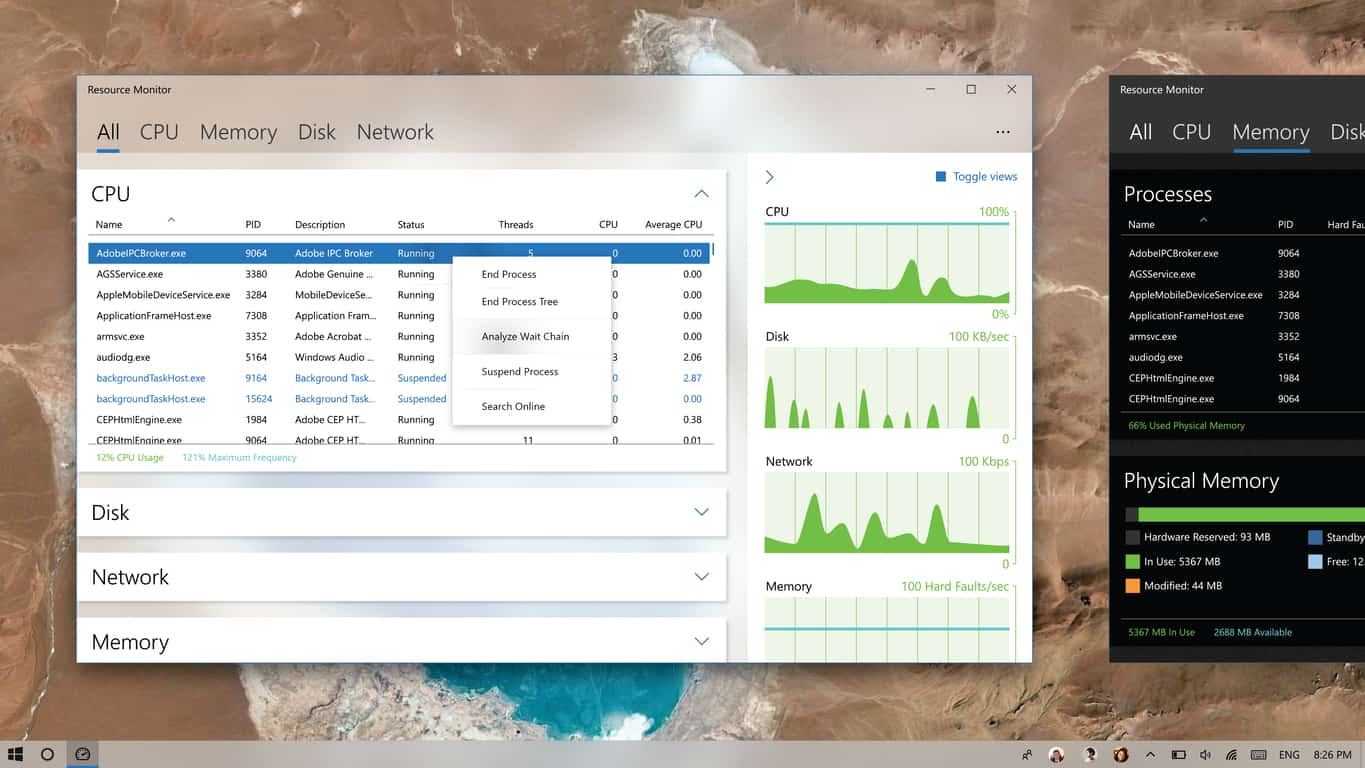
With built-in apps on Windows 10, such as Groove Music, receiving touches of Microsoft’s new Fluent Design language, one Redditor has decided to show a concept of what the Win32 Resource Monitor could look like if it got Microsoft’s makeover treatment.

Resource Monitor using Windows 10's Fluent Design
Credit to Quayledant

As you can see, the concept streamlines the Resource Monitor, such as making the CPU, Disk, Network and Memory graphs more visually appealing and noticeable without having to do any additional clicks, as well as turning the entire interface into a one-page system, where clicking the tabs opens the accordion that contains additional information of the selected item.

Those on Reddit appeared to like the concept, but cast doubt on the probability of Microsoft putting in the effort into making the Win32 programs pretty:

Would you like to see Resource Monitor receive the Fluent Design treatment in Windows 10?

Xbox news recap: Beam rebrands to Mixer, Far Cry 5 reveal completely changes the franchise and more

Welcome to our weekly Xbox news recap series, where we go over the top stories of the past week in the world of Xbox. Let’s get started.

Beam becomes Mixer, mostly for legal reasons

Beam, Microsoft’s streaming service with a small but loyal base of users, has been rebranded as Mixer. The rebrand has gotten a mixed reception so far, with many loyal Beam users upset that the service has been so dramatically changed overnight. Unfortunately, the renaming occurred because Microsoft “had to change the name because we couldn’t use the Beam name globally,” according to a Tweet from Mixer’s Matt Salsamendi. Only time will tell how dramatic of an effect the new brand has.

Far Cry 5 revealed, showing new direction for the franchise

Far Cry 5 was revealed this week by Ubisoft, showing us an entirely new direction for the Far Cry series. The franchise has mostly been defined up until this point by its themes of wilderness and throwing people into a wild, untamed land – but the new series takes place in a contemporary American setting. This time around, it looks like the game takes place in a Montana town called Hope County, and features a villain in the way of a religious cult. Several trailers were released, and they’re all worth watching.

Mixer getting huge changes in the near future

Mixer’s new brand means that the service is really doubling own on making its own identity in the world of streaming services, and that comes with new features. Mixer has been very transparent about what they plan to be adding in, and it’s actually pretty promising. The list includes Dynamic Stream Recaps, Sub Anniversary Announcements, Channel Editors, Scheduled Live Streams, Team Based Interactive Games, Voice Chat Commands, Co-Streaming, and so much more. No word on when this stuff comes out, but it’s all looking great.

Here’s the list of features:

  • Dynamic Stream Recaps
  • Sub Anniversary Announcements
  • Channel Editors
  • Scheduled Live Streams
  • Team Based Interactive Games
  • Voice Chat Commands
  • Co-Streaming
  • AV1 Stream Encoding
  • Private Messaging
  • Group Messages
  • Moderator Permission Editor
  • Channel Moderation Logs
  • Built-in Donations
  • Theater Mode
  • VOD Chat Replay
  • Console Apps

Mixer may be coming to Playstation, and maybe Switch

Mixer’s mostly aimed at people who are Xbox/Windows 10 diehards, but as a service it needs to be available for everybody. A Twitter user recently reached out to Microsoft’s Phil Spencer about the plans for Mixer, noting that he’d heard that there were plans to bring Beam to “other platforms,” including Playstation. Phil Spencer answered the question about as simply as possible, by just saying “Yep.” I’d say that’s as close to confirming Mixer on PS4 as he can get, without saying it in plain English.

Mixrosoft’s E3 event will be broadcast in 4k – only on Mixer

Microsoft is going to be broadcasting their briefing at E3 on Mixer, giving Xbox fans who have the ability to watch 4K content the broadcast necessary to do so. While it doesn’t really strike most people as a big deal, this means several big things. First of all, you’ll be able to see new trailers released at E3 in their clearest quality (minus any compression.) Second – and possibly the most important – this will be the first real showing of streaming in 4K. This feature is missing from Twitch, and seeing it in action might get some people to consider trying out Microsoft’s service instead.

Thanks for joining us. To keep up to date with all the latest Xbox news, keep a close eye on our Xbox One tag.

Windows 10 is used on more than 50 million business PCs

In a video uploaded to the Windows YouTube channel recently, Microsoft was explaining how businesses can find out if software they use is supported on Windows 10, and how developers can provide a statement of support, thus gaining the Windows 10 Compatible logo. During this video, however, Microsoft displayed a key statistic that shows how Windows 10 is performing in the business area up to now.

A slide states that there are over 400 million devices running Windows 10, along with more than 50 million being in business. While this would seem like a relatively low number for business adoption, a recent Gartner report has said that it expects 85% of enterprises to begin deploying Windows 10 by the end of the year, particularly as more support for software is declared.

DLL Files Missing After Installing Windows 10 Creators Update [FIX]

As time passes, Windows 10 users are getting more skeptical about the updates. Creators Update indeed promised a lot of valid improvements, but it seems to have failed in some other departments.

Users reported a lot of various issues after the update, and the list is longer than one would expect. One of the issues that emerged after the Creators Update is quite disastrous for affected users.

Namely, it seems that some of the essential DLL files got deleted or corrupted after the update.

If you’re not aware of the importance of DLL files, you should be. Simply put, these are the files that are closely related to certain programs, and they heavily affect their behavior in the Windows system. Basically, without them, you won’t be able to run certain programs, both built-in or 3rd-party.

So, if you have encountered errors followed by prompts about missing or corrupted DLL files, you’re in the right place.

We prepared some solutions that should help you restore these files and they can be found below.

How to repair missing or corrupted DLL files in Windows 10 Creators Update?

1. Run the SFC tool

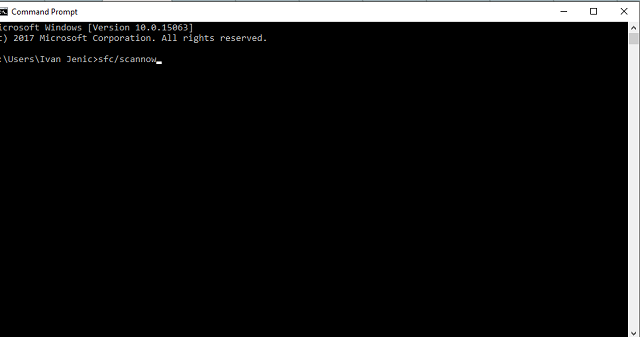
The first step you can take when addressing this issue is to run the Command Prompt and use the SFC tool.

You can use the SFC scan command by following these instructions:

  1. Go to Search, type cmd, and open Command Prompt (Admin).
  2. Under the command line type the following command and press Enter:
    • sfc/scannow
  3. The scanning process may be lengthy.

SFC tool is a built-in function with the main purpose of scanning system files and restoring any that are corrupted or deleted. It should take care of the system files and restore their full functionality after the process is finished.

After the procedure is finished, the system should automatically restore missing DLL files. You should be able to use all the programs just like before the update.

2. Run DISM

  1. Go to Search, type cmd, and open Command Prompt (Admin).
  2. Under the command line, type the following command and press Enter:
    • DISM /Online /Cleanup-Image /RestoreHealth
  3. Wait for approximately 10 minutes until the process is finished and restart your PC.

In addition, there’s an alternative way to utilize this nifty tool and restore missing DLL files. The procedure is just below:

  1. Mount your Windows 10 installation media. Either USB or DVD with the system ISO file.
  2. Right-click Start and open the Command Prompt (Admin).
  3. Under the command line, type the following commands and press Enter after each:
    • dism /online /cleanup-image /scanhealth
    • dism /online /cleanup-image /checkhealth
    • dism /online /cleanup-image /restorehealth
  4. After all 3 of the above processes are finished, type the following command and press Enter:
    • DISM /Online /Cleanup-Image /RestoreHealth /source:WIM:X:SourcesInstall.wim:1 /LimitAccess
  5. Make sure to change X value with the letter of the mounted drive with Windows 10 installation.
  6. After the procedure is finished, you should restart your PC and look for changes.

DISM brings a similar but a bit more advanced approach to the matter at hand. Namely, with the Deployment Image & Servicing Management tool, you can scan and restore missing files as same as with the SFC function.

However, instead of just relying on Windows Update, you can use Windows 10 installation media to restore missing or corrupted files. If the SFC isn’t up to the task, it’s worth running DISM first.

We’ll explain this procedure step-by-step, so make sure to follow the instructions closely and you should be good to go:

3. Reinstall 3rd-party applications

That can be done this way:

  1. Right-click the Start menu and open the Control Panel.
  2. Open Uninstall a program under the Programs section in the Category view.
  3. Navigate to the broken program and uninstall it.
  4. Restart your PC and reinstall the program/game again.

Even though the system tools mentioned above are perfect for system files, some users reported changes with their 3rd-party programs after the update.

Compared with the system files, this should be much easier to address. The answer is simple: just reinstall the troubled program or game, and you should resolve any DLL-related issues.

4. Obtain DLL files manually

If your system could not repair itself and restore missing DLL files, you can download those by hand. That’s most of the time a risky business since you are endangered of malware intrusions.

However, there’s a site that covers many of the present DLL files, malware-free and easy to use.

Once you know what DLL file is missing, you can search it under the site’s search bar and download it for free. After that, it’s just a question of placing it in the required location, and your problem should be resolved.

5. Reset your PC

If a problem at hand affected your system greatly and rendered it unusable (and missing DLL files can do that), you can try to reset your PC settings to default values.

  1. Click Start.
  2. Open Settings.
  3. Open the Update & Security section.
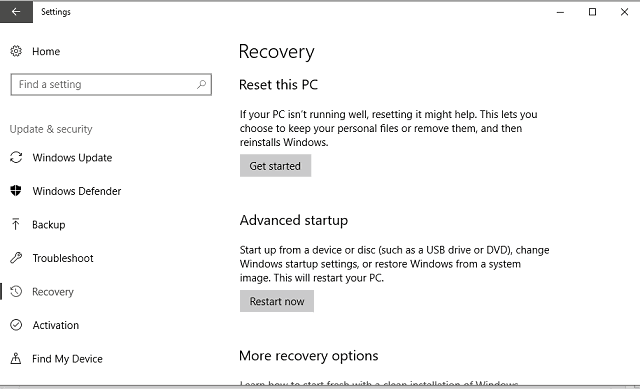
  4. Choose Recovery from the left pane.
  5. Click Get Started under the Reset this PC.
  6. Choose Keep my files.
  7. After the procedure is finished, DLL errors should be long gone.

That is a similar procedure as a clean reinstall, but it will save you some time and preserve your data from the system partition. In case you’ve wondered how to utilize this recovery option that made its first appearance with Windows 10, follow the instructions below:

Check out our detailed article on how to deal with similar DLL-related errors like the speedtreert.dll.

That should do it. If you have any additional solutions and are keen to share them, please do so in the comments section. The same goes for questions.

Fix blurry legacy apps in Windows 10/11 with DPI scaling

You can now fix blurry fonts and stretched elements in old apps on Windows 10. We’ll show you exactly how in this article.

Every device features a high-DPI display these days and this includes laptops, phones, tablets and desktop PCs. Windows 10 comes with DPI scaling support to improve the entire viewing experience. Unfortunately, older legacy apps don’t benefit from it. Microsoft thought about a way to improve this and introduced some updates in both Windows 10 Anniversary Update and the Creators Update for fixing the problems.

High-DPI scaling improvements on Windows 10

Microsoft is working on improving the way that Windows 10 handles automatic scaling per-monitor to reduce the amount of blur or incorrect size for older apps. In case the apps don’t render correctly, the company also introduced the possibility to force an app to run as a DPI-unaware process.

Overriding System DPI Scaling for an older app

You can adjust your DPI scaling setting for an app that is not working well. Just follow these steps:

  • Right-click on the desktop app’s shortcut and select Properties. If the app is on the taskbar, right-click on its icon, right-click the app’s name and go to Properties.
  • Click on the Compatibility tab and check the ‘Override high DPI scaling behavior’ option.

Choose between the three high DPI scaling options:

  • Application: This setting will disable DPI scaling for this app entirely and it will appear tiny but not blurry.
  • System: Windows will use the default behavior and apps that don’t respect DPI settings will be bitmap stretched to appear larger, but they’ll probably look blurry.
  • System (Enhanced): Windows will scale apps in a more intelligent way for crisp text. In the Creators Update, this will only work with GDI-based apps (traditional desktop apps).

Choose your favorite option, then click OK. This is all you’ll need to do to make your apps look better!

RELATED STORIES TO CHECK OUT:

How to disable Microsoft To-Do account

Microsoft recently introduced a new to-do list manager, Microsoft To-Do. Although available on other platforms, the main goal of this tool is to provide a native task manager for Windows 10 users. However, it looks like users aren’t so satisfied with the new solution, as they’d rather stick with more popular choices, like Evernote of Wunderlist.

Since Microsoft To-Do was initially available in Beta, a lot of people engaged in trying it, without knowing what it actually has to offer. Because of that, there are many users who want to disable or delete this tool, and carry on with using their previous to-do list manager. But, leaving Microsoft To-Do isn’t as simple as one might think.

So in this article, we’re going to show you how to disable Microsoft To-Do, in case you’re not thrilled with this tool.

How to disable Microsoft To-Do task manager

The first step, obviously, is to delete the Microsoft To-Do app from your computer. You don’t need any special instructions for that, just open the Start Menu, find Microsoft To-Do, right-click it, and choose uninstall.

However, you would also like to disable the Microsoft To-Do account, which is a bit complicated.

In fact, you can’t permanently delete the Microsoft To-Do account, but you can disable it. This can actually be good, as you can always return to the product, in case you change your mind, or in case Microsoft makes it better with furthere updates.

Here’s exactly what you need to do to disable the Microsoft To-Do account:

  1. Go to your Microsoft Account, you can access it from this link
  2. Find Microsoft To-Do from the list of accounts, click it, and choose Edit
  3. Now, just click on Remove these permissions, and you’ll silence your Microsoft To-Do account

Of course, in case you want to get back to using Microsoft To-Do, you can always follow the steps from above, and gain permissions to your Microsoft To-Do account once again.

What do you think about Microsoft To-Do? Will you ever consider returning to it? Let us know in the comments below.

RELATED STORIES YOU NEED TO CHECK OUT: