Dishonored 2: Should you play as Emily Kaldwin or Corvo Attano?

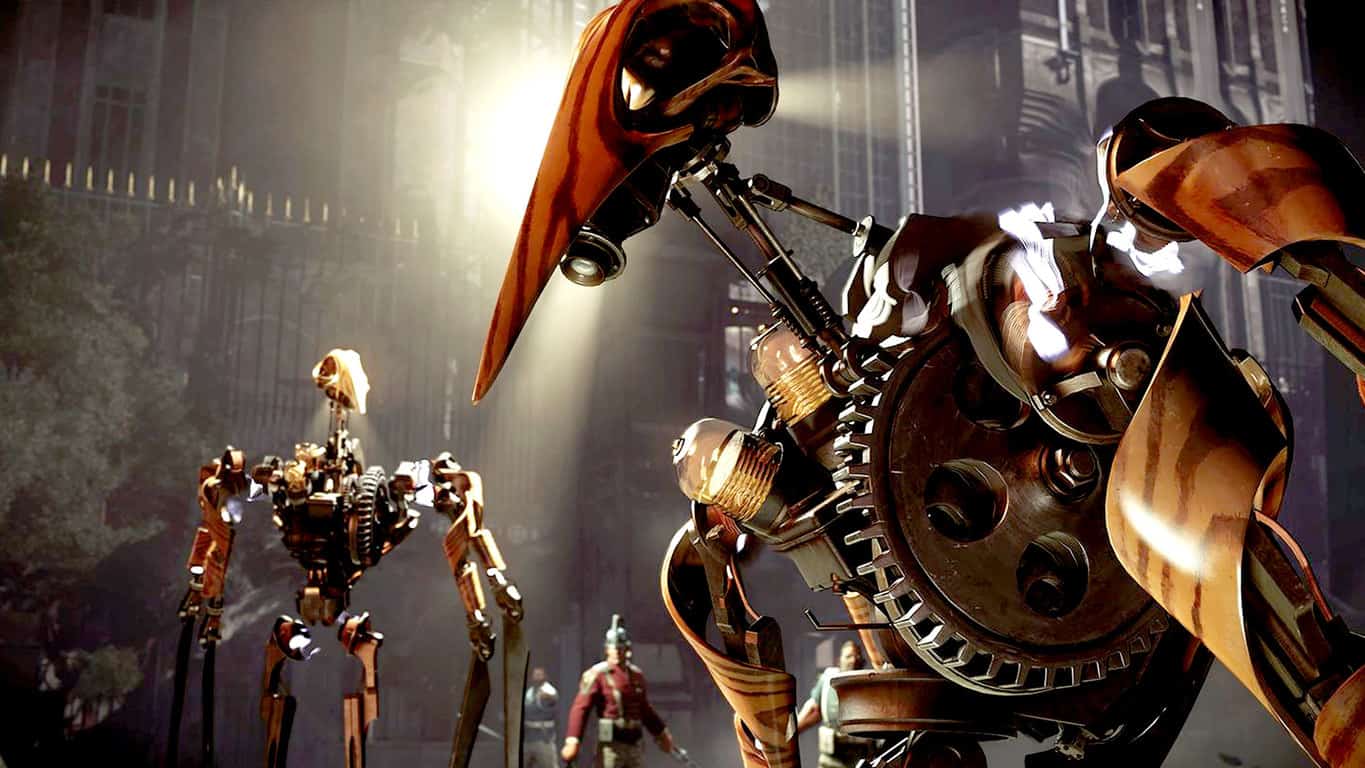
Dishonored 2 is a great stealth action-adventure game that allows fans to play as Emily Kaldwin or as Corvo Attano. For some gamers, choosing between the two is a tough call. They both have their own unique capabilities that offer players major advantages.

To make it easier for you to choose between Emily Kaldwin or Corvo Attano, we’re going to list the main qualities of the two. Depending on the gaming strategy you want to use and your gaming style, you’ll then be able to choose the character who represents you the best.

Corvo Attano’s abilities

Supernatural Ability Runes Mana Cost
Blink I 0 20% Teleport forward and a shorter distance upward
Blink II 3 20% Increased movement distance in all directions
Dark Vision I 1 20% See living/dead/unconscious persons/animals, their sight cones, and Corvo’s sounds
Dark Vision II 2 20% Also see resources (green) and machinery/traps (blue)
Devouring Swarm I 3 40% Summon rats that attack others and eat corpses
Devouring Swarm II 4 40% Rats attack and eat faster
Possession I 3 60% Possess rats, fish and hounds
Possession II 5 60% Also possess people (can’t make them attack or use powers)
Bend Time I 2 60% Slow time for about 12 seconds, every attack is an instant kill
Bend Time II 8 60% Freeze time (can pluck fired projectiles out of midair), slightly shorter duration than Tier I (about 8 seconds)
Windblast I 3 50% Blast back groups of foes (non-lethal), break doors, blast bolts back at foes
Windblast II 4 50% Kill foes if blown against solid objects
Vitality I 1 None More health
Vitality II 3 None Health regenerates more quickly
Blood Thirsty I 2 Adrenaline Brutal melee kill animations
Blood Thirsty II 3 Adrenaline Kill multiple foes in melee, adrenaline build up quicker
Agility I 2 None Higher jumps and less damage from falls
Agility II 3 None Faster running, climbing, and swimming
Shadow Kill I 2 None Unaware foes turn to ash when killed
Shadow Kill II 4 None All foes turn to ash when killed

For more information about Corvo Attano and his powers, check out the video below:

Emily Kaldwin’s abilities

  • Skilled swordsman and proficient marksman. Emily can efficiently wield Corvo’s sword and use a personal crossbow and pistol with great precision.
  • She has supernatural powers unique to her: Domino, Mesmerize, Shadow Walk, Far Reach, and more. By far, her most dangerous ability is the Shadow Walk. She can turn herself into a deadly, inky creature and then quickly return to her human form.
  • She is an excellent free runner.
  • She can easily scale high-rising structures.
  • Emily has also displayed an adeptness at swimming.
  • She is immune to almost all of Corvo’s gadgets and powers.

For more information about Emily Kaldwin and her powers, check out the video below:

Have you decided which of these two playable characters you’re going to choose?

RELATED STORIES YOU NEED TO CHECK OUT:

How to fix common Tyranny issues

Tyranny is an impressive role-playing game set in a fantasy world, where the battle between Good and Evil just ended with the victory of the Evil side. Gamers play as Fatebinders in the Overlord’s army and wield a vast amount of power in the occupied lands of the Tiers.

It’s up to you to use your power and influence to inspire stability and loyalty, or, on the contrary, pure fear. Unfortunately, Tyranny is affected by many issues on Windows PC. In this article, we’re going to list the most common Tyranny bugs reported by players, as well as the corresponding workarounds, if they are available.

Tyranny reported bugs


Game won’t launch on the main screen in multi-screen setup

If you have a multi-screen setup, Tyranny will often launch on the secondary screen. This is a known issue with the version of Unity that the game uses. To fix this, hold down SHIFT while double-clicking on the executable. This will bring up the Unity configuration window. The third option on the list allows you to select which display the game should appear on.


Low FPS rate

Many players complain that Tyranny stutters due to low FPS rate issues. It appears that for some gamers, the maximum FPS rate is 25, making the game completely unplayable. However, they may consider themselves lucky, because other players report they can’t get more than 10 FPS and even the sound is stuttering.

Tyranny runs anywhere from 4 to 20 fps max for me. Turning vSync off or on, disabling antialiasing, changing resolution or refresh have absolutely no effect. The game runs below 20fps. It’s unplayable like this. I know it just came out but c’mon… If this doesn’t get better I’ll have to get a refund…

To fix this issue, update your graphics driver and install the latest Windows updates. Also, try lowering the settings as well.


AI companions won’t attack

Kills-in-Shadow is an AI companion that can help players kill faster. She’s on a single-minded hunt for blood and vengeance, but many players complain that often she just sits there, not bulging a single muscle. This strange behavior appears to be valid for all AIs.

I got kills-in-shadow as a party member and she never engages in melee combat. Unless I order her to attack something, she will just stand there forever. I’ve set her AI behavior to aggressive and still nothing. Anyone else experience this bug with her or any other party member?

To make her join you in battle, you should actually equip her with a weapon. Give her a javelin and she’ll attack, otherwise if you leave her to attack with claws, she won’t attack anything. In other words, if you want your AI companions to fight, give them weapons, and they behave normally.


Camera shaking

Gamers report that the camera shaking during combat is extremely annoying and distracting. Many would like to disable this feature, but for the time being nobody knows how to do it.

Hi, is it possible to disable the screen- / camerashaking which occurs in combat? Either in the options menu or via command in a config file?


Pre-order bonuses are missing

Some gamers complain that their pre-order bonuses are missing: “I was supposed to get some boots and a seal, but i don’t have them as i start the new game. Do i get them later from somewhere or is this an error?”

Most likely, this happens because your started a game before the pre-order items where fully downloaded.The pre-order items won’t appear in your current game, and you have to start a new one for them to appear. Pre-order items trigger when a new game is created.


Lack of Chinese localization

Hundreds of Chinese fans of the game have asked the game developers to translate this title into Chinese. For the time being, Obsidian Entertainment has yet to reply to this request. As a quick reminder, the Chinese translation for Football Manager 2017 is work in progress, and if Tyranny fans are lucky, the game could soon be available in Chinese.


Progress won’t save

Some gamers also complain that Tyranny won’t save their progress. When they exit the game, the same game sequence they previously completed launches again. There is no workaround available to fix this bug yet.

I saved my game after I explored the entire area of Blade Grave Oldwalls dungeon and got the boss in the middle dead with the portal activated and all. But when I exited game completely and restarted loaded back my game and it shows I have not discovered anything and I have all the items I can get again along with the boss as well? Is this on purpose or ?


These are the most frequent Tyranny issues reported by gamers. If you’ve experienced other bugs that we didn’t mention in this article, tell us more about your experience in the comment section below. Also, if you’ve come across any workarounds for some of these issues, list the troubleshooting steps in the comments as well.

RELATED STORIES YOU NEED TO CHECK OUT:
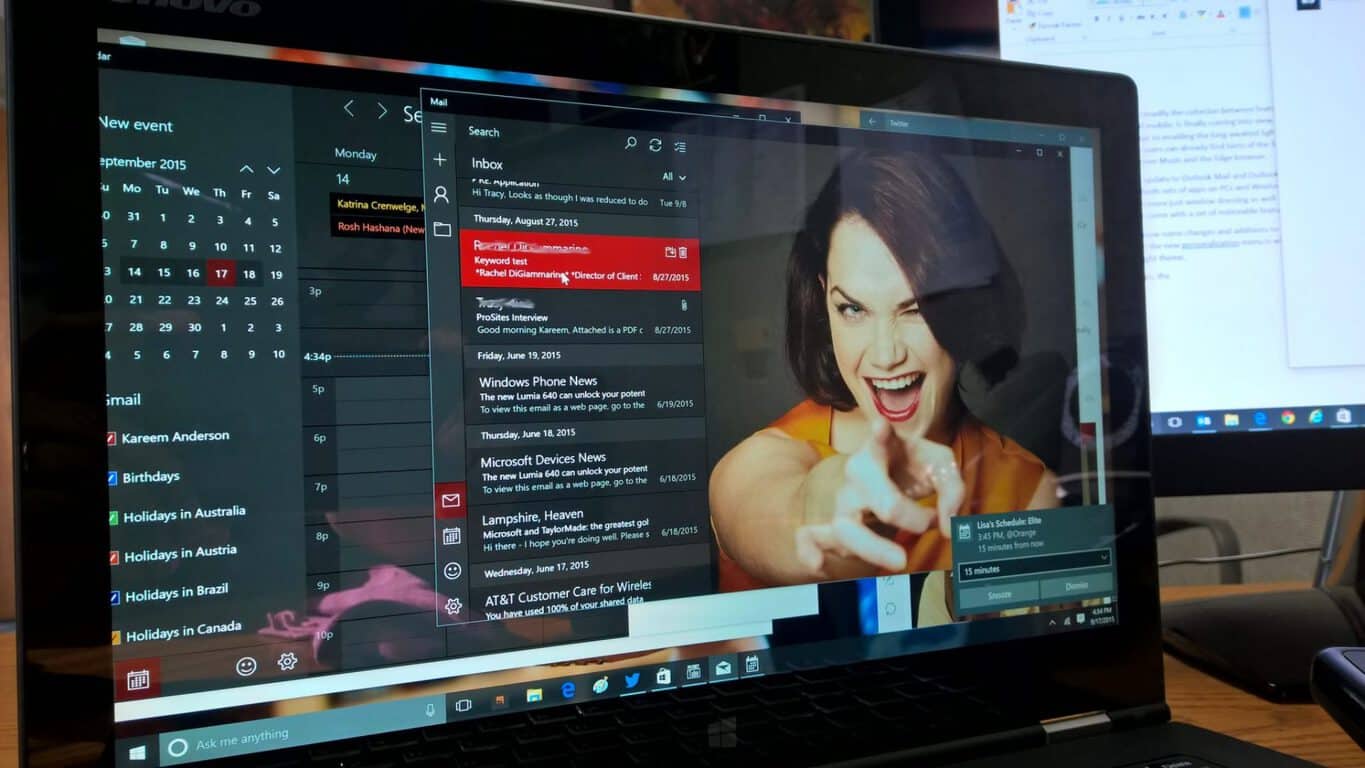
Quick Actions on Outlook Mail notifications now available to all Windows 10 users

Microsoft has released today a new update to the Outlook Mail and Calendar app on Windows 10 Mobile which brings quick actions on notifications to the production ring (via Windows Central). To use this handy feature, you’ll first need to turn on notifications banners in the settings. Once you get a new notification, you can just swipe down on it from the home screen to display the two quick actions buttons. If you missed the notification banner, you can still access the quick actions in the notification center.

Quick actions can be accessed from both the home screen and the notification center.

Quick actions can be configured in the settings (those quick actions will be the same than the in-app swipe actions) if you want to change the default options which are “Delete” and “Set flag.” To try this feature, make that you have downloaded the latest version 17.7466.41148.0 of the Outlook Mail and Calendar app.

Mail and Calendar
Mail and Calendar
Price:
Free

Minecraft to roll out big Windows 10 and Pocket Edition version 1.0 “Ender” updates

This is the beginning of The End for Minecraft players on Windows 10 and mobile! For those that have played the original Minecraft Java version on PC, we’ve been facing the well known Ender Dragon at The End dimension for years now. Finally, Windows 10 Beta and Pocket Edition are breaking through that barrier to match up with its predecessor’s official release.

In the 1.0 Ender Update, players will be able to work their way towards what many consider the ultimate showdown in Minecraft. The End dimension will be accessible and the fight against the Ender Dragon boss will begin. Explore the outer islands of The End and discover the secrets of the End Cities with Shulker mobs, Purpur Blocks, and Chorus Plants. You might even find the non-craftable Elytra glider from an End ship, if you survive.

Furthermore, the update will be lifting the restriction of builds to the Java’s impressive 256 block height. Previously, Pocket Edition and Windows 10 were limited to only half that space.

The update, as always, will be free and will roll out across Windows 10 UWP, Pocket Edition, and Gear VR. Even the Apple TV Edition will be the official 1.0 release right out of the gate. This is an exciting time for Minecraft players that have ogled the Java version for its depth and content. Version 1.0 is planned to be available by the end of the year, just in time for the holidays.

Until then, players can already participate in the beta on Android so dive in and face the Ender Dragon, if you dare.

How to fix common Dishonored 2 bugs

Dishonored 2 is now out, allowing gamers to sharpen their killer instincts and execute targets as quick as possible. You can play either as Emily or as Corvo Attano and use your impressive array of supernatural powers to complete your missions and take back what’s rightfully yours.

Dishonored 2 was only recently launched but gamers are already complaining about various bugs. Bethesda, the game’s publisher, has already pushed out a large 9 GB day-one patch, but this update doesn’t fix all the issues currently affecting the game.

 Here’s how to fix frequent Dishonored 2 issues


First of all, make sure that your computer meets the recommended system requirements necessary to run the game. Also, don’t forget to install the latest drivers available for Dishonored 2:

  1. Nvidia: 375.70
  2. AMD: 16.10.2

Dishonored 2 is blurry

To fix this issue, change Anti-Aliasing to FXAA rather than TXAA. Other players suggest that enabling reshade and setting your Lumasharpening to 1.20 also fixes this issue.


Dishonored 2 won’t start

This issue was first reported by Windows 7 users. If you get a black screen when you try to launch Dishonored 2, install the latest Platform Update for Windows 7. If you’re running Windows 10, make sure you download the latest updates for the OS.


Low FPS rate fix for Nvidia cards

Many Dishonored 2 players who had low FPS rate issues confirm the following workarounds really did the trick. If you’re also experiencing FPS rate issues and you’re using an NVIDIA graphics card, follow the steps listed below:

1. Go to NVIDIA’s control panel > Manage 3D Settings >Program Settings
2. Select Dishonored 2
3. Enable Maximum Pre-rendered Frames

After using the Nvidia control panel to change the program-specific settings for Dishonored 2, and changing the maximum pre-rendered frames to 1, my fps is now a constant 60-150, and it feels massively smoother even in the rooftop parts of Dunwall, etc. even on High graphics settings now!

4. The game automatically sets its process priority class to low. Although it’s set to normal/high in the menus, it then auto-sets it to low with every loading screen. As a result, Dishonored 2 is not getting the amount of CPU power it needs. This is actually the primary source of framerate drop.

You’ll need to set the process priority class to normal/high with every loading screen, unless you have a program that forces priority class options.


D3D11 Create Device and Swap Chain Failed with error (-2147024809)

If you get this error message, make sure your GPU is compatible with Direct X11. If this isn’t the case, upgrade your machine. If you’re playing Dishonored 2 on a computer running Windows 7,  install the latest Platform Update. Some users confirmed this update solved the problem for them.


Fix mouse sensitivity issues

  1. Go to :C:\Users\Saved Games\Arkane Studios\dishonored2\base\dishonored2Config.cfg
  2. Open the Dishonored 2 config file with Notepad
  3. Press CTRL + F > type “Smooth“
  4. Change g_mousesmooth option from 1 to 0.
  5. Save the changes
  6. Right click the .ini file >make it read only >click on Apply.

If you’ve come across other workarounds to fix various Dishonored 2 issues, list the troubleshooting steps in the comment section below.

RELATED STORIES YOU NEED TO CHECK OUT:

Posted in Fix

Microsoft’s Mike Ybarra reveals why Xbox One gaming has become more social

Yesterday, Microsoft rolled out the Xbox Holiday Update to the Xbox One and its cross-platform Xbox app, bringing several new social features to the Xbox Live network such as Group Messaging, Clubs and Looking For Groups. Following this major release, head of platform engineering at Xbox Mike Ybarra gave a lengthy interview to VentureBeat to explain what the Xbox team is doing to make Xbox Live a better social experience.

While online multiplayer gameplay still requires an Xbox Live Gold premium subscription on Microsoft’s Xbox consoles, Ybarra acknowledged that the Xbox team needs to have a forward-looking approach towards what is becoming an increasingly important part of the gaming experience:

Games have evolved from largely single-player experiences to team experiences. Working together as part of a group to accomplish a task. As games evolve, Xbox Live has to evolve to make sure that we’re in front of what customers and game developers expect.

But the purpose of the Xbox Holiday Update is also to give more incentives for gamers to spend more time on Xbox Live, chat with their friends and explore user-generated content. “We wanted to focus on a lot of the top feedback around bringing people together on Xbox Live, making it easier to find friends, making it more inviting to play with people that have the same likes I have,” he explained. And the company is also really proud of its mobile apps, with Ybarra adding that “the engagement is very high.” As for future updates, the exec announced that “It’s our commitment to make sure that when new features come out, users can engage with those anywhere they are.”

Clubs on Xbox Live.
Clubs on Xbox Live.

As for the new social features on Xbox Live, Ybarra shared that Looking For Groups could well give some competition to dedicated websites that passionate gamers use to find people to play with:

To me it’s all about giving gamers the choices they want and making it as easy as possible. We don’t want people to have to bring up websites, find websites for different games. We bring that all together in one place across our phone app, the Windows 10 app, and the console.

However, the new Arena feature which will let Xbox Live users create their own tournaments will remain in preview for now as the Xbox team is still polishing it. “It’s one of the features that’s among the highest growth areas in e-sports, in terms of developer and consumer interest. We’re very excited about what that’s going to bring, explained the exec, adding that « we’re having a lot of discussions with developers about what that means and how we differentiate ourselves in a meaningful way that provides value to them.”

If you haven’t done it yet, you can try all the latest Xbox Live social by installing the latest software update on your Xbox One or by downloading the latest versions of the Xbox app on Windows 10, Android or iOS. For Xbox One users, Major Nelson announced earlier this week that the Xbox One Preview Program would soon become the Xbox Insider Program which will no longer be invite only. “I love the preview audience we have. They give us invaluable feedback. They’re some of our most passionate fans. Their feedback impacts the product across the board, whatever it is we do,” he explained.

Fix: Xbox One error “HDCP has failed”

Xbox One allows you to enjoy in all sorts of multimedia content online, but sometimes you might experience certain errors while enjoying in multimedia. Users reported HDCP has failed error on their Xbox One, and today we’re going to show you how to fix it.

Xbox One error “HDCP has failed”, how to fix it?

HDCP stands for high-bandwidth Digital Content Protection, and it’s a digital copy protection system developed by Intel. This system is designed to prevent copying of audio and video content while it’s being transmitted. HDCP works with HDMI and DisplayPort connections, and in order to protect the content the transmitting device checks if the receiver is authorized to receive it. This system has its flaws, and it can even prevent you from recording your gameplay sessions on Xbox One, but there are few ways to fix this problem.

Fix – Xbox One “HDCP has failed” error

Solution 1 – Restart your console

According to users, you might be able to fix this problem simply by restarting your console. Your console stores all sorts of temporary files, and by restarting it you’ll clear all these files and fix this and many other problems. To restart your Xbox One, do the following:

  1. Open the Guide by scrolling left on the Home screen. You can also open the Guide by double tapping the Xbox button on your controller.
  2. Choose Settings > Restart console.
  3. Now select Yes to confirm.

You can also restart your console by holding the power button for 10 seconds. After your console turns off, wait for a few seconds and press the power button again to turn it on. After your console restarts, the temporary files will be removed and the error should be resolved.

  • READ ALSO: Xbox 360 titles Blue Dragon and Limbo now available on Xbox One

Solution 2 – Turn on Energy-saving mode

By default your Xbox One uses Instant-on mode that allows you to turn on or off your Xbox One instantly. In fact, this option puts your Xbox One in standby mode thus allowing you to turn it on or off almost instantly. This is a great feature, but it has its flaws. One of the biggest flaws of this feature is that it doesn’t turn off your Xbox One completely, thus keeping all your temporary files. Since this feature doesn’t turn off your Xbox One, it will still use consume power, even if it’s in standby mode. To fix HDCP has failed and many other Xbox One errors, it’s suggest that you turn off Instant-on mode and switch to Power-saving mode. To do that, follow these steps:

  1. Press the Menu button on your controller and go to Settings.
  2. Select Power & startup.
  3. Go to Power Options section, select Power mode and press the A button on the controller.
  4. Select Energy-saving.

After enabling this option, turn your Xbox off and turn it back on. By using this feature your Xbox will turn itself off completely and it might take about 30 seconds for your Xbox One to start when you turn it on, but issues with HDCP should be resolved completely.

HDCP has failed Xbox One error can prevent you from recording your gameplay sessions, but we hope that you managed to solve this issue by restarting your console or by turning on Energy-saving mode.

READ ALSO:

Fix: Xbox One “Kinect is unplugged” error

Kinect is an Xbox One accessory that allows you to play certain games without a controller by using motion detection technology. Although regular controller might be the best choice for gamers, some users prefer using Kinect once in awhile. Unfortunately, few users reported Kinect is unplugged error on their Xbox One, and today we’re going to show you how to fix it.

Xbox One “Kinect is unplugged” error, how to fix it?

Fix – Xbox One error “Kinect is unplugged”

Solution 1 – Check if Kinect is connected to your console

This error usually occurs if your Kinect isn’t firmly connected to your Xbox One, therefore be sure to check if Kinect is firmly connected to the port on the back of the console. If Kinect is connected to your device, unplug its cable and wait for 10 seconds or more. After that, connect it again and check if the problem is resolved.

Solution 2 – Restart your console

Sometimes reconnecting Kinect to your console doesn’t solve this issue, and in order to fix that problem you need to restart your console. Restarting your console will delete temporary files and hopefully fix this error. To restart your Xbox One, follow these steps:

  1. Open the Guide by scrolling left on the Home screen. Alternatively, you can double tap the Xbox button on the controller to open the Guide.
  2. Choose Settings.
  3. Now select Restart console and choose Yes to confirm.

You can also restart your console by using the power button on the console itself. To do that press and hold the Xbox button on your console until it turns off. After the console turns off, wait for a few seconds and turn it on by pressing the power button. Some users are suggesting to disconnect the power cable from your Xbox One once you turn it off and wait for 10 seconds or more until the power supply resets. After that, turn on your Xbox One and check if the problem is resolved.

  • READ ALSO: Windows 10 Camera app now available on Xbox One with Kinect support

Solution 3 – Check if Kinect is turned on

You can turn on Kinect from the Settings menu, but if Kinect isn’t properly turned on you’ll encounter Kinect is unplugged error message. To fix this problem you need to enable Kinect from Settings screen by doing the following:

  1. Scroll left on the Home screen in order to open the Guide.
  2. Choose Settings > All Settings.
  3. Now select Kinect & devices.
  4. Select Kinect.
  5. Check if Kinect on option is selected. If not, select it to turn on Kinect.

Solution 4 – Restart Kinect and your console

Sometimes in order to fix this problem with Kinect and Xbox One you need to completely shut down both your console and Kinect. To do that, follow these simple steps:

  1. Press and hold the power button on your console for 10 seconds to completely turn it off.
  2. After your console shuts down, unplug the power cable.
  3. Now unplug Kinect from the console.
  4. Wait for a few seconds and connect the power cable back with your console and press the power button to turn it on.
  5. After your console starts, scroll left on the Home screen to open the Guide.
  6. Go to Settings > All Settings.
  7. Choose Kinect & devices > Kinect.
  8. Connect your Kinect sensor to your console and wait until the console recognizes it. Be sure to connect Kinect to the first USB port next to HDMI port. By using any other USB port your Kinect might not be recognized.

Keep in mind that your Kinect might require an update, and you can download the necessary updates automatically simply by visiting Xbox Live on your console.

Solution 5 – Unplug all cables from your Xbox One

According to users, you can fix Kinect is unplugged error on your Xbox One simply by turning off your console and unplugging the power cord. Unfortunately, this solution doesn’t always work, but users reported that you can fix the problem by turning off your console and unplugging all cables from it. After doing that, leave your console unplugged for a few minutes before reconnecting all cables. After that, turn on your console and check if the problem is resolved.

  • READ ALSO: Kinect Adapter for Xbox One S and Windows 10 PC now available for pre-order


Solution 6 – Connect Kinect directly to the power socket

If you’re having Kinect is unplugged error message, you might want to consider connecting your Kinect directly to the power socket. Users reported that this error occurs only if their Kinect is connected to power splitter, but after connecting it to the power socket the issue was resolved and Kinect started working without problems.

Solution 7 – Perform factory reset

In order to get the latest features Xbox One frequently downloads updates from Xbox Live. Unfortunately, some of these updates can cause issues with Kinect, and in order to fix these issues you need to factory reset your Xbox One. By resetting your console to factory settings you’ll delete the installed updates along with your installed games and apps. If you decide to perform a factory reset, we strongly suggest that you back up installed games and apps to an external hard drive. To perform a factory reset, do the following:

  1. Open the Guide by scrolling left on the Home screen.
  2. Choose Settings > All Settings.
  3. Select System > Console info & updates.
  4. Select Reset console.
  5. You’ll see two options available: Reset and remove everything and Reset and keep my games & apps. Select the latter in order to reset your console without removing any installed games and apps. If this option doesn’t work, you’ll have to use Reset and remove everything option. By using this option you’ll delete all files from your console, therefore be sure to back up installed apps and games.
  6. After the reset process is completed, check if the problem is resolved.

Solution 8 – Ask for a replacement

If the problem still appears on your Xbox One, it might be because your Kinect is faulty. If your device is still under warranty be sure to ask for a replacement. Many users reported that the issue was resolved completely after replacing the device, so you might want to try that.

Xbox One Kinect is unplugged error will stop you from playing Kinect games on your Xbox One, but we hope that you managed to fix this problem by using one of our solutions.

READ ALSO:

Dishonored 2 launches today on Xbox One. Are you ready?

Dishonored 2 is now available to buy, download, and play on the Xbox One. Here’s the official game description:

Reprise your role as a supernatural assassin in Dishonored 2 – the follow up to Arkane Studio’s first-person action blockbuster and winner of more than 100 ‘Game of the Year’ awards, Dishonored. Play your way in a world where mysticism and industry collide. Will you choose to play as Empress Emily Kaldwin or the royal protector, Corvo Attano? Will you make your way through the game unseen, make full use of its brutal combat system, or use a blend of both? How will you combine your character’s unique set of powers, weapons and gadgets to eliminate your enemies? The story responds to your choices, leading to intriguing outcomes, as you play through each of the game’s hand-crafted missions.

Buy Dishonored 2 on Xbox One

Dishonored 2, as the title suggests, is a follow-up to the original Dishonored video game which was a massive success in several regions on the Xbox One and other gaming consoles. Are you a fan of the Dishonored series? Did you pre-order Dishonored 2? Let us know in the comments below.

Xbox Clubs and Groups now available on Windows 10, iOS, and Android apps

The official Xbox app has updated today on Windows 10, iOS, and Android devices. This latest update coincides with the Xbox One’s update earlier today which brought a range of new features to the console such as Xbox Clubs, Groups, a faster user interface, emoticons in the chat, and more. These app updates mostly allow for Xbox Club and Group functionality on smart devices.

Have you updated your Xbox app yet on your device? Have you joined any Clubs or Groups yet? Let us know your thoughts in the comments below. Curious about the new Clubs and Groups features? Make sure to check out this article here.

Xbox Console Companion


Xbox
Xbox
Price:
Free


‎Xbox
‎Xbox
Price:
Free

Neo Geo video games are coming to Xbox One and Windows 10

A handful of classic Neo Geo video games are planned for release on Microsoft’s Xbox One console and on Windows 10. Nine games in total are planned starting with the popular The King of Fighters ’94 and The King of Fighters ’95 fighting games. Other titles include World Heroes, Metal Slug, Big Tournament Golf, Fatal Fury: King of Fighters, NAM-1975, Sengoku, and Sengoku 2.

These Neo Geo games will be launching on the Xbox One in December 2016 however their Windows 10 releases won’t happen until an unspecified time in 2017. It’s unclear if they will support Microsoft’s new Xbox Play Anywhere initiative and support crossbuy.

Are you excited for the re-release these classic video games? Which ones are you most excited to play again? Let us know in the comments below.

Microsoft’s Xbox One is number one in the USA, UK, and Australia

The Xbox One has now been the best-selling video game console in the United States for four months in a row and has also taken the top position in both Australia and the United Kingdom according to NPD Group sales data.

The increase in console sales in all markets is speculated to be a result of the release of the slimmer, lighter, and slightly more powerful Xbox One S model. This new version of the system features its own 4K Blu-ray drive which makes it one of the cheapest options for consumers looking to invest in a 4K Blu-ray Player. In Australia at least, the Xbox One S is also topping the 4K Blu-ray Player charts as well.

Xbox business lead at Microsoft Australia, Jeremy Hinton, said of the console’s success, “We’d like to thank our fans for their continued support and passion for Xbox in Australia. It’s great to see such enthusiasm for the new Xbox One S & Forza Horizon 3, as well as the range of exclusive bundles including Gears of War 4, Battlefield 1, FIFA 17, and Minecraft – all of which are available now.”

Microsoft’s head of Xbox games marketing in the United States, Aaron Greenburg tweeted his excitement earlier today. “New @npdgroup data shows @Xbox One best selling US console 4th month in a row,” his tweet said. “Thanks for also making us #1 console in UK & Australia!”

Have you bought a new Xbox One console recently? Do you think its success will continue? Speculate with the community in the comments below.

MobiSystems brings OfficeSuite apps to the Windows Store

Windows users get a new set of office tools at their disposal as MobiSystems officially jumps to PC with its OfficeSuite toolkit. The toolkit contains numerous tools that give the default Microsoft toolkit a run for its money. If you are tired of the usual Excel, PowerPoint, or even Word, you can change it up a bit with the bundle offered by MobiSystems.

A great thing about this bundle is that it comes with complete compatibility with Microsoft’s own document editing programs, meaning that you are not limited to working with the Microsoft Office suite of office tools. Let’s take a look at the features included in the OfficeSuite from MobiSystems.

  • You can edit spreadsheets with advanced cell formatting and conditional formatting, using both scales and data bars, while also having a library for extensive formulas, all very helpful on big projects.
  • You can customize your presentations to the fullest with the array of options put at your disposal. You can choose between numerous screen layouts and transitions to go with your shapes and schematics, all offering a spot-on presentation that will most likely sell itself.
  • Manipulate PDF files and convert them at will, and then share your documents protected with top digital security.
  • Use the Microsoft Font Pack to enrich your documents and bring them to life, letting your text speak for you, with the MobiSystems document editor.

RELATED STORIES TO CHECK OUT:

Windows 10 Build 14965 is now available to Fast Ring Insiders

Microsoft just pushed a new Windows 10 build to Insiders on the Fast Ring. Build 14965 is available for both Windows 10 and Windows 10 Mobile.

This is the second Creators Update build for Windows 10 and while it doesn’t bring any new 3D features, it actually contains some interesting additions, along with a few updates for the existing apps and services. So, let’s talk about the additions one by one.

Probably the biggest addition of Windows 10 build 14965 is the introduction of the virtual touchpad for second monitors. When you connect your Windows 10 tablet to an external display, there’s no need to attach a mouse to it because a virtual touchpad will pop up. As soon as the connection is initiated, the virtual touchpad will appear where the notifications are and you’ll be able to control your mouse pointer with it.

The new build also brings a huge update for Sticky Notes. The tool now features flight detection for several countries, URL and email recognition, time recognition, phone number recognition, and more. Users are currently far from satisfied with Windows 10’s version of Sticky Notes, so updates like this one are a must for Microsoft if the company wants users to stick with Sticky Notes.

Additionally, the new build also improves Windows Ink Workspace and the Hyper-V VM experience. Improving Windows Ink Workspace is important because the company prepares the field for the Creators Update, where using a pen is going to be more important than ever.

And finally, build 14965 improves the search bar in the Registry Editor. Microsoft introduced the search bar a few builds ago, so it now just wants to polish it as much as possible before shipping the feature with the Creators Update next year.

Windows 10 build 14965 known issues and other improvements

As always, Microsoft released a list with all the known issues that build 14965 may potentially cause, as well as all the improvements featured in the build.

Here’s the list of all improvements for PC:

  • “We have fixed the issue causing Internet Explorer to crash a few seconds after launch.
  • We fixed an issue where, when using Cortana in French (France or Canada), the “Prendre une <photo/video/selfie>” (take a picture, video, or selfie) command was redirecting to a Bing search rather than opening the Camera app as expected.
  • We’ve made some graphics improvements so the system will now respond better when WIN + L is pressed while playing a full screen game.
  • We’ve updated the ALT + F4 Shutdown dialog to better respond to DPI changes when connected to an external monitor. We also fixed an issue where the tooltips for the taskbar notification area items would be incorrectly sized after a DPI change until rebooting the machine or otherwise signing out and back in.
  • We’ve fixed an issue where File Explorer might crash when creating or renaming a folder on a network share.
  • We fixed an issue resulting in the text on the Outlook Calendar tile on the Start menu being slightly fuzzy.
  • We fixed an issue where deleted files might reappear in File Explorer with a 0 byte size.
  • We fixed an issue resulting in a Windows Default Lock Screen window sometimes appearing after logging in.
  • We fixed an issue resulting in File Explorer crashing after right-clicking an app in Task Manager and selecting “Open File Location”.
  • We’ve updated our migration logic so that going forward from Build 14965, preferred UAC settings, startup shortcuts, and File Explorer folders that had been pinned to the Start menu will all now be preserved across upgrades.
  • We fixed an issue resulting in vertical lists written in XAML, such as those found in Groove Music, unexpectedly animating in from the side.
  • We fixed an issue resulting in Cortana crashing if you typed “Create an appointment” then clicked on the resulting suggestion to “Create an appointment”.
  • We fixed an issue where in Microsoft Edge, after cancelling a file download, the progress bar for the next file downloaded might appear to be stuck at the point at which the old file’s download was a when it was cancelled.
  • We fixed an issue that could result in the Japanese Input Method Editor (IME) periodically showing the candidate window in the upper left corner of the desktop and not being able to enter text into the Office 2016 apps and some other text editors.”

Here are the improvements for Mobile:

  • “We fixed an issue where, when using Cortana in French (France or Canada), the “Prendre une <photo/video/selfie>” (take a picture, video, or selfie) command was redirecting to a Bing search rather than opening the Camera app as expected.
  • We fixed an issue resulting in Cortana crashing if you typed “Create an appointment” then tapped on the resulting suggestion to “Create an appointment”.
  • We improved the performance for English (India) text prediction.
  • We fixed an issue in Data Usage Settings, where after selecting the data plan to be unlimited, it would still prompt to set a limit. We’ve also made it easier in the Data Usage Settings for those with dual SIM phones to differentiate between the cellular data use on each SIM, and fixed a few other polish issues, including that the sort by dropdown on the Usage Details page was unexpectedly wide.
  • We fixed an issue where Narrator wasn’t giving feedback when adjusting sliders, for example in Settings, or in the Volume flyout.
  • We fixed a migration issue resulting in Microsoft Edge to fail to launch for some Insiders after updating to a new build.”

Known issues for PC:

  • Double-clicking on an Excel document to open it from File Explorer will crash Microsoft Excel. The workaround is to open the document from within Excel.
  • Microsoft Studios games like Microsoft Sudoku, Jigsaw, Minesweeper, Taptiles, and Treasure Hunt may freeze at the splash screen on launch.

Known issues for Mobile:

  • If you used the previous ‘date change’ workaround to update to Build 14951 or Build 14955: Please don’t use it any longer! The Microsoft account (MSA) ticket on your device needs to expire and then you’ll be offered today’s build. If you changed your date by 30 years… you’ll want to do a device reset.
  • You will be unable to install additional languages, keyboards, and speech packs on your phone for the next few weeks. If you have existing languages, keyboards, and speech packs installed – they will carry over when you update to new builds. You just can’t install any new ones. If you do a hard reset of your phone on these builds – you will also be unable to install additional languages, keyboards, and speech packs. You can use Windows Device Recovery Tool to go back to Windows Phone 8.1 or Windows 10 Mobile, install any languages, keyboards, and speech packs you need and then update to the latest build in the Fast ring as a workaround.

To get the latest Windows 10 build 14965, just head over to the Settings app > Update & security, and check for updates. Remember, you need to be on the Fast Ring.

If you’ve already installed build 14965, feel free to use the comment section below to tell us more about your experience with the new build.

RELATED STORIES YOU NEED TO CHECK OUT:

SketchUp Viewer is the first commercial app for the HoloLens

As we continue to emerge deeper and deeper in the world of VR and as tech industries try to surpass each other by bringing more innovation with each VR related release, Microsoft can pride itself in making available an app that has the potential of changing the way the world looks at architecture, and at the same time, the way architects look at the world.

Since the days of architectural inception when man was first starting to put pen and paper to work before building something, there has been a certain gap between 2D and 3D. Advanced architectural work ethics and skill will ensure that the final result will be as close as possible to the original design, but often times, it’s not exactly the case. There have been recorded incidents throughout architectural history where the difference between design and creation were astronomical, leading to equally funny and sad moments of human error, such as bridges that don’t meet in the middle.

With HoloLens and the new application called SketchUp, architects are able to recreate a tri-dimensional layout of their work in progress. They can choose to either observe the project from above and also exterior or take a closer glance from within, inspecting the design from the perspective of someone that is entering the building for the first time.

Unlike most virtual reality gimmicks or games that are slowly surfacing, HoloLens and the SketchUp app have a real opportunity to shape the future, as it could evolve into something that over time can become a standard in architectural practices. Last but not least, it would be cool to bring elements seen from sci-fi movies into reality.

RELATED STORIES TO CHECK OUT:
AOC’s new 35-inch curved monitor brings an immersive gaming experience

Gaming can be a casual experience or an intense, immersive experience. When large displays were no longer enough, dual screen setups were created, combining two computer monitors that would be linked together to create a bigger display. That trend seems to be fading away as well with the appearance of the AGON AG352QCX display, a stunning 335-inchcurved display.

The format of the display is 21:9 and the classification is Wide Full HD in regards to the resolution (maximum resolution for the display is 2560 x 1080). This display solution offers HD capabilities that are bound to please even the most sophisticated gamer, being the perfect setup for all the popular games you can think of.

The refresh rate of the device is 200 Hz and the screen features technology known as Adaptive Sync, which smooths out the experience of gaming on a curved display even further. The device is also compatible with FreeSync. In terms of compatibility range, we are talking at about an average between 30 Hz and 200 Hz, (which is quite good when compared to other similar options). Users interested in acquiring the new AOC display can do so starting next month, with a starting price of £699.

RELATED STORIES TO CHECK OUT:
Dishonored 2 Linux support is only a pipe dream

Dishonored 2 isn’t even officially out yet and the sequel to the critically acclaimed original is already stepping on some toes. On top of the recent problems regarding the 9 GB day one patch, the eagerly awaited title also lacks Linux support.

The majority of PC gamers run Windows and aren’t affected by the developers’ decision to skip Linux support. However, the small percentage of Dishonored fans who do use Linux feel completely left out. They made their feelings public on a number of platforms including the Steam forums.

So $59.99 and no linux support, for real? +1 please make a linux port or at least try to make it run on wine!

However, among the frustrated and angry Linux supporters, there were a few users who recognized the unpopularity of their preferred operating system and didn’t blame the developer for not putting much effort into something that’s not very popular.

I like Linux (Mint) myself, but seriously…only a handful of people plays games on Linux so I doubt they will spend time/resources on a Linux build. And everybody (99.9% anyway) have a Windows OS on their PC. So not likely… Just… don’t use Linux if you are a gamer, it’s just stupid

Unless Dishonored 2‘s developers suddenly decide to postpone the release of the game so that they can implement Linux compatibility – which is extremely unlikely – the future doesn’t look too bright for the Linux users who want to follow Corvo and Emily’s new adventures.

Windows PC users can go to Steam or the Windows Store and purchase the game for $59.99.

RELATED STORIES TO CHECK OUT:

Staples reveals Black Friday deals on Windows 10 laptops, PCs

The thing about yearly events is that they occur on a regular basis, with long enough gaps between them so that they do not become bland.

And so, the time of the year has come again for people to rejoice in the wonderful event that is Black Friday. Coming right after Thanksgiving, Black Friday is an event where all prices go down and people can enjoy incredible offers for brand new products. The discounts offered on Black Friday are ridiculous, with many preparing days ahead of the event to make sure they get their desired product due to the high demand and traffic registered on Black Friday.

Staples is no exception. They have announced their discount offerings to the delight of the awaiting public. If you go shopping at Staples on Black Friday, you will be able to get Windows laptops at very good prices as well as hybrid laptops such as Surface Pro 4.

Although still expensive, the Surface Pro 4 model with i5 processing capabilities and 128 GB of storage will be available for $200 less on Black Friday, making its total price $799.

Other tech deals are available as well for some more low-profile devices, such as the C920 webcam. If you want to catch the Staples deals, you will have from the 24th of November until the 26th to get your shopping on.

The unlucky shoppers that don’t manage to get to Staples in that time frame will have to wait for next year’s edition.

RELATED STORIES TO CHECK OUT:

Microsoft Teams group held an ‘Ask Me Anything’ session today, here are the highlights

Following in the steps of the Skype team’s usual AMAs, the Microsoft Teams developers hosted a one-hour long open forum for enthusiasts, business owners, and IT admins on Microsoft Tech Community.

Many questioners were curious what was coming to Microsoft Teams in the future. Particularly those interested in integrations for third party connectors. While they didn’t share the full list of connectors to bring other applications, one developer posted a screenshot of the Connectors list. “This is not the complete list of connectors, it scrolls down quite a bit,” he teased.

Other features planned for the future of Microsoft Teams include:

  • Adding emoticons and audio/video calling to the mobile app.
  • Documenting changelogs in the release notes tab.
  • Chat log and archive of users tht have left the business by tenant admins
  • Rename general channel
  • Yammer as a tab
  • Tools that aid in the extraction of chats/documents/links/etc.
  • Better integration between Planner app and the integrated PI banner tab
  • Using the up arrow to enter edit mode for the last message.
  • Support for public teams and adding Teams to public groups
  • Enabling historical view for a persistent chat room
  • Using Desktop Bridge to enable Windows 10 notifications and live tile updates
  • Archiving team spaces that are no longer needed
  • Notification options for channels and new messages
  • Code formatting
  • Soft delete for teams and channels
  • Enabling Visual Studio Team Services for ‘team admin’ priveledges

While some answers were straight forward, others swayed onto the ‘iffy’ side. Not everything can be included in a product, and the following were features that while the team is looking into it, might not make it.

  • Email integration to support external users
  • Better media and file support in chats for direct playback in the feed
  • An API to add channels
  • Dragging messages inside a thread when submitted as a new conversation wrongly
  • Recording video/audio meetings
  • Hiding a team

While the curiosity about Teams’ role when it came to Slack, Yammer, and more was staggering, the developers reassured us that Yammer and Microsoft Teams are better as separate products. Pavan Tapadia of Yammer also chimed in sharing that while groups can’t be activated on Microsoft Teams currently, they have every intention to make the connection.

We recommend Yammer for social enterprise networks for scenarios such as finding best practices across the company and for CEO connections. Persistent chat for these discussions is valuable for others to leverage past learnings. Microsoft Teams is designed for highly engaged teams to work together on shared deliverables and project. Persistent chat in this scenario is useful as new team members join the team and for catching up on missed discussions.

Meanwhile, the team is working on support for archival, legal hold, and discovery. This means that they want to make sure that events such as accessing the chat history of a user that left the business will be compliant.

The hour-long session also included some interesting information that didn’t pertain to Microsoft Team’s features. Did you know that Microsoft Teams is built on the Electron framework? Also, the data from Teams is localized to the data center region closest to the tenant.

The icon for Teams will be available in the app launcher ‘soon’ said one developer. Unfortunately, it is still only accessible for businesses. The Edu-licensed users will have to wait just a little longer when they start beta with staff and faculty, then slowly work their way to allowing student use.

There’s plenty more to learn from the AMA so be sure to check it out on the Tech Community.

Diablo 3 to get Armory and Challenger Rifts goodies in 2017

Diablo 3 got quite the attention at this year’s edition of BlizzCon, which is a huge event held every year by Blizzard in which all the company’s titles receive new content while fans get news directly from developers and engage in a lot of other Blizzard related activities.

As if Diablo fans weren’t already hyped for 2017 after seeing Blizzard’s announcement for the new Necromancer class that will be made available early next year, now they have even more reason to revisit Sanctuary.

Blizzard is planning on bringing some new exciting features into Diablo 3 in 2017, namely the Armory and Challenge Rifts. Let’s go through them and see what they bring to the table.

With the help of the new Armory feature, players will be able to swap out loadouts easier than ever, removing any kind of frustration that might have gone along with the process until now. You can instantly change your build or play style without having to manually sort through all your Legendary Gems, Kanai’s Cube powers or items, or even skills for that matter. It can all be done from the Armory and you will be on your way to the next challenge in no time.

Speaking of challenges, the other feature that will come sometime in 2017 to Diablo 3 is Challenge Rifts. With this one, players will be able to sample the newest build they are interested in without the hassle of putting them together. Now, every time you see someone else with a stunning build , you can do something about it.

While 2017 is just around the corner, Diablo fans will still have to do a little bit of waiting before finally enjoying all these cool things Blizzard has prepared for them.

RELATED STORIES TO CHECK OUT:

Use this tool to throttle downloads while streaming

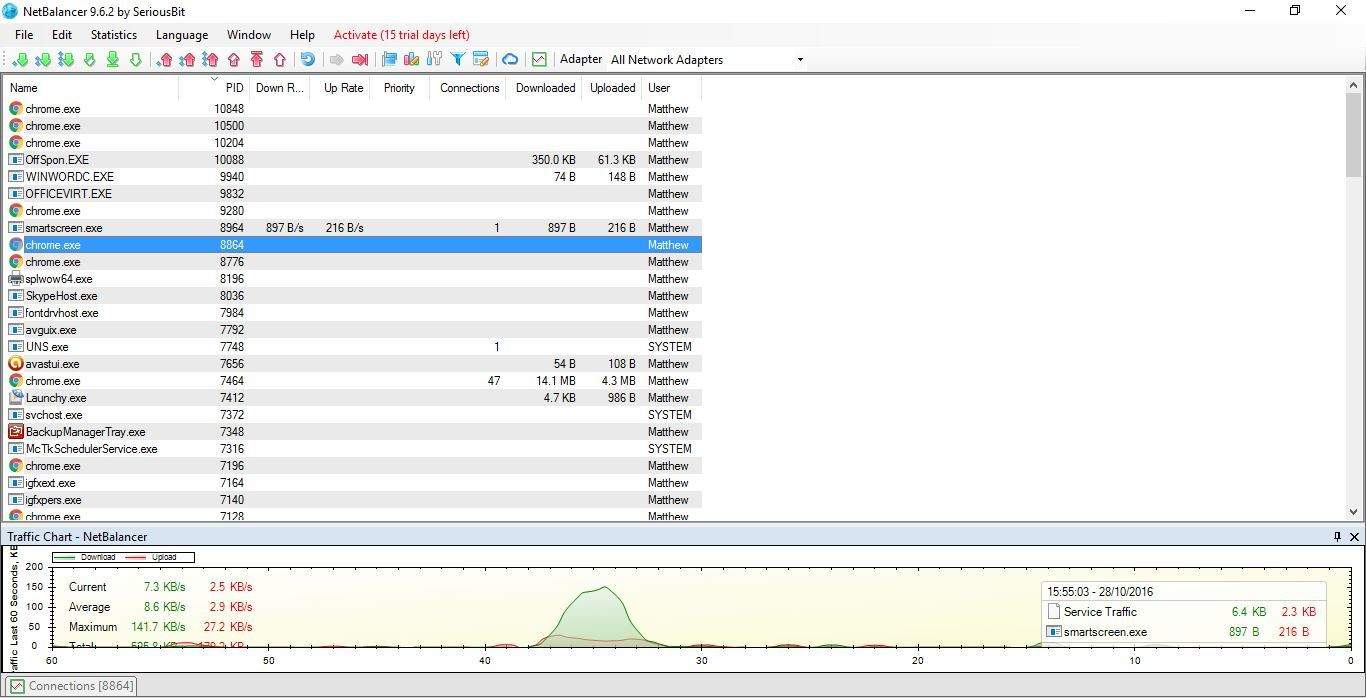
Do you stream media such as YouTube videos? If so, you might find that downloading other software or updates whilst streaming can have a considerable impact on the streamed content. Then you might not able to stream the content or there might be pauses since the other download is hogging all the bandwidth. So, how can we throttle downloads while streaming to free up more bandwidth for the streamed content?

NetBalancer is a software package that enables you to regulate and limit bandwidth for running programs. With this program, you can effectively limit your browser’s download speed or other processes to reduce the impact it has on streamed content. This is an ideal tool for throttling downloads and while it isn’t exactly a freeware package, you can add a free version to Windows for a 15-day trial period without any limitations. After that trial period, you can still set a maximum three priorities and rules and five filters with NetBalancer. This is how you can limit downloads with the software.

  • First, click the blue Download NetBalancer button on the software’s website to save the program’s setup wizard.
  • Open the setup wizard to add NetBalancer to Windows.
  • You’ll also need to restart Windows before you can open the NetBalancer window in the snapshot below.

netbalancer

  • The window above provides an overview of the processes running on system startup and their download and upload rate. Now select your browser, or another program, on that window.
  • Next, click the Set download speed limit for selected processes button shown in the shot below.

netbalancer2

  • That button opens the window in the snapshot below. Reduce the Limit number in that window and then click the OK button.

netbalancer3

  • Alternatively, you could also set streaming applications to higher priority. You can right-click the streaming app and select Download Priority > High from the context menu.

netbalancer4

  • Lower the download priority for other programs by selecting Low from the Download Priority context menu submenu.

So with NetBalancer you can now effectively limit download speeds for selected software packages so they don’t monopolize bandwidth. That will reduce download impact on streaming media. So, if software such as Steam updates while streaming a YouTube video, the video should continue without any notable lag.

Get Wasteland 2: Director’s Cut at the Windows Store

If you’ve been around the gaming scene for a while, you’ve definitely heard of the Fallout franchise. Before Fallout 3 turned the franchise into an RPG shooter series, it was a top down franchise. In an effort to try and bring back the glory days of that old gameplay, the creators of the original Fallout came out with Wasteland 2 – a game that tries to capture the top-down post apocalypse in a new era of gaming.

The game was previously sold through Steam, but is now available through the Windows Store for people who want to stick exclusively with Microsoft’s gaming network. The game is a must-buy for people who liked the original Fallout games, and is definitely worth checking out if you’re a fan of top-down strategy games like XCOM.

The game is being sold at $39.99, putting it at a fairly standard AA price. If you’re the sort of person that likes to sit down and enjoy tactical RPG experiences, it’s a good option – especially if you’re a fan of the post apocalyptic setting.

Warcraft 1 or 2 won’t be remastered, says Blizzard

At BlizzCon 2016, a fan questioned Blizzard co-founder Frank Pearce about remasters of Warcraft 1 and 2, which helped set the stage for World of Warcraft. The response could come as a let down to most gamers as he answered that Blizzard, despite having all the assets and resources for the games, have no plans to remaster the first two games in the Warcraft series.

“Weare fortunate enough to have all of the original source code and assets to everything we’ve done in the past,” explained Blizzard co-founder, Jack Pearce. “But actually, it turns out, it’s really hard to access that stuff, unlock it, and figure out how it all works. Because we’re old, we’ve forgotten.”

“We had some dedicated folks that were passionate about the idea, dig up the Warcraft 1 assets and code. They got it working and they got it running in a window. And I played it. Warcraft: Orcs & Humans was awesome for its time. I promise you, in today’s world, by today’s standards, it’s just not that fun any more.”

“We have limited resources with everything that we choose to do,” said Pearce. “We would much rather work on amazing content for World of Warcraft for you guys, or for Overwatch, or evaluating what a future project pipeline might be and devote our time to that, rather than going back and digging up those fossils.”

To lighten up the mood, Blizzard stated that they are further planning to make a re-release of the original Diablo within Diablo 3, along with Warcraft 3 and Starcraft, showing that they are not completely inconsiderate towards their fans’ nostalgia for older games.

“We totally appreciate your enthusiasm for those old games,” said Pearce. “We love them too.”

There was still no appearance related to the three titles at Blizzcon this year either, so it looks like gamers have a fairly large waiting period ahead of them. As for Warcraft 1 and 2, they will sadly remain in the past.

Skate 3 and Scarygirl latest titles added to Xbox One Backward Compatibility

Xbox One Backward Compatibility has been available for over a year now, but the list of backward compatible titles just keeps growing as the time progresses. Today, Skate 3 and Scarygirl have become latest titles added to be added to the Xbox One Backward Compatibility catalog. As is usual, we’ve included download links and game descriptions for these latest titles for you below.

Skate 3: $11.99

The SKATE™ franchise is back and rolling into new territory as SKATE™ 3 heads to the brand new city of Port Carverton. Delivering a unique co-op skateboarding experience, build your own customized skate team and change the face of the city by taking on unique team challenges, competing against rival crews online, and shredding the streets of an all-new skaters’ paradise. SKATE™ 3 – Team Up. Throw Down.

Scarygirl: $9.99

Scarygirl is a wondrous adventure through a beautifully-bizarre world based on the Scarygirl graphic novel created by acclaimed artist Nathan Jurevicius. Scarygirl, an abandoned girl, dressed like a pirate, with a tentacle arm, is sent on a quest to discover what happened to the Tree of Knowledge. Along the way, she’ll be aided by a giant octopus, a mystical kung-fu rabbit, and vendors who sell new attacks. She can also enter a shadowy version of the world to unleash truly wicked attacks.

Which Xbox 360 titles have you played on your Xbox One over the past year? Which remaining Xbox 360 titles would you like to see be added to the compatibility catalog? Let us know!

8 cool web distraction blocker tools

The Internet is like a double-edged sword. Very good at entertaining, keeping you updated with news and other information, conducting online businesses, and keeping you in touch with your friends and family. On the other hand, its addiction can immensely stifle productivity by keeping your eyes away from the important tasks. Getting away from your PC or the new tablet especially when you have a high-speed internet has become another jigsaw puzzle. There is a tide of funny content, social alerts, pop quizzes, addictive videos and more content that distracts us from concentrating on the important tasks.

While killing time online may seem like a pretty good idea, it may impact negatively on productivity and our social behavior. Thankfully, we have a dozen of web distraction blocker tools that can help us manage the time we spend online. These are tools that allow us to be more productive by blocking distractive sites like Instagram, Facebook, Twitter, YouTube etc. You can even use these tools to block certain websites during certain hours of the day or set daily time limit allowed for each website. In this article, we discuss the top web distraction blocker that will allow you to do precisely that.

Read also: Top 10 timer apps for windows to boost your productivity


Top 8 best free web distraction blocker

StayFocusd

web_distraction_blocker_stayfocusd

StayFocusd is a simple Chrome extension which helps you specify which websites can be accessed and which ones are off limits. With StayFocusd, you can block any distracting website for a certain period of time and even restrict the amount of time you spend on each website. You can even activate the ‘Nuclear Option’ which overrides all the existing settings and allows you to block the websites of your choice. The good thing about StayFocusd is that you can even choose to block or allow entire sites, specific subdomains, specific pages, specific paths, and even specific in-page content.

Get StayFocused


Nanny

website_distraction_blocker_Nanny

Nanny is a free Google Chrome add-on that gives you all the features you need to restrict access to any websites for certain period of time, hours, and more. With Nanny, you can set up blacklists, white lists and the extent to which the blacklisted websites will be blocked. You can set times within which certain websites will be completely unavailable and also set the time limit on the usage of specified websites. This way, Nanny gives you the flexibility to manage the time you spend on social networks, allowing you to concentrate more on the more important tasks. Nanny is easy to use you can disable it in a single click.

Get Nanny 


Website Blocker

website_distraction_blocker_1

Website Blocker is another free extension for Google Chrome and the best alternative for Nanny. Though not as easy to use as Nanny, it’s equally effective and has all the features you need to manage the time you spend online. When you try to connect to a blocked website, you get an error message “can’t access xyz.com until 15:30pm”. It only blocks within the specified time and you can even change the warning message to read differently. Website Blocker is still in Beta state but has proved to be one of the best web distraction blocker tools.

Get Website Blocker 


LeechBlock

web_distraction_blocker_leechblock

LeechBlock is a feature-rich web distraction blocker extension for Mozilla Firefox. This free extension is highly customizable and lets you set the time of day and hours when access to specified websites will be blocked. It lets you create 6 sets of websites to block. Each one of these sets has multiple sites and many configuration options. You can even block groups or ‘sets’ of sites all at once. It even has a statistics page that you can use to see how focused/ distracted you have been.

Get LeechBlock


Cold Turkey

website distraction blocker - Cold Turkey

Cold Turkey is really ‘cold’ when it comes to blocking websites. If you know you’ll start scrolling through Twitter once you start working, get Cold Turkey and it will ensure distraction doesn’t happen. And it’s that serious; you can’t stop it by even adjusting the system’s time once you set a period of time when a certain site will be out of bound. Cold Turkey is highly customizable and has a lot of features. You can use it to block anything from an entire internet to a specific web page. You can even use it to lock yourself out of your computer.

Get Cold Turkey


Freedom

website_distraction_software_freedom

Freedom is one of the most reliable web distraction blockers and is available for Windows, Mac, and mobile devices. Unlike other applications discussed above, Freedom is not free and it will cost you $10, but you get what you pay for. If you want to go Cold Turkey, Freedom will completely cut your internet connection. If you want to increase productivity in the office, Freedom will easily allow you to block certain sites for a specified period of time. It also covers all your devices so whether you use Windows, iPhone, iPad or a combination of all, you can work knowing that you won’t be distracted by any of your devices.

Get Freedom 


KeepMeOut

keep_me_out_website_distraction_blocker

KeepMeOut works for all browsers and is ideal for internet users who want to manage the time they spend online. It has a bookmark builder that creates customized bookmarks that you can use as shortcuts instead of using the standard links. It gives you the option to put restrictions on certain websites and you can set the time restrictions in hours, days, weeks, etc. You can also set it to lift restrictions on certain times of the day.

Get KeepMeOut


Conclusion

Productivity is a factor of how much time and effort we put to each task. And since the web is full of interesting sites that are addictive in nature, the best way to focus on the tasks at hand is to first eliminate the destructors. And since the best cure for software addiction is software itself, we’ve compiled a list of the best web distraction blocker so you can have a distraction free experience. We hope these tools will help you manage the time you spend online.


Other stories you need to check out

Microsoft researchers study lung cancer risks by analyzing web search data

Microsoft is searching for preventative measures to battle cancer with the help of its machine learning technology. Throughout the second half of the year, we’ve reported about Microsoft Research using search query and anonymized data to link potential risks, health symptoms, and the probability of diagnosis to pave a path for healthcare professionals.

With 20% of lung cancer diagnoses made in non-smokers, Microsoft Research is determined to assist in finding those nontraditional causes that are plaguing the population. They’ve used a similar algorithm to the research in Pancreatic Cancer, noting that approximately 5 million anonymous searchers were examined in this particular study. Apparently, this model can identify 1.5% -40% people nearly a year in advance before they confirm a lung cancer diagnosis. Even though it’s been tweaked to prevent false positives, that’s still a significant amount of time that could potentially save a life.

Eric Horvitz, the Managing Director of Microsoft Research in Redmond, co-authored a publication for JAMA Oncology with their findings.

The statistical classifier predicting the future appearance of landmark web queries based on search log signals identified searchers who later input queries consistent with a lung carcinoma diagnosis, with a true-positive rate ranging from 3% to 57% for false-positive rates ranging from 0.00001 to 0.001, respectively. The methods can be used to identify people at highest risk up to a year in advance of the inferred diagnosis time.

The results also explained that five key factors that were found to lead to lung cancer via search queries included family history, age, radon levels, primary location, and occupation. The reason that evidence of smoking wasn’t on the list? Because it’s hard to determine the user’s smoking preferences from just a search history.

Microsoft Research believes that these queries may not be able to find specific causes on its own. According to the blog post, it is the start of a hypothesis that can lead to more studies and researches in the healthcare industry.

PowerShell, Microsoft’s powerful command line interface for Windows, celebrates 10 year anniversary

PowerShell, Microsoft’s powerful command line interface for Windows, was originally released back in November of 2006. To celebrate its 10 year anniversary, Microsoft is holding a day long PowerShell Celebration Event on Channel9, and everyone from across the world is invited to join in and watch the live stream on November 14th .

The live stream event will feature segments about PowerShell and SQL, PowerShell and Azure, and the directions PowerShell can go in the future. You also will be able to hear from PowerShell team members, and hear about how PowerShell has evolved over the last 10 years. Of course, there also will be live demonstrations which show off how to use PowerShell for Minecraft, and how it can be used for everyday stuff such as controlling sprinklers, an IOT-based Theramin, and even a Tesla.

So, be sure to head over to Channel 9 on November 14th starting at 8:00am (PST.) And, let us know if you’ll be watching by dropping us a line in the section below!

Popular imaging app for Mac, Affinity Photo, is now available for Windows in beta

Affinity Photo is a popular imaging software for Mac, and is now available as a beta for Windows 7 and above (64-bit only).

Affinity Photo is quite popular with professional photographers, editors, artists, and retouchers and the Windows version matches the Mac version feature-for-feature. Also, according to their official blog post, the Windows version shares the same back-end as the Mac version to allow for 100% file compatibility.

The beta version even includes some big new features which will be included in version 1.5 (to be released next month) including HDR merge, Focus stacking, Macros, Tone mapping, Batch processing, 360-degree image editing, and Tone mapping persona.


Affinity Photo for Windows


The beta version is available for free at the moment, although that would of course change when the final version is made available. Affinity for Mac is available on the Mac App Store for $49.99.

Have you used Affinity Photo for Mac before? Download it and give it a whirl on Windows, and let us know how you like it.

Overwatch for Xbox and/or Windows 10 goes free-to-play on Xbox One this month

Blizzard Entertainment, the developer of the popular team-based shooter game Overwatch has announced today another free weekend of gameplay from November 18 through 21. Just like the company did for the previous free weekend in September, players will be able to try Overwatch’s 22 heroes and 13 maps in various game modes including Quick Play, Custom Games and more. Even better, all their progress will be saved if they decide to buy the game after the free weekend.

Overwatch free weekend November 18
The deployment schedule.

To try the game on November 18 (the free period will begin on November 18 at 11 AM PST), Xbox One users will need to have an Xbox Live Gold subscription while PC players will just need to install the Battle.net desktop program and create a free account:

  • On the Xbox One, you will have to search for “Overwatch: Origins Edition” on the Xbox Store and then click “Free trial.”
  • On Windows, you will have to open the Battle.net desktop app and click on the “Overwatch” icon on the left-hand side of the app.

If you like shooter games, it’s safe to say that Overwatch is highly recommended. Let us know in the comments if you’re looking forward  to try the game during this free weekend.

Discount shopping tool Wish joins a growing list of UWP enabled Windows Store offerings

As we go deeper and deeper into the year, more and more developers are adopting the Universal Windows Platform and updating their apps to be compatible with the platform-homogeneous application architecture. The Discount shopping tool app Wish has now joined that list of UWP compatible apps, meaning you can now browse deals on a worldwide selection of trending fashion, accessories, and electronics directly at your fingertips and from any Windows 10 device.

According to the Windows Store listing for the app, over 150 million people have already used the Wish app to get items 50-80% cheaper than what they pay at the local mall.  The app has over 15,000 reviews on the Windows Store, and  has a 4.5-star rating, with mostly highly positive reviews.  So, if the app sounds interesting to you, be sure to check it out via the link below! And, once you’ve tried it out be sure to come back to WinBeta and let us know what you think by dropping us a comment in the section below.

Wish - Shopping Made Fun

Fix: Xbox One Error Failed to read profile

Xbox One errors can appear once in a while, and while some errors can affect the entire console, other errors affect only certain games. Users reported Xbox One error Failed to read profile on their console while trying to play Titanfall and today we’re going to show you how to fix this error.

How can I fix Xbox One Failed to read profile error?

1. Remove and download your Xbox One profile

If you’re getting Failed to read profile error message on your console, it might be because your profile is corrupted. The simplest way to fix this problem is to remove your profile and download it again, and you can do that by following these steps:

  1. Scroll left on the Home screen to open the Guide.
  2. Choose Settings > All Settings.
  3. In Account section select Remove accounts.
  4. Select the account that you want to remove and choose Remove.
  5. After you’re done, select Close.

After deleting your Xbox One profile, you need to recreate it again by following these steps:

  1. Scroll left on the Home screen to open the Guide.
  2. On the Sign in tab move all the way down and select Add & manage option.
  3. Select Add new option.
  4. Now enter your Microsoft account login information.
  5. Read Microsoft Service Agreement and Privacy Statement and select I Accept.
  6. Follow the instructions on the screen to configure Sign-In & Security preferences.

After removing and adding your account again, check if the error is resolved.

2. Remove save game files

Sometimes this error can be caused by corrupted save game files, and in order to fix it you need to remove those files from your console. Keep in mind that these files are stored on Xbox Live servers as well, so you progress won’t be affected if you delete them. To remove local saved game files do the following:

  1. Go to My games and apps section.
  2. Select the problematic game and press the Menu button on the controller.
  3. Select Manage game from the menu.
  4. Scroll to the right and highlight saved game file in Saved Data section.
  5. Press the A button on the controller.
  6. Choose Delete from console option and wait until the save game files are removed.

Start the game again and check if the problem is resolved. Keep in mind that your saved games will be downloaded again as soon as you start your game, so your progress won’t be affected.

3. Clear the cache

Xbox One holds all sorts of temporary files in its cache and sometimes those files can get corrupted and cause this and many other errors to appear. To fix this problem you need to clear your cache by following these steps:

  1. Press and hold the power button on your Xbox for 10 seconds.
  2. After your console turns off, unplug the power cable.
  3. While the power cable is unplugged, press the power button a few times to completely drain the battery.
  4. Now connect the power cable again and turn on your Xbox.

After your console turns on, the cache will be cleared, and Failed to read profile error message should be resolved.

4. Restore your Xbox One to factory settings

Sometimes in order to fix Failed to read profile error on Xbox One you need to restore your console to factory settings. We have to warn you that this option can remove all your installed games and apps, therefore we strongly suggest that you move them to external storage. To perform a factory reset of Xbox One, do the following:

  1. Scroll left on the Home screen to open the Guide.
  2. Now choose Settings > All Settings.
  3. Select System > Console info & updates.
  4. Choose Reset console.
  5. You’ll see two options available: Reset and remove everything and Reset and keep my games & apps. Choose the latter option in order to preserve your installed games and applications. If this option doesn’t fix the problem, you’ll have to use Reset and remove everything option. This option will remove all files from your console, so we strongly advise that you back up important files and installed games.

After performing the factory reset, the problem will be completely resolved.

You can fix Failed to read profile Xbox One error usually by removing your profile or by deleting locally saved games. If these solutions don’t work for you, you might want to consider performing a factory reset which may also help resolve the your profile was not completely downloaded error.

Microsoft releases statement on Trump’s election win

Microsoft’s CEO, Satya Nadella, and president and chief legal officer, Brad Smith, both released statements today in response to Donald Trump’s win in the United States’ election last night. Nadella’s statement, which was posted via his LinkedIn account, is more of a short introduction to Smith’s rather lengthy blog post on the official Microsoft website.

“Yesterday we witnessed the democratic process in action here in the US. The results are of importance around the world, and I know that interest is shared among Microsoft employees,” Nadella wrote. “We congratulate the president-elect, and look forward to working with all those elected yesterday. Our commitment to our mission and values are steadfast, and in particular fostering a diverse and inclusive culture.”

Smith also drew attention to Microsoft’s aim to improve diversity and inclusivity, in particular mentioning a study from Georgetown University which discussed the growth in jobs in the United States over the past few years. “It shows that a quarter-century of U.S. economic growth under Democrats and Republicans alike has added 35 million net new jobs. But the number of jobs held by Americans with only a high school diploma or less has fallen by 7.3 million,” Smith says. “In a time of rapid change, we need to innovate to promote inclusive economic growth that helps everyone move forward.  This requires a shared responsibility among those in government, across the private sector, and by individuals themselves.”

Satya Nadella and Bill Gates

Another concern of Microsoft’s was infrastructure. “It was encouraging to see both presidential nominees endorse new infrastructure investments, and we believe that new data analytics and cloud technologies can contribute to these improvements.  We especially appreciate the role that broadband and computing infrastructure can play in creating broader economic opportunities, perhaps especially in areas of higher rural unemployment,” Smith enthuses before returning to the importance of multiculturalism and diversity not only in the work force but in the country as a whole.

“We invest over $12 billion a year in research and development, as much as any other company on the planet, and over 85 percent of this work is done in the United States.  Over a third of our engineers have come from other countries – 157 countries, in fact,” Smith reveals. “We have employees from every race, ethnic background and religion.  If there’s a language spoken on the planet, there’s a good chance that it’s spoken by an employee at Microsoft.  And we’re committed to promoting not just diversity among all the men and women who work here, but the type of inclusive culture that will enable people to do their best work and pursue rewarding careers. We know that this is the only way we’ll fully succeed as a company.  And we believe it’s the only way we’ll fully succeed as a country.”

Smith finished his statement by referencing the role technology had played during the election and the importance of security and respect for public and private safety. “We’re committed to developing technology that is secure and trusted, both for Americans and for people around the world.  We literally have thousands of employees who make this their focus and priority.  And we know that we’ll benefit from stronger government policies as well.  That’s why we’ve not only advocated for clearer and more modern U.S. laws, but have filed lawsuits four times in the past three years against the current administration, standing up for what we believe are the vital rights of people both here and abroad.  As we’ve won the cases we’ve brought, we’ve been reminded of one of this country’s greatest strengths, its strong Constitution, independent judiciary, and the overarching rule of law.”

Were you impressed with Satya Nadella and Brad Smith’s statements? Did anything in particular stand out to you? Share you opinion with the site community in the comments below.

Torrent Platinum Windows 10 app is totally free today

The Windows 10 app, Torrent Platinum, is being given away for free for the next 24 hours in the Windows Store. The app works as a torrent client and functions on both Windows 10 and Windows 10 Mobile devices. Here’s the official app description:

Choose Torrent Platinum and download files comfortably! Torrent Platinum is a new easy to use and having a friendly interface the torrent client that will help you quickly and easily download different files (movies, music, TV shows, books and much more).

Torrent Platinum is: High speed download files; Modern design; Simple and intuitive interface.

You finally found the most convenient way to download content to your device! It now remains to click “Install” Torrent Platinum and enjoy!

Have you tried Torrent Premium yet? Let us know your impressions of it in the comments below.

The app was not found in the store. ?

Windows 10 annoys users again with ads, here’s how to disable them

Recently, Microsoft started bombarding users with unwanted ads that have managed to strike a chord with the Windows user community. Not only was Microsoft already pushing ads for Windows 10, but now they have extended the inconvenience to ads for their browser, Microsoft Edge. Users have reported these ads popping up in the Start menu. Also, Microsoft started pushing ads into Windows apps as well.

Many want to know exactly how they can get rid of the unwanted ads and just as they asked, solutions came. One very simple solution that has worked for many users is just unpinning Microsoft Edge from your taskbar. If the program is still on your taskbar, right click it and select the Unpin from taskbar option. According to a lot of users, this should get rid of the pesky ads for you. But there were also users that didn’t find success with this solution, so it isn’t failproof.

In case the first one failed, here is another solution that might prove to be more successful. What you need to do is open your Start menu and navigate to your Settings. Once the settings menu is open, go to the System section and continue by selecting Notifications & Actions.

From there, look for the Get tips, tricks and suggestions as you use Windows section, which should be positioned on the right side among other options. Once you turn the toggle for that setting to Off, your ad problems should be a thing of the past.

RELATED STORIES TO CHECK OUT:

5 Biggest Takeaways from Major Nelson’s Storytime at PAX AUS

One of the many things that sets PAX AUS apart from so many other video game and geek conventions is its focus on panels and presentations that explore aspects of the industry from points of view not normally explored. One example of such a presentation is the opening event named, Storytime, which spotlights an individual from the video games industry who is invited to, well, share stories with the audience.

Storytime isn’t about plugging new technology or game releases, though there is bound to be some natural brand name-dropping given the presenter and their audience. It’s about telling genuine personal stories that wouldn’t normally be given the chance to be told.

For 2016’s PAX AUS in Melbourne, Australia, Xbox’s Larry Hryb (a.k.a. Major Nelson), hosted the Storytime keynote and, for around 45 minutes, shared personal stories from his earliest encounters with video games (Pong and Atari) and his first work experiences through to his eventual hiring at Microsoft and the launching of the Xbox 360 and Xbox One. At the end of the keynote, there was around 10 to 15 minutes where Hyrb took questions from the audience and, combined with the main presentation, there were some fantastic takeaways to be had. Here were my main five.

Larry Hyrb is Human

Given the nature of Hyrb’s position at Xbox, it’s understandable that most of his interactions with the Xbox community is done on a professional basis. Yet, despite the number of blogposts, podcasts, and videos consumed, very little is known about Hyrb’s personal life outside of his work. It’s hard to tell exactly what makes him tick. PAX AUS’ Storytime change all of that dramatically with a significant chunk of the presentation time being completely dedicated to Hyrb’s love of video games in his teens and 20s, his relationship with his wife, and some genuine reflection on how his career has affected him personally.

This was a new side of Xbox’s Major Nelson that few had seen before that not only humanized him greatly but made him extremely more relatable. One particular personal story that stands out is the one where he came home one day and discovered that his wife had donated all of his video game consoles to children in a hospital. It was devastating of course, but how could he be mad when innocent children’s lives were being improved?

Diverse Life and Work Experience is the Key to Success

One of the biggest points that was continuously emphasised during Storytime was the need for people to say yes to as many life experiences as possible or, as Hyrb put it, “Never say no.” Throughout the presentation, Hyrb recalled all of the random companies he had worked for before landing at Microsoft and noted how each had given him skills that he could implement at his current position as Director of Programming for Xbox Live.

Xbox's Larry Hryb aka Major Nelson at PAX AUS Melbourne
Xbox’s Larry Hryb aka Major Nelson at PAX AUS Melbourne

When asked from an audience member if Microsoft placed a greater emphasis on work experience or a love of video games, Hyrb was quick to say that skills and experience come first and that all hires are done with the aim of adding to the company as a whole. Think the job you’re currently in is leading you nowhere? Stop and ask yourselves what skills you’ve learnt while doing it and what future position those skills could help you attain.

Project Scorpio is Being Worked On

While Hyrb couldn’t detail any specifics about exactly what he was working on for Project Scorpio, Microsoft’s more powerful Xbox One console, he did reveal that his involvement in its development is taking up around 10% of his overall work schedule. What exactly he’s doing with Scorpio though is unclear.

A New Major Xbox Game Franchise is in Development

A question from the audience inquired if there was a brand new Xbox video game franchise in the works. Hyrb hesitantly confirmed that there was but wouldn’t reveal any details.

Embrace New Technology

A common thread throughout each topic discussed in Hyrb’s Storytime keynote was the importance of embracing new technology and educating oneself on how to best use it. He recalled how he had been involved in one of the first-ever radio stations to broadcast online (using RealPlayer no less) and how this paved the way for working with podcasts in the future.

Another example was his experimentation with what would become Microsoft’s Xbox Live gaming platform years later. Many thought it was a crazy idea but the ambition to push technology further paid off. “If you’re comfortable, get uncomfortable,” was Hyrb’s advice. Push further and challenge yourself and the company you work for.

Xbox's Larry Hryb aka Major Nelson at PAX AUS Melbourne
Xbox’s Larry Hryb aka Major Nelson at PAX AUS Melbourne

Did you watch the PAX AUS Storytime keynote? What were your biggest takeaways? Did you enjoy learning more about Larry Hyrb? Share your thoughts with the community in the comments below.

Lumia 640 XL finally gets Windows 10 Mobile

Back in March, Microsoft revealed a few of its devices that would be receiving a Windows 10 Mobile upgrade. So, owners of the Lumia 640 XL should now be pleased to know that their device was among the approved list and should head straight to its system settings to check for the software upgrade that has just been released.

AT&T first released the news of the update’s approval on their Community Forums page which has now arrived seven months after of the Lumia 640 XL’s release. The AT&T cares Administrator stated that users would need to opt in and download the Windows Upgrade Advisor application to receive the upgrade. The app is used to perform a basic check on the device to enable users to download and install the upgrade. Though AT&T passed the approval in early June, it is still not known why the release took another five months to be released to the Lumia 640 XL.

Because of this, users of the handset were not notified about the upgrade finally being available. The news of the Lumia 64o XL upgrade resurfaced within 24 hours of its release in a post on Reddit. But nonetheless, with no official notification generated on the device, many users are still unaware of the newly released update. Seems like Microsoft is waiting for Windows 10 users to find out about the upgrade for on their own.

The new OS upgrades the device to version 14393.321, and has flooded the device with tons of new features,

“Update summary Effective October 27, 2016, AT&T and Microsoft released a software update for the Microsoft Lumia 640 XL. You can download the update via Firmware Over The Air (FOTA). A Wi-Fi connection is required for the update.”

For users who still don’t have the Upgrade Advisor running on their devices, head over to this link.