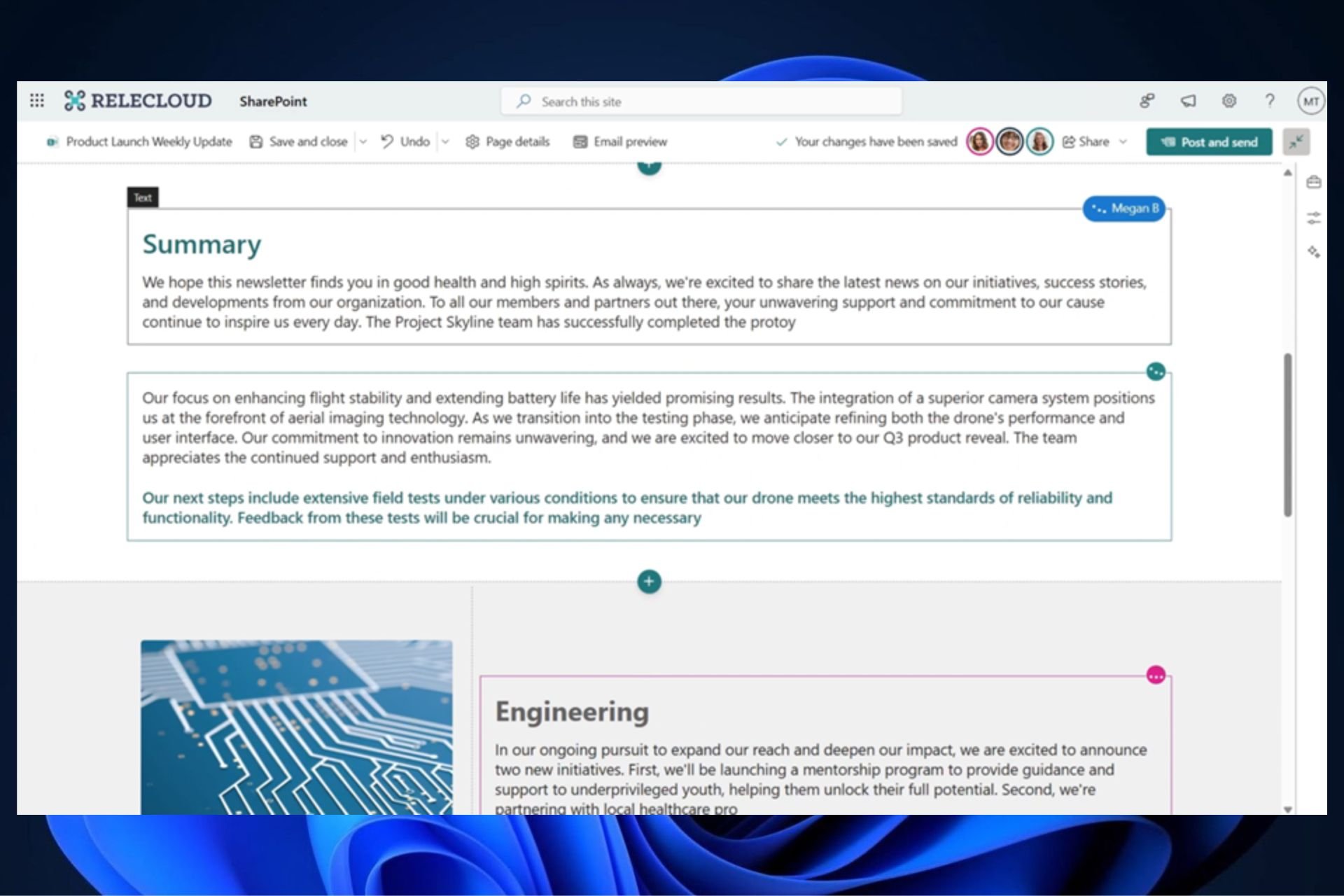
Do you remember when we told you that Microsoft wants Copilot in Forms to generate complex quizzes using your inputs? In the latest blog post, the Redmond-based tech giant showcases how this new feature generates quizzes, forms, and step-by-step solutions for quiz questions.
Available to all commercial Microsoft 365 subscribers, Copilot in Forms makes this easy – say what you want, such as the subject of your test, who it’s for, and what kind of questions there should be. Or, if you feel unsure about how to start, try clicking on ‘View prompts’ and see some suggested ideas. Copilot then proceeds to take in your inputs and produce a draft quiz that aligns with your requirements.
You can supply it with content from different places. Imagine you have a page from some biology textbook; maybe it’s one that you consider as your best quiz test. Copy and paste this content into the Draft with Copilot part on Forms. A draft quiz has been created for you to review and make changes if needed.
Copilot is special because it can include correct answers in the quiz draft. This allows you to focus more on improving and customizing your quiz instead of worrying about getting every detail right. You still have control – you can change these answers, add or delete questions, or modify the questions before launching your quiz.
This characteristic is being made accessible to commercial Microsoft 365 subscribers such as Enterprise, SMB, and EDU customers at first, but more users might get access to it in the future.
If you have looked at the Nvidia GeForce NOW cloud gaming service and thought it was expensive, we have great news: Nvidia is cutting the costs of their Priority and Ultimate memberships by a huge 50 percent. Now, you can plunge into top-quality gaming by paying half the price. For a short period until August 18, you can get the Priority membership for just $4.99 per month or choose a six-month deal at $24.99.
Take advantage of a special new discount — one-month and six-month GeForce NOW Priority or Ultimate memberships are now 50% off until Aug. 18. It’s perfect for members wanting to level up their gaming experience or those looking to try GeForce NOW for the first time to access and stream an ever-growing library of over 1,900 games with top-notch performance.
Nvidia
In a blog post, Nvidia says the memberships can handle resolutions of up to 1080p and play games at 60 FPS, with RTX effects switched on for six hours daily. Want more strength? The Ultimate membership costs $9.99 monthly or $49.99 for half a year and gives access to GeForce RTX 4080 GPUs. It allows eight hours of gameplay in one day and offers luxury like up to 4K resolution and frame rates that reach as high as 240 FPS.
Yet, more comes. Nvidia is not only offering hot summer deals but also growing its game library. Just this week, they are adding nine new titles to the collection. Two of them – Dungeons of Hinterberg and Flintlock: The Siege of Dawn- can be enjoyed by Microsoft PC Game Pass subscribers.
This summer sale is a chance of a lifetime to enhance your gaming experience with GeForce NOW’s cloud service. There’s no better time than now, whether you’re an experienced gamer or just starting in cloud gaming; these deals have been made specifically for accessing more than 1,900 games and experiencing unbeatable performance while playing them all.
Remember that the time for these reduced prices is running out, so take advantage of them before August 18.
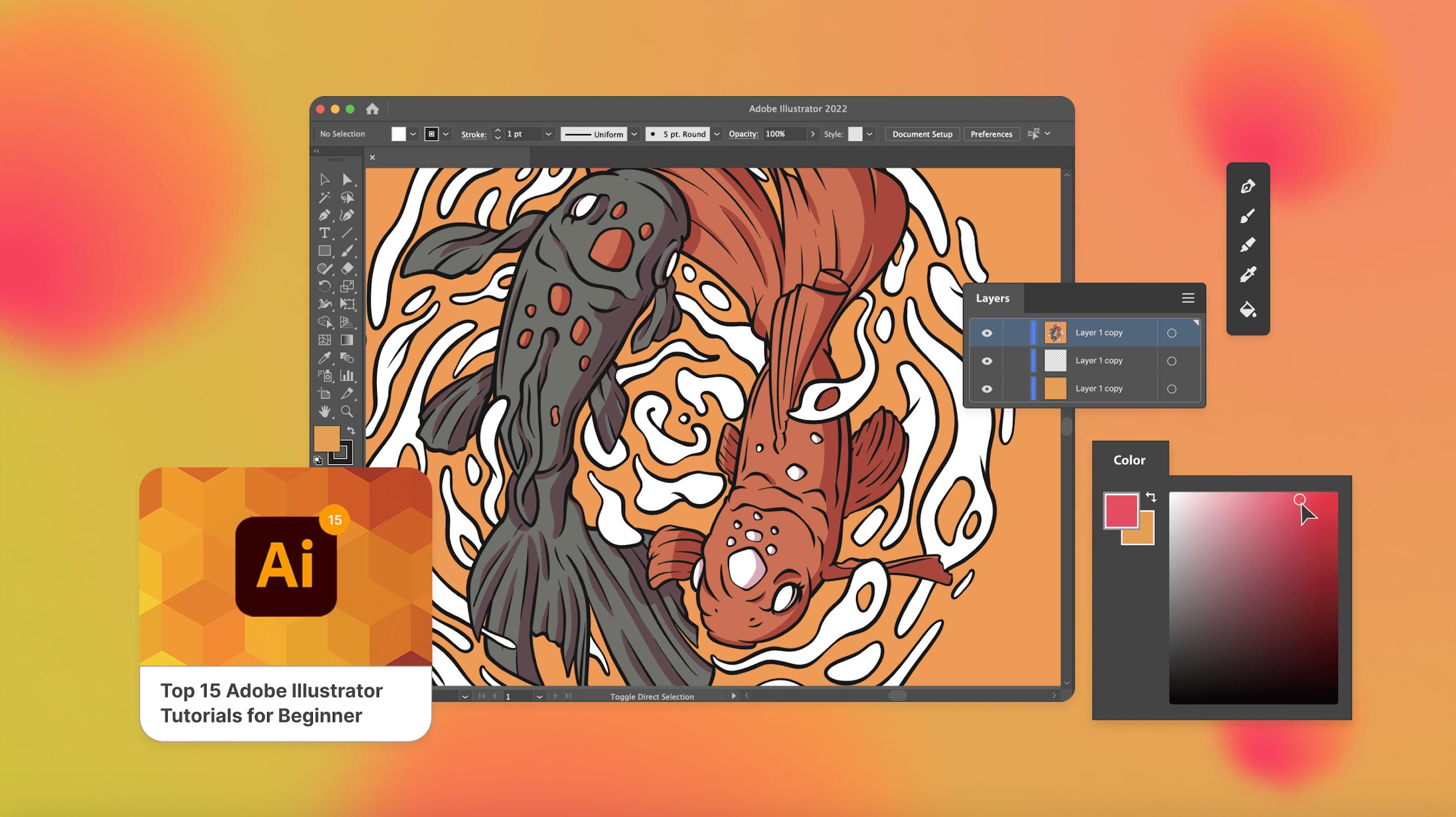
Vector Graphics Editing: Create and edit scalable vector graphics with precision.
Advanced Pen Tool: Draw and manipulate paths with detailed control.
Custom Brushes and Patterns: Enhance your designs with a variety of brushes and pattern options.
Color Management: Utilize advanced color controls to achieve accurate and vibrant results.
Typography Tools: Access a range of text tools and fonts for professional typography.
Artboard Variations: Work on multiple artboards simultaneously for efficient design.
Integration with Adobe Creative Cloud: Seamlessly integrate with other Adobe apps like Photoshop and InDesign.
System Requirements
For optimal performance with Adobe Illustrator v28.6, ensure your system meets the following requirements:
Operating System: Windows 10 (64-bit) or macOS 11 (Big Sur) or later
Processor: Intel Core i5 or equivalent, or Apple M1 (for macOS)
RAM: 8 GB (16 GB recommended)
GPU: 2 GB of VRAM
Storage: SSD with 4 GB of free space for installation
Display Resolution: 1920×1080 or higher
Internet: Internet connection required for installation and updates
Pros and Cons
Pros:
Powerful vector editing capabilities for detailed graphic design.
Wide range of tools and features for diverse design needs.
Strong integration with Adobe Creative Cloud and other Adobe apps.
Regular updates and improvements.
Cons:
Steep learning curve for beginners.
High cost for full version and subscription.
Requires a robust system for smooth performance.
Cracked versions pose security risks and legal issues.
FAQ
1. Is Adobe Illustrator v28.6 available for free? Adobe Illustrator v28.6 is not available for free legally. You can access a free trial, but for continued use, a subscription or purchase is required.
2. Can I use Illustrator v28.6 on both Windows and macOS? Yes, Adobe Illustrator v28.6 is compatible with both Windows and macOS operating systems.
3. What are the advantages of using Adobe Illustrator over other graphic design software? Illustrator offers advanced vector editing tools, precise color management, and seamless integration with Adobe Creative Cloud, making it a top choice for professional graphic designers.
4. How do I get updates for Adobe Illustrator v28.6? Updates are provided through the Adobe Creative Cloud desktop app, which manages software updates and installations.
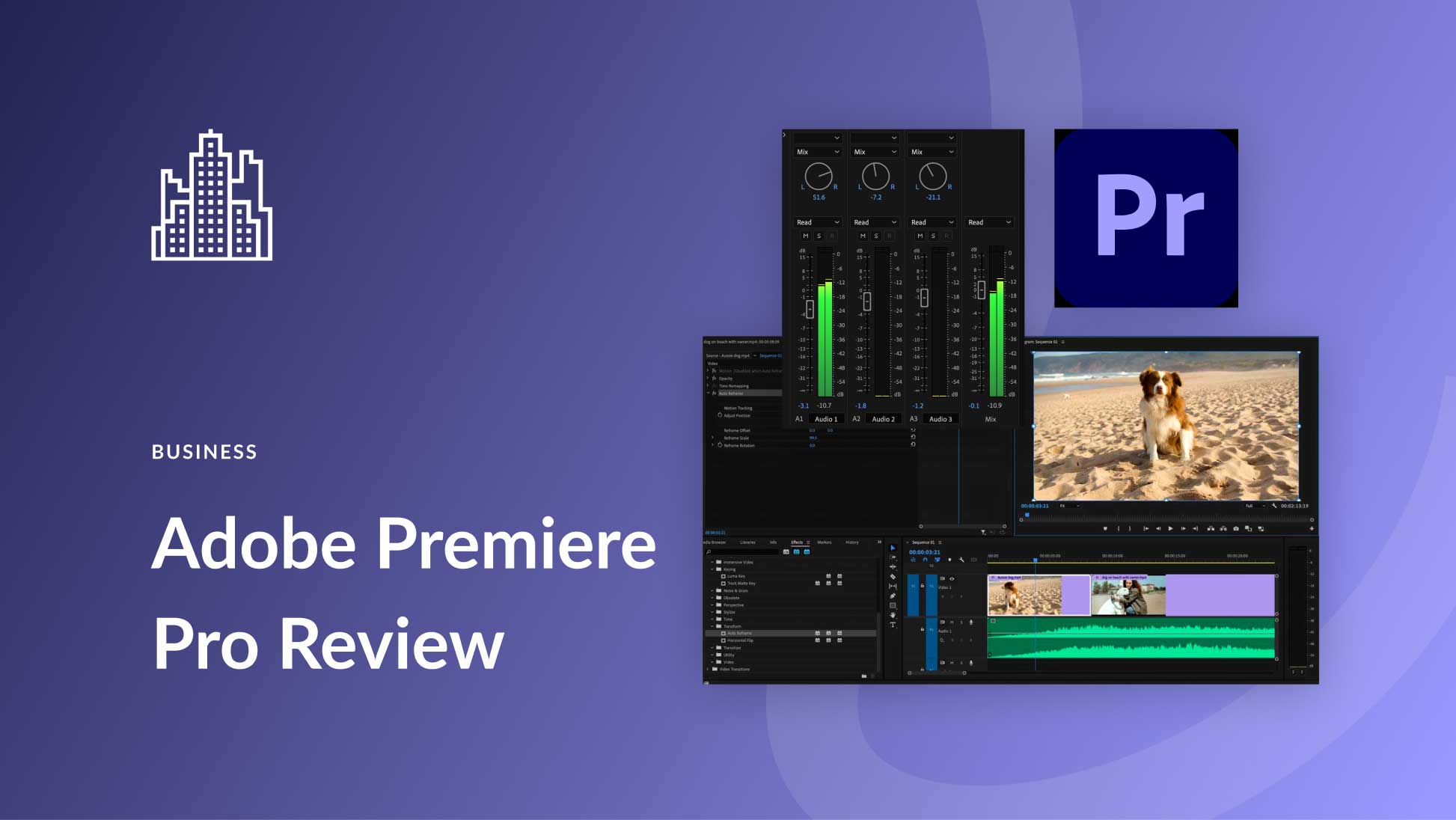
Adobe Premiere Pro Crack is one of the industry-leading video editing software used by professionals and enthusiasts alike. Whether you’re creating a short film, editing a YouTube video, or crafting a full-length feature, Premiere Pro offers a powerful set of tools that cater to all your editing needs. From advanced color grading to seamless integration with Adobe Creative Cloud apps, Premiere Pro provides a comprehensive solution for video editing.
Features
Multi-Track Editing: Edit videos across multiple tracks to arrange clips, add effects, and manage complex edits.
Advanced Color Grading: Take full control of color correction with the Lumetri Color panel, offering a wide range of tools to enhance your footage.
Motion Graphics Templates: Easily add professional graphics and titles to your videos with customizable templates.
Audio Editing Tools: Premiere Pro comes equipped with features for fine-tuning audio, including volume leveling, background noise reduction, and syncing with video.
Integration with Creative Cloud: Seamlessly work with Adobe After Effects, Photoshop, and Audition, enhancing workflow efficiency.
Support for Multiple Formats: Edit videos in a wide range of formats, from 8K footage to virtual reality video content.
Custom Keyboard Shortcuts: Increase productivity by assigning and customizing keyboard shortcuts tailored to your workflow.
System Requirements
To run Adobe Premiere Pro smoothly, your system needs to meet certain specifications:
Operating System: Windows 10 (64-bit) or macOS 11 (Big Sur) or later
Processor: Intel 6th Gen or newer CPU, or Apple M1 (for macOS)
RAM: 16 GB (32 GB for 4K or higher resolutions)
GPU: 4 GB of VRAM for HD media; 6 GB of VRAM for 4K or higher
Storage: SSD with at least 8 GB of free disk space for installation
Display Resolution: 1920×1080 or higher
Internet: Internet connection is required for software activation and accessing online services
Pros and Cons
Pros:
Comprehensive set of video editing tools suitable for all skill levels.
Seamless integration with other Adobe Creative Cloud apps.
Constant updates and new features.
Wide support for multiple file formats and codecs.
Highly customizable and scalable for various types of projects.
Cons:
Steep learning curve for beginners.
Requires a powerful computer to run smoothly.
Subscription-based pricing model, which can be expensive for some users.
Occasional stability issues or crashes, especially with large projects.
FAQ
1. Is Adobe Premiere Pro available for free? Adobe Premiere Pro offers a 7-day free trial. After the trial, you’ll need to purchase a subscription through Adobe Creative Cloud.
2. Can I use Premiere Pro on both Windows and macOS? Yes, Adobe Premiere Pro is compatible with both Windows and macOS operating systems, and you can switch between platforms if needed.
3. Does Premiere Pro support 4K video editing? Absolutely! Premiere Pro supports 4K, 8K, and even VR footage, provided that your system meets the necessary hardware requirements.
4. How do I get updates for Adobe Premiere Pro? As part of Adobe Creative Cloud, updates are automatically pushed to Premiere Pro users. You can check for and install updates through the Creative Cloud desktop app.
Many users are wondering how to create a poll in Slack, and while the application doesn’t have native support for polls, you can still create them by following these steps.
How do I create a poll in Slack?
1. Download Simple Poll
In Slack, click on Browse Slack and then choose Apps.
Search for a simple poll, and click the Add button next to Simple Poll.
Click on Add to Slack.
Next, click on Allow.
Enter your information and click on Continue.
Next, click on Continue in Slack.
2. Create a poll using Simple Poll
In Slack, navigate to Simple Poll in Apps. Select Home and then Create a poll.
Select the desired channel, question, and poll options. Once done, click on Preview.
If you’re pleased with the results, click on the Create poll.
Is Simple Poll free in Slack?
Yes, Simple Poll is free, but it has limitations in the number of surveys, polls, and responses that you can make monthly. For smaller teams that don’t frequently use polls, this is more than enough.
Well, you should know the feature is also coming to Microsoft Outlook. In a recent entry to the Microsoft 365 Roadmap, the Redmond-based tech giant unveiled that the company will enhance Microsoft Outlook to support these artifacts in August.
Participants will only have to get into the meeting. After the meeting ends, they will automatically receive a set of artifacts in the calendar for the new Outlook on Windows and the web.
The set will include a recap page for the meeting, the recording, the transcript, and all the files shared in that meeting. Those accessing the Intelligent Recap feature will also get a document containing all the important notes, such as name mentions, number of speakers, suggested tasks, etc.
Shortly after a meeting ends, meeting participants will automatically get a set of all the meeting artifacts in the calendar for the new Outlook in Windows and web. Included in this set is a quick entry point to the meeting recap page, the transcript, the recording, and any files that were shared. For users with access to intelligent meeting recap, in addition to the entry point to intelligent recap in Microsoft Teams, users will also see highlights like number of speakers, number of name mentions, and suggested tasks directly within Microsoft Outlook.
Microsoft
The feature will be more than useful to those who don’t want to take the extra steps to get the same documents from Microsoft Teams.
With it, Outlook will present them to you instead, sparing you the time wasted looking for them. This could greatly improve and streamline productivity and collaboration.
Since the new feature is also tied to Outlook Calendar, it’s good to know that the section will be easier to navigate around the same time, thanks to a series of changes Microsoft plans to release.
It seems like Microsoft Outlook is getting better with every update, right? Don’t forget that this new meeting artifacts feature is coming to Outlook for Windows and web.
Surface Pro 8 just received a major firmware update. The eighth generation of Surface Pro is an Intel-based Windows tablet known for being flexible and strong; this update improved its overall performance.
Connectivity has been improved. If you have had troubles with Wi-Fi or Bluetooth not functioning as desired, particularly when your device is in sleep mode, this change will help to overcome those problems.
The Surface Thunderbolt 4 Dock also received an enhancement. The update enhances interoperability, solving the problems that prevented audio devices from being recognized by the system.
Now, let’s move on to the Surface Slim Pen’s update. Its new firmware update includes auto-pairing and improved auto-binding to create a smoother workflow.
There is also good news for those who worry about security: the update improves device security, especially by updating certificate processes so that they offer stronger protection and simpler authentication.
On the fixing side, this update fixes problems with camera performance triggered by low memory or insufficient storage, guaranteeing you can keep taking pictures smoothly.
For those who like technical details, the update can be applied to Surface Pro 8 devices running on Windows 10 October 2022 Update, Version 22H2 or higher. If you are curious about its size, it is a big one, with 742 MB for manual installations. But no need to fret—updating is easy regardless of whether it is done through Windows Update or by visiting the Surface Support website directly.
Even though the Surface Pro 8 is two generations behind, it will continue to receive support for many years. Microsoft has agreed to a six-year lifecycle for this device, meaning they promise assistance until October 5th, 2027.
In today’s world, where the dangers of cyber attacks are growing, Microsoft has warned about a very risky cybercrime group called Octo Tempest. This group is known for its complex assaults on VMWare ESXi servers, and according to an X thread, it has now added two fresh ransomware payloads: RansomHub and Qilin. These occurrences indicate a major increase in the field of cybercrime, presenting an increased danger to organizations all over the globe.
In the second quarter of 2024, financially motivated threat actor Octo Tempest, our most closely tracked ransomware threat actor, added RansomHub and Qilin to its ransomware payloads in campaigns. pic.twitter.com/iS3nnnoxSm
— Microsoft Threat Intelligence (@MsftSecIntel) July 15, 2024
In the second quarter of 2024, financially motivated threat actor Octo Tempest, our most closely tracked ransomware threat actor, added RansomHub and Qilin to its ransomware payloads in campaigns.
Microsoft
The organization is not new. Microsoft made Octo Tempest public in October 2023, and its members aren’t just your average hackers—its members boast an impressive skill set that includes high-level social engineering techniques, identity compromise strategies, and unwavering persistence in their attacks. First, they used BlackCat ransomware. However, as BlackCat is no longer active, they have switched to RansomHub and Qilin, which is a big change in how they carry out cyber extortion.
The switch to this fresh ransomware tool happened because Octo Tempest broke into Change Healthcare through an affiliate, getting a payment of $22 million. But unexpectedly, the people who maintain BlackCat took control of the ransom and disappeared into internet spaces without leaving any trace behind them – only chaos and gigabytes full of sensitive information were left as evidence of their actions. This event caused the birth of RansomHub, which later became known for being involved in serious attacks against well-known places such as Christie’s, Rite Aid, and NRS Healthcare.
The way it’s used is especially concerning. RansomHub is frequently deployed during post-compromise situations, usually arranged by Manatee Tempest after Mustard Tempest acquires initial access through FakeUpdates/Socgholish infections. This multi-layered attack approach highlights the complex and organized actions of Octo Tempest.
Now, what can organizations do to protect themselves from these changing threats? Microsoft provides basic yet important guidance: keep systems updated and patched to block vulnerabilities, establish strong access controls, teach workers about the risks of phishing and social engineering, and ensure complete security solutions in place that can discover and stop attacks before they cause harm. Also, keeping regular data backups in safe places is vital for recovering from a ransomware attack.
The cyber threat environment is always changing; lately, it has adopted AI to strengthen its attacks. Octo Tempest represents a new wave of cybercrime that keeps pushing the limits. More than ever, it’s crucial to be aware and take action with cybersecurity methods to protect against these constantly changing risks.
Windows Insiders can now use the AI-enhanced Microsoft Photos app that directly incorporates AI-supported editing characteristics from their Designer application
According to the latest blog post, the update, now open to all Windows Insider Program members, brings a smooth method for photo editing. Users need to click on the “Edit with Designer” button, and this application will use AI to identify objects in their image smartly so that they can personalize it effortlessly. There is no need to change apps or web pages; everything is available within the Photos app.
The app is available in English, Spanish, French, German, Italian, and Portuguese. These are the only languages supported for the translation feature, but they are available in many countries worldwide. Users must have a free Microsoft account and ensure their Photos app has been updated to version 2024.11070.12001.0 or later.
Microsoft also wants people excited about these fresh features to give feedback through the Insider Feedback hub. This is a good method of participating in the app’s growth.
Microsoft hasn’t specified a release date for the new AI-powered Photos app for people not included in the Windows Insider Program. It will take more time before these exciting editing tools become generally available. However, outside the Windows Insider Program, the Photos app has finally been fixed after being plagued by an annoying bug for weeks.
Again, update the app from the Microsoft Store to prevent the glitching error. If not, wait until Microsoft automatically updates it for you.
If you need to track message edits, app integrations, or user permissions, you need to access and interpret Slack’s audit logs. This can help you maintain security within your Slack workspace and allows the admins to access detailed record of user actions so that they can monitor changes and ensure compliance with organization policies.
You can check the audit logs directly in Slack or export the information as CSV or use the Audit logs API to develop customised monitoring tools. In this guide, we’ll walk you through the steps for all.
How do I check audit logs on Slack?
1. View audit logs in Slack
Launch Slack, then click your organization name from the sidebar.
Go to Tools & settings, then click Organization settings.
From the left sidebar, click Security, then select Audit logs.
You can filter the log entries by Acting user, Event, Affects or Date range from the drop-down menus and review the log entries as you like.
2. Download a CSV file
Launch Slack, then click your organization name from the sidebar.
Navigate to Tools & settings, then select Organization settings.
From the left side pane, click Security, then choose Audit logs.
Now, filter the log entries by Acting user, Event, Affects or Date range from the drop-down menus and review the log entries as you like.
Click Export logs from the upper-right corner, then choose the formatting option from the drop-down menu to download the logs on your device.
3. Use the Audit Logs API
NOTE
The audit logs can be accessed by organization owners, administrators who have e Audit logs admin system role. Also, you need an Enterprise Grid subscription.
To monitor the audit events happening in an Enterprise Grid organization to make sure continued compliance and safeguard the workspace from any misuse.
To collect the Audit logs, you need a slack User token with auditlogs:read scope. And, to get this token, an application needs to be installed by the Owner of an Enterprise Grid organization .
Once the app is created and installed on the organizarion, you need to grant the auditlogs:read scope. Then, you can get Slack User Token from the apps OAuth page. You can get the detailed instructions on Slack API Documentation.
In case you have issues like Slack won’t open on your device it could ne due the Slack servers, missing data files or outdated app; read this guide to learn more.
If you are not able to send a message from Slack, the reason could be corrupt cache file, or firewall interference; check out this guide to get quick solutions.
Were you able to get the audit logs on Slack? If so, share your experiences expressing how it was helpful for the ogranization in the comments section below.
Many users are looking to get EA Play for early access, and if you’re not familiar with the service, in this guide we’ll explain to you everything you need to know.
What do I need to know about EA Play early access?
Do you get early access with EA Play?
Yes, getting EA Play will get you early access to the upcoming titles.
Does EA Play have a 10-hour limit for early access?
Yes, there’s a 10-hour limit on early access with the basic license. Users will PlayPro subscriptions don’t have any time restrictions.
What is the difference between EA Play and EA Play Pro?
The main difference between the two subscription models is the availability of games. With Play Pro you get access to a library of premium edition EA games.
On the other hand, the regular subscription just gives you access to a specific collection of selected games. It’s worth mentioning that the regular subscription has a 10-hour limit for early access while the Pro version doesn’t have any time limitations.
How do I get EA Play early access on PS5?
Navigate to the PlayStation Store.
Next, head to the Subscriptions tab.
Locate EA Play’s banner and choose Learn more.
Follow the instructions on the screen to set up your subscription.
Once the subscription is set, you should be able to use early access.
Does EA Play get early access to College Football?
Yes, an EA Play subscription will get you early access to College Football and other EA titles.
What’s the difference between EA Access and EA Play?
There aren’t any differences, since EA Access has changed the name to EA Play, so all the functionality remains the same.
Do you get full access to games on EA Play?
Yes, you get full access to games even during the early access period. This also means that all your progress will be saved once the early access period ends.
This is everything you need to know about EA Play and its early access. Don’t forget to keep your ports open for EA Sports games unless you’re ready for networking issues.
The much anticipated Windows 11 23H2 update has been broadly released, ending the waiting for many users worldwide. In a blog post, Microsoft confirmed that this update is now available to all, ensuring every eligible device can smoothly transition to the newest version.
You need to access the Settings app and hit the ‘Check for updates’ button to get it. This simple move will ensure you have Windows 11 23H2. This update improves your personal computer’s performance and security features.
This is an important reminder for those still holding onto Windows 11 22H2: its support will end soon. Microsoft is preparing to roll out automatic updates for PCs to version 23H2, ensuring that users are not left behind and exposed to security risks.
The 23H2 update brings more than just security for your PC; it is full of exciting features. From taskbar regrouping and a new volume mixer to controls over RGB lighting – many things are waiting to be discovered. Also, native support for 7Z and RAR files is listed in the update if you pay attention to small details. These enhancements are designed to improve your computing experience significantly.
If you are worried about compatibility, don’t worry. The 23H2 update keeps the system needs the same as its previous ones, so there won’t be any issues with shifting from one to another.
The 23H2 update has many exciting new features. You can better manage your taskbar, adjust app volumes easily, and customize your PC’s lighting.
If you haven’t updated yet, you can now, and you should do it.
Suppose you’ve experienced the annoying bug that would crash the Microsoft Photos application on your Windows 11 device every time you open it up. In that case, you should know that Microsoft finally fixed it.
Earlier this week, the Redmond-based tech giant released a temporary fix for the bug, asking users to download and install the new version of the WinAppSDK and promising a permanent solution would soon be available.
This issue was resolved by Photos app version 2024.11070.15005.0 and newer, released to the Microsoft Store on July 17, 2024. Windows devices will automatically download the updated Photos application over the following weeks without user or admin interaction. You can also download the latest version of the Photos application immediately either by visiting the Microsoft Photos app page or by selecting Get updates option from the Microsoft Store.
Microsoft
Microsoft investigated an irritating bug with the Windows 11 Photos app one month ago that would cause it to crash. The problem was discovered to be caused by a disagreement between it and a group policy or CSP (configuration service provider) policy that was not based on administration rights.
An enhancement to the Photos app with an update from the Windows store on or after June 4th (version 2024.11050.29009.0 or higher) caused this glitch. The app displayed a spinning circle before vanishing away like a magic trick.
However, Microsoft has taken action to solve the problem. On July 17th, the Redmond-based tech giant released version 2024.11070.15005.0 of the Photos app, which effectively fixes this annoying bug.
All Windows devices will receive this new edition automatically; no more steps are needed from users or admins, but if you want to hurry up the process, go to the Microsoft Store and update the Photos app now.
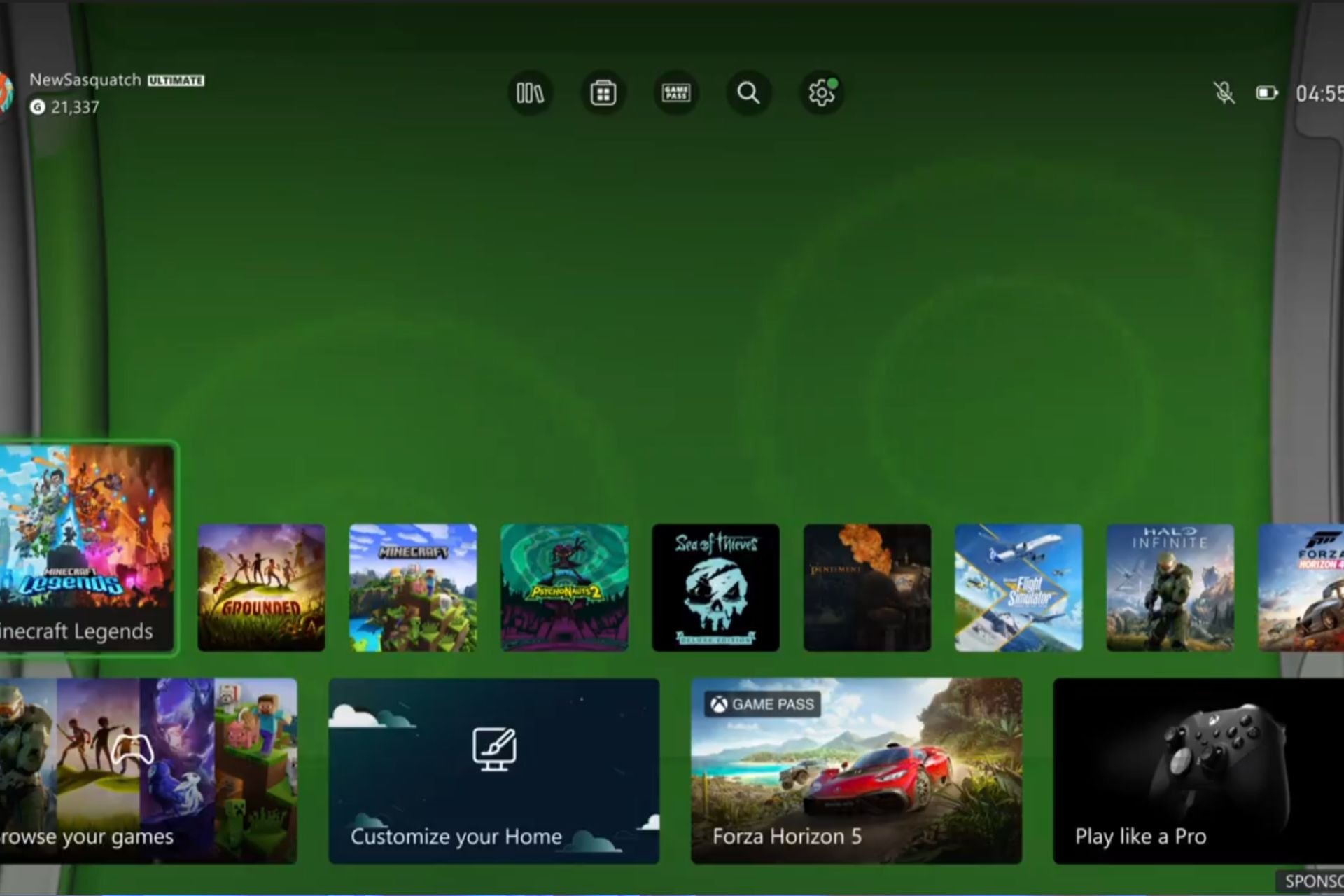
Microsoft has partnered with Nvidia to integrate the GeForce NOW service into its Xbox.com game pages. The announcement, one of the most important in gaming, was made on X (formerly known as Twitter) this week.
The Xbox—GerforceNow partnership allows gamers to start and enjoy their chosen PC games straight from Xbox.com on high-performance servers provided by Nvidia. This will allow gamers to play anytime and anywhere they like without being limited by hardware restrictions.
Microsoft and Nvidia announced their first major partnership back in February 2023. The goal was to make PC Game Pass games available on the GeForce NOW cloud gaming service. This happened in May 2023, and many more titles have been added.
The new announcement doesn’t just show an expansion of the Xbox world beyond regular platforms but highlights how strong cloud gaming has become. People who play games can use GeForce NOW and its powerful Nvidia GeForce RTX 4080 GPUs for a monthly charge to have a smooth gaming experience on different devices.
If you are already paying for a PC Game Pass subscription, this offer becomes more interesting because it gives access to many games at no extra expense.
This is not the first move Microsoft has made into cloud gaming. In a previous effort, they partnered with Amazon to bring an Xbox app for the Amazon Fire TV Stick 4K and Fire Stick 4K Max – expanding opportunities even more. The bundle during Amazon Prime Day contained one Xbox Wireless Controller, an Amazon Fire TV Stick 4K Max, and a month’s subscription to Xbox Game Pass Ultimate, which was being sold at a special price. This showcases how Microsoft envisions future gaming as accessible and interconnected.
Blending GeForce NOW with Xbox.com pages signifies a future where distinctions among various gaming platforms fade away. This will make top-quality gaming experiences available for all, regardless of their preferred device.
Have you tried cloud gaming via GeForce NOW or Xbox Cloud Gaming? If so, please let us know your experience with it.
Microsoft has made its graphic design tool, Microsoft Designer, available to the general public. At first glance, this might not seem more than just another app for making social media posts, invitations, and digital postcards.
Today we’re announcing that the Microsoft Designer app is now generally available with a personal Microsoft account, with new features that help you create and edit like never before. You can express yourself in brand new ways and bring your most creative ideas to life in seconds—all with the help of AI. A blank canvas no longer has to be intimidating—just describe what you want to see, and Designer can create it for you. And if you’re not sure what that is, Designer can help you get started.
Microsoft
However, over time, it might evolve into something more significant: an application with strong image editing features that can be used on mobile platforms, thus becoming a flexible instrument for personal accounts in Microsoft services.
If you want to make AI-generated pictures or modify them smoothly, Microsoft Designer is the best choice for you because it gives 15 free boosts each day. And if you want more creative power, a Copilot Pro subscription will offer 100 daily boosts.
In a blog post, the Redmond-based tech giant says Microsoft Designer doesn’t work only on one platform. It is designed to be used with different Microsoft products such as Word, PowerPoint, and Microsoft Photos, which run on Windows. This gives users a smooth creative experience across all your devices. It’s accessible in over 80 languages via the web, ensuring language differences don’t stop your creativity process.
Through its new prompt templates, Microsoft Designer makes it easier to start designing by giving you ready-made ideas, styles, and descriptions that can be edited according to your preference. For example, if one wants to design custom stickers or emojis, the job becomes simple with this tool; similarly, making greeting cards is simple.
But what about those moments when you look at an empty canvas, not knowing where to begin? Microsoft Designer also solved this problem. Any picture can become a work of art with the characteristic Restyle image.
You can choose from various styles and add your own twist. Moreover, the app has the amazing feature of designing unique frames for images and creating collages, which can help you maintain a consistent style throughout your photos.
Looking to the future, Microsoft is developing a Replace background feature. This will offer a new way for users to change backgrounds in photos on the app, making it more straightforward and creative.
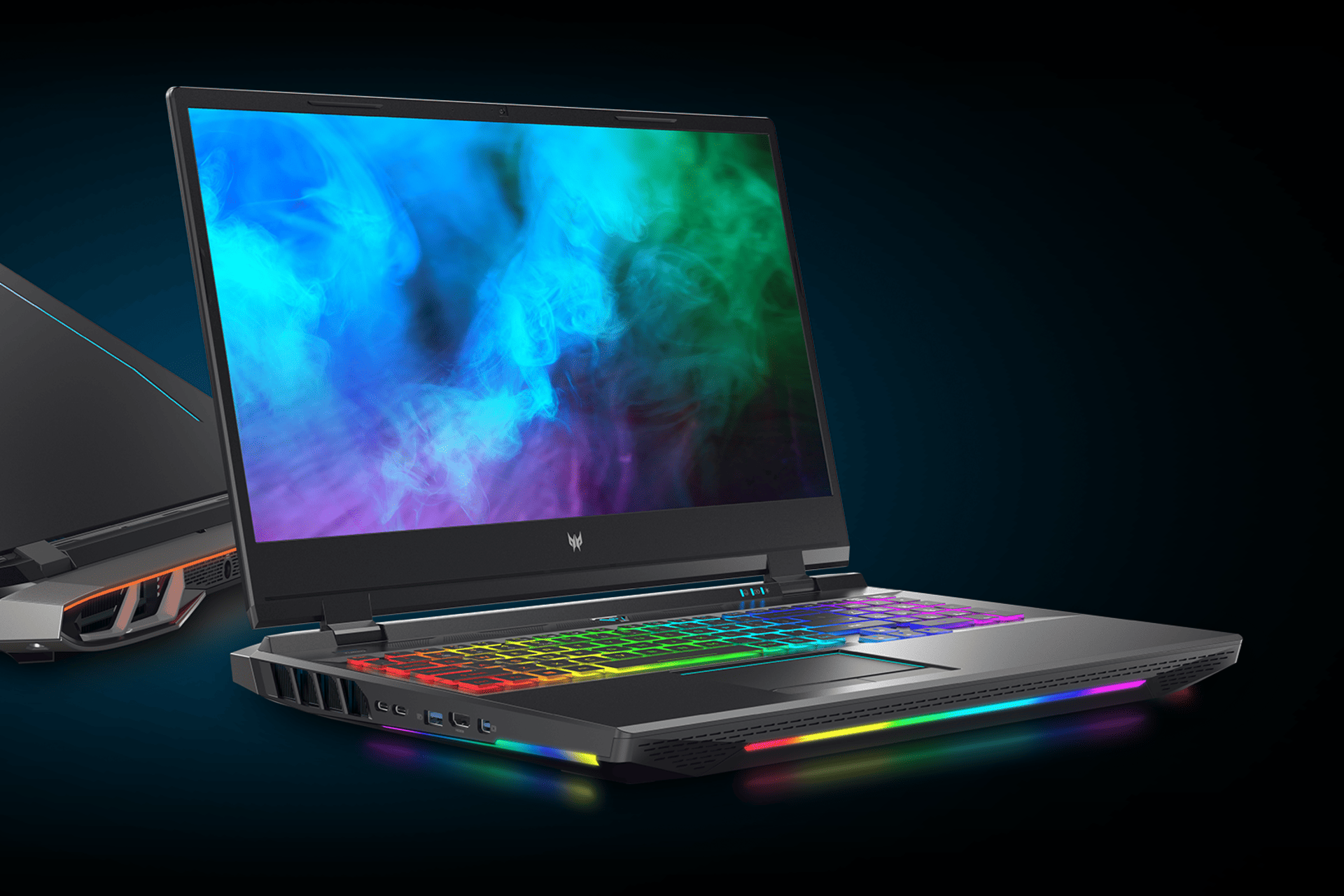
In the last few years, gaming laptops have become increasingly popular as gamers switch to more portable devices. And while many manufacturers have gone with slim, sleek models, Acer Predator Helios 500 was one that went with the conventional design, offering unmatched performance at the time of release!
The laptop features the GeForce RTX 3080 GPU and the 11th Gen Intel Core i9 CPU, key components behind its power-packed performance. The two are also responsible for the bulky design, apart from the display.
But is bulkiness worth it? Let’s find out in our detailed review of Acer Predator Helios 500!
A comprehensive review of Acer Predator Helios 500
A performance like none other
Performance is one of the key aspects that drives gamers to Acer Predator Helios 500. Be it games or other resource-intensive apps, the laptop won’t disappoint you in any way!
Upon running some of the popular recent titles, I enjoyed excellent gameplay with high framerate and absolutely no lag. However, this might change with future game and OS updates since the laptop was released in 2021.
But given the powerful specifications, you won’t have to worry about it for another few years!
PredatorSense app (Image source: Acer)
With four built-in modes, Quiet, Default, Extreme, and Turbo, you can quickly configure things based on the task at hand. With the Quiet profile, the CPU fans make minimal noise without compromising too much on the performance, while if you are on the Turbo profile, be ready to expect some disturbance.
Also, the pre-installed PredatorSense app allows you to monitor the laptop’s performance, overclock the system, customize the lighting, control the CPU fan, or switch between profiles. And it’s surprisingly seamless and straightforward. Overclocking has been made really simple on Acer Predator Helios 500, negating the need for third-party apps, which are often a necessity on other computers.
The full-sized keyboard and touchpad perform very well. The key placement is optimal, making the gaming experience all the more better.
I wouldn’t get into the various benchmarks as those have been extensively covered, and detailed reports are available on the web. But, in short, the performance of Acer Predator Helios 500 is simply extraordinary!
A huge display for the ultimate gaming experience
As gaming laptops become compact and feature the more common 15″ displays, the Acer Predator Helios 500 still boasts of a huge 17.3″, 4K, 120Hz screen.
It’s not just the size that’s to be appreciated but the quality. The visuals are crystal clear, and the gaming experience certainly goes up a notch on the Acer Predator Helios 500 for this very reason!
Also, with a high NITS, the display is bright enough to be used outside or near direct sunlight during the daytime. The display on Acer Predator Helios 500 undoubtedly scores a perfect 10 in our testing!
An upgraded design
The earlier models of Acer Predator Helios 500 were just as fast but not as aesthetic. While there haven’t been many changes in the latest model, even the small ones seem to make a difference.
For instance, you would earlier find the Predator branding underneath the display in the Acer Predator Helios 500, 17″, AMD model, which has been replaced with a logo, giving it a much more elegant look. Similarly, the latest model features fewer bezels, making the screen look all the better.
As for the body, it features an all-plastic interior and a metallic exterior, both choices perfectly suited for their job. The plastic interior prevents smudge marks, while the metallic exterior gives it a premium feel. Also, going with a plastic interior would have helped Acer reduce the laptop’s weight, which is already a little over 8 pounds!
The design, if you ask me, is akin to a conventional gaming laptop, featuring RBG lighting for the keyboard as well as the body.
The feature I liked the most about Acer Predator Helios 500 is the swappable WASD keys, powered by the MagForce technology (has to be maually enabled in the PredatorSense app). Basically, you can replace these keys with ones that function like a joystick. The swappable keys respond to pressure, meaning that the more pressure you apply, the more pronounced the response!
As an example, in supported games, the intensity with which you accelerate/decelerate the vehicle or make a turn will depend on how you press the key and the increase in pressure.
Decent RAM and storage capacity
When we talk of gaming laptops, or even laptops for that matter, storage remains a concern. As opposed to desktops, most laptops don’t feature an upgradable storage option, often putting you in a tight spot. The good news is that this is not the case with Acer Predator Helios 500.
In addition to the 2 TB built-in disk in the top model, you get an additional slot to expand the storage. Similarly, while you have 32 GB RAM, it can be expanded to 64 GB if you multitask!
As for most gamers, the built-in storage should suffice, given that many have now moved to cloud gaming, which significantly reduces the local storage requirements. And for those who still prefer downloading all their favourite games, the expandable storage option will be an added advantage.
A not-so-good battery life
Battery life has never been a strong point of gaming laptops, with a few exceptions of course. The same is the case with the Acer Predator Helios 500!
On a full charge, you can expect 2-4 hours of uninterrupted gaming. For less resource-intensive apps, video streaming, or web browsing, the laptop will run for an additional hour or two, depending on the task(s) at hand.
For a laptop this bulky, I would have hoped for a better battery backup. But it’s understandable, given the kind of power-packed performance it delivers. Amongst all the key parameters in this Acer Predator Helios 500 review, battery backup is one where the laptop doesn’t score too well!
For seasoned gamers, system temperature remains a key aspect as it directly affects the experience. This has been given special consideration on Acer Predator Helios 500, which features the 5th Gen AeroBlade 3D Fan Technology for seamless airflow.
The cooling system is too good, effectively dissipating heat from the processor while keeping the laptop’s body temperature under check with Vortex Flow. Even upon running high-end games, the temperature was nowhere near the critical levels, which directly improved the overall performance!
But with the Turbo mode during extensive gaming, the fans start to make noise. It’s something I would put in the cons column.
Acer Predator Helios 500 specifications
Processor
Intel Core i9-11980HK
GPU
Nvidia GeForce RTX 3080
Storage
2 TB SSD (expandable)
RAM
32 GB DDR4-3200
Display
17.3″, 4K, 3840 x 2160 px
Weight
8.77 lbs (3.98 kg)
Battery
74 Wh, 330 W power adapter
Factors to consider before buying Acer Predator Helios 500
While writing a review for Acer Predator Helios 500, it’s also critical to mention the key factors you must consider:
Bulky design: If you plan to carry the laptop around, this might not be the best choice, given the reduced portability.
Poor battery backup: The Acer Predator Helios 500, released a few years ago, doesn’t offer the best battery backup. Modern-day gaming laptops, on the other hand, can deliver 10 hours+ of seamless gameplay.
Price range: The pricing is a little on the higher side. Many gaming laptops launched in recent years deliver the same performance but are more economical on the pricing front!
That’s a simple and straightforward review of a gaming laptop that was designed to redefine the segment. And the Acer Predator Helios 500 succeeded in doing so to a great extent!
Dealing with dozens of open tabs can be a hassle, and this is why many are looking for a OneTab alternative for Firefox. In this guide, we’re going to show you several popular extensions that you can use to achieve similar results, so let’s get started.
Managing tabs is incredibly simple with Simple Tab Groups. The extension allows you to create several workspaces. You can switch to a workplace with a shortcut or right from the extension.
The extension also has a tab that lets you manage all open tabs between workspaces, allowing you to easily move or close tabs or configure workspaces.
Speaking of workspaces, they can be configured to unload tabs if you switch to a different workspace, to save memory. Overall, it’s an extremely powerful extension for tab management, so don’t miss it.
This extension is rather similar to OneTab since it allows you to save your session and restore tabs when needed thus saving your resources.
With it, you can have several different sessions, and you can easily restore a session in a new window if needed. Tabs can be added to a session by right-clicking them, but you can also assign tabs to a session and close them immediately to save resources.
With Tabs Aside, all your sessions will be shown in the sidebar, and you can easily switch between them or set the session aside and its tabs. This is a great extension, so don’t hesitate to give it a try!
Other great features:
Easy to use
Ability to have multiple sessions
All sessions are available in the sidebar
Can move tabs to session with or without closing them
Another great extension that can help you organize your tabs and sessions is Tab Session Manager. The extension will save all your open tabs in a session so you can easily restore them when needed.
Of course, you can quickly remove a tab from a session, and you can have as many sessions as you need and switch between them with a single click.
There are few limitations, and when you create a session all open tabs will be added to it. You also can’t add individual pages or move them across a session which might be an issue for some users.
Another great OneTab Firefox alternative is Sessionic. This extension is pretty similar to the previous one in terms of functionality, and it will create a session from all your open tabs.
Of course, you can have multiple sessions, but you can’t easily move tabs within sessions or add individual tabs to the session.
Overall, the extension looks and works great, and if you want to minimize the number of open tabs, give this extension a go.
SeassionPaw is great if you need to have multiple windows open and manage or move tabs between them. The extension has a friendly and simple user interface, and moving tabs between windows is simple using the drag-and-drop feature.
There’s a session manager available that lets you easily restore previously saved groups or sessions. However, this feature isn’t easily accessible and it requires you to open the extension in Side View to access it.
Overall, SessionPaw has some outstanding features for tab management, allowing you to quickly close and put tabs to sleep. However, using it isn’t as simple since some features aren’t easily accessible, so there’s a learning curve that some users might not like.
Microsoft released version 128.0.2708.0 to Edge Dev, loaded with features to boost user enjoyment and ease of use.
It enhances the Super Drag and Drop function and introduces a new closing mechanism when the browser becomes stuck during the shutdown process. There’s bug-fixing, minor alteration, and other things.
To start with, Microsoft has put in a toast view for the Super Drag and Drop feature to handle this issue of over-triggering. If you’ve ever been annoyed that your browser doesn’t close correctly, you should know the Redmond-based tech giant has fixed it. The update adds a code to end the process of a browser stuck in shutdown, ensuring it stops completely and gives an easier, less annoying experience.
As for the browser’s reliability, Microsoft has fixed a problem where toggling dark mode while using the picture-in-picture feature could cause crashing. After selecting a suggestion, they’ve also resolved a crash in the browser narrator and tackled crashes related to auto grouping on Android, navigating certain webpages, and the browser’s shutdown.
Additionally, any crashes when the ‘Settings & More’ button was clicked on Xbox have also been fixed.
But what about the user experience? The update has made progress in this area, too. For example, they have fixed a problem where pressing the ‘split screen’ button did not move the keyboard focus inside that particular section of the ‘split screen,’ making navigation difficult.
Editing captured screenshots is easier now. A keyboard input problem has been fixed. The toggle button appears correctly in the Tab actions menu for people who use vertical tabs.
For Android users, the icons and names for top sites are now shown correctly. Also, the browser will not open duplicate tabs if you click on a link from another app while in Shared Device Mode.
For those who use iOS devices, they haven’t been forgotten: Microsoft fixed a problem where the keyboard stayed active when popping up to edit the top site; additionally, the edit bar no longer unexpectedly moves while renaming top sites.
The latest Edge Dev version, 128.0.2708.0, can be downloaded on multiple platforms, such as Windows 10, 11, macOS, Linux, and Android. So why not try it and experience the changes yourself?
In one of this year’s coolest announcements, Microsoft has teamed up with Deadpool, one of Marvel’s most popular characters, to release a Deadpool-themed Xbox controller that will catch everyone’s attention.
The customized Xbox Wireless Controller matches the comedy and uniqueness of this well-liked antihero. Doing its best impersonation of Deadpool’s famously firm ‘buns of steel,’ this controller aims to be more than just a gaming device. Fans and collectors alike eagerly predict they will want this item for their collection.
Plus, Microsoft has a special edition controller that matches the design of Marvel Studios’ “Deadpool & Wolverine” movie. To honor its release, enthusiasts can win this unique gamepad through worldwide sweepstakes.
Visualize yourself having a superhero glory in your hands while playing games you adore on this distinct controller. And, if you’re one of the fortunate 1,000 individuals who bought an Xbox Elite Wireless Controller Series 2 – Core from the Microsoft store initially, then there is a unique Xbox Deadpool Controller Holder waiting for you.
Make his finest asset yours
Follow & Repost with #XboxCheekyControllerSweepstakes for a chance to win a custom Xbox Series X console & 2 Cheeky Controllers designed by Deadpool.
The Xbox controller is a marvel of design, showing Deadpool’s famous red and black suit with tactical patterns and belts. However, it’s not just about the looks—the controller also assures a comfortable grip that might make you feel superheroic.
For those who are ready to join in on all this excitement, entering into this lucky draw is quite simple: merely follow Xbox on X (formerly known as Twitter) and share their official sweepstakes post again. The victors could also get custom Xbox hardware like a Deadpool-inspired Xbox Series X, a stand with foam katanas named Bea and Arthur, and two Xbox Wireless Controllers.
Fans can watch Twitch Xbox on July 22 for a live transmission from the “Deadpool & Wolverine” red carpet premiere to add more thrill. This is not just about controlling; it’s also about joining a bigger community of enthusiasts and players who enjoy their affection towards these famous characters.
If you are a fan of Deadpool or Xbox, this opportunity should not be missed.
Speaking about Xbox, don’t forget that the 360 Store will be gone forever at the end of the month, but there are huge discounts for games right now. And, since we’re being cool, download the latest Xbox 360 Blades background for the current consoles.
Seems as if Microsoft is exploring a possibility of integrating Windows 11/10’s built-in Energy saver with Edge Efficiency mode to boost device battery life. This feature is being tested in Edge Canary channel.
If you are using a laptop for browsing with multiple open tabs, watching videos, and playing games, the battery may run out quickly. To address this, Microsoft Edge browser offers Efficiency mode.
The new feature under development in Edge Canary suggests Microsoft is working on a way to intelligently connect these two battery-saving options. Here’s what we might see:
If Energy Saver is available on your Windows 11 device but not enabled, Edge might prompt you to activate it for optimal battery savings.
When Energy Saver is already turned on, Edge might inform you that Windows 11’s power-saving features are already in effect.
We found Microsoft is testing an Edge feature that may improve battery life hidden behind these three flags:
msEdgeSyncEfficiencyModeWithWindowsEnergySaver: This flag likely controls whether Edge attempts to synchronize its Efficiency mode with Windows Energy Saver settings.
msEdgeWindowsEnergySaverAvailable: This flag might indicate whether Edge detects that Windows Energy Saver is available on your system.
msEdgeWindowsEnergySaverActivatedTrigger: This flag could be responsible for triggering notifications based on the status of Windows Energy Saver (enabled or disabled).
Overall, this new integration between Microsoft Edge and Windows 11 Energy Saver looks promising for laptop users. By working together, these features could help you maximize your battery life and enjoy uninterrupted browsing for longer.
Please note: This information is based on features under development in the Edge canary channel and may not reflect the final implementation details.
If you’re a multitasker, you obviously have multiple tabs open at any given time so why not have OneTab on your Firefox make it easier for you?
One Tab allows you to convert your tabs into a list and restore them as and when needed. When you open too many tabs at once, some may get lost from the view and as the list grows and you may find yourself unintentionally closing some.
One Tab helps with consolidating all tabs that will not fit on your browser window. It then converts them to a list for easier management. Once in a list, you can quickly scroll through it and restore one or all when you need it.
The main reason for all this is to reduce the CPU and memory load on your browser and speed it up. You already know too many open tabs can slow down your browser so this is a much-welcome solution to faster load times and prevent your Firefox browser from becoming unresponsive.
When it comes to safety, you can rest assured that One Tab will not be collecting any information from your tabs to unauthorized parties. As a bonus, it also has a 4.2 rating which implies it’s a pretty solid choice.
If you’re against adding extensions to your browser, you don’t have to. There are lots of browsers with tab management capabilities that you can explore. Granted, they may not have the additional features that One Tab has, but they get the job done.
Speaking of tabs, you can also introduce tabs to Windows on your desktop for efficient time management.
If you’re looking for more extensions, you might want to check the Rikaikun extension for Firefox especially if you’re learning Japanese. We also have a fresh guide on how to list all tabs in Firefox, so don’t miss it.
We also have a great guide on the Vimium Firefox extension, so don’t miss it for more useful information.
Have you tried the One Tab extension on Firefox? Was it effective in tab management? Share your experience with us down below.
Wondering how to check your Firefox version? Whether you’re troubleshooting an issue, verifying compatibility, or ensuring you have the latest updates, finding your Firefox version is a simple but important task.
By tracking your version, you can keep up-to-date with the latest security patches and more. I’ll show you the steps on both desktop and mobile devices.
Let’s get into it!
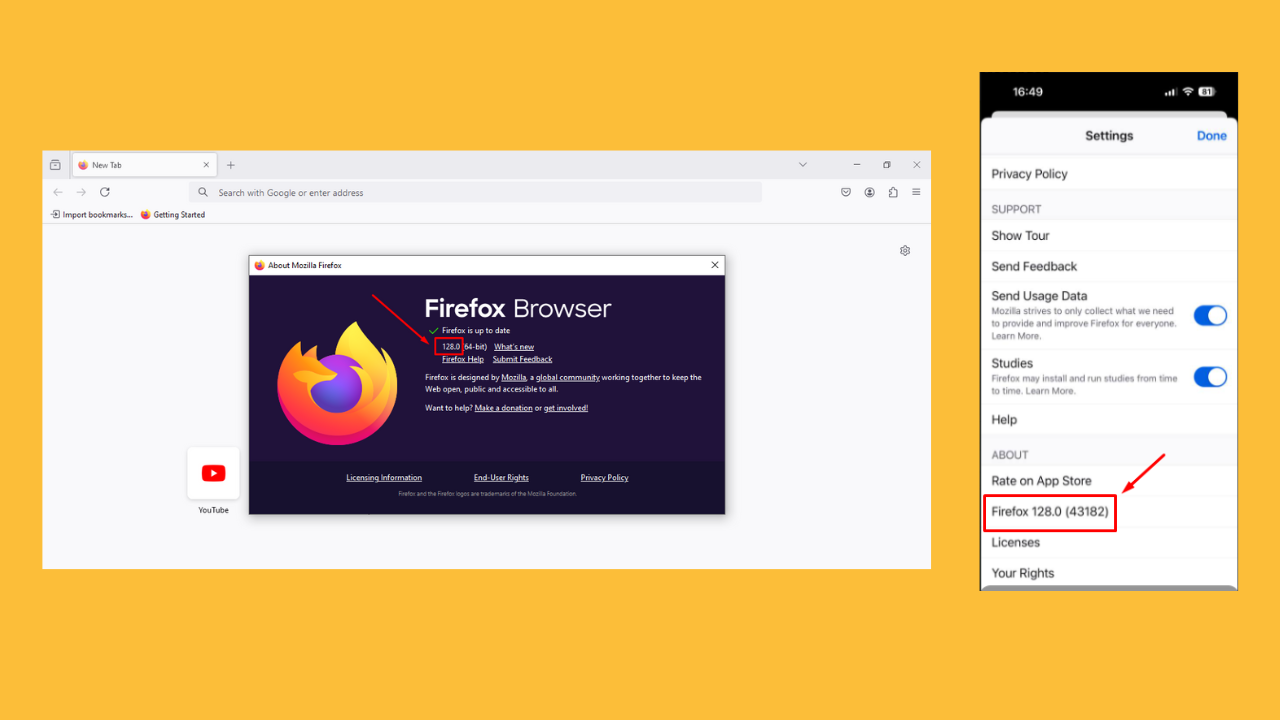
How To Check Firefox Version
Simply follow these instructions:
On PC
Openthe Firefox browser on your computer.
Click on the menu button (three horizontal lines) located in the top-right corner of the browser window.
Scroll down and tap the “Help” option.
Click on “About Firefox.”
A new window will open, displaying the version number. This window will also automatically check for updates and download them if available.
On Mobile
Open the Firefox app on your mobile device.
Tap on the menu button (three horizontal lines) located at the top-right corner on Android or the bottom-right on iOS.
Scroll down and tap on “Settings.”
On the Settings page, find the “About” section. It’ll display your Firefox app’s version number.
So, now you know how to check your Firefox version! Whether you’re using a desktop or mobile device, knowing your browser version ensures you’re always up-to-date and ready to take full advantage of what Firefox has to offer.
There are many versions of Office, and some of them offer different types of applications, so in today’s guide, we’re going to show you the list of programs for the latest Microsoft Office versions.
Microsoft Office programs list, here’s what’s available
Microsoft Office 2021
Office Home & Student 2021
Office Home & Business 2021
Office Professional 2021
Office Professional Plus 2021
Word, Excel, PowerPoint, OneNote
Yes
Yes
Yes
Yes
Outlook
No
Yes
Yes
Yes
Publisher
No
No
Yes
Yes
Access
No
No
Yes
Yes
Teams
No
No
No
Yes
All editions of Microsoft Office 2021 come with core apps that include Word, Excel, PowerPoint, and OneNote.
To get access to Outlook users would have to go for Home & Business edition instead. The Professional edition brings access to Publisher and Access, while the Professional Plus edition has Teams.
Microsoft Office 2019, 2016
Home & Student
Home & Business
Standard
Professional
Professional Plus
Word, Excel, PowerPoint, OneNote
Yes
Yes
Yes
Yes
Yes
Outlook
No
Yes
Yes
Yes
Yes
Publisher
No
No
Yes
Yes
Yes
Access
No
No
No
Yes
Yes
Skype for Business
No
No
No
No
Yes
Unlike the latest edition, Office 2019 and 2016 have the same choice of apps across the editions. It’s worth noting that these versions have a Standard edition that includes Publisher alongside Outlook and core apps.
One major change is that these two editions used Skype for Business since Teams hadn’t been released back then. However, in the later version Skype for Business was replaced by Microsoft Teams due to its discontinuation.
Microsoft Office 2013
Home & Student
Home & Business
Standard
Professional
Professional Plus
Word, Excel, PowerPoint, OneNote
Yes
Yes
Yes
Yes
Yes
Outlook
No
Yes
Yes
Yes
Yes
Publisher
No
No
Yes
Yes
Yes
Access
No
No
No
Yes
Yes
Info Path
No
No
No
No
Yes
Lync
No
No
No
No
Yes
Office 2013 didn’t offer many changes, and the editions and the available applications remained the same. You may notice that Skype for Business is gone, and that’s because it was called Lync before rebranding.
Another discontinued application was InfoPath, which was used for filling and submitting forms. The good news is that you can still download Microsoft InfoPath if you want.
Lastly, we’ll focus on Microsoft Office 2010. Unlike its successors, it also had a Personal edition that only included the basic apps.
For this version only Word and Excel were core apps, which means that PowerPoint or OneNote weren’t available in the Personal edition and instead users had Outlook.
If you wanted to get access to PowerPoint and OneNote, you had to use the Home & Student edition or any other one. Interestingly, Outlook was missing from this edition but you could access it from the Home & Business edition instead.
Other editions remained the same, with SharePoint Workspace being used as a collaboration tool instead of Lync.
We also have to mention that this version of Office had Picture Manager in all editions except for Personal. If you want to give this software a try, you can still download Office Picture Manager.
How many Microsoft Office programs are there?
This depends on the version of Office, but modern versions have 4 core apps and an additional 4 depending on the edition.
These were all the applications that were included in Microsoft Office in the previous decade, and over the years Microsoft cut down on the number of available apps and editions, allowing users to get access to essential office apps even in the basic editions.
Microsoft Office is one of the most widely used productivity tools worldwide, known for reliability and innovation. Since its inception (October 1, 1990), Microsoft has been working on adding new features, improving performance, and creating a new user interface apt for the modern age.
Here, we will discuss the critical distinctions between Microsoft Office 2019 and its latest iteration, Office 2021, to help you decide which version is better.
Microsoft Office 2019 vs 2021: What’s the Difference?
Understanding the basics
Before discussing the differences between Microsoft Office 2019 and 2021, let’s examine their similarities and list of products.
Both Microsoft Office versions are standalone and come with perpetual licenses, different from subscriptions like Microsoft 365.
Useful for those who prefer to make a one-time purchase instead of subscription fees.
Both versions have classic Word, Excel, PowerPoint, Outlook, and OneNote versions.
They are compatible with Windows and macOS, and the user interfaces are similar, with familiar menus, toolbars, and ribbons.
Both integrate with other Microsoft services and applications such as OneDrive, SharePoint, and Teams.
Available in English, German, French, Italian, Spanish, Russian, etc.
Both are intended to be used offline and are ideal for people who don’t have constant access to the internet.
Both support various file formats, including doc, docx, odt, rtf, pdf, xml, xls, csv, html, pps, ppsx, etc.
Microsoft Office 2019 vs 2021: What is different?
Office 2019
Office 2021
Release Cycle
September 2018
October 2020
Support Duration
Support ends on October 13, 2026. It is likely to have a longer support duration, as it was released recently and will have frequent updates and improvements
Support ends in October 13, 2026. It is likely to have a longer support duration, as it was released recently and will have frequent updates and improvements
Design
Classic design of Office apps
Design is adapted to the newer and modern look of Windows 11
Dark mode
Basic dark mode
Extensive dark mode with darkened background areas, and light font
New functions
–
Dynamic Arrays, visual refresh, and new Excel functions like XMATCH, XLOOKUP, and a better comment function (Modern Comments)
Apps
Word, Excel, Outlook, PowerPoint, Access, Publisher, Skype for Business
Word, Excel, Outlook, PowerPoint, Access, Publisher, Skype for Business, Teams, OneNote
Languages
English, German, French, Italian, Spanish, Russian and more
English, German, French, Italian, Spanish, Russian and more
Collaboration
Limited
Real-time collaboration and file sharing with Microsoft Teams
Price
Starts at $149.99 at Microsoft
Starting at $149.00 at Microsoft
What’s new in Office 2021?
Microsoft Office 2021 is a step-up to Office 2019, which comes with several enhancements across the offered applications:
Microsoft Teams: chat client included – The 2021 version of Microsoft Office includes Microsoft Teams, so you don’t have to install it. However, you need to buy a subscription to use the Business version of MS Teams.
Outlook: Automated translation – The email client allows you to translate email messages into more than 70 languages directly. The translation is instantly displayed next to the original message in the mailbox.
Excel: New functions &dynamic arrays – The 2021 version of Excel includes new functions, including XLOOKUP (which allows targeted search for multiple variables and keywords), XMATCH (which allows targeted position search of keywords and variables), and Let (which assigns names to specific calculation results). It also includes dynamic arrays, enabling receiving an array of multiple values with a single formula.
Word: Text predictions – Gives you suggestions based on the first few letters of the word you are typing, which can improve writing speed.
PowerPoint: New and improved record SlideShow – With 2021, you can make a video recording of a PowerPoint presentation with narration, ink gestures, slide timing, and pointer movements. You can also get a sketching feature, which lets you draw freehand in presentations. It also comes with option to export presentations in video format.
New look – Office 2021 has an up-to-date look that matches the latest operating system, seamlessly integrating with the OS.
Focused Inbox (Outlook 2021) – Focused Inbox feature lets you focus on the most important messages by automatically sorting your messages into two categories. The Focused inbox contains the important emails, and the Other inbox includes the rest.
It also comes with support for OpenDocument format (ODF) 1.3 microsoft office 2019 vs 2021
Is Office 2019 a reliable option?
Office 2019 was released in September 2018 and will only have support until October 2025, which means it will get security updates until 2025 but will not have the new features and improvements coming with the newer version.
If you don’t need MS Teams or any of the other new features mentioned above, you can choose Office 2019.
What are the minimum requirements for Microsoft Office 2021?
System Requirements
Processor
1.6GHz 2-core processor
Memory or RAM
4 GB (64-bit), 2 GB (32-bit) for PC; 4 GB RAM for Mac
Storage space needed
Minimum 4 GB for PC, 10 GB for Mac
Display
1024 x 768 resolution for PC, 1280 x 800 for Mac
Graphics
DirectX 10 graphics card for graphics hardware acceleration for PC
Operating system
Windows 10 or newer, macOS
Microsoft Office 2019 vs 2021: Which one should you choose?
While choosing between Office 2019 and Office 2021, you should consider these things:
Stability – If you prefer stability and reliability over the latest features, enhancements, and improvements of Office 2021, you can choose Office 2019, which has been stable and well-tested.
Features – In case you think the features for creating documents, spreadsheets, and presentations are enough with the older version, Office 2019, then you can go for it. However, if you need the new features and functions like Dynamic array, you should go for Office 2021.
Extended Support – Office 2021 will provide support until October 2026, while Office 2019 will provide support until October 2025, so if you need more extended support, go for Office 2021.
Integration – If you want seamless collaboration through improved integration with cloud services such as OneDrive, SharePoint, and Teams, Office 2021 is the go-to choice.
Budget – If you are on a budget and don’t care for the fancy features, Office 2019 is a better option for you
If you want to learn more about Microsoft Office 2021 and its latest features, then check out this separate guide.
Conclusion
Now that you know the differences between the two versions of Microsoft Office and what each one brings, it must be easier for you to choose. If you want a simple document and presentation-creating version without the latest features, the Office 2019 license should be the choice.
However, if you want the latest features and enjoy support till 2026 with refreshed Office apps, the choice should be Office 2021.
It’s been a week since the Patch Tuesday updates were released, but many Windows users cannot install the patch.
KB5040442, which brings dozens of improvements to Windows 11 and fixes about 142 CVEs, doesn’t want to download and install, and many Windows users are either stuck or encountering an issue, with many blaming the 0x80070017 error.
In my settings it says that the 2024-07 Cumulative Update for Windows 11 Version 23H2 for x64-based Systems (KB5040442) and the 2024-07 Cumulative Update for .NET Framework 3.5 and 4.8.1 for Windows 11, version 23H2 for x64 (KB5039895) is ready to be downloaded and installed but as I proceed with the update it keeps saying there was an error and the update will not install. I have tried restarting my PC and looking in my bios to find a problem but my troubleshooting has not worked.
Windows user
Microsoft hasn’t said anything about it yet, even though hundreds of users are running into this frustrating bug on the official Windows forums.
However, until the Redmond-based tech giant comes with an official answer or workaround for KB5040442, you can try these solutions:
Run Disk Cleanup: This process initiates a brief cleaning session for your computer to eliminate temporary files that may interfere with the update process. You can easily do it, but we have a comprehensive guide here if you need help.
Use the Windows Update Troubleshooter: This tool can automatically detect issues with Windows Update and resolve them on its own. Type Troubleshoot in the search bar, choose Other troubleshooters, and start the Windows Update troubleshooter. You can also follow our steps here.
Execute the sfc /scannow command. This method will eliminate any corrupted files in Windows 11 that might interrupt the installation of KB5040442. Although executing this command might be difficult for casual Windows users, you can follow our step-by-step guide here.
Check Windows Services: Look for important services like Windows Update and BITS; they should function correctly. In the Services window, locate these services and confirm that their Startup type is set to Automatic. This is how you can do it.
Reset Windows Update Components: This is similar to pressing the restart button for your update process. You must go to Command Prompt, open it as an administrator, execute a group of commands that halt the update services, and then restart them. You’ll find out how to do it here.
Disable Anti-Virus Software Temporarily: If you rely on Windows Defender, the program can sometimes enter conflicts with Windows Update. Disable it, and try to install KB5040442 again.
Restart Your Computer: This obvious method might untangle conflicts. If you can’t install KB5040442 on your Windows 11 system, restart it and try again.
Let us know if any of these solutions worked for you.
This feature allows participants to go through different sets of questions depending on the answer they choose at the branching point. So, if your online form is targeted to a wide range of audiences, it’s quite helpful.
Since branching is an advanced feature, you might face challenges in routing survey takers in their own pathways of questions. Below, I’ve listed the tried and tested solutions you can try.
How To Fix Microsoft Forms Branching Not Working
I’ve organized the methods by complexity, starting with the easiest.
Switch Off Multiple Answers Toggle
Microsoft Forms branching works when the user selects one answer for the given question. Then, questions specific to the branching logic start to appear.
If a survey participant can choose more than one answer in a branching question, the feature won’t work.
Branching won’t work when Multiple answers are active
So, you should disable multiple correct answers. You’ll find the Multiple answers toggle button just below the question, near the Required toggle.
Then, refresh the form and branching will work.
Use a Different Browser
If you’re unable to use the branching logic of MS Forms in Google Chrome or Mozilla Firefox, try opening the same content in Microsoft Edge.
Verify Branching Logic
If the branching logic seems off for a specific question, you can identify that easily by going through all the questions where you’ve added branching.
Replicate the steps your survey participants should take when attempting branched questionnaires. Identify the appropriate question and accurately enter the answer that’ll initiate a branching.
Simplify Complex Branching
Here’s an example of a complicated branching logic that impairs the feature at a certain question-answer stage:
Question: What type of pet did you buy (Dog, Cat, Other)?
Branching Logic:
If “Dog,” go to the question “What breed of dog?” (Q4)
If “Cat,” go to the question “What type of cat food did you buy?” (Q5)
If “Other,” go to the question “What type of pet did you buy (specify)?” (Q3a)
Branch from Q3a:
If “Fish,” go to the question “What type of fish food?” (Q6)
If “Bird,” go to the question “What type of birdseed?” (Q7)
In the above example, the Other branch will create a loop. If a survey participant selects Other in Q1, they’re sent back to Q3a to specify the pet type. This may confuse the participants and break the branching logic.
To simply the branching logic, you can end branching in Q3a and introduce a new question like the one below:
What type of food did you buy for your pet? (Q8)
Branching Logic for Q8:
If the answer in Q3a is “Fish,” display “What type of fish food?”
If the input in Q3a is “Bird,” show the question “What type of birdseed?”
If the Q3a answer is something else, show a generic “Other food” option.
That way, you can simplify multiple branching logic and provide a smooth question-answer experience for the survey respondents.
Verify Branching Destination
When you deal with multiple branching scenarios in one form, you might mistakenly choose the wrong question for the current branching step.
Now, if a wrong question contains another branching logic, then the chain might break or the participant will get confused.
It often happens because the Go to drop-down box shows all the available questions in the document except the one selected for branching.
In the following screenshot, when I click the Go to box for Math, the list shows questions from both Biology and Math. It’s my responsibility to select the right question for the branching to work logically and smoothly.
Check for Duplicates
Microsoft Forms’ branching rules often break due to duplicate questions and answer options. Duplicates interfere because they have the same content, text, and symbols.
To avoid them, do the following checks:
Review all branching points and Go to questions to link to.
Create a flow chart somewhere else and follow that when creating a branched survey form.
Use unique identifiers if you have to ask similar questions in a branched questionnaire, like putting a serial number.
You can also modify question options and titles to make similar questions appear differently.
After editing questions, test your form yourself before circulating it among your audience.
Clear Cache and Cookies
If you’re completely unable to see the Add branching option for a question or everything is checked and still branching won’t work, try the following steps:
Click on the padlock or the View site information icon in the top left corner of the browser address bar.
You’ll see the Cookies and site data option. Click on that.
Click on the Manage on device site data hyperlink.
A pop-up will open on the browser near the top of the page.
Click the bin icons for all the items shown in the pop-up.
You’ll need to log in to your Microsoft 365 account after performing these steps.
Use an Alternative Form-Making Tool
If you’re still unable to use the branching feature in MS Forms, you can try Google Forms. The introduction of branching logic is much easier.
In Google Forms, this feature is known as Go to section based on answer.
Also, the functionality is available in multiple answer types:
Multiple choice
Dropdown.
When you enable it, Google Forms creates a completely new section of questions below the branched question.
Therefore, you can choose the new set of questions easily from the next section and avoid confusion.
Summary
Now you know how to fix Microsoft Forms branching not working.
You might also want to go through this Microsoft Forms vs Google Forms comparison before shifting entirely to Google Forms. Moreover, if you’re having trouble with Forms not updating Excel properly, we have just the guide for you.
If the article helped you in fixing branching problems in MS Forms, acknowledge it by commenting below.
In the quest to find a browser that meets all your needs, we tried out the Thorium browser and bring you our unadulterated review.
What are the main features of the Thorium browser?
Overview of Thorium Browser
Thorium is an open-source browser which makes its source code open to the general public. Unlike proprietary browsers, users have to wait for developers to release updates if there are any bugs or glitches.
It is also based on Chromium so you can be assured of getting core features with other like browsers only with the added advantage of modifying the source code.
User Interface
First impressions give a very Chrome-like appearance. Everything down from the launch page where you are to sign in and create an account with a browser profile. The default page has the web store pinned so you can get started with installing any extensions you may need.
You won’t need a tutorial on how to use it if you’re a Chrome user because all settings are similar.
Performance and speed
For context, I’m on Windows 11 Pro and the following are my hardware specs:
Processor – Intel Core i5 with 4 cores at 2.50GHz speed (not overclocked)
RAM – 8GB
GPU – Intel
PC model – Lenovo
Other notable factors that may play a part include internet speed and mine is at 23 and 24 for download and upload speed respectively.
I put the Thorium browser to test in comparison to Chrome to load two sites; WindowsReport and YouTube. WindowsReport took 2-3 seconds to load on Thorium while on Chrome it was almost instant.
While the response time was fairly fast, it did lag a bit behind Chrome. As for performance, Thorium had a higher CPU consumption. This is despite having two separate Chrome profiles with multiple tabs open on both.
My Chrome profiles also have a few extensions while Thorium only has the pre-installed ones; uBlock and Google Docs offline. This means the introduction of add-ons could potentially strain its resources even more and make the browser a CPU hogger.
On memory consumption, Thorium was surprisingly low which implies it’s built for efficient memory management. On the downside, the load time for websites could be slow because of this but other than that, navigation even on graphic-intensive sites was smooth.
If you have a problem with the load time, Thorium also has the memory saver option which frees up memory from inactive tabs and enable faster load times. For frequently used sites, you can add them as an exception from memory saver.
Another tip to speed up the loading of pages is to enable the Preload pages feature.
If you regularly click on unknown links, you’ll be happy to know Thorium has a safety check feature. Regularly checking will scan for any viruses, or threats and ensure safe browsing.
2. Secure connections
Thorium has a HTTPS encryption feature that ensures your data is protected whenever you visit a site. Any data that is exchanged between the browser and the site you’re visiting will be encrypted preventing interception by cyber hackers.
3. Security keys
Since you can use Thorium browser on multiple devices, you can manage who uses your profile by using one of the signed devices. For instance, if you’re on a shared computer, you can choose one as a security key to remotely lock out unauthorized users and secure your privacy.
For more security features, we have compiled a list of browser security settings we think you should enable for all-rounded protection.
Privacy features
1. Secure DNS
Browsing exposes you to a myriad of internet attacks so Thorium makes it easier for you to hide your activity. With the secure DNS feature, you will be able to spoof the sites you visit and prevent hijacking attempts.
You’ll be able to maintain your privacy because any attempts of man-in-the-middle attacks will be difficult when the DNS data is encrypted.
2. App permissions
You’re in total control of the apps that you give permission to access your location, microphone, camera and any other tools. Any attempts to spy on you by third-party apps would require your exclusive permission.
Additional features
Other features worth mentioning include:
Auto-verify – Most sites usually have a prompt asking you to verify that you’re not a robot. With Thorium’s auto-verify feature, it can help verify you’re a real person without your input making browsing more efficient and faster.
V8 optimizer – This is a feature meant to optimize sites for improved performance.
Customized fonts and spell check – You’re at liberty to change your font and size. You can also enable spell check to minimize grammatical mistakes.
Import feature – If you have bookmarks and other settings you’d like to import from a different browser, you can easily do so within the Thorium browser.
Pros and Cons
Pros
Open source – As an open-source browser, Thorium prioritizes privacy and security features.
Customizable – Aside from the ability to install extensions from the web store, you can also customize your browsing experience by beefing up security and enhancing the appearance.
High-performance – Thorium has built-in features that enhance the speed and performance of the browser.
Widely compatible – Thorium is compatible with older OSes. For instance, you can download Thorium on Windows 7. Also, since it is Chromium-based, it works well with multiple sites and web apps.
Community support – Thorium is regularly getting updates because of a large community of developers because of its open-source nature. This makes bug fixes and improvements done in record time.
Cons
Replica of Chrome – Thorium is a replica of Chrome and it is not a bad thing. However, it makes it another browser one would not be interested in because of too many similarities.
Limited features – Although Thorium delivers a solid list of features, when compared to other browsers, it lags behind.
CPU hogger – Thorium has a high CPU consumption which could make it extremely slow on older hardware.
Chromium-based – When a browser is Chromium-based, it shares the good and bad side. For Thorium, it may suffer from high memory usage and instability issues which is the norm for most browsers based on Chromium.
Complicated download process – Downloading Thorium browser is not as straightforward as getting it from the Microsoft Store. You’ll have to check for certain specifications but we have an easy download guide for Thorium browser.
Compatibility issues – Although Thorium uses extensions from the Chrome web store, some may be limited in functionality because of some internal configurations.
Late updates – Thorium does not receive browser updates regularly. This can expose it to vulnerabilities.
Finally, if we were to give our final thoughts, we’d say Thorium is a good browser. If not for its security features, at least give it up to its dedicated privacy features. All in all, whatever you decide, ensure it meets your needs. After all, everyone has their preferences but just give it a spin before you bin it.
Have you tried the Thorium browser? What features stood out for you? Would you make it your default browser? Share your thoughts with us in the comment section below.
If you’re looking for something different, we also have a guide on how to install Pheonix Browser for PC that you might want to check out.
Microsoft will make some important changes to the new Outlook for Windows and web, which will impact those using the platform’s calendar surface.
According to the latest entry in the Microsoft 365 Roadmap, the Redmond-based tech giant will add a classic Outlook feature to the new version of the platform: the ability to quickly replace compose pop-ups with inline appointment creation.
What does this mean? Well, when users click on an empty time slot on the calendar surface, instead of the regular quick compose pop-up, a new option to create an appointment in the time slot on the calendar grid will appear.
It’s worth mentioning that this works as it does in classic Outlook, meaning you’ll only have to single-click on the time slot, not double-click it.
Here’s what the entry says:
When single-clicking on an empty time slot on the calendar surface, the quick compose pop-up will no longer be shown. Instead, you will be able to create an appointment by typing directly in the time slot on the calendar grid, just as you can in classic Outlook for Windows. There will be no change to double-click behavior; the full compose form will still open as it does today.
Microsoft
Speaking of the calendar grid in Outlook, another entry in the Microsoft 365 Roadmap says the Redmond-based tech giant will update the platform to support keyboard navigation via arrow keys to navigate the calendar grid more easily.
When focused on the calendar grid, you will be able to navigate the time slots on the calendar via left/right/up/down arrow keys in day, week, and work week views.
Microsoft
The new Outlook for Windows and Web will be generally available to users on August 1st, 2024. However, Microsoft doesn’t plan to retire the classic Outlook. Instead, the company will enhance it with new AI capabilities.
A while ago, the Redmond-based tech giant added Copilot to classic Outlook, effectively bringing AI capabilities to all those users who don’t want to try the new version of the popular emailing app.
However, it seems that Microsoft won’t stop here. The company will enhance Copilot in classic Outlook to select and rewrite specific pieces of text in an email.
Well, when composing an email, users can select portions of texts and use Copilot to rewrite them. The AI model will consider your prompts and rewrite those passages as best it can while modifying tone and length to suit your style.
Here’s what the entry says:
In classic Outlook for Windows, when composing an email, customers can select portions of text in an email and use Copilot to rewrite it. Users can give detailed instructions on how to rewrite and also able to modify tone and length.
Microsoft
The classic Outlook will still be around for a while, although it’s hard to know when it will be deprecated. We thought it would be deprecated in 2025, but Microsoft has other plans.
Until then, Copilot, which already has this capability in the new Outlook, will continue to be updated in the classic version.
New Snapdragon CPUs are gaining popularity, but everybody wants to know how they compare to other models on the market, so today we’re going to compare the Snapdragon X Elite vs Intel Core Ultra 7 and see which one is better.
Snapdragon X Elite vs Intel Core Ultra 7, hardware and performance difference
Hardware comparison
Snapdragon X Elite X1E-84-100
Intel Core Ultra 7 155H
Cores
12
16
Cache
42MB
24 MB
Frequency
3.8 GHz
3.8 GHz
Maximum frequency
4.3 GHz
4.8 GHz
Memory
LPDDR5x 8448 MT/s
Up to LPDDR5/x 7467 MT/s Up to DDR5 5600 MT/s
GPU
Qualcomm Adreno
Intel Arc graphics
NPU
Qualcomm Hexagon
Intel AI Boost
Max TDP
80 W
115 W
Judging by the specs, Intel outperforms X Elite by the number of caches and maximum frequency, but X Elite has better memory bandwidth, almost twice as much cache, as well as lower maximum TDP.
Performance
When it comes to performance, according to CPU Benchmark, the Intel Core Ultra 7 155H outperforms the Snapdragon X Elite X1E-84-100 in CPU Mark rating by 1.5%.
However, when it comes to single-thread performance, Snapdragon has a 9.8% advantage.
Single core
Multi core
Samsung Galaxy Book4 Edge (Snapdragon X Elite)
2769
14807
Samsung 960QGK (Intel Core Ultra 7 155H)
2336
12282
Dell XPS 14 9440 (Intel Core Ultra 7 155H)
2229
11826
ASUS Vivobook Pro 15 (Intel Core Ultra 7 155H)
2250
10954
Judging by the Geekbench performance, Snapdragon X Elite outperforms Intel Core Ultra 7 in both multi-core and single-core results. The difference is about 18% in multi-core and about 16% in single-core performance in favor of Snapdragon X Elite.
As for Cinebench 2024 CPU single-core results, Snapdragon had a 36.7% single-core advantage and a 38% advantage in multi-core results.
Snapdragon X Elite X1E-84-100
Intel Core Ultra 7 155H
Cinebench 2024 CPU Single Core
128.5
88.6
Cinebench 2024 CPU Multi Core
1085
737
Is Snapdragon Elite better than Intel?
Even though the Intel Core Ultra 7 155H has higher frequency and more cores, the Snapdragon X Elite outperforms it in almost all tests, so it’s safe to say that the Snapdragon X Elite is a better CPU.
Do keep in mind that we tested the Snapdragon X1E-84-100 model, but to learn how other models from the series compare, check our Snapdragon X Elite comparison guide for more benchmark results.
Knowing how to sign out of a Google account on Chrome is important for maintaining your online privacy and security. Whether you’re using a shared computer, accessing your account on a public device, or switching between accounts, signing out protects your personal information.
I’ll show you how on the desktop and mobile versions of Chrome.
So, let’s begin!
How To Sign Out of a Google Account on Chrome
Follow these steps:
Signing Out Through a PC
Go to Google Chrome on your computer.
Click on your profile picture or initials at the top right corner of the browser window. A dropdown menu will open.
Scroll down the dropdown menu and click on “Sign out” at the bottom.
You’ll automatically be signed out of your current Google account.
Signing Out on Your Phone
Open the Google Chrome app on your mobile device.
Tap the profile icon in the top right corner of the browser.
Click on the profile in the settings.
Scroll down the menu that appears and tap “Sign out” at the bottom. If prompted, confirm your action.
You’ll be signed out of your Google account on Chrome.
Xbox has introduced a new way to install games, and users of the Xbox Insider program, particularly in the Alpha and Alpha Skip-Ahead rings, can now access it. The focus is on providing enhanced control and ease for users.
In the official changelog, Xbox says users will be provided a few options before installing games: there will be additional items or features you can download. You can select what to install. You can choose to customize your game installations if you want to save some room, reduce the time it takes to download, or not be fascinated by certain content.
We’ve added a new option that will appear before installing games with additional downloadable content or features. Choose what to install! Whether you want to save some space, reduce the time it takes to download, or you’re just not interested in the content, this new option provides more control over your game installations before you even start.
Microsoft
The latest insider builds also brought some updates to the Xbox Accessories app. It’s easier to turn off your connected devices now. Open the Xbox Accessories app if you have a device turned on and linked to your Xbox console. Go to the More options menu for this specific device and choose Turn off device from it. It’s a small but significant quality-of-life improvement that many will appreciate.
When it comes to fixes, Xbox has dealt with a bug that caused uninstalling various titles to create unexpected errors, and they’ve updated the console so local languages are correctly shown. They have also observed a recognized problem in seeing HDR screenshots inside the Captures application, which they are now examining.
Although there isn’t a specific date for when all Xbox Series X|S owners will have access to these features, Beta Ring members can begin exploring them with the newest update. Meanwhile, make sure to download the latest Xbox 360 Blades background for Xbox Series X|S, as well as take a look at the final discounts from the Xbox 360 Store before it’s gone forever.
For me, who has experienced different gaming consoles, I feel a touch of nostalgia when the Xbox 360 is mentioned. It’s similar to meeting an old buddy you haven’t seen in years. Microsoft has given this good friend a fitting farewell by releasing one last compilation of reduced-price digital games.
However, a small thing can touch your emotions for those gaming on the Xbox Series X|S—an active background with famous Xbox 360 Blades.
Takes you back, doesn’t it?
Enjoy some sweet nostalgia with the new Xbox 360 Blades dynamic background, available today. pic.twitter.com/AYElkktM9K
Do you recall the Blades? They were the cool user interface that made it simple to browse through Xbox 360, and many Xbox users have been requesting it on newer Xbox consoles ever since. Now, it’s back with a new look. It’s an excellent method of recalling the past while using new gaming technology. To obtain the Xbox 360 Blades, enter your Xbox Series X|S settings.
Press the Xbox button on your controller to open the guide.
Navigate to Profile & system > Settings > General > Personalization > My background > Dynamic backgrounds.
Choose Xbox 360 Blades under Featured or Xbox dynamic backgrounds
Select the background art you want using the A button.
Microsoft
While we’re here, the Xbox 360 digital store will close soon (on July 29, to be exact). Starting in August, it won’t be possible for you to buy any games, DLC packs, or other content from the Xbox 360 store anymore. Truly, this marks the end of an era. Nevertheless, until the doors shut permanently, Microsoft will give substantial discounts on digital games. This can be a wonderful chance to obtain specific titles you may have overlooked or go back to old loves that are incompatible with the newer consoles.
This news could be good or bad for people who have kept their Xbox 360 with them. It provides a chance to grow your assortment at lower prices but also symbolizes the end of the console era in digital time.
You can check out the complete list of all the discounted games on the Xbox 360 digital store here. And don’t forget to change your background to that of the Xbox 360 Blades. Let us know in the comments how you like it.
Microsoft has updated SharePoint to support co-authoring, meaning multiple users can author SharePoint Pages and News simultaneously. This feature blends their ideas without waiting for one another.
In a blog post, Microsoft says it is simple to co-author now, with multiple authors getting the chance to edit the same page or news post simultaneously. There’s no need for people to wait their turn when it comes time to add their perspectives – once you start editing mode, avatars will appear in the command bar, showing who else is working on this item with you. And the best part? Your changes are saved automatically every few seconds.
The Redmond-based tech giant says SharePoint’s co-authoring capability also supports a version history, and users can undo undesired changes with just a few clicks. The feature will be rolled out for SharePoint-targeted release tenants by the end of July, with a general availability coming in August.
Moreover, it’s not only about adding more. Microsoft also intends to close the SharePoint News Connector service for Teams business and enterprise users. They expect a complete shutdown by the end of August. This might make people wonder, but it seems that Microsoft is simplifying its services to focus on improving main functions such as co-authoring.
So, what does this signify for organizations that use SharePoint? It’s notable progress in enabling more lively and effective teamwork. There will be no more congestion or postponements when sending content. Furthermore, teams can collaborate simultaneously on page and news post creation and updates.
If your organization uses SharePoint, it is important to ensure your team understands the added abilities. Co-authoring’s strength can only be fully utilized when all members are involved and actively participating.
You can read more about this upcoming capability here. What do you think about it? Let us know your opinion in the comments section below.
Besides working on improving Chrome performance when switching to background tabs, Google is taking a significant step towards protecting users from harmful downloads with a new feature currently under development. This change, aimed at improving security, will replace the current method of warning users about potentially dangerous downloads on thechrome://downloads page. Instead of a small dialog box, users will see a full-page warning (interstitial).
Google Chrome, powered by Google’s Safe Browsing, already protects users from phishing attempts, malware, and dangerous downloads.Even if you try to download a file despite the warning, you’ll be alerted with a dialog box that says:
“This file could harm your device. This file contains malware or comes from a suspicious site.” It also provides a link to learn more about why Chrome blocks some files. You can still choose to “download the dangerous file” or click “Cancel” to protect your device.
Present dangerous download warning dialog. Image credit: Windows Report
To further improve download safety, Google is working on a full-page warning called DangerousDownloadInterstitial that will replace the current dialog box in the downloads page.
With the updated Safe Browsing feature in place for Chrome, if you try to download a classified-as-dangerous file, a red-colored interstitial will be displayed as a “download warning.” It will show the same message as the current dialog:
New dangerous download warning interstitial. Image Credit: Windows Report
“This file could harm your device. This file contains malware or comes from a suspicious site.” It will offer options to “continue anyway” or “get back to safety.” Additionally, the warning page will include a survey asking why you are downloading the file despite the warning and offer a download button if you still choose to proceed.
Two weeks after Microsoft updated Excel for the Web with a modernized look, the Redmond-based tech giant continues to release the latest set of enhancements to the platform. From hyperlink previews to changing sheet names without any hassle, all these improvements focus on making your work with data easier and more natural.
In a blog post, Microsoft says users can see what’s behind the link before clicking on it. When you hover over a hyperlink with your mouse pointer, it will show you a small preview of the webpage it leads to. This gives more context and helps you decide whether or not to follow the link before doing so.
Renaming sheets is now more straightforward. You are no longer required to go through several steps to rename a sheet. Just click on the sheet tab twice, and it’s done. It might look like a tiny change, but it’s about simplifying things and saving time.
Opening local files is no longer a problem. With the new option of “Open files from this device,” it has become simple to upload an Excel file from your PC onto OneDrive and then access it through the Excel web edition without any difficulties. This combination makes switching between local and online work areas easier, ensuring that all your files can always be accessed easily.
Zoom adjustments and keyboard shortcuts have been improved. The status bar permits swift edits to zoom values, personalizing your grid zoom more easily. For people who are fond of efficiency, accelerator keyboard shortcuts (like Alt, E, Alt, V, Alt, I, and Alt O) plus over 120 legacy shortcuts are a significant improvement, making moving around and taking action much quicker.
All of these changes are now available for all Excel web users. You can visit the official blog post if you want to know how exactly these new capabilities work. On this note, will you try them out?