In the era of digital communication, Microsoft has introduced a new feature, joining with Snap, to incorporate augmented reality (AR) technology into Skype. This partnership adds extra spice and amusement to virtual conversations on Skype.
According to the latest blog post, the availability of Snap’s AR Lenses enables users to enhance their chats with amusing, imaginative elements such as trying on virtual beards or disco glasses and even showering their conversations with raining hearts. It’s all about adding a touch of personal flair and fun!
Think of a Skype chat you have with a friend or family member. Now, with just one touch, you can transform your digital self into various AR effects.
Do you feel happy and want to show it by having a sparkling beard or maybe putting on some old-school disco glasses for fun? This connection is not only about enjoyment; it’s also about making each talk unforgettable and visually exciting.
To begin using these Snap AR Lenses, updating your Skype app is very easy. First, make sure to update the app on your device. Then, start a chat and tap on the camera symbol.
After that, click or touch the button with a smiling face to explore different Lenses. Pick the one you like the most, take a photo or video, and there it is, your message with augmented reality ready to be sent.
This function is not only for those skilled with technology; it’s made simple and easy to use, allowing anyone to personalize their digital conversations.
Whether you have an Android or iOS device, these fresh Skype Lenses are set up to improve your chats.
So, have you ever tried the new Snap AR Lenses on Skype? They’re an amazing method for making conversations lively and having a good time with those you care about. It’s also worth mentioning that you can now generate AI images directly on the platform.
With just several touches, you have the power to make moments that are not only talk but also memorable.
Ever since the Chrome Refresh 2023 update, some users have missed the Tab Search button’s familiar spot on the right side of the browser window. It’s now located by default on the left side. Google is giving you back control over its placement, and the change is currently being tested.
For those unfamiliar, Chrome has a built-in Tab Search feature. Clicking the dropdown arrow allows you to search through all your open and recently closed tabs. This can be a lifesaver if you have a lot of tabs open. The Tab Search interface also groups and shows specific tabs playing audio and video.
Tab Search Position changes
With the Chrome Refresh 2023 update, the Tab Search button was moved to the left side of the window. While this was likely done for design reasons, many users didn’t like the change.
The good news is, that you’ll soon be able to move the Tab Search button back to its rightful place on the right side. This functionality will be similar to how you can currently adjust the position of the Side Panel in the Appearance settings. Both the Tab Search position and Side Panel will have dedicated dropdown menus, giving you complete control over their placement.
While this might seem like a minor tweak, it’s a welcome change for users who rely on the Tab Search feature and prefer it on the right
How to Move the Tab Search Button to the Right
The exact method for changing the Tab Search button position is still under development, but based on the information available, it’s likely to be a simple process:
Navigate to your Chrome settings.
Visit the Appearance section.
You should see a new dropdown menu specifically for “Tab Search Position.“
Select “Show on right” to move the button back to its previous spot.
Restart Chrome for the changes to take effect.
With the option to move the Search Tabs button, Google allows you to personalize your browsing experience even more and customize Tab Search and Side Panel positions to your liking.
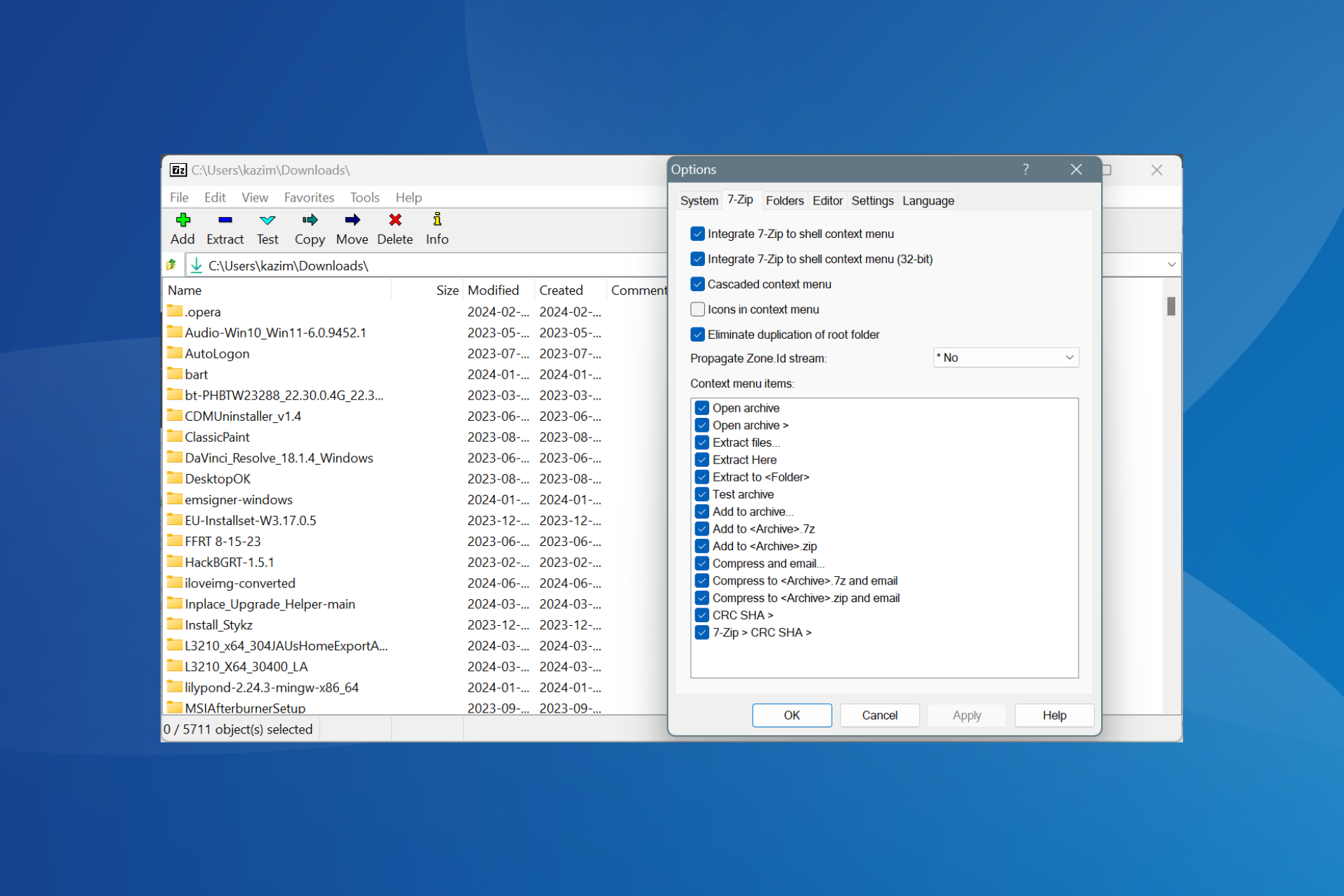
As the idea of Windows on ARM gains prominence, especially with Microsoft’s recent push for Copilot+ PCs, users are now looking for the ARM version of apps as they switch computers. While Microsoft has released many, third-party developers still lag behind. But what about 7-Zip for Windows 11 on ARM?
Surprisingly, there’s a dedicated 7-Zip app for Windows 11 on ARM, available for download on the official website. And the installation process of 7-Zip for ARM64 Windows isn’t any different!
How can I download 7-Zip for Windows 11 on ARM?
Go to 7-Zip’s official download page, and then click the Download button next to the 64-bit Windows arm64 system for the latest app version.
Run the setup (.exe) file and follow the on-screen instructions to complete the installation process. It shouldn’t take more than a minute.
It’s this easy to install 7-Zip for ARM64, given the developer’s focus on Windows on ARM, the next big thing in the tech landscape!
Also, if you inadvertently download the Windows ARM64 version of 7-Zip on a regular version of Windows (maybe even vice-versa), the setup will throw the This app can’t run on your PC error. It’s a sign that the setup installs an incompatible app version!
Although, this isn’t something you should be concerned about as long as you are getting a suitable installer.
Besides, for the unversed, most apps developed for x64 and x86 bit system architectures run seamlessly on Windows 11 ARM, given the ARM64EC emulation in place. You are likely to get an error only for apps specially curated for the x64 or x86 system or with dependencies on hardware drivers.
Have you tried 7-Zip on Windows 11 ARM64? If so, share your review of the app’s performance on the new system architecture. Moreover, you can try out the portable edition and let us know your opinion!
In a world where digital security is very important, Microsoft has decided to be more serious for users of Outlook personal email. On September 16, 2024, the big tech company said farewell to Basic Authentication in Outlook for the login method used in past times that only needed a username and password.
In a blog post, Microsoft says this step aims to increase safety and ensure that users’ emails and private information stay away from “bad actors.” But now, Microsoft is pushing people to use Modern Authentication methods in Outlook, including an extra layer of security. This modification doesn’t just affect Outlook; it also affects those who are still utilizing Hotmail.com and Live.com for their email accounts.
To help keep Outlook personal email accounts secure, starting September 16, 2024, Microsoft will no longer support Basic Auth, the method in which a person provides only their username and password to sign into their account. As of September 16, 2024, Outlook will require that all those with a Microsoft email account use a mail or calendar app or the Outlook.com website which supports modern auth, such as the latest versions of Outlook, Apple Mail, or Thunderbird.
Microsoft
You may wonder, “What exactly is modern authentication?” It’s a safer method of confirming your identity, moving away from the usual username and password. It has extra backend steps or tokens involved—this might sound complicated, but it’s designed to protect you more without causing you any trouble.
The change indicates that any application which does not back Modern Authentication will lose the capability to connect with these Microsoft email services.
But do not worry—Microsoft is here to assist. They have explained the changes and steps to take for a successful switch. The simplest way to adjust is to get one of the free Outlook applications for iOS, Android, Windows, or Mac.
These apps are already ready for Modern Authentication. Also, if you have Outlook 2021 (build 11601.10000 or above), there is no effect, and everything will work as usual.
Besides this big security update, Microsoft is also stopping the lite version of the Outlook web app that could be used with older web browsers on August 19, 2024.
The light Version of the Outlook Web App will no longer be supported after August 19, 2024. We understand accessing your Outlook.com account from anywhere is important. Many customers access Outlook.com from web browsers. While most customers access their personal email accounts through modern and current browsers, we were offering a lightweight version of the Outlook web app that was supported by older browsers. As we accelerate our security efforts to help better protect our customers, we are retiring the light version of the Outlook web app. This means that after 2024 customers will need to run the latest versions of a supported browser to run Outlook.com.
Microsoft
For those who still cling to old Windows Mail and Calendar apps, it’s time to bid farewell by the end of this year. They suggest users switch over to the new Outlook for Windows, which offers more features not found in these previous applications while being free as well.
Also, Microsoft will no longer support accessing Google Gmail accounts on Outlook.com as of June 30, 2024.
Furthermore, as part of the Cortana wind-down process, voice command functionalities such as Play My Emails and Voice Search will cease for Outlook mobile users by the end of June 2024.
So, what’s the bottom line? Microsoft is making big moves to protect your data, and they are not messing around. Although it may need some changes from you, these updates are made for your good. After all, can you ever be too secure in today’s digital age?
Microsoft just released the June Patch Tuesday updates. The KB5039212 is for Windows 11 23H2 and 22H2 while KB5039213 is for Windows 11 21H2. As far as Microsoft is concerned, there are no known issues for the first one. However, KB5039213 is know to cause the error code 0x80070520 while you’re trying to update your account profile picture.
The Redmond giant acknowledged this issue in the release notes of the KB5039213 patch, but this problem is far from being new. We reported about this problem in April and it surfaced after the KB5036980 Windows 11 update.
How do I fix the profile picture error 0x80070520?
Unfortunately, as we’ve mentioned back then, Microsoft didn’t address the error code 0x80070520 that occurs when you try to change your profile picture in Windows 11.
However, we have a workaround that you may try to fix this ongoing issue. To do that, first, open the File Explorer, paste C:\Users\placeyourusername\AppData\Roaming\Microsoft\Windows\AccountPictures in the address bar and press Enter. Of course, you need to change placeyourusername with the actual name of the user. You may also navigate to that path manually.
Here, paste the new profile picture in .png format and restart your device. After that, the new image should be visible for anyone. Of course, you also have the option to uninstall the update.
We don’t know yet if this problem resurfaced among Windows 11 users, but if you encounter it, you know what to do.
In this fast-changing world of technology, it is very important to maintain updated software. Therefore, when Microsoft releases its Patch Tuesday updates, it’s like an early Christmas for tech lovers and IT experts.
This June has been no different. Microsoft offered a range of updates that fix vulnerabilities and add some cool features. Let’s dive into the details, shall we?
The June 2024 update, KB5039211, is important for Windows 10 users. Specifically, users on versions 21H2 and 22H2 will see changes that Microsoft has made to improve security.
This covers a wide spectrum of safety issues and protects our systems from the most recent threats. But it’s not just about security; an exciting new feature has been added to the Snipping Tool, too—making it better for people who enjoy maintaining their work processes smoothly across different devices.
You can now edit photos taken with your Android device using the Snipping Tool on Windows PC. Think about it: you take a photo using your phone, then suddenly receive an editing suggestion on your PC to use the Snipping Tool for that picture. Useful, isn’t it? Microsoft has included this integration as an element of their bigger goal to enhance the connectedness and productivity of our digital existence.
It also addresses some irritating problems that users have been facing. For example, certain apps used to show a hidden window while sharing the screen, and this issue is resolved now. Disappeared. Or the problem of the Share button on USB controllers not cooperating with the Game Bar. Solved. Oh, and the lsass.exe troubles like crashes and memory leaks? All handled.
But it’s not just about happiness and positive things. Some issues remain, and the Copilot feature, which makes desktop icons move from one monitor to another like they are dancing or not being supported by a vertically positioned taskbar, is not resolved with KB5039211 on Windows 10.
Then we have a tale with Microsoft Connected Cache node discovery along with the problem of changing your user account profile picture that gives an error message when attempted. Microsoft is on it, though, and it promises fixes in future releases.
New!Microsoft is rolling out the new Snipping Tool feature. The feature is available when you link your Android mobile device to your PC. When you take a photo or screenshot on your Android device, a dialog on your PC prompts you to open Snipping Tool. To turn on this experience, go to Settings > Mobile devices. Choose to allow your PC to access your mobile devices and select Manage devices. Your PC will get a Cross Device Experience Host update in Microsoft Store. You need this for the feature to work. Finally, use the Add device option to link your Android phone.
This update addresses an issue that displays a hidden window. Its title bar has no content and no client area. This occurs when you share your screen using certain apps.
This update addresses an issue that affects the Share button on USB controllers. It might not work with Game Bar.
This update addresses an issue that affects lsass.exe. It stops responding. This occurs after you install the April 2024 security updates on Windows servers.
This update addresses an issue that affects lsass.exe. It leaks memory. This occurs during a Local Security Authority (Domain Policy) Remote Protocol (LSARPC) call.
KB5039211 is delivered automatically through Windows 10 Update, so most people don’t need to do anything. But if you prefer to be hands-on, you can manually search for updates or download the package from the Microsoft Update Catalog.
The June 2024 Patch Tuesday update shows Microsoft’s continuous effort to maintain a safe and user-friendly ecosystem. The Redmond-based tech giant managed to fix no less than 51 vulnerabilities this month.
Every update to Windows 10 makes it slightly stronger, more secure, and better connected to our everyday tech habits. Therefore, let us look forward to smoother and safer computing experiences in the future.
Microsoft has just published its June 2024 Patch Tuesday, which resolves a total of 51 flaws with 18 being remote code execution (RCE) vulnerabilities. Apart from these, they have also fixed one publicly disclosed zero-day vulnerability that was indexed as CVE-2023-50868 and could lead to CPU exhaustion in Azure systems if successfully exploited by an attacker.
Within the 51 discovered vulnerabilities, there are 25 flaws for elevation of privilege, three weaknesses in information disclosure and five bugs causing denial of service. The 18 RCE flaws are found in different components of Windows such as kernel mode drivers, Windows Distributed File System (DFS), Microsoft Streaming Service (MSS), Microsoft WDAC OLE DB provider for SQL and Azure SDK.
What is the most important fix in the June security update?
Microsoft has resolved 18 critical vulnerabilities. However, only one vulnerability named CVE-2024-30080 is considered critical. This is because it’s a remote code execution vulnerability in Microsoft Message Queuing (MSMQ).
Apart from the important issues, Microsoft has resolved seven weaknesses in Microsoft Office that could have been used for distant code execution, such as bugs within Outlook and other programs like Word or Excel. There were also problems found in SharePoint and the Microsoft Streaming Service.
A serious elevation of privilege bug and RCE bugs were fixed for Microsoft Dynamics 365 Business Central enterprise resource planning platform as well as Microsoft Dynamics 365 (On-Premises) customer relationship management software. Also, Microsoft Speech Application Programming Interface (SAPI) has been patched for similar risks.
Furthermore, Microsoft has addressed a vulnerability in Windows Cloud Files Mini Filter Driver that could enable an intruder to evade the sandbox and raise their privileges. This is the second instance where this type of flaw has been resolved within past many months.
The flaw with the code number CVE-2024-30085 was fixed by Microsoft in May, yet it seems that the patch they provided was not enough. Microsoft also patched the same flaw, with code number CVE-2024-30085, in May but now it looks like this fix didn’t work well.
As usual, the most straightforward method for installing recent updates is to look up Windows Update in your search bar and choose the option Check for updates. If you like to do it yourself, find these upgrades on Microsoft Update Catalog site.
What are your thoughts on the most recent Microsoft Patch Tuesday updates? Share them in the comments section.
Ad blockers have become a vital functionality in browsers, and they often affect our decision when picking one. Of the many, Arc browser’s ad blocker is often said to be one of the most effective!
For the unversed, the Arc browser doesn’t come with a built-in ad-blocking functionality. Instead, it pre-installs the uBlock Origin extension on Windows devices, if the option is chosen during setup. Even on my device, the uBlock Origin extension came pre-installed on the Arc browser when I chose the default setup configuration.
How do I enable the ad blocker in Arc browser?
You don’t need to manually enable ad blocker in Arc. If the uBlock Origin extension is installed, the ad-blocking should automatically kick in on all websites except for the ones manually whitelisted or added to the list of Trusted websites.
Ad blocker in action on Acr Browser
When I tried the browser, it functioned the same as advertised without triggering any issues. As for the overall browser experience, that’s probably a topic for another day!
How can I disable a uBlock on Arc Browser?
1. For individual websites and webpages
Go to the website that you want to disable ad blocking for.
Click the Site Control icon next to the address bar and then choose the uBlock Origin extension.
Finally, click the Power icon to disable the uBlock Origin ad blocker across the website. If you want to disable it for the specific page, hold the Ctrl key and then click the Power icon.
2. For multiple websites
Click the uBlock Origin extension icon near the top-right corner, and choose Open the dashboard option.
Head to the Trusted sites tab, and add websites for which you want to disable the uBlock Origin ad blocker in the Arc browser to the list. Enter a single website in each row.
Is the Arc browser’s ad blocker good?
Upon testing Arc’s ad blocker and verifying the built-in settings, I found that it performs the intended job well. It was able to block all ads across websites, even the intrusive ones that capture a large section of the screen.
Additionally, the modern-looking UI (user interface) enhances the browsing experience, though it might take some time for new users to get used to the changes. The Settings section, however, is quite similar to Google Chrome, given that they are both Chromium-based browsers.
But Arc is still in its infancy in the Windows ecosystem, having released only a few months ago. So, if I had to pick a browser with built-in ad-blocking, it would probably be Opera.
What can I do if the Arc browser ad blocker is not working?
1. Make sure the uBlock Origin extension is installed
Launch the browser, click the Arc icon near the top left, select Extensions from the menu, and then choose Manage Extensions.
Verify that you have uBlock Origin listed here and that the extension is enabled.
Now, search for uBlock Origin, open the listing, and click on Add to Chrome to install the extension.
Again, click on Add Extension in the confirmation prompt.
Once the extension is installed, verify whether ads are now blocked on the Arc browser.
2. Check the list of trusted websites
Launch Arc, click the Site Controls button, and select uBlock Origin from the list of extensions.
Click on Open the dashboard icon.
Go to the Trusted sites tab, and make sure the websites displaying ads are not listed here. If you see any such websites, remove them.
3. Reinstall the Arc browser
Press Windows + I to open Settings, go to Apps from the navigation pane, and then click on Installed apps on the right.
Click the ellipsis next to Arc and then select Uninstall from the menu.
Again, click on Uninstall to confirm the change.
Once done, reboot the PC for the changes to apply.
Finally, download Arc from the official website, run the setup, and reinstall the browser with the default configuration in place.
If that doesn’t work, there must be some leftover files triggering issues. So, you should use an effective software uninstaller tool to get rid of all leftover files and Registry entries.
By now, you know everything about the ad blocker in the Arc browser, ranging from enabling/disabling the feature to troubleshooting issues.
Allegedly, MediaTek is getting ready to join the group of Windows on ARM devices. This possible action might change how things are now because most of this area has been led by Qualcomm processors and somewhat by Macs powered with Apple Silicon through virtualization software.
Reuters, citing undisclosed sources, writes that MediaTek’s entry into this arena isn’t just a passing idea but an organized plan hoping for release during the second half of 2025. This might be the start of a fresh period for competition and creativity within the ARM-based Windows PC sector.
Why is this an important development for Copilot+ PC?
For people watching the Windows on Arm path closely, it wasn’t a secret that Qualcomm had an exclusivity deal to deliver Arm chips for Windows computers. But as that period will end next year, MediaTek could enter with its own Arm chip made for Copilot+ PCs. This would be based on the designs of ARM already present in other devices. It’s likely that this situation might make things easier during development time at MediaTek; however we don’t yet know if these processors will become part of Copilot+ PC program or not.
MediaTek’s entrance in this market is significant for two reasons. It could bring more variety to the kinds of chips used in today’s Windows computers, which have mainly included those made by AMD and Intel with Qualcomm as only option for ARM type processing power up until now. If we see MediaTek join alongside them – or possibly Nvidia and AMD too later on – it might greatly change things around giving people greater selection possibilities. Arm’s prediction of getting 50% of the PC market in 5 years sounds a little more plausible now.
However, even though there aren’t many Copilot+ PCs available right now, the future seems hopeful with more devices and form factors coming in. Microsoft and MediaTek have remained silent, not offering any comments about these changes, but a lot of things can happen in a year.
Sure, everyone uses a browser for everyday tasks but have you ever considered getting a gaming browser? The best gaming browser is out there for your Windows 11, and we’ll help you narrow down the top-tier contenders.
Key features to look for in a gaming browser
Cross-Platform compatibility – When playing a game, how easy is it to switch from one device or OS and pick up from where you left off? If your browser offers these synchronisation capabilities then it’s a go-ahead.
Performance optimization – How well does the browser respond when reloaded? How’s the resource consumption? Some browsers come with built-in performance optimization features so that your CPU overhead is not through the roof and you’re not experiencing frequent lag. For instance, our Opera vs Firefox CPU usage analysis reveals which one is a CPU hogger.
Security and privacy – Are you feeling secure with your data on that browser? You’re likely sharing some personal information so you need to be sure there are no anti-tracking or phishing incidences.
Gaming extensions and plugins – Extensions make the browser world go round and enhance your gameplay. So how well does your choice of browser integrate with these additions?
Developer support and regular updates – So your browser meets all other requirements but how often is it updated? Are the developers prompt in bug fixes? If not, then the browser is only as good on paper.
Before you go downloading any browser, you need to have your non-negotiables fulfilled. Once a browser satisfies these requirements, you can go ahead and install it. Remember that your device’s hardware specs also play a key role in all this.
Other notable features you may want to look out for include an intuitive interface but if its performance is great, you can overlook some components.
What is the best gaming browser for Windows 11?
We’re going to test out several browsers and see how well they respond to our recommended browser games. We’ll be checking for:
Load times
Smooth scrolling
CPU and RAM usage
Packet loss
Network stability
For context, I’m on Windows 11 Pro and the following are my hardware specs:
Processor – Intel Core i5 with 4 cores at 2.50GHz speed (not overclocked)
RAM – 8GB
GPU – Intel
PC model – Lenovo
Other notable factors that may play a part include internet speed and mine is at 23 and 24 for download and upload speed respectively. I’m on a wireless connection and my latency is also 2 ms.
Before playing, I made sure all my graphic drivers were up-to-date, my OS and the browsers too.
We’ll be playing Tanki Online, an online multiplayer game on all browsers for good measure.
Opera GX was the first browser created specifically for games and gamers. Due to this, it comes with some pretty neat features which we will take a look at below.
Loading was fast. CPU overhead was negligible at around 11%. When it comes to security, Opera GX blocked the game for security reasons and I had to give permission to continue playing.
Despite having built-in security features, this prompt made me feel like Opera GX cared about my privacy and security.
Opera GX allows you to allocate RAM and CPU toward your browser, so when playing a game, you can just increase them to ensure it runs smoothly.
The performance was really good, with smooth movements and clicking. Opera sync also came in handy when I switched over to my mobile.
It’s a bit ironic that Opera GX and Chrome use the same Chromium engine but the performance metrics are higher for Opera GX. Overall, the game was smoother on Opera GX.
Other noteworthy features include:
Anti-tracking features
Numerous integrations
Can use extensions from the Chrome Web Store
Browser data sync across devices
CPU and RAM limiter
Integrated Discord and Twitch
Opera GX
Try Opera GX and get the full browser gaming experience without crashes or lagging.
First impressions: The game took a few seconds to load. Approximately 15 seconds. It would probably perform better if I was on an a wired internet connection.
I did not receive a security prompt on whether I wanted to proceed with the game but let’s assume Chrome’s built-in safe browsing and security settings already did its inspections in the background.
I have adblockers installed on all browsers but since Google Chrome is my default browser, it has a little bit more extensions compared to the others so this would explain why it is a bit slower than the rest. It is a fact that browser extensions tend to slow down your browser.
Navigating the game was quite smooth but there were slight delays when releasing bullets. CPU usage shot up to 33%. Again, it was probably high because of the additional plugins.
Once the game was closed, there was some bit of lag on my device but it was quickly resolved once I closed that tab. I switched to Chrome on my phone to see if I could pick up from where I left off on my PC and synchronization had already been done.
Overall, Chrome did well but could’ve been better with a little bit of adjustments on my part.
Loading was average. Could’ve been better. No security checks too. Firefox had some lag. Moving the tanker was a bit hectic and shooting was delayed a bit which ultimately caused my tanker to get blown up.
The game was also not easy on my CPU as it registered highs of 65%. I also noticed that this particular game was not forgiving on memory on all browsers so you might want to clear your cache and cookies once you’re done playing.
Of all the browsers, I had the least favorable experience with Firefox. However, I’m sure with a few tweaks, anyone can have an immersive gaming experience.
Further, Firefox has been known to perform well in the face of adversity so if your hardware specs are subpar, you could easily get away with it and the performance would remain unchanged.
Microsoft Edge was the slowest to load. I almost reloaded the page thinking it was stuck. Again, still based on the Chromium engine, it is surprising that it took that long to load. However, loading was the only issue.
As far as playing is concerned, I had the most fun playing on Edge. The gameplay was smooth and fast. I eliminated a few players, learnt some new shots and played a couple more games.
I’d say Microsoft Edge had an edge over other browsers probably because Microsoft has been working tirelessly to optimize its performance making sure it can handle resource-intensive tasks like playing online multiplayer games.
It was also forgiving on CPU usage so once the game has loaded, you have nothing to worry about.
Overall, I’d say, Microsoft Edge is a pretty good choice if you’re looking to enjoy gaming.
Everyone knows Brave is the privacy-focused browser so at least your information is safe here. Loading was more or less similar to Opera, playing was pretty smooth with no lags.
Because of Brave’s many built-in features that optimize it for elevated performance, CPU usage was also low at 9%. Overall, the gameplay was smooth but if you’re not used to the interface, it might confuse you a bit.
Not to forget the people over at Apple. Safari is pretty much an iOS and MAC-friendly one so its results whether good or bad, there isn’t much of a choice. The above browsers work well on iOS devices but Safari is the one that has been optimized specifically.
Playing the game was smooth and the loading was fast.
From these results, each browser has its strengths and weaknesses but nothing a little tweaking won’t do. In fact, we have some tips on how to make your browser games run faster. So while all these findings may be true, they’re also subjective.
Try out these browsers for your gaming in Windows 11 and let us know which one you’d award the top spot. And because we’d like to compare our results, share them with us in the comment section below.
Amidst a changing technological landscape, Slack takes a notable step forward by launching its beta edition for Windows on ARM devices. This action signifies more than just “being up-to-date;” it signifies the future of computing.
Following the arrival of version 4.38.87, Slack can be accessed as an original app on Windows computers that uses ARM processors. Users who are excited to try this beta version can get it from Slack’s official website. The promise that it will be available on the Microsoft Store soon is also there.
10 June 2024
What’s new
Slack for Windows on ARM is currently in beta and available for download from our website. We’re still busy adding features and making adjustments to the app, but keep your eyes peeled for it appearing soon on the Microsoft Store.
This shows the direction of computer use that focuses on being energy-efficient but still strong. Computers with ARM processors are known for their long-lasting battery life and efficiency in performance — they’re stirring up the tech world.
We will soon see the release of the initial Copilot+ PCs, which are powered by Qualcomm’s newest Snapdragon processors. Surface Pro 11th Edition and Surface Laptop 7th Edition, along with other products from top manufacturers such as HP, Acer Inc., Lenovo Group Ltd., and AsusTek Computer Inc., promise improved battery life and performance—particularly for everyday consumers.
However, there’s more to this story. Gossip is spreading about another round of ARM-powered computers, now intended for business use. Qualcomm is also broadening its Snapdragon X processors to include a more extensive variety of devices, suggesting a future that includes not only laptops but also all-in-ones and mini PCs.
Slack’s choice of backing Windows on ARM shows the increasing number of apps providing native ARM64 versions. As more applications join this, the possibility of Windows on ARM matching its x86 alternatives is getting closer.
It is a thrilling period for both technology fans and experts because we are witnessing a new era in computing history. With Slack’s inclusion, the push for a faster and stronger future in computing keeps growing.
Picture this: You have recently updated your HP ProBook, hoping for better results and possibly some fresh characteristics. Instead, you are met with a laptop that is not working. According to Neowin, some individuals who own the HP ProBook 445/455 G7 found their gadgets bricked after installing a firmware update.
The one to blame? Firmware version 01.17 is no longer on HP’s website. Only version 01.16.00 Rev.A remains the latest available one there. In the middle of this confusion, an email from HP suggested how serious this problem could be and requested two PCs be sent for further study at their lab in the USA.
The technician blamed Windows Update for sending out this problematic firmware. However, many users claim they got it through other methods, such as HP’s Support Assistant app or from HP’s support site.
The situation has trapped users, with some charged €400 for a repair they did not make. It is reasonable for trust in HP to drop, particularly when it comes to updates.
HP appears to know about the problem, but its current reaction does not provide much comfort for those out of warranty. The community is now waiting, hoping for a resolution that does not require them to pay.
Always be careful when handling firmware and BIOS updates. They carry a level of risk; if something goes awry, it can become quite disastrous.
If you own an HP ProBook and face this issue, many others likely have similar problems. HP might want to take responsibility and provide a just solution to all, regardless of warranty, but the company hasn’t said anything about it for now. However, it will most likely release an official statement these days. Nobody should be made to pay for a mistake they did not commit.
Is Opera not working with Twitch? You can try these troubleshooting methods to fix the issue yourself.
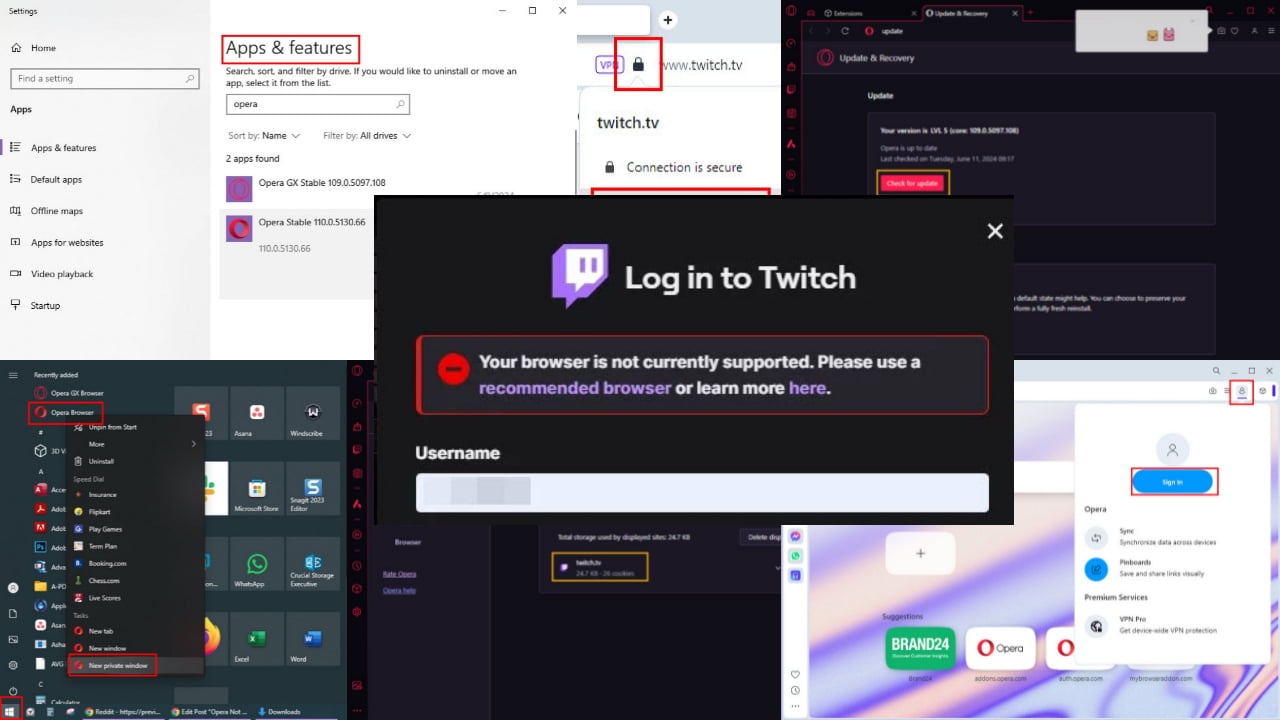
Due to incompatibility between Opera and Twitch, you’ll see the following error when you sign out:
Moreover, while you’re signed in, you’ll keep facing the following issues on Twitch:
You can’t subscribe to channels.
Twitch channel streams won’t load.
The channel points redemption feature doesn’t work.
You can’t personalize the channel name color.
Twitch overlays will malfunction.
Points won’t be added to your profile for watching videos on channels.
Twitch sidebar won’t work properly.
Worst of all, once you sign out, you can’t sign back in. If you’ve ever faced this problem with Opera and Opera GX, I’ve got just the solution for you.
How To Fix Opera Not Working With Twitch
Simply follow these steps:
Try Private Window Mode
Go to the Start Menu and look up the Opera browser icon.
Right-click on it and select the New private window option.
On the Private window mode, type twitch.tv manually in the address bar. Don’t use the auto-populated URL.
Now try to sign in again.
Use VPN
Use any Opera VPN extension or system-wide VPN to sign in to Twitch.
Click on the padlock icon in the top-left corner of the address bar.
Now, click on the Cookies and site data drop-down menu.
On the Cookies and site data dialog, click Manage on-device site data.
The On-device site data dialog box will show up in the middle of the top Opera menu bar.
Click the trash or delete icons for the following items in the dialog box:
twitch.tv
www.twitch.tv
amazon-adsystem.com
scorecardsearch.com.
Click Done to save the changes.
Try logging in again.
Disable Third-Party Extensions
Users have often linked the Opera not working with Twitch glitch to third-party browser extensions. So, you should try disabling them:
Click on the Extensions icon in the top-right corner of the Opera browser.
On the context menu, click on the Manage extensions link.
You should now see the Opera Extensions screen.
Click on the All tab to show every add-on you’ve added.
Scroll down through the list to find and disable all extensions linked to Twitch.
For example, on the Twitch Text Emotes – temotes extension, click on the Disable button.
Repeat the steps for the rest of the third-party add-ons.
Now, restart Opera and see if you can log in to Twitch.
Clear Browser Cache
Press Ctrl + Shift + Delete to bring up the Clear browsing data dialog.
Navigate to the Advanced tab.
There, checkmark the following boxes:
Browsing history
News usage data
Cookies and other site data
Cached images and files
Site settings
Hosted app data.
Now, hit the Clear data button.
Disable and Re-Enable JavaScript
Press Alt + P on Opera to bring up the Settings screen.
In the Search settings field, type Java.
You should see two on-screen results as shown in the screenshot below:
Click on the Security settings.
On Security, select Manage V8 security.
V8 optimizer’s default settings should be Sites can use…
Click on Don’t allow sites…
Now, go back to the initial Settings search screen.
Click on the second search result — Site settings.
Scroll down to the Content section and click on JavaScript.
The default selection should be Sites can use JavaScript.
Select Don’t allow sites to use JavaScript.
Restart Opera and log in to Twitch.
Disable and Re-Enable Graphics Acceleration
Launch the Opera Settings screen.
In the Search settings field, type Acceleration.
You should see the Use graphics acceleration when available option.
If the setting was disabled previously, enable it.
Likewise, if it was enabled previously, disable it.
Hit the Relaunch button.
However, keep in mind that this setting can lead to high CPU usage while streaming when it’s enabled.
Fix Third-Party Cookies Settings for Twitch
If you keep the third-party cookies setting disabled, you can allow cookies to Twitch exclusively by following these steps on Opera:
Press Alt + P to launch the Settings menu.
Type Cookies in the Search settings field.
Click on the Third-party cookies setting option.
The Block third-party cookies should be active.
In the Sites allowed to use third-party cookies, click on Add.
Add the complete URL of the Twitch website in the dialog box that follows.
Click Add to confirm.
Restart Opera.
Reset Opera Settings
Launch the Opera Settings window by pressing the Alt + P keys on the keyboard.
Scroll down to the Advanced section and click on that.
Scroll to the bottom of Opera Advanced Settings.
You should see the Reset settings section.
Click on the Restore settings drop-down menu.
The Reset browser settings dialog will pop up.
Hit the Reset button.
Opera Update & Recovery
On the top-left corner, you’ll find the Operaicon. Click on that.
In the context menu that opens, select Update & Recovery.
Click on the Check for update button.
Once updated, hit the Recover button.
Follow the on-screen instructions.
Make sure you’ve restarted the Opera browser before logging in to Twitch.
Try a User-Agent Switcher Extension
A user-agent switcher app enables your device to approach a website server as a different browser. If you prefer to use Opera and Twitch isn’t working, you can use this extension to access the Twitch server as a Firefox or Chrome user:
Install the User-Agent Switcher extension from the Opera add-ons marketplace.
Now, click on the Extensions menu in the top-right corner, and select the User-Agent Switcher add-on.
To select a different user agent, click on the Chrome drop-down menu and choose from options, like Chrome, Internet Explorer, Safari, Firefox, etc.
The user-agent version on the top of the list is the latest update of the selected browser. For example, Firefox 69.0 for Windows as shown in the screenshot.
Click on the Apply button.
Now, try to log in to Twitch with the spoofed user agent.
Uninstall and Re-Install Opera
Finally, if nothing else works, you’ll need to uninstall the Opera app. But before doing that, you should set up an Opera account if you haven’t done it already to sync browser settings, bookmarks, etc. Later, when you re-install the browser, you can restore backups by simply logging in to the Opera account.
To set it up, do the following:
Click on the Opera Account in the top-right corner of the Opera address bar.
Hit the Sign In button.
You can set up an Opera Account using any personal, work, or school email. I suggest you to stick to a personal email.
Alternatively, you can sign in using Google, Facebook, and Apple accounts.
After logging in, you should see the Get an Opera account dialog.
Click on the Create account button.
You should now see the welcome screen.
Keep Opera open and idle for 10 to 15 minutes for browser data synchronization.
To uninstall Opera, go to the Start Menu on your Windows PC and search for Apps and features. Then, scroll down the list of installed apps and find Opera. Click on the app and hit Uninstall.
Before trying the troubleshooting ideas mentioned above for Opera, do the following on Opera GX:
Navigate to the Opera GX address bar and type opera://update.
Update the browser.
Again, go to the address bar and enter the following URL: opera://settings/content/all?searchSubpage=twitch
You should see the Privacy and security settings page for Twitch TV.
There, click on the delete icon for all the available options, like twitch.tv, ext-twitch.tv, etc.
Restart Opera GX and try to log in to the Twitch website before trying the Twitch sidebar or Twitch extension.
Summary
So, now you know how to fix Opera not working with Twitch. Follow these methods in the exact order as outlined above to avoid wasting time on unnecessary troubleshooting. Additionally, you can try Opera’s special gaming themes for a cooler look while streaming.
If the article helped, feel free to comment below. Likewise, if you’ve got any feedback or want to share a better technique that I missed, share those in your comments.
In the continuously progressing realm of Windows, Microsoft has been quite active in releasing numerous updates and characteristics expected to improve user experience greatly. The Windows 11 KB5039312 update is one good instance; it brings a share button straight into the Search function on the Start menu.
This characteristic, accessible only via File Explorer or specific applications, allows users to distribute files directly from their search outcomes with a single tap.
Sharing will begin in Windows Share, making it simple to select devices or contacts for sharing. This tiny yet powerful feature makes sharing easier in a natural and straightforward way.
But there is more. Microsoft has also been working on the Phone Link app. They have added OCR capabilities, which can scan text within images on your phone and auto-suggested replies for messages.
This will reduce the need for typing and improve overall efficiency, particularly when you are busy moving around. Phone Link update requires version 1.24051.98 or later, but after you have it, these features are ready to use and enhance your messaging experience.
It is required that the Phone Link be updated to version 1.24051.98 or later, but when you do this, these features become available to make your messaging smoother.
There is a unique update related to Nearby Sharing. Now, this feature demands that Wi-Fi and Bluetooth be turned on to work smoothly, ensuring no interruption occurs while sharing files near each other’s devices.
The Windows 11 KB5039312 update could benefit you if you frequently use voice commands. This brings enhancements to Voice Access and Narrator. You will also have access to a fresh command within Windows Search that permits locating files or applications with only your voice.
Moreover, Voice Access’s self-restart function guarantees that it is always available, even if there is a sudden shutdown.
These changes are ready for beta testers and will be more widely available in the next few weeks. This shows that Microsoft is serious about improving and extending what Windows 11 can do to make it better suited for various uses and more convenient for users.
These updates aim to make small aspects of your digital life easier, from sharing files to speaking out text on your PC or simply signing in to Windows 11.
Every single time they make an update, Microsoft isn’t only dealing with problems; they’re improving how we use our personal computers by adding more and more features into it.
Greetings, gamers! Are you aware of the current information? Valorant, a tactical shooter that we have all been playing on our PCs and getting pumped up with adrenaline, is now coming onto consoles. You understood correctly! Those clever Riot Games people who created this tactical marvel have announced that Valorant will be available on Xbox and PlayStation.
Can you believe it? The timer has started, and the Valorant limited beta version is planned to begin on June 14th on Xbox consoles. If you are as thrilled as I am, it will make you happy knowing that registrations for this beta are now open. So, if you want to get in on the action before anyone else does – take advantage of this opportunity by heading straight over to their website and signing up yourself.”
Since its debut in 2020, Valorant has been a special treat only for PC players. This game shines with its 5v5 tactical shootouts. However, this exclusive status will alter soon because the Valorant beta version will be accessible on Xbox Series X, Xbox Series S, and PlayStation 5 in some regions, such as the US, UK, Canada, Europe, and more.
There is no need to fear. Riot Games assures us that the list will include other regions after this first introduction. However, they have kept us in suspense about when the complete version will be accessible on consoles.
We’re holding a Limited Beta to make sure VALORANT is console-ready, and we won’t close the doors until we’re confident that our servers and code are fully locked and loaded. That said, we will give you as much advance notice as we can when we do settle on an end date, including updating this article and sharing the details on our social channels.
Riot Games
Moving on, those who succeed in getting into the beta have an extra treat. You can welcome five friends to come along and try out Valorant with you on a fresh platform. However, there’s a little twist: console players won’t be able to cross-play with their PC buddies.
Riot Games explained this decision, saying it’s to maintain the game’s competitive fairness. But they don’t leave us with any information. Cross-platform progression is a yes, which signifies that your Valorant account will match up on both PC and console—ensuring you maintain what you’ve achieved, like progress, skins, and other items.
For those who are unaware, Valorant is not a regular shooter. It’s an online multiplayer game in which two groups of five players compete against each other—one group attacks while the other defends. The aim?
Acquire victory in 13 rounds, which is possible by eliminating the other team or finishing objectives-related tasks. Valorant’s varied agents make it distinct – every agent has unique skills that could change the outcome of a battle.
Now, it’s time to ask yourself: Are you ready for Valorant on consoles? This is an opportunity for all players, whether they have a long history with PC gaming or are just starting in this game.
Get prepared by signing up for the beta and marking your calendars – June 14 will be an important day. Let’s make history together in the world of Valorant. See you on the battlefield!
In the video game realm, where tastes can be very different from person to person, you do not often find a game that aims to please such a wide variety of players. Yet, Obsidian Entertainment is committed to this path with their forthcoming RPG, which is avowed.
Scheduled for release later in 2024, Avowed represents an interesting development by providing gamers with a novel and encompassing choice: they can choose between first-person and third-person viewpoints while playing the game.
Avowed’s director, Carrie Patel, has verified this information. She shared this detail during an Xbox podcast. This decision creates talk and enthusiasm, particularly for people who may feel uncomfortable with the first-person view or the wider viewpoint provided by the third-person.
Now, let’s discuss the changes in player experience. First of all, it’s about making a choice. Whether you have difficulty with motion sickness when using first-person views or prefer to observe your character’s armor and gear from a third-person angle, Avowed provides options for everyone.
This flexibility is different from Obsidian’s previous game, The Outer Worlds. It only had a single-person viewpoint that remained constant. From this, it’s evident that Obsidian is paying attention to the desires of its community and making changes accordingly in Avowed.
And there is more; the game also introduces many new elements to improve gameplay. It has things like changing daytime, which makes it feel more real, and a group camp where characters can talk with each other—these details show that the game offers an involved experience.
In addition, players will be empowered to create their character’s abilities and attributes in any way they like due to the classless progression system. This means you can pick and mix different skills from various paths, creating a unique character without being restricted by traditional classes.
If there is a time when someone feels remorse for their decisions regarding how they shaped or improved their character, no worry – because there exists an option called respec. This allows you to change your character’s skills and attributes without starting all over again from the beginning.
The excitement around Avowed is strong, and you can see why. The Obsidian team’s dedication to making a game that looks great and is full of love with details shows well. As we look forward to more information about its release date, one fact remains certain: Avowed has all the signs of being a game that not only accepts player choice but promotes it.
So, are you ready for the third-person gameplay in Avowed? As you can see in the trailer above, displayed at this year’s Xbox Games Showcase, Avowed appears to offer various elements to attract different types of players.
Maybe you prefer strategic combat, a focus on immersive storytelling, or just exploring breathtaking worlds—whatever your preference, Avowed seems to have something for everyone.
And with its release not too far away now, the countdown begins to step into those shoes (or maybe viewing from slightly above) of your next great adventure awaits!
Microsoft has come up with VALL-E 2, a new model that takes human-like speech synthesis to another level. This is not just an improvement; it’s a big step forward in making computer-generated voices sound more natural and high quality. The creation of this advanced technology marks significant progress from previous versions like VALL-E, which were already at par with human speech patterns but still lacked some crucial elements such as intonation control or avoiding monotonous tone repetition.
The researchers fixed the token repetition issue and more
The latest development overcomes these limitations by introducing fresh aspects like Repetition Aware Sampling and Grouped Code Modeling – all aimed at enhancing stability and efficiency during the process of generating spoken words through machine learning techniques. But what does this mean? Well, let’s dive into the details and find out.
One of the sampling problems is token repetition. Sometimes, the model can produce repetitive sequences which might cause stability issues and infinite loops as mentioned above. This method known as Repetition Aware Sampling takes decoding history into account for more stable and reliable results. Have you ever heard speech synthesis that doesn’t sound quite correct? This feature is here to fix that.
Next is Grouped Code Modeling, a method that focuses on efficiency. By grouping together codec codes, it can greatly shorten the sequence length. This approach speeds up inference and deals with issues related to modeling of long sequences. Think about a situation where you have to quickly synthesize a long speech; this feature makes it possible without losing quality.
VALL-E 2 will talk just like a human
These are not merely technical terms; they empower VALL-E 2 to produce speech that is extremely natural, even for intricate sentences. The model’s elegance lies in its simplicity: it only needs a simple set of speech-transcription pairs for training. This makes the process of collecting and handling data much easier.
According to the technical paper of VALL-E 2, on the LibriSpeech and VCTK datasets, the new LLM showed better results in terms of speech robustness, naturalness and speaker similarity. It is the initial model to reach human equality on these tests. The new version can produce very good quality speech which deals well with complicated and repeated sentences.
VALL-E 2 holds great promise for aiding people who have difficulty speaking, but its possible uses are not limited to these areas alone. Think of being able to give a voice to someone who struggles with talking because of conditions like aphasia or amyotrophic lateral sclerosis. Yet, we should not overlook the dangers of misuse, like voice spoofing or impersonation. It is very important for practical uses of this technology to have rules about approving speakers and recognizing if a speech is real or made by computer.
Could you, for instance, have all your e-books on your PC narrated by Morgan Freeman? You probably could. Publishing them online? That would be a totally different story, and you shouldn’t be able to do that for the obvious reasons.
What do you think about VALL-E 2 and speech synthesis? Let’s talk about that in the comments below. We’ve learned about this from AIM.
Among the many gaming laptops, the Dell G16 Gaming Laptop appears to be an interesting option. It especially appeals to people who want a mix of strength and capability. Its main engine runs on 13th-generation Intel® Core™ processors, and it looks ahead using a lively 16″ QHD+ display.
It has been created to make gamers feel deeply involved in their virtual worlds like they never have before. However, what makes Dell G16 different from others in this competitive market?
The NVIDIA® GeForce RTX™ 4070 graphics card is a game-changing element. It promises excellent visual results and guarantees smooth game running on high settings. This is very important for gamers who desire both detail and fluidity in their gaming experiences.
Picture yourself jumping into your preferred game and experiencing it at its best without delays or graphical sacrifices. That’s the promise of the Dell G16.
The laptop also offers good choices regarding memory and storage. It can have as much as 32GB DDR5 RAM and a 1TB PCIe NVMe SSD, showing its potential to handle not only current games but also upcoming ones that will require more from the system.
This allows you to open many applications simultaneously without any problems, and loading times are noticeably quicker. Have you experienced the kind of gaming where each second of loading feels like a lifetime? Now, those days might be over with this setup.
But it’s not only about the inside. The Dell G16’s design also says a lot about what it can do. You can find this laptop in Metallic Nightshade, and its look is smooth and contemporary, which matches its strong components.
Also, a 1-Zone RGB Backlit Keyboard adds to the overall mood by making gaming in dark settings easier and more atmospheric. These little details can boost the joy of playing games, making it feel even more engaging and fun.
Connectivity is a strength of the Dell G16. It has many ports, such as Thunderbolt™ 4, HDMI 2.1, and several USB 3.2 Gen 1 ports for easy connection with peripherals or external displays. This feature is important to gamers who wish to establish a battle station with multiple monitors or connect their laptops quickly to a high-speed Ethernet network to compete competitively in games (like Fortnite).
Have you ever faced a condition where your laptop’s port did not match, and you had to find an adapter? The Dell G16 may lower the frequency of such moments.
The 6-cell, 86 Wh battery gives you freedom to game on the move without needing a plug socket for power all the time. Even though gaming laptops don’t usually have long-lasting batteries, being able to move around for some hours can make a big difference for people who enjoy playing games in various locations.
To sum up, the Dell G16 Gaming Laptop is a strong example of Dell’s dedication to offering gamers high-quality laptops packed with features that do not compromise performance or design.
The laptop has impressive specifications, a stylish look, and considerate details, which make it worthy for anyone who wants a better gaming experience. Whether you fight aliens, speed cars, or explore big open worlds – the Dell G16 is made to create an amazing moment in your gaming universe.
You can get it from here. And if you’re looking for something just as powerful but less expensive, we’ve got this refurbished Lenovo for you, but you need to hurry up because only one is available.
If you’ve followed some of the latest update developments, you know that Microsoft acknowledged Windows 11 KB5037853 to cause some weird taskbar issues. For some, it was going haywire and glitching up; vanishing unexpectedly; or simply becoming unresponsive when clicked upon.
Just restart your computer to fix the taskbar issue
Microsoft applied a method known as Known Issue Rollback to solve this issue. This means they can correct problems from afar, and you won’t need to take any drastic actions like removing updates. If you are only a usual user, then no action is required from your side at all. The fix should self-apply, but it may require up to 24 hours to take effect. If you’re becoming restless, a restart could hasten the process.
Now, for the IT admins, there is a bit more work. Microsoft has made available specific group policies to tackle the taskbar matter on managed computers. Here’s what you need to do:
IT administrators can resolve this issue by installing and configuring the special Group Policy listed below. The special Group Policy can be found in Computer Configuration > Administrative Templates > <Group Policy name listed below>.
Microsoft also mentions that you need to install and configure the Group Policy for your version of Windows, and you will also need to restart the machine for the policies to take effect.
So, if you have been battling with your taskbar, the time for relief has hopefully arrived. If you still have Windows 11 taskbar issues, let us know in the comments below.
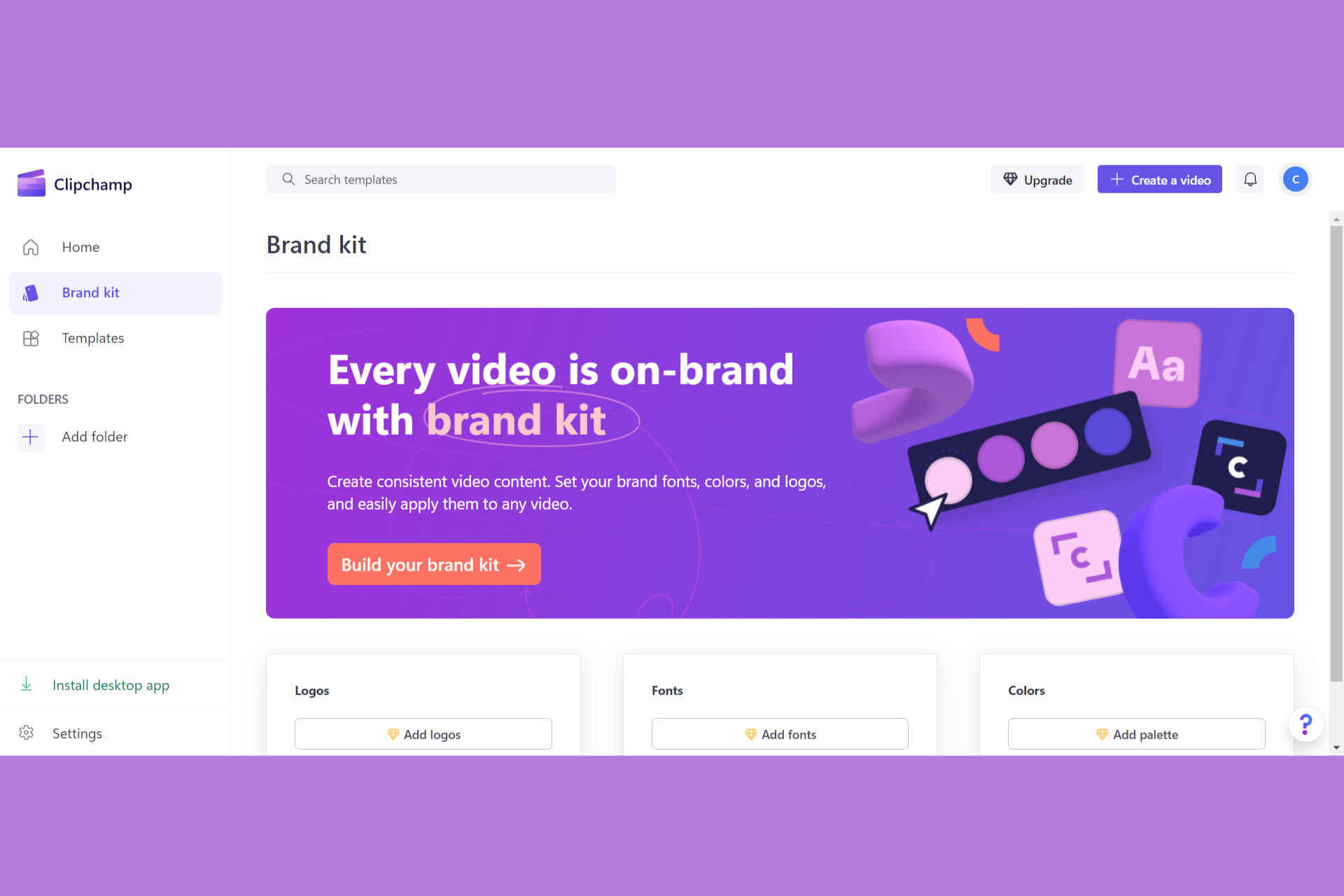
Microsoft’s video editor, Clipchamp, had some interesting updates lately and has been constantly improving. You may even use its built-in AI feature to build your own video from a couple of photos in just a few minutes.
Now, Microsoft has plans to extend Clipchamp’s Brand kit feature, by adding support for a lot of new media:
Brand kit enables anyone to create and share brand asset collections including colors, fonts, and logos to easily apply brand elements while creating. This release adds support for images, backgrounds, stickers, video, and audio asset types. An organization’s official assets can now be rolled out tenant-wide via SharePoint Organization Asset Libraries (OAL). Brand kit creation, sharing, and manual usage is being made generally available to all Clipchamp for work accounts for users with standard access.
What is new about Clipchamp Brand kit?
As the update notes from the Microsoft 365 roadmap touts, starting in July, Brand kit will support images, backgrounds, stickers, video, and audio asset types. However, the more exciting part is that you can roll out these assets via SharePoint’s OAL, so that everyone who uses the app in the organization has access to the same resources.
If you want more details on how to use the app, we have a Clipchamp review to go through and get some idea about its features. By the way, you can use Clipchamp online in the browser, or you can download the desktop app.
Do you use Clipchamp? Tell us about your experience in the comments below.
In the tech world, where AI is a rising power, an attention-grabbing twist has surfaced that could swing things toward Google. This comes despite Microsoft’s substantial move with OpenAI. The CEO of cybersecurity firm Okta, Todd McKinnon, shared this interesting insight through multiple interviews.
He pointed out how Microsoft’s choice to use OpenAI as a repository for its top AI tools and software might unintentionally aid Google. As per McKinnon, this move highlights a bigger story in the tech field about where AI development began and where it is heading.
Microsoft’s collaboration with OpenAI is attracting attention, as the company has invested billions in this strategic partnership. The innovations resulting from this alliance include Microsofti’s AI assistant CoPilot and PCs powered by AI – both are based on advanced technology from OpenAI.
However, McKinnon highlights a curious situation developing within Microsoft, hinting that it could be shifting towards being a consultancy for OpenAI rather than leading the way in AI innovation.
It’s so bizarre. Imagine working at Microsoft. OpenAI is over there making all the exciting stuff. It’s almost like Microsoft is going to turn into a consulting company.
Todd McKinnon
On the other hand, Google appears to be taking a different approach. The company has not handed over its R&D in AI to others; rather, it relies on DeepMind as an internal powerhouse.
The research and breakthroughs made by Google – especially those related to transformers, which are deep learning models playing an important role in generative AI – form the base for what we see today in big language models (LLMs).
This strategic choice to promote internal innovation could be Google’s secret weapon, helping the company keep its advantage in the AI competition.
However, Google’s life is not always easy. Even with its strength in technology, the company has had difficulties successfully launching its AI products. From AI Overviews giving strange advice to the Gemini AI model showing wrong images historically, Google’s journey in AI has been a mixed bag.
These small issues emphasize how AI development can be unpredictable and the challenging journey toward gaining commercial viability.
McKinnon also made a wider point, recognizing the special character of AI as a technology area. Unlike past tech trends like personal computers, which saw disruptive changes usually driven by small companies starting up, progress in AI greatly depends on big investments from tech giants.
This situation brings up issues about competition and how rules could influence the upcoming scenario of AI development.
The ongoing drama involving Microsoft, OpenAI, and Google provides a preview of the tactics that might decide AI winners. Microsoft’s investment in OpenAI is an audacious step towards molding the future of AI. On the other hand, Google’s pledge to develop its R&D could potentially give it an advantage over time compared to other companies dependent on external advancements.
As artificial intelligence progresses and becomes more complex within this industry, the strategies chosen by various tech giants will undoubtedly affect their businesses and wider sectors.
If you’re thinking of buying a new TV and also love playing games on Xbox, this deal from Samsung might interest you. For now only, they are giving away free Xbox digital gift cards for those who buy certain smart TVs from their main website. The value can be up to $200 worth of gaming fun! For someone wanting to switch up their gaming setup with a fresh controller, headset or many new games, this could be a nice deal.
Why would I buy the Samsung TVs?
The TVs in this promo are impressive, especially for gamers: They have features such as Motion Xcelerator 144Hz to make on-screen movement smoother and Samsung Gaming Hub which lets you play cloud games from services like Xbox Cloud Gaming without needing a console or computer. This is truly what every gamer wants.
The details of the promotion are as follows: If you buy a Samsung QLED or OLED TV, you should expect to receive either a $100 or $200 Xbox gift card. The specific models that qualify for this promotion include the top-of-the-line Neo QLED 8K QN900D and QN800D TVs, as well as the OLED Gaming S90D TV. There are several other models in between these two extremes that also meet requirements to earn an Xbox gift card. However, be aware: this offer is only available until June 23rd and it may end sooner if supplies run out first.
35 days following your purchase, you will get the digital card code and you can use it until the end of 2024. This agreement appears to be a successful one for both parties, but it is important to note that Samsung’s customer service has not consistently been excellent. So, keep that in mind if you decide to jump on this offer.
Concisely, for a gamer who wants to enjoy playing on a fresh Samsung TV, this offer is too beneficial to overlook. Do take note of the specifics and confirm if the model you like is included in promotion. Have fun gaming and shopping! We’ve learned about this from Neowin.
The Windows 7 USB/DVD Download Tool makes it easy to install or reinstall Windows 7. This version continues to have a dedicated user base due to its stability and intuitive interface. However, the traditional installation methods through CD/DVD are becoming outdated, especially with the increase of devices without optical drives.
I’ll show you how to use this tool in the step-by-step guide below.
So, let’s begin!
How To Use the Windows 7 USB/DVD Download Tool
Using this tool is straightforward, even for users that aren’t tech-savvy. Simply follow these instructions:
Create a Bootable USB Drive or DVD
Go to uptodown to download the Windows 7 USB/DVD Download Tool.
Locate the setup file (usually in your Downloads folder) and double-click it to start the installation.
Follow the on-screen instructions in the installation wizard to complete it.
Visit a reliable source like Softlay to download the Windows 7 ISO file. Unfortunately, Microsoft’s website no longer officially provides ISO files for Windows 7.
Launch the Windows 7 USB/DVD Download Tool from your Start menu or applications list by double-tapping it.
Click on the “Browse” button in the tool’s interface, select the Windows 7 ISO file, and click “Next.”
You can choose between creating a bootable USB device or a DVD. I’ll select a USB device.
If you chose USB, insert your USB flash drive into an available port on your computer. Ensure that it has at least 4GB of free space and that there are no important files on it, as it’ll be formatted. If you chose DVD, insert a blank DVD.
Click “Begin copying” to start the process. The tool will format the USB drive or prepare the DVD and then copy the Windows 7 files onto it. This process may take several minutes, so be patient.
A progress bar will display the status of the copying process. Once it reaches 100%, your bootable USB drive or DVD is ready.
You’re almost done.
Boot from the USB or DVD
Insert your newly created bootable USB drive or DVD into the computer where you want to install Windows 7.
Restart the computer.
Enter the BIOS or UEFI settings by pressing a specific key during startup (usually F2, F9, F10, F12, Del, or Esc depending on your PC type). You’ll see the key on the screen during the initial boot process.
Set the boot order to prioritize the USB drive or DVD as the first boot device. Use the on-screen instructions to move them to the top of the list. Windows will then load the files.
After restarting, your computer should boot from the USB drive or DVD.
Follow the on-screen instructions to begin the Windows 7 installation process. This includes selecting your language, time and currency format, and keyboard or input method.
Click “Install Now” and follow the prompts to complete the process.
That’s it!
The Windows 7 USB/DVD Download Tool is an essential utility for anyone looking to install or reinstall Windows 7. Follow the above steps to create a bootable USB drive or DVD, so that you’re always prepared for installations.
Opera recently introduced Tab Emojis for users to add emojis to tabs and identify them among many open ones. While there’s no built-in option to disable this feature yet, luckily we can still turn it off via a command line switch until Opera offers a proper setting.
Opera comes with Tab Islands to organize tabs. They’ve added a new feature that lets you personalize and manage tabs with Tab Emojis. These emojis help tabs stand out and make them easier to identify.
Opera claims you can personalize your tabs with emojis. If you have many tabs open, assigning emojis can avoid having to read the entire title to identify tab content. To add an emoji to a tab, hover over the tab and select from a selection of five available emojis. You can also choose from over a thousand emojis by clicking the “+” button. Scroll down or search and pick one from the emoji library.
The company says Tab emojis are a fun way to use and can be a useful tab management tool in addition to workspaces and Tab Islands. However, some users have found the feature unnecessary and bloatware. The initial implementation has some drawbacks.
Normally, hovering over a tab displays the full title. Now, emojis appear above the title, potentially taking precedence over it. This can be frustrating if you rely on hovering to quickly see the full context of a tab.
The placement of these emojis can also be a bit intrusive, positioned close to the tab’s close button. This can lead to accidental emoji selection instead of closing the tab, especially for users who close tabs frequently.
How to disable Tab Emojis in the Opera browser
Close the Opera browser if already open.
Right-click on its shortcut on the desktop and select Properties.
In the Target field, at the end after “opera.exe” add a couple of spaces and enter the command provided below --with-feature:tab-art=off For instance, if you’re running Opera stable, the Target field should look like below C:\Users\<username>\AppData\Local\Programs\Opera\opera.exe –with-feature:tab-art=off
Click OK and Apply.
Now launch Opera using this shortcut to which you’ve added the above command line switch. Hover over a tab to notice no more emojis.
Recently, Microsoft introduced the Discover feed to show you important updates in the Teams channels you’re part of. It’s a very useful feature that helps you stay updated with the latest developments in your organization. However, when you’re in a lot of channels, the Discover feed can become a clutter factor that can become distracting.
Well, according to Microsoft’s 365 roadmap, starting from July, you will be able to show or hide (turn off/turn on) the discover feed in Microsoft Teams. You will manage this feat from the general settings section of the app.
Other Microsoft Teams features coming in July
Another important feature planned for the July Microsoft Teams roadmap is the option to turn off the notifications for a post in a channel. So, if you don’t want to turn off the discover feed, you can at least silence the notifications from a post, and that sounds great.
Finally, there’s also an feature addition to the webinar event page. Here’s what is all about:
Users can now customize the list of presenters in the webinar event page via drag and drop functionality. This option can be found under the “Presenter Bio” section of the webinar set-up dialog box.
So, it’s pretty simple: you can reorder the presenters in a webinar timeline by dragging them into the webinar setup box. We didn’t hold any webinars until now, but it seems like a reasonable application that should have been there in the first place. This option will also start rolling out in July, so make sure you keep updating your Teams app to get it.
In this era of progressing technology, MSI has made a big leap with its newest creation: the M.2 Xpander-Aero Slider Gen 5. This small yet smart hardware is gaining attention for its different methods of enhancing computer storage.
Just think about it: you could change your SSDs without having to deal with the difficulty of opening your computer case! That’s exactly what MSI’s new expander card offers.
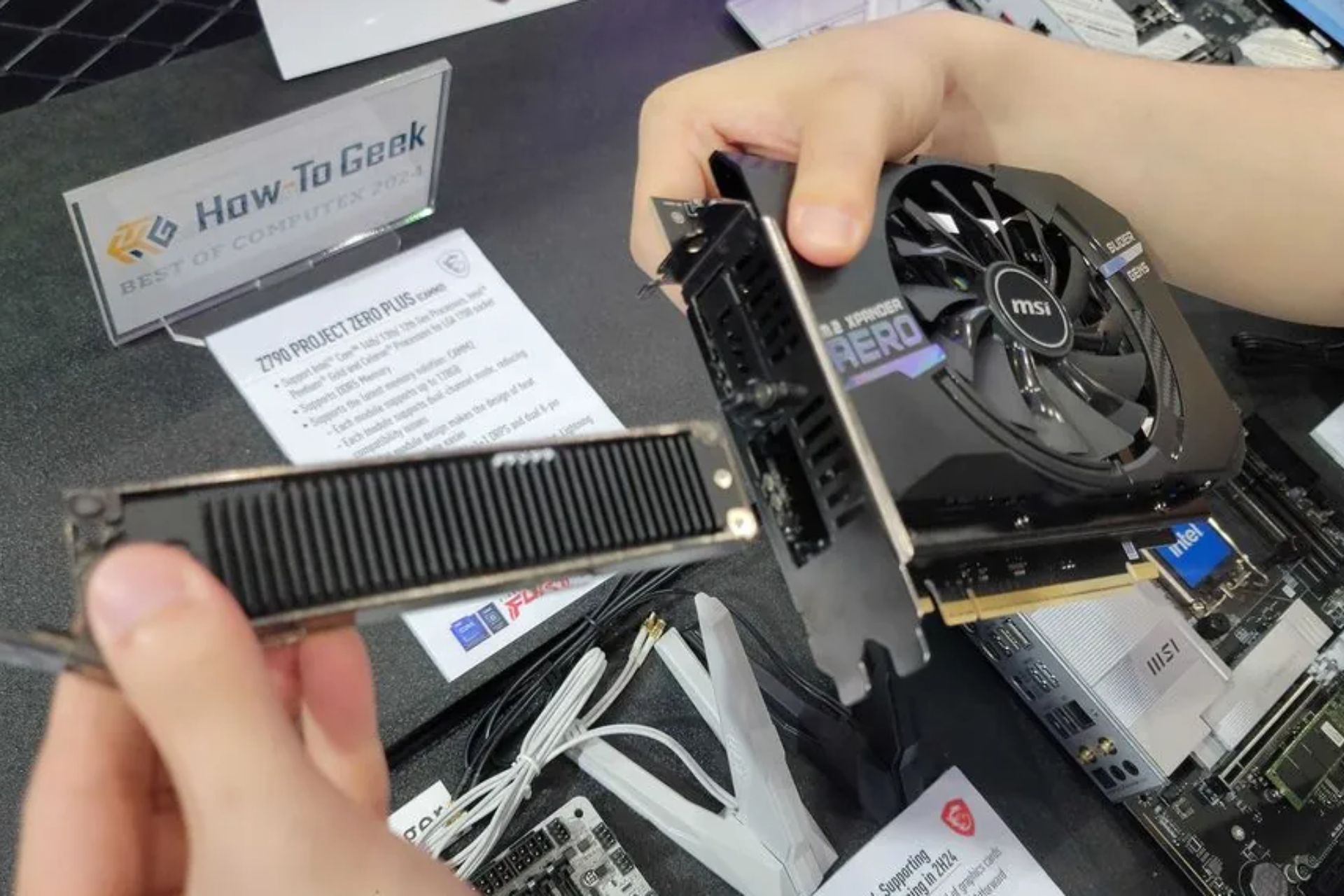
The M.2 Xpander-Aero Slider Gen 5 is not just a regular expansion card. It can hold two 22110-size M.2 drives and works well with the very fast PCIe 5.0 x4 interface, guaranteeing great speed and effectiveness for your data transfers.
What makes this card unique is the hot-swappable feature and how easy it is to get to the drive bays from the rear PCIe slots. It’s a game-changer for anyone who values convenience and effectiveness in their tech arrangements.
The card’s design itself is smooth and useful. It has a matte black cover with just one fan cooler, giving it a look similar to a GPU. But the function is what catches attention.
The fan has a manual switch for turning off and on, and it is intended for use with less powerful M.2 NVMe SSDs that do not require continuous cooling.
This innovation is thrilling for tech lovers who appreciate the power to rapidly back up or move data without taking apart things. It’s a solution that brings server-like ease to the market for ordinary people. There isn’t another common M.2 expansion card that provides this combination of accessibility and performance.
But it’s important to mention that the M.2 Xpander-Aero Slider Gen 5 might have a specific appeal. The fact that it needs a PCIe slot could lead to conflicts with other hardware, such as GPUs, especially in setups with few available PCIe slots. This has initiated a debate among tech lovers, with some highlighting limitations set by existing motherboard designs.
Despite these points, the M.2 Xpander-Aero Slider Gen 5 is an important advancement in storage technology. Its first appearance at the Taipei International Computer Show has surely caught the attention of people who are enthusiastic about this field, and they may be excited to observe how it progresses further.
According to reports, MSI did not announce any price or availability details. It is a premium option for those seeking top-level expansion capabilities on their PCs.
MSI’s new product is proof of continuous invention in the field of PC hardware. It gives us a peek at an upcoming era where enhancing your computer’s storage will be as easy as inserting a fresh SSD without needing a screwdriver. For those who love technology and experts, this M.2 Xpander-Aero Slider Gen 5 might become an essential part of their setup.
It’s worth mentioning that MSI announced its new handheld gaming console, MSI Claw 8 AI+. While it’s a great product, there is no available release date for it either.
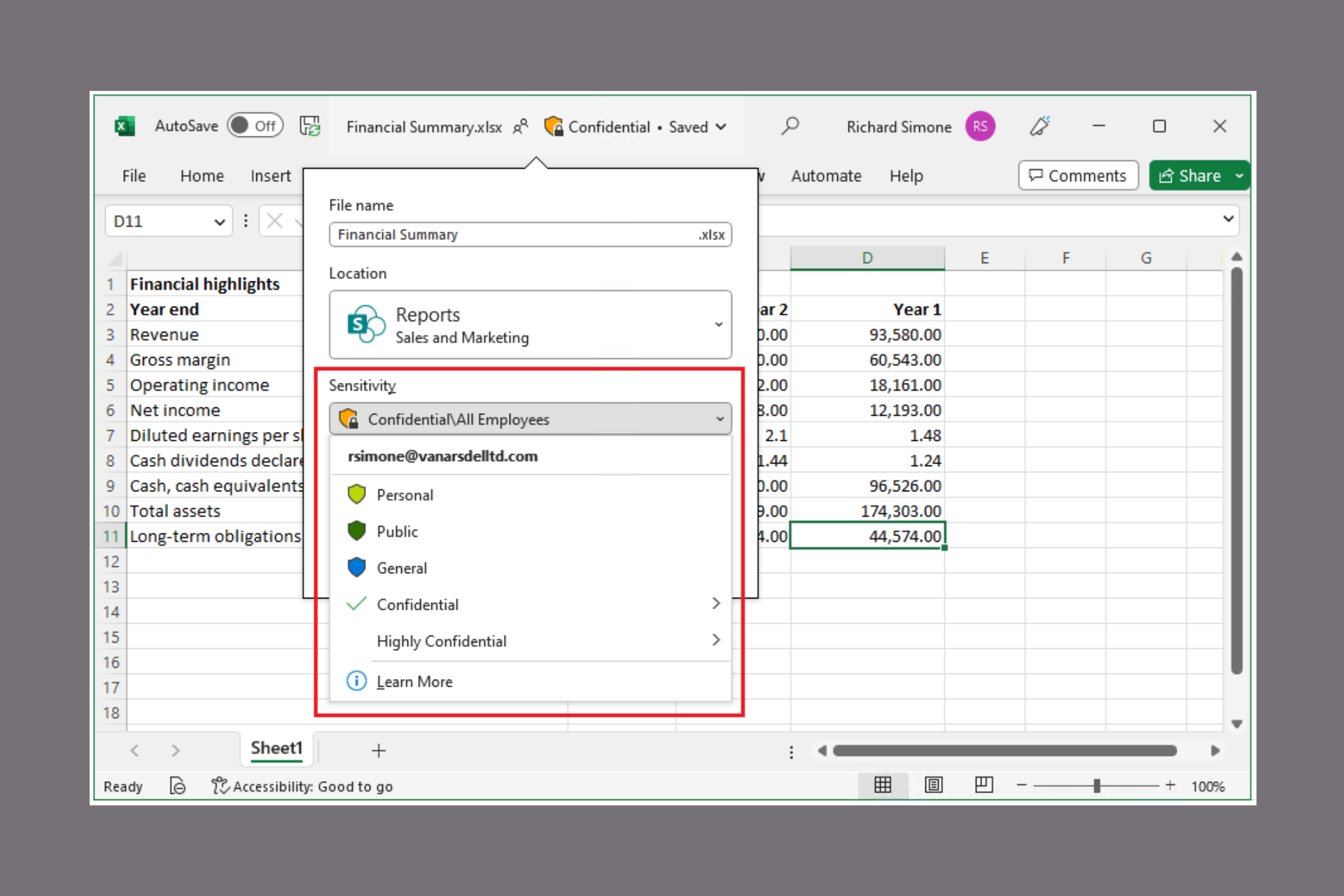
If you’re worried that your Microsoft 365 content might reach the Redmont giant’s databases, you now have another setting for privacy control from Microsoft Purview. Recently, Microsoft updated Purview to support search within your organization and now it’s adding a new privacy setting.
You can configure a new setting for sensitivity labels that prevents content within Word, Excel, PowerPoint, and Outlook from being sent to Microsoft for content analysis as a privacy control, even when these are stored in Microsoft’s cloud, such as SharePoint or OneDrive. Use this to help you optimize your data privacy needs on a per-content basis, using the familiar configurations and end-user experiences available with Microsoft Purview.
How can I set up the sensitivity labels in Microsoft 365?
Now, from this statement, we really don’t know exactly what is the new setting and where it will pop up. Still, it was created to Prevent some connected experiences that analyze content with sensitivity labels in files and emails. If this is what we think it is, it should prevent Copilot and Windows Recall from snooping around in your documents that are marked with sensitivity labels.
If you’re not aware about sensitivity labels, here is some information to help you understand it a little bit. For users within your organization, a sensitivity label is visible as a tag on the apps they work with. These labels can be smoothly incorporated into their regular tasks and do not show up in apps used by users from different organizations or guests.
Every item capable of using sensitivity labels can be given one sensitivity label from your organization. Documents and emails have the ability to contain both a sensitivity label and a retention label. These labels can be implemented within all the Microsoft 365 apps. If you want to learn more about this, Microsoft has a guide about sensitivity labels and how to use them.
What do you think about the new Microsoft 365 sensitivity labels settings? Let us know in the comments below.
Do you remember finding a great deal that made you look twice? Hold on tight because I will tell a tale that could make anyone feel like they need to buy another laptop. Imagine an improved Lenovo ThinkPad T16—not just any computer—loaded with 32GB of RAM and a huge 2TB SSD. So, it seems that not only does Lenovo make the best deals, but users are also making some great deals for them.
And to make it even better, a QHD display that is breathtaking. Now, prepare yourself because this powerhouse was available at an astonishing $712. Yes, you read that right.
Now, let us examine it a little more closely. This is not just an ordinary laptop. We are talking about the first generation of ThinkPad T16, which has an AMD Ryzen 7 Pro 6850U inside.
Regarding those who might not be conversant, that’s quite a good processor, particularly for a business laptop. Lenovo was serious when they put the “certified-refurbished” tag on this item and offered it for under $800. This deal seemed almost too good to be true. Almost.
But where did this magical offer appear, you ask? eBay, my friends. eBay. It’s like discovering a diamond that is not yet polished, but this diamond also gives you free delivery.
Now, for tech lovers, let us discuss specifications, too. Except for the RAM and SSD, which were already mentioned, this ThinkPad T16 has a high-resolution IPS QHD screen. We are discussing a visual experience of 2560 by 1600 pixels, with top brightness scoring at 400 nits and all the colors matching up to the sRGB spectrum. No matter how lengthy your work session maybe – this is a screen that does not give up on you.
Now, I can imagine what you might be thinking. “Is there a catch?” Yes, there are some points to keep in mind. The RAM is soldered, so you cannot upgrade it.
And for those who know about technology, not having Thunderbolt 4 might disappoint them a little. But let’s keep in mind the bigger picture. This deal was a very good chance to get a trustworthy business notebook with a big reduction in cost.
As you plan to locate this deal, keep in mind that prices found on the internet are like a shooting star – they can vanish quickly.
The deal we discussed existed at the time of this writing, but who can say how long it will last? So, if you want to buy a fresh laptop or even have a slight interest in laptops, it may be a good idea to look at this opportunity. Who knows? Maybe you’ll find your next tech treasure.
You can get it from eBay now, but you might want to hurry up.
In the ongoing fight for dominance in computing, a fresh competitor steps into the battlefield with their innovation and effectiveness. TUXEDO Computers is preparing to introduce the Snapdragon X Elite SoC, an engineering marvel from Qualcomm, to the Linux community.
This step increases competition with Windows 11 Copilot+ PCs and signifies an important achievement for those who love Linux and are searching for high-performance options.
The Snapdragon X Elite SoC, with its Oryon CPU that can go as fast as 4.6GHz in dual-core boost mode and Adreno GPU clocking at 1.25 GHz, is a force to be reckoned with. It has the potential to compete against Apple’s M2 chips in terms of performance and power efficiency.
Our prototype is powered by the Snapdragon X Elite X1E80100, which has 12 Oryon cores with 3.8 GHz, which clock up to 4.6 GHz in dual-core boost. An Adreno GPU with 1.25 GHz is also built into the SoC. The device also offers 8+4 PCIe 4.0 lanes and 2+2 PCIE 3.0 lanes. The integrated NPU offers 45 TeraFlops for AI workloads.
This chip is not just about raw power; it combines CPU, GPU, NPU (Neural Processing Unit), USB interfaces, and memory into one single chip. This integration increases speediness and effectiveness, making it a significant competitor within the tech world.
But the most thrilling part is the jump to Linux compatibility. Qualcomm’s teamwork with Linaro has substantially progressed in incorporating crucial functionalities into the mainline Linux kernels 6.8 and 6.9, with more advancements coming soon.
It implies that Snapdragon X Elite is no longer only for Windows, creating fresh avenues for Linux users.
At the Computex trade fair, TUXEDO Computers demonstrated a model of its ARM notebook. This introduction included their project “Drako,” which is still in the alpha phase. The forthcoming Linux-generated notebook could indicate that it will soon be competing equally with Windows notebooks.
The release is estimated to happen around Christmas 2024 and creates much interest.
If you are a Linux lover or somebody hunting for an alternative to the usual x86 notebooks, this development could be very thrilling. Snapdragon X Elite’s pledge to offer equal performance with lesser energy usage might change everything.
So, as TUXEDO is determined to make this technology available in the Linux world, the future appears promising.
When we anticipate the arrival of TUXEDO’s ARM notebook, we can see that things are changing in the world of computers. Linux now has a strong new partner with Snapdragon X Elite, and this will surely intensify the rivalry.
Is this what Linux requires to seize a larger part of the conventional market? Only time will tell, but the anticipation continues to build.
7-Zip remains one of the most popular file archivers available in Windows, especially due to its open-source nature. But oftentimes, 7-Zip is either not available in the Windows 11 context menu or disappears after an update!
This forces you to extract files or make other changes from within the app’s interface, complicating the process. But adding or re-adding 7-Zip to the Windows 11 right-click context menu shouldn’t take more than a minute.!
How do I add 7-Zip to Windows 11 context menu?
1. Reconfigure 7-Zip’s settings
Launch 7-Zip on your PC, click on the Tools menu at the top, and select Options.
Go to the 7-Zip tab, and tick the checkboxes for Integrate 7-Zip to shell context menu and Integrate 7-Zip to shell context menu (32-bit).
Finally, click on Apply and OK to save the changes.
You should now find 7-Zip in the right-click menu on Windows 11. Although, it will be accessible only after you click on Show more options, i.e., in the secondary context menu.
This is the easiest way to add 7-Zip to the secondary context menu on Windows 11.
In case you get the Access is denied error on enabling Integrate 7zip to the shell context menu, it indicates missing administrative privileges.
Access is denied error in 7-Zip
All you have to do is run 7-Zip as an administrator. To do that, right-click on the program > select Run as administrator > click Yes in the UAC prompt.
2. Use a third-party tool
NOTE
Disclaimer: Windows Report is not affiliated with the Custom Context Menu app. I am recommending it based on user reviews and the fact that it’s available on the Microsoft Store. Nevertheless, be careful with the privileges you grant to the app!
Download and install the Custom Context Menu app from the Microsoft Store. There’s both a free and paid version.
Once installed, launch the app, and click the Add Menu icon near the top-left corner.
Now, enter all the details for the 7-Zip Windows 11 context menu entry in the fields on the right, including the executable (.exe) file’s path.
Once done, press Ctrl + S to save the new entry, and then restart the PC for the changes to apply.
You should now see a 7-Zip entry in the context menu across the PC or in specific locations, depending on the configured settings.
3. Manually modify the Registry
3.1 Finding 7-Zip’s installation path
Press Windows + S to open the Start menu, enter 7-Zip in the text field, right-click on the relevant result, and select Open file location.
Now, right-click on 7-Zip’s shortcut and select Properties.
Copy the path (along with the quotes) in the Target field under the Shortcut tab. This is the path to the 7-Zip File Manager’s executable (.exe) file. In our case, it is: "C:\Program Files\7-Zip\7zFM.exe"
3.2 Adding 7-Zip to the context menu
Press Windows + R to open Run, type regedit in the text field, and hit Enter.
Click Yes in the UAC prompt.
Now, paste the following path in the address bar and hit Enter: HKEY_CLASSES_ROOT\Directory\Background\shell
Right-click on the shell entry in the navigation pane, choose New, select Key from the flyout menu, and then name it 7-Zip.
In the 7-Zip key you just created, right-click on the empty space towards the right, hover the cursor over New, select String Value, and name it Icon.
Double-click on the Icon string, enter the 7-Zip path we copied earlier in the Value data text field, and click on OK.
Next, right-click on 7-Zip in the navigation pane, choose New, select Key, and name it Command.
In the Command key, double-click on the Default string, paste the 7-Zip path we copied earlier in the Value data text field, and then click OK to save the changes.
Once done, reboot the computer for the changes to apply. You can also simply restart the Windows Explorer process from the Task Manager.
Remember, steps 5 & 6 above are optional, as the two only add 7-Zip’s icon to the context menu entry in Windows 11. It’s the Command key that does the rest.
Also, this way, you can add 7-Zip to the right-click menu on Windows 10!
If things don’t work out or you want to remove 7-Zip from the Windows 11 context menu, delete all the Keys and String Values you created earlier. Make sure not to modify/remove any other keys or entries, as it might disrupt the functioning of the PC and necessitate a reinstallation of Windows 11.
4. Use a Registry script
Tip
This method involves running a script created by a third-party developer on the PC, which will make changes to the Registry Editor. Since it may introduce instability in rare cases if not executed properly, I recommend you create a restore point beforehand.
Right-click on the download file, select Extract all, then choose a location and wait for the process to complete.
Once done, open the extracted files and run 7-Zip_Windows11.
Click Run in the confirmation box, and similarly, give approval in all other prompts.
After the script is executed, right-click on any file, and you shall find several additional 7-Zip-related entries in the Windows 11 context menu.
If the new Windows 11 context menu entries created for 7-Zip with the script are not what you were looking for, revert the changes using the restore point you created earlier.
That sums up all the ways you can add 7-Zip to the Windows 11 context menu. Except for the methods involving changes to the Registry Editor, the rest are all simple and quick!
Have you been informed about this unbelievable deal with the LG Ultra Gear 45-inch curved gaming monitor? It isn’t usual to find a discount that gives such a surprise, but this offer is indeed remarkable. For a price that was once $1,700, you can now take it home for $1,100.
It’s quite a difference—$600 less, to be exact, or just 35% of the original cost. If you prefer percentages like me, that is how much discount there is on offer here.
Let me tell you something about gamers: we love our technology, and sometimes upgrading to new stuff feels like an indulgence rather than a necessary expenditure. But when such a good deal is available, getting better equipment becomes more of a smart move than mere luxury.
So, why is this LG UltraGear monitor of interest to you? To begin with, it has a big 45-inch OLED screen. And you don’t only play on it; with its 21:9 aspect ratio and 3440×1440 resolution – you get lost in the game. The monitor’s curve is like a big hug that promises to surround you in the virtual world you’re exploring, making each gaming session truly immersive.
But it’s not only the bigness or curve that matters. The actual kicker is the astonishingly fast 240Hz refresh rate, paired with an incredibly speedy 0.03ms (GtG) response time. This results in a more seamless game display, less delay, and almost zero motion blur for viewers on such displays.
Whether avoiding bullets or speeding on a track, every action is sharp and distinct. Also, the anti-glare layer guarantees that even when playing games with sunlight coming into your room or lights turned on, no interruptions will spoil your experience.
Now, you might ask yourself, “Should I upgrade now?” Allow me to say that such opportunities do not appear frequently. Getting this LG UltraGear monitor for $600 less is like hitting the jackpot. This chance to boost your gaming setup without costing too much is not common. If you have been considering changing your gaming station, this could be the signal you were waiting for.
Don’t forget, good deals don’t wait around. If you’re still thinking about it, losing a chance at a bargain like this might be something you’ll regret later. So, why not jump in and get yourself a high-end gaming monitor? After all, your gaming adventures deserve the best.
According to a recent allegedly leaked images on X NVIDIA is preparing to release its GeForce RTX 50 laptop series in 2025 and it appears to be a significant development. The news becomes more interesting with models having GDDR7 memory options such as 16GB, 12GB, or even 8GB which shows how much they are pushing boundaries further. So, what does all of this signify? How does it relate to you and me? Let’s explore further.
RansomHub posts ODM & OEM laptop maker Clevo of Taiwan whose clients include Nvidia, Intel, Micron and AMD. pic.twitter.com/fMUGnMTjdq
Firstly, the jump to GDDR7 memory is a significant advancement in itself. It claims quicker and better performance; something of great importance for gaming and professional graphic tasks. Picture your chosen games with improved images and play that runs even more smoothly. We have The RTX 50 series will have six variations, this means there are different types to match with various requirements and financial situations. Whether you’re into gaming or work as a creative expert, it appears that there is something for all kinds of people.
Curiously, the old models of NVIDIA like RTX 4050, RTX 3050 and RTX 2050 will be available in 2025. However, the RTX 2050 might be replaced by a new model called 4GB RTX 3050 at some point later on. This plan could provide more selections to customers who are not yet prepared for newest technology or desire lower-cost alternatives.
One detail that particularly grabbed my attention is the alteration in max TGP (Total Graphics Power) for certain variants. This might suggest improved power usage efficiency and possibly longer battery life for laptops, a persistent worry among mobile gamers and professionals.
The roadmap shows that the RTX 50 series will begin production in the first half of 2025, and launches will be spread out during this year. We have a lot time to save money also many time for guessing and imagining what is to come.
For those who understand technology well, they might find the details about CUDA cores, memory bandwidth and TGP ranges most interesting. But for everyone else, it’s sufficient to say that gaming and creative work on laptops will soon see a big increase. This is connected to an Nvidia GeForce 5xxx leak we’re seen back in May.
We’ve learned about this from Videocardz. Let us know about your thoughts in the comments below.
Google is working on a feature to ensure the width of the side panel set by users persists across browser sessions. This way, you won’t need to adjust the panel width every time you open Chrome. The change is currently being tested in Chrome Canary.
The Chrome side panel offers quick access to various features from the toolbar, such as Reading mode, reading list, bookmarks, history, and Lens Search. It’s a vertical pane accessible by clicking the icon in the top right corner of your Chrome window. Recently, Google removed the dedicated Side Panel button in favor of toolbar pinning. However, the side panel is still present in Chrome and appears when users access these features.
Persisting Chrome Side Panel width
Chrome currently allows you to resize the side panel and move its position from left to right. Unfortunately, the resizing changes aren’t saved when you restart Chrome. Google is addressing this and is about to make the side panel more useful with a new update that lets you resize the side panel and persist the width across sessions. This can be frustrating for users who rely on a specific side panel width for optimal workflow.
Enable improved Side Panel Resizing feature in Chrome
Launch Chrome.
Visit chrome://flags.
Find and search for “Side Panel Resizing.“
Select “Enabled” and restart Chrome.
After enabling the feature, while Chrome is open if you open the side panel for reading mode or other features, any resizing will be fixed at that width. This width will remain the same when you restart or launch Chrome again.
Microsoft’s Copilot GPT and Copilot GPT Builder features for consumers are ending, with the end date being July 10, 2024. This decision surprised many people because these tools were liked by users who found them helpful in various ways.
Even though the company is stopping these features, it’s important to note that they will still be accessible for enterprise-grade clients through Azure Cognitive Services Form Recognizer API and Text Analytics API.
However, as mentioned earlier, service support and updates will not be provided for regular consumer use after this cut-off point.
When Microsoft first made its promise, it was thrilling. With the new feature Copilot GPT Builder from Microsoft, anyone can create their own AI chatbots to help with different tasks and improve digital interactions in daily life. Creating customized GPTs was an interesting feature of the Copilot Pro subscription, which was released earlier this year.
However, unexpectedly, Microsoft declared that it would stop such services and delete any related data from July 10 to July 14, 2024.
Important: Microsoft will remove the ability to create GPTs starting July 10, 2024, and then remove all GPTs (created by Microsoft and by customers) along with their associated GPT data also starting July 10, 2024, through July 14, 2024.
Microsoft talks about a strategic shift towards improving basic Copilot experiences for the general customer market and concentrating GPT efforts on business-related or corporate situations.
This choice highlights a larger pattern in technology: Businesses regularly adjust their products according to changing business methods and market requests.
There is a small relief for people who have put in effort and inventiveness to make their own GPTs. Microsoft has shown a way where you can keep your personal instructions before the last date.
When you go into edit mode for your GPT and move to the configure tab, you will see an option to copy and keep these instructions somewhere else.
Microsoft says it will continue improving Copilot Pro even though GPT Builder support will end. They emphasize that advanced models and image creation features will still be available.
However, Microsoft provides directions on how to cancel a subscription for those who think removing GPT Builder reduces the value of their subscription.
This situation makes us wonder what lies ahead for AI tools in consumer tech. As Microsoft changes its attention, other firms, such as Apple, are spreading ChatGPT throughout their systems, indicating a diverse method towards how AI can improve user encounters.
Microsoft’s choice to stop offering Copilot GPTs for consumers is a big shift in its AI strategy. As technology keeps changing, we must observe how businesses manage their balance between being inventive and having clear plans. This could impact what happens next with personalized AI tools.
It appears that the AMD Ryzen 5 9600X has been making a stir lately. It’s just 12% faster than the Ryzen 5 7600X in CPU-Z benchmark, slightly less than what AMD was bragging about at Computex – they said there would be an improvement of around 16% IPC improvements from one generation to another. But let’s not jump to conclusions just yet; there’s more to this story.
Should we trust the CPU-Z initial benchmark?
Initial reactions to the numbers might be slightly underwhelming, particularly as we were anticipating a larger jump. The Ryzen 5 9600X, featuring Zen 5 architecture, was presumed to serve as a mid-range wonder but results showcased via CPU-Z benchmark posted on X by HXL indicate only an average increase in performance compared to Ryzen 5 7600X.
We are talking about a 12.21% advantage in single-core and 12.30% advantage in multi-core tests here. Now, you might be thinking, Is that it? But hold on, there’s a twist.
The truth is, these CPUs are almost identical in terms of specifications. They have a six-core setup, 12 threads and nearly equal cache size. The only notable variations can be found in architectural alterations and slight modifications to clock speeds. The Ryzen 5 9600X, which can clock speeds up to 5.4GHz, is only slightly quicker than the 7600X with a maximum rate of 5.3GHz. Therefore, when you compare them this way, the performance increase becomes somewhat understandable.
However, the CPU-Z benchmark may not be displaying everything to us. It is only one examination and previously recognized for not functioning well with AMD’s Zen structure. AMD’s statement of a 16% IPC improvement is supported by real-world applications, not just one synthetic benchmark. This means that the Ryzen 5 9600X could possibly perform better in other scenarios. We still need to observe its performance across a wider range of tests and tasks.
There were indeed some results that were pushed to the limit with overclocking and they showed a somewhat different scene, but let us concentrate on performance as it comes from factory settings for this time being. After all, not everyone is comfortable pushing their hardware beyond its limits.
So, a 12% increase in performance is not bad if we look at the bigger picture. These CPUs are similar in many ways and this progress can be seen as a small step ahead, even though it may not meet all expectations. But who can say for certain? After a more detailed evaluation using various benchmarks, we may find ourselves quite pleased with the performance of Ryzen 5 9600X.
So, let’s not be too quick to dismiss the Ryzen 5 9600X just yet. It is still early in the process and we have a lot more to discover about this chip. We’ve learned about this from Tom’s Hardware.
Feel free to share your thoughts in the comments below.
When we talk about your browsing experience, it is based on factors like CPU usage so what better way to find out the browser that reigns supreme than an Opera vs Firefox comparison?
What is the most CPU-efficient browser?
This answer will depend on the activities you carry out on your browser, but remember that your hardware also plays a significant role. Two users can be using the same browser but if one has a high-end PC and one a lower-end one, CPU efficiency will definitely not be the same.
Also, each browser has built-in features that ensure your usage patterns don’t leave you with a slow browser. For instance, Chrome’s memory saver ensures your tabs load faster and hence can be said to be more CPU efficient than its counterparts.
But remember, Opera also has the turbo feature and Microsoft Edge has been optimized for maximum efficiency. Ultimately, it may all be a preference matter but let’s first put two heavy hitters to a test before you make a decision.
Is Opera more efficient than Firefox?
In this Opera vs Firefox CPU usage showdown, we’re going to test it out by performing various tasks on each browser and observing its usage.
For context, I’m on Windows 11 Pro and the following are my hardware specs:
Processor – Intel Core i5 with 4 cores at 2.50GHz speed (not overclocked)
RAM – 8GB
GPU – Intel
PC model – Lenovo
To carry out the test, I’m going to open a few browser tabs and balance between normal everyday content and others with rich media content. These are going to be:
Windows Report page
YouTube page
Email
Reddit page
In the background, I’ll also have Spotify playing music in the background, ShareX open and Google Chrome with a few tabs open.
Once I opened the WindowsReport homepage, played an HD video on YouTube, logged into my email and opened a Reddit page, the CPU usage was around 4%. It is important to note that these pages are rich in multimedia content except for the email.
While on these browser tabs, as I scrolled through the pages, scrolling was smooth, images displayed promptly with no delays and the YouTube video played with no lags. Later, I tried reloading the pages and the CPU shot up to around 9% and then to around 4-5%.
To test whether the CPU usage will increase, we opened another WindowsReport page and added an ad blocker.
After installing the extension, I once again reloaded the pages and the extension shot up to 16% but then retreated to around 11%. When left idle, the CPU usage was about 0.6-1%.
Having opened similar browser tabs as I did with Opera, Firefox seems to be consuming almost double what Opera consumes. The CPU usage was at 9.9%.
Next, I added an ad blocker from the extensions page and reloaded all pages.
I also added an additional WindowsReport page and this time, the CPU usage shot up to 84% when I reloaded the pages. However, after they finished reloading and I was now scrolling, the CPU usage was about 18%.
When Firefox was idle, the CPU usage settled to around 6%.
From these results, it seems Opera is winning the fight in being a CPU-efficient browser compared to Firefox. But why does Firefox have high CPU usage under similar circumstances?
What factors make Opera more CPU efficient than Firefox?
1. Rendering engine
The rendering engine is responsible for the visual representation a user gets on a browser site. When a browser’s rendering engine requires a lot of resources for browser efficiency, it has a direct impact on CPU usage.
Opera’s rendering engine is well-optimized such that it only requires fewer CPU cycles to complete the task. You can clearly see this when pages are reloaded from both browsers. Opera uses 16% while Firefox’s CPU usage went up to 84%.
Opera has built-in features like adblockers and VPN that aid in faster load times when compared to Firefox. With these built-in features, the ability to inspect and block pop-up requests may explain the fast load times.
This might also explain why when we reloaded the pages, Firefox’s CPU usage was extremely high compared to Opera.
3. Lower-end hardware
Opera has been optimized to perform efficiently whether on a high-end or lower-end device. Lower-end hardware tends to be resource-constrained so you may notice slow load times and high CPU usage for normal tasks.
This might explain why additional tabs did not have a significant impact don’t he CPU usage when using Opera.
Considerations when choosing a browser based on CPU efficiency
Resource management – Aside from CPU efficiency, how well does your browser manage other system resources? Is your GPU suffering? How about the cooling system? All these contribute to an optimized browsing experience.
Built-in features – Browsers that come with built-in features tend to be more CPU-efficient because it takes away from adding extensions that can increase your CPU overhead. Browser extensions have also been known to slow down your browser.
Compatibility support – Your system and browser should be compatible by meeting system requirements. Otherwise, your resources will be competing to make up for the shortcomings.
Hardware acceleration – Most browsers come with hardware acceleration enabled to offload the strain from your CPU to your GPU for those graphic-intensive tasks. This way, your browser’s CPU usage will not be through the roof and you can maintain an optimized performance.
Preference also plays a part when choosing a CPU-efficient browser but once you consider the key factors, you’ll be able to get a browser that isn’t a CPU hogger but still delivers on performance. For a more accurate representation, consider installing resource monitoring tools.
For this article, we used Opera but we have another detailed review of Opera One vs Opera to help you get a feel of what Opera browser would work well for you.
And aside from CPU usage comparison, we also have another comprehensive Opera vs Firefox review. This will help you examine other factors before you settle on a browser.
For speed and privacy, we put Opera vs Chrome head-to-head so you might also want to check that out and see where your information is safe.
That’s all we had for our Opera vs Firefox CPU usage review. If you’re a gamer, you’ll want to try Opera GX, since it also has special gaming themes. We’d like to get your opinions once you’ve tested it out on your hardware and under different circumstances. Remember all these findings are subjective so do leave us a comment down below.