Outlook’s decades-old vulnerability allowed for catastrophic attacks without any user interaction

The latest Outlook vulnerability, known as CVE-2024-21413, allowed for relatively easy access into organisations’ infrastructure requiring no used interaction, to catastrophic effect.

The vulnerability, discovered by X user (formerly known as Twitter), Haifei Li, had existed for decades, but according to the user, the vulnerability was overlooked, so it was not addressed at all.

The crazy part for me when discovering the issue is that this is a very easy-to-find problem but overlooked for like decades – nothing special, I just typed the “!” in hyperlinks on Outlook.

Haifei Li

CVE-2024-21413 was able to be exploited by unauthorized users in remote situations without requiring user interactions at all. What’s even more intriguing, and equally devastating, if we put it this way, is that the vulnerability would release malware at a mere previewing of the documents. They didn’t need to be open to infect devices.

How would it work? According to Microsoft, the vulnerability allowed attackers to bypass several security procedures and gain high-privilege rights on documents, including editing potentially malicious Protected View documents, by inserting an exclamation mark ‘!’ following the document extension it its embedded link.

An attacker who successfully exploited this vulnerability could gain high privileges, which include read, write, and delete functionality. An attacker could craft a malicious link that bypasses the Protected View Protocol, which leads to the leaking of local NTLM credential information and remote code execution (RCE).

Microsoft

The Redmond-based tech giant managed to quickly address Outlook’s CVE-2024-21413 vulnerability and it is no longer exploitable, just 2 days after the company validated its existence.

The full advisory can be found here, with all the details on this vulnerability.

Microsoft has been targeted by exploited recently, so the fact that the Redmond-based tech giant addressed this vulnerability in such as short time, makes sense: for instance, Word and Excel were the targets of hackers these past days, while Microsoft SmartScreen was also exploited quite severely.

Damn Small Linux 2026 or Tiny Windows 11? A choice for the old PC

If you’re a PC old timer like me, you probably remember DSL or Damn Small Linux. I installed it just for fun long time a go, to get a feeling of how you can install a 50 MB system and everything would still work.

As spotted by Betanews, the Linux distribution is back: Damn Small Linux 2024 and it’s got the same purpose, to run a system on old PCs without bulk and problems. However, not long ago, NTDEV created Tiny Windows 11, which proved that the new OS from Microsoft can also be small and bloatware free.

Damn Small Linux 2024 vs Tiny Windows 11

Well, actually, that’s not an actual fight between the two. Tiny Windows 11 is still Windows 11 and it has the same hardware requirements as the full fledged OS.

The only difference is that the tiny version will only occupy 400 MB instead of the standard 20 GB. That means it can completely load into RAM, and obviously, run a lot smoother than the public release.

Otherwise, Tiny Windows 11 still requires the 64 bit environment and it’s limited by processor compatibility and security systems.

Instead, Damn Small Linux 2024 is totally different because it can run on 32-bit X86 systems.

Of course, the new DSL is not 50 MB as the old one. However, the developer has fit a lot of apps, features and drivers into the 700 MB Linux distribution.

It comes with three web browsers, a full set of productivity apps, including a word processor, spreadsheets and PDF viewer, plus media software and other useful tools.

Of course, that’s just the Damn Small Linux 2024 installation package you can download right now for free but you can install anything else you might like after.

I’m not saying you could ditch Windows 11 for Damn Small Linux 2024, but this distribution is yet another reason to salvage that old PC that was running Windows XP years ago and make it work perfectly with only 2 GB of Ram or even less.

Are you going to try Damn Small Linux 2024? Let’s discuss that in the comments section below.

In light of the new AI-powered cyberattacks, Microsoft uses AI to combat them

Microsoft and OpenAI recently released a report that showcases the ways Russian, Iranian, North Korean, and Chinese threat actors are using the powers of generative AI to infiltrate targets, especially government institutions, enacting acts of cyber espionage, and theft of sensitive and confidential data.

The threat actors are also using AI-powered cyberattacks to destabilize networks and cause chaos in the systemic infrastructure of whole countries, with Microsoft and OpenAI stating that many such attacks were used to damage Ukrainian networks in the ongoing Russian-Ukrainian conflict.

The Redmond-based tech giant in partnership with OpenAI, managed to address and eradicate accounts and assets related to these threat actors, and the companies said that they will use their own AI-backed Microsoft Copilot for Security to strengthen security for government institutions and commercial customers moving forward.

In a new report, published recently, Microsoft laid out the plan for doing so, emphasizing the important role Copilot for Security would play in dealing with and even preventing such attacks from happening in the first place, with the company stating:

Microsoft Copilot for Security is the first generative AI security product that will help defend organizations at machine speed and scale. It combines the most advanced GPT4 model from OpenAI with a Microsoft-developed security model, powered by Microsoft Security’s unique expertise, global threat intelligence, and comprehensive security products.  

Microsoft

The Redmond-based tech giant says that one of the biggest advantages of the Copilot for Security is that the AI tool will seamlessly integrate with existing infrastructures, greatly reducing the time to implement it, something essential when it comes to combating cyberattacks.

Microsoft Copilot for Security is designed to work seamlessly with the systems and tools used by modern governments, specifically the security operations center (SOC) for managing security on an organizational and technical level, and the security information and event management (SIEM) solution for detecting, analyzing, and responding to threats. 

Microsoft

Microsoft Copilot for Security will work on a natural language interaction, so it won’t need special inputs from customers to scan, detect, and deal with threats. And since many of these threat actors use code in different languages, Copilot will be able to translate their descriptions and offer solutions in real-time, says Microsoft.

The goal is not to replace the existing cybersecurity threat analysts but to help them deal with threats faster and more efficiently. Microsoft says Copilot for Security will excel in this regard, as the tool saves up to 40% of the analysts’ time on foundational tasks like threat intelligence assessments, and up to 63% of their time preparing reports.

Microsoft Copilot for Security will be available to the general public later this year, but the tool is already available through the Early Access Program, in case organizations want to test it out. Microsoft recommends customers should implement a set of platforms in their infrastructures before deploying Copilot for Security.

It includes accessing and adopting the following platforms as soon as possible:

These tools deliver a unified security operations platform that complements most existing environments and investments, and they provide a strong security foundation that leverages Microsoft’s vast security data and expertise.  

Microsoft

Microsoft combats fire with fire, so it can’t go that wrong, can it? What do you think?

I’ve clicked Copilot by mistake 12 times. Now it’s time to remove it from my Taskbar

Don’t get me wrong, I like Copilot, but being on the Search tab from the Taskbar, it’s impossible not to click it by mistake. Many are complaining about the same mishap or that they simply want to remove Copilot from the Taskbar.

Before I explain the easiest way to remove the Copilot icon from there, you should know that in the latest Insider builds, Microsoft moved it to the system tray, on the bottom right corner of the window. Therefore, stay put for the 24H2 version of Windows 11 because this problem will soon become history.

How do I remove the Copilot icon from the Taskbar?

  1. Right click on your desktop and select Personalize.
  2. Now, scroll down and click on Taskbar.
  3. Next, click on the Search box option from the Taskbar items and select Search icon and label instead.
  4. You will see the Copilot icon disappearing from the Search box like a miracle.

This is the quickest way of removing the Copilot icon from the Taskbar in Windows 11. Once you perform the simple solution above, you won’t click on it by mistake or see it on the Taskbar.

However, you will still be able to use Copilot if you want to and even reverse this action by backtracking the Taskbar settings.

Now that you’re happy with the change, you can wait for the next Windows 11 big release to get the icon on the system tray, where it won’t bother you anymore.

Share your thoughts about this solution in the comments section below!

These are the 3 best Windows 11 tablets that you can game on right now

Gaming tablets have become increasingly popular over the years. The release of Windows 11, one of the best iterations of the OS for gaming, according to Microsoft, is certainly a contributing factor.

Of late, almost all major manufacturers have released their tablets to cater to the growing user base. Given the wide array of products in the market, it’s often difficult to choose the best one. We are here to help you pick the best Windows 11 gaming tablet!

Pros and cons of gaming on a tablet

ProsCons
Compact and handyUnlike a PC, you can’t upgrade the configuration
Light on the pocket, affordableTablets with high configuration are costly (as much as a gaming laptop in some cases)
Modern tablets offer performance similar to a PCPoor battery life (in low and mid-range gaming tablets)
Bigger and better display than handheld consolesRequired purchasing additional devices and peripherals for gaming

What are the best Windows 11 gaming tablets?

Asus ROG Flow Z13 – The best product in the market

Source: Official website

Asus ROG Flow Z13 is hands down the best Windows 11 gaming tablet, or for that matter, the best all-around tablet coming pre-installed with the iteration. It can compete with any high-end gaming laptop.

Featuring a high-powered Intel Core i9-13900H processor, the latest GeForce RTX 4060 GPU, 16 GB LPDDR5 RAM, up to 1 TB storage, and the best-in-the-segment 13.4-inch display, Asus ROG Flow Z13 would be your perfect companion for gaming.

It comes pre-installed with Windows 11 Pro and has the best-in-class cooling systems to effectively dissipate heat without making much noise. Under regular operation, the fans remain completely silent. Even during heavy gaming, the noise levels are extremely low.

As for battery backup, Asus ROG Flow Z13 can deliver 5-6 hours of uninterrupted gameplay. It also comes with a 130W fast charging adapter that can charge your tablet as much as 50% in under 30 minutes.

The Asus ROG Flow Z13 weighs 2.60 lbs and has a thickness of 0.51 inches. We believe the weight may be a drawback for some of you, but given the performance and configuration, it’s still at the lower end.

The only thing that may upset you is the price. The ROG Flow Z13 costs $1499.99, though it’s available for $1,299.99 during the current promotion.

If you want a dedicated gaming tablet and are willing to shell out some extra bucks, the Asus ROG Flow Z13 is the one you should go for. It’s simply unbeatable!

Key highlights:

  • GPU: GeForce RTX 4060
  • RAM: 16 GB
  • Storage: Upto 1 TB
  • Weight: 2.60 lbs
  • Price: $1499

Microsoft Surface Pro 9 – A pocket-friendly option

Source: Microsoft

Though not a dedicated gaming tablet, the Microsoft Surface Pro 9 will be the perfect choice if you are a little tight on budget. The best part of this gaming tablet is the 12-15 hour battery life, which is unbeatable in the price range.

With Surface Pro 9, you get 12th Gen Intel Core i7-1235U or 12th Gen Intel Core i7-1255U processor, Intel Iris Xe Graphics, RAM options up to 32 GB, and storage of up to 1 TB. The tablet features a 13-inch, 2880×1920 resolution display, perfect for mid-spec games.

It comes with a Windows Hello face authentication front camera and a TPM chip to boost security. Besides, the network connectivity, both Bluetooth and Wi-Fi, is excellent.

The only problem with the Microsoft Surface Pro 9 is that you may face persistently low FPS when running resource-intensive games. It sometimes drops to as low as 20-30 frames per second. At these times, lowering the resolution often helps.

The Microsoft Surface Pro 9 starts from $899 (budget variant) and goes up to $2,599 (top variant). For gaming, we recommend the Wi-Fi-supported, 12th Gen Intel Core i5-1255U, 16 GB RAM, 256 GB storage model presently available at a discounted price of $1,249.99.

Key highlights:

  • RAM: Upto 16 GB
  • Storage: Upto 1 TB
  • Weight: 1.94 lb lbs
  • Price: $899 to $2599

Microsoft Surface Go 4 – Best for low and mid-spec games

Source: Microsoft

If you already have a gaming laptop and need a tablet to play games on the go, the Microsoft Surface Go 4 is the best choice!

The 10.5-inch tablet with 1920 x 1280 resolution offers a 12.5-hour battery life and comes equipped with an Intel N200 processor, Intel UHD graphics, 8 GB LPDDR5 RAM, and up to 256 GB of storage.

The compact device weighs just 1.15 lbs and is the most portable of the Surface tablet series. Also, the Microsoft Surface Go 4 comes with 2W stereo speakers with Dolby Audio.

What makes this tablet one of the favourites is that most of the parts are easily replaceable!

When it comes to gaming, low and mid-spec games should run perfectly well. Though you may notice performance issues with graphics-intensive games. That’s why we recommend it as a secondary gaming device.

Key highlights:

  • RAM: Upto 8 GB
  • Storage: Upto 256 GB
  • Weight: 1.15 lb lbs
  • Price: $579.99 to $779.99 (depending on the model)

That concludes our list of the best Windows 11 gaming tablets. All three come with Windows 11 pre-installed, so you can start gaming right away!

In case you are looking for a more immersive experience, want a device dedicated to gaming and can compromise on the display size, a gaming console like Steam Deck would be perfect. The best part, you can always install Windows 11 on Steam Deck and dual-boot it with SteamOS.

If you want to just run the latest iteration, discover our picks for the best Windows 11 tablets.

To share your favourite gaming tablet with us, drop a comment below.

Microsoft Build 2026: Where to attend & What to expect?

Microsoft offered a first glimpse of its annual Build conference, where pretty much the biggest announcements Microsoft-wise are made. In 2024, Microsoft Build will be held offline, in Seattle, at the Summit building, between May 21 and 23, starting at 9 AM PST.

The Redmond-based tech giant posted the announcement on X (formerly known as Twitter), saying those interested should expect AI, Copilots, and more for Developers.

In 2023, Build’s biggest announcement was definitely Copilot for Windows, but the company also announced 23H2, Microsoft Fabric, and many more, at the hybrid conference.

So what exactly should you expect from Microsoft Build 2024?

This year, however, we should be getting glimpses of Windows 11 24H2, possibly even the next Windows version, which is reportedly AI-based, and will have many AI capabilities, new Surface devices, and a plethora of new Copilots coming to Microsoft products, and Windows.

It will be interesting to see what Microsoft has in store for us: the Redmond-based tech giant recently introduced Copilot Pro for Windows and Microsoft 365, which offers advanced AI capabilities, and the company also confirmed that the next Windows version won’t be out this year.

Instead, we’ll be getting the Windows 11 24H2 major patch which is slated for release, later this year. 24H2 is already rolling out in the Windows Insider Program, with Microsoft releasing the same builds for both Dev and Canary channels, and users need only switch between them, now (although, this is only temporary).

The 24H2 has seen some interesting features: the AI-powered Auto Super Resolution is a welcomed feature for Windows gamers, but there will be many features Windows users should be excited about, such as the Sudo option.

Microsoft also announced the release of the Copilot key for Windows devices, and manufacturers are set to release the first devices sporting this new key starting in March, and April. So, as we’re living in the age of AI, an AI-powered Windows is imminent, but we might get a first glimpse at it at the Microsoft Build 2024.

For now, it’s very early to say anything about the conference, but Microsoft promised AI, and a lot of AI we will get.

What do you think?

Enjoy Chrome’s Sleek Media Controls in Microsoft Edge! Enable It Now (New UI)

Google Chrome on Windows, Mac, and Linux platforms recently received a sleek design and intuitive interface for Global Media Controls. The new UI is now available in the experimental Canary version of Microsoft Edge. This allows you to control media playback directly from the browser toolbar, similar to the experience in Chrome. Here’s how to enable the new Media Controls UI in Edge.

For those unfamiliar, Chrome’s media hub, also known as Global Media Controls, lets you manage audio and video playing in the browser without switching between tabs or windows. It also solves the problem of finding the tab playing audio.

After introducing the new Media Controls UI in Chrome OS, Google has brought it to Chrome on other platforms like Windows, Mac, and Linux. Microsoft Edge, based on Chromium and supporting most Chrome features, now works with the new design for Global Media Controls UI as well, but you need to enable it manually. Here’s how.

How to enable Chrome’s new Global Media Controls in Microsoft Edge:

  1. Ensure you installed the latest Edge Canary and make sure it’s not running.
  2. Right-click on its shortcut and select Properties.
  3. In the Target field, after adding a space, paste the following:
    –enable-features=GlobalMediaControlsUpdatedUI
  4. Click Apply and OK.
  5. Launch Edge by clicking the shortcut you just modified with the GlobalMediaControlsUpdatedUI switch.
  6. Visit YouTube, play a video, and click the music icon to see the new UI.

Key points to remember:

  • You must be running the latest Microsoft Edge Canary version.
  • Microsoft hasn’t officially announced support for the new Global Media Controls in Edge.

Microsoft’s primary aim for switching to Chromium/Blink was to avoid compatibility issues. While collaborating with Google on features that improve Chromium on Windows and other platforms, Microsoft remains competitive, and its Edge browser’s market share is growing steadily.

What do you think about Microsoft Edge’s new Global Media Controls UI, recently available in Google Chrome? Let us know your thoughts in the comments below!

Microsoft finally makes Windows 11’s File Explorer less confusing to users

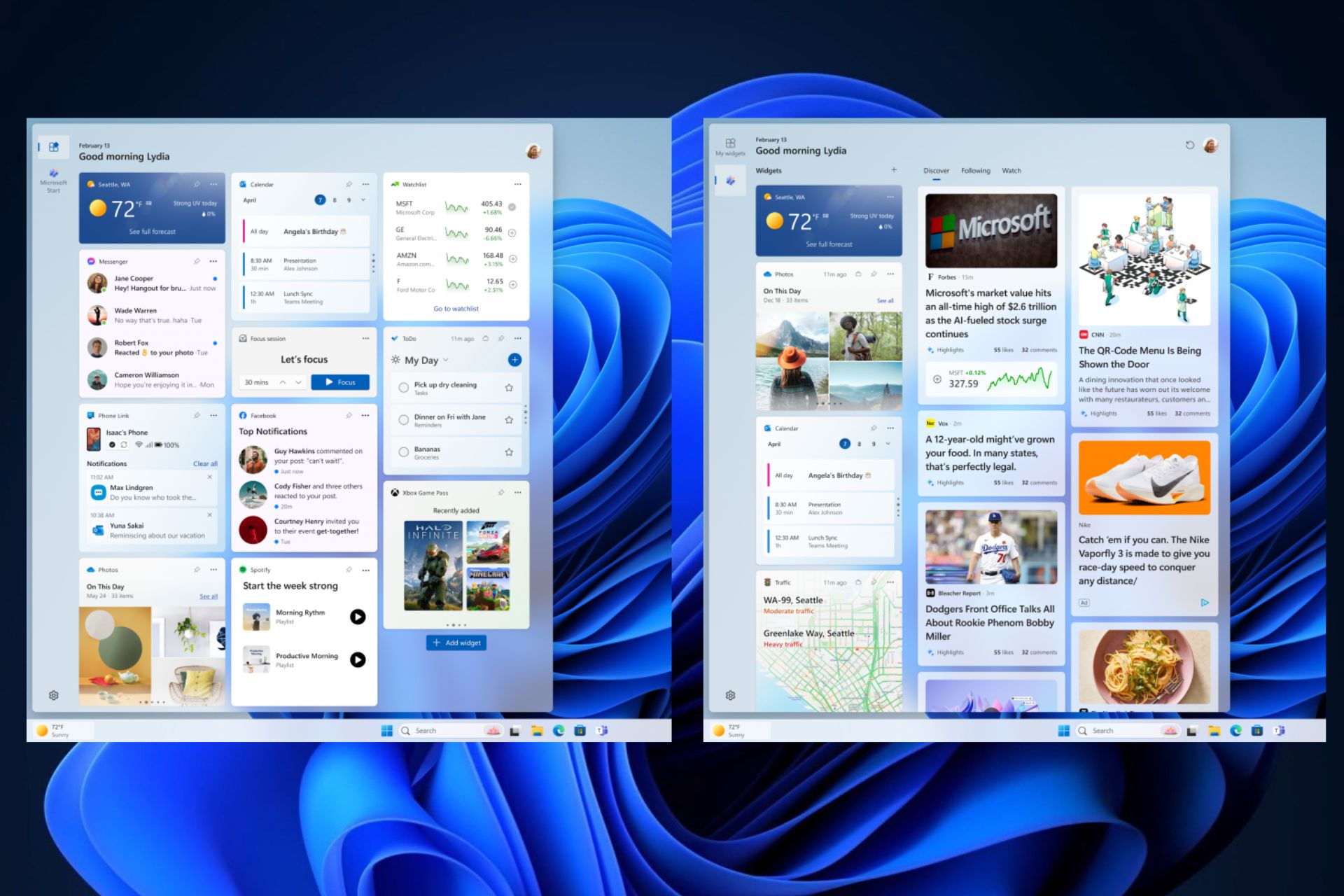
Microsoft released the Windows 11 Build 2605 to the Dev and Canary channel, and it brings some important new features to the operating system. Low-vision Windows users can find the cursor more easily with the brand-new Point Indicator, while Windows 11 users can now enjoy two Widget boards: one for news, and other info, and the other one for their accessing their favorite apps.

While the new features are exciting and necessary, there is one improvement, in particular, that will be enjoyed by many Windows users: Microsoft finally makes Windows 11’s File Explorer less confusing to users, by adding context to its menu.

So, for instance, up until now, when you right-clicked on an item in File Explorer, you only had the icons to perform actions such as copy, cut, paste, and so on, and many of these icons were confusing to users.

However, now Microsoft added context to the icons, making it easier for users to know what they’re doing. For now, this improvement is only available to those enlisted in the Dev and Canary channels within the Windows Insider Channel, but it should be out to Windows 11 with the next Patch Tuesday updates.

Windows 11 Build 2605 is also available to both Dev, and the Canary channels, and Insiders can switch between them at will, now, temporarily, of course. If you don’t see this new File Explorer improvement on your Dev Channel, then you can easily switch to the Canary channel to see if it’s there.

Usually, as long as the feature is not hidden, in which case you would need to uncover it with a special tool, such as ViveTool, the channels should have it. If not, switching between them, now that Insiders can do that, could reveal it.

The new improvement is necessary, as File Explorer could cause a lot of confusion among those Windows users who recently migrated to Windows 11. And there might be an influx of users doing so this year, especially given that Windows 10’s EOS is approaching.

So, Microsoft made the right choice.

The full blog post can be read here.

As if one Widget board wasn’t enough, Windows 11 now lets users have 2 Widget boards

The latest build to the Dev and Canary channel, the 26058 build, keeps the tradition established with the previous one and brings the same features to both channels at the same time. The 26058 build, for instance, introduces the Point Indicator which lets low-vision Windows users locate their cursors more easily.

However, Microsoft also made some significant changes to the Windows 11 Widget board with this build. You’ll no longer have one Widget board on Windows 11, but 2, now, and you can switch between them at will.

Windows 11 introduces a new button when you open the Widget board, that lets you switch between a Widget board that showcases news, weather, and other similar topics, and a Widget board that is made up of all your favorite, and most used Windows apps.

We’re continuing to evolve the widgets board experience and you can now have more space for your favorite widgets and stay on top of current events with a feed that helps you discover the world around you. With the introduction of the new navigation bar on the left, you can switch between a dedicated widgets dashboard and other integrated dashboards like Discover.

Microsoft

This feature is gradually rolling out to Dev and Canary Insiders, so not every Insider is going to be able to have it right away.

However, if you do want to speed up the process (aka uncovering this feature), Windows Insider @PhantomOfEarth, says Windows 11 Insiders can enable it via a special ViveTool command. For those of you who don’t know, ViveTool is a third-party app used to enable hidden Windows features, and we have a comprehensive guide on how to use it.

Here’s the special command:

vivetool /enable /id:47370305

This is just one of the Windows 11 Widget Board improvements, the other Widget board improvement is the notification badging for Widgets. In other words, the Widget board will now display missed notifications, on the taskbar, initially.

When you open the Widget board, a new panel with all the missed notifications will appear at the top left corner of the board.

As we mentioned earlier, these Windows 11 widget board improvements are rolled out gradually, unless you want to uncover them with ViveTool.

This build is also the same for both Dev and Canary Insider channels, so you can switch between them if you want. Keep in mind that this is temporary and at one moment in the future, the two channels will receive different builds.

The full blog post can be read here.

Low-vision Windows users can now easily locate the cursor with the new Pointer Indicator

Microsoft released the 26058 build to the Dev, and Canary channels, and it’s the second build to be released to both channels, without any difference, something that the Redmond-based tech giant says will be for a while.

The build brings some new features to Windows 11, including the brand-new Pointer Indicator, which can be used by low-vision Windows users to easily locate and use the Windows cursor on their devices.

The pointer indicator consists of cross-shaped straight lines that sport bring colors (usually red, but users can choose from a variety of colors), with the pointer being at the center of this cross, as you can see in the featured image above.

Windows 11 also introduced a new panel on the Settings page, specifically for this new option, The Pointer Indicator settings, and it lets users customize the color of the lines, and also add additional effects to the cursor to locate it faster.

Here’s how this new page looks: Windows 11 Pointer Indicator

The 26058 build also brought dozens of other new features, including widgets board improvements, and a new notification badging for them, as well as the richer weather experience finally making its way to the Canary channel.

However, if you notice your lock screen displaying text in another language, you should be aware that it is due to the new weather experience in the lock screen. Windows users complained about this issue, when their Windows 10, and Windows 11 devices began displaying text in languages other than the default one, with Spanish, Mandarin, or Swedish popping up.

Other than that, if you’re enlisted in the Windows Insider Program, you should know that, for now, you can easily switch between the Dev and the Canary channels, and as we mentioned earlier, this build also keeps this tradition. So you’re now able to get the best of both worlds (or the worst, as these channels are a bit unstable).

The full blog post can be found here.

Now it’s your chance to grab a cheap Xbox Series X

It’s time to buy a cheap Xbox Series X quickly before they return to the original price. Also, if you don’t want to buy it for $450, you can try looking for other sellers. However, you must hurry to catch the offers.

The consoles are not the only cheap deals. You can also opt for bundles featuring games like Diablo IV and Forza 5.

Why is Xbox selling Series X consoles for cheap?

It’s uncertain why Xbox is selling the Series X consoles for a low price. However, it could be to calm down the community. After all, many Xbox players sell their consoles because of the rumors about the company changing business tactics. On top of that, some of the exclusive games are coming to other platforms soon.

However, maybe the whole situation was just a well-planned strategy to sell more consoles as fast as possible. However, we might find out more tomorrow during the official Xbox podcast.

The console is so cheap that you could get it as a gift for your significant other, friends, or family. Also, if you want to get the Xbox Series X for a cheaper price, you can consider getting a refurbished console. On top of that, you can gamble and look for them on eBay or similar sites.

Ultimately, we consider this deal a chance for most gamers to get an Xbox Series X before they run out. In addition, the consoles are great, and Xbox will continue working on them. Also, if you are using Xbox Game Pass without a console, now it’s your time to switch devices. On top of that, there’s nothing you can lose. After all, you should be able to return the console if you are unhappy with its performance.

Here’s what you need to know if you are wondering if it is a good time to buy an Xbox.

What are your thoughts? Will you buy a cheap Xbox Series X? Let us know in the comments.

Skype will now turn your voice messages into text messages

Microsoft released Skype 8113 to the Insider Program, and with it, the Redmond-based tech giant officially debuts the ability to let users turn their voice messages into text messages, with the brand-new Audio Transcription feature.

The feature is quite useful in situations of accessibility, meaning hearing-impaired Skype users will now be able to respond to audio messages on Skype, but it can also be used in noisy environments, as Microsoft points out:

Enhance your audio messaging with Skype’s latest feature – Audio Transcription! Building on our recent UI improvements, we’re excited to unveil an addition that transforms how you interact with voice messages.

  • Transcribe on Tap: Discover the power of clarity with a single click. Activate the audio transcription by tapping the “A with a pencil” icon and watch your voice messages converted into text in real-time.
  • Seamless Integration: Our transcription feature is seamlessly integrated into the refreshed audio messages UI, ensuring a harmonious and intuitive user experience.
  • Visual and Textual Harmony: Experience the best of both worlds as the waveform and text transcription coexist. Engage with audio messages either by listening or reading, or both!
  • Instant Understanding: Don’t miss a beat with immediate transcriptions that help you grasp the essence of messages faster, perfect for quick reviews or when you’re in a noisy environment.
  • Enhanced Accessibility: Skype’s commitment to inclusivity shines brighter with audio transcriptions, making audio messages accessible to everyone, including those with hearing impairments.
Skype

Skype 8113 also brought several enhancements and improvements to the emoji board panel, and users will now be able to look for emojis in different categories, from smiles, to hand gestures, and reactions, and GIFs.

The last build also made some changes to the way people interact with emojis and reactions on Skype, so we’re inclined to think Microsoft is releasing all these new features in an attempt to position Skype as a suitable option for personal communication.

If it continues this way, Skype might have a chance against the likes of Messenger, WhatsApp, or Telegram.

Microsoft.NET9: OpenAI integration, and tools for cloud-native developers

The initial vision of .NET9 is set to be released later this year, according to the latest Microsoft Devblogs post, which also documents a first preview of the new version of the open-source development platform.

What to expect from Microsoft.NET9? In shorter terms, developers should expect increased OpenAI integration, and the usage of AI tools to create and develop apps, as well as many tools for cloud-native developers.

The platform will continue its cloud integration by giving cloud-native developers both a platform, and the tools to do so. More specifically, Microsoft.NET9 will integrate Azure Container Apps and Kubernetes-based environment to allow developers to lay the foundation for cloud-based apps.

Our Azure Container Apps partners will ensure that .NET 9 apps can be scaled to multiple instances easily within their Kubernetes-based environment. We’re working with them to ensure that ephemeral data – like anti-forgery and auth tokens – are encrypted correctly using Data Protection and that rate limiting APIs are improved to ensure optimal behavior for and across each node.

Microsoft

New deployment experiences for .NET Aspire are set to be integrated into Visual Code, and Visual Studio with the release of .NET9, which also enhances and improves the deployment of cloud-based apps.

Visual Studio and Visual Studio Code will include new development and deployment experiences for .NET Aspire. This will include configuring components, debugging (including hot-reload) the AppHost and child processes, and fully integrating with the developer dashboard. Developers will be able to deploy their projects to Azure Container Apps, from Visual Studio, Visual Studio Code, and with Azure Developer CLI (azd).

Microsoft

Developers will also have increased access to AI tools to use in developing apps, with .NET9 allowing faster and easier access to OpenAI tools, such as documentation and libraries.

Looking ahead towards .NET 9, we are committed to making it even easier for .NET developers to integrate artificial intelligence into their existing and new applications. Developers will find great libraries and documentation for working with OpenAI and OSS models (hosted and local), and we’ll continue collaborating on Semantic Kernel, OpenAI, and Azure SDK to ensure that .NET developers have a first-class experience building intelligent applications.

Microsoft

And for those who want to preview the new .NET9, Microsoft is now letting them download it here, along with .NET Aspire Preview 3, which can checked out here.

Good News for Microsoft Insiders: Split and merge table cells in PowerPoint for iPad 

The product Manager on the PowerPoint team, Ekta Dwivedy shared that starting today Microsoft 365 Insiders can split and merge cells in tables in PowerPoint on iPad.

The addition of this feature on PowerPoint for iPad is good for the customization and organization of tables within presentations, which ensures a neat look and enhanced readability.

To use this feature, Microsoft 365 Insiders should be on Beta Channel version 2.82. This feature can reduce the cognitive load related to the complex table structures, and let you focus on delivering powerful presentations.

Split and merge table cells in PowerPoint for iPad 

On a PowerPoint slide that has a table, choose one or more cells, then tap Table, then Merge, and select Merge Cells.

Merge cells

To revert the configuration, select the cell, tap Table, then Merge and select Split Cells. This frees you from manual reorganization and customization, thus saving you time.

With the focus on productivity and ease of use, Microsoft has once again proved its commitment to refinement and providing a better user experience while using its products.

In case you also want to join the Insiders team to get access to exclusive features before their official release, read this guide.

What do you think about this new feature of PowerPoint on iPad? Share your thoughts in the comments section below.

People seriously lash out at the New Outlook, asking Microsoft for the old one back

The new Outlook debuted some while ago, and despite Microsoft showering it with many features, including Copilot, and many other features, many users prefer the classic version of Outlook.

While Microsoft said that the classic Outlook will most likely be retired entirely by 2025, the Redmond-based tech giant keeps updating this version with new features: for example, Copilot made its way to the classic Outlook, just as it made its way to Windows 10.

However, many Outlook users don’t enjoy the new Outlook, and many of them think the version is not good. For example, on Reddit, there are Outlook users who feel that the new Outlook is slowing down their productivity, describing it as a ‘hellscape of an app’.

I wanted to test New Outlook so that when it becomes inevitable I can better support users. I had to throw in the towel today. It was seriously hampering my productivity. So much missing, so many really useful features simply absent. Microsoft is now the most valuable company in the world and they release this half baked steaming POS. I’d be better off using Outlook Express, Thunderbird, Groupwise or Lotus Notes. Seriously. It’s like everyone who’d ever developed Outlook over the years were rounded up in Redmond and shot and a bunch of Gen Alpha developers decided to build something from scratch. Going to be pushing a reg key to users to prevent them even from experiencing this hellscape of an app until MS finally has their come to their FSM moment.

Reddit user

The Reddit post turned into a rich thread with hundreds of users agreeing on the topic: the new Outlook is not of any good.

Another, even more recent post

Just yesterday I got to test the New Outlook. And it’s horrible! Please don’t think that I’m one of those guys who deny to update. Trust me, I love updates. But this time Microsoft failed me! The new outlook is just a webview version of the one we access from their website. It doesn’t have many functionality. Profiles, gone. Add-ons, gone. Recall feature, gone. I’m truly amazed how Microsoft can take a well-established product and turn it into a must forget product!

Reddit user

This thread also spurred over 800 comments, most of them negative, but there are also some users who think that the new Outlook is not so bad at all:

At first I felt the same, but slowly not anymore. The new Outlook eliminates many problems, such as OST/PST issues, auto discover conflicts in hybrid environment, add-ons causing Outlook crashing, profile not loading, etc. With the new Outlook, all you have to worry about for now is your Internet connection, and Microsoft services not going down. Oh, and DNS. Just in case.

Reddit user

So why is Microsoft pushing it? Back in September, the teams behind Outlook said the new version is more suitable for the new Microsoft 365 environment, and with its UI, the emailing app will be able to integrate seamlessly with the whole 365 platform.

The team also mentioned that, as you can see in the video below, the new version will get many new features, but these will always be released based on the users’ feedback.

We are constantly using people’s feedback to inform our backlog of work.

Outlook team

So as you can see, there are some reasons on why Microsoft wants the new Outlook to become the standard Outlook. However, despite announcing the retirement of the classic Outlook, there is the prevalence of Microsoft releasing new updates for it, quite frequently.

Instead of retiring it, why doesn’t Microsoft keep it this way, because there are a lot of users who would still be on it, and just update it with security features?

The Redmond-based tech giant should be seriously considering it because multiple users mention migrating to an entirely new emailing platform, such as Thunderbird, Groupwise, or Lotus Notes, instead of using the new Outlook.

Microsoft, you already have the users’ feedback. Use it wisely!

What do you think about the new Outlook? Let’s discuss it in the comments section below.

DarkMe Malware Exploits Zero-Day Vulnerability in Microsoft SmartScreen , Targeting Financial Traders

In an alarming discovery, Trend Micro’s cybersecurity researchers have disclosed that an advanced persistent threat actor called Water Hydra or DarkCasino has exploited a security flaw in Microsoft Defender SmartScreen as a zero-day vulnerability.

The researchers have been tracking this malicious campaign since late December 2023, and this involves the exploitation of CVE-2024-21412, a security bypass vulnerability associated with Internet Shortcut Files (.URL)

In a report on Tuesday, the cybersecurity firm said:

In this attack chain, the threat actor leveraged CVE-2024-21412 to bypass Microsoft Defender SmartScreen and infect victims with the DarkMe malware.

Microsoft has fixed the vulnerability in its February Patch Tuesday update and warned that an unsubstantiated attacker could take advantage of the flaw by sending a carefully crafted file to the targeted person, thereby circumventing the displayed security checks.

However, the attack will only be successful if the victim clicks the file link and views the content controlled by the attacker.

The infection process, as Trend Micro describes, involves the exploitation of CVE-2024-21412 to drop a malicious installer file 7z.msi.

This happens if the victim clicks on the malicious link (fxbulls[.]ru), which is distributed through Forex Trading forums.

The URL is disguised as a link to a stock chart image, but it actually takes you to an internet shortcut file (photo_2023-12-29.jpg.url)

According to security researchers, Peter Girnus, Aliakbar Zahravi, and Simon Zuckerbraun:

The landing page on fxbulls[.]ru contains a link to a malicious WebDAV share with a filtered crafted view. When users click on this link, the browser will ask them to open the link in Windows Explorer. This is not a security prompt, so the user might not think that this link is malicious.

The threat actor takes advantage of the search: application protocol, which is used to call the desktop search application on Windows and is infamous for being abused in the past to deliver malware.

This deceptive internet shortcut file points to another hosted on a remover 2.url, which directs to a Command Prompt shell script within a ZIP archive, a2.zip/a2.cmd.

The complexity of this referencing strategy serves to avoid SmartScreen, as it fails to properly apply the Mark of the Web, a vital Windows component that warns you when you open files from untrusted sources.

The final objective of the campaign is to

The final objective of the campaign is to cautiously deliver the Visual Basic trojan called DarkMe while keeping up the facade of displaying a stick graph to the affected user throughout the exploitation and infection chain.

DarkMe can download and execute extra instructions, connect with a command-and-control (C2) server, and collect information from the compromised device.

The discovery of this zero-day exploit has raised concerns about the advancement of hacker tactics.

The researchers at Trend Micro also mentioned:

Water Hydra possess the technical knowledge and tools to discover and exploit zero-day vulnerabilities in advanced campaigns, deploying highly destructive malware such as DarkMe.

As the cybersecurity community deals with these emerging threats, it is better to stay vigilant and make sure you install all security updates to keep your devices protected against ever-evolving cyber threats.

What steps do you take to avoid these attacks? Share the tips & tricks you follow to stay away from these threats in the comments section below.

If you’re single and miserable on Valentine’s Day, Opera has your back with the Heartblocker plugin

Opera GX, the browser dedicated to gamers (and different from the regular Opera), has introduced a limited plugin, Heartblocker, available on February 13, 14, and 15, with the sole purpose of blocking anything related to the Valentine’s Day celebration.

In a press release, Opera says Heartblocker will replace certain ‘sweet’ words with their more pragmatic counterparts, and pinky-colored designs with a more darkened color.

Introducing the Heartblocker browser extension designed to keep your online experience free from love-themed text and images. The Text Replacement feature scans your online content for love-theme words and replaces them with more neutral terminology. For example, the term ‘Valentine’s Day’ is replaced with ‘14th February’, ‘kiss’ becomes ‘mouth to mouth contact’, while ‘couple’ becomes ‘romantic situation’.

Opera

To make it even better, Heartblocker comes in 2 modes:

  • Normal mode: it replaces text and images with their neutral counterparts.
  • Emo mode: it replaces text and images with more severe alternatives (‘Valentine’s Day’ will be replaced with ‘cursed day’, while pink will turn into black).

The extension is available in many languages, including English, French, Spanish, German, and Polish, and it can be downloaded by visiting the official webpage. It’s worth mentioning, once again, that it only works on Opera GX, and below, you can see some examples: opera heartblocker

There you go. Go ahead and download the extension, and make yourself oblivious to the sweet, sugary atmosphere that’s going on around us these days.

Xbox Remote Play: You can now play over 100 Xbox games by using your mobile phone as a controller

Xbox has now enabled touch controls in Xbox Remote Play, meaning Xbox users will be able to use their mobile phones as the Xbox controller, all through by using the Xbox App.

The company updated the Xbox App for Android, iOS, and Windows to support touch controls for over 100 games, including Minecraft Dungeons, Sea of Thieves, and Psychonauts 2. You’ll be able to customize the touch controls in any way you want. Plus, Xbox introduced a new basic touch control layout that can be used with any other game.

Want to play games when away from your console, but don’t have your Xbox Wireless Controller handy? No problem! Xbox remote play now supports custom touch control layouts on more than a hundred games when using the Xbox app on iOS, Android, and Windows devices. The same custom touch layouts available through Xbox Cloud Gaming (Beta) will now be available when remotely playing games from your personal console. This includes games like Minecraft Dungeons, Psychonauts 2, Sea of Thieves, and many more. Additionally, a basic touch control layout can now be used for most other games.

Xbox

However, the changes to Xbox Remote Play were not the only ones announced. According to the latest blog post, Xbox also introduced a new thumbstick recalibration tool for the Xbox Wireless Controller, a new improved filtering and sorting option, and the feature to automatically sign out.

The new thumbstick recalibration tool for the Xbox Wireless Controller will let users repair their Xbox Controller by using the Xbox Accessories App without the need to call for customer support, control repairs, or returns.

However, the thumbstick recalibration tool should only be used for minor thumbstick issues, such as inconsistent responses.

We’re excited to release a user-guided, self-calibration tool on the Xbox Accessories app that helps you to recalibrate thumbsticks for Xbox Wireless Controllers. This is part of Xbox’s continued investment in improving the repairability experience of controllers. To address minor thumbstick issues such as inconsistent responses, use the self-calibration tool in the Xbox Accessories app on console or PC to resolve issues without the need for support calls, controller repairs, or returns. 

Xbox

The new improved filtering and sorting option includes the option to filter Xbox games by new categories such as accessibility, supported languages, and technical features. Aside from this, the subscription tab in the Xbox library will also sort games by Recently added, so users will be able to see the new titles added to Xbox Game Pass and EA Play.

Ultimately, the Automatic sign-off is quite a useful new feature in situations when an Xbox console is shared by many users. This new feature will automatically delete the Xbox profile when the current user signs off.

Xbox promised some new features this month, as the Xbox Insider Community turns 10, and while we don’t know if these are related to the celebration, they’re most certainly welcomed.

Can Notion’s new productivity apps stand a chance against Microsoft 365? Here’s what we think

Notion, a US startup focusing on developing productivity apps, recently acquired Skiff, another company focusing on developing highly encrypted and secure productivity tools, according to the latest reports.

Skiff has been developing security-focused productivity tools, such as text editing apps, calendars, mail apps, and so on, and the company’s products have been seen as a more secure alternative to giants such as Google Docs, and Microsoft 365 apps.

The company had also been on Notion’s radar since 2020, and now that the acquisition was made last month, we began to wonder if the combined forces of Notion and Skiff can stand a chance against Microsoft 365 and Google Suite.

Skiff-Notion’s productivity suite might become the go-to platform for organizations

Why are we saying this? Well, the answer is quite obvious. Skiff has been developing secure and highly encrypted productivity apps right from its inception, and their tools are widely perceived as the more secure versions of the Microsft 365 apps.

Organizations and commercial customers trying to protect their data, and documents will most likely find the Skiff-Notion productivity platform as the better choice. Not only the platform have everything a company needs, from text editing tools to calendars, mail apps, and AIs, but it will also be less prone to phishing attacks, malware, security issues, and sensitive data loss.

Even though Microsoft 365 is quite comprehensive and updated regularly (Microsoft Teams, for example, has a new Copilot experience), the platform is extremely vulnerable to malware, and phishing attacks.

In fact, in 2022, over 80% of Microsoft 365 accounts were the target of at least one hacking attack, and the trend continues well into 2024, where there are reports that Microsoft 365 is hitting a peak when it comes to being the target of cyberattacks.

This fact alone would make a lot of companies consider another platform if only there were one. While Microsoft does its best to counter these attacks, and most of the time, it manages to do so, the Redmond-based tech giant has seen instances where it wouldn’t address serious vulnerabilities that would cause the leak of extremely sensitive data.

However, the Notion-Skiff productivity platform might just be the answer. With its highly secure capabilities and encrypting features, Notion could take on Microsoft, or Google, in just a few years.

Assuming they will position themselves as the more secure option, the company could easily overtake Microsoft 365 in the long run. Our most recent survey shows that Copilot is not yet adopted by the employees out there, and AI still has a long way until it truly becomes part of the workforce.

This only shows the need for a simplistic yet secure productivity platform, that has exactly what companies need without the AI fuss or extra features that nobody will actually use.

We’ll have to wait and see, but it is a possibility.

Pentiment and Hi-Fi Rush will be the first Xbox exclusives to go multi-platform

Microsoft is changing its business strategy for the gaming front, and as a result of that, some of the Xbox exclusives are on their way to other platforms, including the rival platform, PlayStation 5.

Earlier this month, when datamining hinted that Hi-Fi Rush, released in 2023, could be going to Nintendo Switch in the near future.

With the reports of new strategies and substantial changes in multi-platform gaming, these rumors gained momentum.

Phil Spencer reportedly confirmed to employees that Xbox consoles are not going anywhere, and he also mentioned that he would reveal updates on the future of Xbox in a podcast on February 15, 2024.

Apart from this, there is no official information about the speculations circulating about the Xbox exclusives until now.

However in a recent report by Verge, that Hi-Fi Rush and Pentiment will be the first Xbox exclusives to appear on PS5 and other rival platforms, followed by Sea of Thieves later this year.

In another report by Verge, Bethesda is planning to bring Indiana Jones and the Great Circle to PlayStation 5 after a brief period of Xbox exclusivity.

According to this report:

Microsoft’s new multi-platform approach for Xbox games hasn’t been finalized.

This means that the decisions on the game releases for PS5 or Nintendo Switch may be made on a case-by-case basis.

Earlier, a well-known leaker, NateTheHate, made the claim that Starfield is all set to come to PlayStation 5. However, he backtracked it and called it a lapse in judgment.

So, another report said that Starfield could come to PS5 after its Shattered Space expansion release, but there is no release date for that yet, so it is safe to say that Starfield might not be on the list of first Xbox exclusives going multi-platform.

Another rumor hints that Halo Infinite would come to other platforms, but there is no corroboration of this speculation as well.

As a game enthusiast, all we can do is wait for this Thursday’s business update, wherein Phil Spencer might shed some light on the Xbox exclusives’ future and name the games going on rival platforms.

Until then, the entire gaming community will remain on the edge of their seats, contemplating the implications of this reported shift in Microsoft’s gaming strategy.

Are you also waiting for the business update from Microsoft? Mention the Xbox exclusives that you want to see on PS5 in the comments section below.

Slack AI has joined the chat, literally: users can now summarize threads and search for specific results with it

Slack just released its new AI tool, Slack AI, to the platform, and the tech company promises it will help users get work done, more efficiently and without wasting a lot of time. The AI tool is now available to all Enterprise customers as a paid add-on, and for now, it’s only available in English, although Slack says more languages will be added to it soon.

For now, Slack AI will offer capabilities similar to the existing AI tools on the market, such as ChatGPT or Microsoft Copilot. According to Slack, these capabilities include:

  • Search answers that deliver personalized, intelligent responses to questions.
  • Channel recaps that generate key highlights from accessible channels.
  • Thread summaries that catch users up on long conversations in one click.

It’s worth mentioning that similar to Copilot and ChatGPT, users won’t need any training on how to use Slack AI, as the tool is intuitive and easy to learn, says the tech company.

These new native features are easy to use and require no training. They prioritize exactly what you need to know, when you need to know it. And they’re built on Slack’s secure, trusted infrastructure so that you remain in full control of your data.

Slack

The company says Slack AI can be used in a variety of scenarios, including those listed below. The tool is designed to greatly improve efficiency all around while communicating with other team members on Slack. Some of these situation are:

  • Learn about a new marketing campaign or project 
  • Get up to speed on company policies, such as the deal approval process
  • Find internal subject-matter experts to resolve an engineering incident
  • Glean insights about past decisions from historical context
  • Define unfamiliar acronyms
  • Catch up after time away from work
  • Get up to speed on a new project
  • Stay informed on customers in sales account channels
  • Outline a root cause analysis from incident response channels
  • Extract themes from design feedback channels 

In the following months, Slack AI will be updated to be able to generate key highlights, and will integrate other AI tools, such as the Einstein Copilot by Salesforce. No, it’s this is not Copilot for Sales, but another AI tool that can handle similar tasks.

With this being said, Slack also introduces AI integration, and users will be able to add a plethora of AI apps on Slack now, including PagerDuty, Notion, or Perplexity.

Is it a good time to be a Slack user, right? What do you think?

It was just a matter of time: Microsoft says hackers are using AI to enable cyberattacks

In a recent report published by the Redmond-based tech giant, Microsoft and OpenAI detected multiple hackers from Russia, China, North Korea, and Iran, using generative AI to enable and launch cyberattacks.

While it was just a matter of time until AI was going to be used this way, it still comes as a surprise and a shock, due to the AI’s capabilities to convincingly emulate real identities, forms of communication, and so on.

However, Microsoft in a partnership with OpenAI, is researching these cyberattacks to understand how they work, and how they can be stopped before wreaking havoc on the targets.

The two companies found no less than 5 threat actors: the Russian Forest Blizzard, the Iranian Crimson SandStorm, the North Korean Emerald Sleet, the Chinese Charcoal Typhoon, and the Salmon Typhoon.

All of them are using various AI technologies, from generating malware content to researching vulnerabilities in order to infiltrate, disrupt, and damage targets such as government institutions. However, Microsoft was able to apprehend and disable all accounts related to these threat actors.

To further combat these attacks, Microsoft and OpenAI will continue researching AI-based cyberattacks, which will include making ChatGPT and Copilot more secure, as well.

The objective of Microsoft’s partnership with OpenAI, including the release of this research, is to ensure the safe and responsible use of AI technologies like ChatGPT, upholding the highest standards of ethical application to protect the community from potential misuse. As part of this commitment, we have taken measures to disrupt assets and accounts associated with threat actors, improve the protection of OpenAI LLM technology and users from attack or abuse, and shape the guardrails and safety mechanisms around our models. 

Microsoft

The Redmond-based tech giant recently released Microsoft Security Copilot, which the company says it will be updated to detect other AI-based cyberattacks.

Hackers using AI: How should customers prepare for AI-based cyberattacks?

Organizations using Microsoft services and products, should set up Microsoft Security Copilot in place, and keep it updated, along with the rest of the Windows devices and Microsoft apps.

As with any other cyberattacks, customers are advised to not open anything that seems suspicious, from emails to attachments, Teams meeting links, and so on.

Per Microsoft’s report, AI-based cyberattacks are fairly complex, and they can bypass many security authentication methods, however, both ChatGPT and Copilot should be safe, as Microsoft and OpenAI will regularly update their security software.

As we said earlier, hackers using AI to initiate cyberattacks was just a matter of time, however, being aware that it can happen is the first step to preventing it from actually happening.

Microsoft finally sheds light on the Red Ring of Death in the latest documentary

If you were a gamer in the late 2000’s you’re probably familiar with the term Red Ring of Death. This issue was affecting thousands of Xbox 360 consoles making them unusable.

But what was this ring of death and why was it affecting so many consoles? After years of speculation, we finally have an official answer from Microsoft.

Microsoft has officially confirmed what was causing Red Ring of Death on Xbox 360

Ever since the release of Xbox 360, it was plagued with hardware failure, and this would manifest as a red ring around the power button, thus gaining its infamous name.

This was a widespread issue that affected numerous customers, and for years we were speculating what caused it, but now we know.

According to Gaming Bible, the upcoming documentary Power On: The Story of Xbox has an answer. In it, the former head of Microsoft, Peter Moore, has explained the cause of this problem.

It seems that the console was getting extremely hot and then quickly cooled down. This caused a massive strain on the internal system that resulted in the Red Ring of Death.

Back in its heyday, this issue cost Microsoft more than one billion dollars in lost sales and repair, and let’s not forget the hours of headache that users had to endure.

The time of Red Ring of Death is long gone, and with the next-gen Xbox console with an Intel APU on its way, many are wondering if is this a good time to get Series X.

Have you ever had this issue? If so, share your experience in the comments!

Nvidia Chat with RTX: this local AI tool is very powerful, but it’ll eat a lot of storage

Nvidia released Chat with RTX, an AI tool that runs locally on Windows PCs, including Windows 11, and while this is just an early demo version, it is a serious competition to the other similar AI tools out there, including Microsoft Copilot.

Chat with RTX runs locally on the Windows PC, meaning it doesn’t need to connect to the Internet to work, and it doesn’t rely on Cloud servers either. The tool lets Windows users choose from two LLMs (Lllama and Mistral), and upload different documents in different formats (docs, videos, notes, or other data), and then it will process these documents according to the user’s requests.

Chat With RTX is a demo app that lets you personalize a GPT large language model (LLM) connected to your own content—docs, notes, videos, or other data. Leveraging retrieval-augmented generation (RAG), TensorRT-LLM, and RTX acceleration, you can query a custom chatbot to quickly get contextually relevant answers. And because it all runs locally on your Windows RTX PC or workstation, you’ll get fast and secure results.

Nvidia

However, being a locally run AI, Chat with RTX will need to be installed on your Windows PC first, and unlike Microsoft Copilot or Open AI’s ChatGPT, which can be run online, this tool will require some serious power to run.

You’ll need at least 8GB of VRAM, and 16GB of RAM, and it only runs on Windows 11, for now, as you can see in its system requirements below:

PlatformWindows
GPUNVIDIA GeForce™ RTX 30 or 40 Series GPU or NVIDIA RTX™ Ampere or Ada Generation GPU with at least 8GB of VRAM
RAM16GB or greater
OSWindows 11
Driver535.11 or later

But this is not enough, though. The Demo version of the Chat with RTX requires 35.1 GB of storage to be installed, so prepare to free some space for it. It’s worth mentioning that this is just a demo, so the actual app will most likely require more space, and more power altogether.

We weren’t able to test it out, just yet, but being a locally run AI, although it comes with some advantages, it will have a lot of disadvantages, as well: notably, these kind of AI tools don’t remember context, as it can’t be stored in the cloud, so users might find it frustrating.

However, considering this is just a demo, maybe Nvidia will somehow twitch the model to create a local folder where it can store the context.

We’ll see. But it can be a good option for those who want something different from the regular Copilot or ChatGPT. However, get ready: Nvidia Chat with RTX will use your PC’s resources.

You can download it from here.

Microsoft Patch Tuesday update squashes 73 security flaws and 2 zero-day exploits

After the KB5034765 update that brought many fixes, Microsoft released another update that addressed security issues.

The update fixes dozens of security flaws and several zero-day exploits, so make sure you get it as soon as possible.

Patch Tuesday addresses various security issues and exploits

The new security patch is here for Patch Tuesday, and according to Bleeping Computer, it addresses 73 security flaws. Here’s the breakdown of addressed vulnerabilities:

  • 30 remote code execution vulnerabilities
  • 16 elevation of privilege flaws
  • 10 spoofing security issues
  • 9 denial of service vulnerabilities
  • 5 information disclosure issues
  • 3 security features bypass security flaws

It seems that Microsoft has been busy with this patch, but that’s not all! The issue also addresses two zero-day exploits.

The CVE-2024-21351 exploit was fixed, and if you’re not familiar, this exploit allowed hackers to bypass Windows SmartScreen by sending a user a malicious file that gave them access.

So far, it’s known how this exploit was abused and how many were affected.

CVE-2024-21412 was also fixed, and this exploit allowed hackers to utilize the Internet Shortcut File flaw and circumvent Mark of the Web warnings.

As for this flaw, it was used by the APT group DarkCasino (Water Hydra) hacker group to target financial traders.

We have to applaud Microsoft for fixing these exploits, and we hope that Microsoft will soon address critical vulnerabilities in Word and Excel as well.

Xbox brings to you free Dune expansion in Microsoft Flight Simulator

In collaboration with Legendary Pictures and Warner Bros. Entertainment, Xbox brings you the Dune expansion and the best part is that it’s free!

There couldn’t be a better chance to explore the exciting world of Arrakis from the cockpit of the Royal Atreides Ornithopter, an upgraded version of the regular aircraft that offers better acceleration, speed, and control.

In the 94-second trailer released on YouTube by Xbox, we get a glimpse of the thrill that awaits us!

What’s included in the Microsoft Flight Simulator’s free Dune expansion?

The expansion pack offers a series of three tutorials, teaching you all the critical skills to fly in the vast, changing landscape of Arrakis. The tutorials include take-off, landing, and free fall.

Once you are through the tutorials, six captivating activities await you. Five of these are time trials, and the last is a rescue mission like none other!

Everyone who owns the game, whether on PC or Xbox, can download the Dune expansion for free.

The Dune expansion pack is a promotion for Dune: Part Two, releasing next month on March 1. But that’s not the only exciting part.

You also stand a chance to win a custom Xbox Series S package and the first-of-its-kind floating Xbox controller stand, all inspired by Dune.

Follow the Xbox’s account on X (formerly Twitter), and retweet the above post with #XboxDunePartTwoSweepstakes. It’s valid until March 25, 2024.

Have you tried the Dune expansion in Microsoft Flight Simulator? Let us know your experience in the comments section.

The new Tulpar gaming handheld looks bulky but it features an Intel Meteor Lake chip

Tulpar, a new gaming handheld console, is coming soon according to Intel Gaming’s post on X. In addition, TweakTown says that it has an Intel Meteor Lake processor. Overall, we don’t know much about the console’s specifications. Yet, we believe that it has the potential to rival the MSI Claw and the OneXPlayer X1 console, and maybe even Legion Go, Steam Deck, and Rogue Ally.

What is the new handheld coming out in 2024?

Tulpar’s new handheld is coming out in 2024 and looks like Emdoor EM-GP080MTL. However, it could be closer to MSI Claw in terms of specifications.

After all, they could share a similar version of the Intel Meteor Lake processor. In addition, if the Tulpar gaming handheld is similar to Emdoor, the console might have an 8-inch screen. But we have to wait to find out more.

By the way, if the first thing you did was to search for Tulpar, we did the same, and here’s what we got. They are a gaming company based in London. Until now, they have come up with a few gaming accessories, monitors, and gaming laptops. In addition, based on reviews, it appears that the products are somewhat average. So, we will have to wait and see the performance of the Tulpar gaming handheld.

Based on the images shared by Intel Gaming, the Tulpar gaming handheld looks great. The joysticks are illuminated, and the buttons have very bright colors too.

In addition, it has two USB type C cable ports, so you can use headphones while charging it or performing another action. On top of that it has 2 trigger buttons one bigger and one smaller, On the other hand, it appears that the console is a bit heavy. However, we hope that it’s not the case.

All things considered, we think that the Tulpar gaming handheld could have great potential. However, we won’t get our hopes up until we see the official specs and more details about it.

However, we hope it will compete with the other handheld consoles available on the market. Furthermore, we want to see how Intel will benefit from it.

What are your thoughts? Are you hyped about the Tulpar gaming handheld? Let us know in the comments.

This budget laptop might be all you need for gaming

MSI Cyborg 15 is a cheap gaming laptop and you can find it for 830$. On top of that, it comes with a strong RTX 4060 Nvidia GeForce GPU.

The laptop looks great, and it has a translucent bottom panel which allows you to see inside. It is quiet, light, and its hardware stays cool. Has it checked all the boxes for you? Check out its specs below!

Is the MSI Cyborg good for gaming?

MSI Cyborg 15 is decent for gaming due to its specifications. Also, it is a great choice if you are more inclined towards graphics and reasonable FPS. Moreover, you can open multiple tabs without a problem.

In addition, the notebook stays cool under load. So, from personal experience it is great for long hours of playing. On top of that, it isn’t noisy. Furthermore, you can play games on 1080p at 144Hz, which is very satisfying.

Specifications for Cyborg 15

Display15.6″ (1,920×1,080), 144Hz Refresh Rate
GPUNVIDIA GeForce RTX 4060
CPUIntel 12th Generation Core i7
RAM8 GB
Storage512GB SSD
Dimension359.36 x 250.34 x 21.95~22.9 mm

You can find Cyborg 15 laptops with different specifications. Some notebooks feature a better CPU, while others have more storage or a better GPU. Thus, you might find them around $1000. Also, there are some with lower specifications at a cheaper price.

Even if the laptop has an NVIDIA RTX 4060 GPU and 16 GB Ram, you might want to play newer games on medium settings to avoid fps loss. Yet, you will have a great gaming experience. Also, for a better performance, consider capping your fps to 60 or more, depending on the game you play.

The design of MSI Cyborg 15 is also very pleasant. After all, the touchpad is big enough to allow you to perform big slides, and the keyboard is spacious and responsive. On top of that, the keys offer some resistance. Thus, you will be able to tap at higher speeds.

MSI Cyborg 15 offers a great audio system. However, it lacks a bit on the bass side. Yet, you will most likely be able to hear everything that happens around you in the game. So, overall, we can call the audio decent.

If you are also interested in graphic design and video editing, you will find MSI Cyborg 15 quite acceptable.

Drawbacks and limitations

There are some drawbacks coming from its simple cooling system, reduced total graphics power, and slightly outdated CPU. Thus, MSI Cyborg 15 might not be as strong as some competitors. In addition, there isn’t a big difference in FPS after adjusting the power plans. Also, we don’t recommend playing in bright environments because its display is dim and not very colorful.

In conclusion, the MSI Cyborg 15 is an adequate choice if you are looking for performance on a budget. Moreover, you can perform office tasks, edit videos, do graphic design to some extent, and play games on medium and high performance. So, if you don’t mind its drawbacks and limitations, we recommend you pick it.

You might also want to know how to update your MSI BIOS easily, or how to fix the MSI driver and app center. So, consider bookmarking them.

What do you think? Is the MSI Cyborg 15 a good choice for you? Let us know in the comments.

No more Show desktop option in Taskbar by default, to be replaced by Copilot

After years of being a vital part of Windows, the Show desktop icon won’t be present by default in the Taskbar, starting KB5034765. It will be replaced by Copilot. This is seen as Microsoft’s efforts to push the adoption of the native chatbot.

Microsoft, in its official blog, states that this is a Controlled Feature Rollout (CFR), meaning devices will receive the new feature set at different times.

Remember, the Show desktop option has not been removed altogether. It’s still a part of Windows 11, just not enabled by default!

To get back the Show desktop icon, press Windows + I to open Settings > go to Personalization from the navigation pane > click Taskbar on the right > expand the Taskbar behaviours entry > tick the checkbox for Select the far corner of the taskbar to show the desktop.

Enabling the Show desktop option in Windows 11

Other ways you can directly go to the desktop in Windows 11

  • Use the dedicated keyboard shortcut: Pressing Windows + D will take you straight to the desktop. Pressing it again will open the last-active app.
  • Via Power User menu: Press Windows + X to open the Power User menu, and select Desktop at the bottom.
  • Use the three-finger swipe: A three-finger downward swipe on the touchpad minimizes all active programs and gets you directly to the desktop. Doing the same upwards will re-open the program. For touchscreen devices, you can swipe on the screen as well.

Whether or not you heavily relied on the Show desktop icon in the Taskbar, it is certainly a convenient option. Microsoft did a great (and surprising) job in not removing it altogether!

Also, Microsoft Copilot is getting a lot of upgrades. We recently reported about full-screen Copilot in Windows. Besides, Copilot may soon offer a personalized experience.

Does this change affect you? Let us know in the comments section.

iMessage, Bing, and Edge remain unaffected by EU market regulations

As you know, Microsoft and FTC have a long history, but after legal troubles, it seems that Microsoft and Apple are catching a break in the EU.

It seems that the two companies, or at least some of their services, won’t be affected by the Digital Markets Act.

Only a handful of services are exempt from this law

According to the Business Times, a couple of services from Apple and Microsoft won’t be subjected to the EU’s anti-monopolization law.

After a recent probe, it was determined that their services don’t have enough power for market abuse, so they won’t be affected by the Digital Markets Act.

However, it’s not all good news for these two companies, and the exemption applies only to iMessage, Bing search engine, Edge browser, and advertising services.

Other services, such as Windows, LinkedIn, iOS, App Store, and Safari browser are subject to legal regulations.

This isn’t anything new for the EU, and many tech giants, including Meta, Alphabet, Amazon, and ByteDance are all affected by this law.

If you’re not familiar, the Digital Markets Act prevents companies from favoriting their products thus preventing monopolization of the market.

Overall, this is good news for Microsoft and Apple and they have greeted this decision.

Unsure about upgrading to Windows 11? Microsoft’s new ad may convince you

Windows 11 hasn’t been as big a success as Microsoft would have imagined. As per Statcounter, only 27.83% of Windows PCs are running the latest iteration.

Strict system requirements are a major reason a few of you couldn’t make the upgrade, but even otherwise, so many continued with Windows 10. It still has a higher market share than Windows 11, even three years after the release of the latter.

This year, it looks like Microsoft is keen on getting users to switch to Windows 11, what it calls the best Windows yet.

First, Microsoft sent upgrade alerts to Windows 10 users, and now it has come up with an ad to highlight the benefits of Windows 11.

Microsoft’s new ad dispels apprehension concerning Windows 11

Microsoft’s latest ad titled, Start Fresh Without Starting Over with Windows 11, highlights how upgrading to the latest iteration won’t be as challenging as you would believe. On the contrary, it will be a seamless transition to a more user-friendly OS.

The 54-second ad puts the spotlight on three critical aspects of Windows 11:

  • Faster search: The Windows 11 Search menu allows you to seamlessly find apps and files on the PC.
  • Better organization: The new File Explorer is more user-friendly and facilitates quick file access.
  • Improved security: Windows 11 Security does a better job and delivers all-around protection.

Personally speaking, the flawless upgrade process, easy-to-navigate interface, a redesigned Settings app, improved performance (specifically gaming), better touchscreen functionality, and revamped tablet mode are the primary reasons Windows 11 seems a better choice than the previous iteration.

At the same time, there are a few disadvantages of Windows 11 that act as a deterrent to mass adoption. In recent releases, Microsoft has tried to eliminate many of these!

It will be evident in a few days whether the new Microsoft ad will get people to upgrade. But as we near the End of Support (EoS) for Windows 10, the number of users installing Windows 11 will certainly witness an uptick.

If haven’t yet upgraded to Windows 11, do share your reason for it in the comments section.

Microsoft 365 Insiders get a sneak peek at OneNote’s ink annotation upgrades

Recently, Victoria Chen, the product manager on the Office AI team, made an announcement about an improvement to OneNote on Windows. It allows you to relocate ink annotations alongside the PDF printouts and images they are linked to.

This change was introduced as a lot of users have given feedback that annotating images or PDF printouts in OneNote was challenging. The ink didn’t move with the image, and using the Lasso tool every time was time-consuming and not easy.

However, with this new update, Microsoft 365 users can move both image and annotation together. Moreover, any ink touching and outside of the image will stay on the image or PDF when you move them, ensuring the ink annotations & picture are together.

Let us see how it works

Open OneNote, go to Insert, then click Picture or Insert, then select File Printout to add an image or PDF printout. Ink the image, then tap on the image to select it and ink using a digital pen, touch, or your mouse. Now, move the selected image anywhere you like.

Here are some tips to use the feature:

  • Tap outside the PDF printout or picture to unselect it
  • To choose the underlying PDF printout or image, first tap to select both annotations and image, then tap it again to select the image only.
  • Select the image and drag the corners of the selection box to resize both the image and ink annotations.

The feature is now available for Microsoft Insiders in the Beta Channel who are running version 2402 (Build 17407.15010) or later. Also, this OneNote feature is currently only available on Windows 10, or 11.

What do you think about this new change? Share your thoughts in the comments section below.

Microsoft releases KB5034765 update to address security issues and more

Recently, Microsoft released the Cumulative Update for Windows 11 Version 23H2 & Version 22H2 for x64-based Systems (KB5034765).

This update came out on the second Patch Tuesday and bumped the OS build to 22621.3155 for Version 22H2 and 22631.3155 for Version 23H2.

The update brought new features like Copilot, which will appear in the system tray instead of next to the Search bar. If you have already updated your Windows 11 to KB5034765, but can’t see the change, you might have to wait for a while as new features are rolled out slowly using Controlled feature rollout to consumers.

This cumulative update also introduced the capability to use digital inking in edit boxes, added a backup option for Eye Control, and resolved issues with Start menu search, 7-Zip support, Narrator, networking, File Explorer, device metadata, and more.

Windows 11 build 22631.3155 and 22621.3155 updates, bug fixes & changes:

  • Copilot will appear on the right side of the system tray on the taskbar, and the Show desktop option will be turned off by default
  • Allows you to backup and automatically transfer eye control system settings when setting up a new device
  • Supports digital handwriting in some boxes in several languages with improved recognition & gesture controls
  • Resolves issues that affect Narrator announcements
  • Fixed an issue causing Explorer.exe to stop responding
  • Addresses an issue that affects the download of device metadata
  • Resolves the issue of sorting out search problems
  • Addresses the issue affecting certain types of 7-Zip files, opening them as empty on File Explorer
  • Fixes issues that affect Wi-Fi Protected Access 3 (WPA3) in the Group Policy Editor
  • Windows is now reliable during power transitions to reduce the risk of stop errors
  • Resolves the issue that affects the OpenType font driver, and 3D emojis will be better now
  • Fixes the issues that affect Access Point Name profiles (APN), Trusted Platform Modules (TPM), Unified Extensible Firmware Interface (UEFI) and BitLocker
  • Addresses the issues to improve WMI functionality, video calls, BlueTooth audio connections, and WMI functionality
  • Resolves an issue related to remote direct memory access (RDMA) performance counters
  • Fixes the bug affecting your computer’s time zone
  • Resolves the crashing issue while waking up from sleep mode
  • Improves Windows Management Instrumentation, now managing settings and devices would be easier than before
  • Fixes the Wi-Fi security settings not showing up issue
  • Updated the list of drivers to ensure Windows installation is safe from attacks

To install the latest update, go to Settings, then select Windows Update, and click Check for updates. Once you see the updates, click Download, then Install to update your device.

If you want to download it manually, you need to visit the Microsoft Update Catalog website and follow these steps to install the update.

In case you have any questions or suggestions, feel free to mention them in the comments section below.

Microsoft is preparing a massive update on the Secure Boot keys for UEFI

Microsoft announced that it’s changing the Secure Boot keys database in collaboration with the OEM partners to further prevent malware attacks before boot.

Secure Boot was implemented first on Windows 8 and it’s a prerequisite for Windows 11. This UEFI security feature appeared as an indispensable method of countering any attacks that occur before the boot sequence, when the system is most vulnerable.

It’s not the first time that Microsoft is updating DBX, but according to the Redmond giant, it’s the first DB update on such a large scale.

Why is Microsoft updating the Secure Boot keys?

First, don’t get alarmed. Microsoft is updating the Secure Boot keys because the Key Exchange Key (KEK), the Allowed Signature Database (DB) and the Disallowed Signature Database (DBX), will expire in 2026.

Microsoft is preparing to roll out replacement certificates that will set new UEFI CA trust anchors for the future. Microsoft will be rolling out Secure Boot database updates in phases to add trust for the new DB and KEK certificates. The first DB update will add the Microsoft Windows UEFI CA 2023 to the system DB. The new Microsoft Windows UEFI CA 2023 will be used to sign Windows boot components prior to the expiration of the Windows Production CA 2011.

Furthermore, Microsoft will validate devices and firmware compatibility and the DB update will be optional for the February 2024 servicing and preview updates.

The full DB update’s controlled-rollout process to all Windows customers will begin during the 2024 April servicing and preview updates, ahead of the certificate expiration in 2026. Meanwhile, efforts to update the Microsoft UEFI CA 2011 (aka third-party UEFI CA) and Microsoft Corporation KEK CA 2011 will begin late 2024, and will follow a similar controlled rollout process as this DB update.

To prevent any problems, Microsoft will block updates for the devices that are identified with any issues.

The DB updates can be also performed manually and the Redmond giant also issued a guide on how to do that and the prerequisites to apply before installing them.

What do you think about Microsoft’s Secure Boot update? Let’s talk about that in the comments section below.

Windows 11 now lets you quickly connect to all Bluetooth devices

In the past, we have had issues connecting to not-so-common devices, say a sensor, on Windows, as they were not listed by default when searching. That changes with the Windows 11 build 26052 recently released in the Dev and Canary channels!

Now, users can view all available Bluetooth devices nearby from within the Quick Access menu. Simply press Windows + A, go to the Bluetooth option, let your PC scan for devices, and then click on Show all devices.

This is a significant upgrade to Bluetooth discovery settings and will come in handy, given that we often connect to such devices, and it’s really a pain when they don’t normally show up on a Windows PC.

To view these devices earlier, you would have to head to Devices under Bluetooth & devices and select Advanced for Bluetooth devices discovery.

Earlier Bluetooth devices discovery setting

As for Windows 11 build 26052, things are still far from perfect! Even though it’s still in the testing stage and hasn’t been rolled out for regular Windows users, issues like data loss during rollback or installation problems can’t be overlooked.

But the latest build does promise a host of exciting features, including improving the OS experience for hearing-impaired users and bringing SUDO to Windows.

Do you think this is the Windows build the community had been waiting for? Let us know in the comments section.

Empowering Web Apps: Chrome’s Universal Install and Shortcut Clarity

Google is exploring ways to make websites in Chrome feel more native and app-like (through installation), while also being transparent that shortcuts aren’t true apps but rather fire-and-forget links. This effort is evident in new experimental features currently tested in Chrome Canary. Remember, these features are still under development and subject to change.

Bridging the Gap Between Websites and Apps

We’ve previously seen collaborations between Microsoft and Google to enhance Progressive Web Apps (PWAs) in Chromium browsers like Edge and Chrome. Now, Chrome Canary introduces new interesting features:

Web App Universal Install

Tired of juggling between web apps and native apps? Say goodbye to limitations! This feature empowers any website to be installed on your computer, regardless of the operating system—whether it’s Windows, Mac, or Linux, Imagine accessing your favorite web tools as seamlessly as desktop apps, without the need for multiple browser tabs.

Web App Universal Install
Allows any site to be installable on Windows, Mac, and Linux. – Mac, Windows, Linux, ChromeOS, Fuchsia, Lacros

Shortcuts, not Apps

If you create a shortcut to a website on your desktop using the available menu option, don’t mistake it for a full-fledged app. Google wants users to understand that these shortcuts are fire-and-forget solutions. They ignore web app manifest information and rely solely on details from the current page. When you double-click a shortcut, it opens in a tab within the Chrome browser, lacking typical web app features.

Shortcuts not Apps
Changes the ‘create shortcut’ 3-dot menu option to put a fire-and-forget link on the desktop, instead of an app. – Mac, Windows, Linux, Fuchsia

Manifest independence

Web app manifests are useful, but sometimes a quick shortcut is all you need. This feature lets you bypass the manifest entirely when creating a shortcut. Chrome extracts relevant information directly from the page, ensuring your shortcut reflects exactly what you want.

Create Shortcut ignores manifest
When the ‘Create Shortcut’ menu item is selected, use information from the current page, ignoring any web app manifest information that may be available. – Mac, Windows, Linux, ChromeOS, Fuchsia, Lacros

Both Shortcuts not Apps and Create Shortcut Ignores Manifest features relate to Google’s goal of clear communication: websites, even when installed, are different from native apps. Shortcuts offer ease of access, not full app functionality.

Key Points to Remember:

  • These features are experimental and subject to change.
  • They aim to improve website interaction but don’t guarantee exact PWA-like behavior.
  • Manage expectations – the final implementation might differ from initial impressions.

Recently, we reported that Chrome on Android is testing a universal install UI for Progressive Web Apps (PWAs). This feature aims to create a unified path for both installation and adding to the home screen. If you’re interested, feel free to check it out.

What’s your take on these changes to web apps or Websites in Chrome browser? Let us know your thoughts in the comments below