Windows 11 Store rolling out in phases to all Windows 10 devices

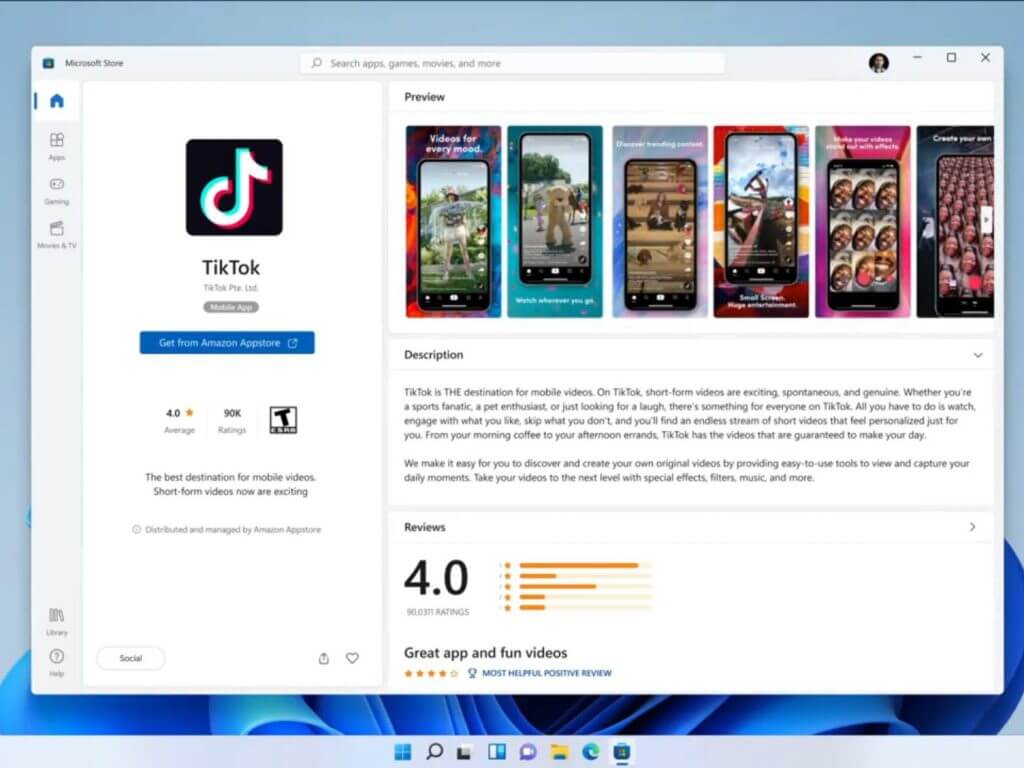
A few weeks ago, Microsoft began testing its revamped Windows 11 app Store with Windows 10 Insiders and it appears testing is over as the new Store becomes available to all Windows 10 users.

Fan favorite and Microsoft Store principal architect Rudy Huyn took to Twitter to announce the good news for Windows 10 users regarding the upgrade to the new store.

As of today, Windows 10 users will have the best of both worlds with access to the revamped Windows 11 Store features that include new store policies, Android apps via Amazon and more PWA’s as well as all of the familiarity of their Windows 10 layouts, UI and Start Menus.

5+ best budget laptops for multitasking

If you’re interested in investing in a good laptop that doesn’t break the bank and is also capable of multitasking, then this list will be very helpful.

Even though these laptops are not capable of the same processing power as some powerful laptops, the CPUs included will be capable of running multiple applications at the same time.

To further improve your multitasking capabilities, it would also be recommended that you invest in a great mouse designed for multitasking.

The options included in this list, even though all accessible when it comes to the price, have been carefully selected to offer viable options no matter what price range you’re interested in.

The laptops added towards the top of the list will be capable of running multiple medium and heavy-load applications at the same time, while the lower bracket will only be capable of running multiple applications with smaller system requirements.

How we chose the best laptops for multitasking on a budget

Our team of expert testers, with a combined experience of 15 years, has tackled a variety of testing tasks for any device you could imagine.

Their experience comes into play as a very important element when choosing the products we described in this guide, and a large variety of factors have been taken into consideration.

The options that have been chosen offer great quality and cover the entire spectrum of price ranges, thus enabling everybody to find something that fits their needs both financially and otherwise.

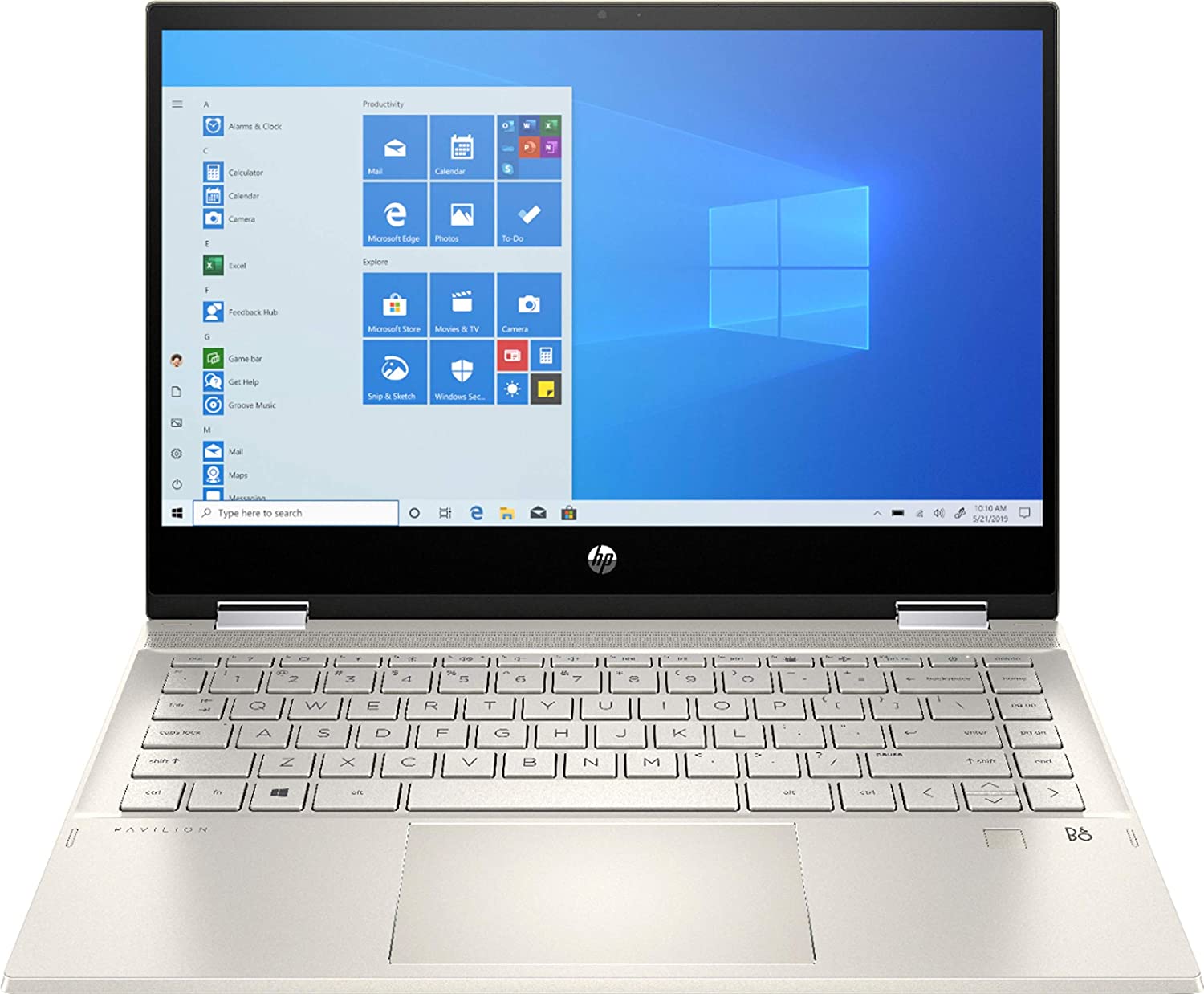
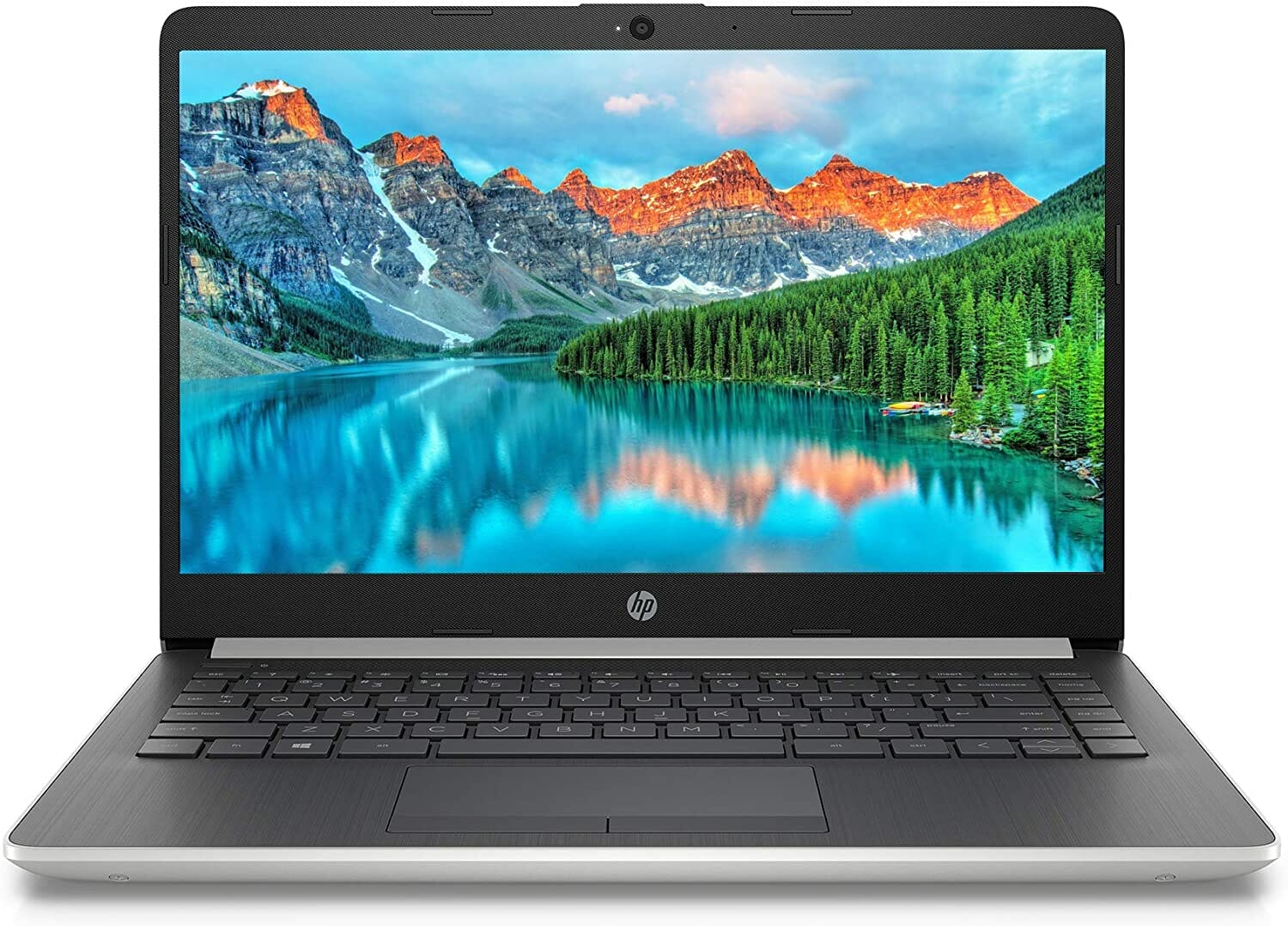
HP Pavilion x360

  • Intel Core i5-1035G1 CPU
  • Full HD 14-inch multitouch display
  • 8 GB DDR4 RAM
  • 272 GB PCIe SSD
  • LED backlight
  • IPS technology
  • GPU could be more powerful

The HP Pavilion x360 uses a 10th Gen Intel Core i5-1035G1 processor that runs at 1.0 GHz and is capable of reaching of 3.6GHz with Max Turbo Speed, making it our top pick in today’s guide.

The Full HD 14-inch display ensures that all your videos and multitasking will be presented crisp and clear while offering a multi-touch screen with 1920 x 1280 resolution. To ensure you can use it in any conditions, it also comes with a LED backlight and IPS technology which ensures wide viewing angles.

Quad-core, eight-way processing provides maximum high-efficiency power to go. Intel Turbo Boost Technology delivers dynamic extra power when you need it.

The 8GB DDR4 RAM ensures that you will be able to tackle any multitasking situation and the 256GB PCIe SSD and 16GB Optane SSD ensures that data will be read and written at amazing speeds, thus improving efficiency.

This device comes with Windows 10 Home 64-bit installed, so all you need to do when receiving the package is just to turn it on and start working immediately.


Dell Inspiron 15

  • Intel Core i5-7200U CPU
  • Intel HD Graphics 620 GPU
  • 8 GB RAM
  • 256 GB SSD
  • 1366 x 768 HD resolution
  • Windows 10 Home
  • Low speed wireless performance

The Inspiron 15 by Dell is another great budget laptop that’s very capable of tackling any multitasking effort, using a 7th Gen Intel Core i5-7200U mobile processor to do so.

This powerful CPU is backed up by 8GB RAM, and a great SSD with 256 GB of storage, which will be more than enough to run multiple demanding applications at once, and also to store both work-related and personal files.

The display has a 1366 x 768 HD resolution and offers the same touch capability as the model we discussed previously,  making it easier than ever to navigate the pre-installed Windows 10 Home OS or to install the new Windows 11 OS and take advantage of improved touch input.

The Intel HD Graphics 620 GPU, even though not suitable for gaming by any stretch of the word, will be capable of running complex applications and rendering software without any issues whatsoever.


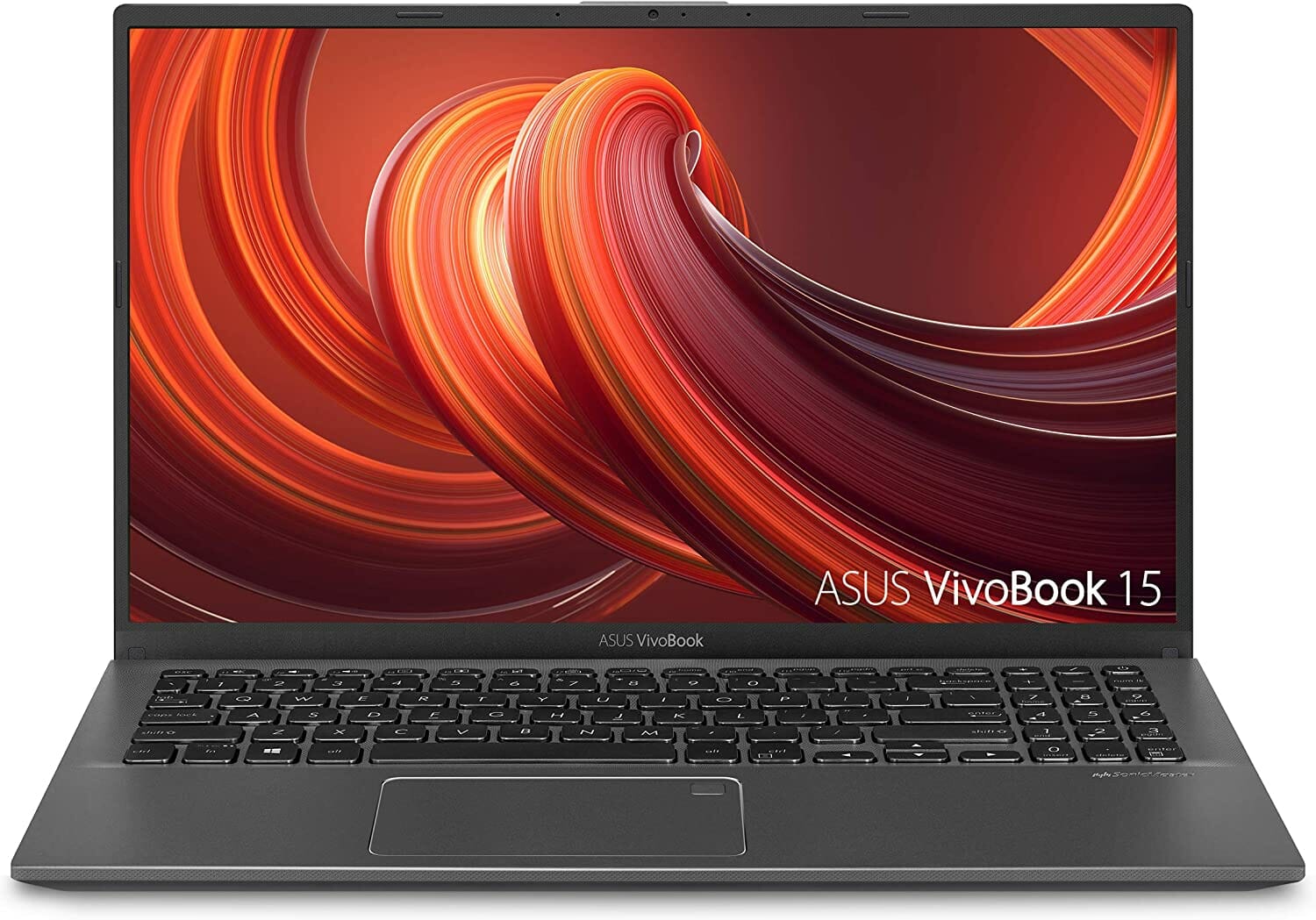
ASUS VivoBook F512

  • Ryzen 5 3500U CPU
  • 8GB DDR4 RAM
  • 256GB PCI3 NVMe M2 SSD
  • Backlit keyboard with ergonomic design
  • Built-in fingerprint sensor
  • No touch display

The ASUS VivoBook F512 features a 15.6-inch FHD display that uses a NanoEdge bezel, making it have a 88% screen-to-body ratio, ensuring enough space to run multiple applications at the same time, no matter if they are work or entertainment-related.

The Ryzen 5 3500U CPU is capable of dealing with most tasks you might expose it to, being capable of reaching speeds of up to 3.6 GHz, and the Radeon Vega 8 ensures that no matter what application you want to run, it will do so without lagging or other issues.

To ensure that you can run multiple demanding applications at the same time, the 8GB DDR4 RAM has more than enough processing power, while the 256GB PCI3 NVMe M2 SSD ensures amazing data reading and writing speeds.

The backlit keyboard which is designed to be fully ergonomic ensures that you can use it in any lighting condition, while also providing a comfortable typing experience.

The fingerprint sensor built into this device ensures that only selected people will be able to open and use it, and it incorporates the Windows Hello feature perfectly.


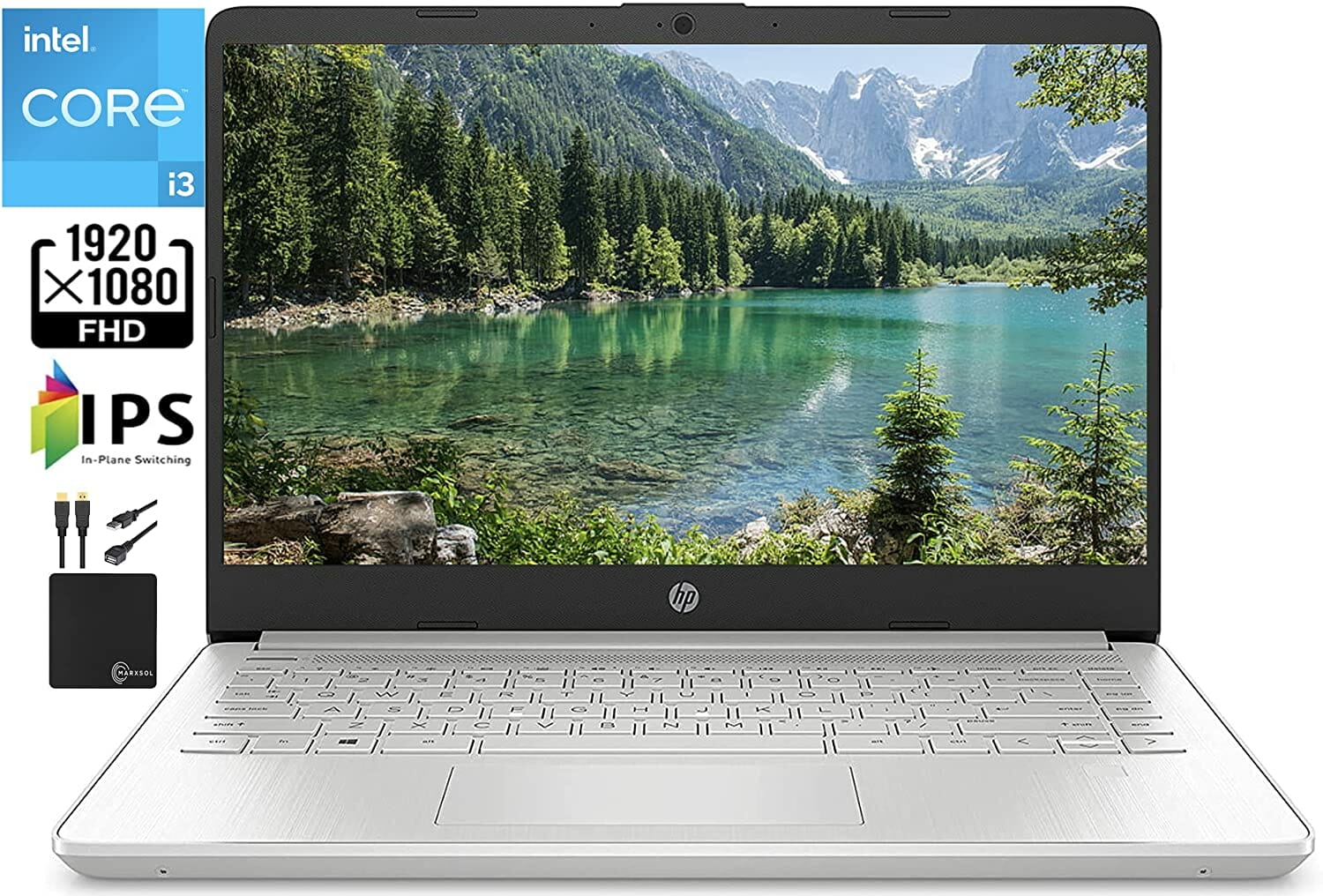
HP 14 Intel-based

  • Intel Core i3-1115G4 CPU
  • 4GB DDR4 RAM
  • 256GB PCIe SSD
  • 14-inch display with 1920 x 1080 resolution
  • Windows 10 Home
  • Bundled with an HDMI cable + USB extension + mousepad
  • Only 4 GB RAM

The HP 14 uses an 11th Gen Intel Core i3-1115G4 CPU, which runs at a 3.0 GHz frequency, and can reach up to 4.1 GHz by activating the Turbo Boost Technology, ensuring that any multitasking situation you find yourself in will be easy to handle.

Even though not as powerful as the other options when it comes to RAM, this device still provides decent capabilities with 4GB DDR4, being capable of running some games, and multiple instances of other programs without too many problems.

The 256GB PCIe SSD will ensure fast data reading speeds, which in turn mean faster booting times and a streamlined experience even when writing new data to it.

The 14-inch micro-edge display has a resolution of 1920 x 1080 and offers you very good image quality with 45% NTSC.

Windows 10 Home in S mode comes installed on this great laptop, thus ensuring that you will be able to start using it as soon as you power it on, and as an extra, an HDMI cable, a USB extension cord, and also a mousepad is bundled into the package.


HP 14 AMD-based

  • Ryzen 3 3200U CPU
  • AMD Radeon Vega 3 GPU
  • 1366 x 768 resolution
  • 4 GB DDR4 RAM
  • 128GB M.2 SSD
  • HP True Vision HD Camera
  • Windows 10 Home in S mode
  • Low amount of RAM and storage space
This mode of HP 14 uses a great AMD Ryzen 3 3200U CPU which runs between the frequencies of 2.6GHz up to 3.5GHz and provides more than enough processing power for everyday multitasking both at home and at the office.
The 14 inch HD display has a resolution of 1366 x 768 and uses WLED-backlit technology which ensures qualitative images both when watching videos and while exploring the web. Even though the resolution is not great, the AMD Radeon Vega 3 GPU makes the most out of it. 

This device has 4 GB DDR4 RAM which allows you to run multiple applications at the same time, while the 128GB M.2 SSD allows you to store data and a fast booting speed for your OS.

Besides this, the HP 14 uses an HP True Vision HD Camera with an integrated digital microphone which ensures that video recording and conference calls and one click away.

To be able to use the device straight out of the box, it also comes bundled with Windows 10 Home in S mode, which can be easily deactivated if you’re more inclined to use the normal version of Windows instead.


Bottom runners

Even though the following options didn’t make our top 5 best budget laptops for multitasking, they still offer acceptable capabilities.

For this reason, we chose to include them in the following links, as they might be a good solution for people who want to find even cheaper options.

Of course, their capabilities are not close to the set of 5 we described above but still provide a good-enough PC experience.

➡ Fusion5 14

➡ ASUS Chromebook 14


As researching and diving deep into the specifications for each laptop is not something you want to spend your time with, our encompassing list includes a variety of useful choices which vary not only in configuration but also in price. Moreover, if you’re a college student looking for decent laptops for multitasking, we’ve got you covered.

Feel free to share your choice with us by using the comment section below.

Photo Calendar Software to Download [Windows + Mac]

Photo calendars are not only beautiful to hang on the walls in your home but can also turn into unique and creative gifts for any occasion.

Whether it’s pictures of your newborn, family photos from ages past, graduation pics, or a collection of your favorite selfies, a photo calendar is the best way to capture all these memories in one collage.

If you’re a great designer with digital skills, you can create a calendar from scratch and we’re sure that you will do a great job.

But if you don’t know much about advanced graphics software, this might get really difficult.

How can a calendar making software help me?

The software or web apps from our list have dedicated features for calendar creation and already have templates that will help you start off really easily.

So, your job will be to upload the photos with your loved ones and play with different editing options available without any training or special skills.

If you’re looking for the best calendar creator software for Windows 10 to put together a photo calendar, here are some cool photo calendar tools that will do the trick.

What is the best photo calendar software?

Adobe Creative Cloud Express (formerly Adobe Spark)

Photo calendars are things you stare at presumably each day for an entire year, so it is obvious that you want them to look impeccable.

That being said, a software tool like Adobe Creative Cloud Express will definitely bring all the tools that you may ever need to get the results that you desire.

This program can be used to combine motion graphics, audio recording, music, text, and photos, the last two being essential if you want to enjoy great-looking photo calendars.

The creative process itself is rather simple, as Adobe Creative Cloud Express functionality allows you to arrange elements through simple drag-and-drop procedures.

Here are some of the perks of using Adobe Creative Cloud Express:

  • Cross compatible with the Android and iOS versions of the program
  • Simplistic UI
  • Create great visual products that involve the use of photos
  • Cross-compatible with other Adobe products
  • Can be tested freely for 7 days

Adobe Creative Cloud Express

Create the most stunning and detailed calendars that will hold all the information you need with this design editor
Check price Visit website

Photo Calendar Creator

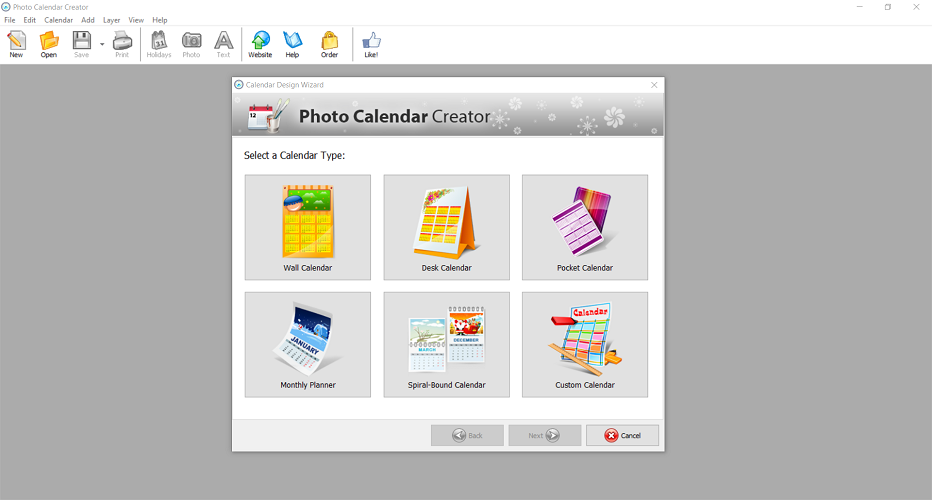
Photo Calendar Creator is an easy tool for designing personalized calendars. It is equipped with 250+ templates for virtually any kind of calendar: wall poster, desk, pocket, booklet, spiral-bound; yearly, monthly, and weekly. 

Users are free to customize any template how they see fit – add their own photos (or whole collages), decorate them with frames, masks, and cliparts.

The software offers predesigned month grid styles, but also provides endless tools for grid customization. 

With Photo Calendar Creator, users can make calendars in any language or even two at once.

The software has a built-in list of national holidays for many countries but also allows users to make their own lists of birthdays, anniversaries, or any other important events.

This can be achieved either by importing the list of events for Excel or by creating the list manually. 

The program will display the holidays in the cells, calculate what age of each birthday celebrant and display their picture in the corresponding cell. Other important days can be marked with cliparts or icons.

Here are the best features of Photo Calendar Creator:

  • Make any type of calendar: wall poster, pocket, booklet, spiral-bound etc.
  • Get started in minutes with 250+ professionally designed templates
  • Add photos and collages, set photo as background, insert into cells
  • Create calendars in ANY language of the world, or even two!
  • Highlight your own holidays, important dates and recurring events
  • Add and store photos for birthdays right in the holiday database
  • Use the public holidays database for different countries (up to 2025)
  • Print in 300 to 600 dpi or export as JPEG, PDF, TIFF (CMYK)

Photo Calendar Creator

Personalize your calendars with photos of your loved ones by using this excellent tool.
Check price Get it now

Zazzle

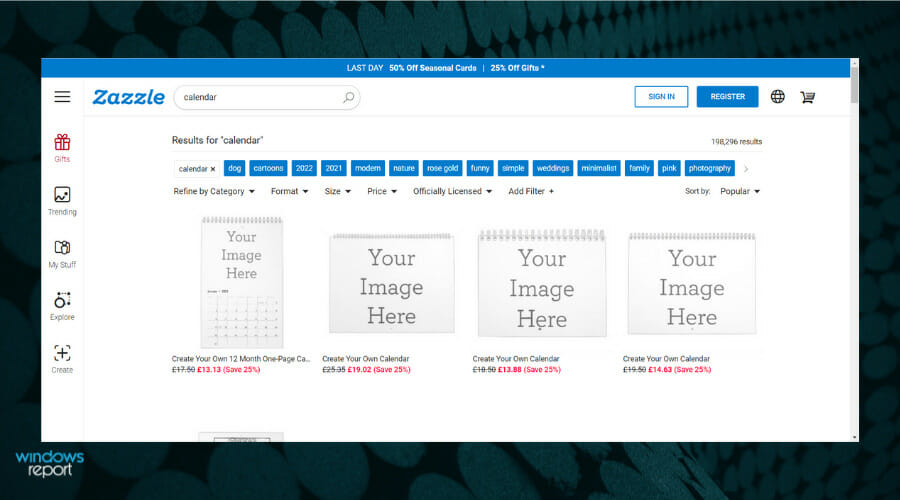
With this photo calendar software, you get a lot of control over the customization process, from design to images, text, sizes, and how the elements are layered together.

The online tools aren’t as rich if you compare them to a full image editing software program, but these can be too complex if you don’t know how to use them.

Zazzle has more customization and editing tools though, plus you may change things like color, the images you use, and the size of the final product. You can also add text and adjust the font and size of the letters.

If you want to make a custom collage, reorganize the design or revert back to the first template as it was originally designed.

However, Zazzle doesn’t have an Undo button when you make single changes. You also get to select the type of card and cardstock, but once printed, you cannot mail the card via the first-class post as some other tools do, but you get great discounts on bulk orders.

Take a look at its most important features:

  • Customization and editing tools
  • Online version available
  • Create calendars, greeting cards, print on mugs, and many more
  • A lot of templates to start from
  • Change colors and images within the calendar

Zazzle

Upload your photos, customize them with personalized fonts and logos, then import them to social media with Zazzle.
Check price Visit website

Snapfish

photo calendar software

This tool not only has photo calendar software but also lets you host your photos so you can create custom products later on. The customization options are vast, in fact, more than other services mentioned above.

Start from whichever month you want, type special dates, change colors, and add numbering on photos. It also ships pretty fast once you’re done with the customization and sends it to the press.

Snapfish offers a full refund and a 10 percent discount on future purchases if you’re not satisfied with their service, but it’s good to use this tool if you’re not in a rush, just so you do something great on your calendar.

The interface is modern, snappier than other tools or apps, and has a faster upload process though you may only upload JPG and PNG file formats – no raw camera or TIFF formats.

You also get basic editing features like crop, contrast, and brightness, plus select multiple sizes for an image, and amazing quality images on your final product.

The best features you’ll be benefiting from:

  • Basic editing features
  • Select multiple sizes for images
  • Great quality result
  • Insert special dates, change colors and numbering
  • Easy to use

⇒ Get Snapfish

Mixbook

photo calendar software

Mixbook, as its name implies, is a photo calendar software suite with editing tools that let you create a personalized photo calendar.

Despite having higher shipping charges, Mixbook has creative templates that suit any style, whether it’s child-like, sleek, fashionable, or fun. It is a free-to-use site, and you can also make wall calendars, greeting cards, and photo books or albums.

Anyone may use Mixbook, regardless of your level of design, whether a noob or expert. Just tweak the templates, or work on a blank canvas from scratch, add images, text, color, objects, and many other customization options.

Ultimately, you get a quality, polished end product. It is an excellent, elegant, and easy option for making your photo calendars, with the most stylish templates and editing options – well worth your time.

Let’s review some of its best features:

  • Quick online tool
  • Create wall calendars, greeting cards, and photo books or albums
  • No expert skills required
  • Excellent graphical quality
  • Stylish templates available

⇒ Get Mixbook

Café Press

This is one of the popular photo calendar software used by both individuals and businesses as it allows you to make any customized photo calendars you want.

With Café Press, all you do is upload your photos or import them from social media profiles, and use the editing capabilities like filters, rotation, and zoom-in or out, plus moving elements.

You get to choose from different templates though it isn’t possible to change with this tool – once you choose a template, you cannot change it.

However, this software lets you customize stuff like your logo, months, holidays, and many other elements to create your personalized photo calendar. It is reliable and can be used together with other professional design tools like Illustrator or Photoshop.

A cool thing about this tool is once you’re done designing, you may also sell your creation through the Café Press website. Search for calendar in the Search Box and you will find the most outstanding calendar software.

Take a look at its best features below:

  • Can be used by individuals or businesses
  • Editing features like filters, rotation and zoom
  • Choose between the desired templates
  • Customize logos, months, holidays and more
  • Don’t hesitate to sell your designs afterwards

⇒ Get Café Press

Shutterfly

photo calendar software

With this photo calendar software, you can customize templates to create your personalized photo calendar.

It doesn’t have much to offer in terms of stylish options, but the designs are good enough with different sizes to choose from as well.

The preview window lets you make your edits for a final touch to your calendar, checking for photo issues or typos, and other errors before you send it to the press.

You may also pay via PayPal when checking out after you complete and want to place your order.

To create the calendar, upload your photos from your device or computer, and once you’re done, make other products like mugs, phone cases, cushions, and much more.

Photo sharing online is also available or you can get your own share site where you post different stuff like events, parties, and other notable functions.

Let’s see what are the best features you’ll be benefiting from:

  • Customize existing templates for calendars
  • Different sizes to choose from
  • Preview window for reviewing your work
  • Can pay with PayPal
  • Upload your photos easily

⇒ Get Shutterfly

We’ve outlined the best calendar design software and online apps that you can use to create useful works of art for your loved ones.

And after you make the calendar you have in mind, take a look at our advanced invitation software for special events list and use your creative skills once more.

Are you ready to create your own customized and personalized photo calendar? Let us know which of these photo calendar software tools you plan to use by leaving a comment in the section below.

5+ best aluminum mousepads to use in the office or at home

No matter if you’re into gaming, creating digital art, or simply using your PC for work and browsing the internet, investing in a good mousepad can make a huge difference across time.

If you find that you’re part of the first category mentioned above, investing in a specialized gaming mousepad is probably the best choice, even though we have some compatible options in this list as well.

That being said, no mousepad is useful unless you have a great mouse to go along with it, so that should be another reason for you to explore the market further.

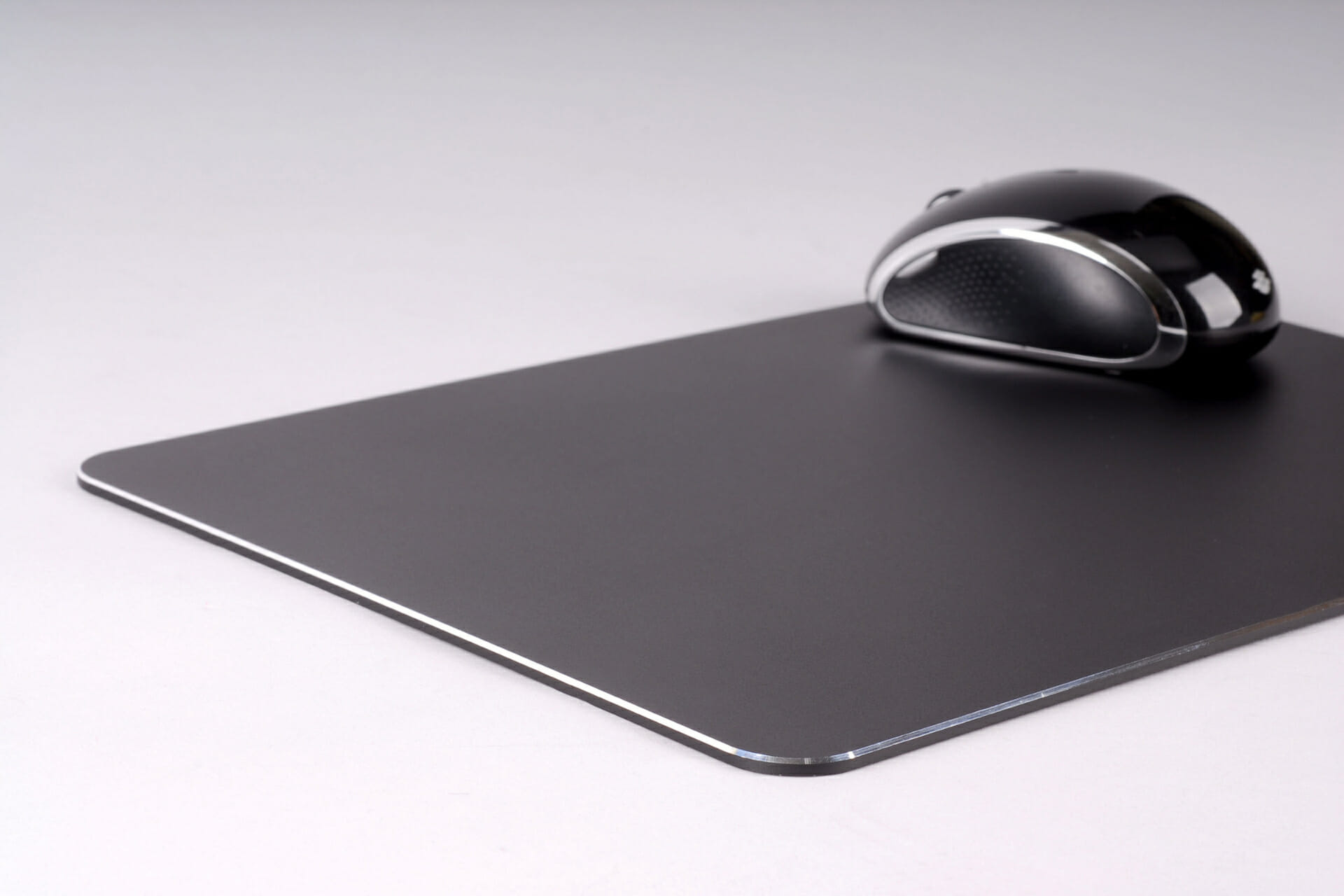
As opposed to a normal rubber-based mousepad, an aluminum version not only looks cooler but also provides a sturdy and even surface if you’re planning on using it on the couch, bed, etc.

Added to this, the aluminum allows a smooth mouse gliding experience, and as you will see from the following list, some even have a double-sided design to fit every setting.

How we chose the best aluminum mousepads

Our team of expert testers, with a combined experience of 15 years, has tackled a variety of testing tasks for any device you could imagine.

Their experience comes into play as a very important element when choosing the products we described in this guide, and a large variety of factors have been taken into consideration.

The options that have been chosen offer great quality and cover the entire spectrum of price ranges, thus enabling everybody to find something that fits their needs both financially and otherwise.

Razer Manticor

  • 9 x 7.5 inches
  • Aircraft-grade aluminum
  • Lab-designed microscopic surface for optimal gliding
  • Thin profile for stability and comfort
  • Could be too small for some gamers

The Razer Manticor is our top pick when it comes to this type of mouse pad, as it uses aircraft-grade aluminum, and the surface is covered with a microscopic texture that ensures optimal gliding of any type of mouse, with precision and accuracy.

Even though the Manticor is created to be a gaming mouse pad, its versatility and design ensure that it can be used in any type of setting without causing any issues neither aesthetically nor practically. It seamlessly integrates into the design of your room and provides optimal surface tension for any type of mouse.

The 9 x 7.5 inches of optimized mouse surface doesn’t take up too much space on your desk, but at the same time provides you with more than enough space to perform your PC activities, without worrying about space.

As it is made out of only one sheet of high-grade aluminum, the Razer Manticor is stamped flatter in the process created to ensure that no uneven surfaces will affect the gliding of your mouse, even in the most intense gaming sessions. Added to that, the slim profile ensures that your wrist is kept constantly in a natural position while keeping the mousepad flush to your desk’s surface.


Blade Hawks Gaming Mouse Pad W

  • 13.5 x 9.5 inches
  • PVC waterproof surface
  • Rubberized corners for stability
  • Optimal gliding experience with two surfaces
  • A more futuristic aeshetic which might not fit all user's preferece

With a size of 13.5 x 9.5 inches, which makes it considerably bigger than the first option from this list, the Blade Hawks Gaming Mouse Pad W offers some great features and fits the needs of gamers who got used to having more space on their desk when playing.

Even though it has a more gaming-related aesthetic than the model from Razer, this pad can still be used in any setting, no matter if it’s at home or in the office. The design might not fit the needs for simplicity and elegance that an office setting usually requires, but it all comes down to personal preference.

The surface of the mousepad is covered with PVC, which offers good speed and comfort no matter what tasks you use it for, and with waterproof features, while the rubberized corners ensure optimal stability while also rounding up the design nicely.

This aluminum mouse pad from BladeHawks can also be used on uneven surfaces, as the hard surface eliminates any sort of bumps for a perfectly smooth mouse gliding experience.


Satechi Aluminum Mouse Pad

  • 9.3 x 7.3 inches
  • Lightweight and portable
  • Design fits any setting
  • 2 available colors
  • Surface can be noisy

The Satechi Aluminum Mouse Pad is another great pad that works perfectly with any type of mouse, and the design allows it to be used in any sort of environment, no matter if you’re planning on using it at your company’s office, or in the comfort of your own home.

The strong aluminum design ensures that this mouse pad will be durable and the surface provides you with a steady glide no matter how intensive the use is.

To ensure that the mouse will not move while you’re using it, it features an anti-slip base made out of rubber. This bottom surface fixes the mouse pad on your desk, and will not be moved unless you will lift it.

As it is 9.3 x 7.3 inches, this mouse pad offers you enough space to use it optimally, while the 0.2 inches in thickness ensures that you can take it with you wherever you go.

To make it your own, you can choose one of the 2 available colors to fit your environment and computer setup.


JEDIA Mouse Pad

  • 9.4 x 7.9 inches
  • 5 colors to choose from
  • Double-sided
  • 2 pack
  • Edge is rough

The dual-sided design of the Jedia Mouse Pad makes a very versatile and useful mousepad, offering a hard side made of aluminum alloy which is for everyday usage, while the other side is covered with PU leather with tinny lines, allowing for a more exact gliding process.

This pad offers everything you need in terms of stability and versatility, as it is perfectly suitable for gaming, graphic design software, programming, etc. The sandblasted anode technology used to create it ensures accurate positioning at all times.

The sturdy surface allows you to use it without problems on uneven surfaces like sofas and beds, and the 3mm total thickness makes it stronger and more durable than other similar options.

It was designed to be easily cleaned, which can be done by using a wet towel, and the surface itself will also ensure that the mouse itself will not be getting clogged with dust particles.


HONKID Metal Aluminum Mouse Pad

  • Two sizes available
  • 4 colors to choose from
  • Double-sided
  • Works with any type of mouse
  • Portable and stable
  • Comes with non-slip stickers and mouse dots
  • Using the mouse on the metal side without the mouse dots is noisy

As in the case of the model mentioned before, the Honkid mouse pad offers you two separate surfaces on which to move the mouse, each with its advantages.

What makes it stand out from the crowd is that you can choose between 9.04 x 7.08 and 9.45 x 7.87 inches versions, ensuring optimal space for your needs.

One of the surfaces is made out of metal, and the other uses black PU leather for a more exact mouse-gliding experience.

This item is perfectly compatible with any type of mouse on the market, including laser, optical, and mechanical mice.

The 2mm thickness and lightweight design ensure that you can carry it with you at all times if needed, and full stability when placed on a desk.


Bottom runners

Even though our top 5 aluminum mousepads were mentioned above, during our testing we have discovered some other models which might prove useful for some users.

These have almost the same capabilities as the ones mentioned in the list above, but have some interesting features as well:

➡ Vaydeer Hard Silver Metal Aluminum Mouse Pad

➡ Vaydeer Round Hard Metal Aluminum Mouse Pad


This guide includes all the variations of aluminum mousepads found on the market at this point, like double-sided pads, a variety of sizes, varied price ranges, and even colors and designs.

Choosing the right one for you will be a task left to your specific requirements in all these aspects, and we provided some easy-to-digest information about each of them.

Don’t hesitate to share your choice with us by using the comment section below.

Microsoft announces more newly redesigned 3D emojis

This has been an emotional rollercoaster since the beginning and the story still doesn’t seem to come to an ending.

After at first being promised new 3D emojis, Windows 11 users felt robbed when Microsoft later stated that the new emojis being advertised were not actually coming to the latest OS.

Now the Redmond company shares pictures of yet another revamped emoji and it all comes circling back.

New 3D turtle emoji advertised by Microsoft

Back when this misunderstanding was still at its peak, a Microsoft employee said that it was actually a mistake and the wrong graphics were used to advertise the new feature.

And, as it if wasn’t bad enough already, shortly after people started letting this go, kind of, Microsoft reignited the flame yesterday with a tweet of a 3D turtle.

As you would have expected, this lead to mass confusion, having users wondering why the tech giant keeps promising new-gen emojis, when the ones on Windows 11 are flat.

Even though the new emoji pack isn’t going to be available for the whole operating system, we’re still pretty sure it will become a feature for popular software, such as Teams, or the Office suite.

Microsoft is now in a position where they really need to step their game up in order to keep the OS as they envisioned it, while still providing more accessibility based on customer demand.

But, Windows 11 is still young and a lot can still happen, so we’ll just have to wait and see what new features the Redmond-based tech company will roll out to its Insider channels.

What is your prediction about these new emojis? Share your thoughts with us in the comments section below.

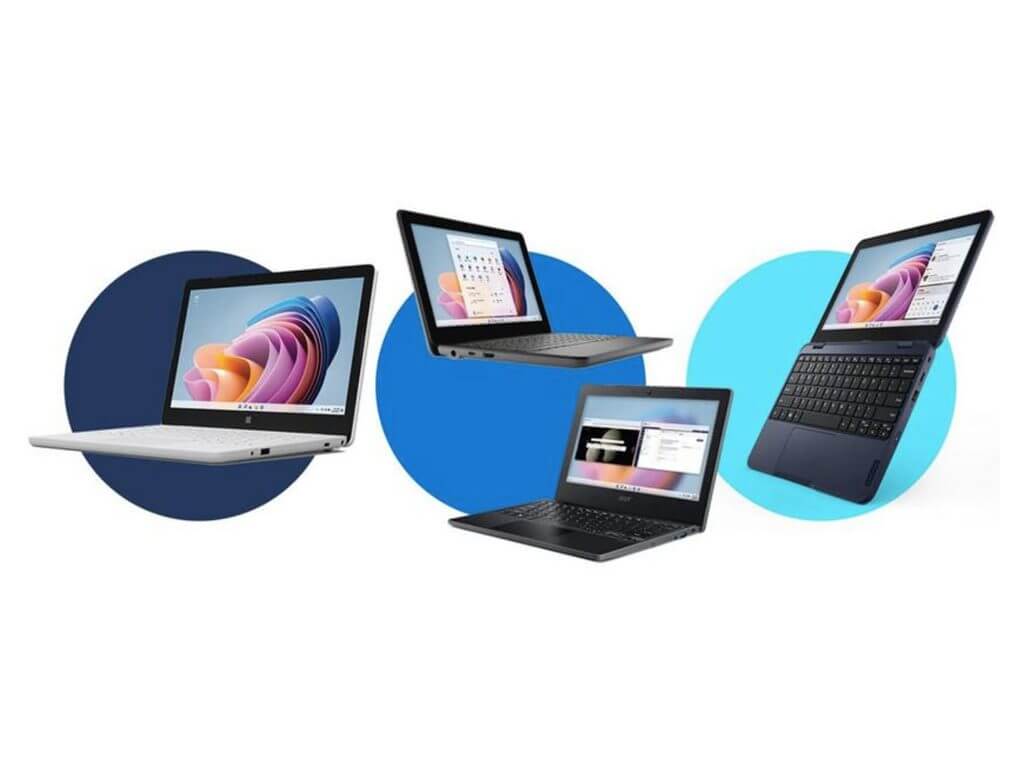
Microsoft launches Windows 11 SE and Surface laptops for students

Today, Microsoft just unveiled a new version of Windows 11. This is alongside a brand new laptop, to allow them to compete on an even playing field with Chromebooks in the classroom.

Low-cost laptops designed for classrooms can now join in on the bandwagon as they can now readily access Windows 11 SE. However, it is impossible for users to install Windows XE onto your Dell XP3 13 or Surface Laptop 4. 

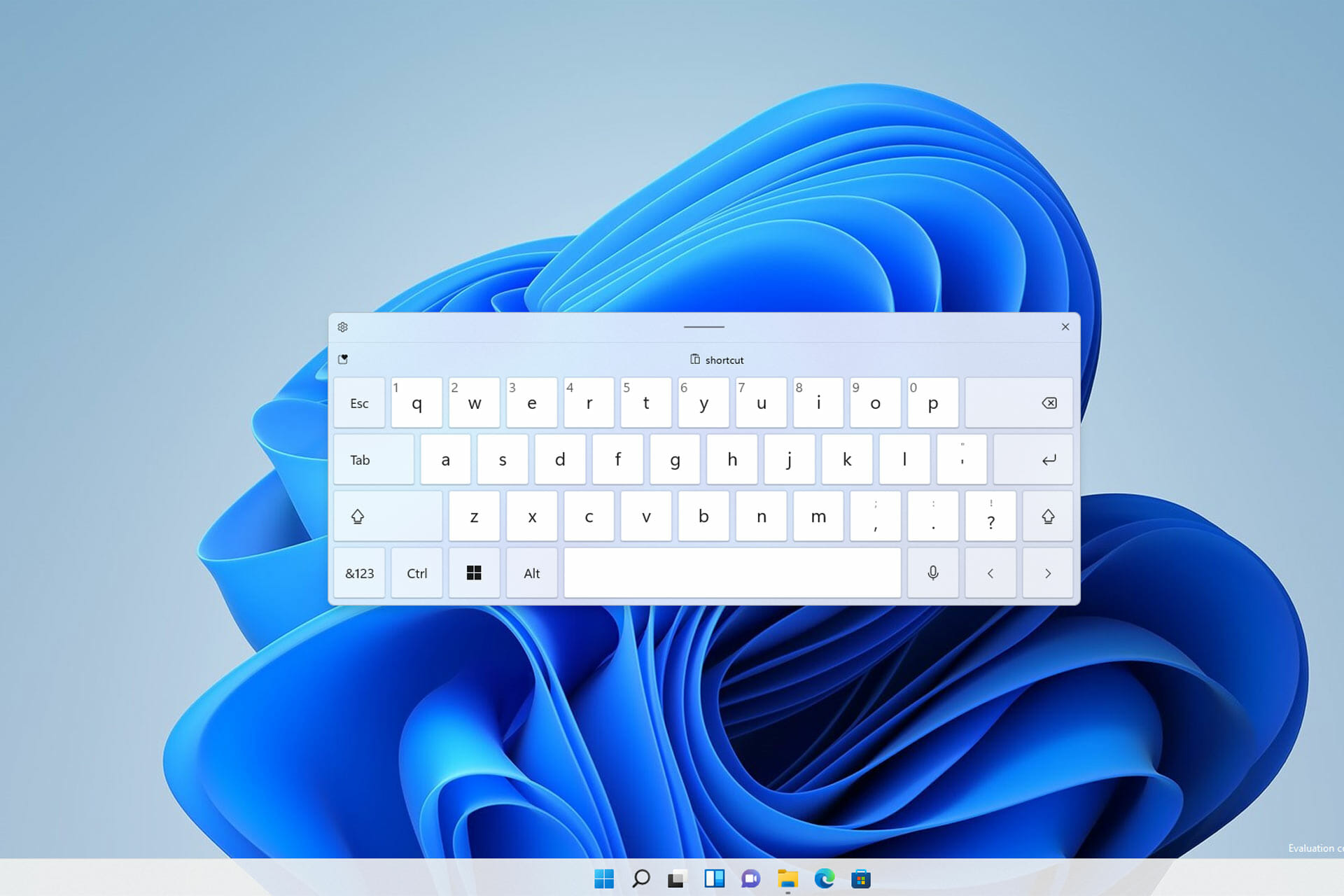
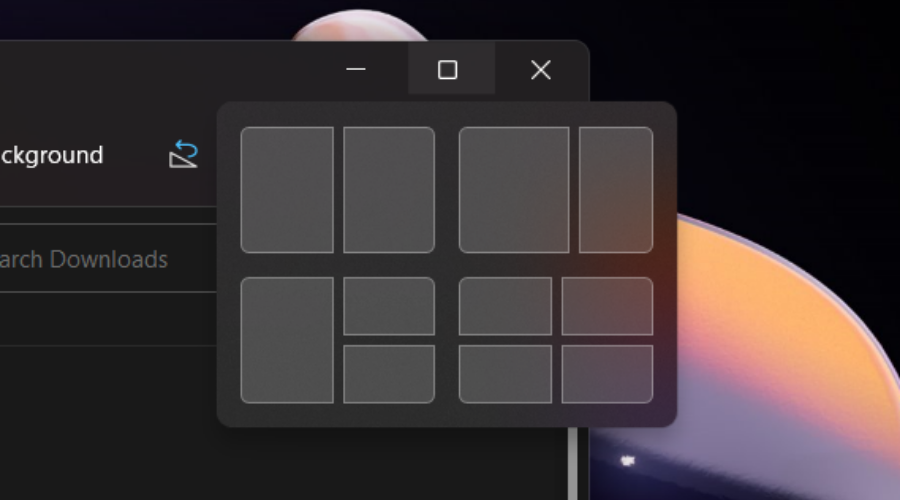
The updated Windows 11 SE has now incorporated a more streamlined design of the full-fat version. It has completely set aside distractions such as widgets, ultimately simplifying the Snap layouts feature. The updated version also comes with key Microsoft 365 apps pre-installed. 

What’s new

The Windows 11 SE update has gone a step further, as compared to the previous version that predominantly supported Microsoft apps, it now supports third-party apps such as Zoom and Chrome.

Microsoft aims to achieve a user-friendly experience, such as the one provided by ChromeOS. ChromeOS is also predominantly used in the education sector. 

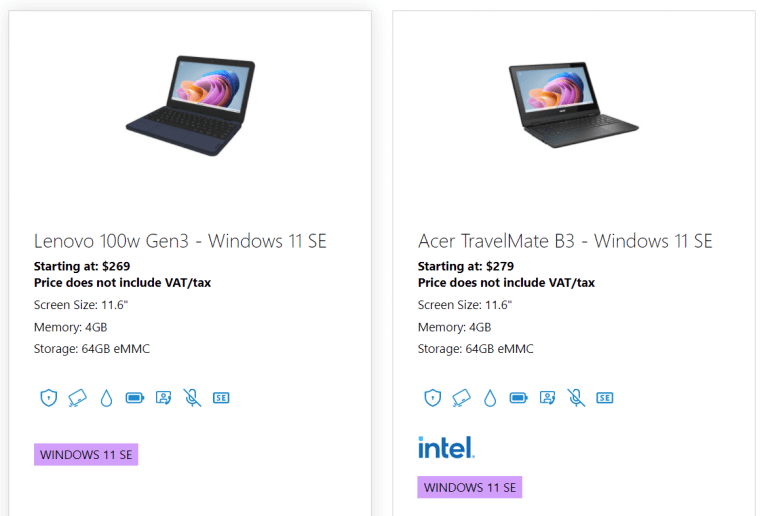
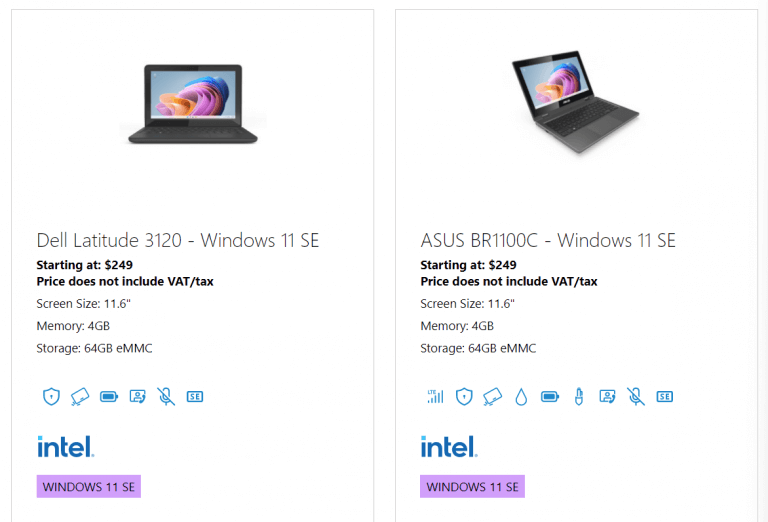
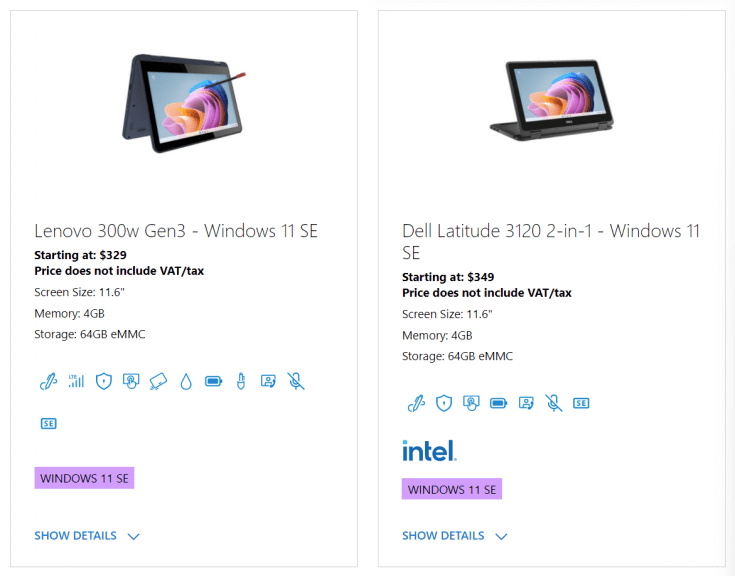
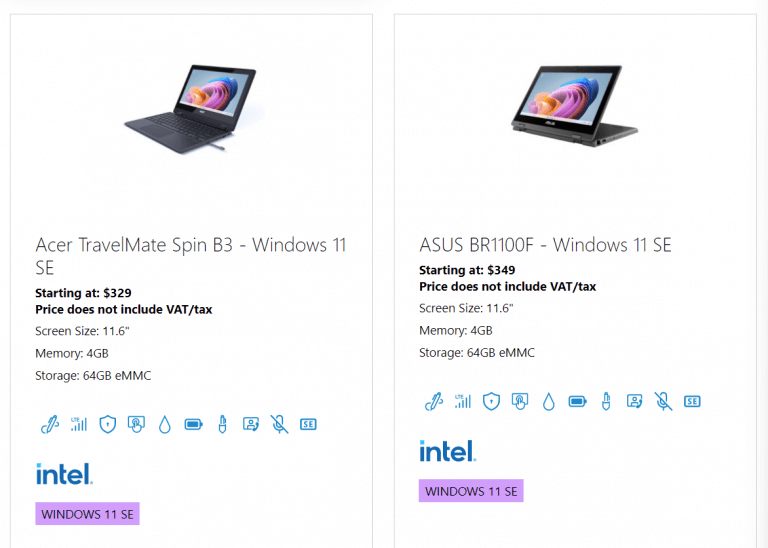
According to Microsoft, there are already several companies that are trying to manufacture cost-friendly laptops. The laptops will be fully optimised to incorporate the Windows 11 SE and will only be sold to schools. 

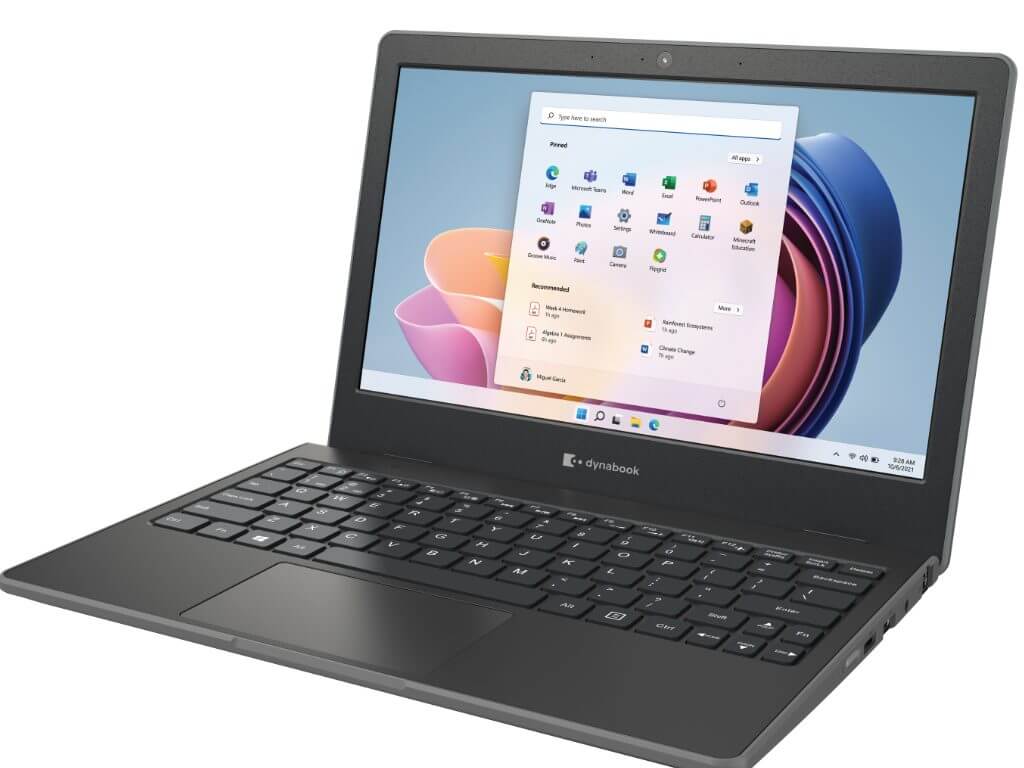
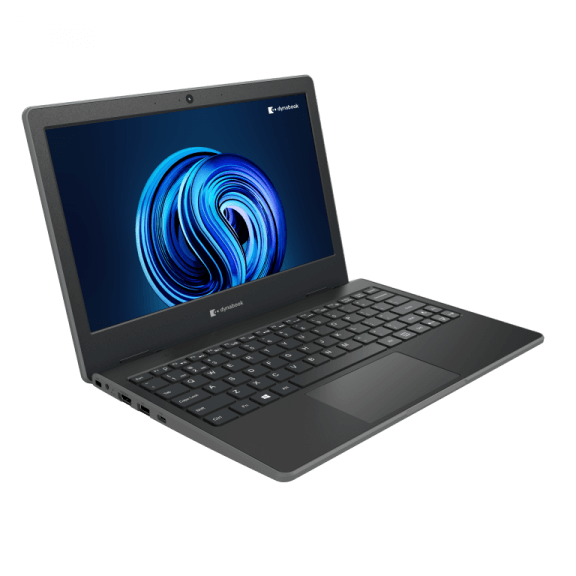
Dell, HP, Asus, Acer, Lenovo and Dynabook are all onboard to ensure that this plan is successfully executed. Microsoft has also indicated that they have their own laptop in place, the Surface Laptop SE.

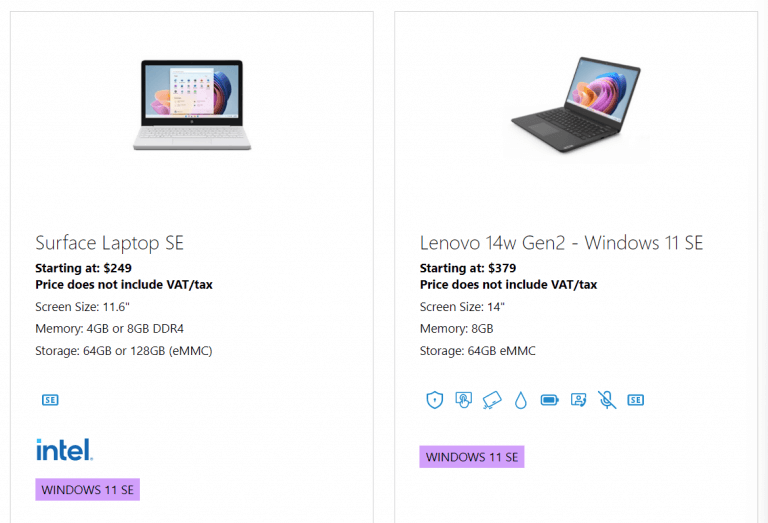
The Surface Laptop SE will approximately cost around $249. It will also exclusively feature the Windows 11 SE operating system. 

New Windows 11 SE wallpaper

This rainbow-sherbet-inspired palette of fun, mild-mannered colors is actually the new wallpaper that comes with Windows 11 SE.

You can download a few different variants of the W11 SE wallpaper over on WallpaperHub, so head on over there if this is the color scheme you want for your desktop.

Surface Laptop SE features

Microsoft’s brand new laptop comes with an Intel Celeron processor, 4GB RAM and 64GB of eMMC storage. These features are essential and are commonly found inside Chromebooks. 

The laptop is expected to provide learners with a smooth performance, thanks to the optimized Windows 11 SE operating system. The laptop also comes with a 11.6 inch display with a 1366 x 768 resolution.

However, the laptop does not come with the standard Full HD resolution. Microsoft is more focused on the value added rather than the quality. Besides, the laptops are for educational use only. 

According to Microsoft, the roll out process for the laptops is expected to begin by the end of the year, spilling over into 2022. Although there is no clear indication that the devices will be open to the wider public just yet. 

However, users should be on the lookout for the same. It will be quite nice to see Microsoft providing a budget friendly device for use by the general public. 

Are you thrilled about Microsoft’s new Surface Laptop SE? Which feature stands out most in Windows 11 SE? Share your thoughts with us in the comment section below. 

iCloud for Windows gets more useful with ProRaw, ProRes and password generator support

While fan boys take to the comment sections of their favorite review channels and Reddit threads to argue brand devices and superior platforms, actual cross-platform users get a cool new iCloud for Windows update.

Starting today, iCloud users on Windows should start to see an update hit their systems that brings password generator and support for Apple’s ProRaw and ProRes image and video formats.

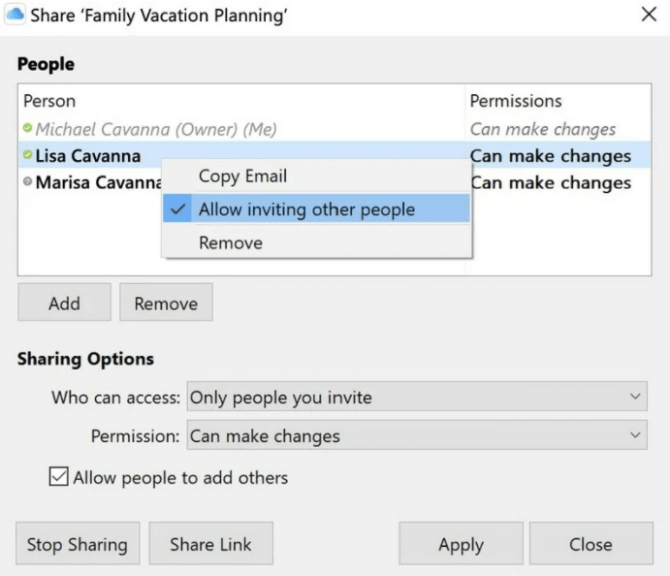
Similar to OneDrive, the new update also enables shared files and folder management, allowing users of shared folders to boot or add others to the docs.

iCloud-shared files

The folks over at MacRumors who first spotted this update, also note that in August 2021 iCloud Keychain password manager was unveiled rolled out to Windows users to help access their iCloud Keychain passwords on non-Apple devices and platforms.

With strong password support, Windows users can access the same password generating technology available for Safari on iOS devices and Macs.

As mentioned, the update was spotted today and appears to be rolling out to devices currently. If you don’t see the iCloud for Windows app update yet for your device, try again a bit later and it should be there.

Microsoft To-Do will now sync with Alexa, iOS Calendar, and more after integrating with IFTTT

Over the last couple of years, Microsoft To-Do hit a bit of a snag, and updates since then have been modest, to say the least. A few features here and there and a new look are just some of the updates and it has been a while since they were released.

The snag can largely be attributed to the transition of abilities from Wunderlist, but now, it seems Microsoft To-Do will be getting some new features that will put it back on the map.

The IoT automation platform IFTTT has now joined hands and is supporting Microsoft To-Do. With the task management app now directly integrated, other services such as Slack will also be synced.

Options available

IFTTT acts as an intermediary service by connecting apps together. Users can then automate tasks on select services by creating applets.

Some of the options already available include:

  • If an event matches your search and is added to your iOS Calendar, a new task will be added to your Microsoft To-Do list.
  • Once a Microsoft To-Do task in your specified list is completed, you can send a message in a Slack channel.
  • On iOS Reminders, when a new item is added, it will also be added as a new item in Microsoft To-Do.
  • A new task added to your Amazon Alexa list will also result in the addition of a new item to your Microsoft To-Do list.

Users are also at liberty to create custom applets so you can play around and explore more capabilities.

The news was confirmed on Twitter, where a link was shared connecting to the applets. The applets are currently limited but are expected to grow in the coming weeks.

Have you been using Microsoft To-Do? If not, do you plan to use it now with the integration? Let us know in the comment section below.

Microsoft and Meta form an alliance to integrate Teams with Workplace

There are plans in place for Microsoft to partner with Meta, the company that was previously referred to as Facebook. This is to foster the integration of Microsoft Teams into Mike Zuckerberg’s Workplace platform. 

Meta rebranded Facebook Workplace to Workplace by Meta. in the near future, Microsoft Teams will be integrated into the livestream video specifically for Workplace groups. 

Advantages of the alliance

The alliance between Microsoft and Meta will allow the people using Microsoft Teams or Workplace by Meta to be able to comment, react and view meetings real-time without necessarily having to switch between apps. 

As such, Microsoft is also trying to gradually integrate Workplace into Teams. This means that a person using Microsoft Teams can access content from Workplace through an app within Microsoft Teams. 

Admins on Microsoft Teams will also be able to highlight important content and even relay the same information in the Workplace application. 

Expanding reach 

The partnership between Meta and Microsoft Teams is among the largest mergers between two companies. It is worth noting that Workplace already works perfectly with OneDrive, SharePoint and Microsoft’s Office 365 suite. 

Meta on the other hand, has also integrated Workplace into Microsoft’s Active Directory. As such, it is among the top ten apps that are providing this service at the moment. 

Microsoft Teams will also make its debut in the Meta Portal come December. This opens up Microsoft Teams to the video calling feature. The alliance between Microsoft Teams and Workplace goes live today.

The move expands the reach for businesses, they can now share their content to Microsoft Teams. It is also worth noting that the live streaming feature of meetings by Microsoft Teams will be available on Workplace by early 2022.

Microsoft and Meta are in a fierce competition for the enterprise metaverse, though in a couple of years to come. They have similar virtual and meeting spaces.

With the recent partnership between the two giants we all expect them to join forces when it comes to metaverse efforts and virtual reality.

Are you excited about the partnership between Microsoft and Meta? Which feature excites you most? Share your thoughts with us in the comment section below. 

FIX: VPN is not working with Spectrum

Spectrum is one of those polyvalent conglomerates which, besides entertainment and mass media, provide (like Comcast) ISP services.

And Spectrum (just like its peers) has a long history of unethical misbehavior towards its respective users, starting from throttling the bandwidth speeds when other media are in use (e.g. Netflix) and reaching to full-blown blockage if you cross a badly-defined legal line of unauthorized usage.

That’s where VPNs come into play and they’re the best way to overcome ISP-imposed limitations. But they won’t work every time or not at all for some users.

To resolve issues with VPN and Spectrum, we’ll provide you with a few viable solutions. Of course, these are planned for residential users and not for administrated networks and businesses.

For that, you should contact your network administrator or ISP’s tech support. However, even then it’s worth a shot to try the steps below and, hopefully, resolve the issues at hand.

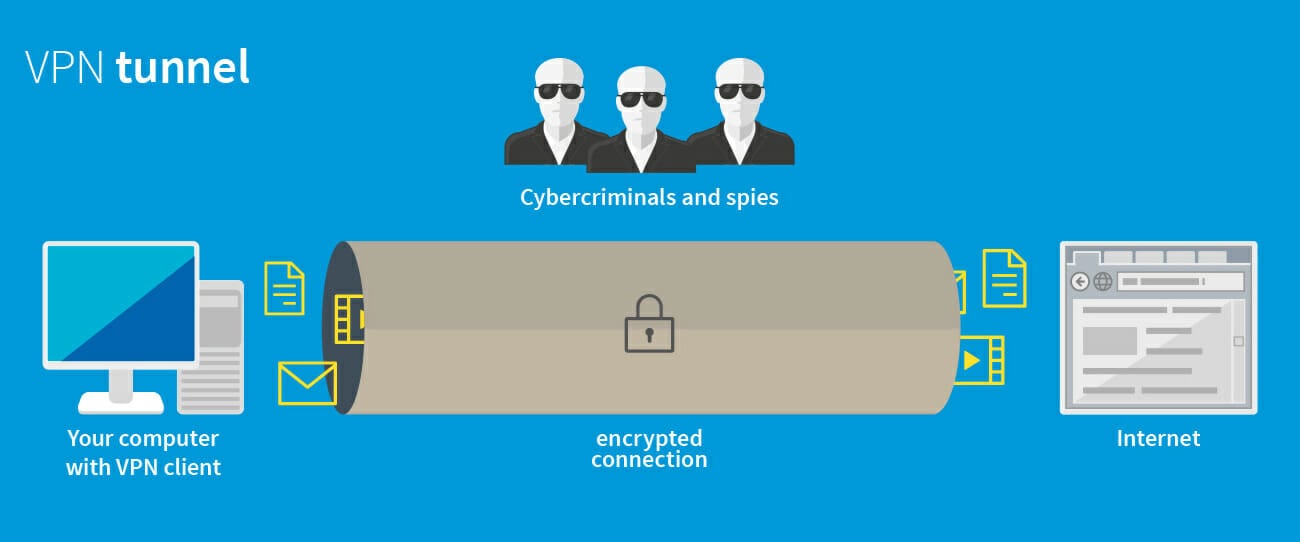
How does a VPN work?

VPN works by redirecting all your network traffic to a server. By doing so, your ISP and third parties won’t be able to see the websites you visit and the content you send/receive.

VPN tunnel explained (Source: GData Software)

Although your data has to go through your ISP, it’s encrypted by the VPN server, so your provider can’t monitor it.

What are the advantages of a VPN?

A VPN offers several benefits, and the first on the list is secure and private browsing by encrypting your traffic. In addition, it also lets you visit websites that are blocked by your ISP.

Another advantage is that you’ll get a new IP address, from a different country, so you can use it to access geo-restricted content.

Do keep in mind that some VPNs and servers can slow down your download speed and increase latency, so do your research before getting a VPN.

How can I fix VPN issues with Spectrum ISP?

1. Install proper VPN

Besides Spectrum and its questionable actions (throttling and excessive bandwidth limitations) and beyond the general VPN troubleshooting, we must stress the importance of a proper solution.

It all depends on your needs, however, and for the best results, consequently, you should be looking at the best VPN for Spectrum below.

This solution is owned by Kape Technologies, offers a lot of good reasons to make the switch. While Spectrum blocks or limits torrent activity, this VPN enables P2P connections on all of their servers.

In addition, the users are offered unlimited bandwidth. So, in case that Spectrum has limited your speed, you can use Private Internet Access and stream 4K content without worries.

2. Check the modem settings

  1. Open your router/modem settings page. For instructions on how to do that, check your manual.
  2. Locate the Firewall section, and make sure that encrypted connections aren’t blocked.
  3. Next, you need to enable the PPTP protocol.
  4. Consider enabling all go-through settings.

3. Update router’s firmware

Note icon NOTE
A firmware update can cause hardware issues if you’re not careful, so be sure to always install the correct version properly.
  1. Visit your router’s website.
  2. Locate your model, and head over to the Firmware section.
  3. Now click the Download button get the latest version of the firmware.
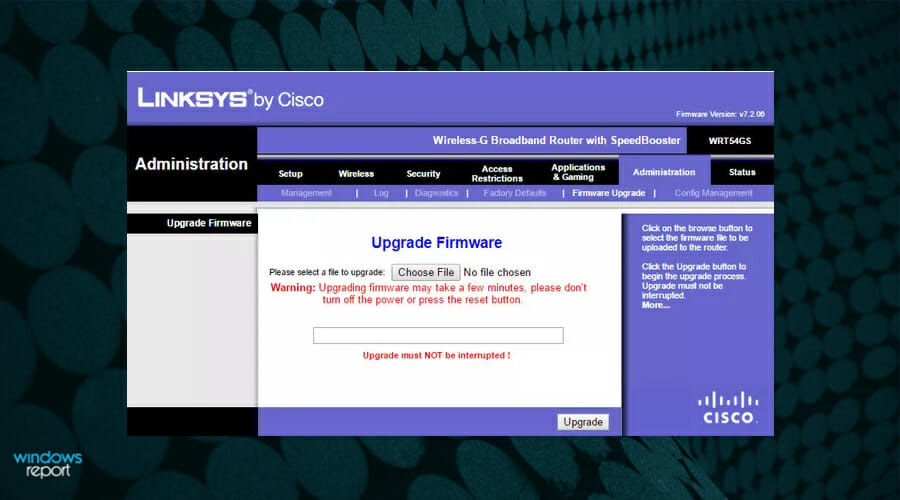
  4. Log in to your router settings page.
  5. Now go to the Firmware upgrade page and click on Choose file.
  6. Select the file that you downloaded, and wait for it to install.

Keep in mind that some routers can automatically download the firmware updates from the Firmware upgrade page, so you don’t need to download anything beforehand.

Each model is different, so be sure to check our guide on how to update your router’s firmware to see how to properly upgrade it.

4. Change encryption and switch servers

Now, let’s turn to the possibility that the VPN is the one causing issues with Spectrum ISP. There are two things you can do, ad hoc, and they’re rather simple. Firstly, if you’re experiencing a slow connection while using a VPN, make sure to change the encryption.

With mostly all VPN solutions, you can choose between the likes of PPTP, OpenVPN, and L2TP. We recommend the OpenVPN encryption protocol, which isn’t as fast as PPTP but it’s much safer to use.

Furthermore, if you use VPN to simply overcome the limitations imposed by the ISP, you can try to switch servers. Sometimes servers get overcrowded. Of course, it depends on what you need. Accessing SpectrumCable content with an alternative IP address can be an issue.

These are just a couple of solutions that you can try if your VPN isn’t working with Spectrum. In most cases, the issue is caused by incompatible software.

However, sometimes the cause can be your settings or outdated firmware, so be sure to check them as well. Even more, take a look at this general guide on what to do if your VPN stops working.

And if the VPN is blocked on Windows 10, don’t hesitate to change your system date and time or manually configure the VPN connection and get things back on track.

Did you find a different way to fix your current problem? Let us know in the comments section below.

5+ best webcams with microphone for PC

Choosing the right webcam for your needs can be a tricky endeavor, especially with thousands of options to look at and compare.

This task gets even more complex if you’re interested in webcams that have a powerful built-in microphone included. The reasons for choosing this type of webcam are obvious, simplifying the process of video-calling and even multi-player gaming.

Even though for gaming it would be recommended that you use a great headphone set to ensure that you have an advantage over your online adversaries, when it comes to video calls, a good integrated webcam mic will do the trick.

No matter what category you find yourself in, this guide will ensure that you can pick cameras for both streaming and conferences, which offer amazing audio and video quality

How we chose the best webcams with microphone for PC

Our team of expert testers, with a combined experience of 15 years, has tackled a variety of testing tasks for any device you could imagine.

Their experience comes into play as a very important element when choosing the products we described in this guide, and a large variety of factors have been taken into consideration.

The options that have been chosen offer great quality and cover the entire spectrum of price ranges, thus enabling everybody to find something that fits their needs both financially and otherwise.

Logitech BRIO Ultra HD

  • 4K image quality
  • Great microphone clarity
  • 3x digital zoom
  • Image and sound quality fully customizable by using the Logitech app
  • Camera doesn't swivel

The Brio webcam from Logitech is our top pick when it comes to the best webcam with a microphone, offering amazing sound and video quality.

This great device doesn’t have issues when used for conferencing, local recording, or even streaming, making it good for almost any person.

Even though this webcam doesn’t swivel, which could be problematic for some users, the high-quality 4K video and audio it is capable of. makes it one of the best webcams with incorporated microphones on the market.

Besides the amazing quality, this device also features 5x digital zoom, and also the RightLight 3 feature with HDR, which ensures that your video stream is looking crisp no matter what lighting there is in the room.

The included Logitech software ensures that you can tweak and optimize any aspect of your video or audio settings for this device, and works especially well for streaming.


Razer Seiren X & Kiyo Streaming Webcam

  • Super Cardoid Pickup Pattern for amazing sound quality
  • Audio and video recording at 720p 60FPS/ 1080p 30 FPS
  • Streamlabs certified
  • Built-in lighting
  • The microphone and camera are separated

Even though the microphone is not built into the webcam, the extra space allows for more qualitative components, and thus, the Razer Seiren X & Kiyo Streaming Webcam make an amazing choice for those who want professional-lo0king results.

The microphone uses a Super Cardioid Pickup Patter, which ensures that you can make recordings at a tight angle without affecting the quality, while also reducing the background noise.

This package was designed specifically for streaming, the camera offering video and audio recording in 720p 60 FPS / 1080p 30 FPS. They are both Streamlabs certified and fully compatible with platforms like OBS and XSplit.

To ensure optimal lighting, the camera has a built-in light system, with 5600K power, ensuring that your image is perfectly lit no matter the environment.

Furthermore, to ensure that no movement will cause your audio to be affected, the Razer Seiren microphone comes with a built-in shock mount that absorbs any vibrations.


Enther & MAXHUB 4K Webcam

  • Full HD 4k Image quality
  • USB-C connection
  • Dual-microphone
  • 2D and 3D NDR tech
  • Swivels to the right and left
  • Some users reported horizontal lines appearing on screen after some usage

The Enther & MAXHUB 4K Webcam is an amazing webcam option that provides you with Full HD 4k image quality and has 13Mp, making it suitable for absolutely any activity, whether it is video-conferencing, chatting on social media, professional live streams, or anything in between.

Because it uses an echo cancellation technology and a specific noise reduction algorithm, this webcam uses the dual microphones incorporated in it to pick up your voice perfectly and make it sound clear by removing any surrounding noises automatically.

The advanced autofocus feature that is built into this great camera works both for audio and for video, ensuring that it identifies how many people are in the frame and thus optimizing the image quality to focus on those areas.

Besides the fact that it is very easy to set up and get ready, the 2D and 3D DNR tech ensures that both visual and audio are perfectly balanced and offer the listener a great experience overall. The USB Type-C connection ensures efficient speeds and works perfectly for any environment and compatible devices.


eMeet C980 Pro

  • 1080p quality
  • 4 microphones
  • Active noice cancelling
  • Built-in speaker
  • Wide angle
  • Not 4k quality, but still provides great video

The eMeet C980 Pro is a Full HD camera with a 1080p quality, offering you great overall performance at an affordable price. This device works perfectly for normal video calls, video conferences with many people, or even live game streaming.

This device uses 4 microphones to capture every last bit of sound from the environment, while also having 2 built-in speakers, making it one of the best webcams with a microphone and speaker for desktop.

The active noise canceling and auto echo cancelation features use 4 built-in microphones to reduce any ambient noise, thus ensuring better quality for any sort of audio or audio+video streaming. Each of the microphones built into this device work omnidirectionally, thus ensuring that no matter how much noise there is around you, your voice will be clear.

The wide 90° angle of this device ensures that it is practical both when using it by yourself, and when encompassing a larger number of people like you would in a video conference at work. Besides this, the automatic low-light correction feature ensures that your stream will be perfectly optimized no matter how much light you have in the room.


Logitech C922

  • 1080p quality at 30FPS
  • 2 microphones
  • Auto-focus and instant light correction
  • Logitech Capture software with instant YouTube streaming
  • 3 months Premium XSplit license
  • Not good for Mac

The Logitech C922 is another very good example of what a compact and nicely designed webcam can do, and even though it doesn’t offer the same quality as some options from this list, it is still a very good option.

It allows Full HD streaming with two quality options available, either at 1080p with 30FPS, or 720p at 60FPS.

The 78-degrees view allows the frame to capture the image quite wide, making it useful for videoconference which includes more people, and even online presentations.

What makes it stand out from the crowd is the fact that it can be clipped at the top of your PC monitor, or to be used with the bundled tripod, which ensures a stable and secure customizable position.

The auto-focus and instant light correction features contribute to the clarity and definition of the images presented to your viewers and ensure optimal clarity even in bad lighting.

The two omnidirectional microphones ensure that sound can be captured clearly, thus making it a very good option for all types of streaming.

The Logitech Capture application allows you to customize the way your recordings come out, camera settings, and even allows you to instantly stream to YouTube.


Bottom runners

Even though the following cameras didn’t make the top 5 list, this doesn’t imply that these devices are useless. The following 3 options still provide great quality but have been separated from the main list simply because when compared with them, they lack some important features.

The start of this shortlist includes a very qualitative webcam, and the next two offer more accessible options that don’t force you to spend too much of your hard-earned money.

➡ Logitech C920x HD Pro

➡ TookMag HD Webcam

➡ Angetube 1080P Computer Camera


As you can see, there are a variety of differently-priced options to choose from, and considering all the information presented in this guide will ensure you can make an informed decision.

No matter if you’re interested in video-conferencing or planning on using the webcam for streaming, the options presented in this list will surely be of help.

We chose webcams that start at a higher price, that offer a better video quality and great FPS levels, and gradually we worked our way down to cameras that still offer great quality, but at a more affordable price.

Feel free to share your choice with us by using the comment section below this guide.

FIX: Video driver not supported in Premiere Pro

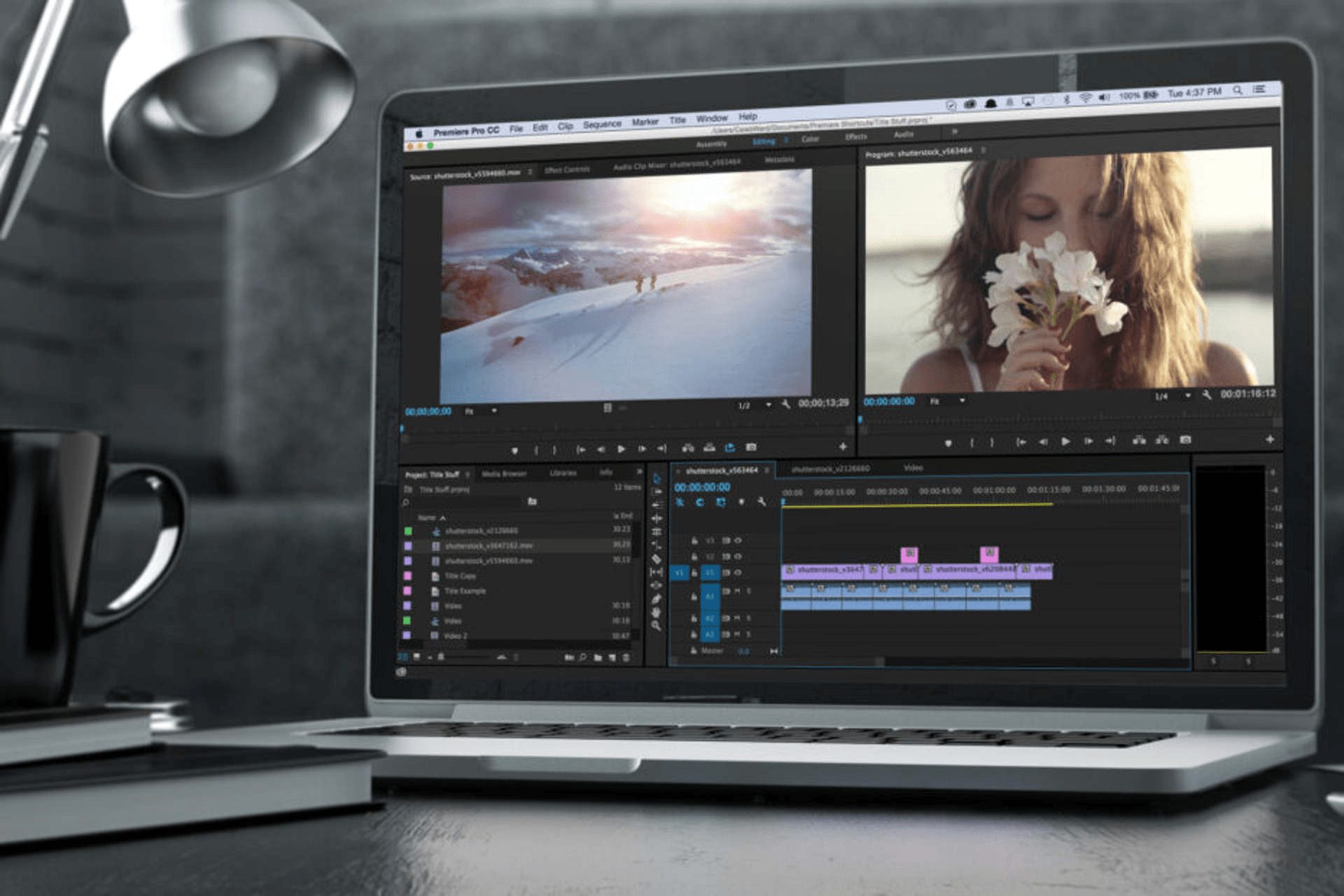
Some users have told us about an unsupported video driver issue that arises for Adobe Premiere Pro. This happens immediately after they update the software.

Premiere Pro displays the System Compatibility Report window when the issue occurs, stating that this version doesn’t support your drivers.

Although the window includes a Fix button, clicking it will only open a webpage that tells you how to update your PC’s GPU drivers.

This problem typically arises on PCs with dual graphics cards, and in today’s guide, we’re going to show you how to solve it once and for all.

Why does the Video driver not supported error appear?

This message appears when trying to run Adobe Premiere Pro on a PC with a dedicated and integrated GPU. The issue is caused by a driver conflict, but it can be easily fixed.

Keep in mind that this problem won’t prevent the application from running, since it just serves as a warning message, so you can choose to ignore it. However, if you do so, additional issues may occur down the line.

Should I use my dedicated or integrated graphics for Adobe Premire?

Video editing is a resource-intensive task, and you’ll need as much hardware power as you can get. While this process uses your CPU, certain aspects are performed by the GPU.

Therefore, it’s always better to use a discrete graphics card since it offers more power and better performance than the integrated one.

How can I fix Premiere’s Pro unsupported video driver error?

1. Update your PC’s graphics card driver

  1. Visit your graphics card manufacturer’s website.
  2. Navigate to the Drivers or Download section.
  3. Locate your model on the list and click on Search.
  4. Click on Download.
  5. Once the driver software is downloaded, double-click the setup file to run it.
  6. Follow the instructions on the screen to complete the process.

Downloading drivers manually can be a tedious process, but you can automate it with specialized software such as Outbyte Driver Updater.

2. Run Adobe Premiere Pro with your dedicated GPU

  1. Press Windows Key + I to open the Settings app.
  2. Select System in Settings to open the tab that you can see below:
  3. Select Display from the left pane. Navigate to the Graphics settings in the right pane.
  4. Select Desktop app on the drop-down menu.
  5. If you can’t see Adobe Premiere Pro listed, click the Browse button. Then find the software on your PC to add it.
  6. Then select Adobe Premiere Pro in the Graphics settings window, and click the Options button.
  7. Select the High-performance option for your dedicated NVIDIA or AMD graphics card. Now click the Save button.

In case you can’t find your dedicated graphics, be sure to visit our second GPU not detected guide for quick and easy solutions.

3. Disable your PC’s onboard (integrated) GPU

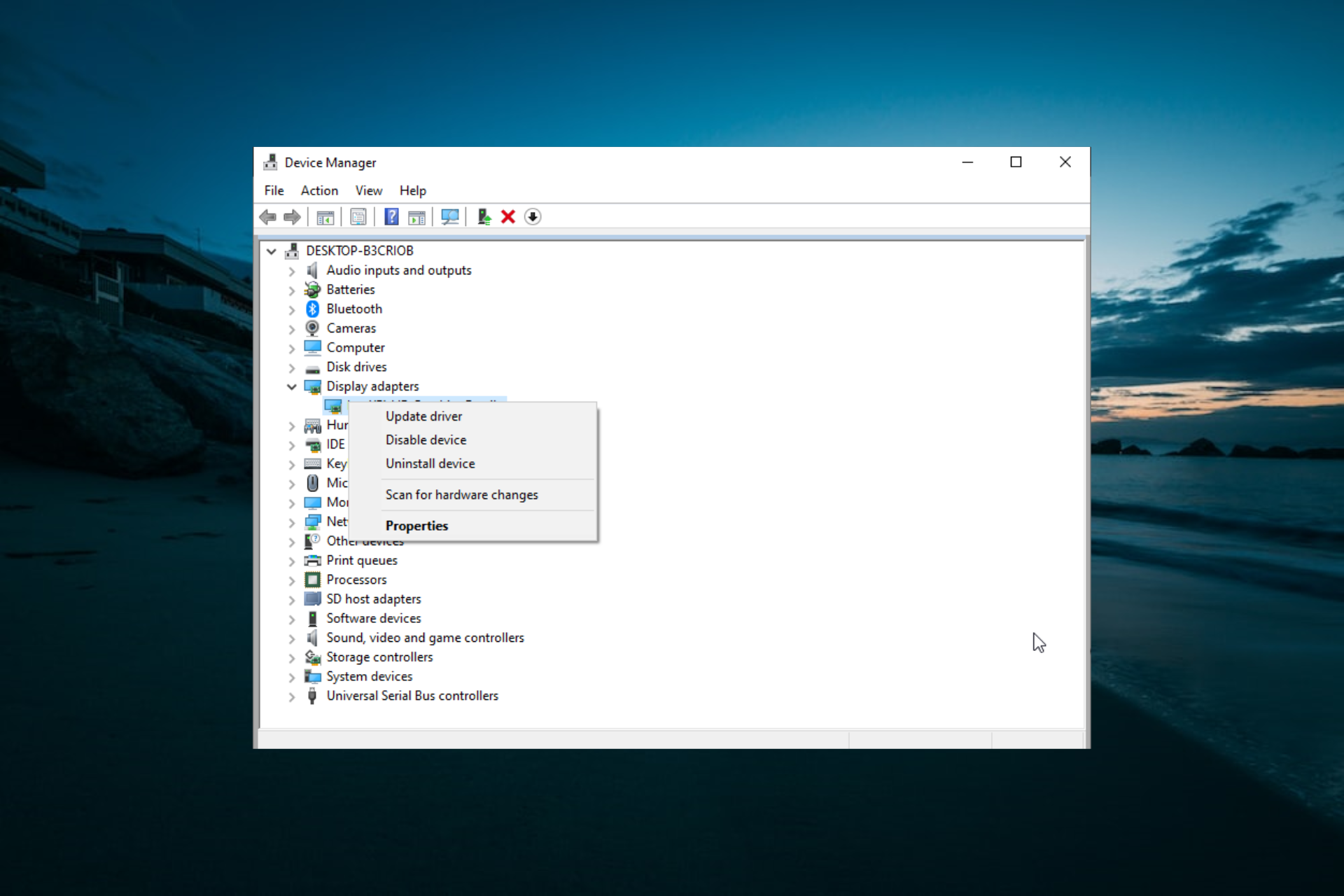
  1. Press Windows Key + X and select Device Manager from the list.
  2. Double-click the Display adapters category.
  3. Right-click your PC’s onboard GPU (probably an Intel one) and select the Disable device option.
  4. Click Yes to confirm.

If your graphics card isn’t detected in Device Manager, make sure that you disable all hidden devices, and then repeat the steps from this guide.

4. Disable the Unsupported Video Driver message

  1. Open Adobe Premiere Pro.
  2. Click the Edit menu.
  3. Select Preferences and navigate to the General section.
  4. Then deselect the Show system compatibility issues at startup checkbox.
  5. Click the OK button.

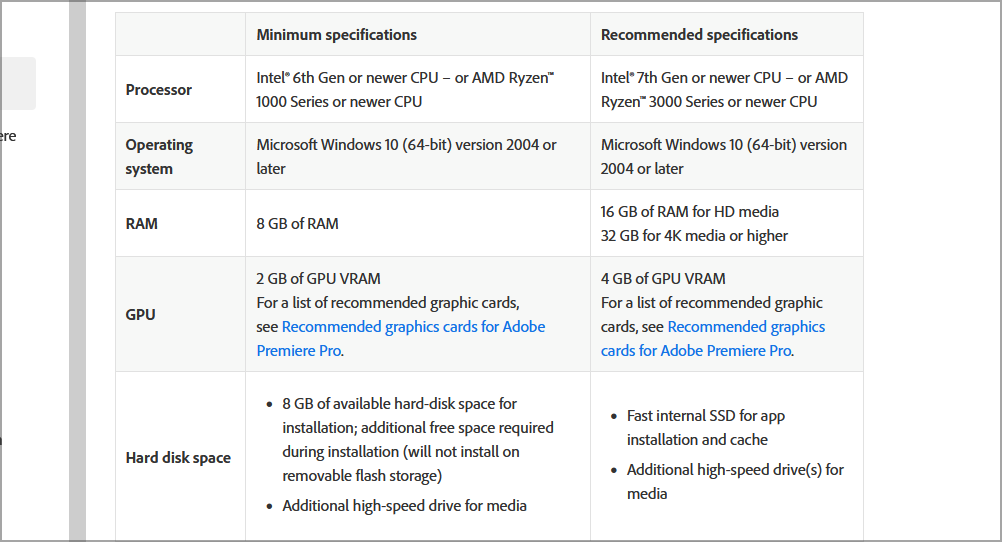
What are Adobe’s Premiere Pro requirements?

The software has relatively humble hardware requirements, and it should be able to run on any modern PC without too much trouble.

Here’s a quick overview:

  • CPU: Intel 6th Gen, Ryzen 1000
  • RAM: 8GB
  • VRAM: 2GB
  • Storage: 8GB hard drive space

Keep in mind that these are the minimum requirements and they won’t be enough for any advanced tasks or larger projects.

Is Adobe Premiere available for free?

No, the software isn’t available for free, and it comes with a yearly or monthly subscription. However, you can download the trial version without any cost.

This will allow you to test the application and all of its features for 7 days. After that, you’ll have to purchase a subscription to continue using it.

This resolution stops the System Compatibility Report window opening but doesn’t necessarily resolve the unsupported driver issue.

So, that’s how you can fix the unsupported video driver error. Overall, it’s quite an easy problem to fix, so you should be able to have it sorted in a matter of minutes.

In case the issue is still there after trying all of our solutions, you can contact customer support via Adobe’s Customer Care page. If you have any other video problems, we suggest visiting our Adobe Premiere not exporting video guide too.

Did you find a way to fix this problem on your own? Feel free to share the solution with us in the comments section below.

Huion Tablet Driver not Opening: 6 Ways to get it Working

Some users, especially artists, and designers, utilize Huion graphics tablets with Windows 10 PCs. However, the Huion tablet driver installation process can get stuck, as some users complain that it is not opening.

This can be a big problem since it will make you unable to use the tablet. Luckily, there are ways you can fix this problem and get back to drawing.

Why is my Huion tablet driver not working?

Several factors can cause your Huion tablet driver to stop working, as reported by users. Below are some of them:

  • Issues with other tablet drivers: If Huion drivers are not installed, it might be because of a copy driver on your PC or other tablet drivers. You must remove these drivers, including the Huion one, to solve the problem.
  • Antivirus interference: Sometimes, this issue might occur if your antivirus software is blocking the drivers. The solution is to temporarily disable your security software and probably switch to a reliable antivirus.
  • Outdated driver: At times, this problem might occur if the Huion tablet driver is outdated. Updating the driver to the latest version should solve the problem.

How can I fix the Huion tablet driver if it’s not opening?

1. Update Huion device drivers

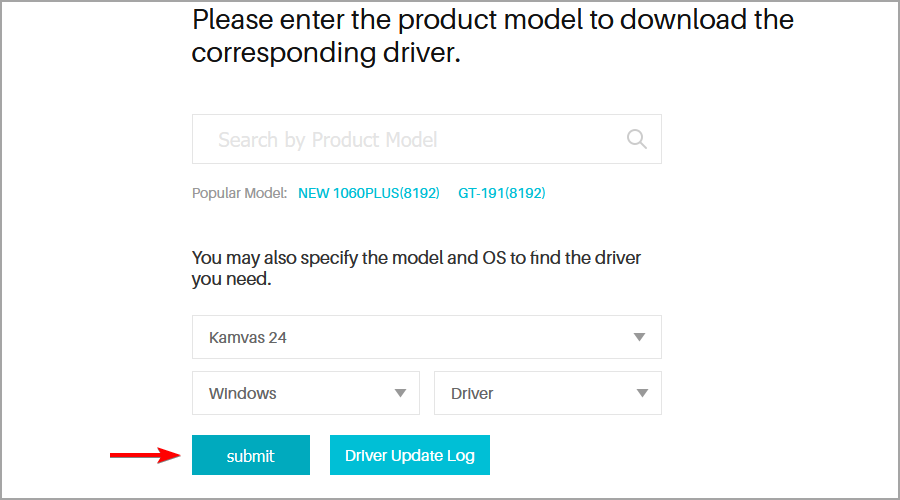
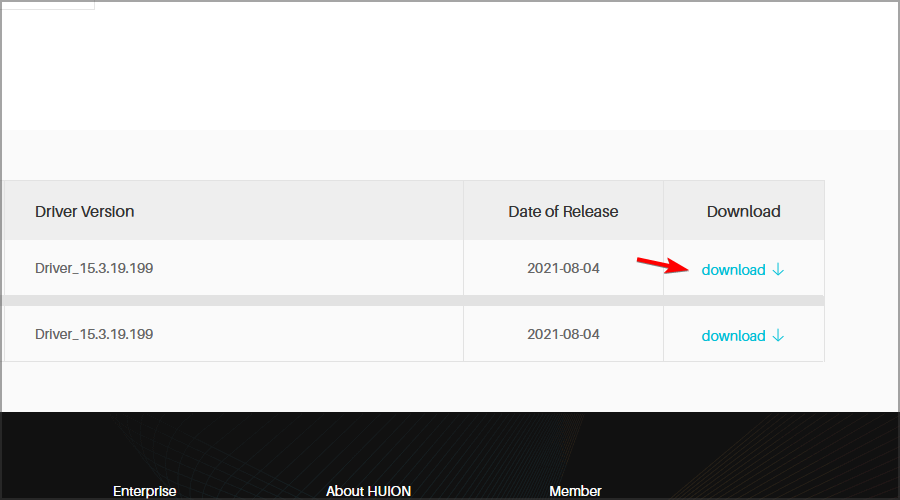
  1. Visit the Huion driver download page.
  2. Select your model on the list, as well as your operating system. Now click Submit.
  3. Click the Download button to download the driver.
  4. Once the driver is downloaded, try to install it again.

If the Huion driver takes forever to install, try using an older version of the driver. Alternatively, you can use specialized driver update software such as Outbyte Driver Updater to update your drivers quickly.

2. Uninstall the graphics tablet drivers installed on your PC

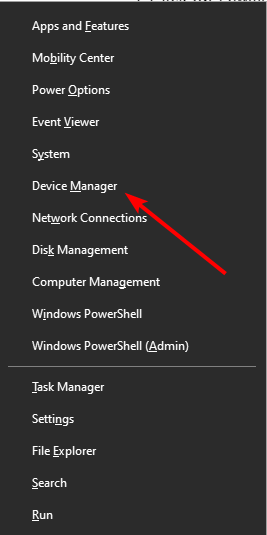
  1. Press the Windows key + X and select Device Manager.
    device manager Huion Tablet Driver not Opening
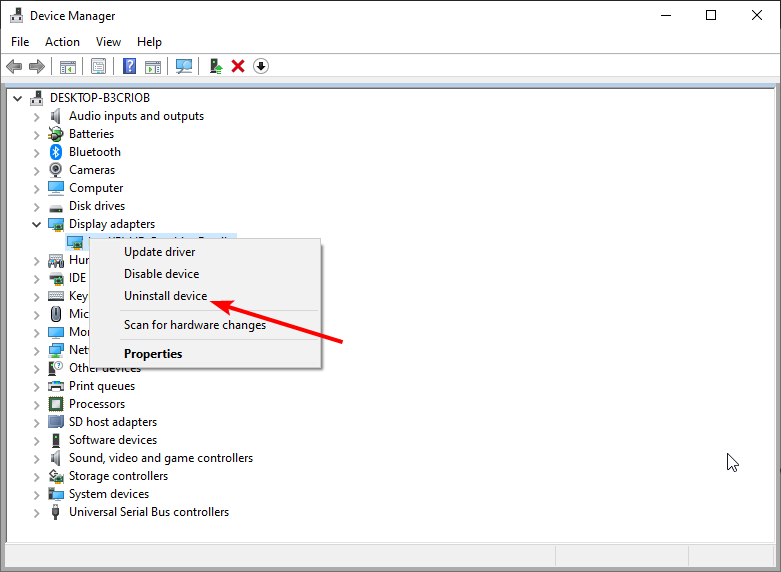
  2. Double-click the Display adapters option to expand it, and right-click each device there.
  3. Now, select the Uninstall device option.
    uninstall deviceHuion Tablet Driver not Opening
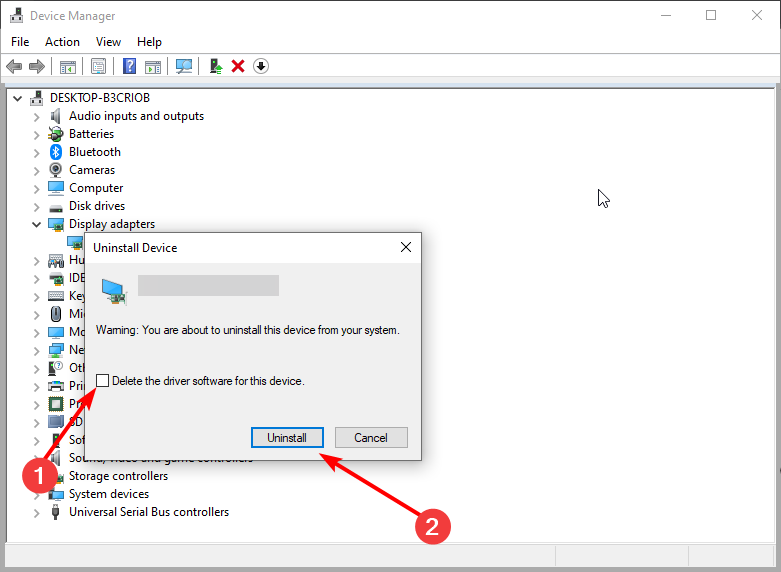
  4. Check the Delete the driver software for this device box and click the Uninstall button.
    uninstall button
  5. Next, unplug your Huion tablet and restart your PC.
  6. Visit the official page to download the latest driver, as shown in solution 1.
  7. Now, unzip the downloaded file and open the unzipped folder.
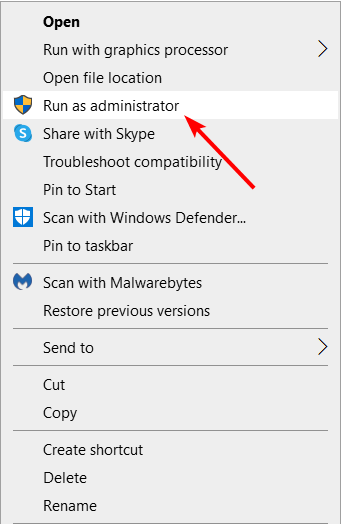
  8. From here, right-click the driver application and select Run as administrator.
    run as
  9. Finally, follow the onscreen instructions to complete the process.

If the Huion driver is not installed, you can also use uninstaller software to remove the drivers.

3. Disable antivirus software before installing a Huion driver

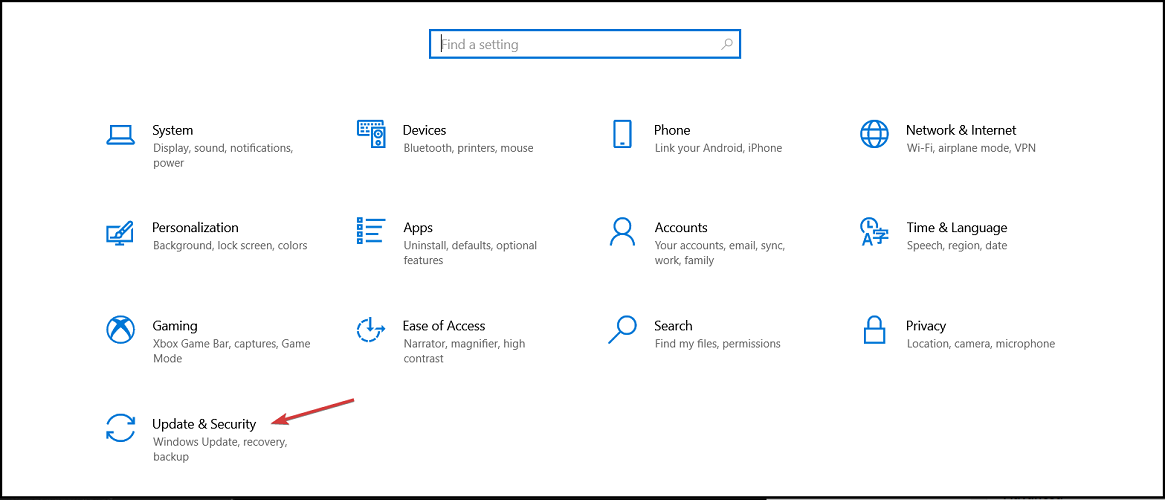
  1. Press the Windows key + I to open the Settings app.
  2. Navigate to the Update & Security section.
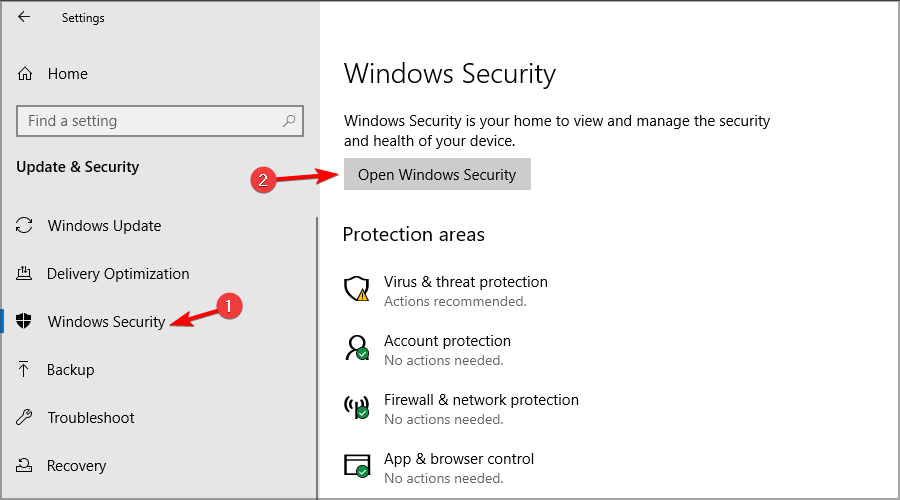
  3. In the left pane, select Windows Security. In the right pane, click on Open Windows Security.
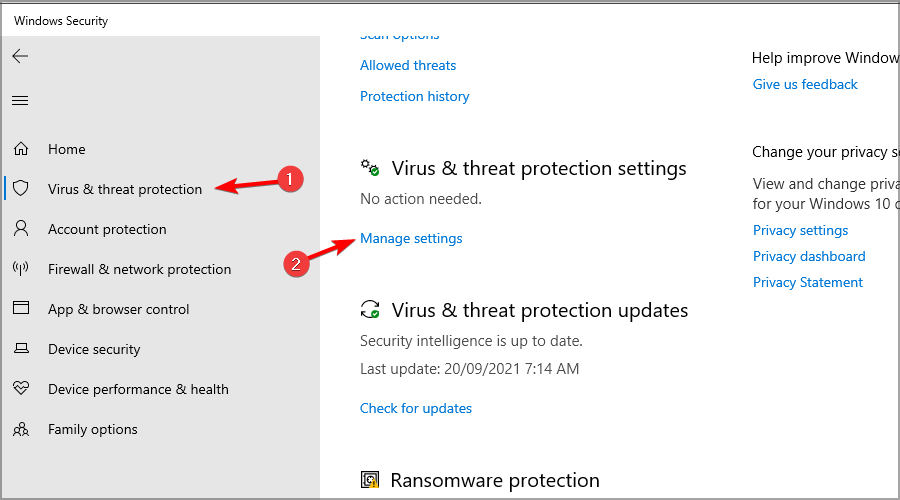
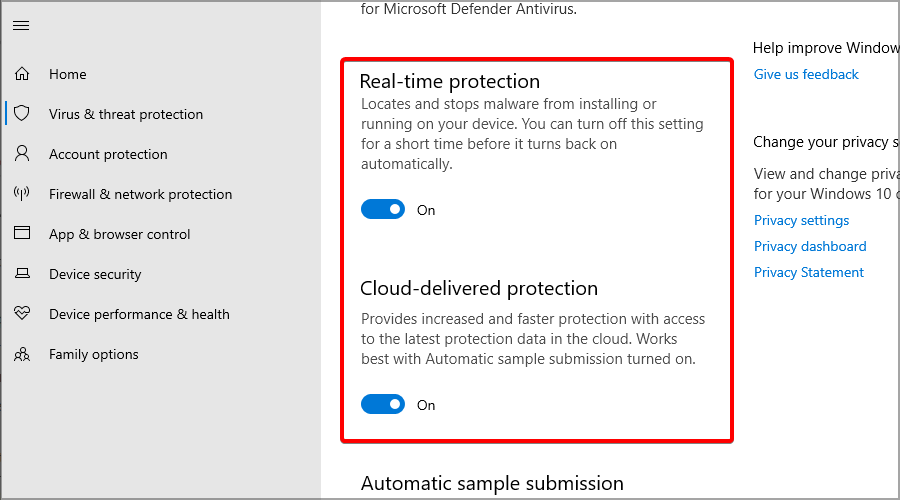
  4. Next, select Virus & threat protection in the left pane. Then, in the right pane, click on Manage settings.
  5. Toggle off the Real-time protection option.
  6. Also, click the Cloud delivered protection option to turn off that feature.
  7. After that, try installing the Huion driver package.
Note icon NOTE
Remember to turn your PC’s antivirus shield back on after installing the Huion driver.

4. Clean boot Windows 10

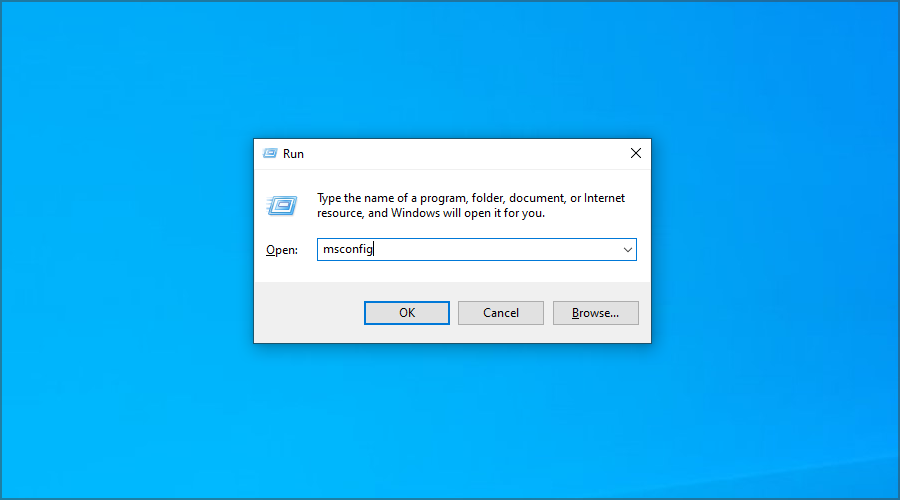
  1. Press Windows Key + R and enter msconfig. Press Enter.
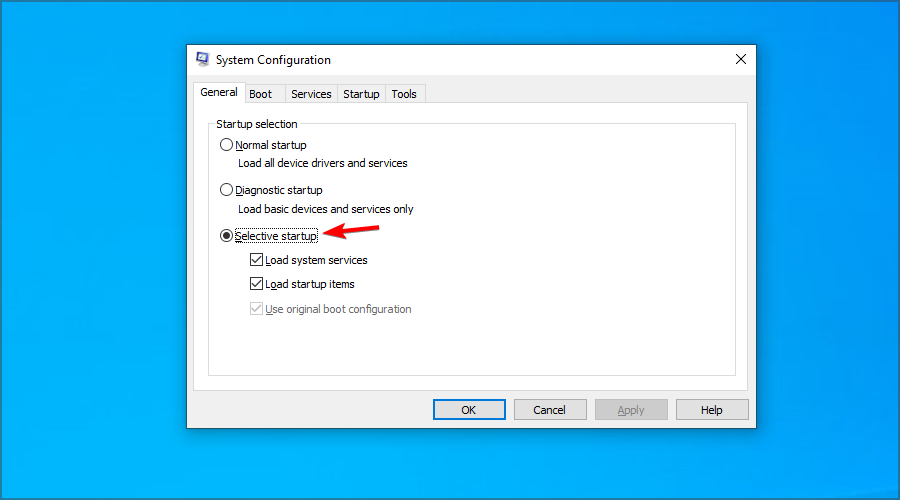
  2. Click the Selective startup radio button, and deselect the Load startup items checkbox.
  3. Select the Load system services and Use original boot configuration checkboxes if they’re not already selected.
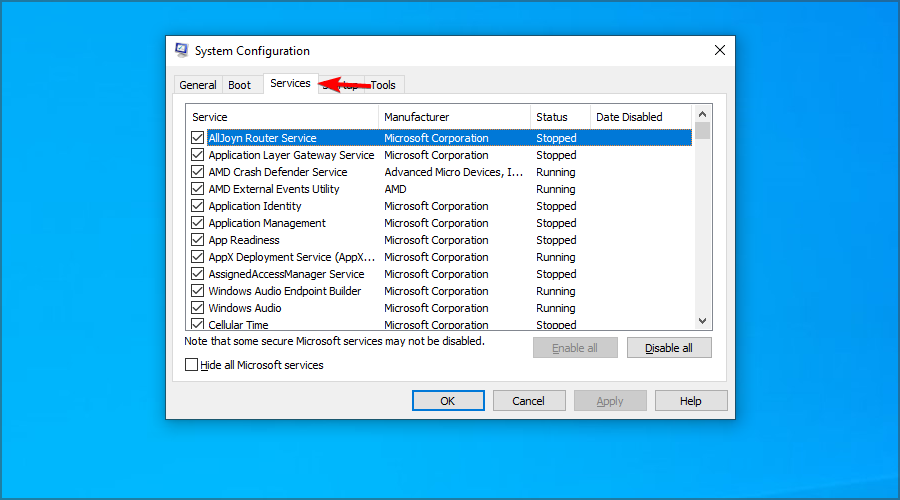
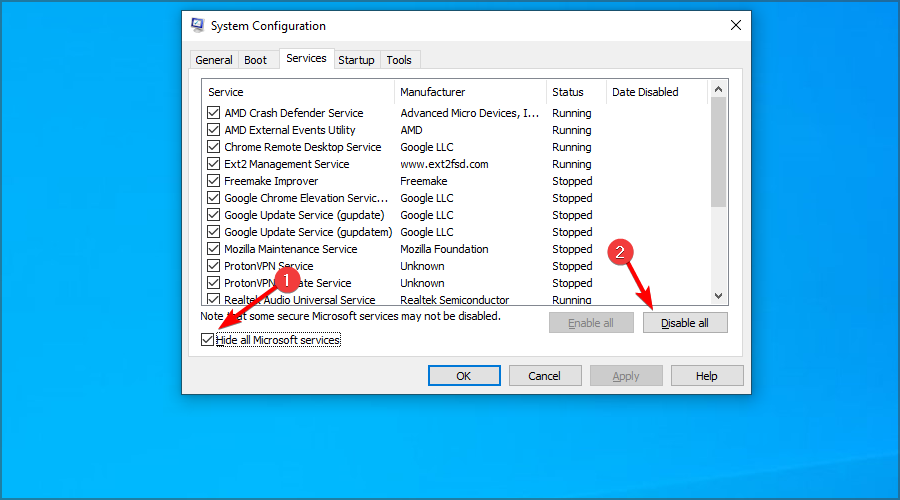
  4. Next, select the Services tab in the snapshot directly below.
  5. Check the Hide all Microsoft services and click on Disable all.
  6. Press the Apply and OK to save the new boot configuration settings.
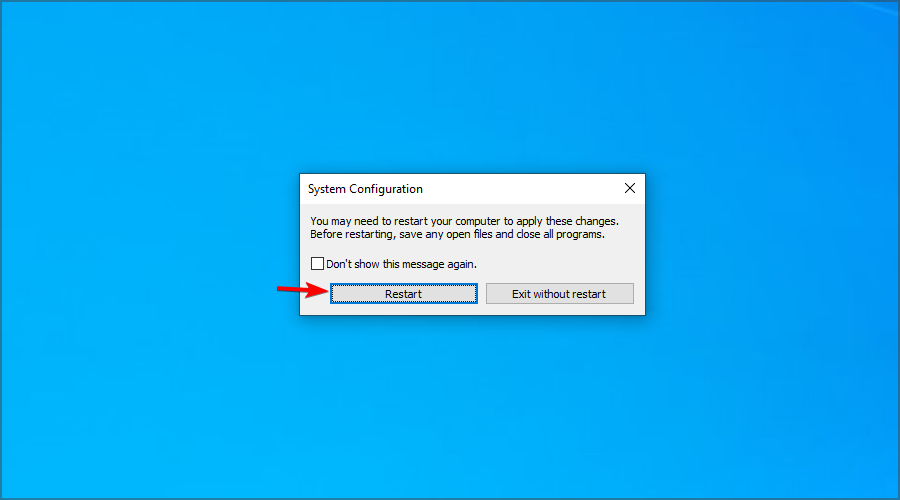
  7. Click the Restart option on the dialog box prompt that pops up to clean boot your PC.
  8. Then try installing a Huion driver package after clean-booting Windows 10.

After doing that, you can try to update the Huion tablet driver again. If the process is successful, enable all the startup applications you previously disabled.

5. End the Windows Command Processor process

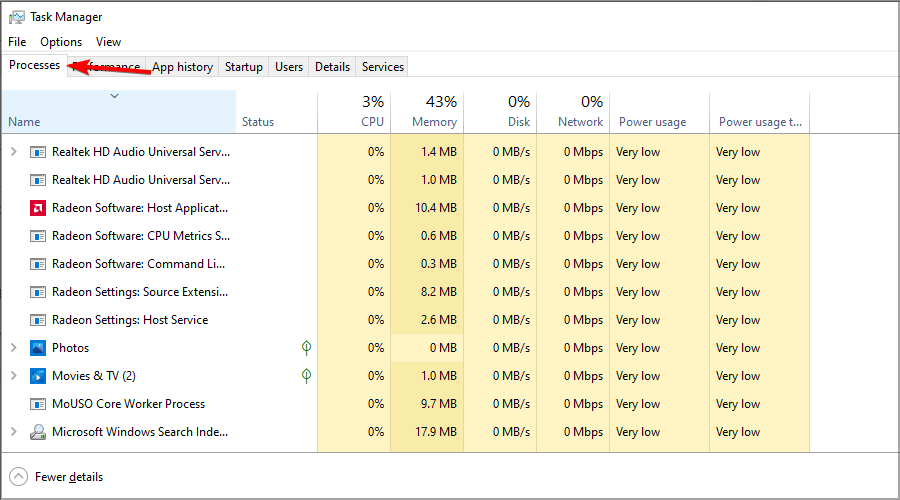
  1. Press Ctrl + Shift + Esc to start Task Manager.
  2. Click Processes if that tab isn’t already selected.
  3. Double-click Setup/Uninstall (32-bit) to expand it.
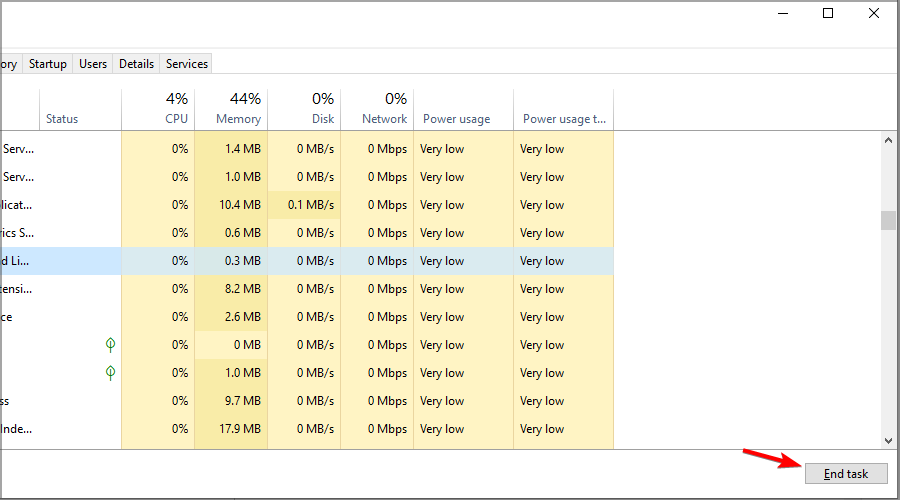
  4. Select the Windows Command Processor process for the Huion Setup/Uninstall app.
  5. Press the End task button to terminate the process. After that, the Huion driver installation might proceed and finish.

6. Extract the Huion ZIP archive before installing the driver

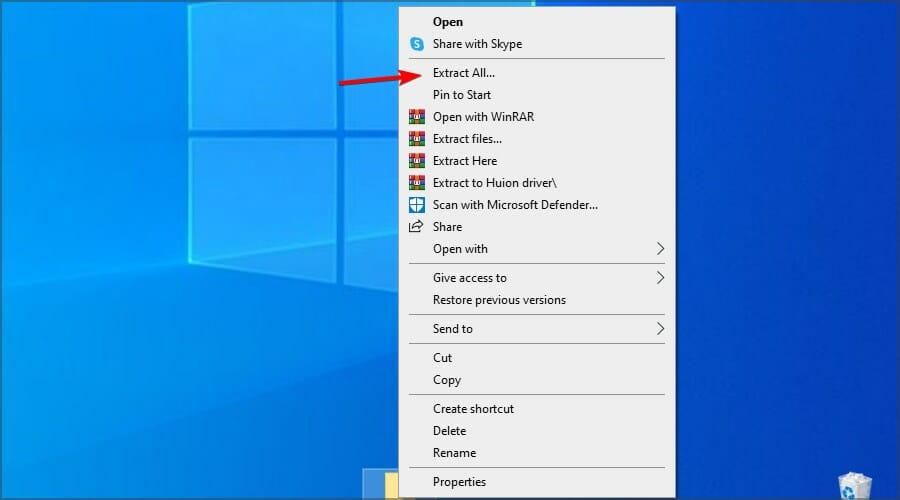
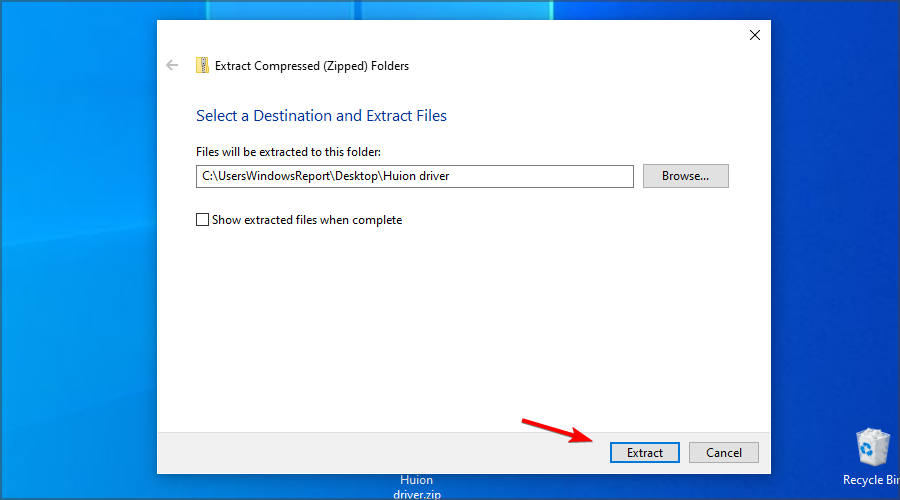
  1. Right-click the driver ZIP file and choose Extract all.
  2. Click Browse to choose a path for the extracted folder.
  3. Select the Show extracted files when complete checkbox.
  4. Press the Extract button.
  5. Go to the extraction directory and run the setup file.

Note that some users reported issues when trying to install the driver outside of the default installation path, so be sure not to change it.

If Huion tablet drivers won’t install or open, download the older version directly from the manufacturer’s website. In addition, remove any applications that might interfere with it.

Your antivirus can also prevent you from installing new devices, so be sure to disable it temporarily while trying to install these drivers.

Users reported issues when trying to install the driver outside of the default installation path, so be sure not to change it.

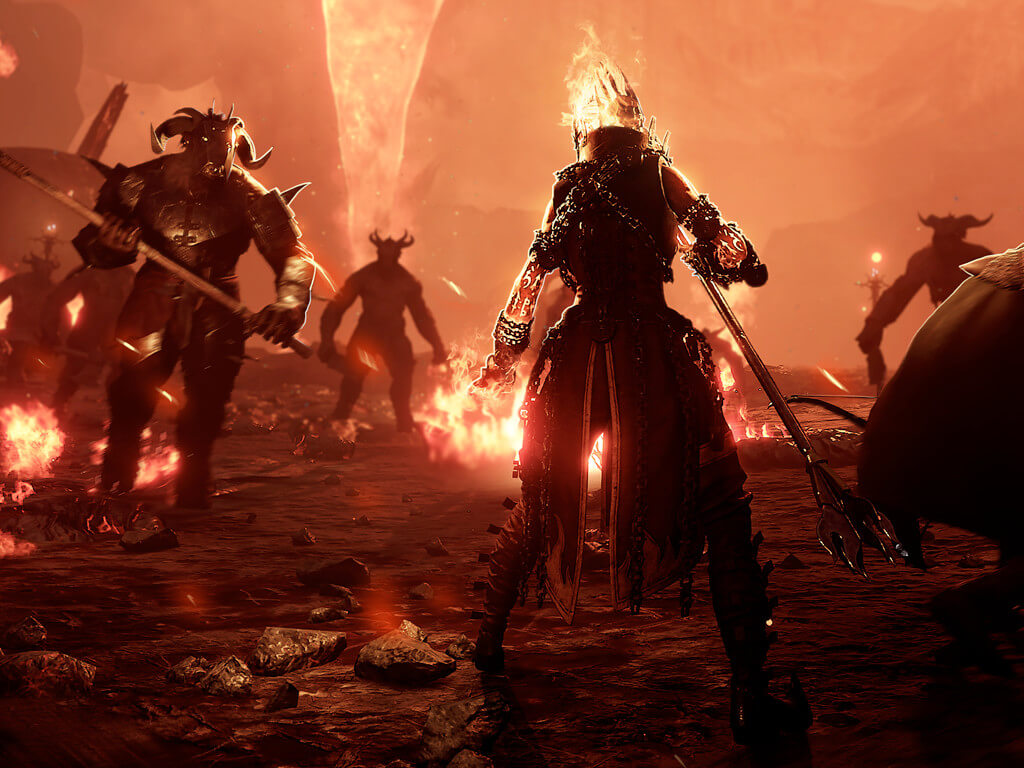
Darkest Dungeon II review: All aboard the murder-coach

One thing you rarely see in fantasy tales, be it literature or movie, is the emotional and mental toll adventuring must take on the adventurer. You almost never see the dark side of fighting an endless horde of zombies or cannibalistic orcs, or actual dragons. Heroes die, sometimes in quite horrific ways if you stop to think about it, but the main group or protagonist battles on, fighting the never-ending good fight.

Darkest Dungeon, from Red Hook Studios, turned the entire genre on its head when it introduced the concept of PTSD to the standard dungeon crawler template. The heroes (for want of a better word) in that game were presented as more down-to-Earth, normal(ish) people than you usually see.

Afraid of the dark

Yes, okay, one of them is a professional poisoner, and there’s a highwayman, and they all have special skills and, in some cases, magic. But ultimately they were meant to be ordinary adventurers.

Of course, it doesn’t help matters that the world they live in is so relentless bleak. The term grimdark doesn’t do it justice. This is a world where you either starve to death, get eaten by something, catch the plague, or strap on an eye patch, grab a sword, and go dungeoneering. During grand adventures you may also starve to death, get eaten by something, or catch the plague.

Darkest Dungeon II takes that core concept and runs with it. Actually, it takes that concept and hops on a stagecoach with it, since that’s your primary mode of transport in the sequel. Instead of languishing in an inn between delves, your ragtag band of miserable hatemongers languishes in a rickety old stagecoach instead.

All aboard the murder-bus

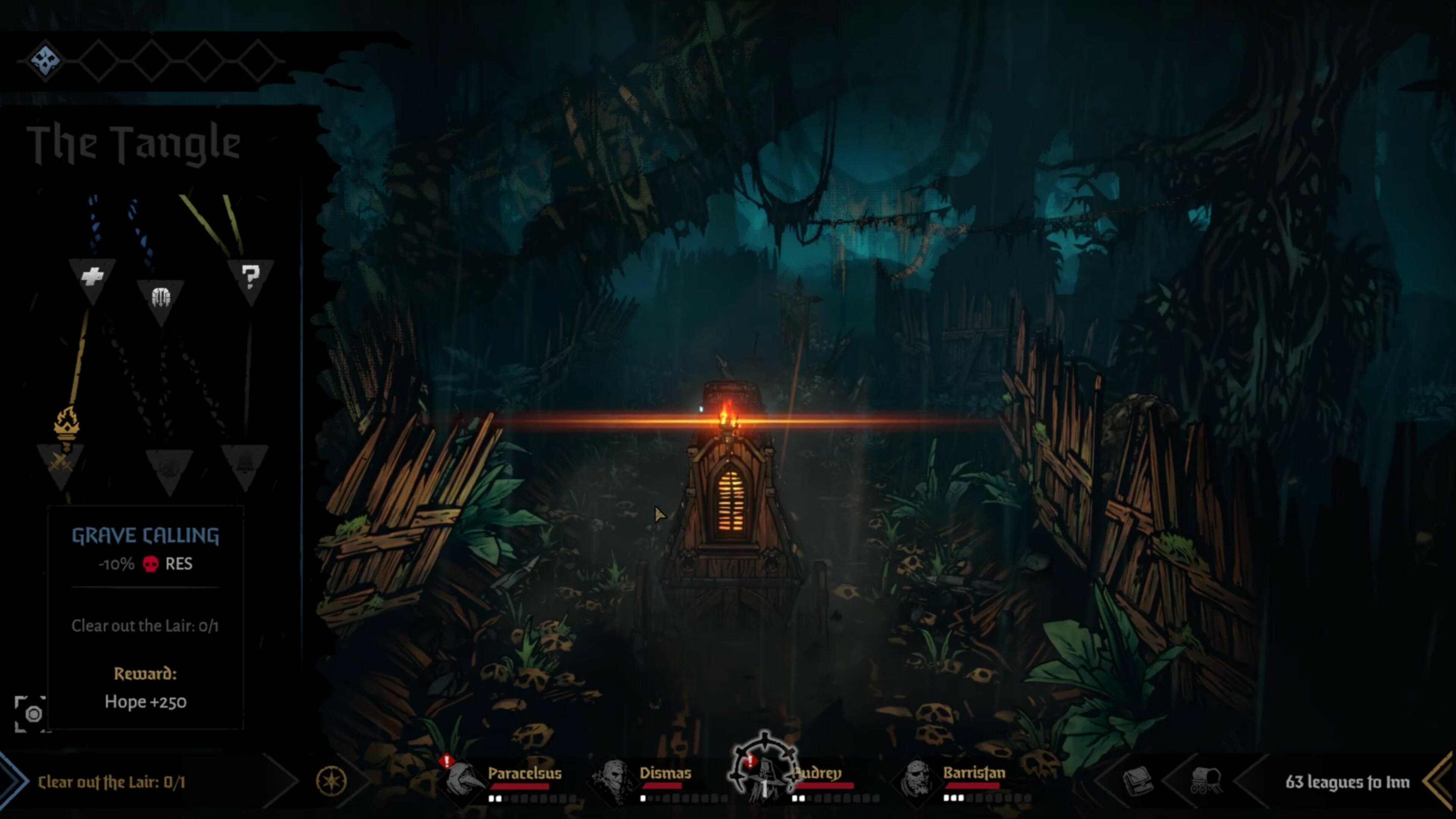
It traverses the shadow-haunted land, sticking to old roads through gnarled, thorny woodland and ancient pathways, breaking through barricades and illuminating the gloom with its single flickering flame. This flame represents your Hope, and if it goes out (which it will, now and then), it’s Game Over. As long as it flourishes, you’ll receive buffs to morale and combat prowess.

You need to keep the flame burning, and you do that by winning fights and helping the needy. Unfortunately, winning fights is an incredibly difficult affair. See, Darkest Dungeon II continues its predecessor’s penchant for punishing you even in victory. You may win a desperate fight against a band of zombies or deranged cultists, but even if you, you may emerge somewhat changed.

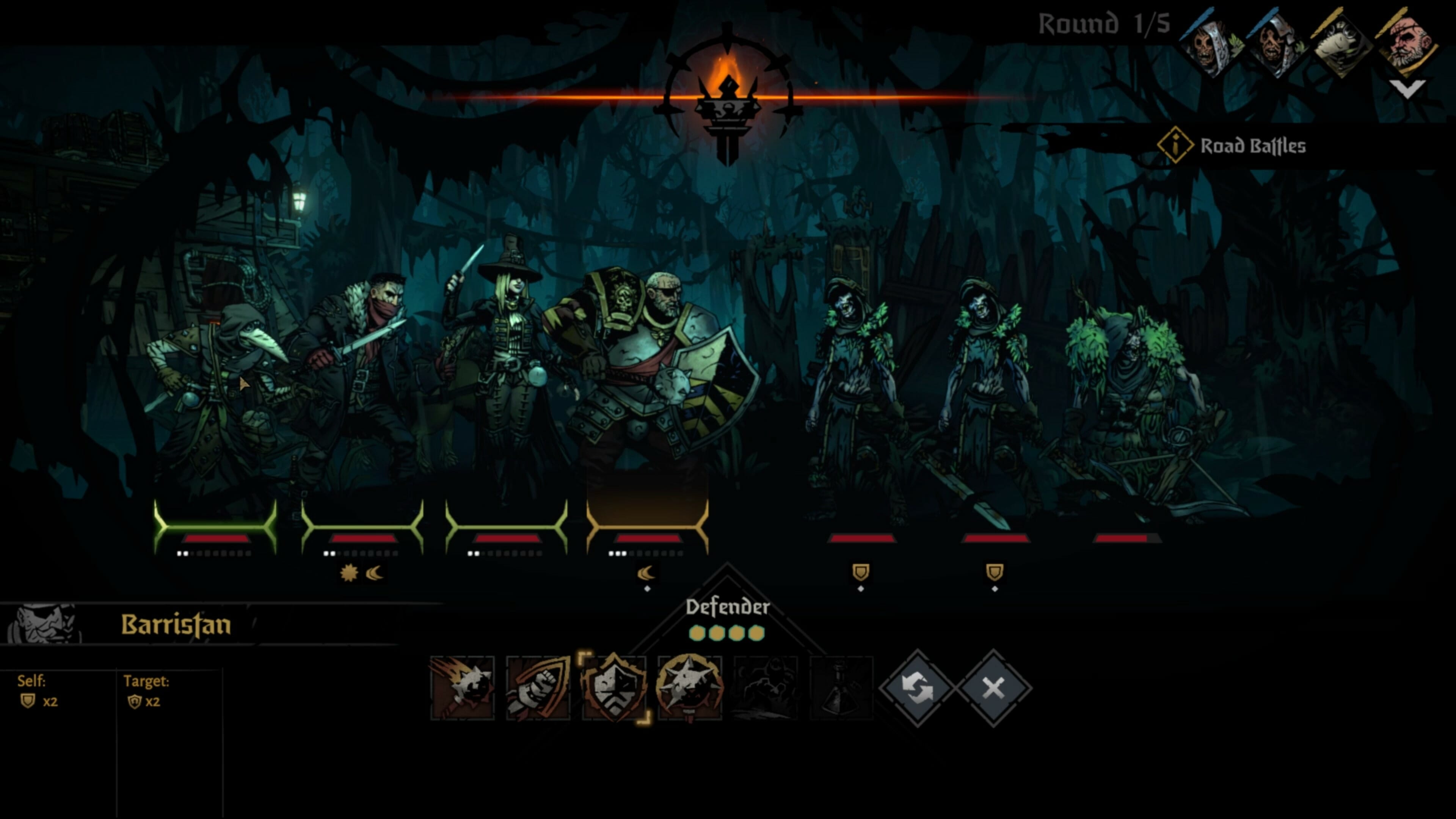
Taking hits, missing blows, and seeing their allies die has devastating effects on your party members. You begin with just four, a decent enough crew comprised of a tank, a couple of DPS types, and a plague doctor who doubles as a healer, sort of. The thing is, the enemies in Darkest Dungeon II are just as strong, if not stronger. You will trade blow for blow based on an initiative system, but the odds always seem stacked against you.

Bonds of battle

As a result, you will lose people. When anything negative happens, your heroes will gain a little point against their mental health. Fill the gauge (actually a little row of dots under their name), and they’ll have a breakdown. This can have a multitude of effects, as can other negative consequences. You can lose the ability to hit your target, or you can suffer reduced damage or defence. Certain characters lose access to their moves.

What’s even more worrying is that you won’t know what your heroes will be afflicted with until it happens. Surviving encounters requires a lot of skill and even more luck. It’s not just a case of staying alive; it’s what you have to live with afterwards.

In order to take this concept to the next level, Red Hook Studios have deepened the systems at play in a pretty extraordinary way. Character actions can now directly affect the other characters. They’ll accuse each other of kill-stealing, or of favouring other party members if you heal one of them first. Just as they can build relationships during brief moments of respite, so too can they fall out.

Love in a time of plague

Sometimes they’ll form bonds – not always romantically, although it can happen. They can become respectful of one another, in which case they’ll sometimes attack in tandem. They can grow fond of one another, in which case they’ll often step in front of their beau to take damage for them. It’s an intricate system, though perhaps a little too intricate.

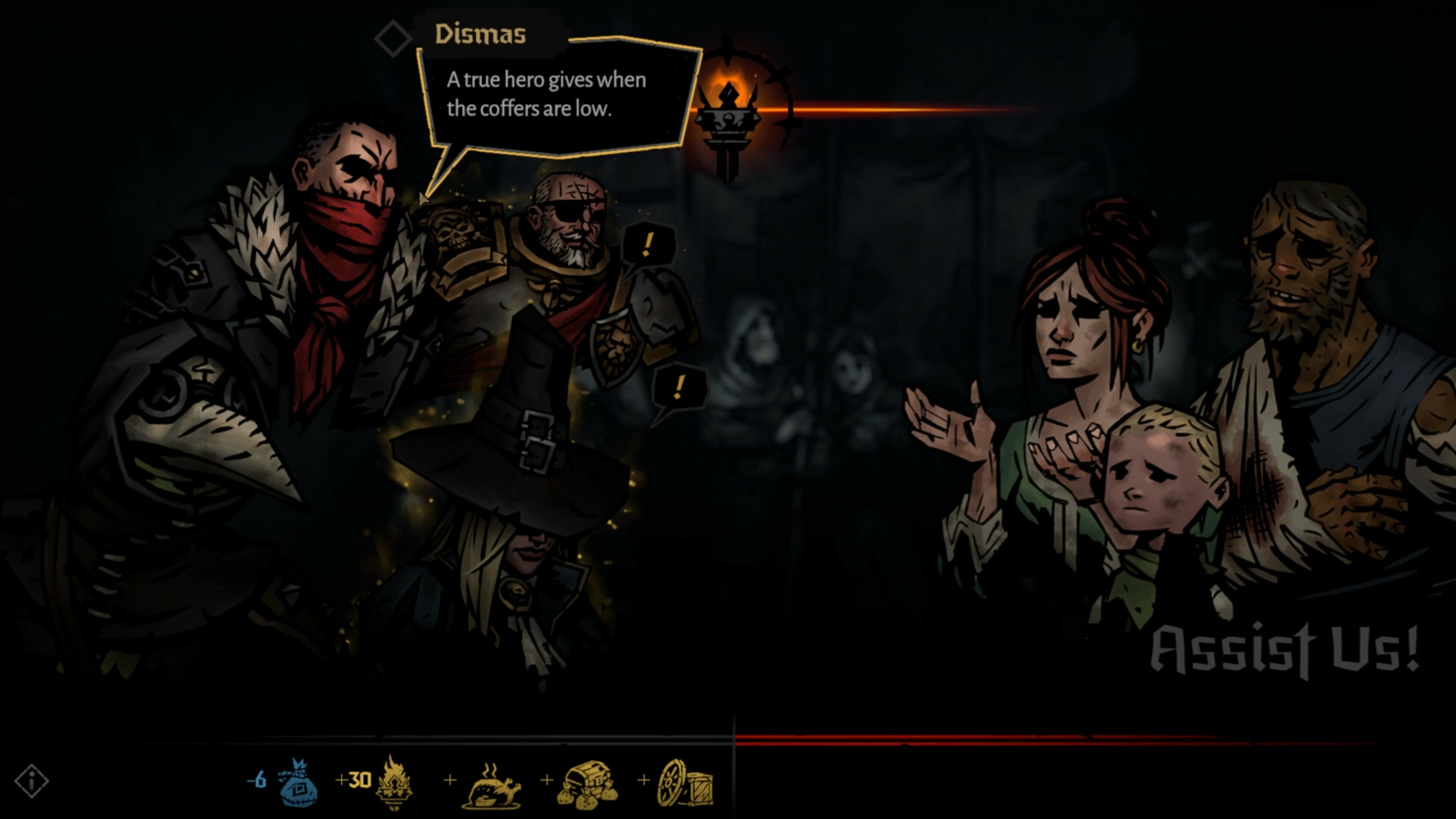
See, it’s almost impossible to identify which actions will cause a rift between characters, and it all seems pretty random. Also, certain actions can instantly shatter previously built bonds, which is annoying as much as anything. My Highwayman, Dismas, ended up going so mad at the Plague Doctor that it affected his ability to shoot straight. A literal blind rage.

And yet despite this, it remains eminently playable. You’re intended to die, you see? It’s supposed to happen. Although, Darkest Dungeon II is much more of a roguelike than its predecessor. Now you’ll permanently unlock gear and trinkets on each run – or at least, the possibility of them. Everything you find will be added to the loot pool in subsequent attempts, while you can unlock permanent skills for each character by using special shrines.

Tragic heroes

Now and then you’ll meet people out on the road who will need your help. There’s no actual transaction here, and you can’t really say no to them, but it’s still a way to build or break relationships. Not that you’ve any real control, mind. You can pick what you like, but if your Plague Doctor gives your Defender the last After Eight instead of the Highwayman, all hell will break loose.

Despite the inherent difficulty and the unpredictable relationship system, the combat is what makes Darkest Dungeon II so damn good. It’s so impactful, visceral, even, if you’ll permit the use of the word. The battle music is incredibly atmospheric, and watching your heroes dive in front of one another to take damage, or deliver punchy, violent blows to the enemy is an absolute joy.

It’s a shame, then, that it veers away from this at times, attempting to shoe-horn in what can only be described as mini-games. And you have to indulge, too, if you want to unlock extra skills. The Shrines are a bit too hit and miss, requiring you to faff around with new mechanics, none of which we’ll spoil other than to say that they’re not as fun as just fighting for your life against the enemy.

It looks weirdly beautiful though, with more detail in the world, more colour (all dark shades, obviously), and more intricate attention to the characters than in the previous entry.

Achievements & Completion

Although Darkest Dungeon II looks finished (it really does look stunning), it’s actually an early access game. All that’s available right now is the first of five chapters, though you can unlock extra characters and skills, and its roguelike nature means there’s lots of replayability.

Completing a run straight through may only take a few hours, but it will take several hours of trying and failing and swearing and crying before you get there.

Final thoughts on Darkest Dungeon II

Pros
Relationship system has massive potential
Looks and sounds amazing
Combat is brutal and addictive
Cons
Negative effects are too unpredictable
New mechanics are hit and miss
So, so grim

Final score: 3/5

It’s easy to see why Red Hook has opted for the early access approach here. This is more than just a continuation or copy of the first game. It introduces a host of new mechanics and gameplay elements, not all of which work as intended. It also feels bigger, maybe grander, despite being technically unfinished in terms of the campaign.

What’s here right now though is absolutely worth your time. That said, it really is incredibly dark and deliberately grim, so some people may be put off. If you’re a fan of the world and its systems, though, you won’t be disappointed by what’s on offer.

Darkest Dungeon II is available for around $19.99 on the Epic Games Store. You can find the details and recommended specs here.

*Disclaimer: Reviewed on PC. Review copy provided by publisher.

Star Wars: The Old Republic video game celebrates 10 years with 4K cinematic re-releases

As part of the 10th anniversary celebration of Star Wars: The Old Republic (SWTOR), BioWare and EA have begun re-releasing the cinematic trailers from the massively multiplayer online role-playing game title in 4K Ultra HD.

According to the official Star Wars: The Old Republic YouTube channel, there are plans to re-release all of the title’s cinematic trailers though currently only two are available.

The first two SWTOR cinematic trailers to get the 4K Ultra HD treatment are Deceived and Return, originally released back in 2009 and 2011 respectively. Each were genuinely impressive upon their original releases and look pretty damn good now that they’re in 4K. To be honest, they look a lot better than some trailers for some 2021 video games.

For those new to Star Wars: The Old Republic, the trailers for the game aren’t just teasers for the gameplay but are actual CGI short films that introduce various plot elements, characters, and locations. Each features impressive animation and voice-acting and many even manage to pack some genuine emotional weight into the limited five minutes or so of storytelling.

Star Wars: The Old Republic is a sprawling online multiplayer game that allows players to create their own character and explore the galaxy generations before the events of the Star Wars films and TV series.

The events in Star Wars: The Old Republic aren’t official Star Wars canon anymore but the game has continue to receive content updates due to its passionate community and loyal playerbase.

It’s unclear if Star Wars: The Old Republic will ever get a massive upgrade to bring it up to modern gameplay and visual standards (fingers crossed for an Xbox console port) but a modern remake of the single-player Knights of the Old Republic game, whose story precedes that of Star Wars: The Old Republic, is currently in development. Rumors of an Old Republic movie also began circulating online this week so it’s possible that this spin-off Star Wars franchise could be getting increased attention in the very near future.

After more Star Wars? Check out the Boba Fett content that’s coming to the Disney Magic Kingdoms video game this week.

Are you a fan of Star Wars: The Old Republic? Where would you like to see the game go in the future? Share your thoughts with us in the comments below and then follow us on Pinterest and Twitter for more gaming news.

New scanning tool to counter cyber attacks and fix API vulnerabilities

If your organization has been having trouble with the cyberattacks that are constantly finding new ways to transform, Veracode has good news for you. The company is launching a new scanning tool that will enable organizations to locate and fix API vulnerabilities.

Over the past year, businesses have undergone an immense digital transformation that has necessitated the creation of modern applications. Still, phishing campaigns are on the rise necessitating organizations to beef up their security.

Because they allow easy data transmission, they make information readily available. The downside is that they also expose them to attack by cybercriminals that result in data breaches.

The launch

Veracode has stepped in to address this critical issue by launching a scanning tool that will enable organizations to address the vulnerabilities in APIs.

According to Veracode,

“The explosion of APIs means that application development is becoming more fragmented and decentralized in nature, so the attack surface is growing exponentially, As such, API scanning has become the most-requested feature by our customers as they look for a solution that saves time, frees up resources, and provides peace of mind.”

Enhanced security

The scanning tool uses the powerful Dynamic Analysis (DAST) scanning engine from Veracode to provide security insights. Afterward, the APIs are guided to assist security managers in analyzing APIs early in advance before they are incorporated into bigger networks.

Since API scans are grouped in order of severity, security teams will have an easier time accessing details because they will be guided. They will only be required to fix insecure code, which makes collaboration easier between security and the development team.

Organizations are quickly leaning on API security, and very soon, it will become a cornerstone for any software security strategy.

What do you think of the move by Veracode to launch the new scanning tool? Do you think there will be reduced cyberattacks? Let us know in the comment section below.

Posted in Fix

Mozilla Firefox now available on Windows 11 Microsoft Store

Today, Mozilla Firefox browser surpassed a major milestone. You can now find the web browser on Microsoft Store. It is available to both the Windows 11 and Windows 10 operating systems. 

Mozilla has been in a long-term push and shove situation with Microsoft. This is quite evident, especially when it comes to the default browser settings in Windows 11. However, this is now a thing of the past based on the move that they just pulled. 

Policy update

Before, users had to go through a tedious process just to have Firefox on their devices. Before July 2021, it was next to impossible for one to install browsers using independent engines because Microsoft did not accommodate them on the Microsoft Store. 

Thanks to the July update, both Chromium and Gecko are now available in the Microsoft Store. You can now install Mozilla Firefox on your laptop without going through the long processes. 

It is also worth noting that Chromium underpins the dominant Chrome browser. Although Google has not availed the application on the Microsoft Store. 

You can now easily set Mozilla Firefox as your default web browser thanks to the update on Microsoft’s Store policies. It also comes fitted with the latest features to ensure that the user experience is smooth and seamless.

Benefits 

Windows users that install Mozilla Firefox from the Microsoft Store will have access to the following features and advantages: 

  • Fast site loading and display using both Quantum CSS and WebRender. 
  • Allowance of Multi Picture-In-Picture, revolutionizing your entertainment experience. 
  • Personalized user experience thanks to the seasonal colorways incorporated in Mozilla Firefox.
  • Quick discoveries on the web thanks to Firefox Suggest. 
  • Provision of strong and reliable protections. Total protection from Cookies and enhanced tracking protection and DNS over HTTPS. 

Mozilla Firefox’s debut in Microsoft Store comes two months after it countered Microsoft’s one-click method for allowing users to use it as the default browser. 

Previously, Microsoft only signed off on allowing the Edge browser the chance to take on the default status using a single-click. 

However, users with third-party browsers have to go through a long and tedious process via the Settings and changing the individual file associations such as SVG, XHT, XHTML, FTP, HTTP, HTTPS, HTM, HTML, SHTML or PDF.

This move aims to provide users with an easy way to set the default browser. Operating systems should ensure that they provide official developers with support for default status.

Windows 11 and Windows 10 are yet to apply this change, thus, Firefox relies on other aspects of the Windows to provide users with a similar experience. The aim is to replicate the same relationship between Windows and Microsoft Edge. 

Are you able to set Mozilla Firefox as your default web browser on Windows 11 or Windows 10? Share your views with us in the comment section below. 

Microsoft releases fixes for 55 bugs on the November 2021 Patch Tuesday

Yes, it’s that time of the month again, and Microsoft has released 55 security fixes, including patches that tackle zero-day vulnerabilities actively exploited in the wild.

The tech giant’s latest round of patches has fixes for six critical vulnerabilities, 15 remote code execution (RCE) bugs, information leaks, and elevation of privilege security flaws, as well as issues that could lead to spoofing and tampering. 

Microsoft Azure, the Chromium-based Edge browser, Microsoft Office, and its associated products, Visual Studio, Exchange Server, Windows Kernel, and Windows Defender are some of the products targetted by the patches.

Fifteen remote code execution bugs were fixed

Another busy month for Redmond programmers and developers, as they keep fighting old and constantly emerging issues.

While some matters only needed minor tweaks, others were of paramount importance and were treated as such by the tech company

Some of the most interesting vulnerabilities resolved in this update, all deemed as important, are: 

  • CVE-2021-42321: (CVSS:3.1 8.8 / 7.7). Under active exploit, this vulnerability impacts Microsoft Exchange Server and due to improper validation of cmdlet arguments, can lead to RCE. However, attackers must be authenticated.
  • CVE-2021-42292: (CVSS:3.1 7.8 / 7.0). Also detected as exploited in the wild, this vulnerability was found in Microsoft Excel and can be used to circumvent security controls. Microsoft says that the Preview Pane is not an attack vector. No patch is currently available for Microsoft Office 2019 for Mac or Microsoft Office LTSC for Mac 2021.
  • CVE-2021-43209: (CVSS:3.1 7.8 / 6.8). A 3D Viewer vulnerability made public, this bug can be exploited locally to trigger RCE. 
  • CVE-2021-43208: (CVSS:3.1 7.8 / 6.8). Another known issue, this 3D Viewer security flaw can also be weaponized by a local attacker for code execution purposes. 
  • CVE-2021-38631: (CVSS:3.0 4.4 / 3.9). Also made public, this security flaw, found in the Windows Remote Desktop Protocol (RDP), can be used for information disclosure.
  • CVE-2021-41371: (CVSS:3.1 4.4 / 3.9). Finally, this RDP vulnerability, known before patching was available, can also be exploited locally to force an information leak.

This is a relatively low number of vulnerabilities resolved during the month of November, comparing this release with those of previous years.

Last month, Microsoft resolved 71 bugs, so we can consider this quite a quiet period. Of particular note are patches for a total of four zero-day flaws, one of which was being actively exploited in the wild, whereas three were made public. 

If we go back in time a bit more, Microsoft tackled over 60 vulnerabilities during the September Patch Tuesday. Among the patches was a fix for an RCE in MSHTML.

And let’s not forget that alongside Microsoft’s Patch Tuesday software release, there are other companies that have published security updates too, such as:


Have you been struggling with any of the errors and bugs listed in this article? Let us know in the comments section below.

Acer, ASUS, Dell, HP and more join the Windows 11 SE push with sub $350 laptops

Aside from Microsoft’s Intune for Education setting a new stage for the company’s revitalized efforts in K-8 classrooms, it’s OEM partners will provide the most integral piece for Window 11 SE, the hardware.

Following Microsoft’s announcement of Windows 11 SE, OEM partners have all lined up devices to help the company re-enter the education segment with more viable products.

Windows 11 SE will be backed with devices by the likes of Acer, ASUS, Dell, Dynabook, Fujitsu, HP, JP-IK, Lenovo and Positivo, powered by Intel and AMD.

“We have heard from educators that they need options that are simpler, secure and work on more affordable devices,” says Paige Johnson, vice president of Education Marketing, in a blog post. “This expanded portfolio complements our current Windows 11 devices for learning, providing even more choices for schools to have the tools, insights and controls they need to deliver optimal learning experiences, at a price that broadens access to Microsoft performance, security and reliability.”

The list of early Windows 11 SE devices will include:

The list of devices is expected to grow in 2022 as more educational institutions and IT Admins get access to Windows 11 SE, Microsoft Intune for Education and Windows Autopilot.

Forza Horizon 5 is now available on Steam and with Xbox Game Pass

Now here’s a game release that had millions of players lining up to be among the first ones to jump into the latest title from Playground Games.

And now that this highly-popular game is out, we know that many of you are wondering if it’s available on Steam or Game Pass.

To quickly and correctly answer your question, the answer is yes, it is. Fans who have been now waiting for quite some time for this sequel can now download and play the game from Steam or through the Xbox Game Pass.

As you might remember, we’ve recently been discussing how creators wanted accessibility to be a core piece of this beloved game and added a bunch of helpful new features.

Start playing Forza Horizon 5 on Steam or via Game Pass

Forza Horizon 5’s early access already began on November 5th, 2021, and those that pre-ordered the premium edition of the game got to take it for a test drive a bit earlier. 

This sequel is an absolutely massive game, featuring hundreds of cars in a beautifully rendered world and an endless number of events and challenges for players to complete.

Horizon 5 takes up a considerable amount of space on practically any gaming device, so be prepared for a hefty chunk of software to be downloaded and installed.

On Xbox Series X|S it takes up to 103GB, it’s 116GB for the Xbox One, and 103GB for PCs, so we hope you have some free space for this new experience.

Players who are conscious of storage space can use Xbox Cloud Gaming, which uses streaming and doesn’t need to download anything to play Forza Horizon 5.

As much as system requirements go, if you want to simply enjoy the game as a casual gamer, the situation isn’t that alarming, However, if you want the full HD experience, you will need some serious gear.

Forza Horizon 5 minimum PC requirements

  • Processor: AMD Ryzen 3 1200/ Intel Core i5-4460
  • GPU: AMD Radeon RX470/ Nvidia GTX 970
  • RAM: 8GB
  • VRAM: 4GB

Forza Horizon 5 recommended PC requirements

  • Processor: AMD Ryzen 1500X/ Intel Core i5-8400
  • GPU: AMD Radeon RX 590/ Nvidia GTX 1070
  • RAM: 16GB
  • VRAM: 8GB

Forza Horizon 5 optimal PC requirements

  • Processor: AMD Ryzen 7 3800XT/ Intel Core 17- 10700K
  • GPU: AMD Radeon RX6800XT/ Nvidia RTX 3080
  • RAM: 16GB
  • VRAM: 16GB (AMD)/ 10GB (Intel)

If, however, you are still enjoying Forza Horizon 4 and are in need of some help with fixing bugs you encounter, we got you covered.

Issues such as the controller not working on PC while playing Horizon 4 can be easily fixed, if you know how to.

How to Enable Touch Keyboard With Shortcut on Windows 11

If you have a touchscreen PC running Windows 11, using a touch keyboard can be helpful if you want to take advantage of it as a tablet.

But, rest assured, this feature can help you even if the device you are using is not touch screen friendly. Let’s say your keyboard broke or is just out of battery.

The only way to input text is to use the virtual keyboard, and sometimes starting it isn’t as simple, especially if you don’t use it that often.

Did you know you can enable an icon on your Taskbar to bring the on-screen keyboard up anytime you want? We’re about to show you how to bring up this handy too with a simple click.

How does virtual keyboard work on Windows?

The virtual keyboard has been a part of Windows for years, and in the past, it has been used as an accessibility feature.

However, with the introduction of touchscreen devices, such as tablets are laptops, the virtual keyboard has become an essential component for text input.

Does virtual keyboard work on non-touchscreen devices?

Yes, a virtual keyboard works perfectly on devices that don’t have touchscreen functionality. However, the only way to input text is to use your mouse.

Using this feature on a device that doesn’t support touch input can be a bit cumbersome, but it can still be used as an accessibility tool.

How do I enable the touchscreen keyboard on Windows 11?

Change the Taskbar settings

  1. Right-click the Taskbar and click on the Taskbar settings.
  2. Click the Taskbar corner icons option to expand the menu.
  3. Switch the Touch keyboard option to On.
  4. Click the new Touch keyboard icon in the Taskbar to start the virtual keyboard.

How can I customize the virtual keyboard?

1. Change the keyboard size and theme

  1. Press Windows key + I to open the Settings app.
  2. Navigate to Personalization and select Touch keyboard.
  3. From here you can adjust the keyboard size and its theme.
  4. You can also change the size of the keys or enable background for them.

2. Change the layout

  1. Start the virtual keyboard by clicking its Taskbar icon.
  2. Click the gear icon in the top right corner.
  3. Expand the Keyboard layout section and pick the desired layout.

How can I create custom virtual keyboard themes?

  1. Press Windows key + I. This will open the Settings app.
  2. Go to the Personalization. Now select Touch keyboard.
  3. Expand the Keyboard theme section and click on Edit.
  4. From there you can change the color of the keys, text, and the window, or add various backgrounds.

What’s the difference between an on-screen keyboard and a touch keyboard?

The on-screen keyboard is the first iteration of a virtual keyboard on Windows, and it’s used primarily as an accessibility tool.

This version allows you to input text by scanning over keys or by hovering over the desired key, which makes it a great tool for people with disabilities.

On the other hand, the touch keyboard doesn’t have any of these options since it’s designed to work with touchscreen devices.

So, if you ever find yourself in a tight spot and are in need of quickly accessing Windows 11’s touch keyboard, look no further than your Taskbar.

With Windows 11 you won’t ever have to rely on virtual keyboard software, since the built-in solution is more than capable of handling all your needs. You can explore more ways to access Windows typing tools by checking this guide on the different methods to open the Onscreen Keyboard.

Have you tried the new virtual keyboard on Windows 11? Let us know in the comments below.

Dell 27 Video Conferencing Monitor S2722DZ Review: A solid video conferencing monitor

The external webcam, as well as the monitor, have become of the most important parts of many people’s lives during the COVID pandemic. The two go hand in hand and help make video conferencing and productivity easy for both those in home offices as well as hybrid workforces.

With the right webcam and monitor, you can fit more on your screen, get more work done, and look better when on video calls.  Accordingly, we’ve already reviewed the Teams certified Dell 27 Video Conferencing Monitor. We found that it’s the do it all monitor for Teams thanks to its pop-up webcam and integrated speakers. Yet, that monitor is more for conference rooms, and there’s still more from Dell.

Now available for purchase is the Dell 27 Video Conferencing Monitor S2722DZ. This new monitor takes a lot of the basics from the Teams certified monitor, but makes it more mainstream for everyday people or even businesses. We were sent one for review by Dell, and think it is a monitor that raises the bar for conferencing productivity. Here’s more on why.

Specs & Price

The Dell 27 Video Conferencing Monitor (S2722DZ) retails for $600 on Dell.com, but you can find it on sale for $450 on most days. For that price, you’re getting QHD resolution (2560 x 1440) with a 75 Hz refresh rate. The panel onboard the display features IPS technology as well as AMD Freesync technology. As for input options, you’re getting 1 USB-C port, 1 Display Port, 1 HDMI port, a USB 3.2 Gen 1 downstream port, a USB 3.2 Gen 2 downstream port, and a 3.5 mm audio line out.  Note that the monitor also sports an anti-glare coating, and has a 4ms response time. As for the pop-up webcam and integrated speakers, the webcam comes in at 5 megapixels and supports Windows Hello. The speakers come in at 5 watts, and there are two, along the left and right front of the monitor.

Design

Dell’s monitors have always been sleek and clean and at the top of the industry when it comes to design. The new Dell 27 Video Conferencing Monitor (S2722DZ) is no exception. Setup is simple and easy. All I needed to do is attach the included riser to the base by turning a handle, and then slide some tabs to the back of the display. No tools are required.

Once I set the monitor up, I could not help but enjoy its aesthetics. Most monitors might be black, bulky, and ugly, but this one fits right in with my desk and my setup. The white-silver-colored back sports a textured finish that blends in with the looks of the sleek stand. The stand, meanwhile, has a cable management slot to slide cables through.

As for the front of the display, it still has a bottom “chin” with the Dell logo, but the bezels on the top, left, and right are quite slim and on par with that from the XPS lineup. The top of the display, meanwhile, has a textured black finish. It’s where the pop-up webcam lives. Tap the center, and the webcam appears. It’s even curved a bit and angled downwards, so it better captures your face.


In terms of movement and adjustability, you can tilt it from -5 degrees to 21 degrees. Swivels can happen from -30 degrees to 30 degrees. Pivots are rated for -90 degrees to 90 degrees, and the height can be adjusted up to 110 mm. These are relatively standard numbers for all Dell monitors.

Ports & buttons

We touched on the ports at the top of this review. The selection includes 1 USB-C port, 1 DisplayPort, 1 HDMI port, a USB 3.2 Gen 1 downstream port, a USB 3.2 Gen 2 downstream port, and a 3.5 mm audio line out. Note that the USB-C port supports power delivery of up to 65 watts, and it’s how the pop-up webcam gets power. If you opt to connect your PC via HDMI or DisplayPort, you’ll need to use the USB-C end to use the camera.

Anyway, the port selection is quite nice here. USB-C allows you to use one cable for everything, so you have less of a mess on your desk. HDMI and DisplayPort are also appreciated, as not every device has made the move to USB-C, especially on gaming PCs or laptops. I used USB-C to connect my Surface Pro 8 to the monitor, and also my Surface Duo phone. As for HDMI, it’s how I connected my PS4 to the monitor for gaming.

The buttons, meanwhile, are found on the bottom right side of the screen. The power button is let up in white when the monitor is on. Four other buttons are for menu controls. I do wish that Dell had included a joystick controls-like it had on the Teams monitor, as it makes menu navigation easier. However, seeing as though this monitor is cheaper, I can see the reasoning behind the omission. Mute and unmute buttons, though, are appreciated. The shortcuts keys can be used to mute the microphone when not wanted.

Webcam & sound quality

The webcam and speakers are the signature feature on this monitor, and both do not disappoint. The 5-megapixel webcam has a wide-angle, so it can fit more in the frame and more people in the shot. There are also noise-canceling microphones built-in, too. I tested the webcam on a Teams call with my mom, and I was pleased to see all the details in her face, from her freshly colored hair, to the nail polish on her hands. Note that the webcam has a 60-degree vertical field of view and a forward tilt of 13 degrees. I found that this is ideal for keeping your face and body in the frame when looking at the webcam itself.

As far as sound quality goes, this monitor falls in line with the many others in Dell’s lineup with integrated speakers. You won’t exactly be grooving out to the latest tunes on this monitor, as the speakers aren’t the strongest. I’ve found the speakers handle voice better than music. Integrated speakers are a nice feature to have, though, which means you can spare yourself the AUX jack if you plan on using this monitor for just video conferencing.

Display quality

The Dell 27 Video Conferencing Monitor S2722DZ is a 1440p monitor. It’s better than FHD as it gives you a bit more pixels. That means that image quality is better than most other monitors, including the sister monitor, the Dell 24 Video Conferencing Monitor the S2422HZ.

To test image quality, I watched episodes of National Geographic’s Chasing Ice. In this show, where brightness and contrast are important for showcasing the spectacular colors of glaciers and the arctic skies, everything looked alive and vibrant. It’s no surprise, either. When our colorimeter measured brightness, color gamut, and contrast ratio, the monitor performed well. It netted 350 nits of brightness, 99% of Adobe sRGB, and a 1,000:1 contrast ratio.

As far as AMD Freesync support, I hooked up an AMD laptop to the monitor and played Fortnite. I’m not the best at those games, but when Freesync, I did notice that I was able to stay in the action a bit more, with less lag and faster response times. The 75Hz refresh rate is an amazing bonus for a productivity monitor.

Extras

I’ll end this review by touching on extras. The monitor has support for Dell EasyArrange. With the technology, you can keep your windows organized between applications and windows. This is controlled via drivers and software on Windows. It’s a lot like Fancy Zones on Windows 10 and Windows 11.

A solid monitor for productivity

The Dell 27 Video Conferencing Monitor S2722DZ is a solid monitor for productivity. From its built-in webcam microphone, and speakers, as well as its good image quality, it is a monitor that impresses especially if you’re always on Skype, Zoom, and Teams calls.

Dynabook joins Windows 11 SE push with its E-10 S laptop

Microsoft just held a quick unveiling of its newest new attempt to stem the surge of Chromebook usage in education with Windows 11 SE and longtime OEM partner Dynabook has answered the company’s rallying call with a new affordable laptop.

According to Microsoft, Windows 11 SE is a new take on Windows 11 that is optimized for K-8 students to deliver a simplified cloud-based computing experience and while the company showcased its own Surface Laptop SE as a reference laptop, OEM partner Dynabook is shifting is professional grade tooling processes to produce its own take on a Windows 11 SE powered notebook.

Introducing the Dynabook E10-S which comes in at 11.6-inches, weighs 2.5 pounds (1.15kg) and is just 0.78 inches (19.9mm) thin. For all of the talk of the fit and finish of Microsoft’s Surface line, Dynabook’s E10-S arguably outshines its Redmond counterpart. The E10-S is both lightweight and compact while also providing slip resistant design elements, fan-less construction and seamlessly blends rubber bumpers to encase the entire laptop to protect from accidental drops and impacts that occur in the classroom.
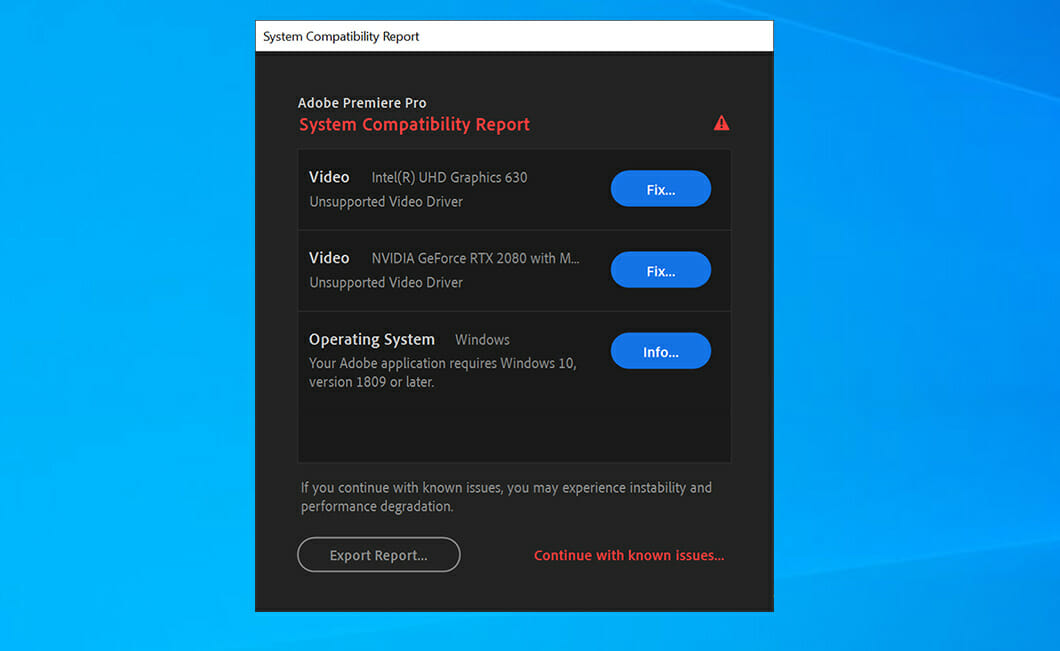
In addition to its child-friendly outer construction, the E10-S also houses an 11.6-inch anti-glare HD display, spill-resistant keyboard, mechanically anchored keys, multi-touch trackpad, 802.11 ac WiFi connectivity, HD webcam, stereo speakers, dual beam-forming microphones with noise suppression, full HDMI, USB-A, USB-C, and LAN ports.

We have more than thirty years of experience in the education sector and are proud that Microsoft has recognized the Dynabook E10-S as a launch device for Windows 11 SE, further underlining the strong education credentials of this unique laptop and throughout our product portfolio,” said James Robbins, General Manager, Dynabook Americas, Inc. “The Dynabook E10-S has been carefully engineered with the challenges of today’s classroom in mind, so that teachers and students alike know they can rely on it to support successful, uninterrupted learning. Like our other Education focused devices, the Dynabook E10-S is also available with Windows 11 Pro Education preloaded – so our education customers can choose a device that best fits their device management strategy.

Perhaps the most important part is that the Dynabook can be configured via Microsoft’s Intune for Education, which appears to be an integral part of Microsoft’s new competitive feature against ChromeOS and Chromebooks.

Windows 11 SE mostly looks and feels like Windows proper but leveraging Microsoft Intune for Education is where the company will attempt to address the pain-points of Windows use in schools for IT Admins by including Windows Autopilot management. Including Windows Autopilot will allow “IT education administrators to preconfigure, maintain, and even retire student and teacher laptops with little to no infrastructure.”

The Dynabook E10-S will be available globally in the first quarter of 2022 via its website or network of resellers starting at $289.99. While slightly more than the Surface Laptop SE, the Dynabook price tag also includes a year of Dynabook’s +Care Service Warranty With On-Site.

Forza Horizon 5 is now live on Xbox and Windows while Australia did something crazy again

Forza Horizon 5, the latest entry in the popular open-world Forza spin-off video game series, is now live on Xbox One, Xbox Series X, and Windows PCs.

The racing game features cross-buy between Xbox consoles and Windows PC which means that buying Forza Horizon 5 on one platform will unlock it on the others. Forza Horizon 5 also supports cross-play between platforms, is playable for free for all Xbox Game Pass subscribers, and is fully available to via Xbox Cloud Gaming, Microsoft’s game streaming service which is now available in a growing number of markets.

Forza Horizon 5 is one of the biggest Xbox video game releases of 2021 and, as expected, is generating a lot of buzz from players and the media this week. The Xbox social media channels have also been pushing Forza Horizon 5’s release quite a bit with the Xbox Australia marketing team once again being a standout by literally tossing a Forza Horizon 5-themed car out of a helicopter.

You can check out the wild promo video below.

Our Laurent Giret conducted a full review of Forza Horizon 5 earlier this week and described it as “the best game in the series and another essential release from PlayGround Games.” Make sure to give his full review a read here.

Want more Xbox news? Follow us on Pinterest, Twitter, and Facebook.


Forza Horizon 5 Deluxe Edition


New bug: Windows 11 users can charge their devices past 100%

Thanks to the recently released bug in the new Windows 11 build, users can now charge their laptop’s battery beyond the 100% mark. Microsoft has confirmed that the bug does exist and has actually been in place even in the past Dev channel builds. 

Users have reported that their laptops are now able to charge beyond the 100% mark. However, the real charging level cannot surpass the actual 100%, it feels weird as the battery levels seem to be exaggerated and unnatural.

Dev channel builds

Microsoft has stepped up and acknowledged the complaints, the issue is predominantly experienced by users using the dev channel builds. 

According to Microsoft, there’s no information suggesting that the bug is also present in Windows 11 public build releases that have been made so far. It is important to note that builds in the Dev channel come from a different release channel than the public release one. 

It is a bug and not a feature, the users lodging the complaints against the bug did not disclose the model they are using. However, one of the users happened to mention that  they were using the OS build 22483. 1000.

The bug is quite different in comparison to the complaints that have been made before, especially when it comes to the gadget’s battery life. 

Cons of the bug

The complaints revolve around the inability of the laptop’s battery to charge to a certain level, some users are also unable to see how much battery they have used up. The problem emerged ever since they made the upgrade to Windows 11.

Clean ISO install

As such, there are recommendations coming in from users suggesting that one should try out a clean ISO install for all those experiencing these bugs. The issues and bugs come from using the upgrade option rather than initiating a clean ISO install.

Have you experienced any of these bugs? Share your thoughts and experiences with us in the comment section below.

The official workaround: Microsoft fixes Windows 11 snipping tool issues

Windows 11 is Microsoft’s latest OS, the first stable version was actually released in October. That being said, there are a couple of users lodging complaints indicating that some of the key features are not working efficiently. 

The snipping tool specifically needs to be fixed. In the latest version, users are able to take screenshots and make annotations in real time. 

Once the users made the update to Windows 11, they were not able to make use of the snipping tool properly. 

What’s new 

There were many tools integrated into the new Windows update. Users can now be able to make use of the snipping tool in two ways, the first one is using the icon or by pressing a combination of specific keys that help launch the snipping tool. 

Despite these efforts, users are yet to access the application. All these efforts have been rendered futile. Users indicate that when they try launching the app using the icon, the app crashes. 

Users have not been successful using the key combination to launch the application, the tool refuses to open yet again. 

Identified setbacks 

Therefore, users that made the Windows 11 update are not able to capture any screenshots using the tool. This issue hinders people from running their daily activities both at school and work. 

Microsoft has identified the issues facing the users who made the update to Windows 11, specifically when it comes to the snipping tool. 

According to Microsoft, there is an issue with the Microsoft digital certificate. As such, Microsoft has plans underway to ensure that they are able to remedy the situation. However, they have not placed a timestamp on when they intend to make this release. 

Plausible alternatives 

But in the meantime, Microsoft has recommended a workaround to ensure that the users are fully accommodated. The hack is to make use of the Print Screen Key on the keyboard and paste the screenshot on the document.

Users can also paste it into the Paint to select and copy the item to the desired section. Users are urged to wait on the new developments by Microsoft. 

The workaround

On November 8, Microsoft confirmed that the issue is now a thing of the past thanks to the out-of-band KB5008295 update. Update to this version to be able to bypass this issue!

Have you experienced this issue before? Let us know how it has affected you in the comment section below. 

Microsoft announces the general availability of Visual Studio 2022

Visual Studio 2022 has finally reached general availability. This latest release comes with a ton of new features and improvements, including .NET 6. There is lots to talk about, so let’s jump right in!

Performance

One the most important changes is that Visual Studio is finally 64-bit. This means you can now take advantage of modern hardware and more memory to load even the most demanding projects in seconds instead of minutes while effortlessly navigating your projects and solutions with greater ease.

Productivity

Visual Studio 2022 comes with huge improvements to tried and true developer aids like IntelliCode. This AI-powered developer co-pilot enables you to focus on the solution and not so much on the syntax or implementation. It catches mistakes and even helps you write more efficient and performant code.

Debugging

Hot Reload has gotten a lot of love in this release as well, it works more often and greatly cuts down on the need to redeploy your applications while you edit code on the fly.

Git

Git integration has been in the works for quite some time, however its not until Visual Studio 2022 where its finally presented as a seamless and streamlined experience. It has never been easier to create, clone, and open your Git repositories. Everything from committing, pulling and pushing changes to your code has been improved as well.

The improvements are vast, and they all come together to help developers make the most of their time.

Watch the Launch Event

There are a ton of features being shipped with Visual Studio 2022. To see what the fuss is all about, check out the launch event stream.

Ready to build something great?

If you are ready to get your hands on Visual Studio 2022 head over to the official page. Happy coding!

Microsoft’s Channel 9 content moves to ‘Microsoft Learn’

Microsoft’s famous developer video platform Channel 9 will be ending soon, and its spiritual successor will join the Microsoft Learn brand.

According to a blog post on the Docs Team blog from corporate vp of developer relations Jeff Sandquist at Microsoft, Channel 9’s last appearance was last week during the company’s cloud developer conference Ignite 2021.

Later this month, you’ll find thousands of hours of current technical knowledge that you’ve come to expect from Channel 9 in its new home alongside our hugely popular documentation and Microsoft Learn content.

As for Channel 9 content and its new home, Sandquist assures fans that Microsoft Lean will remain committed to providing free learning content in the same spiritual fashion as did Channel 9.

Moreover, similar content should be found on Microsoft Learn such as:

  • Azure Fridays. Scott Hanselman, Donovan Brown, and Lara Rubbelke host the engineers who build Azure, demo it, answer questions, and share insights.
  • Ask the Expert. Here’s your chance to ask Microsoft experts your questions—live.
  • Learn Live. These episodes deep dive into a Microsoft Learn module, complete with guest experts. Join for behind-the-scenes info and live Q&A.
  • Code Stories. This series showcases local Cloud Advocates, Most Valuable Professionals, Product Managers, and Community Leaders from around the world.
  • Hello World. Every Wednesday and Thursday, Hello World broadcasts 60-minute live shows made up of special guests, quick demos, and live Q&A. Hello World is fun and educational for those who are interested in Microsoft products and our events.

image

  • Inside Azure for IT. Keep up to date with the latest Azure tips, demos, and technical skill-building resources and stay on the forefront of key insights, tools, and best practices for optimizing your infrastructure for performance, cost efficiency, security, and reliability on Azure.
  • On .NET. This show looks at the ever-expanding .NET universe, including APIs, tooling, and interesting projects being created in the .NET ecosystem.
  • Tabs vs Spaces. If you develop on a Windows machine to create for Windows, iOS, Android, the Web, or to manage containers and services in the cloud, tune into Tabs vs Spaces to stay current.
  • New: MS Archives. Some things just never age, like videos of Bill Gates talking about the future, or Jason Zander when he was a product unit manager talking about the .NET CLR —and other classics you’ve come to love over the years. You’ll find them in the MS Archives.

Fans can join Learn TV starting today, alongside the release of Visual Studio 2022 at VS 2022 or tomorrow November 9, 2021, during Microsoft’s .NET Conference 2021.

As for the full migration picture, Mary Jo Foley over at ZDNet spoke with officials who assured that production teams from Channel 9 will remain in place for the time being and that, “content published on or after November 1, 2017, will be automatically migrated to the new platform.”

Fix Broken Registry Items & Keys in Windows 11

Broken registry items in Windows 11 can slow down your PC, cause errors, and affect overall performance. These entries often remain after uninstalling software or due to system crashes and malware. While newer systems may not need fixing, older laptops and desktops should regularly clean or repair the registry. You can use built-in Windows tools or manually edit the registry with the Registry Editor to remove broken entries and improve stability.

How do I fix a corrupt registry in Windows 11?

1. Run deployment image and system file scans

    The detailed guide below can help you run effective Command Prompt commands in order to identify the issues with your Registry files.

  1. 1. First, click the Search utility’s taskbar button.

    broken-registry-items-windows-11
  2. 2. Type cmd in the search text box to find the Command Prompt.

  3. 3. Click the Run as administrator option for the Command Prompt.

    broken-registry-items-windows-11/
  4. 4. Now input this command within the Prompt’s window and hit Enter: DISM.exe /Online /Cleanup-image /Restorehealth

  5. 5. When the first scan has finished, input this system file command and press Enter: sfc /scannow

  6. 6. Wait for the system file scan to reach 100 percent and display an outcome message. Then you can close the Command Prompt’s window.

2. Run the Disk Cleanup tool

  1. Right-click the Start button on the taskbar to bring up the menu below.
    Win + X menu broken registry items windows 11
  2. Select Run on that menu.
  3. Type the following command in Run’s Open box: cleanmgr.exe
  4. Click OK to open the Disk Clean-up window.
  5. Press the Clean up system files button on that window.
    Clean up system files button broken registry items windows 11
  6. Select all the file checkboxes in Disk Clean-up.
  7. Click the OK button to open the dialog box.
    Disk Clean-up dialog box broken registry items windows 11
  8. Press the Delete Files button on that dialog box.

3. Use Startup Repair

  1. Click Start on the taskbar.
  2. Then click the Power button on the Start menu.
  3. Press and hold the Shift key and click Restart.
    Restart option broken registry items windows 11
  4. Next, select Troubleshoot on the Choose an option menu that opens.
    Choose an option menu broken registry items windows 11
  5. Click the Advanced options button.
    Advanced options button broken registry items windows 11
  6. Select Startup Repair on the Advanced options menu.
    Start-up Repair button broken registry items windows 11
  7. Choose an account to apply the startup repair to, and then enter the password for it.
  8. Press the Continue button.

4. Roll back Windows with System Restore

  1. Right-click Start on the taskbar to select the Run shortcut.
  2. Now type this text in Run’s window and click OK: rstrui
  3. Select the Choose a different restore point radio button if the System Restore utility displays it.
  4. Press the Next option to open the window that you can see below.
    System Restore window broken registry items windows 11
  5. If the Show more restore points option is available, select that checkbox.
  6. Then choose the restore point that goes the furthest back, which will fix the most broken registry items.
  7. Click Next to proceed to the confirmation step.
  8. Select the Finish option to confirm your chosen restore point.

Rolling Windows back to a restore point will remove software installed after its specified date. You’ll probably have to reinstall some software if you implement this method. Click Scan for affected changes in System Restore to check what software a restore point removes.

This will restore a snapshot of your PC’s registry for a chosen restore point date. By doing so, it will remove broken registry items that emerged after the specified date.

5. Reset your PC

Note icon NOTE
Keep in mind that you’ll need to reinstall the software that didn’t come preinstalled after applying the below procedure, therefore a backup is recommended.
  1. First, click Start and Settings to bring up the tab that you can see below.
    System tab broken registry items windows 11
  2. Then select Recovery on that tab.
  3. Press the Reset PC button.
    Reset PC broken registry items windows 11
  4. Select the Keep my files option in the Reset this PC window.
  5. Next, select either Cloud download or Local reinstall according to your preference.
  6. Click Reset to confirm.

How can I back up the registry?

Backing up the registry won’t fix any broken items that already exist. However, restoring a backup copy of it can resolve registry issues that might arise from corrupted entries in the future.

You can manually back up the registry via Registry Editor as follows:

  1. Bring up the search box by clicking the magnifying glass taskbar icon in Windows 11.
  2. Type regedit within the search box.
  3. Click Registry Editor in the search results to open its window.
    The Registry Editor broken registry items windows 11
  4. Right-click the Computer icon at the top of the registry hierarchy to select Export.
    Export option broken registry items windows 11
  5. Type Registry Backup in the File name box.
  6. Choose a folder to save the Registry Backup file in.
  7. Click the Save button.
Export Registry File window broken registry items windows 11

Thereafter, you can restore the registry backup by clicking File, then Import in the Registry Editor. Select your backup file in the window that opens. Then click Open to restore it.

Short Video Explainer ▶️

Just Dance 2022: Daddy’s Little Gamer Review

Put on your sweatpants and clear out the living room, because Just Dance 2022 is here and it’s time to get groovy! The arrival of a new Just Dance game is always an event to look forward to in our household as we always take the time to explore the game together.

I’m hands down the biggest gamer in the family but Just Dance succeeds where other games fail and draws my wife and kids to the TV set so we can take turns shaking to the beat.

My daughter Fé is probably the biggest fan though. She’ll be joining me for this review and weighing in with her opinions, giving a unique child’s eye perspective on things. It’s become somewhat of a yearly tradition.

New to Just Dance?

If you’re not yet familiar with the series, Just Dance is a game where you mirror the dance moves of the on-screen character(s) and you try to get as high a score as possible. It usually offers a mix of popular and lesser-known songs to shake your extremities to.
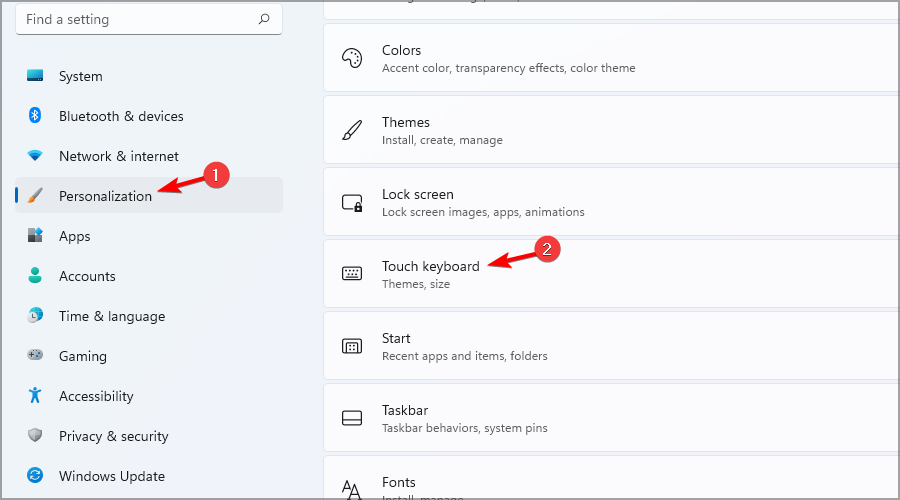
Just Dance 2022 | Ubisoft (NL)
Shake it!

A new version launches every year and introduces new songs that come with the game, as well as some alternative choreographies, and I’m happy to report that this year’s tracklist is a lot better than what we got in Just Dance 2021. Though I’m fully aware musical tastes are very personal.


Fé: I actually thought last year had more fun songs, like Dance Monkey and there was even a song from K3.
Daddy’s Note: K3 is a local Belgian girls band that is very popular, it’s great that they include local songs like this!


Like I said, it’s very much up to personal preference. I’ll share the 40 new official tracks here, so you can make up your own mind:

My personal favourite is by far Believer by Imagine Dragons, there is a raw power that comes from dancing to this song and the visual backdrop they’ve added only adds more weight to it.


Fé: My favourite is Good 4 U. It’s really fun to dance to and has a lot of jumping! (Olivia Rodrigo)


Just Dance Unlimited

While the above 40 songs come with the game, arguably the best reason to get Just Dance is when you also have access to…

BUY JUST DANCE UNLIMITED!

I’m sorry. Seems like a Just Dance Unlimited advertisement snuck into the review, I promise it won’t happen ag…

BUY NOW!

Yeah, that’s not a very pleasant experience, is it? The thing is, the game does this as well. In a game you pay for, you’re getting advertisements in image and video form to subscribe to their subscription.

You can’t skip the video when it appears and it defaults to the “buy now” option so you should be extra careful when trying to spam a button to exit it.


Fé: When I have the main controller, daddy makes sure to take it from me when the pop-up happens so I don’t accidentally activate it.


The good news: You get a free month alongside the game so you can try it out.
The bad news: It feels extremely limiting to go back to your selection of 40 songs when you’ve had access to 700+.

Boombayah!

So how much does it cost for a 1-year subscription to Just Dance Unlimited? We’ll, surprisingly little at $24.99. If you already own a previous version of Just Dance, I’d actually wager it’s a better deal to buy a year’s worth of Just Dance Unlimited instead of buying the new edition. Heck, since the new version usually costs around $49.99, you’ll usually be better off finding an older version to combine with the subscription, as the actual game does not differ that much year after year.


Fé: But I always look forward to the new songs! and I heard there is a new K3 song on the way!


That is true and with the holidays coming up soon, I expect a lot of gift-wrapped Just Dance 2022 copies ending up under Christmas trees all over the world.

Amazing collaborations

Speaking of Christmas, there were a few songs in Just Dance 2022 that really popped. Even more than usual. And I bring this up now because one of them has a Christmas theme and even though we’re still at the start of November, it already got me in the holiday spirit.


Fé: Does that mean we’ll put up our Christmas tree already?
Me: NO. Not until December!


There were a lot of fantastic collaborations this year, one of which was for Daði Freyr‘s Think About Things. The band has become well-known thanks to their participation in the Eurovision song festival (and if the 2020 edition hadn’t been cancelled, I’m sure they would have won) and Neels Studio made a wonderful 3D animation to accompany the song in Just Dance 2022.


Fé: Stop telling them about it and just show the video, dad!

And this wasn’t even the only such collaboration between a visually creative team, Ubisoft’s programmers and well-known artists. Trizz Studio made a great-looking video for Sia‘s Chandelier and one of my absolute favourites this year is the claymation version of Mr Blue Sky:

Year after year, these animations get better and better and it gives me high hopes for the series’ longevity. But that’s not to say it’s all sunshine and rainbows…


Fé: Oh oh...


Stripped down

In Just Dance 2020 there was a single-player campaign to celebrate the 10-year existence of the Just Dance series and I’ve missed a similar feature ever since. Even though it was nothing more than a linear list of songs to play, the fact they were laid out and presented through a coherent theme added some extra value.

Now in this year’s version, they also removed another mainstay: the sticker album. While you can still collect avatars, backgrounds and taglines from the lottery machine (which is ever addictive), they removed the sticker sheets that you could fill out through playing songs over and over again for points.

Gotta get them addicted to gambling young!

It doesn’t sound like much, but small things like these can give players motivation to go the extra mile.

Also of note was that the Kids Playlist had only received 3 new songs, while Just Dance 2021 had an entire list of new tracks for the youngest players. My 3-year-old son Lio was especially disappointed by this.


Lio: Yeah. I wanna play new songs!
Fé: Don’t worry, daddy will activate the 3 months Just Dance Unlimited that came with his review copy soon!


A positive change though: some of the songs have bleeped out curse words for the youngest ears. I found it annoying in Just Dance 2021 that it was removed by a scratch sound or by plain muting the entire song (even the instruments) and this time they’ve correctly solved it by only muting the vocals.

Lingering technical issues

One thing that has plagued the series for some time now, is that at the start of each song, the visuals are often blurry. Now, I’d understand this if we’re playing the streamed versions of online songs, but for the ones included with the game, you’d expect the videos to be pre-rendered


Fé: Yeah, it takes a while before the picture is sharp every time.

Pretend this is a song by Blur, as that would fit perfectly…

Another frequent issue is the tracking of the controllers. While the Joycons on the Nintendo Switch are usually pretty accurate, you can also use your smartphone but it often tends to lose the connection or doesn’t register your movements. (+ it also adds the risk of tossing your phone halfway through the living room)

Time to wrap this up

Just Dance 2022 is a great way to introduce some physical activity in your gaming lineup and it’s so easy to pick up that even your youngest family members can join in on the fun.

As per usual I’m asking the kids for feedback. I’d personally give this three and a half stars, mostly because it’s a lot of fun but the new editions don’t add any new features and instead only seem to strip things every year.


Fé: I’d give it 5 stars. It’s fun and it lets us have dance parties in the living room.
Lio: Uhhh. Four? Is four more than five?


Let’s split things down the middle and set it at four then, but that’s mostly keeping in mind that you’ll probably end up paying for the Just Dance Unlimited offer at some point and that opens up A LOT of content.

Final thoughts on Just Dance 2022

Pros
Amazing tracklist this year with 40 new songs and variations
Some of the new tracks have fantastic animations thanks to collaborations with other studios
Accessible to even the youngest gamers
Cons
Blurry videos at the start of a song
Just Dance Unlimited advertisements

FINAL SCORE: 4/5

Just Dance 2022 is a fantastic game to play with the entire family. I’d mostly recommend picking this up if you don’t already own a previous version. It’s one of the most accessible titles imaginable and you’re sure to have a blast. Just keep in mind that the included songs will quickly outstay their welcome and you’ll kind of be forced to check out the Just Dance Unlimited subscription to keep the party going.

Just Dance 2022 costs around $49.99 and is available on Windows PC, Xbox One and Xbox Series consoles, Playstation 4 and Playstation 5 consoles and also on Google Stadia. Keep in mind that all platforms except the Nintendo Switch will require you to have a compatible smartphone with motion sensors (gyroscope).

*Disclaimer: Reviewed on Nintendo Switch. Review copy provided by Ubisoft.

Diablo 2 Resurrected doesn’t allow crossplay, only cross-progression

Everyone has been eagerly waiting for this remastered version of Diablo 2 to come out, and now that it has, it’s easy to see why.

We can relive all of our favorite adventures but in a much more pleasant and eye-catching HD environment. However, impatient die-hard fans of the game never stopped playing it in the first place.

But now that we have this enhanced version of the game, another important question seems to be on everybody’s minds. Can we actually crossplay Diablo 2 Resurrected?

There is no cross platform multiplayer in Diablo 2 Resurrected

Obviously, the way we traditionally view crossplay, or cross-platform play, in games these days is the ability to play with people on other platforms.

As much as we hate to be the bearers of ad news, we have to inform you that there is no chance for you to get together with your online buddies in Diablo 2 Resurrected if they play on different platforms.

This highly requested feature is not a part of Diablo 2 Resurrected at this time and we’re not sure if there ever will be one.

Developers said it wasn’t possible to implement because there are different UIs and control schemes between Nintendo Switch and PC compared to PlayStation and Xbox.

So if you have a friend you want to party up with but they are on the PlayStation and you are on your PC, well there is no party to be had which is a bit of a shame.

But, if we think about it, other massive games such as Apex Legends, for example, didn’t have crossplay at launch and it actually took a couple of years to implement.

And while we can’t rule the possibility out completely, don’t make it your life goal to wait for it, because you might be disappointed.

Diablo 2 Resurrected does have cross-progression.

Since we already shared the bad news, let us sweeten the pot with some news you will actually enjoy. Although you can’t team up with buddies playing on other devices, you can cross-progress in Diablo 2 Resurrected.

This is a huge success for Blizzard, as everyone will surely love to continue their progression in the game in whatever format they have handy.

That means that if you enjoyed playing Diablo 2 Resurrected until late last night on your PC, you can still play it on the go the next day, on your Nintendo Switch, for example.

Yes, you’ve heard correctly. And all you need in order to achieve this is your BattleNet account and also the version of the game for the specific gadget you are planning to use it on.

Thus, if you bought this title for PlayStation 4 or 5, Xbox One, or Series X/S/One, Nintendo Switch, and PC, you can continue your progression across all these devices, provided you have access to the BattleNet account.

This is still amazing news, considering that this versatility will ensure that people will be able to enjoy their favorite game, no matter where or on what they play it.

We’ll still keep an eye out for any news regarding crossplay, but as we said, don’t get your hopes up just yet.

Blizzard is currently working on many games, including Diablo IV since we were on this topic, so don’t expect this to become available anytime soon if it will at all.

What’s your take on this whole cross-platform situation? Share your opinion with us in the comments section below.

How to Fix Common WordPress Hosting Issues

If you ask yourself how to fix the most common WordPress hosting issues, you are in luck today. In this article, we will explore exactly that.

Even though using WordPress is very intuitive, from time to time, you will encounter different errors that can make you feel that you don’t understand how to use it properly.

The developer teams that deal with WordPress fix any issues you might encounter, so you shouldn’t worry too much.

In this article, we will discuss the solutions to some of the most common problems found in WordPress. Please read on to find out more about this subject.

What are the main WordPress hosting issues that can occur?

Unfortunately, even if WordPress grew a lot in security, tools, and features, the hosting service can turn things into the worst scenario in seconds.

Here are the main reasons for issues spawn from hosting problems that can occur:

➡ Low-quality server – Sharing services and resources with other clients can be a bad omen for everyone involved, so it’s better to find a decent deal for a dedicated web server.

➡ Slow loading pages – Even if you have a dedicated server, if it’s a low-end machine running on HDDs and not SSDs can affect the loading times a lot.

➡ Security breaches – Try to find a hosting service that focuses on security and backup. At least if your website gets hacked, you can put it back together with a fast response in no time.

Now that you know what you’re facing, let’s see how we can help you fix the most common WordPress hosting problems.

How can I fix common WordPress errors in no time?

1. The White Screen of Death error

  1. Navigate to the Administration Screens and go to the Plugins section.
  2. Deactivate each of the plugins and reactivate them one by one to see which of them is faulty.
  3. Use an FTP client like FileZilla and locate the wp-content/plugins folder.
  4. Rename the folder to plugins_old.

The WSOD error can be caused both by a database, and also a PHP error so disabling your plugins can sort this problem out.

If this solution was not comprehensive enough, read the WordPress guide on how to deactivate the plugins when you don’t have access to the Administrative menus.

Sometimes these issues can be caused by your web browser, so in order to troubleshoot them, it’s advised to switch to a different browser.

2. Error establishing a database connection

  1. Open your FTP client, then open up wp-config.php.
  2. Check to see if the following information is correct – Database name, Username, Password, and Host.
  3. In case you’re not sure if the data is correct, try resetting your MySQL password manually.
  4. This issue can also be caused by your database meeting its quota or if the server is down. To check this, you will need to contact your hosting provider.
  5. If your database has the correct information and is not shut down, the issue might be caused by your site being compromised, so you should scan your site with Sucuri SiteCheck and if the results are bad, learn what to do if your site was hacked.

Seeing this error means that there is an issue with your site’s connection to the database. This may have a lot of causes, and the most unpleasant one is that your site was hacked.

If this actually happened, you should seriously consider a different hosting service like Bluehost that provides extensive security features.

3. Failed auto-upgrade

If your WordPress auto-upgrade features have failed, you might see a blank white screen, a warning telling you the update failed, or a PHP error message.

This error happens because of a glitch in the server connection with the main WordPress files, a problem with your Internet connection during an upgrade, or incorrect File Permissions.

You can also check out how to manually update your WordPress site as that may fix this issue too.

4. Maintenance Mode after upgrade

As WordPress updates, it will install a .maintenance file. If the file is not removed after the process is completed, this error will appear.

  1. Log into your website by using a FTP program of your choice.
  2. Delete the .maintenance file from your website root folder.

We hope this How-to article offered you useful information about some of the most common WordPress hosting issues.

There can be a lot of dangers lurking out there, and without proper security measures, your website can fall into the wrong hands.

This may compromise your credibility and ranking, so you should treat this matter very seriously.

You should also check our list including WordPress hosting to make lightning-fast websites and maintain them securely.

Another annoying WordPress issue is cURL error 28, to learn the probable causes and solutions to fix it, read this guide.

Please let us know how the procedure went for you by using the comments section below.

Windows 11 Snap Groups will be improved with Alt+Tab and Task view integrations

Although this built-in OS feature is pretty good already, even though it has the occasional fail, as all software do, the tech giant decided its time for some improvements.

We all know that Windows 11’s flagship multitasking feature is support for Snap Groups which is based on the windows snap capability of the operating system.

Snap Groups is arguably the biggest change to Snap since Windows 8.1, and its a really trustworthy and useful feature.

New integration coming to the Windows 11 Snap Groups

Creating a snap layout is done by launching two or more apps on the desktop, and theb choosing the window you want to snap to one half of the screen, and then drag it to the edge.

Or you can also hover your mouse over the maximize button and snap your open windows. Pretty easy, right?

Microsoft really listened to the feedback it received and its working on a series of improvements based upon Snap groups.

Starting with Windows 11 Build 22494, Redmond developers are now testing snap groups integration in the Alt + Tab and Task View.

Its all going to get wasier and even more practical, as snap groups are simply displayed in the Alt + Tab UI, similar to how these apps appear when hovering over the taskbar.

Thanks to this new change, you can now directly switch to app groups instead of opening these apps one by one, which makes multitasking difficult.

But, of course, no one is forcing you to use it, it just comes activated by default. If you don’t want the Snap groups to appear in Alt + Tab or when hovering over taskbar icons, you can always turn off the integration from Settings.

It is worth noting that Microsoft is testing snap groups in ALT + TAB and Task View with some Windows Insiders.

This isn’t available to everyone and Microsoft could make more changes to the feature before pushing it out to everyone.

What’s your opinion on this new integration for snap groups in Windows 11? Share your thoughts with us in the comments section below.

Email Hosting Services for Business: Best to Use in 2026

Email still is one of the most frequently used mediums for businesses and consumers as well having more than one billion users throughout the whole world.

Because email is such a useful tool for communication, the demand for email hosting has constantly increased.

There are lots of email hosting services for Windows, and we chose five of the best along with their sets of features just to make your choice much more manageable.

Why do I need email hosting?

First of all, emails are the number one source of data leakage for businesses so you definitely make sure that your messages are properly encrypted and their contents are safe.

An email hosting service does just that. Even more, some of the offers include dedicated clients and extra security features.

It’s up to you and your needs on what features you go for but don’t treat this task lightly if you need to host the accounts of your customers or clients.

Which is the best business email hosting service?

Bluehost

Bluehost is an excellent email hosting service that provides an email size of at least 100 MB per each account and at least five email accounts.

When you want to build a website, you can start at Bluehost because the shared service delivers quite a robust platform that will turn out to be ideal for hosting your websites.

Bluehost automatically creates daily, weekly, and monthly backups of the entire account so that you will be able to easily restore your complete data with the single click of a mouse.

Best of all, this service can be controlled from one cPannel that is extremely friendly to use without any training or prior knowledge.

It’s good to know that each server is custom-built and that allows you to upgrade performance over time if your requirements grow in time.

Bluehost offers three plans according to users’ needs: Basic, Plus, and Prime. All are very competitive and offer great benefits.

You can check out the whole set of features that are packed in Bluehost and start using the service from its official website.

Check out the best features provided by this service:

  • The Basic plan offers five email accounts with 100 MB per each account
  • Both the Plus plan and the Prime plan provide an unlimited number of email accounts with unlimited email storage
  • The domain manager makes it easy to track, update and transfer, purchase, and administer all of your domains in a single place
  • You will be able to create and manage unlimited email accounts, and the advanced features include forwarding rules and account filters
  • You can also benefit from third-party compatibility, spam protection, and unique user account controls.

Bluehost

Profession and affordable email hosting service, with domain registration, site builder, and security included.
Free trial Visit website

SiteGround

SiteGround is an email hosting service for Windows that comes with a limited email size and unlimited email accounts. This web hosting service is crafted for a high-quality experience.

With SiteGround, the unique email hosting solution can be used to create and manage an unlimited number of personalized email accounts based on your website.

The service makes sure that both your website and email run smoothly on the servers and that your website will be safer than anywhere else.

SiteGround offers users three plans for their needs: StartUp which is created for a great web start, GrowBig that is ideal for users’ web growth, and GoGeek, a plan that is crafted for real web geeks.

The service also provides free website migration and the experts from SiteGround can migrate one existing website effortlessly and quickly at no cost.

Check out the best features of SiteGround:

  • This service has the fastest setup, and with just three clicks you can set up a new site
  • With the simple drag and drop website builder, you will be able to create the coolest website real quick
  • The StartUp Plan offers all the essential hosting features that you need to accommodate a beginner’s website, and this works great for smaller online shops
  • For more resources and premium features, besides the basic ones, the perfect choice is the GrowBig plan which is ideal for a heavily-trafficked website
  • The GoGeek Plan is best suited for an extremely heavily-trafficked website

SiteGround

All-in-one web, cloud, and WordPress hosting, with a built-in antispam efficient solution.
Check price Get it now

HostGator

HostGator is a great email hosting service for Windows that offers a limited email size and unlimited email accounts. Using this service, you will be able to enjoy robust web hosting at affordable prices.

HostGator also provides cloud hosting, WordPress hosting, reseller hosting, VPS hosting, dedicated hosting, application hosting, and all its services come with their own plans.

You will have webmail access, not to mention that you will be able to receive your emails on your phone via IMAP Support.

HostGator provides three hosting plans: the Hatchling Plan, the Baby Plan, and the Business Plan.

Check out the best features the HostGator offers its users:

  • All HostGator’s plans include email marketing services
  • The email features included in Windows hosting provide unlimited POP3 email accounts with SMTP
  • You will be able to prevent spam with SpamAssassin
  • Access the emails directly on your phone
  • You will get unlimited autoresponders, email aliases, mail forwards, 25 mailing lists, and more

HostGator

Get one of the best webmail and WordPress hosting at competitive pricing with HostGator.
Check price Get it now

iPage

Hosting your website with iPage will go beyond unlimited disk space, unlimited email addresses, and a free domain name. The service’s tools and training help users launch the entire web presence above the competitors.

The advanced email solutions provided by iPage include email, calendar, contacts, and task management, virus and spam protection.

The recommended email services are the Premium Spam Filter with more control over the spam filters and the Larger Mailbox Storage with increased storage and mail count limits.

It also includes a security suite that comes with business verification, malware scanning, a highly secure data center, and network scanning.

The experts from iPage are available by chat and phone anytime you need them, and they will assist you with any questions or issues that you might have.

Check out the best features of iPage below:

  • Sturdy website builder and a large selection of templates
  • Marketing tools and dedicated support
  • Secure webmail access
  • Chat and phone assistance
  • The SiteLock security software will keep your website and your customers safe

iPage

Get unlimited email addresses at your own domain and many more with this great tool.
Check price Get it now

Verio

Verio provides Windows hosting with a few email features. For instance, using Verio, you will be able to create unlimited email accounts.

The hosting plans include website creation tools, Google Webmaster tools, disk space, bandwidth and email, and more.

Besides email, you will also get commerce features, marketing, and promotion, hosting utilities and settings, multimedia options, website reports and statistics, and more.

Customer support includes an extensive help center, tutorials, and 24/7 support. You can check out the complete set of features and plans of the Verio service on the official website.

Check out the best functionalities included in Verio below:

  • Forwarding accounts and Autoresponder
  • Spam email filtering and browser-based email or webmail
  • Unlimited number of email accounts
  • Extensive help center with 24/7 support
  • Website creation tools included

⇒ Get Verio

Email hosting provides a great way to create addresses that are connected to your own domain, and this will definitely add credibility to your services and communications.

Using email hosting services, you will also get additional resources and enhanced availability for your customers.

Having the ability to access your inbox and the related features anytime will offer users peace of mind.

These email hosting services for Windows come with great sets of features so make sure to check them all out and choose the ideal software for your needs.

We recommend that you visit these services’ official websites where you can also see their available plans and pricing.

And while we’re on the subject, take a look at the best Windows hosting services with unlimited domains and find other great offers.

Tell us about your experience with these services in our comments section below.

Just Dance 2022 video game is now live on Xbox One and Xbox Series X consoles

Just Dance 2022, the latest entry in the long-running Just Dance video game franchise, is now live on Microsoft’s Xbox Series X and Xbox One console families.

Just Dance 2022 supports Xbox’s Smart Delivery feature which essentially means that the same version of the game will play the same across both current and last-gen Xbox consoles and that buying it on one platform will unlock it for free on the other.

It should be noted that, while the Just Dance 2022 video game has been confirmed to support the Kinect sensor on Xbox One consoles, this functionality won’t work on the Xbox Series X or Xbox Series S as both of these newer consoles lack Kinect functionality.

All players on Xbox One and Xbox Series X consoles are able to use the free Just Dance smartphone app to turn their iPhone or Android smartphone into a motion tracking tool.

Just Dance 2022 supports local multiplayer for up to six players though appears to lack any form of online multiplayer which will likely disappoint fans of the various online modes introduced in previous releases.

Here’s the official game description:

Just Dance® 2022, the ultimate dance game, is back with new universes and 40 hot new tracks from chart-topping hits like “Believer” by Imagine Dragons, “Level Up” by Ciara, and more!

  • Looking for the perfect game to dance to the latest hits and share some fun with friends and family? Just Dance 2022 is for you!
  • Exercise while having fun and start your own routine with Sweat mode. Keep yourself motivated, track the calories burnt and your time spent dancing.
  • Team up with your friends and rule the dance floor in Co-op mode.
  • Join more than 138 million players around the world and Just Dance It Out!
  • This game leverages Smart Delivery allowing access to both the Xbox One title and the Xbox Series X|S title

Just Dance 2022 is available in both a Standard Edition that includes the base game and a Deluxe Edition that comes with the game and four free months of the Just Dance Unlimited subscription service which unlocks more songs and routines.

Want more Xbox news? Follow us on Twitter, Pinterest, and Facebook.

Just Dance® 2022
Just Dance® 2022
Developer:
UBISOFT
Price:
Free


Just Dance® 2022 Deluxe Edition
Developer:
UBISOFT
Price:
Free

Ghost Recon, Warhammer, and Street Power Soccer Xbox video games are free this weekend

The Tom Clancy’s Ghost Recon Breakpoint, Warhammer: Vermintide 2, and Street Power Soccer video games are now free to play on both Xbox One and Xbox Series X console generations for all players with an active Xbox Live Gold subscription.

The free play promotion will run until Sunday, November 7 at 11:59 p.m. PST and, like previous Free Play Days, will allow participants to download each game and play them fully as if they own them outright.

Also like previous Free Play Days, each title has also had their digital price reduced for several days to encourage Xbox console owners to pick them up after playing them for free.

Tom Clancy’s Ghost Recon Breakpoint has been given an 80 to 85% discount for its various editions and a 70% discount for its 1 Year Pass. The base game of Warhammer: Vermintide 2 is now 75% cheaper than usual while its various DLC packages have also had their prices slashed.

Finally, Street Power Soccer has been given a 70% discount which brings the cost of the entire game down to just $9.

Are you going to play any of these games this weekend? Let us know which ones in the comments below and then follow us on Pinterest, Twitter, and Facebook for more Xbox gaming news.


Warhammer: Vermintide 2
Developer:
Fatshark
Price:
$29.99+


Street Power Soccer
Street Power Soccer
Price:
$29.99