6 Best Software for Flashforge [Creator, Adventurer, Slicer]

FlashForge Creator Pro is a mid-range budget 3D printer that is available for a pretty low cost. Congratulations if you have brought one home recently or if you are thinking of buying one.

However, you might also be thinking about the best 3D printing software for Flashforge Creator. Compatible 3D printing software is essential in creating good models.

Most 3D printing software help you check for errors before proceeding with the print. This saves you a lot of time and hassle, avoiding failed projects.

You can also use them to preview your model and see if you want/need to make any adjustments. 

If you are not familiar with 3D printers, a software with error-free, tested presets is your best bet. Many tools also offer online support and extensive tutorials for new users.

3D printing software can also calculate the print time and the material requirements for your models so you know exactly what you need.

They can store and secure your models within easy to navigate libraries. Some offer cloud-based storage and advanced data encryption.

Today, in this article we will be looking at the best 3D printing tools that are compatible with  Flashforge Creator Pro. They are simple enough to be used by novices yet powerful enough for professionals.

What’s the best 3D printing tool for Flashforge?

Autodesk Fusion 360
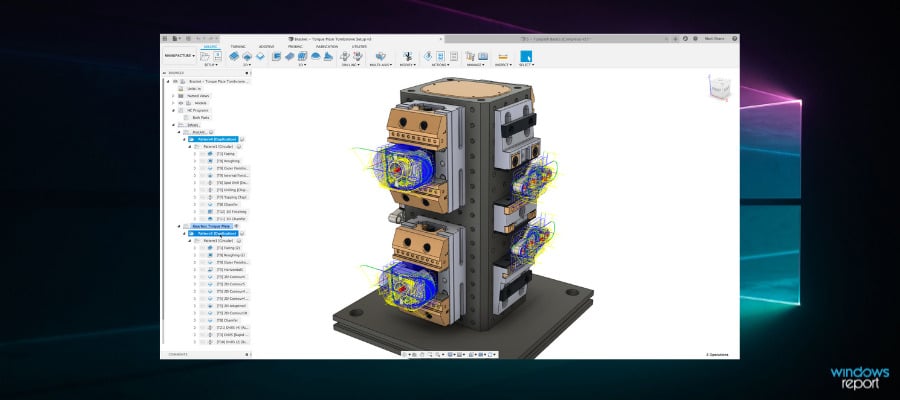
Autodesk is a cloud-based 3D modeling software that comes with special modules for 3D printing.

The software is an all-in-one solution for the creation of different types of engineering or design projects. Several people can easily collaborate on the same project thanks to the cloud.

Models created in Autodesk Fusion 360 can be printed in Flashforge Creator if you install the Print Studio module. You can find the module in the UI and download it within seconds.

Print Studio lets you apply detailed settings to your model. You can easily rotate, resize, and position your model. It also provides preset print profiles for optimal 3D printing.

The print module also detects 3D geometry errors and fixes them automatically, monitors and controls print jobs on connected 3D printers.

Modeling and design functions of Fusion 360 include support for editing imported geometry from non-native file formats, advanced rendering features for photo-realistic results, and PCB design integration.

Other key features include:

  • Optimizes slicing settings
  • Calculates print-time
  • Calculates material requirements

Fusion 360 is a subscription-based software with various plans and deals. If you’re not satisfied with the products, you can get a refund in the first 30 days.

Autodesk Fusion 360

Autodesk Fusion 360

Create error-free models and print them directly from the app with this powerful modeling tool with an integrated printing module.
Check priceVisit website

Simplify3D

From engineers to entrepreneurs to schools, Simplify3D is one of the most popular 3D slicers available in the market today. It is an expensive piece of software if you see it as a Slicer, but it offers more than just 3D print properties.

Apart from Flashforge Creator Pro, Simplify3D supports 90% of all the desktop 3D printers in the market which makes it future-proof in case you decide to buy a new 3D printer from other brands.

Simplify3D lets you preview the printing process on the screen along with the ability to view a single layer or layer by layer preview.

The pre-print realistic simulation allows you to see all the actions that the 3D printer will perform once the execution starts. It can also be helpful in identifying any flaws or issues and fixing them in advance as it provides information related to speed, sequences, and settings.

The software also offers excellent support structures for your 3D models which easily break away once the task is finished. You can further customize the support structure per your requirements.

Simplify 3D also includes industry-leading resources, variable printing settings, support for multi-extruder and FFF/FDM printers, multi-party customization, script engines, mesh analysis, and more.

Other key features include:

  • Baisc and Advanced modes in the Edit Process settings
  • Requires 2GB of RAM
  • Multi-language support 

Simplify 3D offers more features than any other slicer in the market, but costs equally expensive and does not offer a free trial.

⇒ Get Simplify3D

Flashprint

Flahsprint is an in-house project from Flashforge that is compatible with its 3D printers including Creator Pro. The software is free to download and use.

The software claims to offer ease of use and can be used by beginners while offering enough advanced features that professionals would seek from a slicer. It may not be as sophisticated as Simplify 3D, but the fact that it is free and easy to use makes it a good beginner’s slicer for a 3D printer.

Flashprint comes with tons of features including the ability to control temperature, speed and thickness, and height for the first layer. Once done, you can view the layer-by-layer visualization, time, and material estimation.

For structure support, the software automatically generates support based on the model’s overhang angles. However, the user can manually add any additional support as required.

If you want to print large models that may not fit into the printer as a single object, you can use the cut and split function provided by the tool to divide the model into several parts and later assemble the product.

For better accuracy and less error, you can test the error value first and then set the value in the software to avoid any dimension error in the printing stage.

Another interesting feature offered by Flashprint is the ability to turn 2D images into 3D models allowing you to save a lot of hassle when you don’t have a 3D image readily available.

Other key features include:

  • Multi-machine List Management
  • Detects and fixes model errors automatically
  • Unlimited undo

Even though it is created specifically to support Flashforge, the software is compatible with other 3D printers as well.

⇒ Get Flashprint

Slic3r

Slice3r is an open-source, free 3D printing software that allows you to turn your 3D models into G-code (machine code) and print the 3D model.

There is a command-line tool for those who prefer the old school execution, and it can generate G-code batch form, export SVG slices, cut, transform, repair 3D models and perform 3D format conversion.

Slic3r is compatible with almost all 3D printers including Flashforge Creator Pro. The intuitive user interface makes it easy to see what is where and not confuse the first-timers.

It also comes with multiple 3D printer support along with 100x faster G-code generation making the slicing process that much quicker in comparison to other 3D printing slicers.

There is a Sequential Printing feature that allows you to print a single object completely in a single printing job. The objects can be placed onto the plating interface by drag-and-drop and can be further arranged by using the rotate and scale function.

The software offers multiple input/output formats support, cooling features, multiple printer management, and micro layering that lets you print a thicker infill to benefit from low layer heights without having to spend extra time.

Other key features include:

  • Tool for cutting meshes in multiple solid parts with visual preview 
  • OctoPrint integration (send to printer)
  • Built-in projector and host for DLP printers

Slic3r can be used by users of all levels, but beginners may need to use some learning resources that are available online.

⇒ Get Slic3r

Cura

Ultimaker is a 3D printer-making company and offers Cura slicers for free that can be used with most of the 3D printers offered by other companies including Flashforge Creator Pro.

The software itself is easy to use and will take not more than few minutes to set up and run. It comes with industry-standard software integration to streamline your workflow for maximum productivity.

It’s an open-source cross-platform software and it comes with two modes – custom mode that lets you customize the properties of printing and recommended mode that automatically selects the best settings for your 3D printing task.

It also comes with support for file formats like STL, OBJ, X3D, and 3MF. You can extend the functionalities using plugins for CAD software integration and third-party materials.

To print any 3D model, Cura slices the given 3D model into thin layers. You can preview the simulation, scale it and adjust settings, and set the print job when ready.

Other key features include:

  • Lets users create custom plugins
  • Includes recommended error-free profiles
  • Regular updates
  • Offers 3D printing courses
  • Cloud storage

Cura is touted as the second-best slicing software after Simplify 3D. However, the functionalities it offers for no cost make it a no-brainer for users who can’t afford Simplify 3D yet.

⇒ Get Cura

Craft­Ware

CraftWare shares its similarities with Cura. CraftWare is a free 3D printing slicer that lets you host a 3D printer and create 3D models. However, it is developed by CraftUnique, a company that also makes CraftBot Plus 3D printers.

That being said, CraftWare works on any third-party 3D printer including Flashforge Creator Pro.

The user interface is straightforward and offers a clean workspace and appears to be beginner-friendly. All the transformation features are on the top including select, move, scale, auto drop, drop plane, and undo options.

CraftWare’s impressive G-code visualizer helps you to see each print layer-by-layer from any angle. You can detect any point that needs modification and make the changes before proceeding with the printing process.

Interactive support management (structure) offers greater stability to 3D models. You can import 3D model design in multiple formats including .stl, obj, and more. Other features offered by CraftWare include machine control, G-code toolpath reversal, and the ability to load and save g-code generated from other programs.

Other key features include:

  • CAD functions 
  • Tested presets
  • Multi tray project

CraftWare despite being a free tool offers all the essential features that you need to print a stunning 3D model using your printer.

⇒ Get CraftWare

Conclusion

Surprisingly enough, the number of free 3D printing slicers is plenty, and none of them makes any compromise in quality or features. Yes, Simplify 3D does offer the best toolset of the lot, but if you are not yet ready to invest and a learner, you can begin with one of the free 3D printing software for Foregeflash Creator Pro and upgrade as you make progress.

Note that 3D printing slicers are not 3D modeling tools. This software act as a host and help in converting 3D models into G-code (language) that 3D printers understand.

Do let us know your favorite 3D printing slicer in the comments below. Also, make sure you share your first 3D printed model with us to see.

How does 3d printing work?

3D printing works differently from traditional subtractive or formative (molding-based) printing. To print using a 3D printer you need a 3D printer, required materials like Plastic to melt and create objects, 3D design software to create 2D/3D images, and a 3D printing slicer tool to convert the image into machine language.

Once the 3D model is ready, the 3D printer uses the slicer to turn the instructions into machine language and begin executing the model and create the 3D model of the image layer by layer. This is how you can turn imagination into reality.

The 3D printers remove the limitations of traditional printers and lets you create anything that you can imagine and turn it into reality.

Flashforge has its own 3D printing software to do this task. And the best tools are on this list.

If you are interested in more 3D modeling and printing software suggestions, check this best software for 3D printing articles.

Windows news recap: zero-day vulnerability based on malicious Office files, redesigned Photos app in Windows 11 teased, and more

Welcome back to our Windows news recap, where we go over the top stories of the past week in the world of Microsoft’s flagship operating system.

Asus plans motherboard BIOS updates to allow Windows 11 support for 6th, 7th gen processors

Owing to Microsoft’s strict requirements for running Windows 11, Asus has taken upon itself to try to allow Windows 11 support on some of its older processors in the 6th and 7th gen ranges via a BIOS update. The Z270 motherboards, for 6th and 7th gen processors, will now “(s)upport Windows 11 by default, (with) , no settings changes required in the UEFI BIOS.”

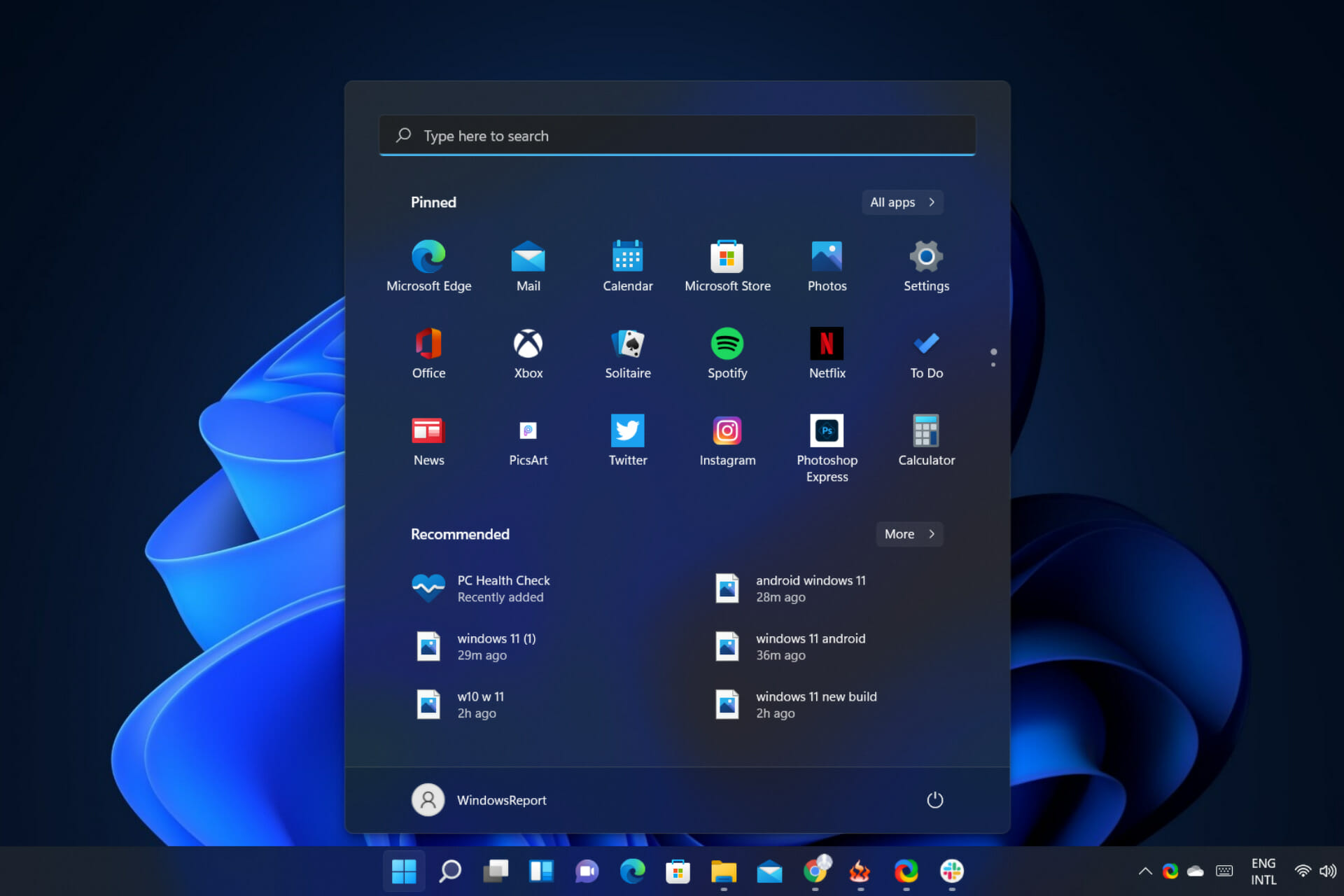
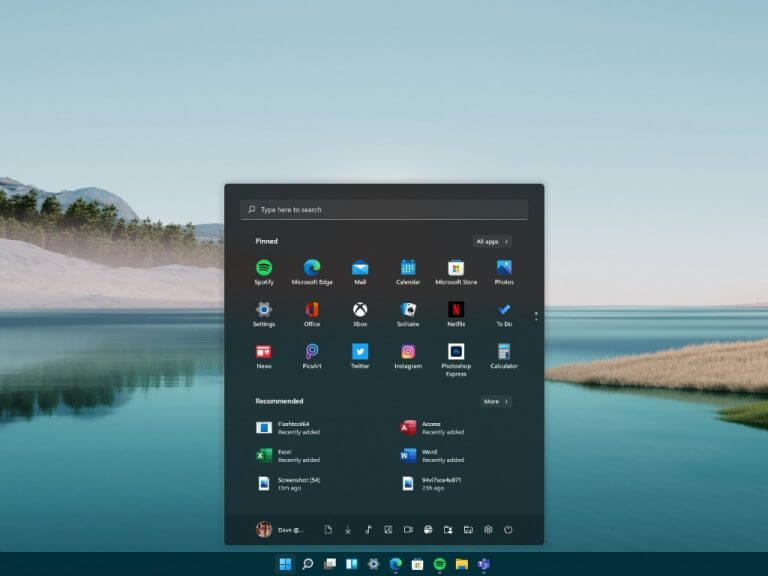
Windows 11 Start Menu

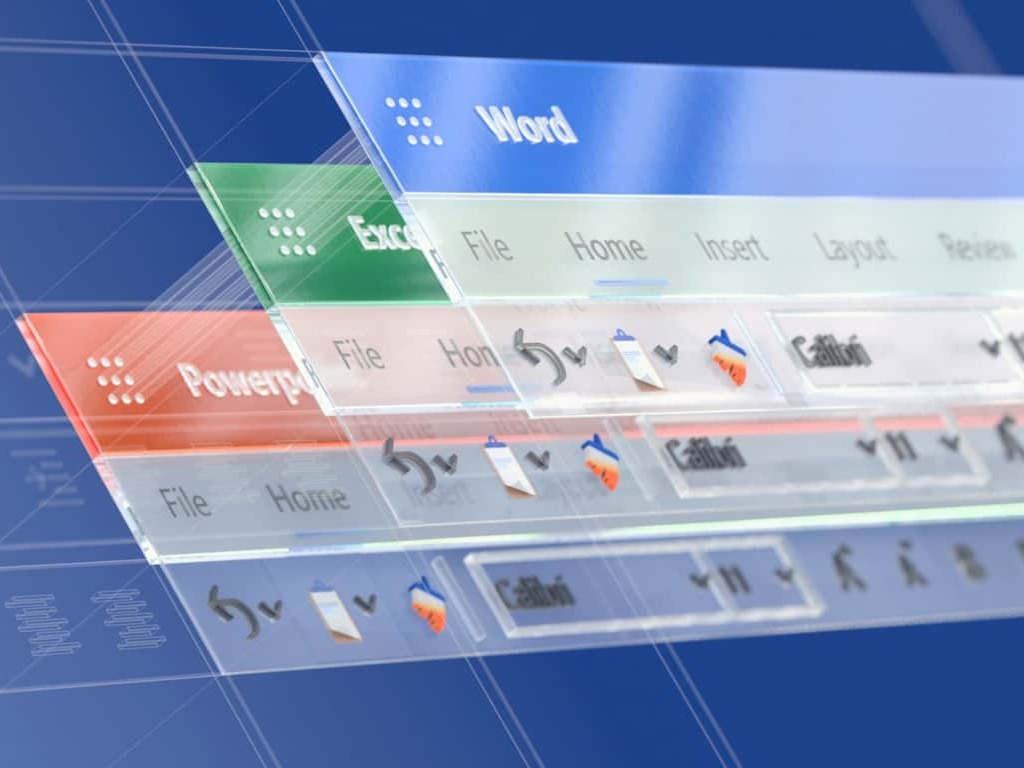
Microsoft acknowledges Windows zero-day vulnerability based on malicious Office files

A new zero-day vulnerability has been acknowledged by Microsoft. The vulnerability is based on malicious Office files, whereby a user could fall victim by opening a malicious Office document that makes use of an exploit in the Explorer’s rendering engine, used in Microsoft Office for browser-based content. A fix is being worked on, but it affects all versions of Windows and is actively being exploited.

Office

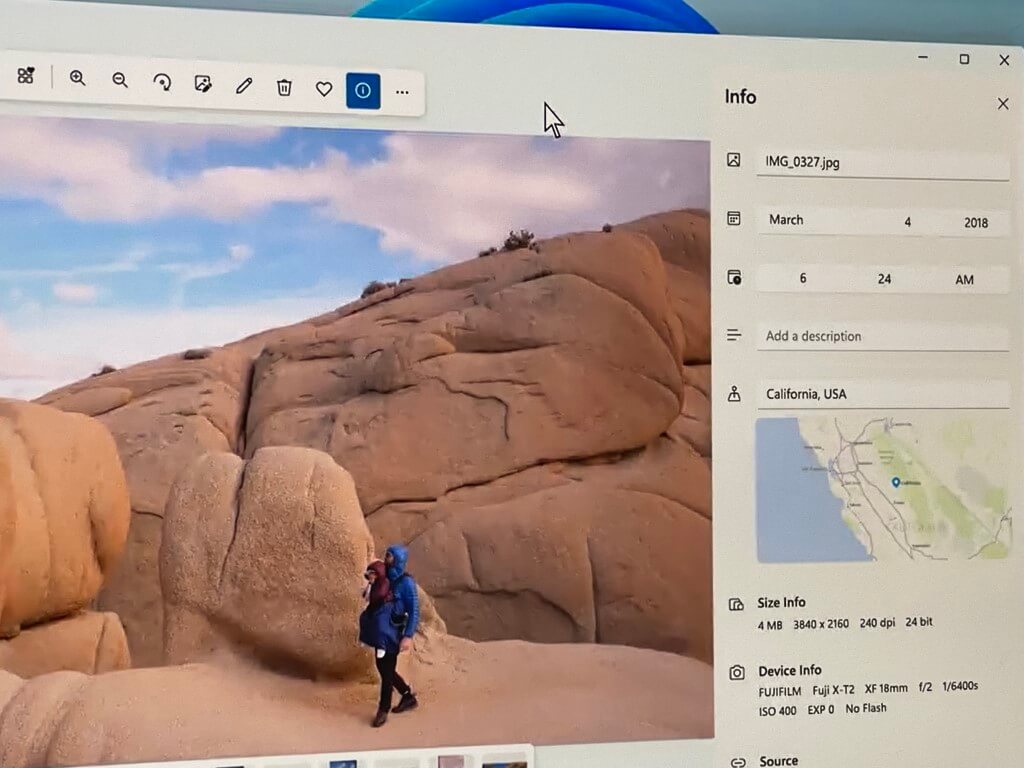
Panos Panay’s latest Windows 11 tease is a “beautiful redesigned” Photos app

Panos Panay is back at it again with the Windows 11 teasers. This week, a redesigned Photos app has been teased. One of the most obvious changes appears to be a more slimmed down interface, with buttons for key features being more compact.

That’s it for this week. We’ll be back next week with more Windows news.

Windows 11 build 22454: In-depth feature and bug overview

Microsoft is slowly but surely preparing for the official launch of Windows 11, and it’s working hard on fixing most bugs before the final product is released.

Just like in the past, Windows Insiders got early access to the new build, and today, we’re testing the latest Dev build.

This version brings various improvements, bug fixes, and a couple of changes that some users might find interesting.

Join us while we take a closer look at Windows 11 build 22454 and see what new features and improvements it offers.

What is Windows 11 build 22454 and should you install it?

What’s new in Windows 11 build 22454?

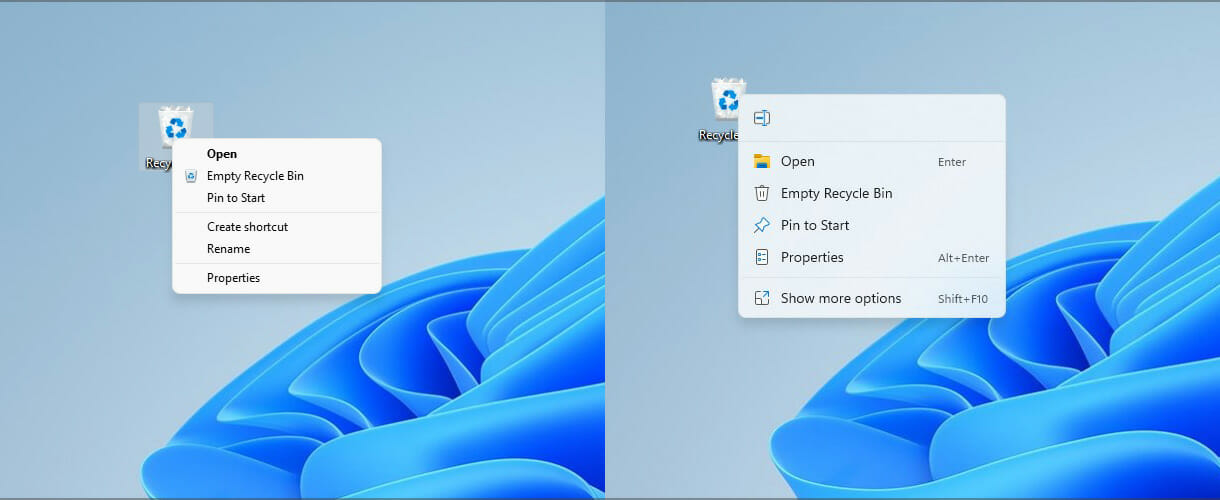
  • Improvements to the Recycle Bin context menu

Not all components of the operating system use the same context menu, which makes the user interface look inconsistent.

This has been addressed in this version, and now the Recycle Bin has a modern context menu just like other elements.

We have to admit that we love this new change, and it’s an improvement that makes the whole interface look more coherent.

  • Quick Access and network share improvements

This is a minor but welcome change that will help users that are sharing files over the network. With this update, it’s possible to add a network share to Quick Access faster.

Before you had to click the Show more options in the context menu to get to the pin option, but now you can do that directly.

Most users probably won’t even notice this change, but if you’re using network sharing, this is a welcome change.

  • Improved Korean IME

Korean IME now has a new visual design, featuring an acrylic background, support for dark mode, and improved visuals for selections.

In addition, there are performance and compatibility improvements. This feature is rolling out slowly to a part of Insiders in the Dev Channel, but it will become available to all members over time.

This is a welcome change for all Korean users, and we hope that Microsoft will keep improving IMEs in the future.

Windows 11 build 22454 bugs

  • Installation gets stuck

Users reported that they are unable to install the Dev version since it gets stuck at around 50% during the setup.

This is a major issue, and if you encounter it, you should try waiting for a couple of hours for the installation to finish.

If that doesn’t help, you might even want to consider performing a clean install or resetting Windows 11 to factory settings.

  • Taskbar not properly centered

The main problem with this build that a majority of users reported is that the Taskbar isn’t centered properly, and we have experienced this issue on our test PC.

Moreover, if you have a lot of icons in the Taskbar, some of them will become hidden behind the system tray. This issue seems to affect both single and multi-monitor setups, regardless of the resolution that you’re using.

Few users reported that setting 100% scaling solved the problem on 1080p screens, but that’s just an unreliable workaround. Microsoft is already aware of this glitch, and we’re expecting to see it fixed soon.

As you can see, this version doesn’t bring many bugs, but it seems that the Taskbar issue is affecting a large number of users.

How can I install Windows 11 build 22454?

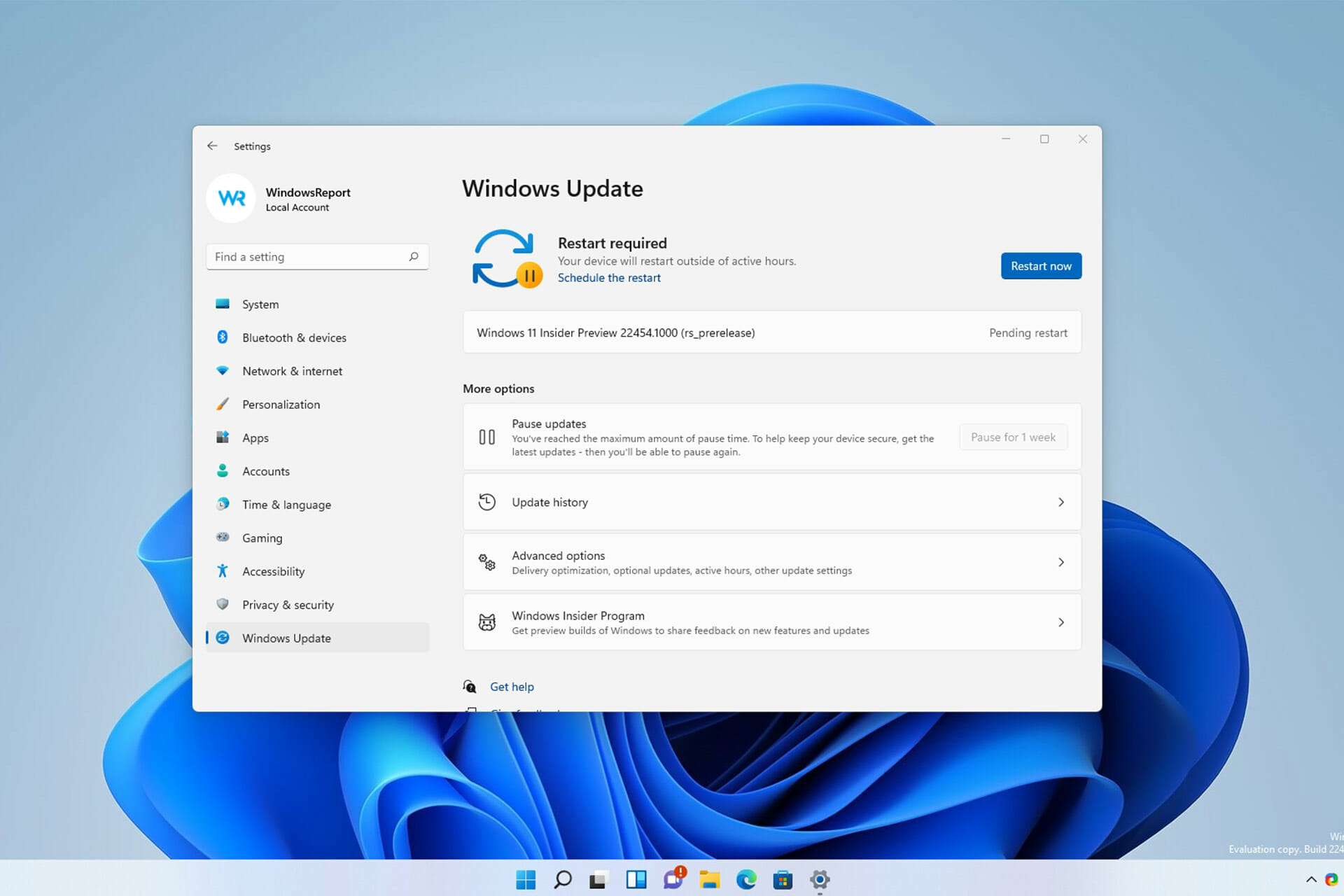
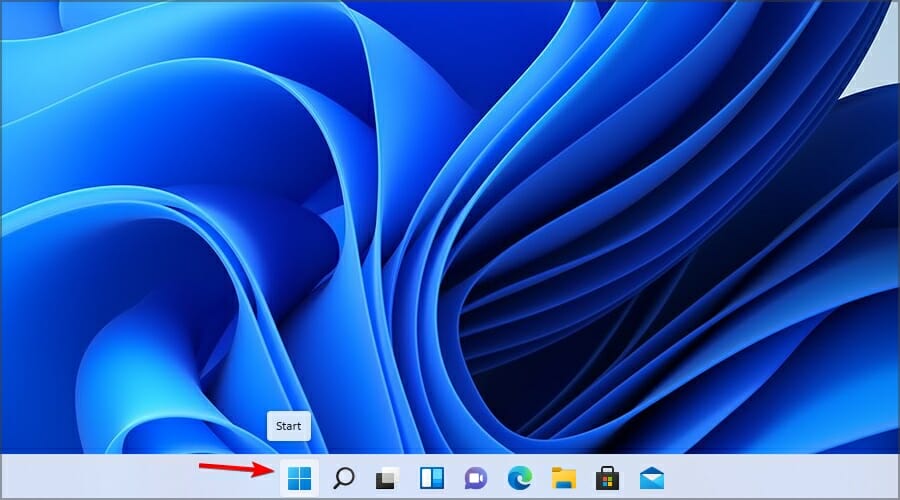
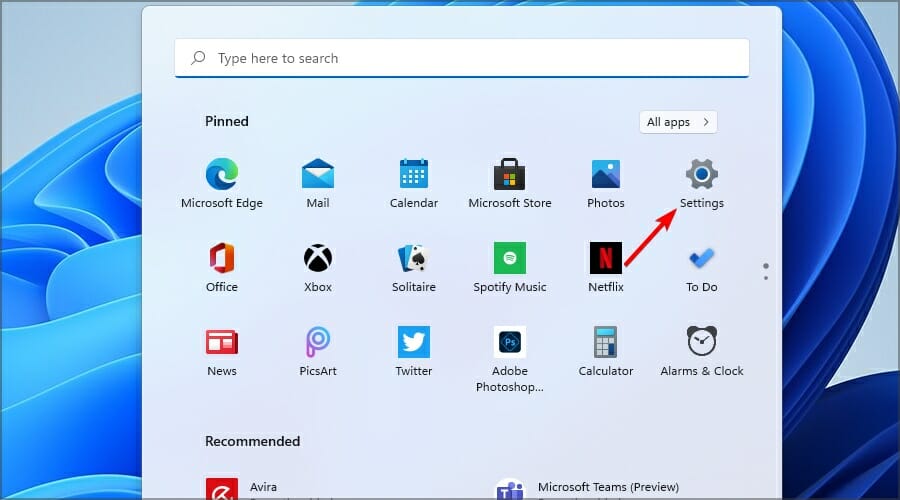
  1. Click the Start button.
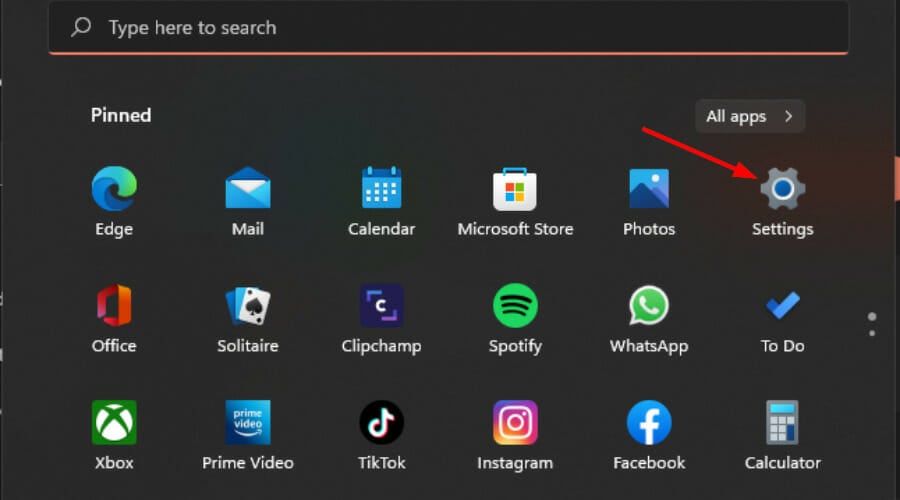
  2. Now navigate to Settings.
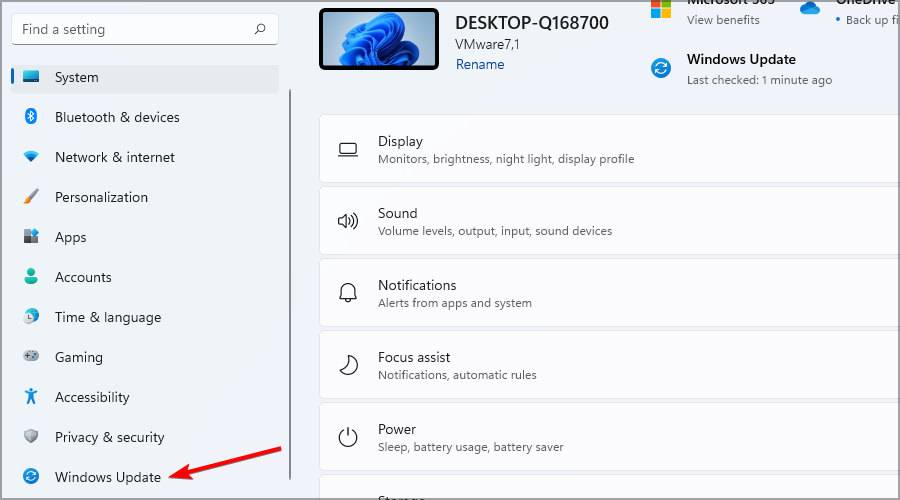
  3. Head to the Windows Update section.
  4. Windows will now check for available updates and start downloading available updates.
  5. Once the updates are downloaded, the installation process will start in the background.
  6. After it’s done, you’ll be asked to restart, so be sure to click the Restart button.
  7. Now wait and don’t turn off your PC while the new build installs.

In case you can’t access Settings, be sure to visit our guide on Settings app crashes on Windows 11 to see how to fix this issue.

Is Windows 11 build 22454 worth installing?

This version brings a handful of features, and most of them are just minor visual changes, such as the modern context menu for Recycle Bin.

Improvements to the network shares menu are welcome, but if you’re not using file sharing, you probably won’t even notice it.

The biggest problem with this build is the Taskbar bug, and even though it’s not going to cause any major issues such as crashes, it will interfere with your everyday work.

So, should you install this version? The improvements aren’t noteworthy, and the new bugs will put off some users.

The biggest reason to update are the bug fixes, but with the Taskbar inconsistencies, you might want to wait until Microsoft solves this issue.

Have you tried Windows 11 build 22454 and what do you think of it? Share your thoughts with us in the comments section below.

Microsoft releases new Windows 11 ISO files for Dev Channel build 22454

If you’re hoping to clean install Windows 11 on a new PC, Microsoft has given you some newer installation files to choose from. Now available for download via the Windows Insider website are the ISO files for Windows Insider build 22454.

Between this ISO file and the first official ones for build 22000.132 from mid-August, there are not many big changes. You can visit our recap post for more information, but some changes include a new right-click menu for the Recycle Bin. Downloading this new ISO file should save you some data on Windows Update to get the latest version of Windows 11.

How to Activate Windows 11 on a Virtual Machine

Windows 11 has created, without doubt, a lot of stir among users all over the world, and while more and more are downloading and installing it, there is an increased number of questions.

A very important one is how to activate Windows 11 on a virtual machine. That’s because many of you prefer to install it in a safe environment.

That is also our recommendation, and we have written an article on how to install Windows 11 on a virtual machine and test it.

However, some of you have realized that after installing it on a VM, the Windows 11 copy was not activated and therefore, you are not able to access some of the features.

Why wasn’t Windows 11 activated? Usually, if you upgrade your Windows 10 machine to Windows 11, the system should automatically use the product key from Windows 10.

However, if you don’t have an activated copy of Windows 10, or if you bypass the TPM 2.0 verification, the product key won’t be acknowledged.

You can understand these activation limitations much better by reading our guide on what Windows activation is and how it works.

This can also happen when using an unofficial ISO from an insecure website. There are plenty of those but we strongly recommend not to get one because they are definitely not safe.

If we’re all set on why this problem occurs, let’s first find out if your copy of Windows 10 is activated and get the key.

How can I find out my Windows 10 product key?

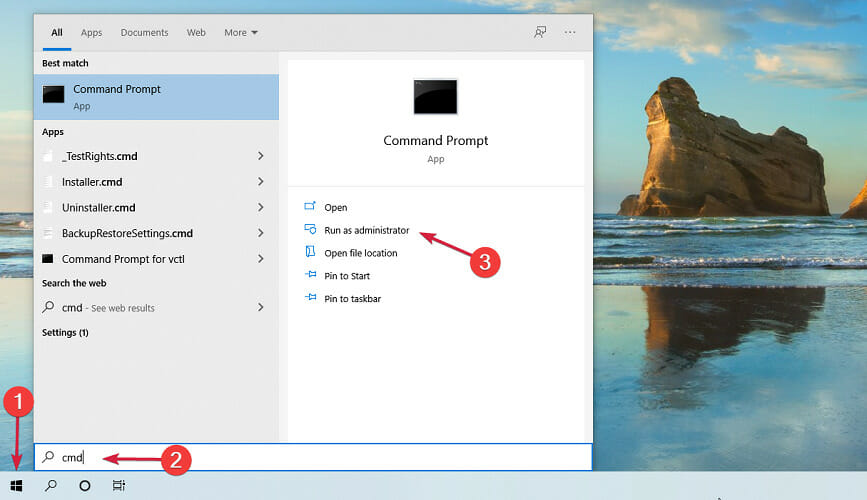
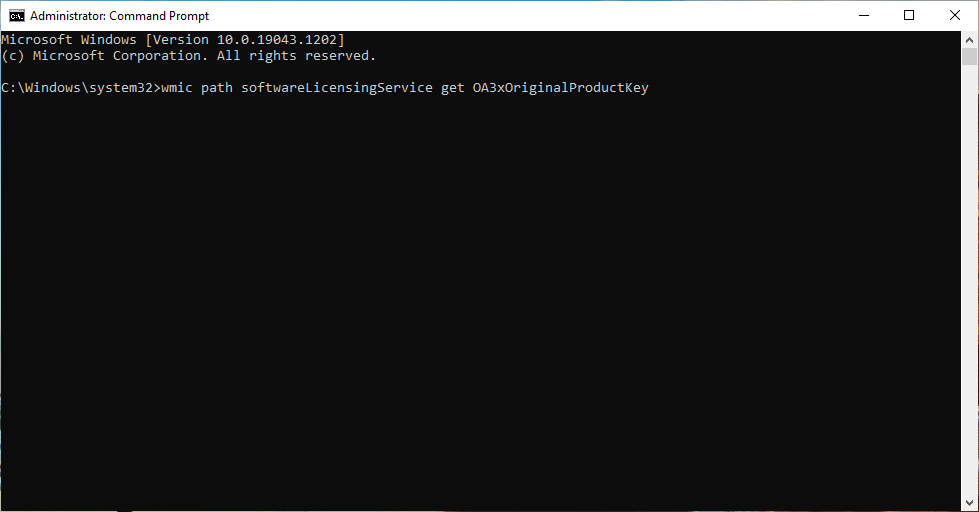
  1. Click the Start button and type cmd, then select Run as administrator below the search results to open Command Prompt with full privileges.
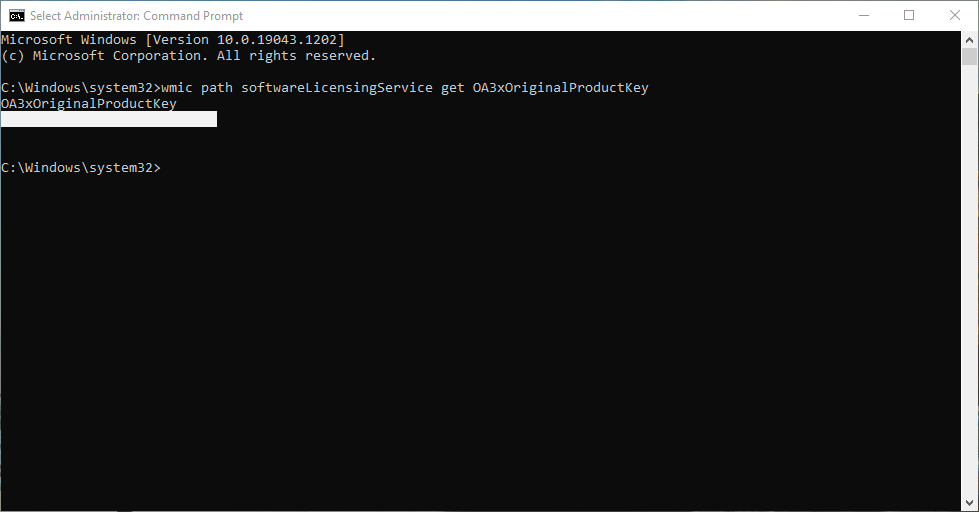
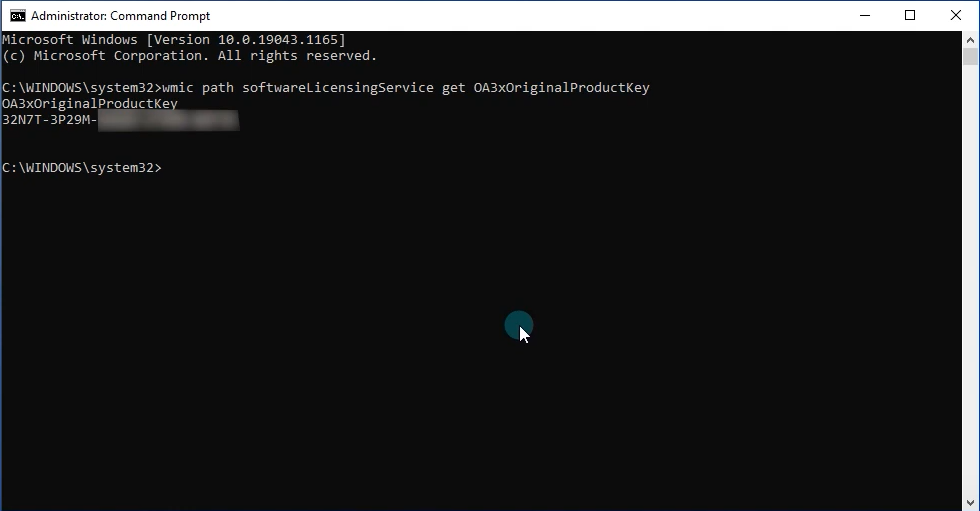
  2. Now type or paste the following command line and press Enter to run it: wmic path softwareLicensingService get OA3xOriginalProductKey
  3. If you don’t see any results, then your copy of Windows is either not activated or you don’t have a legitimate copy of Windows. In this case, the only solution is to buy a Windows 10 or Windows 11 copy and use the key.
  4. If you do see the product key, copy it for later use.

Now that you know your product key, you can proceed and activate your Windows 11 on the virtual machine. If you’re asking how many time can you use a Windows 11 key, we have the answer.

How can I activate Windows 11 on a virtual machine?

1. Update Windows 11 from Windows 10 on your virtual machine

Note icon NOTE
If you got to the point where you installed Windows 10 on your virtual machine, you can start by activating that copy first.
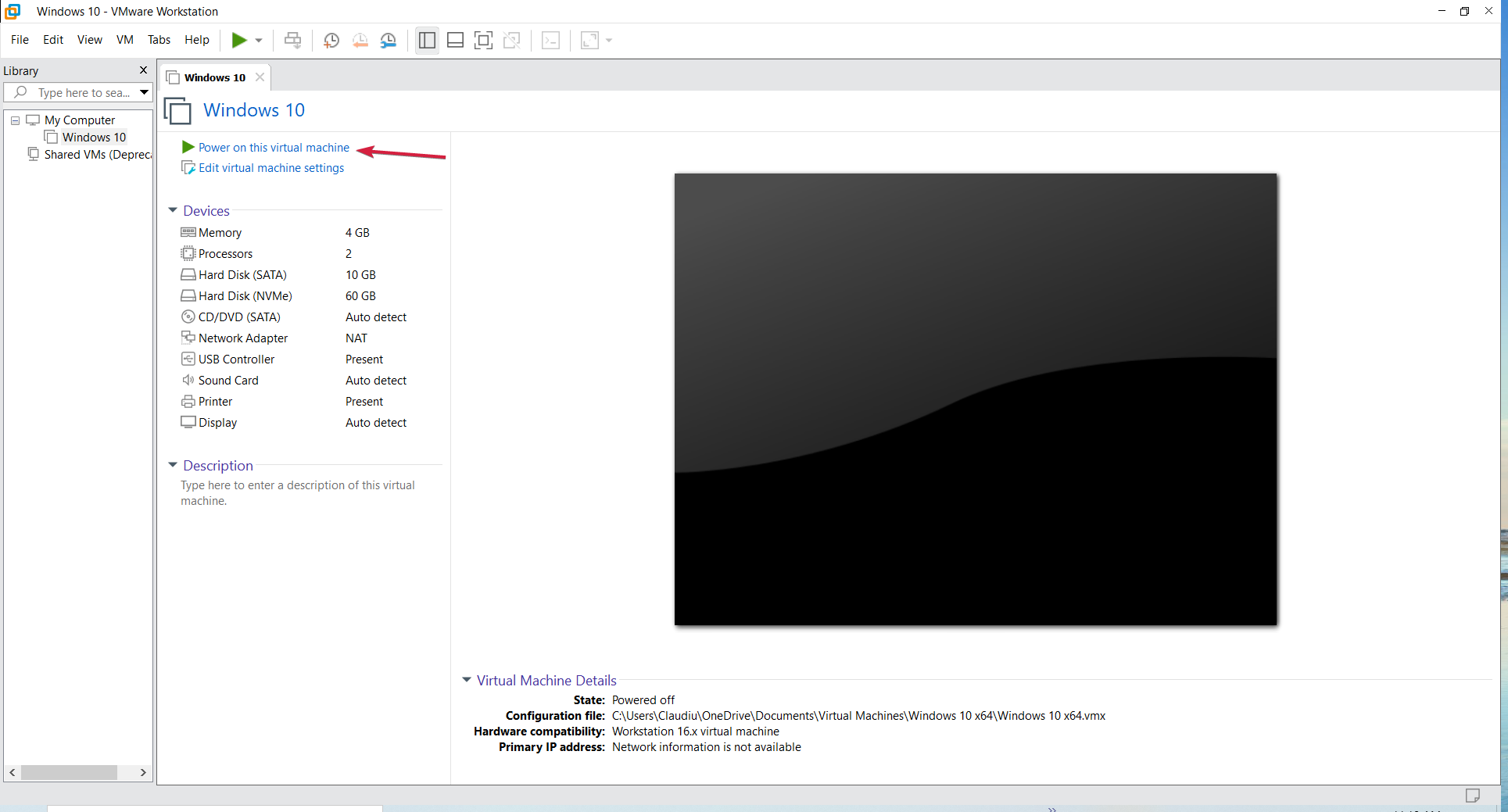
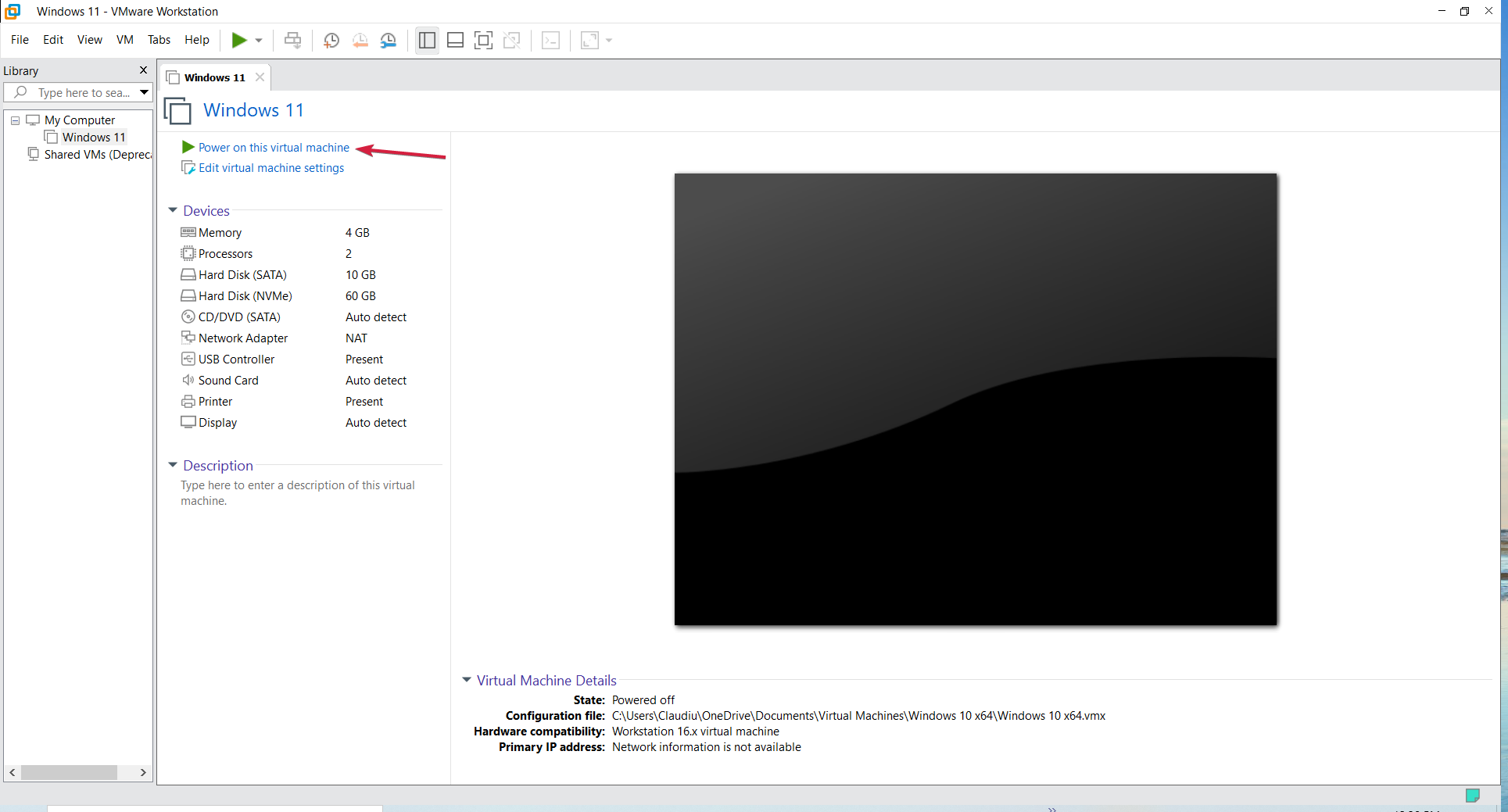
  1. Start Windows 10 in your virtual machine. We used VMware Workstation for this demonstration but the process is identical for any other virtual machine.
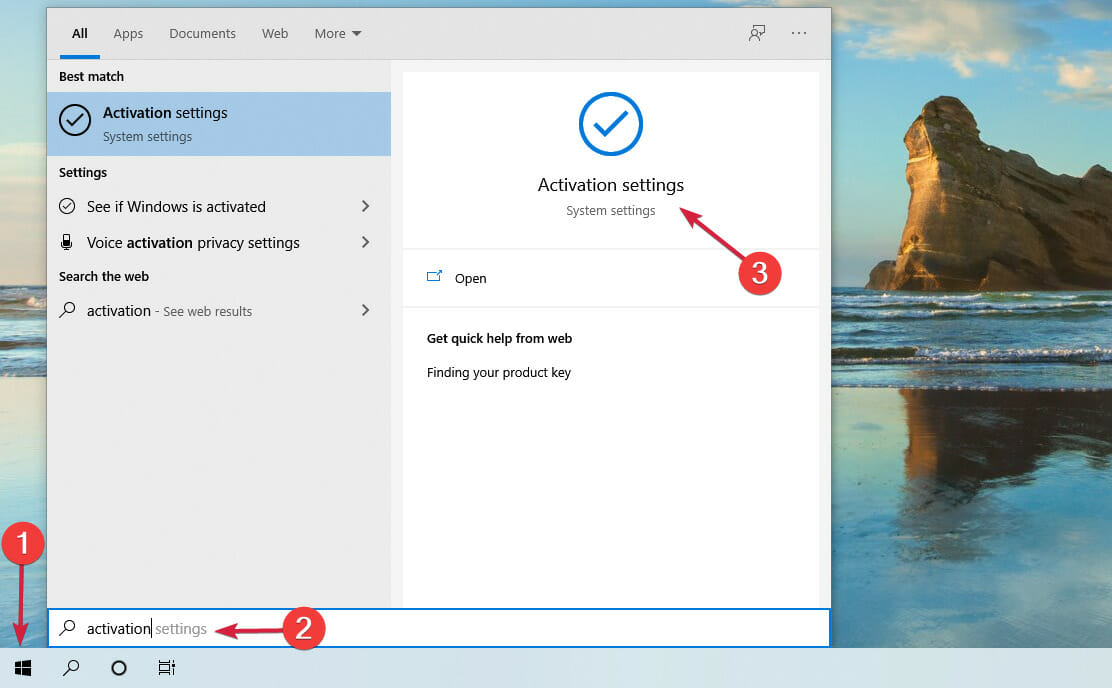
  2. Click the Start button, type activation and click on Activation settings from the results.
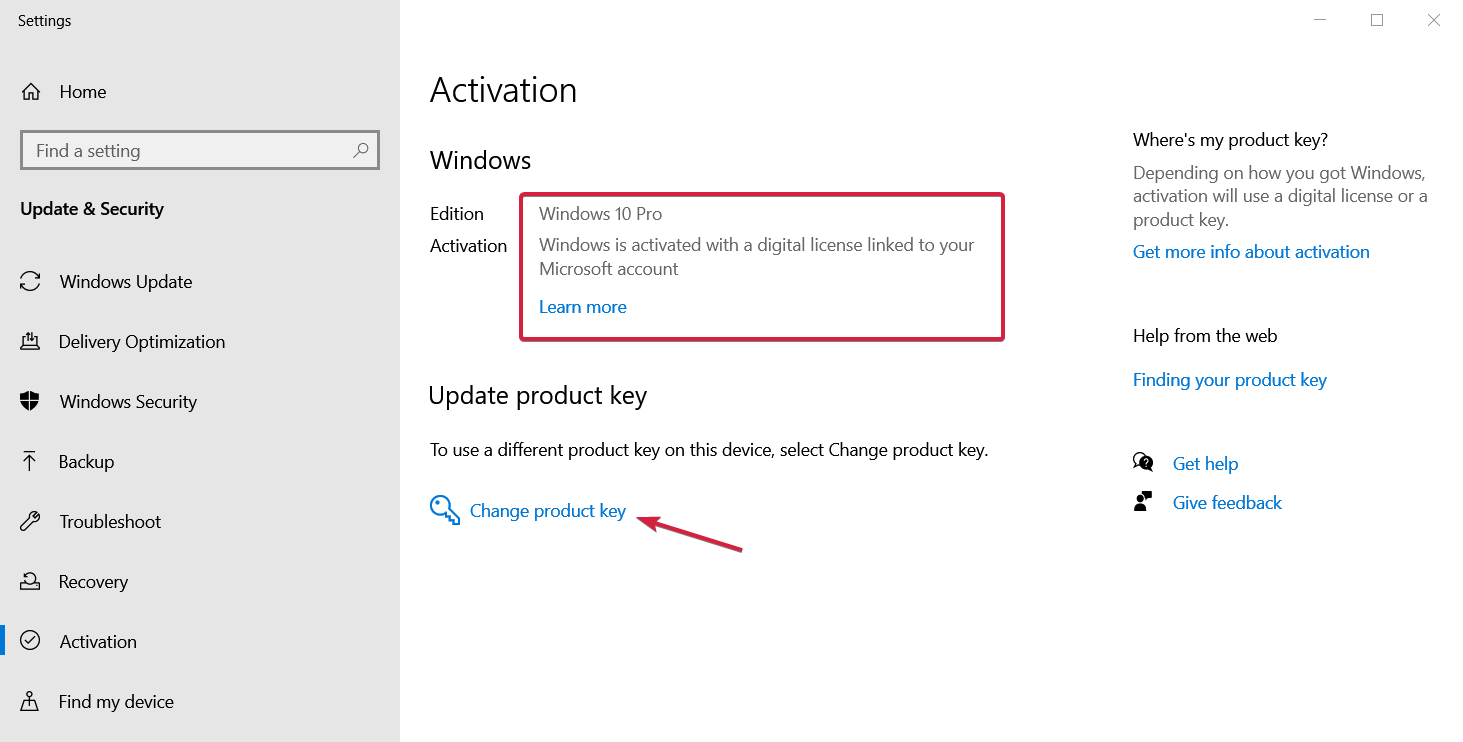
  3. As you can see in our screenshot, Windows 10 Pro is activated but if the copy of the OS is not legitimate, you will see the same results. So, if your copy is not activated, click on the Enter product key button and if if it’s not legitimate, click on Change product key.
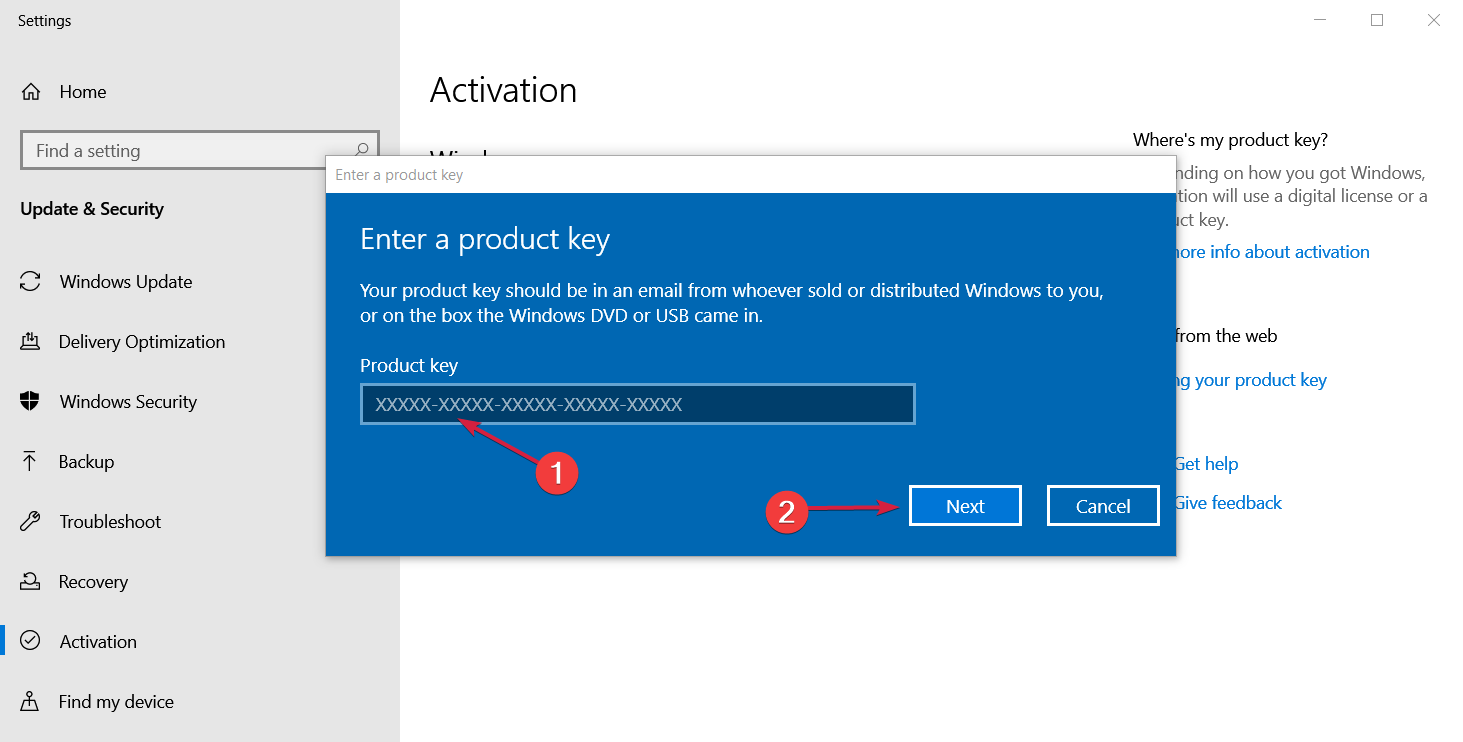
  4. Either way, you will see an Enter product key window where you need to enter the valid product key and hit the Next button.
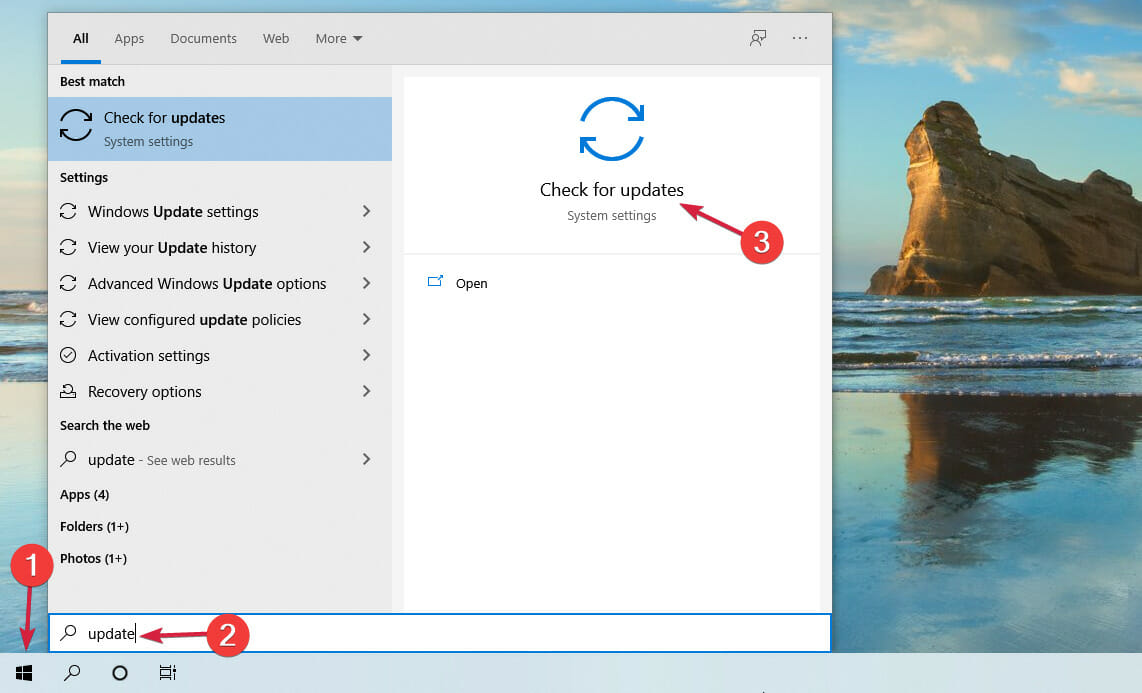
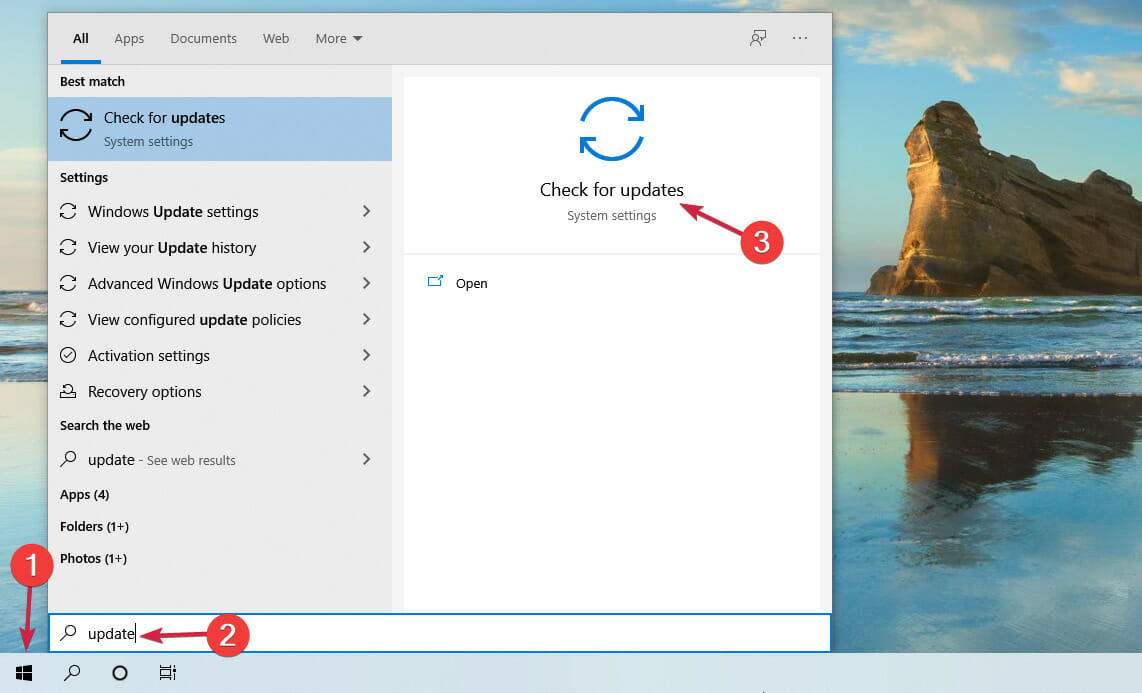
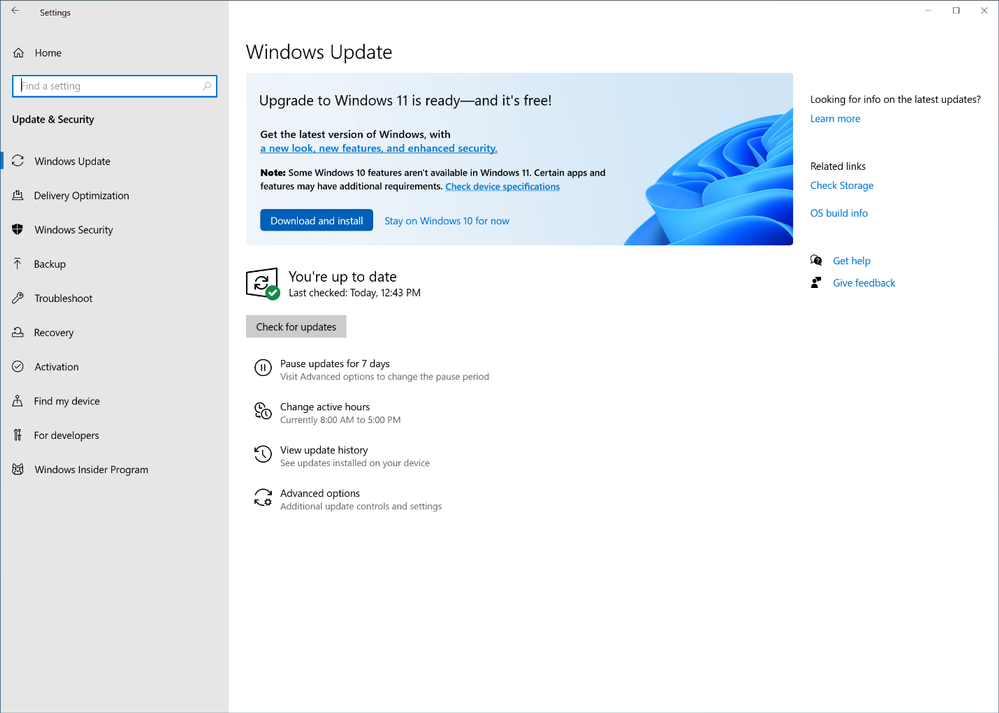
  5. Next, click the Start button, type update and select the Check for updates option from the results.
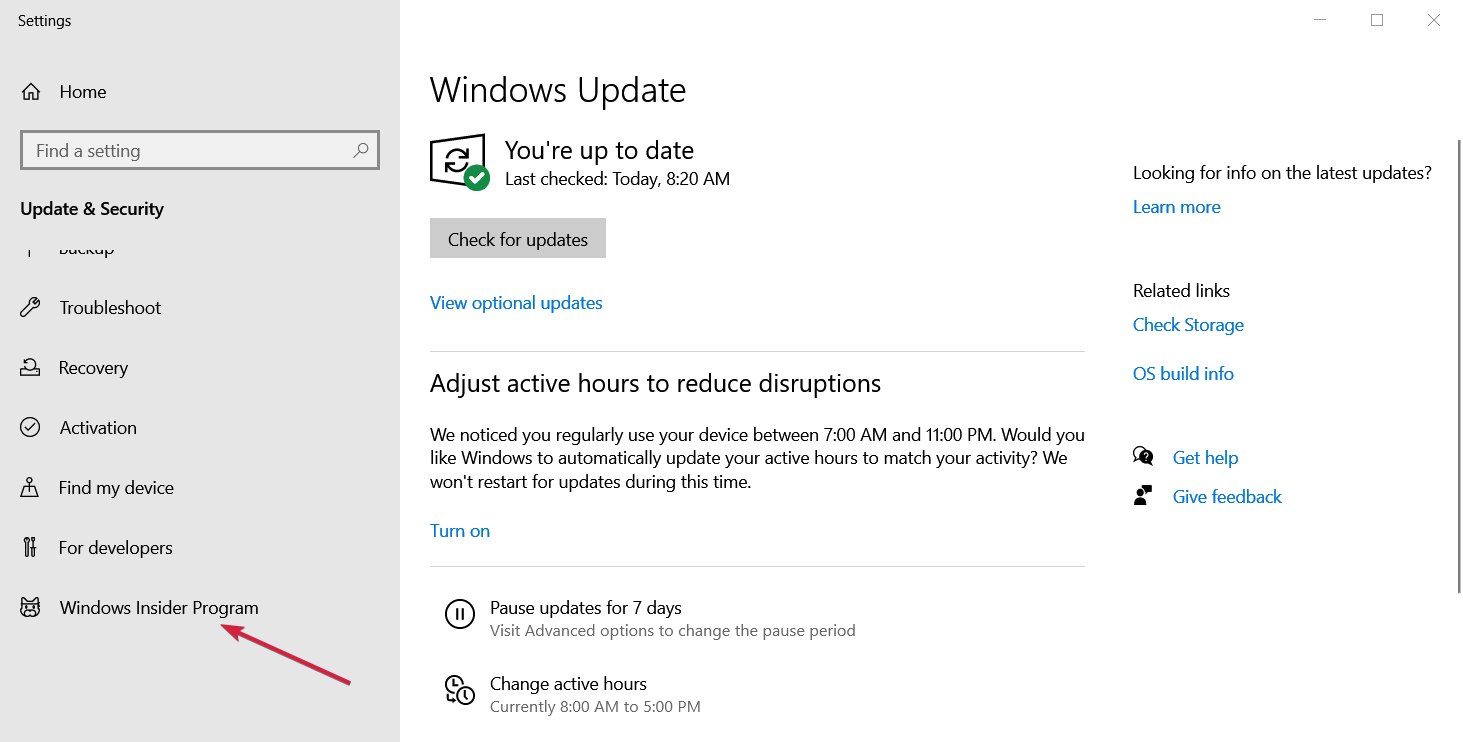
  6. Scroll down and click on the Windows Insider Program from the left pane.
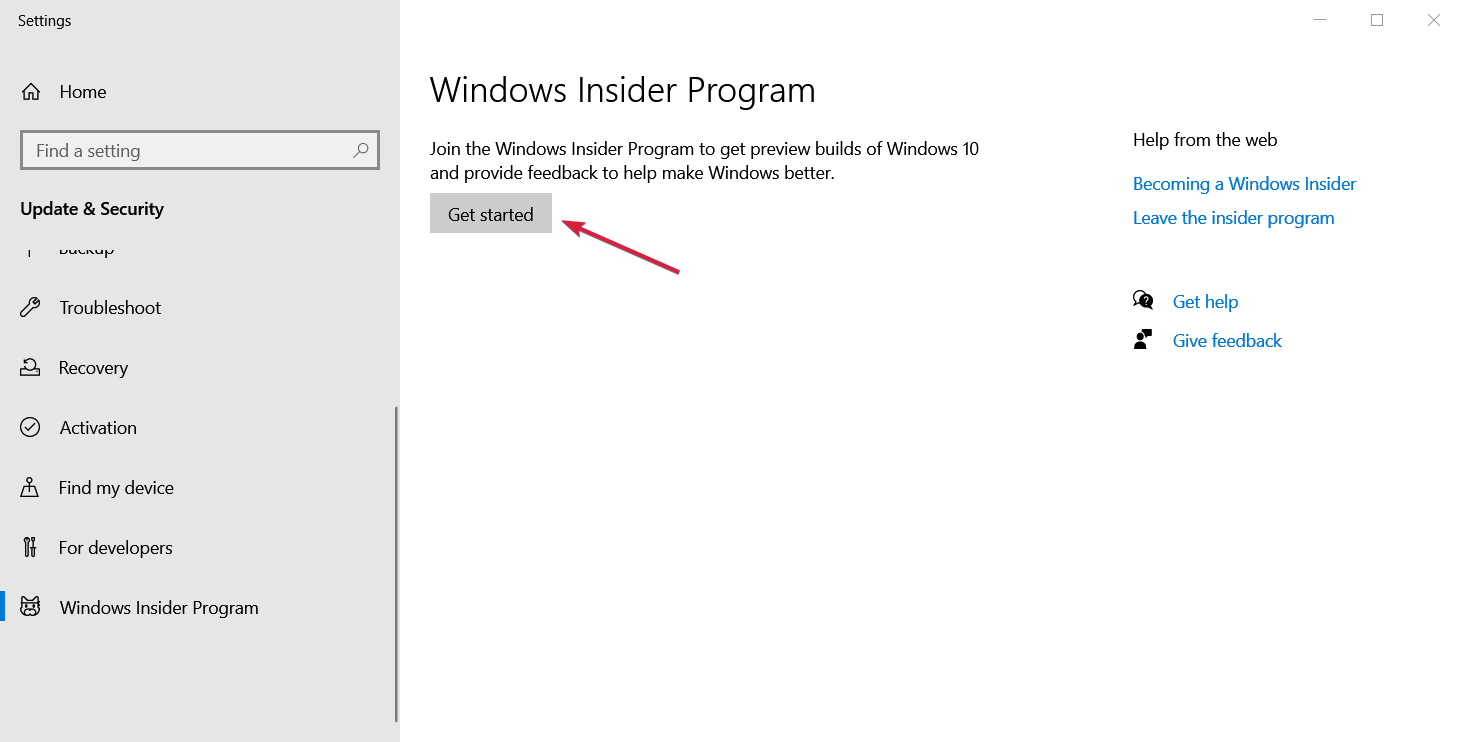
  7. Now hit the Get started button from the right pane.
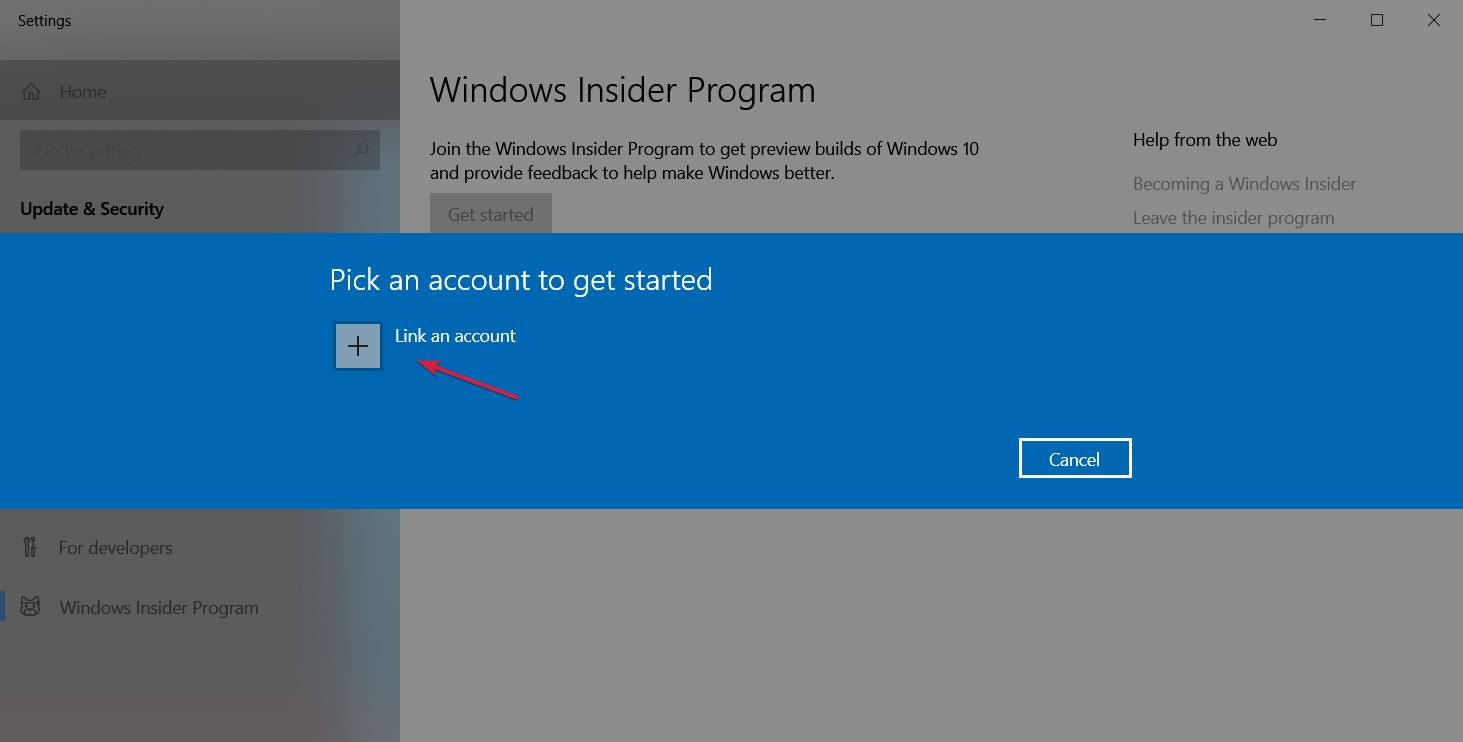
  8. You will be asked to link a Microsoft account so click on the Link an account button and log in.
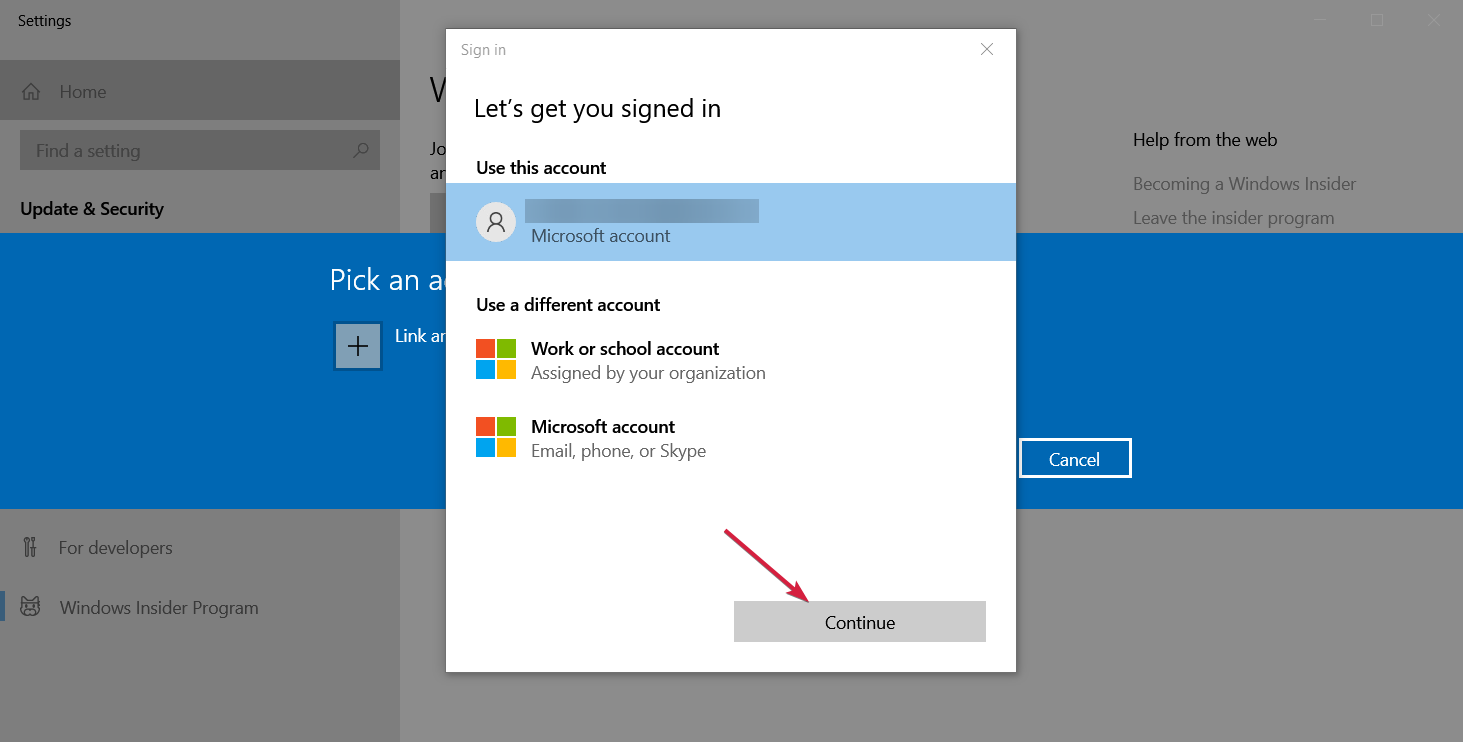
  9. Select the account, then Continue.
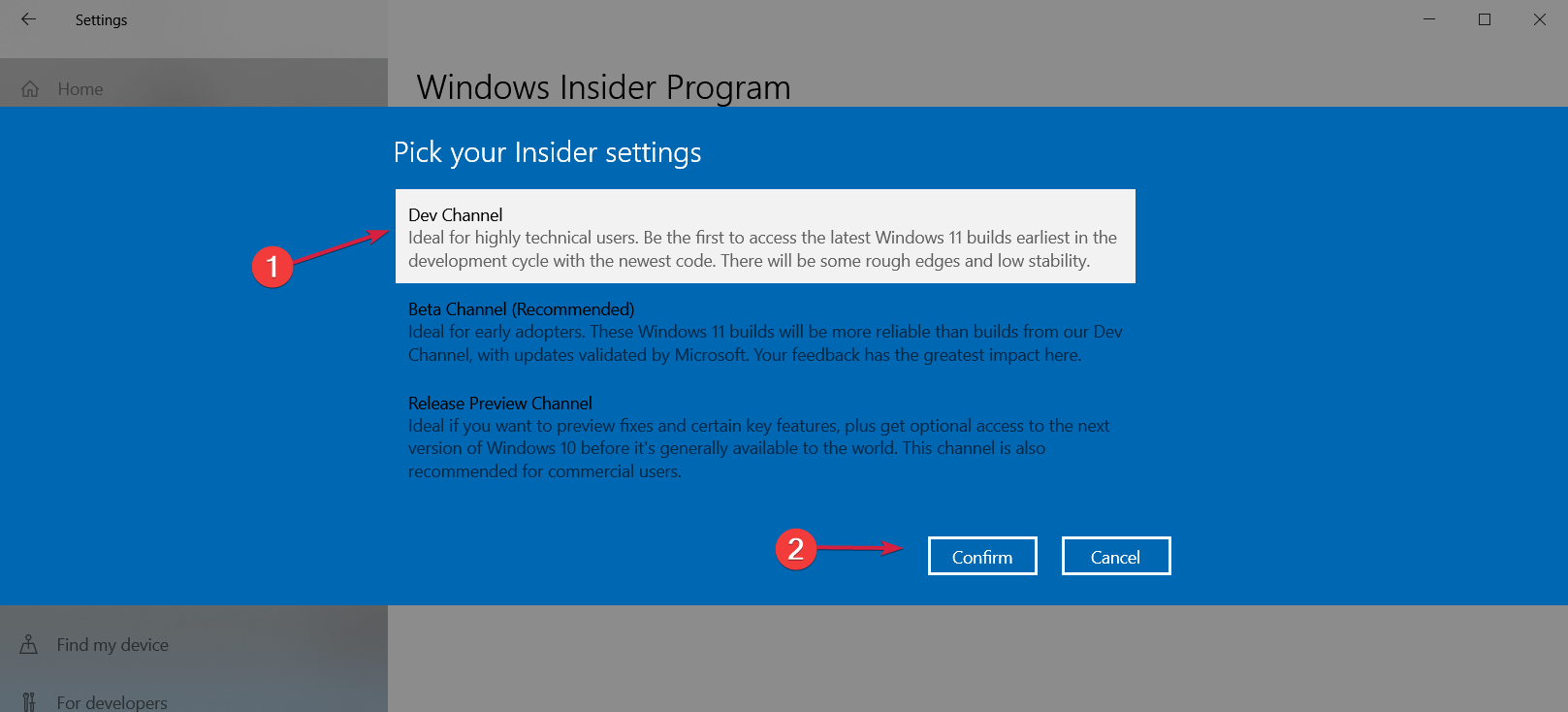
  10. Next, choose between the Dev Channel or the Beta Channel. These are the only options if you want to get Windows 11 right now. We recommend choosing the first option, then hit Confirm.
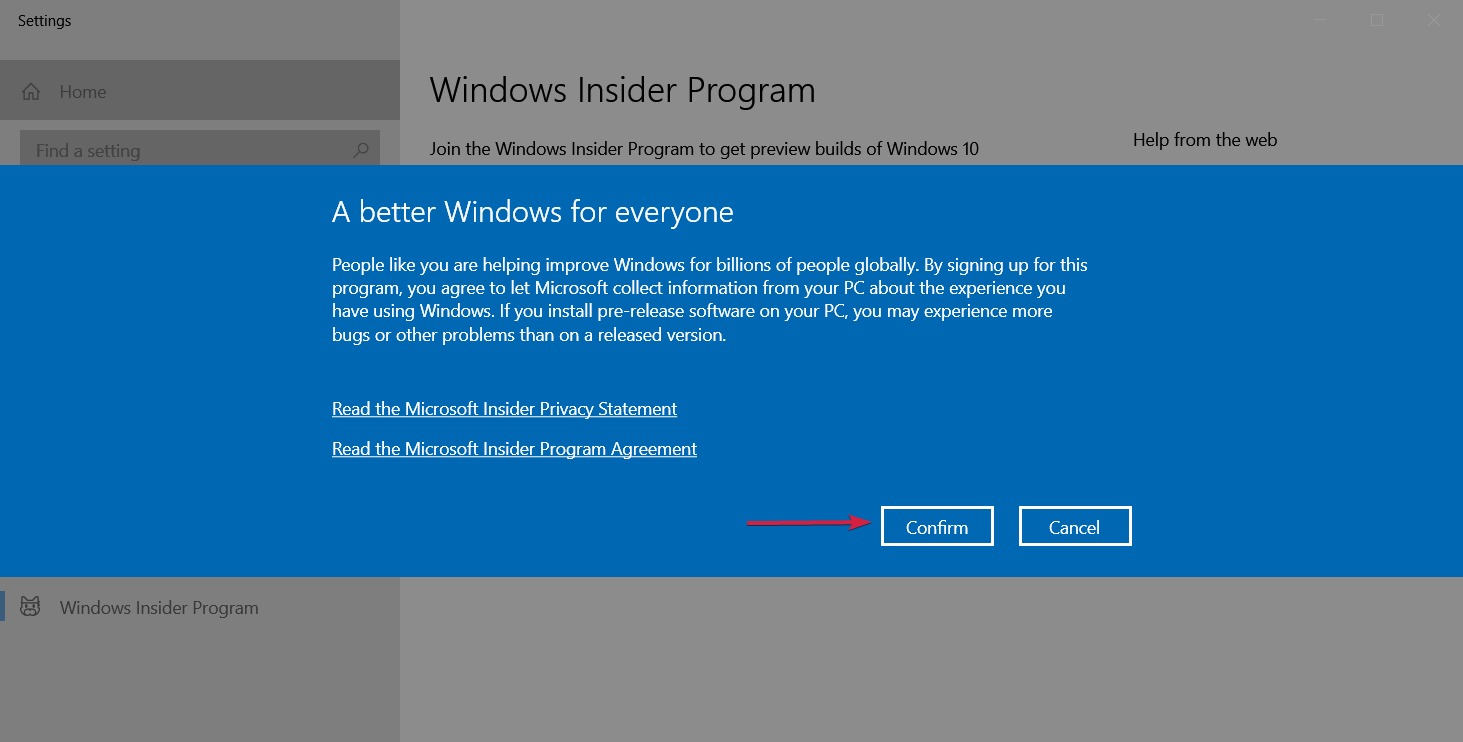
  11. Click on Confirm in the next window and Restart after that.
  12. After the restart, go to the Windows Update menu by clicking the Start button, typing update, and selecting the option from the results.
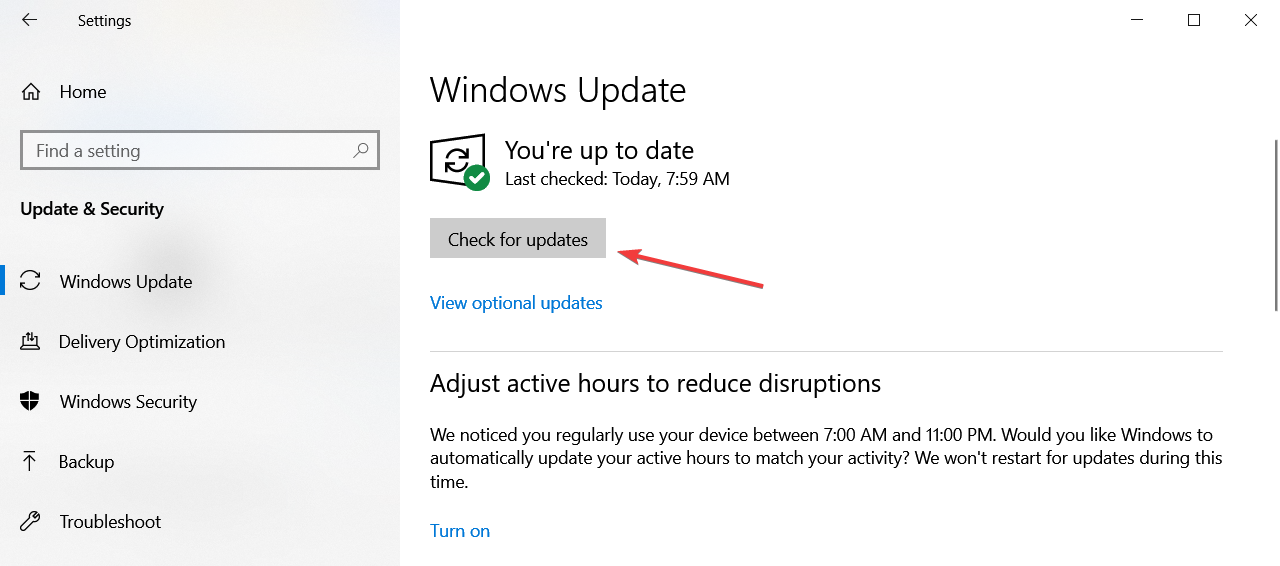
  13. Now click on the Check for updates button.
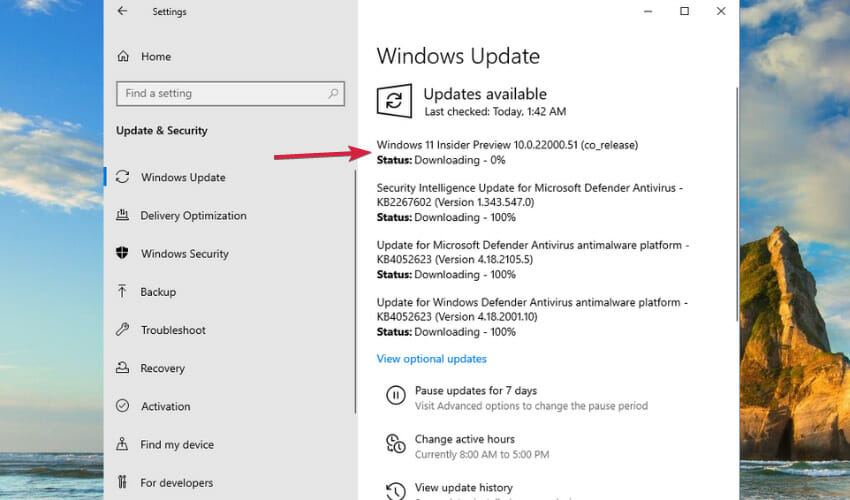
  14. After the search, you should be able to see the new Windows 11 Insider Preview build that is already downloading.

After that, you will be prompted to restart your machine and you will go through the Windows 11 installation process.

In the end, you will have your fresh and activated copy of Windows 11 installed on your virtual machine.

2. How to insert the product key in Windows 11

Note icon NOTE
If you already installed Windows 11 on your virtual machine, the process is a lot more simple. If you didn’t, check out our guide on how to install Windows 11 on your virtual machine.
  1. Start Windows 11 on your virtual machine. We used VMware Workstation for this guide but the process is similar for any other virtual machine.
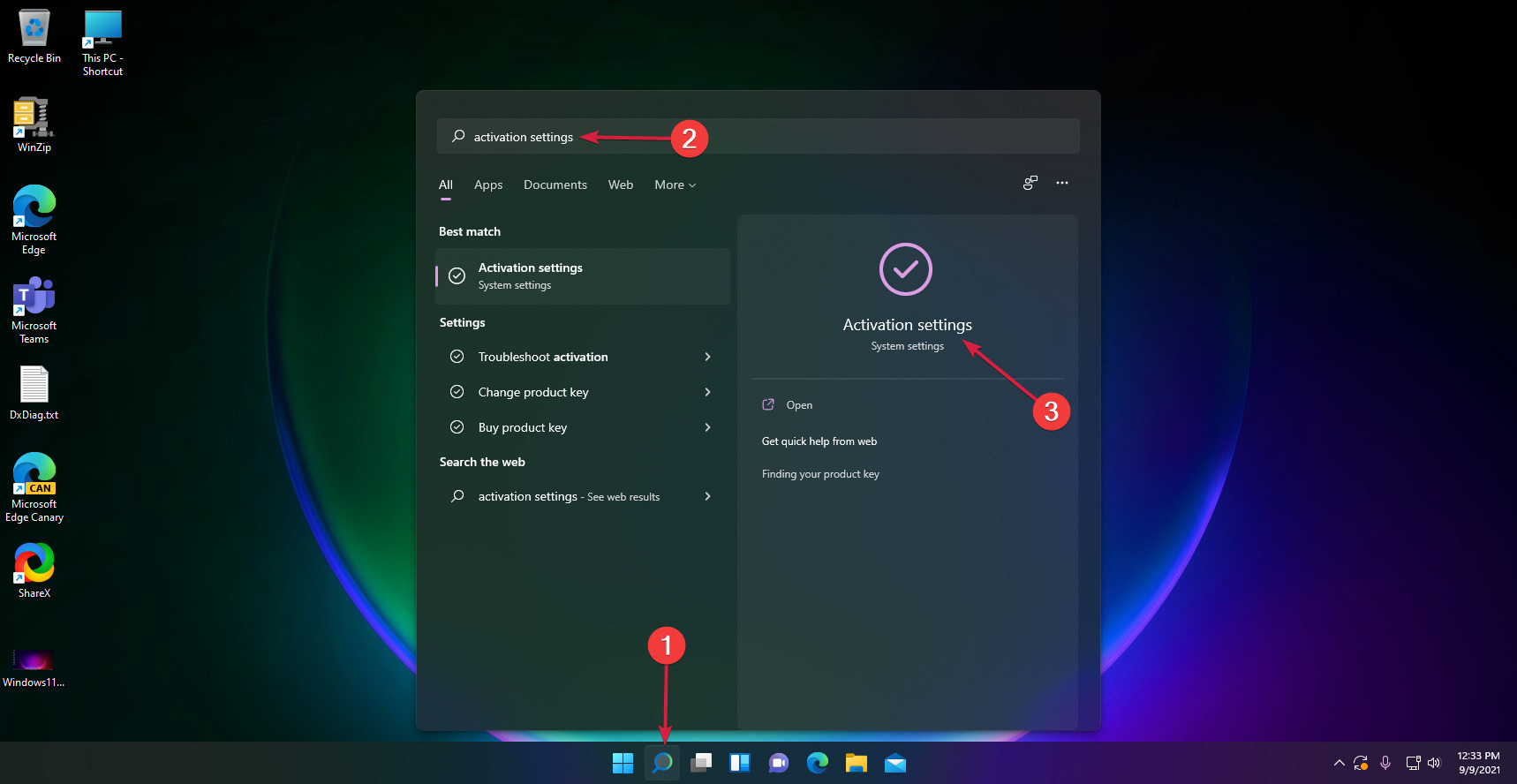
  2. Click the Search icon from the taskbar, type activation and select Activation settings from the results.
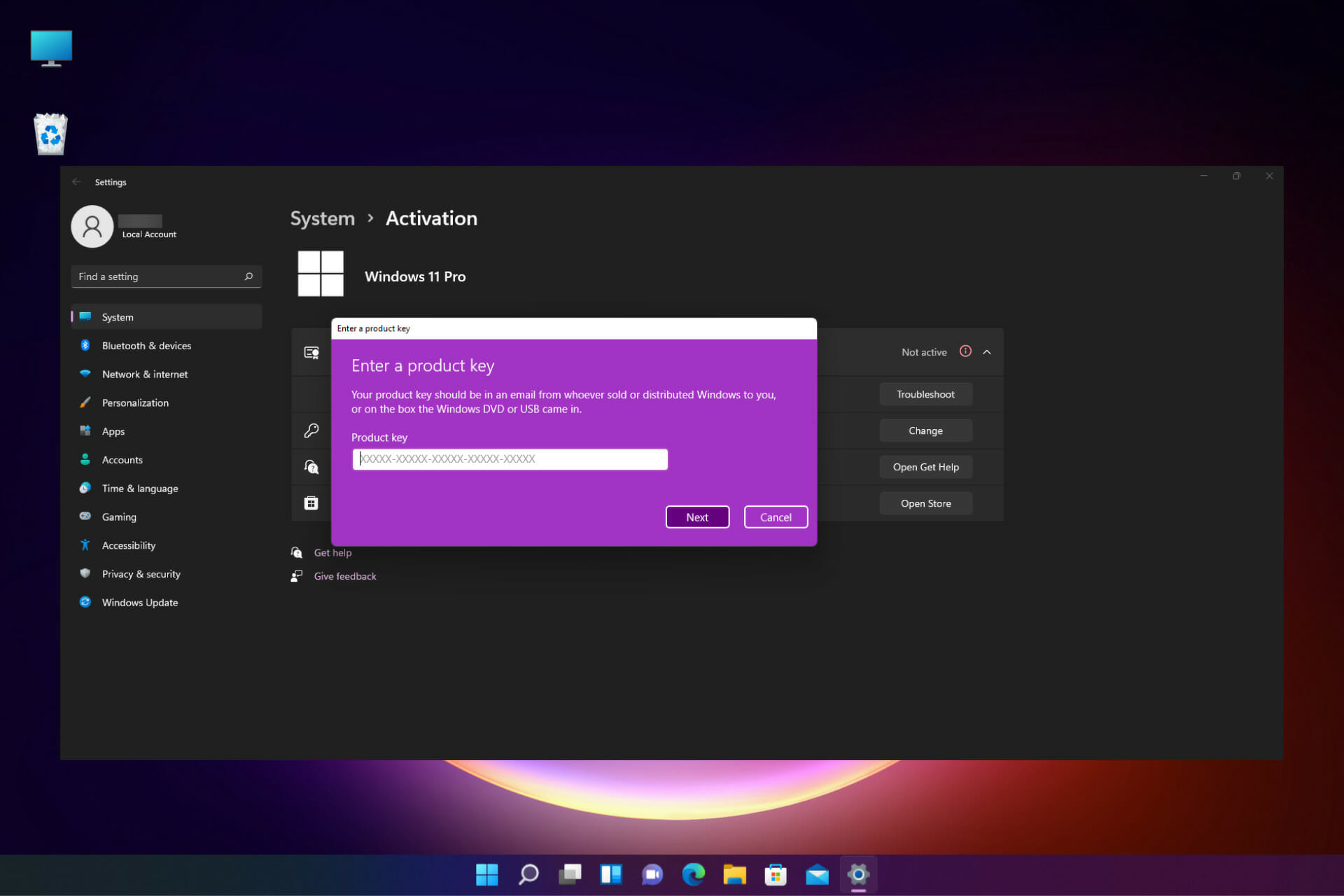
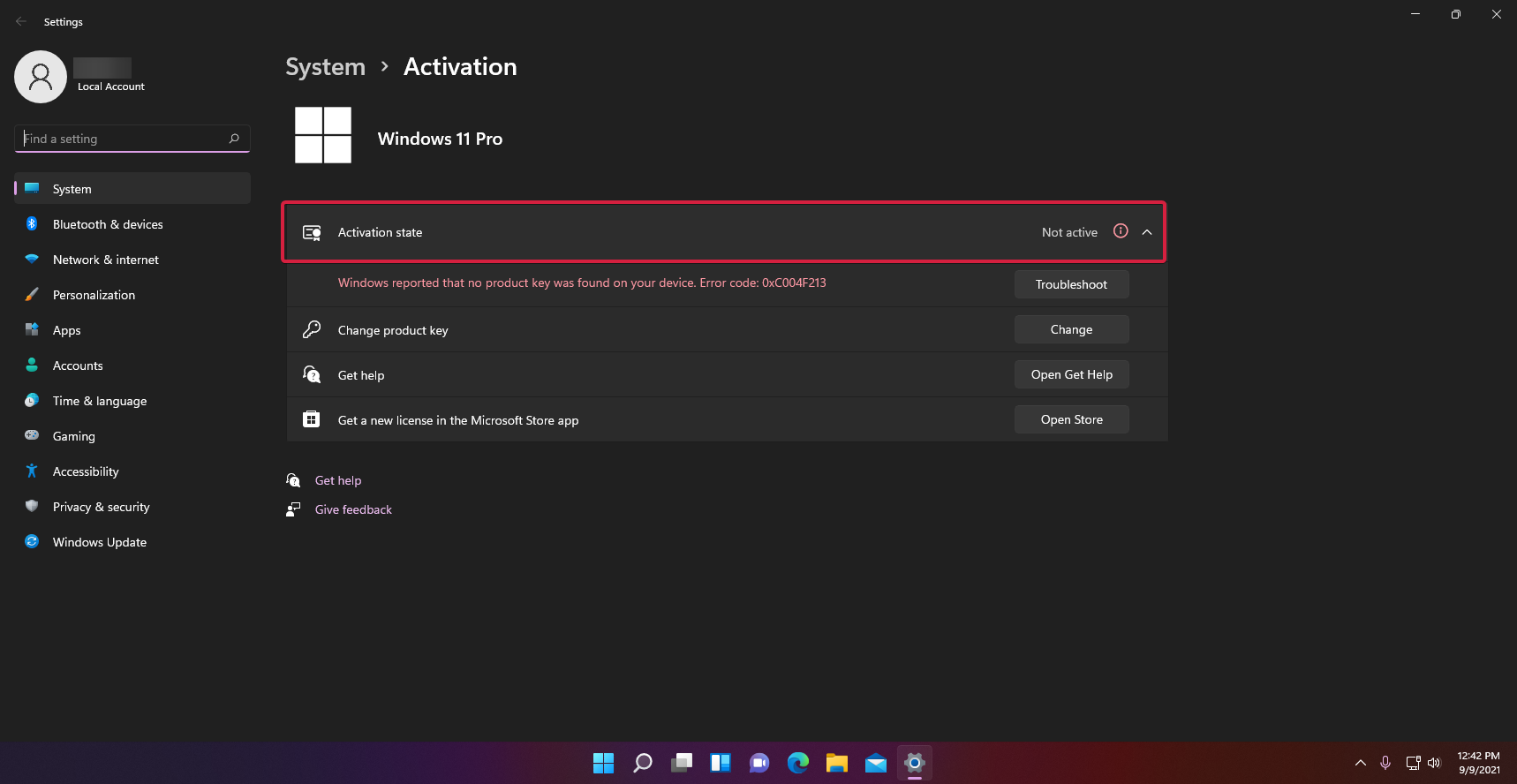
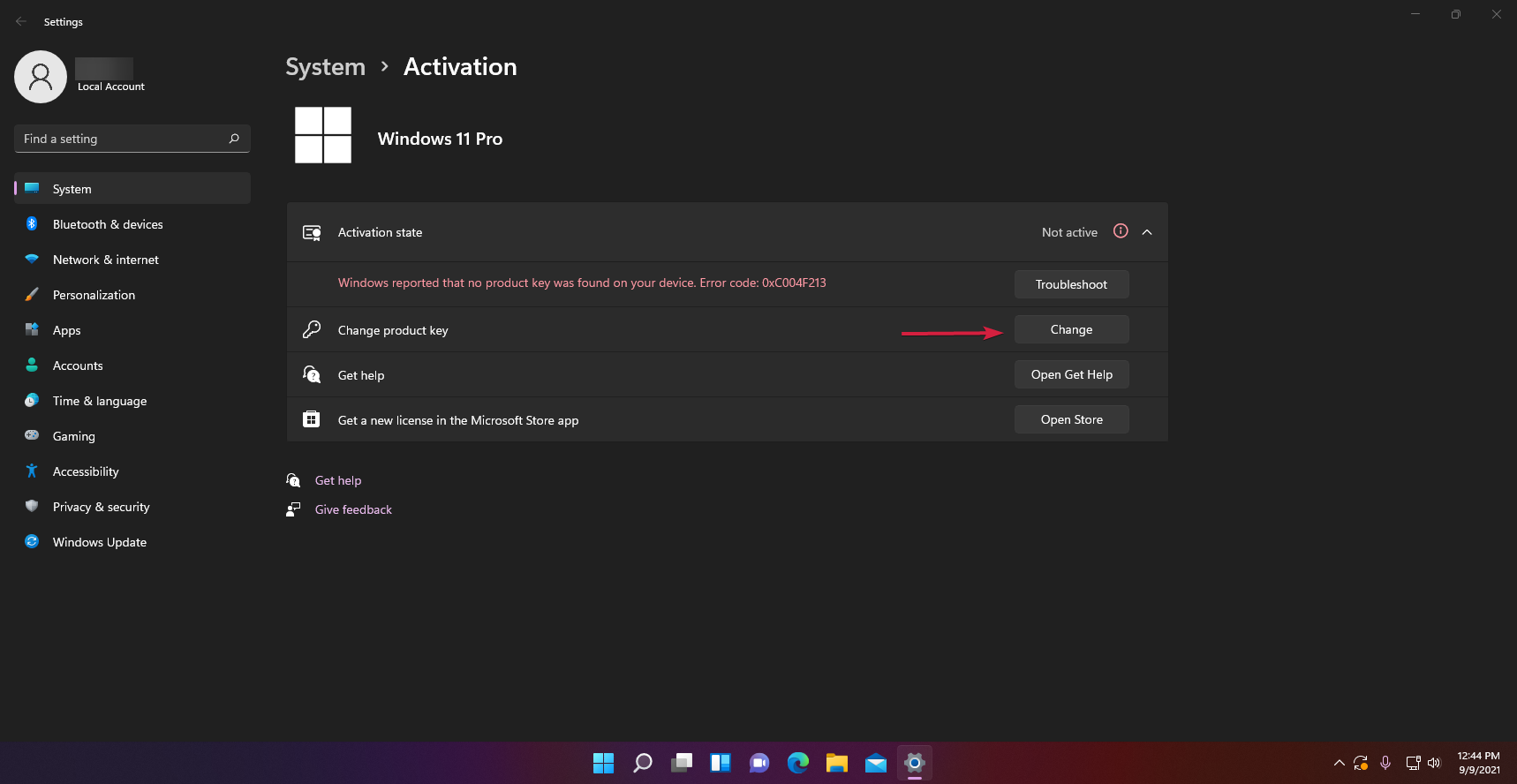
  3. As you can see from our screenshot, in the Activation state field, it shows that the Window copy is Not active.
  4. Below, you will find a Change product key option so hit the Change button from its right.
  5. Next, you will have to enter the product key you’ve got from Windows 10 and click on Next. If the product key is valid, the system will activate it.

If, for some reason, the Windows 10 key doesn’t work, proceed by installing a Windows 10 copy on your virtual machine, activate that copy with a valid key, and upgrade to Windows 11 as detailed in the first step.

How can I get a Windows 10 key?

If you don’t have a genuine copy of Windows 10, the only solution to the problem is to get one. But we recommend avoiding random websites that could be selling illegal copies.

The best way to do it is to use the Microsoft Store that is available in Windows 10 or Windows 11 and look for options there.

Of course, there are other shops that sell genuine copies and if you can find one that you have confidence in, go ahead and make the purchase.

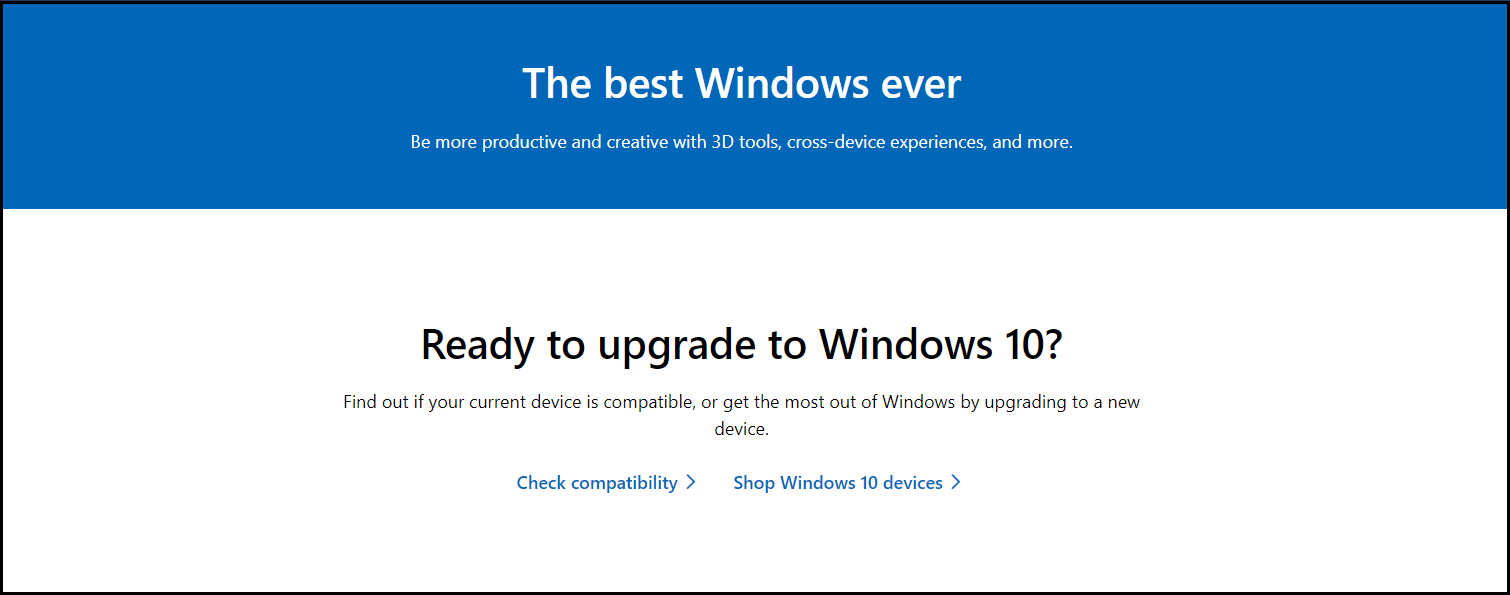
  1. Go to the dedicated Microsoft Store download page.
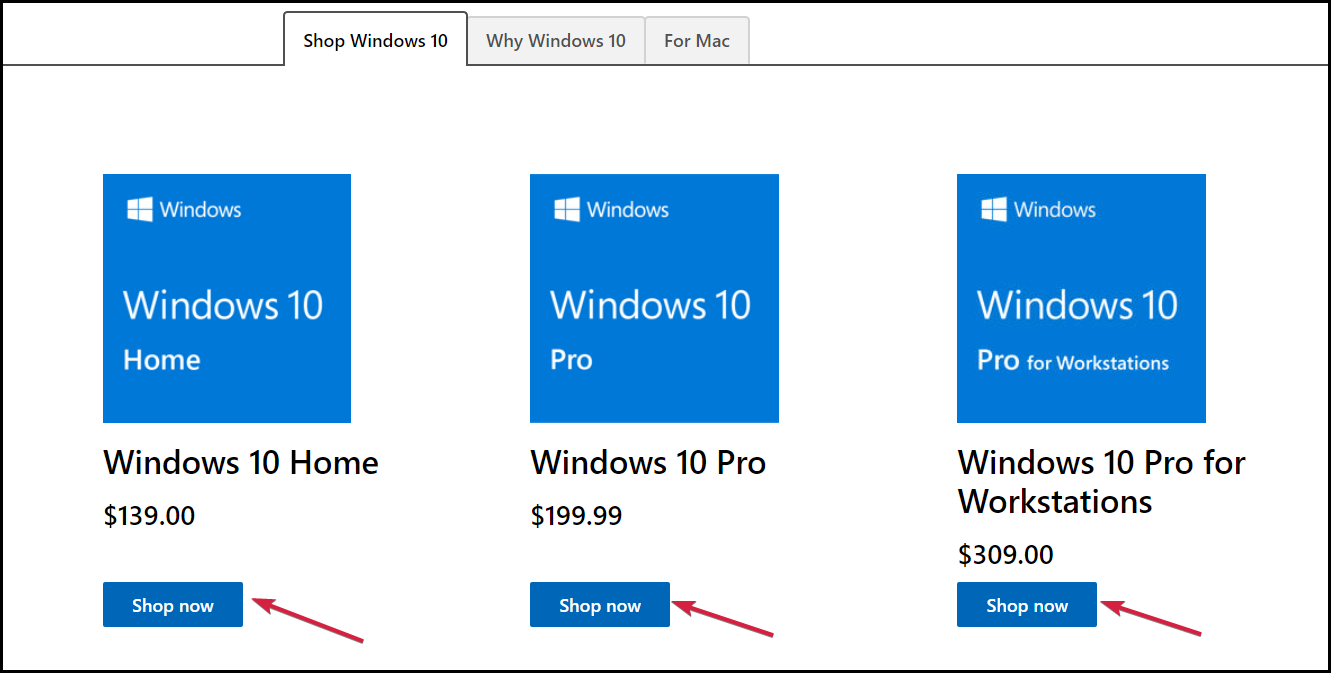
  2. Scroll down, find which product is right for you, and hit the Shop now button of your choosing.
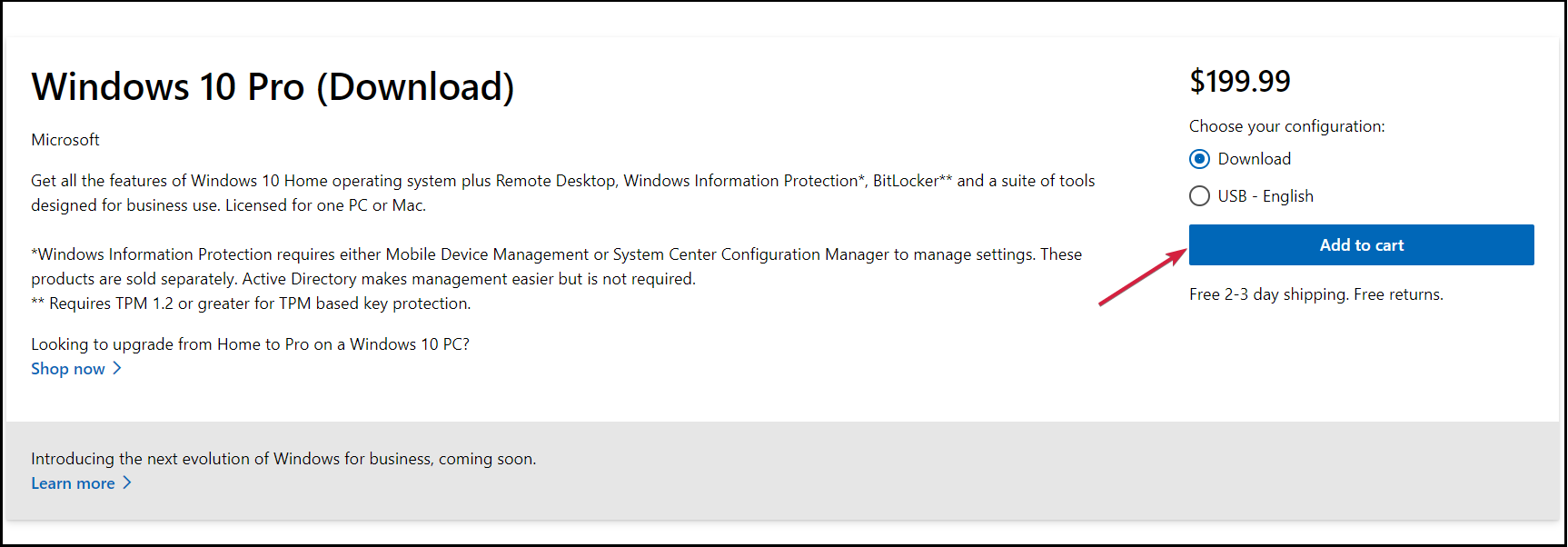
  3. Next, select whether you want the download option or the USB. You need to know that the latter means that you will receive the actual USB stick with the kit and that will take a few days for delivery. Lastly, click on the Add to cart button.
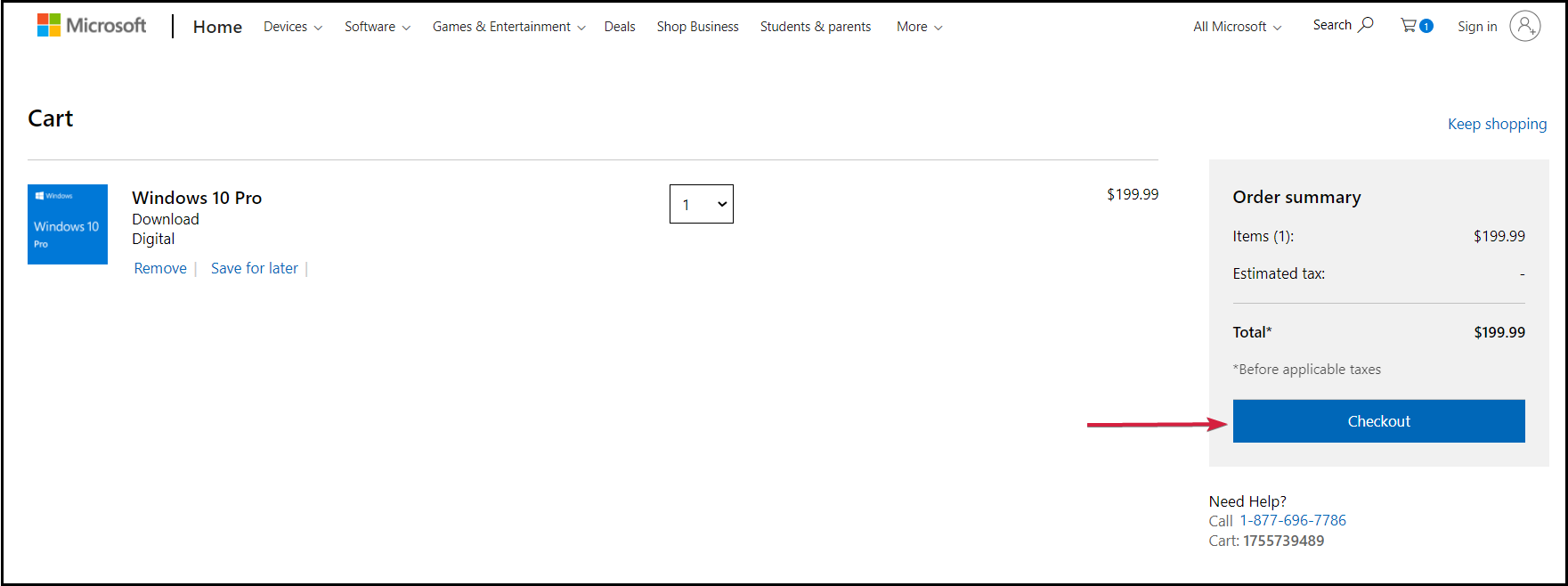
  4. Now, unless you want to purchase more products, click on the Review and checkout button.
  5. In the next window, verify the purchase and click the Checkout button.
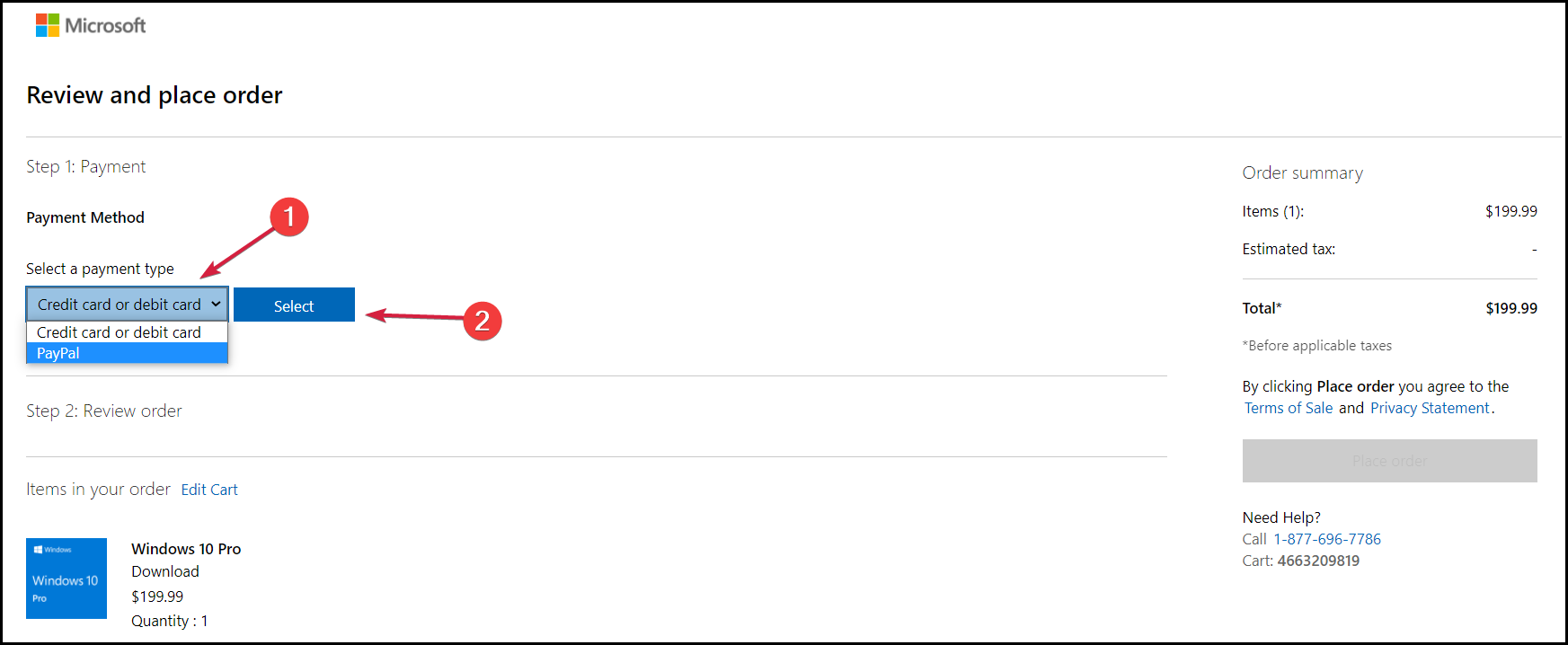
  6. Choose the payment method and click Select.
  7. You will have to complete the credit/debit card information or any other information corresponding to your method of payment. After the transfer, you will receive a link for download and your copy of your license that you will be able to use in order to activate the product.

In October, Microsoft will officially launch Windows 11 to the general public so you will also be able to get a license for the new OS. You just need to wait a little bit more in this case.

How to make sure I get a genuine copy of Windows?

Sometimes, you can go to a store that will sell you an incredibly cheap Windows license. Well, if it looks too good to be true, then it probably is.

You can use the product key, and it works just fine until you need to perform an upgrade like this and discover that it’s not a legitimate key.

The answer to this problem is to look carefully at the tell-tale signs and consider a few key factors before purchasing.

➡ Use only certified stores

Don’t ever buy a Windows license from an unverified source. This goes for every product you want to buy, not only a product key.

If you don’t know anything about the store, if it doesn’t have any credentials, or if the offers look suspicious, avoid it.

We’ve detailed the official method, but there are a lot of web stores that sell genuine licenses. Just keep your eyes open for any reviews or lack of them for that matter.

➡ Look for authenticity certificates

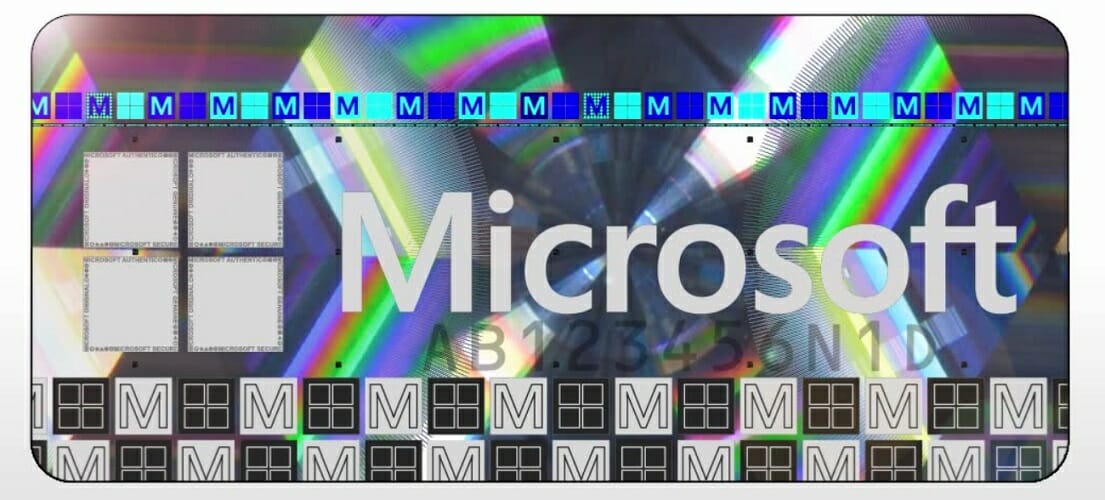
Microsoft official hologram for packaged products

It’s essential to keep in mind the key features of genuine Windows software, such as the Certificate of Authenticity (COA), proof of license label, and an edge-to-edge hologram like the one above.

If you’re only receiving a product key and some shady installation instructions, you probably got a pirated copy on your hands.

➡ Buy a product with a licensed copy of Windows

Another way of making sure that you get a genuine copy of Windows is by purchasing a PC or a laptop that comes with Windows preinstalled.

Of course, you should also verify the proof of software authenticity by asking for the documentation and labeling from the store.

We hope that our guide helped you activate your copy of Windows 11 on the virtual machine and you also found out how to stay away from counterfeit products.

There are a lot of illegitimate copies of Windows out there, and using one can lead to a lot of legal trouble, although they can work as the original product.

An activated copy of Windows gives you access to a lot of personalization features and apps that wouldn’t work otherwise.

You can also look at our dedicated list, including the best license key recovery software to help you activate your copy.

If you have any questions or suggestions, please leave them in our comments section below.

Microsoft continues education push with TakeLessons acquisition

Microsoft has taken another step in bolstering its education content with the acquisition of TakeLessons, a program to connect students with instructors by offering private and group lessons (via TechCrunch). The San Diego based company, started in 2006 by offering music lessons online, has branched out to offer lessons for everything from piano, guitar, and more music lessons, to languages including American Sign Language (ASL), math, SAT, Chemistry, and even computer skills, and crafts and hobbies.

There’s no word on terms of the acquisition, but for now it looks like TakeLessons will continue much as it has previously. In a FAQ on the acquisition, TakeLessons says that the activities of choosing instructors and taking lessons should stay relatively the same, but that they “hope to make these experiences even better.” They may add a “Powered By Microsoft” tagline, but have no current plans to change the name, and do plan on benefits from teaming up with Microsoft:

Q: How will TakeLessons teaming up with Microsoft help me?

A: We expect that this change will provide greater resources for TakeLessons to build better products, attract more high quality teachers, and offer a wider selection of subjects.

Q: Will my instructor and pricing stay the same?

A: We expect that the large majority of all instructors will remain on the platform. Instructors will retain the full control they have today to set the hourly pricing for their services. We look forward to providing even more pricing options to students and instructors in the future.

Microsoft has continued to compete with Google and Chromebooks in schools, gearing Teams for Education, leaning on the Minecraft acquisition with Minecraft for Education, and building out OneNote Education. The TakeLessons acquisition is another step in that direction.

Windows 11’s Subsystem for Android caught in Geekbench 5 benchmarks, and the results might surprise you

Microsoft has yet to talk about when Windows 11 users can expect the much-anticipated ability to run Android apps in Windows 11, but somebody might have caught the company’s ongoing behind-the-scenes work. Posted on Twitter by @never_released, alleged Geekbench 5 results highlight the power of the feature, with the Windows Subsystem for Android putting up some decent results.

It is best to treat this Geekbench results page lightly (listings can easily be faked,) but we’re assuming that these Geekbench stats could be the result of running the Android version of Geekbench on Windows 11. We’re not certain of the model of the actual Windows device Microsoft used to get the results, but the numbers put up are quite impressive, especially because the Windows Subsystem for Android is more of a virtual machine, which doesn’t exactly always come home with the best performance.

Per the results, Microsoft’s Windows Subsystem for Android netted an 827 Single-Core score, and a 3070 Multi-Core Score. Tests were done in Android 11, and the processor is listed as a Qualcomm ARMv8, with 8 cores and close to 6GB of RAM. For comparison sake, the Surface Duo, which has an actual Qualcomm 855 processor, netted a 760 Single-Core score, and a 2847 Multi-Core score. This shows how powerful the feature can potentially be.

Now that sample Geekbench tests are out, Microsoft could be getting ready to release the Android apps feature to Windows 11 soon. In fact, a store page for the Windows Subsystem for Android was even spotted just last week. But there is still some doubt, too. Officially, Microsoft suggested that the feature won’t be ready for Windows 11’s October 5 launch.

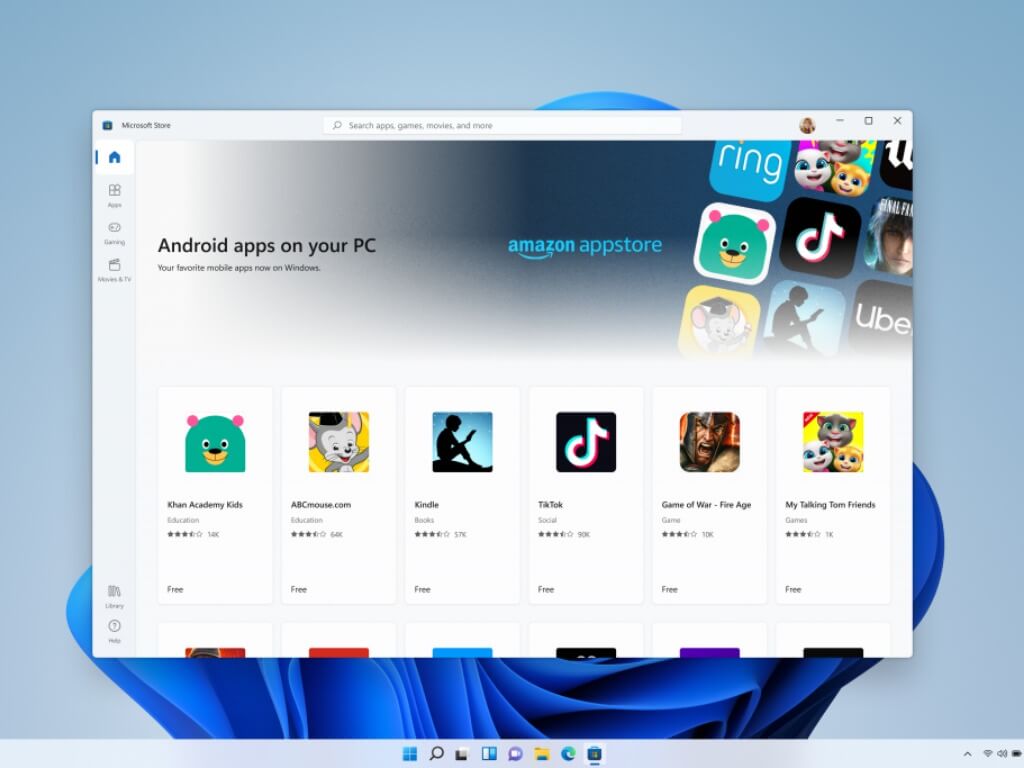
The company mentioned in a blog post that “We look forward to continuing our journey to bring Android apps to Windows 11 and the Microsoft Store through our collaboration with Amazon and Intel; this will start with a preview for Windows Insiders over the coming months.”

A Star Wars: Knights of the Old Republic remake is coming to Windows PC (and likely Xbox consoles)

During Sony’s PlayStation Showcase this morning, the company officially confirmed the existence of the long rumored remake of the classic Star Wars: Knights of the Old Republic (KOTOR) video game.

No release date for the KOTOR remake was mentioned but it was confirmed that the title is set for release on Windows PC and Sony’s own PlayStation 5 consoles.
“And it’s a console exclusive on PlayStation 5 at launch.”

While there was no mention of a launch on Microsoft’s Xbox One or Xbox Series X console families, the above strategically written text does pretty much confirm that the KOTOR remake is in fact coming to other consoles but that it will come to the PS5 first.

Basically, KOTOR will be a timed exclusive to Sony’s new console before eventually making its way to other console platforms. If this wasn’t the case, the words “at launch” would have been excluded from the announcement.

What Xbox consoles could Star Wars: Knights of the Old Republic come to? The fact that it’s launching on the PS5 and not the PS4 does suggest that it’s going to require modern hardware to run properly so support for the Xbox Series X (and Xbox Series S) is a safe bet. This doesn’t necessarily rule out a launch on the Xbox One though as it is much easier to release a single game across Xbox One and Xbox Series X console generations than it is for both PS4 and PS5.

It’s possible that KOTOR could come to the Nintendo Switch but it would have to be stripped down quite a bit. Unless a more powerful Switch console launches between now and then that is.

The game could always come to the Atari VCS console as well though it’s worth noting that Atari’s new (and admittedly cool) console can also play PC games so Atari VCS owners will likely opt to choose the PC version at launch instead of waiting for the console release.

Funnily enough, this means that despite the KOTOR remake being marketed as a PS5 console launch exclusive, it’ll be playable on the Atari VCS console on Day One as well.

Star Wars: Knights of the Old Republic was a massive hit on the original Xbox console when it launched back in 2003.

Those interested in playing the original version before the remake comes out can actually still play it on Xbox One and Xbox Series X consoles today due to their support for backwards compatibility. Playing it on a new Xbox console also offers a number of improvements over the original experience such as faster loading times and even HDR when plated on an Xbox Series X.

Which platform will you play the Star Wars: Knights of the Old Republic remake on? Share your thoughts with the community in the comments below and then follow us on Pinterest and Twitter for more Xbox gaming news.

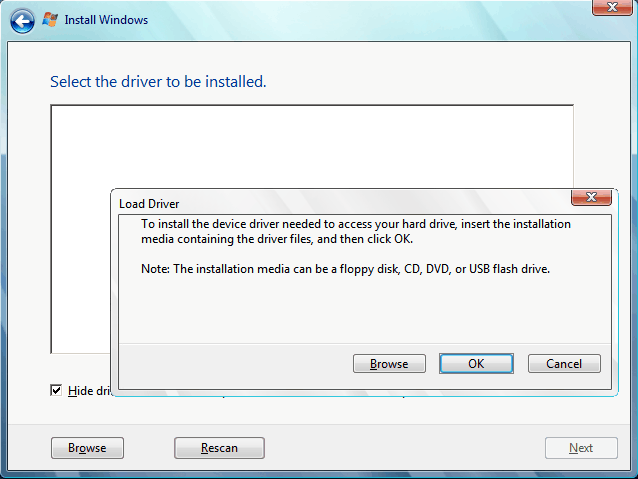
Fix Select the driver to install error in Windows 11

Installing a new operating system is usually a simple and hassle-free process, but sometimes issues can occur and interfere with the procedure.

Many users reported getting the Select the driver to install message when trying to install Windows 11 on their PC. This can prevent you from enjoying the operating system, so it’s important to know how to properly fix it.

There are several reasons why this error message can occur, ranging from bad installation media to missing drivers, and in this guide, we’re going to explore them all. Join us while we try to find the best solution for this issue.

Why does the Select the driver to install error occur?

In most cases, this error occurs because you don’t have the necessary drivers in Windows installation media.

This can be the result of a damaged ISO file or a compatibility issue. If it’s caused by a compatibility problem indeed, Microsoft will most likely patch this issue with a future build of Windows.

Is the Select the driver to install error serious?

Yes, this type of error can be serious since it will interfere with the installation of your operating system. If the required driver is missing, the installation can’t access your hard drive or SSD and that is causing the problem to appear.

Such errors are always a concern, especially for less tech-savvy users, but there are a couple of ways to fix this problem on your PC.

How do I fix the Select the driver to install error in Windows 11?

1. Download the Windows 11 ISO again

  1. Go to the Microsoft download section.
  2. Select the version that you want to download.
  3. Now select the desired language.
  4. Lastly, click the download link.
  5. Wait for the ISO file to download.

It’s possible that your Windows 11 ISO file got damaged during the download and that caused some files to go missing, but that should be fixed by downloading the ISO file again.

Some Windows 11 setups show an “Install driver to show hardware” message during installation, so you can follow this guide on fixing the Install driver to show hardware error in Windows 11 when that prompt appears.

Tip icon Tip
Some users reported that the error message didn’t appear when trying to install a different build of Windows 11, so be sure to try that as well.

2. Change SATA Operation Mode

  1. While your PC boots, keep pressing Del to access BIOS.
  2. Navigate to the Peripherals section.
  3. Now set SATA Mode to AHCI.
  4. Save the changes and try to install Windows 11 again.

By modifying this setting, the driver won’t be required during the installation and you won’t’ get Select the driver to install message on Windows 11.

Note icon NOTE
Each motherboard BIOS is different, so check your motherboard manual to find the correct way to access BIOS and change the SATA Mode.

3. Copy the missing drivers to the installation USB

  1. Download the required driver. It’s usually a Rapid Storage or a chipset driver.
  2. Once the drivers are downloaded, extract them.
  3. Now look for any sys, inf, or dll files and copy them.
  4. Paste them to your Windows 11 USB installation media.
  5. Try to perform the installation again.
  6. If asked for drivers, select the ones that you added to the USB drive.

This issue was reported mostly on Dell devices, and the solution mentioned above worked for several users, so we assume that it will work for other PC brands.

Keep in mind that this is an advanced solution and you need to know which drivers to download and add to the installation media. For automatic scans of missing or outdated drivers, we recommend using an automated driver updating tool.

4. Check your hard drive

  1. Make sure that your PC is completely turned off.
  2. Disconnect it from the power outlet.
  3. Open your computer case.
  4. Check the SATA cables and make sure that they are tightly connected to both your drive and the motherboard.
  5. Up next, check the power cable that goes to your drive and ensure that is properly connected.
  6. Close your computer case, connect the PC to the power outlet and check if the issue is gone.

Sometimes loose connections can cause your storage device not to be detected, and lead to the Select the driver to install message when installing Windows 11.

Therefore, check your hardware and ensure that everything is connected properly. The best way to do that is with some advanced hardware diagnostic tools.

How can I make a Windows 11 bootable drive?

To create a Windows 11 bootable drive, you need to download a Windows 11 ISO from Microsoft’s website. Do not download the ISO file from third-party websites, because it might be altered.

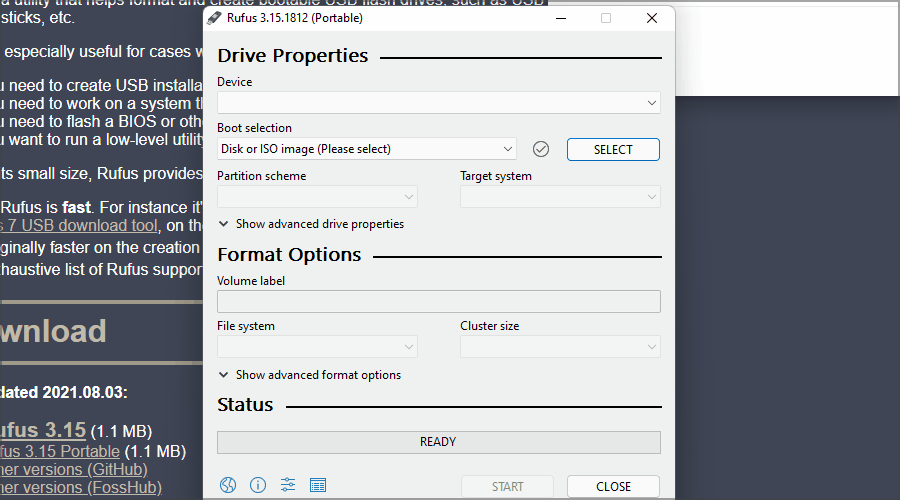
After downloading the ISO file, simply use Rufus to create bootable media. For more step-by-step information, check our guide on how to make Windows 11 bootable USB drives.
What are the most common Windows 11 installation errors?

One of the common errors when installing Windows 11 is the TPM device not detected error. If you’re not familiar with TPM, we suggest reading our Windows 11 and TPM guide for more information.

Even if you’re having installation issues, you should be able to solve them after reading our guide dedicated to solving Windows 11 installation problems.
Getting rid of the Select the driver to install message in Windows 11 doesn’t have to be hard, and we hope that you managed to fix this problem using our solutions.
Did you find the fix on your own? In this case, don’t hesitate to share it with us in the comments section below.

Alan Wake Remastered to launch on October 5 on Xbox, PlayStation, and PC

Alan Wake Remastered was officially announced two days ago by Remedy Entertainment, and the game now has an October 5, 2021 release date on PC, Xbox, and PlayStation consoles. The remaster will include the main game and its two story expansions ‘The Signal’ and ‘The Writer’, with improved graphics for modern platforms.

“The game’s cutscenes, quirky cast of characters, and majestic Pacific Northwest vistas have all been enhanced for a visual impact that matches its unnerving atmosphere. The tense, episodic story is packed with unexpected twists, heart-stopping cliff hangers and jaw-dropping, intense bursts of combat where it takes more than bullets to banish the darkness that lies ahead,” the Finnish developer wrote today.

Alan Wake was originally released on Xbox 360 and PC, and this remaster will offer remastered 4K graphics with improved visual effects and lighting. You can learn more about the different performance targets on all platforms below:

  • PlayStation 4 – 1080p / 1080p / 30fps
  • PlayStation 4 Pro (Performance Mode) – 1080p / 1080p / 60fps
  • PlayStation 4 Pro (Quality Mode) – 1296p / 2160p (4K) / 30fps / 4 x MSAA
  • Xbox One – 900p / 900p / 30fps
  • Xbox One X (Performance Mode) – 1080p / 1080p / 60fps
  • Xbox One X (Quality Mode) – 1440p / 2160p (4K) / 30fps / 4 x MSAA
  • PlayStation 5 – 1440p / 2160p (4K) / 60fps / 4X MSAA
  • Xbox Series X – 1440p / 2160p (4K) / 60fps / 4 X MSAA
  • Xbox Series S – 1080p / 1080p / 60fps
  • PC – 4K / unlimited

Alan Wake Remastered is already available for pre-order for $29.99 on Xbox, PlayStation and the Epic Games Store, and the Xbox version of the game also supports Smart Delivery. The cult-classic game from the Xbox 360 era will be released on PlayStation consoles for the first time, and it will also support the PlayStation 5’s DualSense controller’s vibration and haptics.

Alan Wake Remastered
Developer:
Epic Games
Price:
$9.89

GTA V on Xbox Series X|S and PS5 has been delayed to March 2022

The GTA V remaster for Xbox Series X|S and PlayStation 5 consoles has been delayed to March 2022, Rockstar Games announced today. The game was originally set to be released on November 11, just a couple of days after the blockbusters Call of Duty: Vanguard and Forza Horizon 5.

“While we are extremely excited to be bringing GTA V to the latest generation of consoles, the game requires a few additional months for polishing and fine-tuning. We look forward to sharing more details about these expanded and enhanced versions soon, including the new standalone version of GTA Online also coming to PlayStation 5 and Xbox Series X|S in March,” the company said today.

This much-anticipated GTA V remaster will bring improved graphics, enhanced gameplay, and seamless character switching on Xbox Series X|S and PS5 consoles. Thanks to a marketing deal between Sony and Rockstar Games, the new standalone version of GTA Online will also be available to claim for free for PlayStation 5 gamers for the first three months after the game’s launch in March 2022.

GTA V was originally released in 2013 on Xbox 360 and PS3, and Xbox One and PS4 versions followed a year later. The game went to become one of the best-selling games of all time with 150 million copies sold as of August 2021, and its GTA Online mode remains a true money maker for Rockstar Games after all these years. If Xbox Series X|S and PS5 are still very hard to find in 2021, there’s a good chance that this GTA V remaster ends up as one of the best-selling games of 2022.

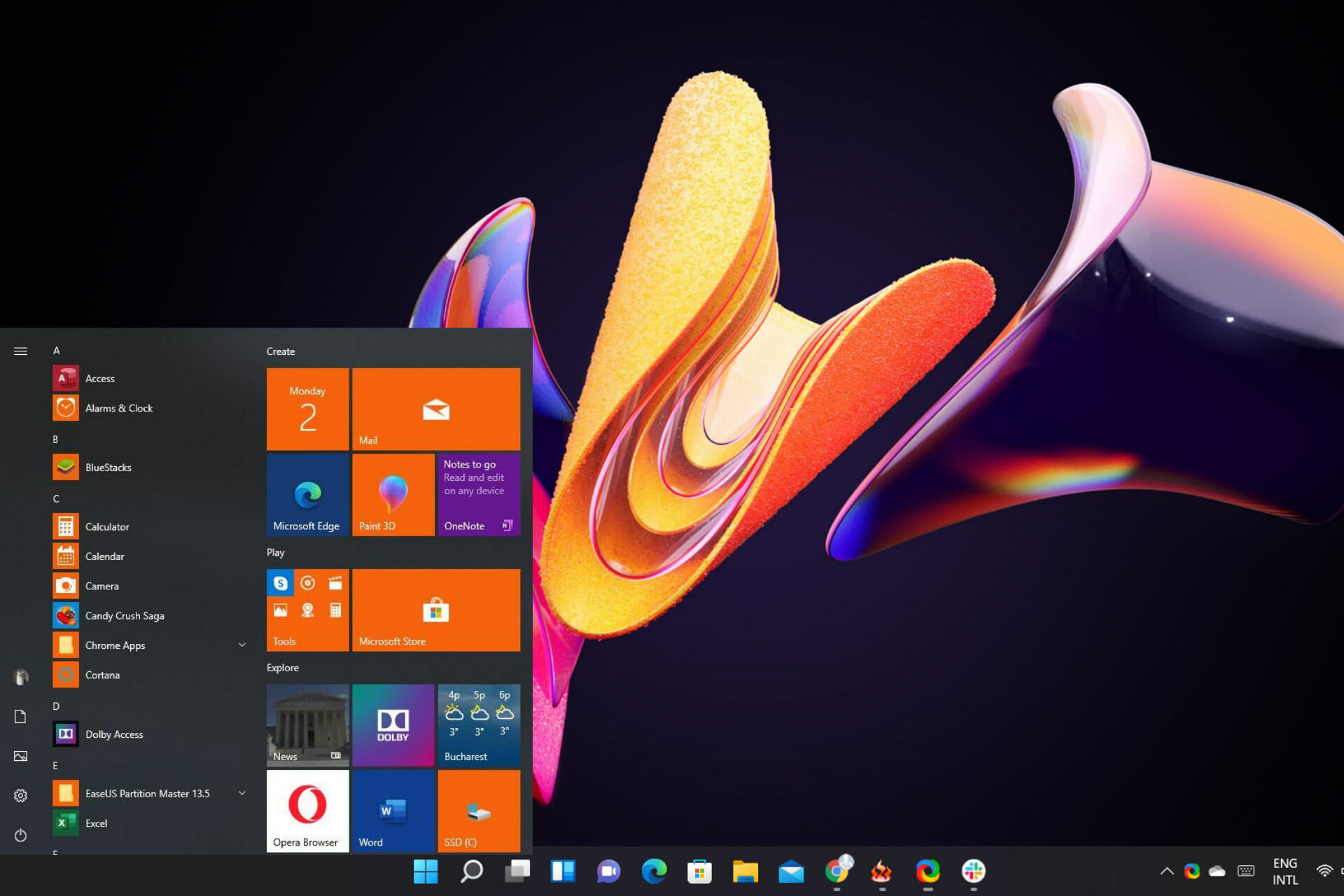
Nasty bug causes Windows 10 Start menu to pop up on Windows 11

Remember when we said that some Insiders, particularly the ones that conduct their testing on the Dev channel, were about to enter the Windows 11 twilight zone?

We said that because Microsoft itself stated that the preview builds running on the above-mentioned channel were going to become increasingly unstable and buggy.

Now, however, it seems that not only these users find themselves experiencing anomalous behavior, as the upcoming OS starts doing some pretty unexpected tricks.

Windows 11 with a Windows 10 Start menu?

Yes, you heard correctly, there is no smoke or mirrors involved, just another system glitch from our very own Windows 11.

Just when you thought things couldn’t get stranger with this already peculiar operating system, so far, something like this happens.

We can just imagine the smile on some people’s faces, considering that they never liked the new Start menu and wanted a way to go back to the previous one.

But, no matter how much laughter or nostalgia this situation caused, we’re still talking about a bug that needs to be permanently eliminated. After all, this is not Kansas (Windows 10) anymore.

So let’s see exactly what this is about. Recently, this issue surfaced across multiple forums and social media platforms, where Windows Insiders share their findings with the rest of the community.

As you can see in the video above, pressing the Start menu button on this Windows 11 preview build causes the previous version of the menu, the one from the OS before this one, to actually pop up.

If we really think about it, it kind of brings back some memories from the operating systems that came before, don’t you think?

Such as the Aero theme in Windows 8 and later, that replaced the Windows Classic theme, which was only kept around to maintain compatibility with programs not updated to use the newer title bar systems.

But there’s still no reason for something like this to be happening this late into the testing phase. Most people say it’s because this is still Windows 10 with some new tattoos.

People seriously question Windows 11’s originality

This new system bug discourages even the most vehement Windows 11 supporters out there, as it shows once again that the new OS is just what we had before, only with more make-up.

Even if it is so, Microsoft should have done a better job at keeping this for itself and bolster community confidence, instead of shattering it with such silly and avoidable mistakes.

The fact that the old Start Menu is still somewhere in the codebase further proves what an unmanageable and bloated mess Windows has become underneath the new-ish paintjob.

I had something similar happening with the old File Explorer suddenly showing up, apparently the new explorer is also nothing more than a wrapper around the old code that can somehow be disabled.

I do hope someone will figure out a script/ registry key to enable this again permanently.

Yes, people wanted to be able to change such elements in Windows 11 and revert them back to their previous appearance, but not like this.

And rest assured that even if the Redmond-based tech company does fix all these problems before the October 5th rollout starts, users will still find ways to restore vital parts of the OS back to their Windows 10 looks.

Even now, such choices exist, in the form of software such as StartisBack (the new Beta version), and also Start 11 from Stardock.

The main idea here is that Microsoft made too many small mistakes and triggered a snowball effect that will further hurt its image and credibility in the long run.

Once Windows 11 gets released to the general public and people upgrade… these issues will be embarrassing for Microsoft. Once again Microsoft’s image will be tarnished and further erode people’s trust.

But, we all know how it is, you must lie in your bed the way you made it, so Redmond officials will need to find a way to earn some redemption after the dust settles a bit.

Until then, we will just keep testing the future operating system and keep our eyes open for similar or worse situations.

Hopefully, everything will get sorted out in the end, and, putting aside all the drama and mistakes that have clearly been made, Windows 11 will actually be a pleasant, immersive experience.

Remember that we have all sorts of helpful articles that can really come in handy when you are in a pickle. And since we were talking about the Start menu, this one can prove to be a real lifesaver.

Have you also encountered this nasty bug on your Windows 11 device? Let us know in the comments section below.

Microsoft Teams and Outlook are getting big updates to help you adapt to hybrid work

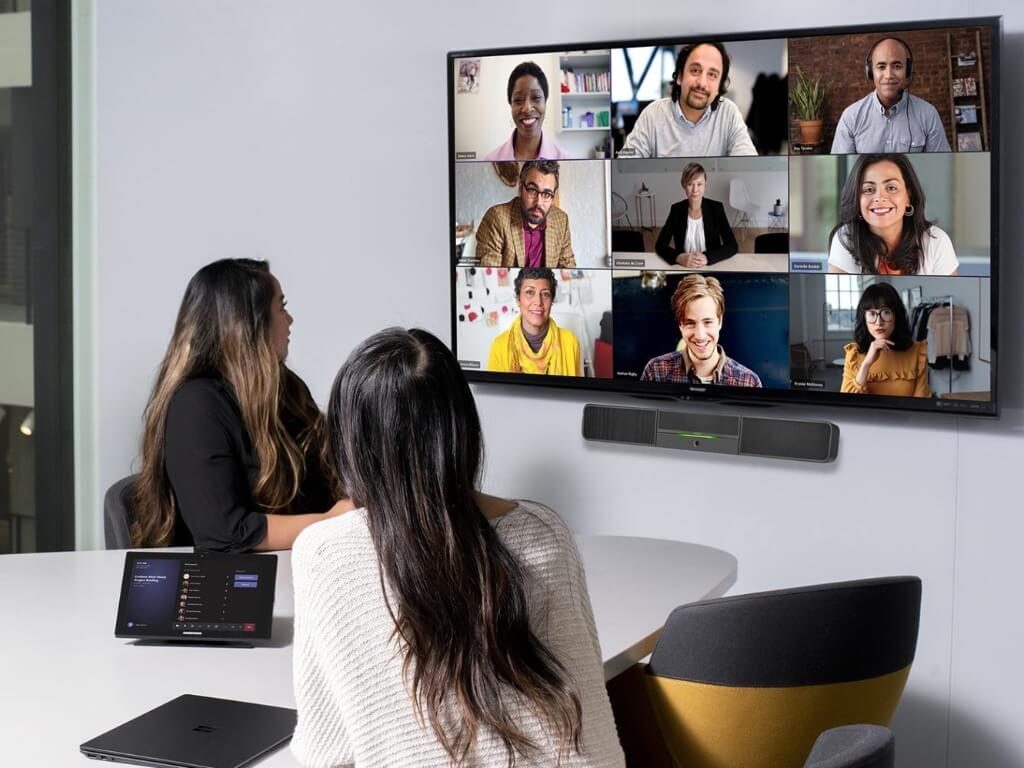
Microsoft today held its “new era of hybrid work” digital event and announced a bunch of features for Teams, Outlook, and Viva that are aimed at making hybrid work easier. The company has also announced some new Teams Rooms innovations to make the meeting experience more engaging. At the event, the company also announced that its US offices won’t be opening until further notice, cancelling the planned October 4th re-openings.

“Our new data shows there is no one-size-fits-all approach to hybrid work, as employee expectations continue to change. The only way for organizations to solve for this complexity is to embrace flexibility across their entire operating model, including the ways people work, the places they inhabit and how they approach business process,” Microsoft CEO Sateya Nadella said today.

As Microsoft announced new AI-powered capabilities coming to Teams Rooms devices back in June, the company has followed up with new intelligent cameras for hybrid meetings. These third-party cameras come with a bunch of unique features such as people recognition, active speaker tracking, and active speaker tracking. Interestingly, the in-room camera will leverage the active speaker tracking feature to use gestures, facial movements, and audio to figure out presenters in the meetings room.

The Companion Mode in the Microsoft Teams mobile is also being improved, with the app now offering quick access to Microsoft Whiteboard, chat and live reactions. The improved Companion Mode will begin rolling out “in the next few months,” and it should also make it easier to access meeting and device controls.

That is not all though. Microsoft Teams is adding support for Apple CarPlay, allowing users to join Teams meetings and make calls while driving. In addition, automatic lighting corrections capabilities will arrive in Teams meetings in the coming months. Microsoft also announced a couple of apps to support the new shared stage experience that was originally announced at Build 2021. The list includes Freehand, Lucidspark, MURAL, Miro, and more.

In early 2022, Microsoft PowerPoint is also gaining a few new capabilities to make hybrid presentations even better. First of all, there is a new feature called Cameo that lets users integrate their Teams camera feed directly into presentations. Speaker Coach is another AI-powered feature that is coming to PowerPoint presentations that monitors speaker’s pace during meetings and reminds them to interact with their audience.

Cameo screenshot

In addition to these PowerPoint features, Outlook is introducing new RSVP experiences that will enable users to specify if they will attend a meeting in person or remotely. The company is improving the working hours feature in Outlook to include work schedule details in the calendars.

Last but not least, Microsoft plans to launch the Viva Connections mobile app in public preview later this month. The Redmond giant has also announced a couple of initiatives to help LinkedIn users improve their skills. The popular social network will offer 36 LinkedIn Learning courses free until November 9, 2021.

Xbox owners will soon be able to control their console with their TV remote

Microsoft has started testing new HDMI-CEC features with Xbox Insiders which will allow gamers to use their regular TV remote to control their console. Xbox One and Xbox Series X|S consoles can already use HDMI-CEC to automatically turn on and off other devices, but navigating the Xbox OS currently requires an Xbox controller or an officially licensed infrared remote.

In addition to using regular TV remotes to control Xbox consoles, the new HDMI-CEC features that Microsoft has started testing also include the ability to switch TV input by pressing the Xbox button on the Xbox controller. These features can be enabled by going to Settings > Power mode & start up > TV & A/V power options and checking “Use TV remote for console” and “Switch TV input using controller”.

These HDMI-CEC improvements are now live for Xbox insiders in the Alpha and Alpha Skip Ahead rings. The latest preview builds also bring controller firmware updates to bring the Dynamic Latency Input (DLI) technology and improved Bluetooth connectivity found on Xbox Series X|S controller to older Xbox controllers.

Microsoft has a new blockbuster ad for Windows 11

Windows 11 is coming soon, and Microsoft revealed today a blockbuster 60 seconds ad for the new OS. The short clip features the same production quality we’ve previously seen in videos for Surface products, and Microsoft wants the ad to show how Windows 11 “brings you closer to what you love.”

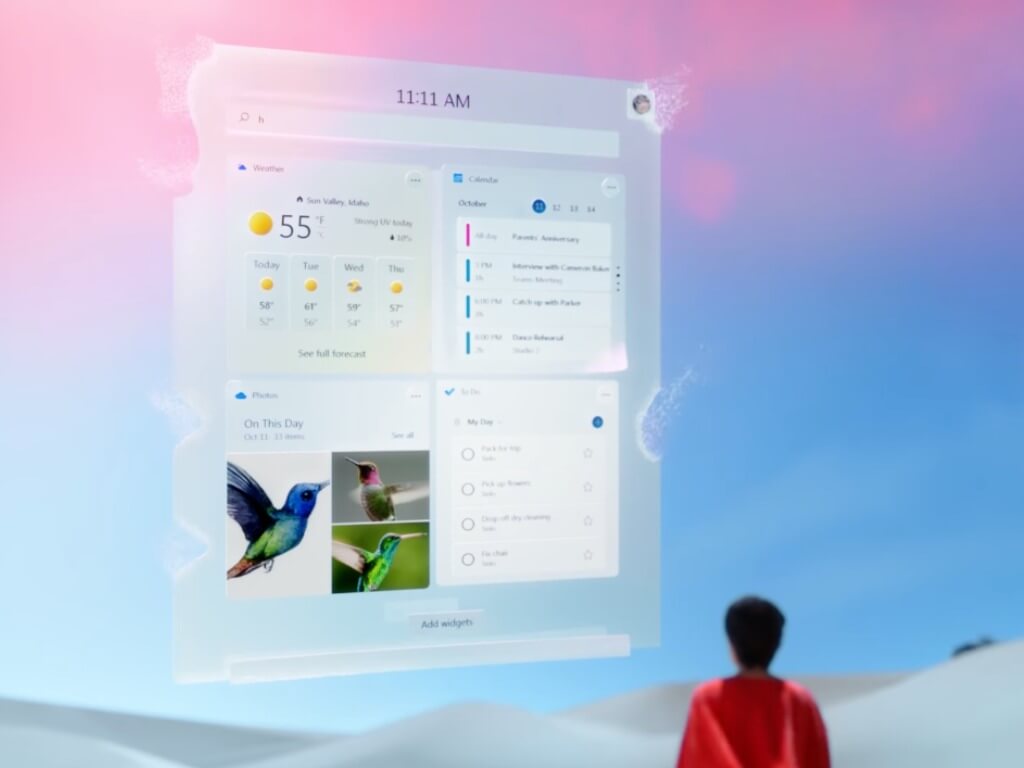
“Set to the music of the new single “All Starts Now” by Odessa featuring Tim Myers, the ad follows its hero as she explores the visually stunning new Windows, walking past apps in the new Microsoft Store, playing games with Xbox’s Master Chief, realizing Windows 11 widgets emerging from a beautiful cloud and chatting with a friend who though on the other side of the world seems close enough to touch, all representing the seamless experiences that Windows 11 makes possible,” the company explained today.

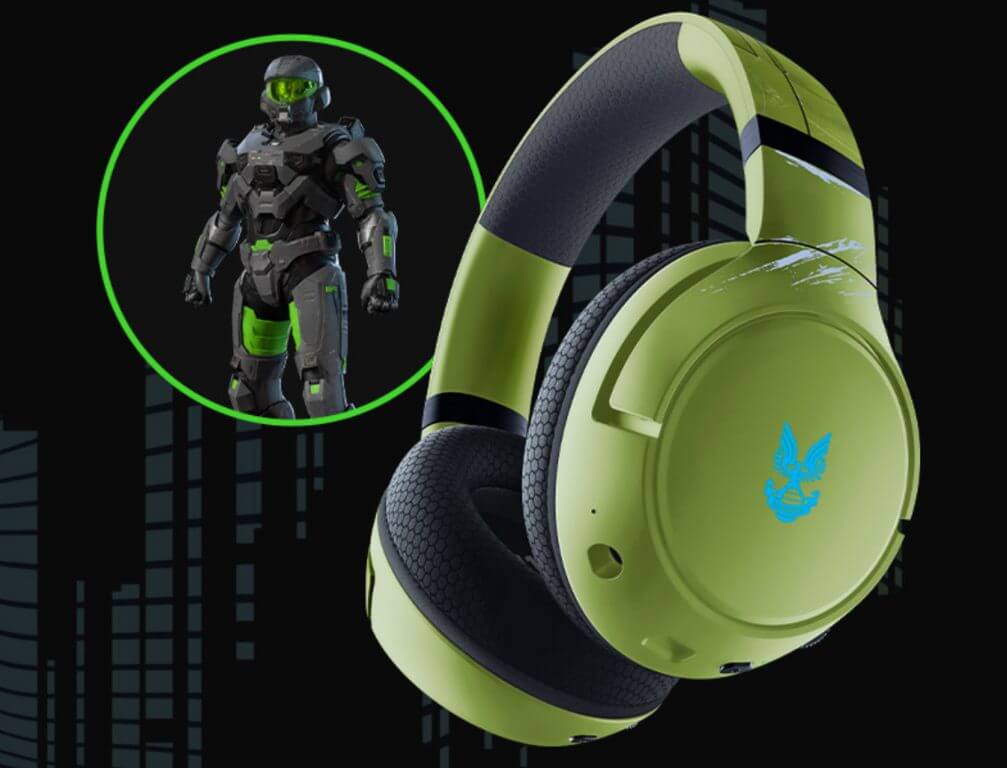
The ad starts with a young woman interacting with a Windows 11 PC before being pulled in a colorful corridor filled with Microsoft Store apps and games. The action then transitions to a desert where Halo’s Master Chief steps off a Warthog to shoot a Covenant Banshee with a rocket launcher.

The Windows 11 news widget appears beneath the Pastel explosion, and the rest of the ad is a fast-paced succession of sequences that briefly shows the new Teams for Consumer app that will ship with Windows 11. One of the last shots shows the woman using the new Snap Assist controls to watch a video while having a Teams video call and the Xbox app opened side by side on a Windows 11 PC.

Overall, the new ad may leave many people scratching their heads, as new Windows 11 features don’t exactly get a lot of screen time. This ad is probably not something that will make most Windows 10 users immediately want to upgrade to Windows 11, but that’s probably fine. This ad does mark the launch of an international ad campaign to “raise awareness and excitement around Windows 11,” but Microsoft will also be relying on PC manufacturers to get the word out about Windows 11.

Do you think this is a good ad from Microsoft, or would you have preferred something a little more down-to-earth? Let us know what you think in the comments below.

Microsoft Teams for Education gets new illustrated character to help students express their emotions

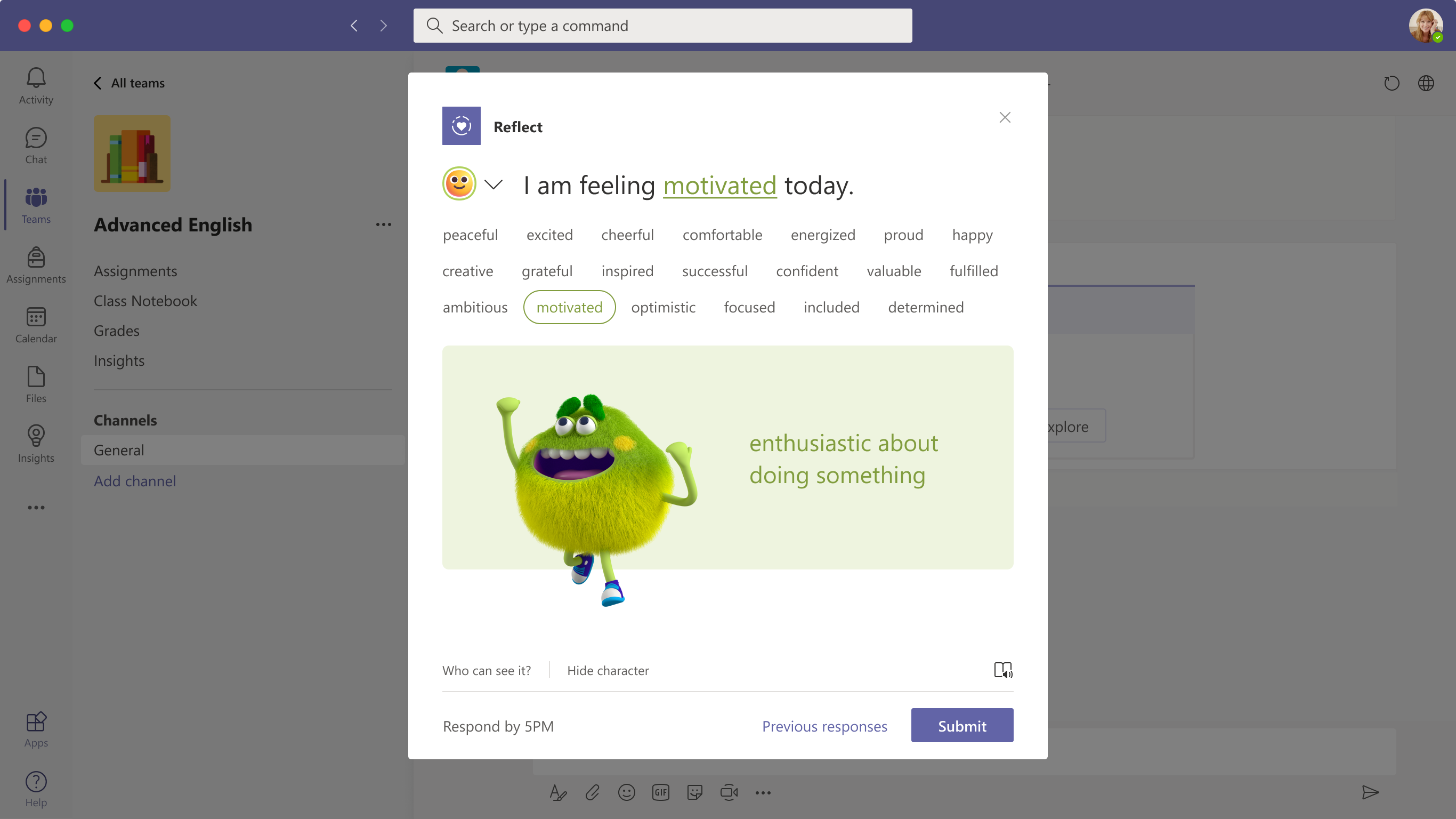
Microsoft Teams for Education has announced a new feature to help students share their emotions with educators. As research studies have hinted that the ongoing pandemic has negatively impacted students’ social-emotional skills, Microsoft is adding a new illustrated character within the Reflect app in Teams for Education in an effort to improve student’s emotional vocabulary.

“Later this month, we’re excited to introduce students and educators to a new illustrated character that brings the 51 emotions in Reflect to life. This series of delightful characters helps students expand their emotional vocabulary and gives educators the ability to review students’ feelings over time to better understand their social and emotional health,” said Paige Johnson, Vice President for Microsoft Education.

An image of Reflect in Microsoft Teams for Education.

Microsoft Teams launched the Reflect app for education customers back in February this year. It provides educators an easy and effective way to grow student-teacher connections and get insights into their well-being. The Reflect app in Teams helps learners develop their emotional vocabulary and improve their understanding of the impact of emotions on the learning process. You can learn more about the Reflect app in Microsoft Teams on this page.

Overall, the new illustrated emotion is a welcome addition for educators, and it should support them in incorporating social and emotional learning into their classroom. It offers an effective communication mechanism to make the hybrid learning experience more engaging for students.

How to Set an Alarm on Windows 11

The alarm is one useful feature that we all use on our phones and other devices, but what about alarms on our PCs?

In case you didn’t know, Windows has its own alarm app, and it has been updated in Windows 11 with some new features. Among other new design elements, it now allows you to create focus timers.

The regular alarm feature hasn’t been changed much, and it works similarly to the alarm on Windows 10 while being just as easy to set up.

If you don’t know how to configure alarms on your Windows 11 PC, in this guide we’re going to clarify the process in its entirety.

Can I have Focus sessions using the Clock app?

Yes, the latest version of the Clock app offers a Focus session feature that allows you to organize your work into segments.

By setting work and break timers you’ll be able to boost your productivity. The new Clock app offers To Do and Spotify integration, allowing you to focus on your tasks or enjoy music while working.

If you haven’t used a To-Do app before, be sure to check our guide on how to assign tasks in To-Do to get to know the app better and see what it can help with.

However, this feature is available only in the latest version of the Clock app, so you’ll need to update the app to use it.

How do I update the Clock app?

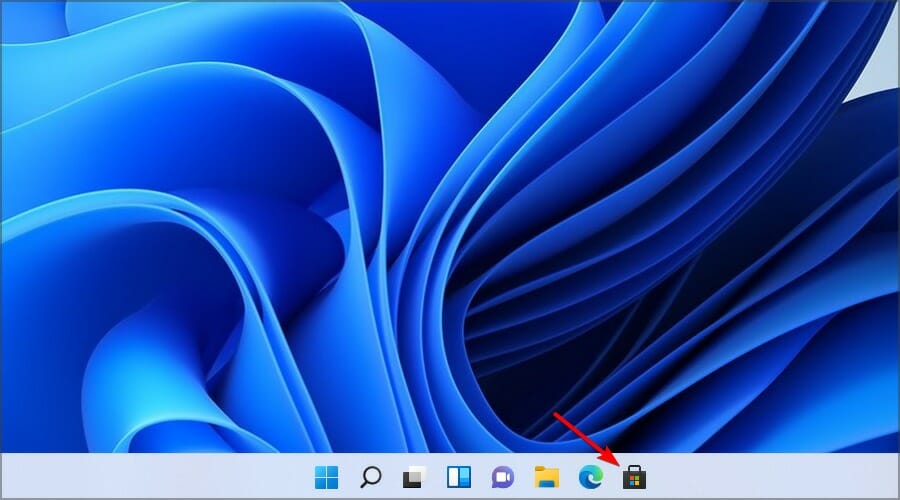
  1. Open the Microsoft Store by clicking its icon in the Taskbar.
  2. In the search field enter clock and select Alarms & Clock from the list of results.
  3. Now click the Update button.

Microsoft Store has been changed in Windows 11, and to learn more about it, be sure to check our closer look at the new Microsoft Store.

How can I set an alarm on Windows 11?

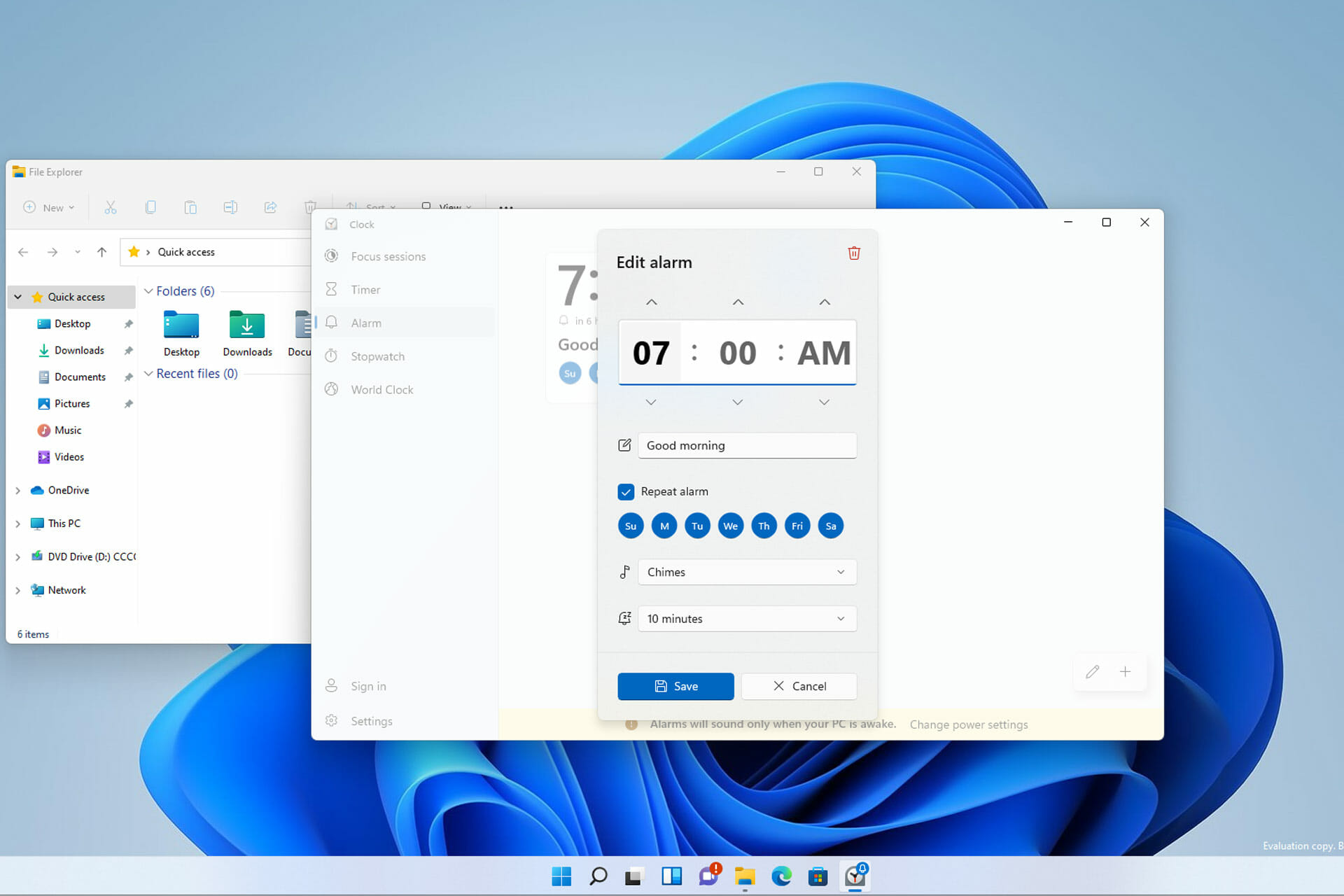
1. Use the Alarms & Clock app

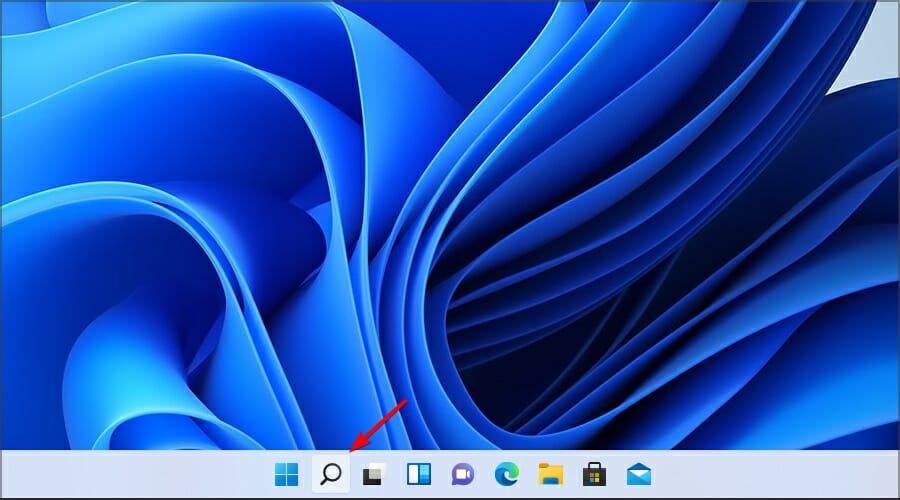
  1. Click the Search icon in the Taskbar.
  2. Type alarms and select Alarms & Clock from the search results.
  3. Click on Add an alarm button.
  4. Configure your alarm and click on Save.
  5. After doing that, your alarm will appear on the list of alarms.

As you can see, it’s easy to set an alarm with Windows 11, but if you need more features, you might want to try using third-party alarm software.

2. Edit the alarms

  1. Open the Alarms & Clock.
  2. Select the alarm that you want to edit.
  3. Change the settings that you want.
  4. Optional: To delete an alarm, just click the Delete icon in the top right corner.
  5. To disable an alarm, just toggle the icon next to it in the top right corner.

As you can see, editing your alarms is pretty simple, and it only takes a couple of settings to do that.

Will Windows alarm wake up my PC?

No, the Windows alarm won’t wake up your PC to sound the alarm. For the alarm to work, your PC needs to be running and not in Sleep Mode or turned off.

However, other alarm applications might support this feature, so if you’re interested in this feature specifically, you might want to consider using them instead.

That being said, To learn more about Sleep Mode, check our guide on Sleep Mode and Hibernation comparison.

Can I use custom alarm sounds for Windows alarm?

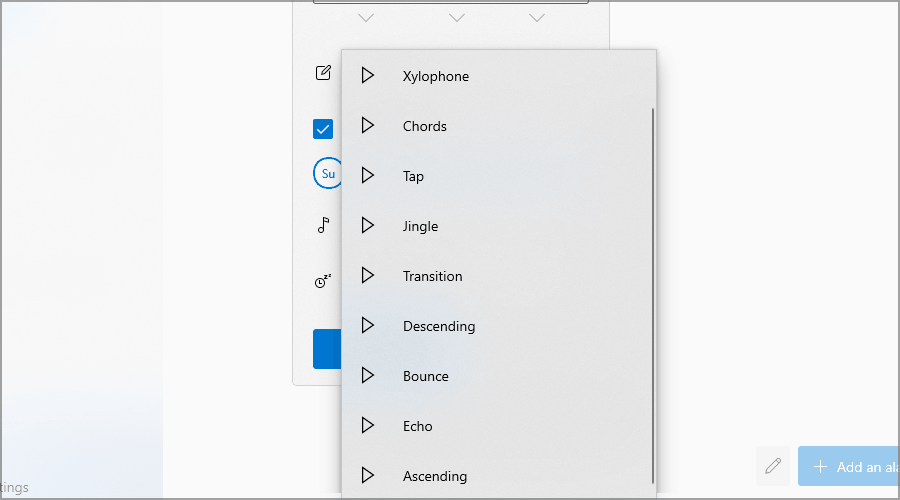
No, Alarms & Clocks app doesn’t support custom sounds, meaning that you can use only the available sounds.

There are 10 different alarm sounds to choose from, so feel free to use any of them on your PC. In case you’re having any issues with the alarm, visit our Alarm sound not working guide for easy fixes.

To set up an alarm on Windows 11, you just need to use the built-in Alarms & Clock app. The app is simple and easy to use, so you’ll have no trouble creating alarms.

This app might not be the most advanced on the market, but it’s simple enough, and it offers great features to all Windows 11 users, so it’s worth trying out.

Are you using the Alarms & Clock app for your alarms or are you using different software? Share your thoughts with us in the comments section below.

5 Best Thermal Printers for Printing Shipping Labels

The E-commerce industry increased in popularity in recent years, along with the modernization of the world. Nowadays, almost every company or shop has an online version that sells to many parts of the state or even around the world.

To ship your items, you need to use special labels. No matter how big or small your store is, if you get those labels wrong, you’re going to have a bad time.

You might not even be able to successfully deliver the package, since they display all the crucial information the courier needs to take the package to the designated location.

This includes the country, postal code, address, ship street, city and state, tracking number, date, package quantity, and weight.

Shipping labels can be purchased from a postal office, but that’s the most expensive way to get one. Every new delivery requires a new label, so it is easier to print them yourself, especially if you’re part of a business.

Inkjet printers vs thermal printers

Now that we established printing labels is more cost-effective than buying them from the postal office, you need to figure out what kind of printer is the best for the job.

➡ Inkjet printers

Take up lots of space and are normally used to print out office documents, photographs, short-term notices, and other temporary signage.

In terms of durability, they don’t last that long. Inkjet printers have many moving parts that can break. And the quality of the images is not that great either.

They may smudge or stain when exposed to moisture, humidity, sunlight, and physical use. This makes stickers, signs, and other ink-based products unreliable for long-term use.

➡ Thermal printers

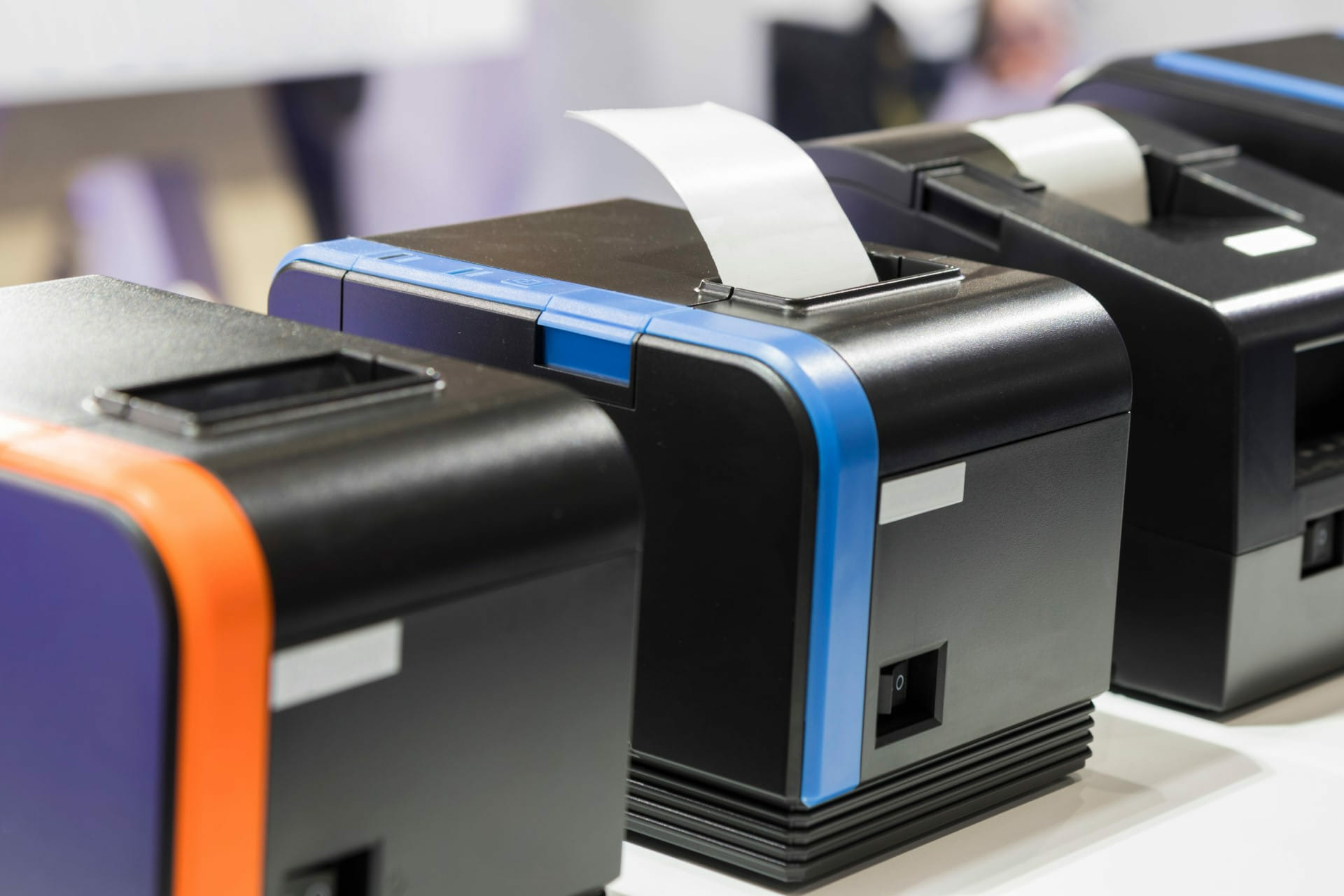
This type of printer is more compact than an Inkjet one and has fewer moving parts, so the chances of something breaking are lower.

The main use for these devices is printing receipts and shipping labels, which are usually small. As a result, thermal printers are compact, and given the fact that they have fewer moving parts, they are more durable and last longer.

Additionally, labels and signs created by thermal printers are more durable than those created by Inkjet. They also stand up to moisture and other harsher weather conditions.

The thermal printer is clearly the winner here. It brings durability, versatility, and it is overall more cost-effective, even if the materials used to print are a bit more expensive than the ones used in the normal Inkjet printer.

What are the best thermal printers for shipping labels?

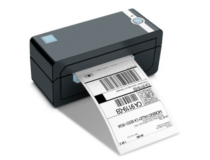
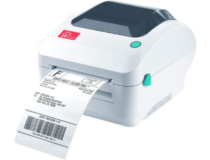
JADENS Thermal Printer

  • Doesn’t require a toner or ink
  • Works well with all major shipping and sales platforms
  • Automatically identify and detect the size and characteristics of a label
  • 150mm/s printing speed with 203DPI printing pixels
  • Annual cost savings and up to 72 labels per minute
  • Mac does not support the Bluetooth function

The Jadens Thermal Shipping Label Printer is a portable, compact, and reliable device that only takes one minute to set up.

It is fully compatible with all Windows systems, and since the installation process is quick, it’s also a time and money-saver. Currently, the printer no longer uses CD-ROM, but a USB disk for driver files.

What’s great about this product is the price advantage. It is substantially cheaper than other competitors such as ROLLO or DYMO

Auto-analyze and learn your labels, thus making your business more convenient. It is suitable for most markets such as Warehouses, shipping, food nutrition, Amazon FBA, UPS, USPS, and more.

Besides being a great addition to any kind of business, this thermal printer is compatible with platforms like Etsy, eBay, Amazon, Poshmark, FedEx, ShipStation, ShippingEasy, Shopify, Shippo, Ordoro, Endicia, Stockx, Xps ship, Dazzle, Shipwire, and many others.

Since it doesn’t require any cartridges or ink to run, the device is environmentally friendly, so you can run the business or convenience store without worrying about affecting the world’s well-being.

Jadens also provides free lifetime customer support, ensuring that all customers are happy with their products and that all their problems are being dealt with.

If anything happens with your thermal printer, make sure to ask for help via live chat, phone calls, or by sending an email to their wonderful team. You can also request remote desktop support in case you’re not that great with computers.

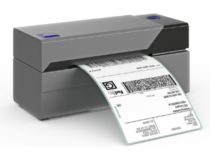
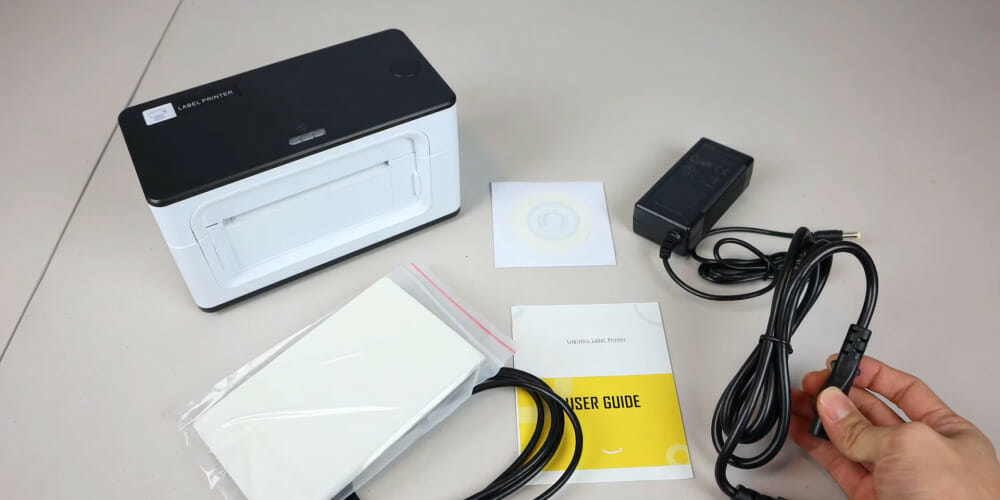
ROLLO Label Printer

  • Works with thermal direct labels including free UPS
  • High-speed printing at 150mm/s
  • Doesn’t require toner or ink
  • Compatible with Windows and Mac
  • Prints labels from 1.57 to 4.1 inches
  • You also need to buy the 20$ label stand to properly use the printer

Rollo is a fast, reliable, and affordable thermal printer that lets you create as many labels as you want.

Access the technology widely used by couriers around the world, now available to you, without the need of ink or cartridges, and in a compact yet efficient device.

Rollo uses a patented design to rocket-boost your productivity with economical, high-performance logistics printing for the most demanding conditions.

The printer is engineered to create a high volume of labels, which is suitable for shipping out big amounts of packages.

No matter if you make 5 or 5000 labels daily, Roll will always produce clear and high-quality prints at a surprisingly fast speed.

Rollo never fails to deliver at speeds of up to 150 mm/s, which is exactly one 4×6 shipping label per second.

It’s also compatible with all thermal shipping labels and any couriers such as UPS, UPSP, and many more.

At first, it might not seem like it, but in the long term, you’ll save lots of money you would otherwise spend on cartridges, ink, and maintenance for an InkJet printer.

Rollo works and installs just like any other printer, so it is recognized by all applications that deal with such devices. More so, it supports platforms such as the UPS and FedEx websites, USPS Click N’Ship, and U.S. Patent No. D815198.

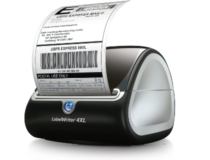
DYMO 1755120 LabelWriter 4XL

  • Print labels up to 4 inches wide, including 4×6 shipping, warehouse, barcode and identification labels, and more
  • Select from up to 60 professional templates and customize the text with DYMO software
  • 53 standard 4-line address labels or 129 high-capacity 4-line address labels/minute
  • Compatible with eBay, Amazon, Etsy, and iabol
  • DYMO LabelWriter creates a variety of sizes, including extra-large shipping labels
  • The product is quite expensive

DYMO LabelWriter 4XL is a compact label printer that makes online selling and printing extra-wide labels easy.

The software is great for shipping labels designed for UPS, FedEx, and UPS directly from popular E-commerce sites such as eBay, Etsy, Amazon, and Poshmark.

It can also print barcodes, labels for warehouses, identification, and way more, and thanks to the DYMO Connect Software, you’ll have access to up to 60 professional label templates to customize them and express your brand.

Benefit from crystal clear results thermally printed without the need of an expensive toner or ink. The DYMO Connect app is also free, so don’t worry about price-gated features.

All the paper labels produced by this device are BPA-free, FSC-certified, and guaranteed high-quality.

The printer comes in two color variations, black and gray, utilizes 1 AA battery, has ‎10.25 x 10 x 10 inches, and is 1.82 pounds.

This compact accessory can sit comfortably on a work desk without standing in your way. Additionally, it’s Climate Pledge Friendly, which means that it supports preserving our natural world.

Overall, this product is great for business owners who want to print out labels in mass to ship huge amounts of packages.

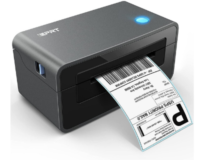
iDPRT Thermal Label Printer

  • 5.9 inches and high-speed printing technology
  • Can print 72 sheets of 4×6 labels per minute
  • Sturdy manufacturing makes the printer durable
  • Prints 160,000 standard labels without ink or toner
  • Cost-effective because it doesn’t utilize ink or toner
  • The labels are not included in the package

This shipping label printer meets the requirements for various popular platforms such as UPS, USPS, eBay, Amazon, Shopify, and more.

Since it has fewer moving parts and doesn’t utilize ink or cartridges, it saves up lots of money for maintenance and buying materials.

The device is suitable for multiple types of labels, including stacked and rolled ones. You can freely choose which one you’d like to use.

It is also compatible with multiple sizes of labels ensuring enough diversity to cover the needs of multiple E-commerce businesses.

iDPRT has intelligent paper adjusting functions that precisely position the paper to make the process work smoothly.

With the intelligent function of adjusting paper, iDPRT label printer could adjust the position automatically and precisely, making the process go smoothly.

This is another fast printer, capable of creating up to 150mm per second while making no noise and helping you save time.

Simply download the driver from their website and read the instructions. It is really easy to set up and use, without requiring prior background knowledge.

The iDPRT Thermal Label Printer is compatible with all versions of Windows, Mac, and Linux systems. Additionally to the drivers, you can also use the Free Bartender Label Software provided by the manufacturers to create any print you wish.

Arkscan 2054A

  • Can print multiple types of thermal labels
  • BarTender UltraLite label design software
  • Offers real-time tech support
  • Compatible with Windows, Mac, ChromeOS, and Linux
  • Supports Arkscan’s, Zebra-compatible labels, and Dymo-compatible labels
  • Lacks software for Mac systems

The Arkscan 2054A is a multi-functional thermal printer that can create various items such as shipping, barcode, product, and labels for other purposes.

It can print from 0.75 to 4.25 inches in width, and between 0.4 and 90 inches in length, supporting rolled paper that can be loaded inside the printer and fanfold paper loaded at its back.

Windows users can also install the BarTender UltraLite label design software tool to customize the labels in various ways before they print them.

Additionally, Arkscan offers tech support for U.S. residents via live chat, phone, and remote access software, all of this during extended office hours from the east to the west coast.

The printer works on most operating systems such as Windows, Mac, ChromeOS (only the 4×6 inches layout label), and Ubuntu.

Since it utilizes thermal technology, there’s no need for ink, toner, or cartridges, which saves up a lot of money in the long run.

Arkscan 2054A is perfect for businesses of all sizes since it is durable enough to be used extensively for long periods of time.

What’s the best shipping label size?

The dimension of the label is determined by the item you are planning to ship, and the address. 4×6 inches is the standard printing label size, which is perfect for sending regular or large boxes.

Additionally, they fit perfectly on envelopes or poly mailers. Shipping internationally requires 4×6 inches when printing custom forms as well.

Longer and thinner packages work better with 2×7 inch labels, but they are not that common and are usually only sent within the United States.

How to set up a thermal printer?

Setting up the thermal printers is really easy. Simply plug in the device, check for a CD/DVD/U disk with a driver, or the user manual for a link to a website to download it.

After installing the driver, simply place the special paper inside the printer and you’re good to go. Always read the user manual when you’re in doubt, and keep in mind that not all thermal printers operate the same.

As long as you need to ship at least a moderate amount of packages, owning one of these devices is a must, no matter what kind of business you have.

Check them all out and choose the one who can help your company the most. There are plenty of options on the list, all of them being great products and creating long-lasting and premium labels.

If you have past experiences with any of these thermal printers, or anything else to add to the subject, feel free to tell us in the comments section below.

Microsoft bought Clipchamp and will add it to Windows 11

If you were thinking that Windows 11 can’t get better than it promises to be, you might want to sit down for this one.

Today, Microsoft announced that it will be acquiring Clipchamp, which is clearly an attempt to bolster the upcoming operating system even more.

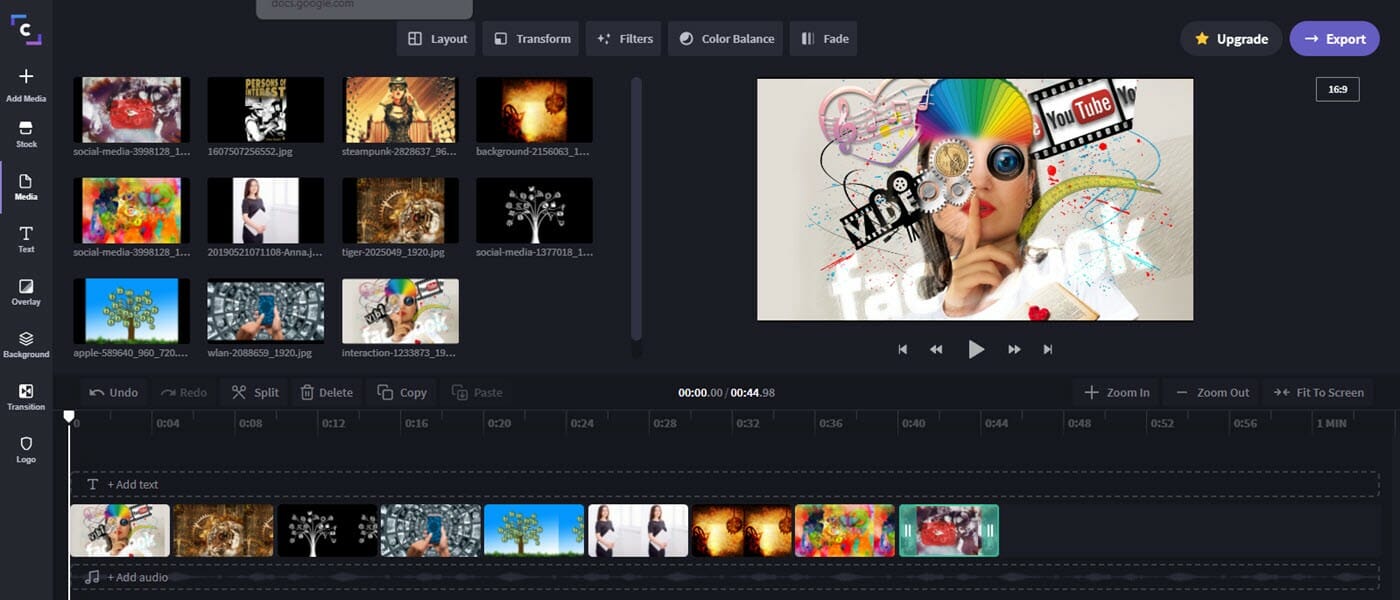
If you weren’t already familiar, Clipchamp is a free web-based video editing app and, apparently, the tech giant seems keen on integrating its newly acquired video editor into its Microsoft 365 subscription service.

Just to make sure everyone understands what this means, Clipchamp’s days of being a free video editor may be numbered.

New video editing software added to Windows 11

The Redmond-based tech company is clearly firing up all its cylinders, in this tough journey to deliver the most cohesive user experience in years.

As a web app that uses the full power of your PC, Clipchamp is a natural fit to extend the cloud-powered productivity experiences in Microsoft 365 for individuals, families, schools, and businesses. It’s also a great fit for Microsoft Windows, which is a platform for boundless creativity. Whether you are editing game clips, making a school project, putting together a memory of your kids, or assembling the next indie short, Clipchamp and Microsoft will help you express yourself through the emotional power of video. 

This is what Chris Pratley, CVP of Microsoft’s Office Media Group had to say about this new addition coming to your new favorite OS, in the future.

The Redmond official also added that the Clipchamp team is a creative powerhouse dedicated to quality and great customer outcomes, and we welcome them wholeheartedly as kindred spirits.

Clickchamp’s rich library of filters, styles, transitions and stock media combined with the power of a multi-track audio and video compositing editor gives everyone the fine control they need.

You can also receive some artistic help if they need it, to create exactly what they want, quickly and with confidence.

Once you finish whatever it is you are working on, the software helps you share it since it’s built for social media, offering output styles and aspect ratios for all the popular social networks. It lets you tell your story your way.

So, whether it’s a 10-second social media ad, a 2-minute pitch for a product, or a 20-minute instructional video, Clipchamp and Microsoft will provide the tools and experience you need.

Just to make sure we are clear, the Redmond-based tech giant has not shared its full plans for this new feature, so it might be a bit premature to be worried about the future of the video editor.

This action might not attract all the positive feedback that the company was waiting for, as they are taking something free and making people pay for it,

But there are a lot of other free video editors out there, which people can use for their daily tasks.

Have you ever used Clipchamp? If so, what’s your opinion on Microsoft’s latest decision? Let us know in the comments section below.

Google completes Rooms to “spaces” rebrand rollout to better compete with Slack and Teams

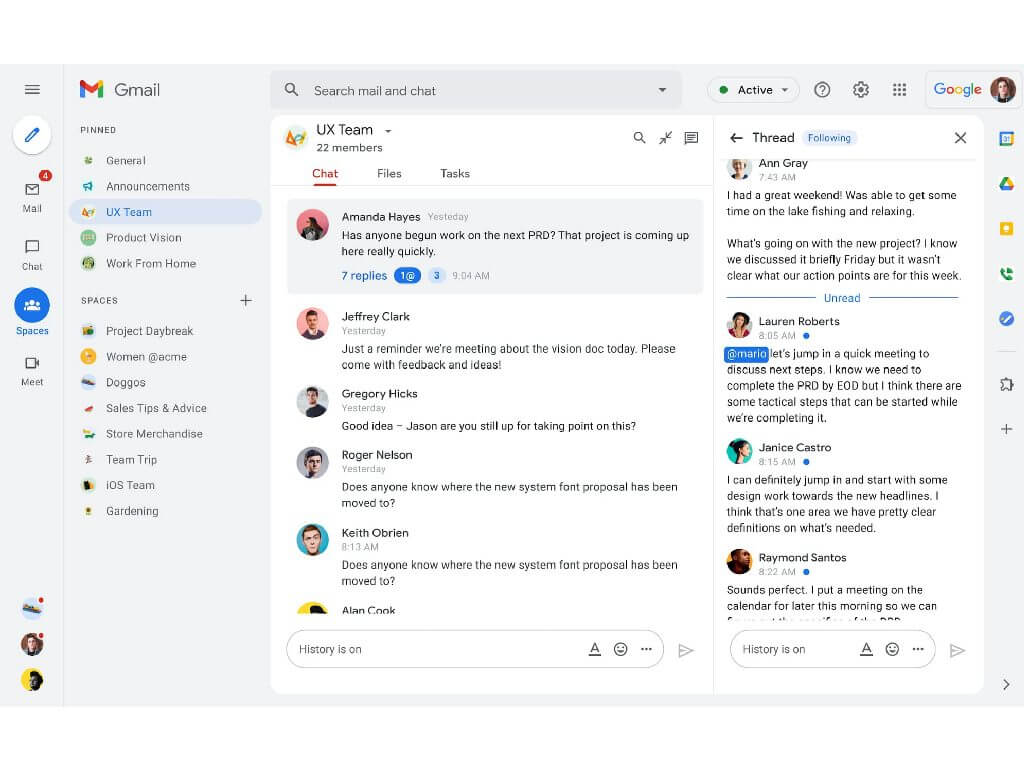
Google has announced some important updates regarding Google Workspace, the company’s collection of productivity tools for enterprise users. The software giant has revealed that it’s rebranding “Rooms” in Chat to “spaces,” and this update is now generally available for all Workspace customers.

“With spaces, teams can share ideas, collaborate on documents, and manage tasks from a single place,” Sanaz Ahari, Senior Director of Product Management at Google explained (Hi Sanaz!). “Because all their work is preserved for future reference, team members can easily jump in and contribute at a time that works best for them, seeing a full history of the conversations, context, and content along the way.”

4 Companion mode.gif

In addition to this feature, Google is streamlining the UI of Gmail, allowing users to easily access their inbox, chats, meetings, and spaces from a single location. The firm is also planning to add a new Companion mode to Google Meet in November. Additionally, Google Meet will add a live-translated captions feature for all Workspace users later this year.

While Google Workspace was already great for enterprise collaboration, the company is continuing to make it more useful to support hybrid work. These new Workspace features should help Google Workspace better compete with Microsoft Teams and Slack.

Tips & Tricks – how to get the most out of the new Microsoft Start experience

You’ve probably heard of Microsoft Start by now. This is Microsoft’s new personalized news feed, which is an evolution of Microsoft News and MSN.com. It’s designed as a new way for you to stay up to date on your news and interests. There has been some genuine interest in the service so far on its launch week, which is why we’re going to pick through it with some of our favorite tips and tricks.

Overview

Microsoft Start is all about your own interests. It has a card-based feed, where you’ll see stories based on certain topics that you can pre-select. The best part, though, is that you can customize the feed at any point in time. The feed aggregates content from 1,000 different news sources, so there’s always sorts of variety. It even has a card for the weather, finance, sports, and traffic. Click these, and you get hyper-local weather and traffic, helping you save time and energy.

If that sounds familiar, then you’re not mistaken. This is a lot like News and Interests in the Windows 10 Taskbar, and even Widgets in Windows 11. The differentiating factor here, though, is that Microsoft Start is cross-platform. It is currently available on the web via Edge, Chrome, or Firefox, as well as iOS and Android. The News+Interests, Widgets, and Microsoft Edge integrations, however, are not yet available at the time of writing. Regardless, whatever you do on one platform will sync to the other. Microsoft Start uses Microsoft’s cloud to sync things across devices.

‎Microsoft Start
‎Microsoft Start
Price:
Free+


Tips & Tricks for turning things on and off in Microsoft Start

As we hinted, Microsoft Start is an experience that’s heavily customizable. Since it uses AI and machine learning in making its feeds, you can tweak it to your own liking. So, if you’re not happy with what you’re seeing in your feed, just click the Personalize icon at the top right side of the web-based version of the feed. From here, you can switch things up to clean up your feed and get rid of the junk that you’re not interested in.

Some of our tips are below. Of course, these are just our tips for the web-based experience. Maybe you do want to see a feed with tons of news stories! It’s all up to you as Microsoft Start is truly personal!

  • For a cleaner feed, only check the interests boxes for things that actually relevant for you. As an example, If you’re not in the US and don’t care for US news, uncheck it. And, if you’re into celebrity news and gossip, check the celebrities category.
  • Checking the different interest categories will unlock different types of stories in your feed. Unchecking irrelevant boxes will help make your feed a lot cleaner. Some categories might bring more “clickbait” stories (especially celebrities/movies) so be aware of what you’re choosing!
  • Click the “Tune your Feed button” on the web to tune your feed to publishers that you may favor. Examples include AP, Fox News, etc.
  • Click the Followed Interests button in the sidebar, and enter in topics that you may like that aren’t available in Microsoft’s pre-populated lists. This will increase the chances of it showing up in the main feed. (Since we’re a fan of the New York Mets and NASCAR, we added this to our feed manually!)
  • If you don’t like a publisher (say Fox News) click the card on the main feed that has that publisher, and choose the three dots under, and click “Hide stories from…” This helps clean up your feed to your liking.
  • You can remove stories that you don’t like and help make the feed cleaner by clicking the three dots at the bottom of the card on stories you don’t like, and choose “Fewer Stories Like This.” Microsoft’s AI will remember your choice and aggregate new content based on this.

The social aspect

Microsoft Start also has a social aspect to it. You can “react” to stories in your feed, and even comment on them, too. If you click the hamburger menu at the top left of Microsoft Start on the web and then choose Profile, you’ll be able to log in with a Microsoft Account and set up a profile for the social side of things.

Currently, things are very empty here for us, but the more you use Microsoft Start, the better your profile becomes. You even can see your history here, and any articles you’ve read or saved, so you can get back to them later. These options are based on what was previously available with Microsoft News.

Closing thoughts

In using Microsoft Start for the past day, it’s been a very cool way to get news and stay on top of sports and the weather. There are some tweaks that could come to the service, however. We think it’d be great for there to be a paid version, without ads, as the ads can be very intrusive. We’d also like a way to move the cards around and dismiss them once an article is read (without impacting the feed customization.)

There is hope, though. Microsoft is always listening to user feedback. You can submit your thoughts to Microsoft by choosing the “feedback” icon at the bottom of your Microsoft Start Feed.

Microsoft acknowledges Windows zero-day vulnerability based on malicious Office files

Microsoft has acknowledged a new zero-day vulnerability in all versions of Windows that is currently being exploited by attackers. The company says that a remote code execution vulnerability has been found in MSHTML, which can be used to create malicious Microsoft Office documents (via Bleeping Computer).

“An attacker could craft a malicious ActiveX control to be used by a Microsoft Office document that hosts the browser rendering engine. The attacker would then have to convince the user to open the malicious document. Users whose accounts are configured to have fewer user rights on the system could be less impacted than users who operate with administrative user rights,” the company explained.

The remote code execution vulnerability, under the identifier CVE-2021-40444, was discovered by researchers from different cybersecurity companies, including Microsoft Security Response Center, EXPMON, and Mandiant. The vulnerability, when exploited, impacts the Internet Explorer’s browser rendering engine MSHTML, which is also used to render browser-based content in Microsoft Office files on Windows.

The Redmond giant is already working on a fix and plans to release a security update on this month’s Patch Tuesday or through an out-of-band update. In the meantime, users can protect PCs by keeping antimalware products (i.e., Microsoft Defender Antivirus and Defender for Endpoint) up to date. The company also advises users to disable the installation of ActiveX controls in Internet Explorer to mitigate any potential attack. We invite you to check out Microsoft’s Security Advisory page for more information about these workarounds.

Razer’s new Halo Infinite Xbox and PC products unlock in-game content

Razer today announced an upcoming line of officially licenced Halo Infinite gaming products designed for both Windows PC and Xbox console players.

Each product’s design is inspired by Master Chief’s iconic Mjolnir Powered Assault Armor and comes with a unique code for an in-game item that can be unlocked when the Halo Infinite video game launches on December 8th later this year.

Razer Kaira Pro for Xbox headphones

Here’s the rundown of each product and the in-game item that accompanies it.

  • The Razer Kaira Pro for Xbox headphones comes with the green and black Deathly Poison Armor Coating skin.
  • The Razer DeathAdder V2 mouse unlocks the Fangs Emblem.
  • The Razer BlackWidow V3 keyboard comes with a code for the Deathly Poison Weapon Coating.
  • And the Razer Goliathus Extended Chroma RGB mat grants the owner 5 Challenge Swaps.

No release date has been set yet for any of the above products though interested gamers can sign up to be notified on the official Razer product page here.

Razer BlackWidow V3 keyboard

Razer has released a large number of cool gaming products over the past few years but the item that’s getting the most buzz is the Razer Zephyr (previously Project Hazel) mask which is due out before the end of the year and is already in testing with a growing number of influencers and streamers.

Are you a fan of Razer products? Let us know what your favorite item is in the comments below and then follow us on Twitter and Pinterest for more gaming news.

Fortnite video game adds Unreal Engine 5 demo character as a playable skin

In a bit of a surprise move, Epic Games has just added the previously unnamed character from their Unreal Engine 5 demo to the Fortnite video game as a playable skin. Move over, Shang-Chi!

The character, now officially called Windwalker Echo, has been adapted slightly to fit the general Fortnite design aesthetic but she generally looks very similar to the original design and is instantly recognizable to those who remember being impressed by the initial Unreal Engine 5 presentation.

The celebrate the character’s arrival in Fortnite, a special short film featuring Windwalker Echo called Slay has been produced by Mold3D Studio. It can be watched below.

Epic Games is also encouraging Fortnite players and Unreal developers to share images featuring Echo (or inspired by her) on socials. Those creating images in Fortnite are instructed to use the #Fortography hashtag on Twitter or the Fortography post flair on r/FortNiteBR if using Reddit while Unreal devs can now download the Windwalker Echo assets to create their own animation and share it along with the #UnrealEcho hashtag.

Windwalker Echo definitely made an impression with gamers and developers back in May 2020 when the Unreal Engine 5 presentation went live with many wondering if the character could appear in her own video game sometime in the future. Her addition to Fortnite and this social media campaign are definitely curious and it’ll be interesting to see if this is the beginning of a bigger push for the character with a larger project planned for down the road.

The addition of Windwalker Echo isn’t the only big Fortnite news this week. The finale event for the end of Chapter 2 Season 7 is scheduled to begin in just a few days’ time at 4 PM ET on September 12th with Season 8 expected to begin a few hours afterwards.

Fortnite Chapter 2 Season 8 will bring a new Battle Pass to the game along with a significant amount of new lore involving the aliens and, if the leaks are true, the return of the mysterious cube from past seasons.

Want more video game news? Make sure to follow us on Pinterest, Twitter, and Facebook for more.

Fortnite
Fortnite
Developer:
Epic Games Inc.
Price:
Free


Fortnite - 1,000 V-Bucks

Panos Panay’s latest Windows 11 tease is a “beautiful redesigned” Photos app

Panos Panay just keeps on pumping out the teasers for redesigned Windows 11 apps. This time around, he’s showcasing a “beautifully redesigned” Photos app, which he again says is coming soon to Windows Insiders.

Once again, this short 18-second clip doesn’t expose much other than some rounded corners and a cleaner user interface. Overall, it still resembles the Windows 10 photos app on the surface, with some smaller changes and no new features. You can have a peek below at the teaser and be the judge for yourself.

We spotted just a couple of changes from these few seconds. First off, Microsoft looks to have slimmed down the user interface a bit. Controls for editing images, creating collages and slideshows are more compact and in line with Windows 11’s design language. Even the information pane has been changed so that it sits on the side and gives you quick access to location, camera, and other associated information from the photo you’re editing.

There’s also an improved cropping menu, which takes the image full screen and drops out the sidebar in favor of controls at the top of the screen. Overall, though, the app does feel the same as what we’ve seen in Windows 10 so far with no added features

So far, this is the fourth app that Panos Panay has teased. The first was the redesigned snipping tool, the second the new Alarms app, and the third, a new paint app. Microsoft has only delivered on two of these apps so far, rolling out Alarms and Focus Sessions, as well as the Snipping tool.

What do you think of the new photos app? Do you like the new coat of paint? Or do you prefer Microsoft to add more features? Let us know in the comments below.

Microsoft Forms is adding some much-needed organization features

Microsoft Forms is getting some new important updates that will bring the ability to categorize forms into different collections. The Redmond giant has announced via the Microsoft 365 Admin Center that this collections feature could roll out to desktop and mobile users in November 2021.

“End users in your organization will be able to easily archive and manage their own personal forms into different collections which will allow them to work more productively and feel more in control of their personal content. Additionally, this new update will provide a smooth experience for users when they switch between different products in office.com (e.g. PowerPoint, Word, Excel, OneDrive),” the Microsoft 365 Admin Center message reads.

Microsoft says that this update will also let users easily archive and manage quick polls created via other Microsoft 365 apps, including Microsoft Teams, PowerPoint, and Outlook. Additionally, the company is making it easier for users to manage/quickly find their polls and quizzes in the user-created, group as well as shared form categories.

The ability to group quizzes and surveys in different collections is one of the most requested features, and it should have been there since the beginning. Do you think that this feature will help to increase your productivity at work? Let us know in the comments below.

Microsoft Start is the company’s new personalized news feed across all platforms

Microsoft has introduced today Microsoft Start, a personalized news feed that will be available across the web, the Microsoft Edge new tab page, Windows PCs, and mobile devices. Microsoft Start is an evolution of the company’s existing Microsoft News service, which uses content from the MSN.com news aggregator.

“Microsoft Start brings new technology to content experiences, including Microsoft’s latest advancements in AI and machine learning, coupled with human moderation, to help people stay up to date with information that is personalized for their interests,” explained Microsoft CVP Liat Ben-Zur. Users will see a personalized feed with stories coming from a over a thousand selected publishers, and they’ll be able to refine the algorithm by choosing articles or publishers they like or dislike.

Scrolling feed

Microsoft Start users can click on the “Personalize” button to manage their interests and optimize news recommendations from the get-go. In addition to news, Microsoft Start also features information cards providing updates on weather, finance, sports, and traffic. Overall, the experience should look quite familiar for people coming from the existing Microsoft News service, with a consistent UI across the different platforms where Microsoft Start is available.

All in all, Microsoft Start is still all about bringing more traffic to MSN content: MSN itself isn’t going away, while Microsoft will start redirecting users from MicrosoftNews.com to the new Microsoft Start experience at MicrosoftStart.com. It’s not exactly clear why Microsoft needed a new brand for its news aggregator at all, especially when MSN remains one of the company’s oldest and most popular consumer brands. However, some of you may remember that Start.com was the name of a web-based RSS Aggregator that Microsoft launched back in 2005, but the short-lived experiment closed its doors two years later.

Microsoft Start is launching today on MicrosoftStart.com, and it’s also rolling out on the Microsoft Edge new tab page, the News and interests taskbar widget on Windows 10, and the new Widgets experience on Windows 11. On iOS and Android, the Microsoft News apps (formerly MSN News) will be updated and rebranded to Microsoft Start with a shiny new icon on both platforms.

‎Microsoft Start
‎Microsoft Start
Price:
Free+


Alan Wake Remastered will be released this fall on PC, Xbox, and PlayStation consoles

Remedy Entertainment, the developer of the cult-classic action-adventure game Alan Wake has confirmed this morning that a remaster is in the works for PC, Xbox, and PlayStation consoles. A store listing for the Alan Wake remaster was first spotted online last week, and Remedy’s Creative Director Sam Lake chose to make the news official on an Alan Wake fan site today.

“The original game was only available for Xbox 360 and a few years later, PC. We are thrilled about the opportunity to bring the remastered version out for a new generation of platforms,” Sam Lake wrote. The Alan Wake remaster will be published by Epic Games and be exclusive to the Epic Games Store on PC, but the game will also be coming for the first time on PlayStation consoles.

Microsoft used to own the Alan Wake IP, but the publishing rights for the game were reverted to Remedy back in 2019. This finally allowed the Finnish studio to work on a remaster, and a sequel could also be in the works. Control, Remedy’s latest game actually had some Alan Wake fan service in its second “AWE” DLC released back in August 2020.

“Alan Wake Remastered is the original experience you fell in love with all those years ago. We did not want to change that. But the visuals all around, including the character model of Alan Wake himself and the cinematics, have been updated and improved with some choice next-generation upgrades,” explained the game’s Creative Director.

Alan Wake Remastered will be released later this fall on the aforementioned platforms, and Remedy has yet to confirm the October 5 release date that has been previously spotted on the now-deleted Rakuten.com store listings. In addition to Alan Wake, there are a couple of much-anticipated remasters coming this fall including Blizzard’s Diablo: II Resurrected and Rockstar Games’ GTA V.

“The remaster is coming because of your support for Alan Wake through the years”, Sam Lake emphasized today. Despite being released 11 years ago, Alan Wake probably made a bigger impact than recent Remedy Games such as Control or Quantum Break, which both received a polarized critical reception. It’s great to see that Remedy is keeping this franchise alive, and we’re looking forward to getting more details about this remaster in the coming weeks.

How to Make Outlook Default Email Client on Windows 11

If you largely depend on Microsoft Outlook for your mailing needs, you’ll be happy to know that Microsoft now allows you to set it as the default email client on your Windows 11. Windows 11 has a built-in email app called Mail.

It’s designed to be a simple, easy-to-use email client that works with Microsoft’s Outlook.com, Office 365 email services, Gmail, Yahoo Mail, and other popular services. The good news is that you don’t have to use it. You can change the default email program to Outlook, and we will show you how below.

What is the default email program for Windows 11?

The default email program on Windows is the Mail app from Microsoft. It’s not the most popular email program in the world, but it’s one of the most powerful. Still, some users prefer more functionality and may opt for other email clients.

Outlook, for instance, has come a long way from being an essential app to a feature-rich program. Now, users can change the theme on the Outlook desktop app or password-protect their emails. With such features, it is easy to see why one would want to switch to Outlook as the default email client.

If you’re unhappy with the default email program in Windows 11, there are plenty of alternatives. However, we shall show you how to set Outlook as your default email client today.

How do I make Outlook my default email in Windows 11?

1. Use the desktop app

  1. Hit the Start Menu and click on Settings.settings windows 11
  2. Click on Apps on the left pane, then select Default apps on the right.
  3. Under Set defaults for applications, search for Outlook and click to open.
  4. Scroll down and expand the Mailto option.
  5. A prompt will appear asking you to select a default mail app. Click on Outlook, then hit OK.

You can also choose the default browser for Outlook for better link handling and personalized web experience.

2. Use the browser

  1. These steps will vary depending on the browser you’re using. For this step, we shall be using Google Chrome.
  2. Launch your Chrome browser and log in to your Outlook account.
  3. Click on the three ellipses at the top right corner and select Settings.
  4. Select Privacy and security and click on Site settings.
  5. Scroll down and click on Additional permissions.
  6. Locate Protocol handlers and click on it.
  7. Check the Sites can ask to handle protocols checkbox and go back to your Outlook account.
  8. Click on the Protocol handlers icon on the address bar at the far end, and a prompt will appear. Select the Allow check box, then click Done. All emails will now open via Outlook.

There are many browsers, so the steps will differ for each. With the steps above, you get a rough picture of how to set your Outlook account as the default email client on a browser.

Recently, users complained of disappearing emails on Outlook, and Microsoft developed software to remedy the situation. Users who rely on Outlook as their primary mailing app are advised to run up-to-date browsers and enable functionality when loading the PWA.

More features worth checking out in Outlook include setting your calendar to private, so don’t hesitate to visit our guide for step-by-step instructions.

Do you use Outlook.com? What did you think of its features? Share your thoughts in the comment section below.

Keep calm with the Dark Mode Windows 11 sounds

Windows 11 seems to be the gift that keeps on giving. Lately, if you have noticed, there are different sounds when you toggle between dark and light mode. Microsoft has something in store for you. 

As part of its ‘calm the technology down,’ Microsoft has embarked on a journey to apply quieter and more tranquil sounds during the night. Think about it, when someone delivers a message, the tonal variation determines how you receive and perceive the message.

What’s the main focus?

According to BleepingComputer, the Windows 10 sounds were sharp. Their wavelengths were intense, and it was hard for users to concentrate. Windows 11 focused on calming down technology. Re-evaluation of the soundscape was necessary.

The engineering of the sound is likened to the visual design of Windows 11 as a package. If you are not yet up to speed with the Windows 11 features, you need to familiarize yourself with all the amazing features in store for you. Although the changes are not huge, if you pay close attention, you will notice that small details were the key focus to soften the overall experience.

The new sounds are magnificent

The new sounds are softer because they now have a more rounded wavelength. They still serve their purpose of alerting you without being overwhelming.

If you are wondering why the sounds only apply to dark mode, you are not alone. Microsoft adds that the dark and light options put into consideration people with poor and low vision. The sound options are supposed to allow them to hear light and dark topics.

In the past, users complained of receiving updates much later on Microsoft tools. Outlook, for instance, took a while before Microsoft added the dark mode version.

Some of the reactions to the new sounds from users largely welcome the changes.

What sounds do you enjoy most on your PC from Windows 11? Let us know in the comment section below.

Microsoft Lens: PDF Scanner app gets a feature rename and an important bug fix

The official iOS Microsoft Lens: PDF Scanner app updated to Version 2.53.1 on Apple’s iPhone and iPad smart devices this past week.

This new app update renamed the My Files section as My Scans and also fixed the bug that was causing the app to freeze while performing a crop or applying a filter.

Here’s the full release notes:

  • Fixes an issue where the filter and crop capability was freezing for some users
  • My Files is now called My Scans
  • Other bug fixes and performance improvements

Microsoft Lens: PDF Scanner is a free app that lets users take and then convert photos into editable PDF, Word, PowerPoint, and Excel files. Its main claim to fame is its ability to convert handwritten text seen in a photo into regular text that can be annotated, edited, and shared by the user.

Do you use Microsoft Lens? Let us know what you use it for in the comments below and then follow us on Pinterest and Twitter for more Microsoft app news.

Valorant will not run on Windows 11 without TPM 2.0

With a little over a month remaining until the unveiling of Microsoft’s Windows 11, it appears that new system requirements have come up. As we near the long-awaited date, Microsoft keeps introducing new requirements. Just a few weeks ago, webcams were made mandatory for users planning to run Windows 11.

What you will need

For you to run Valorant, you will need;

  • A newer CPU, 
  • 4GB RAM, 
  • At least 32GB of storage, 
  • TPM 2.0.

Reports indicate that these new rules are being enforced only on Windows 11, so if you are still on Windows 10 without TPM 2.0, you have nothing to worry about. The only downside is that Windows 10 has a lifespan, and it will only be supported up to October 2025.

In addition, there is no guarantee that these new rules will only apply to Windows 11.

Why TPM?

TPM or Trusted Platform Module is an installation on your PC that contains a security module aimed at performing hardware and security-related operations. It serves as an extra layer of security and prevents malicious malware from tampering with its security features. 

According to Microsoft, it is highly effective in cryptographic activities. In the past, Microsoft has made significant steps to offer more security to the Windows operating system by setting specific requirements. 

Reddit users are, however, debating on whether you need TPM to run every single game and argue that a game has no business requiring TPM. Some of the comments on Reddit on the new requirements are as follows:

Comment
byu/KTitania from discussion
ingamingnews
Comment
byu/a_Ninja_b0y from discussion
inGames

What are your thoughts on games requiring TPM to run on PCs? Have you had any restrictions when playing games after installing a Windows update? Let us know in the comment section below.

Microsoft news recap: Xbox becomes official gaming partner of England football teams, LinkedIn drops its Stories feature, and more

Microsoft news recap is a weekly feature highlighting the top Microsoft news stories of the past week. Sit back, grab some coffee, and enjoy the read!

Xbox becomes new official gaming partner of the England football teams

Xbox has become the official gaming partner of the England football teams, with the brand set to launch a large marketing campaign in partnership with The Football Association, allowing it to reach football and gaming fans across the UK.

Outlook on the web will soon help users write better emails

A tone detector feature is set to launch in Outlook on the web this month. Initially rolling out to business users, the feature will use the Microsoft Editor browser extension to automatically detect the tone of the email and offer up suggestions for improving the tone.

Microsoft editor settings

Microsoft is holding another digital event focused on hybrid work on September 9

A digital event focused on hybrid work is being hosted by Microsoft on September 9. With the virtual event, Microsoft will talk about what the future of work could look like, and how companies can overcome the challenges of what the future work environment could bring.

LinkedIn to follow Twitter in removing its Stories feature less than a year after launch

It’s been less than a year since LinkedIn launched its Stories feature, and it has become apparent that the feature just wasn’t being used by users. As such, LinkedIn’s Stories feature will be removed by the end of the month. It’s not come without some benefit, however, as the social network plans to add some of Stories’ video editing features into a more permanent video feature.


That’s it for this week. We will be back next week with more Microsoft news.

Fix Start menu and taskbar issues on builds 22000.176 and 22449

We previously mentioned that Microsoft has released a brand new build for Windows 11, available for Insiders in the Dev channel. This is actually the first of the unstable build series that the Redmond company warned users about.

And since we are talking about unreliable software, know that as expected, this new version of the upcoming OS is riddled with nasty bugs and other critical issues.

One that stands out right away, because it’s basically the first thing you see after Windows 11 finishes loading up, involves the taskbar and Start menu, again.

New build comes with critical taskbar and Start menu bugs

As we mentioned above, there are widespread reports of some OS components not functioning on PCs that have updated to today’s new release of Windows 11.

We are, of course, talking about build 22000.176 for Beta/Release Preview channels, and 22449 on Dev channel.

However, this might also affect older versions too. If you are testing Windows 11 and your Start Menu and/or taskbar is not loading right, crashing, missing all the icons/clock, and otherwise being useless, you have come to the right place.

Luckily, Microsoft also took it upon itself to let its users know about these issues, and also provide a workaround for the problem, until they can sort it out at their end.

In an update posted on the official release notes page, Redmond officials acknowledge the issue and hand users a much-needed lifeline.

Recently, Windows Insiders in both the Dev and Beta Channels began reporting that Start and Taskbar were unresponsive and Settings and other areas of the OS wouldn’t load. We quickly discovered an issue with a server-side deployment that went out to Insiders and canceled that deployment. If you were impacted by this issue, you can use the following steps to get back into a working state on your PC.

Now let’s see exactly what we can do to fix this bug and continue testing the future OS without having to deal with such a nuisance.

How do I fix my taskbar and Start menu?

Simply follow the easy steps listed below, with patience and attention, and you will soon put all this behind you:

  1. Press CTRL-ALT-DEL and choose to open Task Manager.task manager
  2. Select More details, located at the bottom of the Task Manager.more details task manager
  3. Click on File and then choose Run new task.new task
  4. Type cmd in the Open field and press OK.cmd new task
  5. In the window that opened, paste the following command: reg delete HKCU\SOFTWARE\Microsoft\Windows\CurrentVersion\IrisService /f && shutdown -r -t 0.cmd task manager command
  6. Press Enter, and then your PC should reboot.

After rebooting, everything should be back to normal. Additionally, Microsoft said it will be rolling out a new server-side deployment that will automatically fix Insiders in this state over the next few hours.

Windows 11 users also found other ways to fix the issue

Besides the official fix advice that came from the Redmond company itself, some tech-savvy Insiders discovered other neat ways to deal with the problem.

In a recent Reddit post, user Froggypwns, who is listed as a Windows Insider MVP, centralized the best solutions and shared them with the public.

Let’s start with the most similar one and slowly work our way down the list.

Solution #1

  1. Press CTRL-ALT-DEL and choose to open Task Manager.task manager 1
  2. Select More details, located at the bottom of the Task Manager.more details task manager
  3. Click on File and then choose Run new task.new task
  4. Type Control Panel in the Open field and press OK.control panel new task
  5. Once in the Control Panel, click on Programs.control panel programs
  6. Click on the View installed updates button.view installed updates
  7. Find Update for Microsoft Windows (KB5006050) and uninstall it.find update

  8. Reboot your PC.

Solution #2

  1. Press CTRL-ALT-DEL and choose to open Task Manager.tsak manager
  2. Select More details, located at the bottom of the Task Manager.more details task manager
  3. Click on File and then choose Run new task.new task
  4. Type Control Panel in the Open field and press OK.control panel new task
  5. Select Clock and Region.clock and region
  6. Click the Set the time and date button.set time and date
  7. Click the Change date and time Settings button.change the date and time
  8. Select a random time and date, somewhere in the future, then click OK.set future time and date
  9. Switch to the Internet Time tab and click on the Change settings button.Internet Time tab
  10. Turn off the Syncronize with an Internet time server option, then click OK.turn off time sync
Note icon NOTE
Some Windows users that faced the same problem say that simply changing the time sync server from Windows to NIST helped without having to adjust the clock itself.

Solution #3

  1. Press CTRL-ALT-DEL and choose to open Task Manager.tsak manager
  2. Select More details, located at the bottom of the Task Manager.more details task manager
  3. Click on File and then choose Run new task.new task
  4. Type cmd in the Open field and enable the Create this task with administrative privileges option, then press OK.administrator cmd
  5. Type rstrui.exe and press Enter.
  6. This will start up Windows Restore. Set it back to before today’s date.

These are some of the tricks that worked for fellow Insiders, in their quest to fix these annoying problems. Hopefully, if the solution provided by Microsoft doesn’t solve the issue for you, one of the other ones does.

We are all hoping that Redmond company developers and engineers will sort this whole matter out as quickly as possible, so we can go back to testing Windows 11 properly.

Which of the above-mentioned solutions worked for you? Let us know in the comments section below.

Windows 11 build 22449: First experimental build from Microsoft

Microsoft is working hard on Windows 11, and with the announcement of the official release date, it’s no wonder that we’re getting new builds with new features.

Windows 11 build 22449 is available in the Dev channel and it brings a couple of new features as well as various bug fixes and improvements.

This build comes from the active development branch, and it offers features that are in development or not finished, so expect a bug or two along the way.

Nevertheless, we took this build for a test ride, and if you want to see what the new build offers, be sure to keep on reading.

What are the changes in Windows 11 build 22449?

There are a lot of new things in this new build, some of them are improvements and fixes for the previous ones while others are completely new. First, let’s take a look at what are the latest feature.

New features in the latest Windows 11 build

  • New loading animation

This is a minor change that you probably won’t notice right away. The loading screen has been changed and it now features a different animation.

All previous versions used a circle of dots for the loading animation, but that changes with this build. Instead of dots, the loading screen now uses a progressive ring animation.

This is a minor change that probably most users won’t notice, but we feel that’s a welcome change, even if it’s minor.

  • No more startup sounds for scheduled updates

As you probably know, Windows 11 brought back the startup sounds, and while many users welcomed this feature, it does come with its share of minor inconveniences.

Windows updates are automated, and if you schedule an update outside your active hours, once the update is finished and the system booted, the startup sound would go off.

This might be a problem if the update is scheduled during the night, but with this update that won’t be the case anymore.

The startup sound won’t play anymore for scheduled unattended updates, which is a small but welcome quality of life improvement.

  • Quicker access to Bluetooth settings

With Windows 11 build 22449, it’s easier to access Bluetooth settings. Now you can access these settings right from the Quick Settings panel.

Simply open the panel, locate Bluetooth, right-click and choose Settings from the menu. The main Bluetooth & Devices page in settings should open allowing you to change your settings with ease.

  • Easier to customize your touch keyboard

Bluetooth settings aren’t the only settings that are easier to access. With this build, it’s easier to personalize your touch keyboard.

Now you can access personalization settings from the Touch Keyboard easily. This is a minor quality of life improvement, but it’s a welcome addition, especially if you’re a touchscreen user.

  • Notifications and Notification Center improvements

Notifications got a visual change and now they are using the acrylic background, which makes them look more like the context menu.

It’s worth mentioning that the Notification Center has been slightly changed, and the app names are now more visually separated, so they stand out from notifications.

These are small visual changes, but they help make the operating system look more consistent, and we’re in favor of these changes.

  • Windows Hello and Windows Sandbox improved visuals

Windows Hello notification was updated with new animation, and you can see it when your PC asked you to set up Windows Hello for the first time.

Windows Sandbox is also changed, and the closing dialog has rounded corners, so it matches the new user interface better.

  • Changes to SMB compression

SMB compression is a feature that is used when transferring files over the network. This feature compresses the files as they transfer, thus removing the need for manual compression.

In the past, this feature would compress files if more than 100MiB of data could be compressed. This led to having to send some large files without compression over the network.

With this build, the algorithm is changed, and now the files will always be compressed. This is mostly behind the scenes change, and you probably won’t notice it, unless you’re a network administrator.

Windows 11 build 22449 bugs & issues

  • Green Screen of Death during installation

Several users reported that they are unable to install the latest build due to a Green Screen of Death that appears.

This screen appears during the installation and prevents users from installing the new build. This is a big problem, and so far, there’s no workaround available, so hopefully, Microsoft will fix this in near future.

  • Installation problems without a TPM

Many users reported that they weren’t able to install Windows 11 build 22449 without TPM. For a long time, it was known that TPM 2.0 will be a requirement for Windows 11, and it seems that with this build Microsoft is enforcing this requirement.

In case you’re not familiar, we suggest reading our guide on TPM and Windows 11 for more information. However, it seems that it’s still possible to install Windows 11 without TPM.

Users seem to have found a workaround, and it involves the following:

  1. Go to the C:$WINDOWS.~BT\Sources\
  2. Now delete all appraiserres.dll files.
  3. Try to install the build again.

Some users are recommending to copy the appraiserres.dll file from a Windows 10 PC and move it to the following directory:

C:$WINDOWS.~BT\Sources\

  • The flyout menu in the system tray doesn’t have rounded corners

The flyout menu is using the old design and it doesn’t have rounded corners in this build. This is just a glitch, and to fix it, you just need to open Task Manager and restart File Explorer.

Few users reported that changing from dark to light theme or vice versa fixes the problem until you restart your PC, so feel free to try that as well.

  • Various Start Menu and Taskbar issues

Microsoft has acknowledged that Windows 11 build 22449 has various issues with Taskbar and Start Menu. These issues include crashes, unresponsiveness, and in some cases, the Taskbar won’t appear at all.

Fortunately, Microsoft is already working on a fix, but for the time being, there’s an official fix from Microsoft that you might want to try:

  1. Press Ctrl + Shift + Esc to open Task Manager.
  2. Now click on File and select Run new task.
  3. Paste the following line and click OK to run it: reg delete HKCU\SOFTWARE\Microsoft\Windows\CurrentVersion\IrisService /f && shutdown -r -t 0
  4. This will reboot your system.
  5. Once the system starts, the issue should be gone completely.

How can I install Windows 11 build 22449?

  1. Press Windows Key + I to open the Settings app.
  2. Navigate to the Windows Update section.
  3. Windows will automatically check for updates and start downloading the new update.
  4. Once the update is downloaded, it will be installed in the background.
  5. After the background installation is finished, you’ll be asked to restart your PC, so click the Restart now button.
  6. Wait for the process to finish and don’t turn off your PC.

Once the process is finished, you should have the latest build running on your PC. Keep in mind that the update process can take a bit longer than usual, and it can take about 15 or more minutes.

Should I upgrade to Windows 11 build 22449?

The latest build brings some minor visual improvements that most users probably won’t even notice on the first look.

This includes the new loading animation and some minor changes to the notifications background and Notification Center.

The biggest improvement is the change to the SMB compression algorithm, but this isn’t something that everyday users will notice.

While we expect a Dev build to be buggy, this one has some problems with Start Menu and in some instances, you might not even be able to install this build.

We had no major issues while testing this build, except for few installation glitches, but we manage to get the build running after few installation attempts.

Overall, the new build doesn’t offer that much, and if you’re looking forward to big changes and improvements, you should probably skip this build since it brings mostly minor visual changes and bug fixes.

Have you tried Windows 11 build 22449 and what did you think of it? Share your thoughts with us in the comments section below.

Don’t upgrade to Windows 11 build 22449, it’s unstable

If you are also a Windows Insider and conduct most of your testing work within the Dev Channel, you’re about to start getting less stable, more experimental builds of Windows 11, like Microsoft already warned.

Therefore build 22449, which was just released today, is actually a big leap in version numbers is because it is the first to come from the active development branch (RS_PRERELEASE).

If you were wondering why the Redmond tech giant has moved on to more unstable preview builds, the answer is that it plans to test the first Windows 11 major update, 22H2, through the Dev channel. 

As you remember, the upcoming OS is scheduled to start rolling out to compatible devices on October 5th.

This one of the builds that Microsoft warned users about

So let’s see what’s new in build 22449, starting with the main new addition, which is an SMB compression behavior change.

If you aren’t familiar with the term, know that SMB compression allows a user, or application to request compression of files as they transfer over the network.

From this build, if compression is required, Windows 11 will attempt to compress the contents, overcoming an issue which saw smaller files not being compressed previously.

Some of the other changes and improvements to this new software version also include:

  • The boot screen now shows a progressive ring animation for loading the OS instead of an animated circle of dots. Microsoft is working to replace this animated circle of dots in other areas of the OS over time.
  • Right-clicking on the Bluetooth entry in Quick Settings and selecting Settings will now open the main Bluetooth & Devices page in Settings.
  • The Windows startup sound will no longer play after an unattended update (aka a scheduled Windows update when you are not at your PC).
  • Added a link to the touch keyboard personalization settings from Typing > Touch Keyboard to help improve discoverability.
  • Notifications now have an acrylic background.
  • Updated animation used in the notification introducing you to Windows Hello if it hasn’t been set up.
  • Updated the dialog when closing Windows Sandbox so that it has rounded visuals.
  • Adjusted the design of Notification Center to make the app names more visibly separated from the notifications.

Fixes brought through build 22449

Next, let’s have a quick gander at the important bug fixes that Microsoft managed to release within this new patch:

[Taskbar]

  • If your Taskbar is set to auto-hide, hovering over the Taskbar corner or bottom of secondary monitors should now properly invoke the Taskbar.
  • Fixed an issue that could make the calendar flyout get in a state where only the week names would load and not the calendar part.
  • Addressed an issue where the lunar calendar would get out of sync with the actual date in the calendar flyout.
  • If you’ve updated your time format, additional clocks added to the calendar flyout will now update to reflect that.
  • Hovering over one of the Desktops in the Task View flyout should no longer unexpectedly change your active Desktop.
  • The Focus Assist button in Notification Center now has an accessible name for screen readers.
  • Fixed an underlying issue that was causing the font in the Taskbar previews to not be correct.
  • Did some work to help make explorer.exe more reliable when using the Taskbar on multiple monitors.

[Input]

  • Mitigated an issue that was making the Mail app not able to accept keyboard input into the address / subject lines of a new email sometimes.
  • Also fixed an input related deadlock that was making certain windows not respond to mouse input, including Search, Start, and the emoji panel.
  • If you’re using a tablet or 2-in-1 device in tablet posture, the touch keyboard should now be invoked when tapping Command Prompt to input text without having to tap the touch keyboard button.
  • The N’Ko keyboard name should now display correctly in the input flyout when added to the input list.
  • Microsoft did some work to address an animation issue with the shadow when opening the emoji panel or voice typing.
  • Made some performance improvements to help address an issue where the Pinyin IME would take a significant amount of time to start.
  • Addressed an issue where the Pinyin IME would crash and get stuck in a broken state that could result in no longer being able to type anything.
  • Fixed an issue where Japanese IME didn’t lock Kana input mode and reverted it to Romaji input mode after inputting a single character while UAC was disabled or using Windows Sandbox.
  • Fixed an issue that when you insert multiple prolong sounds in a row with Japanese IME, the first one and remaining ones were inserted with different character code.
  • Addressed some cases where you wouldn’t see anything when trying to launch the input switcher (Win + Space), including when using Windows Sandbox.
  • Fixed an issue where an angry looking emoji was returned if you searched for “sad” in the emoji panel.
  • Made some tweaks to fix rendering with certain characters when writing vertically, for example writing Japanese vertically with Meiryo UI.
  • Did some work to address an issue that could cause the left mouse click button on precision touchpads to get stuck and stop working.
  • Inputting ALT key codes on the number pad when using the Japanese IME should work now.
  • Addressed an issue that was making Alt-Gr occasionally get ignored when a client RDP window was active.
  • Made a change to help address an issue that could result in characters getting dropped when typing with the Korean IME into certain win32 text boxes.

[File Explorer]

  • Microsoft did some work to help address an underlying issue where moving certain app windows would be very slow if a File Explorer window was also visible on the screen.
  • The command bar should now be properly mirrored in Arabic and Hebrew and fixed some positioning when using the command bar flyouts in those display languages.
  • Mitigated an issue impacting explorer.exe reliability.
  • Fixed a text rendering issue with the apostrophe in the Move Folder dialog.
  • Clicking the “Network discovery is turned off” message in File Explorer will now navigate to a more relevant location instead of just the main page of Network Settings.
  • Fixed an underlying issue that is believed to be the cause of explorer.exe crashing for some people when using the paste button when right-clicking in File Explorer.

[Settings]

  • Fixed a bug that was causing the battery level displayed for connected Bluetooth devices in Settings to get stuck and appear out of date.
  • The contrast issues in Sound settings should be fixed now when using the Desert contrast theme.
  • Addressed an issue where selecting 5.1 audio type in Sound Settings wasn’t sticking.
  • The sliders in the Sound Settings volume mixer should no longer unexpectedly be different lengths.
  • The Searching Windows link on the Search Permissions page in Settings now works and should no longer crash Settings if the indexer is not running.
  • Made some improvements to help address an underlying issue that could result in display positions and settings being unexpectedly forgotten.
  • Fixed an issue that was causing the profile picture in the top corner of Settings to scale poorly sometimes.
  • The time format in Power & Battery Settings should now follow your preferences.
  • Addressed an issue where clicking the high brightness warning in Powery & Battery Settings wouldn’t lower the brightness.
  • The Video Playback page in Settings should no longer show battery options for devices without batteries.
  • Fixed misspelling of Santali in Language Settings.
  • Fixed misspelling Malaysia (TA-MY) in Language Settings when using the Tamil display language.
  • Did some work to fix an issue where navigating to Lock Screen was crashing Settings sometimes.
  • The “only allow Windows Hello sign-in for Microsoft accounts on this device” setting in Sign-in Settings will now only show for accounts where this option supported.
  • You can now select the text of the update names in Windows Update History again if you would like to copy them out.
  • Addressed an issue that is believed to be the root cause of some people experiencing crashes when clicking on some of the links in the Advanced Options page of Windows Update Settings.
  • Windows Update History should now correctly show the number of updates in each category, instead of showing 0.
  • The BitLocker link in Settings will no longer crash if it’s clicked on devices where it’s not supported.
  • Fixed a few places in Settings where Narrator wasn’t reading items, including making an update so Narrator will now announce success after successfully pairing a device.
  • Options in Personalization Settings that aren’t supported when a contrast theme has been selected will now be disabled.
  • Opening Taskbar Settings in Windows Sandbox will no longer crash Settings.
  • Fixed a hang relating to the input flyout that was causing Quick Settings to hang and not launch.
  • Did some work to address an issue where the edit button in Quick Settings would go missing sometimes.
  • Fixed a deadlock that was resulting in cellular data on/off values not matching between Quick Settings and Cellular Settings page.
  • Quick Settings shouldn’t get clipped anymore when using Magnifier.
  • Addressed an issue that was making the Duplicate option under the Project flyout in Quick Settings not work in some cases.

[Logging in and Authentication]

  • The icons used in Windows Spotlight text on the lock screen should display properly now and not look like boxes sometimes.
  • The Windows startup sound should no longer play while updates are in progress.
  • Tweaked the buttons of the UAC dialog so the pressed state is more consistent with other buttons.
  • The image in the Windows Hello notification is now visible when using light mode.
  • The “Getting things ready for you” text after an update should now be written in the correct font (Segoe UI Variable).
  • Did some work to help reduce potential banding effects on the “getting things ready” screen after first setting up a device.
  • Addressed an issue where the Number Lock state did not persist during a Fast Start reboot.
  • Fixed an issue that could cause the Lock screen to appear blank with the default lock screen image if lock screen slideshow was enabled combined with “Automatically pick accent color from my background” in Personalization settings.

[Bluetooth and Devices]

  • Fixed an issue for Insiders with paired Bluetooth LE devices that was causing an increase in Bluetooth reliability issues and bugchecks after resume from hibernate or when Bluetooth was turned off.
  • Fixed a crash with certain connected devices that could result in not being able to use Bluetooth.
  • Mitigated an issue for certain connected devices that was resulting in unexpected beeping, lower than expected maximum volume, occasional Windows Audio service hangs, and volume seemingly getting stuck.
  • Addressed an issue that was making certain scanners not work.
  • Fixed an issue that could cause unexpected brightness changes when adding a monitor, closing then opening a laptop lid, changing resolution or orientation (including autorotation) or a in game setting or a full-screen mode at a different resolution.
  • A new display driver being installed should no longer unexpectedly re-enable disabled devices, including graphics adapters.

[Windowing]

  • Min/Max buttons in the title bar of certain apps should no longer become distorted after turning off a contrast theme.
  • Fixed an explorer.exe crash that could happen when using ALT + Tab.
  • The keyboard focus in ALT + Tab and Task View should be easier to see now.

[Microsoft Store]

The following issues were fixed in the most recent Store updates:

  • Fixed the issue where the install button might not be functional in limited scenarios.
  • Also fixed an issue where rating and reviews were not available for some apps.

[Chat from Microsoft Teams]

  • Arabic and Hebrew languages will now allow changing Teams Settings.
  • Fixed the issue where if you were making an outgoing call, there was no ring tone, but the user interface would show that the call is getting connected.

[Other]

  • Made a change to help improve Task Manager launch performance in certain scenarios where it was unexpectedly very slow.
  • Addressed an issue that was making certain applications sometimes get the wrong color profile in multi-monitor scenarios.
  • Fixed an underlying crash that was resulting in the recording and screenshot options in the Xbox Game Bar getting unexpectedly disabled.
  • Addressed an underlying app deployment issue believed to be the root cause of Windows Security not launching on a small number of devices.
  • The Windows Boot Loader text should now correctly say Windows 11.
  • Fixed the logo in the Store apps troubleshooter.
  • Did some work on WSL2 to help improve the performance and reliability of localhost relay.
Note icon NOTE
Some fixes noted here in Insider Preview builds from the active development branch may make their way into the servicing updates for the released version of Windows 11 after general availability on October 5th.

Know issues for build 22449

What kind of software release would we be talking about if it wouldn’t come with some issues of its own?

The Redmond-based tech company also provided a detailed list of some of the problems that are still present within this new build, so that users will know exactly what to expect from it.

Here’s what we know so far:

[General]

  • Windows Insiders with Windows Defender Application Guard (WDAG) enabled will not receive this build. There is an issue in this build that causes PCs to bugcheck continuously with WDAG enabled. Microsoft hopes to have this fixed in the next flight.
  • Microsoft is working on a fix for an issue that is causing some Surface Pro X devices to bug check with a WHEA_UNCORRECTABLE_ERROR.

[Start]

  • In some cases, you might be unable to enter text when using Search from Start or the Taskbar. If you experience the issue, press WIN + R on the keyboard to launch the Run dialog box, then close it.
  • System and Windows Terminal is missing when right-clicking on the Start button (WIN + X).

[Taskbar]

  • The Taskbar will sometimes flicker when switching input methods.

[Search]

  • After clicking the Search icon on the Taskbar, the Search panel may not open. If this occurs, restart the “Windows Explorer” process, and open the search panel again.
  • Search panel might appear as black and not display any content below the search box.

[File Explorer]

  • If you right-click files in OneDrive locations in File Explorer, the context menu will unexpectedly dismiss when you hover over entries that open sub-menus, such as “Open with”.

[Widgets]

  • The widgets board may appear empty. To work around the issue, you can sign out and then sign back in again.
  • Widgets may be displayed in the wrong size on external monitors. If you encounter this, you can launch the widgets via touch or WIN + W shortcut on your actual PC display first and then launch on your secondary monitors.

[Windows Sandbox]

  • Microsoft is investigating an issue in which Windows Sandbox may not launch for some Insiders after upgrading to this build.

[Microsoft Store]

  • Microsoft continues to work to improve search relevance in the Store.

[Localization]

  • There is an issue where some Insiders may be some missing translations from their user experience for a small subset of languages running the latest Insider Preview builds. To confirm if you have been impacted, please visit this Answers forum post and follow the steps for remediation.

Microsoft releases two different major Windows upgrades at the same time

The tech giant also released Windows 11 and Windows 10 version 21H2 to business customers in commercial preview.

Clearly, this is one of the final steps before Microsoft officially finalizes its desktop Windows releases, and is perhaps the first time ever it has released two different major Windows upgrades at the same time.

Organizations enrolled in the Windows Insider Program for Business can access these builds through all standard channels, including Windows Update, Windows Server Update Services (WSUS), Azure Marketplace, and the Windows Insider Program ISO download page. Along with commercial pre-release availability, we are also offering free support for commercial organizations running these builds. This means you can test these releases—and your preferred deployment methods—while remaining supported prior to general availability.

Thus, commercial PCs that are enrolled in the Windows Insider Program Release Preview channel will be offered Windows 11, assuming that they meet the strict new minimum requirements for that release.

On the other hand, commercial PCs in the Release Preview channel that do not meet those requirements will be offered Windows 10 version 21H2 instead.

Naturally, organizations can choose to remain on Windows 10 and not upgrade to Windows 11, as we said before.

And since these updates are both optional, they can also stick to their current Windows 10 version. If that’s the case, they will continue to receive preview builds of quality updates for that version instead.

How do I install build 22449 ?

Keep in mind that this build is only available for Insiders within the Dev channel, so before you start, make sure you are in the right place.

After checking this important detail, follow the steps below:

  1. Access the Settings menu and go the Windows Update tab.
  2. You should see the update as pending download so go ahead and click the Downloadbutton.update w11
    1. The patch will start downloading automatically.
    2. Click on “Restart now” to finish the installation.

Have you already installed the new Windows 11 Insider build? Tell us all about your experience in the comments section below.