Microsoft Edge popup banners appear in OneDrive

Most stats put the market share for Microsoft Edge somewhere between 4% and 6%. Chrome continues to lead by more than 60%.

It’s, therefore, easy to understand why Microsoft is aggressively pushing Edge on people that use rival browsers.

Already, some Windows 10 Search users have reported seeing a message that encourages them to try the new Microsoft Edge.

Microsoft isn’t stopping there. The company is now promoting the browser to OneDrive users, according to a report by Windows Latest.

OneDrive users now targeted with Microsoft Edge messaging

Microsoft is doing a great job with the features it keeps adding to Edge. For instance, automatic profile switching is ideal for users with multiple profiles (such as work and personal).

Also, along with other Chromium-based browsers, Edge recently received a built-in spellchecker. The browser should naturally appeal to more users with all these feature enhancements it’s getting.

But Microsoft also wants to use free advertisement to grow the popularity of Edge.

So, next time you sign into OneDrive, you might encounter a banner message talking up several Microsoft Edge qualities. It appears that Microsoft is delivering the messaging to users of Chrome and other browsers.

The banner has a link you can click to download the Chromium-based browser.

According to Windows Latest, you can quickly get rid of the massage by clicking on the X button.

The Chromium-based browser started rolling out in January 2020, and it still has a long way to go before catching up with industry leader Chrome. For starters, it has to wrestle some market control from the hands of its closest rival, Firefox.

Chrome may be at the top, but Google isn’t sitting pretty either. You can tell that from the Chrome promotions the company is pushing on Gmail users accessing their accounts via Microsoft Edge.

Are the many browser options available today too confusing? Have you chosen your favoriteyet? As always, you can let us know in the comments section below.

[wl_navigator]

Microsoft Edge users encounter Chrome ads in Gmail

The entry of the new Microsoft Edge browser is neither the beginning nor the end of browser wars. But it’s certainly an escalation of long-standing tech rivalries.

Such competition comes in different shapes and forms, with each browser company unleashing its most effective weapon to expand its market share.

A perfect case in point is the ongoing Google Chrome ad campaign targeted at Gmail account owners using Microsoft Edge.

Gmail alerts recommend Chrome to Microsoft Edge users

Google has been pushing Chrome ads to Gmail accounts accessed via Edge for a while now.

Probably, after signing into your Gmail account in Microsoft Edge for the first time, you’ve encountered this notification from Google:

Google recommends using Chrome. Try a fast, secure browser with updates built in.

This particular recommendation gives you the option to not switch to Chrome. But if you click Yes, you’re redirected to a page where you can download the browser.

You might be in for a shock if you thought Google was going to end these Chrome promotions targeted at Edge users any time soon.

The company is now delivering similar recommendations via its email security alarm system. When you sign into Gmail on Windows (in Edge) from a new PC, you may receive this promotional message:

Make the most out of Windows 10 with the Chrome browser. Chrome is a fast, simple browser built for the modern web.

While it’s difficult to work out the exact number of users of each desktop browser, most stats point toChrome as the market leader. Mozilla Firefox and Microsoft Edge come at a distant second and third respectively.

As such, Edge doesn’t begin to threaten Chrome’s dominance. But the aggressive nature of Chrome promotions indicate that Google is not taking its browser’s supremacy for granted.

Likewise, Microsoft Edge has a similar campaign via Windows 10 Search. The company has also targeted Firefox users with Edge ads.

What’s your take on the ongoing Microsoft Edge, Chrome, and Firefox market rivalry? Feel free to share your thoughts in the comments section below.

[wl_navigator]

WiFi packet loss: What is it and how to fix it?

Using wireless Internet connections is becoming increasingly popular. The main reason is obviously, a wire-free environment. Although more efficient, wires can quickly clutter a place, or at least make it seem that way.

More so, routers are able to accommodate many wireless devices. More than the Ethernet ports on its interface, anyway. And the fact that you can use it on a wider variety of devices makes it even more convenient.

However, using wireless certainly has its downsides, which we’ll discuss briefly in the following sections.

Pros and Cons of WiFi

Pros:

  • It can accommodate a large number of devices
  • You can use it on multiple device types (phones, consoles, tablets)
  • Reduces cable cluttering

Cons:

  • Slower connection speeds
  • Interference
  • Prone to being hacked (wireless passwords can be cracked)
  • Packet loss

What causes WiFi packet loss?

The most common cause of packet loss is network congestion. Therefore, if there are more than just a few devices connected to your wireless network, you might need to do a bit of network management.

However, there can be other causes, as well. For instance, your router might broadcast a weak signal or your ISP might throttle your bandwidth to minimize its costs.

Packet loss WiFi fix

1. Use a VPN

  1. Download Private Internet Access on your PCprotect your data with Private Internet Access
  2. Install it
  3. Launch it
  4. Log into your account
  5. Connect to the server of your choice
  6. Check if the problem still persists

Private Internet Access is an excellent VPN service brought to you by Kape Technologies. It’s a great privacy service that passed all of our tests with flying colors. It has a broad range of servers you can connect to and 24/7 live chat support.

Private Internet Access

Private Internet Access

Experiencing WiFi packet loss? PIA may be of help.
$2.85/mo. Buy it now

Using a VPN can do a huge difference if your ISP is ill-intentioned and limits your bandwidth. However, there’s not much a VPN can do if you have hardware issues, your network is overloaded, or the destination server is faulty.

2. Troubleshoot your connection

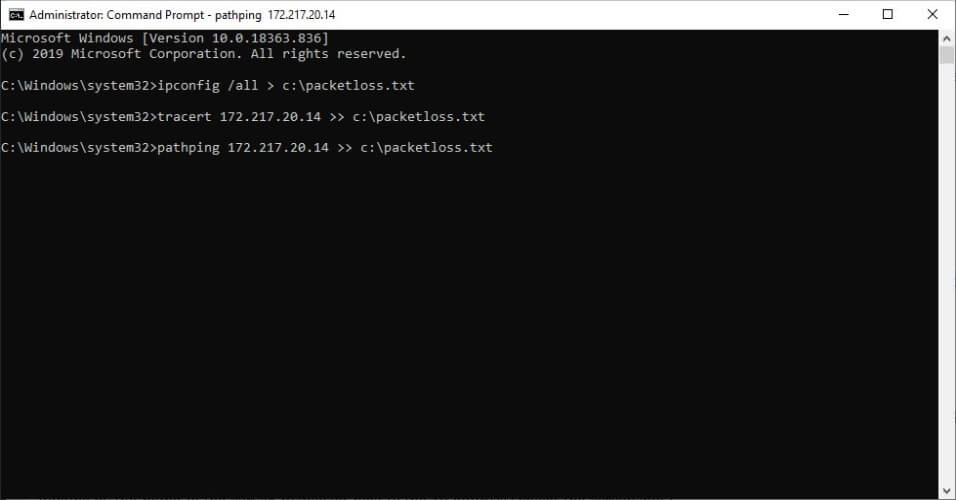
  • Use our guide to help you run a packet loss testPacket loss analysis Windows with tracert and pathping
  • Identify the troublesome hops on your network
  • Take the corresponding measures depending on the test results

As we’ve said above, more often than not, WiFi packet loss occurs due to network congestion. Thus, there’s nothing much you can do about it, especially if you’re not the network admin.

However, after you run the packet loss test, you can try one of the following suggestions:

  • Fix/upgrade/update/repair/replace any faulty component on your network (PC, router, cables)
  • Call your ISP and ask them to fix the issue if the problem’s on their side
  • Ask your ISP to contact the network distribution company
  • Contact the destination server’s owner (e.g. game server owner, customer support)

When everything else fails, switch to wired

Although this article is supposed to help you bypass WiFi packet loss, the truth is that switching to wired (if and when possible) is the greatest way to avoid this unwanted phenomenon.

Alternatively, you can try using a VPN if you suspect your ISP of foul play, try our suggestions above, or even perform a bit of network management if you have administrative rights over your network.

TF2 packet loss: What is it and how to fix it?

TF2 (Team Fortress 2) is the sequel of one of the most popular Valve games: Team Fortress Classic. You know how they say sequels are usually awful? Team Fortress 2 is one of the exceptions that shattered the standards quite remarkably.

If you’re not familiar with TF2, the principle is quite simple. You get two teams, a red one and a blue one. Each team holds up to 16 players. You can choose from 9 classes, and each comes with its own awesome set of skills.

Then, depending on the game mode, you compete with the opposing force (pun intended). In some games, you’ll need to push a little cart to its destination, while in others you’ll just engage in mindless fragging ’til you drop.

It’s sheer fun, combined with a lot of tongue-in-cheek humor. If dying in games gets you all worked up, it’s better if you steer away from TF2.

Now for some less pleasant stuff. Since it’s an online game, TF2 faces the same challenges as any other similar game/service. That means high latency, packet loss, jitter, or even connection timeouts.

What is packet loss in TF2?

Packet loss is, generally speaking, one of the worst things you could experience while playing a game. Or using VoIP. Or streaming multimedia content. Essentially, it happens whenever data packets you send/receive never make it to their destination.

This can affect your game experience dramatically since packet loss can cause further issues such as lagging, rubberbanding, crashes, or connection timeouts. And in a beautifully-chaotic game such as TF2, every frame counts if you aim to win.reduce ping in Team Fortress 2 with VPN
The good news is that more often than not, packet loss in TF2 comes and goes. Meaning that it usually fixes itself with no additional assistance from you. And that’s also the bad news, as it means there’s no magic fix.

The most common cause of packet loss in TF2 is network congestion. There are way too many players that the servers can’t easily accommodate. Thus, at times, you might experience packet loss because of that.

However, in some cases, the packet loss might have a more specific cause. And the reasons here vary wildly, from bad Ethernet cables to ISP throttling and TF2 server-side problems.

How to fix packet loss in TF2?

1. Use a VPN

  1. Download Private Internet Access and install it on your PCPIA VPN
  2. Launch it and log into your account
  3. Connect to the server of your choice
  4. Run TF2 and check if the issue still persists

Private Internet Access is a great all-round VPN service from Kape Technologies. It can help you tackle a lot of challenges such as enhancing your privacy, securing your connection, removing geo-restrictions, and sometimes even bypassing packet loss.

Private Internet Access

Private Internet Access

Losing packets in TF2? PIA could help you out.
$2.85/mo. Buy it now

However, note that there’s no guarantee that using a VPN will work for you. VPNs can only bypass packet loss if the issue is on your ISP’s side. Thus, if you leak packets on your home connection or if the TF2 servers have some issues, using a VPN won’t work.

2. Troubleshoot the connection manually

  1. Use our guide to run a packet loss test on your connectionPacket loss analysis Windows with tracert and pathping
  2. Determine which hop leaks packets
  3. Take the necessary actions, depending on your findings

Therefore, you can experience packet loss in four different locations. Preferably not at the same time. Namely:

  • Your home network (PC, router, cables, home line)
  • ISP’s network
  • The servers of the network distribution company
  • TF2 game servers

Depending on the location of the leak, you might need to perform some of the following actions:

  • Check/repair/upgrade/update any faulty components on your side
  • Give your ISP a call if you notice anything wrong with their servers
  • Ask your ISP to contact the network distribution company
  • Contact Valve if you notice that the TF2 server is troublesome

Packet loss in TF2 can be fixed most of the time

Long story short, if you’re experiencing packet loss in TF2, you can usually fix it. Most of the time network congestion is the culprit, and all you have to do is wait.

However, in certain situations, the causes can be quite specific and might require you to step in. Last, but not least, even though using a VPN to bypass packet loss might not work all the time, it’s still good practice to invest in a trustworthy VPN such as PIA.

[wl_navigator]

AWS and Slack integrate as rivalry with Teams intensifies

AWS and Slack recently announced an expansion of partnership on cloud technologies and workforce collaboration tools. Microsoft’s Azure is Amazon Web Services’ chief rival, while Slack takes on Teams.

Their rivalry just soared a notch higher with the latest announcement.

AWS and Slack join hands to thwart Teams

Amazon and Slack hope to expand their enterprise customer base with collaboration on technologies like AWS.

Slack will be leveraging Amazon Chime, an AWS-based business communications service.

It’s not difficult to see what Slack is going for here—the global reach, availability, and low-latency benefits of the AWS infrastructure.

“Slack and AWS will strategically partner to help distributed development teams communicate and become more efficient and agile in managing their AWS resources from inside Slack. Slack will migrate its Slack Calls capability for all voice and video calling to Amazon Chime.”

They key integrations the two companies announced are:

  1. Amazon Chime to integrate with Slack Calls
  2. AWS Key Management Service integrates with Slack Enterprise Key Management (EKM)
  3. Slack taps leverages AWS Chatbot
  4. Slack integrates with Amazon AppFlow

Competing with Teams is no walk in the park for Slacks

Competing with Microsoft is always a daunting task, especially if the competitor is a smaller company like Slack.

Slack’s strategy involves cranking up third-party app integrations to cater to all the needs of its enterprise customers. On the other hand, Microsoft’s Office 365, which powers Teams, is a one-stop shop with unrivalled breadth and depth.

In other words, for pretty much any single thing Slack brings in from outside, Teams can get it internally.

For example, as Slack integrates with AWS Chatbot, Teams has the Azure bot service at its disposal.

That’s not to say the Slack’s strategy is not working. Instead, it means that Slack has to worry about things like extra costs that come with all these third-party app integrations.

Nonetheless, Slack should be fine if any new partnerships don’t result in extra costs for its customers.

So, what do you think about AWS /Slack integration? Feel free to let us know in the comments section below.

[wl_navigator]

How to set the dark theme in the new GroupMe for Windows 10

GroupMe is a simple chatting app for Microsoft’s platform. You to create chat groups, by adding your friends via their email or mobile phone number.

It’s still favored by college folk all over the US for being that straight forward and simple.

Although the mobile versions of GroupMe got a dark theme years ago, the Windows 10 version somehow was left out. Until now!

How can I change GroupMe to a dark theme?

Well, the good news is that you don’t need to get any programming or hacking done because it’s a clickable option available in the new version, 2.44.7.0.

It’s pretty easy to do if you follow these exact steps:

  1. Open GroupMe and click on the Settings button, the cogwheel from the bottom left corner of the window.GroupMe settings
  2. Click on the box under the App Theme option at the top of the Settings list. Right now, the theme is set to System Default.Groupme app theme
  3. You have two other options, the Light and the Dark. You select the latter, of course.Groupme select dark
  4. After you select the Dark theme, you will see a message under it that prompts you to restart the app if you want for the changes to take effect. Do so.Groupme restart app message
  5. After the restart…Darkness! Enjoy!Dark theme in Groupme

How can I change the system theme to dark?

Without any changes, the GroupMe theme is set to System Default. That means that if your system is set to Dark, the new GroupMe will also start with a dark theme.

If you want to change the systemwide theme to dark, follow the next steps.

  1. Type dark mode systemwide in Windows search and click on the setting from the results.Change to Dark mode systemwide
  2. Click on the box under Choose your color and select Dark. In just a few seconds, you will have your Windows 10 with a dark theme.Change the setting to Dark

Are you a dark mode fan? Do you use GroupMe? Leave us your thoughts in the comments section below.

[wl_navigator]

PowerToys for Windows 10 gets several bug fixes with latest update

Microsoft has released a new version of PowerToys for Windows 10 with a couple of improvements and bug fixes. The version 0.18.12 of the app specifically addresses a few glitches that affected PowerToys Run, the new search tool similar to macOS’ Spotlight feature that was introduced in the version 0.18 last month,

Microsoft stated that you need to reset PowerToys Run’s app data to apply some of the bug fixes. To do this, head over to the PowerToys Run folder on your PC “%localappdata%/Microsoft/PowerToys/PowerToys Run”, and then delete all the content of this folder.


Here’s the full list of improvements and fixes in PowerToys version 0.18.2:

  • #3223 – [Launcher, Tracker] doesn’t find some apps (file explorer, windows terminal,…)
  • #3180 – PowerToys run shows Notepad en Notepad++ twice
    • This is partially fixed, will be fully fixed in 0.19
  • #3599 – Does not find Evernote
  • #3532 – No camera in run
  • #3215 – When PowerToys is running as administrator, everything Run launches is also ran as administrator
  • #3646 – PowerToys Run shows no files or folders when running in admin mode

Microsoft brought back PowerToys last year to give power users new tools to be more productive on a Windows 10 PC, and team working on it has been iterating pretty fast so far.  For anyone interested in learning more about the latest version, we invite you to check out the official GitHub page.

Windows Update cannot currently check for updates [Full Fix]

Serious issues with Windows Update can sometimes occur, even if you’re expecting the best when a new version becomes available.

Many users reported Windows Update cannot currently check for updates because you must first restart the computer so that a previous installation can be completed message on their PC.

This message can be quite problematic, and in today’s article, we’ll show you how to fix it.

How can I fix Windows Update cannot check for updates?

  1. Edit your registry
  2. Make sure that your date and time are correct
  3. Make sure that the necessary services are running
  4. Delete the corrupted Windows log file
  5. Reset Windows Update components
  6. Run Windows Update troubleshooter
  7. Install the update manually
  8. Perform an in-place upgrade

1. Edit your registry

  1. Press Windows Key + R and enter regedit. Press Enter or click OK.
    Windows Update cannot currently check for updates because the service is not running
  2. When Registry Editor opens, navigate to ComputerHKEY_LOCAL_MACHINESOFTWAREMicrosoftWindowsCurrentVersionWindowsUpdateAuto Update in the left pane. Now right-click Auto Update key and choose Export from the menu.
    Windows Update cannot currently check for updates because updates on this computer are controlled by
  3. Enter the desired file name, choose a save location, and click the Save button. In case anything goes wrong after modifying the registry, you can always run this file in order to restore it.
    Windows Update cannot currently check for updates because the service is not running
  4. Expand the Auto Update key in the left pane and search for the RebootRequired key. If this key is available, right-click it and choose Delete from the menu. When the confirmation dialog appears, click Yes.

According to users, sometimes the Windows Update cannot currently check for updates message can appear due to problems with your registry.

Windows creates RebootRequired key when Windows Update starts, and once the update process is finished, this key is removed.

Unfortunately, sometimes issues with Windows Update can occur, and the key won’t get deleted by Windows. However, you can fix the problem simply by removing that key manually.

After making these changes, restart your PC and the problem should be resolved.

2. Make sure that your date and time are correct

  1. Right-click the clock icon on your Taskbar. Choose Adjust date/time option from the menu.
    Windows Update cannot currently check for updates because updates on this computer are controlled by
  2. Now locate Set time automatically option and turn it off. Wait for a few moments and enable this feature back on again.
    Windows Update cannot currently check for updates because the service is not running

If you’re getting Windows Update cannot currently check for updates message, the problem might be your date and time.

If your date or time isn’t correct, you might not be able to check for updates. However, you can easily fix this problem by readjusting your date and time. To do that, just follow the above steps.

After doing that, check if the problem is still there. If you want, you can also use the Change button to manually adjust your date and time.

3. Make sure that the necessary services are running

  1. Press Windows Key + R and enter services.msc. Now press Enter or click OK.
    Windows Update cannot currently check for updates because updates on this computer are controlled by
  2. When the Services window opens, locate Background Intelligent Transfer Service and double-click it to open its properties.
    Windows Update cannot currently check for updates because the service is not running
  3. Set Startup type to Automatic (Delayed Start) and click Apply and OK to save changes.
    Windows Update cannot currently check for updates because updates on this computer are controlled by
  4. Now double-click Windows Update service and change its Startup type to Automatic (Delayed Start).
    Windows Update cannot currently check for updates because the service is not running
  5. After doing that, try to start both the Background Intelligent Transfer Service and Windows Update service.

According to users, you can experience Windows Update cannot currently check for updates message because the necessary services aren’t running.

To fix this problem, it’s advised to start BITS and Windows Update services manually. After doing that, the problem should be completely resolved and everything should start working again.

4. Delete the corrupted Windows log file

  1. Open File Explorer and go to the C:WindowsSoftwareDistributionDataStoreLogs directory.
  2. Locate edb.log file, and rename it or delete it.
    Windows Update cannot currently check for updates because updates on this computer are controlled by

If you’re unable to update your system due to Windows Update cannot currently check for updates message, the problem might be a corrupted log file.

To fix this issue, it’s recommended to find that log file and remove it or rename it. After doing that, the problem should be completely resolved and you’ll be able to install updates again.

Several users reported The action can’t be completed because the file is open in Application Experience message while trying to edit this file.

If this happens, it’s advised to start your PC in Safe Mode and try to rename or remove the file again.

To do that, just follow these steps:

  1. Open the Settings app. You can do that by using Windows Key + I shortcut.
  2. When the Settings app opens, navigate to the Update & Security section.
  3. Select Recovery from the left pane. Now click the Restart now button.
  4. You’ll see a list of options. Select Troubleshoot > Advanced options > Startup Settings. Click the Restart button.
  5. You’ll be presented with a list of options. Select the version of Safe Mode you want to use by pressing the appropriate key.

After you boot to Safe Mode, locate the log file and rename it or delete it.

5. Reset Windows Update components

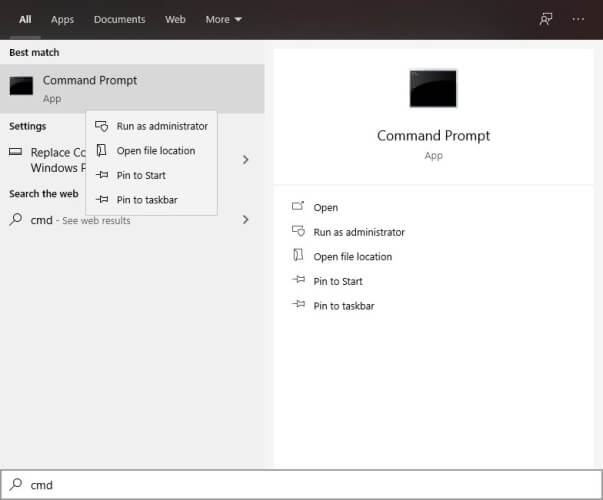
  1. Open Command Prompt as administrator. To do that, just press Windows Key + X to open the Win + X menu and choose Command Prompt (Admin). If you want, you can also use PowerShell (Admin).
  2. When Command Prompt opens, run these commands one by one:
  • net stop wuauserv
  • net stop cryptSvc
  • net stop bits
  • net stop msiserver
  • Ren C:WindowsSoftwareDistribution SoftwareDistribution.old
  • Ren C:WindowsSystem32catroot2 Catroot2.old
  • net start wuauserv
  • net start cryptSvc
  • net start bits
  • net start msiserver

Sometimes Windows Update cannot currently check for updates message can appear because Windows Update components aren’t working properly.

This can occur for various reasons, and the best way to fix this problem is to reset Windows Update components. This is relatively simple to do, and you can do it by following the above steps.

After these commands are executed, check if the problem is still there.

If you find this solution a bit tedious due to all these commands that you have to run, you can always create Windows Update Reset script. Use it to run them automatically.

6. Run Windows Update troubleshooter

  1. Open the Settings app and go to the Update & Security section.
  2. Select the Troubleshoot from the menu on the left. Pick Windows Update from the list and click the Run the troubleshooter button.
    Windows Update cannot currently check for updates because the service is not running
  3. Follow the instructions on the screen to complete the troubleshooter.

According to users, the Windows update cannot currently check for updates message can sometimes appear if there’s an issue with Windows Update.

However, Windows 10 comes with various troubleshooters, and you can use them to fix common problems.

If you’re having issues with Windows Update, you might be able to solve the problem simply by running Windows Update troubleshooter.

Once the troubleshooter is finished, check if the problem is still there.

7. Install the update manually

  1. Visit the Microsoft Update Catalog website.
  2. In the search bar enter the update code.
  3. A list of matching updates will now appear. Locate the update that uses the same system architecture as your operating system and download it.
    Windows Update cannot currently check for updates because updates on this computer are controlled by
  4. Once you download the update, double-click it to install it and follow the instructions on the screen.

If you’re getting Windows update cannot currently check for updates, you might be able to circumvent the issue simply by manually installing the updates.

In case you don’t know, you can download the Windows Updates manually and install them on your own.

Before you can do that, you need to get the update code. The code has a KB prefix and it’s followed by an array of numbers, and you can easily find it in the Windows Update section.

After completing the procedure, you should have the latest updates installed and the issue should be resolved.

8. Perform an in-place upgrade

  1. Download and run the Media Creation Tool.
  2. Choose Upgrade this PC now option and click Next.
  3. Select Download and install updates (recommended) and click the Next button.
  4. Follow the instructions on the screen. Once you reach Ready to install screen you need to click Change what to keep.
  5. Select Keep personal files and apps and click the Next button.
  6. Follow the instructions on the screen to complete the setup.

Windows update cannot currently check for updates can appear if there’s an issue with Windows Update, but you can fix this problem by performing an in-place upgrade.

In case you don’t know, an in-place upgrade will force your system to update and reinstall it while keeping all your files intact.

Once the setup is finished, check if the problem with Windows Update is still there.

Windows Update cannot currently check for updates can be a problematic error, and prevent you from downloading updates, but we hope that you managed to fix it using one of our solutions.

The above solutions may be applied to all these common problems reported by users:

  • Windows update cannot currently check for updates because you must first restart – Even if you’re told to restart the computer, running the Windows Update Troubleshooter is ideal if you want to diagnose the issue automatically.
  • Windows Update cannot currently check for updates because the service is not running – In order to avoid this message, you need to go to the Services window and make sure that the required services are running properly.
  • Windows Update cannot currently check for updates because updates on this computer are controlled by – This issue can appear if you don’t have the necessary privileges, but you can easily solve it by using one of our solutions.

How to Use Online Proxy Browser

Protecting your privacy online is relatively simple, and the simplest way to do that is to use a proxy.

There are many online proxies that you can use in your web browser, and in today’s article, we’ll show you how to use them properly.

How do I use online proxy in my web browser?

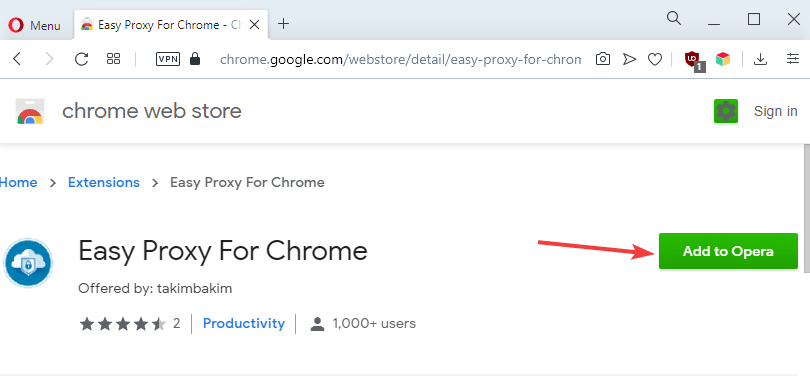
1. Use proxy extensions

  1. Open your browser’s extension store.
  2. Find the suitable proxy extension and install it.
    proxy extension download online proxy browser
  3. Configure the extension and you’ll be ready to use your proxy.

You’ll notice that many proxy websites offer their browser extensions as well. Using a browser extension has its advantages, and once you enable it, you’ll have a proxy running for all your tabs.

Extensions suffer from the same issues as the websites that provide the same services, and they will offer limited features or ads in the free version.

To avoid these limitations, it’s advised to use a browser that has its own VPN, such as Opera One. Its VPN is completely free, and it comes with no ads or bandwidth limitations as many proxies do.

In addition to VPN, the browser has a built-in ad blocker and the ability to block tracking cookies and scripts in order to speed up your browsing experience.

Even more, it is based on the Chromium engine, and all Chrome extensions should work on Opera One without any issues.

It’s worth mentioning that the browser is light, so it should handle any website with ease.

Opera One

Looking for an online proxy browser? This might be the ideal moment to try out Opera One!

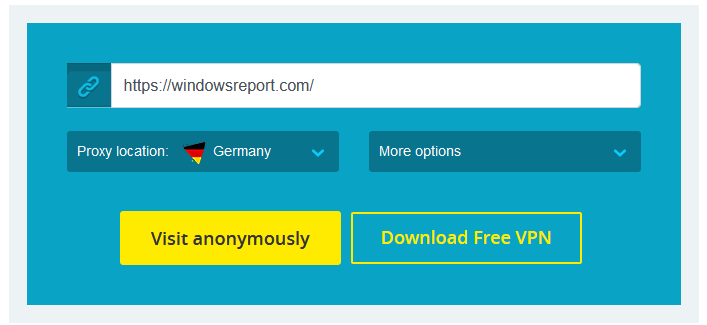
2. Visit proxy websites

  1. Visit any proxy website.
  2. Enter the URL that you want to visit.
  3. Optional: Select the desired location of the proxy server.
  4. Now click Go or any other button to visit the website.
    proxy website online proxy browser

This is the simplest method, but it has its flaws. By using this method, you’ll have proxy enabled only on a single website or on a single tab which can be a problem for some users.

In addition, some of these services offer limited features or ads in the free version.

Using an online proxy is usually rather simple, and you can do it easily by following instructions from this article. If you want better and unlimited protection, then Opera with its VPN might be a better choice.

Let us know your choice by using the comments area below.

Microsoft’s GroupMe app updates on Windows 10 devices with support for Dark Mode

Microsoft’s Windows 10 GroupMe app (via WC) received a small update today that brought it up to Version 2.44.7.0 and added support for Dark Mode.
No other changes appear to have been made with this update but it’s still significant as Dark Mode remains a popular feature request for users for pretty much every app that doesn’t have it yet.

GroupMe is a free communication tool that aims to streamline the process of creating groups of contacts and communicating with them in an organized fashion. The app may not be that well-known but it’s actually been around for a while having launched way back in 2010.

Do you use GroupMe? Let us know why or why not in the comments below and then follow us on Pinterest and Twitter for more Microsoft app news.

GroupMe
GroupMe
Developer:
Skype
Price:
Free

The Cyberpunk 2077 Xbox One X bundle is now available and it doesn’t cost $2,000

The Xbox One X Cyberpunk 2077 Limited Edition Bundle is now available to buy at Microsoft, GameStop, and other video game retailers. Despite it recently, and incorrectly, being listed as costing $2,000 on the Microsoft Store website last month, it only costs $299.

The bundle contains a special 1TB Xbox One X console that boasts a very cool design with textures, glowing elements, bright panels, LEDs, and even a color shift effect. A limited edition Cyberpunk 2077 Xbox Controller is also included, as are a digital pre-order for the full Cyberpunk 2077 video game (due out in September) and its first DLC (due out post-launch), and a one-month trial of Xbox Game Pass Ultimate.

Check out the full showcase trailer for the console below:

Cyberpunk 2077 is one of the most-hyped video games coming to Xbox One and video game platforms in general. The title has had a strong connection to the Xbox brand since it was first revealed at E3. Make sure to read about this and more in our exclusive interview with CD PROJEKT Red’s John Mamais here.

Cyberpunk 2077
Cyberpunk 2077
Developer:
CD PROJEKT RED
Price:
$29.99

How to use MSN in browser

MSN web portal was well-known in the past, but over the years it has lost some of its popularity. However, the MSN website is still available and fully functional.

In today’s article, we’re going to show you what MSN is and how to use it in your web browser.

How do I use MSN in my browser?

1. What is MSN?msn browser

MSN is a web portal created by Microsoft way back in 1995. The website is still available, and it still works as a news portal.

In addition, MSN offers links to Microsoft’s services such as Office, Outlook, and OneDrive. It’s worth mentioning that links to other services such as Facebook, Skype, and Twitter are also available for quick access.

MSN can also provide you with the current weather report for your area, and if you need to search for something, there’s a Bing search available at the top.

2. How to use MSN?

Using MSN is incredibly simple – you just have to visit its website and that’s it. Once the website loads, you can read the news or perform other tasks.

Although MSN works in every browser, we recommend using it in Opera One.

Alternatively, Opera One has a news feed on its home page, and you can easily customize it with your own RSS feeds.

use msn in browser

Namely, to use the RSS functionality in Opera One, right click the side bar, and add the Personal news tab to the sidebar.

Then, add the news sources you want by typing the website URL into the blank field. For MSN, you’ll see several options, depending on the subject you want to read about.

opera rss feed

Opera One

Reading the latest MSN news has never been easier with Opera One’s Personal news feed.
Free Download Visit website

Have you ever used MSN? Let us know in the comments below.

Download Audible App for Windows 10/11 & Mac

Although the joy of reading can never be taken away, sometimes it is more convenient to just put your headphones on and listen to a book.

This is a viable solution when you are on public transportation or in any area with a lot of noise pollution and you wouldn’t be able to concentrate on your book.

Luckily, there are some audiobook players out there that can be of assistance in such scenarios.

Take, for instance, Audible, a well-known service that anyone can use. Apart from being a very simple and easy-to-use audiobook player, it also allows users to buy and download any audiobooks they like.

The service offers users a huge collection of books, which is growing daily. Audible for Windows 10 is also available in the form of an app that users can download, and today we’ll be taking a look at it.

How can I get the Audible app for Windows 10 & Mac?

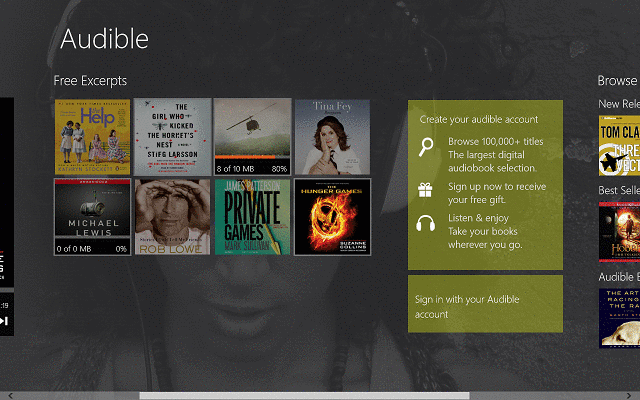
audible-windows-8-app-audio-book-player-market (1)

Audible for Windows 10 & Mac is a free app that can be downloaded on any Windows 10 and even Windows 8/RT device & Mac and it will act as the gateway to your collection of audiobooks and thousands other from their virtual library.

When you start the app, you will be greeted with a welcome screen where you can see some free samples of audiobooks and browse the virtual store for other titles.

Users who want to buy audiobooks from the app must create an account with Audible, which can be done directly from the app.

Also, you will need an Amazon account for this process to work. After you create your account, you can buy any books you like and pay by inputting your credit card information.

audible-windows-8-app-audio-book-player-market (6)

For past members of Audible, there is the option of simply logging in to their account and on the main window of the app, they will see all the titles that they have purchased.

The app’s user interface is very easy to use and it works very fast, with almost no loading time when switching menus.

audible-windows-8-app-audio-book-player-market (2)

The overall design of the app is pretty good, but there are some areas where some improvement would not harm.

Such is the case with the book search feature, which can be done via the Search Charm.

On most occasions, it renders no results even if the books that you search for exist and another one is the in-app web interface which allows users to use the website search feature.

However, the window is only half-screen, the information is crammed and the design is not as good.

Nevertheless, even with this lower quality design for the in-app web interface, Audible for Windows 10 and Mac is a great app for listening to audiobooks.

It works very well, the media buttons are available from the main window, and the huge collection of titles that it offers give it the edge over its competitors.

audible-windows-8-app-audio-book-player-market (5)

Many liked the app, and although they are fans of reading books, and not listening to them, they admit that Audible for Windows 10 has a lot of potentials and intend to keep using it.

Audible recently received a series of new features and improvements that include:

  • Associated PDFs are now available directly from the player
  • Users can now control playback on hover from the taskbar – this feature is available for desktop users only
  • The app received a complete redesign for Windows 10
  • Improved library management
  • The ribbon player offers easy-to-access controls
  • Integrated store and search allow users to browse over 180,000 available titles easily

⇒ Download Audible for Windows 10

If the Audible app sounds like something you have been looking for as well, keep in mind that the audiobooks can be listened to on several devices:

  • Audible for Windows 10 desktop app – Since it is designed especially for Windows 10, you can only expect to get the best. For customers using Windows 10, we encourage them to use the link above.
  • Audible Mac app – You may also enjoy Audible on Mac via iTunes. Go to your Library on the Audible desktop site and click Download next to the audiobook you want.
  • Audible app Android – You can clearly enjoy the free Android app too. Grab it from the Play Store and take advantage of the latest audiobooks while on the go.
  • Audible desktop app – With the desktop app already installed, you just need to click Launch, sign in to Audiobooks from Audible, and click the Library icon. If there are no books in your library, you’ll have to purchase one before you can download an audiobook.
  • Free audible app for Windows 10 – If you’re on a tight budget, do note that new customers can sign up right away for a free 30-day trial of Audible.
  • Audible player for PC – Keep in mind that you may listen to titles directly from the Audible website or download them to your PC. Then, import all Audible titles into Windows Media Player.
  • Audible Windows download – To download your audiobook to your Windows PC, you may also download Audible Download Manager and configure it to import audiobooks to Windows Media Player or iTunes.
  • Audible iPhone app price plan – Amazon Prime members can enjoy Audible for free.

Attacker uses an Office 365 site to steal user credentials

Email phishing may be one of the oldest tricks up the sleeves of any hacker, but it hasn’t run out of fashion yet. For example, a malicious player recently set up an Office 365 phishing base to fraudulently obtain usercredentials.

Pretty much any platform that requires user authentication to allow access can be a target for phishing.

Also, anyone can be a victim, from SaaS customers to OneDrive users.

Malicious actors created an Office 365 email phishing site

Hackers sent remote workers malicious email links to fraudulently capture their user credentials, according to an Abnormal Security report.

For starters, they took advantage of the fact that many organizations are currently setting up VPNs to secure internet connections for their work-at-home employees.

The target receives an email disguised as official communication from their employer’s IT department in this phishing attempt.

Next, the target clicks the link in the email, which leads to a VPN configuration that the attacker set up. In the end, the employee lands on a login page hosted on the Office 365 platform.

Since the site looks almost 100% the same as the genuine one, the remote worker, sadly, falls for it.

Therefore, the victim supplies their login details oblivious of the fact that they’re not signing into their employer’s official portal.  So, just like that, the bad actor makes away with the target’s Microsoft credentials.

The attack impersonates a notification email from the IT support at the recipients’ company. The sender email address is spoofed to impersonate the domain of the targets’ respective organizations. The link provided in the email allegedly directs to a new VPN configuration for home access. Though the link appears to be related to the target’s company, the hyperlink actually directs to an Office 365 credential phishing website.

Here are tips for optimizing your email security:

  • User discretion: Always check the URL of any web form that requires your user credentials.
  • Email security: Use email scanning anti-malware.
  • Windows updates: Always install Windows security updates.
  • Microsoft’s security tools: This can elevate your threat detection capabilities.

Have you ever been a victim of email phishing? Feel free to share your experience in the comments section below.

[wl_navigator]

Slack and Amazon enter multi-year deal to compete with Microsoft Teams

Despite a relatively spotless earnings report where the company, by all accounts, beat its own expected guidance, Slack saw a post-market trading slide in its stock of almost 16%.

However, a new multi-year deal with Amazon may do wonders to help regain investor confidence while also better positioning the company to take on its emerging rival in Microsoft Teams.

According to a report from The Verge, Slack has chosen to partner with Amazon to roll out its communications platform to an undisclosed percentage of the company’s 840,000 employees. On the backend of the Amazon and Slack deal is that the latter will adopt the former’s Chime platform for its video conferencing feature set, along with the internal adoption of more AWS services for the company.

Slack has been a long time customer of AWS for various cloud services related to chat and the move seems only logical given the nature of industries the Amazon and Slack preoccupy. In addition to adopting Chime, Slack will also leverage its Amazon partnership for analytics, machine learning, compute, storage, AI, security, and scale for the foreseeable future.

Underscoring the entire deal is Slack’s newfound ability to address the elephant in the room, Microsoft, more directly. While Slack CEO Stewart Butterfield took a more tribalistic stance in proselytizing that Microsoft is “unhealthily preoccupied with killing” the company, vice president of Slack, Brad Armstrong took a more business-minded approach to discuss why adopting Chime allows Slack to ratify its mobile video conferencing features the platform arguably lacked in comparison to Microsoft Teams.

For now, we’re just focused on shoring up the back end. As Chime has additional features, we’re looking at bringing the mobile experience to include video, which it doesn’t today. We’re also looking at transcription.

Earlier today, Slack reported that of the 750,000 organizations making use of the chat service and that 122,000 users are paid customers signaling a 28% year over year increase. Meanwhile, a little over a month ago Microsoft reported 75 million daily active users pulling from a pool of 258 million paid Office 365 seats that have access to Teams.

The new deal allows both Amazon and Slack to bolster areas of their services that have proven to be weak spots individually when competing with Microsoft. Amazon gets to offer its customer a flexible and interoperable leading chat service while Slack gets to scale expeditiously while also getting access to Amazon clients they may not have otherwise been exposed to.

Arguably, the deal is a win for Microsoft as well which will allow the company to aim its competitive efforts at a growing, but increasingly singular target in the enterprise cloud services and communications sector.

Firefox 77.0.1 released to patch a potential DDoS flaw

When Firefox 77.0 went live on June 2, 2020, it came with a bunch of goodies. One of its most notable new features, WebRender, got pushed to more Windows 10 laptops.

In addition, the new version introduced the about:certificate page, on which users can conveniently manage web certificates.

However, it turns out that this major update had a mission-critical flaw that called for quick remedial action. The folks at Mozilla responded by issuing Firefox 77.0.1 to address the bug.

Mozilla releases Firefox 77.0.1

Version 77.0.1 contains only a single fix. According to the update’s release notes, the patch turns off the automatic selection of DNS over HTTPS (DoH) providers when performing tests.

Disabled automatic selection of DNS over HTTPS providers during a test to enable wider deployment in a more controlled way.

DoH is a user privacy protocol that more and more tech companies are incorporating into their app solutions.

So, when testing DoH on Firefox, a bug was causing something of a Distributed Denial of Service (DDoS) situation. The problem affected NextDNS, one of the companies that Mozilla brought on board to provide DoH services.

The bug would cause the provider’s network to overload, preventing the wider-scale deployment of the protocol in any test run.

A contributor to Mozilla’s Bugzilla forum added this about the DoH flaw:

We need to be able to roll this out gradually so that we don’t overload any providers. Even the dry-run involves up to 10 requests per client which can be very significant when the entire release population updates.

Firefox 78 is the next major browser update from Mozilla. When it hits the release channel, it should offer improvements like the ability to check out blocked web resources.

Have you updated to Firefox 77 yet? If you have, are there any notable browser performance issues? You can always let us know in the comments section below.

[wl_navigator]

Microsoft Teams Meetings to support up to 300 participants

Microsoft Teams has been on an incredible growth trajectory the past couple of months. The demand for people to work and collaborate remotely amid the COVID-19 pandemic has buoyed the platform’s expansion in big way.

In March 19, 2019, Microsoft declared that 91% of Fortune 100 corporations used Teams. One year later, the company announced that 93% of Fortune 100 companies used the platform.

In addition, the Office 365 tool had over 44 million active users per day by March 19, 2020. So how’s Microsoft coping with the growing demand for collaboration software?

There are many appropriate responses, and one of them is increasing the number of people that can take part in a Teams meeting.

Microsoft Teams to allow up to 300 Meetings participants

According to a Microsoft 365 Roadmap notification, Teams will soon allow up to 300 chats and Meetings participants. The platform’s current capacity is 250 people per meeting.

This feature should have started rolling out already to Teams users. However, the rollout ends by June 30. So you shouldn’t worry if you haven’t received the update yet.

Teams’ integration with other Office 365 solutions gives it a competitive advantage over its closest rivals. For example, Teams is a natural option to many enterprise customers already using apps like Power BI, Outlook, etc.

Nonetheless, Microsoft has to pull up its socks in other key areas where Teams doesn’t have an automatic advantage. So, expanding the maximum number of users per meeting to 300 or more is certainly a step in the right direction.

The maximum number of video conferencing participants that can appear in a single screen simultaneously is another area in which Teams is playing catch up.

While Zoom supports up to 49, Microsoft recently increased Teams’ capacity to 9. However, reports suggest that Teams will soon match its rival’s capacity.

Any thoughts about the current Microsoft Teams-Zoom rivalry? Or are you a Teams user yourself? Feel free to let us know in the comments section below.

[wl_navigator]

Thunderbird 68.9.0 fixes 5 high impact security issues

The Thunderbird development team has released the stable version of Thunderbird 68.9.0 to the general public.

Thunderbird has the same release schedule of Firefox ESR (Extended Support Release). Mozilla increased the frequency of the Firefox releases so that’s why we see more Thunderbird releases than usual.

If you already have Thunderbird installed, you should be prompted for an update.

But if you didn’t receive the update yet, you can select click on Help, then go to About Thunderbird and run a manual check for updates.

Of course, there is also the option to download the new release from the official project website and install it manually.

What is new in Thunderbird 68.9.0?

Actually, there no new feature coming with the new Thunderbird 68.9.0. However, the release notes point to three bug fixes and some security fixes.

For starters, a bug fix corrected an issue that prevented users from removing custom headers used for searching for filtering emails.

Another solved problem is that now, the Today Pane from the Calendar is updated after all data is loaded.

The third release note points to fixing unspecified stability issues.

Thunderbird 68.9.0 security issues fixed

The most important part of the update was actually the Various security issues.

In the detail page, the Mozilla Foundation Security Advisory 2020-22 lists 5 high impact security issues fixed in the new Thunderbird 68.9.0 version:

  • NSS has shown timing differences when performing DSA signatures, which was exploitable and could eventually leak private keys.
  • When browsing a malicious page, a race condition in our SharedWorkerService could occur and lead to a potentially exploitable crash.
  • Mozilla developer Iain Ireland discovered a missing type check during unboxed objects removal, resulting in a crash. We presume that with enough effort that it could be exploited to run arbitrary code.
  • Mozilla developers Tom Tung and Karl Tomlinson reported memory safety bugs present in Firefox 68.8. Some of these bugs showed evidence of memory corruption and we presume that with enough effort some of these could have been exploited to run arbitrary code.
  • If Thunderbird is configured to use STARTTLS for an IMAP server, and the server sends a PREAUTH response, then Thunderbird will continue with an unencrypted connection, causing email data to be sent without protection.

Do you use Thunderbird as an e-mail client? Leave your thoughts about it in the comments sections below.

[wl_navigator]

Focus Inbox cloud syncing coming to Outlook for Windows

Microsoft Outlook (not to be confused with Outlook Express) has come a long way. It’s gotten a lot of useful features since its debut in 1997.

But its growing integration with other Microsoft applications, such as Teams, makes it even more powerful day by day.

Today, you don’t even have to go Outlook.com to use the email service. That’s because you can download and install Outlook for Windows to accomplish the same and much more.

According to Microsoft 365 Roadmap, another development is coming to Outlook for Windows—the option to store settings in the cloud.

Outlook for Windows getting cloud syncing option

You know how the Outlook Focus Inbox makes life a lot easier when you’re starting your day in the office.

Especially if you’re an enterprise user, your emails will be overflowing each day. So you turn to your Focus Inbox to store only the most important messages.

Well, the ability to sync your Outlook account settings to the cloud comes to fruition this month.

When the feature arrives, you’ll be able to enjoy a consistent Focus Inbox experience, regardless of the desktop computer you’re using to access your Outlook account.

The same is true for any customizations you apply to privacy settings.

 A new option found under General Cloud storage options that allow users to choose if they would like to store their Outlook settings in the cloud. This will enable a number of capabilities such as Privacy Settings and Focus Inbox to be consistent if they use Outlook on multiple computers and eventually Outlook on the web and mobile.

Microsoft says that it will eventually add this feature to Outlook.com and Outlook for Android and iOS. This means you’ll be able to sync your settings across more devices and platforms.

In addition, the company is currently developing the ability to sync Outlook email signatures to the cloud.

Feel free to leave any comments or questions about Outlook for Windows in the comments section below.

[wl_navigator]

Microsoft Teams adds camera and GPS support for developers

Microsoft Teams got a lot of improvements at the Microsoft Build 2020 event. From those, we can mention pop-up apps, Power Automate RPA templates, and simplified Teams Chatbots with Power Virtual Agents.

And these are just a few of the new Teams features announced on the Build 2020 website.

Microsoft Teams adds support for camera and GPS to developers

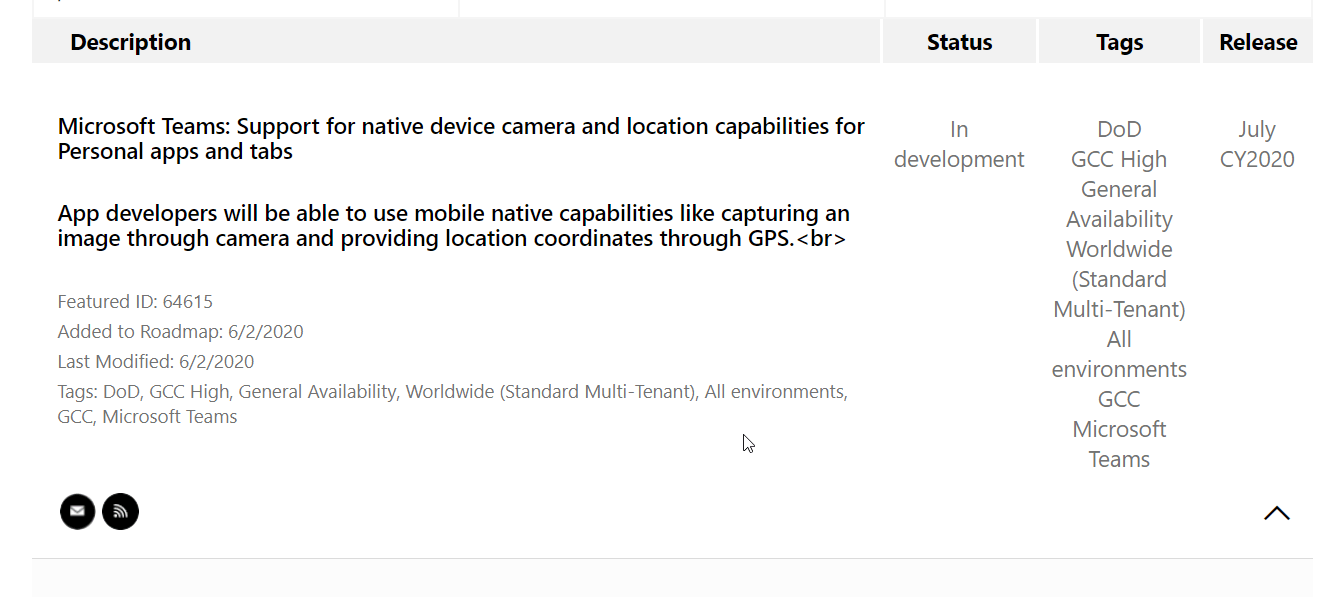
Now, Microsoft added a new task on the Microsoft 365 Roadmap website specifying that it is preparing a Microsoft Teams update in  July 2020 that will include new tools for developers:

Microsoft Teams: Support for native device camera and location capabilities for Personal apps and tabs

App developers will be able to use mobile native capabilities like capturing an image through the camera and providing location coordinates through GPS.

Microsoft Teams new tools for developers

Microsoft is clearly referring to mobile apps. The developers will be able to use the camera and GPS capabilities of the smartphone to pack into their new apps.

Microsoft Teams increases the number of simultaneous videos in meetings

Another improvement that is going to roll out in July 2020 is the increased number of simultaneous videos in Teams meetings for GCC High and DoD customers.

We are increasing the number of participants who can be viewed simultaneously on the Teams meeting stage from 4 to 9.

This new experience optimizes for attendees who have enabled video and places the remaining audio-only participants below the meeting stage.

To provide a high audio and video quality experience, the layout logic will consider user bandwidth and alter the number of videos shown to provide the best meeting experience.

We have to specify that Microsoft already increased the number of simultaneous videos in meetings for GCC customers.

What do you think about the future development of Microsoft Teams? Write us your thoughts in the comments section below.

This article appeared first on Windowsreport.com

[wl_navigator]

New Chromium Edge offers superior extension compatibility

Microsoft has released a new version of Chromium Edge that boasts better support for extensions and websites.

The company doesn’t intend to keep legacy Edge for longer than necessary. It has already withdrawn development support for the old browser on Windows 10 2004.

The latest Microsoft Edge update, though, is available for multiple versions of Windows 10, namely 2004, 1803, 1809, 1903, and 1909.

The new Chromium Edge browser for Windows 10

Microsoft says that the new browser comes with the best extension and website compatibility you can get today.

Apart from that, the Chromium-based browsing tool offers superior support for modern web applications.

Already, the Edge browser supports Progressive Web Apps (PWAs), which offer the best of mobile and traditional applications experiences and features. The World Wide Web is moving in that direction too.

 This new version provides best in class compatibility with extensions and websites. Additionally, this new version provides great support for the latest rendering capabilities, modern web applications, and powerful developer tools across all supported OS platforms.

The latest Edge upgrade is available via Windows Update, so you don’t have to install it manually.

Once you’ve received the update, it will replace the existing version of Edge on your PC. Also, it’ll inherit data, including passwords and favorites, from the older Edge.

In addition, the update pins the new Chromium-based Edge to the task bar.

The browser isn’t anywhere near as popular as its main rivals, Chrome and Firefox, nonetheless.

That hasn’t stopped Microsoft from pushing Edge ads targeted at Firefox users as a way to expand the browser’s market share. Windows 10 2004 search users are also encountering recommendations to install Edge.

With new features and capabilities regularly coming to Edge, the browser should continue growing in popularity.

Would you like to share your thoughts or ask any questions about the new Chromium Edge? Kindly reach for the comments section below and leave us a message.

[wl_navigator]

How to install PWA and get Jump Lists in Chrome and Edge

PWAs are Progressive Web Apps, that are, essentially, a way for a developer to offer a desktop shortcut for a website or service.

With the latest canary versions of Chrome and Edge, it is now possible to even have selection options for PWAs directly from the Jump List.

The Jump List is the menu that you get when you right-click an application icon on the taskbar.

Recently, Google and Microsoft added support for PWA in the Jump Lists from Chrome and Edge.

How can I install PWA and enable Jump Lists in Chrome?

First, you need to enable installed PWAs to include a menu of shortcuts associated with the app icon from Chrome. To do that, follow the next steps:

  1. Open Google Chrome Canary and type chrome://flags/ in the address bar.
  2. In the next window, type #enable-desktop-pwas-app-icon-shortcuts-menu in the search bar or just scroll down until you find the feature.how to enable desktop PWAs
  3. Lastly, click on the button to its right and set it to enable, then restart the browser.

How can I install a PWA in Chrome and see its Jump List?

Now you need to go to a PWA and install it. Google has prepared a test site, sadchonks.com, so we will play with it. So here is how to do it.

  1. Once you open the website, on the right edge of the address bar you will see a plus sign. Click on it.how to install a pwa
  2. You will see a dialogue asking you if you want to install the app. Click on install.
    installing sad chonks
  3. You’re good to go. Now, you will see the App icon on your taskbar and if you right-click on it, you will see all possible options.You can see all the new pics, your saved choices and you can pin it on the taskbar.jump list for PWA

The chunky cat app is just a silly example but for instance, we did the same for Twitter.

After we installed the Twitter app from the website we got a more useful Jump List.

As you can see in the picture below, you can easily go for a new tweet, explore, see the notifications or send a direct message just with a right-click on the icon from the taskbar.jump list for twitter

How can I install PWA and enable Jump Lists in Edge?

In the same way as with Chrome, first, you will need to enable desktop PWAs in the Edge Canary build.

  1. Open Edge Canary and type edge://flags/ in the address bar.
  2. In the next window, type #enable-desktop-pwas-app-icon-shortcuts-menu in the search bar or just scroll down until you find the feature.how to enable desktop PWAs in Edge
  3. Finally, click on the button to its right and set it to enable, then restart the browser.

How can I install a PWA in Edge and see its Jump List?

For the sake of this experiment, we will use the same PWA provided by Google, sadchonks.com.

  1. After you open the site, click on the plus sign ad the edge of the address bar and select to install the app.how to install sad chonks in Edge
  2. That’s it. The App icon on your taskbar and if you right-click on it, you will see the options just like if you install it with the Chrome browser.

If you either install the PWA with Chrome or Edge, you will also see the app in the start menu.the PWA shows up in start menu

Did you install any PWAs? Do you like the Jump List option for PWAs? What do you think about them? Drop us a line with your thoughts in the comments section below.

[wl_navigator]

Microsoft Teams free users can now create video meetings

The free version of Microsoft Teams, which Microsoft launched back in July 2018 to compete with Slack, is getting the ability to create video meetings. Until now, anyone could be invited to a Teams meeting without the need for a Microsoft or Office 365 account, but creating a meeting was restricted to Microsoft Teams commercial customers.

That’s finally changing this month, with Microsoft finally allowing Teams users logged in with free Microsoft account to create meetings. According to a support article, Microsoft has started rolling out this free Meetings feature on June 2, 2020.

Meetings are one of the key features that will allow you to collaborate easily and efficiently while working from home. Now thousands of freelancers and small businesses can now use the free version of Microsoft Teams to create and attend free online meetings with high-quality audio and video. Microsoft said that in response to the coronavirus crisis, there are currently no limits on meeting size or length.

As a quick summary, Microsoft has listed a couple of ways you can use meetings in Teams with a free Microsoft Account:

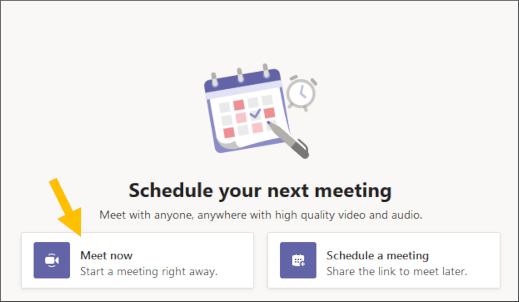
Create an instant meeting with Meet now

You need to navigate to the left side of Teams, select Meetings, and then click Meet now. Microsoft Teams will prompt you to complete a number of steps before you start your meeting. Next, write a title for your meeting, choose if you want to use video, and select your preferred audio source. Finally, hit Join now, and you are good to go. Once you’re in, you can now send invites to other people to join your meeting.

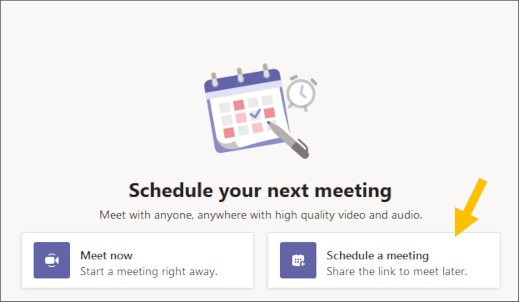
Schedule a meeting

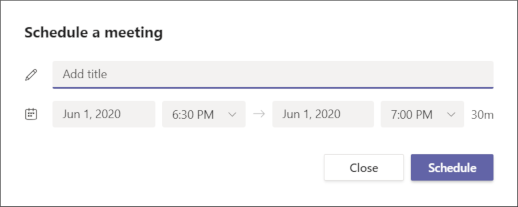
To schedule a meeting, head over to Meetings on the left side of Teams, then select Schedule a meeting.

Now you will have to choose a title and select a range of time in the calendar on the next screen. Once you fill out these details, click Schedule. Now you will see a couple of options to share the invite with other people. You can either use Outlook or Google Calendar or simply copy the meeting invitation and share it with others by using any of your preferred messaging apps.

Share your content during a meeting

In order to share your screen in a Teams meeting, you need to select the Share screen button in your meeting controls, and then you can choose between the entire desktop, a window, a PowerPoint file, or a whiteboard to present. Once you’re done, go to your meeting controls and select Stop sharing to end the presentation mode. It is important to note that you should be using Google Chrome or the latest version of Microsoft Edge to share your screen while using Teams on the web.

Chat with meeting participants

To chat with meeting participants during a meeting, go to Show conversation in your meeting controls. Once you click the button, the meeting chat window will appear on your screen, and you can type a new message or respond to other messages as usual.

Use live captions

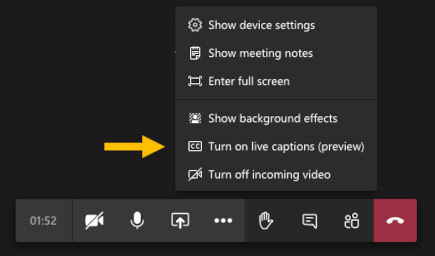
Microsoft Teams provides real-time captions to make your meeting more inclusive to participants who are deaf or hard-of-hearing. To turn on live captions in a meeting, head over to your meeting controls and select the More options button > Turn on live captions (preview).

Once you are done, you can stop live captions by selecting the Turn off live captions (preview). It should be kept in mind that Live captions are a preview feature in Microsoft Teams, and they are currently available in English (US) language.

If it’s great that Microsoft Teams is improving its free tier by making video meetings available for everyone, the company is also working on new consumer features for Microsoft Teams. Soon, Teams users will be able to add their personal Microsoft account to the app to chat with and collaborate with close friends and family.

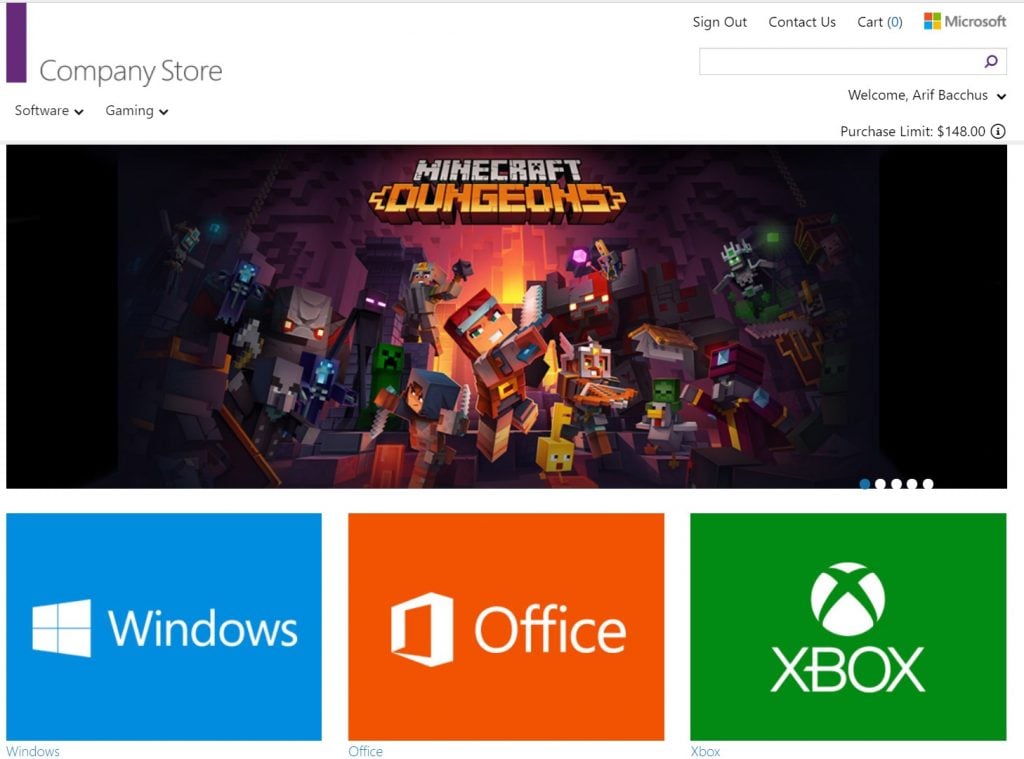
Build “attendees” in US and Canada get big discount offers on Xbox, Office, Windows from Microsoft’s Company Store

If you’re one of the many people who attended last month’s virtual Build for free, be sure to keep your eye on your email that you used to register for the conference. Microsoft is sending out invites for Build attendees to sign up to buy digital items from the Microsoft Company Store at highly discounted prices.

We received our email last night and can confirm the signup process is easy. Just click the link in the email, log in with the pre-set password, add your credit card information, and create a new password to log in again. That will give you access to some very good deals and 60-80% off all things digital for Windows, Office, and Xbox.

We noticed 1-year Microsoft 365 Personal subscriptions for $14 instead of the usual price of $70. Additionally, a Windows 10 Pro license is $40, and Windows 10 Home $24 — instead of the usual prices of $200 and $139. Even Xbox games and subscriptions are discounted.  24 months of Xbox Live Gold is $50, 12 months of Xbox Game Pass Ultimate is $90, 12 months of Xbox Live Gold is $30, and 6 months of Xbox Game Pass is $30. There also discounts on some Xbox exclusives like Forza, Halo, and more.

There is a purchase limit, though, as you can only buy up to $250 in items. The offer will also expire on August 1, 2020, so be sure to act fast.

Tips and tricks on getting the most out of your camera with Microsoft Teams

The webcam is the center of the teleconferencing and work from home experience. From switching the webcam input, disabling it entirely, or testing it before a call, there’s a lot you can do with a webcam in Teams. So, here’s a look at some tips to get the most out of it.

Switch your webcam inputs in Teams

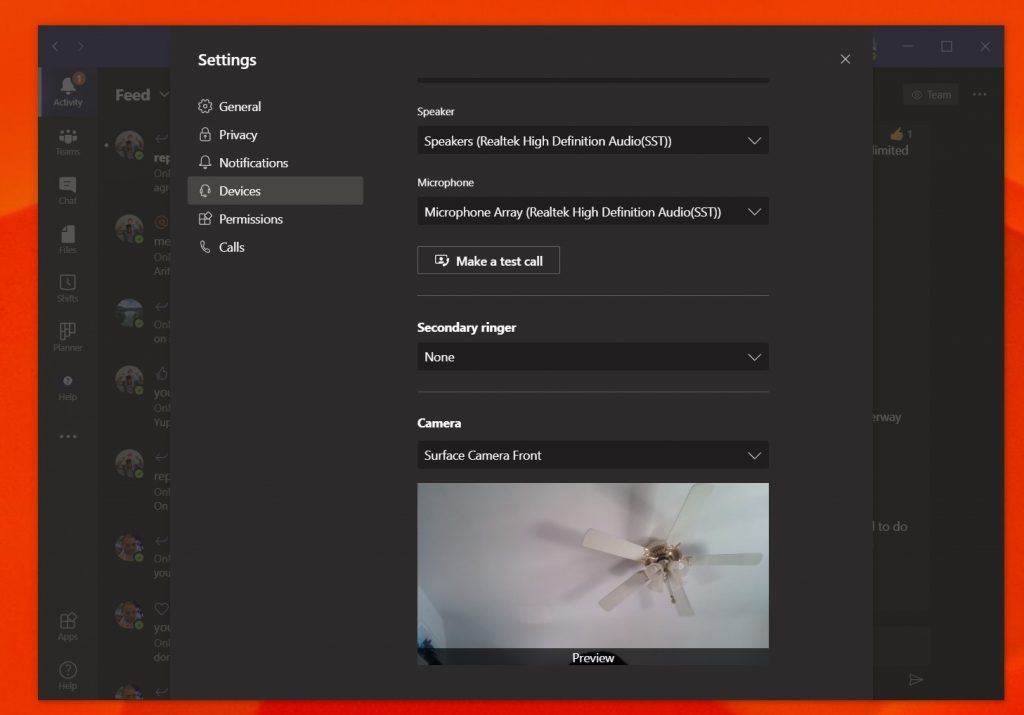
There are some situations where the webcam on your device might not be of high quality. In this case, you might want to switch your webcam over to an external one plugged into a USB port on your computer. You can do this in Teams by switching your webcam input. Here’s how.

First, click on your profile photo in the top right corner of the screen. After that, click Settings. You’ll notice that on the left side will be a section that says Devices. Click it. Under Camera, you’ll want to click the down arrow and choose your secondary camera. Teams will now use this camera as default.

Testing your webcam and audio before a call

Before jumping into a call, you might want to test your webcam and audio quality in Microsoft Teams. This is our second tip, and it’s quite easy. Just like switching your webcam inputs, all you have to do is tap your profile photo, head into Settings, and then click Devices.

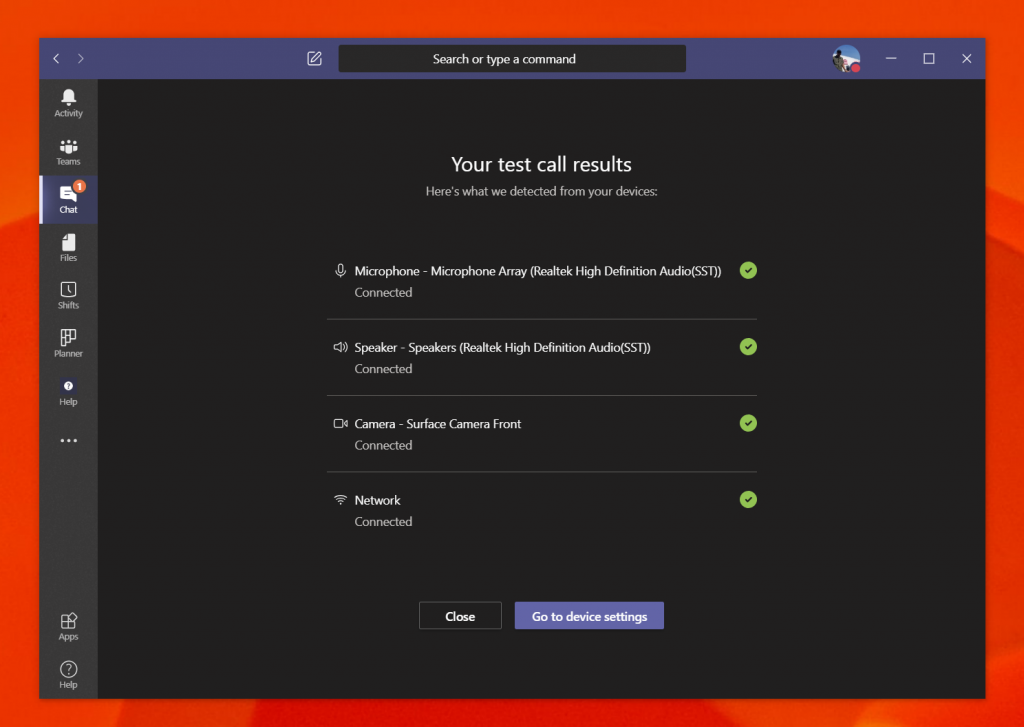
From there, you’ll see the Make a Test Call link. Click it and this will simulate a call. A voice will give you instructions. Say your message, and it will playback to you. You’ll then get a readout of how everything works. If there’s a problem, you’ll see a link to Go to device settings. Clicking it will allow you to switch your inputs as we described in the previous step to try and address any issues.

Disable your webcam in Teams

Another tip and trick in Microsoft Teams involve disabling the webcam entirely. This can be for situations where you don’t want to be seen, but still want to be heard. Here’s how to turn it off when you don’t want to use your webcam in Teams.

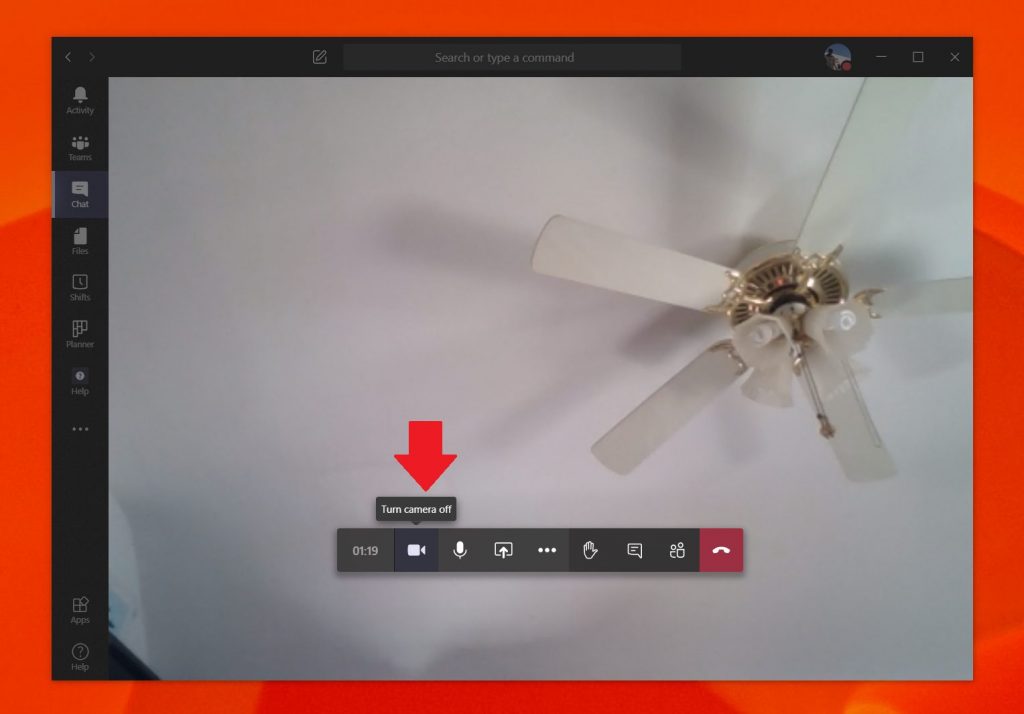
To get started, make sure you’re in a Teams call. Once you’re in the call, hover over the middle bottom part of the screen. You’ll then want to tap on the icon of the camera, next to the clock indicating how long the call has been going on. This will kill your webcam in Teams.

There’s more!

We’ve just touched on three tips you could get the most out of your webcam in Microsoft Teams. We’ve got a news hub that dives deeper into other Teams topics, such as setting your own custom backgrounds, blurring your backgrounds, and more. Check it out, and let us know if you have any tips of your own by dropping us a comment below.

Sandboxed browser: Here’s everything you need to know

Protecting your PC against online threats isn’t an easy task, but it’s easier if you’re using a sandboxed web browser.

Sandboxing is a useful security feature, and today we’re going to show you what it does and how to use it, so let’s get started.

How do I use a sandboxed browser?

1. What is a sandbox?

Sandbox is a closed-off environment in which applications and processes can run without affecting the computer or other processes.

This feature can be incredibly useful in protecting your privacy and security, so it’s no wonder that many browsers are using this feature.

2. How to use sandboxing in my browser?

Sandboxing is enabled by default in your browser, and all your web pages, plugins, and even your entire browser are running in sandbox mode.

You might have noticed multiple browser processes in Task Manager, and this is a direct result of browser sandboxing.

This is because each web page and plugin are isolated from the rest of the PC, and if malicious code was to run in one of these processes, it wouldn’t affect your PC.

Although sandboxing is available on browsers by default, that doesn’t mean that you don’t need a secure browser such as Opera One.

This browser comes with its own ad blocker so it will block all types of ads. In addition, there’s tracking protection that will block all tracking scripts and cookies and thus make your pages load faster.

Opera One also has cryptomining protection, and it will block all crypto mining scripts. For additional security, there’s a free and unlimited VPN available out of the box and native AI as well.

Overall, Opera One is a secure and solid browser, and just like many other browsers, it uses the sandboxing feature as well. So, if you need a reliable browser, you might want to try it out.

Opera One

Looking for a sandboxed browser? If you haven’t already, this might be the perfect moment to start using Opera One!
Free Download Visit website

Sandboxing is a great security feature, and while almost all browsers use it by default, it’s always a good idea to use a secure browser for extra protection.

Lenovo Chromebook Duet first impressions: A lot for a little

My first experience with Lenovo’s foray into 2-in-1 ChromeOS tablets comes at a time when the OEM has refined its hardware offerings so much that it can produce an arguably well-built device for sub $300 pricing, and where Google has built enough on top of ChromeOS to offer a decent desktop experience for my workflow.

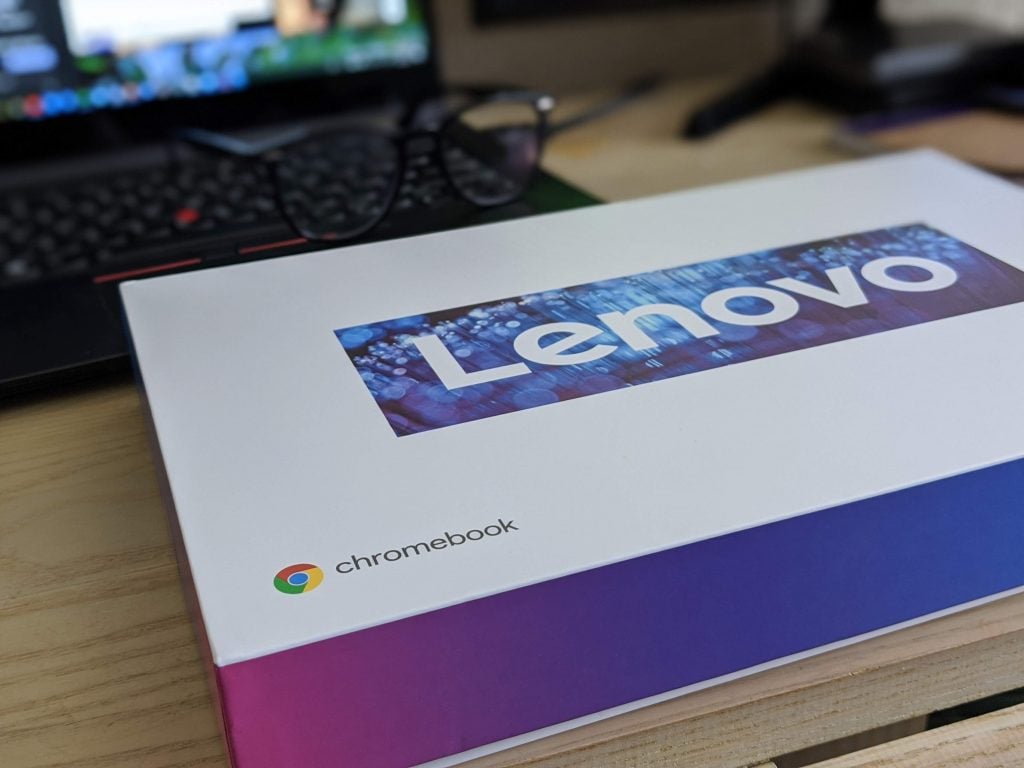
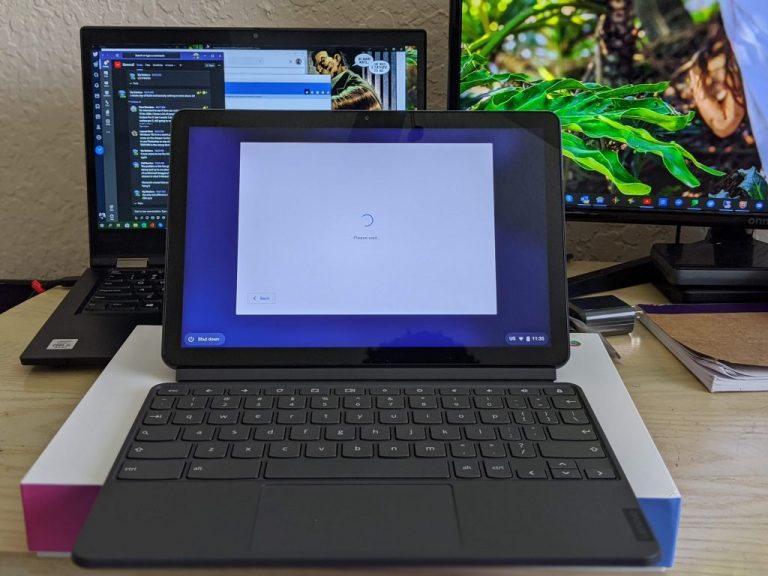
Out of the box, the Lenovo’s Chromebook Duet comes with all the trimmings needed, albeit a piecemeal approach, but appreciated none the less. Customers get the 10-inch tablet as well as magnetic back cover that doubles as an adjustable kickstand assembly and the keyboard which connects via proprietary pogo pins at the bottom of the device.

While not the best judge of quality, there is a certain hefty craftsmanship that comes with the Duet that feels sturdy and assuages the fears of immediate breakage or the need for delicate handling 24/7. The two-tone grey and powder blue design are also reminiscent of Google’s other Pixel devices. There is a single USB port representing the whole of the I/O offered on the device, but fortunately, Lenovo packages a USB-C to 3.5mm headphone jack adapter for most people who still don wired headphones when operating a desktop or presumptive desktop replacement.

Lastly, there is the screen which offers a crisp 1080p viewing experience with pretty decent color reproduction, while leaning on the color side of tones. I’m not a pixel peeper nor a resolution diva so it’s been a pretty uneventful time viewing YouTube, Netflix, Twitch, and other streaming cinema content on the device.

With just a few hours under my belt, the device works and feels like a charm. I haven’t fully loaded with my preferred workflow yet, just some light app downloading, web browsing, and the occasional game of Marvel Puzzle Quest and the whole package comes together quite well.

For $279, I’d say it’s a steal for anyone needing a secondary screen, especially for parents finding themselves in need of a device for homeschooling, dedicated Zoom conferencing and entertainment when all other screens are pre-occupied by family members who were usually out and about prior to COVID-19 quarantine measurements.

I’ll have more on the functional use, longevity, and whether or not ChromeOS or the processor holds the Duet back from being a no-brainer as an iPad, Surface Go 2,  Windows, or even full Chromebook replacement later as I get it fully set up and use it more regularly.

How to use Photoshop in browser

Photoshop is one of the best image editors on the market, but not everybody can afford it. You may not know, but you can use Photoshop, or at least similar alternatives, in your web browser.

In today’s article we’ll show you how to use Photoshop in your web browser, so let’s get started.

Quick Tip:
Although these web apps work in every browser, for the best performance it’s advised to use a light web browser such as Opera One.

Opera One is light on your resources, so it can handle demanding tasks such as photo editing with ease, and this can be handled even easier via specialized extensions like Edit with Adobe Photoshop.

The browser is based on Chromium engine, and it’s quite similar to Chrome and it even works with Chrome extensions. Opera One also has its own Ad blocker, VPN and AI.

Opera One

Need a light and powerful web browser that can handle a load of editing images via Photoshop? The Opera One is the way to go
Free Download Visit website

How do I use Photoshop in the browser?

1. Photopea

Photopea photoshop browser


Photopea is an online alternative to Photoshop, and it has almost all the basic features of Photoshop available.

All tools and image adjustment features are there, as well as effects, and the interface of Photopea is designed to strongly resemble Photoshop.

Overall, it’s a great online alternative that you should try out.

2. Pixlr E

Pixlr E Photoshop browser


Pixlr E is another great alternative to Photoshop that you can use right from your web browser. The app has a flat and slick design and it looks similar to Photoshop.

As for the features, most image editing tools are available so you can adjust your images as you like. It’s worth mentioning that certain effects are missing as well as the Pen Tool from Photoshop.

Other important features are all there, so you might as well give Pixlr E a try.

Although there’s no official online version of Photoshop, there are great alternatives available, and we hope you’ll give them a try after reading this article.

I2P Browser: Everything you need to know about it

Protecting your privacy online is important, and one way to do it is to use a secure browser.

Many users are using I2P Browser for this purpose, so today we’re going to show you what this browser is and what it can do.

What is I2P Browser and how to use it?

1. What is I2P Browser?

I2P browser

I2P is a software bundle that allows you to easily use I2P applications and browse I2P websites. The application is simple to use and it’s optimized for new users that don’t have much experience with I2P.

I2P Browser has various security enhancements that will protect your privacy. The browser will block third-party trackers and protect your privacy online.

There’s also support for private P2P file-sharing thanks to the integrated I2PSnark BitTorrent client. The browser also allows you access to private email addresses which might come in handy.

Although I2P Browser offers some great features, its development is currently on hold, and the current version of I2P Browser isn’t up to date and it’s considered unsafe to use.

⇒ Get I2P Browser

2. What are I2P Browser alternatives?

If you’re looking for a good I2P Browser alternative, Opera One might be a good choice. The browser has its own tracking protection, so it will block tracking cookies and scripts and improve webpage loading time.

Opera One also has a built-in ad blocker so you won’t have to deal with ads, as well as cryptojacking protection. For an additional layer of security, there’s a free VPN with unlimited bandwidth available.

The browser also has a Crypto Wallet, so it can work with cryptocurrencies out of the box. As for additional features, Opera One has a personalized news feed and a native AI.

There’s also advanced tab management and the ability to organize tabs into workspaces. Opera One is available on all major platforms, so if you need a secure and reliable web browser, feel free to try it out.

Opera One

If you’re looking for a web browser that balances privacy and security with a stable user base, then look no further than Opera One.
Free Download Visit website

I2P Browser is an interesting project, but since the browser is currently out of development, we suggest that you stick to more reliable browsers.

What is unsecapp.exe? Find out now

Knowing what programs run on your PC in the background can help you free up CPU space, and can even let you detect unwanted programs.

For example, maybe you have stumbled upon a process called unsecapp.exe in your Task Manager, and you’re thinking about what it is, and if it needs removing.

The short answer would be that you do not need to remove it. For more details on what exactly is unsecapp.exe, check out this detailed article we have written just for you.

What is unsecapp.exe?

First of all, you need to know what UnSeCApp stands for:

  •  Universal Sink to Receive Callbacks from Applications

Unsecap.exe is a part of the Microsoft Windows OS, and its main purpose is to synchronize information between the system and a remote computer.

This makes it part of the Windows Management Instrumentation (WMI) component of the OS.

Among other things, it allows scripting languages such as Windows PowerShell and VBScript to manage Microsoft Windows servers and personal computers locally and remotely.

Once activated, unsecapp.exe starts a process known as Sink to receive asynchronous callbacks for WMI client application.

This process belongs either to the Microsoft Windows Operating System or AVG Internet Security System.

How do I detect suspicious variants of unsecapp.exe?

Since the file end with EXE, it means that it is an executable file. This makes some wonder whether or not it may be a virus since many EXE files cand hide viruses.

Certain virus developers take advantage of the fact that unsecapp.exe is seen as an exception, and will sometimes rename their files as such.

There are several factors that will give you a hint that the unsecapp.exe is actually a virus variant. Here are a few of them:

  • Unsecapp.exe is located in a subfolder of C:Windows or C:Program Files
  • The program has no visible window
  • The file is not a Windows core file
  • There is no file information
  • The file is located in the Windows folder, but it is not a Windows core file.
  • The application uses ports to connect to or from a LAN or the Internet.
  • Unsecapp.exe is able to monitor applications and manipulate other programs.

If unsecapp.exe meets any of the above-mentioned criteria, then you are dealing with a virus, and need to take immediate action.

How do I remove a unsecapp.exe virus?

The best solution is to get a very good antivirus program and make sure that it is constantly updated.

This will get rid of any unsecapp.exe viruses in no time, and you will be able to resume your work without any further issues.

If you are looking for a good antivirus for your business, check out our top picks.

If you want to learn more about certain Windows processes and how they work, let us know in the comment section below.

[wl_navigator]

Windows 10 build 19640 updates your PC login logic

The much-anticipated Windows 10 May Update went live just the other day. You can even download it now if you haven’t already. Microsoft isn’t resting though, as the company has just released Windows 10 build 19640.

The latest update is available to Windows insiders in the Fast ring. Apart from that, it brings only two changes.

One is a Downloads folder update, while the other improves your login logic. The build doesn’t bear any fixes.

Windows 10 build 19640 improvements

It appears that insiders had raised concerns about the way Storage Sense deletes files in any Downloads folder synced to a cloud service. According to build 19640 release notes, the disk cleanup tool will no longer offer the option to automatically remove downloaded files from the folder on a cycle.

  • Based on feedback, if your Downloads folder is synced to a cloud provider, we are disabling the option to have Storage Sense automatically clear out your Downloads folder on a cycle.
  • We updated our login logic, so if your PC is set up so you need to type in your username when logging in, accidentally starting your username with a space will no longer result in an error.

Storage Sense is still a work in progress, so it’s good to see Microsoft improving it step by step. The app should succeed the Windows Disk Cleanup tool, which hasn’t been getting a lot of love from the Redmond-based company lately.

On the other hand, the login update is more of a quality of life boost than a mission-critical functional enhancement. It makes sense, though, since anyone can mistype their username by including a space before it.

It seems that, if you make that mistake while signing in, the new authentication logic will quietly remove the space. Obviously, you’ll still get an error if you have a space between any characters in your username!

If you’re a Fast ring insider, have you downloaded Windows 10 build 19640 yet? Feel free let us know how the update pans out in the comments section below.

[wl_navigator]

Download Office 2016 bug fixes for VBA, OneNote, and more

It appears that multiple bugs affected several Office 2016 apps recently, forcing Microsoft to issue fixes for each. The latest Office 2016 updates address numerous inconveniences affecting app end-users and developers in equal measure.

MS Excel and PowerPoint are some of the latest to receive updates that patch a crash problem among other issues. A solution for Outlook’s intermittent crashing bug is also available.

Multiple fixes that Office 2016 updates bring

This article covers updates Microsoft shipped recently for Microsoft Office 2016 tools like Visual Basic Applications (VBA) and OneNote.

KB4484335 for VBA projects

The update fixes a problem causing loading failure in certain VBA projects. The bug affected projects with references to components in a file path with DBCS characters.

File names with DBCS characters also caused the same concern.

KB4484171 for Office 2016

Download this update to fix a bug impacting the loading of files that contain charts. Its release notes describe the bug as follows:

When you load a file with a chart where the axis contains both a Display units setting and a manual crossing point, the crossing point is multiplied by the Display units at load time. This causes the CrossesAt value to increase on every load.

KB4484394 for Office 2016

This fix is useful to developers that get an error when retrieving data from MS Office apps into SQL Server by leveraging SQL Server Integration Services (SSIS).

In addition, the patch addresses a problem interfering with the Power BI-driven retrieval of data from Office apps.

KB4484329 for OneNote 2016

If you’re a tenant administrator, KB4484329 should interest you. It lets users with your privileges make temporary changes to multiple synchronization intervals in OneNote for Windows.

To apply the latest app performance improvements, you may head on over to OneNote Group Policy settings.

There you have it! Don’t forget that the above are all non-security updates you can download now for your Office 2016 applications.

Have you recently encountered any errors while using an Office 2016 tool? Feel free to let us know in the comments section below.

[wl_navigator]

Office 2016 gets stability update to fix MS Excel crash bugs

Microsoft Excel hasn’t lost its traditional role as the leading spreadsheet software for manipulating predominantly numeric data. But those of you that have used it for long know that the Windows 10 application can crash for all manner of reasons, from an update that went wrong to a printing or processing bug.

Well, update KB4484392 for Office 2016 addresses an issue that causes Excel crashes. Also, it adds printer DPI support for when you’re pasting Windows Metafile (WMF) files.

Office 2016 update solves MS Excel crashes and more

The VSTO fix

KB4484392 addresses a crash problem that impacted users of Visual Studio Tools for Office (VSTO).

Microsoft describes the problem as follows:

  • You have a VSTO Add-in that calls ApplicationFactory.GetVstoObject.
  • You add a shape to a workbook and save the workbook as .zip format.
  • You add a noSelect property through setting <a:spLocks noSelect=”1″ /> in a drawing xml file.
  • You load the add-in in Excel, and then open the workbook.

In this situation, Excel crashes.

WMF pasting

Update KB4484392 includes a printer dots per inch (DPI) improvement. It now lets you use DPI when you’re pasting WMF or Enhanced Metafile (EMF) to enhance text spacing.

The added DPI support is optional, even though it’s enabled by default. To disable it, navigate to HKEY_CURRENT_USERSoftwareMicrosoftOffice16.0Common. Then, assign 0 to the EnableMetafileReferenceDevice registry key.

Visio files with EMF graphics

If you cropped EMF graphics to fit on a Visio file, you’d get blurry printouts. This issue is no more with the update Office 2016 just received. However, the fix is optional in the sense that you can disable it.

Cropped EMF shapes

A bug would crop the sides, bottom, or top of copy-pasted EMF shapes.

PowerPoint 2016 issues

If you copied formatted text from MS Excel to PowerPoint, you’d lose the formatting. This bug is no more.

Also fixed is an issue that caused PowerPoint 2016 to crash. The problem occurred if, when working with the Segmented Process SmartArt, the user pushed backspace multiple times to remove the node.

Have you got any MS Excel or PowerPoint experiences you’d like to share? Feel free to leave any recommendations or questions in the comments section below.

[wl_navigator]

How to copy/paste clipboard data from one device to another

Everybody uses Copy and Paste on a regular basis on their PC. It’s the main way to transport text, links, pictures, files, etc. from one place to another on your computer.

Most people, however, only paste the last thing that copied.

Well, not only you can also paste something you copied an hour or more ago, but if you are logged into the same Microsoft account, you can even paste it to another Windows 10 device.

How can I copy and paste data across devices?

  1. Start Clipboard settings by typing clipboard settings in the Windows Search and clicking on it from the results.how to start clipboard settings
  2. Turn on Clipboard History and Sync across devices by clicking on the corresponding buttons. Below, you will see that by default, the clipboard is set to Automatically sync the text that I copy.how to turn on clipboard features
  3. Now, to see the history of what you copied before, just press the Windows key + V. It’s easy to remember as the paste shortcut is Ctrl + C.Clipboard history
  4. The beauty of all this is that now you can go to any other computer, log in to your Microsoft account, start the Clipboard History like you did in the previous steps and use the same items you copied on another device.

How can I clear all the items from the clipboard?

  1. Press the Windows key + V
  2. Click on any of the three horizontal dots and select Clear all.how to clear copied items
  3. In the same way, if you want to keep a copied item, you have to select Pin instead of Clear all.

Even if you will not use the clipboard on another WIndows 10 device, this feature is still extremely useful if you want to copy more items and pasting them later.

Have you tried using the clipboard history? What do you think about it? Leave a comment below.

[wl_navigator]

WoW Packet Loss: What Is It and How to Fix It?

World of Warcraft, or just WoW for friends, is a game that needs no introduction. Or shouldn’t. It goes way back to its launch in 2004 and has grown a lot since then. Well, technically. Most players are not exactly impressed by the latest expansions.

But the reason why we’re talking about WoW is not its awesomeness. Not by far. It’s because sometimes, like any other massively multiplayer online role-playing game (MMORPG), WoW faces a series of challenges.

We’re talking about the usual suspects: high ping, jitter, connection timeouts, and even packet loss if you’re unlucky. However, most of these issues arise due to network congestion.

If that’s the case, there’s little you can do to improve your situation other than waiting. As such, playing when the networks are the least loaded seems to give the best results.

On the other hand, sometimes network congestion isn’t the culprit. So who’s to blame in that situation? That’s exactly what you’re going to find out in the following few sections.

What does packet loss in WoW look like?

In WoW, packet loss looks almost the same as in any other game or program.

Therefore, your character moves slower, if at all, and interacting with the menus is delayed, you might even rubberband now and then, and if you’re truly unlucky, you can get kicked out of the server.

If any of the above has ever happened to you, you might’ve experienced packet loss. The good news is that most of the time, this situation fixes itself. The bad news is that most of the time, this situation fixes itself. Get it?

However, waiting shouldn’t be your default course of action, even though it has a high success rate.

What is a normal packet loss for WoW?

If you’re tech-savvy, you might understand that losing packets is perfectly natural. However, losing too many regularly is when things start getting out of hand.

So what is a normal packet loss for World of Warcraft? Ideally, it should be none. But realistically speaking, any value less than 1% can be deemed as good.

If this percentage goes up, you’ll start noticing anomalies in the game, such as slowdowns, sluggish movement, and such.

How to check packet loss in WoW?

Hit the Win key on your keyboard

  1. Type CMD and right-click it once it’s visible
  2. Select Run as Administrator
  3. Go to the Battle.net website for the IP addresses
  4. Select World of Warcraft from the menuServer IP address Battle.net
  5. Check the server’s IP address for the region you’re interested in and note it
  6. Type the pathping x.x.x.x command in your CMD prompt (replace x.x.x.x with the IP you’ve noted above)Packet loss analysis Windows with tracert and pathping
  7. Wait for it to complete

Check the hops for high ping values. If any hops yield high ping values, you might have a packet loss issue. You can check our comprehensive guide to learn more about packet loss and how to detect it effortlessly.

How to fix WoW packet loss?

1. Use a VPN

  1. Download Express VPN and deploy it on your PC.expressvpn subscription page
  2. Launch it and log into your account.
  3. Connect to a server you prefer.
  4. Launch WoW.
  5. Check if you’re still having packet loss issues.

ExpressVPn is a great VPN tool that can help you secure your connection, keep it private, bypass geo-restrictions, and curb issues such as ISP throttling or packet loss.

Express VPN

Don’t let connection issues ruin your gaming time with this professional VPN.
Check Price Visit Website

But in order for this fix to work the packet loss must be triggered by the ISP. Thus, using a VPN won’t fix packet loss if it occurs on your side or if it’s the WoW game server’s fault.

2. Troubleshoot the connection and isolate the problem

  1. Run the packet loss test as we’ve explained above
  2. Determine which hop has the highest ping value
  3. Take action according to your findings

There are four different locations where packet leaks might occur. Namely:

  • Your home network, including your PC, router, home line, and even Ethernet cables
  • The ISP’s network
  • Network distribution company’s connection (the one that’s above your ISP)
  • WoW game servers

Therefore, depending on the packet loss location you discover, you can take different actions. For instance:

  • Check your side of the connection thoroughly (your PC, cables, home line, and router)
  • Contact your ISP if the problem seems to occur on one of their hops
  • Ask your ISP to contact the big network distribution company
  • Contact Blizzard and ask them nicely to look into the issue if their servers trigger packet loss

That’s about it. Yes, we know that it’s somewhat complicated and that it’s not the double-click fix you’ve been expecting. However, if you’re not okay with just waiting for the packet loss storm to pass, these are great potential ways to fix it.

WoW might lose packets, but it’s not the end of the world

Long story short, it’s perfectly fine for you to lose packets while playing WoW every now and then. It happens all the time, and if it doesn’t last long or happens frequently, waiting for the issue to fix itself can be the best course of action.

However, sometimes there might be underlying issues that trigger the problem, and that’s when you should step in. Other errors like wow51900328 are server-side related so check the server status.

Ranging from changing your Ethernet cable, using a VPN, and switching to a wired connection to calling your ISP and contacting Blizzard, there are plenty of fixes you could try out before calling it a day.

Latest Microsoft Outlook update fixes intermittent crash bug

Microsoft Outlook changed the way people collaborate on emails, workflows, and things like to-do lists. Its transformation isn’t over yet, based on related Microsoft pronouncements during the Build 2020 event.

For example, the application will be getting the futuristic Fluid components Microsoft has been talking about for some time now.

In the meantime, the company released update KB4484398 for Outlook 2016 to fix and enhance the app in multiple ways.

Microsoft Outlook update addresses intermittent crash issues

Soon, you shouldn’t be experiencing too many irregular Outlook crashes. That’s because update KB4484398 fixes the bug.

While, Outlook shared folders have also improved collaborations in the office, a bug would cause them to disappear from the Favorites list. This problem reared its ugly head when the user launched Outlook in Offline mode.

If you’re one of the affected users, worry no more since Microsoft has addressed the issue.

Likewise, KB4484398 improves the behavior of Outlook after you save an attachment in an email message. From now on, the Outlook will not be removing the folder you saved the attachment in until you close the app.

There’s also an update for the way the Japanese version of Microsoft Outlook translates the Chinese holiday Winter Solice.

Improves Japanese translation for the Chinese holiday ‘Winter Solstice’ in the Japanese version of Outlook. If the Chinese holidays were previously added to your Outlook Desktop calendar, delete the existing events before applying this update. For more information about deleting holidays, see Add holidays to your calendar in Outlook for Windows.

There are two ways to get and install KB4484398 files, one of them being Microsoft Update. You may also go to the Download Center for a manual download.

What are your thoughts on the latest Microsoft Outlook fixes and improvements? You can always leave your feedback in the comments section below.

[wl_navigator]