Error Rangecheck Offending Command Image: 3 Ways to Fix

When trying to print a document on a PostScript printer, you may encounter Error rangecheck offending command image error.

If the printer is in error state, it won’t be able to handle tasks properly, so it’s important to fix it, and this guide will show you how to do it.

What does error Rangecheck mean?

  • This is a generic error message and it occurs when RIP tries to process a too small or large value.
  • Usually, the issue is caused by PageMaker 6.5.
  • A long file path or wrong paper size can also cause this error message.

How do I fix printer error rangecheck offending command?

1. Change the printer driver

  1. Press Windows Key + R to open Run.
  2. Type control and click OK.

  3. In the Control Panel window, click on Hardware and Sound.
  4. Open Devices and Printers.
  5. Right-click on your printer from the list of installed printers.
  6. Select Printer properties from the context menu.
    printer error rangechcek offending command
  7. Select the Option tab.
  8. Expand Devices Options.
  9. Under Configuration, click the drop-down menu and select your printer model.
  10. Click Apply and OK to save the changes.

For Global print driver Postscript

  1. Open Control Panel.
  2. Go to Hardware and Sound > Devices and Printers.
  3. Right-click on your printer and select Printer Properties.
  4. Open the Administration tab.
  5. Expand the Configuration option.
  6. Under Configuration, select the Correct Model of the printer.
  7. Click Apply and OK to save the changes.
  8. Restart the printer and give a print job. Check if the error is resolved.

2. Change GDP from PS to PCL6

  1. Click Start and select Settings.
  2. Go to Devices.
  3. Select Printers and Scanners.
  4. Scroll down and select your printer.
    printer error rangechcek offending command
  5. Click the Remove device button. Click Yes to confirm the action.

2.1 Uninstall drivers

  1. Press the Windows key and type control.
  2. Click and open Control Panel. 
  3. Go to Hardware and Sound > Devices and Printers.
  4. Select your printer and click on Printer server properties.
    printer error rangechcek offending command
  5. Open the Drivers tab.
  6. Under installed printer drivers select your printer.
  7. Click the Remove button. Click Yes to confirm the action.

2.2 Download PSL6 driver

  1. If you are using an HP printer, go to the HP software and drivers section.
  2. Download the PCL6 universal print driver for Windows.
  3. Install the driver and then readd the printer from settings.

After doing that, check if Error rangecheck offending command image is gone.

3. Other solutions to try

Check if the Page or flat is too large

  • This error can occur if you are trying to print a page that is too large for the imagesetter or CtP device.
  • If your printer does not support explicit paper tray selection, it may generate rangecheck error if a wrong cassette is selected.

Check if the path is too long

  • Long path names of embedded images can also cause the rangecheck errors.
  • If your images have long names, try shortening the names for folders.

The Error rangecheck offending command image can occur due to bad Postscript code or if the Postscript drivers are not compatible with the print job.

This isn’t the only issue you can encounter, and many reported Printer error has occurred message, but we already covered that issue in a separate guide.

If any of our methods helped you, or if you know of another one we may have skipped, let us know by leaving us a message in the comments section below.

FIX: Pending deletion printer error

If the printer has multiple print jobs in the queue, it may show a pending deletion printer error, documents waiting error in the print box on the status line.

Several users have reported similar errors in the Microsoft community forum.

Have just one HP 4L printer, but is appearing on my printer list twice,4Land4L Copy 1.
The 4L Copy 1, has 5 documents in its queue, but its status is : Offline – Pending deletion. (What does pending deletion mean?)

If you are also troubled by this error, here are a couple of troubleshooting tips to help you resolve the pending deletion printer error in Windows.

How to resolve pending deletion printer error?

1. Remove the print queue

pending deletion printer error
  1. Press Windows Key + R to open Run.
  2. Type services.msc and click OK to open Services.
    • The UAC may ask you to provide admin access. Click Yes to proceed.
  3. In the Services window, look for Print Spooler service.
  4. Right-click on Print Spooler and select Properties.
    pending deletion printer error
  5. In the properties window, click the Stop button under Service status.
  6. Next, open the File Explorer and navigate to the following location:
    • C:\Windows\System32\Spool\printers
  7. You may require admin access to access the Printers folder.
  8. Delete all the jobs inside the Printers folder.
  9. In the Printer Spooler Properties window, click the Start button and close the Service window.
  10. Restart the computer.
  11. Give a print job and check if the error is resolved.

2. Run printer troubleshooter

pending deletion printer error
  1. Click Start and select Settings.
  2. Go to Update and Security.
  3. From the left pane, click on the Troubleshoot tab.
  4. Scroll down and click on Printer.
  5. Click the Run the troubleshooter button.
  6. Follow on-screen instructions to troubleshoot issues with the printer.
  7. Apply any fixes recommended by the troubleshooter and check for any improvements.

3. Reinstall printer drivers

pending deletion printer error
  1. Press Windows Key + R to open Run.
  2. Type control and click OK.
  3. In the Control Panel window, open Hardware and Sound.
  4. Click on Devices and Printers.
  5. Right-click on your Printer and select Properties.
  6. Open the Hardware tab and click the Properties button.
  7. Open the Driver tab and click the Uninstall button.
  8. Close the Properties window and restart the computer.
    • Upon restart, Windows will reinstall the driver, and that should resolve any issues with the printer.

A computer cannot manage video cards, computer programs, sound cards, or other hardware; they must be managed by a driver. If you are completely familiar with the drivers your PC requires, you can update them manually.

If you don’t have time to search for the best driver, an alternative is to use a driver updater tool, which can detect obsolete, missing, or corrupted drivers.

This type of tool, such as Fortect Driver Updater, not only downloads and installs drivers, but also manages them by troubleshooting, backing up, and restoring them. Try it out for yourself and see how easily it flows.

⇒ Get Fortect Driver Updater

4. Remove the printer

Printer queue error
  1. Click on Start and select Settings.
  2. Click on Devices.
  3. Select Printers and Scanner from the left pane.
  4. Scroll down and select your printer from the list.
  5. Click the Remove device button.
  6. Click Yes to confirm the action.

4.1 Add the printer

Printer queue error
  1. Click Start and select Settings.
  2. Go to Devices > Printers and Scanners.
  3. Under Add printers and scanners, click on Add a printer or scanner button.
  4. Follow on-screen instructions to add the printer.
  5. If the printer is added successfully, try giving a print job and check if the error is resolved.

If the issue persists, go to Start > Settings > Update and Security. Download and install pending Windows updates to download additional drivers for the printer.

The pending deletion printer error is a common problem that can be resolved by restarting the Print Spooler service. However, if the issue persists, follow other steps in this article to get your printer working again in no time.

If you found our article useful, let us know which method worked best for you by leaving your feedback in the comments section below.

Fix: Disney Plus is not continuing from where you left off

The battle for streaming dominance has gotten bigger as Disney Plus stepped in. Considering the impressive library, it was surprising to see it without a Continue watching feature for tracking progress.

Disney Plus had a bumpy start, with many users reporting difficulty logging into their accounts, completing payment or watching The Mandalorian. One of the company’s first moves to address these issues was to remove certain features, the Continue watching list being one of them.

Subscribers were disappointed by this major shortcoming and started a flood of support inquiries to customer service. Disney Plus is not continuing shows and movies where you left off either?

If you left a series, you would have to either watch it again from the very beginning or manually figure out the moment you stopped watching. Worry no longer about this inconvenience since Disney corrected that.

It eventually added back the ability to track your viewing progress into its platform. You just need to know where to look for in order to easily pick up a movie or show for watching it later.

Where is my Continue Watching on Disney Plus?

Continue Watching on Disney Plus

Continue Watching on Disney Plus

Quickly jumping back into a movie or show without digging through menus is possible thanks to the Continue Watching feature.

In the Disney Plus interface, Continue Watching finally shows up as a row on the main screen. This displays all your most recently viewed selections. Even more, there’s also a Resume button on individual show and movie pages.

You may use it to easily restart the film or episode at the point where you last stopped watching. If you still can’t see the Continue Watching feature on your end, it’s just a matter of waiting. Don’t panic, it’ll probably appear shortly.

Moreover, Disney still needs to iron out these bugs. It’s a recently launched service, so it’s bound to glitches and features working with a certain inconsistency. Despite these few hiccups, the feature is meant to work across platforms.

If you play pause on your favorite show on a mobile phone, you will able to resume playback on your connected TV device or PC with ease. Just give it a try and confirm that it works or take a closer at some effective ways to address playback issues in the browser.

With these being said, the addition of a Continue Watching feature should finally allow you to easily keep track of what show you were interested in and where exactly you left off in a rewatch of one of those amazing TV episodes from your childhood.

READ NEXT:

Microsoft updates Broadband Initiative progress – problem is “even bigger than we imagined”

Back in 2017, Microsoft launched an initiative to bring broadband connectivity to the more rural parts of the world, starting first in select US regions with the eventual goal of deploying its efforts to three million people in underserved areas within the United States by 2022. Roughly two years into the project, Microsoft is reporting that the company has reached 50% viability of its goal but notes that “one thing we have learned is that the problem is even bigger than we imagined.”

Far from throwing up its hands and calling it a day, Microsoft acknowledges that the broadband gap between more rural parts of the United States versus the more metropolitan areas presents a unique challenge but ultimately a solvable one.

According to the Federal Communications Commission’s (FCC)2019 broadband report, more than 21 million people in America, nearly 17 million of who live in rural communities, don’t have access to broadband. 

Part of the issue facing Microsoft in its efforts to expand broadband access are the numbers being reported. According to a recent study published by BroadbandNow, the number of unserved people may look to be almost double the currently reported states. The lack of access to broadband connectivity exceeds 42 million Americans with a majority living in the more rural parts of the country, furthermore, Microsoft’s own internal research finds that over 157.3 million people in the US aren’t utilizing internet access at broadband speeds.

As we’ve said from the start of the initiative, without accurate data we cannot fully understand the broadband gap. You cannot solve a problem youdon’t understand.More accurate data will help deploy broadband in the places its needed. 

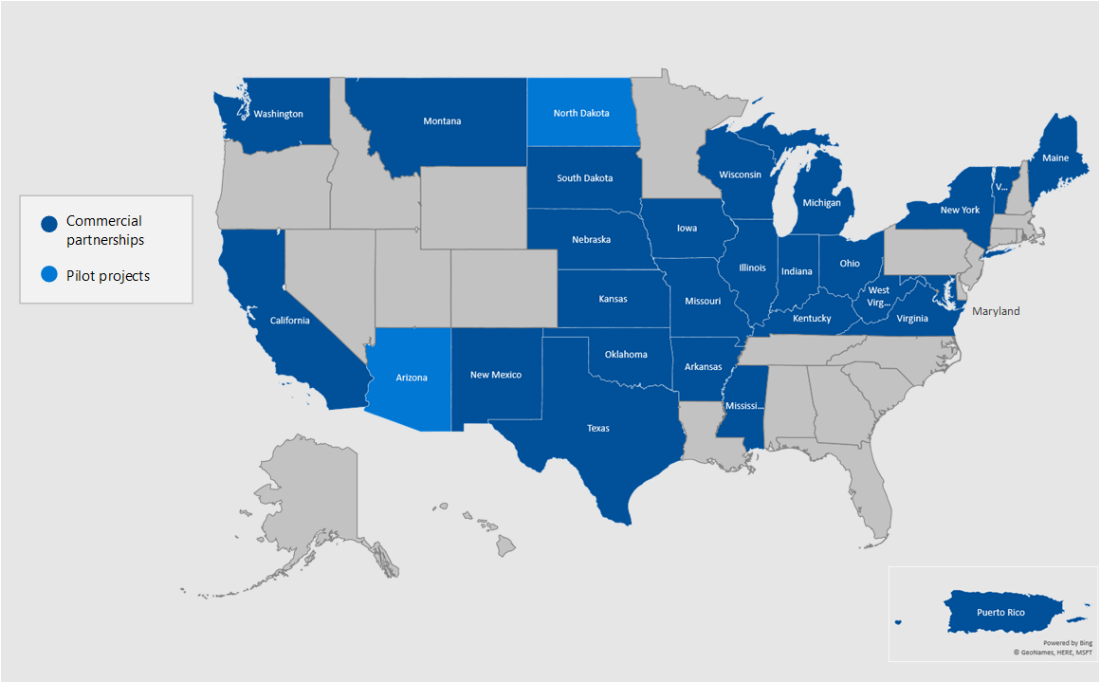
While waiting to get a handle on the exact number of people who do not have access to or are not utilizing broadband speeds, Microsoft continues its project and is now reporting that its white noise utilization is up and running in “25 states and one territory, and staging pilot programs in two additional states.” On top of their spreading presence in the United States, Microsoft’s broadband efforts have touched 633,000 people who previously were underserved by their previous internet access. According to Microsoft’s numbers, the 633,000 best the company’s expansion in 2018 where it managed to only serve 24,000 people. Microsoft plans an accelerated reach of its broadband project by leveraging its partner’s network deployments such as Wisper Internet to its 1 million customers across six states, Watch Communications to 860,000 users, and Sacred Wind Communications 47,000 people off the Navajo lands.

Aside from leveraging a growing list of telecommunications partners, another factor to Microsoft’s enthusiasm about expanding its efforts and potentially exceeding its goals comes by way of lowered connectivity costs through TV white spaces devices in general. TVWS connectivity technology prices have dropped YoY by 50% while simultaneously increasing broadband speeds by 10 times as much as before. While not a cure-all for the many issues ravaging ecosystems in rural America, Microsoft is hoping that connectivity will assist its other endeavors such as its TechSpark program, digital skills, and telehealth initiatives to boost job creation and employment in the areas.

Microsoft listed this particular update as an “Annual Updated” so we can presume we’ll get another update this time in 2021 where the company’s numbers have once again risen across the board, meaning the access to information is further democratized in the U.S.

Studio behind Xbox’s hit Dance Central franchise announce new music festival game for Xbox One consoles

Harmonix, the studio behind the popular Dance Central Kinect games on Xbox 360 and Xbox One, is teaming up with NCSoft to release a new music festival title.

Named Fuser, this new game tasks the player with mixing over 100 songs together by blending blend vocals, bass lines, beats and riffs from different tracks. It actually sounds very similar to the Dropmix card game that Harmonix also made recently.

Fuser will support both solo and online multiplayer modes and gamers will be able to share their creations on social media.

Here’s the official announcement trailer:

No release date for Fuser has been announced yet, however, it has been stated that it’s expected to launch in Fall this year.

Are you a fan of Harmonix’s titles? Let us know in the comments below and then follow us on Pinterest and Twitter for more Xbox gaming news.

Microsoft has made official Ori and the Will of the Wisps bonsai and you could win one

To help promote the upcoming release of the Ori and the Will of the Wisps video game, Microsoft has created 10 official bonsai (see above image) based on the title and is giving each of them away to gamers.

Those interested in obtaining this limited, and pretty cool, piece of video game memorabilia can enter the giveaway by simply replying to this Facebook post with an emoji or GIF that represents their own spirit.

The competition will close on March 9th and is limited to gamers who are residents of Australia. You can read the full terms and conditions here.

Xbox Australia frequently creates cool Xbox video game merchandise for promotions with some of the more-notable examples being the Xbox Onesie and the inflatable Xbox One Controller.

Ori and the Will of the Wisps is the first sequel to the hit Ori and the Blind Forest and is due out on March 10th on both Xbox One and Windows 10. Digital pre-orders for the title are already open and it will also be available to play for Xbox Game Pass subscribers.

Are you going to play Ori and the Will of the Wisps? Do you like this bonsai? Share your thoughts with the community in the comments below and then follow us on Pinterest and Facebook for more Xbox gaming news.

Xbox One and PlayStation 4 crossplay is now live for the Black Desert video game

Crossplay is now live for Black Desert players on Xbox One and PlayStation 4 consoles. This means that gamers on each platform can now play with each other in games which should significantly boost the number of players online in the MMORPG.

Black Desert players will still be able to select console-specific servers if they want but special Conquest and Node Wars events are currently planned for cross-console servers which should entice many to try the feature out.

To help promote the game and its new crossplay functionality, Black Desert is currently free to play on Xbox One consoles until Match 10th and it’s also had its price slashed by 50% to just $14.99 for those that want to buy it.

Black Desert is the latest of many video games being given cross-console support following the likes of Minecraft, Dauntless, Fortnite, and Next Up Hero.

Do you like crossplay between Xbox One and other platforms? Let us know why or why not in the comments below and then follow us on Pinterest and Twitter for more Xbox gaming content.

Black Desert - Standard Edition

Insufficient Memory to Load Selected Printer: 4 Ways to Fix

When you try to print a document you might sometimes get Insufficient memory to load selected printer error.

If this error occurs, you won’t be able to print at all. This is quite similar to the cannot print from Excel issue that we covered recently.

Join us while we take a closer look at memory printer errors and find the best solutions to fix this issue.

How do I reset my printer memory?

  1. Turn the printer off.
  2. Disconnect the cable from the outlet.
  3. Keep it disconnected for 15 or more seconds.
  4. Connect the printer again and start it.

How can I fix Insufficient memory to load selected printer error?

1. Change the TrueType font download option

  1. Press the Windows Key + R to open Run.
  2. Type control and click OK to open the Control Panel.
  3. Click on Hardware and Sound.
  4. Click Devices and Printers.
  5. Right-click on your printer and select Properties.
    insufficient memory printer error

  6. Click on Printing Preferences.
  7. Next, click on Layout and then click Advanced.
  8. Double-click PostScript Options.
  9. Click on TrueType Font Download Options.
  10. In the True Type Font Download Option box, click Automatic.
    • If the Automatic option is already selected, select the Outline or Bitmap option.
  11. Save the changes and close the Printer Properties dialog box.
  12. Close the Control Panel and check for any improvements.

2. Reset the printer to factory settings

  1. For HP printers, from the Home screen on the Printer Control Panel, swipe until the Setup menu displays.
  2. Select the Setup icon.
  3. Scroll down and select the Service menu.
  4. Scroll down and select Restore Defaults.
  5. Select OK to confirm the action.
    insufficient memory printer error
  6. The printer will reset to factory default and restart.

2.1. Setup the printer

  1. Click on Start and select Settings.
  2. Click on Devices.
  3. From the left pane, click on Printers and Scanners.
    Memory allocation printer error

  4. Click on Add a printer and scanner.
  5. Proceed with the on-screen instructions to complete the setup process.
  6. Give a printing job and check if the error is resolved.

3. Change the printer driver

  1. Go to the HP Printer driver and software section.
  2. Download PCL5 / HP Universal Print Driver for Windows.
    Memory allocation printer error
  3. Install the drivers and check for any improvements.

If your printer is using a PCL6 driver, you may want to use PostScript or PCL5 drivers. Several users have reported that changing the printer driver has resolved the issue.

4. Uninstall and reinstall printer drivers

4.1. Remove the printer

  1. Click on Start and select Settings.
  2. Go to Devices.
  3. Select the Printers and Scanners tab from the left pane.
  4. Select your printer from the list of devices and click the Remove Device button.
    Memory allocation printer error

4.2 Uninstall printer software

  1. Click on Start and select Settings.
  2. Go to Apps.
  3. Search for your printer name or app.
  4. Select the printer software and click on Uninstall. You may have to confirm the action by clicking on Yes.
    Memory allocation printer error

This method works best when you perform a complete uninstall. That being said, a good third-party uninstaler will help you get rid of any residual data left over from uninstalls.

4.3. Remove drivers from Printer Server Properties

  1. Click on Start and select Settings.
  2. Go to Devices.
    Memory allocation printer error

  3. Scroll down to the Related settings section.
  4. Click on Printer server properties.
  5. In the new window, select the Drivers tab.
  6. Select the printer you want to remove from the list and click the Remove button.
    insufficient memory printer error
  7. In the Remove Driver And Package box, select Remove driver and driver package option.
  8. Click OK to proceed.
  9. Click Delete to confirm the action.

4.4. Install the printer and driver

  1. Download the latest version of drivers for your printer from the manufacturer’s website.
  2. Install the driver and check for any improvements.

The Insufficient memory to load selected printer error can be resolved by resetting the printer to factory default. However, if the issue persists, try using universal printer drivers or reinstalling the printer.

To learn more about printing problems such as this one, check our memory allocation failure print error guide.

Let us know which of the methods listed above worked for you by leaving us a message in the comments section below.

Ioerror Offending Command Image When Printing [Fix]

While printing a PDF document using Adobe PDF Viewer or other tools, you may encounter ioerror offending command image message.

This is a somewhat uncommon error while printing, but it can be fixed, and today we’re going to show you how to fix it.

What is an error offending command in PostScript?

  • This error is caused by corrupted or improperly imported graphics.
  • Certain graphics formats can also cause this issue to appear.

What can I do to fix Printer error ioerror offending command image?

1. Print as Image

  1. Start Adobe Acrobat Reader.
  2. Open the document you want to print.
  3. Cick on File and select Print.
  4. In the print window, select the printer that you want to use.
  5. Click the Advanced button.
  6. In the Advanced Print Setup window, check the Print As Image option.
    Printer error ioerror offending command image
  7. Click OK to save the changes.
  8. Click the Print button, and that should help you print PDF files without any errors.

2. Isolate the system-level print problem

  1. Check if the error occurs on more than one application.
  2. If the error occurs on multiple applications, the problem is most likely with your printer and not the application.
  3. To resolve the error, make sure you are using an up-to-date PostScript device driver.
  4. Make sure you have sufficient hard disk space when sending a file to a postscript interpreter especially when you print a large file.
  5. Check your printer for loose connection by unplugging and replugging the cables.
  6. Make sure the PostScript printer is compatible with the newer PostScript code.
  7. If you have an older printer, it may fail to recognize the newer PostScript code.

After doing that, check if the problem is resolved.

3. Isolate application and file-specific problems

  1. If you are using Adobe Acrobat Reader, try resetting the preference settings.
  2. Next, check if the application has any updates pending.
    Printer error ioerror offending command image
  3. Adobe Acrobat Reader comes with a built-in repair tool.
  4. Click on Help and select Repair Installation.
  5. Follow on-screen instructions to fix any installation-related issues.

3.1 Isolate the file-specific problem

  1. Open the PDF file in Microsoft Word.
  2. Click Enable Editing button on top.
  3. Click File and select Save as.
  4. Select a folder to save the file.
  5. Click the drop-down menu for Save as type and select PDF.
    Printer postscript error
  6. Click the Save button.
  7. Open the file in Acrobat Reader and check for any improvements.

The Printer error ioerror offending command image usually occurs due to printer disk problems or application-related issues. Follow the steps in this article to fix this error and get your printer working.

This issue is somewhat similar to the one we previously covered, when printer is connected but not printing, so be sure to check it out.

If you are aware of another method that lets you fix the Printer error ioerror offending command image, tell us about it in the comments section below so that other users can use it as well.

Nicole Forsgren, PhD to move from Google Cloud to new role as VP of Research & Strategy at Microsoft’s GitHub

Nicole Forsgren, a PhD, author, and former CEO of DORA (DevOps Research and Assessment, which was acquired by Google last year, is taking on a new role at Microsoft, as VP of Research and Strategy at GitHub. In a post on her blog, Forsgren describes what she’ll be doing next (after “after a short break to enjoy some naps, Diet Coke, and ice cream”):

At GitHub, I will expand and continue investigating developer happiness and productivity while also helping the industry get better, and there’s no better place to ask these questions because GitHub is truly at the heart of software development for so many communities. Here, I can bring the research closer to the tools that we use and build on the foundation of knowledge that exists while asking different questions, from different angles, and surfacing different insights. I am excited to continue talking with and learning from developers, testers, IT ops, infosec, and executives to understand their work; working with tools teams across the ecosystem to understand their challenges and what they see so we can help make things better; nerding out with researchers and makers across the industry and academia so we can partner to find interesting questions (and ways to ask and frame and think about those questions), supporting each other and collaborating on solutions.

There’s always some back and forth between big tech companies, but this looks to be a big get for Microsoft and GitHub. So far, Microsoft has been fairly hands-off with GitHub, a favorite for developer collaboration, but it’s good to see the company bring on this level of talent to move it forward.


Users can now try PowerShell 7 on Windows, macOS and Linux

When it comes to command lines, your mind will most likely go to PowerShell. This neat task automation and management framework has been with PC users since the dawn of operating systems, and it continues to evolve.

PowerShell 7 is now live

The new version is available for Windows, macOS, and Linux. It sees Microsoft moving from .NET Core 2.x to 3.1 which enables enhanced backward compatibility features with existing Windows PowerShell modules thanks to the resurrection of numerous .NET Framework APIs.

Being cross-platform compatible means that the new PowerShell version is now compatible;e with all Linux distros, including Ubuntu, OpenSUSE, Fedora, Debian and others.

In an official Microsoft post, they stated that:

If you weren’t able to use PowerShell Core 6.x in the past because of module compatibility issues, this might be the first time you get to take advantage of some of the awesome features we already delivered since we started the Core project!

What does PowerShell 7 bring to the table?

The official changelog for the new PowerShell is now available, and here are the newest features to be available to the general public:

  • Pipeline parallelization with ForEach-Object -Parallel
  • New operators:
    • Ternary operator: a ? b : c
    • Pipeline chain operators: || and &&
    • Null conditional operators: ?? and ??=
  • A simplified and dynamic error view and Get-Error cmdlet for easier investigation of errors
  • A compatibility layer that enables users to import modules in an implicit Windows PowerShell session
  • Automatic new version notifications
  • The ability to invoke DSC resources directly from PowerShell 7 (experimental)

You can get the latest version of PowerShell from GitHub where you can find the Windows, macOS and Linux versions.

What’s your take on the new features brought to PowerShell? Share your opinions with us and the other users in the comments section below.

[wl_navigator]

New report says Surface Earbuds coming this Spring, Microsoft working on new Cortana integration with Teams

According to a new report from Brand Sams at Petri.com, Microsoft could be shaking up Cortana a bit and giving it a bit of re-brand. Falling in with news about a possible Spring release for the Surface Earbuds, the report reveals that Cortana could soon be named “Microsoft 365 Assistant” and also might pick up a new integration with Teams.

Though best treated as a rumor, Sams details that Cortana is now known as “Microsoft 365 Assistant” internally at Microsoft, and believes that he “wouldn’t be surprised to see the assistant publicly rebranded as well.” In addition, the report says that Microsoft is playing with the idea of including a new Cortana-functionality in Teams. Per Sams, Teams could pick up a new look, with Cortana appearing in the search bar at the top of the window. Cortana, or the “Microsoft 365 Assistant,” could also be used in Teams for common productivity tasks such as sending files, creating chats, presenting content while in meetings, and more.

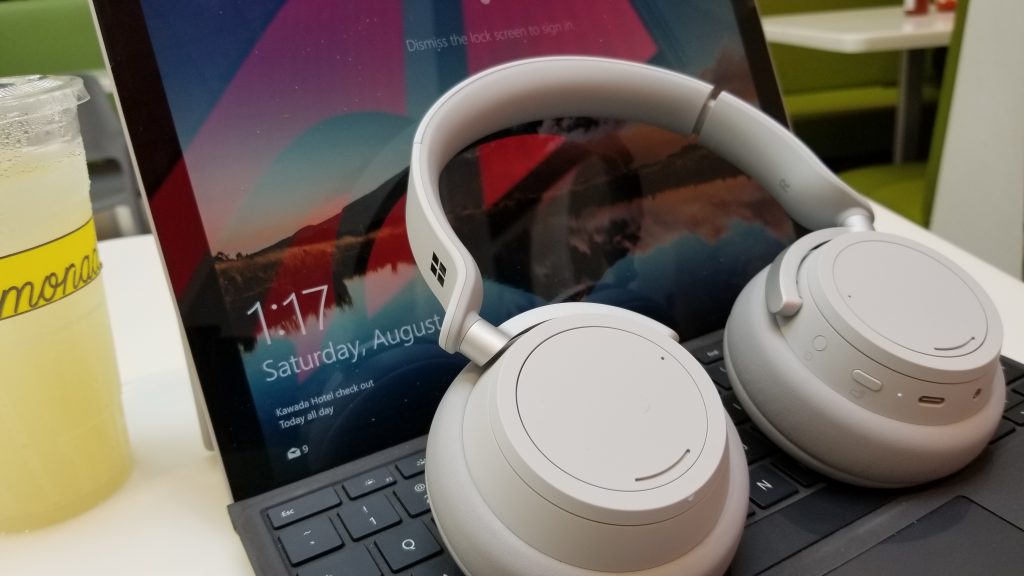
As for the news about Surface Earbuds, it is said that the reason for the delay in release was due to issues with the software, and the productivity features originally revealed by Microsoft. Additionally, the “Play my Emails” of Surface Earbuds feature might be re-branded as well to a “commute” feature, and could come to more devices than just the earbuds.

This news should not be too surprising, as Microsoft recently came out and announced that Cortana will be evolving from more of a personal assistant to a productivity assistant. Losing features like Cortana skills, it now fits in better with Office 365 and Microsoft 365, though the overall goal is still to help you achieve more with less effort.

Working from home? Here’s how to collaborate with Office 365 for remote work using more than just Teams

As the novel Coronavirus continues to spread here in the United States and across the world, many companies like Microsoft have been asking employees to work from home. That often means depending on programs like Microsoft Teams or Slack to get your work done and stay in touch with your boss and coworkers. But, did you know that you can use Office 365 for remote work with more than just Teams? In this guide, we’ll show you how.

Share your files and folders with OneDrive

When you work in an office, you can typically head over to your coworker and hand them a print-out of a file or a folder, but working from home, this isn’t something you can do. With OneDrive, however, things are easy. You can share almost anything you want with your coworkers, be it a video, document, project, or more.

To share files in OneDrive, you need to sign in to your Office 365 account, and then choose OneDrive from the Office App Launcher. You’ll then want to click the New button at the top if you want to share your files in a folder and choose Folder. You also can upload an individual file by clicking Upload. Once done, you’ll want to right-click the file and choose Share. You’ll get a pop-up box, and you can choose if you want people to edit the file or not. You also can enter in the email address to send it right away, or click Copy Link to copy the link outside to Slack or another Program. When done, your file is free to share on the web.

Collaborate on your files in Word and Excel

One of the benefits of Office 365 is the collaboration features built into programs like Word and Excel. For instance, in Word, you’re able to add comments in your document so others can reply and give you feedback. This can simulate being in a team huddle or meeting, as when the document is uploaded to a OneDrive or SharePoint multiple people can open the document at once and edit it simultaneously.

Once your file is in OneDrive or SharePoint you can add comments in Word documents.  To do so, you can go to the Review tab and choose New Comment and then type in your comment. You’ll also be able to reply to comments with Reply or delete comments by right-clicking it and choosing Delete Comment.

To comment in Excel, you can right-click the cell and then choose New Comment and then click the Post button. Your coworkers can then comment by right-clicking and choosing Reply to Comment. Additional comments can be edited by resting your cursor over the comment text and clicking Edit.  You can read more about additional collaboration features in Excel here at Microsoft.

Use the Office app on iOS and Android to unlock your mobile Office

So far we’ve kept the discussion to Office 365 on desktop, but you also can unlock more collaboration by using your phone, too. Microsoft recently released a new all-in-one Office app for iOS and Android, and it includes a number of collaboration features. Using the app on your phone, you can get a peek at documents your coworkers have edited, and much more.

When you install the app, you’ll be able to do many things that you typically do in the office. For instance, you can scan pictures and quickly transform them into full-blown documents that you and your coworkers can collaborate with. You’ll also have access to Word, Excel, and PowerPoint, too. There’s even an option to help you sign PDFs, scan to PDFs, and transfer files between your phone and your computer.

Microsoft 365 (Office)

Use OneNote 2016  together with Outlook

When you’re working from home, things can get hectic and it might be hard to stay on top of what needs to be done. Luckily, you can use OneNote 2016 together with Outlook to help boost your collaboration. Outlook alone is a great way to collaborate, as we’ve previously explained, but paired with OneNote 2016 there’s a lot you can do. For instance, you’ll be able to turn Outlook emails sent to you into notes in OneNote, and mark up the message and sent it out to your coworkers. You’ll also be able to send your virtual meetings — Skype or Teams — to your OneNote notebook and take additional notes, and even create Outlook Tasks. We previously explained that here, so give it a read to learn more.

Many more ways

We’ve just touched on a few ways you can collaborate with Office 365 when working from home. When including Microsoft Teams, there’s a lot you can do. As part of our Office 365 coverage, we’ve shown how you can chat with Skype in Office on the web, share your screen in Microsoft Teams, and boost your productivity with Teams apps. Do you have any tips on how you collaborate when working from home? Let us know in the comments below.

Microsoft listens to Xbox fans, backtracks on Xbox Game Pass Quest points values

Yesterday, we reported that Microsoft harshly degraded the points values of Xbox Game Pass quests, causing many Xbox fans (like myself) to become upset. A short 24 hours later, Microsoft has responded to the complaints of Xbox fans and has backtracked by increasing Game Pass Quests points values, although they’re still lower than the original values.

Although daily quests for logging into the Game Pass app on Mobile and playing Xbox Game Pass games are now still at 5 points, other quests that involve spending more time playing games have now increased. The value of weekly-game-specific quests has now gone up from 20 points to 50 points, and monthly-game specific quests are now valued at 75 points instead of 20 points. As the folks at True Achievements point out, that’s now a gain of 405 to 1635 points.

Other points values still remain the same and are still reduced. For instance, the bonus for earning achievements in Game Pass titles is still 10 points vs the original 50 or 25 points. Completing Adventurer, Apprentice and On the Go Quests also still remains 25 points vs the original 50.  

Either way, it’s great to see that Microsoft has listened to the feedback of gamers. Do you like the new points values? Let us know in the comments below.

FIX: Printer sending job notification error in Windows 10

One of the common issues faced by the users after upgrading to a new version of Windows is compatibility problems.

While Windows installs generic printer drivers automatically, you may still encounter a printer sending job notifications error when printing a document.

This error can occur if the printer driver is not compatible with the printer or if the printer spool service is not working correctly.

If you are also troubled by this error, here are a couple of troubleshooting tips to help you resolve printer sending job notifications error.

What to do if the printer is sending job notifications error?

1. Update USB drivers

printer sending job notification
  1. Press Windows Key + R to open Run.
  2. Type devmgmt.msc and click OK to open Devices Manager.
  3. In the Device Manager, expand Universal Serial Bus Controllers.
  4. Find your USB port driver to which the printer is connected.
  5. Right-click on the port driver and select Update Driver.
  6. In the next window select Search automatically for updated drivers software option.
  7. Windows will scan for an updated version of the driver and install it automatically.
  8. Close Device Manager and restart the printer.
  9. Try giving a print job and check for any improvements.

Try these steps if you have access to multiple computers. Connect the printer to another computer to check if the system can complete the print job without error.

1.1 Update printer driver

  1. Make sure you have installed the latest print drivers for your printer.
  2. You can download the latest version of the printer driver from the manufacturer’s website.

Alternatively, you have the option to update the printer driver or any other one using efficient support from a driver management tool such as Fortect Driver Updater.

2.  Restart Print Spooler service

printer sending job notification
  1. Press Windows Key + R to open Run.
  2. Type services.msc and click OK to open Services.
  3. In the Services window, locate the Print Spooler service.
  4. Right-click on Print Spooler and select Properties.
    printer sending job notification
  5. In the Properties window, click Stop.
    • This will stop the print queue process.
    • Keep the Print Spooler Properties window open.
  6. Open File Explorer and navigate to the following location:
    • C:\WINDOWS\system32\spool\PRINTERS
  7. Delete all the files in the Printers folder.
    • If you don’t see any files, click the View tab and check the “Hidden Items” box.
  8. Close the File Explorer window.
  9. In the Print Spooler Properties window, click the Start button to restart the service.
  10. Close the Services window and try printing again.

3. Troubleshoot printer level problem

3.1 Run printer troubleshooter

printer status error
  1. Click Start and select Settings.
  2. Go to Update and Security.
  3. Click the Troubleshooter tab.
  4. Scroll down and click on Printers.
  5. Click the Run the troubleshooter button.
  6. Follow on-screen instructions and apply any recommended fixes.

3.2 Reset the printer

  1. Turn off the printer.
  2. Unplug the power cable from the wall outlet.
  3. Leave the printer idle for a minute.
  4. Press and hold the Power button.
  5. While holding the power button connect the power cable to the wall outlet.
  6. Release the power button when the printer restarts.
  7. Now try printing and check if the error is resolved.

If you are experiencing printer sending job notification error in Windows, follow the steps in this article to troubleshoot the problem.

Do let us know which method helped you resolve the issue in the comments section below.

Microsoft trims its new Xbox Game Pass Quests after one month, and Xbox fans (like me) are not happy

I’ve always been a big fan of Microsoft Rewards. Like many others who use the program, I run Bing searches every day across my phone and PC to eventually cash in my points for Microsoft products. That’s why I was quite happy when Microsoft revamped Xbox Game Pass Quests last month. Just like other gamers paying for Game Pass, I had more reason to turn on my Xbox, play my favorite games, and get rewarded with Microsoft Rewards points for doing so.

But, starting this month in March, Microsoft made a major change to Xbox Game Pass Quests. Points values for common quests are now extremely undervalued compared to what they were originally, and that is making Xbox gamers, and myself included, really disappointed.

To understand how much the points have been degraded, we need to look at how Game Pass Quests began. In the last month, you would get heavily rewarded for your time completing the daily, weekly, and monthly quests.

Before, you would get rewarded with 30 points each day for two tasks: logging into the Xbox Game Pass app on Mobile and playing an Xbox Game Pass game on Xbox. You’d also be able to get up 50 points each for monthly tasks, and 100 points for completing them all. Other quests also rewarded you heavily for getting achievements in Game Pass games or downloading or playing a certain amount of Game Pass games. You’d even get a payout 1,000 points for completing all the tasks for the month, as well.

As pointed out by the folks on Reddit, with this method, gamers, were able to average 500 points a week with the right level of dedication. It was an easy way to play Xbox and get rewarded for doing so.

But now that Microsoft has changed the way that points are valued for Game Pass Quests, they might as well be pointless. Daily quests for logging into the Xbox Game Pass app on Mobile and playing an Xbox Game Pass game on Xbox are now just worth 10 points at the rate of 5 each. Weekly quests are now just 10 points each, and monthly quests are down to 10 each also. You’d also only get a 100 point payout for finishing all the quests.

Math aside, the Xbox Game Pass quests are now way less valuable, with roughly just 285 points payout for the monthly section alone. You’d now get more Microsoft Rewards points per day by just completing searches on Bing on PC and Mobile than you do for playing Xbox Game Pass in a single month. You can check the chart below to see why (courtesy of Reddit user Dzahc.)


It is unknown why Microsoft made this change, but I think it might be a way of just experimenting with points values. Either way, much like myself, gamers are not happy about it. Considering the monthly price of Game Pass, some Redditors have said that they won’t be renewing their subscription to the service anymore if the points stay this way. Other gamers, myself included, played their Xbox and downloaded games they’d care less about otherwise just to score these points.

Indeed, now that Xbox Game Pass points are undervalued, it doesn’t even make sense to even buy into Game Pass to get the bonus Microsoft Rewards points. A subset of gamers simply won’t bother checking out games just to get the points from quests. And, for those in countries like Australia where getting Rewards points is tough enough, this only makes it harder to enjoy the program.

We reached out to Microsoft for comment about this change, and a Microsoft Spokesperson tells us the following:

“We’re always listening to fan feedback, and we appreciate those who took the time to reach out about changes to Xbox Game Pass Quests points. Based on that feedback, we’re rolling out adjusted point values that should be reflected on dashboards today.”

We will be keeping a close eye on the points values on the Xbox Game Pass Quests, and will keep you updated if values happen to change. Stay Tuned to OnMSFT for more.

New PowerToys for Windows 10 updates brings over 100 fixes and new auto-update tool

Microsoft’s freeware suite of system utilities dubbed PowerToys was resurrected from its Windows XP days and brought to the company’s flagship operating system Windows 10 in May of 2019.

For power users accustomed to a very niche and specific workflow, the release of PowerToys was a godsend as it brought back the ability for users to tweak obscure settings such as opening cabinet files in a similar fashion to the regular File Explorer experience and shortcuts to opening desktop files from a menu on the taskbar, to name a couple.

PowerToys is arguably analogous to modding in gaming, for many Windows users. However, once brought back, the Windows team had its works cut out for it as users marked up a laundry list of issues when using the suite.

Today, the Windows team is confident that it has addressed those concerns and published an update to PowerToys via its GitHub repository.

According to the release notes, PowerToys is up to version 0.15.1 after a hotfix came in hours after the initial release of v0.15.0. PowerToys users can now look forward to over 100 resolved issues as well as a cool new update notification system to “make you aware there is a new version from within PowerToys.

  • Make you aware there is a new version from within PowerToys
  • Removed requirement to always ‘run as admin’
  • Added almost 300 unit tests to increase stability and prevent regressions.
  • Resolved almost 100 issues
  • Made .NET Framework parts of the source run faster with NGEN
  • Improved for how we store data locally
  • Increased FancyZones compatibility with applications
  • Created the v1.0 strategy, the launcher, the keyboard manager specs
  • Work on cleaning up our issue backlog and labels

For those anxious to download the update, the team does note that users will need to reapply their zone layout for FancyZones after updating. Fortunately, it seems that the minor inconvenience does not apply to custom zone sets, as they appear to be preserved.

How to switch and rename audio output devices in Windows 10

Switching between audio devices is much simpler in Windows 10 than in prior versions. While the steps may not be immediately intuitive, it’s a quick process once you’ve done it.

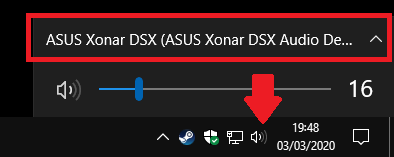
Audio output options are now integrated into the modern volume control experience. You can open this by clicking the audio output icon (speaker icon) on the taskbar, down in the system tray area.

Screenshot of managing audio playback devices in Windows 10

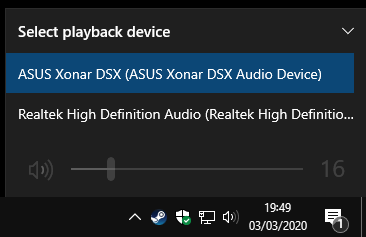
You’ll see a volume slider that will adjust the volume of the currently selected output source. Above that, click the device name to reveal all the output devices on your system. Next, click any of the devices to immediately set it as the selected output.

The volume slider will now update to reflect the new output’s levels. Volume settings are stored per-device, so you can make your headphones quiet while keeping your rear panel stereo system loud.

Screenshot of managing audio playback devices in Windows 10

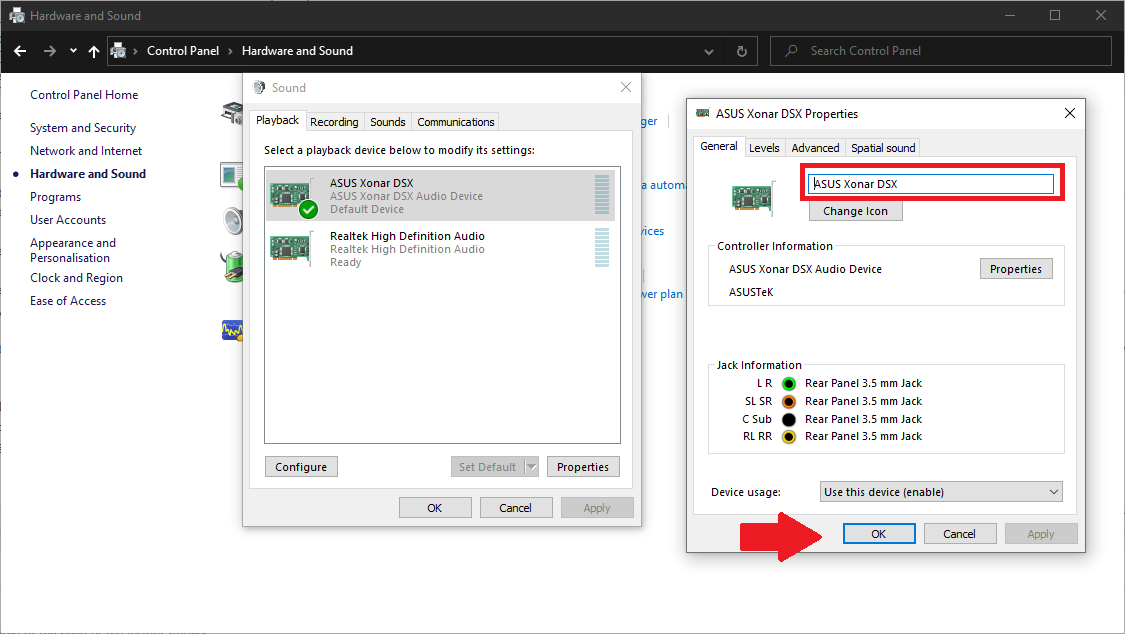
You can rename or remove devices to help organise the output list. You’ll need to use the old Control Panel for this. Launch Control Panel by searching for it in the Start menu. Click the Hardware and Sound category, followed by the Sound link.

You’ll see a list of the output devices on your system, which should be identical to that displayed in the taskbar volume control. Right-click any device and choose “Disable” to hide outputs which you don’t use.

Screenshot of managing audio playback devices in Windows 10

Outputs can be renamed by double-clicking and typing a new name into the Properties window which appears. You can also choose a new icon, although it’s only displayed within Control Panel. More usefully, the window lets you configure the output’s settings, such as audio quality and equaliser controls, using the tabs along the top. The available options will vary with each device. Click Apply and OK to save your changes once you’re done.

NBA 2K20, Ori and the Will of the Wisps, and more games are coming to Xbox Game Pass in March

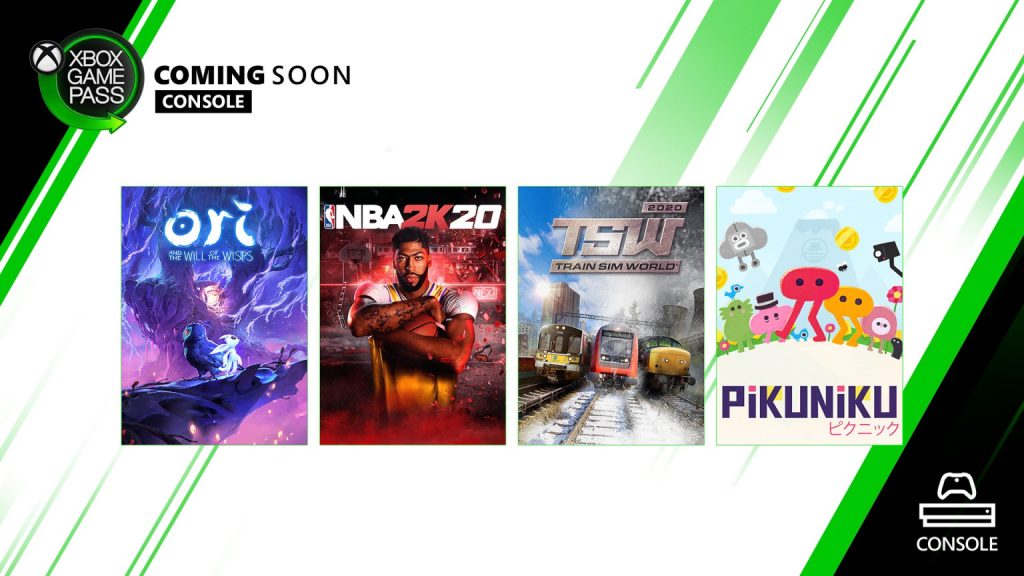
Microsoft has just announced the next wave of games coming to Xbox Game Pass for Console and PC in March. NBA 2K20 will be the first Xbox game to join the Console catalog tomorrow, March 5, along with Train Sim World 2020. The latter will also be available on Xbox Game Pass for PC, if you prefer the comfort of using a keyboard and mouse.

Next week, the much-anticipated Ori and the Will of the Wisps and the puzzle game Pikuniku will join Xbox Game Pass for Console and PC on March 11 and 12, respectively. The first one is already available for pre-download on both platforms, and it will be an Xbox Play Anywhere title that supports cloud saves.

On March 13, State of Decay 2: Juggernaut Edition, a remaster of the zombie survival game will also join Xbox Game Pass for Console and PC, along with the new team brawler Bleeding Edge from Ninja Theory. These two games from Xbox Game Studios support Xbox Play Anywhere as well as crossplay multiplayer across Xbox One and PC.

Lastly, Microsoft announced two more games joining Xbox Game Pass for PC later this month with The Lord of the Rings: Adventure Card Game and the beat ‘em up title Mother Russia Bleeds. However, the company didn’t indicate when these last two games will be available via the new Xbox beta app for Windows 10.

Overall, this should be a pretty exciting month for Xbox Game Pass members. If you have yet to subscribe, we remind you that you can get your first month of Xbox Game Pass Ultimate, which includes Xbox Game Pass for Console, Xbox Game Pass for PC, and Xbox Live Gold, for just $1.

Microsoft offers 6 month free trial of paid Teams tier in light of Coronavirus

Microsoft is offering a six-month free trial to the premium version of its Microsoft Teams business chat/collaboration application, a part of the Office 365 suite. The move comes as fears of the coronavirus outbreak cause many businesses to have their employees work from home.

Companies and businesses that take advantage of the six-month free trial of Teams premium will gain access to many of the application’s features which aren’t available of the free plan—including better access to scheduling and meeting features. Additionally, Microsoft says it will begin to allow users on the free Teams plan to schedule meetings starting March 10. The move promotes public health safety by making it easier to work from home.

Microsoft has recently begin promoting Teams as the place for employees to access from anywhere, likely as the result of the increased demand from working from home. A Microsoft employee from Shanghai also shared some tips for those who will be taking their work to their homes.

While coronavirus concerns have resulted in the cancellation of numerous tech events including Microsoft’s summit, the company says it will continue to monitor the situation before it decides on whether or not to cancel this year’s Build event.

Will you be working from home? What do you think about Microsoft’s promotion? Feel free to share your thoughts in the comments area below.

Microsoft is collaborating with Accenture to help deepen the reach of startups focused on social impact

Microsoft and Accenture have teamed up to help deepen the reach of entrepreneurs and startups that are focused on social impact and sustainability. The collaboration is part of the companies’ shared vision to amplify the societal impact of emerging technology and benefit a million people by democratizing access.

As part of the initiative, Microsoft Research India and Accenture Labs will help social enterprise startups test and validate proofs-of-concept, conduct design thinking sessions to help them re-envision the impact of their solutions, and provide support in exploring and using Microsoft technologies. The partnership will help these startups build scalable solutions and business models with more tangible and lasting benefits.

“Our experience shows that by applying emerging technologies to critical challenges facing society, we can accelerate social transformation. This collaboration is a great illustration of delivering on ‘value’ and ‘values’ – creating tangible business and social value while aligning with people’s values. By providing social impact entrepreneurs with direct access to the combined power of Accenture and Microsoft’s technology expertise, we can help significantly improve access, equality, education, inclusion, health, sustainability, and the environment.”

– Paul Daugherty, Group Chief Executive, Accenture Technology & Chief Technology Officer, Accenture

The program will initially engage with startups in Africa, the Middle East, and South Asia, leveraging the MSR India Center for Societal impact through Cloud and Artificial Intelligence (SCAI). Initially, the program will focus on the areas of agriculture, education, and healthcare.

Microsoft’s involvement in this initiative is part of Microsoft’s Global Social Entrepreneurship program. The Global Social Entrepreneurship program is designed to empower an ecosystem of tech-enabled startups, focused on addressing important social or environmental challenges. The involvement of Accenture Labs is part of its ongoing Tech4Good program, which is focused on applying emerging technologies to help solve complex social challenges.

Windows update KB4535996 causes micro stutters in games

There are many ways to introduce a bug to your PC, but a Windows 10 update should not be one of them. Yet, unhappy users are still reporting various system complications after installing the cumulative update (CU) KB4535996 that Microsoft released last week.

Update causes micro stutters in games

According to a Windows 10 Subreddit post, the CU KB4535996 may cause micro stuttering in video games—a quality defect that can ruin your gaming experience.

It’s not extreme, but I say my frame rate in games has gone down 10 frames or so, and stuttering occurs once in a while. After uninstalling the cumulative update, everything was fine. Weird.

Outdated graphics and video card drivers may cause irregular GPU frame rates. In that case, you can fix the problem by updating the drivers.

But if you had an excellent gaming experience before the CU, hardware drivers may not be the problem. Uninstalling the update appears to fix the issue, though.

Microsoft account access

Microsoft’s answers forum is also flooded with user complaints about update KB4535996 post-installation issues. After updating their Notebook, one user claims that they could no longer log in to their Microsoft account.

They tried logging out and back in as recommended, but that did not work.

Missing files

Another user posted that the update resulted in the loss of all their desktop files.

All I know is that my computer installed updates last night. Then I restarted this AM and everything was missing that was on my PC.

Some perennially frustrated users are resorting to ignoring all optional updates, which may not always be a great idea if their PCs have a problem that a Windows update could fix. So, folks are still craving for a Windows 10 world in which updates, including security fixes, can install without adverse effects.

Microsoft has not officially acknowledged any problem with the optional update it released last week. Users can only hope that the next Windows 10 fix will satisfactorily address all the issues raised so far.

Microsoft shows cleaner-looking Windows 10 Start Menu, confirms Live Tiles are here to stay

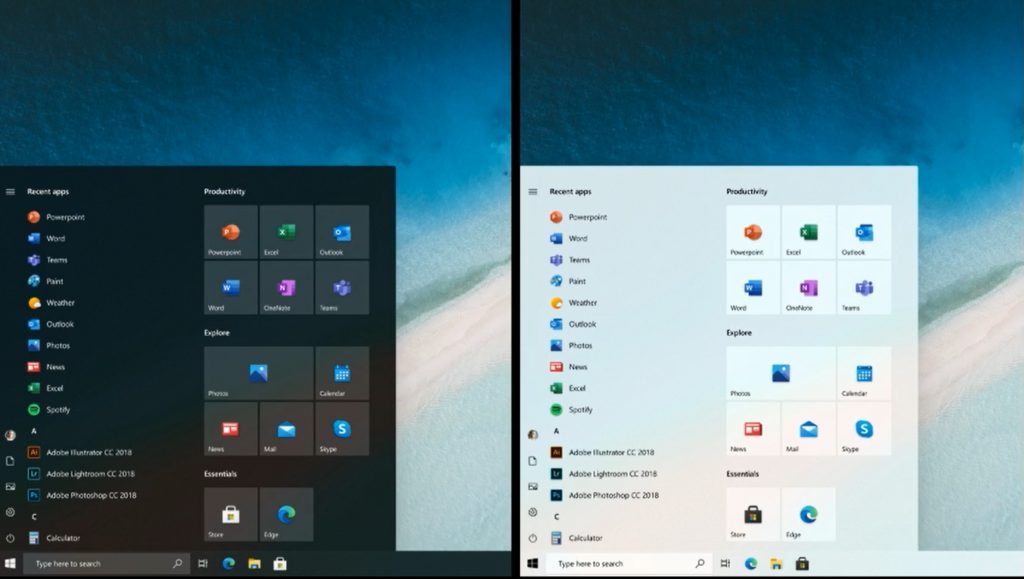
It’s no secret that Microsoft has been on a mission to give Windows 10 a new look. We’ve seen new icons roll out across the operating system, as well as the Light Mode introduced in the Windows 10 May 2019 Update. But, there could be bigger things ahead. Indeed, Microsoft recently teased a cleaner looking Windows 10 Start Menu, which appears to be heavily designed by Fluent Design and the new modern Windows icons (via PCWorld.)

As seen in the featured image above, this new Start Menu isn’t much different from the current version of Windows 10 when it comes to layout and overall format. It does, however, look to be more uniform, with less randomly colored backgrounds on the app tiles. Overall, it is cleaner with more uniform colors throughout, allowing the icons to blend in nicely with the acrylic effects delivered by Fluent Design.

This Start Menu was originally discussed by Microsoft during today’s Windows Insider webcast. You can see a still of it in action by watching the webcast on-demand here, at around the 46-minute mark. “The idea is to visually unify the Start menu, [from] a somewhat chaotic color, to something a bit more uniform,” said Mike LaJoie, the person in charge of icon design at Microsoft.

Rumors have previously said that Windows 10’s Live Tiles might be dead in the future, but judging from what Microsoft PM Brandon LeBlanc said during the webcast, the Live Tiles are here to stay. As the image of the Start Menu is still, we can’t tell if they’re present in this new Start Menu. However, LeBlanc mentioned that “Those with Live Tiles will still be able to use them.” It could be that users will continue to have full control over Live Tiles and be able to turn them off and on as needed.

Do you think that this new Start Menu is more clean and efficient? Let us know in the comments below.

Disney Plus is not available in your country? Try this

If Disney Plus is not available in your country, it looks like you are not able to access it. The service is currently available in the US, Australia, Canada, Netherlands, and New Zealand. Later on, in March 2020, a number of European countries will see the launch of their local versions of Disney Plus too.

Until that happens, if you live outside these countries, Marvel, The Simpsons, or Star Wars are out of your league, at least in theory. We’re saying that since there’s a chance to access Disney Plus in other regions too.

The advantages of using a VPN – or Virtual Private Network – in this case, are unquestionable. For the uninitiated, a VPN is a piece of software you can download off the web that lets you hide the IP address of your laptop, phone, or your router.

Then, it makes it appear in an entirely different location where Disney Plus is available. Long story short, today we will show you what to do if Disney Plus doesn’t work in your country.

What can I do when Disney Plus is not available in my area?

1. Choose the perfect VPN option

Before having the very best Disney Plus shows and films at your disposal, you’ll first need to get a VPN application.

Aside from giving you Disney Plus access from anywhere in the world, these applications can be used to safeguard your online privacy and stop any deliberate slowing of your speeds.

If the choice you face is highly emotive and you literally dream of all those Disney goodies, your instincts and the rush coming along with them may not serve you well. Don’t know what to choose?

We made a list of the fastest VPN options for Windows 10 you can use to stream video content with ease.

The encryption tunnel is supposed to remain super private, so your true location is always unseen. To make sure of that, it’s recommended to check for your IP address on specific IP address lookup sites. Let’s hope that it won’t fail to hide your real one.

We recommend you get a VPN with a large server coverage. For Disney+ users, make sure that the US specifically is thoroughly covered.

Also, make sure to get a VPN with a transparent privacy policy. Even though these tools are meant to protect your data, some of them may store unnecessary details about your identity and browsing, so be careful with that.

2. Select a compatible location as your home country

At this point, you have the VPN already installed. All you have to do next is to open the VPN app, then log in using your credentials.

Just hit Choose location and feel free to connect to a US server. You may also select any other compatible location as your home country.

3. Sign-up for Disney Plus outside of its supported countries

After connecting to the VPN, you’ll clearly need to go to the Disney Plus website and sign up before you can do anything else. The big news is that you’ll no longer be blocked from signing up this time.

You can easily go through the setup procedure and get inside for the first time. Besides creating a new account for this media streaming service, you must also select a subscription plan and complete the payment process.

Disney Plus doesn’t offer a free trial, but it puts at your disposal flexible pricing options and packages.

⇒ Get Disney+

Finally, Disney Plus will present its content. Rest assured that you can use it without any limitations since you already tricked Disney’s area restrictions.

How does it feel like to have Disney Plus at your convenience? We surely hope that it’s as good as expected. Other eager users also describe taking advantage of Google Chrome on an Ethernet hardwired computer to cast Disney Plus to the TV via the inbuilt Chromecast of NVIDIA Shield TV.

However, taking a quick look at the Subscriber Agreement reveals that this method of accessing Disney Plus is a violation of the terms and conditions.

Do you know another solution for a quick connection even if Disney Plus is not available in your area? Don’t hesitate to share it with the community in the comments section below.

Moreover, if you’re completely new to VPNs, let us be clear in this regard. Even if the access you get when you sign up with a VPN service is great, keep in mind that you still have to connect to a server in another region or even country.

This means that you should be ready for a little bit of latency in your secure connection. Other issues could occur while using a VPN application, yet we’re here to help you out.

Halo: Combat Evolved Anniversary joins Halo: MCC for PC today, and you can play it with Xbox Game Pass

Great news for Halo fans, Halo: Combat Evolved Anniversary is now available on PC as part of Halo: The Master Chief Collection. This remaster of the original Halo game follows the release of the Halo: Reach remaster on PC and Xbox One in December, and it’s once again available on Xbox Game Pass for PC, the Windows 10 Microsoft Store, and Steam.

The PC version of Halo: CE Anniversary will still let PC gamers switch between remastered and classic game graphics on the fly, and both modes should look pretty good in 4K. Here are all the power user features you can expect according to 343 Industries:

Halo: Combat Evolved Anniversary looks and plays better than ever at 60 frames-per-second (or greater) with 4K UHD support, and players can fine-tune their experience with a vast array of options including variable framerate, native mouse/keyboard support and the ability to rebind controls, support for ultra-wide displays and different aspect rations, updates texture/shadow quality and more. Additionally, we’re happy to introduce community-requested features such as the option to use ‘classic’ audio in multiplayer and improvements to Spartan customization

If you have an Xbox Game Pass for PC or Xbox Game Pass Ultimate subscription, you can download Halo: CE Anniversary for free today. The game is also included in the full $39.99 Halo: MCC bundle available on Steam and the Microsoft Store, but you can also purchase it separately for $9.99.

343 Industries is still on track to bring the rest of the Halo games to Halo: MCC on PC throughout the year. You can expect Halo: 2 Anniversary to come next, followed by Halo 3, Halo 3: ODST, and Halo 4, the latter being the first Halo game developed by 343 Industries after Bungie went to work on the Destiny franchise.

Microsoft updates Build 2020 website with message about Coronavirus, continues to monitor situation

Due to the spread of Novel Coronavirus, Microsoft has already canceled both the MVP Summit and its GDC briefing in favor of virtual events. Many have now been wondering if Build 2020, which is set for May 19-21 would be canceled, too.

Although an official decision has not been made yet on that front, the company recently updated its Build 2020 webpage with a message about Coronavirus, saying it will “monitor and make any necessary changes as the situation evolves.” Here’s the statement:

In light of the global health concerns due to the novel coronavirus (COVID-19), Microsoft is monitoring public health guidance in relation to in-person events. At this time, global health authorities have not issued guidance to avoid travel to this location. We are looking carefully at our event calendar as well as our presence at industry events in the coming months. We are not taking decisions lightly, but the health and well-being of our employees, partners, customers and other guests remain our ultimate priority.

We will continue to monitor and make any necessary changes as the situation evolves.

March 2, 2020

Currently, Coronavirus is spreading across the Seattle area, and many Microsoft watchers like Paul Thurrott are doubtful about the status of Build. However, as Microsoft states on the webpage, global health authorities have not yet issued guidance to avoid travel to Seattle, Washington. The company instead insists that it is “monitoring public health guidance in relation to in-person events” and is “looking carefully at [the] event calendar as well as [the] presence at industry events in the coming months.”

While it is still two months out, canceling Build could likely be a huge logistics nightmare for Microsoft. In the statement on the page, the Redmond giant insists it does not take decisions lightly, and wants to put the health and well-being of employees, partners, customers, and other guests first.

There’s been some talk of MVPs, especially if they can’t get refunds for their travel and accommodations, to head to Seattle/Redmond anyway. In a reply to a tweet related to the MVP Summit, former Windows Insider chief Dona Sarkar said that people should not be planning to visit Microsoft’s campus, as the company will be locking down visitations with “tons of people working from home.”

Coronavirus is definitely shaking up the conference industry for sure, even outside of Microsoft. Google recently announced it would be re-imagining its Cloud Next ’20 conference as a free, global, digital-first, multi-day event. Adobe also canned its annual summit in Las Vegas in favor of an online event. And, outside of the United States, Microsoft canceled its Ignite Tour in Zurich.

Fix The Printer Error 1260 in Just a Couple of Easy Steps

After installing Windows 10 updates, many users have reported the printer error 1260. This error can have multiple error messages, including:

A policy is in effect on your computer which prevents you from connecting to this print queue. Please contact your system administrator.

That didn’t work We can’t install this printer right now.  Try again later or contact your network administrator.  ERROR #1260

This error is related to the new Driver Packaging Awareness requirements and can be resolved by configuring Point and Print policies in the Group Policy editor. If you are also troubled by this error, here is how to resolve it in Windows 10.

How can I fix printer error 1260?

1. Disable antivirus and firewall

Turn off firewall

We can't install this printer right now error 1260
  1. Click Start and select Setting.
  2. Go to Updates and Security.
  3. Click on Windows Security.
  4. Select Firewall and Network Protection.
  5. Click on your currently active network.
  6. Scroll down and toggle the switch to turn off Windows Firewall.

Disable antivirus 

We can't install this printer right now error 1260
  1. If you have a third-party antivirus installed, try disabling it temporarily.
  2. To disable it from the taskbar, right-click on your antivirus icon.
  3. Select disable temporarily.

If disabling the antivirus did not resolve the issue, you may have to uninstall the security program and then try to install the printer or the related drivers.

If the issue is resolved after disabling the firewall and antivirus, enable Windows Firewall and antivirus again.

2. Add FQDN and NETBIOS name for Point and Pinter Server

We can't install this printer right now error 1260
  1. Press Windows Key + R to open Run.
  2. Type gpedit.msc and click OK to open the Group Policy Editor.
  3. Now look for Point and Printer Restriction policy.
  4. Right-click on the policy and select Properties.
  5. Earlier, the user could only include the FQDN of their printer servers. However, now you need to include the shorter names as well.
  6. For example, if your FQDN is serv-print.mydomain.local, now you also need to include “serv-print” separated by a semicolon in the Group Policy Editor.
  7. After making the changes, running gpupdate should resolve any printer issues.

You don’t have the Group Policy Editor on your Windows PC? Get it right now in just a couple of easy steps.

The A policy is in effect on your computer printer 1260 error can occur if your security program or firewall is blocking the connection or if the issue is with the Group Policy Editor. Follow the steps in this article to fix the problem and get your printer back online.

If you have any additional questions or suggestions, please leave them in the comments section below.

Here’s how you can use the Touch Bar on a MacBook Pro with Office 365 for boosted productivity

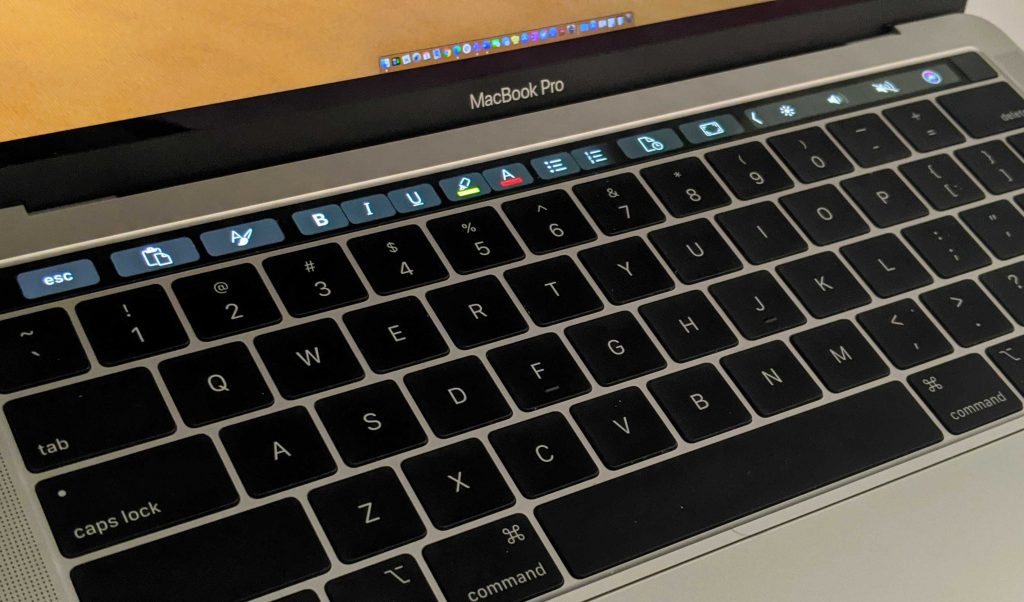
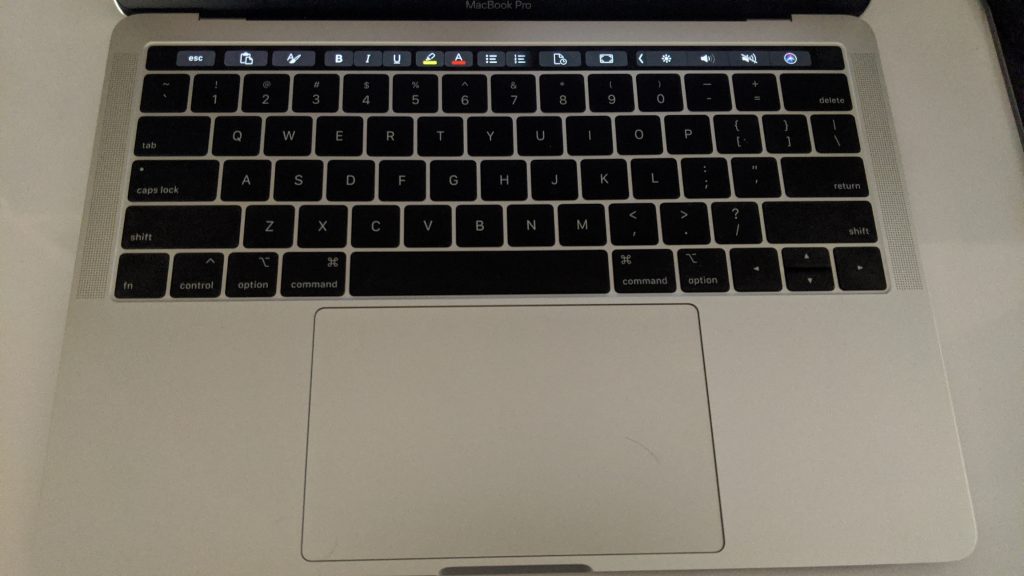
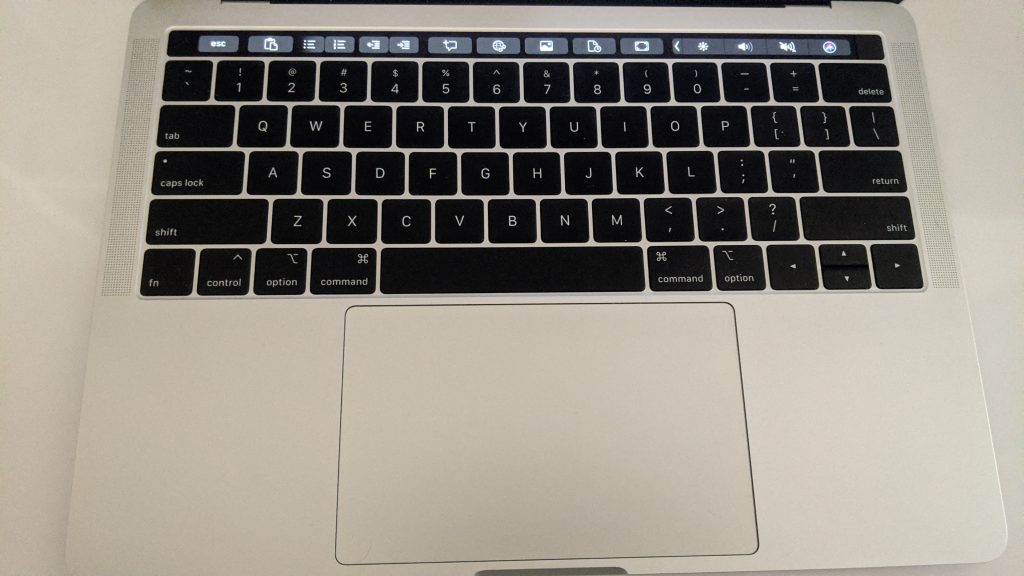
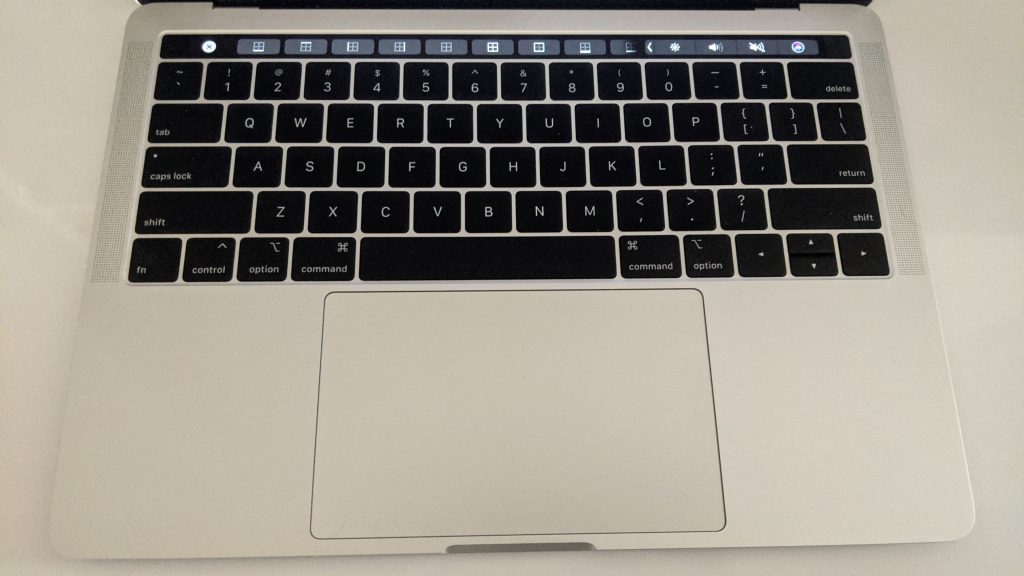
When Apple released the fourth generation MacBook Pro in 2016 it came with a new feature known as the “Touch Bar.” An OLED strip running above the keyboard, the Touch Bar replaced the traditional function keys with multi-touch keys. Depending on which app you use, the Touch Bar is able to adapt and show you various functions, as well as a digital “ESC” key. Many apps in MacOS, including Microsoft’s own Office 365 suite, have special Touch Bar functionality, and in this guide, we’ll show you how to make the most of it in the core Office apps.

Word

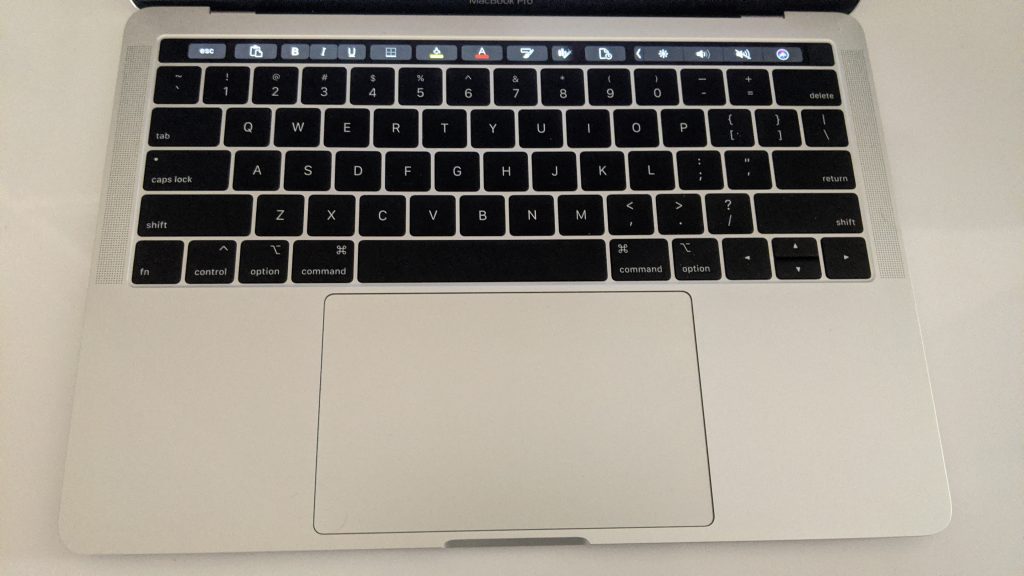
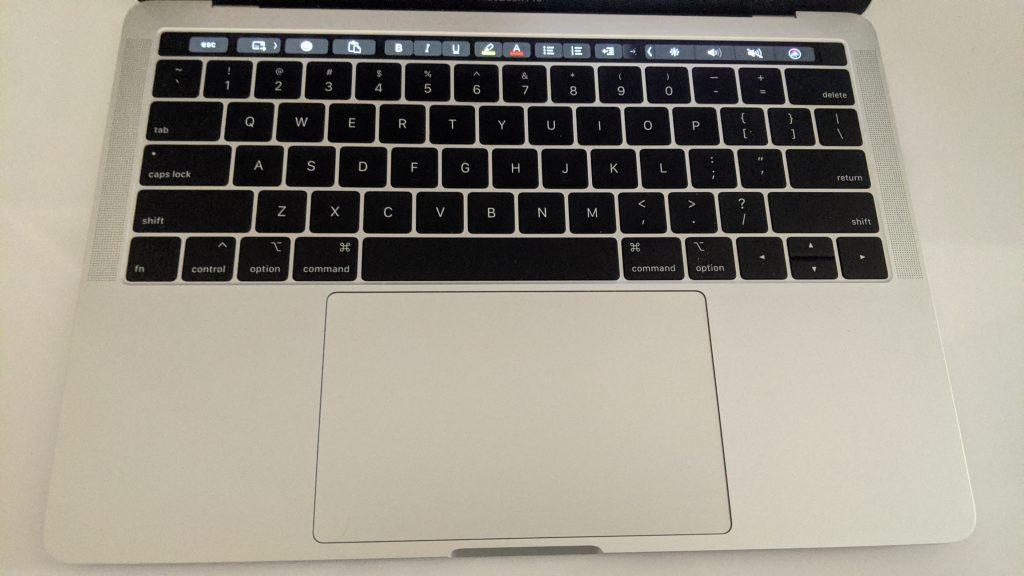
In Microsoft Word on Mac OS, there are quite a few useful Touch Bar functions to help you be more productive and skip out common keyboard shortcuts. Starting from left to right, you will find access to a clipboard paste button and a styles button for bold, italics and underline. You’ll also find options for highlighting, followed by text color, and bulleting, numbers, and justification.

Scrolling on the Touch Bar will show additional controls for inserting hyperlinks, photos, and comments. For faster access to opening documents, there’s even a button for opening recent documents. Finally, on the far left, you’ll find one to bring Word full-screen.

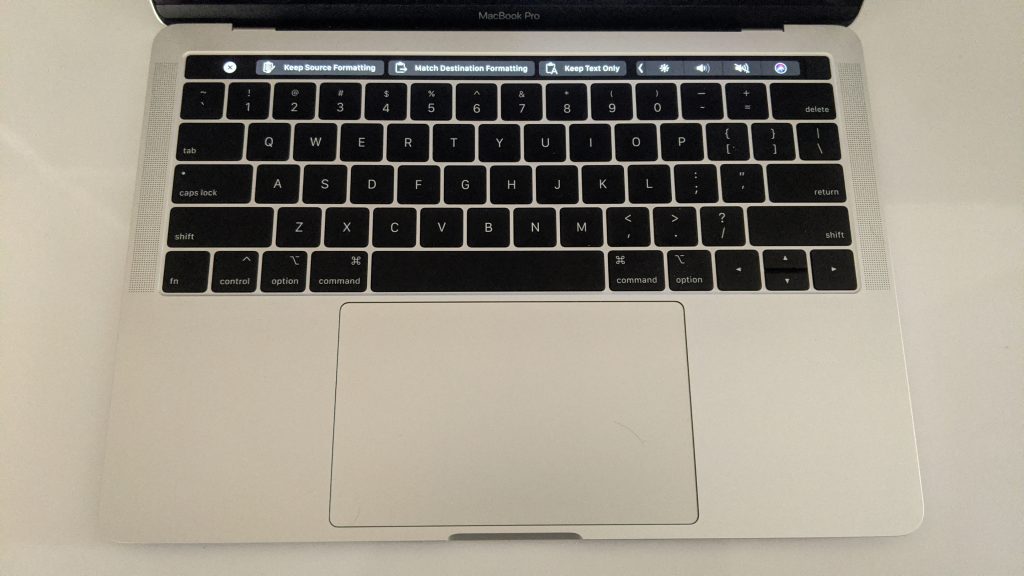
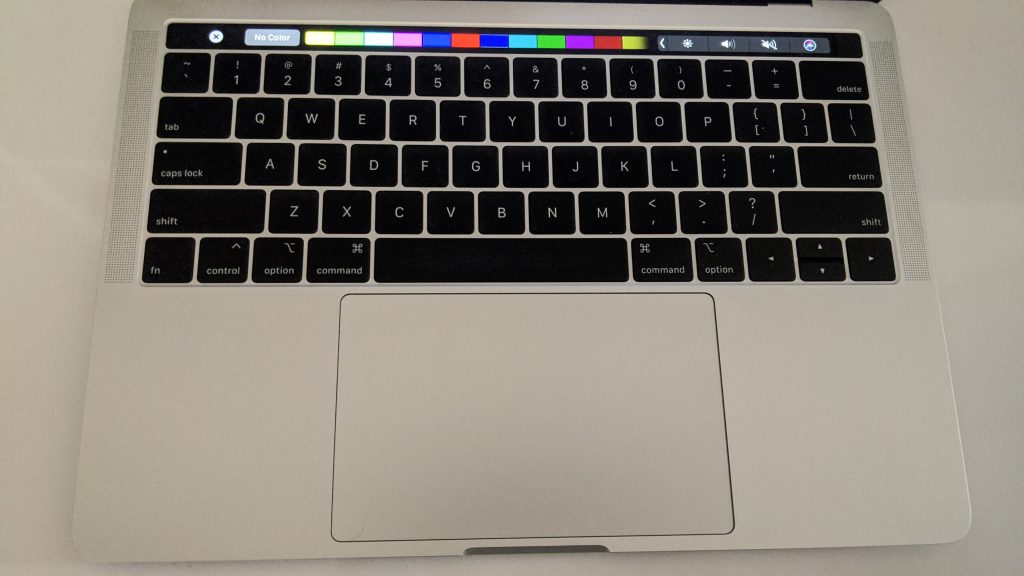
It’s worth noting that some of these buttons on the Touch Bar will have secondary functions. Clicking the clipboard gives you quick access to pasting, complete with formatting options. The highlight button will then show you a color wheel and allow you to pick the right color for highlighting. The same also applies to the font color. It’s a quick convenient way of getting to core editing functions and will save you a valuable click.

Excel

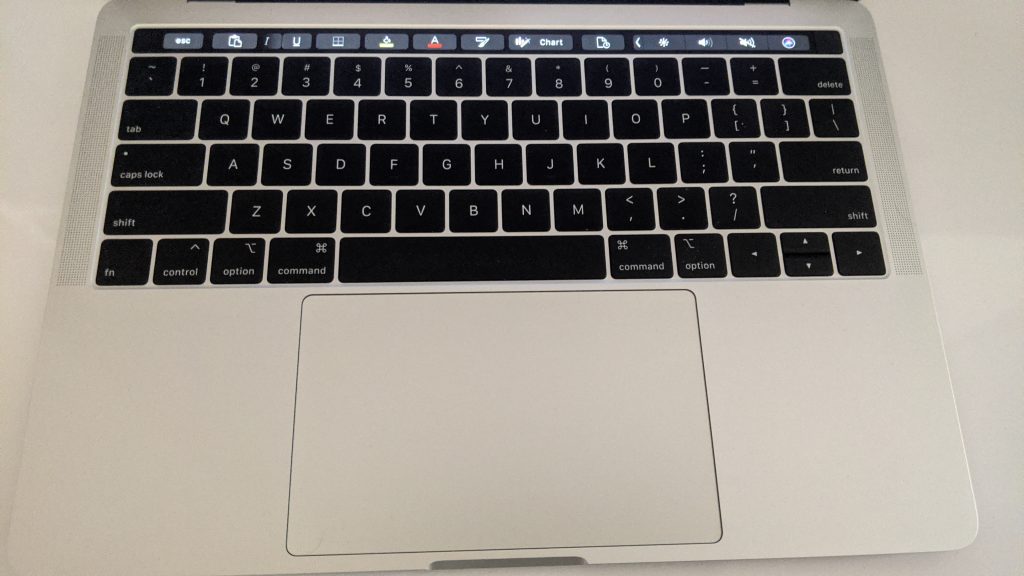
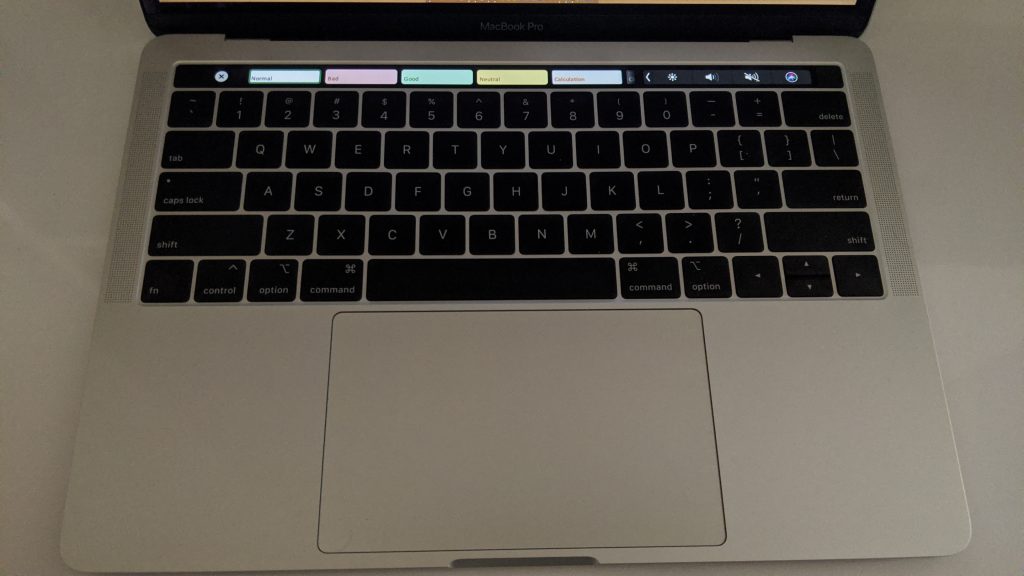
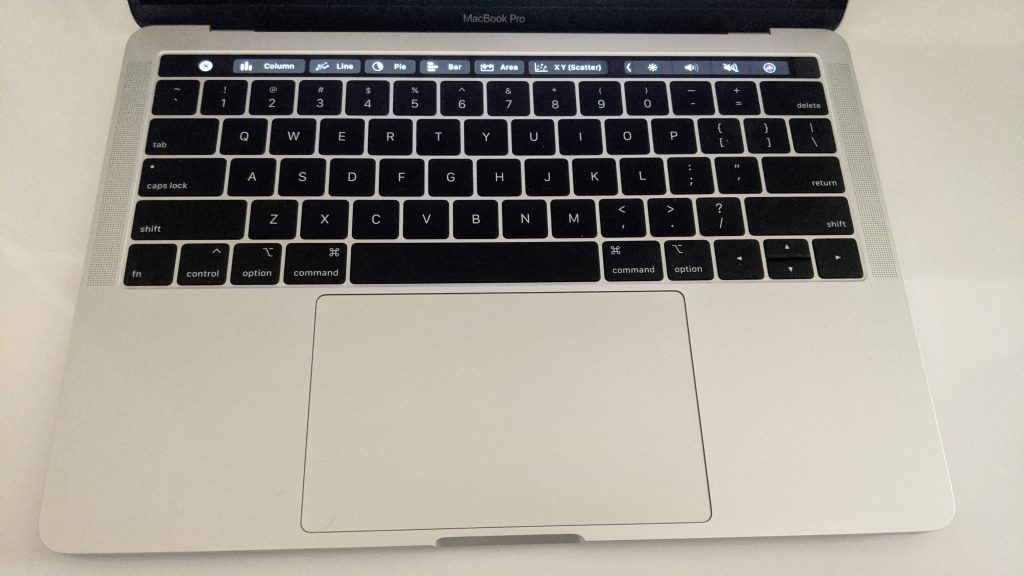
Moving on to Excel, the functions of the Touch Bar are quite similar to the ones for Word. Again, left to right, you’ll still have access to some basic editing functionality without using keyboard shortcuts. This includes a paste button, as well as options for formatting for bold, italics and underline. After that, though, the buttons change a bit. There’s a new option for boarders in cells, as well as an option for the cell fill color. That’s then capped off with options for the cell style, and then an option to create a chart.

In terms of secondary functions, the cell border button will give you access to various cell border styles. The Cell fill color, meanwhile, will give you a color picker, as does the font color option. As for the cell style button, you can choose from a variety of styles such as “Good,” “Bad,” or “Neutral.” Finally, the chart button will give you quick picks for charts such as Column, Line, or Pie. Again, this is a quick way of avoiding clicking on the ribbon in Excel for common tasks.

PowerPoint

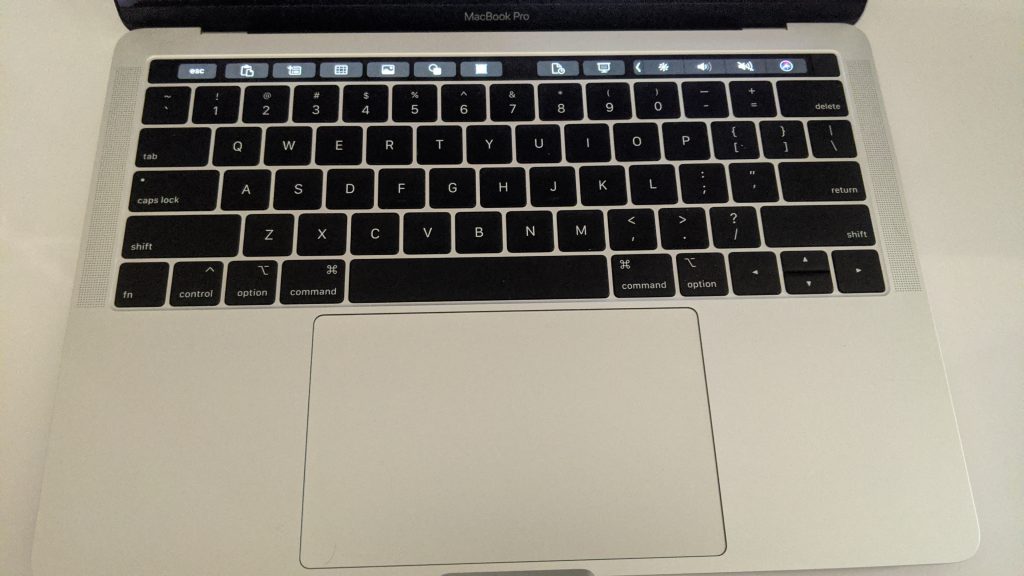
Next up, there’s PowerPoint. This Office program has perhaps what is the best function for the Touch Bar on the MacBook Pro as the functions change based on how you’re using PowerPoint. We’ll be starting first with the functions for editing mode. In this mode, from the left side, you’ll find the clipboard paste option, just as you do in the other Office apps. That’s then followed up by a button to add a new slide and a button to insert a table, photo, and shape. You’ll then find a button to summon the text edit option, followed by a button to open recent files, and another to begin the presentation. We’ll move on to the text edit options next.

With the text edit options for the Touch Bar in PowerPoint on the MacBook. there’s quite a lot similar to Word. There are buttons to bold italics, underline, insert number or bullets, edit the color of text, and change the justification. When in this mode, you can go back to the main view by tapping the ESC key. That will then give you access to additional features such as fill color, outline color, and options to rotate images and change image formats. Again, quite useful, as these are typically buried beneath the right-click menu.


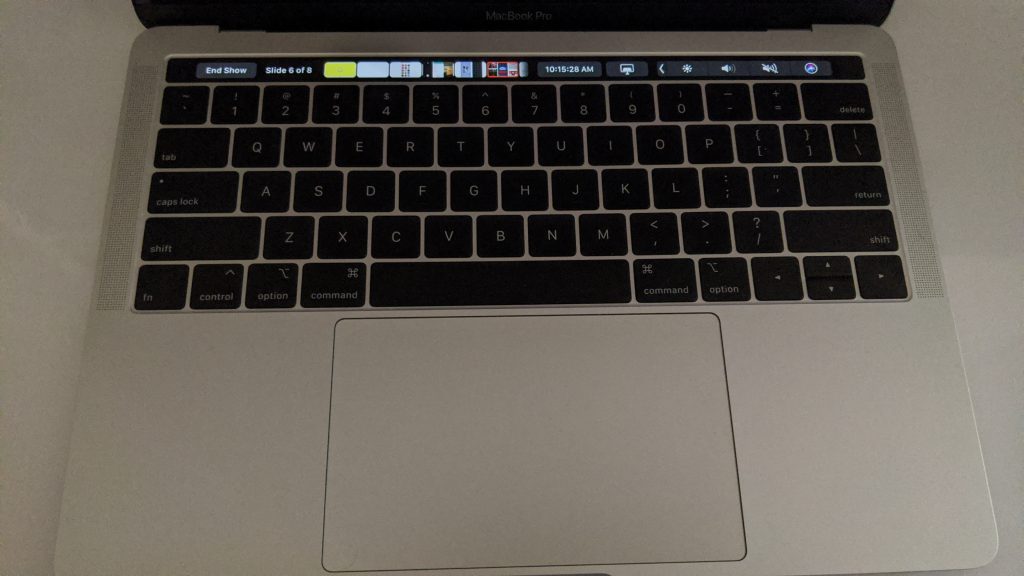
Finally, we’ll talk about how you can use the Touch Bar on the MacBook Pro in PowerPoint during a presentation. This is the coolest mode of them all, as here, you’ll be able to see a live preview of your slides. A button on the left of the Touch Bar will allow you to end the show, and the button next to it will show you the progress on the slideshow. You’ll then see a preview of each of the slides, and you’ll be able to drag your way through and touch each slide one by one while seeing it on the screen to move from one to the next. There’s even a mini clock in the Touch Bar to show you the time, and additional controls to switch your screen to the more traditional presentation mode.

Outlook

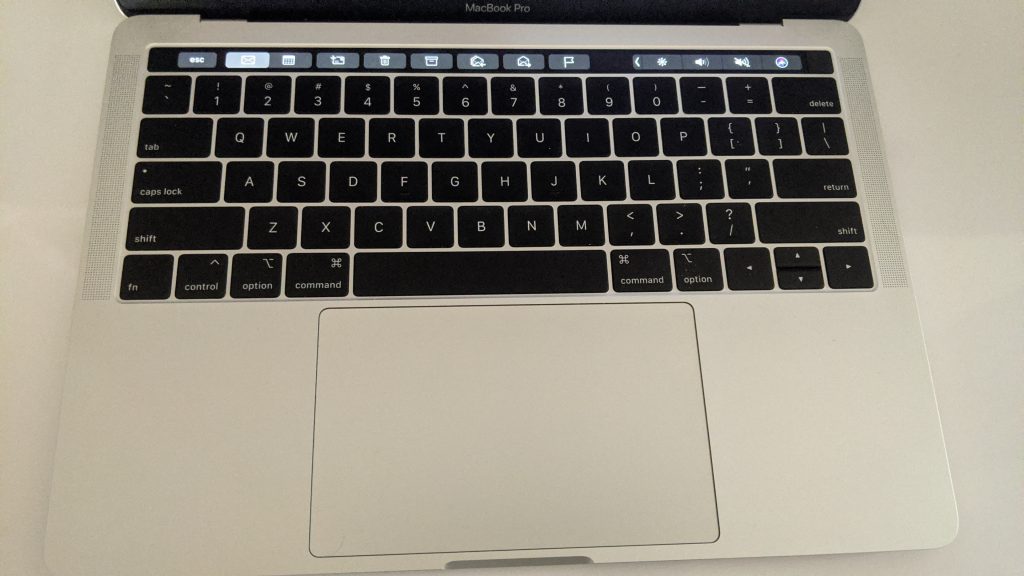
Much like PowerPoint, the Touch Bar in Outlook will show you different options based on how you use the app. We’ll be starting first with when you’re in your inbox. In this mode, you’ll find a button to switch between the mail and calendar portions of outlook. That’s then followed by options for creating a new message, deleting, arching, moving, and replying to the message. You’ll also find a flag button, too.

Next, there are functionalities for when you’re replying to an email. In this mode, The Touch Bar will have a button to send out your email, followed by an emoji key, and then the clipboard paste button. There are then the standard editing options seen from the rest of Office 365, such as style, font color, and more.

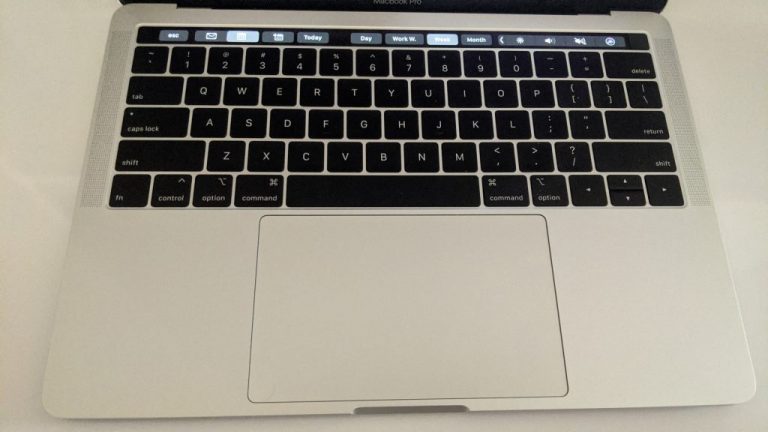
Lastly, there are some functions for the calendar. In this mode, there are options for sorting through the different views: Day, Month, Week, Work Week. There’s even a key to start a new meeting or event. It’s quite the nifty little trick, to help you avoid clicking buttons in the menu bar, or using keyboard shortcuts.

Just a little way to boost productivity

Looking at things all together, these Touch Bar tricks are just one small way to boost your productivity. Instead of having to worry about keyboard shortcuts or where to click in the Office Ribbon, you can slide your fingers up to the Touch Bar instead. It’s just one small thing, though, as we’ve previously explained tips and tricks for many of the Core Office 365 apps. Check out our coverage here for more, and let us know your thoughts in the comments below.

Deus Ex: Mankind Divided, Thimbleweed Park and more are leaving Xbox Game Pass soon

A couple of games are leaving Xbox Game Pass for Console and PC soon, as seen on the Xbox Game Pass mobile app today (via TrueAchievements). Shenmue I & II, Thimbleweed Park, Litchspeer: Double Speer Edition will be leaving the Console and PC catalogs soon, and you can add to that list Deus Ex: Mankind Divided on Console as well as Titan Quest Anniversary Edition and Apocalipsis on PC.

The Xbox Game Pass Mobile app doesn’t reveal when these games will be removed, but it will likely be later this month. Deus Ex: Mankind Divided will actually be the latest high-profile Square Enix to disappear following Shadow of the Tomb Raider, Rise of the Tomb Raider, and Just Cause 4.

It’s not all bad though as Xbox Game Pass will get two new Xbox Game Studios titles this month with the much-anticipated metroidvania game Ori and the Will of the Wisps (coming March 11), as well as the team brawler Bleeding Edge (coming March 23). Microsoft will likely announce more games very soon, as it usually does at the beginning of every month. If you have yet to try Xbox Game Pass, we remind that you can get your first month of Xbox Game Pass Ultimate for just $1.

Microsoft amps up Teams as the “Teamwork from anywhere” solution following Coronavirus outbreak

In the wake of the Coronavirus outbreak, many companies have been canceling pubic events or suggesting employees work from home via telecommuting solutions like Teams or Slack. This is of particular concern in the Seattle area, Microsoft’s home-base where the virus is still spreading.

As a result, Microsoft recently canceled its MVP summit, but that isn’t stopping the company from advertising its products in the wake of the virus. Ironically, some timely new ads for Teams are showing how it is the “Teamwork from anywhere” solution.

Recently, we noticed two of these new Teams ads online. Our managing editor came across an advertisement for Teams on Twitter, which can be seen above. The ad mentions that remote work is made easy for free with Teams and shows an image suggesting how Teamwork can be done from anywhere. In a separate instance, one of our writers also noticed a banner ad for Microsoft Teams on Microsoft’s support website for two-factor verification. The “Learn how” banner mentions how users can keep in touch and stay productive with Teams and Office 365 with working remotely.

This is a fairly engrossing way to draw more attention to Teams. Microsoft previously aired an ad for Teams during the NFL Playoffs in January, and it took jabs at Slack. As a result, it will be interesting to see how this campaign helps boosts Teams’ popularity as Cortanavirus spreads and more companies encourage folks living in impacted cities to work from home.

More of Microsoft’s new app icons begin to roll out to public Windows 10 users

Several Microsoft apps began to update on Windows 10 devices last week with their new app icons such as Calendar and Mail and now it looks like even more have started to get their icon refresh.

Earlier today, Films & TV (Movies & TV), Microsoft Alarms & Clock, and Groove Music (see above image) all got an update that replaces their old icon with their new one. The app icon update appears to a bit staggered with others claiming that their Calculator, Photos, and Voice Recorder apps have also been refreshed.

Microsoft revealed their intention to update their numerous app icons back in December of 2018 but the rollout has been strangely delayed and randomly implemented across Windows 10, iOS, and Android devices. The company then expanded on this idea in December last year with an even more ambitious icon plan.

Do you like these new app icons? Share your thoughts with the community in the comments below and then follow us on Pinterest and Twitter for more Microsoft app news.

Fix: You are not set up to use this calling feature

The Microsoft Office Suite is probably the world’s most well-known office suite currently available. Part of its popularity is due to the variety of tools that it brings to the table, one of which is Skype for Business.

Skype for Business is a collaborative tool that has been on the market for quite some time now, and its popularity doesn’t seem to diminish.

However, Skype for Business is not without its kinks and bugs. for example, users have reported that they are getting an error when trying to call certain numbers stating that:

You’re not setup to use this calling feature, please contact your admin

The reasons behind this error message are well-known, and we will discuss them further in the article below.

How do I get rid of the calling feature error?

Unlike other error messages, this particular one is not caused by functionality issues with Skype for Business. In fact, it only appears when you don’t meet certain conditions using the program.

Here’s a complete list of the things you need to do in order to get rid of the calling function error message:

  • Purchase calling plans for Office 365
    • If you have a service provider that provides on-premises PSTN connectivity for hybrid users, you don’t need to buy a calling plan
  • Assign the phone system for office 365 licenses and then assign a calling plan to the users in your organization
    • If you are using on-premises PSTN connectivity for hybrid users, you only need to assign a Phone System license
  • Add numbers in Skype for Business admin center
  • Add emergency addresses and locations for your organization
  • Assign phone numbers and emergency addresses to users skype pricing

I still can’t make calls via Skype for Business

If you still can’t make calls via Skype for Business, or are just unhappy with the subscription plans and offers, you could always migrate to a new collaborative tool.

We recommend using a flexible third-party program that allows you to manage your calls via any type of device and provides you with versatile settings that enhance your productivity.

⇒ Get Microsoft Teams

For a complete list of the best collaborative tools currently on the market, check out this in-depth guide.

If you know of any other way to bypass this issue with Skype for Business, tell us about it in the comments section below.

[wl_navigator]

You can now tag specific user groups in Teams

If you are an enterprise that uses Teams to collaborate in the workplace, the tool boasts a host of new features to help your employees work and communicate more efficiently.

In a recent post Microsoft announced changes that streamline collaborations on Outlook emails within Teams. The updates also touch on how supervisors or superiors can use @ mentions to address specific users in their organization.

Tagging particular user groups

Even before the latest Teams updates, you could @ mention anyone within the platform to get their attention. You could also target all members of a team by using the @team tag.

But the tag is limiting in that it does not let you address a specific user group within your team. So you end up drawing the attention of people who should be focusing on other tasks or responsibilities in the office.

Now, Teams lets team owners set up tags for specific user groups or roles, allowing them to send targeted messages. This enhancement makes sense because team members may have different responsibilities, and some critical communication may only be relevant to certain personnel.

Targeted communication allows team members to message everyone assigned to a specific tag at the same time; simply @mention the tag name in a post. Using tags, team owners can organize users based on a common attribute, like a role, project, or location.

For example, you can @ mention and only target neurosurgeons in a team that also includes cardiologists, gastroenterologists, and dermatologists.

Share to Teams in Outlook

The news of Teams-Outlook email integrations does not come as a surprise since Microsoft had hinted about it before. It just so happens that reading, responding to, or collaborating on official email conversations are still a vital part of everyday workflows or tasks in modern workspaces, including digital ones like Teams.

Say, you have a prospective customer communicating to you via Outlook. But you are managing the sales process, including working with sales reps, in Teams.

With the new Share to Teams feature in Outlook, you can move an entire email conversation with the prospect to Teams. The reverse process is also possible within Teams.

According to recent rumors, Microsoft is working on a new Outlook feature, Spaces. The tool is meant to help organizations manage project elements like emails, contacts, to-do lists, and OneDrive files. The ability to export Teams conversations to Outlook will certainly make Spaces more powerful.


Failed to Load Extension From Chrome: How to Fix it

Google Chrome is one of the world’s most popular web browsers currently in use. It is fast, powerful, and can be customized with tens of thousands of extensions that improve its functionality. But many reported that they failed to load an extension from Chrome.

They instead see a message that reads, Manifest file missing or unreadable. The error often appears when launching Chrome, and the extensions remain inaccessible. Keep reading to find out how to fix things!

What can I do if Chrome failed to load an extension?

Before we head to the slightly complex solutions, try these quick tricks first:

  • Restart the computer.
  • Switch to Incognito or Private browsing mode. You can access it by pressing Ctrl + Shift + N on Chromium-based browsers.

If none work, head to the fixes listed next.

1. Activate your extensions one-by-one

If you keep getting the same error messages, disable your extensions and then activate them one by one until the error appears again.

Then remove the extension enabled last and use an alternative one that does the same thing.

2. Reinstall Google Chrome

  1. Press Windows + R to open Run, type appwiz.cpl, and hit Enter.
  2. Select Google Chrome from the list of programs and click on Uninstall.uninstall
  3. Follow the on-screen instructions to complete the process.
  4. Once done, restart the computer to apply the changes.
  5. Now, head to Chrome’s official website, download the setup, and run it to install the browser.

Normally one could uninstall Google Chrome by simply accessing the list of installed programs, but you also need to delete all stored app data on your PC.

To do that efficiently, you should use a third-party uninstaller that will get the job done in seconds. It won’t just clear the leftover files but also remove any registry entries created by the program.

Now, you should no longer encounter extension loading errors when using Google Chrome.

Before you leave, check the best extensions to speed up Chrome, and get one today!

Which of these solutions helped you get rid of the issue? Let us know by leaving a message in the comments section below.

FIX: Google Chrome Error 138

When it comes to navigating the Internet, you need a solid web browser at your disposal. There are plenty out there to choose from, and Google Chrome is a top choice.

It is fast, powerful, customizable and probably the most popular web browser currently on the market.

However, Google chrome is still nothing but a piece of software, and it too has its own fair share of issues. One good, or in this case bad, an example is error 138 that many users have reported encountering.

While encountering this issue is indeed unfortunate, the good news is that there are a couple of fixes that you could try that will let your use Google Chrome again easily.


How do I fix Google Chrome Error 138?

1. Check to see your other browsers as well

If you encounter Error 138 in Google Chrome, then try opening other browsers to see if they encounter any similar issues connecting to the Internet.

Note: Even if Google Chrome is the only third-party web browser that you are using, remember that you can still use Internet Explorer or Microsoft Edge since they come pre-installed with Windows 10.

If you notice that all other browsers work, then your firewall might be blocking Google Chrome. As such, try turning it off or at least temporarily suspending it.

This method varies based on what firewall software tool you use. Thus, go to the developer’s website to check out how to unblock a program for your particular firewall choice.

While testing out your connectivity, you might end up keeping the new web browser as your new default one. As such, you might as well get a very reliable one. For some of our top choices, check out this detailed article.


2. Check router and connectivity settings

If you notice that all of your web browsers experience similar connectivity issues, then a good course of action would be to simply restart or reset your router settings. That being said, go to the manufacturer’s website and check out exactly how you can do this for your particular model.


3. Delete your Google Chrome profile

  1. Reboot your PC and make sure you don’t open Google Chrome during this session at all
  2. Press Windows + R
  3. Type in the following line, and press Enter:
    • %LOCALAPPDATA%GoogleChromeUser Data
  4. Rename the Default folder to Default.old
    • Make sure you make a backup of this folder somewhere just in case
  5. Launch Google Chrome and try connecting to a website

By following these steps, you should regain full functionality of your Google Chrome browser again, and no longer encounter error 138.

If you know of any fix for this browser error, leave us a message in the comments section below so that we may update the article accordingly.

[wl_navigator]

Can’t retrieve media content on Disney Plus? Try this

If you log on to Disney Plus right now with the intention to watch Home Alone or Magical Holiday Celebration, you’ll most likely be disappointed. Disney Plus has quietly removed titles from its library. That’s why plenty of subscribers like you look for a way to retrieve their favorite media content.

Around 10 years ago, Disney just bought Marvel and streaming services were pretty much unknown. Today it turned into a streaming giant that houses almost everything it produces. This includes Star Wars, Pixar, Mickey Mouse, and Goofy cartoons, along with the vault of classic Disney animated films.

Add to the list shows from 20th Century Fox or National Geographic – all supporting the wide audience. Unlike its competitors, Disney Plus made no official statement regarding swapping content out for newer titles.

Accepting that some Christmas titles are gone is one thing, but the lack of any warning is another. Moreover, titles like Dr. Dolittle, The Pirates of the Caribbean: On Stranger Tides, Garfield 2, Shaggy Dog 2006, or Flicka have vanished into thin air too.

Hopefully, they’ll come back soon. And if this doesn’t happen, is there anything that you can do to correct that?

What can I do to retrieve media content on Disney Plus?

Access Disney Plus with the use of a VPN
  1. Sign up for one of the VPNs you prefer using.
  2. Then, install the appropriate app for your device.
  3. Log in.
  4. Connect to a secure server from another supported country.
  5. Once connected, head to the Disney Plus site or app and enjoy. While your true location is hidden, Disney Plus thinks you’re streaming from the country the VPN server is in.

Note: if you’re unsure about your VPN choice, this list with super-fast VPN options for Windows 10 might help you out.

Usually, you can download movies from Disney Plus and house them on your device. This gives you the peace of mind that nothing could ever go wrong, but there’s a thing to consider.

There are no restrictions on how many times you download a title, but any downloaded content would only stay on your device as long as it is available on Disney Plus. When it’s removed from the service, it’s also gone from your device.

Since this isn’t a viable solution, note that these unexpected changes seem to affect especially North American subscribers. Many of the aforementioned titles are still available internationally.

Disney changes its content from one location to another due to complications of licensing deals and streaming rights. The selection of titles on Disney Plus could remain in flux for the next several years, just like it happens on Netflix.

However, with the use of a VPN, remember that you can access Disney Plus from anywhere around the world. Do a quick search to find the availability of your favorite TV episodes, films, and shows, then stream Disney Plus after choosing the right VPN location for it.


Despite a few titles being removed, Disney Plus still is an awesome service packed of popular content. At only $6.99 per month or even less with an annual subscription, it remains cheaper than the less attractive entry-level Netflix account.

And it’s not like some titles are missing without any compensation. Disney is marching on, keeping up the good work of adding new original movies and shows to its library each month.

Let us know whether the above trick worked for you or if you’ve already bought some physical copies of your favorite films. The comments area is waiting for you.