Paint Cannot Save this File: How to Fix this Error for Good

Paint is an accessory included in almost every Windows platform, but it doesn’t always save files.

For some Paint users saving changes to images, the desktop app has returned an error message stating: Paint cannot save this file. Save was interrupted, so your file has not been saved.

Then you can’t edit or save the picture open in the image editor when that error message pops up. These are a few ways you can fix the Save was interrupted error.

How can I fix the Paint cannot save this file error?

1. Use Windows Picture and Fax Viewer (Photos)

  1. First, back up the picture with an image editor that you can save it in. Then you can save a second copy.
  2. Right-click the picture in Explorer, select Open with from the context menu, and then Windows Picture and Fax Viewer (or Photos).
    open with
  3. Now, rotate the image by selecting either the Rotate Clockwise or Rotate Counterclockwise options.
  4. Press Yes if there are any prompts to continue.
  5. Rotate the image 360 degrees with either the Rotate Clockwise or Counterclockwise option.
  6. Save changes to your picture by selecting Copy To.

This issue is more frequent for pictures with the Exchangeable Image File Format (EXIF) that have file sizes between 63 KB and 66 KB.

Microsoft has an official Picture and Fax Viewer fix, or workaround, that’s more specifically for fixing the issue for EXIF images in Windows XP.

Note that Picture and Fax Viewer in XP  is essentially Photos in more recent platforms.

2. Unblock the Image File

  1. First, open File Explorer.
  2. Next, right-click the image you can’t save in Paint. Select Properties from the context menu to open the window below.
    unblock
  3. When data streams block the image, you’ll find an Unblock button on the General tab that isn’t usually there. A notice beside that button states the file might be blocked.
  4. Press the Unblock button in the General tab. That will unblock the file, and now you can edit and save the image in Paint again.

The official fix is primarily for Paint in Windows XP, but it might still work with Photo Viewer. However, the Save was interrupted error is certainly not limited to XP. Paint users have also had the same issue in more recent Windows platforms with various image file formats.

Unblocking the image is an alternative potential fix. That’s especially the case if you’ve imported or downloaded the file.

Then the file-saving error could be due to Alternative Data Streams blocking the picture file if you have an NTFS (New Technology File System) hard drive. This is how you can fix blocked image files.

Those are two fixes for Paint cannot save this file error. It’s worth noting that Microsoft is replaced Paint with Paint 3D in Windows 10, but the app is back in Windows 11.

Similarly, if Paint 3D is not saving pictures because something went wrong, check our detailed guide to fix it.

Feel free to let us know the solution that helped you fix this issue in the comments below.

The Surface phone could feature a 3D camera, patent suggests

The anticipated launch of Microsoft’s Surface phone has left many guessing exactly what the device may look like or how it will function. One new patent may give clues to how the new camera included in the smart device will function.

Microsoft has filed a patent for a 3D Camera function for  smartphone or tablet. This has lead many to speculate that the new phone, and possibly the company’s upcoming 2-in-1 device will include 3D capable camera features.

Specifically the patent relates to 3D depth and the ability to interpret in-air hand gestures for operating the device or using the onscreen menu options. In addition there will be the ability to use one’s finger or other object to draw on a surface laid out in front of the camera.

Microsoft has been filing patents as it prepares its new mystery phone and the industry is watching. This recent filing for 3D camera capabilities is a smart move in the race to innovate. Competition will be stiff as Apple works on its newer iPhone 8 which is rumored to also include some 3D technology of its own, so staying ahead of the curve is going to be vital for Microsoft’s survival.

A recent concept mock-up from Amir Estefad and Mohammad Reza Alidoost UI/ UX designers, predicts the Surface phone will have many of the features that the Microsoft community of users have been requesting from a larger wrap-around screen to more efficient use of space on the home screen.

Only time will tell how innovative the Surface phone will be. If any of the predictions are true, it’s sure to bring a much needed new thrill to the market once it’s released. Will you be buying? What features are you hoping get included? Tell us in the comments below.

Read Also:

Windows Server version 1709 will launch during Microsoft Ignite in September

There’s a treat on the way for developers who make use of Windows Server, and it’ll be happening during the Microsoft Ignite event early in this coming September. The new update will bring a suite of new changes to Windows Server, and comes in the wake of a new Insider build that launched just a short while ago.

In a new blog post on the Windows Server blog, Microsoft confirmed that the next release of the server operating system will be labeled Windows Server version 1709, and it will officially launch at Ignite 2017. The major release “builds on the innovation in Windows Server 2016,” with a better focus on application innovation and security. Additionally, Windows Server will adopt the same release cycle as Windows 10 with the same two channels:

  • Long-Term Servicing Channel (LTSC) – this is business as usual with 5 years of mainstream support and 5 years of extended support. You’ll have the option to upgrade to the next LTSC release every 2-3 years the same way folks have for the last 20 years
  • For those of you who want to innovate faster and take advantage of new features sooner, we are adding the Semi-annual Channel. The Semi-Annual Channel is a Software Assurance benefit and is fully supported in production. The difference is that it is supported for 18 months and there will be a new version every six months.

Microsoft is planning a series of blog posts to prepare developers for these changes ahead of the release of Windows Server version 1709 in September. We invite you to add the Windows Server blog to your bookmarks if you want to learn more details about security, Software-defined datacenter and management.

Xbox app updated on iOS and Android with Mixer integration and more

Microsoft has released an update for its Xbox app on iOS and Android that delivers a small changelog, but with 2 new features.

In today’s update, users of the Xbox app can now take a look at popular Mixer streams in the Trending area of the app, as well as see Club members who are currently broadcasting their game. Here is the full changelog:

  • View popular Mixer streams in Trending
  • Support for discovering Club members who are broadcasting

This update is available now in the App Store for iOS and Google Play Store for Android.

‎Xbox
‎Xbox
Price:
Free


Xbox
Xbox
Price:
Free

New video offers peek at several Xbox One X enhanced games

DigitalFoundry is one of best websites out there for gamers who are snobs about graphics, and they have a video out talking about each of the games that are enhanced by Xbox One X. It’s a great watch for people who are looking to be sold on the new console, or people who just want to hear some jargon about nice looking games.

Rich and John from DigitalFoundry both had some interesting things to say about the Xbox One X, and several of the games that are getting improved by it. They talk a bit about native 4K games like Gears of War 4 and Killer Instinct, as well as Quantum Break, which is the only game not being moved up to native 4K. If you don’t think much about the details behind a good looking game but would like to learn more, hearing these two go on can really be enlightening.

The big thing to take away here is that the Xbox One X is actually living up to its marketing – namely about its ability to play these games at native 4K. We knew that these games would be running on 4K, but this video tells us a bit more about pure performance while that resolution is held. It seems like there are seriously stable framerates to look forward to as well as some nice eye candy.

Following “overwhelming” response from fans, Microsoft expects Xbox One X to be this Holiday’s number one hit product

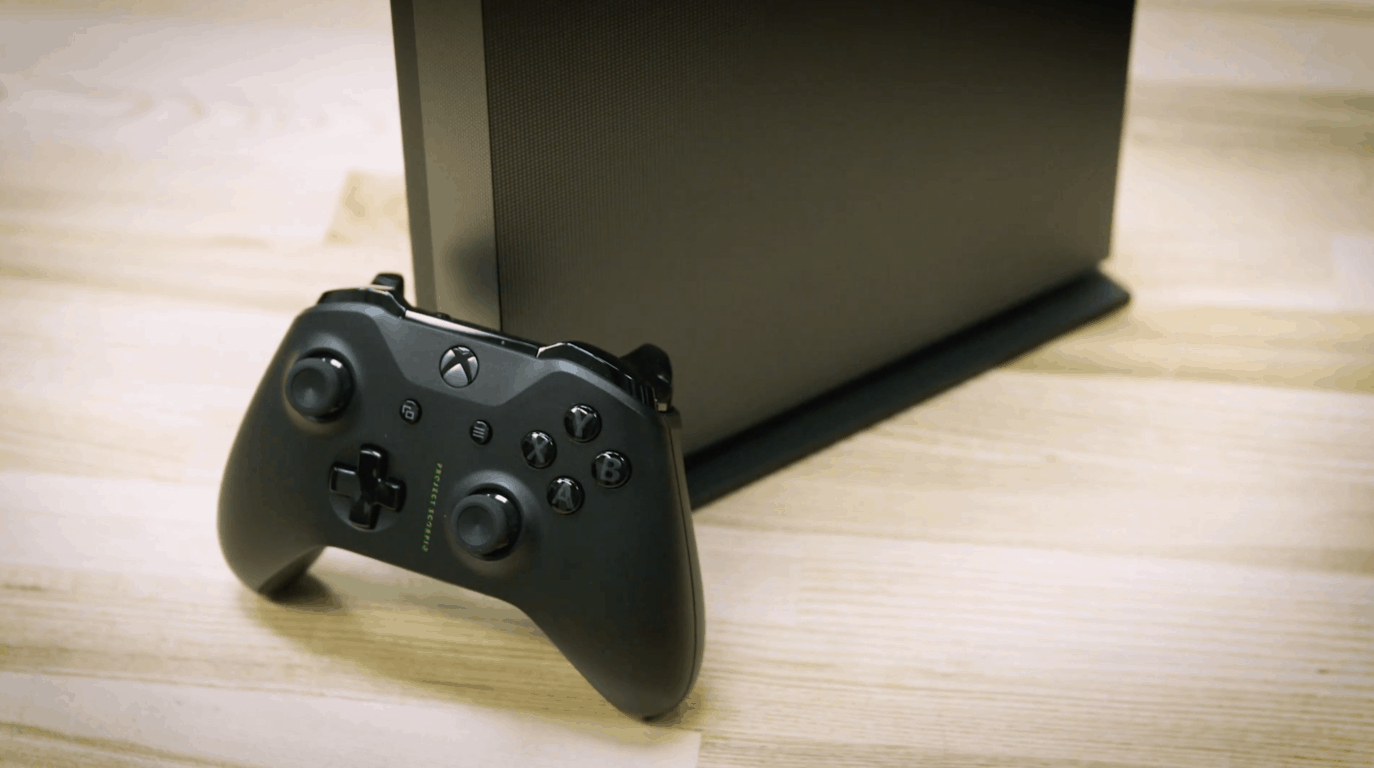
With Microsoft’s Xbox One X Project Scorpio Edition quickly selling out at most retailers this week, it seems that the limited edition console exceeded the company’s expectation for the new console. Of course, Microsoft didn’t share how many Project Scorpio Edition consoles were available for pre-orders, but Xbox Marketing Chief Aaron Greenberg recently told DualShockers that response to the new console has been “overwhelming.”

Microsoft still expects the cheaper Xbox One S to remain the most popular option in the long run, but Greenberg forecasts Xbox One X to be this holiday’s hit product. “We’re gonna make as many Xbox One Xs as we can make,” he explained. “All the signs are that it’s gonna be the number one hit product of this Holiday, so we’re gonna keep up with demand the best that we can.”

Last year, the freshly released Xbox One S was the best-selling console in the US for a couple of months before being overtaken by Sony’s Playstation 4 in the crucial holiday season. It will be interesting to see if Microsoft can beat Sony this year with the most powerful console on the market, with the help of over 100 Xbox One X enhanced games at launch.

Change your old Synaptic laptop mouse into a Surface-like Precision trackpad

For those of us who are still stuck in 2014 or using a manufacturer PC which refuses to use Microsoft’s Precision Trackpad spec, there is still a way to change your cursor experience for the better.

With just a handful of steps and roughly 10 minutes of time, you can turn your aging Synaptic mouse into a full gesture complimented Precision Trackpad.

Thanks to some footwork by the Redditor 961955197 in a Windows 10 forum, we now have the simple 9 step process laid out for us.

  1. Precision drivers for Synaptics https://download.lenovo.com/pccbbs/mobiles/n1mgx14w.zip Precision drivers for Elan https://drivers.softpedia.com/get/Other-DRIVERS-TOOLS/Others/ELAN-Input-Device-for-WDF-Driver-161132-for-Windows-10-64-bit.shtml
  2. Go to devices manager, right click on the touchpad devices
  3. Click “Browse my computer for driver software
  4. Let me pick from a list of available drivers on my computer
  5. Click “Have Disk”
  6. Then browse the autorun.inf in your driver folder
  7. Choose the Synaptics Pointing Device and click Next
  8. Finished the driver installation
  9. Reboot and enjoy the Precision touchpad.


You may be asking yourself, why would you want to go through this process?

Well, to be honest, it’s not for everyone and it also carries its own set of risks. The converting process is by no means a faulty free endeavor (especially for Insiders who upgrade constantly), but if and when you come out on the other side, you’ll have a trackpad that makes better use of Microsoft’s vision for Windows 10.

How to Check Your System Uptime on Windows 10, 7

Sometimes, you want to know how long your computer has been running and to do that, you need to find your PC’s uptime. Checking the uptime of your PC is relatively simple, and today, we will show you how to do it on Windows 10.

How to check system uptime in Windows 10?

1. Use Task Manager

Task Manager is a useful tool that lets you see all currently running and startup applications. Even though Task Manager is perfect for monitoring active processes, it allows you to monitor system performance. This feature lets you monitor your CPU, memory, and disk usage in real time.

In addition, you can also see other relevant information, including your system uptime. To check your uptime with Task Manager, do the following:

  1. Press Ctrl + Shift + Esc to start Task Manager.
  2. Once Task Manager starts, go to the Performance section. In the Performance tab, you’ll find all sorts of useful information about your CPU, but you’ll also find system uptime.

Using the Task Manager is one of the simplest and fastest ways to check your uptime, so be sure to try it out. Keep in mind that sometimes uptime in Task Manager isn’t always correct. This issue appears due to Fast Startup feature, so if you want to be certain that your uptime is correct, you might want to disable it.

2. Use Command Prompt or PowerShell

If you’re a more advanced user and prefer using the command line, you’ll be pleased to hear that you can check your PC’s uptime from your command line tool. To check the uptime in Command Prompt, do the following:

  1. Press Windows Key + X to open the Win + X menu and choose Command Prompt from it.
  2. When Command Prompt starts, enter the following command:
    • powershell (get-date) – (gcim Win32_OperatingSystem).LastBootUpTime

  3. After a few moments the results will appear in a list and you’ll be able to see your uptime.
  4. Optional: If you want to see less detailed information about your uptime, you need to use the following command:
    • powershell ((get-date) – (gcim Win32_OperatingSystem).LastBootUptime).ToString(‘g’)

If you’re not a fan of Command Prompt, you can run the same commands in PowerShell. To do that, follow these steps:

  1. Press Windows Key + X and choose PowerShell from the menu. If PowerShell isn’t available on the list, press Windows Key + S and enter powershell. Choose Windows PowerShell from the list of results.
  2. Once the PowerShell opens, enter (get-date) – (gcim Win32_OperatingSystem).LastBootUpTime or ((get-date) – (gcim Win32_OperatingSystem).LastBootUptime).ToString(‘g’) commands to see system uptime.

Both Command Prompt and PowerShell will give you the same results, and you can use any of these tools to see your system uptime.

3. Use systeminfo command

If you want to find information about your system uptime, use the systeminfo command in Command Prompt. To do that, follow these simple steps:

  1. Open Command Prompt.
  2. Once the Command Prompt opens, enter systeminfo and press Enter. Wait for a few moments for your PC to gather the required information.
  3. A list of information will appear. Look for System Boot Time value.

In addition to boot time, this command will provide you with a wide array of information regarding your system. If you’re overwhelmed with information and you want to see your system uptime, you can use systeminfo | find /i “Boot Time” command instead.

3. Use net statistic command

Another way to view your system uptime is to use a net statistic command. This command will show you information about your network as well as your PC’s uptime. To use this command, follow these steps:

  1. Open Command Prompt.
  2. When Command Prompt opens, enter net statistics workstation and press Enter.
  3. List of information will now appear. Now you have to find Statistics since value and see your system’s start time from there.

We have to mention that this command isn’t designed for checking system uptime, but it can be used for that purpose as well.

4. Use wmic os command

If you want to check your system’s startup time, you can do it with wmic os command. To use this command you have to follow these steps:

  1. Open Command Prompt.
  2. Once Command Prompt opens, enter wmic os get lastbootuptime and press Enter.
  3. Now you’ll see an array of numbers that represents your startup time.

The information isn’t most readable, but after a closer look you’ll notice that the array represents the exact date and time your system was started. As you can see, this is an easy way to check your system’s start time. The only downside is that the information isn’t represented in most user-friendly format, so you might have a bit of trouble reading it.

If you’re on Windows 11, we have a great guide on how to check Windows 11 uptime, so don’t miss it.

As you can see, checking your system uptime isn’t as hard as you think, and you can do it easily from Task Manager. If you’re an advanced user, you can check your system uptime using any of our other methods.

You Just Unplugged a Device From Audio Jack: 3 Ways to Fix

Did you receive the notification you just unplugged a device from the audio jack? This notification issue pertains primarily to laptops or desktops with Realtek HD sound devices, and it pops up sporadically.

it may continue even when you haven’t plugged or unplugged a device. In this guide, we go through possible causes and some important fixes.

Why do You just unplugged a device from the audio jack message keeps popping up?

There are specific elements that users have observed to trigger this audio jack error. The following are at the top of the list.

  • Connection issues – A primary cause could be accidental disconnection of your audio device. So you must ensure this is ruled out before starting any other kind of troubleshooting. You may also have loose connections that need to be fixed.
  • Driver issues – For some users, it is a problem of outdated or corrupted audio drivers. This is an easy trigger for the audio jack problem.
  • Issues with configurations – In rare cases, you get the problem because of audio notifications enabled in Windows settings.
  • Software issue – Additionally, malfunctioning software will trigger the problem. Often these are third-party apps that may be corrupt or outdated.
  • Malfunctioning hardware – Also, you may simply be dealing with a few bad hardware parts. they could be your primary device or peripherals.

You should be able to use the solutions mentioned above to restore your device to proper working order.

How can I fix You just unplugged a device from the audio jack repeatedly on Windows 10?

1. Configure the Realtek HD Audio Manager Settings

  1. Open the Realtek HD Audio Manager.
  2. Click the I button at the bottom right.
    you just unplugged a device from the audio jack
  3. Select the Display icon notification area option, and press the OK button.
    you just unplugged a device from the audio jack
  4. Next, click the yellow folder icon almost at the top right corner, select Disable front panel jack detection, and if it’s selected, deselect the Enable auto popup dialog option; and press the OK button.
    you just unplugged a device from the audio jack
  5. Click the Device Advanced Settings window link at the top right of the audio manager.
  6. Select the Make front and rear output devices playback two different audio streams simultaneously playback option.
  7. Also, select the Tie up same type of input jacks, i.e., line-in or microphone, as an input device recording device option and press the OK button on the Device advanced settings window.
    you just unplugged a device from the audio jack
  8. Click the green active back panel speaker icon on the right of the Speakers tab.
  9. Select Set Default Device from the drop-down menu on the right of the tab.
  10. Next, click the Microphone tab, and select the red back panel to activate the microphone icon.
  11. Click Set Default Device on the Microphone tab’s drop-down menu.
  12. Finally, press OK to apply the new settings.

Your Windows search box is missing? Get it back in just a couple of simple steps.

You can fix the unplugged pop-up notification issue by adjusting some Realtek HD Audio Manager options. You must adjust the display icon, front panel jack detection, playback device, and audio device options.

2. Run the Playing Audio Troubleshooter

  1. Type audio troubleshooter in the search box and select Find and fix audio playback problems.
    you just unplugged a device from the audio jack
  2. Click Advanced and select the Apply repairs automatically option.
  3. Then press Next to launch the troubleshooter’s scan.
  4. The troubleshooter might request to turn off sound effects and enhancements. You can press Next to skip that.
  5. The troubleshooter lists anything it fixes. If it does fix something, restart your laptop or desktop.

3. Update the Audio Drivers

  1. Press Windows + X, and select Device Manager.
  2. Double left-click Sound, video and game controllers to expand its list of devices, right-click Realtek High Definition Audio, and select Update driver from the context menu.
  3. Windows might find a new driver for your sound card when you select Search automatically for drivers. 

Windows can’t automatically find and download new drivers? Don’t worry; we’ve got the right solution for you.

Namely, we advise you to employ a specialized driver manager that can entirely scan your PC for outdated drivers or various issues and fix them in a few clicks.

That’s how you can fix the constant notifications of you just unplugging a device from the audio jack on Windows. For the which device did you plug in error message, see our fix guide.

If you have any more suggestions or questions, leave them in the comments section below, and we’ll check them out.

Protect your PC: Ransomware attack increases by two fold in 2017

Ransomware is undoubtedly getting a lot of attention these days especially after wide spread WannaCry episode. For the uninitiated, the ransomware is a piece of code that encrypts the files on your computer and demands a ransom to give away the decryption code. Yes, we have seen a variety of Ransomware plaguing the machines and invariably organisations and enterprises figure out on the top of the list.

ransomware attacks

As per a mid-year cyber attack, trends report from security analyst company CheckPoint the percentage of ransomware has doubled in the first half of this year as opposed to 2016. Furthermore, the report finds that 23.5 percent of the organisations were affected by the RoughTed malvertising campaign while 19.7 percent of the organisations were affected by the Fireball malware during the same time frame.

The report further sheds light on how the attackers are devising new methods to exploit Microsoft Office, in fact, we recently reported on how attackers were using PowerPoint files to gain access to the machine. The attackers are also introducing new methods to offload the malware and this will not require the user to open a backdoor for the attackers. The ransomware is also being disguised such that the anti virus/malware protection suite find it difficult to detect.

The report also mentions the cascading effects of “nation-state level malware” which is usually aimed for the masses and it can virtually hunt anyone instead of specified targets. Such attacks can be prevented by using the available solutions like network micro-segmentation, threat emulation and endpoint security. In fact, it is for this very reason that security solutions from company’s like BitDefender include ransomware protection.

The worst part, however, is that the Mobile malware developers are also actively developing malware. They usually use these malicious codes to control any activity on the device and also create a one-stop attack in order to fraud, steal information and also disrupt apps. The graph above represents the percentage of enterprises/organisations that were affected by the malware.

RELATED STORIES YOU NEED TO CHECK OUT:

Select Xbox Insiders can now join the Dragon Ball FighterZ closed beta on Xbox One

For fighting game fans with a love for Dragon Ball, there’s another game on the way. Dragon Ball FighterZ is coming to the Xbox One, and there’s even a closed beta available starting today. The beta is available to select Xbox Insiders, who will be notified through the Announcement feed in the Xbox Insider Hub app.

The game seems to fill a different niche from Dragon Ball Xenoverse, a recent series of fighting games from the same franchise. It’s more similar to a 2D fighting game, although it uses 3D models – very similar to the most recent Street Fighters.

The Xbox One X vertical stand will indeed be sold separately

Unsurprisingly, the Xbox One X vertical stand will be available for purchase on its own for those who don’t get the Project Scorpio edition. Many Xbox fans were concerned by the mention of the stand coming free with the special edition of the console and assumed that it was going to be exclusive to that version. In an interview with Mike Ybarra, Eurogamer cleared up that this wasn’t the case.

No price point was announced during the interview, but it shouldn’t be too expensive. A similar peripheral is currently sold for the Xbox One S and retails for $19.99. You can probably expect the Xbox One X vertical stand to run for a similar price tag.

Microsoft has acknowledged that Windows 10 S is Insider-ready

In the blog post today for Windows 10 Insider Preview build 16273, Microsoft acknowledged that Windows 10 S is Insider-Ready. While it’s a bit exciting for those who are just installing Windows 10 S, this is not exactly a new feature. Ever since Windows 10 S was made available for download on August 1st, the Insider Program feature was always been accessible in the same menu in Windows 10 S as it is in other versions of Windows 10.

Anyway, Microsoft is now highlighting how Windows Insiders to install Windows 10 S on their PCs. In today’s Insider blog post, the company offered up the following advice to prospective Windows 10 S users:

Windows 10 S brings the experiences Windows users know and love, streamlined for security and performance…. Windows Insiders can try Windows 10 S on their PCs and join the Windows Insider Program via Settings > Update & security > Windows Insider Program to receive Insider Preview builds for Windows 10 S just as they would on other editions of Windows 10.

To try Windows 10 S on your PC, you must first be running Windows 10 Pro or Windows 10 Enterprise. If you meet these requirements, you can download the Windows 10 S installer to proceed. We previously compiled a guide on how you can install Windows 10 S, so feel free to check it out.

Keep in mind that Windows 10 S will only work with Windows Store apps, and it only is supported on certain devices.

Microsoft agrees to cease forcing downloads in German “Get Windows 10” case

According to a report from Computer World, Microsoft has agreed to cease forcing Windows 10 downloads in Germany as the result of a German “Get Windows 10” court case. This comes many months after Windows 7 and 8.1 users across the world complained about (the unwanted) Windows 10 Update automatically being downloaded to their hard drives during the free update period.

The court battle over this issue in Munich, Germany was initially filed by the Baden-Würtenberg consumer rights center and lasted roughly 18 months. A roughly translated version of a German press release puts the decision into perspective for consumers.

“With the declaration of discontinuance, the Group [Microsoft] is obliged not to install additional installation files for new operating systems without approval on the hard disk of Windows users… “

Cornelia Tausch, CEO of the Consumer Center in Baden-Württember, also issues strong words in the same press release. The statement suggests that this is a win for consumer rights.

“We would have wished for an earlier introduction, but the levy is a success for more consumer rights in the digital world.”

Now that Microsoft is obliged not to install new operating systems without the consent from Windows users in Germany, it remains questionable how this will impact the automatic download of featured Windows 10 updates. It also remains questionable as to how the decision in Germany will impact similar “Get Windows 10” court cases in the United States. Safe to say, there will be much more to come in this saga.

Microsoft may use “intelligent delivery” to keep parts of your Xbox One X games in the cloud

Microsoft’s upcoming Xbox One X console will ship with a 1TB hard drive, which may seem a little low to download 4K assets for all Xbox One X enhanced games. Considering that old games like Halo 5: Guardians and Gears of War 4 are already close to 100GB without their 4K upgrades, it sounds like having an external hard drive may be mandatory for an hassle-free experience (unless Microsoft decides to release a 2TB Xbox One X console at some point).

But as it turns out, Microsoft may have a good reason to think 1TB of storage is enough for the Xbox One X. Speaking with GamesRadar at Gamescom, Head of Platform Engineering for Xbox Mike Ybarra hinted that Microsoft is currently thinking about a solution to reduce the footprint of Xbox One games on your console. “On the platform side [we’re] looking at things like what we call internally ‘Intelligent Delivery’,” explained Ybarra.

Without giving many details, the exec suggested that the intelligent feature would be able move to the cloud the bits of a game you no longer need to continue your playthrough. “People are more comfortable saying ‘I’ve done playing that, let me push that back to the cloud so I’ve got more room there.’ So we’re looking at technology like that,” added the exec.

Actually, the Xbox One already works a bit like that: when you download or install a game on your console, you can usually launch it and start playing without having to wait for the full installation to be completed. What Ybarra teased is very interesting, but maybe the Xbox team should go even further than that. Do you really need to fully download games that have a multiplayer modes if you’re only interested in the solo campaign, and vice versa? Instead of an “intelligent delivery” system, maybe it could it be possible to let gamers decide what parts of a game they want to download, but this may be just wishful thinking on our part.

Ybarra did not say if Microsoft has already started to work on this intelligent delivery solution, so it could be years before we see it materialize. Anyway, it’s great to see that the Xbox team has a forward-thinking approach for managing precious storage space on our consoles.

Microsoft Surface Studio and Xbox One S win gold, bronze IDSA awards for design

Two of Microsoft’s consumer products have won awards from the Industrial Designers Society of America (otherwise known as the IDSA) for design. The Surface Studio picks up a gold award, and the Xbox One S picks up a bronze award from the membership-based not-for-profit organization.

In their decision, the IDSA cites the way in which the Surface Studio transforms the way people create. The organization also mentions how the Surface Studio redesigns the vision of an all-in-one computer.

Surface Studio is an all-in-one computer that transforms the way people create and produce. Built with creatives in mind, it redefines the ideology of an all-in-one computer that adjusts to the tasks at hand. Surface Studio is equipped with the thinnest in-class display mounted on a zero-gravity hinge, making it seem like a floating sheet of pixels. This simple gesture allows continuous workflow, switching from work mode to drafting to upright orientations with just one finger.

Next up, with the Xbox One S, the IDSA cites the smaller size of the home console in their reasoning for a bronze award. Also mentioned is support for 4K HD Blu-ray video and streaming and high-dynamic-range imaging.

The Xbox One S is the latest version of the Xbox game console. It’s capable of 4K HD Blu-ray video and streaming and high-dynamic-range imaging. It’s 40 percent smaller than its predecessor, the Xbox One. Additional features include an integrated IR blaster, an internal power supply and up to 2 terabytes of internal storage.

Microsoft also won a gold award in the Consumer Technology category for HoloLens, “This mixed reality is enabling new ways to create, communicate, work and play,” wrote the IDSA. Lastly, in the Digital Interaction category, the company received another gold award for the Surface Dial, with the IDSA remarking, “it offers a new way to interact with technology and create in a natural, immersive way.”

Microsoft may be exploring new AR gestures controls with wand-like patent

With HoloLens 2.0 not scheduled until sometime in 2019, Microsoft has carved out a nice chunk of time for its developers to fully explore the limits of its initial augmented reality platform and it looks like that exploration could include additional gesture controls.

Thanks to some digging by @h0x0d, aka, the WalkingCat we now know that Microsoft has filed a patent for a wand-like input device to accompany its augmented reality platform.

https://twitter.com/h0x0d/status/900174091264471040

The WalkingCat goes on to reference a stylus-like pen as a comparison for Microsoft’s latest patent functionality. The stylus-like pen was used by Google Draw which was another accompaniment to Google’s initial AR attempt with Google Glass.

While Apple and Google continue to work on more mainstream handheld applications for augmented reality, it appears that Microsoft is positioning its AR approach to be a full-scale computing replacement environment, equipped with re-envisioned input methods.

It’ll probably be a few more months before we start to really see some demos of what HoloLens 2.0 will bring to the AR game, but with onboard AI, new gesture controls and perhaps a sleeker design, it should be worth the wait.

Digital pre-orders for The Crew 2 open up on the Xbox One

The Crew 2 is now available to pre-order digitally on Microsoft’s Xbox One family of consoles. The game is a direct sequel to the first The Crew game which came out back in late-2014 but features a variety of new gameplay mechanics such as bikes, boats, and plans to help differentiate it from its predecessor. Here’s the official description, pre-order link, and trailer.

In The Crew 2, take on the American motorsports scene as you explore and dominate the land, air, and sea of the United States in one of the most exhilarating open worlds ever created. With a wide variety of exotic cars, bikes, boats, and planes to choose from, experience the unbridled thrill and adrenaline-pumping excitement of competing across the entire USA as you test your skills in a wide range of driving disciplines. Record every heart-pounding, white-knuckle, moment and share them with the simple push of a button – fame is yours to take! Play with up to 7 friends online.

Pre-order The Crew 2 on Xbox One

The Crew 2 is due for release on March 18th 2018 and all digital pre-orders made before that date will get the HARLEY-DAVIDSON IRON 883TM 2017 and Mercedes-AMG C 63 Touring Car 2016 unlocked in-game.

Are you excited for The Crew 2 and will you pre-order? Let us know in the comments below.

Pre-order the new Xbox One Minecraft wireless controllers here while stocks last

The two new Minecraft-themed Xbox controllers are now available to pre-order online. Each controller is a specially decorated version of the latest model of the Xbox One controller which works wirelessly with Xbox One consoles and Windows 10 PCs.

The green controller (Pre-order on Amazon here or Microsoft Store here) is inspired by the Creeper enemies from the Minecraft video games and features a nice little pack of TNT on the rear while the pink controller (Pre-order on Amazon here or Microsoft Store here) is based on one of the many pigs that litter the Minecraft in-game landscape.

Both of these controllers are due for release on September 12th 2017, just a few weeks away.

Are you going to grab one of these limited edition Xbox controllers? Let us know in the comments below.

4 best Feng Shui software for PC

If you’re looking for a reliable Feng Shui software, you’ve come to the right place. In this article, we’re going to list the best Feng Shui tools that you can use to harness the power of this ancient Chinese philosophical system.

Feng Shui can help you reshape your fortune, relationships, and your whole life. It is a combination of Art and Science that has been used in China and the Far East for thousands of years.

We’ll get right to the core of the matter, and we’ll offer you the best Feng Shui tools that you can use to reach inner balance and build harmony with the surrounding environment.

Feng Shui software for PC

Mark Shackelford’s Feng Shui Software

This Feng Shui Software originally came in three versions, but two of them are now obsolete. The only one available is the pro version. This is a full system with all the Feng Shui features you need as a professional consultant or if you are following an in-depth course for a pro.

This Feng Shui Pro software can calculate all the necessary values that you need to know. Just enter the birth date of your clients and the tools will offer you detailed information about them.

Key features include:

  • Garden Layout: use Feng Shui element s for an auspicious garden
  • Feng Shui Form School: you have the opportunity of learning about the 4 Celestial Animals and all the ways in which they’ll protect your home
  • Gardener’s Almanac: it’s a daily guide to all you need to know about your garden (what to do and what not to do)
  • Daily Elements: you can check the elements related to any selected day
  • I Ching Lottery: allows you to choose your lucky lottery numbers
  • Essential Oils: this teaches you how to use them as Feng Shui cures and health improvements
  • Astrological Relationships: you can check your compatibility with your friends and family by comparison various Element relationships
  • Feng Shui Tips and Information: offers you all kinds of information and tips

Other helpful features include Chinese Games, a Monthly Chinese Calendar, I Ching Divination, Numerology and more.

It’s effortless to get started with the program because it is a standard Windows system with Point and Click. After you install it, you just have to move the mouse around and click on the buttons.

Find out more and get the program from the FengShui magazine.


Feng Shui Store

The software is perfect for your home and office, and it offers you the opportunity to carry out your very own professional Feng Shui Consultation and to print more than 70 pages of personalized charts and reports.

The program promises to improve more of your life’s aspects including the following:

  • Wealth, business, and career.
  • Relationship and romance.
  • Health and well-being.
  • Family & business relationships.
  • Fame and reputation.
  • Self-confidence.
  • State of mind.
  • Personal ambitions.
  • Prevention of unseen obstacles.
  • Children’s development, academic performance, and confidence.
  • Relations with your neighbors.
  • Pet’s welfare.
  • Motivation, etc.

You don’t need to have experience in Feng Shui to use the program, but if you are already familiar with these concepts, you will find out that the software can provide valuable and little-known information. The software is perfect for every Feng Shui enthusiast but also for Masters, teachers, practitioners, interior designers, builders, architects and more.

You have three versions of this software available according to your needs: the professional version, the Master version, and the Business version.

For detailed information visit the software’s official page.


QiPlus Feng Shui

This is a professional Feng Shui and Chinese Astrology software for Feng Shui practitioners. You can register for free, login and download the demo version from your account. The software is compatible with  all Windows versions.

You can buy additional packages such as the following:

  • QIPLUS Feng Shui ($250): it includes a Feng Shui report, data selection, and Qi calendar
  • Feng Shui Report ($150): it includes modules such as the Floor Plan Editor, Feng Shui Chart, and the Feng Shui Report
  • Date Selection ($50): it includes modules such as the Annual Sha, Date Selection – Great Sun Formula, and Date Selection – Moon Formula
  • Qi Calendar ($100): it includes the modules BaZi-Four Pillars of Destiny, Nine Stars, Melodic Elements, 12 Officers on Duty


FengShuiPC


FengshuiPC is an impressive Feng Shui software perfect for professional consultants. The tool is developed on the Microsoft Excel platform, features a very user-friendly interface and integrates seamlessly into the Microsoft Office family.

The benefits of this Feng Shui software include the following:

  • It saves time: the software does the groundwork, and it invests your time and skills to find the most auspicious solution for your clients
  • It provides reliable results only a few seconds after you have introduced the necessary data
  • It offers a professional presentation: you can present your customers a polished presentation of your solutions
  • It provides deeper analysis via a fast review of alternatives as well as through a simultaneous view of all influencing factors in one-floor plan.

You can buy FengshuiPC from its official page.


These are our top choices for Feng Shui software for Windows. Visit the official website of each tool to read more about them and then select the one that suits your needs and interests best.

RELATED STORIES YOU NEED TO CHECK OUT:

Sound won’t work on PC

If there is no sound on your Windows 7, 8, 10 PC/laptop, follow the troubleshooting steps listed in this article. Sound issues on PC/laptop are very common, yet the solution is not always that obvious or easy to find.

Sound won’t come out of computer

There are many possible explanations as to why there is no audio on PC/ laptop. Generally speaking, sound is missing due to hardware of software issues. As a result, in order to fix sound problems on PC/ laptop, you need to first make sure that your hardware is working properly. If you haven’t identified any hardware problems, focus on finding and fixing the software-related issues.

Without further ado, here are the steps to follow to fix sound problems on PC.

Fix sound issues on PC/ laptop

Solution 1 — Check your cables and speakers

First things first, make sure that you plugged your cables the right way and turned on the speakers. Maybe you tripped over the cables and you unplugged them by mistakes or you forgot that you turned off the speakers five minutes ago.

Also, if there is no sound when you launch a particular program, test the sound in other apps and programs to make sure that is not a program-specific issue.

Solution 2 — Use Microsoft’s audio troubleshooter

Before you dive into troubleshooting, use Microsoft audio troubleshooter to fix the sound problems you’re experiencing on PC.

You can download it from Microsoft’s support page. You can also use the Windows built-in audio troubleshooter:

  1. Go to Start button > type Troubleshoot, and then select Troubleshoot from the list of results.
  2. Select Playing Audio > Run the troubleshooter.

Sound won't work PC

Solution 3 — Make sure that your audio device is enabled

  1. Go to Start > type ‘Device Manager’ > hit the first result.
  2. If a device appears with a down arrow, this means that the respective device is disabled. Right-click it > select Enable to re-enable it.

Solution 4 — Update your audio input/ output driver

Make sure that your audio driver is up to date. Oftentimes, if your driver is obsolete, you may experience various sound bugs.

  1. Go to Start > type ‘Device Manager’ > hit the first result.
  2. Locate your audio device > right-click on it > select Update driverno audio pc
  3. If prompted, choose to update the audio driver automatically. Windows will then search and install the latest audio driver.

audio issues PC

Solution 5 — Roll back audio drivers

Sometimes, various drivers and especially GPU drivers may override audio drivers. Try rolling back audio drivers and check if sound is available when using a previous driver version. Additionally, disable any audio enhancements and use only standard settings.

Here are the steps to follow to roll back audio drivers:

  1. Go to Start > Device Manager.
  2. Navigate to Sound, video and game controllers.
  3. Right-click your audio driver > go to Properties.audio unavailable PC
  4. In the Driver tab, click Roll Back Driver.
  5. That should bring back the previous version and possibly fix your sound issues.

If the problem persists, move down to the next solution.

Solution 6 — Update your sound card driver

If there is no sound coming out of your PC after installing the latest audio drivers, check your sound card. Here’s how you can do that:

  1. Launch Device Manager again > select Sound, video and game controllers
  2. Right-click your sound card > select Update driversound card driver no audio
  3. Wait until Windows installs the latest driver and then test sound again.

Solution 7 — Change the audio output device

Sometimes, GPU drivers change the default audio output device. Here’s who you can enable the default settings:

  1. Right-click Sound icon in the Notification area > open Playback devices.
  2. Highlight the preferred device > select Set as Default.no audio
  3. Click OK and check for changes.

Solution 8 — Change the default sound format

This is actually a very common issue that causes sound problems on speakers or headphones. If your default sound format is wrong, you can’t play any sound on your computer.

Here’s how to change the default sound format:

  1. Right-click on the speaker icon in the taskbar > select Playback Devices
  2. Your default playback device is already selected > go to Propertiesfix no audio PC
  3. Go to Advanced tab > change the default sound format from the dropdown menu.

fix no audio PC

It is worth mentioning that these settings aren’t the same for all users. Enable various sound formats, test them and select the one appropriate for your device.

Solution 9 — Download the SigmaTel Audio Driver

If you have no sound on your Dell computer, try downloading the SigmaTel Audio Driver. Many users reported that after installing this driver, sound came back.

The only problem is that there are many SigmaTel Audio Driver versions available depending on your Windows version. Second, this fix works only for older Windows versions.

For example, the Sigmatel STAC 975X AC97 Audio Driver provides the necessary audio support for the Inspiron Notebook, Latitude, Precision and XPS Notebook models running Windows XP and Windows Vista.

Search for the appropriate Sigmatel audio driver, install it and check if the issue persists.

Solution 10 — Another program is controlling your sound

If there is no sound on your PC, another program may be controlling your sound. Some apps and programs tend to seize exclusive control over your computer, turning off sound on speakers.

To fix this, you need to block apps from taking exclusive control over your audio device:

  1. Right click the speaker icon on the taskbar system tray > select Playback devices.
  2. Right click the current playback device > go to Properties.
  3. Go to the Advanced tab > uncheck the option “Allow applications to take exclusive control of this device”.
  4. Click Apply > OK > restart you PC.

If you’re running Windows 8, uninstall KB2962407. Many users reported that this old cumulative update breaks audio. Go to Windows Updates, check the Update history and simply remove this update from the list.

Solution 11 — Check  Windows Audio and Audiosrv

Make sure that the Windows Audio and Audiosrv services are running:

  1. Go to Start > type “Services” > hit Enter
  2. Locate Windows Audio > check if the service’s status is set to running. If the service is disabled, right click it and select Start.fix windows audio
  3. Now, set Windows Audio to run automatically on startup > right-click Windows Audio > select Properties.
  4. Go to the General tab > go to the startup type section and select “Automatic”no audio computer fix
  5. Click Apply > OK
  6. Repeat the steps listed above for Audiosrv.
  7. Close the services window and check to see if the issue persists.

Solution 12 — Run SFC

This action allows you to repair corrupt system files that may be causing audio issues.

  1.  Go to the Start menu > type cmd > right-click Command Prompt > run as an Admin.
  2. Type the sfc /scannow command > hit Enter.SFC no audio
  3. Wait until the scan process is complete > restart your computer.

Solution 13 — Install the latest Windows updates

Make sure that you’re running the latest Windows OS updates on your machine. As a quick reminder, Microsoft constantly rolls out Windows updates in order to improve the system’s stability and fix various issues.

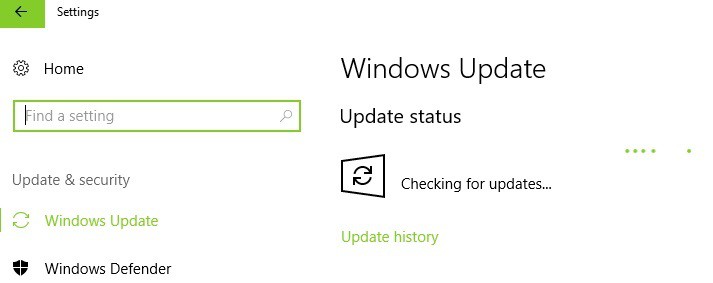
To access the Windows Update section, you can simply type “update” in the search box. This method works on all Windows versions. Then go to Windows Update, check for updates and install the available updates.
no audio fix PC

Solution 14 — Configure on-board sound in BIOS

Before you proceed, keep in mind that this solution is a complex one and the steps to follow require advanced technical skills. If you’re not comfortable with tweaking your PC’s BIOS, skip this solution.

  1. Enter BIOS > turn on your PC > hit F10 until the Setup screen appears.
  2. In the BIOS Setup screen, locate the on-board sound section. It should be located under Advanced.
  3. Select either Enabled or Disabled, depending on the current configuration > hit Enter > save and exit.
  4. After Windows starts > check if sound is available
  5. If there is no sound, shut the PC down > unplug the power cable > press the power button for 30 seconds to remove all the power from the PC.
  6. Plug the power cable in > turn on the computer.
  7. Enter BIOS > go to BIOS Setup screen > save the default BIOS settings.

You’ve reached the end of your troubleshooting guide. We hope that one of the workarounds listed above helped you fix the audio issues affecting your PC.

For more information on how to fix specific audio problems, check out the articles below:

Microsoft Company Store drops support for older browsers in September

If you access the Microsoft Company Store’s website right now, you’ll see a note saying that after a planned security update older browsers including Internet Explorer 10, won’t be able to access the store.

Microsoft Company Store ends support for older browsers

Starting with September 1 at 11 PM EST, to still be able to access the company store from a modern browser that will support the upcoming security upgrade. If you won’t update your browser, or if you don’t use a newer version, you won’t be able to access the online store anymore.

The announcement doesn’t come from the Redmond giant but Microsoft Company Store’s hosting provider eCompanyStore.

The browsers that will be supported include:

  • Microsoft Edge
  • Internet Explorer 11, released in 2013
  • Google Chrome 22, released in 2012
  • Mozilla Firefox 27, released in 2013
  • Safari 7, released in 2013
  • iOS 5, released in 2011

Protecting online shoppers and their data

The announcement also notes that the purpose of this security update is to increase the protection for online shoppers and their personal information. Upgrading to the latest browser version will result in making sure that your personal data will receive protection by the most recent standards wherever the TLS 1.2 protocol is enabled. The high security standard remains even if shoppers browse and shop other websites.

In case you weren’t familiar with it, the Microsoft Company Store is a dedicated online outlet which tends to all the needs of the company’s alumni and employees by offering them the opportunity to get merch at cut prices. In the Store, you can get various products including accessories, apparel, stationery and so on. The Store is not limited to Microsoft’s staff only, as anyone can purchase products from there.

Hulu Live TV comes to Xbox 360

Want to hear something weird? Here goes: There are still developers creating things for Xbox 360. It’s something that many of us who are in-the-know about Xbox may forget, considering how long the Xbox One has been current gen, but it’s still true. The most recent update coming to Xbox 360 is an overhaul for the Hulu app, including live TV.

The update brings a whole new look to Hulu, as well as the new functionality. For people who are still using an Xbox 360 as their main way to consume media, this is a huge win. While I wouldn’t expect anybody to count on more updates in the near future, this is a great treat for people who haven’t upgraded to Xbox One.

Microsoft will shutter Surface Support Twitter account, urges users to follow Microsoft Helps instead

Microsoft is shutting down the Surface Support Twitter account, giving followers a quick notice before they stopped supporting the page. This decision seems to primarily be part of Microsoft’s overall branding effort with their support pages, which they’re trying to consolidate into the MicrosoftHelps Twitter.

https://twitter.com/SurfaceSupport/status/900018118239682561

The Surface Support Twitter will continue to run for another 6 days, although it’s unclear if any real activity will occur during that time. At the end of the 6 days, it’s likely that the page will close altogether, although it may just stop posting.

Microsoft retires its GigJam collaboration app after public preview

Preview programs for software can be extraordinarily useful for working out the kinks – it’s the best way to get feedback early on that can shape work in a meaningful way. Such was the case with GigJam, an experimental service that offered a great way to redact information from a document quickly and collaborate on documents without worrying about showing people things they don’t need to see.

GigJam, unfortunately, didn’t get to become a big success story for preview programs. It was announced today that GigJam will no longer be developed, and all existing Gigs will expire on September 22nd, when the app is officially shuttered.

It’s unclear why the decision was made, or if the team plans to integrate GigJam’s functionality into something else. For now, all we know is that users who relied on GigJam have a month to move on to another service for their projects.

Microsoft is removing Windows 10 Pro support for next gen file system, ReFS

If the upcoming Fall Creators Update will bring a lot of new improvements to Windows 10 PC, several features will also be removed or deprecated with this new release. And after the recent confusion around Microsoft Paint made a lot of headlines, it has been recently reported that Windows 10 Pro will also lose the ability to create new volumes using Microsoft’s Resilient File System (via Ars Technica) .

The removal was first spotted by Twitter user Tero Alhonen, who saw it in a recently added note on a support page for the Fall Creators Update. Starting with the Fall Creators Update, only PCs running Windows 10 Enterprise or the recently announced Windows 10 Pro for Workstations will be able to create new ReFS volumes, but all other editions including Windows 10 Pro will still have Read and Write ability. In other words, if you already created a ReFS volume on your Windows 10 Pro PC, you will still be able to use it after updating to the Fall Creators Update.

For those unfamiliar, ReFS is a modern file system designed to be resilient to data corruption for PCs handling large data volumes. ReFS is not a real alternative to NTFS (ReFS volumes are not bootable), but it’s essentially a more efficient file system for power users. By limiting the creation of ReFS volumes to Windows 10 Pro for Workstations, Microsoft may encourage advanced users to upgrade to the new Windows 10 SKU when it becomes available later this Fall. However, the decision may be disappointing for those of you who think that there is no point to remove this feature on the “Pro” version of Windows 10.

In addition to full ReFS capabilities, the upcoming Windows 10 Pro for Workstation will also bring persistent memory, faster file sharing and expanded hardware support. Microsoft has yet to announce pricing details, but we should learn more ahead of the release of the Fall Creators Update.

Microsoft, in new partnership with Halliburton, wants to transform the oil and gas industry

Microsoft and Halliburton today detailed plans for a strategic alliance which will help drive digital transformation across the oil and gas industry. Under the relationship, Microsoft’s leading cloud and digital services will be combined with Halliburton’s science, software, and services.

According to Microsoft, one of the steps in the alliance involves both companies “leveraging and optimizing Microsoft technologies in machine learning, augmented reality (AR), user interactions and Industrial Internet of Things, as well as Azure’s high-performant infrastructure and built-in computing capabilities.” The end result will “deliver tightly integrated solutions across the energy value chain.”

Here is what Microsoft is saying about the alliance:

Areas of collaboration include applying deep learning to reservoir characterization, modeling and simulation, building domain-specific visualization for mixed reality, creating highly interactive applications, and fueling the digitalization of E&P assets. As a first step in the alliance, Halliburton has made DecisionSpace 365 available on Azure, enabling real-time data streaming from IoT edge devices in oilfields and the ability to apply deep-learning models to optimize drilling and production to lower costs for customers.

Azure will also become Halliburton’s preferred public cloud provider for iEnergy as part of the partnership. Microsoft is also saying that with this partnership, both companies will be allowed to apply voice and image recognition, video processing and AR/Virtual Reality to create a digital representation of a physical asset using Microsoft’s HoloLens and Surface devices.

Microsoft expands partnership with Red Hat with new container support for both platforms

When Red Hat and Microsoft joined forces in 2015, companies were already using both technologies and today’s press release reveals that the two are taking new strides in their alliance. Today, Microsoft announced that they are adding Windows support in OpenShift, OpenShift Dedicated on Azure, and SQL Server support in OpenShift and Red Hat Linux.

Adding these goals onto the joint roadmap is being said to ‘simplify container technologies and drive digital transformation for enterprise customers into using hybrid cloud technology. As previewed earlier this year at the Red Hat Summit, Windows Server containers will be natively supported on Red Hat OpenShift, the open sourced container being the first Kubernetes project to support both Linux and Windows Server.

On top of that, Red Hat OpenShift Dedicated on Azure will now be an available option.

With today’s announcement, it is planned for availability on Azure, Microsoft’s enterprise-grade cloud platform with availability announced across 42 regions globally — more than any other public cloud provider. Microsoft and Red Hat engineers are working closely to optimize OpenShift while running on Azure, ensuring enterprise performance standards and matching integrated support.

In addition, Red Hat OpenShift Dedicated on Microsoft Azure allows enterprise IT teams to focus on delivering business value and fostering innovation rather than keeping the lights on and micro-managing resources. Red Hat OpenShift Dedicated on Microsoft Azure is expected to be available in early 2018.

As a cherry on top, Red Hat announced that the now generally released .NET Core 2.0 is available as a container in OpenShift.


Save 50% on certain apps with the Back to School collection in the Windows Store

Back to school season is almost here, and Microsoft is helping you save money as you prepare for the new school year. Indeed, you can now save up to 50% off on certain Windows 10 apps by checking out the new Back to school collection in the Windows Store. We’ve given the collection a look and have included a few of our favorites below, and we invite you to check out the full collection by clicking here.

Drawboard PDF: $9.99 now $4.99

Need to mark up and annotate your local PDF documents? Replace pen and paper with an app that feels like pen and paper! Drawboard PDF is the top standalone PDF app on the Windows Store. Avoid printing documents for markup ever again with Drawboard PDF’s uniquely intuitive user interface and experience, smooth and natural pen inking, stylus and touch input separation and an impressive array of annotation tools. All our annotations comply with globally PDF specification standards.

Drawboard PDF
Drawboard PDF
Developer:
Drawboard
Price:
Free

Grapholite – Diagrams, Flow Charts and Floor Plans Designer: $39.99 now $9.99

Draw flow charts, floor plans, network layouts, uml, sketches & illustrations. Grapholite is an all-in-one diagrams designer aimed to create all types of business graphics and technical drawings from simple drafts and sketches to complex professional looking documents.

Grapholite Diagram
Grapholite Diagram
Developer:
Aphalina
Price:
$49.99

Algebra Touch: $2.99 now FREE

See why people enjoy math! Have you forgotten most of your algebra? Algebra Touch will refresh your skills using touch-based techniques built from the ground up for your Windows 8 tablet or PC. Enjoy the wonderful conceptual leaps of algebra, without getting bogged down by the tedium of traditional methods.

Algebra Touch
Algebra Touch
Price:
Free

In addition to the Collection in the Windows Store, Microsoft is also highlighting its STEM Saturday Initiative. With the free STEM Saturday program at the Microsoft Store, teachers, students, and parents can get hands on with technology. Do you plan on downloading any of these apps, or checking out STEM Saturday? Let us know your thoughts below.

Rise of the Tomb Raider will offer three different visual modes on the Xbox One X

Rise of the Tomb Raider is joining the list of games to be enhanced for the Xbox One X when the console launches in November, and the graphics update will be free for players who already purchased the game. According to a blog post on the official Tomb Raider blog, the upcoming Xbox One X update has been developed by Nixxes Software, the same company that previously ported the action/adventure game to the Xbox 360. On the Xbox One X, the game support for 4K graphics, HDR, spatial audio (including Dolby Atmos) and many other visual enhancements such as improved reflections, volumetric lights and more.

Interestingly, Xbox One X owners will be able to choose between the following three visual modes:

  • Native 4K: (full 3840 by 2160) for highest fidelity resolution
  • Enriched Visuals for stunning graphic upgrades
  • High Frame Rate for the smoothest possible gameplay

Rise of the Tomb Raider currently runs at 30 FPS in 1920×1080 resolution on the Xbox One, so it seems that the first option will make the game run in true 4K at 30 FPS. With the second option, the game will likely look much better (but not in native 4K) while maintaining a 30 FPS lock. As for the third option, it will supposedly make the game reach that 60 FPS sweet spot, which many gamers may prefer.

It remains to be seens if more game developers will follow that path and offer different visual modes for their Xbox One X enhanced games. Do you care more about your game having beautiful 4K graphics, or is it more important for you to play your games at a rock-solid 60 FPS? Sound of in the comments if you think game developers should give this choice to Xbox One X owners.

Exclamation Mark on Wi-Fi? 7 Ways to Fix it

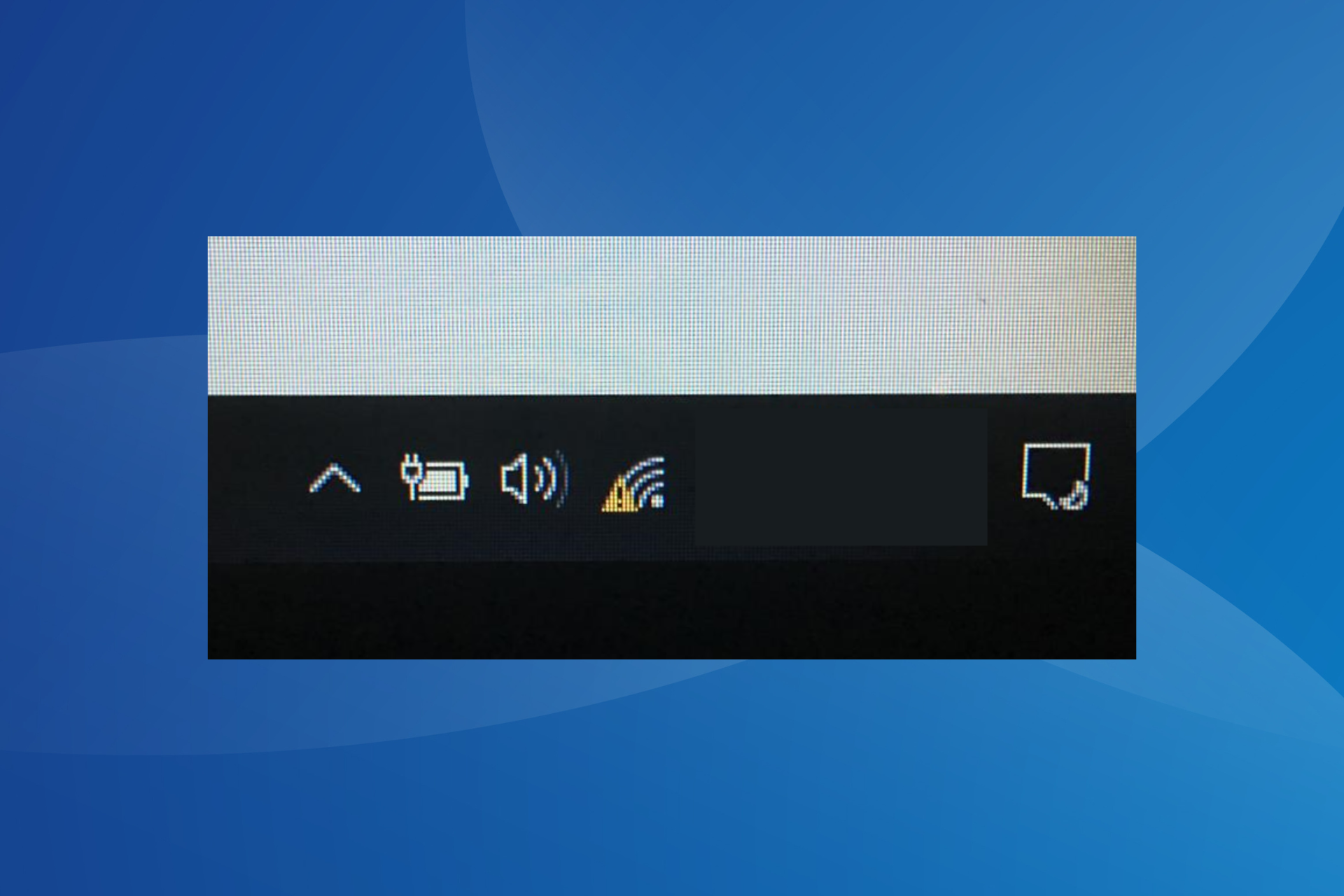
When the Wi-Fi icon on the desktop’s main menu has an exclamation mark, you are bound to face network-related issues.

There are several reasons why users face issues with network connectivity and, as a result, can’t connect to the Internet. Even when they can, the Internet speed is slow, or the connection is limited. So, keep reading to find out all about it!

Why is there an exclamation mark on my Wi-Fi?

Here are a few reasons users encounter the issue in Windows:

  • Poor network connectivity: A common reason behind the problem is poor signal strength, and it’s often easily fixable by changing the position of the device or the router.
  • Incorrect password: Often, when you enter an incorrect password, an exclamation mark may appear on the Wi-Fi icon in the system tray.
  • Misconfigured network settings: For some users, it was the misconfigured network settings to blame for the problems.
  • Issues with the driver: When talking about network issues, we can’t ignore the possibility of a driver-related problem, be it incompatible or outdated drivers.

How do I fix Wi-Fi with an exclamation mark?

Before we proceed, try these quick solutions first:

  1. Make sure the password entered is correct.
  2. Check all of your wires to ensure they are connected properly.
  3. Unplug the Modem for 30 seconds.
  4. Retry the connection.
  5. Reset your modem by using the reset button at the back of the modem, which is usually a pinhole button.                                                                                                  
  6. Restart the computer and check whether the exclamation mark on Wi-Fi disappears.

If none work, move to the fixes listed next.

1. Delete the Network Profile

  1. Open the Command Prompt as an administrator.
  2. Type the following command and hit Enter, while replacing the last part with the actual profile name: netsh wlan delete profile name=type-wireless-profile-name
  3. Now, open the Control Panel.                           
  4. Choose Network and Internet.
  5. Click on Connect to a Network.
  6. Follow the on-screen prompts.

In most cases, deleting the network profile and reconnecting to the network does the trick when you have an exclamation mark on the Wi-Fi icon.

2. Reset Winsock

  1. Open the Command Prompt as an administrator.
  2. Execute the following command: netsh winsock reset
  3. Restart the modem/router.

Winsock is a technical element that allows the computer to connect to a TCP/IP. If this element is corrupt, it can interrupt the connection. Before resetting Winsock, we recommend creating a system restore point.

3. Run an IP Config

  1. Open the Command Prompt as an administrator.
  2. Release the previous IP Address by typing the following command: ipconfig /release
  3. Renew the IP Address by typing the following command: ipconfig /renew

Every time a system is connected to the Internet, a new IP address is generated. Sometimes renewing your IP address can solve connectivity issues.

4. Reset TCP/IP

  1. Open the Command Prompt as an administrator.
  2. Reset the TCP/IP by executing the following command: netsh int ip reset resettcpip.txt

The connectivity issue often remains with the Internet Protocol or TCP/IP. If this is the issue, the TCP/IP must be reset to eliminate the exclamation mark on Wi-Fi in the laptop.

5. Troubleshoot Network Connections

  1. Open the Control Panel.
  2. Click on Network and Internet.control panel PC
  3. Now, select Network and Sharing Center.
  4. Click on Troubleshoot problems.troubleshoot to fix exclamation mark on wifi
  5. Follow the onscreen instructions

6. Use the network reset tool

  1. Click on the Start Menu, and open Settings.
  2. Click on Network and Internet.
  3. Under the Status Menu, look for Network Troubleshooter.
  4. Click on Network reset.
     

Once done resetting the network, you shouldn’t find the exclamation mark on the Wi-Fi signal.

7. Reinstall Network Adapter

  1. Open the Control Panel.                                                                          
  2. Click in the Search Box and type Device Manager
  3. Click on Network Adapters
  4. Right-click on the adapter you would like to uninstall and select Uninstall device.uninstall device to fix exclamation mark on wifi
  5. Confirm the removal of the driver and proceed.
  6. Restart your computer and follow the on-screen commands

If the network adapter encounters an error, the best solution to fix things is to uninstall the driver and let the computer auto-detect and reinstall it. This should, in all likelihood, remove the exclamation mark on Wi-Fi in Windows 10.

When all else fails, you can always buy a new WiFi Network Adapter. These gadgets aren’t very costly and plug into the USB port.

Once done fixing the error, check some quick tips to make Windows run faster than ever.

Tell us which fix worked for you in the comments section below.

Sling TV is now available in Google Chrome on Windows PCs

Sling TV is now available on Chrome and it also supports both on-demand and live content.

Sling TV before Chrome support

The streaming service has been available for PC before it got the Chrome support but this used to be possible only via a dedicated application. By dropping this requirement, the platform can now compete better against more dominant players such as Netflix which have had browser support for a longer time.

Attracting more customers

Extending the streaming service’s availability on more platforms is the key to attracting more clients, and this is why Sling TV is opening its doors to people who use Google Chrome.

Sling TV on Google Chrome is fast, intuitive and very easy to use. Customers will be able to start live and on-demand TV with a simple click seamlessly. They’ll also be able to stream their favorite content on Sling.com without the hassle of logging in to another device or downloading plug-ins. “Sling customers can stream their favorite can’t-miss content, like live NFL games or the next episode of ‘Game of Thrones’ on Sling.com.

Sling TV’s browser player is available for the latest version of Chrome, and it includes features such as Continue Watching or My TV. Users also have access to their settings and parental controls via the player. In the near future, we will see more features rolling out.

You can provide feedback about your viewing experience on Google Chrome to the Sling TV product team by emailing [email protected].

RELATED STORIES TO CHECK OUT:

Lukitus, a new version of Locky ransomware is on the loose via spam emails

Locky ransomware strikes again with its new variant called Lukitus which is a part of a new campaign. Before all this, the ransomware was using a new file extension called “diablo6”. Now, this new .lukitus extension was spotted.

Lukitus lurks in spam emails

As expected, the malware is being distributed via spam emails, so you’d better be extremely cautious. The spam message will come with an attached Microsoft Office file or with a ZIP attachment, which both come packed with malicious scripts. Once a trustful user downloads and executes the file, it will start to encrypt the host computer’s files and data. The malware will also manage to scramble file names, so the users will get confused and not know which file is which anymore.

In the end, the extension ‘lukitus’ will appear next to all infected files, and the downloaded software will disappear. But this is not all as things don’t end here. The program will be replaced by a file which contains the ransom note and users will see that Locky will demand 0.49 Bitcoins which translates into $2,000.

The sad thing is that there is no known way to decrypt the files that have been infected by this variant of the nasty software.

Protect your file against ransomware attacks

What you can do for more protection is to have an offline backup of all of your files. You can also try to restore the encrypted files from Shadow Volume Copies.

As you can see, there’s not much you can to fix the issue, but you can prevent it from happening by being careful when opening email attachments. You should be cautious especially when the emails seem to be random and none of your concern. Another essential thing you have to consider is keeping your antivirus software updated because this will also help block these aggressive cyberattacks.

RELATED STORIES TO CHECK OUT:

Intel may have shown off Microsoft’s follow up to the Surface Book

With the Surface Pro and Surface Laptop not only hitting shelves but bringing along some timely discounts for back to school shoppers as of late, it is no wonder Microsoft’s powerhouse 2-in-1 Surface Book has been shoved to the back of line during conversations.

That was, until today.

As Intel unveiled its 8th generation Core processor and revised Kaby Lake architecture it did so alongside a curious video ad that was picked up by MSPoweruser early on, which appeared to be showcasing the features of the new chip on a black version of Microsoft’s Surface Book.

Understandably, the internet went into an uproar over what appeared to be a poorly concealed implication as to what Microsoft might be working on for its follow-up to its polarizing 2015 2-in-1 hit.

The industry chatter comes at a time where many are looking longingly at Microsoft to refresh the Surface Book with more than just a boosted base. Some critics of the Surface Book are looking for Microsoft to address the Fulcrum hinge that creates a gap between the lid and keyboard while others are hoping the company brings it new ink and display tech over from the Surface Pro to the Surface Book for boosted productivity.

The new black Surface Book in Intel’s ad could just be meant as a reference device with no ties to Microsoft’s production, however, the level of detail given in the video is hard to brush aside. From the revamped tablet/eject button to the now prominently displayed black finish on the device, Intel’s black Surface Book may be a hint at what’s to come from Microsoft and a Surface Book 2.

Over the past few years, Microsoft has held an annual event some time in October to either showcase a new version of Windows 10 or new hardware from the Surface division. If there is another event being held this October, it seems to reason that Microsoft might have a Surface Book and Surface Studio refresh for customers now that the Surface Laptop and Surface Pro are known commodities.

We’ll keep an eye out for any more accidental reveals of what might be Microsoft’s Surface Book sequel.

You can now use Netflix in Continuum mode in Microsoft Edge

One of the features that Windows Mobile has over other phones is the ability to use Continuum, a stream from the device to a monitor to use it as a desktop. When docked, users can run Windows from their phone, controlled with keyboard and mouse on an alternative monitor. But even as it is a highlight, Continuum still has issues with some applications.

Netflix was one of those until recently. WindowsUnited.de reports (via Windows Central) that users are now able to use the video streaming service through its Microsoft Edge counterpart.

Unfortunately, the Netflix app is still having issues playing nicely with Continuum. So if you’re running a Continuum compatible phone, you can at least watch videos through the browser now. Hopefully, a fix is in the works for the app down the line.

Microsoft celebrates 20 years of Age of Empires with “exciting news”

Gamescom is kicking off the week with plenty of announcements and first looks to keep gamers at the edge of their seats. One such is the hands-on preview of the recently announced Age of Empires: Definitive Edition where attendees will get to play the revamped classic.

Further than that though, there will be major news for the Age of Empires franchise later today. At 12:00 pm PDT, Age of Empires will take the spotlight for some “exciting news” says Xbox Wire.

The Age of Empires: Definity Edition, which is going to be exclusive to Windows 10, has already accepted its first wave for the closed beta. Those interested in the beta can still register now. What we know so far about the release is that the title should be available by the end of this year. Maybe we’ll see more details during today’s announcement.  We’ll have to wait and tune into the livestream on Mixer later today at 12:00 pm PDT.