Red Screen on Windows phone [FIX]

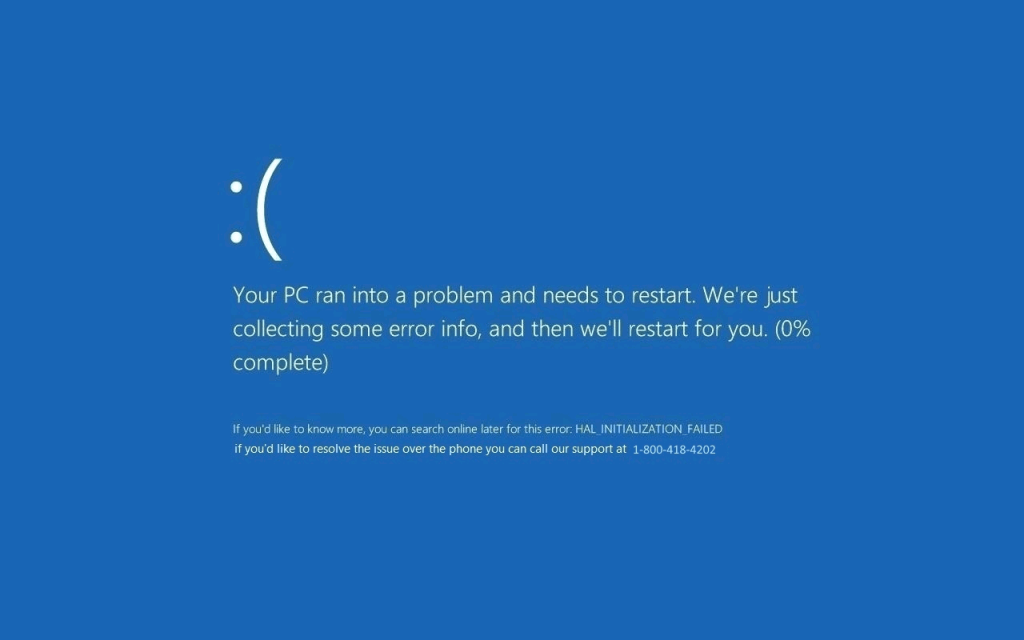
Getting a Red Screen of Death on your Windows phone is a scary experience. First of all, the RSoD error occurs quite rarely, taking users by surprise. Second, the OS doesn’t offer much information on the cause of this issue.


How to fix Red Screen issues on Windows 10 Mobile

1. Perform a soft reset by pressing and holding the volume down and power buttons until your phone vibrates and restarts. As a quick reminder, don’t touch device screen during the process, not even when the ‘Slide down to power off’ instruction appears on the screen.

You can also remove the phone’s battery, if your device has a detachable battery.

2. Connect your phone to your PC and run the Recovery Tool again. Select “My phone was not detected” and wait for the device  to reboot itself, then follow the on-screen prompts. If you encounter any issues at this stage, try restarting the phone while it’s connected.

3. This is a variation of the second workaround. Remove the SD card and SIM card from your phone and open the Recovery Tool. Select “My mobile not detected”, and go to model selection. At this stage, it’s extremely important not to turn the phone on or connect it to PC.

When you’re prompted to connect your phone, first turn it on by pressing the power and volume down buttons at the same time. When the logo appears on the screen, connect the phone to your computer via the USB port and follow the on-screen instructions.

If you’ve come across other solutions to fix RSoD errors on your Windows phone, you can list the troubleshooting steps in the comment section below.

RELATED STORIES YOU NEED TO CHECK OUT:

6 of the best Notepad alternatives to use

Notepad is a text editor included in all Windows platforms. Although a seemingly basic piece of software, the text editor comes in handy for various things. For instance, Windows users can set up handy batch files or AutoHotkey scripts with it. However, Notepad has very few formatting or editing options so if you need a text editor with more extensive options and tools, look no further than these third-party Notepad alternatives for Windows.

Notepad++


Notepad++ is a highly rated text editor for Windows specifically designed for scripting with its support for numerous programming languages, such as C, Pas, al and C++. The program is freely available and compatible with all Windows platforms. Press the Download button on this page to save the software’s installer.

The great thing about Notepad++ is how it highlights syntax when programming code. With it, users can select numerous formatting options from the software’s Style Configurator to customize their own global styles with foreground and background colors and italic or bold fonts, or choose from preset themes. The program includes tabs so that users can edit multiple text files at once, a spell checker, macro-recording options, a Document Map tool and a Function List panel that displays function items in text documents. Furthermore, Notepad++ has additional plug-ins that enhance the software a little more.

EditPad Pro (or Lite)


EditPad is notepad software with a freeware and proprietary version. The Pro version retails for €39.95 and supports a wide variety of file types such as C, C++, HTML, C#, CSS, Visual Basic, VBScript and XML. You can add EditPad Lite 7 to Windows platforms from XP up by clicking Download EditPad Lite on this page.

EditPad is an all-purpose text editor that doesn’t just cater to software developers as it supports word wrapping and proportional fonts. The software itself has a tabbed UI design and includes extensive customization options on its Preferences window. For example, users can configure the editing options, the mouse cursor, keyboard navigation, tab colors, status bar indicators and more. The Pro version also includes syntax coloring, a spell checker, a hexadecimal mode for binary editing and a file navigator. Although the Lite version lacks those tools, it does still include the handy Clip Collections with which you can save text snippets and source code templates.

PSPad


PSPad is another great text editor for programmers, but it also includes advanced text-editing options. This is freeware that’s compatible with the more recent Windows platforms and also has a portable version for USB sticks. You can click Installer on this page to add PSPad to your software library.

PSPad is chock-a-block with programming and scripting tools for developers. You can select to open ASCII Table window, Color Selector window, Color Translator, Code Explorer and Macro tools from its Tools menu. The software’s View menu includes Spell Check, Line Numbers and Hex Edit MODE options. This is a good text editor for website design as it includes an expansive HTML menu from which you can select HTML Page Preview, Check HTML code, Reformat HTML code and Text to HTML options. PSPad also has numerous code templates and highlights syntax for specific file types. PSPad is certainly packed with more tools than most third-party text editors.

Notepad2

Notepad2 is a lightweight third-party text editor that has a similar UI to the original Notepad, albeit with a customizable toolbar. What sets this program apart from the other alternatives is that it installs over and replaces the original Notepad. This software is compatible with Windows platforms from XP to 7 and you can download its setup wizard from this web page.

Notepad2 retains Notepad’s speed and ease of use, but has lots more options, the most notable of which is perhaps syntax highlighting for various coding languages, including C/C++, VBScript, Pascal, Visual Basic, Python and CSS. Users can select Line Numbers, Indentation Guides, Visual Brace Matching and Highlight Current Line options from the View menu. Notepad2’s Settings menu also includes a Transparent Mode that adds transparency to the window and an Always On Top options that keeps the text editor on top of other windows. Notepad2 doesn’t have as many tools as some of the other third-party alternatives, but it’s still a solid text editor.

Ted Notepad

Ted Note is another lightweight text editor that weighs less than one megabyte. Unlike PSPad, this is not a text editor designed for scripting but it has plenty of handy text-processing options. You can add this freeware to Windows platforms from XP to 10 by pressing the Ted Notepad button on this home page.


Ted Notepad might not seem much different from the Windows Notepad accessory at first blush, but once you start digging through the menus, you’ll find plenty of handy options. For instance, users can select from eight alternative types of text case conversions. The software includes Remove Empty Lines, Sorting, XML/HTML Tag and Enclose Selection tools. Furthermore, TN has nine clipboards that you can save text to and it also enables you to copy and paste text with the mouse instead of the usual hotkeys. Auto-save, which automatically saves timed backups, is another good addition to the program.

Atom

Atom is a relatively new text editor with rave reviews. This flexible, open-source software sports modular design which enables users to configure the program without opening config files. This is also multiplatform software that you can run in Windows, macOS and Linux platforms. Press the Download Windows 64-bit installer button on Atom’s home page to save its setup wizard.

Atom is a good choice for scripting as it supports a range of default programming languages, which include C/C++, PHP, JavaScript, CSS, Clojure, Java, HTML, SQL and Perl. The software highlights syntax for several programming codes. Tree view is a great addition to Atom that provides drag-and-drop file and folder support. What really sets Atom apart from other third-party text editors, though, is its customization options that enable users to configure the UI and syntax themes, hotkeys and further enhance the software with packages. Atom even has a developer mode for users to edit the program with.


Those are six of the best Notepad alternatives for Windows ideal for editing scripts and text processing, all with more options and tools than Notepad in Windows.

This Windows Report article also tells you about some of the best HTML5 editors with which you can edit script code.

Microsoft reveals the Mixer Create live streaming app

Microsoft announced a rebranding of its streaming service Beam. It will be called Mixer and will be launched in beta on iOS and Android.

Mixer Create app features

The new Mixer Create app will include self-broadcasting features that will allow streamers to keep in contact with their audience while they are on the go.

According to Microsoft:

Mixer Create Beta Launches on Mobile Devices (iOS and Android) — Mixer Create is a new mobile app that enables self-broadcasting, and we’re kicking off the beta today. Soon thereafter, we’ll add the ability to stream live gameplay from your mobile device as well. The ability to broadcast gameplay on-the-go opens up entirely new social gaming possibilities.

In the near future, the company also plans to update the Mixer Create to let creators stream live gameplay of iOS games straight from their iPhones and iPads. This is similar to how Mixer can stream games on PC and Xbox One.

Mobile broadcasts will be viewable by users on any platform that Mixer is running on. This also includes the basic Mixer app for iOS, Android, Xbox One and the web. The application is designed as a partner application to the main Mixer app and currently allows users to use it in a way similar to how live broadcasts work on Instagram and Facebook. The apps will be soon updated to enable live streaming of mobile phone games.

Four streamers combine into a single experience

The company hasn’t yet explained how exactly the feature will work but it gave examples of streamers sharing gameplay from their iPhone such as streaming their hunt for Pokemon Go.

Users who will stream on Mixer will also be able to co-stream with up to three other people. This means that up to four creators will be able to combine their streams together into a single experience for the viewers.

Mixer Create is available for the public on Android in beta and on iOS via Apple’s TestFlight service — but only by invite.

RELATED STORIES TO CHECK OUT:

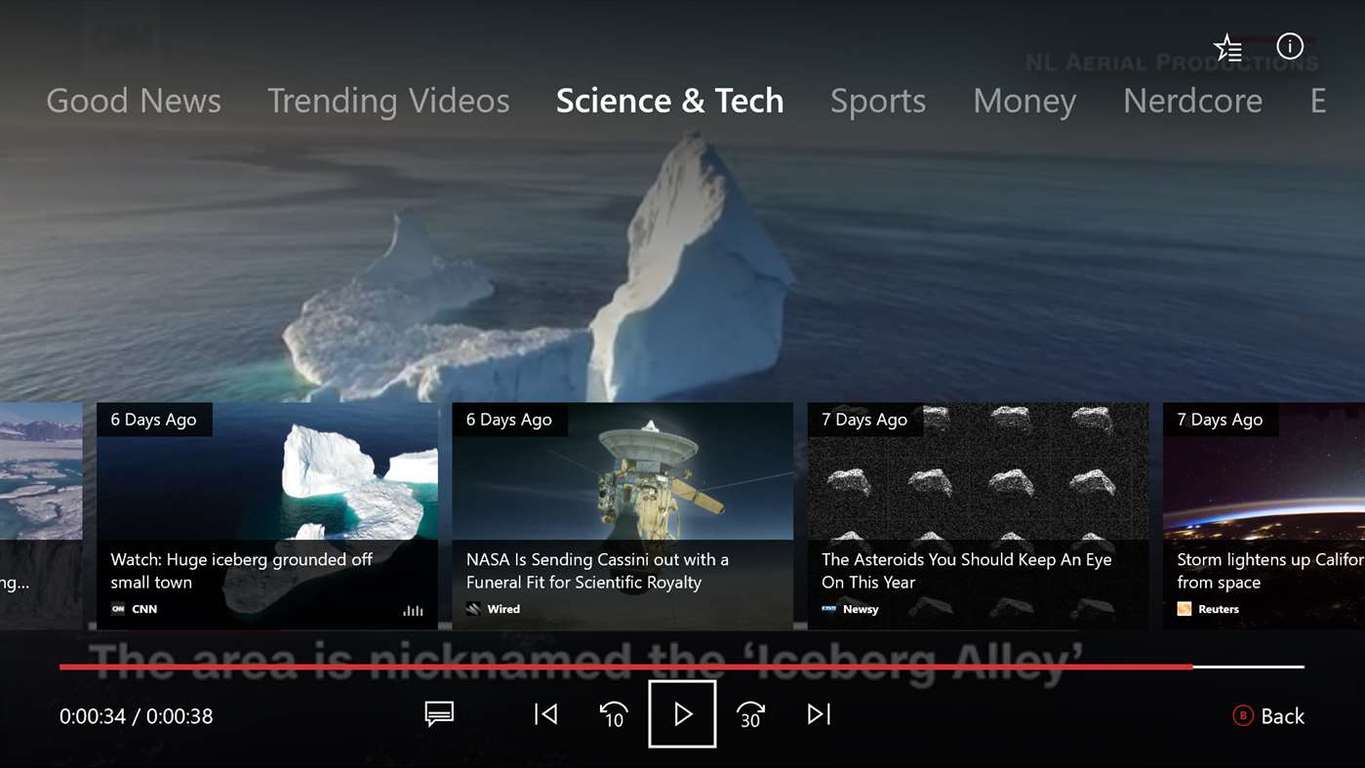
Microsoft Garage releases Your News for Xbox One, delivers personalized news

Microsoft Garage is has released a new app for the company’s Xbox One games console. Called Your News, it is aimed to deliver a curated feed of news, allowing the passive viewing of news headlines, as well as to watch the news right from their console (via Windows Central).

The app is powered by Microsoft’s MSN platform, which allows the app to deliver video content by MSN. The idea of the app is to allow users to discover news that matches their tastes and preferences while doing other activities, not necessarily sat infront of the console.

The team behind the Your News app gave the following description:

We helped to serve this by ensuring our users had the choice of which news they wanted to watch. They are provided with a list of news topics and sources personalized to their tastes, each of which provides a variety of news stories. If they’d like to watch passively, they can put the controller down and watch a continuous stream of stories. This is Your News, where users can watch news they are interested in, whenever they want.

First 1706 build for Xbox One is on the way for Preview Alpha Insiders, brings Mixer co-streaming, controller sign-in and more

Microsoft is beginning to release the first build of version 1706 for Xbox One. Intiially releasing to those on the Preview Alpha ring, this build brings a few new features, as well as a number of fixes.

To begin with, here is what’s new in the first build of 1706:

  • Profile
    When a signed in user is selected in the Guide, the e-mail address associated with their account will now display under their profile, as well as on Home. This feature is enabled by default for adult accounts, and disabled for child accounts (child accounts will never see the e-mail address associated with their account displayed).

Adult accounts can disable this feature by navigating to Settings > Account > Sign-in, security & passkey.

  • Mixer Co-streaming
    You can now invite a friend to combine their game broadcast with yours! Sign in with an account that has an Xbox Live Gold subscription and invite a friend to your party. Once you’ve begun broadcasting your game from the Guide, you’ll be able to select “Invite party to co-stream” from the Party tab. Co-streaming is currently available only to Alpha Insiders, so we’d suggest using the Insider forums to sync up with other Alpha Insiders to test out this feature.
  • Controller Linking
    Signing into your Xbox account can now be done with a click of the Xbox button thanks to the new controller linking feature! You can now link an account to a specific controller by opening the Guide, navigating to Settings > Account > Sign-in, security & passkey and selecting the “This controller signs in…” option followed by “Link controller.” From there, test the feature out for yourself by signing out of your account and then turning your controller off and then back on.Find more detailed steps and provide your thoughts on this feature by accepting the “Link Your Controller” Quest in the Xbox Insiders Hub!

For fixes, there’s a few, but one that a fair few will enjoy – distorted audio with Windows Sonic should now be fixed:

  • Windows Sonic
    Fixed an issue which could cause distorted sounds and audio glitches when Windows Sonic is enabled.
  • Skype UWP
    Fixed issues which could sometimes cause the Skype UWP to crash during use.
  • Mixer
    Fixed an issue which sometimes caused the virtual keyboard to lose focus (preventing text from being entered).

The only known issues are with the Mixer integration:

Mixer

  • After dismissing the virtual keyboard, attempting to relaunch the virtual keyboard may fail.
  • When switching games while broadcasting with Mixer, the stream freezes and doesn’t allow the user to close or restart the broadcast.Workaround: Restart the console.

The build is rolling out to Preview Alpha Insiders now, with those on the Beta ring expected to receive it later in the week, based on feedback.

The Surface Pro 4 should now have a much better battery life

Microsoft unveiled a new firmware update for the Surface Pro 4. In its install instructions, the company mentions that users should use the drivers and firmware to prepare custom images for enterprise deployment or to repair issues with custom installations on their Surface Pro 4 devices.

The Surface team updated the following:

  • The drivers for Surface Embedded Controller Firmware
  • The drivers for Surface Touch Servicing ML
  • The drivers for Surface Touch
  • The drivers for Surface UEFI

The updated drivers resolved some issues including a brightness problem when devices come out of sleep, refined brightness settings, optimized touch functionality, adjustment of hibernation defaults, improvements for battery life and stability during sleep, and disabled touch capability when the cover is closed.

The update also includes the following:

  • The Surface System Aggregator Software
  • Intel Precise Soft Device
  • Surface Intergation Drivers (which the company released last month for devices running Windows 10 version 1703 – the Creators Update, for Windows 10 version 1607 (Anniversary Update) and Windows 10 version 1511 – the November Update).

Microsoft says on its official page for the update that:

Cumulative and current firmware and drivers for the Surface Pro 4. This firmware and driver package contains drivers for all of the components in the Surface Pro 4, as well as updates to the system firmware that have been released via Windows Update. These drivers and firmware are compatible with Windows 10, including Enterprise versions. The driver MSI and ZIP files include all of the drivers and firmware needed to deploy custom images of Windows on your Surface devices. Additionally, the WinTab driver is provided for those professionals needing WinTab compatibility with certain Surface Pen enabled applications.

Read all the information about the update and download it from Microsoft’s official page.

RELATED STORIES TO CHECK OUT:

Microsoft hosts its first-ever Accessibility Summit in India to drive digital inclusion

Microsoft India today hosted its first-ever Accessibility Summit in the country in Hyderabad with an aim to enhance technology access for people with disabilities.

The summit brought together government leaders, non-profit organizations, filmmakers, entrepreneurs, and young technologists to present their views and best practices around accessibility and demonstrate the business value of accessible technology for organizations.

“Our vision is to ensure that persons with diverse abilities have equal access to the physical environment, transportation, information and communication technologies, and to other facilities and services. The Microsoft Accessibility Summit provides an ideal platform to bring together policymakers and influencers to understand the policy environment and chart a direction for making life, experiences and opportunities accessible to all.”

– Jayesh Ranjan, IT Secretary, Department of IT – Electronics & Communication, Govt of Telangana

The event featured a series of sessions focused on the role of technology in creating accessible businesses as well as scalable and sustainable models for skilling youth with disability. There was a special focus on the need for regulatory policies for innovation on accessible technologies and inclusive hiring practices. The summit featured several technology-based projects that empower people with disabilities and included innovations from non-profit organizations, assistive technologies developed by Microsoft partners, as well as some of Microsoft solutions.

The Microsoft Accessibility summit provided insights into regulations, specifications, and standards so that accessible and adaptive technologies can act as a support system to promote inclusion and empowerment of persons with disabilities.

Perception system requirements for PC

A new horror game will soon launch and we’re sure it will send shivers down your spine. It’s called Perception, and it’s a challenging experience that puts you in the shoes of Cassie, a young blind woman trying to escape a deadly presence.

Cassie possesses two important qualities: extraordinary hearing and sharp wits. Use them to unravel the mysteries of an abandoned estate that haunts her dreams. Once she arrives there, she realizes the evil spirit that has been tormenting its inhabitants over generations is how hunting her. Your main task are to solve the mystery of that evil presence — while not becoming one of its victims.

Interested in Perception? If your answer is yes, make sure that your computer is perfectly capable of running the titlke in order to avoid technical issues.

Perception system requirements for PC

  • OS: Windows 7 (64-bit)
  • Processor: Dual core CPU @2.4 GHz +
  • Memory: 4 GB RAM
  • Graphics: NVIDIA GeForce 470 GTX or Radeon 6870
  • Storage: 3 GB available space

For the time being, Perception’s developers have no plans to port the game to Linux.

Perception supports the following languages:

  • English
  • French
  • Italian
  • German
  • Spanish
  • Japanese
  • Polish
  • Portuguese-Brazil
  • Russian
  • Simplified Chinese

Full audio is available only in English, though.

For more information about the game, check out the trailer below:

Here are some of the most important features of the game:

  • You’ll be able to actually visualize your environment using echolocation.
  • You’ll engage in a deadly game of hide and seek with countless enemies, including The Presence.
  • As you solve the mysteries, you’ll trigger major changes at the Estate at Echo Bluff
  • You can travel back through time to exorcise your nightmares.

Interested in Perception? You can buy it from Steam.

RELATED STORIES YOU NEED TO CHECK OUT:

How to find out shut down statistics for your Windows computer

For some users, especially administrators of business networks, it’s important to keep track of various statistical values. Most use advanced 3rd-party tools in order to access the sensitive information about connected PCs. Even though most of them don’t focus exclusively on shut down statistics, it can still be a valuable piece of information accessible without advanced software.

The data on who shut down certain computers and when it happened isn’t important for ordinary users, but administrators and managers beg to differ. Here are three ways to keep track of this sort of information.

Use Windows Logs

Windows Logs is a great built-in tool that packs in all of the essential information related to the everyday usage of a PC. In addition, advanced users can browse error logs and maintenance reports, helpful with troubleshooting, tracking faulty software/hardware inputs, and much more. And, yes, you can find the exact time of the previous shutdown within Windows Logs.

In order to check shut down routines with the Windows Logs/Event Viewer, follow the instructions below:

  1. Press Windows key + X + V in order to open Windows Event Viewer.
  2. From the left pane, click Windows Logs.
  3. Click System.
  4. In the far right pane, click Filter Current Log.
  5. In the Event Sources line, type 6006 and save selection.
  6. In the middle pane, you should see the list of the latest shutdowns.

Additionally, you can find the Up Time within the Task Manager. Right-click on the Taskbar and open the Device Manager. You can find the Up Time under the bottom right corner.

Use Shutdown Logger

However, if you’re not satisfied with Event Viewer, you can use a more user-friendly 3rd-party tool that should make things much easier. While we’re aware that Windows 10 covers the essentials, you may as well try out this tool since it’s completely free.

Monitoring PC usage with Shutdown Logger is simple since the program creates text logs that are easily accessible. It’s basically a implemented service that only records shutdowns and not the sleep states. Just download it, run it and you can restart your PC and start tracking shutdowns. You can access logs with the exact time and date of the previous shutdowns by navigating to C:\ShutdownLoggerSvc\Logs.

If you want to obtain Shutdown Logger, this is the download link.

Use TurnedOnTimesView

Compared to the previous tool, TurnedOnTimesView is somewhat advanced. This tool that works without installation and doesn’t need to run in the background. Simply download it, start it and it should provide you with punctual readings of previous shutdowns, up to several weeks ago.

It stands somewhere between detailed, native Windows Logs and Shutdown Logger. There are additional logs that can help you substantially with the troubleshooting, with clues about the causes of possible system errors. Moreover, it can track sleep/hibernate events and display them in alist, just as the shutdown routines: with time and date.

You can download TurnedOnTimesView here.

At the end, both of those are niche tools that aren’t commonly used by the vast population of Windows users. However, if you’re keen to try them out, they will serve you well.

What tools do you use for monitoring and maintenance? Tell us in the comments below.

RELATED STORIES YOU NEED TO CHECK OUT:

Manage your Windows files & folders more efficiently with FS Utilities

FS Utilities is a suite of tools that helps you deal with your files and folders in a more efficient way on your Windows PC. With it, you’ll be able to analyze files and take more complicated and advanced actions to deal with them in the most efficient manner.

Installing FS Utilities

After you download the package, open it and run “setup.exe”. At ClickOnce’s security prompt, click the Install button. The program will then start and from now on, you will be able to start the app from Start > All apps > FS Utilities. You can, of course, create a shortcut for the program if you want to.

FS Utilities usage

The app can’t work without a list of files and folders, so you have to select something in Windows Explorer and drag the selection with the option “drag files/folder here”.

Once you drop something, the screen will contain two main tabs. The folders can be navigated through two ways: hierarchical or flat.

Operative examples of the app

  1. Export files or folders list in Excel

Select what you plan on exporting and click CSV to obtain the CSV file. This is a temporary file, so if you want to saveit, use the “Save As…” option.

  1. Search and filters

To find something,  type it into the “Quick text search” box. The results will be filtered and highlighted anywhere the search matches.

  1. Activities on the selections

After you pick a selection of files, you’ll have these contextual menu options available:

  • Executing the file
  • Reveal in Windows Explorer
  • Signature calculation
  • Copy the files in clipboard
  • Delete files
  • Rename files

After you pick a selection of folders, you have the following contextual actions available:

  • Executing the folder
  • Reveal the folder in Windows Explorer
  • Filter all the x files in this folder
  • Copy folder structure

Other operative examples of the app include:

  • Summarizing data by extension
  • Finding duplicates
  • Using a folder structure for creating a new and empty folder structure
  • Renaming a set of files

FS Utilities is a great file management suite and has amazing features and file handling capabilities, so make sure to check it out!

RELATED STORIES TO CHECK OUT:

Windows 10 news recap: non-Insiders receive apps with Fluent Design elements, Windows 10 China Government Edition and more

Welcome back to our Windows 10 news recap. We are continuing the trend of our weekly “Windows 10 news recap” series where we go over the top stories of the past week in the world of Microsoft’s flagship operating system.

Non-Insider versions of Windows 10 Calculator, Alarm & Clock updated with Fluent Design looks

Those who aren’t on Insider builds of Windows 10 are beginning to see some Fluent Design elements appear in the default apps of Windows 10. Some of the apps include Calculator and Alarm & Clock.

Fluent Design Calculator

Microsoft announces Windows 10 China Government Edition

A new edition of Windows 10 is being made available, but only to the Chinese government. Known as Windows 10 China Government Edition, it is based on Windows 10 Enterprise Edition and will allow China to manage all telemetry and what users can access on the OS.

Citrix Receiver brings Win32 apps to Windows 10 S, now available in the Windows Store

For those who thought Windows 10 S would be very limited due to its ability to only install apps via the Windows Store, lacking Win32 program support. A new app in the Windows Store, Citrix Receiver, has been updated to support the Universal Windows Platform, and now allows those on Windows 10 S to run traditional Win32 programs in a virtualised state.

Windows 10 is used on more than 50 million business PCs

A video released on Microsoft’s Windows YouTube channel shows that Windows 10 is being used on more than 50 million business PCs.

Microsoft exec says Windows 10 and Windows 10 S options will be available for Surface Laptop and Surface Pro

In addition to the Surface Laptop that runs Windows 10 S by default, a Microsoft exec has said that both the Surface Laptop and Surface Pro will be available with either Windows 10 or Windows 10 S options. In a statement, the exec said:

Surface Laptop @h0x0d

That’s it for this week – we’ll be back next week with more Windows 10 news.

Nirsoft’s UninstallView is a portable Program Uninstaller software for Windows

UninstallView is a piece of free portable software developed by Nirsoft that allows users to uninstall apps from their Windows machines. Besides the plain un-installation, the app also offers more features you won’t find available by default.

UninstallView description

According to the official site of the developing company, UninstallView is a:

tool for Windows that collects information about all programs installed on your system and displays the details of the installed programs in one table. You can use it to get installed programs information for your local system, for remote computer on your network, and for external hard-drive plugged to your computer. It also allows you to easily uninstall a software on your local computer and remote computer (Including quiet uninstall if the installer supports it).

Regarding its system requirements, the app runs on any version of Windows and it supports both 32-bit and 64-bit systems.

Using UninstallView

Using the app doesn’t require an installation process or additional DLL files; you just have to run the executable file UninstallView.exe. After doing so, it will scan your local system and collect all the information about the programs installed on your device. After finishing the scanning process, all the information related to your installed program will be displayed in the main menu.

Loading speed

You can choose between three loading speeds:

  • Slow with most details
  • Medium with medium details
  • Fast with least details

Uninstalling a software

You have three options available for uninstalling software:

  • Uninstall Selected Software
  • Change Install of Selected Software
  • Quietly Uninstall Selected Software

The app also lets you uninstall software on a remote computer using the PsExec.tool from SysInternals/Microsoft. The most useful uninstall ioption is the Quiet uninstall because the software is uninstalled without displaying anything on the screen of the remote computer.

The Options Menu

You have the following options available from the app and you can check all the necessary details about the on the official site.

  • Uninstall Run Mode
  • Run as administrator if it’s required
  • Always run as administrator
  • Show ‘System Component’ Items
  • Show Items With Parent Uninstall Entry
  • Show Items Without Uninstall String
  • Show Items Without Display Nam
  • Allow Uninstall Of Multiple Items

UninstallView is a powerful portable tool and extremely easy to use. Check it out!

RELATED STORIES TO CHECK OUT:

New concept shows what Windows 10’s Resource Monitor could look like with a touch of Fluent Design

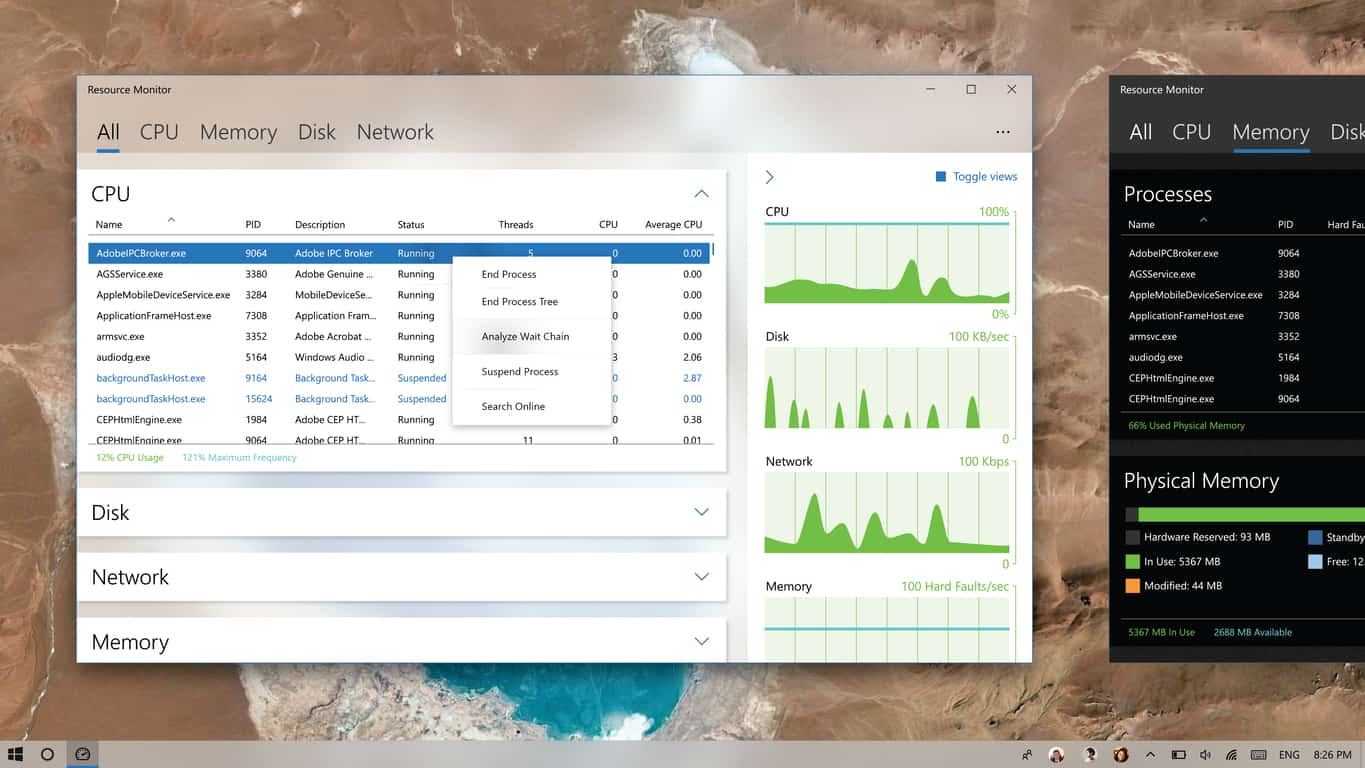
With built-in apps on Windows 10, such as Groove Music, receiving touches of Microsoft’s new Fluent Design language, one Redditor has decided to show a concept of what the Win32 Resource Monitor could look like if it got Microsoft’s makeover treatment.

Resource Monitor using Windows 10's Fluent Design
Credit to Quayledant

As you can see, the concept streamlines the Resource Monitor, such as making the CPU, Disk, Network and Memory graphs more visually appealing and noticeable without having to do any additional clicks, as well as turning the entire interface into a one-page system, where clicking the tabs opens the accordion that contains additional information of the selected item.

Those on Reddit appeared to like the concept, but cast doubt on the probability of Microsoft putting in the effort into making the Win32 programs pretty:

Would you like to see Resource Monitor receive the Fluent Design treatment in Windows 10?

Xbox news recap: Beam rebrands to Mixer, Far Cry 5 reveal completely changes the franchise and more

Welcome to our weekly Xbox news recap series, where we go over the top stories of the past week in the world of Xbox. Let’s get started.

Beam becomes Mixer, mostly for legal reasons

Beam, Microsoft’s streaming service with a small but loyal base of users, has been rebranded as Mixer. The rebrand has gotten a mixed reception so far, with many loyal Beam users upset that the service has been so dramatically changed overnight. Unfortunately, the renaming occurred because Microsoft “had to change the name because we couldn’t use the Beam name globally,” according to a Tweet from Mixer’s Matt Salsamendi. Only time will tell how dramatic of an effect the new brand has.

Far Cry 5 revealed, showing new direction for the franchise

Far Cry 5 was revealed this week by Ubisoft, showing us an entirely new direction for the Far Cry series. The franchise has mostly been defined up until this point by its themes of wilderness and throwing people into a wild, untamed land – but the new series takes place in a contemporary American setting. This time around, it looks like the game takes place in a Montana town called Hope County, and features a villain in the way of a religious cult. Several trailers were released, and they’re all worth watching.

Mixer getting huge changes in the near future

Mixer’s new brand means that the service is really doubling own on making its own identity in the world of streaming services, and that comes with new features. Mixer has been very transparent about what they plan to be adding in, and it’s actually pretty promising. The list includes Dynamic Stream Recaps, Sub Anniversary Announcements, Channel Editors, Scheduled Live Streams, Team Based Interactive Games, Voice Chat Commands, Co-Streaming, and so much more. No word on when this stuff comes out, but it’s all looking great.

Here’s the list of features:

  • Dynamic Stream Recaps
  • Sub Anniversary Announcements
  • Channel Editors
  • Scheduled Live Streams
  • Team Based Interactive Games
  • Voice Chat Commands
  • Co-Streaming
  • AV1 Stream Encoding
  • Private Messaging
  • Group Messages
  • Moderator Permission Editor
  • Channel Moderation Logs
  • Built-in Donations
  • Theater Mode
  • VOD Chat Replay
  • Console Apps

Mixer may be coming to Playstation, and maybe Switch

Mixer’s mostly aimed at people who are Xbox/Windows 10 diehards, but as a service it needs to be available for everybody. A Twitter user recently reached out to Microsoft’s Phil Spencer about the plans for Mixer, noting that he’d heard that there were plans to bring Beam to “other platforms,” including Playstation. Phil Spencer answered the question about as simply as possible, by just saying “Yep.” I’d say that’s as close to confirming Mixer on PS4 as he can get, without saying it in plain English.

Mixrosoft’s E3 event will be broadcast in 4k – only on Mixer

Microsoft is going to be broadcasting their briefing at E3 on Mixer, giving Xbox fans who have the ability to watch 4K content the broadcast necessary to do so. While it doesn’t really strike most people as a big deal, this means several big things. First of all, you’ll be able to see new trailers released at E3 in their clearest quality (minus any compression.) Second – and possibly the most important – this will be the first real showing of streaming in 4K. This feature is missing from Twitch, and seeing it in action might get some people to consider trying out Microsoft’s service instead.

Thanks for joining us. To keep up to date with all the latest Xbox news, keep a close eye on our Xbox One tag.

Windows 10 is used on more than 50 million business PCs

In a video uploaded to the Windows YouTube channel recently, Microsoft was explaining how businesses can find out if software they use is supported on Windows 10, and how developers can provide a statement of support, thus gaining the Windows 10 Compatible logo. During this video, however, Microsoft displayed a key statistic that shows how Windows 10 is performing in the business area up to now.

A slide states that there are over 400 million devices running Windows 10, along with more than 50 million being in business. While this would seem like a relatively low number for business adoption, a recent Gartner report has said that it expects 85% of enterprises to begin deploying Windows 10 by the end of the year, particularly as more support for software is declared.

DLL Files Missing After Installing Windows 10 Creators Update [FIX]

As time passes, Windows 10 users are getting more skeptical about the updates. Creators Update indeed promised a lot of valid improvements, but it seems to have failed in some other departments.

Users reported a lot of various issues after the update, and the list is longer than one would expect. One of the issues that emerged after the Creators Update is quite disastrous for affected users.

Namely, it seems that some of the essential DLL files got deleted or corrupted after the update.

If you’re not aware of the importance of DLL files, you should be. Simply put, these are the files that are closely related to certain programs, and they heavily affect their behavior in the Windows system. Basically, without them, you won’t be able to run certain programs, both built-in or 3rd-party.

So, if you have encountered errors followed by prompts about missing or corrupted DLL files, you’re in the right place.

We prepared some solutions that should help you restore these files and they can be found below.

How to repair missing or corrupted DLL files in Windows 10 Creators Update?

1. Run the SFC tool

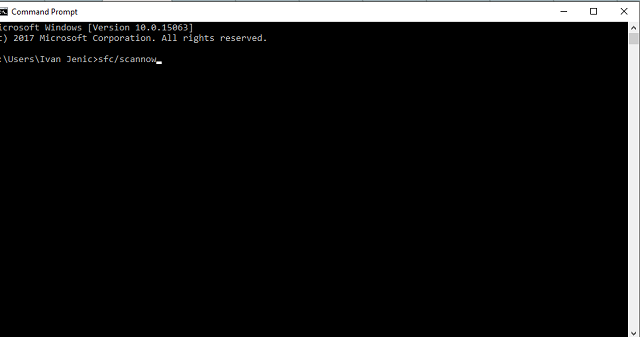
The first step you can take when addressing this issue is to run the Command Prompt and use the SFC tool.

You can use the SFC scan command by following these instructions:

  1. Go to Search, type cmd, and open Command Prompt (Admin).
  2. Under the command line type the following command and press Enter:
    • sfc/scannow
  3. The scanning process may be lengthy.

SFC tool is a built-in function with the main purpose of scanning system files and restoring any that are corrupted or deleted. It should take care of the system files and restore their full functionality after the process is finished.

After the procedure is finished, the system should automatically restore missing DLL files. You should be able to use all the programs just like before the update.

2. Run DISM

  1. Go to Search, type cmd, and open Command Prompt (Admin).
  2. Under the command line, type the following command and press Enter:
    • DISM /Online /Cleanup-Image /RestoreHealth
  3. Wait for approximately 10 minutes until the process is finished and restart your PC.

In addition, there’s an alternative way to utilize this nifty tool and restore missing DLL files. The procedure is just below:

  1. Mount your Windows 10 installation media. Either USB or DVD with the system ISO file.
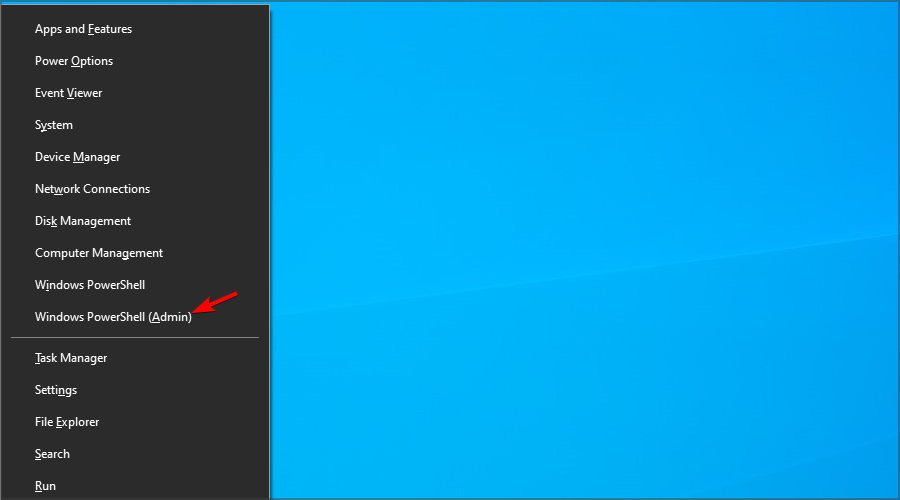
  2. Right-click Start and open the Command Prompt (Admin).
  3. Under the command line, type the following commands and press Enter after each:
    • dism /online /cleanup-image /scanhealth
    • dism /online /cleanup-image /checkhealth
    • dism /online /cleanup-image /restorehealth
  4. After all 3 of the above processes are finished, type the following command and press Enter:
    • DISM /Online /Cleanup-Image /RestoreHealth /source:WIM:X:SourcesInstall.wim:1 /LimitAccess
  5. Make sure to change X value with the letter of the mounted drive with Windows 10 installation.
  6. After the procedure is finished, you should restart your PC and look for changes.

DISM brings a similar but a bit more advanced approach to the matter at hand. Namely, with the Deployment Image & Servicing Management tool, you can scan and restore missing files as same as with the SFC function.

However, instead of just relying on Windows Update, you can use Windows 10 installation media to restore missing or corrupted files. If the SFC isn’t up to the task, it’s worth running DISM first.

We’ll explain this procedure step-by-step, so make sure to follow the instructions closely and you should be good to go:

3. Reinstall 3rd-party applications

That can be done this way:

  1. Right-click the Start menu and open the Control Panel.
  2. Open Uninstall a program under the Programs section in the Category view.
  3. Navigate to the broken program and uninstall it.
  4. Restart your PC and reinstall the program/game again.

Even though the system tools mentioned above are perfect for system files, some users reported changes with their 3rd-party programs after the update.

Compared with the system files, this should be much easier to address. The answer is simple: just reinstall the troubled program or game, and you should resolve any DLL-related issues.

4. Obtain DLL files manually

If your system could not repair itself and restore missing DLL files, you can download those by hand. That’s most of the time a risky business since you are endangered of malware intrusions.

However, there’s a site that covers many of the present DLL files, malware-free and easy to use.

Once you know what DLL file is missing, you can search it under the site’s search bar and download it for free. After that, it’s just a question of placing it in the required location, and your problem should be resolved.

5. Reset your PC

If a problem at hand affected your system greatly and rendered it unusable (and missing DLL files can do that), you can try to reset your PC settings to default values.

  1. Click Start.
  2. Open Settings.
  3. Open the Update & Security section.
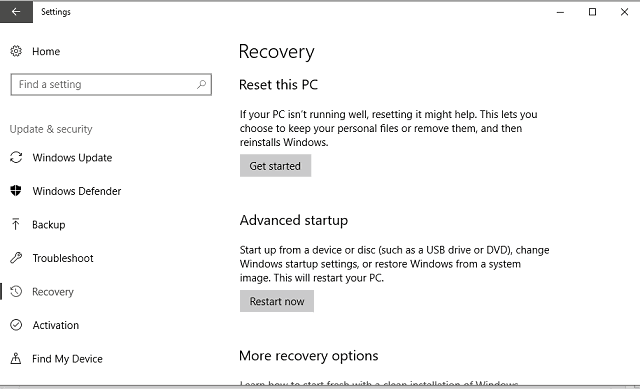
  4. Choose Recovery from the left pane.
  5. Click Get Started under the Reset this PC.
  6. Choose Keep my files.
  7. After the procedure is finished, DLL errors should be long gone.

That is a similar procedure as a clean reinstall, but it will save you some time and preserve your data from the system partition. In case you’ve wondered how to utilize this recovery option that made its first appearance with Windows 10, follow the instructions below:

Check out our detailed article on how to deal with similar DLL-related errors like the speedtreert.dll.

That should do it. If you have any additional solutions and are keen to share them, please do so in the comments section. The same goes for questions.

Fix blurry legacy apps in Windows 10/11 with DPI scaling

You can now fix blurry fonts and stretched elements in old apps on Windows 10. We’ll show you exactly how in this article.

Every device features a high-DPI display these days and this includes laptops, phones, tablets and desktop PCs. Windows 10 comes with DPI scaling support to improve the entire viewing experience. Unfortunately, older legacy apps don’t benefit from it. Microsoft thought about a way to improve this and introduced some updates in both Windows 10 Anniversary Update and the Creators Update for fixing the problems.

High-DPI scaling improvements on Windows 10

Microsoft is working on improving the way that Windows 10 handles automatic scaling per-monitor to reduce the amount of blur or incorrect size for older apps. In case the apps don’t render correctly, the company also introduced the possibility to force an app to run as a DPI-unaware process.

Overriding System DPI Scaling for an older app

You can adjust your DPI scaling setting for an app that is not working well. Just follow these steps:

  • Right-click on the desktop app’s shortcut and select Properties. If the app is on the taskbar, right-click on its icon, right-click the app’s name and go to Properties.
  • Click on the Compatibility tab and check the ‘Override high DPI scaling behavior’ option.

Choose between the three high DPI scaling options:

  • Application: This setting will disable DPI scaling for this app entirely and it will appear tiny but not blurry.
  • System: Windows will use the default behavior and apps that don’t respect DPI settings will be bitmap stretched to appear larger, but they’ll probably look blurry.
  • System (Enhanced): Windows will scale apps in a more intelligent way for crisp text. In the Creators Update, this will only work with GDI-based apps (traditional desktop apps).

Choose your favorite option, then click OK. This is all you’ll need to do to make your apps look better!

RELATED STORIES TO CHECK OUT:

How to disable Microsoft To-Do account

Microsoft recently introduced a new to-do list manager, Microsoft To-Do. Although available on other platforms, the main goal of this tool is to provide a native task manager for Windows 10 users. However, it looks like users aren’t so satisfied with the new solution, as they’d rather stick with more popular choices, like Evernote of Wunderlist.

Since Microsoft To-Do was initially available in Beta, a lot of people engaged in trying it, without knowing what it actually has to offer. Because of that, there are many users who want to disable or delete this tool, and carry on with using their previous to-do list manager. But, leaving Microsoft To-Do isn’t as simple as one might think.

So in this article, we’re going to show you how to disable Microsoft To-Do, in case you’re not thrilled with this tool.

How to disable Microsoft To-Do task manager

The first step, obviously, is to delete the Microsoft To-Do app from your computer. You don’t need any special instructions for that, just open the Start Menu, find Microsoft To-Do, right-click it, and choose uninstall.

However, you would also like to disable the Microsoft To-Do account, which is a bit complicated.

In fact, you can’t permanently delete the Microsoft To-Do account, but you can disable it. This can actually be good, as you can always return to the product, in case you change your mind, or in case Microsoft makes it better with furthere updates.

Here’s exactly what you need to do to disable the Microsoft To-Do account:

  1. Go to your Microsoft Account, you can access it from this link
  2. Find Microsoft To-Do from the list of accounts, click it, and choose Edit
  3. Now, just click on Remove these permissions, and you’ll silence your Microsoft To-Do account

Of course, in case you want to get back to using Microsoft To-Do, you can always follow the steps from above, and gain permissions to your Microsoft To-Do account once again.

What do you think about Microsoft To-Do? Will you ever consider returning to it? Let us know in the comments below.

RELATED STORIES YOU NEED TO CHECK OUT:

How to fix common The Surge bugs

If you’ve encountered various technical issues while playing The Surge, this article may help you. Follow the troubleshooting steps listed below to fix game crashes, controller issues, and more.

 The Surge bugs [FIX]

The Surge won’t run

1. Make sure that the Surge is correctly installed:

1. Launch Steam > go to Library
2. Right click on The Surge > go to Properties
3. Click the Local Files tab > click the option “Verify integrity of game cache…”

2. Update or repair Microsoft DirectX:

1. Launch Steam > go to Library
2. Right click on The Surge > go to Properties
3. Click the Local Files tab > click the option Browse local files
4. Open the folder “_CommonRedist”, then the folder “DirectX” and “Jun2010”
5. Run DXSETUP.exe.

3. Install or repair Microsoft Visual C++ Redistributable:

1. Launch Steam > go to Library
2. Right click on The Surge > go to Properties
3. Click the Local Files tab > open “_CommonRedist” > go to the vcredist folder >  click 2012
5. Run vc_redist.x64.exe > click Install or Repair
6. Run vc_redist.x86.exe > click Install or Repair

4. Configure the game in administrator mode:

1. Launch Steam > go to Library
2. Right click on The Surge > go to Properties
3. Click the Local Files tab > click the option Browse local files
4. Open the bin folder > right click TheSurge.exe > click Properties
6. Click the Compatibility tab
7. Check Run this program as an administrator > hit OK.

5. Update your GPU driver


Game controller issues

Please remove the game controller from the Steam Big Picture Mode:

1. Launch Steam > switch to Big Picture Mode
2. Go to Settings > go to Controller > click Controller Settings
4. Uncheck Xbox Configuration Support and Generic Gamepad Configuration Support
5. Click OK > exit the Big Picture Mode > run The Surge. The game should now manage the controller natively.


Flickering graphics

1. Install the latest AMD / NVIDIA driver updates from the links below:

2. Reset your graphics settings:

1. Open File Explorer > go to Documents > open the folder “The Surge”
3. Delete the settings.ini file and run The Surge.

If you’ve come across other workarounds to fix various The Surge issues, you can help the community by listing the troubleshooting steps in the comment section below.

RELATED STORIES YOU NEED TO CHECK OUT:

Posted in Fix

Microsoft’s Office Desktop app is available on the Windows Store ahead of its official release

The Office Desktop apps have begun showing up in the Store — even if you can’t download them yet.

You can already see the Office apps on the Windows Store

At the beginning of May, Microsoft announced that it would bring full-blown desktop applications to its Windows Store. This is a huge development, especially as Redmond rolls out the Windows 10 S, a variant of Windows 10 that only runs apps from the Windows Store to improve security.

Even if Microsoft only announced its intention of bringing the Office desktop apps to the Store, opening the Windows Store and searching for Word 2016 will bring the Word app up in your search results. However, you won’t be able to install it or to see the app listings. Because of this, it’s pretty certain by now that Microsoft is ahead of schedule in bring Office Desktop apps to the Windows Store.

The Office desktop app will be a great advantage for Windows 10 S. Microsoft has not yet announced the exact date on which the Office Desktop app will be available for download on the Windows Store, but we’re sure this will happen very soon.

Microsoft is trying hard to show everyone the value of its Windows Store and is the main reason why it keeps bringing classic apps here. Stay tuned, because as soon as we get more information, we will let you know. You’ll also be the first to know once the Office Desktop Apps are available for downloading and working properly. Until then, keep reading our news on Microsoft and its latest operating system.

RELATED STORIES TO CHECK OUT:

New enterprise features points to a Windows Phone resurrection

According to Microsoft, some fresh Windows Phone enterprise features are on their way to bring the platform back from the brink. In what is a surprise to most, it seems that Microsoft has been quietly working on some brand new features on the mobile front, which is good news even if we’re not exactly sure what features to expect. The enterprise focus is no surprise, as the enterprise has become Microsoft’s priority these days, so it makes sense that mobile businesses will be heading in this direction.

Microsoft’s Brandon LeBlanc posted on his Twitter account that “The team is working on delivering some features for enterprise customers later this summer.”

Rumors say that the Surface Phone will mostly focus on enterprises

This device is the thing that comes first in our minds given the fact that Microsoft keeps saying its commitment to the mobile platform is not dead. Considering this, current rumors that the Surface Pro will mostly focus on enterprises may be true. Microsoft is rumored to reveal more versions of the Surface Phone and one of them is targeted at enterprises.

We’ll see whether the consumer market remains or not a priority for the company as well. We just have to wait until this fall for Windows 10 Mobile to come as Redstone 3, even if improvements in the mobile zone might not be groundbreaking.

How to Enable & Use Storage Sense on Windows 10

To keep your system running smoothly, Microsoft has a feature called Storage Sense on Windows 10. The feature is designed to clean your drive and free up space automatically.

In case you’re not familiar with this feature, in today’s guide we’re going to show you how to properly use it on your PC and ensure that you never run out of space.

Benefits of using Storage Sense

  • It’s fully automated, so you won’t have to manually free up storage space.
  • It removes junk files, and files from the downloads folder, and Recycle Bin items, thus ensuring that Windows has enough drive space to work.
  • Highly customizable allowing you to choose which type of file you wish to remove and how often.
  • Supports scheduling, so you can fully automate it and let it run without your input.
  • It can work as a silent assistant and move unused files to cloud storage and convert them to online-only files.

How do I enable Storage Sense on Windows 10?

1. Use the Settings app

  1. Press the Windows key + I to open the Settings app.
  2. Next, navigate to System.
  3. Select Storage in the left pane. In the right pane, make sure Storage Sense is enabled.

2. Enable Storage Sense with GPO

  1. Press Windows key + R and type gpedit.msc.
  2. Navigate to the following path: Computer Configuration\Administrative Templates\System\Storage Sense
     
  3. Double-click on Allow Storage Sense.
  4. Set it to Enabled and click on Apply and OK.

3. Activate Storage Sense on Windows 10 via the registry

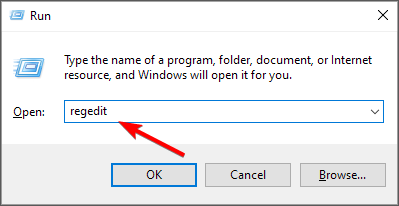
  1. Press the Windows key + R and enter regedit. Click OK.
  2. Navigate to the following path: HKEY_LOCAL_MACHINE\SOFTWARE\Policies\Microsoft\Windows
     
  3. Next, right-click Windows and choose the option to create a new Key.
  4. Name the new key StorageSense and select it.
  5. In the right pane, click the empty space and select New. Now choose a DWORD (32-bit) Value.
  6. Name the value AllowStorageSenseGlobal and double-click it.
  7. Set the Value data to 1 and click OK to save changes.

4. Activate Storage Sense via the command line

  1. Press the Windows key + X and choose Windows PowerShell (Admin).
  2. Next, run the following command: start ms-settings:storagesense
  3. Storage Sense configuration window will now open.

How do I use Storage Sense on Windows 10?

  1. Open Settings, go to Storage, and select Configure Storage Sense or run it now.
  2. Configure how often you want to clear your drive and the files that you want to remove.
  3. If you want to run the scan now, click the Clean now button.

Is Storage Sense good or bad for Windows 10?

  • Storage Sense is beneficial to Windows since it will remove unnecessary files and allow it to work better.
  • It has no impact on your performance, so you won’t even know that it’s running.
  • It works great with the files on-demand feature and OneDrive.
  • The only issue is that it can delete files from the Recycle Bin or Downloads folder if you’re not careful.

Storage Sense on Windows 10 is a small but useful feature, and it can come in handy if you don’t want to manually clean your system drive. If you need more space, we have a guide on how to free up disk space on Windows that you shouldn’t miss.

Don’t be hesitant to free up space on your PC, because even if you delete something that you shouldn’t, you can easily restore accidentally deleted files.

For Windows 11 users, learn how to use Storage Sense to automatically remove junk files, free up storage space, and keep your system performing at its best without manual cleanup.

Have you ever used Storage Sense on Windows 10? Share your experience with us in the comments section.

KB4020102 causes black screen issues, minimizes game windows, and more

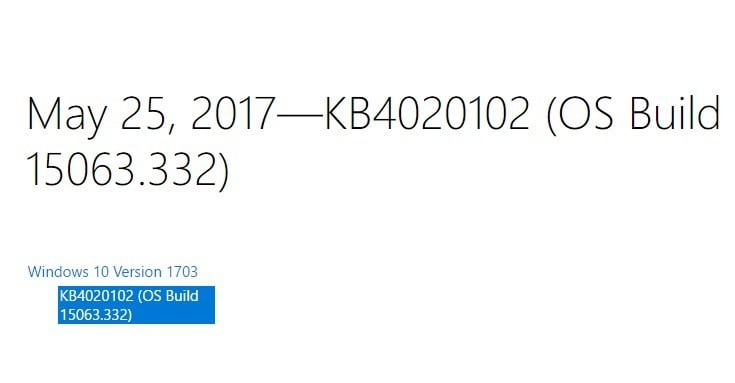
Microsoft recently rolled out a new cumulative update to Windows 10 version 1703. Update KB4020102 brings only quality improvements. No new operating system features are being introduced in this update.

Unfortunately, Windows 10 Creators Update KB4020102 also brings issues of its own. In this article, we’re going to list the most common KB4020102  bugs reported by users, so that you know what to expect in terms of issues.

KB4020102 reported bugs

KB4020102 won’t install

Users report that the download process sometimes stops unexpectedly, preventing them from actually installing KB4020102.

If you’ve encountered this problem, try running Microsoft’s dedicated Update Troubleshooter. You can download the tool from Microsoft’s support page.

Black screen issues

Many users report that KB4020102 makes their PCs unusable. More specifically, after reboot the screen remains black with a box in the left corner. After a few minutes, a message appears on the screen informing users that the OS is waiting for a program to respond. However, it doesn’t specify which programs is not responding.

I just installed the latest update for  W 10 Creators Update (KB4020102). After the restart, I entered my PW for my MS account. It churned a bit but then I got a black screen with a box in the left upper corner saying “Personalized Settings (Not Res….)”. Nothing happens after this. The box is so small that it does not show the whole text! Then after minutes, another box appears where it says : Close the program or Wait for the program to respond. Nothing happens, even waiting for the program to respond. Which program????

[…] So I shut down the PC pulling the plug. Then booted again with the same happening again. Used ALT-CTRL-DEL again and opened Task Manager. For a short moment I saw “Windows Explorer” appearing which then immediately disappeared. […]

KB4020102 causes hard locks

Had to roll this one back. It was causing hard locks in which I had to completely power off the PC before it’d boot again. Been fighting with this since yesterday morning pretty much.

Every time this update would install, hard crash. Computer ran just fine for hours before I allowed it to update, and within 10 minutes of updating it did another hard lock. Removed KB4020102, no problems at all.

Processes spawn erratically and SearchUI.exe keeps hanging

Some users decided to roll back shortly after having installed KB4020102 due to a series of process that spawned erratically.

Had to roll this one back. Some processes were spawning (cmd window flashing and going away) and SearchUI.exe kept hanging when I tried to go to event viewer to see what. Appears to have had trouble installing printer drivers. SearchUI was bugging out after a restart.

Games and movies keep minimizing

If you can’t play your favorite games or watch your favorites movies in full screen, you’re not the only one. Users report that after installing KB4020102, games and movies keep minimizing.

After the update games and movies on fullscreen keeps minimizing… Does this happend to anyone else?

Have you installed KB4020102 on your computer? Did you encounter any other issues apart from those listed above?

RELATED STORIES YOU NEED TO CHECK OUT:

How to fix common Mirage: Arcane Warfare bugs

If you’ve encountered various Mirage: Arcane Warfare issues, you’ve come to the right place. In this article, we’re going to show you how to quickly fix common Mirage: Arcane Warfare bugs so that you can resume playing as soon as possible.

Mirage: Arcane Warfare game issues [FIX]

  • Game crashes

1. If  Mirage: Arcane Warfare crashes, verify your game files through your Steam Library:

Go to Properties > Local Files > select “Verify integrity of the game cache…”

2. Reduce your Ragdolls and Blood Pools to minimum values and set Gore to Off/None

3. Reduce your In-game Browser Pings from Default/Maximum to 500:

Go to Steam > Settings > In-Game and select 500 from the dropdown box

4. If you have an AMD Video Card, install the latest AMD drivers and set Framerate Smoothing to Uncapped in the game’s settings. Also, disable Raptr, aka AMD Gaming Evolved, from your AMD/Radeon settings page.


  • Loading issues

If the game takes more than 5 minutes to load, or hangs on the Mirage Splash screen, close it via the Windows Task Manager. Then launch it again and this time it should load very quickly.


  • FPS drops

1. First, quit the game, launch Steam again and check if this issue persists. Then, make sure that you’ve installed the latest NVIDIA/ AMD/ Intel driver updates on your computer.

2. Open the Windows Task Manager, go to the Details tab, right-click on TBL and set Priority to High.

3. Make sure that your game is using your dedicated video card (GPU) to launch the game.

4. Try using the game’s Auto setting for Video Quality.

5. Reduce Shadow Quality and Effects Quality first, then try lowering other settings, including Resolution Scale.

6. Reduce the Ragdoll Duration and Blood Pools settings as these affect performance.

7. Reduce your FOV (Field of View) setting.

8. Close other CPU-heavy apps and programs.

9. Close web browsers while playing.


  • Matchmaking or Server Browser Issues

To fix these issues, simply restart Steam.


  • Lag

1. Adjust your Matchmaking and Server Browser Settings to a lower Ping value

2. Stop all downloads while playing online games

3. Set your PC as priority on your router if this option is available

4. Play Mirage: Arcane Warfare on an Ethernet connection to avoir packetloss


  • The latest game updates won’t install
  1. Run Command Prompt as administrator, type the netsh winsock reset command and hit Enter
  2. Restart your computer > update the game.

  • Error 2e4
  1. Disable Steam as Administrator and Compatibility Mode and exit the tool.
  2. Open Steam again and launch the game. This simple action should fix this error.

  • Unreal Engine 4 installs everytime when the game is launched

Makes sure that Windows has the latest updates installed. As a side note, this issue appears to affect mostly Windows 7 users.


If you’ve come across other workarounds to fix various Mirage: Arcane Warfare issues, you can list the troubleshooting steps in the comment section below.

RELATED STORIES YOU NEED TO CHECK OUT:

Posted in Fix

Ubisoft releases Far Cry 5 debut trailer, watch it here

If you loved previous Far Cry games, you’re probably very much looking forward to play Far Cry 5, the next installment in the popular action adventure franchise to be released in February. Today, Ubisoft revealed some new details about the game as well as an exciting debut trailer that you can watch below:

Far Cry 5 will be the first episode set in America, more precisely in Hope County, Montana. Just like previous titles though, the game will feature a charismatic villain which happens to be the leader of local religious cult called “Eden’s Gate.” On the Ubisoft blog, Executive Producer and Creative Director Dan Hay explained that the team worked hard to create an atmosphere filled with oppressive uncertainty:

We want to make sure that the game builds a believable pressure. So we built a beautiful world, and we want you to visit it. We want you to be able to experience all the gameplay, the anecdote factory, everything you know from Far Cry. But we want to put a believable pressure on that.

You can watch Hay give more details about the setting, the allies and enemies you’ll meet in Far Cry 5 in this other video published today:

Far Cry 5 will launch on Xbox One, Playstation 4 and Windows on February 27, and you can expect the game to get some stage time during Ubisoft’s E3 press conference on June 12.

Strange NTFS bug can cause web pages to crash Windows 7 and 8.1 PCs

If you’re still running Windows 7 or Windows 8.1 on your PC, your machine is currently vulnerable to a strange bug that can cause it to significantly slow down or even crash. The issue will only surface when browsing a website using a special filename for something like an image source, but Windows 10 PCs are not affected by this bug.

As Ars Technica explains, the special filename in this case is $MFT, which is used by the NTFS filesystem for a specific metadata file. As it turns out, webpages that use $MFT as a directory name will cause Windows 7 and 8.1 PC to slow down or worse, as the web browser will try to access the bad file which is handled in special ways in these version of Windows. The report notes:

If the filename is used as if it were a directory name—for example, trying to open the file c:\$MFT\123—then the NTFS driver takes out a lock on the file and never releases it. Every subsequent operation sits around waiting for the lock to be released.Forever. This blocks any and all other attempts to access the file system, and so every program will start to hang, rendering the machine unusable until it is rebooted.

The unusual bug has already been reported to Microsoft but the company has yet to say when a fix will be available. As it’s not well known yet, you probably have very few chances to encounter malicious websites exploiting it to force you to reboot your PC.

Microsoft’s Xbox One could be dumping OneGuide

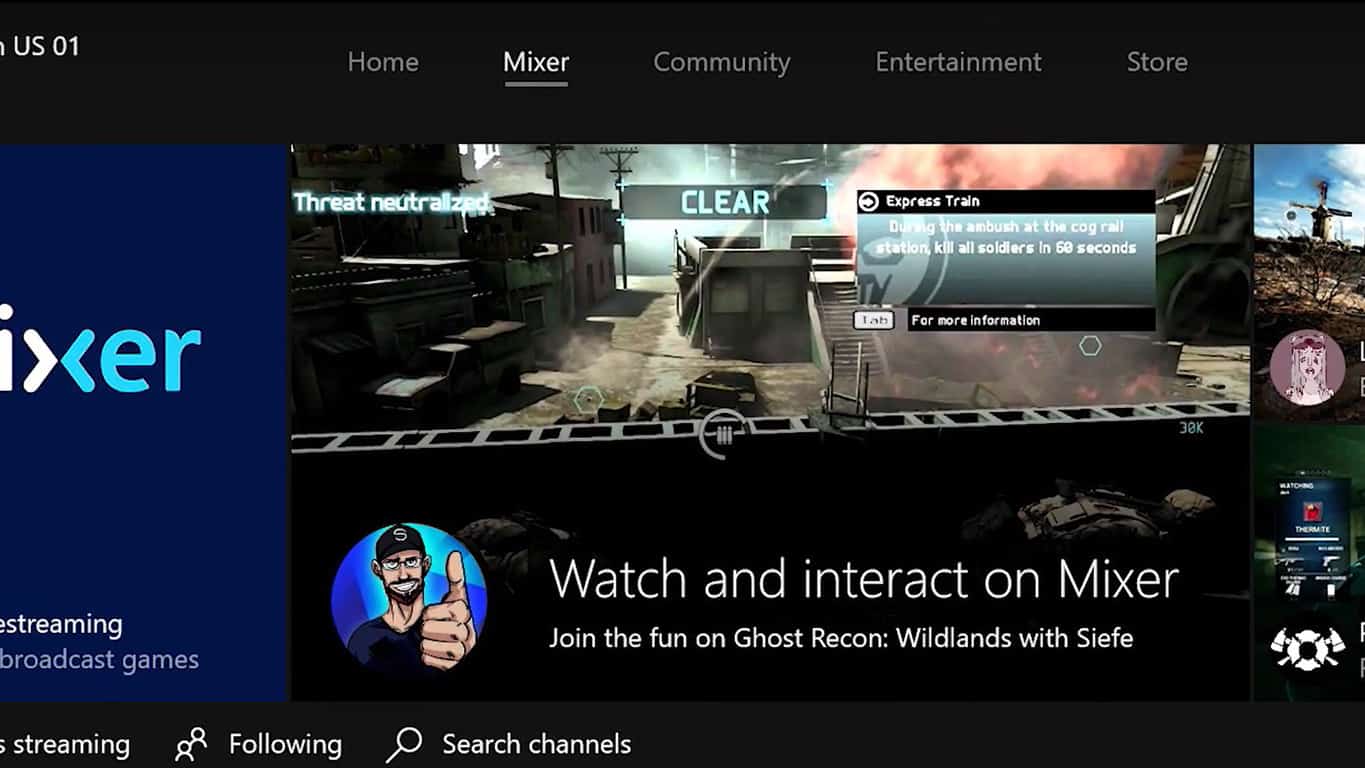
Something rather curious that was revealed (possibly unintentionally) during the Beam/Mixer announcement last night was Microsoft’s apparent plans to either remove the OneGuide section from the Xbox One dashboard or rename it.

The first hint of an evolution or cancellation of OneGuide came in the Mixer announcement YouTube video which offers a brief look at a new Xbox One dashboard, one that’s noticeably missing the OneGuide tab (see above image) and instead has a new section named Entertainment. The second clue is a screenshot of another dashboard (see image below) used in the official Mixer announcement blog post on Xbox Wire which shows neither an OneGuide nor Entertainment tab. In this possible build of the Xbox One operating system, it appears they’ve discarded the feature completely.

Xbox One dashboard - Mixer

It’s worth noting that at the time of this writing, OneGuide is still present on both public and Xbox Insider builds of the operating system. The feature was recently removed from the official Xbox apps though in an update.

OneGuide is a section of the Xbox One dashboard that brings together movies and TV shows from a variety of sources. It’s not used by all Xbox One owners but plenty do and would likely miss it if it was taken away.

Do you use OneGuide and would you miss it if it were gone? Would you be okay with a rename? Let us know in the comments below.

Beam apps update with Mixer name on Xbox One, iOS, and Android

After the official announcement of Beam’s rebranding as Mixer last night, all of the official Beam apps on Xbox One, iOS, and Android have updated to reflect the change. All of the apps have been rebranded as Mixer and boast a new icon however the interior of the apps hint at a rather rushed update attempt by Microsoft with the Beam labelling still being prominent within the Xbox One app and the old name being referenced within the menus on iOS.

Mixer is Microsoft’s attempt to cash in on the increasingly popular live streaming craze which has exploded in the past couple of years. Mixer’s userbase is quite small when compared to the numbers held by YouTube and Twitch (both direct rivals for Mixer) but it is growing and is expected to get even bigger once Microsoft implements it directly into the Xbox One dashboard in the coming months.

Do you use Mixer? Let us know why or why not in the comments below.

The app was not found in the store. ?


The app was not found in the store. ?

Back up your Windows activation data with the Advanced Token Manager

Advanced Tokens Manager is an easy app that helps you with Windows and Office activation backup and restores. The program is currently available only as a release candidate and while Windows 10 is not supported just yet, you can only use the program for Windows 7 or older or phones activated with Windows 8.1 and maybe also Windows 10.

Windows activation backup

You can start the program straight from the location you extracted it to. It will display Windows Activation information from the beginning including the license product key, token information, and license status. Press the Activation Backup button to save the activation tokens.

Here are some important things you need to remember:

  • Restore will work only if you haven’t changed major parts of the hardware.
  • Only permanent activations are supported — limited ones are not.
  • Installing a retail copy of the OS is required for upgrade activations.
  • Avoid activation problems by using the driver status at the time of the backup creation.

The program creates a new folder, Windows Activation Backup, in the root of the program folder. You can use the backup to restore the activation of the OS system later, which works when the program detects that the license status isn’t activated.

Office activation backup

Office activation backup works the same: just click Office Activation backup and you’ll see the connected information such as the Office Product key and license status. Click the activation backup button, confirm and wait for the activation tokens to be saved in Advanced Tokens Manager’s program folder.

Manage Microsoft licenses with Advanced Tokens Manager

The main purpose of the program is to restore activation tokens after installing Windows to avoid activation issues after the system is activated or to restore backups.

It may be used to restore activation data so that the OS will activate without having to go online or you as the user having to call up Microsoft for support.

You can download Advanced Token Manager from JoshCellSoftwares.

RELATED STORIES TO CHECK OUT:

Microsoft Forms improvements include updated portal and right-to-left reading

Yesterday the Office team took the wraps off its updated portal and new languages for its Microsoft Forms software.

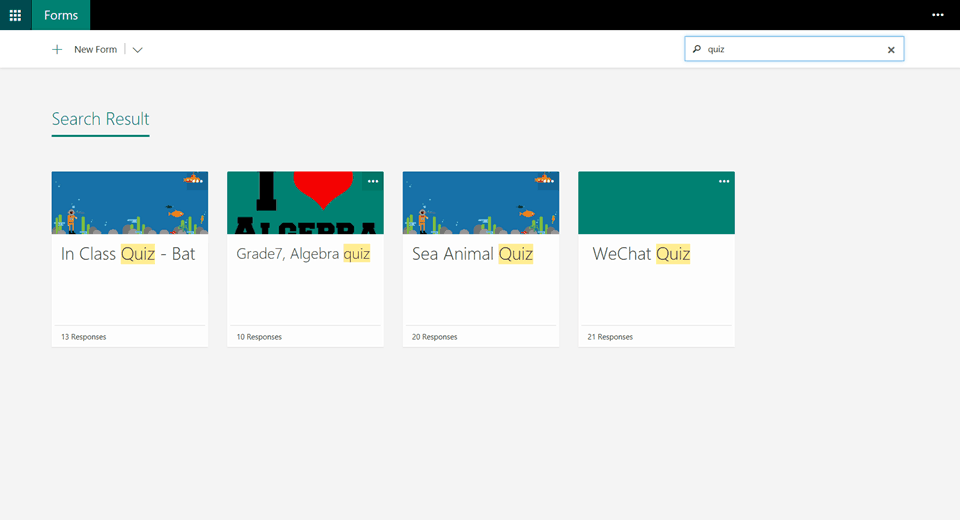
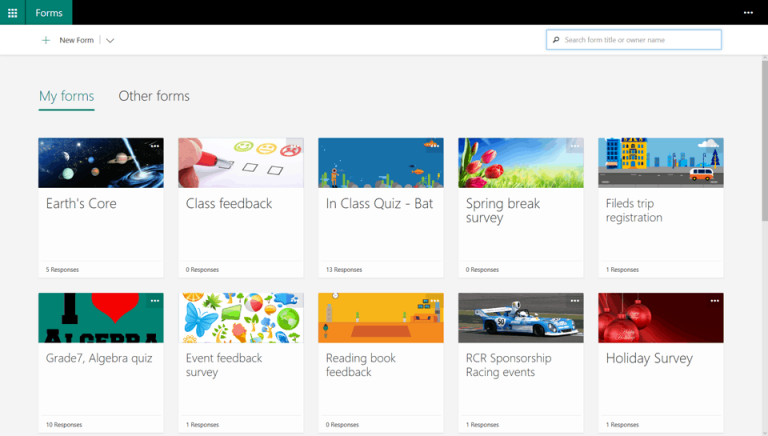
Rolling out to customers is a new look and feel that brings a snapshot view of each form as well visible titles, background images, and responses within the highlighted forms. To ease navigation, the Office team also include a universal search field in the top-right corner of Microsoft Forms where customers can grab forms by just tying in the owner’s name or title.

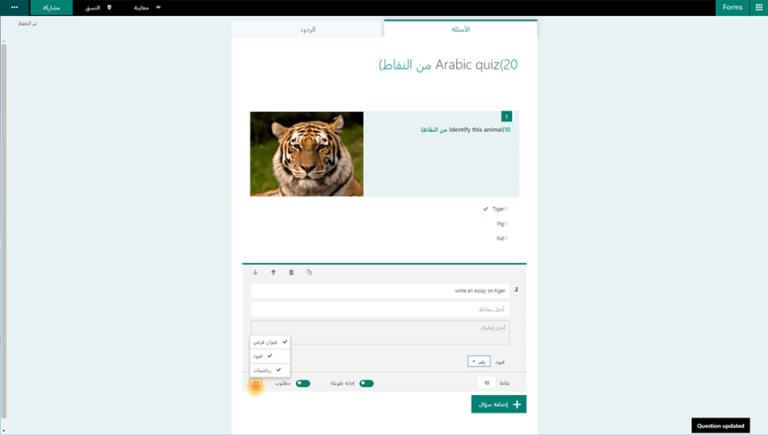
Perhaps, most importantly, Microsoft Forms is being boosted with additional support for 26 new languages as well a new option of right-to-left reading for languages in Hebrew, Arabic, etc.

To learn more about the new updates rolling out to Microsoft Forms, a customer can visit the Office blogs for information about the new features as well create their first form with the provided instructions.

Let us know your thoughts about the new updates.

Xbox Store is getting 4K HDR content, starting with The Lego Batman movie

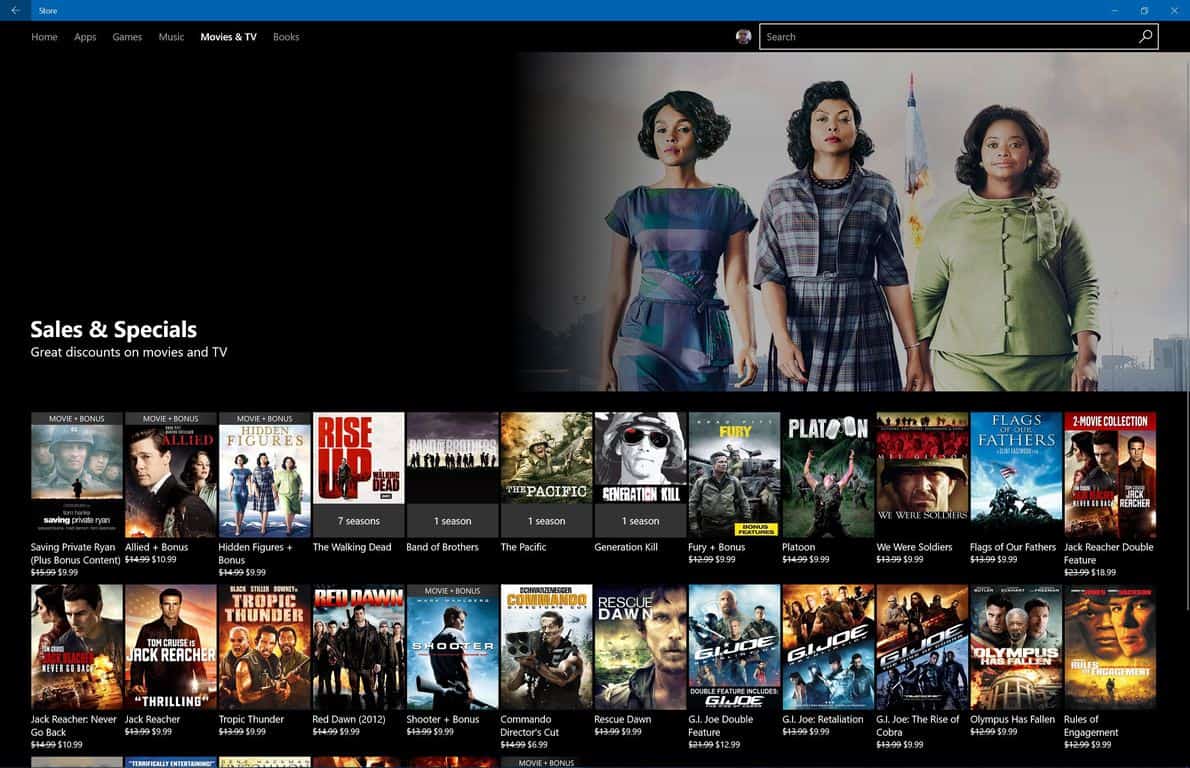
Looking to lay your eyes on some nice looking new content? Those who invested in an Xbox One S will finally be getting a peak at the 4K HDR content that they were promised, as the Movies & TV app has begun selling The Lego Batman Movie. Strangely enough, this is the first major film to be sold on Xbox One that’s available in 4K UHD – and the first film period in the marketplace to offer High Dynamic Range (HDR.) The standard definition of the film costs $15, the high def version costs $20, and the fancy 4K HDR version will cost you $30.

Of course, you’re not going to be able to get the full experience of the 4K HDR version of The Lego Batman Movie unless you have a 4K TV that supports High Dynamic Range – so don’t spend the money unless your hardware is up to date. You’ll also need to keep in mind that you’ll need an Internet bandwidth of 20 Mbps on your Xbox One. If that’s all in order, you can go and buy the movie right now in the Movies & TV app on your console.

Forza games still attracts over 4 million players across all platforms

The Forza franchise attracts over four million players each month. With this stat Turn 10 creative director Dan Greenawalt revealed that the racing franchise is still quite popular among the player community in an interview with IGN.

However, four million players is still a decline compared to 17 million players in December a few months after the release of  Forza Horizon 3 was released. Nevertheless, Greenawalt says that the company is satisfied with the number of monthly players and that the Forza community is one of the largest in the world.

“It’s probably worth noting that just this last month, in March, we had 4 million active players in the Forza community. That makes it one of the largest racing communities in the world. And it’s a very diverse group, as you would know.”

Forza Motorsport is available on both Windows 10 and Xbox One and is perfect for multiplayer due to its cross-platform compatibility, something we’re sure plays a big part in the game’s popularity. The title’s number of players will surely go up in the coming months because Turn 10 Studios is preparing a new installment of the game. Forza Motorsport 7 should be announced at E3 2017 and is likely to be released in September, which has become the traditional month for new Forza Motorsport games. While we still don’t know how the game will look, if developers continue with the practice of making good entires in the series, fans surely have something to look for.

What do you think about Forza games? Have you played them? Let us know in the comments below.

RELATED STORIES YOU NEED TO CHECK OUT:

Microsoft releases Code Builder for Minecraft Education Edition

Microsoft just launched Code Builder for Minecraft Education Edition three weeks after announcing it at the MicrosoftEDU event. Thousands of players worldwide downloaded the Code Builder Beta and now every user has the opportunity to try it.

Code Builder for Minecraft is a new tool by Microsoft designed to introduce coding to children in schools through their favorite game. The tool uses a drag and drop method kids can use to construct tsimple programs by putting code blocks one on another.

“Code Builder for Minecraft: Education Edition is a brand-new extension that allows educators and students to explore, create, and play in an immersive Minecraft world – all by writing code. Connecting to learn-to-code packages like ScratchX, Tynker, and a new open source platform called Microsoft MakeCode, players start with familiar tools, templates and tutorials. And, Code.org will bring Code Studio to Code Builder later this year to support even more learning opportunities,” says Microsoft.

With Code Builder for Minecraft Education, Microsoft combined two popular learning methods. First, Microsoft has been used in education if many countries for years. And now, the game has one more benefit to offer. Additionally, coding blocks and drag and drop programming are taking over as one of the most popular ways to start learning to program.

Microsoft also presented a few teaching tips and lesson plans to teachers so they can easily organize their classes and expose students to as many coding techniques as possible.

In addition to Code Builder for Minecraft Educatopm Edition, Microsoft will also release other tools later this year. The list of announced tools includes Command Blocks, texture pack support, villager trading, adventure mode, concrete, llamas, and additional languages.
RELATED STORIES YOU NEED TO CHECK OUT:

StarCrawlers bugs: Game crashes, problems saving, and more

StarCrawlers is a modern version of a classic RPG dungeon crawler set in a spacepunk universe. As a player, your task is to assemble a crew of renegade adventurers to take on dirty jobs that include hunting bounties, sabotaging rivals and conducting corporate espionage.

StarCrawlers will also put your troubleshooting skills to the test. Players report the game is affected by a series of bugs. In this article, we’re going to list the most common StarCrawlers issues reported by gamers so that you know what to expect.

StarCrawlers reported bugs

Game save won’t work

Well, the good news is that I only lost two hours of play time. The bad news is that all of my main character saves, both in the station and in the field, were lost after I exited the game and tried to reload. Field saves gave me a blank screen. […] Thank you for reminding me why day-one purchaces on games are a bad idea. I guess I’ll wait a month for you to fix the problems before coming back.

Hitching

Never had this problem during early access, but after 1.0 today, during combat, attacks are causing a slight hitch. Is this a known issue and is there a workaround? This is really off putting, especially in what up until now has been a very fun game that played flawlessly.

StarCrawlers crashes

So i was playing tonight and, after 40 minutes => game crashed.
Don’t know why, don’t know what caused it, I already played more than 40 minutes on a run without problems …

Dialog won’t scroll

Happened a few times now that when talking with a rep a part of what he’s saying isn’t known to me, because it goes behind the window and I cannot scroll :s Please fix this, it’s quite annoying to miss potentially vital info.

Players can’t start a new game

When startting a new character, and after selecting backstory choices from several pages, I get to the last one and while the “Accept & Begin” button is “active” (it “clicks” when I click on it”), nothing happens. I also cannot choose any of the 3 backstory options on that last page. I’ve tried several times from scratch. […]
As a side note, there doesn’t seem to be any way to return to the main menu from the New Game.

This issue is caused by the Razer SDK. If you’ve encountered this problem, try uninstalling and reinstalling Synapse. StarCrawlers’ devs have already contacted Razer about this issue and a hotfix should soon be available.

How to fix StarCrawlers bugs

StarCrawlers recently received an important update fixing a bevy of issues affecting the game. You can read the patch notes here.

RELATED STORIES YOU NEED TO CHECK OUT:

NVIDIA partners to launch ready-built Battlebox gaming PCs featuring GTX 1060 or 1080 GPUs

NVIDIA is creating some of the best GPUs you can buy these days, and you can usually find them in many gaming PCs from Alienware, ASUS and many other manufacturers. However, it seems that the GPU designer is now interested in competing with more established PC gaming brands, though the company is choosing an interesting way to do it.

“If you’re someone who prefers to buy a ready-built machine there are now new options to consider with the launch of GeForce GTX Ultimate and Essential Battlebox PCs, hand-crafted by our partners to deliver top-level performance in every game, straight out of the box,” the company announced today. A GeForce GTX Battlebox is a “ready-built machine” that comes with Intel Core i5 or i7 CPUs, up to 16GB of RAM, SSDs, GeForce GTX 1080 Ti or GeForce GTX 1060 GPUs and an optional NVIDIA G-SYNC monitor. You can find more hardware details below:

BATTLEBOX ULTIMATE BATTLEBOX ESSENTIAL
GPU GeForce GTX 1080 Ti GeForce GTX 1060 6 GB
CPU Intel Core i7 or AMD Ryzen 7 (minimum) Intel Core i5 or AMD Ryzen 5 (minimum)
Memory 16 GB+ DDR4 RAM 8 GB+ RAM
Storage SSD SSD
OS Win 10 Win 10
Display NVIDIA G-SYNC monitor (if the system ships with a monitor) NVIDIA G-SYNC monitor (if the system ships with a monitor)

According to the company, Battlebox Ultimate PCs will “handle everything you throw at them,” and they are also VR-ready. As for the slightly less powerful Battlebox Essential PCs will still deliver 60 FPS at 1920×1080 in many popular games such as Overwatch, Tekken 7 or League of Legends. “Whichever Battlebox you choose you’ll receive best in class performance, industry-leading stability, and access to the latest bleeding-edge PC and GeForce GTX technologies that enhance visual fidelity and your experience,” added the company.

For now, the company is partnering with eight Battlebox system builders in the US including Digital Storm, Maingear and Cyber Power PC, and some systems are already available for purchase with prices starting at $895. You can check which Battlebox PCs are available in your country on NVIDIA’s website.

This Windows Store collection commemorates Memorial Day, honors whose who have fallen in the line of duty

Memorial Day weekend is coming up here in the United States, and Microsoft is honoring those who have made the ultimate sacrifice. The Redmond giant has released a new Windows Store collection which commemorates the annual holiday, and those who have given their lives and fallen in the line of duty.

Overall, the collection covers a few films, such as Glory, Hacksaw Ridge, The Patriot, and Saving Private Ryan. We’ve included the trailers and links to a few of these films below, and invite you to check out the complete collection by clicking here.

American Sniper:

U.S. Navy SEAL Chris Kyle is sent to Iraq with only one mission to protect his brothers-in-arms. His pinpoint accuracy saves countless lives on the battlefield

Black Hawk Down:

It began as a mission of mercy to feed the starving, but within a year American military forces would be killing and being killed by those they came to save. This film exposes the reality behind America’s troubled intervention in Somalia.

Saving Private Ryan (Plus Bonus Content):

Get an immersive look into how director, Steven Spielberg, brought Saving Private Ryan to life. Experience an incredible mix of interviews from the all-star cast of the film, to the true American heroes who risked their own lives on D-Day.

You can find these movies, and tons more by heading now to the Movies & TV section on the Windows Store. Which of these movies are your favorite? Sound off and let us know your thoughts in the comments below.