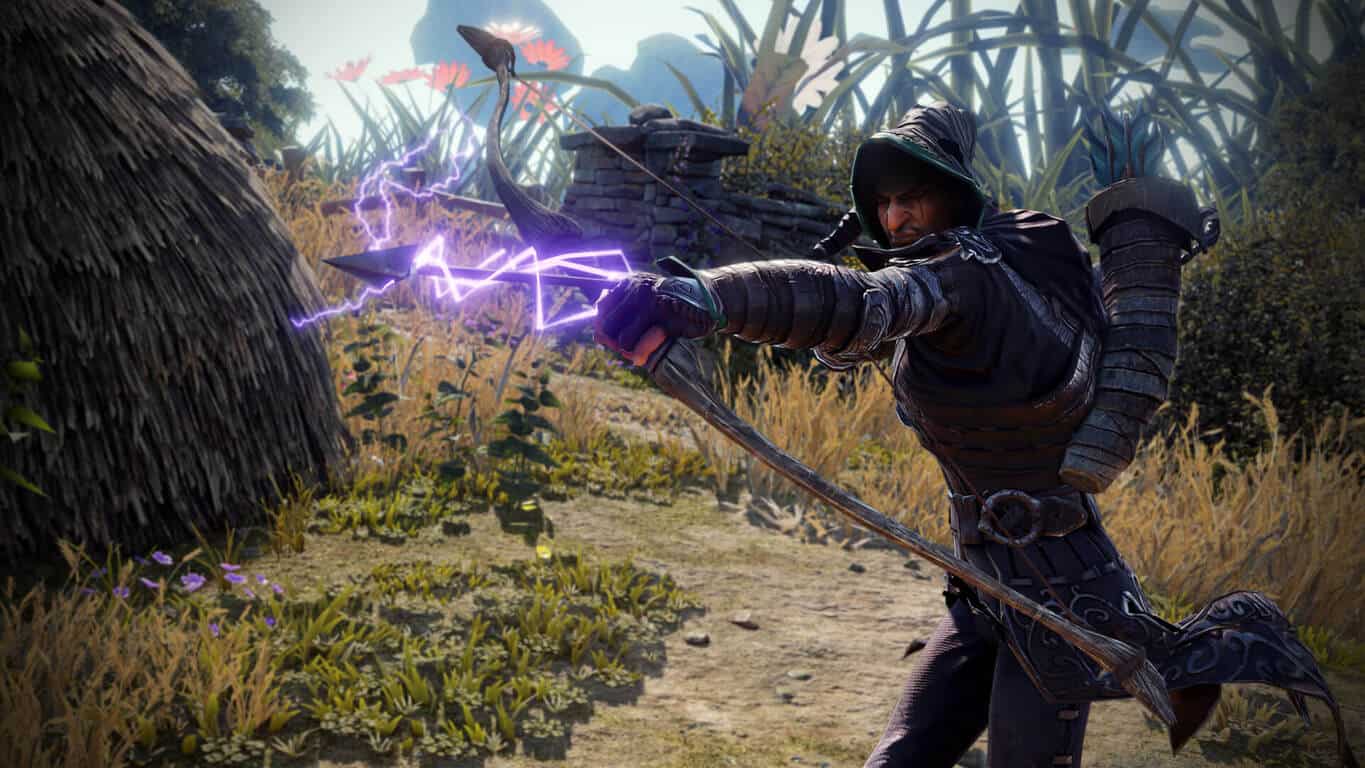
Grab ‘Resident Evil 7 biohazard’ for Xbox One on sale at the Windows Store today!

This week, the Windows Store is slashing off deals of the recent survival horror title Resident Evil VII: Biohazard for Xbox One. The deal cuts the Standard Edition down to $38.99 and the Deluxe Edition to $67.49. While the Season Pass still remains at $29.99 with three new game modes of content, the Deluxe version comes with it in tow.

The acclaimed horror adventure is set in Louisiana swamps where the main protagonist Ethan Winters is searching for clues to his wife’s whereabouts. The gruesome mystery that ensues leads him through deadly interactions, uncovering the truth behind the derelict estate and its residents.

Along with the Standard and Deluxe versions of the game being on sale, a bundle including the last movie of its film franchise is also on sale for over $30 off.

Capcom’s Resident Evil VII: Biohazard was released on January 24, and has been rewarded by fans of the franchise with praise. Some even consider it the ‘rebirth’ of Resident Evil after its lower quality predecessors. If you’re one of the hesitant, now might be the time to try it out while it’s on sale.

Microsoft announces Smart Cities for All involvement

Microsoft today announced Smart Cities for All involvement during Smart Cities NYC ’17, a first of its kind conference which explores the merging of technology and urban life. Microsoft’s announcement comes as the world is undergoing an urban renaissance, where more people are moving to cities to build their lives.

With Smart Cities for All, resources developed by Microsoft partners, Global Initiative for Inclusive Information and Communication Technologies (G3ict) and World ENABLED, help cities becoming inclusive and smarter. Tools are provided to city leaders, to help them to align technology initiatives and smart cities programs, including the following.

  • ICT accessibility standards that city governments can readily adopt
  • Model procurement policy for accessible ICT
  • Communication guide on the advantages of incorporating ICT accessibility into a city’s digital services
  • Database (alpha) of accessible smart city solutions

Microsoft is also helping city leaders deepen their innovation and deliver faster, smarter, and safer government operating through the cloud. Examples include.

  • The City of Los Angeles is using Microsoft cloud technology to power an A.I. virtual assistant – “Chip” – the city’s new digital ambassador, responding to citizen & business requests 24/7.
  • The New York City Department of Education is using a GPS bus monitoring system built on Microsoft Azure and Power BI to manage vehicle maintenance, provide improved student location services, and ensure greater safety for students.

It is because of these commitments that the IDC recently identified Microsoft as the number one trusted vendor for US Smart City Transformation.

The Keynote for the event, led by Toni Townes Whitley, CVP of Microsoft Worldwide Public Sector and Industry, also discussed how business and government leaders can embrace the cloud to create new experiences in the digital economy through digital leadership. You can learn more about this initiative visiting www.smartcities4all.org.

Rocket League teams up with WWE for live event and more

In the shadow of its previous world colliding efforts between rival platforms Xbox and Playstation, Rocket League is once again crossing boundaries to bring two seemingly disparate audiences together with its newly announced sponsorship of the next WWE pay-per-view.

With a brief Twitter announcement, Rocket League has let its fans and the fans of WWE superstar wrestler’s know, it will be part of the exclusive live PPV event Backlash on May 21 on the WWE network.

The WWE cosigned on the excitement by tweeting its own promotional video showcasing Rocket Leagues involvement. With a few weeks to go, it’s still unclear the level of involvement Rocket League will have during the broadcast, but fans of the wildly popular Windows 10, Xbox One and PS4 game should expect some reasonable tie-ins into the gaming franchise somehow.

Fans of the two franchises are still trying to make heads or tails of the announcement, but the overall sense is that it’s something could ultimately work for the WWE and Rocket League considering their fan bases more than cross the venn diagram of engagement.

Microsoft plans STEM Saturdays through May at retail stores

After yesterday’s unveiling of Windows 10 S, a new Surface Laptop, updates coming to Microsoft Teams as well as evolved Office apps on the horizon, it seems the company is looking to keep its momentum and focus in the education sector going by also announcing STEM Saturday’s during the month of May.

Aligned with the company’s vision of inclusive, immersive learning, as shared at the Microsoft Education event in NYC and via Windows Blog , Microsoft Store today announced STEM Saturdays throughout the month of May in all full line locations in addition to the range of free programs Microsoft Store hosts year-round that empower youth by providing direct access to technology and hands-on learning. The free workshop series gives participants a hands-on experience building a sensor that measures the flexion and extension of a finger to learn about the anatomy of a human hand. Anyone can attend STEM Saturdays at their local Microsoft Store starting on May 6 and every Saturday this month.

With Windows 10 Creators Update and the new Windows 10 S coming to more devices this spring and summer, this new STEM Saturday’s are sure to be packed full of useful lessons, tidbits, and hands-ons such as,

• How to build a flex sensor that lets them control a robotic finger with their own finger.
• How to use a Surface and Excel to visualize the flexion and extension of their finger. 
• Basic skills typically used by mechanical engineers, electrical engineers, and data scientists. 

The best part of the monthly event is that these STEM classes are completely free unless you walk out of the stores with new PCs, IoT devices, or Xbox games due to your level of enjoyment in the class.

Microsoft REALLY wants Windows 10 S users to use Edge and Bing, restrictions revealed

It was clear when Microsoft announced Windows 10 S last night that this version of the Windows 10 operating system was going to be slightly more restrictive than the full version and today many are finding out just how restrictive it might be.

Spotted by The Verge, an official FAQ for Windows 10 S reveals that while other web browsers can be used if downloaded from the Windows Store (only Windows Store apps are allowed on Windows 10 S machines), it will be impossible to change the default file settings. In short, opening an htm file will always open Edge. Due to Microsoft’s efforts to make Edge an all-in-one app for reading pdfs and ebooks as well, it’s possible this could also affect other file types as well. It should theoretically be possible to open these files from within other open apps however. Maybe.

Something a bit more drastic is the decision to make Bing the default search engine for Edge and Internet Explore. What’s more is that it appears Microsoft will prevent users from changing this setting. A simple workaround for this problem would be to simply navigate to Google.com or the webpage of another search engine and simply search from there but when it comes to native searches in the browsers’ search/address bar, Windows 10 S users appear to be out of luck. Here’s the official wording:

Yes, Microsoft Edge is the default web browser on Microsoft 10 S. You are able to download another browser that might be available from the Windows Store, but Microsoft Edge will remain the default if, for example, you open an .htm file. Additionally, the default search provider in Microsoft Edge and Internet Explorer cannot be changed.

Do these decisions frustrate you or are they not that big of a deal? Let us know in the comments below.

Windows 10 Twitter app gets that big update, removes @replies

An update for the Windows 10 Twitter app has begun to rollout to Windows 10 PCs and tablets and Windows 10 Mobile smartphones.

This latest update incorporates Twitter’s new policy of not counting usernames in the 140 character count and now removes @replies completely, instead using a new “Replying to” label above reply tweets. Another big change with this update is the separation of replies and regular tweets on profile pages. Before now, profiles on the Windows 10 app would list all of a user’s tweets on one long timeline. Now only the regular tweets are visible and all of the replies have been sorted into a new screen next to the existing Media and Likes sorting options.

Other changes with this update include improvements to images and video in Moments and the support for multiple timelines on the Live events page. Users can also create a new tab by holding Ctrl and clicking anywhere within the app on PC.

Do you like these changes or do you miss the traditional Twitter @replies? Let us know in the comments.

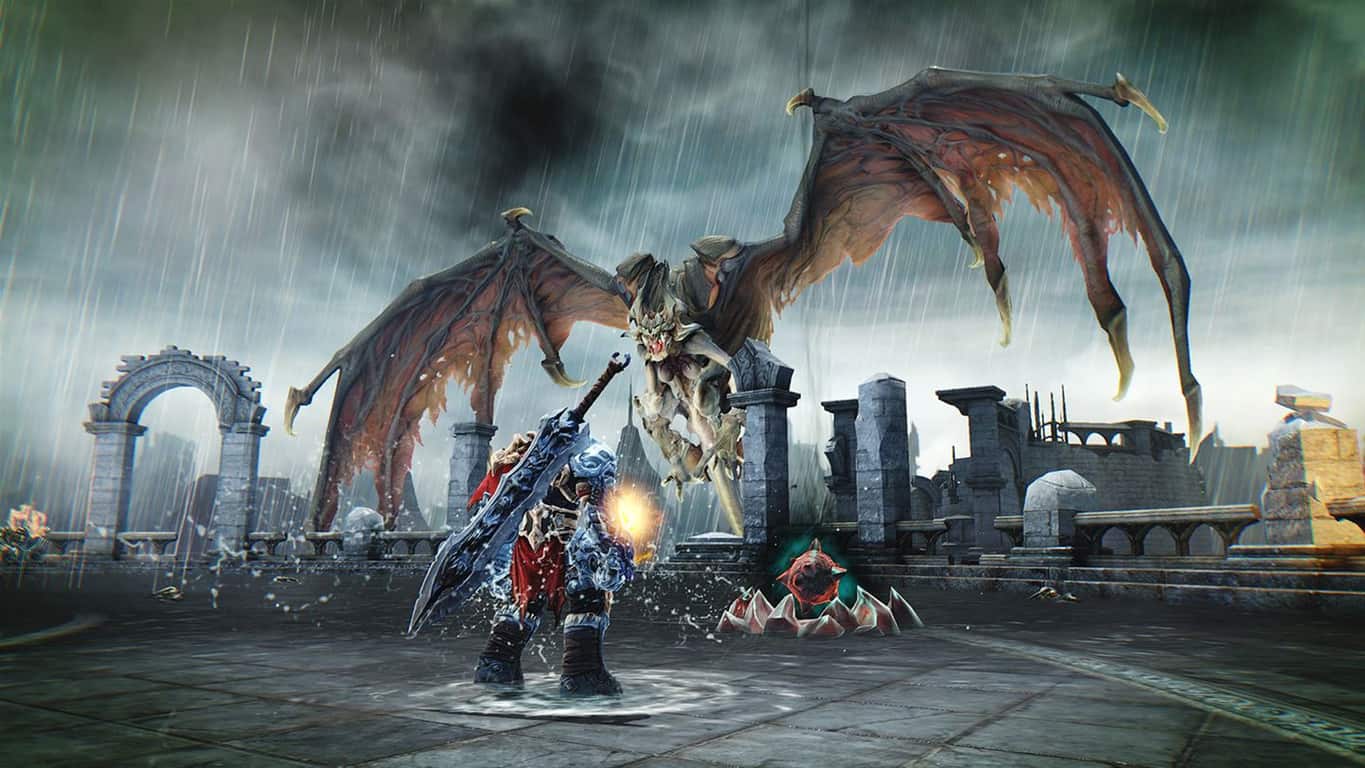
Darksiders Fury’s Collection announced for Xbox One

A new bundle containing the remastered editions of both Darksiders video games has just been announced for Xbox One. Called the Darksiders: Fury’s Collection: War and Death, the bundle is a good opportunity to get both Darksiders and Darksiders II at a cheaper than usual price. Also, for a limited time this bundle is selling with a 50% discount which adds even more value. Here’s the official description:

In celebration of the announcement of Darksiders III, Darksiders: Fury’s Collection – War and Death presents Darksiders Warmastered Edition and Darksiders II Deathinitive Edition in one package at one great value. The perfect compilation for longtime fans of the franchise and players new to Darksiders, players will take on the role of War – the first, most powerful and most eratic Horseman of the Apocalypse and Death, the most feared and legendary of the Horsemen.

Darksiders Warmastered – War’s Redemption: Deceived by the forces of evil into prematurely bringing about the end of the world, War – the first Horseman of the Apocalypse – stands accused of breaking the sacred law by inciting a war between Heaven and Hell. In the slaughter that ensued, the demonic forces defeated the heavenly hosts and laid claim to the Earth.

Darksiders 2 Deathinitive Edition- Death’s Revenge: Become the terrifying force which everything fears but nothing can escape. Awakened by the End of Days, Death, the most feared of the legendary Four Horsemen embarks on a quest to redeem his brother’s name. Along the way, the Horseman discovers that an ancient grudge may threaten all of Creation. Death lives!

Buy Darksiders: Fury’s Collection: War and Death on Xbox One

Both games have had their graphics and gameplay improved for these versions with the titles themselves being highly regarded among Xbox gamers.

Are you going to buy this bundle or do you already own the first two Darksiders games? Let us know in the comments below.

Arabic language is coming to Xbox One

While Microsoft’s Xbox One does support a good number of languages, there are still several that have remained absent such as Arabic. A user on Twitter recently asked Microsoft’s Mike Ybarra if the tech giant had plans to add the language and Ybarra pretty much confirmed that it was coming sometime in the future and that they’re working on it right now.

“We’re working on it,” his tweet said. Short and to the point and 100% confirmation that at least one new language is on its way to the Xbox One. Arabic is actually one of the top five most-spoken languages in the modern world which makes its late arrival on the Xbox One a bit of a surprise.

Have you been waiting for a specific language to be added to the Xbox One console? Let us know which one it is in the comments below.

High CPU usage after installing Windows 10 Creators Update [Fix]

In terms of stability and support, Windows 10 get’s the job done. And with the major updates, we receive new features and all-around improvements that should make the system’s usage even better. Sadly, the Creators Update isn’t just feature-packed major patch, but it comes with more than a few issues.

One of the issues that are widely acknowledged by users is related to the CPU usage. Namely, some users reported a substantial increase in CPU activity after they’ve installed the Creators Update. To make this occurrence even more dubious, the troubled users are certain that their CPU usage hits high values even when the PC is in the idle state.

So, the culprit for this issue is most likely not some process run by users, but rather a system malfunction of some kind, provoked by the latest update. Luckily, you can address this issue on your own with some of the workarounds we provided for you.

How to fix high CPU usage on Windows 10 Creators Update

1. Disable or reassign IME

Windows Input Method Editor is one way to utilize multi-lingual input for certain languages. Another is the 3rd-party IME, of course. However, some reports thoroughly explain why this feature occasionally can and will feast on your CPU, especially in Windows 10 and regardless of what language you use. Now, you should easily obtain some of the 3rd-party solutions for language input and disable the built-in IME. And this is how to do it:

  1. Press Windows key + I to open the Settings app.
  2. Open Time & language.
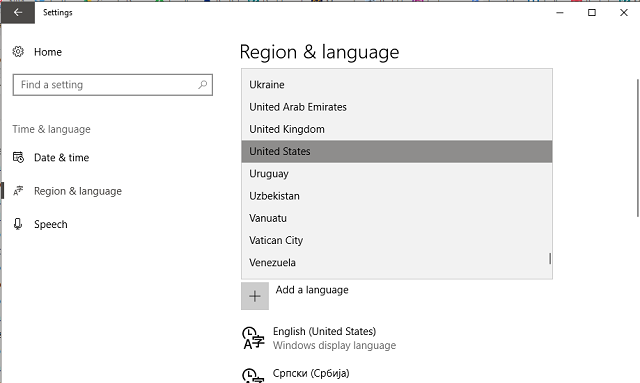
  3. Under Region & language pane, open Additional data, time and regional settings.
  4. Click Add language.
  5. Add any language you prefer running.
  6. Remove Microsoft IME.
  7. Save selection and restart your PC.

Your CPU activity should gradually decrease once you’ve disabled the Microsoft IME.

Additionally, you can reassign the IME and the complete instructions can be found in this article.

2. Check for memory leaks

Memory leaks are the most common reason for the high CPU usage. There’s a chance that the Creators Update confronts with some internal part of your system or an already installed application, and therefore causes a memory leak. We have an article dedicated to memory leaks in Windows 10 and how to deal with them, so make sure to check it out.

3. Stop the Runtime Broker process

The Runtime Broker process is a nifty service that helps you manage certain Windows Store permissions. However, it’s also renowned for an uncalled overuse of the system resources. If broken, this process will take aim at your RAM, but even the CPU isn’t sparred on some occasions.

Have in mind that this is not an essential system process so you can disable it and check for changes. This is how to disable Runtime Broker process in a few easy steps:

  1. Press Ctrl + Shift + Escape to bring the Task Manager.
  2. Under processes locate Runtime Broker.
  3. Right-click on the process and choose End Task.

Now you should have one thing less to worry about when it comes to CPU ultra-high usage.

4. Reduce Visual effects

The procedure that is highly advised, especially for the sub-par configurations is related to the visual effects. Namely, visual effects may give your system that extra, metro-looking flair, but they can also take a toll on your CPU. You can make your visual effects to adjust for the best performance and therefore reduce the impact they have on CPU usage substantially.

This is how to do it:

  1. Under the Windows Search bar, type Performance Information and Tools.
  2. Choose Performance Information and Tools from the list.
  3. Click on Adjust Visual Effects.
  4. Under the Visual Effects tab, click Adjust for best performance.
  5. Click OK to confirm the selection and restart your PC.

5. Disable programs from running at the startup

Another action you should take into consideration when it comes to troubleshooting of this issue must be the startup tweaking. Most of the third-party programs have an annoying habit to start with your system. Sometimes that is justified, like with the antivirus or GPU Control Center. However, on most occasions, you won’t need that plethora of programs slowing down your startup.

On the previous Windows versions, you were somehow forced to use the third-party solutions for tweaking your startup. Fortunately, that’s not the case with Windows 10. And this is how you can relieve your system of all the unnecessary startup programs:

  1. Right-click the Taskbar and open the Task Manager.
  2. Under the Startup tab, disable all but essential programs.
  3. Click Ok and restart your PC.

6. Stop P2P updates

Another feature that proved as a massive CPU grinder is the Peer-to-Peer update. For those of you that are not aware of it, this process lets you speed up the updating process in your home network by sharing the update files between all of the connected PCs. Now, that sounds great, but it may heavily impact your CPU while doing so.

So, our advice is to disable it and reduce the CPU usage. This is how to do it:

  1. Press Windows key + I to open the Settings app.
  2. Open Update & Security.
  3. Click Update and open Advanced.
  4. Click Choose how updates are delivered.
  5. Under Updates from more than one place, toggle the feature off.

This will kill the process and your CPU usage won’t skyrocket anymore.

7. Disable Tips about Windows

The ”Tips about Windows” feature is a good way to learn about the system surroundings and get a grip on some less-known features. However, it’s also a known culprit for the high CPU usage. So, if you’re not ready to trade your all-around performance for a tip or two, make sure to disable it.

Follow these instructions to disable the ”Tips about Windows” feature:

  1. Press Windows key + I to summon the Settings app.
  2. Open System.
  3. Under Notifications & actions pane, disable ”Get tips, tricks, and suggestions about Windows’‘.
  4. Click OK.

That should reduce the CPU usage at least slightly.

8. Disable Microsoft Spotlight

While the Microsoft Spotlight feature can certainly make your lock screen more vivid and interesting, it can take a lot of system resources. It shouldn’t, but it does. To at least marginally decrease your CPU usage, we advise you to settle with the regular wallpaper from your collection and disable the Spotlight feature.

This is how to do so in a few easy steps:

  1. Right-click on the desktop and click Personalize.
  2. Click on the Lock Screen tab.
  3. In the Background pane, switch from Windows Spotlight to Picture or Slideshow.
  4. Click OK to save changes.

If you’re in love with the variety of photos Microsoft Spotlight provided for you, you can download them and use them individually or as a slideshow for your lock screen. You can find those here.

9. Uninstall cloud desktop clients

Users around the world are using all kinds of cloud solutions to preserve their valuable data. There are a lot of ways to utilize the cloud tool for backing up or downloading your files. One of those ways is trough the desktop client, which is available for the majority of cloud services, like OneDrive, Google Drive or Dropbox. However, even though the desktop client makes your daily backup routine much easier due to integration, it also causes high CPU activity.

For the time being, the greatest consumer of your system resources must be the built-in cloud program, OneDrive. It doesn’t matter if you use it or not, it will always be there, working in the background. To make the things even harder, the built-in application can’t be uninstalled but rather sustained from actions. And the complete instructions for stopping OneDrive can be found in this article.

10. Perform a fresh reinstallation

At the end, if nothing worked out and you’re trapped in cycles trying to figure out what is the reason for these preposterous doings, your final solution is the clean reinstall. Yes, it may seem like a time-consuming action when we have in mind that you’ll need to backup your data and setup again all those settings. However, this is your last resort and we advise you to take it into consideration. You can inform about the whole procedure on this link.

That should be enough to get you going. In addition, we are open for suggestions, questions, or alternative solutions. Those can be posted just below, in the comments section.

RELATED STORIES YOU NEED TO CHECK OUT:

How to fix common Outlast 2 bugs

Outlast 2, the sequel to the popular Outlast game, is a truly creepy horror game. While it’s set in the same universe as the first game, it features different characters and a different setting.

Unfortunately, Outlast 2 is affected by quite a few technical issues. Last week, we published an article on how to fix the annoying Outlast 2 graphics issues. In this article, we’re going to futher expand the first article and show you how to fix other common bugs affecting the game.

How to fix frequent Outlast 2 issues

1. Players can’t crawl under a tree
Crouch is mapped to the left CTRL key and crawl is mapped to the C key. On a controller, you press to crouch, hold to crawl.

2. Players can’t get passed the first enemy
If you can’t get passed the pickax lady, simply run away from her. Eventually, she’ll leave you alone.

3. Lost save games
There seems to be an issue sometimes with the Steam Cloud synchronization. The game’s devs are already working on a patch to fix this problem.

In the meantime, try disabling Steam Cloud support, as this action might restore your previous savegame. From the Steam library, right-click on Outlast 2, select Properties then under the Updates tab uncheck the “Enable Steam Cloud synchronization for Outlast 2” option.

4. The game is locked at 24 FPS or lower
To fix this issue, run the game in borderless fullscreen. Go to %userprofile%\Documents\My Games\Outlast2\OLGame\Config\OLSystemSettings.ini, open the file and set the “UseBorderlessFullscreen” option to “True”.

Outlast 2 will soon allow gamers to speficy a preferred refresh rate on the command line.

5. The camera won’t work
This issue is prevalent for gamers running the Comodo anti-virus and seems to be caused by the “auto-containment” feature. Simply turn off that feature or the antivirus altogether to regain control over the game’s camera.

6. Blake’s voice is inaudible
Check your PC’s audio settings. If your computer is setup to output 5.1 and you connect headphones to the L/R channels, you will be missing the Center channel, which is where most of voices come from.

If you have stereo speakers/headsets, configure windows to output stereo. Right click on the speaker icon on the task bar, select “Playback Devices”. Then select your playback device and go to properties. In the “Advanced” tab, make sure it says “2 channels”.

If you have a 5.1 or 7.1 system, all the connections should maintain all of these channels the whole way through for optimal results.

If you’ve come across other workarounds to fix various Outlast 2 bug, you can help the community by listing the troubleshooting steps in the comment section below.

RELATED STORIES YOU NEED TO CHECK OUT:

Posted in Fix

Bayonetta 2 PC port: Gamers shouldn’t have high hopes about it

Bayonetta is an action game that follows the story of the last survivor of an ancient witch clan who keeps the balance between light, dark and chaos. The main character of the game, Bayonetta is discovered and revived after 500 years, but she doesn’t remember anything about her past. With a single clue available, she goes on a quest to discover who she really is. This process also involves fighting off hordes of enemies.

The game was released on PC on April 11, after years of waiting. Almost one month after its official release, fans would like to know when exactly the Bayonetta 2 PC port is ready. However, the answer is not that obvious.

Bayonetta 2 PC port release date

Honestly speaking, chances that Bayonetta 2 arrives on PC are virtually nil. While SEGA doesn’t yet have an official position about this, let us not forget that the company gave up on the sequel and Nintendo basically saved the day by funding the whole game as a gesture of goodwill.

Most likely, Nintendo won’t authorise a port until a predetermined period of time, or sales, are met first. Porting Bayonetta 2 to PC is not impossible, it’s just highly unlikely.

Many fans also say that Nintendo doesn’t fully own the game, as the company didn’t fund it 100%. Sega pulled out mid-development, and gamers suggest that depending on how much of the game Nintendo had to cover for, it may or may not be able to stop a PC port.

However, players may have better chances at convincing Nintendo to port Bayonetta 2 to PC by massively buying the game. After all, a larger fan base, means that better chances to get more profit out of the game.

Would you like to see Bayonetta 2 on PC?

RELATED STORIES YOU NEED TO CHECK OUT:
Heroes of the Storm 2.0 bugs: matchmaking is broken, quests won’t appear, and more

Heroes of the Storm 2.0 is now live. The new revamped version of Heroes of the Storm should help Blizzard draw in some new players.

As a quick reminder, Heroes of the Storm 2.0 takes the game to the next level thanks to a new more powerful progression system, reward-packed Loot Chests, an innovative new Battleground, and many new heroes. Unfortunately, the game also brings issues of its own, as gamers report.

In this article, we’re going to list the most common Heroes of the Storm 2.0 issues reported by players, so that you know what to expect in terms of bugs.

Heroes of the Storm 2.0 bugs

Azmodan’s laser has been delayed

Many players report that Azmodan’s laser is now slightly slower than before, which is pretty annoying. As a result, casting the laser on a running target and keeping them in range is now more difficult. If you click the laser and then start moving towards your enemies, the laser gets canceled.

is it me or when casting Azmodan’s laser – it now takes a longer delay to cast the laser?
Not sure if I’m right but… before, it would take around 1/3 of a second to cast… now, it takes more than 1/2 a second
It may not sound like a big issue (in fact is not..) but usually I was able to cast it and start walking straight away and now I “interrupt” the cast if I walk with the same timing.

Matchmaking algoritm is not balanced

Gamers consider that Heroes of the Storm 2.0 offers an uneven matchmaking system. Indeed, the queue time has gone down dramatically, but the team composition is extremely unbalanced.

I now get no warrior comps versus warriors, no supports vs. supports, and other insanely imbalanced comps. I loved this game so much and I recently decided to just stop playing it until changes are made. Whoever thought this new QM system was a better system is not that competent in my opinion. Sorry, but you lost me until I see some changes (I plan to check back in a month or so.)

Camera keeps moving

Disable camera snapping after recalling, its a simple basic option, even LoL has it, so where is it hiding as i can’t seem to see it anywhere

To fix this issue, simply hold down the mouse-wheel click and it will keep the camera from moving. You can also go to Mouse & Keyboard and turn off the “Enable Camera Follow” option.

New players are not receiving quests

Many new players are not receiving quests in addition to the “Complete VS. AI Matches” quest. The good news is that Blizzard is already testing a hotfix for this problem and should roll it out to live servers as soon as it is complete and tested.

The VS. AI quest is not properly tracking progress

The game doesn’t track the VS. AI quest progress correctly. Blizzard is still investigating what could be causing this issue. You can provide the company with more details about this problem on this forum thread.

Have you encountered other Heroes of the Storm 2.0 bugs? Use the comment section below to tell us more about your experience.

RELATED STORIES YOU NEED TO CHECK OUT:

Microsoft’s new operating system Windows 10 S can only run Windows Store apps

At today’s MicrosoftEDU event, Microsoft has just announced the new version of Windows 10, Windows 10 S. According to the company, Windows 10 S is the most suitable for educational purposes, and can run on a lot of Windows 10-compatible devices.

At first look, Windows 10 S looks and functions the same way Windows 10 does. But there’s a catch – you can only run apps from the Windows Store. So, if you try to install a Win32 app, the system will offer an alternative from the Store.

That’s because Windows 10 S uses special security containers, that only allow apps verified by Microsoft to run. As no Win32 application has been verified as secure by Microsoft, you simply won’t be able to run them. And that’s likely to remain as it is.

Along with the new operating system, Microsoft has also announced new apps to come to the Windows Store. These apps are, just like the system itself, for educational purposes, and one of them is the Microsoft Office Suite. There’s a new default wallpaper, as well.

And finally, Microsoft as also announced the new line of devices that will come with Windows 10 S pre-installed. Manufacturers that will produce educational Windows 10 S devices are Acer, ASUS, Fujitsu, HP, Samsung, and Toshiba.

All of this reminds us of the infamous Windows RT, which only supports apps from the Windows Store. And we all know how things ended up for Windows RT. Microsoft knows that creating another similar operating system is too risky.

Microsoft knows that creating another similar operating system is too risky. Therefore, to decrease the risk, Windows 10 S can be upgraded to Windows 10 Pro, which is definitely a smart move.

What do you think about Windows 10 S? Will it face the fate of Windows RT, or Microsoft did a better job this time? Let us know in the comments below.

RELATED STORIES YOU NEED TO CHECK OUT:
Microsoft May 2nd Media event, my photo recap

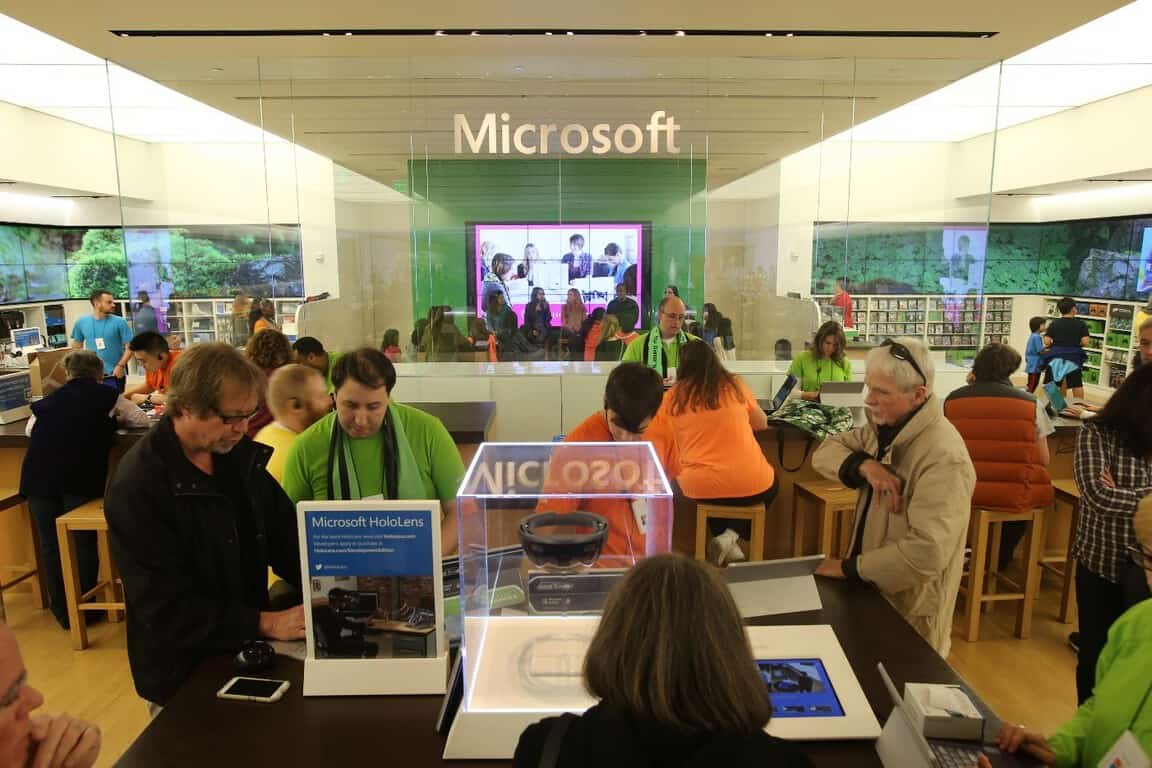
As you likely know, I was in attendance today at Microsoft’s Media event, running a live blog and sending in photos and videos for OnMSFT. A lot happened at this event, including the reveal of Windows 10 S, Surface Laptop, and much more. To relive the event from my eyes, you can check out a few of my favorite photos from the event below (all snapped by yours truly!)

The Venue for the event
Stage for May 2nd Microsoft Education Event
Satya Nadella May 2nd MIcrosoft EducuationEvent
Satya Nadella at the May 2nd Microsoft Education Event. He discussed how Microsoft promotes learning through collaboration.
Terry Myerson Windows 10 S & Acer HEadsets
Terry Myerson introduced and talked about Windows 10 S, Windows 10 S devices, the Acer Headset, and Office apps in the Windows Store.
Microsoft Teams Educuation
There was a demo of how Microsoft Teams is being used in education
Demo of Acer Mixed Reality Headset
An on-stage demo of Acer Mixed Reality Headset & how Mixed Reality can be used in education.  Also mentioned was View Mixed Reality, the ability to show live scale 3D models in comparison to reality.
Panos Panay Surface Laptop
Panos Panay appeared on stage to reveal  Surface Laptop
Panos Panay Surface Laptop Offstage
Panos Panay briefly came off the stage to show a media member a personal closeup of the Surface Laptop!
Surface Laptop Showroom Floor
Surface Laptop was the highlight of the show. Here is where Microsoft kept the device on the showroom floor.
Surface Laptop Hands on
I was able to get hands on with the Surface Laptop!
Surface devices
Microsoft showcased all the Surface devices

The event was a very amazing experience for me as a Microsoft blogger, so be sure to keep it tuned to OnMSFT, as myself and my colleagues will be here to bring you the latest news.  Also fell free to check out our hands-on video with the Surface Laptop, and our quick look and overview of Windows 10 S.

Frequent Dragon Quest Heroes bugs and how to fix them

Dragon Quest Heroes is a hack-and-slash action game that sends you on a new adventure to restore order to a once peaceful world now filled with monsters. As a player, you’ll engage in epic battles with up to four players that can play in cooperative multiplayer to defeat a common threat.

However, this is not the only challenge you need to worry about. Gamers report that Dragon Quest Heroes is sometimes affected by a series of annoying technical issues and in this article, we’re going to list the most common Dragon Quest Heroes issues reported by gamers so that you know what to expect. At the same time, we’ll also list the corresponding workarounds, if available.

Dragon Quest Heroes reported bugs

White screen when starting a battle

When I engage a tough opponent like the one that is in the Oasis, the screen turns white and I can hear action going on, and if I’m lucky can win the battle blind, but it happens with other tough monsters like this and with different settings. Any one else have this problem?

If you’re experiencing this issue, try turning Volumetric Fog back on if it’s off.

Game crashes

well as the title say’s I cannot start the game without it crashing on me I try’d window and fullscreen to see if that would be a work around but im having no luck someone help please?

If you’re running Windows 7, try installing KB2670838. Also, install the latest OS and graphics driver updates on your machine.

Dragon Quest Heroes won’t launch
Players report that the message “Preparing to Launch” appears on the screen but the game then suddenly closes without actually launching.

Players can’t switch character

After one of my party members was downed in the fight with the first boss in the desert, I am unable to switch characters, anyone else have the same thing or a fix?

FPS issues

I get very poor FPS even with 1920×1080 resolution and Medium details on my Notebook. My specs are:

Intel i7 4720HQ @ 2,6 GHz
NVIDIA Geforce GTX 980M 4 GB
16 GB RAM
2x 500 GB SSD

[…] So i tried to force the Game to use the NVIDIA graphics via NVIDIA Control Panel. Unfortunetately now the game is not starting anymore (when I click on play nothing happens). So I switched back to automatic selection of GPU in NVIDIA Control panel: Now the Game is starting again bur of course i still have the same issues as before.

To solve this problem, ALT +TAB out of the game and then hit ALT+ TAB to get back into the game.

These are the most common issues affecting Dragon Quest Heroes. If you’ve come across other workarounds to fix various game issues, you can help the community out by listing the troubleshooting steps in the comment section below.

RELATED STORIES YOU NEED TO CHECK OUT:

Posted in Fix

The Creators Update breaks Mobile Broadband USB dongles [FIX]

Microsoft’s latest endeavor to raise the market share of its Windows 10 operating system has produced quite a stir in the community. The Creators Update has brought a series of useful new features and improvements to the table, as well as issues of its own.

As more and more problems are surfacing in the aftermath of the update, users didn’t hesitate to voice their complaints on the most popular forums on the internet.

One such place is Reddit, where a user recently reported a problem affecting Mobile Broadband USB modems. It appears that mobile USB dongles that are also a bit old don’t fare that well with the Creators Update. Here is what user NovaSummoner had to say about the issue on their Reddit post:

When I fresh installed windows 10 I didn’t realize that I downloaded the creators update ISO. This lead to a week and a half of me writing on windows message boards and searching the internet for anyone that had this same problem. When trying to dial out with the Usb modem in my case the Mc760 from Virgin Mobile, it came back with error 633 in windows and the message “The remote computer did not respond please try again.

The solution found by this user was to get hold of another Windows installation ISO, namely the one for the Anniversary Edition of the OS, by downloading it from a Mac. While this method of getting a different ISO might not yield the same results for everyone, the user strongly encourages those who want to install the latest Creators Update to be careful. That is even more so the case if they have an internet connection based on a USB dongle. Here’s the user’s warning:

Be Careful when updating to creators update from Microsoft if you use a USB Dongle for internet. I was lucky and found a way to download another ISO but that strategy might not always work.

When the situation seemed hopeless, a helpful user by the name Otadiz appeared with a handful of solutions for users who might find themselves in the same predicament. Here are his answers to the problem for those in need.

How to fix Mobile USB dongle issues on the Creators Update

1. Go to Start > Settings > Updates and Security > Advanced Options > Defer Feature Updates.

In this manner, you won’t get the new updates right when they come out and they will be more stable by the time you get them.

2. Go to Start >Type services > Go to Windows Update > Right-click Properties > Startup Type > Disabled.

3. Go to Start> Settings > Updates and Security >Recovery Options > Go back to an earlier build.

Have you encountered any Mobile Broadband USB dongles after upgrading to Windows 10 Creators Update? If you’ve come across other fixes, feel free to list the troubleshooting steps in the comment section below.

RELATED STORIES TO CHECK OUT:

Hands on with Windows 10 S from Microsoft’s May 2nd event (video)

Our own Arif Bacchus was in New York today, running our liveblog and capturing photos and videos from today’s announcements of Windows 10 S, Microsoft’s continued push into education, and the new Surface Laptop.

Here’s Arif with a demo of Windows 10 S, running on a Dell laptop:

Windows 10 S offers educators and others to run Windows 10 in a semi locked down state, able to only download and run apps and content from the Windows Store. This new version of Windows 10, which leaked out as “Windows 10 Cloud” some months ago, and will be shipping on the Surface Laptop, as well as being available for “upgrade” for free for anyone using Windows 10 Pro, a one-way process that will lock down educational or corporate machines to the Store.

We’ll continue our coverage of Windows 10 S, Surface Laptop, and everything Microsoft as more information becomes available, stay tuned!


Search everything on your PC or the internet with Cerebro

Apple’s Spotlight is a great feature on iOS and macOS that allows you to search for things on your computer and on the web. Windows 10’s Search, the one built into Cortana, is also pretty good when it comes to searching. Unfortunately, it has its flaws and sometimes its search results are not the most accurate.

Cerebro, a great search app for Windows 10

Cerebro is an interesting app for Windows 10 and older versions of Windows that brings a similar experience to Windows as Apple’s Spotlight. Once downloaded and installed, all you need to do is press Ctrl + Spacebar for it to open. From there, you can search for absolutely anything you want. For instance, if you want to open Spotify, all you have to do is search for the app and hit Enter to open it.

Cerebro plugins

On the other hand, searching for apps on Cerebro is not the best as it can’t currently find Windows Store apps. This is a bit annoying, especially if you depend on the latest Windows Store apps.

The thing that makes Cerebro great is how it allows you to install plugins in order to expand its functionality. For now, there are almost 60 plugins for Cerebro and most of them are very cool. For instance, there’s a plugin that allows you search for questions on Stackoverflow, with answers displayed directly on the Cerebro window, while GIF fans can enjoy a plugin that allows them to search for GIFs on Giphy directly from the app.

There are lots of other plugins including one that lets you see the weather for a certain city, one for IMDB, for Reddit, Twitter, and so on.

Cerebro is not flawless as its plugins don’t always work as smoothly as possibly. The app is currently in its early development stage and you can download it from its official website.

If you’d like to help, you can do so via GitHub as Cerebro is an open source project.

RELATED STORIES TO CHECK OUT:

Dell laptops boot to a black screen in Creators Update [FIX]

Many Dell laptop owners who installed the Windows 10 Creators Update on their computers have encountered black screen issues on boot. More specifically, Dell laptops may wake to a black screen after closing and opening the lid.

The good news is that this issue affects only three Dell laptop models: Alienware 17 R4, Precision M7710 and Precision M6800. In order to restore the display, users need to perform a hard reboot. Unfortunately, the problem occurs again the next time users close and open the lid.

Here’s how one user describes this issue:

My computer update last night to the Creator’s Update and this morning I have a black screen with only the mouse cursor. It appears as though everything is there on my desktop, the cursor change changes to a single click finger when over an icon and I can type something in the ask me anything area. (cannot see what I am typing).

How to fix black screen after boot on the Creators Update

The black screen is caused by a known issue with the GeForce display driver used in these laptops models and the Creators Update.

To fix this problem, you can download and install the GeForce driver hotfix that NVIDIA has released to address this issue. You can download the hotfix from NVIDIA’s support page.

The updated display driver is also being released to these devices through Windows Update.

Have you encounter this problem on other laptop models? If this is the case, download NVIDIA’s hotfix and use the comment section below to tell us if this action fixed the problem.

RELATED STORIES YOU NEED TO CHECK OUT:
Network printers fail to install on PCs running the Creators Update [FIX]

If you own a computer with less than 4 GB of memory and you upgraded it to the Creators Update OS, you may encounter various network printer install issues.

Microsoft explains that when connecting a network printer (a WSD device) to a network with a PC that contains less than 4 GB running Windows 10 version 1703, the printer’s setup software fails to discover and install the printer. This problem did not exist prior to installing the Creators Update.

The good news is that Microsoft has already acknowledged this issue and is working to fix this problem in a future Windows update. The company also explained that the network printer installation issues are due to the new Creators Update firewall rules.

Microsoft has confirmed a known issue that may prevent network printer software from discovering and installing the network printer on systems with low memory (< 4GB).  This is due to firewall hardening rules added in Windows 10 Version 1703.

How to fix network printer install issues

If you can’t install network printers on your computer, follow the troubleshooting steps listed below:

  1. Right-click the Start menu > select Command Prompt (admin) to open Command Prompt as an admin.
  2. In the Command Prompt window, type the sc config fdphost type=own command and hit Enter
  3. Restart your PC > run the printer’s setup software again. You should now be able to install your network printers.

There you go, we hope this workaround helped to fix the network printer install issues that you encountered after upgrading to Windows 10 Creators Update. If you’ve come across other solutions to fix this issue, feel free to list the troubleshooting steps in the comment section below.

RELATED STORIES YOU NEED TO CHECK OUT:
Microsoft sneaks a new Surface Arc Mouse into today’s announcements

At one point in today’s webcast, Surface leader Panos Panay mentioned that his presentation was running behind, and that he had to keep going. Perhaps that’s why Microsoft’s latest accessory, the Surface Arc Mouse, didn’t make it into his presentation (although there were some on stage). However, Microsoft has posted a new video on the mouse:

We’re waiting for the Surface Arc Mouse, and for the Surface Laptop for that matter, to show up in the Microsoft Store, but you should be able to get your hands on one soon.

View Mixed Reality coming to Windows 10 sees through a “magic window”

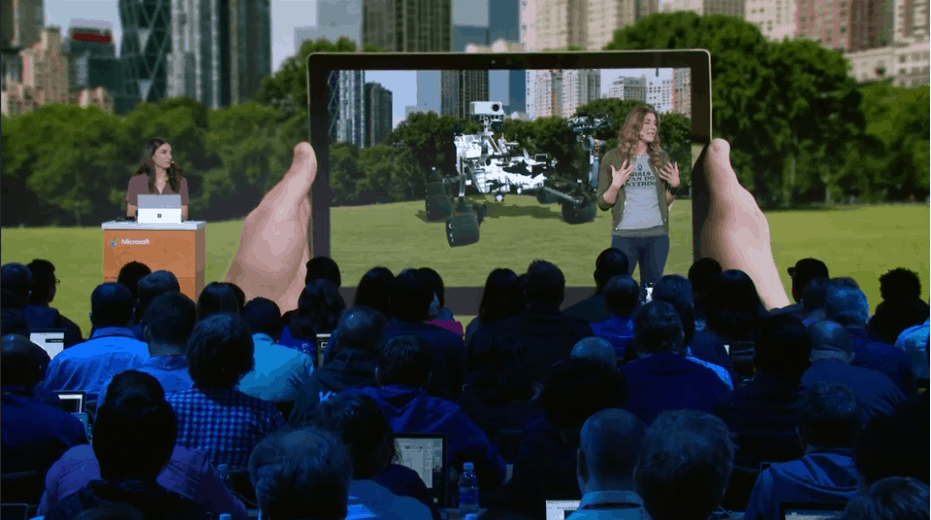
Microsoft’s education media event today has been killing it ways announcers have shown the new system will help to innovate in the classrooms and implement new technologies into learning. One such feature that is planned to release on Windows 10 for the Fall calendar school year is the View Mixed Reality. Microsoft feels that the ability to show live scale 3D models in comparison to reality will build on educational experiences.

View Mixed Reality lets the user view 3D content and models through the device’s screen. Teased as being ‘available in a wide range of experience’, Microsoft says that this feature will be available for any classroom Windows 10 PC with an RGB camera including just using a plugged in webcam.

This is similar to the ‘Magic Window’ feature we’ve seen in the past. Originally, it was suspected we’d see this feature rolled out with the Windows 10 Creators Update (seen in the video above) but it looks like it was just a little delayed. It’s not yet known if this feature will be limited to the classroom through Windows 10 S yet or if we’ll see it publicly available for use.


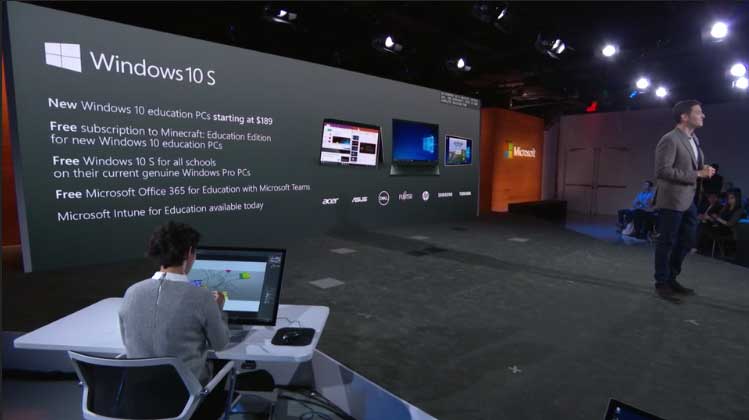
Microsoft offers Windows 10 S, Minecraft for Education, Office 365 for Education for new PCs

Microsoft is looking to empower educators with their newly announced Windows 10 S, and it looks like they want to get it into as many teacher’s hands as possible right off the bat. During the media event today, Terry Myerson shared that it’s going to be easier for classrooms to implement Windows 10 S than any other Windows 10 version.

Partners will be offering these new Windows 10 education PCs starting at $189. Furthermore, these devices will come with a free subscription to Minecraft: Education Edition. With the Microsoft Teams collaborative software, they’ll also have access to Microsoft Office 365 for Education. If schools aren’t able to afford these cheaper new devices, any Windows Pro PCs in schools will also be offered Windows 10 S for free.

On top of all the news, Microsoft Intune for Education has also been released publicly today.

The rollout of Windows 10 S will be coming this Summer, ready to prepare for the next calendar school year.

”Something went wrong” error prevents the Creators Update installation [Fix]

With Windows 10 Creators Update, Microsoft tried to cover blind spots from the previous updates. They managed to implement more features, mostly related to multimedia and gaming. Additionally, Edge seems a bit better now.

However, in order to enjoy that abundance of features, you, obviously need to download and install the Creators Update. And that’s sometimes easier said than done. We covered a lot of update-related issues individually, but this we are addressing today is somewhat harder to overcome. Namely, a lot of users encountered an error that hardly explains itself. It’s a mystical ”Something went wrong” error that occurred with the previous major update, too.

So, today we prepared a list of possible workarounds that should help you fix this issue. If you’re unable to resolve it on your own, follow the steps below.

How to resolve the ”Something went wrong” error

Disable Antivirus/Firewall temporarily

Firstly, let’s address the best-known threat for update malfunctions. Yes, the 3rd-party antivirus solutions are known for interfering with the update feature in Windows 10. And the same goes for Microsoft’s latest release. So, you can either disable antivirus temporarily or uninstall it completely until the update procedure is finished.

In addition, it doesn’t hurt to disable Windows Firewall, too. Of course, it’s not advised to disable the Firewall permanently. In order to disable the Firewall, follow these instructions:

  1. Under the Windows Search bar, type Windows Firewall and open it.
  2. Click ‘‘Turn Windows Firewall on or off”.
  3. Disable Windows Firewall for both private and public networks and click OK.
  4. Give updating another try.

However, if you still receive the same error prompt, look down for additional solutions.

Check your language pack

Language pack seems to have a large impact on update features. Namely, some users reported that the problem was gone after they switched from their native languages to English. For some reason, the custom installed language packs corrupt the installation process. So, try changing the language and then run the Windows Update again.

If you’re unsure how to do so, follow these instructions:

  1. Press Windows key + I to bring out the Settings app.
  2. Under Settings, click Time & Language.
  3. Click Region & language.
  4. Under Languages click Add Language.
  5. Select any English variation. Your best bet is to go with English (United States) or English (Great Britain).
  6. Now, on Region & Language, select English and click on Set as default.
  7. After that, right-click Start and open Control Panel.
  8. Open Clock, language, and region.
  9. Click Language.
  10. Open Advanced settings in the left pane.
  11. Under Override for Windows display language, click on Apply language settings to the Welcome screen, system accounts, and new user accounts.
  12. Now, get back to Region.
  13. Under Administrative tab, click Copy settings.
  14. Restart your PC and try updating.

Check your license

Another thing worth checking out is your license. If the license is inactive or corrupted, you may get prompted with the above-mentioned error. You can check your license status this way:

  1. Press Windows key + I to open Settings app.
  2. Navigate to Update & Security.
  3. Select Activation.
  4. If your Windows 10 edition is unregistered, enter license code again.
  5. Try updating.

Install the latest drivers

Additionally, you should perform a thorough check of your drivers. Namely, users reported issues with the older devices with inappropriate drivers for Windows 10. Without the appropriate drivers, your system update may get stalled. To overcome possible issues, unplug all the peripheral devices like printers and update the remaining drivers. You can check for driver updates this way:

  1. Right-click Start and open Device Manager.
  2. Refresh for hardware changes.
  3. Right-click on the suspicious driver and click Update Driver.
  4. Repeat the action for other drivers, too.
  5. If some legacy drivers can’t be updated, uninstall them.
  6. Restart your PC and check for changes in the update department.

Disable the connection temporarily

One strange but simplistic action resolved this issue for numerous users. Namely, it seems that the swift termination of the connection can get you trough the update process. The timing is essential so follow the instructions:

  1. Start the update.
  2. While the installer is verifying the installation files, disable the wireless/LAN connection.
  3. The easiest way is to instantly enable the Airplane mode under Network icon in the Notification area.
  4. After the installer finishes the installation, disable the Airplane mode.

If you are still troubled with the same issue, there’s only one thing you can do and that is…

Try later

Yes. It’s not strange for Microsoft servers to get overrun and collapse. So, you can try again in the next few hours.

Don’t forget to tell us how that worked out for you. Additionally, if you have any questions or remarks, we’ll be glad to see those in the comments section below.

RELATED STORIES YOU NEED TO CHECK OUT:
Netflix adds HoloLens and VR support for Windows 10

Netflix is planning to build an app destined for Microsoft’s HoloLens augmented reality headset. These plans to support the HoloLens were mentioned in one of the company’s recent job listings for Senior Software Engineer promising an amazing experience to all Windows app users on a variety of devices, with the HoloLens and VR devices also included.

The original post stated the following:

Netflix is the leading video streaming service globally, and the Netflix Windows application is one of the most widely used apps in the Windows Store. Our mission is to provide a great experience to all Windows app users in a variety of devices, from desktop/laptop, to tablets and phones, as well as HoloLens and VR devices. We are constantly focused on enhancing our consumer experience around the world by building out new product features and improving performance.

Netflix plans confirmed

A Netflix spokesman confirmed the company’s plans for support “in a basic way down the road”. This means that Netflix will be a bit cautious with augmented and virtual reality, with the company having already built some basic apps for VR headsets such as Samsung Gear VR and Google Daydream.

The Netflix spokesperson said the company’s plans for HoloLens will involve some effort and emphasizes that it is still in wait-and-see mode regarding AR and VR technologies. Still, the company has started producing some 360-degree promotional footage but hasn’t yet full-on embraced VR as its own medium. Netflix CEOReed Hastings has repeatedly expressed skepticism about VR becoming anything else than a medium for video games.

The competitor’s approach

Competitor approaches are a bit different. Let’s take Hulu and Amazon, for example. Hulu has invested in its own VR content including a weekly news show and a comedy series. Amazon, on the other hand, has been keeping quiet but it seems that the company has hired people to produce and distribute VR originals. One of these recent hires included Genna Terranova, former Tribeca director who currently heads  VR content for Amazon Studios.

RELATED STORIES TO CHECK OUT:

Here are the hardware requirements for Windows 10 Cloud

Windows 10 Cloud is a cloud-based OS which will take Microsoft’s platform to a new territory. If you’re planning to try it out, don’t forget to check the hardware requirements and performance targets.

Windows 10 Cloud hardware requirements

  • Quad-core (Celeron or better) CPU
  • 4GB RAM
  • 32GB of storage for 32-bit, 64GB for 64-bit
  • Battery larger than 40 WHr (WattHour)
  • Fast eMMC or SSD storage
  • Optional pen and touch support

Microsoft’s performance targets

  • Battery life – longer than 10 hours
  • Cold Boot to Login Screen – 20 seconds
  • Resume to Login Screen – under 2 seconds
  • First sign-in (Login Screen to Desktop) – 15 seconds
  • Nth sign-in (nth Login Screen to Desktop) – 5 seconds

Microsoft wants its Windows 10 Cloud devices to compete with Chromebook’s battery life and start-up times.

Google’s Chrome OS minimum specs

  • Intel Celeron processor or comparable
  • 2GB RAM
  • 16GB of SSD storage

Windows 10 Cloud vs. Windows RT

Microsoft’s Windows 10 Cloud operating system requires better hardware than Windows 10 in some areas and occasionally looks pretty similar to Windows RT. Microsoft launched Windows RT alongside Windows 8, but the company hasn’t really mentioned the OS since the release of Windows RT 8.1. Microsoft is still pushing patches for Windows RT, but that’s about it.

Regarding Windows RT, users could only use apps that were shipped with the OS along with apps and services and only what was available in Windows Store.

Windows 10 Cloud is similar but there are two main differences:

  • The Windows Store has evolved and UWP apps deliver a better UX
  • Windows 10 Cloud comes with the possibility to upgrade the OS to a Windows 10 Home or Pro license

Microsoft is planning on establishing a Chromebook competitor through its Windows 10 Cloud, but it remains to be seen how this is going to work out for the company and if the OS will have a chance of taking down Google’s domination.

RELATED STORIES TO CHECK OUT:

Xbox head says Fable franchise could go “a lot of places”

Following the cancellation Fable Legends and closure of Lionhead Studios last year, it wasn’t clear if a true successor to Fable 3 could ever the see the light of day. A collectible card game called Fable Fortune is currently being developed by Lionhead Studios veterans, but this probably isn’t the new Fable game that fans of the beloved franchise would like to see.

Microsoft still owns the Fable IP, but the company never said what it wanted to do with it going forward. Yesterday though, Xbox head Phil Spencer answered a Fable 4 question on Twitter, explaining that the IP has “a lot of places it could go” (via Digital Trends)

As a reminder, the cancelled Fable Legends was a quite a departure from the original trilogy, as Microsoft designed it as a free-to-play cooperative game with crossplay between Window 10 and Xbox One. We don’t really know what Spencer could be thinking about, but his statement comes nearly a week after he said to The Guardian that single player, story-driven games like the original Fable trilogy can struggle to capture a big audience these days. “You’ll have things like Zelda or Horizon Zero Dawn that’ll come out, and they’ll do really well, but they don’t have the same impact that they used to have, because the big service-based games are capturing such a large amount of the audience,” he explained.

Fable 3 was released back in 2010, and it didn’t receive the same critical acclaim as its predecessors. The IP is still very valuable for Microsoft, but the company no longer has a dedicated studio to create a new Fable game. Moreover, AAA is now riskier than ever, and Halo 5: Guardians and Gears of War 4 (both games were not developed by their original creators, Bungie and Epic Games, respectively) didn’t exactly set the world on fire. We’ll see what happens in the future, but it could well be years before we eventually see a new Fable game, if ever.

Microsoft Edge updates coming to the Windows Store with Redstone 3, reports say

Nearly five years ago, Windows 8 was the first version of Windows to ship with an integrated app store, a touch-optimized version of Internet Explorer and many other “modern,” lightweight native apps. Windows 8 and Windows Store apps were poorly received by consumers, but Microsoft persevered with Windows 10, which brought a much better Windows Store and a new set of UWP apps that are much more usable for keyboard and mouse users.

As of today, the Windows Store is definitely a key part of Windows 10: it now offers entertainment content, AAA games as well as UWP apps, but Microsoft is also looking inviting developers to distribute their legacy Win32 apps available in its unified storefront. And even if you don’t use the Windows Store at all, the app will still work in the background, updating Microsoft’s native UWP apps such as Outlook Mail and Calendar, the Xbox app or even the Calculator app.

However, there is one major UWP that is not updated through the Windows Store, and that’s Microsoft Edge. This seems pretty surprising considering that third-party browsers such as Mozilla Firefox or Google Chrome have adopted a fast release cycle, with new versions being released every six weeks or so. For many of us, the web browser is our most-used apps on our PCs, and it’s not clear how Microsoft Edge could ever catch up with its competitors if Microsoft keeps updating it once or twice per year, along with major Windows 10 updates.

Windows 10 , Edge, extensions, Top 5
Microsoft Edge extensions are already available to download on the Windows Store.

However, after Edge extensions finally became available to download through the Windows Store last year, and it seems that Microsoft could finally make Edge a true Windows Store app this year. According to a new report from Neowin, the change could occur with the upcoming Redstone 3 update later this Fall:

According to internal sources, that’s all going to change in September, when the next feature update to Windows 10, codenamed Redstone 3, is released. Users will finally be able to get updates to the Edge browser via the Windows Store, which will allow Microsoft to add new features more frequently.

If this does happen, this could definitely help Microsoft Edge to improve faster than it does currently. This move would also be consistent with the upcoming release of Windows 10 Cloud, which won’t support Google Chrome or Firefox out of the box. Microsoft really needs to improve its Edge browser if it wants Windows 10 Cloud to be able to compete with Chromebooks, which ship with the very popular Chrome browser.

Do you think it makes sense for Microsoft to make Edge a true Windows Store app, and would you use it more if it was updated with new features more frequently? Let us know what you think in the comments below.

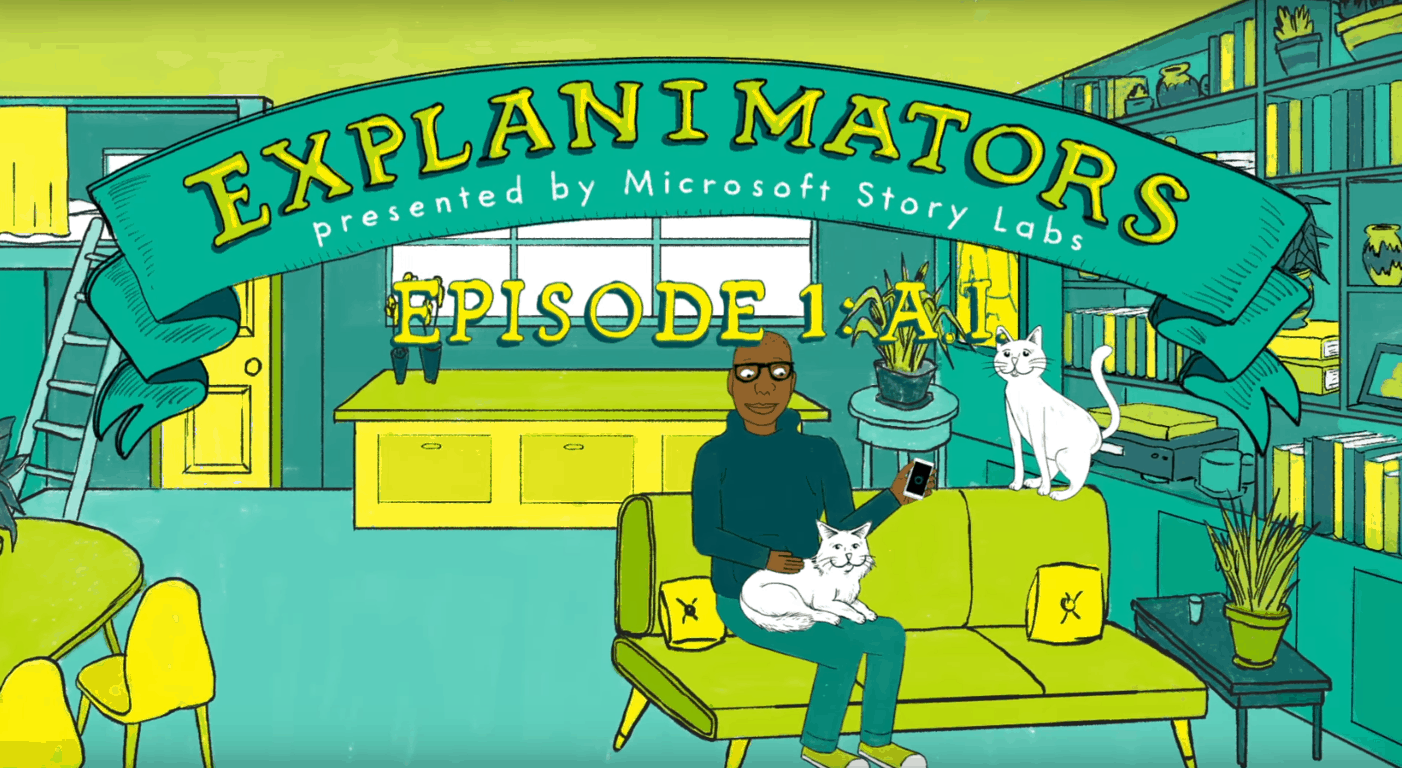
Microsoft Story Labs goes cartoonish to explain AI in first “Explanimators”

As noted by well-known Microsoft leaker, WalkingCat, Microsoft’s Story Labs is going cartoonish to explain AI in the first of what is a new series of “Explanimators.” The first story explains what is AI, how it works, and why it is only popular now.

Seen in the video above, the “explanimator” features an animated character (who is still using a Windows Phone!!) talking to Cortana. He begins by explaining what is the meaning of life, and then questions how we are supposed to “shine on” when we’re so busy trying to get stuff done.

Cortana takes over, explaining that AI can help by giving reminders and updates and that people are already using AI for all kinds of things across all kinds of devices. There is also talk of how AI is the result of a combination of advances in data, algorithms computing power, and machine learning. The video then ends with a discussion and examples of how AI can change the landscape of transit, healthcare, and business.

More “explanimators” can definitely be on the way, so if you’re interested, be sure to bookmark this web page and keep your eyes peeled for more from Microsoft. And, as always, be sure to drop us a comment below to let us know if you’ve found the latest videos helpful in our quest for understanding AI.

We’ll be at Microsoft’s May 2nd media event tomorrow, here’s what we expect

Microsoft tomorrow will be holding a media event in New York City focused on “learning what’s next.” From the unveil of Windows 10 Cloud to “Cloudbook” devices, plenty could happen at this education-focused event. We will be there live, and here’s a look at what we expect.

Windows 10 Cloud:

It is widely believed that this event will focus on Windows 10 Cloud, a version of Windows 10 which is locked to running apps only from the Windows Store. Since Microsoft is tagging the event with “#MicrosoftEDU” we might as well hear about how Windows 10 Cloud can be used in education scenarios, and more specifically about how it can be used on laptops in the classroom, instead of Google’s Chromebooks.

Secondly, since rumors also show that Windows 10 Cloud could be updated to Windows 10 Pro or Windows 10 Home, we also might hear more about the upgrade path or just about how students and IT professionals can unlock the full potential and experience of the OS.

Leaked versions of Windows 10 Cloud have surfaced in the last few months, and our own Cody Carson went hands-on with the leaked OS.

Windows 10 new hero wallpaper
Windows 10 Cloud Hero

Win32 Apps in the Windows Store:

Next up, since Windows 10 Cloud is locked to running apps from the Windows Store, we might hear more about future plans for the Windows Store. We could hear more about Project Centennial apps in the Windows Store, which are Win32 apps that are released to the Store with Microsoft’s Desktop app converter. As we noted previously, the Office apps made a brief appearance in Windows Store as “Soup” and “Sandwich,” so after several months of rumors, Microsoft could likely use this event as a chance to take the wraps off the Project Centennial desktop ported versions of these Office apps.

WordPad Project Centennial
Project Centennial version of WordPad

A Surface Cloudbook?

Spec sheets for a “Cloudbook” leaked a few days ago, so this event could also likely feature a series of new devices which run Windows 10 Cloud. While earlier rumors showed Microsoft may have a new Surface device (possibly Surface 4?) for this event, the spec sheets do not make it clear if the “Cloudbook” devices will carry the Surface branding. It’s still not clear if the Cloudbook devices will be built by Microsoft OEMs, or Microsoft itself.

The leaked spec sheet does show that minimum recommend specs for Windows 10 Cloud are rather low, including a quad-core Celeron processor, 4GB or RAM and 32GB of storage (fast eMMC or SSD.) Also shown is how Microsoft is specifically targeting Chromebooks, highlighting differences in battery life, cold boot to login screen, and first sign in.

Cloudbook Specs (image via Windows Central)

As we noted before, rumors show that Microsoft is not expected to discuss the Surface Book 2 at this event, since the focus is still on selling the Surface Book and Surface Book with Performance Base. While a bit wild (unless it is really in line with this education theme), word from Mary Joe Foley’s sources at ZDNet also show that a Surface launch could happen at the event, but the device might be more “evolutionary than revolutionary” with just Kaby Lake chips and no USB C or new power ports.

Lastly, despite what the crazy spreading rumor says about the Windows 10 Mobile version of Samsung Galaxy S8, it’s unlikely that Microsoft will discuss plans for Windows Phone (or Surface Phone) at an event which is supposedly mainly focused on Windows 10 Cloud and education.

With Build 2017 and E3 2017 just around the corner, times will be very busy at the Redmond giant. Be sure to follow us on Twitter, like us on Facebook, and keep your eyes peeled for our live blog from the May 2nd event, as we will be providing you with all the Microsoft news and information.

Laptop screen takes a minute to turn on after the Creators Update

With the Creators Update, Microsoft provided users with a lot of useful features, with a special emphasis on multimedia and creativity. The first reactions are mostly positive, but not all of the expectations were met. Portable PC’s are not exactly neglected but there’s always a room for improvements.

On the other hand, while we are waiting for those improvements, let’s take a look at drawbacks that laptop users reported after the update. One of the issues that heavily impacted overall use on daily basis is the vastly increased screen time-out.

Simply put, after the update, the screen on the laptop takes up to a minute to turn on. We’re not sure what inflicted that loading time, but there may be a solution or two available for this annoyance.

So, if you’ve experienced exact or similar issues on your laptop, make sure to check the list of the solutions below.

How to fix laptop screen pause in Windows 10 Creators Update

1. Check your hardware and GPU drivers

Even though this is most of the time software-related issue, it won’t harm you to check your screen. Maybe the unexpected pause is caused by malfunction of some kind. Connect your laptop to an external monitor and compare the behavior with the default monitor. Additionally, you should inspect these two things, before we move on to advanced troubleshooting.

First is related to a refresh rate and this is how to check it out:

  1. Right-click on the Desktop and open Screen Resolution.
  2. Click on the Advanced Settings.
  3. Under Monitor tab, set the Screen refresh rate to 60 Hertz.
  4. Click OK to confirm the selection.

Another thing you should check are the GPU drivers. If you’re running dual-GPU, check both of those and update them appropriately.

2. Check the Power Settings

Now, let’s check the Power settings. In some cases, the update may have changed some of the vital settings and that can affect the screen behavior. This is how to restore your default Power settings and resolve any power-related effects on the screen time-out.

  1. Right-click Battery icon in the Notification area and open Power Options.
  2. Click Change plan settings beside your preferred/active Power plan.
  3. Open Change Advanced power settings.
  4. Click on Restore plan defaults and confirm the selection.

Now, you can as well tweak some settings if you like, but we can only advise you to eventually disable the screen turning off. Yes, that’s not exactly the solution for this problem, but it can serve as the temporary workaround.

3. Disable Fast Startup

The Fast Startup feature is a good feature but occasionally it won’t work as intended. Basically, when enabled, Fast Startup increase substantially startup speed. It kind of resembles the hibernation mode. However, it may as well affect your laptop behavior and inflict some uncalled problems. For that purpose, we advise you to try and disable it and look for changes. And this is how you can do that:

  1. Right-click Battery icon in the Notification area and open Power Options.
  2. Click  ”Choose what the power buttons do”.
  3. Select ”Change settings that are currently unavailable”.
  4. Under Shutdown settings, uncheck Turn on fast startup.
  5. Click Save to confirm changes.

4. Run SFC

Besides the Power settings, the latest update can corrupt some of the system files and slow down the processes that were quite speedy. Like your startup, programs responsiveness and, between the rest, the screen time-out. Because of that, we advise you to use the System File Checker to check & repair the essential system files and possibly resolve the issue. This is how to use the SFC tool:

  1. Right-click the Start menu and open Command Prompt (Admin).
  2. Under command line, type the following command and press Enter:
    • sfc/scannow
  3. After the process is finished, restart your PC and check for changes in the screen time-out.

5. Update BIOS

A lot of the users denounced the outdated BIOS as the main culprit for the screen issues. For some reason, the Creators Update asks for updated motherboard in order to work seamlessly. So, you should certainly take some time researching and take the BIOS flashing into consideration. Now, there are two ways to flash your motherboard and update the BIOS:

  • Newer configurations offer direct upgrade trough BIOS settings.
  • Older configurations need a special system tool to run BIOS upgrade.

As you can see, the procedure is heavily dependent on your system configuration, and you need to look closer into that before the BIOS upgrade is performed. For further pieces of information, go to your OEM’s website. In addition, these are some risky doings, so make sure not to power off your PC until the process is finished. The damage can be substantial.

6. Reset Windows 10

Before Windows 10 users had only two recovery options: System Restore and complete wipeout, that is reinstallation. But with Windows 10, we got more than few additional options when it comes to the troubleshooting of the critical errors.

Some of them are more similar to a System Restore, others, well, more related to a re-installation. The one will be using to address today is the ”Reset this PC” feature. And this is how to use it and repair your PC:

  1. Press Windows key + I to bring out Settings app.
  2. Click on Update & security.
  3. From the left pane, choose Recovery.
  4. Under ”Reset this PC”, click on Get started.
  5. Select Keep my files. We don’t want our sensitive data gone.
  6. Click Next and then click Reset.
  7. After reset, the PC will restart.
  8. Choose ”Continue” to boot into Windows 10.

However, if this procedure failed to resolve your problems, don’t worry, it’s time for the big guns to come into play. Yes, we’re talking about the clean reinstallation.

7. Perform a clean reinstall

At the end, if all of the previous steps were conducted to little or no avail, you can turn to a ”system from scratch” approach. It never was so easy to reinstall your system as it’s now with Windows 10. Furthermore, if you’re not accustomed to the procedure at hand, follow closely the instructions presented in this article.

That should be enough to get you started. If the problem is persistent, we advise you to get your laptop to service for the more thorough inspection.

In addition, don’t forget to share your experience with this problem in the comment section. We’ll appreciate it.

RELATED STORIES YOU NEED TO CHECK OUT:
Google Chrome will support animated PNGs without extensions

Last week Google has launched Chrome 58 which is the latest stable version of the popular web browser. Version 59 is currently in the Dev Channel and it seems that Google has finally confirmed that it’s going to include fully native support for animated PNG files.

PNG files

PNG files are similar to GIFs regarding the support for transparency, but there’s a difference between the two – the fact that while animated GIFs are ubiquitous, animated PNGs aka APNGs are still not that common as the animated PNG is a relatively new file format. Unlike GIFs, however, APNG files support both 8-bit transparency and 24-bit images.

Upcoming Google Chrome version brings support for APNGs

The upcoming release of Google Chrome is going to fully support animated PNGs, according to a Googler who confirmed this in the comment regarding a bug report ticket on the Chromium web site.

According 9to5Google, on Google’s Chromium bug reporting site, there was an enquiry that was met with a response from a Google employee confirming the fact that support for APNG is on its way in the upcoming version of the browser. A user posed the following question:” Does this mean that Chrome will now have full APNG support without extensions?” and the response that came along sounded like this “Yes, Chrome 59 animates animated PNGs without requiring any sort of browser extensions.”

Extensions available via the Chrome Web Store have long added support for animated PNG files, but as you can see, this Googler said that Chrome 59 won’t require any extensions.

References to “Add support for animated PNGs” have first appeared in the Chromium open source Google Git in March, but this is the very first confirmation that the feature is going to publicly be released along with Chrome 59. The requests for adding the feature to Chrome go back to 2008.

There are some browsers such as Firefox that have long supported the format but APNG has been constantly gaining popularity, especially since Apple has made the decision of adopting the APNG file format for the iOS 10 iMessage apps.

RELATED STORIES TO CHECK OUT:

Email This for Chrome helps you save articles for later reading

Although it has now become relatively easy to save content online using a wide variety of bookmark managers, it doesn’t mean it isn’t worth taking a look at new tools in this space, tools like the new Email This extension for Chrome that can send your favorite content directly from a browser to your email in just a single mouse click.

This Chrome extension lets you save ad-free content directly to your inbox, meaning you can view the content you’ve saved whenever you want, though it is limited only to Chrome. The add-on also removes distractions and sidebars from web pages and sends you its main text and images via email.

As email client usually come built-in with mobile devices, tablets, and PCs, you need not install any additional applications to read your saved bookmarks. The tool syncs emails automatically with your email clients, so you can read your articles even when you are offline.

Extension features

  • Save any web page or article using the toolbar button
  • Save the current page with a keyboard shortcut
  • Right-click and save links without opening them. We will open up that link, extract useful content from it and send you an email with its contents.
  • Automatically adds a bookmarklet that lets you save pages from mobile and tablet devices (Chrome for Android, iPhone, iPad etc).
  • Completely free to use.

Installing the add-on is quick since it is an extension. It will then ask you to enter your email address that will work with the add-on. The tool offers several ways of sending URLs. If you want to send a link to the currently viewed article, just click the extension’s icon in the browser’s toolbar. Alternatively, you can also press Ctrl+Shift+U to email the link.

In some instances, you may find URLs that are hard to access. In this case, you can right-click on the URL to open a context menu that lets you send an email with said context. In the end, Email This for Chrome is a lightweight extension that caters to the need of Chrome users who prefer to store online content directly to their inbox.

You can download the Email This for Chrome extension from the Chrome Store.

RELATED STORIES YOU NEED TO CHECK OUT:

Microsoft news recap: Surface revenue drops, Microsoft Rewards comes to Australia and more

Microsoft (MSFT) news recap is a weekly feature highlighting the top Microsoft news stories of the past week. Sit back, grab some coffee, and enjoy the read!

Microsoft’s Q3 earnings show steady Office gains, sharp drop in Surface revenue

Microsoft has released its Q3 earnings and it hasn’t painted such a rosy picture of its Surface revenue. In fact, its Surface line suffered a 26% drop in revenue. Gaming, Office and search ad revenue all saw increases.

Surface Book Panos Panay

Microsoft backpedals to revert Azure AD login changes, vows to do better

Microsoft’s Azure team have acted to revert changes they made to the Azure AD login page, as what was dubbed a “sudden change” confused employers and employees.

Microsoft, Azure, CDN, Azure CDN

Microsoft Rewards is now live in Australia

Microsoft has launched its rewards program, Microsoft Rewards, in Australia, marking another territory it is now available in.A

Man and Woman Using Microsoft Rewards

Kaspersky won’t sue Microsoft for anti-trust, for now anyway

After David Kaspersky of security company Kaspersky once wanted to sue Microsoft for anti-trust, he’s now said that Microsoft has made a few changes and are listening to them, so they won’t sue – at least, for now, that is.

Microsoft continues to break stock price records as NASDAQ soars

Despite seeing a 26% drop in Surface revenue for Q3, it seems Microsoft’s stock price has still continued to reach highs, as it hit the 6,000 mark for the first time.

That’s all the top Microsoft news for this week – we’ll be back next week with more!

LinkedIn announces a slew of changes, bringing bots to provide suggestions and launching a ‘meet up’ feature

In an email sent out to users of LinkedIn, Microsoft is announcing a slew of changes and improvements to LinkedIn. With these changes, the company will be adjusting its Privacy Policy and User Agreement to clarify certain clauses and add additional sections.

The first two of the changes affects users’ profiles. LinkedIn profiles will now be visible to ‘service partners’, in addition to them already being indexed by search engines. Service partners will be able to find profiles more easily to deliver opportunities (such as job vacancies) to you. Additionally, LinkedIn will begin offering suggestions to add accomplishments to your profile (such as patents or publications). These suggestions will be generated through publicly available information, both on-and-off of LinkedIn.

The final of the two updates delivers two new features for users, aimed at making LinkedIn that little bit more social. Automated systems (dubbed bots) will use messages you send through the service to suggest responses to messages for you, meetings and ice breakers, so that you type less, but say more.

Finally, Microsoft is adding a ‘meet up’ feature to LinkedIn, which is similar to Facebook’s version, where users will be able to opt-in to the meet up service so you can see when people in your network are nearby and offer to meet up. LinkedIn hopes this will be used at conferences or public gatherings to meet those you’ve made a connection with.

The Privacy Policy and User Agreement will be updated on June 7, 2017. It is not clear whether these features will go live at the same time or shortly after, as the policy changes pave the way for Microsoft being legally permitted to launch them.

Let us know what you think to these changes in the comments below!

Live Home 3D for Windows 10 lets you redesign your home virtually

BeLight Software launched its new Live Home 3D app for Windows 10 a few weeks after Microsoft unveiled the Creators Update with a renewed focus on 3D content. The app is a fresh version of Live Interior 3D and lets you redesign your entire home virtually, generating models from 2D floor plans.

The app’s description on the Windows Store states:

Live Home 3D is the most intuitive and feature packed home design app, a successor of Live Interior 3D. Draft detailed 2D floor plans and watch as the structure is automatically built in 3D. Design and decorate the interior, optimizing the furniture arrangement and making smart color decisions in fully functional 3D environment. Use the results in real life by sharing your interior and taking it with you wherever you go on your Windows 10 device.

Features

  • Create detailed 2D floor plans.
  • Beautiful real-time 3D rendering.
  • Project Gallery with house projects and sample rooms.
  • Draw complete rooms using Room tool.
  • Use Arc and Straight Wall tools for drawing walls.
  • Select the necessary measurement units (inches, feet, meters, etc).
  • Use smart Dimension tool to set the distance between underlying objects or walls.
  • Apply materials, move objects, adjust light, walk around, and much more in the 3D environment.
  • More than 2,100 materials and 1,500 objects (сhoose from a rich library of couches, chairs, kitchen sets, appliances, doors, and more).
  • Import models seamlessly from Trimble 3D Warehouse (previously Google 3D Warehouse).
  • Fine tune interior lighting by setting the light color and luminosity of every light fixture.
  • Adjust natural lighting from outside by setting the time of day and geographic location.
  • Save projects (in-app)
  • Export 3D views to JPEG, TIFF, PNG, and BMP (in-app).
  • Create 360° Panorama JPEG images (in-app).
  • Render a realistic video walkthrough (in-app).
  • Create Stereo 3D Video and 360° Video (in-app).
  • Export the entire project or selected objects to COLLADA, VRML Version 2.0 or X3D format (in-app).
  • Native Support for Live Interior 3D Projects.

You can grab Live Home 3D for Windows 10 from the Windows Store now.

RELATED STORIES YOU NEED TO CHECK OUT: