The Plex app doesn’t work with Windows 10 Creators Update [FIX]

Plex is among the popular apps on Windows 10 that help you organize video, music, and photo collections for instant access on any device. However, the app does not seem to work properly for some users who installed the Windows 10 Creators Update.

[UPDATE] Plex contacted us about this matter, providing our readers with a quick workaround to fix the problem.

‘For those having an issue with getting Plex to work with the Creators Update, here’s what your readers can do if they’ve upgraded Windows and run into this problem: look for the windows.old directory, go to syswow64, copy the mfplat.dll file from there and paste it into the c:\windows\syswow64 directory. Launch Plex again and you should be good to go.

Appears Microsoft is working on an update to this issue, but wanted to pass along the above workaround, in case it helps your readers who are running into this issue.’

A Plex user posted the following on the Plex forums:

Plex doesn’t seem to be working on a clean install of the latest Windows 10 update (dubbed the Creators Update).

Plex works via my browser, so I know my server is working. It also worked prior to clean installing the creators update.

Anyone have any idea why this is? Where does Plex store its log?

As of this writing, it remains unclear whether the issue is related to the Windows Media Feature pack not being available for the Creators Update. The user says the app worked on the Creators Update previously via an update from the Anniversary Update. There was also an attempt to install the media feature pack on an N version of Windows, but to no avail:

I have tried installing the media feature pack I’m on an N version of Windows) but despite installing successfully, it doesn’t make any difference. A Microsoft support rep said there will be a feature pack for the creators update next week, so maybe that will help?

Are you using the Plex app for Windows 10? Did you encounter any issues after installing the Creators Update? Share your thoughts in the comments below.

RELATED STORIES YOU NEED TO CHECK OUT:

Xbox Game Pass Alpha rolls out to more Xbox One Insiders

Looking to get your hands on some free games, and help Microsoft develop the future of Xbox while you’re at it? If you’re on Preview Ring 3 of the Xbox Insider program, you’ll get your chance. This ring of insiders is getting access to the Xbox Game Pass – Microsoft’s new game “vault” service, which opens up access to tons of games for a monthly subscription (via Windows Central.)

You’ll only be getting a small portion of the hundreds of games offered in the Game Pass – only about 30 – but it’s enough to get the gist of the program, and you won’t have to pay the subscription as long as you’re part of the preview group.

Just go to the Insider Content tab on your Xbox One and check off the Xbox Game Pass Preview section to get access to your new games. While they won’t stick around forever – unless you end up subscribing when the service goes live – they’re definitely games worth playing. Go ahead and send out any feedback to the Xbox team to make sure the Game Pass becomes the best it can be!

How to disable Windows 10 Creators Update upgrade notifications

With the coming arrival of the Creators Update, Microsoft has begun setting the stage for it a few days in advance with the help of an in-OS notice reminding users and asking them if they’d like to download once it’s available.

While this notification is meant to help people prepare for the Creators Update and more easily install it, it might not be what everybody wants. Companies or enterprises, for instance, might want to disable this notification because they want complete control over when and how their employees update to the new update.

Luckily, Microsoft acknowledges this possibility and mentions that users who don’t want to see the notification will be able to disable it through the operating system’s registry.

How to turn off the Creators Update upgrade notice

In order to do this, users need to access Windows’ Registry Editor. This is done by running the regedit command. Next, they need to use the address bar to enter a specific line:

HKLM\SOFTWARE\Microsoft\WindowsUpdate\UX\Settings

Completing the final steps

Users must navigate to the right panel and use the New>DWORD (32 bit) option from the right click menu. It has to have the name HideMCTLink. Next up, HideMCTLink needs to be double clicked and the value 1 needs to be attributed to it.

After that, users should be all set. The only thing remaining now is to restart the system. Upon re-boot, the OS will not longer present the notification which might have annoyed a lot of people. On a brighter note, it’s great that after months of testing on the Insiders platform, the Creators Update is finally ready to roll to the public.

RELATED STORIES TO CHECK OUT:

Fan requested “Self-Service Refunds” spotted by Xbox One Insider

An Xbox One Insider shared on Reddit their find in the latest announcements. According to the provided images, Microsoft is introducing a self-service refund feature.

For many gamers, this is a blessing. Oftentimes, particularly in an age when we have games in early access and preview programs, we find ourselves dissatisfied with a game but are saddled with the purchase. With this Self-Service Refund feature, no longer will the buyer have to beware. At least, that is, when it comes to Xbox One and Windows 10 games/apps.

Neowin cites the full announcement:

You’ve spoken; we’ve listened. In support of offering gamers the freedom of choice, we’re making changes to the Microsoft Store purchase experience by offering customers a simple way to instantly return digital products like games and apps through account.microsoft.com.

When a game or app leaves you wanting more, we’re here to help. Self-service refunds on Xbox One and Windows 10 provide a quick, simple way of returning a digital product.

To request a self-service refund:

  1. Navigate to account.microsoft.com and sign-in.
  2. From the top menu bar, select Payment & billing > Order history.
  3. Navigate to a purchased game or app, and select Request a refund.

Please note the below conditions for requesting a self-service refund:

  • Games and apps are eligible for self-service refunds within 14 days of purchase if you have less than 2 hours of play time across all accounts.
  • DLC, season passes, and add-ons are not eligible for self-service refunds.
  • The game or app must be downloaded and launched before requesting a self-service refund.
  • You must wait for at least 1 day after the game or app’s release before requesting a self-service refund.
  • Certain Windows 10 apps may not be eligible for self-service refunds.
  • Microsoft reserves the right to block access for users who abuse self-service refunds.

This service is similar to other digital markets such as Steam and Sony’s PlayStation Store. Both of which have 14-day refund policies, except in Sony’s case, it is only allowed if the game hasn’t been downloaded yet. Microsoft looks to be taking a smarter ‘Try it before you buy it’ approach with restrictions excluding DLC, season passes, add-ons, in-game purchases, and select titles that haven’t been specified.


Windows 10 Creators Update installation stuck [Fix]

The Creators Update is finally obtainable trough the Windows Update feature. The long awaited major build improves a lot of things while maintaining the primary idea behind Windows 10 at the same time. With the more creative approach, users around the world should be satisfied with offered innovations.

However, it’s hard to see the changes for yourself if you’re unable to download the given update. Namely, numerous users around the globe reported that the installation process gets stuck, as they’re unable to download and install the Creators Update properly. If you’re one of them, follow the instructions below to resolve this issue.

What to do if Windows Creators Update gets stuck in Windows 10

Make sure you have enough space

First thing first. The Creators Update takes around 10 GB of storage space in the system partition. So, it’s highly advisable to delete or transfer any non-system files to other partition in order to make the space for the latest update.

Another thing you should consider before updating is the cleanup of the temporary files. Namely, those are not space-consuming as one would imagine, but they can interfere with the update and create unusual problems. In order to perform a cleanup of your system partition, you can use a 3rd-party tool or a built-in system tool called Disk Cleanup. We’ll walk you trough the Disk Cleanup procedure, so follow the instructions below.

  1. In the Windows Search bar, type Disk Cleanup and open the Disk Cleanup tool.
  2. Select System partition.
  3. Under Files to delete mark Temporary files (or any other file type from the list) by checking the box.
  4. Click OK and the wait until the process is done.

Additionally, you can delete certain System files safely by following these steps.

  1. In the Windows Search bar, type Disk Cleanup and open the Disk Cleanup tool.
  2. Select System partition.
  3. Click on Clean up system files and check the boxes in front of files you want to clear.
  4. Click OK and the wait until the process is done.

Disable Firewall and Antivirus software

Another Windows element that is widely acclaimed as the main culprit for update-related issues is a 3rd-party antivirus. Norton and McAfee are the first suspects, but even others aren’t trouble-free. So, in order to troubleshoot some of the update issues, your first step can also be disabling antivirus and that goes even for Windows Defender to some extent. If the problem is persistent, the uninstallation is the only viable solution.

Once you’ve disabled or uninstalled the troublesome antimalware software, you can try and disable the Windows Firewall temporarily. That can be done by following these instructions:

  1. In the Windows Search bar, type Windows Firewall and open it.
  2. Select Turn Windows Firewall on or off.
  3. Disable Windows Firewall for both private and public networks.
  4. Confirm selection and try updating again.

If you’re still unable to download Windows Creators Update or the installation is stuck, move on to the next steps on the list.

Restart Windows Update Services

Windows Update Services can be the culprit for this update issue. For no apparent reason, Windows Update Services may halt or perform poorly. You can use a batch file that will do this for you or do it manually. The thorough explanation related to this specific script can be found here.

On the other hand, if you’re used to a manual approach, these instructions should help you restart WUS by hand:

  1. Right-click Start Menu and run Command Prompt (Admin).
  2. In the command line type the following commands and press Enter after each:
    • net stop bits
    • net stop wuauserv
  3. Now, close the Command Prompt and navigate to C:WindowsSoftwareDistribution.
  4. Backup this folder and delete everything inside.
  5. Restart the PC and try updating again.

If you performed this steps but to no avail, try out additional steps.

Install Update with Media Creation Tool

Besides the standard installation trough over-the-air Windows Update, you can obtain the Windows Creators Update trough the Media Creation tool, as well. This may take a bit more effort but it proved as a more reliable way on many occasions. This is how you can download and install Creators update with the Media Creation Tool.

  1. Download Media Creation Tool here.
  2. Backup your data from system partition and save your license key.
  3. Start the tool and choose to Upgrade this PC now.
  4. Accept the license terms.
  5. After the installer is ready, choose to Keep personal files and apps.
  6. The PC will restart few times and you’re good to go.

Have in mind that this process can be lengthy so prepare for waiting.

Clean reinstall your system

If the previous steps fall short, the last one should completely eradicate all update issues. With the previously mentioned Media Creation tool you can create an ISO file or a bootable USB. Once you’ve done that, it’s easy to reinstall the system. The detailed instructions can be found in this article. However, don’t forget to backup your data and license key. Additionally, we strongly advise you to perform clean reinstallation instead of an upgrade.

This should be it. Another step that is not exactly a solution but is an integral part of any Windows-related doings is patience. Sooner or later, you’ll be able to enjoy the improvements and features of Windows Creators Update.

If you have any questions, remarks, or alternative solutions we are looking forward to hearing from you.

RELATED STORIES YOU NEED TO CHECK OUT:

Logitech Brio Webcam fails to work after Creators Update [FIX]

The Creators Update is breaking many things, with the Logitech Brio Webcam being one of them. Users report that everything goes well after installation until the time to use Windows Hello in combination with the Logitech Brio webcam comes along. Logitech has already confirmed that absent video content and/or an undetected webcam are possibilities due to this issue and explained that the bug comes from the way that the Creators Update loads webcam drivers, with the device listed as Unknown in the Device Manager screen. Luckily, there’s a solution to this mess — follow the troubleshooting steps listed below.

How to fix Logitech Brio Webcam issues

You need to launch Device Manager, go to the BRIO/Unknown section with a yellow exclamation icon, and navigate to Update Software. Then, you have to choose the option saying Let me pick from a list, go to Show compatible hardware > USB Video Device and then click Next in order to complete the install.

This means the webcam will use generic Windows 10 drivers instead of the dedicated software developed by Logitech. This is not exactly the most convenient solution, but it seems to be the only way to continue using the webcam until new drivers are released.

On the other hand, it seems that the Creators Update can be installed smoothly on most devices and such bugs only occur because certain vendors haven’t yet updated their drivers for the release of Microsoft’s newest OS.

Have you encountered any other Logitech Brio Webcam issues on Windows 10 Creators Update? Use the comment section below to tell us more about your experience.

RELATED STORIES TO CHECK OUT:

Remedy’s next game after Quantum Break won’t be an Xbox exclusive

Remedy, famous for Quantum Break on Xbox One, has announced that their next game won’t be an Xbox exclusive. The company is instead developing their Northlight technology for PlayStation 4 consoles, and will “release the game on a wider range of platforms” (via Neowin.)

The announcement was made in a blog post, revealing that Remedy Entertainment saw a revenue of €16.4 million (about $17.4 million USD), a year-on-year revenue growth of 19.4% and an operating profit of €3.9 million ($4.14 million). This is mainly fueled by the release of Quantum Break in spring 2016 and the revenues generated by Remedy’s existing game portfolio. Remedy addressed the move to publishing on both Xbox and PS4:

Created exclusively for Microsoft, Quantum Break was the biggest entertainment production to come out of Finland at the time of its release. Currently Remedy is developing a sequel to one of the most popular games in the world in cooperation with the Korean publisher Smilegate, whose long-time success CrossFire gathers 650 million registered users and over one billion dollar yearly revenues. Remedy is also working on a game project codenamed P7. The company’s strategy is to release the game on a wider range of platforms, which is why Remedy is developing its Northlight technology also for PlayStation 4 consoles.

Ultimately, this move by Remedy could contribute to Sony’s upper hand over Microsoft, as many believe that Xbox struggles to pick up hit AAA exclusive titles. Sony currently has exclusive titles such as Uncharted: The Lost Legacy and The Last of Us Part II in the pipeline for PS4. Though they have not been very specific, Microsoft, meanwhile, has State of Decay 2, Crackdown 3, Forza Motorsport 7 and Sea of Thieves planned for Xbox. What’s next for Microsoft without Remedy as Xbox exclusive publisher? Let us know in the comments below.

Xbox Project Scorpio dev kits to begin shipping in the next few weeks – here’s what they look like

Last week, we finally got the final specs of Project Scorpio, the next gaming console for Microsoft after Eurogamer published their exclusive reveal. It seems that Microsoft is becoming quite open about the development of its new console, as the company also invited Gamasutra to show them Project Scorpio dev kits. These dev kits don’t look like the real console that will ship to consumers later this year, and they actually have slightly different specs, too.

First of all, the GPU in Project Scorpio dev kits includes 44 customized compute units running at 1172 Mhz and delivering 6.6 teraflops of computing power (Project Scorpio only has 40 CUs delivering 6 teraflops). Additionally, the dev kits have 24GB of GDDR5 memory instead of 12GB, a more powerful power supply and an additionnal 1TB SSD. On the front, the dev kits also feature a real-time clock, an OLED screen with navigation buttons plus five programmable screens.

Project Scorpio dev kit in front of previous Xbox dev kits.

Kevin Gammill, Microsoft’s group program manager for Xbox Core Platform explained why Project Scorpio dev kits have beefier specs than the final console:

At a high level, it’s much easier for a game developer to come in higher and tune down, than come in lower and tune up. Or nail it. That just rarely happens. Our overarching design principle was to make it easy for devs to hit our goals: 4K, 4K textures, rocksteady framerates, HDR, wide color gamut, and spatial audio.

The Xbox team also shared additional details about Freesync 2 and HDMI 2.1 support on Project Scorpio, hinting that Microsoft is currently talking with TV manufacturers. “This is new technology we expect to see coming to displays over the coming years,” explained Jason Ronald, head of the Xbox Advanced Technology Group. “We want to make sure Scorpio is set up to take advantage of it when it comes out.”

Microsoft will start shipping the first Project Scorpio dev kits to developers in the coming weeks. When Project Scorpio will be released to the public later this year, it will be possible for consumers to convert the new console into a dev kit, something that is already possible to do with current Xbox One consoles. However, game developers looking to get access to the more powerful Scorpio dev kit will first have to become a partner developer, which they can do by joining the ID@XBOX program.

Microsoft confirms May event, coming on May 2nd (we’ll be there)

Word is filtering out that Microsoft has indeed confirmed a hardware event, widely expected to introduce new Surface devices, for May 2nd.

Microsoft has posted the details of a live stream under the title “May Event,” with a #MicrosoftEDU hashtag, and a promise of a link to a livestream, beginning at 9:30am ET / 6:30am PT on May 2nd:

Why the event is tagged this way, and whether or not it has to do with the possibility of a new “Windows Cloud” clamshell device, remains to be seen, but we’ll bring you all the details as they become available.

A bit of an update: The event is scheduled for a venue in New York City, and we’ll be there to bring you all the latest, stay tuned!


Windows 10 Creators Update breaks Windowed G-Sync [FIX]

NVIDIA’s G-Sync display technology takes your gaming experience to the next level. This tool synchronizes display refresh rates to the GPU in your GeForce GTX-powered PC, reducing screen tearing, stutter and input lag. As a result, game scenes appear instantly, objects look sharper, and gameplay is very smooth.

Recent user reports have revealed that Windows 10 Creators Update breaks windowed G-Sync Mode. More specifically, games on Windowed and Borderless Windowed are affected by severe stuttering, with the FPS rate constantly jumping from 50 to 100. Switching back to full screen fixes this problem.

Here’s how one user describes this issue:

it seems like Creators Update breaks Windowed G-sync. I installed driver 381.65 and run it with both AU and CU (with DDU after installing CU). Good performance during benchmarks but after I benched and went on to play some Overwatch, I found some issues with G-Sync and CU.

In short, Windowed G-Sync seem to be broken and when you play a game on Windowed/Borderless Windowed, it’s stuttering and FPS jumped from 50-100 all the time. Didn’t happen with the same driver version with AU before I updated.

How to fix Windowed G-Sync bugs

  1. Go to Start > type Control Panel > select the first result and launch the app
  2. Go to System and Security > select Power Options
  3. Select the “Choose what the power buttons do” option
  4. Click “Change settings that are currently unavailable”
  5. Uncheck “Turn on fast startup”
  6. Restart your computer.

Unfortunately, other gamers have reported that the Creators Update OS broke their G-Sync in full screen as well: “Dark Sousl 3 and Quake Champions are littered with tearing and it says G-Sync is enabled.”

Currently, there is no fix for G-Sync issues on full screen, but NVIDIA has already acknowledged this problem and its engineers are working on a fix.

RELATED STORIES YOU NEED TO CHECK OUT:

Joe Belfiore, back at Microsoft, feels “righteous” about Edge, advocates for education

Last Fall, Joe Belfiore, Corporate Vice President in Microsoft’s Operating Systems Group came back to Redmond after nearly a year of sabbatical leave. Until now, the exec had stayed very quiet and didn’t talk publicly except for a single tweet published back in November. Yesterday though, Belfiore finally made his public comeback just as Microsoft started rolling out the Windows 10 Creators Update. The exec gave an interview to Mashable and also started tweeting again:

In the interview, the former Windows Phone evangelist reveals that it was a “great experience” to travel the world with his family for almost a year. “I came back with a new perspective on the broad audience Microsoft serves,” he explained, and the experience also gave Belfiore unique look on how Microsoft evolved during his absence. “The improved collaboration and customer focus has been really refreshing,” he noted.

Belfiore addressed the state of Microsoft Edge in the interview, which is one of the projects that he worked on over the past few years. While Microsoft has improved Edge significantly with the Creators Update, Belfiore acknowledged that “in the browser scheme of things, we have room to grow.” However, the exec revealed that Microsoft has no plans to port Edge on other mobile platforms for now. “We want to put customers first and it’s not something we have plans for” he explained. “We’ll put investment where there are high value experiences.”

Moreover, Belfiore shared that ditching the Internet Explorer brand after so many years was the right thing to do for Microsoft. “We’re not second-guessing that. It takes educating people, but I feel righteous about it,” he said, adding that Microsoft was “playing a long game” against its competitors.

Other highlights of the interview include Belfiore’s new role as the education advocate in the Windows team. This isn’t officially reflected in his job title, but Belfiore is now in charge of improving Microsoft’s education efforts, in a context where Chromebooks are increasingly challenging Windows PCs. “We have made giant progress in Windows 10 on Creators Update,” said Belfiore, noting that the OS now “takes less memory and hard drive space, which lets the price of devices come down.”

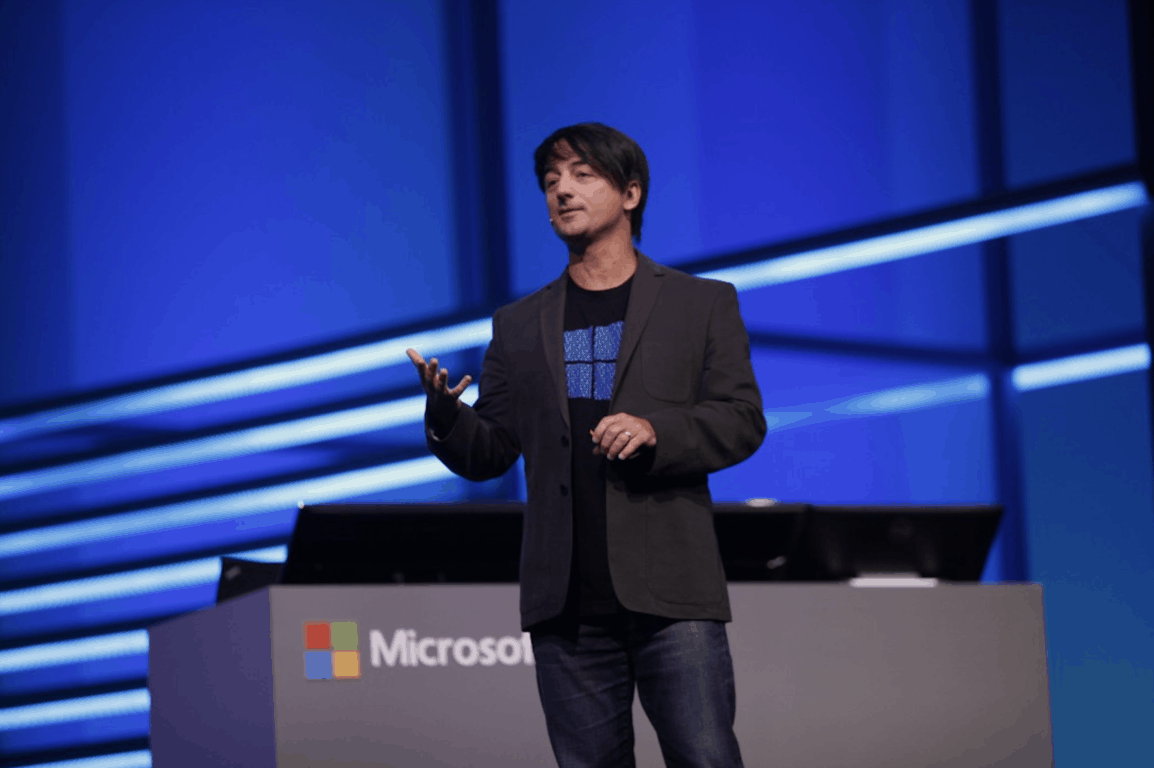
However, the exec didn’t address the recent rumours about Windows 10 Cloud, which could be Microsoft’s most serious response to Chromebooks. As Microsoft is rumoured to hold an early May event in addition to the Build 2017 developer conference, we’re also wondering if we’ll soon see Belfiore back on stage. The exec is a great presenter and used to be recognised as the face of Windows Phone back in the day, so we definitely hope to see him more in the coming weeks.

Learn how to cook with Skype’s new “Heston bot”

Have you ever wanted to become a master chef or have your own personal chef to guide you in the cooking of your meals? Well, if you’re a cooking pro or a new to the kitchen cooking noob, you might want to check out Skype’s first ever food-inspired “Heston bot.”

The Heston bot provides cooking tips, seasonal menus, and personal anecdotes directly from legendary Chef Heston Blumenthal. Skype believes that the bot will “empower you to think differently about food,” by making cooking “a fun and immersive experience that evolves as your skills do.” Heston bot will also deliver to you new recipes based on different seasons and themes, meaning you will never get bored with the same recipes. And, for added fun, you can stay tuned during the weeks in between episodes for additional bursts of cooking info, stories, and chats from Heston.

To get started with Heston Bot, you can simply search for “Heston Bot” in the Skype Bot Directory, read the bot’s profile and terms, and then click “Add to Contacts.” You must be running the latest Skype app for Windows, Mac, iOS, Android, or the web to enjoy the experience, so be sure that you’re fully updated!

Running a website as a desktop app on Windows 10/11 [How to]

Web applications are extremely useful, but sometimes you might want to turn a specific website into a desktop application. By doing so, you can start a certain website without opening a new tab in your browser, something that can be rather useful. This is how to do so on Windows 10:

How do you run a website as a desktop app on Windows 10?

How to – Running a website as desktop app

Solution 1 – Use Add to desktop option

Most modern browsers allow you to run your favorite websites as desktop applications. To do that, visit the desired website and choose the Add to desktop option. To do that in Google Chrome, follow these steps:

  1. Navigate to the website you want to convert to a desktop application.
  2. Click the Menu button in the top right corner and choose More tools > Add to desktop.
  3. Enter the name for the shortcut. Check Open as window option and click on Add. It’s important to check the Open as window option or else the shortcut will just open a new tab in your browser.
  4. After doing that, locate the newly created shortcut on your desktop and double click it.
  5. Your website will now open in a new window and you’ll be able to use it as a regular application.

After doing that, you can pin the shortcut to your Taskbar or move it anywhere on your PC.

Solution 2 – Create a Chrome shortcut

According to users, you can run a website as a desktop application by creating a new Chrome shortcut. To do that, follow these simple steps:

  • READ ALSO: Internet Explorer in Windows 10 Fixes Issues With Low-Space and Temp Files Extraction
  1. Create a Chrome shortcut on your desktop.
  2. Optional: Change the name of the shortcut to the website name. This step isn’t mandatory but will allow you to easily differentiate your web application from regular Chrome shortcut.
  3. Right-click the newly created shortcut and choose Properties from the menu.
  4. Go to the Shortcut tab and locate Target field. In the Target field, add –app=https://websitename.com. Click Apply and OK to save changes. Be sure not to delete anything from the Target field.
  5. Now simply run the newly created shortcut and you’ll start the desired website as an application.

This solution offers the same results as the previous one but has few extra steps and doesn’t require you to visit the website or open Chrome at all. This solution is perfect for advanced users that want to quickly run their favorite websites as desktop apps. If you’re a novice user, you might want to skip this solution.

Solution 3 – Use Chrome’s apps page

According to users, you can easily run any website as a desktop application by using Chrome’s apps page. This process is relatively simple and you can do it by following these steps:

  1. Open Chrome and navigate to the website that you want to run as an application.
  2. Bookmark the website. The easiest way to do that is to select the name of the website in the address bar and then drag and drop it to the Bookmarks bar. If Bookmarks bar isn’t available, press Ctrl + Shift + B to show it.
  3. Now, open a new tab and navigate to chrome://apps. Once that tab opens, drag and drop your latest bookmark from the Bookmarks bar to the list of applications below.
  4. Now, right click the newly added application and check Open as window option from the menu. Right-click the application again and choose the Create shortcuts option.
  5. Select the desired location for a new shortcut and click OK.

After doing that, you can start the selected website as an application from your Desktop.

Solution 4 – Use App Studio

Microsoft has its own service that allows you to convert any website to a Universal application with ease. Do the following:

  1. Navigate to https://appstudio.windows.com. Click Start now.
  2. Log in with a Microsoft account and create your profile.
  3. Click on Hosted Web App.
  4. Enter the name of your application and click Start now.
  5. In the Base Url field, enter the name of the website you want to convert.
  6. Optional: Make changes and choose which capabilities you want to have in your app.
  7. Once you’re done, click the Finish button and follow the instructions to download your application.

App Studio is a useful service that can easily convert any website into a Universal application. This service offers a wide range of features, so we encourage you to explore it and discover all of its possibilities.

Solution 5 – Use Nativefier

If you want to convert a website into a desktop app, you might want to consider using Nativefier, a command line tool that might not be suitable for novice users. To use this tool, you need to have Node.js installed and run $ npm install nativefier -g command to download this tool. The tool is relatively simple to use. To convert a website into a desktop app, you need to enter $ nativefier “https://websitename.com”.

We have to mention that Nativefier allows you to create cross-platform applications, so you can run them on Windows, macOS, and Linux. This tool can easily convert any website into an .exe file which makes it incredibly useful. However, this application requires Node.js, so it might not be suitable for basic users. If you’re a developer and familiar with Node.js, be sure to try Nativefier.

Solution 6 – Use Applicationize

Running a website as a desktop app is relatively simple and you can easily convert any website by using Applicationize. To do that, follow these steps:

  1. Navigate to the Applicationize website.
  2. Enter the address of the website that you want to convert.
  3. Optional: Configure additional options such as app icon, app title, custom frame color and the ability to open links as popups.
  4. After doing that, click Generate & Download Chrome Extension button.
  5. Now you need to open Chrome and navigate to chrome://extensions tab.
  6. Open File Explorer and locate the downloaded file. Drag and drop the file to the chrome://extensions tab in Chrome.

After doing that, the extension will be installed and you can access it by navigating to chrome://apps page. From there, you can create a desktop shortcut by following Steps 4 and 5 from Solution 3.

Solution 7 – Use WebDGap

Another service that can help you convert a website to a desktop application is WebDGap. This service has a simple user interface and can easily convert almost any website to a desktop app. To do that, follow these simple steps:

  1. Navigate to the WebDGap in your browser.
  2. Choose Convert Site button.
  3. Enter Application name and the URL of the website that you want to convert. Click the Apply button.
  4. Now upload an image that you want to use as an icon.
  5. Select the desired platform.
  6. The conversion process will now start.
  7. After the conversion is completed, you’ll be asked to download your application as a .zip file.
  8. After you download the file, open it. Extract the contents to the desired folder and run the nw.exe file. If everything is in order, you’ll see the desired website available in a new window.

WebDGap is an amazing service that allows you to convert any website to Windows, macOS, Linux or Chrome application. The service is incredibly simple to use, so even the most basic users should be able to use it. It’s also worth mentioning that this service is completely free, so you can use it without any restrictions.

As you can see, running websites as desktop applications is relatively simple. If you use Google Chrome, you can easily convert any website into a desktop app. If you want to save a website as a .exe file, we suggest that you try WebDGap service.

READ ALSO:

Custom Gamerpic testing begins for Xbox One/Windows 10 users

Microsoft’s Larry Hyrb has taken to Reddit to announce that the company has begun testing custom Xbox Gamerpics internally and that the new functionality will soon roll out to Xbox Insiders followed by the eventual public launch.

“We announced that this feature is coming earlier this year, but we’re starting to test this internally,” Hyrb’s brief post reads. “After that it will roll out to Xbox Insiders before we release to everyone. No ETA on when each roll out will take place, but if you want to see what they look like…you can check out my profile on Xbox Live.”

Hyrb’s current Gamerpic is that of the new Project Scorpio graphic which is assumed to be an image that he uploaded himself. Gamerpics have until now been a preselection of images provided by Microsoft or a user-created image made from taking a screencap of their 3D Xbox Avatar. The static images are used to represent Xbox users across the Xbox Live network on the Xbox One console and Windows 10 devices. Custom Gamerpics will essentially allow users to upload any image they want to represent themselves online in much the same way profile images are chosen for social networks like Facebook, Twitter, and Pinterest.

Will you use a custom Gamerpic or are you planning to stick to the traditional images? Let us know in the comments below.

Default app icons are wrong after Windows 10 Creators Update [FIX]

Many Windows 10 Creators Update users have reported that the default Windows 10 app icons are broken after the upgrade. More specifically, all apps feature the same image, as you can see in the image above.

Of course, this is not a major issue as all the apps are fully functional. However, some users may be annoyed by the fact that the default Windows 10 apps display wrong icons. It is worth mentioning that only Mail and Edge feature the right app icons.

Simply selecting the app again from the list won’t fix this problem. Fortunately, one resourceful user has come up with a solution to restore the right default app icons.

Fix: Windows 10 default app icons are wrong
1. Go to Apps & features > search for every default app one at a time. They are Maps, Groove Music, Photos, and Films & TV.

2. Once you’ve located the app, click on Advanced options.

3. Select Reset and confirm.

This action may delete data stored on your computer. Keep in mind that the apps and live tiles may need to reconfigure themselves when you first launch them again.

The reset does affect the individual app settings. Don’t forget to reopen Maps and grant location access and set a default location in case you rely on those features. Also, check the Mail app to see if your account is still working.

It appears that this issue with the Windows 10 default app icons occurs only on computers that upgraded from the Anniversary Update OS to Windows 10 Creators Update. Insiders report that they haven’t encountered this problem.

I think this only happens on PC’s that were upgraded from AU to CU (without Insider builds in between). I used Insider builds and I don’t have this issue but when I upgraded my mothers PC from AU, it does have it.

Have you encountered this issue after upgrading to Windows 10 Creators Update? Did you upgrade from AU to CU or from an Insider build to CU?

RELATED STORIES YOU NEED TO CHECK OUT:

Smurfs: The Lost Village available for HoloLens soon

Augmented reality games are something of a new genre in the gaming world and are quickly gaining more fans across the globe simply because they introduce people to new technology that interesting and novel to most.

Until now, there have been a limited number of games made available so far that use this technology, with the most popular being Pokemon GO. The mobile app game was introduced some time ago and fans absolutely loved its combination of legendary franchise and AR features.

Introducing the Smurfs

Adding to the AR titles that will be available, The Smurfs: The Lost Village is an upcoming video game that uses the HoloLens. The headset is necessary to play this augmented reality video game which puts players and Smurfs, in the same room. Thanks to augmented reality, those wearing the headset will be able to see and interact with them as they jump on furniture in the home. The game itself revolves around the idea of building one’s own Smurf village and fight off the evil and life-sized Gargamel.

There might be problems for some

While it all seems cool and promising, the new Smurfs game will ultimately require players to have the HoloLens headset, which right now costs about $3000 for the Development Edition.

Players will be able to choose how much they want to play The Lost Village, although the possibilities will be significantly limited to most average households which don’t have that kind of money for a augmented reality headset like HoloLens.

RELATED STORIES TO CHECK OUT:

Users confirm the Creators Update increases battery life by 20%

Devices running Windows 10 Anniversary Update have long been plagued by battery issues and Microsoft has pushed out many hotfixes over time, eliminating the majority of the elements causing excessive battery drain.

Fortunately, according to user reports, the Creators Update keeps batteries cooler and reduces battery drain. This is an excellent piece of news for all Windows 10 laptop and tablet owners who have been plagued by battery issues. In other words, if you want to boost your device’s battery life, install the Creators Update.

Users confirm that the Creators Update increase battery life by around 20%:

I use my surface mainly to watch some movies or shows after I get back from the gym at night. I used to be able to only watch a movie and a half before it would die.

Now, I’m able to watch about 9 or 10 hours of video before the battery is depleted. I’ve changed nothing other than updating it. It’s close to being as good as my old surface 2 RT in battery life.

Another user confirms that his computer’s battery only dropped 3% after viewing YouTube clips for 20 minutes:

How did Microsoft achieve this? It appears that the secret is the recently nerfed connected standby, as users confirmed they no longer receive sleeping notifications.

Have you upgraded your computer to Creators Update? Did you notice any battery improvements? Use the comment section below to tell us more about your experience.

RELATED STORIES YOU NEED TO CHECK OUT:

Farewell Windows Vista: Microsoft ends support for its unpopular OS today

Microsoft just ended support for Windows Vista. Starting from today, the infamous operating system will no longer receive security patches, non-security updates, or any other kind of support.

“Microsoft has provided support for Windows Vista for the past 10 years, but the time has come for us, along with our hardware and software partners, to invest our resources towards more recent technologies so that we can continue to deliver great new experiences,”the company said.

Windows Vista will be remembered as the least popular operating system Microsoft has ever released. Announced as a futuristic operating system back in 2007, Windows Vista quickly stumbled and fell. A few characteristics of Windows Vista that made this OS so unpopular among users and critics were its demand for a considerably more powerful PCs along with the quick release of its vastly more popular successor, Windows 7. Today, Windows Vista is only used by 0.72% of users worldwide according to NetMarketShare. So, we can safely say nobody will really miss this operating system.

Microsoft ended commercial support for Windows Vista back in 2012. However, extended support for the second service pack end today. The only feature that will continue to receive security updates in Windows Vista is Microsoft Security Essentials — and even that is only “for a limited time”.

What are your thoughts about Windows Vista’s unceremonious end? Will you miss it or do you not care? Let us know in the comments below.

RELATED STORIES YOU NEED TO CHECK OUT:

How to uninstall Windows 10 Creators Update

Windows 10 Creators Update is finally available to all users. Even though Microsoft officially released it today, there are some users who already run the latest Windows 10 version on their computers. Mostly because of the early availability through Windows Upgrade Assistant.

However, not everyone is as satisfied with the Creators Update as Microsoft hopes for. There are some users who, let’s say regret installing the new update. Two main reasons are dissatisfaction with offered features, or due to some system issues. Either way, these users would certainly like to roll back to the previous version, and uninstall Windows 10 Creators Update.

If you’re among them, we’ve prepared you a detailed guide on how to delete the Creators Update from your computer, and pick up where you left off with the previous version.

How to uninstall Windows 10 Creators Update from your computer

Here’s exactly what you need to do to roll back from Windows 10 Creators Update to the previous version of the system:

  1. Go to the Settings app
  2. Go to Update & security > Recovery
  3. Find the Get back to the previous version of Windows 10 option, and click Get Started
  4. Answer the question why you want to roll back, and click Next to continue
  5. Windows will offer you to check for updates one more time, which is also going to be your last chance to cancel the roll back
  6. Now, just go through the wizard, follow instructions, and click Go back to earlier build
  7. The roll back will start, and once it’s done, you’ll get to the previous version

That’s about it. If you change your mind eventually, you can always get back to the Creators Update by updating your current version of the system. And if you want to prevent the update from appearing again, check out this article.

If you have any comments, questions, or suggestions, feel free to let us know in the comments below.

RELATED STORIES YOU NEED TO CHECK OUT:

AMD problems after Windows 10 Creators Update install [FIX]

Microsoft has started rolling out Windows 10 Creators Update to the general public and lo and behold, the new OS has already triggered a few technical issues. One of the casualties of this new update are the latest AMD drivers, which turns out are not fully optimized for the update. Players are reporting that games often crash after installing the update, beginning with a black screen that blocks the game and then an unresponsive computer. Users can’t even launch the Task Manager to close the affected programs.

Here’s how one Creators Update user describes the issue:

After installing the new creators update I always had crashes when starting games. I use two R9 290X in Crossfire. This happened also with GRW- when starting via uPlay it loaded the Cloud-Data and the small starting-image was shown, then black screen and- nothing. Couldn´t even switch between applications or open the task manager.

Those problems occured when Radeon Crimson 17.4.1 was installed.

How to fix AMD bugs on Windows 10 Creators Update

It appears the culprit is actually the latest AMD Radeon Crimson driver. Users confirm that after installing the Crimson 17.3.1 driver from March, all apps, programs, and games now run smoothly on machines running the Windows 10 Creators Update.

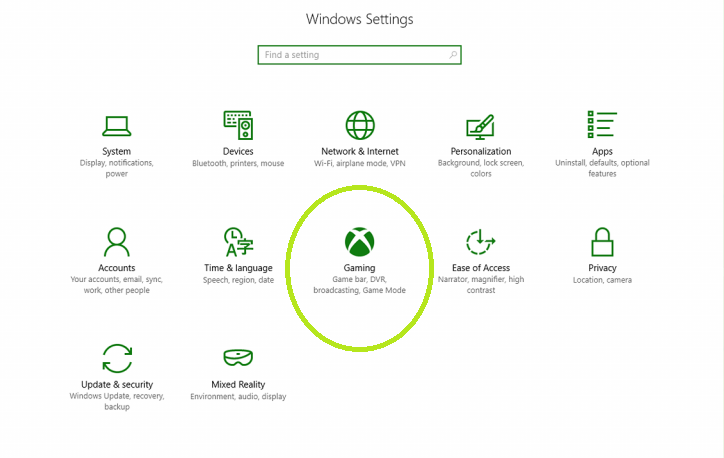
In addition to this solution, try disabling the Xbox Game DVR feature as well:

  1. Open the Xbox app. The app is pinned to the Start menu by default. You can also open it through apps.
  2. Sign in. Then, go to Settings and select GameDVR.
  3. Switch off the “Record game clips and screenshots using Game DVR” option.

RELATED STORIES YOU NEED TO CHECK OUT:

How to fix game crashes and other issues on Windows 10 Creators Update

Windows 10 Creators Update offers players a whole new gaming experience. Microsoft’s latest OS introduces Game Mode, a new feature that enhances your computer’s gaming performance. In others words, Windows 10 now comes with its own build-in gameplay booster, eliminating the need for third-party programs.

Speaking of games, many Windows 10 Creators Update players have already confirmed that this OS boosts game FPS by 4% on average.

Unfortunately, the Windows 10 Creators Update gaming experience has been a bumpy ride for many players. More specifically, games often crash or are affected by various other issues on Windows 10 Creators Update.

I just updated to the Windows 10 Creators Update (Version 1703, Build 15063), and Forza Horizon 3 no longer loads. When I start the game, I see the Playground Games and Turn 10 Studios animations, and then I get to the screen that has the slideshow of cars and says “Press Enter/A to Continue”. When I hit to continue, it says “Loading, Please Wait”, and then nothing ever happens. […] the game says “Loading, Please Wait” indefinitely.

It appears that the culprit is the Xbox Game DVR, a tool that allows players to record and share game videos and screenshots. The Creators Update enables the Xbox DVR by default.

Windows 10 Creators Update game crashes [FIX]

  1.  Open the Xbox app. The app is pinned to the Start menu by default. You can also open it through apps.
  2. Sign in > go to Settings > select GameDVR.
  3. Switch off  the “Record game clips and screenshots using Game DVR” option.

If disabling the game DVR doesn’t fix these issues, update your graphics drivers. Use the links listed below to download and install the latest graphics driver updates:

RELATED STORIES YOU NEED TO CHECK OUT:

Posted in Fix

Microsoft to offer hands-on interactive sessions for Microsoft Teams, sign up now

Microsoft today announced that the company will be offering hands-on interactive sessions for Microsoft Teams, Windows 10, and Office 365. The sessions are a way for the technology giant to help businesses and firms provide agility across the full span of a workday and use technology that will allow for “transition from email to collaboration to project work and back again with ease.”

The sessions will be run in small groups, and begins with an online business roundtable, discussing the biggest business challenges with a trained facilitator, and then later transitions into a live environment in the cloud.  Those who participate will receive a link to connect their own devices to a remote desktop loaded with our latest technology, so they can experience first-hand how Microsoft tools can solve challenges.  Topics covered include the following:

  • Explore how Microsoft Teams helps you collaborate with your coworkers in different locations and time zones.
  • Discover how you can keep your information more secure without inhibiting your workflow.
  • Learn how to visualize and analyze complex data, quickly zeroing in on the insights you need.
  • See how multiple team members can access, edit and review documents simultaneously.
  • Gain skills that will save you time and simplify your workflow immediately.

You can register for the free interactive session by clicking here, though it also worth noting that each session is limited to 12 participants. Those outside the US can also register and can click here to learn more.

This is the list of Kaspersky products with limited functionality with the Creators Update

If you rely on a third-party antivirus and you’re planning to upgrade to the Creators Update, don’t forget to check if there are any limitations when running it on the new OS. Since the Creators Update is not compatible with a series of hardware and software products, it may cause serious issues to computers. Kaspersky has already published a list of its security products with limitations on Windows 10 Creators Update.

While you can still run Kasperky’s security products with the Creators Update, a series of security features will be unavailable. Keep in mind that when you install Kaspersky Internet Security 2017 or Kaspersky Anti-Virus 2017 on the Creators Update, on first startup the programs will run the adaptation process. During this process, protection will be paused and only two tools will be functional: File Anti-Virus and Self-Defense of files and registry.

Kaspersky products operating with limitations on the Creators Update

Kaspersky Internet Security 2017

  • Self-Defense of the product UI and protection of the product’s processes at their startup.
  • System Watcher.
  • Detection and disinfection of malware in the system memory.
  • Protection against cryptolockers and ransomware.
  • In the Safe Money component, protection will not work for information in the clipboard, protection against screenshots will be disabled, and the Protected Browser process will not be protected against external attacks.
  • In the Application Control component, custom rules may not be applied to applications, categorization of tile applications in Windows, protection of Microsoft Edge.
  • Trusted Applications mode will work with limitations related to compatibility with Program Data Updater.
  • Protection against the attacks of the type Time-of-Check Time-of-Use (TOCTOU).

For more information and recommendations, check out Kaspersky’s Support page.

Kaspersky Anti-Virus 2017

  • Self-Defense of the product UI and protection of the product’s processes at their startup.
  • System Watcher.
  • Detection and disinfection of malware in the system memory.
  • Protection against cryptolockers and ransomware.
  • Protection against the attacks of the type Time-of-Check Time-of-Use (TOCTOU).

For more information and recommendations, check out Kaspersky’s Support page.

Kaspersky Endpoint Security 10 for Windows workstations

Kaspersky Endpoint Security 10 Service Pack 2

  • Windows Subsystem for Linux (WSL) is not supported.
  • Only upgrading from Windows 10, Windows 10 TH2 , and Windows 10 Anniversary Update (Redstone 1) is supported.
  • After upgrading to Creators Update (Redstone 2), the Firewall component is displayed in the Windows Security settings as disabled. It is displayed correctly upon the application restart.

Kaspersky Endpoint Security 10 Service Pack 1 Maintenance Release 3

  • The following management privileges in Activation Privilege Control are not available (the Application Control Rules tab → Rights):
    x86


    • Pausing other processes and threads
    • Injecting the code
  • x86/x64
    • Using other applications’ APIs
    • Installing hooks
    • Creating a service
    • Opening the service for reading
    • Opening the service for writing
    • Modifying the service configuration
    • Using the browser command line
    • The Device Guard mode is not supported.
    • Windows Subsystem for Linux (WSL) is not supported.
    • Full Disk Encryption (FDE) cannot be applied to the UEFI computers.

For more information and recommendations, check out Kaspersky’s Support page.

RELATED STORIES YOU NEED TO CHECK OUT:

Minecraft is releasing the Chinese Mythology Mash-Up Pack with new Pocket, Windows 10 update

Half a year ago, Minecraft on console received a the beautiful Chinese Mythology Mash-Up DLC with a new premade map and skins to enjoy. Today, Mojang has announced the same DLC is now available for Windows 10 and Pocket Edition versions.

In case you missed it before, the Chinese Mythology Mash-Up Pack has an array of Eastern-inspired content. Including 26 skins, a resource pack (music included), and a new map to explore.

On top of the DLC, an update to 1.0.6 encompassing Minecraft Windows 10 and Pocket Editions (and by default, Gear VR) is rolling out. It’s not too exciting of a patch, adding a Worlds section to the in-game store. The first of which is the Redstone Mansion, a map pre-crafted by Mojang designed to show off new redstone features for Pocket Edition back in 2015.

It’s nice to see the map make a return in update 1.0.6. Likely this will make way to new tailored worlds being added in updates and DLC to buy in the future. Meanwhile, the crash for some Android devices has been fixed for Minecraft Pocket Edition users.

Of course, as with any other update, the full changelog of tweaks and bug fixes can be viewed on Minecraft.net.

Minecraft for Windows
Developer:
Microsoft Studios
Price:
Free

Rumor: Microsoft to hold an early May Spring event, focused on “Windows Cloud”

Now that the Windows 10 Creators Update is available, many are wondering what is next in the pipeline for the folks at Microsoft. While some rumors have shown that Microsoft may hold a hardware event sometime this Spring , Mary Jo Foley at ZDNet has just learned that Microsoft is reportedly set to send out invitations to a May press event focused on Windows 10 Cloud.

According to the report, the Spring event is codenamed “Bespin,” and is timed for early May.  While Microsoft has not commented on a Spring launch event, rumors indicate the company will not discuss a new Surace Book 2 at this event and instead focus on Windows Cloud, the leaked UWP and Windows Store apps only edition of Windows 10, which the company has not publicly acknowledged.  The rumors also show that Microsoft may indeed have a new Surface device to show off at the Bespin event.

Again, lots of rumors are floating, and Foley believes that while Surface Book 2  is in the pipeline, it won’t be ready for the event, especially since Microsoft is more focused on selling the Surface Book and Surface Book with Performance Base. Her sources also believe that the Surface Pro 5 launch could happen, but the device might be more “evolutionary than revolutionary” with just Kaby Lake chips and no USB C or new power ports. Given that Windows 10 will be coming to ARM devices, there is also the possibility that Microsoft may unveil a new Surface-branded (perhaps Surface 4?) hybrid device to show off at the Bespin event, possibly running Windows 10 Cloud.

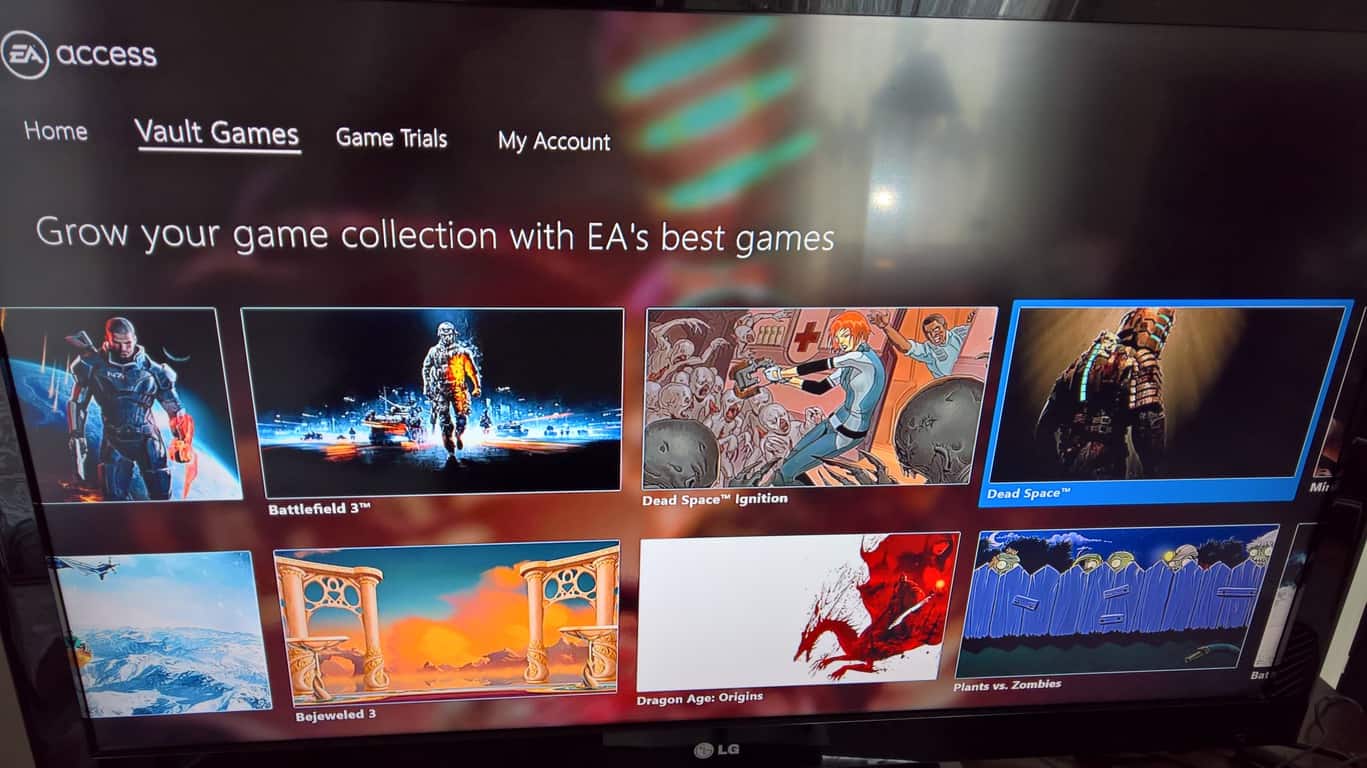
Dead Space Ignition, Dragon Age Origins now in EA Access Vault on Xbox One

Dead Space Ignition and Dragon Age Origins are the latest games added to the EA Access Vault on Xbox Live. EA Access members can now download and play both of these games for free with their paid subscription.

EA Access is available for Xbox One and Xbox 360 gamers on Xbox Live for $4.99 a month or $29.99 a year. In addition to Dead Space Ignition and Dragon Age Origins, EA Access members can play many other EA titles including Skate 3, Battlefield 4, and Star Wars: Battlefront. EA Access members can also get 10% off any EA titles purchased on Xbox Live and get early access on new EA game titles.

If you are not yet an EA Access member, sign up here. Stay tuned for more game titles being added to the EA Access Vault in the coming months.

Xbox Project Scorpio to include FreeSync 2, HDMI 2.1 support for smoother gameplay

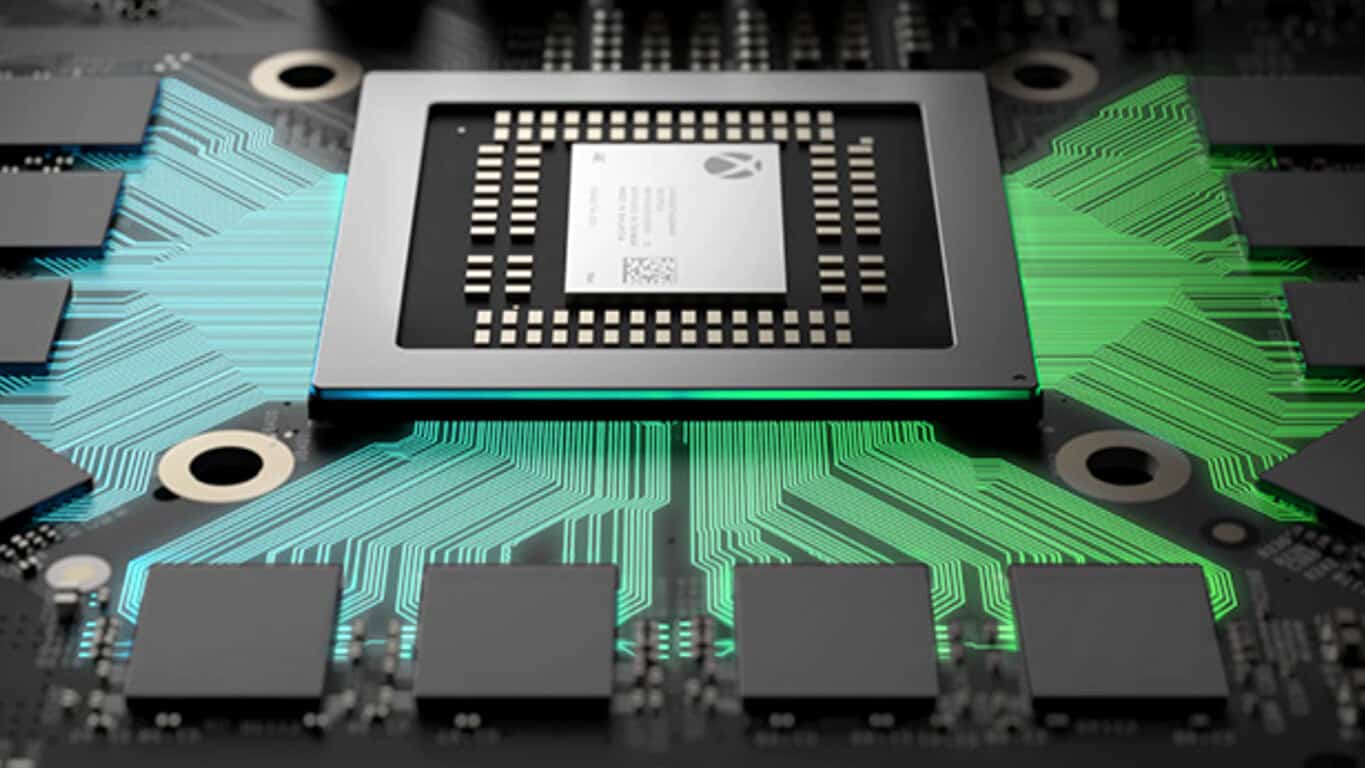
If you haven’t been living under a rock over the past few days, you may have heard that the final specs of Project Scorpio, Microsoft’s next Xbox console have finally been revealed by Eurogamer last week. Just like what Microsoft promised back at E3 2016, the new console will deliver 6 teraflops of computing power thanks to a CPU with eight custom x86 cores, a GPU featuring 40 customised compute units and 12GB of GDDR memory.

Project Scorpio will the most powerful gaming console in the market when it launches later this year, but there is one detail that had yet to unveiled, which is how the hardware will interact with displays: today, Eurogamer revealed that Project Scorpio will support AMD’s Freesync adaptative refresh technology as well as HDMI 2.1, the latest version of the audio/video interface that will be ratified in Q2 2017.

These new details definitely shows Microsoft’s forward-looking approach with Project Scorpio’s hardware. Adaptative synchronization technologies such as Nvidia’ G-Sync or AMD’s Freesync allow a GPU to control the display refresh rate, which reduces screen tearing and enable smooth, low-latency gameplay. “Microsoft has actually implemented the FreeSync 2 standard, meaning compatibility with HDR and full support across the range of potential frame-rates,” explained Eurogamer. “Paired with a supported screen, this will even eliminate tearing on games running with adaptive v-sync with frame-rates under 30fps, something not supported on most FreeSync 1 screens.”

According to the report, Freesync 2 support on Project Scorpio will benefit all Xbox games right out of the box:

What we can say is that Scorpio’s adaptive sync support is baked in at the system level – the developer doesn’t need to worry about it (though they could enable higher frame-rate caps for VRR users if the overhead is there). And on top of that, it works across all Xbox content that runs on the new console – Xbox 360 back-compat titles and Xbox One games.

Of course, you’ll have to use Project Scorpio with a TV set that supports Freesync 2 over HDMI 2.1 to see those benefits, but you can’t find living room displays sets that support both as of today. It remains to be seen if TV manufacturers will be quick to adopt the new HDMI spec plus AMD’s Adaptive refresh technology, but Microsoft is probably right to be an early adopter. The company put a great emphasis on HDR support for games and video with the Xbox One S last year, and we’re likely to hear more about Freesync and variable refresh rates in the coming months.

Microsoft closes the books on Windows Vista, ends support today

Today begins a significant moment for Microsoft, as it is the first day that the company is officially rolling out the Windows 10 Creators Update via Windows Update. The day, however, also marks another moment in Microsoft history, as Windows Vista has finally reached the end of its life.

As we warned before, Microsoft has officially ended support for Windows Vista, and those who are still using the OS are being urged to upgrade to a newer version of Windows, including Windows 7 Service Pack 1, Windows 8.1, or Windows 10.  End of support ultimately means that Windows Vista users will no longer receive any new security updates, non-security hotfixes, free or paid assisted support options, or online technical content updates from Microsoft.  Since there is no direct upgrade from Windows Vista to Windows 10, Windows Vista users are also urged to check if their PC meets the Windows 10 specs on this support page, and to move over files, folders, and more. If this is not an option, Vista users should also consider buying a new PC, since newer PCs are cheaper, and come with better hardware.

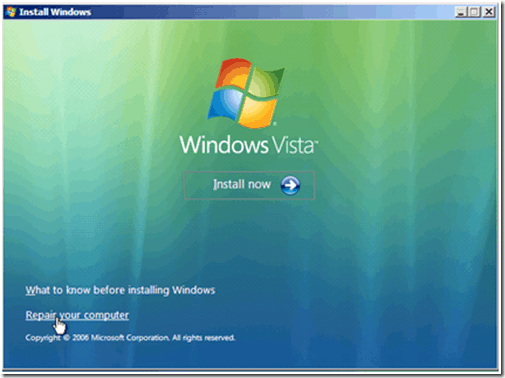
Install Vista? Or Delete Vista?

While Windows Vista (originally codenamed Longhorn) first launched in November of 2006, Microsoft has moved on to invest resources towards more recent technologies. As you may recall, Windows Vista did have its fair share of issues when compared to prior versions of Windows, especially the much beloved Windows XP.  For instance, users frequently faced glitches, crashes, and massive driver support problems. Many were also upset over DRM protections for Blu-ray discs, and the fact that Vista constantly bombarded users with User Account Control prompts. Of course, one can’t forget the fact that older hardware did not perform well with the Aero effects introduced in Vista.

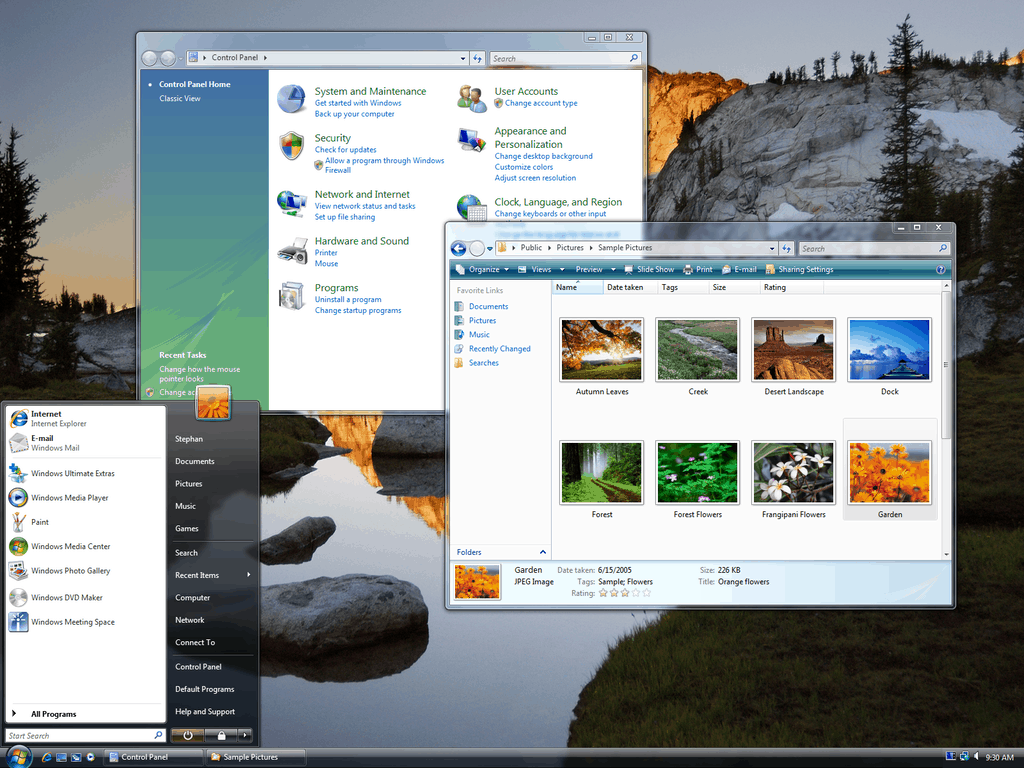
Though Vista had a fair share of problems, elements of the operating system continue to be seen today. Windows Aero and Windows Aero Peek, first introduced in Vista, lives on in Windows 7 (and may be making a comeback of sorts with the upcoming Project Neon), and the search interface still lives on in Windows 10 today. Microsoft officially ended mainstream support for Windows Vista in April of 2012, Firefox has announced that it would drop support in September of 2017, and Ubisoft announced that its Uplay PC client is set to end support for Vista as well.

(Image via Vista team blog)

Get a free Surface Dock when you buy a Surface Pro 4 from US Microsoft Store

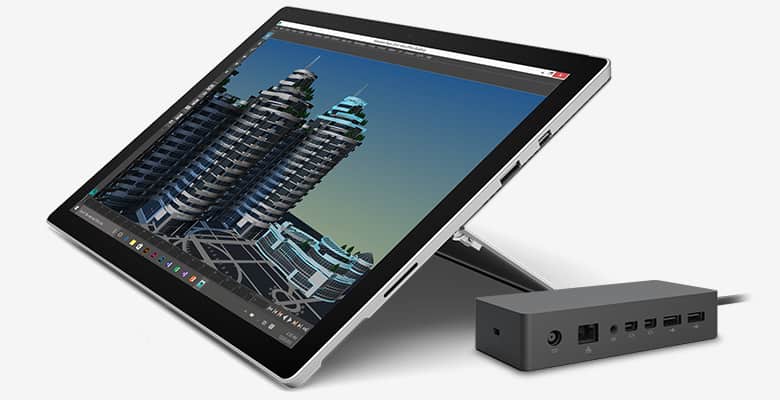
If you have yet to buy a Surface Pro 4, the US Microsoft Store is currently offering a free Surface Dock ($200 value) along the purchase of any model, including the $799 baseline configuration with an Intel Core m3 processor (via Neowin). Considering that the Surface Pro 4 only has a single USB 3.0 port plus a Mini DisplayPort, the Surface Dock is a really great value.

Surface Pro 4

For those unfamiliar, thanks to four USB 3.0 ports, Microsoft’s Surface Dock lets you connect much more peripherals to your Surface Pro 4 (it’s also compatible with the Surface Pro 3 and the Surface Book) and two Mini DisplayPorts. It also features one Gigabit Ethernet port for users that prefer wired Internet connections, as well as one audio out port. We invite you to check our detailed review to learn more about it.

The offer will be available through April 22 in Microsoft retail and online store in the US, whiles supplies last. Sound off in the comments if you would recommend the Surface Dock to Surface Pro 4 users.

Xbox Spring sale kicks off today with great discounts on more than 350 games

Microsoft has kicked off today its massive Xbox Spring Sale, and Xbox fans can now take advantage of up to 60% discounts on more than 350 Xbox One and Xbox 360 games. The sale will last through April 17, and if you want to save up to 10% more on all deals you can go Gold for $1 for the first month of membership during the Spring Sale.

Many great blockbuster games are being discounted on the Xbox One including Battlefield 1, Titanfall 2, The Witcher 3 and FIFA 17. If you’re interested in Xbox exclusives (and Xbox Play Anywhere titles), you can also take advantage of cool deals on Quantum Break, Forza Horizon 3, Gears of War 4, Recore and even the recently launched Halo Wars 2.

We’ve highlighted some of our favorite deals below, and as usual we invite you to check the full list of discounted games on Major Nelson’s blog post (please note prices may vary by region, and the ones listed below doesn’t take into account the additional discounts for Xbox Live Gold subscribers).

Xbox One Deals

  • Assassin’s Creed Syndicate ($25)
  • Battlefield 1 ($41.99)
  • BioShock: The Collection ($35.99)
  • Borderlands: The Handsome Collection ($24)
  • Call of Duty: Infinite Warfare – Launch Edition ($44.99)
  • Destiny – The Collection ($35.99)
  • Dishonored 2 ($35.99)
  • FIFA 17 ($30)
  • Fallout 4 ($24)
  • Forza Horizon 3 Standard Edition ($38.99)
  • Gears of War 4 ($29.99)
  • Grand Theft Auto V ($35.99)
  • Halo Wars 2: Standard Edition ($44.99)
  • Just Cause 3 ($19.80)
  • Ori and the Blind Forest: Definitive Edition ($11.99)
  • Quantum Break ($30)
  • ReCore ($19.99)
  • The Witcher 3: Wild Hunt – Complete Edition ($29.99)
  • Titanfall 2 ($35.99)

Xbox 360 Deals

  • Assassin’s Creed IV Black Flag ($9.99)
  • Call of Duty: Black Ops III – Bundle ($24.99)
  • Crackdown 2 ($9.99)
  • Destiny: The Taken King – Legendary Edition ($17.99)
  • Diablo III: Reapers of Souls – Ultimate Evil Edition ($23.99)
  • Fable Trilogy ($29.99)
  • Grand Theft Auto V ($23.99)
  • Red Dead Redemption ($17.99)
  • Tomb Raider ($6.59)
  • Watch Dogs ($9.99)
  • XCOM: Enemy Within ($15.99)

As a reminder, the US Microsoft Store is also offering $30 off select Xbox games as well as $15 off Xbox Design Lab controllers (online only). Let us know in the comments which games do you plan to purchase during the Xbox Spring Sale!

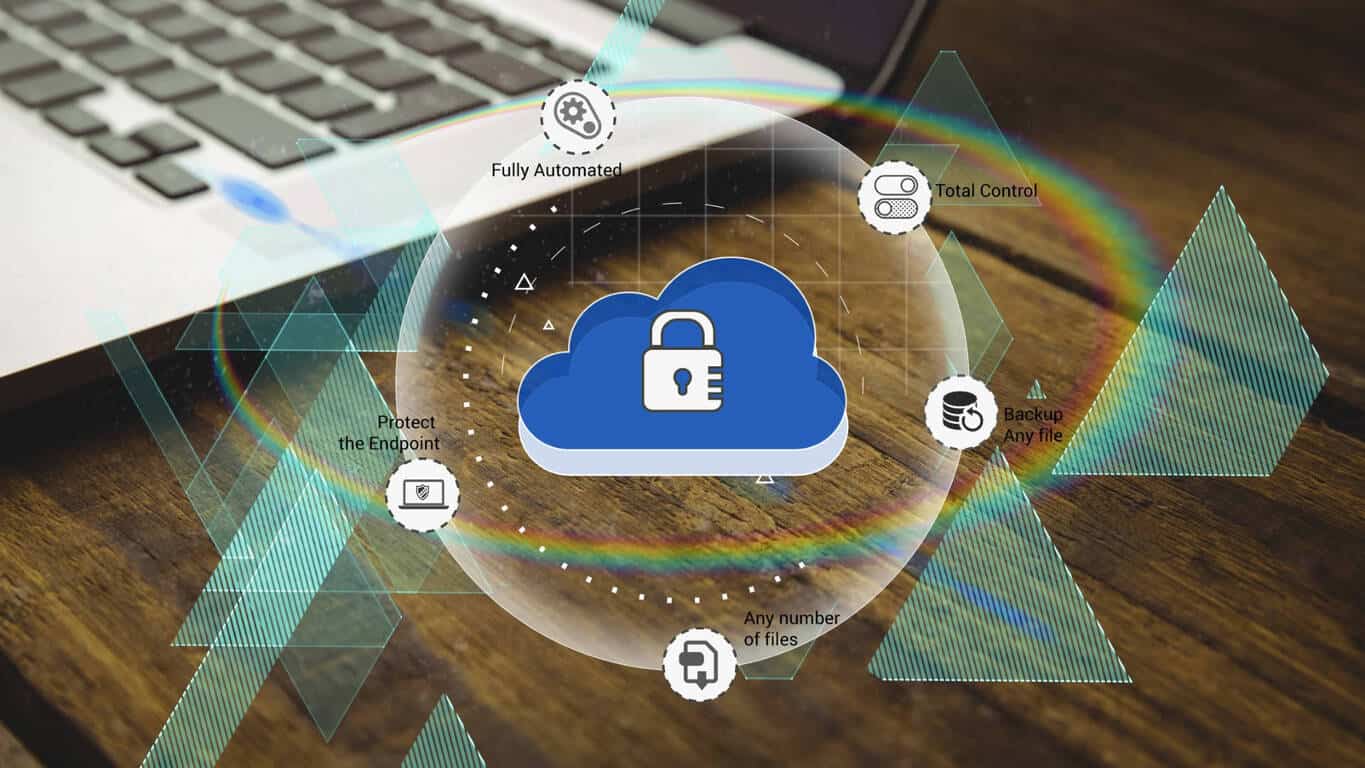
Parablu releases BluVault integration with OneDrive for Business

Parablu, a new-age cloud data protection and management solutions provider, has announced the availability of BluVault, a secure endpoint data backup solution for Microsoft OneDrive for Business users.

BluVault is a secure data backup solution in the cloud, designed as a ‘Cloud First’ solution, that helps defend against ransomware by creating reliable, versioned copies of files.

The solution enables enterprises to use OneDrive for Business as a backup target for the endpoints. BluVault automatically backs up user data from endpoints to their respective OneDrive for Business storage accounts. BluVault works in tandem with Parablu’s CASB solution – BluKrypt – which encrypts the data stream using the customer’s encryption keys before writing it to the OneDrive cloud.

“OneDrive for Business make it easy to manage your work files, share them and collaborate from any device. Parablu enriches OneDrive for Business with customizations for backup, security and scalability enhancing the cloud experience for customers.”

– Narendra Bhandari, General Manager – Developer Experience and Evangelism, Microsoft India

According to the company, the Parablu solution, which can be deployed on-premise or hosted in the Microsoft Azure cloud, can reduce endpoint backup costs by as much as 70% as compared to existing solutions. Existing MS Office 365 customers who already have a OneDrive subscription can use the solution without any extra storage cost.

Xbox Academy workshop sessions have begun in Sydney, Australia

Microsoft’s official Xbox Academy Game Development Workshops began earlier this week in the flagship Microsoft Store in Sydney, Australia. The program is a collaboration between Microsoft and the Academy of Interactive Entertainment (AIE) and aims to introduce participants to the different stages of developing video games for the Xbox platform which now consists of both Xbox One consoles and Windows 10 devices.

Each workshop runs for around three hours and there are different time slots to choose from dates ranging from April 10th through to the 22nd. Participants will receive an AIE approved Certificate of Course Completion and an Xbox Academy gift pack. Registration is open on the official website.

Are you interested in these workshops or have you done one already? Let us know what you think in the comments below.

Microsoft wants to ensure Azure is the best place for containerized work

Microsoft just announced that it has signed an agreement to acquire Deis – a “Kubernetes container-orchestration specialist”. According to the company’s Executive Vice President of Cloud and Enterprise, Scott Guthrie, this acquisition is part of Microsoft’s plan to ensure Azure is the best place for containerized workload.

“At Microsoft, we’ve seen explosive growth in both interest and deployment of containerized workloads on Azure, and we’re committed to ensuring Azure is the best place to run them. To support this vision, we’re pleased to announce that Microsoft has signed an agreement to acquire Deis – a company that has been at the center of the container transformation,” said Guthrie.

Gabe Monroy, Chief Technology officer of Deis also expressed delight about the company’s new business direction and partnership with Microsoft. According to Monroy, the Deis team will continue to contribute to Workflow, Helm, and Steward, as well as keep deep connections with the Kubernetes community.

“From our new home at Microsoft you should expect nothing less. We will continue our contributions to Workflow, Helm, and Steward and look forward to maintaining our deep engagement with the Kubernetes community. The future of open source infrastructure at Microsoft is very bright.”

Kubernetes is an open-source container cluster management tool, that makes it easier to developers to work in this environment, by providing automated deployment, scaling and operations of application containers. Earlier this year, Microsoft integrated Kubernetes into its own Azure Container Service, so acquiring a company like Deis is a logical step.

The new partnership should also make it easier for users to work with Microsoft’s existing container offering, including Linux and Windows Server Containers, Hyper-V Containers and Azure Container Service.

RELATED STORIES YOU NEED TO CHECK OUT:

Global companies can now get access to the three Azure regions in India

In a blog post on the official Microsoft Azure blog, Tom Keane, General Manager, Microsoft Azure, has shared that global companies can now benefit from access to the three Azure regions in India.

The three Azure regions in West India (Mumbai), Central India (Pune), and South India (Chennai) were announced in September 2015 marking the beginning of Microsoft cloud service availability from local datacenters in India.

Initially intended to enable data residency for customers in India, especially to regulated industries, the local datacenters allowed data replication in multiple regions within India for backup and recovery, reduced network distance, lower latency, and the option of a private connection to the cloud.

I’m proud about these expansions, and to see Azure in India enabling our users to deploy dev, test and production workloads closest to their employees, partners and customers anywhere in the world.

However, now global companies can now gain the benefit of data replication across these locations, ensuring business continuity in both pure cloud and hybrid scenarios. Also, some additional services like Power BI and HDInsight, with full features across Windows and Linux, are now deployed in India regions.

My People feature is working in Windows 10 Redstone 3 build 16170, sorta

Last week, Microsoft released the first build of Redstone 3 into the Fast ring with a hidden gem. The My People app originally intended for the Windows 10 Creators Update was pushed back into the next big update, but Insiders are already toying with the app thanks to Build 16170.

My People, found by tinkering in the Registry, has already been found functional for the most part. But it takes some finagling to even see the app and probably for good reason. Once My People is accessed though, users are able to try the current range of features, some of which are maddening according to a post by Rafael Rivera over at  Thurrott.

The app is accessible a Desk Band through the Taskbar, the report says. It opens in a similar style to Windows 10 Mobile, the area showing a list of suggested people to pin to the taskbar lets you add contacts from your People, Skype Preview, and Mail apps.

Clicking on the contact pins the person to the taskbar (or desk band) and opens their details from the People app by default. However, it contains a “Switch app” button on the top left that lets you choose which app to view and interact with the person such as calling them with skype or sending a message via the Mail tile.

Each app seems to be available almost in full when it comes to interacting with MyPeople. The back button reacts as though it was solely the current People focused app that you are viewing as well as the More Options, letting you pin/unpin the person, edit the contact, and even launching the full app if MyPeople isn’t enough for you.

Perhaps one of the more useful features in the current version of My People is the content sharing through Edge and Photos. This will let users pick from priority contacts that have been pinned, making sharing images, videos, links, and files easier between individuals.

Unfortunately, My People still has some kinks to work out. The Thurrott post notes that there isn’t a way to minimize the MyPeople flyout window or notifications, not to mention struggling with navigation thanks to the Back button’s limit of range in each app.

We don’t know how long it will take to see MyPeople become officially unlocked to Windows Insider builds. It’s not recommended to play in the Registry unless you’re experienced, and even then it can cause some further issues. However, if you’re running the Insider builds in Fast ring, it’s likely that you’re willing to take the leap.

Let us know what you think about the My People app with Redstone 3 Preview build 16170 in the comments below.

Microsoft Forms gets more useful for educators with these new updates

It seems educators are still a major demographic for Microsoft as evident by their continued support and development for classroom use. Today, the Office 365 blog announced that teachers will enjoy three new features available for Microsoft Forms and even a new integration for educators using OneNote.

In an effort to build up the already useful Microsoft Forms, commonly used for tests, quizzes, and polls, the Office team has released these useful additions:

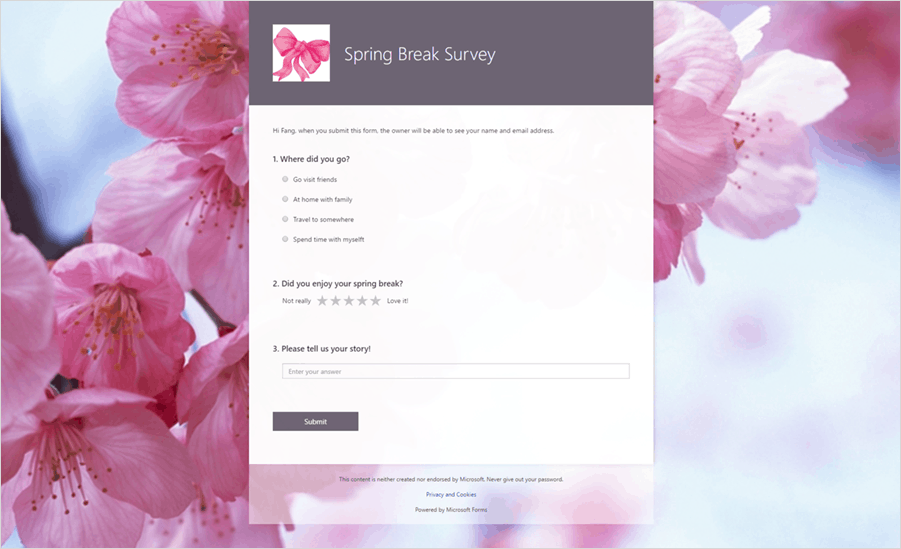
  • Customizable forms and background images – Teachers can upload their own images to the background of forms. The theme colors also automatically adjust to match the background image, similar to the option for Windows 10 desktop themes.
  • Other Forms portal – A convenient hub for collecting forms that have been shared with the user, so links available to them will be easily accessible. These forms will show title, creator name, number of responses, and if they are still active or not.

While these additions are a welcome addition to Microsoft Forms, they pale in comparison to the added ability to embed forms into OneNote Online. While it might appear simple, the ability to create quizzes and integrate them into a OneNote Class Notebook will help teachers compile quizzes and results all in one place, a feature that educators have been begging for.

To embed a form into OneNote Online, go to the Insert menu, click Forms, and select a form from the list.

These are just another example of how UserVoice has been important in the development of Microsoft software. If you have feedback for Forms, don’t hesitate to share your opinion. Who knows what the next feature might be?