This is how you can fix Titanfall 2 texture issues

Titanfall 2 recently received an important update that brings a series of new features, new Titan kits, as well as advanced options for aiming. Titanfall 2 Angel City patch also offers a long list of bug fixes that optimize the overall game performance.

Unfortunately, this update also brings issues of its own. Many gamers have been complaining about texture issues after installing the recent patch. More specifically, Titanfall 2 has clay-like textures. Actions such as resetting the settings to recommended and setting them back up don’t help at all.

Titanfall 2 low texture bugs

After the Angel City update, all my textures look like as if it’s on ‘very low’ even though I have them on ‘Very High’. I’ve repaired the game, updated drivers, restarted, etc all to no avail. I’ve been running TF2 on Very High textures smoothly and most of the other settings on high since launch, and everything looked as it was supposed to be.
Can reproduce 100% of the time.

How to fix Titanfall 2 low texture issues

Fortunately, one resourceful gamer managed to find a way to fix this. Follow the steps listed below to fix the annoying Titanfall 2 texture bugs.

1. Launch Origin
2. Disable Cloud Saves in Origin so that the game doesn’t override your config file before actually starting
3. Go to :Users\DocumentsRespawnTitanfall2local
4. Open “settings.cfg” with Notepad or Wordpad
5. In the bottom of the file add: gpu_vram_size_mb “1800”
You can set a number corresponding to your actual amount of VRAM. For more information about it, check your video adapter settings via Device Manager, under “Dedicated Video Memory” on the first tab of the window. Note that if the value is lower than 1800, the config prompt won’t have any effect at all.
6. Save and close the file and launch the game.

The prompt is automatically deleted from the config file when you close the game. This means that you’ll have to perform these steps every time you launch the game.

Indeed, this workaround is not a permanent solution, but at least it helps you fix these annoying Titanfall 2 texture bugs.

RELATED STORIES YOU NEED TO CHECK OUT:

New Microsoft video show off their spirit of the Season, highlighting Surface Studio

Every so often Microsoft releases a highly conceptualized video of what the software firm envisions the world of technology to be in the coming years. Until recently, many of Microsoft’s envision videos were CGI love notes to technology that rarely saw the light of day. However, in the last few years, Microsoft’s visions are being met with leaps in technology and providing a relatively realistic view of the world of technology coming to businesses and consumers alike.

With that being said, the men and women that make up Microsoft are switching gears this holiday season and offering a new vision of how it sees its technology enriching the lives of people over the next few months.

Unlike its futuristic visions, this new Spirit of the Season appears to be grounded in the very real and very current use of technology of the Surface Studio to help mend the potential divide millions of people experience every day. As Microsoft puts it at the end of the video, “When the world seems divided, coming together can be a beautiful thing.”

Let us know if you prefer Microsoft’s more grounded envisionings or the far-out CGI fantasies of old, in the comments below.

Microsoft adds F# support to Azure Notebooks

Thanks to the new Data Storage and Data Science workloads becoming generally available for Visual Studio 2017 RC, the Visual Studio Engineering team has announced that Azure Notebooks are now able to support the F# language.

For those that may not know, Azure Notebooks is a free web application hat lets the user create and share documents with live code, equations, visualizations, and explanatory text. Needless to say, it is ideal for instructors and students in fields of machine learning and data transformation.

Previously, users could write in R, Python 2, and Python 3 coding but now they can add F# to the growing list of over forty available languages. The preview is live on Azure Notebooks and anyone can use the service. If you’d like to try it out, head on over to Jupyter and log in with your Microsoft account.

Windows 10 Update Disabler lets you control update delivery and installation

While Windows 10 allows users to control the way updates are downloaded and installed in their computer, this option is hidden. By default, Windows 10 automatically pushes out updates to PCs once they are available. In other words, Microsoft is shoving updates down users’ throat.

Fortunately for Enterprise users, Windows offers the option to schedule the download and installation of available updates in order to prevent downtime. Home and Professional users, however, are stuck with forced updates. Windows 10 downloads and installs them even if users wish to defer the process, sometimes leading to slow computer performance.

Windows 10 Update Disabler

Thanks to a new application called Windows 10 Update Disabler from PainteR, Windows 10 users can now disable the automatic installation of updates from Microsoft. The software runs in the background to prevent Windows Update from installing software in your PC. Installing the application also requires no configuration, so it’s quick and easy to use.

Unlike the built-in manual option to delay updates in Windows 10, the Windows 10 Update Disabler application does not rely on Windows Registry to work. The software evaluates the status of Windows Update using an undocumented system to prevent Windows from overwriting it before it disables updates.

Windows 10 Update Disabler also terminates all scheduled Windows Update tasks such as PC reboot. This is especially helpful at times when a user currently works on a project and cannot afford to interrupt it.

How to use Windows 10 Update Disabler

While it’s not advisable to completely ignore Windows updates, the application’s author believes some updates are just not necessary, thus the Windows 10 Update Disabler. Below is the process for installing and using the application.

  1. First, download the application.
  2. Unpack the executable file to a specific destination folder, from which the .exe file will run.
  3. Access an elevated command prompt in the destination folder by pressing the SHIFT key and holding it before right clicking on the folder. Select Open command window here in the menu. command_prompt
  4. Type UpdaterDisabler –install at the command prompt in the folder to install the application.

That’s all you need to do. The Windows 10 Update Disabler is now ready to go. So the next time Microsoft rolls out updates to your PC, you will have more control over how Windows installs them.

Groove Music re-introduces music videos on Xbox One

If you’re a fan of Groove Music, then there will be some exciting times ahead for you. According to Windows Central, the music videos feature has finally been re-introduced to the Groove Music UWP app on the Xbox One.

As seen in the video above, Jez Corden from Windows Central demonstrates that Microsoft has finally lived up to their promise of returning  the music videos feature to Groove on the Xbox One. Described in the video, the Groove Music app will not list the songs or albums which have available music videos, so you might have to search through your collection and find music video enabled songs on your own. The feature will turn on automatically, but also disables background music and audio, so you also might want to keep this in might before you turn music videos on or off from the menu.

What do you think of the return of the music video feature to Groove on Xbox One? do you own any songs which are compatible with the music video feature? As always, do let us know what you think by dropping us a comment below!

University of Washington students build a Formula 1 race car with help from Surface Book

In honor of Computer Science week, Microsoft is highlighting users and organizations that make the best work out of their products. In this case, the UWashington Formula Motorsports Team was put in the forefront of a new promotional video campaigning for the Surface Book.

This team is a group of engineering students that design and build their own Formula 1 style race car with the help of a Surface Book and Surface Pen. The UWashington Formula Motorsports Team is only one of nearly 500 that compete internationally in the student-led program called Society of Automative Engineers (SAE).

In these competitions, the teams need to build a well designed, efficient, and fast formula-style race car that is also easy and cheap to maintain. On average, the cars weigh from 300 to 500 pounds and can speed up to 60mph within three to four seconds.

Bringing concept to completion isn’t an easy feat by any means for these university students. According to the video, the engineering team finds it essential to use the Surface Book for the professional-grade 3D design software and data analysis. It even goes so far as to say that Mac is just not compatible, paling in comparison with the Surface Book’s power under the hood.

The promotional video is the latest addition to Microsoft’s “Created on Surface” webpage where you can find similar stories about other exceptional users that use the product line.

Tune in for a shot for shot recreation of Blade Runner in Microsoft Paint

While Ridley Scott’s sci-fi masterpiece Blade Runner will finally get a sequel to be released in cinemas in late 2017, a fan has found a fun way to pay an homage to the movie he loves using Microsoft Paint (via Open Culture) . For the past six months, David MacGowan has been using the decades old graphic editor (it was released initially with Windows 1.0 in 1985, three years after Blade Runner) to create “a shot by shot re-enactment of Blade Runner through the magic of Microsoft Paint.” While MacGowan is not a professionnal drawer, it’s still fascinating to see his passion and attention to detail being expressed through the legacy software.

Microsoft Paint Blade Runner

MacGowan is publishing is work on a Tumblr blog called MSP Blade Runner, which was first discovered by Vice’s Motherboard website. Vice also interviewed MacGowan, who shared that he’s a long time MS Paint user. “Years ago I used to draw really crappy basic MS Paint pics for a favourite pop group’s fan site, and they always seemed to raise a smile. The idea of doing something else with MS Paint, a kind of celebration of my not being deterred by lack of artistic talent, never really went away,” he explained.

In the interview, MacGowan also reveals that some of his drawings can take him as little as five minutes, depending on the amount of details in the shots he has to reproduce with Paint. A new drawing is published every day on his blog, but MacGowan is still far to recreate the whole movie. “I don’t really think about giving up. The idea of actually completing something I start out to do for once in my life is very appealing. And it’s fun, it’s not a chore,” he added.

Microsoft researchers predict the future for 2017 and 2027

The new year is looming closer, so Microsoft Research is putting in their predictions for the next one to ten years, specifically in the case of their women researchers in computer science.

According to the Bureau of Labor Statistics, there will be a surplus of 1 million computing jobs without the educated manpower to run them in 2020. Furthermore, only 12% of computer science degrees are awarded to women that finish university. Seventeen women of Microsoft Research predict that the future is only going to get more interesting.

In 2017, these women expect the path of technology to continue slowly on. While some fields working on increasing speech and language technology to translate in real time, others find the understanding of deep learning and enhanced algorithms to pave the way to improved artificial intelligence. This is the same AI that they are working to develop in Project Malmo in Minecraft, a game that is nearly a blank canvas when it comes to AI experimentation.

Other predictions for 2017 are:

  • A focus of assistive technologies for people with visual disabilities
  • Advanced medical protection and new homomorphic encryption schemes applied to banking.
  • A decline in hardware prices that wish usher in more augmented and virtual reality development
  • Better understanding of biological science towards modifying, designing, and reprogramming cellular behavior
  • Internet of Things being focused on agriculture to help farmers monitor, analyze, and diagnose farm health.

So what could be coming in ten years according to these women of computer science? By 2027, many of these women expect major advancements in the area of machine learning and artificial intelligence that will build a better society. In fact, Mary L. Gray estimates that 30% of adults will use an “AI powered labor force” to deliver AI driven goods or services whether consumers know it or not.

Furthermore, other things we might see in 2027 include:

  • The replacement of the search box with spoken queries, sounds, images, or videos based on current content, location, or activities.
  • Entirely new industries and applications from agriculture and medicine, materials and computing working towards “the era of living software”.
  • Quantum computer breaking through low-strength traditional cryptographic systems
  • Children with disabilities will learn how to code and eventually apply their experiences to technology.
  • With the help of IoT, farmers will see healthy yields regardless of climate, drought, and disaster.
  • More intelligent devices, higher quality VR and AR.

The problem with predictions is that we have to wait and see if they come to pass. Until then, we’d like to hear your predictions for the next year of technology. Let us know in the comments below.

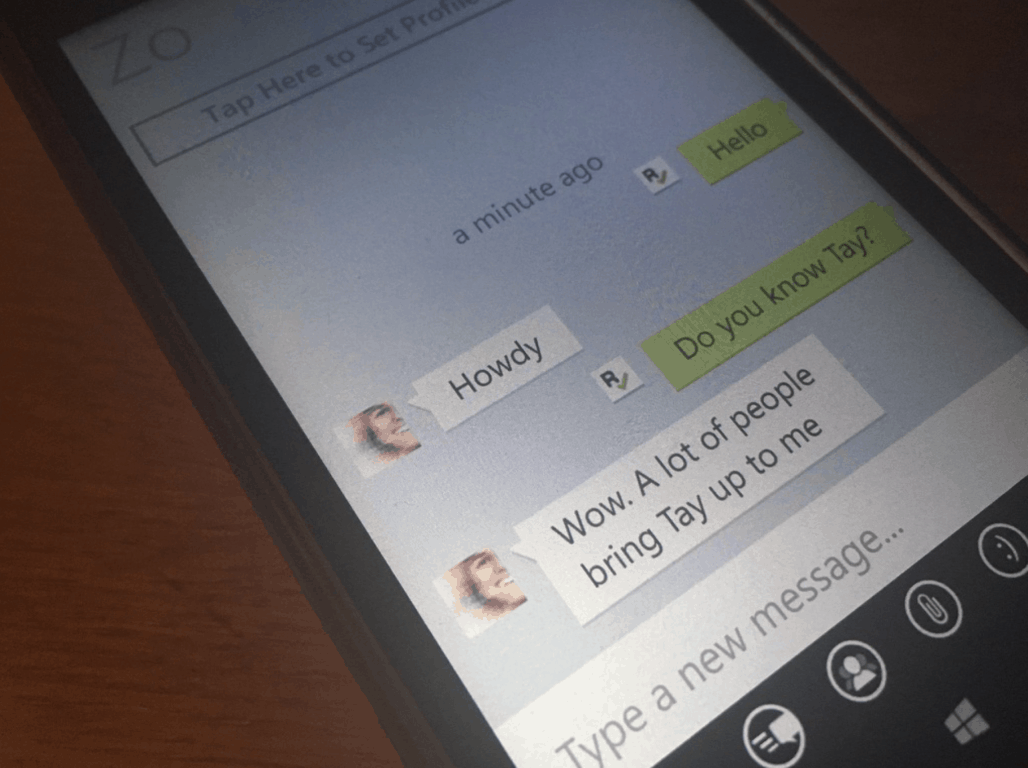
Microsoft quietly introduces Zo, its latest chatbot, on Kik Messenger

Earlier this year, Microsoft leveraged its artificial intelligence magic to release Tay, a cross-platform chatbot aimed at 18-24 years old but the experiment didn’t go very well, to say the least. Just one day after its introduction, Microsoft had to turn off the AI chatbot and apologize after discovering that some users had tricked Tay to produce offensive and racist tweets.

This PR failure didn’t really discouraged Microsoft, as CEO Satya Nadella reportedly emailed the Tay team to encourage them to “keep pushing” after the chat bot was taken down. But while Tay has now been put to rest, a new Microsoft chatbot called Zo has just been discovered on Twitter, though details about it remain scarce for now (via Windows Central)

https://twitter.com/tomhounsell/status/805333208917307392

Interestingly, Microsoft chose to quietly release this new chat bot on Kik Messenger, avoiding Twitter as well as its own platforms such as Skype and GroupMe. In our limited testing, Tay seems to be another conversational bot targeted at young people and it seems pretty fun, though it remains to be seen if Microsoft did everything necessary to avoid another emergency takedown.

zo.ai chat bot

You can try chatting with Zo by looking into Kik Messenger’s bot directory, but Microsoft has also set up a dedicated page to let users request an invite to get early access to Zo (the form mentions Twitter, Facebook Messenger and Snapchat). We’ll see if Microsoft officially announces its new chatbot in the coming days.

Windows 10 Fast Ring Insiders get HDR improvements to Camera app

If you’re a Windows 10 Mobile Insider in the Fast Ring, then you might want to head over to the Windows Store and check for a new app update. According to Windows Central, Microsoft has released a minor update for Windows Camera for Fast Ring Insiders, delivering HDR improvements for the experience.

Overall, the update pushes the latest version to 2016.1101.11.0., and repordley also breaks the HDR feature on the HP Elite x3. For the complete details please check the change log below:

  • Now you can take 3 HDR photos consecutively before saving shots.
  • Bug fixes for reliability and performance
  • User experience improvements

If you’re not already using the app, we have done you a favor and have included a download link for you below. As always, do let us know how this latest update is working for you by dropping us a comment in the Disqus section below!

Windows Camera
Windows Camera
Price:
Free


KPMG and Microsoft set up IoT advisory board in India

KPMG and Microsoft India have announced that they have set up a strategic IoT advisory partnership. As part of the partnership, the two will combine their technologies and enable  a digital transformation for enterprises in the Indian market (via ETCIO.com.)

KPMG has already been known for giving companies the combined business and technological strengths they need to be successful, and under the strategic IoT advisory partnership, The IoT Advisory will help Indian enterprises deploy solutions that can drive cloud-based automation. In a statement, Peter Gartenberg, the General Manager, Enterprise, and Partner Group, Microsoft India reflected on the IoT advisory board.

“Microsoft and KPMG have been long standing partners and we are happy to open another chapter of this relationship in India. The partnership brings together KPMG’s consulting expertise on digital transformation with Microsoft’s proven experience in spearheading large IoT implementations. The IoT Advisory will help define IoT usage scenarios for customers and then implement them for desired business impact.”

Rachna Nath, Partner and Head, Digital Consulting, KPMG in India, meanwhile, had the following comments:

“Our alliance in India is a strategic step towards helping our customers achieve valuable business insights to make smart decisions faster while managing risk, compliance and security. This collaboration will help customers drive productivity and better performance, and help transform their business. KPMG in India will also extend its services to the entire spectrum of Microsoft Productivity Tools, Intelligent Cloud, Blockchain technology and Cyber security amongst others”

To learn more about KPMG India, you can head over to their official website. Once you’ve checked it out, let us know what you think by dropping us a comment below.

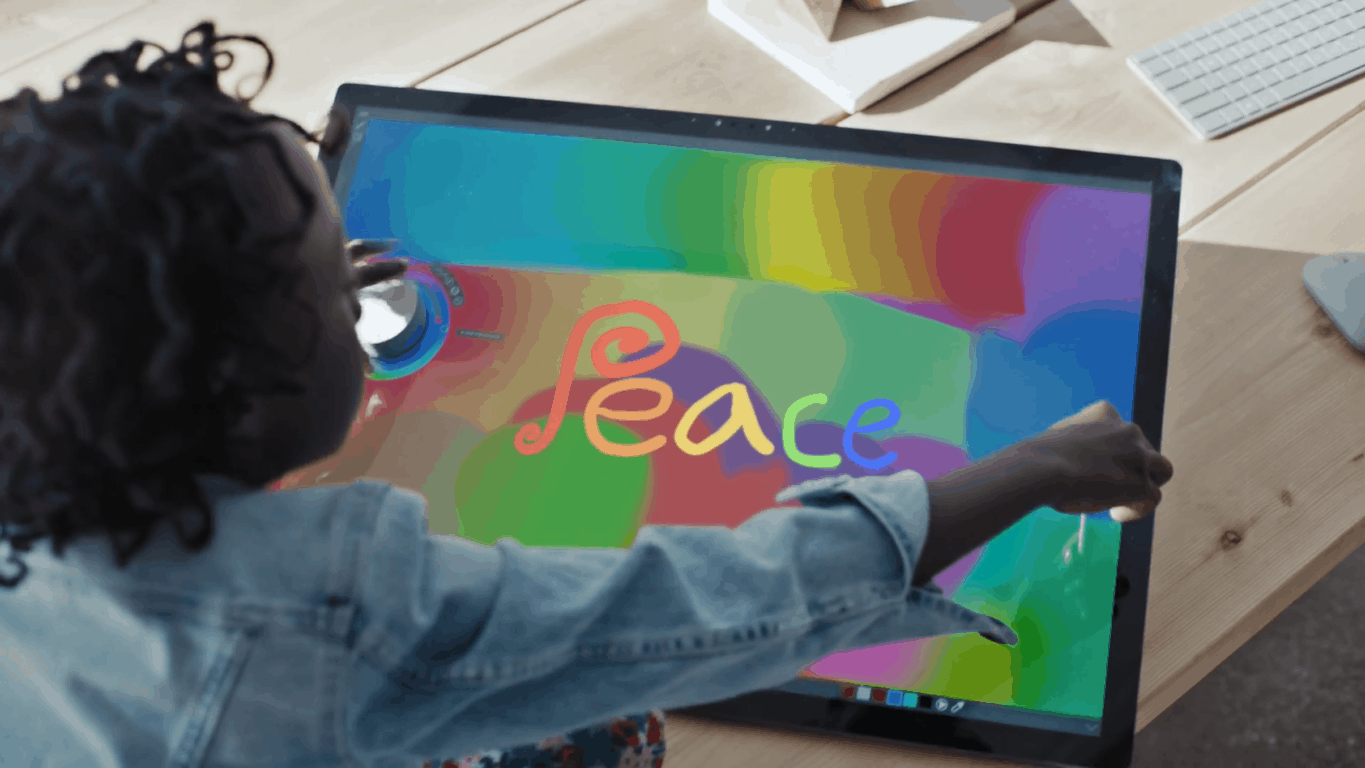
Microsoft celebrates the “Art of Harmony” in new holiday ad

From the good moments, the bad moments and the ugly moments, 2016 has been one interesting, and at times, tense year. It is fitting then that Microsoft has just released a new holiday ad which promotes positivity, harmony, diversity, and inspiration (via AdAge.)

Developed by M:United/McCann New York, the 1 minute and 43-second ad lifts people up and reminds them that ordinary people can make a difference. Seven people are featured in the ad, and they all are seen using Microsoft products to make a collaborative drawing which ultimately shows their vision of hope, peace, and beauty. The ad also sends a positive message and focuses on the spirit of the holidays, which is people coming together and celebrating what is good and right with the world.

The seven people seen in the ad should be familiar to the public, as they have been in the news throughout the year for their causes which have made a difference in the world. Florida police officer Bobby White, who was seen on video playing basketball with local youth, poet and activist Mona Haydar, and 9 -year-old Zianna Oliphant (famous for her speech to the Charlotte City Council after protests in the area) are just a few of the figures who play key roles in the video’s message.

In a statement published by AdAge, Kathleen Hall, corporate VP of brand advertising and research at Microsoft, reflected on the ad:

We knew it’s been a rough year and people have been exposed to a lot of challenging issues…We hope this gives people some positivity and hope in the season which is what it should be about.”

The advertisement ends with the group all standing together with their final product on display beneath the NYC skyline at the  Jane’s Carousel in Dumbo, Brooklyn. A 60-second version of the Microsoft ad will air on national networks such as NBC, ABC, and FOX, with the full version airing online on Facebook and YouTube.

Mozilla fixes zero-day Firefox bug used to attack Tor users

The Tor browser is the most widely used privacy tool to browse the Internet anonymously. The Tor Project built the network partially on open source code similar to an old version of Firefox. Exploit a vulnerability in that Firefox version and you unmask the otherwise anonymous Tor users. That’s what happened with Mozilla’s popular browser this week, and the organization was quick to roll out an update that fixes the zero-day vulnerability.

A public Tor Project mailing list revealed the bug which prompted Mozilla to update Firefox to version 50.0.2. The Tor Project team also issued patches for the Tor browser that now bumps it up to version 6.0.7. While The Tor Project believes the vulnerability has affected only the Windows users, it is also possible that the bug has hit macOS and Linux users as well.

The zero-day vulnerability also affected Mozilla’s Thunderbird e-mail application and the Firefox Extended Support release version. Daniel Veditz, Mozilla’s security team lead, wrote in a blog post:

The exploit took advantage of a bug in Firefox to allow the attacker to execute arbitrary code on the targeted system by having the victim load a web page containing malicious JavaScript and SVG code. It used this capability to collect the IP and MAC address of the targeted system and report them back to a central server.

A serious threat

If an attacker can lure a user into visiting a malicious web content, it is possible to remotely execute arbitrary code on the system by taking advantage of the vulnerability.

Security experts believe the exploit is similar to a Firefox flaw the FBI used in 2003 to identify visitors to a child-abuse site. Veditz wrote that the threat now poses a serious threat to privacy if a government agency indeed built it.

This similarity has led to speculation that this exploit was created by FBI or another law enforcement agency.

Read also:

Check Shadow Tactics: Blades of the Shogun PC requirements to avoid technical issues

Shadow Tactics: Blades of the Shogun is a tactical stealth game set in Japan around the Edo period. In it, players take control of a team of deadly specialists and sneak in the shadows between dozens of enemies.

You need to be ten times smarter than your opponents and be able to choose the right approach when infiltrating mighty castles, snowy mountain monasteries or hidden forest camps in order to be successful. Also, you need to be as sneaky as possible to set traps and poison your opponents.

Playing Shadow Tactics: Blades of the Shogun is like starring in a James Bond movie: You’ll spy on your enemies so that you can learn what their weaknesses are and deliver the fatal blow.

Shadow Tactics: Blades of the Shogun is scheduled for release on December 6. Before you buy this impressive game, make sure your computer meets the recommended system requirements. Otherwise, you may experience various issues that will limit your gaming experience.

Shadow Tactics: Blades of the Shogun minimum PC requirements

  • OS: Windows 7 64-bit
  • Processor: Intel i3 2nd-Generation 2.5GHz, AMD Quad-Core 2.5GHz
  • Memory: 4 GB RAM
  • Graphics: Nvidia GT640, AMD Radeon HD7750, 1GB VRAM
  • DirectX: Version 10
  • Storage: 13 GB available space
  • Sound Card: DirectX 9.0c Compatible Sound Card with Latest Drivers

Shadow Tactics: Blades of the Shogun recommended PC requirements

  • OS: Windows 7 64-bit or higher, Windows 8, Windows 10
  • Processor: Intel i3 4th-Generation 3.5GHz, AMD Quad-Core 3.9GHz
  • Memory: 6 GB RAM
  • Graphics: Nvidia GTX 570, AMD Radeon HD 6950, 2GB Vram
  • DirectX: Version 11
  • Storage: 13 GB available space
  • Sound Card: DirectX 9.0c Compatible Sound Card with Latest Drivers

You can download the demo PC version of Shadow Tactics: Blades of the Shogun from Steam.

RELATED STORIES YOU NEED TO CHECK OUT:

Windows 10 news recap: Windows 10 PC Preview builds paused, Movies and TV updated, gaming and more

Welcome back to our Windows 10 news recap. We are continuing the trend of our weekly “Windows 10 news recap” series where we go over the top stories of the past week in the world of Microsoft’s flagship operating system.

Movies and TV app for Windows 10 updated with ability to play video folders

Movies & TV app in Windows 10

The Movies & TV app has been updated recently, featuring a new option for playing videos organised in folders, like a season of a show or anime or maybe multiple parts of a movie. With back and forward buttons now added to the app, it should be much easier to navigate between different files instead of having to exit and manually navigate to the next video.

There were some Xbox and renting system improvements too, enhancing your experience while using the console or renting movies and shows, as well as the usual bug fixing and general improvements.

Microsoft pauses all Windows 10 Preview builds for PC in preparation for Unified Update Platform

sketch

No Windows 10 Insider PC builds this week. The Unified Update Platform, that Microsoft introduced a few weeks ago, is now getting implemented into the PC version of Windows 10 and should be available for Fast Ring Insiders with the next build that will get released.

Windows 10 Insider build 14977 released for Mobile only, due to blocking bug on PC

Windows Insider

Sorry Windows Insiders, we aren’t done with the semi-bad news yet. No new PC build this week because of the UUP transition and also because of a breaking bug in the PC version of the build labelled as 14977. 

If there wasn’t a breaking bug, Insiders may have been able to install this build before the UUP transition began but for now, they are stuck with an older build released last week and will have to wait another week before another may get released.

Windows 10 edges closer to 50% share of Steam gamers

Steam

With every month that passes, Windows 10 seems to be gaining more and more traction in the gaming world. The latest results revealed by Valve show that almost half of all PC’s actively using Steam run on Windows 10 which is pretty incredible, and has outperformed all other Windows versions and platforms shown in the market share report.

It’s just a matter of time before Windows 10 goes above the 50% milestone as more and more gamers upgrade their PC’s which often include Windows 10.

Twitter update for Windows 10 brings native GIF support

sketch

Twitter finally brings native GIF support for Windows 10, which obviously includes mobile too, allowing users to easily search for GIFs right from the Twitter app and adding them to their tweets.

Before this update, users had to manually search for GIFs on the web, save them, find them in the gallery and finally tweet them out. This should speed up your workflow if you happen to use Twitter a lot.

This is it for the news this week, but we will have more so make sure to check back here in seven days.

Microsoft (MSFT) news recap: more info on Home Hub, exec moves to Starbucks, wanted to buy LinkedIn since 2006 and more

Microsoft (MSFT) news recap is a weekly feature highlighting the top Microsoft news stories of the past week. Sit back, grab some coffee, and enjoy the read!

New information surfaces about Microsoft’s Home Hub, the software rival to Amazon’s Echo and Google Home

Microsoft is working on a software-based rival to Amazon’s Echo and Google Home. What makes Home Hub interesting is that it isn’t a device. It will be able to do everything that both Echo and Google Home can do, but via software, that other, third-party devices, can hook into. It will be a feature of Windows 10 and as the Redstone builds keep coming through, we’ll see more of it.

Former Microsoft exec Kevin Johnson is now CEO of Starbucks

Kevin Johnson, who worked at Microsoft for 16 years and became president of Windows and Online Services, has moved to Starbucks. Johnson will replace Howard Schultz, current CEO, on April 3, 2017.

Starbucks Windows Phone App

Microsoft Edge isn’t holding up browser market share, Windows Phone continues its decline and Windows overall sees a decline in desktop share

Last months NetMarketShare numbers are out and it doesn’t paint the prettiest picture. Overall, Microsoft’s browser share, that counts both Internet Explorer and Microsoft Edge, is down from 28.39% to 26.87%. This shows that not even Microsoft Edge is helping Microsoft gain traction in the web browser market. For desktop, Microsoft’s overall share for Windows declined from 91.39% to 90.95%. Similarly, Windows Phone, as expected, also declined from 1.95% to 1.75%.

browser

Microsoft has been trying to buy LinkedIn since 2006

LinkedIn’s former co-founder and Vice President of Marketing revealed that Microsoft has been attempting to purchase LinkedIn since 2006, despite only finally doing so in 2016 – 10 years later.

LinkedIn-Headquarters-Mountain-View

Microsoft, Starbucks and others pledge $3 million to help homeless families in Seattle

Microsoft, along with numerous other companies based out of Seattle, has pledged $3 million to help homeless families in their hometown, Seattle. The money will be donated to the Mary’s Place initiative to tackle homelessness.

Best Final Fantasy XV wallpapers to set on your desktop

Dedicated gamers often use images of their favorite games as wallpapers. If you’re looking for some really impressive Final Fantasy 15 wallpapers, you’re in the right place.

We recently came across an interesting website you can use to download Final Fantasy 15 wallpapers. More precisely, there are 71 wallpapers you can choose from. The images depict the game’s characters, as well as scenes from the game.

If you want to impress your gamer friends, go to Alpha Coders and check out the FFXV wallpapers listed there. Select your favorite image and set it as your desktop background.

Noctis Lucis Caelum, the Crown Prince and heir to the kingdom of Lucis, can now embellish your desktop. If you prefer gameplay images, simply browse through the 71 pictures and select your favorite. Needless to say, all the available images are HD.

Final Fantasy 15 desktop wallpaper

Speaking of background images, you can also save your best Final Fantasy XV moments and use them as background images on your Xbox One.

Use FFXV screenshots as background images on the Xbox One

  • Scroll left on the Home screen to open the guide
  • Select Settings > All Settings
  • Select Personalization, and then in the right pane, select My color & background
  • Select My background > then select Screenshot as your Your background screen.

If you want to see more Final Fantasy 15 images, go to the game’s official website. Click on the Media option, select Screens and you’ll see a series of interesting game images. Unfortunately, not all of them are big enough to be used as wallpapers, but it’s worth checking them out.

RELATED STORIES YOU NEED TO CHECK OUT:

Nadella confirms Microsoft isn’t stepping away from Windows phones

Many Microsoft fans wonder what the future holds for Windows phones. Satya Nadella recently offered an answer to that question, but without giving too many details. At the annual shareholder meeting in Bellevue, Washington, Nadella confirmed once again that Microsoft isn’t stepping away from supporting Windows phones.

Actually, this is an old line. Microsoft keeps on repeating it from time to time, trying to reassure fans that everything is going according to plan. However, we all know that the popularity of Windows phones is dropping by the day.

Of course, this causes much worry among Microsoft’s shareholders. Actually, one shareholder bluntly asked Nadella was his vision on Windows phone was. You can read his answer below.

Microsoft won’t give up on Windows phones

In other words, we think about the mobility of the human being across all of the devices, not just the mobility of a single device. That said we are not stepping away or back from our focus on our mobile devices.

What we are going to do is focus that effort on places where we have differentiation. If you take Windows Phone, where we are differentiated in Windows phone is it’s manageability, it’s security, it’s continuing capability that is the ability to have a phone that in fact can even act like a PC. So, we are going to double down on those points of differentiation. In fact, the HP X3, which came out recently, is perhaps a great example of a differentiated device built using the Windows phone platform and that sort of points for the direction. We will keep looking at different forms, different functions that we can bring to mobile devices, while also supporting our software across a variety of devices. So, that’s the approach you will see us take.

We are not stepping away from supporting our Windows phone users. But at the same time, we are recognizing that there are other platforms in mobile that have higher share and we want to make sure that our software is available on that.

Will this strategy be successful?

Only time will tell if Microsoft’s differentiation-based strategy will work in the long term. For the time being, this strategy isn’t working very well. The HP Elite X3 is only on the 19th place in the top of the most popular Windows 10 Mobile phones. Of course, this device has the potential of becoming more popular. Nevertheless, taking into account the publicity it benefited from, it’s fair to say everybody expected the HP X3 to be more popular than it is.

What do you think about Nadella’s statement? Do you think this differentiation-based approach will be successful? Would you adopt a different strategy if you were in Microsoft’s CEO’s place?

RELATED STORIES YOU NEED TO CHECK OUT:

Windows 10 build 14977 now available to Insiders on Mobile only

Microsoft just released the new build 14977 for Windows 10 Mobile. Unlike the majority of Windows 10 builds, this one was released for Mobile only. Reportedly, the PC release is delayed because a  bug that could result in breaking apps. As soon as Microsoft resolves the issue, the build will be released for PC as well.

The biggest highlight of Windows 10 Mobile Insider build 14977 is the introduction of an EPUB reader for Microsoft Edge. Beginning with this release, Insiders will be able to read unprotected EPUB books in their default mobile browser. This feature is already available on Windows 10.

The default EPUB reader also has some customization options. Users are able to change font size and themes and there are three themes available: light, sepia, and dark.

The EPUB reader for Microsoft Edge is the only major new feature introduced with this build. Microsoft also addressed a huge number of known issues and bugs in build 14977. However, as iss normally the case, the new build also causes some issues to Insiders who install it.

Here’s the complete list of improvements and bug fixes:

  • “We’ve changed the rendering technology used for many types of UWP app content, so please provide feedback through the Feedback Hub if you notice any new visual glitches in UWP apps.
  • Alarms sent by 3rd party alarm apps will now break through Cortana’s Quiet Hours – we appreciate all the app developers who logged feedback requesting this, keep it coming!
  • We’ve removed the top-level option in Notification Settings to disable alarms on the lock screen – alarm reliability is a top priority for us, and we’ve found this setting was frequently enabled accidentally, without awareness that it would stop alarms from waking the phone when the phone was locked. For those who still wish to enable this setting, it’s will continue to be available under the per-app notification settings.
  • Notifications from Settings can now be customized or disabled – option is available under Settings > System > Notifications > Settings
  • We have enabled OAuth support for Yahoo Mail accounts. This will improve sync reliability for those accounts, and provide a secure experience while browsing your email.
  • We fixed an issue where disconnecting and reconnecting a wired headset while watching a video might result the audio no longer working.
  • We fixed an issue Insiders may have experienced where certain music apps would unexpectedly stop playing music after a single song.
  • We fixed an issue where closing a tab in Microsoft Edge, exiting the app, and then relaunching it would sometimes result in Edge opening to a blank page with the closed tab’s web address in the URL bar.
  • We fixed an issue where the Start Settings page wasn’t rendering when opened on external screen while using Continuum.
  • We’ve made a number of translation improvements, including, for French (France and Canada) speakers, fixing a grammatical error in the “Don’t Forget!” text seen when shutting down the phone so it now says “N’oubliez pas”, and for Chinese speakers, fixing an issue where the option to clear the Chinese Input Method Editor’s input history was displaying in English rather than Chinese. If you see any other translations that aren’t as you’d expect, please log feedback – we’re listening!
  • We fixed an issue where, if the setting to show notifications above lock had been turned off, booting the device and immediately checking the Action Center while the phone was locked could result in the Action Center not displaying any notifications after the phone had been unlocked.
  • We fixed an issue Insiders may have experienced where the Camera app might not appear after using the hardware camera button while the screen was off or while on the Glance screen.
  • We fixed an issue where Bangla (Bangladesh) keyboard text prediction might stop working after entering character followed by a vowel mark.”

Here’s the complete list of known issues in Windows 10 build 14977:

  • “Please avoid attempting to install new languages, keyboards, and speech packs on your phone. There is a chance these downloads may get stuck and not finish downloading. If you have existing languages, keyboards, and speech packs installed – they will carry over when you update to new builds. You can use Windows Device Recovery Tool to go back to Windows Phone 8.1 or Windows 10 Mobile, install any languages, keyboards, and speech packs you need and then update to the latest build in the Fast ring as a workaround.
  • Windows 10 phones with 8GB of internal storage such as the Lumia 550 will likely receive an 0x800700b7 error when attempting to update to this build. For more details, head over to this forum post.
  • System related notification toasts (e.g. Bluetooth, USB/Autoplay, etc.) do not work.”

As for the PC release, we don’t know when will Microsoft introduce it nor if it will bring any new features. As soon as we have more information, we’ll make sure to let keep you updated.

In case you’ve already installed build 14977 on your Windows 10 Mobile device, let us know about your experience using it so far.

RELATED STORIES YOU NEED TO CHECK OUT:

Fix: Minesweeper not working on Windows 10

Minesweeper is a popular game that was present in previous versions of Windows. Microsoft decided to change its policy on games, and now Minesweeper isn’t available by default on Windows 10. This is why users tend to download Minesweeper games from Windows Store, but according to them, Minesweeper app isn’t working for them on Windows 10.

Minesweeper not working on Windows 10, how to fix it?

Fix – Minesweeper not working Windows 10

Solution 1 – Use Tablet mode

Users reported that Minesweeper isn’t working properly on their Windows 10 PC. Apparently, certain buttons and elements aren’t visible on the screen, and that can prevent you from playing the game. Apparently, there’s a workaround that allows you to play the game without any problems, and this workaround involves turning on Tablet mode. To do that on Windows 10, follow these steps:

  1. Open the Action Center. To do that, click the little notification icon in the bottom right corner or simply press Windows Key + A.
    minesweeper-not-working-tablet-mode-1
  2. When Action Center opens, select Tablet Mode. If Tablet Mode icon isn’t visible, click the Expand button to reveal all options and select Tablet Mode.
    minesweeper-not-working-tablet-mode-2

Tablet Mode is a special mode in Windows 10 that changes your work surface a bit and optimizes it for touchscreen devices. By turning on Tablet Mode, all Universal Apps should start working without any problems. Unfortunately, this is just a workaround, and you’ll have to repeat this process every time you want to start Minesweeper.

Solution 2 – Reinstall the application

If your Minesweeper application isn’t working properly, you should be able to fix it by reinstalling it. Simply uninstall the Minesweeper application and install the game again. After that, start the game and check if everything is working properly. Few users reported that reinstallation fixed the problem, so you might want to try that.

Solution 3 – Zoom in and move to the right

Users reported that Minesweeper isn’t working properly on their Windows 10 PC. According to them, they can’t leave the level once they complete it. Apparently, the right side of the screen isn’t visible and that makes the level impossible to finish. This is a big problem, but there’s one workaround available. To fix the problem, you just need to zoom in and use the right arrow to move to the right. After doing that, the right side of the screen will become visible and you’ll be able to finish the level. We have to mention that this is just a workaround, so you’ll have to repeat it every time this issue appears.

  • READ ALSO: Minesweeper for Windows 10 is Now Fully Optimized for Touchscreens

Solution 4 – Change the text size

Just like the previous versions of Windows, Windows 10 allows you to change the size of text in order to make it more readable on large monitors. Few users reported that you can fix the problem with Minesweeper on Windows 10 simply by changing the text size. To do that, do the following:

  1. Open the Settings app. You can do that quickly by pressing Windows Key + I.
  2. When Settings app opens, go to System > Display.
  3. You’ll see Change the size of text, apps and other items. Move the slider a bit to the right to set the size to 150%. By default it should be 100%, but to fix this problem you need to set it to 150% or some other value higher than 100%. Keep in mind that you might have to restart your PC in order for changes to be applied to certain apps.
    minesweeper-not-working-text-size-1

Several users reported that they were able to fix the problem simply by moving the slider to the left and setting the size to 100%. Few have to mention that this is just a workaround, and if changing the text size fixes the problem with Minesweeper, you’ll have to change the size of the text every time you want to run the game.

Solution 5 – Install the latest Windows 10 updates

Windows 10 isn’t a perfect operating system, and there are few bugs. Apparently, Minesweeper game is affected by those bugs, and in order to fix it you need to update your Windows to the latest version. Windows 10 will usually install the latest updates for your system automatically, but sometimes you need to check for updates manually. To do that, follow these steps:

  1. Open the Settings app.
  2. Go to Update & security section.
  3. Click the Check for updates button and wait while Windows 10 checks if there are any updates available. If there are, Windows 10 will download them in the background and install them later.
    minesweeper-not-working-update-1

Few users reported that downloading the latest update for Windows 10 fixed the problem for them, so be sure to try that.

Solution 6 – Make the game window smaller

According to users, you can fix the problem with Minesweeper simply by resizing the game window. If certain parts of the screen aren’t visible in the game, you just need to make the game window smaller and the hidden parts will appear. Few users reported that resizing the game window fixes the problem, but it also makes the game harder to play, so keep that in mind. This is just a simple workaround, but it might work for some users, so be sure to try it out.

Solution 7 – Increase the screen resolution

If Minesweeper isn’t working properly on your Windows 10 PC, you might be able to fix that simply by changing your resolution. Few users reported that the issue with Minesweeper was completely resolved after increasing screen resolution,. To change your resolution, do the following:

  1. Open the Settings app and go to System section.
  2. In Display section click on Advanced display settings.
    minesweeper-not-working-advanced-1
  3. You’ll see resolution menu available. Now you just need to select the desired resolution and check if that fixes the problem.
    minesweeper-not-working-advanced-2

If you’re using the maximum available resolution, you might want to try switching to a smaller one. We have to mention that this is just a workaround, so if changing the resolution fixes the problem, you’ll have to repeat this solution every time you want to start the game.

Solution 8 – Install VLC app

This is a peculiar solution, but it works according to few users. Apparently you can fix the problem with Minesweeper on Windows 10 simply by installing VLC app. We’re not sure how this solution works, but you might want to try this solution and see if it works for you.

Solution 9 – Update the Minesweeper app

If Minesweeper app isn’t working on Windows 10, you need to check if you have the latest updates installed. It’s possible that the version you’re using is buggy, and to fix that it’s advised to update the app. The newer version will probably fix most of the problems, so be sure to update Minesweeper as soon as you can.

Minesweeper was one of the most popular games on Windows, and if you have problems with Minesweeper on Windows 10, be sure to try some of our solutions.

READ ALSO:

Skype falls victim to Baidu link spam, here’s how to secure your account

A gang of hackers has made Skype their latest target for generating spam links. During the past couple of weeks, Skype users have reported encountering links in their Skype chat that redirect them to either Baidu or LinkedIn.

After a deeper analysis, a thread on Microsoft’s Skype support forum suggested the spam links date back to August. Hundreds of Skype users have fallen prey to the scam after receiving spam messages from infringed accounts. But how exactly were the accounts compromised?

Users also stated they did not encounter any suspicious links or files prior to receiving the redirect URLs. It shows that the hackers have somehow managed to find a gateway through Skype’s security. Even the users who have their two-step verification procedure activated have felt the heat of the hack attack.

Upon inquiry, a Microsoft spokesperson denied all the allegations regarding the social spam. This is not the first time Skype has fallen victim to such attacks. Hackers previously acquired stolen usernames and passwords to gain access to registered Skype accounts. It is possible they obtained credentials by other means to carry out this latest attack.

Some Skype customers have reported their accounts being used to send spam. There is no breach of Skype security, instead we believe criminals are using username and password combinations obtained illegally to see if they exist on Skype. We continue to take steps to harden the login process and recommend customers update their Skype account to a Microsoft account to benefit from added protections such as two-factor authentication.

Another interesting fact regarding the scam is that even those users who have linked their Microsoft and Skype accounts together are still in danger. However, the said approach is known to eliminate the Skype login in favor of your Microsoft account information. That is a plausible explanation behind the breach of two-factor authentication. As Microsoft keeps your original Skype ID and password active, users have the possibility to access the service using their old credentials.

How to stay safe from Skype spams

There is, however, a way to minimize the vulnerability to such attacks which involves merging your Skype ID with a Microsoft account (even if they’re already linked). This could potentially limit the threat of hackers gaining illicit access to your accounts.

Steps to merge a Skype with a Microsoft account

  1. Open your web browser and go to https://account.microsoft.com/.
  2. If you’re currently signed in with your Microsoft account, then sign out.
  3. Click the Sign-in button.
  4. Enter your Skype ID and Skype password to begin the process.
  5. Click Next.
  6. If you have already linked the accounts in the past, you’ll get asked to update your information by entering your Microsoft account password.
  7. Click Next.
  8. Click OK to complete the process.

Once you are done, a Skype alias will be created to let you sign in with a Skype username. You can either use it or even disable it under the alias preferences. That would restrain third-party users from signing in with your Skype username.

Whatever the case, you will then be unable to use your old Skype password anymore. On the bright side, intruders would be denied access to your account until they know your email address.

Though the process may seem painstaking, it is necessary for maximum account security.

RELATED STORIES YOU NEED TO CHECK OUT:

Watch online videos streams with the SupaStreams app for Windows 10

Windows 10 users have always struggled with the lack of official apps in the Store. One of the apps that users miss most is definitely YouTube’s official client. Luckily, there are third-party apps and services to make lives easier.

A new app called SupaStreams has appeared in the Store. This app allows you to watch videos from the most popular video streaming sites like YouTube, Twitch, and Hitbox. Besides allowing you to watch videos from these services, SupaStreams also offers some handy options.

It sends you notifications when your favorite streamer is streaming, has native chat support and the ability to easily follow/unfollow users. Additionally, there are many customization options, like the ability to change backgrounds, play audio only, and more.

Here’s the complete list of features:

  • Twitch, Hitbox and YouTube Gaming channels

  • Native chat windows

  • Notifications for when a followed streamer comes online

  • Lots of control over notifications

  • Follow / UnFollow

  • No user details are stored in the app or sent to any server. Logins take place on the actual platform. You only give permission to the app in order to handle your follows/unfollows.

  • Featured channels per platform

  • Adjustable backgrounds

  • List of recently watched channels

  • Set your preferred video bitrate/quality

  • Audio only option

  • Filter by specific language(s)

  • Search for channels or games

  • Cast a stream to another device

  • Automatic video quality adjustment depending on the available bandwidth

If you want to try SupaStreams, you can download it for free from the Windows Store.

Have you already tried the app? Do you enjoy watching streams on your Windows 10 device? Let us know in the comments below.

RELATED STORIES YOU NEED TO CHECK:

Microsoft highlights how Office 365 is more accessible than ever

Accessibility has been an increasing highlight for software and hardware companies recently as tech businesses such as Google, Apple, Facebook, Amazon and Microsoft continue to pour resources into normalizing customers who require these features.

Microsoft’s Office 365 has been one of the company’s hotbed for accessibility features, and it seems the Office team is no hurry to end that streak. Not only is Microsoft’s Office team building more accessibility features into its software suite, but they’re asking developers to help out in areas they may have missed.

In a new post on the Office 365 blog, the Office team is offering information on how to add their own particular accessibility features to the productivity suite.

Noteworthy new capabilities built into Office 365 to help you with this include:

  • Accessible templates—When you create content starting with an online template in Word, Excel or PowerPoint for PC or Mac, you can now find templates tagged as “accessible.” These are structured to ensure ease of navigation with a screen reader and keyboard and use fonts and colors that are easy to read with low vision or color blindness. In the coming months, we will add more accessible templates not only for Office for PC and Mac, but also for Office Online and Office Mobile applications.
Screenshot of PowerPoint for PCs shows a new presentation being created from an online template by searching for the word accessible.
Hundreds of accessible templates are already available in Word, Excel and PowerPoint for PCs and Macs with more coming.
  • Image description controls—When you use visual objects to communicate information, you need to add alternative text descriptions (alt-text) to ensure this content can be understood by people with visual impairments. To make this process easier, we now offer you controls to add alt-text not only in Office for PC, Mac and Office Online, but also in several Office mobile applications. Furthermore, we are designing ways to make alt-text easier to discover and use. In the coming months, starting with Word and PowerPoint for PCs, we will merge the title and description fields in the alt-text control into a single field so you have no confusion about where to enter alt-text. Also, we will make this control discoverable via the right click menu and ribbon. Lastly, using the Microsoft Computer Vision Cognitive Service, we will offer you automatic suggestions for alt-text when you insert a photographic image that can be recognized with high confidence. Through machine learning, this service will keep improving as more people use it, saving you significant time to make media-rich presentations accessible.
  • Link display name controls—When you include links to webpages or documents, you need to add meaningful display names to ensure screen reader users find it easy to understand the purpose of the links. To make this process easier, we now offer you controls to add display names for links not only in Office for PC, Mac and Office Online, but also in several Office mobile applications. In the coming months, we are introducing a new control called Link Gallery in Word, Excel, PowerPoint and Outlook for PCs, as well as in several Office Mobile applications. This gallery will show you your most recently used files from SharePoint and OneDrive, as well as any webpage from your clipboard. When you insert a link by selecting it from this gallery, the file or webpage name will automatically be added as the display text, and you can build on this to make it more meaningful.
Screenshot of Word for PCs shows a new control called Link Gallery being introduced in the Insert tab to make it easy to insert accessible links to recent items.
The Link Gallery is coming soon to help you efficiently insert links to recent items in Word, Excel, PowerPoint and Outlook for PCs. File names will automatically be added as display text for links inserted via this new control.
  • Accessibility checker—Before sharing content, you can run the accessibility checker to find and fix any issues that might make your content difficult for people with disabilities to use. The accessibility checker is now easily discoverable in Word, Excel, PowerPoint and OneNote for PC applications via the Check Accessibility button under the Review tab. It is also available in Visio for PCs and several Office for Mac and Office Online applications. It not only finds accessibility errors and tells you how and why to fix them, but also links to detailed support articles on creating accessible documents, accessible spreadsheets, accessible presentations and accessible emails.

Readers are also given a breakdown of other key updates released during this fourth quarter which includes screen readers, access keys to navigate the ribbon in Office and image capture via voice controls in Office Lens for iOS among other items.

As Microsoft continues to build out Office 365 as its own sprawling platform similar to Windows, developers should expect to see more blog post, tutorials, videos and walkthroughs regarding adding even more accessibility features.

Here’s how developers can use the Surface Dial for a new “input paradigm” in Windows 10

Once Microsoft and Apple introduced their vision for the future of computing with the release of the Surface Studio and the MacBook Pro, journalist, industry pundits and YouTube reviewers were quick to make comparisons and point out the similarities between the two approaches.

While it’s relatively unfair to compare a portable notebook to an all-in-one desktop machine, both the Surface Studio and the MacBook Pro are attempting to augment a user’s workflow with new techniques. Apple introduced the touch bar as a way to add more functionality to the traditional functions key row, and Microsoft launched its Surface Dial which combines the use of a mouse and tabbed menu experience in Windows 10.

Both approaches are relatively new and dependent on developer support, and for Microsoft’s part, the company is attempting to educate developers on how best to incorporate the Surface Dial into their app, program and service utility.

The first and simplest way to add value with Surface Dial is to use Windows inbox components that come with the Surface Dial integration built-in. For developers who leverage the Windows Ink platform to give their users the power to write, draw, and create with their pen, the InkCanvas and InkToolbar XAML controls populate the Surface Dial’s menu with new tools, allowing users to quickly modify the attributes of their ink, change the thickness of their ink as they write and control the on-screen ruler. This gives you the same great Surface Dial integration available in the Sketchpad and Screen Sketch apps in the Windows Ink Workspace.

For media players, integrating with the SystemMediaTransportControls will give the same ability to pause, play and skip tracks with the Dial as Groove Music and Spotify.

In a piece posted to the Windows Dev blog, Connor Weis the program manager of Microsoft’s Interaction Platform lays out further steps in how to incorporate the Surface Dial.

Surface Dial

Using the Surface Dial’s on-screen position, you can build beautiful UI which centers around the Dial and gives the user richer information about the interactions that they can drive with the Dial. This allows the user to just focus on the control and placement of their hands and not have to worry about other additional menus or controls. As an example of this, take a look at the rich color palette developed by the engineers at Sketchable, or the quick insert menu developed by StaffPad which allows users to quickly add common musical notation markups.

Going one step further, you also can get context for the intent of the user’s interaction from the on-screen position which can help make your custom tools more compelling. You can see this in the way the Surface Dial guides and drives the on-screen ruler in the Windows Ink Workspace’s Sketchpad, and the engineers at Bluebeam and Drawboard take this same approach with their respective Split Zoom and Ruler features.

Aside from some of the high-level design conversations regarding the Surface Studio, Weis also includes plenty of coding examples and walkthroughs for interested developers. As Weis reiterates, “Surface Dial and the RadialController platform is a new area of investment for Microsoft, and one of the keys to improving the platform and making it more flexible and powerful is getting feedback from our great community of developers!”

Developers should expect to hear more from Microsoft and its OEM partners on the Surface Dial and similar partner created peripherals in the coming months.

YouTube enhances live streaming with 4K video support

4K video began to pick up steam in 2010 when YouTube introduced support for the resolution, save for the live streaming service. That changes now with the addition of 4K support for both standard and 360-degree YouTube Live videos.

Adding 4K support to its live-streaming service marks a big leap for YouTube from its traditional blurry live videos. In announcing the 4K live streaming service, Kurt Wilms, senior product manager at YouTube, noted that 4K video displays a total of eight million pixels onscreen and boasts four times more image definition than 1080p videos.

“Live streams look better, show a more detailed, crisper picture, and aren’t as blurry when there’s fast action on screen. Basically, 4K makes everything better to look at.”

With the wide adoption of 1080p videos right now, consumers generally might not take the time to bother about video specs themselves, but they sure will take pleasure in the more detailed and crisper 4K video experience.

On December 1, the Game Awards demonstrated for the first time how 4K video works on the live coverage of its event. Specifically, YouTube noted that its live streaming service is now clocked at 60 fps, an offshoot of the video-sharing service’s experimentation with ultra high definition and ultra-smooth video playback in March of last year.

An edge over Facebook Live and Periscope

YouTube’s move to bring 4K live streaming to its service could give it an advantage in a fast-rising market where Facebook and Periscope continue to take charge. At present, Facebook Live and Periscope allow publishers to stream videos up to 720p at 30 fps only. As YouTube’s 4K live streaming can be viewed on any device that supports 4K video, the addition of the ultra high-definition feature will expand YouTube Live’s reach to more consumers.

Last month has been quite a busy one for YouTube: The company also added support for High Dynamic Range videos and introduced an enhancement to virtual reality content.

Read also:

Microsoft’s Bookings app gets some air time on Good Morning America

Numerically speaking, small businesses make up the vast majority of all businesses in the U.S., coming in at a whopping 99.9%. It’s no surprise, then, that ABC’s Good Morning America show decided to create a segment, called “Boosting Your Business,” around how small business can be more successful.

Given that Microsoft is the show’s sponsor, it should also be no surprise that the segment’s inaugural episode just happened to cover a new Microsoft productivity offering. On tap was Microsoft Bookings, the companies tool that enables businesses to let customers make their own appointments and add them to a centralized calendar.

Here’s Microsoft’s take:

In this first segment, Good Morning America brought in Carol Roth, a small business expert and host of Microsoft’s Office Small Business Academy, to visit a popular Chicago salon. Living out the American dream, Goran Cobanovski opened his own hair salon after arriving in the U.S. from Macedonia, where his flagship location now employs a team of 18 people and serves up to 50 clients a day.

Carol gives Goran advice on employee engagement, delegating responsibilities and scheduling appointments. She shows him how Microsoft Bookings can make front-desk scheduling run more efficiently—creating happier customers. Microsoft Bookings is a new service as part of Office 365 that allows customers to book appointments online directly through your website or Facebook page.

Check out the segment to some mainstream (albeit sponsored) coverage of Microsoft productivity:

It’s good to see Microsoft getting the word out on their products beyond just the technology sites that focus on the company. Let us know in the comments if you’re a fan of the new segment and/or Microsoft Bookings.

Here’s what Microsoft accomplished at yesterday’s annual shareholder’s meeting

Yesterday, Microsoft and its shareholders did a pat on the back of sorts during the company’s annual shareholder meeting in Bellvue, Washington.

Aside from the congratulatory rhetoric surrounding Microsoft’s stock price which as reached a decade-long high, several company executives discussed key points of opportunity for future success as well as addressing concerns from holders regarding how Microsoft is handling current markets.

In a post-shareholder meeting wrap up, John Seethoff, Microsoft’s vice president, deputy general counsel and corporate secretary provides a bullet point list of the sessions activities.

  • Re-elected all 11 directors to serve until the next annual meeting of shareholders. All director nominees received a vote of 99 percent of votes cast.
  • Approved, on a nonbinding advisory basis, the fiscal year 2016 compensation of the company’s named executive officers. The advisory measure received 96 percent of votes cast.
  • Ratified the selection of Deloitte & Touche LLP as the company’s independent auditor for fiscal year 2017, with a vote of almost 99 percent of votes cast.
  • Approved an amendment to Microsoft’s Amended and Restated Articles of Incorporation lowering the threshold for shareholders calling a special meeting from 25 to 15 percent of shares, with a vote of 99 percent of votes cast.
  • Approved a French Sub Plan under the 2001 Stock Plan, with a vote of 97 percent of votes cast.
  • Rejected a shareholder proposal to make amendments to the current Proxy Access for Director Nominations bylaw; the proposal received approximately 26 percent of votes cast.

Other highlights from Microsoft’s annual shareholder meeting include company CEO Satya Nadella speaking about continued efforts to empower users while Anne Taylor, senior supportability program manager demonstrated new assistive technologies being built into Windows 10.

Microsoft’s 2016 was a relatively successful one as the company rounds the bend on its heavily crafted transition. Microsoft also managed to make positive headlines with its hardware and software solutions and based on its schedules and plans for the future, it looks like 2017 could be just as fulfilling for Microsoft as well.

Microsoft reveals this year’s 12 Days of Deals, all at once – check them out here

Earlier this week, we reported that the US Microsoft Store was still offering interesting deals on Surface hardware, PCs this week after a record-breaking holiday weekend. But if you’re still not done with your holiday purchases yet, Microsoft has just announced that it is bringing back its annual series of 12 Days of deals in the US starting December 5 through December 16.

Get ready for 12 days of deals on the Microsoft Store starting December 5.

Once again, you will be able to enjoy one-day-only savings on select items on MicrosoftStore.com as well as at local Microsoft Stores which will also offer in-store doorbuster deals each day. Each deal will be available for 24 hours while supplies last, and you can find the full list below:

  • Day 1 (Dec. 5): Intel Day – Save Up to $1,000 on select Intel PCs starting at $199. In-Store Doorbuster Deal: Save $50 on a JBL Flip 2, now only $19.99.
  • Day 2 (Dec. 6): Save $100 on Lenovo Ideapad 110, now only $199. In-Store Doorbuster Deal: Biggest savings of the year on the FitBit Blaze.
  • Day 3 (Dec. 7): Save 50 percent on Select Xbox One games, now $19.99. In-Store Doorbuster Deal: Get a $50 Microsoft Store gift card with purchase of a 12-month subscription with Groove Music.
  • Day 4 (Dec. 8): Save $250 on Surface Core M Devices, now $649. In-Store Doorbuster Deal: Get a $25 Microsoft Store gift card with the purchase of a 12-month subscription with Xbox Live Gold.
  • Day 5 (Dec. 9): Save up to 70 percent on select Windows tablets, starting at $49. In-Store Doorbuster Deal: Save $120 on a Lumia 650, now only $79.
  • Day 6 (Dec. 10): Save up to $250 on the Windows Premium Collection, starting at $499. In-Store Doorbuster Deal: Biggest savings of the year on Office 365 Home.
  • Day 7 (Dec. 11): Get a $25 Microsoft Store gift card/code with purchase of select Xbox Wireless Controllers. In-Store Doorbuster Deal: Save $120 on select Xbox One consoles (500 GB consoles), now $179.
  • Day 8 (Dec. 12): Save $50 and get two free select games with select Xbox One consoles. In-Store Doorbuster Deal: Be one of the first customers in line to get a $25 Microsoft Store gift card.
  • Day 9 (Dec. 13): Get a $100 Microsoft Store gift card/code with purchase of HTC Vive or Oculus Rift. In-Store Doorbuster Deal: Biggest savings of the year on FitBit Charge HR.
  • Day 10 (Dec. 14): Save up to $1,000 on select Intel powered gaming PCs, starting at $799. In-Store Doorbuster Deal: Get Quantum Break, Halo 5 and Forza Motorsport 6 for $19.99.
  • Day 11 (Dec. 15): Save up to 40 percent on select Dell PCs, starting at $199. In-Store Doorbuster Deal: Save $150 on an Acer Jade Primo, now $299.
  • Day 12 (Dec. 16): Get a type cover with any Surface Pro 4 for up to $159.99 in savings. In-Store Doorbuster Deal: Be one of the first customers in line to get a $50 Microsoft Store gift card.

During that period, all shoppers on MicrosoftStore.com will enjoy free standard shipping on all orders while Microsoft added that orders purchased by December 14 with standard ground service will have guaranteed delivery by December 24.

New trailer released for the Rogue One Star Wars Battlefront DLC

EA has released more information on the Rogue One: A Star Wars Story downloadable content (DLC) for the Xbox One video game, Star Wars Battlefront named, Rogue One: Scarif.

The DLC is set on the new planet, Scarif, and features two new playable heroes, Jyn Erso and Orsson Krennic. Players will also gain access to the U-Wing ship, Jyn’s A180 Blaster Pistol, Orsson’s DT-29, as well as Sonic Imploder Star Cards, and the Tie Striker and U-Wing power-ups.

A new trailer for Rogue One: Scarif was also released and you can watch it right here.

The Rogue One: Scarif DLC is now available for Season Pass owners who are given two-weeks early access. Are you excited for this DLC? Are you looking forward to the Rogue One movie? Let us know in the comments below.

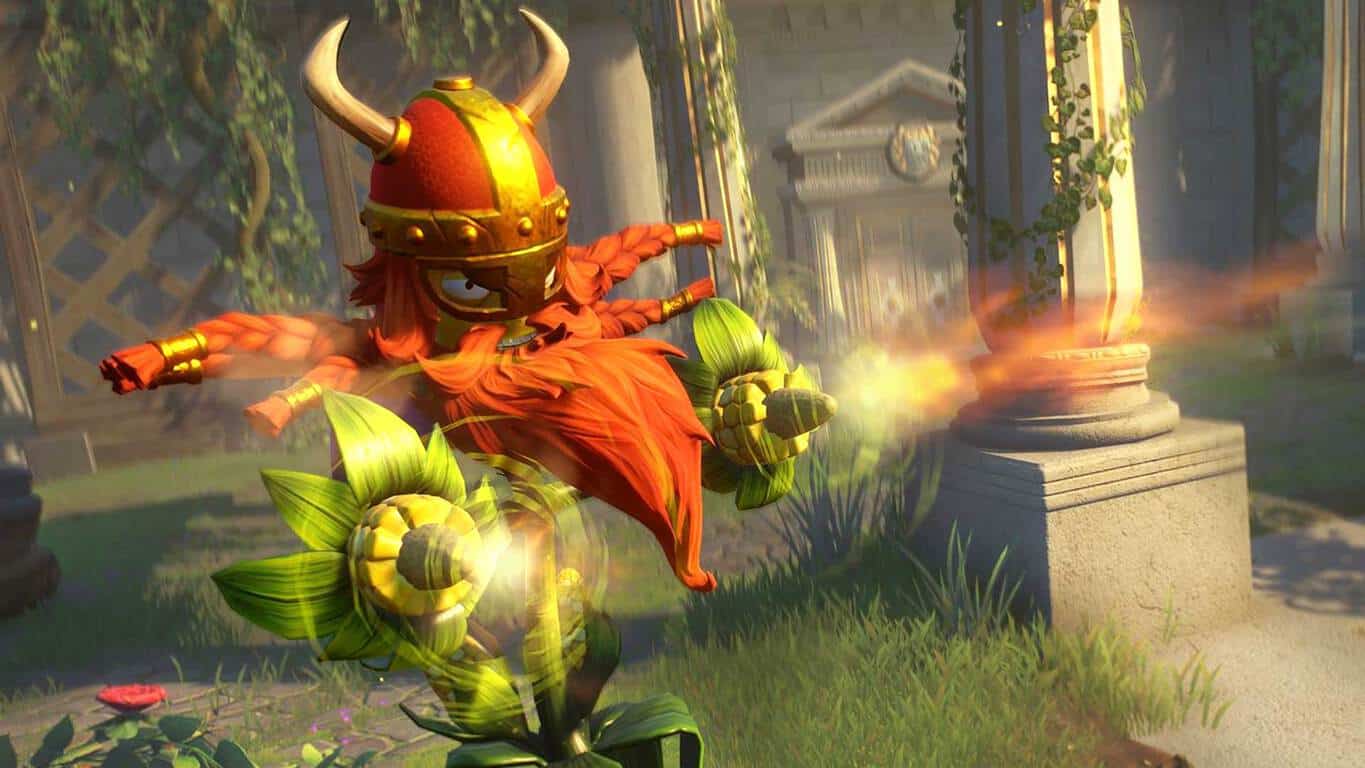
Xbox One’s Plants vs. Zombies Garden Warfare 2 video game just got a big update

A new paid update for the Xbox One’s Plants vs. Zombies Garden Warfare 2 video game has just appeared in the Xbox Store. Named the, Plants vs. Zombies Garden Warfare 2: Festive Edition Upgrade, once it’s purchased and installed, this new upgrade will add 2 new characters and a special customization pack that adds a variety of visual changes inspired by the holiday season.

To coincide with this upgrade release, the full Plants vs. Zombies Garden Warfare 2 game has been re-packaged and re-released as Plants vs. Zombies Garden Warfare 2: Festive Edition. Owners of the regular Plants vs. Zombies Garden Warfare 2 have no need to buy this re-release (they can grab the upgrade pack for the new content) but this is a way for those who haven’t purchased the game yet to do so and enjoy the extra content. Here’s the official description:

Festive Edition Additional Content: 2 new legendary characters. 1 Festive customization packs. 200,000 PvZ CoinsThe battle for suburbia grows to crazy new heights in Plants vs. Zombies Garden Warfare 2! In this hilarious, action-packed shooter, zombie leader Dr. Zomboss has strengthened his horde and rebuilt suburbia as a zombie utopia. Play as both the plants and zombies in new 24 player multiplayer and 4-player co-op modes, or go at it solo or in split-screen across all game modes. Garden Warfare 2 also introduces the Backyard Battleground, your very own interactive hub where you and up to 3 friends can take on daily quests, challenges, and interact with your favorite PvZ characters.*Now featuring online and local split-screen.

Buy the Plants vs. Zombies Garden Warfare 2: Festive Edition Upgrade

Buy Plants vs. Zombies Garden Warfare 2: Festive Edition

Are you a fan of the Plants vs. Zombies Garden Warfare 2 game? Would you recommend it to other gamers? Let us know in the comments below.

Injustice: Gods Among Us and Haunted House get Xbox One backwards compatibility today

Haunted House, Injustice: Gods Among Us, and the disc-only Injustice: Gods Among Us Ultimate Edition are coming to the Xbox One console via the Xbox 360 backwards compatibility feature today. Haunted House is a classic Atari game while Injustice: Gods Among Us is a fighting game feature alternate versions of popular DC Comics characters such as Superman, Batman, and Wonder Woman.

Here are the official game descriptions for each game along with their links to the Xbox Store.

Haunted House

Enter the Haunted House, if you dare. Atari’s classic groundbreaking game is back with more chills, cool new unlockables and plenty of spooky new enemies. Discover hidden secrets, mystical tombs, and new towers and catacombs, as you follow your grandfather’s footsteps on an epic adventure, searching for the magical urn that will lead you to his whereabouts. But beware – danger lurks behind every corner! Are you brave enough for the task, or are you afraid of the dark depths of The Haunted House?

Buy Haunted House on Xbox 360/One

Injustice: Gods Among Us

What if our greatest heroes became our greatest threat? Injustice: Gods Among Us introduces a bold new franchise to the fighting game genre from NetherRealm Studios, creators of Mortal Kombat. Featuring DC Comics icons such as Batman, The Joker, Green Lantern, The Flash, Superman and Wonder Woman, the latest title from the award-winning studio presents a deep original story. Heroes and villains will engage in epic battles on a massive scale in a world where the line between good and evil has been blurred.

Buy Injustice: Gods Among Us on Xbox 360/One

Whether planned or a coincidence, Injustice’s arrival on the Xbox One this week is perfectly timed to coincide with the massive four-part DC Comics TV show crossover on the CW Network featuring Supergirl, The Flash, Arrow, and DC’s Legends of Tomorrow. While Supergirl isn’t in Gods Among Us, Superman is as are a variety of characters from the other CW shows. A sequel to Injustice, Injustice 2, has already been announced and is expected to release on the Xbox One sometime in 2017.

Do you enjoy playing Injustice? Let us know who your favorite characters are in the comments below.

Windows 10 update KB3201845 available to Insiders on the Release Preview ring

Microsoft just released build 14393.479 for Insiders on the Release Preview ring. The new build is available on both Windows 10 PC and Mobile, and Insiders can download it right now. This release updates Windows 10 versions 14393.447 and 14393.448 for PC and Mobile.

Microsoft released the new build in form of a cumulative update. Its changelog is still unavailable, so we assume the new build only addresses some known bugs. The update is dubbed KB3201845 on Microsoft’s knowledge base website.

We’re not surprised with the fact that there’s no changelog. Microsoft rarely releases update notes for cumulative updates. However, if the company decides to release the changelog, it should arrive in a few days. If Microsoft does make the changelog available to public, it will probably appear in Windows 10’s Feedback Hub. As soon as we have more information, we’ll get you updated.

The cumulative update is for now only available to Insiders on the Release Preview ring. Those on the Production Ring (non-Insiders) should receive the update in a few weeks during December’s Patch Tuesday. Although we don’t know what changes the new update brings, we certainly hope it will resolve at least some of the known issues caused by previous cumulative updates for Windows 10.

In case you’ve already installed build 14393.479, let us know in the comments if you’ve noticed any changes.

RELATED STORIES YOU NEED TO CHECK OUT:

Twitter update for Windows 10 brings native gif support

Just when Windows 10 users thought development on the Twitter had ceased, a new update hits the Windows Store bringing with it, native gif support.

While the old Twitter app for Windows 10 allowed for GIF’s to be embedded into tweets, the process was a bit cumbersome as GIF’s had to originate from the user’s device and then applied like an image attachment.

With today’s update, users can now use the handy GIF option when drafting a tweet and search a GIF library directly from within the app.ead over to the Windows Store to snag the update.

Twitter for Windows 10 adds native GIF support

Head over to the Windows Store to snag the update and let us know what you think of the new app addition.

Twitter
Twitter
Developer:
Twitter Inc.
Price:
Free

Microsoft outlines November 2016 updates for Excel 2016 Get & Transform and Power Query add-in

The Office 365 team announced ten new features for Microsoft Excel 2016 today. The additions are focused on providing faster and easier data gathering and utilizing Excel for better insights of large amounts of information. The team said in their blog post that a lot of these were popular requests from users for data preparation.

The new features for Excel 2016 include:

  • Web Connector—UX support for specifying HTTP Request Headers.
  • OData Connector—support for “Select Related Tables” option.
  • Oracle Connector—improved Navigator preview performance.
  • SAP HANA Connector—enhancements to parameter input UX.
  • Query Dependencies view from Query Editor.
  • Query Editor ribbon support for scalar values.
  • Add custom column based on function invocation.
  • Expand & Aggregate columns provide support for “Load More” values.
  • Convert table column to a list—new transformation.
  • Select as you type in drop-down menus.

Many of the new features can be accessed through the Get & Transform section. Office 365 subscriptions should download automatically. If you’re running Excel 2010 or Excel 2013, you’ll be able to download the Power Query add-in from the Microsoft Download Center.

Final Fantasy XV issue: Fishing doesn’t work for some players

Final Fantasy XV is finally available on the Xbox One and PlayStation 4. Fans are delighted to receive the game after 10 years of anticipation. The first reviews of the game are generally positive. However, early adopters report game bugs on  Final Fantasy’s forums.

We’ve found various complaints and some of them are quite strange. For example, one user reported that he’s unable to fish in Final Fantasy XV. Here’s what he said:

“I just got the full game (early for some reason but i don’t mind) and it feels like it is impossible to catch a fish.
Lets say fishing has three steps, finding a fish (slowly pushing RT near a fish), holding the fish (tilting the stick to any direction) and getting the fish.

For some reason I am unable to succeed in the second step.
For example the game tells me to go to left and I go to left but the fish still escapes. It almost feels like it isn’t registering my input. At first I thought it was me, I tried moving the stick slowly, rapidly, repeatedly but nothing works. So at this point I am 90% sure it isnt me and it is the game.
Is there anyone else who has this problem and is there a solution.
I understand that there won’t be many people who have experienced final fantasy nor fishing but I still hope somebody can help.”

According to other users, the problem only persists on Xbox One. Unfortunately, no one from the forums had a proper solution for this problem. So, catching fish in Final Fantasy still remains a mystery for some users. Players hope that Square Enix will fix the problem in some of the future updates. Until then, fishes will remain free in the water.

The fishing bug is not the only problem that bothers players who bought the game. Some of the other issues are too-small fonts, Chocobos, and more.

In case you know what’s going on, let us know in the comments.

RELATED STORIES YOU NEED TO CHECK OUT: