Leaked Video Shows Nintendo Switch 2 Start-up Ahead of Launch

A short video leaked online shows the first public start-up of Nintendo’s new Switch 2 console. The footage, shared by the Russian Telegram channel Pops & Culture, briefly shows the Switch 2 powering on and hitting the setup screen.

Nintendo Switch 2’s start-up screen doesn’t go much further than language selection, though. Like many modern consoles, the Switch 2 seems to lock most features—including game access—behind a day-one update, which hasn’t rolled out yet. That means even if someone has the hardware early, they can’t do much with it.

The start-up does give us something new, though: fresh system menu music. It’s unclear whether that track sticks around in the main UI, but it adds to the trickle of early details now emerging ahead of launch. As Nintendo Soup reports, the Russian leaker isn’t afraid of Nintendo coming after him. Here’s what he said to the publication:

I thought about it first, like, ‘Whoa, what if they’re gonna, like, ban my Switch account?’ I didn’t sign any NDAs. I bought this with my money. I bought it, I didn’t steal it or something like that. Also, Nintendo is from Japan, you know, and they don’t have any official shops in Russia anymore. They don’t have a jurisdiction in Russia.

It’s not like we want to show that, ‘Oh, we got a Switch 2, you didn’t get a Switch 2. No, we just want to show you, like, some content and show that even in Russia, we have a lot of sanctions, you know, a lot of big companies banned us, yeah, yeah, but we want to show all the world that Russia also has, like, just some guys that just want to play video games.

Also read: Nintendo sues Genki for leaking Switch 2 at CES 2025

One thing still unknown is whether physical Switch 2 games will work out of the box or also need that update. For now, those who’ve tried haven’t had success playing even Switch 1 titles.

Nintendo plans to officially launch the Switch 2 on Thursday, June 5. Retailers like Smyths in the UK and Ireland have confirmed midnight launches, and Nintendo’s also dropping big-name games like Mario Kart World and Switch 2 Editions of titles like Tears of the Kingdom, the same day.

Perplexity Labs Can Build Dashboards, Apps, and Reports from Text Prompts

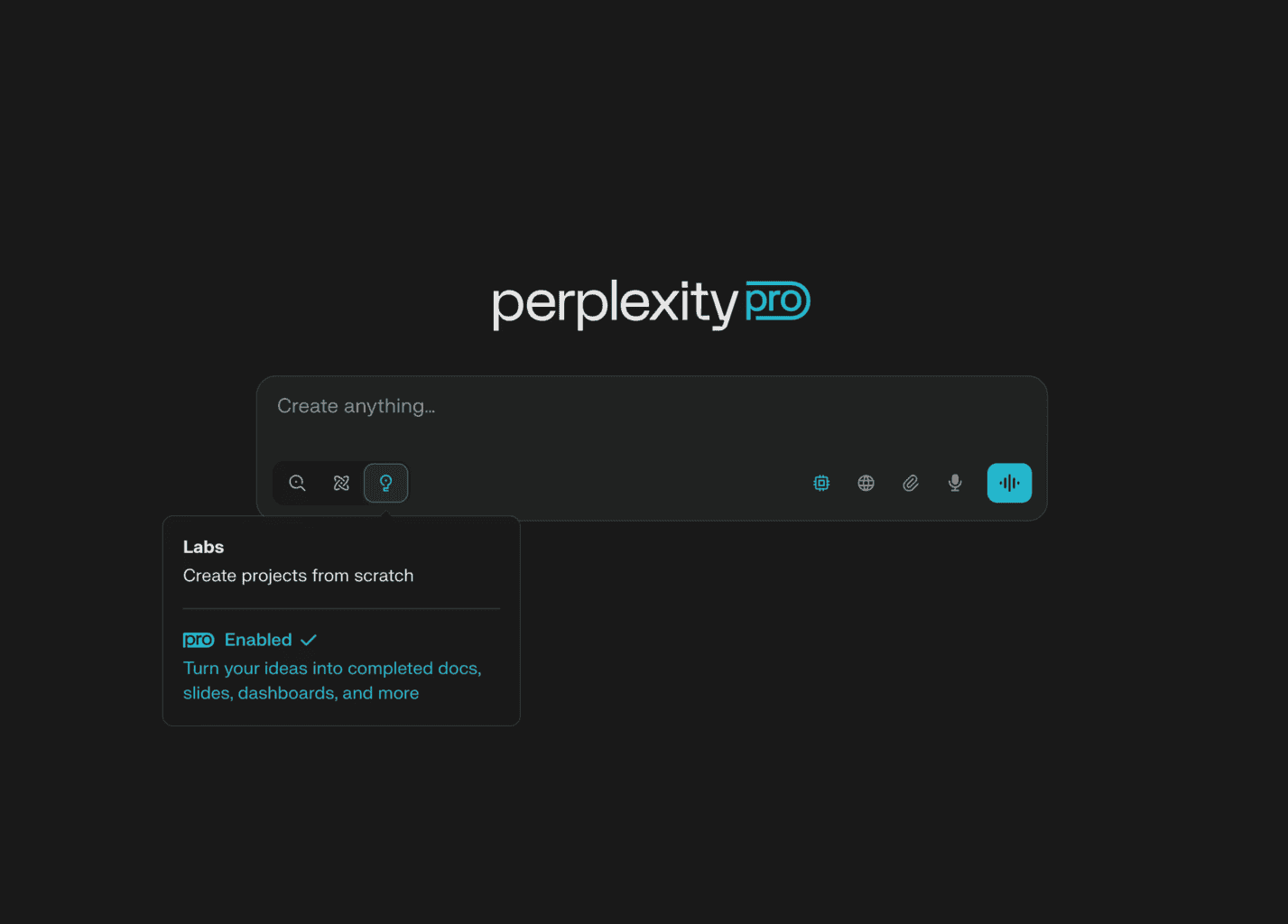
Perplexity is quietly turning into more than a search engine. With a new feature called Labs, the company is testing how far it can push AI beyond text responses. Pro users now get access to something that feels closer to a workbench, where you can build full research reports, charts, spreadsheets, even lightweight apps, just by asking.

Perplexity Labs isn’t just another AI feature

This isn’t a shortcut for one-liner answers. Labs is built to spend time on your request—about 10 minutes per project. Behind the scenes, it reads the web, writes and runs code, makes images or charts, and lays everything out in a workspace. You get a stack of files, visuals, and working pieces you can use however you want.

Perplexity Labs
Image: Perplexity

There’s a new Assets tab that holds every file the AI created while working: graphs, CSVs, code files, text docs, and more. Need a dashboard instead? Ask. Labs can turn your prompt into a live, clickable app—something you can view in a browser tab without building anything yourself.

Also read: Why is Perplexity AI Not Working? 4 Ways to Fix It

Perplexity’s “Deep Search” is also being renamed to “Research” to make room for this new layer. The idea is that Labs handles the heavy jobs, Research handles deep reading, and Search gives you fast answers.

Labs is available now to Pro users on the web, iOS, and Android. Support for the Mac and Windows apps is coming soon. No fancy inputs needed—just type what you need, and let it build.

Gemini AI Can Now Summarize Your Google Drive Videos

If you ever wanted to know what’s in a video without watching the whole thing, now you can.
Google’s Gemini AI can now analyze videos saved in Drive and answer questions about them. This upgrade makes it easier to skim long videos, get summaries, and find key moments without scrubbing through the timeline.

Gemini now summarizes videos in Google Drive

With this new feature, Gemini works on any captioned video stored in Google Drive. Just double-click a video and hit the “Ask Gemini” button in the corner. A side panel pops up where you can type questions or use suggested prompts. Gemini then pulls up answers, highlights, and summaries—all without hitting play.

Video summarization using Gemini in Drive only works on videos with English captions for now. If you’re a regular user, those are auto-generated by default. But if you’re on an enterprise plan, IT admins might have it turned off.

Also read: After Copilot in Edge, We’re Now Getting Gemini in Google Chrome

Available with AI Premium and Workspace plans

To use video analysis in Google Drive, you’ll need the Google One AI Premium plan, which also includes Gemini in Gmail and Docs. Workspace users on Business Standard, Plus, or Enterprise can already access it if captions are enabled.

Also read: How to Turn Off Gemini Apps Activity on PC, Android, iOS

Google says this update is about saving time. “Videos contain a wealth of information, but going back to watch them can be time-consuming,” the company explained.

Meta & Anduril Partner to Build XR Devices for U.S. Military

Meta isn’t just thinking about headsets and metaverses anymore. It’s now working with Anduril—one of Silicon Valley’s controversial defense startups—to build military-grade XR products. Anduril confirmed the partnership with Meta on Thursday.

Meta and Anduril’s partnership will bring XR tech to the Battlefield

Palmer Luckey, who once helped create Oculus (which Facebook bought for $2.3 billion), is also the founder of Anduril. In a post on X, Luckey said Meta’s XR technology will “save countless lives and dollars.”

Anduril, founded in 2017, already makes autonomous weapons that use AI to track and engage targets, without direct human control. It’s not your typical government contractor either. The company doesn’t wait around for funding and often builds and tests products first, then sells directly to defense agencies.

“Meta has spent the last decade building AI and AR to enable the computing platform of the future,” said Mark Zuckerberg, Founder and CEO of Meta. “We’re proud to partner with Anduril to help bring these technologies to the American servicemembers that protect our interests at home and abroad.”

It’s a big move—and a complicated one. The idea of AI-powered mixed reality combat systems isn’t just futuristic, but also raises new questions about how tech shapes warfare.

Anthropic CEO warns AI could replace 20% white-collar jobs within 5 years

Artificial intelligence (AI) has been taking over our daily lives for some good and bad reasons. The bad? It’s replacing humans in the office setup. Now, Anthropic CEO Dario Amodei warns that within five years, AI could wipe out half of all entry-level white-collar jobs, pushing unemployment as high as 20%.

Anthropic CEO warns about AI’s influence in job market

Amodei told Axios that most people don’t realize how fast this is coming. He says the people building AI have a responsibility to be honest about what’s ahead. The CEO warns that without preparation a lot of jobs could disappear suddenly because of AI.

Amodei isn’t against AI — his company recently released a new chatbot called Claude 4 and sees plenty of good uses for the tech. But the CEO says workers need help learning how to work with AI, and lawmakers must act before it’s too late.

“You can’t just stop this train,” he said. “But you can nudge it a little in a different direction. We have to start now.”

Well, Anthropic’s CEO isn’t the first one to comment on the job market situation in the AI’s era. LinkedIn’s Aneesh Raman and investor Kai-Fu Lee also agree that AI will change the job market fast. The time to prepare is now, before the changes hit hard.

Microsoft Brings Edge Game Assist to Everyone

Edge Game Assist, Microsoft’s in-game browser, is now officially out of beta and available to all Windows 11 users. First announced in late 2024, this tool is built into the Game Bar and lets you browse the web without minimizing or tabbing out of your game.

Edge Game Assist streamlines web access while gaming

You just press Win + G, and the browser pops up inside your game. It’s not some stripped-down tool either—it’s a full Edge browser with support for tabs, extensions, history, and even Discord and Twitch shortcuts. It also detects what you’re playing and can suggest guides and tips.

Game Assist is especially useful for checking walkthroughs, updating a Discord status, or looking up item builds—all without leaving the game. You can even keep your gaming tabs separate from work or personal stuff, so you won’t accidentally switch to a spreadsheet while trying to find the next quest objective.

Game-aware, keyboard-friendly, and more to come

During testing, Microsoft added support for more than 80 games and features like “Paste Game Title,” which automatically drops the current game name into the search bar. It’s built for mouse and keyboard use right now, but Microsoft says controller improvements are on the way.

Edge Game Assist works with all PC games, but titles that are fully supported will offer extra perks like optimized layouts and faster load-ins. You can try it now by launching Game Bar and opening the Edge widget.

Windows 11 Canary build 27868 rolls out with new Voice Access update

Windows Insiders on the Canary Channel are getting a fresh preview today with build 27868. As usual, these Windows 11 Canary releases are more about quiet updates than new features, but there’s still something worth noting about the voice access feature.

Windows 11’s Voice Access gets a helpful in-app upgrade with the Canary build 27868

The highlight this time is a small but helpful upgrade to Voice Access. Microsoft added a new in-app experience that makes it easier to explore what Voice Access can do. Users will now get quick access to its latest features, including expanded language support and improved speech recognition. It’s tucked into the settings menu and can be dismissed at any time.

voice-access-feature-discover2
Image: Microsoft

This build also fixes a pen input bug that was breaking inking on some PCs. Another issue that blocked apps like Spotify from launching or installing via the Microsoft Store has also been resolved.

But not everything is smooth. If you use VMware or similar virtualization tools, they may fail to run now when Virtualization-Based Security (VBS) is enabled. Microsoft says the workaround is to manually enable the “Windows Hypervisor Platform” in optional features—something that used to work automatically.

No new builds have dropped yet for the Dev or Beta channels this week. That said, May’s optional updates for Windows 11 24H2, 23H2, and 22H2 are now live outside the Insider program.

The New York Times Licenses Its Content to Amazon for AI Use

Since last year, we’ve been hearing about publishers quietly making deals with AI companies. The Associated Press signed one with OpenAI. Axel Springer followed, bringing Politico and Business Insider into the mix. Dotdash Meredith also inked a deal. Now, The New York Times (NYT) has joined the list—but with Amazon, not OpenAI.

This is NYT’s first-ever AI licensing deal

The New York Times confirmed it has agreed to license its content to Amazon for use across Alexa and other AI platforms. That includes its main reporting, opinion pieces, NYT Cooking content, and even The Athletic’s sports coverage. Amazon is also allowed to use it for training AI models.

Speaking about the deal with employees, CEO Meredith Kopit Levien, told:

The deal is consistent with our long-held principle that high-quality journalism is worth paying for. It aligns with our deliberate approach to ensuring that our work is valued appropriately, whether through commercial deals or through the enforcement of our intellectual property rights

This is the first time The New York Times has permitted its content to be used for generative AI. Financial terms weren’t disclosed.

OpenAI and Microsoft were previously sued

Not to forget, the publishing agency is still suing OpenAI and Microsoft. Back in December 2023, the NYT filed a copyright lawsuit against both companies. It accused them of using paywalled articles without permission. OpenAI admitted to doing so.

Microsoft tried to argue that it should be legal. The case hasn’t been resolved yet, and a judge refused to dismiss it in March, so it’s headed to trial unless there’s a settlement.

Meanwhile, Amazon’s deal with The New York Times looks like a safer, cleaner way forward for AI partnerships. It gives Amazon fresh, premium content. And it gives the Times more control—something it’s been fighting hard to protect.

NVIDIA’s GeForce Now app is now available for Steam Deck

The GeForce Now app is now officially available on the Steam Deck, unlocking cloud access to over 2,200 games. First teased during CES, the native app gives users an easy way to stream titles across platforms like Steam, Epic Games Store, Xbox Game Pass for PC, Ubisoft, and Battle.net.

Perks of having the GeForce Now app on the Steam Deck

Even for games that already run on the Deck, streaming has its perks. The GeForce Now app supports advanced features like HDR, DLSS 4, and NVIDIA Reflex on compatible games. Since everything runs in the cloud, the Deck only needs to handle the video stream. That means more battery life, too.

NVIDIA says streaming through GeForce NOW could stretch battery usage by nearly 50% compared to running games locally. That’s a big win for handheld users. NVIDIA has also shared a guide on how to install GeForce NOW on the Steam Deck.

There’s also the benefit of running games that wouldn’t otherwise work on the Steam Deck. Titles like Oblivion Remastered, Monster Hunter Wilds, Expedition 33, and Microsoft Flight Simulator 2024 are all playable with max settings thanks to the service.

Not to forget, Steam Deck’s docked mode also adds flexibility. Players can connect to a TV and stream the same games on a bigger screen. A free GeForce NOW tier exists for testing, though it comes with queues and hour-long session limits. Right now, NVIDIA is offering a six-month Performance plan for $30. After that, it returns to the standard $50.

DeepSeek releases updated R1 reasoning model

Earlier this year, DeepSeek, a Chinese AI startup, released the R1 reasoning model. It took the AI industry by storm, challenging models from OpenAI and quickly drawing global attention. That’s not all; Microsoft also surprised everyone by bringing DeepSeek R1 to Azure and GitHub later on.

Now, the DeepSeek’s updated R1 model has quietly launched on Hugging Face under the MIT license, allowing commercial use.

This new release is a “minor” upgrade, according to a WeChat post from the company. The model repository includes configuration files and parameters, but no formal documentation or description. Still, it’s massive, clocking in at 685 billion parameters, making it far too large for most consumer hardware.

Despite the low-key update, DeepSeek’s R1 continues to spark debate. U.S. regulators have flagged the startup as a potential national security concern, citing the scale and capability of its models. The fact that the DeepSeek’s updated R1 is now openly available to developers will likely intensify that scrutiny.

For now, DeepSeek’s ambitions seem undeterred. The company continues to push boundaries in reasoning-focused AI, with each release hinting at bigger things to come. Not to forget, Microsoft recently released its Phi-4 reasoning model, which it claims is in line with DeepSeek’s R1.

Elon Musk reportedly tried to block OpenAI’s big AI deal in the UAE

Elon Musk has reportedly tried to insert xAI into a high-profile AI deal between OpenAI and the UAE, warning that the project might hit a wall in Washington without him.

According to The Wall Street Journal, Musk called officials at G42—OpenAI’s partner in Abu Dhabi—and argued that U.S. approval could be tricky unless xAI joined the venture.

OpenAI announced a major agreement with G42 on May 22. The plan is to build a massive 5GW data center cluster in Abu Dhabi, under a global infrastructure push called Stargate. It’s backed by the UAE’s sovereign wealth fund and marks OpenAI’s first overseas expansion of this scale.

The scope is huge—about 26 square kilometers, with power demands on par with five nuclear plants. Unsurprisingly, it’s drawing attention from across the AI industry. Despite Musk’s objections, the deal moved forward.

Sources say Musk got upset after hearing that OpenAI CEO Sam Altman would be joining President Trump on a Middle East tour, just as the UAE project was gaining steam. He then asked to join the trip and eventually did.

Behind the scenes, Musk raised fairness concerns about the deal, prompting Trump’s team to review the terms. But the contract wasn’t changed. One official said part of the job became managing Musk’s reaction.

Trump and his AI adviser, David Sacks, reportedly wanted the deal finalized before the tour ended.

Musk, who co-founded OpenAI but later split over leadership issues, has remained a vocal critic. He launched xAI last year as a direct competitor and was reportedly seen as a strong contender for the same UAE project before OpenAI moved ahead.

Fix: Firefox 139 Update Causes Graphics Issues with NVIDIA GPUs on Windows PCs

Recently, Mozilla released Firefox 139 Stable with NTP background customization, Experimental Link Previews, and other new features. However, if you’re using an NVIDIA graphics card on a Windows PC, this update may cause ‘graphics corruption’ issues. Mozilla has acknowledged the problem in the release notes and has confirmed that a fix is coming in Firefox 139.0.1.

Some users have reported severe artifacting when playing a video or browsing websites on a secondary monitor with a lower refresh rate than their main display. This issue causes visual distortions on the primary monitor, making normal usage difficult.

Mozilla states: “Windows users with certain NVIDIA graphics adapters and multiple monitors running at mixed refresh rates may see graphics corruption after updating to Firefox 139.”

If you’re affected by this issue, you can apply the following fix immediately:

  1. Launch Firefox
  2. Visit about:config in the address bar
  3. Find the preference gfx.webrender.dcomp-win.enabled and set it to false
  4. Restart Firefox

Mozilla has documented this workaround in the release notes, marking the issue as “Unresolved.” A permanent fix is expected in Firefox 139.0.1.

Windows users with certain NVIDIA graphics adapters and multiple monitors running at mixed refresh rates may see graphics corruption after updating to Firefox 139. As a temporary workaround, set the gfx.webrender.dcomp-win.enabled preference to false in about:config and restart Firefox. This issue will be addressed in Firefox 139.0.1.

Azure Sphere May update brings tighter security and control for Legacy access

Microsoft has released the May 2025 update for Azure Sphere, focusing on security and migration tools, but no OS or SDK changes this time. The update introduces new features to manage Legacy access, expired certificates, and device security more tightly.

May 2025 update brings new controls for Azure Sphere (Legacy) access

You can now pause or re-enable Azure Sphere (Legacy) access directly from the Azure portal. This helps organizations verify that no Legacy services are still in use during migration to Azure Sphere (Integrated), which replaces Legacy completely on September 27, 2027.

  • Once paused, any attempt to use Legacy triggers an error, making it easy to spot forgotten use cases.
  • You can temporarily re-enable Legacy if migration isn’t fully complete.
  • New Azure Sphere catalogs now pause Legacy access by default unless they’re created from existing Legacy tenants.

Azure Sphere May 2025 update restricts expired certificate downloads

It should be noted that expired catalog or tenant certificates can no longer be downloaded. While this change doesn’t affect live environments, since expired certificates are already unusable, it improves security posture. Metadata for expired certs is still visible, but download attempts via CLI or portal will return “null” or “not found.”

Option to block device certificates via support

Admins can now request to block individual devices from receiving Azure Sphere-issued certificates. This is useful for lost, stolen, or retired devices. Blocked devices will no longer be trusted by services like Azure IoT Hub. To use this feature, contact [email protected].

Sony drops PS5 price as Nintendo Switch 2 launch nears and Xbox prices go up

Sony is taking on Microsoft and Nintendo in a big way this week. The company just announced a major price drop for the PlayStation 5 (PS5) as part of its annual Days of Play sale, which kicked off yesterday (May 28).

You’ll be able to grab a PS5, bundled with Call of Duty 6 at a dropped price, for just $399.99. That’s a massive $120 off the usual price.

This year’s Days of Play sale is hitting at the perfect time. Nintendo’s next-gen Switch arrives June 5, and Microsoft recently bumped the price of the Xbox Series X from $499.99 to $599.99. Not exactly the best time to be shopping for an Xbox.

Sony’s also offering some other decent deals:

  • $50 off the PS5 Pro
  • $50 off the PS VR2
  • $30 off DualSense Edge controllers

Also read: Sony mulls PS5 price increase in the US as Trump’s tariffs bite

While Sony usually rolls out summer deals, this one feels a bit more targeted towards Microsoft and Nintendo. With rivals either hiking prices or launching new hardware, Sony’s hoping to stay ahead by making the PS5 more affordable for everyone else.

Microsoft 365 brings anonymous file sharing to Android: Here’s how it works

Earlier this year, Microsoft rolled out anonymous file sharing for iPhone and iPad. Now, the company is rolling out the same feature to Android. Microsoft 365 Insiders using Word, Excel, or PowerPoint on Android can now share files from their personal accounts without requiring recipients to sign in.

The update, announced via a Tech Community blog post, makes it easier to send view-only documents to others. No one requires a Microsoft account to open them.

Anyone with the link can view your file in the Microsoft 365 mobile apps, given that you’re using a personal Microsoft account and select the right link setting. If the recipient wants to edit or comment, they’ll still need to sign in.

How anonymous file sharing works on Android

Once you’re signed in with your personal Microsoft account:

  • Open the file in Word, Excel, or PowerPoint
  • Tap Share > Link settings
  • Choose Anyone with the link who can view or edit
  • Tap Apply, then either send the link or copy it to share manually
Microsoft 365 anonymous file sharing
Image: Microsoft

Once sent, recipients can open the file in the app—even if they’re not signed in.

The anonymous file sharing feature on Android is available for users running Version 16.0.18827.20066 or newer of the Microsoft 365 apps. It’s worth noting that if those using an enterprise account still require recipients to sign in to access the file.

For users in China, file sharing on Microsoft’s mobile apps is subject to local privacy laws, including the Personal Information Protection Law.

Windows 11 update KB5058405 crashes with 0xc0000098 error tied to ACPI.sys driver

Microsoft has updated its Release Health dashboard to notify about a new issue with its May 2025 updates, including KB5058405 for Windows 11 22H2 and 23H2. These problems come shortly after similar installation failures were reported with KB5058411 for Windows 11 24H2.

KB5058405 install errors tied to ACPI.sys failure

Some users are running into a serious recovery error after attempting to install the update. The error, marked as 0xc0000098, appears in the Windows Recovery Environment and points to a problem with the ACPI.sys file. That’s a core system driver responsible for power management on Windows PCs.

Here’s what the error looks like:

Your PC/Device needs to be repaired  
The operating system couldn't be loaded because a required file is missing or contains errors.
File: ACPI.sys
Error code: 0xc0000098

The issue seems to stem from a corrupted ACPI.sys file during the update process. This file controls CPU power states (P-states and C-states) and plays a critical role in system stability.

Mostly affecting virtual machines

Microsoft says most regular users shouldn’t be affected. According to the company, this problem shows up mainly in virtual environments, such as:

  • Azure Virtual Machines
  • Azure Virtual Desktop
  • On-premises VMs running on Citrix or Hyper-V

Other issues reported too

While Microsoft has confirmed the ACPI.sys error, other users are seeing different problems. On platforms like Reddit, some have reported 0x8007007e installation errors as well.

Once again, Microsoft’s official troubleshooting steps don’t seem to help. There’s no fix yet. Microsoft says it’s investigating and has listed the issue on the Windows Health Dashboard.

Google Pushes Chrome as Default PDF Viewer on Windows 11

While the race for the default browser on users’ devices is still on, Google has recently started experimenting with showing an info bar at the top when a PDF is opened in Chrome on Windows to prompt users to set it as the default PDF Viewer.

Set Google Chrome as your default PDF Viewer Prompt

“Set Google Chrome as default PDF Viewer” with the “Set as default” option included in the info bar was spotted by us in Chrome dev.

According to a commit message, Google is running an experiment where, if it is active, the prompt will appear at startup when you open Chrome or when a PDF is loaded.

Users can close this info bar by clicking the option at the end.

In our testing, unfortunately, clicking “Set as default” didn’t work on Windows 11 24H2, where Edge is still preferred as the default when it comes to viewing PDFs on Windows 11.

So, showing only the prompt may not help—Google also needs to figure out how Chrome forces the necessary dialog on Windows to choose it as the default from the browser or other installed apps.

The commit message reveals this push is targeted for Chrome on Windows and macOS.

While Google has included a PDF Viewer in Chrome for basic needs, in recent times, the company has improved Chrome’s PDF Viewer with the ability to write or highlight text on PDFs using PDF Annotations and copy and search text in Scanned PDFs.

Chrome PDF Viewer also supports Two Page View, presentation mode, printing the document, and the ability to rotate PDFs in clockwise and anti-clockwise directions. If we are not wrong, Chrome’s PDF Viewer has also been getting upgraded with Material 3 Design Refresh.

Chrome allows users to use it as a PDF Viewer or a third-party PDF app on Windows for their PDF needs. By default, Chrome opens PDFs in it, but you can configure this behavior in settings.

That’s not All. Google is working to boost Chrome speed while you create new tabs with infinite Tabs Freezing feature.

Do you use Chrome’s PDF Viewer? Let us know your thoughts in the comments below.

Soon, you’ll be able to “Sign in with ChatGPT” on third-party apps

OpenAI is looking to bring a new “Sign in with ChatGPT” feature, letting users log into third-party apps using their ChatGPT accounts. The company is reaching out to developers to gauge interest in integrating this feature, a move that could broaden ChatGPT’s already massive footprint.

The “Sign in with ChatGPT” option will be every where soon

ChatGPT boasts around 600 million monthly active users, making it a powerhouse in consumer tech. OpenAI wants to leverage this popularity to branch out into areas like online shopping, social media, and personal devices.

This sign-in feature could put them toe-to-toe with tech giants like Apple, Google, and Microsoft, who’ve long offered seamless single sign-on options for apps.

Earlier this month, OpenAI quietly tested the login feature inside its Codex CLI tool — a command-line coding app. It let developers connect their ChatGPT accounts (Free, Plus, or Pro) directly to their API setup. To sweeten the deal, Plus users got $5 in API credits just for trying it, while Pro users got ten times that.

Sign in with ChatGPT
Image: OpenAI

People are starting to notice. “This is a big deal. ‘Sign in with ChatGPT’ could be everywhere soon,” said Nick Dobos on X. Behind the scenes, OpenAI’s now asking developers what kind of audience they serve — from tiny apps with just a few hundred users to platforms serving millions.

They’re also looking at how companies currently charge for AI features, and whether they’re already tied into OpenAI’s ecosystem through the API. Moreover, there’s still no official timeline or launch window, though — or any clear list of companies that have signed up.

Windows 10 22H2 KB5058481 brings back the clock and boosts calendar

Microsoft has been quite generous in terms of pushing updates to an OS that’s nearing its end. Despite Windows 10’s support deadline just a few months away, Microsoft is still rolling out monthly non-security previews. The latest one is KB5058481 for version 22H2, bringing build 19045.5917.

KB5058481 update brings back the clock and improves calendar in Windows 10 22H2

What’s interesting here is the return of the calendar flyout clock. Microsoft quietly removed it before, and no one really knew why. Now it’s back—no explanation, just a quiet reappearance. On top of that, this update also enhances the Rich Calendar experience.

There are a couple of technical fixes too. KB5058481 addresses some issues with GDI and WinSaS, though Microsoft didn’t go into detail. Still, it’s nice to see these backend problems being sorted, even this late in the game.

As for bugs, there’s one known issue: blurry Noto fonts in Chromium-based browsers, but only on systems using Chinese, Japanese, or Korean.

You can install the update by heading to Settings > Windows Update and selecting Download and install manually. Or, if you prefer, grab it directly from the Microsoft Update Catalog.

Windows 11 users aren’t left out either. If you’re on version 22H2 or 23H2, you’ve got your own non-security update. And version 24H2? That’s been updated too.

Read the complete changelog noted in Microsoft’s support article:

Improvements

Important: Use EKB KB5015684 to update to Windows 10, version 22H2.

[GDI/GDI+]

  • Fixed: Some GB18030-2022 characters in plane 2 are not rendered.
  • Fixed: Some GB18030 characters are rendered wider. Additionally, the sample paragraph is not rendered correctly.

[Mobile Operator Profiles]

  • Updated: Country and Operator Settings Asset (COSA) profiles are updated.​​​​​​​

[WinSaS]

  • Fixed: An issue affecting the Windows Account Sync Consent system in European Economic Area markets, where secondary accounts were not acknowledged, leading to increased server load.

If you installed earlier updates, only the new updates contained in this package will be downloaded and installed on your device.

Windows 11 24H2 KB5058499 brings Copilot and Click to Do upgrades

Just a day after pushing non-security updates for Windows 11 22H2 and 23H2, Microsoft has turned its attention to 24H2. The new optional update, KB5058499, is now available with build 26100.4202, and it brings several feature upgrades and bug fixes.

Click to Do expands with new actions, stylus support, and EU rollout

Click to Do is getting smarter. On both AMD and Intel machines, the app now supports new text actions and adds an “Ask Copilot” button. It’s also rolling out to the European Economic Area with support for Spanish and French. If you use a stylus, you can now assign Click to Do to the shortcut button.

You can now remap the Copilot shortcut (Win + C or Copilot key) and even press and hold to talk directly to it. On Copilot+ PCs, Windows Search now understands natural language and Narrator can generate detailed image descriptions.

Also read: How to Fix Windows 11 Update and Restart Not Working

Settings updates and smaller UI touches

Microsoft added independent Dolby Vision controls with KB5058499, and you can now stream HDR video even with HDR disabled. The System > About page shows a new FAQ section, and the printer rename UI now matches Windows 11’s modern design. More mouse settings have also moved from Control Panel to Settings > Accessibility > Mouse.

Fixes (rolling out gradually)

  • Startup sound should now play correctly.
  • Bluetooth settings no longer freeze when loading devices.
  • Fixed crash in Camera settings.
  • Fixed display issues after sleep on some devices.
  • File Explorer search now works even with disconnected network drives.
  • Fixed touch keyboard bugs in Chinese layout and symbol entry.
  • Fixed typing issues after disconnecting remote desktop sessions.
  • CopyPixels no longer inverts images unexpectedly.
  • UI fixes in MMC (colors, contrast modes).
  • Non-admins can now uninstall printers they’ve added.
  • UHF tuning scan works properly again.
  • USB devices stay connected after sleep.
  • Fixed Windows Hello face login failures after waking from sleep.

Fixes rolling out normally

  • BitLocker on removable drives won’t crash after sleep anymore.
  • Boot screens like BitLocker PIN and Recovery now load faster.
  • Fixed graphics issues that froze some games after upgrading to 24H2.
  • Memory leak in Input Service has been patched.
  • Fixed camera preview issues with Hello Face enrollment.
  • Windows Server 2025 now correctly detects network profiles on new domain controllers.

Known issues

There’s just one bug: Noto fonts may appear blurry in Chromium-based browsers on systems using Chinese, Japanese, or Korean locales.

You can grab KB5058499 from Windows Update — just look under optional updates and hit “Download and install”. Or, if you prefer, head to the Microsoft Update Catalog to get it manually.

Windows Update might soon handle your app updates too, thanks to orchestration platform

Microsoft is testing a new update system that lets third-party apps use Windows Update directly with the help of orchestration platform. As of now, it’s in private preview for developers.

Until now, most apps on Windows used their own update tools. Some run in the background, others pop up when you open the app. Microsoft’s new approach changes that. Apps can now plug into the same update engine Windows uses.

That means developers will get to schedule updates based on battery level, user activity, or even eco-friendly power hours. If an app uses this new system, you’ll see it in your Windows Update history. It also supports native notifications, so you’ll know exactly what changed and when.

Microsoft says it currently supports MSIX and APPX apps. It’s worth noting that some Win32 apps are also allowed, depending on how they’re built. The new orchestration platform will ensure that no IT admins and developers rely on the Microsoft Store for app updates.

While the Microsoft Store has improved, a lot of big apps are still missing. Microsoft tried to fix this with the Windows Package Manager, but that tool never went mainstream. As of now, the feature is only available in private preview. But if it works well, it could simplify app updates across Windows.

Testing Begins for Xbox Gaming Copilot on Mobile Devices

Microsoft is testing a new AI assistant to improve mobile gaming support through the Xbox app. The new Copilot for Gaming (Beta) feature helps players ask game-related questions without interrupting play in the Xbox beta mobile app on iOS and Android.

It works on a second screen, so the main game stays in focus. You can type or use voice commands to get answers in real time.

How the Xbox gaming Copilot handles your game questions

Copilot knows what game you’re playing and answers based on that, your profile, and Bing search results. Players can ask about crafting in Minecraft, beating a boss, or understanding achievements. The Copilot for Gaming is built to answer questions that would normally pull you away from gameplay. It keeps the support fast, accurate, and in context.

Game recommendations are also part of the experience—just ask what to play next or mention your favorite genre. You can ask about horror games, recent RPGs, or Xbox titles that fit your mood. The Xbox gaming Copilot responds with suggestions tailored to your taste and game history. It’s designed to make exploring new titles easier.

Copilot also answers questions about your account, like Game Pass renewals or past achievements. You can ask about your gamerscore or find your rarest achievement with a quick prompt. The Xbox gaming Copilot pulls from your data to give fast, personal answers. It’s all about less searching and more playing.

The beta is open to players over 18 in the U.S., Japan, and a few other regions. Android users can try it now by updating the Xbox mobile app. iOS and Windows users will get access soon, along with more updates. Keep asking questions and giving feedback—it’ll shape what Copilot becomes next.

Xbox Games Showcase 2026: When & How to watch, What to expect

The Xbox Games Showcase is Microsoft’s premier annual event spotlighting upcoming titles from its first-party studios and third-party partners. Traditionally held in June, it offers gamers a glimpse into the future of Xbox, including new game announcements, gameplay trailers, and updates on existing projects.

When is Xbox Games Showcase 2025 Event?

Xbox Games Showcase 2025 will be livestreamed on Sunday, June 8, 2025.

When will Xbox Games Showcase 2025 will livestream?

  • PDT: June 8, 10am
  • EDT: June 8, 1pm
  • BST: June 8, 6pm
  • CEST: June 8, 7pm
  • JST: June 9, 2am
  • AEST: June 9, 3am

The Outer Worlds 2 Direct will sream immediately after the main showcase

What to Expect?

The showcase will highlight upcoming titles from Xbox’s first-party studios and third-party partners. Anticipated announcements include updates on Gears of War: E-Day, Fable, Perfect Dark, and State of Decay 3 . Additionally, new titles like Doom: The Dark Ages and Borderlands 4 are expected to be featured.

How to Watch Xbox Games Showcase 2025 Event?

The event will be streamed live on:

The showcase will be available in over 40 languages, including American Sign Language, British Sign Language, and English audio descriptions. For more details and to set reminders, visit the official Xbox events page.

Opera’s new AI-powered Neon browser wants to use the web for you

AI isn’t just speeding up search—it’s starting to do the work itself. That’s the idea behind the new Opera Neon browser, a so-called “AI agentic browser” built to handle tasks on your behalf.

Opera Neon might be the first ‘AI agentic browser,’ but you have to wait to try it out

Opera says the new AI browser can research, design, and build things for you—whether that’s a website, a short report, or even a game. It runs on cloud-based AI agents and keeps working even if you’re offline.

Opera-Neon_Hero_Light-Mode-2048x1152
Image: Opera

“We’re at a point where AI can fundamentally change the way we use the internet,” said Henrik Lexow, Opera’s senior AI product director. “Opera Neon brings this to our users’ fingertips.”

Opera Neon can code too
Image: Opera

Opera says that this Neon browser’s biggest feature is its AI engine, which the company claims can “understand and interpret” what you ask. The browser then creates it for you—whether it’s code, a design, or something more interactive.

Opera Neon browser
Image: Opera

The Neon browser also includes the AI Agent Opera, which was shown off earlier this year, under the name Browser Operator. It can shop, fill out forms, and handle bookings—all by interacting with page content directly in your browser, not the cloud.

Opera Neon
Image: Opera

The Neon browser from Opera also has a Copilot-style chatbot to help with search and explain what’s on your screen. Still, we don’t know when it’s coming out or how much it’ll cost, beyond being “premium.” You can join the waitlist now, but the full beta launch date is still a mystery.

Early GeForce RTX 5090 prototype leaked with quad 16-pin power connector setup

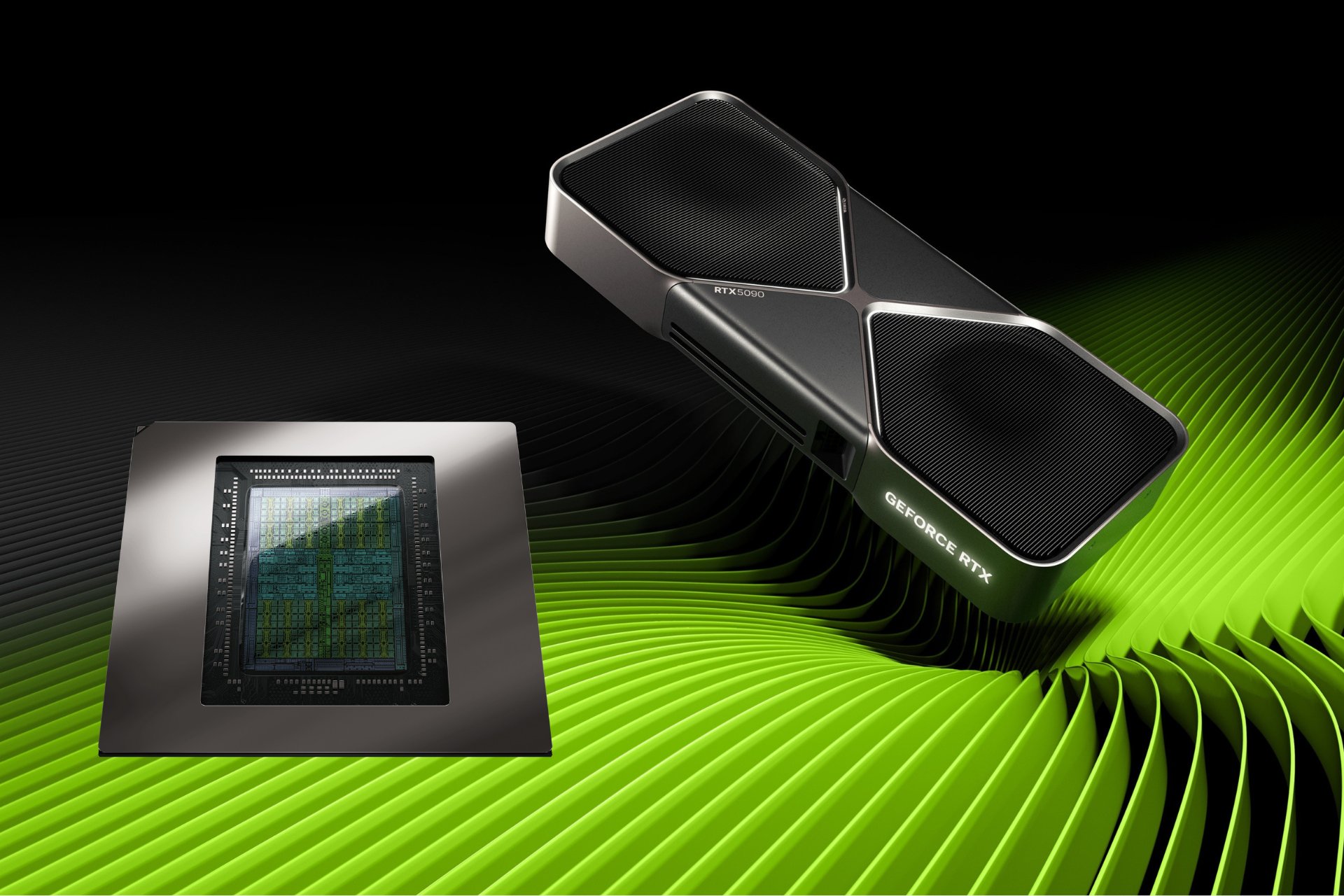
A new image has leaked online, showing what appears to be a wild early prototype of NVIDIA’s GeForce RTX 5090. This leaked version looks nothing like the final product but gives us a rare peek into how NVIDIA builds and tests its flagship cards.

Spotted by X user YuuKi_AnS (via Winfuture.de), the RTX 5090 leaked prototype shows an unusually complex PCB layout and four separate 16-pin power connectors. That setup alone suggests NVIDIA was stress-testing for extreme power draw.

If all ports were used, this thing could theoretically consume up to 2,400 watts. For context, the retail RTX 5090 tops out at 575 watts, already pushing the limits of most PC cooling setups.

GeForce RTX 5090 leaked prototype
Image: X/@yuuki_ans

The image also shows diagnostic pins and USB ports, which are typical for engineering samples. Interestingly, the board was physically cut in half, likely for closer inspection or component isolation. Some speculate this could even hint at an early build for a future RTX 5090 Ti or workstation-level RTX Pro 6000 Blackwell model.

The prototype’s multi-layer PCB design suggests NVIDIA was experimenting with better thermal and power delivery performance. That lines up with what we know about the Blackwell architecture—smaller manufacturing nodes and improved efficiency across the board.

And this isn’t the first test board we’ve seen. An earlier leak from January showed a different 5090 prototype with two connectors and a rumored 800-watt TDP. That version reportedly packed more CUDA cores than what will ship in the final product.

SteamOS on Lenovo Legion Go S beats Windows 11 in gaming performance

Lenovo launched the Legion Go S earlier this year, which is the first third-party handheld to officially ship with SteamOS. However, early tests have shown that SteamOS outperforms Windows 11 significantly in terms of gaming performance.

Recently, YouTuber Dave2D (via Windfuture.de) put both SteamOS and Windows 11 versions to the test, and the results were hard to ignore. In games like Cyberpunk 2077, SteamOS pulls ahead with almost 60 FPS, while the Windows 11 version struggles to hit 46. Titles like Doom Eternal and The Witcher 3 also ran better, showing frame rate boosts of 12 to 13 percent.

SteamOS isn’t just faster than Windows 11 in terms of gaming performance, but it is also more efficient. In lighter games like Dead Cells, battery life doubled under SteamOS, lasting over six hours. Even with a heavy-hitter like Cyberpunk 2077, you still get an extra 23 minutes of gameplay on the same hardware.

Windows SteamOS battery life comparison
Image: YouTube/@Dave2D

That difference comes down to how each OS handles system resources. SteamOS, built on Linux, is tuned specifically for gaming and handheld use. It runs fewer background processes and uses AMD’s Vulkan drivers, which perform better on Linux than on Windows in many cases.

On the other hand, Windows 11 was never really designed for small gaming handhelds. It’s powerful, sure—but also heavy. Fans spin up more often, the standby is less reliable, and the overall battery life suffers.

That’s not all; SteamOS has other benefits, too. It doesn’t require a license. That means future devices might be cheaper if they skip Windows entirely. The Legion Go S still ships with Windows right now, but that might change.

Microsoft announces Windows Backup for Organizations in limited public preview

Microsoft has announced Windows Backup for Organizations in public preview. It’s designed to help IT teams speed up device recovery.

The new Windows tool allows organizations to backup user settings, pinned apps, and preferences from Windows 10 or 11 devices. Those backups can then be restored on a new or reset Windows 11 device, helping users resume work faster.

Microsoft says this Backup tool is especially useful for organizations planning to move from Windows 10 before support ends in October 2025. Remember, this feature is built for Microsoft Entra-joined devices that are managed through Microsoft Intune.

When users log in with their Entra ID, their layout and preferences will appear automatically. Admins can use Intune to set up and manage backup policies and control what gets restored. Backups are tied to user identity, not hardware. This means if a laptop is lost or replaced, the next device can be set up with the same user environment.

The new Windows Backup tool for organizations also supports app provisioning through Intune. That means pinned apps are restored with deep links to Microsoft Store, Win32, or enterprise apps.

It’s worth noting that organizations must enroll in Microsoft’s Management Customer Connection Program (CCP) to try the new Windows Backup tool. Besides that, their devices must also meet key requirements. Specifically, the source device must be running Windows 10 or 11 and enrolled in Intune.

That’s not all; the restore must happen on a Windows 11 device, version 22H2 or newer. As of now, the preview is limited, so access will be granted on a rolling basis. You can sign up to join the public preview through this link.

Firefox 140 Beta brings custom search engines, tab unloading & more user control

Just yesterday, Mozilla released Firefox version 139 with multiple changes like custom wallpapers and link previews. Today, the company has released Firefox 140 beta update, which brings a bunch of new features for you to test.

In Firefox beta version 140, you can choose your own custom search engines. If you prefer something outside the usual options, like Ecosia or other regular search engines. You can right-click on a supported website’s search field and choose “Add Search Engine,” or head to Settings > Search > Add to enter one manually.

Also read: 7 Best Private Search Engines For Windows 10 & 11 In 2025

That’s not all; Firefox now lets you remove the Extensions button from your toolbar entirely with the 140 beta update. Not to forget, you can still access your add-ons from the main menu if you change your mind. It’s a small change, but it adds to the growing flexibility Firefox is offering.

On the performance side, you’ll also find a new option called “Unload Tab” in the Firefox 140 beta update. You can now right-click any open tab and unload it if it’s hogging memory. The feature is great for freeing up some RAM on the go.

Also read: 10 Best Browsers for Windows 11: Safe, Fast & Gaming-Friendly

For those who use vertical tabs, there’s a visual improvement too. You can drag the divider to keep more pinned tabs visible. Firefox 140 beta update is available now if you want to give these updates a try. You can grab it directly from Mozilla’s official site.

Notion is now available in the Microsoft Store for Windows users

Here’s some good news if you use Notion on Windows—you can now grab it directly from the Microsoft Store. Microsoft announced this change just days ago at Build 2025, and it didn’t take long to roll out.

Notion confirmed the launch on X with a simple message: “Heads up! Notion is finally in the Microsoft Store. Go wild, Windows friends.” If you’re not familiar, Notion is an all-in-one productivity app where you can take notes, manage projects, write docs, track tasks, and collaborate with others.

It’s already been popular across devices, and now it’s even easier to install on Windows PCs—no browser or account setup needed. Just open the Store, search for Notion, and click download.

There’s a catch, though. The Store listing says Notion requires 8GB of RAM, even though the official system requirements only mention Windows 10 21H2 or newer. You can download Notion from the Microsoft Store here.

This is part of Microsoft’s push to improve the Microsoft Store and make it more useful for you. At Build 2025, the company also shared that individual developers can now publish apps without paying the old $19 fee.

The Best Ways to Stay Connected in the Emirates: eSIMs and More

The United Arab Emirates is synonymous with luxury, attracting travelers who seek world-class experiences, unparalleled service, and cutting-edge innovation. From private desert safaris to personalized shopping extravaganzas, tourism in the Emirates offers the ultimate exclusivity.

However, many travelers face the hurdle of staying connected on their smartphone and other devices. Without cell phone coverage or a reliable internet connection, it becomes much more difficult to contact family and friends, conduct business, or make plans.

Fortunately, there are several solutions to keep you online and the calls coming through.

Can you rely on your existing cell phone carrier?

While many cell phone carriers can provide coverage and data in the Emirates, it’s not a good idea to rely on your existing plan.

Your home carrier will charge additional fees for using your phone internationally. These fees can be quite high, especially for data usage, so it’s essential to check before you travel to understand their roaming policies and charges.

5 Best Ways to Stay Connected in the UAE

Let’s take a closer look at the most reliable and affordable options:

1. eSIMs (embedded SIM cards)

Our current go-to when traveling anywhere, but especially in the Emirates, is an eSIM. 

Unlike traditional, physical SIM cards, eSIMs do not need to be physically inserted or removed. Instead, they can be activated and managed electronically,

A UAE eSIM ensures uninterrupted connectivity, allowing you to navigate effortlessly, book experiences on the go, and stay in touch with personal assistants or concierge services. 

Many eSIM providers allow you to choose from various data plans and validity periods, making it easy to select a plan that fits your travel needs and budget.

The main benefits of using an eSIM in the UAE include:

Affordability: eSIM providers offer competitive pricing for international data plans. These are cheaper than paying for roaming fees or international plans with your home carrier. Part of the cost savings come from the fact that no physical SIM card is required.

Convenience: You can purchase a plan online before you travel, activate it upon arrival, and avoid the need to visit a physical store in the UAE. There is also no switching of physical SIMs, since it is all dealt with digitally.

Renewable: Because you can manage your eSIM online, it is easy to upgrade or extend the plan.

Security: eSIMs can be programmed to resist cloning, making them more secure than traditional SIM cards. 

2. International Plans

Before setting off, it’s worth contacting your existing carrier to check if they have any international plans or add-ons for the Emirates. 

These allow you to use your phone at a more reasonable rate than relying on international roaming. 

You can typically choose a set amount of data, texts, and minutes for a set fee, which can help you control your costs while traveling.

A key benefit is that you keep your existing number, provider, and SIM. The downside is this will usually still cost more than your home plan.

3. Prepaid SIM Card

Before eSIMs, a good option was a prepaid SIM card. In some cases, you might still go this route.

This involves purchasing a local prepaid SIM card upon arrival in the UAE from providers like Etisalat or Du.

They are quite easy to find as the airport will have an outlet, and they are available at various retail locations throughout the country. Your hotel or accommodation will also be able to advise you.

Like eSIMs, prepaid SIMs offer numerous plans to suit your needs and are designed for temporary use to cover you during the trip.

4. Local Plan

In rarer cases, you might consider a rolling contract with one of the local carriers. This is useful if you are staying for an extended period of time or make many trips throughout the year.

You must consider the cost benefit, as pricing is comparatively cheaper per month but only if you stay long enough.

5. Wi-Fi Hotspots

The final option is to rely on free or paid Wi-Fi hotspots. Wi-Fi is widely available at hotels, malls, restaurants, and other public places in the Emirates.

If you are traveling on a budget or do not require constant connectivity, it’s a reasonable solution.

One of the key benefits is that it doesn’t matter what type of device you are using. For example, it’s much easier to connect a laptop to public Wi-Fi than via a mobile hotspot.

Keep in mind, though, that these networks may not be as secure, so it is a good idea to use a VPN.

How do I connect my Windows laptop or computer in the UAE?

So, your phone is connected but what about your Windows laptop or computer? The good news is there are several methods to do this too.

Of course, public Wi-Fi is one option, but for a more stable connection you can use these methods:

eSIM Compatible Laptops: While eSIMs are more commonly associated with smartphones, some laptops also support eSIM technology. This allows you to use the data from your UAE eSIM on the laptop. Popular eSIM compatible laptops include the Microsoft Surface Pro X, Lenovo Yoga C630, and Dell Latitude 9510.

SIM Compatibility: Similarly, many laptops also have a physical SIM card slot to make use of the data on your international, prepaid, or local SIM plans.

Mobile Hotspot: A mobile hotspot is a way to use your phone’s connectivity on your laptop or computer. All modern smartphones have a hotspot or tethering setting. Simply turn this on and connect to it like Wi-Fi. What’s great about this is you can often use your phone’s eSIM for the hotspot.

Conclusion

Although staying connected in the United Arab Emirates first seems like a hurdle, it’s easy once you know how.

The best method is to purchase a UAE eSIM online. It’s convenient and affordable and can even work as your mobile hotspot for computers and laptops.

You might also consider an international plan with your existing carrier, prepaid or local plans, or public Wi-Fi?

Do you travel to the Emirates? Let us know how you stay connected in the comments below!  

Microsoft Teams now shows chat in screen share mode, privately to the presenter

Microsoft has been constantly updating Teams with new features. Last week, the company added support for reacting to a message using multiple emojis. Now, Microsoft is making it easier to chat during screen sharing in Teams.

If you’ve ever shared your screen in a Teams call and struggled to keep up with chat messages, this update is for you. Microsoft Teams now lets you open a dedicated chat window while presenting. The best part? It’s only visible to you—even if it’s on the screen you’re sharing.

Private Chat While Presenting Microsoft Teams
Image: Microsoft

Thw new chat overlay lets you keep an eye on questions or feedback during your presentation without breaking focus. You can respond with a message or just drop a quick reaction, and the chat stays pinned wherever you place it. If it’s blocking something, you can move it or minimize it entirely.

“Many of you told us how important it was to be able to see and respond to chats while presenting in a Teams meeting – and now this is possible!” Microsoft noted in a Tech Community post. “This enables you to stay on top of participant input and looped into crucial conversations.”

To use the feature, start sharing your screen and click the “Chat” button on the meeting toolbar. You’ll get a message confirming that only you can see the chat window.

Also read: Microsoft Teams to block screen capture during meetings starting July 2025

The new chat experience is available now for users in the Teams Public Preview or Microsoft 365 Targeted release, as long as they’re using the new Teams client on Windows or macOS.

Microsoft releases emergency fix for Hyper-V freeze bug on Windows Server 2026

Microsoft has released an emergency fix for Windows Server 2025 to stop Hyper-V virtual machines from freezing or restarting without warning.

It’s worth noting that Azure confidential VMs mostly face this issue, as they’re built to secure data during processing. The freezes happen due to how the system handles memory paths using guest physical addresses (GPA). The bug could cause VMs to lock up or reboot randomly, impacting uptime and requiring manual fixes.

To solve this, Microsoft released KB5061977 as an out-of-band update. It replaces all earlier patches and targets a specific problem in the Hyper-V direct send path. According to Microsoft, this update mostly matters to Azure confidential VMs and shouldn’t affect standard Hyper-V setups, unless you’re using preview builds or test environments.

You can fix the Windows Server 2025 Hyper-V freeze via manual update

The fix won’t show up through Windows Update. If your servers are affected, you’ll need to download and install the standalone MSU package from the Microsoft Update Catalog. This isn’t the first time Hyper-V has had issues.

Microsoft has released several emergency patches this month. In mid-May, the company released Hotpatch KB5061258 for Windows 11 LTSC 2024. The latest out-of-band KB5061977 update comes right after Microsoft released KB5058502 Preview update that brought new Copilor shortcuts, and more to Windows 11 22H2 and 23H2.

Windows 11 KB5058502 Preview brings new Copilot shortcuts, improved widgets & more

We just headed into the last Tuesday of the month, and Microsoft has released yet another preview update, KB5058502, for Windows 11, targeting versions 22H2 and 23H2 with builds 22621.5413 and 22631.5413.

As always, this is a gradual rollout, so not everyone will see it right away. You can check the rollout status on the Windows release health dashboard.

Copilot gets more shortcuts

This update adds new ways to launch and interact with Copilot on Windows:

  • Win + C now opens Copilot. You can customize this in Settings > Personalization > Text input.
  • Hold Win + C (or the Copilot key) for two seconds to talk to Copilot.
  • Press Alt + Spacebar to speak with Copilot instantly.
  • Stay silent or press Esc to exit voice interaction.

Microsoft says these features will help users multitask while chatting with Copilot.

Taskbar, Settings, and Widgets get smarter

  • You’ll now see a new FAQs section under Settings > System > About, with answers to setup and compatibility questions.
  • Admins can control which taskbar apps stay unpinned using a new PinGeneration option.
  • The Lock screen weather widget in the EEA now supports customization.
  • Expect more lock screen widgets to become customizable soon.

Windows Share gets drag-and-drop

Dragging a local file now triggers a share tray at the top of your screen. You can drop the file into suggested apps or launch the full share window.

Bug fixes

  • Voice typing now works correctly with the Chinese (Simplified) narrow keyboard.
  • Page switching in the Symbols section no longer enters characters in password fields.
  • Voice access no longer gets stuck on “working on it” while dictating.

This is a non-security preview update, meant for testing before the June Patch Tuesday rollout.

New PC migration tool in Windows 11 will make switching devices easier

Setting up a new PC is thrilling, until moving everything over comes along. Migrating files, reinstalling programs, and reapplying your settings can become a pain in no time. Microsoft is aware of this and is finally taking action. 

The new PC-to-PC migration feature coming to Windows 11

In the latest Windows 11 beta, Microsoft is introducing a new PC-to-PC migration experience. It’s integrated into the Windows Backup app and intended to make changing devices less agony.

The rollout is currently in its initial stages. If you’re on the beta channel, you may see a new landing and pairing page within the Backup app. It doesn’t accomplish much as of yet, but it provides a first look at what’s in store.

At some point, this feature will enable you to carry over files and settings from your previous PC to a new one during setup. Support for migrating during first-time setup will come in a later update, Microsoft reports.

Even if you’re on the latest beta build, you may not experience the new feature. And if you do, it’s not working yet. Microsoft has not indicated when full support will be available, but it’s apparent that this is something users have requested.

Microsoft urges users to update Windows install images to close early Defender security gap

Microsoft is warning users about a security issue affecting fresh Windows installs. A “Microsoft Defender protection gap” was caused by outdated antimalware binaries in installation images.

Why outdated images are risky

If you install Windows using an image that hasn’t been updated recently, Microsoft Defender won’t offer full protection right away. Until it receives the latest definitions and software patches, your device could be exposed. That’s especially risky during those first few hours after setup, before Windows Update kicks in.

Microsoft explains that this gap can also affect devices running third-party antivirus software, since Defender still handles some core security functions. The company says updated Defender binaries not only improve protection but also enhance system performance.

Microsoft recommends quarterly updates

To minimize risk, Microsoft wants IT admins and users to update installation images every three months. This includes versions of Windows 11, Windows 10 (Home, Pro, and Enterprise), and Windows Server (2016, 2019, and 2022).

Updating the image means injecting the latest Defender binaries using PowerShell. Microsoft has published detailed instructions for doing this manually.

If you’re managing virtual machines, setting up new PCs, or reinstalling Windows regularly, it’s worth taking the time to update your image files. That way, Defender protection kicks in immediately—no delay, no gaps.

Mozilla Firefox 139 is rolling out with translation, customization features & more

Mozilla Firefox 139 is now rolling out with several useful features that boost personalization, translation, and performance. The update also introduces a new experimental tool called Link Previews.

What’s new in Mozilla Firefox 139

The latest version lets you translate extension pages that use the moz-extension:// address. This is something users have requested for a while, and Mozilla’s now made it possible.

139_extension_translation
Image: Mozilla

You’ll also find more ways to personalize the new tab page. Mozilla Firefox 139 lets you upload your own wallpapers and pick any custom background color.

139_custom_colors
Image: Mozilla
139_custom_wallpapers
Image: Mozilla

There’s a new built-in “Celestial” wallpaper set, too. These features are gradually rolling out, but you can enable them early through Firefox Labs.

Also read: Firefox Finally Lets You Remove the Extensions Button from the Toolbar

Link Previews is an experimental feature you can turn on in Firefox Labs. Once it’s enabled, you can hover your mouse over any link and press Alt + Shift to get an AI-generated summary of the page. It’s designed to save you time before clicking through a link while browsing the web in version 139 of the Mozilla Firefox browser.

139_link_preview
Image: Mozilla

Firefox 139 update also improves how the browser handles PNG transparency when pasting images. Upload performance is better with HTTP/3 connections, especially on high-latency or resumed transfers using QUIC 0-RTT.

There’s a limitation, though. Firefox can no longer directly import Chrome passwords or payment data due to Chrome’s new encryption methods on Windows. Still, you can export Chrome passwords to a CSV and import them manually. Mozilla has also confirmed that its Review Checker tool will be discontinued after June 10, 2025.

Also read: Firefox Update Will Prompt Users to Accept Terms of Use at Startup with Opt-Out options

You can get the update by going to Menu > Help > About Firefox, or downloading it from Mozilla’s site or the Microsoft Store.