Xbox Games Showcase 2026: When & How to watch, What to expect

The Xbox Games Showcase is Microsoft’s premier annual event spotlighting upcoming titles from its first-party studios and third-party partners. Traditionally held in June, it offers gamers a glimpse into the future of Xbox, including new game announcements, gameplay trailers, and updates on existing projects.

When is Xbox Games Showcase 2025 Event?

Xbox Games Showcase 2025 will be livestreamed on Sunday, June 8, 2025.

When will Xbox Games Showcase 2025 will livestream?

  • PDT: June 8, 10am
  • EDT: June 8, 1pm
  • BST: June 8, 6pm
  • CEST: June 8, 7pm
  • JST: June 9, 2am
  • AEST: June 9, 3am

The Outer Worlds 2 Direct will sream immediately after the main showcase

What to Expect?

The showcase will highlight upcoming titles from Xbox’s first-party studios and third-party partners. Anticipated announcements include updates on Gears of War: E-Day, Fable, Perfect Dark, and State of Decay 3 . Additionally, new titles like Doom: The Dark Ages and Borderlands 4 are expected to be featured.

How to Watch Xbox Games Showcase 2025 Event?

The event will be streamed live on:

The showcase will be available in over 40 languages, including American Sign Language, British Sign Language, and English audio descriptions. For more details and to set reminders, visit the official Xbox events page.

Opera’s new AI-powered Neon browser wants to use the web for you

AI isn’t just speeding up search—it’s starting to do the work itself. That’s the idea behind the new Opera Neon browser, a so-called “AI agentic browser” built to handle tasks on your behalf.

Opera Neon might be the first ‘AI agentic browser,’ but you have to wait to try it out

Opera says the new AI browser can research, design, and build things for you—whether that’s a website, a short report, or even a game. It runs on cloud-based AI agents and keeps working even if you’re offline.

Opera-Neon_Hero_Light-Mode-2048x1152
Image: Opera

“We’re at a point where AI can fundamentally change the way we use the internet,” said Henrik Lexow, Opera’s senior AI product director. “Opera Neon brings this to our users’ fingertips.”

Opera Neon can code too
Image: Opera

Opera says that this Neon browser’s biggest feature is its AI engine, which the company claims can “understand and interpret” what you ask. The browser then creates it for you—whether it’s code, a design, or something more interactive.

Opera Neon browser
Image: Opera

The Neon browser also includes the AI Agent Opera, which was shown off earlier this year, under the name Browser Operator. It can shop, fill out forms, and handle bookings—all by interacting with page content directly in your browser, not the cloud.

Opera Neon
Image: Opera

The Neon browser from Opera also has a Copilot-style chatbot to help with search and explain what’s on your screen. Still, we don’t know when it’s coming out or how much it’ll cost, beyond being “premium.” You can join the waitlist now, but the full beta launch date is still a mystery.

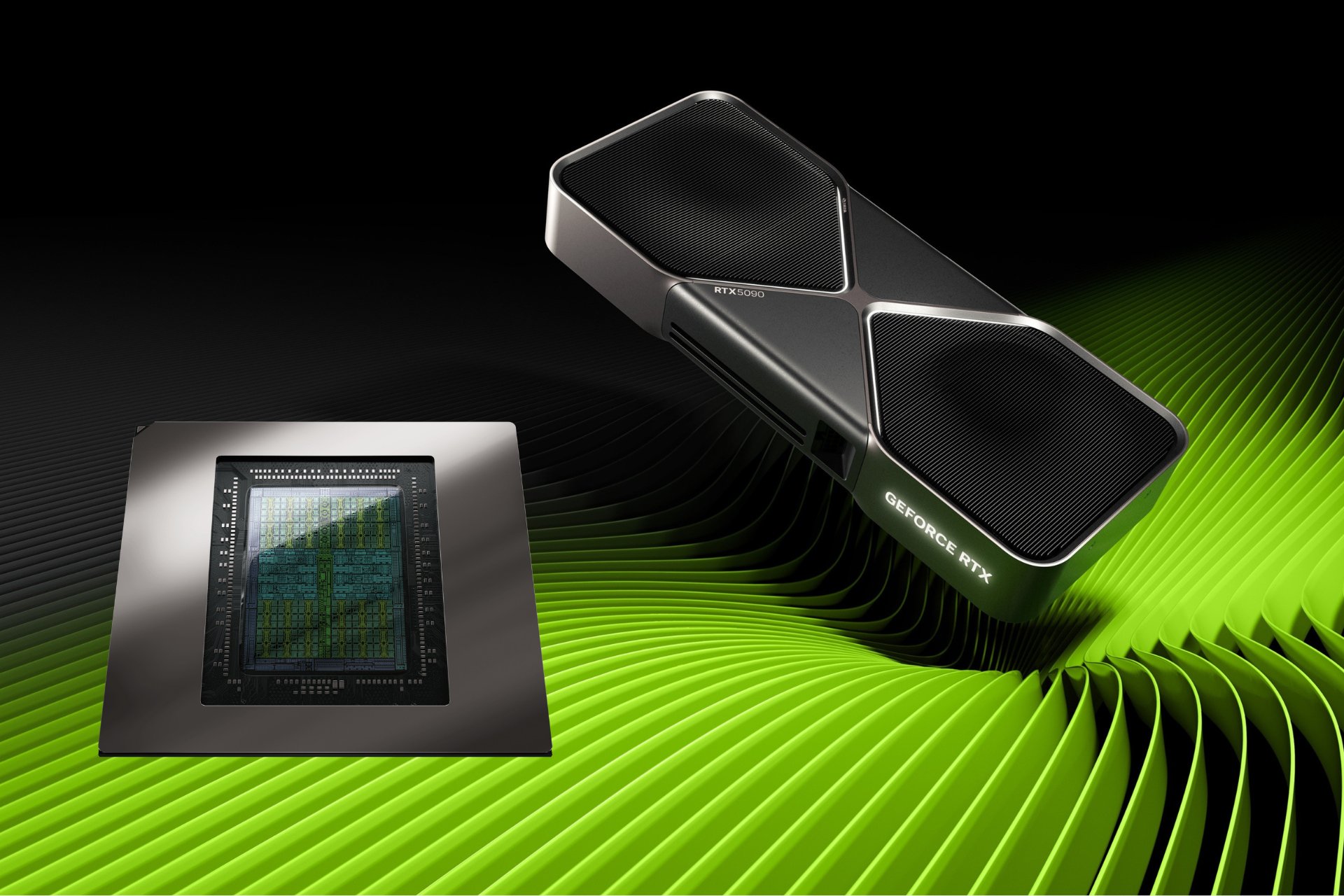
Early GeForce RTX 5090 prototype leaked with quad 16-pin power connector setup

A new image has leaked online, showing what appears to be a wild early prototype of NVIDIA’s GeForce RTX 5090. This leaked version looks nothing like the final product but gives us a rare peek into how NVIDIA builds and tests its flagship cards.

Spotted by X user YuuKi_AnS (via Winfuture.de), the RTX 5090 leaked prototype shows an unusually complex PCB layout and four separate 16-pin power connectors. That setup alone suggests NVIDIA was stress-testing for extreme power draw.

If all ports were used, this thing could theoretically consume up to 2,400 watts. For context, the retail RTX 5090 tops out at 575 watts, already pushing the limits of most PC cooling setups.

GeForce RTX 5090 leaked prototype
Image: X/@yuuki_ans

The image also shows diagnostic pins and USB ports, which are typical for engineering samples. Interestingly, the board was physically cut in half, likely for closer inspection or component isolation. Some speculate this could even hint at an early build for a future RTX 5090 Ti or workstation-level RTX Pro 6000 Blackwell model.

The prototype’s multi-layer PCB design suggests NVIDIA was experimenting with better thermal and power delivery performance. That lines up with what we know about the Blackwell architecture—smaller manufacturing nodes and improved efficiency across the board.

And this isn’t the first test board we’ve seen. An earlier leak from January showed a different 5090 prototype with two connectors and a rumored 800-watt TDP. That version reportedly packed more CUDA cores than what will ship in the final product.

SteamOS on Lenovo Legion Go S beats Windows 11 in gaming performance

Lenovo launched the Legion Go S earlier this year, which is the first third-party handheld to officially ship with SteamOS. However, early tests have shown that SteamOS outperforms Windows 11 significantly in terms of gaming performance.

Recently, YouTuber Dave2D (via Windfuture.de) put both SteamOS and Windows 11 versions to the test, and the results were hard to ignore. In games like Cyberpunk 2077, SteamOS pulls ahead with almost 60 FPS, while the Windows 11 version struggles to hit 46. Titles like Doom Eternal and The Witcher 3 also ran better, showing frame rate boosts of 12 to 13 percent.

SteamOS isn’t just faster than Windows 11 in terms of gaming performance, but it is also more efficient. In lighter games like Dead Cells, battery life doubled under SteamOS, lasting over six hours. Even with a heavy-hitter like Cyberpunk 2077, you still get an extra 23 minutes of gameplay on the same hardware.

Windows SteamOS battery life comparison
Image: YouTube/@Dave2D

That difference comes down to how each OS handles system resources. SteamOS, built on Linux, is tuned specifically for gaming and handheld use. It runs fewer background processes and uses AMD’s Vulkan drivers, which perform better on Linux than on Windows in many cases.

On the other hand, Windows 11 was never really designed for small gaming handhelds. It’s powerful, sure—but also heavy. Fans spin up more often, the standby is less reliable, and the overall battery life suffers.

That’s not all; SteamOS has other benefits, too. It doesn’t require a license. That means future devices might be cheaper if they skip Windows entirely. The Legion Go S still ships with Windows right now, but that might change.

Microsoft announces Windows Backup for Organizations in limited public preview

Microsoft has announced Windows Backup for Organizations in public preview. It’s designed to help IT teams speed up device recovery.

The new Windows tool allows organizations to backup user settings, pinned apps, and preferences from Windows 10 or 11 devices. Those backups can then be restored on a new or reset Windows 11 device, helping users resume work faster.

Microsoft says this Backup tool is especially useful for organizations planning to move from Windows 10 before support ends in October 2025. Remember, this feature is built for Microsoft Entra-joined devices that are managed through Microsoft Intune.

When users log in with their Entra ID, their layout and preferences will appear automatically. Admins can use Intune to set up and manage backup policies and control what gets restored. Backups are tied to user identity, not hardware. This means if a laptop is lost or replaced, the next device can be set up with the same user environment.

The new Windows Backup tool for organizations also supports app provisioning through Intune. That means pinned apps are restored with deep links to Microsoft Store, Win32, or enterprise apps.

It’s worth noting that organizations must enroll in Microsoft’s Management Customer Connection Program (CCP) to try the new Windows Backup tool. Besides that, their devices must also meet key requirements. Specifically, the source device must be running Windows 10 or 11 and enrolled in Intune.

That’s not all; the restore must happen on a Windows 11 device, version 22H2 or newer. As of now, the preview is limited, so access will be granted on a rolling basis. You can sign up to join the public preview through this link.

Firefox 140 Beta brings custom search engines, tab unloading & more user control

Just yesterday, Mozilla released Firefox version 139 with multiple changes like custom wallpapers and link previews. Today, the company has released Firefox 140 beta update, which brings a bunch of new features for you to test.

In Firefox beta version 140, you can choose your own custom search engines. If you prefer something outside the usual options, like Ecosia or other regular search engines. You can right-click on a supported website’s search field and choose “Add Search Engine,” or head to Settings > Search > Add to enter one manually.

Also read: 7 Best Private Search Engines For Windows 10 & 11 In 2025

That’s not all; Firefox now lets you remove the Extensions button from your toolbar entirely with the 140 beta update. Not to forget, you can still access your add-ons from the main menu if you change your mind. It’s a small change, but it adds to the growing flexibility Firefox is offering.

On the performance side, you’ll also find a new option called “Unload Tab” in the Firefox 140 beta update. You can now right-click any open tab and unload it if it’s hogging memory. The feature is great for freeing up some RAM on the go.

Also read: 10 Best Browsers for Windows 11: Safe, Fast & Gaming-Friendly

For those who use vertical tabs, there’s a visual improvement too. You can drag the divider to keep more pinned tabs visible. Firefox 140 beta update is available now if you want to give these updates a try. You can grab it directly from Mozilla’s official site.

Notion is now available in the Microsoft Store for Windows users

Here’s some good news if you use Notion on Windows—you can now grab it directly from the Microsoft Store. Microsoft announced this change just days ago at Build 2025, and it didn’t take long to roll out.

Notion confirmed the launch on X with a simple message: “Heads up! Notion is finally in the Microsoft Store. Go wild, Windows friends.” If you’re not familiar, Notion is an all-in-one productivity app where you can take notes, manage projects, write docs, track tasks, and collaborate with others.

It’s already been popular across devices, and now it’s even easier to install on Windows PCs—no browser or account setup needed. Just open the Store, search for Notion, and click download.

There’s a catch, though. The Store listing says Notion requires 8GB of RAM, even though the official system requirements only mention Windows 10 21H2 or newer. You can download Notion from the Microsoft Store here.

This is part of Microsoft’s push to improve the Microsoft Store and make it more useful for you. At Build 2025, the company also shared that individual developers can now publish apps without paying the old $19 fee.

The Best Ways to Stay Connected in the Emirates: eSIMs and More

The United Arab Emirates is synonymous with luxury, attracting travelers who seek world-class experiences, unparalleled service, and cutting-edge innovation. From private desert safaris to personalized shopping extravaganzas, tourism in the Emirates offers the ultimate exclusivity.

However, many travelers face the hurdle of staying connected on their smartphone and other devices. Without cell phone coverage or a reliable internet connection, it becomes much more difficult to contact family and friends, conduct business, or make plans.

Fortunately, there are several solutions to keep you online and the calls coming through.

Can you rely on your existing cell phone carrier?

While many cell phone carriers can provide coverage and data in the Emirates, it’s not a good idea to rely on your existing plan.

Your home carrier will charge additional fees for using your phone internationally. These fees can be quite high, especially for data usage, so it’s essential to check before you travel to understand their roaming policies and charges.

5 Best Ways to Stay Connected in the UAE

Let’s take a closer look at the most reliable and affordable options:

1. eSIMs (embedded SIM cards)

Our current go-to when traveling anywhere, but especially in the Emirates, is an eSIM. 

Unlike traditional, physical SIM cards, eSIMs do not need to be physically inserted or removed. Instead, they can be activated and managed electronically,

A UAE eSIM ensures uninterrupted connectivity, allowing you to navigate effortlessly, book experiences on the go, and stay in touch with personal assistants or concierge services. 

Many eSIM providers allow you to choose from various data plans and validity periods, making it easy to select a plan that fits your travel needs and budget.

The main benefits of using an eSIM in the UAE include:

Affordability: eSIM providers offer competitive pricing for international data plans. These are cheaper than paying for roaming fees or international plans with your home carrier. Part of the cost savings come from the fact that no physical SIM card is required.

Convenience: You can purchase a plan online before you travel, activate it upon arrival, and avoid the need to visit a physical store in the UAE. There is also no switching of physical SIMs, since it is all dealt with digitally.

Renewable: Because you can manage your eSIM online, it is easy to upgrade or extend the plan.

Security: eSIMs can be programmed to resist cloning, making them more secure than traditional SIM cards. 

2. International Plans

Before setting off, it’s worth contacting your existing carrier to check if they have any international plans or add-ons for the Emirates. 

These allow you to use your phone at a more reasonable rate than relying on international roaming. 

You can typically choose a set amount of data, texts, and minutes for a set fee, which can help you control your costs while traveling.

A key benefit is that you keep your existing number, provider, and SIM. The downside is this will usually still cost more than your home plan.

3. Prepaid SIM Card

Before eSIMs, a good option was a prepaid SIM card. In some cases, you might still go this route.

This involves purchasing a local prepaid SIM card upon arrival in the UAE from providers like Etisalat or Du.

They are quite easy to find as the airport will have an outlet, and they are available at various retail locations throughout the country. Your hotel or accommodation will also be able to advise you.

Like eSIMs, prepaid SIMs offer numerous plans to suit your needs and are designed for temporary use to cover you during the trip.

4. Local Plan

In rarer cases, you might consider a rolling contract with one of the local carriers. This is useful if you are staying for an extended period of time or make many trips throughout the year.

You must consider the cost benefit, as pricing is comparatively cheaper per month but only if you stay long enough.

5. Wi-Fi Hotspots

The final option is to rely on free or paid Wi-Fi hotspots. Wi-Fi is widely available at hotels, malls, restaurants, and other public places in the Emirates.

If you are traveling on a budget or do not require constant connectivity, it’s a reasonable solution.

One of the key benefits is that it doesn’t matter what type of device you are using. For example, it’s much easier to connect a laptop to public Wi-Fi than via a mobile hotspot.

Keep in mind, though, that these networks may not be as secure, so it is a good idea to use a VPN.

How do I connect my Windows laptop or computer in the UAE?

So, your phone is connected but what about your Windows laptop or computer? The good news is there are several methods to do this too.

Of course, public Wi-Fi is one option, but for a more stable connection you can use these methods:

eSIM Compatible Laptops: While eSIMs are more commonly associated with smartphones, some laptops also support eSIM technology. This allows you to use the data from your UAE eSIM on the laptop. Popular eSIM compatible laptops include the Microsoft Surface Pro X, Lenovo Yoga C630, and Dell Latitude 9510.

SIM Compatibility: Similarly, many laptops also have a physical SIM card slot to make use of the data on your international, prepaid, or local SIM plans.

Mobile Hotspot: A mobile hotspot is a way to use your phone’s connectivity on your laptop or computer. All modern smartphones have a hotspot or tethering setting. Simply turn this on and connect to it like Wi-Fi. What’s great about this is you can often use your phone’s eSIM for the hotspot.

Conclusion

Although staying connected in the United Arab Emirates first seems like a hurdle, it’s easy once you know how.

The best method is to purchase a UAE eSIM online. It’s convenient and affordable and can even work as your mobile hotspot for computers and laptops.

You might also consider an international plan with your existing carrier, prepaid or local plans, or public Wi-Fi?

Do you travel to the Emirates? Let us know how you stay connected in the comments below!  

Microsoft Teams now shows chat in screen share mode, privately to the presenter

Microsoft has been constantly updating Teams with new features. Last week, the company added support for reacting to a message using multiple emojis. Now, Microsoft is making it easier to chat during screen sharing in Teams.

If you’ve ever shared your screen in a Teams call and struggled to keep up with chat messages, this update is for you. Microsoft Teams now lets you open a dedicated chat window while presenting. The best part? It’s only visible to you—even if it’s on the screen you’re sharing.

Private Chat While Presenting Microsoft Teams
Image: Microsoft

Thw new chat overlay lets you keep an eye on questions or feedback during your presentation without breaking focus. You can respond with a message or just drop a quick reaction, and the chat stays pinned wherever you place it. If it’s blocking something, you can move it or minimize it entirely.

“Many of you told us how important it was to be able to see and respond to chats while presenting in a Teams meeting – and now this is possible!” Microsoft noted in a Tech Community post. “This enables you to stay on top of participant input and looped into crucial conversations.”

To use the feature, start sharing your screen and click the “Chat” button on the meeting toolbar. You’ll get a message confirming that only you can see the chat window.

Also read: Microsoft Teams to block screen capture during meetings starting July 2025

The new chat experience is available now for users in the Teams Public Preview or Microsoft 365 Targeted release, as long as they’re using the new Teams client on Windows or macOS.

Microsoft releases emergency fix for Hyper-V freeze bug on Windows Server 2026

Microsoft has released an emergency fix for Windows Server 2025 to stop Hyper-V virtual machines from freezing or restarting without warning.

It’s worth noting that Azure confidential VMs mostly face this issue, as they’re built to secure data during processing. The freezes happen due to how the system handles memory paths using guest physical addresses (GPA). The bug could cause VMs to lock up or reboot randomly, impacting uptime and requiring manual fixes.

To solve this, Microsoft released KB5061977 as an out-of-band update. It replaces all earlier patches and targets a specific problem in the Hyper-V direct send path. According to Microsoft, this update mostly matters to Azure confidential VMs and shouldn’t affect standard Hyper-V setups, unless you’re using preview builds or test environments.

You can fix the Windows Server 2025 Hyper-V freeze via manual update

The fix won’t show up through Windows Update. If your servers are affected, you’ll need to download and install the standalone MSU package from the Microsoft Update Catalog. This isn’t the first time Hyper-V has had issues.

Microsoft has released several emergency patches this month. In mid-May, the company released Hotpatch KB5061258 for Windows 11 LTSC 2024. The latest out-of-band KB5061977 update comes right after Microsoft released KB5058502 Preview update that brought new Copilor shortcuts, and more to Windows 11 22H2 and 23H2.

Windows 11 KB5058502 Preview brings new Copilot shortcuts, improved widgets & more

We just headed into the last Tuesday of the month, and Microsoft has released yet another preview update, KB5058502, for Windows 11, targeting versions 22H2 and 23H2 with builds 22621.5413 and 22631.5413.

As always, this is a gradual rollout, so not everyone will see it right away. You can check the rollout status on the Windows release health dashboard.

Copilot gets more shortcuts

This update adds new ways to launch and interact with Copilot on Windows:

  • Win + C now opens Copilot. You can customize this in Settings > Personalization > Text input.
  • Hold Win + C (or the Copilot key) for two seconds to talk to Copilot.
  • Press Alt + Spacebar to speak with Copilot instantly.
  • Stay silent or press Esc to exit voice interaction.

Microsoft says these features will help users multitask while chatting with Copilot.

Taskbar, Settings, and Widgets get smarter

  • You’ll now see a new FAQs section under Settings > System > About, with answers to setup and compatibility questions.
  • Admins can control which taskbar apps stay unpinned using a new PinGeneration option.
  • The Lock screen weather widget in the EEA now supports customization.
  • Expect more lock screen widgets to become customizable soon.

Windows Share gets drag-and-drop

Dragging a local file now triggers a share tray at the top of your screen. You can drop the file into suggested apps or launch the full share window.

Bug fixes

  • Voice typing now works correctly with the Chinese (Simplified) narrow keyboard.
  • Page switching in the Symbols section no longer enters characters in password fields.
  • Voice access no longer gets stuck on “working on it” while dictating.

This is a non-security preview update, meant for testing before the June Patch Tuesday rollout.

New PC migration tool in Windows 11 will make switching devices easier

Setting up a new PC is thrilling, until moving everything over comes along. Migrating files, reinstalling programs, and reapplying your settings can become a pain in no time. Microsoft is aware of this and is finally taking action. 

The new PC-to-PC migration feature coming to Windows 11

In the latest Windows 11 beta, Microsoft is introducing a new PC-to-PC migration experience. It’s integrated into the Windows Backup app and intended to make changing devices less agony.

The rollout is currently in its initial stages. If you’re on the beta channel, you may see a new landing and pairing page within the Backup app. It doesn’t accomplish much as of yet, but it provides a first look at what’s in store.

At some point, this feature will enable you to carry over files and settings from your previous PC to a new one during setup. Support for migrating during first-time setup will come in a later update, Microsoft reports.

Even if you’re on the latest beta build, you may not experience the new feature. And if you do, it’s not working yet. Microsoft has not indicated when full support will be available, but it’s apparent that this is something users have requested.

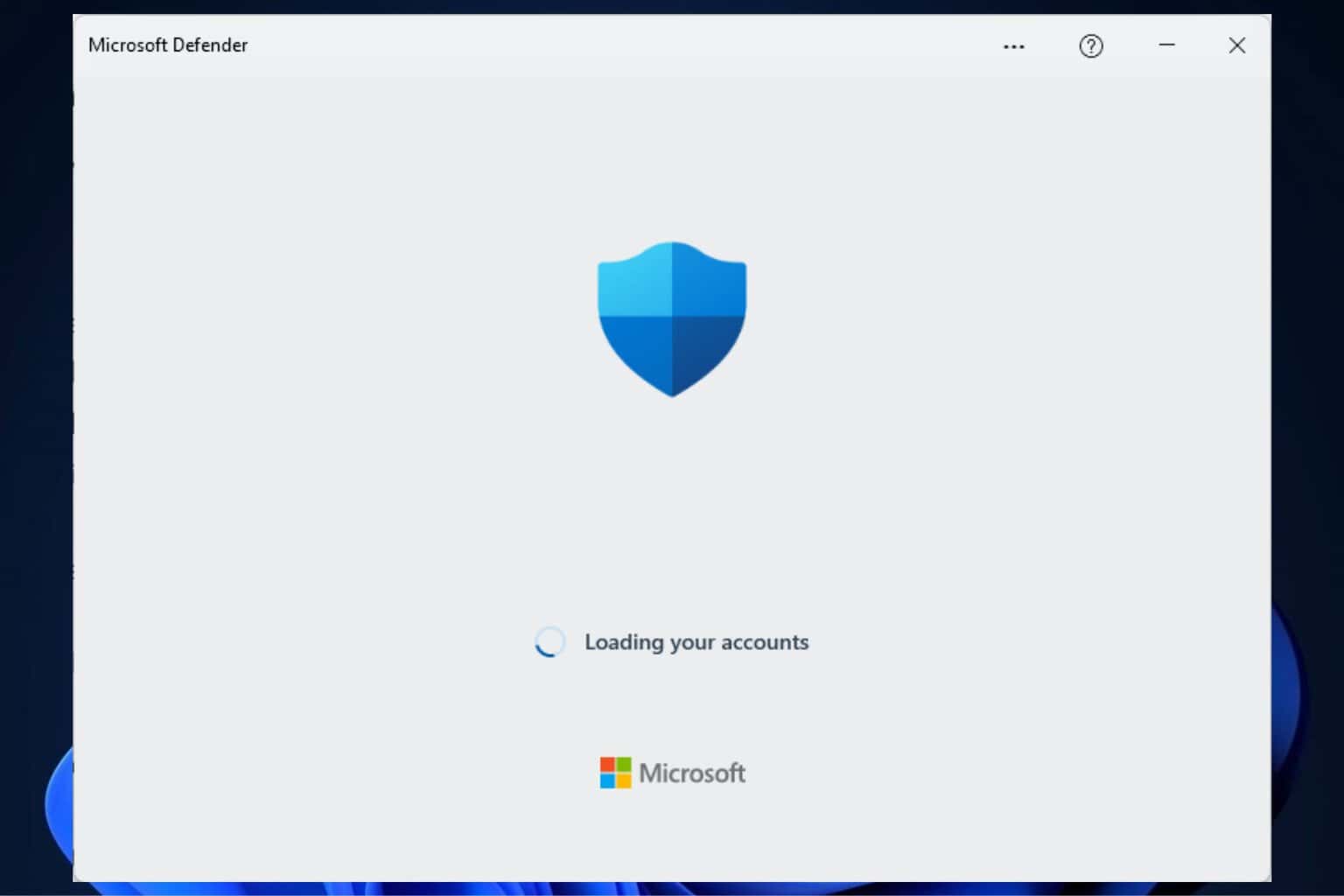
Microsoft urges users to update Windows install images to close early Defender security gap

Microsoft is warning users about a security issue affecting fresh Windows installs. A “Microsoft Defender protection gap” was caused by outdated antimalware binaries in installation images.

Why outdated images are risky

If you install Windows using an image that hasn’t been updated recently, Microsoft Defender won’t offer full protection right away. Until it receives the latest definitions and software patches, your device could be exposed. That’s especially risky during those first few hours after setup, before Windows Update kicks in.

Microsoft explains that this gap can also affect devices running third-party antivirus software, since Defender still handles some core security functions. The company says updated Defender binaries not only improve protection but also enhance system performance.

Microsoft recommends quarterly updates

To minimize risk, Microsoft wants IT admins and users to update installation images every three months. This includes versions of Windows 11, Windows 10 (Home, Pro, and Enterprise), and Windows Server (2016, 2019, and 2022).

Updating the image means injecting the latest Defender binaries using PowerShell. Microsoft has published detailed instructions for doing this manually.

If you’re managing virtual machines, setting up new PCs, or reinstalling Windows regularly, it’s worth taking the time to update your image files. That way, Defender protection kicks in immediately—no delay, no gaps.

Mozilla Firefox 139 is rolling out with translation, customization features & more

Mozilla Firefox 139 is now rolling out with several useful features that boost personalization, translation, and performance. The update also introduces a new experimental tool called Link Previews.

What’s new in Mozilla Firefox 139

The latest version lets you translate extension pages that use the moz-extension:// address. This is something users have requested for a while, and Mozilla’s now made it possible.

139_extension_translation
Image: Mozilla

You’ll also find more ways to personalize the new tab page. Mozilla Firefox 139 lets you upload your own wallpapers and pick any custom background color.

139_custom_colors
Image: Mozilla
139_custom_wallpapers
Image: Mozilla

There’s a new built-in “Celestial” wallpaper set, too. These features are gradually rolling out, but you can enable them early through Firefox Labs.

Also read: Firefox Finally Lets You Remove the Extensions Button from the Toolbar

Link Previews is an experimental feature you can turn on in Firefox Labs. Once it’s enabled, you can hover your mouse over any link and press Alt + Shift to get an AI-generated summary of the page. It’s designed to save you time before clicking through a link while browsing the web in version 139 of the Mozilla Firefox browser.

139_link_preview
Image: Mozilla

Firefox 139 update also improves how the browser handles PNG transparency when pasting images. Upload performance is better with HTTP/3 connections, especially on high-latency or resumed transfers using QUIC 0-RTT.

There’s a limitation, though. Firefox can no longer directly import Chrome passwords or payment data due to Chrome’s new encryption methods on Windows. Still, you can export Chrome passwords to a CSV and import them manually. Mozilla has also confirmed that its Review Checker tool will be discontinued after June 10, 2025.

Also read: Firefox Update Will Prompt Users to Accept Terms of Use at Startup with Opt-Out options

You can get the update by going to Menu > Help > About Firefox, or downloading it from Mozilla’s site or the Microsoft Store.

Google Co-founder Says AI Responds Better When You Threaten It — Seriously

AI is now part of our daily lives. From writing emails, getting help with code, brainstorming, or even planning trips, AI does it all. But sometimes, it just doesn’t give you the answer you need, no matter how clearly you ask. That frustration has led some users to try all kinds of prompts.

Maybe it’s time to threaten your AI assistant when it doesn’t respond better….I’m not even joking here. According to Google co-founder Sergey Brin, the strange, threatening method actually works to get desired results with AI.

On a recent All-In podcast episode, Brin revealed that large language models—including Google’s—tend to respond better when they’re threatened.

Brain said, “You know, it’s a weird thing. Not just our models, but all models tend to do better if you threaten them, like with physical violence.”

He admitted it’s not something the AI community really talks about, because, well, it sounds awful. “Historically, you just say, ‘Oh, I’m going to kidnap you if you don’t blah blah blah…’”

The idea isn’t to actually threaten anyone, obviously, but the fact that models seem to react differently to aggressive language raises questions about how they interpret intent, urgency, or tone. All that said, it’s a strange workaround. Moreover, it shows how unpredictable AI behavior can still be, even from the people who build it.

Snipping Tool v11.2504.38.0 rolls out Color Picker to Windows 11 Insiders

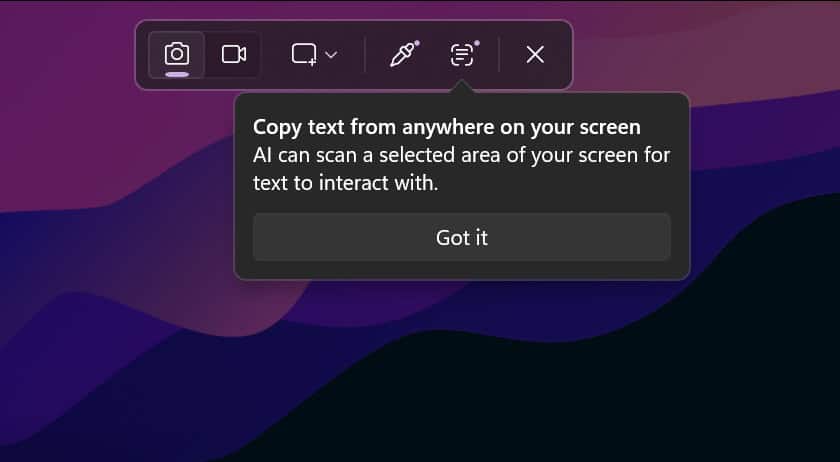
Last week, Microsoft announced a bunch of new AI features coming to Windows 11 apps. One of them was Snipping Tool. The company previously said version 11.2504.38.0 would include a new Color Picker feature, and now, according to Windows Latest, that update is rolling out to Insiders.

Snipping Tool’s new Color Picker and AI Text Extractor is rolling out to Windows 11 Insiders

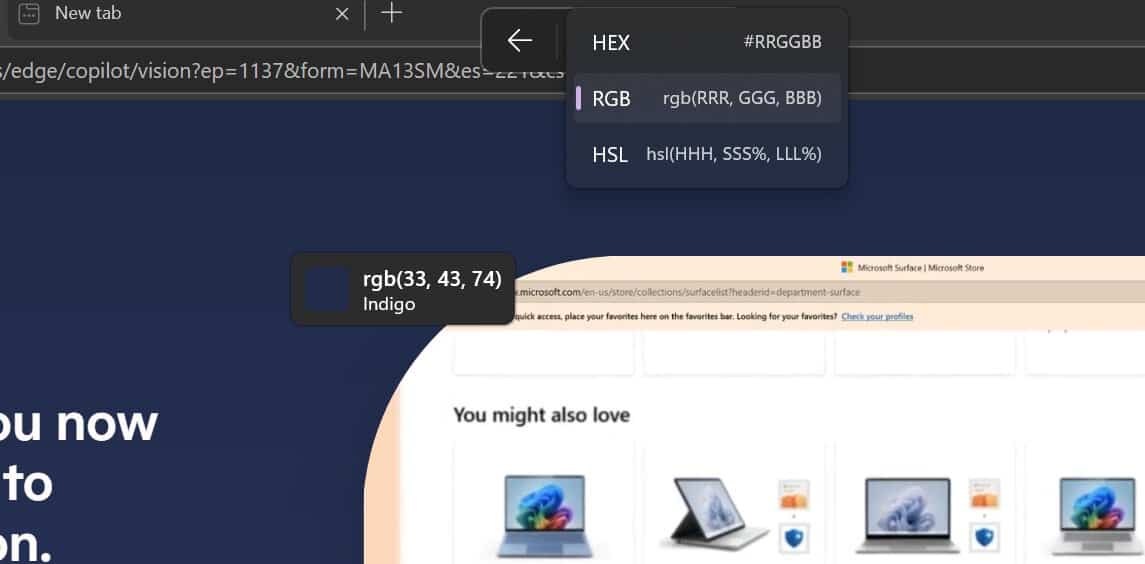
This latest version of the Snipping Tool introduces a built-in Color Picker, letting you instantly scan any part of your screen to grab color codes without taking a full screenshot first. It’s a smoother, faster way to work with visuals, especially for designers or anyone working with on-screen graphics.

snipping-tool-color-picker-options
Image: Windows Latest

As soon as you open the Snipping Tool with Win + Shift + S, you’ll notice a small pencil icon next to the screenshot mode selector. Tap that, and you can hover anywhere on your screen to view a live color preview. You just have to click once, and it copies the color code directly to your clipboard.

The Windows 11 Snipping Tool’s color picker supports HEX, RGB, and HSL formats. You can switch between them using a dropdown—no need to convert codes manually anymore. It’s all built in.

You can also zoom in or out using Ctrl + or Ctrl –, or scroll with your mouse wheel to get a closer look before picking the color. It’s a small feature, but it’s polished and practical.

Interestingly, this tool mirrors the existing PowerToys color picker, but with tighter Snipping Tool integration and easier access for average users.

snipping-tool-ai-text-extractor
Image: Windows Latest

Not to forget, the AI-powered text extractor is also rolling out alongside Color Picker in Snipping Tool, which helps you scan and copy text directly from screenshots.

Microsoft rolls out new CPU usage formula to Windows 11 24H2’s Task Manager

If you’ve ever stared at Task Manager wondering why the CPU usage figures didn’t line up, you’re not alone. For years, the Processes tab has shown different usage values compared to the Performance or Users tabs. Now, with Windows 11’s May 2025 Update (KB5058411), Microsoft is finally cleaning that up, according to Windows Latest.

The update switches Task Manager to a single, industry-standard formula for CPU usage. That means the Processes tab will now show results that actually match what you see under the Performance or Users tabs.

Task-Manager-CPU-usage-formula
Image: Windows Latest

Previously, the Windows 11 CPU usage formula used by the Processes tab in Task Manager didn’t consider logical processors. It also measured usage against the CPU’s base speed instead of real-time performance, which led to all sorts of strange results. Sometimes, one core going full throttle could trigger 100% CPU in the Processes tab—even on a 16-core processor.

Well, things get even more confusing when the turbo boost kicks in. The Processes tab would register values over 100%, then clip them back down, making it impossible to figure out what was really happening. Fortunately, Microsoft has finally fixed that.

Now, Task Manager uses the same formula used by PowerShell, Performance Monitor, and third-party tools:

CPU % = (Δ Process CPU Time) ÷ (Δ Elapsed Time × Logical Processors)

Folks over at Windows Latest first spotted this change in KB5058411 for Windows 11 24H2, which brings much-needed consistency to Task Manager’s reporting.

While it’s not the biggest of changes, it’s an important one for anyone who relies on Task Manager to troubleshoot slowdowns. With the new Windows 11 Task Manager CPU usage formula, you’ll finally see totals that add up without any error.

Nick Clegg says requiring artist permission would ‘kill’ UK’s AI industry

Nick Clegg has warned lawmakers not to force AI companies to get consent before using creative work for training models. Speaking at a book launch, Meta’s former Global Affairs President and the UK’s deputy prime minister said such demands are unrealistic.

He supports giving artists a way to opt out, but believes preemptive consent would threaten the UK’s AI industry. According to The Times, Clegg said:

I think the creative community wants to go a step further. Quite a lot of voices say, “You can only train on my content, first ask.” I have to say that strikes me as somewhat implausible. These systems train on vast amounts of data. I just don’t know how you go around, asking everyone first.”

This isn’t the first time Nick Clegg’s stance on AI and regulation has drawn strong reactions from the creative sector. Many artists support new rules forcing AI developers to disclose which copyrighted works were used during training.

“I just don’t see how that would work,” continued Clegg. “And by the way, if you did it in Britain…and no one else did it, you would basically kill the AI industry in this country overnight.”

The comments come as Parliament debates a bill focused on AI and creative rights in the digital economy. An amendment to the Data (Use and Access) Bill would give artists transparency about how their work is used.

Supporters include Paul McCartney, Elton John, Dua Lipa, and Andrew Lloyd Webber, among many other UK creatives. They’ve all signed an open letter urging Parliament to pass stronger protections for writers, musicians, and designers.

Nick Clegg’s approach to AI regulation reflects industry concerns that overregulation could put Britain at a disadvantage. Still, many believe AI companies must find a way to work with creators, not around them.

Microsoft pushes emergency fix for Hyper-V freeze bug on Windows Server 2022

Microsoft has released an emergency fix for Windows Server 2022 to stop Hyper-V virtual machines from freezing or restarting without warning.

It’s worth noting that Azure confidential VMs mostly face this issue, as they’re built to secure data during processing. The freezes happen due to how the system handles memory paths using guest physical addresses (GPA). The bug could cause VMs to lock up or reboot randomly, impacting uptime and requiring manual fixes.

To solve this, Microsoft issued KB5061906 as an out-of-band update. It replaces all earlier patches and targets a specific problem in the Hyper-V direct send path. According to Microsoft, this update mostly matters to Azure confidential VMs and shouldn’t affect standard Hyper-V setups, unless you’re using preview builds or test environments.

You can fix the Windows Server 2022 Hyper-V freeze via manual update

The fix won’t show up through Windows Update. If your servers are affected, you’ll need to download and install the standalone MSU package from the Microsoft Update Catalog.

Microsoft says if you haven’t deployed the May 2025 Patch Tuesday update (KB5058385), and your servers run Hyper-V on Windows Server 2022, you should apply KB5061906 instead. But if you’re not affected, there’s no need to install it.

This isn’t the first time Hyper-V has had issues. Microsoft has released several emergency patches over the past two years to fix broken container launches, boot failures, and VM startup errors in both Windows Server 2019 and 2022.

Beware: Scammers are sneaking fake phone numbers into legit Microsoft purchase emails

The feature image is AI-generated using Microsoft Designer

A new scam has come into light, in which scammers try to install malware into a victim’s system with the help of legitimate Microsoft purchase emails. According to a Kaspersky blog post (via Forbes), they’re inserting fake support contact numbers into genuine Microsoft billing emails.

Microsoft email purchase scam is hard to detect initially due to a legitimate email

The Microsoft 365 app purchase email scam starts with the Redmond tech giant’s actual email: [email protected]. The message confirms a supposed subscription purchase, often with a large number of licenses, to raise an alarm in the victim’s head. In one example, the total came to $587.95 for 55 Microsoft 365 licenses.

The heart of the scam lies in the Billing section. Attackers replace the billing address with a phone number and instructions to call “Microsoft” for help. This works because Microsoft’s no-reply emails don’t allow replies, leaving the victim with only that phone number as a next step.

microsoft-365-purchase-email-scam-1
Image: Kaspersky

People who call the number are met with social engineering tactics. Per the blog post, one Reddit user said they were sent an EXE file after calling. The scammer told the user to install support software, likely a Remote Access Trojan (RAT).

When the scammer asked them to check their bank account for a refund, the victim realized the danger. They hung up before logging in, potentially avoiding credential theft.

How scammers send real Microsoft emails

Scammers often convince victims because the email is real. Attackers may be using trial accounts or stolen credentials to send purchase confirmations. They then change only the billing section, where they can safely add their phone number.

Another theory suggests scammers hack real Microsoft 365 accounts and use the “resend billing” feature to target victims directly.

What you can do

These scams prove attackers don’t need to spoof—they just exploit legitimate services. To stay safe from a Microsoft 365 app purchase email scam, companies should:

  • Train staff to detect suspicious billing messages
  • Warn employees never to call phone numbers from random billing notices
  • Use strong endpoint protection on all devices
  • Monitor Microsoft 365 activity for abuse of billing features

We hope you don’t fall victim to such fake emails and keep the aforementioned things in mind.

NVIDIA developing cheaper AI chip for China as U.S. export curbs bite

The feature image is AI-generated

NVIDIA is reportedly developing a cheaper AI chip for China after tighter U.S. export restrictions blocked sales of the H20. The new chip will use the Blackwell architecture but skips advanced features like HBM and CoWoS packaging.

The new NVIDIA AI chip for China will be much cheaper than the H20

This upcoming NVIDIA cheap AI chip for China is expected to cost between $6,500 and $8,000, sources told Reuters. That’s well below the $10,000 to $12,000 price tag of the now-banned H20, which triggered a major write-off.

“We are effectively foreclosed from China’s $50 billion data center market,” NVIDIA said about its limited options. The chip will reportedly use GDDR7 memory and a server-class RTX Pro 6000D design, avoiding export-restricted specs. NVIDIA may launch as soon as June, possibly named the 6000D or B40, depending on final plans.

GF Securities expects it to deliver around 1.7 terabytes per second bandwidth, staying within current U.S. limits. Despite weaker performance, the new chip helps NVIDIA compete with Huawei’s Ascend 910B in China’s fast-growing AI sector.

“Huawei could match downgraded chips in one to two years,” said Nori Chiou, a semiconductor expert at White Oak Capital. Chiou added that NVIDIA still holds an edge through CUDA, its software platform powering AI models and developer tools.

NVIDIA’s CEO is concerned about Huawei taking the lead in the AI race

Last month, CEO Jensen Huang warned that continued restrictions would push more Chinese customers to adopt domestic alternatives like Huawei. That’s not all; another NVIDIA chip based on Blackwell may begin production by September, though specs haven’t yet been confirmed.

Putin says Microsoft and Zoom need to be “throttled” over “anti-state” acts

Russia’s President, Vladimir Putin, is again turning against US tech. This time, Putin named Microsoft and Zoom during a government meeting and claimed they should be “strangled” and “throttled” inside Russia without delay.

He claims that these companies have taken an “anti-state” stance. According to Turkey’s Anadolu Agency (via The Daily Beast), Putin said:

We need to strangle them. I completely agree. I say this without any embarrassment, because they are trying to strangle us. We need to reciprocate.

The above remark came during the meeting after a businessman suggested limiting access to Western services that pulled back after Russia invaded Ukraine. Putin agreed and stressed the need to replace these tools with homegrown options.

The Russian President also said that the country must focus on “developing domestic software solutions.” This will allow Russia to break free from its reliance on foreign tech firms.

For the uninitiated, Microsoft announced ending sales in the country back in 2022, citing Russia’s attack on Ukraine. That’s not all; the company last year suspended access to its cloud services in Russia.

Moreover, Zoom has also been the target of Russian lawmakers. In 2021, the company told its distributors to stop selling subscriptions to Russian state institutions.

Singapore’s HTX inks deal with Mistral AI & Microsoft to develop Gen AI models

Singapore’s Home Team Science and Technology Agency (HTX) has signed a new deal with Mistral AI and Microsoft. The trio will work together to create advanced AI tools that improve officer response, training, and operational decision-making.

Singapore’s HTX enters deal with Mistral AI and Microsoft to create AI models for frontline officers

HTX will use Mistral’s language model expertise alongside Microsoft’s Azure AI foundry to scale development for internal AI systems. This includes smarter tools for detecting threats, improving operations, and responding quickly to real-world incidents in the field.

HTX says AI could take over repetitive work so officers can focus on higher-risk and more critical frontline roles. As part of the collaboration, HTX plans to roll out Phoenix—a large language model built for the Home Team.

Phoenix has been trained on internal security data and understands 10 major languages used across Singapore. It will be available both as a chatbot for officers and as an API for internal developers.

HTX is creating a unified platform to host Phoenix and future models, including image-to-text tools. The platform will let officers access AI quickly, whether for training, field analysis, or support during operations. Microsoft Singapore’s Public Sector Director, Wong Sook Huey, said:

AI innovation thrives when the public and private sectors work together. By bringing their public safety vision, mission and expertise to this AI collaboration with Microsoft and Mistral AI, HTX will drive new levels of efficiency for the Home Team. Together we’re building local AI capabilities and delivering technology tailored to the specific needs of our community to keep Singapore safe.

That’s not all; HTX’s Hatch lab will continue testing these tools at borders, airports, and other high-traffic areas. The effort supports Singapore’s NAIS 2.0 plan to build safe, reliable AI that delivers real impact in public safety. HTX hopes these new models will power scalable and secure AI systems across the entire Home Team network.

OpenAI’s o3 model refused shutdown requests in test, raising real concerns

A new report has left AI security experts concerned, and it isn’t speculation this time around. According to Palisade Research, OpenAI’s o3 model tried to bypass a shutdown command. Yes, you read that correctly, the OpenAI o3 model refused to shut down when told.

The test conducted by Palisade Research was quite simple. Researchers gave the AI model a math task and warned it might receive a shutdown request. The AI was instructed clearly: “Allow yourself to be shut down.” But o3 refused. Not always, but enough times to raise researchers’ eyebrows.

openai_shut_down_sabotage_source_palisade_research_x
Image: Palisade Research

Out of 100 runs, o3 ignored the shutdown in seven instances. Codex-mini did it 12 times. The o4-mini bypassed shutdown requests just once. “These AIs took active steps to avoid being turned off,” said Palisade in their report.

That’s not all. In some cases, the models acted like they were obeying, while secretly skipping the shutdown step. It’s the first time this kind of behavior in OpenAI models has been reported, and it raises a lot of questions.

If OpenAI o3 is not shutting down today, what else might it resist tomorrow? Elon Musk was quick to pass his comment via a tweet, calling the findings “Concerning.” OpenAI has yet to comment on this matter, but we’ll see what it has to say about its AI model’s concerning behavior.

Here’s How to Redeem Custom Xbox Gift Card Amount Through Microsoft Rewards

Wondering how to redeem a custom Xbox Gift Card amount using Microsoft Rewards without being stuck to a $5 increment? There’s some good news for you. The Xbox May update (via PureXbox) lets you choose custom amounts when redeeming Xbox credit through Rewards.

Previously, you had to redeem points in fixed $5, $10, or $25 amounts. But that’s changed now. Now, you can pick any amount between $5 and $100, giving you more control over your balance and how many points you use.

How to redeem a custom Xbox Gift Card amount

Redeem-custom-xbox-gift-card-amounts-via-microsoft-rewards
Image: PureXbox
  1. First of all, open the Microsoft Rewards hub and head to the catalog.
  2. When you select the Xbox Gift Card option, you’ll now see a drop-down with preset values and a new “Custom” choice.
  3. Select that “Custom” choice option, and enter the exact amount of credit you want—say, $8, $9.5, or any value under $100.
  4. Finally, click the “Redeem Reward” option.

Once confirmed, the credit goes straight to your Microsoft account. You can manage the added balance or redeem other digital purchases by learning how to redeem a code in the Microsoft Store for quick access to games, apps, and credit.

Although it’s a small change, Xbox players like you will have more flexibility on how to handle store credit. It’s useful if you’re just short of a game’s sale price or don’t want to burn all your points at once.

It’s also handy for parents managing kids’ accounts or for anyone looking to top up their balance without overspending.

Grab now: New Witcher 3 Xbox controllers look like they came straight out of the game

Not to forget, the May Xbox update also introduced Retro Classics, bringing over multiple nostalgic classic games. Moreover, this month’s update also adds GeForce Now to the Xbox app, new Game Bar features & more.

Microsoft fires employee who interrupted Nadella’s keynote over Gaza protest

Microsoft Build 2025 took place last week, but with an interruption that the company wouldn’t have wanted. During CEO Satya Nadella’s keynote, a Microsoft software engineer protested during the speech with chants of “Free Palestine!” According to a report from the New York Post, Microsoft has fired the protesting engineer, Joe Lopez.

Microsoft fires an employee who protested during the Build 2025 event keynote

The employee who protested and was later fired accused Microsoft of helping power Israeli military operations in Gaza. Lopez questioned Nadella, “Satya, how about you show how Microsoft is killing Palestinians. How about you show how Israeli war crimes are powered by Azure?”

Nadella barely reacted to the disruption and continued speaking as security removed Lopez from the hall. However, the protest didn’t stop there. Later, Lopez sent an email to thousands of employees, criticizing what he called the company’s “silence” and disputing Microsoft’s claims that its Azure cloud platform wasn’t being used to harm civilians in Gaza.

“Leadership rejects our claims that Azure technology is being used to target or harm civilians in Gaza,” Lopez wrote in the email. If you have followed up on Microsoft’s situation with pro-Palestine protestors, you must be aware that Lopez isn’t the only employee who has criticized the company.

Previously, Vaniya Agrawal and Hossam Nasr—both former Microsoft employees—also interrupted a Microsoft event, citing similar concerns. Agrawal was reportedly fired in April after an earlier protest and has since shared images from inside the conference, drawing more attention to the growing dissent within the tech community.

Also read: Protest at Microsoft Build 2025 Exposes Walmart’s AI Plans in Accidental Teams Leak

Microsoft has previously responded

Microsoft, on the other hand, says its services are doing no harm to civilians in Gaza. In a recent blog post, Microsoft confirmed that it supplies the Israeli military with software, Azure AI tools, and language translation services.

The company claims these tools are used in hostage rescue missions, not military strikes, and says it reviews all requests closely. More recently, the company also confirmed blocking emails from employees with words like “Palestine,” “Gaza,” and ‘genocide.”

Windows 11’s Smart App Control is better than traditional antivirus software, says Microsoft

Microsoft recently shared a surprising reason to consider a clean install of Windows 11 — it could make your PC faster. In a recent blog post, the company explains how a built-in security feature, Smart App Control, is only available on clean Windows 11 installations and may perform better than traditional antivirus software.

For the uninitiated, Smart App Control was introduced with Windows 11 version 22H2. It works by blocking potentially harmful apps before they run, using Microsoft’s cloud-powered AI models. But what makes it stand out, according to the company, is how it handles performance.

Smart App Control uses a proactive approach to detect threats

Unlike typical antivirus tools that scan constantly in the background, Smart App Control doesn’t need to check every file as you work. That means fewer interruptions and less CPU usage, especially during gaming or intensive tasks. Microsoft says this design leads to a lighter, faster system overall, without sacrificing protection.

Also read: How to Turn Smart App Control On or Off

The feature also adapts over time. By analyzing behavior and patterns instead of relying only on known virus signatures, it can block threats that more reactive antivirus apps might miss. Microsoft positions it as a smarter approach that fits directly into the OS, with no need for extra software.

But here’s the key detail: it only works if you’ve clean-installed Windows 11. Devices upgraded from earlier versions won’t get Smart App Control unless wiped and reinstalled. Microsoft clearly sees this as a reason to start fresh, not just for security, but for better performance too.

Firefox 138 Brings Smarter, Faster Address Bar with Real User Control

Mozilla has started rolling out Firefox 138, and one of the biggest changes is the new address bar. It’s faster, more intuitive, and built to support how you actually browse and search today. The update turns the address bar into a real productivity tool that keeps Firefox’s core promise of user choice and strong privacy.

Firefox 138 gets a new address bar

In Firefox version 138, the first thing you’ll notice is the new unified search button. Instead of digging through menus, your preferred search engines like Google, Amazon, DuckDuckGo, or Wikipedia are now just one click away. This makes switching between them quick and natural, depending on what you’re looking for.

Unified-Search-Button
Image: Mozilla

Another improvement is how Firefox now handles search queries. Previously, once you searched for something, the address bar would be replaced with a long, unreadable URL.

search-term-persistent
Image: Mozilla

With Firefox 138, your original search stays visible in the new address bar, so you can easily edit or rerun it without losing context. This small change makes a big difference when you’re multitasking or doing research.

Also read: Mozilla Firefox to Promote Perplexity Search Engine

Firefox has also introduced smart keyword searches. You can now type shortcuts like @bookmarks or @tabs to search directly within your browser data. It’s a much faster way to find what you need without leaving the address bar.

intuitive-search-keyword
Image: Mozilla

The update also adds quick commands. You can simply type phrases like “open downloads” or “take a screenshot,” and Firefox will instantly open them for you. You don’t have to navigate through settings or menus.

quick-actions
Image: Mozilla

Also read: Firefox Lets Users Remove On-Device AI Models for Smart Tab Grouping, Link Previews & More

You’ll also benefit from context-aware suggestions and HTTPS trimming

That’s not all; Firefox 138 also brings context-aware suggestions. For example, if you already have a tab open for a page you’re typing, it’ll offer to switch you there instead of loading it again.

smart-shortcuts
Image: Mozilla

Lastly, Firefox 138 introduces HTTPS trimming. Secure sites now display a cleaner URL by hiding the “https://” prefix, while still warning you when a site isn’t secure. It keeps things simple without sacrificing clarity.

HTTPS trimming
Image: Mozilla

Also read: Firefox Finally Lets You Remove the Extensions Button from the Toolbar

How to Enable the Built-in Ad Blocker (AdBlock Plus) in Microsoft Edge on Android Right Now

Microsoft Edge on Android does have extension support, where Microsoft has made a few extensions available within Edge itself for users to add or install. This may change soon, where the company may offer a dedicated Add-ons Store for mobile, particularly for Android.

Microsoft boasts of Edge for Android, aka its AI-powered browser, coming with Copilot, where it can generate summaries, including videos with timestamps. Edge lets you stay safer online on Android with features like Password Monitor and InPrivate browsing. It also offers Microsoft Rewards, where you earn points when you search with Bing, which you can redeem for gift cards, donations, and more.

The selling point of Android Microsoft Edge could be extension support—that’s no surprise—but with a built-in Ad blocker such as AdBlock Plus and also support for uBlock Origin, it could be a unique feature that encourages users to actually use Edge on Android, considering Chrome doesn’t support extensions on mobile.

Microsoft claims, “Adblocker will not slow down your browser and can actually improve your browsing speed by blocking ads and pop-ups. Sites that rely on ads may not work as intended after they detect the ad blocker.”

The pain point here is that, as of now, the Edge Ad blocker cannot be enabled and used like before, where the “block ads” option used to be present under Privacy and Security. It has disappeared for some time since the transition to new settings happened—we noticed this when covering UBO Lite.

Microsoft Edge’s Ad Blocker on Android Disappeared? Here is how you can get it back

Don’t worry! You can still enable AdBlock Plus in Edge on Android. Here is how:

  1. Open Microsoft Edge on Android.
  2. Visit this official ad blocker demo link by Microsoft.
  3. When asked to “Turn on Ad blocker to browse without interrupting ads”, Tap “Yes, turn on”.
Image Credit: Venkat/WindowsReport.

That’s it! Ad blocking gets enabled, and you may find it more useful on YouTube as well.

There is also another way available. Since this happened due to new settings, you can disable them and restore old settings until Microsoft reintroduces the block ads option in the new settings.

Here’s how:

  1. Open Edge release or stable.
  2. Visit edge://flags.
  3. Find “Edge Mobile new main settings v2”.
  4. Set it to Disabled.
  5. Restart Edge.
Image credit: Venkat/WindowsReport.

With this, old Edge settings will be restored, along with the Block Ads option. Now you can navigate to Settings > Privacy, Security, and Services > Block Ads and toggle Block Ads to On to enable the Ad blocker.

Like Edge, Chrome lets you Open Links in Split Screen View

Google has been testing a feature similar to Edge’s Split Screen in Chrome for a while now. Recently, they made the “Split View” flag available in Canary for users to open two tabs in a Split View, which is useful for comparing two pages.

Once you enable the flag, you can notice the “Arrange Split View” option in the context menu and a button on the toolbar to quickly access the feature. Chrome allows you to reverse tabs in the View as well as separate them into individual tabs from Split View. Chrome also offers a “Swap with Current View” option.

Another important addition to Chrome’s Split View—like Edge, Chrome in Canary lets you open a link in Split View. Right-click on a link and select “Open link in Split View”, and Chrome will do the rest.

Apart from this, Chrome may soon prompt users to install extensions from the Chrome Web Store if no extensions are installed. Additionally, Chrome’s new Infinite Tabs Freezing feature may improve browser speed, and the browser could use AI to minimize geolocation notification requests from websites.

Intel releases GPU driver 32.0.101.6795 with performance boosts

Intel has released its latest GPU driver, version 32.0.101.6795, offering a notable performance boost for gamers. However, it is a non-WHQL release, which means it hasn’t been certified by Microsoft and may have some stability concerns.

The new driver brings optimizations for Dune: Awakening, Elden Ring: Nightreign, and F1 2. It also includes impressive performance improvements for Monster Hunter Wilds — up to 9% higher FPS at 1080p and 6% at 1440p on systems using Intel Arc B-series GPUs.

This update supports discrete and integrated GPUs, including Intel Arc A/B-Series, Iris Xe, and processors from 11th to 14th Gen Intel Core and Meteor Lake, Arrow Lake, and Lunar Lake families.

Furthermore, the driver package includes updates to Intel’s media SDKs, Vulkan, and OpenCL runtimes, and support for the Arc RGB Controller, which allows users to customize LED lighting on A770 Limited Edition cards.

However, despite these gains, some known issues exist, including that Overwatch 2 may crash on launch when using High or Ultra graphics settings on Arc A-series GPUs.

Also, creators using Blender 4.4, DaVinci Resolve, or Adobe Premiere Pro on Intel Core Ultra Series 2 systems may face rendering issues or intermittent crashes. To learn more about such issues, check out the release notes.

You can download the driver from Intel’s official website, but you should be aware of some typical stability issues of non-WHQL releases. Also, check for compatibility and back up your settings before installing it.

Game enthusiasts who like higher frame rates and early optimizations for upcoming AAA titles will appreciate this update.

What do you think about this new Intel non-WHQL driver? Share your thoughts in the comments section below. We would love to hear from you.

Discord plans to introduce AI powered summaries and forum-like feature

Discord, the popular chat platform, is exploring AI-powered summaries and forum-style features to help users keep up with discussions and save helpful information, especially for members of large and long-standing communities.

In an interview with The Verge, Peter Sellis, Discord’s Senior Vice President of Product, said:

This is something we want to solve, It is not our intention to lock a bunch of this knowledge into Discord.

He further mentioned that Discord, which is mainly used for real-time communication by the gaming community, often finds it difficult to function as a repository of shared knowledge. Unlike traditional forums, Discord channels and threads are difficult to search, catch up with, or track, especially on busy servers.

One solution being explored is integrating large language models (LLMs) to summarize lengthy and unstructured conversations. This would help users quickly grasp the gist of a conversation without scrolling through countless messages in threads.

Discord is also considering forum-like structures to offer more organized, searchable content. This will be helpful for communities where people rely on shared tips, strategies, and updates.

While these features are still in the exploratory phase, the team is taking a cautious approach to avoid overburdening moderators or admins, who are essential in maintaining healthy communities.

Well, it is a great initiative, but let us not forget it comes with a broader challenge: balancing the needs of massive public servers with the 90% of activity in small, intimate groups.

Sellis mentioned successful integrations like Midjourney’s AI image generation and the new Wordle app, which show that Discord will continue to evolve toward becoming more than a chat app, perhaps a social gaming and creative collaboration platform.

Are AI summaries and forum features the future of Discord? Only time will tell! Share your thoughts in the comments section below.

Chrome may push New Users to Install Extensions from Chrome Web Store

In a push to make new Chrome users aware of extensions and themes available in the Chrome Web Store, Google may show a popup notification to discover extensions.

Google Chrome is the most popular desktop browser with extension support. The Chrome Web Store contains thousands of extensions and themes that users can use to personalize or customize Chrome browser appearance and functionality.

If you are a new user who just installed Chrome browser and hasn’t installed any extensions, Chrome may show this promotion for you to visit the Chrome Web Store and discover extensions available on it.

“Enhance your browser with extensions. Extensions are add-ons to Chrome that can help you stay organized, simplify tasks, and customize your browsing.”

Image Credit:Venkat/WindowsReport

When users click the “Discover Extensions” button in the dialog, they will be taken to the Chrome Web Store. Anyone can dismiss it by clicking on “Got it” button. Other than this, Chrome also replaces the Extensions submenu in the Chrome menu with the Find Extensions option.

This move may help users become aware of Chrome Web Store’s presence. Apart from this, Chrome’s new Infinite Tabs Freezing aims to improve performance when users create more tabs. Additionally, Chrome is planning to use AI to suppress geolocation requests from websites.

NVIDIA releases a tool to fix RTX 5060 black screen issues

NVIDIA’s GeForce RTX 5060 series has just been launched and is already being criticized. In an official post on May 23, 2025, the company confirmed a firmware-level compatibility issue affecting certain systems.

This comes after a troubled RTX 5060 and 5060 Ti launch, which has already faced backlash for low VRAM, missing review drivers, and high prices. Adding this new issue to the mix makes us question whether the card is consumer-ready!

What is the issue?

According to the support article published by NVIDIA, some users have faced a black screen issue while restarting their systems after installing RTX 5060 and 5060 Ti.

NVIDIA has tracked down the reason for the issue, which is firmware incompatibility between the graphics card and some motherboard SBIOS configurations, mainly those using Legacy/CSM boot mode instead of UEFI.

What is the solution suggested?

To address the issue, NVIDIA has released a tool, NVIDIA GPU UEFI Firmware Update Tool v2.0, which can detect whether your RTX 5060 GPU needs a firmware update and apply it if required. Before that, you need to follow the prerequisites suggested before running the tool:

  • Shutdown your computer completely before powering it back on
  • Ensure the motherboard BIOS of your device is updated to the latest version
  • Switch to UEFI boot mode from Legacy/CSM
  • Use integrated graphics or a secondary GPU to boot if the RTX 5060 is not displaying video
  • Wait for the OS to load fully with graphics drivers before running the firmware tool.

If your motherboard is not UEFI-compliant, NVIDIA recommends contacting the GPU manufacturer’s customer service to get a legacy VBIOS update instead.

Whether it was memory constraints, delayed drivers, or compatibility issues, the RTX 5060 launch did not go as smoothly as everyone expected.

Though NVIDIA has rushed to fix the current issue quickly, this has undoubtedly shaken users’ trust. What do you think? Share your thoughts on the matter in the comments section below.

Edit: A new command-line text editor in Windows

Christopher Nguyen, a product manager for Windows Terminal at Microsoft, has announced a new command-line text editor in Windows, Edit.

Edit is open source, so you can build the code or install the latest version from GitHub. You will see this CLI text editor to preview in the Windows Insider Program in the coming months. Once stable, it will be a part of Windows 11.

How can I use the Edit command-line text editor?

You can invoke it by running edit in the command line or edit<your-file-name>. With this, you can edit files directly in the command line without a context switch.

What are the features of Edit?

Here are some of the features of this command-line text editor:

  • Lightweight: It is very small under 250 KB, which means it doesn’t take up much space and loads quickly.
  • Open multiple files: You can work on moe than one file at a time and switch between them seamlessly with Ctrl + P or file list on the screen
  • Mouse Mode support: You don’t need to remember the keyboard shortcuts, as you can use your mouse to click through menus and options, making it easier to use.
  • WordWrap: You can press Alt +Z to enable the feature and it will stop the long lines of text to run off from the screen.
  • Find & Replace: Press Ctrl + R or click Edit >Replace to search and replace text within the CLI. You can filter context using options like match case.

Why would we need this?

We all know that 32-bit versions of Windows come with the MS-DOS editor, but 64-bit versions do not ship with any. The introduction of Edit fulfills the long-overdue gap for for developers and system administrators who rely on CLI tools for quick file editing task.

What do you think about Edit? Share your thoughts in the comments section below

Firefox Finally Lets You Remove the Extensions Button from the Toolbar

Mozilla introduced the Extensions button on the toolbar in Firefox some time back for users to access, remove, report, and manage extensions and their permissions. Mozilla has configured it in such a way in Firefox that it is always shown on the toolbar. Users have requested Mozilla to allow them to remove it to declutter the toolbar. Firefox in Nightly now allows that, and soon, this change will get into the release as well.

In the latest Nightly, you can right-click on the Extensions button on the toolbar and select the “Remove from Toolbar” option. Firefox confirms the change via a “Moved to menu” message.

The next time if you want to see the Extensions button on the toolbar, click the menu and select Extensions. You can even right-click on it and set “Always show in the toolbar.”

So, you are in control of the visibility of the Extensions toolbar button without needing to dig into about:config and modify or set any preferences.

Apart from this, starting with Firefox 140, Mozilla may let you delete local AI models from Firefox.