Riot recently made the Vanguard anti-cheat mandatory for those who play League of Legends. Unfortunately, the application is a bit troublesome. After all, players reported various errors related to compatibility issues. Also, you must reboot your PC to re-enable Vanguard if you close it. On top of that, players receive leaver penalty bans due to crashes caused by Vanguard.
Does Vanguard require TPM 2.0 on Windows 11?
Some of us using Windows 11 are experiencing problems related to Vanguard because it requires the TPM 2.0. You need this technology to upgrade from Windows 10 to 11. However, there are some workarounds to bypass this system requirement. Yet, to use the anti-cheat software, you must enable TPM 2.0 from BIOS.
According to RiotK3o, Riot’s anti-cheat manager, since the 14.9 update of League of Legends went live, only 0.03% of the players experienced Vanguard issues. In addition, most of them were error codes you can fix easily, such as 128, 152, 1067, -81, 9001, or 68.
There are also reports claiming that Vanguard is responsible for bricking hardware. Redditors complained of problems such as BSOD, malfunctioning drivers, compatibility errors with software such as the MSI afterburner, and game crashes. In addition, some players received bans over the leaver penalty generated by Vanguard-related problems.
Another problem with Vanguard is that it needs kernel-level access to your device. So, many of us are skeptical of it, especially since it runs permanently. Yet, Riot claims that even if the software loads a driver upon boot, it only works when League of Legends is active.
Things you should know
Besides having kernel-level access, Vanguard takes screenshots. Even if RiotK3o claims that the anti-cheat does that just for the game client and the region the game occupies, some of us are skeptical. After all, it runs permanently on our devices unless we decide to close it and reboot every time we want to play League.
You can’t play League of Legends from Linux via Wine because there is no support for the new anti-cheat systems. However, Riot might consider addressing this issue soon. On top of that, if you use MacOS, you won’t need the Vanguard system.
If your device doesn’t support TPM 2.0, to continue playing League of Legends on Windows, you must downgrade to Win 10. Additionally, the Vanguard doesn’t require SecureBoot.
Know that you can continue using Blitz because according to its developers, it complies with Riot’s terms of service. Thus, the Vanguard shouldn’t ban you for it. However, close any tweaking applications and cheats used for other games while running League.
Ultimately, Vanguard reduced the number of bot accounts joining the game. Yet, the various problems generated by TPM 2.0 made some players quit the game, especially since most of us don’t want new devices to play League of Legends. By the way, besides account bans, Vanguard allows Riot to perform hardware bans.
What are your thoughts? Are you going to continue playing League of Legends with Vanguard? Let us know in the comments.
Nobody likes browser notifications, and there’s nothing worse than being spammed with notifications from specific websites.
Google is aware of this issue and it is currently testing a new feature that should put an end to these pesky notifications.
Chrome’s new feature plans to put an end to abusive notifications from websites
Google is currently testing a new feature in Google Canary that will allow Safety Hub to block abusive notifications from certain websites.
Google has already taken steps against notifications by offering a content settings section that allows users to automatically remove permissions from unused websites.
This can be useful if you’re overloaded with notifications and can’t manage them manually, but Safety Hub brought an additional level of control by allowing users to see which websites sent a lot of notifications recently.
Safety Hub can also alert users about malicious extensions, compromised passwords, and Chrome updates. It also got improvements to the safe browsing status.
With this feature, Chrome will automatically check the permissions and remove them for abusive websites. The feature runs in the background and it will inform you when the browser revokes a permission.
Do keep in mind that revoking abusive notifications needs to be enabled using a Chrome flag and once you do that, you might see a dedicated section that lists all websites that send abusive notifications.
This will allow users to see the list of abusive websites, view details on why the website was classified as abusive, and even revoke notification permissions for single or multiple websites.
Implement permission change functions for revoking abusive notifications. This is another CL for banning abusive notifications in Safety Hub.
These methods are responsible for revoking notification permissions and responding to user actions, changing setting values according to what the user wants.
The flag is named Include abusive notification sites in the Permissions Module of Safety Hub, and once you enable it, you should see the abusive notification permission revocation information in the site permission module of Safety Hub.
While this feature is still in the testing phase, it is coming to Windows, Mac, Linux, ChromeOS, Fuchsia, and Lacros.
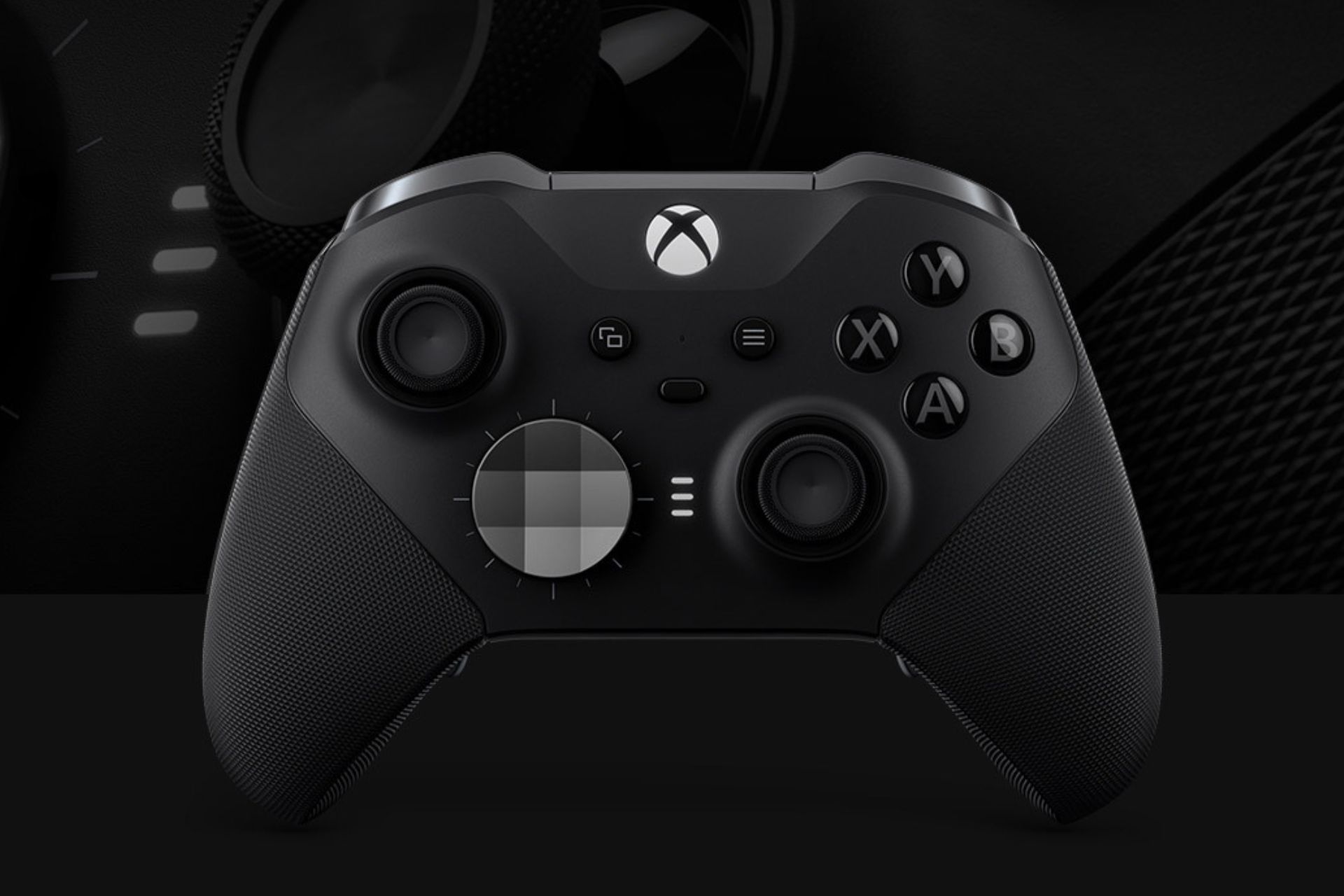
A couple of weeks ago, many Xbox users complained about an annoying bug that would cause the Elite Wireless Controller Series 2 paddles to malfunction. More specifically, the paddles would remain active when there were no active profiles, which proved to be quite frustrating for many.
Xbox acknowledged the issue, and it even offered some temporary workarounds until a more permanent solution would be released.
The workarounds were efficient, but many of them took time to be implemented. For instance, Xbox users would need to create a new profile every time they bumped into the issue.
Fortunately, it seems that Xbox now fixed the Elite Wireless Controller Series 2 paddles permanently. According to the latest builds to the Alpha and Alpha Skip-Ahead rings, Microsoft released the permanent fix for this annoying bug, stating:
Fixes to address the Xbox Elite Wireless Controller Series 2 paddles remaining active with the default profile.
Xbox
Xbox users will only need to update their consoles to the latest version, which will also install the latest updates for the controllers, once it is connected to the console.
In other news, the Alpha Skip-Ahead ring also introduced the ability to manage multiple wireless networks (finally), allowing Xbox users to remember up to 10 password-protected wireless networks.
This means you don’t need to disconnect the wireless network; instead, you can select another one from the available networks and then go back to your preferred network anytime from the list again.
To start, go to Settings > General > Network settings > Manage wireless networks. To remember your current wireless network, disconnect it first, then set up a wireless network, then choose your network again, and enter the password; you will get the option to remember it.
You can read the full changelog for the Alpha Skip-Ahead ring here. What do you think about these new fixes and capabilities coming to Xbox?
Every day, websites you may have signed up to fall victim to security vulnerabilities, resulting in sensitive user information making its way into the hands of fraudsters and other criminals. It’s happened to me on more than one occasion!
This data may include passwords, email addresses, credit card details, and other information, leading to compromised accounts, financial theft, and identity fraud.
Unfortunately, personal data breaches are a fact of modern internet use, and it can be difficult to know when your information has been leaked, how it might be used, and what to do about it.
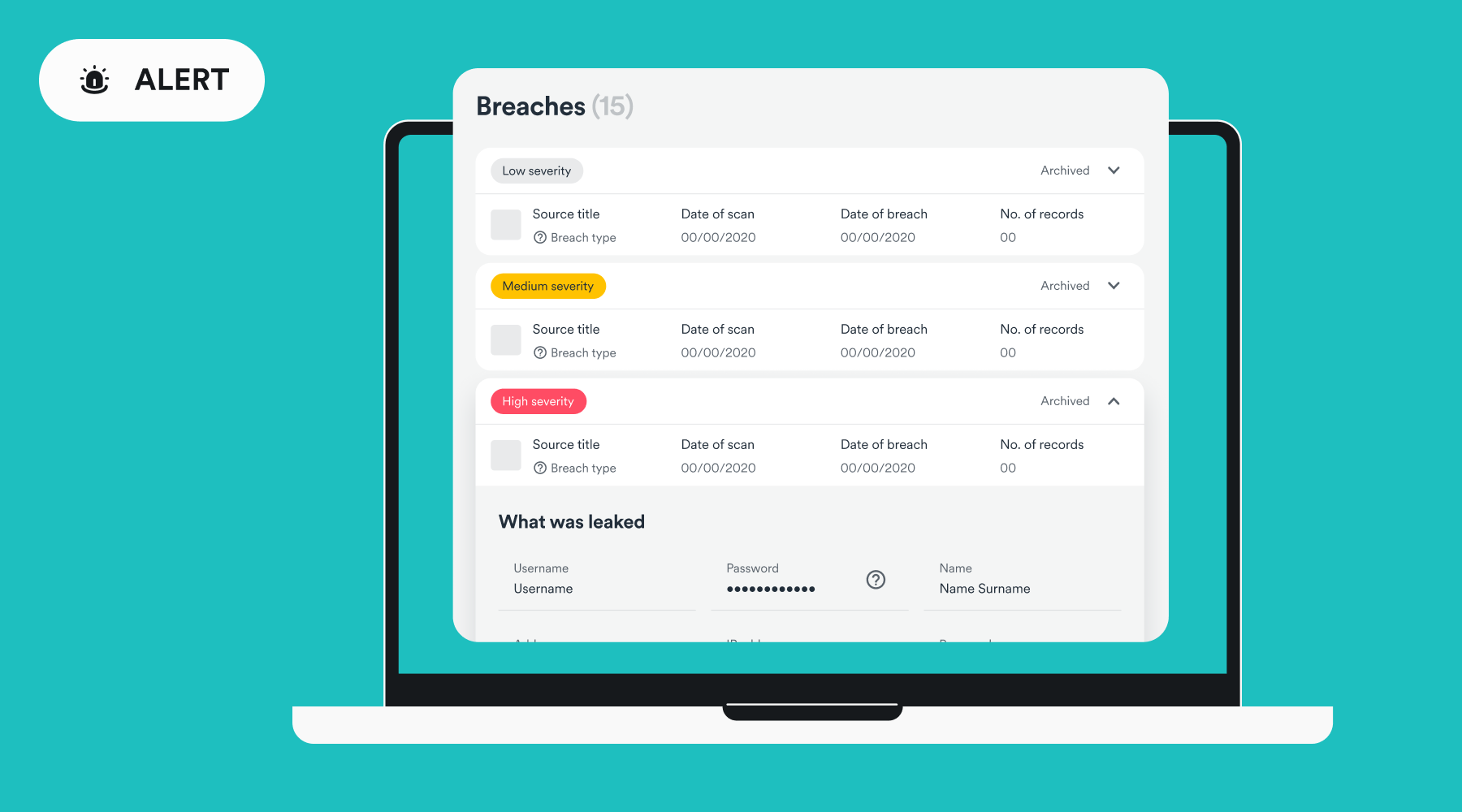
The good news is, tools like Surfshark Alert scan the web and dark web and let you know if your personal info is being shared, so you can quickly secure your accounts.
What is Surfshark Alert?
I recently tested Surfshark Alert, which is a powerful feature within the Surfshark One and Surfshark One+ VPN bundle. Here’s what I found most useful and how you can use it effectively:
Email Protection – Get instant alerts if your email address is breached, allowing you to swiftly protect your account from intruders.
Identity Protector – Stay one step ahead of identity thieves with real-time monitoring of your personal identification number’s security status.
Password Monitoring – Uncover your password’s vulnerability by seeing how often it has been compromised and if it’s time to reset to a stronger password.
Credit Card Watchdog – Prevent fraudulent purchases by receiving notifications when your credit card details surface online.
Data Security Reports – Receive regular reports on the status of your personal data, with valuable insights into patterns and risks, so you can take the right precautions.
Breach Response – In the event of a data breach, get personalized recommendations and a tailored emergency plan to help you navigate the situation with confidence.
Who is it for?
Whether you’re an individual or business owner, Surfshark Alert has many benefits. Especially if you:
Are a heavy online shopper with lots of accounts and saved credit card information.
Want to protect your entire family, thanks to Surfshark’s support for multiple devices and family monitoring.
Are taking care of elderly family or friends who aren’t as security aware.
Run a business and want to reinforce existing cybersecurity protocols and prevent costly data breaches.
Are an influencer or otherwise have a large online presence and digital footprint.
Travel a lot and require data security while on the go, which is perfect alongside the VPN.
Alternative ID
I also recommend Surfshark Alternative ID feature that allows you to generate a new digital identity to safeguard your privacy while browsing the web. This:
Maintains the privacy of your real email address and name when interacting with unfamiliar websites, platforms, or untrustworthy brands.
Reduces the likelihood of receiving spam emails from unsolicited marketing campaigns.
Minimizes the risk of your data being acquired by data brokers or cybercriminals in the event of data breaches.
Shields you from the dangers of online stalking and harassment.
How to use Surfshark Alert
Surfshark Alert is simple to set up before a breach and guides you every step after a breach occurs.
Before a Data Breach
To get started with Surfshark Alert, all you have to do is:
1. Go to Surfshark and purchase either Surfshark One or Surfshark One+
2. Download the appropriate app for your devices.
3. Login into your web dashboard and locate the Alert tab on the left panel.
4. Choose whether to monitor emails, scan credit cards, and scan IDs, then read the terms and check the box to continue.
5. Enter your email address, credit card information, and ID. Then press Activate or Scan.
6. Remember to verify your email address with the link sent to you via email.
What to do after a Data Breach
If you have received an alert of a personal data breach, it will inform you of the type of breach and how to protect yourself.
Compromised Password – Change your password immediately on any account that uses the password. Activate two-factor authentication (2FA) on these accounts if possible.
Compromised Credit Card – Immediately contact your bank or card provider and inform them of potential compromise and fraudulent activity. They may freeze the card and issue a new one.
Identity Theft – Alert relevant institutions that fraudsters might have your data. Check your credit reports for suspicious activities and consider placing a credit freeze to stop fraudsters using your identity for new accounts, credit, or insurance.
How to Activate Alternative ID
Alternative ID is part of the same bundle and takes only a few seconds to create a new online persona:
1. Select Alternative ID within your Surfshark web account, browser extension, or app. Then provide the new details you want to use, such as gender, age, birth date, and country.
2. Surfshark then automatically generates an email address with your new persona, which is forwarded to your real email address.
3. Copy this info for any sites you wish to use your new persona.
4. You can also create up to three alternative emails.
5. Download the Surfshark extension for your browser for an integrated experience.
Get Surfshark One or One+ Discounted Today
Surfshark is currently running some great offers to get started with Surfshark Alert and Alternative ID. For its 12-month plans, you get up to 81% off:
Surfshark Starter – ($2.99 a month / $41.86 upfront) + 2 FREE months – VPN and Alternative ID
Surfshark One – ($3.49 a month / $48.86 upfront) + 2 FREE months – VPN, Alert, Alternative ID, and Antivirus/Safe Search.
Surfshark One+ – ($5.49 a month / $76.86 upfront) + 2 FREE months – All of the above, plus data removal by Incogni.
You can make deeper savings with the two-year plans or opt for a month-to-month plan instead. All come with a 30-day money-back guarantee.
Final Thoughts on Surfshark Alert and Protecting your Personal Information
While there are a number of services that offer identity theft protection, many lack the features of Surfshark Alert, especially the VPN, ad blocking, and safe search.
For example, Have I Bee Pwned is free, but doesn’t have real-time alerts. Identity Guard is very comprehensive but only focusses on credit monitoring, dark web monitoring, and alerts for potential identity theft.
Overall, I found Surfshark to be one of the best combinations of data breach alerts, disposable email accounts, and VPN protection.
Last week, Microsoft released the KB5037008 to the Beta Channel on the Windows 11 Insider Program, and the patch comes with some important enhancements and changes.
First off, Microsoft speeds up File Explorer and Task Manager in this patch, allowing Windows 11 users to get a better performance on this operating system. But speaking of performance, one of the most important changes coming with KB5037008 is the DDR memory speed unit change.
According to the official changelog, which can be read here, the Redmond-based tech giant will update the units for DDR speed from MHz to MT/s.
Updated the units (from MHz to MT/s) for DDR speed.
Microsoft
This change will display more accurate information about the DDR chipsets’ actual performance on Windows 11 devices.
MHz (Megahertz) is a unit of frequency that denotes a million cycles per second. In the context of SDRAM (Synchronous Dynamic Random Access Memory), MHz was used to denote the speed at which data moves within and between components.
MT/s (Megatransfers per second), on the other hand, is a more accurate measurement for the effective data rate (speed) of DDR SDRAM memory in computing.
So, when you see DDR speeds mentioned in MT/s instead of MHz, it’s a more precise measure of the actual data transfer rate, and it provides users with the real state of their chipsets’ performance.
This information, in turn, can be used to make informed decisions when changing RAM chipsets, for example, as the new units will accurately tell you if a chipset is performant or not.
The change is currently rolling out to Windows 11 Beta Insiders, but if you haven’t gotten it yet, the Windows enthusiast, @PhantomOfEarth, says you can enable it with a third-party app, such as ViveTool, by using the following command:
vivetool /enable /id:38476224,48380607
What do you think about this new change? You can read the full changelog for KB5037008 here.
Security of your online accounts is paramount, and one of the best ways to protect them is by using a 2-step verification (2SV).
Google has recently improved the process for enabling 2SV for Workspace, so let’s dive into it and see what has changed.
Google makes the 2-step verification process more simplified
According to the Google Workspace Updates page, users can now add a second-step method, such as Google Authenticator or a hardware security key before enabling 2SV.
In the past, users had to enable 2SV with a phone number before being able to add a second authentication method. With this change, this is no longer a requirement thus making this process a lot simpler than before.
Users that have hardware security keys will have two options on the Passkeys and security keys page:
Use security key – This will register the FIDO1 credential on the security key, even if the key is FIDO2 capable.
Create a passkey and follow instructions to use another device – This registers a FIDO2 credential on the security key and will require users to use the key’s PIN for local verification.
Keep in mind that users will be asked for their password and passkey by default unless Allow users to skip passwords at sign-in by using passkeys policy is enabled.
Lastly, it’s important to know that if a user turns off 2SV from their account settings, their authentication methods, such as Google Authenticator or a second device aren’t automatically removed from the account.
For the second authentication method to be removed automatically, the administrator will have to disable 2SV for a specific user.
This sounds like a great change, and this feature has already started rolling out, so it should be available to all Workspace customers and users with personal accounts in a few days.
After months of speculations and clues here and there, it seems that Microsoft is now finally giving Windows users a sneak peek of the upcoming AI Explorer, which will most likely be officially unveiled at this year’s Microsoft Build conference, which will take place later this month.
As you may (or may not) know, the AI Explorer is an upcoming capability similar to Copilot, which uses advanced AI technologies to search everything Windows 11 users tell it to, using natural language.
Since it was unveiled, many Windows enthusiasts have been searching for clues about it in Insider builds, and thanks to them, we now have a pretty definitive idea about the AI Explorer. Microsoft will demand users to upgrade their devices, as the tool requires a lot of resources to run properly.
Of course, all these were taken with a pinch of salt: Microsoft hasn’t said anything official about it. However, with the latest Insider build to the Dev Channel, Windows enthusiast, @PhantomOfEarth, discovered that Microsoft has placed the icon for this tool in it, along with the text ‘Pre’ (similar to how Copilot is currently displayed).
Albacore, another software enthusiast, previously discovered the icon for the AI Explorer, a couple of weeks ago, but it didn’t show the additional text back then. However, with the addition of the new text, it seems the Redmond-based tech giant is finally just weeks ahead of introducing the new feature on Insider channels.
We speculated that Microsoft might introduce the AI Explorer with the Windows 11 2024 Update (also known as the 24H2 Update), coming later this year, but insiders should get it earlier than that, with a possible preview coming this summer, although we don’t know exactly when.
It will be nonetheless interesting to see if the general public will love this new tool or not. You can also read the official changelog for the Windows 11 Insider Preview Build 26120.461 (KB5037009) to the Dev Channel here.
Microsoft’s weeks away from unveiling its new Surface PCs that will presumably be marketed as ushering in a new Windows on ARM future, but the upgrade path for older WoA devices may be cut short in the process.
For owners of Microsoft’s earlier WoA attempts that include the Surface Pro X, X 2, and Lenovo’s ThinkPad X13s, the upcoming Qualcomm Snapdragon X Elite-led Windows on ARM party will be a ‘new PC’ only attended affair.
According to official documentation, the specs to run this newer version of Windows 11 on ARM will be locked to physical hardware in the form of a Snapdragon 850 processor or newer.
The next version of Windows 11 scheduled for release, version 24H2, will require a minimum spec of ARM v8.1 to operate, which will exclude devices sold from 2016 up until last year.
Some users online have already begun testing the proposed minimum specs from Microsoft on devices such as retrofitted Lumia 950XL smartphones that have been jerry-rigged to run versions of WoA operating systems with ARM v8.0 processors.
Unfortunately for those testing the limitations, booting Windows Insider builds starting with 25188 has resulted in system crashes.
There has been little discourse from Microsoft as to how Windows on ARM has evolved from its previous iterations that could be upgraded across older SoCs, but perhaps the new push for ambient AI features could tax older chips that were not designed to accommodate dedicated processing.
Microsoft’s upcoming ARM-led Surface PC showcase will come a day before the company hosts its annual developer conference where it’s expected that it will go into more details about its even stricter Windows 11 specifications since its initial rollout.
Microsoft is reportedly developing a new AI model, internally called MAI-1. The world is going crazy behind AI and that’s fair as it is the booming tech. Microsoft is among some of the big global tech companies that have taken a keen interest in AI.
The company is rapidly putting out AI products by leveraging OpenAI LLMs like GPT-4. Talking of large language models, Microsoft doesn’t have an impactful one that can shake its market rivals. But, that will change soon.
MAI-1 is under development and being overseen by ex-Google AI leader
Now it seems Microsoft is readying a new AI model to compete against rival companies like Google, Anthropic, and OpenAI. The news comes from The Information (via Reuters) which reports the company is developing MAI-1, the new AI model, which will take on leading LLMs in the market.
Mustafa Suleyman, who happens to be an ex-CEO of AI startup Inflection and co-founder of Google DeepMind is in charge of Microsoft’s new AI model MAI-1.
Not to forget, Microsoft recently paid Inflection $650 million for the rights to the startup’s intellectual property back in March. It even hired a majority of Inflection’s staff.
Well, that doesn’t mean Microsoft is carrying forward the AI model from Inflection. However, there are possibilities that Microsoft could use other tech and data to train its new AI model though.
‘MAI-1’ will be much larger than the previous models launched by Microsoft
As per the report, the new AI model MAI-1 will be much larger than the previous smaller models. This eventually means that it would be more expensive than all other models.
Microsoft is reportedly readying large servers using a bunch of Nvidia’s GPUs and tons of data to train and improve the new AI model.
The report also mentions that MAI-1 will have approximately 500 billion parameters less than OpenAI’s GPT-4 one trillion parameters. Not to forget, the recently announced Phi-3 mini model has 3.8 billion parameters.
There’s not much information available about Microsoft’s new AI model ‘MAI for now, but going down the line pictures will surely get clearer.
That’s not all, the recent report has also sparked a new conversation on whether Microsoft will continue to use OpenAI’s model for its products. Or, MAI-1 will be used by the company as a replacement. Who knows, time will tell.
Are you excited about MAI-1? Share your thoughts on whether or not it would be a great decision for the company going forward.
Amidst all this, many solutions were provided online; one was to toggle off Show recommendations for tips, app promotions, and more under Settings>Personalization.
One ad blocker app with a cool name, Oh Frick Go Back, is getting popular, as it enables users to disable different types of ads in Windows 11 with a single click. And, with it joining the parade is a well-established app, Winpilot, which is a Windows debloater app (formerly known as Bloatynosy).
Earlier, the app could remove unwanted apps from your device, but now, with the newest version of Winpilot, 2024.5.5, it can help you remove ads with a few toggles. The aim is to remove bloat without any hassle.
Seems like we’re all getting tired and annoyed by the new advertising on the Windows 11 UI, right? That’s why Winpilot is introducing a new feature/plugin called Adblock for Windows. It focuses solely on removing ads from the Windows 11 UI. Special thanks to elevenforum for the inspiration!
In the best-case scenario, everything should look like this. All toggles are set to 0/disabled
If you would like to disable Start Menu ads, Personalized Ads, Welcome Experience Ads, Finish Setup Ads, General Tips and Ads, Settings Ads, Lock Screen Tips and Ads, File Explorer Ads, and Tailored experiences, you should get the Winpilot’s latest version on your Windows 11 computer.
You can download it from its GitHub page, but remember that it is third-party software, so you need to be careful when installing it on your device.
Once installed, the app automatically turns off all types of ads; however, you can always turn on the ones you like.
Have you tried Winpilot’s latest feature yet? If so, share your experience with our readers in the comments section below.
Researchers at Microsoft have detected a security vulnerability dubbed Dirty Stream in several Android apps. The security research team detected the vulnerability in the filesharing mechanism of several file-sharing Android apps as reported by BleepingComputer.
Vulnerabilities are a boon to cybercriminals and provide an easy pass to target naive users. Given the availability of over 3.5 billion active Android phones globally, preventing them is the need of the hour.
Users are often asked to prevent visiting shady websites or using apps downloaded from unofficial app stores. But, deep down you’d agree that it is the responsibility of the platform owners to protect its users from any frauds.
Microsoft security research team detects ‘Dirty Stream’ vulnerability in two popular Android apps
Talking of responsibility, Microsoft has a dedicated security research team for the same. Security researchers are responsible for detecting and negating possible threats posed by any vulnerabilities.
More recently, security researchers at Microsoft have detected a vulnerability in the filesharing mechanism of several Android apps. They have detected a vulnerability dubbed Dirty Stream in popular apps like Xiaomi File Manager, WPS Office, and more.
Dirty Stream malware lets malicious apps send a file with a manipulated filename or path to another app’s home directory. It misleads the target to trust that filename or path and stores the file in the critical directory.
Overview of Dirty Stream | Image credit: Microsoft
This eventually manipulates the data stream between two Android apps and possibly leads to unauthorized code execution, data theft, and more.
In a recent blog post, Dimitrios Valsamaras, Microsoft’s security researcher adds that such incorrect implementations unfortunately exist in large amounts. He adds:
We identified several vulnerable applications in the Google Play Store that represented over four billion installations. We anticipate that the vulnerability pattern could be found in other applications. We’re sharing this research so developers and publishers can check their apps for similar issues, fix as appropriate, and prevent introducing such vulnerabilities into new apps or releases.
Valsamaras says both companies responded to the findings and teamed up with Microsoft to fix the vulnerability. Google also published Microsoft’s report on the Android Developers website to draw developers’ attention to mitigate similar vulnerabilities down the line.
From the user’s point of view, there’s nothing much you can do other than update the apps regularly or avoid downloading APKs from unofficial third-party stores or shady websites.
Microsoft Teams’ new version assures better performance while consuming less memory and has many new features to explore.
However, with this upgrade, you will lose some of the features you liked or see the changes to the preexisting features. In a support document, Microsoft mentioned them all; take a look at it:
Classic Teams
New Teams
Allow users to follow another user’s presence, then notify them of availability
Select a user’s avatar or profile photo anywhere in new Teams to quickly get an overview of their online status, next available calendar slot in Outlook, work hours, local time, or work location either remote or in office.
Contacts in chat
Teams notifications are now fully served by Teams, and all notification preferences are handled within Teams Settings.
Windows notifications
Consistent with other Office applications, the Teams Theme setting follows the OS Theme by default. Users can change this default in Teams Settings > Appearance and Accessibility. When a user signs out of Teams, any change to the default Theme won’t be saved.
Ability to save messages and files in Teams
The Save feature is no longer available. However, classic Teams users can download their saved messages and files to a local folder that they can open in new Teams. Learn more: Mark a message as saved in Microsoft Teams
Teams Theme Setting
Users can no longer opt-in or opt out of receiving notifications at a channel post level.
Look up an organizational chart while in a 1:1 chat
Select a user’s avatar or profile photo anywhere in Teams and navigate to the organizational chart within the profile card.
Settings dialog
Teams Settings is now an app accessed from the More options menu (…) in the title bar.
General appearance changes
Colors, tooltip styles, and general appearance have been updated.
Use the Sharepoint app instead. Then, add the document library from there as a tab to the channel. Existing document libraries automatically convert to a SharePoint document library on first use.
Post-level notifications within a channel
Search box commands
The following commands are no longer available in the new Teams search box: /activity, /files, /goto, /help, /join, /keys, /mentions, /org, /saved, /testcall, /unread, /whatsnew, /who, /pop.
Adding a Wiki to a channel tab
You no longer see a Wiki app. Instead, select the Notes app.
You no longer see the “Add cloud storage” in the OneDrive app on Teams’ left navigation bar or within the Files tab in Teams channels. You can add the third-party storage app directly from the Teams App Store.
Adding third-party cloud storage service from Files app and Files tab in channels
Adding a document library (DocLib) app to a tab in channels
Activity tab in the chat
Team owners can edit the team name and change the team picture in the team Settings tab by selecting More options (…) > Manage team.
No longer available.
Look up LinkedIn while in a 1:1 chat
Select a user’s avatar or profile photo anywhere in Teams and navigate to the LinkedIn tab within the profile card.
Edit team name and change team picture from Edit team view.
Adding third-party cloud storage service from the Files app and Files tab in channels
Ability to choose EDU themed team avatar from a list in the Edit team view In Microsoft Teams for Education
No longer available.
Files app on Teams left navigation pane
The OneDrive app replaces the Files app on the left navigation pane.
Ability to use tags in the “Add member” dialog.
There’s now an advanced flow for tags.
About links in the More options menu (…)
About links are now in the Settings app under the About Teams category.
Help in the app bar
The Help entrypoint, including Help links and Give Feedback is now located under the More options menu (…) in the title bar.
Ability to sign out from the notification area at the far right of the taskbar (system tray).
No longer available.
Adaptive Card-based tabs in personal app tabs.
No longer available.
Whiteboard Tab automatically displayed in meeting tabs.
Using Recap tab from the calendar allows you to access the Whiteboard file shared in the meeting in the content section.
Third-party and custom sign-in solutions using RunAs or undocumented hooks.
No longer available.
App name is Microsoft Teams classic, except for Windows 11, where it’s Microsoft Teams classic (work or school).
Microsoft Teams (work or school) app name is changing to Microsoft Teams.
Presenter mode (standout) during PowerPoint Live sharing.
Presenter mode is no longer available. To use presenter modes, start a screen-sharing session and choose one of the three available modes.
Some of these changes will improve the user experience in the new Microsoft Teams app. However, the features that are not included or replaced by something better in the new app might make you regret upgrading.
What do you think about these changes in the new Microsoft Teams app? Share your opinions with our readers in the comments section below.
Recently, Microsoft released Edge 126.0.2552.0 to the Dev Channel, which includes two new features and many improvements related to reliability.
Here are the changes mentioned in the changelog on the official blog:
Added Features:
Implemented a mute button on the taskbar.
The capture menu toolbar has been added to the PDF file.
Improved Reliability:
Fixed an issue where the browser would crash when users clicked on ‘Leave workspace’.
Fixed a browser crash on android.
Fixed an issue that caused the browser to crash upon closing the final tab.
Changed Behavior:
Resolved an issue where the share box would briefly appear blank and then vanish after a few seconds.
Fixed an issue where tabs that had been deleted reappeared after restarting.
Resolved a problem where there were visual style discrepancies on the product detail page, including issues with margins, colors, border radius, and shadows, within the extension.
Resolved a problem that caused visual distortions when tabs were grouped in a vertical layout.
Fixed an issue where horizontal scroll bar and vertical bar appeared in FRE.
The issue where the side pane would unexpectedly open after FRE has been resolved.
Fixed an issue where the page at edge://settings/appearance/CustomizeToolbar was displaying as blank.
Fixed an issue that prevented the sharing of screenshots via Outlook.
iOS: Fixed an issue where the string in the toolbar settings page needed to be changed.
Mac: Resolved an issue where the Send Feedback feature initially displayed a blank screenshot. Subsequent attempts would then show the previously captured screenshot on Mac.
Android:
Resolved a problem where the keyboard focus was not moving to the ‘Earn More Rewards’ link within the Microsoft Rewards section on Android.
Fixed an issue when altering the background color, the page no longer flashes on Android.
You can download Microsoft Edge Dev from the official Edge Insider website if you wish to use the new features before the public release.
Also, if you face any issues while using the version, Microsoft encourages you to report them through the in-app feedback by visiting Help and Feedback> Send feedback.
Have you tried and tested the new Edge Dev Build yet? If so, please share your experiences with our readers in the comments below.
When you have more than one Xbox account on your Windows 11 device, you can switch accounts to separate your gaming personas. Luckily, Microsoft allows you to have multiple accounts signed in when you need to keep your files or settings separate.
How do I switch accounts on the Xbox app?
Hit the Windows key, type Xbox on the search bar and click Open to launch the app.
Navigate to your profile, click on it and in the pop-out menu, click on Sign out.
Click on the sign-in button and before entering your credentials, click on Switch accounts.
Now click on Use a different account and follow the on-screen prompts to sign in if you don’t already have another Microsoft account linked to your Xbox.
Some users had problems as they failed to switch accounts and the initial account automatically signed in. This is mainly because the Microsoft account is tied to the administrator account on your Windows 11 device. If you encounter this issue, reinstall your Xbox app and restart your PC.
Additional tips for managing multiple accounts efficiently
Create user profiles – Creating different user profiles helps keep settings and any other important information separate and avoid mixups. It’s also good for privacy.
Use Windows fast profile switcher – Windows has a fast switcher feature that allows for seamless switching of accounts. This can make it easier to switch to your preferred Xbox account.
Customize accounts – When you tweak some settings on one Xbox account, it becomes easy to identify. Similar accounts can be difficult to make out at face view.
Hopefully, you can now switch your Xbox accounts with ease whether you’re sharing your Windows 11 device or have multiple gaming profiles. And with the troubleshooting steps for any issues that may arise, you now know how to address them head-on.
Have you encountered any difficulties when switching accounts? If so, feel free to drop us a comment below.
Since the start of 2024, there have been different rumors about the AI Explorer, and several leaks have been reported about the speculated features coming and the configuration needed to use it.
In the days leading up to the Microsoft event on May 20, which is expected to center on potentially unveiling AI Explorer and AI integration in Windows 11, another leak has surfaced, pointing towards new features in AI Explorer, including snapshots and recall.
So far, we know that AI Explorer is supposed to record every action performed on a PC, including activities done on the computer, meetings attended, documents prepared, songs played, and more. And, with this Snapshot leak, it all makes sense. The Explorer will take a snapshot of the moment, and when you ask about something related to that moment, it will recall the information and give you the information.
A known Microsoft watcher, Xeno, spotted snapshot references in the Control Center and mentioned it on X; here is what the post said:
"Select to open last snapshot in Recall"
Wonder what this is for, string can be found in "Windows.UI.ControlCenter.en-US.pri" in build 26200
This string could point to a feature that will likely let you open the most recent snapshot in a Recall function. This could be related to the swift restoration of previous system states or configurations within the Control Center. However, we are not sure how it fits in the AI Explorer equation at the moment.
A renowned Windows leaker, Albacore, mentioned on X (formerly known as Twitter) that AI Explorer will come with multifaceted functionality, including Snapshot capture. In his MicrosoftWindows.Client.AIX 10.0.26200.5001 layout code, we were able to spot SnapShotCapture and other functions that he spoke about in his post.
Here is what the post says:
Managed to dump a list of objects that go into making 26200.5001's AI Explorer UI package, some of the names sound interesting ✨? Sidebar Island, Shoulder Tap (making a comeback), Screen Understanding, Intent Engine, Discovery Overlay, and many more ??https://t.co/iAvOhFsrMN
This suggests that Insider Build 26200.5001 will come with a package related to the user interface (UI) of AI Explorer in Windows 11. The names of the objects within this package indicate several features that may be present in AI Explorer, including Sidebar Island (side panel within AI Explorer), Shoulder Tap (some kind of notification system), Screen Understanding (Ability to interpret what’s on the screen), Intent Engine (could help define user intent), Discovery Overlay (visual overlay that could help explore new features)
Another one of his posts suggests Insider Build 26200 seems to lay the groundwork for AI Explorer, which is anticipated to be integrated into Windows 11.
The code suggests that AI Explorer performs certain checks to verify system requirements and configuration. If your system falls short, you will get a warning about the limitations. However, a specific identifier, ID 48486440, shows that you can disable it to bypass the checks.
To conclude, with all the rumors going around about AI Explorer, we are excited to learn how it can be helpful for you but nervous about whether our existing PCs will get the functionality.
Are you excited about AI Explorer? Share your thoughts with our readers in the comments section below.
In recent years, ChromeOS has emerged as a viable alternative to Windows and is increasingly finding applications amongst users who intend to perform simple tasks. With the latest version, ChromeOS 124, your experience is about to go up a notch!
Remember, it’s a gradual rollout, so even if your device is eligible, it may not receive the update right away. We recommend you keep checking for updates and, in the meantime, discover all the new additions to ChromeOS.
Improvements in ChromeOS 124
Starting with the Settings app, it now features a user-oriented interface that bears a close resemblance to the Settings app on an Android device, reports 9to5Google. Every section in the left navigation pane has an individual icon and a short description. Besides, all these open up as a separate page.
New Settings app interface in ChromeOS (Image source: Reddit)
Moving to the next and one of the most exciting features, Faster Split Screen Setup will allow you to set up multiple apps across the display seamlessly.
Now, when you hover over the maximum/minimize icon for one of the active apps, it will show you an overview of the active ones on the other side. You can choose from the available active apps or select another one from the shelf.
To enable Faster Split Screen Setup, open the ChromeOS Settings > go to System preferences > choose Windows and desks > turn on the feature.
Next in the line is the ability to resize the cursor, a much-requested feature in ChromeOS. To increase the cursor size in ChromeOS 124, open Settings > go to Accessibility > select Cursor and touchpad > enable the toggle for Show large mouse cursor > and drag the slider to adjust the size.
In the official blog post underlining the improvements, James, Chrome Support Manager, highlights the benefits of adding the functionality.
This can be helpful for people who have low vision, for teachers who want students to follow along during a lesson while presenting, for people who are presenting on a video call, or if you just want to have a larger mouse cursor.
Lastly, ChromeOS now has a WiFi QoS(Quality of Service) feature that facilitates improved traffic prioritization when you are performing network-intensive tasks, such as video conferencing or playing games, on an already-loaded network. Irrespective of the task at hand, the display is going to be a lot smoother!
However, the feature will not be available for managed users during the initial release.
If you already use a Chromebook, these additions to ChromeOS 124 will significantly enhance the overall user experience. And for users contemplating switching from other operating systems, the new version is the perfect opportunity to jump ship.
Google rolled back the recently released reCaptcha update after users reported issues with it in Mozilla Firefox. The rolled-out reCaptcha script apparently didn’t work for Firefox users on Windows.
A recent reCaptcha update released by Google caused issues in Mozilla Firefox
After internal testing, the publication confirmed that the recently released reCaptcha update indeed didn’t work in the latest Firefox version.
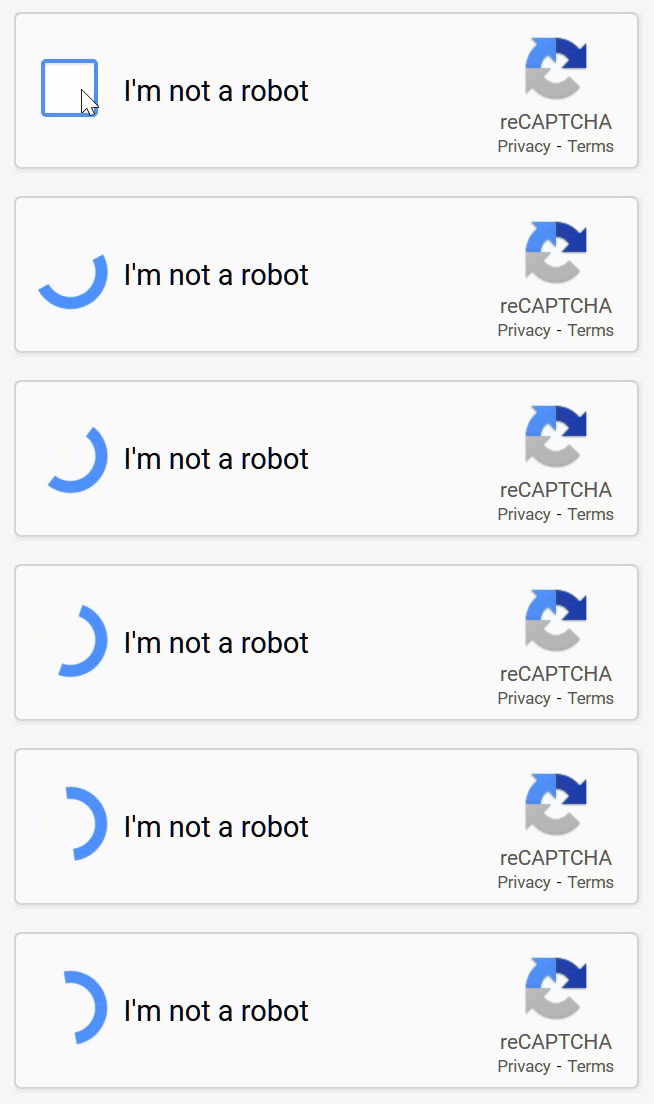
The reCaptcha prompt went on to an endless spinning circle as opposed to how it generally works. You can check the screen grab of the same below.
Source: BleepingComputer
According to a bug report on Bugzilla, the issue was related to reCaptcha’s dark mode detection routine for Mozilla Firefox in Windows. The bug report suggests that the reCaptcha script tried modifying a div’s background using document.body.removeChild.
However, since the script was loaded in the HTML head, the DOM had not loaded yet, document.body was unavailable causing the reCaptcha script error.
That said, a temporary workaround for users was to switch their browser agent to one for Edge and Chrome. Doing this lets users use the reCaptcha again.
Responding to the bug report thread, Firefox’s engineer Denis Schubert confirmed the issue. He further added that Google has acknowledged the issue in their script and was not related to the Firefox browser. He adds:
Yes, Google is rolling out a fix. It seems to work in several of our internal tests on multiple continents, but we’ll keep this bug open until we’re sure it’s fixed for everyone.
Dennis updated the bug thread the same day and added that Google fixed the reCaptcha not working bug from their end.
Google confirmed that this was mitigated, so I’ll go ahead and close this bug as fixed. If someone is still seeing issues, please give it another hour or two, clear your caches, and test again. If this persists, leave a comment here and we’ll investigate.
Did you face a similar reCaptcha issue while using Mozilla Firefox on Windows? If yes, share your thoughts in the comments below. Also, don’t forget to leave a comment by visiting this page if you are still facing the issue.
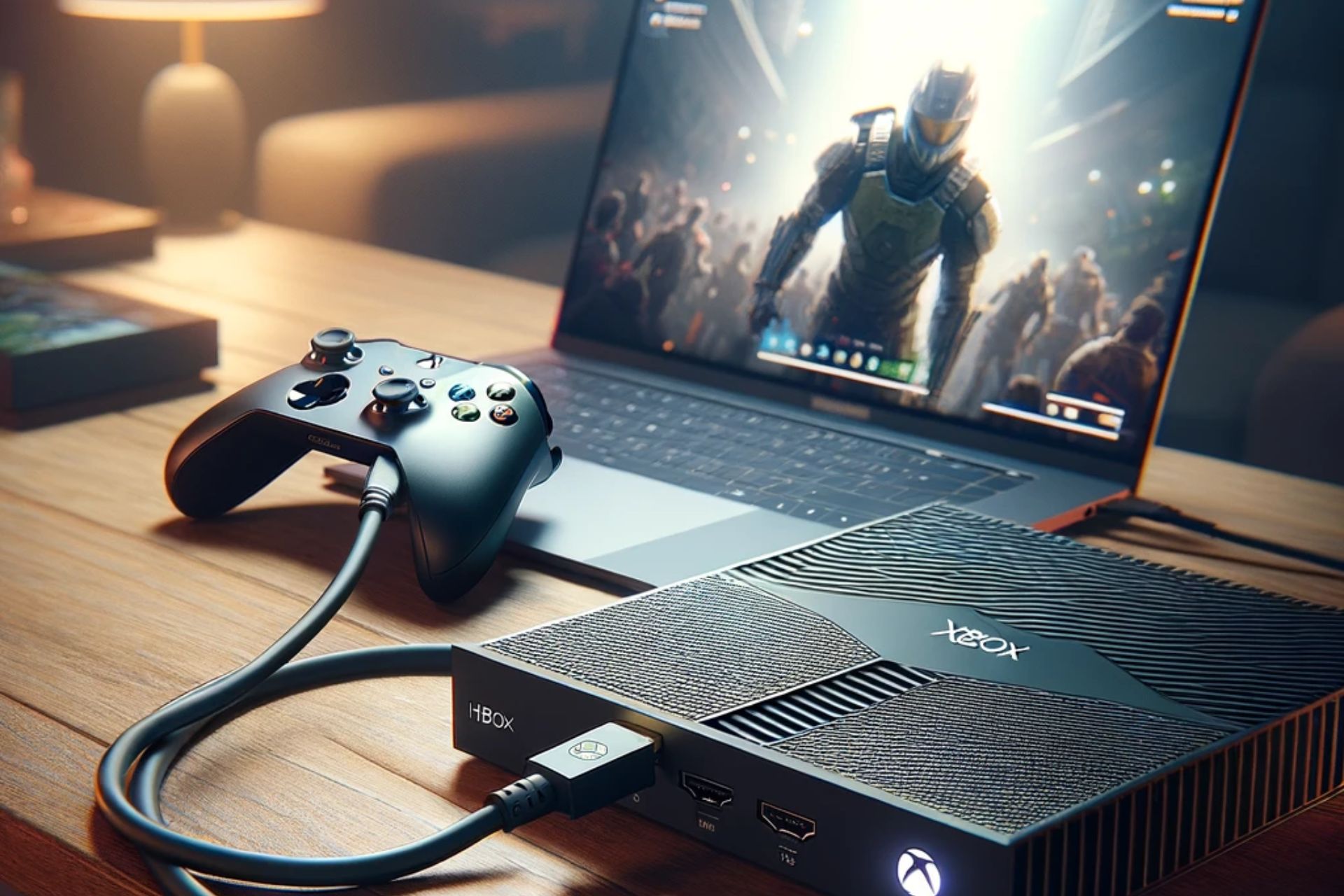
Connecting your Xbox to your Windows 11 laptop with an HDMI cable opens up endless possibilities to enjoy gameplay. Aside from using it as a monitor and allows for multitasking, you may also discover other benefits.
How do I connect my Xbox to a laptop using a HDMI?
1. Check requirements
You’ll need compatible HDMI ports on both the Xbox and laptop.
A high-speed HDMI cable that will establish a strong and stable connection.
A video capture card.
2. Convert HDMI output to input
Insert the first HDMI cable into the HDMI IN port of the USB capture card.
Plug in the other end of the first HDMI cable into the HDMI OUT port of the device from which you wish to view content. This could be your gaming console, etc.
Insert the second HDMI cable into the HDMI OUT port on the USB capture card.
Plug in the other end of the second HDMI cable into the HDMI IN port of your laptop.
Connect the USB cable to your laptop and start playing your Xbox games. You’ll use your mouse and keyboard as the controller. (You may need to connect additional cables for audio recording)
Why can’t I connect my Xbox to my laptop directly with HDMI?
It may look easy to connect your Xbox to your Windows 11 laptop with an HDMI cable but simply plugging in will not convert it to a display like a TV would. With remote play, it’s easier because you only need to tweak some settings to configure the wireless connection.
However, for HDMI, most laptops come with an output port functionality instead of an input hence cannot accept video inputs natively. For others, the laptop may lack a video capture card and require you to convert your output to input.
Some laptops may come with specialized ports that allow a direct connection but unfortunately, a regular laptop doesn’t come with these special ports as they are not a standard feature. And even if the laptop had such special ports, you’d likely require additional software to recognize and process the video.
Troubleshooting tips that may arise during setup
You’re likely to experience input lag especially if you have lower-end hardware. A high-speed HDMI cable, and a powerful graphics card can enhance your gaming experience significantly.
The video quality may be affected especially when using a video capture card. Adjusting your laptop’s resolution settings, and updating your Xbox firmware and your laptop’s OS may improve the resolution.
For compatibility issues, keep your laptop’s drivers up-to-date and ensure your hardware meets the minimum system requirements.
Finally, capture cards are not pocket-friendly especially since their main task in this scenario is to convert your laptop to a display. In such cases, you may want to rethink connecting your Xbox with an HDMI to your laptop. However, this should not stop you from trying out new ways to experience gaming.
There are so many ways to enjoy gaming on your console that will not downgrade the quality of your gaming experience. For instance, you can connect your Xbox to Apple Vision Pro and enjoy the world of virtual reality.
Have you tried connecting your Xbox to your Windows 11 laptop with HDMI? What was your experience? Do the benefits outweigh the limitations? We’d like to get your feedback so drop us a line in the comment section below.
In Fallout 76, you can level up quickly and acquire awards by joining events. However, it seems like this approach has turned out to be more problematic with the release of the Alien Event in Fallout 76.
In the past few days, we have seen countless reports of Fallout 76 crashing when players try to join the Alien Event. While the issue is primarily seen on PlayStation, some Xbox and PC users also had a similar experience.
A few players claim that most crashes happen in Charleston, but we couldn’t independently verify it. However, you could use this information as a workaround and avoid Charleston.
Besides the crashes, there are also instances of the game slowing down significantly. Loading times are way higher and as soon as one joins the game, other players are already past the initial, getting ready stage.
Users report crashes in Alien Event on Fallout 76
When we started checking for instances of the issue, user reports were found across Reddit, Steam forum, and Twitter. And everyone was facing the exact same problem!
So I’m a fairly new player and I learned to join events to level quicker. Which I’ve been doing without a problem, until this alien event. Whenever I join one that has other high level players with Gatling Lasers and Flamers my game more times then not crashes. I think it’s just because of the amount of stuff happening on the screen.
I crash about 50% of the time when doing the event: and since I’m in a party, when I try to reconnect I just get a black screen. Then I miss the event altogether. Yesterday I crashed because I opened my pip boy at the same time someone left the party. It’s just absurd how fragile this game is on PS5 and the devs just deny it’s happening.
As for Fallout 76 crashes on PC in the Alien Event, we were able to find a few reports.
I’m on PC, it crashes very specifically when the second leader dies during the second phase, so I’ve also missed out on a lot of rewards. It’s been happening to two other people I play with as well. It crashes about half the events I go to, always at the end of second phase.
When all three devices, PlayStation, Xbox, and PC, are having similar issues running Fallout 76, the problem most likely lies with the software side of things. Although, the developers have yet to acknowledge the problem, let alone release a fix!
Lowering the graphics, disabling VATS or clearing the cache might help
We found a couple of workarounds to get rid of the problem, even if temporarily:
Lower the graphics: If you don’t mind the graphics, lower them down to the minimum during the event. This way, Fallout 76 may not crash in the Alien Event.
Disable VATS (Vault-Tec Assisted Targeting System): Avoiding VATS in Fallout 76 helps reduce both the stutter and instances of game crashes.
Clear the console’s cache: Primarily reported to work on Xbox, regularly clearing the cache by restarting the console might help minimize Fallout 76 crashes in Alien Event.
Some players also had a theory that the recent Fallout 76 update broke some of the game files, and verifying the integrity of files does the trick. We can confirm that it worked for a few, but it could have been another underlying cause to blame.
Nevertheless, if you are playing Fallout 76 on a PC via Steam, do verify the integrity of the game files.
OpenAI is reportedly unveiling a new ChatGPT search engine at an event on May 9, 2024. The AI company’s new search engine is an alternative to Google. Earlier, OpenAI CEO Sam Altman has talked about developing a search engine.
OpenAI’s new ChatGPT search engine could be more comprehensive than the one currently offered by search engines. Undoubtedly, OpenAI’s new search engine will pose a great challenge to Google’s search dominance.
OpenAI is launching a new search engine powered by ChatGPT
As per a recent post on Y Combinator’s Hacker News Community, OpenAI has registered a new domain name search.chatgpt.com, along with an SSL certificate. However, the domain currently doesn’t lead to anything, rather it says Not found.
Not to forget, Sam Altman was the ex-president of Y Combinator, a venture capital firm, that was an early investor in OpenAI.
Although there’s no concrete evidence on what this could mean, speculations have been brewing since the domain has been spotted. One such speculation is that OpenAI’s ChatGPT-powered search engine might go official in a few days.
An AI influencer named Pete Huang (@nonmayorpete) has recently hinted that the ChatGPT search engine might launch on May 9.
There are a few reports that are doing rounds online pointing toward the ChatGPT search engine launch.
What would OpenAI’s alternative to Google search be like?
By now you must have understood that with the new ChatGPT-powered search engine, OpenAI is competing directly with Google. But, what it could be like. Well, imagine a search engine like the one from Google, but with generative AI capabilities.
Yes, that’s exactly what OpenAI’s upcoming ChatGPT search engine would look like. While the basics would remain the same, the company will power it with ChatGPT. When a user inputs a query, the ChatGPT search engine might offer results including AI-generated snippets with relevant web pages.
This will enable users to access the source of the information directly for better context than just an AI summary.
It isn’t new that Google reigns the search engine market with approximately 91% share, with Microsoft Bing placed at the second spot. While Google is trying some AI features in its search to up its game, OpenAI is seemingly ready to take on the search engine leader with its ChatGPT search.
Time will tell if OpenAI lives up to users’ expectations with its ChatGPT search. But, one thing is sure in the coming days users will be using the new search engine, even if it is just out of curiosity.
Will you use the new search engine once it is available? If so, share your thoughts with our readers in the comments below.
We have good news for all Windows 11 users, especially those facing issues with File Explorer and Task Manager. With the latest Windows 11 Insider Preview Build 22635.3570 (KB5037008), Microsoft is making a wide array of improvements to File Explorer and Task Manager.
Changes include patches for previously known issues and the introduction of new features on the latest iteration of Windows.
As for File Explorer, Windows 11 Insiders, upon downloading KB5037008, will find the following improvements, according to Microsoft’s official blog:
1. We’re rolling out the ability to duplicate a tab by right-clicking on a tab in File Explorer. 2. Fixed a memory leak when interacting with archive folders in File Explorer. 3. Fixed a few issues impacting File Explorer reliability. 4. Made a change to help fix an issue which could cause the spacing between your desktop icons to become extremely wide. 5. Fixed a timing issue where if you start a search from Home in File Explorer, it may unexpectedly show no results the first time you tried. 6. Did some work to help address an issue where the address bar dropdown might appear unexpectedly while you were using File Explorer.
So, from now on, you can open any folder or path separately in the File Explorer by right-clicking on the tab and selecting the Duplicate tab option. Earlier, this required using a third-party tool. We had previously reported that the Duplicate tab feature was coming to File Explorer.
Duplicating a tab in File Explorer (Image source: Microsoft)
Moving to improvements and fixes to the Task Manager with Windows 11 KB5037008, Microsoft’s official blog lists the following:
1. Updated the units (from MHz to MT/s) for DDR speed. 2. Fixed an issue where the Safely Remove Hardware option for ejecting USB devices wouldn’t work if Task Manager was open. 3. Did some work to ensure Task Manager releases process handles quickly when terminating processes. 4. Made some more improvements to help with Task Manager reliability. 5. We have improved the performance when changing the sort order. 6. Made multiple improvements to overall accessibility of Task Manager, including improving keyboard focus, tab navigation, text scaling, names of items read out by screen readers, and more. 7. We made it a little easier to resize Task Manager when trying to resize by grabbing the top of the window.
With these changes, the Task Manager will deliver better performance and quickly complete tasks, and you will find user-oriented improvements to the interface.
To benefit from these, you must be subscribed to the latest updates, even within the Windows Insider Preview.
To do that, press Windows + I to open Settings > go to Windows Updates > enable the toggle for Get the latest updates as soon as they are available.
Getting the latest Windows 11 updates
If you are not in the Windows Insider Channel, wait for a few months, and the improvements should make their way to the stable version of Windows 11.
Another major change in Windows 11 Insider Preview Build 22635.3570 (KB5037008) is Microsoft pausing public testing of Copilot. It doesn’t affect the existing functionality. The move is aimed at refining the available features and coming up with new ones.
What’s your favourite improvement in Microsoft’s latest Insider Preview Build? Share with our readers in the comments section.
In a move aimed at boosting the security infrastructure, Microsoft is bringing Zero Trust DNS(ZTDNS) to Windows devices. Currently in the Private Preview, ZTDNS will soon be available to Windows Insiders.
In the official announcement, Microsoft explains how ZTDNS, integrated with the Windows DNS (Domain Name System) client and the Windows Filtering Platform (WFP), works.
First, Windows is provisioned with a set of DoH or DoT capable Protective DNS servers; these are expected to only resolve allowed domain names. This provisioning may also contain a list of IP address subnets that should always be allowed (for endpoints without domain names), expected Protective DNS server certificate identities to properly validate the connection is to the expected server, or certificates to be used for client authentication.
Elaborating on the next step in the authentication process, Microsoft explains,
In simple words, any network traffic (IPv4 and IPv6) to an IP address not a part of ZTDNS will be blocked. With this, administrators can quickly and securely block traffic whose associated domain names are not identified.
In another blog post highlighting deployment considerations for Windows’ Zero Trust DNS, Microsoft highlights that the feature might conflict with printing, file sharing, Windows updates, teleconferencing apps, media streaming, and casting to wireless displays. However, all these can be resolved through some quick modifications!
Microsoft also explains that ZTDNS might not be as effective when deployed alongside VPNs, SASE/SSE tunnels, and Hyper-V VMs. Besides, anyone with administrative privileges on the PC can disable Microsoft’s Zero Trust DNS via the built-in settings. So, admins should reconsider the permissions they grant to users!
There will be several improvements in Zero Trust DNS before it’s finally introduced in the stable version of Windows, as confirmed by Microsoft.
It’s been one hell of a week for Helldivers 2 fans. When Sony first announced mandatory linking for Helldivers 2 and PSN (PlayStation Network) accounts, players didn’t realize the ramifications. As it turned out, the move led to Helldivers 2 being unavailable for sale in as many as 177 countries where PSN is not available.
What followed was an uproar and a barrage of negative reviews on Steam, numbering hundreds of thousands. Early on, the developers, Arrowhead Game Studios, confirmed that they were actively in touch with Sony regarding the Helldivers 2 fiasco and were looking for solutions.
Is this the moment to tweet "What? You guys don't have phones?" ??
On serious note: We are talking solutions with PlayStation, especially for non-PSN countries. Your voice has been heard, and I am doing everything I can to speak for the community – but I don't have the final…
A few hours ago, Sony confirmed that it is not moving forward with the Helldivers 2 PSN account linking update.
In a tweet on X(formerly Twitter), Sony, directly addressing the Helldivers fans, said that the May 6 update, which would have required all new and existing players to link the Helldivers 2 and PSN accounts by May 30, would not be enforced.
Helldivers fans — we’ve heard your feedback on the Helldivers 2 account linking update. The May 6 update, which would have required Steam and PlayStation Network account linking for new players and for current players beginning May 30, will not be moving forward.
This comes as a relief to millions of players who couldn’t access Helldivers 2 after it was taken off Steam in 177 countries (list shared by SteamDB). Even countries like Japan were affected, with a different game package available for download.
While players could bypass these requirements by choosing a different region, it would have gone against PlayStation’s Terms of Service and attracted a penalty.
Surprisingly, Steam has been quite supportive during the entire episode. Many confirmed receiving a full refund from Steam for their Helldivers 2 purchase, even after exceeding the 2-hour playtime and post the 14-day period.
We are yet to receive confirmed reports about Helldivers 2 being re-available in countries and regions where it was taken down. But the changes should reflect in a day or two!
An important lesson from this entire episode is that if enough players start to challenge and complain about a change, developers and publishers could be forced to back down.
Microsoft has recently announced its plans to pause public testing of new Copilot features in Windows 11. AI is one of the trendy topics these days. And, Microsoft being one of the big global tech giants is rapidly working towards launching its AI products in the market.
Without a doubt, it is the company’s move to stay ahead in the competitive AI market that’s ever-growing. However, there’s a change of plan.
Microsoft announces to pause of the testing of new Copilot features, says it wants to ‘refine’ experience
Talking of AI products, Copilot is one of the hot products of Microsoft which currently has a love-hate relationship with users. While the AI assistant is great for streamlining the workflow in almost all Microsoft apps, it has been criticized too.
Now it seems Microsoft is responding the same by announcing a pause to public testing of new Copilot features for Windows 11 users. The news must have pleased many who felt the company was rushing way too much with its AI assistant, Copilot.
Microsoft announced the news with the release of the latest Beta Channel Build 22635.3570. In the recent Windows Insider blog post, the company adds:
Over the last few months, we’ve been trying out different experiences for Copilot in Windows (Preview) with Windows Insiders across the Canary, Dev, and Beta Channels. Some of these experiences include the ability for Copilot in Windows to act like a normal application window and the taskbar icon animating to indicate that Copilot can help when you copy text or images. We have decided to pause the rollouts of these experiences to further refine them based on user feedback. Copilot in Windows will continue to work as expected while we continue to evolve new ideas with Windows Insiders.
Microsoft didn’t specify any specific reason behind this move
The exact reason behind pausing the Copilot feature testing in Windows 11 isn’t clear. However, one possible reason we could think of is the backlash Copilot faced in recent times. Another reason behind this could be associated with its development cost. However, these are only assumptions.
More recently, there were a few reports that Microsoft is going too fast with AI development. One of the engineers even anonymously said the company is competing in an AI rat race that is eventually taking a toll on AI engineers. It could be another possible reason why the company wants to take things slow, who knows.
What do you think about Microsoft’s decision to pause the testing of new Copilot features? Let us know in the comments below.
Meta doesn’t seem to compromise when adding new features to WhatsApp, be it smartphones or Windows users. Windows Latest in its latest report confirmed the same as Meta rolls three new features with the latest update for WhatsApp on Windows.
The latest update to WhatsApp’s Windows app includes three new features a hamburger menu, multi-window support for chats, and an adaptive interface. Let’s discuss these changes in detail starting from the multi-window support.
Windows 10 & 11 users can now use a multi-window feature on WhatsApp
With the latest update for Windows, Meta now adds a new Pop-out chat option to WhatsApp. Clicking on it opens a new chat window which is identical to Telegram’s new window feature.
WhatsApp multi-window feature ‘Pop-out chat’ | Image credit: Windows Latest
Notably, when you choose this new option, the selected chat opens in a new window keeping aside all other features. In short, the individual chat windows opened by this feature offer a clean look given the UI is quite compact.
The next minor change that rolled out to the WhatsApp Windows app via the latest update is an adaptive UI. Now, the chat window takes center stage, and contact lists get hidden in the menu.
Earlier you could see contact lists and chat together when trying to make the app’s window more compact by resizing it. Honestly, things looked quite cluttered, but it will change now.
Lastly, there’s a new hamburger menu that expands three different options – Chats, Calls, and Status.
While the latest update is not the biggest for WhatsApp on Windows, it will surely improve how users interact on the desktop app. Not to forget, these new features are also available in the Stable version of the app.
A Linux user has created a handy tool that removes annoying ads in Windows 11. Yes, you can also turn off ads in the Start menu of the operating system, too. So, if you also feel betrayed by Microsoft’s decision to add Start menu ads on Windows 11, it is great news.
‘Oh Frick Go Back’ is the new unofficial tool that allows removing different types of ads in Windows 11
However, the new Oh Frick Go Back (OFGB) tool has changed the same. It allows users to disable different types of ads in Windows 11 with a click of the mouse. Yes, it’s that easy.
Tom’s Hardware reports Maddy who goes by the username @xMaddy on GitHub developed the OFGB tool. The user happens to be a programmer who uses Arch Linux instead of Windows.
Using the OFGB tool is pretty straightforward. The Oh Frick Go Back tool offers you a simple checklist of all locations Windows 11 can show ads. As a user, all you have to do is checkmark/uncheckmark the listed types of ads. And, based on that the tool disables the ads in Windows 11.
The tool is good and easy to use. With the help of the Oh Frick Go Back tool, you can simply remove ads in Windows 11 without replacing the entire part of your OS. It won’t be wrong to say that Maddy’s tool surely takes you to a different era when ads in Windows 11 were not a thing.
Maddy, who created the tool, says seeing ads here and there was quite annoying for her
In a recent interview with Tom’s Hardware, Maddy says that she is pleased that people are using the Oh Frick Go Back tool. And, more importantly, it makes disabling ads in Windows 11 a breeze.
Talking more about the tool, Madds says:
I think the most important thing the tool has done is getting people to talk about ads and their place in paid software like Windows. is getting people to consider taking a look at alternative software like Linux. Remember, competition is good for consumers. I only made this after Windows gave me an error when I ran ‘sudo pacman -R ads.
Maddy also replies to a question on why she developed a tool for Windows 11 despite being a Linux user. She adds:
I was getting more and more annoyed by ads in random places and decided to try to find an easy fix. After coming across a .reg file by Shawn Brink, I found my answer. After thinking more about it, I figured it may be accessible to more people if there was a GUI so that less tech-savvy people could easily set the registry keys without needing any knowledge of the registry.
Courtesy of Maddy’s Oh Frick Go Back tool, now all Windows 11 users have a way to remove ads. You can now find the latest OFGB version 0.3 on GitHub.
Despite the tool offers an unofficial way of removing ads in Windows 11, it is getting great reception from users.
The new Stories feature will use GrokAI to summarize trendy news for you
In short, the Stories on X will summarize trending news for the users and will display them in the app’s For You tab in the Explore section.
Generally, users visit the For You section to catch up with everything that’s trending on X. That’s the one section where they can read the latest news and topics in your network without scrolling much.
Now that Stories is available, you’ll see a summary of the post that you opened in the For You tab, all thanks to GrokAI.
‘Grok can make mistakes,’ X adds a disclaimer below the summarized stories
As with every AI-generated result, these summaries are also prone to inaccuracy. TechCrunch which tested the Stories feature on X added that a warning message appears below the summary which reads – Grok can make mistakes, verify its outputs.
Not to forget, Premium users were the ones who got exclusive access to the GrokAI when it was first available. Since GrokAI powers the latest feature, only premium users can only use this feature for now. It could be one of the plans by the company to push users to pay for premium subscriptions.
Notably, Stories on X will be available only for iOS and web users at the moment. Hopefully, it will soon become available for premium Android users too.
More recently Elon Musk’s AI company xAI unveiled GrokAI-1.5 Vision which beats its market rivals in the RealWorldQA benchmark.
Did you use Stories on X? What do you think about it? Let us know in the comments below.
Microsoft recently released Edge 126 version 126.0.2552.0 in the Dev Channel with some new features. The latest version now adds a mute button on the taskbar. The latest Dev Channel update also adds a new capture menu toolbar to the PDF file.
Microsoft Edge Dev 126, version 126.0.2552.0, also fixes multiple issues
Apart from introducing minor updates, the Edge Dev 126, version 126.0.2552.0, also fixes a few issues in the browser. Microsoft has listed all of them in the release notes which read:
Improved Reliability:
Fixed an issue where the browser would crash when users clicked on ‘Leave workspace’.
Fixed a browser crash on Android.
Fixed an issue that caused the browser to crash upon closing the final tab.
Microsoft has also addressed a few behavioral changes it introduced with the latest Edge Dev channel update. Here’s the full list:
Changed Behavior:
Resolved an issue where the share box would briefly appear blank and then vanish after a few seconds.
Fixed an issue where tabs that had been deleted reappeared after restarting.
Resolved a problem where there were visual style discrepancies on the product detail page, including issues with margins, colors, border radius, and shadows, within the extension.
Resolved a problem that caused visual distortions when tabs were grouped in a vertical layout.
Fixed an issue where horizontal scroll bar and vertical bar appeared in FRE.
The issue where the side pane would unexpectedly open after FRE has been resolved.
Fixed an issue where the page at edge://settings/appearance/CustomizeToolbar was displaying as blank.
Fixed an issue that prevented the sharing of screenshots via Outlook.
iOS: Fixed an issue where the string in the toolbar settings page needed to be changed.
Mac: Resolved an issue where the Send Feedback feature initially displayed a blank screenshot. Subsequent attempts would then show the previously captured screenshot on Mac.
Android:
Resolved a problem where the keyboard focus was not moving to the ‘Earn More Rewards’ link within the Microsoft Rewards section on Android.
Fixed an issue when altering the background color, the page no longer flashes on Android.
Microsoft encourages users to report issues or bugs with the latest update through in-app feedback. You can share feedback by going to … menu > Help and feedback > Send feedback.
The research team at Weather from Microsoft Start is developing AI-powered weather models. These models will be able to predict 30-day weather forecasts more accurately. While Microsoft Start has been lauded for their work in the past, they seem to keep up the good work.
Notably, Weather from Microsoft Start was honored with the title of the World’s most accurate global forecast provider. ForecastWatch, a US-based weather forecast monitoring company honored the team with the title back in March last year.
On 3rd May 2024, Microsoft took to Bing blogs to inform that the Start team published an article on the ArXiv website regarding the new medium-range weather forecast model.
Microsoft’s new AI weather modeling is better than the current ones used by the ECMWF
The published article explains how AI weather models compare to the latest state-of-the-art European Centre for Medium-range Weather Forecasts (ECMWF).
Microsoft in its recent Bing blogs says that instead of using a single AI model, it combined five different trained models. This includes three other deep learning architecture together which ensures weather forecasting of one month in advance.
The company further adds that these AI models can learn from decades of weather to understand the pattern to accurately predict the weather in advance. Talking more on the same, Microsoft adds:
They operate in much the same way as an NWP model, though: given the current state of the atmosphere on a 3-D globe (latitude, longitude, and height), predict the state of the atmosphere for some future time, say one hour later. They then feed this prediction back into the model to predict two hours later, and so on.
The new AI models can predict the weather much faster and can only take minutes using a GPU. This allows models to run much more frequently ensuring better weather forecasting.
The new weather forecasting AI model developed by the Start team can measure temperature errors more effectively. Microsoft says:
The results are quite encouraging: when measuring temperature errors using the Continuous Ranked Probability Score (CRPS) metric, our out-of-the-box AI ensemble outperforms the ECMWF model by 17% for one-week forecasts and 4% for four-week forecasts (Figure 1).
Overall, the latest AI weather models could potentially bring major improvements to weather forecasting of above ten days. Hence, it is adding the 30-day weather forecasts to its ever-growing Microsoft Start weather modeling.
A self-taught hardware engineer who builds a GPU from scratch found out that the process is much more complex and incredibly hard. Notably, he went on to create a complete CPU after investing his time learning the fundamentals of central processing architecture.
Well, designing a basic CPU is possible if one has the right tools, abundant knowledge, and patience. Although, the CPU might not match the standards of processors currently available in the market.
But surely, one can make it. What about GPUs, though? Both aren’t similar after all despite sharing a lot of common aspects.
A self-taught hardware engineer builds GPU from scratch but says it was way harder than he expected
Well, a self-taught hardware engineer tried building a GPU from scratch. Encouraged by the success of building a CPU, the self-taught hardware engineer tried his luck with GPU this time around.
Despite sharing a lot of commonalities, GPUs are way different in how they manage threads as well as memory usage. He went on to realize that building a GPU from scratch wasn’t child’s play. Rather, it was incredibly tougher than he expected.
Tom’s Hardware which first reported this news adds that Twitter/X user @MajumdarAdam who is a hardware engineer has been sharing his progress building a GPU from scratch.
The tweet embedded below shows the flow of work the engineer did throughout his journey to build a GPU from scratch. Since it was a start-from-scratch project, he had to acquire lots of knowledge before taking the first step.
I've spent the past ~2 weeks building a GPU from scratch with no prior experience. It was way harder than I expected.
Tom’s Hardware earlier shared the engineer’s concern about GPUs being a relatively tough field of study. All because of the dominance of proprietary tech. Sadly, his predictions came true. He felt that building a GPU from scratch with no prior experience was more hard than he expected.
Hard work paid off as he completed building the GPU by fixing several issues with the help of others
The publication explains that Majumdar wasn’t aiming for a ‘graphics’ CPU. In fact, he was building a GPGPU. PC Gamer further explains GPGPU in simple words. It says a general-purpose parallel computing system includes a triangle setup, TMUs, ROPs, or any number of fixed function circuits that are usually in graphics cards’ chips.
Ultimately, the engineer’s hard work paid off, as the GPU design he built worked post resolving several issues with the help of others. His basic GPU design was able to run a small number of instructions and could perform some matrix calculations in software simulation.
Let’s not forget that Majumdar’s CPU and GPU design will be given a physical form via the Tiny Tapeout project. If you are interested and want to know more about his homemade GPU design, you can head to his Twitter handle or go through the dedicated Tiny-GPU GitHub page.
Notably, the GPU isn’t available to the public, so if you looking for one to aid your video editing capabilities, check this guide. Those looking for CPUs can jump to this page. We have listed some of the top CPU-related roundups in there.
Google is working to add a new toolbar button to Chrome that will display performance notifications based on CPU usage. It’s no surprise that this is being built upon the Memory Saver feature already integrated into the Chrome browser.
One of the key features that Chrome has introduced to improve browser performance and address resource usage concerns is the Memory Saver mode. This feature is designed to reduce Chrome’s RAM usage by pausing tabs that aren’t being used, thereby freeing up memory for the tabs that are in active use. Memory Saver is particularly beneficial for systems with limited memory or for users who multitask with other memory-intensive applications.
Google Chrome already displays tab memory usage on hover. You can also disable it if you find the memory usage in the tab hover card annoying. Now, another performance control is being added to the performance tools present in the Chrome browser, alongside the existing memory saver and memory usage card.
Chrome to Add Performance Notification Button on Toolbar for CPU Usage Alerts
According to a Chromium commit spotted by us, Chrome will get a new performance notification toolbar button. This button will be shown permanently on the toolbar and won’t do anything when clicked in the initial stages. Google is working on the logic to determine when to trigger the toolbar button to show/hide and to display a dialog when clicked.
Introduce the performance notification button This CL introduces the performance notification toolbar button. Currently, the button is permanently shown on the toolbar button and doesn’t do anything when it is clicked. Logic to trigger the toolbar button to show/hide and show a dialog when clicked will be added in follow up CLs.
The commit reveals the Performance Intervention Button responsible for the feature, which triggers the notification based on a tabs CPU usage. Google has set the resource type to CPU for the Performance Detection Manager. Based on the notification, Chrome users can either close that tab or activate Memory Saver mode. The details about what CPU usage threshold the notification triggers are unclear at the moment.
We can’t rule out the possibility of this being linked to Chrome’s Battery Saver, allowing users to improve battery life by reducing CPU usage based on the action suggested by the notification.
Artificial Intelligence (AI) engineers at top tech companies around the globe are reportedly experiencing burnout. Well, it seems the ongoing AI race is to blame.
Back in November 2022 when OpenAI unveiled ChatGPT, it sparked a race among global tech giants to launch their AI services as fast as they can.
Top tech giants including Google, Microsoft, Amazon, and more are the notable ones trying their best. But with a potential cost – burnout of their AI engineers.
The ongoing AI race is taking a toll on engineers at major tech companies
A dedicated report on burnout among AI engineers was first published by CNBC on May 3, 2024. The news agency reports that it received several messages from AI engineers.
Reportedly, the messages claim the superiors in such companies are pressing them too hard to get AI-related products released.
Some other claims made by these AI engineers are enough to raise your eyebrows about some of the companies running the AI race.
Microsoft is running an “AI rat race” according to its engineer
One name that emerged in the report was none other than Microsoft. In a message to CNBC, one of the Microsoft engineers tipped that the company is competing in an “AI rat race.”
That’s not all, the engineer further adds that the tech giant prefers speed over ethics and safety. And, it is pushing too hard so that it can quickly launch its AI products released in the market.
When the news agency reached Microsoft to get a comment on the same, there was no response. Interestingly, all these claims came right after Microsoft published its first responsible AI transparency report.
Amazon is also prioritizing ‘speed’ like Microsoft over everything else to launch its AI products as soon as possible
Amazon is reportedly another company that has been pushing its AI engineers too hard resulting in burnout. One anonymous engineer told CNBC about a bizarre incident from late last year. CNBC narrates the engineer’s words and reports:
Late last year, an artificial intelligence engineer at Amazon was wrapping up the work week and getting ready to spend time with some friends visiting from out of town. Then, a Slack message popped up. He suddenly had a deadline to deliver a project by 6 a.m. on Monday.
There went the weekend. The AI engineer bailed on his friends, who had traveled from the East Coast to the Seattle area. Instead, he worked day and night to finish the job. But it was all for nothing. The project was ultimately “deprioritized,”
Amazon’s AI engineer who talked about burnout also says that the company is doing the same thing as Microsoft and trying to launch AI products faster without giving testing and accuracy much priority.
When CNBC reached out to get a comment, an Amazon spokesperson replied via an email and said the company is focused on building and deploying useful, reliable, and secure generative AI innovations that reinvent and enhance customers’ experiences.
The spokesperson’s email to CNBC also talks about the engineer’s experience which reads:
It’s inaccurate and misleading to use a single employee’s anecdote to characterize the experience of all Amazon employees working in AI.
While the above examples only include Amazon and Microsoft, AI engineers at Apple and Google are also experiencing burnout resulting from immense work pressure, short deadlines, lack of resources, etc.
Microsoft recently released Edge version 124.0.2478.80 in the Stable Channel which adds a new internet speed tester to the browser. While this update to Microsoft Edge brings no major changes, a few need to be discussed.
The latest version 124.0.2478.80 now includes an internet speed tester and fixes two security vulnerabilities. More recently, Microsoft removed the infamous 8KB Copilot app from the Windows Server with Edge version 124.0.2478.67 in the Stable Channel.
The latest Edge update in the Stable Channel adds a speed tester, but it is somewhat weird
You can access the Edge’s built-in speed tester tool from the top of the built-in Toolbox located at the sidebar. Worth mentioning that the toolbox has a bunch of options including a calculator, world clock, unit converter, translator, etc.
While you can access the speed tester from the sidebar, it doesn’t run within the sidebar itself. Rather, when you click the “Start” button on the speed tester, a new Microsoft Bing tab opens and tests your internet speed.
While we’re unsure why this is happening, that certainly kills the motive behind introducing a speed tester in the Edge browser’s sidebar. These tools are added so that you can perform actions without having to open a new tab. That’s quite weird, honestly.
Microsoft has also mentioned the new addition to the changelog of Edge version 124.0.2478.80 which reads:
Feature updates
Sidebar Tools App – SpeedTest. Adding a SpeedTest answer by default to the Tools app in the Microsoft Edge sidebar. For more information, see Manage the sidebar in Microsoft Edge.
Edge version 124.0.2478.80 also patches two security vulnerabilities
With the latest Edge browser update not only did it add a speed tester but also fixed two high-severity security vulnerabilities of the Chromium project:
CVE-2024-4331: Use after free in Picture In Picture in Google Chrome prior to 124.0.6367.118 allowed a remote attacker to potentially exploit heap corruption via a crafted HTML page. (Chromium security severity: High)
CVE-2024-4368: Use after free in Dawn in Google Chrome prior to 124.0.6367.118 allowed a remote attacker to potentially exploit heap corruption via a crafted HTML page. (Chromium security severity: High)
If you are using Edge and looking to update it to the latest Stable version 124.0.2478.80, click here. Once you land on the About page, the browser will auto-detect the update and start installing it. All you have to do after that is relaunch the browser.
Did you update the Edge browser and try the internet speed tester? If yes, share your thoughts about the same in the comments below.
Recently, Microsoft talked about the recent innovations introduced in Outlook for personal use that are now available worldwide. These innovations range from Copilot on Outlook on mobile and Windows to showing sender emails in the Junk mail folder to warning users before visiting malicious links in the Junk folder. Let’s know about them more.
Copilot on Outlook
Mobile
If you have a Microsoft Copilot Pro subscription and use Outlook on mobile devices, including iOS and Android, you can now use Microsoft Copilot with Outlook.
This means you don’t have to read the whole email chain to understand a problem. You can ask Copilot to summarize long email threads. You can also ask the AI assistant to compose rich and personalized emails or give suggestions to draft a better response.
Windows
If you are a person who prefers using Outlook on your Windows computer and has Copilot Pro, then you can experience it with just a touch of a button
Microsoft also mentioned they have started offering coaching by Copilot, which means you will get input on emails you draft so that you know you have hit the right sentiment and tone for the reader.
Soon, you will also get a draft with Copilot, which will make composing impressive emails from square one.
Showing sender emails in the Junk mail folder
The Redmond tech giant took the feedback seriously and introduced a change. Now, when you open the Junk Mail folder, you will see the sender’s name, email address, and subject line, helping you decide whether to open the message or delete it. Previously, to know more about the sender, you had to hover over the sender’s name or open the message, which could be risky.
The feature is currently available in outlook.com, the new Outlook for Windows, Android, and iOS, and soon you will see it on Mac.
Junk email security
With the latest changes made to the Junk email experience, now you will be more vigilant while clicking a link from an email in the Junk folder.
You will get a pop-up alert warning you before you visit a link in any messages from the Junk folder.
The feature will be available globally to Outlook.com and the new Outlook for Windows, iOS, Android, and Mac.
IMAP/POP support in the new Outlook for Windows
The vision is to make the new Outlook for Windows free for every user with a PC, regardless of the email provider or account type. Previously, the focus was on users with personal Microsoft accounts or renowned email providers like iCloud, Gmail, and Yahoo.
However, as many users also have email accounts configured using IMAP (Internet Message Access Protocol) or POP (Post Office Protocol), Microsoft extended support to users with IMAP or POP accounts, thus broadening the reach.
To sum up, the introduction of these features shows Microsoft’s commitment to making Outlook for Windows accessible to all users. Furthermore, the security features and Copilot integration make the experience of using Outlook for Windows not only accessible but also seamlessly secure and collaborative.
The US Department of Justice’s antitrust case against Google has revealed inside information that hints at Google’s dominance in the AI landscape in the last decade. According to emails made public, Microsoft was very, very worried about the progress Google had made in AI.
First shared by Business Insider, the email, titled Thoughts on OpenAI, sent by Microsoft’s CTO Kevin Scott to Satya Nadella, Microsoft’s CEO, and Bill Gates, highlighted how the company was several years behind the competition in terms of ML (Machine Learning) scale.
While most parts of the email were redacted, the sections made public clearly expressed Microsoft’s fear of losing to Google in the race for AI dominance. In the email, Scott cited the example of auto-fill in Gmail. He said,
Their auto-complete in Gmail, which is especially useful in the mobile app, is getting scarily good.
Talking about OpenAI, DeepMind, and Google Brain, Scott shared how he was earlier dismissive about their efforts but soon realized how Microsoft fared compared to them when NLP (Natural Language Processing) models were first developed,
When all these programs were doing was competing with one another to see which RL system could achieve the most impressive game-playing stunt, I has highly dismissive of their efforts. That was a mistake. When they took all of the infrastructure that they had built to build NLP models that we couldn’t easily replicate, I started to take things more seriously. And as I dug in to try to understand where all of the capability gaps were between Google and us for model training, I got very, very worried.
Scott sent the email on June 12, 2019, and Microsoft and OpenAI announced an exclusive partnership on July 22, 2019. This can’t be a coincidence!
While it’s possible that talks for a partnership might have been underway at the time, given Bill Gates’ control over Microsoft and his relations with Sam Altman, CEO of OpenAI, we can’t ignore the fact that Microsoft was concerned about the developments in the space, and it not playing a significant part.
Microsoft presently is the biggest player in the AI landscape, with all major tech giants far behind. And given its continued efforts, the picture is not going to change soon.
Who do you think will dominate the AI landscape in the future, Microsoft or Google? Share with our readers in the comments section.
Microsoft Defender for Identity (MDI) is a cloud-based security solution that helps you monitor and protect identities & infrastructure across your organization.
Now, the Redmond tech giant has released a new feature, the Defender for Identity Health Alert API, which can be recognized as a direct line to keep tabs on your organization’s security health, and it could be a game-changer.
In the blog, Microsoft mentioned that these alerts could prove to be crucial in ensuring a secure environment and are into two main areas:
Domain-related or aggregated health issues, listed on the Global health issues tab in the Microsoft 365 portal.
Sensor-specific health issues, listed on the Sensor health issues tab in the Microsoft 365 portal.
Now that you know the areas it covers, let us talk about the benefits of Health API:
Dashboarding – You can now seamlessly integrate MDI health alert information into your favorite dashboarding tool, which ensures real-time visibility.
Automation – If you use ticketing systems for IT support, this new API enables automatic ticket creation when a new health alert is opened.
Status updates – MDI closes a health alert automatically once it detects resolution. And, you can suppress the alerts for up to 7 days if you know the issues will last for a few days.
To start using the MDI health alerts APIs, you need to fulfill these requirements mentioned on the Microsoft website:
Permissions: user requires at a minimum M365 role permission: Authorization and settings –> System Setting –> Read only (Defender for Office, Defender for Identity).
Entra ID Enterprise Application consent permissions for Graph Explorer.
SecurityIdenitiesHeath
SecurityIdentitiesHealth.Read.All
SecurityIdentitiesHealthRead Write.All (only required to update the status of a health alert.)
If you are wondering how to kickstart your journey with the MDI Health Alert API, you can use Graph Explorer. First, check you have the minimum necessary permissions, then mention the query in the Graph Explorer’s query bar. Now execute the query and start leveraging the MDI Health Alert API’s power. To check out the sample API queries, you can go to the official website.
To sum up, the newly introduced feature will strengthen your organization’s security further, thereby offering unparalleled visibility, automation, and better control over health alerts and issues.
Have you tried it yet? If yes, please share your experience with our readers in the comments section below.