Microsoft Copilot is accused of spreading biased information about disputed islands

Copilot now finds itself in the middle of a controversial situation, after the AI tool was accused that it’s spreading biased information about the disputed islands of Dokdo, a set of islets located in the Sea of Japan, whose sovereignty is claimed by both South Korea and Japan.

South Korea calls the islands ‘Dokdo’, while Japan refers to them as ‘the Liancourt Rocks’, or ‘Takeshima’, and Copilot, it seems, prefers the latter names when asked about the topic.

According to International Business Times, Professor Seo Kyoung-duk of Sungshin Women’s University discovered that searching for these islands on Copilot in the US region displays the ‘Liancourt Rocks’ or ‘Takeshima’ rather than ‘Dokdo’. The professor said that the isles are also presented as disputed territory between the two countries, when in fact, they should be referred to as Korean.

Searching for the Dokdo islands on Bing displays different results, depending on where the user is located. In South Korea, for instance, the results use the Korean term “독도” and describe the islands as situated in the East Sea. In India, on the other hand, there are different results, as you can see below:

We even tried looking for the Dokdo islands, on Microsoft Edge, using Copilot, and we’re located in Europe, and this is what Copilot displays. Microsoft Copilot dokdo
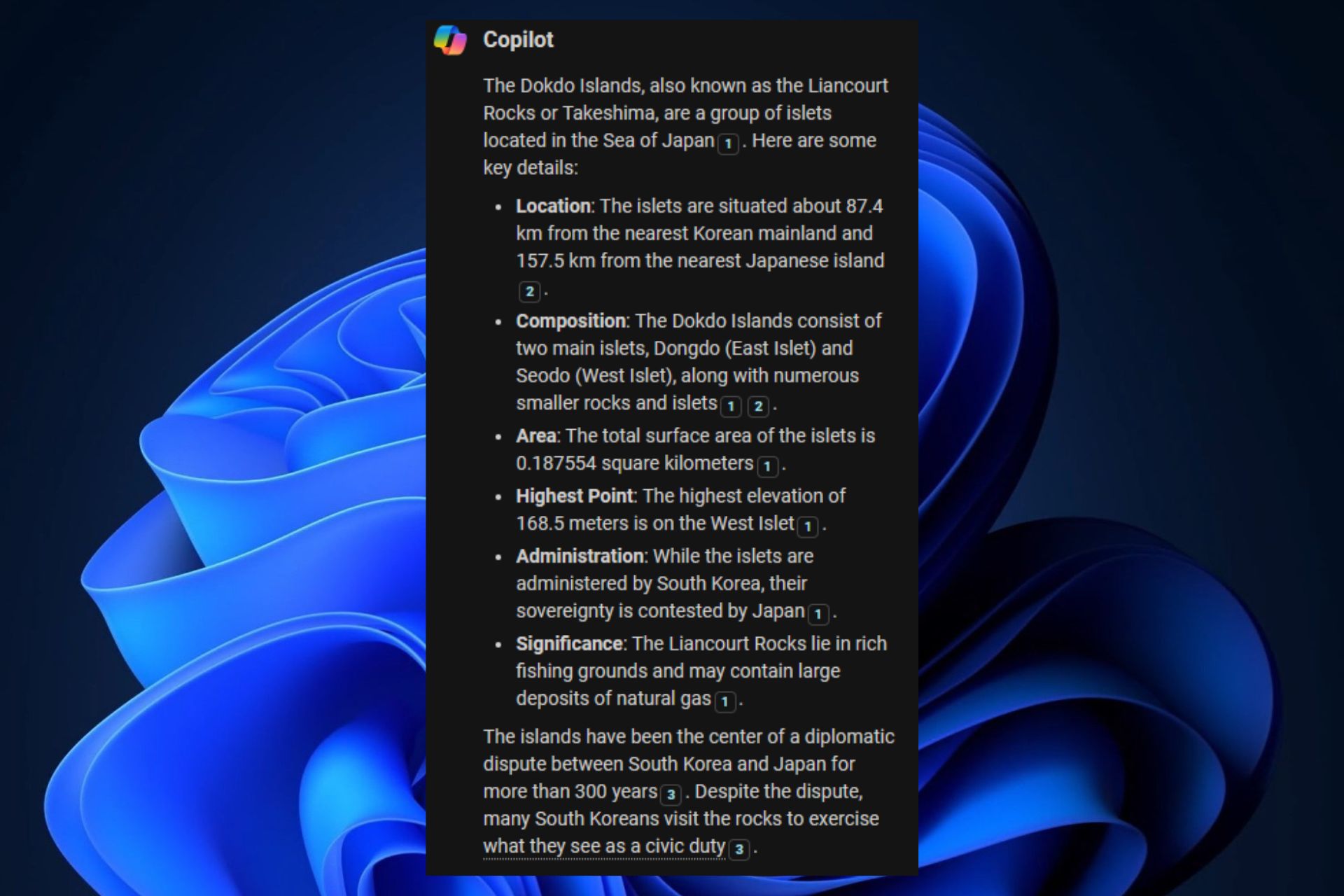
The Dokdo Islands, also known as the Liancourt Rocks or Takeshima, are a group of islets located in the Sea of Japan. The islands have been the center of a diplomatic dispute between South Korea and Japan for more than 300 years. Despite the dispute, many South Koreans visit the rocks to exercise what they see as a civic duty.

Copilot

The AI tool also displays some highlights regarding the region, mentioning its disputed state:

Administration: While the islets are administered by South Korea, their sovereignty is contested by Japan.

Copilot

International Business Times also says that Professor Seo Kyoung-duk plans to file a formal complaint to Microsoft highlighting the issue, and urged the company to address it as soon as possible.

Copilot on Microsoft Edge is based on OpenAI’s GPT-4, and it uses the Internet to answer different questions. In our case, most of the referenced text on the issue was based on Wikipedia and other news sources.

Microsoft hasn’t addressed this issue, but the company will most likely update the tool to show as little biased information as possible.

Chrome’s Memory Usage in Tabs is annoying? Google now lets you disable it

Google has recently updated Chrome to show the memory usage of the active tab in Hover cards. This feature has been built on the Memory Saver mode.

The company is now introducing an option to control the visibility of Memory usage in Hover cards through a preference in the Appearance settings in Canary. This preference, however, doesn’t affect the high memory usage notification that appears over the hovercard when memory reaches a certain threshold.

Google Chrome, notorious for being a memory hog, has received memory and performance improvements with the Memory Saver mode and Energy Saver. When the Memory Saver mode is active, Chrome frees up memory from inactive tabs, which can then be used for other tasks on the system.

Adding to the above and building on the Memory Saver mode feature, Google has added the ability for Chrome to show a web page’s memory usage. This helps users to identify which tabs are consuming a lot of resources.

This was useful until users found it annoying to notice each tab when they hovered, in addition to the already visible tab hover card images. After receiving a lot of feedback and reports, Chrome has added an option to disable Tab Hover Card images in Settings. Now, Google has added a toggle to control whether regular memory usage should be shown or not in Tab hover cards from the Chrome settings.

If you don’t want Chrome to show memory usage info in each tab, follow the instructions below:

Disable or hide memory usage in Tab Hover Cards from Google Chrome

  1. Launch Chrome.
  2. Click on Menu and select Settings.
  3. Click on Appearance.
  4. Under Tab Hover Cards, toggle the new Show memory usage switch to OFF.
  5. Voila! no more memory usage info in tab hover cards.

To show memory usage for tabs in hover cards again, turn on the above option.

The High Memory usage notifications will still be shown by Chrome

That said, regardless of preference, high memory usage will not be affected, says Google. Here’s what that means: when a tab uses normal memory usage, the tab hover card may not show it when you disable the preference. However, Chrome will still show a high memory usage notification via the hover card when the tab uses memory above the threshold.

Do you find Chrome’s Tab Memory usage helpful or distracting? Let us know your thoughts in the comments below.

People’s Choice: These are the best Xbox Game Studios

Xbox (as an integral part of Microsoft) is notoriously known as being the company that buys other game studios and brings them under its wing. The company even had a Developers to Watch list at some point, highlighting the game studios that could potentially be bought by Microsoft.

Xbox doesn’t shy away from getting its hand on big players as well: Ninja Theory, the well-known game studio behind the popular Hellblade: Senua’s Sacrifice title, was bought by Microsoft in 2018, for a $117 million sum.

More recently, the gaming industry’s largest acquisition was also made by Microsoft when it bought the ABK triad (Activision-Blizzard-King) for the gigantic sum of $69 billion.

The Redmond-based tech giant currently owns 40 game studios around the world under the Microsoft Gaming flag, separated into three major departments: Xbox Game Studios, ZeniMax Media, and Activision Blizzard.

Today, we’ll take a look at the people’s choice for the best Xbox Game Studios from within the eponymous department, which encompasses 15 studios, according to public sources. These are:

The people’s choice for the best Xbox Game Studios was discussed in a Reddit thread and almost all of these studios mentioned above made it to the list. But let’s see what they have to say.

The best Xbox Game Studios, according to people

Obisidan Entertainment

The studio is responsible for titles such as New Vegas, The Outer Worlds, or Pillars of Eternity.

For me, it’s Obsidian Entertainment. Between New Vegas, The Outer Worlds, Pentiment, Pillars of Eternity and (much to my surprise) Grounded, they’ve consistently crafted games that I’ve poured countless hours into.

Reddit user

Obsidian for me, they are very consistent and hit the right buttons for me.

Reddit user

Playground

The studio developed some of the Forza Horizon titles.

Playground has been constantly pushing the limits. They are the studio to beat IMO

Reddit user

I guess Playground.

Reddit user

Playground games with Forza never disappoints me. Many people have said that they could be Xbox’s insomniac if Fable lives up to the hype.

Reddit user

Playground. They care more about Forza’s success than Turn 10 themselves and at this point, Horizon is the face of the Forza series, not Motorsport.

Reddit user

It’s worth mentioning here that the Turn 10 Studios might earn a bad reputation due to the way the company hires talent to work on the Forza games.

343 Industries

This legendary studio is the one behind the Halo franchise, along with Bungie.

343 Industries. I love Halo a lot and I know that they have had rough patches 100%, but Halo is special to me.

Reddit user

343 Industries. Now for 343 Industries, I still say they’re getting there but HALO 4 was one of their best HALO games I’ve played since the 360.

Reddit user

343i have been improving a lot since the change in leadership and I love Halo so I guess they’re up there

Reddit user

Ninja Theory

The studio’s most popular title is Hellblade: Senua’s Sacrifice and its sequel is expected to come out this year on Xbox consoles.

Ninja Theory, Hellblade on its own is outstanding.

Reddit user

These are the most popular choices made by Reddit users. You can also follow the Reddit thread, to see what other choices there are. In the meantime, what is your favorite Xbox Game Studio? Let us know in the comments section below.

Microsoft fixes the POPCNT bug, big relief for MS Store app users on Windows 10

We recently reported how users on unsupported legacy CPUs can’t upgrade to Windows 11, even after trying to bypass the system requirements, due to POPCNT, an SSE 4.2-based instruction, being made mandatory.

This also affected other parts of the OS, primarily on Windows 10. Many got File system error (-2147219196) when launching Microsoft Photos, Calculator, Movies & TV, and Feedback Hub, amongst other Microsoft Store apps.

File system error (-2147219196)

Soon, it became apparent that the problem was linked to a regression in the Visual C++ Libraries (version 17.8.0) framework package that many MS Store apps rely on. It affected legacy devices that do not support SSE 4.2 instructions.

Finally, Microsoft has a fix

The latest Visual Studio 2022 version, 17.9.1, comes with a patch for the POPCNT bug that affected Microsoft Store apps.

As per the release notes on the official website, here’s what new in version 17.9.1:

  • Fixed a bug where the libconcrt.lib used when static linking could contain an SSE 4.2 instruction that was illegal on older X64 systems.
  • Updated the 16.11 MSVC toolset to 16.11.34 (14.29.30154.0) for customers who use the 16.11 C++ toolset with VS 17.9.
  • Added support for char8_t as a built-in type for C++20 with /clr.

So, all you have to do is download the latest version of Visual Studio 2022 from the official website and install it.

Besides, you could simply install the latest OS update. To do that, press Windows + I to open Settings > choose Update & Security > go to Windows Update from the left > click Check for updates > download any available newer version of the OS.

To summarise, you can now run apps without getting a File system error, but Microsoft hasn’t yet addressed the part about installing Windows 11 on unsupported CPUs.

Microsoft’s earlier stance was that unsupported PCs could run Windows 11, but they may not receive security updates. Seems like that has changed now, and Microsoft is making sure only processors supporting POPCNT can upgrade to Windows 11.

Remember, computers manufactured in recent years support POPCNT, so this requirement shouldn’t be a problem for most of you!

If you are still getting the (-2147219196) File system error, let us know in the comments section below.

Nobody’s fight: It’s not Meta & Microsoft vs Apple, but more Apple vs EU rules

As per reports, Microsoft and Meta are lobbying the EU to reject Apple’s new terms in response to the DMA (Digital Markets Act). With the March 7 deadline for compliance fast approaching, it looks like Apple will be forced to make changes to its new policy.

The new €0.50 Core Technology Fee levied on developers is supposedly the bone of contention between the tech giants. According to the new terms released by Apple, iOS apps distributed from the App Store and/or an alternative app marketplace will pay €0.50 for each first annual install per year over a 1 million threshold.

This led to Xbox repealing its decision to launch Cloud Gaming on iOS. Others across the tech community share similar sentiments. Daniel Ek, CEO of Spotify, calls Apple’s new terms vague and misleading. Epic Games CEO Tim Sweeney calls it a “devious new instance of Malicious Compliance.”

But it’s not just the developers who are affected. Consumers like us, too, will miss out on safeguards and the ability to go with third-party developers offered by DMA if Apple’s new terms are accepted.

What’s the general consensus on the whole EU vs Apple situation?

Surprisingly, people are more aware of the situation than we expected. And they are calling out Apple! Here’s what the majority of the people wrote in a Reddit post,

This isn’t Meta vs Apple. If the EU decides charging a fee for every app install is illegal, it’s a win for consumers. If the EU decides crippling web apps is illegal, it’s a win for consumers.

Apple is also the only company that gives you no option but to use their App Store on their general computer ecosystem. I can install Gog on my Steam Deck and PC. Apple makes that impossible on their OS.

The more is Apple pushed by EU the better for both end consumers – Apple users – and app developers like me.

I think most Apple users don’t really have problem with that, if they did then they would not be on Apple in the first place. In fact, Apple users are fine paying extra just to use these restrained “premium devices”.

I’d love it if my relationship with Apple could be where I pay them directly for the products and services they provide and I pay everyone else directly for the products and services they provide.

It seems people are more worried about their favourite apps not coming to iOS, say Xbox Cloud Gaming. Developers, on the other hand, are concerned about the added expense in the form of fees paid to Apple.

As per Apple’s estimate, under the new terms, 99% would pay the same or lower fee while less than 1% would be charged the Core Technology Fee. Major developers, however, believe that they will end up paying more than they can actually generate after deploying their apps on iOS.

A few support Apple’s decision

Some have surely come out in support of Apple, citing a more secure infrastructure if app deployment and payments are processed through Apple’s native App Store.

But as a consumer I chose Apple because I knew apps would only have to be installed from one trusted source, not worry about loading up random app stores or having developers only let me get theirs from secondary untrusted sources. If I wanted different I would choose android.

Only a very tiny sub-section of almost two billion iOS users would be “losing” here, whatever that means. The overwhelming majority of consumers outside the tech community would much rather prefer a centralized app store and payment system where all their downloads, purchases, and subscriptions are in one place

It remains to be seen how the EU will respond to Apple’s updated terms. It could outright reject them, citing non-compliance with DMA, and impose a fine or give the Cupertino-based tech giant another deadline to comply.

The latter seems most likely as it will amicably settle the dispute. A fine, on the other hand, will be contested by Apple, and we may witness another long-drawn legal battle.

Though it won’t be the first time Apple is fined by the EU. Reports claim that the EU may slap a €500 million ($539 million) penalty on Apple after a complaint by Spotify.

Do you believe Apple is right in its response to DMA or whether the new terms need a complete overhaul? Share with our readers in the comments section below.

Windows Photos’ new Generative Erase helps users edit photos as if they were experts at it

Enlisted users in the Windows Insider Program, for both Windows 11, and Windows 10, now experience the new updated Windows Photos app with the Generative Erase ability, plus several other AI features such as Blur background, and Remove and Replace background.

The new Generative Erase capability, especially, is impressive, as it gives all the tools regular Windows users need to fix and edit their photos the way they need, in a professional manner. Microsoft says the feature is based on the Spot fix tool, actually the tool has been updated with AI features, and renamed to Generative Erase.

Basically, users will be able to remove background elements that won’t fit in the overall feeling of a photo, but compared to the Spot fix tool, Generative Erase creates much more realistic results, says Microsoft.

Our well-known Spot fix tool has received a boost with the help of AI and is now known as Generative erase in the app. This feature allows you to fix and remove distractions from your photos, like background objects or miscellaneous visual clutter. Compared to Spot fix, Generative erase creates a more seamless and realistic result after objects are erased from the photo, even when erasing large areas.

Microsoft

As you can see in the comparison below, the Redmond-based tech giant means it.

Users will have all sorts of control over Generative Erase: the feature is available to access through the Edit Image panel and to remove unwanted objects, users will only have to brush over them.

Generative Erase allows for control over the brush tool, and it can be customized at will. If multiple objects and areas need to be removed, the capability also has the Auto-Apply feature, which will automatically take care of the marked areas.

Microsoft also released AI improvements and enhancements to the existing apps in Windows 11, and Windows 10, including:

  • All of the current Photos app AI edit features, including Blur background, Remove and Replace background, and Generative erase are now available in the Photos app for Windows 11 for Arm64 devices.
  • For the first time, Windows 10 will be receiving all of the AI editing features that were previously available only on Windows 11, including Blur background, Remove and Replace background, and Generative erase.
  • Various stability fixes and improvements.

Yesterday, Microsoft released new builds to the Canary and Dev channels. The two channels no longer received the same build. Instead, Canary users got the first taste of the new WI-Fi 7 capability, and the Dev channel got two new servicing builds that are meant to stabilize the channel, rather than offer new features.

How to Use Explain With Copilot in Notepad on Windows 11

Recently, AI made its way to Notepad through the Explain with Copilot feature. You can use it to get insights into large documents, simplify complex subjects, and more. A right-click in the document lets you access the feature.

You cannot yet access it in Notepad on the standard version of Windows 11. It is only available to Windows Insider program users running Canary and Developer preview builds.

How do I use Explain with Copilot in Notepad on Windows 11?

  1. Launch a notepad document with the text. You can also open a blank notepad and paste text from different sources.
  2. Right-click anywhere in the document and select Explain with Copilot.
    Explain with Copilot in Notepad
  3. Then click send to give consent to send your information to Copilot.
    Send to Copilot
  4. After that, the Copilot will generate a response in the sidebar on the right. You will have to scroll down to see the complete information.
    Explanation by copilot

You can counter questions and also ask for detailed questions based on your text. Copilot will give you answers with online references.

How to enable Explain with Copilot in Notepad?

You can enable Explain with Copilot in Notepad by joining the Windows Insider program. But before moving forward, back up your data, as Windows insider builds may have bugs and errors that result in losing your important files.

  1. Head to Settings from the Start Menu.
  2. Go to Windows Insider Program from the Windows Update menu on the left bar.
    Windows 11 Inside builds
  3. Click Get Started inside the Windows Insider program.
    Windows Insider Program
  4. After that, select your Microsoft account and select Dev Channel, which is ideal for enthusiasts.
    Get started with Insider program
  5. Then restart the computer, and Windows 11 will start downloading and installing insider preview builds.
  6. Once the updates are installed, you will get Explain with Copilot in Notepad.

    Do remember that it may take some time before it becomes available to all the users in the preview build, as Microsoft has acknowledged in their release post. 

So, this is how you can use Explain with Copilot (Preview version) on Windows 11. If you are not interested in joining the Windows Insider program, use Copilot as a standalone app, which is available across most versions of Windows 11.

You can also use Copilot directly inside Microsoft Word to draft text, summarize long sections, and refine your writing, and we walk you through the full setup in our step by step guide on how to use Copilot in Word.

You can launch Copilot with a shortcut key on Windows 11. There is also a premium version, so you can compare Microsoft Copilot and Copilot Pro and get more out of the AI companion.

Let us know if you have any doubts or problems using Explain with Copilot in Notepad through the comment section.

Scene Landmark Detection might soon improve Camera Localization

Soon, Camera Localization might get some improvements based on Scene Landmark Detection, according to Microsoft research.

So, we might see some new updates for AR, robotics, and navigation in general. In addition, unlike the older camera localization methods, the new one should be faster. Also, the new method should preserve your privacy and require a smaller storage.

How will the new Scene Landmark Detection method work?

The new method based on Scene Landmark Detection is to train a convolutional neural network (CNN) to establish the position and orientation of the camera. However, trainers need a SLD with a strong processor to face its limitations.

After all, the model they use needs to be fixed with accuracy and power. On top of that, it has noisy training labels. In addition, it requires more data about its environment to adapt to dynamic and unfamiliar settings.

To fix the limitations, researchers decided to use multiple networks and train each on a subgroup of landmarks. Additionally, researchers might also use scene-specific 3D points with pre-defined landmarks.

In addition, researchers are thinking of changing the architecture of their prototype based on Scene Landmark Detection. With it, they hope to improve its proficiency and memory efficiency. On top of that, researchers managed to reduce its storage needs. Also, they improved the model’s accuracy to match the 3D structure-based methods on the INDOOR-6 dataset.

In a nutshell, the method based on Scene Landmark Detection to improve the Camera Localization looks promising. In addition, the models might soon adapt to dynamic and unfamiliar environments. Soon, we might see a better version of this model in future AR technologies or devices meant to help people do their daily tasks. Also, Microsoft cars could use an updated version of the SLD model. However, the model is not well suited for real-time applications and needs some work to get there.

If you want to learn more about the research check this GitHub article.

What are your thoughts? Do you think that the new method based on Scene Landmark Detection will improve the Camera localization? Let us know in the comments.

Mastodon got targeted by spam attacks coordinated on Discord

Mastodon and other social networks are having trouble dealing with spam attacks from hackers. In addition, they are using Discord to coordinate their attacks.

However, it seems like Discord is not taking any actions. Furthermore, the platform did not remove the server in which the hackers coordinated. Thus, the social networks leader think that Discord might not be ready to deal with such issues.

Who targeted Mastodon with spam attacks?

Some reports on Mastodon claim that the hackers were some angry teenagers from Japan. The whole problem started as a conflict in which one of the teenagers wanted to cyberbully the other by using spam bots.

Unfortunately, the attack is not the only problem. After all, it shows that there are various vulnerabilities hackers can exploit. Also, it shows that cybersecurity is no longer just an option, especially for decentralized social networks. After all, they allow us to control our data, move between servers, and create our own.

On the other hand, Discord does nothing to stop threat actors from coordinating spam attacks on Mastodon or other platforms. Moreover, Emelia Smith, a software engineer of the Fediverse, tried to contact Discord on their official channels. However, she got some generic messages back.

According to Eugen Rochko, the spam attacks targeted small servers on Mastodon. On top of that, these servers don’t have any registration requirements, and experts don’t have the right tools to deal with them. Moreover, the Mastodon team can’t deal with the servers they don’t own. As a result, admins could face unexpected bills since their servers increased in size.

Ultimately, this incident shows many vulnerabilities regarding decentralized social networks. Furthermore, it puts Discord in a bad light since the company doesn’t put an end to malicious servers. So, the best way to stay protected is to create servers with registration requirements. On top of that, this problem shows the importance of implementing cybersecurity methods to protect yourself.

If you want to find more about this, check Kevin Beaumont’s post. In addition, you can also read the whole timeline of events.

What are your thoughts? Are you using decentralized platforms? Let us know in the comments.

WhatsApp got new text formatting options, and they are great

Meta added a few new text formatting options to WhatsApp to improve our messages. From now on, you can send lists with numbers and bullets, block quotes, and inline codes to highlight your messages. In addition, if needed, you can also break the text to make reading it easier.

The new text formatting options for WhatsApp are available for WhatsApp for Android, iOS, Web, and Mac.

How to use the new text formatting options on WhatsApp?

Fortunately, you can access the new text formatting options on WhatsApp easily by using a few symbols.

FeatureHow to use?
Bulleted List“-” + space + text
Numbered List“digit.” or “two digits.” + space + text
Block Quotes“>” + space + text
Inline Code“`text`”

The bulleted and numbered lists are helpful text formatting options. After all, they make it easier for us to keep track of everything we need. On top of that, the numbered lists will simplify sharing steps with your friends and coworkers. Furthermore, you can start your numbered lists with any two digits. Yet, we hope that the function will get some improvements to add more digits in the future.

You can personalize your text further by using block quotes. With them, you can highlight important messages, and it will be easier to find them while scrolling through messages. Also, this feature becomes even more useful when you can’t use the search option.

By the way, the Inline Code feature is primarily for coders. However, if you aren’t using code, you can still highlight your text with it. Additionally, we think that it is better than the block quotes feature.

In a nutshell, the text formatting options for WhatsApp are very accessible. So, you’ll be able to teach anyone how to use them if needed. In addition, you can personalize your messages by combining the numbered and bulleted lists with the block quotes and inline code functions. As a result, you will be able to highlight the most important items.

Unfortunately, on some devices the options might not trigger while you are typing them. However, you will see them in the text.

What do you think? Are you going to try the new WhatsApp text formatting options? Let us know in the comments.

Samsung S95C is one of the coolest TV for gaming, and it’s on sale

Samsung has discounts now, and the gaming TVs S95C are on their list. Moreover, if you do not opt for additional services like TV mounting or Samsung Care+, you can save up to $1000.

In addition, Samsung 295C is great because it has a powerful AI processing technology that enhances content, uses AI to save energy, and has a mesmerizing sound system. On top of that, you can connect it to your Xbox Series X console or to your PC for a seamless gaming experience.

Furthermore, the Samsung S95C is available in 3 sizes. You can get the 55″ for $1,899, the 65″ for $2,299, and the 77″ for $3,499. However, the 55″ one has only a 600$ discount.

Is Samsung S95C a good TV?

Samsung S95C is a great tv regardless of the size you chose. After all, the series uses AI to enhance the video quality. Also, Samsung S95C uses some of the latest OLED technologies. In addition, the AI also acts as an energy saver.

Now that we have gone through the basics of S95C, it’s time to talk about the gaming features. The TV can stream games in 4K at 120Hz or even 144Hz. However, if that isn’t enough to surprise you, maybe the technology will. Samsung S95C uses quantum dots to enhance the video aspects. Additionally, the TV has more than a billion shades of colors and 8.3 million self-illuminating pixels.

Furthermore, the AI technology will transform most video content into a sharp 4K resolution with high performance. Thus, if you are a fan of fast-paced environments, you will be able to enjoy every detail. In addition, the TV has 4 HDMI 2.1 ports for your Xbox Series X and supports HDR10 and HDR10+. Also, the Samsung S95C has a low latency mode. On top of that, we didn’t notice any screen tearing.

The audio system is also worth mentioning. After all, the Samsung S95C features Dolby Atmos built-in and is capable of 3D audio. On top of that, another mesmerizing feature is the Object Tracking Sound+, which uses AI to track the action on the screen.

Is S95C bright enough?

Samsung S95C is brighter than the other models. After all, the Quantum Dog OLED panel does a great job at displaying bright and vibrant colors without using too much power. Also, it was validated by Pantone, the industry-leading color experts. So, you shouldn’t worry about this aspect.

In a nutshell, the Samsung S95C is one of the best gaming TVs available. In addition, you can connect it to your Xbox Series X or PC. Furthermore, you can enjoy gaming at 4K on 144Hz. Moreover, the colors are vibrant, and the brightness is great. On top of that, the AI helps a lot by enhancing video and audio features. So, don’t let this opportunity slide.

What are your thoughts? Are you going to get a Samsung S95C? Let us know in the comments.

Microsoft only hires developers for 18 months to work on Forza Motorsport, according to an ex-developer

Adrian Campos, an ex-developer of Forza Motorsport has chosen to share his story about the time he worked for the Turn 10 Studios, between June 2022, and October 2023, in a YouTube video.

He claims that Microsoft follows an 18/6 rule, where the company hires developers to work on the Forza Horizon game for 18 months, and then take the rest of the 6 months off. Why? Because Microsoft won’t have to cover healthcare expenses this way. After those 6 months, developers can work to resume the cycle 18/6 cycle. However, those 6 months are not paid. So, you don’t have a job.

However, there would be a chance that Microsoft would offer a full-time position, and Campos accepted the offer to work under the 18/6 rule with the hope of getting that full-time position because Turn 10 Studios mentioned the position to him.

Campos’ story is somehow quite tragic: he was hired to work at Turn 10 Studio as a Senior Environment Artist in a contract from June 2022 to October 2023. A month into his new position, he found out that the other artists with whom he was working passionately to bring the new Forza Horizon game to life, had to leave the company because their contracts (that were following the 18/6 rule) were ending.

He was suddenly put in charge and had to hire more artists (under the same 18/6 rule), to continue the work. While he enjoyed what he did, and he learned a lot from it, Campos says the work was stressful and quite depressing under the rule: as he grew closer to his mentors, he had to watch them leave because their contracts would end.

In June 2023, Campos received an email from his contractor saying that his contract was almost up, and he had only 6 months left. In September, he was given a final warning from his contractor, along with an ultimatum: either spend those 6 months without a job or leave the company. The full-time position was out of the question.

Fortunately for Campos, he put in his 2 weeks’ notice and announced to the world, on Twitter (now going by X) that his contract was up. He then got offered another job at another company in a matter of days.

The 18/6 rule is not entirely new to the gaming industry, and many other gaming studios do it. Jason Schreier from Bloomberg has extensively written about it, when he investigated it happening at Activision, almost 4 years ago.

Back then, Microsoft was also one of the companies that would employ this kind of rule to avoid paying additional taxes. However, the rule turned out to be greatly disruptive to the development of many games, including Halo Infinite.

At Microsoft, contractors can only work for 18 months max. (They can then come back after a six-month break.) Microsoft uses so many contractors that this limit leads to a lot of attrition — and for games that take 4+ years to make, like Halo Infinite, it has been disruptive

Jason Schreier

The rule, while fitting to companies’ budgets, earnings, and overall financials, is quite detrimental to those working on these video games, including Adrian Campos, who was passionate about the work he was doing on Forza Motorsport until the end.

Besides the obvious reasons why this rule could cause mental health issues – and by this, we mean lack of access to healthcare, lack of bonuses, no vacations, or salaries just above minimum wage – it also stops real talent from actually blossoming into great projects.

Forza Motorsport was eventually released in October and Campos was proud of some of his work getting appreciated, but many more games are facing development delays (the next Halo game, for instance), because this rule might be going on: replacing talent after talent every 18 months.

Windows Server has a new Wallpaper and it comes in Light/Dark mode

Microsoft released new builds to the Windows Insider Channel earlier today, including a new build to the Canary channel that formally introduced Wi-Fi 7 to Windows 11.

On the other hand, while the Dev channel hasn’t gotten anything new, the Windows Server Insider channel received some important updates, including a new Wallpaper that comes in Light/Dark mode.

Windows enthusiast, @PhantomOfEarth, shared a post on X (formerly known as Twitter) showcasing the two versions of the wallpaper. Microsoft says the new wallpaper is part of their plan to modernize the desktop experience in Windows Server.

Microsoft introduced a variety of new features to Windows Server Preview with the latest Insider 26063 build. Some of them are available to all Windows Server insiders, while others are available only to those with the Desktop experience enabled.

Here’s what Windows Servers insiders should expect from this new build:

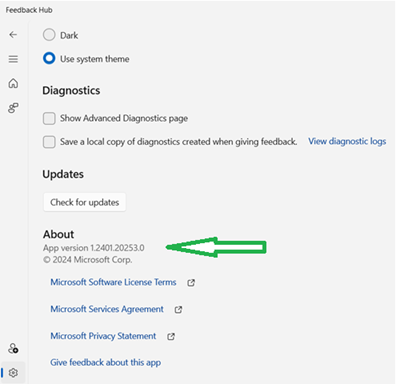
[NEW] The new Feedback Hub app is now available for Server Desktop users!

The app should automatically update with the latest version, but if it does not, simply Check for updates in the app’s settings tab.

thumbnail image 1 of blog post titled 


							Announcing Windows Server Preview Build 26063

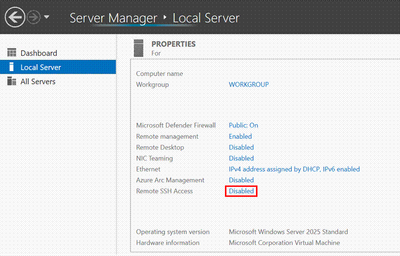
[NEW] Win32-OpenSSH server component is now installed by default.

Starting in Windows Server 2025 the Win32-OpenSSH server side component (SSHD) will ship installed by default. Previously, the Win32-OpenSSH server component shipped as an optional feature that needed to be installed.  Additionally, there is a new option in the Server Manager UI to enabled/disable SSHD, as well as a new group, “OpenSSH Users”. To use SSHD, the feature only has to be enabled, not installed. When enabled, SSHD is allowed only on private networks on default port 22.

thumbnail image 2 of blog post titled 


							Announcing Windows Server Preview Build 26063
  • Additions to Accounts: Email & Accounts is now consistent with Windows 11. Please note, domain join will still be necessary for most scenarios.
    • Call to action: Please try adding Microsoft accounts and/or work accounts along with relevant apps that take advantage of this.
  • Increased coverage for Bluetooth devices. Many of you want to use BT to connect mice, keyboards, and audio devices at the Edge. Please try out your favorite keyboard, mouse, headphones, or other BT peripheral!
    • Wi-Fi present by default. Many of you want to connect servers to Wi-Fi networks at the Edge. While Wireless LAN service has been present in Windows Server, it was disabled by default. Wi-Fi support is now currently enabled by default for Edge scenarios. You will need the appropriate hardware and drivers handy. Please verify that your wireless devices work properly. When hardware and the correct drivers are present, see the corresponding Settings and Taskbar experiences. Let us know what you think!

The build also introduces dozens of fixes to Windows Server Preview, but you can read the full blog post here.

Copilot now supports the Notebook interface on all platforms, and this is why you should use it

Back in December 2023, Mikhail Parakhin, leader of the Windows and Web Experiences Team, which is responsible for Copilot, teased a Notebook interface of the AI tool, which allowed users to focus on prompt creation so that they could learn to get the best of Copilot.

One more thing: we are also starting to flight the Notebook interface. Keep changing the prompt on the left, get results on the right. Easier to copy and work on the prompt. It also remembers the previous version, so you can ask to change something.

Mikhail Parakhin

Jorbi Ribah, the head of engineering at Bing, also teased it right after, saying:

Here’s another new feature we’re excited about: Notebook is starting to flight. This interface removes dialogue so you can focus on prompt creation, refinement, and iterating on output as it remembers the previous version. It also accepts longer prompts up to 18K characters.

Jorbi Ribah

Users then were left wondering when this interface be fully available, and we have good news. Jorbi Ribah confirmed the Notebook interface is now shipped with Copilot on all platforms, mobile and desktop.

Notebook is now shipped in https://Copilot.microsoft.com, on both PC and mobile browser. It’s a new interface for crafting, improving, and revising your prompts without chat dialogue. Ideal when you need to iterate on a prompt to get the best result. It supports up to 18K characters.

Jorbi Ribah

Why should you use it?

Well, Copilot on Windows, Microsoft Edge, or Microsoft 365 might not be able to get the right answer right away, and sometimes it doesn’t give the right answer at all. With this new interface, you can experiment with Copilot, and use various versions of prompts to get the right answer.

You’ll have access to previous conversations up to 18K characters, so you’ll be able to see what went wrong and what went right and experiment with your prompts so that Copilot can give you the best solutions.

It could be quite useful. If you try it, and you discover good or interesting prompts, then be sure to let us know about them in the comments section below.

Microsoft Word for the Web is finally getting this much-needed feature and it’s already a winner

Microsoft Word for Web finally introduced checklists to the platform, according to the latest Microsoft 365 Insider blog. This useful feature was added to encourage Microsoft 365 users to create checklists on Word for various tasks, from personal ones to professional ones.

Checklists are a simple yet powerful tool that can help you stay organized, focused, and productive. They are particularly useful in situations where there is a need to ensure that necessary steps are completed, or standards and procedures are being followed correctly. They also can be used to track progress and encourage the formation of new habits. Using checklists can help free your mind from having to remember the steps you need to complete and worrying about the possibility of forgetting to do something. They can also save time by making it easy to follow specific steps and reducing the likelihood of errors. Oh, and they can provide a sense of satisfaction and accomplishment when you check off items from the list.

Microsoft

The feature is currently rolling out to all Word for web users, and it should be completely integrated into the platform by the end of the week.

To use it, users will only have to open a new Word for the web document and choose where they want to place the checklist in the document.

Then, they have two options:

  1. Select Home > Checklist.
  2. Or, pressing CTRL + , (comma).

To mark a task as complete, users will have to select the square icon to the left of each checklist item or press Ctrl + Alt + Enter.

The checklists can be used for a variety of tasks, as we mentioned earlier, such as daily tasks to do at work, or a grocery or shopping list.

You can open Microsoft Word for Web on your desktop devices, or mobile phones, through the Microsoft 365 app. If you don’t know how to do it, check out this guide.

Have fun with this new feature!

Microsoft Paint to gain brush adjustments among other new features

Microsoft spent 2023 showing some much-needed attention to its beloved in-box Windows image graphics editing app as it showered the program with new features and UI changes.

Based on a Windows Insider build (11.2402.20.0) for Canary and Developer Channels Microsoft appears prepared to continue its feature releases for Paint in 2024 that include adding a brush size slider and a new tiling effect for its recently added layers panel.

Based on the accompanying GIF in PhontomOcean3‘s tweet, Windows Insiders can now test a more refined brush adjustment experience that transitions from a preselected four brush size option to a more granular slider.

Unfortunately, the Windows team is playing coy with the update as Senior Program Manager Brandon Leblanc reiterated to Neowin that the feature isn’t available for wide testing yet.

If the update does roll out for wider Insider testing, the new brush adjustments and layer UI’s will joining paints new growing list of recent features that include a dark mode, background removal, image generation via Microsoft Cocreator, transparency, and layers.

The 26063 build to the Canary channel hasn’t fixed the Dev Drive issues but it fixes many other annoying bugs

Microsoft released the Canary 26063 Build to the Windows Insider Program, and with it, Windows 11 users can now get their hands (and PCs) on Wi-Fi 7, which promises incredibly fast internet connections, perfect for streaming, and gaming.

But if you want to game while being an insider in the Canary channel, though, then you need to know that the latest build hasn’t fixed the green screen errors appearing when opening up popular games. Microsoft says:

[IMPORTANT NOTE FOR GAMERS – UPDATED!] Some popular games may not work correctly and cause a bugcheck (green screen) when launched on the most recent Insider Preview builds in the Canary Channel. Please be sure to submit feedback in Feedback Hub on any issues you see with playing games on these builds.

Microsoft

If you encounter an error while trying to play a certain video game while enlisted in the Canary channel, the best solution for now is to send the feedback to Microsoft.

Devs aren’t lucky, either: the Dev Drive issues that appeared with the last build to the Dev and Canary channel, haven’t been fixed.

IMPORTANT NOTE FOR DEV DRIVE USERS: Insiders on Build 26052+ who have Dev Drives and might need to rollback will need to back up their Dev Drives BEFORE rolling back as rolling back will cause Dev Drives to break and data on them to be lost.

Microsoft

However, the build does manage to come up with dozens of fixes to a variety of Windows 11 insider issues. Here’s what you can expect:

  • Fixed an issue causing some Insiders to experience an issue where the network icon in the system tray showed they didn’t have an internet connection when connected to some VPNs even though the internet connection was working. Those impact may have also seen some apps think there wasn’t an internet connection when there really was.
  • The fix for the issue causing Build 26058 to not be listed under Settings > Windows Update > Update history like it should is making its way out. It may take another flight or two for builds to properly show up under Update History.
  • Fixed a high hitting DWM crash in the last couple flights.
  • Fixed an underlying issue with plug and play which may have impacted audio device setup in the last 2 builds. If you’re continuing to experience issues with audio not playing after this build, please file feedback under Devices and Drivers > Audio and sound in the Feedback Hub.
  • Fixed an issue where typing too quickly in the Settings search box could result in the results not loading completely.
  • Fixed an issue causing the three-finger touchpad gesture for middle mouse click (if you had enabled this in touchpad settings) to not work in some apps.
  • Fixed an issue where attempted to use the Move option when you pressed ALT + Space was causing a window to resize instead of move.
  • Fixed an issue for Insiders with multiple monitors, where opening a minimized window might result in the window appearing on the wrong monitor.
  • Fixed an issue which could cause the clock in the taskbar to stop updating.
  • Fixed an issue which could cause the taskbar icons to shift around under your mouse as you moved your mouse across the taskbar.
  • Fixed an issue where the “Notify when apps request location” option in Settings under Privacy & Security > Location was reset after reboot.
  • Fixed an issue that was causing the Windows Update page in Settings to unexpectedly flash messages sometimes (too quickly to read) in the previous flight.

Please remember that this is not coming to the Dev channel, as the previous 2 builds have. Instead, the Dev Channel with be getting two servicing builds with no new features.

[UPDATE 2/22] We are starting to roll out two servicing updates to Windows Insiders in the Dev Channel. Both these updates do not include anything new and are designed to test our servicing pipeline for Windows 11, version 24H2. Most Insiders in the Dev Channel will receive Cumulative Update Build 26058.1300 (KB5036082). However, Insiders that have Virtualization Based Security (VBS) turned on will receive Build 26058.1400 (KB5036080) and may not experience a restart upon installing the update. Arm64 devices, even with VBS turned on, will only receive Build 26058.1300 (KB5036082).

Microsoft

You can read the full blog post for the Canary 26063 build here.

Wi-Fi 7 is now live in Windows 11 and you can enjoy multi-gigabit speeds, 4X faster than Wi-Fi 6

Microsoft released the 26063 build to the Canary channel (the Dev won’t get the same build, as Microsoft said they’re testing servicing updates for the channel), and with this build, the Redmond-based tech giant introduces Wi-Fi 7 to Windows 11.

The new Wi-Fi 7 is incredibly fast, 4x faster than the previous Wi-Fi 6, and Windows PC users can enjoy multi-gigabit speeds, according to Microsoft.

Windows is adding support for Wi-Fi 7 for consumer access points with the current Insider Preview builds in the Canary and Dev Channels. Wi-Fi 7, also known as IEEE 802.11be Extremely High Throughput (EHT), is a revolutionary technology that offers unprecedented speed, reliability, and efficiency for your wireless devices.

Microsoft

The benefits of having a Wi-Fi 7 connection are plenty, and Microsoft highlights the most important of them:

  • Multi-Link operation (MLO) allows devices to use multiple bands (2.4 GHz, 5GHz, and/or 6GHz) simultaneously to avoid network congestion and maintain connectivity.
  • 320 MHz ultra-wide bandwidth in 6GHz doubles the speed to your devices and enables new possibilities for high bandwidth applications – and scenarios using such as AR/VR.
  • 4096-QAM modulation increases the data transmission by 20% and improves the quality of video streaming, video conferencing, and more.

Plus, according to the Redmond-based tech giant, Wi-Fi 7 is perfect for online gaming sessions, video teleconferencing, and streaming, thus making Windows 11 even better for gaming (Microsoft recently added the AI-powered Auto Super Resolution to the operating system, too).

With Wi-Fi 7, you can enjoy multi-gigabit speeds on your Windows PC and experience up to 4x faster speeds than Wi-Fi 6 and Wi-Fi 6E, and close to 6x faster than Wi-Fi 5. You can also enjoy significantly lower latency, which improves the responsiveness and performance of real-time activities like gaming and video conferencing. Please note that performance may vary by manufacturer and hardware device capabilities.

Microsoft

Users will need a Wi-Fi 7 capable consumer access point and PC, but Microsoft says many of their ecosystem partners have already launched on the market, so Wi-Fi 7 is expected to become the new standard.

You can read the full blog post here.

Microsoft addresses video playback, recording, and capture issues in Windows 11/10

If you are facing challenges with video playback, recording, and capturing on your Windows 11 PC, Microsoft’s latest cumulative update addresses these issues.

Many users with client versions of Windows 11 (22H2 and 21H2) and Windows 10 (22H2), reported these WVC1 codec issues.

The Redmond tech giant recognized the bug related to the WVC1 codec (VC-1), impacting video processing capabilities, after installing KB5027303, which was released in June 2023.

The glitch also affected the webcams that depend on the WVC1 codec by default. To fix it quickly, the company used the Known Issue Rollback feature, a temporary damage control measure. This will automatically fix issues on affected devices until a permanent fix is released. However, specific group policies may be needed for the managed systems to resolve known bugs.

Luckily, the lasting solution has been implemented in KB5034204, the optional non-security update, and also incorporated in KB5034765, the February 2024 Patch Tuesday update.

Along with the video codec bug, Microsoft also fixed another strange issue wherein desktop icons unexpectedly moved across monitors when using Copilot on multi-monitor setups.

The bug was considered severe. Therefore, the company decided to block the upgrade path from Windows 11 version 22H2 and Windows 10 to Windows 11 version 23H2. However, with the resolution implemented with the February 8 update, you can do the upgrade.

As Windows 11 23H2 is ready for widespread use, Microsoft is pushing users to upgrade their computers to the latest version. If you want to learn more about KB5034765, read this guide to learn more.

Have you upgraded your computer to Windows 11 version 23H2? If yes, share your experience in the comments section below.

We’ll get the first hint of the new Windows AI PC at Computex 2026

Computex 2024 is set to take place in Taipei, between June 4 and June 7, 2024, and the theme of the conference is Connecting AI. The event will feature more than 1500 exhibitors, across 4500 booths, with companies such as AMD, Intel, MediaTek, NXP, Supermicro, and Delta being among the keynote speakers.

Acer, ASRock, ASUS, Delta, Gigabyte, G.Skill, Intel, MSI, Pro Gamersware, and more will also present their AI products at the conference, and Intel, Microsoft, and Qualcomm are set to unveil the first hints of the new Windows AI PC, according to DigiTimes Asia.

Qualcomm already announced that it plans to release the first products of its collaboration with Microsoft this summer when the tech company is slated to enter the CPU market with its CPU chips.

Even if the companies show the world the new Windows AI PCs, these devices won’t run on the next version of Windows, which is reportedly AI-based, as Microsoft said it’s not going to release it this year.

Instead, they will release Windows 11 24H2 later this year, now renamed to Windows 11 2024 Update, and if we are to follow the clues, it will receive several AI features and improvements.

It already received the Auto Super Resolution feature which uses AI to greatly improve the gaming experience on Windows 11. It’s currently live in the Dev and Canary channels within Windows Insider Program, but they will be released to the stable Windows version soon.

Regarding Computex 2024, we should see all kinds of AI innovations from Intel, AMD, Qualcomm, Microsoft, Gigabyte, Asus, Acer, and many more companies, this June.

For those interested in attending the event, you should check out the official website for the conference, here.

Are you excited about the idea of using a Windows AI PC? What do you think about them? Let us know.

Unreal Engine 5, known for its CPU-demanding capabilities, can be run in a web browser now

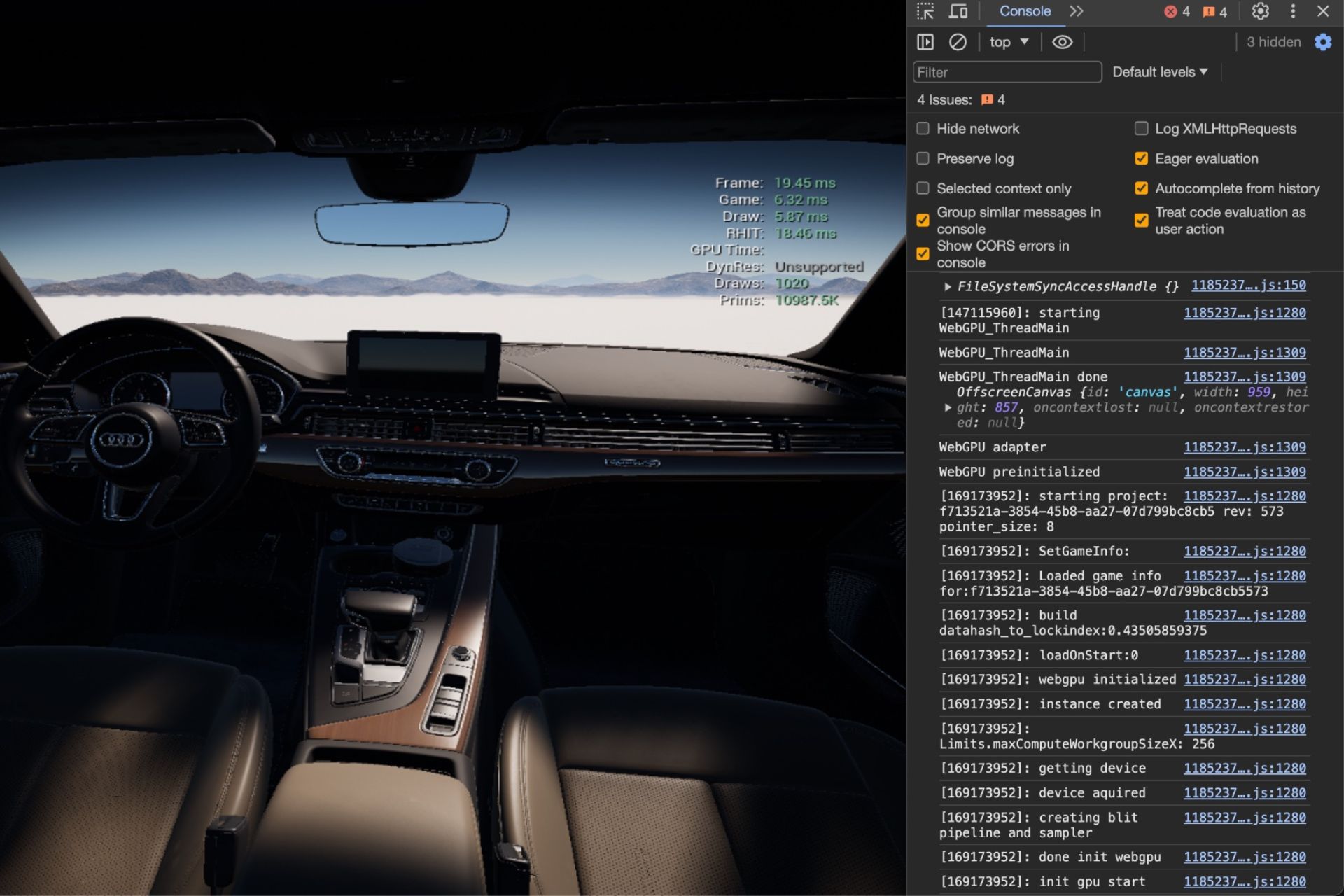
Unreal Engine 5 can now be run in a regular web browser, according to a first taste posted on X (formerly known as Twitter) by the user moon, and validated by the developers behind the project.

This version of the Unreal Engine 5 runs in WebGPU, and is capable of multi-threaded rendering, according to Alex St. Louis, one of the people behind the project.

Very excited to share a sneak peek of Unreal Engine 5 running in WebGPU, with multi-threaded rendering, many performance optimizations, and the star of the show… an asset streaming system

Alex St. Louis

Not much is known regarding the release date or other info, but it’s safe to assume this version of Unreal Engine 5 capable of running on WebGPU might be coming soon.

However, the sneap peek image comes from a presentation of the company behind the project, Wonder Interactive, for Khronos, the company responsible for WebGPU, and it seems Unreal Engine is not the only engine coming to web browsers.

Wonder Interactive plans to bring other engines, such as Unity, Godot, and O3DE to web browsers, as well.Unreal Engine 5 browser

These engines might also be available to browsers at some point in the following months, but until then, you can actually get a taste of the Unreal Engine 4.27 on browsers, by checking out their demo, Spacelancers, which you can find here.

The Unreal Engine 5 sneak peek on the browser looks promising though. However, given the fact that Unreal Engine 4.27 loads quite slowly on a web browser, don’t expect the Unreal Engine 5 to load faster. You’ll probably need a good Internet connection, too.

What do you think about this? Would you see yourself using Unreal Engine 5 directly from a browser, or not? Let us know your opinion in the comments section below.

Exciting enhancements in Copilot on Windows for deeper integration

Microsoft released Windows 11 Insider Preview Build 26058 to Canary and Dev Channels on February 14, 2024, and has recently added a few improvements to Copilot.

You can now ask Copilot to turn on Narrator or Live Captions, show you available networks, turn on battery saver on your laptop, empty Recycle Bin, or delete temp files.

According to release notes, you can

  • Ask for available wireless networks.
  • Ask for system or device information.
  • Ask for battery information.
  • Ask to clean storage.
  • Ask to empty recycle bin.
  • Ask to toggle battery saver.
  • Ask to show startup apps.
  • Ask for your IP address.
  • Ask for system, device, or storage information.

Try accessibility features:

  • Ask to turn on narrator.
  • Ask to open voice access.
  • Ask to turn on magnifier.
  • Ask to change text size.
  • Ask to start live captions.
  • Ask to turn on high-contrast.
  • Ask to start voice typing.

Already live, now on the new runtime:

  • Ask to toggle dark/light theme.
  • Ask to toggle Bluetooth.
  • Ask to toggle do not disturb.
  • Ask to add a device.
  • Ask to take a screenshot.
  • Ask to cast your screen to another monitor.
  • Ask to change your background image.
  • Ask to set volume, change volume, or mute/unmute volume.
  • Ask to launch an application.
  • State that certain parts of your PC aren’t working: Audio, Windows Update, Camera, Bluetooth, Printer, Network, others.
  • Ask to snap a window.
  • Ask to start a focus session.

Along with this, you now get the Power Automate plugin integrated into Copilot on Windows, and it offers automation capabilities for tasks like PDF manipulation, & Excel operations & file management, adding a layer of efficiency to your workflow.

To use it, you need to download or update the Power Automate Desktop to the latest version from the Microsoft Store. Also, to access the plugin, you need to sign in to Copilot in Windows using a Microsoft account.

Once you install Power Automate and active the plugin in Copilot in Windows, you can ask the AI assistant to do the following things and more:

  • Compose an email to your team on a certain topic.
  • Ask it to create an Excel file with information like a list of the top 5 mountains.
  • Move your Word document file to another directory.
  • Rename PDF files in a directory.

However, given the previous experience with Copilot, inputting a command requires your permission to act, making the process a bit lengthy. We really hope Microsoft fixes this.

These changes have been rolled out, but if you can’t see them yet, you need to wait for some time for them to be available on your computer.

Along with this, you get the ability to resize Microsoft Copilot or use it side by side or in overlay mode, and Notepad introduces an Explain with Copilot option, enabling the summarization of selected text via Copilot’s advanced AI capabilities.

What do you think about this integration? Share your thoughts in the comments section below.

How to Mod Cyberpunk 2077 in Windows 11

Like any gamer, mods are an unspoken want and Cyberpunk 2077 is no exception. It already comes with built-in character customization but if you’re looking to enhance additional aspects of the game, here’s how to mod your game.

How do I mod Cyberpunk 2077?

1. By manual installation

  1. Launch Steam and click on Library.
  2. Search for Cyberpunk 2077 REDmod and click on Add.
  3. Go to Cyberpunk 2077>Manage>Browse local files.
  4. Open the R6 folder and search for a modded folder. If not available, create a new one.
  5. Now go to the Nexus mod site and look for a mod you’d like to install.
  6. Click on manual download once you find your preferred mod and wait for it to finish downloading.
  7. Unzip the folder, copy and paste the R6 and mods folders to Cyberpunk 2077 folder usually, it is located in: C:\Users\Saved Games\CD Projekt Red\Cyberpunk 2077
  8. To verify the merge has been successful, open the mods folder and if you spot a JSON file, you’ve successfully downloaded and installed your Cyberpunk 2077 mods.
  9. Repeat these steps for all other mods you wish to install.

Although manually installing mods for Cyberpunk 2077 offers greater flexibility and control, there’s also a higher risk of potential errors. The downside to this can be manifested in game instability and frequent crashes.

2. By using a mod manager

2.1 Download the mod manager

  1. Navigate to your browser and download the Nexus Mod Manager by clicking the Manual button on the website.Download Nexus mode manager - nexus mod manager is not set up to work with skyrim
  2. Wait for the download process to complete.
  3. Open the installer and if you get a warning about running the program from your security software so allow it as an exception or disable your firewall temporarily.
  4. Select a language you’d like to proceed with during the installation then hit OK and click Next.
  5. Accept the terms and license agreement by clicking on Agree.
  6. Click Next to select the installation folder for Nexus.
  7. Follow the on-screen instructions and click Finish when done.
  8. Now launch your mod manager.

Should you encounter any issues with Nexus mod manager not opening, check out our article on how to fix it.

2.2 Install the mod

Note icon NOTE
You might have to create an account and login to access some mods. Creating an account is absolutely free.
  1. Nexus will scan your PC for compatible games but if Cyberpunk 2077 is not listed, you can add it manually by browsing the folder path.
  2. Next, click on the green check to select Cyberpunk 2077 and select a folder where the mods will be stored.
  3. Now go back to your browser and navigate to the Nexus mods site. Search for any mod you wish to install on Cyberpunk 2077 and click on the Mod Manager Download button.

Unfortunately, there’s no way to download mods directly from the app but once you download from your browser, the mod will be sent to your mod manager.

Using a mod manager takes away the stress of downloading and manually installing a mod only to find it’s incompatible with your game. Mod managers have built-in compatibility checks and simplify installation with fewer errors.

Additional tips to manage mods

  • Ensure you’re on the lookout for mod updates and patches. This will ensure your game does not suffer from frequent glitches, random crashes, and any other issues.
  • Create a backup of your mod files and settings. This will come in handy in case of a crash or corrupt files where you can easily restore them.
  • Avoid downloading mods from untrusted sources. Not all mods are good for your game so if you’re suspicious of one, it’s best to keep away. Community forums can help you debug any quality issues with a specific mod.

Still on mods, we have an interesting article on how to install Sims 4 mods. And if your mods aren’t showing up, we also have a fix for that too.

Once you’re done modding Cyberpunk 2077, don’t stop there. We have an extensive list of the best mods for top games we think you’ll find a no-brainer addition.

Now that you know how to mod Cyberpunk 2077? Which mods do you think are a must-have? Share your recommendations with us in the comment section below.

Is 23H2 going to fix Windows 11’s Explorer? It’s becoming unbearably slow

It’s been almost two and a half years since Windows 11 was released, and many still don’t find the File Explorer at par with the one one the previous iteration when it comes to performance.

There are countless reports of a buggy, slow File Explorer on Windows 11, and Microsoft doesn’t have a solution!

A quick search on the Internet, and we managed to find hundreds of complaints on Microsoft forums and Reddit.

A user on the Microsoft community posted,

I have a very strong PC with Samsung 970 EVO Plus NVMe, Intel i7-9700K, 32GB Memory and ASUS ROG Strix Z390-H Gaming.
When my PC was on Windows 10 there was no problem with File Explorer, but after upgrading to Windows 11, I am facing a problem with file explorer slow, lagging, hangs even when just renaming a file.

Will Windows 11 23H2 improve File Explorer’s performance?

As it turns out, Windows 11 23H2 does bring a lot of improvements to File Explorer, be it the Gallery tab, new home page, a Details pane, support for archival formats, and better file sharing. But it’s not limited to that!

Users on Windows 11 23H2 have reported better performance and minimal lag in File Explorer, even when running other resource-intensive processes.

To quote a user from a Reddit forum,

I’ve seen this complaint many times on this sub, so I know it is definitely a thing that some people are experiencing. However, I am not one of those people. Explorer opens up instantly and I can navigate with zero lag. It is super snappy for me. I have a i7-13700, RTX3080, 32GB DDR5600. I also run completely vanilla windows, fully updated on stable build(23H2).

So, it seems like you should download Windows 11 23H2 if facing performance issues or random lag in File Explorer. Or simply install the update.

To do that, press Windows + I to open Settings > go to Windows Update > click on Check for updates > click Download & install if Windows 11 23H2 is listed.

Updating Windows 11

Tips to make File Explorer run faster on Windows 11

If you previously have had performance problems with File Explorer, these tips and updating to Windows 11 23H2 should work!

In case not, make sure your PC meets the minimum system requirements for Windows 11 and that the latest iteration was not installed by bypassing the requirements.

Did this help you? For any queries or to share more such tips with us, drop a comment below.

Microsoft’s next European data centers will help AI tackle climate change issues, says the company

Microsoft will reportedly invest in more data centers and AI infrastructure in several more European countries after the Redmond-based tech giant recently announced investments of billions of dollars in AI and cloud technologies in Germany and Spain.

These investments will be the construction of data centers in countries such as the UK, Sweden, Germany, Spain, Italy, Belgium, Denmark, Greece, Finland, and Austria, with Microsoft promising investments coming to more EU countries, as well.

The billions of dollars will not only go into the construction of data centers but also into updating countries’ infrastructure and modernizing them with AI and cloud technologies.

We previously speculated Microsoft’s investments in the continent might be the reason Europe could allow Microsoft AI technologies, such as Windows Copilot, to enter the region, and it seems this is indeed the company’s strategy:

These regions are the best place for new customers to begin their cloud journey, and for existing customers to grow their cloud footprint in Europe—with some of the best cost efficiencies and most comprehensive set of services. They will play a pivotal role in our European AI strategy, while continuing to meet European data boundary requirements.

Microsoft

Microsoft intends to build the European data centers as fully sustainable, and able to support zero carbon, water negative, and zero waste environments. The company agrees that these data centers themselves will be able to help AI tackle climate change issues.

Microsoft’s datacenters are designed to be sustainable and support our goals of being carbon negative, water positive, and zero waste. We believe AI will play a key role in tackling the climate crisis, and capabilities like Microsoft Cloud for Sustainability can help customers quantify carbon impact and measure optimizations.

Microsoft

Several of these data centers, especially the ones from Spain and Italy, will be ready to function in the next months, while the other ones will be built in the next year, or two, according to Microsoft.

They will be able to provide AI-specific computing levels to their local private and public sectors, as well, as eliminating the need to rely on distant, across-the-ocean data centers.

This infrastructure investment will help a need for efficient, scalable, and sustainable AI-specific compute power and the needs of the private and public sector waiting to take advantage of the latest cloud and AI breakthroughs.

Microsoft

More details here.

Chrome’s new UI experiment offers some interesting profile customization options

Google Chrome is undergoing a significant makeover for its desktop sign-in process. The company is developing a new sign-in UI based on the UNO model on desktop, aiming to simplify how users log in and authenticate their accounts. As part of this, the “explicit browser sign-in UI” experiment is being run on Chrome for Windows, Mac, and Linux.

But what is the UNO model? Though details are still scarce, the UNO model is a framework enabling developers to build cross-platform applications using XAML and C#.

Chrome’s Explicit Browser Sign-In UI on Desktop

The new “Explicit Browser Sign-in UI” experimental feature, linked to the UNO model, aims to provide users with a consistent and clear sign-in experience. It’s used during the initial launch of the UNO model on desktop and any subsequent phases of the experiment. When signing in to your Google account or other services within the browser, this UI offers clear prompts and seamless integration with Chrome’s interface.

Explicit Browser Signin UI on Desktop
Enables the UNO model on Desktop. Used for the launch of the UNO model on Desktop, as well as for the later phases of the experiment. – Mac, Windows, Linux

Enhanced Profile Menu

Enabling the explicit browser sign-in UI on desktop flag brings two new options to your Profile menu:

  • Customize Your Chrome: Personalize your Chrome profile by renaming it, choosing a color scheme, and selecting an icon.
  • Close This Profile: Clicking this button closes the active Chrome profile, perfect for switching accounts or ending the current session without affecting other open profiles.

Chromium Gerrit, UNO-D and sign-in

From Chromium Gerrit issues related to UNO-D, we noticed the following changes to Chrome regarding sign-in, profile management, and user experience:

  • Remove account image in Profile Menu header for web-only state: This change likely removes the account image (such as a profile picture) from the Profile Menu header specifically when the browser is in a web-only state (i.e., not associated with a locally installed application).
  • Remove account image in Profile Menu header for web-only state
  • Enable account storage for addresses by default with explicit signin
  • Update buttons to add new and manage profiles in Profile Menu
  • Update guest profile label with titlecase on Profile Menu:
  • Update other Chrome profiles list title on Profile Menu
  • The UNO model is enabled for a test related to browsing data in extensions.
  • Enable uno in sync browser tests:
  • Update guest profile label and color on Profile Menu:
  • [Signin][Uno-D] Remove old cookie clearing string
  • and more.

UNO Desktop
Enables the UNO model on Desktop. This is currently an experiment in a prototype stage in order to validate the model. – Mac, Windows, Linux

These changes may appear when you enable UNO desktop and explicit browser sign-in UI flags, but remember that this is just an experiment. Enabling changes may break unstable canary, so proceed at your own risk.

Microsoft says Fabric Analytics Engineers will be in very high demand in the next years

Microsoft released Microsoft Fabric last year after it was announced at Microsoft Build 2023, and it was one of the most promising announcements of the Microsoft annual conference.

Why? Not only does Microsoft Fabric bring together several important platforms used by developers everywhere, but it also comes with AI, and it promises to reduce business costs for all kinds of companies (startups, scale-ups, or well-established companies) greatly.

In less than a year, Microsoft Fabric has become one of the most popular data analytics platforms, according to the Redmond-based tech giant. So now, the company is looking to train future Fabric Analyst Engineers, as there soon will be a high demand for them.

To become a Fabric Analytics Engineer, Microsoft has forged a brand-new certificate, and the ones who receive it will be able to work as jack-of-all-trades engineers that will be essential to future software development teams:

Fabric Analytics Engineers play a crucial role in the data analysis ecosystem, acting as the bridge between raw data and actionable insights. Your primary responsibility is to prepare, transform, and deliver high-quality data from diverse Fabric components—lakehouses, data warehouses, semantic models, notebooks, and more—for data scientists, analysts, and other stakeholders to analyze and draw conclusions from.

Microsoft

Those interested in this new role can attend the exam Microsoft wants to hold in March, it will be focused on evaluating expertise in different areas, including:

  • Plan, implement and manage a solution for data analytics.
  • Prepare and serve data.
  • Implement and manage semantic models.
  • Explore and analyze data.

They can access all the courses for studying and training for this new role via Microsoft Fabric Center Hub, but you should know that there are several steps to pass before being certified as a Fabric Analytics Engineer by Microsoft.

These 5 steps are:

  1. Fabric Analytics Engineer Cloud Skills Challenge
  2. Learn together
  3. Exam Cram
  4. Practice Test
  5. Schedule your Exam

As you can tell, you’ll learn everything you need to know about this new role from experts, before proving your skills in theoretical and practical exercises. Once you schedule your exams and pass them, you can call yourself a Fabric Analytics Engineer.

To check the prices, and start with the course, head over to the Fabric Career Hub. And if you’re interested to find out more about this new role, check out Microsoft’s latest blog post.

Microsoft Copilot Certification: Why would you need one & where to get it from

Microsoft Certification does play a vital role when you are applying for jobs, and having one (or more) may increase your chances of making it through!

Besides, these are curated by subject matter experts, and over the years, Microsoft has shifted from product-based to role-based certifications, making them all the more valuable. Say, if you have Microsoft Certified: Azure Developer Associate, it makes a great deal of difference.

With AI (Artificial Intelligence) emerging as the next big thing in the technological world, it’s wise to be among the first to get all the relevant certifications. For instance, when videos created by Sora AI first emerged, the first thought that struck us was that it would soon replace humans in advertising and video creation.

So, at this point, it’s vital to get as many certifications. Since Microsoft is currently emerging as the market leader when it comes to investment in AI, Microsoft Copilot is an important one!

Where can I get a Microsoft Copilot Certification?

Sadly, at present, the tech giant does not offer a Microsoft Copilot Certification. So, you will have to continue learning the ins and outs of the AI-based chatbot, experiment with the different aspects, get it to develop complex codes, and explore the limitless possibilities.

If you are interested, Microsoft is offering quick training to help you understand Copilot for Microsoft 365 a lot better!

Image source: Microsoft’s official website

It comprises three modules and will take roughly 2 hours of your time. The training will guide you through the basics of Copilot, its application across Microsoft products, and tips to get the most out of the AI-based tool.

Do keep checking the Microsoft Credentials webpage to be the first to discover the Microsoft Copilot Certification, if and when the tech giant releases it.

Until then, find out if Copilot Pro is better than the free version and which of the two is best suited for your needs.

What do you think of Microsoft’s Copilot training modules? Share your feedback in the comments section.

Google unveils Gemma, bringing AI power at the fingertips of developers

Google has joined the AI race with Gemeni, and they plan to release Gemini Business and Gemini Enterprise soon.

However, the company has released an open model called Gemma, that everyone should be able to use.

Google Gemma lets developers make their AI-powered apps

According to the latest Google blog post, Gemma is a lightweight open model that uses the same technology as its bigger brother Gemini.

This allows Gemma to achieve the best performance compared to other open models. This model will closely follow Google’s AI principles and the company is also releasing a new Responsible Generative AI Toolkit that will help developers to focus on building safe and responsible AI applications.

Regarding compatibility, you can use this Gemma with various frameworks including Keras 3.0, PyTorch, JAX, and Hugging Face Transformers.

As for supported hardware, you should be able to run this model on just about anything ranging from a PC and mobile to IoT and cloud. As for hardware, Google has partnered with NVIDIA for better optimization on NVIDIA GPUs.

Lastly, the Gemma is optimized for Google Cloud and thanks to Vertex AI and an MLOps toolset it allows seamless deployment.

You can start using Gemma today thanks to free access in Kaggle, and first-time Google Cloud users will get $300 in credits. Researchers can apply for Google Cloud credits and get up to $500,000 in credits for projects.

It’s also worth mentioning that Google has implemented Gemini in the Chrome search bar, and if you haven’t tried this, this might be the right time to do so.

Can this car be Microsoft’s entry into the automotive sector?

When Microsoft invested in Cruise, a self-driving car company, it aimed to expand its reach in the automotive sector. Even previously, Microsoft worked on a self-driving car.

But since then, there have been no significant developments, and neither has Microsoft shared any plans to develop a self-driving car like other tech giants, say Google and Apple. It’s more focused on the existing products and integrating AI into the available tools.

While it may still take a few more years before Microsoft’s self-driving cars hit the road, Leasing Options, the UK’s leading car leasing company, has come up with an AI-generated model, giving us a sneak peek into what it might look like.

Image source: Leasing Options

It was generated with, An electric car designed by Microsoft, as the text input.

The result is, honestly, not too surprising. When we think of electric cars, it’s usually a Sedan unless you have your mind wrapped around a Tesla Cybertruck.

The AI-generated electric car model has Microsoft’s logo on the hood, super-slim headlights with colours inspired from the logo, and a sleek design.

The car, with a seating capacity of 5, is missing rear-view mirrors, likely due to its automated nature, which adds to the appeal. The doors don’t sport a handle, indicating that these are voice or sensor-controlled.

The design, if you ask us, gets a score of 7.5 on a scale of 10. Not more!

Remember, this is just an AI-generated image, and if and when Microsoft actually develops an electric self-driving car, it would be a lot different. But this one surely got us excited about the prospects!

How would you rate the design? Let us know in the comments section.

Microsoft expert advises against using keyboard shortcuts to force crashes

When developing software, sometimes you need to force a system crash or BSOD error, but that’s easier said than done, especially on newer PCs.

However, Microsoft experts have decided to share their secrets and show the developers how to do this properly, and if you want to learn more, keep on reading.

To force Windows to crash, use third-party software, Raymond Chen says

Crashing the system is a part of debugging, and in the past, developers on Windows were able to force a crash simply by using a keyboard shortcut.

Of course, this required a bit of registry tweaking beforehand, but for the longest time, this was a go-to method for many. However, this method no longer works since it’s not possible to automate this keystroke.

According to The Register, the trigger for the crash is located in the input stack of the keyboard driver, which requires physical keys to be pressed.

This isn’t possible with modern debugging methods that fully automate this process. However, Mircosoft’s Raymond Chen has a workaround in the form of the NotMyFault tool from Sysinternals.

In case you’re not familiar, this tool can cause the system to crash, hang, or even produce memory leaks, and this can come in handy to developers.

Chen also advises against crashing critical processes such as winlogon.exe since they are getting reported to Microsoft thus causing Microsoft teams to analyze non-existing bugs.

Speaking of bugs are crashes, the latest KB5034763 and KB5034765 updates all have their share of crashes, and we hope that Microsoft will address them soon.

Dreams do come true! Star Wars: Battlefront Classic Collection is back

Star Wars is coming back, and we have every reason to be excited!

Early in the 2000s, many of us used to play Star Wars games for hours at a stretch. When they were discontinued, it seemed like the end of an era.

Now, Aspyr Media is bringing back the good old days of Star Wars. In a recent announcement on X (formerly Twitter), Aspyr Media confirmed the release of Star Wars: Battlefront Classic Collection on March 14, 2024.

The collection comprises Star Wars Battlefront, released in 2004, and Star Wars Battlefront II, released in 2005, along with bonus maps and more.

The best part, the game supports both online and offline modes and it will be a multi-platform release. So, you can play Star Wars: Battlefront Classic Collection on Xbox, PlayStation, Nintendo, and Steam. Though there’s official confirmation if the game will support crossplay.

What’s new in Star Wars: Battlefront Classic Collection?

Star Wars Battlefront:

  • Includes a bonus map: Jabba’s Palace

Star Wars Battlefront II:

  • Bonus Heroes: Asajj Ventress and Kit Fisto
  • Bonus map: Rhen Var: Harbor, Bespin: Cloud City, Yavin 4: Arena, and Rhen Var: Citadel

With online support for 64 players, you can fly legendary starships, drive your all-time favourite vehicles, and enjoy the expanded Hero Assault on all ground apps. Lastly, the collection includes the 2-player split-screen mode, so you can relive those past experiences with friends!

The Star Wars: Battlefront Classic Collection is available for pre-order on the Xbox Store, Steam, the Nintendo Store, and the PlayStation Store. On pre-orders, you can avail a 10% discount and get the game at $31.49.

If you can’t hide that excitement, play the best free Star Wars games online until you can get your hands on Star Wars: Battlefront Classic Collection.

What was your favourite memory of Star Wars games? Share with our readers in the comments section.

Yes, Microsoft’s Reading Coach is free, but is it any good?

Microsoft’s Reading Coach is an AI-powered tool for students that makes learning fun. Made free recently, the tool is aimed at engaging students and improving reading fluency. It is built on Reading Progress, which was released in Microsoft Teams.

Reading Coach was developed with the interests of students in mind. It allows parents/guardians, educators, and IT administrators to play a vital role and contribute to the student’s learning curve.

Microsoft’s Reading Coach offers the following reading modes and then analyzes your skills with AI:

  • Creating a story using AI
  • Reading a pre-set passage
  • Adding your own passage

This helps students both be better readers and explore the horizons of creativity. The tool assesses the progress made and accordingly adjusts the difficulty level. But is it any good? What’s the initial feedback from parents and teachers? Let’s find out!

Is Microsoft’s Reading Coach any good?

While there are a few alternatives available, we would bet on Reading Coaching because Microsoft is heavily invested in AI. Over the years, its AI-based products will be highly refined and deliver the best to you.

Even in its present state, Reading Coach is an advanced tool employing AI for educational purposes.

A major drawback, we believe, is the lack of support for languages other than US-English. Though Microsoft plans on including more languages and dialects in the coming months.

On the web, there are several reviews available. Most parents found it to be an engaging and effective tool for children.

I believe this app is perfect for allowing the person to be in control of their story.

A teacher liked the fact that it’s integrated with Microsoft Teams and wrote in the Microsoft community,

I LOVE the reading coach tool available in Microsoft Teams and all of the data that it provides.

Surprisingly, at present, it doesn’t seem like Reading Coach has had a massive adoption. The numbers are still low. But since the tool is free, we expect the user base to pick up in the coming days!

Have you tried Microsoft’s Reading Coach yet? Let us know your feedback in the comments section.

Elden Ring: Shadow of the Erdtree is coming to Xbox this June

Bandai Namco and From Software finally have released an enticing trailer for the Elden Ring Shadow of the Erdtree on their official YouTube channel. The video itself shows that the expansion is set to arrive on Xbox, PS5, PS4, and Steam on June 21, 2024.

The three-minute clip gameplay of Shadow of the Erdtree provides a glimpse of what the game has to offer, showcasing new locations, new enemies, a fiery gigantic creature, the entry of a vicious villain, Mesmer, and more to excite the gamers about what is to come.

While there is no additional information on the storyline in the trailer, but the video description includes a poem:

The Land of Shadow.
A place obscured by the Erdtree.
Where the goddess Marika first set foot.
A land purged in an unsung battle. Set ablaze by Messmer’s flame.
It was to this land that Miquella departed.
Divesting himself of his flesh, his strength, his lineage.
Of all things Golden.

Followed by an announcement on X, (formerly known as Twitter):

Fans have been eagerly waiting for the gameplay release since the DLC’s announcement in February 2023. A popular leaker, Dealabs’ Billbil-kun, revealed that the game might be available on PS, Xbox Game Plass, Epic Games Store, and more on June 21, 2024.

However,  Billbil-kun was not entirely sure about the release date and mentioned that the date aligns with the release date of various special editions of the game, including Elden Ring Shadow Of The Erdtree (DLC included) – Game of the Year edition, and Elden Ring Shadow Of The Erdtree (DLC included) – Collector’s edition on different platforms; therefore, he believes that the DLC will be released on the same date, and the trailer confirmed the same.

This expansion will cost around $40 on all the platforms and a bundle including the base game, the DLC pack will be available on Xbox at the launch of Shadow of the Erdtree.

You can pre-order the game from Elden Ring’s official page. Are you excited to get your hands on this new game? Share your thoughts in the comments section below.

Dell XPS 17 will soon be replaced, but you can get it at a bargain price

Dell will soon reset its XPS line-up so Dell XPS 17 will be replaced by Dell XPS 16. And as it happens with older models that get out of the line-up, the laptop got a serious discount.

Now, Dell XPS 17 with the Nvidia GeForce RTX 4060 graphics is $600 OFF, and available in Dell’s store at $1,599 down from $2,199, so it’s a great deal.

Why should I get the Dell XPS 17 laptop?

Let’s see the tech specs below because the numbers don’t lie.

CPU13th-generation Intel Core i7
GPUNvidia GeForce RTX 4060
RAM16 GB
Storage512 GB SSD
Display17.3 inch – Full HD+
OSWindows 11 Home

Dell XPS 17 is one of the yesterday’s best laptops but it’s still extremely competitive, even for gaming, thanks to the Full HD+ resolution of its large 17.3 inch screen and the Nvidia GeForce RTX 4060 graphics card.

It also packs great power from the 13th-generation Intel Core i7 processor and the 16GB of RAM that will handle even the most intensive processes.

Moreover, it comes preinstalled with Windows 11 Home and its 512 GB SSD has plenty of space for today’s requirements.

The bottom line is that Dell XPS 17 is worth the price and you should take advantage of this great discount until it’s out of stock.

You can also take a look at our list of the best Windows 11 ready laptops you can get now.

Do you think about getting a new laptop? Tell us what you have in mind in the comments section below.

Can’t find the Show Desktop button? Enable this setting to get it back

After the cumulative update for Windows 11 KB5034765 was installed, the Copilot button shifted to the rightmost corner of the Taskbar, and the Show Desktop option was disabled by default.

Several users complained on community forums and expressed that they were not happy with Microsoft making this change and thought that the option had been removed for good.

However, there is good news for those who wish to reinstate this setting, and you only have to follow a few simple steps. Press Windows + I to open the Settings app, then go to Personalization, then select Taskbar.

 Select the far corner of the taskbar to show the desktop.

Now click Taskbar behaviors to expand, and place a checkmark next to Select the far corner of the taskbar to show the desktop.

Taskbar settings

You can also access the Taskbar settings right from the taskbar. Right-click the taskbar and choose Taskbar settings.

Alternatively, if you don’t want to enable this setting, you can press Windows + D to get on the Desktop screen whenever you want.

Also, if you want to remove the Copilot icon from the Taskbar, you can do that from the Taskbar settings. However, if you have enabled the Show Desktop option after disabling Copilot, then you need to disable Show Desktop again and then enable Copilot to get the Copilot icon on the Taskbar.

If you toggle on the Copilot option with Show Desktop enabled, the icon will not appear. This seems to be a glitch, and hopefully, Microsoft will address this soon.

Do you miss the Show Desktop button, or the change doesn’t bother you? Share your thoughts in the comments section below.