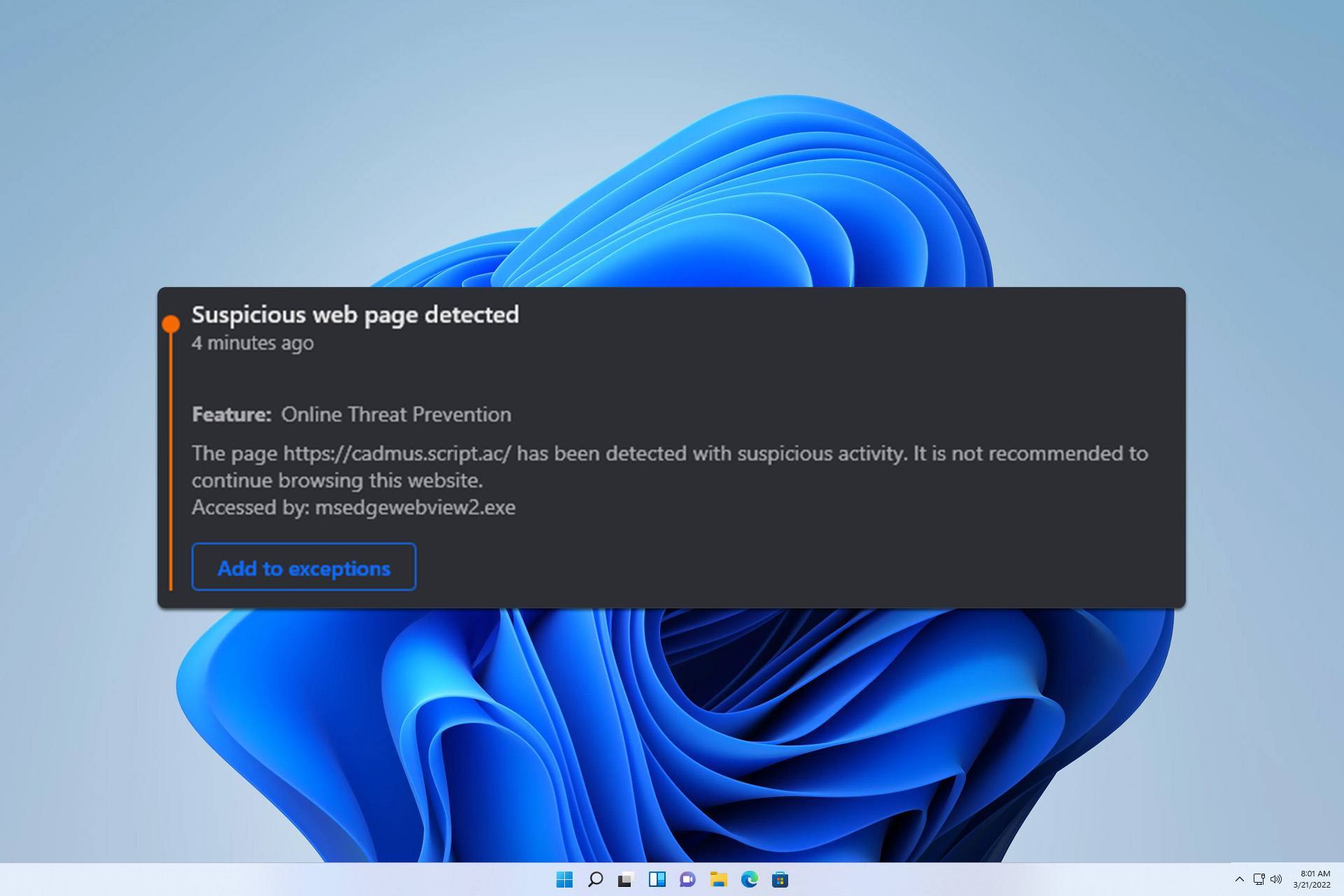
The cadmus.script.ac is running havoc between antivirus users, but why?

Recently, many users reported that their antivirus gives them a message regarding a suspicious page with the cadmus.script.ac address.

This has many users concerned about the safety of their devices, so we decided to investigate and see how harmful this warning is.

Antivirus keeps reporting cadmus.script.ac as a threat, here’s what you should know

The issue was first reported on Microsoft Answers forums, and according to users, the antivirus software, most notably Bitdefender, shows this warning message.

Here’s what one user had to say:

The alerts from Bitdefender have nothing to do with the Duckduckgo browser. I use Firefox, Opera, Chrome, Vivaldi, and the same alert comes up, when visiting specific sites, because it is cadmus.script.ac tracker that is the problem, not the browser.

The issue was reported in a Reddit post, claiming that the message appears whenever a user tries to run Bluestacks. Here’s what one user who has this problem had to say:

Whenever I open up Bluestacks, I get a message from BitDefender saying a suspicious pages has been detected under the URL “cadmus.script.ac”. Is anyone else getting this and does anyone know what might be triggering it? It happens before the loading screen has even finished loading.

Many claim that this is just a tracker that many websites tend to use:

It happens for me as well on particular websites. You can learn at least a little bit about that tracker here: https://sites.ipaddress.com/cadmus.script.ac/

Unfortunately, information regarding this security alert is scarce at the moment, but we assume that this is most likely a tracker that some websites use to monitor your activity.

This means it should be no more harmful than other trackers that are used online. It’s also possible that Bitdefender is detecting it as a false positive.

We’ll keep track of this issue, and keep you up to date with the latest news. While this doesn’t seem like a major or even a real threat, the exploit in Windows Event Log and the Midnight Blizzard attack on Microsoft are quite real and dangerous.

Have you encountered this issue on your PC? If so, share your experience with us in the comments!

AMD releases new Ryzen drivers for Windows, fixes Modern Standy issues

After thousands across the globe reported issues with Modern Standby, things like the PC would automatically start from sleep or won’t turn on at all, AMD finally has the answer: its latest AMD Ryzen Chipset Driver 6.01.25.342.

Initially, AMD didn’t publish any release highlights or list the known issues, but these were added soon.

This is good news if you have an AMD Ryzen processor or chipset, and you should see a decent improvement in performance after installing the new driver.

What’s new in AMD Ryzen Chipset Driver 6.01.25.342?

According to the official website, AMD has introduced a new program support and added more drivers. Besides, there are a few bug fixes, too.

The latest drivers also have some issues. The ones highlighted by AMD are:

  • Some driver names may appear in English on a non-English OS.
  • Uninstall summary log may incorrectly show the uninstall status as failed.
  • When the region format is set to Bulgaria, the chipset installer upgrade may fail. To avoid this situation, please uninstall the existing driver and install the latest driver package.
  • AMD PSP Driver may not install on AMD Ryzen™ 2000 series processors.

The drivers that will fix the sleep issues on Windows 11 are AMD S0i3 Filter Driver and AMD MicroPEP Driver.

For the AMD S0i3 Filter Driver, there’s a patch which will address a known bug where a Windows 11 PC won’t wake up from a deep sleep state.

For the AMD MicroPEP Driver, the latest version:

  • Provides support of S0i3 entry/exit notification to ISP and PMF
  • Supports new APU
  • Provides functionality to block S0i3 entry for certain user scenarios temporarily
  • Reinforces security descriptor in INF
Download link for the package (Source: AMD driver support)

To install the AMD Ryzen Chipset Driver 6.01.25.342 package, go to AMD’s official website > click the download link > run the downloaded amd_chipset_software_6.01.25.342.exe file > follow the on-screen instructions to complete the process.

Most, not all, of the AMD drivers released as a part of the package are compatible with both, Windows 10 and Windows 11.

If you are an AMD user running the latest drivers, do share your experience and any issues faced in the comments section.

Microsoft acknowledges Windows 10 File system error (2147219196) & is working on a fix

According to the reports on Feedback Hub and Microsoft Community, Windows native apps, including Calendar, Photos, Calculator, Mail, and Feedback Hub, reportedly crashed with File System Error (-2147219196) after Microsoft auto-updated the native apps through the Microsoft Store on January 23, 2024.

Now, Microsoft has acknowledged the issue, and the company is working to fix the issue, once it is done, the fix will be applied.

The Windows 10 update was supposed to be a regular maintenance release, but instead, it broke the Windows apps, including Calculator, Calendar, Photos, Feedback Hub, etc.

According to forums and user feedback, they are frustrated and expressed their anger towards the company for hanging them dry.

One user on the Feedback Hub said

Once you have an update, you can’t go back. Microsoft does this, and on top of that, without warning is a dirty move.

Another one stated:

I am experiencing the same issue. Microsoft Photos worked yesterday, but it is giving the same “File System Error (-2147219196)” on Windows 10 Pro on 1 PC, but it is still working on another.

The reason behind the crash lies within vclibs framework, a crtitical package which contains libraries that help native Windows apps to run correctly.

After the update, there was a change in the vclibs framework, which made the Windows apps require SSE4.2 instructions.

SSE is not new, it has been around for decades, however, version SSE4.2 was introduced in 2011 and supports newer processors.

SSE4.2 helps your computer’s processor handle data efficiently, resulting in better performance while launching apps.

You might be thinking, if this has been around for years, what went wrong well with the update released on January 23, Microsoft mistakenly made SSE4.2 a mandate for the vclibs framework.

As a result, people who have Windows 10 computers with old processors are not compatible with SSE4.2 hence native apps crashed, including Photos, Mail & Calendar, Paint 3D, Game Bar, Photos, Feedback Hub, Calculator, and 3D Viewer.

In a statement, a Microsoft support representative confirmed that soon, there is an update fixing this issue. With the Redmond tech giant track record of backward compatibility and the fact Windows 10 will get support until Oct 2025, it looks like the issue might be a result of an accident.

What do you think? Share your thoughts in the comments section below.

OpenAI thinks ChatGPT could read your kid a bedtime story, as it introduces age-group GPTs

Last week, OpenAI announced its partnership with Common Sense Media, the largest advocacy group for children and families in the US, in a bid to create, develop and release age-group GPTs.

The two organizations will work together to build GPTs that follow pertinent guidelines and that can be used by children, young adults, and families alike without any worry. OpenAI also wants to release a special section within the GPT Store specifically made for these categories.

Common Sense Media, the nation’s leading advocacy group for children and families, announced a partnership with OpenAI to help realize the full potential of AI for teens and families and minimize the risks. The two organizations will initially collaborate on AI guidelines and education materials for parents, educators and young people, as well as a curation of family-friendly GPTs in the GPT Store based on Common Sense ratings and standards.

Common Sense Media

Sam Altman, OpenAI’s CEO, who was recently fired and then reinstated into the position, also said that this partnership is exciting and it will prove to be essential for kids, and young adults seeking to expand their educational capabilities.

AI offers incredible benefits for families and teens, and our partnership with Common Sense will further strengthen our safety work, ensuring that families and teens can use our tools with confidence.

Sam Altman

The company wants to build age-group GPTs that can sustain a responsible environment for education and entertainment. But isn’t it risky?

Are OpenAI’s age-group GPTs a good idea?

Well, talking about common sense, we need to start with a proper question: let’s say you are a parent; would you let AI read a bedtime story to your kid and trust that it won’t do any harm?

Young people are indeed more tech-savvy than older people, and kids growing up with devices such as mobile phones and tablets would surely entertain the idea.

However, just how safe it could be? We all know that ChatGPT requires input to work, and when it’s interrupted often, the AI tool can easily hallucinate. With hallucination, ChatGPT can not only spell out abusive discourses, but it could also offer false information.

OpenAI says it will be working with Common Sense Media to develop safe age-group GPTs that won’t hallucinate with improper information, however, the tools will need to be checked and updated regularly so they can exist within clear boundaries.

Another major problem to be considered is the state of kids’ and young adults’ privacy which is already a delicate issue for OpenAI, as the company has been involved in a series of investigations from both American and European authorities regarding possible violation of the privacy laws within the regions.

It will be interesting to see just how the partnership between OpenAI and Common Media Sense addresses these issues.

But even with these issues addressed, let’s not forget that GPTs could be amenable to cyberattacks, or even hacking from external actors, and they could potentially do harm that wouldn’t be easily traceable at first.

With these in mind, maybe it’s best if we keep it to physical and human interactions, as parents to our kids. Using AI should only be done when the context is proper: schools, universities, or places where it could be manageable and observed.

What do you think?

Microsoft will write their own news stories using AI in the midst of New York Times lawsuit

Semafor launched today a new breaking news feed called Signals that will allegedly use Microsoft and Open AI tools to write original stories. Apparently, the Redmond giant has a significant involvement in this project.

According to FT, Microsoft has paid an undisclosed sum to sponsor the new Signals tool, despite a lawsuit that the New York Times issued against the IT corporation in December last year.

How will Microsoft use Signals to write stories?

According to Semafor’s press release, actual journalists around the globe will write the stories, andAI will only be used to gather additional information.

Our journalists around the globe identify the central facts of a story, then curate the key analysis and insight from a global range of news sources — including different, sometimes opposing, views on the same piece of information.

In this, they’re aided by AI tools that help them search news sources across multiple languages and geographies, allowing them to extend their reach to bring more, and more diverse, perspectives to readers. When tapping into these AI research tools, our editors then evaluate and verify sources, compose summaries, and clearly cite and link readers to the original information.

Semafor

They clearly state that the new stories will cite and link to the original information, but that remains to be seen.

On the latest blog post, Microsoft signals the collaboration with Semafor and Signals to “assist journalists in their research, source discovery, translation, and more”. However, they also mention collaborations with The Craig Newmark Graduate School of Journalism, The Online News Association and The GroundTruth Project to create what they call the newsrooms of the future with AI.

The Redmond giant is also investing in Nota, a tool for journalists and publishers that uses AI to provide tips and assist in outsourcing the information.

Nota will soon release a new tool called PROOF, an assistive recommendation widget that will give real-time tips to journalists and editors about how to better reach audiences with their content through readability, SEO analysis, link integrity, and more.

Nota

In the New York Times lawsuit, the paper claims that Microsoft has crawled and used information from many of their articles by using AI chatbots, asking for billions of dollars in compensation.

Thus, Signals will come as a legitimate way of getting the information without damaging any source they pick up.

Someone needs to find a way to identify AI content or discriminate it against human-created content. Search engines certainly don’t discern one from another, destroying many content-based businesses worldwide.

What do you think about Signals and AI-driven content? Tell us all about that in the comments section below.

Windows 11 Enterprise LTSC has leaked, but enthusiasts shouldn’t install it

Windows 11 Enterprise LTSC was announced by Microsoft in 2023, it currently has no specific release date (although, it’s slated for release in the second half of 2024), but despite these, the operating system has leaked on Chinese forums. However, enthusiasts should avoid installing it on proper machines, as it’s not safe to do so.

In 2023, Microsoft announced that Windows 11 Enterprise LTSC (Long-Term Servicing Channel) will be released in two versions:

  • Windows 11 Enterprise LTSC
  • Windows 11 IoT Enterprise LTSC

The one that leaked, Windows 11 IoT Enterprise LTSC, is an Insider Preview, according to screenshots taken by folks over at Windows Latest, as you can see below.Windows 11 LTSC release date

This means the leak is most probably a very early build of the Windows 11 IoT Enterprise LTSC. However, it’s important to mention that the operating system could come with 3 important features:

  1. There is a subscription-based version of the Windows 11 IoT Enterprise LTSC mentioned in the installation setup. We don’t have any details related to the price, or date of payment, but it could be other monthly or yearly.
  2. According to the leaked screenshots, the Windows 11 IoT Enterprise LTSC will feature the new Outlook for Windows which replaces the native Mail&Calendar (which are to be deprecated, by the way).
  3. The Windows 11 IoT Enterprise LTSC will most likely be based on the upcoming Windows 11 24H2, which was officially mentioned by Microsoft in one of their documents, so it might also bring AI capabilities such as Copilot to the operating system.

Windows 11 LTSC: Release date?

Microsoft confirmed in 2023 that Windows 11 LTSC is coming out later in 2024, probably slated for September/October 2024.

Until then, however, commercial customers are advised to remain on Windows 10 LTSC, which will receive updates far beyond its regular counterpart. On the other side, once Windows 11 LTSC is available, Microsoft recommends migrating to it, and as the release date is announced, companies can make the preparations for it.

Windows 11 LTSC will be supported for 10 years, so commercial customers can use the operating system until 2034.

Xbox’s next release will be held up due to signing delays with AMD

Microsoft’s next Xbox console release will be delayed as the Redmond tech giant was taking its time to sign the contract with the technology partner AMD.

According to a podcaster, Moore’s Law is Dead, Microsoft was shopping around with NVIDIA and Intel before settling down to get leverage over the deal with AMD.

In the meantime, Sony has signed more than one contract with AMD after releasing PS5, indicating that Sony is way ahead in the game.

Intel also seemed to be super interested in the deal and might offer a more enticing deal at a lower rate.

However, another report suggested that Microsoft has now started designing with AMD, but Sony is already ahead in the process, so Microsoft has to play catch up. To finish it in time, the process might be a little rushed and possibly might have issues.

If you are planning to switch to Xbox from PS, we have a detailed guide to help you make the choice.

Well, all of this will be known in the future, until then, we can just wait & watch. What do you think about this? Share your thoughts in the comments section below.

After a long wait, Final Fantasy 14 open beta is coming to Xbox Series X/S

Final Fantasy 14 has been out for a while, but unfortunately, the game was never available for the Xbox platform.

That’s about to change since Square Enix has announced the open beta for Xbox Series X/S!

Final Fantasy 14 open beta was announced, coming in late February

According to a recent blog post from Square Enix, the open beta for Final Fantasy 14 is scheduled to start on Wednesday, February 21st around 12 AM Pacific Standard Time.

The open beta will be available only to new players, so if you have the game on another platform, you’re out of luck.

On the other hand, players will be available to play Final Fantasy with existing accounts and all of their previously created characters after the full game has launched.

That’s not all, your progress during the beta will be transferred to the full version of the game, allowing you to continue where you left off.

All beta participants will have the same limitations as players using the free trial of the game. In addition, optional Online Store purchases won’t be available as well.

Keep in mind that to participate in the beta, you need to enable multiplayer, cross-network, and communication options on your console. You also need to enable the option to see and upload community creations.

This is an exciting time for Final Fantasy 14 fans and Xbox gamers since they will have the ability to experience the game for the first time. As for the full release, no information is available at the moment.

We just hope that the gamers won’t experience the dreaded FFXIV error 2002 during the open beta.

Did Qualcomm just confirm Windows 12? CEO says, next Windows version to release in 2026

We previously reported that Windows 12 could be released in June 2024, and the recent comments by Qualcomm’s CEO, Cristiano Amon, certainly hint that Microsoft is all set to release the new OS.

Speaking about Qualcomm’s latest offering, Snapdragon X Elite, Cristiano Amon said that it will be introduced in mid-2024, around the same time as the next version of Windows.

While he hasn’t clearly mentioned Windows 12, this aligns with what industry leaders have been saying in the past few months.

In an interview, Intel’s Chief Financial Officer (CFO), Dave Zinsner, when asked about the company’s projections, talked of Windows refresh, a term previously used to describe Windows 11 before it was announced.

Will there be a Windows 12?

If Microsoft adopts the earlier three-year upgrade cycle, Windows 12 should be right around the corner. Previously, Microsoft released a new iteration every three years, starting from Windows Vista and continuing till Windows 10. Then came the long six-year wait for Windows 11.

But going by the three-year upgrade cycle, Windows 12 should be released in 2024, given that Windows 11 came in 2021.

If there’s going to be a Windows 12 in the near future, you can expect Microsoft to share an official release soon. For Windows 11 and Windows 10, we had an announcement 5 months and 1 year in advance, respectively.

Many in the industry believe that Amon just dropped a major hint about the release of Windows 12, but a few remain skeptical. There are several other theories doing the rounds.

A few believe that the announcement by Amon has more to do with a newer version of Windows 11, i.e., 24H2. Some are even talking of a more Arm-friendly Windows update since the present versions don’t offer the best support.

Whatever the case, Microsoft should soon issue an official release, and the entire discussion can be put to rest, at least for the time being.

We have previously discussed Windows 12, its release date, and all related aspects for our readers.

What are your thoughts on Windows 12? Do share in the comments section below.

This 13-year-old Windows 11 UI element might finally be updated

Microsoft might actually update a 13-year-old Windows 11 UI element, after Windows enthusiast, @thebookisclosed pointed it out on X (formerly known as Twitter), and Mikhail Parakhin, leader of the Windows and Web Experiences Team, answered that it’s been added to the backlog to take into consideration.

Which element, you might ask? Well, it’s none other than the progress ring on the Windows 11 login screen. According to the spotter, it doesn’t match the rest of the Windows 11 theme, especially the other similar progress rings, which are formed out of a continuous line, instead of a pointy one.

Can we please get the progress ring on the login screen to match those used in the rest of the system? It feels a bit weird for Windows 11 to be 2.5 years old yet the first UI the user gets to see after the boot screen is mismatched (Login has Win8 dots, Boot is solid)

@thebookisclosed

This is how the Windows 11 UI looks, as of now, and as you can see, the difference is quite obvious. However, since they don’t happen in the same screen, it’s not so noticeable.Windows 11 UI

Windows is notoriously known for not updating parts of its UI, at all, with some elements being over 20 years old. However, quite recently, Microsoft updated the Windows installation setup experience with a new design, which means the Redmond-based tech giant is looking into bringing Windows 11 to 2024.

The request to change the progress ring made it to the backlog, and it’s quite possible Microsoft will update in a few weeks.

Usually, the requests in the backlog are resolved, eventually, depending on their relevance. For example, Microsoft Teams will be getting customizable emoji settings thanks to a request that made it to the backlog some time ago, with users requesting such a feature.

We say it’s about time: Windows 11 already has a sleek modern UI, so it would be nice to have it be a standard theme everywhere you go while navigating this operating system.

Record your screen or meetings on Microsoft Teams for Android with this upcoming feature

Microsoft is working hard on its services, and after adding support for customized nicknames on Microsoft Teams, the company plans to add more new features.

It seems that Microsoft is planning to introduce screen recording to Microsoft Teams for Android. Here’s what we know about this upcoming feature.

Screen recording is coming to Microsoft Teams for Android in March

According to the Microsoft 365 roadmap, it seems that Microsoft is working on a screen recording feature for the Android version of Teams.

Screen recording is available on the desktop versions, so it’s only natural to have it on Android as well. Your phone probably has a built-in screen recording feature, but if it doesn’t, you can always use third-party apps to do so.

With this update, that won’t be necessary anymore! Simply tap the Camera icon next to the compose box and select the screen recording option to start recording. It’s as simple as that!

After you’re done recording, you can share the recording with others in chat or any other channel just as easily.

Keep in mind that this feature is still in development, but according to Microsoft, the rollout should start in March.

This isn’t the only feature Microsoft is working on, and we already wrote about the ability to create personalized emojis in Microsoft Teams in our previous article.

Are you excited about screen recording on Teams for Android? Let us know in the comments!

Microsoft Copilot’s new version, Deucalion, offers Copilot Pro capabilities, for free

Microsoft Copilot is currently rolling out a new version called, Deucalion, on Edge, after some users noticed a shift in behavior which caused it to offer better solutions and answers to tasks.

Mikhail Parakhin, leader of the Windows and Web Experiences Team, which is responsible for Copilot, confirmed the improvement is due to a new Copilot version being rolled out.

We are continually improving Microsoft Copilot, testing a new version of the base model in a flight. Fun fact: its internal name is “Deucalion” (the son of Prometheus in Greek mythology).

Mikhail Parakhin on X (formely known as Twitter)

The new version can provide complex and well-researched outputs even in the Balance mode, which is known to be a bit reserved. In a post made to X, it seems that some users are already on this new version, while others might have to wait.

When asked what is Deucalion capable of, Parakhin answered that the new Copilot version makes use of multiple AI models to provide users with the best outputs. Some of these models are coming from OpenAI, while others are trained in-house, by Microsoft.

The whole system is a combination of several models and Search internal sub-systems. Some of the models are the finetuned OpenAI models, some – OpenAI models as is, some Microsoft-trained ones.

Mikhail Parakhin

Microsoft is offering Copilot Pro features to users through Deucalion

The Deucalion version is close to Copilot Pro in nature because it is offering advanced AI capabilities to users on Edge, for free.

Some users noted that Microsoft Copilot is also capable of multilingual speech, and Parakhin confirmed that this feature is also part of the new version, although it might increase latency overall.

Yes, that’s what we are trying to bring in. It increases latency a bit though, trying to optimize.

Mikhail Parakhin

However, Copilot enthusiasts will get several Pro features, including more complex and well-thought-out outputs from the free version, which is more than welcome for those who can’t afford to pay $20/month for Copilot Pro.

Parakhin has yet to unveil more information about this new flight, but Microsoft will most probably announce it in the next days or weeks.

But for now, it seems that some users experience complex outputs from Copilot on Edge when the Balanced mode is selected. The version is gradually rolling out, so it might take a while until everybody has access to it.

Edge’s latest security update has moderate severity, addresses CVE-2026-21399

Microsoft Edge, one of the most secure browsers, recently released another security update in the Stable (Version 121.0.2277.98) and Extended Stable (Version 120.0.2210.167) channels to address the CVE-2024-21399 vulnerability.

It was released on February 1, 2024, and is a critical update for everyone. A few months ago, Microsoft fixed the CVE-2024-0519 vulnerability in Edge.

About the latest Microsoft Edge CVE-2024-21399 security update

ImpactRemote Code Execution
Max severityModerate
Base score metrics8.3
Temporal score metrics7.2

The latest patch affects the Microsoft Edge app on Windows and Android operating systems.

It will eliminate the possibility of an attacker exploiting the CVE-2024-21399 vulnerability to get you to an especially crafted unsafe website through Microsoft Edge. As per Microsoft, this is usually achieved through sending an instant message, an email, or an attachment in an email.

To download Microsoft Edge’s security update targeting the CVE-2024-21399 vulnerability, launch the browser > click the ellipsis near the top right > select Settings > go to About Microsoft Edge > and let the browser download Version 121.0.2277.98.

It’s recommended that you download the security updates as soon as possible to keep your PC and browsing experience safe!

For more details and information on the latest patches, check the Microsoft Edge security update’s release notes.

Esports for geeks: Here’s how Microsoft Excel Championship works

If you are a geek, an Excel professional, the Microsoft Excel Championship is more exciting than any online shooter. You can test your knowledge against professionals from different domains. The most important aspects of the competition are speed and critical thinking.

How does Microsoft Excel Championship work?

You’ve got half an hour to solve some complicated exercises using spreadsheets. In addition, you will compete with seven other professionals.

Each round will be a bit different from the last one. Moreover, if that isn’t enough for you, know that you will be working with a large amount of data. Furthermore, every seven minutes, someone gets out of the competition for having the lowest score on the board.

We keep mentioning exercises, but you might want to know how they look. According to competitors, they are funny and unrelated to real-life events. However, the methods used are great for daily use. To entertain you a little, below you can find the best moments of the Excel Esports battles.

If the competition piques your interest, you might want to try the Microsoft Excel World Championship bundle sold by the Financial Modeling World Cup organization. Also, the Excel Champion of the World, Andrew Ngai, stated that he uses Excel for daily needs, and you could try doing it too.

What is the reward of Excel Esports?

The prize pool is 50,000 USD. Thus, your reward depends on the win count. For example, Andrew Ngai won around 3 thousand in prize money. Overall, the competition isn’t that rewarding from a monetary point of view.

Somehow, the experience is the greatest reward in this case. Additionally, you could meet some of the world’s most experienced spreadsheet users. Moreover, many companies searching for Excel professionals could see you.

If all of this competition appeals to you, learn more about the new features of Excel and find out how to use food, movies, and similar new data types.

What are your thoughts? Would you like to one day compete in this championship? Are you interested to see how a game works or to learn more from the professionals? Let us know in the comments.

After Starfield, Indiana Jones and the Great Circle could be coming to PlayStation

The upcoming Indiana Jones and the Great Circle might be released on PlayStation 5, according to a report released by The Verge. The news comes moments after it was reportedly announced that Starfield might be ported to PlayStation, as well, in a move that could surely change Xbox forever, for the years to come.

The hotly-anticipated Indiana Jones and the Great Circle is set to be released to Xbox/PC this year, and it’s developed by MachineGames while being published by Bethesda, the studio behind Starfield. The game will follow Indiana Jones, who goes on an adventure to try to stop an enigmatic group from acquiring the power of the Great Circle.

As we mentioned earlier, the game is expected to be released later this year, and Bethesda released several teasers and trailers in anticipation. It will combine both first-person and third-person perspectives and it’s labeled as an action-adventure game.

Despite being touted as a Windows/Xbox S/X exclusive, Microsoft might actually be looking into bringing the game to PlayStation consoles as well, in a move that would make it more accessible to a wider audience, but it could lead to Xbox losing Game Pass members.

Indiana Jones and the Great Circle on PlayStation 5: what could it mean for Xbox?

Xbox might be impacted by the release of the Indiana Jones and the Great Circle on PlayStation 5.

First of all, similar to the Starfield case, gamers won’t have to pay two subscriptions to be able to access the game, and long-standing fans of this popular series could access it on PlayStation, rather than Xbox, effectively hurting the latter, when it comes to commercial success.

Similarly to the Starfield case, many people would go on to get an Xbox just to play the game, which could very easily be the case here. Many people would subscribe to Game Pass just to be able to play Indiana Jones, but if they already have a PlayStation, what’s the use?

Secondly, many Xbox users within the community would take this as a betrayal. Gamers care about the console war, and this is not an exception. As we saw when the news of Starfield being ported on PlayStation was released, many felt betrayed and disengaged with Microsoft’s decisions.

However, see it as good news: gamers have more options, and they won’t have to be tied to a single console. Plus, many PlayStation games might be ported to Xbox, as well, and we saw that happening with the announcement of MBL The Show 24 coming to Xbox.

Indiana Jones and the Great Circle is slated for a 2024 release, most probably by the end the year, around the holiday season.

After the Midnight Blizzard attack, Microsoft urges administrators to follow new security guidelines

Recently, Microsoft was under attack by a hacker group called Midnight Blizzard, and the company disclosed the attack in a recent blog post.

What exactly happened, and how serious this attack was? Keep on reading to find out!
The aftermath of the Midnight Blizzard on Microsoft

How did the attack occur?

On January 12, 2024, the Microsoft team detected a system-wide attack on its system performed by the Midnight Blizzard group. So how was this attack carried out?

The attackers used password spraying to guess a password on a legacy test tenant account. That account didn’t have multifactor authentication, therefore the hackers were able to guess the password and obtain access eventually.

After that, the attackers managed to compromise a legacy OAuth application that had elevated access to the corporate environment.

Hackers created a new user account to gain access to the corporate environment and Office 365 Exchange Online. They gained access to the mailboxes and targeted Microsoft corporate email accounts by doing so.

How can administrators protect themselves?

  • Check the privilege level of all users and service principals using the Microsoft Graph Data Connect authorization portal. Make sure that unknown, legacy, or unused entities don’t have more privileges than needed.
  • Next, check identities that have ApplicationImpersonation privileges in Exchange Online. This is crucial since with access to ApplicationImpersonation hackers can impersonate users.
  • Check for OAuth apps that are using anomaly detection policies using App governance. Remove any suspicious OAuth apps.
  • Implement conditional access app control. It should be used for users who are connecting from unmanaged devices.
  • Review applications that are using EWS.AccessAsUser.All and EWS.full_access_as_app permissions. If these applications aren’t required, remove them.
  • For applications that require access to mailboxes, implement granular and scalable access.

Since this attack initially started with a password spray attack, Microsoft shared a few guidelines on how to protect against it:

  • Eliminate insecure passwords and encourage users to review sign-in activity and mark suspicious sign-in attempts.
  • Reset account passwords for all accounts targeted during the attack.
  • Use Microsoft Entra ID Protection and Microsoft Purview Audit (Premium) to investigate compromised accounts.
  • Enforce Microsoft Entra Password Protection for Active Directory Domain.
  • Utilize risk detections to trigger multifactor authentication or password changes.

In another blog on the Midnight Blizzard attack, Microsoft stated that it would act immediately on improving its security standards on legacy systems and internal processes, and that might lead to some level of disruption.

It seems that Microsoft can’t catch a break, since recently there was a zero-day exploit in Windows Event Log reported.

The good news is that Microsoft is already on this issue, and if you’re a system administrator, be sure to check Microsoft’s blog post for detailed security guidelines.

Co-organizers & presenters get a separate chat in Town Hall on Microsoft Teams

Last year, Microsoft Teams introduced Townhall, which can be used to host large-scale virtual events in an organization, say live releases, internal reviews, and more. To streamline the Town Hall organization, Microsoft is adding a dedicated chat for presenters and co-organizers.

This allows you to chat with fellow organizers in a dedicated chatbox, separate from the one for attendees. You can start the chat before commencing the event, and it will be available even after the event.

Image source: Microsoft

As per the information available from Microsoft, the feature will start rolling out in March 2024 for Microsoft Teams’ Windows and Mac apps. Since it’s a targeted release, admins can control how to (and when) roll out the update to users.

It seems like Microsoft is working extensively on Town Hall to make things easier, and in line with it, has made a few significant changes in the recent while.

Teams’ Town Hall now has live captions, allowing users worldwide with different language preferences to participate in live streamings. Besides, co-organizers can edit live Town Hall meetings.

Microsoft Teams is about to get a wide array of features in the coming months. If you are a regular Teams user, do share your thoughts in the comments section.

Starfield is coming to PlayStation, and it could change everything about Xbox

Starfield is reportedly coming to PlayStation, as many tech publications released the news over the weekend, claiming that Microsoft will release the title to the console sometime later this year.

While there are no official statements from the Redmond-based tech giant, Microsoft has been working on this release for quite a while, allegedly, and along with Starfield, a plethora of other games might be ported to PlayStation, as well, including titles such as Hi-Fi Rush, Sea of Thieves, and even Indiana Jones and the Great Circle.

This is definitely an interesting turn of events, considering Starfield was released in 2023 as a Microsoft exclusive, meaning the game is only available on Xbox X/S consoles, and Windows devices.

Touted as one of the biggest Xbox titles in years, Starfield amplified the competition between Xbox and PlayStation, and many PlayStation gamers considered and purchased an Xbox just for the possibility of playing the game.

However, the news of Starfield coming to PlayStation might change everything about the console competition, and not in a good way.

Starfield on PlayStation: What does this mean for Xbox users?

Even though Starfield is quite popular among Xbox users, with millions of players rushing to play it in the first days after its release, the Redmond-based tech giant might want to expand its popularity beyond the confines of the Xbox’s audience.

However, many Xbox lovers feel betrayed by Microsoft’s decision to release Starfield on PlayStation, with many stating that owning an Xbox now feels useless, especially after buying one to play this game.

Releasing Starfield on PlayStation means Xbox users won’t have to pay a monthly Game Pass subscription to have access to it when they can buy it once, and play it on PlayStation. Many users believe the move could result in the end of Xbox, as we know it. Starfield PlayStation

On the other hand, other Xbox users agree that this could be a good move for Microsoft, as Xbox games will not only be introduced to a wider audience but also encourage accessibility and the chance to have options to choose from a variety of platforms.

Can this mean we could see many PlayStation titles coming to Xbox, as well? Well, this question is tricky. Reports have already stated that more Xbox games will be ported to PlayStation, but we don’t know if the vice-versa is possible.

However, just recently, a former PlayStation-exclusive, MLB series, just announced its latest title, MLB The Show 24, will be released on Xbox, so there are good chances the console exclusivity might soon come to an end.

But this could also hurt Xbox: even though Game Pass is quite popular right now, paying for just one subscription is better than paying for two, and if users have the option to play former Xbox exclusives on PlayStation, then they’re going to do it.

So, whatever Microsoft decides (we still need them to confirm the rumors), the company will have to be careful about it, as it could lose a big chunk of its fanbase, and community.

What do you think about this? Would you play Starfield on PlayStation?

Intel will boost Windows 11 VM performance on Linux with Thread Director support

Many users are running Windows 11 on Linux, and if you’re one of them, we have some good news for you.

It seems that Windows 11 virtual machines will have better performance on Linux systems that are running on Intel’s CPUs. Here’s what you need to know.

Intel is bringing Thread Director support for Windows 11 VMs on Linux

According to the public inbox, it seems that Intel is working on bringing support for Intel Thread Director to Guest systems on Linux.

The company plans to achieve this via patch and enable the ITD-based scheduling logic to the Guest system thus boosting its performance. So how of a performance boost can we expect?

According to Intel, we can expect a significant boost, and they achieved a 14%+ performance boost in 3DMARK.

Note that this feature will require certain features such as HWP, and CPPC, but they can be emulated from the VM.

This patch is coming to Intel 12th Gen or newer CPUs, but we don’t have any information about its release.  

While many Linux users might be excited about this patch, you should keep in mind that the latest Windows updates have issues with older Intel CPUs, so maybe you should put updating on hold for a while.

How to Change Xbox Name on Mobile [iPhone & Android]

To change your Xbox name or gamertag (the primary identification on the network), you can use the web panel, the Xbox console, or the mobile app. In this guide, we will walk you through the steps for Android and iOS mobile devices.

You are allowed up to 12 characters for the Xbox Gamertag, including spaces, but special characters are not supported, and you can change it for free once after signing up. On subsequent attempts, you will be charged $9.99 (plus taxes), though it slightly varies based on the region.

How can I change the Xbox name (gamertag) on mobile?

iPhone (iOS)

  1. Go to the Apple App Store, and download the Xbox app.xbox
  2. Tap on Sign-in, enter the account details and proceed with the initial setup and preferences.
  3. Go to your profile tab near the bottom left.
  4. Tap the Settings (gear) icon.open
  5. Scroll down and tap on Help topics under Support & feedback.
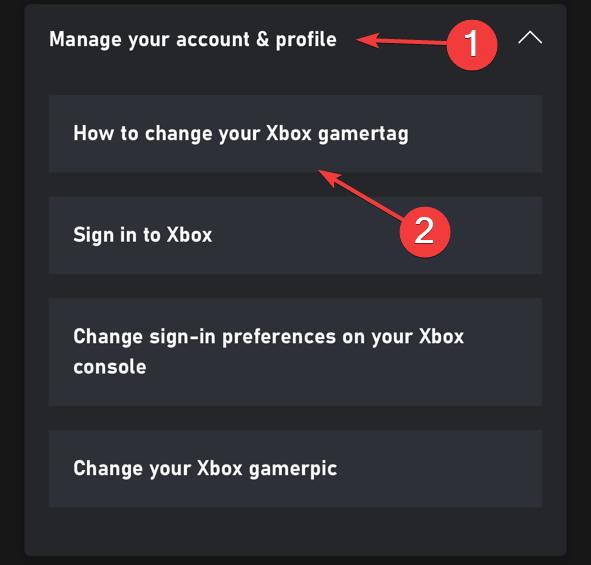
  6. Expand Manage your account & profile and select How to change your Xbox gamertag under it.change xbox name mobile
  7. Under Ways to change your gamertag, choose On the web, and tap on Choose your new gamertag.new gamertag
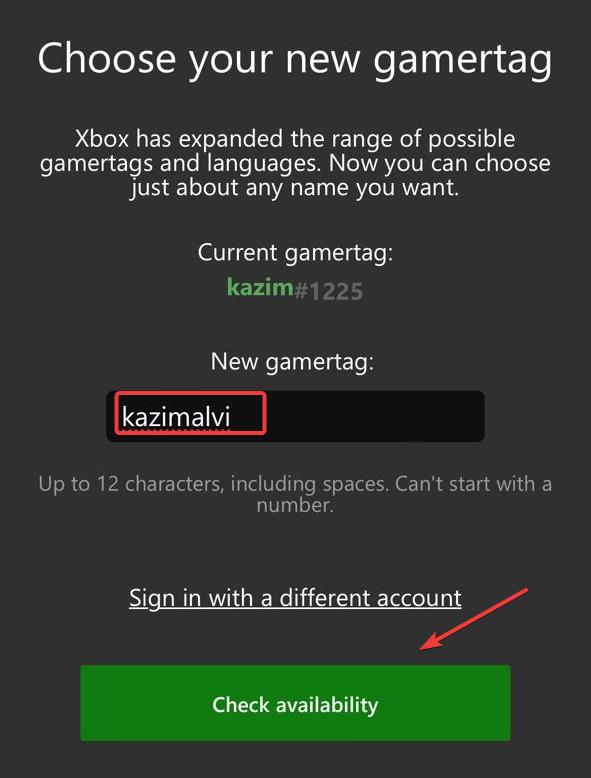
  8. In the browser window that opens, enter the new gamertag in the text field, and tap Check availability.check
  9. If it’s available, tap on Change gamertag.change xbox name gamertag mobile
  10. Again, tap on Change gamertag in the confirmation prompt.
  11. Once done, the changes should reflect right away. If not, log out and then sign back in.

Even though Xbox now allows more languages and personalization options in the gamertag, it’s still not compatible with most games. As a result, Xbox initially shows you what the gamertag would look like on non-supported games.

Android

The steps to change your Xbox gamertag on an Android mobile are identical to those on an iPhone, given that the UI (user interface) is the same. The only difference is that you need to download the Xbox app from the Google Play Store.

Once done, open Xbox Settings, tap on Help topics > select Manage your profile > tap How to change your Xbox gamertag > choose On the web > tap Choose your new gamertag > enter your gamertag in the text field > tap Check availability > if available, click Change gamertag > confirm the change.

Gamertag Change charge

As we mentioned earlier, you can only change the Xbox gamertag for free once. The next time, it will ask you to pay $9.99 or a similar amount in another currency. So, make sure the new gamertag is the one you want to stick with for the years, or at least until Xbox removes the Gametag Change charge.

Before you leave, discover the steps to change the Xbox gamertag on the console and PC if you feel more comfortable with it.

For any queries or to share why you had to change the gamertag, drop a comment below.

ChromeOS’s sleek Global Media Controls UI arrives in Chrome on Windows, Mac, Linux

The “Global Media Controls UI”, which lets you control video/audio playback in the Chrome browser, has received a fresh new look! Google is bringing this design from “ChromeOS” to other platforms, including Windows, Mac, and Linux. Here’s how you can try it out right now in Chrome Canary on Windows.

Four years ago, Google launched Global Media Controls across platforms to simplify media playback management within the browser. When audio/video is playing, simply click the music icon on the toolbar to access the Media Hub, where you can see all your media notifications and adjust playback without switching tabs.

Initially, Google made Media Hub available on Chromebooks before rolling it out to Chrome on Windows and other platforms. Following the same approach, the company is applying a sleek new design to the Global Media Controls UI, introducing it first on ChromeOS before bringing it to Windows and other platforms.

Meet Chrome’s sleek, uncluttered, and minimalist Global Media Controls UI

Traditionally, Global Media Controls featured forward, pause/play, and backward buttons along with Picture-in-Picture and Live Captions options.

The new UI on Chrome for Windows ditches the dedicated seek buttons, opting for a cleaner look with just the play/pause button, PiP, and live captions. This minimalist design appears uncluttered and modern. However, keep in mind that this might not be the final version, as it just landed in Canary on Windows.

https://twitter.com/techvenkat/status/1753766125094191541

How to Enable the New & updated Global Media Controls UI in Chrome:

  1. Open Chrome.
  2. Visit chrome://flags.
  3. Find and enable “Global Media Control Updated UI“.
  4. Relaunch Chrome.
  5. Open YouTube and play a video.
  6. Click the GMC icon on the toolbar to see the new UI.
https://twitter.com/techvenkat/status/1754809132261965957

Requirements:

  • Latest Chrome Canary (version 123)
  • Enabled the “Global Media Control Updated UI” flag
  • Chrome running on Windows, Mac, or Linux

Global Media Controls updated UI

Show updated UI for Global Media Controls in all the non-CrOS desktop platforms. – Mac, Windows, Linux

Do you like the new Global Media Controls UI that Google has brought from ChromeOS to Chrome on Windows, Mac, and Linux? Share your thoughts in the comments below

Chrome Android tests Tab Suggestions to put an end to frustrating Tab Juggling between devices

If you use Google Chrome on multiple devices with sync enabled, Google is making it easier to access open tabs from other devices in the Chrome browser on Android. Instead of digging through the Recent tabs menu or sending tabs individually, new “Tab Suggestions” appear directly on the New Tab Page under “Continue with these tabs”, so you can pick up where you left off seamlessly. This feature is currently being tested in Canary.

You’re likely familiar with Chrome showing shortcuts on the New Tab Page based on your browsing history. Now, Google is taking it a step further with Tab Suggestions in Chrome Canary. This feature leverages your synced data and recent tabs to display relevant open tabs from other devices directly on the New Tab Page.

While sending tabs and accessing recent tabs from synced devices existed before, finding specific content across devices often led to frustrating hunts. Tab Suggestions aims to streamline this process by presenting you with a curated selection of open tabs from your other devices.

Each suggestion appears as a tile with the device name, a caption, and the website’s favicon, making it easy to identify and pick up where you left off. As of now, two suggestions appear, but keep in mind that this is an early test phase.

The feature automatically updates in real time, displaying new open tabs on other devices. While this can be convenient, some users might find it intrusive. As of now, there’s no option to dismiss the “Continue with these tabs” section, but this might be added in future updates.

How to enable and see open tabs from other devices in Chrome on Android in the New Tab Page

  1. Open Chrome for Android.
  2. Visit chrome://flags.
  3. Enable “Tab Resumption Module” and “Surface Polish.“
  4. Relaunch Chrome.
  5. Open the New Tab Page and wait for Tab suggestions from other devices to appear under the “Continue with these tabs” section.

What you need:

  • Latest Chrome Canary
  • Signed into Chrome with Sync enabled on all devices.
  • Tab Resumption Module and Surface polish flags enabled.

While Chrome previously suggested tabs from recent history, this new feature focuses specifically on active open tabs from other devices. This helps users who frequently switch between devices.

While currently limited to two suggestions, we expect Google to expand this feature to show more options, further reducing the need to manually juggle tabs and switch between devices.

Tab Resumption Module
Enable showing tab suggestions on Android – Android

We recently covered some new Chrome Android features in testing: one-tap website notification unsubscription and a unified experience for installing PWAs and adding to your Home Screen. Check them out!

What’s your take on Chrome’s new Tab Suggestions feature that shows open tabs from other devices on the New Tab Page? Let us know your thoughts in the comments below.

Windows 11 is surely rising to be the most popular OS for gamers, according to Steam

Windows 11 is now the OS of choice for 44.24% of Steam gamers, with a +2.29% growth in the Windows market since December 2023, according to the latest survey from the gaming platform. This percentage brings it closer to Windows 10, which at 51.43%, has experienced a -2.02% regress since December 2023.

These numbers effectively bring the two Windows versions closer, with Windows 11 surely rising to become to most popular OS for PC gamers in 2024, if the trend continues this way.

Windows 11 is seen as superior when it comes to gaming, and it especially makes Steam run faster and perform better, as you can see in our review.

So it shouldn’t come as a surprise that many PC gamers are starting to see its potential and migrate towards it. The OS is better at handling resources such as CPU, and GPU, along with RAM power to enhance gaming experiences.

Plus, Windows 11 also has the Auto HDR, and will soon get the Auto Super Resolution, which is set to take the gaming experience to a new level. The ASR feature will also make use of AI to selectively and carefully use resources to not drain the device.

Down the road, Windows 11 will most likely be updated to support the new NPU processing algorithms, which could also come in useful for PC gamers, as it can improve performance and resource management all around.

So while the Steam survey still crowns Windows 10 as the most popular choice for PC gamers, its reign is set to end this year, most likely. However, Windows 10 is still a very popular operating system, and outside gaming, it’s the preferred OS.

Windows 11 is approaching the 500 million users target, while Windows 10 has over 1 billion users worldwide.

Microsoft has been trying to boost Windows 11’s user number, but so far to no dominant avail. Instead, the Redmond-based tech giant has reverted some of its initial intentions: Copilot is now available on Windows 10, as well, and the company is extending its EOS by 3 more years, for a price.

But now, it seems that Windows 11 is on the right track: slowly, but surely it will surpass Windows 10, when it comes to gaming, at least.

ReFS 3.12 doesn’t boot newer Windows 11 versions yet

Microsoft released a new Windows installation setup experience, last week, with the release of Build 26040 to the Canary Channel, and it was found that the new setup doesn’t support automatic drive formatting to ReFS.

Now, a few days later, we know why: when trying to boot the new version of Windows on ReFS 3.12, the system reboots repeatedly, according to the same Windows Insider who spotted the inconsistency in the new UI.

However, it has been going on like this for several months now, as the spotter also posted on X (formerly known as Twitter) in November 2023, stating that booting a newer Windows version on a ReFS volume was not possible.

It seems that the Redmond-based tech giant hasn’t made any progress since then when it comes to ReFS 3.12 compatibility with newer Windows versions.

Older ReFS versions, such as 3.10, should have no problems booting the newer Windows versions, so it’s advisable to use that version when booting Windows on a ReFS volume.

ReFS is a relatively new format, and it stands for Resilient File System. It debuted sometime around the release of Windows 8, back in 2011-2012, and installing Windows on such a drive can be quite beneficial for you, as you can see in this article, as it can improve performance, support scalability, and, as its name suggests, it’s much more resilient to corruptions of any kind.

It’s worth mentioning that the ReFS format is available only on certain editions of Windows 10/Windows 11, as Microsoft states:

Applies to: Windows Server 2022, Windows Server 2019, Windows Server 2016, Windows Server 2012 R2, Windows Server 2012

Microsoft

The Redmond-based tech giant might still need some time to work on ReFS 3.12’s compatibility with newer Windows versions, so, as we mentioned earlier, users might want to opt for version 3.10.

Microsoft is advertising Copilot Pro on Windows 11’s Settings homepage, and it could greatly upset users

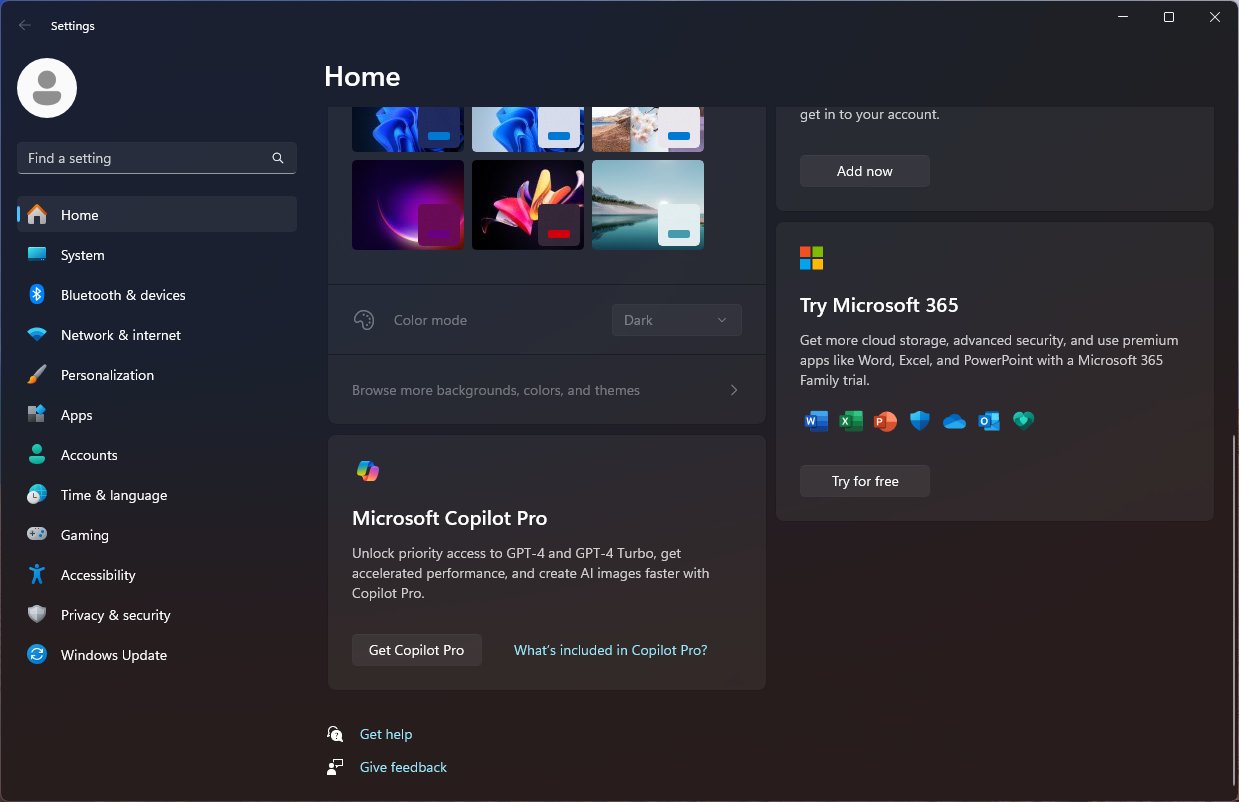
A Copilot Pro subscription ad card was spotted in the Windows 11’s Settings homepage by Windows Insider enthusiast, @PhantomOfEarth, in the latest builds to the Dev and Beta Channels within Windows Insider Program.

Looks like a Copilot Pro subscription card is being added to the Settings Home page, as well as a section for Copilot Pro in Accounts settings which displays billing information. Hidden in the latest Dev and Beta builds.

@PhantomOfEarth

The spotter stated that the card is currently hidden, and those who want to enable it, can use the following command in the third-party app ViveTool:

vivetool /enable /id:47942561

However, for some other Insiders, the card was already there, once they installed the latest updates, without having to uncover it with a ViveTool command, which means the Copilot Pro card is most likely gradually rolling out to Insiders.Copilot pro ad Windows 11

The Copilot Pro ad appears both as a card on the Settings’ Homepage, and a special panel in the Accounts section within Windows 11’s Settings, and it reads:

Unlock priority access to GPT-4 and GPT-4 Turbo, get accelerated performance, and create AI images faster with Copilot Pro.

Microsoft then suggests Windows 11 users get the AI tool, and find out more about its capabilities. The card is currently on in the Insider Channels, and it will most likely make its way up to the Stable channel of Windows 11.

It will also upset a lot of Windows 11 users. Here’s why.

This is why the Copilot Pro ad card on Windows 11 would upset users

First of all, Windows 11 is used by Microsoft to place ads everywhere, from those encouraging users to get on Microsoft Edge, to the company telling them to use OneDrive, and so on. A lot of Windows users have been frustrated by these ads.

A Copilot Pro ad would be another way for them to consider Windows 11 as a whole.

Then, interestingly enough, the Copilot Pro ad appears as a card in Windows 11’s Settings. Microsoft introduced the Settings cards in 2023, to allow users to access their preferred settings faster. The cards track the users’ activity on the operating system, and then Windows 11 will show personalized cards that reflect the users’ most accessed settings.

The blatant replacement of one of those cards with an ad for Copilot Pro might not go well with a lot of Windows 11 users, and it might force some to go back to an older version of the OS or transition altogether to Windows 10.

Is it a good move from Microsoft? Well, questionably. While Satya Nadella recently revealed that there are over 75 million Copilot users on Windows 10, and Windows 11, the AI tool is known for its demanding power usage.

Plus, Copilot Pro might not be a good fit for the everyday Windows user, at least not now, and many might consider there is no point in paying $20/month for the extra features.

What do you think about it?

Microsoft Intune: You can now access company-approved apps on a personal device, without moving the company’s data onto it

Microsoft will release 3 new solutions for its Intune Suite, and one of them will feature the ability to let users access company-approved apps on personal mobile devices, without compromising the company’s data, and their device’s storage.

This capability will be released with the new Microsoft Cloud KPI solution, inside the Microsoft Tunnel for MAM, which is a platform that helps secure Android and iOS devices when receiving sensitive information.

Microsoft Tunnel for MAM provides secure VPN access at the app level, for just the apps and browser (including Microsoft Edge) your IT admin explicitly authorizes. So, for personally owned devices, the user can access approved apps, without your company’s data moving onto the user’s personal device.

Microsoft

The data within the apps will be protected by specific company policies, and they won’t be stored on personal mobile devices, as well, for security reasons. That means, you’ll be able to work on your phone without worrying that the data will put you in a compromising position, in case something happens with the phone.

Intune Suite’s other 2 new solutions, Microsoft Intune Enterprise Application Management, and Microsoft Intune Advanced Analytics, promise to deliver a unified experience in Microsoft Intune that spans across many levels: cybersecurity, productivity, mobility, cloud operations, analytics, and so on, to streamline workflows, provide training for IT admins, and reduce overhead costs.

For example, the Enterprise Application Management solution will increase endpoint security, by allowing admins to have greater control over company-owned and approved apps, such as assigning privilege rights, deploying updates easier or setting them up to self-update, and many more features.

Last year, Intune received a similar update to the platform’s Custom App Control, that allowed it to stop malicious code from running, so this solution seems to take the existing feature to the next level.

With this initial release, you will be able to discover and deploy highly popular, pre-packaged apps, so you no longer need to scour the Internet to find their installation files, repackage, and upload them into Intune. Simply add and deploy the apps directly from their app publishers. You can also allow the apps you trust to self-update, and when a new update is available, it is just one click to update all your devices with that app installed.

Microsoft

The Advanced Analytics solution allows companies to have a deep, near real-time insight into their devices, and apps, so that they can improve the overall user experience or prevent/manage cyberattacks when they happen.

Microsoft also plans to integrate more AI into this solution, in the future, and it offers companies the possibility to remotely view and interact with devices.

Advanced Analytics in Intune is a powerful set of tools for actionable reporting and AI-driven analytics. It provides deep, near real-time insights into your connected devices and managed apps that help you understand, anticipate, and proactively improve the user experience. 

Microsoft

The Redmond-based tech giant says these three solutions will be enhanced as time passes, but they represent the fundamentals of the Microsoft Intune Suite, which promises to bring companies security, simplification, and savings.

You might soon be able to create your personalized emojis in Microsoft Teams

The Verge reports that Microsoft Teams might soon allow users to come up with their customized emojis in Microsoft Teams, as the Redmond-based tech giant is in the very early stages of testing customized emojis.

Reporting to the publication, several Microsoft employees said that they’re testing an animated version of the Pepe the Frog meme within internal versions of Teams.

For now, Teams supports regular emojis, and GIFs, allowing users to express themselves in a variety of ways using these methods, however, the idea of coming up with your emoji would make Teams a more welcoming and friendly place than already is.

Other platforms, such as Twitch or Discord, let users access custom emojis, with many of them being popular memes. These emojis allow for a friendlier conversation, and they open up the possibility of bonding with other users on the platform, something that Microsoft Teams could benefit from.

As The Verge noted, it seems that Teams users would want such a feature, because they have been requesting it for a while, and Microsoft placed it in its backlog, meaning the company will consider working on and possibly releasing it in the future.

With this being said, the feature will be previewed for users, if it ever gets released, and it might come out in the next months. Until then, however, users can now customize their nicknames on Teams, and they can experience it on Apple Vision Pro, starting today.

Microsoft: Copilot for Sales will revolutionize the way salespeople interact with buyers

Microsoft released Copilot for Sales and Copilot for Service, this week after the Redmond-based tech giant teased both AI models a few months ago. They’re available, starting now, with both of them priced at $50 per user/month (including the Copilot for Microsoft 365 license).

Microsoft says Copilot for Sales, especially, will revolutionize the way salespeople do their job, effectively allowing them to handle more calls, requests, and tasks with the help of Copilot which will help them:

  • Generate sales meeting preparation briefs in Word.
  • Summarize emails and surface relevant buying intent and budget, authority, need, timing (BANT) analysis in Outlook.
  • Generate emails in Outlook with relevant product, account, relationship, and opportunity information from their CRM system and Microsoft Graph.
  • Add leads and update CRM records directly from Outlook.
  • View meeting preparation notes and real-time sales insights during calls in Teams.
  • View sales meeting summaries in Teams with conversation analysis, sales keywords, and KPIs, and suggested tasks.
  • Create collaborative deal rooms in Teams that sync with CRM data.

Plus, Copilot for Sales is coming with Copilot for Microsoft 365, and this means salespeople will be able to generate presentations in PowerPoint and create and organize plans in OneNote in seconds. They will even be able to ask questions in natural language to easily catch up without wasting any time.

But this is not all, though, as Microsoft is planning to further enhance the capabilities of Copilot for Sales, to let salespeople connect the CMR to the Microsoft Copilot chat experience, effectively giving them the means to come up with precise replies in a matter of seconds, as well.Copilot for Sales

Later in 2024, Copilot for Sales will also integrate PowerPoint, and OneNote in such a way, that they will come up with tailored answers and prompts specific to every use case.

On the other hand, Copilot for Service is aimed towards organizations, rather than specific employees, and it will integrate multiple platforms, such as Teams, and Outlook, with the organizations’ internal platforms, for a more streamlined workflow.

Copilot for Service unlocks an organization’s trusted knowledge to accelerate onboarding and case resolution, improve efficiency, and automate tasks for agents in their flow of work. Without costly development time, organizations can simply point to their data and, in a few minutes, unlock generative AI-powered conversations across their knowledge bases. And for agents, they can tap into this knowledge with a copilot embedded directly in their desktop software of choice such as Salesforce, as well as the other tools they already use every day like Outlook and Teams.

Microsoft

Microsoft will enhance the tool in a manner similar to Copilot for Sales, with the following features, as the Redmond-based tech giant states:

  • In Outlook, Copilot will be able to summarize and draft emails, access case summaries, browse and update CRM records, and schedule meetings informed by case summaries and other relevant information from CRM records.
  • In Teams, Copilot will be able to browse and update CRM records during a meeting, as well as recap meetings, suggest follow-up action items, and create tasks that can all be saved to CRM systems directly from Teams.
  • In the Microsoft Copilot chat experience, Copilot will be able to ask questions about cases and contacts, as well as summarize cases—all from CRM data.

As you can see, salespeople will have more than enough tools to boost their productivity in a way that wouldn’t feel overwhelming or tiring.

However, it will be interesting to see if salespeople will adopt the new tool as their helpful companion. The latest earnings report from Microsoft says Copilot is the reason the Redmond-based tech giant amassed over 400 million paid Office 365 seats, so a lot of professionals are open about AI.

But what do you think?

BSoD Only on One Game: Here’s How to Fix it

BSoD errors are common but when they only appear when playing one specific game, it should strike your interest. For this particular one, it happened when we played Farlight 84 accompanied by the llhkp.sys error code.

BSoD errors that are unique to games can be caused by software conflicts, hardware failure, outdated/damaged graphic drivers, high CPU/GPU temperatures, or even incorrect in-game settings.

How do I fix BSoD errors occurring on one game only?

1. Run the Windows memory diagnostic tool 

  1. Press the Windows key, type Windows Memory Diagnostic, and click Open. 
  2. Click Restart now and check for problems.memory-diag-tool 3 easyanticheat.sys
  3. The computer will restart and the tool will run the memory test. memory-diag-tool
  4. You can change the test options by pressing F1.
  5. Once the scan is complete, you can check for errors under Event Viewer. 

Additionally, ensure your system is up-to-date and you have enough RAM to run the specific game.

2. Optimize your PC’s power plan

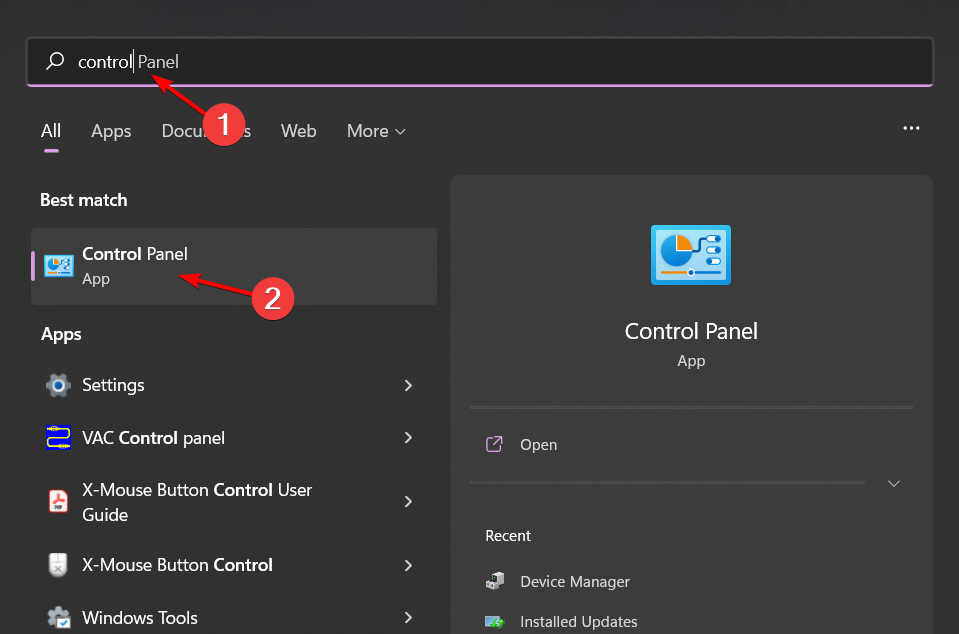
  1. Press Windows + S to launch the Search menu.
  2. Enter Control Panel in the text field at the top, and click on the relevant search result that appears.control-panel-search fallout new vegas runtime error
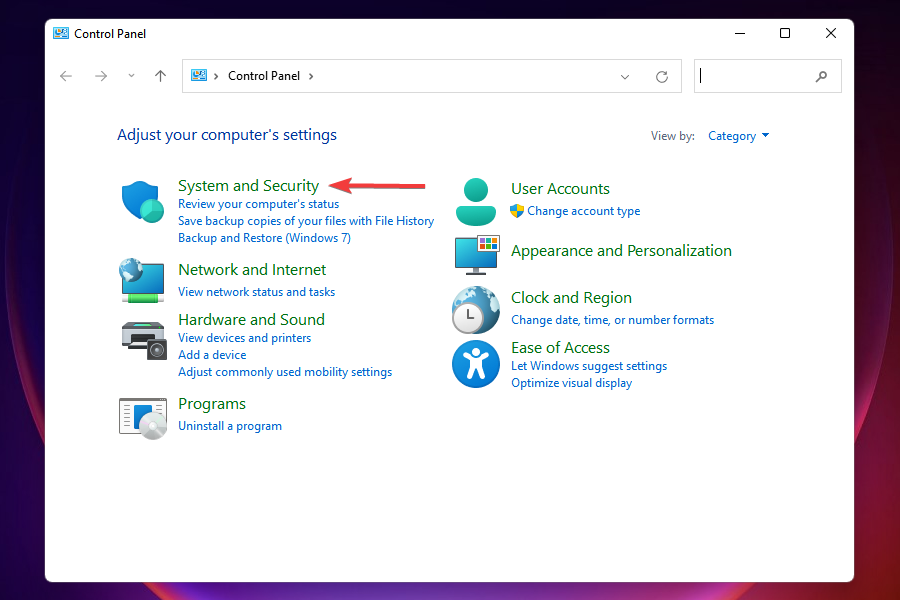
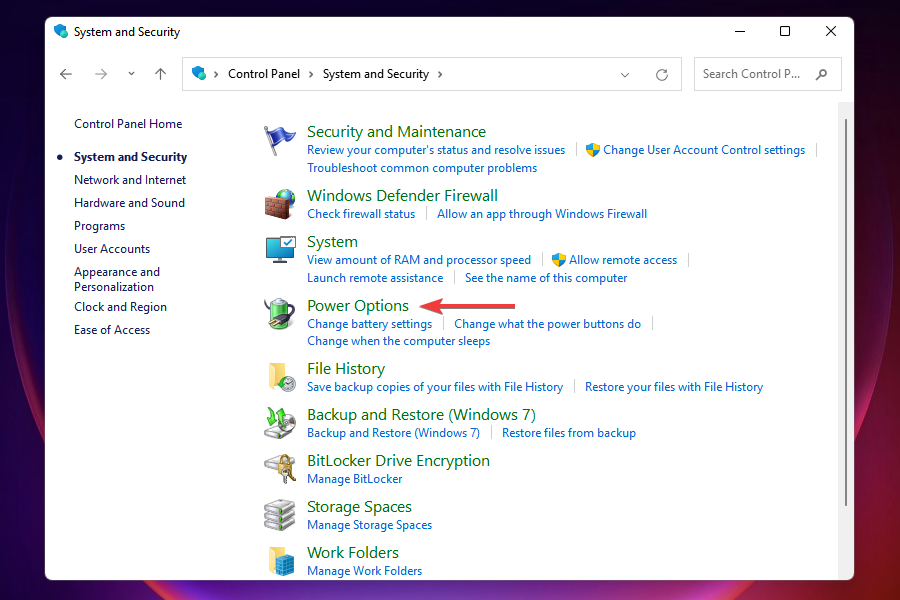
  3. Click on System and Security from the options that appear.System and Security
  4. Click on Power options.Power options
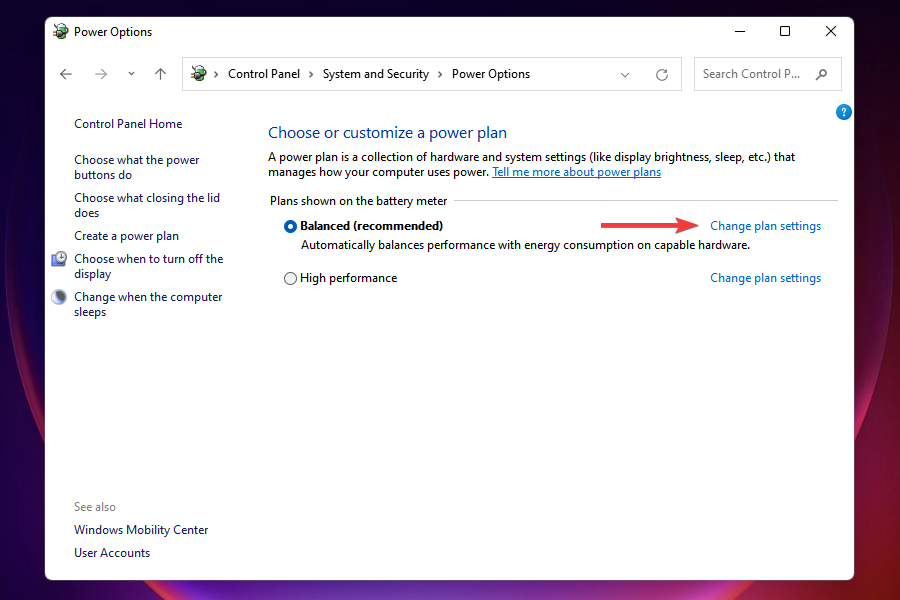
  5. Next, click on Change plan settings next to the current power plan.Change plan settings
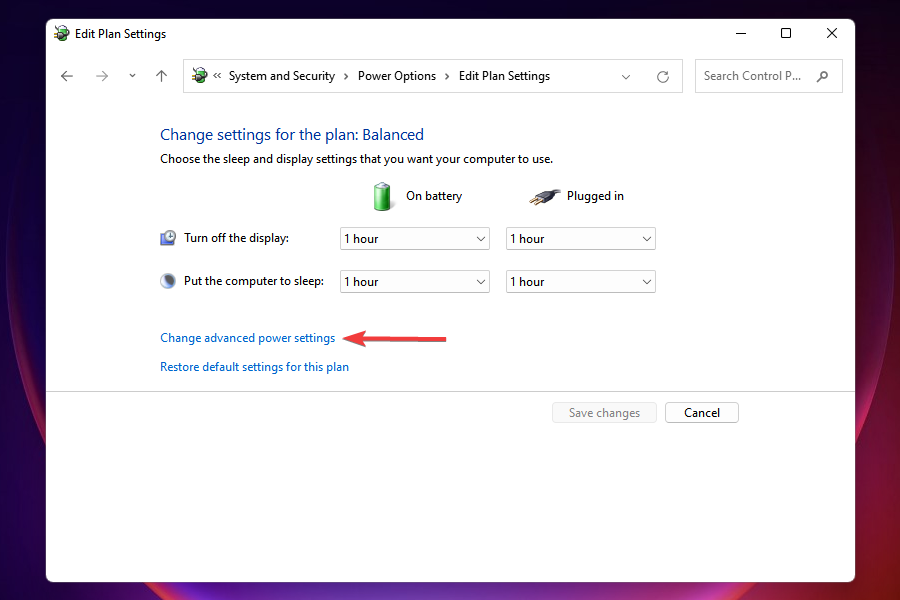
  6. Click on Change advanced power settings near the bottom.Change advanced power options
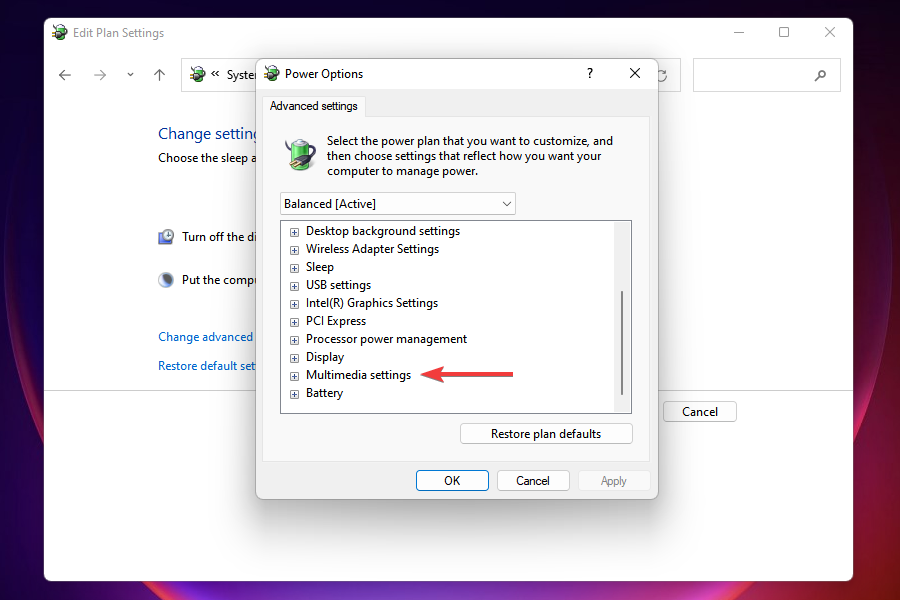
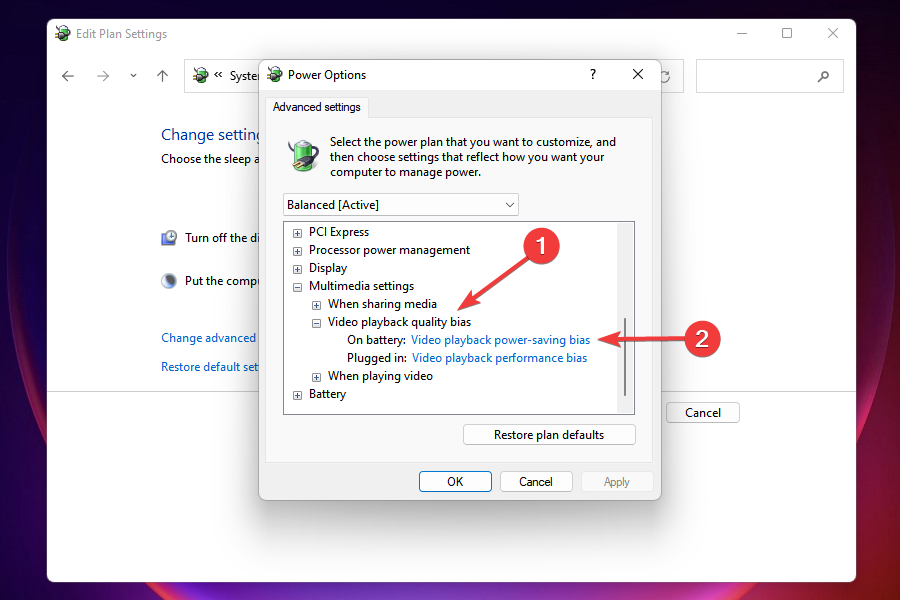
  7. In the Power Options window, scroll down and double-click on Multimedia settings.Multimedia Settings
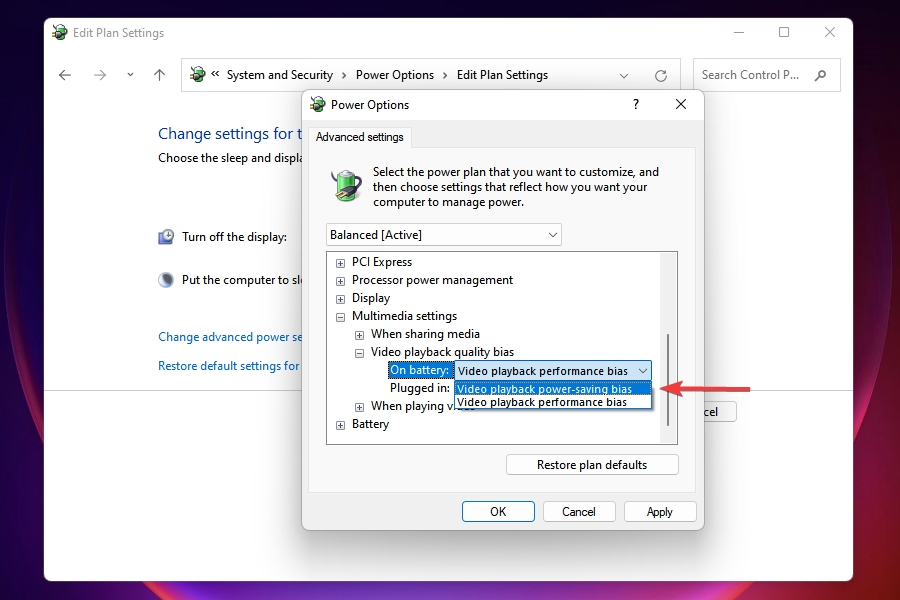
  8. Now double-click on Video playback quality bias, and then on the menu next to On battery.Change Video playback quality bias
  9. Select Video playback power-saving bias from the list of options that appear.Change settings to fix overheating in Windows 11
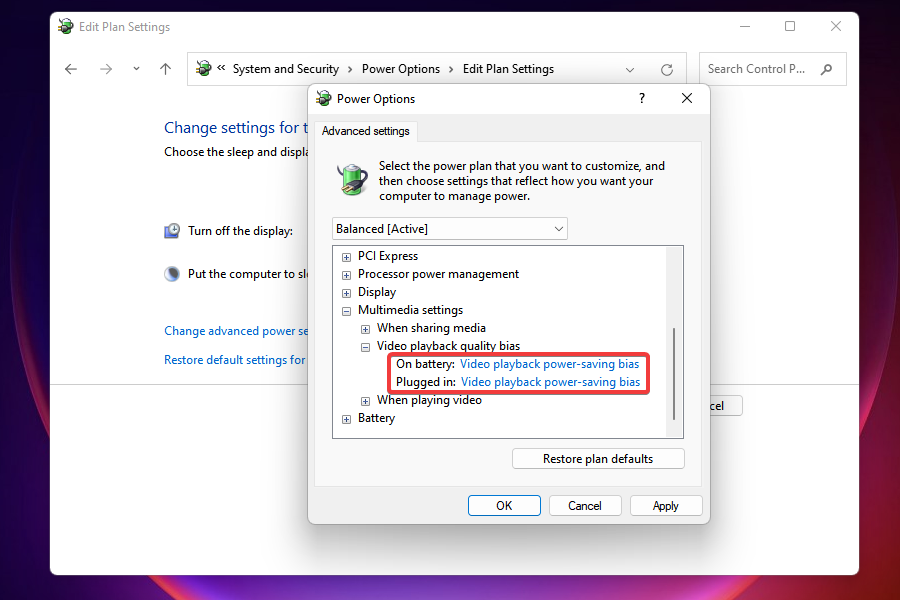
  10. Similarly, select the same setting for Plugged in as well.Set same the same setting for both
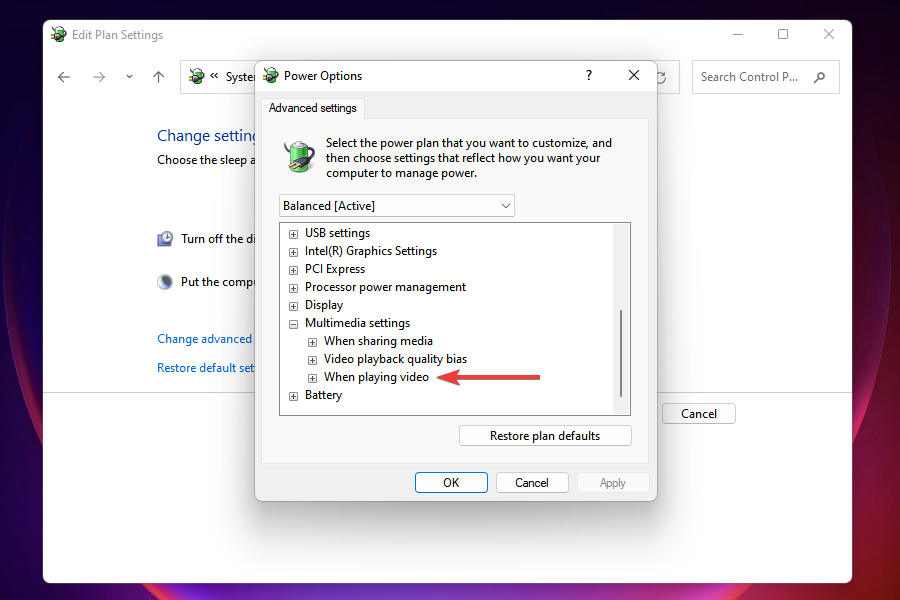
  11. Next, double-click on When playing video to expand and view the settings under it.Change when playing video settings to fix overheating in Windows 11
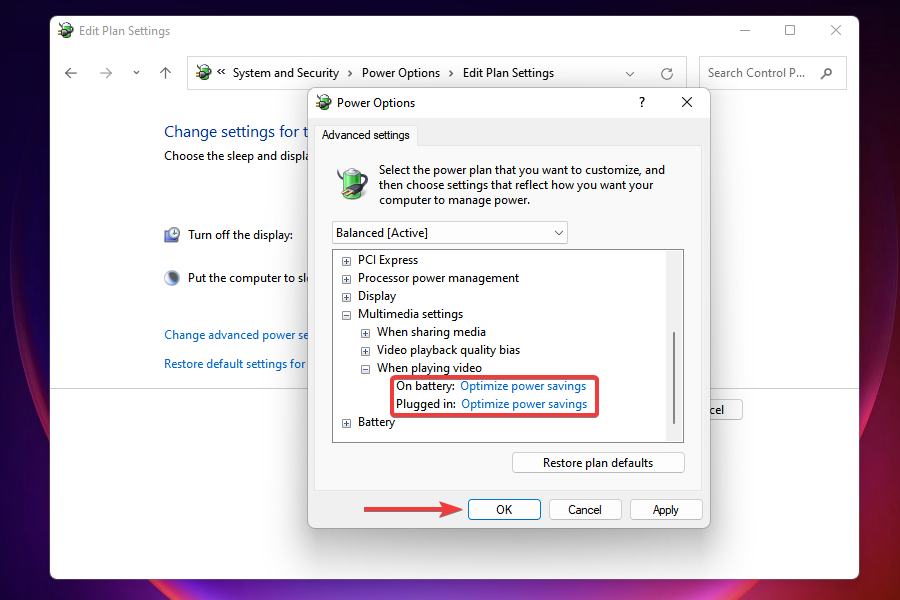
  12. Set both On battery and Plugged in as Optimize power savings, and click on OK to save the changes.Set optimize power savings for both

If you have sub-par or older hardware, intensive gaming sessions can push your hardware to its limits, leading to overheating. When your CPU or GPU temperatures exceed the safety zone, a BSoD error may be triggered.

You can also take further steps to cool down your PC such as disabling overclocking to take off the heat on your CPU/GPU.

3. Disable your antivirus temporarily 

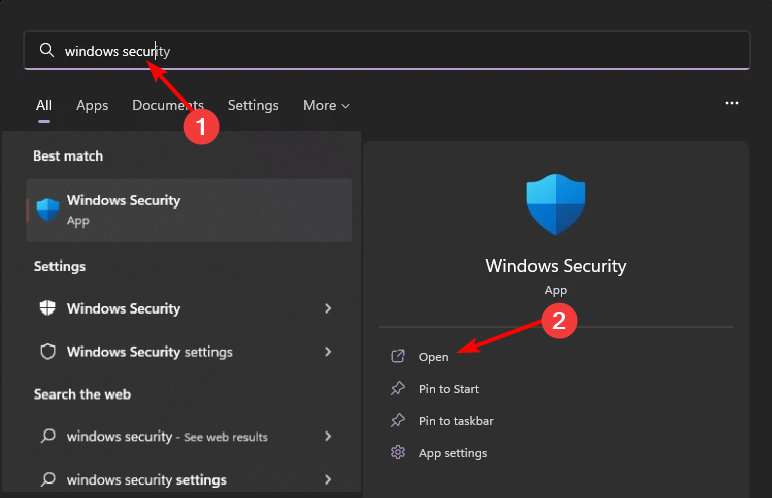
  1. Hit the Start menu icon, type Windows Security in the search bar and click Open.
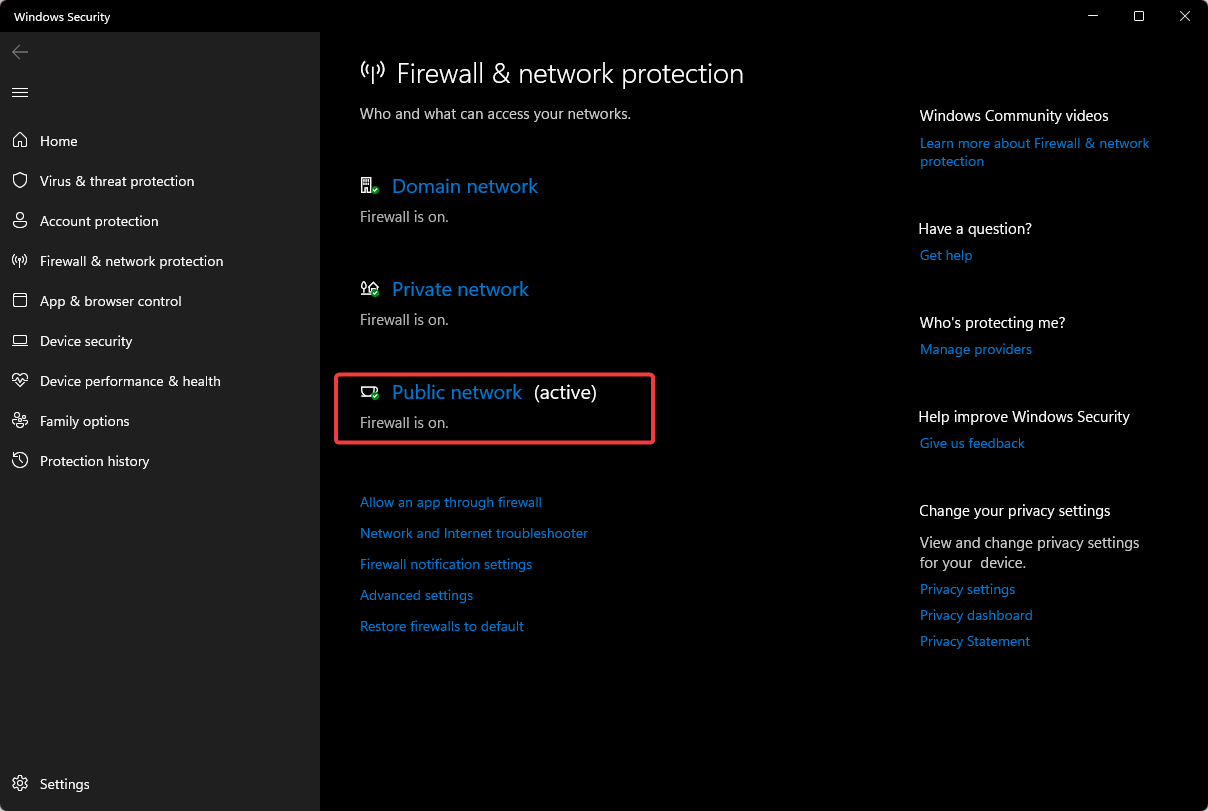
  2. Click on Firewall & network protection, then select Public network.league of legends black screen after champion select
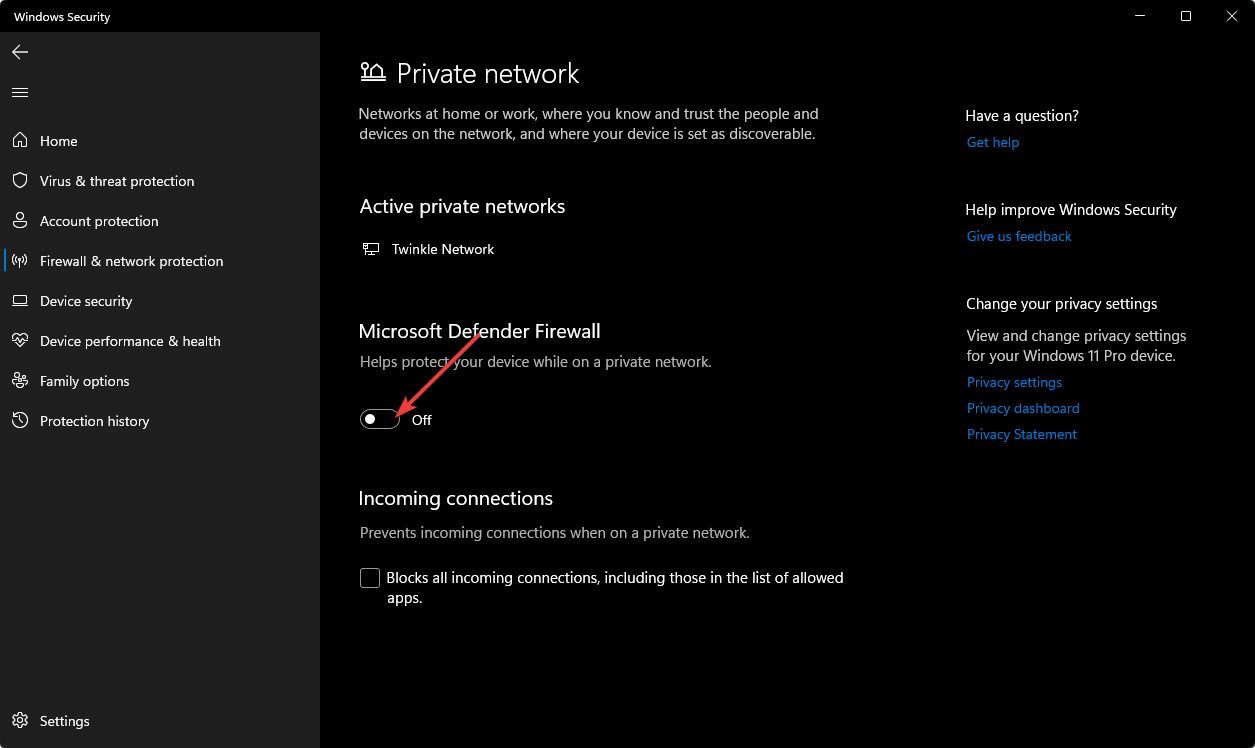
  3. Locate Microsoft Defender Firewall and toggle the off button.turning off Microsoft Defender Firewall Windows

An overtly aggressive antivirus may flag off your game as a security risk, causing system instability. If so, temporarily disabling your security software can help troubleshoot this issue but for a more permanent solution, consider whitelisting this specific game.

4. Update the GPU drivers

  1. Press Windows + R to open the Run dialog box. Device Manager RUN COMMAND
  2. Type devmgmt.msc and click OK to open the Device Manager. 
  3. Locate and double-click Display adapters.
  4. Right-click the graphics driver, and click Update driver.Graphics Driver update easyanticheat.sys
  5. Click Search automatically for drivers. Update driver 2 easyanticheat.sys
  6. Follow the onscreen instructions to complete the process. 

Updating GPU drivers, or any drivers as a matter of fact, can be greatly simplified by using dedicated software. This kind of tool can scan your entire system and identify and download missing or outdated drivers in a matter of minutes.

⇒ Get Fortect Driver Updater

5. Run DISM and SFC scans

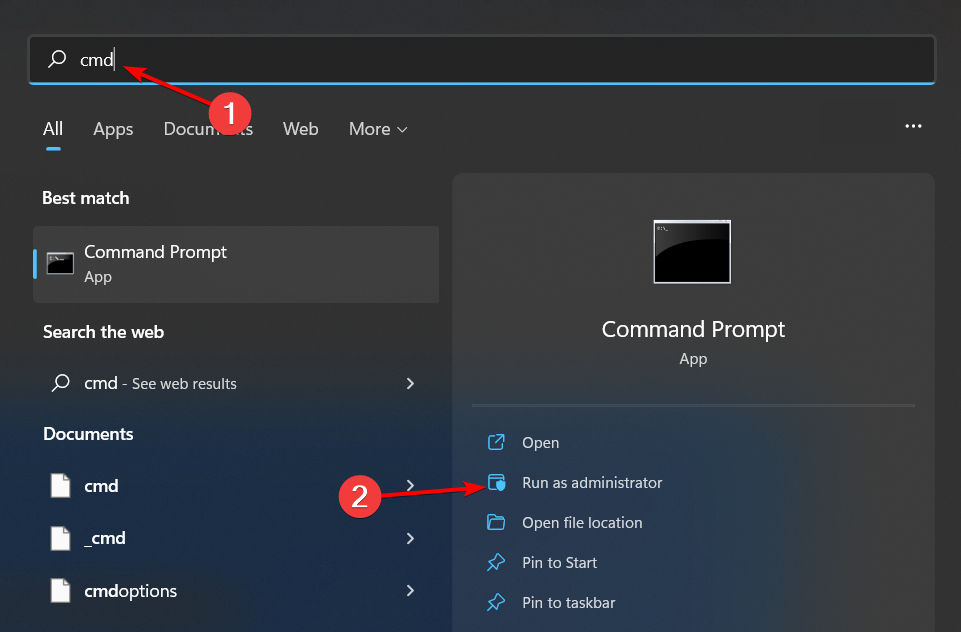
  1. Hit the Start Menu icon, type cmd in the search bar, and click Run as administrator.cmd-run-admin-w11 unexpected kernel mode trap windows 11
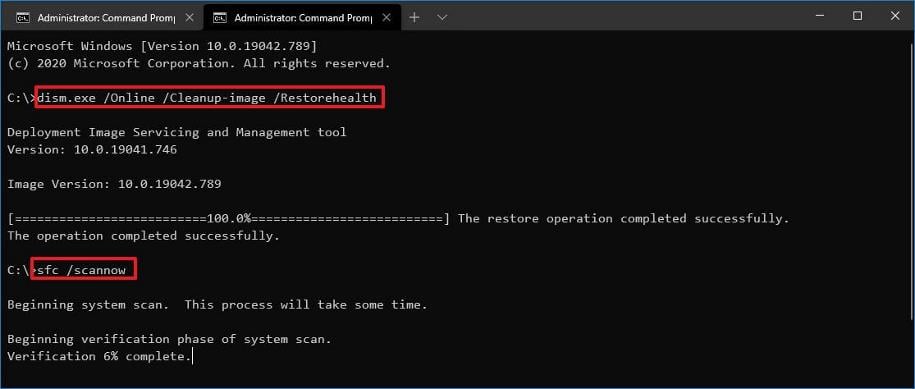
  2. Type the following commands and press Enter after each one:DISM.exe /Online /Cleanup-Image /Restorehealth sfc /scannow

6. Scan for viruses

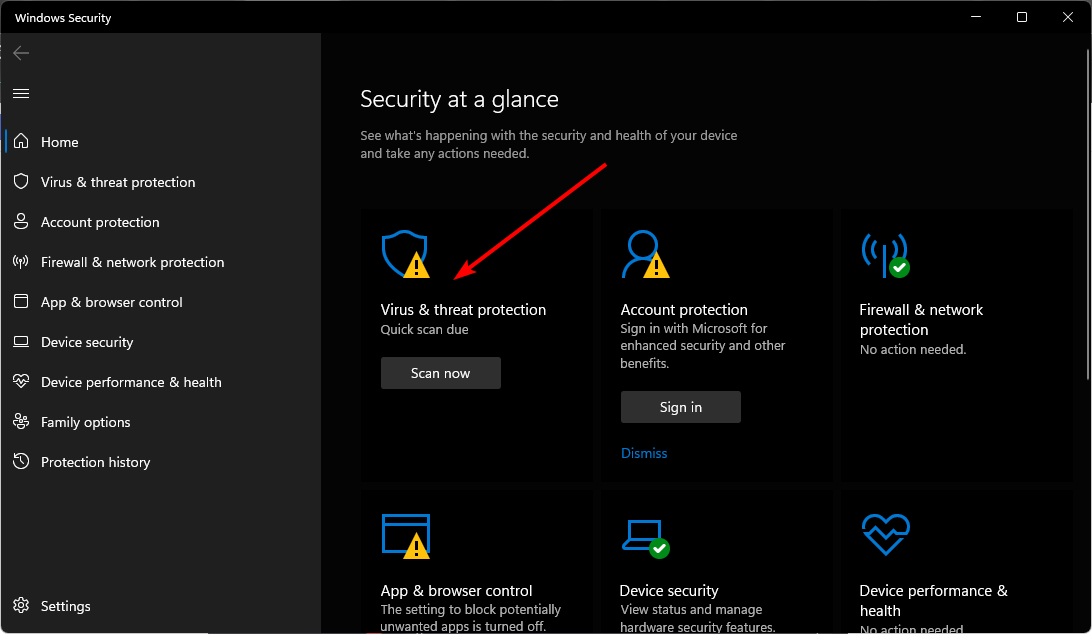
  1. Press the Windows key, search Windows Security, and click Open.
  2. Select Virus & threat protection.
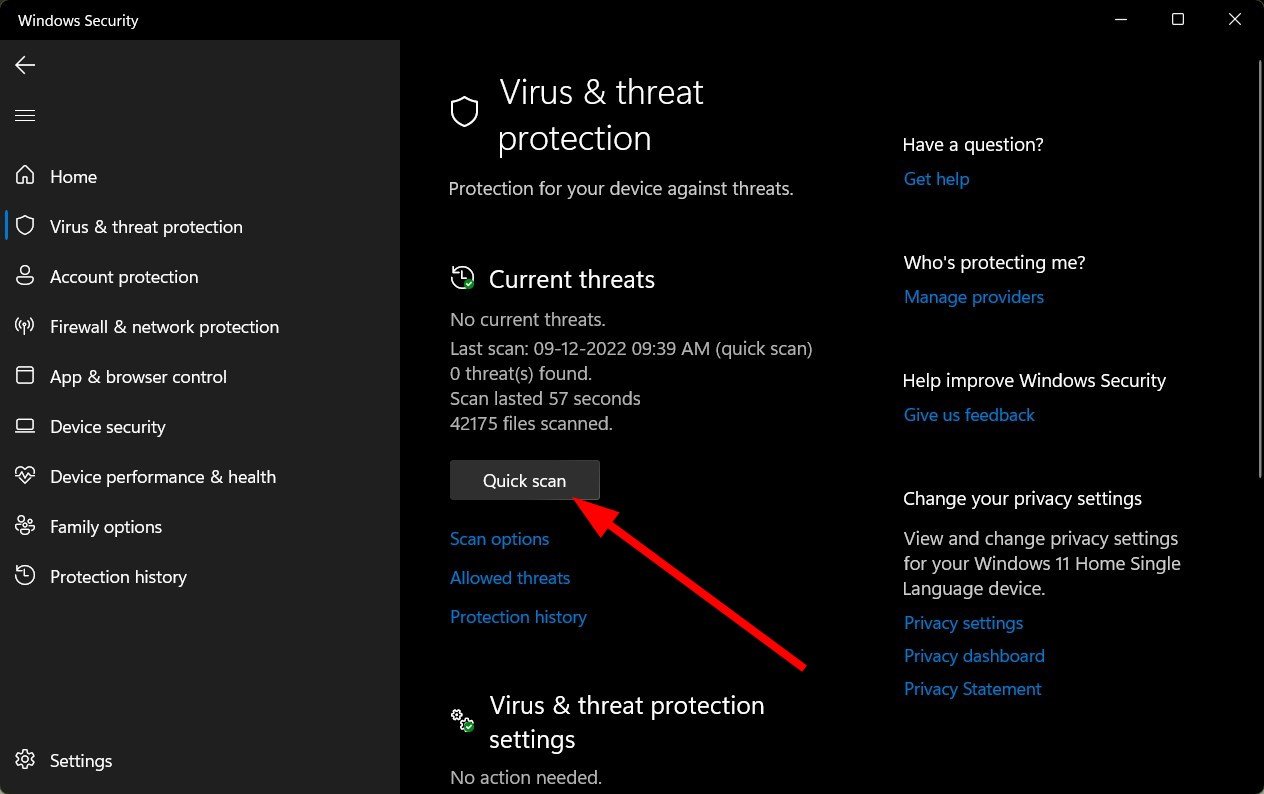
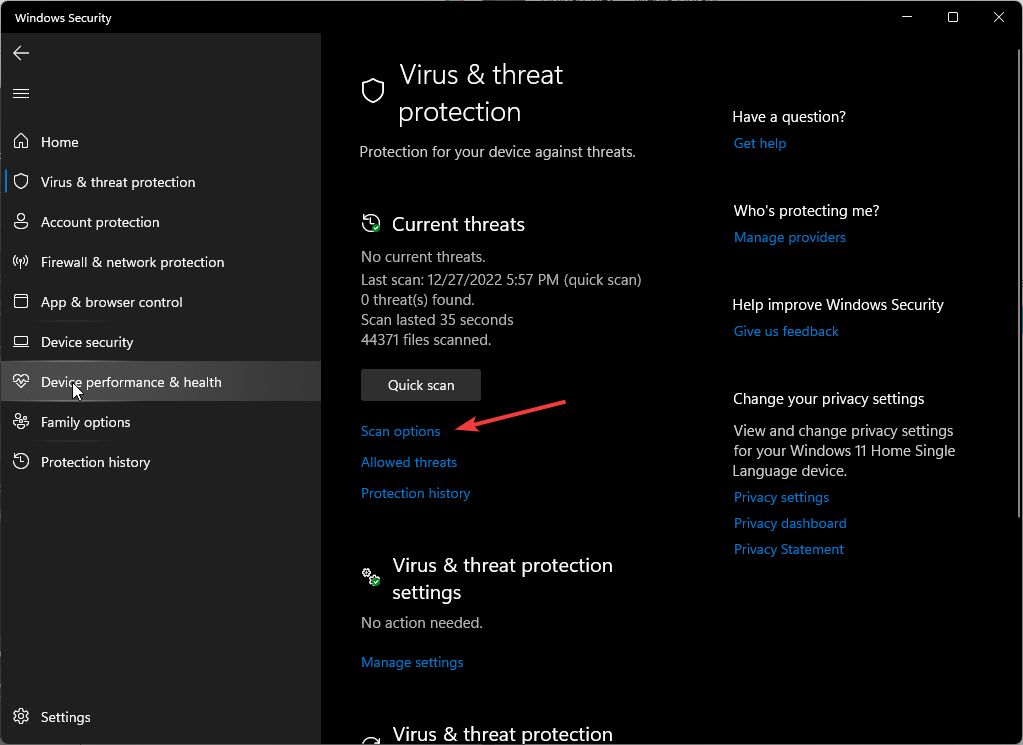
  3. Next, press Quick scan under Current threats.
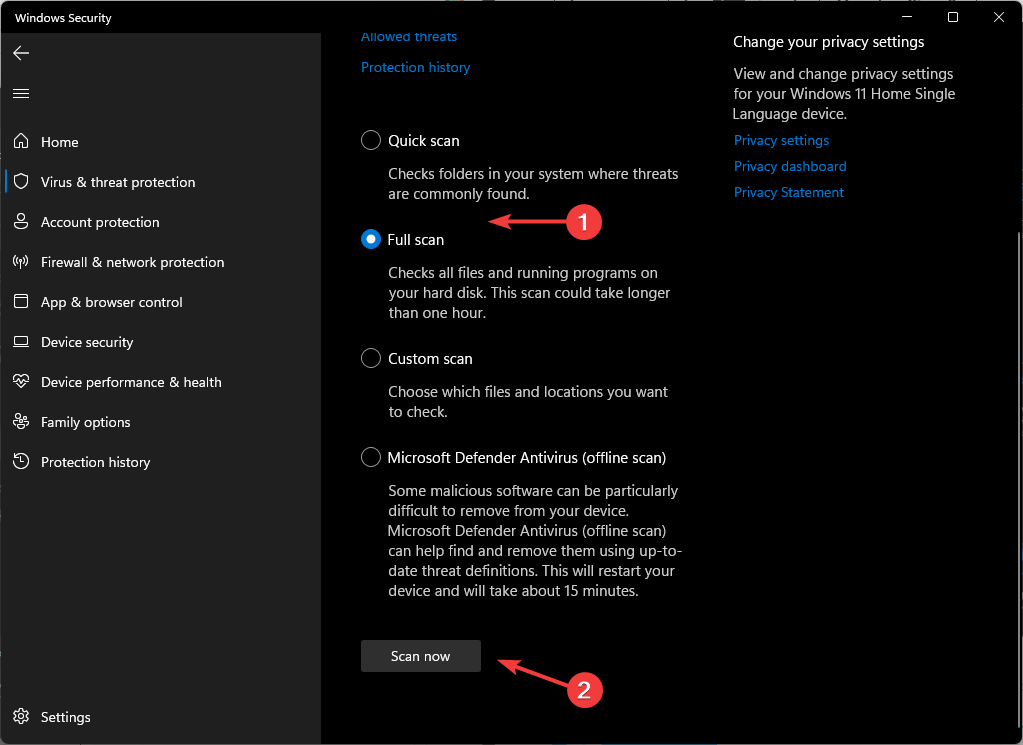
  4. If you don’t find any threats, proceed to perform a full scan by clicking on Scan options just below Quick scan.Scan options
  5. Click on Full scan, then Scan now to perform a deep scan of your PC.Full Scan Scan Now
  6. Wait for the process to finish and restart your system.

7. Reinstall the problematic game in compatibility mode

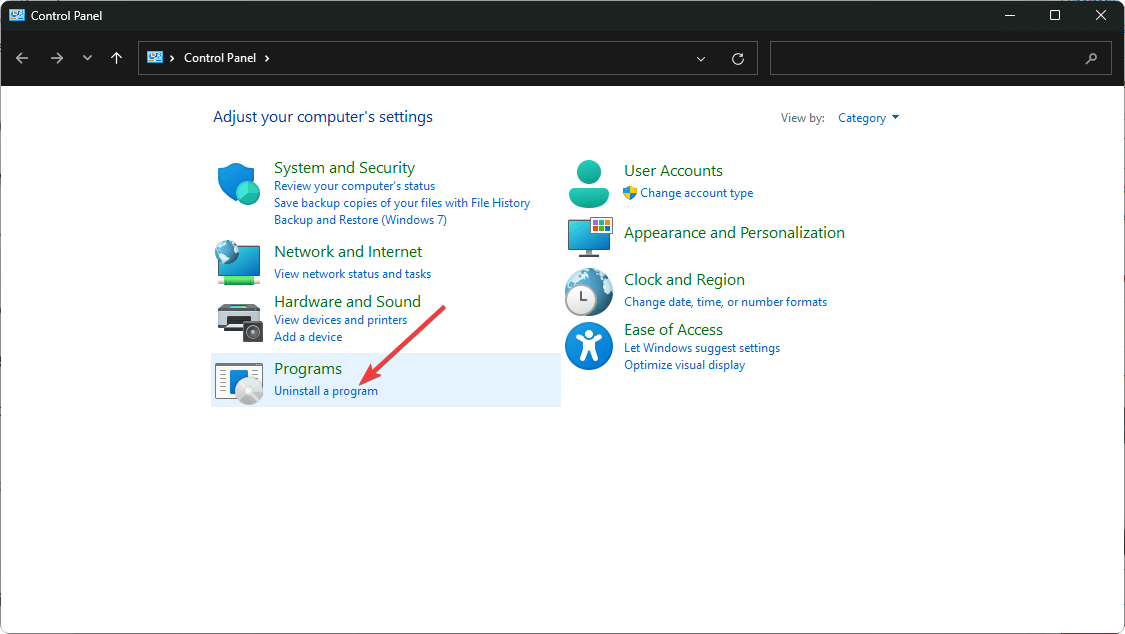
  1. Click on the Start Menu icon, type Control Panel on the search bar, and click Open.control-panel-search fallout new vegas runtime error
  2. Select Uninstall a Program under Programs.going uninstall program control panel
  3. Find the problematic app, click on it, and select Uninstall.
  4. Confirm uninstallation in the next pop-up.
  5. Install the app again from the official website.
  6. Locate the .exe file of the problematic app usually in one of the following paths depending on your version of Windows: C:\Program Files (x86) or C:\Program Files
  7. Scroll down until you find the program you’re looking for. 
  8. Right-click on the .exe file of the program and select Properties.    
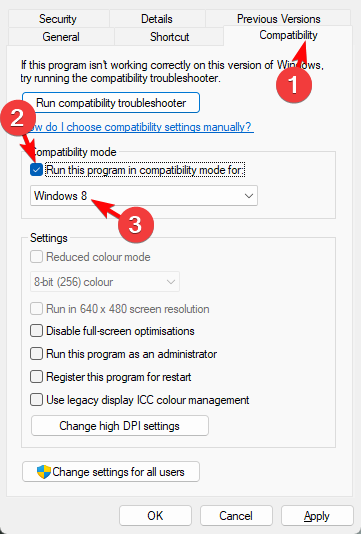
  9. Navigate to the Compatibility tab, check the Run this program in Compatibility mode option, and select Windows 8  from the drop-down menu.   run this program in compatibility for
  10. Allow the program to finish installing, then check whether the error persists.

8. Perform System Restore

  1. Press the Windows key, type Control Panel, and click Open.control-panel-search fallout new vegas runtime error
  2. Select View by as Large icons and click Recovery.Recovery Control Panel
  3. Click Open System Restore.Open system restore
  4. On the System Restore window, select Choose a different restore point and click Next.easyanticheat.sys Next Choose a different restore point
  5. Now select the restore point and click Next. Choose a point
  6. Click Finish.Finish Restore point

Unfortunately, without sufficient information, all these steps may prove futile. You can go ahead and contact EA customer support as the problem could be on their side. Perhaps a new game update had corrupt game files that are causing this issue.

However, if you’re looking for on-the-spot solutions and ensure you don’t waste a lot of time, you can try a dedicated BSoD fixer. BSoD errors related to games are in plenty so if you get a Blue Screen when launching a game, don’t hesitate to check out our expert article.

Beware of using cheating software too to get an unfair advantage over a game because you may be slapped with the easyanticheat.sys BSoD error.

Hopefully, one of these solutions has been instrumental in resolving this issue. We’re open to hearing any other way out you may have so drop us a comment below if you have another unmentioned fix.

Microsoft Edge overtakes Safari, Mozila and Opera in market share

Surprisingly, the report published by Statcounter in January 2024 shows how Microsoft Edge managed to get ahead of Safari, Mozilla, and Opera in worldwide desktop browser market share. This might show that there is a growing popularity in the browser. Yet, Chrome remains the one with the highest market share.

Which browser should I pick in 2024?

Statcounter report

The January 2024 Statcounter report regarding the browsers market share

To simplify the Statcounter report, we listed the browsers based on their market share percentage.

  1. Google Chrome – 64.84%
  2. Microsoft Edge – 12.96%
  3. Apple Safari – 8.83%
  4. Mozilla Firefox – 7.57%
  5. Opera – 3.23%

It is interesting how much Apple Safari fell behind in a matter of months. At the same time, we are surprised that Opera and Mozilla are surpassed by Microsoft Edge in market share, given how many unique features they have. However, Microsoft forces users to use Edge and the Bing search engine by using them as defaults for the search feature. In addition, Microsoft made it harder to switch from Edge.

It is easy to see why Edge managed to rise in rankings. After all, it comes with Windows, it is accessible, it is not as resource-hungry as Chrome, and it uses Chromium. Surprisingly, it even performs quite well.

Is Edge better than Safari?

Microsoft Edge has more customization options and extensions. The browser is somewhat better than Safari for Windows devices. However, for Apple devices, Safari is better optimized and more efficient. Ultimately, it mostly depends on your device type.

By the way, if you are a gamer, we recommend Opera GX. It has a lot of great features like gaming news, discounts, and sales, and it even tells you which platform offers free games.

We tested most of the browsers available, so if you’ve got time, check out the list featuring the best browsers for all devices.

Which browser are you currently using and why? What do you think of Edge? Share your thoughts in the comments, we are eager to hear them.

Rumors are Xbox is working on a handheld console, yet again. Should we believe them?

It’s that time of the year again when gamers everywhere, especially tech nerds, are starting to ponder the idea of an Xbox handheld console. Handhelds are quite popular right now, and many tech companies and video game platforms, even, have joined the fun.

For instance, Steam joined the handheld market with its Steam Deck console. Asus came in with its ROG Ally beast, and Lenovo, as we exclusively reported last summer, joined the fun with the exquisite, highly capable, yet demanding Lenovo GO. (In case you want to buy one of these handhelds, please check our detailed comparison so that you can make an informed decision.)

As the popularity of handheld consoles is getting bigger, the big players are also taking their chances once again. More specifically, Insider Gaming recently reported that Sony is planning to release another PlayStation handheld that will have an AMD APU and it’s currently in development, so it might take a year or two before it gets released.

However, as noted on X (formerly known as Twitter), many video game lovers gave their input on the news, including Windows Central’s Jez Corden, who apparently admitted Xbox is looking into developing a handheld console, as well. Does Corden know something we don’t?

Well, we don’t know, as it might simply be just a joke. But jokes, aside, should we entertain the rumors and expect Xbox to release such a console?

Should Xbox release a handheld console?

The answer is ambiguous. Yes, and no. If we explore the yes answer, then we have already entertained the idea, and you can find out what should an Xbox handheld console look like by reading this article. We said there is everything that needs to be said about a potential Xbox handheld console.

But we also want to say something more: the reason Xbox should join the handheld madness is simply due to the fact that it would offer a wide array of choices to many a variety of gamers. Sure, there are already two versions of the Xbox console, aimed at different audiences, so why shouldn’t Microsoft cater to one more audience, the ultramobile gamers, who are often on the road?xbox handheld console

From this perspective, Xbox should take a risk, just once, and release a console just for the sake of it. Maybe it will be well-received by gamers, and critics alike. Maybe it won’t. But if it doesn’t, Xbox already has two current consoles, and the very popular Xbox Game Pass to get back to.

On the other hand, if we say Xbox shouldn’t release a handheld console, is simply because the company would have too many departments to focus on: they have the Game Pass, they have the newly-acquired Activision-Blizzard-King corp to take care of (and it doesn’t look good, as Microsoft announced a wave of layoffs for the triad company), they also have a gigantic roadmap with over 5000 games in development, plus, the next-gen Xbox consoles.

So there would be too many things, and we all know how the word goes: you can be a jack of all trades, but master of none. And if Xbox wants to be the dominant force in the console market, it has to be the master of it.

Is anyone using Teams’ Walkie-Talkie feature? Apparently, not so much!

The Walkie Talkie feature in Teams was developed by Microsoft for frontline workers to automatically listen or send PPT messages from their favorite channels.

Although it seems like a great idea that might replace a lot of expensive tools, the feature is not so popular, at least not yet.

Why don’t organizations use the Teams’ Walkie Talkie?

First of all, Walkie Talkie from Teams is a pretty new addition and not many people have heard about it yet. It was available for Android and now, Microsoft is extending the feature for iOS as well.

Another reason for ignoring the feature is that although Microsoft has a tutorial on using Walkie Talkie, IT admins didn’t yet grasp it’s settings:

What is the android keyevent that triggers the MS Teams Walkie Talkie PTT button? Out hardware button is registered as Camera 27 – that doesn’t work. It can be remapped if I knew what keyevent was picked. Anybody got lucky and found it by trial and error?

Sais, one of the commenters

Everything looks easy in the how to video guide provided by Microsoft but things are not so simple as they seem. You need to be in the same channel as the person you want to send the message to, and they need to have their Teams app open, as one of the users points out:

Unfortunately, MS Walkie Talkie requires more work. MS Teams Walkie Talkie will only work for users currently in one Teams group/channel. For members that may have Teams closed, have multiple channels (like us) or simply out of the particular channel won’t receive the Walkie Talkie communication. Microsoft should allow users the ability to get calls from all multiple channels to truly become a walkie talkie. I hope that they enhance this feature. They will destroy their competitors (e.g., Verizon’s PTT + ) if they can allow communication for all channels.

However, not all the user’s complaints are legitimate. Walkie Talkie allows you to listen to up to five favorite channels since November, last year, but you need to pin them first to get the messages.

Also, Microsoft recommends IT managers to make sure that all endpoints listed for Teams in Office 365 and the IPs are reachable by the users on the network.

Do you use the Walkie Talkie Teams feature within your organization? Tell us all about it below, in the comments section.

The bug that was plaguing Outlook and email clients is gone, no more login issues

Recently many users experienced the inability to connect to Outlook servers, and according to users, Outlook wasn’t accepting passwords or app passwords.

The issue was reported on Microsoft Answers forums a few days ago, and Microsoft has acknowledged and fixed the error.

Microsoft has fixed the recent Outlook login issue

According to Microsoft’s support page, many users were unable to connect to Outlook.com. The issue has been reported on various email clients, including Outlook 2013, Outlook 2016, Outlook for Microsoft 365, and Thunderbird.

It’s not just the desktop apps, the mobile apps were affected as well. The issue appeared in email clients while trying to use POP, IMAP, or Exchange connections.

Well, Microsoft reported that it made service changes and that the issue was addressed. While the problem was fixed, some users may be still having issues on Outlook 2013 and 2016.

If you’re using any of these two versions, Microsoft advises you to enable two-step verification and create the app password that you’ll use instead of your regular password.

While this was a major issue, Microsoft was quick to address it. This isn’t the only issue being addressed, Microsoft is also working on bringing proper drag-and-drop support for attachments in Outlook.

Have you experienced this issue? If so, share your experience with us in the comments.

Mozilla calls out Microsoft on sneaky tactic to steer Windows users to Edge

A recent report named Over the Edge: How Microsoft’s Design Tactics Compromise Free Browser Choice by independent researchers Harry Brignull & Cennydd Bowles discusses how Microsoft’s design rips users from the freedom of choosing a browser.

This is not the only claim made; Mozilla also expressed the same concern in two reports titled Five Walled Gardens in September 2022 and Platform Tilt in January 2024, claiming that the Redmond giant uses dark patterns to push people towards Edge.

These reports majorly talk about the competitive barriers presented in platforms by companies, including Apple, Microsoft, and Google.

Over the Edge, as the name suggests, mainly talks about Microsoft Edge and the tech giant’s manipulative design patterns, also called deceptive patterns or dark patterns, that are crafted intentionally to force people toward a favorable outcome.

Mozilla stated,

Windows users everywhere, especially in the rest of the world, continue to have their choices inhibited, overridden and undermined by Microsoft’s use of harmful design. Regulatory action around the world is needed to restore browser choice and competition across all of the major platforms.

One thing in the report that caught our attention was the alleged injection of Microsoft Edge ads into unrelated search results or download pages, which comes under the Disguised Ads tactic. For example, when you search for options to install Chrome or Opera, you might see a pop-up on the top of the screen resembling a Windows interface, hinting that Edge is better.

Mozilla calls it misleading and makes users think compliance with Edge is important for device security.

I experienced the same issue when, after a reinstall, I tried to download Chrome on my computer, but I neglected it. Now that this report has highlighted this issue, it would be wrong to think the claim is untrue. I was bothered by the ad, and if I hadn’t always been using Chrome, I might have gone for Edge.

Other deceptive interface patterns outlined by the report are Confirmshaming, Visual Interference, and Forced Action.

When asked about these claims and their notion of healthy competition, a Mozilla spokesperson said

Our position about fair and open competition has not changed. However, there is an increased need to understand and identify some of the technical aspects related to legislation like the DMA which is why we commissioned the independent research.

The report also emphasizes that developers like Microsoft and Google should promote their products without clouding a user’s judgment.

Also, it asserts that a user should be able to download, install, and set any legitimate web browser as default on their computer without anyone manipulating their decision.

Mozilla has put its hope in Europe’s Digital Markets Act (DMA), which plans to make sure there is fair competition within the European Union. The act will be implemented in March 2024, and it is seen as the hope that the barriers to browser competition will be reduced.

The nonprofit software house also stresses that when the issues are reported, the changes made are usually incomplete and are a result of regulatory pressure. It further argues that Microsoft’s supposed use of harmful design should be addressed immediately to prevent harm to consumers, the market, and society.

Microsoft has not yet responded to these accusations. It seems that the battle between browsers will continue, and regulatory scrutiny could become a significant factor in shaping the landscape of fair competition in the tech industry.

If you are interested in knowing about Mozilla and Microsoft wars, check out our article on why Firefox ended support for Windows 7, 8, and 8.1.

What do you think about this claim? Share your thoughts in the comments section below.

Elgato’s HDMI 2.1 capture cards 4K X and 4K Pro feature HDR and great frame rates

Don’t wait any longer to stream and record in high resolution and good framerates. The 4K X and 4K Pro HDMI 2.1 capture cards from Elgato are here. Yet, if you don’t know which one to get, we’re here to help you decide.

The first decisive factor is their accessibility. If you travel a lot and always switch devices, 4K X could be the best option. However, the 4K Pro is the stronger one. So, keep that in mind. Also, before getting any of them, know that the HDR capture is only available for Windows.

4K X and 4K Pro will set your new standards

4K X and 4K Pro Tech Specs

4K X4K Pro
CaptureCapture up to 2160p144, 2160p30 HDR, 1440p144, 1440p60 HDR, 1080p144, 1080p120 HDR.Capture up to 2160p60, 1440p144, 1080p240, 720p240, High Dynamic Range (HDR).
Capture ResolutionsHDR 10-bit passthrough (up to 4K144) / capture (up to 4K144)Passthrough (up to 8K60) / capture (up to 2160p60)
InputPassthrough up to 2160p144, 2160p60, 1440p240, 1080p240, Variable Refresh Rate (VRR), High Dynamic Range (HDR) Lag-free passthrough up to 4320p60, 2160p240, 1440p240, 1080p240, Variable Refresh Rate (VRR), High Dynamic Range (HDR)
InterfaceUSB 3.2 Gen2 (10Gbps) Type-C
3.5 mm TRS (stereo) line-in port
PCIe 2.0 x4
Supported SourcesUSB 3.2 Gen2 (10Gbps) Type-C
3.5 mm TRS (stereo) line-in port
Sony PlayStation 5
Sony PlayStation 4/Pro
Microsoft Xbox Series X|S
Microsoft Xbox One X|S
Nintendo Switch
PC
iPhone/iPad
Google Pixel
And other unencrypted HDMI sources

Core differences between the capture cards

There is a great difference between the two when it comes to captures and input. 4K Pro is better if you like the higher frame rate capture and prefer better color ranges and visuals.

Unfortunately, unlike 4K X, the Pro version requires a PCIe slot that limits the overall compatibility of the card. Yet, it allows you to passthrough 8K60. On top of that, it offers you the best framerate possible for 4K. Last but not least, 4K Pro can stream on multiple platforms, while 4K X can only stream on one platform at a time.

Ultimately, if you are a streamer who prefers using multiple platforms and like wide color ranges and detailed visuals, select 4K Pro. On the other hand, if you are always moving around, prefer a USB connection, can give up on 4K at 60 FPS, and don’t mind streaming on a single platform at a time, 4K X is waiting for you.

To complement your console and to further boost your gaming experience, check out ViewSonic 4K-X1 and 4K-X2 projectors.

Also, consider checking out this capture card selector created by Elgato.

What are your thoughts? Do you prefer 4K X over 4K Pro? Would you rather wait for a 4K Pro without a PCIe? Feel free to share your thoughts in the comments section.

How to Download Brother Printer Drivers for Windows 11

Your Brother printer may not match your generic printer drivers in Windows 11 so you’ll need to download specific drivers.

Brother printers are generally compatible with multiple versions of Windows both older and newer. However, if you have any doubts, you can check the official list of supported OSes and devices against your model.

How do I download Brother printer drivers for Windows 11?

1. Download from the manufacturer’s official site

  1. Whether your Brother printer is USB-enabled or wireless, you’ll need to connect it to your PC first before downloading the drivers. For wireless printers, ensure they’re on the same network as your PC.
  2. Navigate to your browser, go to the Brother official site, and select printers.
  3. Find your specific model from the list and click on Go.
  4. Next, check and select your OS version then hit OK.
  5. Click on the Printer Driver option.
  6. At the bottom, click on Agree to the EULA and Download option.
  7. Locate the exe file in your Downloads folder, double-click on it to run then follow the on-screen prompts to install it.
  8. Restart your PC for the changes to take effect.

If you own the Brother MFC-L2710DW, you can skip searching manually and follow this Brother MFC-L2710DW driver installation guide for a direct download and setup walkthrough.

Note icon NOTE
During installation, the message: The software has not passed windows logo testing may appear. Just hit Continue Anyway and proceed with the rest of the installation.

Although you can find similar drivers from other third-party sites, it’s best to avoid them. These sites may bundle up additional software alongside the drivers that could harm your PC. Once you install it, check whether your firewall is blocking your Brother printer then whitelist it.

2. By using the Device Manager

  1. Hit the Windows key, type Device Manager, and click Open.device manager w11
  2. Locate the Brother printer, and once found, right-click on it and select Update driver from the context menu.
  3. Select Search automatically for drivers and wait for Windows to update the drivers.

3. By using a driver updater utility

We strongly recommend updating your Brother printers using a driver updater. This is because it guarantees the most accurate drivers for your printers and reduces the chances of ending up with the wrong drivers.

Although there are many tools out there, we selected the easiest to use, most efficient, and cost-effective one. Fortect Driver Updater promises to deliver on this.

This tool will start a scanning process to detect outdated or broken drivers and immediately update with the latest versions from an extensive database.

⇒ Get Fortect Driver Updater

4. By using Windows Update

  1. Press the Windows key and click on Settings.settings windows 11
  2. Navigate to Windows Update, and click on Advanced options.
  3. Now, click on Optional updates.
  4. Tick the checkboxes for all the available updates under Driver updates, and click on Download & install.

Do I need to download Brother utilities alongside printer drivers?

Brother Utilities is a software package that is designed to enhance your experience while using your Brother printer. It contains a bunch of tools such as:

  • Driver updates: You can keep track of new driver versions as they’re released and update your printer for optimal performance.
  • Status monitoring: You can keep track of your ink and toner levels so that you can refill before it’s too late.
  • Troubleshooting: Printers, like any hardware device, may fail to print or stop working. Here, you can find common troubleshooting guides for such eventualities.

Other features include printer settings such as tweaking your user interface and changing your print quality among others. The package can help you get the most out of your printer but you do not necessarily need it for your printer to function.

Finally, since you cannot escape the occasional Brother printer paper jams, go ahead and check out our article on the steps to take for a quick fix. And while we’re still on downloading drivers, if you have an Epson model, we have an article on how to download its printer drivers.

We’d love to get your opinion on your preferred method of downloading the Brother printer drivers for your Windows 11 and your reasons behind it. Drop us a comment below.