Google may look to turn Windows 10 PCs and Macs into Chromebooks with CloudReady acquisition

Google has quietly acquired Neverware, a company developing CloudReady, a variant of Google’s Chrome OS to install on Chromebooks, Windows PCs and Macs. The acquisition was announced on Neverware’s website earlier this week (via ComputerWorld), and the company says that it has now joined Google’s Chrome OS team.

CloudReady is currently free to install for consumers on select devices certified by Neverware, but the Chromium-based OS is also available as a subscription with management capabilities for Education and Enterprise customers. Prices start at $20 per device annually for education customers and $49 per device per year for Enterprise customers.

“CloudReady will continue to be available as-is, and we’re committed to supporting and maintaining existing customers. Over the long term CloudReady will become an official Chrome OS offering, and existing customers will be upgraded seamlessly as that happens,” the company explained in an FAQ.

Since it’s based on Chromium OS, the open-source version of Google’s Chrome OS running on Chromebooks, CloudReady provides a familiar Chrome OS-like experience free of all the Google software you usually find on Chromebooks, including the Google Play Store. However, the “CloudReady will become an official Chrome OS offering” part of the announcement suggests that things could change in a pretty big way.

What if Google is planning to eventually turn CloudReady into a feature-complete version of Chrome OS that can be installed on Windows PCs and Macs? As of today, the only way to use Chrome OS is to purchase a Chromebook from Google or its hardware partners, but CloudReady could soon evolve into Chrome OS for everyone, complete with millions of Android apps to install from the PlayStore and the same management capabilities already provided by ChromeOS and CloudReady.
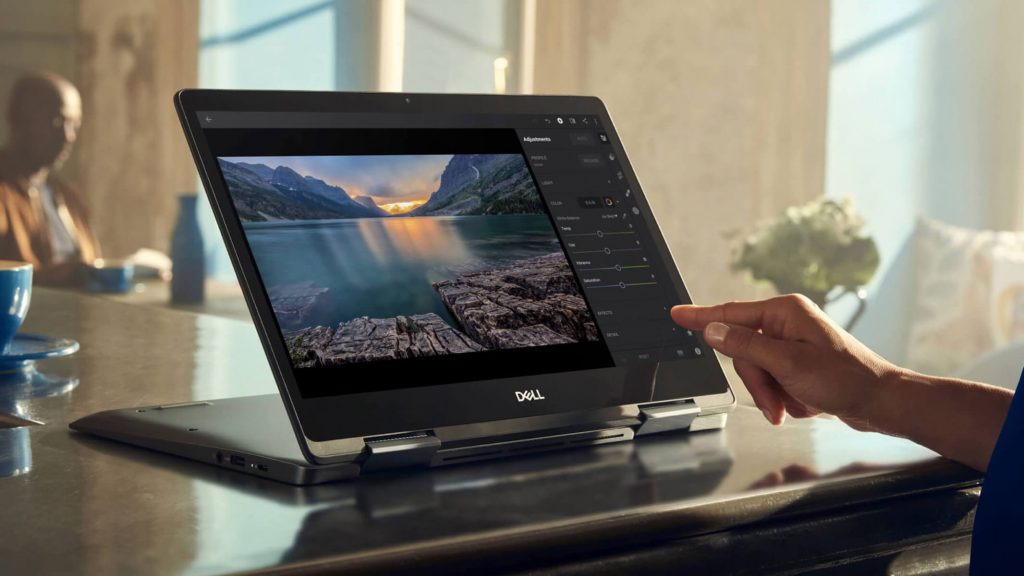
Chromebook Running Chrome Os
Chrome OS is no longer a glorified web browser.

In recent years, Chrome OS has been enjoying some real momentum in the US Education market, giving a real challenge to Windows PCs, Macs, and iOS devices. Microsoft is still working on its own alternative to Chrome OS with Windows 10X, a lightweight version of Windows 10 that will only ship on new devices starting next year. Windows 10X won’t support legacy Win32 apps at launch to focus on web and UWP apps, though Microsoft is still working on making Win32 apps run in containers on Windows 10X.

According to Windows Central, the first Windows 10X devices may launch in Spring 2021 for commercial markets, with consumer devices to follow in 2022. The new OS was expected to make its debut on Microsoft’s dual-screen Surface Neo this year, but this device has now been delayed and still has no release date. Windows 10X is reportedly being built for Chromebook-like devices, but again, it’s not something that consumers will be able to install on existing Windows 10 PCs, according to Windows Central.
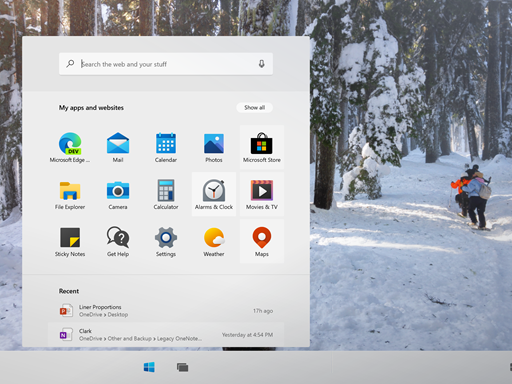
 

windows 10x
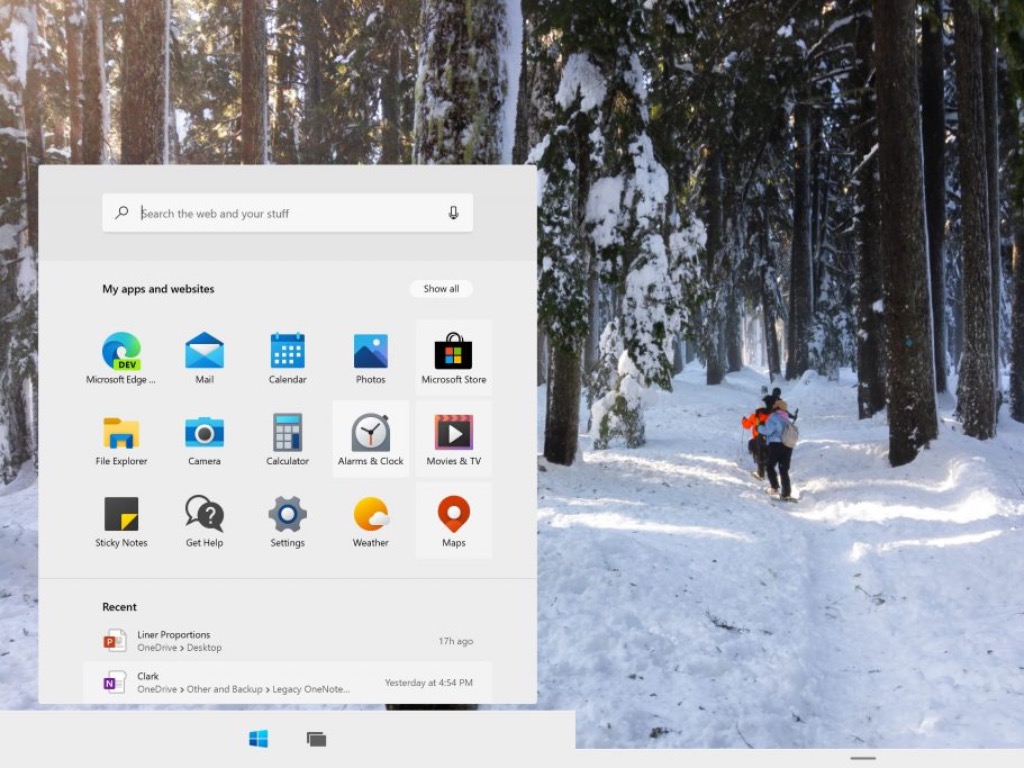
Windows 10X will introduce a new Start menu and desktop experience.

It’s too early to tell if Google is planning to take over the PC world with Chrome OS and CloudReady, but there’s certainly a demand for a lightweight OS that includes Google Chrome and Android apps, is secure by design and easy to manage for IT admins. This Neverware acquisition by Google could be a pretty big deal in the long run, and it suggests that Google is getting really serious about Chrome OS and the PC market.

Microsoft has been trying for years to compete with Chromebooks with initiatives like Windows 10 in S Mode, and it remains to be seen if Windows 10X can really appeal to commercial customers and the Education market. We’ll see what happens, but it took literally years for Chromebooks to really take off, and Google could finally speed up Chrome OS adoption with the help of CloudReady. With Windows 10X only shipping on new devices coming next year, Microsoft may have a difficult time convincing customers to adopt this new version of Windows 10 that will lack the huge ecosystem of apps that made Windows a real juggernaut in the PC market.


Best heavy duty laptop cases for extra protection

Laptop OEMs usually bundle their computers with a protective case. However, these cases usually don’t offer the extra protection that you need when travelling with your laptop.

Whether you have top-of-the-line high-end gaming or video editing laptop, or a basic word processing system, having a heavy-duty laptop cases goes a long way offering protection to your work tool.

In this article, we have listed the best heavy-duty laptop cases that are best for different types of users all offering excellent protection for your laptop.

What is the best heavy duty laptop case with pick foam?

Nacuwa Protective Case

  • 4 player protection for your laptop and accessories
  • Water, Dust, and Shockproof
  • Plenty of internal sleeves
  • Secure zip closure
  • Zipper close can be smooth

Nacuwa Protective Case is a computer carrying sleeve that is compatible with the new MacBook Air, Pro, Microsoft Surface and Chromebooks. It is a well-padded case that is also water-resistant.

Note that this case works with any 13.3″ laptop or below. The hard shell on top provides shock resistance form accidental drops, collisions and other impacts. It is also water and dustproof.

Nacuwa Protective Case features internal sleeves to carry your laptop, mouse, notepads, and other accessories in their own pouch. It comes with four layers of protection that include soft-touch coating, PU leather layer, heat-molded crush-proof layer, and shock-absorbing layer.


DOMISO Laptop Case

  • Multi-zipper closer
  • Shockproof and waterproof
  • Good for large size laptops
  • Plenty of storage space
  • Strap installation can be tricky

This DOMISO laptop case offers similar features as the Nacuwa case, except that you can fit in up to a 17-inch laptop in this case. Large screen laptops from Dell, MSI, Lenovo, LG and HP can fit in easily.

DOMISO comes in multiple patterns and colours. It is a shockproof and waterproof case where the outer shell is protected by premium thickened EVA material.

Inside the case, you have plenty of space. You can not only keep your laptop, but it also has sleeves and straps to keep your smartphone and laptop accessories. The multi-zipper design offers durable and smooth access to your laptop.


Pelican 1085

  • IP67 rated for water and dust protection
  • Removable shoulder strap
  • Easy open latch
  • Excellent foam protection
  • Latch feels flimsy

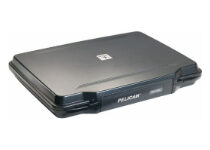
Pelican 1085 is a hard shell laptop case that can protect your laptops from accidental drops, dust, and water spills. It comes with an interior O-ring gasket that keeps it dry and free.

Pelican 1085 features Pick N Pluck cushioned foam that you can configure for a precise fit to your laptop for safe travel. The easy-open Throw Latch will keep the case shut even if the case is dropped.

It can fit a notebook computer up to 14 inches and comes with an automatic pressure equalization valve that keeps water and dust out. The included Shoulder strap is detachable as well.


Pelican 1095

  • Hardshell case for 15.6 inch laptops
  • Convoluted lid foam protection
  • IP67 rating for water and dust protection
  • Easy latch opening
  • Included straps are flimsy

Pelican 1095 is another foam coated laptop case that comes with IP67 water-resistant and dust protection rating from the company. It is designed to fit 15.6″ notebooks with ease with Pick N Pluck with convoluted foam.

The case creates a tight seal when it is shut using the Waterlight Gasket. Other features of the case include an automatic purge valve to keep water and dust out while balancing air pressure, a removable shoulder strap, and an easy-open latch that remains shut under pressure or after impact.


Casematix Waterproof Case

  • Hard and crushproof shell
  • Multiple protective foam layers
  • Water and dust resistant
  • Can fit large size laptops
  • Average foam quality

Casematix Waterproof Case is a hard shell laptop case that offers crushproof protection for 15″-17″ laptop and accessories including chargers, keyboards, mice, tablets and more.

Casematix case features a shock-absorbing foam interior that offers ultimate protection during accidental drops and collisions. It is also water-resistant.

Case’s hard shell is constructed from durable hard polymer composite plastic that offers maximum protection for your laptops and accessories.


Laptops are usually an expensive investment, so having a heavy-duty case can prevent damages due to accidental drops, collision or water spills to your laptop.

All the heavy-duty cases listed above offer shockproof and waterproof casing with plenty of space to carry your laptop and related accessories in one case. Go through the products and let us know what you pick in the comments below.

Refunding Cyberpunk 2077 may not be as easy as it sounds

It’s no longer a secret that Cyberpunk 2077 was the most anticipated game release in recent years, and neither is the fact that the launch managed to fall extremely short of expectations.

After being delayed and launched with a number of bugs under the belt, the game developers took action so that their customer’s satisfaction could still be (somewhat) guaranteed.

This ranged from urgent patch fixes such as update 1.04, to a reconsidering of their refund policy whereas they offered players the option of refunding the game on any of the platforms should they not be satisfied with the product.


Cyberpunk 2077 players are having trouble getting a refund

A few days ago CD Projekt Red officials stated that:

We would appreciate it if you would give us a chance, but if you are not pleased with the game on your console and don’t want to wait for updates, you can opt to refund your copy.

Unfortunately, CD Projekt Red most likely forgot that each individual store has different refund policies, and platforms such as Sony have a much different approach when it comes to the matter compared to Microsoft.

As an example, Microsoft refund policies for the Xbox platform state that:

Most purchases are not eligible for a refund after 14 days.

While the time frame is mentioned, there is no mentioning about wether the game can be refunded or not, and that the possibility of refund is open for debate from case to case.

On the flipside, Sony’s official refund policy states that:

If you have started to download or stream the purchased content you will not be eligible for a refund unless the content is faulty.


While this may make it sound like things are pretty clear, there have been posts on the Internet where users claimed that they got refunds from Sony even after playing a good couple of hours:

I had to file a support claim online and sit on hold for over an hour to speak with someone, however they were quick to issue the refund and then delete the game off my library.

They added that Sony was issuing a business complaint to CD Projekt Red about the issues, and that they weren’t the first ones to call for refunds.

On the other hand, there are those that have been refused a refund, and they even posted the conversations they had with Sony representatives.


Physicals copies of the game will be treated differently

However, this confusing situation is only for the digitally-purchased copies, since the refund policy for the boxed copies is controlled by the store that you’ve purchased it from.

That being the case, those of you that have boxed copies will need to visit your store‘s website and check out whether you’re eligible for a refund or not.


All in all, no one has a clear answer as to how the refunds for this game should be treated at a global scale, not CD Projekt Red, nor Microsoft, or even Sony.

Fortunately, you don’t have to feel sorry for CD Projekt Red, since they made more than enough revenue to compensate for the incoming refunds.


Have you tried refunding Cyberpunk 2077? If so, let us know how your refund request was treated by leaving us a message in the comments section below.

[wl_navigator]

Windows 10 Insiders get Alarms & Clocks in-box app design refresh

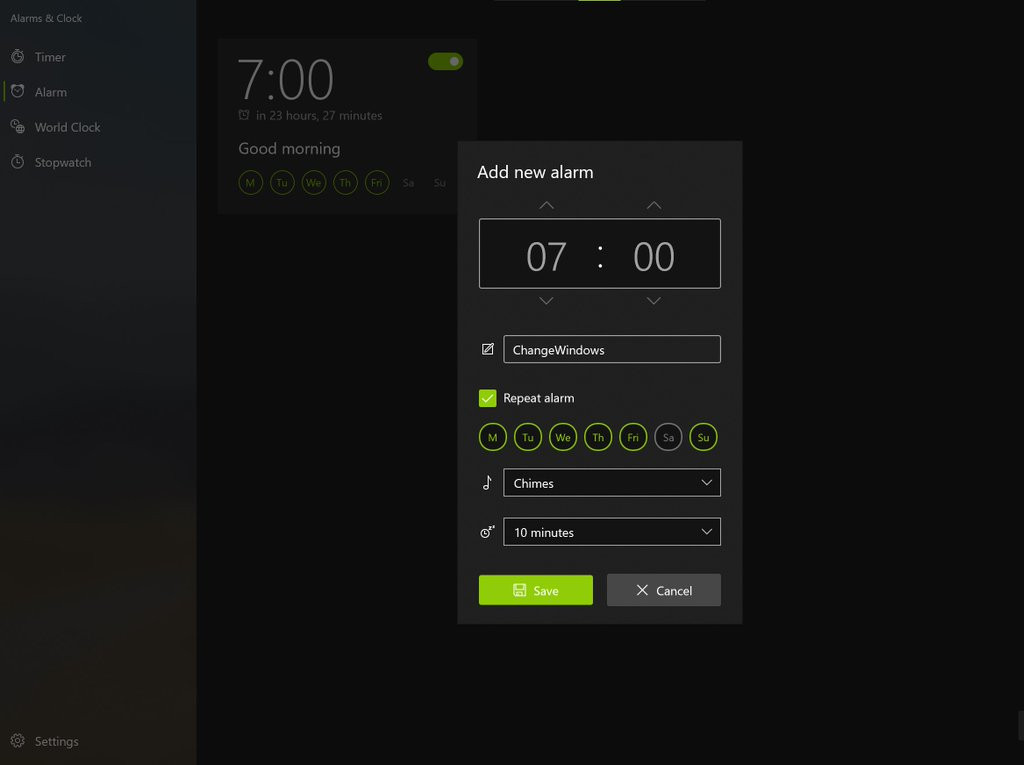
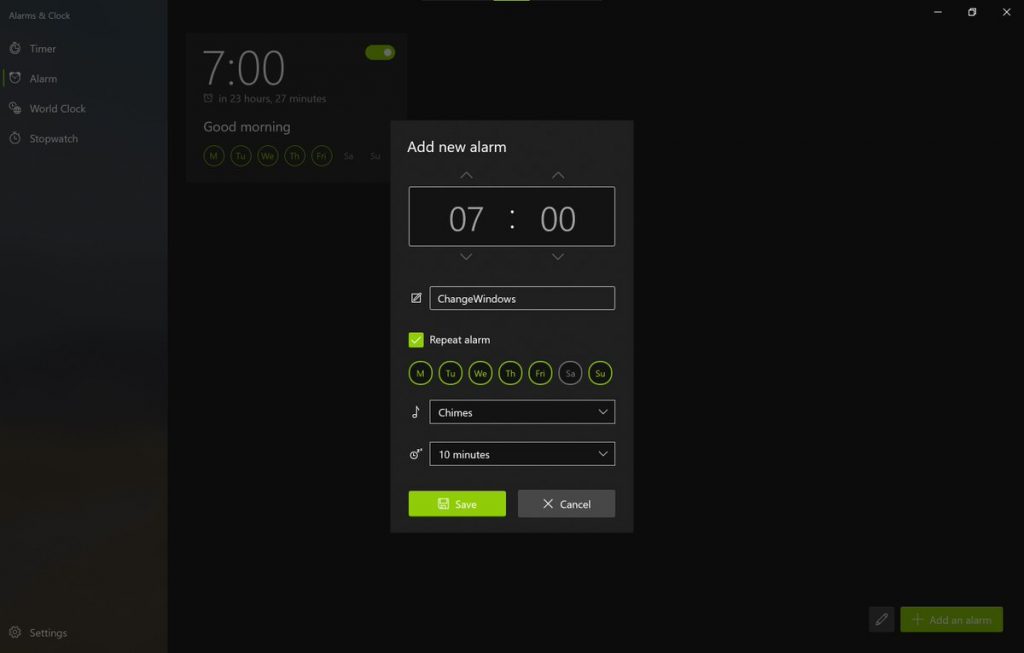
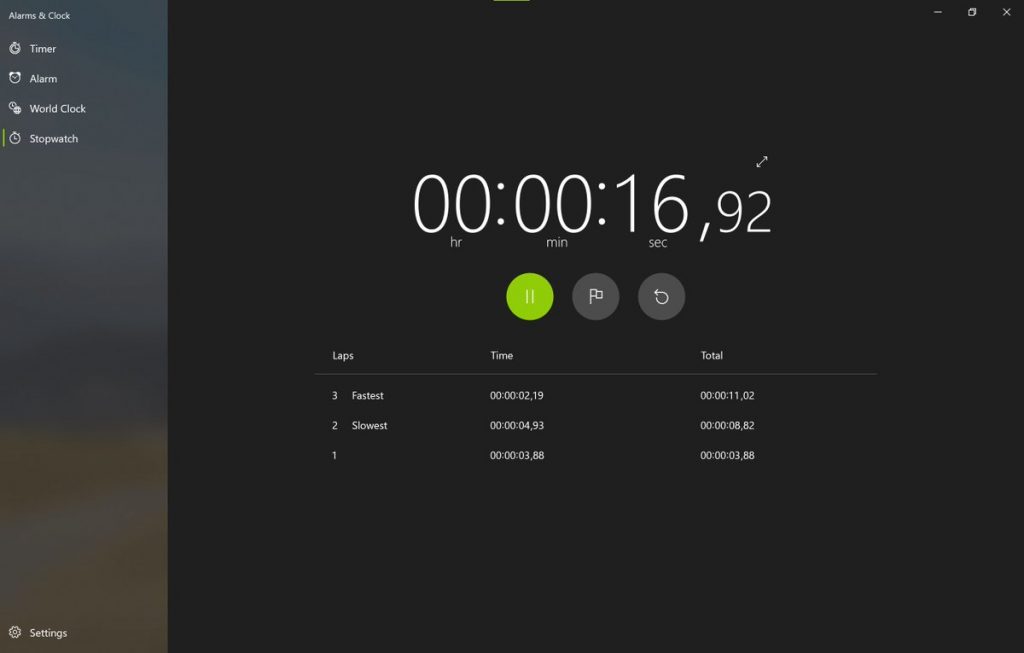
Microsoft’s in-box Alarm Clock app is getting a new UI design. Earlier today, images of the new design began surfacing on the internet with reports that version 10.2012 is bringing a more organized segmentation of functions.

A Medium post from ChangeWindows was among the first sites to start circulating images of the updated UI. The update appears to be part of rollout to Windows 10 Insiders and thus, some have had the update long enough to review the new updates while others (ourselves) are still waiting for it to hit their machines via a Microsoft Store update.

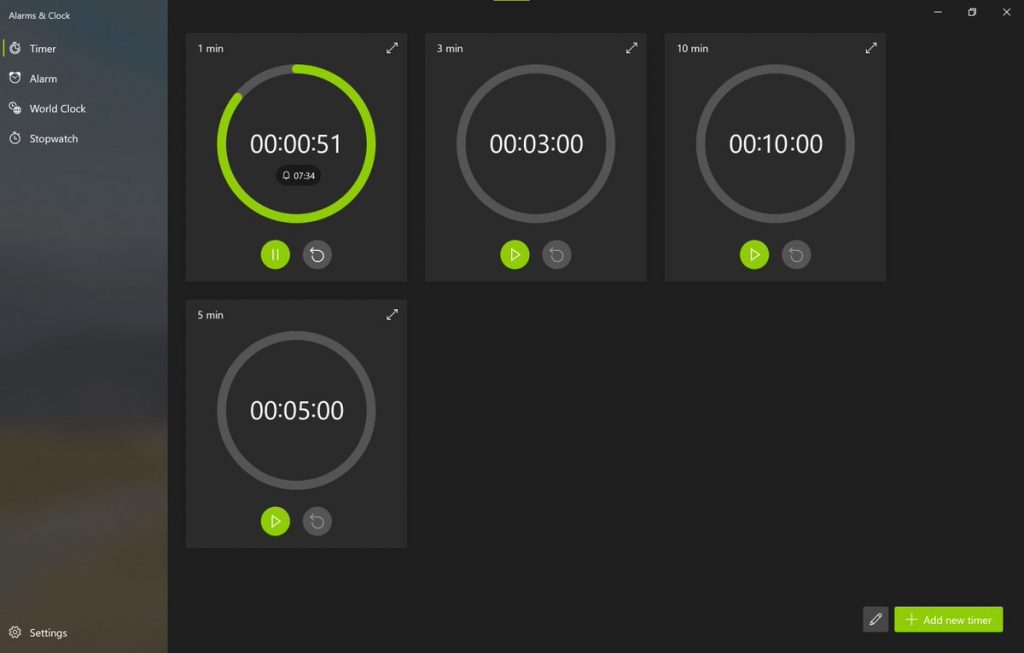
According to ChangeWindows, there is more than just a visual update to the app such as “Microsoft has added a few new default timers; 1, 3, and 5 minutes join the 10-minute timer in fresh installations.”

Other new niceties include:

  • The “Edit” button that you can see in the bottom right will allow you to quickly delete existing timers. Previously you’d have had to open them or right-click on them.
  • the alarms now show how long it takes before they go off (previously, you could only see this when editing an alarm
  • the edit and create UI has been condensed into a small and well-designed modal pin got a redesign, and their popups now show you if its night or day through an icon.
  • The light theme doesn’t use white as a background color anymore, it’s now light grey

Today’s update appears to be in line with reporting from a couple a months ago about Microsoft’s big Windows 10 redesign codename ‘Sun Valley.’

“I understand that this refreshed design will be an evolution of Fluent Design, and likely still called Fluent Design. Microsoft isn’t introducing a new design language with Sun Valley, it’s simply refreshing and refocusing the current one on desktop, and trying to apply it more consistently throughout the OS, a big feat for the legacy Windows desktop,” Bowden wrote.

As mentioned, the update is gradually hitting Insider devices so, be patient if you don’t see it immediately.

How to hide your IP address while browsing the Internet

There are countless reasons why someone would consider changing their IP address while navigating the Internet.

One obvious one is to avoid being detected by various malevolent agents.

Another good reason is that your online whereabouts should remain your own private business, and not available for anyone with an itch to see.

The bottom line is that nowadays it makes a lot of sense to cloak your digital identity from just about anyone, and the best way you can do that is by hiding your IP address.

Seasoned privacy veterans may already have a batch of tools and methods to achieve this, but less tech-savvy users need privacy too.

For that reason, we’ll carefully explain to you how IP addresses work, why you may want to change yours, and how to achieve this quickly and without effort.

What is an IP address?

To put it simply, an IP address is but a number that’s used to identify your device (e.g. computer, smartphone) on a network.

All Internet-enabled devices have two sets of IP addresses: a public address, and a private one.

The private one is used to identify your device on your local network, while the public one is available for a wider clientele.

Picture these IP addresses as parts of your physical home address:

  • Private IP address – the name of the recipient, which is ideally only known in the local network (neighborhood) and used for identification purposes
  • Public IP address – the actual address part which is used to pinpoint the recipient on the map

If you want to learn more about IP addresses and the way they work, you should take a look at our comprehensive guide.

Why should you change your IP address?

Changing your IP address may turn out to be a wise decision nowadays, what with all the privacy violations and cyber-attacks on the rise.

Mainly, you should change your IP address if you care about your privacy and security.

Privacy because not sharing your real IP address with anyone online gives you the upper hand.

Trust us, if done right, your IP spoofing could make even your ISP scratch their head when asked about your online whereabouts.

Now come security: if you play a game, or join an IRC chatroom, or do something that might expose your IP address, this piece of info could be easily exploited by a skillful hacker.

Thus, changing your IP address will basically redirect the attacks toward another machine.

How do I hide my IP address while browsing?

VPN

  • Purchase a VPN subscription plan (we recommend PIA)
  • Download the VPN client to your PC
  • Install the VPN and launch it
  • Log into your account
  • Connect to just about any server
  • Enjoy private, secure online browsing

A VPN is often deemed as the best way to spoof your IP address.

It requires minimum technical knowledge; after you deploy the VPN client and log into your account, all you have to do is select a server.

The VPN will route your connection through a secure tunnel and encrypt your traffic to protect you against traffic monitoring.

Additionally, a VPN does more than simply changing your IP address. It also unblocks geo-restricted content, changes your virtual location, and even blocks ads, malware, and trackers.

Private Internet Access (PIA) is one of the most popular and effective VPNs on the market.

It has a huge network of servers (over 22,000 and growing), so even if one server is full or doesn’t work as intended, you can easily switch.

Private Internet Access

Private Internet Access

Looking for a VPN that can hide your IP easily? PIA is exactly what you need.
Check priceVisit website

Proxy servers

Proxy servers are quite effective when it comes to changing your IP address, away from prying eyes.

Their operation mode is quite similar to that of VPNs. Meaning that using a proxy will route your traffic through the server you chose.

However, there are a few key differences. Most important, proxy servers work as gateways, which makes them ideal for browsing.

More often than not, a proxy server will only encrypt and hide the traffic for the apps you configure it with (e.g. your web browser, your torrenting client). Unless you configure a system-wide proxy, that is.

By comparison, VPNs encrypt all of your network traffic, regardless of your online activity (e.g. playing online games, browsing the Internet, streaming videos).

On the bright side, there are a lot of free proxy servers online, so if you need to change your IP quickly and without paying a dime, they’re a good alternative.

On the other hand, since they’re free, there’s a good chance that these proxy servers are already overcrowded and might slow your connection speed down to a pulp.

Tor

Tor is a popular way to anonymize your Internet browsing by changing your IP address.

Probably the best part about Tor is that it’s completely free and doesn’t require any rocket science degree to operate.

You just deploy the Tor Project kit on your computer, connect to the Tor network, and use the bundled browser to access the Internet.

However, note that Tor has gained some notoriety for letting users access forbidden content, which is why it’s probably (still) under surveillance.

Our suggestion is go ahead and try it, but make sure to steer away from any shady-looking website that hosts questionable content.

Psiphon

use Psiphon

Psiphon is not exactly popular among those who seek to change their IP address, and we keep wondering why.

You can download it and use it completely free, there’s no hidden fee associated with this service.

To some degree, its functionality resembles that of a VPN, but in reality, Psiphon has a slightly different operating mode.

Meaning that it combines various technologies, such as SSH, proxy servers, and VPNs to hide your real identity and bypass geoblocking.

On the other hand, Psiphon is subject to the same limitation as free proxy servers: overcrowded servers, which usually translates into slow connection speeds.

Furthermore, it also has a narrow network of servers, but that could be easily overlooked, considering it’s a free service.

Conclusion

All things considered, if you’re in need to change your IP address in a quick, effective manner, feel free to try any of our suggested methods.

Both paid and free alternatives we’ve depicted above work great at IP spoofing.

However, it’s worth mentioning that only a premium VPN service such as PIA will provide you with the maximum level of privacy and security you’re looking for.

FIX: VPN client unable to create interprocess communication

Cisco AnyConnect is a complex VPN tool that helps remote workers access enterprise resources in a secure, effortless manner, from any supported device.

This software utility also integrates advanced protection in order to block malware at endpoints, thus ensuring a safe work environment.

Despite Cisco AnyConnect’s straight-forwardness, certain users reported having a difficult time while trying to install or launch the program.

To be more specific, during installation or while trying to launch Cisco AnyConnect, users would be prompted with an error message:

VPN client agent was unable to create the interprocess communication depot.

As it turns out, this issue is not uncommon and has a couple of easy-to-follow fixes. Check them out below:

How can I fix the VPN client agent interprocess communication error?

Disable ICS (Internet Connection Sharing)

  1. Press the Win + R key combination on your keyboard
  2. Type control.exe /name Microsoft.NetworkAndSharingCenterRun accessory VPN Client agent was unable to create the interprocess communication depot
  3. Press Enter on your keyboard or click the OK buttonThe Network and Sharing Center VPN Client agent was unable to create the interprocess communication depot
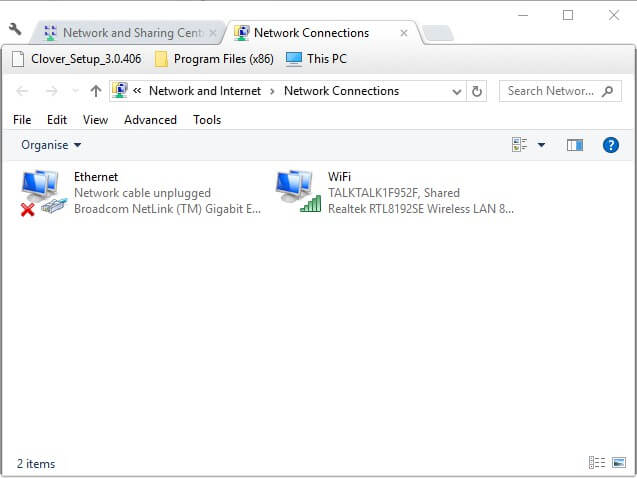
  4. Click the Change adapter settings button
  5. Right-click the shared network connection and select Properties
    Network Connections VPN Client agent was unable to create the interprocess communication depot
  6. Navigate to the Sharing tabconnection sharing options VPN Client agent was unable to create the interprocess communication depot
  7. Uncheck the Allow other users to connect through this computer’s internet connection box
  8. Click the OK button
  9. Repeat the steps above for every shared network connection
  10. Restart your Windows PC when you’re done

The Internet Connection Sharing feature is not compatible with Cisco AnyConnect.

Therefore, trying to run or install the VPN client on a system with shared network connections may end up prompting you with the error above.


Can’t install Cisco AnyConnect on your Windows 10 PC? Check out our guide and learn how you can fix this issue.


For that reason, make sure you’ve disabled ICS on all of your active network connections before installing/launching Cisco AnyConnect.

If the method above doesn’t seem to work for you, proceed to our second suggested fix below.

Disable the ICS Service

  1. Press the Win + R key combination on your keyboard
  2. Type services.msc and hit Enter on your keyboardServices window VPN Client agent was unable to create the interprocess communication depot
  3. Locate the Internet Connection Sharing service
  4. Right-click the service and select Stop from the context menu
  5. Double-click the Internet Connection Sharing serviceInternet Connection Sharing properties window VPN Client agent was unable to create the interprocess communication depot
  6. Select the Disabled option from the Startup type drop-down menu
  7. Click the Apply button then click OK
  8. Restart your Windows 10 PC after performing the steps above

Conclusion

All things considered, it’s easy to see that both solutions revolve around disabling the Internet Connection Sharing feature.

Most of the time, disabling the ICS straight from the shared connection should restore Cisco AnyConnect’s functionality.

However, if the issue has deeper roots, you may need to get your hands dirty and disable the ICS service altogether.

You can now enjoy Windows 10 Conexant audio drivers again

Conexant or Synaptics audio devices often fail to install correctly when updating your Windows 10 computer.

Therefore, it comes as no surprise the fact that Microsoft has partially addressed these known issues. The Conexant audio driver is an essential part of a software program that gives instructions to the operating system.

The instructions basically allow the operating system to process sound outputs and inputs from your sound card to the speakers and microphone.

Here’s what Microsoft reveals when it comes to these latest changes:

To safeguard your update experience, we have applied a compatibility hold on Windows 10 devices with affected Conexant or Synaptics audio drivers installed from being offered Windows 10, version 2004 or Windows Server, version 2004 until the driver has been updated.

Is there a resolution for safeguard IDs 25702617 and 25702660?

audio drivers

Windows 10 PCs with affected Conexant or Synaptics audio drivers usually received a stop error with a blue screen. This happens during or after updating to Windows 10, version 2004.

A corrupt driver will eventually stop sound from working. That’s why it’s great to hear that Microsoft partially fixed Windows 10 Conexant audio driver issues.

To be more precise, the problem was resolved for safeguard IDs 25702662 and 25702673. If there are no other safeguards that affect your PC, it can take up to 48 hours before the update to Windows 10, version 2004/version 20H2 is offered.

Moreover, Microsoft and Synaptics are working on a resolution for safeguard IDs 25702617 and 25702660 as well. We expect an update in an upcoming release.

In the meantime, to avoid further issues, you must not manually update using the Update now button. However, you can take a look at this quick guide on how to Conexant HD audio not working in Windows 10.

With these being said, let us know if you’re excited about this fix coming from Microsoft and if you’re ready to enjoy the update to Windows 10, version 2004/20H2 as well.

8 best tech Christmas gifts for parents [Creative ideas]

Are you still looking for a nice Christmas gift for your loved ones? If the answer is yes and the recipients are your parents who also happen to be retired, then look no further.

In this quick buying guide, we’ll list a few great gift ideas for tech-savvy parents. We carefully selected these items to compile a list that’s as helpful as possible.

What tech gifts would suit your parents?

A multifunctional Bluetooth speaker

Retired people have an awful lot of time to do whatever they want. Many choose to spend long quiet mornings listening to their favorite music.

In order to enjoy the best possible audio experience, they need a top-notch speaker. And this is a really good Christmas gift idea for your retired parents.

We did the heavy lifting work for you and found a few speakers that your parents will love:

  • 100ft wireless range
  • 10+ watt volume booster
  • 14hrs playtime
  • Flimsy USB charging port

  • Waterproof
  • 20 hrs of playtime
  • Powerful bass
  • The sound rendering is not very accurate

  • 30ft wireless range
  • 8 hrs of playtime
  • Bose technology
  • A wide variety of design colors
  • No set-up instruction provided in the package

A nice tablet for watching movies

Everyone wishes they had more time to watch movies. So a nice tablet that your parents can carry around and binge watch some series might be a good gift for this Christmas. 

Here are four Windows 10 tablets with top-notch displays that are perfect for watching video content:

  • 8'' HD display
  • 32/64GB internal storage
  • Up to 12hrs of battery life
  • Poor customer service

  • 10.1'' FHD display
  • Strong Wi-Fi connection
  • 64GB expandable memory
  • Short charging cable

A compact camera to snap quick photos

Offer your parents a reliable camera so that they can take pictures wherever they go. This gift will remind them of their first film camera and will bring back fond memories.

  • 180-degree flip screen
  • 32GB microSD card included
  • Cheaper than similar products
  • Poor picture quality

  • 4.2x optical zoom
  • Wi-Fi enabled
  • Touch tilt LCD screen
  • Video autofocus issues

  • Waterproof, shockproof, dustproof
  • 4x optical zoom
  • Wi-Fi connectivity
  • Poor quality for zoomed pics

There you have three Christmas gift ideas for your parents. If you have any suggestions or gift ideas, let us know in the comments below.

New features ease adding SharePoint content to Teams

Microsoft has announced that they have made further steps into a deeper integration of their two main collaboration tools. As a result, it is now possible to bring Teams into your SharePoint site, as well as the other way round – pin certain documents or lists to be added to the Teams channel separately, via the improved SharePoint tab.

All these recent changes focus on a stronger collaboration experience and ease team members’ access to all the important files that are work-in-progress in one application or the other.

This is not only making it more comfortable for team members to collaborate on the same resources, but it also encourages organizations to adopt the Microsoft suite on a larger scale, given such transparency and clarification features.

How to add Teams to your SharePoint space?

  1. While logged into SharePoint, select the lists, files, or pages that you want to add to Teams as tabs.
  2. Click the Add Teams button.
  3. Your team site home page will be selected by default, but you can change it according to your needs.
  4. If you need to navigate through the document library for selection, use the breadcrumbs.
  5. To collaborate in Teams on the recently added resources, make sure that all team members open the same document.

Using the SharePoint tabs into Teams

In addition to the mentioned new feature, same-team members can also pin  pages, library news, or lists to their Teams channel by clicking the “+” button and choosing SharePoint and the content.

Users will also see a new Recommended tab which contains the most relevant SharePoint content their team is working on, for a more direct access and selection.

add sharepoint content to teams

On this occasion, the SharePoint pages app in Teams also brings a few changes. Namely, users can now add a page from any SharePoint site link and then paste the URL of the page or news post that has to be added as a tab. Upon permission verification, users will either be taken to the respective page or offered the possibility to request access.

With such useful options, it is likely that SharePoint will become even more popular than the benchmark 200 million daily users announced recently.

The Gears 5: Hivebusters campaign DLC is now available on Xbox consoles and PC

Gears 5 is getting its first campaign DLC today, a little more than a year after the game’s release on Xbox One and PC. The new Hivebusters DLC adds a 3 hours campaign featuring Lahni, Mac, and Keegan, the three new characters first introduced in Gears 5’s Escape mode last year.

“Set in the Galangi islands, your adventures will take down treacherous lava flows, into dense jungles, and across sandy beaches all while fighting the Swarm and the Wakaatu, a deadly and never before seen predator. And to ramp up the action even further, each of our three heroes gets to use their Ultimate Abilities from Escape – yes, it’s time for some of Lahni’s sweet Electroblade action,” developer The Coalition explained today.

This new expansion adds 16 new achievements to Gears 5, and it takes advantage of the recent Xbox Series X|S optimizations including reduced load times, Quick Resume, and 4K HDR Ultra visuals on Series X. The Hivebusters campaign also supports 3 players co-op as well as cross-play between Xbox consoles and PC.

If you’re an Xbox Game Pass Ultimate subscriber, you can play this new campaign DLC for free on Xbox or PC with your subscription. For everyone else, the Hivebusters DLC can be purchased for $19.99 USD in the Microsoft digital store and Steam.

Gears 5: Hivebusters
Developer:
Xbox Game Studios
Price:
Free

FIX: Can’t install my language in Cyberpunk 2077 [Xbox]

In terms of gaming, few titles have ever had as much hype as Cyberpunk 2077, and even if the launch was plagued by all sorts of bugs and issues, it still managed to maintain a solid player base on all platforms.

However, many players have reported having issues with the game, meaning that they reportedly cannot install their regional languages on the Xbox console, especially those from Brazil.

Since Cyberpunk 2077 is a game of international proportions, we have taken it upon ourselves to create the below guide that will help you with your trouble.


How do I install my language on Cyberpunk 2077 properly?

Make sure you’re in the right region

By default, Cyberpunk 2077 will download and install itself based on the region you are currently it.

To install other than the primary language available to your region of the game, you’ll have to download it manually.

  1. Start your Xbox
  2. In Main Menu access Settings
  3. Go to Language
  4. Choose a language appearing as Not Installed
  5. Select the icon next to it
    • Make sure you have enough storage space

Remember that you can only download languages that are available to a given region, and that languages from other regions will not be available.

If that seems to be the case with you, then carry on to the next step for an instant fix.


On that note, here is a language breakdown for both physical and digital download versions of the game on Xbox One:

  • Americas
    • VO – English, Brazilian Portuguese, French
    • Text – English, Brazilian Portuguese, Latin American Spanish, French, Polish
  • Europe + Asia + Africa + Middle East 
    • VO – English, Russian, Polish
    • Text – Russian, Czech, Hungarian, English, Polish, Arabic, Turkish
  • Europe + Oceania + South Korea
    • VO – English, French, Italian, German, Spanish
    • Text – English, French, Italian, German, Spanish, Polish, Korean
  • Japan 
    • VO – English, Japanese
    • Text – English, Japanese
  • Asia
    • VO – English, Chinese
    • Text – English, Traditional Chinese, Simplified Chinese, Thai

Use a VPN

If you realize that your Xbox‘s region is the reason why you have issues with the language packs, then the obvious solution would be to change your Xbox region.

However, using a VPN is much easier than instantly traveling a thousand miles, so we recommend that you give Private Internet Access a shot.

This VPN is developed and maintained by Kape Technologies, the same developers that brought your other great VPNs, such as CyberGhost.

With over 23000 servers available in all regions around the world, PIA offers unparalleled coverage, and it will give your Xbox everything it needs in order to download the language packs your desire.

Simply install PIA on your Xbox, select a region that will allow you to download the language pack that you desire, and start downloading.

Private Internet Access

Change the region of your Xbox instantly with the help of a VPN that has near-global coverage. Take advantage of this amazing offer now!
Check price Visit Website

By following these steps, you should be able to install any language of Cyberpunk 2077 without any further issues.

Let us know how helpful this article was for you by leaving us your feedback in the comments section below.

Microsoft has been using Windows Insiders to test the Windows 10X code base, according to report

Microsoft released yesterday the Windows 10 build 20279 for Insiders in the Dev channel, which was a rare Monday flight from the Windows Insider team. The new bits bring no new features or bug fixes, and the team said that it just “wanted to test our ability to quickly follow-up a flight with another flight.”

Build 20279 is coming from the fe_release branch, which will soon disappear once all Dev channel Insiders start receiving builds from the rs_prerelease branch after the holidays. The Windows Insider team has never really explained the purpose of these two separate branches, and kept saying that builds coming from them were not tied to a specific Windows 10 release. However, Windows Central’s Zac Bowden is now reporting that Dev Channel Insiders have yet to test the upcoming 21H1 update for Windows 10 coming in the first half of next year.

According to Bowden, Microsoft has been using the fe_release branch to test the “Iron” codebase for Windows 10X, even though Dev Channel Insiders are currently not aware of it. “Microsoft is finalizing Windows 10X (and ultimately, the Iron codebase) with build 20279, so they’ve been pumping out bug fixes and changes big time internally, but none of that really translates to the desktop builds,” Bowden wrote.

Windows 10X, which Microsoft is testing internally, is expected to launch on new devices in the first half of 2021. In the meantime, the Windows Insider team has reportedly used the “Iron” fe_release branch to test builds for the new OS, but Windows Insiders in the Dev Channel have yet to test 21H1 builds for the next Windows 10 update to be released in the first half of 2021.

“Windows 10 desktop will get its own 21H1 release, but it won’t be based on the Iron codebase. Instead, 21H1 for desktop will be based on the Vibranium codebase (version 2004) just like the 20H2 update released a few weeks ago,” Bowden explained yesterday. If 21H1 should be another minor update for Windows 10 next year, Microsoft could be planning bigger changes for 21H2 with a big design update codenamed “Sun Valley.”  

It’s not clear why the Windows Insider team isn’t being more transparent about what’s happening in the background, but shipping a series of builds with very minor changes for several months surely doesn’t help to keep Insiders engaged in the long run. Maybe the Windows Insider team has good reasons for keeping some of its secrets under wraps, but we hope it won’t be too long before Microsoft explains what’s happening with Windows 10X and future Windows 10 updates.

Microsoft’s Yammer app gains new image gallery and live event improvements with latest update

The Android and iOS versions of the Yammer app both received updates recently. Both versions included a redesign of the way multiple images are displayed in communications while the Android version also received support for a new fullscreen experience for live events.

Here’s the Android release notes:

  • We have updated the multiple image gallery layouts to improve the viewing of image previews on a post.
  • Ready to watch your live event in full screen? Now you can with our latest Android experience! Click fullscreen when watching your live event to see an immersive view!

And here’s the iOS release notes:

  • We have updated the multiple image gallery layouts to improve the viewing of image thumbnails in a conversation.
  • This update also has other improvements and fixes.

Do you use Yammer? Let us know what you think of this latest update in the comments below and then follow us on Pinterest and Twitter for more Microsoft app content.


‎Viva Engage
‎Viva Engage
Price:
Free

Xbox app updates on Android and iOS with new chat media functionality

Microsoft’s official Xbox app updated on both iOS and Android smart devices today. The update, which brought it to Version 2012.1207.2321 on iOS and Version 2012.1207.2233 on Android, didn’t make anywhere near as many changes as its recent major design revamp update but it did add some extra functionality to the direct messaging feature which users had been wanting for a very long time now.

Here’s the full release notes which are identical on both platforms:

Send custom images in Chats! You can now send photos from your device or directly from your camera to your Xbox friends via a Chat message.

Do you use the Xbox app on your iPhone or Android smartphone? Will you use this new image feature in chats? Share your thoughts with the community in the comments below and then follow us on Twitter and Facebook for more Xbox gaming news.

‎Xbox
‎Xbox
Price:
Free


Xbox
Xbox
Price:
Free

Fortnite video game updates with support for 120 FPS gameplay on Microsoft’s Xbox Series X console

Today’s update for the popular Fortnite video game is set to be an exciting one for players on all of its supported platforms as it adds a variety of seasonal items and activities to be enjoyed over the Christmas season in addition to some gameplay enhancements for both PC and new gen console owners.

After this update rolls out over the next few hours, those playing on Microsoft’s newly launched Xbox Series X and Xbox Series S consoles will be able to play Fortnite in 120 frames-per-second (FPS) if they so choose. Both consoles already supported 60 FPS so this will be yet another gameplay option for fans to experiment with.

It is worth noting that while the 60 FPS mode plays in 4K resolution on the Xbox Series X, playing in 120 FPS will bring the visuals down to 1440p. Both 60 and 120 FPS modes on the cheaper Xbox Series S console are locked at 1080p resolution.

On the other end of the technology spectrum, those playing Fortnite on a Windows PC with older or slower hardware can now try out a new performance mode via the game’s settings which will prioritise gameplay and speed over visuals.

December has been a big month for Fortnite. This month saw the end of the Marvel-themed Chapter 2 Season 4, the first ever Fortnite Crew monthly subscription, the addition of The Mandalorian’s Din Djin and Grogu with the launch of Season 5, and the arrival of Master Chief from the Xbox Halo video game franchise.

Are you a Fortnite fan? Let us know what’s excited you the most this month in the comments below and then follow us on Pinterest and Twitter for more gaming news.

Fortnite
Fortnite
Developer:
Epic Games Inc.
Price:
Free


Fortnite - 1,000 V-Bucks


Fortnite - Powerhouse Pack

FIX: TAP-Windows Adapter V9 error (4 foolproof solutions)

The TAP-Windows Adapter V9 is a network driver that’s essential for VPN connections.

More often than not, this network driver gets automatically installed along with VPN clients.

Usually, the driver’s default path is: C:/Program Files/Tap-Windows

However, certain users noticed that their internet connections don’t always work while the TAP-Windows Adapter driver is enabled.

What’s even more strange is that even disabling it wouldn’t work, as the TAP network driver would re-enable itself shortly after.

Therefore, users were still unable to establish a connection.

If that ever happened to you, check out some easy-to-follow suggestions that could fix your TAP-Windows Adapter V9 error.

How can I fix the TAP-Windows Adapter v9 error?

Use the Internet Connections Troubleshooter

The easiest fix would be using Windows’ built-in Internet Connections troubleshooter.

This tool can usually fix various connectivity issues, so it might be worth checking out.

Here’s what you need to do:

  1. Press the Win key
  2. Type troubleshoot
  3. Select Available Recommended troubleshooting
  4. Click the Available troubleshooters hyperlink
    troubleshoot TAP Windows Adapter V9 error
  5. Select Internet Connections and click Run the troubleshooter
    troubleshooter TAP Windows Adapter V9 error
  6. Select Troubleshoot my connection to the internet
  7. Go through the troubleshooting wizard’s steps

Reset the TAP-Windows Adapter Connection

Disabling and re-enabling the TAP adapter driver will (or better yet should) reset its network functions.

Furthermore, it may also fix the TAP-Windows Adapter V9 error and it’s a really simple task.

All you have to do is:

  1. Press the Win key on your keyboard
  2. Type network
  3. Select Network status
  4. Click on the Network and Sharing Center buttonnetwork and sharing center TAP-Windows Adapter V9 error
  5. Select the Change adapter settings optionnetwork connections
  6. Right-click the TAP-Windows Adapter
  7. Select Disable
  8. Right-click the TAP-Windows Adapter once more
  9. Select Enable
  10. Restart your PC and check if there’s any improvement

Reinstall TAP-Windows Adapter and VPN client

The best resolution for the TAP-Windows Adapter V9 error might be to reinstall the driver altogether.

However, considering that most TAP adapter drivers are a dependency for VPN clients, most VPN providers come with their own version.

Thus, it would be easier to just uninstall the TAP driver and your VPN client, and perform a clean install of both services after you’re done.

This is how you should reinstall your TAP driver and VPN client:

  1. Right-click the Start button
  2. Select Device Managerdevice manager TAP Windows Adapter V9 error
  3. Expand the Network adapters category
  4. Right-click the TAP-Windows Adapter V9
  5. Click on Uninstall device
  6. Select Uninstall to confirm
  7. Press the Windows key + R key combination
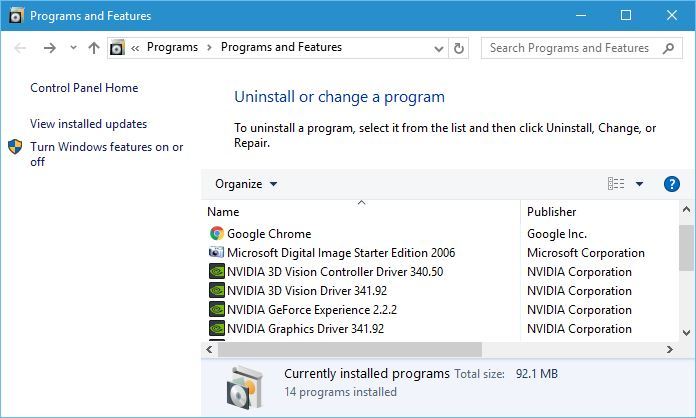
  8. Type appwiz.cpl and press Enterprograms and features TAP Windows Adapter V9 error
  9. Select your VPN software in the window
  10. Press the Uninstall button to remove it
  11. Proceed with the uninstallation
  12. Restart your PC shortly after uninstalling both services
  13. Reinstall your VPN software + TAP adapter driver

If you notice that reinstalling your VPN client and TAP adapter driver didn’t work, you might consider switching to a better alternative.

Private Internet Access, for instance, is an excellent VPN service that comes with its own TAP driver.

Furthermore, even if it stops working at some point, you can easily reinstall it directly from the VPN client’s configuration screen.

Private Internet Access

Private Internet Access

Did your TAP adapter driver stop working? Try using PIA as an alternative.
Check priceVisit website

Reset Windows 10

Apparently, resetting Windows 10 fixes the TAP-Windows Adapter V9 error in most cases.

You can reset Windows 10 and also keep your files. However, you’ll need to reinstall all the apps and drivers, as those will be swept clean from your PC.

Additionally, you’ll lose any configuration you did before resetting your PC.

Granted, this method is one of the most drastic ones, but it also gets the job done most of the time.

Follow these steps to reset your Windows 10 PC:

  1. Press the Win key on your keyboard
  2. Type Reset PC
  3. Click on the Reset this PC optionreset this PC Adapter V9 error
  4. Select Get startedchoose an option TAP-Windows Adapter V9 error
  5. Press the Keep my files button
  6. Click the Next button
  7. Select the Reset option to proceed
  8. Wait for the process to complete

Conclusion

To wrap things up, if you notice that your TAP-Windows Adapter V9 triggers various connectivity errors, there are some things you could try.

More often than not, reinstalling the TAP driver and VPN client will fix the issue.

However, you may need to go as far as resetting your PC altogether, so buckle up and don’t lose hope.

FIX: Hotspot Shield VPN stopped working (9 solutions)

Hotspot Shield has a huge fanbase, thanks to its blazing-fast speeds and the fact that it offers a free version.

So it’s not hard to imagine how devastating it must be for users when Hotspot Shield VPN stops working on their device.

Don’t worry: we thoroughly explored the functionality issues of this VPN service to help you repair the app and connect to a VPN server in no time.

How do I fix Hotspot Shield VPN if it stopped working?

Update the app

update Hotspot Shield VPN in Microsoft Store

It’s crucial to keep your VPN app updated to the latest version.

In addition to benefiting from the newest features, improvements and bug fixes, it’s also a good way to fix Hotspot Shield VPN if it stopped working on your device.

Users who downloaded the Hotspot Shield client from the official page can skip this step. That’s because the app gets updated automatically.

However, if you downloaded it from Microsoft Store, you might have to perform this checkup manually.

  • Open Microsoft Store
  • Click the three-dots button on the upper-right part
  • Select Downloads and Updates
  • Click the update button next to Hotspot Shield VPN

If you can’t update Store apps or encounter any other issues there, visit our Microsoft Store Troubleshooting Hub to fix any problem.

Check your Internet connection

A VPN service will have trouble connecting to the Internet if your network connection isn’t stable enough.

So you should verify your Internet speed and run multiple tests to determine the quality of your connection.

You might also want to consider switching to Ethernet mode if the Wi-Fi signal is poor on your notebook.

Hotspot Shield VPN has an integrated Internet speed tester that you can access from the main window. It measures your ping time, jitter and packet loss.

Make an exception for Hotspot Shield VPN in your firewall

Allow traffic for Hotspot Shield VPN in the Windows Firewall
  1. Press the Start button, type firewall, and select Firewall & network protection
  2. Click Allow an app through firewall
  3. Click Change settings (you need admin rights)
  4. Locate Hotspot Shield Free VPN in this list
  5. Enable the Private and Public options for its entry
  6. If the app isn’t listed here, click Allow another app to find it

Normally, Hotspot Shield VPN creates an exception for itself in the Windows Firewall when you install it.

However, if you’ve recently made significant changes to your security options, follow the easy instructions above to allow VPN traffic in your firewall for Hotpot Shield VPN.

Check if another VPN or proxy is running

fix VPN network adapter is being used by another VPN error in Hotspot Shield VPN

Hotspot Shield VPN won’t connect to a server if you have another VPN or proxy service running in the background. You can easily tell from the red banner that appears in the main window of the app.

To fix this problem, check if any other VPN or proxy apps are running in the background.

Keep in mind that manual VPN or proxy configurations you added using the Windows built-in features don’t apply here, so there’s a need to delete those.

We’ve noticed that the VPN network adapter is being used by another VPN. Disconnect the other VPN and try again message also appears if your TAP drivers are being used by the other VPN, even if the other VPN isn’t currently running.

In this case, you must completely uninstall the other VPN service before trying to connect with Hotspot Shield VPN again.

Change your DNS settings

  1. Right-click the Windows Start button and select Network Connections
  2. Click Change adapter options
  3. Right-click your Internet connection and go to Properties
  4. Double-click Internet Protocol Version 4 (TCP/IPv4)
  5. Select Use the following DNS server addresses
  6. Set Preferred DNS server to 8.8.8.8
  7. Set Alternate DNS server to 8.8.4.4
  8. Click OK
  9. Try to connect to a Hotspot Shield VPN server

Your DNS resolver might be not working properly, which could be why Hotspot Shield VPN isn’t connecting either. But you can easily fix this issue by changing your DNS servers on Windows.

In the example above, we listed the DNS servers of Google Public DNS. You can also try Cloudflare or OpenDNS.

Connect to another Hotspot Shield VPN server

connect to Hotspot Shield VPN locations

There might be a problem with the VPN server you’re targeting: too many connected users, the server is down for maintenance, or something else.

In that case, you can try to get Hotspot Shield VPN to work by simply connecting to another server. Make sure to explore multiple server options.

Reinstall the TAP-Windows driver

uninstall TAP Windows Adapter V9 from Device Manager
  • Right-click the Start button and select Device Manager
  • Expand Network Adapters
  • Right-click TAP-Windows Adapter V9
  • Select Uninstall device
  • Right-click any part of the screen and select Scan for hardware changes
  • Reinstall Hotspot Shield VPN
  • Launch the app and try to connect to a VPN server

If there’s a problem with the Windows TAP driver, it will prevent Hotspot Shield VPN from working properly. Using the steps above, you will force Microsoft to reinstall the TAP driver.

Then, you can reinstall Hotspot Shield VPN and try to connect to a server.

Flush your DNS and reset Winsock

flush DNS servers in Windows 10
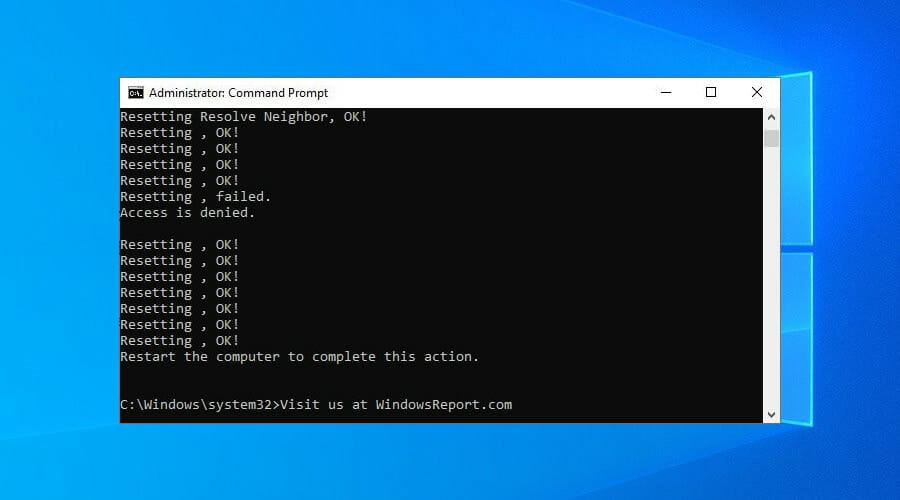
  1. Run Command Prompt with elevated rights: press Ctrl + R, type cmd, hold Ctrl + Shift and press Enter
  2. Copy and paste the next lines (press Enter between each line)
ipconfig /flushdns

ipconfig /registerdns

ipconfig /release

ipconfig /renew

NETSH winsock reset catalog

NETSH int ipv4 reset reset.log

NETSH int ipv6 reset reset.log

exit

Restart your computer and try connecting to Hotspot Shield VPN.

The commands above are useful for quickly refreshing your network settings. It might be the reason why Hotspot Shield VPN stopped working properly on your Windows PC.

Switch to an alternative VPN service

PIA

If you can’t get Hotspot Shield to work, no matter what you try, perhaps it’s not 100% compatible with your device.

In that case, consider switching to an alternate VPN service that works with Windows, Mac, Android, iOS, Linux, and even routers: Private Internet Access.

PIA has a next-generation network of more than 21,800 VPN and proxy servers spread across 97 locations (76 countries).

It runs its exclusive DNS servers to protect your DNS queries and speed up your Internet connection.

More about PIA:

  • WireGuard and OpenVPN with up to 256-bit encryption
  • Unblock Netflix US for unlimited streaming
  • No IP, DNS or WebRTC leaks
  • A zero-logging privacy policy
  • 24/7 live chat support
  • 30-day money-back guarantee (no free trial)

Private Internet Access

If you are tired of fixing connection problems in Hotspot Shield VPN, consider switching to a more reliable VPN service like PIA.
Check price Visit Website

Conclusion

To sum up, you can try fixing Hotspot Shield VPN connection problems by updating the app to the latest version, checking the quality of your Internet connection, and ensuring that your firewall allows VPN traffic for this service.

Also, make sure that you don’t have another VPN or proxy running in the background.

Plus, you can change your DNS settings, connect to a different VPN server, reinstall the TAP-Windows driver, as well as refresh your network settings using CMD.

At the end of the day, if you still can’t get Hotspot Shield VPN to work, even after asking tech support for assistance, consider switching to a more reliable VPN service for your home network, such as Private Internet Access.

FIX: Can’t access TCP/IPv4 properties on PPTP VPN connection

Windows 10 may be a great operating system overall, but it also has its fair share of flaws.

Reportedly, some users can’t access TCP/IPv4 properties on a PPTP VPN connection.

Although this issue is not exactly common nowadays and is specific to older versions of Windows 10, it can still happen.

With that in mind, let’s see how we can restore the functionality of the TCP/IPv4 properties button with minimum hassle.

How to fix TCP/IPv4 properties button disabled

Update Windows to the latest version

Microsoft is aware of most major problems on Windows 10, and its development team is constantly working on fixes.

If you encounter the TCP/IPv4 properties button disabled issue, make sure you download and install the latest updates for Windows 10.

As with many other issues, installing the latest updates usually fixes this problem.

Thus, you can use Windows 10’s built-in Check for Updates tool to see if there’s any update available and apply it quickly.

Edit the rasphone.pbk file

All your VPN connection settings are stored in a certain file on your Windows 10 PC, called rasphone.pbk.

In order to fix the TCP/IPv4 properties button disabled problem, you can edit the file mentioned above.

Here’s how you can do that:

  1. Press Windows Key + R, type %appdata%, and press Enter
    tcp-ipv4-properties-pptp-vpn-appdata-run
  2. Navigate to the following path:
    • \Microsoft\Network\Connections\Pbk
  3. Locate rasphone.pbk and right-click it
  4. Open it with any text editor
  5. Edit the IpDnsAddress and IpDns2Address values
  6. Change the IpPrioritizeRemote=1 value to 0

If this seems a bit complicated, you can also create a rasphone.pbk file on another PC and transfer it to your computer.

Just create a VPN connection as you normally would on a different system and replace the rasphone.pbk file on your Windows 10 PC.

Create a new VPN connection

If none of the steps we’ve described above doesn’t seem to work, you can try creating a new VPN connection.

This doesn’t mean that you need to give up on using a PPTP VPN connection.

Just create a new one using the same credentials as your old VPN connection, and remove the previous, broken one.

After doing so, try accessing the TCP/IPv4 properties button on the new connection to check if everything is alright.

Use PowerShell

There’s another possible scenario where you can fix this issue by using PowerShell.

However, you should bear in mind that PowerShell is an extremely powerful tool.

If you’re not careful enough of have absolutely no idea what you’re doing, you could cause permanent damage to your operating system.

This is why we recommend you to sit this one out if you’re not confident in your PC skills.

If you’re ready to proceed and try to fix this problem using PowerShell, follow these steps:

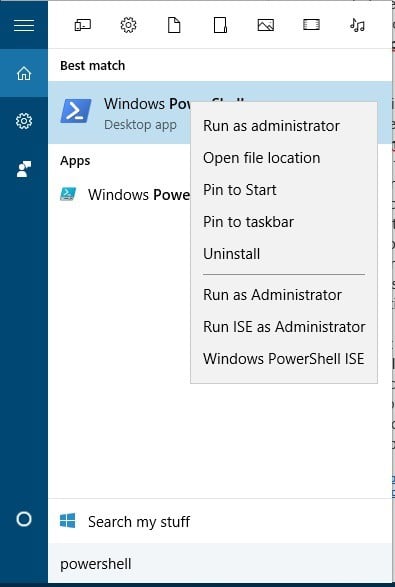
  1. Press the Windows Key + S keys on your keyboard
  2. Type powershell
  3. Locate PowerShell on the list and right-click it
  4. Select the Run as administrator option
    tcp-ipv4-properties-pptp-vpn-powershell-admin
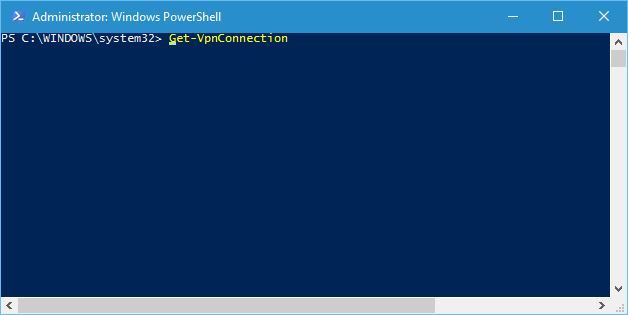
  5. Type Get-VpnConnection and press Enter
    tcp-ipv4-properties-pptp-vpn-powershell-1
  6. PowerShell should display a list of all the VPN connections on your PC
  7. Locate your current VPN connection and note it down it
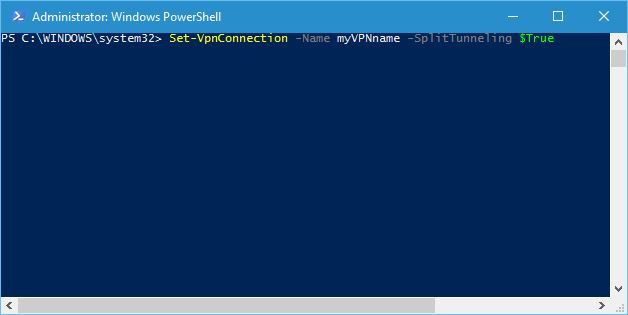
  8. Type Set-VpnConnection -Name xxxxx -SplitTunneling $True (replace xxxxx with the name of your connection) and press Enter
    tcp-ipv4-properties-pptp-vpn-powershell-2
  9. Close PowerShell
  10. Restart your PC and check if there’s any improvement

Reportedly, this method only works for VPN connections that don’t allow other people to use it.


Want to learn more about split tunneling? Check out our comprehensive guide on enabling it on Windows 10.


If your connection is configured in another manner, you might have to delete it and create one that meets the requirement described above.

Otherwise, you won’t be able to fix the TCP/IPv4 properties button not displayed by using the PowerShell method.

Conclusion

To wrap things up, if you can’t access TCP/IPv4 properties on a VPN connection on Windows 10, there are a few things you could do about it.

First and foremost, we advise you to download the latest updates, as it may be the best way to solve the issue.

If you notice that applying the latest Windows 10 updates didn’t work, make sure to try any or all of our remaining suggestions.

Google services are down, including Gmail, Drive and YouTube

In a world where everything goes to and from Google, it’s hard to imagine what it would be like if all of their services would suddenly collapse.

Well, this unlikely scenario has just become very very, as pretty much all Google services, along with YouTube, seem to no longer be operational.


Google services are experiencing a total failure

According to DownDetector, the service disruption have barely begun less than an hour ago, but the number of reports have easily exceeded 2000 already.

Of course, not only Google is down, but its services are as well, including Google Drive and Gmail.

Those using Google Drive are met by an error code 500, an error message that we’ve covered before in this step-by-step guide.

Gmail users have even more problems, since they are met with a variety of error messages, all of which were also covered in the articles below:

Lastly, those of you looking for some online multimedia entertainment will also have to wait it out, since YouTube has also been affected by this total Google collapse, so don’t be surprised if you encounter the Something went wrong error.


Google and YouTube had a similar outage back in August, and the outage lasted for several hours.

This occurrence does nothing more than to remind us of how dependent we are of Google as a service, especially now in the context of a global pandemic when Internet use is higher than ever before.

Unfortunately, no word has come out yet from any Google official regarding the issue, but we hope that it will be short-lived.

How have you been affected by Google‘s services being down? Let us know by leaving us your messages in the comments section below.

[wl_navigator]

How to troubleshoot Google Drive error 500

Google Drive error 500 is an internal server error. That is usually a general server-side error that arises on websites. Google Drive users often complain about internal server 500 errors on support forums.

When that issue arises, users can’t open Google Drive in their browsers. If that issue arises when you try to open Google Drive in a browser, follow the troubleshooting steps below.

How can I fix Google Drive error 500?

1. Refresh the page

First, try refreshing the Google Drive page by clicking the Reload button on your browser. The button is usually on the left or right side of browser URL bars.

Moreover, if you happen to be a Google Chrome user, then don’t hesitate to press the F5 hotkey to refresh the page.

Reload button google drive error 500

2. Enter an alternative Google Drive URL

Google Drive users have said they’ve fixed error 500 by entering the following line in the address bar:

https://drive.google.com/drive/

So, copy it with the Ctrl + C hotkey. Then, click in your browser’s URL bar, and press the Ctrl + V hotkey to paste that URL in.

Google Drive URL google drive error 500

3. Clear the browser’s cache

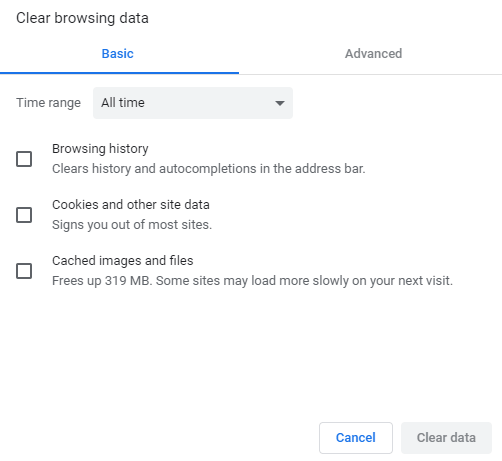
  1. Start by pressing the Ctrl + Shift + Del hotkey in the browser.
    Cached images and files option google drive error 500
  2. Then select the All-time option in the drop-down menu.
  3. Select the Cached images and files option.
  4. In addition, select the Cookies and other site data checkbox.
  5. Press the Clear data button.

Try clearing your browser’s cache, which will also clear the cached version of the Google Drive page. Therefore, refer to the above procedure in that regard.


4. Open Google Drive in another browser

Try opening Google Drive in an alternative browser. Chrome, Firefox, Internet Explorer, Edge, and Safari are browsers that are fully compatible with Google Drive.

So, make sure you’re utilizing Google Drive with one of these browsers as well.

The Google Drive page google drive error 500

If you are looking for a browser that emphasizes speed and keeps you away from such errors, then check out this dedicated list.


5. Is Google Drive down?

If none of the above suggestions resolve error 500 for Google Drive, there is a chance that Google services are down.

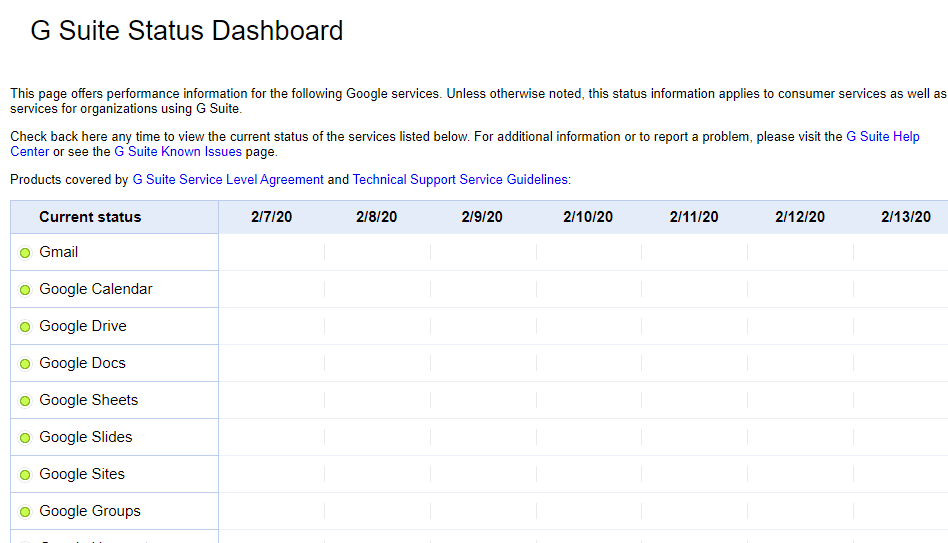
To check if that’s the case, open the G Suite Status Dashboard page. That page shows the current status of Google services.

A red circle for Google Drive will highlight that there’s currently a wider service outage for Google Drive.

G Suite Status Dashboard google drive error 500

If there is a service outage, there’s nothing you can really do to fix the matter. Wait for Google to resolve a server-side error. However, the above resolutions might occasionally fix Google Drive error 500 for some users.

Let us know which of the previously mentioned methods worked best for you by leaving us a message in the comments section below.

Office 365 admins can now exclude specific files from OneDrive sync

Last month, we reported that Microsoft was working on a new Office 365 policy that would allow admins to prevent users from uploading specific files to OneDrive or SharePoint. The Microsoft 365 roadmap entry indicates that a new OneDrive update (version 20.201) that supports this new policy is now rolling out for all users globally.

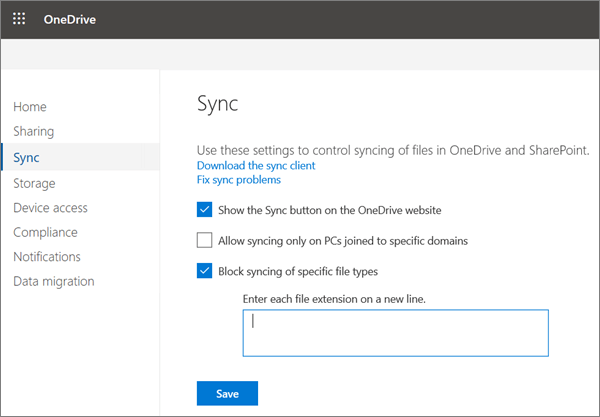
To block the upload of specific file types, you’ll need to go to the OneDrive Admin Center and click the “Sync” option available in the left pane. Now, select the “Block syncing of specific file types” option, and type all the file name extensions you want to block. Finally, hit the “Save” button on the Sync page, and restart the OneDrive sync app.

The Sync page of the OneDrive admin center

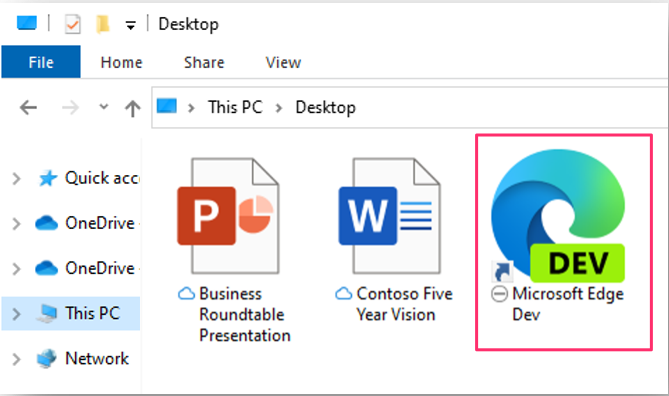
“If you enable this setting, the sync app doesn’t upload new files that match the keywords you specified. No errors appear for the skipped files, and the files remain in the local OneDrive folder. In File Explorer, the files appear with an “Excluded from sync” icon in the Status column. The OneDrive sync app must be restarted after this setting is enabled for the setting to take effect,” the company explained.

File explorer

Once this Group policy is enabled, users will still be able to upload excluded files from their local OneDrive folder by using the OneDrive for Business web app. However, the company recommends users to delete the excluded local file in the OneDrive folder to prevent a sync conflict with that skipped file. You can learn more details about this new Group Policy on this support page.

You can now sync passwords from Edge for Windows to Android

The Microsoft Authenticator app is regularly updated with new capabilities. With the latest beta build for Android devices, users can synchronize their passwords stored in the Edge browser for Windows.

The new feature makes it possible to securely transfer passwords between more devices that are linked to the same Microsoft account.

All passwords entered on Edge for desktop are automatically suggested on the smartphone as well. So, your precious passwords are now available pretty much everywhere you need to go.

There’s no wonder that users all over the world are excited to discover this new feature. Here’s what one of them says:

If you use the Microsoft Edge on PC and save your passwords on it, the Authenticator now can get these passwords and use on any app or browser on Android.

What should I know about securely syncing my Edge passwords?

passwords saved in Edge

Microsoft Edge already syncs bookmarks across your PC, Android, and iOS devices. Therefore, synchronizing passwords with Microsoft Authenticator is a nice addition.

After all, this is the new default browser on Windows 10. Plenty of users are already enjoying it on their PCs.

As a current Microsoft Authenticator, keep though in mind that the feature is still being tested. At the moment, not all users of the beta version have the chance to sync the passwords saved in their browser.

That’s a matter of waiting, assuming that you’ve registered for the beta program. As for those of you worried about their safety, the Authenticator app provides a high level of security when it comes to managing passwords.

What do you think about the fact that credentials that are saved on your Windows 10 PC can be available on your Android smartphone too? Let us know your opinion in the comments area below.

5 of the best rolling laptop bags for easy transportation

Standard laptop bags might be ok for short trips. However, users who frequently travel with their laptops might need rolling bags that they can pack more into.

This type of laptop bag features wheels and additional storage compartments that you can take it through airports and train stations with ease.

Rolling laptop bags come in different shapes and sizes. The best rolling laptop bags have nice aesthetic designs, organizer compartments, durable builds with quality fabrics, and plenty of storage space. These are some of the rolling laptop bags that are worth noting.

What are the best lightweight rolling laptop bags?

AmazonBasics Laptop bag

  • Good value
  • Lightweight and easy to carry
  • Spacious inner compartment
  • It doesn't quite fit 17.3-inch laptops

The AmazonBasics Laptop bag is among the more lightweight and slim-rolling laptop bags. This is a versatile bag that can fit 15.6-inch laptops.

Its velcro strap fully secures laptops. The AmazonBasics Laptop bag also includes an especially spacious inner compared that users can pack a lot into.


Solo Classic New York Bryant

  • Fits the biggest laptops
  • Comes with a five-year warranty
  • Good durability
  • Doesn’t include lockable zippers

The Solo Classic is a very stylish rolling briefcase bag that incorporates a padded compartment that can fit 17.3-inch laptops.

So, this bag can fit almost all laptops; and it includes additional front pockets to fit files, pens, notepads and more besides.

This is also a durable, long-lasting bag thanks to its polyester exterior.


Targus Compact Rolling Backpack

  • Durable polyester backpack
  • Secure storage side compartment
  • Includes a tablet pocket
  • Elastic straps included for clothing
  • Limited warranty

The Targus Compact Rolling Backpack is a bit different from the other bags with briefcase designs. This is a rolling laptop bag that’s also a backup. So, you can carry it as a backup or roll it around travel stations when it gets a bit too heavy.

This bag includes a padded sleeve that fits 15-inch laptops and a smaller pocket for tablets. Its main compartment can fit large folders and books.

The Targus Compact Rolling Backpack also has a front outer compartment and a zippered side pocket that are ideal for holding stationery items and phones.


Solo New York Walker

  • Premium leather design
  • Includes internal dividers for items
  • Lengthy five-year warranty period for the bag
  • It’s pricey

The Solo New York Walker is a rolling briefcase with a premium and stylish Colombian leather design.

It incorporates an expansive main compartment that can hold 15-inch laptops. This bag’s organizer section has a handy pen, card, and mobile slots. You can also fit additional items in its front section.


Heritage Travelware Streeterville

  • Durable 1680D polyester body
  • Includes lockable zipper compartments
  • Big enough to fit two laptops
  • Includes an organizer compartment
  • Its wheels can jam

The Heritage Travelware Streeterville is a large laptop roller bag that’s ideal for holidays and longer trips. This bag is large enough to hold a 17-inch laptop and an additional 15-inch laptop. This bag’s central compartment incorporates a padded PC pocket and straps for larger 17-inch laptops.

The Travelware Streetervile’s six compartments provide plenty of storage for clothes and other things. It incorporates extra mesh pockets for smaller items. Yet, this bag remains surprisingly lightweight (about 7.5 Ibs) for one of its size with many compartments.


Those are five of the best rolling laptop bags you can carry portable PCs and other things with. With their retractable handles and wheels, multiple storage compartments, and durable builds, they’re ideal bags for travelers or commuters.

Cyberpunk 2077 is reportedly profitable since day 1

There’s no denying that many players have been waiting for Cyberpunk 2077 to be launched ever since it was first announced 2 years ago.

The game has been through a lot of development, and the marketing around it has been extensive, drawing players ever closer to a world created by the same developers that brought your the Witcher series.

The product was then polished and tested extensively, which inadvertedly lead to delays, and despite being still being launched with numerous bugs, it still managed to break several records.

Well, all that hard work has apparently paid off, and we say that in a very literal sense.


Cyberpunk 2077 made it’s money’s worth back since launch day

CD Projekt Red has really outdone themselves this time, as they have announced in their 65/2020 financial report how the development and marketing costs for Cyberpunk 2077 have already been covered through pre-purchases and purchases made since the first day of launch:

The Management Board of CD PROJEKT S.A. with a registered office in Warsaw (hereinafter referred to as “the Company”) hereby announces that the estimated licensing royalties receivable by the Company in association with pre-order sales of Cyberpunk 2077 across all of its digital distribution channels have exceeded the sum of the following:

– total development expenditures related to the game, and

– the game’s marketing and promotional costs borne by the Company – either already incurred or anticipated for the remainder of 2020.


This report says a lot about the game, especially given how bug-riddled it turned out to be on all platforms.

However, CD Projekt Red took responsibility of the entire matter and have taken extensive measures to make sure that players are still satisfied with their product. 

This includes offering refunds, creating dedicated help pages for their most frequently found issues, launching hotfix after hotfix, and more.

All in all, one thing is clear: CD Projekt Red is pure profit from now on, even if the margin is slower due to the state of the game during release.


Were you expecting Cyberpunk 2077 to be so successful? Let us know what your expectations for the future are by leaving us your opinion in the comments section below.

[wl_navigator]

Xbox teams up with PlayStation and Nintendo to promote safer gaming

As video games are undoubtedly going to play a big role in the upcoming holidays, Xbox, PlayStation, and Nintendo are joining hands today to promote safer gaming. It’s not often that we see the three brands come together to push the video games industry forward, though the days when Sony blocked cross-play on Minecraft to protect younger players are now way behind us.

“At Xbox, we are aligned with both Nintendo, on behalf of the community of Nintendo Switch players, and PlayStation in our belief that protecting players online requires a multidisciplinary approach – one that combines the benefits of advanced technology, a supportive community, and skilled human oversight. We can accomplish more when we work toward the same goal, and so we will each continue investing in, evolving, and amplifying our approaches to user safety” wrote Dave McCarthy, Corporate Vice President, Xbox Operations.

Microsoft recently launched an Xbox Family Settings app to make it easier for parents to manage child accounts on the go, and Xbox consoles currently provide various controls to protect children playing games online. Sony and Nintendo also provide similar controls to protect vulnerable players using their consoles, though the three companies believe they can do even better by working together on making gaming safer for everyone.

Going forward, Xbox, PlayStation, and Nintendo have agreed on the following three principles that will guide all of their future work on safety features:

  • Prevention: Empower players and parents to understand and control gaming experiences.
  • Partnership: We commit to partnering with the industry, regulators, law enforcement, and our communities to advance user safety.
  • Responsibility: We hold ourselves accountable for making our platforms as safe as possible for all players.

“While the video game industry has a long history of taking steps to protect gamers, especially children, we recognize that no one company or industry will solve these challenges alone. We welcome others to make and share similar commitments to players everywhere,” McCarthy said today.

There are certainly more things that Xbox, PlayStation and other companies can do at the platform level to protect gamers, and in the case of Microsoft, Xbox online safety and privacy settings let you decide who can see your Xbox profile details and how people interact with you and your content. You can learn more about how to manage Xbox online safety and privacy settings on this support page.

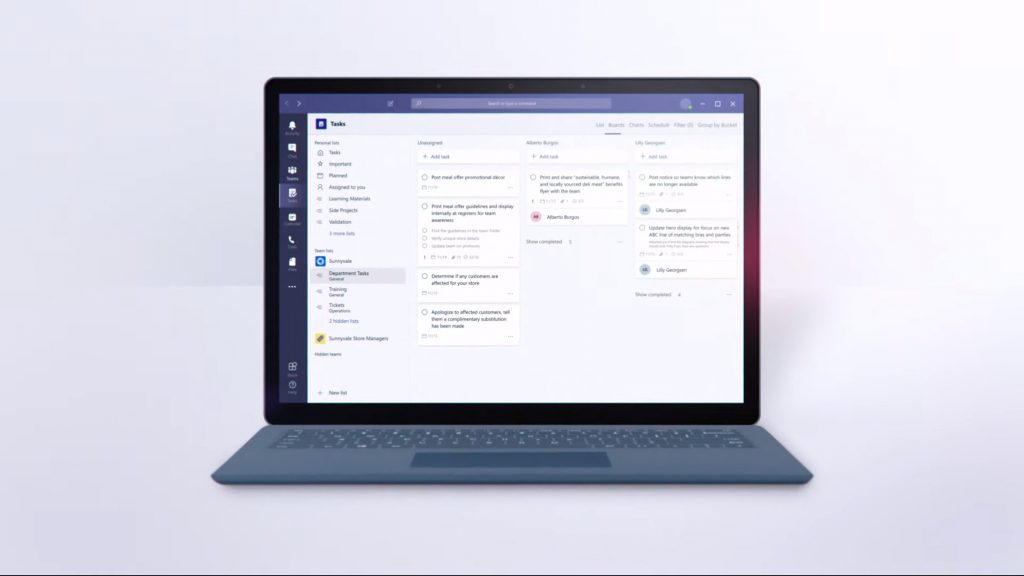
What’s going on with the Tasks app in Microsoft Teams? Here’s a look at the renaming and the new changes

If you found yourself using the Microsoft Planner app in Microsoft Teams a lot, then we have an important update for you that you might or might not have already noticed. As part of a move for Microsoft to better align its products, there’s a big name change happening.

Even further, not only the name is changing. The icon is changing, too. So, what’s the big deal? Today, we’re going to explain the changes, and what it means for you in the long run.

What’s up with the name change?

Microsoft Planner In Teams Name Change

First things first, we’re going to explain the phases of Microsoft changing the name for the Planner app inside Microsoft Teams. According to Microsoft, this name change is coming in three stages, which you can see in the chart above.

The first stage renames the mobile version of Planner in Teams to Tasks. This stage is now complete, and we’re now in the second stage of the changes. As part of this second stage, the desktop version of the Planner app in Teams is being renamed from Planner to Tasks by Planner and To Do. Eventually, the renaming will hit stage three, where it gets renamed to Tasks.

But why change the name now? According to Microsoft, this name change comes “help all customers easily find the new hero task management app in Teams.” Basically, Microsoft wants to put emphasis on all of its task management tools, and not just Planner. With the name change, Microsoft combines team tasks from Planner and individual tasks from To Do. Essentially, one hub for all your tasks.

What does this mean for me?

Okay, so what does this name change mean for you? Well, on the surface, there’s not a lot that you didn’t already enjoy. The name change does not affect the core functionality of Planner or Tasks in any way. According to Microsoft, the name and icon changes are just cosmetic. It doesn’t impact the Planner or the To Do standalone app. This name change is just about Teams, and putting both Planner and To Do, front and center on the collaboration platform.

We do want to note that the Tasks app in Teams does have some benefits over the old Planner experience, too. As we just explained, the Tasks app in Microsoft Teams brings together individual tasks from To Do and Outlook with your team tasks from Planner so you can more efficiently cross them off your lists. We’ll get into those in the next section.

What can I do in the Tasks app in Teams?

Microsoft Tasks App Microsoft Teams

So, what can you do with the new Tasks app in Teams? The answer to that question is, a lot! Once you get the Tasks app in Teams, you’ll see the two core experiences — My Tasks, and Shared Plans. My Tasks will have your lists from your To Do app (work accounts only) and the tasks you’ve added to To Do and Outlook, or anything you’ve been assigned in Planner. The Shared plans, meanwhile, includes everything you’ve added in Microsoft Planner, that have been added to Teams.

We’ve previously explained how the Tasks apps works with Teams, so we invite you to check that out here, for more information. But, we do have a quick summary or why you might want to use it. Keep in mind that the Tasks app in Teams has a List view. It displays tasks and information from both To Do and Planner and anything associated with them in rows and columns. This also allows you to change many tasks at once. This wasn’t possible in either To Do or Planner before.

The final stage coming soon, so get used to it now!

Now that you know what’s going on with Tasks in Teams, we have a final note for you. The third stage of the icon and name change rollout of Tasks in Teams desktop is coming soon. It’s a good time to get used to it, as this is the new thing for Microsoft moving forward. Again, check out our guide for more about the Tasks app in Teams, and let us know your thoughts in the comments below.

Cyberpunk 2077 developers apologize for poor Xbox One/PS4 performance and promise frequent updates

Cyberpunk 2077, one of the most-anticipated games of the year was released last week on PC, Xbox, and PlayStation consoles, and today developer CD Projekt Red has apologized for the game’s poor performance on base Xbox One and PlayStation 4 consoles. Despite multiple delays, it’s safe to say that many consumers who purchased the game on consoles didn’t expect to see bugs and performance issues at such a level.

“First of all, we would like to start by apologizing to you for not showing the game on base last-get consoles before it premiered and, in consequence, not allowing you to make a more informed decision about your purchase. We should have paid more attention to making it play better on PlayStation 4 and Xbox One,” CD Projekt said in a statement today.

Following the release of a first post-launch update on all platforms last week, the Polish developer announced today that it will continue to patch the game. Another patch will be released “within the next 7 days”, with two “large patches” to follow in January and February. “Together these should fix the most prominent problems gamers are facing on last-get consoles,” CD Projekt Red said.

Last but not least, the developer is inviting customers who aren’t satisfied with the game to seek for a refund. “We would appreciate it if you would give us a chance, but if you are not pleased with the game on your console and don’t want to wait for updates, you can opt to refund your copy,” the company said today.

Last week, CD Projekt Red announced that 8 million gamers had pre-ordered Cyberpunk 2077 ahead of launch, and that profits had already surpassed the game’s development and marketing costs. Cyberpunk 2077 broke several records since launch including the most concurrent viewers for any single-player game on Twitch, and the game continues to enjoy great momentum despite the bad buzz.

We’ve been playing the game on PC, Xbox Series X, and Xbox Series S since launch, and we hope to publish our full review later this week. The game currently plays best on PC, but performance is also very solid on Xbox Series X|S consoles even though a fully-optimized version of the game for these consoles won’t be available until next year.

FIX: Can’t save game in Cyberpunk 2077 on Windows 10/11

Cyberpunk 2077 is the result of several years of work on behalf of CD Projekt Red, and the outcome is quite spectacular.

This massive Sci-Fi video game features a massive world to explore, incredible character customization options, and an amazing story.

However, all of these have in common one thing: a lot of work needs to be put into them, and many users have reported that they are having issues saving their game.

Since this game is so loved by many, we’ve decided to create this step-by-step guide that will show you exactly what needs to be done to make sure that your game progress gets saved.

How do I save my game properly in Cyberpunk 2077?

1. Modify your antivirus’ permission settings

Some antivirus tools block access of software to certain file locations by default as a safety measure, and in that case, your job is to simply modify your antivirus’ settings.

If you’re using Bitdefender, modifying your settings will be extremely easy, and it can be done as follows:

  1. Open the Bitdefender dashboard
  2. Access the Protection tab on the left
  3. Click on Application Access under the Safe Files applet
  4. Flag the check mark for Cyberpunk 2077
Bitdefender

Bitdefender

With Bitdefender, you gain complete and easy control over what your apps can access on your PC!
Check priceVisit website

2. Modify your Windows Defender settings

  1. Press Start
  2. Type in windows security to access the Windows Defender Security Center
  3. Go to Virus & threat protection
  4. Select the Virus & threat protection settings option.
  5. Under Controlled folder access, click the Allow an app through Controlled folder access link
  6. Click the Add an allowed app button.

By following these steps, you should no longer have issues saving your game progress in Cyberpunk 2077 anymore.

However, keep in mind that it is not possible to save the game during combat, braindance and some quests, so make sure that is not actually the issue before proceeding with the troubleshooting steps below.

If you stumble across the Cyberpunk 2077 corrupted or missing scripts file error, we have the right solutions in the highlighted guide.

Which solution did you use to get rid of the game saving issue in Cyberpunk 2077? Let us know how you handled the problem by leaving us your feedback in the comments section below.

How to convert ZIP files to PDF in Windows 10 [Full Guide]

Sometimes you can’t use certain file types unless you convert them to a different format. This is a fairly simple process, and you just need to use specific software to convert the files.

In today’s article, we’re going to show you how to convert a ZIP file to PDF, and this is actually much simpler than you think, so let’s get started, shall we?

How can I convert a ZIP file to PDF?

1. Use WinZip

When it comes to ZIP files, WinZip is the best tool out there that can work with ZIP files. The software has a built-in feature that allows you to convert ZIP to PDF files with just a few clicks.

Regarding the supported file types, WinZip can zip any file, and it can extract ZIP, RAR, 7Z, TAR, TGZ, and other file types. The software also works as a file manager, and there’s even a file splitter feature available as well.

WinZip also supports file sharing, and it has support for cloud storage, which makes it one of the most versatile file archivers on the market.

Other great features:

  • Simple to use
  • File encryption
  • Compatible with most archive formats
  • File manager, file splitter
  • PDF conversion

WinZip

If you want to manage ZIP files better and convert them to PDF easily, give WinZip a try.
Free Trial Visit Website

2. Use ezyZip

  1. Visit the EzyZip page.
  2. Now click on Browse and select the ZIP file.
  3. Once the file is uploaded, it should be converted to PDF.
  4. Now you just have to download the PDF file.

3. Use PDFEN

  1. Visit PDFEN website.
  2. Click the Upload button and select the ZIP file.
  3. Once the ZIP file is uploaded, click on Convert.
  4. After the file is converted, download it.

4. Use Convertstandard

  1. Visit Convertstandard website.
  2. Now click on Browse and upload the ZIP file.
  3. Make sure that the TO PDF option is selected and click on Convert.
  4. Once the file is converted, download it.

Converting ZIP files to PDF doesn’t have to be a complicated process, and if you wish to convert ZIP files, we suggest using WinZip software for the best results.

Which solution did you use to convert your Zip folders? Let us know your preferences by leaving us a message in the comments section below.

5 best 128-bit AES encryption software [Complete guide]

In a world where the data is the new gold, protecting the data has become more important than ever before. Encryption can help you protect information stored, sent and received.

This task is made easier by the AES encryption software. While 256-bit encryption software offers greater protection, 128-bit AES encryption provides quite sufficient security for your data.

The difference between 256-bit encryption and 126-bit encryption is the key length. Apart from the key length, both of these standards offer similar protection and for the most part, impenetrable.

In this article, we explore the best 128-bit AES encryption software that you can use to keep your most valuable data safe through encryption.

What is the best 128-bit encryption software?

WinZip

best 128-bit encryption software

If you have heard of WinZip before, you probably know it for its file managing capabilities. However, it also allows you to encrypt your zip archives with 128-bit encryption. You can also use 256-bit encryption if you want.

Apart from the encryption features, WinZip allows you to create zip archives with multiple files. Thus making it easier to move, share and organize multiple files at one place.

WinZip offers best in class file compression and can extract all the major file formats, including XZ, RAR, and TGZ. With the built-in repair tool, you can repair any damaged Zip archive.

Additional features of WinZip include easy sharing via email, cloud, social media, and IM, PDF conversion, watermarking, and Windows file management.

Key features of WinZip:

  • Best in class 128-bit encryption and 256-bit encryption.
  • Cloud backup feature
  • Windows file management
  • PDF conversion
  • Cloud integration with Google Drive, Dropbox, and OneDrive
WinZip

WinZip

Enjoy data archiving and 128-bit AES encryption with the help of this incredibly useful software utility.
Free trialVisit website

Folder Lock

best 128-bit encryption software

Folder Lock is a complete data protection solution for your PC and portable drives. This intuitive utility allows you to lock and password protects your files with Windows kernel level locking.

With Folder Lock, you can encrypt your personal files using 128-bit and 256-bit military-grade encryption to create storage lockers to keep your important files encrypted. These dynamic locks can grow in size as your data need increases.

It also comes with a backup option. You can upload all your private data onto a cloud server automatically in real-time. Furthermore, you can use Folder Lock to encrypt your USB/CD storage devices as well.

Key features of Folder Lock:

  • 128-bit and 256-bit encryption
  • External device encryption support
  • Automatic backup manager with real-time sync
  • Password lock files, folder, drives and programs
Folder Lock

Folder Lock

Encrypt your data and keep it safe from unauthorized access with the help of this extremely secure software utility
Check priceVisit website

AxCrypt

best 128-bit encryption software

If you are looking for an advanced encryption tool with simple settings, AxCrypt is a good alternative. It offers strong 128-bit and 256-bit encryption and comes with tons of other file management features.

This multilingual tools supports popular languages including English, Dutch, French, German and more. There are also cloud storage capabilities supporting popular cloud services such as Google Drive, and Dropbox.

The collaboration feature allows secure files to be opened by other AxCrypt users with their own password. The built-in password manager is a good addition and will enable you to access your credentials anywhere.

AxCrypt comes in both a free and premium version. The free version of the software is limited by features.

Key features of AxCrypt:

  • Excellent 128-bit and 256-bit encryption
  • Cloud storage support with automatic backup
  • Multilingual support
  • Password management
  • Mobile support

⇒ Get AxCrypt


CryptoExpert 

best 128-bit encryption software

Boasting fast on-the-fly operation, CryptoExpert is a Windows desktop encryption software that offers secure data vault for all your data. You can create files of 10 GB or more with your choice of encryption algorithm including BLOWFISH, CAST, 128-bit/256-bit AES encryption and more.

CryptoExpert offers transparent access to files, and folder and allows you to read and write encrypted files on the fly. All the secure vaults appear as local drives to all Windows application.

Key features of CryptoExpert:

  • Secure vaults of unlimited size
  • Multiple encryption algorithm
  • Transparent access to files and folders
  • Save unlock keys on external flash drives

⇒ Get CryptoExpert 


Kruptos 2 Professional

best 128-bit encryption software

Kruptos 2 Professional is a premium encryption software that can lock and encrypt all your sensitive files and folders including your photos, video, credit card data and tax returns in a safe vault.

Kruptos 2 Professional offers 128-bit and 256-bit AES encryption. Furthermore, you can read all the encrypted files from anywhere and on any device.

With its cloud encryption, you can encrypt your Dropbox, Microsoft OneDrive, Apple iCloud or Google Drive files with fully integrated and seamless cloud encryption and data shredding.

Key features of Kruptos 2 Professional:

  • Cloud encryption support for Dropbox, Google Drive and Apple iCloud
  • 128-bit and 256-bit encryption
  • Multi platform support
  • Built-in secure note editor

⇒ Get Kruptos 2 Professional


What is 128-AES Encryption?

AES (Advanced Encryption System) function by the use of asymmetric algorithm using 128-bit block encryption and supporting key sizes of 128.

It is used to secure sensitive materials and over the years has become de facto encryption standard for the private sector. AES security standard can be applied to restrict access to both hardware and software.

How good is 128-bit AES encryption?

AES-128 offers more than enough security margin for the near future. While 256-bit AES, in theory, appears to be stronger than 128-bit AES encryption, in practice 128-bit is good enough to secure all kinds of sensitive data.

The 128-bit symmetric key is computationally secure against a brute-force attack, and theoretically, it would take 1 billion years to crack the cryptographic key.

What is the highest level of encryption?

While there are multiple encryption algorithms today, AES 256-bit encryption is so strong that it has become the official encryption standard for the private sector.


Encryption software has become important when it comes to protecting sensitive data from hackers and privacy intruders.

All the encryption software listed in this article offer 128-bit AES encryption offering industry-standard safety, making it almost impossible to decrypt the encrypted data.

6 best Christmas gifts for cricket fans [Tech & Sports ideas]

Gifts are the best way to express love and gratitude to your loved ones. And, what better occasion than Christmas to find a suitable gift for each one of them.

There are deals and offers galore on Christmas gifts for Cricket fans, waiting for buyers to grab them at the earliest. From apparels and accessories, or food & drink to games and gadgets there are endless options to chose from.

Yes, there are gift choices even for those having a crazy cricket fan at home. Whether it’s a book on their favorite batsman or a mug with some quirky cricket statements, there’s a long list of such gifts. But what about gifting a tech gift relevant to the cricket fans this Christmas?

It wasn’t that tough after all to find some fun tech gifts for the cricket fans. Here we have listed our favorite picks to take a cue from.

What is the best gift for a cricket fan for Christmas?

Amazon Fire 7 Tablet

  • 7-inch IPS display
  • 16 or 32 GB of internal storage
  • Fast, 1.3 GHz quad-core processor
  • Up to 7 hours of autonomy
  • Only 1 GB of RAM

Amazon Fire 7 tablet sports a cool 7-inch screen with upto 8 hours of battery life. The larger screen with the extended battery life is perfect to keep your cricket nerves calm while on the go. What’s more?

This tablet also comes along with Amazon’s smart assistant, Alexa to answer questions, read cricket scores, play music, etc.

You can also ask Alexa about the latest news, seek help to manage the calendar, and lots more. For cricket fans, it’s about not missing a single update on the running match and this would make a perfect Christmas gift for them.


Bose SoundSport Wireless Bluetooth

  • Sweat-resistant
  • Bose active EQ
  • Bluetooth and NFC pairing
  • Up to 6 hours of battery life per charge
  • Not very sturdy

Bose SoundSport Wireless is a powerful set of Bluetooth headphones that give a tough fight to the Apple AirPods. Bose is already famous for its sound quality, and it maintains its reputation with these best sounding and highly-trusted earphones.

It generates a booming bass that enhances the cricket commentary listening experience.

Comfortable, easy to use, and great-sounding, these Bluetooth wireless headphones are a perfect tech gift for cricket fans in 2021.


Sony ICFP26 Portable AM/FM Radio

  • Built-in speaker and headphone jack
  • Telescopic antenna
  • Carrying strap
  • LED tuning indicator & LED battery status indicator
  • Not very good reception sometimes

Radio is still in, especially if it’s something like the Sony ICFP26 Portable AM/FM Radio. This sleek, little radio features DAB/FM and is available on a budget. This radio is compact enough to be slipped into your pocket.

It offers pretty good sound quality to keep up with the cricket commentaries on the move. From listening to music to sports, this portable sound package is perfect as a gift this Christmas.


TCL 55S517 55-Inch 4K Ultra HD Roku Smart LED TV

  • 4K resolution
  • Roku TV built-in
  • Dolby Vision high dynamic range (HDR)
  • Voice control remote
  • Poor customer support

To experience a visual extravaganza for the much-awaited cricket match, the latest HDR TV is a must. It’s a sheer pleasure to watch 4K sport on the new TCL 55S517 4K HDR TV with a 55-inch screen. The Dolby Vision high dynamic range (HDR) adds to the watching experience.

It offers great sound quality with amazing picture quality for the cricket fans to enjoy their match to the fullest. The voice control remote is another added bonus.


All-new Echo Dot (4th Gen)

  • Control your smart home - Use your voice to turn on lights, adjust thermostats, and lock doors with compatible devices
  • Call almost anyone hands-free
  • Multiple layers of privacy protection
  • Not as good assistant as Google's yet

Amazon Echo Spot is one of the most popular voice assistants available today. From answering questions, playing music, reading news, to reading cricket scores, it can do all that you can think of.

Not just that, it can also transform into a smarthome device by switching lights on and off or turning on the heating device. While it’s a great gift for families and children, it’s also a perfect Christmas gift for cricket fans.


Native Union Drop Wireless Charger

  • 10W non-slip fast wireless charging
  • Compatible with any Qi wireless-enabled devices
  • Includes 6.5-foot charging cable with genuine leather strap
  • Charges through 3 mm thick cases
  • Doesn't include a wall charger

A wireless charger is all that is required these days for people on the go. While smartphones are downright essential, keeping the battery charged at all times is equally important. So, for those who add cannot miss those cricket score updates wherever they are, Native Union Drop Wireless Charger serves the best.

This sleek wireless charging pad works with pretty much all the latest phone brands. It’s as easy as placing the phone on it and the charge is on.


Winter brings an exciting cricket season with some of the well-known international tournaments to watch out for. So, grab any of these Christmas gifts for cricket fans and help them keep up with their passion.

5 best tools to bulk compress images on Windows 10

Photos take a lot of space on our drives and in no time you will run out of space, especially if you have a small SSD or HDD installed. Of course, you can always buy an external drive for backup but that is not going to be for free.

The next, immediate solution that you can take is to performe a nice session of archiving your photos and other data on your drive. This will get you tons of free space in no time and will secure your data.

You can even store them easier on an external drive or in the Cloud if they are nicely archived. There are a lot of archiving tools out there that can help you to bulk compress images but we found only the best for you.


How do I compress multiple pictures in Windows 10?

WinZip

WinZip is by far the best tool if you want to archive your data and your photos. In fact, unzipping has become a synonym for archiving. It’s really fast to create the archives but it is also like a vault when it comes to your files.

That’s because it can encrypt them with banking-level technology. And after you finish with archiving and encrypting, WinZip is also offering cloud integration with OneDrive, Google Drive, Dropbox, and more. Just upload the files or send the link to anybody.

Winzip will also help you send some photos by creating special small volumes to be added as attachments. Do you have a really big stash of photos? Then you can even make the archiving process automatic.

And if you’re not yet convinced, you can try it before you buy it so just give it a chance.

WinZip

WinZip

WinZip will help you archive and organize your photo collection like never before.
Free trialVisit website

WinRAR

WinRAR is one of the most popular file compression software and its best feature is that it is the only one that can officially be used to create RAR files althou, of course, every other archiving software can uncompress them.

WinRAR’s speed and compression rate are pretty good so you should keep it in mind as a possible alternative for WinZip. Although it can archive your photo collection pretty fast, its user interface is not the most modern and appealing.

⇒ Download WinRAR


7Zip

7Zip is on our top 3 for a good reason and that’s because it can handle almost all compressed file formats you throw at it. And it also does a pretty good job at creating its own archives in the 7z format.

7Zip is able to compress huge files of up to 16 billion gigabytes but if you want it to produce a very compressed file you will have to wait a while because the tool is a bit slow.

Don’t expect too much from the interface either. It looks rather old and it’s full of context menu entries that may confuse you. But for free software, it will do.

⇒ Download 7Zip


PeaZip

best file shrinking software

What’s great about PeaZip is that in addition to regular compression and decompression you will be able to transform an archive format into another.

You can also use this nice too if you want to secure your files because it offers AES256 encryption doubled by a two-step authentication, and a password manager.

⇒ Download PeaZip


Ashampoo ZIP FREE

Ashampoo ZIP FREE can compress your images fast and easily and it supports creating and extracting a lot of archive formats including ZIP, 7-ZIP, CAB, TAR (TAR, TAR.GZ, TAR.BZ2, TAR.XZ), and the LHA formats.

The interface is fresh and modern and this tool also comes with a 256-bit AES encryption. What’s excellent about Ashampoo ZIP FREE is that you can have unlimited size of the archive, and unlimited files inside the archive if you use the ZIP and 7-ZIP formats.

It can also be used to repair broken ZIP files so it can come in handy for that kind of situations.

⇒ Download Ashampoo ZIP FREE


We hope you found our selection with the best tools to bulk compress images on Windows 10 extremely usefull and you found your match. Let us know in the comments section below how everything turned out with your image collection.

Windows 10 news recap: Minecraft with Ray Tracing leaves beta, Adobe Lightroom gets native Windows 10 on ARM support, and more

Welcome back to our Windows 10 news recap, where we go over the top stories of the past week in the world of Microsoft’s flagship operating system.

Outlook for Windows is getting text predictions in January

Similar to Outlook on the web or Google’s Gmail, Outlook for Windows is expected to receive a new text prediction feature in January. The feature will suggest words or phrases to save you having to write them manually, helping compose an email faster.

Outlook For Windows

Minecraft with Ray Tracing on Windows 10 goes out of beta, free content also available on Bedrock and Java editions

Minecraft for Windows 10’s Ray Tracing beta has now come to an end and the feature is available to all players with an Nvidia RTX graphics card. In addition, a variety of free content has been added to the Minecraft Marketplace which can be downloaded to see Ray Tracing in all of its glory.

Adobe Lightroom gets native support for Windows 10 on ARM PCs and Apple Silicon Macs

Native support for Windows 10 on ARM PCs has arrived in Adobe Lightroom, in addition to Apple Silicon Macs. This new version of Adobe Lightroom brings a number of other improvements, notably for Mac users it adds support for ProRAW.

Adobe Lightroom For Windows 10 Launched Without Creative Cloud Requirement 528668 2

That’s it for this week. We will be back next week with more Windows 10 news.

How to unblock the Facebook website anywhere using 4 tools

Since it’s a social media site where people can connect and share ideas and events, Facebook is seen as controversial in many countries. It’s usually due to political or religious reasons.

As a result, you might not be able to access the online service at all if you’re living or traveling to these regions due to geoblocks. Examples include Bangladesh, Iran, China, and Egypt.

It’s not the end of the line, though. You can still unblock the Facebook website, online service and app using the tools below.

Please note that we don’t encourage you to use these software programs for bypassing government censorship if it means breaking the law. Use them at your own risk.

How can I unblock the Facebook website and get around bans?

Use a VPN

NordVPN can unblock Facebook

A VPN is the best way to bypass government censorship and access blocked websites.

It redirects you to another country where Facebook isn’t banned, making your ISP believe that you’re actually connecting from somewhere else.

Furthermore, a VPN encrypts your entire data traffic to make sure that your computer won’t leak your true IP address and location.

It’s challenging to find a VPN service with geoblocking features that can unblock the Facebook website, but we think that NordVPN nails it.

You just have to connect to a VPN server in a country where Facebook isn’t blocked (like the US), and then fire up you web browser or launch the Facebook app.

More about NordVPN:

  • Works with Windows, Android, Mac, iOS, Linux
  • OpenVPN and NordLynx (built around WireGuard)
  • Double VPN, Onion-over-VPN, and obfuscated VPN servers for anti-censorship
  • 24/7 live chat support
  • 30-day money-back guarantee (no free trial)
NordVPN

NordVPN

Use NordVPN’s powerful advanced features to bypass government censorship and unblock Facebook anywhere.
Check priceBuy it now

Use Tor

Specially built as an anti-censorship tool, Tor is an anonymous network that anyone can use for free to get around country bans and access restricted content, including Facebook.

All you have to do is download the Tor Browser, set up obfuscation mode at startup, and then unblock the Facebook website.

On the other hand, Tor isn’t as versatile as a premium VPN service like NordVPN (buy here). You can’t use it to unblock streaming content like Netflix, for instance.

Use Psiphon

use Psiphon

Psiphon is an Internet circumvention tool that uses a combination of several technologies to fight online censorship: VPN, SSH, and HTTP proxy.

It’s completely free to use. You can download Psiphon for Windows, Android, and iOS. Similar to a VPN, you just have to connect to a server location where Facebook isn’t blocked.

However, compared to NordVPN, Psiphon supports fewer servers in fewer countries. It doesn’t support Mac, Linux, routers, or 24/7 live chat support.

And you can’t use the cool anti-censorship featured provided by NordVPN (buy here), like staying connected to two VPN servers at once or disguising your VPN traffic to fly under the radar.

Use a proxy

We saved this option for last because it’s the least reliable for unblocking the Facebook website.

While a proxy server hides your IP address and offers some level of protection, it’s simply not as effective as a VPN, Tor, or even Psiphon. The encryption isn’t powerful enough.

Although there are numerous free proxy lists that you can find on the web, most ISPs have already identified and blocked them due to government requests.

If you still want to use a proxy server, we suggest checking out Shadowsocks.

Conclusion

To sum up, you can use a VPN, Tor, Psiphon or a proxy server to circumvent government censorship and unblock the Facebook website.

However, there’s no foolproof solution. And you could get in trouble for using any anti-censorship method if it means breaking the law.

What method are you using to defeat online censorship and unblock Facebook in your country? Let us know in the comment section below.

[wl_navigator]

First Surface Laptop Go firmware release targets fingerprint reader improvements

Microsoft Surface Laptop Go owners are getting treated to the device’s first-ever firmware update today, which’s bringing some improvements to the Windows Hello experience among other things.

The Surface Laptop Go has been on the market for about two months and in that time, the device has been pretty self-sufficient and with Windows 10 S Mode out of the box, there has been little need for owners to venture into update land through any wants or needs.

However, for anyone like myself who has been using the Surface Laptop Go as an Insider machine, you may have noticed the device stop reading fingerprints after the latest release.

The fingerprint reader remains a completely useless glowing slap in the face to the Surface Laptop Go’s level of security for me, so much so that when attempting to reset the recognition, the device claims that it can’t even map to the button.

Hopefully, today’s firmware update 3.15.12011.10134 addresses this issue and also improves the “reader performance” as well. Other improvements rolled into this update include optimizations to the

  • Surface System Telemetry Driver – System Device
  • Surface Touch Firmware
  • Surface UEFI Firmware

The firmware update is gradually rolling out, so some devices may not be seeing the release just yet, but it should land in the Settings App soon enough for most. For those with less patience, you could also try downloading it from Microsoft’s Download Center as well.

Let me know in the comments below, if you own a Surface Laptop Go and if you’ve had any issues with its performance or features so far.

5 best Quickbooks card readers for laptop & desktop

QuickBooks is known as one of the main accounting software services created by Intuit in order to make the payment process faster and easier for both small and medium-sized businesses.

In order to take full advantage of the various benefits of the QuickBooks application, you need a high-quality card reader that can ensure a smooth work-flow and handle a multitude of transactions on a daily basis.

In this article we want to give you the best recommendations regarding a card reader for your QuickBooks package.

What is the best card reader to use with QuickBooks?

MagTek 21040145

  • Connectivity to system host through built-in USB cable
  • Two magnetic heads for reading in one swipe
  • Decode error alert through LED indicator
  • Missing mounting brackets

This three-track card reader from MagTek deserves a top mention because it comes with two magnetic heads that allow the card to be read in just one swipe regardless of what direction the magnetic stripe is facing.

You can swipe the card backward or forward at a speed of 60″ per second thanks to the complex configuration. Another perk is that the USB keyboard emulation sends data created for hosting systems and applications that allow keyboard input.


MagTek 21040140

  • Bidirectional configuration for quick transactions
  • LED indicator for spotting decoding errors
  • Connectivity to USB 2.0 port of a host device
  • No instructions manual

Another great card reader that works perfectly with Quickbooks is this smart device from MagTek. It provides a configuration that allows you to swipe the card backward or forward at a speed of up to 60″ per second.

It comes with two magnetic heads, which means that it can be read with one swipe without worrying about what direction the magnetic stripe is facing.

This three-track magnetic card reader provides a built-in, 6 feet USB cable that allows you to connect it to any type of PC.


MSR90 USB Swipe

  • Reliable for over 1,000,000 card swipes
  • Compatible with Windows OS, Mac OS, and many other USB capable operating systems
  • Small footprint to fit in tight places
  • Not compatible with two-track cards

This magnetic card reader has gained a reputation among users for being a great match with QuickBooks apps and services.

A device that consists of a USB emulation keyboard interface that doesn’t need any driver or software, in order to function. All you need to do is plug in and play.

It has the capacity to read up to 3 tracks of information: ISO7811, AAMVA, CA DMV and many other card data formats.

You’ll definitely get the job done much faster thanks to the bi-directional swipe reading feature that works even on damaged cards


Fdit Credit Card Read

  • Interface with USB emulation Keyboard
  • Operating temperature: -20 to +60
  • Compatible with: Windows XP, Windows7, Windows8, Linux
  • Cannot store the card data

This magnetic credit card reader is able to read up to three tracks of information when the card is swiped in either direction and works great with the QuickBooks services.

It offers compatibility with a variety of card formats such as ISO7811, AAMVA, CA DMV, and many others. The configuration system is very user-friendly and can be customized to your basic needs.


Honsdom USB Credit Card

  • Bi-directional swipe reading magstripe cards
  • LED indicator for code errors
  • ISO7811, AAMVA, CA DMV readability
  • Not suitable for a system that requires an encrypted reader

A pack of two magnetic credit card readers that offer QuickBooks compatibility and can read three tracks Hi and Lo coercivity magnetic stripe cards.

Thanks to the bidirectional swipe reading that works with TXT, notepad, Word, Excel, POS systems, you can rely on over 1,000,000 card swipes, an aspect that will improve your work-flow significantly. It also supports a multitude of card formats like ISO7811, AAMVA, CA DMV.

These magnetic credit cards offer compatibility with a multitude of USB operating systems like Windows and MAC OS.


As you can see there are a few aspects you should consider when it comes to a credit card reader that also offers QuickBooks compatibility and we presented you with some of the best options of the moment.

We’d also like to hear your opinion so please share your thoughts with us by using the comment section bellow.