What to do if You are Unable to Restart DNS Client

The DNS server, short for Domain Name Server, is where the management, maintenance, and processing of Internet domain names occur. Or in simple terms, a DNS server assigns an IP address to your PC so that you are easily recognizable on the world wide web. And it does so by translating the domain names to IP addresses.

However, often the server might stop running altogether or have other issues like web pages not getting loaded correctly.

That could be due to some error cropping up, though, in such a scenario, one easy and sure-shot method of getting things back on track is to restart the DNS Server, which is exactly what we discuss in this article.

How can I fix DNS client restart issues?

1. Via command line interface

how to start/stop dns client from cmd prompt

Start command prompt: You can do this either by clicking on Start followed by selecting Run or by simply pressing the Windows and R button simultaneously. When the Run dialog box appears, type cmd and press Enter to start the Windows command prompt.

Alternatively, you can simply type cmd in the Cortana search box, right click on the Command prompt app that shows and select Run as administrator.

Type the command net stop dnscache and press enter. This will stop the service. However, it might take a few seconds for the command to take effect.

You will be shown the following messages:

  • The DNS Server service is stopping.
  • The DNS Server service was stopped successfully.

Next, type the command net start dnscache and press Enter. This will restart the DNS server though again there might be a few seconds’ delay for that to happen. DNS Server runs as a service in your PC and the above command restarts the service.

The following message should confirm the above.

  • The DNS Server service is starting.
  • The DNS Server service was started successfully.

2. Via graphical user interface

Changing DNS setting via admin tools

Launch Control Panel: You can do this by clicking on Start > Windows Systems > Control Panel. Alternately, you can also type Control Panel in the Cortana search box and selecting accordingly from the search results shown. You can also right click on the Start menu and select Control Menu.

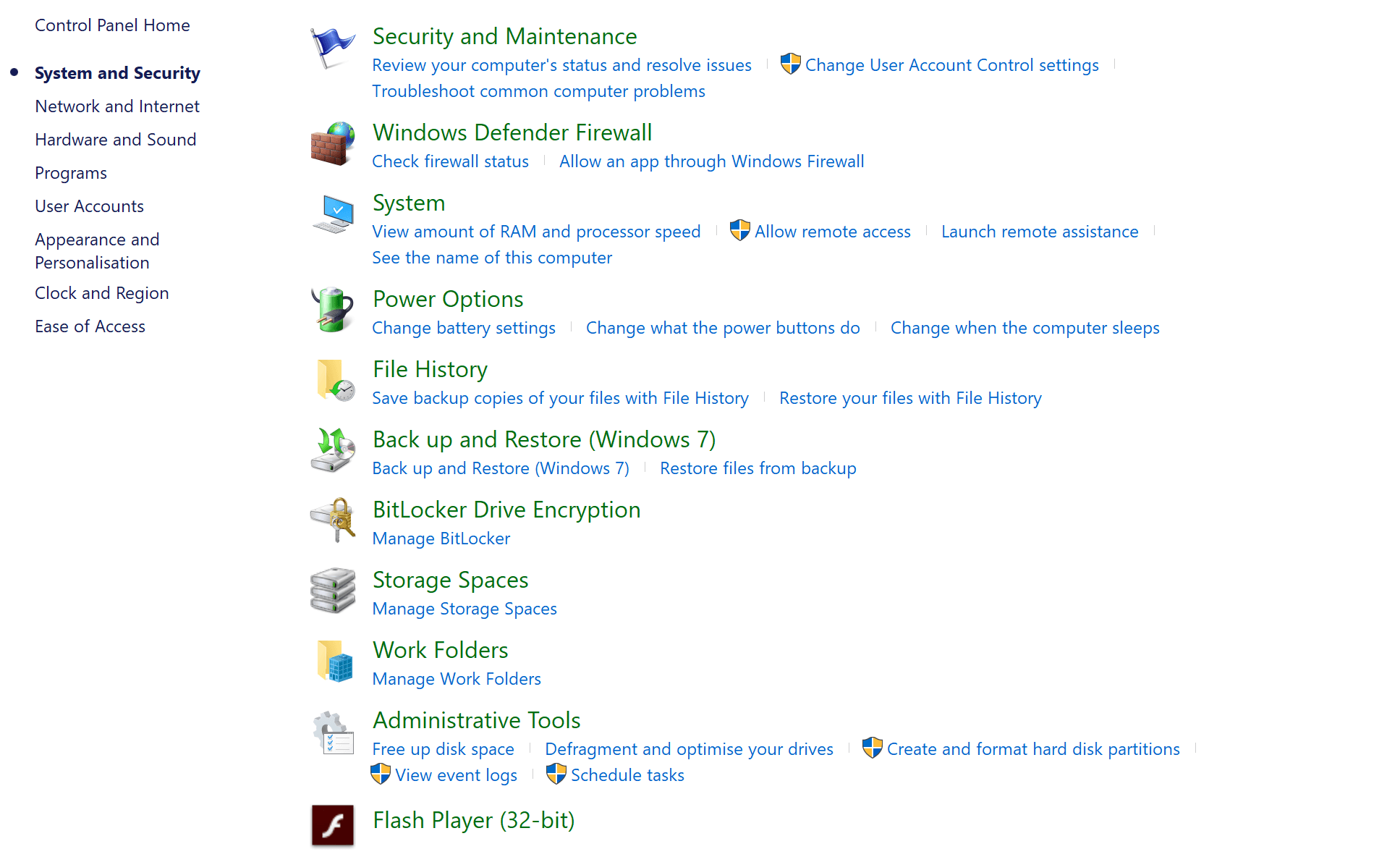
Under Control Panel, click on System and Security > Administrative Tools and open DNS snap-in.

From the list of options on the left, locate server, right-click on it and select All Tasks. Here, there are Start and Stop options for starting and stopping the service, respectively.

3. Restart DNS Server on a remote server

This is done with the help of the utility named sc, which gets installed together with the OS so far as Windows Server 2003 is concerned. To perform the start and stop DNS operations, here is what needs to be done.

To Stop DNS.

C:> sc \matrix stop dns

SERVICE_NAME: dns

TYPE               : 10  WIN32_OWN_PROCESS

STATE              : 3  STOP_PENDING

(STOPPABLE, PAUSABLE, ACCEPTS_SHUTDOWN)

WIN32_EXIT_CODE    : 0  (0x0)

SERVICE_EXIT_CODE  : 0  (0x0)

CHECKPOINT         : 0x1

WAIT_HINT          : 0x7530

To Start DNS.

C:> sc \matrix start dns

SERVICE_NAME: dns

TYPE               : 10  WIN32_OWN_PROCESS

STATE              : 2  START_PENDING

(NOT_STOPPABLE, NOT_PAUSABLE, IGNORES_SHUTDOWN))

WIN32_EXIT_CODE    : 0  (0x0)

SERVICE_EXIT_CODE  : 0  (0x0)

CHECKPOINT         : 0x0

WAIT_HINT          : 0x7d0

PID                : 504

FLAGS              :

This is all you need to do.

You can check if things have been resolved by launching any internet browser and entering a domain name in the address bar. If the page launches successfully, you know you have your issue resolved.

Meanwhile, here are some additional resources worth having a look at.

Microsoft Clarity takes on Google Optimize and Analytics

I am not sure why tech companies keep trying to jump on the success of other tech companies. A couple of examples that spring to mind. Google+, which started because of Facebook, and failed miserably. And Microsoft EdgeHTML, which was developed to counteract Chrome’s dominance, and failed miserably.

Now Microsoft is going to try to challenge Google Analytics and Google Optimize with Microsoft Clarity. Will this go the way of Edge, or will we finally have an alternative to Google Analytics?

What is Microsoft’s Clarity?

Good question. Sadly, while the website is active, there is very little information there. I tried to put in a website I own and got the following message below:

Clarity Pending Approval

So, not exactly an auspicious start as on the homepage of Clarity, it clearly states, “As soon as you sign in with any of your Microsoft accounts, you will be prepared to add Clarity to your website in a matter of seconds.”

Maybe seconds mean a different thing in Microsoft land, but when using Google Analytics, my sites are ready to go in actual seconds. I doubt Clarity is going to be knocking on Google Analytics’ doors any time soon if people have to wait for their sites to be approved.

In Microsoft’s defence, in the FAQs they have responded to, “Can anyone sign up? Are there any restrictions?” with, “Since we have just released this as a beta product, we are onboarding users based on our ability to provide a great and seamless experience.”

However, according to the Bing blog about Clarity, it looks like this wait period will be a permanent feature. This is a bad idea. I have to wait for Bing to email me to tell me my site has been approved?

Well, since I only have a Hotmail account because I use Windows, and I have not checked my Hotmail email in at least 5 years, I’m going to be one of the first to say that if Microsoft doesn’t get rid the wait time and email approval, it’ll become an issue.

More details about Clarity

Having said all that, the website may not be very active, but you can find more by going to the Bing blog. Here is the link again. And I have to say that in some ways, Clarity sounds quite good. One thing that I reckon will be very useful is the ‘session replay’, where you will be able to see exactly what visitors do on your website, and more importantly, where they are when they leave.

If you see a pattern emerge, where many visitors abandon your website after reading a particular paragraph in a post, for example, you can then take a look at the offending paragraph to find out what is causing people to leave.

As Bing points out, “Being able to replay users’ mouse movements, touch gestures and click events allows you to empathize with users and understand their pain points.”

Wrapping it all up

There is a lot more information. If you head over to the blog about Clarity, you can read more cool stuff. There is also a video that gives you an idea of what Microsoft is trying to do.

To be honest, I hope Microsoft succeeds with Clarity. There is a general rule of thumb that a dominant player in any market is a bad idea for consumers. Let’s hope Clarity is a success, if for no other reason than to be an alternative to Analytics.

RELATED ARTICLES YOU SHOULD CHECK OUT:

You can fix corrupted OBS files using these two quick methods

Open Broadcaster Software or just OBS, as the name signifies, is a free and open source streaming and recording platform used by the media professionals, or for that matter, just about anyone. The software also comes with several features such as encoding, recording and broadcasting, besides doing scene composition and real-time capture as well.

Written in C and C++ programming languages and maintained by the OBS Project, the software is quite stable too though there also are times when things can go wrong with the recording and such.

Described here are a few methods that can help you set things right in the unfortunate scenario of OBS files getting corrupted, which in any case is a big issue for those working on OBS.

How to fix corrupted OBSfiles

  • Open your installation of OBS on your PC.
  • Click on Settings from the bottom down corner.
  • In the Setting dialog box, select Output from the options shown in the left panel.
  • Under the Recording tab, click on Recording Format.
  • From the dropdown list that shows, select mkv. The point here is to avoid mp4 at all costs as such recording prove to be quite problematic in the long run and have almost zero chance of retrieval if things go wrong with the recordings.
  • Click on Apply at the bottom right for the change to take effect.

— RELATED: 5 of the very best MKV players for Windows 10 [FRESH LIST]

Same is the case if you are in advanced mode, that is Output Mode at the top is select as Advanced.

  • If that be the case, click on the Recording tab and select Recording Format.
  • From the dropdown box that opens up, select mkv. (Again, you are advised against selecting mp4).
  • Click on Apply at the bottom right corner.
  • Click on Close at the top right corner and you should be better off with your future recording from henceforth.

Further, if you have a previous recording which you are unable to open, the most likely reason for that is that it might have become corrupted. To retrieve such corrupted recording, you are advised to use video repair tools like Youdot video repair software that has been specifically designed to handle such cases. Standard data recovery software won’t be of much use in such cases.

Meanwhile, here are some related resources that you might want to browse.

Microsoft will send this awesome looking Windows 95 sweater to some lucky fans

Forget the Xbox Onesie, Microsoft has just unveiled the ultimate item for the Windows fan: a beautiful sweater featuring the old-school Windows 95 logo. If you have yet to follow the Windows Twitter account, hurry up as Microsoft will send a few of these fashion items to some lucky fans via Twitter DMs.

After all these years, the old Windows 95 logo has probably become as iconic as something like the “rainbow Apple” logo, and any Windows fan born in the 80’s or early 90’s would definitely wear this sweater with pride. It’s too bad that Microsoft isn’t selling these on the Microsoft Store during the holidays, but in the meantime the company already send a couple to some employees and high-profile MVPs. As you can see, Chief Windows Insider Dona Sarkar, who is also a fashion designer gave it her seal of approval.

https://twitter.com/BenThePCGuy/status/1073349098357481472

Do you think it’s time for Microsoft to open an official Windows gear store, like the Xbox team recently did? If so, what kind of swag would you like to see on it? Sound off in the comments below!

Forza Horizon 4’s Fortune Island expansion is now available on Xbox One and Windows 10

Fortune Island, the first expansion for Forza Horizon 4 is now available on Xbox One and Windows 10. The DLC is free for owners of the Forza Horizon 4 Ultimate Edition, but it’s also available in the Forza Horizon 4 Expansions Bundle ($34.99) or the Forza Horizon 4 Ultimate Add-Ons Bundle ($44.99).

“With extreme terrain, perilous weather conditions such as atmospheric storms and the Aurora Borealis, a brand-new Horizon treasure hunt and a host of new driving challenges, Fortune Island cranks the Forza Horizon 4 experience to 11,” wrote Brian Ekberg, Forza Community Manager. This first expansion also brings 20 new achievements to the game, which 500 Gamerscore points in total.

Developer Playground Games is planning a second DLC for the open-world racing game, but its content and release date are still unknown. We hope it will be as fun as the Hot Wheels for Forza Horizon 3, which received critical acclaim following its release last year.

Forza Horizon 4 recently won the best racing/sports game awards at the 2018 Game Awards, and it’s definitely the best Xbox/Windows 10 exclusive Microsoft released this year. If you haven’t tried it yet, the game is free to play with an Xbox Game Pass subscription, and Game PAss members can also save 10% off a standalone purchase of Fortune Island or 10% off each bundle.

Yes, Microsoft is releasing preview-quality Windows Updates, but it’s nothing new

Earlier this week, Michael Fortin, Corporate Vice President, Windows published a blog post about Windows 10 monthly security and quality updates. The post details the different type of monthly updates, from the “B” releases happening on Patch Tuesday, to optional “C” and “D” patches that Microsoft ships later in the month.

Today, an article from PCWorld put an emphasis on these optional releases, highlighting the fact that these C and D updates are “beta code.” In the own words of Microsoft’s Michael Fortin, “the intent of these releases is to provide visibility into, and enable testing of, the non-security fixes that will be included in the next Update Tuesday release.”

We cover every new Windows 10 build on OnMSFT, and we always mention it when they come with known issues. Even Patch Tuesday updates sometimes come with known issues, so it’s not just “C” and “D” updates that can be problematic.

However, what the PCWorld articled failed to mention is that Microsoft has been releasing preview-quality updates for quite a long time. To our knowledge, the company changed its update schedule starting with Windows 10 version 1703 (aka the Creators Update). This is what Microsoft’s Michael Niehaud explained at the time:

Based on feedback from customers, we are making some adjustments to the updates that we are releasing for Windows 10, version 1703 (also known as the “Creators Update”). With these changes, we will routinely offer one (or sometimes more than one) additional update each month. These additional cumulative updates will contain only new non-security updates, so they will be considered “Updates” in WSUS and Configuration Manager.

Microsoft has been offering preview of upcoming non-quality fixes since the release of Windows 10 version 1703

So yes, Microsoft has been releasing more than one new build every month for quite some time now, and the optional quality updates that are released later in the month eventually end up in the Patch Tuesday for the following month. All Windows 10 updates, including these optional updates are cumulative, which means that they include all previously released fixes.

Microsoft re-explained its Windows 10 update servicing cadence back in August of this year, making it clear that the optional “C” and “D” updates are only available for seekers. Additionally, the company said that it may sometimes ship “out-of-band releases” to address critical bugs that cannot wait for the next Patch Tuesday. “These are reserved for situations where devices must be updated immediately either to fix security vulnerabilities or to solve a quality issues impacting many devices,” the blog post explained.

In case the August blog post wasn’t enough, the company also published the following 3 minutes video explaining everything about Windows 10 monthly updates:

To conclude, yes, Microsoft has been releasing optional quality updates since the release of Windows 10 version 1703 last year. These updates are a preview of upcoming quality fixes, and they’re only available for users who check for updates in Windows Update. These patches eventually end up in the following Patch Tuesday, which will be pushed to all Windows 10 users.

Again, the optional C and D updates sometimes come with known issues, but that’s also often the case with the monthly Patch Tuesday updates. In the past, Microsoft used the Windows Insider Release Preview Ring to test all new Windows 10 builds in the production ring, but the company has been doing this less consistently over time. Anyway, it may be a good idea to keep the Windows 10 update history page in your bookmarks, but you can also count on us to tell you all the details about new Windows 10 patches.

Microsoft teases Xbox Year in Review

As another year comes to a close, Microsoft and Xbox will help players look back on how much they’ve done on Xbox One and Xbox Live. Much like the 2017 Year in Review tool, Xbox teased a new 2018 Xbox Year in Review experience on Twitter.

This year will likely be no different than previous years in terms of Xbox statistics. You will be able to see your personal stats, including how much Gamerscore points you earned this year, your most played games, and total amount of hours spent playing games, as well as how your stats rank to other Xbox players in your region. You will be able to share your stats with friends over Facebook, Twitter, and other social media platforms.

Maybe Microsoft will share more information regarding our collective playing time on Xbox One and Xbox Live. How would you make the Xbox Year in Review better than previous years? Let us know in the comments below!

Cheat Sheet: What you need to know about Edge on Chromium

Microsoft’s news that it’s shifting its Edge web browser onto the Chromium engine has prompted discussion around a broad swathe of different web technologies. If you’ve found all the names and jargon confusing, you may find this reference of use.

We’ve put together a cheat sheet of key terms and technologies. It should help you understand the roles of the different projects and what’s changing within Edge. Phrases in italics in the definitions indicate a reference to another term within this cheat sheet.

Microsoft

  • Edge – Starting simple, Edge is Microsoft’s modern web browser introduced with Windows 10. It’s built as a UWP app and is powered by the EdgeHTML browser engine. Last week, Microsoft confirmed that it will switch to the Chromium browser engine over the next year, and will gradually become available on more Windows versions and different operating system platforms. Edge currently uses the Chakra JavaScript engine, but this will be changed to V8 as a consequence of the move to Chromium.
  • EdgeHTML – The proprietary Microsoft browser engine used by Microsoft Edge since its introduction with Windows 10 in 2015. The engine was split from Trident. Besides powering the Edge browser, EdgeHTML is also used to render various components of the Windows 10 interface, and supports Windows 10 UWP apps written with JavaScript and HTML. It is tightly bound to the Windows 10 system, and is not available for any other platform.
  • Trident – Discontinued Microsoft browser engine used from Internet Explorer 4 until Internet Explorer 11. Responsible for much of Internet Explorer’s dominance during the early 2000s, but became outdated owing to poor compliance with web standards. Microsoft made efforts to improve the engine with additional features and standards support in later incarnations. The engine was also used to support JavaScript apps on Windows 8 and Windows Phone 8.
  • UWP – Universal Windows Platform. A collective set of APIs and technologies which enable developers to create apps for Windows 10, Windows 10 Mobile and related modern Microsoft ecosystems. UWP is typically associated with the Microsoft/Windows Store, the most common distribution channel for these apps. Apps can be built for UWP using a wide variety of technologies, such as C++, C#/XAML and JavaScript/HTML. Options are also available to create UWP apps from existing classic Win32 Windows desktop apps, iOS apps, or PWAs.

Browsers

  • Browser engine – Core, self-contained component of a web browser responsible for constructing and rendering webpages such that they are visible and interactive. Browser engines are usually opaque to the end user, who is typically unaware of their role in the browsing experience. The engine incorporates several sub-components, such as a layout engine and rendering engine, which implement different required functionalities for constructing webpages.
    Browser engines are usually, but not always, standalone components which can be implemented by multiple distinct web browsers – for example, the Chromium engine is currently used by Google Chrome, Opera, Vivaldi and many others. Each of these browsers has a unique interface and user-facing feature set, but relies on the Chromium engine to fetch, construct and render actual webpages.
  • Blink – A popular and established open-source browser engine used by multiple web browser projects, including Chromium. Blink is broadly compliant with modern web standards and moves to implement emerging standards and recommendations in a timely manner, which has contributed to its popularity. It was forked from the WebKit engine.
  • Chromium – An open-source web browser project originally developed by Google. Chromium is the foundation of many web browsers, most notably Google Chrome. It is powered by the Blink browser engine and uses V8 as its JavaScript engine. Chromium is available on all major desktop platforms, as well as Android. The project has drawn criticism for its close ties to Google; despite its open-source nature, Chromium development is led by Google, and the project includes default integration with Google services.

JavaScript

  • JavaScript engine – A program that interprets and executes JavaScript code. Historically, most JavaScript engines have resided in web browsers, but in recent years JavaScript’s use outside of the browser has grown to include servers, command-line applications and mobile applications, necessitating evolution in engine development.
  • Chakra – A JavaScript engine developed by Microsoft and used for Edge and UWP. It was forked from Microsoft’s older JScript engine. Initially a proprietary technology, Microsoft open-sourced the engine in 2015. Besides use in the Edge web browser, Chakra has also found popularity in other deployments, including embedded environments.
  • V8 – An open-source JavaScript engine used primarily by the Chromium browser project, enabling the execution of JavaScript code inside web browsers. V8 is also used by many other JavaScript runtimes, including the Node.js server-side JavaScript environment, and the Electron desktop app framework.

Web technologies

  • HTML – Hypertext Markup Language. HTML is the markup language used to create the structure and fundamental layout of webpages. Browser engines use HTML files to construct the webpage which is ultimately rendered to your display.
  • JavaScript – A high-level interpreted programming language which is a core component of modern websites. JavaScript is essential to web apps and interactive pages as it provides developers with a way to interact with the webpage and the browser. JavaScript also has a wide range of use cases outside of web browsers, including in native apps (such as with Microsoft’s Windows 10 UWP platform), and on embedded devices.
  • PWA – Progressive Web App. A set of development approaches, concepts and technologies which enable websites and web apps to behave like installed native apps on compatible devices.
    Features available vary by the platform on which the PWA is being used, but typically include the ability to “install” the website/web app in a manner akin to that of a native app, as well as support for service workers – a web technology which facilitates use of features such as offline operation, background sync and push notifications which are usually associated with native apps.
    PWAs are often mischaracterised by the tech media and non-developers as hybrid or hosted web apps. A pure PWA solely uses web standards to provide its functionality and is delivered from a website domain. It’s then up to individual platforms to implement the relevant web standards and provide a native-like experience.

This glossary provides a high-level overview of each of these technologies and terms; if you want to learn more, we encourage you to head to the websites of each featured project. Although these technologies may go unnoticed by users, they’re instrumental to the web and make it possible for us to consume webpages using our browsers.

Microsoft admits Activity History “naming issue,” explains how to turn off Privacy Dashboard browsing history

Since the launch of Windows 10, Microsoft received criticism for its data collection practices, with telemetry you can’t complelety turn off on the desktop OS. Earlier this week, users complained that Windows 10 apparently continues logging your Edge browsing history in the cloud even after disabling activity history on both the computer as well as online.

We reached out to Microsoft yesterday and we just got a response from Marisa Rogers, Privacy Officer, Windows & Devices Group. The exec admitted that the different privacy settings in Windows 10 can be confusing, especially the “Activity History” section which also exists on Microsoft’s online privacy dashboard:

“Microsoft is committed to customer privacy, being transparent about the data we collect and use for your benefit, and we give you controls to manage your data. In this case, the same term “Activity History” is used in both Windows 10 and the Microsoft Privacy Dashboard. Windows 10 Activity History data is only a subset of the data displayed in the Microsoft Privacy Dashboard. We are working to address this naming issue in a future update.” – Marisa Rogers, Microsoft

So yes, Microsoft plans some naming changes in a future Windows 10 update, but the company also confirmed that you can absolutely prevent your Edge browsing history from showing up on Microsoft’s online privacy dashboard. To do that, you have to follow these two steps:

  1. Under Settings -> Privacy -> Activity history, make sure that “Let Windows sync my activities from this PC to the cloud” is not checked.
  2. Under Settings -> Privacy -> Diagnostics & feedback, make sure that Diagnostic data is set to “Basic” (when set to “Full,” information about websites you browse is sent to Microsoft).

We made the test on one of our PCs this morning, and no web browsing data has been collected so far. In the end, the problem seems to be that turning everything off in “Activity History” doesn’t actually turn everything off, and privacy-conscious users currently have to look elsewhere to completely disable sharing Windows 10 apps and services Activity History with Microsoft. The company may well be committed to customer privacy, but this is another case where the execution could probably be much better.

Microsoft teases Windows 95 themed ‘softwear’ annoucement

The Windows team used a little tongue and cheek earlier today when teasing a software theme announcement via their Twitter account.

A simple tweet was sent out with the quote “Is this #thowback sparking your #90s nostalgia? Tune in tomorrow for a major “softwear” announcement.”

Judging by the image and the timing during the holiday season, it seems the Windows team may be preparing some time of wearable swag for anyone who has some upcoming holiday parties themed around “ugly/gaudy” sweaters.

Other than the sweater like design of the content in the image, there isn’t much else to gon on and there hasn’t been much in the way of leaks that would point toward a clothing storefront for Windows-themed merchandise as of late.

We’ll just have to keep an eye on the official Windows Twitter page for their big announcement tomorrow.

Users claim Microsoft still collects activity history despite being disabled

Recent comments on Reddit would suggest that Microsoft is still not playing the game when it comes to collecting data on its users. This is a clear breach not just of Microsoft’s own guidelines, but almost certainly a breach of various laws, especially GDPR.

The Backstory

When Microsoft released Windows 10, there was an outcry after it was discovered that it was collecting and sharing the activity of its users. While Microsoft stated that the data was only being used to help it improve the Windows 10 experience, this was not enough of a reason to justify it.

Microsoft was forced to back down and introduced new privacy settings that would allow users to opt out (more or less) if they didn’t want their data used by Microsoft. Sadly for Windows 10 users, and hopefully for Microsoft, this has not happened.

What’s the problem?

On the December 10th, 2018, a redditor commented that, “I have disabled activity history completely yet some applications are still showing on the privacy dashboard. (It’s not just UWP apps either). How do I stop this?”

Reddit GDPR

It appears that, even though users can go to Settings > Privacy > Activity History > uncheck “Let Windows synchronise my activities from this PC to the cloud”, Microsoft is still getting our data.

How to get round this issue


In case you want to be secure while surfing the internet, you will need to get a full-dedicated tool to secure your network.  Install now Cyberghost VPN and secure yourself. It protects your PC from attacks while browsing, masks your IP address and blocks all unwanted access.


While one would assume that by selecting the settings in Windows 10 would protect your data, it appears that the best way to make sure is to head over to tenforums and use a Registry file to prevent Microsoft from collecting user data.

Why this is important

This is yet another example of how tech companies seem to think that they are above the law. GDPR clearly states that tech companies can only collect and use your data if you have given your consent.

True, GDPR does not have to be followed if your company website is only being accessed by people in non-European Union countries, but how likely is that? If a website is being accessed by users in the EU, then the company must abide by GDPR rules, no matter where the company itself is based.

Wrapping it all up

This is not rocket surgery. Time and time again, we are finding out that we are sharing more information with tech companies, when we have not expressly given our permission for them to collect that information.

The law is clear and it would be disingenuous at best for Microsoft to claim that this was merely a misunderstanding, or even worse, that is is the fault of Windows 10 users.

Here is my twopenneth worth. The default setting on Widows 10 should be that absolutely none of your data is shared with Microsoft. And that the only way Microsoft can use your data is if you physically tick the box saying they can.

What are your thoughts on this? Are you okay with the idea of Microsoft using your data to improve Windows 10? Let us know your thoughts below.

RELATED NEWS ARTICLES YOU SHOULD READ:

Get Windows 10 KB4471329 and KB4471324 to fix black screen issues

In another of our regular update articles, we are going to look at Patch Tuesday updates KB4471329 and KB4471324. Microsoft released these two updates in tandem with KB4471332 which we have already covered in a different article. Let’s start with KB4471329.

KB4471329: Windows 10 version 1709 OS Build 16299.846

Improvements and fixes

KB4471329 is pretty much the same as KB4471332. It fixes a problem with the Seek Bar in Windows Media Player when playing certain types of files. As I mentioned in the other article, as this issue did not affect normal playback, most people are probably not aware of it.

What are the known issues?

However, where KB4471329 differs from version 1809 is the known issue. Here it is:

After you install the August Preview of Quality Rollup or September 11, 2018 .NET Framework update, instantiation of SqlConnection can throw an exception. For more information about this issue, see the following article in the Microsoft Knowledge Base: 4470809 SqlConnection instantiation exception on .NET 4.6 and later after August-September 2018 .NET Framework updates.

This is somewhat annoying for people who are suffering from the above known issue, as this issue has been around for quite awhile. Microsoft’s workaround that, “[it] is working on a resolution and will provide an update in an upcoming release” is an oft-repeated refrain that must be slightly irritating when the issue has been known for so long.

KB4471329


KB4471324: Windows 10 version 1803 OS Build 17134.471

Improvements and fixes

KB4471324 has a great deal more improvements and fixes going on than either of the other two updates released on Patch Tuesday. I’m going to briefly quote Microsoft here. If you want the unabridged version, go to the support page.

  • Addresses an issue that may prevent the use of the Seek Bar in Windows Media Player when playing specific files.
  • Addresses an issue that may cause some users to see a blue or black screen.
  • Addresses an issue with Microsoft Intune that causes devices to be incorrectly marked as not compliant.
  • Addresses an issue that may cause some custom Start menu layouts to display incorrectly.

As with the other two updates, Microsoft has also released security updates for the following:

  • Internet Explorer
  • Microsoft Scripting Engine
  • Windows App Platform and Frameworks
  • Microsoft Graphics Component
  • Microsoft Edge
  • Windows Storage and Filesystems
  • Windows Authentication
  • Windows Wireless Networking
  • Windows Kernel

What are the known issues?

This update has the same known issue as KB4471329. However, it also has the following known issue, “After installing this update, some users cannot pin a web link on the Start menu or the taskbar.” You won’t be surprised to hear that, “Microsoft is working on a resolution and will provide an update in an upcoming release.”

How to get your updates

As always, the best way to install updates is by going to Settings > Update and Security > Windows Update > Check for updates. If you want to go down the stand-alone package route, you can go to the Microsoft Update Catalog website. Click KB4471329 or KB4471324 relevant information.

If you want more details of either of these two updates, please go to the relevant support pages. This one for KB4471329 and this one for KB4471324.

How are you getting on with these latest updates? As always, feel free to share any problems (and solutions) you have had in the comments below.

RECENT NEWS ARTICLES YOU SHOULD CHECK OUT:

Microsoft Solitaire Collection won’t start on Windows 10/11

Playing Solitaire is fun and relaxing whether you do it at work, on a short brake or before closing everything and heading to bed. So, it’s quite disappointing to notice that the Microsoft Solitaire Collection isn’t working anymore.

Anyway, don’t panic as this is only a system problem that can be easily fixed. So, if you’re having problems while trying to open the Solitaire game, follow the troubleshooting steps listed below.

What can I do if Microsoft Solitaire Collection won’t start in Windows 10?

  • Reset Microsoft Solitaire Collection
  • Reinstall the game
  • Run the Windows 10 app troubleshooter
  • Reset Windows Store cache
  • Update the Windows system
  • Update Microsoft Store apps
  • Switch to a Solitaire app

1. Reset Microsoft Solitaire Collection

  1. Press Win+I keyboard hotkeys.
  2. From System Settings pick System.fix update and security not working windows 10
  3. Then, from the left panel of that window click on App & features.
  4. Scroll and find the entry named Microsoft Solitaire Collection.reset microsoft solitaire collection
  5. Click on this entry and pick Advanced options.
  6. Now, click on the Reset button. From the window that will be displayed click on Reset again.

If you’re having trouble opening the Setting app, take a look at this article to solve the issue.


2. Reinstall Microsoft Solitaire Collection

  1. Open the Search box on your device – click on the Cortana icon.
  2. In the Search field enter power shell and right-click on the result with the same name; choose ‘Run as administrator’.
  3. In the Power Shell command line type: Get-AppxPackage *solitairecollection* | Remove-AppxPackage.reinstall microsoft solitaire collection
  4. Press Enter and when it’s done, close the window and also restart your Windows 10 system.
  5. Now, open Windows Store and install the Microsoft Solitaire Collection again.

Your Windows search box is missing? Get it back right now with the help of this handy guide!


PowerShell has stopped working? Don’t let this ruin your day. Fix it in a few easy steps from this guide.


3. Run the Windows 10 app troubleshooter

You can let Windows try to automatically fix any errors related with recently installed or updated apps – the problems that you experience might be caused by a recent update or by a file corruption.

So, go to this page and run the Microsoft dedicated troubleshooter engine. This troubleshooter is especially created to scan and fix the apps that are installed on your computer, including the Microsoft Solitaire collection.


If the Troubleshooter stops before completing the process, fix it with the help of this complete guide.


4. Reset Windows Store cache

You can choose to reset Windows Store cache as this might fix the Microsoft Solitaire Collection won’t start problem in Windows 10. Here is what you need to do:

  1. Press the Win+R keyboard dedicated hotkeys.
  2. The Run box should be displayed on your computer.
  3. There, type wsreset.exe.
  4. Press Enter.
  5. Restart your Windows 10 computer in the end.

5. Update the Windows 10 system

You need to make sure that all available updates are installed. So:

  1. Press Win+I hotkeys and choose Update & Security.
  2. Click on Windows Update from the left panel of the main window.check for updates windows 10
  3. Just apply all the updates that are waiting for your approval.

Having trouble updating your Windows? Check out this guide that will help you solve them in no time.


6. Update Microsoft Store apps

  1. Open the Microsoft Store app.
  2. From the top right corner of the main window click on your account.
  3. Choose Downloads and then pick Check for Updates.
  4. Follow any other on-screen prompts and update your apps.
  5. Restart your Windows 10 system in the end.

Can’t update the Microsoft Store? Don’t worry, we’ve got the right solution for you.


7. Switch to a Solitaire app

This is rather a suggestion than a solution and it could be really helpful. We suggest you try other solitaire collections that could be a real replacement for Microsoft’s Solitaire. Here are few that you can install on your Windows 10 PC and play them:

These games have a different design but still the same rules. However, if you are a very principal person, you can wait until Microsoft will come out with an official fix for this problem.

So, these methods should fix the Microsoft Solitaire Collection won’t start issue in Windows 10.

If you’re still having problems while trying to play Solitaire, make sure you check your Internet connection, Firewall , and antivirus settings – security options might block certain apps.


You want to check if your firewall is blocking certain apps? Follow the simple steps from this guide to find out.


Also, from Display Settings make sure that the default setting is set to 125% and not to 150% as the dialog box related with the Microsoft Solitaire Collection might be too big to fit on your screen and that might cause the actual malfunctions.

Also, don’t forget to share your experience with us and with the other users who might be facing the very same issue. For more questions, reach for the comments section below.

RELATED STORIES TO CHECK OUT:

Windows 10 KB4471332 fixes Media Player, improves OS security

Here is a very quick post on KB4471332, an update that hit the streets this December. This is a Patch Tuesday update that Microsoft released to fix a few of the ongoing issues from the October 1809 Update still causing problems.

KB4471332 improvements and fixes

To be honest, this update is not very exciting. Microsoft has finally got round to fixing a problem with the Seek Bar when playing certain types of media files. As it didn’t affect normal playback, I suspect that most people weren’t even aware that this was a problem.

Windows Media Player

In fact, this was a problem caused in the Windows 10 version 1803 update, so while it is nice to have this one fixed, presumably some people have been waiting about 8 months for this. Not exactly speedy service.

What known issues are there?

The surprisingly good news on this update is that for the first time in awhile, there are no known issues with this update.

Any other updates?

Microsoft released KB4471332 on a Tuesday, so we also have some security issues fixed. No idea what the issues were to be honest, but if you have any of the following, they are now more secure than on Monday.

  • Windows Authentication
  • Microsoft Scripting Engine
  • Internet Explorer
  • Windows App Platform and Frameworks
  • Microsoft Graphics Component
  • Windows Storage and Filesystems
  • Windows Wireless Networking
  • Windows Kernel
  • Microsoft Edge

As always, the best way to install updates is by going to Settings > Update and Security > Windows Update > Check for updates. If you want to go down the stand-alone package route, you can go to the Microsoft Update Catalog website.

There aren’t many extra details you need to know, but if you want to check out exactly what Microsoft said, feel free to go to the Microsoft Support page.

RELATED NEWS STORIES YOU SHOULD CHECK OUT:

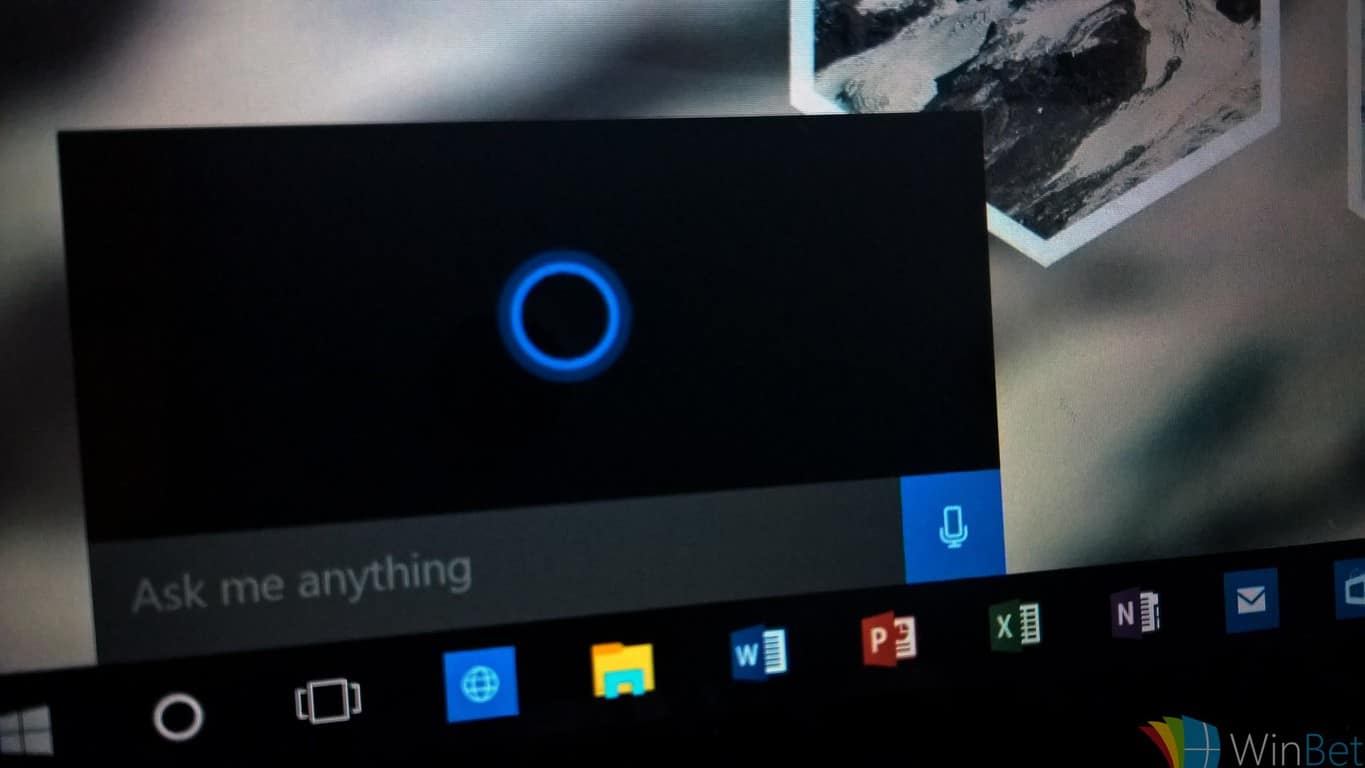
Microsoft starts testing splitting Search and Cortana in two

Windows Insiders are continuing to discover some unannounced new features in recent Windows 10 Insider builds. Some Windows Insiders are now testing a new header in the Settings app that includes shortcuts for Microsoft Rewards, Phone settings and more, but others are are seeing Cortana being separated from Windows Search today (via Thurrott.com)

Some testers previously found a way to separate the two using special software, but the change is now live for some Fast Ring Insiders running the latest build 18298.

Just like the other test with the new header in the Settings app, it’s not clear if many Insiders will see this change. Microsoft has yet to confirm that it plans to separate Cortana from Windows Search in the upcoming 19H1 update for Windows 10, but it does make sense to de-emphasize the digital assistant. After all these years, Cortana is still only available in select markets, and it may well be better to make Windows Search stand on its own.

Cortana was the first digital assistant to ship on a desktop operating system, but the execution always left a lot to be desired. Now than Amazon’s Alexa is available in the Windows 10 Microsoft Store, Windows 10 users may soon be able to hide Cortana from the taskbar and replace it with their digital assistant of choice. However, this could just be some A/B testing and depending on Insider feedback, Microsoft may well keep Cortana in Windows Search. We’ll see what happens, but in the meantime let us know if you think separating the two would be a positive change in Windows 10.


Switzerland’s largest bank to move some data to Microsoft cloud services as soon as next year

Microsoft continues to face an uphill battle for cloud service provider supremacy, however, helping Switzerland’s largest bank migrate its data to the cloud definitely helps move the market share needle in a positive direction.

According to Bloomberg Technology, Microsoft and UBS Group AG have reached a deal to store data at the company’s purpose-built facilities neat Zurich and Geneva areas, beating out competitors Amazon and Google who incidentally have facilities in Switzerland.

The proposed transition is slated to occur sometime next year and reported to be worth “hundreds of millions of Swiss francs” for Microsoft.

Microsoft won the bid for UBS Group AG’s data transition and storage as its Azure services addresses two of the largest concerns from Finna regulators, who are pressuring banks in Switzerland to be secure and financially conservative while still adhering to strict privacy laws.

Banks in Switzerland, the world’s largest center for offshore wealth, are under pressure to cut costs as low interest rates and the dismantling of the nation’s banking secrecy squeeze profits. While using cloud services can eliminate the need to maintain costly data centers, Switzerland’s financial regulator Finma enforces strict laws regarding what data can be moved outside of the country.

Over the next few years, UBS is reported to have plans to outsource much of its own data center investments in favor of other, better-equipped cloud service providers based on their investor presentation.

Due to the secrecy involved with Swiss banking, neither Microsoft or UBS has much to say publically about the new arrangement. Mike Dargan, UBS’ chief information office offer brief acknowledgment and a vaguely optimistic comment about the deal to Bloomberg Technology.

“We’ve started to accelerate our journey into the public cloud space. UBS expects significant cost benefits from this strategy, while not compromising on security.”

As for further details, it seems UBS is still mulling over which of its applications it will allow Microsoft to host and client data has yet to be moved anywhere.

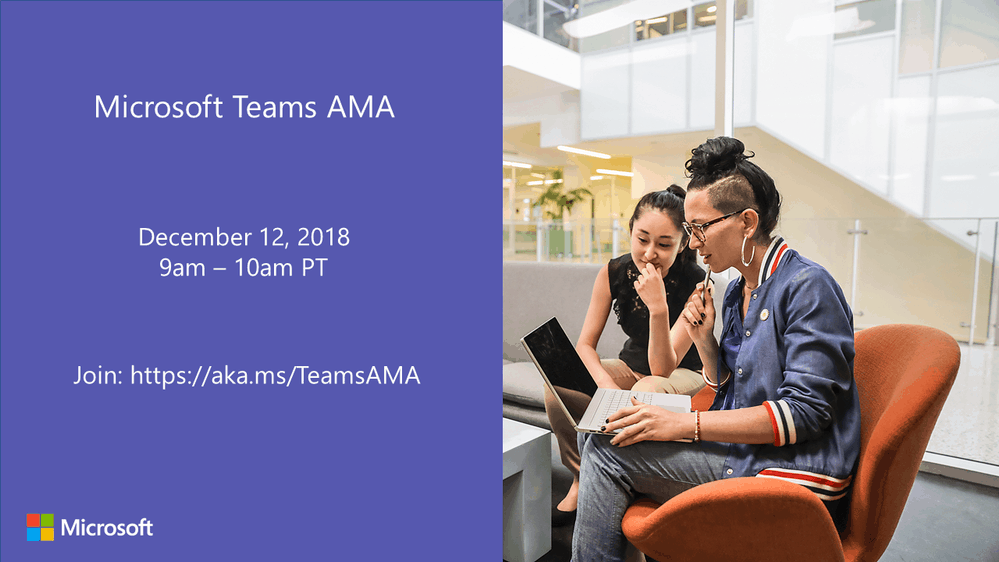
Join the Microsoft Teams AMA session this morning at 9AM PST

Microsoft Teams has been one of the company’s fastest evolving app this year, and all Teams users are invited to participate to an “Ask Microsoft Anything” session this morning. From 9AM to 10AM PST, members of the product engineering team will try to answer all questions from the audience on this page.

Microsoft Teams finally reached feature parity with Skype for Business this year, and the company is now pushing Teams as the default team communication app in Office 365. Microsoft also added guest access and a free tier to Microsoft Teams this year, but users are still requesting many other new features such as support for private channels, a compact chat layout, and more.

If you plan to participate to the AMA session this morning, we invite you to check out the most requested new features on the dedicated UserVoice website. Despite Teams being the fastest growing business app in Microsoft’s history, there is still a lot of room for improvement and we’re glad that the team is actively listening to users.

Windows 10 reportedly continues logging activity history in the cloud even when disabled (updated)

Microsoft’s Windows 10 operating system seems to be preventing users from disabling activity logging in Windows 10. According to a report from Neowin, a user who disables “Activity History” in Windows 10 will still have their data logged in Microsoft’s servers, which can be accessed in the activity history of the privacy dashboard. We were able to confirm this to be true, as the Edge history continues to be logged despite telling to system not to store the data on both the computer as well as the cloud.

Microsoft allows users to disable activity history in Windows 10.

Microsoft introduced Timeline, an activity log of users’ browsing and document history accessed in Task View, in the April 2018 update of Windows 10. Of course, this browsing data can be turned off for both the system and cloud syncing, depending on the user’s privacy preference. However, if the data continues to be stored and logged despite switching the setting off, it’s easy for users to question the company’s seriousness of consumer privacy.

Despite disabling the setting more than 10 minutes earlier, Edge history continued to be logged in the privacy dashboard.

Windows 10 has long been subject to criticism over its collection of user data, resulting in Microsoft’s decision to “reduce, by about half, the volume of data we collect at the Basic level” in words of Terry Myerson, the company’s former EVP of the Windows and Devices Group.

Are you experiencing the same issue when you disable storing of your activity history in Windows 10? Let us know your thoughts about the issue in the comment area below.

Update: Microsoft responded to our questions about this issue, explaining that to turn off uploads to the Privacy Dashboard’s Activity History, you need to also set Settings>Privacy>Diagnostics and Feedback>Diagnostic Data to Basic

Microsoft starts testing new header in the Windows 10 Settings app

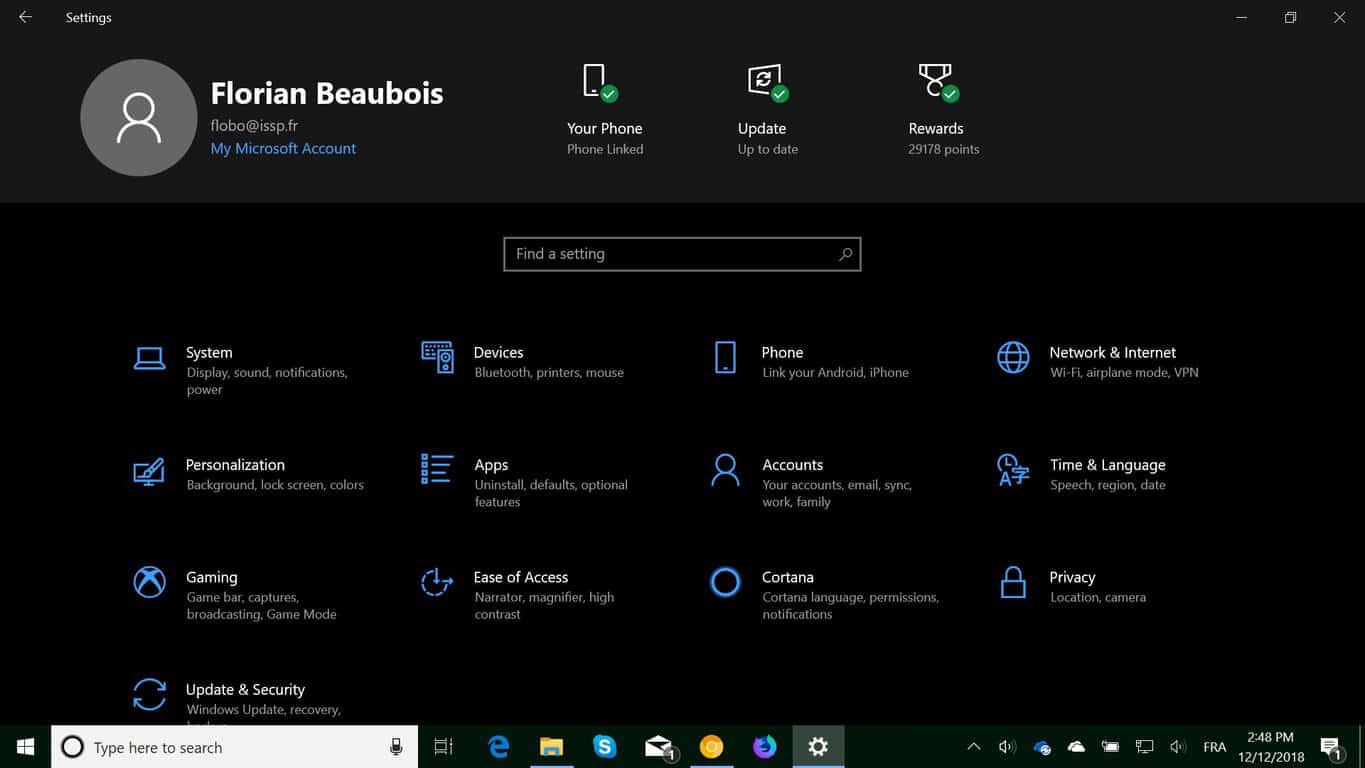
Microsoft has quietly started testing the addition of a new header in the Windows 10 Settings app. Microsoft watcher Florian B spotted the new design today on one of his PCs running the latest 19H1 build 18298, and Microsoft is apparently doing some A/B testing with this new design.

Interestingly, Florian B saw two versions of the new settings header in just a couple of minutes. The first one only had his MSA account on the left plus two shortcuts to Windows Update and Phone Settings, while the second version added a Microsoft Rewards counter that opens the web dashboard when you click on it.

Unfortunately, we’re not seeing this new header in our own Insider machines, so the pool of testers could be very limited. It also looks like Microsoft is able to push changes on the fly without users having to update or reboot their machines, so this new header could well evolve to get even more shortcuts. It’s not clear yet if you need to have the latest build 18298 to see this new header, but you likely need to be a Fast Ring Insider with a recent build to get the chance to see it.

Did you also notice the new header in Settings on your Insider PC today? Let us know in the comments below.

Obi-Wan Kenobi gains a Clone Wars skin today in Star Wars Battlefront II on Xbox One

The popular Star Wars Battlefront II video game is getting a small mid-month update tonight that will make a variety of adjustments to the gameplay and add the General Kenobi appearance inspired by the character’s look in the Clone Wars animated TV series.

In addition to the new skin, Obi-Wan will also get some improvements that will make him look and play better for players, Geonosis will receive some visual upgrades, and a new stamina bar will be implemented which will apparently be easier to understand. The full list of changes can be read here.

In addition to the release notes for today’s update, some information on future updates were also teased. In 2019, lightsaber combat will be reworked, armoured skins for Clone Trooper officers will be added for free (see below for a preview), and an emote wheel will be introduced that will allow players to choose from more than two emotes during a match.

Clone Trooper Officer in Star Wars Battlefront II video game

As with all previous updates, today’s update and all future ones will be completely free for all Star Wars Battlefront II owners.

Are you a fan of Star Wars Battlefront II? Let us know what content you want to see in future updates in the comments below and then follow us on Pinterest for more gaming content.

Mozilla Firefox gains native Windows 10 sharing in latest update

Mozilla’s Firefox browser updated to Version 64.0 today and added some nice improvements that regular users may appreciate.

After installing the latest update, users will now be able to move multiple tabs at once, detect which tabs are using the most energy, and remove add-ons from their context menus. The biggest change for Windows 10 users, however, is the added support for native sharing.

Now, when users click on the ellipsis in the address bar and select Share, the Windows 10 share box will appear as it does in many other apps.

Here’s the full release notes for Firefox Version 64.0:

  • Better recommendations: You may see suggestions in regular browsing mode for new and relevant Firefox features, services, and extensions based on how you use the web (for US users only)
  • Enhanced tab management: You can now select multiple tabs from the tab bar and close, move, bookmark, or pin them quickly and easily
  • Easier performance management: The new Task Manager page found at about:performance lets you see how much energy each open tab consumes and provides access to close tabs to conserve power
  • Improved performance for Mac and Linux users, by enabling link time optimization (Clang LTO). (Clang LTO was enabled for Windows users in Firefox 63.)
  • More seamless sharing on Windows: Windows users can now share web pages using the native sharing experience. You can access Share in the Page Actions menu
  • Added option to remove add-ons using the context menu on their toolbar buttons
  • New for enterprise users: Updated the policy engine on macOS to allow using configuration profiles to customize Firefox for enterprise deployments

Do you use Firefox on your Windows 10 computer? Let us know why or why not in the comments below and then follow us on Pinterest for more tech content.

The Fight Night Champion video game is currently free on Xbox One

Some eagle-eyes Reddit users have noticed that the Xbox 360 video game, Fight Night Champion, is currently available for free for Xbox Live Gold subscribers.

While available to Gold users, this discount doesn’t seem to be part of the December Games With Gold campaign at all so its discount is a bit of a mystery. The game is part of EA Access, however, non-EA Access users can still get this game for free if they have Gold.

Fight Night Champions is available to play on the Xbox One as part of the console’s growing backwards compatibility library and it was generally well-received when it first launched way back in 2011.

Here’s its official description, trailer, and download link.

More than just a change to the franchise name, Fight Night Champion takes the boxing experience one giant step forward by delivering an experience never before seen in an EA SPORTS video game. History will be made with this revolutionary iteration that builds upon the best-in-class gameplay and physics engine of Fight Night Round 4, while immersing you in a world of brutality, uncertainty, betrayal, and redemption. Survive the brutal road to redemption with Fight Night Champion.

Have you played Fight Night Champion yet? Let us know what you think about it in the comments below. Would you recommend it?

Note: To download the game for free to your Xbox One console, make sure your Xbox Live Gold subscription is active, go to this web page (not the old Xbox Marketplace site), make sure that you’re logged into your Microsoft/Xbox account, and click on the blue Install of my devices button. The game can also be downloaded from the Store on an Xbox One console the same way.

FIGHT NIGHT CHAMPION

Windows 10 error when attempting to open Help File [FIXED]

There have been instances of errors cropping up when trying to open help in Windows 10. The same might also be reminiscent of Windows 8 which too had a similar issue though many lamented the return of the same on Windows 10 as well.

That said, it is always easy to gets things working again and all of that can be accomplished using a few simple steps.

How to fix errors when opening Help file in Windows 10

The error can be fixed by running System File Checker though it is recommended to run the Inbox Deployment Image Servicing and Management DISM before the System File Checker is run. Here is how you do it.

Solution 1: Run Deployment Image Servicing and Management (DISM)

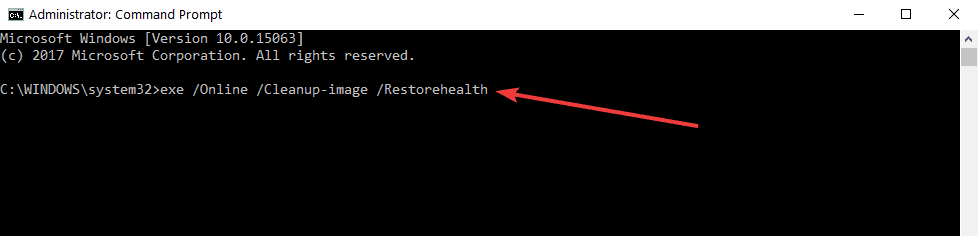
  • To do this, open command prompt which again can be done in several ways. Right-click on Start and select Run. In the Run dialog box, type cmd and press Enter to launch the Windows command prompt. Or you can also simply type cmd in the Cortana search box and press Enter. From the search result, right click on Command Prompt and select Run as administrator.
  • In the command prompt, type exe /Online /Cleanup-image /Restorehealth.DISM Restore Health
  • It might take a few minutes for the operation to complete. As for the command itself, it makes use of the Windows Update feature to locate files that might be missing in your system. As such, the command will only work if the Windows Update client is in perfect order.

However, if that isn’t the case, you will require a Windows 10 installation disk to repair anomalies on your system. Here is the command to do the same:

DISM.exe /Online /Cleanup-Image /RestoreHealth /Source:C:RepairSourceWindows /LimitAccess

Here, replace the portion C:RepairSourceWindows /LimitAccess with the actual drive location of Windows installation on your PC.

Solution 2: Perform System File Checker scan

SFC scan

To do this, type sfc /scannow in the command prompt.

This will begin a scan of all system files on your PC including the protected files as well. Thereafter, the corrupted files will be replaced automatically with a cached copy which is available in the compressed folder at %WinDir%System32dllcache.

Also, the point to note here is that the SFC scan can take several minutes to complete. Wait till the process is completed before you close the Command Prompt. Also, once the scan is over, you will get to see any one of the following messages.

  • Windows Resource Protection did not find any integrity violations.

In this case, you will know the scan is successfully complete and that your system has no file anomalies such as corrupted or missing files.

  • Windows Resource Protection could not perform the requested operation.

This again is another issue but can be resolved easily by performing the SFC scan in safe mode. Also, you will have to ensure the PendingDeletes and PendingRenames folders do exist under %WinDir%WinSxSTemp for the operation to complete successfully.

  • Windows Resource Protection found corrupt files and successfully repaired them.

Details are included in the CBS.Log %WinDir%LogsCBSCBS.log.

This also points to the scan being successful while you can have a look at the additional info provided if you so desire. Can be handy for the geeks.

  • Windows Resource Protection found corrupt files but was unable to fix some of them.

Details are included in the CBS.Log %WinDir%LogsCBSCBS.log.

This again is something left best to the geeks as it would require repairing the corrupted files manually. You can start by locating the corrupted files by going through the details of the System File Checker process. Thereafter, you will have to replace the same using another copy of the file that you are sure is error free.

That’s all. This should help deal with the error you face when opening help in Windows 10.

Also, here are a few additional resources worth checking.

Google+ to bite the dust even earlier after major data loss

Google has decided to shut down Google+ even earlier, due to a loss of data that has affected an astonishing 52 million users. Even by the standards of disinterested shown by most tech companies, the ease with which Google has allowed user data to be pinched is shocking.

Let’s look at the backstory

The story started back in Oct 8th, 2018, when it was discovered that a bug in Google’s development platform allowed access, through Google+, to people’s personal information such as:

  • name
  • email address
  • occupation
  • gender
  • age

I know. Let’s ignore the regulations

Of course, one of the major problems with the loss of data was not the loss of data. It was that Google had decided that the best thing to do in that situation was to keep mum.

Apparently, Google had discovered the problem with API back in March, but didn’t report it for er… fear of getting into trouble. Google did this knowing it was in clear violation of various laws including GDPR. Of course, Google then issued a statement saying blah blah blah, but the fact that it had chosen to ignore laws, thus putting itself above users, should have told us what could be in store.

We should give some credit to Google here. Before this cock-up, Google had managed to avoid any of the major data breaches that other tech companies had found themselves embroiled in.

So, with some deft handling, this should have been resolved with a bit of good PR, and a huge fine paid to the EU for being Google. Sorry, I mean for not reporting the data breach.


In case you want to be secure while surfing the internet, you will need to get a full-dedicated tool to secure your network.  Install now Cyberghost VPN and secure yourself. It protects your PC from attacks while browsing, masks your IP address and blocks all unwanted access.


Alas, that was not to be

Just two months later and Google+ has found itself on the receiving end of a massive data breach. This one involves over 50 million users. But the amazing thing about this is that it is from an API bug. Sound familiar?

What is even more amazing, and maybe this is just me, is that if you choose to not share you personal information on a social media platform, then I would have thought that your information should be encrypted. That is not the case, so even if most of those 52 million+ users had decided to keep their info private, that’s gone completely down the pan.

And that is why, in a nutshell, Google+ will be no more in April 2019. And let’s be honest. Nobody is going to be inconsolable over this news. It was pretty rubbish and lasted a lot longer than most people thought it would.

Wrapping it all up

Don’t worry. I haven’t forgotten my rant.

The problem here is that Google chose to ignore the laws, and regulators seem to have ignored Google ignoring the laws. This has meant that Google has gone on to a bigger screw up because tech companies are like children. Not surprising, since most of them seem to be run by children.

The EU and US government should have slapped Google with such a massive fine that it would have made sure that the data breach wouldn’t have reoccurred. The EU and US govt. didn’t, and the result is what we are seeing now.

Pity I’m not in charge. If I were, Britain would be making so much money from tech fines that Brexit wouldn’t have even been considered.

RELATED NEWS ARTICLES YOU SHOULD READ:

Microsoft’s Cortana digital assistant will soon recognize multi user voices

Ahead of the rumored Search and digital/productivity assistant split in Windows 10, Microsoft is bolstering its Cortana service with a new feature that’s been long awaited by users.

As of today, December 11, 2018 there appears to be multi-user voice recognition coming to select Cortana users according to a Windows Central report.

A helpful tipster points out a new set up menu that appears for Xbox One owners and the few owners of the Harmon Kardon Invoke speaker that now offers an option to train Cortana to be used amongst multiple people.

Based on the new feature description, Cortana will soon learn from and recognize up to six individual voices as well as present information specific to each voice during interactions.

Despite Microsoft’s odd placement testing in the seemingly defunct HK speaker set up and select Xbox Insiders, the feature, ideally, should be coming to most places that offer Cortana support that include Xbox One, Android and iOS, Windows 10 and eventually Office 365.

Windows Admin Center version 1809.5 is now available for Insiders

Microsoft released today Windows Admin Center version 1809.5 for members of the Windows Server Insider program. This is a cumulative update for Windows Admin Center version 1809, which was released in September in support of Windows Server 2019.

For those unfamiliar, Windows Admin Center is a new graphical management tool for Windows Server, and it was previously known as “Project Honolulu.” The first version of Windows Admin Center (1804) became generally available in April, and the version 1809 added several new features including support for Hyper-converged infrastructure (HCI).

The version 1809.5 brings several improvements for Hyper-V, Clustering, and Extension Manager. Hyper-converged infrastructure also gained new features in this build including the ability to Multi-select bulk actions for drives, volumes, and servers, monitoring storage per-server, and more.

If you’re a member of the Windows Server Insider program, you can download this new build from the Windows Server Insider Preview download page. You can sign up for the program on this page, for wait for the 1809.5 release to become generally available in the coming weeks.

Microsoft gets airtime in Seatte Seahawks win with Russell Wilson’s “Surface Drop” celebration

For anyone mildly interested in the National Football Leauge or the Seattle Seahawks, it should come as no surprise that the league and the team are fans of Microsoft’s wares.

Last year, Microsoft entered into an extended partnership with the NFL to continue to showcase its titular 2-in-1 tablet PC the Microsoft Surface during games and network analysis shows and hometown favorite the Seattle Seahawks recently boosted the devices cache during an in-game celebration.

During the Seahawks win over the Minnesota Vikings during primetime Monday Night Football coverage, quarterback Russell Wilson was caught mic dropping the Surface in celebration.

While average circumstances would have most people cringing with angst as a potentially $800 plus device was so haphazardly dealt with, Wilson’s drop only bolsters Microsoft’s marketing message about its durability.

Through bungled marketing efforts, Microsoft has continued to pound the drum of its Surface devices reliability and durability over its five year deal with the NFL and Russel’s confident drop further solidifies that message.
For the past five years, Microsoft has developed in partnership with the NFL a newly ruggedized version of the 2-in-1 that was designed to withstand extreme weather conditions and impacts, as is found during an average season in the league.

Last nights Surface drop comes at the end of a relatively decent year for the Surface hardware where the division’s revenue rose 14 percent over last and brought in $1.18 billion for Microsoft.

People are buying the Surface, and anyone who works in a warehouse, construction site or outdoors may want to find the versions Wilson was using last night.

Top 10 USB gadgets for computer to get for this Christmas

Christmas is almost here, and if you’re planning to do so shopping, we suggest that you have a look at these great USB gadgets for your computer.

Best USB gadgets for computer to get for this Christmas

USB LED RGB Programmable Fan

RGB Programmable Fan usb gadgets

If you’re looking for a device that will cool you while using your laptop, perhaps this USB fan might be just what you need. Unlike regular USB fans, this one has a special LEDs so you can program a message that you want to be displayed while the fan is working.

Specifications:

  • Soft fan blades
  • Flexible adjustable neck
  • Programmable message up to 20 letters

Get it now from Amazon

Starcraft Protoss Pylon Desktop Power Station

Pylon Desktop Power Station usb gadgets

Charging multiple USB devices can sometimes be a hassle, but not if you have this power station. This device can charge any USB device and it comes with two USB ports. As for the ports, each port provides 2.1 Amps. In addition, the entire power station lights up while charging so it looks impressive.

Specifications:

  • Two USB ports
  • 2.1 Amps power
  • AC adapter included

Get it now from Amazon

Kikkerland US006 USB Hubman

USB Hubman usb gadgets christmas

This is a simple USB gadget, and it’s basically a USB hub. This hub has four USB 2.0 ports, so it won’t offer much in terms of speed. However, the device has a cute humanoid design, and each port is a separate limb that you can manually move or adjust.

Overall, this device doesn’t offer much in terms of speed, but it makes up for it with its simple and cute design.

Specifications:

  • 4 USB ports
  • Supports USB 2.0
  • Size: 4×4.25×025 inches

Get it now from Amazon

Hanerdun Bright LED USB Lamp

Hanerdun LED USB Lamp USB gadgets

In case you don’t have a backlit keyboard on your laptop and you can’t find certain keys while typing, perhaps this LED USB lamp can help. The lamp has 180-degree flexible goose-neck. The lamp has two modes, dim and on, so you can easily adjust the amount of light. As for durability, the lamp has 2 long-life LEDs that will be more than enough for your needs.

Specifications:

  • 8.7 inch 180-degree flexible gooseneck
  • Length: 12.8 inches
  • 2 long-life LEDs
  • Two brightness modes, dim and full light
  • Compatibility with any USB port

Get it now from Amazon

Robot USB Hub

Robot USB Hub usb gadgets

USB hubs can be quite useful, and if you’re looking for a USB hub with a unique design, you might want to consider this Robot USB Hub. The hub comes with four USB 2.0 ports, so it doesn’t offer much in terms of speed.

On the other hand, the eyes of the robot will light up whenever you connect the hub to your PC. In addition, you can freely move the hands of the robot and adjust them any way you like.

Specifications:

  • 4 USB 2.0 ports
  • Compatible with Mac and PC computers
  • Unique design
  • Size: 2 ¼ x 2 1/8 x 3 ¼ in

Get it now from Amazon

Thermaltake Mobile Fan

usb gadgets Thermaltake Mobile Fan

Additional cooling is always useful to have on your PC, and if you need additional fans, perhaps you might want to check out this model. This fan connects directly to your USB port and it doesn’t require any additional power. It’s worth mentioning that this fan has a retractable USB power cable box and a VR know so you can easily adjust the fan speed.

Specifications:

  • USB powered
  • Great for PCs and notebooks
  • Retractable USB power cable box
  • VR know for adjusting the fan speed manually
  • Size: 80 x 80 x 25 mm

Get it now from Amazon

Foster Gadgets Wireless Charger Red

Wireless Carger Red USB gadgets

Wireless charging is gaining popularity, and If you’re looking for a wireless charger, you might be interested in this model. This device works with Qi-enabled devices, and all that you have to do is to place the device on the charger and it will start charging automatically.

It’s important to mention that the charger has a built-in overvoltage, short-circuit and overheating protection, so you can use this device without too much worry.

Specifications:

  • Support for Qi-enabled devices
  • Size: 97mm*17mm
  • Input: 5V/2A
  • Output: 5V/1A
  • Protection from overheating, over-voltage, under-voltage and short-circuit

Get it now from Amazon

USB Hand Warmer Heated Gloves

USB Hand Warmer Gloves USB gadgets christmas

Keeping yourself warm in these cold winter days is important and if you want to keep your hands warm while working on your PC, you might want to consider these USB gloves. These gloves have a finger-less design, so you should be able to type without any problems.

The gloves are connected to the USB port and they can provide temperature up to 35-40 degrees Celsius which should be more than enough to heat your hands.

Specifications:

  • Finger-less gloves made from 100% acrylic fiber
  • Input power: 5V 600mA
  • Temperature: 35-40 degrees Celsius
  • Cable length: 150cm
  • Suitable for 8.5cm palms

Get it now from Amazon

GOgroove USB Computer Speaker

USB Computer Speaker USB gadgets

Having a good sound system is important, but if you want speakers for your laptop that are powered by USB, perhaps this model might be interesting to you. This speaker has 2x3W drivers that should provide you with crisp and clear sound.

In addition, the speaker has a built-in audio jack and LED volume knob allowing you to easily adjust your volume.

Specifications:

  • 2x3W drivers
  • 48-inch USB power and 3.5mm audio/microphone cable
  • Built-in audio jacks and volume LED knob
  • Size: 16.5 x 2.8 x 2.2 inches

Get it now from Amazon

iKKEGOL USB Single Foot Switch Control

USB Single Foot Switch Control USB gadgets christmas

This is a single button USB foot switch, and this device allows you to assign various commands to it. For example, you can assign certain hotkeys to it and use your foot to execute that command. If you want, you can even assign certain in-game commands and use your foot to execute them. The possibilities are endless, and you just need to use a bit of imagination.

Specifications:

  • Size: 5.55″x5.15″x1.38″
  • Weight: 9.7oz
  • Can be used up to 100 000 times
  • Ability to assign custom commands to it

Get it now from Amazon

These are some of the best USB gadgets that you get for this Christmas season, so be sure to get them while they are still available.

READ ALSO:

Yes Azure is growing fast, but it still has a long way to go to catch up to AWS

As Microsoft battles for top spot amongst US brands with the most market cap, it’s doing so on the back of its business pivot to the cloud. Microsoft and investors seemed to jazzed by the future Azure holds for the company and its growing spot at number two in the relatively nascent cloud services market.

With that being said, we’re getting a bit more insight as to why investors are so giddy with Azure’s performance when compared to the biggest player in the sector, Amazon.

According to a report from Seeking Alpha, Microsoft Azure “registered another quarter of 75%- plus sales growth on a year-on-year basis.” Perhaps, more importantly, there appear to be other markers indicating that Azure is actually gaining ground on Amazon’s AWS despite a narrative of stagnant growth for both companies.

While Microsoft’s Year-over-Year growth leaps are subsiding, the intersection at which companies are investing in the scaling of large brand cloud services for both Amazon and Azure are beginning to meet.

Yes, Microsoft is gaining on Amazon, but it should be noted the relative scale of both company offerings to put Azure’s recent growth in perspective. Here are the charts from Seeking Alpha for revenue (top) and market share (bottom), showing while that Azure is growing, it’s got a long way to go to beat AWS:

AWS Market share

In an email sent to CNBC News, Lydia Leong, an analyst at Gartner claims “The bulk of AWS deals for Gartner clients are in the range of $5 million to $15 million, with many deals now exceeding $30 million, which is significantly higher than Azure (which tend to be below $1M) and GCP (typically below $5M).

Furthermore, the number of renegotiations that AWS is entering into is a trend that could cause other competitors to reevaluate their sales approach as the overall cloud services pie continues to be cut up.

As previously mentioned, cloud services and development are relatively new markets companies are jumping into and despite Amazon’s seemingly monstrous growth, Microsoft is set to claim a substantial stake in it.

In a statement to CNBC, Microsoft expressed satisfaction with its progress against AWS. “We continue to see rapid growth in our cloud business, with Azure revenue in Q1 growing 76%. Our differentiation continues to be in the partner approach we take with our customers to drive success for their business, and this in turn drives increased consumption of our cloud services. We have significant engagements with global brands including Starbucks, Volkswagen, Shell, Walmart, Chevron, and BMW to run and grow their businesses with Azure.”

As it stands now, the breakdown moves along the lines of Linux vs Windows users who are adopting AWS over Azure respectively, and with many more infrastructures running on Linux it’s no wonder we’re seeing Microsoft aggressively sidelining Windows in favor of more open source development as of late.

How-To Holiday Guide: Getting started with your new Windows 10 PC

You’ve just bought – or built – or received – a shiny a new Windows 10 device and you’re ready to turn it on. In this guide, we’ll step you through the basics to be aware of as you turn on your PC for the very first time.

Setting up Windows 10 isn’t difficult but it can take a little while to do it right the first time. We recommend you set an hour aside to get configured. Getting everything ready during the initial setup procedure means there’s less to do later on.

At this stage, we must offer a warning – these instructions won’t always exactly apply to your device. The screens you’ll see may vary slightly depending on the precise version of Windows 10 which comes with your product. Some PC manufacturers may also add their own setup stages, so refer to your device’s in-box documentation for any additional guidance you require.

We’re refraining from providing any hardware-specific instructions, so this guide should be widely applicable across all Windows 10 laptops, tablets and desktops. These instructions may also be of use when you’re clean installing Windows 10 on an existing machine. Let’s get going.

First startup

Follow your manufacturer’s guidance to get your device ready for initial startup. Press your device’s power button to start the bootup procedure. This first start may take quite some time, so be prepared to wait a while before anything significant happens.

Screenshot of Windows 10 setup

After a few minutes, you’ll land at the Windows Out of Box Experience (OOBE) – a set of initial setup screens where you can start configuring your device. If you have a microphone and speakers available in your new hardware, you can complete setup using just your voice. This quickly becomes cumbersome though, so we’ll be muting Cortana’s voice control for now and proceeding with traditional mouse and keyboard.

Confirm your region on the first page and click the “Yes” button to move forwards.

Screenshot of Windows 10 setup

The next page asks you to choose your keyboard layout. In most cases, this will already be appropriately selected from your region choice. If you need to switch the layout, choose your desired one from the list before pressing “Yes”.

If you like, you can add additional keyboard layouts on the next page – if you want to, press the “Add layout” button, but otherwise choose “Skip” to save your settings. Windows will take a moment to apply your regional preferences.

Updates

The next stage may take a few minutes. Windows will start checking for updates, which include important security and bug fixes. There’s not much to do here except wait patiently while Windows downloads any updates which are available.

It’s important not to turn off your device during this stage. Although the update process may take a long time (especially if you have a slow internet connection), getting updates out of the way now leaves you free to explore your desktop as soon as setup is complete.

Screenshot of Windows 10 setup

If your device is running an older “feature update” of Windows 10, setup may detect that now and ask whether you want to upgrade to the newer version. If this option is presented, you’re likely to benefit from accepting it now – feature updates add new features and settings options, so you’ll save time by only getting started on your desktop once you’re on the newest version.

Be aware though, that a feature update will take longer to install – it’s a big download and a demanding installation procedure for the machine. You can leave your PC to handle the process automatically, but be ready for a wait of a few hours on a slow connection.

Accounts

After updates are installed, you’ll be asked to choose how your PC is going to be used – for personal use, or as a business device. Usually, you’ll want to click “Set up for personal use,” unless you are configuring a business PC and have been given specific instructions. We’ll assume you select personal use for the remainder of this guide. Click the option and press “Next”.

Screenshot of Windows 10 setup

Next, you’ll be prompted to sign in with your Microsoft account. If you already have a Microsoft account, enter your email address now to attach it to your PC. This allows you to access Microsoft cloud services such as OneDrive and Cortana without any further configuration.

Screenshot of Windows 10 setup

If you don’t have an account, you can create a new one by pressing the “Create account” link. Follow the steps here to get yourself a new Microsoft email address (or reuse your existing one) and open your Microsoft account.

The final option is to use an “offline” account. This doesn’t require you to create a Microsoft account, but means you won’t be able to use online cloud services. It is the simplest option though, and arguably the most secure and least intrusive.

Screenshot of Windows 10 setup

Click the “Offline account” link in the bottom-left of the screen to create one. You’ll need to press “No” on the next screen, in which Microsoft makes a last attempt to convince you to use an online account. Then, follow the steps to enter your name and create a password for your account.

Screenshot of Windows 10 setup

If you want to switch to a Microsoft account later on (or move in the opposite direction, to an offline account), this can be achieved from Windows Settings at any time in the future.

Cortana

With your account configured, the next stage is to choose whether to enable Cortana. Cortana is Microsoft’s voice-controlled digital assistant, which allows you to complete common tasks by talking to your PC. Cortana can also keep you updated on information such as the news and weather, as well as synchronising information between your PC and a smartphone.

Screenshot of Windows 10 setup

If that’s too much to consider at this stage of setup, you might want to leave Cortana disabled for now – you can always turn it on later. Press the “Yes” or “No” button to indicate whether you want to use Cortana.

Privacy

Finally, you’ll reach the Privacy settings page. Note here that this screen has undergone multiple revisions during Windows 10’s lifetime, so what you see might look slightly different if your device isn’t yet running the latest version.

We’ll abstain from providing specific guidance here, since your choices should reflect your personal attitude towards data collection. By default, Microsoft leaves every switch turned on, which gives the company access to detailed diagnostic data and allows the company to track you with adverts, produce targeted recommendations and process your voice data.

You can turn off any option that makes you uncomfortable. When you’re done, press “Accept” to complete the final OOBE page. Windows will now take a few moments to get your device ready to use. This may take several minutes on slower products, so wait patiently while it completes. Again, you must not turn off your device during this stage of the setup procedure.

Let’s start

After a few minutes, you’ll briefly see a “Let’s start” message before being shown your new Windows 10 desktop for the first time. While your PC is now essentially ready to use, there are a few more housekeeping tasks we recommend completing first.

Screenshot of Windows 10 clean install start menu

The most important of these is checking if you really are up-to-date. Although critical patches are installed during OOBE, you’ll almost certainly have many more updates available now Windows is fully configured. Again, we recommend getting updates out of the way now, so click the Start button in the bottom-left corner and press the small cog icon in the left menu to open Settings.

Screenshot of Windows 10 update settings

From here, head to the “Update & security” category (you might need to scroll down) and press the “Check for updates” button to begin the update process. This may take quite some time, especially on a slow internet connection, but you can continue with some of the other housekeeping tasks while updates are underway.

Screenshot of Windows 10 update settings

Next, you may want to remove some of the pre-pinned bloatware from your Start menu. Press the Start button again and you’ll several app shortcuts cluttering your screen. You can right-click any of them and choose “Unpin from Start” to remove it. Many of the apps are games which you may not ever use. If you want to recover anything in the future, you can reinstall it from the Windows Store.

Screenshot of Windows 10 clean install start menu

Speaking of the Windows Store, now’s the time to set another update operation in progress. Your apps – such as Mail, Calendar and Skype – will have their own updates available, separately from Windows ones. Click the Store icon at the bottom of your screen (on the taskbar) to open the Store.

Screenshot of Windows 10 app updates

In the Store, click the button to the left of the search bar and choose “Downloads and updates” (this may look slightly different depending on your exact version) and then press the “Check for updates” button. Your apps will begin to update. You can also start installing any new apps you use from the Windows Store at this point.

Screenshot of Windows 10 app updates

That’s really all there is to do when configuring a Windows 10 PC. You’ve now got an up-to-date system, with antivirus protection from Windows Defender enabled out-of-the-box. However, we’ve only just scratched the surface here – you’ll likely want to install your own apps next, and then start customising things to your preferences within the Settings app. We’ll be publishing additional articles with more specific guidance soon, but in the meantime this guide should be enough to get you going with your new Windows 10 device.

iOS Xbox app update fixes iPhone XS Max compatibility issues and other bugs

The official Xbox app for Apple’s iOS devices updated this morning with a variety of fixes that should make iPod touch, iPhone, and iPad users happy.

This latest version, Version 1810.1205.1548, added better support for iPhone XS Max models, increased app stability to prevent crashes, and fixed the search bug that was causing infinite loading.

Here’s the full release notes:

  • With this update we’ve fixed:
  • Compatibility issues with the iPhone XS Max
  • General app crashes
  • General navigation performance
  • Indefinite spinner when searching for a group to game with

The Xbox mobile apps are useful tools for managing Xbox gaming tasks while away from a console. The apps can be used to add friends, buy games, view Xbox Achievements, and read and write DMs.

Do you like the iOS Xbox app? Let us know why or why not in the comments below and then follow us on Pinterest for more gaming content.

‎Xbox
‎Xbox
Price:
Free

These 2 atmospheric videos showcase the new Microsoft Office 365 icons perfectly

Microsoft’s redesigned Office 365 app icons generated a lot of buzz when they were announced late last month. While their rollout to users has yet to be completed, Microsoft has collaborated with the design studio, Tendril, to produce two stylised videos that showcase the modern design aesthetic that the company was aiming for with the new icons.

“The film is structured in chapters, each relating to a key concept of the redesign. Each chapter was given a corresponding visual metaphor, inspired by Microsoft’s Fluent Design,” a statement on the Tendril website reads. You can watch the two short films below.

Microsoft’s newly-redesigned app icons will eventually replace the existing ones for apps such as Word, Excel, Powerpoint, OneNote, Outlook, Skype, and Teams just to name a few.

Do you like the new app icons? Let us know why or why not in the comments below and then follow us on Pinterest for more Microsoft content.

Cannot Load the TPM Management Console [Fix]

Trying to run the Trusted Platform Module (TPM) Management console in Windows 10 can often lead to the Cannot load management console error.

This again happens when you have either disabled or cleared TPM right in the BIOS itself. So, let’s find out about TPM and the fixes that will help when you get Cannot load management console for TPM in Windows 11.

What is Trusted Platform Module?

Trusted Platform Module, for those not knowing, is a dedicated piece of hardware entrusted with providing a secure environment for storing data of critical importance. Those can be encryption keys, signatures, and so on.

That makes it extremely important to make any changes with TPM with utmost care so as not to compromise the security of your PC. However, fixing the above error is rather easy and can be done quickly enough.

How do I fix the Cannot load management console error?

Tip icon Tip
Since there are two ways the error is generated, disabled, or cleared in BIOS, the solution also involves two distinct methods discussed below.

1. TPM has been cleared in BIOS

When you know the TPM has been cleared in the BIOS, all you have to do is close the TPM Management console and start it again.

If that doesn’t work, restart the computer and verify whether the TPM Cannot load management console error is fixed.

2. TPM has been disabled in BIOS

2.1 Via BIOS

  1. Reboot your PC and enter the BIOS. This is usually done by pressing Esc, F2, F10, F12, or Del repeatedly when the computer is booting. The hotkey, though, might differ for different brands of PCs.
  2. Expand the Security option to reveal the TPM.
  3. Select the TPM Security check box to view the TPM settings
  4. You will get to see the option to both enable and disable. Click on Enable to make TPM active.tpm
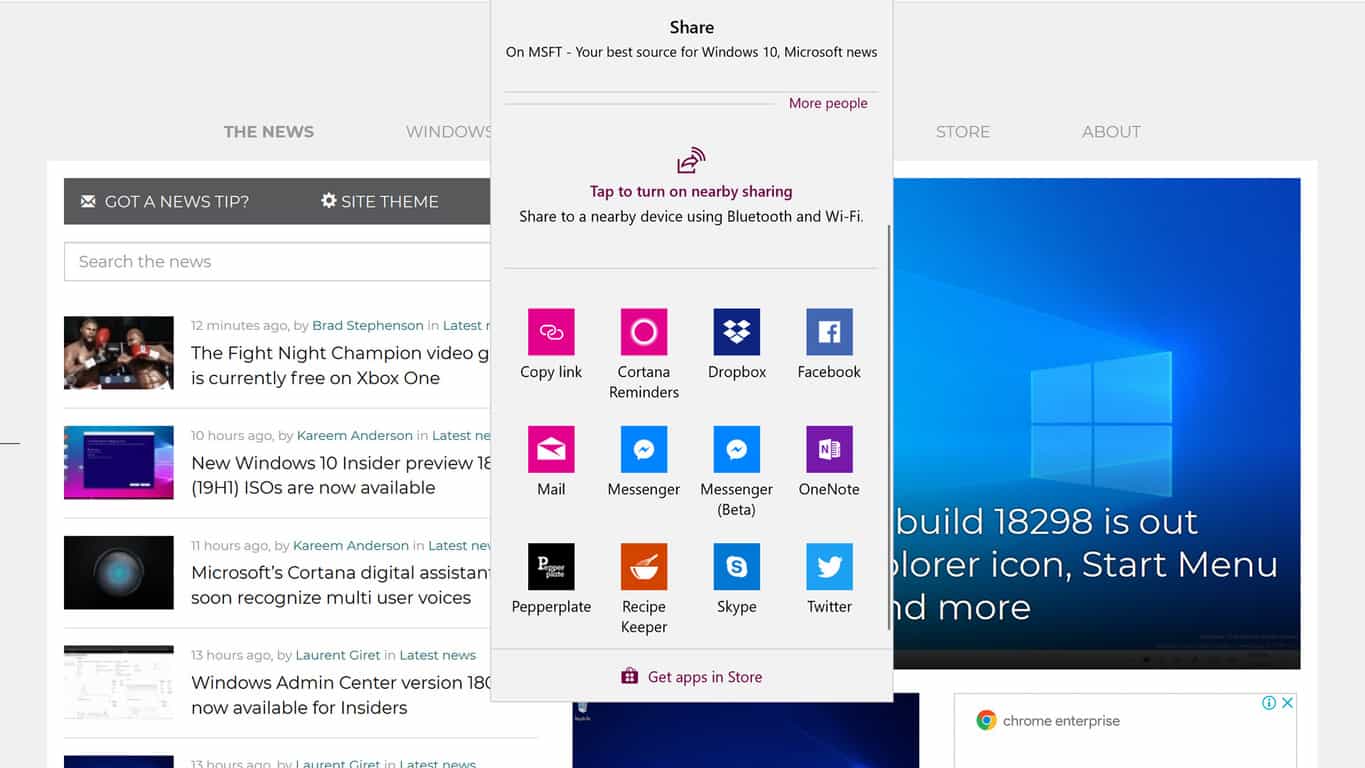
2.2 Via PowerShell

  1. Press Window + R to open Run, type powershell, and hit Ctrl + Shift + Enter.

  2. Type the following commands and press Enter: $tpm = gwmi -n rootcimv2securitymicrosofttpm win32_tpm $tpm.SetPhysicalPresenceRequest(6)powershell
  3. Restart your PC and consent to any BIOS prompts that come your way.

That’s it! The Cannot load management console error with TMP in Windows 10 shouldn’t bother you anymore.

Before you leave, check the best security settings for a more secure Windows experience.

Tell us which fix worked for you in the comments section below.

5 of the best movie DVDs to buy this Christmas

The Holidays is the time for parties and get-togethers, of fun and frolic unlimited. It can be a great time to catch up on your favorite movies as well. And with the great deals available on movie DVDs, this can also be a great time to stock up your fav titles as well.

Here are a few deals that could be hard to miss for the movie buffs

Harry Potter: The Complete 8-Film Collection


Harry Potter

Here is a title that is liked almost as much by the kids as by the grown-ups. And with the package containing all the eight films ever made, this is one deal almost tailor made for Harry Potter fans. The disks are all in the Blu-ray format offering 4K UHD resolutions, which means you can catch up with all the action in UHD resolutions as you embark on a journey into a world of magic and mysticism.

Buy from Amazon

The Godfather – 3 Movie Collection

Godfather

A masterpiece of a film, The Godfather needs no introduction. Even those remotely attached to films is  unlikely to have not heard the title. The three film series is packed in a single disk which makes for 549 minutes of viewing as you watch all the intense drama unfold once again. All in all, it can be a great way to while away some time during Christmas.

Buy from Amazon

Blade Runner 2049

BladeRunner 2049

A sci-fi action flick, Blade Runner is all about edge-of-the seat excitement, packing in all the ingredients to mesmerise the senses. The 2017 movie is also among the most watched and can be a great asset for any fan of science fiction and action movies.

Buy from Amazon

Titanic

The James Cameron epic is all about a classic love story shot in the backdrop of the Titanic ship that went down on its maiden voyage itself. The film not only provide viewers with a realistic account of the ill-fated ship but the interesting plot woven around the tragedy is pure magic. And that is exactly what makes it a great buy during Christmas.

Buy from Amazon

The Polar Express

The Polar Express

It’s an animated film all right but one that can keep even the grown-ups glued to their seats while the film is rolling. If not for the interesting plot, the all digital format and excellent shots ensure you have tons of entertainment with the movie.

That the plot also revolves around the holidays and Santa Claus can be another good reason to go for The Polar Express this Christmas.

Buy from Amazon

Enjoy!

RELATED GIFT IDEAS:

You’ll be able to install Chrome extensions on Edge in the future

It looks like we are now going to be enjoying constant updates, Reddit discussion comments, and rumours and gossip about the new Chromium-based Microsoft Edge browser, which is fine by me as I do love a good bit of goss. The latest news is about Edge and Chrome extensions.

It’s all about the extensions

In all honesty, the news that all Chrome extensions will be available for Microsoft’s new Chromium-based browser is not really news. If they weren’t going to be available, then we would have to ask what the point of the change was.

One of the biggest complaints about Microsoft Edge was its lack of extensions. Even when Microsoft started to work with developers and extensions started arriving in Microsoft Store, comparisons with Chrome were unavoidable.

Quite frankly, Microsoft was always going to be fighting a losing battle against Chrome. When it comes to extensions, the legions of developers working on Chrome extensions were never going to be troubled by Microsoft, no matter what.

Chromium Logo

How will the extensions be downloaded?

One thing that will need to be worked out is how Chromium-based Microsoft Edge users will get access to the extensions. It is highly unlikely that they will be able to pop over to the Microsoft Store to download them.

PWAs will certainly be supported, and users will be able to find them in the Microsoft Store. However, extensions will be another thing. Microsoft Edge Project Manager Kyle Alden said on Reddit,

We expect to provide support for PWAs to be installed directly from the browser (much like with Chrome) in addition to the current Store approach.

However, he didn’t say much else except that, “PWAs behaving like native apps is still an important principle for [Microsoft]”.

Wrapping it all up

I suspect that when all is said and done, we will end up with a Microsoft browser that is little more than a clone of Chrome. This begs the same question I posed in a earlier article, which was, “What’s the point?”

There may be one answer to that question. With Google losing the moral high-ground almost daily, users may well decide they have had enough of Chrome. If they do, they will look elsewhere for a browser.

Well, 90% of the world’s computers still run on a Windows OS. A new, improved Chromium-based Microsoft Edge may be just what people want.

Finally, don’t hesitate to check out our article in case you are wondering: What is the IGFollow Chrome extension? Is it a risky tool or not?

Microsoft Edge to continue as part of Chromium project

Last week, we reported the demise of Microsoft’s EdgeHTML. Well, it seems like the reports about the death of Microsoft Edge were premature. Read on to find out exactly what Microsoft has in store for its much unloved browser.

To recap, just in case you don’t want to read the last article, reports were flying around that Microsoft was going to ditch EdgeHTML for a Chromium-based browser. The reasons being that Edge was unpopular and unstable.

There were so many reports flying around that Microsoft felt the need to tell us what its plans are for EdgeHTML and it turns out, the reports were more or less correct.

Chromium Logo

What was said about Microsoft Edge

To be honest, it makes slightly painful reading. Apparently, the reason Microsoft is entering the Chromium open source project is not because EdgeHTML sucks but because Microsoft wants to make all browsers better, not just Edge.

Microsoft then goes on to state how keen it has been on the whole idea of open source, stating how the mobile version of Microsoft Edge has been open source right from the beginning.

The finally bit I want to quote is probably my favourite. Microsoft states,

Ultimately, we want to make the web experience better for many different audiences. People using Microsoft Edge (and potentially other browsers) will experience….

“and potentially other browsers“? Really?

Anyway, let me tell you quickly that Microsoft plans to do the following:

– We will move to a Chromium-compatible web platform for Microsoft Edge on the desktop.
– Microsoft Edge will now be delivered and updated for all supported versions of Windows and on a more frequent cadence.
– We will contribute web platform enhancements to make Chromium-based browsers better on Windows devices.

Wrapping it all up

And that’s pretty much it. Basically, Microsoft have realised they got it completely wrong, have given up on Microsoft Edge (even if they keep the name), and are now going to be fully invested in the Chromium project. Lucky Chromium project, some might think.

Let’s hear what you think? Should Microsoft have stuck it out with EdgeHTML? Or was it always on the cards that Microsoft would join the Chromium bandwagon?

RELATED NEWS ARTICLES YOU SHOULD READ: