Rick and Morty Simulator: Virtual Rick-ality bugs

Rick and Morty Simulator: Virtual Rick-ality is one of the best VR games released this year. Gamers have the opportunity to play as a Morty clone and explore Rick’s garage, the Smith household, and alien worlds.

You’ll step through portals to strange worlds, help Rick with his bizarre experiments, and follow his directions to solve puzzles and complete missions.

Unfortunately, players report that Rick and Morty Simulator: Virtual Rick-ality is also affected by a series of technical issues that sometimes severely limit the gaming experience. In this article, we’re going to list the most common Audioslave – Show Me How To Live bugs reported by gamers.

Audioslave – Show Me How To Live issues

Game crashes

My game crashes every time i play (unplayable right now), I get to the part where i load the CD in and hit play then hit the B button on the oculus controller.. After about 5-10 seconds i hear it sorta start and then goes to black and crashes…

Game won’t save players’ progress

I played this for two hours yesterday. I just unlocked the ‘Troy’ section and found quite a few collectables.
I started the game today again, and there is only ONE disc on the living room wall. Suddenly I’m at the very beginning of the game. What happened to my progress? How do I make sure the game is saving?

Game is lagging

so when i start is super laggy, you cant look around and it takes 1 minute for the controller to move when i move them. all the other games are working fine. Please help me ;-; just wanna play a quality vr game

FPS issues

I’m having serious framerate issues. Job simulator works fine and have the exact recommended specs. 980 and 4770K with 16GB RAM. Note; I’m playing using my Rift+Touch via Steam. I’m wondering if that is possibly the problem?

Black screen issues

Oculus detects the app but just shows a black screen. Any fixes?

Right hand keeps disappearing and left hand hangs outside the game

I had to leave Rick hanging for that high five because he was a bit too far outside my play area on a side where a wall is in real life, so I couldn’t really reach through the grid far enough. I even tried combining my hand with the mace to make a hand on a stick and using that but that’s apparently not an acceptable high five, so I got stuck and had to quit the game.

These are the most common bugs affecting Rick and Morty Simulator: Virtual Rick-ality. Unfortunately, we couldn’t find any workarounds to fix them. If you’ve come across any solutions to fix the aforementioned issues, feel free to list the troubleshooting steps in the comment section below.

RELATED STORIES YOU NEED TO CHECK OUT:

Sniper Ghost Warrior 3 bugs: Crashes, low FPS, keybinding issues, and more

Sniper Ghost Warrior 3 is a modern military shooter that sends you behind enemy lines. In it, you’ll take on the role of an American sniper dropped in Georgia near the Russian border. You’ll need to accomplish a series of missions in this unforgiving and harsh open world.

At the same time, though, you’ll need to overcome a few technical issues. Gamers report that Sniper Ghost Warrior 3 is affected by various problems, including FPS drops, map issues, and more.

Sniper Ghost Warrior 3 reported issues

Broken weapon selection

Players report that they sometimes can’t select the pistol. While they can switch between their main weapons, they can’t select their third weapon.

So I have the two main weapons plus a pistol. However I can’t select the pistol. Help?

Low FPS

Some players can’t get more than 30 FPS on their computers. If you’re experiencing this issue, try updating your graphics drivers and disabling V-Sync.

For some reason the game runs like crap on my system. Unless I set the game to run at lowest settings, it won’t go higher than 30fps.
Definitely not a slow computer either, 7700K, 16GB 3200, GTX1080 and running on an SSD.

Players fall through the map

It appears there are a few bugged places in Ghost Warrior 3 where players simply fall through the map:

as soon as you hit the first waypoint there is a tower from where u can snipe 3 enemies. But as soon as you descent the ladder you are under the map falling endless. Or is it only me? I tried it 3 times and 3 times it happened. Feels like this game isnt ready yet. So many bugs and issues imo

Ghost Warrior 3 crashes

It seems that the Two Birds mission is a bit buggy. Players report that the game occasionally crashes in the middle of the mission.

Had a crash as I approached the snipers nest in the mission “Two Birds”. I came in from the left of it, if you are facing the gas station.

Other bugs include:

  • Keybinding issues: When playing on ESDF, you may encounter various issues with the acceleration/deceleration keys for vehicles. More specifically, only the commands coming from default keys are taken into account.
  • Weapon tagging issues: Sometimes, weapon tagging appears instantly while other times, players need to wait about 10 seconds.
  • Enemies disappear: “Ive had an issue where i interrogated a enemy and he disappeared, which caused me to interrogate nothing and was stuck that way, no way to skip, just esc and reload the level.“

Have you encountered other Sniper Ghost Warrior 3 bugs? Tell us more about your gaming experience in the comment section below.

RELATED STORIES YOU NEED TO CHECK OUT:

Warhammer 40,000: Dawn of War III system requirements for PCs

If you’re looking for a war and siege game, look no further than Warhammer 40,000: Dawn of War III. This amazing game will immerse you into brutal battles between three warring factions.

Dawn of War III is set in a world where war is raging and the planet is under siege by the armies of greedy Ork warlord Gorgutz, ambitious Eldar seer Macha, and mighty Space Marine commander Gabriel Angelos. Once you hit the play button, you will have no choice but to face your foes and eliminate them as quickly as possible because you never know when the next hordes of enemies will hit.

If you’re planning to buy Warhammer 40k: Dawn of War III, don’t forget to check its system requirements first. Make sure that your computer is capable of running the game in order to avoid severe technical issues.

Warhammer Dawn of War III minimum system requirements

  • OS: 64-bit Windows 7 with latest updates
  • Processor: 3GHz i3 quad logical core or equivalent
  • Memory: 4 GB of RAM, 1 GB of VRAM MB RAM
  • Graphics: NVIDIA GeForce 460 or AMD Radeon 6950 or equivalent DirectX 11-card
  • DirectX: Version 11
  • Network: Broadband Internet connection
  • Storage: 50 GB available space
  • Additional Notes: Quad physical core i5 or equivalent recommended for 3vs3 multiplayer. The game requires an internet connection for play and progression.

Warhammer Dawn of War III recommended system requirements

  • OS: 64-bit Windows 10 with latest updates
  • Processor: 3GHz i5 quad core or equivalent
  • Memory: 8 GB of RAM, 2 GB of VRAM MB RAM
  • Graphics: NVIDIA GeForce 770 or AMD Radeon 7970 or equivalent DirectX 11 card
  • DirectX: Version 11
  • Network: Broadband Internet connection
  • Storage: 50 GB available space
  • Additional Notes: The game requires an internet connection for play and progression.

You can buy Warhammer 40,000: Dawn of War 3 for $59.99 from Steam.

RELATED STORIES YOU NEED TO CHECK OUT:

TimeShift, two other titles head to Xbox One via Backward Compatibility

Microsoft is always adding more games to the Xbox One Backward Compatibility catalog, and today three more titles have entered the fray. Joining the list are Assault Heroes 2, Commanders: Attack, and TimeShift. As always, we’re including download links, descriptions, and trailers for these titles for you below.

Assault Heroes 2: ($4.99)

Re-imagined for a more intense arcade shooter experience, Assault Heroes 2 explodes with additional combat vehicles, more powerful weaponry, hijack-able enemy units, extensive on-foot skirmishes and enhanced co-op. Battle alone or with a friend in dramatic environments like space and the rainforest as you hijack the stealth helicopter, armored tank or mechanical walker from the enemy base. Reign destruction on the sinister alien force with a superior arsenal of weapons including the newly designed sub-zero freezing ice cannon, homing missiles, rocket launcher and upgraded firearms. Survive on-foot warfare in underground areas and environments fully equipped with all your weapons. Unlock the full game now to save mankind before it’s too late!

Commanders: Attack: ($4.99)

Deploy, Engage, Win!!! Utilize many diverse units including Tanks, Scouts, Infantry, etc. alongside your powerful Commander unit to cripple the enemy and defend your territory.

TimeShift: ($29.99)

The megalomaniacal Dr. Krone has created a disturbing alternate reality. Armed with the experimental Beta Suit, you alone can SLOW, STOP, and REVERSE the flow of time itself. Perfect this ability to end Krone’s madness. Join the battle for survival and lead the uprising to victory.

Just five days ago, five other games headed to the backward compatible catalog, including  3D Ultra Minigolf, Golf: Tee It Up!, Gin Rummy, Contra and RoboBlitz. And, before that, Call of Duty: Black Ops II was finally released for Xbox One via Backward Compatibility. Let us know your thoughts on these latest additions by dropping us a comment below.

Microsoft continues to break stock price records as NASDAQ soars

Microsoft may not be in the phone business anymore, but that is not a problem for its investors. The Redmond, Washington-based company is continuing to break record stock prices on Wall Street in New York City right as the NASDAQ hit the 6,000 mark for the first time ever (via Barrons.)

While momentous, Microsoft and other tech stocks (which make up about half of the NASDAQ) are all up in general. Microsoft is seeing morning high shares of $68, which is above yesterday’s all-time high of $67.66. The company’s rival Apple, meanwhile, is seeing shares of $144.15, which is very close to their all-time high of $145.46.

Similarly, Alphabet (Google) is seeing a $884.35 high this morning, which surpasses yesterday’s within the day high of $879.96. Social media giant Facebook also reached a new morning high of $146.35, and Amazon reached to $909.84, justs short of their all-time high of $923.72.

Just four weeks ago, Microsoft stocks were stocks trading at all-time highs, so things can only be trending upward for the tech giant, especially with a big Microsoft Press event coming up on May 2nd. This latest stock booms, though, comes as US President Donald Trump promised “big tax reform” before he hit his 100-day mark in office, and as the first round results from the French presidential election become official.

Friday the 13th finally gets its official release date

Friday the 13th’s Jason Vorhees is one of the most beloved horror movie monsters and after 12 films, this character has many fans who follow all of his grotesque exploits. The murderous momma’s boy who lurks in Camp Crystal Lake, prowling for unwitting teenage victims has already become a genre institution.

Friday the 13th: The Game to be released on May 26

Fans have been looking forward to Gun Media’s upcoming officially licensed title Friday the 13th: The Game for quite a while now. The game features both single and multiplayer modes and casts players as either Jason’s role or one of the teenage counselors from Camp Crystal Lake.

If you choose Jason, you’ll have to get rid of all the other player through a multitude of horrific killing animations designed by Tom Savini, the gore effect legend.

If you choose to play the counselor, you only have to survive Jason’s rampage.

Bloody Disgusting has revealed that after further delays, Friday the 13th: The Game finally received a release date of May 26, 2017. Friday the 13th: The Game was previously announced for launch back in October but those plans turned out to be quite premature.

Important participants

In addition to Savini, the game will also feature actor Kane Hodder for the motion capture for the killings. Hodder played Jason in the Friday the 13th 7, 8, 9, and 10 and was replaced for the 2003 mash-up Freddy vs. Jason. Another important figure will be the composer Harry Manfredini who contributed to almost all the Friday the 13th entries.

Friday the 13th: The Game will be available for PS4, PC and Xbox One starting May 26, 2017.

RELATED STORIES TO CHECK OUT:

Microsoft announces India winners of the 15th edition of Imagine Cup

Microsoft India has announced the India winners of Imagine Cup 2017, after concluding the national finals held in New Delhi. More than 15,000 students registered from 1600 schools and colleges across the country this year.

Now in its 15th edition, Imagine Cup is the company’s premier technology program and competition providing opportunities for student technologists, developers, and aspiring entrepreneurs from all academic backgrounds to collaborate, develop a technology application, create a business plan, and gain a keen understanding of what is needed to bring a concept to market.

Over the past fourteen years, more than 1.7 million students from more than 120 countries have participated in the Imagine Cup. The competition begins with local, regional and online contests, followed by screening of best projects from each country and with winners from these legs participating in the global finals.

Amongst the 27 finalist teams, Content Holmes (BITS Pilani) team emerged as the winner with the vision of a one-click AI-based online parenting solution that helps to keep children secure from cyber-bullying. The team will now represent India at the upcoming worldwide finals in July in Seattle to compete among global teams for a USD 100,000 prize.

“Imagine Cup is all about innovation, transformation and what comes next. This year, we complete 15 years of Imagine Cup and we continue to cultivate a spirit of social and technological entrepreneurship, empowering students to use their creativity to address real societal problems through technology. Participants have shown remarkable effort and enthusiasm to develop cutting-edge technology solutions to help resolve some of the world’s issues and challenges. At Microsoft, we are committed to empowering student community and young developers build their skills to realize their true potential and transform their ideas into reality.”

– Narendra Bhandari, General Manager – Developer Experience and Evangelism, Microsoft India

Imagine Cup aims to transform skill development, nurture budding technologists and foster collaborative and innovative spirit and the global technology competition has seen several success stories emerging from the competition through the years.

Dona Sarkar teases an end to Insider build Twitter teases

This morning, Microsoft released a Fast Ring Insider update to Windows 10 Mobile. The build bumps the version number to 15207 and makes only one change, adding a new privacy page experience to make it easier to set and understand privacy controls on Windows 10 Mobile.

The build drop came with a twist, though, in that there was no “teaser,” no cryptic Twitter message from Windows Insider chief Dona Sarkar that a build was incoming. It’s become quite a tradition for Sarkar and the Windows Insider team to hide build numbers in images tweeted by Sarkar, giving users (and tech writers!) a hint about what’s to come.

Rich Woods from Neowin quizzed Sarkar via Twitter on the lack of a teaser, which prompted this rather unsettling response:

Now, it’s certainly possible that Sarkar is teasing Woods with her tease on the end of teasing, but with no wink emoticon, we’re a bit scared, frankly.

If the Windows Insider program does end the tradition, well we’ll adjust (we’re constantly searching Twitter and other sources for the latest news to pass on to you, anyway), but to be honest it’s been kind of fun to find the build number needle in the haystack.

What do you think? Do you watch Dona’s Twitter feed as closely as we do? Will you be saddened by the end of these teases? Or is Dona Sarkar just having a bit of fun with Woods?

Microsoft introduces To-Do and a lot more in a busy April for Office 365

As April is soon coming to a close, the Office team has once again published its monthly recap of all the new features that shipped to Office 365 users this month, and the list is pretty big. The most important release may well be Microsoft To-Do, Microsoft’s new task management app that is expected to replace Wunderlist in the near future. The app is now available in preview on the web, Windows 10, iOS and Android, but it’s already pretty solid.

Windows 10 users also saw the Skype UWP finally go out of preview this month. The latest version now uses the Compact Overlay windows that are now available for UWP apps in the Windows 10 Creators Update, but the app definitely remains a work in progress. It ships with Windows 10 (and Windows 10 Mobile), but power users may need to keep using the legacy Skype desktop app for now, which is more versatile.

The Skype UWP app can now use compact overlay windows.

In other Skype related news, Skype Translator added Japanese speech translation support this month, and Skype users can also learn how to cook with the brand new “Heston bot” inspired by legendary Chef Heston Blumenthal. Who said that Skype was just a messaging app?

Some people may still find it difficult to consider iPads as productivity devices, but Microsoft obviously does: the Office iOS apps work great on the iPad, and this month Powerpoint users may have seen that Designer is now available in the mobile presentation app. “Now when you’re on the go with your iPad, you can get professional design options for slides with images and certain types of text,” shared the Office team.

Moving now to new features restricted to Office 365 commercial customers: the first important addition this month was Outlook Customer Manager, which is now rolling out to all Office 365 Business Premium subscribers. This new feature is available in Outlook on Windows desktops, iOS and the web, and gives you automatic reminders about customer inquiries, suggested company information from Bing as well as integration with Microsoft Flow.

Outlook users will also be pleased to learn that Office 365 Groups are now supported in Outlook for Mac, iOS and Android. “Now you can view your groups list, read and respond to group conversations, add group events to your calendar and more in Outlook on every platform,” explained the Office team. The new Groups integration is currently rolling out to these new platforms, but we remind you that it was already available on the web and the Outlook desktop app on Windows.

Another new feature worth mentioning is the integration of Office 365 groups in the Office desktop apps on Windows, making it easier than ever to edit documents in your frequently used groups. You can see how it works in the image below:

You can now access your frequently used groups directly within Office apps.

As for new security features, the Office team announced this month several security and compliance updates for Office 365 customers:

  • Office 365 Threat Intelligence is now generally available, helping customers identify cyber security threats by leveraging the Microsoft Intelligent Security Graph.
  • Office 365 Advanced Threat Protection (ATP) Safe Links is now available in Word, Excel and PowerPoint to protect users from clicking malicious links.
  • A new Data Loss Protection (DLP) policy management page also provides easy access to app permissions, device security policies and content protection policies.

Last but not least, Microsoft announced earlier this month an expansion of the Office 365 Enterprise K1 Plan, which will now provide better value to frontline workers. The new plan includes additional products such as StaffHub, Microsoft Teams and Skype for Business and remains at $4 per user per month. The new capabilities will begin rolling out to customers in the next several weeks, Microsoft said.

Check For Miracast Support on Your PC: How to do it

Miracast is a wireless connections standard that displays content from laptops and smartphones on projectors or TVs. Before using it, you need to check Miracast support on your device.

To use this feature, first, you need to set up Miracast and have compatible hardware. We showed you how to install this feature in our other guide, and today we’ll focus on hardware compatibility.

What devices are Miracast compatible?

The technology involved uses the peer-to-peer Wi-Fi Direct standard requiring specific devices for communication. Users have adapters plugged into USB or HDMI ports to add devices or displays that do not otherwise support Miracast natively.

Miracast is supported by Windows 8.1,10, and 11. There’s also an option for developers to add support in Windows 7 through Wi-Fi Direct. Android also supports Miracast.

Most of the latest computers running Windows 10 and 11 should support it, which means users may display the screen in another display, such as a TV.

How can I check for Miracast support?

Look for Connect feature

  1. Press Windows key + S.
  2. Enter connect.
  3. If you don’t see this feature, it’s possible that your device doesn’t support Miracast.

The wireless adapter also needs to support Virtual Wi-Fi and Wi-Fi Direct. You’re going to need a device that supports at least NDIS 6.3 because Wi-Fi Direct was implemented in that version.

The display driver also needs to support WDDM 1.3 and Miracast. If your driver is updated, it should be fine. Here’s what you need to do to find out:

  1. Press the Windows key, type powershell and press Enter.
  2. Use the command Get-NetAdapter | Select Name, NdisVersion
  3. Make sure that NdisVersion is at least 6.3.

This is how you can easily check for Miracast support on your PC. Most newer versions of Windows support it, but you also need to have compatible hardware to use it.

In case you have any problems with Miracast, we have a great guide on Miracast issues that can help you solve all your problems.

What are other methods for checking Miracast support? Let us know in the comments below.

Microsoft shuttle buses to use public bus stops in new trial

Seattle, WA bus routes are being shaken up with a new pilot program testing the efficiency of privately owned transits. The trial period birthed between employees at Microsoft and the Children’s Hospital will be going on for the next six months.

According to a report by The Urbanist, Microsoft’s personal employee transit during the pilot will use seven public bus stops. After paying an undisclosed permit fee, shuttles for these companies will be marked with a new and unique sign to indicate the private bus route throughout Seattle.

Shuttle Program Map

While residents might find the new system to be interruptive, there are also a list of ‘benefits’ to the program and are subject to scrutiny:

  • Employers seeking to use existing and new transit facilities could ultimately have to cost-share in the maintenance and upgrades to the stops, which could result in better quality stops overall (e.g., more shelters, better lighting, and additional seating);
  • Employees using shuttle buses can more easily and directly transfer to and from the public bus network;
  • Formal loading and unloading areas make the dwelling process safer for all users of the right-of-way;
  • Existing transit facilities will have higher overall utilization and increase the important of pedestrian-oriented investments nearby; and
  • Sharing facilities means that less pressure is put on limited curb space that could be allocated to other uses.

For now, the program is extremely limited for its trial. The Seattle Department of Transit (SDOT) intends to monitor the use of these private buses during the extent of the trial to review if the plans are useful for the city or not. It’s worth noting that if the program is declared successful, there might be plans to expand it to other employers in the future.

Microsoft integrates Dynamics 365 sales tools with LinkedIn

Today, Microsoft announced new efforts to integrate Microsoft tools with LinkedIn. With the new integration of Dynamics 365 for Sales and LinkedIn Sales Navigator, Microsoft hopes to “help salespeople deliver better outcomes using insights from LinkedIn Sales Navigator and LinkedIn’s 500 million professionals.” The company also hopes that Sales Navigation combined with Dynamics 365 will increase the effectiveness of salespeople by “tapping into their professional networks and relationships.” Other key ways in which the integration will improve the outlook for salespeople can be seen below.

  • Leveraging signals across email, CRM and LinkedIn to get contextual recommendations for the next best action within Dynamics 365 for Sales, facilitating introductions directly through the company’s network, and sending InMail, messages and customized connection requests.
  • Engaging buyers with tailored content throughout the account lifecycle, and getting account and lead updates including news mentions and job changes.
  • Building strong relationships with existing contacts through access to LinkedIn profile details including photos, current roles and work history.

The enhancements will be available in July as a single offer for half the half the cost of competitive solutions in the market. Noted by LinkedIn in a separate post, the integrations will be sold as “Microsoft Relationship Sales Solution” and will be starting at $135 per seat per month before volume discounts. LinkedIn highlights the following enhancements.

  • Displaying Sales Navigator person and company information on every Dynamics lead, contact, account and opportunity page.
  • Daily updates between systems so the accounts and contacts sales reps are actively working on in Dynamics 365 are automatically saved to Sales Navigator. In addition, sales reps can see in Sales Navigator what people and companies are already saved in Dynamics, and vice-versa.
  • With a single click, the ability to write select Sales Navigator activities (InMails, messages, notes and call logs) to Dynamics 365.

Ever since introduction last July, companies such as HP, AccuWeather, Ecolab, Helsana and the Renault Sports Formula One Team have transformed their businesses using Dynamics 365. You can read up on the full announcement by checking here, and join the Microsoft Business Forward Webcast On Wednesday, May 3, at 10 a.m. Eastern Time to learn more about Dynamics 365 and these new solutions.

How to prevent users from installing third-party apps on PC

With the Creators Update, Microsoft introduced more changes and features and included more control over the kind of apps installed on your PC. It is now possible to allow users to install apps that only come from the Store on the Windows 10 Creators Update.

More security starting with version 1703

It’s pretty obvious that you can download and install apps from anywhere, but the disadvantage not knowing where it comes from. Unknown download might come with bugs that can harm your computer and have a negative impact on your OS.

From version 1703 on, Windows 10 introduced an option that blocks users from installing non-Store apps. Even traditional apps cannot be installed on your device if they’re not from Windows Store.

All the apps in Windows Store have been accurately verified by Microsoft in order to ensure that they are free of any malicious code and that they work properly.

Using this option, you’ll be able to keep your PC safer and working at highest performance.

How to block third-party app install on Windows PCs

Here are the following steps that will block apps from outside Windows Store from being installed on your computer:

  • Go to Settings
  • Go to Apps
  • Click Apps & features
  • Select the Allow apps from the Store only from under “Installing apps”

Once you’re done, the desired change will apply automatically without the need of restarting your PC.

More useful options

You have more useful options you can use from the drop-down menu:

  • Allow apps from anywhere
  • Warn me before installing apps from outside the Store

Even if this new feature seems like a wise way Microsoft to lure users into buying apps from Windows Store, it’s actually protecting your PC’s integrity as downloading and installing apps from unknown sources can cause trouble.

RELATED STORIES TO CHECK OUT:

Unidentified Network error on Windows 10/8/7 [FIX]

You too might have faced an issue called “Unidentified Network” with network connectivity when trying to connect. Here are some troubleshooting steps to help you overcome the problem.

  1. Turn off the Airplane mode

Windows 10 supports the Airplane mode and you have to switch it off as it follows:

  • Press Windows-A to open Action Center.
  • If the Airplane mode is ON, change it to OFF.
  1. Update the Network Card Drivers

  • Right-click on the Start button.
  • Open Device Manager.
  • Find Network Adapters and update all drivers by right-clicking on them.
  1. Temporarily disable the security software

If you’re using Windows Firewall, try resetting the setting to default and try connecting. If you’re using VPN software or an antivirus, try disabling them.

  1. Switch off the Fast Startup Feature

  • Go to the Windows Search bar and search for Power Options and open it.
  • Choose what the power button does.
  • Click on Change settings that are currently unavailable.
  • Uncheck “Turn on fast startup” and shut down. Reboot after half a minute.
  1. Change the DNS servers

  • Right-click the Start Button.
  • Click on Network Connections.
  • Right-click on your current network connection (WiFi or Ethernet) and then click on Properties.
  • Click on Internet Protocol version 4.
  • Select “use the following DNS server addresses”. Set the preferred and alternate DNS server address to 8.8.8.8.
  1. Diagnose the network

  • Right-click on the Start button.
  • Go to Network Connections.
  • Right-click on your current network connection (Wi-Fi or Ethernet) and then click Diagnose to start an automatic troubleshooter.
  1. Change the Ethernet cable

As the fault might be with your Ethernet cable, try changing it in order to isolate the problem. Or, you can also try connecting to a Wi-Fi network.

  1. Use an external network adapter

Try an external adaptor and see if this will fix the issue.

  1. Restart your modem and router for power cycling

  • Switch them both off.
  • Start the modem and wait for 30 seconds after its lights turn green and then you can also turn on the router.
  1. Disable Virtual Network Adapters

  • Open the Device Manager and go to the Network Adapters section.
  • If the Virtual Adapters are present, right-click to disable them.

Go through this entire list of suggestions in order to decide which one is properly applying in your case.

RELATED STORIES TO CHECK OUT:

Set Bing’s wallpaper of the day as your Windows desktop background

Bing Wallpaper is a free program that runs on Microsoft Windows devices and it automatically sets Bing’s wallpaper of the day as the desktop background.

On the Bing homepage, Microsoft displays a different hi-res photo every single day and the users can download it for free on their devices. You won’t be able to use it as desktop wallpaper though.

Bing users can also look and download photos that were published on previous days on the Bing homepage. You can download photos in order to manually set them as your desktop wallpaper, but you can also choose the automatic solution that will make things much easier.

Bing Wallpaper

Bing Wallpaper is free and it’s available as a Python script that needs to be run in a Python environment. It can also be run as an executable. You’re going to need to run the executable file every time you want it to download the newest photo from Bing and set it as your Windows desktop wallpaper. You have to add the program as a startup item or you can just as well create a task that runs once a day.

The program is automated and you just have to run it and make sure that you’re connected to the Internet.

Bing Wallpaper searches Bing n order to discover the latest wallpaper image and it downloads it to the local system if the query is a successful one and also if that specific wallpaper doesn’t already exist on the device. The image is going to be set as your desktop background automatically.

Creating a daily task

In order to create a task that runs once a day, you just have to follow these steps:

  • Press the windows-key and open the Start menu.
  • Type Task Scheduler and select the result.
  • Right-click on the Task Scheduler Library, and go to Create Task.
  • General: add a name and a description.
  • Triggers: Choose new and on the text window “daily”. Click ok and the new window will close.
  • Actions: Select new on the next screen browser. Select bing_wallpaper.exe. Click ok to close the window.
  • On the main window you have to click on ok to create the task.

The task is going to run once every single day and you’ll be able to delete it with a right-click on the task, and then selecting delete from the context menu.

RELATED STORIES TO CHECK OUT:

Microsoft will launch Windows 10 Redstone 3 in September

As Microsoft sticks to its twice-yearly feature releases for Windows 10, it will launch Redstone 3 later this year in September. We have already seen a few Windows 10 Redstone 3 builds after the release of Windows 10 Creators Update.

Microsoft’s twice-per-year feature release schedule

Microsoft has announced plans to align the feature releases of Office and Windows in order to ease the experience for enterprise users. The releases are scheduled for March and September and the next essential for Windows 10 has a September date.

All Microsoft’s releases are going to receive support for 18 months, and the fact the system is in place for both Windows and Office will be very useful for everyone, not only for enterprise customers.

Most users gladly welcome the fact that Microsoft has committed to this twice-per-year feature release schedule.

Predictability & simplicity

Bernardo Caldas, general manager for Windows Commercial Marketing, said on the Windows blog that Microsoft’s customers are assured that “Windows 10 is the most secure version ever released” and they can now see the great economic impact of their investments. He says that “a key part of that economic impact is staying current with Windows 10 with feature and security updates. This approach has made large-scale, costly wipe-and-replace Windows deployments every few years a thing of the past.”

Microsoft’s customers desire more predictability and simplicity from the company’s services in order to enjoy even more. Caldas confirmed that Microsoft is “aligning the servicing models for Windows 10, Office 365 Plus and System Configuration Manager for our customers, particularly those with Secure Productive Enterprise”.

Even if an exact date isn’t known, it’s a pretty sure thing that Redstone 3 will be launched this fall in September.

RELATED STORIES TO CHECK OUT:

Original PlayStation emulator is available on Xbox One

Many emulators that gave gamers the opportunity to play Nintendo titles have been accessible on Xbox One, but there hasn’t been one which could do the same thing for PlayStation games.

WinPDFReader

WinPDFRReader by JarlStudio is a functional PDF reader which also allows you to execute PlayStation emulator code. Its functionality was tested and the result was successful. Even if the performance is not that perfect, games such as Crash Banditcoot work really well on Xbox One using WinPDFReader.

The Spanish outlet Generatcion Xbox has conducted a detailed test and it found out that a lot of games ran between 35-60 FPS. You can load a ROM from an external source, a flash drive or OneDrive, for instance, and it works on the console perfectly.

Microsoft might have not known about this in the past, but it sure knows now, because this story is widely and quickly spreading across the Internet. You can find WinPDFReader for $10 on the Xbox Store but if you want to get it, you should hurry up as it might be taken down soon.

It’s good to know that like any emulator, it might stop working on Xbox One because of the fact that it violates Microsoft’s terms and conditions. Even if you might not get banned for using the emulator, you might loose those $10, if Microsoft is going to decide to remove the emulator from its servers. If despite all of this you still want to get it, you just have to search for WinPDFReader and get the program.

JarlStudio is currently working on more emulators for Xbox One and Windows 10. WinPDF is another PDF reader that is available on Xbox One and it’s a Nintendo 64 emulator. The developer team from JarlStudio is also planning a PlayStation Portable emulator for the console.

Windows can write cached data to a disk using FFB freeware tool

If you run a Windows program that writes to a disk, the changes will not be saved immediately because the operating system holds them in its cache for some time. After that, the OS will write them all at once for improved performance.

While this can seem like a smart move to speed things up, it can cause some issues. If you unplug a USB key before all the changes have been written, this can also cause the drive to be corrupted.

How FFB works

FFB is a small geeky console-based tool. This 26KB download tells Windows to flush the write cache of one or more storage volumes right away. You don’t even have to learn complicated command-line syntax. Rather, all you need to do is tell the program which drives it needs to flush. The program will not care how these drives are described. No matter how you are going to describe them, they’ll work properly. You can specify the drive letters or the mount points: it’ll work anyway.

Look at the examples below:

FFB C

FFB C D E

FFB C: E:

FFB D:\ E:\

FFB C:\CardReader\SD

FFB \\?\Volume{16b5dd59-158f-11e1-b349-00166f0dc865}

The drive can as be dismounted with some switches as well, and these are going to turn it into an eject tool in the most efficient way.

The following command asks Windows to dismount a drive if it is possible:

FFB E: -d

The next command tells Windows to dismount a drive regardless if it is being used or not:

FFB E: -f

This last move is a drastic one and will invalidate open handles. Such a thing could lead to all sorts of issues, even to severe crashes. If a program is hanging on to the drive and it cannot be closed, you could give it a try because it’s worth the risk.

FFB is compatible with Windows 2000 and later versions.

RELATED STORIES TO CHECK OUT:

Windows 10 news recap: Windows 10 Mail to get improved Gmail support, Redstone 3 arriving in September and more

Welcome back to our Windows 10 news recap. We are continuing the trend of our weekly “Windows 10 news recap” series where we go over the top stories of the past week in the world of Microsoft’s flagship operating system.

Focused Inbox, more coming to Gmail accounts in Windows 10 Mail and Calendar

The built-in Windows 10 Mail and Calendar app is adding additional features for Gmail account holders. Gmail users, currently in the Windows Insider program, are now able to use Focused Inbox, as well as track packages and travel, as well as improved inbox search.

Windows 10 “Cloudbook” minimum specs leaked

Microsoft is working on a competitor to Google’s Chromebooks, known as Windows 10 Cloudbook’s for now. Now, the minimum specs for these new Windows 10 devices have been leaked, showing that they’ll be slower than Google’s equivalent.

Dropbox UWP app gets Project Neon redesign on Windows 10

With Project Neon design flowing through apps such as Groove Music, Dropbox has now brought the new design language to its UWP app.

Redstone 3 coming in September; Microsoft commits to Windows 10, Office releases twice a year

Microsoft has announced that Redstone 3, the next major iteration of Windows 10, is to arrive in September. In addition to this, the company has committed itself to 2 major releases of Windows 10 and Office per year, arriving in March and September of each consecutive year.

That’s all the top Windows 10 news for this week – we’ll be back next week with more!

The new Google Earth becomes Chrome-exclusive

Google has revealed a new version of Google Earth and this time, it’s is a web app unlike the previous version. Even if you can run Google Earth without installing an app first or any other software, there’s still a problem as the new version is limited to Google Chrome. On the official site, users can still find the desktop version of Google Earth, which means that non-Chrome users can download and use the app in its older form.

Google said that the new Google Earth is supported on Chromebook devices, but it is not available for users running non-Chrome desktop browsers.

Google Earth for Chrome

The new Google Earth doesn’t yet feature all the functions of its desktop counterpart. Its functionality and interface are quite similar to the ones found in Google Maps, but users will quickly notice that various features and some tools are lacking.

On the start page, you’re going to find various options on the left side:

  1. Search

Using this, you’ll jump to a location. You just have to type the name of a location and you’ll get a list of suggestions.

  1. Voyager

This features highlights interesting places and locations” from all over Earth.

  1. I’m Feeling Lucky

This takes the user to a random location.

  1. My Places

This option lets the user add places, KLM. and KMZ files.

  1. Share

You can share your current location to Facebook, Twitter and Google+. You can also share it as a direct link for other services and messaging formats.

The new Google Earth is still in progress, so you might get some error messages when using some of its features.

RELATED STORIES TO CHECK OUT:

Xbox news recap: possible Project Scorpio price leaked, Xbox Game Pass “close to launch” and more

Welcome to our weekly Xbox news recap series, where we go over the top stories of the past week in the world of Xbox. Let’s get started.

Possible Project Scorpio price leaked by retailer

Spanish retailer Xtralife.es may have leaked the price of Project Scorpio – and it’s a whole lot lower than expected. Microsoft has been telling us that Scorpio is “Premium console” – something that’s going to be pumped full of strong hardware to give gamers the absolute best performance – and we were expecting some serious pricing to reflect that kind of power. The projected price tag give to us by the leak was just about $420 USD, which is actually pretty reasonable compared to the average launch price of a console. We’ll see if this number holds up.

Xbox Game Pass launches later this Spring

The Xbox Game Pass is ending its testing phase on April 28th, giving Insiders about another week to test it out and enjoy some of the games that are on offer. In the announcement that the test session is ending, it was mentioned that they’re “getting close to launch” and that the Xbox Game Pass will be available “later this Spring.”

Xbox Game Pass

Beam partnership standards raising

As Beam gains popularity as a streaming service, tnhe requirements to get partnered are going to be raising quite a bit. The first change happened this week, as Beam raised the standards for prospective partners’ follower count and active viewers. The change shouldn’t make a huge difference for people who are already serious about streaming on Beam, but it should help to keep out some of the people who get partnered before making a meaningful commitment to their channel, and to Beam as a whole.

Microsoft's Beam Video Game Streaming Service

ID@Xbox releases its 500th game

ID@Xbox was a risky move when it launched so many years ago. It was an attempt to give indie developers a way to stay independent while still getting access to the sorts of premium tools that are necessary to really get a project moving. This week, the ID@Xbox program celebrated its 500th release, and put out a few videos to commemorate it. If you love indie games as much as we do, you should really go take a look at them.

Battlefront 2 won’t have a Season Pass

Gamers tend to not approve of the Season Pass model of DLC sales, and for good reason. Potentially, they’re exceptionally predatory and ask consumers to buy something they don’t even know about yet. In response to the negative response of Battlefront’s Season Pass model, the team at DICE has confirmed that no Season Pass will be coming for the sequel.

Star Wars Battlefront II on Xbox One

Thanks for joining us. To keep up to date with all the latest Xbox news, keep a close eye on our Xbox One news hub.

How to install Windows updates on Kaby Lake and Ryzen CPUs

Microsoft has locked the ability to receive updates for Kaby Lake and Ryzen owners on Windows 7 and Windows 8.1, a controversial move for those who want to upgrade to Windows 10.

Now, Microsoft is providing support only for Intel’s Kaby Lake and AMD’s Ryzen that work on Windows 10. The company says that this decision is purely business, and not a technical one to force users to upgrade to Windows 10. Despite that, a large number of users are not happy at all with this situation.

In this article, we’re going to show you a trick in order to bypass this limitation and install all updates including the ones that are currently prevented from being installed on these CPUs.

A GitHub developer named “zeffy” has decided to change things with the ability to install the “locked” update packs on modern hardware after patching some files.

On his page, the developer explained in detail the way he discovered some special programming functions: ‘IsDeviceSerciveable(void)’ and ‘IsCPUSupported(void)’, both of which can be found in the wuaueng.dll DLL library from the OS. These two functions perform a hardware check and are the ones responsible for locking the CPS and preventing updates from being installed.

There are some easy ways for killing this CPU check presented on zeffy’s GitHub page:

Patch wuaueng.dll and change dword_600002EE948 which is at file offset 0x26C948, from 0x01 to 0x00. This makes IsDeviceServiceable(void) jump over its entire body and return 1 (supported CPU) immediately. This is my preferred method. Note: These offsets are only for the Windows 7 x64 version.

Patch wuaueng.dll and nop out all the instructions highlighted in IsDeviceServiceable(void), this will enable the usage of the ForceUnsupportedCPU of type REG_DWORD under the Registry key HKEY_LOCAL_MACHINE\SOFTWARE\Microsoft\Windows\CurrentVersion\WindowsUpdate\Test\Scan (you will most likely have to create this registry key). Set this value to 0x00000001 to force unsupported CPUs, and back to 0x00000000 to change the behavior back to default. You will probably need to restart your PC or restart the wuauserv service in order for changes to apply. This behavior is undocumented and could be removed in future updates.

To grab the patches, simply go to zeffy’s GitHub page.

These solutions are only temporary as we’re pretty sure that Microsoft is going to also “fix” this ability soon and lock the Windows Update ability with even more complicated implementations.

RELATED STORIES TO CHECK OUT:

ID@Xbox reaches 500 titles across Xbox One and Windows 10

Microsoft’s ID@Xbox program, which allows Indie developers to get support from Microsoft in developing their game, as well as the opportunity to publish on the Xbox and Windows 10 platforms, has hit a milestone of releasing its 500th title since the program’s inception.

In the video below, some of the Xbox team members, such as Larry Hryb (aka, Major Nelson) take a look at some of their favourite titles:

Billions of hours have been spent playing ID@Xbox titles on Xbox One and Windows 10, showing the interest in title’s released through the program. Many great games have come to fruitition as a result, both those in the video above, but also many more fan-favourites. As the program continues to expand, we expect to see more great titles arising from Indie developers around the world looking to publish their game on one of the largest gaming platforms.

What’s your favourite ID@Xbox title? Let us know below!

Killer Network Manager won’t work on Windows 10 Creators Update [FIX]

Many Windows 10 Creators Update users report that Killer Network Manager’s network bandwidth control doesn’t work after the upgrade. More specifically, the tool launches but there is no data usage information available on the screen.

Here’s how one user describes this issue:

I just installed the Windows 10 Creators Update and now Killer Network Manager’s network bandwidth control isn’t working. It doesn’t show any data usage like it should. Any suggestions?

How to fix Killer Network Manager bugs

Usually, outdated versions of Killer Network Manager fail to properly work with Creators Update. The good news is that the latest Killer Network Manager update should fix all the bugs affecting this tool.

Killer Network Manager version 1.1.69.1774 improves the tool’s compatibility with the Windows 10 Redstone 2. Go to Killer Network Manager’s official website and download version 1.1.69.1774. Installing the latest version of the Killer Network Manager should fix all the bugs affecting the tool on Windows 10 Creators Update.

It is worth mentioning that version 1.1.69.1774 also brings an issue of its own. More specifically, users may encounter occasional disconnects in Call of Duty: BO III with Doubleshot/Triple Shot configurations.

For more information about the latest version of Killer Network Manager, you can read its patch notes on the tool’s official website.

If you’ve encountered other network issues after upgrading to Windows 10 Creators Update, use the comment section below to tell us more about your experience. If you’ve come across any workarounds to fix these bugs, feel free to list the troubleshooting steps as well.

RELATED STORIES YOU NEED TO CHECK OUT:

How to disable Windows Defender’s maximum brightness warning

The maximum brightness warning does not only show up in the Device Performance & Heath window: some users are also seeing the message in Windows Defender after the Creators Update. You read correctly: Microsoft’s native security software is warning some users about maximum brightness and performance.

One Reddit user lamented that the warning message does not go away at all. Currently, there is no option to turn off the warning. To address the issue, some users have decided to switch to Linux.

Whoever was the guy that proposed this in the first place should be fired! It’s idiotic to include such things into an AV program. Because it might be a weak one, but it’s what it is.

The problem seems to be rampant among laptop users who have upgraded to the Creators Update. Fortunately, for others who use desktop machines, the issue does not affect their devices. That is probably because the system requires a battery to monitor battery-draining conditions.

It is also possible that the issue exists because some users might be running third-party antivirus apps. Other security tools must have a toggle that should prevent it from registering with the Action Center.

If there is one thing that many Windows 10 users want implemented is the option to disable the warning message about screen brightness set to maximum. Until then, you can use the following temporary workaround to disable the annoying Windows Defender maximum brightness warning.

How to remove maximum brightness notification in Windows Defender

  1.  Launch Task Manager and go to the Startup tab
  2. Right-click the Windows defender notification icon and select Deactivate

Are you having the same trouble with the Creators Update as well? Let us know!

RELATED STORIES YOU NEED TO CHECK OUT:

Microsoft acknowledges Bluetooth bugs caused by the Creators Update

Microsoft started rolling the Creators Update out to the general public on April 11th. Early adopters quickly reported various Bluetooth issues, but Microsoft has yet to fix these problems.

The good news is that the Redmond giant officially acknowledged that the Creators Update breaks Bluetooth. The company should roll out a hotfix as soon as possible.

We are aware that some users with Broadcom radios may experience Bluetooth LE device connection issues (while Settings is open) after upgrading to Windows 10 Creators Update. We are working to resolve this issue as quickly as possible.

For various Bluetooth issues, Microsoft recommends running the new Bluetooth Troubleshooter, a new troubleshooting tool you can find on the Settings page. Go to Settings > Update & security >Find and fix other problems > Troubleshoot.

After running the Bluetooth Troubleshooter, close the Settings page and give your device some time to reconnect. Bear in mind that this may take longer than usual.

If you’re still experiencing Bluetooth issues, install the latest driver updates for your Bluetooth devices. Then disconnect them, plug them back in, and check if the issue still persists.

Now, it these steps didn’t help, you can share your feedback in the Feedback Hub. There are plenty of Bluetooth bug submissions and you can either add your vote to a known issue experienced by others or submit your own so that others can add their vote to yours.

Don’t forget to provide Microsoft with additional details about your issue in order to help Windows engineers figure out what’s causing it.

As a quick reminder, the most common Bluetooth issues on Windows 10 Creators Update are the following:

  • Bluetooth mouse stops working after an idle period
  • Bluetooth LE devices are unresponsive
  • No sound on Bluetooth headphones.

Have you encountered any Bluetooth issues after upgrading to Windows 10 Creators Update?

RELATED STORIES YOU NEED TO CHECK OUT:

Copy and paste doesn’t work on Windows 10 Creators Update [FIX]

The Windows 10 Creators Update is here, but there are a couple reasons why you should put off upgrading. For example, the Creators Update is preventing some users from copying text to the clipboard, meaning the update may have disabled the copy and paste tool in Windows 10.

Here is how the problem is affecting one Windows user who took to the Microsoft Community page in search of a solution:

I have upgraded to the latest Windows 10 version today (Creators update/Anniversary Edition). Since then Copy/Paste does not work (my suspicion is that the copy fails, and I cannot paste something that is not there). I have trawled the internet for solutions, but none I have found matched my problem (so far).

This happens in Notepad as well as everywhere else. The keyboard shortcuts do not work. The mouse menu options do not work. I have checked and applied all the latest updates, and reboot as well (a number of times). I don’t have any third party clipboard management tools installed. After keyboard copy (Ctrl-C) or Mouse Menu (Copy), the Paste option is never enabled.

How to fix copy and paste issues

According to a Microsoft representative, the problem may lie in outdated drivers after the Creators Update. To install drivers and other optional updates from Windows Update, follow these steps:

  1. Click the Start button and open Windows Update. In the search box, type Update and click Windows Update in the list of results.
  2. Select Check for updates in the left pane and wait while Windows looks for the latest updates for your computer.
  3. If there are any available updates, click the link in the box under Windows Update to see more information about each update.
  4. Find the updates for your hardware devices on the Select the updates you want to install page and select the check box for each driver that you want to install. Hit OK.
  5. Click Install updates on the Windows Update page. Administrator permission required If you’re prompted for an administrator password or confirmation, type the password or provide confirmation.

Note that Windows Update will tell you if an update is important, recommended, or optional. You may also need to reboot your PC after an update. Then, Windows Update will let you know if the updates were successfully installed.

Did you experience the same problem after upgrading to the Creators Update? Let us know!

RELATED STORIES YOU NEED TO CHECK OUT:

Windows 10 Cloud features: Here’s what to expect

Do you want to learn more about the new Windows 10 Cloud? In this article, we’re going to list the main elements that make this tool so special.

Windows 10 Cloud is the latest Windows 10 edition created for Chromebooks in the education area. It’s pretty similar to the Windows 10, but it has a few features of its own. Let’s check them out.

Windows 10 Cloud  is not a Cloud OS

Even if its name is Windows 10 Cloud, it’s not any different than the other versions of Windows 10. There is no real cloud-element, apart from the usual OneDrive sync support.

Hardware manufacturers could get Windows 10 Cloud for free

Microsoft might offer the Windows 10 Cloud as a free version for hardware manufacturers to preload it on their low-end devices or, who knows, even on their high-end ones.

The same strategy was used by Microsoft with the Windows 8.1 with the edition called Windows 8.1 with Bing which was the same thing as all other versions of Windows 8.1 aside from the fact that hardware manufacturers had to set Bing as Internet Explorer’s default search engine. The hardware makers got a free edition which came with their affordable low-end devices.

Windows 10 Cloud won’t let you install third-party apps

Windows 10 Cloud is locked to the Windows Store for all games and apps. In other words, if you download programs from the web, they won’t work because Windows 10 will not install software, unless it comes from Windows Store.

Due to the fact that the Windows 10 Cloud is locked to the Windows Store, users think that it’s a “lite” version of Windows 10. This is nothing but a misconception, as the Windows 10 Cloud has the ability to run full Win32 programs, just like any other version of Windows 10.

It looks like Windows 10 only with a different wallpaper

Windows 10 Cloud is similar to any other Windows 10 edition you can find on today’s market, but it features a slightly different default wallpaper when it’s being set up for the first time.

Windows 10 Cloud adds extra-security

When using the Windows 10 Cloud, you’re going to have more security, because app installers can’t execute from outside the Windows Store. And we all know that everything in Windows Store is safe as it’s screened by Microsoft’s app approval system.

Office is an essential area of Windows 10 Cloud

Microsoft is probably going to push the full version of Microsoft Office 2016 on Windows 10 Cloud. Currently you’ll find Word 2016, PowerPoint 2016, Excel 2016 and OneNote pinned to the Start menu. They’re not installed by default, but clicking on them will automatically take you to Windows Store, and you’ll be able to download them.

Microsoft is probably going to reveal Windows 10 Cloud at the spring event, on May 2, together with the Surface hardware.

Microsoft Arc Touch mouse won’t work on Windows 10 Creators Update, fix incoming

Many users have reported that they can’t use their Bluetooth Arc Touch mice after upgrading to Windows 10 Creators Update. More specifically, Microsoft’s Arc Touch mouse is visible on the Settings page and appears to be connected, yet won’t respond.

Here’s how one user describes this issue:

I recently installed the Windows 10 Creators Update and now my Bluetooth Arc Touch mouse isn’t working properly. It appears to be connected in Settings, but it’s not usable. Any suggestions?

The good news is that Microsoft has officially acknowledged the issue and its engineers are working to fix this problem as quickly as possible. The company will soon roll out a dedicated update to fix all Microsoft Arc Touch mouse bugs caused by the Creators Update.

We are aware that some Microsoft Arc Touch Mouse Surface Edition and Arc Touch Bluetooth Mouse users may experience Bluetooth connection and disconnection issues after upgrading to Windows 10 Creators Update. We are working to resolve these issues as quickly as possible.

If you can’t use your Microsoft Arc Touch mouse after upgrading to Windows 10 Creators Update, try running the Bluetooth troubleshooter. Go to Settings > Update & security >Troubleshoot under Find and fix other problems > Bluetooth.

If the troubleshooter doesn’t help, try turning your mouse off then on again. Try to pair it again and see if this does the trick. If your Microsoft Bluetooth Arc Touch mouse is still unresponsive, continue using the Creators Update with another mouse. However, if you must use this mouse, roll back to the Windows 10 Anniversary Update.

Have you encountered similar issues with other mouse models? Use the comment section below to share your experience.

RELATED STORIES YOU NEED TO CHECK OUT:

Local User Account disappears after Creators Update [FIX]

The Windows 10 Creators Update has been plagued with many issues, one of which concerns the Local User. More specifically, some users were surprised to see their local user accounts disappear after upgrading to the latest version of Windows 10.

A Windows 10 user posted the following on the Microsoft Community page:

Last night, I upgraded to the Windows 10 Creators Update. After the upgrade, when the splash screen is presented with a login, my local user (John) is nowhere to be found. The only two users that are presented are my Microsoft account and a new user named ‘limitedadmin’.

I only used my Microsoft account when upgrading from Windows 7, but never actually log into my Windows 10 PCs with that account, however, I had no choice but to do so, this time, because my local user was not available to log in with, and I have zero idea what the password is for this new ‘limitedadmin’ user.

My saga gets stranger once I did log in with my Microsoft account. Once logged in, I am presented with what looks like the desktop of my local user account, not my Microsoft account’s desktop. When I look at my documents or downloads or pictures, it is my local account’s stuff. When I look at the properties of those items, they all point to my local user’s directory.

So, it appears that my Microsoft account has been crossbred with my local user account.

How to fix Local User bugs

A Windows Insider was quick to offer a solution to the problem. You can restore a local account by selecting Start > Settings > Accounts > Your info. Then, sign in with a local account instead.

As for the redirected folders, you can recover them by opening Start > Settings > System > Storage > scrolling down then clicking Change where new content is saved. Then, click each list box for your personal folders.

Let us know if the fix works for you if you have encountered the same problem with the Creators Update.

RELATED STORIES YOU NEED TO CHECK OUT:

Wireless Display Media Viewer issues on the Creators Update [FIX]

Many users haven’t been able to install the Wireless Display Media Viewer after upgrading to the Windows 10 Creators Update. More specifically, the app won’t completely install and when users try to launch, only a blank window opens.

What’s worse it that there is no uninstall option available. Actually, the Wireless Display Media Viewer is installed under the name “Miracast view” as an app package, but Microsoft denied users access to remove it.

Here’s how one user describes this issue:

I updated to the Creator’s Update today, and now I’ve got a half-installed (?) app called “Wireless Display Media Viewer” stuck on my apps list. It looks like it’s stuck in installation purgatory, and when I click on it, it just opens a blank black window. There is no option to uninstall, and a Microsoft tech actually tried to uninstall it through PowerShell with no success. Has this happened to anyone else?

Fortunately, there are a few solutions to fix this problem. So, if you are experiencing various Wireless Display Media Viewer issues after upgrading to the Creators Update, follow the troubleshooting steps listed below.

How to fix Wireless Display Media Viewer bugs

Solution 1 — Update your drivers

After installing the Windows 10 Creators Update, don’t forget to update your drivers. If Windows doesn’t find a new driver, try looking for one on your device manufacturer’s website and follow their instructions.

Solution 2 — Refresh, reset, or restore your system

Refreshing your PC reinstalls Windows, keeping your personal files, settings, and apps intact. Resetting your PC reinstalls Windows but deletes all your files, settings, and apps except for the apps that came with your PC. Restoring your PC allows you to undo recent system changes.

Users confirm that performing a reset does the trick. However, we recommend you first perform a refresh or a restore. In this manner, you won’t delete your files and apps. If this doesn’t help, perform a system reset but bear in mind that this action will permanently delete a series of files and programs.

For a step-by-step guide on how to refresh, reset, or restore your system, check out Microsoft’s support page.

Solution 3 — Uninstall Wireless Display Media Viewer using Psexec and DB Browser for SQLite

Many Creators Update users confirm the following solution offered by Insider Alex Appleton does the trick. Here are the steps to follow:

1. Download Psexec and DB Browser for SQLite and install them

2. Launch Command Prompt and run psexec as system using this command: psexec.exe -i -s -d cmd.exe

3. Open the DB Browser for SQLite as system and launch the executable under command prompt using this command:

C:\Program Files\DB Browser for SQLite\DB Browser for SQLite.exe

This is the location if you installed the app to its default path. If you installed it elsewhere, change the command accordingly.

4. Go to the “Open Database” button at the top and open the following database file:

C:\ProgramData\Microsoft\Windows\AppRepository\StateRepository-Machine.srd

5.  Click on the “Browse Data” tab and change the table to “Package”

6. Under the PackageFullName column of Windows.MiracastView_6.3.0.0_neutral_neutral_cw5n1h2txyewy, change the value under the IsInbox column from a 1 to a 0 and save the changes.

7. Remove the Wireless Display Media Viewer with PowerShell using the following command:

get-appxpackage -allusers | where {$_.name -like “*mira*”} | remove-appxpackage

We hope that the solutions listed above help you fix the Wireless Display Media Viewer issues that you encountered. If you’ve come across other workarounds, feel free to list the troubleshooting steps in the comment section below.

RELATED STORIES YOU NEED TO CHECK OUT:

Office UWP apps make brief appearance in Windows Store as “Soup” and “Sandwich”

A couple of months ago, rumors came through the grapevine about Microsoft using its recently released Desktop App Converter tool for its own Office suite. According to reports, the tech giant wanted to produce the ever classic Microsoft Word, Excel, and more on its Universal Windows Platform via the Windows Store.

Today, WalkingCat may have uncovered the first visible steps of this transition.

https://twitter.com/h0x0d/status/855468598881431552

The well-known enthusiast pointed out some peculiarly named apps on Windows Store available from Microsoft Corporation. Introducing, Microsoft Soup and Microsoft Sandwich (links only work(ed) in Edge).

These deliciously named apps only have images of multiple Office suite software including OneNote, Word, Excel, PowerPoint, and Outlook. Both pages note that they are “currently not available” yet oddly had a couple of generic comments.

Unfortunately, not long after I snapped the screenshots the app pages disappeared from the store.

While there isn’t any official source about these mysterious applications from Microsoft, it’s safe to say that Office could very well be looking to make a home on the Windows Store. Now, it’s time for a lunch break.

Microsoft to present first ever Windows Developer Awards at Build next month

Next month, Microsoft will hold its annual Build developer conference in Seattle, and this year’s edition should be pretty special for Windows developers. Indeed, the company has just announced on its developer blog that it will present the first-ever Windows Developer Awards, which will celebrate the creativity of UWP developers who released “exciting UWP apps” on the Windows Store last year.

The awards will be given in four main categories:
  • App Creator of the Year: this first category will honor apps that leverage the latest Windows 10 features such as Windows Ink, Dial, Cortana and more in innovative ways.
  • Game Creator of the Year: this one will be restricted to first-time publishers that released “innovative, engaging and magical games” on the Windows Store
  • Reality Mixer of the Year: As you can expect, this category will recognize the best mixed reality apps for Microsoft’s new Windows Mixed Reality platfrom.
  • Core Maker of the Year: this award will honor “those who go beyond the traditional software interface to integrate Windows in drones, PIs, gardens, and robots to get stuff done,” explained Microsoft.

Last but not least, Microsoft also created a special Ninja Cat of the Year award that will “celebrate the developer or experience that we believe most reflects what Windows is all about, empowering people of action to do great things.” This one will be selected by Microsoft’s Windows team, but all other awards will be chosen by the community: the company has just set up a dedicated awards website where developers will be able to pick the winners through Thursday, April 27. Microsoft’s Build conference is all about developers, so it’s great to see that the company will put them under the spotlight this year.

Xbox Fanfest to try again next week with ticket giveaway after failed first attempt

Earlier this week, Microsoft invited Xbox fans to register to win one of 400 tickets for the E3 Xbox FanFest, which will run from Sunday, June 11 through June 13. Unfortunately, after opening registrations on Wednesday, the company discovered that an error caused the system to accept more registrants than the number of tickets.

As a consequence, Xbox’s Major Nelson explained today that “voiding all of Wednesday’s registrations and wiping the slate clean would help make things as fair as possible for all fans.” In other words, everyone who previously registered (including the lucky ones who won a ticket) will have to do it again next week.

If you’re still interested in the event, get ready to submit your new registration on Wednesday, April 26 at 9AM PST. Major Nelson shared the following details:

To streamline our approach after yesterday’s error, all 400 tickets will be available, all at once, starting at 9am PT.  Tickets remain first-come, first-serve, one ticket per-person.  Additionally, all requirements (21+ years old, credit card required to hold) remain exactly the same.  Stay glued to @Xbox, @MajorNelson and #XboxFanFest on Twitter for when the link to the registration site becomes available on Wednesday, April 26th at 9am PT.

As a reminder, the company has also kept 100 other tickets that will be distributed through a variety of other promotions/giveaways. “Xbox FanFest will give 500 lucky fans a one-of-a-kind, up-close-and-personal experience to the gaming industry’s biggest showcase,” teased the Xbox team earlier this week, so let us know in the comments if you’re ready to register again next week

Windows 10 “Cloudbook” minimum specs leaked

It’s been a little more than a week since Microsoft released the last major update to Windows 10 (aka the Creators Update), but next month should bring much more interesting news to Windows enthusiasts. Indeed, Microsoft will kick off its annual Build developer conference on May 10, but the company will also hold a much-anticipated Education event on May 2 in NYC.

We’ll be attending the event, but we already have a good idea of what it will be about: Microsoft is expected to introduce Windows 10 Cloud, a new Windows 10 SKU which will be tarteget at the education market. From what we’ve learned, the new OS is a locked down version of Windows 10 that can only run Windows Store apps, including Win32 apps that have been ported with Microsoft’s Desktop App Converter. More importantly, Windows 10 Cloud will be able to be upgraded to Windows 10 Home or Windows 10 Pro, for users that want full access to Win32 apps and other power user features.

Overall, Windows 10 Cloud, is expected to be Microsoft’s most serious response to Chromebooks, which are becoming increasingly popular in the US Education market.

It’s not clear yet if Microsoft or its OEM partners will introduce new hardware running Windows 10 Cloud at the May 2 event, but today a new report from Windows Central gave us more details about the minimum recommended specs for the new OS. And according to the following internal document, Microsoft made it clear that Chromebooks are the real target:

As you can see, the minimum recommend specs for Windows 10 Cloud are quite low: a quad core Celeron processor, 4GB or RAM and 32GB of storage (fast eMMC or SSD) should be enough to have a good experience. However, it’s worth noting that according to Microsoft, Chromebooks will still have an edge in certain areas such as battery life and the time from cold boot to Login Screen.

Windows Central also reported that Windows 10 Cloud may actually be named “Windows 10 S” (maybe a nod to “School,” who knows?) which certainly sounds less confusing. But now, the “Cloudbook” question still remains: does it make sense for Microsoft to release first-party hardware running Windows 10 Cloud, or will the company let its OEM partners bring the first new devices to the market? Windows 10 Cloud could make sense for a successor to the Surface 3, though Microsoft seems much more interested in high-end hardware like the Surface Studio these days.

We’ll see what happens on May 2, but one thing is already clear: Microsoft is really serious about the education market, and the company wants Windows 10 devices to match the strengths of Chromebooks, which are cheap, secure and fast PCs. And Windows 10 Cloud may well be a success if Microsoft and its OEM partners market it better than the now deprecated Windows RT.

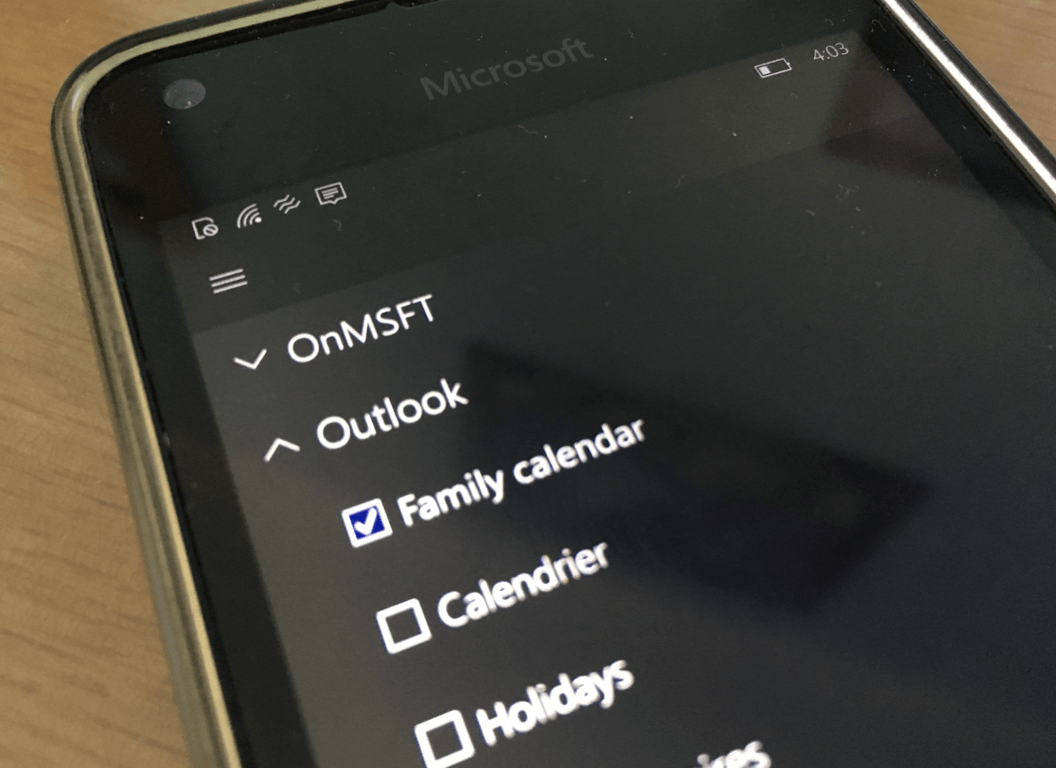
Microsoft adds Family Calendar, available from anywhere via Outlook.com

If many members of your family use Outlook.com as their main account for emails, contact and calendars, you may know that Microsoft has introduced some useful family features to manage your kids’ activity. By configuring a family on account.microsoft.com/family, parents can manage screen time on kid’s devices, web browsing activity, Windows Store purchases and more.

However, if you always wanted to configure a shared calendar with other family members, you’ll be pleased to learn that this feature is currently rolling to all users who have set up a Microsoft family (via MSPoweruser). Microsoft MVP Ian Dixon tweeted the following email from Microsoft announcing the new feature:

Microsoft has already updated its Microsoft Family FAQ to detail how Family Calendars work:

  • It’s an Outlook calendar for your Microsoft family.
  • Everyone in your family gets automatic access to it, and can view and setup events.
  • Access the shared family calendar on any device (Windows, iOS, Android) when you add your Microsoft account to that device.
  • If you don’t see a family calendar just yet, sit tight. We’re still rolling out this new experience, and we’ll send you an email once we create your family calendar.

We just tried to create a Microsoft Family with a personal Outlook.com account, and the new Family Calendar appeared immediately. You can check this calendar on Outlook.com or any Outlook app, and this looks like a very welcome feature overall. As Microsoft explained, users who already created a Microsoft Family will receive an email when their Family Calendar is ready to use.