Earlier this month, we reported that the Windows 10 Anniversary Update would soon bring background music on the Xbox One. As the feature had been previously implemented on the Xbox 360, background music has been one of the most asked features on the next generation gaming console, to say the least.
According to a new report from Windows Central, Microsoft is currently teasing a “new app experience” on the Groove Music app on the Xbox One that will include background music playback. Twitter user Christian Schröer shared a picture of the announcement yesterday:
This new Groove Music app may well be available to members of the Xbox One Preview programs before the public roll out of the Anniversary Update in August. Over the last few days, Microsoft has been delivering several new Xbox One Preview builds to members of the program, and we also reported this morning that the UWP MSN Weather app was one of the first UWP apps to appear on the Xbox One. We’ll let you know as soon as we learn more about this new background music experience on the gaming console, in the meantime let us know in the comments if you’re can’t wait to get the feature on your Xbox One.
Over the years Microsoft released many great and useful tools, but unfortunately, the development of certain tools had to be canceled, including Windows Media Encoder.
The industry has changed and many switched to H.265 encoder software, but if you still want to use it, we’ll show you how to do that.
What is Windows Media Encoder?
Windows Media Encoder is a freeware media encoder that allows you to convert and record both live and prerecorded audio and video.
This tool encodes videos by using Windows Media Video version 7, 8, or 9.
Regarding audio, this application uses Windows Media Audio version 9.2 or version 10
It supports two-pass encoding in order to enhance the quality of on-demand content.
Another useful feature of this tool is the variable bitrate that can be used for high-motion sequences in order to ensure the highest quality.
This application supports scripted encoding with wmcmd.vbs VBScript file thus allowing users to encode a large number of media files.
Does Windows Media Encoder work on Windows 10?
This is a discontinued software, and as such, it has compatibility issues with Windows 10.
After the removal of Windows Media DRM in Windows 10, the software is no longer fully compatible as of May 2017.
How do I install and use Windows Media Encoder on Windows 10?
Find the WMEncoder file that you just downloaded and run it.
Setup welcome screen will now show. Click Next.
Read the License Agreement, select I accept the terms in the License Agreement and click Next.
Select the installation folder and click Next.
Click Install button to start the installation.
Wait for the installation to complete.
Once the install is completed, click Finish.
How can I use Windows Media Encoder?
Once the setup process is completed, you can start the application by clicking its shortcut.
Once you start the application, a New Session window will appear. From here you can choose between several predefined presets or you can create your own custom session.
If you choose to create your own session you can change a wide range of options including audio and video sources, output, compression rate, etc.
By choosing a certain preset, you’ll start a New Session Wizard. In our example we used Capture audio or video preset and the preset wizard allowed us to choose between different audio and video sources.
In addition, there’s an option to configure both audio and video source.
After selecting the source, we choose the destination directory.
After that you need to choose the method of distribution. By choosing any of these options the software will automatically use certain encoding settings.
In addition, there’s an option to change the quality and encoding settings.
Now you just need to enter relative information regarding your recording such as title, author name and description. Lastly, you just need to review your settings before you start recording.
To start recording just click the Start Encoding button.
During the recording session you’ll see all the necessary information such as remaining disk space, CPU load, etc.
Windows Media Encoder is perfect if you’re planning to broadcast content, and with a built-in screen recording feature this tool is great if you want to create a video tutorial.
In addition to Windows Media Encoder, there are two more applications available. First is Windows Media Stream Editor which allows you to add source files and mix and match audiences.
Next tool is Windows Media Profile Editor, and using this tool you can edit both audio and video profiles. After editing a certain profile, you can export it and create a completely new profile for you.
What replaced Windows Media Encoder?
Unfortunately, there’s no official replacement for Windows Media Encoder from Microsoft, and the company decided to focus on different tasks.
The MSN Weather app is one of many newly designed apps created in the Universal Windows Platform (UWP) app format that are being made available on the Xbox One. Apps have been available on the Xbox One console since it first launched but after the transition to the Windows 10-powered operating system a few months ago, the console gained the ability to run UWP apps and many developers have begun the process of converting their existing apps to the format or have started the creation of all-new apps.
UWP apps essentially allow developers to create one app that can be run on multiple devices. This concept cuts back on development costs and time as previously a company would have needed separate apps for PC, smartphone, console, and even Microsoft Band and HoloLens. The aim of this new app format is to increase the number of apps on devices that have been suffering from an app shortage such as Microsoft’s Windows phone.
While all updated Xbox One consoles currently have the ability to run UWP apps, none have launched publically yet. Microsoft is currently testing the apps with the small group of Xbox One users enrolled within the Xbox One Preview Program. This program allows for Microsoft to test future versions of operating systems, features, and apps before rolling them out to the general public. Feedback is often gathered from participants and features are changed based on the user experience. One example of this happening would be the testing of Cortana on the Xbox One. Microsoft initially replaced the origin “Xbox One” voice commands with “Hey, Cortana” but after negative feedback from Preview Program members, Microsoft allowed for both old and new voice commands to be used.
Are you looking forward to using more apps on your Xbox One? Let us know which ones you’d like to use in the comments below.
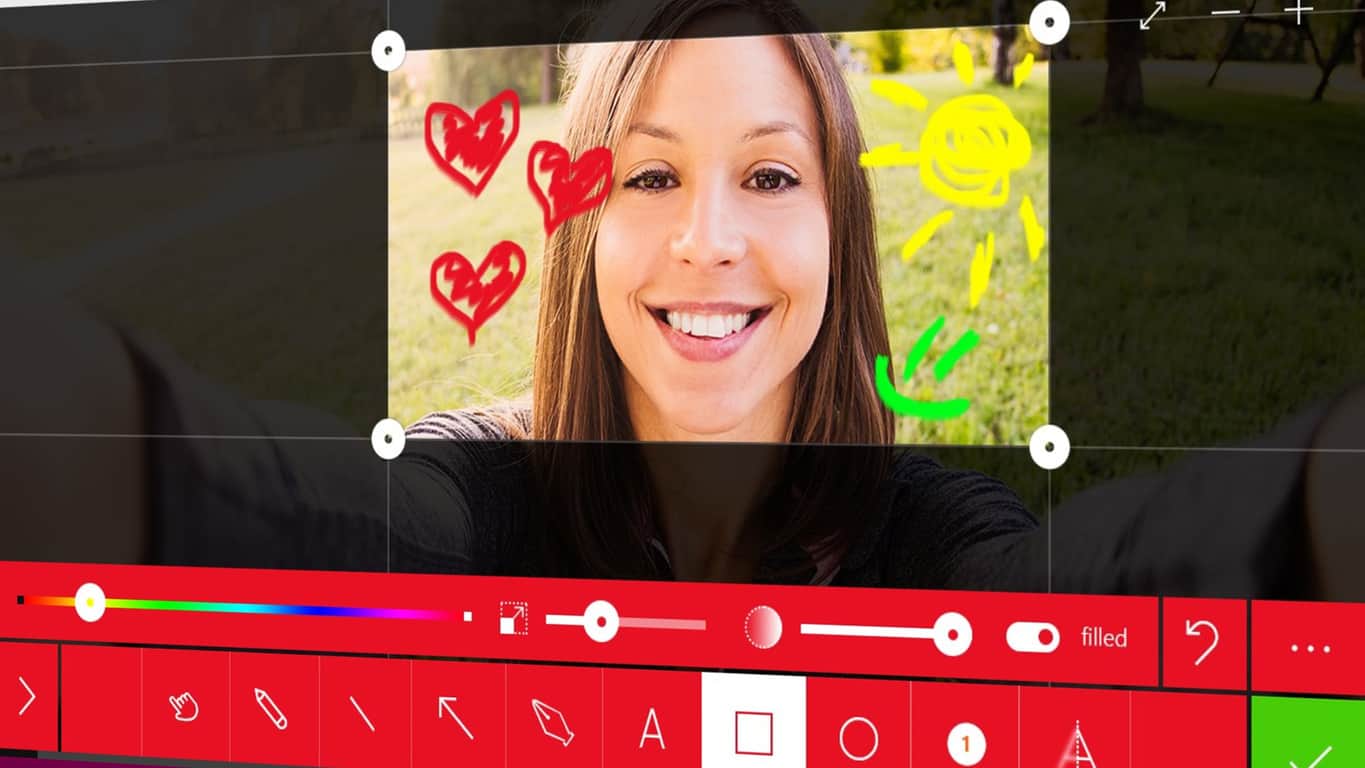
For the next 24 hours, the Windows 10 app ScreenShot Tool Pro is being given away for free in the Windows Store. The app is a desktop screenshot app but also features a variety of camera and image editing features that earn it the “Pro” in its title.
Here’s the official app description: It is the best ScreenShot Tool Pro ever! Try it once and you’ll never go back. Quick and easy ScreenShot Tool Pro has everything you need to make high-quality screenshots and indicate the important details in them. Also you can share created images to your friend, classmates or colleagues. ScreenShot Tool Pro is simple and at the same time it is a really useful! Try right now! ?
And here’s its complete list of features:
Support for Windows 10 features: Cortana, Ink tool, Windows Hello.
It has a lot of things to draw and indicate the desired places on your screenshots:
pencil to draw (you can change the color, thickness and transparency);
lines and geometric figures – square, circle (you can change the color, thickness and transparency);
text (you can change size and color).
Ability to share screenshots.
Ability to take a photo by the device’s camera and then edit it.
Edit any image on your device.
Edit photos from the gallery.
Undo / Redo operations.
Adaptive style on the edit page to the theme of user.
Do you use ScreenShot Tool Pro and would you recommend it to other Windows 10 users? Let us know in the comments below.
Minecraft is a very popular sandbox game developed by Mojang, bought by Microsoft for $2.5 billion back in 2014. Many Minecraft fans thought that Microsoft would use its power to release new versions of Minecraft only on Windows, Xbox 360 and Xbox One consoles, but soon enough, the company confirmed it wouldn’t change anything and that Mojang would keep releasing updates for this game for the all supported platforms.
One of the more popular results from this purchase has to be Minecraft: Story Mode, a game developed by Telltale Games, a developer famous for The Walking Dead: Season Two and The Wolf Among Us, among others.
The first episode of Minecraft: Story Mode is called “The Order Of The Stone” and was released back on October 13 2015 for Windows, OS X, PS3, PS4, Xbox 360 and Xbox One. Two days later, the episode was also released for Android and iOS. Below is a list of every episode and their release date.
– Episode 2: Assembly Required (October 27, 2015)
– Episode 3: The Last Place You Look (November 24, 2015)
– Episode 4: A Block and a Hard Place (December 22, 2015)
– Episode 5: Order Up! (March 29, 2016)
– Episode 6: A Portal to Mystery (June 7, 2016)
Now, Telltale has announced that the seventh episode of Minecraft: Story Mode will be named “Access Denied” and will be released for Windows, OS X, PS3, PS4, Xbox 360 and Xbox One on July 26, 2016.
Below you can see a trailer of the upcoming Minecraft: Story Mode – Access Denied episode:
Microsoft will release the Windows 10 Anniversary Update on August 2, and Skype Preview will be the new application replacing replace the existing Skype and other messaging applications introduced last year in Windows 10. The new Skype Preview is currently being tested by users who registered for the Windows Insider Program and those who own a Windows 10 Mobile device.
According to the Skype Garage Blog, “This release brings one of our most requested Skype features to your Windows 10 phone: the ability to make group video calls. You can have up to 25 friends and family come together on a free group video call, talk face-to-face with a 1:1 call, message your friends in an instant to share photos, video messages, your location and even send emoticons and Mojis to liven up your conversation. You can also quickly reply to Skype messages – no need to open Skype.”
Recently, Microsoft pulled the Messaging Everywhere feature from the Anniversary Update Preview for both Slow and Fast Ring Insiders, saying the company has bigger goals of introducing SMS messaging into the Skype app. While no specific date was set for the release of this feature, some users have expressed their indignation at the decision.
Gurdeep Pall, Corporate Vice President of Skype, explained why it’s in the user’s benefit to embrace the unified experience: They will rely on Skype app for Windows 10, which will still be linked to the People and Messaging apps. With the introduction of unified Skype client, Messaging Everywhere will be also extended to other platforms. The application itself has gone through many changes lately, now supporting 300MB file transfers, bots, and SMS relay, which will help Skype become more popular than before.
Just now, we received an email with a response from Microsoft Vice President and General Counsel David Heiner:
“Earlier today Microsoft received a notice from the French data protection authority, the Commission Nationale de l’Informatique et des Libertés or CNIL, raising concerns about certain aspects of Windows 10. The notice gives Microsoft three months to address the issues.
We built strong privacy protections into Windows 10, and we welcome feedback as we continually work to enhance those protections. We will work closely with the CNIL over the next few months to understand the agency’s concerns fully and to work toward solutions that it will find acceptable.
“The CNIL noted that the Safe Harbor framework is no longer valid for transferring data from European Union to the United States. We fully understand the importance of establishing a sound legal framework for trans-Atlantic data transfers, and that is why Microsoft has been very supportive of the efforts on both side of the Atlantic that led to last week’s adoption of the Privacy Shield.
“As the European Commission observed, Microsoft’s January 2016 Privacy Statement states that the company adheres to the principles of the Safe Harbor Framework. Microsoft has in fact continued to live up to all of its commitments under the Safe Harbor Framework, even as the European and U.S. representatives worked toward the new Privacy Shield. As we state in our privacy statement, in addition to the Safe Harbor Framework we rely on a variety of legal mechanisms as the basis for transferring data from Europe, including standard contractual clauses, a data transfer mechanism established by the European Commission and approved by European data protection authorities, to cover data flows from the European Union to the United States.
“Microsoft will release an updated privacy statement next month, and that will say Microsoft intends to adopt the Privacy Shield. We are working now toward meeting the requirements of the Privacy Shield.”
In short, Microsoft is committed to preserving the privacy and security of its customer’s data and has built Windows 10 around protecting that data, and will be working with the CNIL to address their concerns. An updated privacy statement will be coming from Microsoft in August, confirming Microsoft’s intention to adopt the European Commission’s Privacy Shield for which the company has already expressed support.
We’re happy to see Microsoft address this issue head-on, and will be following it over the next few months. Clearly, the company is concerned about how Windows 10 is perceived, and privacy and security remain important. Let us know in the comments what you think of Microsoft’s response to the CNIL, and how you think things will shake out as Windows 10 continues to grow.
It’s hard to imagine a situation more stressful than being a parent caring for a child with a potentially mortal illness. One such illness that has been the cause of great tragedy for many parents is Hypoplastic Left Heart Syndrome (HLHS), which is a severe cardiac issue that causes a child to be born with only one ventricle in their heart. Children afflicted with HLHS need to be kept under constant supervision with every aspect of their life being recorded, and even under the best care, 25% of babies don’t make it to their second surgery.
In one of Microsoft’s most recent blog posts, they tell the story of the Cardiac High Acuity Monitoring Program, also known as CHAMP. CHAMP, conceived in 2012 by pediatric cardiologist Dr. Girish Shirali, is an app that lets parents plug in pertinent figures every day in order to keep their medical team informed. If any of the numbers are outside of the norm or if the parent decides something is amiss, the team gets alerted on the spot. CHAMP runs on a Surface Pro 3 with Windows 10, using the power of the Microsoft cloud for good.
“Maybe with smarter analytics, we’ll realize there are softer thresholds that will let us treat the baby quicker and even avoid hospitalization altogether,” Shirali says. “Rather than the analysis simply telling us that saturation is low, it could instead tell us that the risk of an adverse cardiac event in the next three days just went from 2 percent to 40 percent, and tell us why.”
So far, babies that are being taken care of with the use of CHAMP have a 100% survival rate, and the parents of those children are reporting that they feel somewhat safe because of the safety net that the app has to offer. While no software could ever put the minds of these parents at ease, CHAMP’s ability to give doctors a consistent and comprehensive idea of their patient’s well-being helps to avoid much of the risk that children afflicted by HLHS tend to face – especially given that 75% of HLHS fatalities happen unexpectedly.
The team behind CHAMP is hoping to bring the app to other children’s hospitals soon, and even get it working for other diseases. It’s very possible that the time will come when CHAMP is being used widely as an early detection service for patients of all ages with any number of medical complications. For now, however, it’s evident that the use of the app has saved several lives, and will continue to do so.
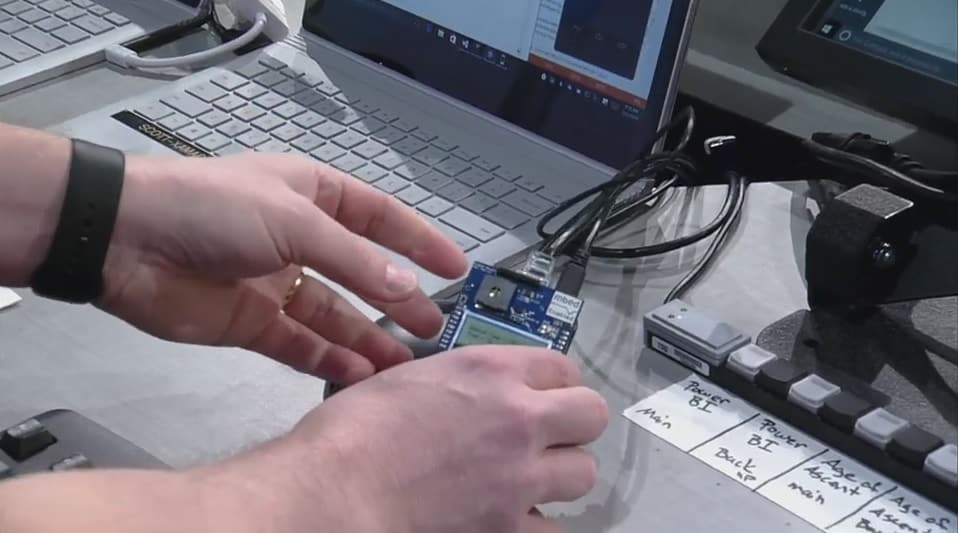
“Calling all Internet of Things researchers…” the Microsoft Research blog post starts. Released earlier today and written by the Kenji Takeda and Arjmand Samuel, the Microsoft Research team post is putting out feelers for experienced parties that are interested in bringing about the emerging reality of the Internet of Things (IoT).
IoT is expected to have a significant impact across the world in many different industries. It could very well redefine the way our cultures interact with technology on a brand new scale. The reach of IoT lumps together everyday home use such as security systems and extends as far as industry equipment and devices. The expanse of the Azure IoT Suite can scale up to millions of devices and that number is growing quickly.
With the Microsoft Azure for Research program, Microsoft is searching worldwide to recruit researchers to develop solutions, discover new applications, and explore challenges as they come up for the IoT. Free cloud computing resources are given to the program participants to support their efforts.
Some of the potential research topics are:
System design for E2E deployment of scaled IoT infrastructure
Security and privacy for IoT scenarios
Machine learning models to detect anomalies and other insights from IoT data
Data visualization to gain insights from large IoT data sets
IoT infrastructure design and deployment challenges in a variety of domains, such as industrial automation, connected cars, smart cities, healthcare, etc.
Graduate and undergraduate curriculum for teaching cyber physical systems and Internet of Things technologies
This is a wonderful opportunity to join the ‘Invisible Revolution’ by teaming up with Microsoft Azure to connect the world around us. If you have a project proposal for Microsoft Research, check out the program details page. Researchers interested in the program must be affiliated with an academic institution.
According to the application instructions, projects pertaining to the public health are of special interest to Microsoft at this time. To submit a proposal, submit the online application form on or before August 15, 2016.
Observers have simplified Microsoft’s single operating system yet multi-platform experience to three primary consumer-facing categories that include PC, Mobile, and Interactive whether it be HoloLens or Xbox.
However, Microsoft’s cohesive OS strategy involves a fourth larger prong rarely discussed and that is IoT. Perhaps due to Microsoft’s seemingly laissez-faire handling of the topic or the public’s limited interest in understanding the underpinnings of IoT infrastructure, the discussion appears to be a tempered one.
The post is a bit lengthy but very informative. Interested developers will find answers to questions such as what cryptographic protocols are best used when validating an identity, or how using Azure leads to better protection of security-sensitive information.
Other highlighted points of interest could also include a brief tutorial on device provisioning with Azure, using the inherent Windows 10 Trusted Platform Module to offer enterprise-level security to IoT devices and finally reconfiguring devices using Windows Device Portal.
Storing secure information, such as a password or a certificate, on a device could make it vulnerable to exposure. A leaked password is a surefire way to compromise the security of a device or an entire system. Human operators take pains to avoid divulging secret information and IoT devices should too, but they must do it better than humans.”
Also included in today’s blog post walkthrough are several step-by-step examples that include snippets of test code and links to Microsoft.Devices.Tpm libraries as NuGet package. Developers are encouraged to grab an SAS token to create a DeviceClient to begin testing the security aspects of Windows IoT Core.
DeviceClient.Create code
For those who read the above as a bunch of acronyms and gobbly-goop, the simple takeaway is that Microsoft is treating its IoT service similar to its Windows 10 operating system for the desktop. With the promise of Windows 10 everywhere, it’s no wonder that security (to which Windows has had an arguably checkered past with) is put front and center of the company’s focus on the devices that contain user’s most sensitive data.
According to today’s blog post by the Azure team, Microsoft’s Big Compute product team will be there to highlight its partner ecosystem that leverages Azure to shift rendering and simulation workloads to the cloud. The team will showcase Azure’s N-Series Virtual Machines, which uses NVIDIA GPUS to provide visualization and compute capabilities in the cloud.
But that’s not all:
At the Microsoft booth we’ll also be talking about other recent announcements such as the availability of Avere on Microsoft Azure and showcase Azure capabilities such as our flagship HPC as a Service offering, Azure Batch, which helps customers scale to thousands of VMs for large scale rendering projects. Additionally, we’ll talk about how Azure is MPAA compliant. Some of our customers will also be sharing their experiences, such as Jellyfish Pictures who are a BAFTA award winning VFX studio based in London, bursting into Azure for their rendering needs, scaling up to tens of thousands of cores.
If you plan to attend the conference, you may visit Microsoft’s Big Compute product team at booth 843. Moreover, the team will also hold 2 exhibitor sessions:
“Why you should be rendering in the cloud” on Tuesday, July 26 at 2:00 PM at room 304C
“Leveraging Microsoft’s Azure N-Series for Rendering Workloads and Visualization” on Wednesday July 27 at 10:30 AMat NVIDIA’s Theatre.
Let us know in the comments if you plan to attend Siggraph 2016.
Microsoft has ruffled a few feathers over the last year or so with a number of practices around Windows 10, including what some perceive as overly aggressive upgrade activities and passing too much information back to Redmond. Apparently, the French government agrees about the latter, as that country’s National Data Protection Commission (NCIL).
Following the launch of the new operating system, Windows 10, in July 2015, the CNIL was alerted by the media and political parties to the possibility that Microsoft Corporation was collecting excessive personal data. Meanwhile, a Contact group was created within the G29 (working party including national data protection agencies in Europe) to examine the issue and conduct investigations in the various member states concerned. It is within this context that the CNIL carried out seven on-line observations in April and June 2016 and questioned Microsoft Corporation on certain points of its privacy policy to check that Windows 10 complied with the French Data Protection Act.
This has revealed many failures :
Irrelevant or excessive data collected:
The CNIL found that the company was collecting diagnostic and usage data via its telemetry service, which uses such data, among other things, to identify problems and to improve products. To this purpose, Microsoft Corporation processes, for instance, Windows app and Windows Store usage data, providing information, among other things, on all the apps downloaded and installed on the system by a user and the time spent on each one. Therefore, the company is collecting excessive data, as these data are not necessary for the operation of the service.
A lack of security:
The company allows users to choose a four characters PIN to authenticate themselves for all its on-line services, notably to access to their Microsoft account, which lists purchases made in the store and the payment instruments used, but the number of attempts to enter the PIN is not limited, which means that user data is not secure or confidential.
Lack of individual consent:
An advertising ID is activated by default when Windows 10 is installed, enabling Windows apps and other parties’ apps to monitor user browsing and to offer targeted advertising without obtaining users’ consent.
Lack of information and no option to block cookies:
The company puts advertising cookies on users’ terminals without properly informing them of this in advance or enabling them to oppose this.
Data still being transferred outside EU on a “safe harbour” basis:
The company is transferring its account holders’ personal data to the United States on a “safe harbour” basis but this has not been possible since the decision issued by the Court of Justice of the European Union on 6th October 2015.
The CNIL has therefore issued a formal notice to Microsoft to comply with French law, along with a three-month deadline. According to the CNIL, the issues affect “more than ten million Windows users on French territory,” which is an interesting statistic all by itself. The formal notice brings no further action by itself, but failure to comply within the designated timeframe could bring a formal investigation and potential sanctions.
So far, we haven’t seen any reaction from Microsoft, but we’ll be looking into this to see if the company has any plans to respond. In the meantime, let us know in the comments what you think about Microsoft’s Windows 10 data collection and if the French government has legitimate reason to be concerned.
Microsoft released a new build for Windows 10 Preview and Windows 10 Mobile Insiders yesterday. Just like all newer releases, build 14393 doesn’t introduce any new features but instead fixes some issues in both versions of the system. If you follow what’s going on at Microsoft and Windows 10, you’re probably not surprised by the lack of new features with the Anniversary Update near and Redmond needing to polish it before release.
Even when it comes to bug fixes and improvements, build 14393 actually doesn’t enhance many aspects of the system like in previous builds. Additionally, the build also doesn’t have a lot of its own known issues, which indicates that the Anniversary Update is indeed near. Because all of that, a lot of people actually think this build could be the RTM release, which is completely reasonable to think.
Here’s what Microsoft fixed in Windows 10 Preview build 14393:
Improvements and fixes for PC
We have improved the reliability of Start, Cortana, and Action Center.
You should now be able to mount iPods as USB mass-storage devices.
Improvements and fixes for Mobile
We fixed an issue resulting in rapid battery drain when Visual Voicemail syncs voicemail messages on Dual SIM devices like the Lumia 950 XL.
We also fixed an issue causing some battery drain on older devices like the Lumia 535, 640, 735, 830, 930 and Icon.
We fixed the issue causing Voice Recorder to not show up consistently as an option for Call Recording. A app update was released last Friday that fixes this issue. Make sure you have the app version 10.1607.1931.0.
We fixed several issues impacting Dual SIM capabilities. Using a device with two SIMs should work as it should.”
Here are the known issues in build 14393:
Known issues for PC
We are aware of certain cases in which Surface Books and Surface Pro 4’s may bugcheck (bluescreen) due to a camera driver issue. An updated driver will roll-out via Windows Update soon that will fix this.
Known issues for Mobile
We are continuing to investigate W-Fi issues on certain devices.
Wallet users are prompted for a PIN twice when using tap to pay from a locked phone. You can enter their PIN twice and tap as usual once the phone is unlocked. A fix for this will come as a Wallet app update via the Store.
REMINDER: We have changed the backup format for Windows 10 Mobile devices to reduce the size of the backup stored in OneDrive. As a result, if you do a backup on a device running the latest Windows 10 Mobile Insider Preview builds and move back to the released version of Windows 10 Mobile (Build 10586) and restore from your backup – your Start screen layout won’t restore and remain the default Start layout. Your previous backup also gets overwritten. If you need to go back to Build 10586 temporarily, once you are on Build 10586 you should disable backup so it doesn’t overwrite the good backup from Windows 10 Mobile Insider Preview builds. We will stop noting this going forward.”
Of course, users are most likely experiencing even more issues in this build than Microsoft originally revealed. So, we’re going to write our round-up article with all the problems in Windows 10 Preview build 14393 as reported by actual users to let you know what to expect.
If you already installed build 14393 and encountered some problems that Microsoft hasn’t listed as a ‘known issue,’ feel free to let us know in the comments so we can include it in our report.
In the meantime, if you’re still running Windows 7/ Windows 8.1 and did not decline the free upgrade offer since Microsoft finally allowed users to do it following months of complaints, you may have spotted that Microsoft’s “Get Windows 10 program” may have slightly changed over the the last few days. According to a new report from Neowin, the shortcut to the GWX program in your Windows system tray now displays a yellow alert icon over the Windows logo. The upgrade prompt has been updated as well and now displays a countdown to July 29, you can see a screenshot of it below courtesy of Neowin:
The “Get Windows 10” program now features a countdown to July 29 (credit: Neowin).
While Microsoft already claims that 350 million devices are currently running Windows 10, the company may still hope that this new upgrade prompt finally pushes the last remaining Windows 10 opponents to give it a try (remember, you will still have 30 days to roll back to your previous Windows version). If you don’t upgrade before July 29, then the GWX program is expected to disappear from all eligible PCs following the end of the deadline. However, if you change your mind about Windows 10 after July 29, upgrading your PC will cost you: a Windows 10 Home license runs for $119.99 (plus tax) and Windows 10 Pro runs for $199.99 (plus tax).
If you’re still considering upgrading your PC, we invite you to read our top 9 reasons to upgrade to the new operating system. Additionally, let us remind you that if you live in the US or Canada, you can bring your old PC to an Answer Desk at a Microsoft Store and the employees will take care of the upgrade process for your for free. Even better, if your old computer could not be upgraded before the end of the day, then you will be offered a free Dell Inspiron 15 laptop.
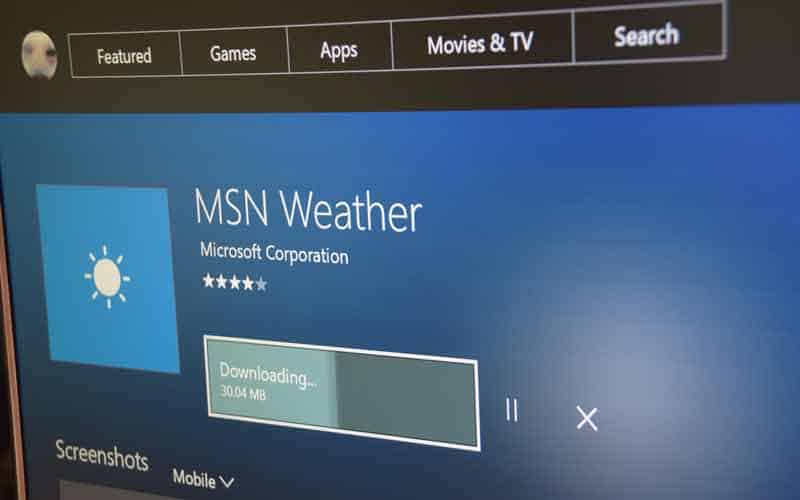
While it is already very much well known that Universal Windows 10 Apps will be heading over to the Xbox One, a very eagle-eyed Redditor has just spotted MSN weather in the Windows Store on the latest Xbox One Preview Update.
According to the Reddit user, the app apparently shows up in the “Ready to Install” list on the console, but can not be installed. Windows Central, however, managed to download and install the app, but received multiple errors when tying to launch it. Regardless, this is not the first time in which this has occurred. Back in June, Redditor p4n0pt1c0n noticed what when he installed certain apps on his Windows 10 laptop (running the latest Redstone build) he got a popup on their Xbox One saying the app was ready.
This is still doubt a very interesting find ahead of the August 2nd launch of the Windows 10 Anniversary Update. We would love to know your thoughts on this, so be sure to drop us a comment below!
The PC version of DOOM is receiving support for the graphics API known as Vulkan. If you’re using an older graphic card, support for this API should give the game a boost, ultimately making the experience better for the player. This is great news for gamers, but not so much for Microsoft seeing as a major developer, id Software, is putting more effort behind Vulkan instead of DirectX 12.
Not only should the Vulkan update give players an improved experience, but DOOM itself should be smoother with better frames per second among other things.
Here’s what id Software and Bethesda have to say about this major shift via a blog:
“When we were looking to adopt Vulkan for DOOM, the main question we asked ourselves was: “What’s the gamer benefit?” Ultimately the biggest benefit will be high framerates. There are a number of game-focused reasons super-high framerates matter, but primarily its movement and player feel. The game just feels amazing running that fast, so we made it a priority to try to really exploit the available hardware on PC.”
DOOM is one of the many games that do not take full advantage of DirectX 12, but instead push forward with Vulkan as its main graphics API. Microsoft will have to contend with this reality in the months and years to come as the Khronos Group, the folks behind Vulkan, will want to convert most game developers to the platform.
It should be noted that Vulkan supports Windows, OS X, Android, and many Linux-based operating systems. Even folks running Windows XP can expect to play games with Vulkan support. DirectX 12 on the other hand, is designed to support Windows 10 and Windows 10 Mobile. We do expect Microsoft to support other platforms in the future due to company’s mindset when it comes to its multiplatform strategy.
Still, the software giant can rest easy seeing as DirectX 12 is being adopted faster than any other version, so that’s a good sign. Furthermore, the Oculus Rift SDK has been updated with DirectX 12 support, so expect some great looking VR games in the future.
The reason for the increase is the seemingly unexpected performance of Microsoft’s transition from being packaged software and arguably failed hardware manufacturer to lean and focused cloud company which also happens to steadily deliver a device in high commercial demand.
The nuts and bolts of Microsoft’s earnings report amount to a company-wide revenue increase of $22.6 billion, which tops last year’s delivery of $22.18 billion and bests market expectations of the marginal increase of $22.14 billion. As it pertains to more finite financials, investors saw an increase or earnings per share to the tune of $0.69 after adjustments, again beating expectations of a decline from last years $0.60.
While the overall picture for Microsoft’s continued ascension to the cloud appears rather buoyant at the moment, investors are eying the company’s pace during the move. There have been rumors that Microsoft board members are seeking a quicker push into the cloud to compete with the likes of Amazon, IBM and Google.
For now, Microsoft appears content to highlight its growing revenues in several foundational businesses its cloud growth will require in the coming months and years.
Microsoft’s quarterly business highlights include:
Productivity and Business Processes
Office commercial products and cloud services revenue grew 5% (up 9% CC) driven by Office 365 commercial revenue growth of 54% (up 59% CC)
Office consumer products and cloud services revenue grew 19% (up 18% CC) with Office 365 consumer subscribers increasing to 23.1 million
Dynamics products and cloud services revenue grew 6% *up 7% CC) with Dynamics CRM Online paid seats growing more than 2.5x year-over-year.
Qi Lu executive VP of Office 365
Intelligent Cloud
Server products and cloud services revenue increased 5% (up 8% CC) driven by double-digit annuity revenue growth
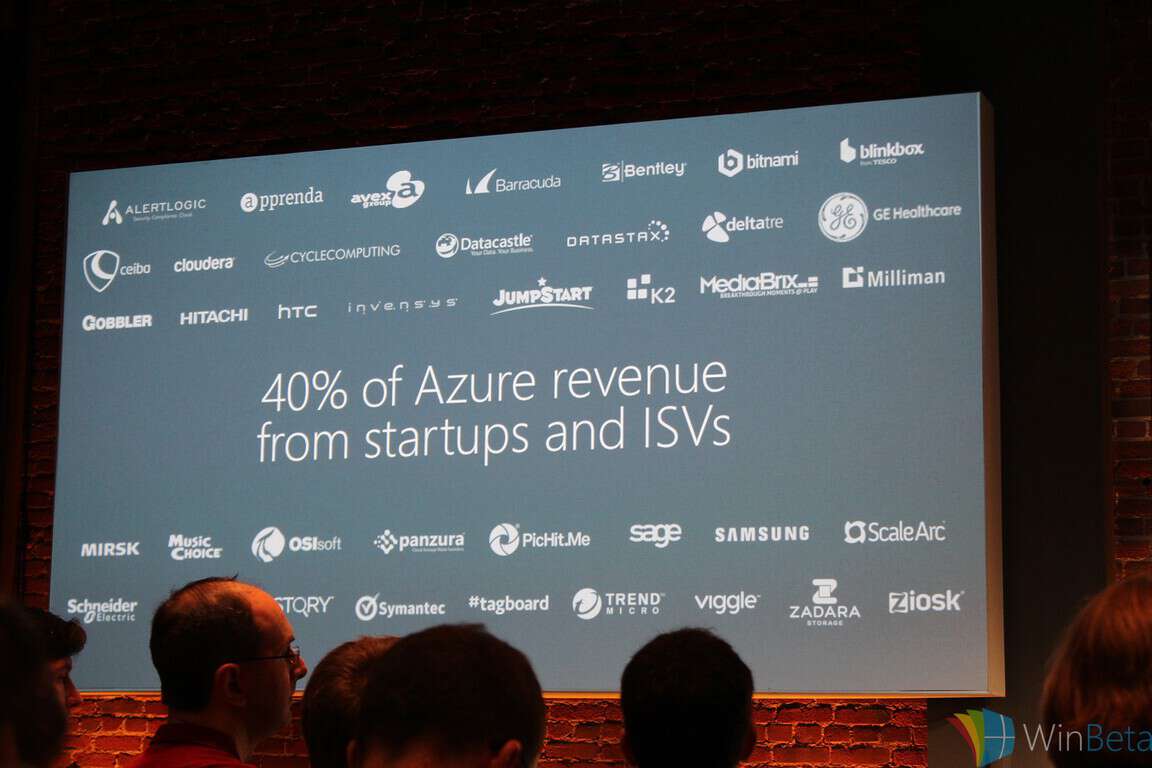
Azure revenue grew by 102% (up 108% CC) with Azure compute usage more than doubling year-over-year
Enterprise Mobility customers nearly doubled year-over-year to over 33,000 and the install base grew nearly 2.5x year-over-year
Azure ISV meet up
More personal computing
Windows OEM non-Pro revenue grew 27% (up 27% CC), outpacing the consumer PC market and Windows OEM Pro revenue grew 2% (up 2% CC)
Surface revenue increased 9% (up 9% CC) driven by Surface Pro 4 and Surface Book
Phone revenue declined 71% (down 70% CC)
Xbox Live monthly active users grew 33% year-over-year to 49 million
Search advertising revenue excluding traffic acquisition cost grew 16% (up 17% CC) with continued benefit from Windows 10 usage.
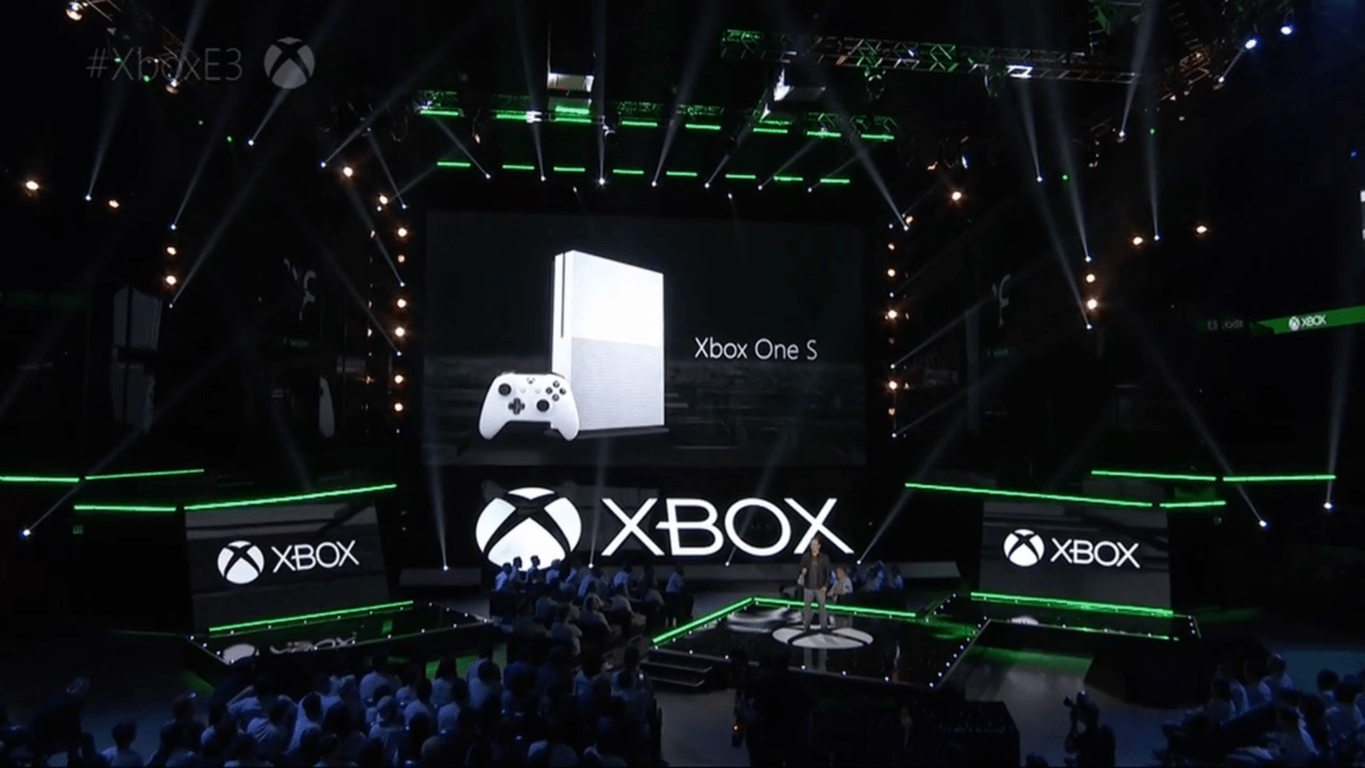
E3 2016 Xbox One S announcement
There we have it, all the good and a little bit of the bad from Microsoft’s FY16 Q4 earnings report. The overall consensus appears to be that, while many journalists continue to harp on the company’s missteps in mobile, its transition to becoming a cloud staple is fully underway. Led by Office 365 becoming a platform unto itself and continually adding to the amount of contracts under Azure, Microsoft is quickly leaving behind its legacy dependency on Windows and side stepping mobile hardware competition to b-line it straight to the next embattled computing landscape.
Microsoft has officially acknowledged that turning off Bluetooth radio in its Windows 10 Mobile build 14393, crashes or resets your Windows phone. The tech company has promised that its working on developing a fix for this annoying issue.
Microsoft also explained why this happens. If the phone’s UI freezes, this is because the UI is waiting for the radio to be turned off in the background. If your phone freezes, leave it for a minute, and it should recover. If this doesn’t happen, you’ll need to reset your phone.
Thanks to your feedback we’ve found an issues that when Bluetooth is turned off, the phone crashes, freezes, or resets. There are two ways to hit this.
Turning Bluetooth off through the toggle in the Settings App
Turning Bluetooth off via Quick Action toggle
We apologize for any inconvenience this may cause and are actively working on a fix and servicing it as soon as possible. If you have hit this, please file feedback through the Feedback Hub.
Although this is not a critical issue, as it can be solved by resetting the phone, users appreciate Microsoft’s effort to fix this bug as it can become very annoying sometimes.
Insiders have also reported two other issues which could be related to the current Bluetooth bug. More specifically, Bluetooth also crashes when using Maps guided direction in the car. Secondly, when there are multiple devices connected via Bluetooth, Cortana’s ability to clearly listen is affected.
On the other hand, Insiders report that when they switch off the Bluetooth music device, Cortana hears clearly and responds immediately.
The current Windows 10 Mobile build has three known issues on the list: the Wi-Fi issues on certain devices, the double PIN issue on the Wallet app and the phone freezes caused by turning off the Bluetooth. Hopefully, all these issues will get fixed before the Anniversary Update is released, and no new bugs will emerge.
Some OneDrive users have are receiving emails stating as much. While those who have more than 5GB of data stored on OneDrive will still be able to access their files, they won’t be able to upload anything new. Also, this will only last until April 2017. At that time, Microsoft will delete all extra data until every account is under the free limit.
As Microsoft stated, these limitations are the result users who abuse the system by storing enormous amounts of data on the cloud. So, in order to prevent further system abuses, Microsoft decided to set a limit for all users of the free tier.
There are still options to increase the amount of storage, but you’ll need to pay for them. Microsoft currently offers 50GB of additional storage for $1.99 a month, and a package with OneDrive and Office 365 with an additional 1TB for $6.99 (personal use) or $9.99 (for five users).
In addition, the 15GB of free storage dedicated to the Camera Roll will be completely erased, so stay aware.
With all this in mind, OneDrive users only have three options. They can reduce the amount of data uploaded to under 5GB, purchase additional storage, or simply switch to another cloud storage service.
Tell us in the comments below: What do you think about these limitations? Is 5GB of free storage enough for you?
RELATED STORIES YOU NEED TO CHECK OUT:
Windows 10 Anniversary Update further updates the Start Menu
In case you’re looking for a good yet simple text-to-speech app, the Talkinator is now available in the Windows Store. This app will definitely come in handy for anyone who wants their computer to read to them and itis so simple that basically anyone can use it.
The developer of the app, Ikargo, stated the following:
“Talkinator is a simple Text-to-Speech-app that was made in a lost afternoon. While simplistic by design, the app can still be quite useful for those who want to have some lines of text spoken by an computer.”
All you need to do is to write a few words in its text box and Talkinator will read it for you. Of course, due to its simplicity, the app doesn’t offer a lot of options as you can’t change the voice of a narrator, for example.
Talkinator is a UWP app, which means it works perfectly on both Windows 10 and Windows 10 Mobile. There’s no mention of any cross-platform features just yet.
If you want to download Talkinator to your Windows 10 or Windows 10 Mobile device, you can do so for free from the Windows Store.
Don’t forget to let us know whether or not you enjoyed the app in the comments below!
RELATED STORIES YOU NEED TO CHECK OUT:
Windows 10 Anniversary Update further updates the Start Menu
Microsoft is obviously well aware of the power of its brand, and the company’s top marketers are working hard to help the brand stay relevant in both the consumer and business spaces. Kathleen Hall, Microsoft Corporate Vice President, Gloval Advertising and Media gave an interview to Marketing Week to explain how the company improved its brand image since Satya Nadella became its new CEO two years ago. She explained:
Satya is all about the growth mindset. The old Microsoft was about being right, the new is about learning and admitting sometimes we don’t know everything and listening to diverse perspectives as opposed to being the smartest person in the room and dictatorial.
You can probably appreciate this new mindset in several ways: first, the company has been making real efforts to promote workforce diversity in the tech industry. Last year, the company ran a “Girls do science” campaign to encourage more young girl students to pursue careers in science or tech, with Hall adding that “we have a lot of really committed women in Microsoft who want to see it change, as well as our management.”
Microsoft’s engineering team is also doing something unprecedented with the Windows Insider program, which is one of the biggest crowdsourcing efforts worldwide. So far, the data and feedback gathered from Windows Insiders allowed the company to iterate faster, as the company will have shipped three major Windows 10 releases over a year on August 2 (Threshold 1, 2 and Redstone 1).
But Microsoft’s marketing team is also interested in data to improve its advertising efforts. According to Hall, the Redmond giant sets up a “war room” every couple of weeks where she shows everyone in the company how customers respond to the company’s ads:
We have a huge team of engineers so we have to be data literate or they go into subjective land telling me how their wife didn’t like an ad and that is why we should pull it. And so we have forecasts for recall and brand metrics and we’ll show how the ad is performing and how its performing versus Apple and Samsung. We have that ammunition. It’s not like we are on the defensive all the time but it means we don’t become subjective.
Hall also explained that data analysis from the marketing team is the reason why the company has been trying to appear more human through its Windows 10 upgrade campaign: you may recall the series of #upgradeyourworld videos featuring young people all over the world using Windows 10 devices as a “more human way to do stuff.”
The marketing exec added:
The idea of humanizing Windows 10 really resonated with people. We look at recall, the message landing, branding metrics and all that was the best we could have hoped for. And the upgrade data is all where we want it to be.
In the end, Hall thinks that “Satya brought a new era of Microsoft and you feel it.” The company has definitely changes how it operates, and its brand image is definitely better than ever. Even Facebook, which recently moved to Office 365, recently acknowledged that Microsoft got cool again. Now, we’ll see later today if this improved brand image leads to positive quarterly financial results.
Response time: 14ms typical (gray to gray) w/o OD, 8ms typical (gray to gray) w/OD
Viewing angle: 178° vertical / 178° horizontal
Color support: Up to 16.7 million colors supported (true 8-bit panel)
Pixel pitch: 0.232 x 0.232mm
Pixels per inch (PPI): 110
Backlight technology: LED
Brightness: 350 nits (typical)
Signal input connectors:
2 HDMI ports. One HDMI is also an MHL input
DisplayPort
HDCP
Audio via USB, DisplayPort, or HDMI
2 Integrated USB 3.0 hub with downstream ports with BC 1.2 battery charging capability
1 upstream port to the PC
Input signal: DisplayPort 1.2, HDMI 2.0/1.4, MHL/HDMI; HDCP supported on all digital inputs
USB
Dimensions (W x D x H): Unpacked with stand: 33.9 x 7.04 x 20.5 inches
Tilt: -5 to +23 degrees; Detachable
Eco Solutions: LED backlight, TCO, ENERGY STAR, EPEAT Silver and low halogen
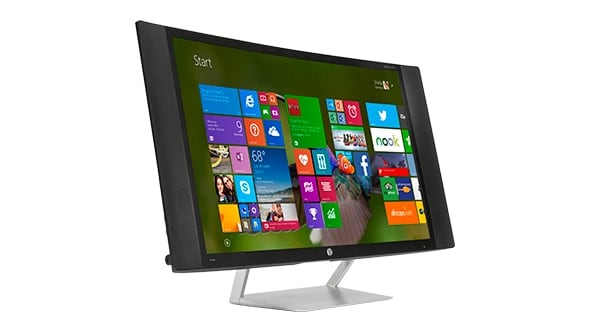
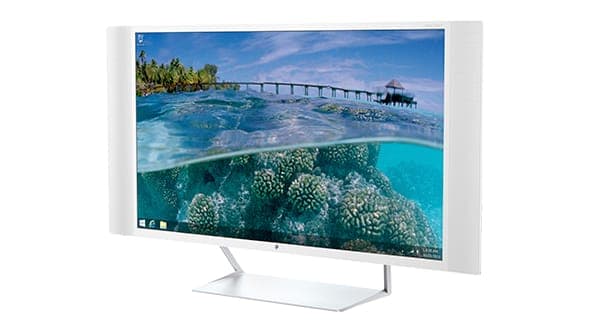
So, there you have it, a few excellent HP monitors to go with your new Xbox One S or Windows 10 PC. If any of them strike your fancy, then get your credit card out and get buying. Let us know in the comments if you plan on picking up any of them.
Windows 10 is one of the most successful iterations released by Microsoft, but problems with it are not uncommon. Also, some reported issues with their PC after installing Windows 10. But when they try to go back to the previous version, the option is missing in Windows 10.
The problem affects the ability to roll back Windows, but things are easy to fix. Let’s find out!
Why is my Windows rollback option not available?
If you upgraded to Windows 10, there’s a feature to revert back to the previous version of Windows. We should mention that option to revert back is available only for a month or 28 days.
So, if you don’t revert back to the previous version of Windows within that time period, you’ll have to continue using Windows 10.
It’s also worth mentioning that the old version of Windows is stored on your hard drive in the $Windows.~BT and$Windows.~WS folders. if you delete these folders, you won’t be able to go back to the previous version of Windows.
You should know that these folders can be deleted by third-party applications such as various cleaners and optimizers. In fact, you can even delete these folders if you perform a Disk Cleanup.
How can I roll back Windows 10 to the previous version?
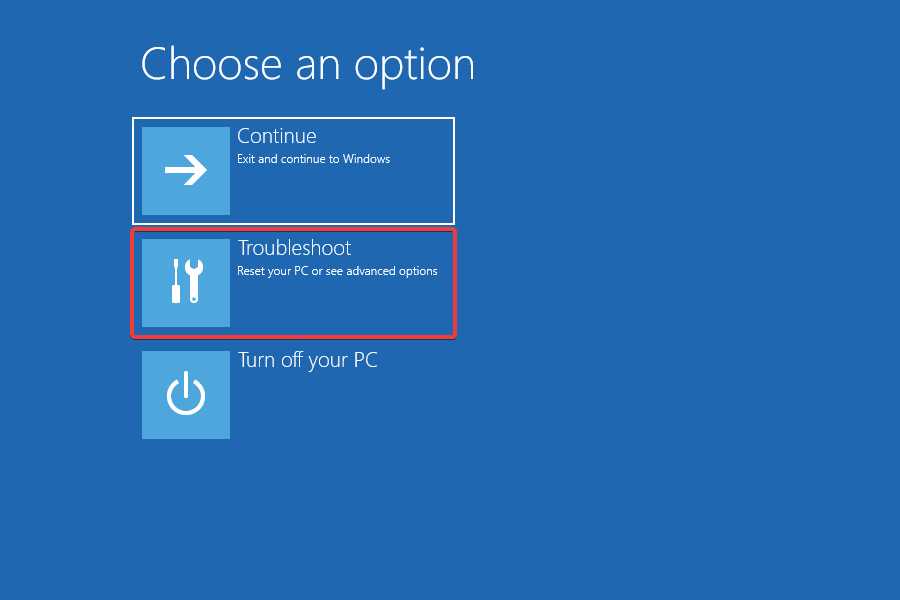
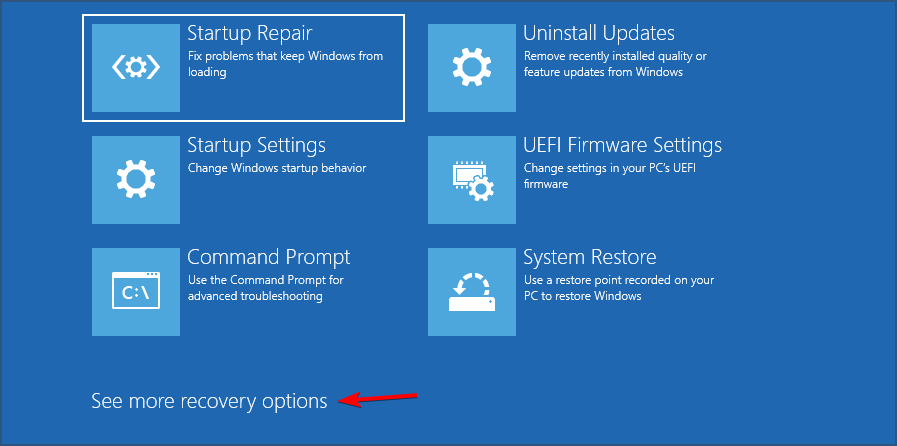
Now, click on See more recovery options near the bottom.
Click on System image recovery.
Select a system image, if one exists, and follow the on-screen instructions to complete the process.
If you’re unfamiliar with hard drive images, you probably don’t have a backup image on your hard drive. Basically, a backup image is a backup of your hard drive that allows you to revert to it and fix any potential problems that occurred after creating the image.
It should also help when you find that the Go back option is no longer available on this PC or is greyed out in Windows 10.
Although hard drive images are extremely useful, if you have already upgraded to Windows 10, but you didn’t create a hard drive image prior to it, you won’t be able to use this feature to revert to the previous version of Windows.
2. Restore to factory settings
Certain computers come with media that allows you to restore them to their original factory settings and previous operating systems. Though, you could employ the built-in factory reset option when the option to go back to the previous version of Windows 10 is missing.
This solution isn’t available for all computers, and if you decide to use this solution bear in mind that this process will delete all files from your computer, therefore, be sure to create a backup.
Sometimes the simplest solution is to reinstall the version of Windows that you were previously using.
This isn’t always the best solution because it will delete all the files from your C drive. So, if you decide to reinstall Windows, we strongly suggest that you back up your important data if you don’t want to delete them permanently.
If the option to roll back or go back to the previous version is missing in Windows 10, it’s usually because the available period has passed or because you accidentally deleted the folders with the files for the older version of Windows. And one of these solutions should help!
The Internet is a great source of information, but at the same time it can be quite harmful, and this is why many users want to install Microsoft Family Safety on their PC.
This is a great service, and in today’s guide, we’re going to show you how to properly set it up and use it.
What is Microsoft Family Safety?
This is a parental control service available in Windows.
It allows you to limit app and game time.
Using it you can set screen time limits.
It allows you to block harmful apps, games, and online content.
Ir provides location sharing for family members.
How do I enable Family Safety on Windows 10?
How do I add a device to Microsoft Family Safety?
Open the Settings app.
Go to Accounts > Family & other users. Click Add a family member.
Select Add a child option and enter that user’s email address. To use Family Safety on Windows 10, both you and your family members have to have Microsoft accounts. Once you enter the email address, click the Next button.
Click the Confirm button.
In order to enable Family Safety, the new user needs to accept your request for it. To do that, that user needs to check their email and accept your invitation by opening the invitation email and clicking Accept Invitation.
The new browser tab will now open and explain to you what Family Safety does for you. Click Sign in and join.
After doing that you’ll get a notification that a new person joined your family.
Change family member settings
Open the Settings app and go to Family & other users.
Click Manage family settings online.
New browser window will now open and you’ll be able to change various settings related to family accounts.
The first option is Recent Activity, and by using this option you can view the browsing activity for a child account.
In fact, you can even get weekly emails with detailed reports regarding your child’s internet activity.
Bear in mind that this feature only works in Microsoft Edge or Internet Explorer, since third-party web browsers aren’t supported.
The next feature is Web browsing and you can use this feature to block inappropriate content from search results.
In addition, you can also block specific websites, or you can allow only certain websites to be accessed.
Apps, games & media feature will block mature movies and games so that your child cannot download them from Windows Store.
If you want, you can even set age restrictions for content that your child can download from Windows Store.
Next option is Screen Time and using this option you can set limits for computer usage. For example, you can set specific time frames for days of the week, and you even set limits for daily computer usage.
Purchase & spending option allows you to add a certain amount of money to a child’s account thus allowing him to buy products from Windows and Xbox Store.
In fact, you can even see all purchases in the last 90 days, so you can always keep track of your child’s spending.
If you want to keep an even closer eye, there’s an option that will notify you every time your child gets an app or a game.
You can also allow your child to get only free apps and games, or block downloading applications and games completely.
The last option is Find your child, and using this option you can easily see your child’s whereabouts on a map.
To use this feature, your child needs to have a Windows 10 Mobile device and it should be signed on to it with his Microsoft account.
What devices are supported by Microsoft Family Safety?
The following devices have the Microsoft Family Safety app available:
Windows
Xbox
Android
iOS
Keep in mind that not all features are available on all platforms. For example, you can set app and game time limits on Windows, Xbox, and Android, but device screen time limits are available only for Windows and Xbox.
As for content filtering, it only works on Microsoft Edge, regardless of the platform.
Is Windows Family Safety free?
Yes, this feature is completely free since it’s a core component of Windows.
Using it, you can monitor up to 6 devices in your household, which should be more than enough for most users.
As you can see, it’s easy to install Microsoft Family Safety since it’s already available on your computer, but other platforms might need a dedicated app.
In case you don’t want to use this feature anymore, we have a great guide on how to disable Family Safety, so be sure to check it out.
Have you ever used this feature? If so, let us know in the comments below.
Computer problems can occur once in a while, and if you’re in a similar situation, it’s recommended that you use appropriate software in order to diagnose and fix them. Many users tend to install and use Sysinternals.
But it’s usually considered to be a tool for experts. That’s not the case, though. Anyone with a decent understanding of Sysinternals can install, access, and use the tool to eliminate problems quickly and effectively. Keep reading to find out!
What is Windows Sysinternals suite?
Windows Sysinternals is a part of Microsoft’s TechNet website that offers all sorts of utilities for fixing Windows problems. Sysinternals tools were created in 1996 by a company called Winternals.
In 2006 Microsoft acquired Winternals, and Sysinternals tools became a part of Microsoft’s TechNet.
Sysinternals Suite is a collection of applications that you can download and install for free right from the Sysinternals’ website. Bear in mind that you can download the entire archive, or you can get each of the applications individually.
In fact, you don’t even have to download any of these tools since you can access them from any computer remotely.
How do I get to Sysinternals?
Press Windows + R to open Run, type the following command, and hit Enter:\\live.sysinternals.com\
Go to the Tools folder, and you should see all Sysinternals applications available.
You can use all of these applications remotely, but for your convenience, we suggest that you download them and run them locally.
What are the tools in the Sysinternals suite?
AccessChk
This is a console program, and you can use this tool to see what kind of access to files, directories, registry keys, and Windows services users have.
AccessEnum
It is a tool that allows you to quickly see security permissions that users have regarding certain folders or registry keys.
Performing this process manually requires that you check each folder’s permissions, and that can be quite a long process, especially if you need to check the permissions of several different folders.
With AccessEnum, you just need to select a certain folder, and you’ll see all the permission rights. In addition, you’ll also see permission rights for all its subfolders.
AdExplorer
It is an advanced Active Directory editor and viewer. Using this Sysinterals tool, you can easily navigate through the AD database, define favorite locations, and view object properties and attributes.
In addition, you can create snapshots of an AD database to view or compare them offline.
AdInsight
It is a real-time monitoring tool designed for troubleshooting Active Directory client applications.
Using this tool, you can monitor Active Directory client-server communication and solve authentication and all sorts of other problems.
AdRestore
It is a command line tool that shows you the deleted objects in a domain, and allows you to restore each of those objects easily.
Autologon
It is a small tool that allows you to configure and use the built-in autologon system. If you don’t want to enter your username and password every time, you can just use Autologon. This tool will store and encrypt your data in the registry and use it when required.
Using this tool, you can easily enable or disable automatic logon, or temporarily prevent it by holding the Shift key before the system performs it.
Autoruns
It is a tool that shows you all the applications and services that are starting with your PC. This tool allows you to sort startup applications by different categories, but it also allows you to disable applications or services from starting up.
Autoruns shows the location of a startup application or a driver. Therefore, if a certain startup application is causing problems, you can easily delete it or disable it using Autoruns.
Autoruns is one of the most useful Sysinternals tools for managing startup items, and you can learn how to use it in detail by reading the Autoruns Sysinternals guide which helps you diagnose slow boots and unwanted background apps more efficiently.
BgInfo
This tool is designed to show important information regarding your PC on your desktop. You can customize the look of your data by changing its style, font, or color, and you can also add all sorts of fields to show relevant information.
In addition to adding certain fields, you can even create your custom fields as well.
After you set which fields you want to use, just click the Apply button, and relevant information will be displayed on your desktop.
Bear in mind that this tool doesn’t run in the background, instead, it creates a new background image with the necessary information and uses it instead of your desktop image.
Cacheset
It is a small tool that allows you to change the size of your cache. This tool allows you to set new minimum and maximum sizes for your cache and reset them to default values with just a single click.
Contig
It is a command-line utility that allows you to defragment specified files. Once you install sysinternals in Windows, this tool will be the perfect choice to speed up the execution time of the frequently used files.
Coreinfo
It is another command-line utility that shows you information regarding the processor. For example, this tool will show you the mapping between logical processors and physical processors as well as the model of the socket that your processor uses.
Debugview
It allows you to monitor debug output on your local computer or any computer you can access via TCP/IP.
Desktops
It is a simple and lightweight application that adds up to four virtual desktops on your PC. You can easily switch between desktops using the shortcut key or by clicking the Taskbar icon.
Disk2vhd
It is a tool designed to create virtual hard drives from your physical hard drive. Unlike other similar tools, this one allows you to create virtual drives on a system that’s online.
You can even save virtual hard drives on your local PC, even on the drives that you’re currently converting.
Disk Monitor
It is an application showing all hard disk activity on a Windows system. This tool will show you what hard drive is currently active as well as which sector is being used.
DiskView
It is a tool designed to show clusters on your hard drive. You’ll get a visual representation of the clusters, but you can also double-click a certain cluster in order to see which files occupy it.
ListDLLs
It is a command line utility that shows all DDLs that are loaded into processes. After installing sysinternals, you can use this utility to show all DLLs for every process or configure it to show DLLs only for specific processes.
LoadOrder
This small application will show you when the driver is loaded, the name of the service or the device that uses this driver, and the location of this driver.
Portmon
It is a utility that monitors and displays all the activity related to a serial and parallel port on your system. If you don’t use these two ports, you probably won’t have much use for this application.
ProcDump
It is a command line utility that is designed for monitoring certain applications for CPU spikes. Every time a CPU spike occurs, this application will generate a crash dump, and users should be able to use the information from the crash dump to fix the problem.
Process Explorer
It is one of the most beneficial tools users get access to after installing sysinternals This application allows you to see which program has a specific file or directory open.
In fact, this application can show you all sorts of information regarding the currently running applications. Process Explorer also works as Task Manager, so you can use it to change the priority of certain applications or close them.
Process Monitor
This little tool allows you to see real-time file system, registry, and process activity. This application provides extensive information, and it’s great for finding and removing malware.
RAMMap
This little application will show you all the necessary information regarding your RAM. Just like in Task Manager, you can see which processes use the most RAM, but you can also see RAM consumption based on process priority.
In addition, you can see how much RAM certain files use, and verify what physical address a certain process occupies.
ShareEnum
It is a simple tool that allows you to see all shared folders easily. If you’re sharing files over your local network with other members, we highly suggest you use this tool to easily see all the shared folders.
TCPView
It is an application that shows you detailed information regarding all TCP and UDP endpoints on your computer. After you install sysinternals, use the tool to see local and remote addresses and the state of TCP connections.
VMMap
It is a process and memory analysis tool. The application allows you to see committed virtual memory as well as the amount of physical memory that is used by a single process.
ZoomIt
It is a screen zooming application that allows you to zoom in with a single hotkey quickly. In addition, this application allows you to draw on zoomed images, which makes it perfect for presentations.
These are just a few of the applications you get access to after installing the Sysinternals Suite. To deepen your Windows monitoring toolkit, check our Sysinternals Sysmon guide and learn how to log detailed system events for faster threat detection.
While some of these applications are simple to use, we advise that you visit the Sysinternals website and read the instruction manual if you wish to better understand how certain applications work.
Sysinternals Suite offers some amazing applications for free, and we’re happy to inform you that most of its applications work without any problems on Windows 10. And with a proper understanding of each, you can employ the tools to fix a wide array of complex issues.
Before you leave, find out the best PC repair tools and use these to automatically eliminate critical errors.
For any queries or to share how you use the Sysinternals suite, drop a comment below.
The slow motion capture feature for the Windows camera app has been available for Windows Insiders since November of last year but has never been a fully functional stand-alone app since users had to set their video to slow motion before filming. The disadvantage of this was that any videos filmed with that setting enabled also meant that sound was unavailable for the duration of the clip.
Fortunately, the latest Windows 10 build introduces an improvement to the slow motion capture feature. Insiders can now use this mode using whatever setting is convenient, with the ability to add slow motion effects later in the editing stage using the Photos app. The update is available for both PC and Mobile and should become available for all Windows users next month when the Anniversary Update is rolled out.
The Windows 10 Photos app recently received another useful update as the app can now handle mouse actions better. However, despite Microsoft’s efforts to upgrade its photo editing app, users don’t seem to be too happy with Microsoft’s ideas. Many users criticized Microsoft for not adding useful features for viewing, editing and organizing photos, accusing the tech giant of ignoring the main purpose of the app. Other users suggested that Microsoft should give them the option to browse the photos by folders or by tags. They also added that Microsoft should upgrade the Photos app so as to allow them to view the next image in the directory.
Their comments reflected disappointment as many features were long been requested by users, but it appears their suggestions have fallen on deaf ears. However, users shouldn’t lose hope as Microsoft still has enough time to upgrade the app before the Anniversary Update.
You might notice OneDrive hiding in your update queue today with a sneaky bugfix update. The recent update is rolling out across all Windows devices with some minor performance improvements. Some of our users have noticed the application loading just a little quicker through Windows 10 Mobile. Unfortunately, the version notes haven’t been updated on the Windows Store yet to let us know what else Microsoft is sneaking in today.
It’s not a surprise though. Microsoft continues to foster their “cloud first, mobile first” creed as they continue to pump out more and more updates for the storage service. The company prides OneDrive as one of the major cloud storage providers available, excelling in a secure and effective service. It wasn’t that long ago that they slipped in the Data Loss Prevention Tips into the mobile app.
Have you found anything else new in the update? Let us know in the comments below.
Huawei’s MateBook is the company’s newest 2-in-1 tablet that bears striking similarities to the Microsoft Surface Pro 4. The device runs Windows 10 and can be purchased right now from the Microsoft Store, Amazon, and Newegg.
Back in June, Huawei began taking pre-orders for the tablet via the Microsoft Store, but there’s no need to do that anymore seeing as it is fully available now. For those unaware, the MateBook comes packed with a full HD 12-inch touchscreen display.
Consumers can choose between four versions of the MateBook, ranging from 4GB of RAM to 8GB. Internal storage goes up to 512GB SSD, which is not too bad seeing as there are USB ports to add regular hard drives. The MateBook can run up to nine hours on a single charge.
The MateBook begins at $699 and ends at $1199. The following is a rundown of its four versions and their prices:
Core m3, 4GB of RAM, 128GB SSD – $699
Core m5, 4GB of RAM, 128GB SSD – $849
Core m5, 8GB of RAM, 256GB SSD – $999
Core m5, 8GB of RAM, 512GB SSD – $1199
The MateBook Portfolio Keyboard, seen in the picture above, can be purchased via retailers for $129.
We like what Huawei has done with the MateBook, but we’d prefer to have a device with a much better processor than the Core M. If Microsoft can do it with the Surface Pro 4, then we see no reason why Huawei is unable to do the same.
Huawei first unveiled the MateBook 2-in-1 tablet at MWC 2016 to a warm reception. Time will tell if the Core M decision will turn out to be a good one.
Microsoft is in a bit of a pickle right now after Angry Birds game developer, Rovio, decided to discontinue development of the game on the Windows platform. This is no doubt a huge blow to Microsoft as the company has been moving to inject interest into its Windows 10 platform going forward.
One of the reasons Rovio decided to place Windows Phone and Windows PCs on the backburner has to do with the company losing money. Rovio appears to be in a terrible situation since it was forced to let go of nearly 50% of its workforce. Despite riding high in the past, it has proven unable to keep that momentum going.
Outside of a game known as Bad Piggies, an Angry Birds spinoff, Rovio has failed to come up with another hit mobile game on the same level. Angry Birds was so popular at one point that the company decided to create a movie that ultimately fared poorly at the box office, only making a little over $300 million at the box office.
Here’s what Rovio had to say in a statement:
Rovio’s games are available on a wide variety of mobile platforms, including iOS, Android, and Amazon. Many of our games are also available on Windows devices, although for commercial reasons this platform is no longer a focus for us, and no further game updates for this platform are planned. However, we continue to provide help to all customers, regardless of their mobile device.
We can only hope Microsoft is able to convince other developers to not jump ship because it’s clear that Android and iOS are where the money is at and that’s not going to change anytime soon.
The whole debacle is bit ironic because earlier this year, Microsoft released a slew of Angry Birds emoji in Skype. So much for that.
Microsoft has just launched Microsoft Stream, a new business-oriented video sharing service. The new service aims to give businesses the ability to share internal videos in the same flexibility of which YouTube already offers, with the security benefits of Azure Active Directory, a recognized leader in identity management systems.
The service is currently available as a free preview, and all you need to sign up is a business email address. The user interface of Stream, meanwhile, is similar to that of preexisting streaming services and involves social features such as compatibility with various devices, uploads, a trending section, comments, and tags. There could also be many uses for this service, with video training and employee communications highlighting the possible uses. Regardless, the aim of the service is to enable business users to harness the power of video to achieve more at work.
Stream Preview Dashboard
Microsoft’s corporate VP of Business Intelligence Products Group compares the service to Office 365 Video and concludes:
Microsoft Stream builds upon the learnings success of Office 365 Video and over time the two experiences will converge with a seamless migration to ensure a consistent experience both within and outside of Office 365.”
Since the service is similar to Office 365 Video (which launched two years ago), it is worth noting that during the preview of Microsoft Stream there will be no changes to the Office 365 Video experience. Over time, however, the two experiences will converge, making Stream the de facto video experience in Office 365. Additionally, Microsoft is noting that more details on future enhancements and user updates closer to general availability of the Microsoft Stream service will be shared over time.
We would love to know how your business might use this service. Will it be used for employee training? Sharing important videos? Let us know your thoughts, comments, or suggestions on this latest Microsoft service by dropping us a comment below!
Summer is officially underway, and that means job hunting season has started for fresh out of college graduates. Luckily, for these folks, Microsoft has created a package of resources, inspiration, and advice to help college graduates stand out with recruiters and hiring managers in today’s job market. All the materials are available at office.com/dreamjob, and come after Microsoft commissioned a survey of 1,000 18 to 25-year-olds and asked for their thoughts on the job search process.
More than one fifth (22%) of those who interviewed over Skype dress professionally on the top and
casual on the bottom during their interviews – with 3% admitting they go pant-less altogether.
1 in 4 people surveyed think having a “plain resume” could hinder their job search.
43% of respondents are currently looking for a job or internship, but 45% of them aren’t confident.
Additionally, the survey also found that many new job seekers have high hopes of landing a job in hot markets like New York, San Francisco and Seattle. Of course, those surveyed also expressed the fact that they wanted meaningful work where they could express themselves creatively.
Templates for Word 2013 and higher
However, as art of the package of resources, Microsoft worked with career expert and inspiration power-house Maxie McCoy to put together tips for how to design a show-stopping resume and how to have an unforgettable Skype interview. The Redmond giant also worked with print on demand company MOO to create new cover letter and resume templates for Word 2013 and higher (seen above.) Lastly, and because online presence is becoming more and more important, Microsoft also created free eye-catching blog post, portfolio and resume templates online templates in the app, Sway.
Will you be using any of these resources? What are your thoughts on these resources? Let us know your thoughts by dropping us a comment below!
Microsoft has announced that the company has chosen Michel van der Bel as the new Corporate Vice-President of Europe, Middle-East and Africa. In his new position, he will be leading Microsoft’s business across EMEA which includes 32 subsidiaries incorporating 134 markets and close to 20,000 Microsoft employees.
Michel van der Bel (Photo from Microsoft)
Additional responsibilities for van der Bel include overseeing the marketing, sales and operations across the company’s product and services portfolio in these markets. He also will lead the accelerated transformation of Microsoft into a leading productivity and platform provider for the cloud-first, mobile-first era in EMEA. Lastly, Microsoft is noting that van der Bel will help customers and partners be successful in accelerating their own digital transformation by harnessing the full potential of the Microsoft cloud.
In a statement seen in the official announcement, van der Bel expressed excitement for his new position. He is quoted as saying,
“I am very proud and excited to lead the areas in Europe Middle-East Africa at such a pivotal time in our company’s history. Ever since 1982, EMEA has a very strong Microsoft heritage in both developed and emerging markets and together, we have a great opportunity to accelerate digital transformation with our customers and partners and maximize growth across all aspects of our business”
With over 13 years of experience at Microsoft, Michel van der Bel has had prior leadership at the company. Since 2012 he was the the Area Vice President for Microsoft UK, and prior to that he served as the chief operating officer for Microsoft in Greater China. The company had previously announced that former Vodafone exec Cindy Rose will be taking over Microsoft UK, effective November 1st.
Dream Machine, an optical illusion puzzle game developed by GameDigits, has now been released on the Windows Store (via WindowsPhoneApps.es). The game was previously released on iOS and Android just a few months ago, and it’s always great when developers don’t leave the Windows platform behind. If you enjoyed playing critically-acclaimed puzzler Monument Valley, then you should probably give Dream Machine a try. Here is the official description below along with the launch trailer:
Escape a cold, inhumane factory and free yourself into a mind-blowing fantasy world. Manipulate fantastical machinery and solve the many mysterious optical illusions that lie in wait. Use all your ability to survive hazardous levels and fight epic boss battles. Guide your mechanical friend from an oppressive workplace and lead them to freedom.
Is it real or simply an illusion? Drift into the dream of the machine and find the truth.
– Visually Stunning & Pleasant to Play
Amazingly beautiful hand-crafted levels, containing 3D puzzles, impossible geometry and optical illusions. Dream Machine is easy to pick up and play but hard to put down.
– Boss Battles
Fight against your oppressors in daring boss battles. Use all your skill and brainpower to defeat the monsters from this mechanical dream.
– Replayability & Upgrades
Beat your best level completion times to earn Cogs. These allow you to upgrade your mechanical friend, achieve better times and climb Dream Machine’s competitive worldwide leaderboard.
– Hazardous Levels
Exercise your intellect to solve illusional puzzles and use your expertise to stay alive.
You can get the game from the download link below, it’s a $1.29 universal purchase and both Windows 8.1 and Windows Phone 8.1 are also supported. If you like puzzle games, let us know in the comments if you plan to get it.
Pokemon GO is the hottest mobile game around right now, but it is only available for Android and iOS. That’s a bummer because many Windows 10 Mobile users would love to play the game. However, while Pokemon GO won’t be available for Windows 10 Mobile anytime soon, it can be played on Windows 10 right now.
To get it up and running, you’re required to download Bluestacks and an Android emulator. Furthermore, seeing as Pokemon GO was not designed for Windows 10 in mind, we suggest anticipating problems here and there because they will arise.
How can I play Pokemon Go on Windows 10?
Use Bluestacks and Kingroot
Before getting started, download the following files:
The following is how interested folks can get Pokemon GO running on their Windows 10 computer systems:
Install Bluestacks (If you already have Bluestacks, uninstall it, restart your PC and install the latest downloaded version)
(as soon as you’re done installing Bluestacks please disable camera by going into REGEDIT on your computer and going to HKEY_LOCAL_MACHINESOFTWAREBlueStacksGuestsAndroidConfig — hit the camera and change the ‘1’ to a ‘0’ exit out of that.
Add/Install Kingroot to Bluestacks
Run Kingroot and scroll to bottom and tap Try it. Wait until it gets to 100% and tap optimize.
Install Fake GPS as SYSTEM App using Lucky Patcher (above steps)
Hit yes when it asks you to install as a system app, then hit no when it asks you to reboot.
Close out of everything except the welcome/Android tab above.
Restart Android (using cog wheel)
Add Pokemon GO to Bluestacks (using the APK button on left side)
Launch Lucky Patcher
Hit Search on Bottom
Hit Filter top right and sort as SYSTEM Apps
You should see Fake GPS, click that and launch.
In Fake GPS on the top right, go into settings and make sure EXPERT mode is checked.
Find a place on map you want to start spoofing from. (ex. Central Park)
Hit the Play button or whatever on bottom right when you find a place
The maps should close — that’s fine. Open Pokemon GO (you’ll have to log into your Google account), sign in, and be sure to hit no when it says it wants to use your location.
Ever wondered what is happening over at Microsoft’s Surface Lab? Well, now you might have the chance to explore it. ExpertZone released a new video showcasing the Surface Lab featuring Microsoft’s Panos Panay and Ben Rudolph.
The video is roughly an hour long, very detailed and very interesting. It shows some prototype designing techniques and the backstory of many Surface-branded products we’ve come to love.
Panos Panay also mentioned some “confidential stuff,” that they didn’t want to talk about. Those were probably some unreleased prototypes of upcoming Microsoft products and it isn’t surprising that the Surface team didn’t want to ruin the surprise for us. He also mentioned a “hinge that is being prototyped right now,” which means that the Surface Book could come with an improved hinge, which could fix some issues with the previous one or we may see this new hinge embedded in future devices.
Welcome back to our weekly “Windows 10 news recap” series where we go over the top stories of the past week in the world of Microsoft’s latest operating system. Let’s get started.
Microsoft releases a firmware update for its Surface Book and Surface Pro 4 devices
In preparation of the Windows 10 Anniversary Update, Microsoft has released a firmware update for both its Surface Book and Surface Pro 4 devices. It brings new drivers and fixes that resolve many issues that customers were experiencing, from the touchpad to the audio. With these updates, the devices should be much more stable.
Windows 10 won’t hit its 1 billion devices target by 2018
NVIDIA releases new drivers for Windows 10, bringing Ansel support and VR improvements
For people running an NVIDIA GeForce GPU, the company has released new Game Ready drivers for its GPUs on Windows 10, which adds Ansel support and brings improvements for Virtual Reality, as well as bringing further performance enhancements for newly-released games and upcoming games.
Intel also releases new GPU driver updates for Windows 10
The Chuwi Vi10 Plus adds to the growing Windows 10 2-in-1s
With the Windows 10 2-in-1 market seeing exponential growth, from both enterprises and consumers, the Chuwi Vi10 Plus will be adding another option to the mix, with it competing in the same arena as the Microsoft Surface Pro 3.
Roku arrives in the UK, Canada and Mexico on Windows 10
Forrester Consulting believes Windows 10 cuts costs across various areas
A study ran by Forrester Consulting has found that Windows 10 cuts costs in a few areas of business, including IT, security and productivity, which shows how Windows 10 can help businesses and push them to upgrade to Microsoft’s latest operating system.
Huawei MateBook Windows 2-in-1 now available in the US