Fallout 4 Mods to come to Xbox One in a closed beta next week

A few weeks ago we delivered you the news that Windows gamers would get to give Fallout 4’s mod tools a beta test. Today, we can report to you that the same mods will be heading to Xbox One in a closed beta once the next Fallout 4 expansion pack hits the Xbox store on May 19th.

The announcement was first made on the Bethesda Game Studios Twitter account, but tweet also mentions a milestone from the PC version of the mods, which have hit 1 million downloads in just two weeks.  As per IGN, though, players on the PS4 will have to wait another month for mod support, when they will be given the ability to create the own mods or download them from Bethesda.net.

The mods system has always been a very important part of the Fallout 4 experience, and after releasing a mods creation kit on PC, the team over at Bethesda have kept that principle in mind over the last few months.

Microsoft co-founder Paul Allen is the latest meme after Stephen Curry’s OT performance

Last night in the fourth game of the playoff series between the Golden State Warriors and the Portland Trailblazers, Stephen Curry had an incredible performance in overtime. And the results of his 17-point overtime show wasn’t just a 3-1 series lead for the Warriors, but Portland Trailblazers owner and Microsoft co-founder Paul Allen became a new internet meme with #PaulAllen.

https://twitter.com/Jason/status/729915455574446080

Pictures of Paul Allen’s open mouth and shocked look made their way around the internet as his team fell further behind in the playoff series. Twitter users, as can be expected of course, started getting more and more creative.

https://twitter.com/AndyCole84/status/729912087527362561

https://twitter.com/crying_jordan/status/729911372981612544

But Allen’s response is understandable. Stephen Curry returned unexpectedly from the injured list last night. And at first he was rusty and it looked like he might not have much impact on the game. But as the game went on he had an incredible performance, including a tough 3-pointer in the last minute when the Trailblazers were behind by 5. In the end, the Warriors beat Portland 132-125.

Given other news regarding Paul Allen’s yacht in the Caymen Islands, this meme is probably the last thing he was hoping for last night.

See the first Microsoft-powered smart car in action

Smart car seems to have become the new hot trend for big technology companies, which makes it understandable, but no less surprising, that Microsoft is developing, or at least collaborating on, one of its own.

The project – part of Microsoft’s new “platform for the Intelligence Revolution” was mentioned by CEO Satya Nadella during his keynote at Hannover Messe 2016, the world’s largest industrial technology fair this April. Thanks to CNN, we can get a glimpse of  the Microsoft-powered self-driving car in action.

A cooperative project between Microsoft and engineering firm IAV, first shown off during the 2016 Consumer Electronics Show (CES 2016), the smart car’s first striking feature is how ordinary it looks. The sentiment is founded, since unlike Google’s self-built roundish creation, the car is more like a normal vehicle filled with connected technology (the highly-visible Volkswagen logo seen from the front betrays its heritage). Nevertheless, from the video, it seems to be pretty capable of most things you can imagine a smart car can do, including driving by itself, slowing down when pedestrians are close, stopping at red lights, and much more.

The car accomplishes all these through what is referred in the video as a “hyper-connected world” where everybody is tied to a connected device, and every device is connected in some way – almost like a spider web with the car being the spider that relies on the web to tell its ways.

Take the pedestrian example: the smart car knows when it’s nearing one and slows down due to the connected Microsoft Band she is wearing. While not everyone is expected to have a Band on their wrist even in Microsoft’s imagined future, the theories behind the technology should work for any other mobile devices, with the smartphone being a prime target due to their increasing ubiquity. The traffic light in the video is also WiFi-connected to be able to tell the car to stop.

What should be more interesting to Microsoft enthusiasts is how the company’s technology is integrated into the car. Nadella mentioned in his speech that Windows 10 can be streamed directly to the car’s dashboard, and while it’s not clear what other functions users get to use, at least Cortana seems to work swimmingly. Microsoft’s virtual assistant is seen used in the video to get weather info, and even send an email.

Microsoft is working with IAV on connected cars

We can only imagine that as Cortana gets more powerful, so will the smart car experience. In fact, Microsoft seems to be going beyond self-driving for its smart car vision, stressing what users can do with the car once the driving part is automated, as the most important.

While the Microsoft-powered smart car works well in the video, it still relies on many external factors to function correctly, like other devices’ connectivity. As mentioned in the video, it will take a while yet before the world becomes “connected” enough for such a solution to work properly. Nevertheless, the car is an interesting approach to a trending topic in technology, and we are excited to see what Microsoft will come up with in the field in the future.


How to block webcam usage in Windows 10 if you’re worried about your privacy

In an age where we depend on and use technology for most of our daily tasks privacy has become a real and big concern for IT users. A big one is unauthorized access to the webcam, making possible for other people to monitor you and your activities.

Websites like shodan.io have made a habit of exposing vulnerable webcam streams in the hope of bringing awareness to users about incorrect usage of privacy settings on various devices connected to the internet.

In today’s article we’ll go through the various way you can monitor, control and restrict webcam usage on machines running Windows 10.

1. Application settings

The first line of defense for webcam usage is usually embedded in the Settings/Options section found in most applications that have the ability to access it.

For example, Skype’s settings menu offers some options regarding which contacts can access your webcam and shared screen. The functions found here are very limited in regards to privacy but some applications offer more choices than other.

How to block webcam usage in Windows 10 if you're worried about your privacy

2. Windows 10 privacy settings

Windows 10 offers greater control than previous versions over the devices connected to computers and it presents these options in a very simple and intuitive interface. To access them just open the Start menu and select Settings. Click on the Privacy section and head over to Camera options in the left pane.

How to block webcam usage in Windows 10 if you're worried about your privacy

Here you’ll find a list of applications that have access to your webcam alongside controls to enable or disable said access. At the top of the window you also have a master switch that disables access to the camera for all applications listed.

Please note that not all installed applications are listed here. For example I have Skype and Yahoo! Messenger installed, applications with camera access, and they are not listed here. The applications found here are mostly the ones installed from the Windows Store, so please keep this in mind when reviewing your privacy settings.

3. Disable or disconnect webcam

A good way to control your webcam is by disabling or disconnecting it from your machine. Yes this is a brute method but it’s one that’s more reliable than controlling individual applications usage which can be vulnerable to software attacks.

The easiest way to disable a webcam is by simply disconnecting it from the machine, if you’re using a USB camera. But if your webcam is embedded disconnecting it isn’t that easy. What you can do instead is disable it by right clicking on the Start menu button and selecting Device Manager. In the resulting window expand the Imaging devices group, right click on your camera device and select Disable.

How to block webcam usage in Windows 10 if you're worried about your privacy

The problem with this method is that it’s also a software solution, which, under the right conditions and by the right people can be bypassed. It would be more difficult than finding vulnerabilities in individual applications but there’s still a chance.

Some computers that have embedded webcams have the option to disable them from inside the BIOS, a method that is similar to physically disconnecting the hardware. For this you’ll have to consult your machines’ manual as each one is different.

4. Cover your webcam

This option is for people more paranoid than others, and is actually the category I fall under. The best way to prevent access to your computers “eye” is by covering it. There are a lot of commercial solutions available, like Eyebloc Cover or C-Slide but paying for something that’s easier to fix by yourself is something beyond my understanding.

The easiest solution I’ve found, and used for many years, is simply sticking a piece of black insulating tape over the webcam lens. It doesn’t even have to be insulating tape or black. You can use basically anything thin that is sticky and opaque, from colored packaging tape to sticky notes, medical bandages and even a piece of gum if paranoia finds you unprepared.

Windows 10 gets better at gaming with frame rate, Freesync, G-Sync additions rolling out today

Just a few months ago at BUILD 2016, Phil Spencer revealed some new and exciting updates for PC gamers on the Universal Windows Platform on Windows 10. Today, Microsoft has announced that those updates are now going live for developers who have games in the Windows Store.

Overall, the updates will roll out the ability for PC gamers to disable V-Sync and also add in support for NVIDIA G-SYNC and AMD FreeSync. Additionally, the update also adds in the ability for unlocked framerate refresh for UWP games. It will, however, be up to the developer to release an update for their respected games in order to integrate today’s UWP updates.

For PC gamers, the updates mean that UWP games will now support these technologies just as Win 32 games currently can. The support for unlocked frame rate, and the NVIDIA G-SYNC and AMD FreeSync, meanwhile will eliminate lag, screen tearing, and stutter.

From Gears of War: Ultimate Edition, Rise of the Tomb Raider, Quantum Break, and Forza Motorsport 6: Apex, there are already many UWP games in the Windows Store. Microsoft is clearly slowly proving that Windows 10 will soon be the place to game.

Elite Dangerous and more Xbox One video discounted in this week’s Deals with Gold

It’s that time of the week again when Xbox Live Gold subscribers are given the chance to purchase a selection of Xbox 360 and Xbox One video games for a significantly discounted price.

Way up the top of the Deals with Gold list with a huge 60% discount are Call of Duty: Advanced Warfare Edition, EA SPORTS Rory McIlroy PGA TOUR, Payday 2: Crimewave Edition, and WWE 2K16 Digital Deluxe Edition on the Xbox One while Call of Duty: Advanced Warfare and Call of Duty: Modern Warfare 3 get the 60% discount on Xbox 360.

Video games with a 50% discount include Albedo: Eyes from Outer Space, Elite Dangerous Standard Edition, and No Time To Explain on Xbox One and Call of Duty 2, Call of Duty 3, Call of Duty 4: Modern Warfare, Call of Duty Classic, Call of Duty: Modern Warfare 2, GRID 2 All-In Pack, and The Crew Season Pass on Xbox 360.

Xbox One title, Call of Duty: Advanced Warfare Digital Pro Edition is currently discounted by 45% and WWE 2K16 is 40% cheaper. Both NARUTO SHIPPUDEN: Ultimate Ninja STORM 4 and NARUTO SHIPPUDEN: Ultimate Ninja STORM 4 – Deluxe Edition received a 35% discount as part of the Deals with Gold campaign.

Deals with Gold is a list of discounted video games that are updated weekly for Xbox Gold Live subscribers to purchase. It’s mostly used as a way to encourage Xbox One and Xbox 360 owners to pay the monthly or annual Xbox Gold Live membership fee and is very good value as normally just buying one discounted game will cover the price of membership.

Microsoft also gives Gold members a variety of free games to play each month with this month’s titles being Defense Grid 2 and Sunset Overdrive on Xbox One and Grid 2 on Xbox 360 (playable on Xbox One).

Have you downloaded any of these games this month? Let us know your recommendations in the comments below.

Prevent Mouse From Waking Up Windows: 3 Ways to Stop it

Your PC can sometimes start on its own, and this is why many are wondering how to prevent the mouse from waking up a Windows PC.

This can be a problem, especially if you move your mouse by accident or if your mouse pad isn’t perfectly flat, thus causing the PC to wake up. However, there are ways to prevent that and this guide will show you how to do that.

How do I stop my mouse from waking up Windows?

Before we try any of the more complex solutions, try connecting your mouse to a USB 2.0 port. Many reported that switching from USB 3.0 to USB 2.0 ports fixed the issue for them.

1. Change Power Management options for your mouse

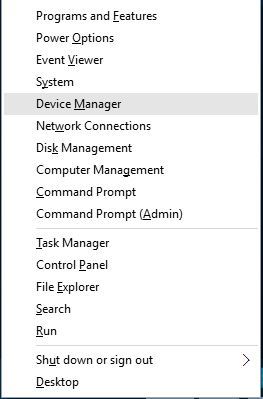
  1. Press the Windows key + X and select Device Manager from the list.
  2. When Device Manager opens, navigate to Mouse section, locate your mouse and double-click it.
  3. Go to Power Management tab and uncheck Allow this device to wake the computer.
    allow-this-device-to-wake-up
  4. Click Apply and OK to save changes.

Few users reported that Allow this device to wake the computer is missing or grayed for them.

This is usually related to USB devices, and in order to change that, you need to enter BIOS and enable USB Wake Support or set ACPI Suspend Type to any value higher than S3.

For detailed instructions, we strongly advise that you check your motherboard manual.

2. Disable your keyboard from waking up your computer

  1. In some cases, your USB keyboard and mouse might be shown as a single device in Device Manager.
  2. Go to Device Manager and repeat the steps from the previous solution but this time for the keyboard.
  3. After you’re done, close Device Manager.

In fact, some users reported that they have several keyboards available in Device Manager and that one of those keyboards represents their mouse, so you’ll need to find the right one on your own.

3. Use Command Prompt

  1. Press Windows key + X and select Command Prompt (Admin) from the menu.
    command-prompt-admin
  2. Once Command Prompt opens, enter the following: powercfg -devicequery wake_armed
  3. You should see the list of all devices that are allowed to wake up your computer.
  4. Enter the following command with the quotation marks: powercfg -devicedisablewake "device name"
    cmd-device-disable
  5. Optional: To enable the device to wake up your PC use this command: powercfg -deviceenablewake “device name”

How do I turn off the mouse awake?

This can be done from the Power Management tab in the device properties window. We have detailed instructions in the first solution of this guide.

Why does my Windows 10 PC keep waking up from sleep?

There are several reasons why, but these are the most common ones:

  • Scheduled tasks such as installing Windows updates will wake your PC up.
  • Your peripherals, such as a mouse and keyboard can also start your computer.
  • Network activity can sometimes interrupt sleep mode.

To learn more, check our guide on Windows 10 wakes up from sleep by itself.

These are just a couple of methods you can use if you want to disable mouse wake up on Windows 10.

In case you have further problems, we have a great guide on how to fix a laptop that wakes up from sleep on its own.

To learn more, we also suggest reading our guide on how to wake Windows from sleep with a keyboard or mouse.

Did you find a different solution? Share it with us in the comments section below.

7 Best Tabbed Command Line Tools for Windows 10

Command line might not be the most visually appealing or the simplest feature of Windows 10, but it’s without a doubt the most powerful one. Although Command Prompt is one powerful tool, it still lacks certain features such as tabs.

If you are an average user, you probably don’t use command line that often, but if you are an advanced user, or a developer, you probably use Command Prompt from time to time.

As previously mentioned, one of the biggest drawbacks is that there is no multi tab Command Prompt on Windows 10. However, if you need this feature, we have gathered the best command line tools with tabbed terminal for Windows in this guide.

What are the best command line tools with tabbed interface for Windows 10?

Console2 – Lightweight tool

console2

Console2 is a simple and lightweight Command Prompt alternative for Windows 10. This tool has been one of the best Command Prompt alternatives for years and even though it hasn’t received any updates recently, it’s still an outstanding tool.

Console2 comes with support for tabbed interface which allows you to simultaneously run different command lines. If you want to differentiate your tabs, you can assign a different name to each tab in order to organize your tabs more easily.

Console2 comes with all sorts of customization options, and it allows you to set the transparency of your console window. One thing we didn’t like about this tool is the lack of support for standard copy and paste shortcuts.

Besides that, Console2 sounds like an amazing alternative to Command Prompt, and if you’re looking for a command line tool that supports tabs, Console2 is one of the tools that you should check out.

⇒ Get Console2

PowerCmd – Powerful alternative

powerCmd

PowerCmd is a powerful Command Prompt alternative, but unlike our previous entry, PowerCmd isn’t available for free. However, you can try it free of charge.

Just like the previous tool we mentioned, PowerCmd fully supports a tabbed interface, but it also allows you to organize command line windows by placing them side by side, allowing you to have up to 4 windows available one by another.

Even if you place command line windows one by another, you can still open more tabs if you need to. Another feature worth mentioning is the shell integration.

This means that you can simply right-click any folder, choose the PowerCmd option, and you’ll open a new command line window by using that folder as a currently opened directory.

This feature is extremely useful if you don’t want to enter folder locations manually and if you need quick and instant access to a specific folder.

If you prefer to enter file and folder names manually, PowerCmd will give you suggestions as you type, so you can just select them from the menu.

It’s worth mentioning that this tool also supports Windows-style text editing, thus allowing you to select, cut, copy, and paste into the command line similarly to any text document while using familiar shortcuts.

Another feature we need to mention is the search toolbar that allows you to quickly search for any output in the command line. In fact, PowerCmd will highlight each word from your search query in a different color, thus making it easier for you to find it.

In order to better organize your command line, there’s support for bookmarks, and you can easily navigate between different bookmarks with a single hotkey. In addition, you can also see and search for your input history for any previously used commands.

Lastly, if you heavily use the command line, you’ll be pleased to know that PowerCmd allows you to automatically save the console output log, so you can examine it at any time, even if your PC or application crashes.

⇒ Get PowerCmd

ColorConsole – Small and simple tool

colorconsole

ColorConsole is a rather small and simple command line tool, and although it lacks some advanced features, it fully supports a tabbed interface. In addition to the tabbed interface, it allows you to display command lines side by side.

It’s worth mentioning that this tool supports standard editing shortcuts, so you can easily select, copy and paste in and out of the command line.

We have to mention that ColorConsole comes with a rather simplistic search feature, but at the same time, it allows you to manually select and highlight output in the command line, so you can easily find it when needed.

Another feature is the ability to export your output as HTML or RTF, which some users might find helpful. ColorConsole might not be the most powerful command line tool on this list, but it’s certainly the lightest.

⇒ Get ColorConsole

MobaXterm – Wide range of features

mobaxtrem

MobaXerm is another advanced command line tool that supports a wide range of features, and it comes in both paid and free versions. It’s worth mentioning that the free version has certain limitations, but for the most part, it should be enough for your needs.

This tool comes with support for Unix commands, and it allows you to launch remote sessions such as SSH, Telnet, FTP, VNC, and many others. Each session is listed in the sidebar on the left, so you can easily create new sessions.

MobaXterm comes with a graphical SFTP browser, so you can easily drag and drop files when you’re using an SFTP connection. In addition, you can also display remote applications directly on your PC while running SSH, TELNET, or RLOGIN/RSH sessions.

If you’re connecting to a remote server using SSH, you can edit remote files directly from MobaXterm by using the built-in MobaTextEditor.

This tool also allows you to remotely control Windows desktop computers by using the RDP protocol. Of course, there’s support for remote Unix desktops by using XDMCP.

MobaXterm is a command line tool with advanced features intended for developers and network administrators, so if you’re just a regular user, you will probably feel overwhelmed by the list of features that this tool offers.

⇒ Get MobaXterm

Terminal Wings – Minimalistic interface

terminal_wings

Terminal Wings comes with a minimalistic and visually appealing interface, and just like all the predecessors on this list, it supports a tabbed interface.

This application is simple to use, and it allows you to easily select, copy and paste any input from the command line.

Terminal Wings allows you to set different profiles, and each profile can be customized with different colors, transparency, default directory, or commands that will be executed when you open that profile.

As we mentioned, this tool doesn’t have any advanced features, but if you’re looking for a command line tool with a simple tabbed interface, Terminal Wings might be perfect for you.

⇒ Get Terminal Wings

ConEmu – Free version

conemu

ConEmu is another free command line tool with a tabbed interface. This tool comes with a simple user interface, which makes it perfect for basic users.

Despite its simple appearance, ConEmu has a wide range of features hidden in its settings. You can change the visual appearance of the command line, set predefined code to run, and much more.

ConEmu is perfect for both basic and advanced users alike, but if you want to use those advanced features, you’ll have to spend some time in ConEmu’s settings panel.

⇒ Get ConEmu

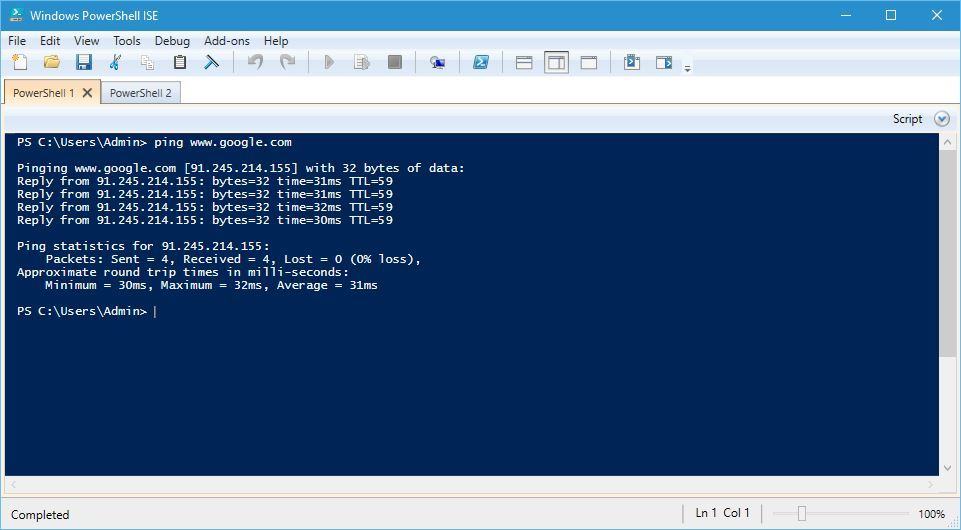
PowerShell ISE

powershell-ise

If you want to use the tabbed terminal command line on Windows 10, there’s no need to download alternative tools from the Internet since you can use Microsoft’s PowerShell ISE.

This tool is integrated into Windows 10, and it comes with many features, one of them being a tabbed interface.

Of course, there’s support for a wide range of PowerShell commands, but if you’re not too familiar with PowerShell commands, there’s a list of commands along with additional details about each command available right from the PowerShell ISE.

Although Command Prompt doesn’t support tabs, Windows 10 comes with its own alternative in the form of PowerShell ISE. If you’re looking for a third-party alternative, PowerCmd offers a wide range of features along with a user-friendly interface.

Unfortunately, PowerCmd isn’t available for free, but if you’re looking for a free tabbed command line tool for Windows 10, ConEmu might just be what you need.


Forza Motorsport 6: Apex beta version for Windows 10 now available in the Store

Racing games fans have now a new game they can test their skills on: the beta version of Forza Motorsport 6: Apex for Windows 10. You can hit two birds with one stone: play an amazing car racing game and, at the same time, help the game developers to improve the game’s performance on various hardware setups.

This incredible game is a step forward towards improving Windows 10’s game offer, alongside Microsoft’s promise to bring more Xbox games to Windows 10.

Since the game is in its beta version, updates and improvements will constantly be rolled out to the game. In the near future, the game developer will also add wheel support to Forza Motorsport 6: Apex, as well as the option to disable Vsync among other things.

This incredible game is powered by the state-of-the-art ForzaTech graphics and physics engine, and features all new race modes available. Breathtaking graphics of up to 4K resolution will make the racing experience feel real. Forza Motorsport 6: Apex also benefits from DirectX 12, the new standard for 3D graphics that brings better performance and overall optimization.

If we were to use one word to describe the game graphics, that word would be “realism”. Cars are depicted in precise detail thanks to the ForzaTech engine, which allows players to see all the unique aspects of each car.

https://www.youtube.com/watch?v=w8xREfr1YuA

A series of advantages are offered to Windows 10 users such as:

  • The ability to access your list of friends and achievements.
  • Text and voice chat via Xbox Live.
  • Record and share your favorite moments with built-in Game DVR.
  • Reach the Gamerscore up to 1,000 points by earning achievements exclusive to Windows 10 PC Forza players.
  • Support for mouse, keyboard and a variety of gamepads so that you can better customize your experience.

If you are undecided, here’s what players said about this game:

Very impressed with forza. The port is excellent, runs perfect and has a wide variety of graphics options. The gameplay is great, very fluid and responsive with the right car and controller setups. I can’t stress enough how amazing the graphics are. In the photo mode it is pretty much photorealistic. Only one thing would make it better and that would be proper wheel and clutch support other than that it’s amazing. Well done turn 10 and microsoft.

By the way, if you’re looking for a wheel for this game, check out this awesome TMX Force Feedback racing wheel. And if you’re into racing games, you may want to check out the Assetto Corsa racing game, coming to Xbox One in June.

You can download the free beta version of  Forza Motorsport 6: Apex from the Microsoft Store.

RELATED STORIES YOU NEED TO CHECK OUT:

Microsoft Store for Business now allows devs to sell organizational licenses

Microsoft has made it easier for developers to sell their apps to IT professionals.  Developers can now sell organizational licenses to companies via Windows Store for Business, allowing administrators to acquire, manage, and distribute Windows Store apps faster to their organization’s Windows 10 devices.

This is a very wise decision from Microsoft taking into account that small and medium enterprises spend around $70 billion every year on desktop software and applications. This new feature in the Windows Store for Business allows the two participants to reach each other faster and end deals more rapidly. By taking this step, Microsoft is showing how committed it is to developers and organizations.

The new feature is, of course, available for developers from supported countries/regions; if needed, you can check out the list of countries here. For the time being, organizations can purchase apps in volume with credit cards only. In the near future,  other purchase options will be added such as: invoicing, volume discounts, and organizational in-app purchases.

Payouts for organizational purchases work in the same manner as consumer purchases. You can find all the transaction payout information in your Payout Statement in Dev Center.  All the apps purchased via the Windows Store for Business platform will appear in your Dev Center reports under the label of “Volume acquisitions by organizations”.

Microsoft has been focusing heavily on improving the app area for businesses. The company is working on various business projects such as Project Madeira, or the recent Project Server to help companies stay productive. Rivalry is also fierce in the business fields with Google disclosing its plans to steal 80% of Microsoft’s business customers.

In this business battle, Microsoft is also gambling on its ability to convince business users to upgrade to Windows 10. Taken into account the threats from competition, the Redmond giant will definitely bring other important updates and features to its business clients park in the near future.

RELATED STORIES YOU NEED TO CHECK OUT: 

Microsoft and CARE partner to use technology to build healthier communities

While some Windows users may still have issues with Microsoft’s Windows 10 upgrade process for various reasons, the company is still sitting firm behind its intentions and in doing so, it’s helping a largely unspoken group of individuals.

Through Microsoft’s Upgrade Your World program, designed to encourage nonprofit organizations to help make a difference in their neighborhoods, the company is sourcing, discovering, and partnering with talent from around the world and contributing to the lives of millions.

Most recently, the Upgrade World Program joined forces with CARE, a crisis response organization serving individuals and families in some of the poorest communities seventy years in the making. With the help of CARE’s sprawling global community, Microsoft hopes to help support ant deliver tools that help “educate pregnant women, mothers, and their infants during the 1,000 critical days from conception to age two.”

Supported by Windows PCs and Microsoft Excel at CARE’s local office, 550 community healthcare workers were set up and provisioned with mobile devices to aid them in registering, tracking and delivering timely care to pregnant women, mothers and newborns. The phones included an app custom-built by CARE, the Gates Foundation and the Indian government, which allowed for the real-time collection of health information on each client, and synced through the cloud to create a digital health record for each client. And then the magic began…”

https://blogs.windows.com/windowsexperience/2016/05/09/windows-partners-with-nonprofit-care-to-build-healthy-communities-through-technology/
windowsexperience/2016/05/09/

Much of Microsoft’s support appears to be behind providing the technology to CARE workers to help make their lives more convenient with up-to-date tools and productivity options. Where some might see Windows 10 and some of Microsoft’s mobile apps irrelevant or cumbersome, the men and women of CARE helping others can now gain access to technology that “gave these health care workers more confidence to do their jobs and engender more trust from those they visited.”

More specifically, as an Upgrade Your World partner, Microsoft will invest $500,000 cash into CARE with an additional $2M worth of software to support the organizations advocate work with improving basic education, ending gender-based violence, increasing healthcare, clean water, and nutritional accessibility for women and others.

To find out more or help with CARE’s global initiative, visit the website here.

India’s Airtel partners with Microsoft Azure, launches private connection service Connexion

The Indian-based global telecommunications service company Bharti Airtel just made a significant investment in its cloud infrastructure and future according to the Economic Times. Joining forces with Microsoft, Airtel’s new business platform titled Connexion and powered in part by Azure Express Route will offer “a more secure, scalable and seamless private connection between enterprises, cloud service providers, and data center partners.”

As Airtel operates in 20 countries across South Asia, Africa and the Channel Islands with over 325 million subscribers, Microsoft’s Azure cloud platform has once again proven to be enticing in both scale and performance for larger business partnerships. Airtel’s director and CEO of global business Ajay Chitkara explains:

…with Connexion, we are confident of helping customers seamlessly and more securely connect to Microsoft Azure, by bringing down their network cost substantially and improving performance.

The specifics of Microsoft’s and Airtel’s partnership enables Airtel’s customers to create private connections between their infrastructures and Azure date centers. The result of allowing such singular pathways exemplifies Microsoft’s expansion of services in India and its other global audiences through its continued focus on strategic partnerships and reducing the complexity of its service stacks.

Microsoft’s Yousef Khalidi, Distinguished Engineer of networking for Microsoft Azure on the company’s expansion:

Enterprises are increasingly leveraging the power of the cloud to empower their workforces and Microsoft is expanding its services for India and global customers. Our partnership with Airtel, the third largest global carrier, is a major step in this direction, and we hope to bring in an integrated and seamless experience for our mutual customers.”

As of now, a few specifics on the matter still present some unanswered questions such as when the new Connexion service will exactly be available for customers or how the new agreement affects Airtel’s previous 2015 announcement of Amazon Web Services powering its private network solutions.

This will help Airtel’s enterprise customers across the globe leverage the power of AWS Direct Connect to establish a dedicated network connection between customers’ premises and Amazon’s data centers – thus helping them reduce network costs, increase bandwidth throughput, and experience a more consistent network connectivity.”

While smart businesses shop the best solutions for a wide array of topics and issues, it seems reasonable that neither AWS or Microsoft’s Azure teams want to share space as Airtel’s cloud and hybrid solutions for its customers.

Microsoft publishes a roadmap for Office 365 Education users

While Chromebooks may be sucking up the news air regarding education and technology, Microsoft has been plugging away at its still considerable presence in schools and universities. With tools such as OneNote, Office 365, and Surface hardware, Microsoft appears to be revamping its brand with regard to teachers, faculty, and academic administrations.

On that note, the Office 365 team just announced its Education Roadmap via a new website that is easily accessible and viewable to all educators. A previous iteration of Office 365 Roadmap was made available for Enterprise customers that listed key developmental milestones for the suite of Office tools such as Yammer, Skype for Business, Exchange, etc. Now, the same detailed status updates and milestone marker listings are being offered for educators interested in Office 365 deployment.

We’re pleased to share the Office 365 Education Roadmap, which lists updates currently planned for applicable subscribers. Updates for the various stages—from in development to rolling out to customers, to being generally available for applicable customers worldwide—are easily accessible in the Office 365 Roadmap.”

Visiting the site, anyone interested in investing in technology for schools or colleges will find information about what’s being “Envisioned” by the Office team as well as transitioning and management tools for current Office users. By following the path below, users can gain further information on the development process of Office 365.

  • Go to roadmap.office.com.
  • 2.Open Filters.
  • 3.Under Services, select Education.
  • 4.Click the launch status (i.e., in development) to see product/feature items.
  • 5.Click the item for a description and other information available.

Once filtered, customers will see a listing of milestone updates for the following sections of development from the Office 365 team.

Launched: Fully released updates that are now generally available for applicable customers

Rolling out: Updates that are beginning to roll-out and are not yet available to all applicable customers

In development: Updates that are currently in development and testing

Cancelled: Previously planned updates that are no longer being developed or are indefinitely delayed.

The addition of the Education Roadmap is another piece of a larger puzzle that is becoming Microsoft’s Office 365 platform, rather than only the company’s productivity suite. Microsoft is actively engaging with its communities and education is a enormous community that will help guide the company’s plans moving forward.

Windows Live Mail will no longer synchronize with Outlook.com

Microsoft’s Windows Live Mail is a free email client found in the Windows Essential package of software. These services were initially offered to Windows 7 users but were discontinued for Windows 8 and Windows 10. While they can still be downloaded, bear in mind these apps are no longer updated.

When it comes to Windows Live Mail, users had the option to connect to Hotmail, now better known as Outlook.com. However, with the newest version of Outlook.com, it is no longer possible to connect Windows Live Mail, meaning users will have to abandon the software very soon.

Microsoft recently made the announcement in a blog post, stated that Windows Live Mail 2012 will no longer be possible to synchronize with Outlook.com by the end of June 2016. The software giant says users should use the built-in mail app found in Windows 8.x and Windows 10.

Outlook.com is being upgraded to incorporate new infrastructure that delivers innovative email and calendar experiences with enhanced performance, security, and reliability. The Windows Live 2012 email application does not support the modern synchronization technologies used by the new Outlook.com, so once your account is upgraded to the new Outlook.com, you will no longer be able to send or receive Outlook.com email from Windows Live Mail 2012.

If you’re no fan of the new Mail app, Microsoft is offering a free month of Office 365 right now — but that’s not even the best offer. For those who are currently using Windows Live Mail, Microsoft wants to give you Office 365 free for an entire year.

Office 365 makes it possible for subscribers to take advantage of Office 2016. Furthermore, they’ll get 1TB of OneDrive storage free along with 60 minutes worth of Skype credit each month.

Sounds good, right? It is. We’ve been using Office 365 for quite some time and it works well — especially that 1TB OneDrive space.

But if you think about switching from Microsoft’s mail services to a mail client or app, we would strongly suggest you to check out our Mailbird review, one of the leaders on the market. Also check our list with best mail clients and apps to use.

RELATED STORIES YOU NEED TO CHECK OUT:

Microsoft exec at London conference: AI will “change everything”

Microsoft UK’s chief envisioning officer Dave Choplin made some strong statements at an artificial intelligence conference last Thursday. Sam Shead of Business Insider wrote about Choplin’s claim that AI is “the most important technology that anybody on the planet is working on today.”

Currently, most people’s interactions with AI are limited to asking Cortana or Siri to help with simple tasks like scheduling appointments or making phone calls. Those small incremental improvements to our digital assistants might make AI seem like something other than the game changer that Choplin envisions.

But as AI improves with advances in deep neural nets and machine learning algorithms, the technology stands the chance to amplify virtually everything in life. Choplin went on to say,

[AI] will change how we relate to technology. It will change how we relate to each other. I would argue that it will even change how we perceive what it means to be human.

Of course, many also are suspect about the promise of artificial intelligence and worry about its impact on everyday life or even its misuse by malevolent actors. Stephen Hawking has worried AI could be an existential threat and Tesla CEO Elon Musk has gone on to create an open source AI after worrying about its misuse.

In his statements, Choplin also stressed that as more and more companies try to create AI, “We’ve got to start to make some decisions about whether the right people are making these algorithms.” Choplin went on to ask questions about AI such as:

What biases will be inferred by those people, by those companies? These are things we don’t know about. This is new. We talk about unchartered territory.

Ultimately, Choplin is an optimist regarding how AI will impact humanity, but he doesn’t take it for granted. As an increasing number of thought leaders become more concerned about the advancement of AI, it will be interesting to see how companies like Microsoft respond in creating the AI-based tools of the future.

Microsoft has made $1 Trillion in total cumulative revenue, according to report

When Microsoft reported their earnings for the most recent fiscal quarter the neglected to mention that the company had reached a milestone for cumulative revenue. Technologist and writer Jeff Reifman stumbled upon the realization that over the course of its existence Micrsoft has made $1 trillion in revenue.

Riefman notes that Microsoft is not the first technology company to reach this milestone. According to his data, Apple achieved $1 trillion in cumulative revenue sometime last year. His graph of cumulutive revenue for Microsoft, Google, Amazon, and Apple illustrates how Apple’s revenue skyrocked with the iPhone, leading the Cupertino based comapny to surpass Microsoft in cumultive revenue around 2013.

However, Reifman dived into the data even further to find that Microsoft still has a slight edge over Apple for now in the tally of cumulative profits. Over its existence Microsoft has made a cumulative $265.2 billion in profit while Apple has made $261.6 billion.

microsoft-cumulative-revenue
Via JeffRiefman.com

Reifman’s data shows that Amazon has passed the $500 billion cumulative revenue mark but Google has not. And while Amazon has achieved half a trillion in cumultive revenue, the other Seattle based technology company has not been nearly as profitable – only taking in a lifetime total of $3.31 billion in profit.

Cumultive revenue and profits are not the most pertinent financial measures of a mature company. Stringing together the cumulative earnigns over four decades does not help project future earnings or asses present levels of performance. But the figures do stand out as noteworthy to get a sense of gravity and scale to Microsoft and other technology comapnies.

microsoft-cumulative-earnings
Via JeffReifman.com

Riefman uses this data to draw attention to the state of Washington’s tax laws. He notes that combined Microsoft and Amazon have made more than $1.5 trillion in revenues while headquartered there, but in his state the wealthy pay the lowest share of taxes compared to the entire country. Riefman goes on to say that while so much tax revenue is not collected from the wealthy and these profitable corporations, the state of Washington has gone onto suffer from a lack of public funds with social problems in education, traffic, homelessness, a heroin epidimic, violent crime, and more.

Because the United States has one of the highest corporate tax rates in the world, many companies have sheltered their revenues overseas in countries with low tax rates, such as Ireland, for years. And those years of sheltering profits have added up to massive amounts of cash on hand, which for the most part, sits idle.

Concern has been growing over these considerable off shore piles of cash. Notably, Tim Cook was called before the Senate in 2013 to speak about his company’s decision to hold so much cash off shore. And the more recent revelations found in the Panama Papers has increased the public discourse over tax havens. As the off shore cash reserves of companies like Microsoft and Apple continue to grow into 12 digit figures, something has got to give.

Minecraft celebrates 4 years on Xbox with free skins

In celebration of the 4th birthday of Minecraft on Xbox, Microsoft is giving away the Minecraft 4th Birthday Skin Pack for free. Both Minecraft Editions on Xbox 360 and Xbox One Editions are eligible for the free 4th Birthday Skin Pack. As an added bonus, Microsoft is also making the previous 1st, 2nd, and 3rd Birthday Skin Packs available for download too until May 16, 2016.

It’s hard to believe that it has been four years since Minecraft made its way to the Xbox 360 and later onto Xbox One. The 4th Birthday Skin Pack features Alex and Steve with some special mob-themed t-shirts to wear.

It’s hard to believe that it has only been four years, but hopefully, we will have more content and features to celebrate Minecraft in the years to come. Download all four Birthday Skin Packs in the links below.

Download the 1st Birthday Skin Pack
Download the 2nd Birthday Skin Pack
Download the 3rd Birthday Skin Pack
Download the 4th Birthday Skin Pack

Laptop Charging Very Slowly? 6 Ways to Fix it

Laptops, netbooks, and tablets offer the advantage of mobility but at the cost of reliability compared to their desktop counterparts. In a laptop, the first thing that breaks is usually the battery, especially it is very slow charging.

It’s no wonder that most hardware manufacturers offer a 2-year warranty on the laptop but only one year for the battery.

If you’re experiencing battery problems like slow charging, know that these issues are usually on the hardware side, but there are also some software solutions you can try.

Why is my laptop charging very slowly?

Here are a few reasons the laptop battery is charging slowly:

  • Issues with the charger: The primary aspect that triggers the slow battery charging in Toshiba or Lenovo laptops is the charger. If it’s not of the required power rating or the cables are not connected properly, you will likely face issues.
  • Battery problems: A damaged or simply battery that is too old will not charge as quickly as it did during the initial days.
  • Misconfigured PC settings: Several PC settings and the BIOS play a vital role in charging the battery on your laptop. So, you need to make sure everything is in order.

How do I fix a slow charging laptop?

1. Hard reset

  1. Power off the laptop, disconnect the charger, and then remove the battery.
  2. Now, hold the power button for 30 seconds to completely discharge the battery.
  3. Once done, connect everything back to the way it was initially, and turn on the laptop.

Your computer motherboard has a lot of memory chips on it used by various components or to store information regarding hardware status. These memory chips usually keep data stored on them only while they are connected to a power source (battery or charger).

If you keep your laptop always connected to a power source, then these chips will keep storing the data, data that, in time may not reflect the correct current status of the hardware components and will have to be manually reset.

2. Update BIOS

Tip icon Tip
Updating the BIOS is a complex process; any lapses here could significantly damage the PC. We recommend you be extra cautious, and if unsure, let an expert do it.
  1. Press Windows + R to open Run, type msinfo32, and hit Enter.msinfo32
  2. Look for the BIOS Version/Date entry on the right and note what’s listed next to it.update BIOS to fix laptop charging very slowly
  3. Now, head to the manufacturer’s website, and download the latest BIOS.

Sometimes, simply updating the BIOS should fix things when the Dell laptop is charging very slowly. For problems related to the BIOS, manufacturers usually release an update when the issue is discovered. It’s the same way Microsoft does with its Windows updates.

3. Calibrate the battery

  1. Completely discharge the laptop battery, so the device no longer powers on.
  2. Once done, connect the charger and let the battery gain full power. Keep the charger connected for an additional hour, just to be sure.
  3. Again, discharge the battery and repeat the same charging process.

Irregular battery usage and charging cycles can confuse your system or battery about the charge level stored. This can cause all kinds of problems, from slow laptop battery charging to reporting wrong battery levels.

Calibrating it will allow the battery and system to re-learn its limits to report the charge level correctly.

4. Check the battery

When a battery is new, it has a maximum charging capacity, usually printed on it. This maximum capacity slowly decreases in time to the point where it cannot hold a charge anymore and has to be replaced.

A good way to check the current maximum capacity of your battery is by using an application like BatteryInfoView.

This small app will display all the information you need to know about your battery. This includes the factory-designed maximum charging level, the current maximum charging level, and the wear.

Troubleshoot slow battery charging in Windows 10
BatteryInfoView

As seen, the maximum factory-designed charge level on the battery was 55.000 mWh, but now the maximum level is 37.140 mWh. This means the battery is at 67.5% of its health and will have to be replaced soon if this value keeps decreasing.

5. Check charger voltage

The slow battery charging problem on the laptop might not be related at all to your machine, but the charger can be the one to blame.

Most electronic equipment use capacitors, which are components designed to store electricity for a short time. Their capacity decreases in time, the same way a battery does, which can lead to the charger not delivering enough current to your machine.

To check this, you’ll need a Voltage Tester or a Multimeter connected to the charging pins on your cable. If the value displayed is less than the output value printed on the charger, you might need to consider replacing it.

6. Battery charging limits

Some batteries don’t allow charging if the current level is above a certain value, usually 90%. This means that the battery won’t charge to 100% unless its level falls under 90%.

To check if this is your problem, let the battery discharge under 50%. Then connect the charger and keep it connected until the battery reaches its full capacity.

By now, you should have the slow battery charging issue in all laptops rectified. And the system should be up and running properly.

Before you leave, check some quick tips to extend the laptop’s battery life and easy ways to limit the battery charge in Windows 11.

For any queries or to share more solutions with us, drop a comment below.

Square Enix shows off new Deus Ex: Mankind Divided trailer

Not too long ago, Square Enix and Eidos Montreal released a six-minute long trailer of Deus Ex: Mankind Divided. The trailer was designed to give fans an idea of what to expect once the game becomes available at retail later this year.

The new game’s storyline is set in the year 2029, two years after the previous 2011 installment game, Deus Ex: Human Revolution. This gameplay trailer truly shines and we expect fans of the series to be very excited for what is to come and the overall future of the franchise.

Here’s the full description:

In Deus Ex: Mankind Divided, you become Adam Jensen, a counterterrorism agent working for an Interpol unit known as Task Force 29. On the surface, Jensen’s goal is to hunt down terrorists in a world that’s spinning out of control, where mechanically augmented humans live a life of complete and total segregation from the rest of society. But what he’s really after are the Illuminati: the men and women who are always pulling the strings.

His investigation will take you around the world, with the decisions you make and the actions you take playing a crucial role in determining the game’s outcome. Choose between combat, stealth, social, and hacking approaches to achieve your objectives. Be mindful though, as there will be a meaningful consequence to every action and choice you make.

While the game was officially set for a February 23, 2016 release, Eidos Montreal decided to push it to an August 23, 2016 release instead. At the moment, PC gamers can pre-order the game to get an exclusive mission. As for when Xbox One owners will get the chance to pre-order Deus Ex: Mankind Divided, we have no idea. Chances are, it could be after E3 2016.

RELATED STORIES YOU NEED TO CHECK OUT:

Explore the mysterious Far Harbor in Fallout 4’s next DLC on May 19

Fallout 4 fans will soon have a new area to explore: the mysterious island of Far Harbor, a location dominated by high-level radiation. Starting on May 19, you can step into this forgotten area and try to bring peace in a world where hope is nothing but a mere word.

Fallout 4: Far Harbour will be available on Xbox One, PlayStation 4 and PC, another big addition in Bethesda’s plans to release more add-ons and free updates like Mods in 2016. For the time being, Mods are only available on PC but will be released for Xbox One later this month. The company has already rolled out a series of interesting updates such as the Survival Mode, making it more difficult for players to survive.

Far Harbour’s plots revolves around Valentine’s Detective Agency assigning you a new case and sending you to Far Harbor. There, you have to search for a young woman and a secret colony of synths. From the coast of Maine, head to the mysterious island of Far Harbor, which is permeated by high-level radiation that have created a feral, hostile world. You are in the middle of a conflict between the synths, the Children of Atom, and the local townspeople. The conflict is only getting more intense and your task it to work toward bringing peace to Far Harbor.

To make things more difficult, the local people are not too willing to help you because: “We’ve paid our dues in blood and bullets. This is our fight, our island, not yours!”

Not everybody rallies to your plans, and you should prepare because things will not go out smoothly. New faction quests, settlements, lethal creatures, and dastardly dungeons are waiting for you. Your only chance to survive is to become more powerful and get your hands on new, higher-level armor and weapons. As always, Fallout 4’s graphics are amazing and will deliver an amazing gaming experience.

If you encounter any problems when playing Fallout 4 on your Windows 10 device, take a look at our guide on how to fix them.

Microsoft removes PDF Reader on Windows 10 Mobile from July 1, forces you to use Edge

Microsoft will no longer support PDF Reader on Windows 10 Mobile starting from July 1, leaving users with very few options. The tech giant has begun to deliver this information to users via a notification on their PDF Reader screen. If you want to view PDF documents after July 1, there are two solutions: download third-party apps or use Microsoft’s Edge browser.

Somehow, this had been a predictable move from Microsoft since its Edge browser can open documents, including PDF files. Why focus on two tools that do the same thing? Although Microsoft’s decision may upset some users, the vast majority of Windows 10 users could turn to Edge for PDF support: the company’s best browser has more than 150 million active users.

The Redmond giant has also been focusing on improving the Edge experience with every single build it’s rolled out. In addition, Microsoft releases constant updates and improvement to its favorite browser to meet users’ needs: Google WebM support has recently been added, Grammarly is also available, and automatic Flash content pausing is also supported.

As useful as Edge may be, there are certain features and actions that are not yet supported by the browser. Some of them impact Windows 10 mobile users heavily. For example, PDF printing in Edge is not supported and two pages cannot be put side by side, among other things. If Microsoft wants its customers to use Edge as a PDF handling app, it had better bring some useful PDF updates to its browser. Otherwise, people will most likely turn to third-party apps for PDF support.

If Microsoft kills PDF Reader on its Windows 10 Mobile, could the company be thinking to do the same to its Windows 10 Desktop OS? Although that would be a very bad move, we still don’t know what length the tech company could go to migrate its customers to an Edge-supported PDF platform.

Are you a Windows 10 user? What decision will you take: use a third-party PDF app or give Edge a chance? Let us know in the comment section below.

RELATED STORIES YOU NEED TO CHECK OUT:

Blizzard launches Overwatch open beta for players worldwide

Blizzard started the open beta for its upcoming MOBA shooter Overwatch a couple of days ago. Overwatch’s open beta is available on Windows PCs, Xbox One and PlayStation 4 and will be active until May 9th, so if you want to try this game before purchasing it, download it now.

During the open beta, players will have access to almost every feature of the game including the full roster of 21 heroes and launch-day features like Custom Games, Loot Boxes, and Weekly Brawls. Blizzard says it made all these features and content available to players because it wants to bring the full game experience to testers from day one.

The Overwatch open beta is available for free to Windows 10 PC users who want to try it out. However, Xbox One players will need a paid Xbox Live Gold subscription account to participate in beta testing due to “the multiplayer nature of Overwatch.” While the game doesn’t require PlayStation Plus while in beta, but it will be required as well once Blizzard launches the game.

Blizzard also confirmed that Overwatch won’t support cross-platform playing, neither during the beta nor in the full version. This certainly doesn’t fit in Microsoft’s plans, as we know that Redmond currently encourages cross-platform compatibility between Windows 10 and Xbox One.

Early access to the Overwatch beta began on May 2 and was only available only in certain regions (Los Angeles, New York, Moscow, Sao Paulo, Paris, and more). Now, players worldwide can check it out.

Overwatch will be released on May 24 for the price of $59.99 for Windows PC and Xbox One, and $69.99 for PlayStation 4. The game is already available for pre-order from the official site.

RELATED STORIES YOU NEED TO CHECK OUT:

How to fix Continuum problems in Windows 10

Windows Continuum is one of the great features available in Microsoft Windows 10. It allows your device to automatically switch between desktop mode and tablet mode depending on the way you use it. Even though this feature comes preinstalled on al Windows 10 editions, it doesn’t always work as intended.

Today we’ll try to troubleshoot the most common problems encountered when using Microsoft’s Windows Continuum.

1. Hardware

Windows Continuum is hardware dependent which means that it won’t automatically switch between the two modes without some hardware support. Basically it needs a switch that tells it to turn on tablet mode when you remove your device from its dock or detach the physical keyboard and turn it off when you reconnect the dock or the keyboard.

What this means is that the hardware has to be built with Windows Continuum in mind. Yes, manufacturers could emulate a software switch through their drivers but they prefer to keep these features as a selling point for newer hardware.

At the moment the Microsoft Surface tablets, starting with the 3rd edition, are the only officially supported hardware by the Windows Continuum feature. Other manufacturers might bring support for it in future software updates.

2. Update your system

Some features in Windows might not work if your system isn’t up to date and Windows Continuum has been known to be one of them. For example, when it was first launched, Microsoft Surface 3 users who upgraded to Windows 10 weren’t able to use Windows Continuum until a later update was released that fixed this issue.

You can check if your device has any pending updates by accessing the Settings window from the Start menu. From there go to Update & security and hit the Check for updates button.

Troubleshoot Continuum problems in Windows 10

3. Continuum configuration

One of the reasons Continuum might not work for you is if you didn’t configure it correctly. Continuum can be set to ignore switching from desktop to tablet mode and maintain the one used at the moment.

You can configure Continuum by opening the Settings windows, click on the System section and then select Tablet mode from the left pane.

Under When the device automatically switches tablet mode on or off make sure to select either Always ask me before switching or Don’t ask me and always switch.

Troubleshoot Continuum problems in Windows 10

4. Update drivers

Because Windows Continuum is a new feature support for it needs to be added in the hardware drivers. If you’re still using the older version of the drivers Continuum might not work until you update them. For the majority of cases this can be achieved by using the Windows Update function, as described in the second step. If you’re using something else than a Microsoft Surface product you can also check the manufacturers’ website support section for newer drivers.

5. Manual switching

Switching between desktop mode and tablet mode can also be done manually. For this you have to click on the Notifications/Action Center button on the taskbar, next to the clock, and manually enable Tablet mode.

Troubleshoot Continuum problems in Windows 10

If none of the above steps managed to fix Continuum for you please use the comment section below to give us more details and we’ll try to help you.

Fhotoroom app gets new drawing brush tools for Windows 10

Fhotoroom is one of the most popular photo editing tools out for Windows users, and for good reason. The app not only gives its users an excellent collection of tools to work on photos, but puts together a community where people can come together share work with one another. With this theme of community being particularly important to Fhotoroom, it makes sense that the app is working hard to keep fresh, updated features coming to its dedicated audience.

The latest update to Fhotoroom has just come out, fixing several bugs and tweaking some of the app’s pre-existing features. What’s really exciting about this update, however, is the fact that Fhotoroom is bringing brand new brush tools to users who want to bring a custom touch to some of the photos that they’re working on. The new brush tool isn’t all that advanced when put it next to tools in heavy-duty editors like Photoshop or GIMP, but it does its job relatively well. Opacity and size adjustment are absolutely necessary for any brushes in photo editing tools, and the addition of scatter can be useful for a few select edits.

The brush is now available on all versions of Fhotoroom, supporting all Windows 10, Windows 10 Mobile, and Windows Phone 8 devices. This update also marks a bit of a milestone for Fhotoroom, as the app’s Windows 10 Mobile version is now officially out of beta. While the term “beta” has lost much of its meaning recently due to the ever-evolving nature of software as a service, it’s nice to know that the people making Fhotoroom feel comfortable enough with the Windows 10 Mobile version of the app to say that it’s officially ready to be used.

Microsoft Flow to automate your time-consuming tasks a-la IFTTT

In today’s multitasking world, it is essential to know how to prioritize your tasks — otherwise, you might not respect your deadlines. The best aid in helping you to achieve this goal would be a tool that automatically takes care of your time-consuming tasks. In this manner, you can focus only on the most important and urgent tasks.

Microsoft Flow is a preview tool that helps you to set up automated workflows between your favorite apps and services in order to synchronize files, get notifications, collect data and perform other various tasks. You can access Flow from any device: your tablet, your desktop computer, or even your phone.

The tasks this app can perform are very diverse and include:

  • Create a to-do item in Wunderlist for important emails This template creates a task in Wunderlist when emails marked important are sent to your Office 365 inbox. You also need to select what list to add this task to.
  • Get a text notification when you receive an email from your manager No more unread emails. You will need an Office 365 email address and a Twilio account for this template.
  • Save email attachments to a SharePoint document library You can have easy access to your Office 365 email attachments from SharePoint.
  • Get daily reminders in Email This flow will send you a reminder every day based on the following connections: Office 365 Users and Office 365 Outlook.
  • Send me an email when a new file is added to SharePoint Online
  • Save email attachments to Dropbox This flow will store all the attachments you receive in email to a specific folder in Dropbox.
  • Copy files between OneDrive and Dropbox
  • Create Dynamics Leads based on Tweets Select a search term and all of the people who tweet about that term will appear as leads in your Dynamics CRM, along with some basic details.
  • Create a new item in SharePoint when a new order is added in Salesforce

If these templates are not enough, you can create your own flow from scratch.  All you need to do is select the apps involved, the action you want the flow to take, and the events that trigger it.

You can try out this useful business tool from Microsoft here. And if you’re into automated tasks, you should know that IFTTT could soon be coming to Windows 10, as well.

RELATED STORIES YOU NEED TO CHECK OUT:

Warhammer 40K: Dawn of War III confirmed for 2017, will be biggest installment ever

Sega and Relic, developer and publisher of the Warhammer 40k: Dawn of War series, just confirmed that the third installment of the game will arrive sometime in 2017 to Windows PCs. Dawn of War III is a highly anticipated game, coming seven years after the previous release.

As Sega mentioned in the official announcement post, Warhammer 40k: Dawn of War III is going to be a combination of the best parts from both previous Dawn of War titles. Although Sega said that the game will arrive in 2017, the exact release date is still unknown.

“In Dawn of War III you will have no choice but to face your foes when a catastrophic weapon is found on the mysterious world of Acheron. With war raging and the planet under siege by the armies of greedy Ork warlord Gorgutz, ambitious Eldar seer Macha, and mighty Space Marine commander Gabriel Angelos, supremacy must ultimately be suspended for survival.

Take control of towering war machines and tip the balance of battle in your favor with the biggest characters in Dawn of War history. Prepare for more epic action as you wage war with massive armies across landscapes full of volcanic terrain or on battlecruisers in space. This universe has no heroes or villains. Through alternating missions you’ll soon learn the combat advantages of Space Marines, Orks, and Eldar.”

Along with the announcement, Sega also released an epic trailer for the game, revealing some features and aspects of the game. The game will feature “super walker” units which executive producer of the game, Stephen MacDonald, described as “their biggest units ever.” It is also said on the announcement page that this installment is going to be ” the biggest Dawn of War yet,” so get ready for something massive.

You can check out the official announcement trailer for Warhammer 40k: Dawn of War III below:

Tell us in the comments: what are your expectations from the game?

RELATED STORIES YOU NEED TO CHECK OUT:

Shadow Complex Remastered comes to Windows 10 Store

Shadow Complex was initially launched for Xbox 360 in 2009. This game is a classic, having managing to keep its popularity after all these years. As a result, you can now play Shadow Complex Remastered, a modern, cutting-edge game built upon the content from the original game on your Windows 10 device.

Although the game’s skeleton is the same, the experience will be different. Thanks to graphics enhancements and additional achievements and Master Challenges, this game will have you hooked for hours on end.

Through 10+ hours of exploration and fast-paced combat, players discover game-altering power-ups to overcome obstacles, thwart legions of enemies, and delve further into a mysterious and challenging, non-linear game world.

Lost hiker Jason Fleming dives into government conspiracy, dark political motives, and military upheaval as he and his girlfriend Claire accidentally stumble upon a paramilitary group called The Restoration. The group has a sole purpose in mind: to fuel a series of events that will plunge America into a civil war. As the game advances, Jason gets his hand on the weapons developed by this group and becomes a messenger of destruction.

Shadow Complex Remastered Xbox Store
If you want to make things easier, find the unique game-altering power-ups and the additional items and enhancements. They will give the upper-hand when you cannot avoid confrontation. Complete the new achievements and master challenges and see what rewards await for you.

The main features of the game include:

  • High definition characters, enemies, environments, and interface.
  • Updated lighting, post-processing, and visual effects.
  • New contextual melee take-downs.
  • New Achievements and Master Challenges.
  • Xbox Live achievements, leaderboards, friends lists, and cloud saves.

If you want to recall the time when you were a hardcore Shadow Complex gamer, buy Shadow Complex Remastered from the Microsoft Store for $14.99. Users who bought the game said it is worth the money:

Very good and fun game it runs flawlessly. its totally worth the money.

I have played this game through many times on my Xbox 360. It is still just as fun on the PC with updated graphics.

If you want to see more classic games, check out the best 100+ Windows 10 Store games.

RELATED STORIES YOU NEED TO CHECK OUT:

  • New Xbox One Controller to be announced at E3 2016?

Age of Cavemen Review: Lead a prehistoric village on your Windows 10 device

If you’re into strategy games, the Age of Caveman might be up your alley. In it, you are a prehistoric village’s chief leading your tribe, training your troops, and fighting other villages.

Age of Caveman is a free-to-play strategy game where you lead your stone age village. To have a successful village, you’ll need to manage it and distribute resources carefully. The main resources in this game are stone, meat, and meteorites.

age of cavemen review1

Stone is used for building while meat is used for performing actions or for training troops. Both of these resources can be produced in your village by building a Hunter’s Cave and Stone Quarry.

Each of these buildings will produce a specific resource that you can collect. Since meat and stone are crucial for the development of your village, you’ll have to invest a lot of time into resource gathering.

Fortunately, resources are produced by your villagers, and you’ll have to collect them from time to time. If you wish to produce more resources, we advise players to upgrade their Hunter’s Cave or Stone Quarry to increase their production rate.

Last on our list of resources are meteorites, the game’s premium currency. Meteorites are extremely useful because you can use them to speed up the production of your buildings, troops, and resources. You can even trade meteorites for resources, purchase chests with valuable treasures, or use them to provide shields for your village.

Some buildings even require meteorites in order to construct, and since meteorites are rather rare, you should spend them wisely.

You can obtain meteorites by cleaning the rocks and trees from your village, but you can also obtain them by completing certain achievements. In addition, the game rewards you if you log in daily by giving you resources which include meteorites.

In case you need more meteorites, you can easily purchase them right from the game.

age of cavemen review

Managing your village isn’t that hard, but there is a constant threat available in the form of other players. Other players can invade your village and steal your resources. To protect everything, you’ll need to build defensive structures such as towers and walls.

Each of these structures has a different use, so in order to protect your village, you’ll need to carefully plan your defense by combining different defensive structures.

Each tower comes with its range, so you’ll have to plan carefully exactly which buildings you wish to protect by placing towers next to them. It’s worth mentioning that you can move your buildings after you’ve built them in order to create the best defense for your village.

Of course, you’re able to attack other villages to gain resources, and you can train a wide range of units ranging from Clubman to Mammoth. Each unit has a different cost and advantages, so you’ll need to pick right units to execute successful raids on enemy villages.

As for attacking other villages, you can play the campaign mode that works as a tutorial or raid other players. Since warfare is such a big part of Age of Caveman, you can form tribes with other players in order to protect one another or plan attacks.

age of cavemen review2

Age of Caveman is a visually appealing game with a beautiful user interface. If you like management and strategy games, this game might be perfect for you. Our only complaint is that the game might seem a bit complex at a time, and it will take some time before you learn how to run your village properly.

In any case, Age of Caveman is a fun game, so make sure that you try it out by downloading it.

⇒ Get Age of Cavemen

How to fix Secure Boot error on ASUS BIOS screen after KB3133977 update on Windows 7 computers

The KB3133977 update is a useful fix for an issue that stops BitLocker encrypting drives because of service crashes in svhost.exe. A fix is a good thing, right? Not if you have an Asus motherboard in this particular case.

Secure Boot error Asus Windows update

Sometimes updates themselves create issues instead of simply fixing existing bugs. Microsoft is aware of the Secure Boot error on Asus computers running Windows 7 after the installation of the KB3133977 update, as it clearly confirms this on its Support page:

After you install update 3133977 on a Windows 7 x64-based system that includes an ASUS-based main board, the system does not start, and it generates a Secure Boot error on the ASUS BIOS screen. This problem occurs because ASUS allowed the main board to enable the Secure Boot process even though Windows 7 does not support this feature.

ASUS motherboards implement the Microsoft Secure Boot feature by default in order to  protect computers from malware attacks . Secure Boot does a loader check to boot into the OS. Unfortunately for  Windows 7 users, this OS does not support Secure Boot. When they install the update KB3133977, the system detects inconsistent OS loader keys which leads to boot failure.

The Secure Boot is supported on Windows 10, therefore one possible solution would be to upgrade to Windows 10. However, if you don’t want to do this, you can use the following fix:

1. Enter the UEFI and navigate to Advanced Mode Menu->Boot->Secure Boot
2. Change “OS type” to “Other OS”

Secure Boot Error Asus fix
3. Press F10 to Save the changes and reboot
4. Check the UEFI Advanced Menu->Boot->Secure Boot, and confirm whether the “Platform Key (PK) State” is switched to be “Unloaded”.
5. Exit the UEFI, and the system will now boot normally.

Speaking of upgrading to Windows 10, the undecided should take a decision fast because the upgrade is free till July 29.

RELATED STORIES YOU NEED TO CHECK OUT:

Hunt zombies on Windows 10 with The Escapists: The Walking Dead

Team 17 just released The Escapists: The Walking Dead as a Windows 10 UWP game, and users can purchase it from the Store right now. The Escapists: The Walking Dead is the sequel of the popular game The Escapists, and was initially released to Xbox One and Windows PCs before making its debut in the Windows Store.

The Escapists: The Walking Dead is the combination of two popular franchises, The Escapists and The Walking Dead. You can play the game with The Walking Dead’s main protagonist, Rick Grimes, but it also features some other popular characters from the series like Maggie, Hershel, Glenn and Michonne.

escapists the walking dead windows 10
“In this unique game, recreated entirely in the charming 8-bit pixel art style of The Escapists, Rick is in charge of a band of survivors featuring many of the original comic book cast. He must secure the safety of the group by seeking out a safe escape route from each area, and manage several dangerous tasks to keep as many of the group alive as possible. The game faithfully matches the timeline of the comics and so as the player makes progress in the game they play through locations that mirror the progress of the band of the survivors taken from the award-winning comic’s epic story.”

The game brings the world of The Walking Dead to another dimension with its sweet retro graphics and the original comic book story. Players probably got used to Telltale’s version of The Walking Dead, so if you’re a fan of the franchise and you want to try something slightly different, playing The Escapists: The Walking Dead seems like a good idea.

⇒ You can purchase The Escapists: The Walking Dead from GOG.com

RELATED STORIES YOU NEED TO CHECK OUT:

The Windows team posts the results of its first-ever Windows 10 Anniversary Bug Bash event

The Windows team brought its first-ever Windows 10 Bug Bash event to a close this past Sunday, May 1, 2016. After a long and exhaustive six days of bug searching and testing done by millions of Windows 10 Insiders, the Windows team can now begin the long process of prioritizing the areas of Windows 10 it needs to focus on before the Anniversary Update later this summer.

With all the numbers compiled from the six days of coverage, the Windows team has taken to the Feedback Hub on Windows 10 to post the results its external Bug Bash festivities. Regarding Quest Coverage, the Windows team proposed 89 Quests for Windows 10 Insiders to participate in during the event and, according to the Windows team, “we got great coverage” on them.

For those unfamiliar with the specifics of the Windows 10 Bug Bash, the event comprised of Quests that covered a range of issues and topics related to changes in the upcoming Windows 10 updated experience. Windows Insiders who participated in the event were encouraged each day with new Quest to seek out that involved testing Apps, Devices, Personal, and Productive experiences that had been marked as having bugs or issues in prior build releases.

The Windows team notes that among the 89 Quests it issued, five stood out as crowd favorites for many Windows Insiders. The five most sought out Quests were

  • Windows Update – Your settings and personalization
  • Alarms and Clock
  • Windows Personalization
  • Try Changing Windows Display Language
  • Windows Store – Basic Scenario

While the Windows team initially announced that the Bug Bash event would be a four-day-long event, Windows Insiders were providing gobs of information and feedback, so the team decided to extend the event until the end of the weekend, prolonging participation by an additional two days. Even though participants were given an extra two days to pitch more feedback, the Windows team saw its biggest spike in completed Quests happen towards the middle of the event.  On Wednesday, April, 27 and Thursday, April 28, 2016, the Windows team saw is over 30,000 and 35,000 respective Quests completed from around the world.

Quest Complete - Bug Bash
Quest Completed – Bug Bash

Speaking of the varied participants of the Bug Bash event, the Windows team also gathered telemetry from the top five countries that showed the most activity during the six days. At the top was the US, followed by the UK, Brazil at number three, Germany in the fourth spot, and India sitting at fifth, making up the countries that completed the most Quests during that time.

Other interesting metrics shared by the Windows team include some devices Insiders used to participate in the Bug Bash event topping out at 1.55, indicating that many were either using additional secondary PCs or mobile devices for testing. Among the nations that gave the most feedback and showed the most communal participation with upvotes, the US, Germany, and Spain all took noticeable marks from the Windows team.

Global Bug Bash Coverage

There is much more on the results of the Bug Bash that can be found in the Feedback Hub on Windows 10 Insider builds. With as successful as the Bug Bash even appeared to be and a little under three months until the scheduled release of the Window 10 Anniversary Update, it may not be too far off to believe that the Windows team may hold another impromptu testing frenzy in the next few weeks. And so, if you missed out on participating last week, take some solace in knowing new builds will be forthcoming and the feedback you provide for them is just as important as the feedback given last week, mainly because that feedback could help shape the Quests for the next Bug Bash event.

Microsoft to keep offering Windows 10 for free to customers using assistive technologies

Microsoft has been working hard this week to remind everyone that the offer of a free upgrade to Windows 10 is not a long-term proposition. In fact, it ends on July 29, 2016, which is less than three months away. After that, most people who want to upgrade to Windows 10 will need to fork over some cool hard cash for the privilege.

However, Microsoft has a special place in its heart for customers who need the assistive technologies that are built into Windows 10. For those people, Microsoft is going to keep offering the free upgrade. Here’s the company’s message:

As you may have heard, the free Windows 10 upgrade offer for customers running Windows 7 or Windows 8.1 is set to end on July 29, but we want to clarify that that deadline will *not* apply to customers who use assistive technologies. We are continuing to deliver on our previously-shared vision for accessibility for Windows 10 and we are committed to ensuring that users of assistive technologies have the opportunity to upgrade to Windows 10 for free as we do so.

Stay tuned for more details on how you can take advantage of the free offer. In the meantime, you can read more about our accessibility roadmap for Windows 10 on the Microsoft on the Issues blog.

Back in February, Microsoft outlined on the Microsoft blog exactly how Windows 10 will help people who need assistance:

Windows 10: In 2015, we launched Windows 10 across the globe with built-in Accessibility fundamentals but we know we have work to do to make Windows 10 a great experience for all users. Our goal in 2016 is to address this by:

  • Improve commonly used features and do a great job with showcase Windows experiences. We are working to ensure that everyone can easily access and use the Start menu, the lock screen, and settings as well as Cortana, Store, Music, Videos and more.
  • We’re also working hard on our new browser, Microsoft Edge. By the end of 2016, the browser will have improved browsing and reading experiences not just for those using our built-in assistive technologies, such as Narrator and Magnifier, but also for people who use other commercial assistive technology. On Feb. 3, we shared our priorities for 2016, including additional detail about the key areas that we think will have the biggest impact.
  • Windows 10 Mail will have improved screen-reader support for common email scenarios – already, we’ve made progress against these goals on Mail for PCs.
  • Work continues to improve our built-in assistive technology by increasing performance, reliability, compatibility and usability. These improvements translate to a faster Narrator, improved compatibility while using apps like Windows 10 Mail and Microsoft Word, better mapping of keyboard commands to user expectations and an increase in the number of supported languages.

Because those items and features offer real advantages to those who need them, Microsoft wants to be sure that Windows 10 is a viable option. Thus, keeping it as a free upgrade is as much a part of their efforts as the work they’re doing on the operating system itself.

That’s great news, and we’ll be sure to let you know when Microsoft implements a program to keep the upgrades going beyond July 29. Let us know in the comments what you think about Microsoft decision.

New Vine app for Windows 10 lets you upload vines from your PC

Twitter just released the UWP version of its popular video-sharing service Vine. Vine for Windows 10 is available in the Store for free, and all users of this app can download it and start sharing their clips right now.

Unfortunately, Vine for Windows 10 is currently only available on Windows 10 PCs; Windows 10 Mobile users will have to wait a little more until the app arrives on their platform. However, as Vine looks better and is definitely more functional on mobile devices, we shouldn’t wait too long for it to be released.

“Vine is the entertainment network where the world’s stories are captured, created and remixed. On Vine, there’s never a dull moment. Watch incredible moments in Channels like Dance, Comedy and Sports. Find out about trends and viral Vines before they blow up. Follow your favorite creators and watch their stories unfold.”

vine windows 10 app

The app contains all the standard features of the service like the ability to upload Vines, search for other user’s uploads, see notifications, create collections, and more. It also has some Windows 10-specific specific features like Live Tiles support, and adaptive user interface. For now, the app works great as we didn’t notice any bugs while trying the app on our Windows 10 PC.

Vine is one of the most popular video-sharing services in the world with millions of monthly users, and its presence in the Windows Store will definitely be beneficial for Microsoft. On the other hand, as the popularity of the Windows Store is on the rise, Microsoft’s platform can also bring some fresh blood to Twitter’s service as well.

If you want to try Vine on your Windows 10 PC, you can download it for free from the Windows Store. As for the Windows 10 Mobile version, we’re sure it will become available as soon as the development team fixes all the flaws.

RELATED STORIES YOU NEED TO CHECK OUT: 

Battlefield 5 image leaks before world premiere event, thanks to Xbox Store

Electronic Arts and DICE are set to reveal their latest game, Battlefield 5, at an event this afternoon, amid lots of speculation as to the setting of the latest in the Battlefield series.

A teaser trailer hasn’t revealed much, except for some state of the art facial rendering:

… but a hero image posted yesterday in the Xbox Store has revealed quite a bit more about Battlefield 5, apparently unintentionally:

The Battlefield 5 image posted on the Xbox Store

A number of clues in the post (the Zeppelin in the background, the Mauser and the spiked trench club) all point to a World War I setting for the game, something that’s been rumored but not confirmed.

Marketing officials at EA aren’t too happy with Microsoft, apparently, and a now deleted tweet posted to the NeoGAF forum pointing out the leak expresses their exasperation:

Image via TechnoBuffalo

So Microsoft has let the cat out of the bag, but there’s still plenty to learn about the newest Battlefield, and you can check out their reveal event today at 4pm PDT.

Windows, iOS and Android users will have access to native Microsoft SharePoint app

SharePoint is an important business tool that allows users to share and collaborate on content from any device. Teams and organizations can access team files, calendars, and news feed so that everybody knows what is new withing the company. The only issue with this tool is that it does not offer native support for all platforms. Luckily, Microsoft will soon fix this as the company is preparing to roll out its new SharePoint Mobile app for Windows, iOS and Android this quarter.

SharePoint is used by more than 200,000 companies which translated into more than 190 million users. This tool is one of Microsoft most profitable apps, bringing billions to the company’s treasury. Taken into account Google’s plans to steal 80% of Microsoft’s business clients, the features offered by SharePoint will definitely be a strong argument in Microsoft’s favor.

The first to get the new features are those using SharePoint Online. Some of these new features that are cloud-dependent won’t be rolled out to SharePoint on-premises, therefore there is a little difference in the app content depending on the app type.

Microsoft is targeting three directions of innovation for its new SharePoint:

  1. Simple and powerful file sharing and collaboration on any device.
  2. The mobile and intelligent intranet, with modern team sites, publishing and business applications on your desktop and in your pocket.
  3. An open and connected platform that evolves SharePoint extensibility to embrace modern web development.
  4. Investments in security, privacy and compliance across Office 365.

The company will gradually roll out updates for Sharepoint, with three major improvements schedules for this quarter:

  •  Access to SharePoint Online document libraries and Office 365 Group files from the OneDrive mobile app.
  • Intelligent discovery of documents from both OneDrive and SharePoint.
  • Copy from OneDrive to SharePoint in the OneDrive web experience.

By the end of this year, SharePoint will receive three other important improvements:

  • Synchronization of SharePoint Online document libraries with the new OneDrive sync client.
  • Mobile access to SharePoint document libraries in on-premises farms.
  • Move and copy files between OneDrive and SharePoint in web experiences.

The new Sharepoint will encourage collaboration even more and will allow companies to better manage their teams.

RELATED STORIES YOU NEED TO CHECK OUT:

How to Increase OneDrive Storage from 5GB to 15GB

Microsoft is eliminating the free 15GB OneDrive storage plan in favor of a 5GB plan. Many users do not agree with this move, but some are not bothered because they have been grandfathered in for quite some time now.

The big question remains: How does a person regain the 15GB storage option? The process is easy to implement, but the outcome could be very difficult. OneDrive supports referrals similar to Dropbox and other competing cloud services.

A referral means the user must convince others to sign up for OneDrive in order to get additional storage. In this case, each person the user gets to sign up for OneDrive equates to 500MB of extra storage for the referrer’s account. To regain 15GB of storage, users must refer 20 people to the Microsoft cloud storage platform.

While that won’t be easy, it is not impossible. The referral program allows users to gain a maximum of 10GB, so if you’re planning to get your entire school or colleagues at work to sign up, forget it.

If you’re not interested in going down the referral route, users can also sign up for a year of Office 365. The service gives 1TB of space for the duration of the subscription, full access to Office 2016, and 60 minutes worth of Skype minutes for $99.

Overall, the referral program is not bad — just be prepared to work hard and wait a long time to fill your coffers with free storage.

For more OneDrive tips and tricks, check out our basic cheat sheet.