Microsoft 365 Insiders can now convert their handwriting into text on Excel

Recently, Mark Rideout, a product manager on the Office AI team, announced the availability of Ink to Text Pen for Microsoft Insiders on Microsoft Excel. The tool was earlier introduced in Word, PowerPoint, and OneNote.

With the Ink-to-Text Pen tool, you can transform your handwriting into text using your digital pen or stylus, which will help you enter content into cells efficiently. It also allows you to use pen gestures to choose and delete content in a cell.

It is important to remember that the Action Pen in Excel is no longer available; it has been replaced by the Ink to Text Pen tool.

How does it work?

To use the Ink to Text Pen tool, go to the Draw tab and choose the Ink to Text Pen tool. Now, zoom in on the sheet to make the specific cell visible and start writing over a cell; this will replace any existing content.

If your device is touch-enabled, you will see the Draw tab in Excel. If you don’t find the Draw tab, you can navigate to File>Options>Customize Ribbon and select the Draw box.

To select a cell, you can tap a single cell or use the Straight line select gesture to choose multiple cells at once.

If you want to delete text, you can draw up and down squiggles to use the Scratch-out gesture through one or more cells.

In the Microsoft Insider blog, the scenarios that were mentioned to try are:

  • With the Ink to Text Pen tool selected, start writing over a cell in a new or existing spreadsheet.
  • Select multiple cells with the Straight line gesture and apply formatting to all of them at once.
  • Delete a cell’s content with the Scratch-out gesture.

There is also a known issue mentioned in the blog:

The Ink to Text Pen tool may not work correctly in a spreadsheet that has frozen panes.

To use the Ink to Text Pen tool, you should have a stylus or digital pen and the latest version of Windows 11 (23H2) with the October 31, 2023 update (KB5031455).

This feature is available to all Microsoft Insiders using Excel with all the other requirements mentioned above.

Have you used the Ink to Text Pen tool in Excel, Word, or OneNote yet? If so, share your experience with our readers in the comments section below.

All PCs shipped by 2030 will be powered by AI, suggests report

AI-capable PCs will soon be hot-selling products as manufacturers continue integrating more AI-oriented features into devices!

A report by Canalys shares a projection of an increased adoption rate for AI PCs among users.

It predicts that 19% of the PCs sold in 2024 will have Artificial Intelligence capabilities, increasing to 37% in 2025, followed by 53% in 2026 and 60% in 2027. And by 2030, nearly 100% of those shipped will be AI PCs!

Image source: Canalys

While these figures may look far-fetched to a few, Microsoft has already called 2024 the year of AI PCs.

The Redmond-based tech giant’s idea of an AI PC includes an NPU (Neural Processing Unit) chip, Microsoft Copilot, a dedicated Copilot key, and the latest CPU and GPU to perform resource-intensive tasks seamlessly.

Manufacturers like Intel and AMD are already working alongside Microsoft in the push for AI PCs. With these becoming mainstream, Intel and AMD stand a chance to recover the losses accrued over the last few years.

Image source: Intel

In 2024, everyone is competing in the AI race. Microsoft is planning to purchase 1.8 million AI chips, Intel is unveiling AI-oriented chips, and AMD is bringing new AI-powered processors.

Besides, we can’t forget NVIDIA, a company whose stock value surged ever since the AI revolution, and it soon became the third-largest company globally in terms of market capitalization.

With features like Copilot and AI Explorer (to be released soon) in Windows and Microsoft’s plans to invest more in the technology, the aim of AI-powered PCs in every home will be achieved sooner than many expected. Maybe not by 2030, but the day is not too far away!

It looks like no one, be it the manufacturer or buyers, wants to miss out on AI!

What’s your projection for the adoption rate of AI PCs? Share with our readers in the comments section.

Opera’s Aria AI can now generate images and has voice output

We have covered the evolution of Aria, Opera browser’s AI bot but until now, it was only a chat bot. According to the latest release, Aria is now able to generate image from text and can voice the answers to your prompts.

Moreover, if you forgot so generate an object in an image, Aria comes with a Regenerate command to correct your output. You will have 30 free image opportunities daily and Aria will use Google’s Imagen2 to generate them.

How do I use the new Aria text-to-image generator?

To generate an image, open a chat with Aria from the sidebar or in the Command Line by pressing Ctrl + / (Cmd + / on macOS). Then write the prompt to generate an image followed by a description, just like you do on any other AI generators out there.

But that’s not all. Opera’s Aria also comes with a voice output feature. This means Aria can read text answers aloud, making information accessible in a whole new way.

Here’s the bad news: To access these features, you’ll need the Developer version of the Opera browser. This is not such a setback, however. You can download it for free and join the developer program in just a few seconds.

What do you think about the new features of Opera and Aria AI? Let us know in the comments below.

Chrome and Edge to gain startup speed boosts on Windows, thanks to Microsoft

Chromium browsers are used by many, and while they are great in general, some users can experience slow startup while using them.

It seems that this might finally change thanks to Microsoft’s contributions to the Chromium project.

Chrome and Edge will start faster, thanks to Microsoft

Microsoft is actively contributing to the Chromium project, and the company has implemented SingletonHwnd, a window handler, that improves the browser startup time and responsiveness.

Microsoft has found that the traditional approach of creating individual message-only windows for components like BatteryStatusManagerWin that are listening to system events caused the bottleneck, especially during the startup.

This added a 1-10 millisecond delay for each window created. This issue was acknowledged on the Chromium project page.

The current implementation of BatteryStatusManagerWin creates message-only windows to listen for events from Windows. This impacts performance at startup where we have to pay the cost of creating the window to listen.

As a solution, Microsoft suggested the migration of BatteryStatusManagerWin to utilize SingletonHwnd. This is a shared handler and is a part of ui/gfx/win directory.

The new handler will work as a centralized listener for various system components such as SystemMessageWindowWin, ScreenlockMonitorWin, and PowerMonitorDeviceSource.

These changes will impact improved startup time for Chrome and Edge, as well as other Chromium browsers.

Instead use Singleton HWND in the implementation of this component to allow sharing a single HWND. We typically see 1-10ms costs for creating an HWND in startup, so sharing the Singleton HWND will lead to modest but measurable startup improvements.

SingletonHwnd is a design pattern within the Chromium project that should improve efficiency during the startup by reducing the overhead associated with handling system events.

This was also discussed by the Chromium developers:

Various components create message-only windows to listen for events/messages from Windows.  These include SystemMessageWindowWin, BatteryStatusManagerWin, ScreenlockMonitorWin, PowerMonitorDeviceSourceSingletonHwnd currently resides in ui/gfx/win.  Moving this to base would allow all the abovce components to share a single HWND.  Creating these various windows at startup does impact perf, so sharing a single HWND would be beneficial.

This is a welcome change, but this is currently in the development stages, so we won’t see it in action for some time.

In other news, Chrome makes managing certificates easier with the new UI, and Windows Share might come back to Edge, after 3 years.

Microsoft brings offline mode to OneDrive for Web, improves loading time by 3x

The latest in the series of improvements to Microsoft’s native cloud storage, OneDrive for Web, is an offline mode. This comes on the heels of UI enhancements to OneDrive!

Last year, we reported that Microsoft was working on an offline mode for OneDrive. It’s now being rolled out to OneDrive work and school users globally.

In its official blog post, Microsoft lists the following functions of offline mode in OneDrive for Web,

1. Open and interact with OneDrive’s “Home,” “My files,” “Shared,” “Favorites,” “People,” and, “Meeting” views.
2. View your folders, file names, and metadata such as file owner, size, recent activity, last open date, and more.
3. Use the “My files” view of OneDrive for web to rename, sort, move, or copy files and have those changes sync to your OneDrive when you reestablish an internet connection.
4. Open locally stored Office and non-Office files (files marked as “available offline”) in their native app and make and save edits.

Any changes made in offline mode will be synced when you reconnect to the Internet.

Image source: Microsoft

Besides, even OneDrive for Web‘s offline mode with an Internet connection comes with a series of improvements,

1. You can designate files or folders as available for offline access directly from OneDrive for web.
2. You can free up local storage space by making your local files or folders online only directly from OneDrive for web.
3. You will experience up to 3X faster loading times when viewing and interacting with your files in OneDrive in your browser and in the OneDrive app in Microsoft Teams and Outlook.

The latest changes also enhance OneDrive’s Files On-Demand, a functionality critical to the cloud storage for both Windows and Mac users.

As for the performance improvements in OneDrive for Web, they are a direct result of leveraging the local cache. Microsoft explains it in the official blog post.

Offline mode uses your device’s local storage to store certain file information such as file name, size, author, last date accessed, etc. By accessing your content from your local cache instead of fetching it from a cloud server, data retrieval speeds are significantly improved. Furthermore, this enhancement has the added advantage of bypassing cloud service-related throttling issues.

The offline mode for OneDrive doesn’t kick in and has to be manually set up. You can do so by opening OneDrive for Web and following the on-screen instructions. Also, you will need the latest OneDrive sync app.

Remember, the offline mode in OneDrive for Web is being gradually rolled out. So, everyone won’t get it at the same time!

In recent months, Microsoft has also integrated Copilot into OneDrive for Web, and more AI-powered features are on the cards.

For those new to Microsoft’s cloud storage service, read our comprehensive guide on using OneDrive.

What’s your review of offline mode in OneDrive for Web? Share with our readers in the comments section.

Loongson announces 3B6600 and 3B7000 CPUs, available only on the Chinese market

AMD and Intel dominate the current CPU market, but that doesn’t mean there aren’t any competitors available.

It seems that homegrown Chinese CPUs are catching up in performance to their global counterparts, and speaking of which, Loongson has just announced two new models.

Newly announced Loongson CPUs can allegedly rival Intel 10th Gen CPUs

Loongson has revealed its next-generation octa-core CPUs, 3B6600 and 3B7000, that are intended for the Chinese market, as Tom’s Hardware writes.

It is no surprise to see more Chinese CPUs after China banned Intel and AMD chips in government PCs.

According to the manufacturer, its CPUs are behind the competition regarding multicore performance, however, single-core performance has been improved, and it’s allegedly 20 times better than before.

Regarding the available cores, the CPUs offer the following:

  • 3B6600 – eight LA854 CPU cores and LG200 iGPU clocked at 3.0 GHz
  • 3B7000 – eight LA864 cores clocked at 3.5 GHz, undisclosed iGPU

Other features include the following:

Supported interfaces:PCIe 4.0, SATA III, USB 3.0, GMAC, HDMI output
Graphics:OpenCL 3.0 computing and OpenGL 4.0 graphics acceleration
Graphics performance:up to 256 GFLOPs, up to 1TFlops with discrete graphics
RAM support:SRAM, SDRAM, DDR2, DDR3, and DDR4

While these CPUs sound decent, they are outshined by AMD and Intel with ease. As for availability, we expect to see them available in China someday in the future.

In other news, China has acquired Nvidia AI chips, circumventing the US export ban.

Bringing exclusives to PlayStation and Nintendo worked for Xbox, more games on the cards

When Microsoft announced bringing Xbox-exclusive games to PlayStation and Nintendo, it left everyone by surprise. But the move turned out great for Microsoft!

The Redmond-based tech giant reported an increase in revenue from gaming, with the Activision Blizzard acquisition being a key factor. Recently, we also found that more Xbox games featured in the top 25 list on the PlayStation Store.

Microsoft’s CEO Satya Nadella had earlier said,

We’re expanding our games to new platforms, bringing four of our fan-favorite titles to Nintendo Switch and Sony PlayStation for the first time. In fact, earlier this month, we had 7 games among the top 25 on the PlayStation store, more than any other publisher.

Now, at a time when Xbox console sales are at a record low, it only makes sense for Microsoft to bank on the revenue from Xbox content and services, which reported a 62% increase in Q3 2024.

Microsoft to bring more Xbox-exclusive titles to PlayStation and Nintendo

After releasing several games on PlayStation and Nintendo, Microsoft is now planning to bring a few more titles to the two. While there has been no official confirmation from the Xbox division, a report from ComicBook suggests that Senua’s Saga: Hellblade II and Indiana Jones and the Great Circle are on the cards!

But it’s Halo that everyone is talking about. An Xbox exclusive for over a decade (amongst consoles, a PC version is available), Halo could be the turning point, providing Microsoft with a much-needed boost in the gaming division.

Both Halo Infinite and Halo: The Master Chief Collection, if brought to PlayStation and Nintendo, would break all records and be amongst the top pre-ordered games, as was the case with Sea of Thieves.

Reports earlier suggested that the success of Sea of Thieves could pave the way for more Xbox exclusives on PlayStation. Now that Sea of Thieves hit 40 million users, other titles could be just months away, including the much-hyped Halo series!

Low console sales remain a concern for Xbox

Although Xbox is generating more revenue than ever from its games, console sales are at an all-time low in recent years. Retailers are cutting back stock as gamers prioritize PlayStation and PC over the Microsoft console. And with exclusivity out of the picture, more gamers could jump ship!

In recent years, Xbox sales have shown no signs of recovery, and many fear that game developers could soon abandon the platform due to reduced profits. A few more years of similar sales figures, and it would be nearly impossible for Xbox to recover.

Do you think bringing more Xbox games to PlayStation will help Microsoft? Share with our readers in the comments section.

Hackers can use the PlugX USB worm to steal data from various countries

The PlugX USB worm is malware that can infect various devices when it connects to them through their USB ports. It doesn’t need any end-user interaction to work. In addition, it can self-replicate and spread to new USB devices automatically. On top of that, its original creators abandoned it, and its botnet is dead. However, according to Sophos researchers, anyone could use it to send commands or repurpose it for malicious activities. Yet, they would need to have access to its server.

After thorough research, Sekoia researchers discovered that their server receives between 90,000 and 100,000 distinctive PlugX requests daily from unique IP addresses. So, they concluded that the malware spread to millions of devices.

Who uses the PlugX USB worm?

The first version of the PlugX malware appeared in 2008. Back then, Chinese threat actors used it in a campaign against government-related users and an organization from Japan. Afterward, the virus mainly stayed in Asia until 2012, but then it spread to other parts of the world. Yet, various companies changed the PlugX malware and developed new versions, such as the worm. Also, most cybercriminals have ties with the Chinese Ministry of State Security.

The PlugX USB worm allows hackers to steal data, perform remote commands, upload and download files, and execute programs on the device. To install it, they used the DLL Side-Loading technique. Through it, the virus could infiltrate a system by hiding inside a DLL file.

How can we get rid of the PlugX malware?

There aren’t too many options to get rid of the PlugX USB worm. However, it has a built-in self-delete feature. Yet, the self-destruction option might result in legitimate data loss. On top of that, there is a risk of reinfection since disinfection might not reach all affected devices.

Fortunately, the Sekoia team took action and proposed to Law Enforcement Agencies and national Computer Emergency Response Teams to remove the PlugX USB worm remotely. Additionally, they record the information to keep track of the virus. In addition, the researchers will use their removal payloads and commands on the requests from the systems marked for disinfection to speed up the process.

Ultimately, cybersecurity experts from different countries will decide how to deal with the PlugX USB worm. After all, none of the existing methods represents is free of risks. Thus, it might be hard to figure out what to do. Also, since the PlugX USB malware might exist on external devices that won’t take part in disinfection, the virus might resurface in a while. Also, another version of the malware could infect devices in its absence.

What are your thoughts? What should experts do? Let us know in the comments.

How to Disable the Touchpad on ASUS Laptops [4 Working Methods]

Want to disable the touchpad on your ASUS laptop? Look no further. Doing this will stop accidental touches, save battery, and make using external devices easier.

Sometimes, you might not get it right on the first try, so I’ve listed a few different ways you can explore. You’ll surely find one that works.

How to disable the touchpad on ASUS

Here are a few methods to turn off your touchpad in a matter of minutes:

1. Use function key

  1. On your keyboard, locate a key with a touchpad icon. Most ASUS models have it on the top row (F1-F12).
asus touchpad function key
  1. Look for the Fn key, usually located in the bottom left corner of your keyboard.
fn key on asus keyboard
  1. Press and hold the Fn key, then press the key with the touchpad icon.

Repeat the same process if you want to re-enable the touchpad.

2. Use Windows settings

  1. Pres the Windows key + i to open the Settings app.
  2. Go to Bluetooth & devices.
bluetooth and devices
  1. Select Touchpad.
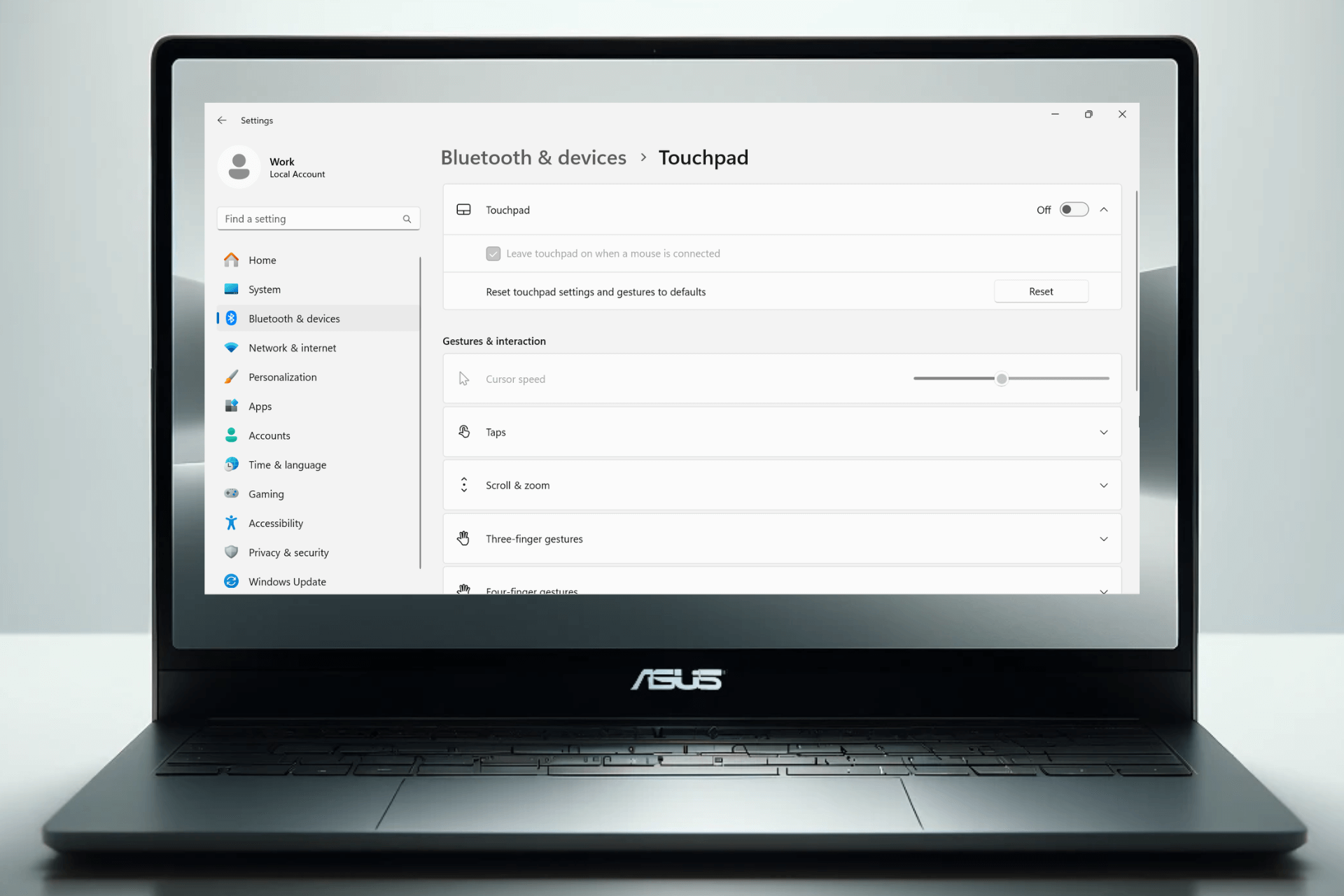
touchpad settings in windows
  1. Toggle off.
disable touchpad from windows settings

3. Disable via the MyASUS app

  1. Search for MyASUS in the Windows search bar and open the app.
opening the myasus app
  1. Go to My ASUS Devices.
my asus devices
  1. Pick the touchpad and select Lock to disable it.

4. Use Device Manager

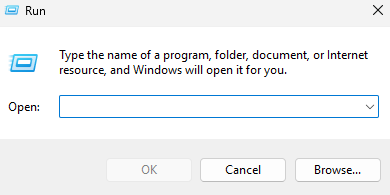
  1. Press the Windows key + R.
run dialog box
  1. Type devmgmt.msc and press Enter to open Device Manager.
devmgmt.msc
  1. Locate Mice and other pointing devices and expand the list.
mice and other pointing devices
  1. Find the touchpad. It’s usually labeled HID-compliant touchpad.
  2. Right-click on it and select Disable.

? If your ASUS model doesn’t have a regular touchpad, but a ScreenPad, you may not be able to locate it under Mouse/Touchpad settings. Instead, it will be listed under Display adapters in Device Manager and in Display> Multiple Displays in Windows Settings.

Once you’ve disabled the ASUS touchpad using any of these methods, you can easily re-enable it by following the same steps and selecting Enable device or toggling the option back on in the settings menu.

Disabling and re-enabling the ASUS touchpad may also help if it’s not working on Windows 11.

Wrapping up

Disabling the ASUS touchpad is no rocket science and if one method isn’t working, you have enough alternatives. Using the function key, settings app, the dedicated MyASUS app or Device Manager will help you achieve this in just a few steps.

Xbox Game Pass gets Little Kitty, Big City on the day it drops

Developer Double Dagger Studios announced on X (formerly known as Twitter) that Little Kitty, Big City will be available on Xbox Game Pass, Steam, and Nintendo Switch on May 9. Here is the post:

This adventure game will be available on Game Pass, which means it will be released on every compatible device. Subscribers playing on Xbox Series X|S consoles can get immediate access and enjoy this latest release on the same day.

This game is about a cat lost in a city whose objective is to make its way back home. In this third-person adventure video game, players assume control of a black domestic cat lost in a Japanese city. The objective is to guide the cat back to its home.

Along the journey, players can interact with the city, performing typical cat actions such as jumping into boxes, catching mice or birds, playing with its tail, and even stealing food.

Additionally, players can communicate with other animals living in the city and may also dress the cat in various hats.

With this latest announcement, May is shaping up to be an even more thrilling month for gaming enthusiasts, especially since another big release, Hellblade 2: Senua’s Saga, will happen this month.

Are you excited to play this cute, adventurous game with the little kitty? Share your thoughts with our readers in the comments section below.

Microsoft’s MS-DOS 4 open-source release stirred nostalgia but now is on fire due to flaws

Recently, Microsoft announced the release of the source code for its iconic 1986 MS-DOS 4 operating system and made it publicly available on GitHub for all to edit, study, or distribute.

Microsoft’s intended motive was to stir nostalgia and celebrate retro computing. However, little did they know it quickly turned into a controversy when developers and enthusiasts discovered critical flaws in the release.

A popular developer, Michal Necasek, who is known for OS/2 Museum, listed the issues he found in the release in a blog post, How Not To Release Historic Source Code.

He praised the decision to release the code but was not happy with its execution. He mainly lambasted the use of Git, a version control system, as it failed to preserve the timestamps and converted files to UTF-8 format.

In his blog post, he mentioned:

This source code will be an excellent reference of modern-ish DOS until Microsoft officially releases the long ago leaked MS-DOS 6.0 source code. The source code includes all required build tools, which makes building it (compared to many other source releases) extremely easy.

But please please don’t mutilate historic source code by shoving it into (stupid) git.

First of all, git does not preserve timestamps, which causes irreversible damage. Knowing when a source file was last modified is valuable information.

Second of all, the people releasing the source code clearly thought, hey, it’s source code, let’s shove it into git, what could possibly go wrong.

The repercussions of these harmless actions were serious. Let us tell you how. In the MS-DOS era, the text files were usually encoded in ASCII or a similar coding scheme. However, Microsoft converted the source files to UTF-8, which encodes diverse Unicode characters, which is not compatible with MS-DOS environment.

And, as UTF-8 was not available in the times of MASM 5.10 and Microsoft C 5.1, old tools can’t deal with it; hence making them unreadable.

The byte length of MS-DOS 4’s MASM compiler was 512 bytes and by converting the files to UTF-8, they brought some files above that limit.

Some of the core system files managed to survive the conversion without any harm, however the conversion multilated others, resulting into inconsistencies between the original disk image files and released source code.

Necasek also mentioned that the source code released is not the MS-DOS 4.00 but a less-known version, 4.01, which wasn’t available directly, but was shipped to PC OEMs. The 4.01 version included important bug fixes.

Here is the proof, in the  SETENV.BAT file, there is a line mentioning just that:

echo setting up system to build the MS-DOS 4.01 SOURCE BAK...

In the end of the blog post, Necasek also suggested that the source code should be made available as an rchive of files, ZIP or similar format, with all the timestamps preserved and each byte kept the way it was. Also, he mentioned that Git is not the right tool for this.

Once the article went live, one of the MS-DOS 4 release co-developer Connor Hyde, also known as Starfrost commented that due to legal constraints inclusion of timestamps can’t happen.

He said:

The reason I cannot do timestamps is because data protection law mandates anonymisation of source files, at least that is the policy.

Note that this is far better than the CHM “preservation”.

To which Michal Necasek responded:

Do you know how the files survived? On floppies or on some hard disk backup? If on disks, then releasing the disk images would be terrific. But really anything that builds without having to be edited would be good.

There’s probably some way to fix the files in git as well? As I said they’re not plain ASCII (most are, but not all of them) and they must not be converted to UTF-8.

He further added,

Let’s hear it for idiotic corporate policies! Obviously not your fault.

But I have to point out that in the Multitasking DOS release, there are source files on a floppy image, with original timestamps…

Yes, the CHM release of DOS source code was… not ideal.

Then, there was a brief debate in the comments section, between Necasek and Starfrost about the source code and the way it was release, which concluded when they agreed on talking over email in private.

As of now, the developer community is waiting for resolution so that they can enjoy using the legendary operating system in its former glory.

Have you checked the source code  MS-DOS 4.00 or 4.01 until now? If so, share your experience with our readers in the comments section below.

Dell joins the list of manufacturers using Snapdragon X Elite in its upcoming devices

Lately, we have been hearing a lot about Snapdragon X Elite being tested on several devices; after Samsung, Surface, and Lenovo, the latest name added to the list is Dell.

As spotted first by Windows Latest in the Geekbench benchmark latest report, the device used for testing is Dell Inc. Inspiron 14 Plus 7441.

Here is the detailed information about the same:

System Information

System Information
Operating SystemMicrosoft Windows 11 Pro (64-bit)
ModelDell Inc. Inspiron 14 Plus 7441
MotherboardDell Inc. 032Y94
Power PlanBalanced
CPU Information
NameSnapdragon X Elite – X1E80100 – Qualcomm Oryon CPU
Topology1 Processor, 12 Cores
IdentifierARMv8 (64-bit) Family 8 Model 1 Revision 201
Base Frequency3.42 GHz
Cluster 18 Cores
Cluster 24 Cores
Memory Information
Size16.00 GB

During testing, the single-core and multi-core scores were 1765 and 4367, respectively, which are lower than those of other OEM devices as per the Geekbench listing.

A second test was run on the same device, and the scores were even lower than the previous ones, 1773 (single-core) and 4101 (multi-core). Here are the details of this one:

System Information

System Information
Operating SystemMicrosoft Windows 11 Pro (64-bit)
ModelDell Inc. Inspiron 14 Plus 7441
MotherboardDell Inc. 032Y94
Power PlanBalanced
CPU Information
NameSnapdragon X Elite – X1E80100 – Qualcomm Oryon CPU
Topology1 Processor, 12 Cores
IdentifierARMv8 (64-bit) Family 8 Model 1 Revision 201
Base Frequency3.42 GHz
Cluster 18 Cores
Cluster 24 Cores
Memory Information
Size16.00 GB

When we compare it with SAMSUNG ELECTRONICS CO., LTD. Galaxy Book4 Edge, whose base frequency is 4.01 GHz and uses the same Snapdragon X Elite – X1E80100 – Qualcomm Oryon CPU, we see that it scored 2785 (Single-Core), and 13925 (Multi-Core), which is quite high.

After basic analysis, we found only one difference: the base frequency or clock speed, which was 4.01 GHz for the Samsung device and 3.42 GHz for the Dell device.

This makes us wonder whether the testing was done with the correct settings. Also, power configuration or other incorrect benchmark settings could be the reason for such low scores.

So, we think these tests are inaccurate, but they only prove that Dell is also working on bringing a Windows 11 AI-powered PC to stay in the competition.

What are your thoughts on the matter? Share your opinions with our readers in the comments section below.

Gaming Services timeout error prevents you from searching in Windows 11, here’s what to do

A weird issue is plaguing several Windows 11 devices as I write. Many of you have reported being unable to type into the Search Bar, the Microsoft Store, or even the Settings app on the latest iteration after playing a game from the Xbox PC app, all due to the Gaming Services timeout error!

The error message when you check the Windows 11 error logs reads,

A timeout (120000 milliseconds) was reached while waiting for a transaction response from the GamingServices service.
Note icon NOTE
The time period listed within the brackets in the error message varies for every user.

As long as you don’t play any Xbox games on the PC, it all works. The search functionality across the device will run fine. But upon loading a game, then terminating it and restarting the PC, you won’t be able to type in any of the search boxes, including the one within the game.

Here’s what a few users wrote on the dedicated Microsoft forum:

I have an issue where I cannot type in windows 11 search bar, windows store search, settings search, in some games like Minecraft windows edition (bedrock). Everywhere else I can type fine, browser, notepad etc. Everything is then fine, if I don’t load a Xbox Game pass game. If I load eg, Minecraft Launcher, all still works ok, play game, exit game, do some work etc. But when I shut down the computer and boot back up, I can no longer type in the search boxes.

As of now, Microsoft hasn’t acknowledged the software conflict and released a patch, but we did find a few workarounds to get rid of the Gaming Services timeout error.

How can I fix the Gaming Services timeout error on Windows 11?

  • Disable fast startup: Open the Control Panel > go to System and Security > click on Change what the power buttons do under Power Options > click on Change settings that are currently unavailable > untick Turn on fast startup > click on Save changes.
  • Terminate Gaming Services in Task Manager: Press Ctrl + Shift + Esc to open the Task Manager > select the Gaming Services entry > click on End task. (It’s a temporary solution, the problem soon reappears)
  • Repair/reset the Gaming Services: Press Windows + I to open Settings > go to Apps > select Installed apps > click on the ellipsis next to Gaming Services > choose Advanced options > click individually on Repair and Reset.
  • Disable Gaming Services from running in the background: In Advanced Options for Gaming Services, choose Never from the dropdown menu under Background app permissions.
Changing background app permissions for Gaming Services

While I can confirm that the issue is not affecting my Windows 11 device, it’s still out there, as is evident from the Gaming Services’ reviews on the Microsoft Store. The app’s ratings are tanking with each passing day!

In case these workarounds don’t help, keep checking for any available updates to the Gaming Services and install them right away to get rid of the timeout error.

If you know of any other workarounds, share them with our readers in the comments section.

Quality Mode is working as intended in Fallout 4 on Series X, Bethesda confirms

Fallout has been in the spotlight recently after the release of the TV show, and we even got a next-gen release of Fallout 4.

The release was followed by some issues, however, Bethesda decided to chime in and give us more information about them.

Fallout 4 next-gen on Xbox isn’t bugged, Bethesda says

A few days ago, we wrote how Quality Mode isn’t working in Fallout 4 next-gen version on Xbox. Many users reported that switching to Quality Mode doesn’t affect the framerate, leading them to believe this feature doesn’t work.

However, as Game Rant writes, that isn’t true, and the feature works as intended. Apparently, on Xbox Series X, both Quality and Performance Mode run at 60fps.

This was even confirmed by Bethesda on its X account:

According to Bethesda, the difference between the two modes is that Performance Mode is more aggressive in lowering settings to achieve 60fps.

This wouldn’t be an issue if Bethesda had disclosed this in patch notes, but in the end, all that matters is that the game works as intended on Series X.

On the other hand, PC users weren’t as lucky as Fallout 4 next-gen brings widescreen issues. Speaking of Fallout, we got some fresh rumors stating that Fallout 5 might come sooner than expected, but this is just speculation at the moment.

Surface Studio 2+ & Surface Go 2 got firmware updates & more

Microsoft announced the latest updates for its Surface devices, and this time, Surface Studio 2+ & Surface Go 2 have received new firmware and drivers.

These updates aim to improve network stability, audio quality, and compatibility with Surface Thunderbolt 4 Dock and bring complete system stability.

Surface Studio 2+

Here are the changes mentioned on the Surface Studio 2 + update history page:

  • Addresses potential Wi-Fi security vulnerability and improves system stability.
  • Improved interoperability with the Surface Thunderbolt 4 Dock by resolving issues that were preventing the system from detecting audio devices.
  • Resolves Wi-Fi stability issue during Reset/Recovery.

The release also comes with the following components:

Windows Update NameDevice Manager
Surface – Firmware – 2.26.7.0Microsoft Surface Thunderbolt(TM) 4 Dock Firmware Update – Firmware
Intel Corporation – Bluetooth – 23.30.0.3Intel(R) Wireless Bluetooth(R) – Bluetooth
Intel – net – 23.30.0.6Intel(R) Wi-Fi 6 AX200 160MHz – Network adapters

This update is available on  Surface Studio 2+ devices with Windows 11 Septemeber 2022 update, version 22H2 or later.

If your device is compatible, you can install the Windows Update manually and go to the official Surface Support website. The update is 1.2 GB; you don’t need to perform extra steps before or after installation. Furthermore, there are no known issues or bugs reported.

Surface Go 2

Here are the changelogs mentioned on the update history page for Surface Go 2:

  • This update addresses a potential security vulnerability related to Intel® Security Advisories INTEL-SA-00923.
  • Improved interoperability with the Surface Thunderbolt 4 Dock by resolving issues that were preventing the system from detecting audio devices.
  • Enhances the audio system’s stability and reliability to ensure seamless playback and recording, preventing any potential disruptions or failures that may interrupt audio streams.
  • Improves the audio quality of calls and recordings, and reduces audio latency by addressing audio processing object (APO) issue when capturing audio.

The release also comes with the following components:

Windows Update NameDevice Manager
Surface – Extension – 2.26.7.0Realtek High Definition Audio(SST) – Extensions
Intel – System – 2334.5.1.0Intel(R) Management Engine Interface #1 – System devices
Realtek Semiconductor Corp. – MEDIA – 6.0.9561.5Realtek High Definition Audio(SST) – Sound, video and game controller
Intel – SoftwareComponent – 1.70.101.0Intel(R) iCLS Client – Software components
Surface – Extension – 2.26.7.0Surface – Extension – 2.26.7.0
Surface – Firmware – 1.0.2.8Surface UEFI – Firmware
Surface – Firmware – 11.8.95.4551Surface ME – Firmware

To avail of this update on your Surface Go 2 or Surface Go 2 LTE devices, make sure you have Windows 10 November 2021 Update, Version 21H2, or higher.

You can get the update for Surface Go 2 or Surface Go 2 LTE devices from the Surface Support website, and the size of the update is 495 MB.

Though end-of-life is reaching for Surface Go 2 is  December 30, 2024, the Redmond tech giant is still working on making it better, which is appreciable.

Download the update if compatible with your device, and share your experience with our readers in the comments section below.

Solved: Dragon Age Oops an Error Occurred

When playing Dragon Age, users are hit with the Oops, an error occurred and cannot get past the login page.

The prompt recommends users to refresh the page but from our side, this does not resolve the error. It appears this is a bug that you’ll just have to wait out as EA fixes. However, a few workarounds that may resolve the issue are listed below.

How do I fix the Oops an error occurred in Dragon Age?

1. Check your EA account

  1. Open the EA Help website.
  2. Login with your account credentials.
  3. Click on Accounts.
  4. Select My Ban History from the drop-down menu.
  5. Under the Infraction History section, you will see the history of your account bans and suspensions.

If you’ve not been banned and everything seems okay from your side, try creating a new account. We put this to the test and it actually worked out as we were able to play Dragon Age Keep.

It would therefore seem that the initial account may have issues. This can also be a fix for when you can’t play EA games online.

2. Restart the EA app

  1. Log out of the EA app and close it.
  2. Press Ctrl + Shift + Esc to open the Task Manager, then go to the Processes tab.End task - The Sims 4 For Rent Download Error
  3. Right-click the EA client and other processes related to it one by one, then select End task.
  4. Relaunch the EA app, then log in again and try to launch the Dragon Age game and see if the oops an error occurred persists.

3. Clear the browser cache

  1. Launch your browser, and for this step, we shall be using Google Chrome.
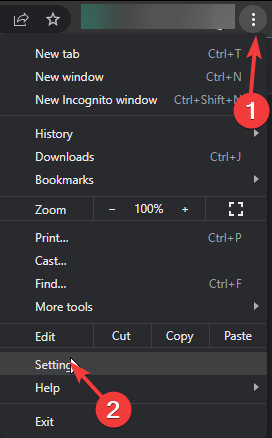
  2. Click the three horizontal dots and select Settings.
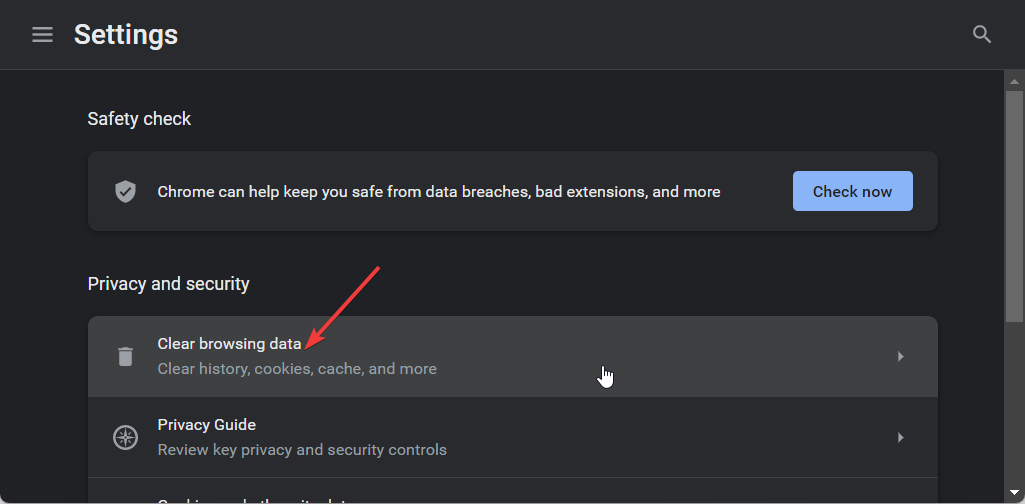
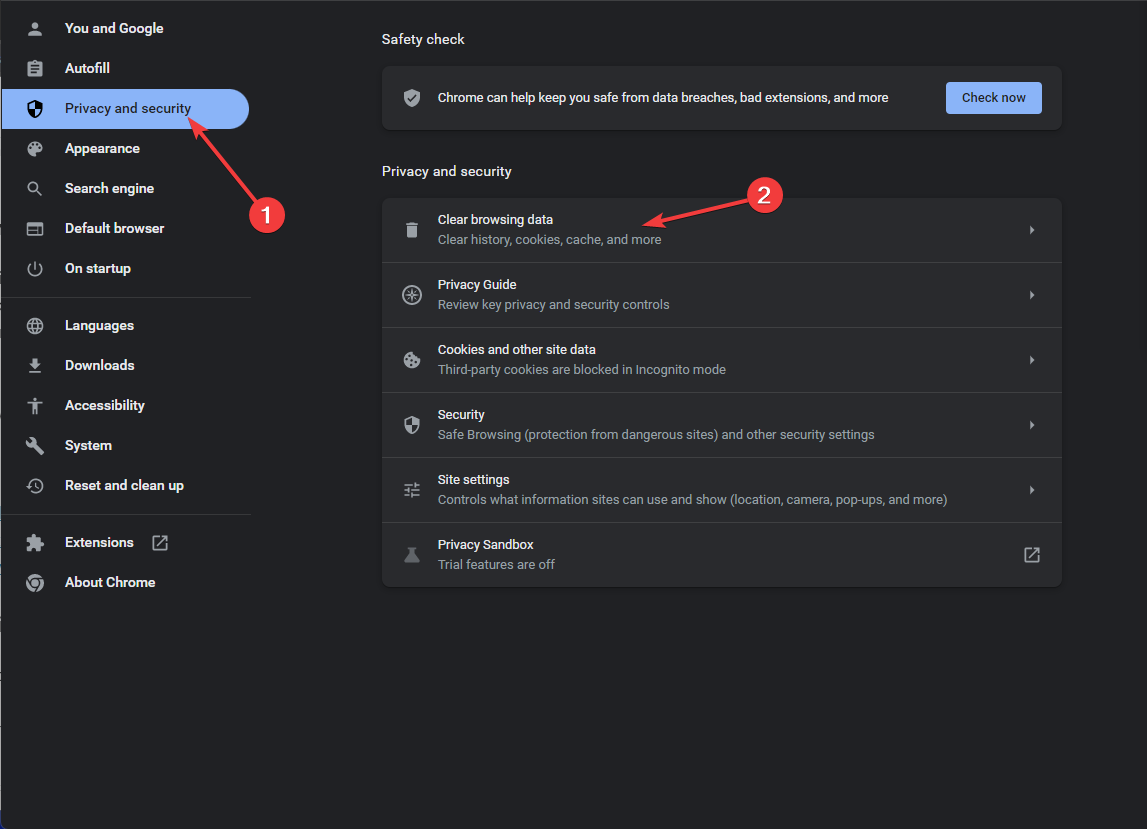
  3. Go to Privacy and security and click Clear browsing data.
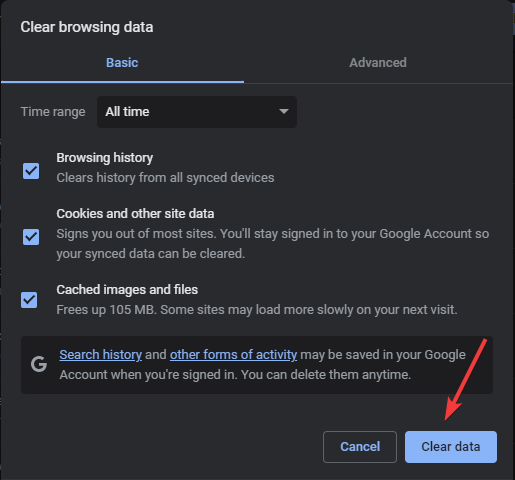
  4. Select Browsing history, Cookies and other site data, & Cached images and files, then click Clear data.

Additionally, if this doesn’t work, try from another browser or go incognito. You can also try another network such as a mobile hotspot to rule out connection issues.

4. Clear the EA app cache

  1. Press the Windows key, type ea, and click Open.
  2. Locate the three dashes from the left corner and select Help.App Recovery - The Sims 4 For Rent Download Error
  3. Click App recovery, then choose Clear cache.Clear cache
  4. If you get a prompt to complete the process, select a positive response.

5. Reinstall the EA app

  1. Press Windows + I to open the Settings app.
  2. Go to Apps, then select Installed apps.Apps, installed apps  - The Sims 4 For Rent Download Error
  3. Locate the EA app, click the three dots icon, then select Uninstall.Uninstall app -The Sims 4 For Rent Download Error
  4. Click Uninstall again to confirm the action.
  5. Visit the EA official website and click Download the EA app.Download the EA app
  6. Double-click the executable file and follow the on-screen instructions to complete the installation.

If you’ve not had any luck with the above solutions, the oops error occurred in Dragon Age may be a server-side issue or a bug that is yet to be addressed. Sometimes, you might be unable to connect to EA servers and using a VPN could help you connect and play Dragon Age.

Otherwise, you’ll have to exercise some patience and keep checking to see if the error disappears. You can also contact EA support for advanced troubleshooting.

If you’ve managed to address this error with a solution missing from our list, we’d love to hear about it. Drop us a line below.

Latest leaks claim that Switch 2 will be backwards compatible

We’re all waiting for the new Nintendo Switch console, but so far, Nintendo is keeping the information under wraps.

However, some information managed to get leaked, and we finally know whether the new console will be backward compatible with the previous generation.

Switch 2 will be compatible with Switch games, leaks claim

Backward compatibility is a major selling point for gamers since many want to move away from the next-gen systems but keep their library of games.

If you’re a Nintendo fan, we got some news coming from XDA Developers, as Switch 2 will be compatible with Switch games, as leaks claim.

This information comes from a Chinese website called BiliBili, and allegedly the insider source has revealed some information about the upcoming console. It says the following:

The card slot of Switch 2 is backward compatible with Switch 1 physical cartridges!

Second-generation cassettes do not support first-generation consoles

It seems that cartridges from Switch will work on Switch 2, however, Switch 2 games won’t work on the older console, which is expected.

While this information hasn’t been confirmed yet, it would be great to see that you can continue playing your favorites on a next-gen Switch console.

Sadly, there’s not much information about Switch 2, but Nintendo allegedly showed off Switch 2 during Gamescom 2023.

We also heard rumors that Switch 2 will be on par with Xbox Series X, but this is a bold claim that still needs to be confirmed.

Bing reaches 140 million daily active users, with AI integration and DMA as the key factors

Bing continues its upward trajectory, and there are no signs of slowing down! Microsoft’s native search engine, Bing, has now crossed 140 mission daily active users, a 40 million increase over the last reported figures of 100 million.

The details were brought to the public domain by Michael Schechter, VP at Bing, in a post on X (formerly Twitter). Schechter went on to confirm that the information was first shared by Satya Nadella, CEO of Microsoft, and is included in the transcripts for the earnings call.

AI integration and the DMA push Bing’s user adoption

Bing has witnessed a series of changes in recent years, starting with the release of Bing Chat after the AI integration. It was later renamed as Copilot, Microsoft’s flagship AI chatbot, now also available in Windows.

AI remains one of the key factors behind an increase in Bing users. A year ago, Bing was the only prominent search engine offering the capabilities, and even today, there is not much competition out there. Microsoft is leading the AI race by a significant margin!

Also, the DMA (Digital Markets Act) in the European Union boosted Bing’s user adoption. DMA required Google to let users switch browsers or search engines, and as soon as they got the option, many moved to Microsoft Edge and Bing, respectively. Browsers like Opera also reported an increase in downloads post-DMA.

Notification received on Android after DMA came into effect

Microsoft Edge and Bing were exempted from DMA as they were not the dominant players and only had a small market share.

Besides, an existing deal between Google and Apple kept Bing out of the picture. Previously, Microsoft had blamed Google for the failed Bing deal with Apple, citing a previous $10 billion agreement between the two, even as the Redmond-based tech giant was willing to pay 100% of the search engine’s revenue to Apple.

Challenges await Bing as it takes on Google

The road ahead for Bing doesn’t look that easy. Even though the search engine has amassed 140 million daily active users, it doesn’t stand a chance against Google.

According to Statcounter’s data, Google dominates 91.37% of the market, while Bing stands at a feeble 3.37%. Taking on Google will prove to be a monumental task and will take several years!

Although Microsoft’s AI investments are bound to augment Bing’s user adoption, Google won’t sit back. It will integrate similar features into the search engine and offer a more user-oriented experience in a bid to minimize the impact of DMA.

Only time will tell whether Bing will be able to surpass Google in terms of market share, but based on the present situation, even the thought seems too far-fetched!

However, these figures look promising, as Microsoft plans to increase spending on AI, acquire companies, and collaborate with giants worldwide. The AI push even helped Microsoft Azure compete with AWS and Google Cloud.

Do you think Bing users will continue to increase, or will the growth stabilize over time? Share with our readers in the comments section.

Copilot will help Microsoft Loop users create new projects in just a few seconds

If you’re new to Microsoft Loop and have no idea how to move around the platform, create collaborative plans, or start a new project, then you should know that the Redmond-based tech giant is planning to let Copilot show you around.

According to the latest entry in the Microsoft 365 Roadmap, Microsoft Loop will be updated to allow Copilot to assist users in creating Loop pages.

That means users will be guided on how to create structured Loop pages from scratch, either by starting with a blank page, or by opening up an existing template.

Collaborate with copilot to go from a blank page to a structured document ready for collaboration as quickly as possible. Start from scratch, or select an existing page or template as the starting point and Copilot can modify it for the task at hand.

Microsoft

For a new manager, or someone who has just started using Microsoft Loop, Copilot can be not only an assistant, but quite frankly a tutorial on how to create structured plans with no prior experience on this platform.

The AI model can quickly teach new users how to move around, and how to use Loop’s capabilities to the best of their abilities, to come up with complex plans in just a few days.

Microsoft announced Copilot coming to Loop last year, but the Redmond-based tech giant didn’t mention these capabilities. Instead, the company said back then the AI model was capable of editing, composing, and summarizing information for users.

However, this is a nice surprise and only the natural evolution of the model in Microsoft 365 apps. The Redmond-based tech giant should be thinking more about adding assistance features to Copilot, especially the ones focused on how to use a certain platform for new users.

What do you think about it?

Hackers conducted a targeted operation against Ukraine using an old MS Office bug

Threat actors used a seven-year-old Microsoft Office bug to conduct a targeted operation against Ukraine. Through it, they could infect vulnerable computers with a cracked version of Cobalt Strike. The tool allows them to gain remote access to a device. Afterward, it lets hackers download ransomware and other types of malware.

According to The Hacker News, Deep Instinct Threat Lab researchers discovered the targeted operation against Ukraine at the end of 2023. Also, it started with the signal-2023-12-20-160512.ppsx, a PowerPoint slideshow (PPSX) file. In addition, because of the filename, researchers believe that people shared the malicious document through Signal, a messaging app.

However, that’s just a speculation. Yet, according to the Computer Emergency Response Team of Ukraine (CERT-UA), attackers used the messaging app as a delivery tool for two other campaigns.

How did the targeted operation against Ukraine work?

CERT-UA revealed that the UAC-0184 group targets the members of the armed forces via messaging and other platforms. One of the methods used in the targeted operation against Ukraine was to spread malware and send files containing a HijackLoader, the Remcos RAT, or XWorm. Additionally, they share open-source programs like tusc and sigtop to extract information and files from vulnerable devices.

Threat actors sent a PPSX file as an outdated US Army manual for tank mine clearing blades. The document contained a link to an OLE object (Object Linking and Embedding). This technology lets hackers link and embed files. The link to the OLE object allowed them to exploit the Microsoft Office Vulnerability CVE-2017-8570.

When cybercriminals managed to exploit a vulnerable device, the PPSX file would download a remote heavily obfuscated script from the weavesilk[.]space which belongs to a Russian VPS provider.

Afterward, it would install an HTML file containing a Javascript code that modifies the Windows Registry to ensure the malware runs after a reboot. Once the operation ends, the script downloads a next-stage payload disguised as a Cisco AnyConnect VPN client.

The payload used in the targeted operation against Ukraine contained a Cobalt Strike Beacon, a cracked and modified file. With it, attackers can execute commands, log keystrokes, drop files, and communicate with targeted systems.

Ultimately, even if the Deep Instinct Threat Lab researchers discovered the targeted operation against Ukraine, they couldn’t attribute it to any known group or organization. Fortunately, by updating the MS Office, future attacks shouldn’t work. Yet, to ensure your safety, download files only from officials and trusted sources. In addition, update your applications regularly.

What are your thoughts? Are you using the latest version of Microsoft Office apps? Let us know in the comments.

If your Elite Wireless paddles are active when there is no active profile, Xbox has a workaround

If you’re having trouble with your Elite Wireless Controller Series 2 paddles right now, don’t worry, Xbox has acknowledged the issue, and it’s working on a permanent fix, according to the latest update patch to the Alpha Skip-Ahead Ring.

We are aware the Xbox Elite Wireless Controller Series 2 paddles are remaining active when there is no active profile, and we are working on a fix. (2408.240407-2000)

Xbox

But until Xbox releases the permanent solution, you can go ahead and try a more temporary workaround, provided by the company.

  1. Create a new profile in the Xbox Accessories app keeping the paddles unmapped.
  2. Assign the paddles to the new profile.

You can also try to detach the paddles when not using them if this is easier for you.

Either way, now that Xbox has acknowledged the issue, the company will release a permanent solution for it over the next weeks, most probably with the weekly update patches to the Xbox Insider Program channels.

This is not the only hardware issue currently impacting the Xbox consoles. Some users have also been troubled with an issue impacting 3.5mm joysticks used with the Xbox Adaptive Controller, which renders them unusable, but Xbox is also working on it, as well.

If you can’t currently access Xbox Live from your Xbob 360 account, you’re not the only one. The issue has been impacting all channels, and Xbox is aware of the bug. Many Xbox users reported on Reddit that they cannot access the service anymore.

The error still lets Xbox 360 players access games on Xbox Live, but any progress made cannot be saved. However, Xbox is already working on fixing the problem.

We are aware Xbox 360 save data may not upload as expected, and we are working on a fix. (2408.240418-2000)

Xbox

You can read the full Alpha Skip-Ahead Ring changelog here.

Surface Laptop 6 powered by Snapdragon X Elite spotted on benchmark websites

ARM laptops are becoming rather popular due to their low power consumption, and solid performance.

Many are waiting for a new line of Snapdragon X Elite CPUs, and it seems that the first model was spotted.

Surface Laptop 6 with Snapdragon X Elite CPU was recently spotted

Recently we wrote about Surface Pro 10 with Snapdragon X Plus but it seems that a model with Snapdragon X Elite CPU was spotted.

As Windows Latest writes Surface Laptop 6 was spotted in benchmarks using Snapdragon X Elite an X1E80100 CPU.

According to benchmarks, the CPU has scored 14100 in multi-thread tests and around 2745 in single-core tests. This was achieved in “balanced” mode, and the results are expected to go higher in the performance mode.

The device is codenamed OEMBR OEMBR and listed as snapdragon 8cx gen 3 4012 MHz to prevent leaking of information.

The codename OEMBR usually stands for Surface Laptop with Qualcomm, so it was relatively simple for keen-eyed users to determine which model is this.

As for the testing, it has been performed on a 12-core Snapdragon X Elite chip, 16GB of RAM, NPU, and Windows 11 24H2.

How does the Snapdragon X Elite compare against other CPUs?

According to benchmarks, Snapdragon X Elite is superior to Intel Core Ultra 7-155h in every regard. It’s twice as fast in Visual Studio Code compilation and gets 6 frames more during 3D Mark GPU benchmarks.

During Geekbench 6 CPU tests Elite X achieved a 2774 score for single and 14027 for multiple cores, while Intel’s model achieved 2401 and 13001 respectively.

While Elite X outperforms Intel’s CPU, its benchmark scores are lower compared to MacBook Pros with M3 Pro chip.

Overall, the Surface Laptop 6 looks great according to these benchmarks, but we’re still waiting for the official announcement.

In case you need something with less power, Qualcomm has announced Snapdragon X Plus CPUs, and we should see the first laptops with these CPUs soon.

The Show desktop button is back in Windows 11

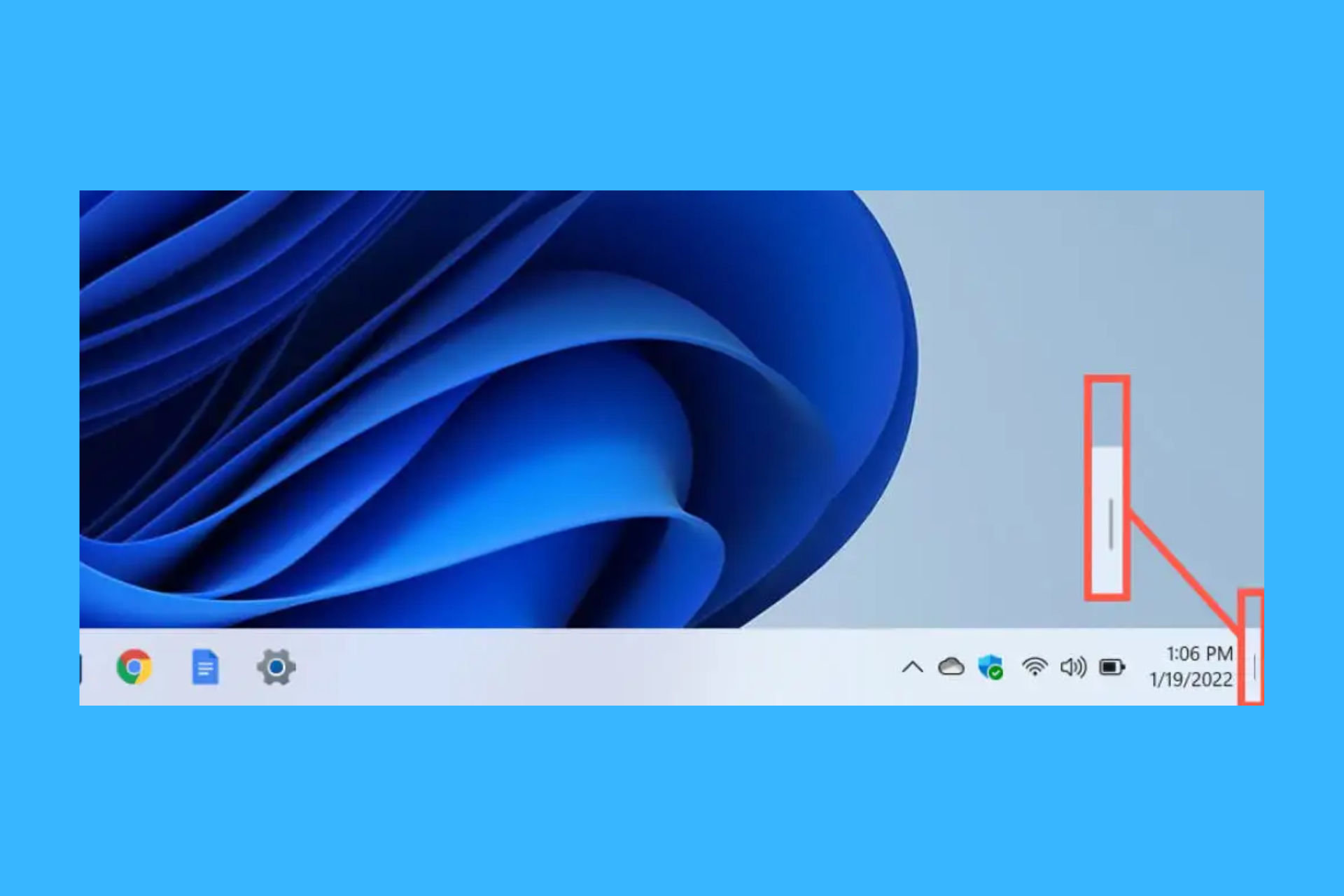
Microsoft has recently rolled out a new update for the Windows 11 Insider Preview Beta Channel, and guess what? The beloved Show desktop button is back by default on the taskbar! Microsoft decided to remove it, but after a wave of feedback from users who missed the quick access to their desktops, the button is back in. It’s nice to see that the software giant is listening to its community for a change.

For those who might not be fans of the Show desktop button, don’t worry. Microsoft has kept your preferences in mind too. You can easily hide the button by diving into the Taskbar settings. It’s all about giving users the flexibility to customize their experience.

According to Microsoft’s announcement about Windows 11 Insider Preview Build 22635.3566, you can do that by right-clicking on the taskbar, and access the Taskbar settings, or go to Settings > Personalization > Taskbar to change the feature there.

Other important updates from Build 22635

But that’s not all this update brings to the table. Dragging and dropping files onto the File Explorer breadcrumbs has been made easier, enhancing file organization. Plus, if you’ve been frustrated with how your widgets looked the update has addressed these issues too, making widgets both on your desktop and lock screen look sharper and more reliable.

Have you ever found yourself squinting at pixelated taskbar icons or struggling with a less-than-ideal Widgets experience? Well, Microsoft has been working on that. The update promises clearer taskbar icons for Widgets and even introduces a set of animated icons. For those who enjoy personalizing their lock screen, the update hints at more customization options for the lock screen Widget experience in the future.

Bug fixes are also a big part of this update. Whether it was an issue causing Settings to crash or problems with universal printers creating duplicate print queues, Microsoft has been on a mission to iron out these kinks. They’ve even added support for Arm64 .msi files using a Group Policy Object (GPO), making life easier for those running Arm64 machines.

For the tech enthusiasts out there, this update has addressed a variety of technical issues, from hypervisor-protected code integrity (HVCI) accepting now compatible drivers to fixes in the Windows Subsystem for Linux 2 (WSL2) for intermittent name resolution failures. And for those concerned about security, the update includes quarterly changes to the Windows Kernel Vulnerable Driver Blocklist file, adding to the list of drivers that are at risk for Bring Your Own Vulnerable Driver (BYOVD) attacks.

But it’s not all work and no play. The update has also made improvements to the touch keyboard, ensuring the Japanese 106 keyboard layout appears as expected when you sign in. And for IT admins, there’s a new mobile device management (MDM) policy called AllowScreenRecorder, affecting the Snipping Tool and allowing them to turn off screen recording in the app.

While this update brings a lot of positives, it’s worth noting there are still some known issues being investigated, such as problems with Internet Information Services (IIS) and Windows Communication Foundation (WCF) not working post-update. Plus, some Windows Insiders in the Beta Channel might encounter issues with the updated Copilot in Windows experience.

Another important improvement is that you will soon be able to create TAR and 7Z archives in Windows 11 22H2 and 23H2.

Are you excited about the return of the Show desktop button and the other improvements and fixes? Or are there other features you’re hoping to see in future updates? Let’s chat in the comments below.

If you’re tired of Windows 11: the 15-year-old Windows 7 can run on the 2020’s LGA1200 Intel processor

Windows 7, which is arguably one of the best Windows operating systems out there, is turning 15 later this year (in July), but you’d be surprised to find out that newer Intel processors, such as the 2020’s LGA1200, or also known as Comet Lake unofficially support it, even though, officially speaking, Windows 7 was deemed outdated.

Windows enthusiast @TheBobPony tried and managed to install Windows 7 on such a processor, and according to their X post (formerly known as Twitter), the operating system runs almost perfectly on LGA1200 Intel processors.

What’s the newest Intel platform that can run Windows 7 very well unofficially? LGA1200 aka Comet Lake! It’s not entirely perfect but most of the drivers can be installed (via SDI Origin) and including its integrated graphics using modded drivers because it’s based off Kaby Lake.

@TheBobPony

The enthusiast managed to install Windows 7 on the Intel Celeron G5905 CPU based on the 1200LGA Socket that came around 4 years ago, in 2020.LGA1200 Windows 7

With a bit of work, it can be set up to run the 15-year-old Windows 7, almost perfectly. How? Well, you’d have to install the drivers via a third-party app, in this case, SDI Origin, and then it should be up and alive.

If you’ve grown tired of Windows 11, or Windows 10, and you are hit with a wave of nostalgia for this amazing operating system, it might be worth the shot. Ultimately, despite the release of the last general updates more than a year ago, Windows 7 is still preferred by a big chunk of Windows users.

And, as Windows 10 time will be up in a little more than a year, a lot of users will be looking into trying old Windows versions, even though they might not be the best solution, security-wise.

That’s somehow understandable: Microsoft is placing all the bets on AI in Windows 11, and the operating system is becoming more and more demanding due to the new technology.

For instance, its new AI Explorer, which will be reportedly released later this year, demands 16GB of RAM, as a minimum requirement.

Not many Windows users might have these systems, so many will be looking to go back to earlier versions of Windows. And it seems they can.

As Xbox starts deleting game captures from May 30, here’s how you can save them

Of the many changes Xbox made in the last few years, the automatic removal of Xbox game captures after 90 days starting from May 30, 2024, is going to sting the community the most. It’s where we saved our favourite in-game screenshots and video clips!

Microsoft had notified us last year that the change would come into effect from January’24, but that didn’t happen. Soon, the Xbox community forgot all about it. But it looks like Microsoft had not, and there was just a delay in enforcing the changes.

Earlier notification for game captures

As per the latest notifications sent to users last week, all game captures stored on the Xbox Network will deleted after 90 days. So, from May 30 onwards, any screenshots or videos on the Xbox Network captured 90 days or earlier will be removed.

Latest notification for game captures

This policy change has upset almost everyone in the Xbox community, especially players with years of game captures stored on the Xbox Network, as evident on Reddit and other forums.

The move, as per reports, is likely aimed at clearing storage on the Xbox servers, which translates into cost reductions for Microsoft.

The only bright spot amongst these recent developments is that just the game captures stored on the Xbox Network will be removed. Any media files stored locally on the console, an external drive, or Microsoft’s native cloud storage, OneDrive, won’t be affected.

And that’s the trick to saving new game captures and preventing the old ones from getting deleted!

How can I save game captures on Xbox?

  1. Save game captures locally: Head to the My Games & Apps section on the console > choose Apps > then select Captures > reconfigure the options to not upload the game captures on the Xbox Network and instead save them on local/external storage.
  2. Save game captures to OneDrive: In the absence of sufficient local/external storage, you can store game captures on OneDrive by changing the Xbox account settings.
Xbox game capture settings

The two are certainly not the best options, given that we have been used to storing captures on the Xbox Network for years, but these are the only ways to keep your screenshots and video clips safe from periodic removal.

Also, if you choose OneDrive, remember it only offers 5 GB of free storage. After that, you will need to upgrade to a paid OneDrive subscription. Perhaps external storage is the best way to go!

At a time when Xbox sales are at a record low, such changes will only drive users away from the console. And with Xbox games coming to PlayStation, the latter now seems like a more suitable alternative to many.

How do you think Xbox changing the game captures policy will affect console sales? Share with our readers in the comments section.

6 Quick Ways to Fix The Valorant Error Code 57

It happens to all of us; you get an error that indicates you should restart your system like the Valorant error code 57.

For most games, a quick restart will resolve issues because it’s mostly a configuration problem or system issue when Vanguard has not been initialized. However, if this error message keeps popping up, it may require advanced troubleshooting.

Usually, it could be an overzealous security software especially when newly updated, outdated drivers or third-party app interference. If it’s nothing on your side, perhaps it could be a server error like Valorant error 84 and you’ll have to wait it out.

How do I fix the Valorant error code 57?

1. Run Valorant as an administrator

  1. Hit the Windows + E keys to open File Explorer.
  2. Next, open Valorant’s installation folder: C:\Program Files\RiotVanguard
  3. Right-click Valorant’s EXE to select Properties.
    Properties option vanguard windows 11 error
  4. Select Run this program as administrator on the Compatibility tab.
    Run this program as an administrator option vanguard windows 11 error
  5. It’s also recommended that you select the Disable full-screen optimizations option on that tab.
  6. Click Apply and OK to save the selected options.

2. Restart the VGC service

  1. Click the magnifying glass taskbar button, and enter services within the search box.
    The search button vanguard windows 11 error
  2. Select the Services app.
    The Services app vanguard windows 11 error
  3. Next, right-click the VGC service and select Properties.
    The Properties option vanguard windows 11 error
  4. Select the Automatic Startup option if it’s not selected.Automatic option vanguard windows 11 error
  5. Click Start on the properties window if the service isn’t running.
    The Start and Apply options vanguard windows 11 error
  6. Press the Apply button to confirm.
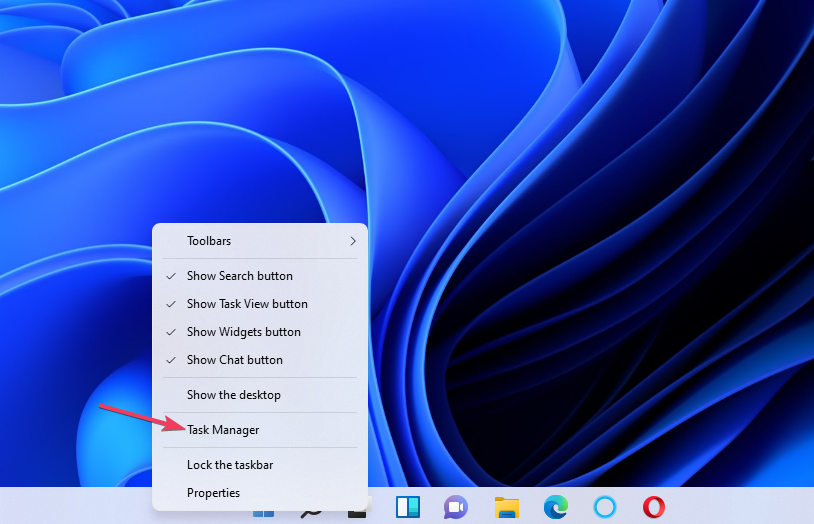
  7. Next, restart the Riot Client by opening the Task Manager option by right-clicking on your taskbar.
    Task Manager option valorant error code 0
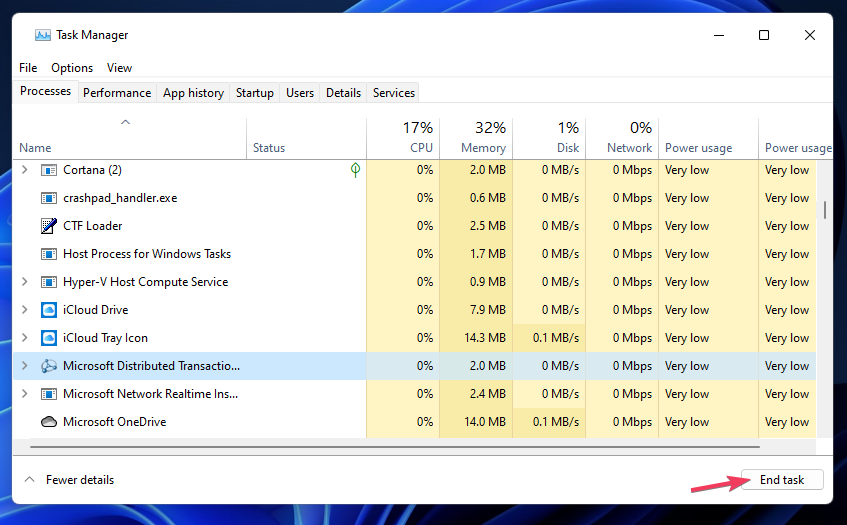
  8. Navigate to the Processes tab then select the Riot Client process within Task Manager.
  9. Click End task to close the selected process.
  10. Restart the Riot Client in Windows, and try playing Valorant again and see if the error code 57 appears.

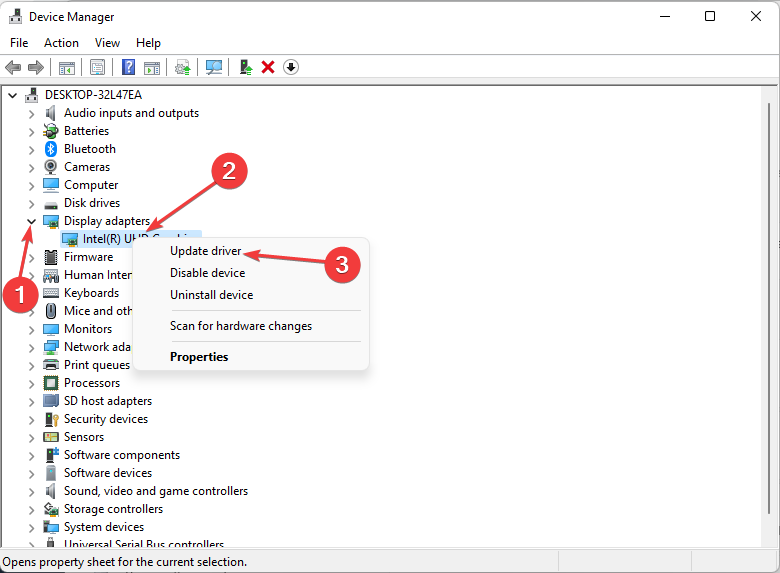
3. Update your graphic drivers

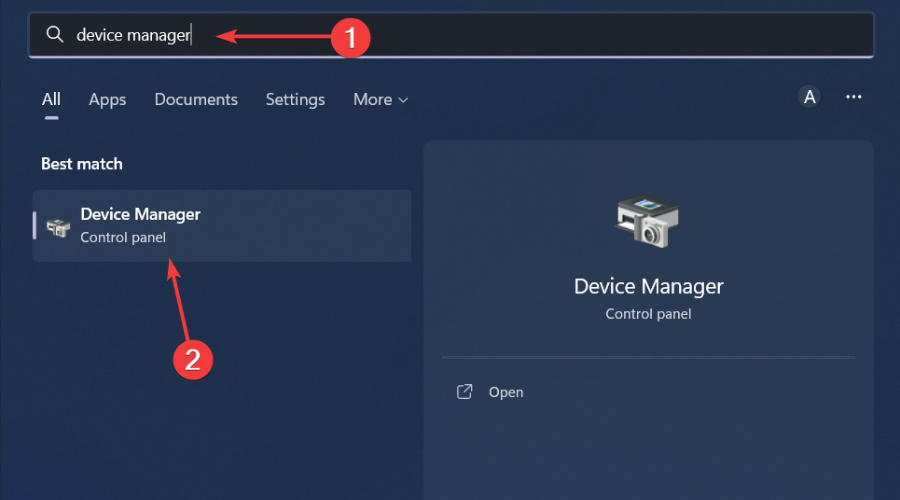
  1. Hit the Windows key, type Device Manager in the search bar, and click Open.device manager w11
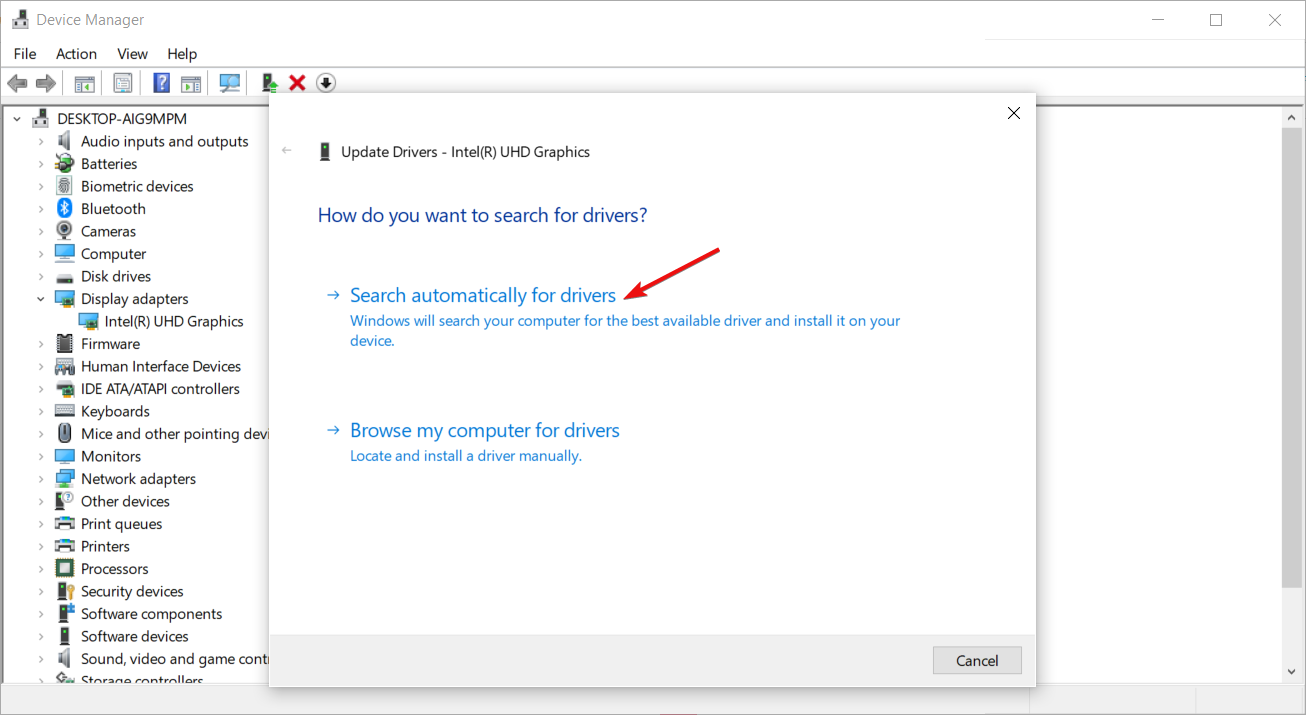
  2. Navigate to Display adapters to expand, right-click on your graphics card, and select Update driver.Graphic Driver Update
  3. Select Search automatically for drivers.

4. Disable your antivirus temporarily

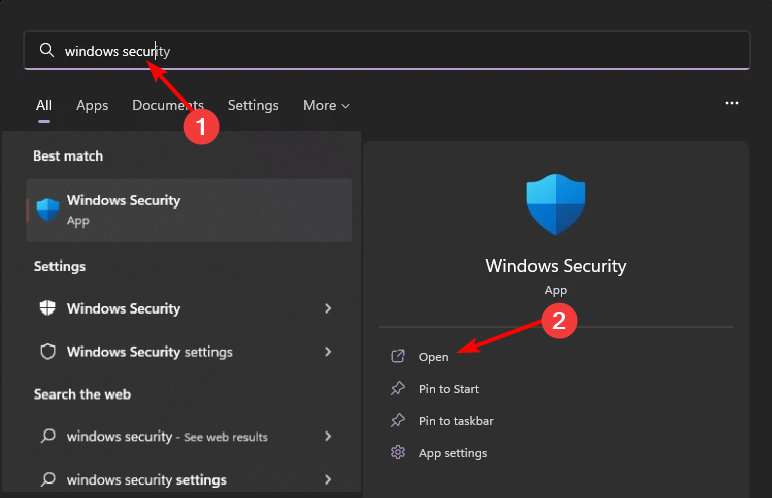
  1. Hit the Start menu icon, type Windows Security in the search bar, and click Open.
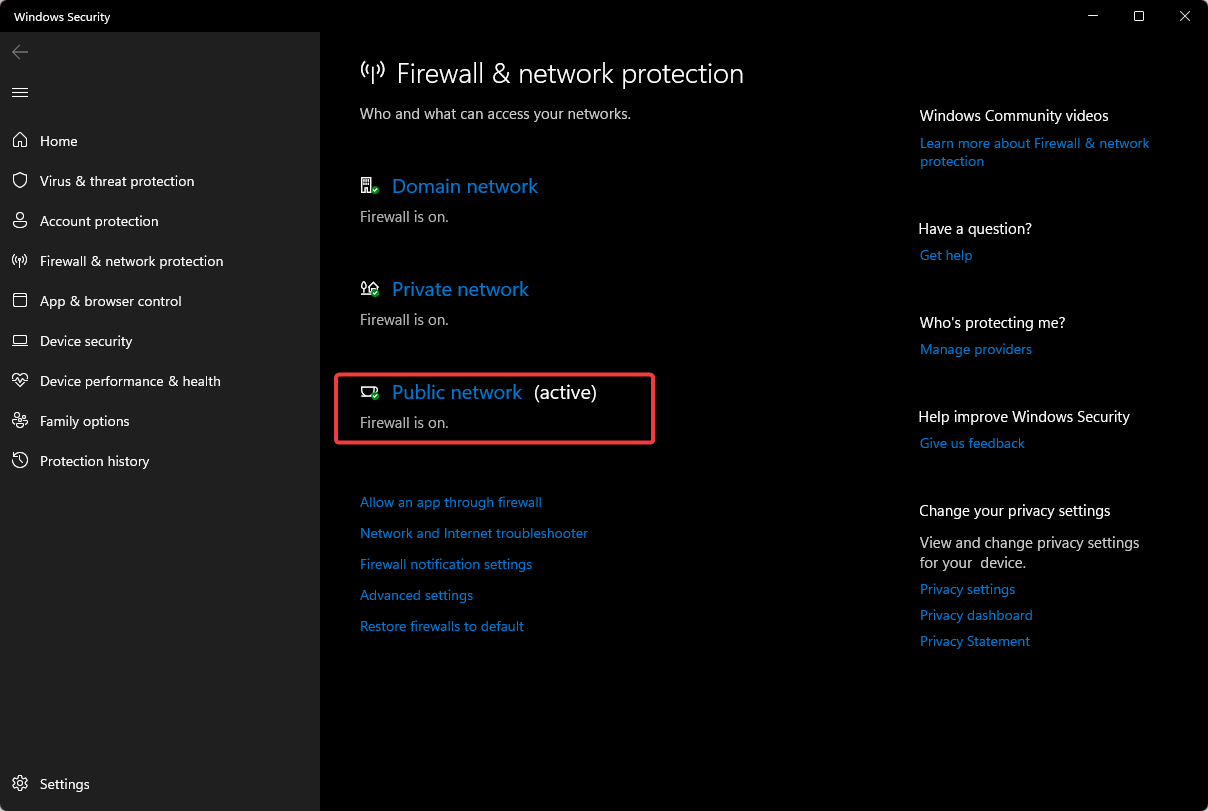
  2. Click on Firewall & network protection, then select Public network.league of legends black screen after champion select
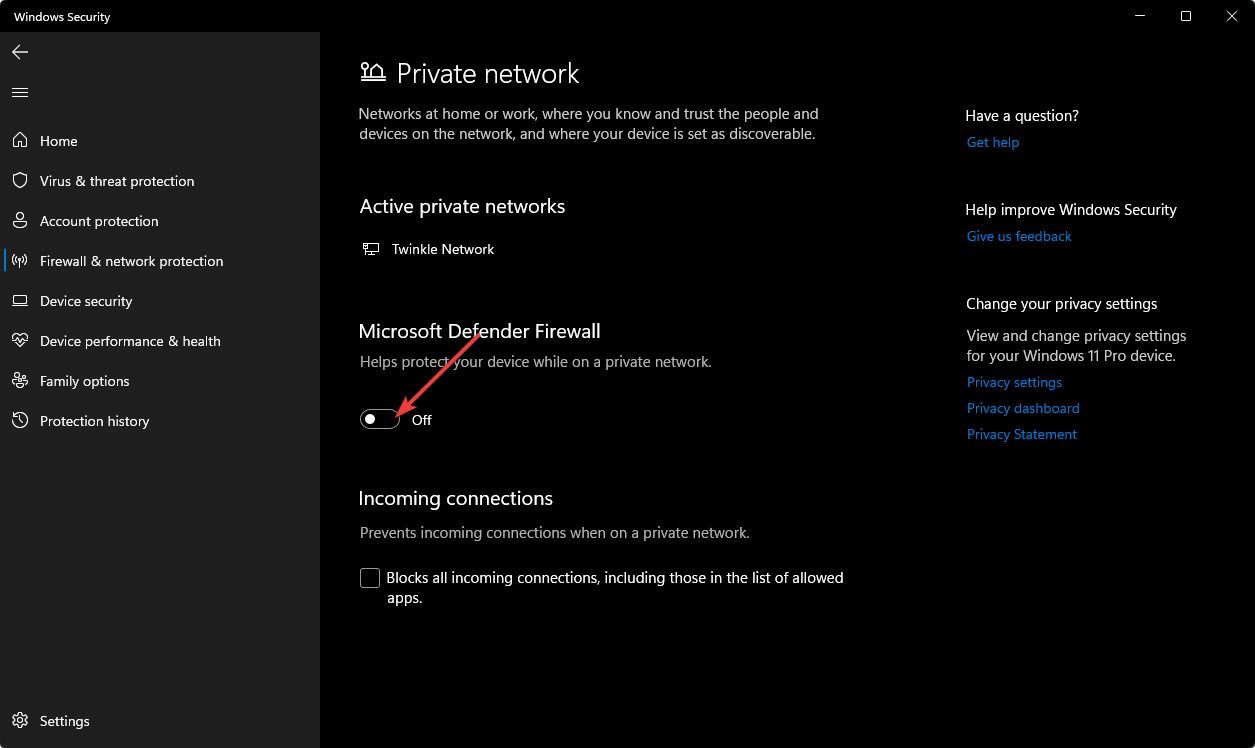
  3. Locate Microsoft Defender Firewall and toggle the off button.turning off Microsoft Defender Firewall Windows

If your antivirus keeps standing in the way of you playing games, consider trying out some gamer-friendly antiviruses.

5. Allow Valorant through Windows Defender Firewall

  1. Hit the Start menu icon, type Windows Security in the search bar, and click Open.
  2. Click on Firewall & network protection.
  3. Select the Allow an app or feature through Windows Defender Firewall option on the left side of the Control Panel.
    Allow an app or feature through Windows Defender Firewall option vanguard windows 11 error
  4. Select Change settings so that you can configure the app permissions.
    Change settings button vanguard windows 11 error
  5. Click the Allow another app option.
    The Allow another app button vanguard windows 11 error
  6. Press the Browse button to select Valorant, and click the Open option.
    Open button vanguard windows 11 error
  7. Then click Add.
    Add button vanguard windows 11 error
  8. Select the Private and Public checkboxes for Valorant within the firewall’s settings.
    Private and Public checkboxes vanguard windows 11 error
  9. Click the OK option.

6. Reinstall Vanguard

  1. Open up the Windows search tool and input Command Prompt within the text box.
  2. Select the Run as administrator option.cmd-run-admin-w11 video dxgkrnl fatal error windows 11
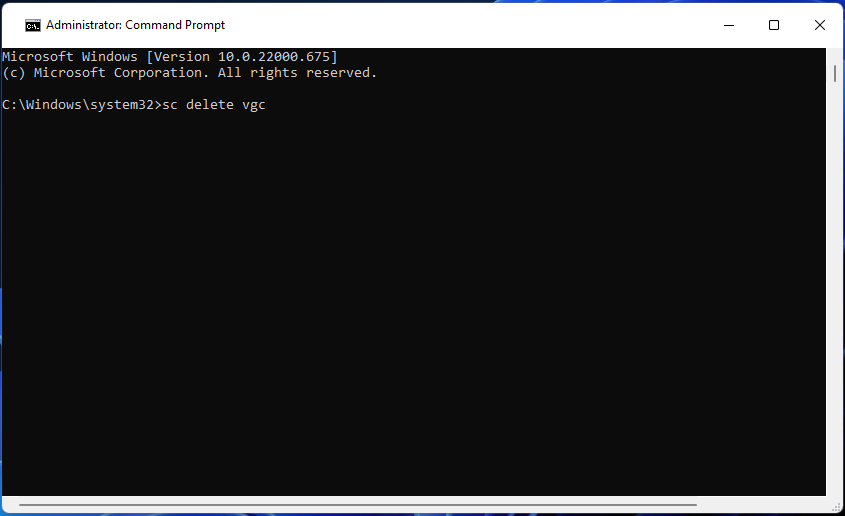
  3. Type in this command and hit Enter: sc delete vgc
    sc delete vgc command valorant error code 0
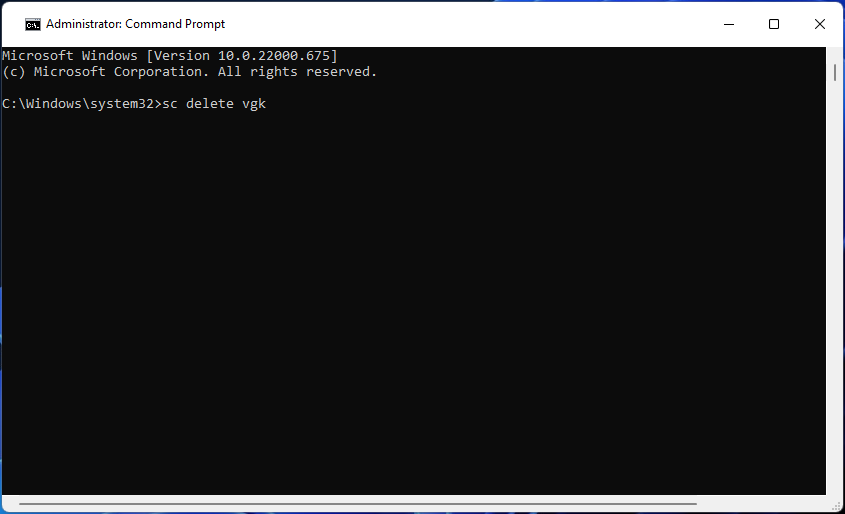
  4. Then input this delete command and press Return to execute: sc delete vgk
    sc delete vgk command valorant error code 0
  5. Exit the Command Prompt.
  6. Press the Windows + I key combination.
  7. Select Apps on the left of Settings.
    apps tab vanguard windows 11 error
  8. Click the Apps & features navigation option.
    The Apps & features option vanguard windows 11 error
  9. Next, click the three-dot button for Riot Vanguard to select Uninstall.
    Uninstall option vanguard windows 11 error
  10. Select Restart on the Start menu.
    Restart button vanguard windows 11 error
  11. After that, open the Valorant client to reinstall the Vanguard anti-cheat software and see if the error code 57 appears.

If the issue persists, we’d recommend completely wiping out the Riot client then start over. In some severe cases, you may have to reset your PC.

Additional tips for preventing Valorant error code 57

  • Always keep your OS, drivers and game up-to-date to avoid compatibility or out of compliance issues.
  • Verify your game files to prevent corruption of game files.
  • Stick to the Valorant and Vanguard anti-cheat software guidelines to prevent issues with your account.

Aside from the error code 57, there are also other common Valorant error codes you may come across so we did you a favor and compiled them with their solutions in our detailed guide.

Valorant may also freeze your PC from time to time so check out what causes this issue and how to bypass it.

That’s a wrap from us but we’re keen to hear about things from your point of view. Have you ecperienced this error and what is your go-to solution? Drop us a line below.

Microsoft Copilot will be updated to summarize user-selected text only

Copilot will summarize only the text you selected if you want it to do it. This new change is part of a larger set of new capabilities coming to the AI model, and Microsoft will release it next month, in May 2024, according to the latest entry in the Microsoft 365 Roadmap.

The new enhancement means that users won’t have to wait for the AI model to process the entire document, but only parts of it, as text is selected.

However, we don’t know if Copilot will tie that part to the larger document, or if the summarization of the selected text makes use of the understanding of the entire document.

Summary requests in chat can be limited to operate only on the user-selected text in the document, rather than operating in large part against the entire document.

Microsoft

Either way, the capability, which is somehow similar to the live translation of the Edge’s PDF Reader, could be very useful to those dealing with large quantities of data, and need thorough comprehension of what’s being said in the documents.

Users can select those pieces of text, and let Copilot summarize them, thus enhancing productivity and keeping the workflow constant.

The Redmond-based tech giant has been keen on making Copilot a big part of its agenda: for instance, the company will update the AI model via https://copilot.microsoft.com/ to support plugins, giving all users tools to enhance their Copilot experience.

Plus, Microsoft will also allow Copilot to come up with a SWOT analysis, effectively turning it into a business consultant that could save SMBs a lot of budget.

But as its popularity rises, so do the bad parts: apparently, Copilot will also display more ads from now on, with users reporting product placement outputs from the AI model. However, if you’re dealing with this issue, using the Copilot app on the web instead of the Copilot extension in the browser seems to do the trick of not getting these ads.

Fallout 5 might come sooner than expected, rumors say

It’s safe to say the Fallout TV series was a smashing success bringing 5 million players to the Fallout franchise in a single day.

This is great news for developers, and Microsoft is planning to capitalize on the success of the TV series by speeding up the development of Fallout 5.

Microsoft might shift its focus to developing Fallout 5

It’s no secret that the Fallout TV show brought thousands of players back to Fallout, and as GamingBolt writes, Microsoft might focus more on the development of the next Fallout game.

This information comes from Jez Corden who was on the Xbox Two podcast with Rand al Thor 19. He said the following:

They’re currently formulating plans on how to get the next Fallout, here for us, sooner rather than later.

As you know, Bethesda is working hard on The Elder Scrolls 6, and even Todd Howard stated that the Fallout sequel is coming, but after The Elder Scrolls 6 is released.

The question remains, who will develop the next Fallout game if these rumors are true?

Rumors have it that Obsidian Entertainment, a team behind the fan-favorite Fallout: New Vegas, might work on the game, or maybe a separate team would be hired for this task.

These are just rumors, and currently, nothing has been confirmed by Microsoft or Bethesda, so we’ll have to wait a bit more for official news.

If you can’t wait to go back into wasteland, you’ll be pleased to hear that Fallout 4 next-gen update is here. Do keep in mind that Quality Mode isn’t working Fallout 4 on Xbox Series X.

This isn’t the only issue as the next-gen Fallout 4 update has widescreen issues on PC, but they can be easily fixed.

Grab the Seagate 2TB Xbox expansion storage card at only $230

Xbox prices are dropping and there are a lot of rumors about the future console. If there’s anything to consider, you can still stick to your Series X and S for the moment. However, the onboard storage for these consoles fills up faster than a sprinter on race day, especially with those hefty high-end games. But guess what? There’s a light at the end of the tunnel, or in this case, a deal on the horizon.

The Seagate 2TB Xbox expansion storage card has hit its all-time low price again – a cool $230 on Amazon. That’s a hefty chop from its usual $360.

Why would I buy the Seagate Storage Expansion Card?

Well, this isn’t just any storage card. It’s the largest one you can snag for the Xbox Series X|S consoles. Designed to gel with Microsoft’s Xbox Velocity Architecture, it lets you download, store, and play games directly from the card without any lag. It’s like the console’s onboard SSD had a baby with Flash Gordon – super fast and super convenient.

And there’s more good news. You can use the Quick Resume feature with games stored on this card. This means you can hop from one game to another and back again without any loading screens slowing you down. Imagine switching from an epic boss battle in one game to scoring goals in another, all in the blink of an eye.

This deal is specifically for the folks in the U.S., so if you’re elsewhere, you might need to check local listings or cross your fingers for a similar deal.

So, if you’ve been eyeing extra storage for your Xbox, this might be the perfect time to jump on it. After all, who doesn’t love a good deal, especially when it means more gaming and less worrying about storage space?

You might also want to take a look at the Xbox controller Vapor series if you haven’t already. Tell us your thoughts regarding the Seagate Storage Expansion Card for Xbox in the comments below.

New Outlook for Windows and the Web will introduce new swipe options that allow users to access emails faster

People might be lashing out at the new Outlook, but Microsoft is actually updating it with useful features.

We’re not talking only about new capabilities, such as Copilot, but a plethora of old features that can be currently found in the classic Outlook, but not the new Outlook, such as the support for the EML, MSG, and OFT formats, or the Newsletter feature, that is due to be released in July.

The Redmond-based tech giant will also release new swipe options to the new Outlook for Windows and the Web, in June 2024, according to the latest entry in the Microsoft 365 Roadmap.

The message list in the new Outlook will support the Swipe from Left and Swipe from Right actions, which allows those Windows users to perform these actions on touchscreen-based Windows laptops, or monitors.

Microsoft says these new actions will prompt minor organization changes for the hover actions.

The Message List will now support Swipe from Left and Swipe from Right actions on Outlook on the Web and the New Outlook for Windows. As a result, some minor organization changes will also happen for the hover actions. #newoutlookforwindows

Microsoft

These swipe options will make it easier for New Outlook users to get across messages by allowing them to use their devices’ touchscreen capabilities to do so. As many Windows laptops have a touchscreen, these new options can be a game changer, and they will enhance productivity for Windows users.

On the other hand, many users still prefer Classic Outlook and the Redmond-based tech giant said that it will support it until 2029, among rumors that it will be retired soon. However, Microsoft has expressed the desire to turn the version into a web app, retaining many of its features, and allowing those users to try the new Outlook as well.

Manor Lords is on sale and has sold over a million copies

Manor Lords is an indie medieval city-building strategy game. For now, it is number one on the top sellers list on Steam. Also, it is one of the top-selling games on the Epic Games store. After all, according to its publisher @HoodedHorseInc, the game has sold over one million copies.

The game had over 170,000 active players over the weekend. Thus, Manor Lords exceeded expectations and surpassed other games from the city-building genre in player numbers. For example, Cities: Skylines II has an all-time peak of over 100,000 players, and Sid Meier’s Civilization VI has an all-time peak of 162,000 players since its release.

What to consider before buying Manor Lords

Manor Lords received many positive reviews. However, players are a bit concerned about its success. Some think developers might forget about the game after it leaves early access. Yet, many praise the game and say it has great potential.

The game has astonishing graphics, and the overall gameplay will keep you occupied for hours. On top of that, Manor Lords has a game editor. So, you can set some of the values to increase or decrease difficulty. Thus, if you are a veteran of city-building games, the editor will be your ticket to a challenging experience.

Keep in mind that Manor Lords is still in its early access. So, more features are coming our way. However, there are some bugs, and fixing them might take a while. After all, the game has only one developer, Greg Styczeń.

Requirements

Before getting Manor Lords, check out its requirements. After all, you will need at least a 64-bit Windows 10 and 8GB of RAM. However, you will need more than 12 GB RAM for smooth gameplay. Also, you can find the given recommendations for CPUs and GPUs below. On the other hand, you can grab the RTX 3060 Ti gaming PC that offers smooth gameplay.

MinimumRecommended
CPUIntel® Core™ i5-4670 (quad-core)
AMD® FX-Series™ FX-4350 (quad-core)
Intel® Core™ i5-7600 (quad-core)
AMD® Ryzen™ 3 2200G (quad-core)
GPUNVIDIA® GeForce® GTX 1050 (2 GB)
AMD® Radeon™ RX-460 (4 GB)
Intel® Arc™ A380 (6 GB)
NVIDIA® GeForce® GTX 1060 (6 GB)
AMD® Radeon™ RX 580 (8 GB)
Intel® Arc™ A580 (8 GB)

If you want to buy Manor Lords, do it soon because it is on sale for $29.99. In addition, you can get one of the Hooded Horse publisher bundles that feature more city-building games. By the way, the game is also available on the Xbox Game Pass.

Ultimately, Manor Lords has a lot of potential, and if Greg Styczeń focuses on improving it by adding new features and fixing bugs, it will have the opportunity to grow. For now, you can get the game and contribute to its development. On the other hand, you can wait to check the reviews after a while.

What do you think? Are you going to buy Manor Lords now? Let us know in the comments.

Microsoft’s latest, ICSpector, will defend industrial systems against attacks

Note icon NOTE
The featured image has been generated using AI and doesn’t depict the actual ICSpector framework in action.

With the rise in attacks targetting industrial setups, there was an urgent requirement for a framework that augments the security infrastructure. And Microsoft’s ICSpector, ICS Forensics Framework, does just that!

Available for download on GitHub, the description for Microsoft ICS Forensics Framework reads,

To overcome this challenge, Microsoft released ICSpector, an open-source framework that facilitates the examination of the information and configurations of industrial programmable logic controllers (PLCs). This framework simplifies the process of locating PLCs and detecting any anomalous indicators that are compromised or manipulated. This can assist you in safeguarding the PLCs from adversaries who intend to harm or disrupt their operations.

Microsoft, in its official announcement, highlights that the forensic tools for ICS (Industrial Control Systems) devices are not as advanced as their counterparts in the IT environments. And Microsoft’s ICSpector will fill the gap!

Besides, examining data from industries for threats requires high levels of accuracy and precision, in addition to a careful examination that doesn’t disrupt the services, especially when it comes to nuclear reactors, power plants, and water treatment facilities.

Image source: Microsoft

The intended purpose of ICSpector is to improve the incident response capabilities of security analysts. However, the framework can also be used alongside Microsoft Defender for IoT for enhanced protection.

In the blog post, Microsoft highlights the following application of ICSpector:

1. Scan their network for programmable logic controllers.

2. Extract project configuration and code from controllers.

3. Detect any anomalous components within ICS environments.

Recent incidents from across the globe, be it the service disruptions in Ukraine’s Industroyer, the USA’s colonial pipeline, or the Florida water treatment facility, necessitate the development of frameworks like Microsoft’s ICSpector.

Now, with the holistic solution available, there should be a reduction in attacks aimed at industrial setups, and the impact would be contained.

Much of the problem started with Artificial Intelligence reaching the hands of threat actors, which led to an increase in AI-powered cyber attacks. Microsoft responded to it with AI-powered solutions, including integrating the technology into all its security tools!

What do you think about Microsoft’s ICSpector? Share with our readers in the comments section.

SharePoint will be updated to support flexible layouts, for a more dynamic page-building

Microsoft has been announcing important updates coming to SharePoint, its corporate-oriented platform: from all News posts being labeled to Made for Emails to AI-based data analysis tools, author inline comments, and changes made to its reporting mode, the platform will also introduce flexible ways to build pages with it.

More specifically, according to the latest entries in the Microsoft 365 Roadmap, the Redmond-based tech giant is introducing several new features, changes, and enhancements to make SharePoint have flexible layouts.

The first of these changes is coming in May, according to the roadmap, with a full roll-out scheduled for June 2024, and it will allow SharePoint users to customize the shape of the images they’re using to build a SharePoint page.

Microsoft says users can choose from many shapes, including squares, triangles, circles, hexagons, and so on, and it offers a higher customization of the page.

We’re adding the capability to apply a shape over the image web part as well as on inline images in the text web part. Shapes include square, circle, triangle, hexagon, pebble, and teardrop.

Microsoft

The second new change is coming in December 2024, according to the roadmap, and it will give SharePoint users greater control over the customization of the top of the page, allowing them to add carousel-styled sections on it.

The reimagined hero web part will feature a carousel layout and a selection of new styles, creating an eye-catching and engaging experience at the top of the page.

Microsoft

The third new enhancement is coming in January 2025, but Microsoft will preview it to users in December, and it is probably, one of the most important changes to ever be released to the platform: flexible layouts. These will allow users to build pages dynamically, by resizing and moving web parts within a so-called flexible section.

New flexible layout sections allow authors to build pages without the strict column structure. Web parts can be dynamically resized and moved within the flexible section.

Microsoft

With the new flexible layouts, SharePoint will become easier to use, and it will allow anyone to make changes to an existing page: this could be useful for customizing SharePoint pages to fit certain company events, for instance.

What do you think about these new changes coming to the platform? Are you excited about them?

Dell XPS 17 is currently available at a 34% discount

A high-end laptop is perfect for all your needs, but such devices usually come with a hefty price.

If you’re tight on money, you might be interested in Dell XPS 17, since it’s available at a discount.

Be fast and grab Dell XPS 17 for $1300 off!

Dell is well-known for its high-quality devices, and if you’re looking to get one, you should know that the Dell XPS 17 is currently at a discount as IGN writes.

Regarding the specs, the laptop offers the following:

Screen:17-inch, 4K UHD+ (3840×2400), 266ppi
CPU:Core i9-13900H
Graphics:GeForce RTX 4080 12GB
Memory:DDR5-4800Mhz RAM
Storage:1TB NVME SSD
Weight:Less than 5.4 pounds
Battery:6 Cell, 97 Wh, lasts up to 14h with FHD+1
Wireless:Intel Killer Wi-Fi 6 1675 (AX211), 2×2, 802.11ax, Bluetooth wireless card
Ports:4x Thunderbolt (USB Type-C) ports with Display port and Power Delivery
3.5mm headphone and microphone jack SD card slot

XPS 17 offers amazing specs, and it offers a nearly bezel-less design with aluminum and carbon fiber construction.

It’s worth noting that RAM isn’t upgradable, so you might want to choose a model that offers more RAM.

The device is currently on discount, but if you use promo code 10OFFCLEAR, you can get it for 34% off on Dell’s website.

In case you need something more affordable, you can get Acer Predator Triton 14, or Surface Laptop Studio 2 at a discount.

Windows 11 will allow users to duplicate File Explorer tabs for easier file management

On Friday, Microsoft released the KB5037002 patch which brought fixes to some of the most annoying Windows 11 bugs, but along with them, the Redmond-based tech giant also slipped in some hidden feautures.

One of them allows you to access local Windows folders directly from the Windows 11 Start Menu, and while the feature itself might be useful, it might also provide a really long scrolling experience, so we’re curious to see just how it will be released, eventually.

The other one is even more useful. We’re talking about a capability that allows you to duplicate File Explorer tabs for easier file management.

According to Windows Insider, @PhantomOfEarth, you can easily duplicate File Explorer tabs in Windows 11, by right-clicking on a tab, and selecting the new Duplicate tab button, as you can see in the image below.File explorer tabs duplicate

For now, the feature is hidden meaning the Redmond-based tech giant has not intended to reveal it just yet, and it might be released differently, but if you’re currently enlisted in the Beta Channel within the Windows Insider Program, you can enable it with a third-app such as ViveTool, by using this command:

vivetool /enable /id:45262221

If you don’t know how to use ViveTool to enable hidden Windows 11 features, but you’re interested, we have a comprehensive guide on how to do it.

However, if you’re not a tech savvy then it might be best to skip this one out. Either way, being able to duplicate File Explorer tabs in Windows 11 might actually be one of the most useful tricks on the operating system.

It will allow users to quickly manage files across the same (but also different) Windows 11 folders, and together with the drag&drop capability, this might become the new CTRL C/CTRL V combo.

What do you think about it?

Lowest price alert: Get the Galaxy Book3 Pro for just $999, save $750

Incredible performance, crystal clear display, and extended battery backup are indeed a rare combination in low to mid-range laptops. You always have to compromise on one or another. Not anymore, though!

With a massive 43% discount, the sleek and power-packed Samsung Galaxy Book3 Pro is available for just $999.99 during the limited-period Amazon deal, down from its regular pricing of $1,749.99.

Featuring a 16″ 3K AMOLED screen (2880 X 1800) display, the laptop boasts unbeatable performance in the price range, powered by the 13th Gen Intel Core processor.

The Galaxy Book3 Pro is one of the slimmest laptops ever designed by Samsung. But that doesn’t affect the usability!

The laptop has 6 ports, so you don’t have to rely on additional hardware for seamless connectivity. Also, the laptop features a bigger touchpad compared to other models. As for portability, the Galaxy Book3 Pro weighs just 3.44 pounds, making it your perfect companion when on the move.

In user reviews, many call the Galaxy Book3 Pro the perfect Windows-based replacement for MacBooks. And its competitive pricing appeals to a wider set of people. Besides, the gaming experience on the power-packed laptop is unmatchable in the price range!

Samsung Galaxy Book3 Pro’s specifications

Processor13th Gen Intel Core i7
GraphicsIntel Xe Graphics
Storage1 TB SSD (expandable up to 2 TB with a microSD card)
RAM16 GB
Operating SystemWindows 11 Home
Display16″, 1920 x 1080 pixels, up to 120 Hz refresh rate
Battery Backup19 hours

If interested, get the Samsung Galaxy Book3 Pro from Amazon right away, as the deal ends soon!

Some users did highligh flaws in the laptop, ranging from frequent lags while performing resource-intensive tasks to abrupt crashes. However, these issues usually arise from improper resource allocation or a buggy update and can quickly be resolved.

Do you believe the Samsung Galaxy Book3 Pro is a value-for-money purchase at $999.99 during the Amazon deal? Share with our readers in the comments section.