4 Ways to Fix System Error Code E106 on Xbox One

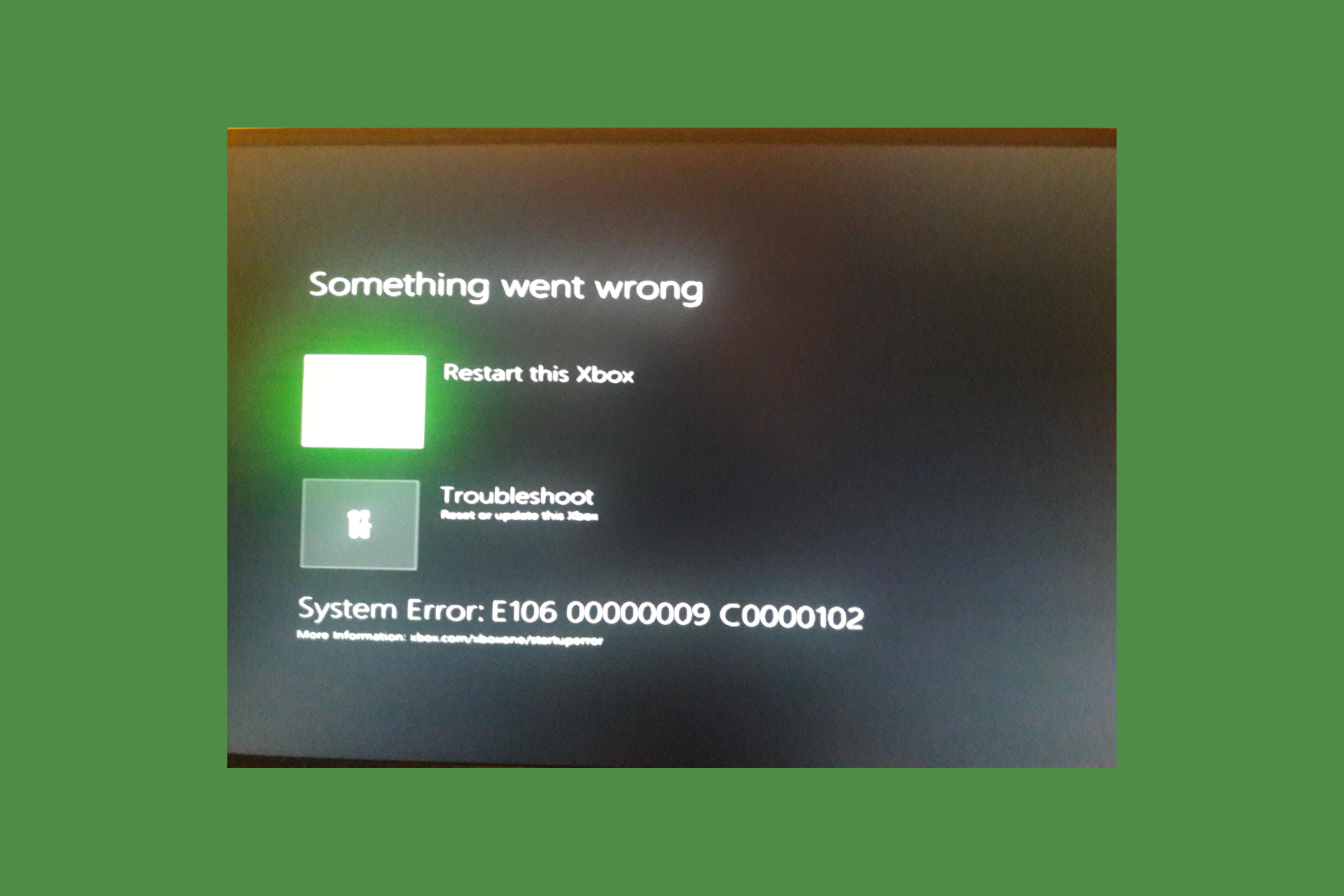
Many users reported getting the System Error code E106 when trying to turn on their Xbox console. The error code could appear if the console faced some issues while trying to install the latest console operating system, and it could be your dead/faulty HDD or data cache.

To fix it, you need to restart your PC, update your system, download the offline system update file, or reset your console.

How can I fix System Error code E106 on Xbox One?

1. Clear the cache

  1. Press & hold the Xbox button or Power button on your console to turn it off.Turn off your console - System Error E106
  2. Remove the power cable from the back of your Xbox One.
  3. Now, press & hold the Xbox button three to four times. Let the console stay unplugged for 1-2 minutes, then plug it back in.
  4. Wait for 1-2 minutes, then press the Xbox button on your console to start it.
  5. If this doesn’t work, turn on your console, and if you can access the home screen, press the Xbox button on your controller.
  6. Go to Settings.
  7. Choose Device & connections, then select Blu-ray.Devices & connection - Blu-ray
  8. Select Persistent storage.
  9. Select Clear Persistent Storage, then click Yes if prompted.

Clearing the cache can also help you avoid similar issues like Something went wrong error while playing a game; read this guide to learn more.

2. Reset your console

  1. From the Something went wrong screen, click the Troubleshoot option to access the Xbox Startup Troubleshooter.Troubleshoot - E106 system error code Xbox One
  2. In case you can’t get the Xbox Startup Troubleshooter, power off your console.
  3. Unplug your power cord to make sure it is completely turned off.
  4. Wait for 30 seconds – 1 minute, then plug back the power cord in.
  5. Press & hold the Pair button and the Eject on the console, then press the Xbox button on your console. If you have an Xbox One S, you won’t see the Eject button, so to get the Xbox Startup Troubleshooter, press & hold the Pair button, then press the Xbox button.
  6. Keep holding the Pair & Eject buttons together for 15-20 seconds.
  7. Wait for two power-up tones, which would be a few seconds apart. Release both buttons after the second tone.
  8. You will now get to Xbox Startup Troubleshooter. To reset your console, choose Reset this Xbox.Reset this Xbox -system error code e106 xbox one
  9. On the next screen, select Reset and keep my games & apps; when prompted, click Yes.Reset and keep my games &apps

3. Download the offline system update file

Note icon NOTE
To perform these steps, you need a Windows PC with an active internet connection, a working USB port, and a flash drive with 6 GB space formatted in NTFS format. Also, make sure there is no data on the USB drive.
  1. Click the Xbox OSU1 link to download the Xbox Offline System Update file.
  2. Once the file is downloaded, connect your USB drive to a USB port of your computer.
  3. Right-click the OSU1 file and select Extract All from the pop-up menu to unzip it.
  4. Locate and copy & paste the $SystemUpdate file to your flash drive.
  5. Now, from the system tray on your PC, locate the USB flash drive icon, right-click, and choose Eject USB drive.
  6. Plug the USB drive into your console and restart it.
  7. On the Something went wrong screen, choose Troubleshoot to access the Xbox Startup Troubleshooter.
  8. Choose Offline System Update to start the update with the file you saved on your USB drive.Offline System update - system error code e106 xbox one

This update will take up to 30-45 minutes, depending upon the internet connection speed. To speed up the process, use a wired connection.

Once done, the console will restart, and you will see the home screen of your Xbox. You can then remove the USB drive from the console.

4. Restore Xbox One to factory defaults

  1. On the Something went wrong screen, choose Troubleshoot to access the Xbox Startup Troubleshooter.
  2. If you can’t access it, follow Steps 3-7 from Solution 2 to access the troubleshooter manually.
  3. On the Xbox Startup Troubleshooter, choose Reset this Xbox.Reset this Xbox -system error code e106 xbox one
  4. When asked, select Reset and remove everything. This action will remove all the user data, games, and apps.Reset and remove everything - system error code e106 xbox one

Once done, you will get to the home screen of Xbox One. If not, that indicates that you might have a faulty Xbox device or damaged hard drive, so you need to contact Xbox customer support for further assistance.

To conclude, the System Error code E106 on Xbox One appears if a system update is unsuccessful; you could restart the console, update the system manually, reset the console, or restore it to default settings.

In case you want to connect Xbox One to a Windows 10 PC, we have a detailed guide for you; check out the steps!

If you have any questions or suggestions about the subject, feel free to mention them in the comments section below.

Cisco announces new Microsoft and Samsung conferencing partnership

Earlier this week, networking manufacture Cisco announced a new partnership amongst itself, Samsung, and Microsoft that results in a new 105-inch conference monitor with Teams support.

Cisco provides its own collaborative platform titled Cisco Room which represents a ‘smart video conferencing’ solution for hybrid work environments. As part of its Cisco Room’s push, the company also provides a handful of CR authorized devices that include Room Bars, Kits, Digital Meeting boards, Integrated Room Systems, and other conferencing accessories.

However, Cisco announced that it will lean on a partnership with Samsung and Microsoft to help push some of its new collaborative efforts forward with the former providing new hardware and leveraging the latter’s broader user reach.

Samsung’s 105-inch screen

According to Cisco’s latest press release, the company is promoting Samsung’s new 105-inch Smart Signage monitor (QPD-5K) or its 4K Smart Signage screen paired with Microsoft Teams Rooms platform for a new solution called Front Row that utilizes new content layouts for video conferencing.

Samsung’s newly released 105” QPD-5K model comes with 5K4 resolution and a 21:9 aspect ratio. It provides an intuitive, yet natural video conferencing experience ideal for hybrid workspaces. The QPD-5K is compatible with the Cisco Room Bar and Room Kit Series, creating an efficient meeting environment by integrating camera, audio and all other capabilities required for video conferencing.

Samsung Newsroom

Cisco Front Row

With a 21:9 aspect ratio present on the Samsung monitors, Front Row will enable “immersive hybrid meeting experiences with vibrant colors, in an ultra-slim design.” In addition to enhanced image quality, Front Row will also enable advanced AI-powered collaborative features around camera, mics, and speech intelligence.

The main goal of Front Row is streamlining the often-cumbersome hybrid digital conferencing experience by giving IT admins fully managed solutions through Microsoft Teams Admin Center and Cisco Control Hub as well as new scalability enhancements, and greater interoperability between mixed devices and online platforms.

Many of the feature sets for Front Row are currently in general availability for Cisco Rooms, but support for specific 21:9 displays like Samsung’s Signage monitors will begin circulating March 2024. Cisco will also be showing off Cisco Room Kit EQ and Room Kit EQX features in the coming days.

Msxml4.dll Missing: 8 Quick Ways to Fix it

The Msxmld.dll or (Microsoft XML Core Services) file is used in applications that manipulate and validate data. It’s common among XML documents.

Although missing DLL files can be caused by various issues such as corrupt system files, hardware failure, or bad drivers, this particular one can be blamed on a corrupt software installation.

How do I fix msxml4.dd missing error?

1. Use a third-party DLL fixer

Msxml4.dll, is a system file hence incompatibility between your PC and the file is the most obvious reason behind the errors. As such, it will involve a lot of trial and error to resolve such issues.

With a lot at stake, we recommend using a DLL-repair tool. Such tools are great for fixing such issues and ensuring the files are in sync.

2. Run DISM and SFC scans

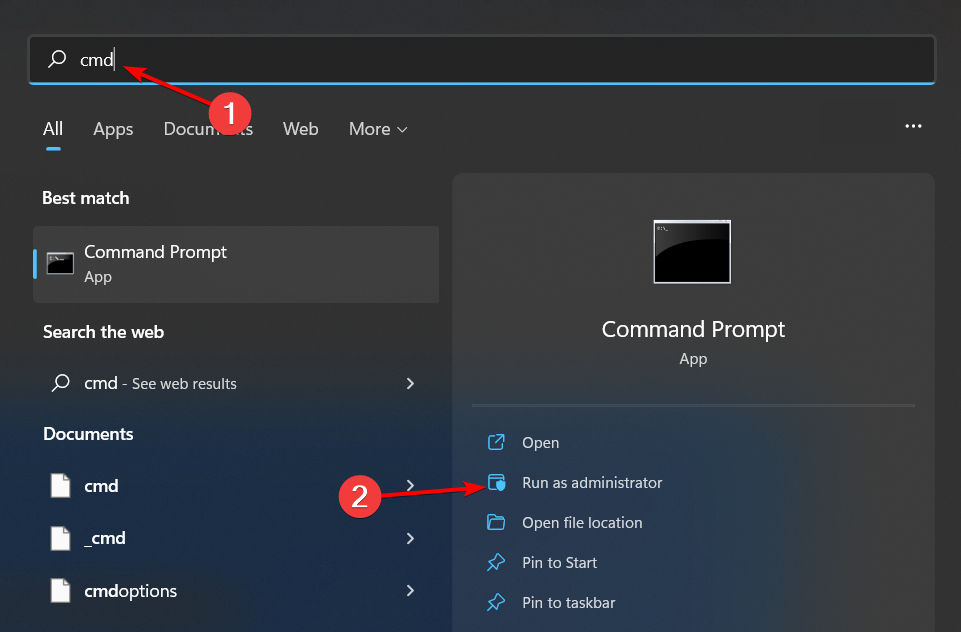
  1. Hit the Start Menu icon, type cmd in the search bar, and click Run as administrator.cmd-run-admin-w11 unexpected kernel mode trap windows 11
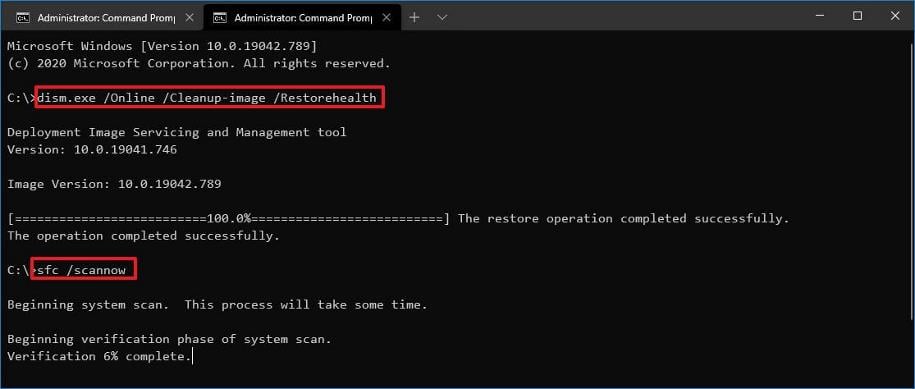
  2. Type the following commands and press Enter after each one:DISM.exe /Online /Cleanup-Image /Restorehealth sfc /scannow

3. Re-register the DLL file

  1. Hit the Windows key, type Command Prompt right-click on it, and select Run as administrator.cmd-run-admin-w11 unexpected kernel mode trap windows 11
  2. Type the following commands to unregister and re-register the file respectively and press Enter after each one:
    regsvr32 /u msxml4.dll regsvr32 /i msxml4.dll

4. Download the file manually

You can also replace the corrupt DLL file by downloading the right version of the Msxml4 file. Since there are different versions available, we recommend you pick the latest and highest version for your PC.

And because we cannot vouch for the authenticity of the site, ensure you have a reliable antivirus software and that it is up-to-date. Once downloaded, locate the file and move it to the Msxml4 file directory. Also, make sure to delete the previous corrupted one.

Note icon NOTE
The DLL-files.com site is not an official source, and WindowsReport is not affiliated with it in any way. If you download the file, be sure to run an antivirus check.

5. Scan for viruses

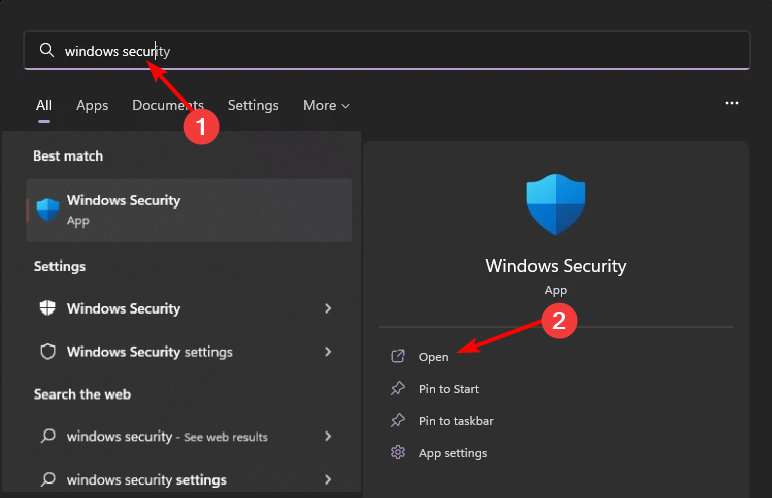
  1. Press the Windows key, search Windows Security, and click Open.
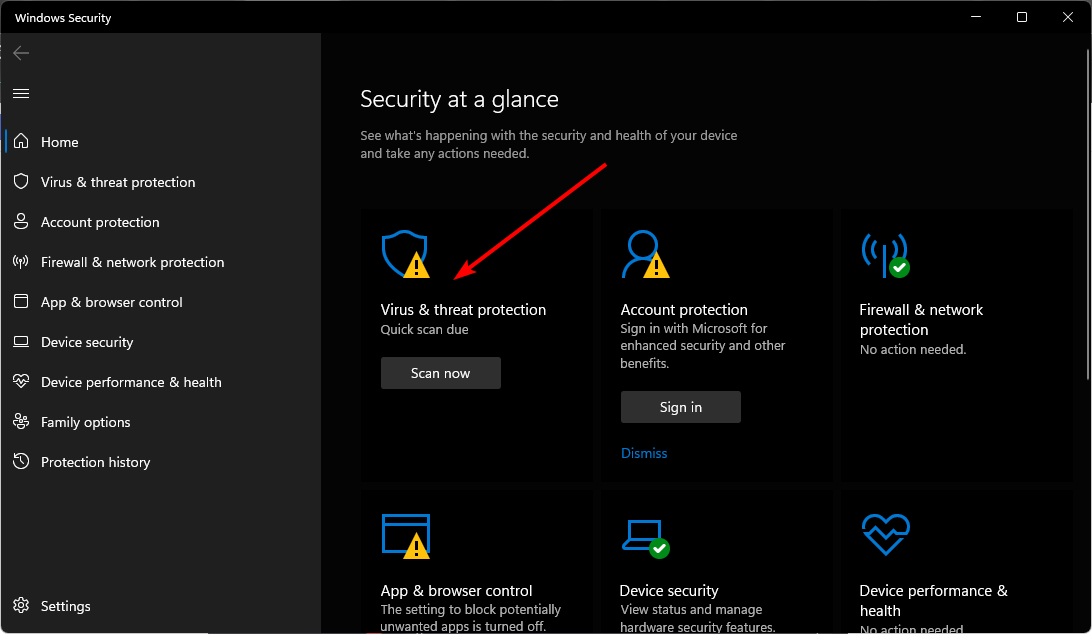
  2. Select Virus & threat protection.
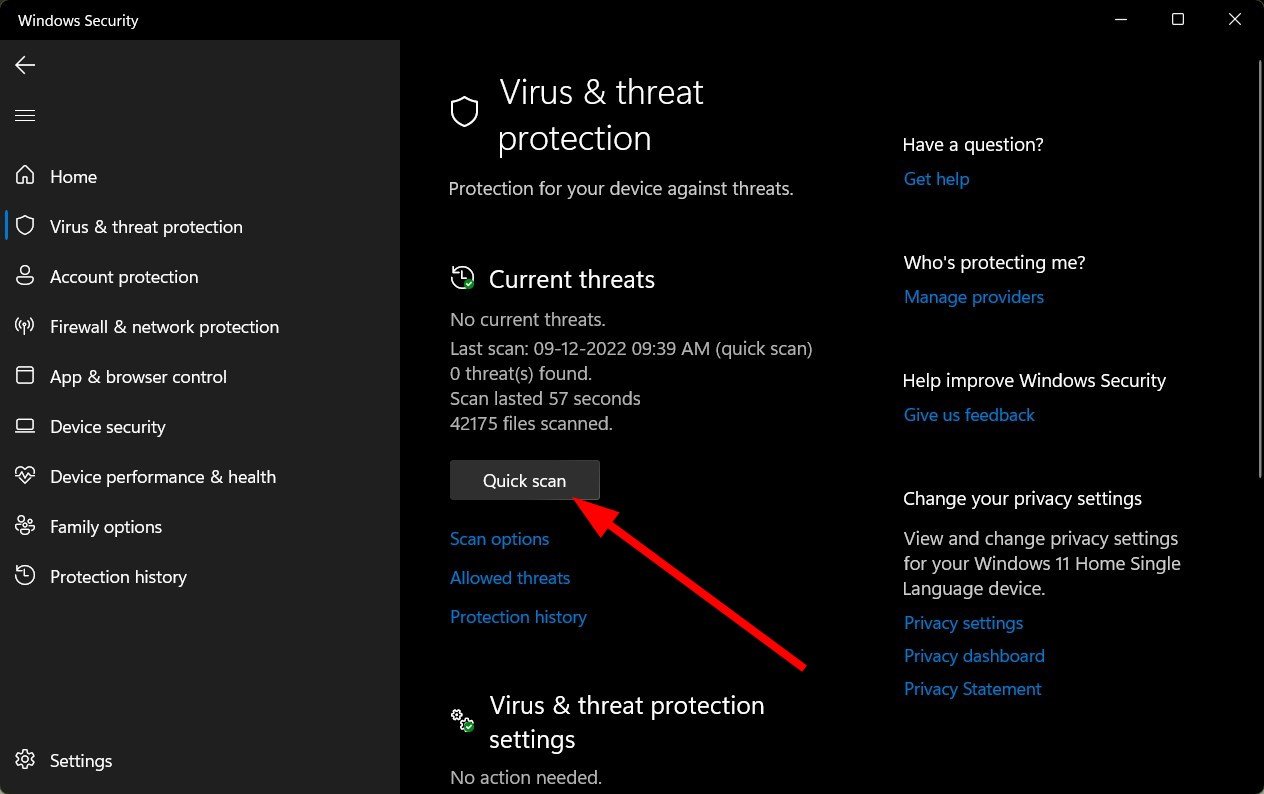
  3. Next, press Quick scan under Current threats.
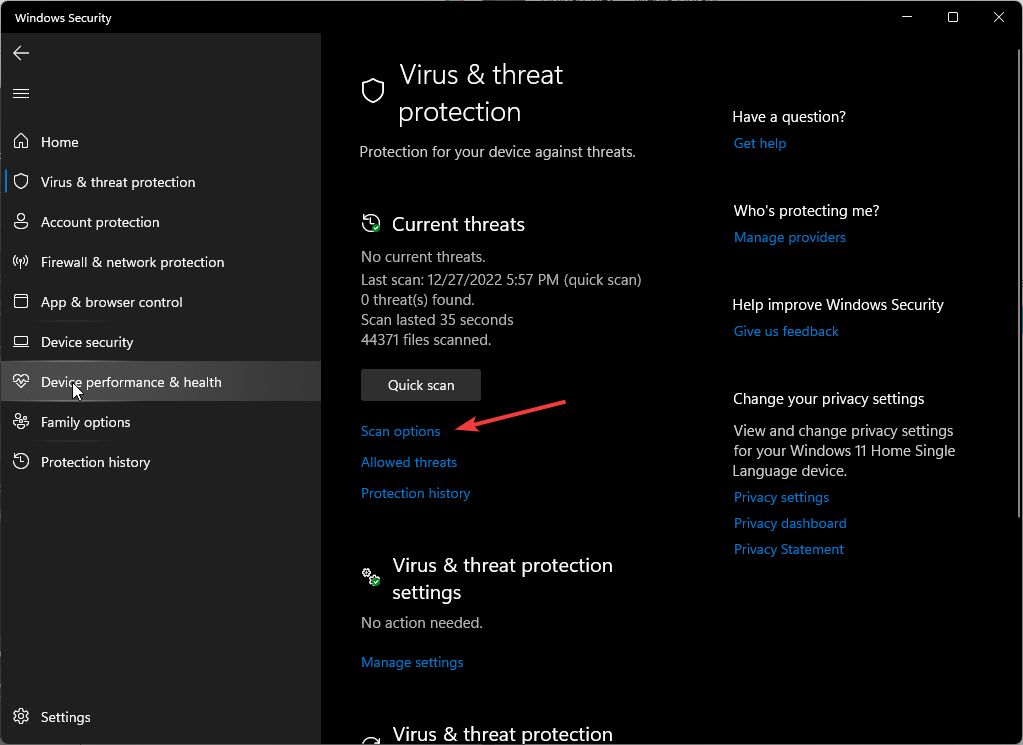
  4. If you don’t find any threats, proceed to perform a full scan by clicking on Scan options just below Quick scan.Scan options
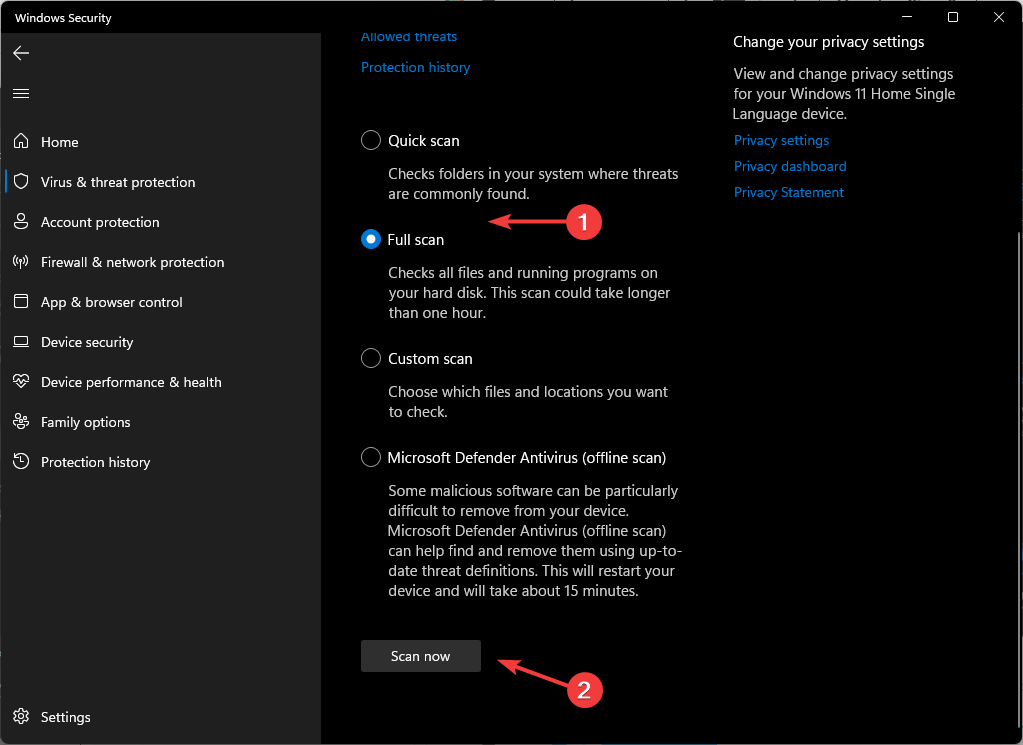
  5. Click on Full scan, then Scan now to perform a deep scan of your PC.Full Scan Scan Now
  6. Wait for the process to finish and restart your system.

6. Uninstall the associated program

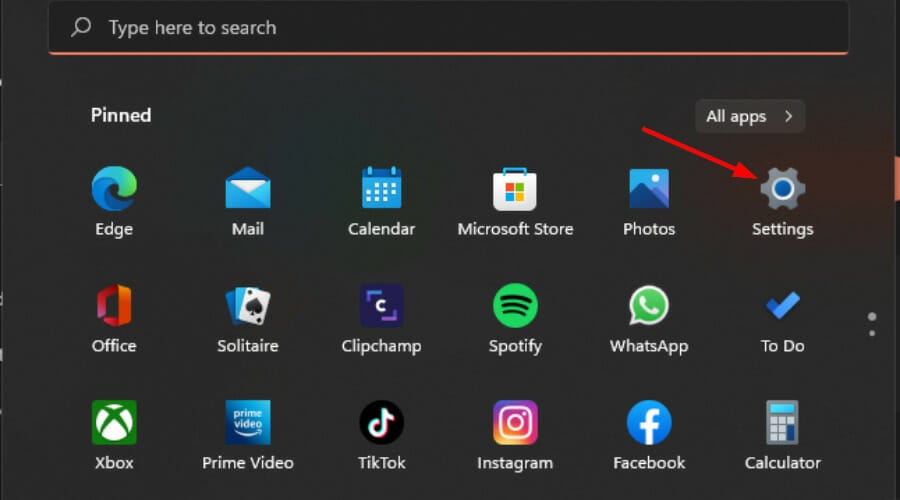
  1. Hit the Start Menu icon on the Taskbar and click on Settings.settings windows 11
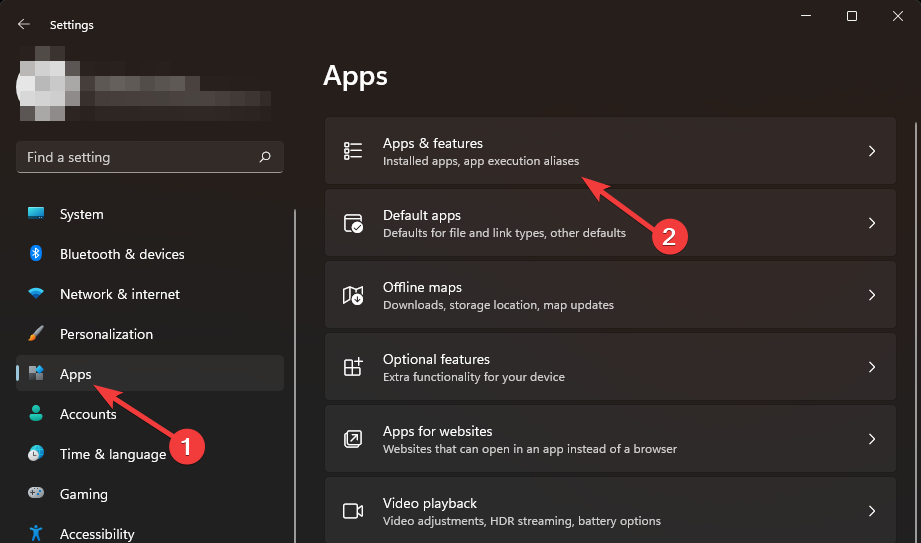
  2. Click on Apps on the left pane, then select Apps & features on the right pane.
  3. Navigate to the problematic app, click on the three ellipses and select Uninstall.uninstalling microsoft teams
  4. Launch the Microsoft Store, or the official website if available search for the app and click Install.
  5. Follow the on-screen prompts and try again.

Also, ensure to remove remnant files that may have corrupted the file. This will ensure the reinstallation is not corrupted with remnant files that caused the same Msxml4.dll missing errors.

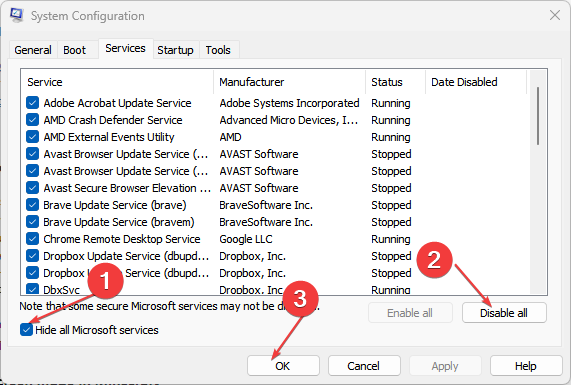
7. Perform clean boot

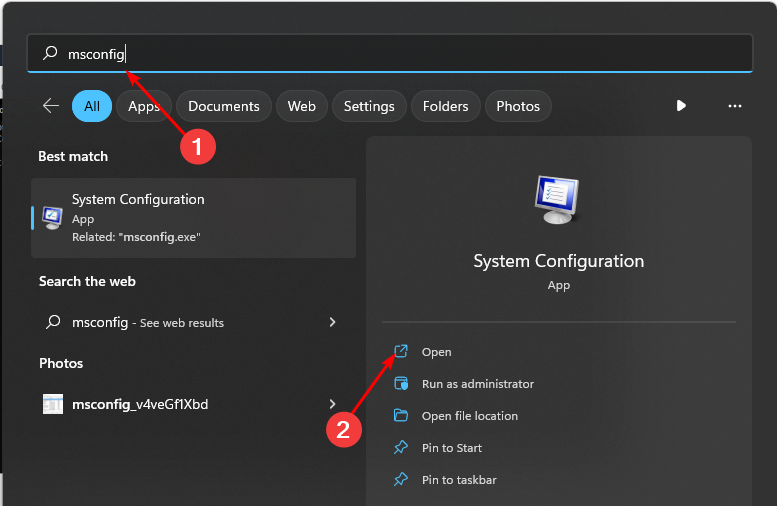
  1. Hit the Windows key, type msconfig, and open System Configuration.
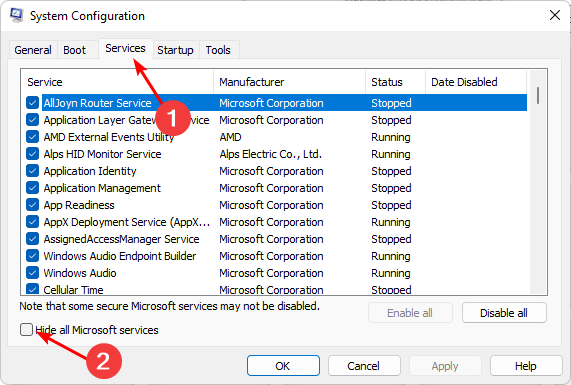
  2. Switch to the Services tab and select Hide all Microsoft services.
  3. Click on the Disable all button, then hit the Apply button to save the changes.
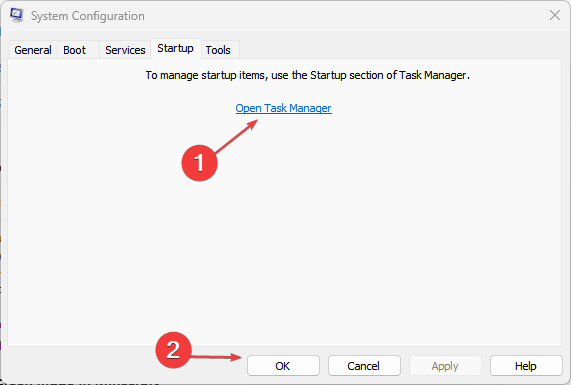
  4. Go back and click on the Startup tab, select Open Task Manager then click OK.
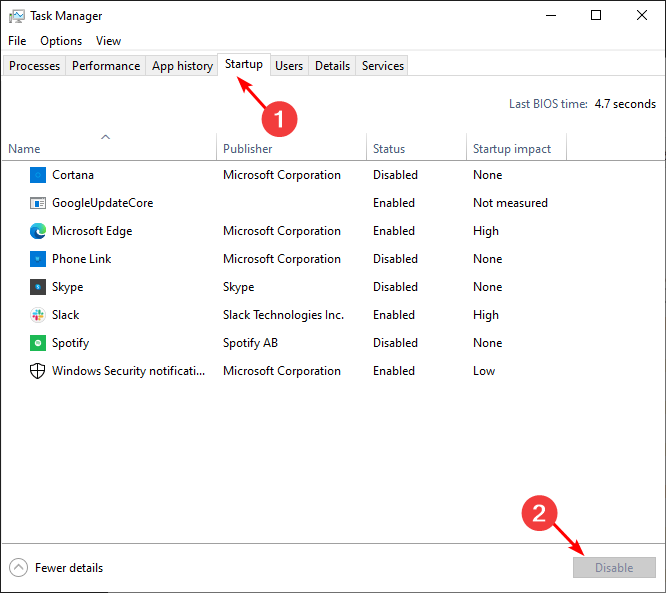
  5. In the Startup tab of the Task Manager, Disable all the Enabled startup items.
  6. Close Task Manager and restart your PC.

8. Perform a System Restore

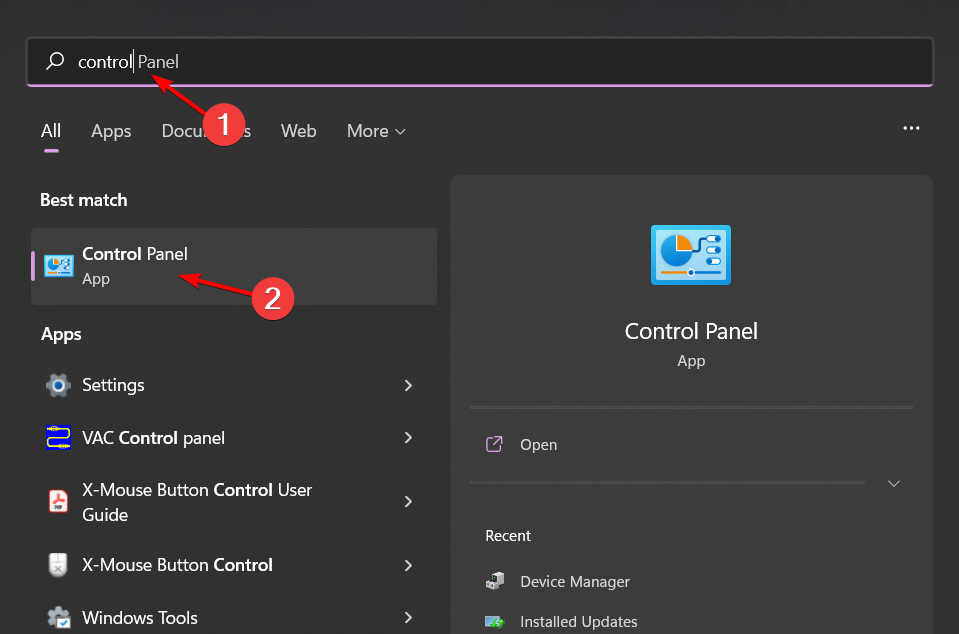
  1. Press the Windows key, type Control Panel, and click Open.control-panel-search fallout new vegas runtime error
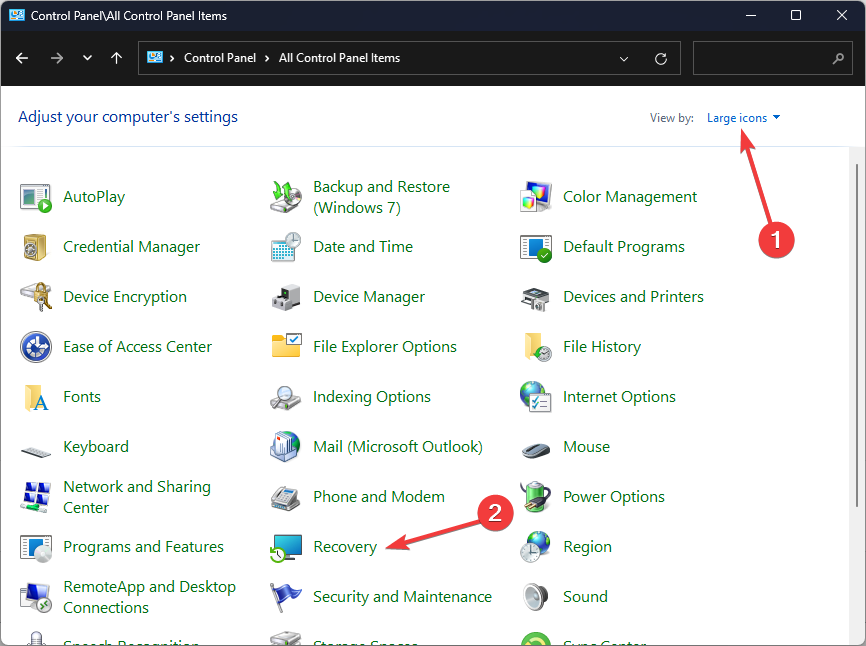
  2. Select Large icons as View by and click Recovery.Recovery Control Panel Advrcntr6.dll
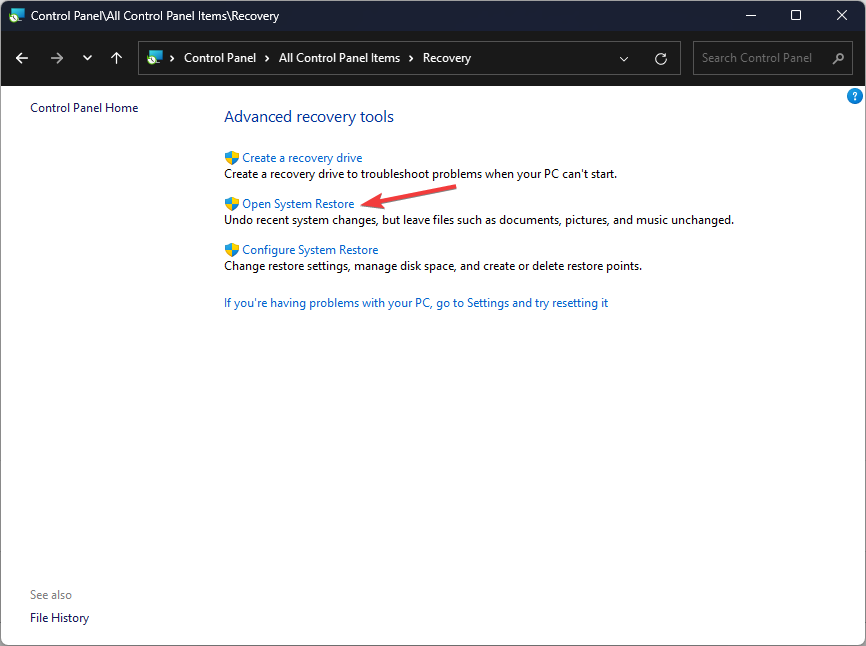
  3. Click Open System Restore.Open system restore
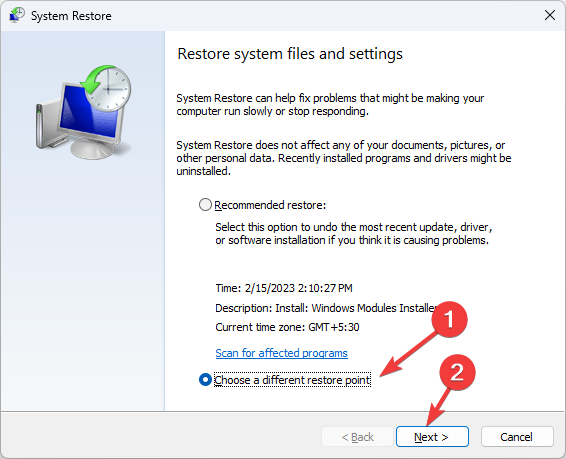
  4. Select Choose a different restore point and click Next.Next Choose a different restore point
  5. Now select the restore point and click Next. Choose a point
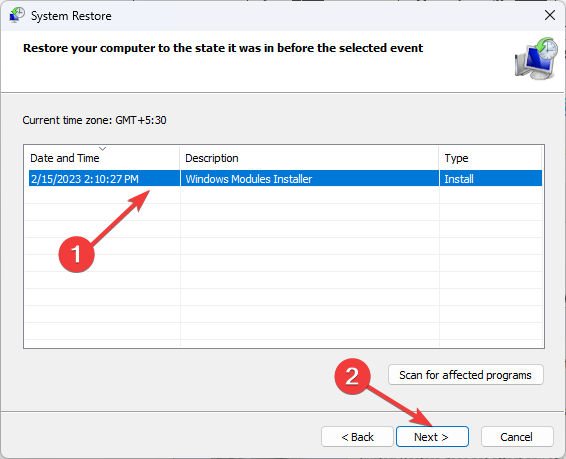
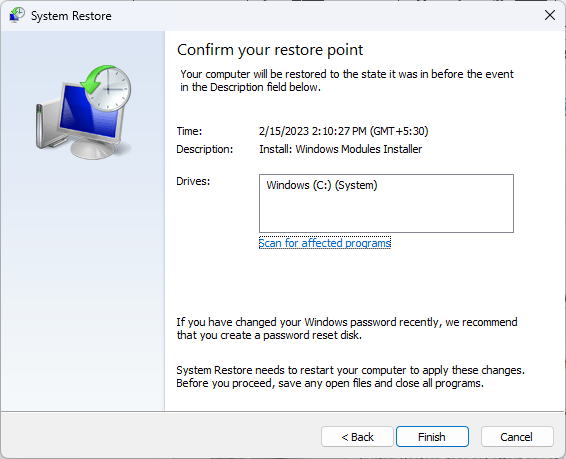
  6. Click Finish to restore the previous settings, and Windows will restart.Finish Restore point

Other msxml4.dll error variations you may encounter

  • msxml4.dll is missing
  • Cannot find msxml4.dll
  • msxml4.dll error loading
  • Cannot register msxml4.dll
  • msxml4.dll crash
  • Cannot find C:\Windows\System32\\msxml4.dll
  • msxml4.dll was not found
  • This application failed to start because msxml4.dll was not found. Re-installing the application may fix this problem
  • msxml4.dll could not be located
  • The procedure entry point msxml4.dll error
  • msxml4.dll Access Violation

If you’re constantly experiencing the msxml4.dll is missing error even after trying out the above methods, perhaps it’s time you tried alternative ways to open XML documents.

Note that some DLL files may disappear after a Windows update so it’s worth checking out whether your recent Windows update is buggy. While you’re still here, you may also be interested in other XML-related files that may throw DLL errors such as the xml.ni.dll.

We sign out here but if you have any additional thoughts on this topic, we’d love to hear from you. Drop us a line below.

ASUS and Lenovo are bringing AFMF to their handhelds

In case you don’t know, AMD is adding support for Fluid Motion Frame technology to all DirectX 11 and 12 games.

This looks like an exciting feature, and many handheld manufacturers are eager to add it to their devices.

ASUS and Lenovo are looking to implement AMD AFMF on their handhelds

AMD AFMF is available on desktops, and it’s a great feature that can give you extra frames and make your gameplay smoother. Therefore, it’s no surprise that handheld manufacturers want to utilize it as well.

According to ASUS’s tweet, they are working on bringing this feature to ROG Ally, but the drivers need additional testing.  Certification from AMD is also required before we can see this feature available to the public.

Lenovo is also interested in this feature according to the post on Lenovo forums, and the company is looking for a proper way to implement it on Legion Go.

It has been reported that AFMF can reduce battery usage and add noticeable smoothness, so it’s no wonder that handheld manufacturers are looking to add it.

Unfortunately, we have no information on when will AFMF appear on Legion Go or ROG Ally, and while it’s possible to sideload a driver that supports AFMF on Legion Go, Lenovo discourages users from doing so.

Speaking of Legion Go, we have a great comparison guide between Legion Go, ROG Ally, and Steam Deck that you shouldn’t miss.

Are you excited about AFMF, and have you tried it yet? Let us know in the comments.

Surprise Twist: MSI Claw launches three variants instead of two

At CES 2024, MSI announced its first handheld portable gaming console, the Claw A1M, and said it would come out in two variants, Claw A1M-050US and Claw A1M-052US, with Windows 11 operating system.

However, to the world’s surprise, when MSI listed the Claw A1M on its official website for the United States, there were not two but three variants. The third variant was named Claw A1M-051US.

Claw A1M is the first handheld gaming console with a processor from Intel. MSI is working on making it available to purchase in the United States by this March.

Here are the details:

Product NameGraphicsProcessorStorageRAMPrice
Claw A1M-050US Intel Arc 5 GraphicsIntel CoreUltra 7-155H 1.4 – 4.8 GHz1TB PCIe Gen4x4 M.2 2230 w/o DRAM16GB LPDDR5-6400MHz$799.99
Claw A1M-051USIntel Arc 5 GraphicsIntel Core Ultra 7-155H 1.4 – 4.8 GHz512GB PCIe Gen4x4 M.2 2230 w/o DRAM16GB LPDDR5-6400MHz$749.99
Claw A1M-052USIntel Arc 5 GraphicsIntel Core Ultra 5-135H 1.2 – 4.6 GHz512GB PCIe Gen4x4 M.2 2230 w/o DRAM16GB LPDDR5-6400MHz$699.99

Apart from these, all these variants have a 7-inch LCD screen with Full HD (1920 x 1080) resolution, 120 Hz refresh rate 500nits, IPS-Level touchscreen, a USB Type-C Thunderbolt 4 port, Intel Killer BE Wi-Fi 7 wireless LAN, a microSD card slot, 3.5mm audio jack, a 6 cell 53 WHr battery, and two 2W front-firing speakers.

An unexpected introduction of the third variant has taken the gaming industry by surprise; what’s your take on this? Share your thoughts in the comments section below.
What is the Default Windows 11 Password & How to Log in Without it

A default password is usually a generic pre-defined password that comes when setting up or purchasing new devices. Windows 11 does not have a default password, but if you’re locked out, there are workarounds to regain entry.

How do I log into Windows 11 without a default password?

1. Change your password online

  1. On the login screen, click on the Forgot my password/PIN then follow the prompts to reset your password.
  2. If the above option is unavailable, using another device or user account, navigate to your browser and log into the Microsoft Security page.
  3. Click on Password security and enter your current login credentials.
  4. Type in your new password and re-enter to confirm.
  5. Next, uncheck the box Make me change my password every 72 days, then hit Save.

If you often forget to change your password, disabling password expiration may help you avoid getting locked out of your Windows device. On the downside, you expose your system to security risks.

2. Reset the password from another admin account

2.1 Enable auto-login

  1. Launch the Windows Settings app by pressing the Win + I keys simultaneously, click on Accounts on the left, and then select Sign-in options on the right. windows 11 sign in options
  2. Next, under Additional settings on the right, go to For improved security, only allow Windows Hello sign-in screen for Microsoft accounts on this device, and turn it off. disable For improved security, only allow Windows Hello sign-in screen for Microsoft accounts on this device
  3. You will now see a pop-up window. Here, enter the password of the user account and press Yes.
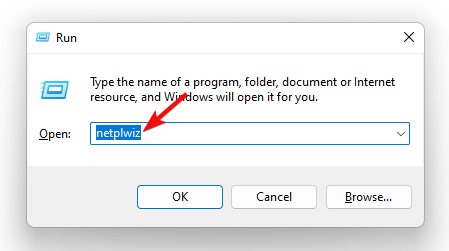
  4. Next, press the Win + R shortcut keys to open the Run dialog, type netplwiz, and hit Enter.run netplwiz command
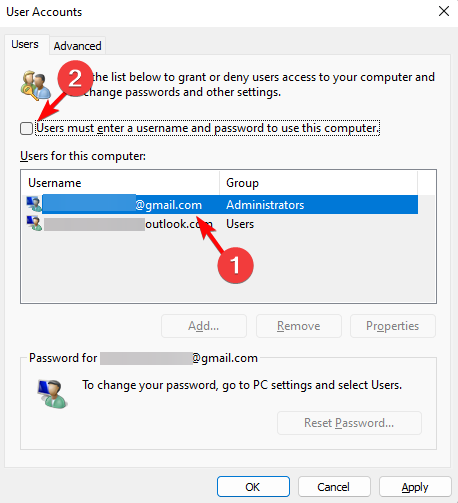
  5. In the user Accounts dialog, uncheck the box next to User must enter a username and password to use this computer. Press OK. This will enable auto login in Windows 11. turn off User must enter a username and password to use this compute
  6. Now, in the Automatically sign-in window, enter your username and password. Press OK and Apply.

2.2 Reset password

Note icon NOTE
You don’t have to use the Administrator user account, but your user account needs to have administrator-level privileges to modify another user’s account.
  1. If you have another Windows 11 account with administrator rights, log in to this account.
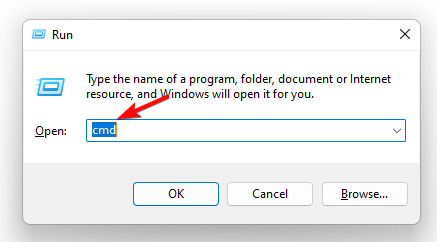
  2. Press the Win + R keys together to launch the Run dialog. Type cmd and press the Ctrl + Shift + Enter keys to launch the elevated Command Prompt. run cmd command
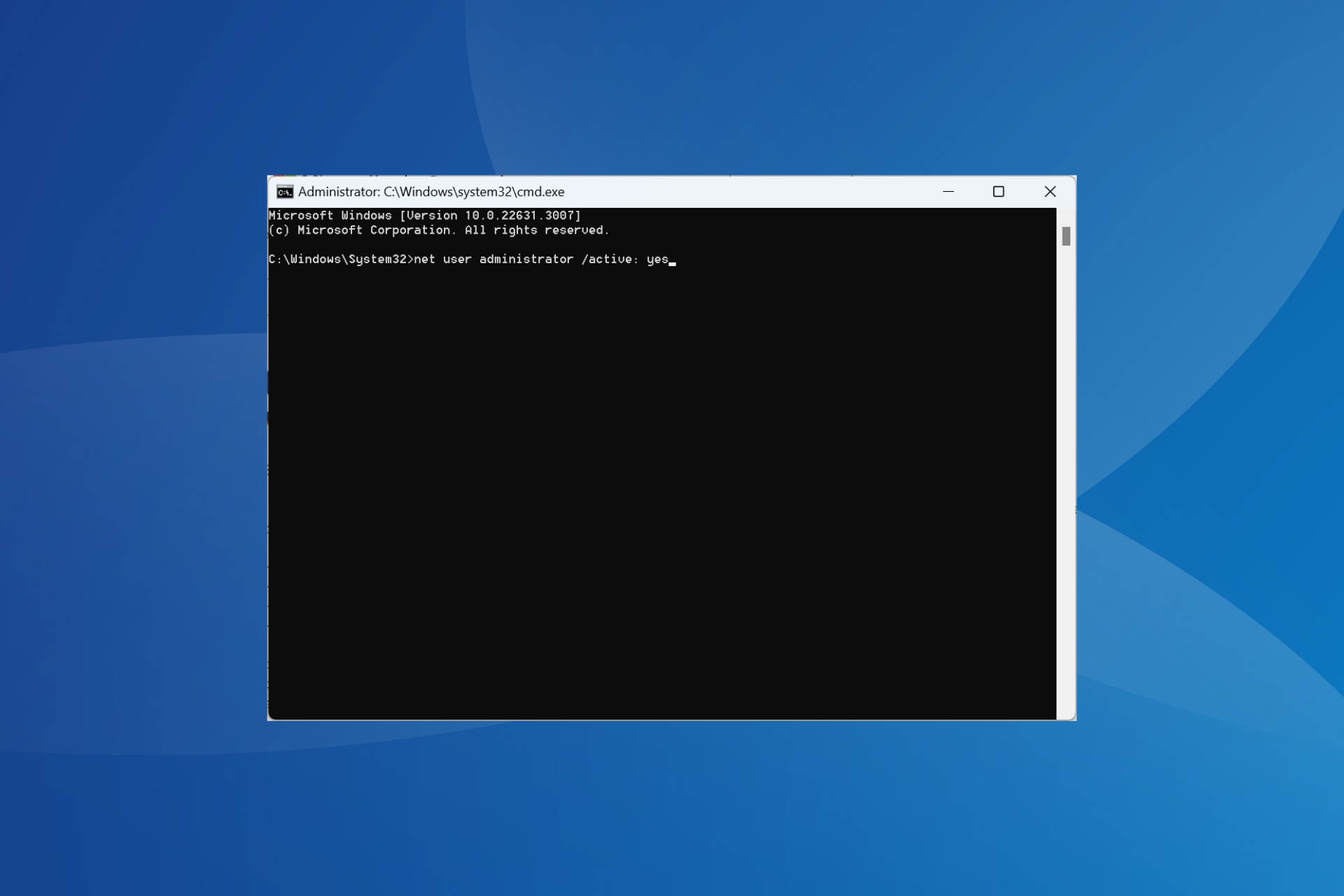
  3. Now, run the below command in the Command Prompt (Admin) window and hit Enter: net user accountname newpasswordchange admin account password
  4. Make sure to replace accountname and newpassword with the new credentials.

3. Use the Windows installation disk

3.1 Access Command Prompt

  1. Create a Bootable Installation Media (USB or DVD) on a different computer for the respective Windows operating system, and then insert it into your PC.
  2. Turn on or restart your computer and press F9 or Esc, or any other respective key to open Boot Device Options menu.
  3. Select the Installation media (USB or DVD) to boot from it.
  4. When the Windows Setup screen appears, click Next to proceed.
  5. Next, click on Repair your computer to enter the Windows Recovery Environment.
  6. Click on Troubleshoot to proceed.Troubleshoot
  7. Next, select Advanced options.advanced options
  8. Select Command Prompt under Advanced options.Command Prompt

3.2 Identify the drive letter for the system drive

  1. To determine the current drive letter of the system drive, run the following commands one after the other: diskpart list volume
  2. This command will display all the available volumes and their corresponding drive letters. Take note of the Windows drive letter.
  3. Type this command to leave the Diskpart utility: exitdiskpart
  4. Once you find out the drive letter, use the below command to navigate to that drive while replacing C: with the drive letter of your system drive: C:

3.3 Execute commands

  1. Type the following commands one after the other and press Enter after each: cd Windows\System32 ren utilman.exe utilman.exe.bak copy cmd.exe utilman.exe wpeutil rebootutilman.exe
  2. After the computer restarts, click on the Ease of Access icon next to the Power button on the login screen.
  3. This will launch a Command Prompt window on your login screen.
  4. Now, type the following command and press Enter while replacing the username with your locked account username and password with your new password: net user username passwordnet user
  5. You can now log into your computer using the new password.
  6. After resetting the password, you need to restore the utilman.exe and cmd.exe files.
  7. To do that, follow the steps under 3.1 and 3.2, and run these commands instead: cd Windows\System32 del utilman.exe ren utilman.exe.bak utilman.exe wpeutil rebootrestore the files

Each Windows device has an administrator account which is crucial in performing administrative tasks. Only admins can set up passwords to secure sensitive information from unauthorized users.

With newer versions of Windows, Microsoft sunset the default passwords because they presented giant security loopholes. You can check out our password vs PIN comparison and see which one best fit you.

If you’ve lost or forgotten your password for your admin account, you can bypass this limitation and log into your Windows device using one of the above methods. As a last resort, you may have to factory reset Windows 11 but hopefully, it won’t come to this.

In the future to avoid such mishaps, we recommend using a password manager. Have you gotten yourself locked out of your Windows device before? How did you regain access without a default password? Share your experience with us below.

Qualcomm will finally break into the PC CPU market in August/September 2026

Qualcomm is set to compete with the likes of Intel, and AMD in the PC CPU market starting August/Septemeber 2024, as the company will get its first PC CPUs ready for the future Windows AI devices.

Cristiano Amon, the CEO of the company, revealed the news at the Q1 2024 earnings conference, in a discussion with investors, saying:

We’re tracking to the launch of products with this chipset tied with the next version of Microsoft Windows that has a lot of the Windows AI capabilities. We’re still maintaining the same date, which is driven by Windows, which is mid-2024, getting ready for back-to-school.

Cristiano Amon

Microsoft is set to release the next Windows this year, most probably in the August/September period, and the OS will not only feature an essential AI part meant to enhance the experience of interacting with Windows, but the Redmond-based tech giant is also exploring various capabilities in which this Windows version could also be switched to Windows on Arm.

As you might know, Windows on Arm is a light version of the Windows OS, capable of stronger connection signals (Wi-Fi), and efficient battery usage, making it perfect for mobile devices, such as ultraportable laptops.

Future Surface laptops will make use of the CPUs designed by Qualcomm, specifically to support Windows on Arm, in a move that would potentially give Microsoft the upper hand over the competition.

The Surface laptops but many other Windows on Arm, and Windows AI devices will make use of the Qualcomm Elite X CPUs designed to stand for mobility and performance, and Cristiano Amon says these CPUs will set the industry benchmark for AI PCs.

We like that everybody is now talking about on-device AI on PC. We expect Snapdragon X Elite to set the industry benchmark for on-device gen AI and Copilot experiences in addition to leading performance and battery life for next-generation Windows PCs.

Cristiano Amon

Will Qualcomm CPU-based PCs become an industry standard? What do you think?

The latest Surface Laptop Studio firmware fixes issues with USB-C monitors and more

To keep its devices up to date and allow access to the latest features, Microsoft is frequently pushing firmware updates.

Recently, Surface Laptop Studio got a new firmware update, and it seems that it brings some interesting improvements.

New Surface Laptop Studio firmware is here and it fixes various issues

The new firmware update is here and it brings improved graphics stability and streaming performance, so you can enjoy multimedia without any issues.

With this update, the issue with Surface Pen inking should be fixed as well as problems using a USB-C monitor with your laptop. Speaking of monitors, this update addresses the issue with Surface Dock 2 and the second monitor not restarting.

Thunderbolt performance has been improved as well, which is great to see. As for compatibility, this update requires a 21H2 version of Windows or newer.

The update is 1.3GB in size, and you can get it automatically via Windows Update or download it from the Surface Laptop Studio firmware page.

As far as we know, the update doesn’t have any bugs and it doesn’t require any preparation before you can install it, so go ahead and download it.

In case you’re looking for a new Surface device, we expect to see new Surface devices in March, so keep your eyes open.

Have you tried the new firmware yet? If so, share your experiences with us in the comments.

Is it worth switching from the PS5 to Xbox? Here’s the bottom line

PS5 and Xbox Series X are great gaming consoles, and it’s hard to decide if it is worth switching from one to another, especially since there are just a few differences between them. Yet, to decide which one is the best for you, it is important to know the main aspects, such as specifications, game libraries, and features.

Specifications-wise, the Xbox Series X is slightly more powerful than the PS5, but the differences are barely visible. When it comes to games, PS5 is better because it offers a larger pool of single-player exclusives but Xbox just beat PlayStation on sheer game numbers. Yet, if we talk features, both devices excel in different areas. So, without further ado, let’s compare the two of them side by side.

PS5 or Xbox which one is better?

Specifications

PS5Xbox Series XXbox Series S
CPU8-core 3.5 GHz AMD Zen 28-core, 3.8 GHz AMD Zen 28-core, 3.6GHz Zen 2
GPU10.3 teraflop AMD RDNA 212.0 teraflop AMD RDNA 24.0 teraflop AMD Radeon RDNA
RAM16 GB GDDR616 GB GDDR610GB GDDR6 RAM
ResolutionMax 8KMax 8K1440p
Frame Rate120 FPS120 FPS120 FPS
Optical Disc Drive4K UHD Blu-ray4K UHD Blu-ray–
Storage825 GB SSD1 TB Custom NVME SSDCustom NVME SSD 512GB Storage

As you can see, there aren’t substantial differences between X and PS5. Besides that, the Xbox Series X has a slightly better CPU and GPU.

If you already have a PS5, you can get an Xbox Series S because it is cheaper than X and shares some key features.

Game Libraries

If you play single-player games mostly, then we recommend PS5. Some of the worth playing titles are:

On the other hand, Xbox has some great multiplayer games such as:

Also worth mentioning is that the Xbox Game Pass Ultimate is a great feature because it allows you to play games on other devices, and for 17$ monthly, you will get over 100 games. Moreover, you will get to access newer games faster.

Furthermore, the backward compatibility feature that allows you to play games from older consoles is better developed on Xbox, allowing you to play Xbox originals on Series X.

On top of that, the cloud gaming system is better developed on the Xbox side since you can stream games on PCs, phones, tablets, smart TVs, VR headsets, and more.

Ultimately, now that you know the differences between the consoles, it should be easier to decide if it is worth switching from PS5 to Xbox. In addition, we recommend you check the games available for both.

You might also want to check the great X1 and X2 projectors designed to enhance Xbox gaming to the next level.

What do you think? Will you switch to Xbox? Let us know in the comments section.

Xbox plays 4K like a champ, but here’s why you might want to go 1080p

4K and 1080p are great resolutions, but they serve two different purposes. While 4K emphasizes better scaling, higher quality, and finer details, 1080p focuses on FPS and performance. Thus, we could say that it is a battle between quality and performance.

Which resolution is better for gaming, 4K or 1080p?

Choosing your resolution depends on the games you’re playing. If you play shooters or similar fast-paced games, you should go for 1080p. However, if you prefer fine details and are willing to sacrifice FPS, 4K will deliver the best experience, especially with ray tracing technology.

Also, take into consideration the fact that most games have optimizations for 1080p. Yet, some newer games require a few updates to work on 4K. Unfortunately, speaking from experience, there are games that aren’t getting optimizations on time, and you might experience FPS drops or lag.

Core Differences

If you plan on using the monitor for graphic design, the 4K would be a better choice quality-wise. Yet, when it comes to performance, it will take you more time to finish your designs, and they will consume more resources.

While it might sound a bit unusual, you can try a 4K monitor at first and if you dislike it, you can use the store’s return policy to get your money back and get a 1080p one.

In a nutshell, the final question is whether you should pick quality over performance. So, this option depends on your preferences and needs. If you want new monitor for multiple devices, we recommend the 1080p as it is more accessible and better supported.

If you think of buying a 4k monitor for Windows 10/11, we’ve got you covered. Additionally, check this buying guide for the best G-Sync monitors.

What are your thoughts? Do you prefer quality over performance? Let us know in the comments section below.
Longtime Windows user? Here’s how switching to macOS can look like

I’m one of those oldtimers who installed Windows 3.1 and MS-DOS on an IBM PS2 computer back in the old days by using floppy disks. Since then, I never thought of switching to macOS even though, like every one of you long-time Windows users, I’ve had my share of anguish and despair with the Microsoft OS.

However, some users are talking about switching from Windows 11 to macOS on Reddit and other forums so I gave it a shot and here are my 10 cents.

What would switching from to macOS would look like?

First, the whole ecosystem is blended like every app belongs there; everything is compatible, and there is no error in sight.

My first thought when I start Windows 11 is to see what updates have been rolled out during the night and if any of them messed up my Search bar, my Start menu, or if the settings are the same as I left them the day before.

On macOS, nothing, an eerie silence that makes me suspicious and uneasy. And after a few days of usage, I get bored. Everything is working, and no antivirus is there to slow down my work and let me know about some impending patches.

Where is my right click? Where are my shortcuts?

The first problems occurs when you start using the right click, and the shortcuts you’re used to.

A lifetime of using Windows got me a lot of automatic, almost robotic-like gestures, clicks, and key combinations that I don’t even think of doing; they happen. With macOS, it is like I am on an alien planet, and everything my brain executes turns into a mess on this machine.

Finally, after a few hours of mingling through every app (and hitting the wrong button to close the window) I start to figure things out.

macOS Finder vs. Windows File Explorer

The last bit of my comfort was shattered when I find out that macOS’s Finder is nothing like File Explorer from Windows. Here, Windows 11’s tool definitely wins all the way. It provides all the information I need about all the files, exactly as I want.

On this aspect,macOS’s Finder feels like an Italian on a break; it doesn’t care about much except looking pretty while doing it. Here are your files! And that’s it. You can still sort them, display them as a list, and see previews, but it’s totally different from the analytic view from File Explorer.

MacOS has less app options but they work

Other than that, Safari is a decent browser; Maps, Calendar, and Facetime are all okay, but I need a lot more. I want to customize and get other apps to learn that many are unavailable.

Apple has opened its doors to many publishers and the macOS environment is a lot more permissive than it used to, but it’s still a closed one.

This is sometimes good. The apps you can install blend into the environment and work. However, after a few days, I drifted away and returned to Windows 11. It’s great with graphics and music, becomes more straightforward, and less cluttered than Windows.

However, somef users are fed up with failed updates, constant system and app update notifications:

During my migration, I was installing the latest patch on Windows 11 (via update), and it failed three times until I gave up. Meanwhile, the MacBook ran its update quickly and without drama.

And thanks for asking Microsoft, but no, for the 1000th time, I don’t want to upgrade to Office 365! I caved on the Windows 11 harassment but that’s it!!!

Writes a Windows 11 user on Reddit

They say that you can’t teach an old dog new tricks and for many, just like myself, macOS is probably a too complicated trick to learn after a lifetime of Windows. However, you can always try and see what happens.

But we know one thing: numbers don’t lie! And the latest OS market share report from January 2024 shows that Windows is a lot more popular than macOS.

Did you think about switching to macOS? Tell us all about your reasons and your experience in the comments section below.
Xbox introduces 7 dynamic backgrounds to mark recent events

Already boasting a comprehensive set of options, Xbox has added 7 more dynamic backgrounds to the list. This takes the total number of dynamic backgrounds available on Xbox Series S and Series X to 55!

The seven released recently are:

  • Pride 2023
  • Black History 2023
  • Hispanic Heritage Month 2023
  • International Women’s Day 2023
  • Gaming and Disability Community 2023
  • Asian Pacific Islander Heritage Month 2023
  • International Day of World’s Indigenous People 2023

First introduced in 2020, Dynamic Backgrounds are a great way to personalize the console and liven up the home screen.

Dynamic backgrounds on Xbox

To set a dynamic background, open Settings > go to General > select Personalization > choose My backgrounds > select Dynamic backgrounds > then choose any from the available options.

Initially, Waves was the only available dynamic background, but Xbox gradually added more. Of late, it has picked up pace, and we can expect more dynamic backgrounds to be added soon!

Do share your feedback on the latest additions to Xbox dynamic backgrounds in the comments section.

Zero-day exploit in Windows Event Log allows hackers to remain hidden

A new vulnerability has been found in Windows Event Log that allows hackers to crash the Windows Event Log service on all supported versions of Windows.

So how does this exploit work and how dangerous it is? Keep on reading to find out!

A new Event Log exploit has surfaced, and it covers hackers’ tracks

This exploit was first found by a Twitter user Florian while working on a fuzzer.

According to Florian, he tested this exploit in a network that consists of Windows 10 and Windows Server 2022 domain controller.

He states that he was able to crash the Event Log service on the domain controller from his Windows 10 machine. And this didn’t even require administrative privileges, meaning anybody can do it.

Acros Security tested this exploit, and it was confirmed that it’s present on Windows 11 as well. To make matters worse, it only takes a second for the attacker to perform this exploit.

After crashing the Windows Event Log service three times, it won’t restart anymore, and if the hacker manages to crash the system, Security and System events won’t be stored.

While this exploit doesn’t allow the hackers to run any code or gain administrative privileges, it prevents the gathering of logs making any malicious activity hidden from administrators.

While this looks scary, there is some good news. This exploit doesn’t work remotely, and it can only be used in a local network.

Microsoft hasn’t addressed this issue, however, a micro patch from Acros is available, so concerned administrators can install it.

Microsoft is quick to address security problems, and they did the same with a recent Azure Pipelines security issue and CVE-2024-0519 vulnerability in Edge, so we expect an official patch to be released soon.

Satya Nadella: Copilot in Windows is already available on more than 75 million Windows 10 and Windows 11 PCs

Satya Nadella, Microsoft CEO, stated, in a conference call discussing Microsoft’s latest earning reports, that since its release on Windows 11, and Windows 10, in October and December 2023, Windows Copilot has amassed more than 75 million users, which is quite impressive given that Copilot has been available on Windows for less than 3 months.

But the good numbers don’t stop here, though: there are over 400 million Office 365 paying users, according to the report for Q2 of the 2024 fiscal year. The company reported a growth of 9% in paid Office 365 seats, which accounts for approximately 400 million users.

The report, which can be read here in its entirety, was discussed by Microsoft executives, including the CEO, Satya Nadella, in a conference call, where he agreed that Copilot was the main reason Office 365 got to the staggering number of 400 million users, as many corporations adopted and integrated the AI tool into their infrastructure:

A growing body of evidence makes clear the role AI will play in transforming work. Our own research, as well as external studies, show as much as a 70% improvement in productivity using generative AI for specific work tasks. And, overall, early Copilot for Microsoft 365 users were 29% faster in a series of tasks like searching, writing, and summarizing. Two months in, we’ve seen faster adoption than either our E3 or E5 suites as enterprises like Dentsu, Honda, Pfizer all deploy Copilot to their employees.

Satya Nadella, Microsoft CEO

While the Redmond-based tech giant also got some impressive earnings for its Windows OEMs department, and Xbox, with a surge of 11% increase in the former, and 61% surge in the latter, this was somehow expected given the giant acquisition Microsoft closed with ABK (Activision-Blizzard-King) in October 2023.

However, the Copilot numbers are quite impressive, given the relatively short time since its release, and it’s definitely a sign that AI on Windows should do just fine.

As you know, Microsoft is planning on releasing the next Windows version this year, and according to the Redmond-based tech giant, the OS will be AI-based and AI will be an essential part of the new Windows experience.

The new Windows is expected to be announced in April, and released sometime in August/September 2024, but many wondered if people were truly ready for it. In a way, the question makes sense, given the fact that Windows 10 still has over 1 billion users, double the number of Windows 11 users, even though the OS is reaching its EOS next year.

Microsoft decided to extend the EOS for Windows 10 for 3 more years for a price and released Copilot to it in December 2023, so it’s reasonable to ask if Windows users are indeed ready for an AI-based Windows.

However, even if there are currently over 75 million Copilot users on Windows, that doesn’t mean the majority of the Windows users will adopt the AI. For now, Copilot’s capabilities are quite limited. It’s capable of summarization, creating content, and helping users superficially set up some of the Windows settings, and that’s pretty much it, for now.

Unless Microsoft finds a way to make Copilot useful for a broader range of tasks, such as a potential Coinstaller which could be used to fix various Windows issues, or even ways to make the AI useful in the daily life of a Windows user, then Copilot won’t be widely used and considered a part of Windows.

Xbox and Palworld join hands to add dedicated servers, optimize the game

Released just a few weeks ago, Palworld has garnered tremendous popularity and has already been played by more than 7 million users on Xbox. At present, it’s the most played 3rd party game in the Xbox Game Pass history.

Sensing significant potential, Xbox and Palworld’s developer, Pocketpair, are now closely working together to better optimize the game for the console.

What does Xbox and Pocketpair working together mean for Palworld?

In the official blog post, Xbox states, We’re providing support to enable dedicated servers, offering engineering resources to help with GPU and memory optimization, speeding up the process to make Palworld updates available for players, and working with the team to optimize the title for our platform.

With dedicated servers, the waiting time to play Palworld on Xbox Cloud Gaming should come down. Recently, it showed more than 40 minutes to some users.

Also, if you have been getting a black screen on launching Palworld, the game incessantly crashes, or you can’t connect to the network, things are about to improve.

Pocketpair has already released several updates for Palworld, and the latest two, v0.1.4.0 and v0.1.1.3, boast massive improvements to the gameplay.

Graphics settings in Palworld

Besides, with better graphics and memory optimization, you wouldn’t have to play Palworld at low FPS, and the game’s performance will witness a significant boost on Xbox consoles.

Palworld has already created history, and the road ahead looks promising. With Microsoft also more focused on gaming, given the fact that Xbox posted a 49% increase in revenue, the two closely working together makes sense. And it’s bound to benefit Xbox users!

Have you played Palworld yet? If yes, do share your experience in the comments section.

Microsoft forces sneaky ads in Outlook inbox and users aren’t pleased

Microsoft has done it again! It all began by adding app recommendations in Windows 10 alongside preinstalled third-party apps, and this is just another sneaky step in the wrong direction.

Now they have decided to add ads to the new version of Outlook, but it gets worse, so keep on reading.

Microsoft disguises ads as emails in Outlook, sparking user outrage

As you probably know, the Mail app is being retired in Windows, and it has been replaced with a free version of Outlook that comes with ads. Many aren’t pleased with this, and they decided to voice their displeasure on Reddit.

I’ve been using the built in mail client on windows 10 since it came out and it’s so nice and basic. Pretty infuriating that they’re forcing the upgrade to this.

While the Mail app was ad-free, like most built-in apps, that’s not the case with Outlook. Instead, Outlook comes with an ad that is cleverly hidden on top of your Inbox, so you can mistake it for an email and click it.

While you can delete the ad if you want, there’s no point in doing that since it will return as soon as you restart Outlook.

It’s important to mention that this affects only Free users, and Outlook will give you the option to purchase the basic Office 365 subscription and go ad-free.

So what can you do here? If you don’t want to purchase an Office subscription, you can ignore the sneaky ad, or you can switch to a different email client.

This is exactly why I’ve ditched M$ mail apps altogether and gone with Thunderbird.

While the new Outlook looks great, this is such annoying ad placement, and this is why we, and probably many other users don’t even bother with Outlook.

Many also voiced their concerns that it doesn’t make sense to include ads in an application that comes preinstalled with Windows:

You pay for Windows, it’s a paid product, the mail has always been included in that. Now they are adding ads directly into your inbox, honestly i’m just gonna axe my outlook email. Not worth it and I get inundated with spam despite all of my other emails being fine.

Hopefully, Microsoft will address this and at least position its ads somewhere where they won’t interfere with your everyday activities. If you’re tired of ads, why not take a look at our guide on how to remove Windows 11 ads?

What are your thoughts on this? Let us know in the comments.

Microsoft productivity apps are coming to Apple Vision Pro

Microsoft revealed that its comprehensive productivity suite, which includes Teams, PowerPoint, Word, Excel, OneNote, & Loop, and the AI assistant Copilot, will be available on the App Store for Apple Vision Pro starting from February 2, 2024.

Here are amazing things you can do with Microsoft 365 apps on Apple Vision Pro:

  • Seamless document immersion with Word – With Apple Vision Pro immersive environments and Word’s focus mode, you can block out any distractions and fully immerse yourself in work documents.
  • Impactful presentation with PowerPoint – With the immersive environment of Apple Vision Pro, you can practice your presentation as if before a live audience.
  • Better Data Handling with Excel – You can use the infinite canvas on Apple Vision Pro to set up the perfect workspace for enhanced productivity in Excel. Also, you can visualize, analyze, and manipulate data in complex formulas, charts, and tables and use the power of both Excel and Apple Vision Pro. Additionally, you will have the freedom to move charts & graphs to your other documents or Teams chats.
  • Collaboration on Teams – Teams on Vision Pro elevated collaboration with immersive meetings, seamless communication, and video calls within the spatial computing environment, boosting productivity and creativity in your workflow

According to Microsoft, using Apple Vision Pro and Microsoft Copilot together, you can do a lot of things, including:

  • Maximize engagement in meetings – It lets you be more engaged in the meetings you attend and catch up quickly on those you miss.
  • Revolutionize your writing – Copilot can assist you in drafting, editing, summarizing, and creating content, transforming the way you do things.
  • Bring ideas to life – Create a new presentation with just a simple prompt or outline in natural language.
  • Effortless data analysis and exploration – Identify trends, create compelling visualization, or seek recommendations for different results.

This step by Microsoft and Apple will make working on multiple applications simultaneously within the same virtual space happen, enabling multitasking and collaboration.

What do you think about this groundbreaking collaboration? Share your thoughts in the comments section below.

Don’t download the latest NOD ESET Server Security updates as they will entirely kill Windows Server 2012

NOD released the latest ESET Server Security updates on January 30, and it seems the updates, going by the name of 10.0.12015.0, caused a huge conflict with Windows Server 2012 R2, effectively preventing the operating system from booting.

The issue is caused by a driver conflict, and according to NOD, several product versions are affected by this, including:

  • ESET Server Security for Microsoft Windows version 10.0.12015.0
  • ESET Mail Security for IBM Domino version 10.0.14007.0
  • ESET Mail Security for Microsoft Exchange Server version 10.0.10018.0
  • ESET Security for Microsoft SharePoint Server version 10.0.15005.0

It seems that once the updates are installed, if Windows Server 2012 is restarted, it doesn’t properly restart, instead, it will open the Windows Restore System, a menu that opens when Windows is usually deeply corrupted.

Since the issue was confirmed to be caused by a driver conflict, ESET has offered a temporary solution for now, while working on a more permanent solution to this issue.

Users will need to disable the driver signature enforcement before installing these updates.

How to disable the driver signature enforcement?

  1. Enter the Windows Restore System.
  2. Click on Troubleshoot > Startup Settings > Restart.Windows Server 2012

This will prompt Windows to open up the Advanced boot options screen, from where you can easily disable the driver signature enforcement. Just select it and press Enter.

This will allow Windows Server 2012 to properly boot long enough for you to uninstall the latest NOD ESET Server Security updates (10.0.12015.0).

Then, you’ll have to restart Windows Server 2012, once again, and after this, ESET advises users to download and install the ESET Server Security for Microsoft Windows Server version 10.0.12014.0 from the ESET website.

The company is currently working on a permanent solution to this issue, and it will be released in the next few days, or weeks. Until then, avoid installing these updates, especially if you’re running Windows Server 2012 R2.

Silent Hill: The Short Message gets released for free but it bums Xbox gamers

Sony surprised everyone with their blog announcement by launching the new Silent Hill: The Short Message.

And it’s not only because it offers a continuation to the game that the fans were hoping for, but also because it is the first Japanese-developed Silent Hill game in 20 years by Konami and the producer Otoi Okamoto.

Is Silent Hill: The Short Message exclusive for PS5?

Note icon NOTE
Warning! The video below contains depictions of mature content, including scenes of attempted self-harm.

Although it was only released for PS5, Xbox and PC gamers are also still hoping to get their hands on the long anticipated Silent Hill 2 remake.

Silent Hill 2 and Silent Hill 3 can be bought and played and they are still present in the Xbox store, so why not Silent Hill: The Short Message?

However, the last Silent Hill, AKA PT, was PlayStation-exclusive and was never released on Xbox, or PC. Konami didn’t make any comments on any Xbox or PC versions of The Short Message, but this is really a big gaming title and things might change, so don’t lose your hope.

What you need to know about Silent Hill: The Short Message?

Konami released this title for free on PS5, so that everyone gets a chance to play it. The reason behind this strategy is that the developer paired with Hexadrive and used it as a testbed for new graphics technologies.

As for the game itself, the trailer you could watch at the beginning of this article features a new protagonist called Anita, who is holding her phone and explores a house called The Villa.

The psychological horror game focuses on contemporary problems within social media and mobile phone usage:

We wanted to make a new, modern Silent Hill. As part of that we explored how we could incorporate contemporary problems. We ended up looking at how modern youth communicate online and through phones, and the role that could play in a psychological horror story. For instance, a frightening thing about social media is how even insignificant individual comments can, en masse, build and build until they become this overwhelming wave of hate crashing down on you.

Otoi Okamoto, Konami

From the trailer, we can tell that Silent Hill: The Short Message will become the new horror fans title to play. It has great graphics and an an exciting story to follow.

To get the new game, log into your account on PS5, go to the PlayStation Store and search for Silent Hill: The Short Message, then download it for free.

Do you want to get the game on Xbox? Leave your comments below and maybe Konami will listen!

Windows 11’s lock screen changes language on its own, and users are furious

Microsoft recently debuted a new lock screen experience on both Windows 11 and Windows 10, that showcases a detailed weather forecast to users without having to log into Windows. However, there is no good lock screen experience without a bad lock screen experience, right?

It seems many Windows users, (Windows 10, and Windows 11 users, alike) are experiencing a weird, worrying, and frustrating bug that has Windows’ lock screen changing languages on its own.

Windows users on Reddit and official Microsoft forums have posted screenshots and images of their lock screen displaying text in languages such as Chinese, Swedish, Norwegian, and so on, leading many to believe their devices might be the target of malware.

Some of these experiences happen when the Windows Spotlight is on, as noted by some users:

For some reason I have Norwegian displayed on the lock screen when using Windows Spotlight. I want to keep using Windows Spotlight, so the advice to switch this feature off doesn’t work for me.

Windows user

While there are users who have run into this issue without turning Windows Spotlight off:

Help! My windows lockscreen is in Chinese! My lockscreen wallpaper on my laptop, quickly changed to Chinese. I tried going to control panel>Region>administrative. But the only language I have is English. My bing is also set in English.

Windows user

Windows 11 and Windows 10’s lock screen showing text in other language: What you need to know

Firstly, this shouldn’t be malware, especially if it started recently, and you didn’t visit or download any suspicious site or file on your Windows device. It seems, according to our troubleshooting expert, that the latest Windows updates to both Windows 10, and Windows 11 might actually be causing this annoying issue.

Secondly, the issue is widespread, as you can see above, and Windows users are met with a lock screen that displays text in various languages, from Chinese, to Swedish, and so on. This leads us to think the latest Windows updates are the culprit behind it.

Thirdly, until Microsoft acknowledges the issue, there are ways to fix this issue, and our comprehensive guide should be enough to get you back on track with your selected Windows language.

But if the Redmond-based tech giant is to release a fix for this annoying issue, then it will most likely be resolved with the February Patch Tuesday updates.

Until then, though, if you encounter this issue on your Windows device, make sure to follow our guide on how to swiftly fix it.

Chrome lets you disable the V8 optimization to improve security

Chrome’s V8 JavaScript engine plays an important role in optimizing website performance, but like any complex software, it requires ongoing security updates and improvements. To give users more control, Google is testing a new security setting for V8 called V8 Optimiser in Chrome 122 (currently in beta). This setting allows users to selectively disable V8 optimizations on specific websites, potentially enhancing security while minimizing potential performance impacts on trusted sites.

What is V8 and why it is important?

V8 is the JavaScript engine powering Chrome and many other Chromium-based browsers, including browsers like Microsoft Edge, Brave, and Vivaldi. It plays a crucial role in website performance by optimizing and executing JavaScript code efficiently. These optimizations, known as JIT (Just-in-Time) compilation, enable faster page loading and a smoother browsing experience.

Imagine websites without the smooth animations and interactive features you’re used to. That’s where JavaScript comes in! It’s the code that makes websites interactive and animated, and V8 ensures it runs super fast, giving you a seamless browsing experience.

While V8 optimizers improve performance, they can also introduce potential security vulnerabilities. Attackers might exploit these vulnerabilities to inject malicious code or manipulate data in the browser. Recognizing this risk, browsers like Microsoft Edge have implemented features like Super Duper Secure Mode (SDSM) or Enhanced Security Mode, which disables JIT compilation altogether, prioritizing security over performance.

Chrome’s new V8 optimiser Security Setting

Google has added a new setting to Chrome’s security settings (chrome://settings/security) called V8 Optimiser that allows you to disable V8 JIT optimizers if you prefer enhanced security in Chrome over performance. This setting may be available with Chrome 122.

You can find it by visiting Menu > Settings > Privacy and Security> Site Settings and expanding additional content settings.

Here are the two options available under V8 optimiser:

  1. Sites can use the V8 optimiser: This is the default setting, turned on by default.
  2. Don’t allow sites to use the V8 optimiser: As the setting describes, enabling it may slow down websites, but it makes V8 more resistant to attacks.

Chrome also lets you control individual website performance and security by including them in a custom list for allowed or disallowed optimizations.

While disabling V8 optimization reduces the attack surface for certain vulnerabilities, potentially making it harder for malicious websites to exploit the engine. However, it can also lead to slower website loading times and reduced responsiveness, impacting your user experience.

This feature is currently being tested in Chrome beta and is likely to ship with the Chrome 122 release. The new “V8 Optimiser” security setting lets you choose between faster websites and better security.

Microsoft expands Vapor series: Six new vibrant colors for Xbox Wireless Controllers

Following the tremendous success of the Stormcloud Vapor Special Edition Xbox Wireless Controller, Microsoft has decided to expand the Vapor series with six new exciting colors and unique swirling patterns.

The available colors are Fire Vapor (fiery Red & Orange swirl ), Electric Vapor (Green), Stormcloud Vapor (Blue), Dream Vapor (Purple), and Cyber Vapor (Pink & Purple), and Nocturnal Vapor(Dark Green and Grey). You can grab one for yourselves from the Xbox Design Lab.

In a post on Xbox Wire, Microsoft stated:

What you’ll find unique about this Special Edition controller is the inclusion of purple rubberized side grips, soft pink ABXY buttons with purple accents, and an exclusive Dynamic Background that brings this amazing design over to your Xbox Series X|S console.

However, that’s not all; there are customization options, too. You can now select the color of the body, & back, select the rubberized rear & side grips, bumpers, and triggers, and customize the D-pad, buttons, & thumbstick. You also get an option to engrave your name or anything you like.

The base model is priced at $69.99 & after customization, the price can go up to $109.93. The delivery of these controllers will start on February 6, 2024.

The Vapor series offers a subtle and textured look that is truly unique, and with extensive customization options, the controllers can be personalized as per your style.

These controllers come with incredible features of the next-gen Bluetooth controllers, like up to 40 hours of gameplay battery life, a Share button, Bluetooth and Xbox Wireless connection, and compatibility with the Xbox Accessories app, ensuring an immersive gaming experience.

Additionally, they are compatible with Xbox One, Xbox Series X/S, PC, and even iOS and Android devices.

With this, the Redmond tech giant also announced another product, The Vapor Hoodie, for as part of their Xbox Icon Collection, in 3 print colors: Fire Vapor, Electric Vapor, and Cyber Vapor. You can get them from the Xbox Gear Shop.

I opted for the Stormcloud Vapor with rubberized grips. Which one would you choose? Tell us in the comments section below.

Want to pin websites to the Start Menu? New Start11 update lets you do just that

Start11 is a well-known Start Menu enhancer for Windows that allows you to customize the Start Menu as you wish.

Start11v2 2.05 was recently released, and the new version has many great features, most notably the ability to pin websites to the Start Menu.

The latest version of Start11 brings bug fixes and new features

We’re no strangers to this tool, and we already wrote how Start11 can bring back the classic Start Menu on Windows 11, but the tool can do so much more, and with the recent update, it got even better!

The new version brings a wide array of bug fixes that will help the application run smoothly, but the biggest change is the added support for pinning websites in the Start Menu.

With this version, you can finally pin websites simply by expanding the New menu and choosing the new Pin website option.

This can be useful if you want to quickly access your favorite websites right from the Start Menu instead of using your browser bookmarks.

Elsewhere, find out how to set MSN as your Google Chrome homepage.

If you’re a Start11 user, go ahead and get the latest update and try this feature yourself!

Edge Dev finally fixes several annoying Copilot issues

Microsoft released the build 122.0.2365.3 to the Edge Dev channel, and it comes with several fixes for some annoying Copilot issues in the browser. These issues were mainly disrupting the browser’s UI, breaking many areas and rendering some of them unusable.

For example, switching the Show Copilot and going back to Sidebar Settings would completely hide the Restart button for the AI tool. Windows Copilot’s continuity dialog box on the Desktop would also not open. Copilot on Edge would also make the color of the status bar look very weird, according to users, when changing the system’s dark/light mode.

However, with the release of the latest build earlier this week, these issues are now resolved and users should have a smooth experience with Copilot on Microsoft Edge Dev now.

The Insider channels are known for being unstable at times, however, considering the new changes to the Edge design in the Dev channel, including the recent additions that make it look similar to Windows 11’s general theme (Microsoft also added Mica effects to Edge Dev), Copilot will most likely run into issues with them, as well.

So, if you’re looking to have a nice experience with Copilot on Microsoft Edge, best use it in the stable channel.

Edge Dev 122023 also brought many other fixes, changes, and improvements to the channel, and you can check the complete list here.

Are you on Microsoft Edge Dev? How is Copilot working for you there?

Is Windows getting the sudo command? It was just spotted in a leaked Server preview

If you’re familiar with Linux, you’ve most likely used a sudo command at least once to temporarily gain full access to the system.

It seems that Microsoft is planning to add the sudo command to Windows since it was spotted in a leaked Windows Server preview build.

The sudo command is coming to Windows, here’s what you should know

Over the weekend a new server preview build was published to the Windows Update servers by accident.

Keen users have noticed a new option in the For developers section that says Enable sudo. Of course, to access this feature, you need to enable Developer mode on the preview build.

This feature offers some configuration and it allows you to configure how sudo runs applications. The list of options includes a new window, with input disabled, and inline.

We still don’t know how these settings work since sudo still doesn’t work in the leaked build. Since this is a developer feature, it comes with a security warning, so it might pose a security risk if your PC is compromised.

Overall, the addition of sudo is great news for administrators and advanced users who tend to rely on the command line a lot.

Unfortunately, we don’t know when to expect this feature, but we hope to see it soon, especially because Microsoft has big plans for Windows. Maybe we’ll see this feature in Windows Server 2025? Only time will tell.

Microsoft OneDrive will show what files you sent to other people with one click

Microsoft OneDrive was already revamped last year when if got the Fluent design treatment to match Windows 11. Now, they announced a more functional upgrade that will be delivered to all the users at the end of February.

It’s both a visual and functional upgrade designed to help you get to your files quickly and keep your content organized in multiple ways – without you having to do any organizing. 

OneDrive becomes cleaner and more functional

With the new Microsoft OneDrive design, the interface is focused on your content and it’s cleaner, so you can find everything on your cloud easier.

With the updated OneDrive, your content takes center stage. The improved visual design reduces clutter and distractions, allowing you to focus on what’s important – your content. Spend less time finding files and more time doing what you need with the improved OneDrive. These changes are consistent throughout the app, providing a seamless and consistent experience.

We outline below all the new features and improvements:

People view

When you’re a hardcore OneDrive user, you send or share files all the time to your friends or colleagues, but many times you can’t remember what you send to whom.

The new People view is a new browsing criteria that will show you a list of people and to their right, you will see all the files you’ve sent to each one.

It’s a helpful feature to reach a certain user contact or the files shared with them with a single click.

File type filtering

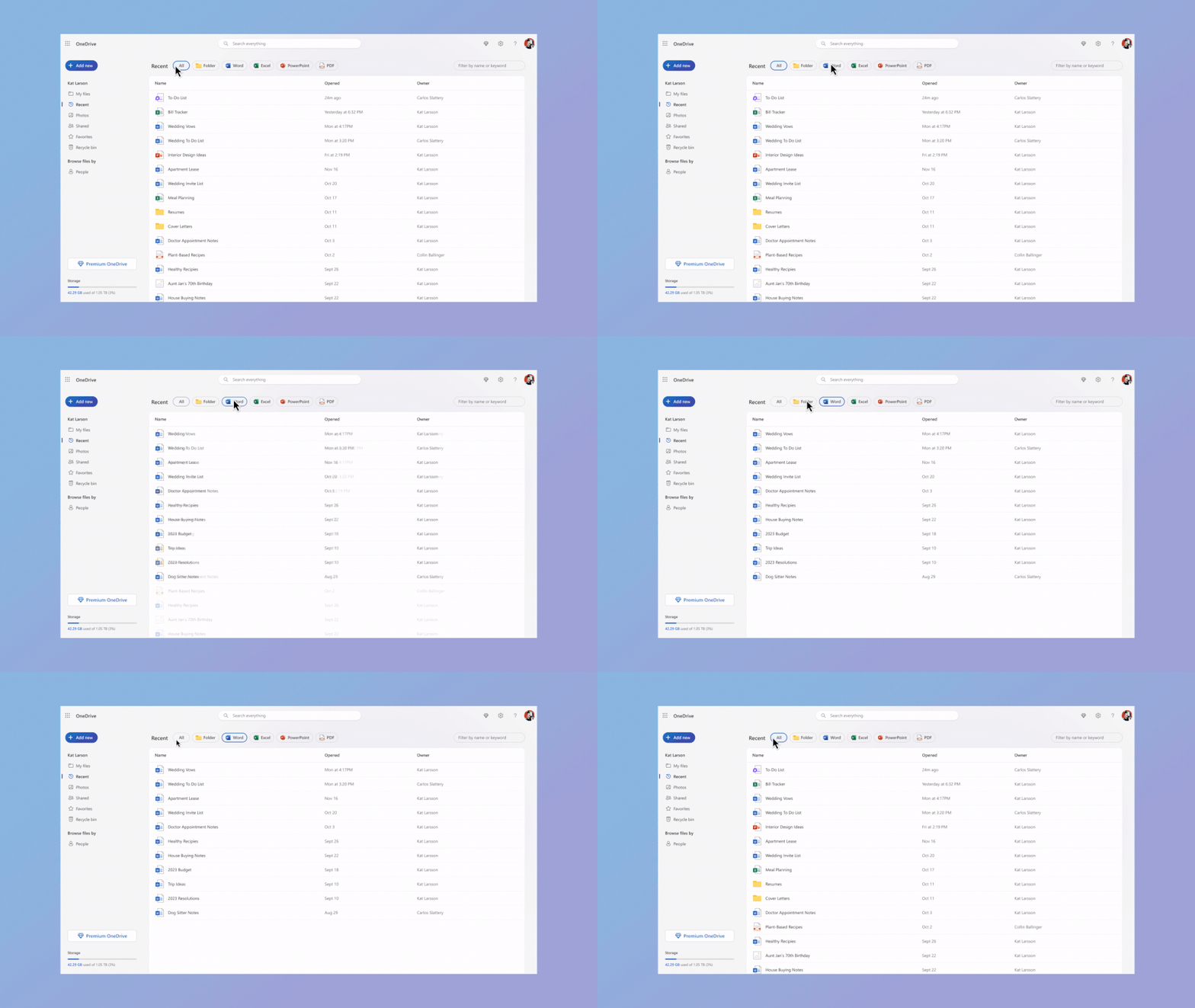
OneDrive now has a new one-click file type filtering function. In the Recent files menu, you can simply click on the Word, Excel, PowerPoint, or PDF to narrow your search and get to the files you need a lot faster.

Add new button for commands

Lastly, there is a new button in OneDrive called Add new, that allows you to create specific content, upload files and folders, or organize your existing data.

Another notable change is that Microsoft removed the accent color from the title bar, and that doesn’t appeal to everyone because it highlights the focused app.

The upgrade looks like a welcome change to OneDrive and the new features are certainly helpful additions. Microsoft it obviously trying to attract more users to OneDrive, but we’re already used to such marketing moves, right?

What do you think about the new OneDrive features and design? Leave your thoughts in the comments section below.
New Feature Alert: WhatsApp Beta for Windows lets you create stickers

WhatsApp is releasing a new update (version 2.2403.3) for the Windows native app via the official beta channel on the Microsoft Store, introducing a sticker creation converter tool.

While this feature was initially exclusive to WhatsApp Desktop and mobile app users, it now extend to the native WhatsApp app, ensuring users across all platforms can make the most of it.

However, if you don’t see it, try updating the WhatsApp app from Microsoft Store. If it still doesn’t come up, you need to wait for a future update.

To use this feature on your WhatsApp app, go to the sticker panel, click the + icon, and create stickers from images.

Furthermore, you get a basic editing tool, allowing you to crop the image before sharing it in your conversations.

From our point of view, creating customized stickers from images lets you add a personal touch to the conversations, and the feature can be beneficial for those who primarily use WhatsApp on a desktop.

After this update, you won’t have to send images to their mobile devices for creating stickers, eliminating the hassle and saving time in the meantime.

Do you think adding this feature to the Windows native app will enhance the user experience? Share your thoughts in the comments section below.
Windows is getting a Semantic Indexing option which enables in-depth file management

Microsoft accidentally leaked the Internal build 26047 to public Windows Update servers. And as with any other leaks, Windows enthusiasts everywhere managed to get their hands on it before it was pulled out. However, it was enough time to let them discover some important features coming to Windows soon.

One of these features is none other than the Semantic Indexing option, as spotted by Windows Insider @PhantomOfEarth. Semantic Indexing is already present as a feature in Copilot, but it seems Windows is integrating it locally, and it has to be enabled for it to work (although, for the moment, enabling it doesn’t make it work).

Semantic Indexing is currently integrated into Copilot for Microsoft 365, and the feature allows for comprehensive file management inside the platform. It makes it possible to find certain files not just for their name, but for their relevance to a certain task, the persons responsible for the files, and so on.

In other words, the feature allows for a more human searching option, and it strives to emulate human thinking when searching for files.

How to enable Semantic Indexing in Windows 11?

  1. In the Search bar, type in Indexing Options.
  2. Click on Advanced with Admin rights.Windows Semantic Indexing
  3. Check the Semantic Indexing box, and then hit OK.

For now, the option doesn’t work, which means Microsoft didn’t intend to release it just yet. But once it gets released, you can easily enable it from here.

How will it work? We don’t know for now, but we can assume Windows will be capable of in-depth file management, and could potentially show results based on multiple criteria, such as relevancy, owners, and so on.

The Internal build 26047 also came with several other new features to Windows 11, as the same Windows Insider discovered a new energy saver icon, a non-functional Windows-protected print mode setting, and a new Color Management control panel.

These features will probably be unveiled in the next few days.

How to Change Font in Outlook on Windows, macOS, and Web

You can change the font in Outlook on Windows, macOS, and the web app through the settings. You can customize the font type, style and color.

The process is similar across the platforms, with an option to change it for outgoing, incoming, or replying to emails. Here’s how:

How to Change Fonts in Outlook on Windows, macOS, and web?

Note icon NOTE
You can change the font of a single message while drafting an email. The font changes back to the default you have set from the settings.

Change fonts in Outlook 2019, 2016, 2013, 2010, and Outlook for Microsoft 365.

1. Open Outlook on your computer and head to File.

Change font in outlook for Windows

2. Then, go to Options from the File menu.

Change font in outlook for Windows

3. Now, head to the Mail section and go to Stationary and Fonts.

How to Change font in outlook

4. Click Fonts from either of the sections.

Here, you can change fonts on Outlook for three different segments.

  • New mail messages – This changes the default font for your composed emails.
  • Replying or forwarding messages – It changes the font for emails you reply to or forward to others.
  • Composing and reading plain text messages – The message sent to other people will be in plain text, but you can choose to use a different font, which appears only to you while composing or reading.
Fonts option in Outlook

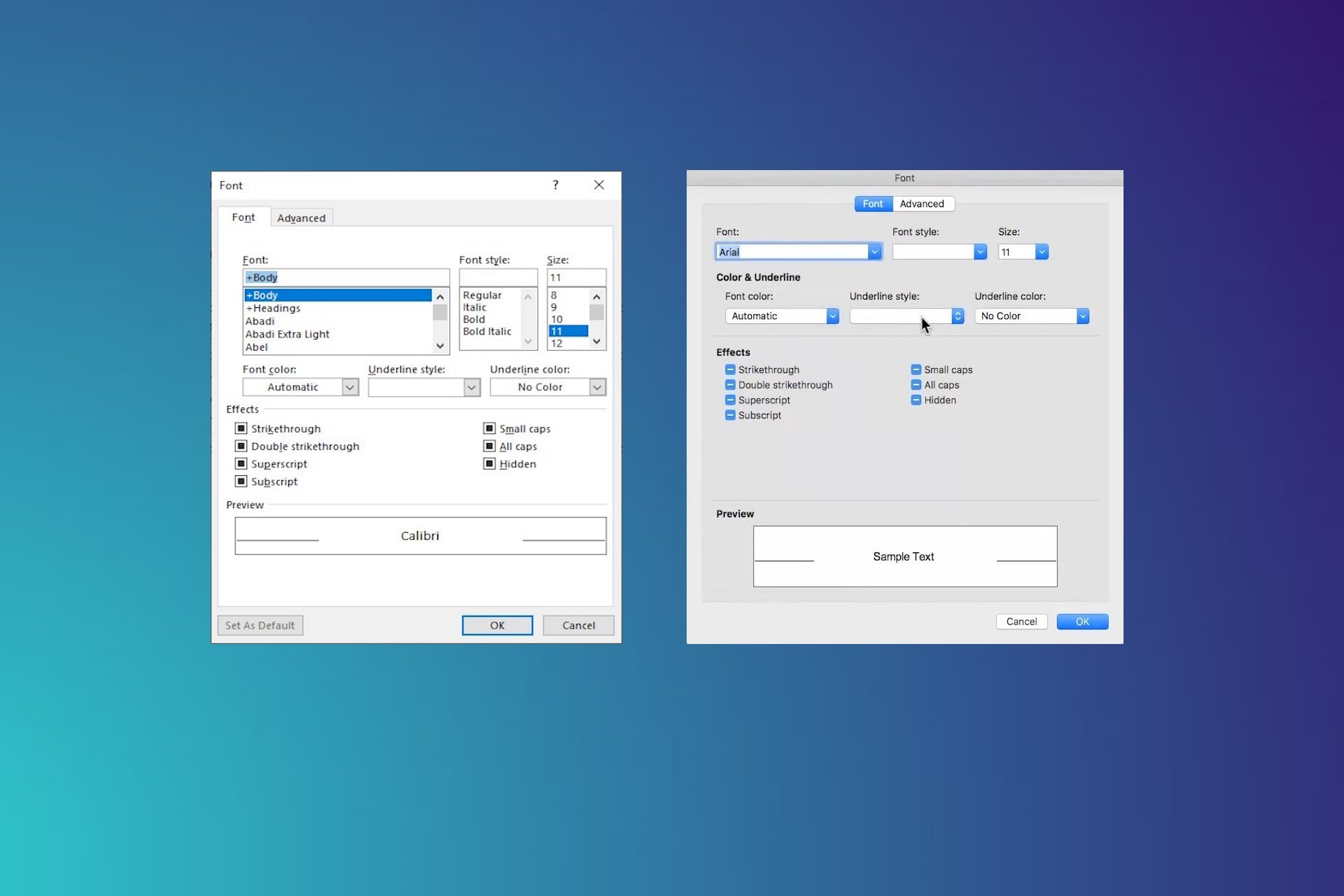
5. Make changes to font, style, size, color, and effect, and then click OK to save changes.

Font settings

Change font in Outlook 2007 and 2003

1. Head to Options from the Tools menu.

Options in Outlook

2. Then, go to Stationary and Fonts from the Mail tab.

3. Click on Fonts on one of them – New mail messages, Replying or forwarding messages, and Composing and reading plain text messages.

Modify font in Outlook

4. Now you can change font, style, size, color, and effect. After that, click OK to apply the changes.

Select a font

Change font in Outlook on macOS

1. Go to Preferences from the Outlook menu at the top.

modify font in Outlook for Mac

2. Then select fonts from the popup menu.

change font in Outlook for Mac

3. Here, choose one or go all three – New mail, Reply or forward, and Plain Text.

Select either of the option

4. Now, make changes to the font, style, size, and color, including underlying parts. Once done, select OK to save changes.

change font in Outlook for Mac

Change font in Outlook.com

Note icon NOTE
On the Outlook for web, you can only change the font of the outgoing mails. The font style of all messages will depend on your browser and operating system settings.

1. Go to Outlook.com and head to Settings through the gear icon at the top.

Change font in outlook web

2. Head to Compose and reply under the Mail section.

Change font in outlook.com

3. Scroll down to Message Format and change font, color, and style before clicking Save to apply the changes.

Change fonts in Outlook

Now, you can draft emails in the font of your choice without changing them every time. The method is similar across the platforms and versions. And if you don’t like the changes, you can also reset to default.

So, this is how you can change the font in Outlook on Windows, MacOS, and the web version.

Go beyond just Outlook; you can also change fonts on Windows with free software.

But when that doesn’t feel enough, you can always create and use your fonts on the computer.

If you know of any newer way of changing fonts in Outlook, then let us know through the comment section.

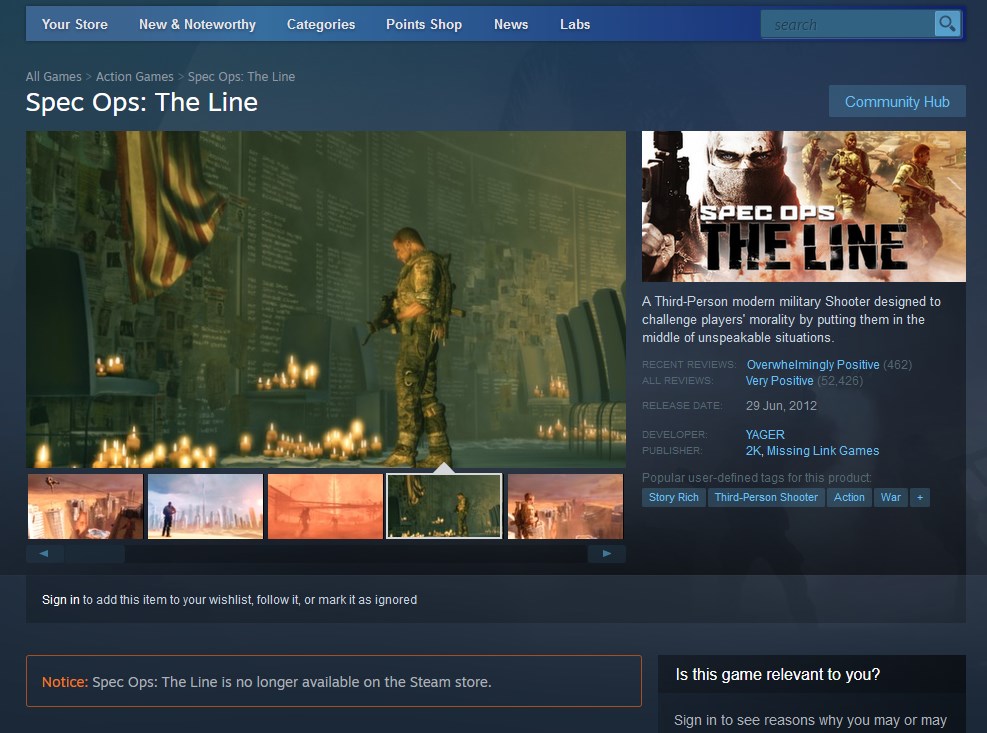
Spec Ops: The Line removed from online stores due to licensing issues

Do you remember Spec Ops: The Line? It was released in 2012, and it has achieved cult popularity due to its incredible story.

If you were hoping to experience this game for yourself, that won’t be possible since it was abruptly removed from digital stores.

Spec Ops: The Line gets removed from online stores, here’s why

Twitter user Wario64 was the first to notice that the game had been removed from Steam without any prior notification.

Even the game’s directory, Cory Davis had to chime on this sudden removal:

While some speculate that this is due to censorship of a sensitive subject matter that the game tackles, the answer is much simpler than that.

The licenses associated with the game have expired and this is the reason for the removal. However, if you already have the game in your library, you can still play or download it without issues according to the 2K director:

Spec Ops: The Line will no longer be available on online storefronts, as several partnership licenses related to the game are expiring. Players who have purchased the game can still download and play the game uninterrupted.

So, what are these licensing issues? Many speculate that the culprit is the game’s music, but this hasn’t been confirmed.

The game is gone from Steam, GOG, Xbox Store and we assume from all other gaming platforms and it most likely won’t make a return.

While you’re here, why not check Xbox Lunar New Year sale, and get some new games at a discount?

Palworld has FPS issues, but it won’t last long

Palworld was released on January 19, 2024, and has since been a topic of controversy. Besides its close resemblance to Pokemon, the game has performance issues, including a black screen on launch and low FPS.

The FPS problem is commonly seen on Xbox, with Series S performing slightly better than Series X, in our tests. The forums are filled with such reports, with many complaining of getting, at the maximum, 30 FPS, even when they remove the FPS cap by choosing No Limit in the settings.

The Early Access of Palworld isn’t yet polished

If you haven’t set the Max FPS to 30 in the game’s settings, the only plausible reason why you cannot play Palworld at 60 FPS is the in-game bugs.

If history tells us anything, the early releases of games usually have performance issues, and these are fixed in later patches. Take the case of Project Zomboid, which, too, had such bugs in the initial releases, but the later versions ran just fine.

Settings Max FPS to No Limit on Palworld

Until now, Palworld has released a few patches, and the last two, v0.1.4.0 and v0.1.1.3, have significantly enhanced the experience.

Based on the few hours we spent playing Palworld, some of the aspects that need improvements are sound quality, FPS (Frame Rate per Second), network connectivity, and a fix for the incessant crashes. Besides that, the game runs perfectly fine and is captivating!

Also, Palworld supports crossplay, meaning you can play together on Xbox and PC.

As per the information provided on Palworld’s official Steam page, the Early Access is expected to last at least a year. So, for now, all you can do is send honest feedback to the developers, highlighting all the issues, and wait for these to be addressed in the later patches.

Do share any FPS or other issues you faced with Palworld in the comments section below.
Microsoft will introduce a confusing feature to encourage people to use OneDrive more

Microsoft is debuting a new look for OneDrive for personal users, and it’s set to roll out in February. The new look comes with a lot of perks for users, including a more intuitive UI, a revamped and enhanced Add new button, and filtering options.

However, according to the latest entry in the Microsoft 365 Roadmap, OneDrive will also debut a new empty state in the platform, that will look like real images you would upload, but they’re just placeholders for the images you’re going to upload.

Makes sense? Well, in better words: Microsoft wants to encourage users to upload images to OneDrive by showing them how these images are going to look on the platform’s homepage once they’re uploaded.

I mean, who doesn’t want to customize their OneDrive homepage, but this feature could end up being confusing for a lot of users. Here’s how Microsoft describes it:

You will see new and improved images and text in various views on OneDrive for Web when there are no files associated with those views. These images will appear in new OneDrive accounts that have no stored files, and they may appear in existing OneDrive accounts that have no recent, favorited, shared, or recycled files. As an example, if you have no favorited files, you will see an image of a star with text that reads “Items you favorite will show up here.”

Microsoft

Why would this feature be confusing? Well, many users could end up thinking someone messed up with their OneDrive accounts, or their account has been hacked, due to placeholder images showing up in the homepage.

Yes, it might be a possibility, and we’ll have to wait until this feature properly rolls out to see exactly how these images will look, but it does sound a bit confusing.

What do you think?

Outlook is finally getting a feature that should’ve been on the platform ages ago

Outlook will allow users to drag and drop attachments and emails from the platform to their desktops or preferred folders to download them, according to the latest entry in the Microsoft 365 Roadmap.

The feature will be available on the new Outlook for Windows, starting March 2024, as Microsoft states:

Users can drag and drop attachments and emails from the new Outlook for Windows to their desktops or local folders to download them directly to that location.

Microsoft

Outlook doesn’t currently support this ability, which is by all means very intuitive to use. Microsoft allowed Windows users to drag and drop files decades ago, so why hasn’t the Redmond-based tech giant enabled it on Outlook?

This capability should have been implemented on the platform ages ago, as it would have made Outlook more intuitive to use, and would have saved time for a lot of users.

It’s good that Microsoft is finally releasing it to Outlook: maybe it will turn out to be one of the most appreciated features on the platform.

The Redmond-based tech giant is set to release multiple quality features for Outlook, including support for legacy formats, that will enable users to open old Outlook emails. And speaking of features that should have been implemented ages ago, Outlook will soon support Newsletters.

Yes, newsletters. In 2024. Very groundbreaking, but necessary.

Welcome to 2024, Microsoft.

Windows Update for Business will now perform pre-flight checks to make sure devices meet the requirements for quality updates

Microsoft released a new update for Windows Update for Business that will make the platform perform pre-flight checks to make sure corporate devices meet the needed requirements for quality updates.

The update comes just in time, as we reported many older devices have issues supporting the new updates for Windows 10, and Windows 11, with many users claiming the new updates are ruining their businesses.

The checks are called device readiness tests, and they existed so far in post-deployment summaries, for when quality updates were already installed. However, Microsoft is changing them, making them available in pre-deployment phases, where admins can see which devices are ready for quality updates.

Expedited Windows quality updates are a feature that fast-tracks installation of security updates. Up until now, you’ve been getting post-deployment report summaries for devices that couldn’t be expedited. That’s old news now, but if you’ve missed it, read about different types of alerts and remediation guidance at Get the most out of expedited Windows quality updates. The better news is that now, you can get your hands on this report before expediting the updates.

Microsoft

In a blog post, the Redmond-based tech giant explained how these tests work: they do not provide any form of content, but instead, they will scan each device, and they will generate alerts if any prerequisites are missing.

Admins will then be able to resolve those alerts so that the deployment can successfully take place.

These checks are proactively enabled, meaning IT admins will have to initiate them through special commands in Microsoft Graph.

The guide on how to initiate this process can be found on the official blog, and it’s rather simple, requiring admins to follow 3 steps. However, some of the steps require waiting between 2-3 days to complete, to provide correct data.

After it’s done, the process will issue a report that looks like this: Windows Update for Business

Microsoft hasn’t specified why these tests aren’t automated, but the Redmond-based tech giant will most likely clarify or provide more details about this in the following weeks.

OneDrive ditches its old look, for an exciting modern-looking new design

Microsoft has bestowed OneDrive with a brand-new design, and personal users should be able to see it when they open the platform next time, according to the official blog post.

The Redmond-based tech giant promises the new design is intuitive and easy to use, and users will get accustomed to it in no time. Plus, it comes with some extra features that Microsoft talked about last year, at the OneDrive special event.

It’s both a visual and functional upgrade designed to help you get to your files quickly and keep your content organized in multiple ways – without you having to do any organizing. The new features and upgraded design make it faster to get to all your personal and shared files in OneDrive so you can focus your time on things that matter most to you.

Microsoft

The new design comes with a lot of perks, including:

  • A fast, organized, and personalized experience that focuses on users’ content, by reducing unnecessary visual cues of the old design.
  • People View: this new section will allow users to see who sent them certain files, and have a better understanding of their activities.
  • Filtering by file type: the new design will let users find files faster by filtering them through certain criteria, say Word or Excel files, as you can see in the image below.OneDrive new design

Plus, the new design also brings a revamped Add new button that lets you upload files to OneDrive, but also create new files, such as Word, Excel, PowerPoint, and so on, without opening up those apps. Microsoft promises this enhancement will greatly streamline work and encourage inspiration.

We’ve streamlined creation for both uploading to OneDrive and starting a new document. The “add new” button has been upgraded to include both options, and it persists across all views. So, when you are inspired to create something new, you can get into your flow faster.

Microsoft

The new design will be gradually rolled out to OneDrive personal users everywhere, and it should be generally available to all users by the of February.