Is Xbox All Access worth it? Here are the pros and cons

Xbox has had quite the year with the number of releases and newly added features that have the fans hurrying up their boots to secure one of the Xbox Series X/S.

A few days, the cloud gaming feature was released and adds to the number of reasons why one would want to get their hands on the Xbox Series X. 

However, the Xbox Series X is almost always out of stock at major retailers which leave fanatics no other choice but to go for the Xbox All Access. Well, is it worth it?

Xbox All Access: What is its worth

Xbox All Access is basically a financing option that charges you $35 a month for two years.

Pros

  • You get access to Series S and X consoles if you are short of cash and have 24 months to pay for them.
  • You will not incur any additional costs if you miss the $35 monthly payment for any of the 24 months in the contract.
  • You get a discount as the Xbox All Access rounds up to $840 while an Xbox Series X 
  • plus the subscription adds up to $860.

Cons

  • Whereas you will not be charged for failure to pay on time, you risk losing promotional incentives.
  • Not everyone will qualify for the Xbox All Access especially with a bad credit score.
  • In the long run, 24 months of Xbox Game Pass Ultimate Pass doesn’t seem like the deal of the year and is certainly not cost-effective.
  • The games are frequently rotated so you may get bored easily. It is better to purchase the games you need on Xbox Series S.

Ultimately, if you are not ready to commit to two years of monthly deductions, you may want to reconsider making such a significant purchase.

Would you purchase the Xbox All Access just to get the Xbox Series S? LEt us know in the comment section below.

There is a surge in Linux gamers with the release of Windows 11

In the last seven months, Linux adoption has grown tremendously. Active Linux gamers on Steam keep increasing judging from the latest survey carried out by Valve.

Windows 11 has also been curated to accommodate gamers with a much smoother experience. The percentage so far has passed the 1% mark and is expected to grow even more in the coming months.

The Steam Deck effect is part of the success and more and more people are warming up to it as an alternative gaming platform.

The only way is up

This is the first time that Linux has exceeded the 1% mark of OS adoption on Steam since the last time was during the release of Proton.

The way things are looking, Linux may soon enter into a moment where it is competing with macOS.

Although a vast majority of users are running Windows 10, more and more are warming up to Windows 11.

In a survey carried out in October, the results showed usage of 1.82%. Fast forward to this month and the figures have skyrocketed to 8.28%.

You may recall Microsoft became a bit more lenient a few weeks ago and made the OS available to more PCs. 

With the holidays creeping in, the January Steam hardware survey could easily get to 20% on WIndows 11 but let’s wait and see what the results will be.

What gaming platform are you drawn towards? Let us know in the comment section below.

Full Fix: Cortana Search Box Missing on Windows 10/11

One of the biggest additions to Windows 10 is its virtual assistant Cortana. Although Cortana has a lot to offer to Windows 10 users, certain users report that the Cortana search box is missing from Windows 10.

This isn’t a serious problem, and it can easily be fixed by following our solutions.

Cortana Search Box Missing Windows 10

Many users use the Search feature in order to find files or applications on their PC, but some users reported that the Cortana search box is missing.

Speaking of search problems, users reported the following issues:

  • Cortana disappeared Windows 10 – Many users reported that Cortana simply disappeared from Windows 10. This is unlikely, and if you’re having this problem, be sure to check if you’re not using small Taskbar icons.
  • Windows search bar missing – According to users, sometimes Windows search bar can become missing. If that’s the case, check your Search settings and make sure that the search bar isn’t hidden.
  • Cortana and search settings missing – If you’re having this problem, the issue might be your Cortana settings. To resolve this issue, check if the Cortana is enabled.
  • Search box Windows 10 not working – This is a relatively common problem that can appear on Windows 10. This issue can be caused by a corrupted user profile, but you can fix the problem by migrating to a new user profile.
  • Cortana search box not working, showing – If the search box isn’t working or showing at all, the problem might be file corruption. However, you can fix this problem by performing an SFC and DISM scan.
  • Cortana search box disabled – If the search box is disabled on your PC, the problem might be a third-party application. Simply remove the problematic application and check if that solves the issue.

1. Make sure you’re not using small icons in Taskbar

Users reported that the Cortana search box isn’t working if you use small Taskbar icons (this is how to make them bigger, it’s really easy!), but you can change that by following these steps:

  1. Right click the Taskbar and choose Taskbar settings.
  2. Make sure that Use small taskbar buttons isn’t checked.
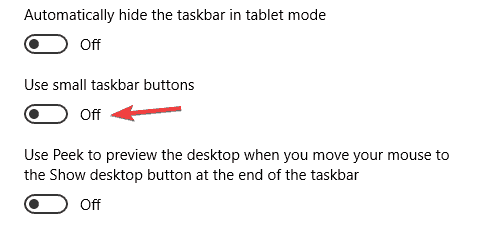
    Cortana search box disabled

After you’ve turned off small Taskbar buttons, the Cortana search box should automatically appear on your Taskbar.

2. Make sure that Cortana isn’t set to Hidden

If the Cortana search box is missing on your computer, it might be because it’s hidden. In Windows 10 you have an option to hide the search box, display it as a button or as a search box.

If for some reason search box is set to hidden, you won’t be able to use it, but you can easily fix that by following these steps:

  1. Right click the Taskbar.
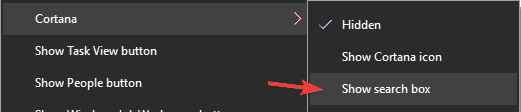
  2. Choose Cortana > Show search box.
    Cortana search box not showing

3. Remove problematic applications

Users tend to install various applications on their PC in order to customize their user interface.

Although this allows them to achieve some interesting results, certain applications can interfere with Windows and cause the Cortana search box to become missing.

If you’re using any application that customizes the look of Windows 10, you might have to remove it in order to fix this problem. There are several ways to do that, but the best one is to use uninstaller software.

If you’re not familiar, uninstaller software is a special application designed to remove applications from your PC. It’s worth mentioning that these applications will remove all files and registry entries associated with the application you want to remove.

As a result, you can completely remove any application from your PC and make sure that it doesn’t cause any more problems in the future.

4. Create a new user account

Sometimes in order to fix problems with the missing Cortana search box, it’s best to create a new user account.

Creating a new user account is the last resort, and before you do that, we strongly advise trying different solutions.

Bear in mind that you’ll have to move all your personal files and folders if you create a new user account. To create a new user account, do the following:

  1. Go to Settings > Accounts.
    Cortana and search settings missing
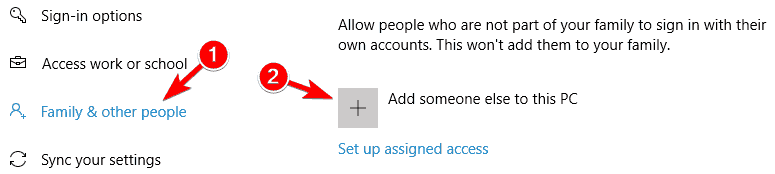
  2. Navigate to Family & other users and click Add someone else to this PC.
    Search box Windows 10 not working
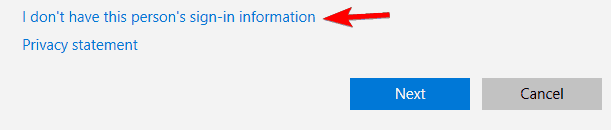
  3. Choose I don’t have this person’s sign-in information.
    Cortana disappeared Windows 10
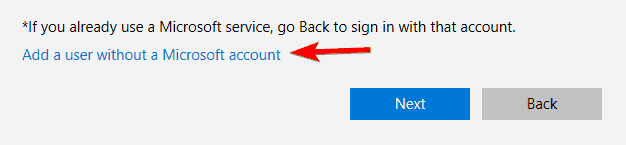
  4. Next, click on Add a user without a Microsoft account.
    Windows search bar missing
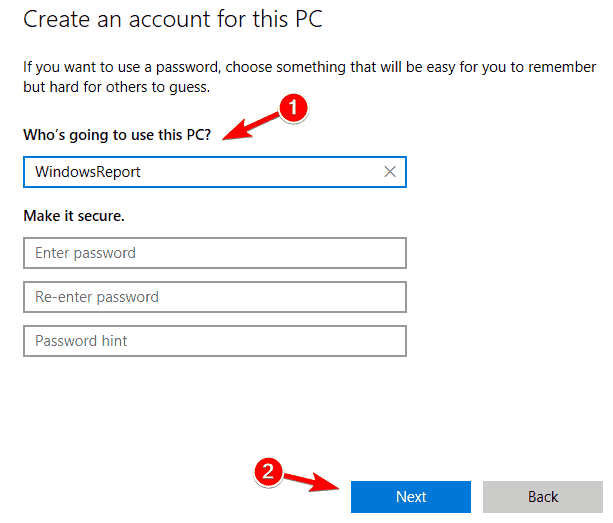
  5. Enter the username and password for the new user and click Next.
    Cortana and search settings missing
  6. After you’ve successfully created a new user account, switch to it. Cortana search box should be working without any problems.

5. Make sure that your Taskbar isn’t extended

According to users, this problem can sometimes appear if you’re using duplicated displays. In some cases, the toolbar and search box can be moved to a second display.

However, you can fix this problem by doing the following:

  1. Right click the Taskbar and choose Taskbar settings from the menu.
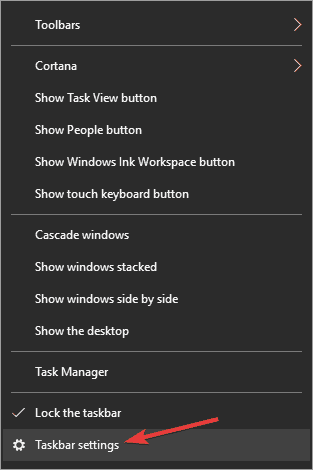
    Windows search bar missing
  2. Scroll down to the Multiple displays section and make sure that Show taskbar on all displays option is turned off.
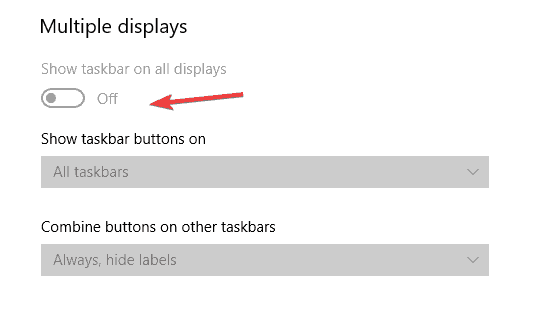
    Cortana and search settings missing

Keep in mind that this solution only works if you’re having two or more displays. If you’re using a single display, you can just skip this solution.

6. Use the Search shortcut

Many users reported that the Cortana search box is missing on their PC, however, that doesn’t mean that the search feature isn’t working.

If the search box is missing, you can still activate the search simply by opening Start Menu and typing your search query.

Alternatively, you can use Windows Key + S shortcut to open the Search menu instantly. These are useful workarounds, and they work according to users, so we encourage you to try them out.

7. Make sure that you’re not using Tablet mode

According to users, the Cortana search box might become missing if you’re using your PC in Tablet mode. You can sometimes activate this mode by accident, but you can always disable it by following these steps:

  1. Open the Action Center. You can do that by clicking the Action Center in the bottom right corner or by using Windows Key + A shortcut.
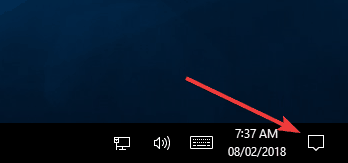
    Cortana disappeared Windows 10
  2. Now click the Expand button and click Tablet mode to disable it.
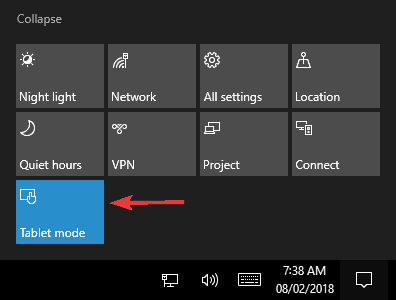
    Windows search bar missing

After doing that, the Tablet mode will become disabled and the Cortana search box should appear again.

8. Move the Taskbar to the bottom of the screen

Some users tend to change their Taskbar position in order to customize the look of their Windows 10. However, by changing the Taskbar position you can cause certain features to become missing

If the Cortana search box is missing, the problem might be your Taskbar position.

Simply move your Taskbar to the bottom of the screen and the issue should be resolved. Several users reported that this solution worked for them, so be sure to try it out.

9. Perform an SFC scan

Sometimes Cortana search box can become missing due to corrupted system files. File corruption can occur for various reasons, but you can fix it simply by performing an SFC scan.

This is rather simple and you can do it by following these steps:

  1. Press Windows Key + X to open Win + X menu. Now choose Command Prompt (Admin) from the menu. If this option isn’t available, choose PowerShell (Admin) instead.
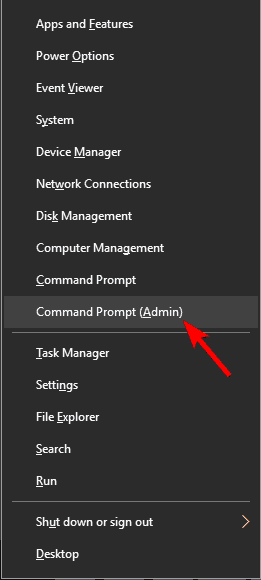
    Search box Windows 10 not working
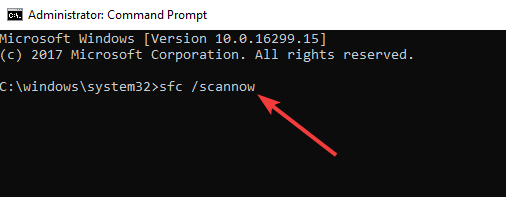
  2. When Command Prompt opens, enter sfc /scannow and press Enter to run it.
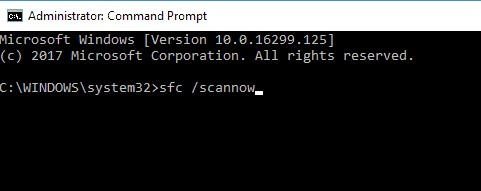
    Search box Windows 10 not working
  3. SFC scan will now start. This process can take about 15 minutes, so don’t interrupt it.

Once the SFC scan is completed, check if the problem still persists. If it does, or if you couldn’t run or complete an SFC scan, you might have to use a DISM scan instead.

To do that, just follow these steps:

  1. Open Command Prompt as administrator.
  2. Now run DISM /Online /Cleanup-Image /RestoreHealth command.
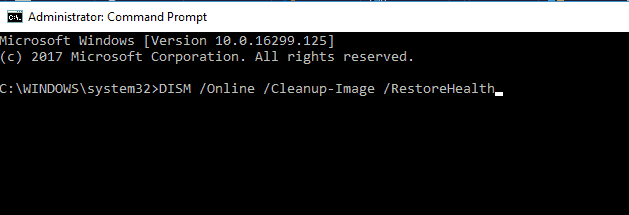
    Cortana search box not working
  3. DISM scan will now start. We have to warn you that this process can take 20 minutes or more, so don’t interrupt it.

Once the DISM scan is finished, check if the problem still persists. If the issue is still present, or if you couldn’t run an SFC scan before, repeat the SFC scan and check if that solves your problem.

10. Re-register Cortana

If you’re still having this problem, the cause might be corrupted Cortana components. This problem can cause the Cortana search box to go missing, but you can solve the issue simply by re-registering Cortana components.

This is relatively simple, and you can do it by following these steps:

  1. Start PowerShell as administrator. You can do that simply by pressing Windows Key + S and entering powershell. Now right click Windows PowerShell from the list of results and choose Run as administrator.
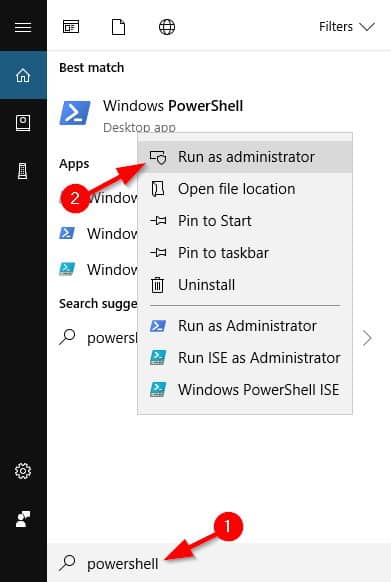
    Cortana search box disabled
  2. Run the following command: Get-AppXPackage -Name Microsoft.Windows.Cortana | Foreach {Add-AppxPackage -DisableDevelopmentMode -Register “$($_.InstallLocation)AppXManifest.xml”}

    Cortana disappeared Windows 10

After the command is executed, the problem should be resolved and the Cortana search box should appear again.

Cortana is useful, but you can experience some problems with it from time to time. Speaking of Cortana problems, users reported that Cortana isn’t turning off, or that Cortana is disabled by company policy.

We’ve covered these and many other Cortana-related issues before, so make sure that you check them out.

Printer port in use, please wait: Here’s how to fix it

Printers turning hostile when you need them the most is indeed frustrating. And one common error that often gets associated with them is port in use please wait.

Getting to see this when you need some quick prints done can be taxing on your patience though things can be turned around fast enough and with just a few steps.

How do I fix the port in use errors?

1. Update USB drivers

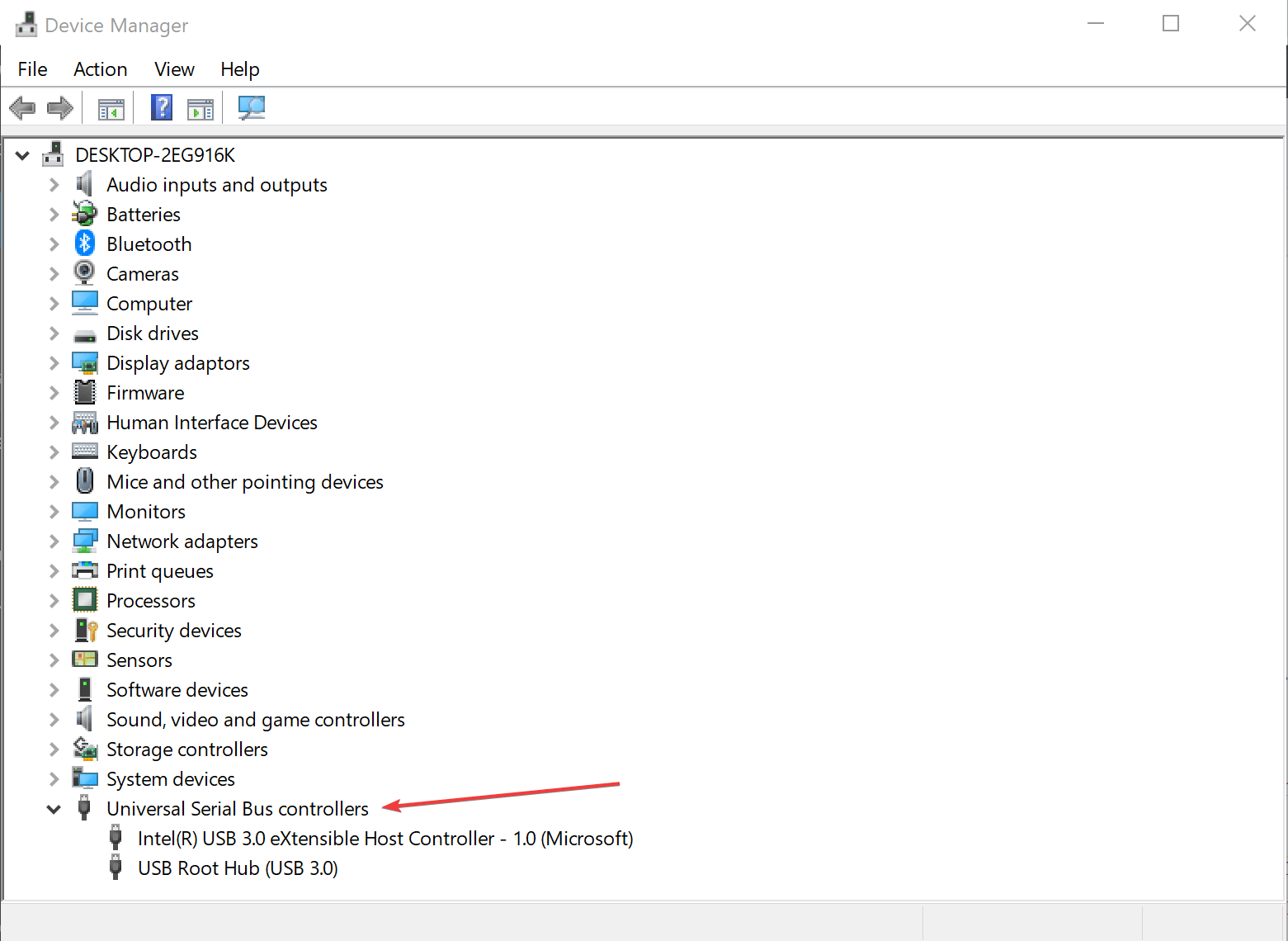
  • Go to Device Manager. Simply type Device Manager in the Cortana search box and select accordingly from the search results.
  • Locate Universal Serial Bus controllers which usually are towards the bottom of the list.Device Manager USB controller
  • Expand the same to reveal all USB controller present on your system and see if there are any yellow exclamation mark associated with any of those.
  • If yes, right-click on the particular USB and click on Properties.
  • In the Properties dialog box, select Drivertab > Update driver.
  • If it prompts to get online to seek the updated driver, consent to it.
  • You can also visit the home page for the USB and download any updated driver that might be available.

Sometimes an outdated Universal Serial Bus driver can also be the culprit, hampering normal printer functioning in the process.

If you want to prevent driver-related issues in the future, we advise you to use Outbyte Driver Updater software.

This application will automatically find outdated drivers and update them, so if you want your PC to run smoothly, be sure to try this application.

It will also keep your system safe from permanent damage by manually downloading and installing the wrong driver versions.

Alternatively, you can also uninstall the USB and install it again.

  • To do so, right-click on the USB that might be showing the yellow exclamation mark and select un-install. Consent to any prompt that pops up.
  • Restart your PC. The drivers for the particular port gets installed again.
  • Check if this solves the problem.

⇒ Get Outbyte Driver Updater

2. Unplug the printer

  • To start with the more simple stuff, check to see if there is any printing job in the pipeline. If that be the case, there should be a small printer icon towards the bottom left in the taskbar.
  • Open the same and see if there are any printing job in the queue.
  • If yes, right click each of those and select Delete.
  • Once that is done, power off the printer and unplug it from your PC.
  • Turn on the printer and connect it to the PC.
  • Se if you are able to print successfully.

3. Re-install the printer

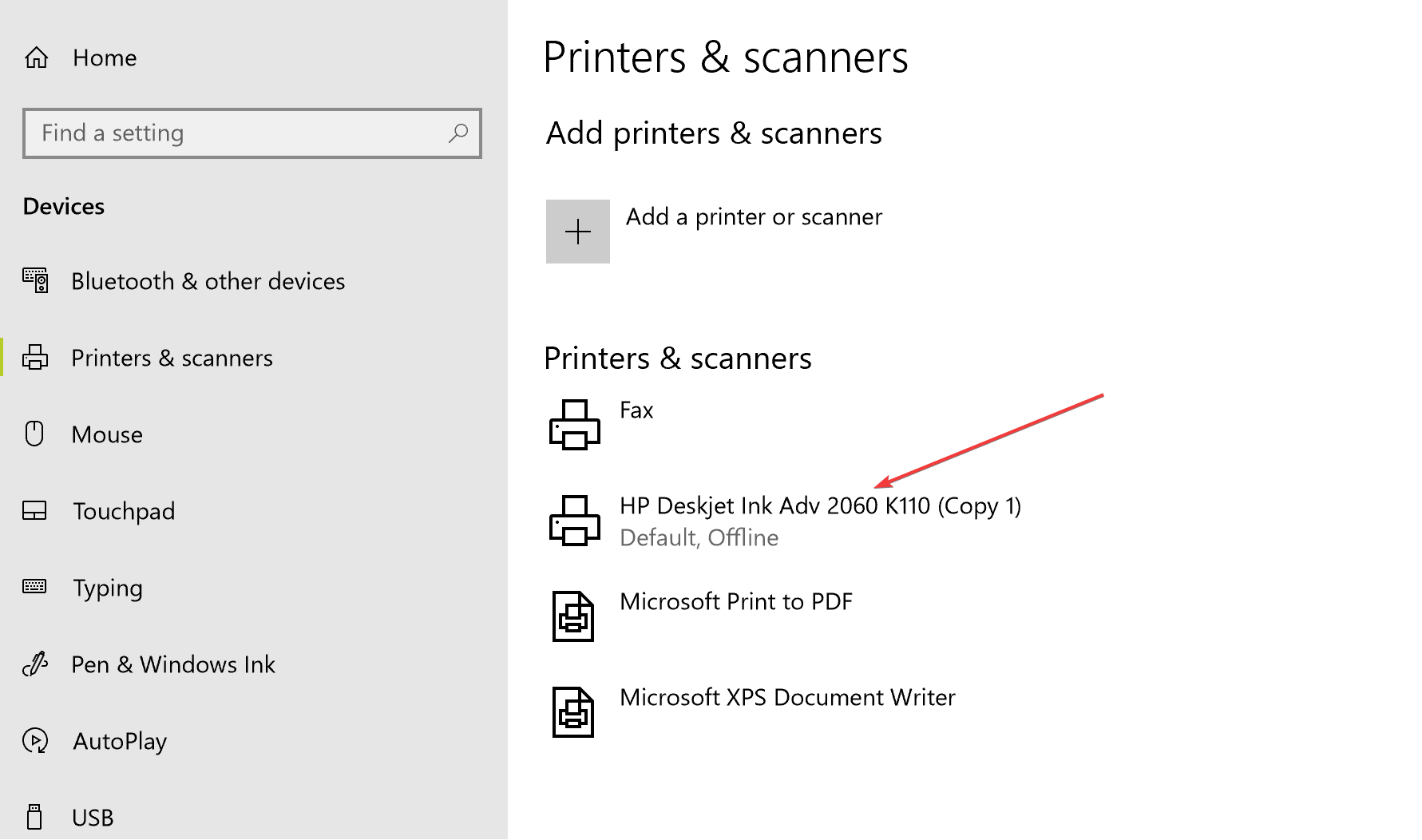
Uninstalling Printer

If the issue persists, another option for you will be to uninstall the printer from your PC and re-install it again. Here are the steps.

  • Got to Start > Settings > Devices
  • In the Devices page, select Printers & scanners from the left column.
  • The printer installed on your PC should be showing under Printers & scanners section on the right.
  • Click on it and select Remove device.
  • Follow on-screen instructions to un-install the device from your PC.

Meanwhile, go to the printer manufacturer’s website and check to see if there are any updated drivers available for the particular model of the printer.

This is especially important if say, you have upgraded to Windows 10 while the printer originally came with drivers for a previous version of Windows.

Find out if the manufacturer has come up with updated drivers that match the Windows version on your PC.

  • Download the drivers and install on your PC
  • Connect the printer and switch it on.

It should now be able to do all printing jobs efficiently. Lets us know which solutions helped you by leaving some feedback in the comments section below.

FIX: Windows Update Service registration is missing/corrupt

Windows Update should be an essential aspect for every user of the Windows Operating System.

If the system does not get updated on time, it might face all kinds of problems such as security issues, performance issues, etc.

Quick tip:

Most computers get their updates automatically but sometimes, although the Update Service is set on the Automatic Mode, the system is not able to install the available updates.

If this happens, please try to run the Windows Update Troubleshooter first. Go to Settings, then to Update & Security, and click on Troubleshoot to launch the troubleshooter.

If this doesn’t fix the problem, you can use one of the methods described below.

How can I fix the Windows Update Service registration problem?

  1. Disable the antivirus software
  2. Check Windows Update Related Services
  3. Run Windows Update Commands
  4. Run a SFC scan
  5. Turn off and on the Windows Firewall

1. Disable the antivirus software

You can also try to turn off the antivirus software temporarily. Sometimes, your antivirus tool may prevent your computer from installing the latest updates.

As a result, simply disabling your antivirus may help you fix this problem. If it doesn’t you will need to remove your antivirus completely.

We say completely because by using the regular uninstalling technique, many programs leave some leftover files behind. In time, that file accumulation may lead to system slow down and other problems.

It’s extremely simple to use and once you run it, you will be amazed at the free space you will regain after the operation.

When you’re done with uninstalling the old antivirus and performing the OS updates, you shouldn’t leave your PC unprotected so we recommend switching to a safer and unobtrusive antivirus.

You can find Windows 10 compatible antivirus software that won’t interfere with your system or the update process, while also being light on your PC.

Make sure to get an antivirus software with a large and frequently updated threat database, multi-layers of protection, a powerful firewall, as well as a transparent privacy policy.

2. Check Windows Update Related Services

1. Press the Windows key + R shortcut.
2. Type services.msc and press Enter.

services.msc windows 10

3. Locate the Windows Update Service, Background Intelligent Transfer Service, and the Cryptographic
Services.
4. Right-click on each of the services and select Properties.
5. In the Startup type field, please select Automatic from the list.

windows update service automatic


6. Click Start under the Service status.
7. Click OK.

Make sure you follow the above steps for all three mentioned services.

3. Run Windows Update Commands

1. Search for command and click on Run as administrator to open Command Prompt.
2. Copy and paste the commands below one by one:
net stop wuauserv net stop cryptSvc net stop bits net stop msiserverren C:WindowsSoftwareDistribution SoftwareDistribution.old ren C:WindowsSystem32catroot2 catroot2.old net start wuauserv net start cryptSvc net start bits net start msiserver

3. Wait for the process to complete and then close the Command Prompt. Restart your computer and check if the issue persists.

4.  Run an SFC scan

1. Open Command Prompt as an administrator as shown in the previous solution.
2. Type sfc /scannow and hit Enter

sfc scannow


3. Wait for the process to complete and then check if you can install the updates.

5. Turn off and on the Windows Firewall

1. Open Control Panel
2. Click on Windows Firewall
3. Select Turn Windows Firewall on or off (in the left pane)

4. Check the button next to turn off Windows Firewall (not recommended) then click the OK button
5. After the Windows Update error is solved, don’t forget to turn back on the Windows Firewall performing the same steps.

This issue can lead to 0x8024001e error in Windows Update and other problems, so be sure to address it as soon as you can.

We hope that one of the methods listed above helped you fix the problem. If you come across other solutions to fix this issue, let us know in the comments below.

How to play a DSS file on Windows computers

DSS stands for Digital Speech Standard. Developed by the Internation Voice Association, DSS files are generated by the digital voice recorders or speech recognition software.

If you try to play a DSS file on a Windows computer using any of the media players like VLC or Windows Media Player, the players cannot play the files.

There are two ways to play a DSS file on Windows. You can either convert the DSS file to a more common format like WAV using an audio converter or download a third-party tool that is compatible with the DSS files.

How can I play a DSS file on Windows?

1. Use a third-party audio converter

Before starting searching for codecs, players, and problems on your OS, we would recommend you to let third-party software do the job for you.

You can find various audio converter software that will surely help with DSS files and play your speech files effortlessly.

By using specialized software it’s more efficient to convert digital voice recorder files and then play them without any problems.

Therefore, if you need a valuable solution to handle DSS files easily then benefit from the best audio converter software.

2. Play DSS file on Media Player Classic – Home Cinema

  1. Go to MPC-HC project page.
  2. Click on MPC-HC Download Now button to begin the download.
  3. Once the download is complete, run the installer. Click Yes when prompted by the UAC to grant permission. Wait for the player to be installed.
  4. Launch MPC-HC media player on your PC.
    play a DSS file on Windows
  5. Click on File and select Open File.
    play a DSS file on Windows
  6. Click the Browse button and select your DSS file. Select Open.
  7. That’s it. the MPC-HD player should start playing the DSS file now on Windows 10.how to

MPC-HC is an extremely lightweight media player. Being an open-source project, it is free to download and use.

Although the developers have stopped working on the project since 2017, MPC-HC is fully capable of playing any DSS file.

Apart from the ability to play a DSS file, MPC-HC is fully compatible with most of the other video and audio formats as well. You can also customize the player to fit your needs.

3. DSS to Audio File Converters

If you want to convert the DSS file to import it to your mobile device that does not support the format or the player to play the file, you can transcode a DSS file in WAV format.

There are three popular DSS file converters that you can use. These tools come with either free or paid license, so, pick your tool depending on your needs.

iWisoft Free Video Converter 

  1. iWisoft Free Video Converter is a powerful and multi-functional video converter.
  2. It supports file formats like AVI, WMV, FLV, MP4, MPEG, MKV, RM, RMVB, SWF, MOV, M4V, 3GP, DSS, MP3, WMA, WAV, OGG, M4A, AC3, AAC, FLAC, APE and more.
  3. You can download the tool from here.

Switch Audio File Converter

  1. Switch Audio File Converter is another powerful audio converter available for Windows OS.
  2. It comes in both free and paid versions depending on the use.
  3. To convert the DSS file, download Switch Audio File Converter.
  4. Install the converter.
    play a DSS file on Windows
  5. Click on Open File and then select All files in the browser window.
  6. Select a DSS file that you want to convert.
    play a DSS file on Windows
  7. Select the Output format and then click on Convert.
  8. Wait for the tool to download any necessary codec to convert the file.

4. Use an Audio Editing Software

Another viable solution is to employ an effective audio editing tool that can play infinite audio formats, including DSS files.

There are plenty of professional audio editors that can manage all kinds of audio files and help you acquire the best sound of all time.

An audio editing tool will provide complete recording and editing services, as well as playback of various audio formats, allowing you to listen to everything without compatibility issues.

To see for yourself, it is recommended to consider the best audio editing software available now on the market.

DSS files are really not that common, however, you might come across them. If such is the case, feel free to use MPC-HC or WavePad to open them or use dedicated software to convert them first.

What will be your choice? Let us know in the comments section below.

How to fix The request was blocked for security reasons error

The request was blocked for security reasons message can sometimes appear in your browser and prevent you from downloading attachments or visiting certain websites. However, there’s a way to fix that problem, and today we’re going to show you how to do it.

Sometimes when you switch to another browser, your info won’t sync correctly. This can lead to various issues due to security reasons. The cause for this problem are certain file types that are blocked in common email services or faulty plug-ins. However, there’s a way to fix this problem.

How can I fix Blocked for security reasons message in Gmail

  1. Check the email attachment file type
  2. Disable add-ons
  3. Disable your VPN

1. Check the email attachment file type

Certain attachments may be blocked by your email service. For example, Gmail doesn’t allow attachments that contain compressed files, such as gz or .bz2. We already covered this issue in-depth in our RAR email attachments blocked for security reasons in Gmail article, so be sure to check it out.

2. Disable add-ons

In this case, the actual culprit is most likely a security setting from an add-on you’ve installed at some point. You can disable plug-ins one by one till you’ve found the one responsible for your troubles.

For Internet Explorer 11

  1. Open Internet Explorer, and click on the Tools icon, next to the Tools button.
  2. Now click Manage add-ons.
  3. Under the Show panel, click on All add-ons, and then select the add-on you wish to disable.
    Request Was Blocked For Security Reasons Internet Explorer
  4. Click Disable to disable the add-on;
  5. Restart Internet Explorer.

For Mozilla

  1. In Firefox click the menu button and choose Add-ons, then click the Extensions panel.
  2. Select the add-on you wish to disable.
    Request Was Blocked firefox
  3. Click the Disable button(or Remove if you wish to permanently discard the extension).
  4. Click Restart now if it pops up. Your information will be saved and restored after the restart.

For Chrome

  1. In Chrome click on the Menu icon at the top right of the browser window.
  2. Now choose More tools and select Extensions.
    chrome Request Was Blocked For Security Reasons
  3. Uncheck Enabled to disable an extension.
  4. Restart Chrome.

3. Disable your VPN

If you’re using a VPN to mask your IP, Mozilla will restrict your access to websites you’re trying to browse. Disable your VPN and try accessing the website again. Also, you might be able to fix the problem by changing the URL from https:// to https://.

If this issue is caused by your VPN, you may be able to fix it by switching to a different service.

Some of the best VPNs for Windows 10 PCs will not interfere with your browser. They generally come with zero-logging policies, killswitch protection, and split tunneling.

We recommend you get a stable VPN with a large number of servers and good worldwide coverage. Stable and worthwhile VPNs are configured to allow you to browse securely and surpass all restrictions without causing any errors in the process.

We hope these solutions could help, in the meantime, what problems have you encountered while using your browser?

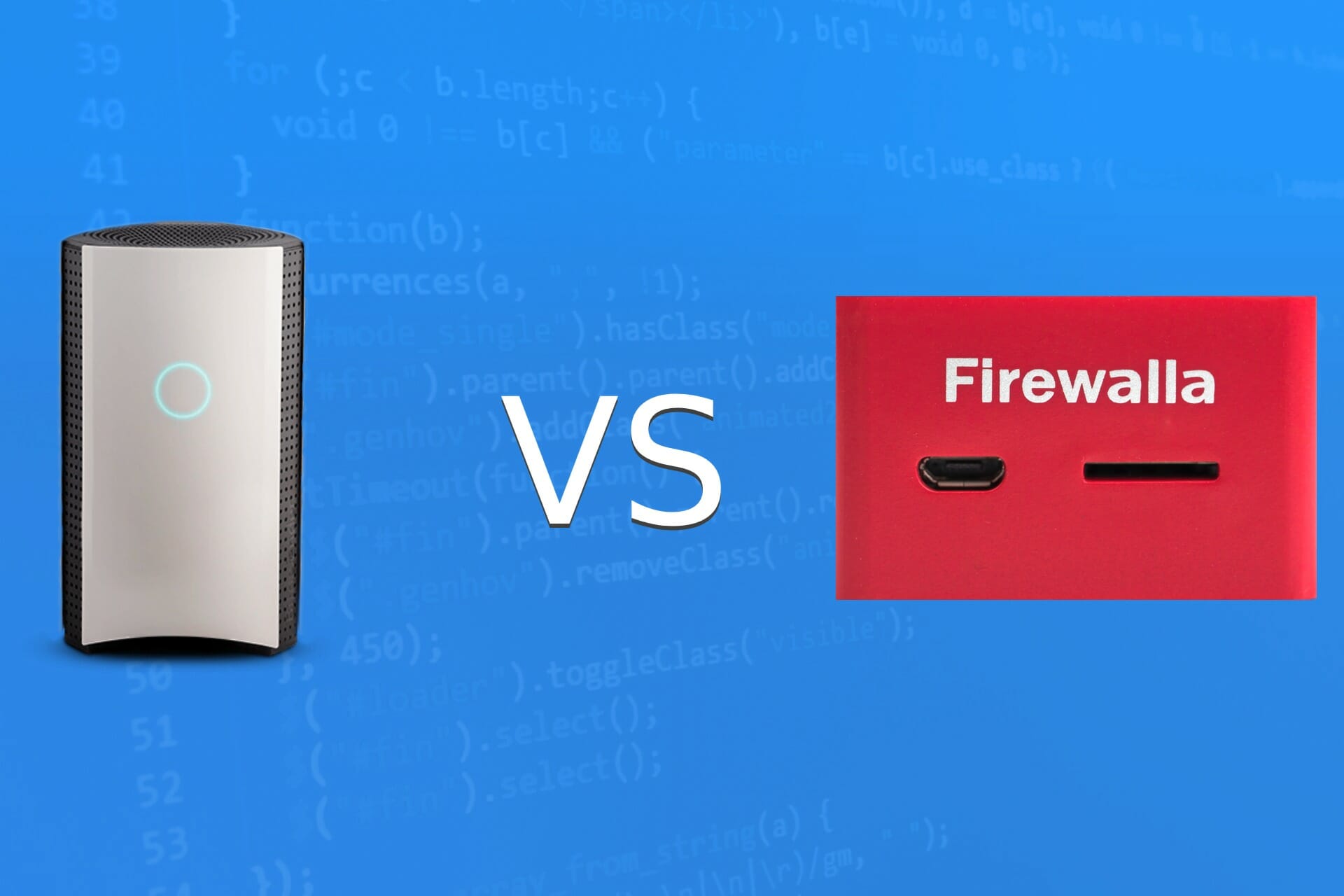
Firewalla vs Bitdefender Box: Pick the best home firewall

Firewall is a must-have on any PC since it will prevent unauthorized applications from accessing the Internet and sending data without your knowledge.

However, what if you want to protect your entire network? If that’s the case, you’ll need to rely on your router or any other device that can block network traffic.

When choosing a firewall device for a home network, most users can’t decide between Bitdefender Box and Firewalla Red.

Both have their own advantages and drawbacks, and in today’s guide, we’re going to compare both Firewalla and Bitdefender Box and help you choose the best device for your needs.

Firewalla vs Bitdefender Box, what’s the best home firewall?

How does Bitdefender Box work?

Note icon NOTE
At the time of writing, it seems that Bitdefender BOX isn’t currently available in stock, and we found no information about its future availability.

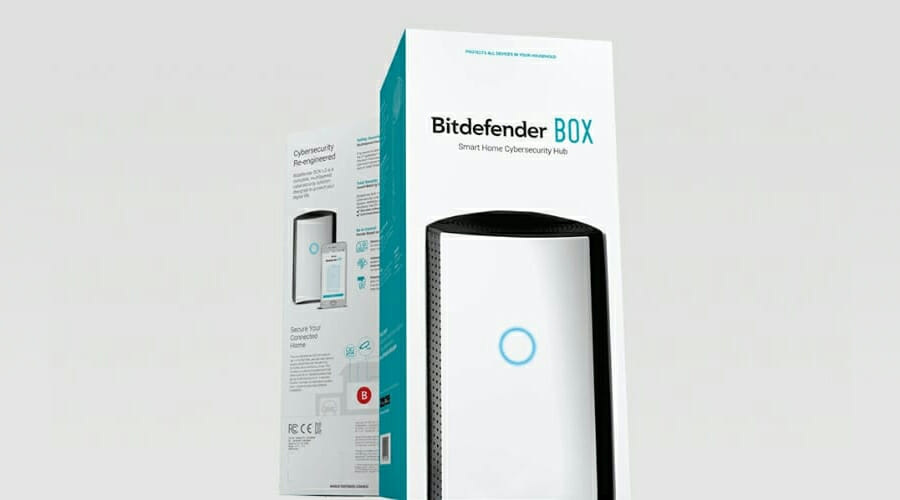
Bitdefender Box is a hardware firewall for your home that protects all your network devices from online threats including malware, phishing attacks, and identity theft.

Using the dedicated mobile app, you can configure the firewall and monitor your network remotely. Thanks to the parental control feature, you can monitor your children’s online behavior or block certain content or websites.

You can also limit their Internet access so they won’t spend too much time online. For extra security, there’s even a VPN included, so you can browse the web privately in your home network.

Bitdefender Box

Bitdefender Box

Do not hesitate to protect your home network against all online threats with Bitdefender Box.
Check priceVisit website

How does Firewalla work?

Firewalla is a compact hardware firewall for your home that will protect your network against cyberattacks and provide you with advanced network insights.

The device will constantly monitor your network for security vulnerabilities and any abnormal behavior in the network. Firewalla works as an IPS, IDS, and firewall thus ensuring your online safety.

With the dedicated app and parental controls feature, you can easily block harmful content or specific activities on any device. If needed, you may also limit Internet access completely for any device.

Firewalla can even work as a VPN server, and protect your entire network. Feel free to use Firewalla VPN outside of your home too, which is a major plus.

Last but not least is the built-in Adblock feature, so you won’t ever encounter any ads on your home network devices.

  • Offers up to 100Mbps bandwidth
  • VPN server
  • Built-in adblocker
  • Parental control
  • Can block all malicious threats
  • Can’t replace a router

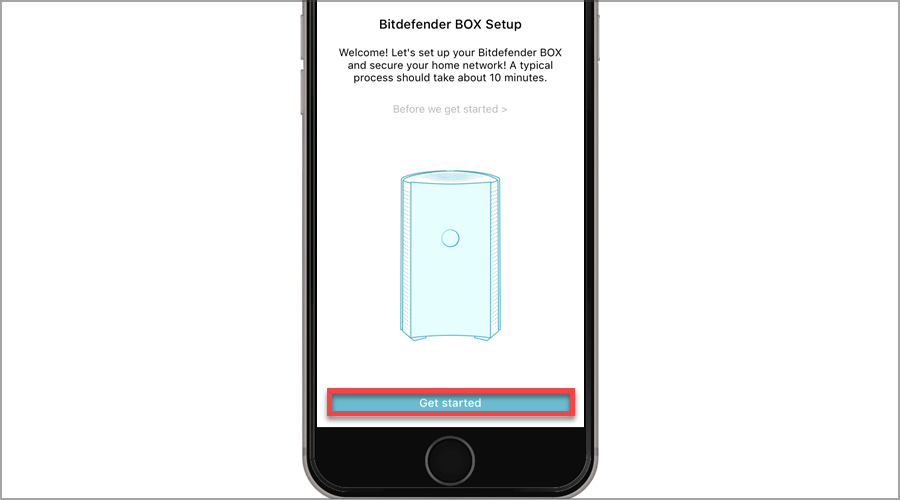
How to setup Bitdefender Box?

  1. Open the dedicated Bitdefender Central app, tap on More, and choose Set up Bitdefender Box.
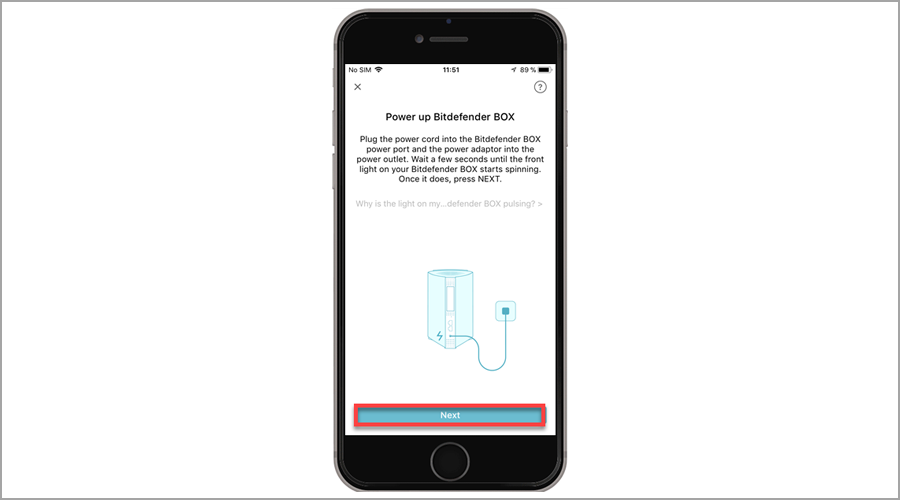
  2. Tap on Start Setup and connect the Bitdefender Box to the power outlet.
  3. When the light on the device starts spinning, tap Next on your phone.
  4. Disconnect your ISP modem from the power outlet.
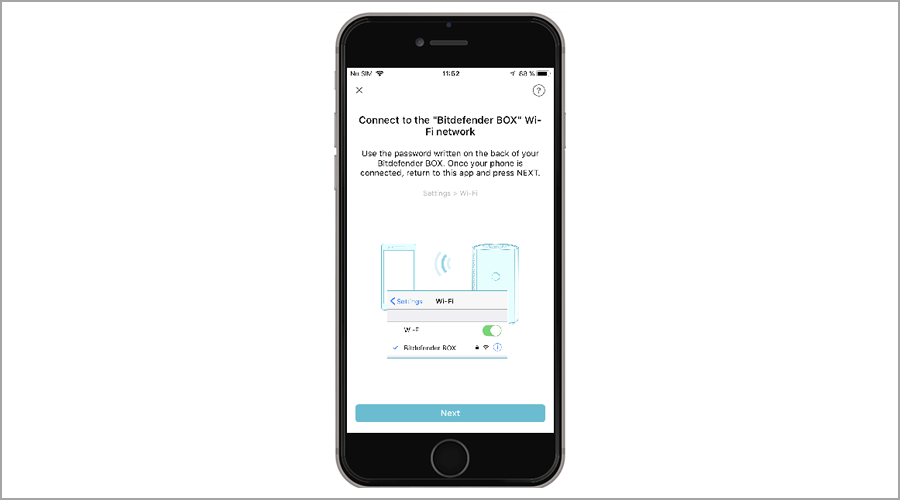
  5. Connect to the Bitdefender Box Wi-Fi network on your phone.
  6. Enter the password that is printed on the device.
  7. Connect your router to the power outlet and tap on Next.
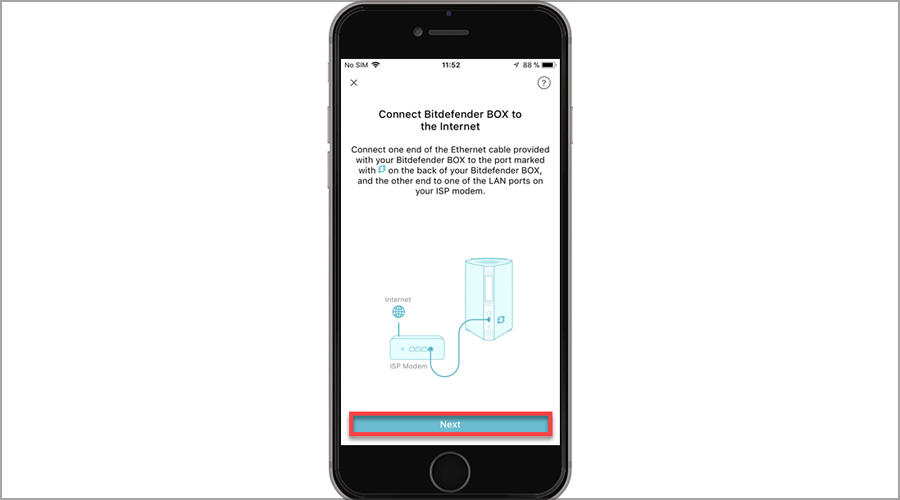
  8. Use the Ethernet cable and connect it to a port that has a circle icon with two arrows on Bitdefender Box.
  9. Connect the other end of the cable to your modem. Now tap Next.
  10. When Bitdefender Box connects to the Internet, tap on Finalize Setup.
  11. Finally, when the front light stops spinning your device is ready to use.

Depending on the type of router that you use, you’ll need to choose the appropriate option in the app and follow the instructions on the screen. Once you’re done, you need to disconnect your router.

Setting up Bitdefender Box is simple since the dedicated app will guide you through the setup process.

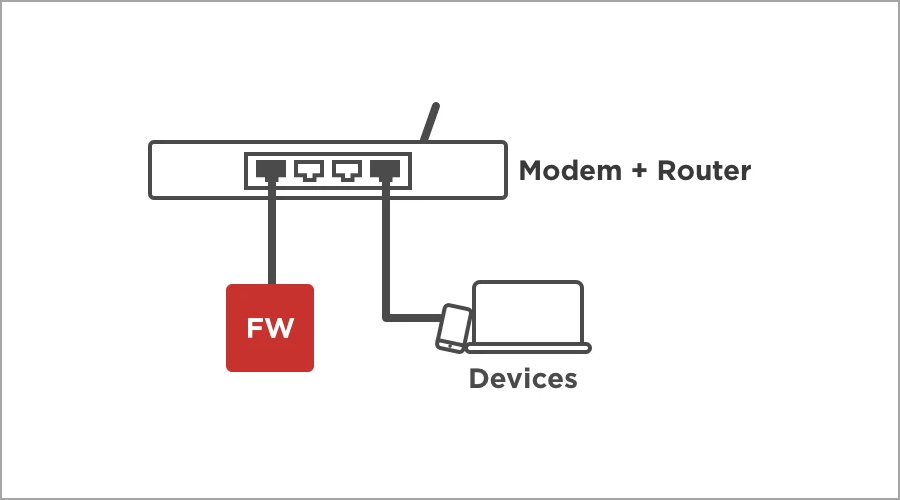
The setup process does get a bit complicated if you’re using a personal Wi-Fi router since you have to configure it to work in AP or Bridge Mode.

How to setup Firewalla?

  1. Connect Firewalla to the power source and to your router.
  2. Wait for about 5 minutes for Firewalla to boot and update.
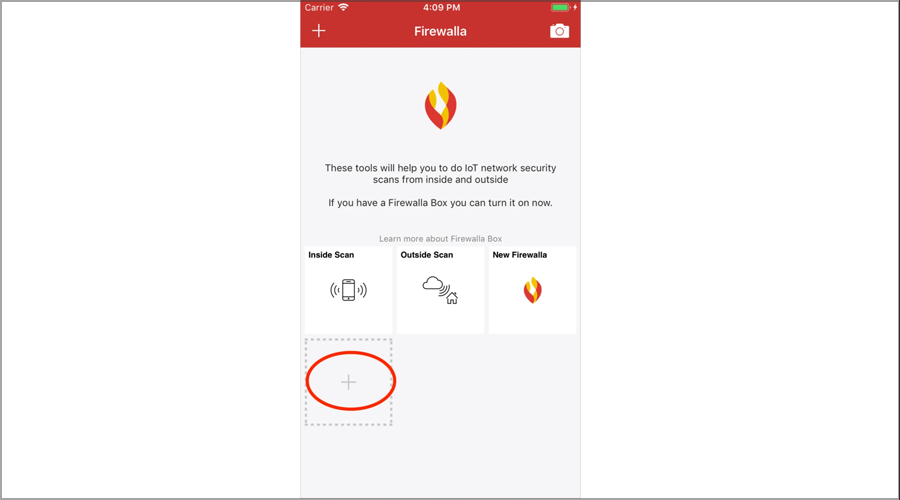
  3. Start the Firewalla app on your phone and tap the + icon.
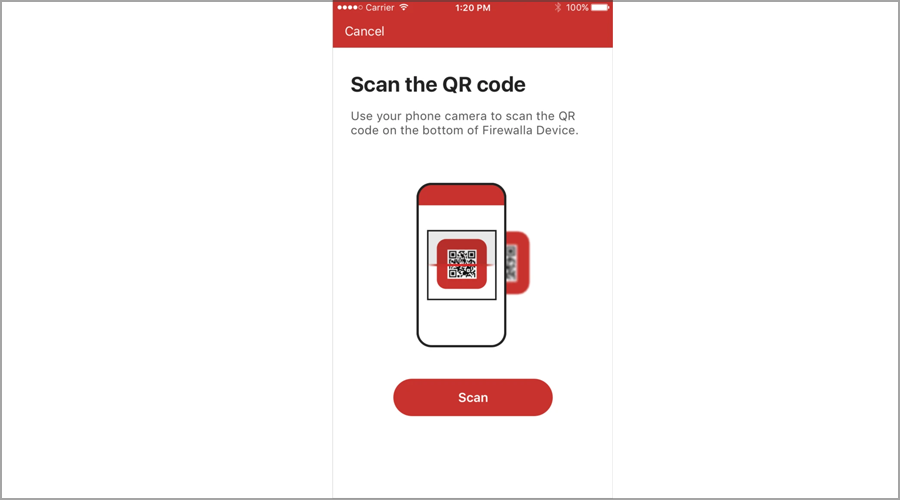
  4. Scan the QR code on the box and tap on Continue.
  5. Firewalla will now automatically set up everything. This can take few minutes, so be patient.
  6. And that’s it, Firewalla is paired and ready to use.

Pairing up Firewalla is incredibly simple, and since it’s not designed to replace your router, the pairing process is straightforward, and you don’t have to disconnect any network hardware.

Is Bitdefender Box worth it?

Bitdefender Box offers great features, and it’s relatively simple to set up. The product is subscription-based, and although the first year is free, you’ll need to renew your license to continue using it.

However, the license also includes Bitdefender Total Security software that you can install on an unlimited number of computers and mobile devices.

Is Firewalla worth the money?

Firewalla doesn’t come with any monthly fees, and it’s incredibly simple to set up, so it’s definitely worth your time and money.

There are several versions of Firewalla available, and the most affordable one, Firewalla Red, is limited to 100Mb bandwidth.

If you need higher Internet speed up to 500Mbps, region blocking, site-to-site VPN, and Web access, you can always get the Firewalla Blue model.

For advanced users, there’s Firewalla Gold that can replace your router while offering speeds up to 1Gbps, multi-WAN, and other advanced features.

Firewalla or Bitdefender Box, what is the better choice for you?

Firewalla:

Firewalla is more affordable, easier to use, and to set up, plus it offers an ad-blocking feature which is always welcome. It doesn’t have any fees or subscriptions which is a major plus.

However, only the high-end model can work as a router replacement, so if you don’t want to replace your router, Firewalla would be our pick.

Pros
Easy to set up
Built-in ad blocking
No subscription fees
Will protect your home network
Cons
Doesn't work as router
Entry models lack certain advanced features

Bitdefender Box:

Bitdefender Box has been present for a while, and while it can work as a router replacement, it comes with a yearly fee, and this isn’t something that many users are looking for.

However, that fee includes an antivirus solution for an unlimited number of devices, which can be a plus.

Pros
Can replace your router
Comes with software antivirus
Protection for entire home network
Cons
Has a subscription fee
No adblocker

If we had to pick one, we’d go for Firewalla because it’s simpler to use, and it offers almost the same features without any additional fees, and it’s easier to set up and manage.

A hardware firewall is a great solution since it offers protection for your entire network, but it does require a bit of setup and technical knowledge.

This is why many users are opting in for software firewall solutions, since they are easier to manage, but they don’t offer the same level of protection.

What is the choice for your network? Let us know in the comments below.

New Dev Channel build for Windows 11 tackles taskbar and Start menu issues

Yes, you guessed it! Microsoft is back with another Windows 11 Insider Preview build for the Dev Channel.

Build 22509 features a handful of notable new changes and improvements that are the result of direct feedback from Insiders testing Windows 11 since June.

The tech giant is finally adding a more adaptive layout to the Start menu and bringing back the ability to display the clock on secondary monitors.

So, a lot to look forward to, and we are about to take a closer look at these changes and they will impact the new OS.

Microsoft introduces new ways to customize the Start menu

Needless to say that some of the most criticized aspects of Windows 11 were the taskbar and the Start, with their lack of functionality.

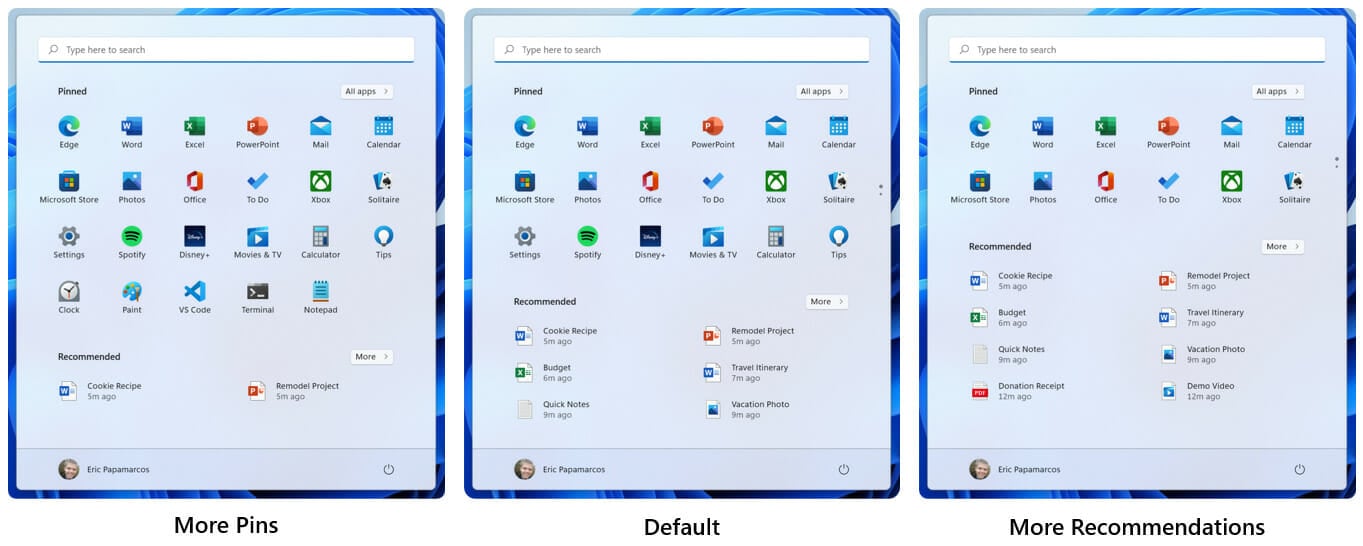
However, with this new build, that’s all going to change. Users can now configure the Start menu to show either more pinned apps or more recent documents by increasing the size of each area of the menu.

That means you can right-click on Start to quickly access Start settings and choose the More pins or More recommendations layout option to show an extra row of either pins or recommendations, respectively.

Another notable change is that, when a secondary monitor is connected, your clock and date will now also be displayed on the taskbars of the secondary monitor or monitors for glanceability.

Microsoft only just started to roll out this change, so it isn’t available to all Insiders just yet. Other changes and improvements brought to Windows 11 with this build also include:

  • For apps that send notifications for calls, reminders, or alarms that leverage Windows notifications in the OS, 3 high priority notifications will now be shown as stacked and shown at the same time. This means at any given time, you might see up to 4 notifications at the same time – 3 high priority notifications and one normal priority notification. [We are beginning to roll this change out, so it isn’t available to all Insiders just yet as we plan to monitor feedback and see how it lands before pushing it out to everyone.]
  • As part of ongoing effort to bring over settings from Control Panel into the Settings app:
    • Moved the advanced sharing settings (such as Network discovery, File and printer sharing, and public folder sharing) to a new page in Settings app under Advanced Network Settings.
    • Made some updates to the device specific pages under Printers & Scanners in Settings to show more information about your printer or scanner directly in Settings when available.
    • Some of the entry points for network and devices settings in Control Panel will now redirect to the corresponding pages in Settings.
  • Added a new option to the Installed Apps page in Settings to sort the list from Name (Z to A), and accordingly, updated the previous “Alphabetically” option to now be called Name (A to Z).
  • The system will remember if you turn on Bluetooth or Wi-Fi while in airplane mode. Next time you use airplane mode, the radios will reflect your preference and stay on to make it easier to keep listening to headphones and remain connected while travelling.
  • Windows Sandbox now supports reboot inside of its virtualized environment (for example, if you were to click the Restart option under the Power button in Start).

Fixes

Of course, we had to get to the Fixes section, where we learn about the fact that the Start, Search, Task View, Widgets, and Chat icons in the Taskbar should no longer be unexpectedly large when the system scaling is set to 125%.

This isn’t all that Microsoft took care of via this release. The rest of the fixes are as follows:

[Taskbar]

  • Pressing the Windows key plus (the number corresponding to an app icon’s position in the Taskbar) should cycle now through the app’s windows if you repeatedly press the number instead of stopping at the last window.
  • When Narrator focus is set to the Task View button and the Desktops flyout appears, Narrator will now let you know information about the Desktops.
  • Fixed an explorer.exe crash some Insiders were experiencing in recent flights related to updating badges in the Taskbar.

[Input]

  • Handwriting should be working again now when the language is set to Chinese.
  • Mitigated an issue related to the mouse that was causing some Insiders to experience a bugcheck during hibernation sometimes in recent flights (making it appear as if the computer had rebooted).
  • Updated the Chinese Simplified IME candidates to be center aligned with the candidate window height has been customized.
  • Fixed touch keyboard invocation in PowerShell so it should work now.

[Windowing]

  • Hovering your mouse back and forth between different desktops in Task View will no longer result in the displayed thumbnails and content area unexpectedly shrinking.
  • CompactOverlay should be working again in this build (aka the option that some apps use to create a small always on top window).
  • Fixed a race condition that was causing explorer.exe to crash sometimes when closing a snap group of 3 or more windows in Task View.
  • Removed the unexpected tilt animation when clicking down on a corner of the New Desktop button.
  • Made a tweak to address an underlying issue that was causing the context menu to animation down to the mouse instead of away from the mouse when right clicking a Desktop in Task View.
  • Fixed a high hitting DWM crash in recent flights.

[Settings]

  • Fixed some overlapping text for certain languages on the Installed Apps page in Settings.
  • Clicking the Uninstall button when using the Installed Apps page in grid view will now show a confirmation dialog.
  • Changed the new ms-settings:installed-apps URI to now be ms-settings:appsfeatures, to address scenarios where existing links expect the latter to lead to the list of installed apps, for example, when selecting the App Settings option after right clicking a UWP app in Start.

[Other]

  • Fixed an issue that was causing some Insiders to see error 0x8007001f when trying to upgrade to recent Dev Channel builds.
  • Fixed an issue where some PCs are unable to install new builds, or other updates with an error code 0x80070002.
  • Fixed an issue causing some devices to roll back with error code 0xc1900101-0x4001c when installing new builds.
  • Did some work to help address an issue leading to the Wi-Fi connection getting lost after resuming from sleep.
Note icon NOTE
Some fixes noted here in Insider Preview builds from the active development branch may make their way into the servicing updates for the released version of Windows 11 that became generally available on October 5th.

Known issues

[General]

  • Users updating from Builds 22000.xxx, or earlier, to newer Dev Channel builds using the latest Dev Channel ISO, may receive the following warning message: The build you are trying to install is Flight Signed. To continue installing, enable flight signing. If you receive this message, press the Enable button, reboot the PC, and retry the update.

[Start]

  • In some cases, you might be unable to enter text when using Search from Start or the Taskbar. If you experience the issue, press WIN + R on the keyboard to launch the Run dialog box, then close it.

[Taskbar]

  • The Taskbar will sometimes flicker when switching input methods.

[Search]

  • After clicking the Search icon on the Taskbar, the Search panel may not open. If this occurs, restart the “Windows Explorer” process, and open the search panel again.

The Redmond tech company has also been working on a collection of improvements to web browsing with Microsoft Edge and Narrator.

Specifically, typing in edit fields should now be faster, when navigating around the web more useful information is provided, and lastly, you will have a more consistent navigation experience with Narrator.

What is the most notable change to Widows 11 in your opinion? Share your thoughts with us in the comments section below.

FIX: Windows can’t find one of the files in this theme

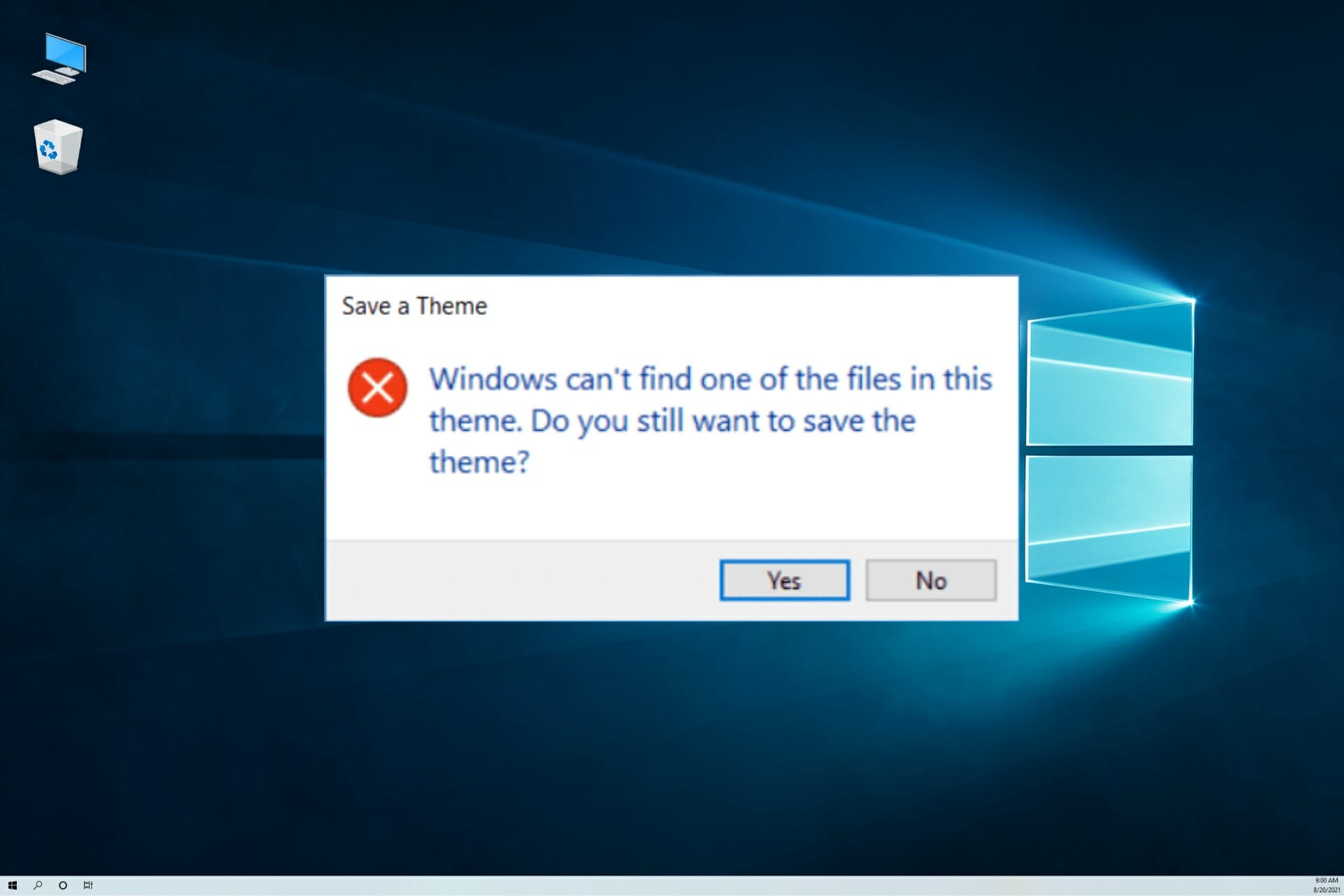
Some users have stated that an annoying Save a Theme error message pops up on their Windows desktops.

The full error message states: Windows can’t find one of the files in this theme. Do you still want to save the theme?

That error message pops up randomly and is mainly due to missing theme files and elements.

What are the causes of this Windows theme error?

A theme can contain lots of elements like an image, an icon, a cursor, or even a sound file and if any of them are missing, the system won’t be able to identify it properly.

The error message is produced by a service called SettingSyncHost. By default, the Syncing Themes option is activated, and when this process is trying to synchronize your theme to your Microsoft account, it fails.

One possibility is that you downloaded a third-party theme that has problematic elements or that points to non-existent components.

There’s also the chance you added some elements yourself that are not compatible with the theme or you deleted some files from the theme.

Knowing about the causes that trigger this problem, let’s look at the resolutions for the Save a Theme error.

What can I do if Windows can’t find one of the theme files?

1. Change the theme

  1. Right-click the desktop and select the Personalize option.
  2. Then, select Themes on the left of the window, and choose another theme from there.

Alternatively, you can click Get more themes in Microsoft Store to download a new theme and then add that one to the desktop. Luckily, we have a list that includes some of the best Windows 10 themes.

2. Delete the theme and install it again

  1. Right-click the Windows 10 desktop to select Personalize.
  2. Click Themes on the left of the Settings window.
  3. You can’t delete the active (currently selected) theme. Thus, you’ll need to select an alternative theme first; and then right-click the theme you need to reinstall and select Delete.
  4. If you got your theme from the Microsoft Store site, click Get more themes in Microsoft Store.
  5. Then search for your theme there, select it, and click Get.
  6. Click Open to add the theme to the theme menu. Then you can select to apply the theme from there.
  7. If your deleted theme came from another website, open the site you originally got it from to download it again.

If you prefer to retain your current theme, try deleting and reinstalling it instead. Downloading the theme again should ensure there are no missing elements.

It’s not very complicated but if you don’t know, learn how to install third-party themes on Windows 10 that will help you do that quickly.

3. Switch the Theme Background setting to Picture

  1. Right-click the desktop and select Personalize.
  2. Click on Background from the left pane.
  3. Then, select Picture on the Background drop-down menu, and click the Browse button to select a wallpaper.
  4. Now select a picture from your storage drive and select Choose picture.
  5. The image will be added to the backgrounds list. The only thing left to do is to select it and to choose a fit option below.

If the theme is a slideshow, and most are, switching it to one background might fix the Save a Theme error.

4. Disable your custom screen saver

  1. Right-click on an empty space on your desktop and select Personalize.
  2. Select Lock screen from the left pane, then click on the Screen saver settings option from the right.
  3. Click the drop-down menu from the Screen saver option and select None, then hit the Apply and OK buttons to accept the settings.

This error can also occur because you probably installed a screensaver that is not compatible with your theme and removing it may solve the problem quickly.

5. Switch off the Theme Sync setting

  1. Enter sync your settings in Cortana’s search box and click the option from the results.
  2. Toggle the Theme setting to off.
  3. Alternatively, you can toggle Sync settings off to turn off all the synchronization.
  4. Then restart Windows 10.

Windows 10 includes a Theme sync setting that’s selected by default for those signed in with Microsoft accounts.

That option synchronizes (or matches) the desktop theme across all the Windows 10 devices a user might utilize with the same Microsoft account.

Users have confirmed that switching the Theme sync option off fixes the Save a Theme error. You can toggle that setting off as described above.

Some readers have also confirmed that toggling the sync option off and then back on can also fix the issue. As such, you might not need to leave syncing off.

So you may try toggling the theme syncing back on after restarting Windows to keep the device synchronization.

This problem can also appear because one of the images in the theme was deleted or it was moved to another location on your PC.

If you know what image is missing, search it by using the File Manager app. However, there are slim chances you will remember its exact name.

Those resolutions will help you fix the Save a Theme error message in Windows 10. We also have a huge list of over 160 best free Windows 10 themes to download and change the old one.

Do you have another solution for this issue? If so, feel free to share it below.

Hextech Mayhem: A League of Legends Story game review

Releasing beside Ruined King, Riot Forge’s second somewhat experimental collaboration seems a slightly odd choice. Compared to the other game’s semi-serious tone and deep, involving RPG mechanics, Hextech Mayhem: A League of Legends Story feels a little incongruous.

It’s pretty far removed from the ghostly invasion of Bilgewater, instead of focusing on the rather upmarket, steampunk-flavored city of Piltover – coincidentally the setting of Riot and Netflix’s incredible Arcane TV series.

It also has nothing to do with role-playing games, turn-based or otherwise. Rather, Hextech Mayhem follows the exploits of Ziggs, a maniac explosive expert intent on reducing Piltover to a pile of smoldering rubble for kicks and giggles. Attempting to stop him is League Champion Professor Heimerdinger (also a prominent character in Arcane, by the way), who keeps popping up to try to talk some sense into the little pyromaniac.

Master blaster

Hextech Mayhem takes the form of an endless runner/rhythm game hybrid developed by Choice Provisions, no less. The team behind the Bit. Trip Runner series is a solid get here as Airship Syndicate was for Ruined King. Riot have spared no expense, it seems – and it has paid off, too.

While Ziggs moves forward, his other commands are down to the player. It’s a 3-button game best played on a controller and with headphones strapped on the bonce (as the game itself helpfully suggests). While that sounds remarkably straightforward, it’s anything but. Choice Provisions do an awful lot with those three buttons, and there’s a surprising amount to get to grips with.

For example, A causes you to jump, which is easy, right? Just press A when Ziggs is level with the green prompt. Hitting down on the D-pad will make Ziggs slam down into the ground, while X tosses a bomb. All very, very simple. But in practice, it’s anything but. The prompts come fast, and you’re timing needs to be nigh on perfect. Some you can afford to miss, while others will cause you to his a hazard. Walls, traps, Piltover Enforcers, explosive barrels – these all stand in your way and must be circumnavigated safely and swiftly.

Bomb-voyage!

Later, Hextech Mayhem mixes in a few other mechanics, such as Super Bomb Jumps, where you’ll need to hold down the A button to charge your jump. Not only this but there are visual prompts everywhere that you can utilize if your timing is right. A vent, for example, can be ground-slammed, while tossing bombs at enforcers or slamming through chests can reward you with even more golden cogs, the currency with which you open up levels. There are also collectibles to be found, including new skins for Ziggs.

More than this, though, the extra actions you perform all feed directly into the Mayhem Meter, which acts as a score modifier and affects the overall rating for each of the 30-plus levels. Boss fights (three in total) break up the action and do things like change the color of your action prompts, forcing you to intuit on the fly. Even simply following the instructions can be tricky in the later stages, and so this can really push you.

Once or twice, though, I found the button presses just didn’t register correctly. It wasn’t a case of me missing a prompt, either, as it would be during a sequence of buttons that I was confidently nailing that one would simply fail to register.

‘Splosion fan

I’d also argue that the prompts command your focus so much that you simply won’t see most of what’s actually happening on-screen. Ziggs will be leaping, bombs will be bursting and enforcers will be flying all over the place, but you’ll be hard-pressed to hit every prompt and still keep up with where Ziggs even is on-screen half the time.

There’s just an awful lot to like here for a game that’s ostensibly about jumping over obstacles and blowing things up. It has an almost retro feel, an old-school charm that comes through in the amazing soundtrack and over-the-top visuals. It’s bright and colorful and zany, with Ziggs embodying that early-Noughties charm that games have all but left behind. Even the cutscenes, which only feature Ziggs and Heimerdinger, have a distinct air of Crash Bandicoot about them.

Choice Provisions have taken their own simple concept and injected it with its own personality. The League of Legends dome that covers Hextech Mayhem casts its shadow, no doubt about it, but as with Ruined King – and even Arcane – you don’t need prior knowledge of the greater franchise to enjoy the content. It’s just a ton of fun to blow things up.

Completion and Achievements

Being primarily made for PC and Nintendo Switch, Hextech Mayhem: A League of Legends Story doesn’t have a suite of trophies or achievements to unlock. There are nine skins to find for Ziggs, which requires the collection of a special white cog from each level. Finding them will take a considerable effort and a lot of exploration – you’ll also need to deviate from the set rhythm somewhat, and hit those hidden prompts.

You could blast through your first playthrough of Hextech Mayhem in just a few hours, but then you’d be missing out on a lot of stuff. With 36 stages, including 3 boss fights, all the hidden cogs, and a secondary, maximum Mayhem mode unlocked when you finish the game, there’s a surprising amount of content.

Final thoughts on Hextech Mayhem: A League of Legends Story

Pros
Colourful and zany art style
Ziggs and Heimerdinger are great
Lots of replayability
Cons
Button presses occasionally fail to register
The screen gets super busy

Final Score: 4.5/5

When held alongside Ruined King it would be easy to regard Hextech Mayhem as a piece of throwaway fun. But as with the RPG offering, Riot Forge has done a fantastic job of selecting the right developer for the job. Choice Provisions are arguably the masters of the endless runner, and this League of Legends-themed adventure is more proof of that if you needed it.

A simple concept in almost every way, Hextech Mayhem is given greater legs by its smattering of collectibles and easy replayability, making it a superb way to kill a few hours whether you’re a fan of the grander franchise or completely new to it.

Hextech Mayhem: A League of Legends Story is available on PC via Steam and the Epic Store, and Nintendo Switch.

*Disclaimer: Review access provided by the publisher.

7 Best Bitdefender Vault Alternatives To Protect Your Privacy

As you already know, as of July 2020 File Vaults are no longer part of Bitdefender products, alongside Safe files, Startup Optimizer, Disk Cleanup, and Rescue CD.

This nifty feature provided by the antivirus permitted you to create encrypted, password-protected logical drives on your PC where you could securely save your confidential and sensitive files.

From big companies to any PC user that wants to protect his device against various users or even hackers, using a file encryption tool has become a necessity, so we’ve compiled a list of solutions that reviewers voted as the best Bitdefender Vault alternatives.

How do I know what encryption software suits me best?

With the development of technology and software, the number of threats we may encounter is continuously increasing, so consumers are always demanding more.

For some people, perhaps it’s essential to have an open-source solution. For others, it’s more important that files can be shared with people who do not use encryption software. 

Some appreciate the work in the vault, while others get along better with encryption software designed for cloud storage. 

One person would like to be able to take photos in the encrypted app, the next one not so much.

When looking for encryption software, it very much depends on if you own a company and you want to keep privileged information confidential or just care about the security of your own PC.

The encryption solutions can be quite similar, but there are small, relevant differences that will make you go one way or another.

What are the best Bitdefender Vault alternatives?

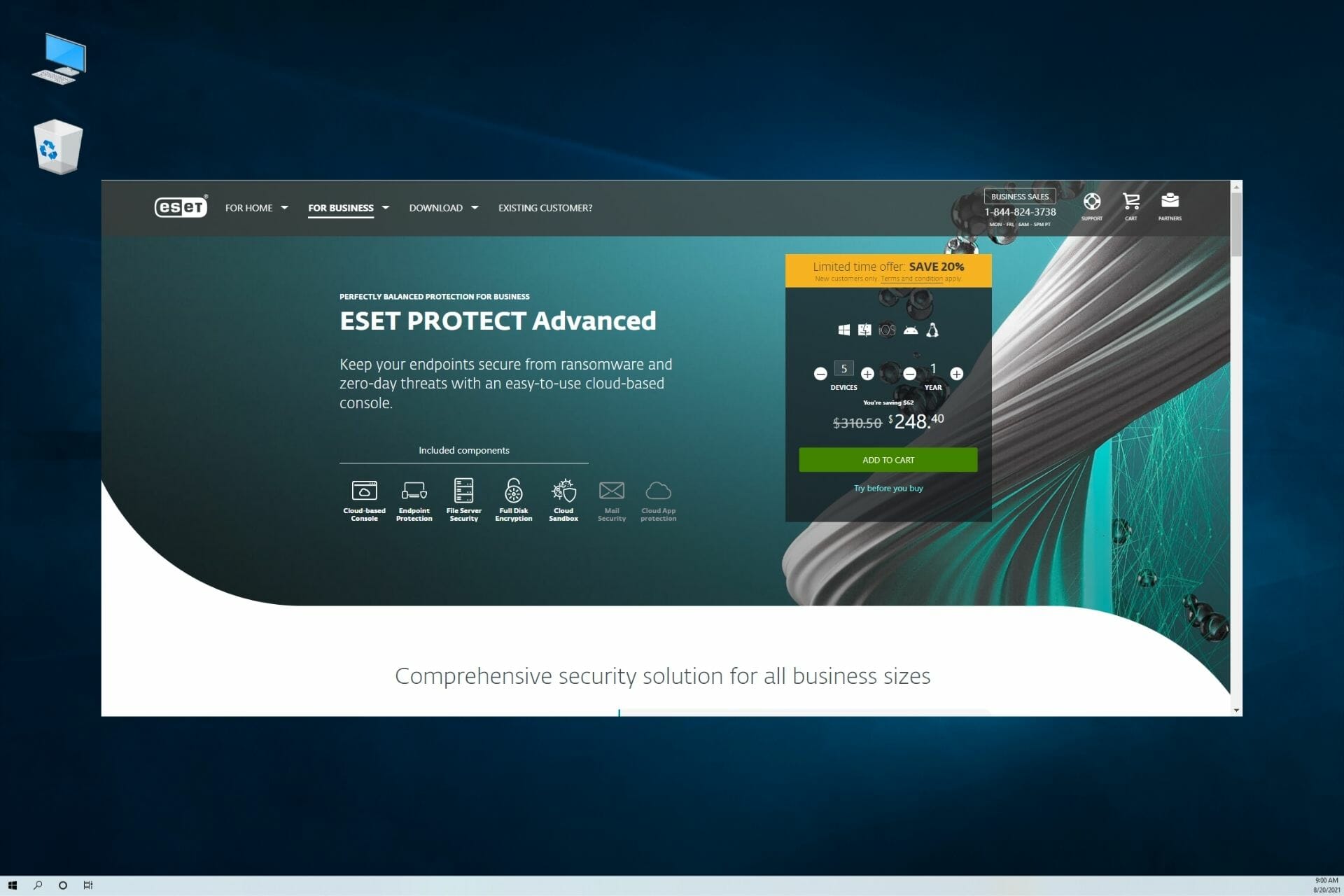
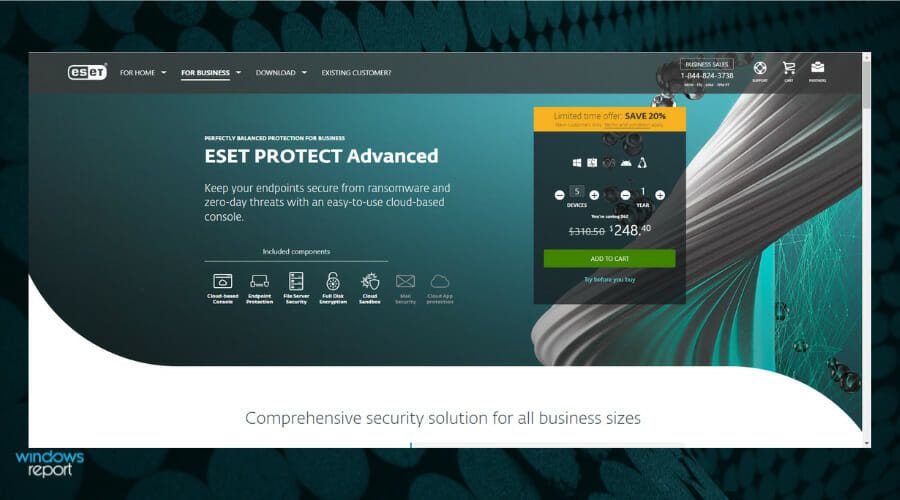
ESET PROTECT Advanced

ESET is one of the top contenders among antivirus providers that for over 30 years has developed industry-leading IT security software and services to protect businesses and consumers worldwide from any kind of digital threats.

In an always-changing industry like digital security, this kind of longevity is really worth something.

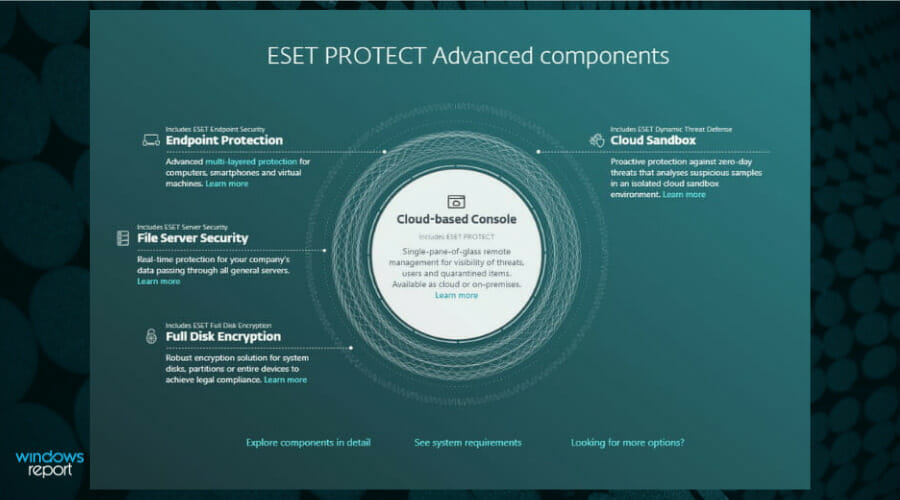
But besides the multilayer protection, ESET PROTECT Advanced is a cloud-based, multifunctional remote network security management program that supports full disk encryption, so it will protect your sensitive information from data breaches or theft.

Basically, with ESET you get the best of both worlds: Antivirus and Full Disk Encryption. Compatible with both Windows and Mac OS, you can’t get this kind of protection elsewhere.

Here are some of its best features:

  • Protects against ransomware
  • Blocks targeted attacks
  • Prevents data breaches
  • Stops fileless attacks
  • Detects advanced persistent threats
  • Intuitive interface
  • Available to use on multiple servers
  • Manages encryption on Windows and Mac OS devices
  • Encrypts system disks, partitions, or entire drives
  • Deploys, activates, and encrypts devices in a single action

ESET PROTECT Advanced

Complete and advanced encryption solution for system disks, partitions, or entire devices!
Check price Visit website

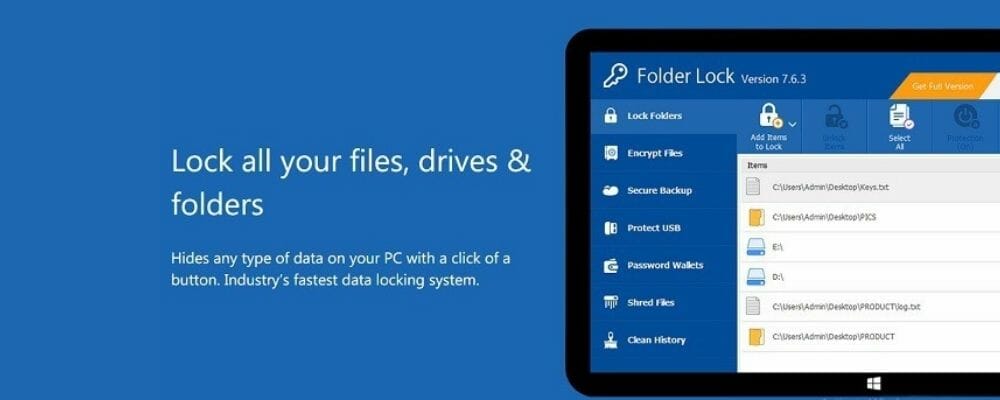
Folder Lock

Best for Encryption Enthusiasts, Folder Lock can lock access to files for quick, easy protection, and also keep them in encrypted lockers for serious protection. It combines a wide range of features with a bright, easy-to-use interface.

Aside from protecting assets on company computers, it is also very important to add protection to any device that stores vital data.

For instance, the smartphones of employees need to be protected because they store vital company data such as emails and other company documents. Folder Lock is good for adding encryption to mobile devices.

The app also protects photos or videos, personal files, contacts, wallet cards, and audio recordings stored in your handset.

Folder Lock gives you the option to enable a decoy password, log unauthorized login attempts, hacker deterrents, back up all your passwords and get notifications whenever there is a potential brute-force attack.

Let’s see what some of its best features are:

  • Safely and effectively encrypts any files
  • Remote server options
  • Compression
  • Continuous data backup
  • Local server options
  • Secure data storage
  • Backup protocol
  • Multiple systems support
  • Hidden security features
  • Free to download
  • Compatible with Windows, Android for mobile, and Linux

Folder Lock

The software to use to make your data inaccessible to anyone but you!
Check price Visit website

NordLocker

NordLocker has become very popular since its release in 2019 due to the fact that it’s a user-friendly, easy-to-use file encryption tool that secures your data with powerful end-to-end encryption.

You can take advantage of it to store all your data quickly and easily, just like in a small safe directly on your hard drive, but also in the cloud.

As far as encryption is concerned, the tool is really unbeatable. On the one hand, the files themselves are encrypted with AES-GCM, while the names of the files are encrypted separately, with EME. 

Your encrypted files are ultimately protected twice: once with your user data, but also with the so-called master key. For this, the NordLocker makers used the hyped XSalsa20-Poly1305 MAC algorithm, which has been tested by many encryption experts and researchers.

It offers coverage for almost any type of information, from photos, word files, and videos to banking details, accounts, and secret company documents.

Let’s see what are some of its best features:

  • Offers backup and recovery
  • 24/7 live support
  • Compatible with Windows, Mac Os, and Linux
  • Advanced encryption methods
  • Supports a wide variety of files for protection
  • Easy-to-use
  • Includes cloud data syncing for the protection of your online files as well
  • Allows safe file sharing
  • Comes with a 5 GB free trial
  • Long-term plans are extremely affordable

NordLocker

Modern, powerful cryptosystem that runs fast, so securing your data won’t burn your productive time.

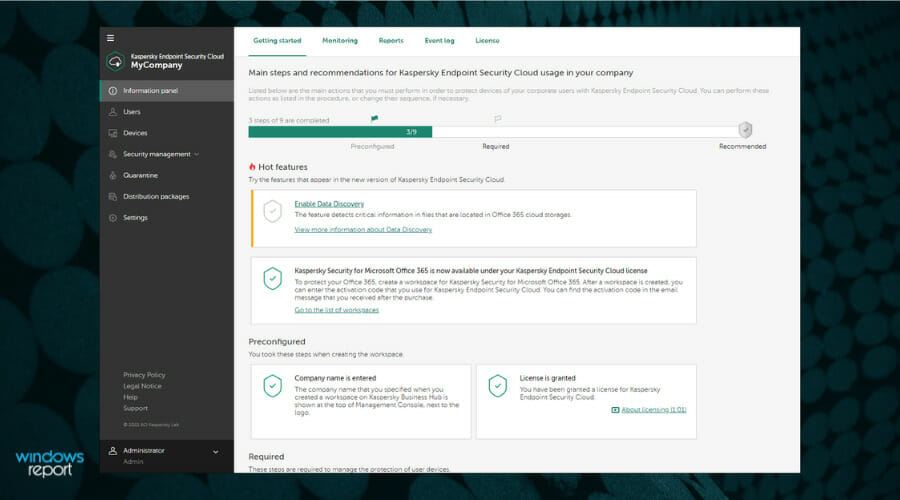
Kaspersky Endpoint Security

Since its establishment in 1997, Kaspersky Endpoint Security has been protecting users from malicious programs like viruses, worms, trojans, hackers, spam, and any other forms of intrusion.

It operates behind the scenes with smart scanning and quick, regular updates, while proactively shielding you against established and emerging threats to the Internet.

Kaspersky Endpoint Security for Business provides flexible security for mixed environments, incorporating a full stack of building blocks to deliver automated threat defense and systems hardening.

Besides its strong web controls, encryption management, and patch management, Kaspersky also offers mobile protection with anti-virus, web protection, password protection, and application controls.

Have a look at some of its best features:

  • Detects new, emerging, and unknown threats
  • Identifies suspicious websites and phishing websites
  • Automatic download and installation features
  • Minimal impact on PC performance for a range of usage scenarios
  • Optimized antivirus databases
  • Easy-to-use interface
  • Antivirus and Encryption
  • Application security 
  • Reporting/analysis
  • Real-time monitoring
  • Device management
  • Correction Management
  • Management guidelines
  • Vulnerability Scanning

Kaspersky

Protects your data against the latest security threats and includes real-time monitoring!
Check price Visit website

Sophos SafeGuard Encryption

Sophos SafeGuard Encryption is powerful encryption software for laptops that provides strong encryption of the entire hard disk according to internationally recognized standards.

Simple to install and use, Sophos SafeGuard Encryption doesn’t require any complex server or network infrastructure.

The app provides data protection across multiple platforms and devices, and thanks to its high-performance and transparent encryption in the background, offers no disruption of the usual work processes.

Although the app is not free, it does come with an online demo where you can explore all their solutions, including endpoint, email, mobile, and server protection, and experience the efficiency of managing all your cybersecurity from a single platform.

Some of its best features:

  • Secures data without slowing down your workflow
  • Without end-user involvement, the software can be deployed onto endpoints and with Intel’s AES-NI instruction set, encryption can be accelerated
  • Encryption of hard disks with Microsoft’s BitLocker, Apple’s FileVault 2, and Opal self-encrypting drives
  • The authentication system of the software supports cryptographic and biometric tokens
  • Multiple users can share encrypted computers without sharing passwords
  • Quick password recovery thanks to a challenge/response system accessed over the phone or via a web portal

Sophos SafeGuard Encryption

Complete encryption and data protection solution for PCs, networks, and the cloud!
Free trial Visit website

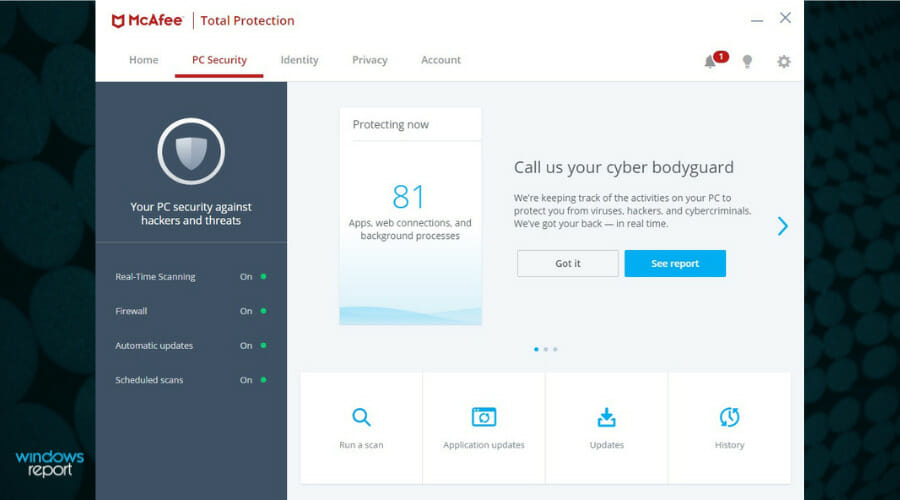
McAfee Complete Data Protection Advanced

Multi-layered identity protection platform that includes premium antivirus, safe browsing, ID theft protection, and secure VPN.

McAfee Complete Data Protection comes in two quite similar options for you to choose from, the standard version and the advanced option.

Both suits keep your data safe with enterprise-grade drive encryption, have access control, and offer user behavior monitoring but the advanced suit also offers you device control and data loss prevention.

Their enterprise-grade endpoint encryption solution is FIPS 140-2 and Common Criteria EAL2+ certified, thus protecting your data from loss and theft.

Some of its best features are:

  • Encrypt files to cloud storage services such as Box, Dropbox, Google Drive, and Microsoft OneDrive
  • Control over data
  • Advanced reporting and auditing
  • Centralized data security management
  • It makes use of the instruction set of Intel’s AES-NI for faster encryption operations
  • McAfee’s ePolicy Orchestrator (ePO) management suite and other products of McAfee endpoint manage encryption
  • ePO regulates policy and patch management, recover lost passwords and demonstrate regulatory compliance
  • It synchronizes security policies with Novell NDS, Microsoft Active Directory, PKI, and other systems

McAfee Complete Data Protection Advanced

Powerful endpoint encryption integrated with centralized management to prevent unauthorized access!
Check price Visit website

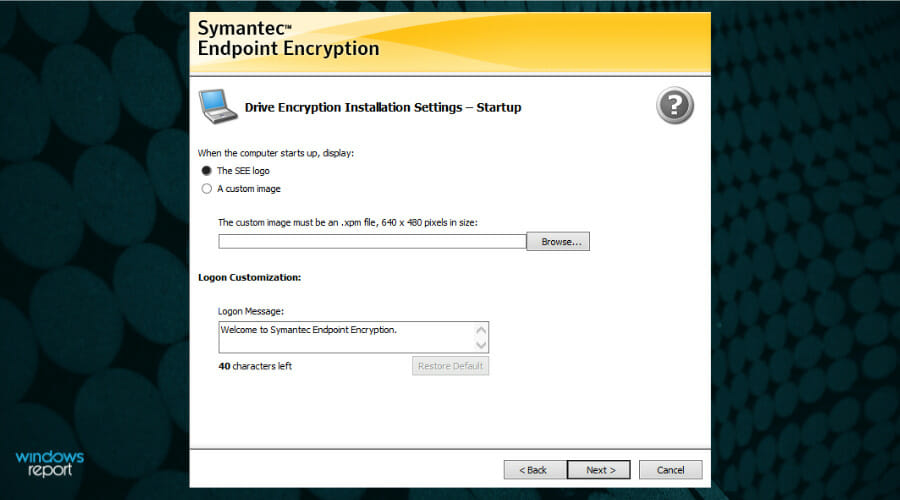
Symantec Endpoint Encryption

Symantec Endpoint Protection is designed to address encryption challenges with a layered approach to endpoint security.

The solution goes beyond traditional antivirus tools to include firewalls, IPS (Intrusion Prevention System), and advanced protection technologies based on the largest civil threat intelligence network.

The software is very user-friendly, offering a fast and effective solution that protects against viruses and malware.

Doesn’t require you to install any additional hardware or have any special IT skills to get up and running.

Symantec Endpoint Encryption software provides full disk encryption for Windows 7, 8, 8.1, and 10.

Here are some of its best features:

  • Antivirus
  • Risk assessment
  • SSL security
  • Security checks
  • Two-factor authentication
  • Incident management
  • Self-recovery password
  • Help-desk support
  • Compatible with Microsoft Windows 7, 8, 8.1, and 10

⇒ Get Symantec Endpoint Encryption

How does encryption work?

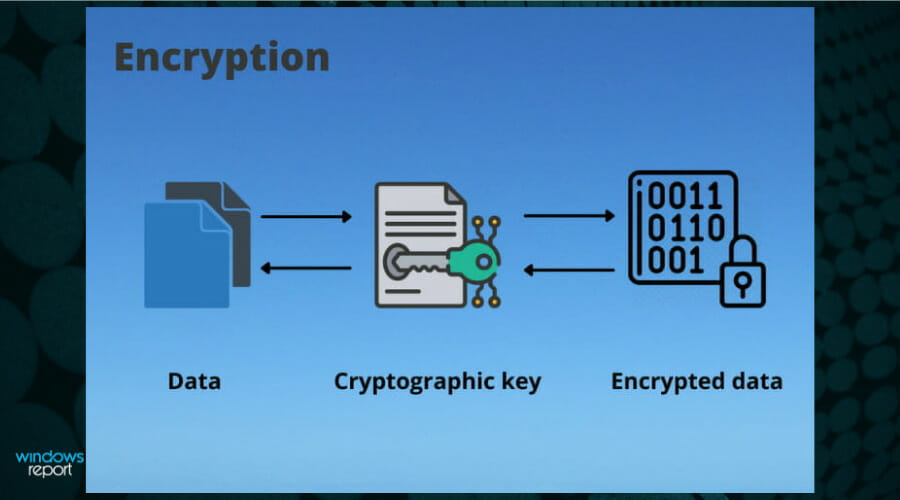
The three components of any good encryption system are as follows: the data, the encryption engine, and the key management.

Note that the encrypted message is created by applying the key to the information to be encrypted in accordance with the regulation. In addition, there is another regulation to decrypt the encrypted message again using the key.

In general, one would like to achieve the following minimum goals:

  1. The encryption and decryption of texts have to be easy for a suitably programmed computer if the key is known.
  2. Without knowledge of the key, it should not be practically possible for an attacker to decrypt messages even if he has considerable resources and knows the method.

What makes ESET PROTECT Advanced the best file encryption software?

We did the research, we did the testing and we looked at what other people had to say about it, and the end result is that ESET PROTECT Advanced is the best file encryption software available.

It offers a wide array of features such as cloud-based console, endpoint security, file server security, full disk encryption, and cloud sandbox.

Besides the fact that it covers all the popular desktop and smartphone operating systems, it also backs its extensive platform coverage with an impressive and intuitive interface that includes different administration benefits.

What also makes it a good option for all kinds of networks and especially for businesses is the combination of spam filters, anti-malware scanners, and anti-phishing that protects companies against email-based attacks and malware.

ESET PROTECT Advanced also offers you a full 30-day free trial, you just have to create an account and try a full license, no commitment is necessary, but as far as overall paid services go, you’ll have a hard time finding something better.

For more product lists picked by our experts, check out our best FIPS 140-2 encryption software for Windows 10. 

Because a lot of people can profit from your private information, it is necessary to use a method that does not discover your data and protects it against attacks.

So, there you have it, the best Bitdefender File Vault alternatives for you to choose from and our top recommendation. For any questions or suggestions, feel free to use the comment section below.

Qualcomm teams up with Razer on the Snapdragon G3x handheld gaming developer kit

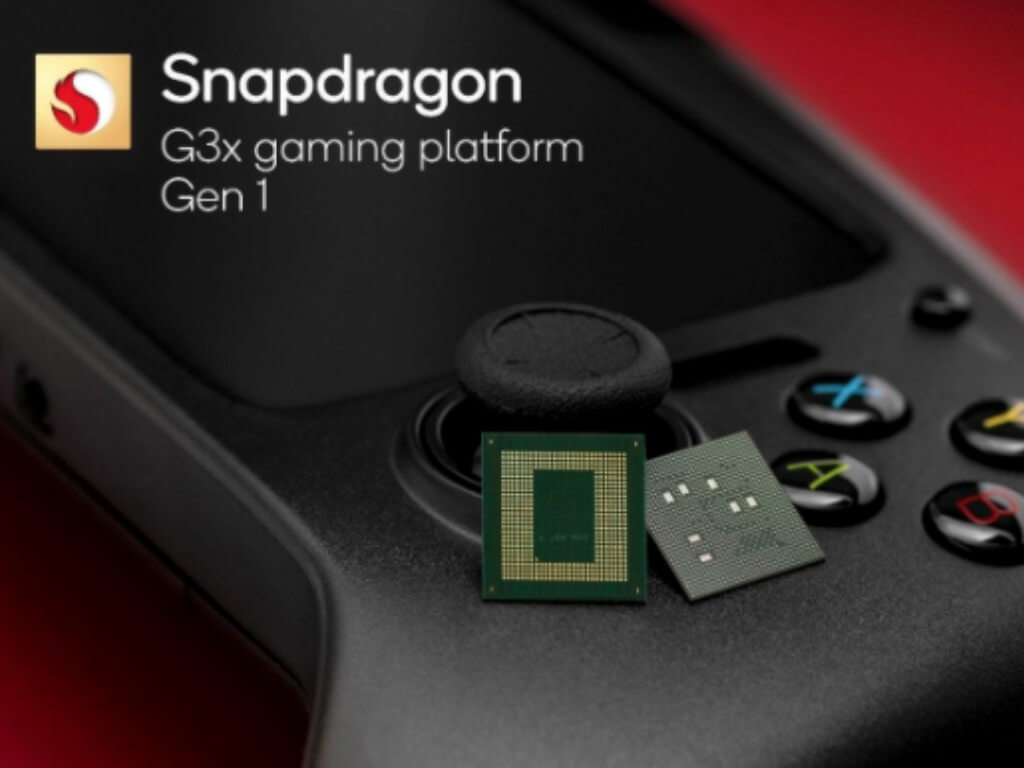
Qualcomm and Razer unveiled yesterday the Snapdragon G3x handheld gaming developer kit, a Nintendo Switch-like device powered by Qualcomm’s new Snapdragon G3x Gen 1 gaming platform. The handheld device is designed to play Android games and access cloud gaming services such as Xbox Game Pass, and it’s currently available exclusively for developers.

Overall, the Snapdragon G3x handheld gaming developer kit is pretty large with a 6.65-inch OLED 120Hz Full HD display surrounded by A 5MP/1080p60 webcam on the top, and built-in Xbox-like controls on the sides. Under the hood, the Qualcomm Adreno GPU can run games at 144 frames per second, and the built-in Qualcomm modem supports 5G mmWave and sub-6 and Wi-Fi 6E for the fastest connectivity for low latency gameplay.

the Snapdragon G3x handheld gaming developer kit also comes with two microphones, 4-way speakers, a 6000 mAh battery, and a USC-C port for multi-screen experiences. This is quite an impressive device on paper in an era where the Nintendo Switch continues to dominate the console market despite its outdated specs.

With Valve planning to launch its Steam Deck handheld device in February 2022, there’s definitely a growing interest for more open and powerful alternatives to the Nintendo Switch. Qualcomm and Razer explicitly highlighted Xbox Cloud Gaming and Steam Remote Play as a use case for the Snapdragon G3x handheld gaming developer kit, and the built-in support for ultra-fast 5G connectivity is right on point.

“Together, Qualcomm Technologies and Razer will lead the way with new and innovative solutions that push the boundaries of fidelity and quality available in portable gaming, transforming the way these games are experienced,” said Min-Liang Tan, Razer co-founder and chief executive officer. While the Snapdragon G3x gaming developer kit will be just for game developers, it will be interesting to see if Razer and other manufacturers could soon use Qualcomm’s new mobile gaming platform to create Android-based handheld gaming consoles for consumers.

Microsoft’s Paint app has a new look for Windows 11

Nothing rejuvenates an app getting a facelift and some new improvement features, and that is exactly what has happened to Microsoft’s Paint app. As one of the most neglected apps, this is some good news.

Microsoft had made an earlier announcement about the coming changes and assured the users that it would be worth their while.

The new look breathes life into the app, and the additional features are something you have been looking forward to.

New features

The newly added features on the top of the list include a refreshed ‘edit color’ and ‘resize and skew.’

However, the features are only available on the Dev Channel to Insiders on Windows 11 before rollout to the public.

Microsoft was getting ready to kill the Paint app, but it seems the users persuaded the company to keep it alive.

There is also a new user interface, rounded edges, and toolbar updates. All these features are supposed to give the app a modern feel.

No pre-installations

The Paint 3D app will not be coming to Windows 11 pre-installed. This is because Microsoft aims to optimize performance by limiting the number of pre-installed apps that come in the OS.

This is also not the end for the Paint app, as more features are still to come. Since it follows Windows 11 design, users can expect dark theme support and a centered canvas.

Among other apps that got a refresh include the Calendar, Mail, and Calculator apps. 

Which new Paint app features can you not wait to try out? Let us know in the comment section below.

Qualcomm unveils new Snapdragon 8cx Gen 3 and 7c+ Gen3 for Windows on ARM PCs

Qualcomm has officially unveiled its new Snapdragon 8cx Gen 3 and 7c+ Gen 3 SoCs today, which will bring 5G connectivity and advanced camera, audio, and AI capabilities to Windows on ARM PCs and Chromebooks. Both chips should contribute to the slow growth of the Always On, Always Connected PCs market, which Microsoft helped to push forward with its Surface Pro X line.

The Snapdragon 8cx Gen 3 is Qualcomm’s first 5nm SoC for Windows on ARM PCs and Chromebooks, and it’s a successor the 8cx Gen 2 chip found on the latest Surface Pro X tablet from Microsoft. “With the integration of new prime cores, Snapdragon 8cx Gen 3 delivers an up to 85% generational performance uplift and up to 60% greater performance per watt over the competitive x86 platform,” Qualcomm said in the press release.

Here are the key highlights about the Snapdragon 8cx Gen 3 SoC:

  • The chip should deliver up to 60% more performance compared to the previous generation.
  • It supports gaming at full HD at up to 120 FPS and will allow players to game up to 50% longer than certain competing platforms.
  • Qualcomm SpectraTM ISP will speed up camera start-up time by up to 15%, with support for up to 4K HDR camera quality and up to 4 cameras.
  • With 29+ TOPS of AI acceleration “almost 3X the leading competitive platform,), the Snapdragon 8cx Gen 3 is optimized for complex AI workloads.
  • The Qualcomm Secure Processing Unit (SPU) supports Microsoft’s Pluton Security Solution for Windows 11, which is used for protecting credentials, personal data, and encryption keys directly on the SoC.
  • Devices will be able to seamlessly switch between trusted Wi-Fi 6/6E and 5G or 4G LTE networks, with support for up to 10 Gbps speeds.

If the new Snapdragon 8cx Gen 3 will be used in premium mobile PCs, the Snapdragon 7c+ Gen 3 is a 6nm SoC designed for entry-tier Windows on ARM PCs and Chromebooks. It will bring 5G connectivity to affordable Always Connected PCs, but Qualcomm also promises significant performance improvements compared to the previous Snapdragon 7c Gen 2.

“Purpose-built for users across our Windows PC and Chromebook ecosystem, the 6nm 7c+ Gen 3 delivers an up to 60% faster CPU performance and up to 70% faster GPU performance uplift. The Qualcomm AI Engine enables AI-accelerated experiences through 6.5 TOPS of performance, which is unprecedented in the entry tier,” Qualcomm said today.

The first PCs powered by Qualcomm’s Snapdragon 8cx Gen 3 and 7c+ Gen 3 chips are expected to launch in the first half of 2022. While no new devices have been announced today, Lenovo and Microsoft should be among the first PC makers to use the new chips in future devices.

In the press release, Microsoft’s chief product officer Panos Panay reiterated that the Redmond giant and Qualcomm are working closely on the future of mobile PCs. “Together, leveraging Snapdragon compute technology, we build on a shared vision of redefining computing to deliver a more mobile, connected experience combining the best features of the smartphone with the power and performance people expect in a Windows PC,” Panay said.

PowerToys 0.51 brings new mouse highlighter tool for presentations

Microsoft has released a new update for PowerToys that adds a presentation mode helper to highlight the mouse clicks for everyone looking at the screen. PowerToys version 0.51 also comes with a bunch of improvements for FancyZones, Color Picker, Image Resizer, and bug fixes.

The new mouse highlighter tool has been designed to help trainers make demonstrations easier to follow for their audience during presentations. To enable this tool, PowerToys users will need to press the Windows + Shift + N keys simultaneously. They can also customize the mouse highlighter color, radius, fade effects, opacity in Settings.

highlighter turned on while dragging mouse

Additionally, Microsoft has shipped a couple of improvements for the new Find My Mouse tool that specifically aims to address issues with virtual desktops. This PowerToys update also brings a new window switching option for FancyZones. This means that users can now assign two applications to the same zone and switch between them using a keyboard shortcut.

The PowerToys team is also planning to add a new “Always on Top” feature to let users select any specific window to remain on top of others. “We’ve been focusing work on “Always on Top” system to help make any window you want to be the top most. A lot of thought is currently going into interaction models to make sure it ‘feels’ right for toggling as well as visualizing,” said Clint Rutkas, Program manager lead on PowerToys.

If you are using PowerToys, you will need to head to the General tab in the app and click the “Check for updates” button. Meanwhile, those who have yet to try PowerToys can download version 0.51 from the official GitHub page.

Xbox video game clips will soon get shareable public web links

Microsoft’s Larry Hryb revealed earlier today on Twitter that recorded Xbox game clips would soon be given unique URLs that would allow them to be shared more easily with people who don’t use the Xbox apps nor own an Xbox One or Xbox Series X console.

A more social experience will also be launching alongside this added functionality that will make it easier to browse and discover clips.

“Link sharing and trending content are coming soon to the Xbox mobile app, letting you share links to your game clips and see the top trending content from other Xbox gamers,” Hyrb said in a tweet. “This is currently being tested in the app and will soon be rolling out to all users!”

From the images shared, it looks as if the Xbox apps, at least on iPhone and Android, will fully embrace the social media aspects of the Xbox service with a feed that resembles that of Instagram and TikTok.

Xbox app's new social feed
Xbox app’s new social feed

“Trending content will be spotlighted in the Xbox app, where you will be able to watch, like, comment, and share posts of other users’ game clips,” Hyrb also shared.

The Xbox apps have been testing this kind of feature for a few months now but it’s been limited to video games and developers.

Are you looking forward to this change? Let us know in the comments below and then why not share this page on Twitter and Facebook?

New mute and unmute taskbar feature on Windows 11

Microsoft is currently in the process of resolving the video conferencing issues that have been facing the users using a new preview update for Windows 11. 

Mute and unmute feature

The new Windows 11 Insider Preview Build 22494, was exclusively released to the Dev Channel in early November. The new update comes with new features, the main one being the ability to mute and unmute the microphone directly from the taskbar. 

However, this feature is limited to Microsoft Teams. It is quite obvious because it is Microsoft’s online collaboration application. 

Developers have immediately picked up the slack and are busy trying to enhance the functionality of third-party applications. This will allow them to fully leverage the use of the feature. 

“We are beginning to roll this experience out to a subset of Windows Insiders with Microsoft Teams for work or school installed and ramp it up over time,” according to Microsoft during a briefing. “This means not everyone will see this right away with their Teams calls.”

That said, whenever you hop on a Teams meeting, the microphone icon will immediately pop-up on your Windows 11 interface. The icon will appear at the bottom right of the screen, adjacent to the volume, battery and Wi-Fi icons. 

By simply clicking on the icon, you get to turn on or off the microphone, saving you time as compared to the previous method where you had to completely get off the Microsoft Teams meeting to access this feature. 

Microsoft Teams exclusive

However, this feature is exclusive to Microsoft Teams. Nevertheless, Microsoft is tirelessly working to ensure that the feature is widely available across all platforms. Other developers can make updates to their programs to ensure that their users get to enjoy this feature on their applications. Besides, Microsoft has already signed off on this particular idea. 

“You can see your call audio status, what app is accessing your microphone, and quickly mute and unmute your call at any time,” Microsoft highlighted.

Alternatively, users can make use of the Windows + Alt + K keyboard feature to access the feature. Sadly, this shortcut also only works on Microsoft Teams.

Are you excited about the Microphone feature making its way to Windows 11? Let us know in the comment section below.

Windows 11 takes up approximately 10% of the market share

Windows was officially launched by Microsoft to the general public on October 5, even before we go to December.  According to a survey conducted by AdDuplex, Microsoft’s latest desktop has been well received by the users. As such, they have gained a huge chunk of the market share. 

Based on the data released by the company in November 2021,we can clearly access the reach of the different versions of Windows desktop operating system market share. 

Users that want to get Windows 11 on their devices need to meet the set system requirements, the main one being the TPM 2.0 support. 

Operating system coverage 

According to the statistics gathered by AdDuplex the market share is spread out as follows:

  • Windows 11 now claims 8.6 percent(vs 4.8 percent in September) of the total Windows OS market share.
  • 0.3% of users are on the Windows 11 Insider Builds. In general, Windows 11 claims a total of 8.9% usage share.

On the other hand, Windows 10 has 91.1 percent share, broken down as follows:

  • Windows 10 21H2 — 3.7 percent
  • Windows 10 21H1 — 36.3 percent
  • Windows 10 20H2 — 31.8 percent
  • Windows 10 1903 — 1.9 percent
  • Windows 10 1909 — 3.6 percent
  • Windows 10 2004 — 11 percent
  • Windows 10 1809 (and older) — 2.8 percent

However, it is important to note that the data presented might not be completely accurate. Besides, AdDuplex is currently being used on about 80,000 devices running Windows 11 and Windows 10. They do not consider devices running older versions of Windows. 

Which operating system is currently running on your device? Let us know in the comment section below.

New Microsoft Teams features guarantee better communication and enhanced search results

The Teams App has come a long way since the pandemic started and continues to reach new heights with the addition of new features.

New on the list is the addition of Loop components that will assist users in communicating and working better from home.

The company has been working tirelessly to make the Teams App be the best communication app. A little over a week ago, the company introduced a security feature to keep users safe while communicating.

Better together

Microsoft has been at the forefront and very open about collaborating with third-party applications to enhance user experience.

According to the company,

“Loop components in Teams chat (rolling out now for our Microsoft 365 commercial customers) offer a new way to think, plan, and create together. Send a component—like a table, task list, or paragraph—where everyone in your chat can edit inline and see changes as they are made. This makes it incredibly easy to share thoughts, make decisions, collect data, and track progress together and in the flow of your work,” 

Another feature

Aside from the Loop components, users also have a new search results page to look forward to. According to Microsoft, the search feature will make it easier and faster to find people, messages, answers, and files like never before.

The new search results page now has AI-powered filtering capabilities, prompt results, and has a user-friendly interface that is easy to navigate.

There is also a Top Hits section that has been added at the top of search suggestions that displays the most relevant search results.

Education updates

Educators and learners have not been forgotten as there is a new Whiteboard integration that allows instructors to add a whiteboard reference to assignments.

There is also an option to include links and add content from EdTech apps into Teams assignments.

Cortana markets are also being expanded to international audiences and have a wider reach.

Other updates

Aside from the two features, Microsoft has also added additional updates to the Teams App to support more functions.

A new ‘content from camera’ allows users to access content directly from physical artifacts in high resolution. 

The polling feature also has newly added capabilities that now allow users to ask open-ended questions and view responses. 

For enhanced security, you can now sign out remotely for Teams devices.

What are some of the top Teams features released so far that make you happy? Let us know in the comment section below.

Xodo PDF app updates for Windows 11 and 10 with new sound features

The Windows 11 PDF reader app, Xodo, updated to Version 5.0.25 today for all compatible devices including those running Windows 8.1 and Windows 10.

This latest Xodo app update add the ability to play sound annotations and create new documents within the Viewer screen for all users. Pro users also gained the ability to record sound annotations within the app.

A variety of bug fixes were also included within this update. Here’s the full release notes:

New features

  • Added ability to play Sound annotation
  • Added ability to record sound annotation (Pro)
  • Now new documents can be created in the Viewer

Fixes and Improvements

  • Fixed crash related to editing Text Markup (highlight, underline, strikeout, etc)
  • Fixed issues related to sleep mode + app unresponsive on Windows 11
  • Pro features can now be used offline
  • Added auto Theme selection
  • Added auto Language selection
  • Improved UX with Windows 11 style
  • Improved context menu with more quick options
  • Add ability to reset zoom level

After more Windows app news and app updates? Follow us on Twitter and Facebook.

Windows 11 gets the new mute and unmute microphone feature

Recently, Microsoft just released a Windows 11 preview update. It comes with a new taskbar feature that allows the users to mute and unmute the mic.

Moreover, they have also launched an experimental feature that allows you to share information from other applications to Teams on Windows 11 while the meeting is still running. 

The new build also comes with a new keyboard functionality that will allow users to mute and mute the gadget’s microphone.

Tweaking the new feature

Currently, the combination of pressing the Win + Alt + K keys simultaneously only works in Microsoft Teams. The same function can also be toggled by clicking on the microphone icon displayed in the application. 

Before, Windows 11 users were compelled to manually click on the microphone icon the display to either mute or unmute the mic. 

The icon is located next to the WI-Fi, volume and battery icons, thus allowing you to turn the mic on or off, by making a simple click. Also, you can now check your audio call status because WhatsApp also has access to the microphone. 

Keyboard shortcut update

Moreover, Microsoft covered the extra mile and updated the taskbar’s mute toggle with the support of a new keyboard shortcut. You can access the new shortcut by pressing Windows + Alt + K keys simultaneously to access the feature.

However, the feature only works on applications that support the mute button. Therefore, only Microsoft Teams is supported by the feature at the moment. According to Microsoft, third-party applications will also get  support for Windows 11’s new taskbar mute function. 

Extra features and improvements

Microsoft also indicated that they are working on a feature that will allow Windows 11 users to share contents in Microsoft Teams meetings directly from the taskbar. 

Ultimately eliminating the need for one to manually switch between windows in the middle of a meeting just to look for content you need to share with the team. 

Furthermore, Microsoft is currently conducting internal tests with the aim of possibly introducing and creating support for taskbar drag-and-drop. Users should expect the reveal of this feature in the upcoming big Windows updates only,

Are you excited to see this new feature finally make its way to Windows 11? Share our thoughts with us in the comment section. 

Microsoft integrates its services to phase out its competitors

A complaint has been filed by a coalition of cloud and software companies, with the European Commission against Microsoft’s anti-competitive behavior. They bundled up Teams and OneDrive cloud amongst other services with both Windows 11 and Windows 10.

The Coalition had to even out the playing field by including a couple of European based companies, such as open source hosted by cloud storage vendor Nextcloud.

“This is quite similar to what Microsoft did when it killed competition in the [web] browser market, stopping nearly all browser innovation for over a decade. Copy an innovators’ product, bundle it with your own dominant product and kill their business, then stop innovating,” said Frank Karlitschek, CEO and founder of Nextcloud.

Shortcomings 

The coalition raised the argument that Microsoft was acting in bad faith and trying to phase them out. As such, they requested the European Commision to even out the playing field.
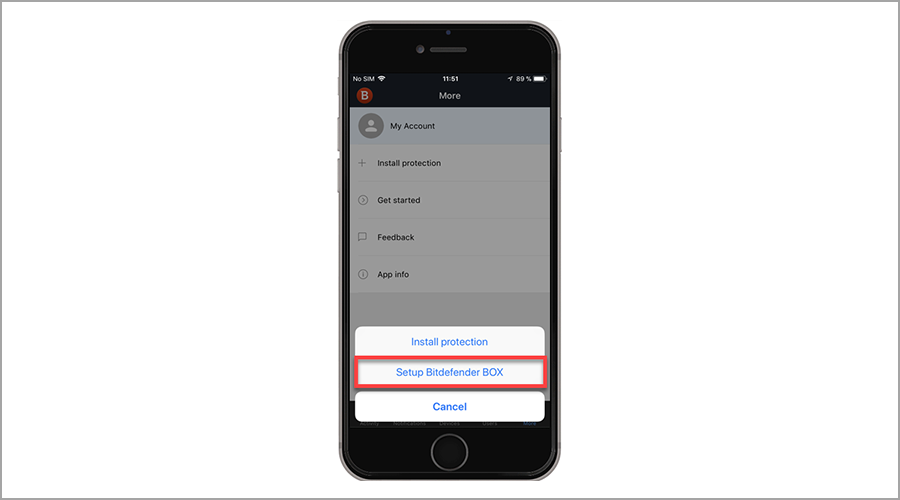
The move will help deter Microsoft from using its position in the operating system sector to kill all its competitors. 

The coalition comprises a couple of prominent open source and non-profit companies, for instance, the Free Software Foundation Europe, European Digital SME Alliance and the Document Foundation. 

Furthemore, the coalition categorically indicates that the move by Microsoft is not only affecting the consumers and businesses, but also killing healthy competition among the companies. 

Microsoft’s wholesome approach

“Microsoft is integrating [Microsoft] 365 deeper and deeper in their service and software portfolio, including Windows. OneDrive is pushed wherever users deal with file storage and Teams is a default part of Windows 11. This makes it nearly impossible to compete with their SaaS [Software-as-a-Service] services,”states the coalition.

As such, the coalition also indicates that while Google, Amazon and Microsoft have managed to grow their market share to 66% while their competitors have further lost their reach in the EU from 26% to 16%.

What is your take on Microsoft’s move? Do you support it? Share your thoughts with us in the comment section. 

Best Deals On Portable Photo Printers

All of us click pictures on our phones to save them as memories, but how often do we print these? The physical copy is undoubtedly better than one stored on your phone. So, we come forth with the best Christmas deals on the portable photo printer.

A portable photo printer is your perfect companion on vacations to print pictures on the go. It’s has a compact build to easily fit into your pocket or backpack, and is lightweight so as to not cause any trouble while traveling.

And, if you choose the right one, the picture quality is splendid, unquestionably as good as the conventional printers.

When purchasing a portable photo printer, do remember to check out its size, clarity of prints, whether it easily connects to the smartphone, and availability of cartridges.

To save you the trouble, we have compiled a list of the best portable photo printers available at discounted rates this Christmas.

What are the best portable photo printer deals?

All these items have special prices.


These are the best Christmas deals on portable photo printers you can grab to take a hard copy of the memories stored on your phone. Most of these printers are compatible with all types of operating systems, so you wouldn’t have to worry about buying another one for the foreseeable future.

Do not forget to check also these best Cyber Monday deals on Wi-Fi digital photo frames, in case you would like to showcase a digital copy of the memories.

Also, check the warranty, customer reviews, and other relevant information before making the purchase.

Tell us which portable photo printer you bought in this sale season and your experience of it.

Best Modem Router Combo Deals For You

A modem router combo is probably one of the best accessories you can purchase this Cyber Monday.
Having a combo, undoubtedly, is a space saver, but there are certainly other benefits to it as well. Before we head to that, it’s imperative that you understand the difference between a modem and a router, since the two terms are often used interchangeably.

A modem connects your network to the Internet while a router acts as a medium that allows the various devices to access the Internet. The connection through a router can be both wired and wireless. Plus, you can also find firewall routers for businesses of different sizes.
Now, coming to the benefits of a modem router combo. It’s relatively cheaper than buying the two devices separately, is easier to set up, has minimum connections, and requires a single power source.

If you are inclined towards purchasing one for your home or office, we have compiled a list of the best deals on modem router combo this Cyber Monday.

Which modem router combo to purchase this Cyber Monday?

All these items have special Cyber Monday prices.


These are the best deals on modem router combo to check out this sale season. Choose the one that caters to your requirements, and fits into your budget.

Also, check out the best Wi-Fi 6 routers to purchase at discounted prices or some amazing deals on mesh Wi-Fi systems for enhanced coverage.

Do not forget to check the speed, coverage, number of devices that can be connected, and warranty before making the purchase.

We also have a very useful list of the best routers for access point tested by our WR networking team.

Tell us which modem router combo you purchased this Cyber Monday from those listed above and your experience of it.

5 Best Drawing Tablets Deals & Offers

Despite the fact that drawing tablets require a computer to operate and cannot be independent, they still make a fine accessory to add to your collection this Cyber Monday.

A drawing tablet is like a huge mouse pad on which you use a special pen known as a stylus, instead of your finger to draw. So, once a drawing tablet is linked to a computer and specific graphic design software is opened, whatever you draw on the tablet appears on the computer display, not on the tablet itself.

Pen display tablets, on the other hand, have their own display and, while linked to a computer, you can see what you’re doing on the tablet itself, but they don’t have their own operating system like a standard tablet.  It is simply a fancy mouse pad, where you have a display on it and also the computer’s display.

If you want to add an accessory to your PC this year, below you have the best deals you can get on Cyber Monday for drawing tablets, especially those from Wacom, directly from Amazon.

What are the best Wacom Drawing Tablets with deals on Cyber Monday?

All these items have special Cyber Monday prices.


Everyone from amateur photographers to professional painters – as well as designers, animators, and architects all across the world — uses them. Make yourself a lovely holiday gift, and don’t miss out on the deals before they’re gone!

Wacom’s tablet selection is pretty extensive and covers a wide price range, but these Amazon discounts should help you narrow down your options and choose one that’s right for your work or interest.

Which drawing tablets are most suited to your needs? Leave us a comment in the section down below!

5 Best Alienware Monitors For Gamers

What could be better than treating yourself to a great gift this year, such as an Alienware monitor, or as it is more commonly known, a gaming monitor?

Alienware becomes Dell’s flagship gaming brand when alien-themed designs were inspired by The X-Factor TV series and became popular in the early 2000s.

In general, any recent Alienware systems will provide above-average gaming performance, as well as high-quality design and build, as well as great after-sales support and guarantee.

Alienware was created by Dell Technologies and has received a lot of attention from gamers and techies over the years. If you’re one of them, you’ve come to the right place to grab the finest Cyber Monday bargains on Amazon in 2021.

What are the best Cyber Monday deals on Alienware Monitors?

All these items have special Cyber Monday prices.


Alienware monitors are compatible with non-Alienware equipment and peripherals if visual connectors are either VGA or HDMI, DVI, or mini-display ports, which are industry standards.

As a result, practically any accessory will work with this brand. Always check what connector your monitor/GPU utilizes to ensure connectivity to ensure you buy the proper one.

So pick your monitor, jump into your favorite multiplayer game, and knock your opponents out with your new gaming screen for the best experience and wins.

Which Alienware monitors are the greatest match for your entertainment needs? Do let us know in the comments section below.

Best Jackery Product Deals

Jackery is one of the most well-known makers of portable power stations in the United States of America. It is recognized for developing cutting-edge outdoor energy solutions.

The company offers a wide selection of portable power stations in a variety of sizes and capacities, most of which can maintain a charge for up to six months. These portable solar generators are a fantastic and significantly quieter alternative to gas generators on the market.

All Jackery devices are equipped with an alternating current outlet, USB charging ports, and a DC carport, allowing you to charge a variety of equipment and accessories with ease.

It is possible to use Jackery with a variety of devices ranging from tablets, smartphone devices, and laptop computers to smaller home appliances such as fans, electric blankets, and mini freezers.

What are the best Jackery products up for sale this Cyber Monday?

All these items have special Cyber Monday prices.


With its cutting-edge Solar Generator portfolio, Jackery has established a new gold standard in the portable power industry.

This line of portable power stations is not only constructed to last and packed with useful features, but their straightforward design makes them simple enough to use for anyone, even those with no prior solar power experience.

The Jackery Solar Generator makes it simple for anyone to obtain off-grid power without the need to install a large number of rooftop solar panels on their home or business.

There is no need for mounting, drilling, or installation, and there is no requirement for a separate solar inverter in order to make use of all of the solar energy. The generator will convert the sunshine into useful energy that can be used to charge your gadgets or power appliances.

One of the drawbacks of any solar power system is the high initial outlay of funds required for installation.

Although a solar generator is a more expensive choice upfront, it pays for itself over time since you will not have to spend money on fuel for a gas generator and you will be able to easily find cheap, or free boondocking spots away from congested campgrounds.

Take advantage of these fantastic prices as soon as possible while the opportunity is still open!!

Best Cyber Monday deals on 4K Blu Ray players

Many people still enjoy watching high-quality video materials on Blu-Ray players. The physical format is known to provide great video resolutions, allowing you to fully engage in your favorite movie or series.

Blu-Ray players have evolved in such ways that they can perfectly fit into your modern-day entertainment set. Most worthwhile Blu-Ray players of today allow 4K playback of various formats.

They are highly compatible with other devices and can be connected to the Internet or to your computer via an HDMI or USB port. Some Blu-Ray players also offer access to video-on-demand platforms, so if you want an all-in-one video playback device, keep an eye on those.


If you want to get your hands on some of the best Blu-Ray DVD players on the market at a discount price, you will be happy to know that this Cyber Monday comes with some impressive deals in this sector.

What are the best deals on 4K Blu-Ray players this Cyber Monday?

All these items have special Cyber Monday prices


All above-mentioned products offer 4K video resolutions and support multiple disc formats such as BD ROM, Blu-Ray, DVD, or BD-RE. All offers include accessories such as HDMI cables, a remote control device, USB cables, and more.

Please read the description of each listing because you can find there all the information you need when it comes to format and device compatibility.

If you have any suggestions or opinions on these 4k Blu-Ray players, please feel free to use the comment section below.

Best Logitech Mx Master Product Deals

If you’re looking for the greatest mouse on the market, there’s no shortage of options, but it’s safe to say that Logitech has had a stranglehold on that title for quite some time.

In many ways, the Logitech MX Master 3 is the next evolution of a formula that Logitech perfected with the previous MX Master 2S, and it’s an unquestionably superior iteration of the prior model.

It does not attempt to reinvent the wheel, but rather makes numerous modifications that combine to create a terrific experience.

That type of iterative development is something that easily propels the MX Master 3 to the top of the list of the best office mouse available, but it comes at a cost.

At $100, it is unquestionably on the pricier end of the spectrum. However, you may be able to take advantage of the discounts they have offered you just today!

What are the best Logitech MX Master products on sale this Cyber Monday?

All these items have special Cyber Monday prices.


The Logitech MX Master mouse is a great-looking device with a professional appearance that is still rather adaptable for regular use. Because of the thumb rest and rounded shape, it features an ergonomic design that makes it easy to use for long periods of time.

It’s ideal for folks who want to utilize the palm grip, while some people with smaller hands may have difficulty holding it comfortably. This mouse is really well-built and quite weighty, giving it a substantial feel in the hand.

The fact that this is a wireless-only mouse, and while its latency will not be noticed to most users, it is not recommended for hardcore gamers.

On the plus side, it has two scroll wheels as well as gesture instructions, which allows it to have a very flexible control scheme. It’s also possible to customize your preferences based on which application or app you’re currently using.

If you’re interested in expanding your knowledge about mouses, see our post on the five best mouses for multitasking to increase your overall productivity.

Take advantage of these excellent bargains as soon as possible while the opportunity is still available!

Best Logitech webcam deals this Cyber Monday

Logitech is arguably the first brand that comes to mind when you think of webcams. After all, this camera manufacturer has a large number of distinct models, all of which can be found all over the place.

In fact, several of the most popular Logitech webcams have been praised as the best on the market in their respective categories.

Consequently, while Logitech has acquired a reputation as a prolific webcam manufacturer, does this imply that you should purchase a device from this company?

With the discounts that are currently available, you should be assured of the fact that the answer is a loud affirmative. Here are five of the best deals available right now, all of which have been handpicked for you.

What are the best Logitech webcams up for sale this Cyber Monday?

All these items have special Cyber Monday prices.


It is becoming increasingly common in today’s business environment to be able to remotely connect and collaborate with colleagues, business partners, and customers on an as-needed basis, regardless of their geographical location.

Facial-to-face meetings are gradually being phased out in favor of video conferencing and other forms of unified communications, reducing the necessity for business travelers.

More importantly, because cooperation is instantaneous, corporations and individuals alike are benefiting from large increases in productivity as a result of this advancement in technology.

Having the ability to see the individuals with whom you are conversing, rather than just hearing them, makes the experience of communicating with others substantially more enjoyable.

Additionally, Logitech for Business provides a selection of professional laptop/PC webcams as well as video conferencing solutions that are meant to provide a superior video calling experience to customers.

Overall, Logitech is a solid pick for your next camera, and it’s also beneficial that the firm offers a varied range of models that are ideal for a variety of different use cases and price ranges as well.

You may also be interested in our article on the 5+ best cameras with microphones for your PC if you want to learn more about webcams.

Have you bought a Logitech webcam already? Hurry up so you don’t miss the sales.

Best Deals On Audio Receiver

An audio receiver is a must-have for an integrated home theater experience. If you are planning to purchase one, check out some awesome deals on the best audio receivers this Cyber Monday.

An audio receiver, basically, allows you to manage the audio from multiple sources and output it through the desired channel, apart from amplifying the sound. Those who have already used one realize the importance of audio receivers and how it enhances the sound quality.

When it comes to audio receivers, the market has abundant options to offer. But, only the right ones will serve the desired purpose. We went the extra mile and compiled a list of audio receivers available at discounted rates this Cyber Monday.

Which audio receiver should I buy this Cyber Monday?

All these items have special Cyber Monday prices.


These are the best deals on audio receivers you will come across this sale season. Also, we recommend checking the Cyber Monday Denon receiver deal, since the product offers a plethora of features and is reasonably priced.

So, if you are looking for some good Cyber Monday home theater receiver offers, the ones listed above should suffice. Do not forget to check our list including the best AV receivers for ceiling speakers.

Tell us whether the audio receivers listed here worked for you or drop in a few recommendations in the comments section below.

5 Best Amazon Fire Tablet Sales

Due to their high portability and ease of use, tablets have become the go-to tool for many users that want to stay productive on the go.

Formerly known as Kindle Fire, the Amazon Fire tablet is known to be a good portable device with solid hardware at an affordable price.

If you want to invest in a new tablet, this is the best time to do so. This Cyber Monday Amazon offers some of its best Fire tablets at fraction of the price.

We gathered the best offers available so you can quickly take a look at the listings and see which one would be the best fit for your needs and budget.

What are the best Cyber Monday deals on Amazon Fire tablets?

All these items have special Cyber Monday prices


As you can see, the list includes multiple types of tablets that vary in screen size, resolution, and memory. 

We recommend you carefully check all listings before deciding which one to get. Also look out for additional offers and discounts for bundled items, as you may be able to get them at an even lower price.

For instance, the Amazon Fire 10 HD tablet comes in a Cyber Monday bundle along with the Bluetooth Keyboard and Microsoft 365.

Please let us know which Amazon Fire tablet you prefer. If you have any suggestions, feel free to use the comment section below.

Best Wireless Printer Deals To Get

Having a printer is great if you need to print out documents or something really quick, but working with cables can be a hassle.

In addition, it can be also tricky to print something from your phone or tablet, and this is where wireless printers come in handy.

When buying one, you need to keep in mind whether it’s a color printer or a black and white one. Type of printer is also important, and laser printers offer better quality compared to their inkjet counterparts.

However, this comes at a price, so be sure to check your budget before getting one. Also keep in mind the printing speed and connectivity options, to ensure that your printer can work with all of your devices.

Now that you know what to look for, let’s see what are some great options to buy for this shopping season.

What are the best Cyber Monday deals on wireless printers?

All these items have special Cyber Monday prices.

Wireless printers can be incredibly useful, and in this guide, we showed you a couple of great ones that you can get.

If you can, go for a laser printer since it offers better printing quality, but do keep in mind that these types are more expensive.

What is your wireless printer of choice? Let us know in the comments section below.

Best Deals On Audio Interfaces

Those in the music or recording industry realize the importance of an audio interface, and how to liven the whole experience. Therefore, we bring forth the best audio interface deals this Cyber Monday.

An audio interface basically connects to your system and converts the incoming audio signal into a format recognized by it. Similarly, for audio output from the system, the signal is converted to a format that’s compatible with the output device.

These work great, and the best part, they are affordable as well. You could find the basic ones for as cheap as $50 while the high-end models can be priced at a few thousand bucks.

Whatever be your need, we have compiled a list of the best audio interface available at discounted prices this Cyber Monday.

Which audio interface should I buy this Cyber Monday?

All these items have special Cyber Monday prices.


These are the best audio interfaces available at discounted prices this sale season. In case the ones listed above don’t meet your requirements, do check out our compilation of some of the best USB audio interfaces for voice over, though some of these may not be available at discounted rates.

Also, check the customer ratings, confirm the warranty and other relevant information before proceeding with the purchase.

Let us know which audio interface you purchased from the ones listed above and your experience of it in the comments section below.

Best Deals On Wireless Surround Sound Systems

Have you been intending to amp up your sound system for a while now? Well, the wireless surround sound system is the best way to go. There are plenty of Christmas deals revolving around the sound system sector.

It may be quite difficult to make a decision especially if you do not know what you need exactly. Besides, using the old conventional wired sound systems is outdated and makes the living area look crowded and messy.

Even though in the past wireless speakers were only capable of limited connectivity, with the advancement of this technology, true wireless speakers. buds and monitors have taken the market by storm.

They provide users with flexible, safe, and neater devices. This makes it a great choice because of the advanced technology it provides. they are a great buy because they are easy to use and come with great quality.

  • Safer– They are safe compared to wired speakers. People run a lower risk of tripping over wires or getting into any electrical hazards that poses as a great threat to both children and pets.
  • Declutter-This means that you can get great quality of music without necessarily having to many connections to the central unit. Wireless surround sound systems operate using wireless radio waves.
  • Enhance flexibility-These devices are quite convenient because they can be easily moved around to your desired location. You can through caution to the wind when it comes to cords and cables that can cause accidents.

These are the key features that anyone looking to buy the system during this year’s Black Friday deals should look out for.

What are the best deals on wireless surround sound systems?

All these items have special prices.

We hope that with the information provided above, you were able to narrow down your choices and settle on one device that meets all your requirements. Soundbars are the new wave, jump on the bandwagon and get yourself one using the crazy Christmas deals.

Feel free to share your choices with us by using the comment section found below this guide.