Fake Office 365 login page created to steal user credentials

Cyber gangs, yet again, created a fake Office 365 login page with a view to stealing their victims’ Microsoft credentials, according to an Abnormal Security report.

Threat actors have done this before, such as, when they set up a fake Microsoft Outlook login page to capture their targets’ Microsoft account usernames and passwords. They’ve also targeted remote workers that access their Office 365 accounts via VPNs.

Fake Office 365 login page, spoofed Zoom email

In the phishing attack that Abnormal Security reports, hackers targeted remote workers that that have Zoom and Office 365 accounts.

First, they spoof the official Zoom email address, from which they send phishing emails to their targets. But they’re targeting the employees’ Office 365 login credentials in the end.

Each phishing email notifies the recipient to click a provided link or lose access to their Zoom account.

As you’d expect with any such attack, clicking the link doesn’t lead to a legitimate Zoom site. Instead, it eventually takes the target to a fake Microsoft login page.

The phishing page is hosted on a different domain though. By attempting to log in to their Office 365 account via the fake portal, the victim hands their security credentials to the hackers.

The email contains a link concealed within the text that redirects to a page hosted on an unrelated domain (likely hijacked by the attackers). This link redirects to a fake Microsoft login page hosted on another domain. Though the email impersonates the Zoom brand, the attacker is targeting the recipient’s Microsoft credentials, which can be used to access a larger trove of sensitive information.

However, it’s not just the Office 365 platform that’s at risk. A recent survey by NetMotion found that 300 remote workers clicked malicious web links in just 30 days.

Against the backdrop of all these hacking and phishing events, it may be time to rethink best practices for cloud security.

What are your thoughts on possible Office 365 security gaps? Feel free to ask any question or leave a suggestion in the comments section below.

[wl_navigator]

Excel lets you use food, movies, space, and more data types

What type of data do you mostly handle or process in Excel day to day? Names of places, movies, food?

Well, from now on, you don’t have to assign generic types, such as, text or integers, to that kind of data.

Where relevant or applicable, you have the option to use any of the more than 100 new Excel data types that Microsoft launched to Office insiders on Windows 10 and Mac.

New Microsoft Excel data types

If you’re an Office insider with a Microsoft 365 subscription, you can start working with the new data types in Excel, including:

Food: calories, carbohydrates, fats, vitamins, nutrients, etc.

Exercise: exercise types and calories burned.

Locations: zip codes, economic data, airports, schools, forests,etc.

Universities: graduation rates, tuition, student body, etc.

Chemistry: elements, compounds, and minerals.

Space: planets, moons, satellites, supernovas, space missions, etc.

Movies: actors, characters, directors, release dates, poster art,etc.

And More: music, plants, animal breeds, famous people, languages, etc.

Moreover, you can assign properties to your data types. For example, the food data type has properties like calories and nutrients.

You can reference data types with formulas besides creating your data types in Excel. Also, you can manipulate the data as you’d typically do in a table.

For example, you may filter or sort your data based on the new properties.

In addition, the feature comes with a couple of automations to let you quickly get started on crunching the numbers.

Creating a table for the Food data type is a perfect example. When you add a column to the right of the Food table, you’ll get auto-suggestions for a single field or multiple fields. Also, Excel will auto-fill the columns with their respective values.

The new Excel data types are yet another consumer-focused feature that Microsoft is bringing to the spreadsheet application. A few weeks ago, the company announced Money in Excel, a personal finance management tool aimed at individual consumers.

If you’re an Office insider, have you received the new Microsoft Excel data types yet? Kindly let us know in the comments section below.

New Microsoft KDP blocks malware by protecting the Kernel

According to a Microsoft security blog post, right now, attackers that were rejected by security technologies that prevent memory corruption, are switching their focal point towards data corruption.

Attackers use data corruption techniques to target system security policy, escalate privileges, tamper with security attestation, modify initialize once data structures, among others.

To counter the attacks, Microsoft is launching a new technology, Kernel Data Protection (KDP).

How does Kernel Data Protection protect your OS?

KPD uses virtualization-based security (VBS) to protect a part of the Windows Kernel and drivers against data corruption attacks, taking advantage of hardware virtualization features.

Basically, VBS is creating and isolating a secure region of memory from Windows 10.

This way, protecting the kernel memory as read-only will also protect the inbox components, security products, and third-party DRM drivers.

According to Microsoft, the protection is implemented in two parts:

  • Static KDP enables software running in kernel mode to statically protect a section of its own image from being tampered with from any other entity in VTL0.
  • Dynamic KDP helps kernel-mode software to allocate and release read-only memory from a secure pool. The memory returned from the pool can be initialized only once.

What do I need to get Kernel Data Protection?

You don’t have to do anything special to benefit from the new Kernel Data Protection. If you have VBS support, you will also be able to use KDP with an application on Windows 10.

According to Microsoft, right now, VBS is supported on any computer that supports:

  • Intel, AMD or ARM virtualization extensions
  • Second-level address translation: NPT for AMD, EPT for Intel, Stage 2 address translation for ARM
  • Optionally, hardware MBEC, which reduces the performance cost associated with HVCI

KDP is already included in the latest Windows 10 Insider Build. We don’t know yet when it will be included in the Windows 10 stable release.

[wl_navigator]

Microsoft starts testing modern commenting experience in Word

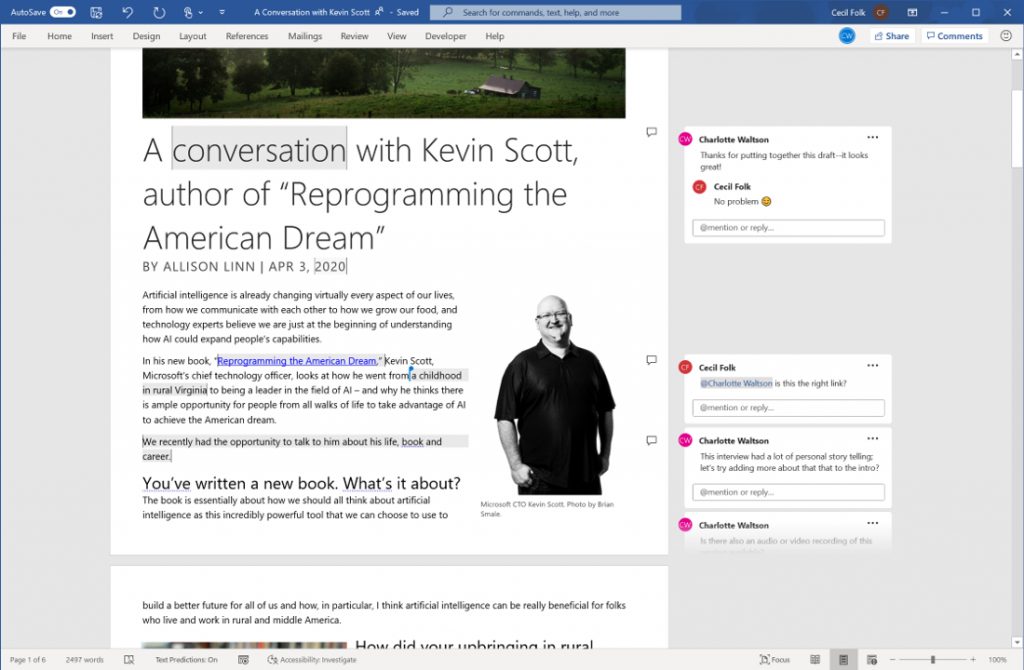
Microsoft Word on Windows is getting a modern commenting experience that should help you focus on your content without missing active comments from teammates related to the specific part of the document you’re working on. The modern commenting experience is now available through a dedicated Comments pane for Windows Insiders running the Beta Channel Version 2006 (Build 13006.20002) or later.

The new commenting experience will allow Microsoft Word users to choose between multiple views. By default, it will provide a “focused view” of comments next to the page you would be working on. You should be able to click the “Comments” button (also called Collab corner) in the upper right corner of your Word window in order to switch between different views. Once you have taken care of these comments, they will be instantly moved to the Comments pane, where you will be able to find them later as per your requirements.

GIF of modern commenting experience

It is worth noting that your comments will only be visible to people once you have finished editing them and have clicked the Post button at your end. The new feature will allow you to bring other team members into the conversation by using @mentions, and it will send automatic updates made in the comment thread to the mentioned users.

GIF of modern commenting experience

The new experience is part of Microsoft’s efforts to align the existing commenting capability across all Word platforms and other Office apps, including Word, Excel, and PowerPoint. It should provide a much-needed foundation for a richer Word collaboration experience for remote teams by introducing modern features such as @mention notifications, and more.

If you are interested to learn more about how the new commenting experience works, feel free to check out the Office Insider post.

Windows 10 Your Phone app lets you pair more smartphones

Microsoft announced in a tweet that they released a new feature, available only for Insiders first. The new feature enables you to pair another smartphone with Your Phone app.

How can I pair my smartphone in Your Phone app?

It’s pretty easy to do that. Just click on the Settings button from the bottom left corner of the app and then click on the Add a device button to start adding your new smartphone.

Add another device in Your Phone app

For now, even though you have the graphic option to pair an iPhone, the feature only works with Android devices.

add Android iPhone in Your Phone app

Windows 10 Your Phone app has seen a lot of improvements lately, like controlling music, accessing your photos, and displaying notifications from your smartphone.

The new features of Your Phone app culminated with the syncing feature from Surface Duo.

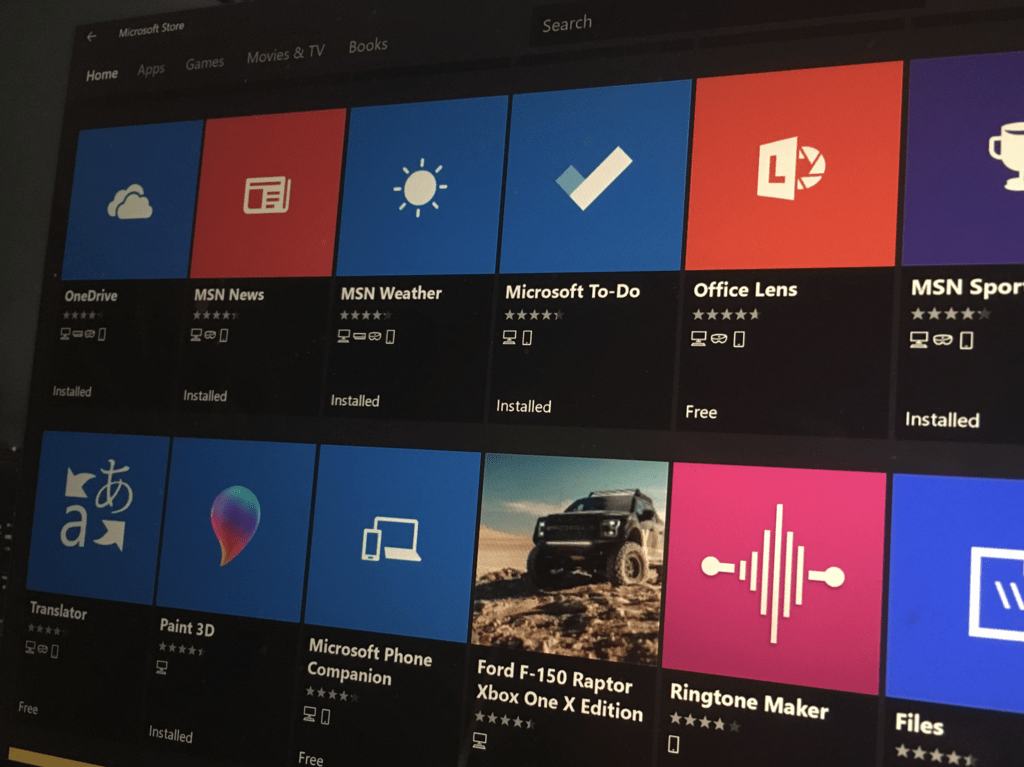
You can download Your Phone app from Microsoft Store or you can just open Microsoft Store from your Windows 10 device and search for Your Phone app.

We remind you that this new feature is available now only for Windows Insiders.

[wl_navigator]

Fix the PS4 error code CE-35694-7 in just 3 easy steps

The most annoying this about the PS4 error code CE-35694-7 is not that it doesn’t allow you to play games on your console, but that the error message is vague , and leaves no clue about the cause of the issue.

All it says is that an error has occurred.

However, it’s a good thing that you’re reading this guide because you are about to find out what causes the PS4 error code CE-35694-7 and how to fix it.

This problem arises when the hard disk of your PS4 console runs out of storage space to download new games.

In the past, you wouldn’t get this error if the space available is sufficient to run the game.

However, recent firmware will hit you with the CE-35694-7 error when the storage space is less than double of what you require to play the game.

Keep reading this guide to get working fixes for this issue.

How can I fix the PS4 error code CE-35694-7?

1. Delete irrelevant games and data

  1. Turn on the PS4 console.
  2. Navigate to Settings and tap the X button to select it.
  3. Go to System Storage Management and click on it using the X button.
  4. From the screen that follows, use the X button to click on Applications.
  5. Press the Options button on your controller, and select Delete.
  6. Click on the game titles and installed apps that you want to delete to mark their checkboxes.
  7. Navigate to the Delete button and select it with the X button.

Note: To clear out more space, you can also delete data from other locations. 

The number one cause of the PS4 error code CE-35694-7 is an insufficient storage space of your HDD. Therefore, clearing out old games and media will likely fix the issue.

Also, you don’t have to worry about your deleted data if you back it up somewhere else first before wiping them off your PS4.


2. Force check the system storage status

fix-PS4-error-code-CE-35694-7-force-storage-status-check

  1. Power on your console and connect a game controller to it via a USB cable.
  2. Press the Power button on the console and hold it down for a few seconds (the system will beep soon after, but only release the Power button when the LED light flashes).
  3. When the PS4 is completely turned off, press the Power + Eject buttons and hold them till the screen light up.
  4. On booting up, the system enters the System Storage Status check procedure. Give it some time, and the system will restart.

After deleting your games and freeing up your storage, the PS4 error code CE-35694-7 should go. However, due to a known PS4 bug, the system can show you inaccurate storage stats.

To resolve this issue, you need to force a System Storage check.


3. Rebuild the system’s database

fix-PS4-error-code-CE-35694-7-initialize-database

  1. A database rebuild is a PS4 alternative to a factory reset. Therefore, you must first back up your game saves either on a USB storage drive or on the cloud.
  2. Go to the Settings menu on your home screen ribbon.
  3. Scroll down to the Initialization option and hit the X button to select it.
  4. Select Initialize PS4.
  5. Select Full with the X button for a complete reboot of your system.

Start troubleshooting the PS4 error code CE-35694-7 from the first solution in this guide. Deleting unused data would most likely fix the PS4 error code CE-35694-7.

If this fails, it means that your console is having problems processing the correct empty storage space on the hard disk.

In this case, you now need to force a System Storage status check. If this also doesn’t work, your last resort is to initialize the PS4 console.

Make sure you back up your game saves and data before initializing your system. Hopefully, these methods should clear the error and let you continue to enjoy your PS4.

Op-Ed: Microsoft is finally taking PC gamers seriously, and it’s already paying off

Windows may be one of the most popular gaming platforms in the world, but it took some time for Microsoft to really pay attention to what PC gamers want. The Redmond giant allowed Steam to become the biggest digital storefront for PC games at the beginning of the millennium, and initiatives like Games for Windows Live, later replaced by the Windows Store on Windows 8 and Windows 10 have been received pretty poorly by PC gamers.

The Microsoft Store on Windows 10 still has lots of issues to this day, but the launch of Xbox Game Pass for PC last year finally brought some quality games to the store. All of Microsoft’s Xbox Game Studios are now launching on the Microsoft Store and Xbox Game Pass for PC on day one, joining high-profile games from other publishers such as Bethesda (Fallout 76), Square Enix (Final Fantasy XV), or Deep Silver (Metro Exodus).

The Microsoft Store catalog still has a long way to go before catching up to Steam or the Epic Games Store, but it’s finally something to be taken seriously in 2020. In parallel, Microsoft has also started releasing more of its games on Steam, and some of them such as Halo: The Master Chief Collection and Sea of Thieves have been consistently staying in the top sellers section. Microsoft said last month, that PC gamers spent more than 3.5 million hours in Sea of Thieves by the end of its first week on Steam, and the pirate game is currently the 4th best-selling game on Valve’s platform as of this writing, ahead of PUBG, Halo: MCC, and GTA V.

Sea of Thieves quickly became a best-seller on Steam.

Microsoft isn’t the only big game publisher to embrace Steam and other digital stores in a pretty big way. Two PlayStation 4 exclusive games, Death Stranding and Horizon Zero Dawn are currently among the top ten best Steam sellers ahead of their PC release this summer. EA also recently brought many of its recent games on Steam including Mass Effect: Andromeda and Star Wars Jedi: Fallen Order, and the company’s EA Access game subscription service that debuted on Xbox One consoles years ago will also be available on Steam later this year.

Microsoft and other publishers have certainly a lot to win by putting their games on Steam and the Epic Games Store, with the latter only taking a reasonable 12% revenue cut compared to Steam’s 30%. However, Microsoft is still keeping many of its cash cows off Steam: Minecraft is a pretty good example, along with the popular Forza series of racing games. However, things may well change after Microsoft saw the huge popularity of Sea of Thieves and Halo on Steam this year.

Speaking with Gamesindustry.biz this week, Xbox head Phil Spencer shared that “Last year was our biggest year ever on PC in terms of revenue as Xbox Game Studios.” Keep in mind that Halo: MCC on PC was only released in December of last year, while Sea of Thieves came to Steam on June 3, 2020. We can suppose that revenue will probably be up significantly this year, especially with Halo: Infinite and the new Flight Simulator launching on PC in the holiday season.

Xbox Game Pass for PC, which is still in beta, is also great value with an introductory price of $4.99/month. The subscription service is also expected to integrate with Project xCloud, with Microsoft reportedly experimenting with PC server blades for streaming PC games on other devices. The Project xCloud public beta has remained focused on Android and iOS devices so far, but we know that a Windows 10 app is also in the works. With Windows 10 now running on more than 1 billion devices, the game streaming service could become an attractive option for casual gamers with low-end PCs.

Overall, there’s really a demand for more Microsoft games on PC. Brian Jarrard, Community Director at 343 Industries is certainly aware of it after seeing a huge number of messages from Halo fans asking for a PC port of Halo 5: Guardians.

The upcoming Halo: Infinite will certainly be a critical title for Microsoft’s PC gaming ambitions. The game will be available on Xbox Game Pass for PC and console on day one, but we don’t yet if it will also come to Steam or other PC stores. Anyway, the game has the potential to become Xbox Game Pass for PC’s killer app, but at the same time, it could reveal the flaws of Microsoft’s Windows 10 Store to everyone. Five years after the launch of Windows 10, it’s still not clear if Microsoft can really fix the Microsoft Store.

Earlier this year, we learned that Microsoft would shut down its Ad Monetization platform for UWP apps on June 1, 2020. A previous report from ZDNet’s Mary Jo Foley also revealed that the future of the Microsoft Store was “uncertain,” with Microsoft planning to sunset its Microsoft Store for Business and Education. The Redmond giant could well follow EA’s footsteps and put all of its games on Steam, as well as Xbox Game Pass for PC. That would certainly make PC gamers really happy, though maybe Microsoft cares too much about services revenue to give up on the Microsoft Store.

How to open a window on a monitor from which it was launched

You may be running multiple monitors from a single computer. To optimize your workflow, you’ll want to customize how applications launch and display their Windows.

By default, programs usually launch onto the main display. But how do you open programs on a monitor from which it was launched in Windows 10?

You’ll find your answers in the following guide.

Make application open on the monitor it was launched from Windows 10

How to make a Windows 10 program remember which monitor it was on?

The easiest way to make an application open on the monitor it was launched on from windows 10 is to use a dedicated software solution. If you find it impossible to download or use the software recommended in this guide, there is a workaround.

In this section, we’ll cover both methods.

Use a dedicated software solution to open a program on a specific monitor

  1. Download and install DisplayFusion.
  2. Right-click on the DisplayFusion System Tray icon and select Settings.
  3. Click on Triggers from the left panel.
  4. Click on the Add button.
    open-window-launch-screen-displayfusion-triggers
  5. Make sure the checkbox marked Trigger is enabled is ticked.
  6. Select Window Created from the Event selection box.
  7. Under Frequency, select Always.
  8. Under Match Conditions, select your Process Filename. This is the application whose window you want to launch on a specific window.
  9. Leave everything else as is and click on the Add button.
  10. From the Add menu, select Move Window to Selected Monitor.
  11. In the appearing prompt, pick which monitor you want your application’s windows to launch from.
  12.  Click on OK.
    open-window-launch-screen-displayfusion-triggers
  13. On the settings screen, click on Apply then OK.
  14. Run your application to see if your windows launch on the right monitor.

Each window that’s created from this application will now launch on the selected window. This includes save and open file dialogs. You can configure this by including more trigger match conditions and changing the Frequency.

Applications like DisplayFusion are a must-have for users with multiple displays. This includes gamers, designers, hobbyists, and office professionals.

Not only can you manage which monitor an application launches its window on, but you can also set screen savers, have access to easier windows snapping, customize your taskbar(s), and set Windows position profiles.

For a complete setup walkthrough and feature overview, read our DisplayFusion guide.

Drag, drop, close and open to change which monitor a program opens on

  1. Run the desired application.
  2. Use your mouse to manually drag it to the monitor you want it to launch on by default.
  3. Close the window/application completely.
  4. Launch it again.

If it doesn’t work on your first attempt, you’ll need to try it again. Sometimes maximizing and then minimizing the window after you’ve dragged it can help. As you can tell, this may not be the most efficient way of changing the default monitor where a program opens itself on in Windows 10.

How do I open a program on a specific monitor Windows 10?

The best way to change which monitor a program opens on is by using one of DisplayFusion‘s many features.

It allows you to toggle which screen an application opens on, almost at will.

While we recommend DisplayFusion, there are other dual-monitor programs that can help you achieve the same effect.

It’s temporary. Once you restart your computer, the application will go back to launching the window on the main display.

Dedicated solutions like DisplayFusion provide you with an easier and less iffy way of picking which monitors a program launches its windows on.

Nevertheless, tell us if any of these solutions worked for you down in the comment section. How do you like to manage your displays?

How to reset a misbehaving app in Windows 10

Sometimes you might get into a situation where an app’s not working properly or you just want to return it to a freshly installed state. Fortunately, Windows 10 has a built-in reset option that means you don’t need to actually reinstall the app.

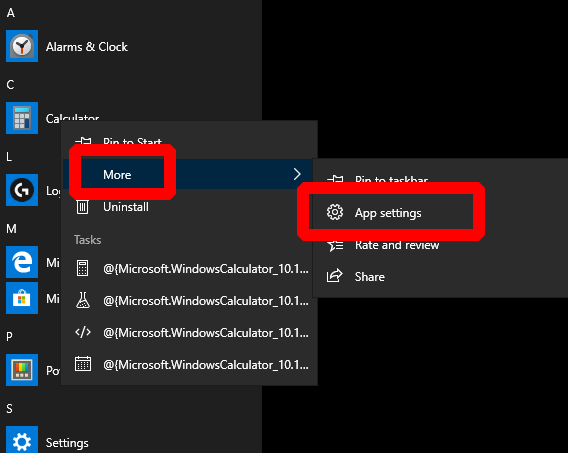
Screenshot of app's Start menu context menu in Windows 10 with More > App Settings highlighted

The quickest way to do this is to right-click the troublesome app in the Start menu. Click “More” and then “App settings” in the context menu which appears.

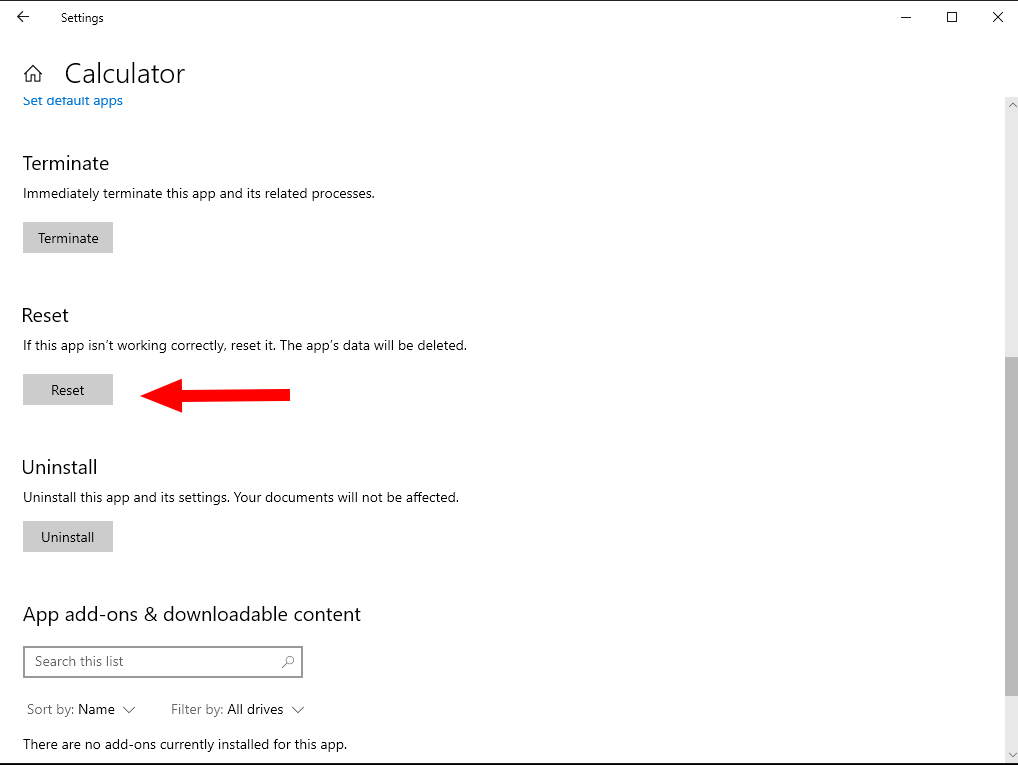
The app’s page within the Settings app lets you review its details, terminate any running processes and change basic configuration details. Scroll down the page to the Reset heading.

Screenshot of resetting an app in Windows 10

Click the “Reset” button to clear all data stored by the app, as if it was being reinstalled. Acknowledge the confirmation prompt to complete the action. A word of warning – this will delete all data associated with the app, such as your settings and any saved progress (in the case of games). Although some apps save to the cloud, you should make sure you have a backup of anything important before using this option.

With the app reset, launch it from the Start menu. With a little luck, your app should now be working normally again. You’ll need to reconfigure it as if it had just been installed for the first time.

Demand for Microsoft 365 skills is jumping in IT jobs marketplace

If there is no doubt that some countries have eased their lockdown restrictions, it seems unlikely that we will return to the pre-coronavirus world anytime soon. The crisis has been changing our working conditions across the world, and hundreds of companies and small businesses are now fast-tracking digital transformations in order to become more resilient to future disruptions.

The pandemic has also been providing new opportunities for companies developing collaborative solutions, such as Microsoft with its Microsoft 365 suite of tools. According to an analysis of ITJobsWatch data conducted by the TeleWare Group (via TheHR Director), professionals with Microsoft 365 skills are even more appealing to prospective employers than ever before.

The study showed that Microsoft’s productivity suite has gained six places in a list of the most in-demand IT job titles. The analysis also found around 5,174 permanent job advertisements in the UK that cited Microsoft 365 during the past 6 months, representing 6.25% of all permanent IT jobs, compared to 4.1% for the same period in 2018. Moreover, the median annual salary for IT professionals with Microsoft 365 skills in the UK has now reached £44,500, up 11% compared to 2018.

According to Steve Haworth, CEO of the TeleWare Group, most companies today are not a position to hire more people, but mastering Microsoft 365 has become a very valuable skill for the remote workforce. “Technology solutions should incorporate Microsoft 365, better connectivity through network provision, hardware, and AI solutions to set workers up for success,” said Haworth. “Tapping into the Microsoft talent on the market right now – or working with a trusted partner – will deliver better connectivity, collaboration and productivity to drive a strong bounce back.”

The good news is that it’s now a bit easier than before to build your skillset and get prepared for future job trends. Microsoft has recently launched an initiative to teach 25 million people across the world digital skills for free by the end of 2020. We invite you to check out our separate post to learn more.

Fix iTunes error 3600, 4000, 4013 with these solutions

If you own an iOS device, you most likely are using iTunes. Even though iTunes is a great application, you can encounter certain errors while using it.

In today’s article we’re going to show you how to fix iTunes error 3600, 4000, and 4013, so let’s get started.

How do I fix iTunes error 3600, 4000, and 4013?

1. Update both iTunes and your macOS

  1. Open the Apple menu and go to System Preferences > Software Update.
  2. If updates are available, click on the Update Now button to install them.
    software update itunes error 3600, 4000, 4013

To update iTunes, do the following:

  1. Open the App Store and navigate to the Updates section.
    app store updates itunes error 3600, 4000, 4013
  2. Now click Install next to iTunes update to install the update.

By updating your operating system and iTunes, you should be able to fix iTunes 4013 error.


2. Restart your iOS device

  1. Restart your iOS device.
  2. Once the device restarts, connect it to your PC.
  3. If asked to update or restore your device, choose Update.

3. Try using a different cable, USB port or computer

  1. If you’re having iTunes errors, try using a different USB port.
  2. Try using a different Apple-certified cable.
    USB cable itunes error 3600, 4000, 4013
  3. Try connecting the iOS device to a different computer.

4. Put your device in Recovery Mode and update

  1. Make sure iTunes is up to date.
  2. Connect your iPhone to your computer.
  3. Now press Volume Up then Volume Down button.
  4. Press and hold the Side Button while the iPhone reboots.
  5. Open iTunes and choose the Update option.

After doing that, iTunes error 4000 will be gone.


5. Hardware issues

In some instances, iTunes error 4013 can appear if there’s a hardware issue with your device.

The problem can be caused by loose cables or problems with the NAND chip or your camera.

To fix these problems, it would be best to take your device to Apple’s repair center.

iTunes error 3600, 4000, and 4013 can prevent you from connecting your iOS device with your computer, but we hope that this article helped you fix this problem.

[wl_navigator]

How to fix iTunes error -50, -54 for good

If you own an iOS device, iTunes is a must-have software. However, some users reported error -50 and -54 while using iTunes.

These errors will prevent you from syncing your files, and in today’s article, we’re going to show you how to fix these problems once and for all.

How can I fix iTunes error -50, -54?

1. Restart iTunes

  1. Make sure that the iOS device is connected to the computer.
  2. Close iTunes.
  3. Connect the device again and try to sync your files.

Several users reported that restarting iTunes has fixed error -54 in iTunes, so be sure to try that.


2. Change your permission settings

  1. Go to Applications > Utilities and start the Script Editor.
  2. Now run the following commands:
    • tell application “Finder”
    • set locked of every item of entire contents of folder “Music:iTunes” of home to false
    • end tell

You can also use Terminal to fix iTunes error -54:

  1. Open Terminal.
    terminal itunes error -50, -54
  2. Use one of the following commands:
    • sudo chown your-username your-filename – if you don’t own the file or folder
    • sudo chgrp staff your-filename – if it isn’t set to the same group like other iTunes items
    • chmod 666 your-filename and/or chmod 777 your-folder-name – to give everyone editing permissions

Users are also suggesting to disable FileVault if you’re using it, so be sure to try that as well.


3. Update iTunes

  1. Open App Store on your Mac.
  2. Navigate to the Updates section.
    updates app store itunes error -50, -54
  3. Download the available iTunes updates.

Several users reported that they fixed iTunes error -50 by updating iTunes, so be sure to try that.


4. Authorize your computer

  1. Open iTunes and make sure that you’re signed in with your Apple ID.
  2. Select Account > Authorizations > Authorize This Computer.
    authorize this computer itunes error -50, -54

After doing that, iTunes error -50 should be resolved.


5. Consolidate your iTunes library

  1. Open iTunes.
  2. Navigate to File > Library > Organize Library.
  3. Select Consolidate files.
    consolidate files itunes error -50, -54
  4. Now click on OK.

6. Check your files

  1. Make sure that third-party antivirus isn’t interfering with iTunes.
  2. Try syncing a couple of files at a time.
  3. Delete and re-download content or delete and re-import the content.
  4. Do not try to sync PDF files.

These are Apple’s official guidelines for fixing error -54 in iTunes, so be sure to try them.

iTunes error -50 and -54 can cause a lot of problems when syncing content, but we hope that you managed to fix this issue using our solutions.

[wl_navigator]

Headless browser: What is it and how to use it

When talking about web browsers, most of us are familiar with browsers such as Google Chrome, Opera One, Firefox, etc.

However, there’s a special kind of browser called the headless browser. In case you’re not familiar with these browsers, let us help you out.

In this article, we’re going to explain to you everything you need to know about these browsers with no graphical user interface.

Quick Tip:

Opera One is available on all desktop and mobile platforms, and thanks to the synchronization feature, you can always have your browsing data with you. It’s easy to manage and toggle the graphics features.

Opera One is light on resources, so it should be able to handle any website with ease. In addition, the browser has the ability to organize tabs into workflows and a comes with a native AI.

Opera One

Could a headless browser be too much to handle? Install the user-friendly Opera One!
Free Download Visit website

What is a headless browser?

1. Discover all about headless browsers

find all about headless browsers

A headless browser is a web browser without a graphical user interface. Such a web browser can perform certain commands using a command-line interface.

These types of browsers are usually used for testing web pages, or scrapping data for websites.

Developers also use them to run automated tests for JavaScript libraries or for taking screenshots.

2. How to use a headless browser?

Firefox:

  1. Open Firefox and go to about:profiles.
  2. Click on Create a New Profile.

    new profile firefox Headless browser
  3. Create a new profile and name it test.
  4. Now press Windows Key + R.
  5. Enter C:Program FilesMozilla Firefoxfirefox.exe -p test -headles

    run dialog firefox Headless browser

This is a basic way of starting Firefox in headless mode. To execute commands, you’ll need to enter them manually.

Chrome:

  1. Open the Run dialog like in the previous step:
  2. Enter C:Program Files (x86)GoogleChromeApplicationchrome.exe --headless --disable-gpu --remote-debugging-port=9222 https://www.website_name.com

    run dialog chrome Headless browser

To run commands, be sure to check online guidelines for the headless version of Chrome.

If you’re planning to actively use a headless version of Chrome or Firefox, it would be best to run commands from Command Prompt or PowerShell.

What are the best headless browsers?

There are several headless browsers that you can use, but here are the most popular ones:

  • Chrome
  • PhantomJS
  • HtmlUnit
  • TrifleJS
  • Splash
  • SimpleBrowser

While headless browsers are useful for automation and web development, regular users won’t have too much use for them.

Headless browsers can be useful to web developers and advanced users, and we hope that our article was helpful to you.

As for regular users, they should stick with standard GUI browsers such as Opera One. Let us know your choice in the comments area below.

Regular users who prefer standard GUI browsing can boost accessibility and speed by enabling Caret Browsing, which lets you move and select text using only the keyboard; learn how in our Caret Browsing guide.

“At least one signature has problems” Error in Adobe Reader

‘At least one signature has problems’ – You may have encountered this error while opening a signed document on Adobe Acrobat Reader.

It’s even more common if you’re trying to open and read documents digitally signed through electronic signature software and services like DocuSign.

But what does this error actually mean and what can you do to fix it? In the following guide, we’ll explore what causes error messages in Adobe Acrobat Reader and how you can quickly fix them.

How do I get rid of “At least one signature is invalid”?

Adobe at least one signature has problems

adobe-reader-signature-error


Since Adobe Acrobat Reader does not come with trusted identity data out of the box, it has to download it.

This error arises because the authentication data to validate the signature on the document isn’t available on your system.

In layman terms, Adobe cannot automatically verify signatures that were made using a self-generated certificate through third-party applications such as DocuSign.

These types of certificates are known as self-signed certificates.

However, this warning or error message (“At least one signature has problems”) does not indicate that the signatures on the document are corrupt or invalid. It simply informs the user that the certificates connected to the signatures may not be trusted by Adobe.

The latest version of Adobe Acrobat Reader tries to download the certificate data automatically upon opening a document with digital signatures. The “At least one signature has problems” in Adobe may occur and disrupt the process.

The easiest way to fix this is by manually validating the certificates and signatures.

Remove at least one signature that has problems

  1. Near the end of the ‘At least one signature has problems’ error bar, click on the button labeled ‘Signature Panel‘.
  2. On the panel that displays itself on the left side of your screen, right-click on the signature you want to validate.
  3. Click on Validate Signature.
    adobe-acrobat-example
  4. On the Signature Validation Status dialog click on the button labeled Signature Properties…
  5. On the Signature Properties screen, click on the Show Signer’s Certificate button.
  6. In the Certificate Viewer, click on the Trust tab in the main panel. It should be adjacent to the Revocation tab.
  7. Click on the button marked Add to Trusted Certificates.
  8. Acrobat will display a warning message. Click on OK. 
  9. You can leave the next screen as is and click on OK. 

Alternatively, you can click on the Validate All button. This may be an issue for larger documents with multiple signatures.

If you’re just viewing a document, verifying the certificates attached to a signature is unnecessary.

It’s also important to only manually verify certificates that you trust. Verifying the wrong certificates can pose a security threat.

Nevertheless, this issue isn’t unique to Adobe Acrobat Reader. A lot of other PDF readers suffer from the same issues but they can be handled almost as easily.

You can actually use this as a test to see how secure a PDF reader is.

If it doesn’t scan for untrusted certificates, then it’s not very secure. So it’s less an issue and more a security feature.

This isn’t the only problem you can encounter, and we wrote about Windows Cryptographic Service Provider reported an error in our other guide, so feel free to check it out.

Did the solutions in this guide work for you? Do not hesitate to leave a comment down below.

Can VPN apps hack you? How to choose a safe VPN provider?

One of the most pressing matters when installing a VPN app is that you trust the provider 100% with your personal details and private Internet traffic.

From that point onward (i.e. installing the VPN), your ISP is no longer the middleman in your connection. Instead, your VPN grabs this role.

We’ve seen that VPNs can access your data, but most of them choose not to. Or if they do, they shrug it off without grinning devilishly, grabbing it and handing it over to whoever demands it.

There are various scenarios where VPNs turn evil and start doing wrong for no apparent reason. And that’s exactly what we’re going to discuss today: can VPN apps hack you?

That sounds downright ridiculous, so here’s a more proper way to put this: can you get hacked through VPN apps?

Can you get hacked using VPN apps?

Technically speaking, everything is possible. So, to put it shortly, yes, you can get hacked through VPN apps, no doubt about it. However, it’s highly unlikely.

The odds of that ever happening are once in a blue moon. Most VPN providers check their apps regularly and the security measures they apply for their data centers are so out of this world you won’t even believe them.

Even if, say, one of the employees would go rogue and try to sabotage you, it won’t go undiscovered.

It’s more likely that you’ll be hacked through mobile apps. However, both Google and Apple make great efforts to scan and filter any suspicious apps from their stores.

How to choose a safe VPN?

Go for premium VPN services

Private Internet Access is a popular premium VPN service from Kape Technologies.Private Internet Access

Among its top features are:

  • More than 3000 servers to connect to
  • Zero-logging policy
  • Fast servers
  • Kill switch
  • Several encryption protocols
  • Proprietary DNS and DNSCrypt support
  • Lets you connect up to 10 devices on the same account

VPNs such as PIA take your privacy and security very seriously. As a rule of thumb, try to avoid at all costs free VPN services.

Private Internet Access

Private Internet Access

Need a safe, secure VPN service? Try using Private Internet Access.
$2.85/mo. Buy it now

The reason why you’d want to keep away from them is that even though you don’t pay with money, they still get paid one way or another.

Most of them run ads (which can be riddled with malware), but others go so far as to collect your data and sell it to the highest bidder.

Check the VPN’s privacy policy and terms of service

If you’re about to start using a VPN, it would be a wise thing to give a thorough read to their privacy policy and terms of service documentation.

VPN providers are legally obligated to specify the way they treat your personal data and the way they interact with the end-users’ devices.

If proved otherwise (that they violated their terms), it’s an offense that they can be sued for.

Another good advice is to try and avoid anything that seems sketchy. Any VPN that even slightly attempts to normalize heavy data logging is out of the question.

The same goes for those who fell under government regulations and agreed to deploy backdoors on their servers.

VPNs can hack you through their apps, but most of them won’t

So the answer to your question is yes, absolutely, VPNs can compromise your system through their apps. But the truth is that most of them won’t risk doing that.

Trust is a very important resource for all VPN providers and such an event (i.e. spying on someone through their apps or compromising their device) surfacing might deal a tremendous blow to their reputation.

[wl_navigator]

Cortana to let you make voice queries in Teams mobile app

The new Cortana app is one of the key highlights of the Windows 10 May 2020 Update. As you may already know, Microsoft repurposed the digital voice assistant to suit the features and functions of Office 365 productivity tools.

For example, the AI-powered application can read aloud your Focused Inbox emails (via the Outlook mobile app), thanks to its Play My Emails feature.

If you’re excited about Cortana’s productivity-focused capabilities, then you’ll be happy with the upcoming ability to use its voice assistance in the Microsoft Teams mobile app.

Teams mobile app to support Cortana voice assistance

Microsoft recently announced the upcoming integration of Cortana with the Teams mobile app. The feature is only rolling out to Microsoft 365 Enterprise users though.

The tool lets you collaborate, communicate, and carry out other meeting-related tasks in Teams by issuing verbal commands. Using spoken natural language, for example, you’ll be able to instruct Cortana to call anybody in your contact list.

Similarly, when your hands are working on something else, Cortana lets you join a Teams meeting by speaking a directive into your phone’s microphone.

The app’s voice assistance will also come to the rescue when you need to send an instant chat message, access your calendar, share a document, and a lot more.

Coming soon to the Teams mobile app, Cortana uses AI and the Microsoft Graph to provide voice assistance in Teams. To stay connected to your team even when you have your hands full, you can ask Cortana to make a call, join a meeting, send chat messages, share files, and more.

Android and iOS versions of the Teams app will support the feature, which arrives in the U.S. in the next few weeks.

The Teams mobile app is currently getting other productivity improvements, including inline message translation.

What’s your take on Cortana voice assistance coming to the Teams mobile app? Feel free to express your opinion via the comments section below.

[wl_navigator]

Can VPN access your data? Is your VPN safe?

VPNs are seen by many as superheroes, as they help maintain a private, secure, and free Internet. What a VPN does is create a tunnel and redirects all of your Internet traffic through it.

More so, they encrypt the data they pass through that tunnel. That way, your ISP has no chance of getting grab of your traffic, let alone decrypt and analyze it.

However, like your ISP, a VPN is but a middleman. An intermediary, if you want. As long as there’s someone or something between you and the destination server, there will also be a means of observing and collecting your data.

Basically what a VPN does is ask you not to trust your default intermediary (which is your ISP), but to willingly hand them access to your private data, hoping that they will only act as passive observers.

For that reason, users have started to ponder on questions such as whether or not VPNs are truly safe, and if they can access your Internet traffic and/or private data.

But before we jump to hasty conclusions, let’s take a step back and run a quick recap.

VPNs act as middlemen

From a security standpoint, there’s little you can hide from your VPN provider. By default (without a VPN), your ISP can see everything you do online, ranging from websites you visit to connection times and what files you’ve downloaded.

They can even go as far as seeing every bit of unencrypted data that belongs to you. For instance, if you’re posting something on an HTTP website, they can see it. Passwords, messages, pictures, you name it.

Now, if you use a VPN, you simply replace the middleman. So everything you’ve trusted your ISP not to do will be expected of your VPN.

Just to be clear, your VPN can see the same information that your ISP usually sees. However, how they choose to treat that information is what sets VPNs apart from each other and from ISPs.

The importance of zero-log VPNs

As we’ve mentioned just above, the VPN provider’s policy is quite important, as it rules on how your data gets treated by the service. There are several VPN services that swear by their zero-logging policy, which is a good thing.

Not keeping any logs means that if the provider’s servers get seized, there will be no data worth analyzing.

This includes connection timestamps, IP addresses, and basically anything that can help someone link you with your VPN account or with specific actions that have been performed in a certain fashion or timeframe.

To put it shortly, if the VPN doesn’t log anything, there’s nothing to analyze.

Most VPNs do run some logs, but these are only meant to help optimize the service since the data they monitor and/or collect is anonymous and can’t be traced back to you.

For instance, VPNs can log successful or failed connection attempts, the date (and not exact time) you connected to a specific server, and how many users are connected to each of their servers.

Even though these bits of information seem specific, they’re not enough to pun a pin in you.

Is your VPN safe?

The quickest way to learn that is by giving a quick rundown to the provider’s privacy policy and terms of service. We know it’s a lengthy, tedious process, but it will help you learn more about your VPN‘s trustworthiness.

Another way to determine whether you can trust your VPN or not is by looking it up online. VPNs who previously sold or handed customer data never live it down. You can find tens, if not hundreds of articles and even court cases where they gladly handed incriminating info.

Only use trustworthy VPNs

  1. Download Private Internet Access
  2. Install it on your PC
  3. Launch it
  4. Log into your PIA account
  5. Enjoy private, secure Internet browsing

Private Internet Access is a VPN you can trust. It’s brought to you by Kape Technologies and not only does it encrypt your traffic to keep it away from prying eyes, but it also keeps no logs regarding your online activities.

Private Internet Access

Private Internet Access

Want a VPN that won't log your data? Try using Private Internet Access.
$2.85/mo. Buy it now

Thus, whatever website you decide to browse or file you might want to download, PIA will keep it on the hush for you. Just don’t make the mistake of taking PIA as your unlawful sidekick.

Neither PIA nor we condone unlawful activities using a VPN. You should only use VPN to keep your online whereabouts to yourself, but be careful about which side of the law you land on.

Can VPN servers see my data?

With all that in mind, we can safely conclude that yes, your VPN provider can absolutely see your online data. All of them, no exception. However, some of them decide not to act on it. Others might harvest it and sell it to the highest bidder.

If you want to avoid nasty situations like your private data falling in the wrong hands, make sure to do your research thoroughly before deciding to stick with a VPN provider.

There’s plenty of helpful guides online and even discussion forums can make a great starting point for your research.

[wl_navigator]

Microsoft Teams gets video filters, Dynamic view, and more

With support for up to 300 attendees per meeting and a host of other feature updates, Microsoft Teams is expanding at the speed of lightning.

The Office 365 tool, which lets you create digital workspaces for your employees, recently received multiple updates that empower collaboration in the workplace and the education sector.

New Microsoft Teams meetings features

Microsoft Teams received new features that make workforce collaborationa breeze. Microsoft said that the improvements make meetings more lively and inclusive.

They help you feel more connected with your team and reduce meeting fatigue. Second, they make meetings more inclusive and engaging. And third, they help streamline your work and save time.

Here are some of the features either coming or currently rolling out to Microsoft Teams users:

Together mode

Microsoft says it researched and learnt that virtual meetings make people feel less connected. So, it’s rolling out Together mode in Teams, which uses AI to place virtual meeting participants in a shared background.

Dynamic view

This AI-powered feature lets users customize how they view shared content and fellow Teams meeting attendees on the screen. For example, you can configure the feature to see select participants side-by-side.

In addition, Microsoft will be rolling out large gallery view in August. This update enables up to 49 people to appear on the video screen at the same time.

So, finally, Microsoft Teams is going to match Zoom’s maximum number of participants visible on each screen.

Video filters

Use this feature to customize the appearance of participants on the video screen. You may tweak the lighting or adjust the camera focus to achieve video effects typical of photography and social media applications.

Live reactions in Microsoft Teams

A few months after Microsoft Teams got the raise hand feature, it now supports live reactions. This capability lets the audience give feedback to the speaker in real time using emojis.

Other announced Microsoft Teams features include chat bubbles, suggested replies, and more.

Kindly leave us a message in the comments section below to let us know what you think about the new Teams enhancements.

[wl_navigator]

This is how you can fix HTTP 403 error on Google Drive

Due to its omnipresence on Android devices, many users choose Google Drive over numerous cloud alternatives. And it’s a valid choice, considering that it looks great with the material design and does exactly what a casual user needs.

However, from time to time, users experience issues with completely undermine the reliability of Google’s cloud service. One of them is the HTTP 403 error where an affected user can’t access or download certain files from Google Drive.

We made sure to shed some light on this and, hopefully, provide you with the solution.


How to fix Google Drive access denied (error 403)

  1. Clear browser’s cache
  2. Change your cloud storage
  3. Sign out and sign in with your Google Account
  4. Disable browser extensions temporarily
  5. Try an alternative browser or use the Incognito mode
  6. Create a shareable link and use it to access your file

1.  Clear browser’s cache

Let’s start with the elementary step when in-browser issues emerge. This applies even when the first-party websites like Google Drive in Google Chrome won’t work. And that’s, of course, clearing the browsing data.

You can immediately go for the Incognito mode and skip 2 or 3 steps from this list, but that’s a temporary solution. Most likely you have a variety of saved credentials in browser cached data so using the Incognito mode every time an issue appears is just a mere workaround.

Follow these steps to clear the browser’s cache from Google Chrome, Mozilla Firefox, and Microsoft Edge:

Google Chrome and Mozilla Firefox

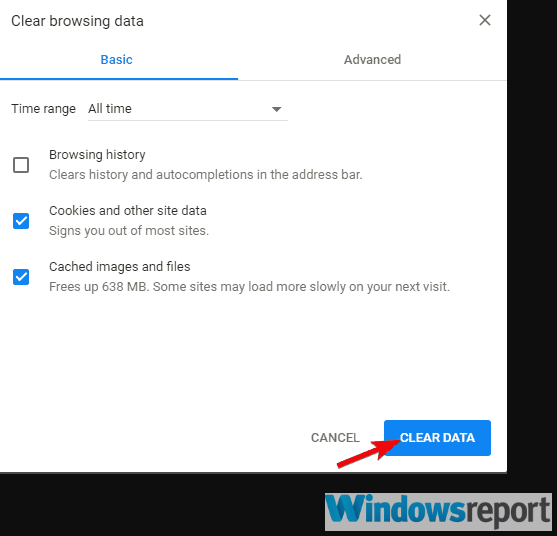
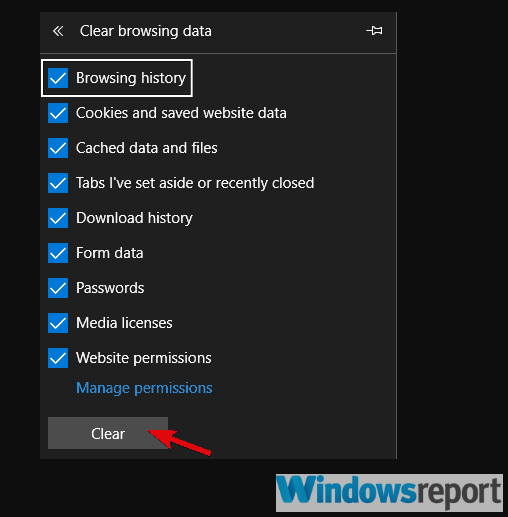
  1. Press Shift + Ctrl + Delete to open the Clear browsing data menu.
  2. Select All time as the time range.
  3. Focus on deleting Cookies, Cached Images and Files, and other site data.
  4. Click on the Clear Data button.http 403 error google drive

Microsoft Edge

  1. Open Edge.
  2. Press Ctrl + Shift + Delete.
  3. Check all the boxes and click Clear.http 403 error google drive

2. Change your cloud storage

As mentioned in the beginning, there are a lot of cloud storage options available out there, so why not go for something new?

Our recommendation is Sync.com, a very user-friendly cloud storage, and file-sharing tool.

What recommends Sync is the end-to-end encrypted technology they use. Most cloud storage providers can access, scan, and read your files. But not Sync (or anyone else). This is why there’s a minor chance that your database gets corrupted and that you get blocked from accessing it.

What’s more, Sync backs up your files in realtime and makes it easy to recover deleted files and previous versions of any file, any time.

Sync.com

Sync.com

With Sync you keep all your important files safely stored in the cloud and accessible just to you, anytime, anywhere.
$8/mo. Visit website

3. Sign out and sign in with your Google Account

Another viable step to take if Google Drive is blocking your downloads is to sign out and sign in again with your Google Account.

There’s a fair number of mishaps concerning the access permission. Especially if you’ve copied the file from Google Drive assigned to a different Google Account. Or, maybe, uploaded the file from a different platform, like Android or iOS.

For that and similar reasons, this simple sequence might help you resolve the problem. Here’s how to do it in any browser:

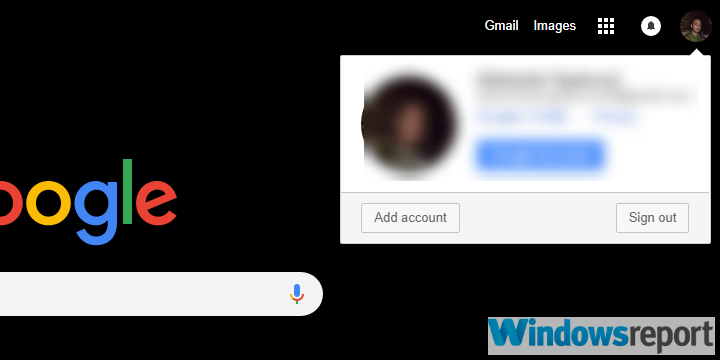
  1. Open your browser and navigate to Google.com.
  2. Click on your profile pic and sign out.http 403 error google drive
  3. Restart your browser and sign in again.

4. Disable browser extensions temporarilydisable browser extensions

While we’re at browser-based troubleshooting, we can’t avoid mentioning possible issues a rogue extension can cause. It can even be one of your regulars, like an adblocker or even a third-party theme.

Since we can’t say with certainty what exact extension is causing the problem, we suggest disabling all of them temporarily.

If the problem is resolved, make sure to re-enable extensions one by one until you, by a system of elimination, find out which one was causing the error 403 with Google Drive.


 These are the best Chrome extensions to protect your privacy today


5. Try an alternative browser or use the Incognito mode

If one browser won’t cooperate, there’s an abundance of alternatives.

Chances are you already have a few installed on your PC, including Microsoft Edge and Internet Explorer, which are built-in browsers. So try logging into your Google Drive via some other web browser and hope for the resolution.fix google drive 403 error

On the other hand, as we duly noted, the Incognito mode is the best way to avoid all browser-related concerns. Just click on the 3-dot menu in the top right corner and choose New incognito window or anything along those lines. Then sign in and try downloading the troublesome file from your Google Drive.


6. Create a shareable link and use it to access your file

Finally, some users who were stuck with the HTTP 403 error even after all these steps found a workaround.

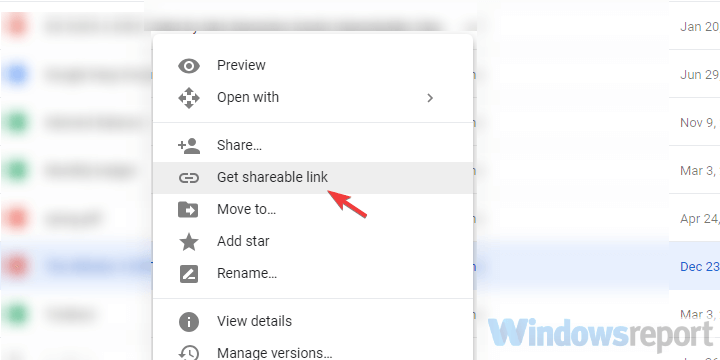
If you can’t download a file directly from Google Drive, try with the shareable link. The shareable link allows everyone to download a private file. It automatically copies to the clipboard so the only thing you need to do is pasting it into the Address bar.

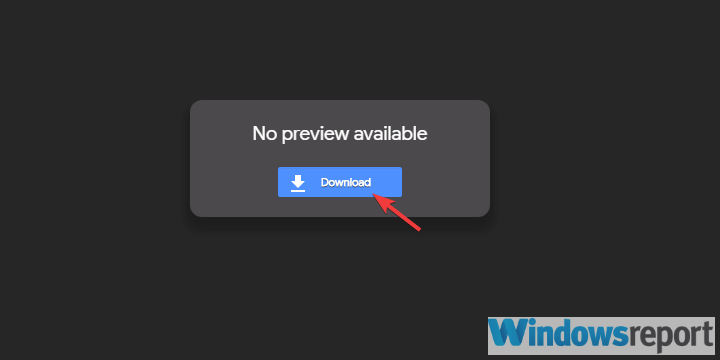
You should see a download page from where you can get your file without any issues. If you’re not sure how to do it, follow the steps we provided below:

  1. Open Google Drive from your browser.
  2. Right-click on the file you want to download and choose “Get shareable link” from the contextual menu.http 403 error google drive
  3. Click on the browser’s Address bar line and press Ctrl + V to paste the link. Hit Enter.
  4. Download the file.http 403 error google drive

With that said, we can conclude this article. If you have any other concerns, questions, or possibly suggestions, feel free to use the comments section below.

Hackers created fake Outlook login page in phishing drive

The cloud enables enterprises (big and small) to deploy computing resources cost-effectively, at scale. But as users of Microsoft Outlook, Teams, Excel, and other Office 365 apps have come to realize, the platform has its own perils.

Hacking, which is one of the negative aspects of the cloud, reared its ugly head recently. This time around, hackers targeted Outlook accounts of employees in various organizations, according to an Abnormal Security report.

Phishing attackers used a fake Outlook login page

In this phishing attempt, the attacker sends an email designed to look like it comes from the genuine Microsoft Outlook team.

The email notifies the recipient that their organization expects all employees to migrate to a new MS Outlook web portal.

In addition, it injects a sense of urgency into the communication to compel the target to act faster.

The attacker impersonates an automated notification from the Outlook team on behalf of the recipient’s company. Recipients are urged to “upgrade” their Outlook services within 24 hours, or email deliveries to them will be delayed.

To migrate or upgrade to the new MS Outlook site, the victim has to unwittingly click on a login link that leads to a fake Outlook login page.

Since the attacker controls the fake sign-in portal, they have access to the Microsoft account user credentials that the victim types.

Once the hacker receives the victim’s login details, they can access troves of information stored on the Microsoft account. Similarly, you can’t rule out the possibility of the attacker compromising other accounts associated with the breached Outlook account.

The cloud though isn’t going anywhere despite the persistent hacking threats. But Office 365 users can protect their data and apps with the various security features available on the platform.

In addition, stronger password policies and password security awareness programs can help a great deal.

As always, you can share your opinion or ask any question about Microsoft account security in the comments section below.

[wl_navigator]

StrongVPN for Netflix: Does it work? How to unblock Netflix

StrongVPN is a virtual private network service that focuses on making your online activities more secure. However, a lot of users are wondering if StrongVPN works with Netflix.

Because Netflix has a strict policy against customers using VPN and proxy servers, it bans most free solutions because they use public IP addresses to spoof your location, resulting in a Netflix VPN error.

But it’s not so easy when it comes to premium VPN services that go to great lengths to maintain VPN servers that unblock Netflix. In this article, we’re testing StrongVPN to see if it’s worth your money.

Does StrongVPN really work with Netflix?

Yes, it does.

You can use StrongVPN to unblock Netflix US and watch TV series and movies that are only available to the United States. But the tool can’t unlock other regional Netflix catalogs.

That means that StrongVPN is worth the trouble only if you’re living or traveling outside of the US (if you’re only interested in using a VPN to watch Netflix).

How to unblock Netflix US with StrongVPNuse StrongVPN

  1. Download StrongVPN.
  2. Install the VPN on your device.
  3. Connect to a US VPN server.
  4. Start watching Netflix US.

Made by Strong Technology, StrongVPN is compatible with all major platforms, including Windows, Mac, Android, and iOS. It supports more than 59,000 VPN IP addresses, and you can use it to circumvent geoblocks.

Furthermore, you can connect to the best available location to get the best possible Internet connection speed. There are no speed limits, and StrongVPN doesn’t capture any traffic logs.

The tool can secure your entire Internet traffic using the OpenVPN, WireGuard, L2TP, SSTP, IPSec, or IKEv2 protocols, depending on your preferences.

More about StrongVPN:

  • +950 VPN servers in 35 countries
  • Unblocks Netflix US
  • Up to 12 connections at the same time
  • 30-day money-back guarantee (no free trial)

StrongVPN

StrongVPN

Unblock Netflix US and start watching your favorite shows with this VPN app.
$7/mo. Buy it now

What’s the best VPN for Netflix?

use CyberGhost VPN to unblock Netflix

When it comes to unblocking Netflix, we recommend using CyberGhost VPN because it works with all major Netflix catalogs. A product of Kape Technologies, this VPN service can redirect your entire network traffic via VPN.

Besides, unlike StrongVPN, CyberGhost VPN offers a free trial. It has a special category dedicated to streaming services, so you can quickly connect to a VPN IP address that really works with Netflix. It’s also one of the best VPNs for Netflix UK.

CyberGhost VPN can be installed on all major platforms. It even has a VPN extension for Chrome. No logs are stored about your VPN activity. Plus, it comes with an ad and malware blocker, together with exclusive DNS servers.

More about CyberGhost VPN:

  • +6,500 VPN servers in 89 countries
  • Unblocks Netflix US, UK, Canada, India, France, Germany, and others
  • 7 simultaneous connections
  • Up to 45-day money-back guarantee (1-day free trial)

CyberGhost VPN

CyberGhost VPN

Unlock the best Netflix catalogs with this VPN, including Netflix US and UK.
$2.75/mo. Buy it now

To summarize, StrongVPN works with Netflix, giving you the possibility to watch Netflix US. However, it’s not the best choice for this streaming service. In fact, StrongVPN stops working sometimes.

If you’re looking for the best VPN to watch Netflix, we suggest using CyberGhost VPN because it can unlock most Netflix catalogs, not just Netflix US. And it offers superior connection speeds so that you won’t have to worry about buffering.

[wl_navigator]

Dropbox sync icons missing on Windows 10/11 [Fixed]

Dropbox is one of the best cloud storage services available, allowing users to view and edit their files on any device, anytime and anywhere, share files, and automatically back up their work.

This service is a UWP app and is compatible with many Windows 10 features such as Windows Hello, Live Tiles, and Notifications.

Dropbox is a reliable app, but sometimes Windows 10 users encounter various issues when running it on Microsoft’s latest OS.

Oftentimes, users complained that the Dropbox sync icons don’t show in Windows 10, especially after having upgraded to this OS.

What can I do if Dropbox sync icons are missing?

1. Reinstall the latest version of the Dropbox desktop application

latest version of the Dropbox app

In some cases, there might be a temporary glitch with Dropbox and that can cause issues with Dropbox sync icons. One way to fix the problem is to restart Dropbox and check if that solves the issue.

On the other hand, you might experience problems with Dropbox sync icons because your installation is damaged. However, you can fix that easily by reinstalling Dropbox.

Once you uninstall Dropbox, download the latest version and install it again. After installing the latest version, the issue with sync icons should be resolved.


2. Try out a different cloud storage solution

cloud storage solution

You’re already used to the idea of not wasting valuable storage space on your PC when you can store your data in the cloud.

However, these Dropbox sync icons issues prevent you from enjoying this experience. That’s why it’s time to talk about an alternative that doesn’t include handing over your hard-earned cash.

Sync is one of the very few free cloud services that easily guarantee the confidentiality of your private files. No unauthorized access is ever allowed.

You get plenty of other advanced collaboration features too – file requests, permissions, and expiry dates – all make sure you’re organized and ready for action.

Sync

Sync

You won't find a better cloud storage solution than the full-featured Sync. It will help you forget all about Dropbox!
Get it free Visit website

3. Customize the notification area

  1. Press Windows Key + I to open the Settings app.
  2. When the Settings app opens, navigate to the Personalization section.
    Dropbox folder not showing sync icons
  3. In the right pane choose Taskbar. Scroll down to the Notification area section and choose Select which icons appear on the taskbar.
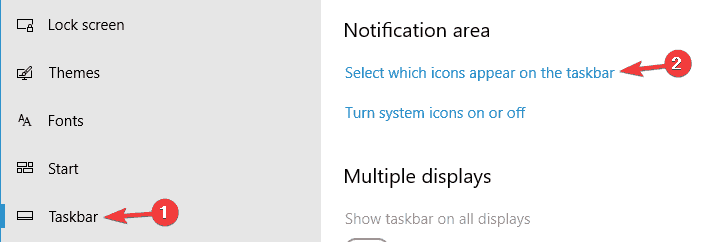
    Dropbox icon missing Windows 10
  4. Locate Dropbox on the list, disable it and wait for a few moments. Now turn on Dropbox again.

Sometimes you might encounter problems with Dropbox sync icons because the Dropbox icons aren’t set to appear on Taskbar.

After doing that, the problem should be completely resolved and the sync icons will appear again.


If you’re having trouble opening the Setting app, take a look at this article to solve the issue.


4. Unlink and relink your computer to Dropbox

  1. Open the account menu.
  2. Select Settings > select the Security tab.
  3. In the Devices section, click the X for the computer you want to unlink.
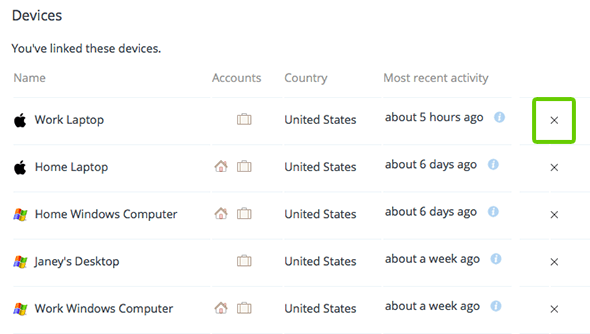
Dropbox green check mark missing5. Relink your Windows computer from the desktop app.

Some users claim that you might be able to fix the problem simply by unlinking your PC from Dropbox. This is just temporary, so you won’t lose any synchronized files.

To unlink your account, just complete the above procedure.


5. Hack the Registry

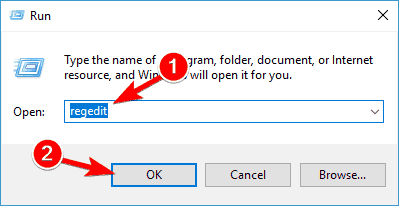
  1. Press the Windows key + R and enter regedit.
    Dropbox icon missing Windows 10
  2. Go to HKEY_LOCAL_MACHINESOFTWAREMicrosoftWindowsCurrentVersionExplorerShellIconOverlayIdentifiers
    Dropbox green check mark missing
  3. If the Dropbox overlays are in the first 15 positions, they will display.
  4. If the Dropbox overlays aren’t in the first 15 positions > right-click the Dropbox files > select Rename > add a space before the name of the Dropbox files to take them to the first positions.

If Dropbox sync icons aren’t showing, the issue might be related to your registry. Windows has a limit of 15 overlay icons that can be loaded.

To prioritize the Dropbox sync icon overlays, just apply the above steps.


6. Remove other cloud storage software

remove cloud storage software

According to users, sometimes other cloud storage software can interfere with Dropbox and cause Dropbox sync icons to become missing.

However, you can fix this problem simply by removing other cloud storage software from your PC.

There are many ways to do that, but the most effective one is to use uninstaller software such as Revo Uninstaller.

In case you’re not familiar, uninstaller software is a special application that can remove any application, along with all of its files and registry entries, from your PC.

Once you remove other cloud storage software from your PC, the problem should be resolved completely.

In addition to cloud storage software, other applications that have status icons can also cause this problem to appear, so if you have any other applications that are using sync icons similarly to Dropbox, be sure to remove them.


7. Restart explorer.exe

  1. Press Ctrl + Shift + Esc to open Task Manager.
  2. A list of running applications will now appear. Locate Windows Explorer, right-click it and choose Restart from the menu.
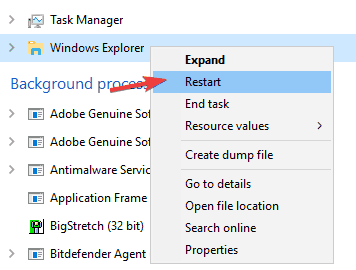
    Dropbox folder not showing sync icons

After Windows Explorer restarts, check if the problem with Dropbox sync icons is still there.

Keep in mind that this is just a temporary solution and if the problem reappears, you’ll have to repeat this solution.

If Dropbox sync icons are missing, you might be able to fix this problem simply by restarting explorer.exe. Sometimes there might be certain glitches on your system, and in order to fix them, it’s necessary that you restart Windows Explorer.


Can’t open Task Manager? Don’t worry, we’ve got the right solution for you.


8. Move your Dropbox folder

how to move your Dropbox folder

  1. Click the Dropbox icon in the system tray and select the gear icon.
  2. Navigate to Sync > Move.
  3. Choose a new location for your Dropbox directory and wait while Windows moves all your files.

In some cases, the location of your Dropbox folder can cause Dropbox sync icons to become missing. If the Dropbox folder is in the root directory on your PC, that can cause this and other problems to occur.

However, you can just move your Dropbox folder and the issue should be resolved.


9. Install the latest updates

  1. Open the Settings app.
  2. Navigate to the Update & Security section.
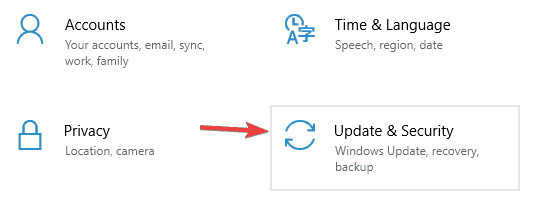
    Dropbox green check mark missing
  3. In the right pane, click Check for updates button.
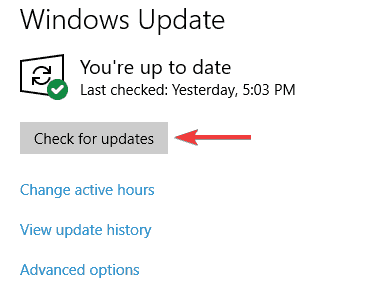
    Dropbox icon missing Windows 10

In some cases, Dropbox sync icons won’t appear on your PC due to certain system issues.

If your system is out of date, that might be a problem, and in order to fix it, you need to install the missing updates.

By default, Windows 10 installs the missing updates automatically, but you can always check for updates manually by doing as described above.

If any updates are available, they will be downloaded automatically in the background. Once the updates are installed, restart your PC and check if the problem with Dropbox sync icons still appears.


10. Disable OneDrive

how to disable OneDrive

  1. Right-click the OneDrive icon in your sysbar and choose Settings from the menu.
  2. Now navigate to the Account section and click Unlink this PC options. Now choose to Unlink this account.

OneDrive is built-in in Windows 10, and if you’re having problems with Dropbox sync icons, you might have to disable OneDrive.

This is quite simple, and you can do it by following the above steps. After doing that, the OneDrive will be disabled and the issue should be completely resolved.


11. Perform a System Restore

  1. Press Windows Key + S and type system restore. Select Create a restore point.
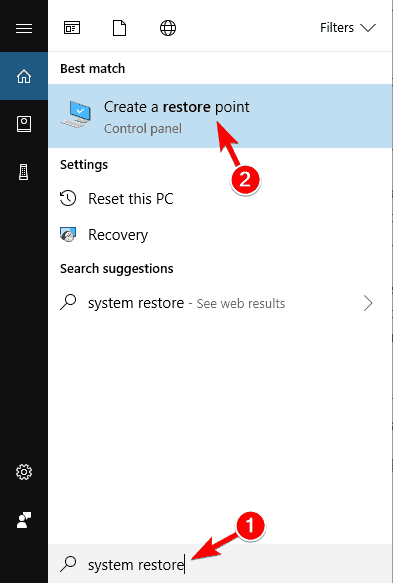
    Dropbox folder not showing sync icons
  2. When System Properties window opens, click the System Restore button.
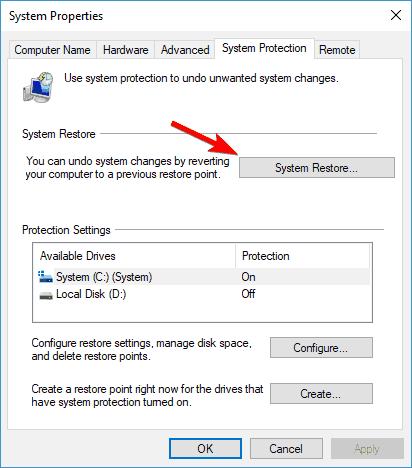
    Dropbox icon missing Windows 10
  3. System Restore window will now appear. Click Next to proceed.
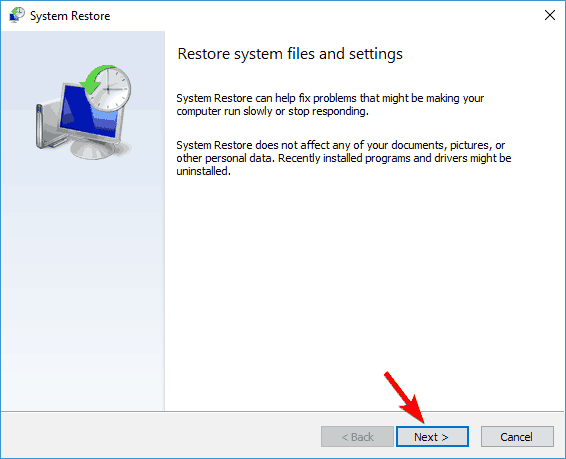
    Dropbox icon missing Windows 10
  4. If available, check to Show more restore points option. Select the desired restore point and click Next.
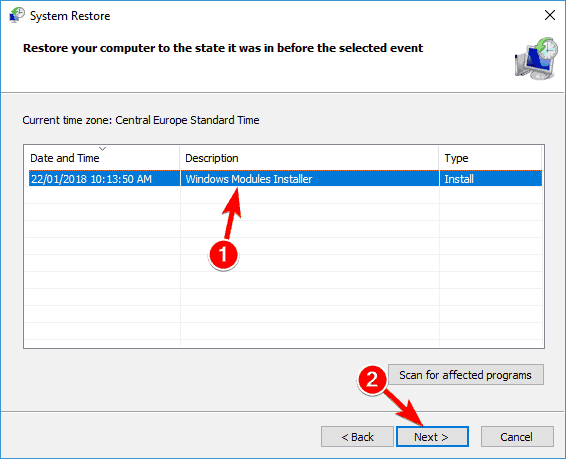
    Dropbox green check mark missing
  5. Follow the instructions on the screen to complete the restoration process.

If this problem started appearing recently, you might be able to fix it by performing a System Restore. To do that, follow these steps:

Once your system is restored, check if the problem is still there. If not, it’s possible that a recently installed application caused this issue.

As always, if you’ve found other workarounds, help the community and share your experience in the comments section below.

Do keep in mind that Dropbox remains a great cloud storage service. The sync icons missing are a big problem, and speaking of Dropbox issues, here are some similar issues that users reported:

  • Dropbox icon missing Windows 10 – This problem can appear on Windows 10, but other versions of Windows aren’t excluded. If you encounter this issue, be sure to try some of our solutions.
  • Dropbox icon not showing in system tray – There are times when the icons don’t show up in the system tray. If you encounter this problem, be sure to make a couple of changes to your registry and the issue should be resolved.
  • Dropbox green checkmark missing – Sometimes, this problem can occur with green checkmark icons. If this happens, restart Dropbox and check if the problem is still there. Alternatively, reinstall Dropbox and check if that makes any difference.

[wl_navigator]

 

Storage Access API lets you pause your Edge privacy settings

Microsoft rolled out the Storage Access API in the Canary and Dev Channels. As such, developers can implement the feature to let site visitors temporarily suspend their Edge privacy settings.

The recently concluded Microsoft Build 2020 event came with plenty of productivity features and quality- of-life improvements for Edge. Many of them, for example, Pinterest-Collections integration and tracking prevention are already available in the browser.

Well, the new Storage Access API lets developers make a provision for temporarily suspending certain aspects of privacy features like tracking prevention.

The Storage Access API and your Edge privacy settings

Of course, tracking prevention is vital to the reinforcement of user privacy by blocking unwanted access by third parties or any untrusted parties.

But it can also have unfavorable effects, such as blocking access to content the user may wish to view. In such scenarios, developers can use the Storage Access API to create user opt-in provisions and let third-party sites access otherwise restricted first-party site data.

Microsoft explains the API:

This capability can be used to create graceful fallback experiences in cases when storage access may be restricted by features such as tracking prevention in Microsoft Edge. For users, this API provides greater transparency into and control over the sites that are requesting access to browser-based storage that could be used to track their behaviors across the web.

Say, you have prevention tracking enabled in Microsoft Edge. And you wish to view embedded videos or interact with social media widgets on a website in the browser.

Also, let’s assume that the first-party site has implemented the Storage Access API. In that case, you may encounter a prompt requiring permission to temporarily access its storage in the context of the third-party site you’re visiting.

Obviously, allowing access lets you view the content.

But you may choose not to allow. As a result, your Edge privacy settings will prevent you from viewing the embedded content on the third-party site.

Nonetheless, browser privacy remains a hot-button issue for users. Tells us what you think about the new Access Storage API for Edge and other Chromium browsers.

Looking for toddler games to play online? Check this guide

When it comes to playing games online with your toddler there are plenty of things to consider. You don’t want to stress or overwhelmed your toddler with games that may not be age-appropriate. Some of the age-appropriate activities for toddlers involve drawing, coloring, painting, and musical games. You can play games that will help develop your toddler’s memory, logic, and reasoning as well as emotional skills. If you are looking for some great recommendations, read further. We compiled a list with the best online games for your toddler. Additionally, we also recommend using Opera GX as the main browser.  Opera GX brings a couple of amazingly useful features to enhance your online gaming experience. This great gaming-browser offers you access to a built-in panel to limit RAM and CPU usage for an increase in performance. Beyond this, Opera GX also contains a free ad blocker and a VPN service.
Editor's choice
Opera GX browser logo
  • Best gaming browser
  • Resource controller
  • Custom UI
  • Twitch integration
  • Free VPN included
  • Ad-blocker
If you’re not convinced yet, maybe the fact that Opera GX was awarded for its interface and user experience design will convince you. Scroll down to see our toddler game suggestions.  

Where can I find some good online toddler games?

Memory Game

best toddler games online memory

This game consists of several cards, flipped on the back. Each time your toddler clicks on the card, a picture will be displayed for a second.

Your toddler will have to memorize the card and click on the next one. Then try to pair all the cards.

A great game your toddler can play when you are driving in the car or your kids are restricted on moving around.

Such games will also teach your toddler strategy and improve their concentration.

⇒ Play Memory Game

Counting Pizza Party

best toddler games online pizza counting

With this game, toddlers learn in a fun and relaxed game how to count and how numerals relate to quantity.

In this game, toddlers have to count the correct number of toppings and add them to their pizza so that it matches the customer request.

Each time they are finished, they’ll have to ring the bell and hear how the toppings are being counted.

The game is very fun and engaging, especially for toddlers.

⇒ Play Counting Pizza Party

Letter Dance Party

best toddler games online letter dance

This is a great game where toddlers can learn about letters and how they are pronounced. And as the title suggests it’s a party where all the letters are invited.

You can trace the letter, pronounce it out loud with them, and name different words that start with the same letter.

⇒ Play Letter Dance Party

Puzzle Games

best toddler games online puzzle

Puzzle games very creative and educational, where each character is cheerfully animated. To play the game, your toddler will have to simply drag each part of the character in their matching slot. This game encourages basic manipulation skills, problem-solving, and imaginative play.

⇒ Play Puzzle Games

Seasons Spinner

best toddler games online seasons spinner

This game is great for discussing with your toddler about what happens in nature during each season and the specific things they can do during Winter, Spring, Summer, and Fall.

The characters in the game are fun to play with and they will keep your toddler engaged.

⇒ Play Seasons Spinner

These are our recommendations about the best toddler games online. If you have other suggestions please share them in the comment section below.

[wl_navigator]

Email-Archiving Software: 4 Best to Use in 2026

Email-archiving software packages are primarily designed for the business domain. These are applications that archive emails to an off-site server, disk arrays, or cloud storage.

The applications index emails so users can then quickly retrieve and restore them if required. As emails can contain records that need to be preserved, keeping email archives might be an essential requirement in some industries.

Email-archiving applications provide a number of advantages compared with leaving emails on live servers. Archived email data takes up less space, which consequently speeds up restoration and retrieval.

This can also boost productivity as it’s quicker to search for specific archived emails than those left on a live server. So these are some of the best email-archiving software packages.


What’s the best email-archiving software to get?

Aid4Mail (recommended)

enjoy Aid4Mail

Aid4Mail is a top solution for archiving and securing your emails. It works both as a personal email archiver but you can also use it as a business solution.

It will archive over 40 email box formats and email programs, popular email services including Gmail, Yahoo, Outlook.

You can apply an archiving process to your mails even when you are disconnected from the email provider and the emails are stored on your PC or another storage device.

Here’s what this powerful tool can archive your emails to:

  • Outlook PST and MSG formats
  • Nonproprietary formats: mbox and EML
  • XML or PDF (formats that do not require a mailbox)
  • Alternative email accounts on the cloud
  • Aid4Mail ZIP archive format
Aid4Mail

Aid4Mail

Processing your email can’t get any easier. Try out Aid4Mail and you’ll never look for another email-archiving software!
Get it free Visit website

GFI Archiver

get GFI Archiver

GFI Archiver is a highly rated email archiving application that offers great value. The software enables users to archive not only emails but calendar entries, SMS, files, and folders in a central store.

GFI Archiver’s single-instance storage and real-time compression store emails more efficiently.

The software also includes advanced search tools so that users can search for emails with numerous filters, exclusion parameters, and conditions.

GFI Archiver is compatible with most Windows platforms from XP to 10, and its supported mail servers include MS Exchange, Office 365, and Google Apps.

GFI Archiver

GFI Archiver

That’s your chance to archive important files, faxes, emails, and much more with GFI Archiver.
Free trial Visit website

MailStore Server

enjoy MailStore Server

MailStore Server is another email-archiving application that has had glowing reviews.

The software has relatively minimal system requirements and supports email systems such as Office 365, MS Exchange, MS Outlook, Google Apps, and all IMAP and POP3 email servers.

This application also uses single-instance storage and compresses file attachments, which can potentially save 70% storage space.

There are various ways for users to access the archives via MailStore Web Access, MailStore IMAP Server, and MS Outlook, which includes a handy archive add-on.

J. Peter Bruzzese, a Microsoft Exchange MVP, stated:

There are a lot of things I like about the MailStore Server. I especially like how easy it is to get it up and running and set it and forget it (like a proper archive solution should be). I appreciate the additional bells and whistles for compliance and the effort made to offer a client add-on, as well as the ability to access the MailStore through Web Access and Mobile Web Access (and not just on iOS but on Android, Windows Phone or Blackberry).

⇒ Get MailStore Server now 

Symantec Enterprise Vault

enjoy Symantec Enterprise Vault

Symantec Enterprise Vault is one of the industry leaders for email archiving that provides both on-site and remote deployment.

With this application, users can archive emails from MS Exchange, IBM Domino, SharePoint, and other file systems.

One of the best things about Enterprise Vault is its PST (Personal Storage Table) migration that enables you to move PSTs to a separate archive, which can enhance IT operations.

The application makes the most of single-instance storage to compress archives. Enterprise Vault also incorporates plenty of wizards that make setup and administration of the archives a breeze.

Those are four of the more renowned email-archiving software packages for Windows. They are reliable applications that could have considerable cost benefits for most organizations.

⇒ Get Symantec Enterprise Vault now

Those are four of the more renowned email-archiving software packages for Windows. They are reliable applications that could have considerable cost benefits for most organizations.

[wl_navigator]
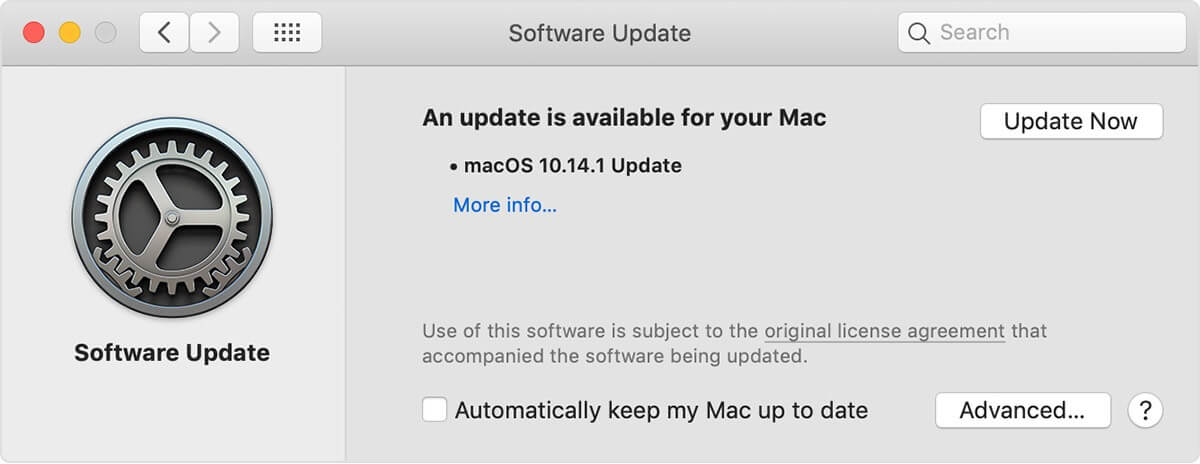
5 Best Free Email Template Builders to Create Stunning Mails

While a regular email can do the mundane job of sending messages across, email templates can do a level-up.

Marketing software like the best email template builders can take your brand to the next level with their prewritten emails.

What are email templates? These are pre-written emails that are created to replace the existing content and help you write emails, quickly and effortlessly.

So, they’re basically HTML files that users can reuse to create email marketing campaigns.

It’s a powerful tool for email marketing, replacing the concept of sending plain emails with something appealing to the recipient.

So, for those who want to create faster marketing campaigns for their brand, using professional software can be the solution.

Here are some of the best email template builders that offer easy-to-use templates designed by experts.

What are the best free email template builders to get?

eM client

best free email template builders

Do you try to find the very best template builder to break out of your email comfort zone? Does the limited budget make you feel less confident that you can even achieve your goal?

If the answer to the first question is yes, the answer to the second question is clearly positive too. Well, we want to remind you that price is never a concern when using the eM client.

This is a free email template builder that comes with a convenient user interface and covers professional communication needs for enterprises of all sizes.

However, it was designed to help both individuals and businesses design beautiful and high-quality emails.

eM Client is a great option if you want to start creating email marketing campaigns not only because it provides quick and easy solutions for templates, but also because it has tons of integrations.

This email client can easily double as a task manager as it has a built-in calendar and notes app. Connect your Google Workspace accounts, Office 365, and many more for a well-organized experience.

The tool is easy to use and offers solutions that can come in handy especially if you deal with lots of emails.

It has advanced and fast search options, automatic backup, attachment search options, and reply alerts, just to name a few.

eM client key features that you are about to enjoy:

  • Easy-to-use interface
  • Intuitive sidebar with communication history, calendar, and agenda
  • Unique Notes and Send later tools
  • Message encryption features
  • All-compatible with GSuite, Outlook, Exchange, and more
  • Completely free to use

Along with the free version, eM Client also has two paid plans for individual use and for companies. They are based on a monthly subscription and include a 30-day money-back guarantee.

eM Client

Adjust eM Client’s behavior to enhance your workspace and create stunning emails in no time!
Get it free Visit website

Stripo.email

Stripo.email is hands down one of the best email template builders in recent times. This new-generation email editor helps users make professional-looking email templates with ease.

Best of all, users can create intuitive email templates without any knowledge of HTML skills. This makes it suitable even for beginners.

It offers simple, yet responsive features that render powerful results. It’s a highly competitive software that’s compatible with all mobile platforms.

So, an email template, designed using Stripo automatically gets mobile intuitive. For advanced customization options, users can leverage their set of tools that help transform the look on the mobile device accurately.

It integrates easily with ESP (email service providers) which enables users to sync their ESP clients and create emails by default.

Additionally, the emails can also be downloaded in HTML format, archived, or in the form of OFT to be able to send emails via Outlook.

The software is integrated with all the popular email clients like Gmail, Constant Contact, MailChimp, SendGrid, and so on.

Other key features of Stripo.email include:

  • Modules library
  • Various export options
  • Custom fonts
  • Brand guidelines

The option to make its own new blocks, micro tools that allow making banners, looking for, and adding free stock photos, and automating the day-to-day emails, are some of its other major highlights.

Stripo.email

Design your consumable email with Stripo!
Free Trial Visit webstie

BEE Free

best free email template builders

For those looking for a tool that can help them design sophisticated, professional, and mobile receptive emails, BEE Free is the answer.

This template builder offers one of the fastest and easiest ways to design emails for free.

From freelancers or marketing teams to email agencies or developers, it’s a useful tool for all.

It comes with a drag-and-drop editor that allows users to drag and drop the complete rows or content elements separately. Moreover, it can create a duplicate and realign everything much faster.

Best of all, it syncs with mobile phone/device platforms seamlessly offering peace of mind.

What’s more? Users can also pick professional designs from the template gallery without signing up for an account! This makes the entire process faster and easier.

Other key features of BEE Free include:

  • Multiple export options
  • Easily design emails on the go, on mobile devices
  • Integrates with Mailchimp, Gmail, HubSpot, and more

Whether it’s an email with a newsletter, declaration, or translation, the software helps to create attractive emails that work with most programs.

BEE Free

Save time by using drag-and-drop tools to create email templates that can be used immediately.
Free Download Visit website

TOPOL.io

TOPOL.io enables users to create elegant emails easily with its responsive layouts. It saves a major chunk of time that’s spent on producing emails.

The drag and drop feature is so easy to use and responsive, that even beginners can use it conveniently. Alternatively, users can also choose to use their templates.

The interface is attractive and intuitive making it effortless with its application on several clients including Outlook.

The software allows users to add their own HTML codes into the template, and save the content picked up from the templates using the drag and drop feature.

Users can merge tags that can be used in the editor, personalizing messages, selecting products through any e-shop via XML, and adding them to the product feed, are some of its major features.

This email template builder lets you easily create emails tha read well on any platform, be it mobile or desktop.

Topol also offers you the possibility to use it as a website plugin. It is easily embeddable, providing a time-saving solution to keep in contact with your audience.

If you are interested in managing emails and client communication on a higher scale, then you might benefit from the Topol Pro version.

The tool offers collaboration features as well as access to an unlimited library of predefined templates and free-to-use images.

Other key features of Topol.io include:

  • Fully customizable templates
  • Supports cloud storage
  • Multi-language support

You can get started with Topol for free and build beautiful email templates. If you are interested in the Pro or Plugin versions, you will have to pay a monthly subscription.

TOPOL.io

Elevate your emails within minutes with professional-looking and responsive layouts.

Campaign Monitor

Used by 250,000 plus businesses across the world, Campaign Monitor is easily one of the best email editor software in the business.

It powers the email marketing campaigns offering an unforgettable experience.

It helps users create attractive and efficient email newsletters that fetch actual results for the business with their user-friendly layouts, automation tools, and personalization.

It offers some of the most eye-catching email templates that are mobile compatible. These professionally designed email templates echo the user requirements accurately.

The software has reached every sector including the smart divisions and the individual customers with its integrated features that improve the income from the emails.

Other key features of Campaign Monitor include:

  • Completely customizable templates
  • Mobile friendly
  • Team work solutions
  • Free image gallery

As a bonus, it offers 24/7 customer service, whenever anyone needs assistance.

⇒ Get Campaign Monitor

While there are so many email template builders available these days, these are among the best free options.

So, make these email editors a part of your business and save your time by using the pre-designed beautiful templates. They are useful when looking for:

  • Email template builder software – Many users want to find email template builder software for creating business emails. eM client is a top choice in that regard.
  • Online email template builder – You may easily create engaging emails using the best online email template builders too.
  • Free drag & drop email template builder – If you’re looking for drag and drop builders for unique email templates, you’ll surely find our above picks interesting.
  • Responsive email template builder – Responsive email templates help you grab your potential customer’s attention and encourage positive responses. That’s why choosing the best email template builder is mandatory.

We hope this rundown provided a good guide on what the best email builders on the market have to offer and can now make an informed decision on which one is best for you.

If you are interested in stepping up your email experience, we recommend you bookmark our Email Clients Hub.

Looking for train games online? Check out this guide

If you’re passionate about mechanics or mapping and routing tracks, then train games may be for you. You can let your imagination run wild while you try to build your own network of railroads and get an exciting and fun experience while playing with your friends. Many players say that the best train games are among the very best board games released. There are various websites where you can play online games, from different categories. It is very important that you have a good browser software to play games online without any issues. For this, the best browser is by far the Opera GX browser, offering you an incredible set of gaming features, and fast loading speeds as well. The Opera GX browser is built from the ground-up with the idea of gaming in mind, thus offering an incredible set of features, online privacy protection, and fast internet browsing speeds as well.
Editor's choice
Opera GX browser logo
  • Best gaming browser
  • Resource controller
  • Custom UI
  • Twitch integration
  • Free VPN included
  • Ad-blocker

Check out the best online train games

Rail Nation

where can I play online train games rail nation

This is a great game of management and building your own network of trains and stations. you will start small and work your way up.

The games put a lot of emphasis on the economic solutions and all the power plays that come along with running your own railway.

You can choose from more than 150 trains from all over the world and railway eras: steam, diesel or electric.

⇒ Play Rail Nation 

Train Fever

where can I play online train games train fever

You are tasked here with building a transport company and the logistics of being its manager.

The game offers you 45 trains and vehicles to choose from and the time period goes from 1850 through 2020.

In addition to all that you will also be in charge of managing the transportation for mines, forests, farms and more. But make sure to build some city roads, to ensure your goods reach your stations.

⇒ Play Train Fever

Train Simulator

where can I play online train games train simulator

Ever wondered how it’s like to operate trains from the inside? Now you have the chance to sit in the cabin of the locomotive or you can pull levers and turn the knobs.

The cabin of the Train Stimulator offers some great and fun challenges by giving you full control of authentic locomotives and real-world routes.

⇒ Play Train Simulator

Railroad Tycoon II

where can I play online train games Railroad Tycoon II

The game puts you in charge of 51 train engines and 34 types of cargo. Make strategies of buying and selling stocks, schedule train routes, optimize operations, and take over companies. Build your own empire and if all this is too much you can anytime hire or fire your managers. Show them how legends are made!

⇒ Play Railroad Tycoon II

Mini Metro

how to play online train games mini metro

Another great strategy simulation game that puts you in control of building a subway map for a growing city.

You will have to decide along the way, what lines to add between stations, which stations to keep open, and when and where are your resources best used?

The city is rapidly growing and you need to make sure things are running smoothly.

⇒ Play Mini Metro

This is our list of great train games online. Check out our recommendation and find out which one you like the most.

[wl_navigator]
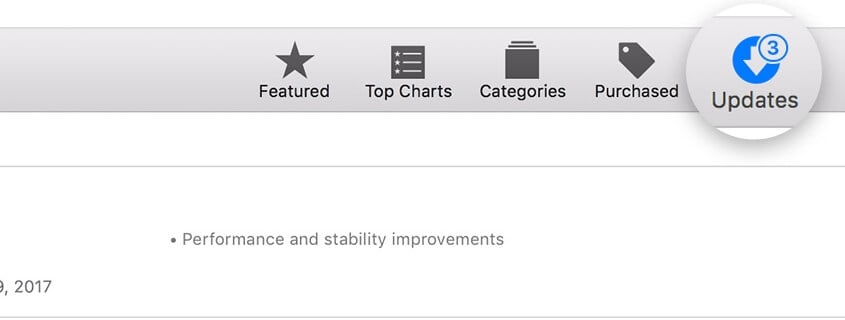
Xbox execs explain why they’re keeping their hands off recently acquired game studios after acquiring Mojang

Microsoft is a company that doesn’t have a great track record regarding acquisitions. In the past decade, the purchase of Nokia’s mobile division ended up as a disaster, while Skype lost a huge amount of mindshare in favor of WhatsApp, Facebook Messenger, as well as Microsoft Teams in recent years.

When it comes to video games, many studios have also disappeared after Microsoft acquired them, while many others have been unable to produce hit games for PC or Xbox consoles. Fable developer Lionhead Studios is a pretty good example of that, with Microsoft deciding to close the company after the development of Fable Legends had gone offtrack. The few Lionhead employees that have since spoken up complained about Microsoft interfering with the creative process, as well as Microsoft insisting on making the PC version exclusive to the Microsoft Store.

Fortunately, Microsoft appears to be done trying to dictate its game studios what they need to do. Speaking with Gameindustry.biz, several Xbox execs including Head of Xbox Game Studios and Mojang boss Helen Chiang explained that everything changed after Microsoft acquired the Minecraft developer back in 2014. Purchasing Mojang was a big bet for Microsoft, but the Redmond giant decided early on to keep the popular sandbox game on all platforms and not try to change the culture at Mojang.

“How Matt integrated Mojang really helped set the stage for how Xbox acquired and integrated all of the additional studios,” explained the Mojang studio head. “Before, Microsoft acquired companies in a specific way. And this not only set the foundation for additional game studios, but when you look at LinkedIn and GitHub, they also have this minimally integrated approach. That really was something that Mojang set the foundation for.”

Minecraft got a new spinoff this year with the dungeon-crawler Minecraft Dungeons.

Microsoft announced several new studios acquisitions two years ago, including some companies that have yet to release hit games. A good example is Compulsion Games, the Canadian studio behind We Happy Few, a survival horror game that launched in pretty rough shape back in 2018. We don’t know yet what Compulsion Games is currently working on, but Xbox Game Studios head Matt Booty explained that Microsoft is giving the studio a lot of freedom to experiment.

Booty explains: “It’s kind-of a phased thing. Take Compulsion. They’re working on their next game and have spent the last year on early ideation. I try to keep us as far away from that as possible. And then, as it starts to get exposure within the organisation, feedback will come in and things will start to steer. But it’s important to leave them alone for as long as possible, until they’ve got something that can walk on its own. And then there’s no shortage of feedback within Xbox.”

The article also includes several enthusiastic comments from executives of studios recently acquired by Microsoft. In addition to the guaranteed creative freedom and financial security, Double Fine boss Tim Schafer emphasized how Xbox Game Pass should allow all of Microsoft’s game studios to offer different experiences for different types of gamers.

“With Game Pass, it wouldn’t make sense to acquire Double Fine and then assign us a bunch of Forza DLC. That’s not what you’d want from a studio like Double Fine. And Game Pass seems like a great opportunity to have a diversity of games, a plethora of unusual content… I can see how the type of games that Double Fine makes could fit into that,” explained Schafer.

With Microsoft holding its Xbox Games Showcase on July 23, we’re should finally get more information about what Microsoft’s new studios are currently working on. The much-anticipated event could also be a good opportunity for Microsoft to surprise everyone with some new studios acquisitions.

“We have really strong support from Satya Nadella, the CEO of Microsoft, and Amy Hood, the CFO. And there’s been no signal at all that we should be slowing down, but just to go at a pace that is maintainable for us as a leadership team. We’re always out there talking to people. But it has to be the right opportunity,” Xbox head Phil Spencer said.

FIX: Windows 8 Mail app not working or syncing [Quick Guide]

Having issues with the Mail application in Windows 8 is something a lot of users have complained about in their usage of the operating system.

The most common issue is that the Mail application will stop syncing with the accounts you have in Windows 8.

Therefore, we have decided to explain to you how you can fix your Mail app if it periodically fails to run.

The reasons as to why your Mail application fails to operate properly is due to the fact that the license you have for a specific application like the Mail app might be out of sync with the license you have in the Windows 8 operating system.

For you to fix this issue, you may run the SFC (System File Checker) in order to fix any registry errors you may have or apply other tips detailed below.

Also, do note that the above solutions may be applied whenever facing these issues:

  • Windows 8 Mail app not receiving emails – Users worldwide claim that they no longer receive new messages in their Mail app. Using the SFC tool for a quick scan is our recommendation.
  • Windows 8 Mail app not syncing Hotmail – Windows 8 Mail app users face a number of other issues with the mail app. This includes that it doesn’t sync with Hotmail. If that’s your case too, try to install the latest updates.
  • Mail app on Windows 8.1 not working – If the mail app simply refuses to work, trying out Mailbird may be a smarter choice. Ready for a change?

What can I do if the Windows 8 Mail app is not working?

  1. Use a different email client
  2. Install the latest updates
  3. Update your Windows Store apps
  4. Sync your licenses
  5. Run SFC scan
  6. Change your localization settings

1. Use a different mail client

try out Mailbird

Since you are here, you might consider switching to a full-dedicated email client that will make these syncing problems a thing of the past.

In that case, we would suggest taking into consideration Mailbird – winner of Most popular mail alternative of 2020. Of course, this is not the only email client that you can use on your Windows computer.

However, this one handles all the basic features expected of the best email apps and much more than that. When you open it, it’ll feel familiar.

Its uncluttered and intuitive interface is a joy and it comes with multi-language 24/7 customer support as well.

With all these on the table, its stand out feature still remains the ability to access all your different email accounts directly from Mailbird.

Mailbird

Mailbird

When the Windows 8 Mail app is not working or syncing, Mailbird is the best alternative you can find.
Get it free Visit website

2. Install the latest updates

  1. Move the mouse cursor over to the lower right side of the screen.
  2. From the menu that appears left click or tap on the Settings feature.
  3. Now from the Settings menu left click or tap on the Change PC Settings option.
  4. Find in this next window the Update and Recovery option and left click or tap on it.
  5. Now find the Check Now button and left click or tap on it.
  6. The checking process will last up to 10 minutes and then it will give you what updates you need to install.
  7. If you have available updates left click or tap on the Install updates feature for all that are available.
  8. After the updates have installed left click or tap on the Finish button.
  9. Reboot your Windows 8 operating system.
  10. After the device starts check again if your Mail app is working correctly.

Note: On Windows 10, the path to follow is a bit different. To install the latest updates, go to Settings > Update & Security > Update and hit the Check for updates button.

check for updates


3. Update your Microsoft Store apps

  1. From the Start screen, left click or tap on the Store icon.
  2. Move the mouse cursor over to the lower right side of the screen.
  3. Now left click or tap on the Settings feature from the menu that appears.
  4. Find and left click or tap on the App Updates feature on the list.
  5. Turn to Yes the Automatically update my apps feature.update store app automatically
  6. Reboot your operating system after you are done.

4. Sync your licenses

  1. From the Start screen of Windows 8, left click or tap on the Store icon.
  2. Move the mouse cursor over to the lower right side of the screen.
  3. From the menu that appears left click or tap on the Settings feature.
  4. Left-click or tap on the App updates feature.
  5. Left-click or tap on the Sync licenses feature.sync app licenses
  6. Now close the windows and right-click or hold tap on the Mail application in the Start screen.
  7. From the submenu left click or tap on the Uninstall feature.
  8. Left-click or tap again on the Uninstall button.
  9. After you finished the uninstall of the application left click or tap on the Store icon presented in the Start window.
  10. In the Store window left click or tap on the Accounts option.
  11. Now find and left click or tap on the My apps option.
  12. Right-click or hold tap on the Mail app and then select to install it.
  13. Reboot the operating system after the Mail app installed.
  14. Check again to see if the application works.

5. Run SFC scan

  1. While on the Start screen of your Windows 8.1 start writing the following: Command Prompt.
  2. After the search has finished right-click or hold tap on the Command Prompt icon.
  3. From the menu that appears left click or tap on the Run as Administrator feature.
  4. Now you should have Command prompt window with administrative privileges in front of you.
  5. Write in the command prompt window the following: sfc /scannow.SFC scan
  6. Press the Enter button on the keyboard.
  7. Let the system file checker finish the process.
  8. When the check is done write in the command prompt: Exit.
  9. Press the Enter button on the keyboard.
  10. Reboot your PC.
  11. Check again to see if your Mail app is working properly.

Having problems using the SFC tool? Check this useful guide dedicated to sfc /scannow issues and set things right once again.


If you’re having trouble accessing Command Prompt as an admin, then you better take a closer look at this guide.


6. Change your localization settings

  1. Open Control panel > Select Region.
    Windows 10 Mail app crashing
  2. Go to the Location tab > set the Home location to your country.Windows 10 Mail not receiving emails
  3. Go to the Administrative tab > Change system locale.
  4. Select your country from the Current system locale menu > hit OK > Apply.
    Mail app is not working in Windows 10 keeps crashing

You are done, if you carefully followed the steps above your Mail application will start working again. You can also take a look at this quick guide to finding a solution if you can’t open Control Panel.

Some users managed to fix their Windows Mail app issues by changing their localization settings.

If you do have any other questions regarding this article you can always write to us in the comments section of the page below and we will help you further.


[wl_navigator]

Looking for a cooking game online? Here are the best

If you like to cook and play games online, then you must know that there are a lot of new things you can learn from playing online cooking games. Things such as dietary needs/restrictions, flavors, timing, ingredients are just a few to name. And there is a lot of fun you can have as well. There are a million places where you can go to gain more cooking knowledge however, we’ve compiled a list of the best cooking games and we recommend you give them a try.          

Free cooking games online

World Chef

where can I play the best online cooking game

In the complex world of cooking, becoming a world-renowned chef is not easy. In this game, you will get to see what it takes to open up your own restaurant.

The more you work and the better your dishes will look, the greater your success will be.

You’ll have to hire chefs, cooks, manage your orders and your building and earn as many many possibilities that will allow you to decorate the restaurant the way you want.

You can buy new items and make improvements so that the place looks exactly as you want it to.

It’s a fun and extremely entertaining game to play, we definitely think you should give it a try.

⇒ Play World Chef

Overcooked 2

which is the best online cooking game

If you ever wondered how it would be to cook in a chaotic kitchen, then this is the game for you.

This is a 1-4 player game that you can play solo or team up with your friends. The quest: cooking the best dishes.

Sounds easy but there will be obstacles you have to overcome. Cook in the fire, through collapsing floors, overbearing waiters, or floating work surfaces.

⇒ Play Overcooked 2

Cooking Simulator

online cooking game how to play

This game is one of the most realistic cooking games you can play. You have at your disposal all the ingredients and tools you need in order to cook over 60 real dishes.

Whatever you want to do, now it’s the time. Make a soup, boil vegetables, fillet a fish, and everything with real-life physics. The kitchen experience awaits

⇒ Play Cooking Simulator

Idle Cooking Emperor

cooking game idle cooking

Cooking is everything in this game. You start from not having a lot of strengths and work hard in order to become the best cook in the world.

In this game, you will make progress by challenging other chefs in cooking battles and taking control of their restaurants.

Afterward, you can hire the cooks you beat to work in your restaurant.

⇒ Play Idle Cooking Emperor

Star Chef: Cooking & Restaurant Game

where can I play the best cooking game online

This game helps you bring out that inner chef. You will have to create recipes, put together a cookbook, and grow your character from an amateur cook to a real master chef.

Run your team of chefs while customizing your restaurant kitchen with top of the line cooking appliances, making sure is the best in town.

⇒ Play Star Chef

We hope you enjoyed our recommendations. Please let us know in the comment section below which one you liked the most.

[wl_navigator]

How to check your Compliance Score in Microsoft 365 to ensure you keep your small business data safe

If you own a small business, you might not have an IT staff or someone to constantly check to see if your data and information floating around Microsoft 365 is safe and secure. Luckily, Microsoft has a new preview feature covered in your subscription called the Compliance Score which can help you out.

With Compliance Score, you get a simplified way to manage compliance standards. You get recommendations for security actions you can take to comply with industry regulations and standards that other companies often pay IT departments to think about and handle. Here’s how you can use it.

Key things to understand

Before diving into the Compliance Score, there’s a set of terms you’ll need to understand. You’ll see something called a control. Control is a requirement or regulation, standard, or policy. You’ll also see an action, which is an activity that helps you implement control. Finally, you’ll see an assessment which is a grouping of controls from a specific regulation, standard, or policy.

Additionally, Compliance Score is not to be confused with the Compliance Manager or Center. They share the same backend, but Compliance Score as a simplified version of Compliance Manager and gives you a more complete view of your organization’s current compliance situation, plus the steps you can take to improve it.

Please in mind that Microsoft will provide you with an initial numbered score based on some of the most common regulations and standards. As explained by Microsoft, this risk-based score “measures your progress in completing actions that help reduce risks around data protection and regulatory standards.”

You’ll be able to improve this score by creating and taking assessments that are relevant to your company. You’ll be able to select these assessments, modify them, or create your own to see things that are most important to you. Just be aware that having a high score doesn’t always mean you’re fully compliant. According to Microsoft, it “does not express an absolute measure of organizational compliance with any particular standard or regulation.”

Finally, you’ll want to understand that you’ll be able to see quick actions to improve your compliance. They’ll be detailed guidance with step by step instructions for the right solution. Completing these will improve your score.

How to use the home dashboard

Once you head to see your Compliance Score, by clicking Compliance from the Microsoft 365 App launcher, you’ll be taken to the Microsoft 365 Compliance Center. From here, you’ll see different sections. The first will show your compliance score, which is divided up into various actions like protecting information, controlling access, managing devices, and more.

From here, you’ll be able to navigate to the sections which we will describe below. You’ll also see things such as cloud app compliance, as well as users who are sharing files. In addition, there will be a section here for security alerts, a list of shared files that might be compromising your security, and high-risk apps. You can click each of these sections for more details and a look at how your data is moving.

How to see your compliance score

To dive deeper into your compliance score, you can click compliance score in the sidebar. From here, you’ll see your overall score. You can scroll up and down to see the data that went into the score, and some key improvement actions you can take.

Along the top, there will be some tabs, one of which has improvement suggestions. Clicking this will give you a step by step guide on how to take certain actions to bump your score.

Another tab will have solutions and assessments. These will show you how certain solutions can contribute to your score. They’ll also be assessments, too. Clicking these will help you implement data protection controls specified by certain types. These include compliance, security, privacy, and data protection standards, regulations, and laws.

How to check data classification

The third section in the Compliance Score will be data classification. From here you can build classifiers that can be used to protect and govern your sensitive data. You’ll then be able to explore what data is being labeled so you can fine-tune your classification strategies.

You’ll get a snapshot on an overview page. From here, you’ll get a quick look at where sensitive info and labels are being used across Microsoft 365 apps and some links to investigate them. You also can dive deeper into classified content with content explorer, which allows you to filter by sensitive info type or label to see how many items are classified inside your business. Finally, you can monitor and review activity with a detailed view into classification activities and trends across locations.

How to manage policies

From the policies section, you’ll be able to set up certain policies in Microsoft 365 which can help you improve your score. These policies will be listed by types, be it data, access, or security. Typically, these policies are meant for more experienced users and IT Admins, but clicking one will give you the basics and an explanation of how you can change the policy to improve your compliance score. In most cases, there is also a link that will take you to Microsoft’s documentation for said policy.

How to manage permissions

Next up, there is the permissions section. From here, you can assign Microsoft 365 permissions and roles in Office 365. You can add users as global administrators, data administrators, compliancy administrators, and more. Keep in mind, though, that Office 365 roles has a separate page, and you’ll need to go here for that. If you’re having trouble setting permissions, we invite you to check out our guide on the different administrative roles in Microsoft 365.

How to use the catalog

In the catalog section, you’ll find some solutions that you can take inside your organization to improve the overall compliance store This includes topics such as data loss prevention, information governance, information protection, records management, and more. You’ll also see topics on how you can identify, analyze, and remediate internal risks, as well as respond to audits, data investigations, and more. Each of these solutions come with step-by-step guides and even videos explaining how you can get started with them.

Customizing and more

These are the basics of checking the Compliance Score, but there is a bit more you can do. If you like to customize the look of the Compliance dashboard, you can do so by clicking Customize navigation on the side. This will show you a variety of things which we’ve discussed here already. Your changes are unique to you and won’t impact other admins.

Fell free to play around with your Compliance Score, and let us know how you’re liking this experience by dropping us a comment below. Also, feel free to check out our Microsoft 365 hub for more how-tos and other guides.


5 Ways to add links on Instagram photo

The question of how to put links in Instagram photos is vital because Instagram is incredibly popular with marketers. It creates a visual way to showcase your products and services while engaging your audience.

However, after showing off your organization’s content, how do you convert your profile visitors to website visitors, buyers, or leads?

You have to learn how to put links in your Instagram photos and videos. Read this article to the end, as we’ll show you five ways to do this free of charge.


how-to-put-links-in-instagram-photo-bio

The first place your profile visitors look is your bio. It is visible to everyone, even if your Instagram account is private. You can see the bio link as a base link where users should click to learn more about you or your organization.

Some users use links to their most recent content, hence change their bio links frequently. Others prefer to link to a specific page on their website or app and leave it at that.

There are benefits and disadvantages of both link strategies; hence, your choice depends on what outcome you desire.

If you want both, you can use a link service. They create a link for you to put in your bio, and clickers are directed to a page with various relevant links on your website.

Link services give you customization options to let the linked page match your brand design.


how-to-put-links-in-instagram-photo-story

Instagram shows your timeline posts to only a fraction of your followers. Whereas, the application delivers your stories to every one of your followers.

For this strategy to work, your story has to catch your followers’ interest. It should also include a clear call-to-action that instructs viewers to swipe up.

Stories on Instagram last for a max of 15 seconds and disappear after 24 hours, so you have only a small window to make an impression.

Alternatively, you can also pin your IG stories with evergreen links to the highlights of your profile permanently.

To insert links in your Instagram stories, you must have at least 10,000 followers or a verified account. When done correctly, IG story links can be massively beneficial to B2C brands.


3. Use short links in post captions

how-to-put-links-in-instagram-photo-caption

Links you insert in your captions are not clickable, and that’s why brands look for other ways to link to their website or app.

However, your timeline posts and their captions are still some of the most viewed content on your account.

Note that this strategy needs your followers to type the link into their browsers manually.

Therefore, pasting your content link in your image or video captions is effective only when the link is either short or memorable. If your link is long, you can use a link shortener.

If you notice that links you add in captions refuse to open or behave unexpectedly, check this detailed guide on Instagram links not working.


4. Use Instagram Shoppable stories and posts

how-to-put-links-in-instagram-photo-shoppable

Thanks to Instagram Shoppable posts, you can now embed links on your posts directly. If you’re not sure what Shoppable posts are, look out for posts with a shopping bag icon.

On tapping posts with this icon, you see a little popup saying Tap to view products. When you tap this message, it redirects you to the linked page or product.

You can add multiple product links to a single post. On the part of your customers, they’ll have a smooth transition from your post to the linked product.

Hence, with engaged audiences, this is a highly effective linking method.


how-to-put-links-in-instagram-photo-ads

While users search for how to put links in Instagram photos, Instagram already has a solution for this through. If you’ve used Facebook ads or other advertising services, you can use Instagram ads.

When you pay Instagram and publish an ad, you get to put your link directly below the photo you promote.

For this, your link has to be relevant to the promoted content. Instagram also lets you customize the button to match your design and the content.

If you have video content, IGTV allows you to insert clickable links directly in the video description. You’ve now learned how to put links in Instagram photos and videos. Is there any other method you use? Do let us know in the comments below.

[wl_navigator]

Fix: Your Computer is Currently Offline Dropbox Error

Dropbox is one of the most popular cloud storage platforms in the world. However, it is not free from issues, with some users reporting Your computer is currently offline error on Dropbox.

Fortunately, this issue has a series of workarounds, as shown in the following sections of this guide.

What does the Dropbox No Internet connection message mean?

Listed below are some of the potential causes of the Dropbox Your computer is currently offline error:

  • Antivirus interference: Your antivirus and firewall can prevent Dropbox from syncing, leading to this error. In this case, you need to disable your firewall and antivirus software.
  • Wrong proxy settings: Sometimes, your Dropbox proxy setting might be set to auto-detect. This leads to problems if the app cannot detect your proxy. What you need to do in this case is to set it to no proxy.
  • Network issues: In some cases, this issue might be down to problems with your network. The solution to this is to flush your DNS and reset Winsock.

How can I fix Dropbox Your computer is currently offline error?

Below are some basic troubleshooting steps you need to perform before delving into the sophisticated fixes below:

1. Disable your firewall and firewall

  1. Press the Windows key, type windows defender, and select the Windows Defender Firewall option.
    windows defender
  2. Find and click Turn Windows Defender Firewall on or off on the left pane.
    turn windows
  3. In the Customize Settings window, select the Turn off Windows Defender Firewall (not recommended) radio buttons for both the Private and Public network settings.
  4. Click OK to disable Windows Firewall.
    turn off dropbox your computer is currently offline
  5. Now, press the Windows key, type virus, and select Virus & threat protection.
    virus
  6. Click the Manage settings link.
    manage settings
  7. Finally, toggle the switch under Real-time protection backward to disable it.
    real time dropbox your computer is currently offline

If you are getting your computer is currently offline on Dropbox, disable your antivirus and firewall. If you have a third-party antivirus, you can turn it off by right-clicking the icon on the taskbar and selecting Disable.

After syncing your Dropbox files, you should re-enable the security tools.

2. Use an alternative to Dropbox

While Dropbox is among the most popular cloud storage services in the world, that doesn’t mean you can’t use alternatives when it becomes unavailable.

In the case at hand, if all solutions fail and you can not use Dropbox in the foreseeable future, then a good alternative is Sync.

This cloud storage tool boasts incredible security features and immense flexibility regarding how easily you can access your cloud content.

Sync

An amazing cloud storage service that can easily replace Dropbox if it cannot be used.
Free Trial Visit Website

3. Disable proxy in Dropbox‘s settings

  1. Launch Dropbox and click on the gear icon.
  2. Select Preferences.
  3. Now, choose Proxies.
  4. Finally, change your proxy settings from Auto-detect to No Proxy option.
    no proxy dropbox your computer is currently offline

Another thing we’re going to try is disabling the proxy in Dropbox’s settings. This has fixed your computer is currently offline on Dropbox.

4. Flush DNS and reset Winsock

  1. Press the Windows key, type cmd, and select Run as administrator under Command Prompt.
    cmd admin
  2. Type the following commands and hit Enter after each: ipconfig /flushdns ipconfig /registerdns ipconfig /release ipconfig /renew NETSH winsock reset catalog NETSH int ipv4 reset reset.log NETSH int ipv6 reset reset.log Exit
  3. Finally, restart your computer.

Maybe Dropbox isn’t the problem after all. So, let’s leave it for a moment and restore the network protocols to default settings.

5. Use the Store app troubleshooter

  1. Press the Windows key + I and select Updates & Security.
    update and dropbox your computer is currently offline
  2. Click Troubleshoot in the left pane and select Additional troubleshooters.
    troubleshoot
  3. Now, select Windows Store Apps and click Run the troubleshooter.
    run the
  4. Finally, apply the recommended fixes and restart your PC.

If you’re using the UWP version of Dropbox, you can use the Windows Store app troubleshooter to check and resolve issues with the app. This should show you the cause of your computer’s currently offline Dropbox problem and recommend potential solutions.

That’s about it. We certainly hope one of these solutions helped you resolve your computer’s offline connection issue on Dropbox.

If Dropbox is not syncing on your PC, check our comprehensive guide for effective solutions to apply.

Feel free to let us know the solution that helped us solve the problem in the comments below.

How to fix HBO NOW error code 203 in a few steps

If you planned to watch a season premiere only to get into difficulties, know that you are not alone. For many users, HBO NOW crashed while they were in the middle of watching their favorite show.

There were no further indications only a message that HBO NOW could not play due to error code 203.

They tried to hit the home button and signed in again, but the same error code 203 appeared. Although these errors are annoying, in most cases, they are extremely easy to fix.

We provided some steps to deal with this in the list below, make sure to try them out in the given order.

How can I fix the HBO NOW error code 203?

1. Clear the app caches 

For Android:

  1. Go to Settings – Applications – Manage applications.
  2. From the list select HBO NOW.
  3. Find the Clear cache option and tap it.

For iPhone and iPad

  1. Tap on the Menu button
  2. Go to the settings page and tap Clear temporary files

2. Factory reset your device

All the data from your phone can be removed by resetting it to factory settings. This is also called formatting or a hard reset.

  1. Open the Settings app.
  2. Find Backup & reset.
  3. Tap Factory data reset and Reset phone.

Note: If you can’t open your phone‘s Settings app, you can try factory resetting your phone using its power and volume buttons. 

3. Update your software

  1. To update your HBO NOW, open the Play Store on your Android device and search for HBO NOW to see if an app update is available.
  2. Also, make sure your Android software is up to date. Go to Settings – Systems – Advanced – System Update.

4. Clear cache and data

  1. Open your Android and go to Settings – Apps & notifications
  2. Search HBO NOW in the list of apps
  3. Tap storage – clear storage
  4. Finally, tap clear cache
  5. You can now reopen HBO NOW and sign in again

5. Reinstall HBO NOW

  1. Go to Settings > Apps & notifications 
  2. Search and tap HBO NOW in the list of apps.
  3. Tap Uninstall.
  4. Open the Play Store and reinstall HBO NOW.

6. Check if not HBO NOW is actually down

Although it’s not common, it can happen that HBO NOW is not working because it’s down. In order to check this, you can use DownDetector to see where people are currently having trouble using HBO.

if the above tricks did not work, we suggest you try Disney+. This is an alternative streaming service that could meet many of your needs.

⇒ Get Disney+

That’s about it. We hope that the above solutions were helpful in solving your HBO NOW error code 203 problem. Let us know in the comments below if our suggestions helped you fix it.

How to use Vintage Ad Browser and view old advertisements

Advertisement is a part of our culture, and it has changed drastically over the years. Nowadays, most advertising is done through the Internet or via multimedia.

In the past, that wasn’t the case, and the most common form of advertising was printed advertising. In today’s article, we’re going to show you a way how to view those vintage ads in your web browser.

How can I view old ads in my browser?

What is Vintage Ad Browser?

Vintage Ad Browser is a special website that hosts a large variety of old printed advertisements. All content is organized into categories, so you can easily find the advertisement that you need or a particular category that you’re interested in.

How to use Vintage Ad Browser?

  1. Visit the Vintage Ad Browser website.
    website vintage ad browser
  2. Now select one of many available categories and choose the desired year.
    advertisements vintage ad browser
  3. You should now see all ads that match your criteria.

Although this website should work in any web browser, for the best experience we recommend using Opera.

vintage ad browser in opera

The browser runs on the Chromium engine, and it can work with Chrome extensions. Unlike Chrome, Opera is light on your resources, so it should run smoothly at all times.

The software has built-in messengers for rapid sharing on the most popular social media platforms. There’s also the ability to organize tabs into workspaces as well as an advanced search feature that will help you find tabs with ease.

Opera comes with an integrated ad blocker and tracking protection that speed up webpage loading. For extra security, there’s a built-in VPN with unlimited bandwidth.

The browser is available on all major desktop and mobile platforms, and if you’re looking for a fast, reliable, and secure browser, be sure to give Opera a try.

”Opera”

”Opera”

”Try
”Free”
&aff_sub2=Native?utm_medium=native&ref=” current_url=”true” button_text=”Visit website” image=”https://windowsreport.com/wp-content/uploads/2019/06/Opera-1-210×160.png” ]

Vintage ads have a unique look that is distinct for the decade they are made, and thanks to modern technology, you can browse these ads right from your browser.

Feel free to leave a comment on this topic using the dedicated section below.

iTunes error 0xe8000015? Here’s how to fix it for good

iTunes is a great multimedia app, but many users reported iTunes error 0xe8000015 while using it.

This issue usually occurs when trying to use iTunes with your phone, and in today’s article, we’re going to show you how to fix this issue once and for all.

How can I fix iTunes error 0xe8000015?

1. Disable restrictions on your phone

  1. Navigate to Settings > General.
  2. Head to the Restrictions and make sure that Disable Restrictions is enabled.

After doing that, check if the problem is still there.

In addition, make sure to select Trust this Computer notification when you connect your iPhone to the computer.


2. Update your macOS/iOS, try other USB ports

  1. Make sure that you have the latest version of iOS and macOS installed.
    software update itunes error 0xe8000015
  2. Install the latest version of iTunes.
  3. Make sure you have enough storage space on your iOS device.
  4. Disconnect all other USB peripherals and use only your iOS device.
  5. Try using a different USB port.

Although these are some of the most basic troubleshooting solutions, they might help you fix iTunes error 0xe8000015.


3. Delete Lockdown folder

  1. Open Finder.
  2. Select Go > Go to Folder.
  3. Type /var/db/ lockdown and press Enter.
  4. Select all files and move them to trash.

4. Put your phone in recovery mode

  1. Make sure iTunes is closed.
  2. Connect the USB cable to your Mac.
  3. Now connect the cable to your iPhone.
  4. Open iTunes.
  5. Press and release the Volume Up Do the same for the Volume Down button.
    phone recovery itunes error 0xe8000015
  6. Press and hold the Side button until the recovery mode screen appears.
  7. Now restore your iPhone.

Bear in mind that older versions of iPhone require a different button combination to access the recovery mode.

Few users reported that they fixed the problem by updating the iOS instead of performing a restore, so you can try that as well.


5. Restore the phone in DFU mode

  1. Start iTunes on your Mac.
  2. Connect your iPhone to your Mac.
  3. Quickly press and release Volume Up and Volume Down Now hold the Side button and wait for the screen to go black.
  4. Without releasing the Side button, press and hold the Volume Down button.
  5. After 5 seconds, release the Side button but keep holding the Volume Down button until iPhone shows up in iTunes or Finder.
  6. Once it appears, release the Volume Down button.

Bear in mind that this process works for iPhone 8 and newer. For older models, accessing the DFU mode is slightly different.

iTunes error 0xe8000015 can be problematic and prevent you from connecting your iOS device with your computer, but we hope that our solutions helped you fix the problem.

[wl_navigator]