Skype for Windows 10 gets Fluent design touches, new features with latest update

Microsoft has made some substantial progress on its Skype Windows 10 app over the past few weeks, bringing it more in line with the Skype apps on iOS, Android, macOS, Linux and previous versions of Windows. Today, the Skype team penned a blog post to recap all the new features that recently made their way to the universal app.

Interestingly, the blog post doesn’t mention the addition of some Fluent Design touches, which all Windows 10 users can see in the just released version 12.10.572.0. That’s right, the left sidebar is now slightly transparent, and you can also see the “Reveal” lighting effect when hovering your mouse over it.

You may have missed it, but there is now a Gallery button at the top of all your Skype conversations. This handy feature helps you easily find previously shared content including links, files, pictures and videos.

Other recent additions to the Skype Windows 10 app include the new notification panel, which lists @mentions in group notifications, reactions to your messages and more. The profile page has also been revamped, replacing the toggles for ” Do Not Disturb” and “Do Not share my presence” with a more straightforward “Status” field.

Microsoft still has a lot of work to do to achieve feature parity with other versions of the app, and that includes add-ins support (PayPal, Giphy, etc.). Still, the Skype Windows 10 app is slowly getting better and we hope it will continue to improve over the next couple of months.

Microsoft releases Quantum Development Kit – play with qubits, teleportation, and entanglement now

The second half of 2017 has seen a Microsoft driven by the thought, concept and eventual actuality of a future teeming with quantum computing. Event after event and keynote pursuant keynote, executives from Microsoft have championed the phrase quantum computing, perhaps to the dismay of their layman fans and developers who haven’t quite wrapped their heads around the study of computation systems.

Fortunately, Microsoft is looking to help usher in its new age of quantum computing and help people get on board with a new free preview of its Quantum Developer Kit.

Microsoft is releasing a free preview version of its Quantum Development Kit, which includes the Q# programming language, a quantum computing simulator and other resources for people who want to start writing applications for a quantum computer. The Q# programming language was built from the ground up specifically for quantum computing.

The Quantum Development Kit, which Microsoft first announced at its Ignite conference in September, is designed for developers who are eager to learn how to program on quantum computers whether or not they are experts in the field of quantum physics.

Microsoft is attempting to lower the barrier to entry and make Quantum Computing as accessible as possible for interested developers by tieing the preview to Visual Studio through some deep integration that then reaches back out to quantum simulators. The power to stimulate around 30 logical qubits of quantum computing power can be wielded by developers using an average laptop thanks to some tweaks on Microsoft’s end.

As with most things Microsoft is doing these days, it’s offering up an Azure-based simulation for anything larger than the 30 logical qubits of quantum processing, the additional cloud-horse power can begin simulations larger than 40 qubits of computation.

Microsoft will also be providing some documentation to help walk people through some Quantum computing theories and concepts including the idea of quantum teleportation for fans looking to bring Sam Beckett back home (insert favorite Quantum Leap episode).

The hope with this new preview is to get developers fiddling with the new technology to hopefully pave the way for solutions that can provide a future filled with realistic applications and algorithms to address artificial intelligence, climate change, and cryptography.

“What you’re going to see as a developer is the opportunity to tie into tools that you already know well, services you already know well. There will be a twist with quantum computing, but it’s our job to make it as easy as possible for the developers who know and love us to be able to use these new tools that could potentially do some things exponentially faster – which means going from a billion years on a classical computer to a couple hours on a quantum computer.”

Visit Microsoft’s AI blog for more information or follow this link to get started with the Quantum Developer Kit today.

Flipkart drops Windows 10 UWP app for basic web wrapper

A little more than two years after the launch of Windows 10, Microsoft is still struggling to convince developers to create universal apps. After launching its Windows 10 app back in January 2016, Flipkart has just replaced it with a basic web wrapper, similar to the current Amazon Windows Store app (via Windows Latest ).

The Indian retailer is definitely no small company, but this news once again shows that the few big developers willing to support Microsoft’s UWP platform often struggle to support their apps in the long run. As it turns out, apps don’t make sense for everything on a PC, especially when most users are perfectly fine with using a web browser.

The previous Flipkart Windows 10 app.

If you liked to use Flipkart’s UWP app, seeing it replaced with a web app will likely be a disappointment for you. But again, maybe usage was just too low for the company to keep supporting it while most of its customers are fine with using the Flipkart website. Do you think UWP apps can provide a better shopping experience, or do you already use your web browser for your online shopping activities? Let us know below.

Here’s how PUBG will work on an Xbox One controller

There are just a couple of hours left before PUBG launches on the Xbox One, so shooter fans (including keyboard and mouse warriors) might want to check out how the battle royale game will be played with an Xbox controller. Yesterday, the Xbox team shared all the details about the Xbox Control Scheme for PUBG, explaining that the developer has worked closely with Microsoft to make sure that PC players will feel right at home on the Xbox One.

You’ll notice that several buttons have a dual-purpose when you’re just exploring the world. “For example, holding X will allow you to reload your weapon; tapping X will allow you to interact with objects,” the Xbox team explained. By pressing the left trigger, you’ll enter aiming mode and you can see the different controls below (note that you can hold your breath by presing LB to increase your accuracy):

There are lots of vehicles in PUBG, and you’ll just have to press X to enter in one. When in the driver seat, note that you’ll be able to quickly change seat (in order to use your weapons) by holding A.

Lastly, inventory management is very important in this game, and you can access your items by pressing the Menu button. Once you’re there, you can navigate between the different columns with RB/LB and select the items you want to use. “The key here is that pressing X picks up items into your bag like ammo and attachments, A swaps and equips items with your current loadout, and Y always drops the selected or highlighted item,” explained the Xbox team.

That’s just a quick overview of the basics, and as with all games, practice should do the rest. PUBG will be available in the US and Canada at 9PM PST today, and you can check all the details about the market release schedule on Major Nelson’s blog.

Paint 3D helps create a better world in Microsoft’s annual holiday ad

Following the spreading of peace and joy with Apple employees in 2015, then a celebration of the spirit of the season in 2016, the Microsoft annual holiday advertisement is back again. This year’s holiday ad is extra adorable, featuring Paint 3D, adorable yetis, and other 3D characters, reminding viewers that they can create a better world.

The Holiday TV commercial follows a young girl Sasha and her friend “Gabe the Yeti” on an imaginary 3D adventure through space. Quite obviously this is promoting the creation of 3D content with Microsoft’s platforms, including both Remix3D.com, and Paint 3D. There’s a little bit more to the story, though, with Microsoft making note of how we can celebrate each other and embrace differences this holiday season:

When we are inclusive and celebrate our differences we can make the world a better place. 3D Holiday tells the story of a young girl who goes on an imaginary adventure through space where she and “Gabe the Yeti” encounter various characters who need a little love and support, culminating in a celebration for all.

After all the controversy surrounding the traditional paint app possibly being deprecated, it’s interesting to see Microsoft promoting Paint 3D and Remix 3D (which were both originally part of the Windows 10 Creators Update last year.) Anyway, you can join in on the fun and download all the 3D characters seen in this commercial then upload your creation to Remix 3D tagged with #Holidayin3D for a chance to be featured on the Microsoft homepage.

Fix: Laptop’s optical drive not working

Even though it’s slowly but steadily getting overrun by flash storage, disk technology is still widely used, both for data distribution and as remote storage. Many modern laptops lack optical drives, but the ones that are still inclined to this almost legacy tech can occasionally run into problems.

We prepared a list of possible solutions for the optical drives issues on laptops, so if you’re unable to open CD or DVD or it barely gives any signs of life, make sure to check them out below.

How to resolve common optical drive issues on laptops

  1. Check the CD/DVD state
  2. Clean the laser lens and lens transport
  3. Check the connection cables
  4. Check the drivers

1. Check the CD/DVD state

Even though the optical drives on laptops are much more sensitive than on their non-mobile big brothers, the main concern is are they spinning or not. If the head spindle is spinning then there’s power, and the device is probably working fine. However, after a long time of extensive use, DVD/CD drives tend to have more problems with scratched or corrupted disks.

So, we advise you to try multiple disks, with the focus on official ones rather than homemade data disks you created. If you have an original disk you should place it in the drive and look for changes. In case the drive is still unable to access the data, make sure to continue with the steps below.

2. Clean the laser lens and lens transport

Now, even if you don’t use an optical drive too often, it will still accumulate dust and debris. Cleaning the optical drive is of utmost importance, at least if you want it to work for a long time. The main focus is on two essential parts of the laptop’s optical drive:

  • Laser lens
  • Lens transport (or transporter).

If there’s any dust or dirt debris on the laser lens, you’ll need to clean it. However, make sure to do it carefully, with a gentle cloth and, preferably, with the solution of rubbing alcohol and distilled water. Don’t rush your moves to avoid scratching or damaging the laser lens. And use barely wet cloth, we don’t want to bath the sensitive lens.

Furthermore, the lens transporter also tends to get stuck due to dirt collected under the side rails. This part needs to move freely so it can position itself properly.

Firstly, we advise you to use compressed air and dust off the underneath of the lens transporter. Then, move the lens transporter carefully by using a plastic pen to the end of the rails. Clean rails with the cloth ( wet it with a minimal amount of alcohol + distilled water). Finally, move the lens transporter to the middle and leave it there.

After that, insert your disk and try it out. If the problem is gone — good; if not, make sure to take further steps.

3. Check the connection cables

Now, the previous step should be performed one way or another, but what to do if the optical drive won’t spin at all and makes no sound whatsoever? There are two possibilities. The unpleasant one means that you’ll be needing a replacement. The latter means that something is wrong with the power cable that goes into the motherboard.

For the majority of laptops, in order to access the motherboard and its main components, you’ll need to remove the optical drive. If you’ve recently opened up your laptop for cleaning or replacement of faulty components, confirm that you connected the optical drive’s power cable with the motherboard. It’s fairly small connector, so it can easily be overlooked. Once you’re certain that the cable is in its place, try again.

4. Check the drivers

Finally, if you can confirm that everything is fine hardware-wise, let’s check the drivers. It’s rather unusual for an optical drive to have software issues, but let’s not sleep on it. Therefore, make sure to check the drivers, and, it won’t harm to update your BIOS (if updates are available), too.

If you’re not sure how to do it, follow the instructions below:

  1. Right-click on the Start button and, from the Power user menu, open Device Manager.
  2. Expand the ”DVD/CD-ROM drives” section.
  3. Right-click on your optical drive device and choose ”Update driver”.optical drive laptop not working
  4. If the device driver provided by Windows Update won’t fit, make sure to navigate to OEM’s official site and get the drivers there.

Moreover, if you need to perform this operation with automated tools, you should therefore use Fortect Driver Updater to correctly update or install all your PC drivers.

That should conclude it. If you’re still having issues with the optical drive on your laptop, it’s probably faulty and you’ll need to replace it. We only hope that your mobile computer is still under warranty. In addition, feel free to share your thoughts on the optical drive subject we addressed today. That can be done in the comments section below.

The Street’s Jim Cramer is bullish on Microsoft in 2018: here’s why

Jim Cramer is widely known in US financial circles for his CNBC Program “Mad Money” and “The Street.” The popular financial analyst recently expounded on Microsoft, and Cramer likes the company in 2018. Here’s what he said on CNBC:

Cramer lists five basic reasons for his upbeat outlook on the Redmond giant, being impressed with Microsoft “thinking through” its cloud computing offerings by emphasizing regional data centers (more than Amazon and Google offer, combined, with more to come). These local centers “offer companies a solution to security concerns related to hosting domestic-user data abroad and allows companies to be physically closer to their data,” factors Cramer sees as key for the growth of cloud computing where security and local access continue to be big concerns.

Cramer also likes the LinkedIn acquisition. LinkedIn has logged four consecutive quarters of 50%+ session growth, and Microsoft management recently said the acquisition is “ahead of every financial target.” Traditional software (Windows, Office 365, Dynamics 365, etc.) remains a “very strong” segment, and the Xbox One X is off to a “very strong start.”

He ended the segment by noting that changes to US tax law, working their way through US Congress right now, could substantially benefit Microsoft (and other big companies with lots of offshore cash). Microsoft currently has over $132 billion stashed overseas, unable to bring it back to the US due to harsh tax penalties, currently at around 35%. The new tax law would reduce that burden significantly, setting repatriation taxes at around 10%, allowing these companies to bring their overseas earnings back to the US. Microsoft is one of the companies who stand to greatly benefit from these tax law changes, and Cramer believes the company could then “double down on its investment to data-center and other business areas [and] return value to shareholders through dividends and buybacks.”

Are you as bullish on Microsoft as Jim Cramer? What do you think the company will do in 2018 and beyond? Let us know in the comments below.

How to use your PC as Wi-Fi speaker

Combining PC and smartphone to get the best of the both is what most users would do. Music playback on Android smartphones is rather limited due to the sheer size of the speakers.

So, streaming the music from phone to PC equipped with larger speakers is rather nice. And, you can do so without Bluetooth connection that’s usually used for the device pairing. You can do it via Wi-Fi.

Below, we explained how to do it with Bubble UPnP app and Windows Media Player streaming services. Follow the instructions closely and you should be good to go in no time.

How to use PC as a Wi-Fi speaker for your phone or tablet with Bubble UPnP

  1. Preparation
  2. Configuring
  3. Streaming music

Step 1: Preparation

There are various ways to achieve the same goal, but we decided to pick the simplest one. In order to use your PC as portable speaker over Wi-Fi you’ll be needing these:

  • Bubble UPnP Android app that can be downloaded here.use pc as wifi speaker
  • Windows OS with Windows Media Player that allows Streaming (Windows 8, 8.1, and Windows 10)
  • A Wi-Fi connection that the 2 devices will share.

Once you’re certain that you have everything, we can move to configuration part of this tutorial.

Step 2: Configuring

Let’s start with the Windows Media Player. Here are the instructions you should follow in order to enable full-access:

  1. Open Windows Media Player.
  2. Click on Stream, then check and enable these 3 settings:
    • Allow internet access to home media
    • Allow remote control of my Player
    • Automatically allow devices to play my mediause pc as wifi speaker
  3. Confirm changes and move on.

Now, let’s move our orientation to the Bubble UPnP app. Make sure that you’re connected to the same Wi-Fi network with both PC and smartphone during the setup. The setup path is simple so just follow the instructions below:

  1. Open the app.
  2. Tap on the hamburger menu and open Settings.
  3. Select Local renderer.use pc as wifi speaker
  4. Check the ”Enable” box and set a name for the network (we conveniently named it ”Home”).use pc as wifi speaker
  5. Get back to your PC and open Windows Media Player > Stream > More streaming options.
  6. Check the ”Allowed” box beside the UPnP network you’ve created.use pc as wifi speaker
  7. Confirm changes but don’t close Windows Media Player.

That’s it. The only remaining thing is to roam through your library and select the playlist or individual track you want to stream to your PC.

Step 3: Streaming music

Finally, open the Bubble UPnP app > hamburger menu and, under Renderer, select your PC’s name. That’s it. You can now stream music from your phone to PC without any effort.

We hope that this was a helpful read. There are multiple uses of this nifty app, so make sure to open Tutorial and learn more about it. In case you have any questions or suggestions regarding the usage of PC as a Wi-Fi speaker, feel free to tell us in the comments below.

RELATED STORIES YOU SHOULD CHECK OUT:

Digital ruler, speedy search comes to OneNote app for Windows Insiders

Microsoft is rolling out today the December OneNote update to Fast Insiders, which brings a digital ruler and an enhanced search feature to the note-taking app (via Neowin.). The new features are being rolled out gradually, so not everyone will be seeing them at first. Here is the changelog for the update:

  • Set things straight: On touch screens, use the virtual ruler on the Draw tab to draw straight lines and measure distance. Rotate to a specific angle with the help of the angle indicator.
  • Speedy search: Search just got faster! Your search results now appear instantaneously, making it easier to get back to your notes.

As is routine, you can expect Microsoft to roll out these features to everyone before the end of this month. For now, though, only Windows Insiders will get to bask in the glory of this minor update.

EU to submit amicus brief in Microsoft/US Supreme Court data privacy case

According to a report from Reuters, the European Union is set to submit an amicus brief in the Microsoft and US Supreme Court data privacy case. As we have reported before, this case has been at the forefront of the tech industry, mainly because it deals with the way content held on cloud servers on foreign soil is handled by governments seeking search warrants from tech giants.

The European Commission said it would not support either Microsoft or the United States Government in the ongoing case. The following statement was issued:

Given that the transfer of personal data by Microsoft from the EU to the U.S. would fall under the EU data protection rules, the Commission considered it to be in the interest of the EU to make sure that EU data protection rules on international transfers are correctly understood and taken into account by the U.S. Supreme Court

John Frank, Vice President for EU Government Affairs, Microsoft also issues a statement about the issue:

We welcome the EU’s involvement in the case. It is important that European voices are heard by the U.S. Supreme Court

It’s not certain what impact the amicus brief can have in this case, but Microsoft recently won an appeal, arguing that U.S. federal or state law enforcement cannot use search warrants to seize emails of citizens of foreign countries located in data centers outside the United States. Microsoft has since been waiting for the U.S. Supreme Court to hear the case as part of a review of the recent victory.

Some closing thoughts on Windows Mixed Reality and the Lenovo Explorer

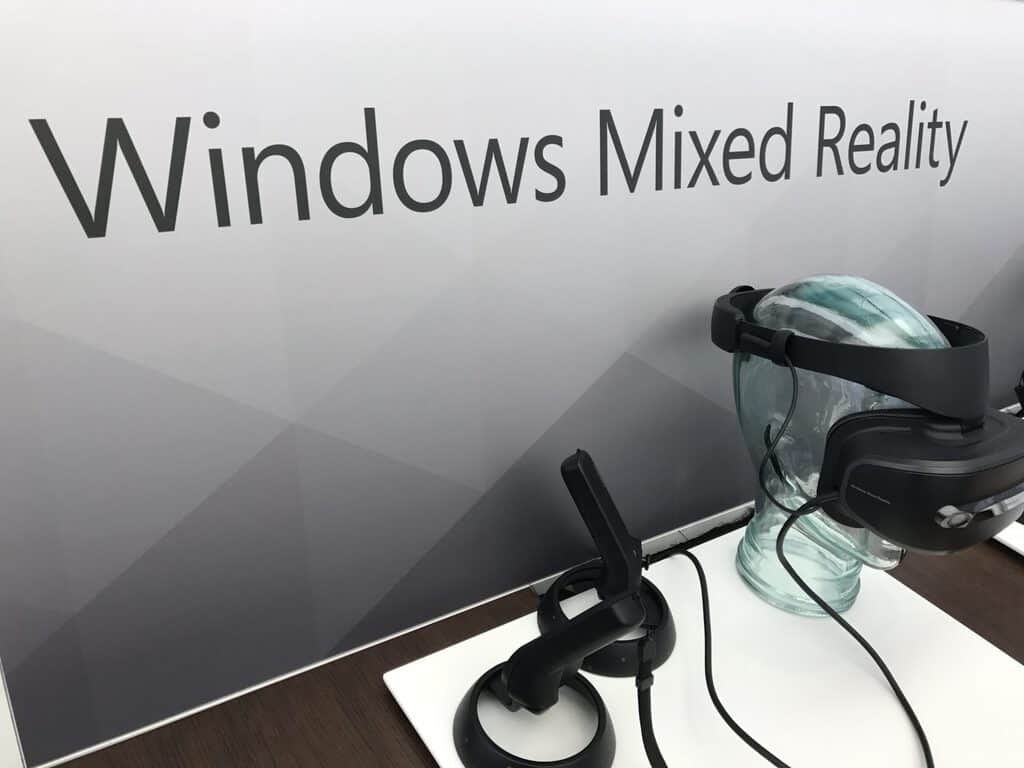
Last month, I had a chance to spend some time with the Lenovo Explorer Windows Mixed Reality headset. The headset was pretty solid, and I found it as a viable and comfortable option for those looking to enter the world of Windows Mixed Reality. Though I mentioned many aspects of the experience in my full review, I’m now following up with some more editorial-like closing thoughts on the direction of Windows Mixed Reality.

A wide range of comfortable hardware:

My favorite part of Windows Mixed Reality is the solid hardware. Along with the Lenovo Explorer, there are many other headsets from HP, ASUS, and Dell, just like there are many options when buying a new Windows 10 PC. Although the design of the headsets is standard, there are some subtle differences between them, such as color, shape and added features like the AMOLED display on the Samsung HMD Odyssey headset. This is really great, creating many purchase options for consumers, especially because the design on other VR headsets like the Oculus Rift and HTC Vive are rather proprietary, boring and uncomfortable looking.

Windows 10 VR/Mixed Reality/Augmented Reality Headsets
Windows headsets

Anyway, Windows Mixed Reality Headsets are also very comfortable. Unlike other VR headsets, you’re not strapping the headset to your head with actual straps. All Windows Mixed Reality headsets use a padded hinge-like mechanism to attach to your head on the front, and an adjustable clamp to connect at the back. This means you have nothing pushing down or putting pressure on your head while you’re wearing the headset. You can wear the headset for a long time without it hurting, and after a while, it feels like it is just there. Plus, when you’re ready to leave the virtual world, all you need to do is push the headset up, and the hinge mechanism allows you to get back into the real world without physically taking the headset off.

Finally, there is the added plus of the headsets connecting to a PC via HDMI and USB 3.0 and using motion-sensing cameras, P-sensor, Gyroscope, Accelerometer, Magnetometer for inside-out tracking. This all makes the setup process very simple (as I highlighted) and the cables are long, tuck to the side, and never get in the way while the headset is in use.  I walked around up to the full 12-feet without any issue, and the computer never once lost track of the headset.

Lenovo Explorer

It just works with… almost… everything:

Another solid part of Windows Mixed Reality is the that it works with most newer modern Windows 10 PCs with the Windows 10 Fall Creators Update installed. Simply plug in the cable, and enjoy the action. While this sounds great on paper, the key point here, though, is most. 

Lenovo provided me with a laptop so I could review the Explorer, but there is, in fact, an issue. Your PC needs to meet certain requirements to be compatible with Windows Mixed Reality. My Surface Pro 4 could not handle the headset, and neither could three of the other Windows 10 PCs I own. I did manage to get it working on a newer Lenovo laptop that I own, but it was not as a good of an experience when compared to the Legion Y720 I mentioned in my review.

Anyway, using Windows Mixed Reality headsets with fancy laptops will definitely make for a better experience. There’s actually two levels of Windows Mixed Reality— Ultra and Standard. Windows Mixed Reality (Standard) is for PCs with integrated graphics, and Windows Mixed Reality Ultra is for those higher end PCs with dedicated graphics cards. I used Standard with my older Lenovo laptop without a dedicated graphics card and things were a bit laggy with occasional frame rate drops. But when I used the Legion Y720, things were solid and I never had issues.

Simply put, if you’re looking for a Windows Mixed Reality headset, consider getting a new PC to go with it as a bundle. Not only will you be getting a future proof PC, but you’ll be getting something which will work flawlessy for Windows Mixed Reality.

Legion Y720

Some room for software improvement:

I pointed to the solid Windows Mixed Reality experience in my previous post, but there’s still room for improvement. Opening up 2D apps in Windows Mixed Reality or customizing the virtual home is fun and all, but there is currently not a lot of games or apps available for Windows Mixed Reality. I really would like to see more developers come on board and create content for the platform, but given that these headsets only launched in October, there is still lots of time left.

I also hope Microsoft can speed up the development process of Steam VR for Windows Mixed Reality. It’s currently available in early preview, but when I tried testing it out on the Legion Y720 games would not launch and the headset frequently froze up. Getting Steam VR titles to work perfectly Windows Mixed Reality would be a huge boost, helping bring much bigger AAA titles to the experience.

Steam VR

At the end of the day, Windows Mixed Reality is still a good experience. While still in it’s early stages, there is plenty of room for improvement. Windows Mixed Reality headsets are comfortable, there are a wide choice of headsets to choose from, and you even can use it with most modern PCs if the specs are up for it.

Minecraft launches Realms Clubs, a new online meeting place for Realms

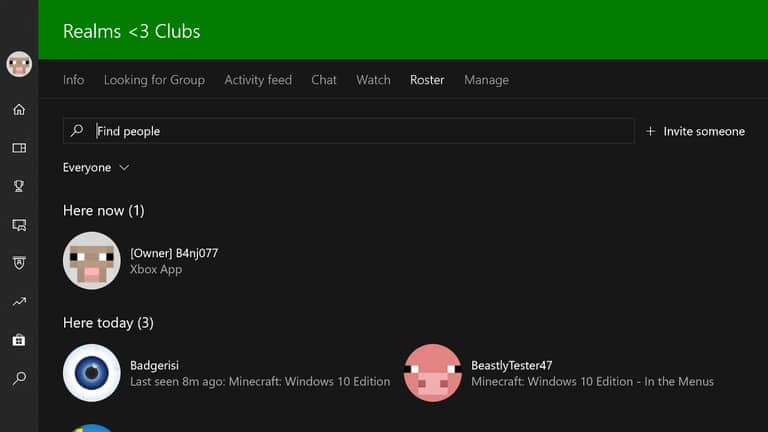
The Minecraft team yesterday announced the launch of Realms Clubs, a new online meeting place for members of Realms to share and socialize. With Minecraft Realms Clubs, players can share posts, like videos, photos, and comments, and much more.

Minecraft players can find Realms Clubs now on Minecraft for Xbox One, Mobile, and Windows 10. Clubs will automatically be created for a Realm, and anyone who is invited to a Realm will also be added to the Club. Players can manage Realm Clubs from the Xbox App on PC, mobile, or console, or directly from the Realms menu in Minecraft.

Screenshots can be posted to a Realm Club by pausing the game and hitting the button with the Camera icon next to the feed button. This will add the screenshot to your list of saved screenshots and your Realms Clubs feed. Please keep in mind you can manage your Club and report comments or block players if necessary.

The experience should also be safe for kids, as kids need permission from a parent to adjust their permissions to use Realms. More details on Realms CLubs and all the FAQ’s are available here.

Microsoft launches Game Awards Sale with big savings on popular Xbox One games

To celebrate all the games nominated for top honors at the Game Awards ceremony today, Microsoft has just kicked off a limited-time sale with up to 60% discounts on recent Xbox One games. The list includes many AAA games released this year including Assassin’s Creed Origins, Destiny 2, Forza Motorsport 7, Cuphead, FIFA 18 and more. You can check the full list of discounted titles on this page, but the main highlights can be found below:

All these discounts will be valid through Sunday, December 10. If you prefer to purchase physical games, the US Microsoft Store is also offering up to 50% discounts on a big selection of Xbox One games today. The list also includes Star Wars Battlefront 2, Assassin’s Creed Origins, Destiny 2, FIFA 18 and more and you can check all the deals on this page.

As a reminder, the Game Awards ceremony will be held later today at 5:30PM PST, and Microsoft will give you free “Mixpot” digital rewards (the content is still unknown) if you watch the livestream on Mixer. You can do so on the web, on your Xbox One or the iOS and Android Mixer apps.

Windows Template Studio 1.5 is now available with new features and template improvements

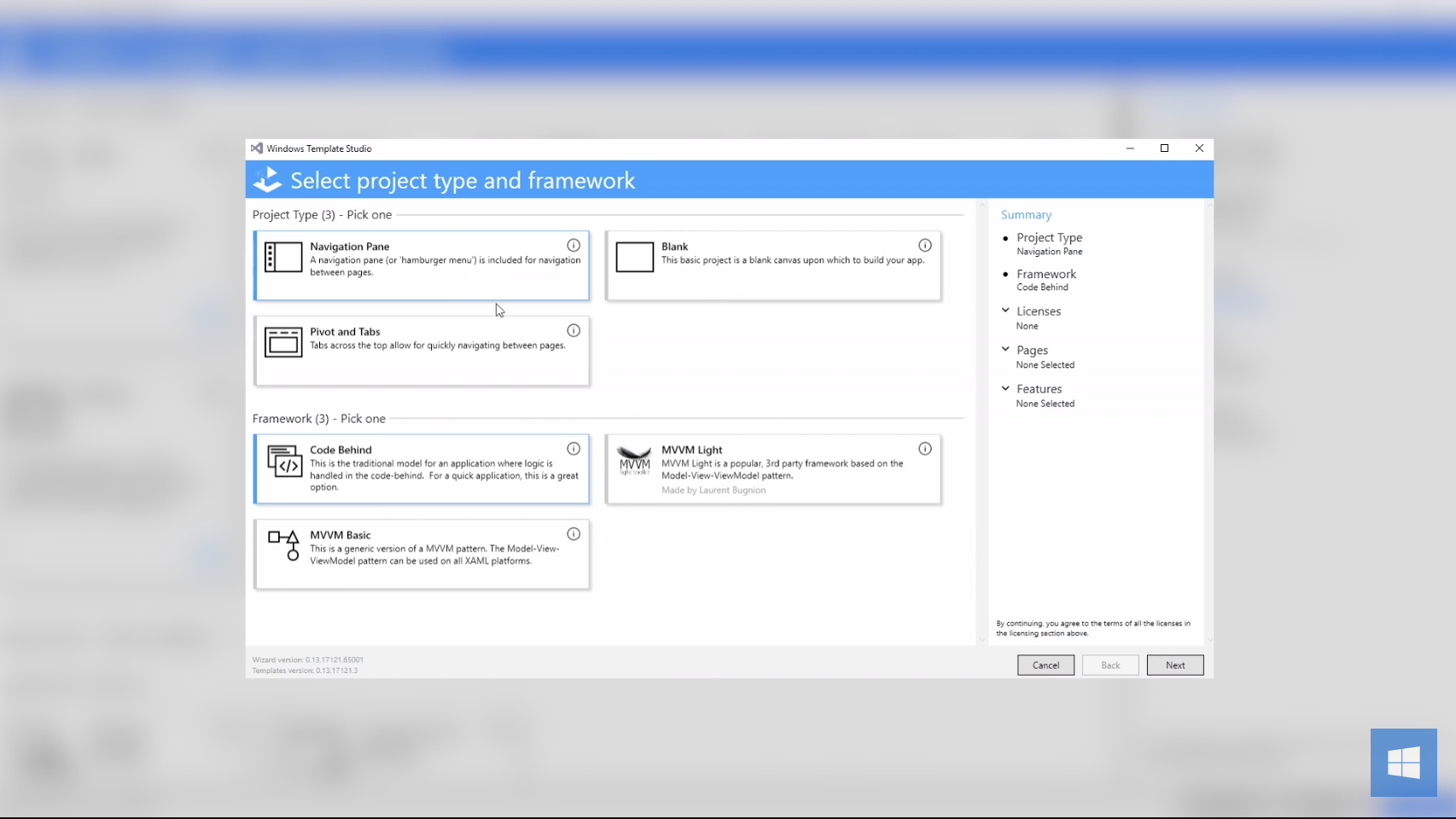
Microsoft yesterday announced the release of Windows Template Studio 1.5. This release of the wizard-based tool designed for accelerating the creation of new UWP apps includes some new features and finalizes Microsoft’s ongoing work for localization. See a quick look at what’s new with this latest release below, and check Github for the full changelog.

New Features:

  • Share source, share target
  • Multi-view
  • Feedback hub (added in v1.4)

Template improvements:

  • Minor tweaks for Fluent
  • Caliburn.Micro Support (added in v1.4)

Improvements to the Wizard:

  • Localization in all Visual Studio supported language
  • Adjusted the feature categories
  • Lots of under the hood bug fixes and code improvements
  • Much more Visual Basic engine work
  • Work for supporting multiple projects in a single solution
  • Work to support Prism
  • Bug fixes

Developers can get this update by going to https://aka.ms/wtsinstall, clicking “download” and double-clicking the VSIX installer. Visual Studio should also auto update the extension, but an update can be forced by going to Tools->Extensions and Updates and then going to Update expander on the left. Even more features including image gallery, web to app link feature, visual basic support, and more are on the way soon, Microsoft explained yesterday.

Startup Manager in Windows 10: What it is and how to use

You don’t have to be Windows enthusiast to remember the days when managing the startup programs wasn’t exactly as simple as it’s now. People would habitually use third-party tools for startup management, once they confirmed that the system is substantially affected by the abundance of startup programs. Luckily, Windows 10 brought the Startup Manager and made life easier for its users.

Today, we’ll explain where Startup Manager is located and how to use it, so make sure to check the explanation below.

What is and how to use the Startup Manager feature in Windows 10

Firstly, let’s start with where you can find this simple but nonetheless valuable addition to Windows platform. It was an obvious choice to set Startup Manager within Task Manager because that’s basically the hub of Windows monitoring.

startup manager windows 10

Just right-click on the Start button (right-click on the Taskbar does the job, too) and open Task Manager. Once there, you should have an easy time locating the Startup tab.

There you should see the complete list of the programs that start with the system, with details including:

  • Application name and publisher.
  • Current startup status.
  • And the valuable grading of startup impact.

By right-clicking on the application, you can navigate to the locations of its executable file, open properties, or search for the additional details about it online. The online search uses Bing search engine, and that’s something interchangeable with Edge.

Disabling program from starting with the system is simple and you can do it by right-clicking on the program you want to ban from starting and then selecting Disable. The administered changes will apply after the reboot. With the colorful design, you’ll enjoy it much more than the outdated System Configuration menu. And it basically eliminates the purpose of third-party tunning tools that were so popular back in the days. A great addition to Windows 10, that’s actually useful for all users.

Alternatively, you could try using a modern and intuitive task manager that has an all-in-one platform with versatile features and allows you to control everything from one place.

⇒ Get AnVir Task Manager

You can also use this tool to disable startup programs in Windows 7, so be sure to do that.

What are your thoughts on Startup Manager in Windows 10? Do tell us in the comments section below.

RELATED STORIES YOU SHOULD CHECK OUT:

OpenOffice For Windows 10: How to Download and Install it

OpenOffice needs no introduction. Thousands around the world use this free, open-source alternative to Microsoft’s Office suite, and it today’s guide, we’re going to show you how to get OpenOffice for Windows 10.

The software is completely free and can be used without limitations, so keep reading if you want to learn more about it.

Is OpenOffice available for Windows 10?

Yes, OpenOffice is available for Windows 10 and all other versions of Windows including XP, Vista, and newer.

It’s also available for macOS and Linux platforms.

Has OpenOffice been discontinued?

The software was discontinued several years ago, and the suite isn’t receiving any major or feature updates.

However, the community is still working on minor fixes and bug updates, but there are no plans for any major release.

What is OpenOffice?

For past users of OpenOffice, there’s no need to explain anything about this software suite, as you already have all the information you need from the title ahead. However, users who are looking for an alternative to Microsoft’s Office suite should know precisely what OpenOffice is and how can it be of benefit to them.

First, know that OpenOffice for Windows 10 is not an app, but a desktop program. It is very similar to Microsoft Office, with the difference that it is an open-source product, therefore it’s available free of charge.

Linux and Mac users have used this software suite for a very long time.

Open Office Windows 10 compatibility

OpenOffice for Windows 10 provides all the features one might need for daily office work. OpenOffice has all the tools you need, and there’s an alternative for every Microsoft Office application.

OpenOffice comes with its own word processor called Writer. This is a solid Word replacement, and it offers almost all the features that Microsoft Word has.

What is Open Office

If you want to work on your spreadsheets, a solid Excel alternative is available called Calc. The application has all the necessary features, so you should be able to create spreadsheets with ease.

Open Office Windows 10 compatibility

If you want to create a presentation, there’s a PowerPoint alternative available called Impress. This is a decent application, but you might find that certain features from PowerPoint are missing.

What is Open Office

If you work with databases, you’ll be pleased to hear that there’s an Access alternative available called Base. It’s also worth mentioning that OpenOffice has its own formula editor called Math and a drawing application named Draw.

Even though OpenOffice offers alternatives for many Microsoft Office applications, we have to mention that OpenOffice is lacking certain apps.

Unlike Microsoft Office, OpenOffice doesn’t have Outlook or Publisher alternatives, so if you’re frequently using Outlook or Publisher, you won’t find their replacement in OpenOffice.

All of these can be found once you’ve opened OpenOffice for Windows 10, and it will greet you with a welcome window, asking what product you want to use.

What makes OpenOffice so great it the online database of add-ons. Similar to Mozilla’s Extension website, here you can find a great deal of tools.

Anything from various templates for almost any task to compatibility tools, spelling dictionaries, and other functions can be freely downloaded and added to OpenOffice.

This makes it much more helpful and by selecting the right add-ons, you can create a customized version of OpenOffice with all the desired features.

Open Office Windows 10 compatibility

I love using OpenOffice, and thanks to the fact that it is fully compatible with Windows 10, I can now have the MS Office alternative that I used to enjoy on previous versions of Windows.

Keep in mind that OpenOffice uses its own open standards and formats, such as OpenDocument Format (ODF). Of course, Open Office fully supports all file types that Microsoft Office uses, so you can easily open any Microsoft Office file in OpenOffice without using any additional plugins.

How do I download OpenOffice on Windows 10?

  1. Go to the OpenOffice download page.
  2. Select your version of Windows.
  3. Click on Download full installation.

Now you just have to wait for the download to finish.

What is the latest version of OpenOffice for Windows 10?

  • The latest version of OpenOffice is 4.1.14.
  • It was released on 27th February 2023.

What replaced Apache OpenOffice?

In case you’re looking for an OpenOffice replacement, the most obvious open-source choice is LibreOffice. In case you’re not familiar with it, we have a great guide on how to install LibreOffice for Windows.

If you want to know how OpenOffice compares to its successor, we suggest reading our ONLYOFFICE vs LibreOffice vs OpenOffice guide for more information.

Overall, OpenOffice is a great tool and alternative to Microsoft Office. Keep in mind that OpenOffice doesn’t offer a replacement for Outlook or Publisher, but if you don’t use those apps, you’ll find OpenOffice more than suitable for your needs.

It’s also worth mentioning that OpenOffice doesn’t have the same streamlined interface as Microsoft Office, and many Microsoft Office users might see that as a flaw. However, it won’t take you long to fully adjust to OpenOffice’s user interface.

Another problem some users might have is the lack of certain features in OpenOffice. OpenOffice is a solid alternative, but you might find that certain features from Microsoft Office are missing. However, you should be able to overcome this limitation by using add-ons.

In case you already have OpenOffice installed, you might be interested in our guide on how to open Works files on Windows.

What else can we say about OpenOffice? OpenOffice is a solid alternative to Microsoft Office; it’s available for all desktop platforms, and it’s completely free. If you can’t afford the latest version of Microsoft Office, consider trying OpenOffice.

PUBG to release three limited edition Cosmetic Packs to celebrate Xbox One launch

With PUBG set to launch on December 12 on Xbox One, developer Bluehole will release three limited-edition cosmetic packs that will be exclusive to the Xbox One version of the game. The first of those packs, the PUBG Warrior Pack will be available to purchase starting tomorrow, December 7 for $9.99 (the Store listing will go live at 7PM PST).

The PUBG Warrior Pack includes a balaclava hat, camo t-shirt, pants and tennis shoes.

On December 14, the PUBG Accessory Pack will be available to purchase for $4.99, followed by the Tracksuit Pack (also $4.99) on December 21. “These packs are exclusive to Xbox fans as standalone offers available for a limited time and as there are no plans to feature any in-game purchases in the Xbox Game Preview version, are the only items that can be purchased during the preview period,” the Xbox team explained.

The PUBG Accessory Pack (left) and Tracksuit Pack (right).

PUBG is already available to pre-order from the Microsoft Store and it’s currently priced at $29.99, just like the Steam early-access version. The Xbox One version of the game has been much anticipated, though we recently learned that it will run at 30FPS on both the Xbox One X and the standard Xbox One. That’s a bit disappointing for a shooter game, but remember that PUBG is still in preview and things could change in the future. “We’re constantly refining the game & exploring options to increase FPS, but this early in dev, we’re unable to confirm more,” Game Director Brendan Greene recently explained.

Xbox One’s DELTA & OMEGA Beta build 1711.171203-1700 fixes network issue

Build 1711.171203-1700 in the new Preview DELTA & OMEGA Beta has begun to rollout to select Xbox Insiders. It’s main focus appears to be fixing wireless internet connectivity bugs, something that had been frustrating users since the last build. Here’s the full release notes.

FIXES:

Networking: Fixed an issue which caused certain wireless networks to be missing from the list when scanning for available wireless networks. Fixed an issue which sometimes caused unexpected network disconnections when using a wireless connection.

Games/apps not installing/updating/launching: We investigated reports of some users in ASIA/APAC(Australia & Pacific) countries  that could note install/update/launch any games or apps.  We have conduced service changes in the global network for ASIA and APAC countries that should resolve these errors.

KNOWN ISSUES:

Display: We are investigating the inaccurate RGB colors that have been reported when displaying in 4K HDR mode when playing a UHD disc.

Tournaments: The left and right navigation for selecting date and time during Tournament creation is currently reversed when the console language is set to Arabic or Hebrew. Left and right navigation in Tournament twists is reversed when the console language is set to Arabic or Hebrew. Left and right navigation in the bracket view of Tournaments is reversed when the console language is set to Arabic or Hebrew

Avatars on Home: Users wishing to represent themselves as an avatar can do so by changing their settings under My profile > Customize profile > Show my avatar.

Narrator: Narrator can stop reading large amounts of text.

These preview builds are made available to Xbox Insiders, Xbox One console users who have opted-in to help Microsoft test features before they’re pushed out to the average user. Are you an Insider and have you installed this build yet? Let us know in the comments below.

Microsoft launches public preview of IoT Central

Microsoft today launched their public preview of Microsoft IoT Central, the company’s software-as-a-solution product designed to assist businesses and organizations in building IoT (Internet of Things) applications quickly, easily, and efficiently.

“Microsoft IoT Central takes the hassle out of creating an IoT solution by eliminating the complexities of initial setup as well as the management burden and operational overhead of a typical IoT project. That means you can bring your connected product vision to life faster while staying focused on your customers and products. The end-to-end IoT SaaS solution equips you to harness the “digital feedback loop” to draw better insights from your data and convert them into intelligent actions that result in better products and experiences for your customers,” Azure IoT director, Sam George said in the official announcement.

“By reducing the time, skills, and investment required to develop a robust enterprise-grade IoT solution, Microsoft IoT Central also sets you up to quickly reap the powerful business benefits of IoT. You can get started quickly, connecting devices in seconds and moving from concept to production in hours. The complete IoT solution lets you seamlessly scale from a few to millions of connected devices as your IoT needs grow. Moreover, it removes guesswork thanks to simple and comprehensive pricing that makes it easier for you to plan your IoT investments and achieve your IoT goals.”

Microsoft also launched a new IoT Central website alongside today’s announcement and those interested in trying the new service are encouraged to check out the free trial here.

FIX: Skype kicks me out of game

Team speaking is a must-have feature if you play with your friends and without it, you don’t really have an edge over other random players. Now, for that purpose, a lot of gaming enthusiasts choose Skype over other third-party programs. And it’s all good until the alt-tab minimization shows its ugly face and you’re kicked out of the game.

Now, hear us out, we indeed provided a few solutions that should, more or less, subdue Skype. However, for the permanent resolution of the problem, we strongly advise you to check out other, specialized VoIP programs that are both free and better-suited for the job. They go easier on your bandwidth and their latency is rather low.

Either way, check out the steps we provided below and decide for yourself.

How to prevent Skype from minimizing a game in a few simple steps

  1. Disable ”Show call controls when Skype is in the background”
  2. Select ”Do not disturb”
  3. Disable notifications
  4. Use better VoIP alternatives

Solution 1: Disable ”Show call controls when Skype is in the background”

Even though Skype is probably the most used VoIP (Voice over IP) application in the world, it’s still fairly limited when it comes to cooperation with gaming. Basically, once you start it, it won’t shy from acknowledging its presence in the background. All the time. Since we all know that online games don’t like frequent alt-tabs while playing. Some of those even identify it as cheating and that’s the last thing we want, isn’t it?

The first thing you can do to subdue the unwanted activity from Skype while gaming is to disable Call controls from showing up. What we want in this scenario is to make Skype as tranquil as possible. Here’s how to do it in a few simple steps:

  1. Open Skype.
  2. Click on Tools and then on Options.skype kicks me out of game
  3. Select Calls.
  4. Click on Call settings.skype kicks me out of game
  5. Choose ”Show advanced options”.
  6. Uncheck the ”Show call controls when Skype is in the background” box and save changes.skype kicks me out of game

Solution 2: Select ”Do not disturb”

Furthermore, a ”Do not disturb” should be your go-to online status in Skype while playing the game. With it, you’ll be able to avoid all unneeded notifications and prompts, while maintaining the connection with your friends. So, once you’re all set and the connection with friends is established, make sure to select the ”Do not disturb” mode. Follow the instructions below to do it:

  1. Open Skype.
  2. Navigate to your Account heading (under the profile pic) and expand the status menu.
  3. Select ”Do not disturb”.skype kicks me out of game

After that, Skype shouldn’t kick you out the game. In case it still does, make sure to check the next step.

Solution 3: Disable notifications

Another way to keep Skype to low-key status is to disable notifications. There’s a whole bunch of notifications that are rather unuseful, especially when you need Skype to stay out of your business during the gaming session. In addition, you can disable them all and enable everything later on, when you’re done with raining no-scope 360 havoc in Call of Duty or Battlefield.

Here’s how to disable Skype notifications in a few simple steps:

  1. Open Skype.
  2. Open Tools.
  3. Click Options.skype kicks me out of game
  4. Select Notifications from the left pane.
  5. Uncheck the ”Enable Skype for Windows desktop notifications” and save changes.skype kicks me out of game

Solution 4: Use better VoIP alternatives

Finally, if none of the above is fitting, you can always turn to alternatives. It’s 2017 and, well, online gaming is at its peak. Meaning that, besides the abundance of games, we have a myriad of supporting programs that are much better than Skype for the job at hand. Besides the better integration, these programs are, feature-wise, a great improvement over Skype.

Use Skype for everything else, but for team chat, make sure to take into consideration one of the following programs:

Every single one of them has an upper hand on Skype in regards to online gaming and voice chat with your friends. They are all free, but some of them come with launchers or clients, respectively. Our choice would probably be TS3 or Discord, which are widely used and regarded as reliable and well-designed pieces of software.

That should conclude it. In case you have an alternative solution we forgot or questions regarding the Skype minimizing we haven’t answered, make sure to tell us in the comments section below. We’ll be glad to hear from you.

RELATED STORIES YOU SHOULD CHECK OUT:

Destiny 2 gets Xbox One X 4K Ultra, HDR enhancements

While the Xbox One X may lack the first party exclusives most major new consoles use as a purchase crutch initially, Microsoft seems to be banking on the device’s horsepower to turn current games into ‘like-new’ experiences.

Head of Xbox Games and Marketing Arron Greenberg just announced via Twitter that Xbox One X owners can now experience Destiny 2 in 4K Ultra HD and HDR thanks to console enhancements.

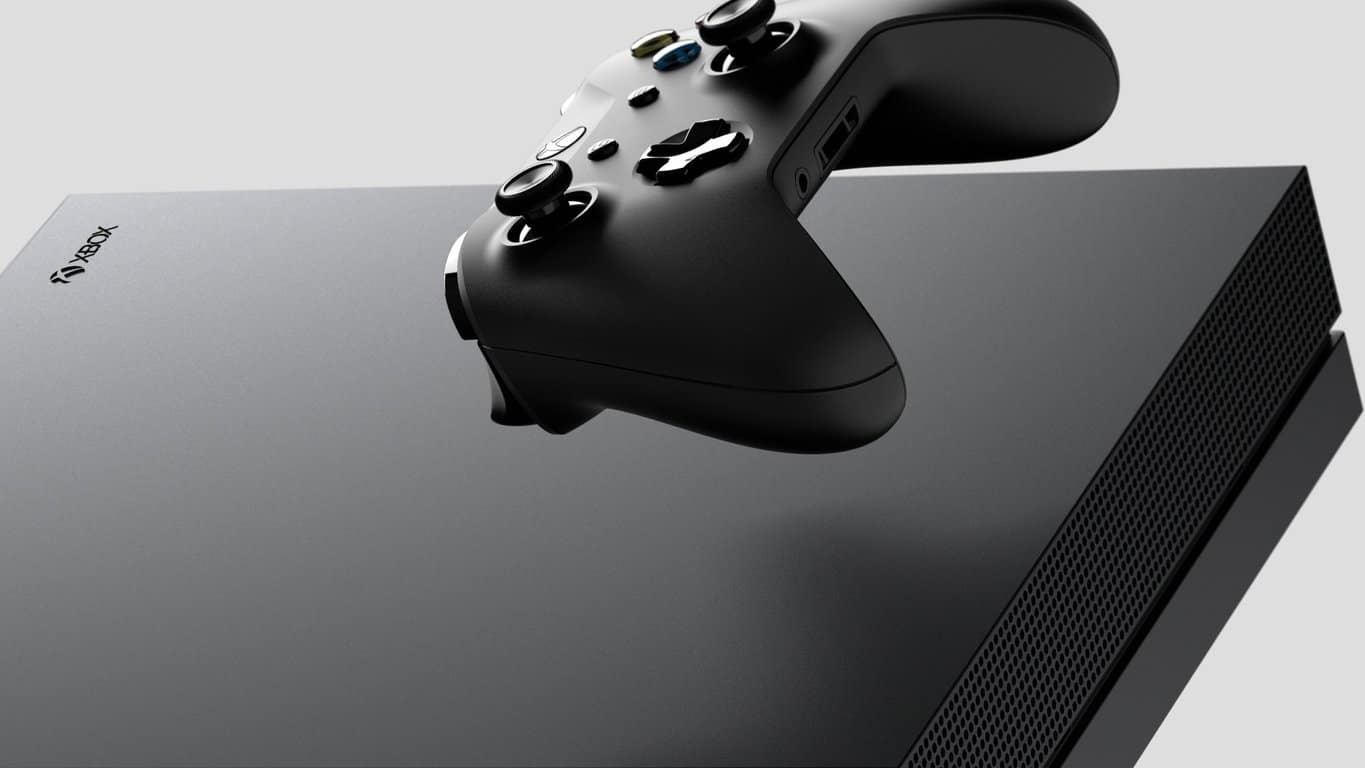
Seems as though the tipping point for 4K console gaming is on the horizon for Xbox gamers. All that’s left now is to buy yourself a brand new 4K enabled TV to get the most out of your Xbox One X console, be it gaming or Netflix.

The Asus NovaGO and HP Envy x2 are the first Windows 10 on ARM laptops

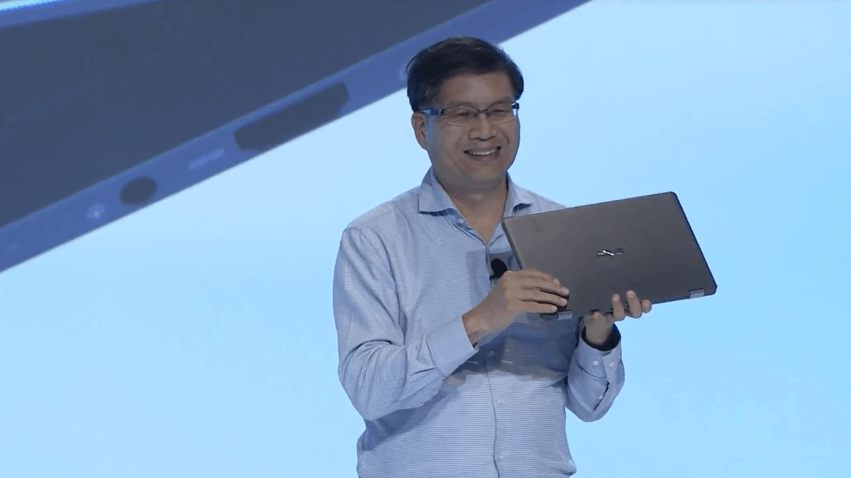
ASUS and HP have just announced the first PCs running Windows 10 on ARM today in Hawaii. Both companies were present at Qualcomm’s Snapdragon Technology summit, and Asus was the first company to unveil its always-connected PC powered by a Qualcomm Snapdragon 835 processor.

Asus’ first Windows 10 on ARM device is called the NovaGo, and it will deliver Gigabit LTE speeds thanks to its 4×4 MiMO antennas. Just like the freshly released Surface Pro with LTE, it will come with both an embedded SIM and a Nano SIM tray for popping in your own SIM card. Interestingly, the Asus NovaGo will run Windows 10 S, but customers will be able to upgrade for free to Windows 10 Pro through September 2018.

As for the specs, Asus promised up to 22 hours of video playback and over 30 days of battery life when on standby. The company also mentioned support for Windows Ink, Windows Hello and. Cortana. Two models will be available, a base with 4GB of RAM and 64GB storage for $599 USD, and a higher-end model with 8GB of RAM and 256GB of storage for $799. Unfortunately, Asus didn’t share a release date for the NovaGo today, but it should available in 7 markets at launch including the US, the UK, France, Germany and China.

HP Envy x2

HP also unveiled the Snapdragon 835-powered Envy x2 today, which will be a new edition of the existing model with an Intel processor. This detachable PC will also run Windows 10 S out of the box, offer “lightning-fast 4G LTE” and provide up to 20 hours battery life. We don’t have any more details about specs or pricing, but HP said that it was coming in Spring 2018.

Microsoft has said they are continuing to work closely with Lenovo as they build their Always Connected PC, so you can expect more of these types of devices soon. Are you excited about these first Windows 10 on ARM PCs? Sound off in the comments below.

Mega Man 11 announced, All 8 Mega Man X games coming to Xbox One

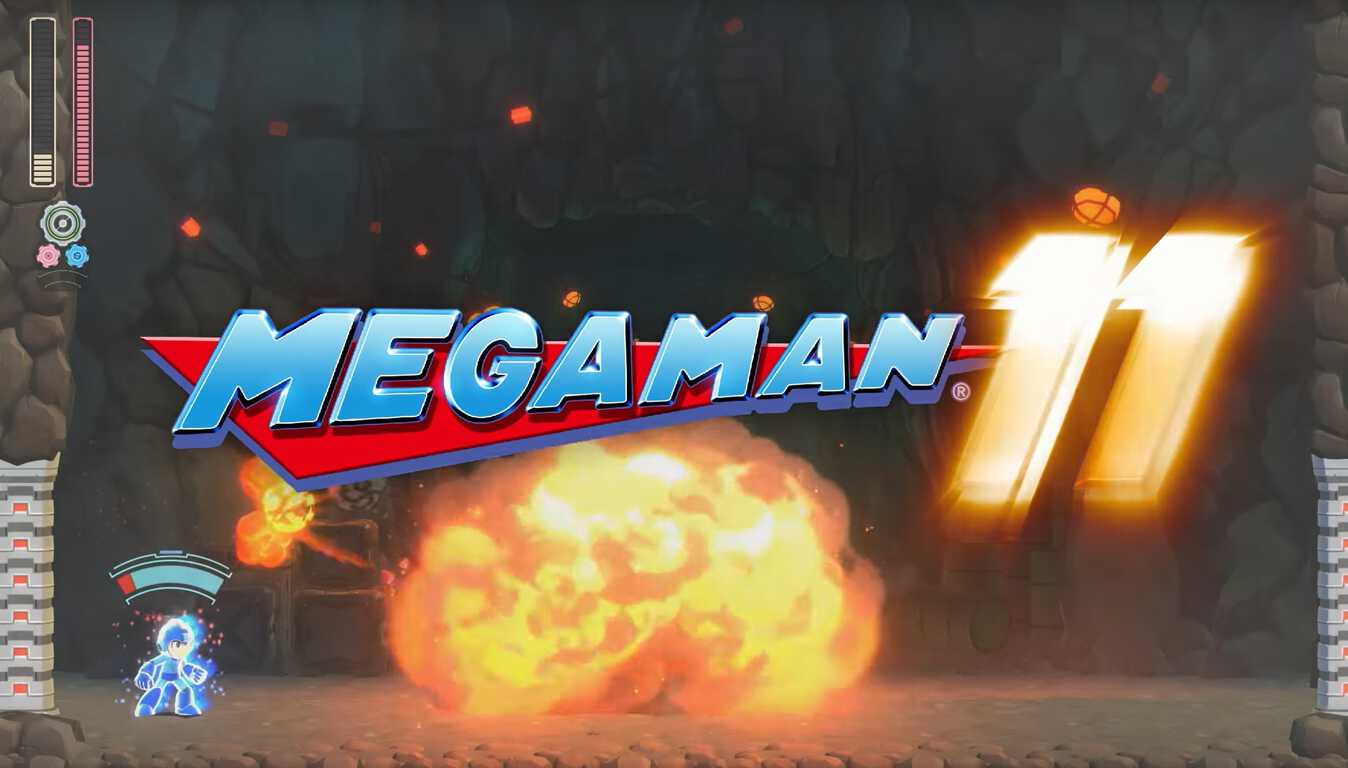
Capcom announced that Mega Man 11 will be coming to Xbox One, Windows 10 PC, and other platforms in 2018.

Aside from a new look, Capcom isn’t abandoning the side scrolling action seen in the previous Mega Man games. Sometimes, game developers like to try to mess with popular formulas; think Bionic Commando on Xbox 360. Capcom learned their lesson on Bionic Commando and it looks like Capcom chose to stick what has worked for the past 30 years with Mega Man.

In other great news, Capcom will be releasing all 8 Mega Man X game titles to Xbox One and Windows 10 PCs too. Coming soon, you will be able to pre-order Mega Man 11 on Xbox One and Windows 10 PC. Stay tuned for Mega Man 11!

TomTom co-founders answer questions about their expanded Microsoft partnership

A few weeks ago Microsoft announced new Azure Location Based Services, with the mapping data for the services being provided by TomTom. Today, the TomTom co-founders made an appearance on Microsoft’s Transform blog, discussing more on their expanded Microsoft partnership.

In the blog post, Peter Frans Pauwels talks about TomTom already having office infrastructure hosted by Microsoft, with real-time map data hosted on Azure. He remarks that the two companies share synergies.

We’ve got to be sure transportation is going to be safe, clean and enjoyable. Getting there will require a lot of work. The scale of Microsoft and its cloud — the security, safety, availability — those are really important to us to realize our vision, so we can scale up and make the technology we have today much more accessible to many more parties.

Anders Truelsen also mentions how TomTom and Microsoft both share a clear common goal and a very clear common strategy, with a lot of interests being shared between the two companies.

…Any enterprise customer or developer using Azure now has access to our products. You can combine connected devices, avoid traffic and accidents, search for the nearest restaurants, and make sure you have a route with a strong cellular connection the whole way…. There is a lot of common interest between the companies. We make our data more accessible than ever to a wide audience of users.

The two discuss many other topics, including how the partnership benefits consumers, how transit is becoming more personal, and the security challenges of big data. Feel free to check out the full interview here, and let us know your thoughts in the comments below.

Office 365 Advanced Threat Protection is now available for SharePoint, OneDrive, and Teams

Office 365 Advanced Threat Protection, Microsoft’s preventive technology that can detects attacks and zero-day exploits, is now generally available for SharePoint, OneDrive and Microsoft Teams. ATP is currently included in Office 365 Enterprise E5 and Office 365 Education A5, and it can also be added to many Exchange and Office 365 subscription plans.

By enabling Office 365 ATP, companies can make sure that they’re protected against any kind of malicious content within their tenant. “Examples of file activity signals include anonymous, company wide or explicit sharing, or activity from guest users,” the company explained. “Threat feeds that Office 365 Advanced Threat Protection leverages include known malware in email or SharePoint, Windows Defender/Defender ATP detections, suspicious or risky logins or other indicators of irregular file activity within your tenant.”

Office 365 ATP can be configured by IT admins in the Office 365 Security and Compliance Center. You can learn more about how to enable it for SharePoint, OneDrive and Microsoft Teams on this support page.

Microsoft is expanding in Silicon Valley, too, with its smartest, greenest campus

Last week, Microsoft announced a significant expansion of its Redmond campus, which has been the company’s official headquarters since 1986. The “Redmond giant,” like we often call it is also planning to modernize its other workplaces around the world, including its Silicon Valley Campus that currently welcomes more than 2,000 employees.

The company has just started a 643,000-square-foot modernization of its 32-acre Mountain View location, a project that will become the company’s smartest and greenest campus once it’s completed. In addition to an integrated water management system and the use of solar panels, Kevin Scott, Chief Technology Officer at Microsoft shared that the new campus will deliver “the best employee experience in the industry.” He continued:

The modern workspaces throughout the campus will promote collaboration and productivity, providing areas that help generate creativity and allow for focused concentration. The neighborhood and courtyard concept makes it easy for our employees to move from outdoor to indoor spaces. Employees will have access to natural light through a glass exterior from anywhere on campus. The renovated dining facilities will provide healthy meal options as part of our commitment to the WELL Building standard. The campus will also feature athletic fields and a new onsite fitness facility for our employees. Finally, the new conference center, theater and Microsoft Technology Center will create space for us to demonstrate how our technology and services are empowering everyone on the planet to achieve more.

Microsoft arrived in the Silicon Valley more than 36 years ago, and this new eco-friendly campus shows that the company is definitely here to stay. “We estimate it will take two years to complete and be ready for occupancy in December 2019,” explained Scott. To compare, the massive refresh project at Microsoft’s Redmond campus will kick off next fall and should take up to seven years to be completed.

Is this the Windows on ARM announcement? Watch Qualcomm’s Tech Summit keynote here

Over the past few months, there’s been plenty of talk about Windows 10 on ARM. Microsoft has promised that the devices would come “later this year,” and we’ve even heard about all day battery life, seen leaked specs for devices, and more. Today may finally be the day that things become official, as Qualcomm is holding its Tech Summit keynote.

A live stream for the second annual keynote is expected to begin from Hawaii today on Qualcomm.com at 8:30 am HAST (10:30 am PST/1:30 PM EST/6:30 pm GMT.) It will be hosted by Cristiano Amon, Executive Vice President, Qualcomm Technologies, Inc. Though Qualcomm did not officially announce what will be discussed or showed off at the event, a press release makes vague mention of always-connected PCs.

“This year’s Snapdragon Technology Summit will feature an inside look at the latest innovations built into Qualcomm Snapdragon Mobile Platforms, along with demonstrations that exhibit upcoming technologies and advancements that will continue to shape the way we use mobile devices, always connected PCs and other future technologies.”

This event will definitely be a great way to close out the year for Qualcomm and Microsoft, so best to keep tuned for more throughout the day. We will be monitoring the stream and will be updating you with the biggest news from the event.

Redesigned Cortana Notebook section now rolling out to select Windows Insiders

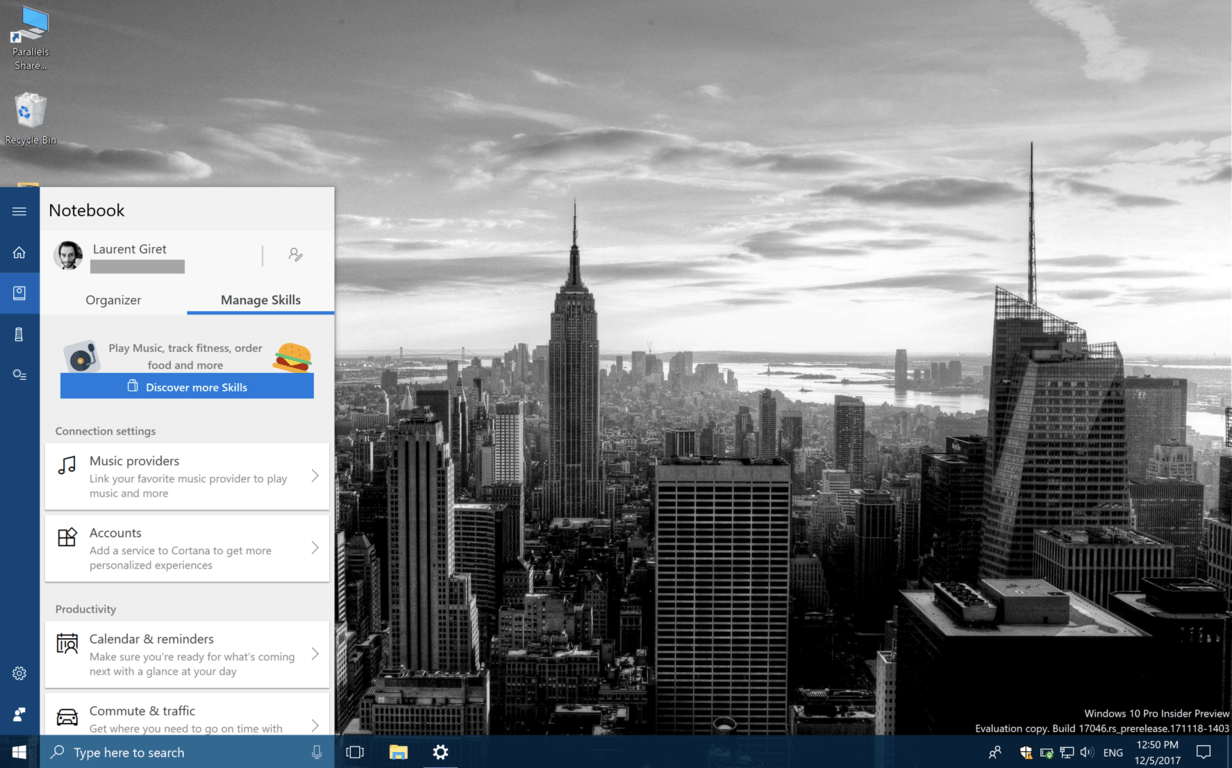
Microsoft is currently testing a new UI for Cortana’s Notebook section on Windows 10 PCs. The new design has been discovered by Reddit user Noam_ha (via Thurrott.com), and it’s currently rolling to some Windows Insiders running the latest Redstone 4 build.

As you can see in the screenshots below, Cortana’s Notebook has now two sections: the “Organizer” page lets you create To-Do lists and Reminders, while the “Manage Skills” lists all the different Skills that were previously available in the old UI, but they have now been regouped under different categories such as Connection settings, Productivity, Stay up-to-date and Lifestyle.

It’s still not clear if this redesigned Notebook UI could roll out soon to all Windows 10 users, but we find it slightly more usable and organized than what’s currently available on Windows 10 and Windows 10 Mobile. We already know that Microsoft is planning a lot more changes for Cortana on the desktop, and the digital assistant could look and work more like macOS Spotlight in Redstone 4.

Did you also notice this new Notebook UI on your Windows 10 PC? If so, let us know your thoughts about it in the comments below.

Check out this week’s Deals with Gold including a bundle sale on ID@Xbox titles

This week’s Deals with Gold are officially out, along with a big bundle sale on ID@Xbox titles. On the Xbox One, Xbox Live Gold members can save up to 75% off Divinity: Original Sin Enhanced Edition, Dungeon Defenders II, the Metro Redux Bundle, Unravel and The Technomancer. Additionally, everyone can save up to 75% off the INSIDE & LIMBO Bundle, the Jackbox Party Bundle, The Kinect Triple Bundle: Beats & Booms & Squids and many more indie titles.

On the Xbox 360, this week’s highlights include Battlefield 3, Bionic Commando Rearmed 2, Dead Space 3, NBA JAM and Street Fighter IV Arcade Edition. You can find the full list of discounted titles on Major Nelson’s blog, but as usual we’ve added more details about our favorite deals below.

Xbox One Deals

Divinity: Original Sin – Enhanced Edition ($10)

Easing a new generation into the world of cRPGs, Original Sin: Enhanced Edition features isometric, party-based gameplay, turn based combat, and hours of fully voiced and remastered dialogue in a story that will have you embroiled in a fantasy world of free exploration thanks to a new split-screen friendly UI. Sneak, stab, explode, poison or talk your way through Rivellon in this extended and enhanced version of 2014’s hottest RPG title.

Dungeon Defenders II – Deluxe Edition Bundle ($25)

Give yourself a bigger kickstart into Dungeon Defenders II with the Deluxe Edition.  This edition contains: – 3,000 Gems to purchase Heroes, Tower Skins, Costumes and more – 1,000,000 Gold for a quick boost in leveling your loot – 2 Hero Cards to create and keep more heroes – Five Campaign Shard Packs to gear up your heroes faster – Five Chaos I Shard Packs to gear up faster in the Trials – Legendary Autumeow Pet to make your enemies fall before you

Metro Redux Bundle ($7.50)

Including the epic single-player campaigns of both Metro 2033 and Metro: Last Light, Metro Redux takes you on a journey from the forgotten catacombs beneath the subway to the desolate wastelands above, where your actions will determine the fate of mankind.

Xbox 360 Deals

Battlefield 3 ($4.99)

In Battlefield 3, players step into the role of the elite U.S. Marines where they will experience heart-pounding single player missions and competitive multiplayer actions ranging across diverse locations from around the globe including Paris, Tehran and New York.

Dead Space 3 ($4.99)

Dead Space 3 brings Isaac Clarke and merciless soldier John Carver on a journey across space to discover the source of the Necromorph outbreak. Crash-landed on the frozen planet of Tau Volantis, Isaac must comb the harsh environment for raw materials and scavenged parts. He will then put his engineering skills to the ultimate test to create and customize weapons and survival tools. The ice planet holds the key to ending the Necromorph plague, but first Isaac must overcome avalanches, treacherous ice-climbs, and the violent wilderness.

Street Fighter IV Arcade Edition ($11.99)

Street Fighter IV took the world by storm and now it’s back, and more Super than ever with Super Street Fighter IV! Ten new fighters, nostalgic Bonus Stages, new spectator features and the awesome Replay Channel will draw you in for one more brutal fight!

All discounts will be valid through Monday, December 11, let us know in the comments if you found any interesting games to pick up in the list.

Fix: We found one or more settings that might affect battery life

Windows 10 is a smart firmware designed to offer a great and intuitive experience even for entry-level users. So, that’s why there are so many system notifications displayed on your device.

While in most situations these notifications are there to help you optimize and improve your overall Windows 10 experience, sometimes everything can turn out to be quite annoying. Such example is the battery notification message saying that ‘We found one or more settings that might affect battery life: Screen brightness is set to 100%, Sleep is set to Never’.

Shortly, the OS is telling you that your battery will drain out faster because you aren’t properly configuring some built-in settings like screen brightness and generic idle modes. The strange thing is that you receive these notifications even when your computer is connected to AC. And since you set sleep mode to never, it really means that you don’t want to put your computer to sleep mode due to specific reasons. So, in these situations the Windows 10 Action Center notifications functionality might turn out to be a real annoying thing.

Therefore, you can consider in disabling / turning off the battery notifications along with the other similar system notifications that acts in the same way – for example, similar messages can be displayed by Windows Defender (mostly when there’s nothing to worry about) or each time a new update is made available. Well, as already outlined, if the Windows 10 notifications are driving you crazy, you should disable the Windows 10 Action Center system and here is what you need to follow:

How to turn off the ‘We found one or more settings that might affect battery life’ notification

  1. Press the Win+I keyboard hotkeys.
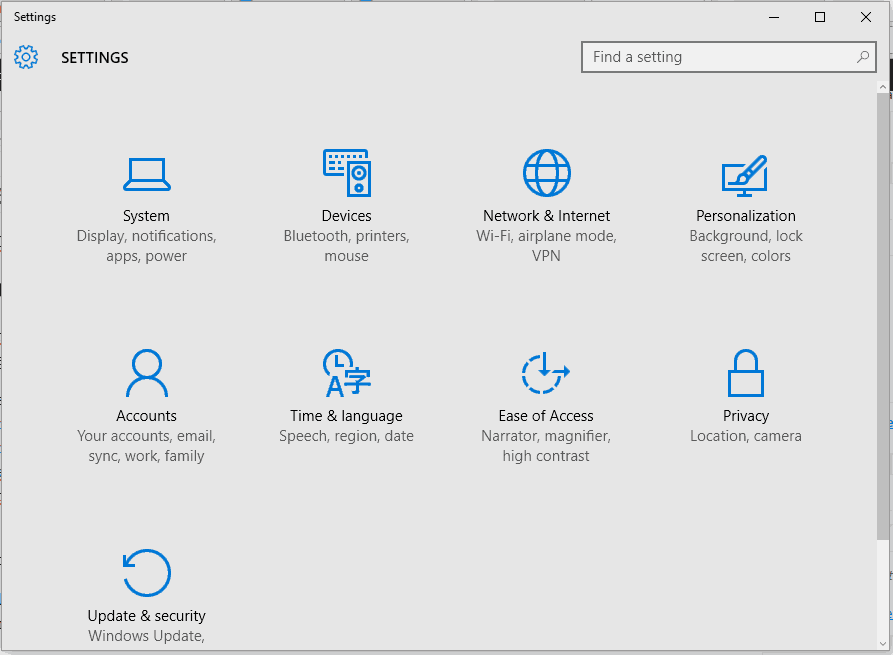
  2. The System Settings window will be displayed.fix update and security not working windows 10
  3. From there click on System.
  4. From the next window, from the left panel choose Notifications & actions.
  5. Scroll down and find the Battery saver entry.turn off battery saver notification
  6. Just turn off the slider for disabling the Battery saver notifications.

If you cannot turn off this slider (if it’s turned grey and you cannot turn it off / on) make sure that your Windows 10 device isn’t connected to a power source. So, unplug it from the power source and then try to disable the Battery saver notifications again – if the slider is still grayed and disabled, reboot your computer and retry.

If you still cannot turn off Battery Saver, make sure that the ‘Get notifications from apps and other sender’ is enabled (this feature can be located with the same steps from above); then turn off Battery Saver notification and re-disable ‘Get notifications from apps and other sender’.

Additionally, you can also try to: navigate towards System Settings – > Power & sleep – > Additional power settings – > Change plan settings – > Change advanced power settings – > Battery and turn off Low Battery Notifications for on-batter or plugged-in situations. And yes, the battery saver icon shouldn’t be set to ‘on’ but to ‘off’.

In that way you can successfully disable / turn off the Battery Saver notifications within the Windows 10 system. So, after applying these tweaks you shouldn’t receive the ‘We found one or more settings that might affect battery life’ notification message anymore.

If you still have questions or if you cannot manage to properly apply the troubleshooting steps explained above, don’t hesitate and share your experience and your observations with us.

RELATED STORIES TO CHECK OUT:

Windows 10 KB4051963 fixes browser crashes and game launch issues

Microsoft recently rolled out Windows 10 KB4051963, adding a series of improvements and bug fixes to the Fall Creators Update OS.

The update addresses a script-related bug that may cause Internet Explorer to stop working.

KB4051963 also fixes the issue where apps may stop responding for users who rely on Internet or web proxies that use PAC script configurations.

So, if you encountered various issues where Outlook cannot connect to Office365 or Internet Explorer and Microsoft Edge cannot successfully render content (local computer content and web content included), simply install this update on your computer to fix them.

If you’re a gamer, and particularly a fan of Forza Motorsport 7 and Forza Horizon 3, install KB4051963 to fix the issue that prevents these two games from running on certain high-end gaming laptop configurations.

Speaking of Forza Motorsport 7 and Forza Horizon 3, check out the troubleshooting guides below to learn how to fix common bugs affected the games:

Windows 10 KB4051963 changelog

Other important fixes and improvements include:

  • Addressed a performance regression when users run full-screen Microsoft DirectX 9 games and applications.
  • Fixed the issue where user selections for Feedback Frequency in Settings > Privacy > Feedback & diagnostics aren’t saved.
  • Addressed the issue where RNDIS5 networking devices don’t get a valid IP address or don’t show network connectivity.
  • If a user manually changes the system’s time zone and doesn’t log off or restart, the new time should now display correctly on the Lockscreen clock.
  • Addressed the issue that prevented some Epson and TM (POS) printers to print on x86 and x64-based systems.

For more information about the full changelog, go to Microsoft’s support page.

You can download and install KB4051963  automatically through Windows Update. You can also get the standalone package from the Microsoft Update Catalog website.

Windows 10 KB4051963 issues

The update also comes with a minor bug. Namely, after installing it, Internet Explorer 11 users who use SQL Server Reporting Services may not be able to scroll through a drop-down menu using the scroll bar. Microsoft is working on fixing this problem.

Have you come across other issues after installing this update?

This new tool helps Windows Insiders track build flights all in one place

When you have multiple devices enrolled in the various rings of the Windows Insider program, keeping track of all the builds flighted by Microsoft can sometimes be tricky. Well, Senior Program Manager on the Windows Insider Program, Brandon Leblanc, has created a little tool from scratch to help Insiders sort things out. He learned coding to make the tool, and the results of his labor are pretty nifty.

This tool is actually a website, which Leblanc is appropriately calling “Flight Hub.” The goal of the website is to give Insiders one central dashboard for all things related to previewing builds. For now, it’s just in a preview state and lists the latest Insider Preview releases for PC, Server, IoT, and SDKs and  ISO images. There are also dates for when builds were released, and links to the appropriate blog posts.

Flight Hub

Brandon has said that the preview of Flight Hub is just the start, and will be expanding into apps (maybe even a UWP app?) soon. There’s also plans to integrate it into the Windows Insider website and the Windows 10 Feedback Hub, and even bring the list back all the way to the beginning of the Windows Insider Program. This is a really good initiative, and we’re looking forward to see how this project evolves over the coming months.

[Updated] Windows Update broken for some Windows 7 users, no word yet on fix

Windows Update is supposed to help keep your system up to date and safe, but according to a report from ZDNet, the feature is not working at all for some Windows 7 users. Even worse, there’s still no word from Microsoft about the issue as of yet, and it appears as though a simple expiration date hidden in the system registry may be the problem.

Again, the issue appears to be affecting a broad set of Windows 7 users, as noted on the Microsoft Answers forum. Some users are seeing an 80248015 error code when trying to update (with no other info), and some are getting a follow-up message telling them that the Update Service cannot currently check for updates because it is not running, or no updates are available (when in fact there are updates available).

This is all rather strange, primarily because Microsoft is supporting Windows 7 until January 2020. Anyway, it is being recommended by some users to change the system date back in time to March 12, 2017 as a temporary workaround to the issue. We’ll be updating this article is Microsoft issues an official fix or statement.

Update: Microsoft has apparently corrected the problem. Though no details were provided, a spokesperson said: “We resolved the issue causing a delay in the update delivery service.”

Tom Clancy’s The Division is free to play with Xbox Live Gold this weekend

With Tom Clancy’s The Division set to receive a free content update tomorrow, December 5, the Xbox team has just announced that the game will be free to play with Xbox Live Gold starting December 6 at 11:01 p.m. PST. The free weekend will end on Sunday, December 10 at 10:59 p.m. PST, and the game’s three expansions will also be free to play for everyone during this period.

For those unfamiliar with it, the online action-RPG title was released back in March 2016 on the Xbox One, and it’s set in a post-apocalyptic version of Manhattan, which has been hit by a deadly virus. Xbox Wire shared the following details about the upcoming free update to be released tomorrow:

With update 1.8 arriving on December 5, a whole new area of the city will be opened up for exploration. The West Side Pier is an industrial port in the northwest corner of the map dominated by a massive aircraft carrier, and it will play host to two new game modes. Resistance will pit Division agents against an unprecedented alliance of enemy factions, challenging players to fight off waves of powerful foes and formidable bosses. In Skirmish, two teams of four will fight to subdue each other in a trio of new arenas. New rules for going rogue in the Dark Zone, new exotic weapons, and the spread of sinister Hunter enemies will ensure that returning players have their hands full.

Starting December 6, the game and all of its three expansions will also be discounted up to 70% off on the Microsoft Store. Keep an eye on the Gold section of your Xbox One dashboard if you don’t want to miss the upcoming free weekend.

Laptop Starts Charging Then Stops [Fix]

Laptops are great if you’re on the move, however, many reported that the laptop starts charging then stops suddenly.

If this happens, you should use laptop battery health software to ensure that your battery is working properly.

You can use other methods, and we’ll explore them further in this guide.

Why does my laptop start charging then stops?

  • Hardware damage – It’s possible that your battery is worn out or your cables or adapters aren’t working properly.
  • Battery glitches – These can be caused by bad drivers or outdated BIOS.

What can I do if laptop charges for a second and then stops?

Before we start fixing this issue, there are a few checks that you can perform:

  • Check jack, adapter, and battery – Your hardware may be having issues, so be sure to check the cable and jack for physical damage as well as your battery health.
  • Update BIOS – In some instances, updating BIOS can solve this issue. To see how to do that, check our guide on how to flash BIOS.

1. Reinstall a driver

  1. Disconnect charger and shut down your computer.
  2. Remove the battery and re-connect the charger.
  3. Power On your PC.
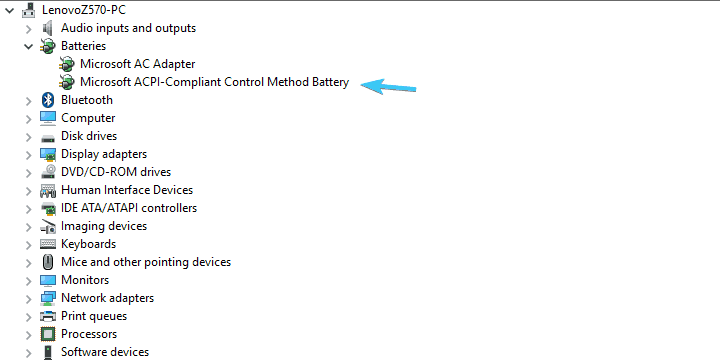
  4. Right-click on the Start button and open Device Manager.
  5. Expand the Batteries section.
  6. Right-click on the Microsoft ACPI Compliant Control Method Battery device and Uninstall it.computer charges then stops
  7. Shut down PC again and disconnect the charger.
  8. Insert the battery and re-connect the charger.
  9. Power On the PC again and it the system should reinstall Microsoft ACPI Compliant Control Method Battery device.

In addition, you can remove the battery-related software provided by OEM. For example, Samsung has a tool called Battery Life Extender that will limit the charging percentage to 80% in order to extend the battery life.

This is a simple solution and it might help you if the laptop starts charging then stops.

2. Discharge the battery

  1. Charge your battery as much as you can and disconnect the DC charger.
  2. Use the computer until the battery is fully depleted.
  3. Once the laptop shuts down, remove the battery if possible.
  4. Press and hold the power button for approximately 60 seconds.
  5. Insert the battery again and reconnect the DC charger.
  6. Don’t turn On the laptop until the battery is charged completely.

The standard Lithium-Ion battery is predetermined to last up to 300 full recharge cycles. Meaning that it takes 300 full recharges to wear it off. Now, users are rarely going to fully discharge the battery and charge it again to 100% or regular basis, even though it’s arguable, the best way to extend your battery’s life.

In addition, the constant half cycles can cause a stir in the supporting software and prevent your battery from charging.  In other words, discharging has multiple roles, which might help you resolve the issue at hand.

These are just some of the solutions that might help if your laptop starts charging and then stops.

Before you leave, find out how to limit the battery charge in Windows and extend the battery’s lifespan.

We certainly hope that this was a helpful read. In case you have some questions or suggestions regarding the battery charging issue we addressed today, make sure to post them in the comments section below.

Microsoft news recap: Outlook.com showing ads in the inbox, Samsung debunks ‘Microsoft Edition Samsung S8’ and more

Microsoft (MSFT) news recap is a weekly feature highlighting the top Microsoft news stories of the past week. Sit back, grab some coffee, and enjoy the read!

Wall St Journal gets pounded after suggesting finance pros drop Excel

the Wall Street Journal recently published a story accusing Microsoft Excel of not keeping up with the needs of the financial sector, and subtly advising people to drop the software as a result. That, however, didn’t go down too well with some people in the financial sector.

Excel 2016 new Data capabilities

Inbox ads spotted in Outlook.com, are you seeing them?

For free users of Microsoft’s hosted email service, Outlook.com, it appears that the company is beginning to show inbox ads, where ads will appear in the inbox similar to how an email message would look. Those on an ad-free premium subscription do not see these.

Samsung clears up the mystery behind the Microsoft Edition S8 and S8 Plus

Despite rumours of a Microsoft Edition Samsung S8, Samsung has come out and debunked the myth, stating that there is no ‘Microsoft Edition’ of any of its devices, but does confirm that Microsoft is aiming to offer a unique edition from within its own retail stores.

Microsoft Teams Guest access for Microsoft Accounts is delayed again, apparently

Microsoft Teams’ Guest Access feature is still being worked on, with yet another delay, although Private Channels are well underway. Guest access is needed for those who aren’t necessarily part of an organisation, but are doing work for them, such as a freelancer.

That’s it for this week. We’ll be back next week with more Microsoft news.