Teams meeting organizers will be able to choose which participants can allow other attendees to join meetings

Microsoft has announced a bunch of new features specifically designed for meeting organizers and managers. For instance, the platform will soon prevent users from sharing content on externally hosted meetings, unless allowed by organizers and managers.

The same managers will also be able to quickly provide new employees with a list of curated Teams channels to make their onboarding easier.

The latest addition to the Microsoft 365 Roadmap is no exception. According to the entry, starting in June 2024, organizers and managers will be able to designate other participants with the task of allowing attendees to join meetings.

In other words, Teams organizers can be in many places at once, by delegating some of their responsibilities to their subalterns.

Meeting organizers will have options in the meeting settings on who can admit attendees from the lobby into the meeting.

Microsoft

The feature will greatly enhance productivity, especially in situations where the manager can’t be around to take care of certain responsabilities. By allowing them to designate other participants as being able to decide who can participate into meeting, Teams becomes a versatile app capable of offering solutions in any kind of situations.

Most likely, the new Microsoft Teams settings can be enabled/disabled, and organizers can decide if certain meetings can be trusted upon another employee or not.

Either way, the new feature, together with the other ones mentioned earlier in this article, is a good incentive for companies to get Teams for their infrastructure.


YouTube declares war on adblockers… while Chrome Store keeps promoting them?

YouTube and adblockers have been at war for years, and YouTube has tried to block adblockers in the past, but without much success.

However, it seems that the company is changing its policy and it’s going after the apps that violate its terms of service.

YouTube is planning to go after apps that bypass ads

It is no secret that many users are using third-party tools to avoid ads on YouTube, but that might change in the future as PCMag writes.

According to a recent YouTube memo, Google states that they are strengthening its stance on third-party apps that violate terms of service.

Users that continue using these tools may experience buffering issues or errors such as The following content is not available on this app.

We already saw this not that long ago, as the UBlock Origin developer reported slowdowns on YouTube while using adblocker.

It is also stated that third-party apps are allowed to use YouTube API only while following API terms of services. The apps that violate these terms will face a response from YouTube.

Even though YouTube is determined to go after apps and tools that allow users to skip ads, Chrome keeps promoting YouTube ad-block extensions in its store.

While we don’t know why is that, we assume that Google will address that soon. As previously mentioned, this action from YouTube isn’t new, and AdBlock users had issues on YouTube for some time.

What are your thoughts? Will you purchase YouTube Premium to get rid of the ads or will you continue using adblockers? Let us know in the comments!

Latest version of Grounded plagued with multiplayer bugs, game crashes on big saves

The latest version, Grounded’s Fully Yoked update 1.4, has been triggering connectivity issues for many on Xbox, PlayStation and Nintendo. The game was released on the latter two in April’24 after Microsoft brought Xbox exclusives to other consoles.

Major bugs in the latest game version, as stated on Obsidian’s Community Issue Tracker, are:

1. Players are receiving an Account Provision error when they try to login to the game or enable Cross Play.
2. Game crashes on Xbox One console after wandering near big structures in a large world.
3. Some players are unable to join a MP game.
4. Game does not let the player to log into the Xbox Live account after running the game as administrator.
5. Players are reporting crashes when hosting a MP save. They are able to load into single player.

A post from the game’s official X (previously Twitter) handle confirms that the developers are aware of the connectivity issues and are working on a fix.

As per the last available update on 17 April 2024, the connectivity issues on PC and PlayStation 4 have been fixed, and a patch will soon be developed for PlayStation 5 and Nintendo Switch.

We can confirm that the Steam version works fine after installing the latest patch for Grounded. As for PlayStation 5 and Nintendo Switch, you will have to wait for a while to get rid of the connectivity issues. Just keep checking for an update, and once it’s available, proceed with the installation.

Let us know if connectivity issues with Grounded update 1.4 persist on your device in the comments section below.

Samsung Galaxy Book2 Pro 360 for $850? Please, take my money!

The old Please, take my money! meme would work perfectly from this huge $800 discount on the Samsung Galaxy Book2 Pro 360 on BestBuy. This awesome convertible is now only $850 down from $1,650 which is a steal.

Why should I buy Samsung Galaxy Book2 Pro 360?

We’ve covered the Samsung Galaxy Book2 convertible last year, so you should check the highlighted guide for more info, but we will list the main specs right here.

First, Galaxy Book2 Pro 360Galaxy Book2 Pro 360 is ultra slim and light and has a 15.6” AMOLED touch screen that turns 360 degrees and the device becomes a great tablet. The resolution is only Full HD and that could be one of its weaknesses.

However, it comes with a 21-hours battery life and a great backlit keyboard that will turn out very useful at night. But the strong point of the convertible is the Intel 12th Generation Core i7 Evo CPU with a 4.6 GHz base clock frequency. The 16 GB of RAM and the 1TB SSD are not something spectacular, but still great for a convertible that slim (0.47 inches).

Connectivity wise, Samsung Galaxy Book2 Pro 360 comes with 2 USB-A ports, a Thunderbolt 4 video connector, so you will definitely need a dongle or USB hub if you need more. For graphics, the convertible has an onboard Intel Iris Xe Graphics GPU which is OK for video streaming and movie watching, but it won’t be very useful for the latest games.

Overall, Samsung Galaxy Book2 Pro 360 would be great as a second laptop for travel or study and the price is unbeatable for such a convertible. It’s in limited supply so you should hurry up if you have the budget.

If you want a desktop gaming PC instead, check out this HP OMEN 40L deal!

Firefox 126 beta is here, bringing minor UI changes, and new search suggestions

Firefox is a great alternative to Chromium browsers with its approach to privacy and unique features.

If you’re a Firefox user, you’ll be pleased to hear that Firefox 126 has entered beta testing, and it’s coming with some minor improvements.

Firefox 126 enters the beta testing phase, final release coming next month

Firefox 126 brings minor changes according to recent Firefox release notes, and the first thing you’ll notice is the improved dialog for clearing user data.

All options in the dialog are now in a single column making it easier to select the ones you want to remove. It also gives the the size of data that you’ll be removing, which is useful.

Another new feature is the ability to show trending search suggestions. This feature is disabled by default, but if you enable it you can see the browsing trends in your area.

This has been available for a while in the US, but it seems that Mozilla is now rolling it out to other countries.

If you’re a web developer, you’ll be pleased to hear that Firefox 126 lets you toggle Split console in Developer tools.

This version also brings AV1 hardware-accelerated decoding on macOS for Apple Silicon M3 Mac devices, and better support for CSS properties.

Lastly, Cookie Banner Blocker and Quick Actions in the address bar are available in the beta, but no information is available regarding the general availability.

Overall, this is a decent update, and as for availability, we should see this version available on May 14th on the stable channel.

As for other improvements, Firefox will finally get wallpaper support on the new tab page. Mozzila also plans to improve the security as Firefox will start using untrusted integrity level by default.

A new Windows Photos feature will let you use Microsoft Designer directly

Microsoft Designer, a cloud-based design app is coming to Windows Photos. With it, you can create social media posts, digital postcards, invitations, and new visuals with the power of AI. If you haven’t tried it yet, you can access it from the browser version of Copilot or directly.

The new feature will allow you to send an image from Photos to Designer. Yet, it is only available on limited to Insiders on Canary and Dev channels. On top of that, you can only access it if you are from the US, UK, Australia, Ireland, India, and New Zealand.

How do you use the new Microsoft Designer feature from Photos?

It is easy to use the new Designer feature from Photos. You need to click the button that looks like a purple brush while viewing a photo. Afterward, the AI-powered tool will open in your browser and feature the image.

You can use your photo in Designer to create templates, add visuals, and use AI tools to edit it. For example, you can add extra elements to your image by using AI. On top of that, you can change the background or erase it.

To access the latest features from Photos, you need to upgrade its version number to 2024.11040.16001.0 or higher. Also, to access the Designer preview, sign in with your Microsoft account.

Designer has some limitations but it might compete with Canva

There are some limitations to the free AI generator of Designer. For example, AI-generated images come in a predefined size of 1024 × 1024. So, you might need to learn how to create specific prompts. Also, if you decide to use the version that comes with the Copilot browser, you will have a limited number of five AI generations per query.

For example, if you need a particular element and think of generating it with Designer, try a query that centers it and makes it small. In this way, it will be easier to crop it out of the picture without modifying its size. Also, if you are a Canva enthusiast, know this tool is similar. Additionally, you can use them both, especially since Designer has some of the premium features from Canva for free.

Ultimately, the new feature will allow you to access Microsoft Designer from Windows Photos. This option will save you time. Also, Designer is similar to Canva, and you will learn your way around it quickly. Also, you can access it from any version of Windows from your browser.

What are your thoughts? Is the new feature useful? Let us know in the comments.

Microsoft Designer on Edge is now capable of Generative Erase

Remember when the Windows Photos app was updated to support Generative Erase, the feature that allows you to remove unwanted visual elements from images? It seems Microsoft is planning to add it to Edge as well, by enhancing the Designer Image Editor to support it.

According to tech enthusiast, @Leopeva64, Generative Erase was added to Designer in Edge Canary, and the tool is fairly easy to use, and it doesn’t require you more than a few minutes to get it.

Similar to how Generative Erase is used in Windows Photos, users will be able to edit images directly in Microsoft Edge, with Designer Image Editor, and the tool will allow them to choose from 3 AI-powered options: Generative Erase, Remove Background, Blur Background.

The Generative Erase is a walk in the park: the Designer app will prompt users to click on the Quick Select button.microsoft designer generative erase

After selecting the button, they can go pretty much anywhere on the image, and the Designer will automatically highlight the area for removal, according to pictures taken by @Leopeva64.

Once the area is highlit (and in this case, Sam Altam is doomed to be removed from the image), clicking the Erase object button will remove the area.

The interesting thing is that the Designer will use AI to automatically fill the void, and it does so flawlessly. If you’re content with the result, you can click the Looks good button, and you’re done. But you also have other options: for example, you can start over.

As you can see, Altam is entirely gone (from the image, mind you), and the Designer took the job of filling the void. Quite impressive!

For now, the Generative Erase feature is in Microsoft Designer within Edge Canary, so it will take some weeks until the feature is widely released. But once it’s out, it can be a free and efficient way to edit images without having to resort to image editors or Photoshop courses.

For light content creation, this tool could end up being a game-changer.

Samsung announces LPDDR5X memory modules for the next AI laptops and smartphones

After Western Digital surprised everyone with a 4TB SD card, it’s Samsung’s turn to amaze us with new LPDDR5X memory modules touted as 25% faster than the previous versions.

According to Samsung’s press release, the new modules have 30% more capacity and will reach a 10.7 Gbps throughput.

Not only that, but Samsung used the 12 nm architecture for the chip and they say that it’s the smallest among existing LPDDRs. The fact that they’re smaller means that they are higher density and you could eventually see them in 32 GB memory modules.

The new LPDDR5X modules are great for AI

Micron and SK Hynix already have 8.5 Gbps LPDDR5 modules so that makes the Samsung LPDDR5X the fastest right now.

The only issue is that the Coreean manufacturer will put the new modules into production the second half of the year, so you won’t see them very soon into laptops and smartphones.

Samsung also thinks that the new memory modules will be great for AI applications that require intensive processing:

Samsung’s 10.7Gbps LPDDR5X not only improves performance by more than 25% and capacity by more than 30%, compared to the previous generation, but also expands the single package capacity of mobile DRAM up to 32-gigabytes (GB), making it an optimal solution for the on-device AI era that requires high-performance, high-capacity and low-power memory.

Samsung press release

So, actually, the new LPDDR5X memory modules don’t have any other special features for the AI PC or laptop, but they are more powerful so they will help you better for AI-related tasks.

While this is great for the future laptops, it will be more exciting to see them in the next smartphones from Samsung, but also from Xiaomi and Oppo who usually use the Samsung chips. 32GB RAM on a smartphone will really break the power limits for the portable in our pockets.

Reviews suggest Windows Server Backup is not the most reliable option, users prefer alternatives

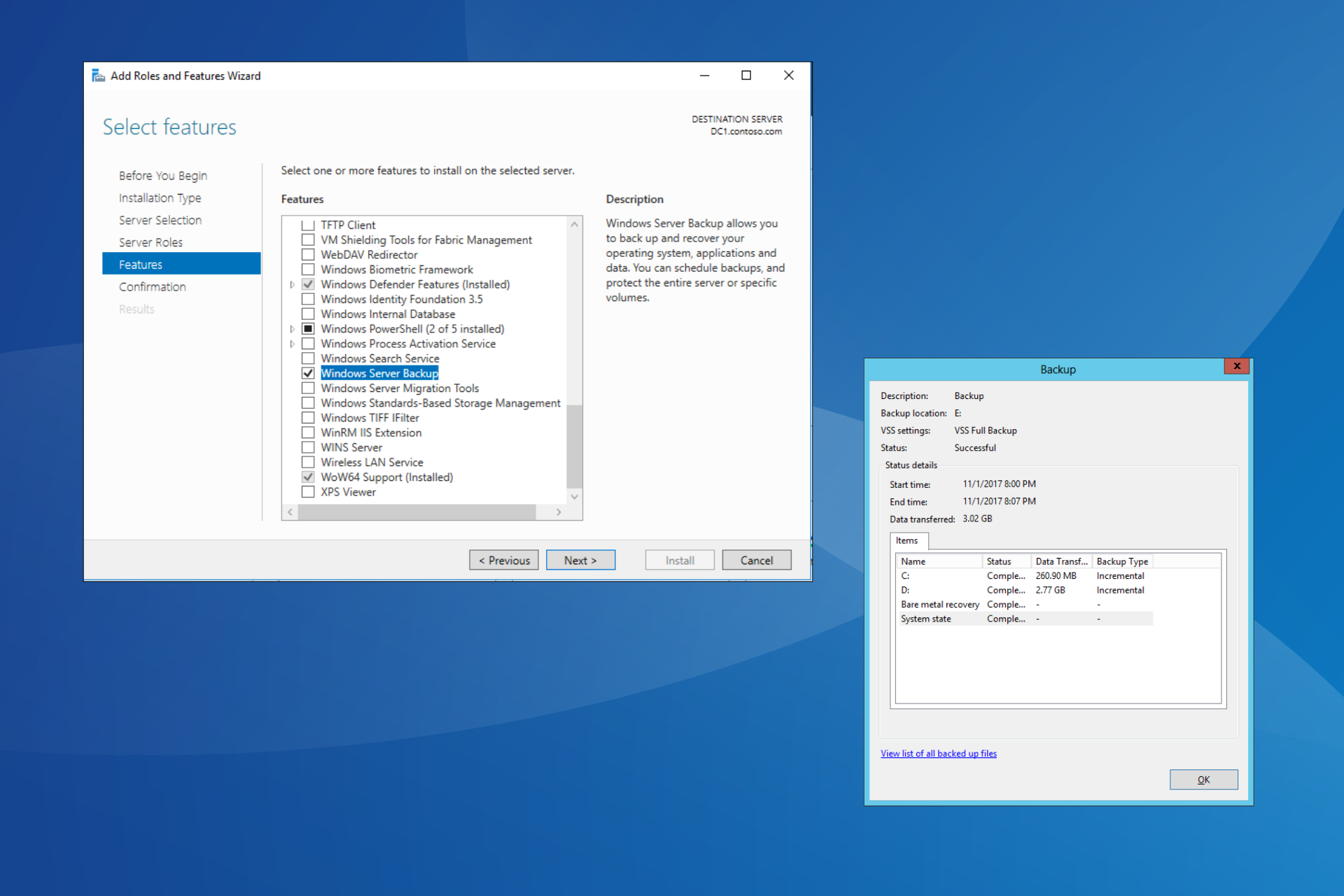
Windows Server Backup, Microsoft’s native solution since 1997, allows you to backup and restore data on a server. However, user reviews suggest that Windows Server Backup comes with the bare minimum functionality and isn’t the perfect solution for most!

The wizard often fails while backing up data, even when both Volume Shadow Copy and SPP services are running. Also, it lacks encryption, leaving the data vulnerable to attacks. Besides, the performance is surprisingly slow for a native Microsoft product, and the support is terrible.

Failed backup report

Users highlight a wide array of flaws in Windows Server Backup

We came across far more negative reviews for Windows Server Backup than positive ones. And it all makes sense!

I’ve used it in the past and found it to be pretty horrible. Very slow, clunky, unreliable. I couldn’t imagine trying to restore an environment from it. With so many amazing options out there, I cannot fathom a scenario where it makes sense to use it over others.

No encryption, no reporting, have to rely on human process (changing external drive and off siting it), no immutability, not application aware.
On top of that, have to deal with it being a Microsoft product.
Why deal with that when Acronis with cloud storage (not saying it’s the best option) starts at like $200/year/endpoint.

Doing a bare metal restore using Windows Server Backup is an exercise in frustration, especially with original Server 2008 where I think it only ever worked once! Use Veeam, make it work for you.

Your backup solution should be the single most reliable part of your entire infrastructure. It should be segmented from your environment so that your backups can’t get caught up in any attacks that hit your office, it shouldn’t require any intervention on your part to operate, and it should notify you immediately if there are any failures. Windows backup can’t meet those standards.

The only good thing about Windows Server Backup is that you don’t have to pay for an additional subscription. It comes with the Windows Server license.

At the same time, several reliable Windows Server backup solutions too offer a free plan with relatively limited functionality, but these still perform better than the native Windows Server Backup.

To share your review of Windows Server Backup with our readers, drop a comment below.

Want to convert Raspberry Pi into a notebook? PiDock 400 has your back

Raspberry Pi is a great device used by tech enthusiasts, and thanks to its power, Raspberry Pi can also work as a desktop PC.

But what if you want mobility? If that’s the case, this dock might be just what you need to turn your Raspberry Pi into a notebook.

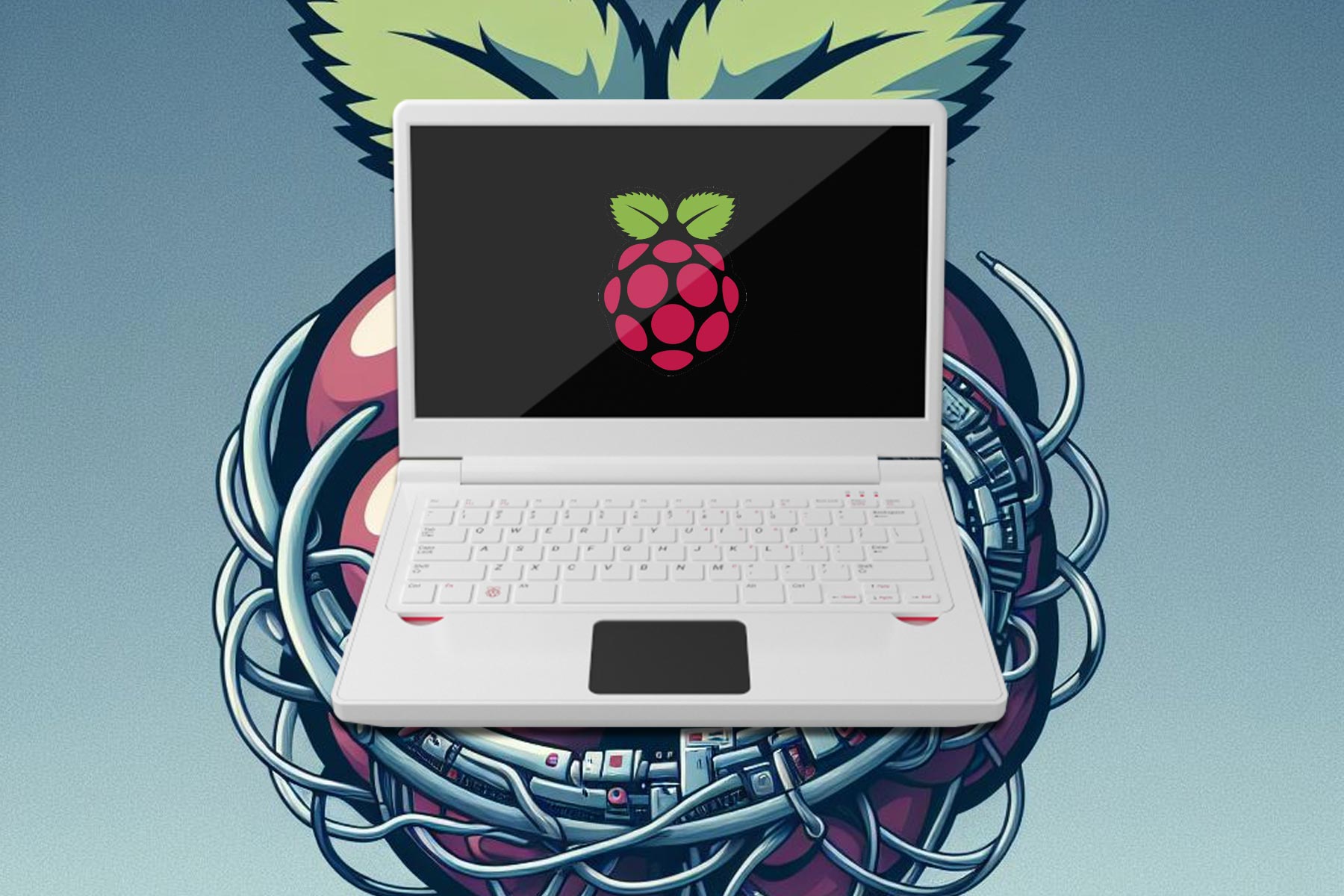
Turn your Raspberry Pi into a notebook with PiDock 400

To convert Raspberry Pi into a notebook, you’ll need to use Raspberry Pi 400 and a special PiDock 400, as NotebookCheck writes.

In case you don’t know, the Raspberry Pi 400 is a keyboard that comes with a built-in Raspberry Pi inside allowing you to easily connect it to any monitor and start using it.

It offers the following hardware specs:

  • Quad-core Cortex-A72, 64-bit, ARM 1.8GHz CPU
  • 4GB LPDDR4-3200 RAM
  • Dual-band (IEEE 802.11b/g/n/ac Wi-Fi
  • Gigabit Ethernet, 2 × USB 3.0, and a single USB 2.0 port
  • Two micro-HDMI ports that support 4K resolution at 60fps
  • MicroSD card slot
  • Horizontal 40-pin GPIO header

It’s a solid device for web browsing and other less demanding tasks, and with PiDock 400, you can turn it into a 13.3-inch full HD notebook.

The docking station has a 3.5mm headphone connection and access to GPIO pins is also available allowing you to use this dock for your projects as well.

It’s worth mentioning that this dock doesn’t have a battery, instead, it uses a power supply unit to power both the dock and Raspberry Pi 400.

As for the price, you can get this dock for $239.99, so if you already have a Raspberry Pi 400 and need more mobility, this might be the right dock for you.

In case you need something more powerful, you can get HP Dragonfly Pro One at a discount. If you’re a business user, don’t miss LG Gram 16 with a 35% discount!

Microsoft Edge may lock its Settings on Nonactivated Windows 

In a surprising move, Microsoft is looking to block the Edge Settings on unactivated copies of Windows. The change is currently being tested in Edge Canary.

Microsoft Edge might still work on an unactivated Windows. However, while you can use Windows 11 and 10 without activating them with a purchased license key, there are some limitations you should be aware of.

These include a persistent ‘Activate Windows’ watermark on the desktop.

  • An activation message in the Windows Settings.
  • The inability to change Personalization settings like wallpaper, theme, and colors.
  • Frequent notifications to activate Windows.

Microsoft is looking to lock Edge browser settings when using Unactivated Windows

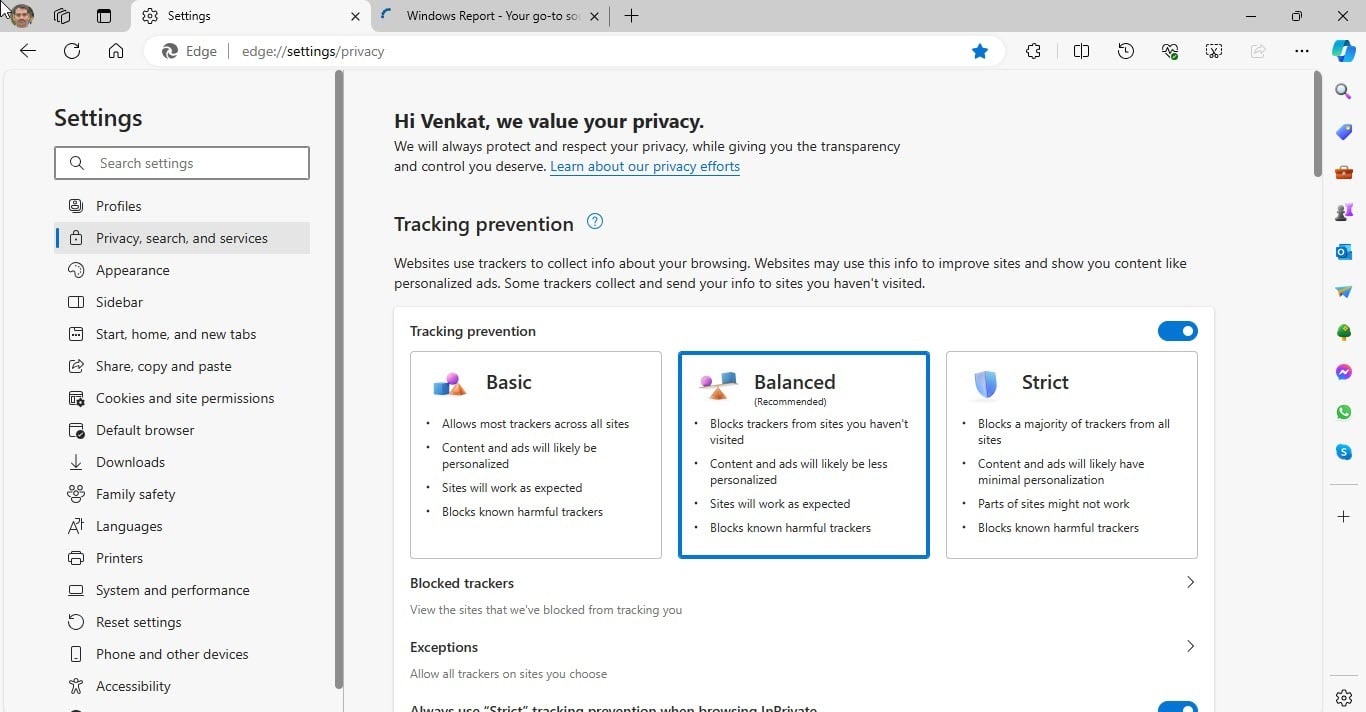
Now, it seems Microsoft wants you to use its Edge browser on activated or genuine Windows; if not, it may lock Edge settings.Microsoft Edge Settings

We have noticed Edge working on this in Canary gated behind command line switch msEdgeLockSettingsInNonActivatedOS, but we are unable to confirm this as we don’t have unactivated Windows devices.

We see a lot of users still using Chrome on non-genuine Windows those not activated, so Chrome may not lock your settings, but Microsoft has a reason to do the same for the Edge browser as it is now an integral part of Windows and the default browser.

Dangers of using Unactivated Windows:

There are dozens of dangers of using unactivated Windows. You miss out on crucial security updates. These updates patch vulnerabilities in the operating system, protecting you from malware, viruses, and other cyber threats. Without them, your system becomes an easy target for hackers to exploit, potentially compromising your personal information and files.

You’ll encounter limitations and frustrations, as nag screens, such as constant pop-ups reminding you to activate will disrupt your workflow. You’ll also have personalization restrictions: you might be locked out of customizing your desktop background, colors, and themes. You’ll also have limited access to certain features, hindering your productivity.

Some unactivated versions might be tampered with, leading to performance issues and instability. Your system might become sluggish or crash unexpectedly.

And now, with this, browsing on Microsoft Edge on unactivated Windows 10, and Windows 11 devices will seriously be risky to users, as they are more prone to cyber threats, malware, phishing attacks, or loss of sensitive information, which means credit card credentials or any other similar data are at a higher risk of being compromised.

To avoid such issues, activate your legitimate Windows copy with a product key. Consider a free alternative: if the budget is a concern, explore free and open-source operating systems like Linux, and it’s quite a good alternative, as you can see in our detailed article about it.

Invest in a genuine license: If you need the features and security of Windows, consider purchasing a genuine license.

Microsoft will have a new Windows and devices chief designer after Ralf Groene’s retirement

After 17 years of work as head of Windows and devices design at Microsoft, Ralf Groene announced his retirement on LinkedIn. It’s a big thing because for the past ten years, Groen has been the main architect designer for the Surface tablets and Windows OS and apps.

Groene received a lot of praises for his move but his friends who worked with him at Google and Microsoft doubted that he will just enjoy his retirement and he agreed. Therefore, we might see him soon joining another project.

In the meantime, Microsoft named Pavan Davuluri as its Windows and Surface chief, but we don’t know yet who will be responsible for the design part.

As much as we respect Groene’s work, we’ve had a lot of great ideas about Windows 11’s design and a new chief designer might appreciate and consider them for the future Windows 12.

All that considered, we can’t wait to see what Groene will do next and we will keep you posted with new developments.

Who do you think will be the new chief designer for Microsoft products? Let’s talk about that in the comments below.

Firefox improves Reader Mode with custom themes to beat Edge’s Immersive Reader

According to the recent news, Mozilla is working on adding custom themes to the Firefox browser‘s Reader mode.

The new feature is under development and being tested in Firefox 127. It will allow you to personalize your reading space with a variety of color schemes, thereby improving accessibility and visual comfort.

A new color sub-menu for Reader View in Firefox allows you to select custom colors for text, links, backgrounds, and text highlights while using the listen function.

This will allow you to create a better reading environment customized to your preferences, thereby reducing eye strain and making the digital content more readable.

For this, Mozilla is implementing a reusable color picker component and allows you to enable separate color menus and build a custom theme selector.

Unlike Edge’s Immersive Reader, Microsoft Edge offers a variety of page themes and color options to make the content look more digestible. It also comes with several preset themes inspired by Irlen Spectral Filters, which assist people with Irlen Syndrome.

Unlike Mozilla, Edge doesn’t offer the same degree of customization for color schemes in Reader Mode as Firefox, a feature that is under development.

Launch the browser to enable the Firefox browser’s custom themes in Reader mode. Type about: config in the address bar, then click Accept the Risk and Continue. Now copy & paste reader.colors_menu.enabled in the search bar and hit Enter. Select True as the preference value for this option.

Once you’ve done this, visit any webpage that supports Reader Mode, click the Reader Mode icon from the address bar, or press F9 to invoke it.

Next, click the paintbrush icon to launch the Colors Menu, then click Custom. Select the text and other options, then choose & assign a color. If you don’t like the changes, click Reset defaults to restore them to default.

So far, there is no information about the release date of this feature. If Firefox is running slow, and you want to speed up the browser, we have a detailed guide for you to help you with the same.

What do you think about this upcoming feature from Firefox? Share your opinions with our readers in the comments section below.

Microsoft’s Bing banner promotes Edge, recommends against downloading Chrome, Tor, or Vivaldi

Microsoft’s promotional tactics have been under fire for the last few years, be it for Edge, Bing, or other native tools. But when it comes to the browsers, the Redmond-based tech giant takes things to another level. Microsoft shows banners promoting Edge on Bing whenever you try downloading another browser.

When I tried searching for Chrome on Bing, irrespective of the current browser, the banner read,

There’s no need to download a new web browser. Microsoft recommends using Microsoft Edge for a fast, secure, and modern web experience that can help save you time and money.

The same banner appeared when trying to search for Safari, Tor, and Vivaldi. I didn’t find one for Firefox, Brave, or Opera. This is surprising because the latter are just as promising, especially Brave.

Remember, this isn’t new. Microsoft had tried such antics in the past, but none really yielded positive results.

For instance, last year, Microsoft displayed another banner on the Thank You page when you downloaded Chrome Canary from Edge. It basically highlighted that the two browsers run on the same technology, but Microsoft Edge is a more secure and trustworthy option.

edge promotion on downloading chrome canary

A research paper published by Mozilla in January’24 sheds more light on how Microsoft’s actions violate ethics and are unfair to users and other developers. Excerpts from the summary should give you a basic idea of the findings.

In this report, two independent experts investigate Microsoft’s design practices across its core operating systems (Windows 10 and 11), web browser (Edge), and search engine (Bing). Examining these patterns first-hand, and referring to a harmful design taxonomy evolved over many years and supported by academic research, we find Microsoft repeatedly uses harmful design to influence users into using Edge.

We judge that Microsoft cannot justify the use of these techniques, and should stop using them immediately. If they do not, we would welcome – where the law provides for it – regulatory intervention to protect against these harms.

Chrome does pretty much the same thing

Seems like Microsoft is not the only one using unethical ways to promote the native browser. Google also uses its influence to increase Chrome’s user base!

Say, if you visit YouTube from a browser other than Chrome, there will be a popup promoting Google’s native browser.

A similar popup was observed on Gmail.

So, it is not just Microsoft. The two tech giants, Google and Microsoft, have similar tactics to keep users from switching browsers

In this whole Microsoft Edge vs Google Chrome battle, browsers like Opera, Firefox, and Brave are emerging as viable alternatives because they are much less intrusive and offer pretty much the same feature set, if not more.

Besides, we will have to wait another few years to find out if Microsoft Edge’s promotional banners on Bing help because, so far, the browser’s market share has been pretty much stagnant. At present, Chrome dominates the PC browser landscape with a 65.77% market share while Edge stands second at just 12.71%, as per Statcounter.

What do you think of Microsoft’s banners for Edge on Bing or Google following a similar approach? Share with our readers in the comments section.

The Copilot header in Edge can be closed now, but you can’t get it back for now

The Copilot header in Edge Settings is a panel that allows users to further customize their Copilot experience in the browser. Microsoft has recently added it in Edge Canary, and it’s quite useful, as it lets users ask Copilot for a variety of useful tasks, such as managing passwords or switching to vertical tabs.

The header was recently updated to be able to close it, in case you don’t want to see it anymore, but, according to tech enthusiast @Leopeva64, you can’t get it back once you’ve closed it.

There is, most likely, an option to enable the Copilot header to come back, but Microsoft has either not released it yet, or the company has hidden it well enough within Edge’s many settings.

It’s somehow confusing because the panel comes in with interesting settings to customize the Copilot experience, but it’s presented similarly to an ad, which may prompt many Edge users to close it without thinking (sort of like an automated activity, which is how Microsoft has been teaching us to deal with).

If you do, however, want to get it back, there is no direct possibility to do that, for now. But you can try this: close your Edge browser, and open it again, and see if the Copilot header pops out. You can try so, after restarting your device, as well, as closing applications usually resets their behavior.

It’s also worth mentioning that Copilot on Edge for Android was updated to allow users to upload files to it, for processing, but it keeps the 1 MB limit it has on the desktop version, as well. With this feature, users can easily have documents such as images taken with their phone analyzed by Copilot in real-time, which makes it a feature more accessible and intuitive on mobile devices, than on desktop devices.

Can Windows 95 run .NET and other modern apps? A YouTuber found the way

Windows 95 was revolutionary in the 90s because it allowed everyone to operate it without any technical skills. Apparently, there’s a lot of fun in teaching an old dog new tricks and an YouTuber who calls himself MattKC found a challenge in making Windows 95 run thousands of apps that Microsoft deemed obsolete.

However, he first needed to port .NET for everything else to work, and that proved much more challenging than he thought.

In this almost 52 minutes long clip, MattKC almost gave up because he also struggled to install KernelEx and missing DLL files and still couldn’t get .NET Framework to run. For the record, .NET was first introduced with Windows 98 which ran on a Windows NT architecture.

He finally discovered that the ndphlpr legacy driver, which was necessary to .NET to run was also causing it to crash.

MattKC finally found the coding problem behind it using WinDebug, that was also a struggle to install. The YouTuber managed to get the error to appear in a window and he could fix the DLL compatibility. Finally, he got Snipping Tool and Lego Island Rebuilder to run on Windows 95. Victory!

This was only a very short version of the story. You can find more info on Windows Central, and, of course, in his clip. We don’t know how many hours he spent on this troubleshooting almost impossible mission but the video is the very least entertaining, so we encourage it to watch it.

Comparing it to Windows 95, Windows 7 is a modern OS and many are still using it right now. By the way, anyone tried to run Copilot on Windows 7 and maybe confront with Clippy? Tell us what you think in the comments below.

Blast from the past: Windows 11 still uses legacy icons

Windows might have changed over the years in terms of functionality and looks, but some components remained the same.

It seems that Windows 11 is still using visual components that predate Windows XP, and some users and too happy with that.

Legacy icons in Windows 11, lack of consistency, or clever Easter eggs?

Windows 11 brought some massive changes in terms of the user interface, but some legacy visual assets still live inside the latest version of Windows.

This was first spotted by keen-eyed users on Reddit, where a user reported that Outlook is using legacy icons while downloading attachments.

At first, the user who posted thought this was a remnant of the Windows XP era, but it seems to be older than that as users speculate:

It’s even older than XP.

Many speculated that this mystery icon belongs to Windows 95 or even Windows NT4. That’s not all, it seems that Windows 11 still has icons from Windows 95 and even older:

There are still Windows 95 icons and and even older icons dating back to the early-mid 1980s still in Windows 11. Icons for Quattro Pro, Lotus 123, Turbo Pascal, WordPerfect, Paradox 3.0, etc. Some of these icons are older than the first version of Windows (from the MS-DOS days).

Many were quick to point out the inconsistency of Windows icons:

its funny how many icons they changed to the complex XP and Vista styles, but they still didn’t change so many to the not that complex flat design style in the span of like 4 versions since 8 (8, 8.1, 10 and 11) also yes I know the one shown in the picture is a Windows 95 icon

Others were complaining about Microsoft not modernizing these icons:

Can’t they just simply create a modern version of those bitmaps? Once for all.

It’s not all criticism, and few users expressed their fondness for these icons:

I honestly miss the old icons, they were so quaint lol. Wish there was a way to use high-res versions of them system-wide.

It feels strange seeing these legacy icons in modern software such as Outlook, and while these icons don’t follow Microsoft’s latest design, they are still a nice Easter egg for Windows veterans as they don’t affect the quality of the software in any way.

Speaking of older operating systems, Microsoft is still sending alerts regarding Windows XP’s end of support.

As for more modern versions of Windows, the new Moment update is under development and it will be released after Windows 11 24H2.

YouTube tests a new personalized Subscription Feed option, allowing users to access preferred videos faster

YouTube is testing a new personalized Subscription feed setting on mobile devices, according to the latest entry in its features and experiments blog. The feature is called Most Relevant, and enabling it (you should know, it’s optional) will prompt YouTube to show videos that you would most likely enjoy.

In other words, the Most Relevant option makes use of your YouTube video history to come up with personalized recommendations.

For now, this experiment is only available on mobile devices, and there is a chance it won’t make it to general availability.

However, if it makes it there, it could be an easy way to find YouTube videos that you’ve watched before but forgotten specific info about them, such as their titles because they will most likely appear in this new recommended feed.

Here’s what the entry says:

Testing an optional personalized Subscriptions Feed on mobile: We’re testing an optional “Most Relevant” view for your Subscriptions feed so that you can easily find the stuff you’re most likely to ❤️. If you’re in the experiment, simply select the chip or avatar that says “Most Relevant” and your feed will update to show you content from Subscriptions you watch most often or you’ve interacted with recently. Not interested? No problem! Your regular Subscriptions feed will still be there by default. This experiment is rolling out to a small percentage of viewers on mobile and expansion will be based on feedback.

YouTube

Aside from this recommended feature that would allow users to find preferred YouTube videos faster, the platform has been recently caught sending Get Started panels to users, with it displaying the following message: Try searching to get started. Start watching videos to help us build a feed of videos you love.

If you’ve been dealing with this persistent issue, know that you can actually stop it.

Microsoft has avatar etiquette for Teams meetings to avoid awkwardness

Avatars are your digital representation. They are highly customizable and feature various optimizations to favor inclusivity. Additionally, they bring some benefits for you. For example, they can help you reduce anxiety, and you can hide behind them on bad days. However, did you know that there is an avatar etiquette from Microsoft?

The avatar etiquette from Microsoft is more of a list of suggestions. Also, it is a part of the new business etiquette. The tech company made it based on research and findings. So, it is susceptible to change, especially since the technology behind avatars is evolving.

When is it appropriate to use avatars according to Microsoft etiquette?

The first thing you must do before using your avatar on Teams is to think about the meeting type. For example, if it is just a friendly chat, you could ask the host if you can enter with your avatar. Microsoft provides a few examples in their etiquette of when you can and shouldn’t use avatars.

Thus, you can use your avatar during:

  • A meeting with your team
  • A social event for your organization
  • While you are eating in a lunch-and-learn session

Don’t use your avatar in:

  • One-on-one formal meetings
  • Performance reviews
  • Sensitive conversations

Can you use an avatar while you are presenting?

According to Microsoft etiquette, you should check the list of participants before using your avatar to present. Also, depending on the type of presentation, you could encourage other participants to use avatars. However, be careful because some people consider avatars odd or distracting. Thus, it might be hard for them to focus on your presentation.

When can you use animations?

You can use avatar animations during the beginning and end of a meeting but don’t overuse them. In addition, during the presentation, it is best to stand still unless you are the one presenting or if you want to ask questions.

Another rule of Microsoft etiquette is to tell others if you must leave the room while you use an avatar. They can’t mirror your movements yet. So, it will become awkward for someone else to try and contact you over and over again just because your avatar is active.

Are there any mentions of the avatar customization in the Microsoft etiquette?

There are mentions of avatar customization rules in the Microsoft etiquette. For example, you should avoid cultural appropriation or customizing your avatar with features that don’t represent you. After all, you want to avoid not being recognized at the office if you are working in a hybrid system.

If you can’t customize the avatar, ask for help. Also, check our guide on creating avatars for Microsoft Teams. On top of that, if you think there are missing customization options and features, you can provide feedback through the Teams desktop app.

Lastly, take some time to create your avatar. After all, it represents you in the digital world. Also, follow the Microsoft avatar etiquette in your meetings to ensure others are comfortable. On top of that, remember to use animations only when needed. Otherwise, you might distract others during presentations.

What do you think? Is there anything you would like to add to the Microsoft avatar etiquette? Let us know in the comments.

Bill Gates thinks that AI could eventually take over his job

Artificial Intelligence evolves at a fast rate. Its management capabilities are getting more advanced. Also, AI assistants can handle all sorts of tasks, such as form generation, email summarization, and planning. In the future, the AI might take over our jobs. However, it might also lead to a shorter workweek for us.

According to Bill Gates, 2024 is the year of the AI. Also, he said this technology will change the future because many adapt it to their workflows. For example, Copilot has a variety of appliances. You can use it for emails, text and image generation, coding, cybersecurity, and more. Thus, there is a high chance for AI to take over some of our jobs.

Is AI evolving too fast?

Bill Gates was skeptical about the evolution of AI and thought it would take more time to improve this technology. Also, he didn’t expect chatbots to perform complex tasks so soon. So, AI might take over some of our jobs and change our workflows.

AI could help us work less in the future and handle daunting tasks. Also, it could make some of the jobs easier. For example, junior project managers could use AI assistants to do their work faster. On top of that, AI could help people from low-income areas to develop new skills.

Unfortunately, according to Jensen Huang, the CEO of Nvidia, AI might take over coding jobs entirely. After all, this technology can generate software. For example, GitHub Copilot can generate, verify, fix, and explain code.

In addition, the Nvidia CEO recommends jobs in domains like biology, education, manufacturing, or farming as future-proof careers. Also, jobs are starting to revolve around AI technology, and many listings mention working with chatbots as part of the requirements.

Sooner or later, AI will take over more jobs from us. This is a good opportunity to find new ways to use it to benefit us. Also, the technological advancements in this field could reduce the number of daunting tasks. However, it is uncertain what will happen once the AI takes over.

What do you think? Can AI do your job? Let us know in the comments.

Microsoft will add a new limit to bulk emails sent via Exchange Online

To fight spam, Microsoft decided to add a limit to the amount of bulk emails we send through Exchange Online. The restriction will only apply to external recipients. Yet, you can continue sending emails internally. In addition, Microsoft will introduce the new bulk email limit in two phases.

Even though Microsoft didn’t introduce any restrictions on bulk emails previously, spam became a major issue. Also, Exchange Online isn’t for sending bulk emails. However, some users are exploiting it for that purpose. Thus, Microsoft added the 2,000 External Recipient Rate (ERR) to combat this problem.

Will Microsoft change the previous Recipient Rate limit?

The previous Recipient Rate limit of 10,000 emails will remain the same, and the new ERR will be its sub-limit. Thus, even if you send bulk emails, as long as you don’t try to exceed the limit of 2,000 external ones, you won’t have a problem with it.

Microsoft will introduce the bulk email limit in two phases for Exchange Online to help users accommodate the new system. Thus, the cloud-hosted mailboxes of new users joining from January 1st, 2025, will start with the restriction, while older users will receive it between July and December 2025.

If you need to send more than 2,000 bulk emails and bypass the limit, you can use Azure Communication services for email. After all, Microsoft made it for business-to-customer communication, allowing you to send high-volume emails.

Google has some bulk email restrictions as well

On another note, Google implemented stricter thresholds, authentication processes, and limitations for bulk email senders. However, their bulk email limit is 5,000 daily messages. Yet, if you need to send more, you’ll have to set up SPF (Sender Policy Framework), DKIM (DomainKeys Identified Mail), and DMARC (Domain-based Message Authentication, Reporting, and Conformance) email authentication for your domain.

Additionally, there are some bulk email restrictions you should follow. For example, avoid sending unsolicited messages and provide one-click unsubscribe options. On top of that, you have to answer quickly to the unsubscribe requests. Otherwise, Gmail could block your emails.

Ultimately, if you don’t need to send over 2,000 emails externally, you won’t have problems with the new ERR. However, if you need to send more, to avoid the bulk email limit set by Microsoft for Exchange Online, you could switch to the Azure Communication services for email. In addition, if you plan on sending them via Gmail, set up SPF, DKIM, and DMARC.

What do you think? Is this a good way to prevent spammy emails? Let us know in the comments.

Azure HPC helps Microsoft Surface to create cutting-edge products faster

The Microsoft Azure High-Performance Computing (HPC) has the power to speed up the simulation process used by Microsoft Surface. With it, the team can test and implement new features and increase the reliability of their products. On top of that, it is easier to use simulations to find the best design. In addition, the Azure HPC can save time and costs while revolutionizing the development process.

Engineers used Azure HPC to conduct structural simulations to address problems related to robustness and reliability metrics. Prasad Raghavendra, with Pritul Shah and Jarkko Sihvonen, expanded the use of this technology across the company. As a result, they formed a global simulation team. In addition, the Surface IT and Azure HPC teams deployed computing servers in diverse regions.

How does the Microsoft Azure HPC and Surface process work?

The teams built a primary development tool for product design using Abaqus and Azure HPC technology. Afterward, they successfully transferred computer-assisted designs (CADs) in detail into the FEA model. Then, analysts used these detailed models to simulate real-world stress and test the reliability of their products in virtual environments.

If the virtual tests are successful, engineers create physical prototypes. Then, researchers evaluate them in real-world situations. During the last step, analysts check the differences between the FEA and real-world results for model validation before making the final product.

Virtual testing using the Azure HPC and Abaqus saves time and money by reducing the time spent creating physical prototypes. This process works by combining Azure’s capability of running multiple simulations with the Abaqus solver, known for generating accurate virtual high-speed impacts.

This combination of Azure HPC and Abaqus makes the simulation process take hours instead of days. Afterward, analysts review the results and make design updates to make the products sturdier. In addition, engineers execute thousands of simulations weekly to develop cutting-edge products.

Ultimately, Microsoft Azure HPC and Surface teams want to deploy multiple resources for multi-physics modeling. As a result, the engineers from multidisciplinary teams could also contribute to technological advancements. Additionally, Microsoft wants to add AI to improve product design and development. On top of that, they are implementing model-based systems engineering for better efficiency. Also, World-class organizations could benefit from partnering with Azure.

What are your thoughts? Do you own a Surface product? Let us know in the comments.

Hackers can use the Lighttpd vulnerability to target BMCs

Lighttpd is a popular open-source web server. Multiple manufacturers use it for their tools and products because it is flexible, fast, efficient, and compliant. Additionally, it holds well in high-performance environments. Unfortunately, Lighttpd has an unsolved vulnerability that affects over 2000 devices made by Intel, Lenovo, Supermicro, and American Megatrends International (AMI).

In addition, the Lighttpd vulnerability affects baseboard management controllers (BMCs) from Duluth, Georgia-based AMI, or Taiwan-based AETN.

What are the BMCs for?

The problem could become serious because BMCs are responsible for allowing cloud centers and their customers to manage servers remotely. Also, they work even if you turn off your system. Thus, threat actors could remotely invade them using the Lighttpd vulnerability to access and control them anytime.

Lighttpd developers fixed the problem in 2018 without specifying it exclusively in the patch. On top of that, they didn’t assign a CVE to it. Thus, manufacturers continued using the outdated version of the open-source web server.

Hackers can exploit the Lighttpd vulnerability and access the read memory of a server. From there, they can bypass security systems such as ASLR (Address space layout randomization).

Intel and Levenovo will not release a patch to fix the issue. In addition, they claim that they no longer support the hardware that is possibly vulnerable to it. However, the other versions are going to remain at risk forever. For example, Supermico is still relying on Lighttpd. So, consider contacting the manufacturer for a possible fix.

Fortunately, the Lighttpd vulnerability alone is not severe because cybercriminals need a working exploit to use it. On top of that, you need to enable the BMCs only when you need them. Afterward, you should carefully lock them because they allow the control of servers with HTTP requests.

Ultimately, you can manage the Lighttpd vulnerability with some extra care. After all, if you use Intel or Lenovo hardware, there won’t be a fix. Also, you can find the vulnerability in systems using Lighttpd versions 1.4.35, 1.4.45, and 1.4.51. However, you shouldn’t worry much about it because the issue persisted for six years, and nobody did anything about it.

What are your thoughts? Should Intel and Lenovo do something about the issue? Let us know in the comments.

Google Privacy Sandbox will change advertising by removing cookies

Traditional advertisers rely on third-party cookies to track our data and use it to target us with ads. However, this method raises privacy concerns. So, Google implemented the Privacy Sandbox initiative on Chrome. Through it, the company wants to remove third-party cookies and reduce cross-site and cross-app tracking.

During the beta testing phase on Chrome, 1% of the users experienced the Privacy Sandbox. Afterward, according to Stu Colman, there was a 30% decrease in ad revenue for the users without cookies. Thus, if Google doesn’t implement the initiative carefully, it could be the end for many publishers.

How does ad targeting work?

Long story short, advertisers track us across websites by using cookies. They help websites remember our choices and various types of data about us. So, if the Google Privacy Sandbox removes them from Chrome, it will be harder for advertisers to target us with specific ads. As a result, the revenue generated from ads will decrease.

In addition, advertisers use cookies to track ad performance. Thus, it will be harder for them to monitor results and optimize campaigns.

Instead of cookies, the Privacy Sandbox from Google uses a topics system. It works by assigning labels to users. So, based on what you are searching for, you will receive personalized ads. This method could work, but there are some concerns about it.

How does the Google Privacy Sandbox work?

For example, a niche website could assign you a specific label while you browse. However, a Google service like YouTube could give you another label for the same topic.

On top of that, while publishers share their topics with YouTube, the service doesn’t do the same. So, Google-owned services will have more to gain.

Another problem with the Privacy Sandbox from Google is that it might need various API integrations. Thus, it will be harder for publishers to implement it.

For instance, the Android version requires an Attribution Reporting API, a Protected Audience API, and a Topics API to measure campaign outcomes and target relevant audiences. Additionally, it uses the SDK Runtime for secure third-party integration.

Ultimately, the Privacy Sandbox from Google will change digital advertising. Also, it appears to favor Google services. As a result, marketers might choose to advertise on Amazon, YouTube, and Facebook. In addition, various publishers will cease their operations due to the decrease in ad revenue. It feels like the Privacy Sandbox brings a lot of issues.

What do you think? Should Google pause it? Let us know in the comments.

How to Download TurboTax for Windows 10

Filing taxes is a necessary evil and if you’re looking for an easier way to file yours, downloading the TurboTax app on your Windows 10 or 11 device can help make the process easier.

You don’t need much in terms of the system requirements as long as your operating system is up-to-date, you have at least 2GB RAM and 1GB hard drive space. You’ll also require a stable internet connection.

How do I download TurboTax on my Windows 10?

Before you download the TurboTax software for your Windows 10 device, you’ll need to create an Intuit account. This account will allow you to activate your TurboTax software with a license code and help you manage your tax information.

  1. Navigate to your browser and visit the official TurboTax website.
  2. Scroll down and click on the See products.
  3. A page will appear with various tax situations. Click all that apply and TurboTax will recommend a package that meets all your needs. Pricing ranges from $50 to $130 at the time of writing.
  4. Click on Buy Now.
  5. Next, select Windows as your operating system.
  6. You’ll be directed to the billing page. Enter your payment details and once the purchase is completed and successful, the download should start automatically but if not, refresh the page and check for the download link or check your email.
  7. If you purchased the TurboTax software from another retailer like Amazon, you can install it from a CD.
  8. Once the setup file is in your Downloads folder, double-click on it and follow the on-screen instructions to install it.

If TurboTax fails to load, try running it as an administrator and ensure you have enough space.

Note that TurboTax has a free edition so you can start with that and get a feel of the services before committing to a plan. The cap is that it should be for simple returns.

If you feel thee desktop app isn’t worth it, you can still file taxes on TurboTax via a browser. We’ve already given our thoughts on TurboTax and whether it’s worth it.

However, should you feel that it falls below your expectations, you can always opt for other tax-filing software.

That’s all we had for this article but we’d like to get your thoughts. How difficult or easy was it to download the TurboTax app? Let us know in the comment section below.

Microsoft’s Surface lead designer officially retires

Microsoft Surface lead designer Ralf Groene took to LinkedIn today to announce his retirement from the company after a seventeen-year extensive career.

Unlike other recent Surface-related employee shuffles, Groene seems to be dictating his departure from the company’s flagship hardware division as he officially states, “I’m happy to share that I am now retired.”

While former Surface lead Panos Panay moved on from Microsoft to join Amazon’s hardware efforts, he did so under questionable circumstances that hint at a semi-reluctant departure. However, Groene leaves a simplistic LinkedIn post stating his retirement from Microsoft and the fact that he will be starting a new position.

Like famed Apple designer Jony Ive, Groene was also a student of minimalism and began implementing his design philosophies at Volkswagen AG. Groene stayed in Germany for some time working with legendary Hartmut Esslinger before teaming up with former Office and Surface head Steven Sinofsky on the Surface Pro project.

Now in its eleventh year, Microsoft’s Surface lineup looks prepped to undergo its biggest shake up since the evolution of design from the Surface Pro 2 to the Surface Pro 3. It is rumored that Microsoft will be making a clear delineation between its hardware offerings this year via chipset allocation.

In addition to trusting its consumer lineup in the hands of Qualcomm’s latest system on chip (SoC), this year also marks another big evolution in design language according to reports. The Surface Pro 10 is rumored to bring new screen tech in the way an OLED display that’s more rounded and hosting a new antireflective layer with improved brightness for increased visibility as well as a physical change to the famed Surface Touch Cover that includes larger and bolder typeface on the keys.

The Surface Laptop 6 will also be receiving its first big hardware change since the introduction of a larger screen version a few years back. Similar to the Surface Pro 10, the Laptop 6 is supposed to have an upgraded screen experience, as well as an inclusion of additional ports, a haptic trackpad and potentially a slimmer profile due to its fanless architecture.

Microsoft is set to unveil its new consumer Surface devices next month.

It’s unclear when and where Groene will pop up again following his retirement from Microsoft and the Surface division.

Groene, who’s contributions include the Surface Book, Surface Laptop Studio, Surface Duo, Xbox, HoloLens, certain aesthetics within Windows, and a personal favorite, the Surface Arc Mouse; will mostly likely a mark again wherever the relatively young designer resurfaces, pun intended.

Microsoft Loop now supports filters and it’s a great way to search for specific information

Microsoft has updated its Loop platform to support searching for information with filters. They can be used in boards and tables, and it’s a great way to search for specific information especially when dealing with large quantities of data.

The new feature can be easily accessed.

  1. In Microsoft Loop, open any kind of table-based component or create a new one.
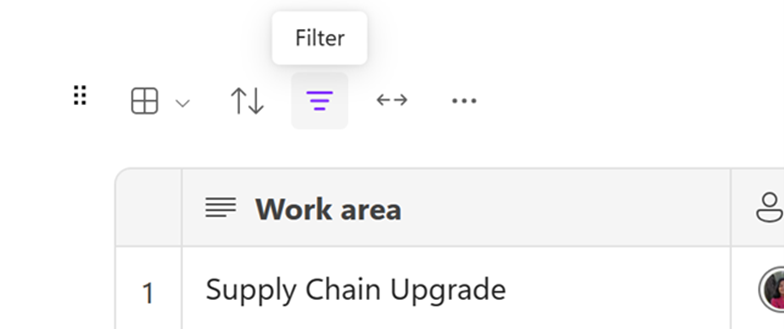
  2. Then, select Filters, as you can see in the image below.

    The operations bar in Microsoft Loop, with the Filter icon highlighted.
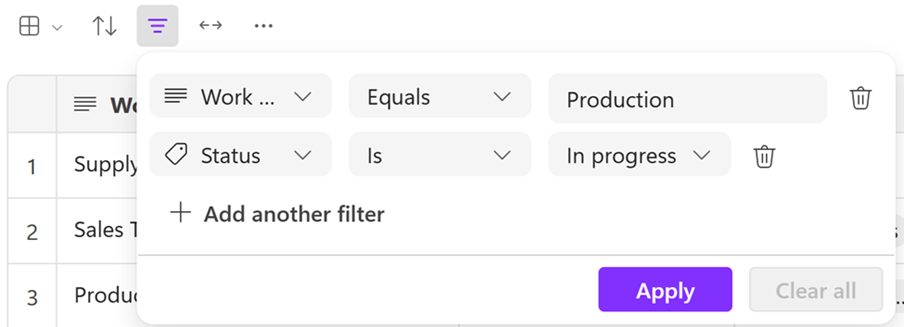
  1. You can customize your filter with various options and hit Apply to start the filtering process.

    Defining a column, condition, and value for Loop filter rules.
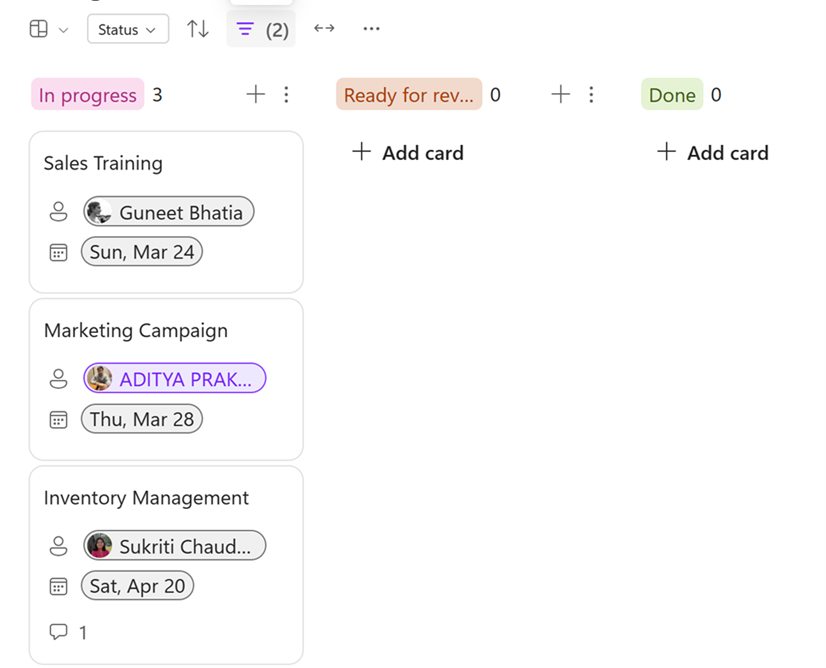
  2. Filters can be used on boards, as well.

    The filter icon above a Board in Microsoft Loop.

The feature is now available to all Microsoft 365 subscribers, and they can be used in a variety of scenarios, according to the official blog post.

Either way, the filters in Microsoft Loop are a great way to deal with a lot of information. If it’s already labeled, users can easily introduce and customize their filters to find specific data from existing categories.

Plus, you can define multiple rules by which these filters then can look for data.

It’s an excellent way to enhance productivity and streamline workflows, as information can be found in seconds. Microsoft Loop is no stranger to these sorts of updates.

For instance, the Redmond-based tech giant recently updated it to support workflow automatization, which saves a lot of time when dealing with multiple tasks.

Microsoft also updated Loop with OneNote components, which are also useful in time-based situations.

AMD and Microsoft introduce the new processors especially made for Windows AI PCs

AMD introduces the new Ryzen PRO 8040 Series mobile processors and Ryzen PRO 8000 Series desktop processors that will be used to manufacture future Windows AI PCs, Microsoft says in a blog post published earlier today.

According to the announcement, these new processors will be equipped on the upcoming desktop and laptop devices from AMD’s OEMs including Lenovo, and HP, starting with Q2 2024.

Microsoft also says the Windows AI PCs that have these new AMD processors will be faster all around and will deliver great performances in content creation, data, and analytics.

Commercial PCs equipped with new Ryzen AI-enabled processors have the potential to deliver greater performance for AI-enabled collaboration, content creation, data and analytics. With the addition of AMD PRO technologies, IT managers can simplify IT operations and complete PC deployment faster across the organization.  

Microsoft

However, Windows users should be excited about the addition of Microsoft Pluton, which is integrated into the AMD Ryzen PRO processors.

For those of you who don’t know, Pluton is a newer security processor capable of protecting and safeguarding user credentials identities, personal data, and encryption keys to the cloud, aside from its standard security protocols. Some view it as superior to the existing TPM, and it will most likely replace it in the following years.

Alongside Microsoft Pluton, AMD will also include Microsoft Copilot in the new processors, allowing users to access the AI model for different tasks. This shouldn’t be a surprise, though: the future Windows AI PCs are all about AI, and Copilot has been an integral part of it for a while. Plus, the new Copilot key, unveiled earlier this year, is a testament to the rising popularity of AI technology in computing processing.

Either way, the new processors are quite capable. For instance, AMD Ryzen 9 PRO 8945HS has 8 cores, 16 threads, 24MB of cache, and Radeon 780M graphics, which make it suitable for demanding content creation workloads.

The AMD Ryzen 8000 will be released with the AMD Ryzen AI, which can be used to enhance productivity all around.

Below, you have a complete list of all the new Ryzen PRO 8040 Series mobile processors and Ryzen PRO 8000 Series desktop processors.

ModelCores/ThreadsBoost9 / Base FrequencyTotal CachecTDPRyzen™ AI
AMD Ryzen™ 9
PRO 8945HS
8C/16TUp to 5.2GHz/
4GHz
24MB35-54WAvailable
AMD Ryzen™ 7
PRO 8845HS
8C/16TUp to 5.1GHz/
3.8GHz
24MB35-54WAvailable
AMD Ryzen™ 7
PRO 8840HS
8C/16TUp to 5.1GHz/
3.3GHz
24MB20-28WAvailable
AMD Ryzen™ 7
PRO 8840U
8C/16TUp to 5.1GHz/
3.3GHz
24MB15-28WAvailable
AMD Ryzen™ 5
PRO 8645HS
6C/12TUp to 5.0GHz/
4.3GHz
22MB35-54WAvailable
AMD Ryzen™ 5
PRO 8640HS
6C/12TUp to 4.9GHz/
3.5GHz
22MB20-28WAvailable
AMD Ryzen™ 5
PRO 8640U
6C/12TUp to 4.9GHz/
3.5GHz
22MB15-28WAvailable
AMD Ryzen™ 5
PRO 8540U
6C/12TUp to 4.9GHz/
3.2GHz
22MB15-28WN/A
The new Ryzen PRO 8040 Series mobile processors.
ModelCores/ThreadsBoost / Base FrequencyTotal CachecTDPRyzen™ AI
AMD Ryzen™ 7
PRO 8700G
8C/16TUp to 5.1GHz/
4.2GHz
24MB45-65WAvailable
AMD Ryzen™ 7
PRO 8700GE
8C/16TUp to 5.1GHz/
3.65GHz
24MB35WAvailable
AMD Ryzen™ 5
PRO 8600G
6C/12TUp to 5.0GHz/
4.35GHz
22MB45-65WAvailable
AMD Ryzen™ 5
PRO 8600GE
6C/12TUp to 5.0GHz/
3.90GHz
22MB35WAvailable
AMD Ryzen™ 5
PRO 8500G
6C/12TUp to 5.0GHz/
3.55GHz
22MB45-65WN/A
AMD Ryzen™ 5
PRO 8500GE
6C/12TUp to 5.0GHz/
3.40GHz
22MB35WN/A
AMD Ryzen™ 3
PRO 8300G
4C/8TUp to 4.90GHz/
3.45GHz
12MB45-65WN/A
AMD Ryzen™ 3
PRO 8300GE
4C/8TUp to 4.90GHz/
3.50GHz
12MB35WN/A
The new Ryzen PRO 8000 Series desktop processors.

You can read Microsoft’s press release here, while AMD’s press release can be found here.

Microsoft Purview’s new unified portal that offers access to all solutions in one single place will soon be reaching general availability

Microsoft is set to introduce Purview’s new streamlined and unified portal that offers access to all solutions in one single place to users everywhere, starting July 2024, according to the latest entry in the Microsoft 365 Roadmap.

The new portal will allow IT admins, managers, and cybersecurity experts to access data security, data governance, and risk and compliance solutions for all data, no matter where this data is located. They can also access other settings, such as global search, recommendations, and roles and permissions management, everything in a single portal.

Here’s what the entry says:

The new Microsoft Purview portal has a streamlined design and unified experience that helps you discover and access data security, data governance, and risk and compliance solutions for all your data, wherever it lives across your data estate. This means you can now access all Purview solutions in one single portal, as well as experiences such as settings, global search, recommendations, and roles and permissions management.

Microsoft

The new Microsoft Purview portal greatly enhances productivity due to quick access to all tools necessary to keep the data secure and safe. This is extremely important, especially in time-tight situations because it allows for quick action without having to look for settings scattered all across the platform.

The tool is quite useful for any kind of organization dealing with a lot of data, as we explained in this article. So, with the new portal, data management will not only be safer, but more productive and easier to handle.

The general availability will happen in July 2024, according to the roadmap, but it will most likely take the full month to be entirely rolled out. We don’t know if it’s going to happen gradually, or all of the sudden, but given Microsoft’s past experiences with releasing new features, the new portal will most likely be released gradually to organizations.

Microsoft Teams on Android users will soon be able to join Zoom meetings easily

Microsoft Teams and Zoom, arguably two of the world’s biggest video-calling platforms will be joining forces to allow Teams users to hop on Zoom meetings with an ID and a passcode.

According to the latest entry in the Microsoft 365 Roadmap, Microsoft will update Teams to allow Teams Rooms on Android to join Zoom meetings. However, the feature will only be available to users with a Pro license and the room must be set up to support Direct Guest Join meetings, first.

Here’s what the entry says:

Teams Rooms on Android can now join Zoom meetings with an ID and a passcode. This feature is only available with the Teams Rooms Pro license and your room must be configured to enable Direct Guest Join meetings.

To enable Direct Guest Join meetings, IT admins and managers can follow this comprehensive guide made by Microsoft, especially for these kinds of scenarios.

The capability will be added to Microsoft Teams in June 2024, and it will make accessing cross-platform video calls easier for those organizations using different platforms. This integration will feel as natural as being on Microsoft Teams, says the company:

Microsoft Teams Rooms devices support a one-touch experience for joining third-party online meetings, also referred to as Direct Guest Join. When enabled, you can use Teams Rooms to join meetings hosted on Cisco Webex and Zoom just as easily as you can join meetings hosted in Microsoft Teams. Keep in mind that in this case, the experience in Teams Rooms of the third-party online meeting is driven by the third-party online meeting provider.

Microsoft

At the same time, Zoom can be considered an external host, Microsoft will be updating the platform to allow managers to prevent users from sharing content on externally hosted meetings.

The feature will be introduced in May, a month earlier than the Zoom-Teams integration, and it could be a way to let managers get used to the new policy before implementing it in such meetings.

The beloved CTRL + C/ CTRL + V are finally coming to the new Outlook

Well, now this is a reason to migrate to the new Outlook, in case you haven’t already (and you should do it, as the classic Outlook will be retired soon): Microsoft just announced the beloved CTRL + C/ CTRL + V shortcuts, which are generally used to copy/paste files and folders in Windows, are coming to the new Outlook for Windows and web.

And, according to the Microsoft 365 Roadmap, they’re coming really soon, in June 2024. The Redmond-based tech giant says these new shortcuts will increase productivity, enhance and streamline workflows, and just generally make Outlook users happier (now, that’s on us, because I use the new Outlook quite a lot).

Here’s what the entry says:

Users will be able to copy and paste emails in Outlook using the shortcuts Ctrl+C and Ctrl+V, allowing them to quickly transfer emails to the desired folder, streamlining workflow, and enhancing productivity. This feature will be available in the new Outlook for Windows and web. #newoutlookforwindows

Microsoft

The new Outlook for Windows and Web lacked these shortcuts and the methods for copying and pasting emails weren’t entirely user-friendly or intuitive: we’re talking about manually having to select emails and then copying or pasting them, or dragging them across folders, which was not intuitive for many users.

With the new shortcuts, Microsoft is also bringing the new Outlook closer to the classic Outlook when it comes to functionality, something users will appreciate, and it could also be a motivator for those still using the classic Outlook.

Even though many people are still lashing out at the new Outlook, Microsoft isn’t backing down from retiring the classic Outlook. Recently, the Redmond-based tech giant announced its intention to turn classic Outlook into a web app, a decision that was also criticized.

Whatever the case, it’s also worth mentioning that those using Outlook add-ins will have a new way to authenticate, and it will be mandatory, starting this fall.

Microsoft Teams will soon prevent users from sharing content on externally hosted meetings

Microsoft has been updating its Teams platform with several game-changer features that focus on its privacy and security capabilities, arguably making it more safer and threat-resistant.

For instance, according to the latest entry in the Microsoft 365 Roadmap, Teams Premium users will no longer be able to share content on externally hosted meetings, if their IT admins or managers don’t explicitly allow them to do so.

Starting in May 2024, the platform will be updated with a new policy that will give managers the power to decide which externally hosted meetings are safe enough for content sharing, and which are not. Here’s what the entry reads:

If a user attends a meeting hosted by an external tenant, the IT admin of the person attending the externally hosted meeting can decide in which externally hosted meetings the user can share their content.

Microsoft

The new policy will surely strengthen Microsoft Teams’ security, as it will impact Teams on all devices, including the Android, Mac, iOS, and Desktop platforms, meaning Premium users on these devices won’t be able to share content unless they’re allowed to.

The feature is quite frankly a game-changer, as externally hosted meetings can already be a pretty risky context for organizations, with bad actors becoming more and more efficient at emulating authentic Teams accounts.

But now, every time there is a suspicion about a meeting or a Teams account, the manager can simply forbid users from sharing corporate-owned content. The capability will be released in May, and the full roll-out is scheduled to be completed by the end of that month.

The Redmond-based tech giant is also releasing a new policy that allows webinar organizers to stop the release of attendee emails, an automatic process initiated by Teams, which can be quite frustrating and is considered spam by many Teams users.

Are you excited about this new policy coming to Teams?

Copilot will now let users create images in Microsoft Word using the text as a prompt

Microsoft introduced Copilot to Word last year, in November 2023, but the capabilities were limited to analyzing, summarizing, and coming up with writing ideas for users.

However, the Redmond-based tech giant is now allowing users to create images with Copilot in Microsoft Word using the text from there as a prompt. According to the latest entry in the Microsoft 365 Roadmap, the new feature should be available to all Microsoft 365 users on Mac devices, starting later this month.

What images can Copilot create? Well, it can come up with images or banners for your texts, and it uses the DALL-E 3-based Designer Image Creator to do so.

Copilot in Word now integrates with Designer to help you find the perfect image or create a banner to bring your document to life.

Microsoft

The capability is quite useful for those who want to enrich their texts with images, but don’t have the means or the budget to purchase images or create them by themselves.

In a matter of seconds, Copilot can analyze the text, and create an image based on it, and Microsoft will also allow you to choose from different versions until you get the one that fits the text best.

It’s a time-saver, and it can enhance productivity, and your texts will look better. The feature can be especially useful in situations such as school projects, or work presentations where you need to make Word documents more engaging.

The feature should be all available to all Mac users by the end of this month.

How to Download Battlenet [Windows, Mac & Android]

We all love the thrilling experience we get from Overwatch and World of WarCraft so why not download the central hub Battlenet and get to experience more of these?

The Battle.net app is a must-have for gamers especially those who enjoy Blizzard games. You’ll be able to get all your treasured games in one place making the installation phase go a lot smoother. Even better, once you’re logged in, any game updates will be downloaded automatically saving you time.

How do I download the Battle.net app?

Overview

Battlenet doesn’t have stringent system requirements but nevertheless, it is important for your device to meet the system requirements if you want to avoid issues like low FPS, lag and any other game-related issues that come as a result of having sub-par hardware.

System requirements

  • Operating System: Battle.net is compatible with Windows, macOS and Android. For smooth gameplay, ensure it is the latest version of the OS.
  • Any basic CPU will do just fine but for games that require high-performing processors, you might need to upgrade.
  • Memory (RAM): Memory is also dependent on the number of games you intend to install. The more games you install, the more RAM you’ll require.
  • Graphics Card (GPU): Your integrated GPU will work well but games with demanding needs may require a dedicated graphics card.

1. Windows

  1. Navigate to your browser and go to Battlenet’s official website.
  2. Click on the Download for Windows button.
  3. Launch the setup file and click Run.
  4. Select your language then follow the on-screen prompts.
  5. Wait for the installation to complete and then you’ll be prompted to log into your Blizzard account.

2. Mac

  1. Navigate to your Safari browser and go to Battlenet’s official website.
  2. Click on the Download for mac button.
  3. Locate the setup file from your Downloads folder and double-click on it.
  4. Select your language then follow the on-screen prompts.
  5. The default location will be C:/Program Files (x86)/Battle.net but if you wish to place it in another location, click on Change otherwise, hit Continue and wait for the installation process to finish.
  6. Log into your Blizzard account and start installing games.

3. Android

  1. Launch the Google Play Store app on your phone. (iPhone users can access it on the Apple Store).
  2. Search for the Battlenet app and tap on Install.

While you can download the Battlenet app on your phone, it is important to note that you cannot play any games. However, it offers a convenient way to manage your account and keep up with community forums on what’s trending.

You can also keep your Battlenet account secure with the Battlenet authenticator which offers you Two-factor authentication.

Additional tips for a smooth installation

  • Ensure you have a stable connection before downloading Battle.net. An unstable connection may interrupt the download process midway and corrupt the installation file.
  • Disable your antivirus/firewall. An overzealous antivirus software can block certain downloads and flag them off as malware. If the download is successful, Battlenet may fail to launch or open so ensure you also whitelist the app.
  • If your Battlenet app is not opening, ensure you’re running it as an administrator. Some apps require requisite permissions to run and install.
  • Insufficient storage space can lead to incomplete downloads so ensure you do a disk cleanup before downloading Battlenet. You can also opt to install your games on an SSD card.
  • Update your OS to ensure it is compatible with the latest version of Battlenet or use the Battlenet installer where direct download fails.

Even though the Battlenet app comes with great benefits, sometimes you may encounter installation and patch issues. It is also prone to crashes especially if you don’t have supporting hardware. All in all, you have to consider whether downloading the Battlenet app will be a great addition to your device.

If you’ve already tried it and didn’t like it, you can always migrate your Blizzard account to Steam. For those of you who will choose to stick to Battlent, now is your chance to explore the rich library of games and experience just how epic it is.

Have you downloaded Battlenet? What are you waiting for? Get into it and tell us what games you’re loving so far so that we can also add to our collection!

Microsoft Rewards on the Xbox app is now displaying additional information that clarifies all you need to know

As you may know, Microsoft Rewards is a program that allows users to earn Reward points by completing tasks. There is a maximum number of points that can be earned daily (and we have a guide that will show you how to do it), and it involves browsing the Internet with Bing or playing games on your Xbox console.

Last year, the Redmond-based tech giant introduced a new Microsoft Rewards platform especially tailored for the Xbox app, and Xbox users can enlist in the program and earn points by just playing games.

It’s well-known that the program has several frustrating UI problems: for instance, many users complained that Microsoft Rewards doesn’t automatically check off the first task, once it’s completed.

However, it seems that Microsoft is improving the platform. On the Xbox app, Microsoft Rewards now displays additional information to let users know about their progress.

The quest menu has a progress bar, the number of points earned once completed, a button to claim the rewards, and additional info about the quest at hand, allowing users to understand what they need to do to complete it. Xbox Microsoft Rewards

Brenna Duffit, Senior Software Engineer at Xbox Rewards, implemented the change, as you can see in the tweet below, and users are quite happy about it.

The changes should now be live in the Xbox Microsoft Rewards program, allowing users to keep track of their quests more easily.

It’s also worth mentioning that apparently, the Redmond-based tech giant has been gradually lowering the points you can monthly by almost 40%. We don’t know the reason why the company is doing it, but several users have noticed it, and it’s happening everywhere: in the US, UK, or Brazil.

On the other hand, other users have noticed an increase in monthly earned points compared to last year. Ultimately, it’s always preferable to join the program as you can earn points by simply gaming on your Xbox console.

And who doesn’t love that?

Copilot on Edge for Android now lets users add files for data processing

It’s been a while since Microsoft updated both Edge and Copilot to support file upload. These features added to the platforms a couple of months ago, allow users to add their local files to Copilot and Edge, and both come with benefits.

For instance, on Edge, uploading files can be a way for faster file transferring, while uploading your local files to Copilot will prompt the AI model to analyze and summarize them, offering you useful insight into the data they contain.

Microsoft introduced the features to both desktop and mobile devices through the Edge browser. However, there is a drawback regarding uploading files to Copilot. According to tech enthusiast, @Leopeva64, who spotted it, the Redmond-based tech giant won’t allow you to upload files larger than 1 MB on Copilot on Edge for Android.

It is similar to its desktop version, as Copilot will also limit you to 1 MB.

However, Copilot allowing Edge users on Android to upload files for it to process them is quite a useful capability. While the desktop version is indeed a bit clunky, in the sense that it’s not so intuitive to use, on mobile devices, it can be quite handy.

Imagine you’re going somewhere, you take a picture with your phone and you ask Copilot certain things about the picture. It’s far more useful, intuitive, and easy to use.

However, the 1 MB limit is indeed a drawback. This means photos larger than 1 MB will have to be edited to fit the requirement, and other files, such as PDF files, or audio recordings will also suffer because of this policy.

There is hope Microsoft will increase the limits in the future, and given just how large usual files are nowadays, the Redmond-based tech giant will most likely do it.

What do you think about this new capability? Do you use Copilot on your Android device?