What is Microsoft Teams Network Assessment Tool?

Video conferencing and collaboration tools are important, especially if you’re managing a large team. It’s crucial to ensure your network connectivity is stable, hence the need for a Microsoft Teams network assessment tool.

What is the Microsoft Teams network assessment tool?

Overview

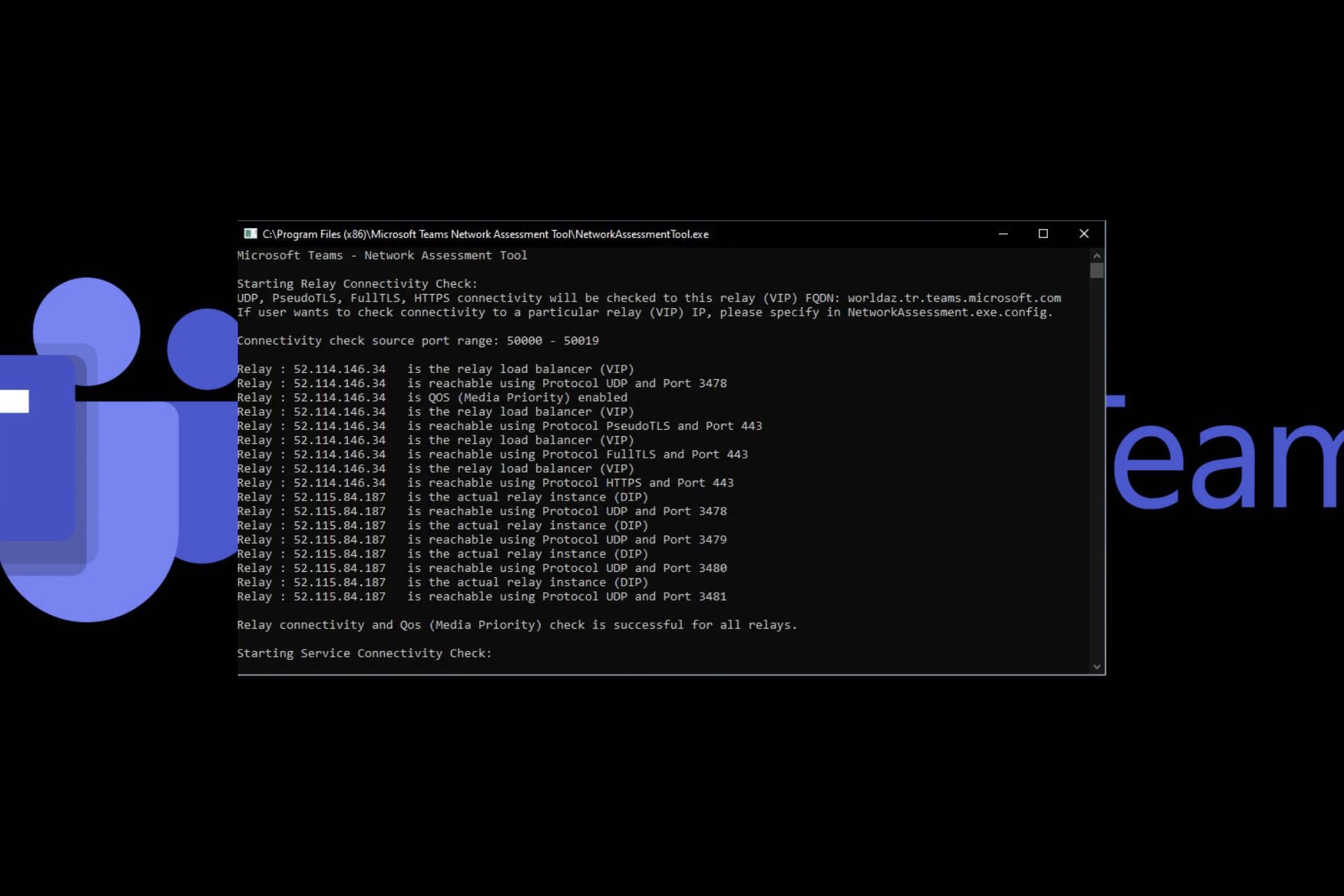
Although there are a host of tools you can use to test your network’s speed and reliability, Microsoft has its own dedicated tool for assessing Microsoft Team’s network. A simple test call won’t cut it, as this only checks for the basics like video and microphone quality.

An established team is highly dependent on a stable and reliable network connection so, it is imperative to conduct these assessments to get insights on components like bandwidth limits, network capacity, speed and reliability.

System requirements

This information will be significant in preparation for communication and collaboration.

If your device meets these requirements, go ahead and download the Microsoft Teams network assessment tool and click on the executable file to install it.

Features

  • Comprehensive diagnostic reports: This is the main function of the Microsoft Teams network tool. It assesses the network environment and pinpoints pain areas that must be addressed. Network administrators can then use these reports to troubleshoot and optimize the network.
  • Assess network demands: In case your team grows or you wish to expand, this tool can help assess the scalability and measure whether it will be able to meet the demand. You can assess whether you’ll have to limit bandwidth on Teams but if the current capabilities cannot accommodate a stretched-out usage without affecting performance, you’ll have to upgrade your bandwidth limits.
  • Real-time monitoring: As you’re on your Microsoft Teams, the network assessment tool also works in the background monitoring usage. If anything changes or there are issues like lag and packet loss, you get this information for further examination and troubleshooting.

Areas of analysis

Network performance

  • Bandwidth: Network performance is dependent on the bandwidth available. If Teams requires more bandwidth than is available, there will be a degraded performance. If there’s enough bandwidth but still a performance issue, you might have to close superfluous apps that are hogging the bandwidth.
  • Latency: The time it takes for data to travel to and fro matters as it can make or break the Teams call. For instance, if there’s too much lagging when on video or delays, you might need to increase your bandwidth.

Network connectivity

This involves the reliability of the connection when using a VPN, wireless/wired connection, firewalls and DNS servers. An overzealous firewall can block critical ports required for a stable connection so the assessment tool can help pinpoint such anomalies.

All these components can positively or negatively affect the connection to a Teams call so if you notice a degraded performance, you may have to turn on or off one of the aforementioned settings.

What are the pros and cons of the Microsoft Teams network assessment tool?

Pros

  • Enhances productivity: The network tool gives real-time analysis and reports on the network assessment. This in turn takes away all the guesswork of figuring out the issue and going straight to troubleshooting.
  • Performance evaluation: The network performance helps you plan ahead whether you’ll need to scale up or increase your bandwidth to meet the demands of your organization. This way, productivity remains unaffected.
  • Optimizes network: By keeping tabs on your network performance, you are able to mitigate network failures before they become a problem.

Cons

  • Limited testing: While the network assessment tool does a great job, you can only test on one client machine at a time. If you have multiple devices, it can be time-consuming.
  • No scheduling: You cannot schedule a test to be performed at a later time. All tests have to be conducted manually which may not be practical especially if you have a large team.
  • Resource intensive: Running network assessments requires significant system resources especially, for large-scale environments. This in turn could affect the quality of the network allocated for other tasks or activities.

Best practices for network optimization

  • Regular firmware and software updates: The only way to ensure optimal performance is to update your network card drivers, router firmware and any other related software/firmware. This will ensure your network is adequately equipped to handle the demand.
  • Implement security policies: An unsecured network poses a risk to any organization hence the need to implement robust and reliable security policies. This includes up-to-date firewalls, encryption protocols, and any other measures deemed necessary to secure the network from risk factors.
  • Distribute load evenly: For optimal resource usage, it is important to spread out the network traffic across devices to avoid network congestion so that there’s never over-usage or under-usage.

Hopefully, you’ve learnt a thing or two about the Microsoft Teams network assessment tool and are now in a better position to decide whether to download it. You can also test it out with Teams for Linux and compare the performance.

Speaking of Microsoft tools, you may also be interested in the NetMon for Windows. And you don’t have to limit yourself just to the Microsoft suite.

There are so many open-source network monitoring tools that can help you keep tabs on your network traffic and other elements to ensure you’re using your bandwidth optimally.

We’d love to get your thoughts on this tool. Have you used it before, and would you say it has enhanced communication when using Teams? Share your thoughts with us in the comment section below.

The latest Intel CPU might be more expensive than expected, according to Micro Center

We’re all impatiently waiting for the latest generation of Intel’s CPU, and recently we got some unpleasant news.

It seems that upcoming CPUs will be more expensive than previously expected.

Micro Center just revealed potential prices for the upcoming Intel CPUs

Tom’s Hardware reported that Micro Center has revealed its potential prices for the upcoming Intel CPUs according to the removed listing.

The new Core i9-14900KS is expected to cost $749, which is slightly more than previously expected. This price is somewhat expected and similar to the price in Canada.

As for the specs, the removed listing stated that this CPU will have 8 cores and a 3.2GHz base clock that can be boosted up to 6.2GHz.

Additional specs include 16 E-cores 32MB of L2 cache, 36MB of L3 cache, and support for DDR4-3200 and DDR5-5600.

We have to mention that this model is $200 more expensive compared to its predecessor, Core i9-14900K, so you might be better off sticking with the older model.

Keep in mind that this information might be only for Micro Center, and the actual price might differ depending on the retailer. As for the announcement date, rumors have it that we’ll see it on March 14th.

That’s not all from Intel, and recently Intel’s new chips were listed as officially compatible with Windows 11, so you can rest assured that your new CPU will work without any issues.

Modders have managed to turn Steam Deck into Nintendo 3DS

Nintendo DS and 3DS were a huge hit back in the day, and tech-savvy fans have found a way to revive it, in a way.

A few modders have managed to convert a Steam Deck into a Nintendo 3DS, and the results are impressive.

Modders have converted a Steam Deck into a working Nintendo 3DS

As reported by Retro Dodo, it seems that Reddit user TyePower managed to convert his Steam Deck into a 3DS.

This was achieved by adding a 7-inch battery-powered monitor to the Steam Deck and securing it with Clamshell detachable mounts. While the device might look a bit rough, it works pretty well.

It’s powered by a discontinued Citra emulator and it uses 1080p resolution. This isn’t the only model, Andrew from RetroHandhelds.gg also created his own 3DS.

While Andrew’s device doesn’t look too flattering, especially because it has a battery attached to the second screen, it can emulate the games perfectly.

If you don’t plan to convert your Steam Deck into 3DS, you’ll be pleased to hear that Steam Deck is great for music production.

As for Nintendo, we’re all waiting for its new handheld, but the Xbox Series S could easily outperform Switch 2, according to leaks, so don’t expect any high-end gaming on it.

Intel dominated the global CPU market with an impressive 50 million units shipped

Intel easily dominated the global CPU market, shipping over 50 million units worldwide, according to the latest statistics by Canalys, far exceeding the second AMD, and the third Apple, with 8 million units, and 6 million units sold respectively.

The tech giant had a market share of 78% in Q4 2023, and according to statistics, is showing a stable performance, with a growth of 3% as you can see in the image below.Intel CPU market

AMD comes in second, with sales of 8 million units, and a decent market share at 13%, while Apple managed a moderate 6 million units figure. Both companies experienced a slight decrease in their performance, with AMD experiencing a -1%, and Apple -4%.

In terms of revenue, Intel managed to increase it by 2%, to $41 billion, while Apple performing much better here, with an 8% growth, and $8 billion in revenues. AMD comes in third with 7% growth, and $5 billion in revenue.

MediaTek, Qualcomm, or ARM haven’t managed to break in, however, things are about to change, as Qualcomm is set to enter the CPU market this summer, delivering its first chipsets to the future Windows AI PCs, and we have to say, it’s looking quite exciting.

So as Microsoft welcomes another player into its Windows PCs sphere, both Intel and AMD will have to keep up with the ARM-inclined CPUs, and the new NPUs, which are starting to take hold. It will be interesting to see how these three companies will evolve and ignite the competition.

Intel is still very much preferred even though AMD has great CPU options almost on every level, and the company was able to develop units that surpassed Intel CPUs in certain aspects. However, as Qualcomm is coming with a fresh new perspective, the competition is about to get tighter.

What do you think about Intel dominating the CPU market? Which one do you prefer: Intel or AMD? Let us know.

Microsoft is developing an Eye-Gaze typing technology that allows users to write with their eyes

Microsoft might be releasing an Eye-Gaze typing technology that would help users type and interact with applications solely using their eyes, according to the patent, which was published recently and can be read here.

The technology employs a so-called ‘dwell-free’ typing, meaning users can type just by looking at keys on a screen. But it can also be used to interact with other applications by gazing at them: for instance, if a user looks at a button in a web browser, the system can click the button for them.

As eye movements can be jittery, and the recorded gaze might be non-uniformed, the noisy gaze will be intercepted by the dwell-free response system, which, as the paper explains, is a system that does not rely on dwell time for identifying a desired letter or word of a user.Microsoft eye gaze technology

This means users won’t have to gaze at the buttons for extended periods, as the technology would use the dwell-free system to make sense of the user’s gaze accurately and come up with solutions.

Employed in an operating system, such as Windows, this technology could let users control various settings such as audio volume, or brightness by moving their eyes. It would not be limited to just certain applications, as it can be extended to become a new way to interact with devices.

The most interesting aspect of this technology is that it also employs an AI-based model that gathers user information to make smart predictions and suggestions. If the user is looking at a certain area when navigating an application or operating system, the technology will associate these gazings with certain actions.

Microsoft is also making the Eye-Gaze technology predictive by using a so-called prediction processor, which guesses the word or action based on where they’re looking. The technology is also using smart algorithms to come up with quick responses to the user’s actions.

The Redmond-based tech giant has been experimenting with the eye-gaze technology on its HoloLens headsets, although in that case, the experience exists in a mixed-reality setting. Apple’s Vision Pro device also employs a similar technology, but users still require hand movements happening in a mixed reality setting, as well.

This technology, however, would be employed on all devices, including, but not limited to mobile phones, tablets, and personal computers, and it can be run on any application that has text-input capabilities, such as text messaging apps, email apps, or search engine apps.

Could we expect this kind of technology in Microsoft Edge or the future AI-based Windows? Microsoft has already experimented with gaze-controlled settings in Windows 11, but this is the next level, and quite frankly, it’s both exciting and terrifying.

Researcher teaches GPT-4 to play DOOM and kill everything in sight

We all know about the 1993 shooter DOOM and at that time, any hardware was tested with the question: Will it play DOOM? The Register spotted a student project that proves GPT-4’s capability to play the old game.

Adrian de Wynter, a principal applied scientist at Microsoft and a researcher at the University of York in England, developed a method to test if GPT-4’s reasoning and planning capabilities extend to the 1993 first-person shooter Doom. As it turns out, yes, the bot can run and play it, but you could beat it easily.

How can GPT-4 run DOOM?

In fact, it’s more complicated because the GPT-4 LLM can’t run DOOM’s code directly, but its variant, GPT-4V, can also work with images and play the game without any special training.

So, de Winter used GPT-4V to get the screenshots from the game, together with structure descriptions. Then, an Agent model can make decisions based on the visual input and the previous history. The commands to the game are sent back and translated into keystrokes.

That makes the model pretty slow and sluggish in playing the game, but it has other problems as well:

For example, it would be very common for the model to see a zombie on the screen, and start firing at it until it hit it (or died). What’s the issue here? Well, first that the zombie goes out of view. Worse, it is still alive and will whack you at some point. So you gotta go after it, right? After all, in Doom, it’s whack or be whacked. It turns out that GPT-4 forgets about the zombie and just keeps going. Note: the prompt explicitly tells the model what to do if it is taking damage and it can’t see an enemy. Better yet, it just goes off on its merry way, gets stuck in a corner, and dies. It did turn around a couple of times, but in nearly 50-60 runs, I observed it… twice, I wanna say.

Adrian de Wynter

So, GPT-4V just forgets about the enemies if they get out of sight, which could be a hilarious problem even for the most inexperienced human player.

But the problem here is not the bot’s poor skills in killing monsters in a game but the ethical ramifications of the programming:

On the ethics department, it is quite worrisome how easy it was for (a) me to build code to get the model to shoot something; and (b) for the model to accurately shoot something without actually second-guessing the instructions,

Adrian de Wynter

In other words, the AI was more than happy to follow the instructions for shooting targets without asking any questions. Although it can be fun to see an AI playing a game and making its own decisions to complete its programming goals, the researcher’s conclusion is that the bot has no idea what it’s doing.

After all, this programming could be used in real scenarios for automated drones that could produce real damage.

What do you think about GPT-4 playing DOOM? Let’s talk about that in the comments section below.

EC broke Union data protection laws while using Microsoft 365 services

According to the European Data Protection Supervisor (EDPS), the European Commission didn’t abide by several important data protection rules under European Union data protection laws while using Microsoft 365 services.

The EDPS is an independent body that is responsible for conducting data protection audits within EU institutions and can issue corrective measures to rectify violations.

Wojciech Wiewiórowski, EDPS, said:

It is the responsibility of the EU institutions, bodies, offices and agencies (EUIs) to ensure that any processing of personal data outside and inside the EU/EEA, including in the context of cloud-based services, is accompanied by robust data protection safeguards and measures. This is
imperative to ensure that individuals’ information is protected, as required by Regulation (EU) 2018/1725,
whenever their data is processed by, or on behalf of, an EU.

The investigation’s key findings indicate that EC failed to specify in its contract with Microsoft the types of data that could be collected and mention the purpose of the same.

Furthermore, the EC didn’t implement adequate safeguards concerning the transfer of data outside the European Union area, an important aspect of ensuring the protection of individuals’ personal information.

The European Data Protection Supervisor ordered the European Commission to bring its use of Microsoft 365 services into compliance with the EU’s stringent data protection regulations. It also informed that Microsoft 365 data flows that don’t adhere to the regulations will be suspended effective December 9, 2024.

The breach occurred over a three-year period, starting on May 21, 2021, and ending with the EDPS decision on March 8, 2024.

The European Data Protection Supervisor said the EC failed to ensure proper contractual specifications with Microsoft as the EC didn’t clarify the use of data and didn’t blame Microsoft for this.

As EDPS found the EU at fault, it enforced EU regulation 2018/1725 on the processing of personal data, which shows how important robust data protection measures are, especially when working with external service providers.

This incident reminds people doing business in Europe to pay attention to all the tiny contractual details and adhere to the regulatory framework to avoid problems in the future.

What are your thoughts on the matter? Share your opinions in the comments section below.

Microsoft Advertising Platform finally features Copilot

Micorosft has been integrating its native chatbot, Copilot, into more and more products, and the Microsoft Advertising Platform is the latest in the list. In September’23, the Redmond-based tech giant confirmed their plans at the Microsoft AI event.

Finally, many on the Advertising Platform can see the Copilot button at the top-right corner. It appears to be a gradual rollout. For anyone who didn’t get the feature, wait for a few days.

The arrival of Microsoft Advertising Copilot was first reported by Thomas Eccel in a post on X (formerly Twitter).

Soon, we saw posts on several different platforms, including LinkedIn.

At present, it appears that Microsoft Advertising Copilot would offer assistance and advice and, at the same time, guide you through the platform. For instance, if you want to set up an ad campaign, Copilot would detail the entire process.

For Copilot to prove effective in the Advertising Platform, it must be accurate and user-oriented. The AI-powered integrated chatbot should assist users with ideas and be able to identify the flaws in one, if asked.

What do you think of Microsoft Advertising Copilot? Share your review in the comments section.

Legion Go’s right stick can get stuck when running Sniper Elite 5, but there are some tricks you can try

Legion Go is a small gaming beast that is capable of running all sorts of demanding video games, and so far there have been almost no issues with it, aside from the regular complaint that its battery life doesn’t last for long.

However, it seems that the console’s right stick can get stuck when running Sniper Elite 5, a third-person FPS, as one Reddit user claimed that the freezing of the button makes the game character rotate repeatedly.

Ok so I’m on day five with my Legion Go. After initial frustration with Windows all the bloatware and the massive configuration job you have to go through to set this thing up. Im finally happy with it, and I’ve got most of my favourite games installed. I do have a bit of a showstopper and I’m considering returning it if I can’t fix this one niggling issue. As you can see in the video the problem is the right stick every 5 to 10 minutes it will just get stuck, usually making the game character rotate repeatedly, which is pretty useless in a first-person shooter. I’m close to giving up even I love the device otherwise.

does anyone know what to do?

For the record I’m also testing an Asus Rog flow z13 which I’m using with an external controller and I’m just investigating ways to attach some joycons or something similar let me know what you guys think.

Reddit user

The user also mentioned later in the post that this Legion Go issue happens only when playing Sniper Elite 5, so if you’re running into this issue, here is what you need to do:

Check out to see if the right stick gets stuck in other games

You’ll need to make sure your Legion Go isn’t indeed malfunctioning, by opening up other games and checking to see if the right stick functions properly.

It shouldn’t, but if it does, you’ll need to recalibrate the right stick:

  1. Press L2 + L3 (Controller L) or R2 + R3 (Controller R) for 3 seconds to enter calibration mode,
  2. The LED flashes violet.
  3. Rotate the rocker 3 turns, wait for 2 seconds after the rocker re-centers itself, and then the calibration is complete.

Quit to the desktop and restart Sniper Elite 5

Apparently, Sniper Elite 5 is the one having a bug, as other users have noticed issues with it on other platforms or handhelds.

So, the best solution is to quit the game, return to the desktop, and then open Sniper Elite 5, as this Reddit user explains:

Is this Sniper Elite 5? If it is. I believe it’s a bug in the game. I had the same issue playing this title on my ROG Ally. The spinning would usually start after I had the game on pause for a bit and then returned to playing. Other times it would just start randomly whilst playing.

The only fix was to quit to the desktop and restart the game. Good luck.

Reddit user

Ultimately, Legion Go is not the one at fault, but the Sniper Elite 5 game is. If the handheld console seems to malfunction only when playing this game, you might also want to uninstall and reinstall the game altogether.

Try these solutions and see if they work for you, and if they do let us know. By the way, if you have a Legion Go, check out these official skins coming for it soon.

How to Create A Microsoft Word Fillable Form

If you’re looking to collect information from a group of people, you can create a Microsoft Word fillable from a blank document or use an online template.

How do I create a Microsoft Word fillable form?

1. Enable developer mode

  1. Launch Microsoft Word and open a blank document.
  2. Navigate to File>Options>Customize ribbon.
  3. Check the Developer box and hit Save.

2. Design the form

  1. On your blank document, create an outline for your form with the necessary items.
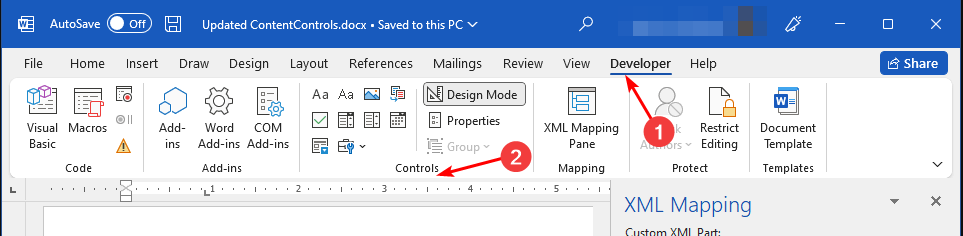
  2. Next, click on the Developer tab on the top menu ribbon then select Controls. Here, you can select the type of information you wish to be filled ranging from check boxes, drop-down options and text boxes.
  3. Once you’re done, click on the Design mode button to exit.

3. Limit editing

  1. Click on the Developer tab on the top menu ribbon then select Restrict Editing.
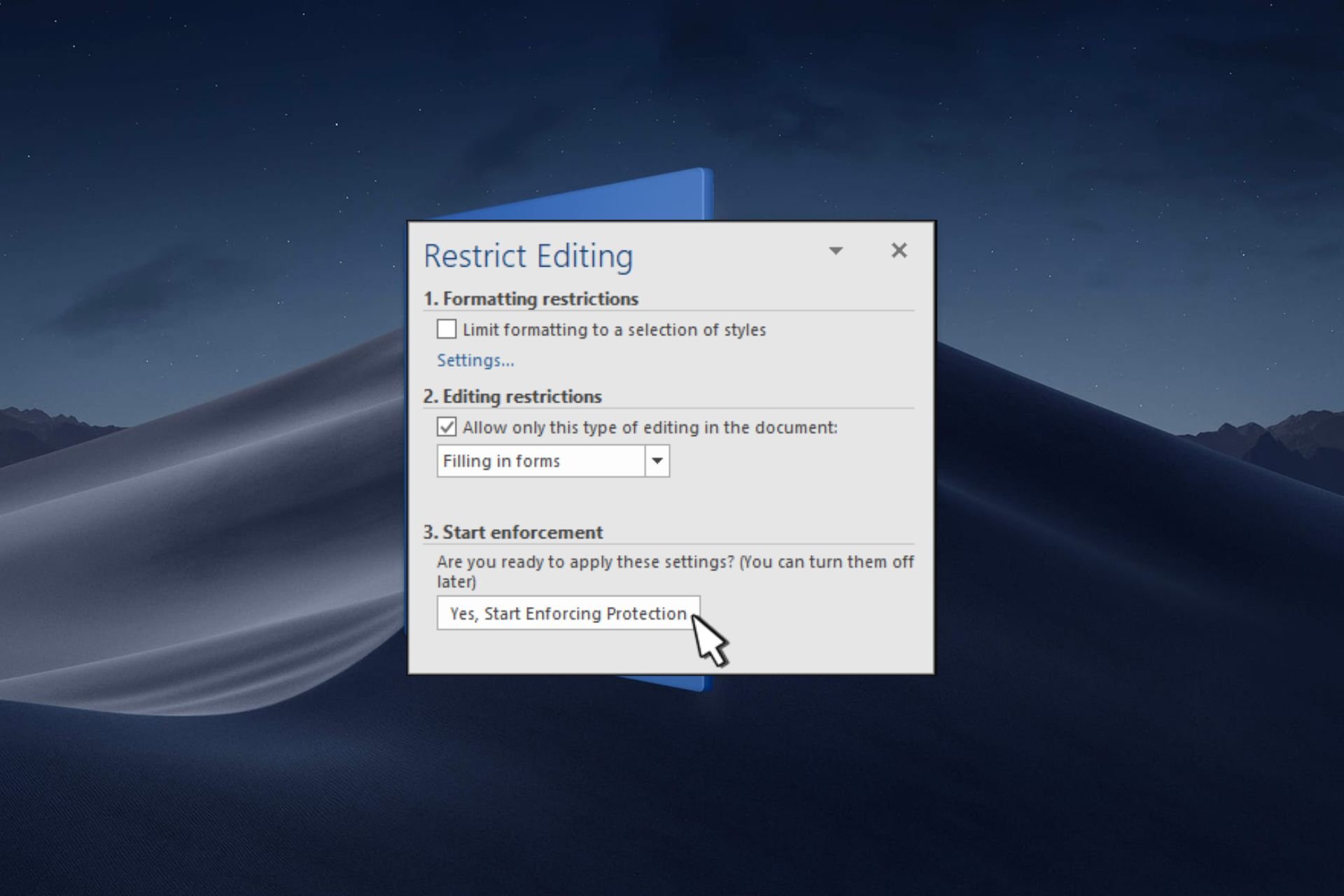
  2. Check the Editing restrictions check box and in the drop-down menu, select Filling in forms then hit the Yes, Start Enforcing Protection button.
  3. You can enter a password for enhanced protection but it is not necessary.

When you send out the form, you want to protect the other fields from being edited or altered. While fillable forms on Microsoft Word come in handy, some features may prevent them from being opened on other devices or on the web. These forms are not widely compatible.

Luckily, you’re not limited to Microsoft Word. In case you prefer working with PDF documents, you can also create a fillable PDF form. And if none of these work for you, there are a host of software tools to create forms that are compatible with most browsers and devices.

That’s it! You can now create a fillable form ready to be shared and filled out by others using Microsoft Word. If the form is too long, don’t forget to create a table of contents to aid in navigation.

To take your Word knowledge to a new level, be sure to check our guide on how to create index cards in Word for more useful tips.

Have you tried creating a fillable form with Microsoft Word? How easy or hard was it? Leave your comments down below.

Threat actors can use Microsoft SCCM misconfigs for cyber attacks

Researchers discovered that a misconfigured Microsoft Configuration Manager (SCCM) can lead to security vulnerabilities. Thus, a threat actor can use this opportunity for cyber attacks, such as payloads, or to become a domain controller. In addition, the SCCM works in many Active Directories. Furthermore, it helps admins manage workstations and servers on Windows networks.

During the SO-CON security conference, SpecterOps announced their repository with attacks based on faulty SCCM configurations. Also, you can check it out by visiting their GitHub Misconfiguration Manager page. Additionally, their research is a bit different from others because they include penetration testing, red team operations, and security research.

What is SCCM?

SCCM stands for System Center Configuration Manager, and you might know it as Configuration Manager or MCM. Furthermore, you can use the MCM tool to manage, secure, and deploy devices and applications. However, the SCCM is not easy to set up. On top of that, the default configurations lead to security vulnerabilities.

The attackers can gain control over your domain by exploiting your SCCM security vulnerabilities. After all, according to researchers, cybercriminals can use your network access accounts (NAA) if they use too many privileges.

Also, an unknowing or novice administrator could use the same account for all of the things. As a result, this might lead to decreased security across devices. Furthermore, some MCM sites could use domain controllers. Thus, they might lead to remote code control, especially if the hierarchy is not in order.

Depending on the environment, an attacker could use four different attacking methods. The first method can allow access to credentials (CRED). The second attack can elevate privileges (ELEVATE). The third one can perform reconnaissance and discovery (Recon), and the final one gains control over the SCCM hierarchy (TAKEOVER).

Ultimately, you should properly manage your SCCM and verify if the hierarchy is in order. Also, there are three ways in which you can defend yourself. The first method is to prevent attacks by strengthening your MCM configurations to impact the attack technique (PREVENT).

The second method is to monitor your logs for suspicious activities and to use intrusion detection systems (DETECT). Afterward, the third method is to plant fake configuration settings and embed hidden data (CANARY).

What are your thoughts? Were you aware of this security vulnerability? Let us know in the comments.

Chrome now lets you minimize Custom Tabs in PiP mode, boosts multitasking

Chrome for Android is getting a new feature, one that would aid multitasking and improve the overall app experience. With it, you will be able to minimize Custom Tabs into PiP (Picture in Picture) mode, work on the active apps, and quickly jump to the former at will!

For the unversed, Custom Tabs is a feature in Chrome that lets apps open links using the browser from within the app without having to launch the browser manually. Earlier, these Customs Tabs had to be terminated before you could get back to the active apps.

Now, as spotted by Mishaal Rahman and posted on X (formerly Twitter), the feature to minimize Custom Tabs into PiP is available starting with the Chrome 122 Beta version and is enabled by default.

At present, the feature titled, Allow Custom Tabs to be minimized, is listed under Flags. You can access and modify it from the following Chrome address: chrome://flags/

Chrome flag

Flags are experimental features that Google tests on Chrome. Not every feature brought in as a flag makes it to the stable version of the browser. So, we will have to wait and watch if and when the Allow the Custom Tabs to be minimized flag finally makes it to the stable Chrome version!

Until then, you can keep using it. This particular flag poses no security risks and doesn’t result in crashes or errors, as reported by many.

What do you think of this upgrade to Custom Tabs in Chrome? Share with our readers in the comments section.

Now you can stop Microsoft from promoting Edge on Windows 10 & 11

The new Digitial Markets Act (DMA) has come, forcing many tech companies, including Microsoft, to bring changes in their products and services to make them compliant.

Earlier, we talked about changes that gave us the ability to uninstall Edge and Bing; this time, the change was associated with Edge pop-ups.

From now on, when you change your default browser, you will not see promotional pop-ups for Edge in Windows 11 and 10.

Before the change, you see the Edge browser benefits pop-up whenever you try to switch to any other browser.

Previously, Edge’s promotional ad appeared under the Featured app section when you changed the Open with settings on a Windows 11/10 computer.

Microsoft removed the Featured app section with Windows 11’s February 29, 2024 update. When you use the Open with feature to check the available apps, Edge will no longer appear in the Featured app.

This change will be applied to your Windows 10 and 11 devices and will be available for people outside Europe.

Edge used to be a system component, which is why you can’t uninstall it from your device. Starting with the Moment update, Microsoft will now give the option to uninstall Edge and Bing in EEA.

As per Microsoft’s documentation, Edge collects diagnostic data separately. You will be able to enable or disable the optional diagnostic data sharing in the Edge browser settings.

Microsoft also introduced changes to S-mode exclusions, default sign-in settings, and feeds in the Widgets board.

Earlier, the Widget board’s feeds contained content from MSN, but now you can change the default news feed provider or disable it altogether.

Another change is that you will not be logged into your Microsoft account automatically unless you don’t give consent.

Furthermore, Windows will no longer use Edge to open links for system apps, respecting the default browser instead of in Europe.

For users outside Europe, Windows will still use Edge to open relevant links when an inbox app requests it.

Changes in S mode

Microsoft Edge and Bing are still the native apps in S mode, but you can exit the mode to install third-party apps. To do so, go to Settings and look for the Switch Out Of S Mode setting.

All the changes introduced to Windows to make it compliant with DMA are released in the Windows 10 22H2 build 19045.4123 and Windows 11 23H2 Build 22631.3235 on February 29, 2024.

Since EEA was released in March 2024, users have gained control over their devices and can customize Windows as they like.

What are your thoughts on the matter? Share your opinions in the comments section below.

Employees reportedly concerned about Microsoft’s fixation with OpenAI

Microsoft and OpenAI’s partnership is well known to the world. When Sam Altman was fired as the CEO of OpenAI, Satya Nadella played a major role in helping Altman return to the position.

As it turns out, many inside the company reportedly believe that Microsoft’s strategy is more centred toward OpenAI than the in-house products and services. This has come to light in an exclusive story by Business Insider.

Several present and former employees at Microsoft who worked on the AI team led by Eric Boyd have expressed concerns about this shift in strategy.

A former employee highlighted how Azure AI Bot Service isn’t available as a standalone service anymore. He claims that most such services, though available, have either been renamed or bundled with other products.

The former Azure AI is basically just tech support for OpenAI. Eric Boyd is effectively maintaining the OpenAI service. It’s less of an innovation engine than it once was. Now it’s more IT for OpenAI. The beating heart of innovation is elsewhere. It’s not very innovative, but it’s a good business strategy.

It’s also claimed that Microsoft and OpenAI employees, at times, work on the same project and have access to each other’s office space.

Microsoft continues to push leading native products

Microsoft’s AI push has picked up pace in recent months, and most of its new features are, in some way, backed by artificial intelligence. The Redmond-based tech giant’s native AI chatbot, Copilot, has now been built into more programs than ever. Copilot in Word and Copilot in Outlook, to name a few.

With AI-based cyberattacks becoming a bigger threat than ever, Microsoft even released an AI-powered Copilot for Security, giving analysts the much-needed upper hand to thwart attacks and identify existing vulnerabilities.

Based on these trends, we can say that Microsoft is still pushing its native tools, but this may be limited to a few, primarily to ones where Microsoft is a leading brand name, such as Copilot. For the rest, it might be employing the services of OpenAI when financially viable.

If you have more information on the story, share it with our readers in the comments section.

Microsoft Flight Simulator unveils two new South Asian airports from third-party developers

The Bandung and Hat Yai Airports, from West Java, Indonesia, and Thailand, respectively have been added to Microsoft Flight Simulator by third-party developers, and they’re available to download now. The first one is available on the iniBuilds store for $9.63, and there is a trailer for it, which you can watch below:

The second one was developed by SiamFlight and it’s available on Simmarket for $15.99. Each of these airports comes with its features. For instance, the Bandung airport will have these features in Microsoft Flight Simulator:

  • Custom Ground Polygon all around the airport with custom true-to-life marking
  • Custom 3D Model of the airport, landside, surrounding areas, approach objects, and major Bandung Landmarks.
  • Fully Realistic PBR 4K and 2K Complimentary Textures
  • 3D Detailed Full interior for the new terminal, and Partial Interior for the old terminal
  • Animated Objects (Indonesian High-Speed Train, Airport Tour Bus, Towed Aircraft, Air Conditioner, Store Doors, Road Gates, Escalator, etc)
  • Detailed Landside with custom roads
  • The old version of the airport name text is included (activated by MSFS in-game time to pre-2017)
  • Animated working LED Screens with a Working clock showing local time
  • Working Runway-In-Use Indicator, showing Runway Active according to wind
  • Realistic Runway Slope
  • Terminal Sounds

The Hat Yai Airport’s features include:

  • Terminal Detailed with interior (from the pilot’s POV as necessary)
  • Airport support buildings.
  • ATC building.
  • Cargo building zone.
  • Custom Animated Jetways to match real ones – SimObjetcs.
  • Runways and Taxiway are properly named and connected.
  • Full Airport service as required.
  • Parking gate numbers ready for GSX Pro.
  • Hand-placed Taxiway guidance signs.
  • Hand-placed Taxiway and Runway lights system, Taxiways center, Taxiways edge. etc.
  • Custom ground texture. Static objects around the airport.
  • Taxiways, aprons, and runways match the real airport.
  • Full Day/Night lighting.

Plus, another third-party developer, FlightFX, announced a new Cessna 750 Citation X business jet on its Discord server, and it will be released to Microsoft Flight Simulator in the coming weeks.

San Francisco and Ivato Airports were recently added to the game, and if you want to try your luck with the planet of Arrakis, now you can download the free Dune expansion, as well.

Microsoft Edge contributes to the new and improved, Speedometer 3.0

Edge is getting better with each passing day, and Microsoft doesn’t appear as pushy anymore. In the latest series of developments, Microsoft Edge, in collaboration with cross-industry browser vendors, has contributed to Speedometer 3.0, the latest version.

Speedometer is a browser benchmark primarily used by developers to compare the performance of individual browsers or different versions of the same browser. It is also often used to find the fastest browsers.

Microsoft’s contribution to Speedometer 3.0, which comes with significant improvements and more tests, is a new Complex DOM set of tests.

In the official blog post, the Microsoft Edge Team highlights how they have collaborated with several web applications to address existing performance and scalability issues through a deep analysis of application software stacks, performance profiles, and architecture.

These investigations have consistently shown that the complexity of the DOM and CSS rules is an important driver of end-user perceived latency. Inefficient patterns, often encouraged by popular frameworks, have exacerbated the problem, creating new performance cliffs within modern web applications. The new Complex DOM tests perform DOM mutations in the context of a large DOM tree, which trigger a cascade of costly CSS selector matching operations and style recalculations.

The Complex DOM set of tests contributed by Microsoft Edge to Speedometer 3.0 helps identify a website’s performance when several different styling rules need to be applied to the existing elements.

You can run the improved Speedometer 3.0 on your web browser and test its performance against the set benchmarks.

Speedometer 3.0 Score

Remember, Speedometer 3.0‘s score is more suited for comparison on a personal level. It doesn’t feature a global ranking. For instance, you can use Speedometer 3.0 to identify which browser works best on your PC.

What’s your Speedometer 3.0’s score? Share with our readers in the comments section.

Healthcare organizations can now build their own Copilot experiences using the new Azure AI Health Bot services

Along with the newly-announced TRAIN initiative, which sees the partnership of dozens of healthcare organizations with Microsoft to advance the AI capabilities in the healthcare industry, the Redmond-based tech giant is also introducing new services to the Azure AI Health Bot, allowing healthcare organizations to build their own Copilot experiences.

In a blog post, Microsoft says:

We’re adding new healthcare-specific safeguards for generative AI in private preview within the Azure AI Health Bot services. Preview customers can experience an integration with Microsoft Copilot Studio, allowing healthcare organizations to build their own copilot experiences.

Microsoft

There is already a private preview available and customers can now sign up for it to make use of the newest generative AI capabilities, such as:

  • Power generative answers that are grounded on customer’s own sources. 
  • Generative answers that are grounded on the customer’s websites.
  • New healthcare intelligence capabilities to incorporate generative answers grounded on credible healthcare sources.
  • Seamlessly use pre-built protocol-based healthcare intelligence capabilities such as symptom checkers and triage.
  • Credible generative AI fallback ensures reliable and accurate responses in healthcare-related scenarios.

Microsoft is also providing healthcare organizations with built-in safeguards that could fit each organization’s unique requirements and needs. These are now available in the private preview and include:

  • Clinical safeguards include healthcare-adapted filters and quality checks to allow verification of clinical evidence associated with answers, identifying hallucinations and omissions in generative answers, credible sources enforcement, and more.
  • Healthcare chat safeguards include customizable AI-related disclaimers that are incorporated into the chat experience presented to users, enabling the collection of end-user feedback, and analyzing the engagement through built-in dedicated reporting, as well as healthcare-adapted abuse monitoring, among other things.
  • Healthcare-adapted compliance controls include built-in Data Subject Rights (DSRs), pre-built consent management, out-of-the-box audit trails, and more.

According to Microsoft, many healthcare organizations already implemented these new Copilot healthcare experiences with their infrastructure, including Roche Pharmaceuticals or Ramsay Santé.

You can read the full blog post here.

Firefox Nightly got an improved screenshot feature, coming in April to main channel

Firefox is a great browser with several unique features, one of them being the ability to take screenshots right from the browser.

Speaking of which, it seems that Mozilla is looking to improve the screenshot feature in Firefox, and here’s what we know so far.

Mozilla is currently testing a new screenshot feature in Firefox

As reported by How-to Geek, Firefox might be getting a new screenshot feature soon. In its current iteration, the screenshot feature worked as an extension, so it had certain limitations.

For example, you weren’t able to take a screenshot of settings pages, since extensions aren’t allowed to access them. That’s about to change with a new version of the screenshot feature.

The new version will improve performance, keyboard, and visual accessibility, and it will finally allow users to take screenshots of any page in Firefox.

Just like before, the feature can be activated with a keyboard shortcut or from the context menu. Regarding the availability, you can go ahead and test this feature in the Firefox Nightly build.

As for the official release, we expect to see this feature available in Firefox 125 on April 26th. Speaking of Firefox, the Android version also got some changes recently, and Firefox Nightly for Android now has a tab bar, so don’t miss it.

Google Chrome almost got a screenshot editor but we’re not that lucky

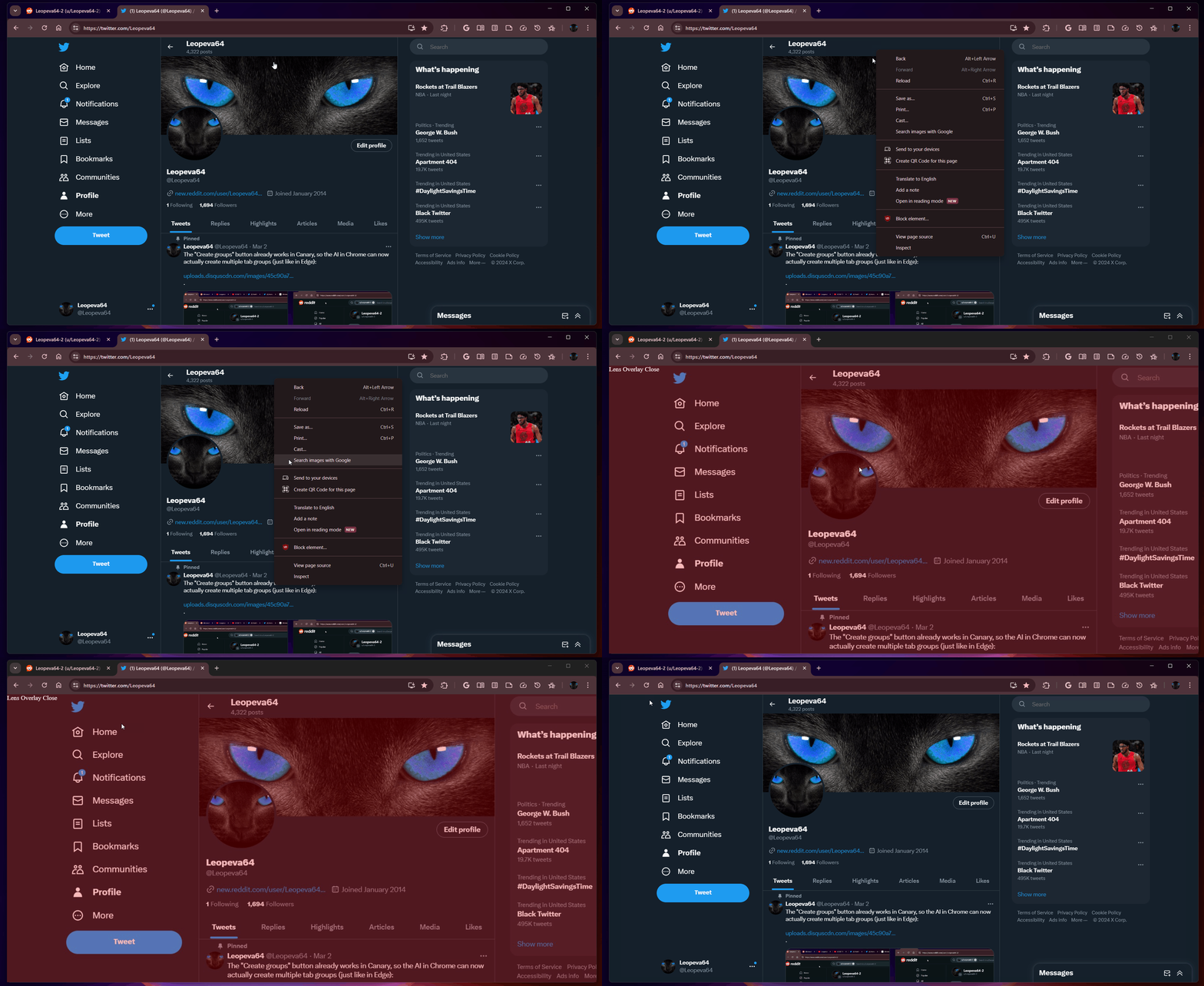
Google Lens is a great tool for mobiles because it allows you to search the web for relevant results based on the pictures you take with your phone. However, you can also do a similar thing on your desktop browser. Simply right-click on an image from a Chrome tab and select Search image with Google.

The window will split and you will see a lot of similar images on the right pane.

Recently, as spotted by Leopeva64 on X, Google was trying to go further and provide you with the Lens Overlay feature. We don’t know exactly what it was supposed to do, because it doesn’t work, but the supposition was that it was a screenshot editor within Chrome.

It didn’t take for Google more than one day to scrap this idea, and we found that out from the same Leopeva64 user.

Apparently, the developers dropped this feature because it was too hard to implement without important changes to Chrome, as they highlighted in the project page:

We decided, after a great deal of UX feedback, that this component isn’t polished enough to ship and we don’t quite see a path to getting it there without a big rework. This change deletes the feature, the logic to install the component, and the wiring for it in the screenshot bubble.

Chromium project

Now, you can still use the Search image with Google feature and then edit whatever image you’re interested in on another image editor.

Who knows, some day, Google may come back to this idea and have their own built-in screenshot editor.

What do you think about Lens Overlay and Google’s screenshot editor? Tell us all about it in the comments section below.

3 Ways to Download & Install Epson L3210 Driver in Windows 11

Epson recently released a Windows 11-compatible driver for their L3210 printer series. Until then, you had to download the drivers for Windows 10 (64-bit) and then install them.

While those for the previous iteration worked fine, you should download OS-compatible drivers from now on to minimize any conflicts and get the best performance.

Before you proceed, make sure to connect the printer to the PC, preferably through a wired connection.

How can I install the Epson L3210 printer driver in Windows 11?

1. Automatically through the setup

  1. Go to Epson L3210’s driver page, select Windows 11 from the Operating System dropdown menu, and click on Go.download epson l3210 driver for windows 11
  2. Now, expand the Drivers entry, and click the Download button next to Printer Driver.driver
  3. Once downloaded, head to its storage location, and double-click on the L3210_X64_30400_LA.exe file to run the setup.
  4. Click Yes in the UAC prompt.
  5. Tick/untick the Set as default printer and Automatically update software options as required, and click on OK.ok
  6. Select the language from the dropdown menu, preferably English, and click OK.
  7. Agree to the terms of the license agreement.
  8. Now, let the setup install the latest Epson L3201 series printer driver.setup
  9. Once done with the printer driver installation, restart the PC for the changes to apply.

Similarly, you can install the Epson L3210 scanner driver in Windows 11. The process remains the same. You will have to download the scanner drivers from the website instead.

Also, if you see the Make sure the printer is turned on and connected to your computer via the USB cable message, even when the printer is powered on and plugged in, we will need to manually set it up as described next.

2. Manually through the setup

3.1 Extracting the driver files

  1. Download the Epson L3210 driver from the official website.
  2. Right-click on the downloaded L3210_X64_30400_LA file, choose Show more options, pick the installed file extraction software, and select Extract files from the context menu.extract files
  3. Choose the extract location and click on OK. We didn’t change it and extracted the files in the same folder as the .exe.location
  4. Finally, verify that all the files have successfully been extracted.driver files for epson l3210 printer in windows 11

3.2 Installing the driver

  1. Press Windows + I to open Settings, go to Bluetooth & devices from the navigation pane, and click on Printers & scanners.printers and scanner
  2. Click the Add device button near the top right.
  3. When you see The printer that I want isn’t listed appear, click on Add manually next to it.manually install epson l3210 driver in windows 11
  4. Choose Add a local printer or network printer with manual settings and click Next.printer
  5. Now, choose Use an existing port, pick USB_001 or any similar entry from the dropdown menu, and click Next.
  6. Pick Epson from under the Manufacturer column, then select Epson L3210 Series, and click Next.epson
  7. If the Epson entry isn’t listed, click on Have disk, navigate to the location of the files you extracted earlier, open the WINX64 folder, choose a .inf file, click Open, and then proceed.
  8. Set a printer name, then wait for the installation to complete.installing printer
  9. Configure the preferred printer-sharing settings.
  10. If required, tick the checkbox for Set as the default printer and click on Print a test page, then click on Finish to complete the setup, and finally restart the computer.epson l3210 driver installation on windows 11

You should now find Epson L3210 listed under the list of printers in the Windows 11 Settings and the Device Manager with the latest driver installed. And it shouldn’t, in all likelihood, throw any errors.

3. Install the driver via Device Manager

Tip icon Tip
This method works when you already have an installed driver for u003cemu003eEpson L3210u003c/emu003e and want to update it.
  1. Press Windows + X to open the Power User menu, and select Device Manager from the list.
  2. Expand the Printers entry, right-click on Epson L3210, and select Update driver.update drivers
  3. Choose Browse my computer for drivers.
  4. Now, select Let me pick from a list of available drivers on my computer.manually install epson l3210 printer driver in  windows 11
  5. Click on Have disk, navigate to the location where you have the extracted driver files (.inf), select it, and then proceed with the update.

If a newer version comes out later, you can simply update it via the Device Manager instead of having to install things from scratch. Make sure to verify compatibility or else the printer may stop working.

Remember, the process to install printer drivers in Windows 11 is similar across manufacturers. You just need to find the required setup files. After that, it’s pretty much what we discussed earlier!

For any queries or to share issues you faced with the driver or installation, drop a comment below.

Microsoft will retire Windows 10 21H2 Education and Enterprise editions soon

Microsoft is determined to retire Windows 10, in favor of Windows 11, as certain editions are coming to their planned end of life.

It seems the time has come for the remaining few editions of Windows 10 21H2, so here’s what you should know.

Support for certain editions of Windows 10 21H2 will end this summer

According to Bleeping Computer, Microsoft has updated its Windows 10 documentation, and it plans to end support for older versions of Windows 10 on June 11.

All these versions are running the 21H2 version, which was released way back in November 2021. The following editions will reach the end of service:

  • Windows 10 Enterprise, version 21H2
  • Windows 10 IoT Enterprise, version 21H2
  • Windows 10 Enterprise multi-session, version 21H2
  • Windows 10 Education, version 21H2

This move comes as no surprise since Home, Pro, Pro Education, and Pro for Workstations 21H2 versions reached their end of life in June last year.

After June 11, these editions won’t receive any security updates, thus becoming vulnerable. To remedy this issue, Microsoft advises upgrading to version 22H2 or Windows 11.

We already wrote about what to do as Windows 10’s end of life draws near, and how Microsoft is pushing you to upgrade with a nag screen.

Despite these efforts, many are reluctant to switch as two-thirds of users are still on Windows 10. However, as the end of life for their editions approaches, more and more users will make the switch.

Microsoft’s Agility SDK 1.613.0 introduces Work Graphs, taking game development to the next level

The latest Agility SDK 1.613.0 is out now, and Microsoft introduced Work Graphs with it, among a plethora of new capabilities for game developers, such as Shader Model 6.8, GPU Upload Heaps, Incrementing Constants in ExecuteIndirect, and Generic Programs in State Objects.

However, Work Graphs especially can take game development to the next level, due to its very promising capabilities. For instance, this API will enable the usage of the GPU at full capacity: with it, developers will be able to generate and schedule work directly on the GPU, bypassing the CPU.

What does this mean? According to Microsoft, it means you can achieve higher performance, lower latency, and greater scalability for your games with tasks such as culling, binning, chaining of compute work, and much more.

Microsoft published an in-depth overview of the new Work Graphs, and you can read all about it here.

The Redmond-based tech giant also introduced new capabilities to Shared Model 6.8:

  • SV_StartVertexLocation and SV_StartInstanceLocation will offer greater control when working with shaders.
  • Wave Size Range will enable developers to specify their preferred wave size in the shaders they author.
  • Expanded Comparison Sampling will allow developers to create better cross-platform shaders.

Microsoft says that the GPU Upload Heaps will provide new and easier ways to copy data from the CPU to the GPU, and it uses the latest technology to make the transfer of data faster and initiate low latency whenever possible.

What’s interesting is that the Redmond-based tech giant is making the GPU Upload Heaps available to Windows insiders, on machines equipped with Windows 11 Insider Preview Build 26080 or later.

Last March, GPU Upload Heaps was released as a developer preview that required the use of Developer Mode. Now, we are pleased to announce that the retail release can be used in any application where the target machine is Windows 11 Insider Preview Build 26080 or later.

Microsoft

Make sure to check out the Agility SDK 1.613.0 blog post, where Microsoft talks about the Work Graphs and other capabilities.

Copilot GPT Builder is now available but you can only use it on PC, for now

After being teased out over the past weekend, Copilot GPT Builder is now fully available to use for all Copilot Pro subscribers, with Jordi Ribas, Head of Engineering and Product for Copilot and Bing, stating on X (formerly known as Twitter):

Copilot GPT Builder is now available to all Copilot Pro subscribers. Copilot GPTs are custom versions of Copilot with specific instructions & docs for grounding (RAG) chat responses. Build one interactively in the Creative tab guided by Copilot, or directly in the Configure tab.

Jordi Ribas

According to a new Microsoft support page, specifically made for Copilot GPT Builder, the tool can only be accessed on PCs for now, meaning users can create, edit, and delete Copilot GPTs on their desktop computers. However, users can use and reshare Copilot GPTs on mobile devices and computers.

When you create a custom Copilot GPT, and it’s quite easy to do so, per the support page, you can publish and share it with other people even if they don’t have a Copilot Pro license. For example, someone already shared their bread-connoisseur Copilot, and the tool will tell you everything you need to know about… well, bread.

In case you don’t want to share your Copilot anymore, you can easily disable the sharing option, as well.

If you want to know how to properly create and edit your own Copilot within the GPT Builder platform, the official support page will tell you step-by-step what you need to do. However, keep in mind that you’ll need a Copilot Pro license, which costs around $20/month.

Copilot Pro comes with its own advantages, such as advanced AI capabilities, faster responses, and permanent availability even during peak hours. If you’re already using Copilot, getting Copilot Pro might be a good idea, since it’s superior.

So, how will you name your first Copilot?

The MediaPipe LLM Inference API lets you run LLMs on Android and iOS

Google’s Experimental MediaPipe LLM Inference API allows you to bring large language models to your Android and iOS devices. Furthermore, the experimental API can also run LLMs on web platforms. In addition, the API provides initial support for Gemma, Falcon, Phi 2, and Stable LM.

However, it is still under active development. On top of that, on Android devices, production applications with LLMs can use Android AICore to access Gemini API or Gemini Nano.

How do I run LLMs on Android/iOS?

To run LLMs on Android and iOS, you can use the MediaPipe LLM Inference API. However, there are other third-party applications, such as MLC LLM. Yet, the Android AICore facilitates the use of Gemini-powered solutions. Moreover, the AICore can use hardware-specific neural accelerators. You can also use a sample of the MediaPipe LLM Inference. In addition, if you have access to Partner Dash, you could try the Web Demo.

The MediaPipe LLM Inference API allows large language models to run entirely on-device across platforms. It is also easy to use in just a few steps, so you can use LLMs on devices with slightly lower specs. However, you shouldn’t expect them to work at maximum capacity unless your device is high-end. Hopefully, soon, they will add better optimizations and allow lower-spec devices, like phones, to run the LLMs smoother through the API.

The MediaPipe LLM Inference API allows you to run large language models on various devices. In addition, it is easy to use, and some Redditors consider it a great opportunity. Furthermore, the API is experimental and will receive more updates and features in the future. However, for now, you can use it for text-to-text generation. Also, it allows you to pick from multiple models to meet your specific needs.

By the way, if you encounter any compatibility issues, check out the LLM Conversion guide.

What do you think? Are you going to use the MediaPipe LLM Inference API? Let us know in the comments.

If Windows 11’s KB5036080 installation is stuck at 100%, here’s what you can try

Some Windows 11 updates can cause some serious havoc after installing them such as the KB5034765 patch, while others, such as the KB5036080, which is the Cumulative Update for Windows 11 Insider Preview (10.0.26058.1400), apparently don’t want to install at all.

When initiating the installation process, Windows Update will download KB5036080 but it will stop at 100% (although some users experienced lower percentages), and it won’t install at all. On Reddit, but also on official Microsoft forums, dozens of Windows 11 insiders are currently dealing with the issue.

Microsoft hasn’t officially said anything about this issue, and according to a blog post, KB5036080 is also a patch that only Insiders that have Virtualization-Based Security (VBS) turned on will receive, and they may not experience a restart upon installing the update.

Either way, if you’re experiencing the issue, you can try these solutions below.

KB5036080 stuck at 100%: Here’s what you can do

1. Run the Windows Update troubleshooter:

Settings > Update & Security > Troubleshoot > Additional troubleshooters > WIndows Update > Run the troubleshooter

Follow the troubleshooter, and wait for it to be completed.

When the troubleshooter is done, restart the device and reinitiate the process of installing the KB5036080 update.

2. Repair corrupted Windows files with the System File Checker tool

The SFC tool is quite useful in these situations, as it can repair corrupted or missing Windows 11 files. These files often cause issues and bugs in the Windows operating system, so repairing them is essential.

Running the command follows the same steps in Windows 10, and Windows 11, and you can check out this guide on how to do it.

3. Restart Windows Update Related Services

Open up Windows 10’s Run window, type in services.msc, and then hit Enter.

Windows 11’s Services will open up, and you’ll have to follow these steps:

Services > Windows Update > Startup type > Automatic > Service status > Start > Apply > OK.

Repeat the same steps with Background Intelligent service.

Services > Background Intelligent service > Startup type > Automatic > Service status > Start > Apply > OK.

4. Clear the Windows Update cache

This solution might be a bit hard to try, as it requires a bit of tech knowledge, so if you’re not tech-savvy, then don’t try it on your own.

That said, you can clear the Windows Update cache by accessing Windows PowerShell with admin rights and running the following commands, one at a time:

  • net stop bits
  • net stop wuauserv
  • net stop msiserver
  • net stop cryptSvc

After this, you’ll need to run the %windir%\SoftwareDistribution command to open the SoftDistribution folder, where you will delete all the files from there.

Then, go back to the Windows PowerShell and run the following commands to start the updating process again:

  • net stop bits
  • net stop wuauserv
  • net stop msiserver
  • net stop cryptSvc

5. Wait for the next Insider patch flight

According to one comment in an official Microsoft forum, people from the Windows Insider Teams, especially Jen Gentleman, are aware of this problem, and the advice is to wait for the next flight, which should resolve the installation process altogether by upgrading to Windows 11 to a different build.

According to JenG in a message on X, this should be fixed once a new full build is flighted (rather than a cumulative update) (her words).

Dan_AI4GK
 

Either way, let us know if any of these solutions worked, and if you’re currently dealing with the issue, but have found a solution, be sure to let others dealing with the same problem know about it.

Now you can uninstall Microsoft Edge and Bing with ease

Good news for people who want to remove Edge or Bing from their computers. All tech companies, including Microsoft, have to change their operating systems so that the devices comply with the Digital Markets Act, the new European legislation. The act has been applied since March 2024.

Microsoft already allows its users to install apps from platforms other than the official store and doesn’t have restrictions like macOS, so it is less impacted by the new act.

Still, the Redmond tech giant had to make a few changes. Microsoft says:

The Edge browser and Bing web search functionality have been redesigned so that users can uninstall these applications from Windows using the standard Windows mechanisms available for uninstallation if they choose to do so

After the changes, you can now uninstall Edge browser and Bing web search. To do that, on Windows 11, go to Settings>Apps>Installed Apps. Locate Edge, click the three-dots icon, and choose Uninstall.

Until now, the Uninstall option was grayed out, but with the changes, you can remove the browser without hassle. You can use the same process to uninstall Bing as well,

Earlier, you could remove the Microsoft Edge browser from your computer, but you need to follow 10 steps with a Registry entry modification.

Another change was the freedom to choose your search engine. Soon, you will be able to remove Bing search and select the search engine to add it to the Windows taskbar.

With this, DMA also forces a disconnection between Microsoft services. The Redmond tech giant stated:

Prior to DMA, Windows automatically connected users to other data-combining Microsoft products and services, including Edge, Bing, and the Microsoft “Start” service (e.g. News, Weather, etc.) when users were signed in to the first time to Windows. Windows will no longer automatically connect users to these services.

What are your thoughts on the DMA act, and how useful do you think it would be? Share your opinions with our readers in the comments section below.

Microsoft researchers discovered Generative Kaleidoscopic Networks, and it can drastically enhance AI’s creativity

In a recent research paper published by Microsoft, AI researchers funded by the Redmond-based tech giant discovered the Generative Kaleidoscopic Networks, a new concept that can drastically enhance AI’s creativity, and it might bring it a step closer to reaching AGI.

Harsh Shrivastava, the one behind the research, found out that Deep ReLU networks (also known as Multilayer Perceptron architecture) exhibit an interesting behavior called over-generalization.

We discovered that the Deep ReLU networks demonstrate an ‘over-generalization’ phenomenon. In other words, the neural networks learn a many-to-one mapping and this effect is more prominent as we increase the number of layers or depth of the Multilayer Perceptron architecture . We utilize this property of neural networks to design a dataset kaleidoscope, termed as ‘Generative Kaleidoscopic Networks’.

In simpler terms, these networks tend to learn a many-to-one mapping, which is an algorithm where multiple related entities share a common association.

This effect became more pronounced as the researcher added more layers or depth to the network. Ultimately, by using this property, the researcher was able to create a new concept called Generative Kaleidoscopic Networks.

These networks act like a dataset kaleidoscope, where a model can be trained from an input in a kaleidoscope manner. That means it will automatically apply the mapping function repeatedly until certain samples from the input can be observed.

Harsh Shrivastava discovered that the deeper the model, the higher the quality of recovered samples, and the researcher tried it with many examples, which you can see on GitHub: in one stance, the model was given 1000 images of dogs, and in another stance, 1000 images of celebrities. In both cases, the model was able to generate its images, although some results proved to have some issues.

Generative Kaleidoscopic Networks are actively observed in other deep-learning architectures like CNNs, Transformers, and U-Nets, and researchers are investigating these aspects, as well.

With enough research, the Generative Kaleidoscopic Networks can allow the exploration of neural network behavior and it could lead to enhancing AI with great creative capabilities.

A brief discussion about the research can be found here, and the full paper can be read here. You can also check out GitHub if you want to find out more about how these networks function.

Lower-end Windows 11 on ARM PCs may use another Snapdragon X chip

Qualcomm has been testing multiple Snapdragon X Elite SKUs for various devices, and Geekbench benchmark reports prove this.

A new leak discovered by WindowsLatest suggests that Snapdragon is developing a second chip, which will be called Plus.

However, unlike X Elite, X Plus may ship with lower cores and clock power, designed with affordable ARM PCs in mind.

So far, there is no news related to shipping the Snapdragon X Plus chip, but we do know that the company is planning to launch X Elite-based Windows 11 computers on ARM devices empowered with AI in mid-2024.

According to a post on Baidu forums, some testers mentioned Qualcomm is working on several SKUs under both X Elite and X Plus chips. Here are the names:

Snapdragon X EliteSnapdragon X Plus
X1E84100X1P64100
X1E80100X1P62100
X1E78100X1P56100
X1E76100X1P40100

They also mentioned that both X Elite and X Plus powered devices will have Qualcomm’s Adreno GPUs, which will support Vulkan.

Another interesting fact about the Snapdragon X lineup is that it will support several versions of DirectX, including the latest ones, DirectX11 and DirectX12.

We understand that the Snapdragon X Plus is for lower-segment devices, so it will have fewer cores or lower processing power.

However, we will have to wait for an official announcement from Qualcomm to learn how many cores it will have and what the processing power will be.

What are your thoughts on this matter? Share your opinions with our readers in the comments section below.

Microsoft 365 Community Conference: you should attend it if you plan to integrate AI within your organization

We’re already living in the age of AI, and Microsoft, arguably one of the tech leaders at the forefront of it, is placing all the bets on this relatively new technology. From Windows 11 to Microsoft 365, AI is everywhere, and Copilot is now as available in Microsoft Edge, as it is in Microsoft Teams.

Companies have a lot to gain from implementing AI in their infrastructure. Microsoft, for example, conducted many surveys and studies, showing just how much small companies, and big companies alike could gain by using AI.

With this said, if you plan to integrate AI within your organization but you’re not sure how, or you’re not convinced yet, you might want to attend the Microsoft 365 Community Conference, which will happen in less than 2 months, and it could be the experience that will finally make you see the advantages of using AI in your company.

So, where to, then?

Microsoft 365 Community Conference: When & where & what should we expect?

The event will be an in-person conference (so, no hybrid or digital), and it be held on April 30 – May 2nd, 2024, in Orlando, Florida, at the Swan & Dolphin Resort – Disneyworld.

  • When: April 30 – May 2nd, 2024.
  • Where: Orlando, Florida, at the Swan & Dolphin Resort – Disneyworld
  • Cost:  $1,899 – full conference (and Microsoft says this includes 3 continental breakfasts, 3 lunches, a T-shirt, and a backpack. Additional costs for full-day workshops.) Plus, You can use the MSFTCOMMUNITY discount code to save $100.

So what should you expect from this conference?

There will be 18 full-day workshops,  1 Microsoft keynote + 1 AMA || 150+ overall sessions – 88 Microsoft-led sessions.

Plus, the Redmond-based tech giant is sending over 175+ product makers to present and engage, which will help those who attend the conference with real-world solutions across keynotes, sessions, and pre/post-event deep-dive workshops to build their expertise.

The Microsoft 365 Community Conference will also focus on Copilot and AI, SharePoint, Teams, OneDrive, Viva, Power Platform, and related Microsoft 365 apps and services, with various keynotes and sessions to help attendees make decisions when it comes to integrating these platforms into their organization.

For example, according to the blog post, the Copilot session will include:

As you can see, the session is more than enough to get fully familiar with AI, even if you have no previous understanding of the concept.

You can find all the details about the conference, here.

PowerPoint for the Web users now animate their presentations in a whole new way

Microsoft has been updating its web versions of the Microsoft 365 apps with some really useful features lately. If Word for the Web got no less than 3 new exciting features last week, so this week is PowerPoint for the Web’s turn to shine.

The Redmond-based tech giant announced in a blog post that Power for the Web users will now have additional options when animating their presentations. These new options also come with a whole new way to animate PowerPoint presentations.

Through research, we have learned that the current animation creation workflow can be quite daunting and that many of you expect it to be less time consuming and easier to follow.

Microsoft

PowerPoint for the Web will now follow 3 rules when it comes to animating presentations:

  1. Intuitive: This promises to update experiences to better match how people expect the feature to work to help them stay in their creative flow.
  2. Quick&Efficient: This promises to focus on making animation flow more efficient, saving people time in completing their tasks.
  3. Simple workflow: This promises a simplified process when adding, modifying, removing, or reordering animations.

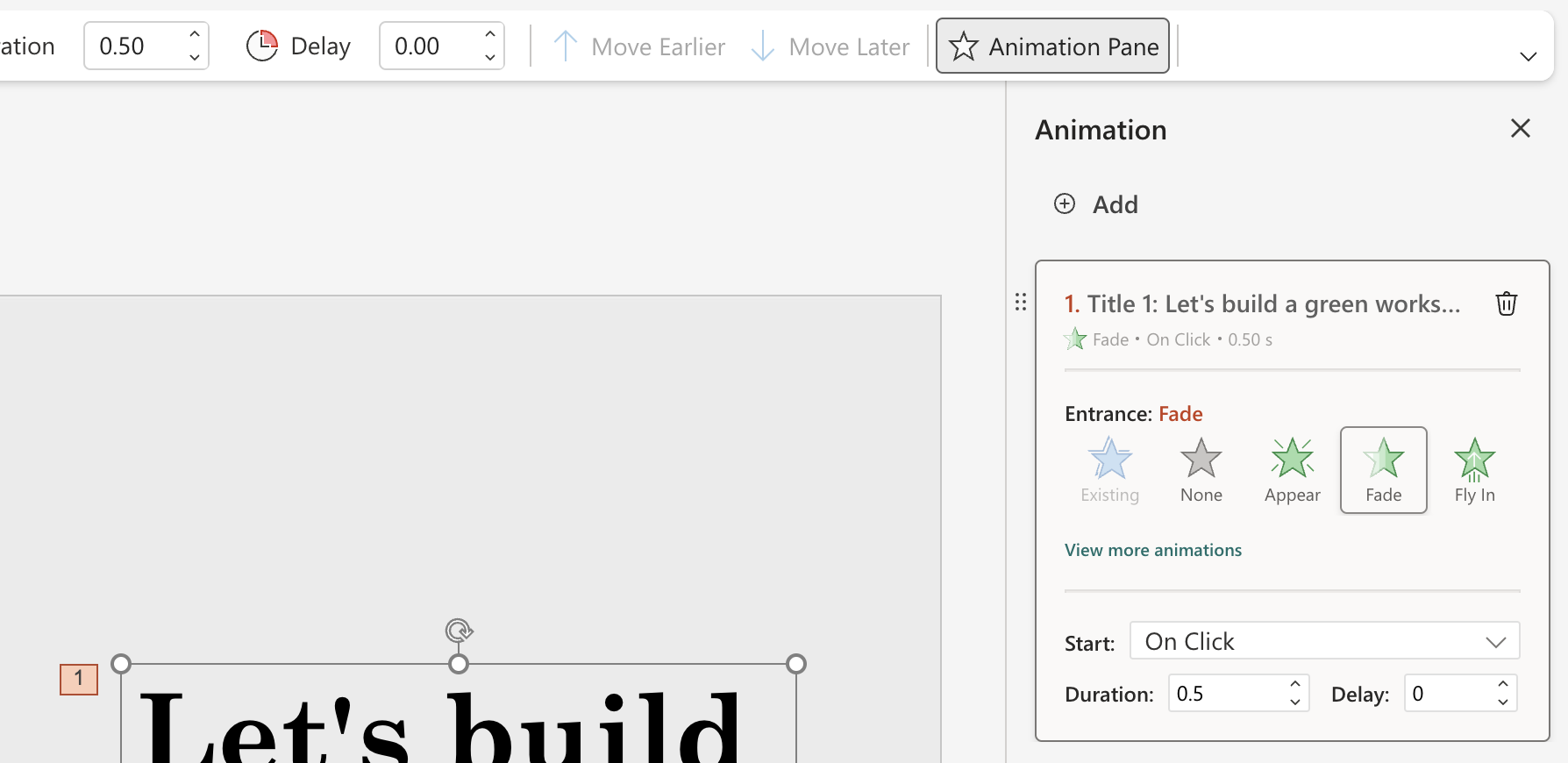
PowerPoint for the Web: This is how the new way of animating presentations works

  • In an existing presentation, select any object you want to animate. 
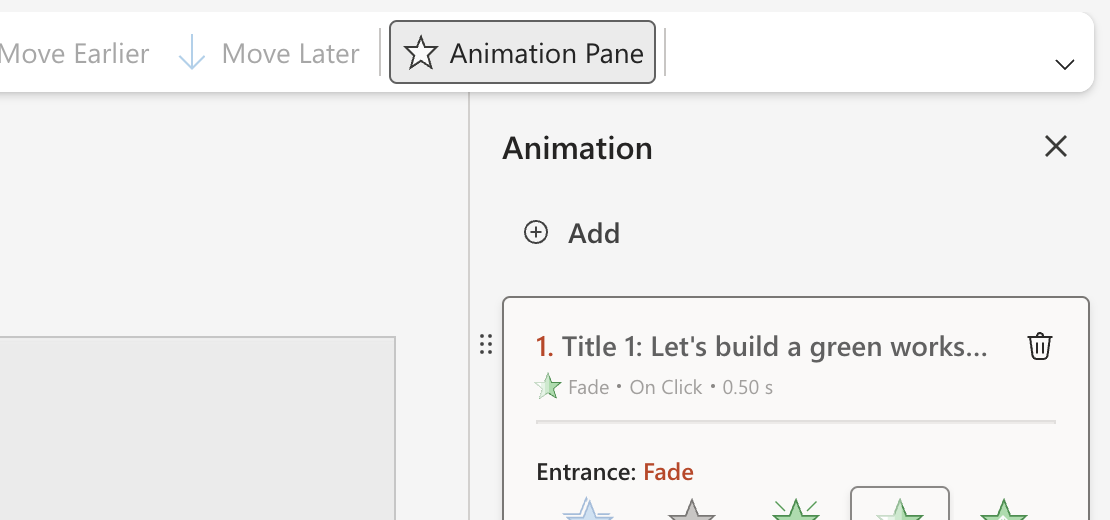
  • Animations > Animation Pane. 
  • In the Animation pane, click the Add Animation button. 
Animation of adding an animation
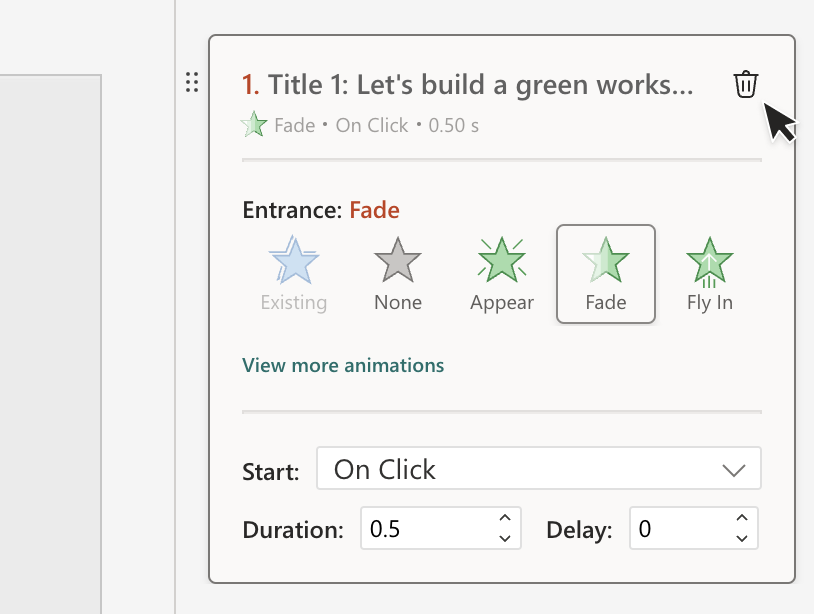
  • Edit the animation properties as needed in the animation card.  
Animation card
  • You can add more animations by clicking the Add button.
Add more animations
  • You can delete animations by clicking the Delete icon.
Delete an animation
  • To reorder animations, select the six-dots icon, and drag the card to a new preferred position.
Animation of reordering animations

This is not all, though: the Redmond-based tech giant plans to add a Preview option that will let users preview the animations, before using them, so they can be sure it is the right one. However, this option will only be available in the coming weeks.

For now, though, you can try all the other new ways to animate your presentations on PowerPoint for the Web.

How to fix Rainbow Six Siege Error Code 3-0x00030089

Many users have encountered Rainbow Six Siege server connection error code 3-0x00030089 while trying to launch or play the game. The error is usually caused by connectivity issues or corrupted game files. To begin with, you can try restarting your router and computer, then check the game’s server status on the Ubisoft website.

Next, you need to ensure that your computer has an updated graphics driver, and no background application is interfering with te game.

How can I fix the Rainbow Six Siege error code 3-0x00030089?

1. Run the game client as administrator

  1. Go to the Steam shortcut, right-click, and choose Properties.
  2. Navigate to the Compatibility tab, and under Settings, place a checkmark next to Run this program as administrator.Rainbow Six Siege error code 3-0x00030089
  3. Click Apply and OK to confirm the changes. Follow the same steps to run Rainbow Six Siege as an administrator.

2. Verify the game files’ integrity

  1. Press the Windows key, type steam, and click Open.Steam Open -Rainbow Six Siege error code 3-0x00030089
  2. Navigate to Library, then locate the Rainbow Six Siege.
  3. Right-click it and select Properties.
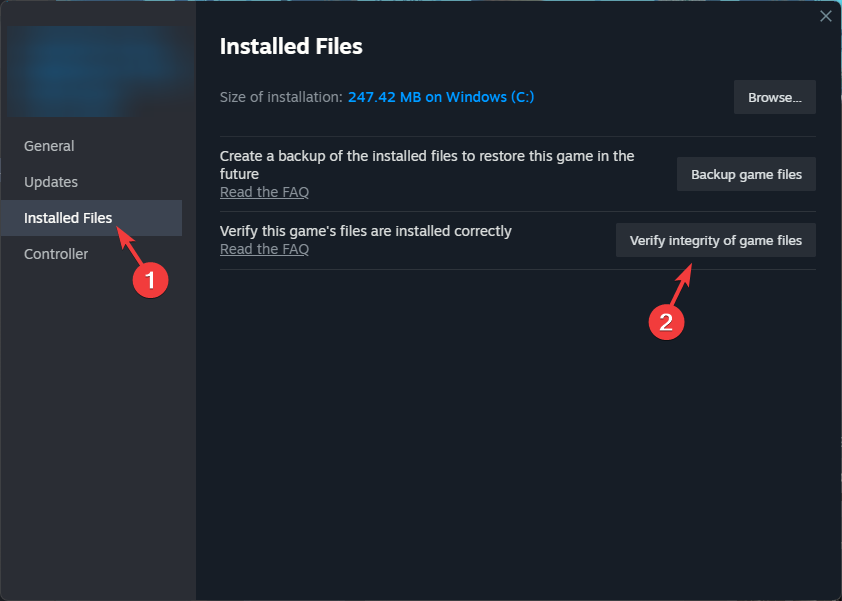
  4. Go to the Installed files tab, select Verify integrity of game files.Verify integrity

The file verification process will take some time, and once done, it will replace or restore the missing game files. Restoring the game files can also help you fix the Rainbow Six Siege won’t update issue.

Restoring the game files can also help you fix the Rainbow Six Siege error code 3-0x00030089 issue.

3. Turn off Windows Firewall

  1. Press the Windows key, type control panel, and click Open.Control Panel start menu - Rainbow Six Siege error code 3-0x00030089
  2. Select Category as View by and click System and Security.System and security
  3. Click Windows Defender Firewall.Windows Defender 
  4. Now, click Turn Windows Defender Firewall on or off from the left pane.Turn on or off, click OK
  5. Place a checkmark next to Turn off Windows Defender Firewall (not recommended) for both Private and Public network settings.

Now, try to launch the game, and if it is working, we will consider adding it to the Allowed Apps list of the Firewall. For that, follow these steps:

  1. Open the Control Panel again and go to System and Security.
  2. Click Windows Defender Firewall.  
  3. Now, click Allow an app or feature through Windows Defender Firewall.Allow an app - Rainbow Six Siege error code 3-0x00030089
  4. Select Allow another app.Allow another app
  5. Click Browse and select the app.
  6. Next, click Add.ADD
  7. Once added, make sure you check the Private and Public boxes in front of the Rainbow Six Siege.

4. Update the graphics drivers

  1. Press Windows + R to open the Run window. Device Manager Run command-  Rainbow Six Siege error code 3-0x00030089 
  2. Type devmgmt.msc and click OK to open the Device Manager window.
  3. Go to Display adapters.
  4. Right-click the graphics driver and select Update driver.Graphics Driver update
  5. Click Search automatically for drivers in the pop-up.Search automatically

Once updated, also check the network driver to ensure it is updated, as it might also cause other issues like error code 6-0x00001000

Having to update drivers manually can be quite frustrating. I recommend a handy driver updater to scan and update all your drivers automatically, plus it will ensure long-term maintenance so you never have to worry about drivers going out of date.

⇒ Get Fortect Driver Updater

5. Reinstall the game

  1. Press Windows + I to open the Settings app.
  2. Go to Apps, then select Installed apps.Apps, installed apps
  3. Locate Rainbow Six Siege, click the three dots icon and select Uninstall.Uninstall (2) -Rainbow Six Siege error code 3-0x00030089
  4. Once the game is removed from your device, press the Windows key, type steam, and click Open.
  5. Navigate to Library, then locate the Rainbow Six Siege and click Install.

You can also try reinstalling Steam by following the same steps from your Windows computer.

In conclusion, the Rainbow Six Siege error code 3-0x00030089 could occur due to a corrupted graphics driver, server maintenance, unstable network connection, or Firewall or antivirus software blocking the game.

To fix it, you can run the game and game client as admin, verify the game files’ integrity, turn off Windows Defender Firewall, and reinstall the game.

Furthermore, to ensure you can play the games on your computer smoothly, you must always close all running background applications so that you can prevent issues like Rainbow Six Siege’s slow loading.

Did we miss a step that helped you fix the issue? If so, feel free to share it in the comments section below.

C-Transformer chip: this ultra-low power consumption semiconductor might bring local AI to mobile phones

Korea Advanced Institute of Science and Technology (KAIST) has announced the development of a Complementary-Transformer AI chip (or C-Transformer chip), that is capable of processing LLMs (large language models) on ultra-low power consumption and it can be integrated into devices such as mobile phones.

According to a press release for The Korea Bizwire, the C-Transformer chip is capable of processing GPT-2 with a power consumption of only 400 milliwatts, and a high speed of 0.4 seconds.

The KAIST says the chip has a square form of 4.5 mm and was developed using Samsung tech; it has about 625 times less power consumption compared to Nvidia’s A-100 GPU – which needs approximately 250 watts of power to process GPT-2.

The C-Transformer chip is also 41 times smaller than the A-100 GPU, which makes it perfect for mobile phones.

KAIST, in an interview for The Korea Times, claims that the chip is also capable of neuromorphic computing, a sort of computing that mimics the structure and functions of the human brain, claiming that it is the first in the world to integrate such technology in a piece of hardware:

Neuromorphic computing is a technology that even companies like IBM and Intel have not been able to implement, and we are proud to be the first in the world to run the LLM with a low-power neuromorphic accelerator.

KAIST

Neuromorphic computing might be the key to unlocking the technology required for local AIs to properly run on small devices, such as tablets or mobile phones, without the need for an Internet connection. This would be preferable to the cloud-based AI services because it wouldn’t consume so much power and it would allow for a more sustainable way to approach and implement AI in the current technology.

It’s worth mentioning that not only KAIST is thinking this way: recently, Dell, another tech giant, stated that the future of AI is on-premises, and users will most likely want their AI products and services to run locally, rather than on-cloud.

This is also convenient: the new C-Transformer chip can be, theoretically speaking, integrated into mobile phones, so we might end up actually with phones that run local LLMs.

How to Add Your Xbox Friends on PS5

Aside from the thousands of games available on the top gaming platforms, the real thrill comes from making an online friend with whom you can play with. Since each gamer has their own preferences, it may not always be possible to add friends on different platforms.

While there’s no way to add Xbox friends on your PS5 or vice versa, you can leverage the cross-play feature and some in-game settings to get around this limitation.

How do I add an Xbox friend on PS5?

1. Check for requirements

  1. Select games that support the cross-platform feature. Most game details will have compatibility checks in their notes so verify before you try adding a friend.
  2. Some games require an extra step where you’re to set up accounts. For instance, Fortnite requires you to create and sign into your Epic account to play.
  3. Ensure you both have the latest version of the intended game. If either of you is using an outdated version, the game may be rendered incompatible with the platform and you may be unable to add a friend.
  4. Check the game servers and ensure they’re up and running. Finally, ensure you have a strong internet connection. When adding a friend, you’re playing in real-time and a stable connection is crucial to minimize lags, latency, and any delays. A poor internet connection puts you in a disadvantaged position to compete with your online counterpart.

Whereas you can play multiplayer games on the same platform, not all games on your Xbox support the cross-platform feature. Some notable games that you may be able to add Xbox friends to your PS5 include Fortnite, Call of Duty, and Minecraft among others.

2. Enable the crossplay feature

  1. Launch the game you wish to add your Xbox friend.
  2. Under Gameplay in the navigation pane, switch Crossplay to On.enable helldivers 2 crossplay

3. Link your account

  1. Go to the Epic Games website and sign in.epic games login
  2. Hover over your display name on the top right corner and then click Account.
  3. Click on Connected Accounts and select Link your account.
  4. You will be presented with an alpha-numeric code and a QR code
    • The alpha-numeric code can be entered at epicgames.com/activate
    • The QR code may be scanned with a mobile app to take you to the linking webpage, which will be pre-populated with the code provided in-game
  5. Log in with your account credentials to finalize the connection between your console game and Epic Games account.
  6. You will receive an in-game message that your account is now successfully connected.
  7. Sign in with your console account on the window that will pop up, and then hit Confirm.
  8. Your friends should follow the same steps and once they have linked their accounts, you can now use the in-game settings to add them as a friend within that specific game.

Potential problems and solutions when you add Xbox friends on PS5

  • Limited compatibility – Not all games support the cross-platform feature so if a developer is yet to avail this option, only a handful of games allow you to add friends.
  • Restrictive in-game settings – While Xbox and PS5 may share similar games on their platforms, they’re rivals and hence the platform-specific features. This can limit your gameplay which may put your opponent at an unfair advantage or disadvantage.
  • Technical failure – Common issues such as latency levels, lag, and low FPS may affect communication and hinder gameplay.

Admittedly, there are obvious differences between Xbox Series S and PS5 which we’ve covered in our in-depth comparison. Consequently, you are bound to encounter some challenges when it comes to cross-play in gaming.

Still, we have to admit that this is a thrilling experience we would encourage any gamer to explore. It might even come in handy when your Xbox friend list has disappeared or your invites are not going through.

And while both platforms are rivals, the future looks optimistic and instead of fighting each other with restrictive policies, they might have to embrace each other.

Would this be an adventure you’re willing to try? If not, do let us know your reservations in the comment section below.

Sea of Thieves becomes #1 pre-ordered game on PlayStation

Last month, Microsoft announced in the Xbox business Update podcast that it was planning to bring the exclusive Xbox games to PlayStation and Nintendo Switch. Sea of Thieves, Pentiment, Grounded and Hi-Fi Rush are the first four games that would become multi-platform.

One of the biggest games on Xbox, Sea of Thieves is very popular among Xbox and PC gamers, and according to the post shared Benji-Sales on X (formerly known as Twitter), it is already the #1 Best selling pre-order on PlayStation network in the United States.

Another video gaming experts on X have confirmed that it is getting good response in other territories, including UK, France, and Germany.

In countries like Spain and Canada, it is in the top five most pre-ordered games on the PlayStation Store. Sea of Thieves is the first Rare game to make it to the Sony platform

This might be the sign that Microsoft’s plan to extend Xbox exclusive games to a larger gaming community seems to work and if it is successful entirely, we might see more games on other platforms.

Sea of Thieves will be available on PlayStation 5 on April 30, 2024 and is already available on Xbox Series X/S, and PC and with Xbox Game Pass.

Microsoft is bringing AI to the healthcare industry through the TRAIN initiative

Microsoft said 2024 is the year of a new AI era with the release of the Copilot key, and the Redmond-based tech giant is keeping that promise up by announcing the new TRAIN initiative: Trustworthy & Responsible AI Network that aims to bring AI to every healthcare facility.

In a press release, Microsoft says TRAIN will see the deployment of safe and responsible AI in healthcare organizations to improve the quality, safety, and trustworthiness of AI in health. TRAIN sees the partnership of dozens of healthcare organizations across the US, including:

  • AdventHealth
  • Advocate Health
  • Boston Children’s Hospital
  • Cleveland Clinic
  • Duke Health
  • Johns Hopkins Medicine
  • Mass General Brigham
  • MedStar Health
  • Mercy
  • Mount Sinai Health System
  • Northwestern Medicine
  • Providence
  • Sharp HealthCare
  • University of Texas Southwestern Medical Center
  • University of Wisconsin School of Medicine and Public Health
  • Vanderbilt University Medical Center

The Redmond-based tech giant says that the network also includes partnerships with OCHIN, and TruBridge, two organizations that deal with medical technology, and community healthcare, assuring that every individual, regardless of income and resources, has access to the TRAIN technologies.

When it comes to AI’s tremendous capabilities, there is no doubt the technology has the potential to transform healthcare. However, the processes for implementing the technology responsibly are just as vital. By working together, TRAIN members aim to establish best practices for operationalizing responsible AI, helping improve patient outcomes and safety while fostering trust in healthcare AI.

Microsoft

AI in healthcare. What should people expect from TRAIN? Well, according to Microsoft, TRAIN members will work together to improve and quality of AI, and emphasize its adoption in the healthcare industry, by:

  • Sharing best practices related to the use of AI in healthcare settings, including the safety, reliability, and monitoring of AI algorithms, and the skillsets required to manage AI responsibly. Data and AI algorithms will not be shared between member organizations or with third parties.
  • Enabling registration of AI used for clinical care or clinical operations through a secure online portal.
  • Providing tools to enable measurement of outcomes associated with the implementation of AI, including best practices for studying the efficacy and value of AI methods in healthcare settings and leveraging privacy-preserving environments, with considerations in both pre-and post-deployment settings. Tools that allow analyses to be performed in subpopulations to assess bias will also be provided.
  • Facilitating the development of a federated national AI outcomes registry for organizations to share among themselves. The registry will capture real-world outcomes related to the efficacy, safety, and optimization of AI algorithms.

You can read all about the new TRAIN initiative from Microsoft here.

Microsoft home to the largest video game union in the US

Despite deeps cuts to its gaming work force recently, Microsoft has now become home to the largest video game collective bargaining effort in the United States with 600 Quality Assurance workers from Activision Blizzard unionized.

Early on during its initial attempts to court regulators over the Activision Blizzard acquisition, Microsoft gained the approval of the Communications Workers of America (CWA) by signing a labor neutrality agreement acknowledging ABK QA employees’ efforts to unionize.

While not our right support of the union labor effort, Microsoft’s LNA contract represented the company’s neutrality towards ongoing attempts and furthermore, stood as sign the company would not engage in any underhanded union-busting efforts like other companies or administrations.

Under former CEO Bobby Kotick, Activision Blizzard and its board had stalled efforts from its QA departments to unionize and gain barging representation within the company.

However, the long road to unionization is over for roughly 600 Activision QA personnel across studios in Austin, Texas; Eden Prairie, Minnesota; and El Segundo, California, as they tallied the final votes of 390 to 8 in favor of creating a union.

Several Activision QA spoke with Polygon following the unionization victory.

“Something we organized around is that in this industry, QA and customer service are the lowest paid jobs, and often looked down upon either within the industry or by customers,” Activision QA tester and organizing committee member Kara Fannon told Polygon. “It’s easy for people to say to QA, ‘Oh, I found a bug,’ even though we logged tens of thousands of bugs. So why is QA [unionizing], as opposed to other people in the industry? We have the weakest protections currently and we want to make sure that we’re strong so our work can keep going the way it is — we want to be supporting these games and working really hard on them.”

The newly minted 600 QA union workers from Activision Blizzard will join other unionized departments within Activision, Microsoft, ZeniMax, and Raven Software to form the single largest unionized force in gaming in the US now.

The CWA’s effort to help Activision QA employees gain representation comes at a pivotal time for workers in gaming which has taken blows over the past year with thousands being let go every few months.

Being part of a union may not guarantee work in the future, it can help mitigate losses both financially and to careers with negotiations around severance packages, non-compete clauses, and mandatory-minimum inform statues.

With the unionization vote out of the way, Activision’s QA union now preps for another tough battle with Microsoft negotiators over terms for a new contract. It is unclear what the period is for negotiations or when it’s set to begin.

Microsoft has had no comment on recent developments as of now.